Hantel HTT-800A CDMA Fixed Wireless Terminal User Manual

Hantel Co., Ltd. CDMA Fixed Wireless Terminal

User Manual

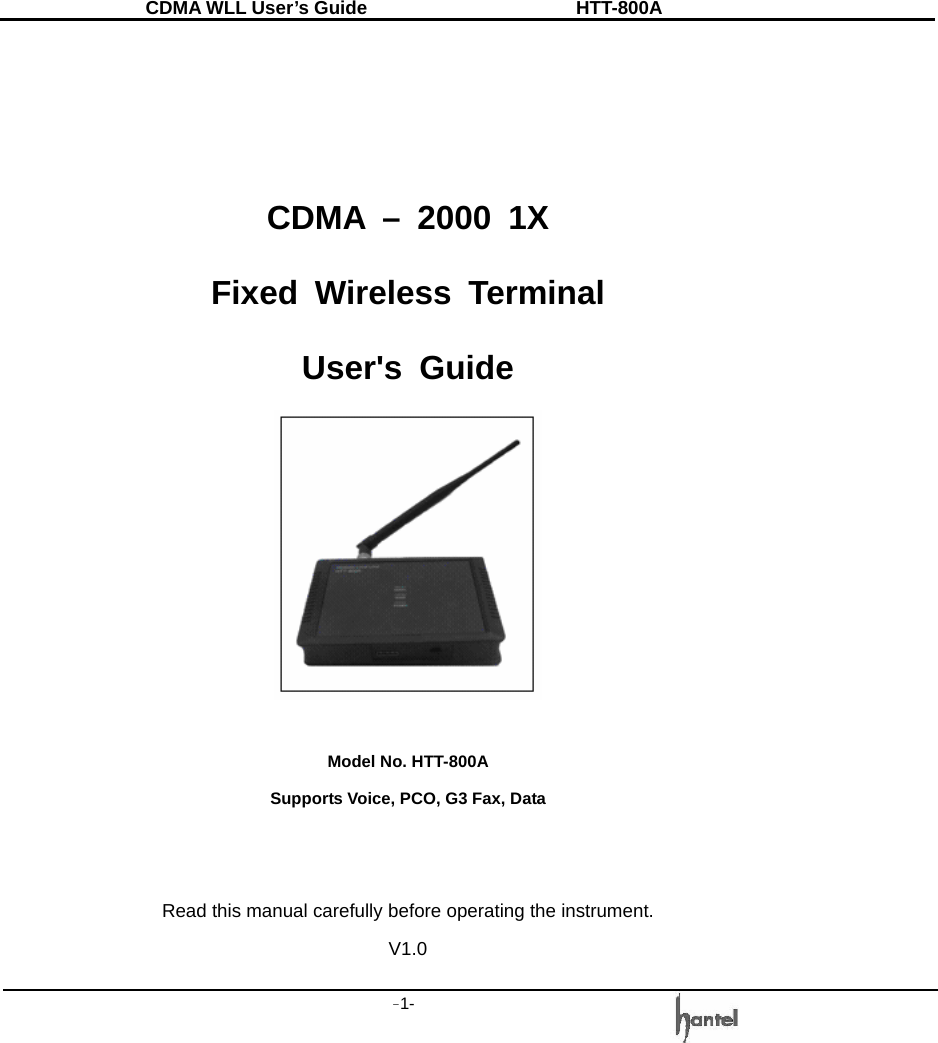
CDMA WLL User’s Guide               HTT-800A -1-     CDMA – 2000 1X Fixed Wireless Terminal User's Guide   Model No. HTT-800A Supports Voice, PCO, G3 Fax, Data   Read this manual carefully before operating the instrument. V1.0
CDMA WLL User’s Guide               HTT-800A -2-   FCC  RF  EXPOSURE  INFORMATION  WARNING! Read this information before using your phone   In August 1996 the Federal Communications Commission (FCC) of the United States with its action in Report and Order FCC 96~326 adopted an updated safety standard for human exposure to radio frequency electromagnetic energy emitted by FCC regulated transmitters. Those guidelines are consistent with the safety standard previously set by both U.S. and international standards bodies. The design of this phone complies with the FCC guidelines and these international standards.  To comply with FCC RF exposure requirements, a minimum separation distance of 2.5cm (1 inch) must be maintained between the user/bystander and the back of the unit, including the antenna.   When using the Optional external antenna please note the following precautions: This system is designed to be operated as a fixed system device and must be located either on the roof top site, or up on or near the ceiling away from the user. It must be mounted in a manner to ensure that all user's and bystanders are kept a minimum of 20cm away from the antennas at all times.
CDMA WLL User’s Guide               HTT-800A -3-      Warning:  Exposure  to  Radio  Frequency Radiation  The  radiated  output  power  of  this device is far below the FCC radio frequency exposure  limits.  Nevertheless,  the  device should be used in such a manner that the potential  for  human  contact  during  normal operation  is  minimized.  In  order  to  avoid  the possibility  of  exceeding  the  FCC  radio frequency  exposure  limits,  human  proximity to the antenna should not be less than 20 cm during  normal  operation.  The  gain  of  the antenna for Cellular band must not exceed 2.0 dBi.    For more information about RF exposure, please visit the FCC website at www.fcc.gov
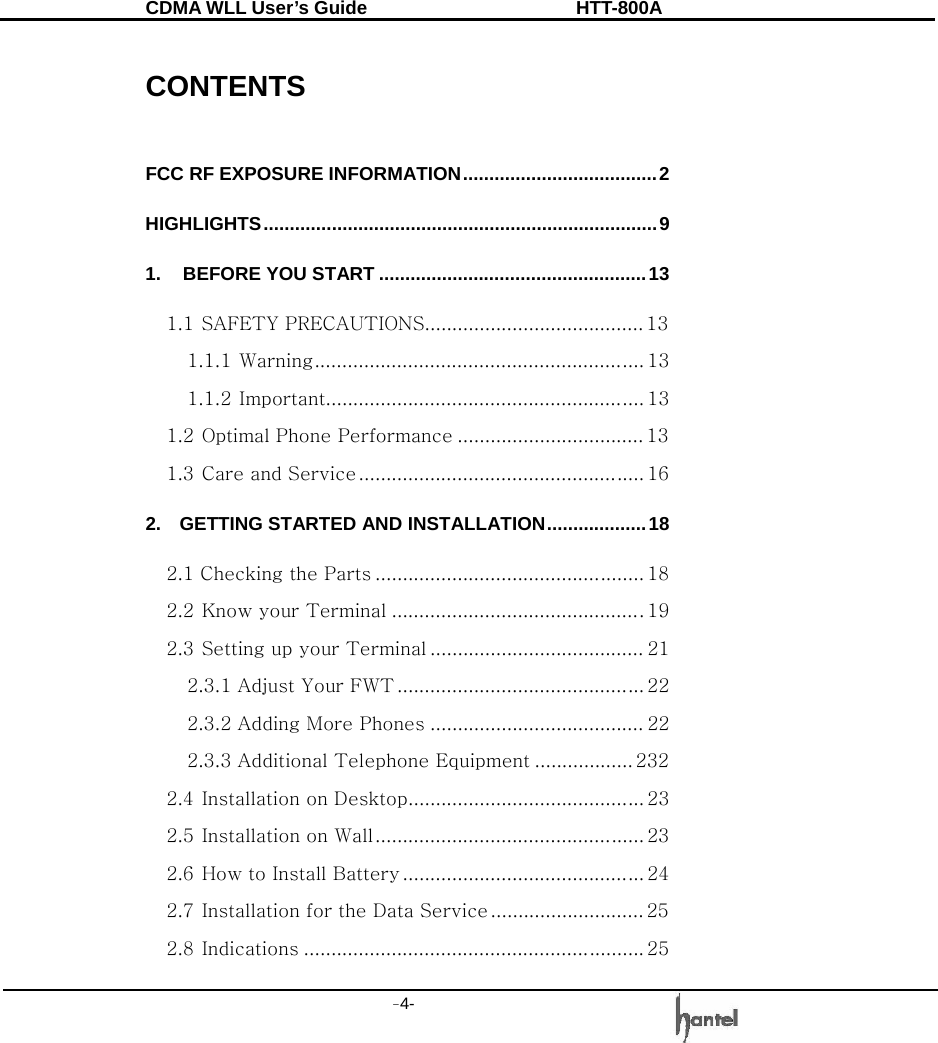
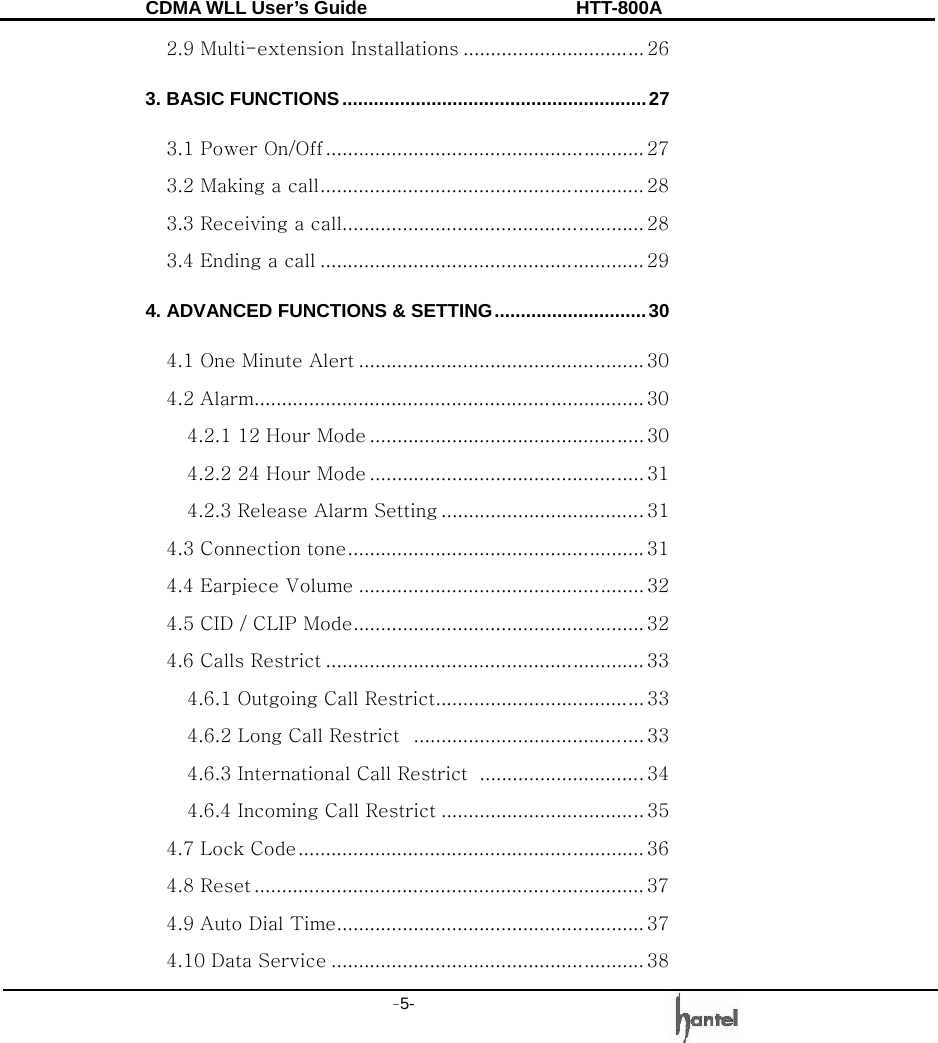
CDMA WLL User’s Guide               HTT-800A -4-    CONTENTS  FCC RF EXPOSURE INFORMATION.....................................2 HIGHLIGHTS...........................................................................9 1. BEFORE YOU START ...................................................13 1.1 SAFETY PRECAUTIONS........................................ 13 1.1.1 Warning............................................................ 13 1.1.2 Important.......................................................... 13 1.2 Optimal Phone Performance .................................. 13 1.3 Care and Service .................................................... 16 2.  GETTING STARTED AND INSTALLATION...................18 2.1 Checking the Parts ................................................. 18 2.2 Know your Terminal ..............................................19 2.3 Setting up your Terminal ....................................... 21 2.3.1 Adjust Your FWT ............................................. 22 2.3.2 Adding More Phones ....................................... 22 2.3.3 Additional Telephone Equipment .................. 232 2.4 Installation on Desktop........................................... 23 2.5 Installation on Wall................................................. 23 2.6 How to Install Battery ............................................ 24 2.7 Installation for the Data Service ............................ 25 2.8 Indications .............................................................. 25
CDMA WLL User’s Guide               HTT-800A -5-   2.9 Multi-extension Installations ................................. 26 3. BASIC FUNCTIONS..........................................................27 3.1 Power On/Off .......................................................... 27 3.2 Making a call........................................................... 28 3.3 Receiving a call....................................................... 28 3.4 Ending a call ........................................................... 29 4. ADVANCED FUNCTIONS & SETTING.............................30 4.1 One Minute Alert .................................................... 30 4.2 Alarm....................................................................... 30 4.2.1 12 Hour Mode .................................................. 30 4.2.2 24 Hour Mode .................................................. 31 4.2.3 Release Alarm Setting .....................................31 4.3 Connection tone...................................................... 31 4.4 Earpiece Volume .................................................... 32 4.5 CID / CLIP Mode..................................................... 32 4.6 Calls Restrict .......................................................... 33 4.6.1 Outgoing Call Restrict...................................... 33 4.6.2 Long Call Restrict  .......................................... 33 4.6.3 International Call Restrict  ..............................34 4.6.4 Incoming Call Restrict ..................................... 35 4.7 Lock Code............................................................... 36 4.8 Reset ....................................................................... 37 4.9 Auto Dial Time........................................................ 37 4.10 Data Service ......................................................... 38
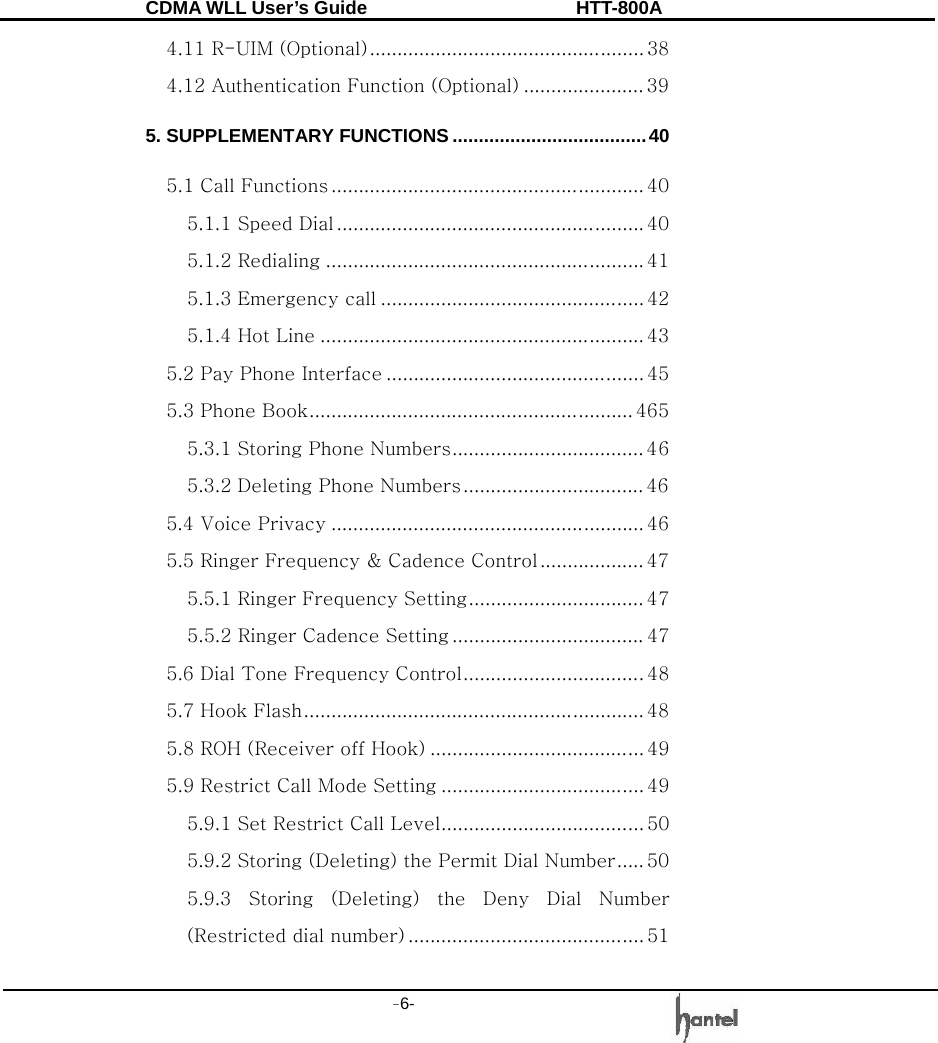
CDMA WLL User’s Guide               HTT-800A -6-   4.11 R-UIM (Optional).................................................. 38 4.12 Authentication Function (Optional) ...................... 39 5. SUPPLEMENTARY FUNCTIONS .....................................40 5.1 Call Functions ......................................................... 40 5.1.1 Speed Dial ........................................................ 40 5.1.2 Redialing .......................................................... 41 5.1.3 Emergency call ................................................ 42 5.1.4 Hot Line ........................................................... 43 5.2 Pay Phone Interface ............................................... 45 5.3 Phone Book........................................................... 465 5.3.1 Storing Phone Numbers................................... 46 5.3.2 Deleting Phone Numbers................................. 46 5.4 Voice Privacy ......................................................... 46 5.5 Ringer Frequency & Cadence Control ................... 47 5.5.1 Ringer Frequency Setting................................ 47 5.5.2 Ringer Cadence Setting ................................... 47 5.6 Dial Tone Frequency Control.................................48 5.7 Hook Flash.............................................................. 48 5.8 ROH (Receiver off Hook) ....................................... 49 5.9 Restrict Call Mode Setting ..................................... 49 5.9.1 Set Restrict Call Level..................................... 50 5.9.2 Storing (Deleting) the Permit Dial Number..... 50 5.9.3  Storing  (Deleting)  the  Deny  Dial  Number (Restricted dial number) ........................................... 51
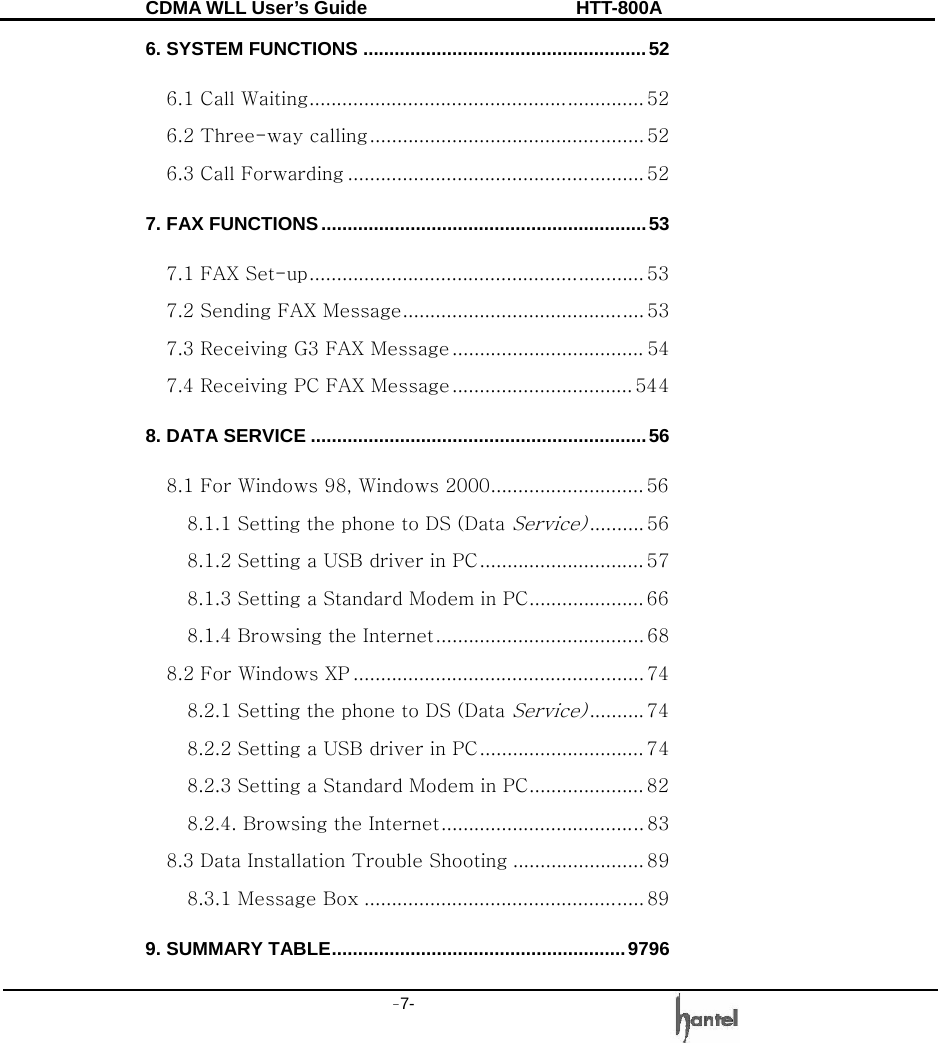
CDMA WLL User’s Guide               HTT-800A -7-   6. SYSTEM FUNCTIONS ......................................................52 6.1 Call Waiting............................................................. 52 6.2 Three-way calling.................................................. 52 6.3 Call Forwarding ...................................................... 52 7. FAX FUNCTIONS..............................................................53 7.1 FAX Set-up............................................................. 53 7.2 Sending FAX Message............................................ 53 7.3 Receiving G3 FAX Message ................................... 54 7.4 Receiving PC FAX Message ................................. 544 8. DATA SERVICE ................................................................56 8.1 For Windows 98, Windows 2000............................ 56 8.1.1 Setting the phone to DS (Data Service).......... 56 8.1.2 Setting a USB driver in PC.............................. 57 8.1.3 Setting a Standard Modem in PC..................... 66 8.1.4 Browsing the Internet...................................... 68 8.2 For Windows XP ..................................................... 74 8.2.1 Setting the phone to DS (Data Service).......... 74 8.2.2 Setting a USB driver in PC.............................. 74 8.2.3 Setting a Standard Modem in PC..................... 82 8.2.4. Browsing the Internet..................................... 83 8.3 Data Installation Trouble Shooting ........................ 89 8.3.1 Message Box ................................................... 89 9. SUMMARY TABLE........................................................9796
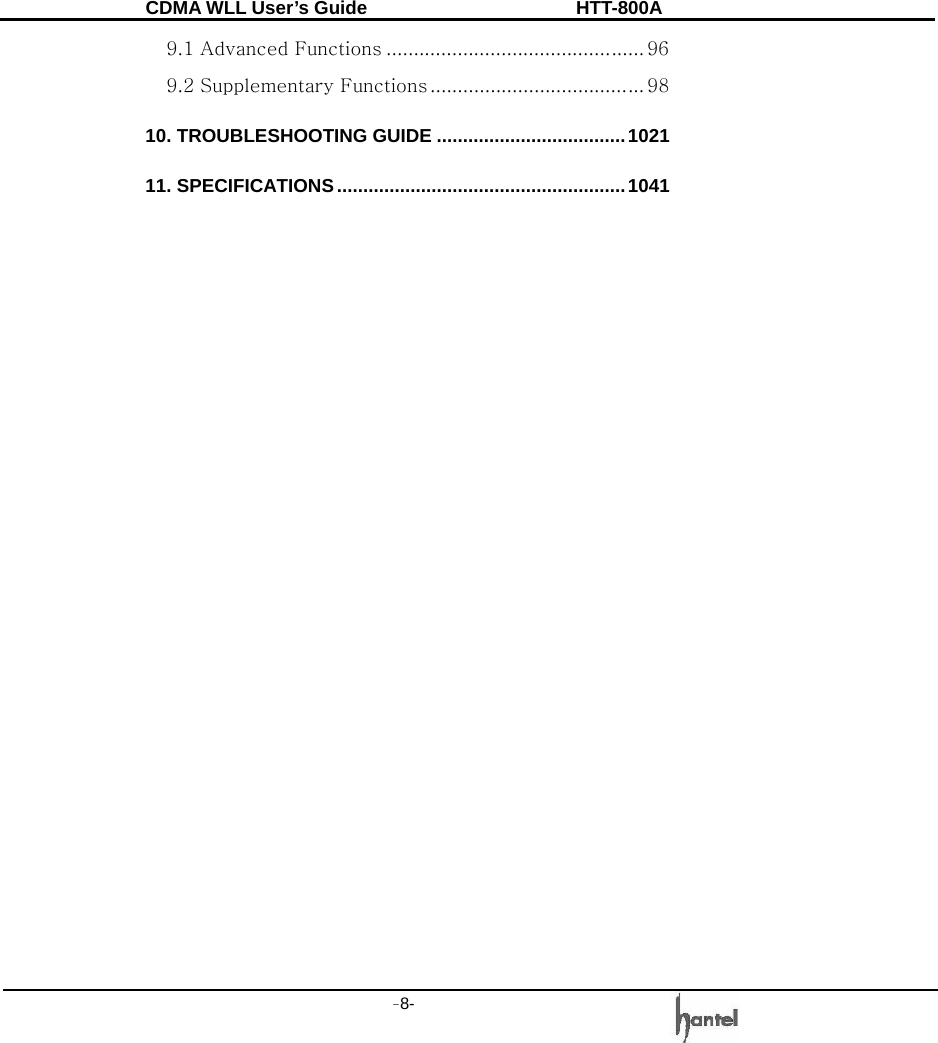
CDMA WLL User’s Guide               HTT-800A -8-   9.1 Advanced Functions ............................................... 96 9.2 Supplementary Functions ....................................... 98 10. TROUBLESHOOTING GUIDE ....................................1021 11. SPECIFICATIONS.......................................................1041
CDMA WLL User’s Guide               HTT-800A -9-   Highlights  Dear Customer,  Congratulations on your purchase of the Fixed Wireless Terminal Model No. HTT-800A designed to operate on the latest digital mobile communications technology, Code Division Multiple Access (CDMA). This CDMA digital technology has greatly enhanced voice clarity and can provide various advanced features. The terminal enables the normal operation and direct connection of standard telephone equipment into the cellular network.  Note: Supplied Product supports Voice, PCO, G3 Fax, 14.4 kbps data in Circuit mode & 144 kbps data in Packet mode.  ■  This Model looks perfect on your desk in the office. It can also be installed on any wall in your office or home. Thanks to the wall-mount kit that comes with the unit. ■  These Model owners can easily adjust the volume of the handset (earpiece) with the volume control, and set the volume at an optimal level. ■  This Model has a practical and elegant design. It can be used at office or home. This Model also offers many useful features and technological advantages. ■  This Model has Versatile Installation Options.
CDMA WLL User’s Guide               HTT-800A -10-   ■  This Model offers its users superior voice quality through its use of QCELP or EVRC Vocoder. ■  Various sounds and LED functions provide audio and visual alerts for Low Battery, Air Link Cut-Off and Function status. ■  The owner can use the terminal with the Outgoing Call Lock function. ■  Connect this Model with your PC for data transmission, PC Fax and SMS communication. ■  Simple and quick transmission of the stored numbers in the phone book with One-Touch, Two-Touch and Three-Touch Dial. ■  The Emergency Call Hold function enables a user to contact emergency center personnel. ■  The Hotline Call function allows the most frequently used numbers to be automatically connected when a user picks up the handset. ■  The Voice Privacy function ensures against illegal phone tapping and thus it can be prevented. ■  The Authentication Key function prevents the owner’s phone numbers from being cloned by others. ■  CID/CLIP function lets you know who is calling you. ■  G3 Fax service is supported for analog environment. ■  The Pay Phone Interface allows this Model to work as a payphone. ■  This Model offers R-UIM Function (Optional).
CDMA WLL User’s Guide               HTT-800A -11-   This Model provides: ■  AC Power supply with AC/DC Adapter. ■  Touch tone (DTMF) or Pulse Dialing ■  A phone jack to plug in the telephone equipment (RJ-11 Port) ■  Support Caller ID Telephone ■  Ring voltage used to ring the telephone connected to the unit, with a REN (Ringer Equivalence Numbers) of 4 Phones. ■  A phone jack to plug in the G3 FAX equipment (RJ-11 Port) ■  Data Port for service and repair (USB / RS-232   data cable, Optional) ■  Three lights (LEDs) to indicate the status of the unit ■  Dipole Antenna ■  R-UIM (Optional)  Some of the features are supported by service provider’s system.
CDMA WLL User’s Guide               HTT-800A -12-   For instance, the following features may not be supported: ■  Emergency Call ■  Hot Line Call ■  Speed Dial ■  Alarm ■  Outgoing Call Lock
CDMA WLL User’s Guide               HTT-800A -13-   1.  Before  You  Start  1.1 SAFETY PRECAUTIONS  1.1.1  Warning To reduce the risk of fire or electric shock, do not expose this product to rain or moisture. Do not use this product near swimming pools or other bodies of water. Telephones with multiple terminating impedance, should be set for 600ohms. The adapter provided along with FWT is designed for a rated voltage only. So it may cause trouble, if the adapter is used out of a rated voltage range.  1.1.2  Important Before installing or operating this product, read this information.  1.2 Optimal Phone Performance ■  Do not use the unit with a damaged antenna. Have your antenna replaced by a qualified technician immediately. Use only a manufacturer-approved antenna. Non-approved antennas, modifications, or attachments could impair call quality, damage the Terminal /
CDMA WLL User’s Guide               HTT-800A -14-   phone. ■  For the best call quality, keep the antenna free from obstructions and point the antenna straight up. ■  Do not operate your product when holding the antenna, or when someone is within four inches (ten centimeters) of the antenna. Holding the antenna affects call quality and may cause the telephone to operate at a higher power level than needed. ■  RF energy may affect improperly installed or inadequately shielded personal medical devices such as pace markers, hospital monitor. Consult the manufacturer of any personal medical devices to determine if they are adequately shielded from external RF energy. ■  Turn your terminal OFF in health care facilities when any regulations posted in the areas instruct you to do so. Hospitals or health care facilities may be using equipment that could be sensitive to external RF energy. ■  If this equipment does cause harmful interference to radio or television reception, which can be determined by turning the equipment off and on, the user is encouraged
CDMA WLL User’s Guide               HTT-800A -15-   to try to correct the interference by one or more of the following measures: -  Reorient or relocate the receiving antenna. -  Increase the separation between the radio or television and the telephone. -  Connect the equipment into an outlet on a circuit different from that to which the terminal is connected. -  Consult you Authorized Dealer of an experienced Radio/TV technician for help. ■  Use only the battery, antenna and AC power supply provided by Authorized Dealer. Using any other type will invalidate the warranty. ■  Only authorized personnel should service the phone and its accessories. Faulty installation or service may be dangerous and invalidate the warranty. ■  Do not use the unit in designated “no cellular phone use” area. ■  Avoid exposure to high temperature or humidity ■  Avoid wetting the unit with any liquids. If the unit gets wet, turn the power off immediately and remove the backup battery and AC power supply. If the unit is inoperable, then return to the service agent for service.
CDMA WLL User’s Guide               HTT-800A -16-   ■  Avoid shock or impact. ■  We recommend you to charge the backup battery before initial use for 10/12 hours. Backup battery may be discharged during delivery. ■  This device complies with part 15 of the FCC Rules. Operation is subject to the following two conditions: -  This device may not cause harmful interference, and -  This device must accept any interference received, including interference that may cause undesired operation.  1.3 Care and Service ■  If the unit fails for any reason, do not attempt to disassemble; contact the telephone service provider for assistance. ■  Unplug the FWT from the wall outlet and remove antenna (or disconnect antenna cable) before cleaning. Do not use liquid or aerosol cleaners. Use a damp cloth for cleaning.   ■  If any of the following conditions exist: Unplug the unit at the wall plug, remove battery, and call the service provider.
CDMA WLL User’s Guide               HTT-800A -17-   -  The unit has been exposed to rain or water. -  Liquid has been spilled into the unit. -  The power supply cord is damaged or frayed. -  The unit has been dropped or damaged. -  The unit does not work normally by following the operating instructions. Note: ■  Don't disassemble or modify this product deliberately. ■  Use only an approved adapter. ■  Don't touch adapter with wet hands. ■  Don't install this product in dusty area. ■  Avoid areas near sunlight, heating apparatus, vibration  ■  This product is designed for being used within commercial power. In other voltage area, please install voltage stability device and use it. ■  When struck by lightning, unplug to protect terminal from lightning damage and fire. ■  Don't install this product near other electronic appliance. ■  When installing battery, be careful of polarity. ■  Install in area of good signal. ( Signal LED is
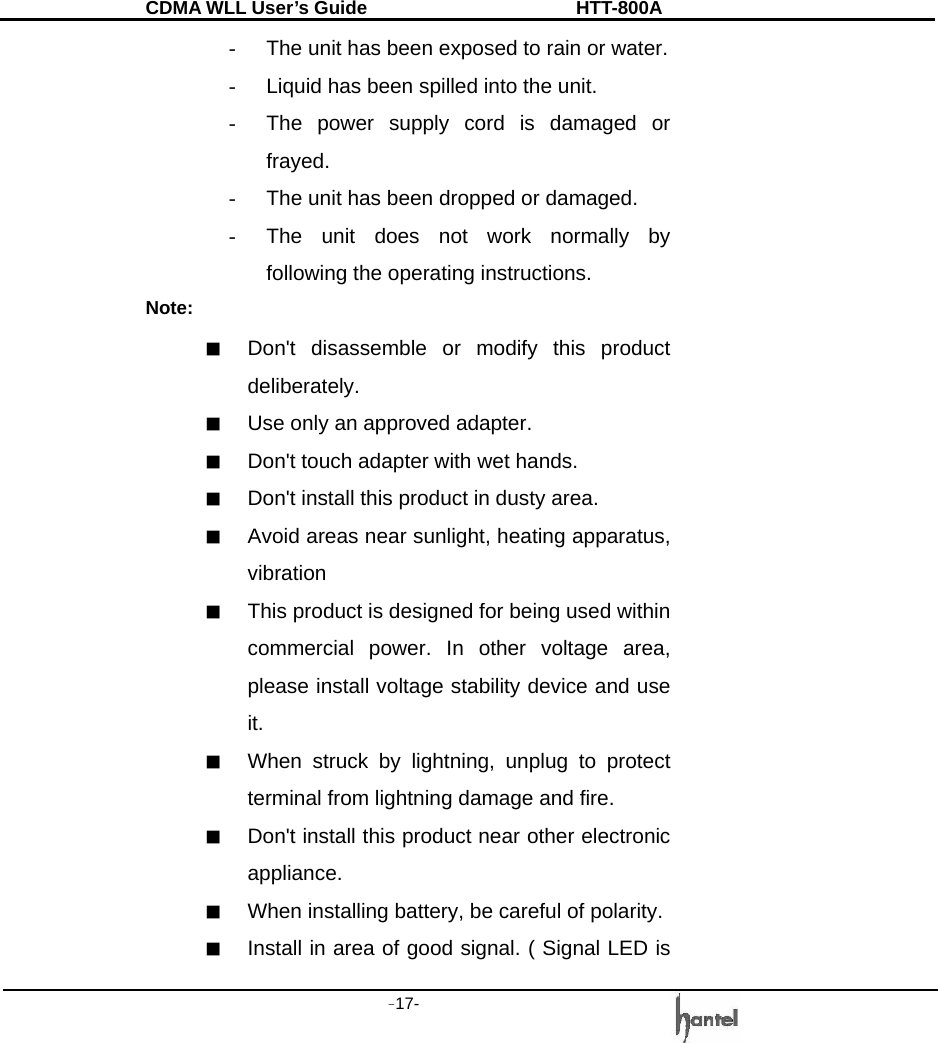
CDMA WLL User’s Guide               HTT-800A -18-   Green )  2.    Getting  Started  and  Installation  2.1 Checking the Parts Please make sure that these components are present before you begin the unit installation. And then compare the following figures and components. If components are missing or damage is found, contact the store where you purchased the unit immediately.
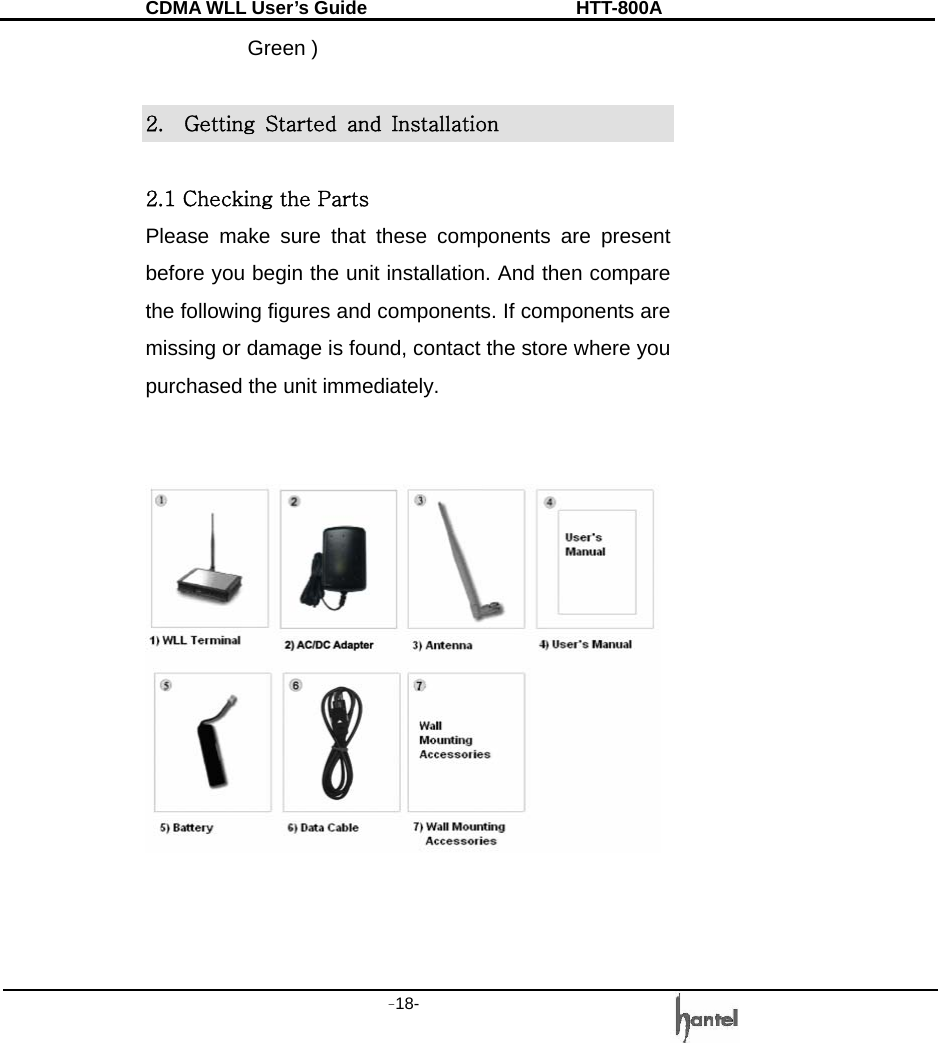
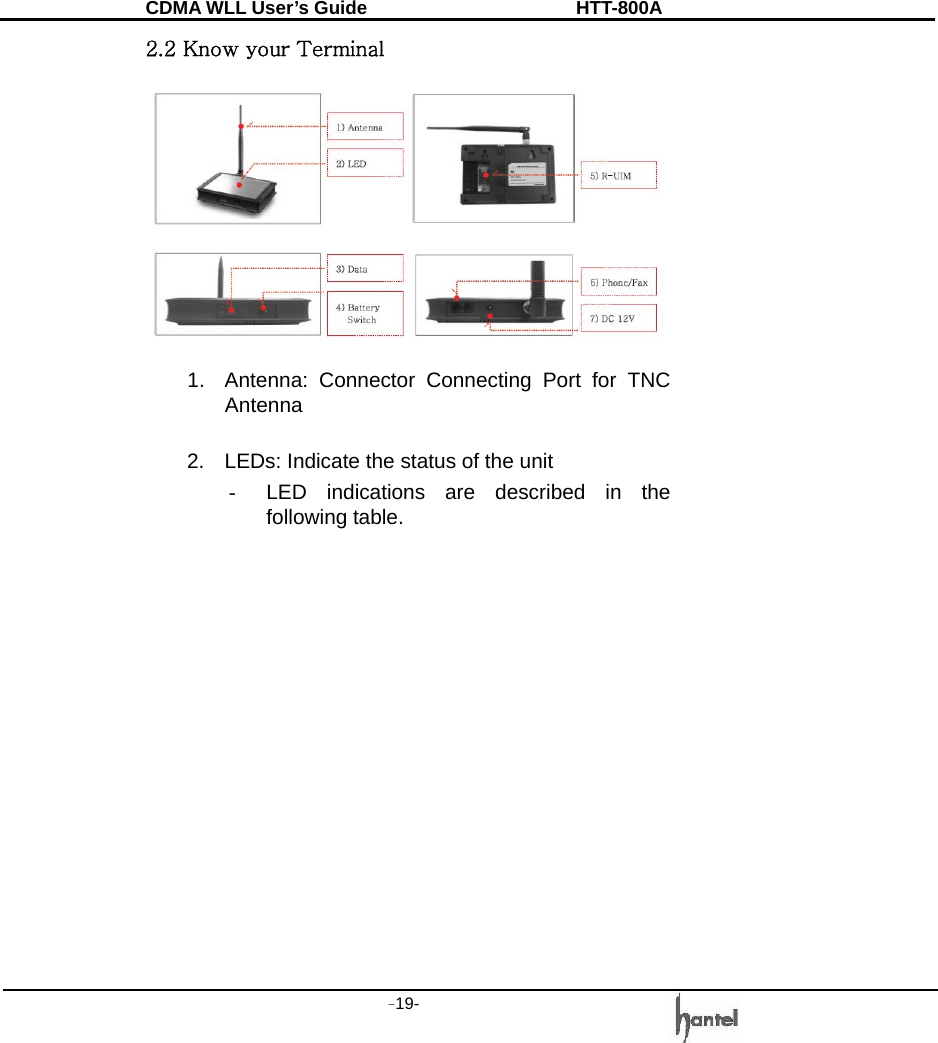
CDMA WLL User’s Guide               HTT-800A -19-   2.2 Know your Terminal  1.  Antenna: Connector Connecting Port for TNC Antenna  2.  LEDs: Indicate the status of the unit -  LED indications are described in the following table.
CDMA WLL User’s Guide               HTT-800A -20-   3.  DATA Port: The DATA Port used to connect the terminal to the PC for maintenance/repair, and data communication. 4.  Battery Switch: If you use Battery, you should switch on the battery Switch. The Battery pack is charged when battery switch is on. 5.  UIM Connector: Refer to 4.11 R-UIM. Name  LED Color Activity Meaning GREEN On AC/DC adapter is giving 12V DC without a battery. ORANGE On  Battery is fully charged. (AC/DC adapter is connected.) ORANGE Flashing Battery is charging. (AC/DC adapter is connected.) RED On Battery Power is applied without AC/DC adapter. RED Flashing Low Battery Warning. (AC/DC adapter is not connected.) POWER - Off No AC Power/No power is being supplied by battery. GREEN On Good Signal RED On Poor Signal RED  Flashing Poor Signal Warning SIGNAL -  Off  No service area. GREEN On Voice Message is received. Data Call is connected. GREEN Flashing Data service or G3 FAX is incoming / outgoing. MODE RED  Flashing Voice call is incoming.
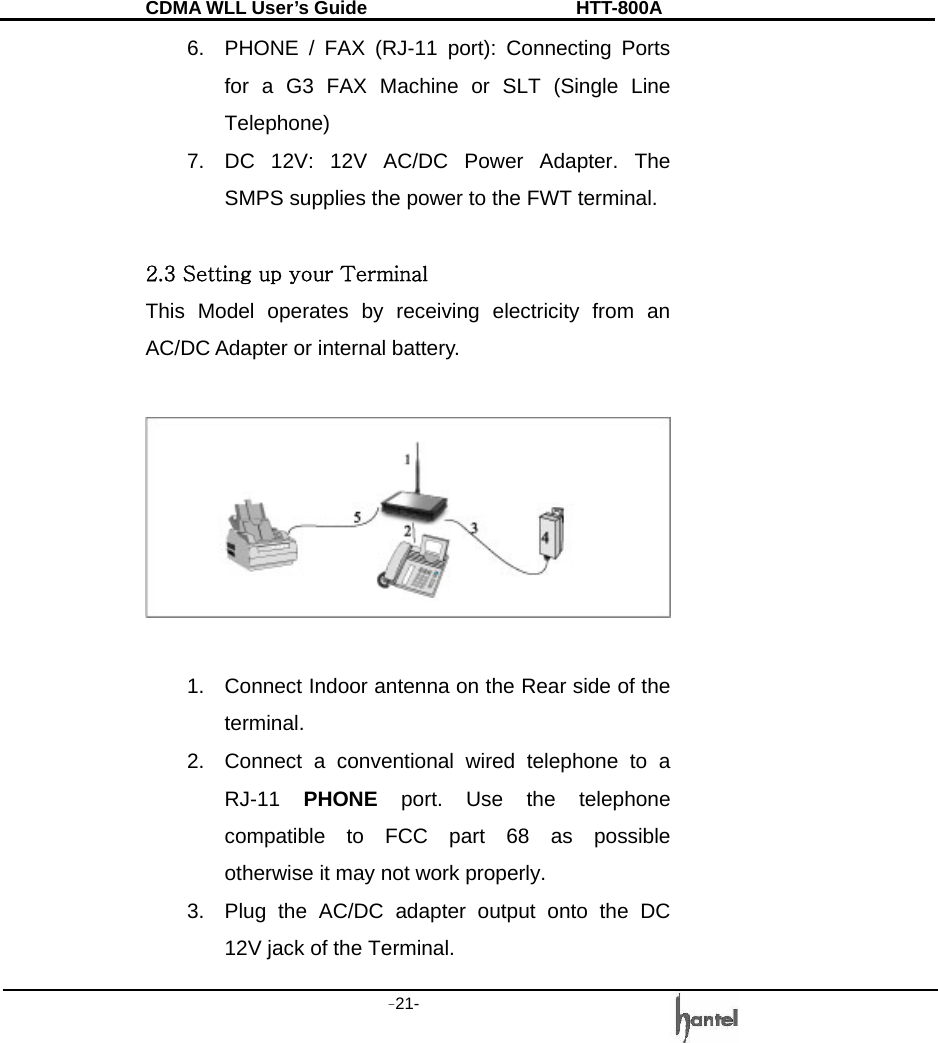
CDMA WLL User’s Guide               HTT-800A -21-   6.  PHONE / FAX (RJ-11 port): Connecting Ports for a G3 FAX Machine or SLT (Single Line Telephone) 7.  DC 12V: 12V AC/DC Power Adapter. The SMPS supplies the power to the FWT terminal.  2.3 Setting up your Terminal This Model operates by receiving electricity from an AC/DC Adapter or internal battery.    1.  Connect Indoor antenna on the Rear side of the terminal. 2.  Connect a conventional wired telephone to a RJ-11  PHONE port. Use the telephone compatible to FCC part 68 as possible otherwise it may not work properly. 3.  Plug the AC/DC adapter output onto the DC 12V jack of the Terminal.
CDMA WLL User’s Guide               HTT-800A -22-   4. Plug the AC/DC adapter plug into an appropriate electrical outlet. 5.  Connect a G3 analog facsimile machine to a dedicated RJ-11 port marked as FAX.  2.3.1 Adjust Your FWT 1.  Pick up the phone receiver and listen to dial tone. 2.  If you hear dial tone, make a call. 3.  If ether static or echo is heard While you’re talking with the other party move the antenna until you find the spot where voice conversation is strong, and static and echo are minimized. Note:  If you are unsuccessful in dialing out, verify the following: -  The antenna location needs to be adjusted. -  The NAM/Phone Numbers need to be set up. -  Your FWT phone numbers has not been activated – contact your service provider. 2.3.2 Adding More Phones Plug in an RJ-11 line splitter (not supplied) to connect additional phones to your FWT.(Maximum 04 phones can be connected) Note: you can only make one phone call at a time.
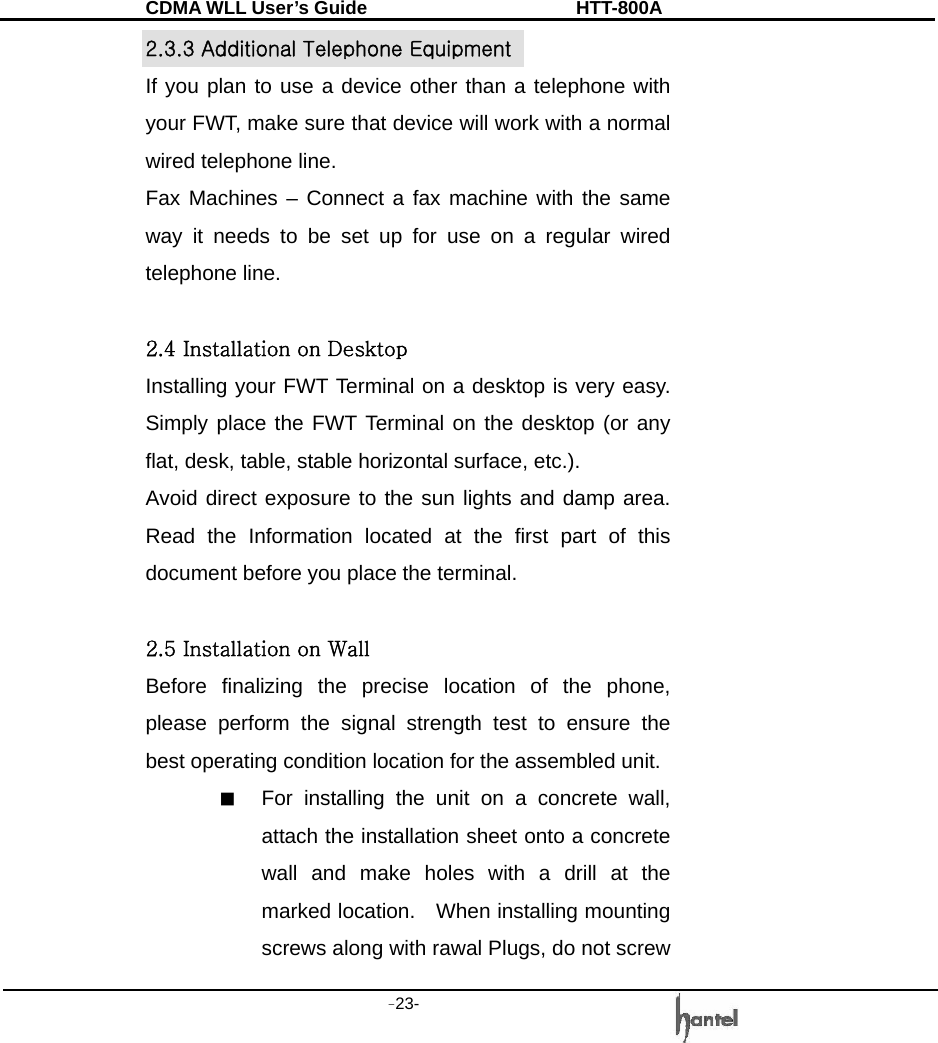
CDMA WLL User’s Guide               HTT-800A -23-   2.3.3 Additional Telephone Equipment If you plan to use a device other than a telephone with your FWT, make sure that device will work with a normal wired telephone line. Fax Machines – Connect a fax machine with the same way it needs to be set up for use on a regular wired telephone line.  2.4 Installation on Desktop Installing your FWT Terminal on a desktop is very easy. Simply place the FWT Terminal on the desktop (or any flat, desk, table, stable horizontal surface, etc.). Avoid direct exposure to the sun lights and damp area. Read the Information located at the first part of this document before you place the terminal.  2.5 Installation on Wall   Before finalizing the precise location of the phone, please perform the signal strength test to ensure the best operating condition location for the assembled unit. ■  For installing the unit on a concrete wall, attach the installation sheet onto a concrete wall and make holes with a drill at the marked location.    When installing mounting screws along with rawal Plugs, do not screw
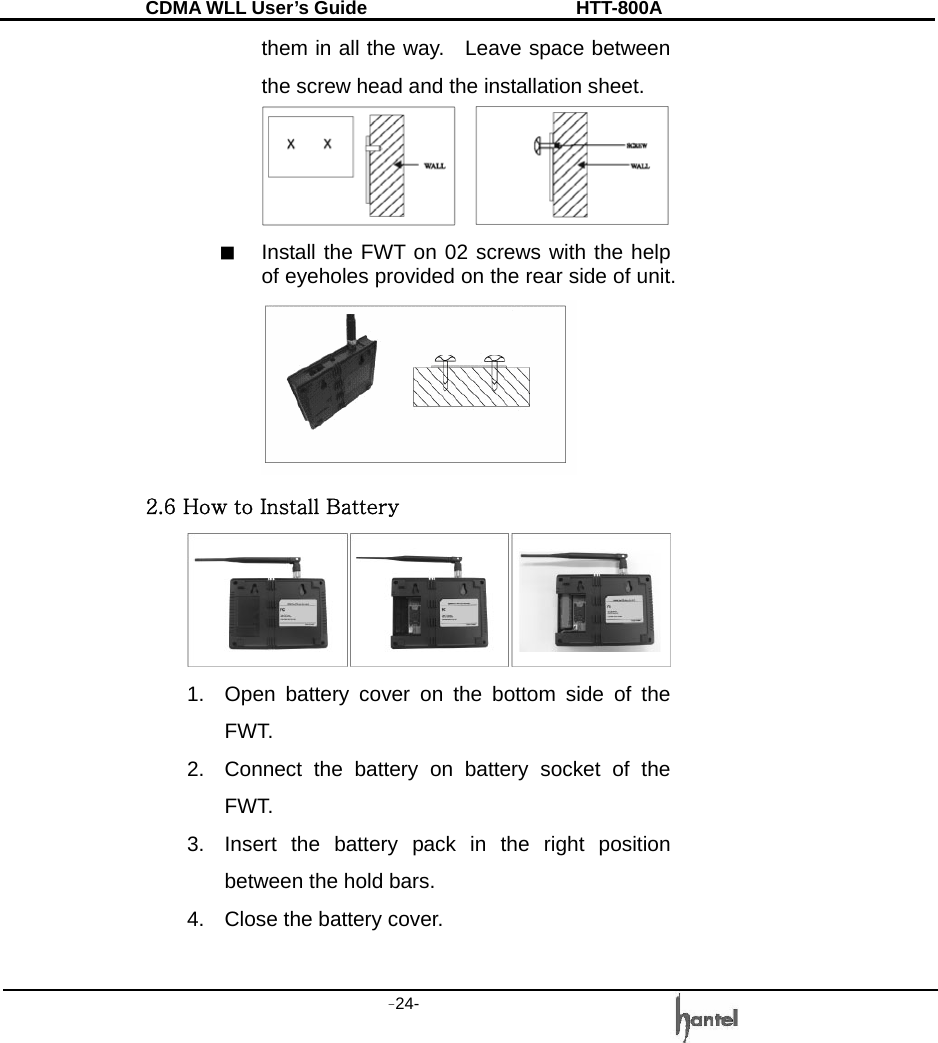
CDMA WLL User’s Guide               HTT-800A -24-   them in all the way.    Leave space between the screw head and the installation sheet.  ■  Install the FWT on 02 screws with the help of eyeholes provided on the rear side of unit.    2.6 How to Install Battery  1.  Open battery cover on the bottom side of the FWT. 2.  Connect the battery on battery socket of the FWT. 3.  Insert the battery pack in the right position between the hold bars. 4.  Close the battery cover.
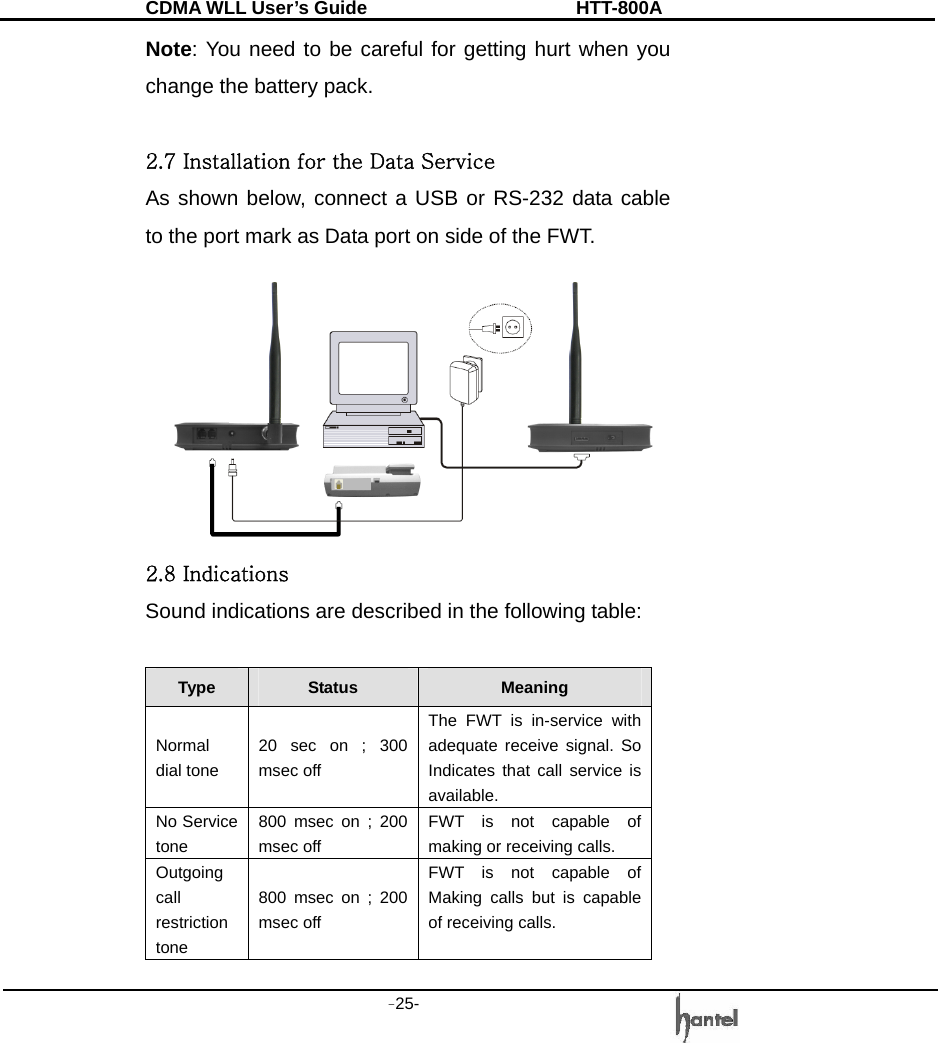
CDMA WLL User’s Guide               HTT-800A -25-   Note: You need to be careful for getting hurt when you change the battery pack.  2.7 Installation for the Data Service As shown below, connect a USB or RS-232 data cable to the port mark as Data port on side of the FWT.  2.8 Indications Sound indications are described in the following table:  Type  Status  Meaning Normal dial tone 20 sec on ; 300 msec off The FWT is in-service with adequate receive signal. So Indicates that call service is available. No Service tone 800 msec on ; 200 msec off FWT is not capable of making or receiving calls. Outgoing call restriction tone 800 msec on ; 200 msec off FWT is not capable of Making calls but is capable of receiving calls.
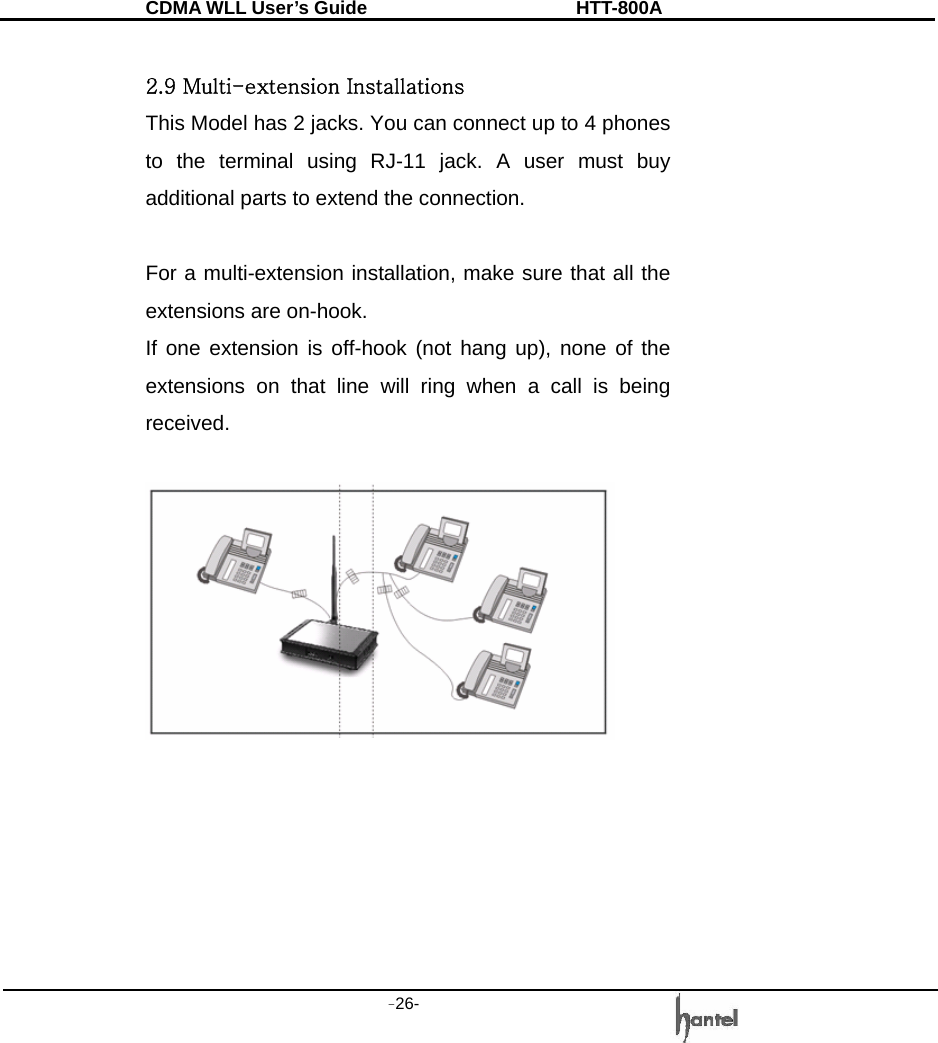
CDMA WLL User’s Guide               HTT-800A -26-    2.9 Multi-extension Installations This Model has 2 jacks. You can connect up to 4 phones to the terminal using RJ-11 jack. A user must buy additional parts to extend the connection.  For a multi-extension installation, make sure that all the extensions are on-hook. If one extension is off-hook (not hang up), none of the extensions on that line will ring when a call is being received.
CDMA WLL User’s Guide               HTT-800A -27-   3.  Basic  Functions  3.1 Power On/Off ¾  The power jack is on the side of the FWT. The POWER LED indicates the present status; ¾  When the terminal is succeeded in getting the service, SIGNAL LED indicates the strength of the signal. Lifting handset on telephone, dial tone is heard and you can enter a phone number. Note:  -  When you turn on the FWT, it will automatically search for service signal. When it successfully acquires a service state, it will generate a dial tone on the handset.  -  If Hot Line function is enabled, busy tone is not produced and hot line number is automatically connected. ¾  If the radio service is not available or radio signal is too weak to detect; the SIGNAL LED is OFF.
CDMA WLL User’s Guide               HTT-800A -28-   3.2 Making a call 1.  First check to see that your FWT Phone is turned on. 2.  Pick up the handset. You will hear a dial tone. 3.  Using the number keypad, dial the desired telephone number (Max 32 digits). Note: When you finish entering phone number, the call will be connected automatically after 5 seconds.  Please Refer to 4.9 Auto dial time. 4.  When the other person answers, begin your conversation. 5.  To end the call, replace the handset.  Note: Dial Tone Dial tone will be generated if you lift your handset until your press any key. This Model will not generate any dial tone in NO Service status.  3.3 Receiving a call 1.  The terminal signals telephone(s) to ring when an incoming call is detected. 2.  Pick up telephone handset and begin talking through handset.
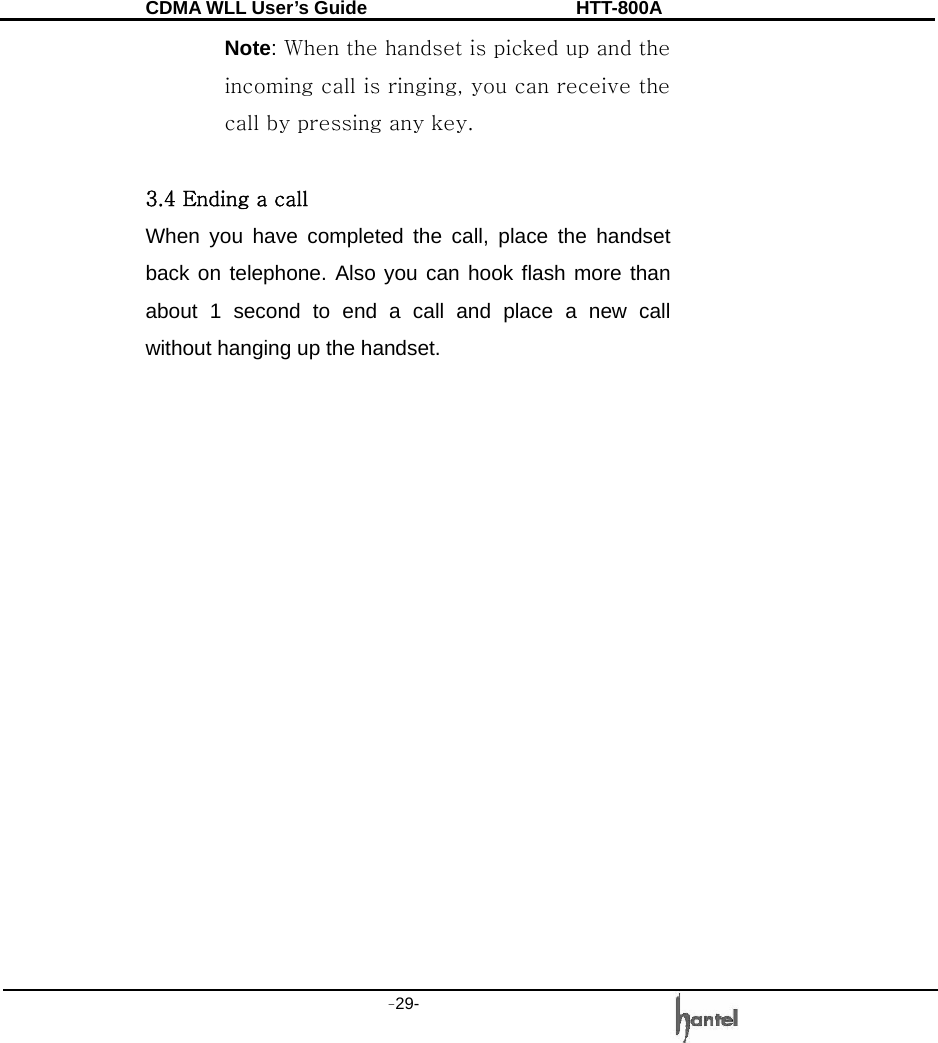
CDMA WLL User’s Guide               HTT-800A -29-   Note: When the handset is picked up and the incoming call is ringing, you can receive the call by pressing any key.  3.4 Ending a call When you have completed the call, place the handset back on telephone. Also you can hook flash more than about 1 second to end a call and place a new call without hanging up the handset.
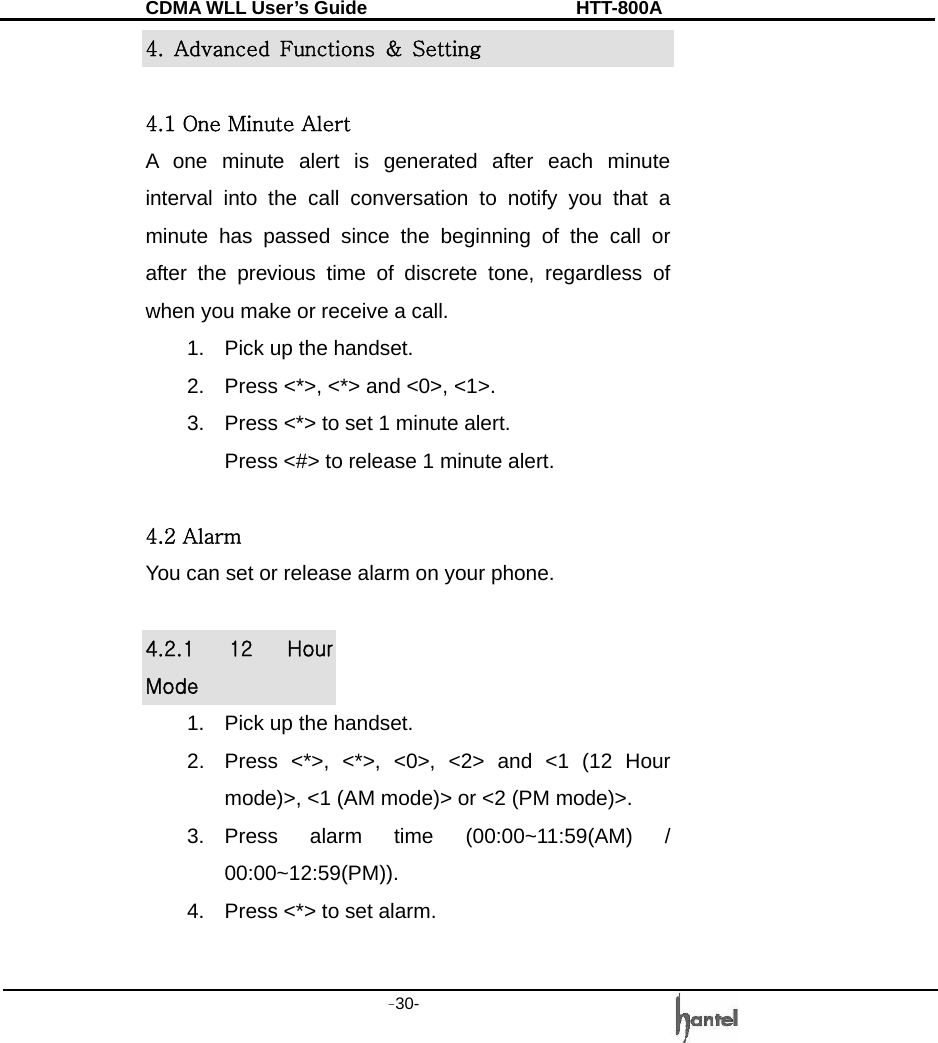
CDMA WLL User’s Guide               HTT-800A -30-   4.  Advanced  Functions  &  Setting  4.1 One Minute Alert A one minute alert is generated after each minute interval into the call conversation to notify you that a minute has passed since the beginning of the call or after the previous time of discrete tone, regardless of when you make or receive a call. 1.  Pick up the handset. 2.  Press <*>, <*> and <0>, <1>. 3.  Press <*> to set 1 minute alert. Press <#> to release 1 minute alert.  4.2 Alarm You can set or release alarm on your phone.  4.2.1  12  Hour Mode 1.  Pick up the handset. 2.  Press <*>, <*>, <0>, <2> and <1 (12 Hour mode)>, <1 (AM mode)> or <2 (PM mode)>. 3. Press alarm time (00:00~11:59(AM) / 00:00~12:59(PM)). 4.  Press <*> to set alarm.
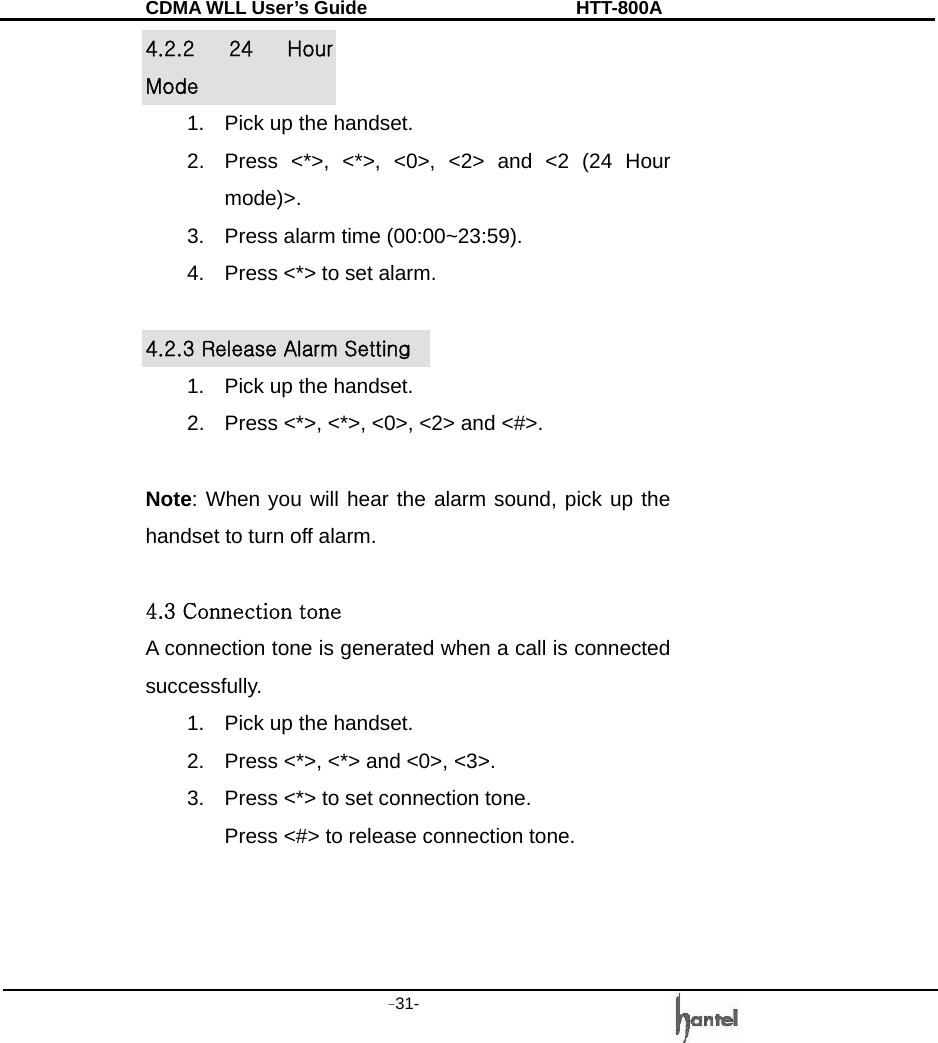
CDMA WLL User’s Guide               HTT-800A -31-   4.2.2  24  Hour Mode 1.  Pick up the handset. 2.  Press <*>, <*>, <0>, <2> and <2 (24 Hour mode)>. 3.  Press alarm time (00:00~23:59). 4.  Press <*> to set alarm.  4.2.3 Release Alarm Setting 1.  Pick up the handset. 2.  Press <*>, <*>, <0>, <2> and <#>.  Note: When you will hear the alarm sound, pick up the handset to turn off alarm.  4.3 Connection tone A connection tone is generated when a call is connected successfully. 1.  Pick up the handset. 2.  Press <*>, <*> and <0>, <3>. 3.  Press <*> to set connection tone. Press <#> to release connection tone.
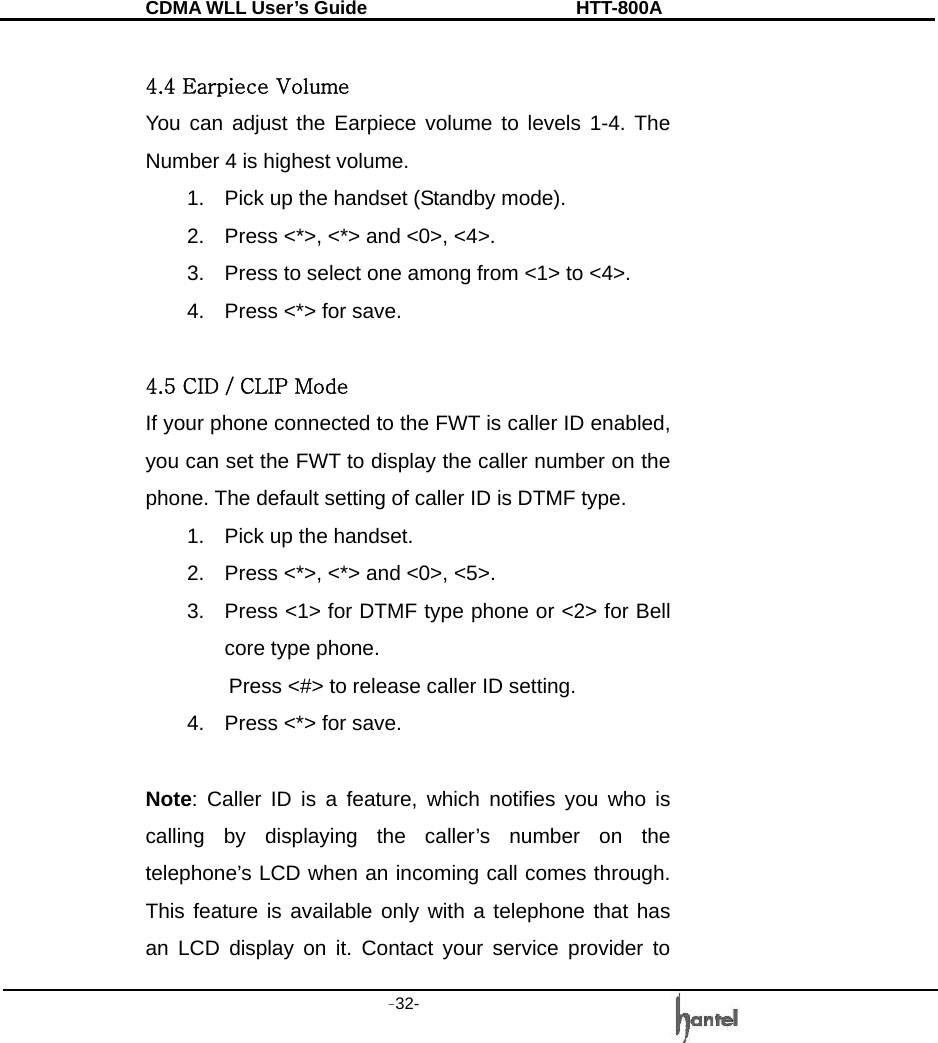
CDMA WLL User’s Guide               HTT-800A -32-    4.4 Earpiece Volume You can adjust the Earpiece volume to levels 1-4. The Number 4 is highest volume. 1.  Pick up the handset (Standby mode). 2.  Press <*>, <*> and <0>, <4>. 3.  Press to select one among from <1> to <4>. 4.  Press <*> for save.  4.5 CID / CLIP Mode If your phone connected to the FWT is caller ID enabled, you can set the FWT to display the caller number on the phone. The default setting of caller ID is DTMF type. 1.  Pick up the handset. 2.  Press <*>, <*> and <0>, <5>. 3.  Press <1> for DTMF type phone or <2> for Bell core type phone. Press <#> to release caller ID setting. 4.  Press <*> for save.  Note: Caller ID is a feature, which notifies you who is calling by displaying the caller’s number on the telephone’s LCD when an incoming call comes through. This feature is available only with a telephone that has an LCD display on it. Contact your service provider to
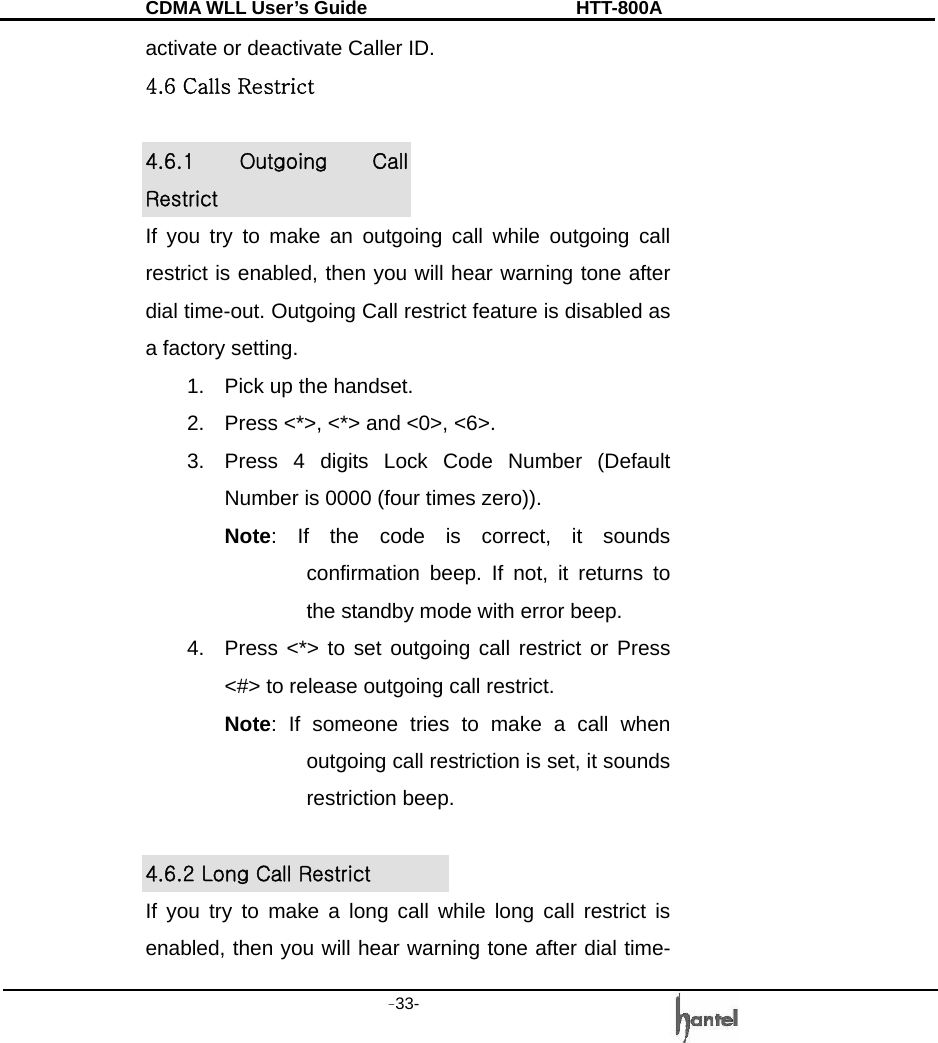
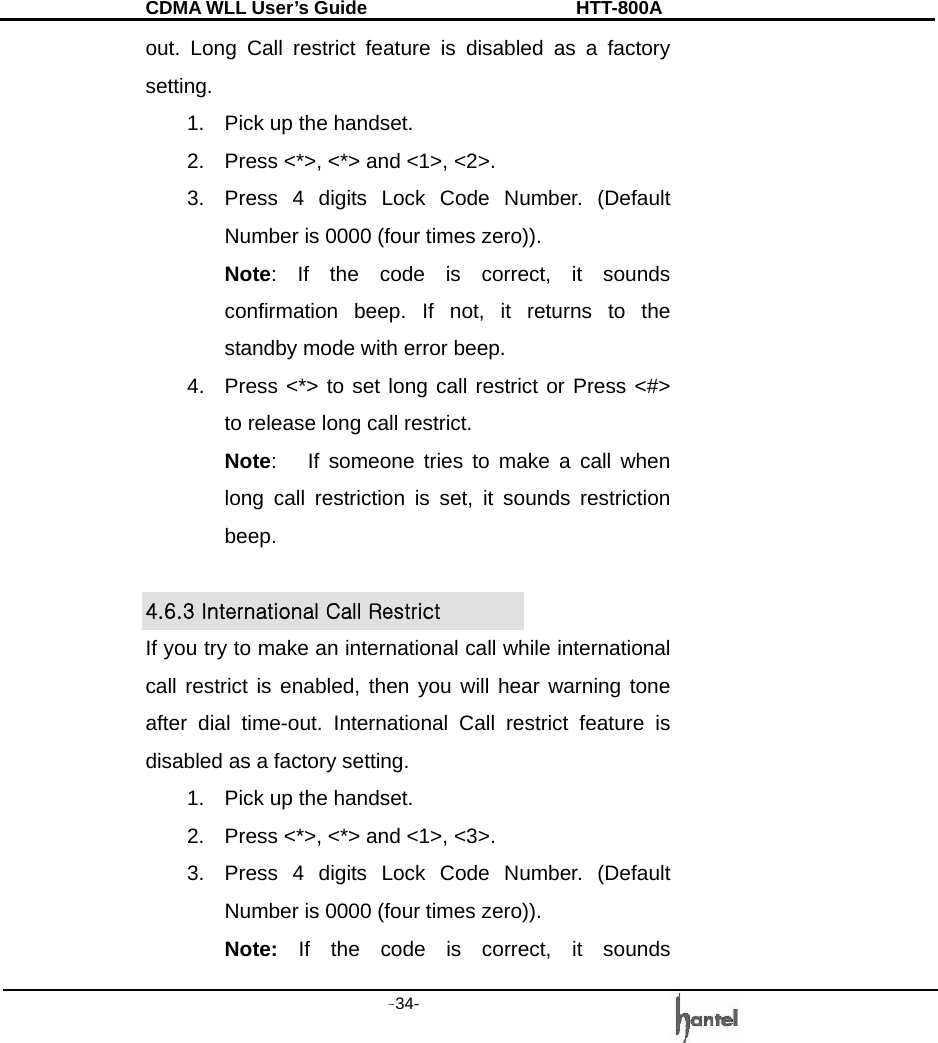
CDMA WLL User’s Guide               HTT-800A -33-   activate or deactivate Caller ID. 4.6 Calls Restrict  4.6.1  Outgoing  Call Restrict If you try to make an outgoing call while outgoing call restrict is enabled, then you will hear warning tone after dial time-out. Outgoing Call restrict feature is disabled as a factory setting. 1.  Pick up the handset. 2.  Press <*>, <*> and <0>, <6>. 3.  Press 4 digits Lock Code Number (Default Number is 0000 (four times zero)). Note: If the code is correct, it sounds confirmation beep. If not, it returns to the standby mode with error beep. 4.  Press <*> to set outgoing call restrict or Press <#> to release outgoing call restrict. Note: If someone tries to make a call when outgoing call restriction is set, it sounds restriction beep.  4.6.2 Long Call Restrict   If you try to make a long call while long call restrict is enabled, then you will hear warning tone after dial time-
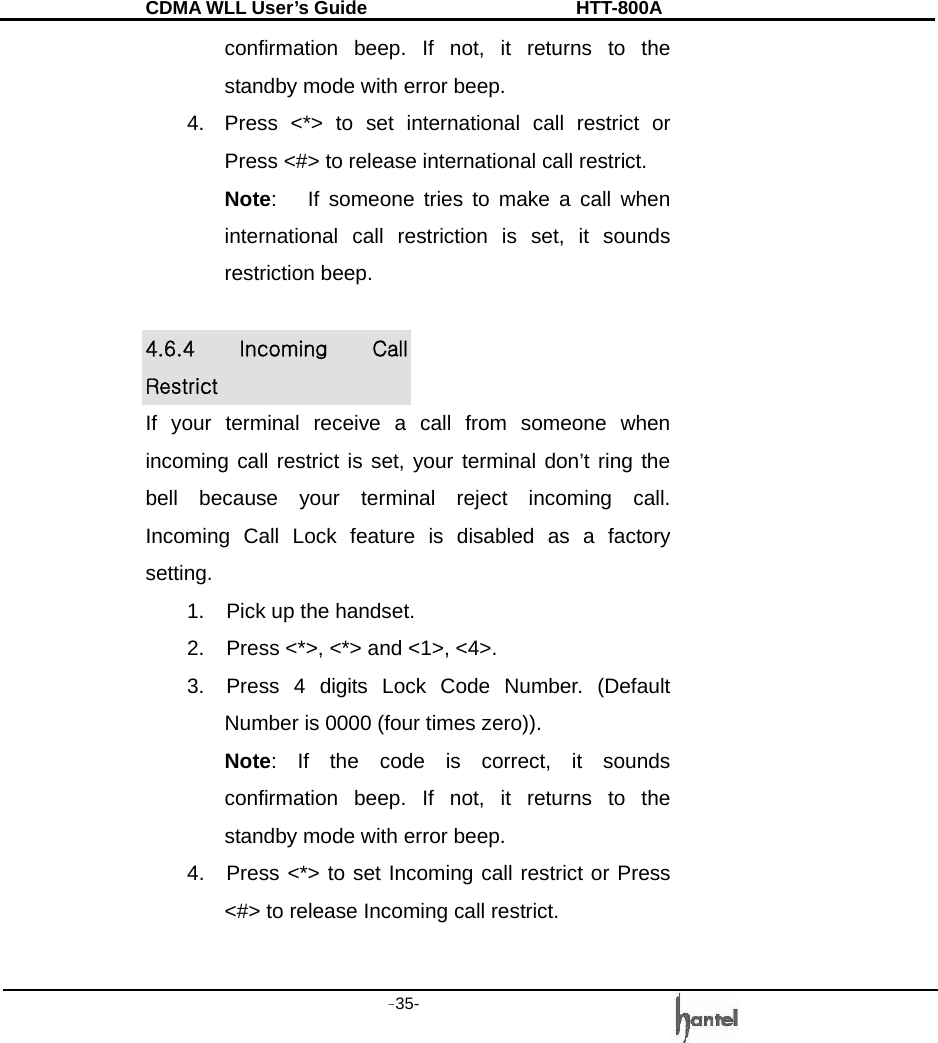
CDMA WLL User’s Guide               HTT-800A -34-   out. Long Call restrict feature is disabled as a factory setting. 1.  Pick up the handset. 2.  Press <*>, <*> and <1>, <2>. 3.  Press 4 digits Lock Code Number. (Default Number is 0000 (four times zero)). Note: If the code is correct, it sounds confirmation beep. If not, it returns to the standby mode with error beep. 4.  Press <*> to set long call restrict or Press <#> to release long call restrict. Note:   If someone tries to make a call when long call restriction is set, it sounds restriction beep.  4.6.3 International Call Restrict   If you try to make an international call while international call restrict is enabled, then you will hear warning tone after dial time-out. International Call restrict feature is disabled as a factory setting. 1.  Pick up the handset. 2.  Press <*>, <*> and <1>, <3>. 3.  Press 4 digits Lock Code Number. (Default Number is 0000 (four times zero)). Note: If the code is correct, it sounds
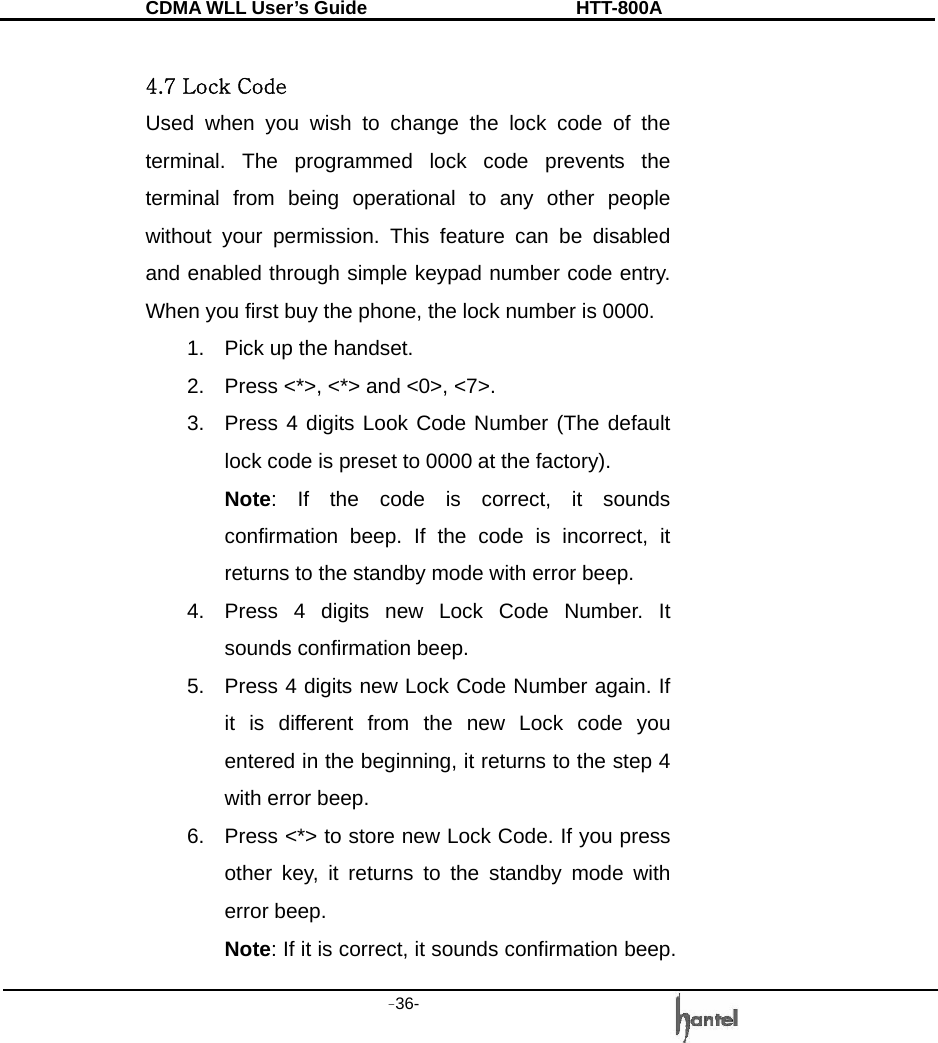
CDMA WLL User’s Guide               HTT-800A -35-   confirmation beep. If not, it returns to the standby mode with error beep. 4.  Press <*> to set international call restrict or Press <#> to release international call restrict. Note:   If someone tries to make a call when international call restriction is set, it sounds restriction beep.  4.6.4  Incoming  Call Restrict If your terminal receive a call from someone when incoming call restrict is set, your terminal don’t ring the bell because your terminal reject incoming call.   Incoming Call Lock feature is disabled as a factory setting. 1.  Pick up the handset. 2.  Press <*>, <*> and <1>, <4>. 3.  Press 4 digits Lock Code Number. (Default Number is 0000 (four times zero)). Note: If the code is correct, it sounds confirmation beep. If not, it returns to the standby mode with error beep. 4.  Press <*> to set Incoming call restrict or Press <#> to release Incoming call restrict.
CDMA WLL User’s Guide               HTT-800A -36-    4.7 Lock Code Used when you wish to change the lock code of the terminal. The programmed lock code prevents the terminal from being operational to any other people without your permission. This feature can be disabled and enabled through simple keypad number code entry. When you first buy the phone, the lock number is 0000. 1.  Pick up the handset. 2.  Press <*>, <*> and <0>, <7>. 3.  Press 4 digits Look Code Number (The default lock code is preset to 0000 at the factory). Note: If the code is correct, it sounds confirmation beep. If the code is incorrect, it returns to the standby mode with error beep. 4.  Press 4 digits new Lock Code Number. It sounds confirmation beep. 5.  Press 4 digits new Lock Code Number again. If it is different from the new Lock code you entered in the beginning, it returns to the step 4 with error beep. 6.  Press <*> to store new Lock Code. If you press other key, it returns to the standby mode with error beep. Note: If it is correct, it sounds confirmation beep.
CDMA WLL User’s Guide               HTT-800A -37-    4.8 Reset Reset the terminal back to the initial service status of factory pre-programmed state (Default). This feature can be disabled and enabled through simple keypad number code entry. 1.  Pick up the handset. 2.  Press <*>, <*> and <1>, <0>. 3.  Press 4 digits Lock Code Number. (The default lock code is preset to 0000 at the factory.) Note: If the code is correct, it sounds confirmation beep. If not, it returns to the standby mode with error beep. 4. Press <*>. 5.  Wait until you hear confirmation beep. Important: Above reset function will clear Phone book also.  4.9 Auto Dial Time You can set Auto Dial time (0sec ~ 9sec) on your phone. Default setting is 5sec. 1.  Pick up the handset. 2.  Press <*>, <*> and <1>, <1>. 3.  Press Auto dial time (0~9).   Note: Auto dial time change to latest digit
CDMA WLL User’s Guide               HTT-800A -38-     pressed until press <*>.   4. Press <*>. 5.  Wait until you hear confirmation beep.  4.10 Data Service Using USB or RS-232 Cable, you can connect this model to PC for Internet, PC Communication and/or G3 Fax communication, if your service provider provides Wireless Data Communication Service. Refer Section 7 for G3 Fax   Refer Section 8 for Data Service  4.11 R-UIM (Optional) The R-UIM (Removable User Identity Module) Specification is TIA/EIA/IS-820 and R-UIM Addendum1 is TIA/EIA/IS-820-1.   1.  Open UIM cover on the bottom side of the FWT. 2.  Connect the UIM Card connector to FWT. 3.  Close the UIM cover. Note: Turn off the phone whenever you insert or remove UIM card.   R-UIM feature is network supported.
CDMA WLL User’s Guide               HTT-800A -39-    4.12 Authentication Function (Optional) The Authentication Key function prevents the owner’s phone number from being cloned by others. The phone has its own authentication key function. This will prohibit any illegal use of the phone. Your service provider will need to register your phone using this authentication function.
CDMA WLL User’s Guide               HTT-800A -40-   5. Supplementary Functions  5.1 Call Functions  5.1.1 Speed Dial This model will store up to 200 phone numbers using 3 digit addresses (001-200). The stored number in the Phonebook allows a call to be placed by pressing the three digit address.    1) Speed Dial Function On / Off You can set the Speed Dial function by entering the following functions. 1.  Press “36*#011*” to Speed Dial On 2.  Press “36*#012*” to Speed Dial Off  2) Making a Call Using the Speed Dialing Function   -  Make sure the Speed Dial Function is “on” and find the memory station number in the Phonebook. -  If the saved address is a single digit, between 1 and 9, pick up the handset and press the number and hold it down, then the call will be made.
CDMA WLL User’s Guide               HTT-800A -41-   -  If the saved address is two digits, pick up the handset and press the first digit and then press the second digit and hold it down then a call is made.   -  If the saved address is three digits, pick up the handset and press the first digit , second digit and then press the third digit and hold it down then a call is made.  Note : If you attempt a Speed Dialing while the Speed Dial Function is OFF, an error tone will sound to indicate wrong operation.  5.1.2 Redialing Used for dialing the latest dial phone number. 1.  Pick up the handset and long press to <*>. The line is connected to the number called latest. This function would not work if you tried no call after power on. 2.  Speak to the called party when the line is connected. And Hang up the handset after conversation.
CDMA WLL User’s Guide               HTT-800A -42-   5.1.3 Emergency call When emergency call number is connected once, it will not be terminated unless the called party disconnects the call (Emergency Call Hold Service).  Therefore even caller hangs up the telephone, the line will be still connected, so if the caller picks up the telephone again, he can continue talking.    The Emergency Call Hold function operates only when the phone numbers are saved at  Emergency call number, and when the Emergency Call Hold function is enabled. This model has max. 3 emergency number(01~03) and max. 32 digit can be stored in each emergency call number.  1) Emergency call hold on/off 1.  Pick up the telephone handset and Press “36*#02”  2.  Press “1” to set Emergency Call Hold On or “2” to set Emergency Call Hold Off   3.  Press “Lock code” (4 digits) 4.  Press <*> to save the setting.   2) Storing (deleting) the Emergency call number
CDMA WLL User’s Guide               HTT-800A -43-   1.  Pick up the telephone handset and Press “36*#02” 2.  Press “3” to enter Emergency call number store step Note: If you want to Delete at this point, Press “4” to save (except 5, 6 step). If you want to Delete All at this point then Press “5” to save (except 4, 5, 6 step). 3.  Press “Lock code” (4 digits) 4.  Press one of “Memory number” for Emergency call number(01-03) 5.  Press the “digits” (Max 32 digits) 6.  If you want to store more Emergency call number continue from step2 7.  Press <*> to save.  5.1.4 Hot Line 1.  The designated number will be automatically dialed when you pick up the handset without any key press. 2.  The Hot Line function operates only when the phone number is saved at hot line number, and when the hot line function is enabled. Hotline operates in 2 modes; -  Timed Hot Line: The call will be made in
CDMA WLL User’s Guide               HTT-800A -44-   delayed manner between 4-8 seconds (sending waiting time), depending on your default value, after you pick up the handset. Original default value is 6 seconds. -  Immediate Hot Line: The call will be made as soon as you pick up the handset. 3. The Hotline function overrides any other functions.  1) Hot Line function on/off 1.  Pick up the telephone handset 2.  Press “36*#031” to Timed Hot Line On Or “36*#032” to Immediate Hot Line On Or “36*#033” to Hot Line Off 3.  Press “Lock code” (4 digits) 4.  Press <*> to save.  2) Storing (Deleting) the Hot Line call number 1.  Pick up the telephone handset and Press “36*#03” 2.  Press “4” to enter Hot Line call number store step Note: If you want to delete at this point, Press “5” to save. (Except 4 steps) 3.  Press “Lock code” (4 digits) 4.  Press the “digits” (Max 32 digits)
CDMA WLL User’s Guide               HTT-800A -45-   5.  Press <*> to save.  Note: If the Hot Line function is in the Immediate Hot Line mode, a call may not be made to another number. In this case, to make a call to another number, change the setup mode. Pick up the handset and press <#> within 1 second and go to the setup mode, and deactivate the Hot Line function.  5.2 Pay Phone Interface This terminal supports the Metering Pulse (12kHz, 16kHz) and the Polarity Reverse for the PCO Interface. 1.  Press “36*#041*” to Pay Phone Interface 12kHz Metering pulse. 2.  Press “36*#042*” to Pay Phone Interface 16kHz Metering pulse 3. Press “36*#043*” to Pay Phone Interface Polarity Reverse 4.  Press “36*#044*” to Pay Phone Interface auto mode (depends on network)
CDMA WLL User’s Guide               HTT-800A -46-   5.3 Phone Book  5.3.1  Storing  Phone Numbers 1.  Pick up the telephone handset and Press “36*#051” 2.  Press the 3 digit memory address (001~200). 3.  Press the phone numbers (Max 32 digits). 4.  Press <*> to store.  5.3.2 Deleting Phone Numbers  1) Deleting a Number 1.  Pick up the telephone handset and Press “36*#052” 2.  Press the 3 digit memory address to be deleted. 3.  Press <*> to delete  2) Deleting All Numbers 1.  Pick up the telephone handset and Press “36*#053” 2.  Press <*> to delete all  5.4 Voice Privacy This terminal is equipped with voice privacy function to prevent illegal tapping.
CDMA WLL User’s Guide               HTT-800A -47-    There are two detailed settings available, <Standard> for regular level voice privacy mode and <Enhanced> for reinforced voice privacy mode.   1. Press “36*#06”. 2.  Press <1> for Enhanced Voice Privacy mode or <2> for Standard Voice Privacy mode. 3.  Press <*> to save.  5.5 Ringer Frequency & Cadence Control This function is used to control the ringer frequency and cadence. Select the frequency first and then select the cadence. Default setting is 20Hz, 1 sec on – 2sec Off.    5.5.1  Ringer  Frequency Setting 1. Press “36*#07”. 2.  Select a desired number from 1(16Hz), 2 (20Hz), 3 (25Hz). 3.  Press <*> to save.    5.5.2 Ringer Cadence Setting 1. Press “36*#08”. 2.  Select a desired number from 1~6. -  1: 1Sec On – 2 Sec Off -  2: 0.4 Sec On – 0.2 Sec Off - 0.4 Sec On – 2
CDMA WLL User’s Guide               HTT-800A -48-   Sec Off -  3: 1 Sec On – 4.5 Sec Off -  4: 1 Sec On – 4 Sec Off -  5: 0.25 Sec On – 0.25 Sec Off - 0.25 Sec On – 1.25 Sec Off -  6: 2 Sec On – 4 Sec Off 3.  Press <*> to save.  5.6 Dial Tone Frequency Control This function is used to select the dial sent from the handset. 1. Press “36*#09”. 2.  Select a desired tone from 1(350 + 440Hz), 2(400Hz), 3(425Hz), 4(450Hz), 5(312.5 + 412.5Hz). 3.  Press <*> to save.  5.7 Hook Flash When the terminal receives a hook-flash from the connected telephone device, it will automatically allow: 1.  For producing dial tone again after a phone number has been dialed without connection. 2.  The use of special cellular services which may be available in your cellular service area.
CDMA WLL User’s Guide               HTT-800A -49-    Note: Hook-flash is accomplished in a call through either pressing the dedicated hook-flash key which is available on some phones or through a rapid single press of the hang-up mechanism upon which the handset rests when the phone is hung up.  5.8 ROH (Receiver off Hook) If the telephone equipment remains “off-hook”, meaning that the handset is left off of its cradle as it would be when you hang up, a ROH tone emits from the receiver for a period of 60 seconds. This feature may be different or not by country specification.  5.9 Restrict Call Mode Setting While the Restrict Call function is enabled, the specified numbers cannot be called. These specified numbers start with specific digits. The specific digits are set according to the following procedure (Storing the Deny dial number).  Among these specified numbers you can permit some numbers by designating start digits by following procedure (Storing the Permit dial number).
CDMA WLL User’s Guide               HTT-800A -50-    This terminal has 10 Deny dial numbers (1~10), and max. 32 digits can be stored in each Deny dial number.  This terminal has 10 Permit dial number (1~10), and max. 32 digits can be stored in each Permit dial number. If you set Emergency call, the emergency number is not applied to this restrict call.  5.9.1 Set Restrict Call Level 1. Press “36*#11”. 2.  Press restrict level (1~2) -  1: No restriction -  2 : Restriction 3.  Press “LOCK code” (4 digits). 4.  Press <*> to save.  5.9.2  Storing  (Deleting)  the  Permit  Dial Number 1. Press “36*#12”. 2.  Press “1” to enter Permit Dial Number store step. Note: If you want to Delete at this point, Press “2” to save (except 5, 6 step). If you want to All Delete at this point, Press “3” to save (except 4, 5, 6 step).
CDMA WLL User’s Guide               HTT-800A -51-   3.  Press “LOCK code” (4 digits). 4.  Press one of “Memory number” for permit dial number (01~10). 5.  Press the “digits” (Max. 32digits). 6.  If you want to store more Permit Dial Numbers continue from step2 7.  Press <*> to save.  5.9.3  Storing  (Deleting)  the  Deny  Dial  Number (Restricted dial number) 1. Press “36*#13”. 2.  Press “1” to enter Deny Dial Number store step. Note: If you want to Delete at this point, Press “2” to save (except 5, 6 step). If you want to All Delete at this point, Press “3” to save (except 4, 5, 6 step). 3.  Press “LOCK code” (4 digits). 4.  Press one of “Memory number” for deny dial number (01~10). 5.  Press the “digits” (Max. 32digits). 6.  If you want to store more Deny Dial Numbers continue from step2 7.  Press <*> to save.
CDMA WLL User’s Guide               HTT-800A -52-   6.  System  Functions  6.1 Call Waiting Call Waiting is a feature, which enables you to be alerted to a second incoming call while you are on the first call of your telephone. You have the option of responding to the second call while putting the first call on hold or you can disable the call waiting option during a particular call. Contact your service provider to activate or deactivate Call Waiting.  6.2 Three-way calling Three-Way Calling is a feature that enables you to set up a three-way conversation with two other users. Contact your service provider to activate or deactivate Three-Way Calling.  6.3 Call Forwarding Call Forwarding is a feature that enables you to forward all your incoming calls to another phone number, even if your telephone is turned off. You can still make calls from your telephone even when Call Forwarding is activated. Contact your service provider to activate or deactivate Call Forwarding.
CDMA WLL User’s Guide               HTT-800A -53-   7. FAX Functions   7.1 FAX Set-up 1) To send or receive analog fax messages, the FWT should be equipped with an analog fax module, connected to a conventional fax machine with the FWT, as shown in section 2.3    Note: When you use a fax function and terminal should be connected to AC/DC adapter. Other wise it may indicate Low battery warning.  7.2 Sending FAX Message You can send and receive fax massages using a fax machine connected to the FWT. 1) Dual dialing Method 1.  Load documents to send into a fax machine. 2.  Pick up the handset or press On-hook of the fax machine. 3.  Press <*>, <*>, <0>, <8>, <1> and wait for dial tone. 4.  Dial destination fax number when you hear dial tone.
CDMA WLL User’s Guide               HTT-800A -54-   2) Per-digit Method 1.  Load documents to send into a fax machine. 2.  Pick up the handset or press On-hook button of the fax machine. 3.  Press <*>, <8>, <9>, <*> and destination fax number in sequence. The FWT will make a call automatically.  7.3 Receiving G3 FAX Message You can set the FWT to “Always Mode” or “Once” fax reception mode. 1.  Pick up the handset or press On-hook button of the fax machine. 2.  Press <*>, <*>, <0>, <9>, <1> to set “Always Mode” Press <*>, <*>, <0>, <9>, <2> to set “Once Mode” 3.  Wait for a confirmation dial tone. The FWT is ready to receive fax machine Note 1: If you set the FWT to always mode, the FWT will transfer every call to the fax machine connected. If you set the FWT to once mode, the FWT will transfer the first incoming call to the fax machine and set back to voice call mode automatically. Note 2: To set back the FWT from always fax
CDMA WLL User’s Guide               HTT-800A -55-   mode to voice call mode. -  Pick up the handset or press On-hook key. -  Press <*>, <*>, <0>, <9>, <7> in sequence. -  Wait for a confirmation dial tone.  7.4 Receiving PC FAX message You can set the FWT to “Always” or “Once” Mode fax reception mode.  1. Pick up the handset or press On-hook key.   2. Press <*>, <*>, <0>, <9>, <3> to set “Always Mode”. Press <*>, <*>, <0>, <9>, <4> to set “Once Mode”. 3. Wait for a confirmation dial tone. 4. Make you setup the FAX Program in your PC that you use. 5. Make a document and sent it.
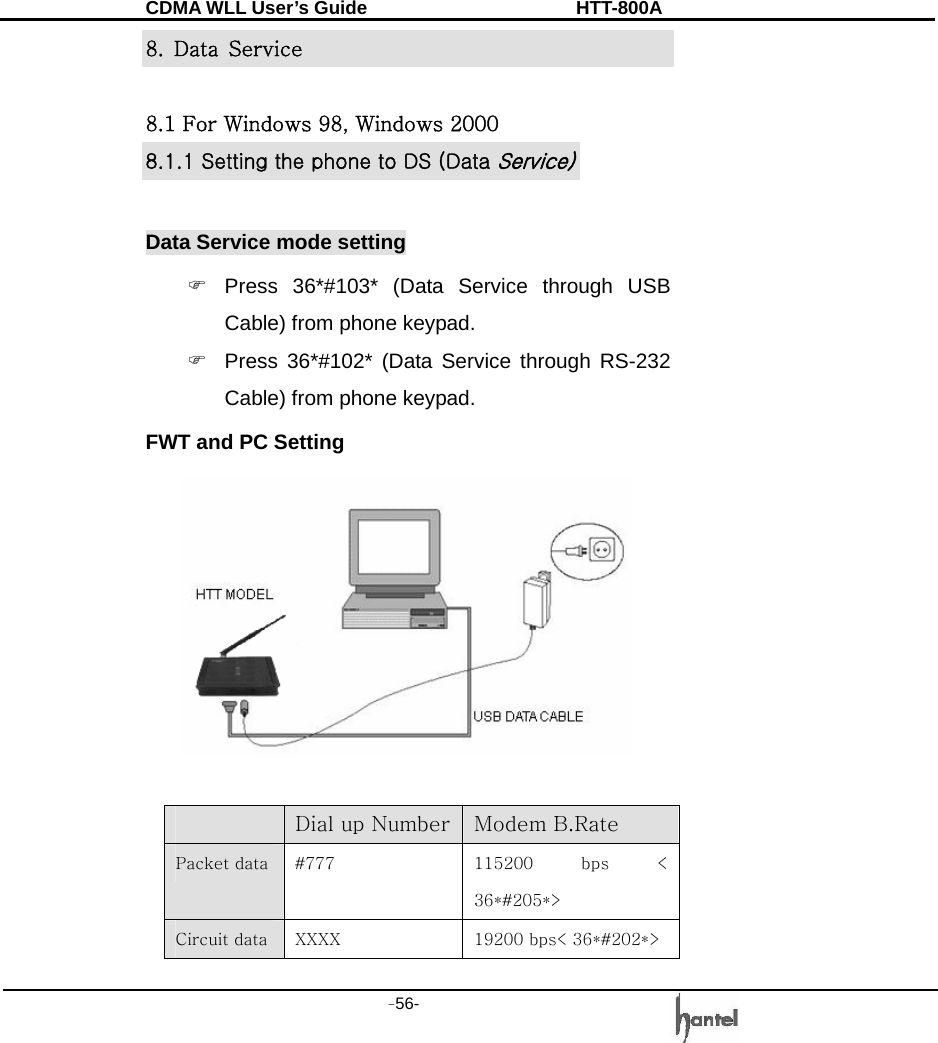
CDMA WLL User’s Guide               HTT-800A -56-   8.  Data  Service  8.1 For Windows 98, Windows 2000 8.1.1 Setting the phone to DS (Data Service)  Data Service mode setting )  Press 36*#103* (Data Service through USB Cable) from phone keypad. )  Press 36*#102* (Data Service through RS-232 Cable) from phone keypad. FWT and PC Setting    Dial up Number Modem B.Rate Packet data  #777  115200  bps  < 36*#205*> Circuit data  XXXX  19200 bps< 36*#202*>
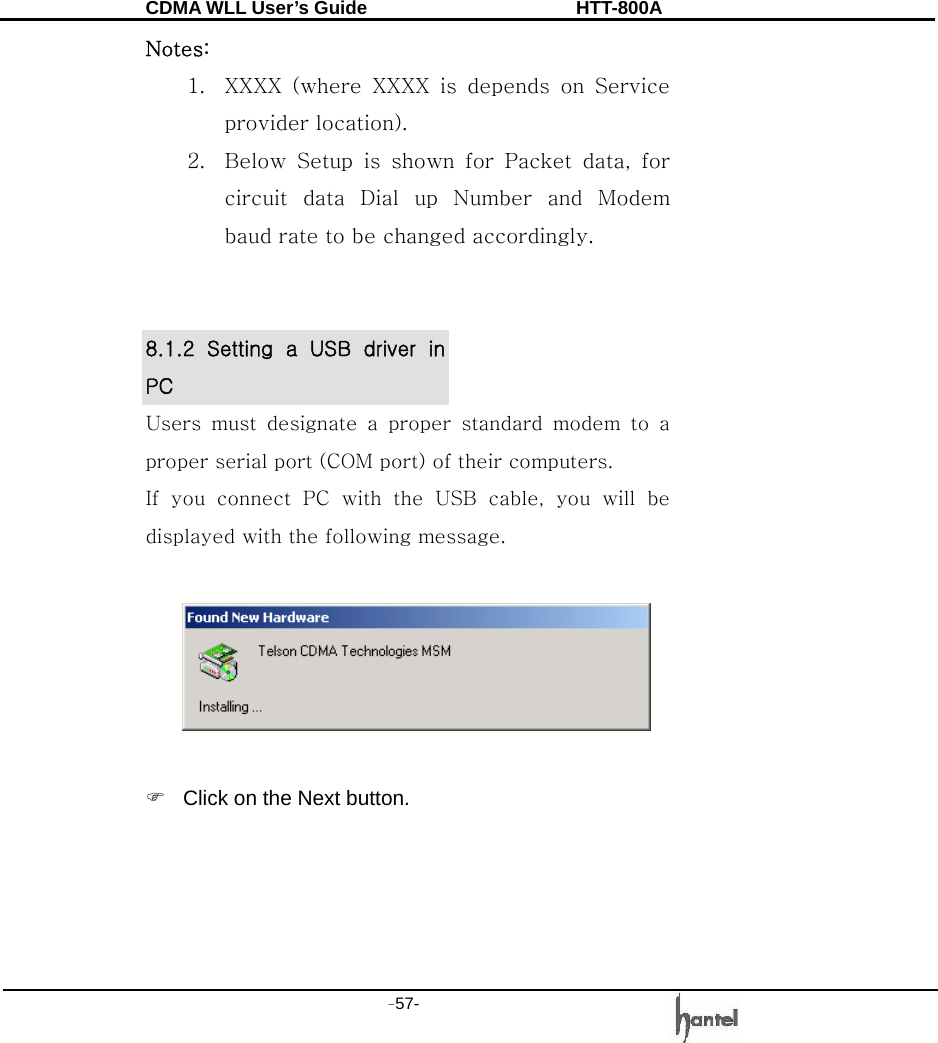
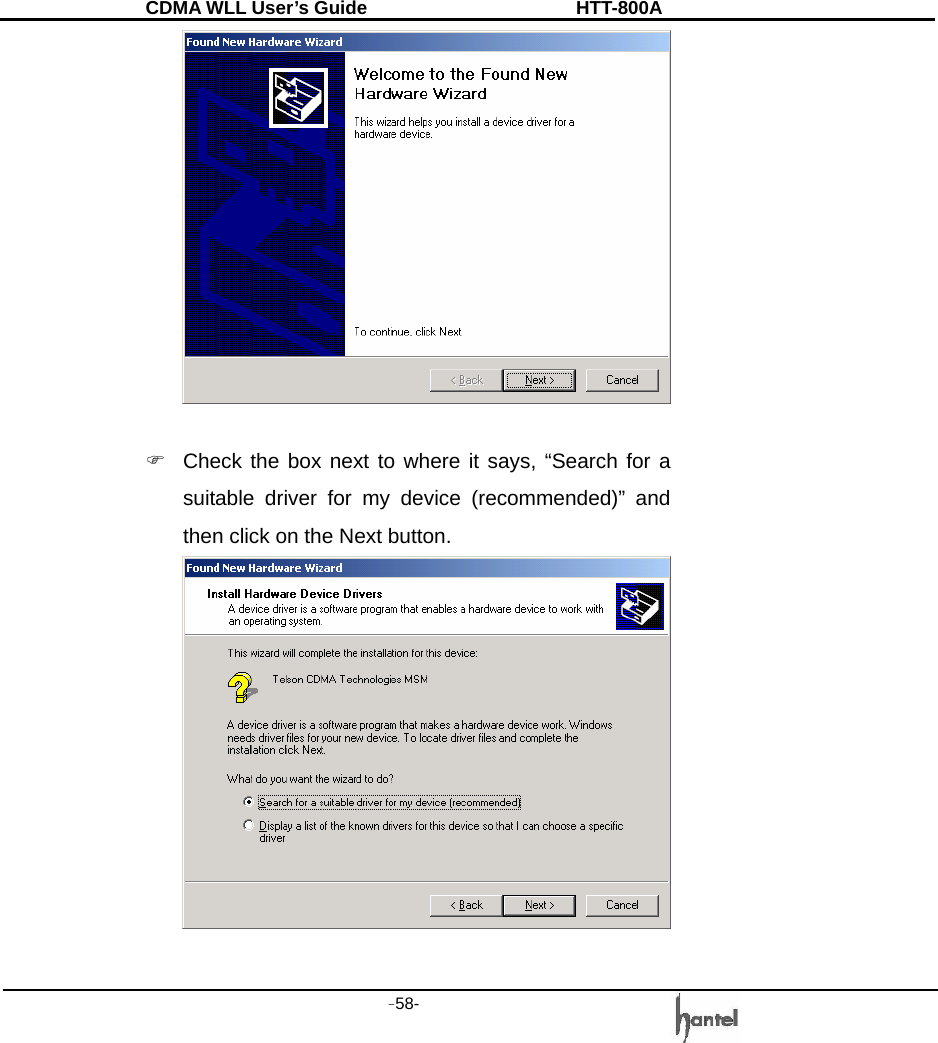
CDMA WLL User’s Guide               HTT-800A -57-   Notes:   1. XXXX  (where  XXXX  is  depends  on  Service provider location).   2. Below Setup is shown for Packet data, for circuit data Dial up Number and Modem baud rate to be changed accordingly.   8.1.2  Setting  a  USB  driver  in PC Users  must  designate  a  proper  standard  modem  to  a proper serial port (COM port) of their computers. If you connect PC with the USB cable, you will be displayed with the following message.    )  Click on the Next button.
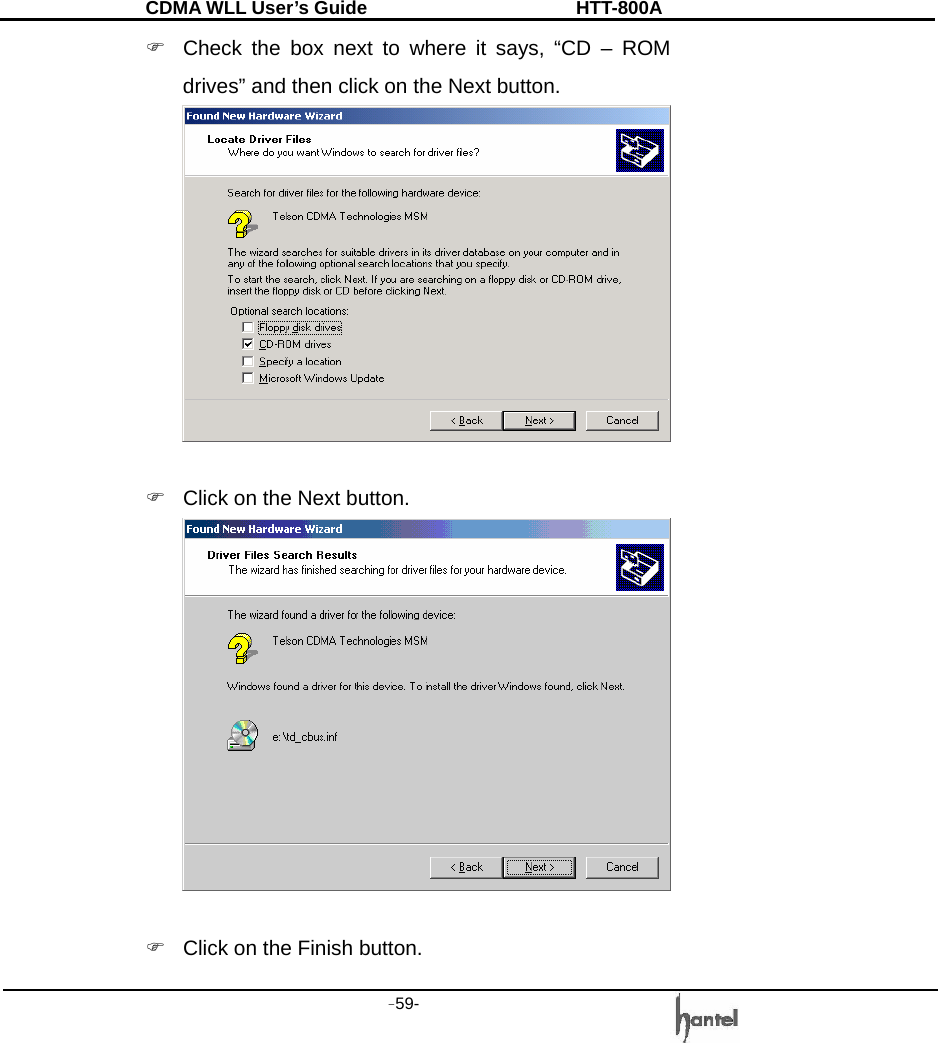
CDMA WLL User’s Guide               HTT-800A -58-     )  Check the box next to where it says, “Search for a suitable driver for my device (recommended)” and then click on the Next button.
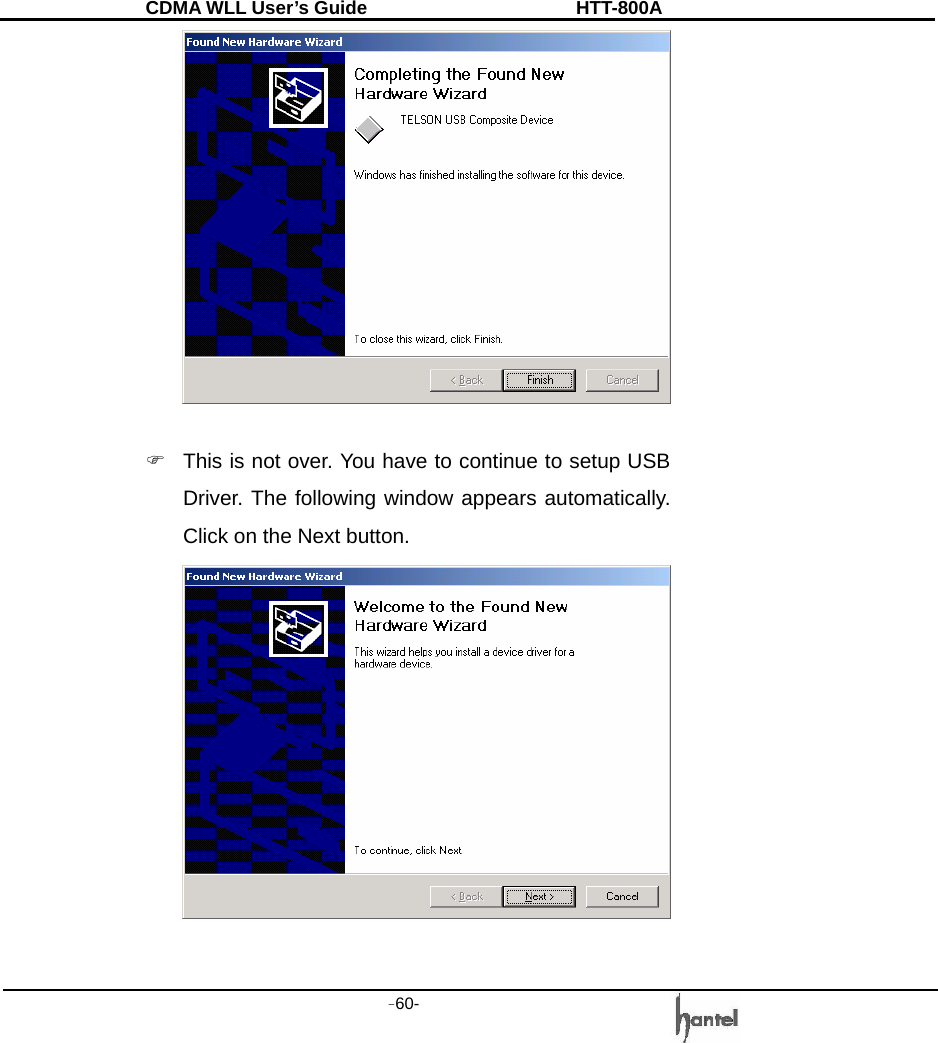
CDMA WLL User’s Guide               HTT-800A -59-   )  Check the box next to where it says, “CD – ROM drives” and then click on the Next button.   )  Click on the Next button.   )  Click on the Finish button.
CDMA WLL User’s Guide               HTT-800A -60-     )  This is not over. You have to continue to setup USB Driver. The following window appears automatically. Click on the Next button.
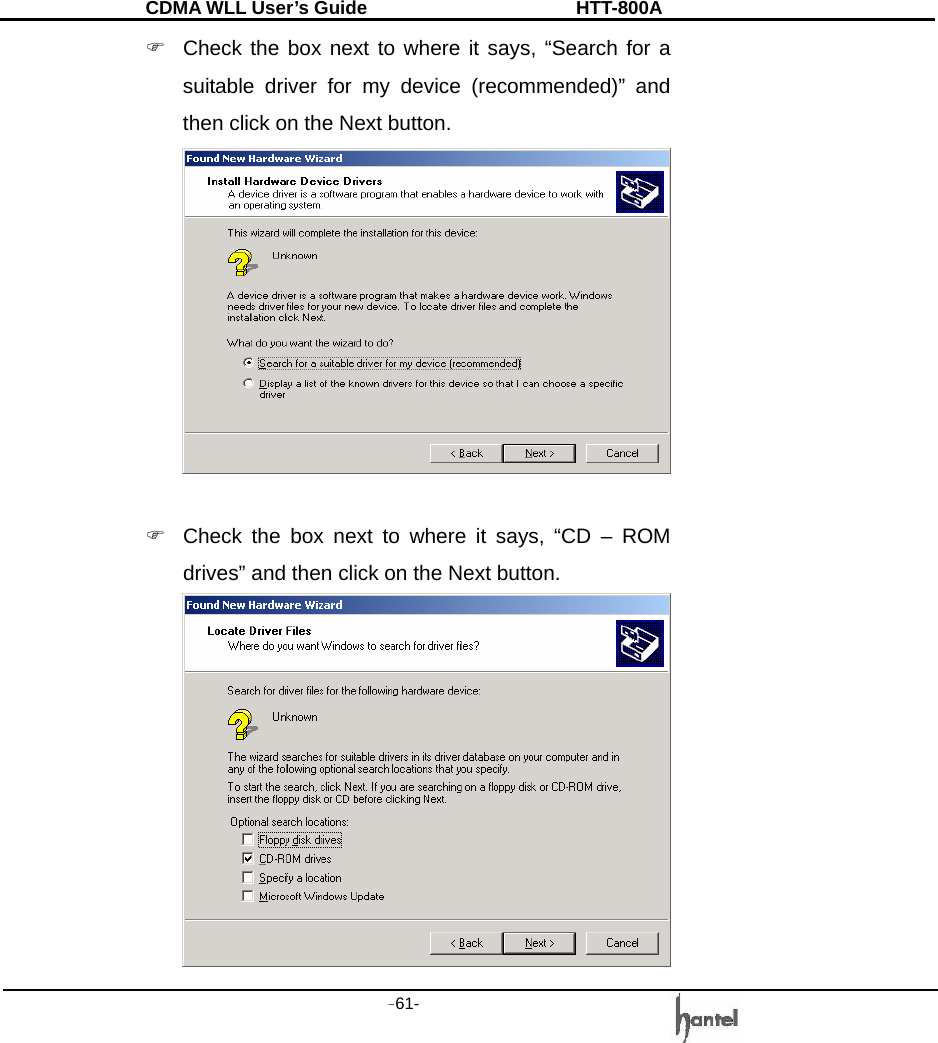
CDMA WLL User’s Guide               HTT-800A -61-   )  Check the box next to where it says, “Search for a suitable driver for my device (recommended)” and then click on the Next button.   )  Check the box next to where it says, “CD – ROM drives” and then click on the Next button.
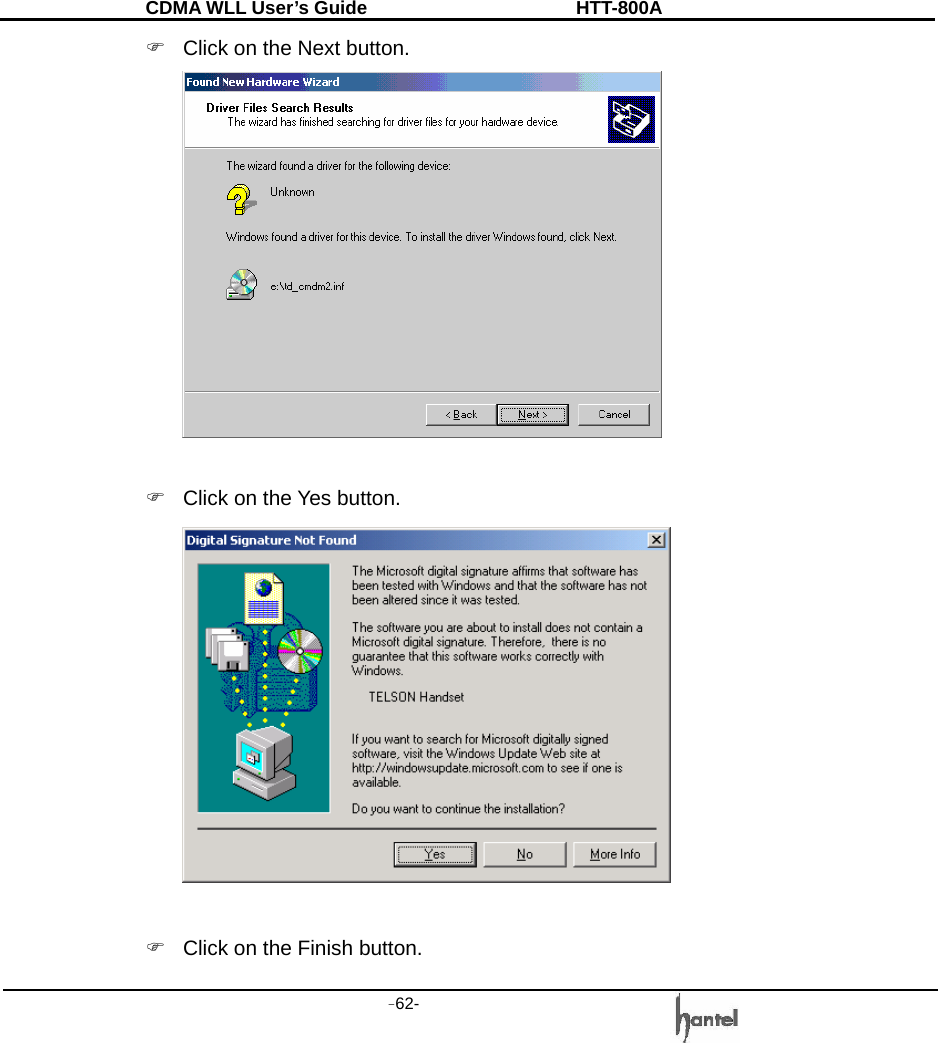
CDMA WLL User’s Guide               HTT-800A -62-   )  Click on the Next button.    )  Click on the Yes button.   )  Click on the Finish button.
CDMA WLL User’s Guide               HTT-800A -63-     )  This is the last setup. The following window appears automatically too. Click on the Next button.
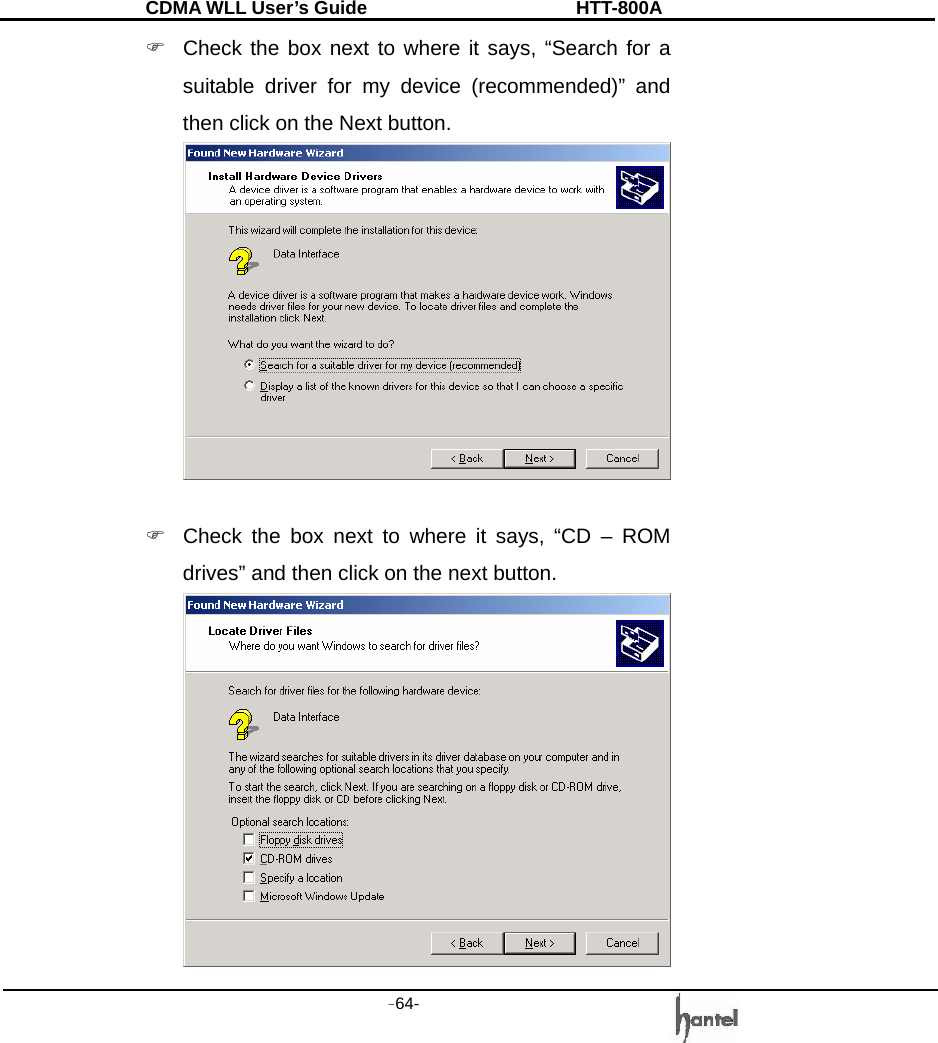
CDMA WLL User’s Guide               HTT-800A -64-   )  Check the box next to where it says, “Search for a suitable driver for my device (recommended)” and then click on the Next button.   )  Check the box next to where it says, “CD – ROM drives” and then click on the next button.
CDMA WLL User’s Guide               HTT-800A -65-   )  Click on the Next button.  )  Click on the Finish button.   ) Double-click  [control  panel]  → Double-click [system]  → Click [hardware] → Click [device
CDMA WLL User’s Guide               HTT-800A -66-   manager]. You will see a ‘Modems’ icon. You can check if USB Driver setup is right or not.  You have completed the setup for USB Driver.    From now, you can use the USB, connecting the FWT (WLL).   8.1.3 Setting a Standard Modem in PC  ) Click [Start] → Double-click [Phone and Modem Options]  → click [Modem].     )  Select a COM port and click Properties. Make sure
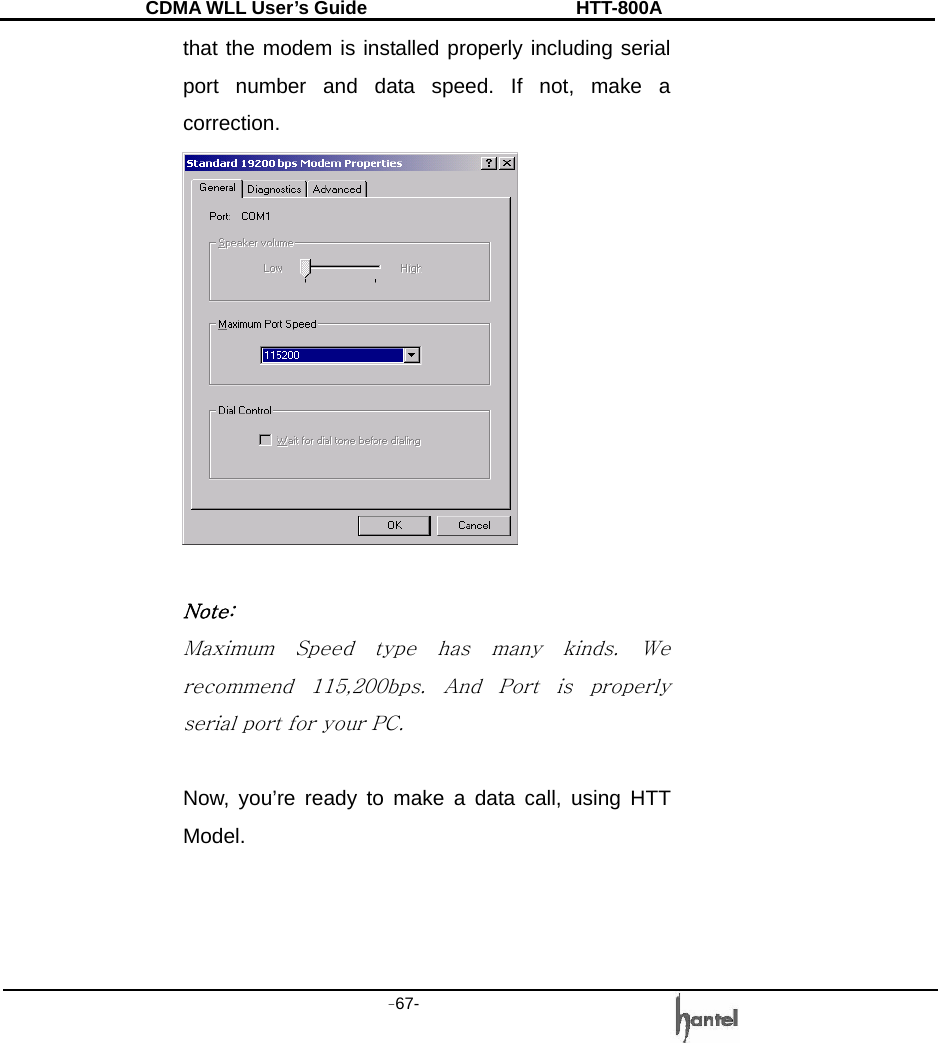
CDMA WLL User’s Guide               HTT-800A -67-   that the modem is installed properly including serial port number and data speed. If not, make a correction.   Note: Maximum  Speed  type  has  many  kinds.  We recommend  115,200bps.  And  Port  is  properly serial port for your PC.  Now, you’re ready to make a data call, using HTT Model.
CDMA WLL User’s Guide               HTT-800A -68-   8.1.4 Browsing the Internet    Setting a Dial-Up Networking  ) Double-click [Control panel] → Double-click [Network and Dial-up Connections] → Double-click [Make New Connection].   )  Click on the Next button.
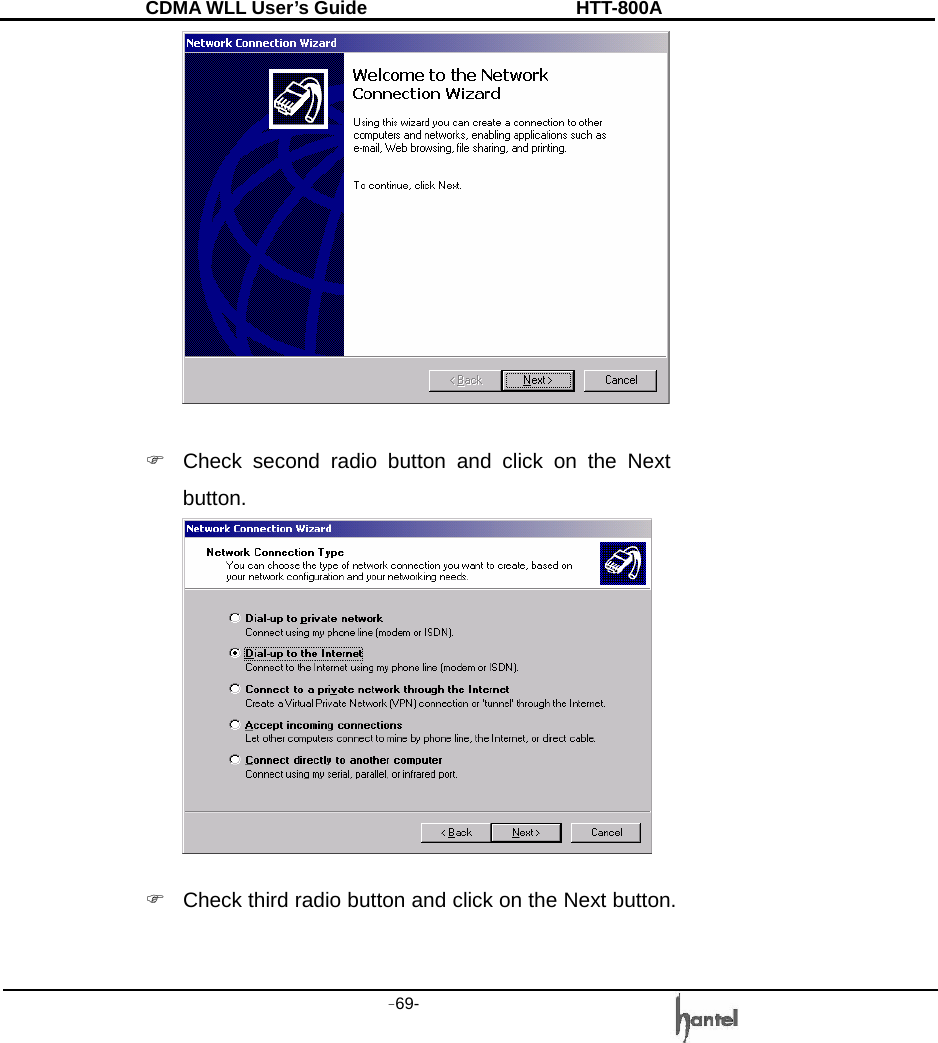
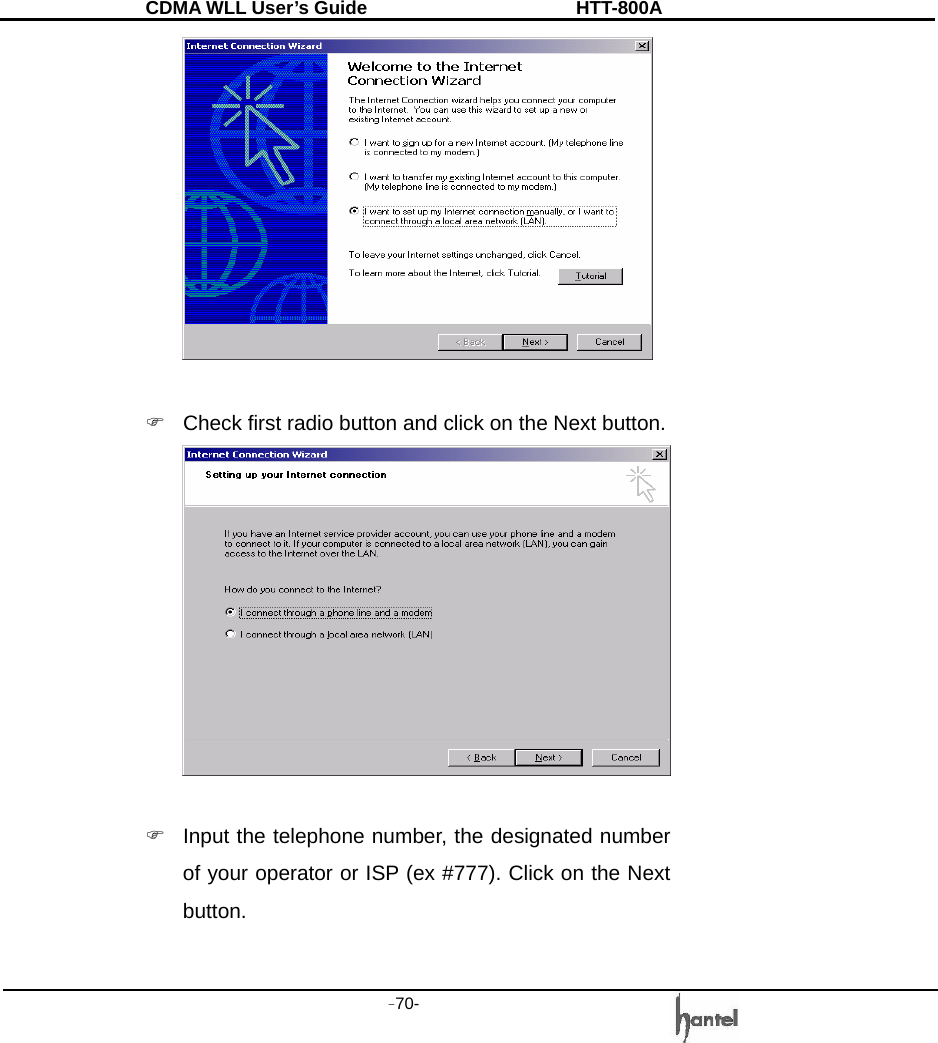
CDMA WLL User’s Guide               HTT-800A -69-     )  Check second radio button and click on the Next button.   )  Check third radio button and click on the Next button.
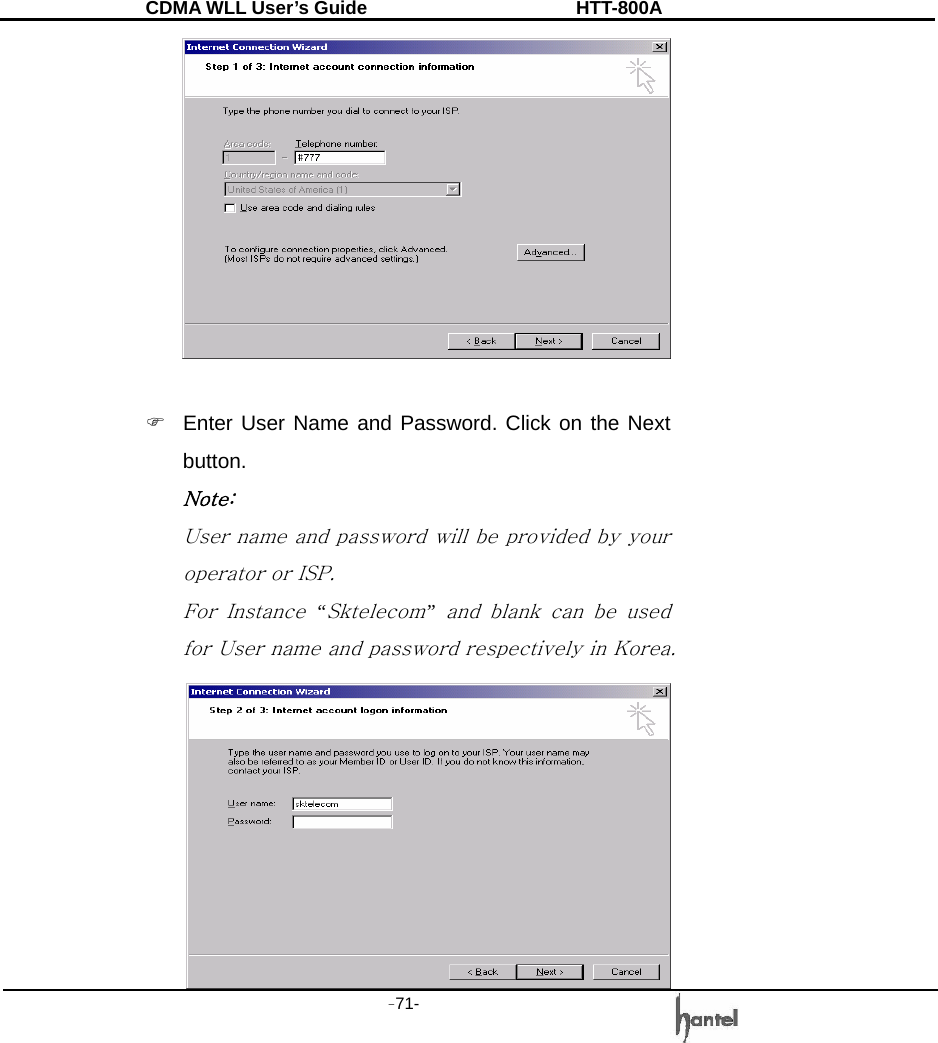
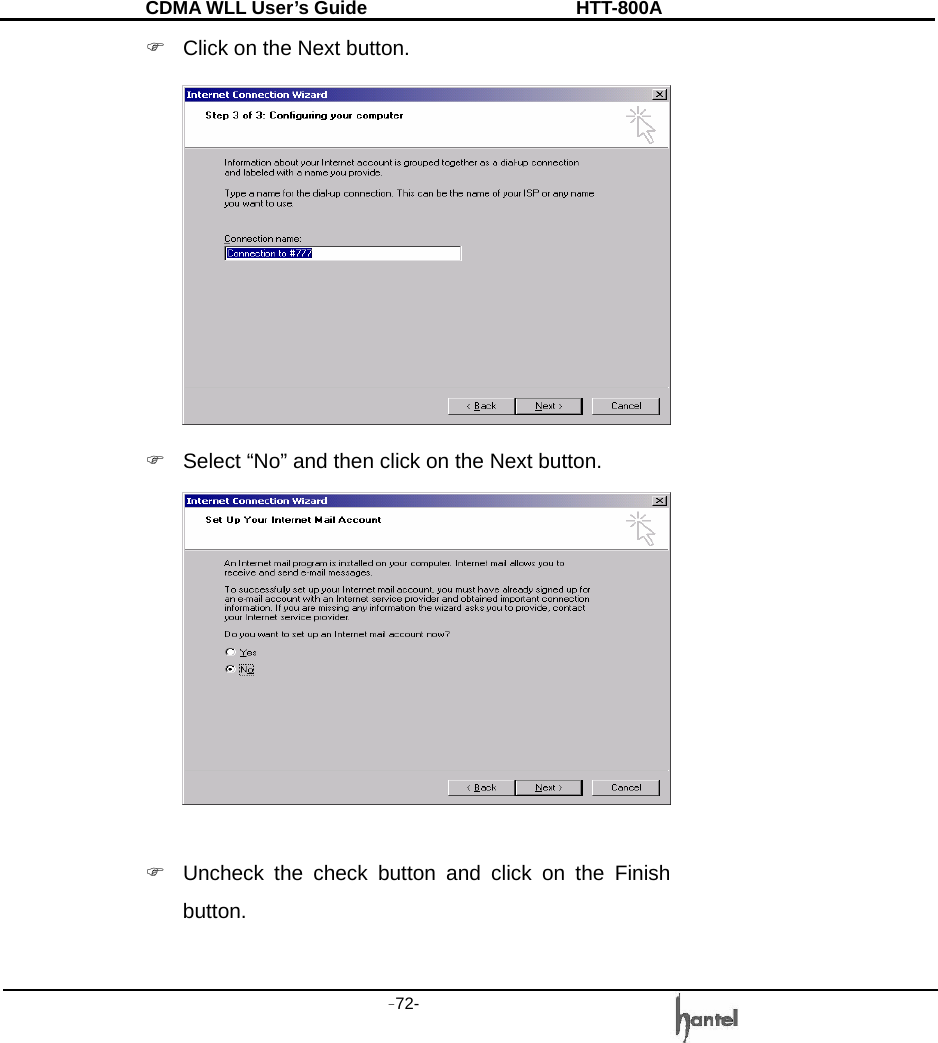
CDMA WLL User’s Guide               HTT-800A -70-     )  Check first radio button and click on the Next button.   )  Input the telephone number, the designated number of your operator or ISP (ex #777). Click on the Next button.
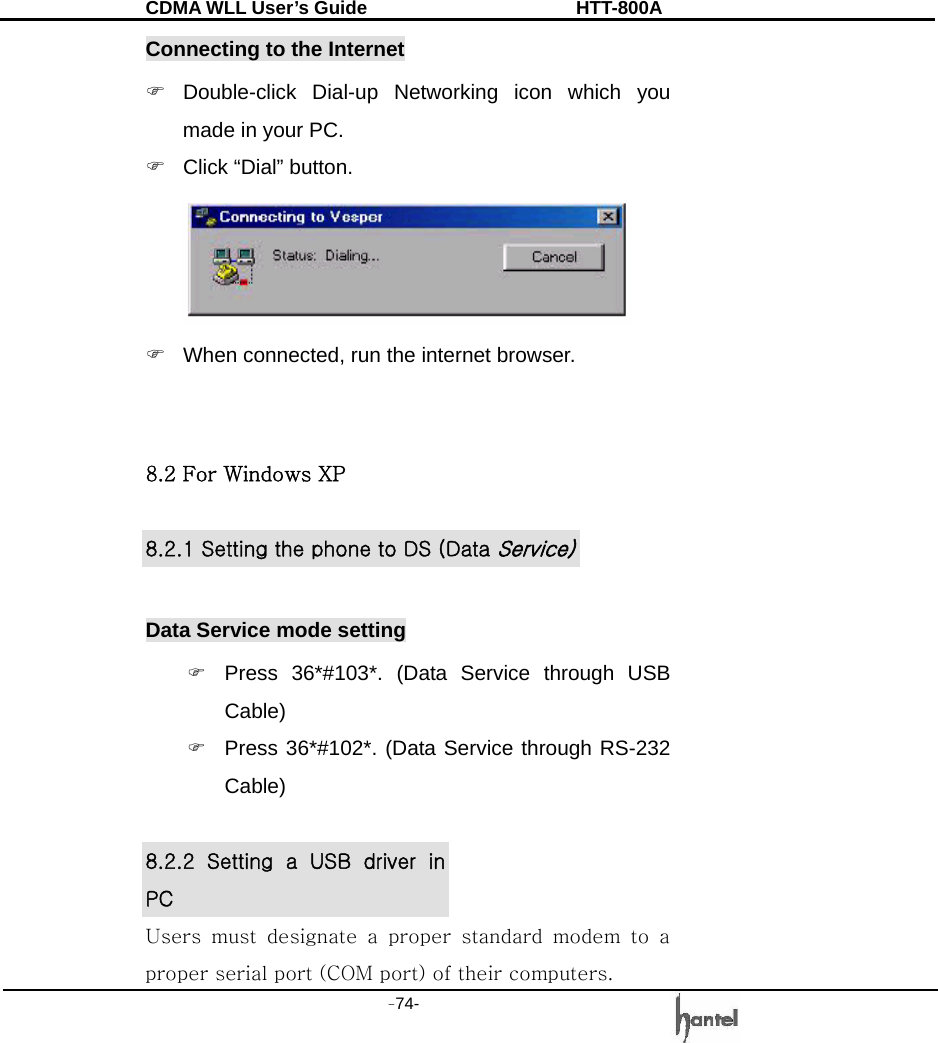
CDMA WLL User’s Guide               HTT-800A -71-     )  Enter User Name and Password. Click on the Next button. Note:  User name and password will be provided by your operator or ISP. For  Instance “Sktelecom” and blank can be used for User name and password respectively in Korea.
CDMA WLL User’s Guide               HTT-800A -72-   )  Click on the Next button.  )  Select “No” and then click on the Next button.   )  Uncheck the check button and click on the Finish button.
CDMA WLL User’s Guide               HTT-800A -73-     ) Double-click  [Control  Panel]  → Double-click [Network and Dial-up Connections]. You will see a new icon. (Dial-up networking icon)
CDMA WLL User’s Guide               HTT-800A -74-   Connecting to the Internet ) Double-click Dial-up Networking icon which you made in your PC. )  Click “Dial” button.  )  When connected, run the internet browser.     8.2 For Windows XP  8.2.1 Setting the phone to DS (Data Service)  Data Service mode setting ) Press 36*#103*. (Data Service through USB Cable) ) Press 36*#102*. (Data Service through RS-232 Cable)  8.2.2  Setting  a  USB  driver  in PC Users  must  designate  a  proper  standard  modem  to  a proper serial port (COM port) of their computers.
CDMA WLL User’s Guide               HTT-800A -75-   If you connect PC with the USB cable, you will see the message.    )  Click on the Next button and check the box next to where it says, “Search for a suitable driver for my device (recommended)” and then click on the Next button.
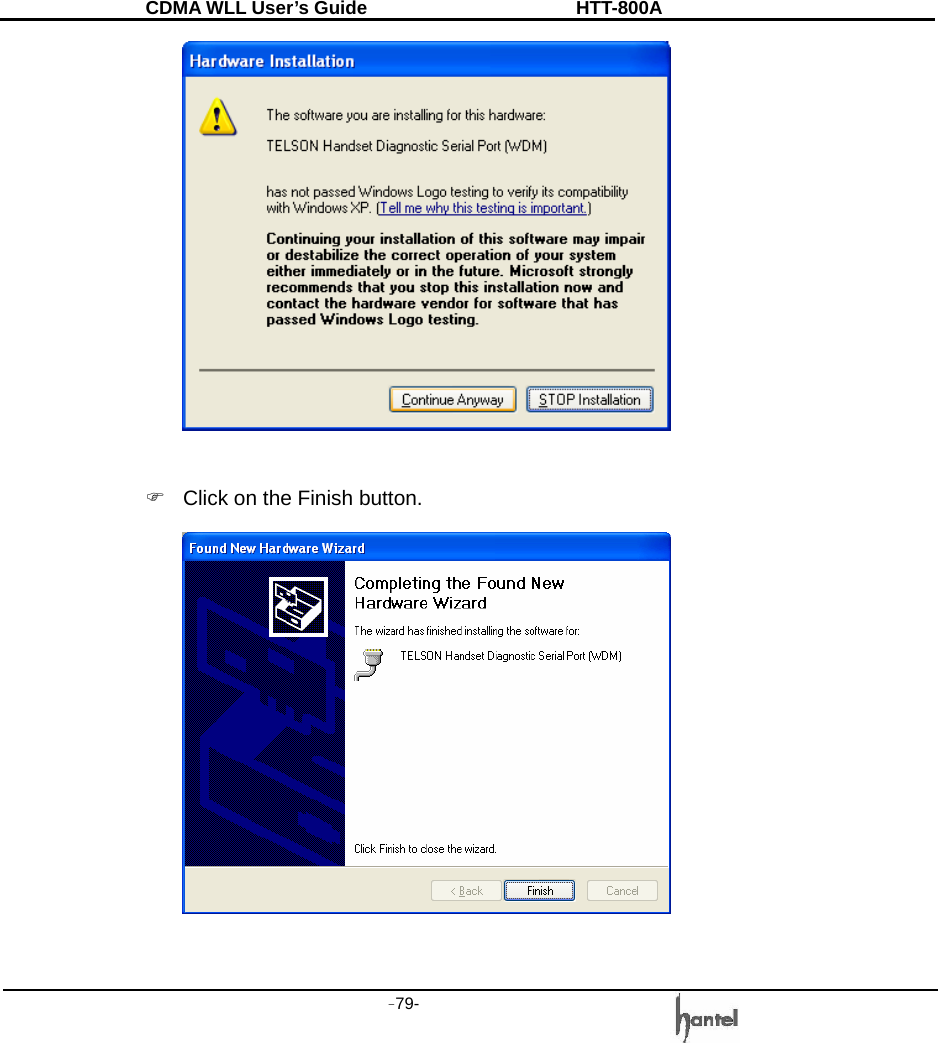
CDMA WLL User’s Guide               HTT-800A -76-   )  The following dialog box appears:   )  Click on the Continue Anyway button.   )  The following dialog box appears:
CDMA WLL User’s Guide               HTT-800A -77-    )  Click on the Finish button.  )  This is not over. You have to continue to setup USB Driver. The following window appears automatically.
CDMA WLL User’s Guide               HTT-800A -78-   Click on the Next button.   )  The following dialog box appears:   )  Click on the Continue Anyway button.
CDMA WLL User’s Guide               HTT-800A -79-     )  Click on the Finish button.
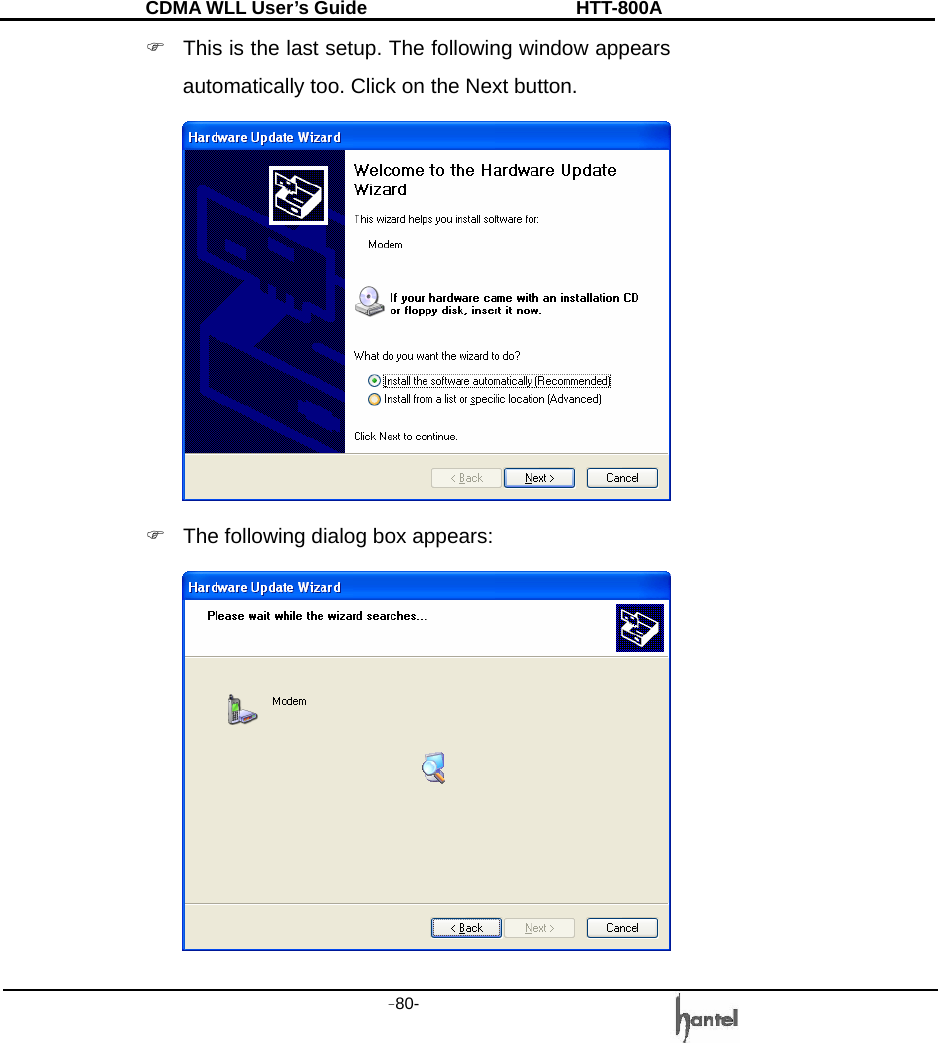
CDMA WLL User’s Guide               HTT-800A -80-   )  This is the last setup. The following window appears automatically too. Click on the Next button.  )  The following dialog box appears:
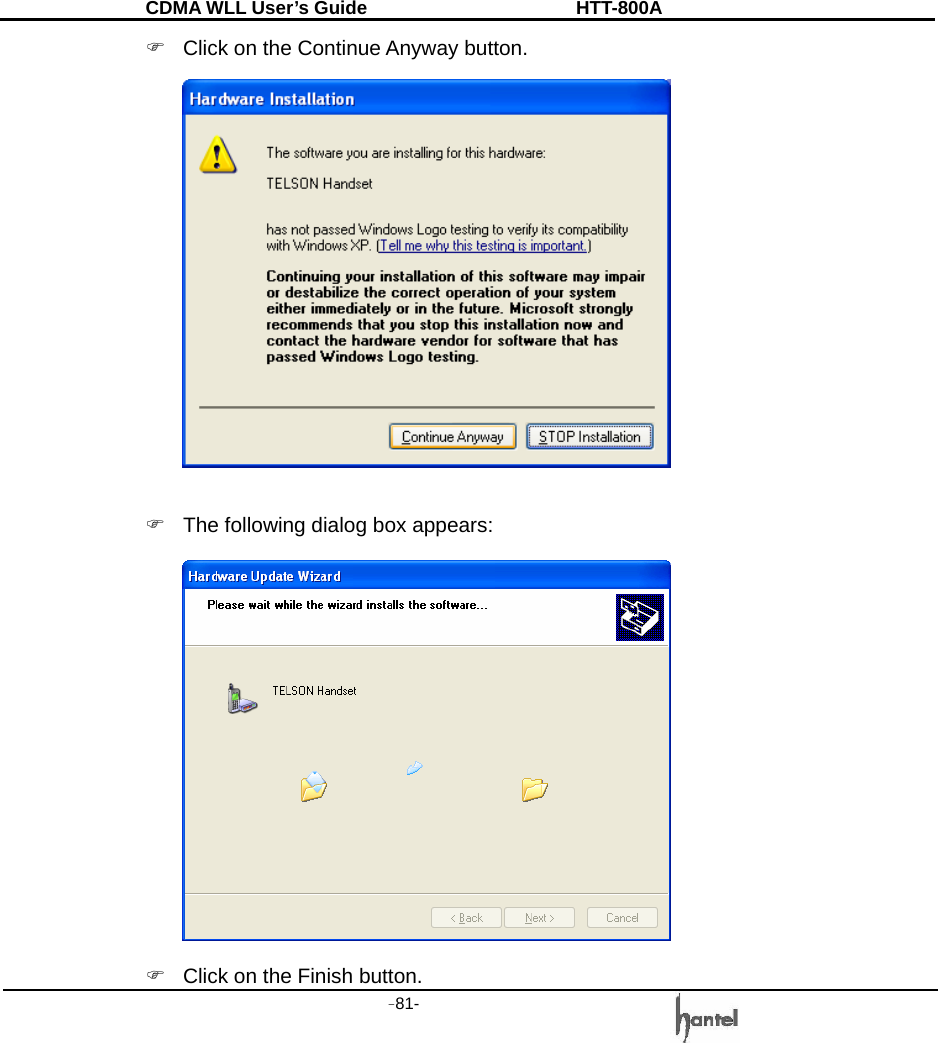
CDMA WLL User’s Guide               HTT-800A -81-   )  Click on the Continue Anyway button.   )  The following dialog box appears:  )  Click on the Finish button.
CDMA WLL User’s Guide               HTT-800A -82-     ) Double-click  [control  panel]  → Double-click [system]  → Click [hardware] → Click [device manager]. You will see a ‘Modems’ icon. You can check that USB Driver setup is right or not.  You have Complete the setup for USB Driver.    From now, you can use the USB, connecting the FWT (WLL)  8.2.3 Setting a Standard Modem in PC  ) Click [Start] → Double-click [Phone and Modem
CDMA WLL User’s Guide               HTT-800A -83-   Options]  → click [Modem].    )  Select a COM port and click Properties. Make sure that the modem is installed properly including serial port number and data speed. If not, make a correction. Note: Maximum  Speed  type  has  many  kinds.  We recommend  115,200bps.  You  check  it  whether  a port is properly serial port for your PC or not.  Now, you’re ready to make a data call, using HTT model.   8.2.4.  Browsing  the
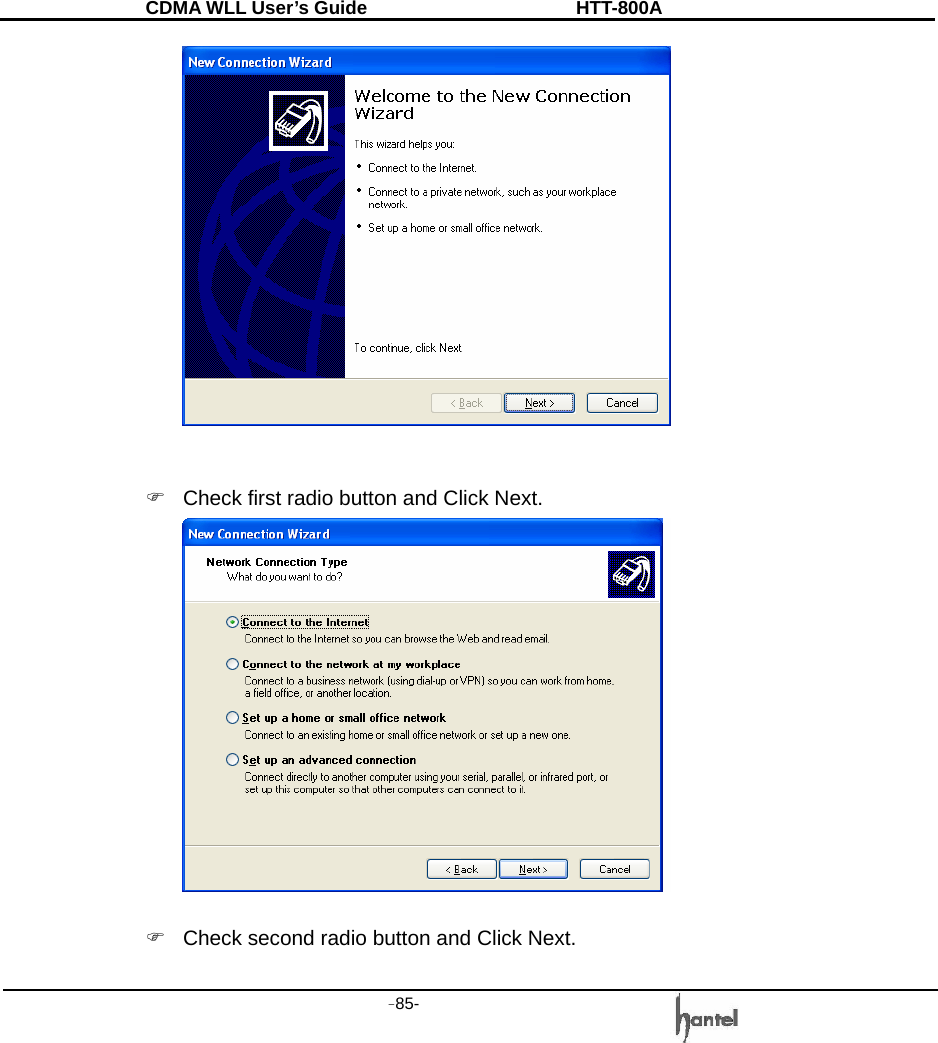
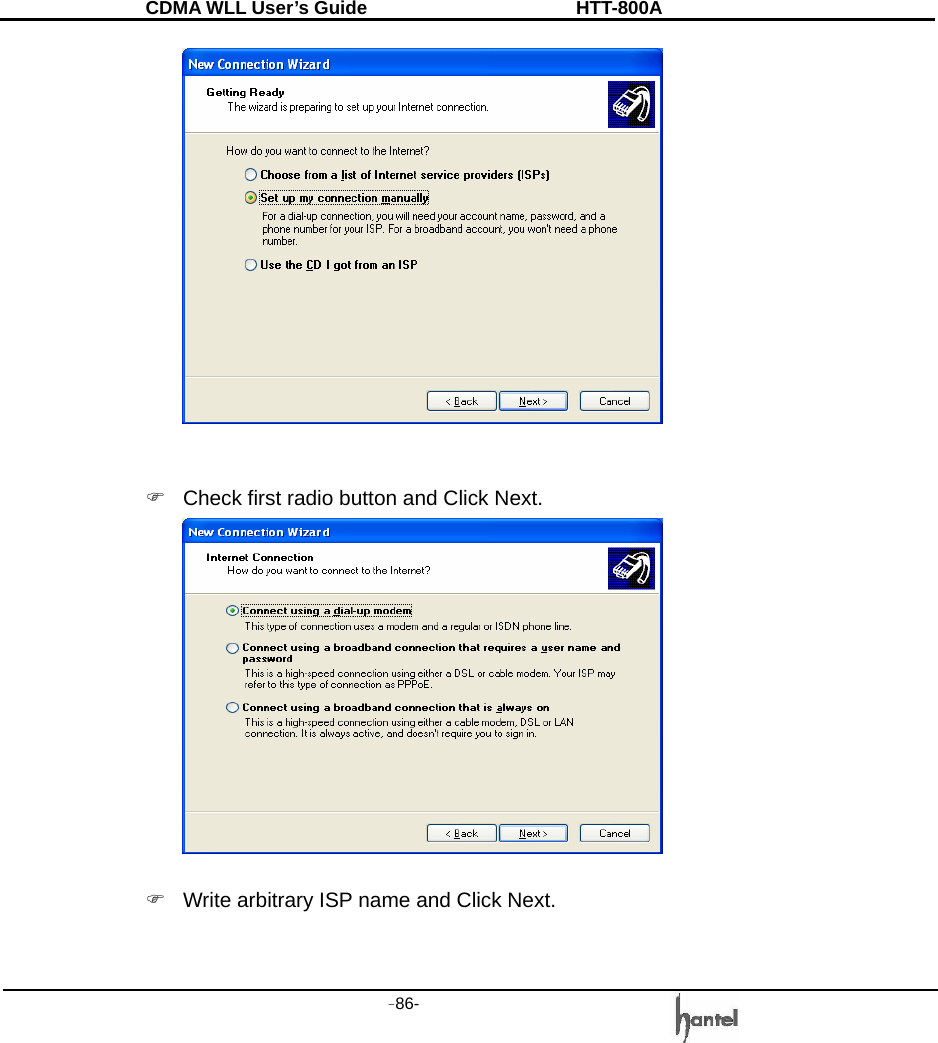
CDMA WLL User’s Guide               HTT-800A -84-   Internet  Setting a Dial-Up Networking  ) Double-click  [Control  Panel]  → Double-click [Network Connections] → Click [view network connects]  →  Click [Create a new connection].    ) Click next
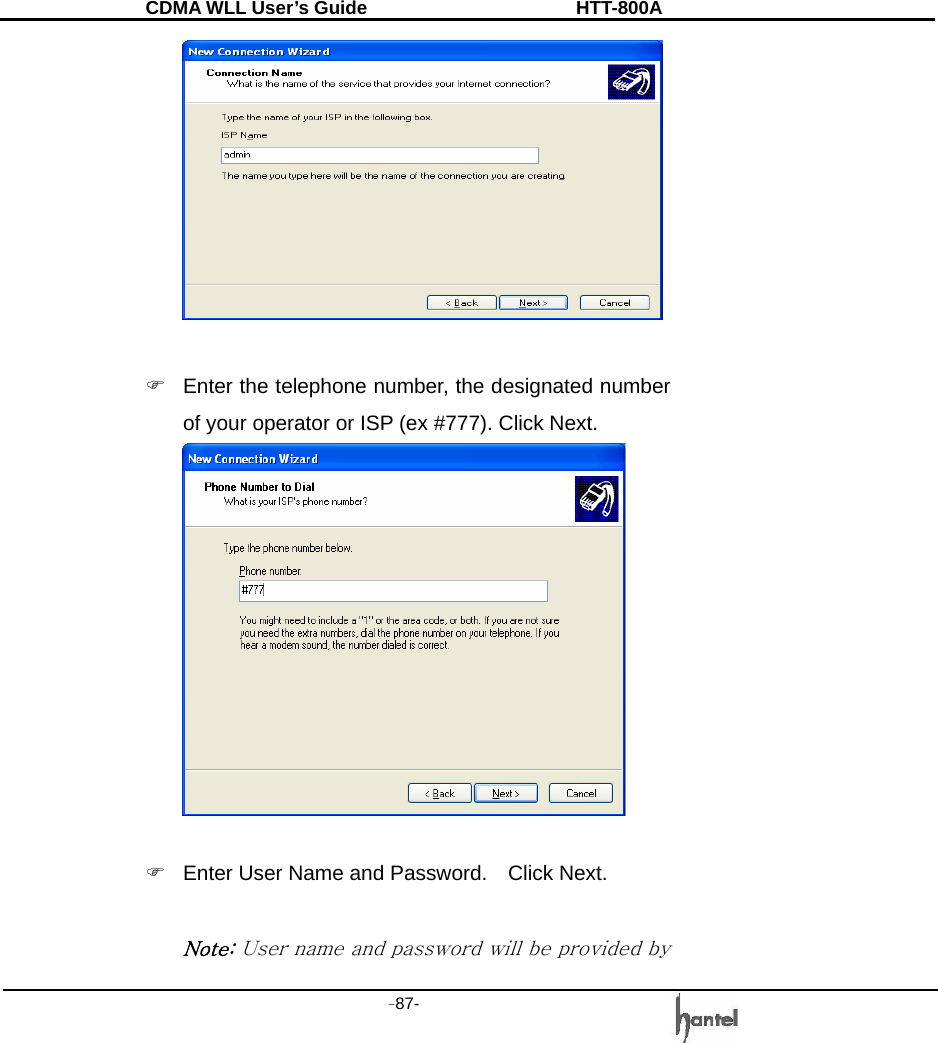
CDMA WLL User’s Guide               HTT-800A -85-     )  Check first radio button and Click Next.   )  Check second radio button and Click Next.
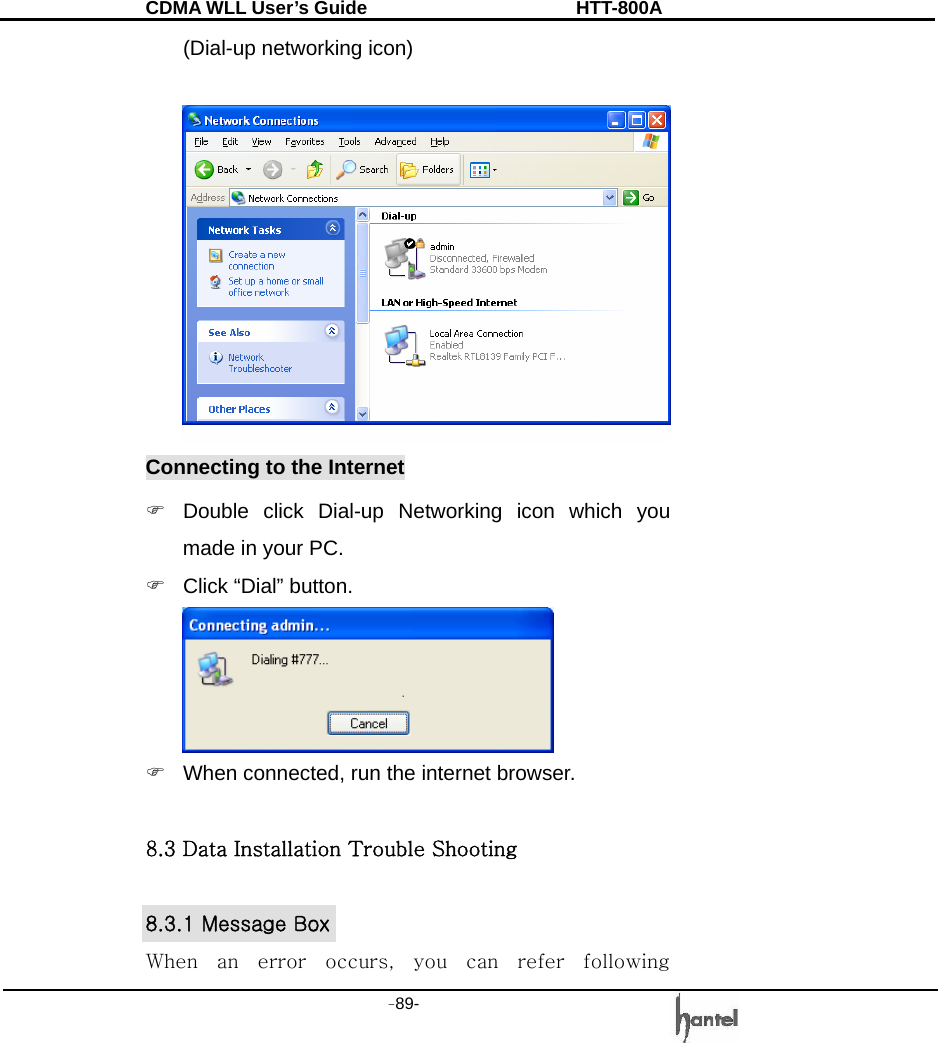
CDMA WLL User’s Guide               HTT-800A -86-     )  Check first radio button and Click Next.   )  Write arbitrary ISP name and Click Next.
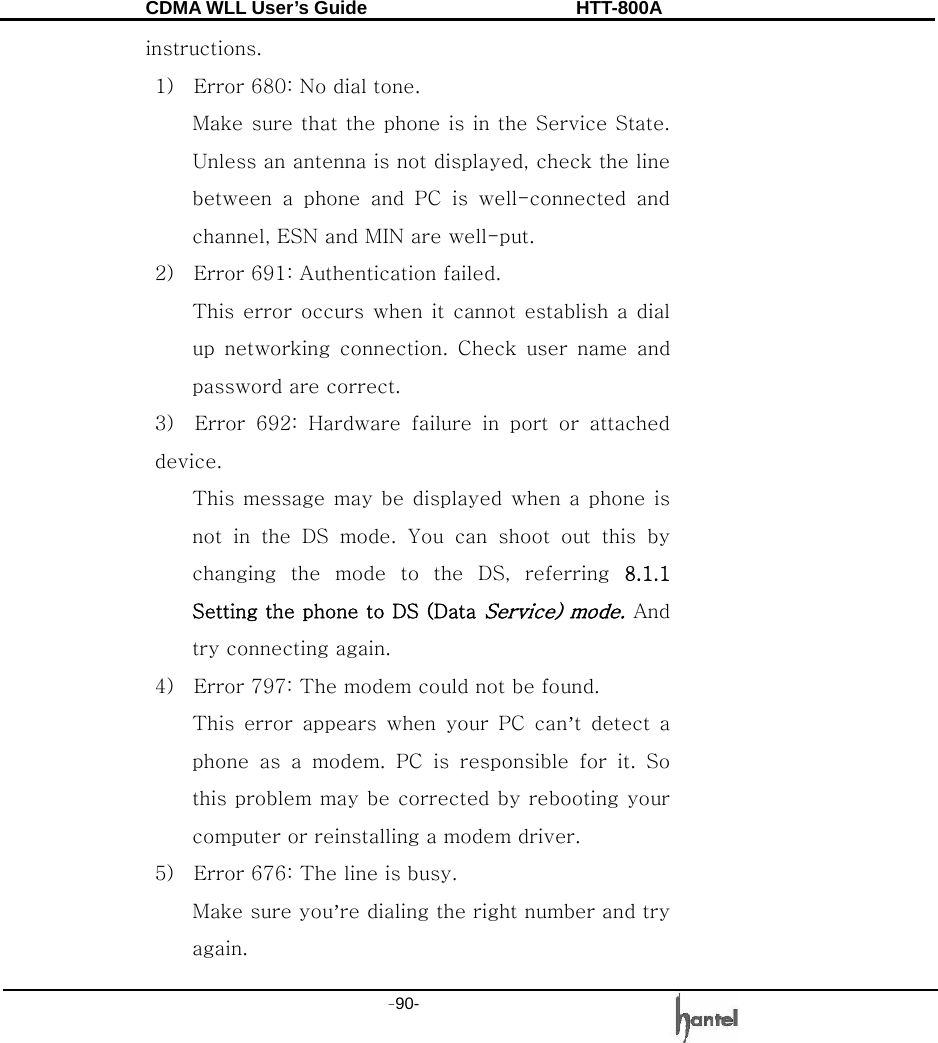
CDMA WLL User’s Guide               HTT-800A -87-     )  Enter the telephone number, the designated number of your operator or ISP (ex #777). Click Next.   )  Enter User Name and Password.    Click Next.  Note: User name and password will be provided by
CDMA WLL User’s Guide               HTT-800A -88-   your operator or ISP.  )  Uncheck the check button and Click Finish.    ) Double-click  [Control  Panel]  → Double-click [Network Connections]. You will see a new icon.
CDMA WLL User’s Guide               HTT-800A -89-   (Dial-up networking icon)   Connecting to the Internet )  Double click Dial-up Networking icon which you made in your PC. )  Click “Dial” button.  )  When connected, run the internet browser.  8.3 Data Installation Trouble Shooting    8.3.1 Message Box When  an  error  occurs,  you  can  refer  following
CDMA WLL User’s Guide               HTT-800A -90-   instructions. 1)    Error 680: No dial tone. Make sure that the phone is in the Service State. Unless an antenna is not displayed, check the line between  a  phone  and  PC  is  well-connected  and channel, ESN and MIN are well-put. 2)    Error 691: Authentication failed. This error occurs  when  it cannot establish a dial up  networking  connection.  Check  user  name  and password are correct. 3)  Error 692: Hardware failure in port or attached device. This message may be  displayed when a phone is not  in  the  DS  mode.  You  can  shoot  out  this  by changing  the  mode  to  the  DS,  referring  8.1.1 Setting the phone to DS (Data Service) mode. And try connecting again. 4)    Error 797: The modem could not be found. This  error  appears  when  your  PC  can’t  detect  a phone as a modem. PC is responsible for it. So this problem may be corrected by rebooting your computer or reinstalling a modem driver.   5)    Error 676: The line is busy.     Make sure you’re dialing the right number and try again.
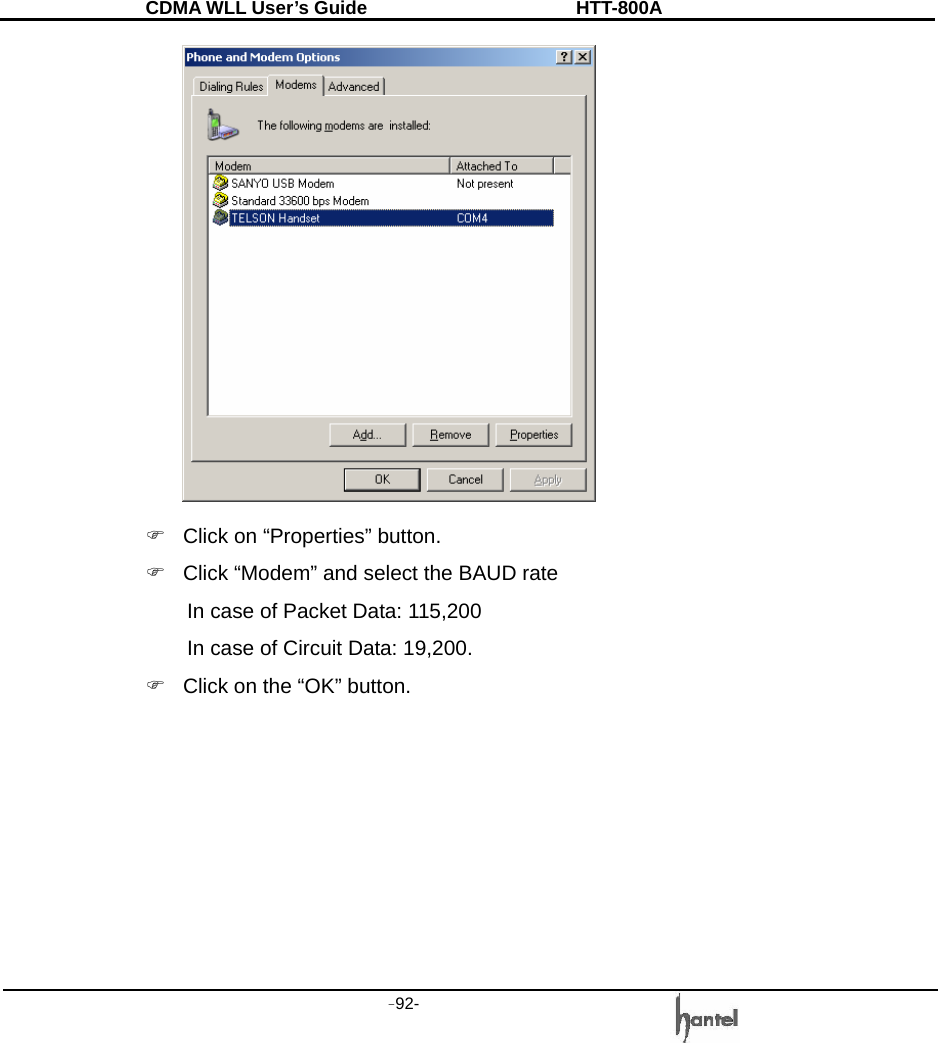
CDMA WLL User’s Guide               HTT-800A -91-   6) Error 619 : Disconnected This  error  may  be  displayed  in  case  of  setting problem. You have to check the DS Baud rate in 3 places. 1. Setting the phone into DS Baud 2. Setting  [Phone  and  Modem  Options] into  your PC in the [Control panel].   Reference  to  section  8.1  (in  case  of  Window 2000, Window98), section 8.2 (Window XP)      3. Setting the [Dial- up icon] into your PC       [Dial- up icon] => Properties => Configure    8.3.2 PC setting Phone and Modem Option ) Control panel Æ Phone and Modem Option In this case, USB Cable is been used.  Please verify TELSON Handset Modem is selected.
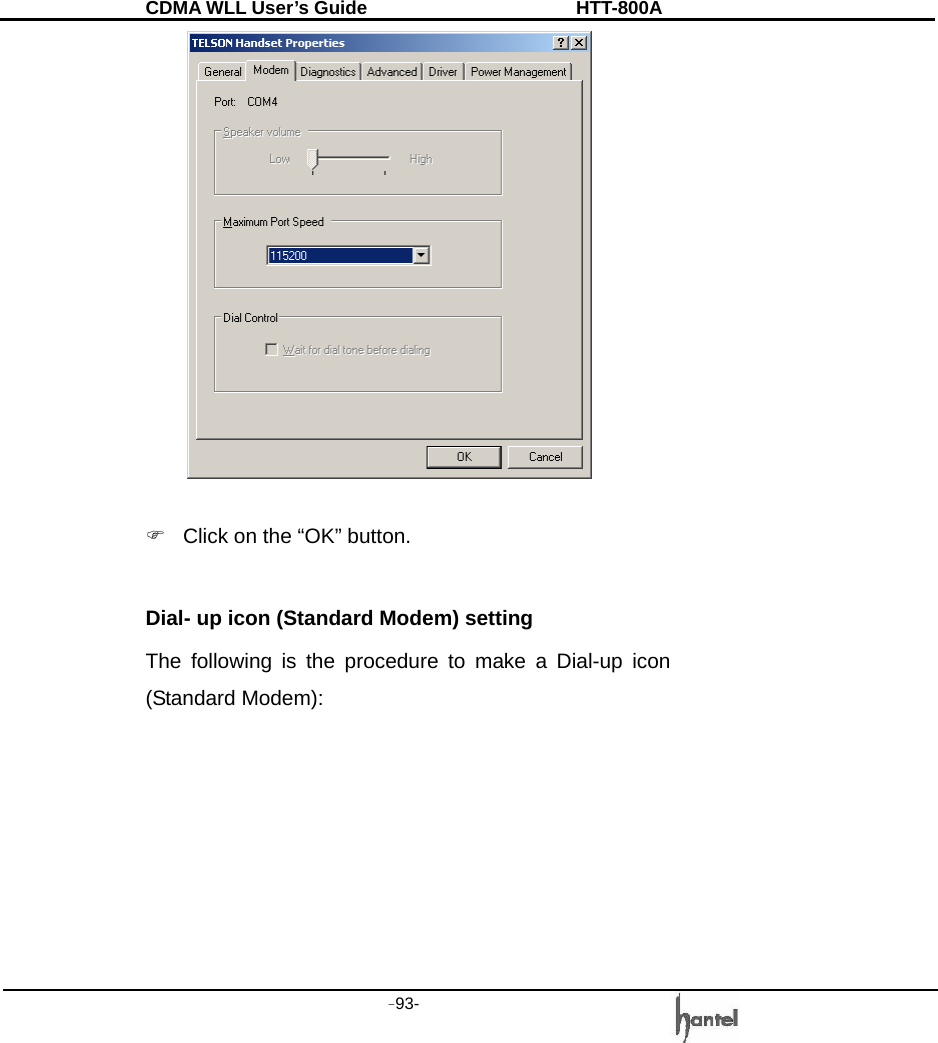
CDMA WLL User’s Guide               HTT-800A -92-    )  Click on “Properties” button. )  Click “Modem” and select the BAUD rate   In case of Packet Data: 115,200   In case of Circuit Data: 19,200. )  Click on the “OK” button.
CDMA WLL User’s Guide               HTT-800A -93-     )  Click on the “OK” button.   Dial- up icon (Standard Modem) setting The following is the procedure to make a Dial-up icon (Standard Modem):
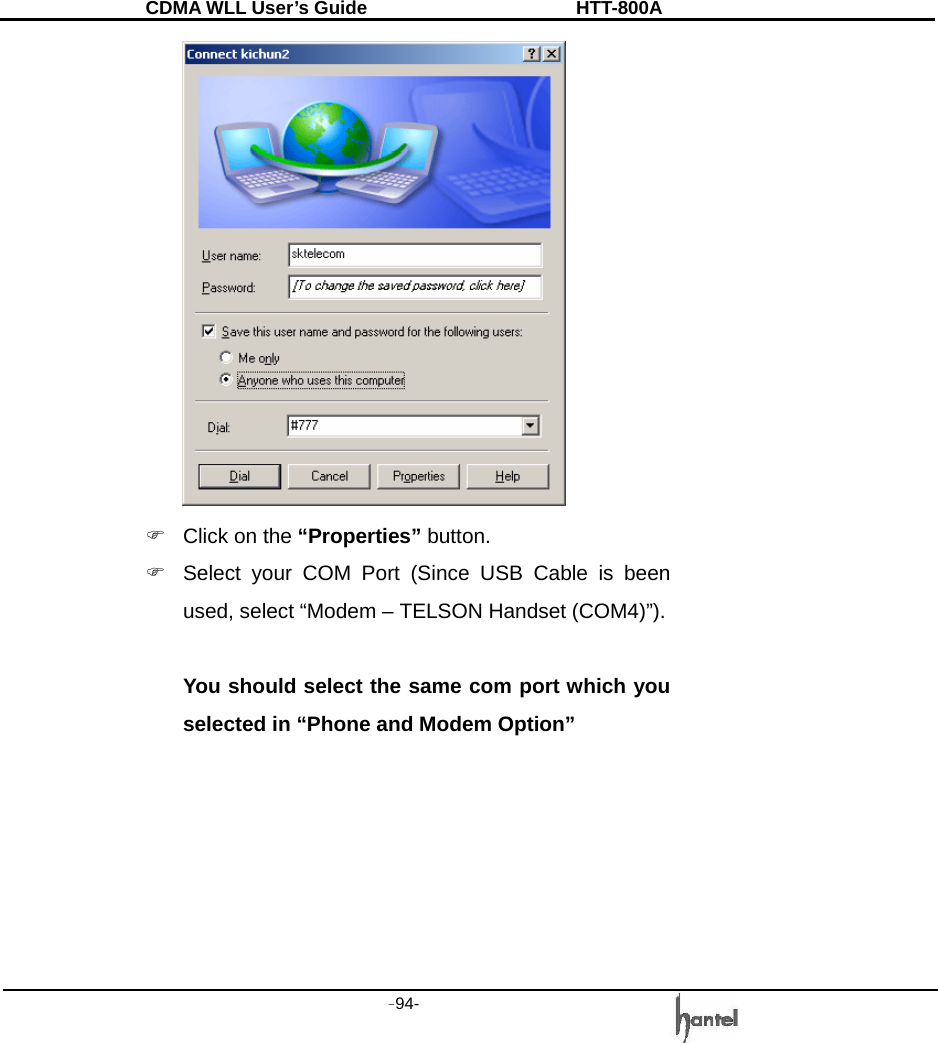
CDMA WLL User’s Guide               HTT-800A -94-    )  Click on the “Properties” button. )  Select your COM Port (Since USB Cable is been used, select “Modem – TELSON Handset (COM4)”).  You should select the same com port which you selected in “Phone and Modem Option”
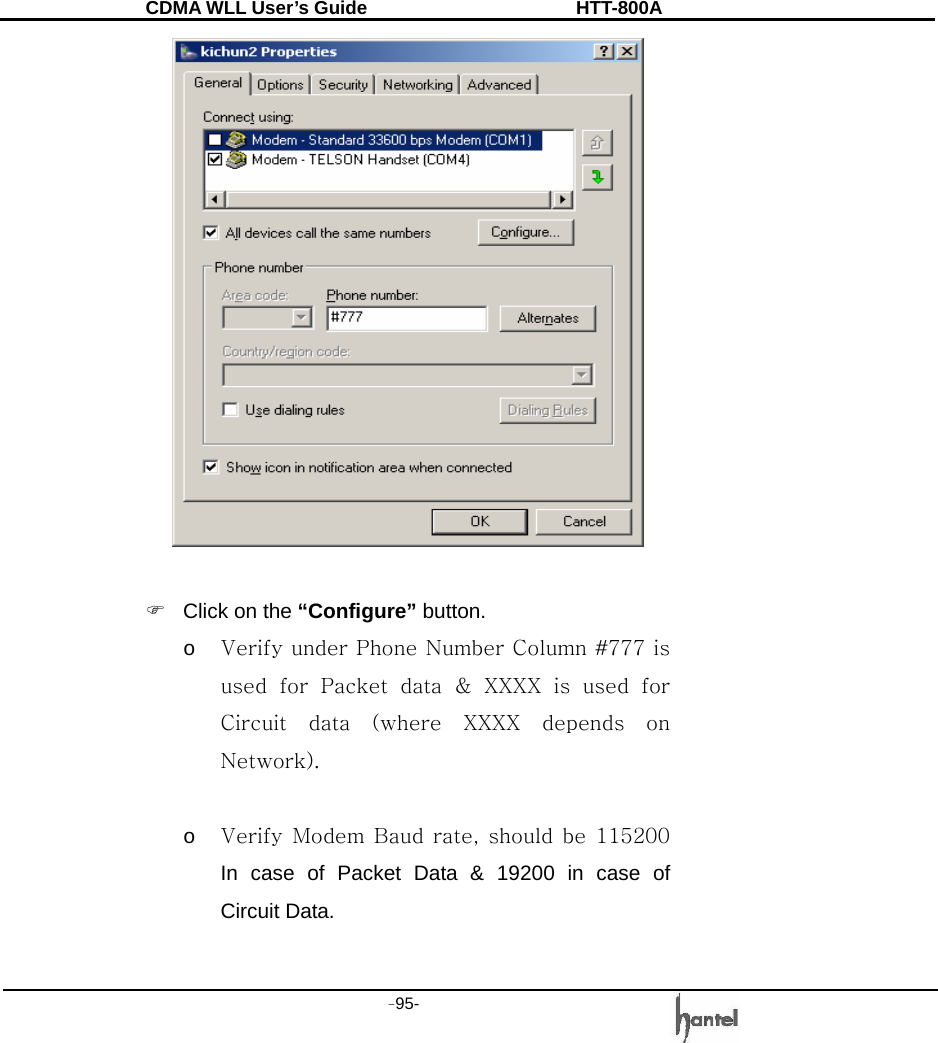
CDMA WLL User’s Guide               HTT-800A -95-     )  Click on the “Configure” button. o Verify under Phone Number Column #777 is used  for  Packet  data  &  XXXX  is  used  for Circuit  data  (where  XXXX  depends  on Network).    o Verify Modem  Baud  rate,  should  be  115200 In case of Packet Data & 19200 in case of Circuit Data.
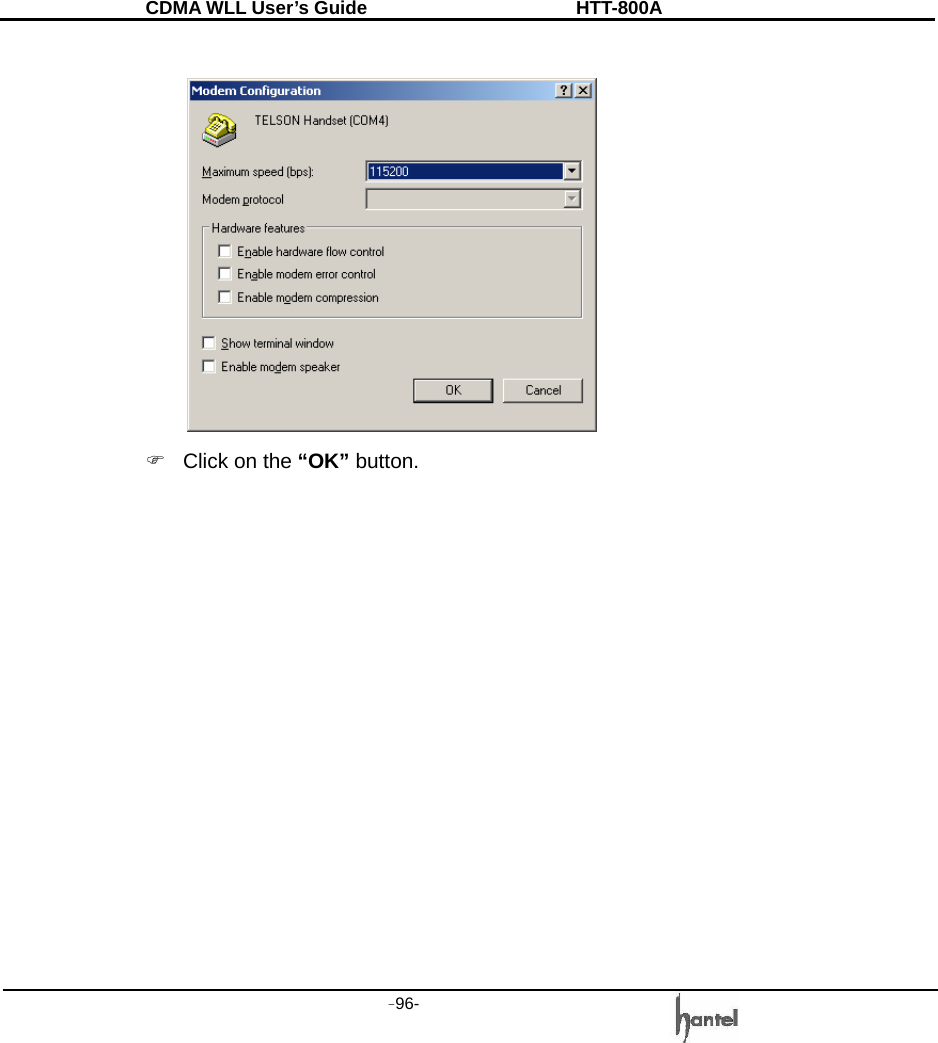
CDMA WLL User’s Guide               HTT-800A -96-     )  Click on the “OK” button.
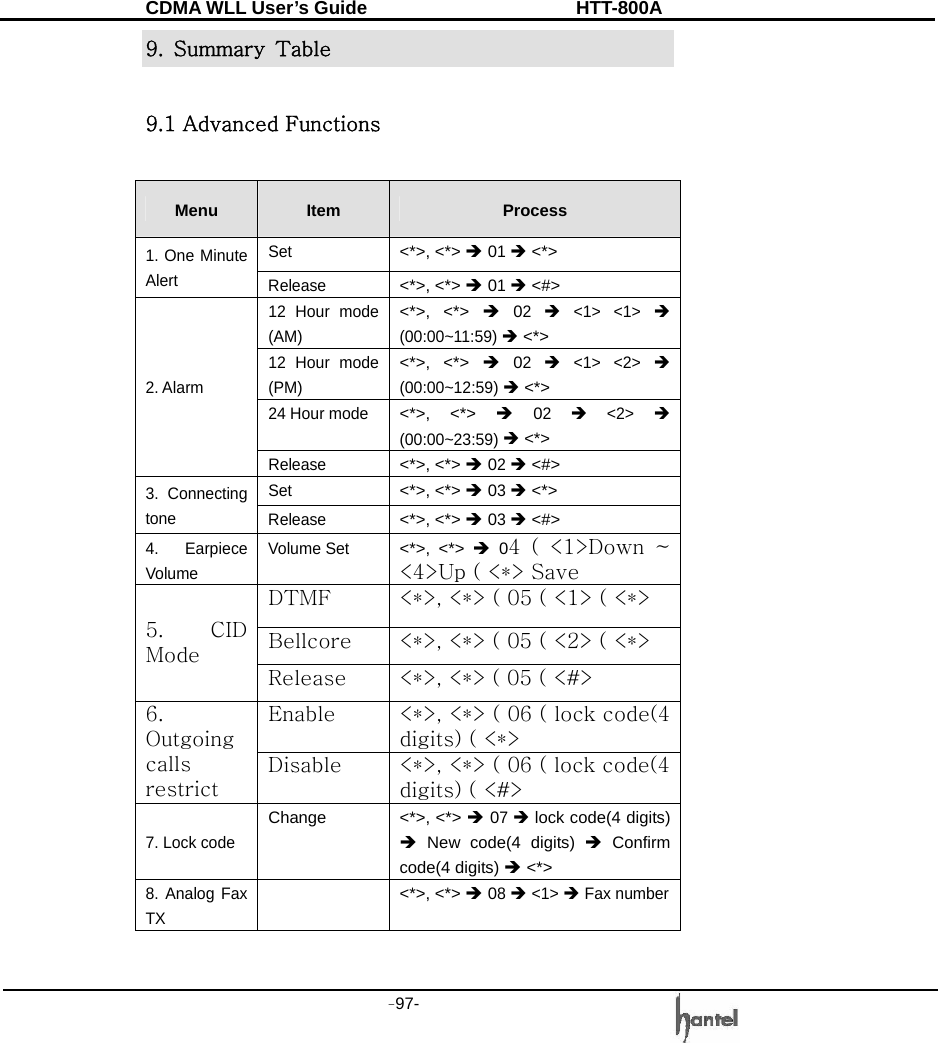
CDMA WLL User’s Guide               HTT-800A -97-   9.  Summary  Table  9.1 Advanced Functions  Menu  Item  Process Set <*>, <*> Î 01 Î <*> 1. One Minute Alert  Release <*>, <*> Î 01 Î <#> 12 Hour mode (AM) <*>, <*> Î 02 Î <1> <1> Î (00:00~11:59) Î <*> 12 Hour mode (PM) <*>, <*> Î 02 Î <1> <2> Î (00:00~12:59) Î <*> 24 Hour mode <*>, <*> Î 02 Î <2> Î (00:00~23:59) Î <*> 2. Alarm Release <*>, <*> Î 02 Î <#> Set <*>, <*> Î 03 Î <*> 3. Connecting tone  Release <*>, <*> Î 03 Î <#> 4. Earpiece Volume Volume Set <*>, <*> Î 04  (  <1>Down  ~ <4>Up ( <*> Save DTMF  <*>, <*> ( 05 ( <1> ( <*> Bellcore  <*>, <*> ( 05 ( <2> ( <*> 5.  CID Mode Release  <*>, <*> ( 05 ( <#> Enable  <*>, <*> ( 06 ( lock code(4 digits) ( <*> 6. Outgoing calls restrict Disable  <*>, <*> ( 06 ( lock code(4 digits) ( <#> 7. Lock code Change <*>, <*> Î 07 Î lock code(4 digits) Î New code(4 digits) Î Confirm code(4 digits) Î <*> 8. Analog Fax TX  <*>, <*> Î 08 Î <1> Î Fax number
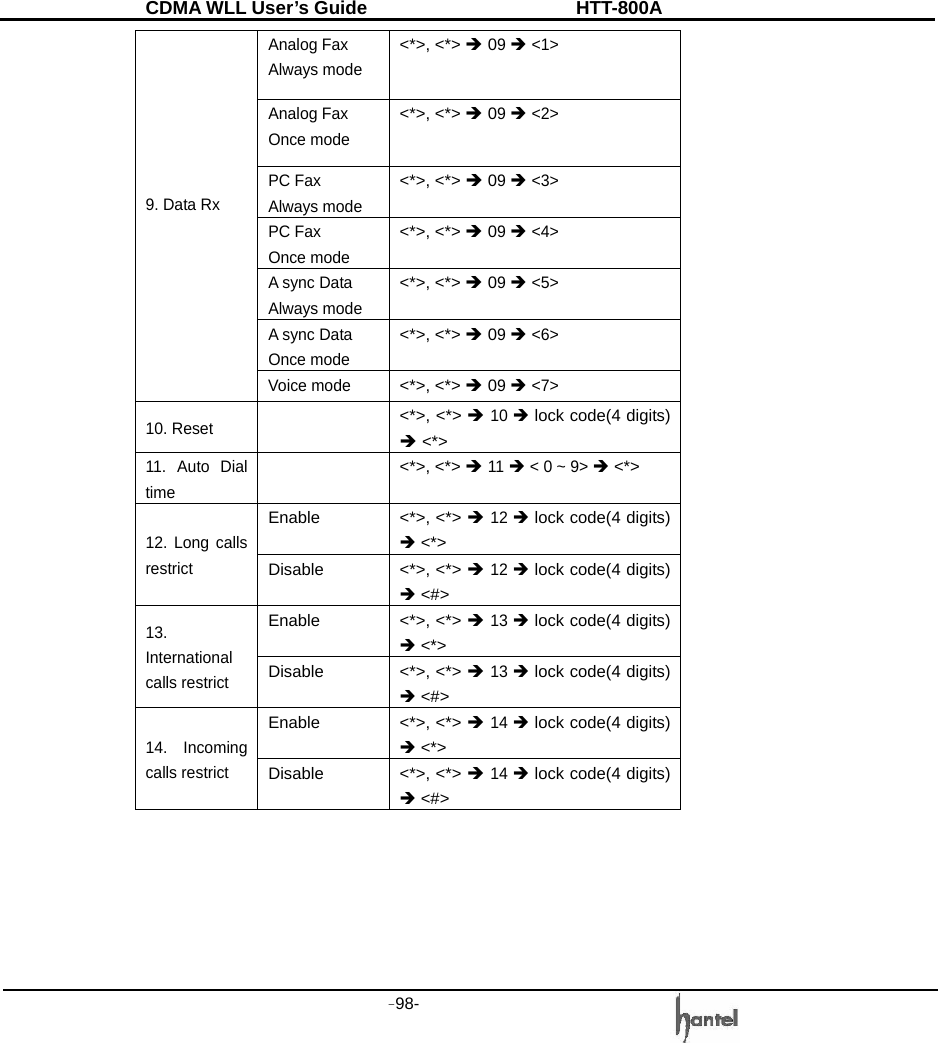
CDMA WLL User’s Guide               HTT-800A -98-   Analog Fax Always mode <*>, <*> Î 09 Î <1> Analog Fax   Once mode <*>, <*> Î 09 Î <2> PC Fax Always mode <*>, <*> Î 09 Î <3> PC Fax Once mode <*>, <*> Î 09 Î <4> A sync Data Always mode <*>, <*> Î 09 Î <5> A sync Data Once mode <*>, <*> Î 09 Î <6> 9. Data Rx  Voice mode <*>, <*> Î 09 Î <7> 10. Reset   <*>, <*> Î 10 Î lock code(4 digits) Î <*> 11. Auto Dial time  <*>, <*> Î 11 Î < 0 ~ 9> Î <*> Enable <*>, <*> Î 12 Î lock code(4 digits) Î <*> 12. Long calls restrict Disable <*>, <*> Î 12 Î lock code(4 digits) Î <#> Enable <*>, <*> Î 13 Î lock code(4 digits) Î <*> 13. International calls restrict Disable <*>, <*> Î 13 Î lock code(4 digits) Î <#> Enable <*>, <*> Î 14 Î lock code(4 digits) Î <*> 14. Incoming calls restrict Disable <*>, <*> Î 14 Î lock code(4 digits) Î <#>
CDMA WLL User’s Guide               HTT-800A -99-   9.2 Supplementary Functions  Menu  Item  Process On 36*#01 Î 1 Î <*> 1. Speed dial  Off 36*#01 Î 2 ( <*> On 36*#02 Î 1 Î lock code(4 digits) Î <*> Off 36*#02 Î 2 Î lock code(4 digits) Î <*> Store 36*#02 Î 3 ( lock code(4 digits)  (  address  (01~03) ( phone number ( <*> Delete  36*#02  (  4  (  lock  code(4 digits)  (  address  (01~03) (    <*> 2. Emergency All Delete 36*#02 Î 5 Î lock code(4 digits) Î <*> Time On 36*#03 Î 1 Î lock code(4 digits) Î <*> Immediate On 36*#03 Î 2 Î lock code(4 digits) Î <*> Off 36*#03 Î 3 Î lock code(4 digits) Î <*> Store 36*#03 Î 4 Î lock code(4 digits) Î phone number Î <*> 3. Hot Line Delete 36*#03 Î 5 Î lock code(4 digits) Î <*> Metering Pulse(12K) 36*#04 Î 1 Î <*> Metering Pulse(16K) 36*#04 Î 2 Î <*> Polarity Reverse 36*#04 Î 3 Î <*> 4. Pay Phone Interface Auto mode  36*#04 Î 4 Î <*>
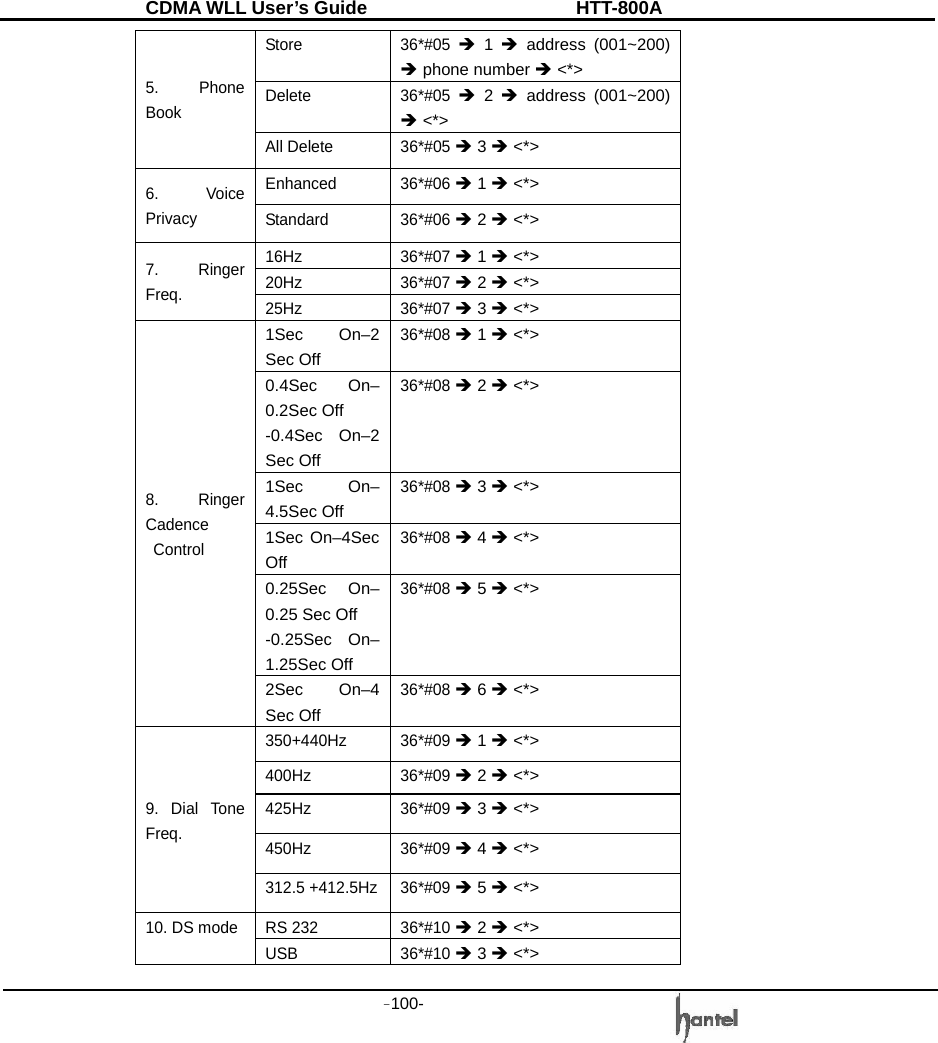
CDMA WLL User’s Guide               HTT-800A -100-   Store 36*#05 Î 1 Î address (001~200) Î phone number Î <*> Delete 36*#05 Î 2 Î address (001~200) Î <*> 5. Phone Book All Delete  36*#05 Î 3 Î <*> Enhanced 36*#06 Î 1 Î <*> 6. Voice Privacy  Standard 36*#06 Î 2 Î <*> 16Hz 36*#07 Î 1 Î <*> 20Hz 36*#07 Î 2 Î <*> 7. Ringer Freq.  25Hz 36*#07 Î 3 Î <*> 1Sec On–2 Sec Off 36*#08 Î 1 Î <*> 0.4Sec On–0.2Sec Off -0.4Sec On–2 Sec Off 36*#08 Î 2 Î <*> 1Sec On–4.5Sec Off 36*#08 Î 3 Î <*> 1Sec On–4Sec Off 36*#08 Î 4 Î <*> 0.25Sec On–0.25 Sec Off -0.25Sec On– 1.25Sec Off 36*#08 Î 5 Î <*> 8. Ringer Cadence  Control 2Sec On–4 Sec Off 36*#08 Î 6 Î <*> 350+440Hz 36*#09 Î 1 Î <*> 400Hz 36*#09 Î 2 Î <*> 425Hz 36*#09 Î 3 Î <*> 450Hz 36*#09 Î 4 Î <*> 9. Dial Tone Freq. 312.5 +412.5Hz 36*#09 Î 5 Î <*> RS 232  36*#10 Î 2 Î <*> 10. DS mode  USB 36*#10 Î 3 Î <*>
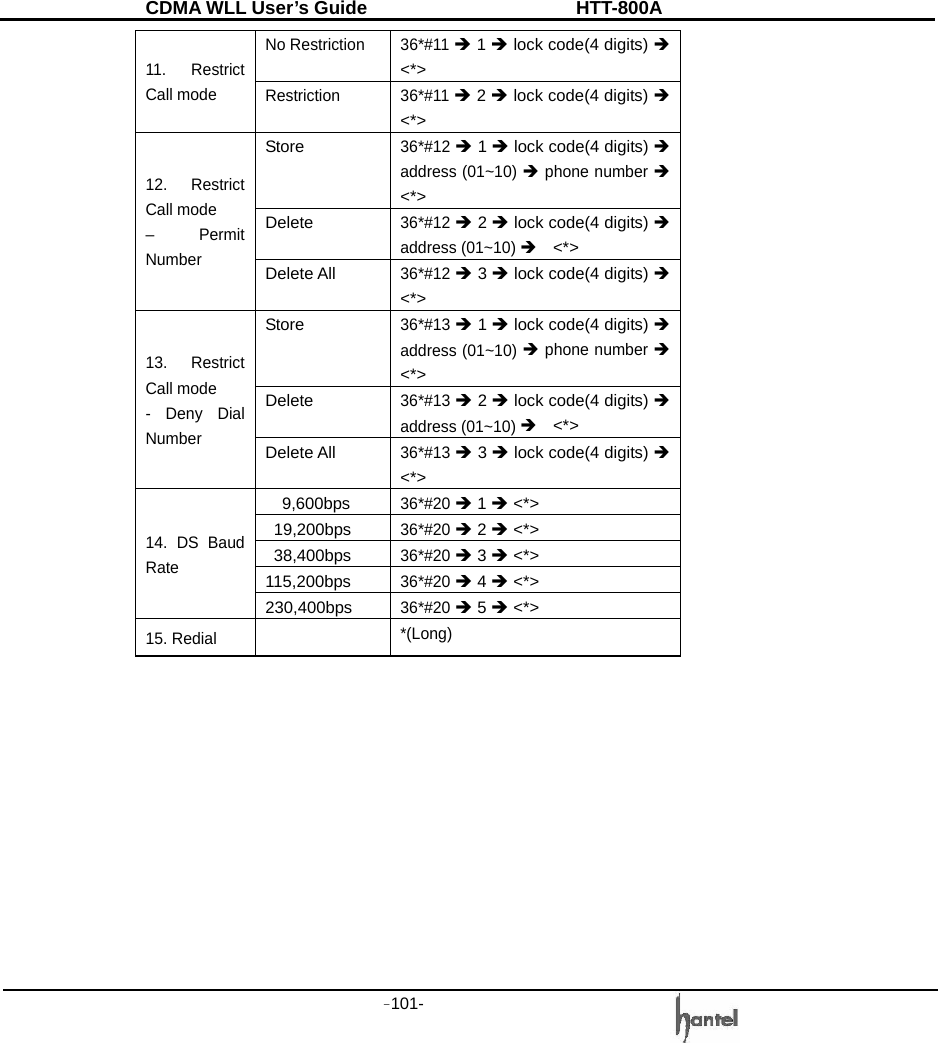
CDMA WLL User’s Guide               HTT-800A -101-   No Restriction  36*#11 Î 1 Î lock code(4 digits) Î <*> 11. Restrict Call mode  Restriction 36*#11 Î 2 Î lock code(4 digits) Î <*> Store 36*#12 Î 1 Î lock code(4 digits) Î address (01~10) Î phone number Î <*> Delete 36*#12 Î 2 Î lock code(4 digits) Î address (01~10) Î  <*> 12. Restrict Call mode   – Permit Number Delete All 36*#12 Î 3 Î lock code(4 digits) Î <*> Store 36*#13 Î 1 Î lock code(4 digits) Î address (01~10) Î phone number Î <*> Delete 36*#13 Î 2 Î lock code(4 digits) Î address (01~10) Î  <*> 13. Restrict Call mode - Deny Dial Number Delete All 36*#13 Î 3 Î lock code(4 digits) Î <*> 9,600bps 36*#20 Î 1 Î <*> 19,200bps 36*#20 Î 2 Î <*> 38,400bps 36*#20 Î 3 Î <*> 115,200bps 36*#20 Î 4 Î <*> 14. DS Baud Rate 230,400bps 36*#20 Î 5 Î <*> 15. Redial  *(Long)
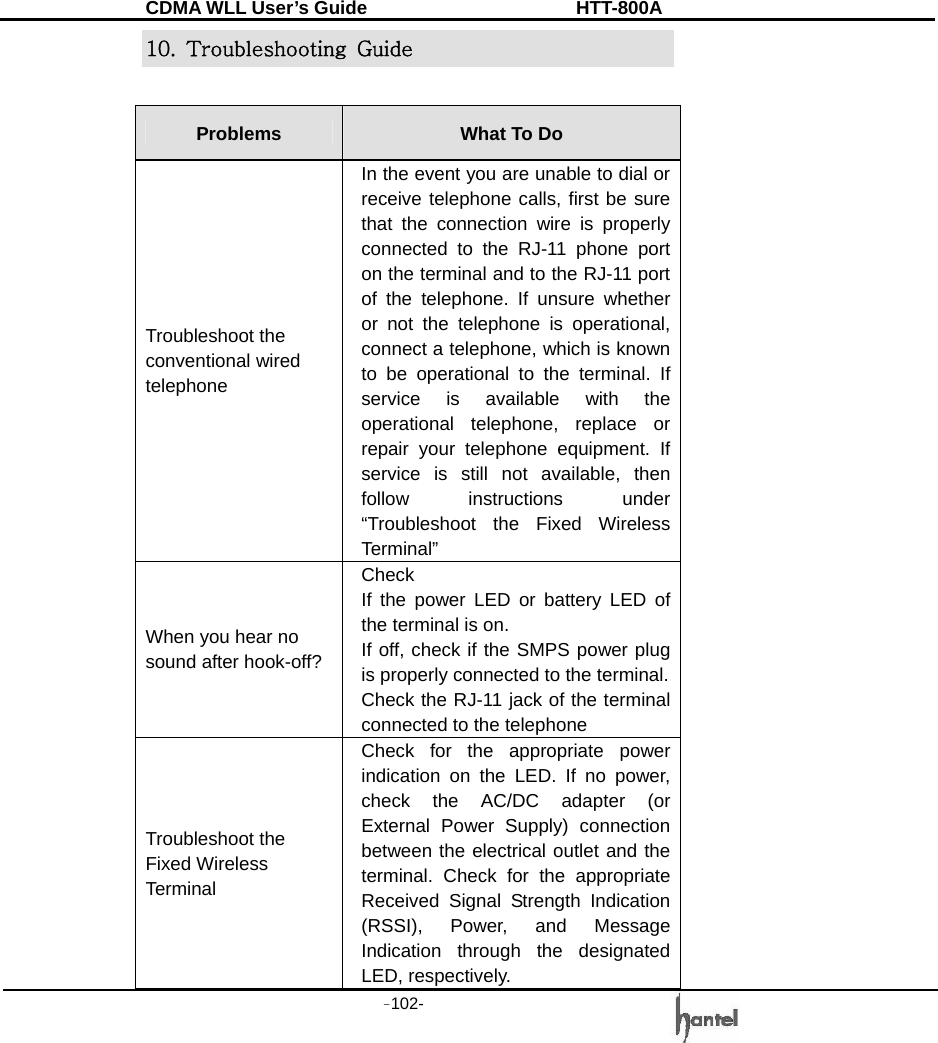
CDMA WLL User’s Guide               HTT-800A -102-   10.  Troubleshooting  Guide  Problems  What To Do Troubleshoot the conventional wired telephone In the event you are unable to dial or receive telephone calls, first be sure that the connection wire is properly connected to the RJ-11 phone port on the terminal and to the RJ-11 port of the telephone. If unsure whether or not the telephone is operational, connect a telephone, which is known to be operational to the terminal. If service is available with the operational telephone, replace or repair your telephone equipment. If service is still not available, then follow instructions under “Troubleshoot the Fixed Wireless Terminal” When you hear no sound after hook-off? Check If the power LED or battery LED of the terminal is on. If off, check if the SMPS power plug is properly connected to the terminal. Check the RJ-11 jack of the terminal connected to the telephone Troubleshoot the Fixed Wireless Terminal Check for the appropriate power indication on the LED. If no power, check the AC/DC adapter (or External Power Supply) connection between the electrical outlet and the terminal. Check for the appropriate Received Signal Strength Indication (RSSI), Power, and Message Indication through the designated LED, respectively.
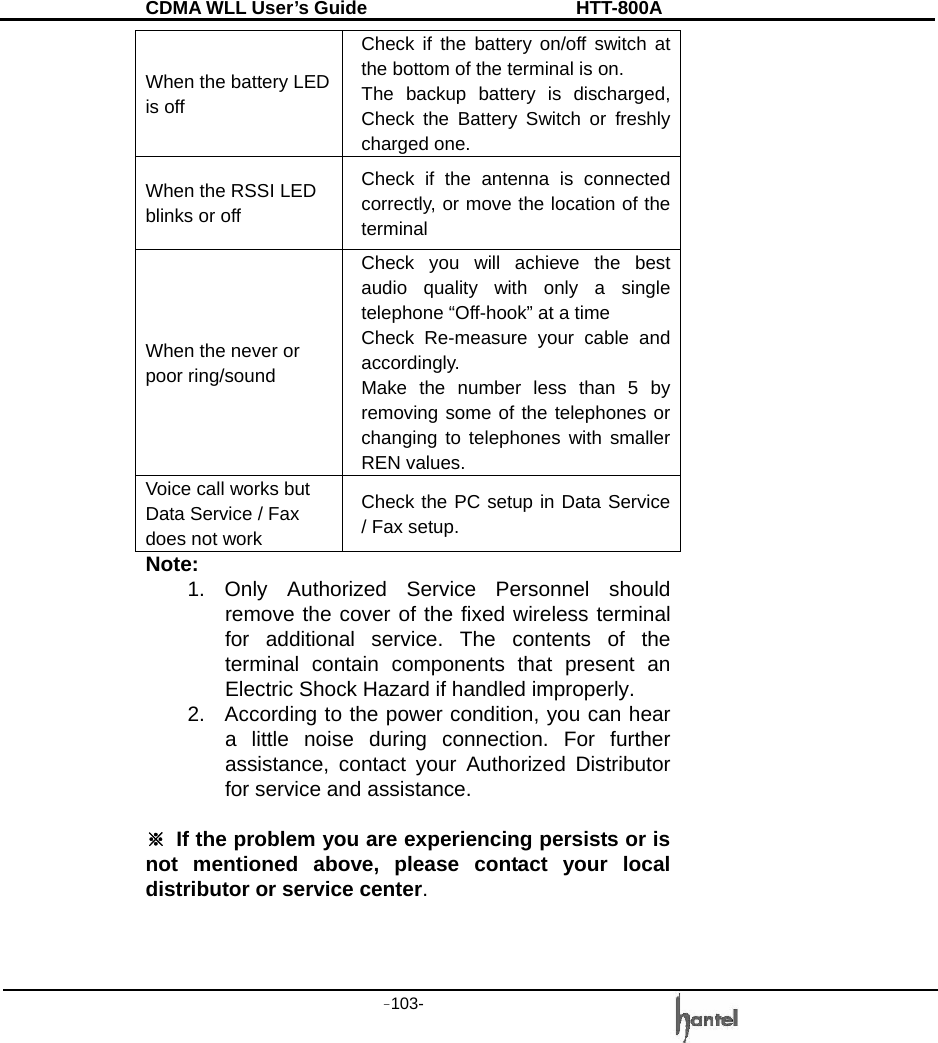
CDMA WLL User’s Guide               HTT-800A -103-   When the battery LED is off Check if the battery on/off switch at the bottom of the terminal is on. The backup battery is discharged, Check the Battery Switch or freshly charged one. When the RSSI LED blinks or off Check if the antenna is connected correctly, or move the location of the terminal When the never or poor ring/sound Check you will achieve the best audio quality with only a single telephone “Off-hook” at a time Check Re-measure your cable and accordingly. Make the number less than 5 by removing some of the telephones or changing to telephones with smaller REN values. Voice call works but Data Service / Fax   does not work Check the PC setup in Data Service / Fax setup. Note:  1. Only Authorized Service Personnel should remove the cover of the fixed wireless terminal for additional service. The contents of the terminal contain components that present an Electric Shock Hazard if handled improperly. 2.  According to the power condition, you can hear a little noise during connection. For further assistance, contact your Authorized Distributor for service and assistance.  ※ If the problem you are experiencing persists or is not mentioned above, please contact your local distributor or service center.
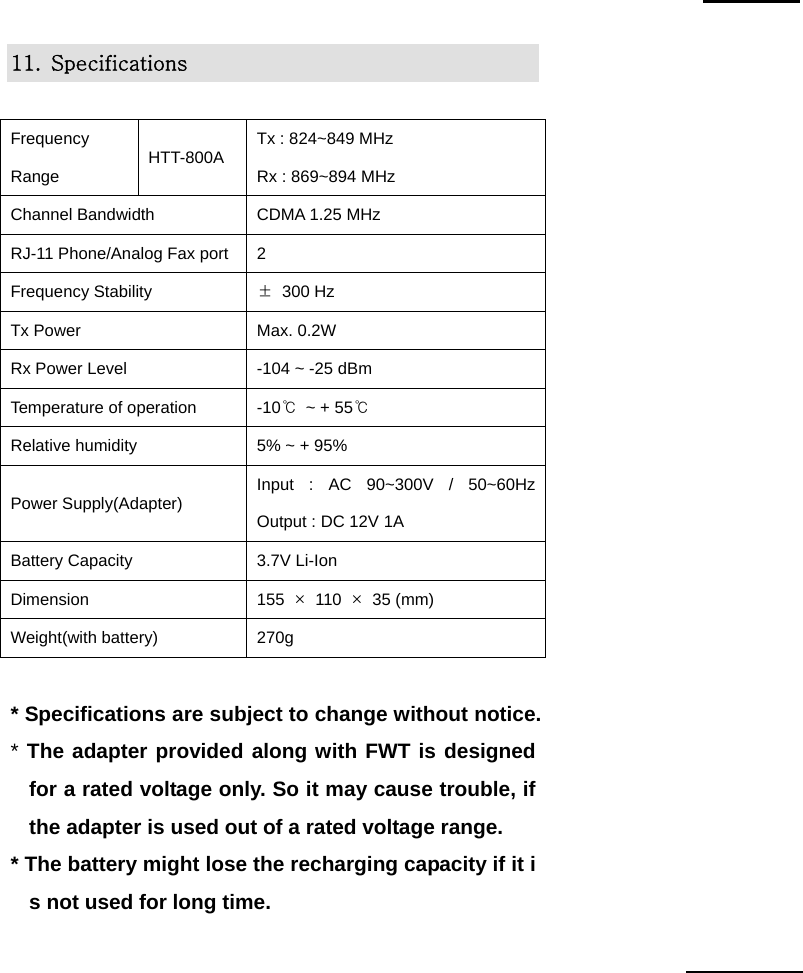
CDMA WLL User’s Guide               HTT-800A -104-   11.  Specifications  Frequency Range  HTT-800A  Tx : 824~849 MHz        Rx : 869~894 MHz Channel Bandwidth  CDMA 1.25 MHz RJ-11 Phone/Analog Fax port 2 Frequency Stability  ± 300 Hz Tx Power  Max. 0.2W Rx Power Level  -104 ~ -25 dBm Temperature of operation  -10℃  ~ + 55℃ Relative humidity  5% ~ + 95% Power Supply(Adapter)  Input : AC 90~300V / 50~60Hz  Output : DC 12V 1A Battery Capacity  3.7V Li-Ion Dimension  155  × 110 × 35 (mm) Weight(with battery)  270g  * Specifications are subject to change without notice. * The adapter provided along with FWT is designed for a rated voltage only. So it may cause trouble, if the adapter is used out of a rated voltage range. * The battery might lose the recharging capacity if it is not used for long time.
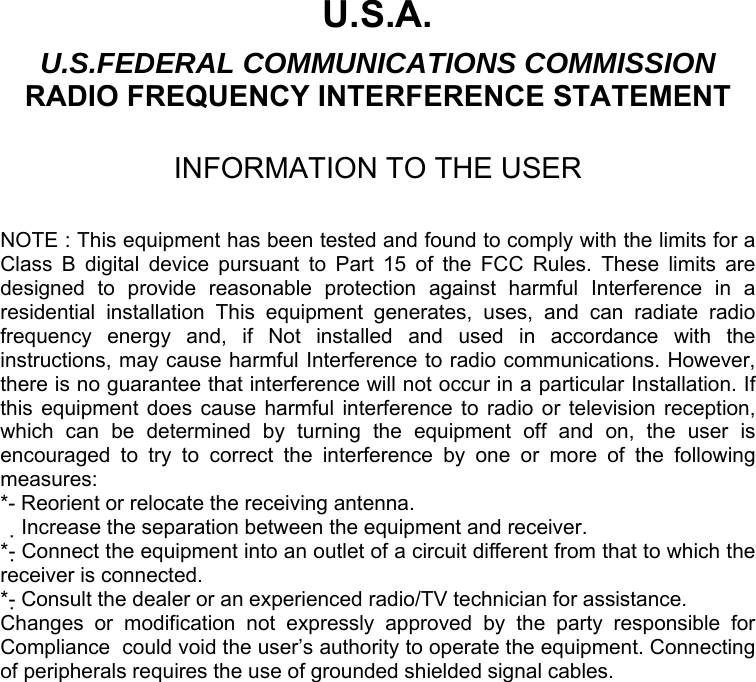
 U.S.A. U.S.FEDERAL COMMUNICATIONS COMMISSION RADIO FREQUENCY INTERFERENCE STATEMENT  INFORMATION TO THE USER  NOTE : This equipment has been tested and found to comply with the limits for a Class B digital device pursuant to Part 15 of the FCC Rules. These limits are designed to provide reasonable protection against harmful Interference in a residential installation This equipment generates, uses, and can radiate radio frequency energy and, if Not installed and used in accordance with the instructions, may cause harmful Interference to radio communications. However, there is no guarantee that interference will not occur in a particular Installation. If this equipment does cause harmful interference to radio or television reception, which can be determined by turning the equipment off and on, the user is encouraged to try to correct the interference by one or more of the following measures: *- Reorient or relocate the receiving antenna. Increase the separation between the equipment and receiver.  *- Connect the equipment into an outlet of a circuit different from that to which the receiver is connected. *- Consult the dealer or an experienced radio/TV technician for assistance. Changes or modification not expressly approved by the party responsible for Compliance  could void the user’s authority to operate the equipment. Connecting of peripherals requires the use of grounded shielded signal cables.

Navigation menu