users manual

USER'S MANUAL
SUN TELECOM
INTERNATIONAL
Alpha Numeric Pager Alpha Numeric Pager
TITAN
II
Congratulations on your purchase of a Pager.
Your new pager will instantly keep you in touch with
everyone important to you. The pager is
reliable, easy to use, as well as affordable. It provides
many features that incorporate the most advanced
electronic paging technologies. Please read this manual
carefully before using your pager for a better
understanding of pager operation.
SUN TELECOM
INTERNATIONAL
TITAN
II
TITAN
II
TITAN
II
FEATURES
DESCRIPTION OF INDICATORS & SYMBOLS
CONTROL BUTTONS
OPERATION
Turning Pager On
Turning Pager Off
Main Screen
Function Menu Screen
Personal Message Screen
MailDrop/ Information Message Screen
NoteBook Message Screen
FUNCTION MENU
Reading Stored Message in the each Message Screen
Setting the Time and Date
Setting the Alarm
Setting the Paging Alert
5
8
11
12
13
14
15
16
17
17
18
19
20
21
CONTENTS
Enabling Display Zoom
Setting the Scroll Mode
Enabing Reminder Alert
Locking and Unlocking Message
Deleting A Message
Deleting All Message
Moving A Message to NoteBook
Selecting a MailDrop Alert Type
22
23
24
25
26
26
27
28
CONTENTS
1. FEATURES
5
FEATURES
4 16 Flex addresses
4 4 Line x 20 Alpha Character Display
4 20 Personal message slots
4 15 MailDrop message slots
4 10 NoteBook message slots
4 Personal Message Storage: 6400 Bytes
4 MailDrop Message Storage: 19200 Bytes
4 NoteBook Message Storage: 3200 Bytes
4 Personal Maximum Message length: 2000 Bytes
4 MailDrop Maximum Message length: 2000 Bytes
4 10 Personal messages lock (with lock Icon)
4 7 Sub-slots of each MailDrop (option)
FEATURES
4 Zoom On/Off (User Selectable)
4 Marquee Scrolling (User Selectable)
4 Customer Power Up Logo (Option)
4 Battery Status Display with 3 steps using A/D
4 Real Time Clock
4 One Alarm with message
4 Message with Time, Date Stamping
4 Automatic alert reset
4 Silent (Vibrate) alert
4 User-Selectable Reminder alert (Every 2-min. by current mode)
4 User-Selectable Alert-Tone Control
4 Manual ON/OFF using softkey
4 No Message Indication ( No Message)
1. FEATURES
6
FEATURES
4 Unread Message Indication
4 Continuous Message Indication (ICON)
4 Error Message Indication (with ICON)
4 All & Selective Message clear
4 Message Full Indication (with ICON)
4 Message slot number
4 Duplicated message Indication (with ICON)
4 EL Back Lighting Display
4 Out of Service Range Indication (with ICON)
4 Battery Backup
4 Self diagnostic
4 1 AAA Battery
7
1. FEATURES
Indicators
2. DESCRIPTION OF INDICATORS
& SYMBOLS
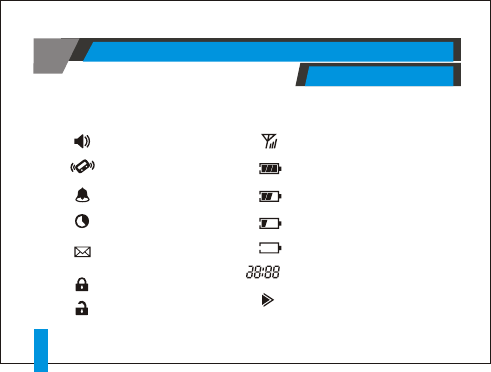
Audio Alert
Silent Alert (Vibration)
Enabled Alarm
Sleep Alert
New Page or Unread Message
Indication
Lock Message
Unlock Message
In Range or Out Range Indication
Full Battery Status
2/3 Battery Status
1/3 Battery Status
Low Battery Status
Current Time Display (24Hour)
Message Continuation
8DESCRIPTION OF INDICATORS & SYMBOLS
AM
PM
Symbols
2. DESCRIPTION OF INDICATORS
& SYMBOLS
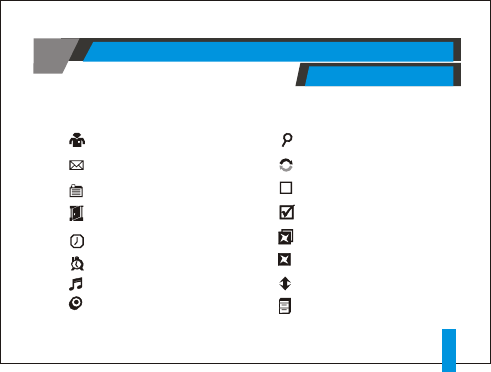
Personal Folder
MailDrop Folder
NoteBook
Escape
Set Time
Set Alarm
Set Alert
Pager Off
Zoom
Set Scroll
Enable Reminder
Disable Reminder
Delete All
Delete
Escape
NoteBook
DESCRIPTION OF INDICATORS & SYMBOLS 9
2. DESCRIPTION OF INDICATORS
& SYMBOLS
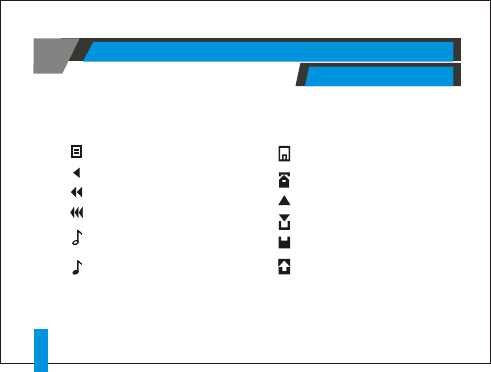
Page by Page
Slow Speed
Medium Speed
High Speed
MailDrop Slot
(Enabled Alert)
Unread MailDrop Slot
(Enabled Alert)
Move to NoteBook
NoteBook Slot
Unread Personal Slot
Read Personal Slot
Unread Mail Slot
Read Mail Slot
Cursor
(Current Slot)
DESCRIPTION OF INDICATORS & SYMBOLS
10

3.
CONTROL BUTTONS
CONTROL BUTTONS
! Used to navigate through the Function Menu
and through your messages.
! Used to navigate through time, alarm, date
setting functions.
! Used to enter function menu mode.
! Used to turn on and off the backlight.
! Used to exit to current function mode.
! Used to turn the pager on.
! Used to read the received message.
! Used to activate your selection.
! Used to adjust through time, alarm, date setting
functions.
11
AM
TITAN
II
SUN TELECOM
SUN TELECOM
12 :00A 1/01/00
// 12 :00A 1 01 00

Turning Pager On
4.
OPERATION
A start-up screen is momentarily displayed and the pager alerts
the currently selected mode(Vibrator, Audio, Sleep, or Melody).
OPERATION
12
Main Screen
PowerUp Screen
Standby Screen
AM
02
02
02
02
AM
01
01
AM
SUN TELECOM
SUN TELECOM
12 :00A 1/01/00
// 12 :00A 1 01 00
12 :00A 1/01/00
// 12 :00A 1 01 00
Turning Pager Off
4.
OPERATION
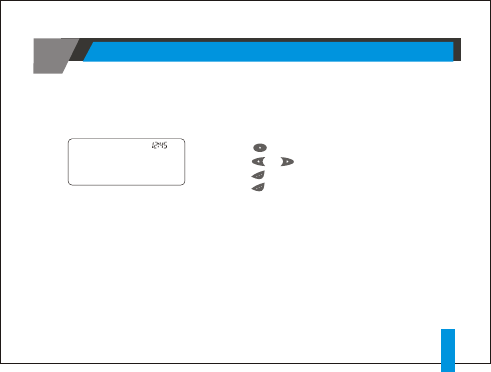
! Press the button to display the Function.
! Press the or button to move the cursor to OFF ICON.
! Press the button. "TURN PAGER OFF?" is displayed.
! Press the button again to turn the pager off.
The pager is now off and the screen is blank.
TURN PAGER OFF?
Off Screen
OPERATION 13
AM
Main Screen
4.
OPERATION
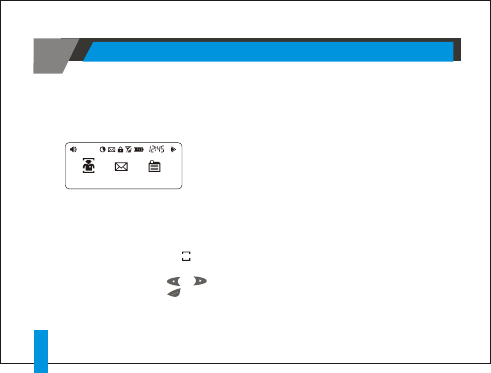
Pressing any buttons from the Standby Screen can access the
Main Screen.
The Main Screen shows both the current status of message folders
(Personal /MailDrop/Notebook) and time and date.
The Main Screen also displays any activated pager settings in the
split screen.
Main Screen
When the Main screen is initially displayed the Personal Folder icon
with special mark to indicate the location of the cursor.
1) Press or Button to move the cursor within the Message Folder.
2) Press button to enter the selected folder.
OPERATION
14
12 :00A 1/01/00
// 12 :00A 1 01 00
01
01
08
08
AM
07
07
ESCAPE
ESCAPE
Function Menu Screen
4.
OPERATION
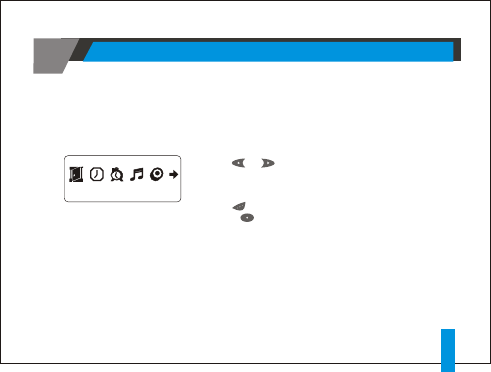
Press or Button to navigate the Function menu.
As you move through the Function menu, the function icons
flashes to indicate the current location of the cursor.
Press button to enter the current menu
or Press button to exit the Function menu.
Note: Some icons may not display on the pager, depending
upon the pager features and whether it has messages.
Function Menu Screen
OPERATION 15
Using the Function menu, you can access to the many features of your pager .
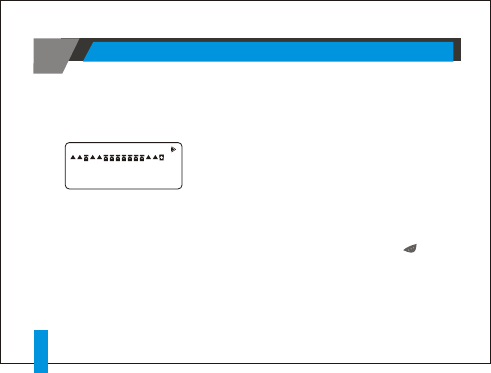
Personal Message Screen
4.
OPERATION
The Personal Message Screen shows the current status of
personal messages with displaying the first line of your
message(Message Preview).
Personal Message Screen
Note: Previewing an unread message still becomes the
unread one until reading it by Read button( ).
OPERATION
16
P15:I Would be
P15:I Would be
12:07A 1/01 12:07A 1/01
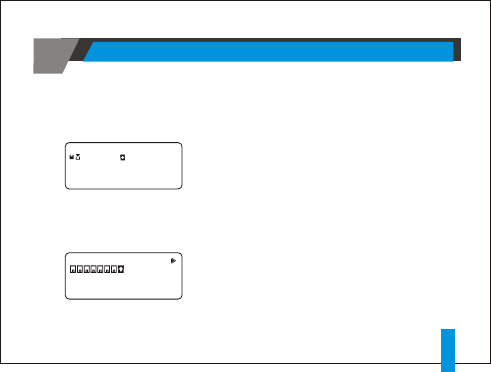
MailDrop / Information Message Screen
4.
OPERATION
The MailDrop Message Screen shows the current status of
MailDrop messages with displaying the first line of your message
(Message Preview).
MailDrop Message Screen
OPERATION 17
NoteBook Message Screen
The NoteBook Message Screen shows the current status of the
messages with displaying the first line of your message
(Message Preview).
NoteBook Message Screen
8:I notice that we
8:I notice that we
1/1:(Reuters)TheN ew
1/1:(Reuters)TheN ew
12:07A 1/01 12:07A 1/01
12:07A 1/01 12:07A 1/01
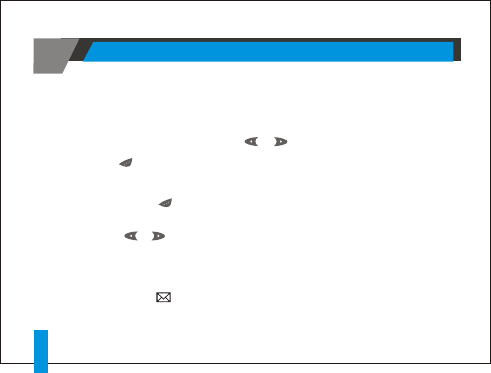
!From the each Message screen press or to move the cursor to the message you
want to read.
!Press Button to read the message.
Reading Stored Message in the each Message Screen
Auto Scrolling screen by screen
!Press and Hold button.
Reading Previous or Next Message
! Press or Button.
18
Note: When an unread message exists, the pager gives a periodic reminders alert
until all unread message are read.
A Displaying on the StandBy screen indicates that there
are unread messages.
5. FUNCTION MENU
FUNCTION MENU

1) From the Function menu, press or button to
the cursor to display "SET TIME".
2) Press Button to display the Set-Time screen.
3) Press Button to move the cursor to the next digit.
4) Press Button to adjust the current digit.
5) Repeat step 3) and 4) to adjust all the time digits.
6) Press Button to activate the time and date setting.
Note: To exit from any screen without making changes, please
wait for 5 seconds.
SET TIME
Set-Time Screen
Setting the Time and Date
19
12 :00A 1/01/00
// 12 :00A 1 01 00
5. FUNCTION MENU
FUNCTION MENU

5. FUNCTION MENU
1) From the Function menu, press or button to
the cursor to display "SET ALARM".
2) Press Button to display the the Set-Alarm screen.
3) Press or Button to move the cursor .
4) Press Button to adjust the current digit or enable
daily alarm.
5) Repeat step 3) and 4) to adjust all the time digits and alarm
messages.
6) Press Button to activate the current setting.
SET ALARM
Setting the Alarm
Set-Alarm Screen
ON 12 :00A
ON 12 :00A
GGMM
20 FUNCTION MENU
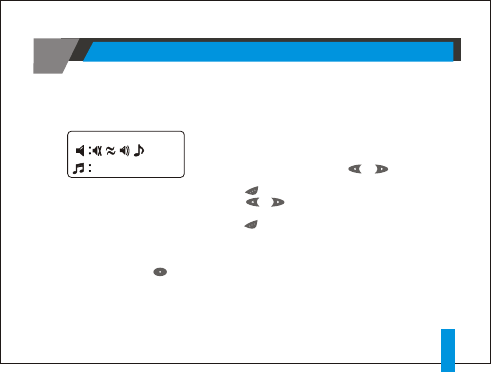
You can set the paging alert to an audible alert, a vibrating alert, a
chirp alert, a sleep alert(completely silent), one of eight pleasing
alerts.
1) From the Function menu, press or button to move the
cursor to display "SET ALERT".
2) Press Button to display the Set-Alert screen.
3) Press or Button to move the cursor to the alert you
want to set.
4) Press Button to activate the alert setting.
SET ALERT
Setting the Paging Alert
Set-Alert Screen)
Note: To exit from any screen without making changes, please wait for 5 seconds,
or press button.
1 2 3 4 5 6 7
1 2 3 4 5 6 7
FUNCTION MENU 21
5. FUNCTION MENU
5. FUNCTION MENU
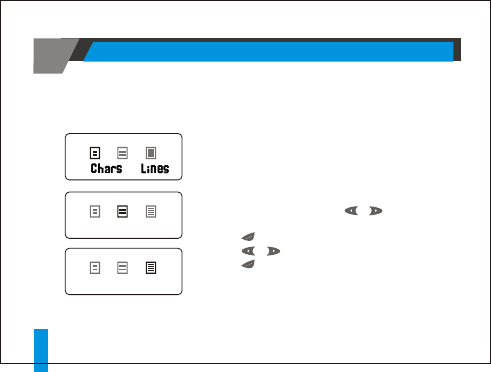
When this feature is enabled, the standard 4-line display is
converted to a 2-line Display. The characters are enlarged
vertically, increasing message readability.
To Enable ZOOM
1) From the Function menu, press or button to the
cursor to display "ZOOM".
2) Press Button to display the Zoom screen.
3) Press or Button to move the cursor.
4) Press Button to activate the Zoom.
ZOOM
Setting Display Zoom
Enable Zoom-In Screen
FUNCTION MENU
22
.
.
22
1616 //
20Chars. / 2Lines
20Chars. / 4Lines
5. FUNCTION MENU
FUNCTION MENU 23
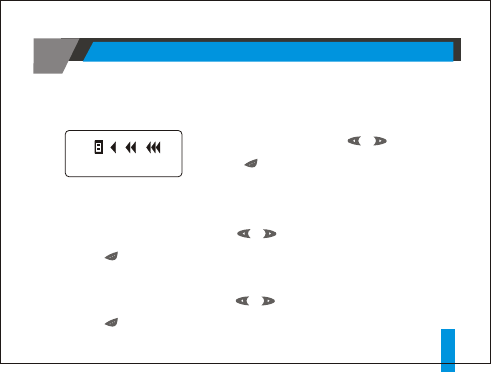
1) From the Function menu, press or button to
the cursor to display " SET SCROLL".
2) Press Button to enter this mode.
SET SCROLL
Setting the Scroll Mode
Set Scroll Mode Screen
PAGE BY PAGE
PAGE BY PAGE
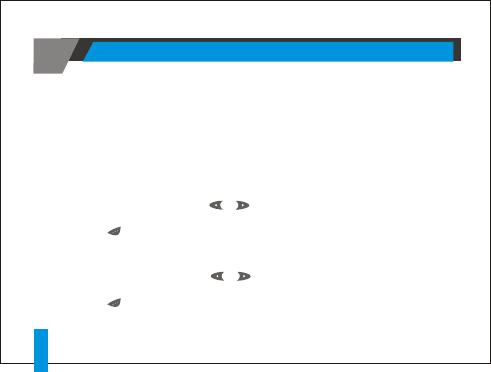
To Enable page by page display mode
1) From the Set Scroll Mode Screen, press or button to the cursor to display
"PAGE BY PAGE".
2) Press Button to activate the current setting.
To Enable Marquee Scrolling and Speed
1) From the Set Scroll Mode Screen, press or button to the cursor to display
"SLOW" or "MEDIUM" or "HIGH".
2) Press Button to activate the current setting.
PAGE BY PAGE
SLOW MEDIUM HIGH
5. FUNCTION MENU
FUNCTION MENU
24
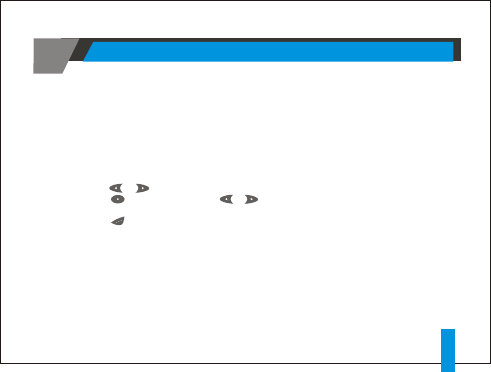
To Enable Reminder Alert
1) From the Function menu, press or button to the cursor to display
"ENABLE REMINDER".
2) Press Button to activate the current setting.
To Disable Reminder Alert
1) From the Function menu, press or button to the cursor to display
"DISABLE REMINDER".
2) Press Button to activate the current setting.
ENABLE REMINDER
BLE DISA REMINDER
Enabling Reminder Alert
When this feature is enabled and there are any unread messages,
the pager alerts with short beep or vibration depending on the current personal alert type.
Up to 10 message can be locked to prevent them from being deleted or
from being replaced when memory is full.
To Lock/Unlock a Message
1) From the Personal Message Status Screen,
Press or button to select the message you want to lock or unlock.
2) Press Button and then press or Button to move
the cursor to show "LOCK" or "UNLOCK".
3) Press Button.
To lock or unlock a message while reading it, follow steps 2 through 3 above while the message
displayed.
Note: MailDrop and NoteBook Messages can not be locked.
LOCK UNLOCK
5. FUNCTION MENU
Locking and Unlocking Messages
FUNCTION MENU 25
1) From the Personal Message Status Screen, press or button to select the
message you want to delete.
2) Press Button and then press or Button to move the cursor to show "DELETE" .
3) Press Button.
To Delete a message while reading it, follow steps 2 through 3 above while the message is displayed.
DELETE
5. FUNCTION MENU
FUNCTION MENU
26
To Delete One Message
1) From the Personal/MailDrop/Notebook Message Status Screen, press
or button to select the message you want to delete.
2) Press Button and then press or Button to move the cursor to show "DELETE ALL".
3) Press Button.
To Delete a message while reading it, follow steps 2 through 3 above while the message is displayed.
DELETE ALL
To Delete All Messages
1) From the Personal/MailDrop Message Status Screen, press or Button to select
the message you want to move.
2) Press Button and then press or Button to move the cursor to show
"NOTEBOOK".
3) Press Button.
To Move a message while reading it, follow steps 2 through 3 above while the message is displayed.
NOTEBOOK
5. FUNCTION MENU
FUNCTION MENU
Moving A Message to NoteBook
27
1) From the Mail Message Status Screen,
Press or Button to select the message you want to set alert.
2) Press Button and then Press or Button to move the cursor
to show "SET ALERT".
3) Press Button.
4) Press or Button to move the cursor to the desired alert type.
5) Press Button to activate the your setting.
While reading a message, follow steps 2 through 5 above.
Note: When Personal Pager alert is set to SLEEP Alert,
all alert become SLEEP Alert type regardless of the current mail alert type.
SET ALERT
5. FUNCTION MENU
FUNCTION MENU
28
You can select the MailDrop Alert Type.
MEMO
MEMO
SUN TELECOM
INTERNATIONAL
29

This device complies with Part 15 of the FCC Rules. Operation is subject to
the following two conditions: (1)this device may not cause harmful
interference, and (2)this device must accept any interference received,
including interference that may cause undesired operation.
FCC COMPLIANCE STATEMENT :
PRODUCT NAME : TITANII
MODEL NUMBER : HPA-550
FCC RULES : TESTED TO COMPLY WITH FCC PART 15, CLASS B
OPERATING ENVIRONMENT : FOR HOME OR OFFICE USE
FCC
DECLARATION OF CONFORMITY

This equipment has been tested and found to comply with the limits of a
Class B digital device, pursuant to Part 15 of the FCC Rules. These limits are
designed to provide reasonable protection against harmful interference
in a residential installation. This equipment generates, uses, and can
radiate radio frequency energy and, if not installed and used in
accordance with the instructions, may cause harmful interference to
radio communications. However, there is no guarantee that interference
will not occur in a particular installation. If this equipment does cause
harmful interference to radio or television reception (which can be
determined by turning the equipment off and on), the user is encouraged
to try to correct the interference by one or more of the following measures:
1 Reorient/Relocate the receiving antenna.
1 Increase the separation between the equipment and receiver.
1 Connect the equipment into an outlet on a circuit different from
that to which the receiver is connected.
1 Consult the dealer or an experienced radio/TV technician for help.
INFORMATION TO USER:
Caution : Changes or modifications not expressly approved by the
manufacturer responsible for compliance could void the user's authority
to operate this equipment.
The party responsible for product compliance
11321 Decimal Drive Louisville, KY 40299
SUN TELECOM
INTERNATIONAL