Heat Factory USA PAKL01 Heat Packs User Manual

The Schawbel Corporation Heat Packs

User Manual

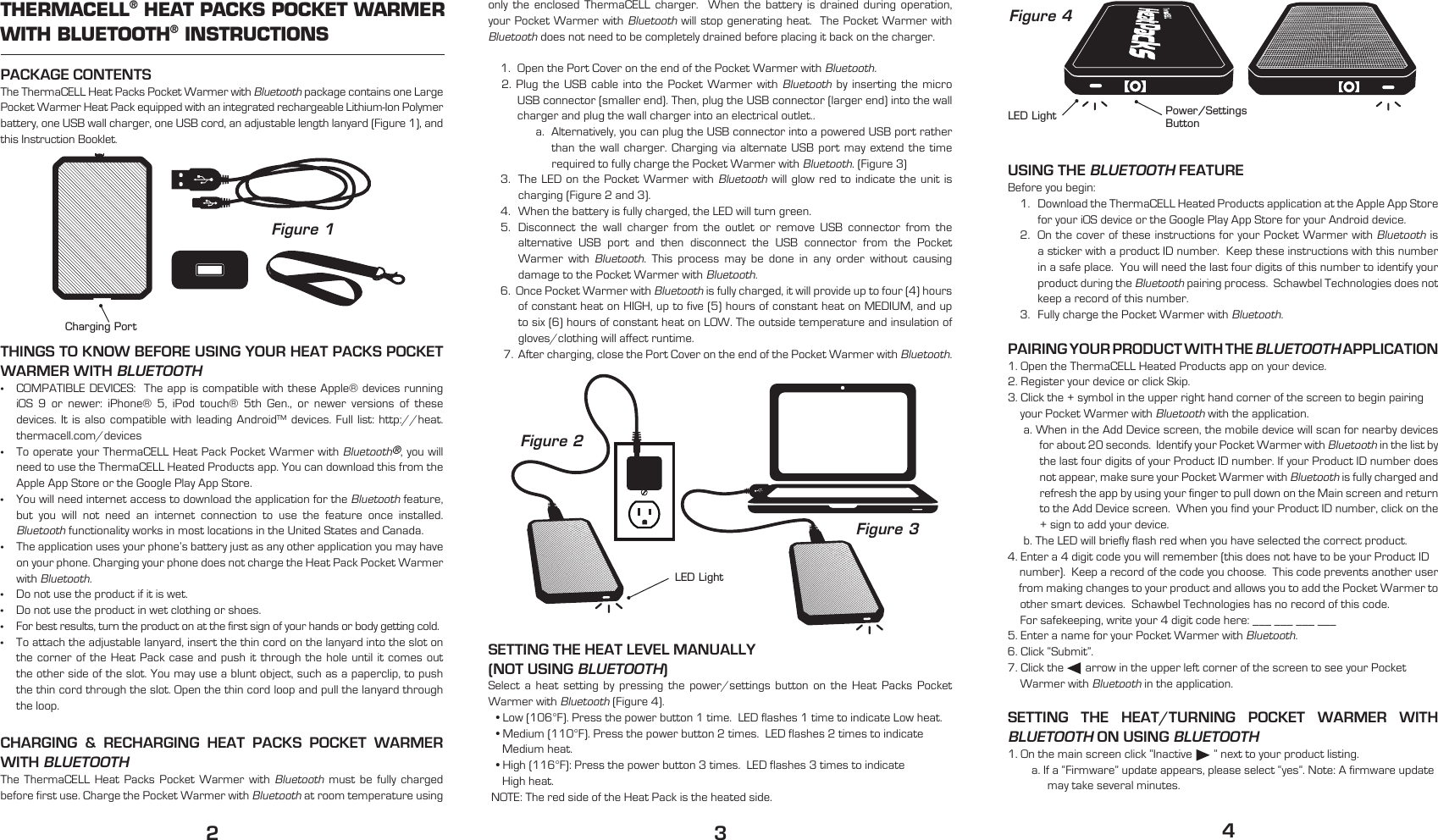
USING THE BLUETOOTH FEATUREBefore you begin:1.  Download the ThermaCELL Heated Products application at the Apple App Store for your iOS device or the Google Play App Store for your Android device.2.  On the cover of these instructions for your Pocket Warmer with Bluetooth is a sticker with a product ID number.  Keep these instructions with this number in a safe place.  You will need the last four digits of this number to identify your product during the Bluetooth pairing process.  Schawbel Technologies does not keep a record of this number.3.  Fully charge the Pocket Warmer with Bluetooth.PAIRING YOUR PRODUCT WITH THE BLUETOOTH APPLICATION1. Open the ThermaCELL Heated Products app on your device.2. Register your device or click Skip.3. Click the + symbol in the upper right hand corner of the screen to begin pairing      your Pocket Warmer with Bluetooth with the application.a. When in the Add Device screen, the mobile device will scan for nearby devices for about 20 seconds.  Identify your Pocket Warmer with Bluetooth in the list by the last four digits of your Product ID number. If your Product ID number does not appear, make sure your Pocket Warmer with Bluetooth is fully charged and refresh the app by using your finger to pull down on the Main screen and return to the Add Device screen.  When you find your Product ID number, click on the + sign to add your device.b. The LED will briefly flash red when you have selected the correct product.4. Enter a 4 digit code you will remember (this does not have to be your Product ID     number).  Keep a record of the code you choose.  This code prevents another user     from making changes to your product and allows you to add the Pocket Warmer to     other smart devices.  Schawbel Technologies has no record of this code.     For safekeeping, write your 4 digit code here: ___ ___ ___ ___5. Enter a name for your Pocket Warmer with Bluetooth.6. Click “Submit”.7. Click the       arrow in the upper left corner of the screen to see your Pocket     Warmer with Bluetooth in the application.SETTING THE HEAT/TURNING POCKET WARMER WITH BLUETOOTH ON USING BLUETOOTH1. On the main screen click “Inactive       ” next to your product listing.a. If a “Firmware” update appears, please select “yes”. Note: A firmware update may take several minutes.only the enclosed ThermaCELL charger.  When the battery is drained during operation, your Pocket Warmer with Bluetooth will stop generating heat.  The Pocket Warmer with Bluetooth does not need to be completely drained before placing it back on the charger.1.   Open the Port Cover on the end of the Pocket Warmer with Bluetooth.2. Plug the USB cable into the Pocket Warmer with Bluetooth by inserting the micro USB connector (smaller end). Then, plug the USB connector (larger end) into the wall charger and plug the wall charger into an electrical outlet..a.  Alternatively, you can plug the USB connector into a powered USB port rather than the wall charger. Charging via alternate USB port may extend the time required to fully charge the Pocket Warmer with Bluetooth. (Figure 3)3.  The LED on the Pocket Warmer with Bluetooth will glow red to indicate the unit is charging (Figure 2 and 3). 4.  When the battery is fully charged, the LED will turn green.5.  Disconnect the wall charger from the outlet or remove USB connector from the alternative USB port and then disconnect the USB connector from the Pocket Warmer with Bluetooth. This process may be done in any order without causing damage to the Pocket Warmer with Bluetooth.6.  Once Pocket Warmer with Bluetooth is fully charged, it will provide up to four (4) hours of constant heat on HIGH, up to five (5) hours of constant heat on MEDIUM, and up to six (6) hours of constant heat on LOW. The outside temperature and insulation of gloves/clothing will affect runtime. 7.  After charging, close the Port Cover on the end of the Pocket Warmer with Bluetooth.SETTING THE HEAT LEVEL MANUALLY(NOT USING BLUETOOTH)Select a heat setting by pressing the power/settings button on the Heat Packs Pocket Warmer with Bluetooth (Figure 4).• Low (106°F). Press the power button 1 time.  LED flashes 1 time to indicate Low heat.• Medium (110°F). Press the power button 2 times.  LED flashes 2 times to indicate      Medium heat.• High (116°F): Press the power button 3 times.  LED flashes 3 times to indicate  High heat. NOTE: The red side of the Heat Pack is the heated side. PACKAGE CONTENTS The ThermaCELL Heat Packs Pocket Warmer with Bluetooth package contains one Large Pocket Warmer Heat Pack equipped with an integrated rechargeable Lithium-Ion Polymer battery, one USB wall charger, one USB cord, an adjustable length lanyard (Figure 1), and this Instruction Booklet.THINGS TO KNOW BEFORE USING YOUR HEAT PACKS POCKET WARMER WITH BLUETOOTH•  COMPATIBLE DEVICES:  The app is compatible with these Apple® devices running iOS 9 or newer: iPhone® 5, iPod touch® 5th Gen., or newer versions of these devices. It is also compatible with leading Android™ devices. Full list: http://heat.thermacell.com/devices•  To operate your ThermaCELL Heat Pack Pocket Warmer with Bluetooth®, you will need to use the ThermaCELL Heated Products app. You can download this from the Apple App Store or the Google Play App Store.•  You will need internet access to download the application for the Bluetooth feature, but you will not need an internet connection to use the feature once installed. Bluetooth functionality works in most locations in the United States and Canada.•  The application uses your phone’s battery just as any other application you may have on your phone. Charging your phone does not charge the Heat Pack Pocket Warmer with Bluetooth.•  Do not use the product if it is wet.•  Do not use the product in wet clothing or shoes.•  For best results, turn the product on at the first sign of your hands or body getting cold.•  To attach the adjustable lanyard, insert the thin cord on the lanyard into the slot on the corner of the Heat Pack case and push it through the hole until it comes out the other side of the slot. You may use a blunt object, such as a paperclip, to push the thin cord through the slot. Open the thin cord loop and pull the lanyard through the loop.CHARGING & RECHARGING HEAT PACKS POCKET WARMER WITH BLUETOOTH The ThermaCELL Heat Packs Pocket Warmer with Bluetooth must be fully charged before first use. Charge the Pocket Warmer with Bluetooth at room temperature using  THERMACELL® HEAT PACKS POCKET WARMER WITH BLUETOOTH® INSTRUCTIONS234Figure 1Charging PortFigure 4Figure 3Figure 2LED LightPower/Settings ButtonLED Light
Welcome to ThermaCELL® TechnologyDear ThermaCELL Heat Packs Pocket Warmer with Bluetooth® Wireless Technology Purchaser,Thank you for your purchase of the ThermaCELL Heat Packs Pocket Warmer with Bluetooth which provides adjustable heat with the convenience of Bluetooth operation. These operating instructions provide directions on how to properly use and care for your Heat Packs Pocket Warmer with Bluetooth.ThermaCELL products, including ThermaCELL Heat Packs, ThermaCELL Heated Insoles, and ThermaCELL Heated Insoles ProFLEX, enable outdoor enthusiasts to enjoy their favorite activities in comfort. We thank you again for your purchase of ThermaCELL Heated Products and are confident your cold weather activities will be more comfortable and enjoyable than ever before. Enjoy your purchase,The ThermaCELL Heated Products Group2. Select Low, Medium, or High to activate the heat settings.a. The green LED light on the Pocket Warmer with Bluetooth will flash intermittently indicating the heat setting: 1 flash = Low Heat, 2 flashes = Medium Heat, 3 flashes = High Heat.b. No Heat is a “stand by” or “sleep” setting and the Pocket Warmer with Bluetooth will not generate heat in this setting.  When the No Heat setting is selected, the product will flash red and green briefly and the status of your product will become inactive. TURNING THE POCKET WARMER WITH BLUETOOTH “OFF”When you are not using your Pocket Warmer with Bluetooth, use the No Heat setting to turn the heat off. When heat is needed, select the desired heat level from the settings screen in the application to reactivate heat.  After several hours of non-use, the unit will go into “Deep Sleep” mode which saves battery life over a prolonged period of time.  To “Wake” the device, press the button on the product once, then operate with the application or manually.CARE INSTRUCTIONS• Store the Pocket Warmer with Bluetooth product in a clean and dry place.• Charge Pocket Warmer with Bluetooth fully before long-term storage. Recharge every few months to maintain peak performance.• Only use ThermaCELL Heat Packs’ chargers to charge this product.• Clean with a damp cloth only. Do not submerge in water or use chemicals or cleaning agents. • Do not place ThermaCELL Heat Packs on radiators or any other hot surface.• Removal of outer cover can and will permanently damage the product.  This will cause the product warranty to be null and void.• ThermaCELL Heat Packs are intended for dry use only.ONE-YEAR WARRANTYThis product is guaranteed against defects under normal use for one year from the date of purchase. If your product fails to perform satisfactorily because of defects in materials or workmanship, it will be replaced or repaired free of charge. To register your product, please visit http://heat.thermacell.comTHERMACELL CUSTOMER SERVICEIf you have further questions regarding ThermaCELL Heat Packs Pocket Warmer with Bluetooth:•  Call Customer Service at 1-866-651-7579.•  Refer to http://heat.thermacell.com/ for instructions, tips, and how-to videos.ABOUT LITHIUM-ION POLYMER BATTERIES• The high quality Lithium-Ion Polymer batteries in ThermaCELL Heat Packs can be fully recharged hundreds of times for many years of reliable use.•  Only use a ThermaCELL Heat Packs charger to charge your Heat Packs Pocket Warmer with Bluetooth.•  The batteries are embedded in the Heat Pack and cannot and should not be accessed. •  Battery Disposal: Batteries must be disposed of in accord with local laws and regulations. • CAUTION - Risk of fire and burns. Do not open, crush, heat above 185°F, or incinerate. Follow manufacturer’s instructions. • CAUTION - Never put batteries in mouth. If swallowed, contact your physician or local poison control center. •  Battery Specifications:    Pocket Warmer with Bluetooth Heat Pack: 3300mAh 3.8V 12.3WhCAUTIONS - Be Aware of Burn Possibilities•  Properly use ThermaCELL Heat Packs according to instructions.•  Users of ThermaCELL Heat Packs need to be aware of early sensations of a burn, including when an area of the hand or body becomes too hot.• If you feel the early warning signs of a hand or body burn, immediately discontinue use of the Heat Pack and make certain your hand or body is not at risk of being burned. See a physician immediately if you think you have a burn.• ThermaCELL Heat Packs and the contents of this package are not meant for use by children unless under the supervision of an adult.• Persons with reduced physical sensory capabilities should exercise caution when using ThermaCELL Heat Packs.TROUBLESHOOTINGRADIO AND TELEVISION INTERFERENCE This equipment has been tested and found to comply with the limits for a Class B digital device, pursuant to part 15 of the FCC Rules. These limits are designed to provide reasonable protection against harmful interference in a residential installation. This equipment generates, uses and can radiate radio frequency energy and, if not installed and used in accordance with the instructions, may cause harmful interference to radio communications. However, there is no guarantee that interference will not occur in a particular installation. If this equipment does cause harmful interference to radio or television reception, which can be determined by turning the equipment off and on, the user is encouraged to try to correct the interference by increasing separation between the equipment and the radio or television. Changes and Modifications not expressly approved by Schawbel Technologies LLC can void your authority to operate this equipment under Federal Communications Commission’s rules. This device complies with Industry Canada license-exempt RSS standard[s). Operation is subject to the following two conditions: [1) this device may not cause interference, and [2) this device must accept any interference, including interference that may cause undesired operation of the device.Schawbel Technologies LLC2400 District Avenue, Suite 150Burlington, MA 01803http://heat.thermacell.com5 6Customer Service:  Email customerservice@schawbeltech.com or call 1-866-651-7579Patents Pending Made in TaiwanTROUBLESHOOTINGTroubleTryPocketWarmerwithBluetoothisnotpairingwiththeapplication.MakesurePocketWarmerwithBluetoothiscompletelychargedbypluggingtheunitintothechargerandverifyingthattheLEDglowsgreen.PreviouslypairedPocketWarmerwithBluetoothnolongerappearsonthelistintheapplication.Followtheinstructionsin“PairingYourProductwiththeBluetoothApplication”.IforgotmyfourdigitcodeorwanttorenamemyHeatPacks.Keepenteringanincorrect4digitcodeuntiltheapplicationasksifyouwanttoperformafactoryreset.ChooseOKandfollowtheonscreenprompts.IhaveaneworseconddeviceIwanttopairwithmyPocketWarmerwithBluetooth.Downloadtheapplicationtoyournewdeviceandfollowtheinstructionsinorderunder“BluetoothPairingInstructions”.Applicationisnotresponding(“frozen”).Turntheapplicationoffandbackonagain.Iftheapplicationstilldoesnotrespond,turnyourdeviceoffandthenonagain.Iftheapplicationcontinuestobeunresponsive,pleaseuninstallandreinstalltheapplication.IlostmyinstructionbookletandInolongerhavetheProductIDsticker.ToregisteraproductwhenyouhaveforgottenorlostyourProductIDsimplybringyourproductwithyouandmovetoalocationwheretherearenootherThermaCELLBluetoothenabledproductsinrange.Theapplicationwillthenseeonlyyourdevice.LEDsarenotblinkingwhenIchangetheheatsettingintheapplication.Verifythattheunitischarged.Verifythattheapplicationisnotfrozenbytappingotherbuttonstomovearoundintheapplication.• ApplicationNotFrozen-IftheunitischargedandtheapplicationisnotfrozencontactCustomerServiceforassistance• ApplicationFrozen-seeaboveRememberyoucanchangethetemperatureonyourPocketWarmerwithBluetoothmanuallyifyouarehavingissueswithBluetooth.PocketWarmerwithBluetoothisnotgettinghot.Verifytheunitischarged.UsethebuttonontheunittochangethetemperaturetoHigh(3flashes).IftheunitisstillnotheatingcontactCustomerService.The Bluetooth® word mark and logos are registered trademarks owned by Bluetooth SIG, Inc. and any use of such marks by Schawbel Technologies LLC is under license. Other trademarks and trade names are those of their respective owners.

Navigation menu