HiTeC Digital Audio HDA-DXM7120 7.1 CHANNEL DIGITAL SOUNDCARD User Manual FCC060103 hwp
HiTeC Digital Audio, Inc. 7.1 CHANNEL DIGITAL SOUNDCARD FCC060103 hwp
users manual
HDA XPLOSION 7.1 DTS CONNECT
7.1 Channel Theater Sound Effect
World's First DTS CONNECT
Certificated PCI Soundcard
Enhanced by Dolby® Digital Live
DTS CONNECT
OWNER'S MANUAL
HiTeC DIGITAL AUDIO, Inc.

Copyright
Copyright 2005-2006 HITEC DIGITAL AUDIO, Inc. All rights reserved. No part of
this publication may be reproduced, transmitted, transcribed, stored in a retrieval
system, or translated into any language or computer language, in any form or by any
means, electronic, mechanical, magnetic, optical, chemical, manual or otherwise, without
thepriorwrittenpermissionfromHiTeCDIGITALAUDIO,Inc.
In no event will HiTeC DIGITAL AUDIO, Inc. be liable for direct, indirect, special,
exemplary, incidental, or consequential damages resulting from any defect or omission
in this manual, even if advised of the possibility of such damages. In the interest of
continued product development, HiTeC DIGITAL AUDIO, Inc. reserves the right to make
improvements to this manual and the products it describes at any time, without notices
or obligation.
Disclaimer
We makes no representations or warranties, either expressed or implied, with respect
to the contents hereof and specifically disclaims any warranties, merchantability or
fitness for any particular purpose. Any software described in this manual is sold or
licensed "as is". Should the programs prove defective following their purchase, the
buyer (and not this company, its distributor, or its dealer) assumes the entire cost of all
necessary servicing, repair, and any incidental or consequential damages resulting from
any defect in the software. HiTeC DIGITAL AUDIO, Inc. reserves the right to make
improvements to this manual and the products it describes at any time, without notices
or obligation.
Trademarks
HDA,HDAlogoaretrademarksofHiTeCDIGITALAUDIO,Inc.C-Media,C-Medialogo
and Xear 3D are trademarks of C-Media Electronics Inc. Dolby and Dolby Digital, Dolby
Digital Live are trademarks of Dolby Laboratories. DTS CONNECT , DTS
INTERACTIVE and DTS NEO:PC are trademarks of DTS, Inc. DTS is a registered
trademark of DTS, Inc. EAX and A3D are trademarks of Creative Technology Ltd.
Microsoft, DirectSound3D, Windows are trademarks of Microsoft Corporation. All brands
or product names mentioned in this manual are trademarks or registered trademarks of
their respective companies.
License
Dolby Digital Live driver is manufactured under license from Dolby Laboratories.
Manufactured under license from DTS, Inc. U.S. Pat. No's. 5,451,942; 5,956,674;
5,974,380; 5,978,762; 6,487,535 and other U.S. and world-wide patents issued and
pending. DTS CONNECT, DTS INTERACTIVE and DTS NEO:PC are trademarks
of DTS, Inc. DTS is a registered trademark of DTS, Inc. Copyright 1996, 2002-2005
Digital Theater Systems, Inc. All Rights Reserved.
FCC and CE Radiation Norm
INFORMATION TO USER:
FCC : This equipment has been tested and found to comply with the limits for aClass B
digital device, pursuant to Part 15 of Federal Communication Commission (FCC) rules.
CE : This equipment has been tested and found to comply with the limits of the
European Council Directive on the approximation of the law of the member states relating
to electromagnetic compatibility (89/336/EEC) according to EN 55022 class B.
These limits are designed to provide reasonable protection against harmful interference in
a residential installation. This equipment generates, uses, and can radiate radio frequency
energy and, if not installed and used in accordance with the instructions, may cause
harmful interference to radio communications. However, there is no guarantee that
interference will not occur in a particular installation. If this equipment does cause harmful
interference to radio or television reception, which can be determined by turning the
equipment off and on, the user is encouraged to try to correct the interference by one or
more of the following measures: (1.) Reorient or relocate the receiving antenna. (2.)
Increase the separation between the equipment and receiver. (3.) Connect the equipment
into an outlet on a circuit different from that to which the receiver is connected. (4.)
Consult the dealer or an experienced radio TV technician for help.
FCC DECLARATION OF CONFORMITY
PRODUCT NAME : 7.1 Channel Digital Soundcard
MODEL NUMBER : HDA-DXM7120
FCC RULES : TESTED TO COMPLY WITH FCC PART 15, CLASS B
OPERATING ENVIRONMENT : FOR HOME OR OFFICE USE
FCC COMPLIANCE STATEMENT:
This device complies with part 15 of the FCC rules. Operation is subject to the following
conditions. (1) This device may not cause harmful interference and (2)This device must
accept any interference received including interference that may cause undesired
operation.
CAUTION Changes or modifications to this unit not expressly approved by the party
responsible for compliance could void the users authority to operate the equipment.
1. "HDA XPLOSION 7.1 DTS CONNECT" Introduction
Thank you for purchasing our "HDA XPLOSION 7.1 DTS CONNECT" soundcard. This
owner's manual is a guide for users to understand how to use the "HDA XPLOSION
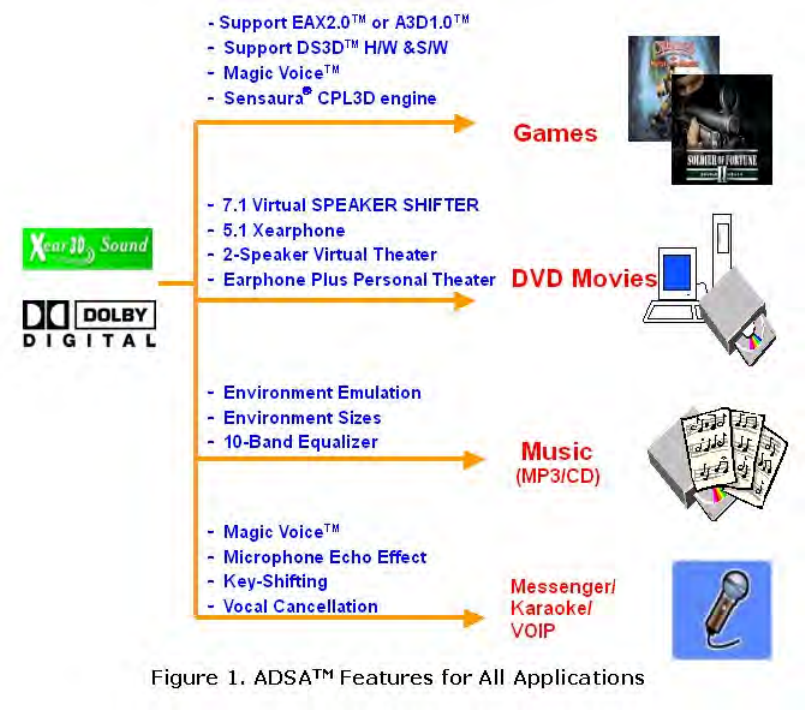
7.1 DTS CONNECT" audiocard featured new generation Advanced Driver Software
Architecture (ADSA ) for C-Media CMI8770 chipset powered by Dolby® Digital Live
(Dolby Digital Live Real-Time Content Encoder) , DTS CONNECT (DTS
INTERACTIVE encoder, DTS NEO:PC upmix technology) and Xear 3D sound
technology. With this manual, users can quickly take advantage of these great features
to enjoy amazing sound effects even better than consumer acoustics.

(1) Package Contents
The following items are included with the "HDA XPLOSION 7.1 DTS CONNECT"
package:
- "HDA XPLOSION 7.1 DTS CONNECT" audio card
- 2Pin-2Pin CD S/PDIF audio cable
- English Owner's Manual
- TOSLINK fiber optic digital cable
- Drivers/Applications installation CD
(2) Product Specifications
1) Sound Processor
C-Media CMI8770/PCI-8ch PCI Chipset (8CH audio single chip with Dolby Digital
Live Real-Time Content Encoder and the wolrd's first DTS CONNECT technology
enabled PCI audio chipset)
8CH codec embedded PCI audio single chip
Full-duplex 8CH 24bit/96kHz DAC / 2CH 16bit/48kHz ADC
Integrated S/PDIF Input/Output supports 44.1kHz/48kHz/96kHz samplerate and
16/24bits resolution
2) System Interface
PCI Rev. 2.2 compliant with 32bit PCI bus mastering modes
Two S/PDIF Input for CD_SPDIF Input (S/PDIF-IN #1) , Digital I/O(SPDIF_EXT)
Input (S/PDIF-IN #2)
Built-in earphone buffer at Front Output (32 Ohm Loading)
External EEPROM Interface for Sub-Vendor/Sub-Device ID using custom driver
16Pin MIDI_IO Header for supporting MPU-401 MIDI UART Port
Swappable four high perfomance OPAMP for Output channel, two high perfomance
OPAMP for MIC Input - increase gain level and improve SNR
Onboard TOSLINK transmitter for up to 24bit/96kHz Optical Digital Output, Gold
Plated RCA connetor for Coaxial Digital Output

12Pin SPDIF_EXT Header for using "HDA DIM-X10" Digital Input Module (Optional) -
COAXIAL, OPTICAL S/PDIF Input for recording, monitoring, bypassing digital audio from
external sources 16bit/44.1kHz, 16bit/48kHz, 24bit/96kHz sampling rate.
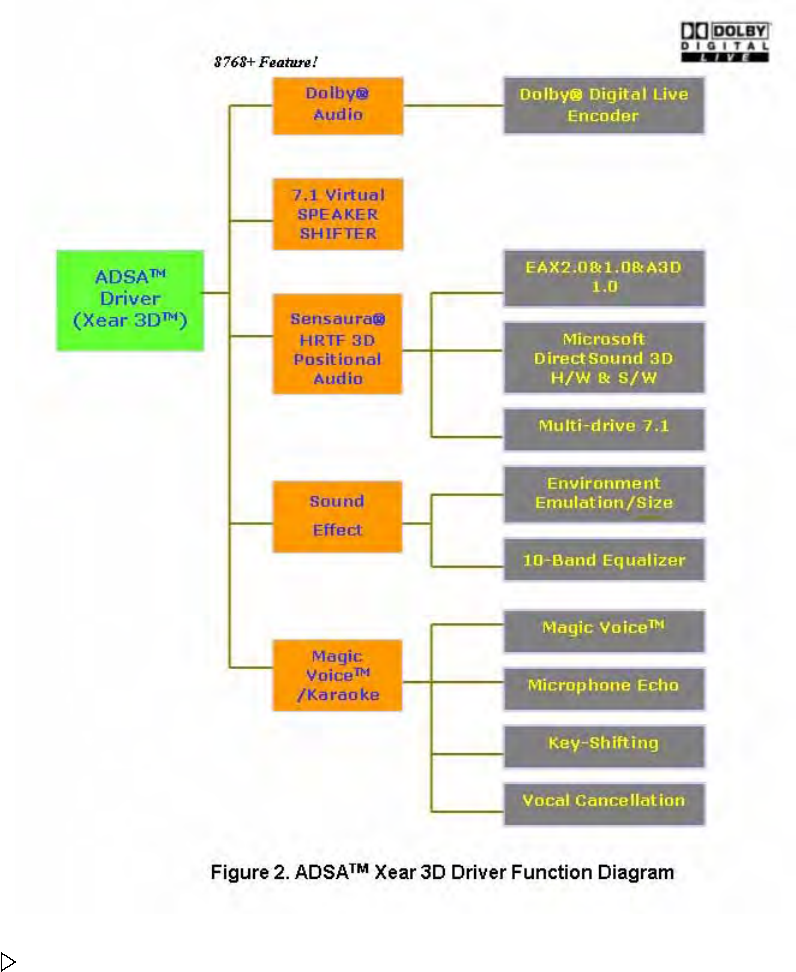
C-Media Xear 3D 7.1 Virtual Speaker SHIFTER technology
Sensaura CRL3D HRTF 3D positional sound enhancement with MultiDrive ,
EnvironmentFX , ZoomFX , MacroFX , etc.
DirectSound 3D HW acceleration
A3D 1.0 , EAX 1.0, 2.0 (powered by Sensaura), HRTF-based 3D Positional Audio
(C3DX ), DirectSound 3D SW
Unique Karaoke functionality : Mic Echo, Key-shifting, Vocal Cancellation
Special feature for Winamp broadcasting , VOIP, Online-games, Online messenger
application : Magic Voice , Support Stereo-MIX recording mode for Winamp
Broadcasting
10-band Equalizer with 12 preset modes; 27 global environment effects
Support 7.1Ch playback for Windows XP, Windows 2000, Windows Server 2003,
Windows ME, Windows 98 SE (Microsoft DirectX 9.0 or higher is required)
All specifications are subject to change without prior notice.
(3) Product Features
"HDA XPLOSION 7.1 DTS CONNECT" represents the latest generation in multi-channel
PC audio and provides the following key features:
Dolby® Digital Live : A real-time encoding technology, Dolby® Digital Live converts
any audio signal into a Dolby® Digital bitstream (48kHz at 640Kbps). Dolby® Digital
Live provides a single cable connection(via coaxial or optical) to your Dolby® Digital
enabled surround sound system. The real-time interactive capabilities of Dolby® Digital
Live technology are ideally suited to PCs because it reproduces audio cues and effects
that follow the on-screen action, transforming gameplay into an exciting and realistic
entertainment.

DTS INTERACTIVE : A real-time encoder that takes any LPCM (2 channel or
more) and encodes it into DTS® bitstream(48kHz at 1.5 Mbps). DTS INTERACTIVE
provides a single cable connection(via coaxial or optical) to your DTS enabled surround
sound system. Your stereo or multi-channel (up to 5.1) audio sources are re-encoded
into a DTS audio signal and sent out from the "HDA XPLOSION 7.1 DTS CONNECT"
to any DTS enabled system such as, powered PC speakers, an A/V receiver or any
other DTS- compatible surround decoder sound system. The installation process is
simple and eliminates the clutter, tangles, and cost of multiple analog cables.
DTS NEO:PC : : An up-mix matrix technology that turns any 2 channel audio into
7.1 surround sound. You can turn your stereo audio (WMA, MP3, CD, and more!) into
a convincing multichannel audio experience. Borrowing from DTS® NEO:6 technology
that provides you with surround sound from stereo sources in high-end home theatre
products, NEO:PC is optimized for your personal computer and is the perfect
companiontoDTSINTERACTIVE .
DVD Playback with full 5.1 speaker and 7.1 speaker surround sound using
PowerDVD, WinDVD software decoding application. (with DD 5.1, DTS 5.1, DD-EX
6.1/7.1, DTS-ES 6.1/7.1 decoding )
MP3 playback with Directsound hardware acceleration function on multichannel
speakers (4, 5.1, 7.1 speakers)
Supports Game Surround Sound API such as Sensaura CRL3D HRTF 3D positional
sound enhancement with multi-drive 7.1, EnvironmentFX, ZoomFX, MacroFX. A3D 1.0
, EAX 1.0, 2.0 (powered by Sensaura),Direct Sound 3D SW
Coaxial, Optical S/PDIF output for playback of pure PCM digital audio at resolutions
of 16bit/44.1kHz, 16bit.48kHz, 24bit/96kHz sampling rates.
Onboard COAXIAL RCA connector, OPTICAL Toslink trasmitter for high quality
Digital Output
SPDIF output allows pass-through of Non-PCM Dolby® Digital and DTS® stream to
external DD/DTS decoder and A/V receivers in Windows®
98SE/ME/2000/XP/Server2003.
Supports 44.1kHz / 48kHz / 96kHz S/PDIF Input with HDA X-10 Digital Input
extension board [Digital I/O (SPDIF-IN #2)]
Supports CD S/PDIF Input (SPDIF-IN #1) via CD_SPDIF 2pin connector
Adopt large capacity positeive./negative regulators and 6pcs of DUAL DIP TYPE
OPAMP, Special two OPAMP controlled preamp circuits on board provides increased
MIC input gain and improvement of SNR quality.
Anti-Pop control Circuit using high perfomance audio muting transistor
7.1 Virtual Speaker Shifter
Support Stereo MIX recording option and Mic Echo which makes the best
environment for Winmap broadcasting
Support Karaoke features such as Echo, Magic Voice, Vocal Cancel, and Key
Control
(4) System Requirements (Minimum)
Genuine Intel® Pentium® III 800 MHz, or equivalent AMD® processor or faster
Motherboard with above level Intel, AMD CPU support
At least 256 MB RAM for Windows OS
Microsoft® Windows® 98 SE, Windows Me, Windows 2000 Service Pack 3 (SP3)
,Windows Server 2003, Windows XP Service Pack 1 (SP1)
Available PCI 2.1 or higher compliant slot for the audio card.
Available adjacent slots for the optional MIDI port bracket(available separately) or
optional HDA DIM-X10 digital input module(available separately)
Headphones or 2channel amplified speakers (available separately)
500 MB of free hard disk supporting UDMA 66/100 and 5400rpm
CD-ROM, DVD-ROM drive required for software installation
(5) Technical Support
Please visit http://www.hidiaudio.com for the latest HDA brand products informations.
The site also includes information on making purchases for international users, technical
support, and the latest driver updates.
2. "HDA XPLOSION 7.1 DTS CONNECT" hardware
(1) Jacks
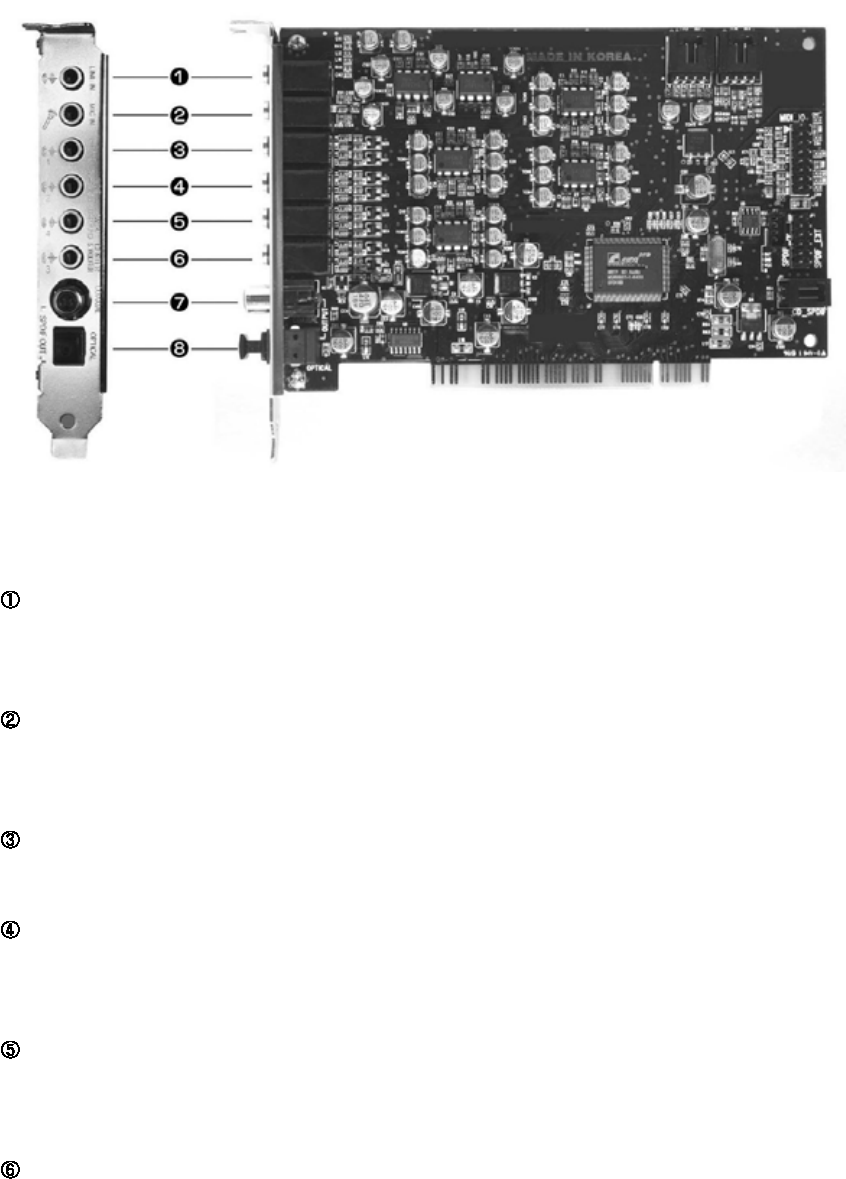
LINE IN (3.5mm Stereo minijack) : Connects to external analog line-level sources,
such as CD players, MP3 players, MD players, cassette players, TV card's internal line
output, any analog stereo output devices.
MIC IN (3.5mm Stereo minijack) : Connects to external condenser or dynamic
microphone for voice input. Special two OPAMP controlled preamp circuits on board
provides increased MIC input gain and improvement of SNR quality.
FRONT (3.5mm Stereo minijack) : Connects to Front Left/Right inputs on powered
analog speakers, an external amplifier or headphones.
SIDE SURROUND (REAR / 3.5mm Stereo minijack) : Connects to Rear Left/Right
inputs on powered multichannel analog speakers, an external mutichannel amplifier in 4,
5.1 and 7.1 channel analog playback modes.
BACK SOURROUND (REAR CENTER / 3.5mm Stereo minijack) : Connects Rear
Center 1 / 2 inputs on powered multichannel analog speakers, an external mutichannel
amplifier in 7.1 channel analog playback modes.
CENTER/S.WOOFER (3.5mm Stereo minijack) : Connects to Front Center and
Sub-Woofer inputs on powered multichannel analog speakers, an external mutichannel
amplifier in 5.1 or 7.1 channel analog playback modes.
COAXIALOUTPUT(S/PDIFCOAXIALDigitalOutput,GoldPlatedRCAJack):
Connects to external digital devices like AV receivers, decoders or digital speaker
systems. Coaxial(75 Ohms) S/PDIF output transmitts pure PCM digital audio at
resolutions of 16bit/44.1kHz, 16bit/48kHz, 24bit/96kHz sampling rates. Also allows
pass-through of Non-PCM Dolby® Digital and DTS® stream to external DD/DTS
decoders and A/V receivers.
OPTICAL OUTPUT (S/PDIF OPTICAL Digital Output,TOSLINK connector) :
Connects to external digital devices like AV receivers, decoders or digital speaker
systems. High quality TOSLINK Optical S/PDIF output transmitts pure PCM digital audio
at resolutions of 16bit/44.1kHz, 16bit/48kHz, 24bit/96kHz sampling rates. Also allows
pass-through of Non-PCM Dolby® Digital and DTS® stream to external DD/DTS
decoder and A/V receivers.
(2) Headers/Connectors

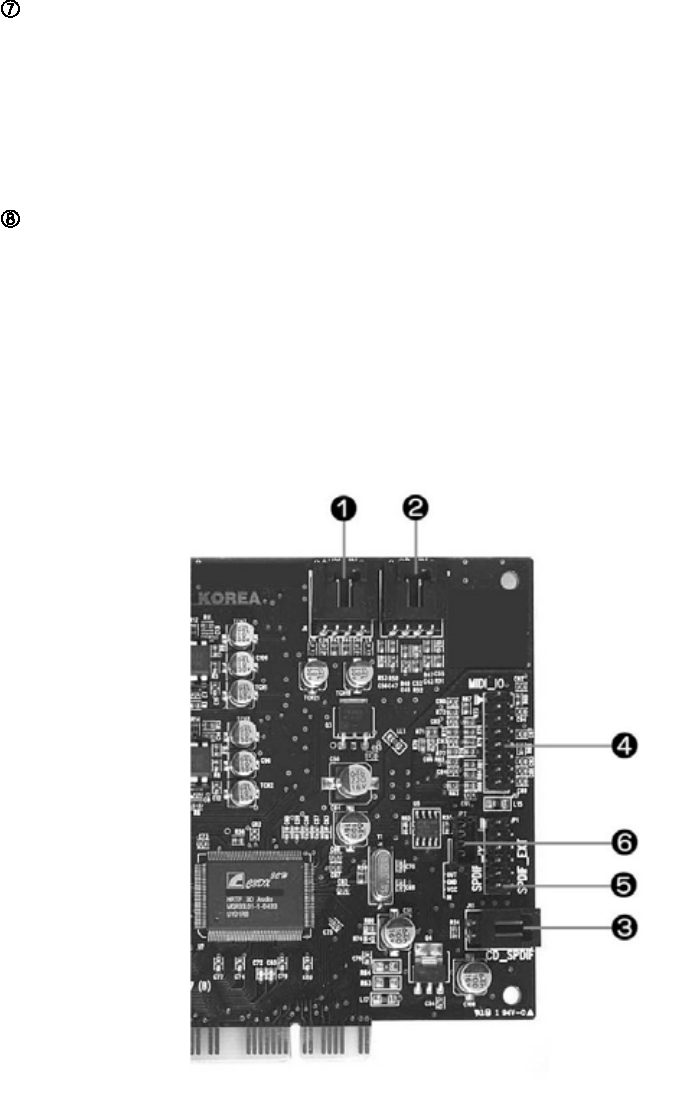
AUX_IN (4Pin MPC2) : Connects to the internal analog audio from
CD-DROM/DVD-ROM Drive or other internal PCI devices line output. (4pin MPC2 to 4pin
MPC2 CD Audio Cable, available separately) Pin configuration:
Pin 1 - Left (white)
Pin2-Ground(black)
Pin3-Ground(black)
Pin 4 - Right (red)
CD_IN (4Pin MPC2) : Connects to the CD analog audio output on an internally
mounted CD-ROM/DVD-ROM drive using an analog CD audio cable. (4pin MPC2 to
4pin MPC2 CD Audio Cable, available separately) Pin configuration:
Pin 1 - Left (white)
Pin2-Ground(black)
Pin3-Ground(black)
Pin 4 - Right (red)
CD_SPDIF (2Pin CD Digital IN) : Connects to the CD digital audio (16bit/44.1kHz)
output using included CD S/PDIF cable (2pin-2pin S/PDIF digital audio internal cable)
from an internally mounted CD/DVD drive with 2Pin S/PDIF out connector. WDM driver
utilizes digital audio transfer to the sound card from the PCI bus, so this connection
may not be required. However, you have to use this connection with 2Pin-2Pin CD
S/PDIF digital audio cable for PCM or Non-PCM (such as DTS-CD) digital audio
bypass or loopback output from CD media. Incaseofthis,alsoyouhavetodisable
for digital audio transfer function in CD Drive or DVD Drive properties and CD
playback application such as WMP, Winamp.
MIDI_IO (MIDI Port Bracket 16Pin Header) : Connects to the MIDI Port bracket
for MIDI devices such as master keyboard and synthesizer. Customers must palce an
order a optional MIDI port bracket seperately from our local distributors or online
stores. MIDI port bracket connector has a polarization key for 16th pin, so users can
make sure you are connecting to the correct connector, and that the cable is properly
alignedwiththeconnector.Alsoyoucanalignthered-coloredwiretoPin1(with
trangle mark) of the connector.
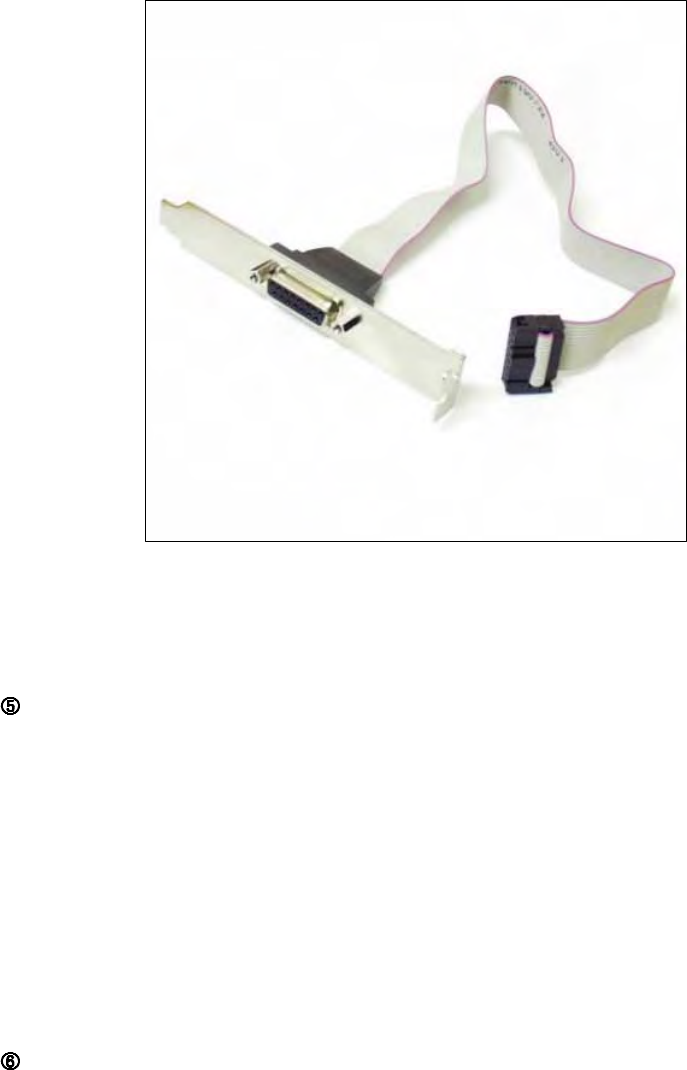
MIDI port bracket for "HDA XPLOSION 7.1 DTS CONNECT" (with 16pin
red-colored ribbon wire) (Optional, available separately)
SPDIF_EXT (SPDIF Input Extension Board 12Pin Header) : Connects to the
SPDIF_EXT connector on the HDA DIM-X10 Digital Input Module (Optional, available
separately). For connection Optical and Coaxial S/PDIF input for recording, monitoring
or bypassing digital audio from external sources at resolutions 16bit/44.1kHz,
16bit/48kHz and 24bit/96 kHz sampling rate. 12pin connection cable (12pin ribbon
cable) have polarization keys for 3rd, 7th, 8th pin, so users can make sure you are
connecting to the correct connector, and that the cable is properly aligned with the
connector. Also you can align the red-colored wire to Pin 1 (with trangle mark) of the
connector.
SPDIF_IO (4Pin SPDIF connector) : Connects to the 4pin digital I/O connectors on
3rd party digital I/O boards such as Hoontech or other pin compatible digital i/o
module.
3. Installing H/W, S/W, and Speakers
When you have a existing PCI soundcard in your PC or when you have an onboard
sound/audio device like as AC97 codec or HD Audio Azalia codec on the motherboard,
please disable it in the motherboard BIOS setup program and must remove the
associated software and drivers for previous soundcard or AC97/Azalia codec before
installing your "HDA XPLOSION 7.1 DTS CONNECT" for avoiding devices/drivers
corruptions or conflicts. Each manufacturer's drivers and applications can be removed in
the ADD or Remove Programs menu in Windows Control Panel.
(1) Installing the "HDA XPLOSION 7.1 DTS CONNECT" audio card
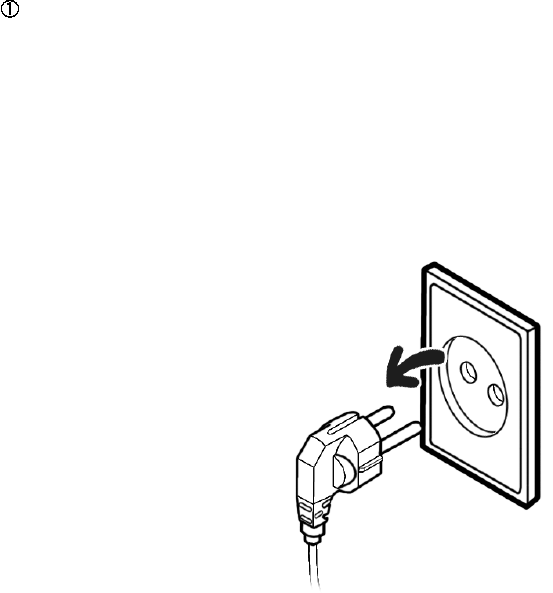
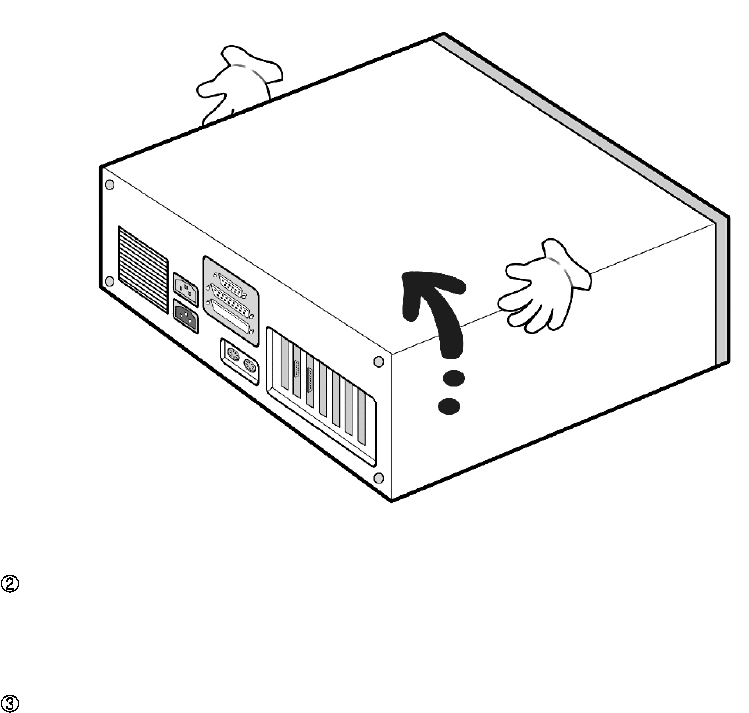
Turn off your main power supply, unplug the power cord from the wall outlet for
avoiding electric damage and disconnect any peripheral devices. Remove your PC
cover casing.
Before removing the "HDA XPLOSION 7.1 DTS CONNECT" audio card from its anti
static electricity bag, touch the PC chasis or metal plate to ground yourself to
discharge any static electricity from your body.
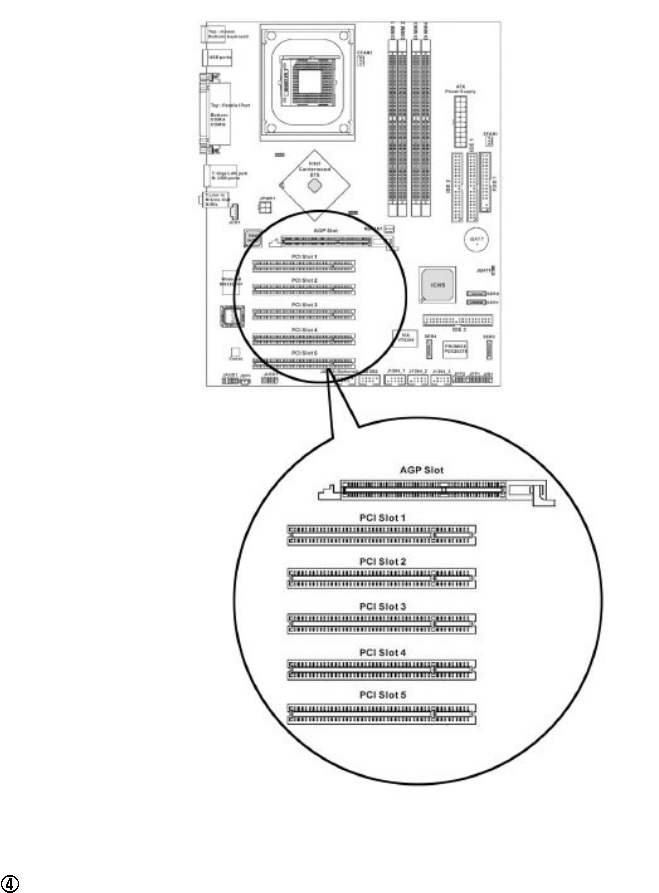
Remove a metal bracket from an unused PCI slot by unscrewing its securing screw.
Save the screw to secure the audio card to the chassis later. If you are installing HDA
DIM-X10 Digital Input Module and(or) MIDI port bracket, remove adjacent metal bracket.
Select one that is empty for installing the card. We recommend using a free PCI
expansion slot that's furthest away from the graphic board and power supply. Most
motherboards with five slots will have two or more slots that share the same IRQ
(interrupt request line). Be sure to install the "HDA XPLOSION 7.1 DTS CONNECT" in
a PCI slot that has its own, unshared IRQ. If you find that your computer locks up
after you have installed the "HDA XPLOSION 7.1 DTS CONNECT" , reinstall the audio
card to a different, unshared PCI slot.
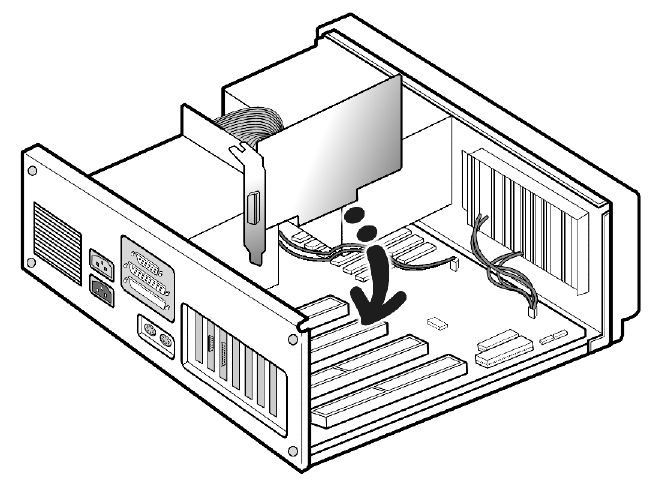
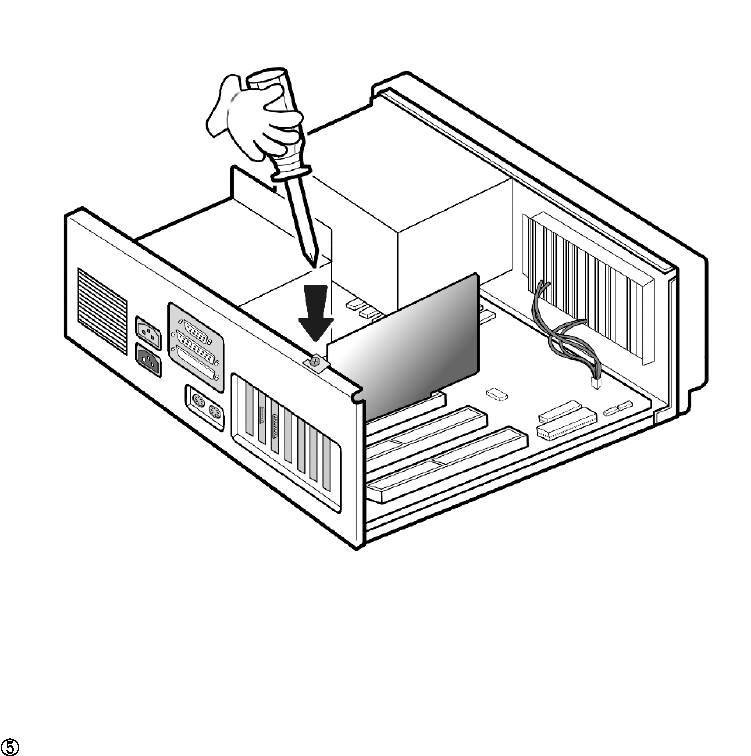
Align the "HDA XPLOSION 7.1 DTS CONNECT" audio card gently but firmly the
PCI slot until it snaps in place. Secure its metal bracket to the chassis with the screw.
Do not force the audio card into the slot. Be sure that the gold pins (male) of the
card's PCI connector is aligned with the PCI bus connector(female) on the motherboard
before you insert the card into the slot. If it does not fit properly, gently remove it and
try again.
If you are installing a HDA DIM-X10 Digital Input Module or MIDI Port bracket
(optional), secure the their bracket to the slot next to the "HDA XPLOSION 7.1 DTS
CONNECT" audio card. Before securing the any bracket in place then connect the
12pin red-colored ribbon cable of HDA DIM-X10 Digital Input Module to the
SPDIF_EXT header and MIDI port bracket cable to the MIDI_IO header on the audio
card.Alignthered-coloredwiretoPin1(withtranglemark)oftheheader.
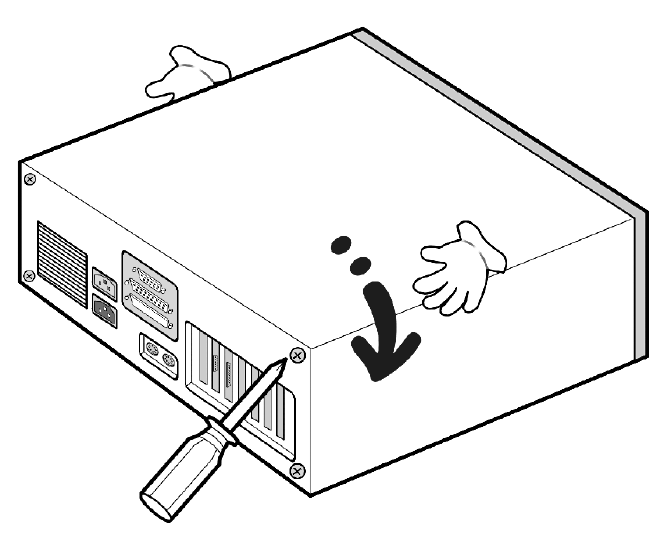
Replace the PC's cover casing, plug the power cord into the AC wall outlet.
Connect your powered speakers, microphone, and any other audio peripherals to the
appropriate inputs and outputs on the audio card
(2) Installing the Analog / Digital CD-ROM Audio cable
Using Digital CD Audio Extraction(CD-DA) in WDM driver, audio can be sent to your
computer through your CD-ROM/DVD-ROM drive's IDE cable instead of via an analog
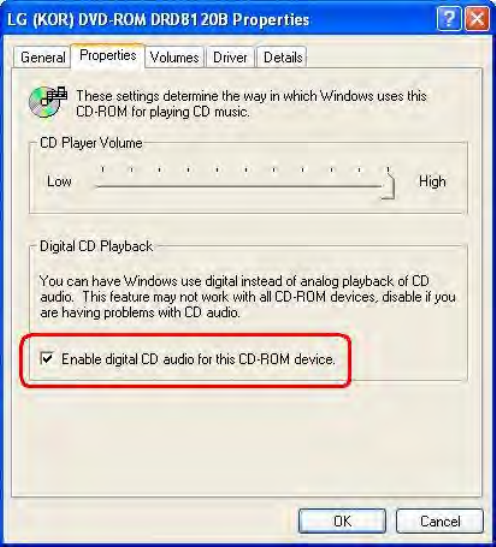
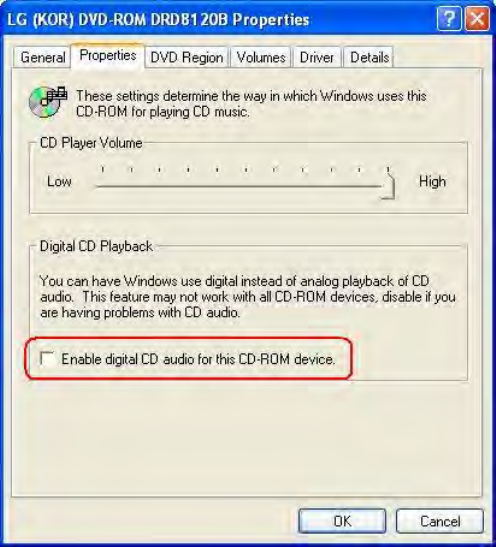
or digital SPDIF cable. Please open Device Manager , select DVD/CD ROM drives
and open it. Then switch to Properties page and enable digital CD audio for this
CD-ROM device. Windows XP default setting is digital CD audio enabled.
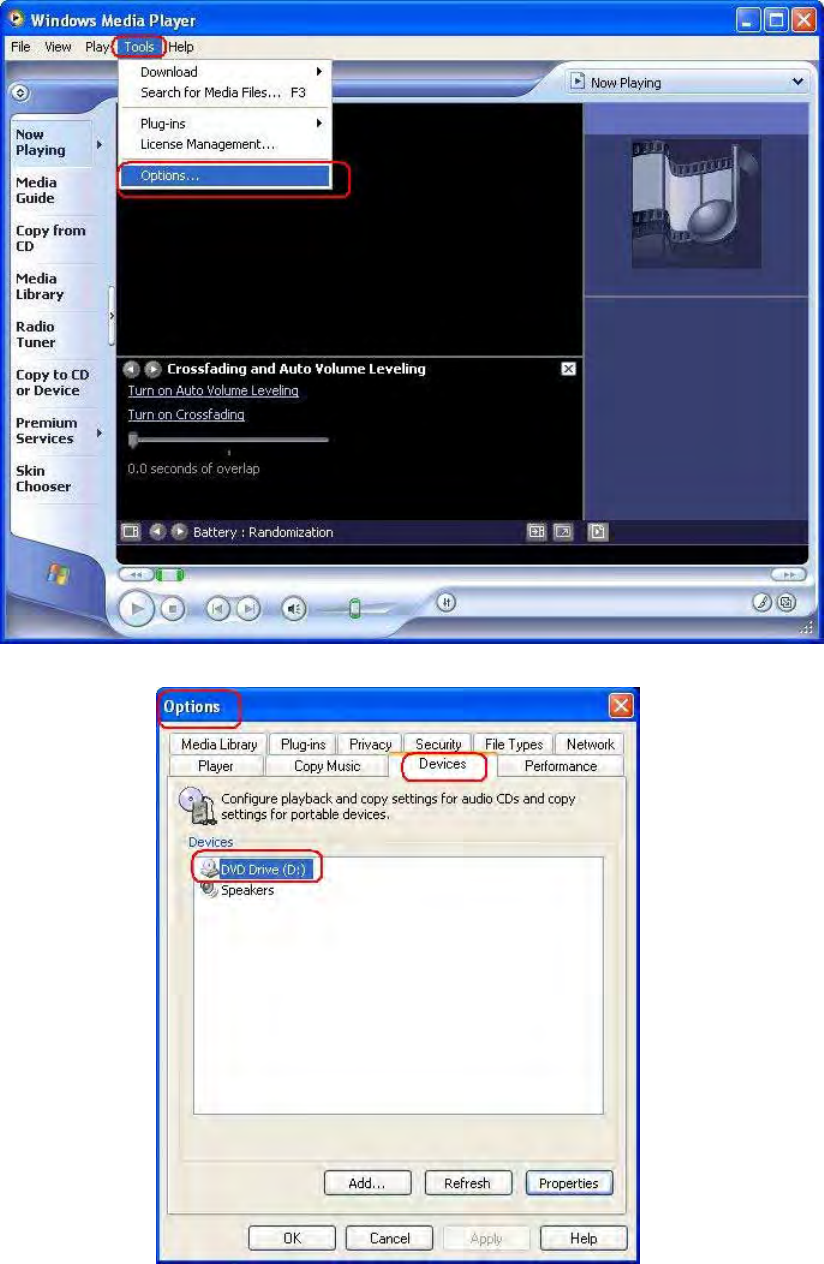
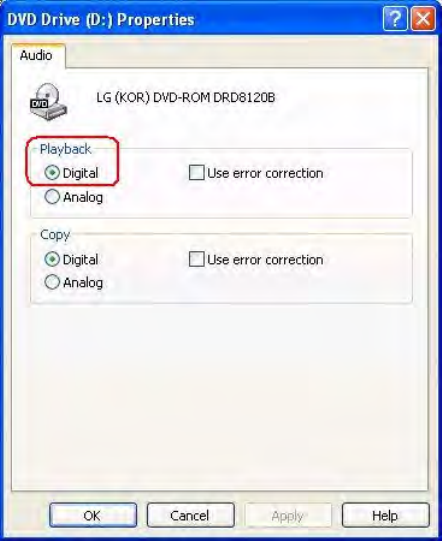
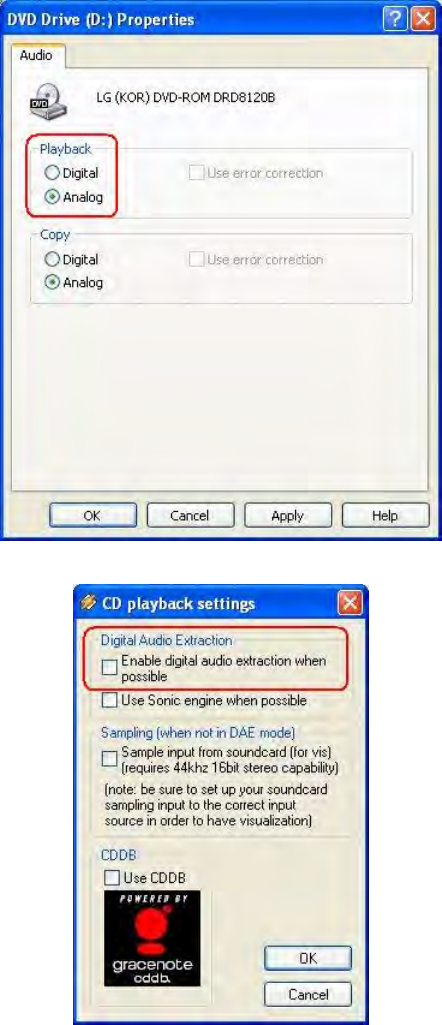
You need to also check Windows Media Player setting is in digital playback mode. Go
to [Tools=>Options=>Devices=>DVD Drive or CD Drive=>Playback-Digital]. You will see
the following window.
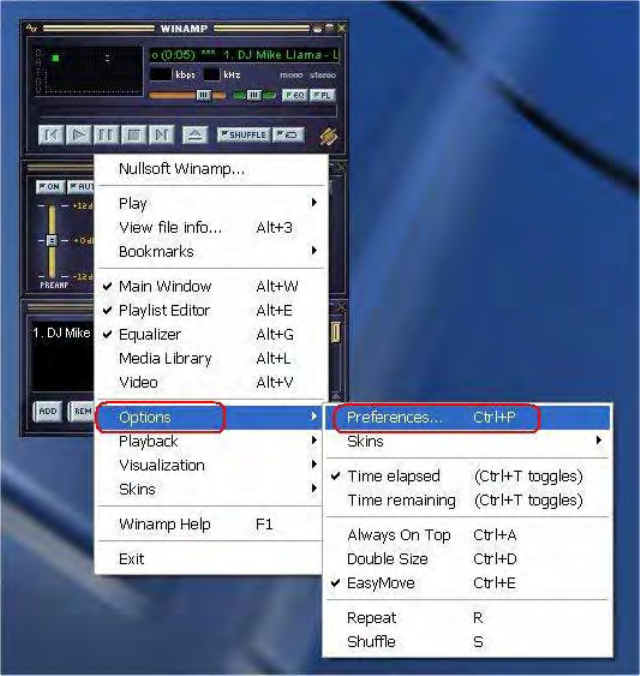
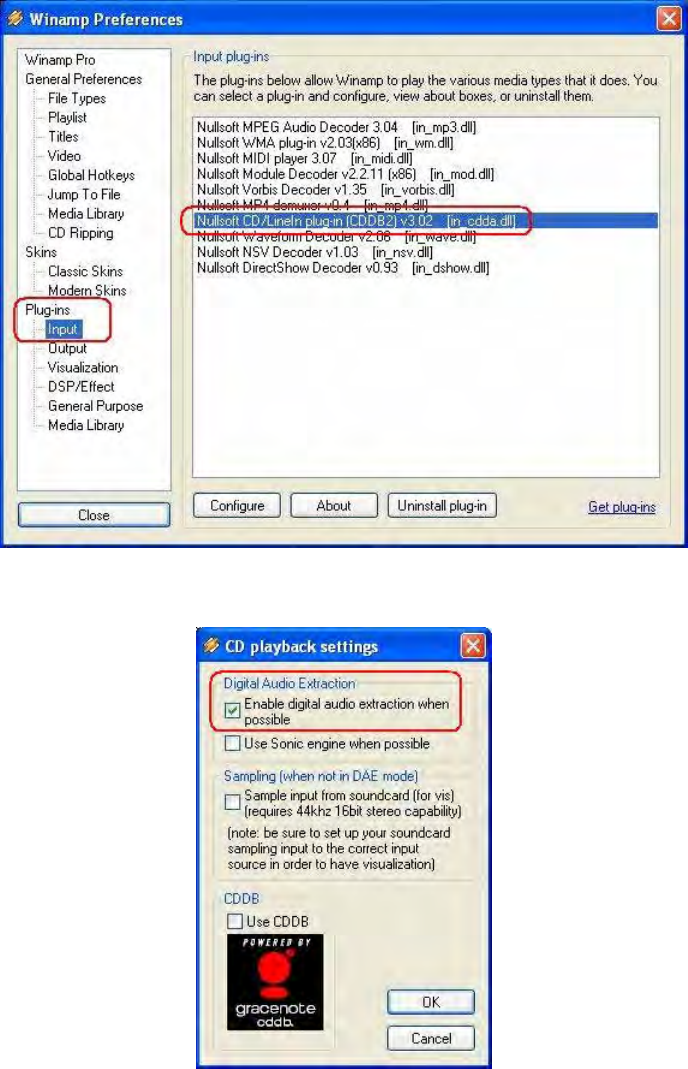
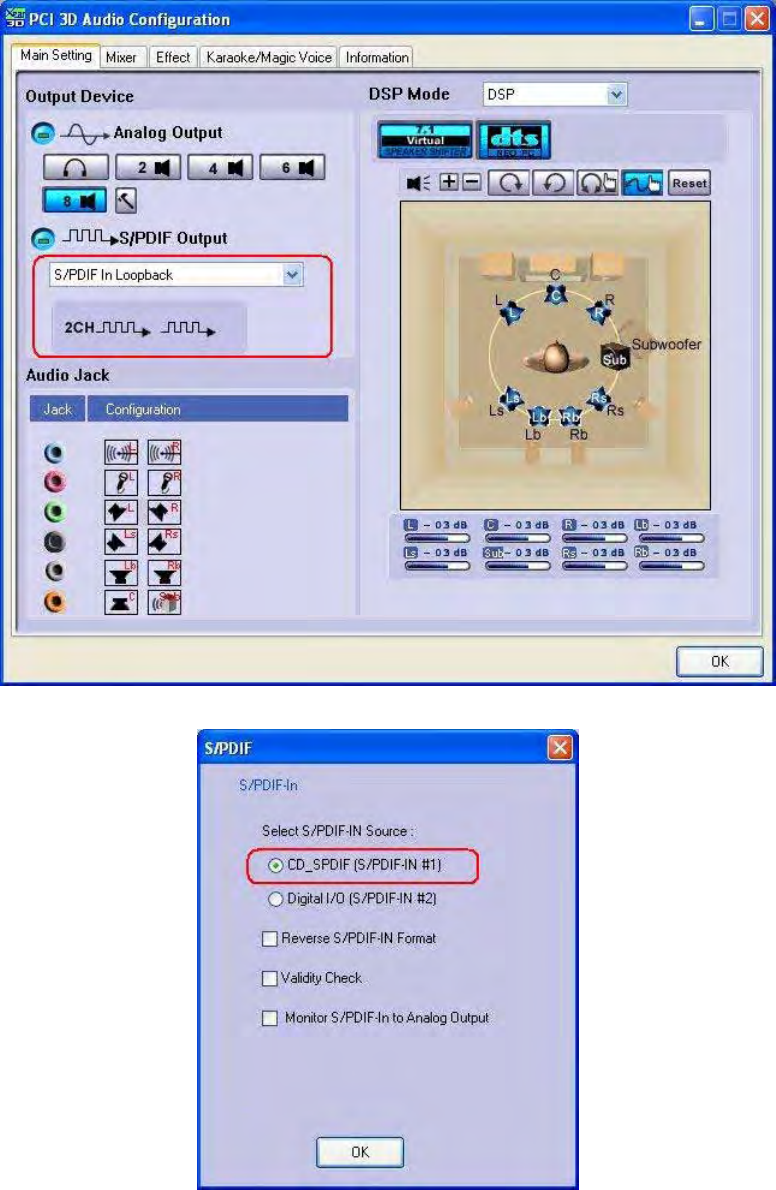
Also you need to also check Winamp Player setting is in digital playback mode. Go to
[Options=>Preferences=>Plug-ins=>Input=>Nullsoft CD/LineIn plug-in(CDDB2)=> Select
Enable digital audio extraction when possible]. You will see the following window.
However "HDA XPLOSION 7.1 DTS CONNECT" have two internal connector for an
audio cable to connect the analog stereo output of your CD-ROM drive or DVD-ROM
drive. This cable should have been provided with your CD-ROM/DVD-ROM drive and is
not included with audio card. Connect an analog CD audio cable from the analog
audio connector on your CD-ROM/DVD-ROm drive to the CD_IN or AUX_IN connector
on the "HDA XPLOSION 7.1 DTS CONNECT". The CD audio cable should be plugged
into the CD-ROM/DVD-ROM drive first; then the other end of the cable should be
plugged into the appropriate connector(CD_IN, AUX_IN) on the audio card.
Also "HDA XPLOSION 7.1 DTS CONNECT" have an internal connector for an audio
cable to connect the S/PDIF PCM, Non-PCM (DTS-CD) output of your CD-ROM drive
or DVD-ROM drive. This cable(2Pin MPC to 2Pin MPC) is included with your audio
card. Connect the digital CD audio cable from the digital audio connector on your
CD-ROM/DVD-ROM drive to the CD_SPDIF connector on the "HDA XPLOSION 7.1
DTS CONNECT". The CD audio cable should be plugged into the CD-ROM/DVD-ROM
drive first; then the other end of the cable should be plugged into the appropriate
connector(CD_SPDIF) on the audio card.
You have to use this connection with 2Pin-2Pin CD S/PDIF digital audio cable for PCM
or Non-PCM (such as DTS-CD) digital audio bypass or loopback output from CD media
to external digital devices such as AV receivers, decoders. In case of this, also you
have to disable for digital audio transfer function in CD Drive or DVD Drive properties
and CD playback application such as WMP, Winamp. Make sure your digital audio
extraction setting is fully disabled as following.
(3) Installing the drivers and software
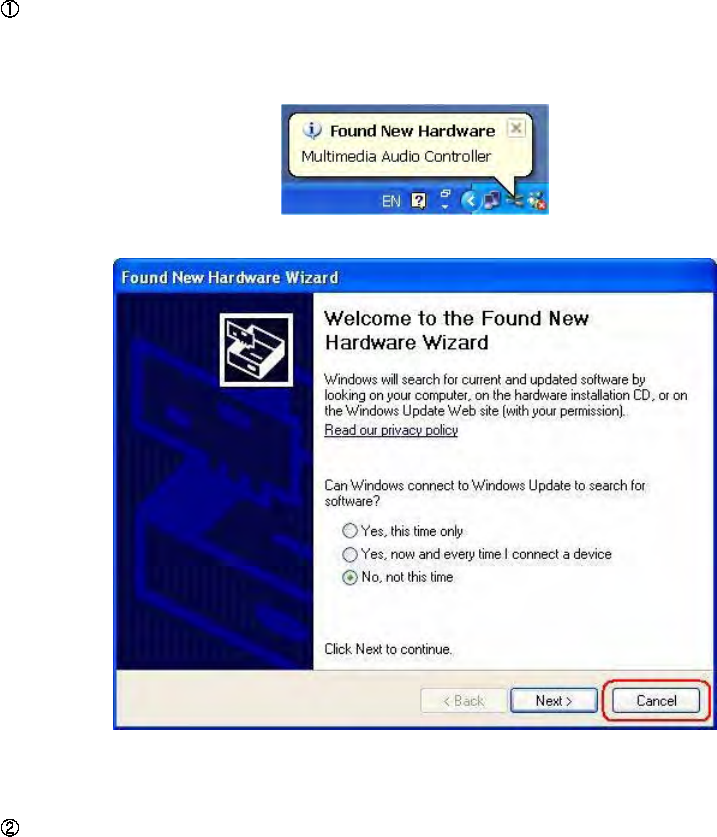
Turn on the PC. After Windows has booted then Windows automatically detects new
hardware-Multimedia Audio Controller and Found New Hardware Wizard is
displayed, click on the Cancel button to end this process.
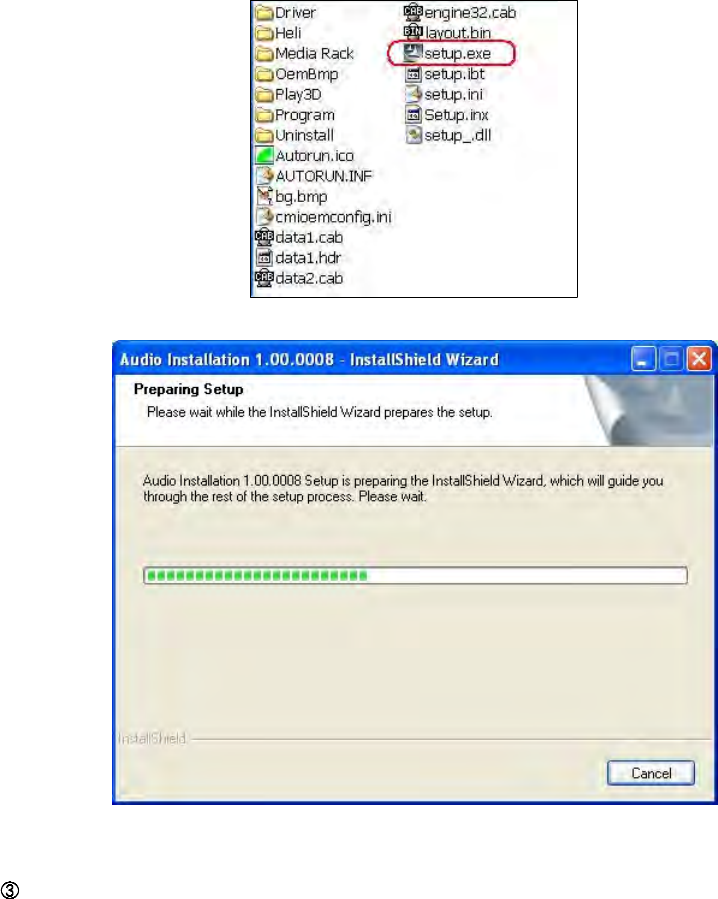
Insert installation CD into the CD-ROM/DVD-ROM drive. Installation CD will launch
automatically only if the Auto-Insert Notification option is enabled for your
CD-ROM/DVD-ROM drive. If the installation menu does not appear after inserting the
installation CD into your CD ROM/DVD-ROM drive, browse to the drive letter that
contains the CD, double-click on the CD-ROM /DVD-ROM drive icon to open it, and
search and run "SETUP.EXE" then return to the installation instructions
i
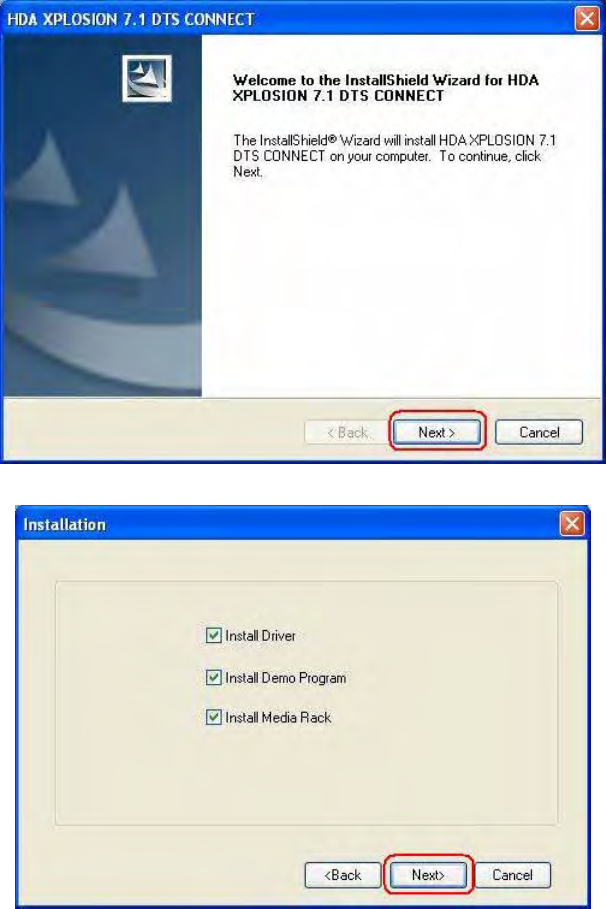
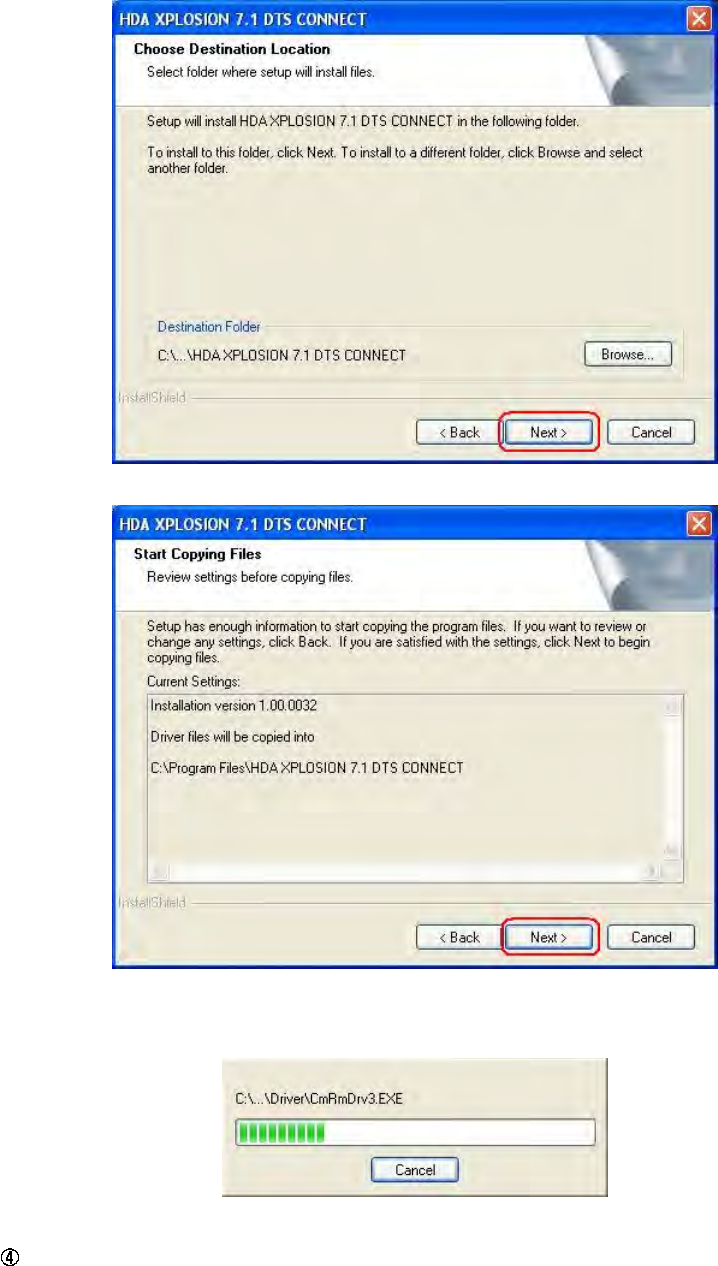
When the "HDA XPLOSION 7.1 DTS CONNECT" installation menu appears, select
"Next".Follow the instructions that appear during the install, selecting the options that
best match your audio setup. During the installation process, Windows 98 SE users will
be prompted to insert the Windows 98 SE installation CD into the CD/DVD-ROM drive.
Insert the installation CD into the CD/DVD-ROM drive and then click the OK button.
If the following dialog box appears, explaining that the software has not passed
Windows Logo testing or does not have a Digital Signature, setup program will
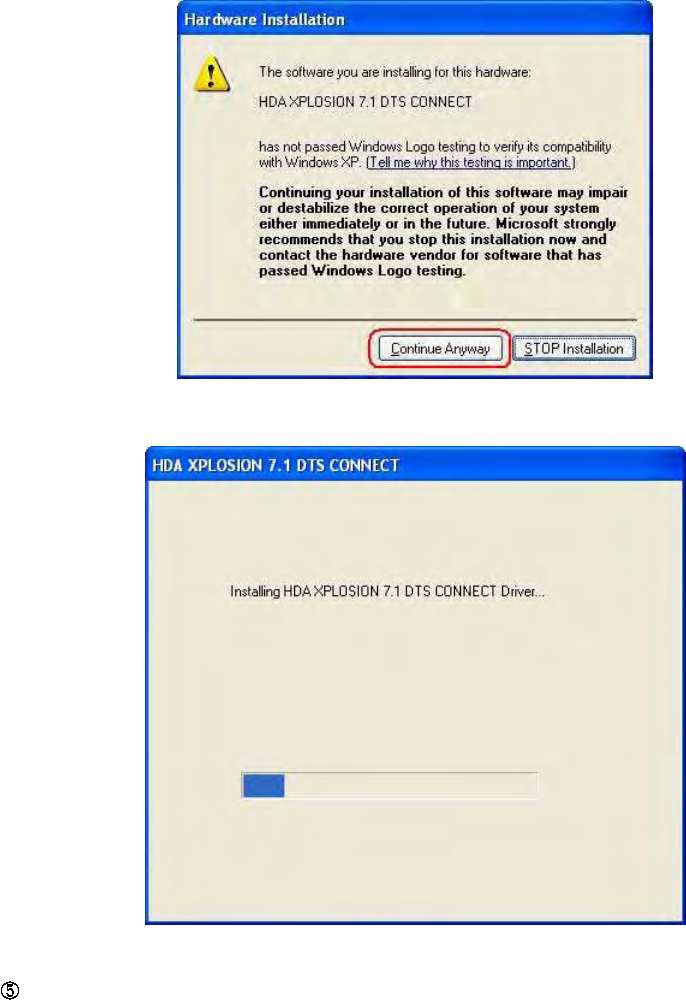
automatically process "Continue Anyway"or"Yes" (depending on the operating
system).
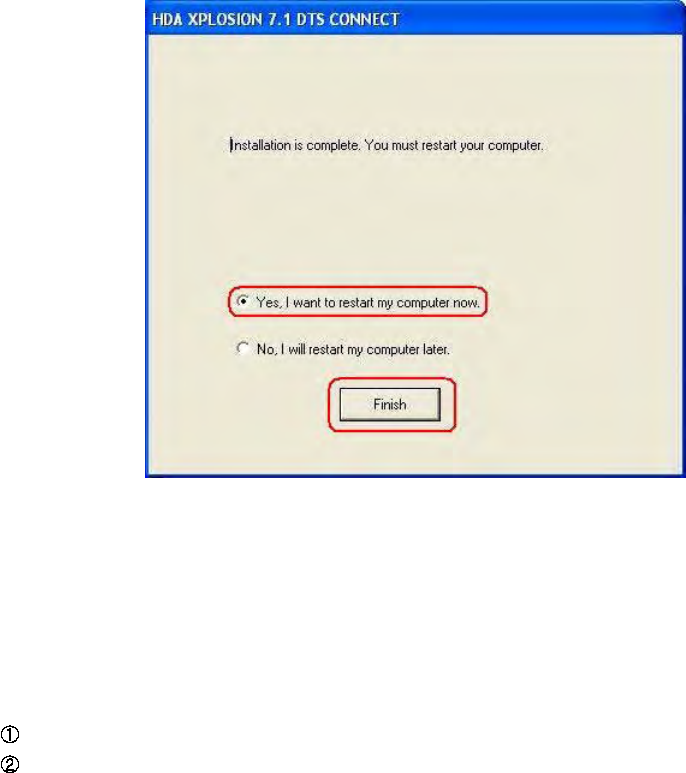
When prompted, reboot the system. Wait a few minutes for the installation to
complete. The wait time will vary depending on the speed of your PC. Please wait for
the system to reboot to properly complete the installation.
(4) TO UNINSTALL "HDA XPLOSION 7.1 DTS CONNECT" drivers and
softwares
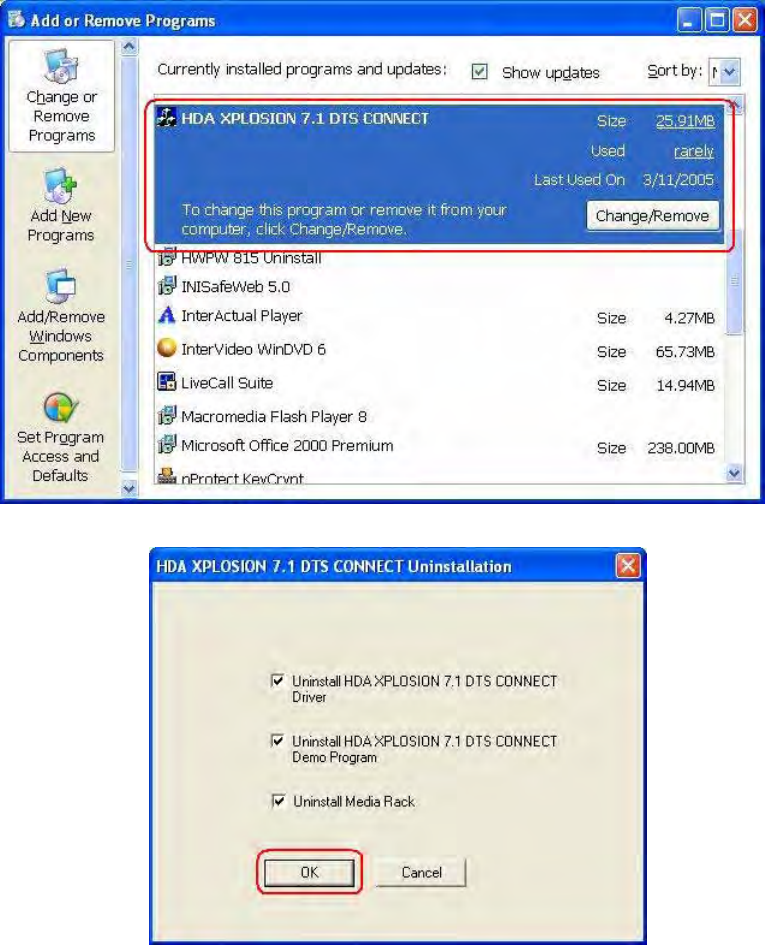
Open the Windows Control Panel (Start => Settings => Control Panel).
Open the Add/Remove Programs applet. Select "HDA XPLOSION 7.1 DTS
CONNECT" ("HDA XPLOSION 7.1 DTS CONNECT") and click on the
"Change/Remove" button to the lower right of the screen.
OR
If you want to remove drivers only in another way, you may browse to the drive letter
that contains the CD, double-click on the CD-ROM /DVD-ROM drive icon to open it,
and search ..\Driver\PCI folder and run "CmRmDrv3.EXE" then driver unintallation
procedure starts.
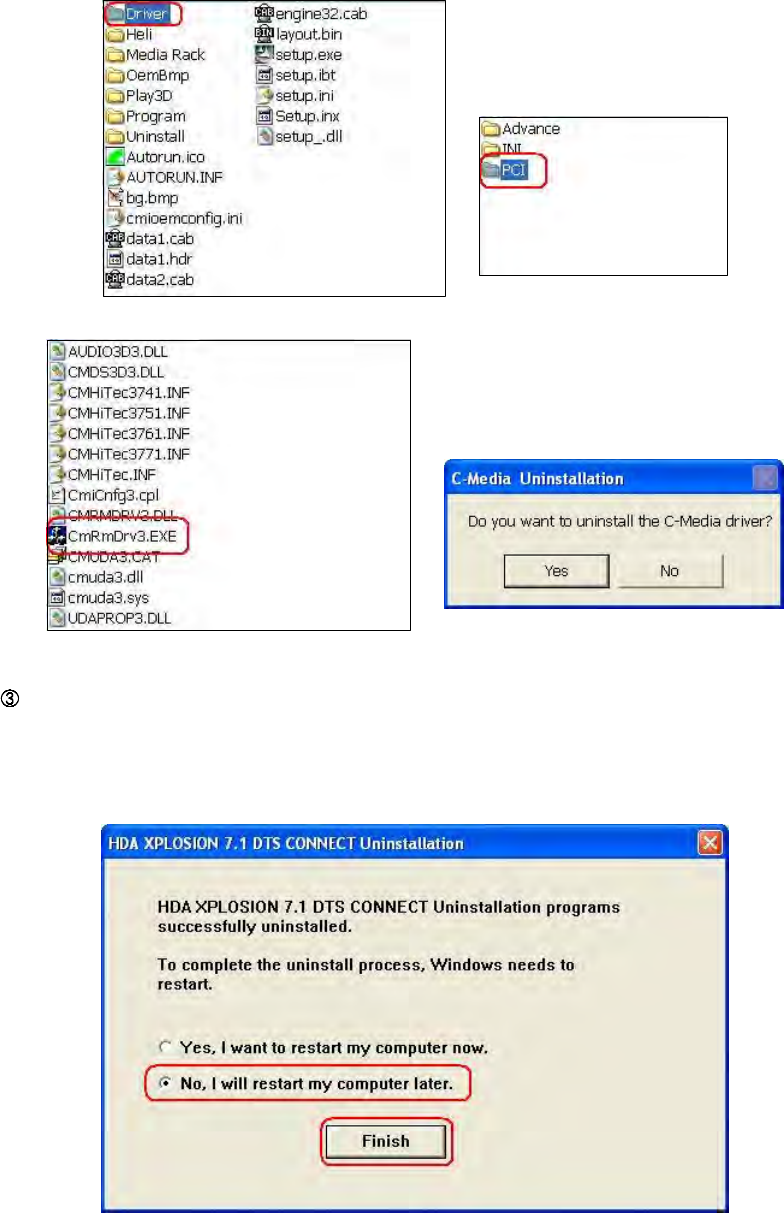
To complete the uninstall process, Windows needs to restart. Select No, I will
restart my computer later then press Finish button. Shut down your PC manually,
remove the audio card from PCI slot, then reboot your PC.
(5) Connection and Speaker Setup
1) Connection
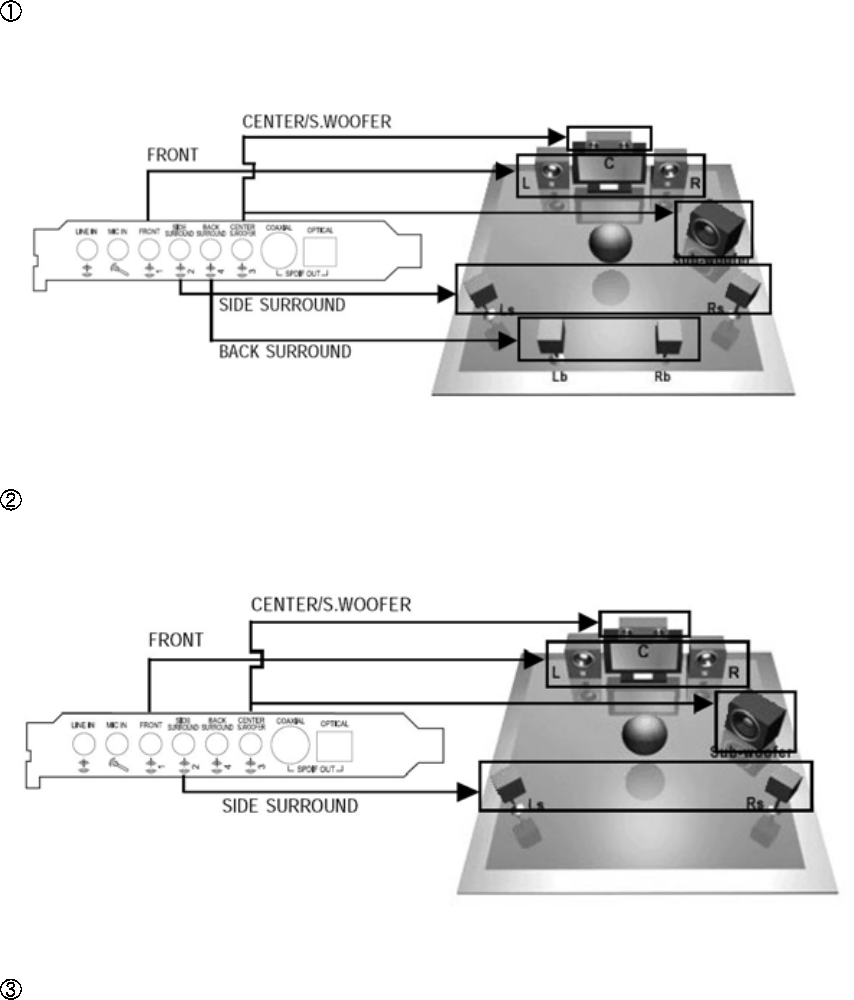
Connecting 7.1 Channel Speakers
Connecting 5.1 Channel Speakers
Connecting 4 Channel Speakers
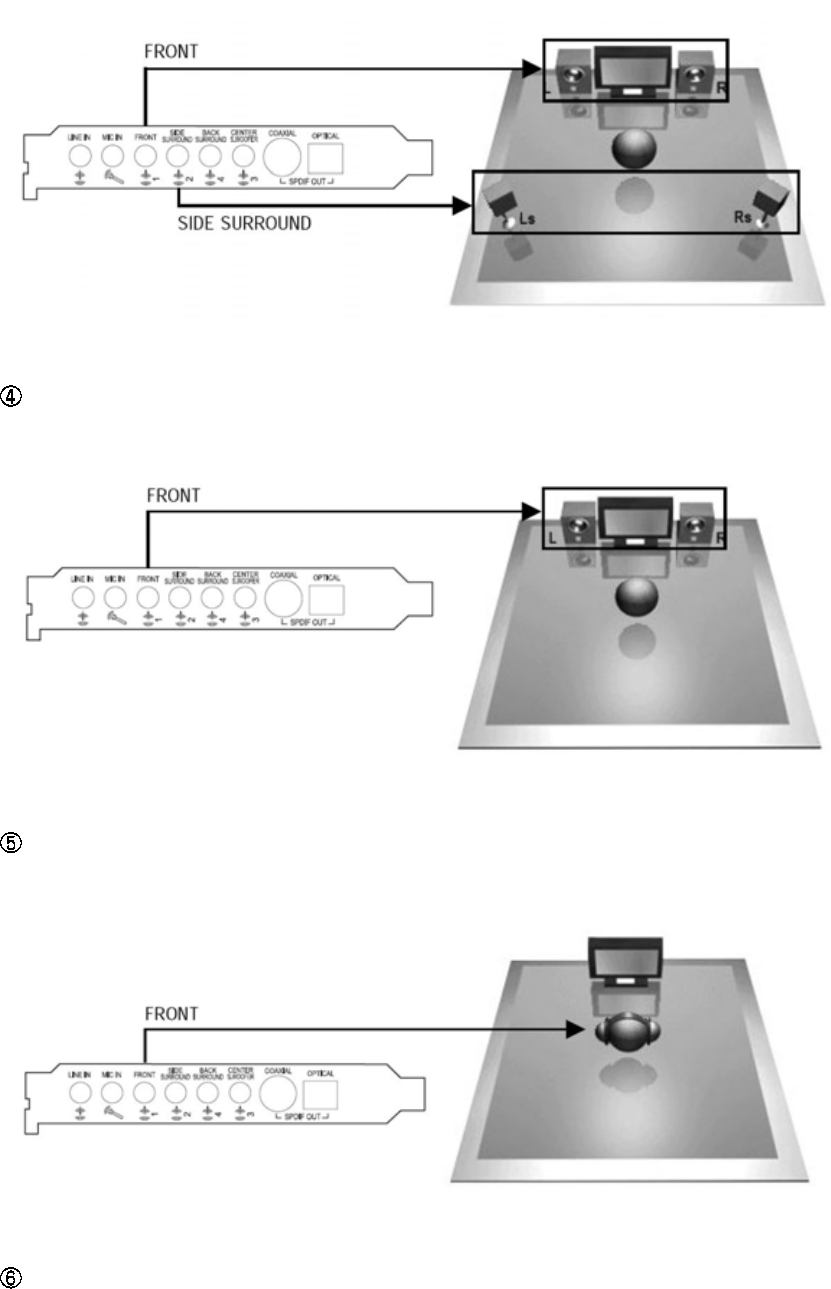
Connecting 2 Channel Speakers
Connecting Headphone
Connecting Microphone and External Analog Devices
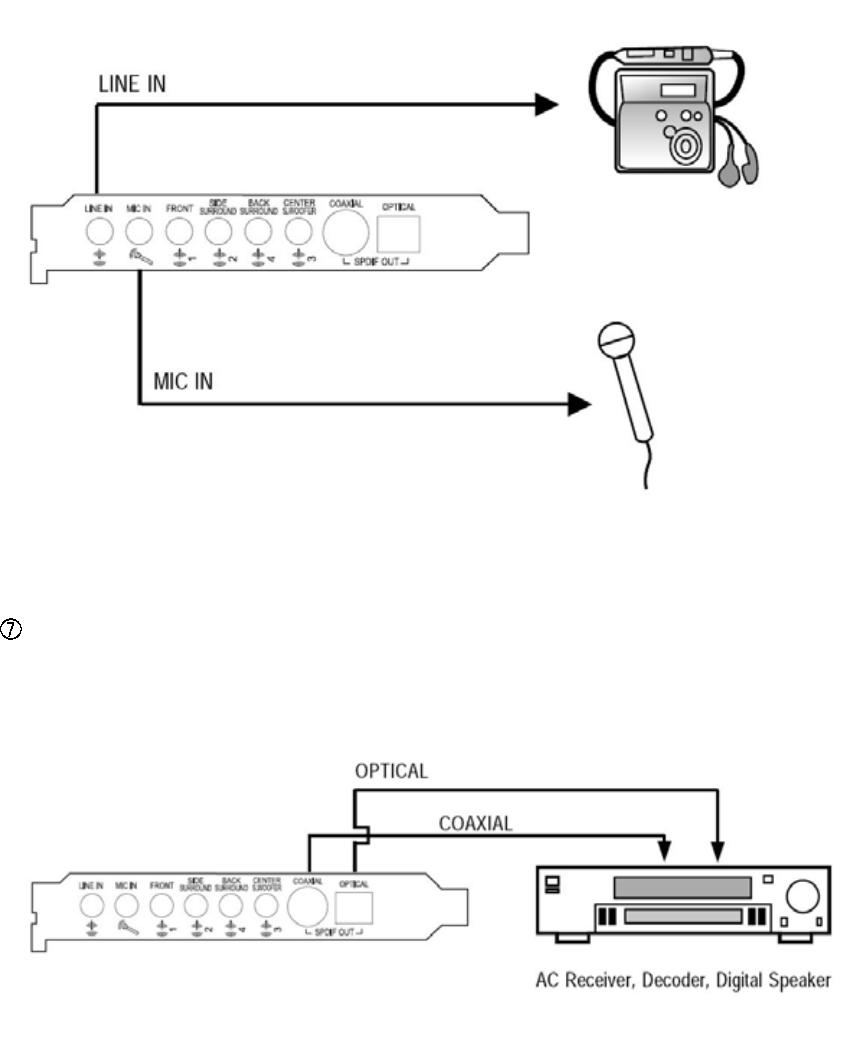
Connecting External Digital Devices
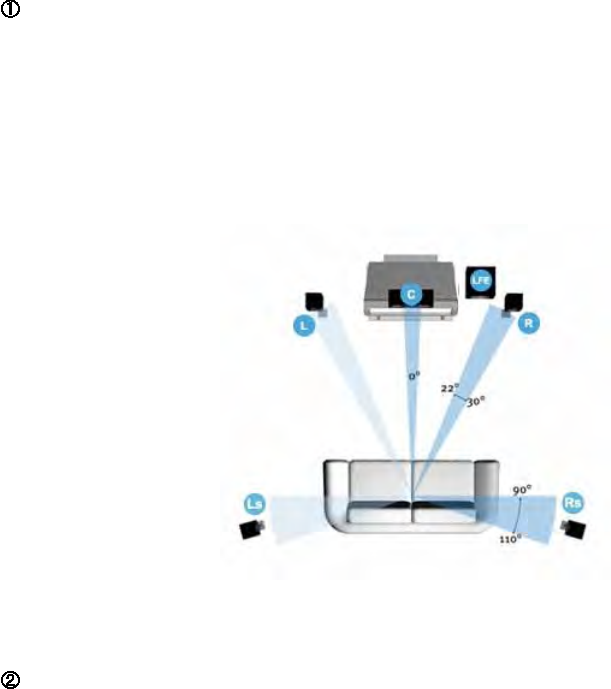
2) Speaker Setup for 5.1, 7.1 Speakers
After connecting your speakers, you should place your 7.1 or 5.1 speakers standing on
the pictures below to get best surround sounds. Dolby Digtial Surround EX and
DTS-ES soundtracks are recorded for additional back surround speakers behind the
listeners. As a result, alien creatures in the movie can circle all around you, fighter
planes can fly directly over you, and rain can pour down all around you more
realistically than ever before.
Dolby website provides a picture about the positions for 5.1 and 7.1 speakers.
5.1 Setup
This system has six channels: five full-range channels, and a low-frequency effects
channel (the .1 of 5.1) usually expressed through a subwoofer. Many DVDs and digital
broadcasts feature a Dolby Digital (5.1) soundtrack, so this will give you optimum
sound for most programming. It also most closely approximates the sound in most
cinemas.
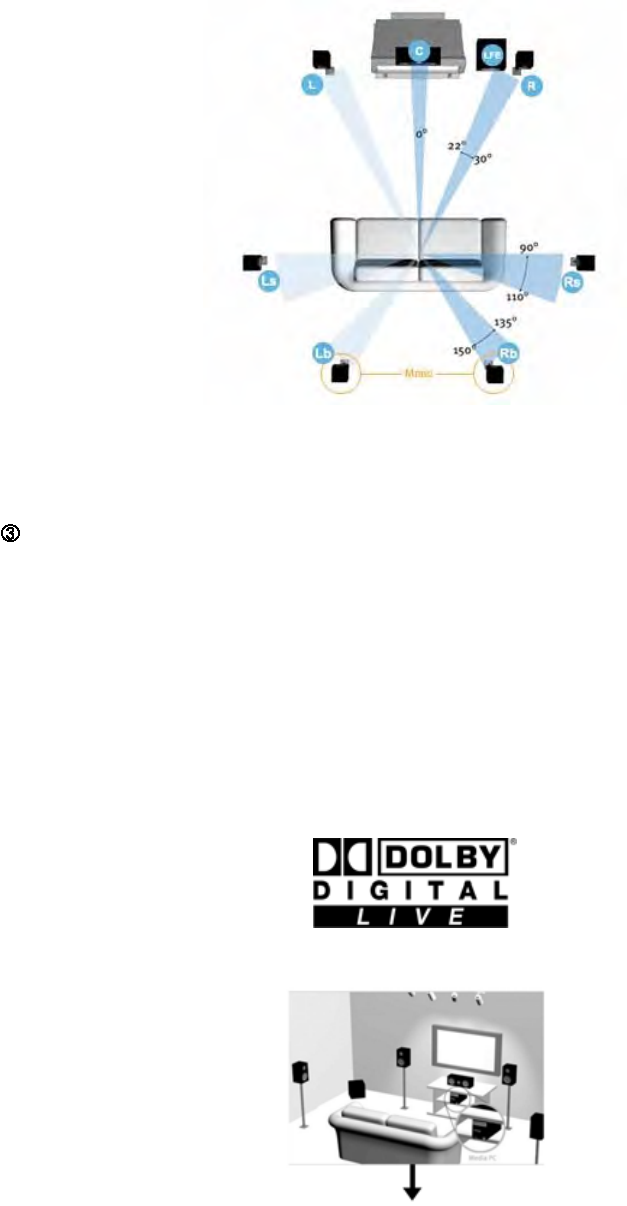
6.1 or 7.1 Setup
The most advanced home theater systems feature six (with Center Back) or seven
(with Left Back/Right Back) full-range channels that allow viewers to take full advantage
of Dolby Digital EX soundtracks and Dolby Pro Logic IIx matrix-surround decoding
technology. Both of these processes add surround information for greater realism and
more dramatic effects.
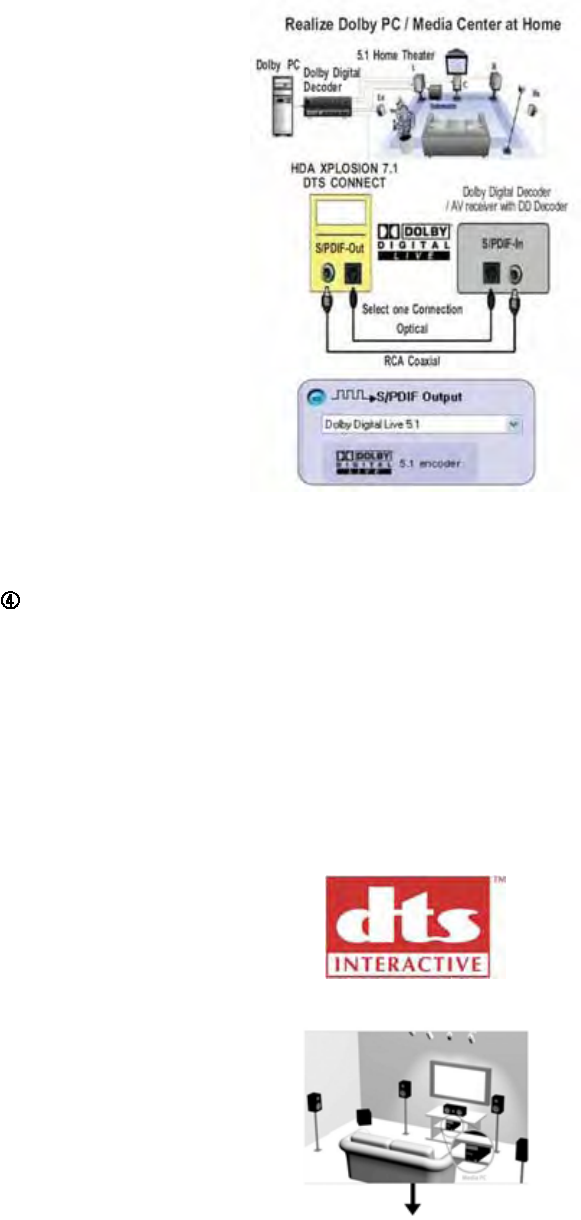
Speaker Setup for Dolby® Digital Live Encoder
"HDA XPLOSION 7.1 DTS CONNECT" provides Dolby® Digital Live Real-Time Content
Encoder with new CMI8770 chip, you can generate the Dolby® Digital audio stream for
any digital PC sounds (3D Games, WMA, DVD, MP3, CD, Wave, streaming audio·) on
your PC with DirectSound application and make use of your hi-fi home theater to
decode and play the perfect sound. Just connect your PC to the external Dolby Digital
decoder/AV receiver with only one S/PDIF optical fiber or coaxial cable like the figure
below.
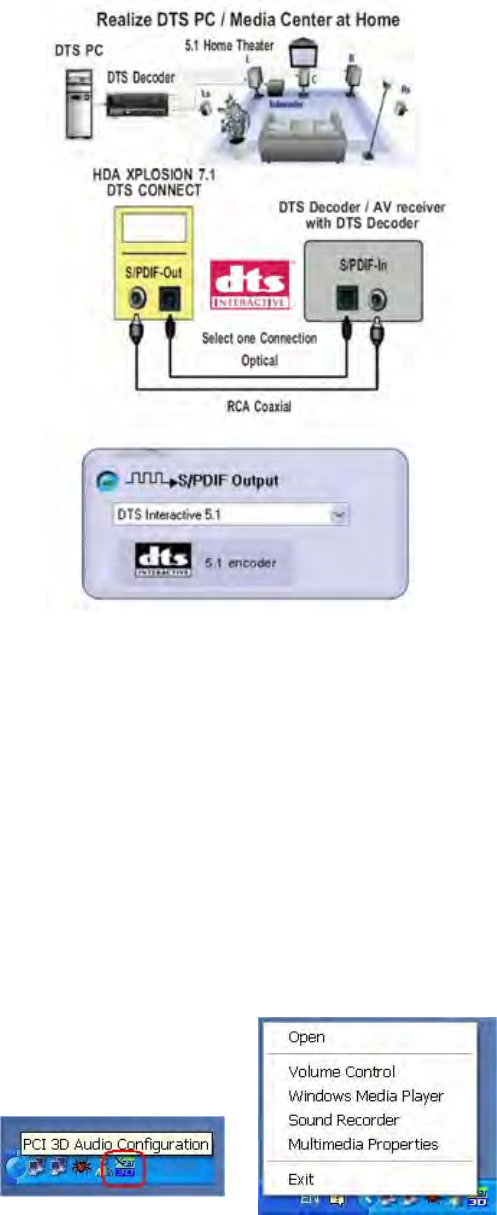
Speaker Setup for DTS INTERACTIVE Encoder
DTS INTERACTIVE real-time encoder that takes any LPCM (2 channel or more) and
encodes it into DTS® bitstream(48kHz at 1.5 Mbps). DTS INTERACTIVE provides a
single cable connection(via coaxial or optical) to your DTS enabled surround sound
system. Your stereo or multi-channel (up to 5.1) audio sources are re-encoded into a
DTS audio signal and sent out from the "HDA XPLOSION 7.1 DTS CONNECT" to any
DTS enabled system such as, powered PC speakers, an A/V receiver or any other
DTS- compatible surround decoder sound system.
4. Using Audio Driver
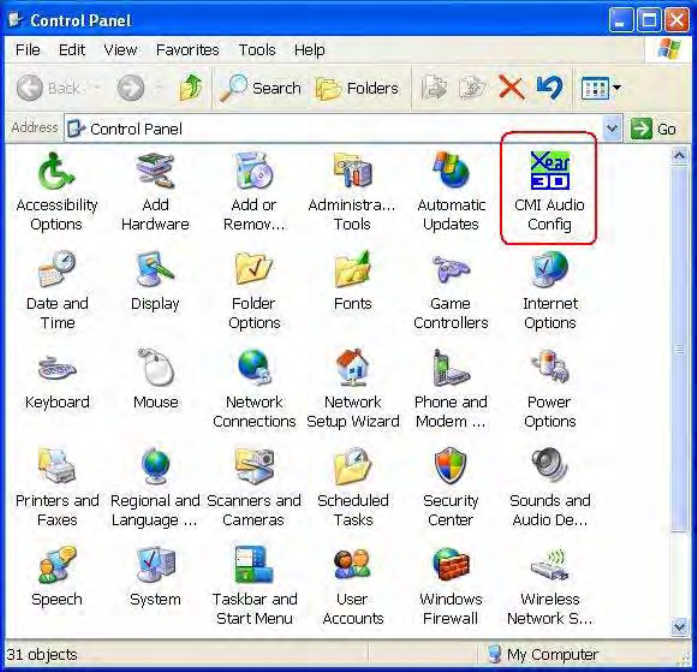
(1) Find Out 3D Audio Configuration
3D Audio Configuration is C-Media's 3D audio control panel with that you can control
all audio configuration. After finishing the installation of the driver and rebooting the
system, you can find the panel from two places:
1) Left-Click the icon in the system tray in the right-bottom of your screen. You can
also click right button of the mouse on it to get an audio-related menu as follows.
2) Double-click CMI Audio Config icon in Windows Control Panel .
(Start=>Setting=>Control Panel)
(2) Main Setting
1) Using Analog Output or Digital S/PDIF-Out
Step 1: Turn on Analog Output and select Speaker Type, or turn on Digital S/PDIF
Output
Step 2: Check the connection is consistent with the audio jack configuration information
Step 3: Do Speaker Test/3D Sound/Multi-channel Music Demo if you want
Step 4: You can click Digital Volume button to fine-tune the volume for each
speaker.
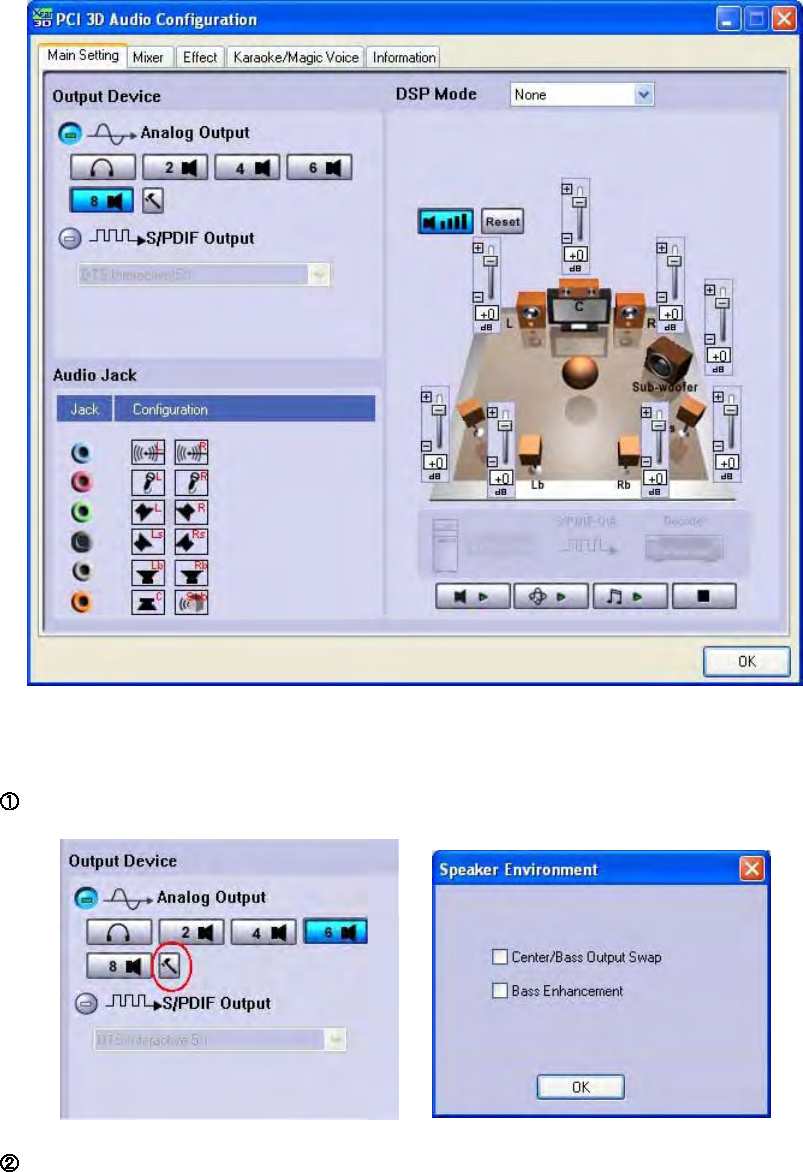
Analog Output advanced option : 6 Speakers mode
Analog Output advanced option : 8 Speakers mode
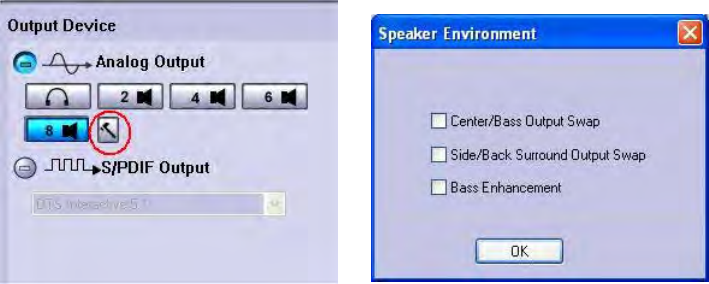
*Bass Enhancement : activate subwoofer for music.
*Center / Bass Output swap : check this box when center and bass channels are
exchanged in certain audio application.
*Side / Back Surround Output Swap : If you experience problems with exchanged
rear and side channels in 7.1 mode, change this setting. Bear in mind that the speaker
test will not match speaker placement when swap is disabled.
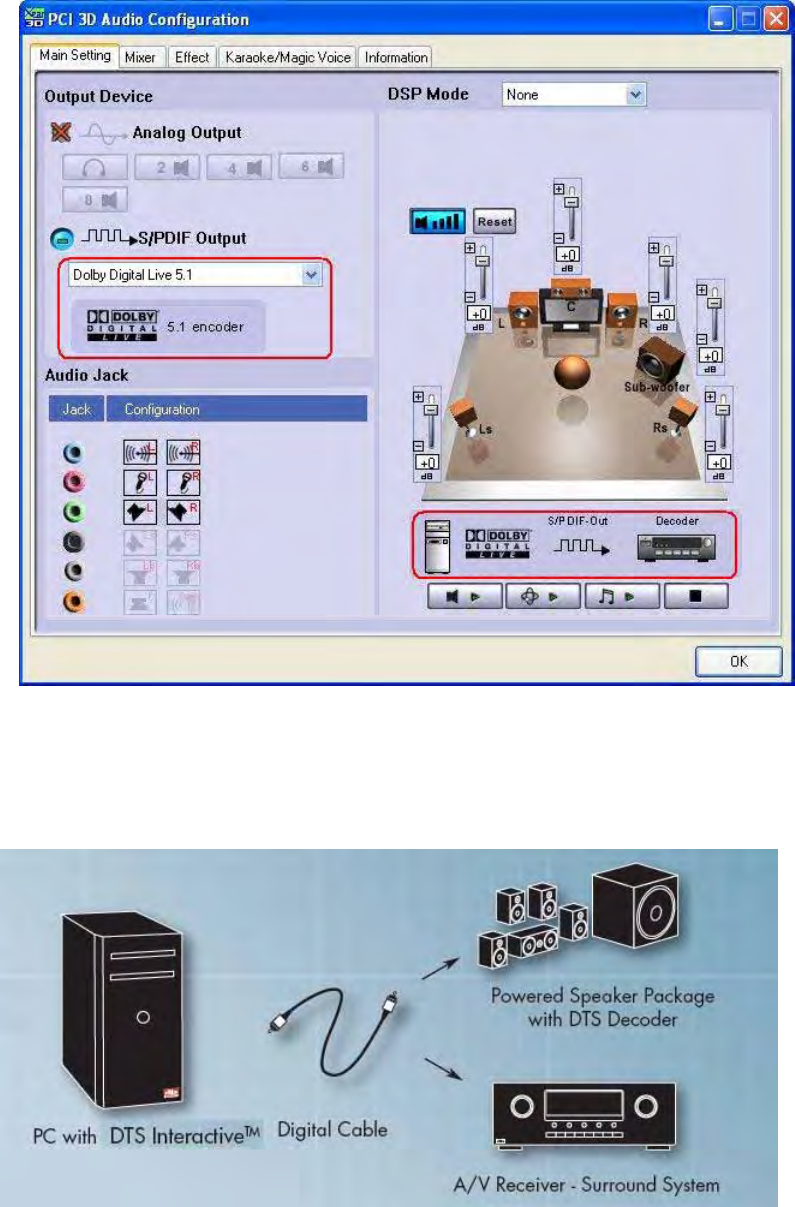
2) Using Dolby® Digital Live Real-Time Content Encoder (DDL)
Step 1: Connect the S/PDIF-Out to the external Dolby®Digital decoder / AV receiver
with DD Decoder using Optical fiber or RCA coaxial cable like the interface indicates.
(Especially if you have hi-fi home theater high-quality 5.1 speakers at home. This
function lets you to make use of both your PC and consumer electronics. Your Dolby
PCcanbeamulti-mediaplatforminthelivingroom,whichisoftencalledMedia
Center.)
Step 2: Select Dolby®Digital Live 5.1 Encoding then you will get high-quality Dolby
Digital audio stream output. When Dolby®Digital Live is enabled, analog output will be
turned off in case of interference.
3) Using DTS INTERACTIVE Real-Time Encoder
Step 1: Connect the S/PDIF-Out to the external DTS®decoder / AV receiver with
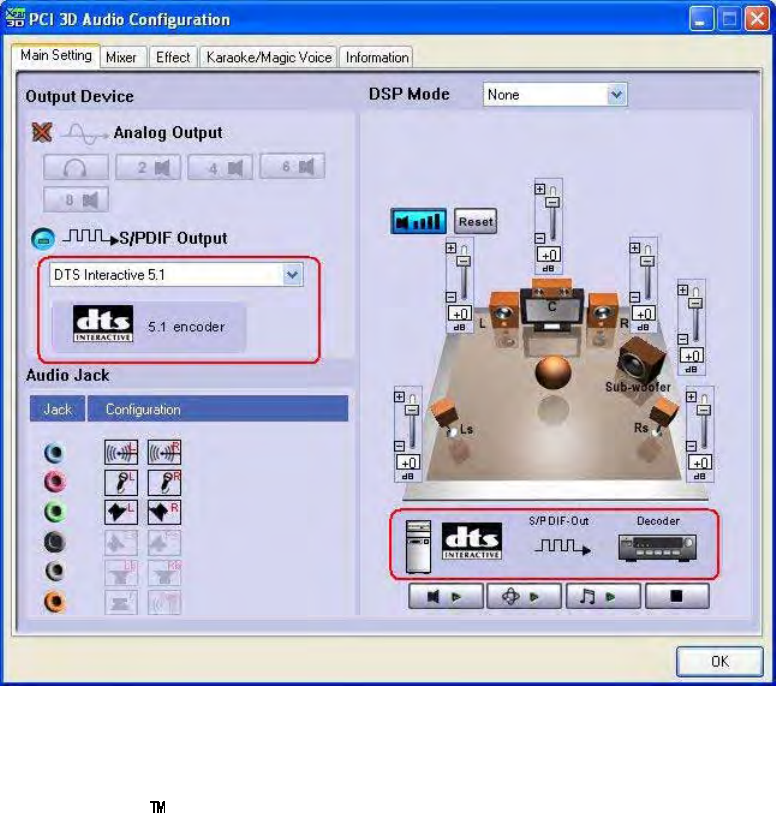
DTS®decoder using Optical fiber or RCA coaxial cable like the interface indicates.
(Especially if you have hi-fi home theater high-quality 5.1 speakers at home. This
function lets you to make use of both your PC and consumer electronics. Your DTS
PCcanbeamulti-mediaplatforminthelivingroom,whichisoftencalledMedia
Center.)
Step 2: Select DTS INTERACTIVE 5.1 Encoding then you will get high-quality DTS®
audio stream output. When DTS INTERACTIVE is enabled, analog output will be
turned off in case of interference.
4) Using Xear 3D - 7.1 Virtual Speaker Shifter
Step 1: Select DSP in DSP Mode
Step 2: Click the 7.1 Virtual Speaker Shifter button.
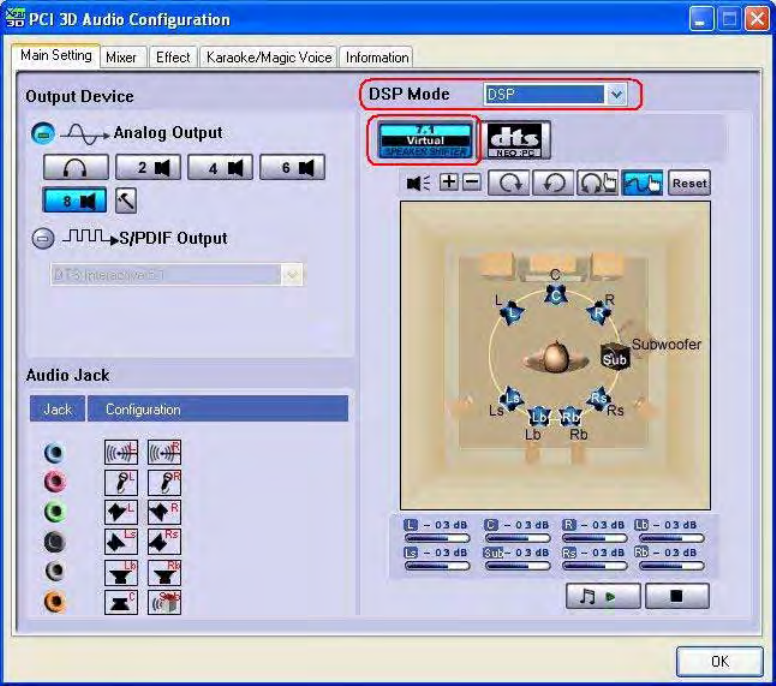
Step 3: Each virtual speaker represents the specified channel sound. You can move
each virtual speaker to anywhere you want tooptimizethesoundfieldwhenyouare
running any application. You can even move the place of the virtual listener.
Step 4: You can reset the placement, manual shifting, group-rotate, auto-rotate and
increase/decrease the volume of the virtual speakers
3) Using DTS NEO:PC Upmix Matrix Decoder
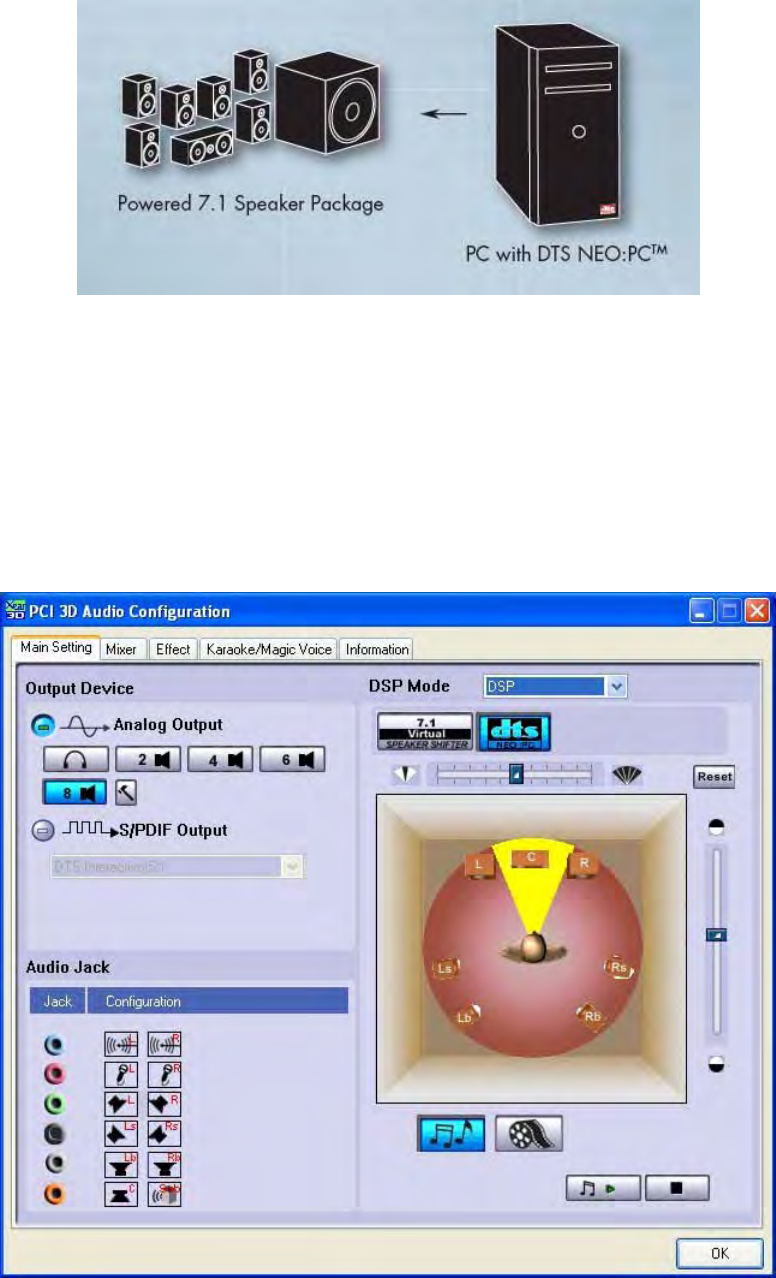
Step 1 : Connect the Max 7.1 Channel analog output to the powered 7.1 speaker
package.
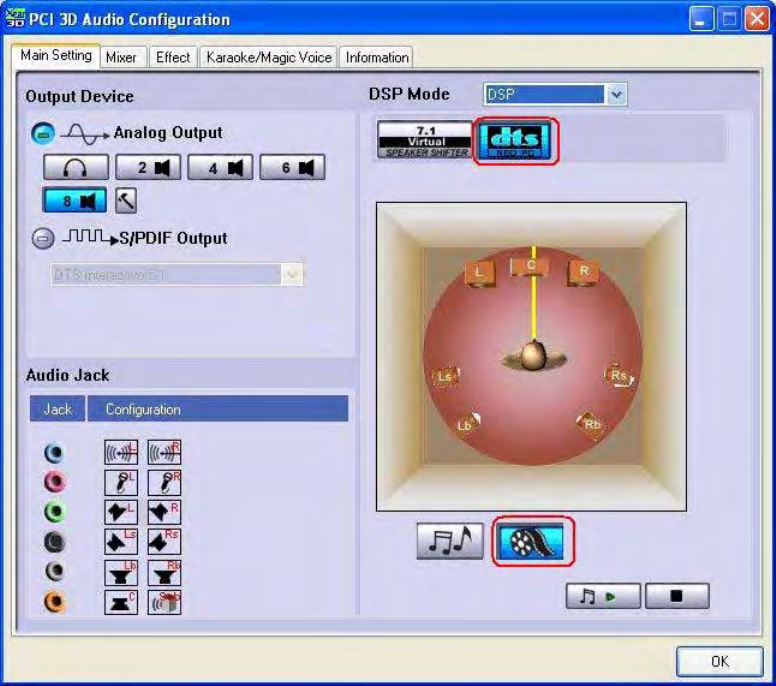
Step 2 : DTS NEO:PC provides two listening modes for DTS NEO:PC Music mode
and DTS NEO:PC Cinema mode. Select DTS NEO:PC Music mode for music
listening or DTS NEO:PC Cinema mode for movie soundtrack experiencing.
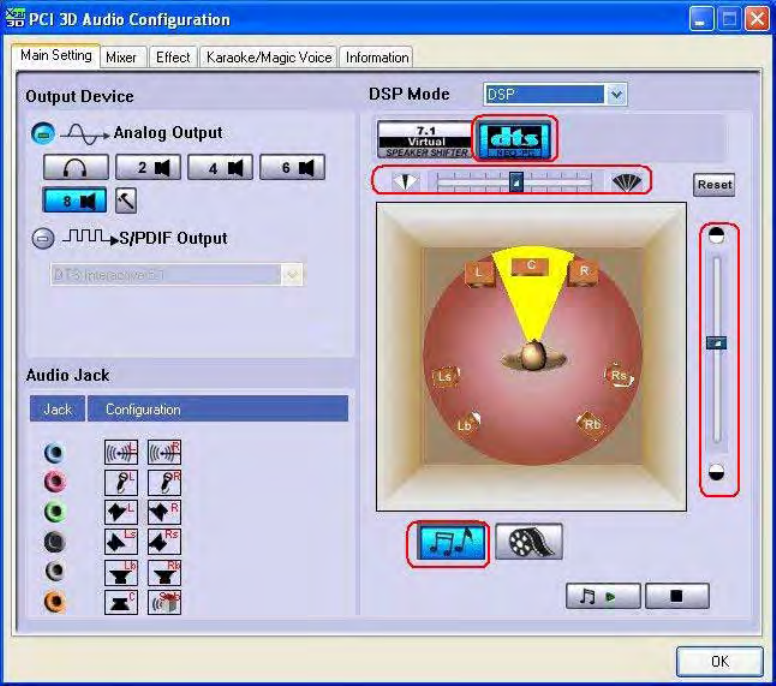
DTS NEO:PC Music mode : This mode is suited mainly for playing stereo music
materials.Itallowsyoutocontrolmusic'svocaltobeconcentratedorseparatedwith
center gain adjustment bar. Center gain adjusts the balance of the main vocals in the
center and front channels on music mode.
DTS NEO:PC Cinema mode : This mode is optimum for playing matrix surround
motion picture soundtracks. It can set to let PC audio to be movies theater sound shock
effect and dramatic impact.
(3) Mixer / Volume
1) Playback Volume
Step 1: Check that the playback devices/sources you want are turned on (in blue
color). You can turn others off (it means to mute them). There might be some hided
sources that cannot be showed in the block. Please click the arrow to move to the
rest items.
Step 2: In general cases, you can adjust Master Volume Control knob (just using the
mouse) to change the volume level for all sources.
Step 3: If you want to change the volume for a specific device/source, please fine-tune
the correspondent scroll bar.
2) Recording Gain
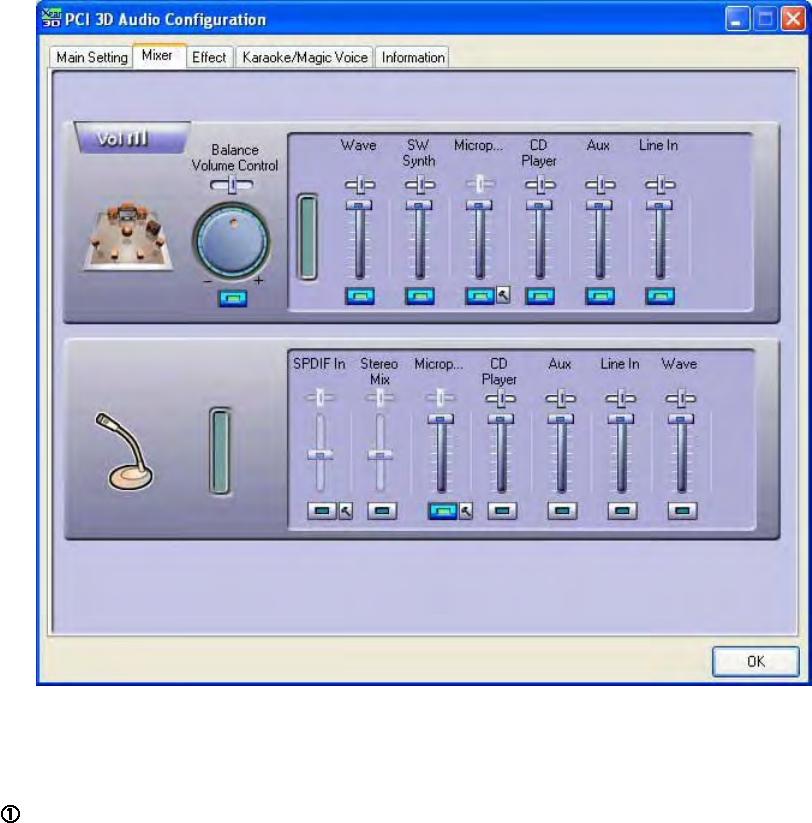
Step 4: Select the recording source you want (one for once). The left picture will show
the related sign for the source you have selected.
Step 5: If you want to change the volume for a specific device/source, please fine-tune
the correspondent scroll bar. In general cases, you dont have to make slider higher
than half of the scroll bar in case the signal will be scaled too much and will be
distorted.
3) Advanced Setting
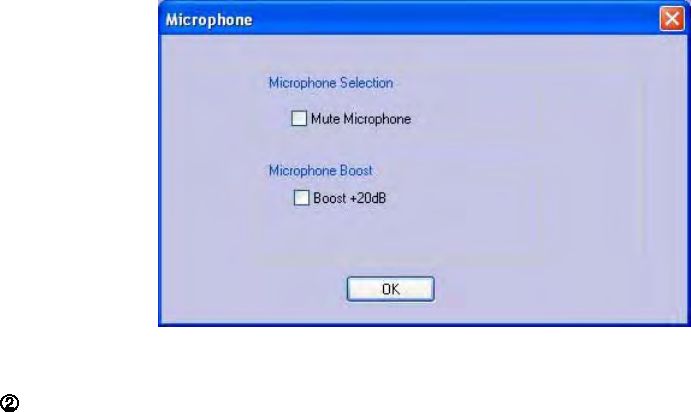
Microphone Setting
Step 1: You can click the checkbox to mute the microphone. Normally open.
Step 2: If you feel the mic sound is too quiet, there are +20dB boost option. Click the
checkbox of Boost to enable it. Its nature that you will also get the background noise
louder certainly.
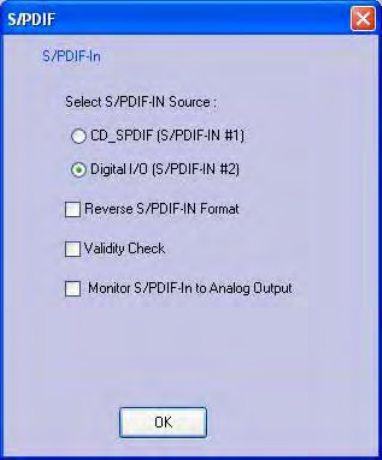
S/PDIF-IN Setting
Step 1 : Before you connect S/PDIF interface, you should select the connection type:
CD_SPDIF (S/PDIF-IN #1) 2pin-2pin CD SPDIF digital cable or Digital I/O (S/PDIF-IN #2)
RCA coaxial or optical cable.
Step 2 : The format of some SPDIF signal sources may be inverse, and you will hear
kind of noise. You have an option to reverse the format for normal reception.
Step 3 : Vaility Check will assure to neglect the non-PCM audio to avoid the noise. It
requires that the input data follow the specification of IEC60958.
Step 4 : When you are recording S/PDIF-In audio, you can choose to monitor it using
analog speakers. However, it may stop usual playback function. Therefore, please
remember to keep it unchecked.
(4) Sound Effects
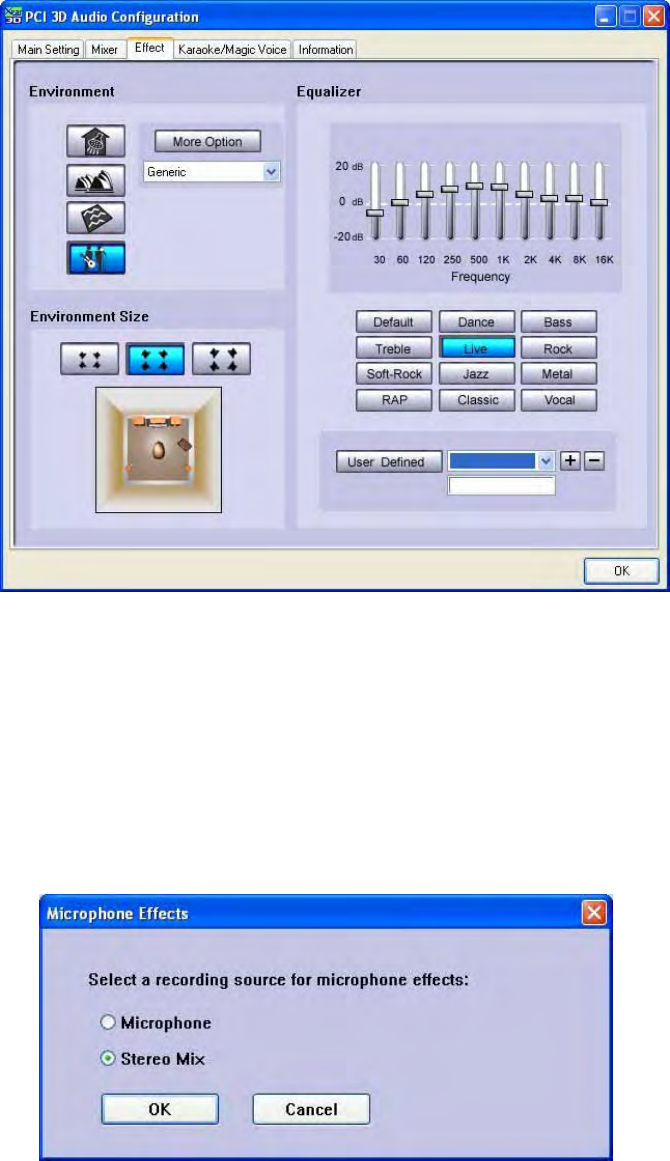
1) Environment Emulation / Size
Step 1: Select an Environment button for emulation that is implemented by producing
the sound reflection and reverberation
Step 2: You can change the Environment Size to Large or Small (pre-setting is
Medium). You will hear the different feeling about the environment space.
2) 10-Band Equalizer
Step 3: Select a pre-set mode for equalizer that is actually frequency response
modeling. There are 12 preset modes such as Bass, Treble, Live, Rock, Jazz, etc.
Step 4: You can change the gain setting for each band and then give it a name in the
following blank. Click + to add your personal setting into the User Defined list.
Click - is to delete current setting record.
(5) Magic Voice and Karaoke
Step 1: Click On to turn on the Karaoke function (that button will be blue.) You may
press check box and following window is poping up then you can select recording
sources from Microphone or Stereo-Mix.
If you want to enable analog input(line input or microphone input) to PCM digital output
and DDL/DTS INTERACTIVE encoded signal output, you have to select Stereo Mix.
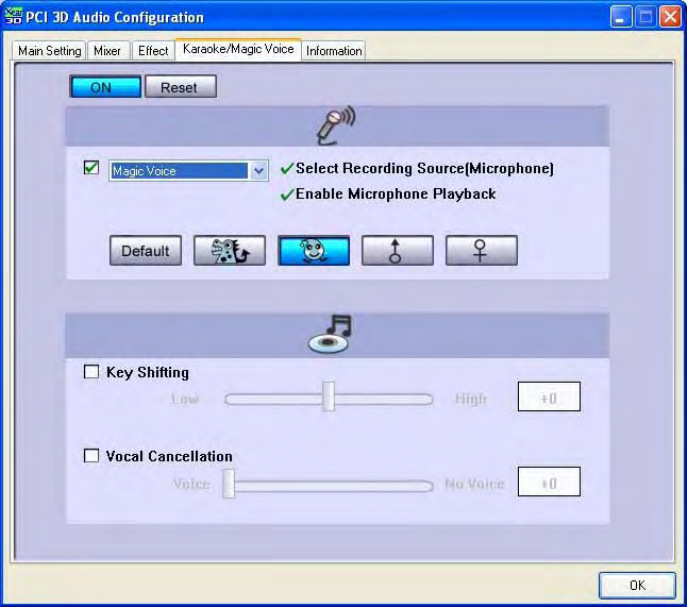
Step 2: When singing a song, you may need the Voice Echo to make the singing
more euphonious. You can select Microphone Echo to get the effect and adjust the
volume of the echo sound to optimize it. When you are talking to other people over
the network like messenger, VOIP, online game applications, you can also choose
Magic Voice effect in the pull-down menu to disguise your identification or just for
fun. Just select one kind of the voice type. (These two features require real-time
Microphone recording. You should suspend other recording application.)
Step 3: You can enable Key-Shifting for the Karaoke VCD or the music to make it
suitable for your voice pitch. The range is -4b to +4#.
Step 4: If the music source includes original singers voice, you may try Vocal
Cancellation function to cancel it (0~100). But the effect doesnt always work well and
it depends on the recording method of the source. Its usually not needed for Karaoke
VCDorCD,whichdonothavevoiceinsidegenerally.
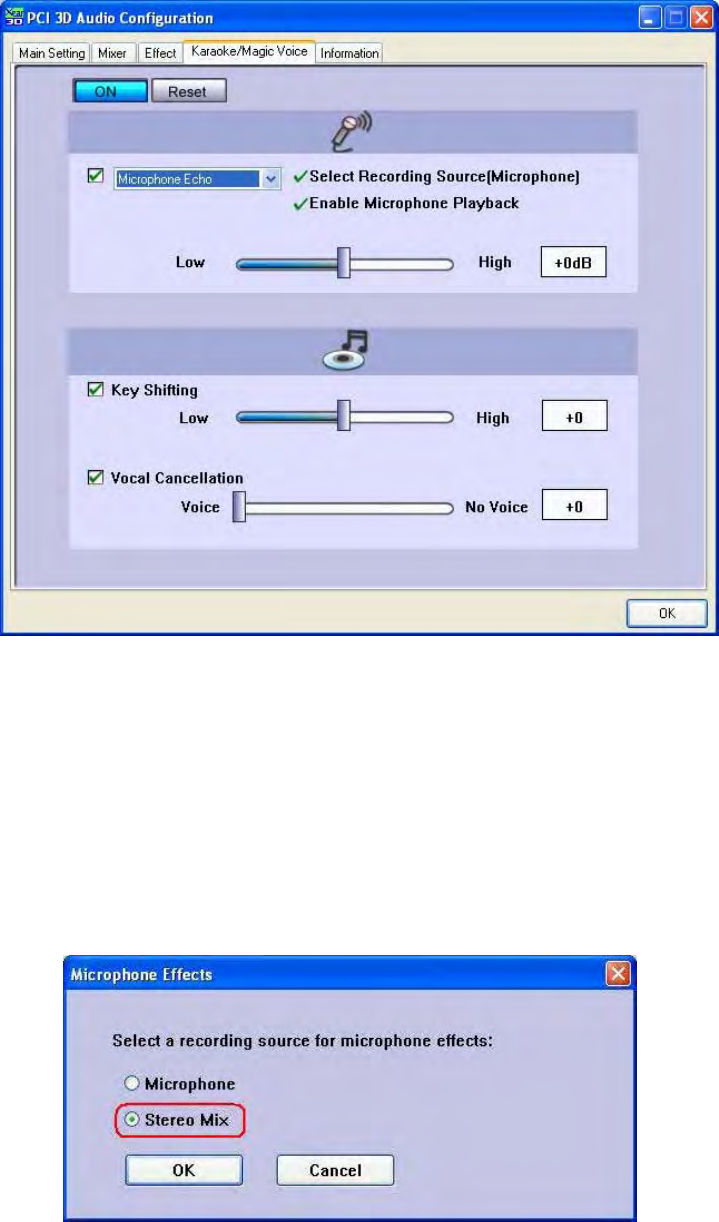
To enable Analog input(line input or microphone input) to PCM digital output
and DDL/DTS INTERACTIVE encoded signal digital output
STEP 1 : Click On to turn on the Karaoke function (that button will be blue.) You
may press check box and following microphone effects window is poping up then you
have to select recording sources from Stereo-Mix.
STEP2:Turnonthe"MagicVoice"onKaraoke/MagicVoicetabonPCI3DAudio
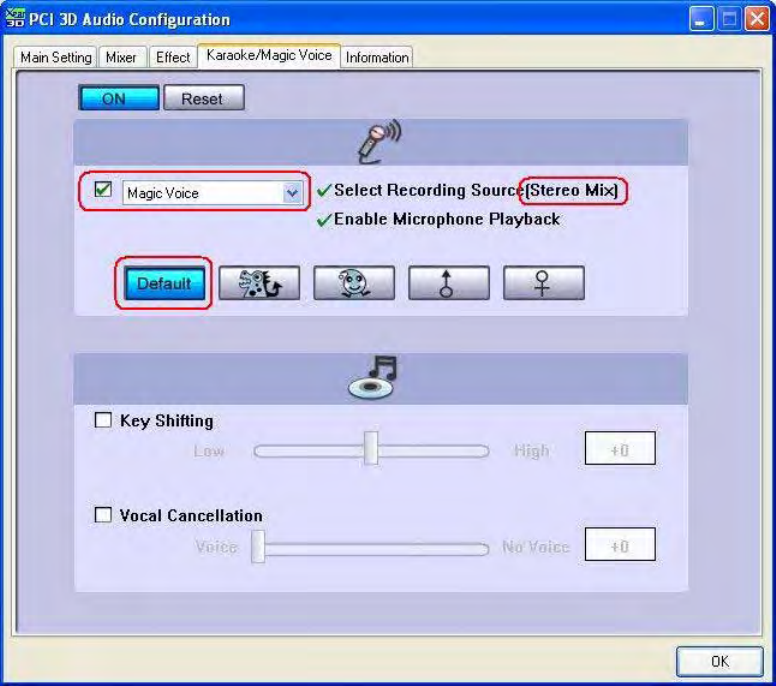
Configuration
and then press "Default" button.
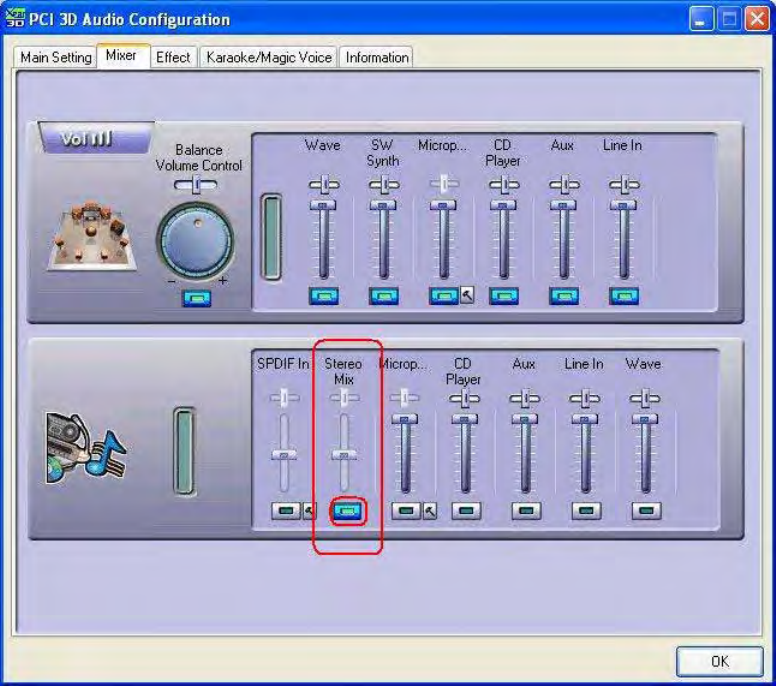
STEP 3 : You may also check current status of " Stereo Mix" is enabled on Mixer tab of
PCI 3D Audio Configuration.
(6) Look for Information
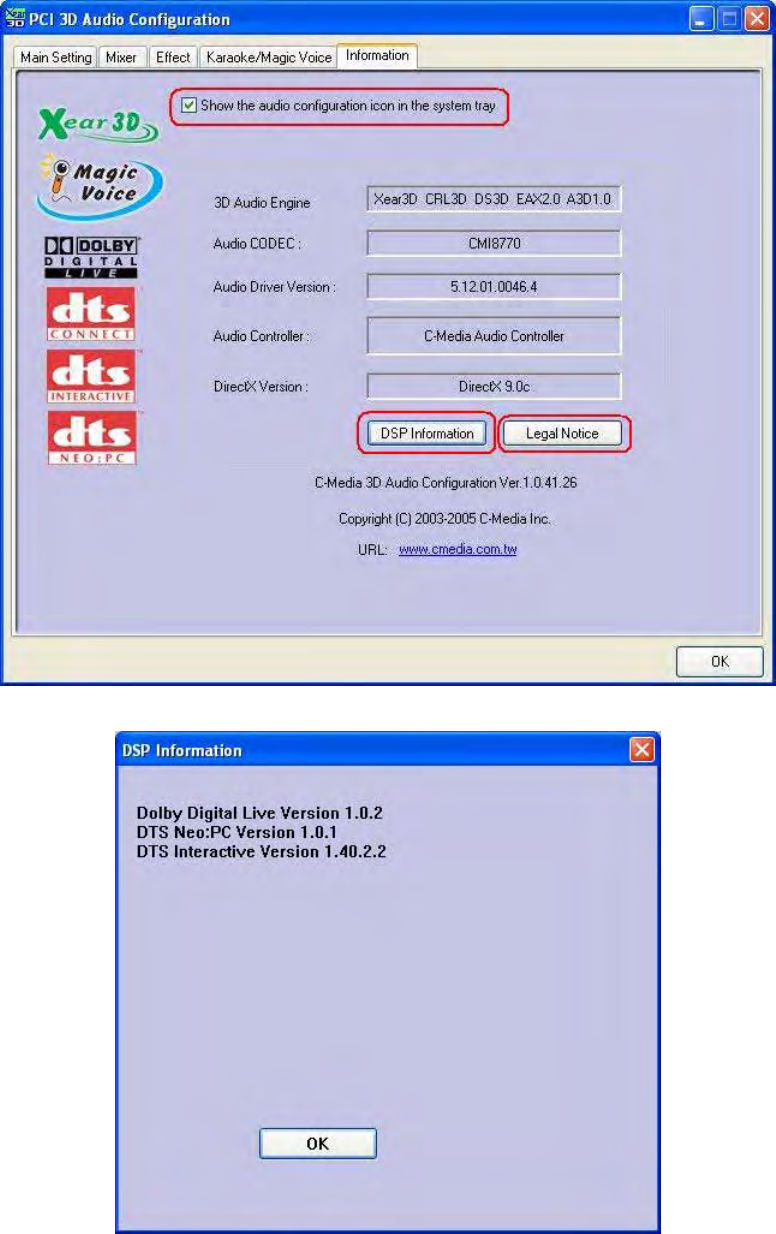
There is a C-Media audio-related Information tab in 3D Audio Configuration. You can
get a whole picture about the audio chip, driver version, 3D Audio Engine, Microsoft
DirectX Version, and Configuration Version itself. Besides, you can decide if the audio
configuration icon should be showed in the system tray
.
5. Using Play3D Demo
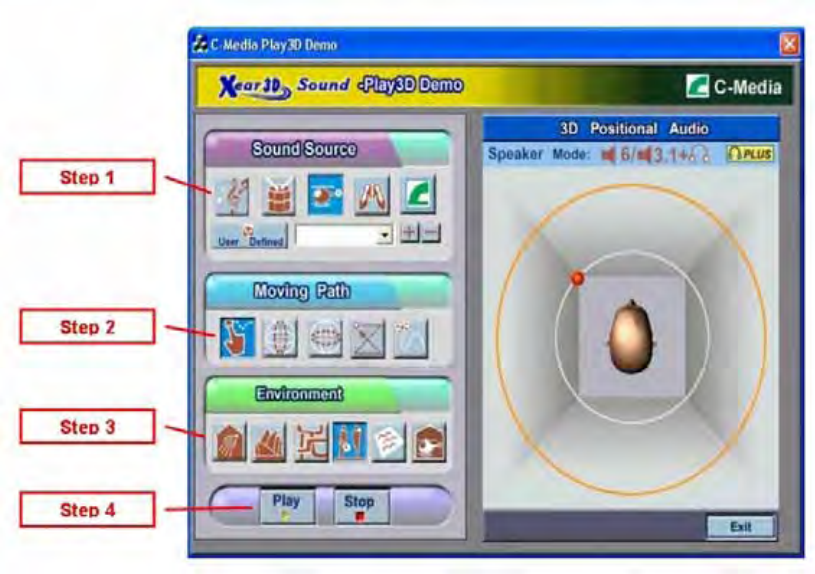
C-Media also provides an interesting Play3D demo program as below. After installing
the setup program, you will find the demo program from the path:
Start->Programs->C-Media 3D Audio->Play3D Demo .
Step 1: Select a Sound Source you want to play. There are five saved sound
sources and you can to add your own .wav audio into the list (Click + to add, and
- to delete.)
Step 2: Select a Moving Path for the 3D sound
Step 3: Select a Environment emulation if you want.
Step 4: Click Play or Stop button.