Hosiden CFS8510 Bluetooth WRIG User Manual Users manual part 1

Hosiden Corporation Bluetooth WRIG Users manual part 1

Contents

Users manual part 1

1Health and Safety Information  2-3System Components   Wii Console  4-5  Wii Remote™ Plus  6  Nunchuk™  7  Sensor Bar  7  Wii AC Adapter  8  Wii AV Cable  8  Wii Console Stand & Stand Plate  9System Setup   Wii Console  10-11  Wii AV Cable  12  Sensor Bar  13-16  Wii AC Adapter  17  TV and Audio/Video Settings  18  Setup of Wii Remote Plus  19-21 Synchronizing Your Wii Remote Plus and Wii Console  22-23Using Game Discst  24Wii System Play Guidelines  25Using the Wii Remote Plus  26-27Using the Nunchuk  28-29Using Nintendo GameCube™ Controllers  30-31Using Memory Cards  32Troubleshooting  33-34FCC Information  35Warranty and Service Information  36ContentsFrançais – Page 37Español – Página 75NOTE: This product only plays Wii Game Discs and Nintendo GameCube™ Game Discs labeled with “For use only in USA, Canada, Mexico and Latin America”.  This product does not play CD or DVD discs. This Wii console is for use only in the United States, Canada, Mexico or Latin America.TM, ® and the Wii logo are trademarks of Nintendo. © 2009 Nintendo. All Rights Reserved. Nintendo of Canada Ltd., Authorized User in Canada. Elements of the Wii console and the Wii Network Services are patent pending, both in the United States and internationally.To protect your health and safety, and for correct use of the Wii system, please read and follow the instructions in this operations manual before setup or use.Throughout this manual, you will see this symbol           followed by WARNING or CAUTION.  These terms have different levels of meaning:WARNING - Warns you about incorrect use of the Wii system that could result in serious personal injury.CAUTION - Cautions you about incorrect use of the Wii system that could result in personal injury or damage to the Wii system, components, game discs or accessories.IMPORTANT NOTE FOR PARENTS:Before allowing any child to use the Wii system, a parent or other responsible adult should determine whether the Wii system is appropriate for the child. Only children who are old enough and capable of wearing the wrist strap and properly gripping the Wii Remote Plus should use the system. You should also consider whether children should be supervised while playing games, connecting to the internet, and/or downloading games. Be sure to explain all safety and health information and instructions to any children who are going to use the system. Failure to do so may result in injuries or damage to the system or other property.The official seal is your assurance that this product is licensed or manufactured by Nintendo.  Always look for this seal when buying video game systems, accessories, games and related products.Product recycling information:visit recycle.nintendo.comConfidentialUntil Jan 31, 2011
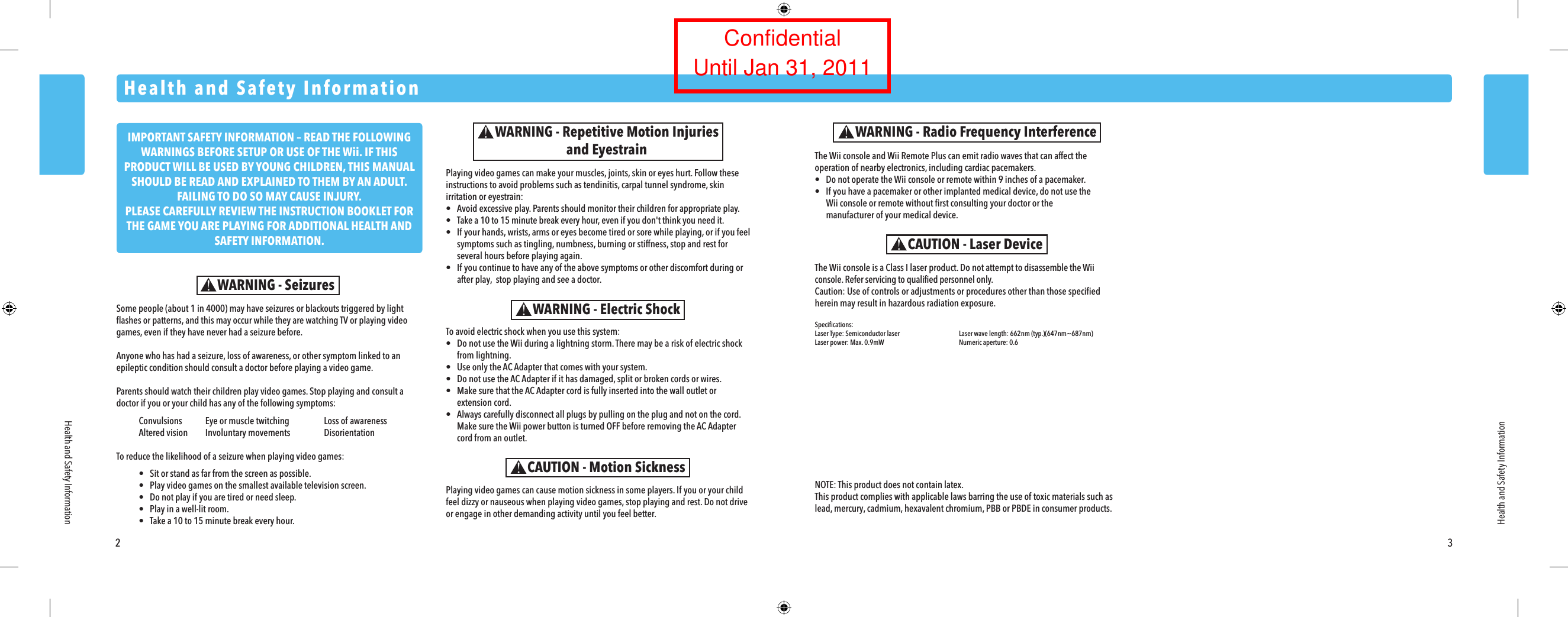
2 3Some people (about 1 in 4000) may have seizures or blackouts triggered by light flashes or patterns, and this may occur while they are watching TV or playing video games, even if they have never had a seizure before.Anyone who has had a seizure, loss of awareness, or other symptom linked to an epileptic condition should consult a doctor before playing a video game.Parents should watch their children play video games. Stop playing and consult a doctor if you or your child has any of the following symptoms: Convulsions  Eye or muscle twitching  Loss of awareness  Altered vision  Involuntary movements  DisorientationTo reduce the likelihood of a seizure when playing video games: •  Sit or stand as far from the screen as possible. •  Play video games on the smallest available television screen. •  Do not play if you are tired or need sleep. •  Play in a well-lit room. •  Take a 10 to 15 minute break every hour.Health and Safety InformationHealth and Safety InformationWARNING - SeizuresPlaying video games can make your muscles, joints, skin or eyes hurt. Follow these instructions to avoid problems such as tendinitis, carpal tunnel syndrome, skin irritation or eyestrain:•  Avoid excessive play. Parents should monitor their children for appropriate play.•  Take a 10 to 15 minute break every hour, even if you don't think you need it.•  If your hands, wrists, arms or eyes become tired or sore while playing, or if you feel  symptoms such as tingling, numbness, burning or stiffness, stop and rest for  several hours before playing again.•  If you continue to have any of the above symptoms or other discomfort during or  after play,  stop playing and see a doctor.WARNING - Repetitive Motion Injuriesand Eyestrain The Wii console and Wii Remote Plus can emit radio waves that can affect the operation of nearby electronics, including cardiac pacemakers.•  Do not operate the Wii console or remote within 9 inches of a pacemaker.•  If you have a pacemaker or other implanted medical device, do not use the  Wii console or remote without first consulting your doctor or the  manufacturer of your medical device.WARNING - Radio Frequency InterferenceThe Wii console is a Class I laser product. Do not attempt to disassemble the Wii console. Refer servicing to qualified personnel only.Caution: Use of controls or adjustments or procedures other than those specified herein may result in hazardous radiation exposure.Specifications:Laser Type: Semiconductor laser  Laser wave length: 662nm (typ.)(647nm~687nm)Laser power: Max. 0.9mW  Numeric aperture: 0.6CAUTION - Laser DeviceTo avoid electric shock when you use this system:•  Do not use the Wii during a lightning storm. There may be a risk of electric shock  from lightning.•  Use only the AC Adapter that comes with your system.•  Do not use the AC Adapter if it has damaged, split or broken cords or wires.•  Make sure that the AC Adapter cord is fully inserted into the wall outlet or extension cord.•  Always carefully disconnect all plugs by pulling on the plug and not on the cord.  Make sure the Wii power button is turned OFF before removing the AC Adapter  cord from an outlet.WARNING - Electric ShockCAUTION - Motion SicknessPlaying video games can cause motion sickness in some players. If you or your child feel dizzy or nauseous when playing video games, stop playing and rest. Do not drive or engage in other demanding activity until you feel better.Health and Safety InformationNOTE: This product does not contain latex.This product complies with applicable laws barring the use of toxic materials such as lead, mercury, cadmium, hexavalent chromium, PBB or PBDE in consumer products.IMPORTANT SAFETY INFORMATION – READ THE FOLLOWING WARNINGS BEFORE SETUP OR USE OF THE Wii. IF THIS PRODUCT WILL BE USED BY YOUNG CHILDREN, THIS MANUAL SHOULD BE READ AND EXPLAINED TO THEM BY AN ADULT. FAILING TO DO SO MAY CAUSE INJURY.PLEASE CAREFULLY REVIEW THE INSTRUCTION BOOKLET FOR THE GAME YOU ARE PLAYING FOR ADDITIONAL HEALTH AND SAFETY INFORMATION. ConfidentialUntil Jan 31, 2011
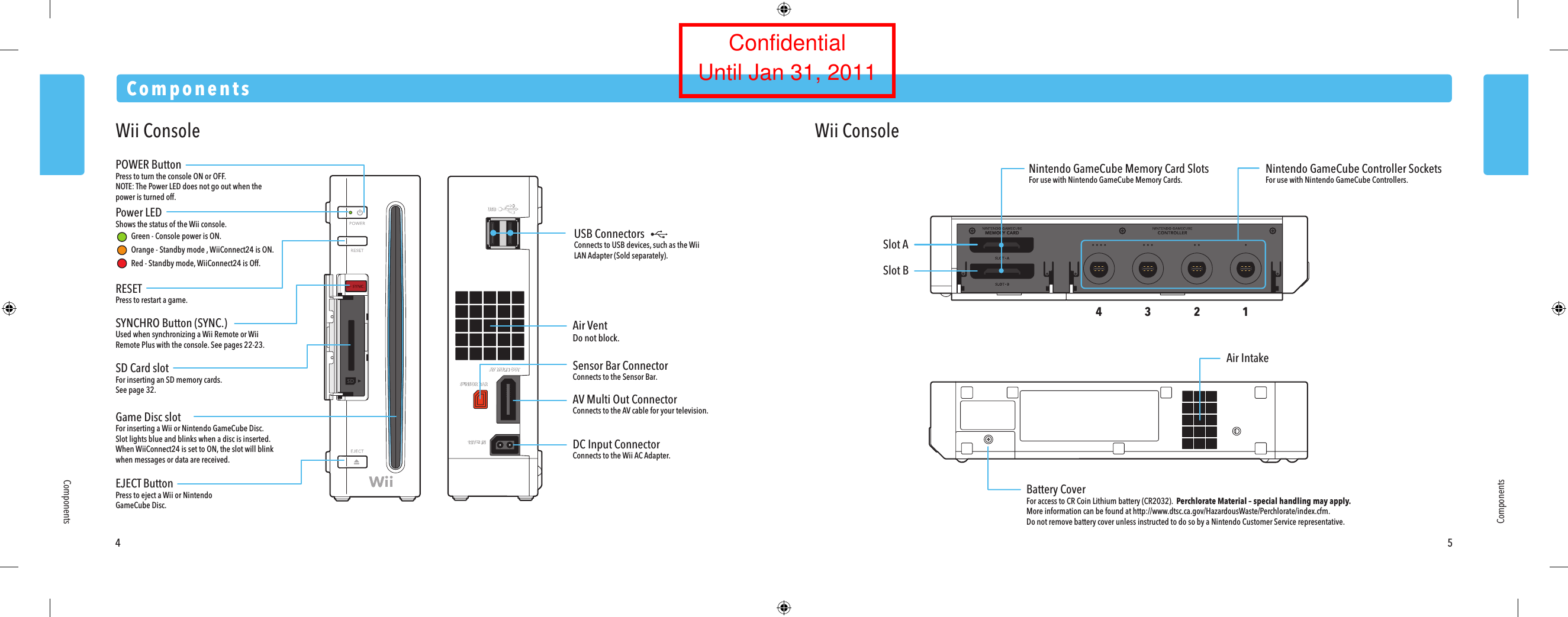
4 5ComponentsComponentsComponentsPOWER ButtonPress to turn the console ON or OFF.NOTE: The Power LED does not go out when the power is turned off.USB ConnectorsConnects to USB devices, such as the Wii LAN Adapter (Sold separately).Nintendo GameCube Memory Card SlotsFor use with Nintendo GameCube Memory Cards.Battery CoverFor access to CR Coin Lithium battery (CR2032).  Perchlorate Material – special handling may apply.More information can be found at http://www.dtsc.ca.gov/HazardousWaste/Perchlorate/index.cfm.Do not remove battery cover unless instructed to do so by a Nintendo Customer Service representative.Air IntakeNintendo GameCube Controller SocketsFor use with Nintendo GameCube Controllers.Air VentDo not block.AV Multi Out ConnectorConnects to the AV cable for your television.Sensor Bar ConnectorConnects to the Sensor Bar.DC Input ConnectorConnects to the Wii AC Adapter.Power LEDShows the status of the Wii console.      Green - Console power is ON.  Orange - Standby mode , WiiConnect24 is ON. Red - Standby mode, WiiConnect24 is Off.RESETPress to restart a game.SYNCHRO Button (SYNC.)Used when synchronizing a Wii Remote or Wii Remote Plus with the console. See pages 22-23.SD Card slotFor inserting an SD memory cards.See page 32.EJECT ButtonPress to eject a Wii or Nintendo GameCube Disc.Game Disc slotFor inserting a Wii or Nintendo GameCube Disc.  Slot lights blue and blinks when a disc is inserted.When WiiConnect24 is set to ON, the slot will blink when messages or data are received.Slot ASlot B1234Wii Console Wii ConsoleConfidentialUntil Jan 31, 2011
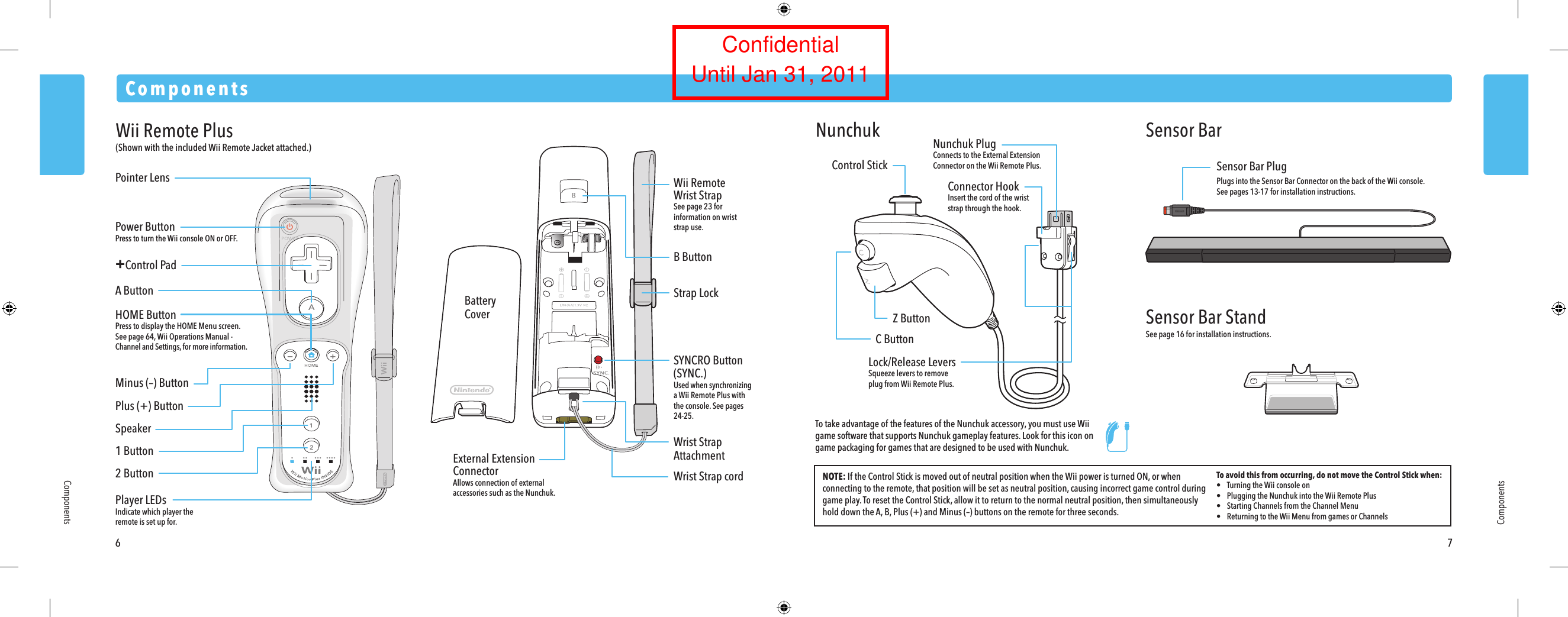
To take advantage of the features of the Nunchuk accessory, you must use Wii game software that supports Nunchuk gameplay features. Look for this icon on game packaging for games that are designed to be used with Nunchuk.6 7ComponentsComponentsComponentsPower ButtonPress to turn the Wii console ON or OFF.Pointer LensB ButtonStrap LockWrist StrapAttachmentWrist Strap cordBatteryCoverWii RemoteWrist StrapSee page 23 for information on wrist strap use.A ButtonMinus (–) ButtonHOME ButtonPress to display the HOME Menu screen. See page 64, Wii Operations Manual - Channel and Settings, for more information.Plus (+) ButtonSpeaker1 Button2 ButtonPlayer LEDsIndicate which player the remote is set up for.+Control PadWii Remote Plus(Shown with the included Wii Remote Jacket attached.)External ExtensionConnectorAllows connection of external accessories such as the Nunchuk.SYNCRO Button(SYNC.)Used when synchronizinga Wii Remote Plus with the console. See pages 24-25.Control StickNOTE: If the Control Stick is moved out of neutral position when the Wii power is turned ON, or when connecting to the remote, that position will be set as neutral position, causing incorrect game control during game play. To reset the Control Stick, allow it to return to the normal neutral position, then simultaneously hold down the A, B, Plus (+) and Minus (–) buttons on the remote for three seconds.To avoid this from occurring, do not move the Control Stick when:•  Turning the Wii console on•  Plugging the Nunchuk into the Wii Remote Plus•  Starting Channels from the Channel Menu•  Returning to the Wii Menu from games or ChannelsNunchuk PlugConnects to the External Extension Connector on the Wii Remote Plus.Connector HookInsert the cord of the wrist strap through the hook.C ButtonZ ButtonLock/Release LeversSqueeze levers to remove plug from Wii Remote Plus.Sensor Bar PlugPlugs into the Sensor Bar Connector on the back of the Wii console.See pages 13-17 for installation instructions.Nunchuk Sensor BarSensor Bar StandSee page 16 for installation instructions.ConfidentialUntil Jan 31, 2011
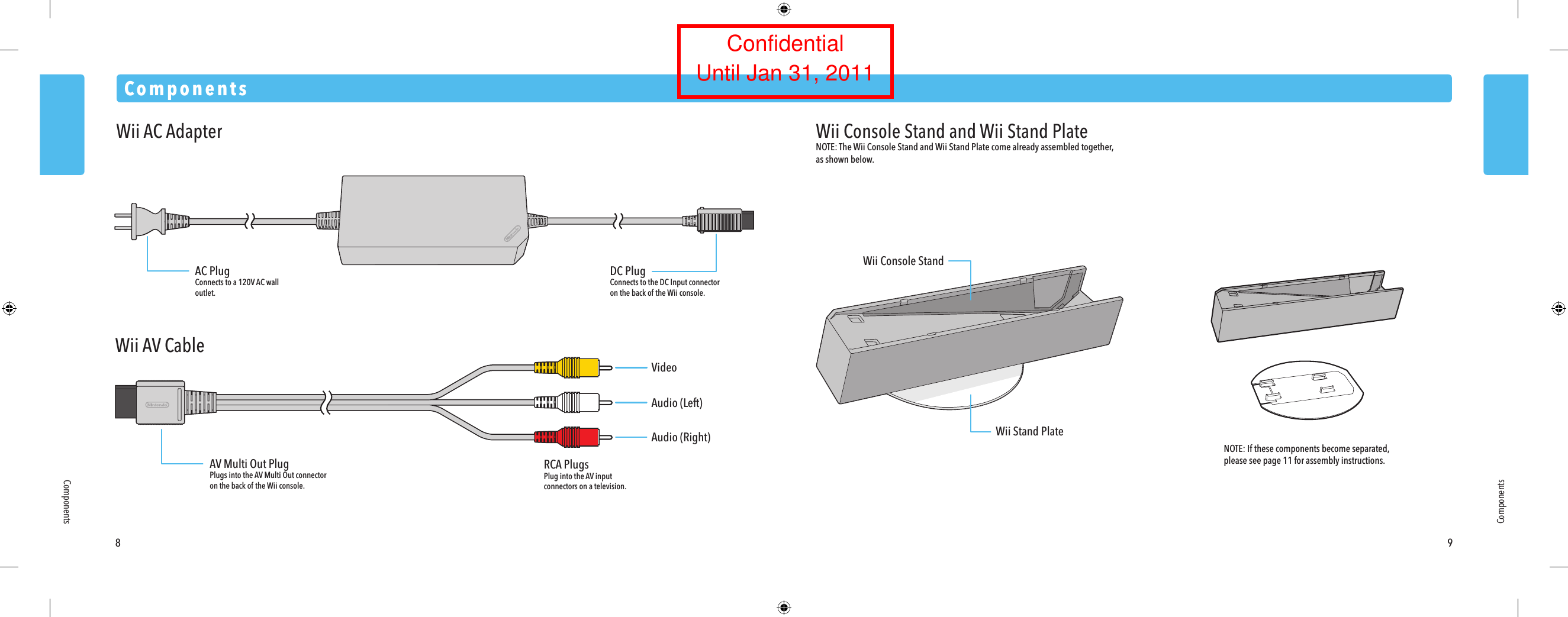
8 9ComponentsComponentsComponentsAC PlugConnects to a 120V AC wall outlet.DC PlugConnects to the DC Input connector on the back of the Wii console.AV Multi Out PlugPlugs into the AV Multi Out connector on the back of the Wii console.RCA PlugsPlug into the AV input connectors on a television.VideoAudio (Left)Audio (Right)Wii AC AdapterWii AV CableWii Console StandWii Stand PlateWii Console Stand and Wii Stand PlateNOTE: The Wii Console Stand and Wii Stand Plate come already assembled together, as shown below.NOTE: If these components become separated, please see page 11 for assembly instructions.ConfidentialUntil Jan 31, 2011
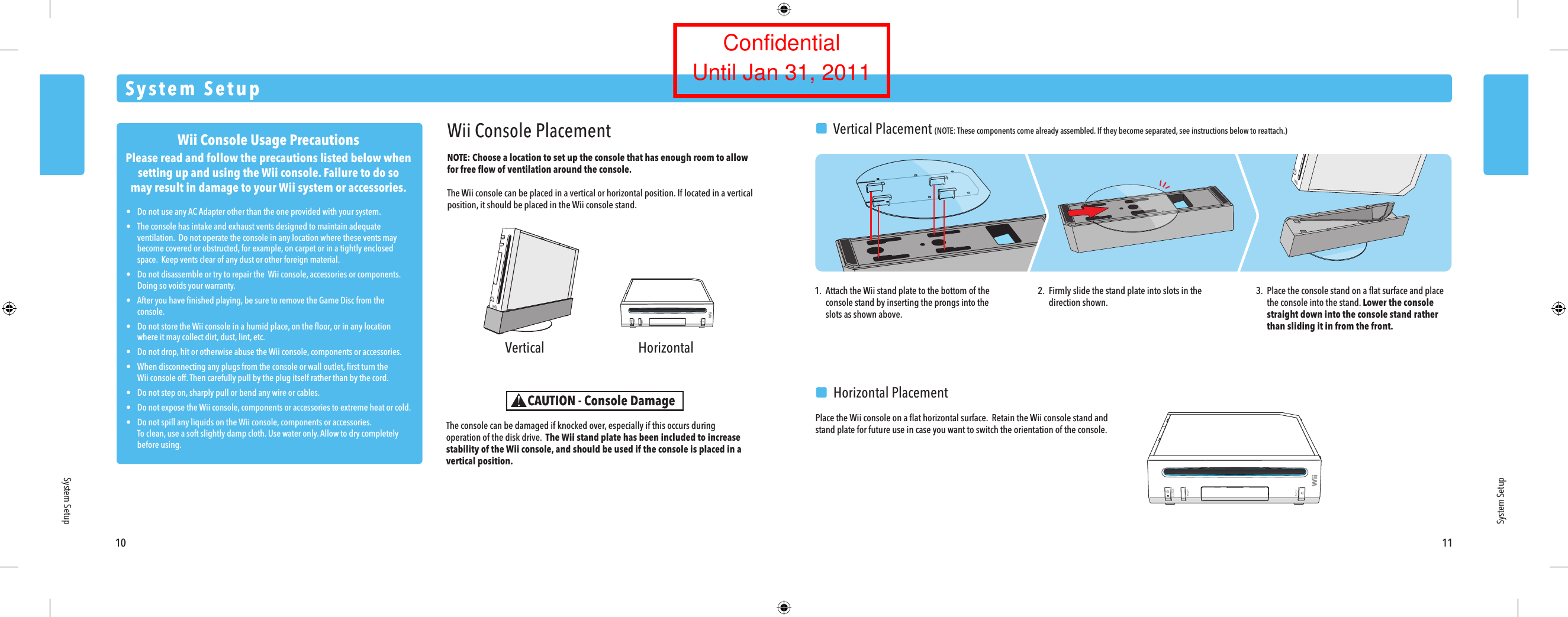
Wii Console Usage PrecautionsPlease read and follow the precautions listed below whensetting up and using the Wii console. Failure to do somay result in damage to your Wii system or accessories.•  Do not use any AC Adapter other than the one provided with your system.•  The console has intake and exhaust vents designed to maintain adequate  ventilation.  Do not operate the console in any location where these vents may  become covered or obstructed, for example, on carpet or in a tightly enclosed  space.  Keep vents clear of any dust or other foreign material.•  Do not disassemble or try to repair the  Wii console, accessories or components.   Doing so voids your warranty.•  After you have finished playing, be sure to remove the Game Disc from the  console.•  Do not store the Wii console in a humid place, on the floor, or in any location  where it may collect dirt, dust, lint, etc.•  Do not drop, hit or otherwise abuse the Wii console, components or accessories.•  When disconnecting any plugs from the console or wall outlet, first turn the  Wii console off. Then carefully pull by the plug itself rather than by the cord.•  Do not step on, sharply pull or bend any wire or cables.•  Do not expose the Wii console, components or accessories to extreme heat or cold.•  Do not spill any liquids on the Wii console, components or accessories. To clean, use a soft slightly damp cloth. Use water only. Allow to dry completely  before using. Vertical Horizontal10 11System SetupSystem SetupWii Console PlacementNOTE: Choose a location to set up the console that has enough room to allow for free flow of ventilation around the console. The Wii console can be placed in a vertical or horizontal position. If located in a vertical position, it should be placed in the Wii console stand.The console can be damaged if knocked over, especially if this occurs during operation of the disk drive.  The Wii stand plate has been included to increase stability of the Wii console, and should be used if the console is placed in a vertical position.CAUTION - Console Damage1.  Attach the Wii stand plate to the bottom of the  console stand by inserting the prongs into the  slots as shown above.2.  Firmly slide the stand plate into slots in the  direction shown.3.  Place the console stand on a flat surface and place  the console into the stand. Lower the console  straight down into the console stand rather than sliding it in from the front.  Horizontal PlacementPlace the Wii console on a flat horizontal surface.  Retain the Wii console stand and stand plate for future use in case you want to switch the orientation of the console.System Setup  Vertical Placement (NOTE: These components come already assembled. If they become separated, see instructions below to reattach.)ConfidentialUntil Jan 31, 2011
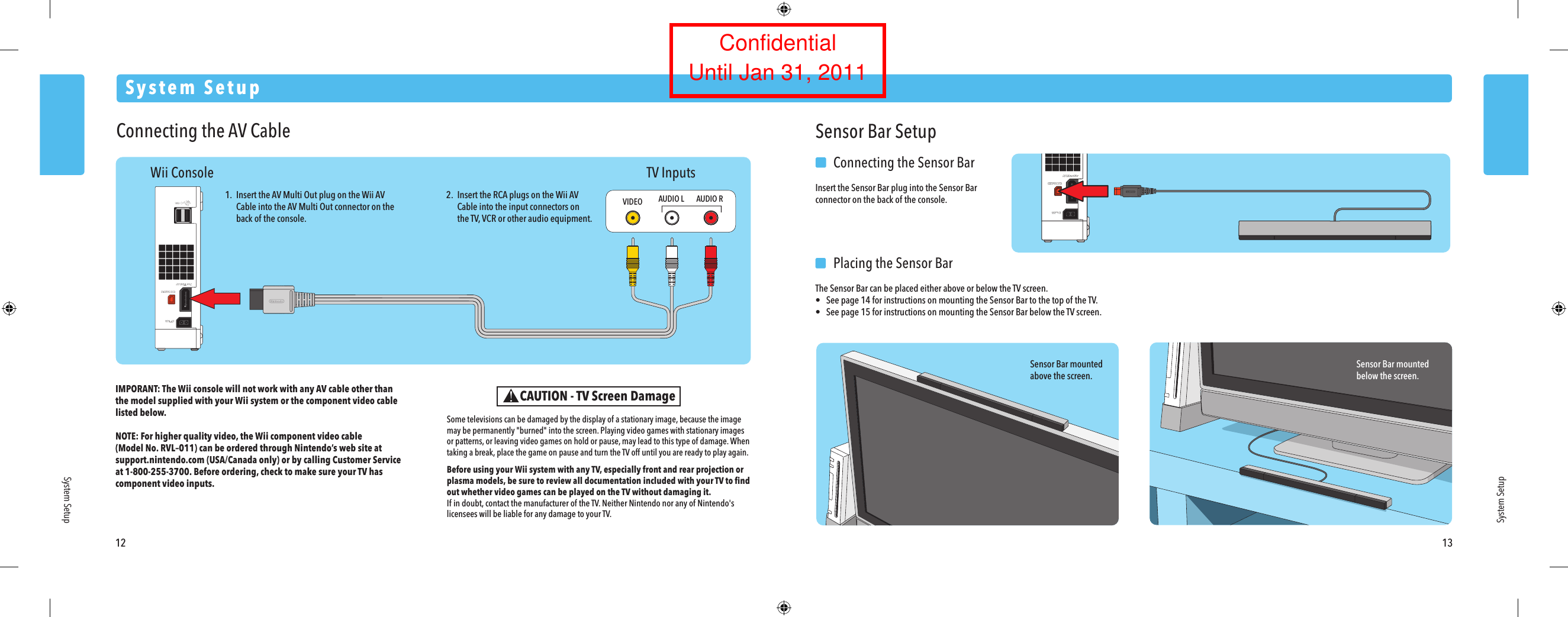
12 13System SetupSystem SetupSystem SetupWii Console TV InputsConnecting the AV CableIMPORANT: The Wii console will not work with any AV cable other thanthe model supplied with your Wii system or the component video cable listed below. NOTE: For higher quality video, the Wii component video cable(Model No. RVL–011) can be ordered through Nintendo’s web site at support.nintendo.com (USA/Canada only) or by calling Customer Serviceat 1-800-255-3700. Before ordering, check to make sure your TV has component video inputs.1.  Insert the AV Multi Out plug on the Wii AV Cable into the AV Multi Out connector on the  back of the console.2.  Insert the RCA plugs on the Wii AV Cable into the input connectors on  the TV, VCR or other audio equipment.VIDEO AUDIO L AUDIO RSensor Bar mountedabove the screen.Sensor Bar mountedbelow the screen.Sensor Bar Setup  Connecting the Sensor BarInsert the Sensor Bar plug into the Sensor Bar connector on the back of the console.  Placing the Sensor BarThe Sensor Bar can be placed either above or below the TV screen.•  See page 14 for instructions on mounting the Sensor Bar to the top of the TV.•  See page 15 for instructions on mounting the Sensor Bar below the TV screen.CAUTION - TV Screen DamageSome televisions can be damaged by the display of a stationary image, because the image may be permanently "burned" into the screen. Playing video games with stationary images or patterns, or leaving video games on hold or pause, may lead to this type of damage. When taking a break, place the game on pause and turn the TV off until you are ready to play again.Before using your Wii system with any TV, especially front and rear projection or plasma models, be sure to review all documentation included with your TV to find out whether video games can be played on the TV without damaging it.If in doubt, contact the manufacturer of the TV. Neither Nintendo nor any of Nintendo's licensees will be liable for any damage to your TV.ConfidentialUntil Jan 31, 2011
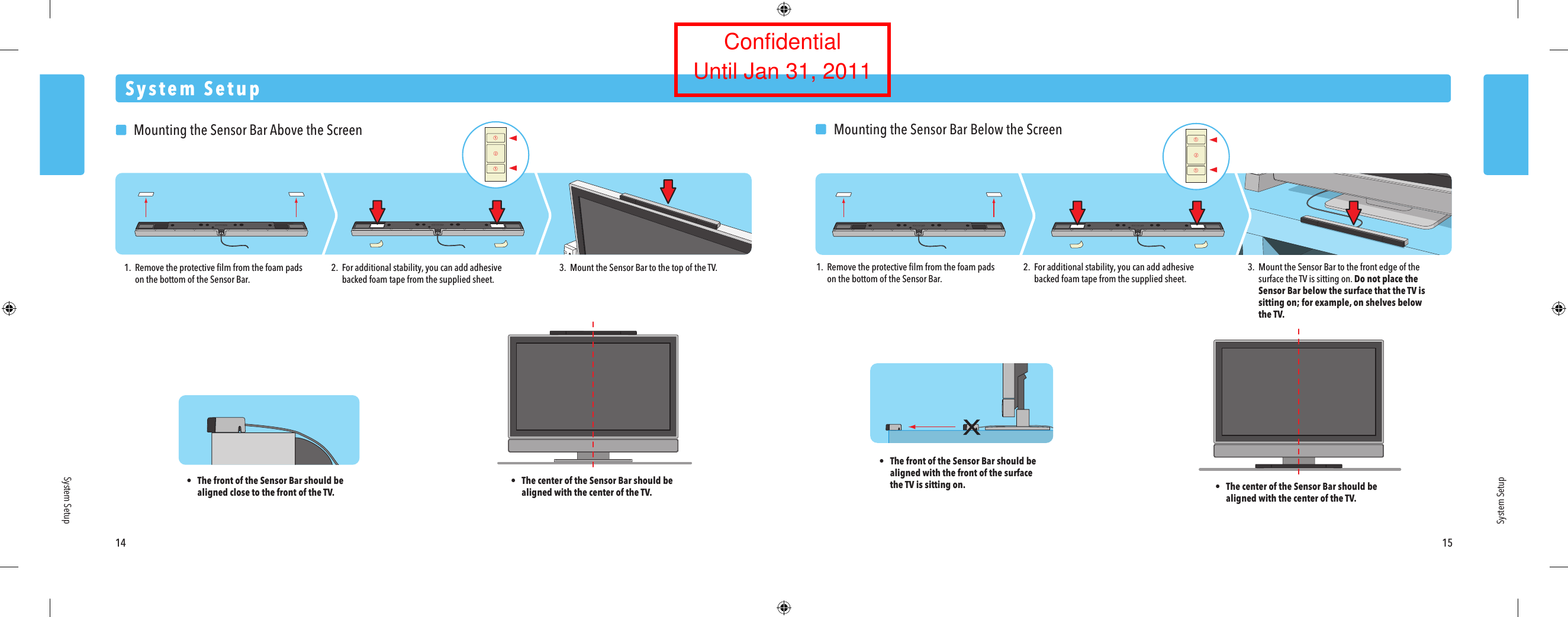
System Setup14 15System SetupSystem Setup  Mounting the Sensor Bar Above the Screen1. Remove the protective film from the foam pads  on the bottom of the Sensor Bar.•  The front of the Sensor Bar should be  aligned close to the front of the TV.•  The center of the Sensor Bar should be  aligned with the center of the TV.2. For additional stability, you can add adhesive  backed foam tape from the supplied sheet.3.  Mount the Sensor Bar to the top of the TV.  Mounting the Sensor Bar Below the Screen1. Remove the protective film from the foam pads  on the bottom of the Sensor Bar.2. For additional stability, you can add adhesive  backed foam tape from the supplied sheet.3.  Mount the Sensor Bar to the front edge of the  surface the TV is sitting on. Do not place the Sensor Bar below the surface that the TV is  sitting on; for example, on shelves below the TV.•  The center of the Sensor Bar should be  aligned with the center of the TV.•  The front of the Sensor Bar should be  aligned with the front of the surface the TV is sitting on.ConfidentialUntil Jan 31, 2011
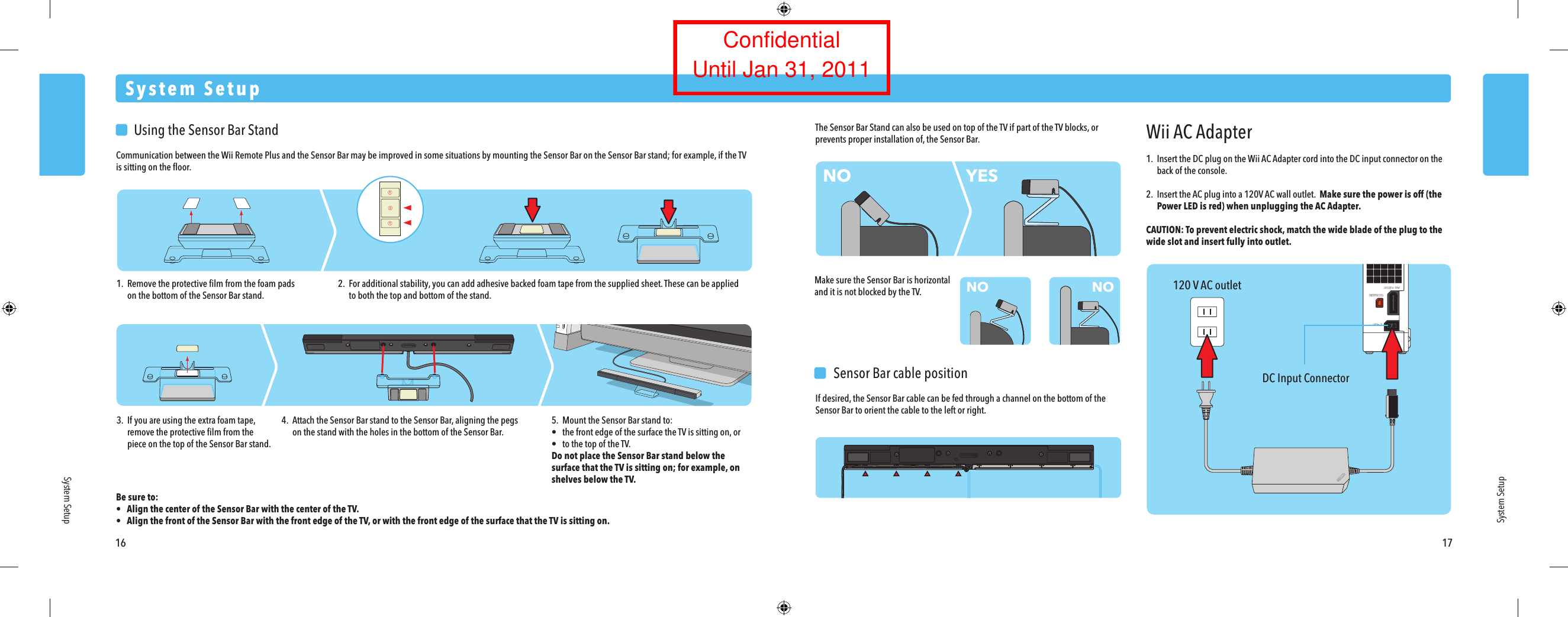
120 V AC outletDC Input ConnectorWii AC Adapter1.  Insert the DC plug on the Wii AC Adapter cord into the DC input connector on the  back of the console.2.  Insert the AC plug into a 120V AC wall outlet.  Make sure the power is off (the Power LED is red) when unplugging the AC Adapter.CAUTION: To prevent electric shock, match the wide blade of the plug to the wide slot and insert fully into outlet.  Sensor Bar cable positionIf desired, the Sensor Bar cable can be fed through a channel on the bottom of the Sensor Bar to orient the cable to the left or right.NONO NOYES  Using the Sensor Bar StandCommunication between the Wii Remote Plus and the Sensor Bar may be improved in some situations by mounting the Sensor Bar on the Sensor Bar stand; for example, if the TV is sitting on the floor.Be sure to:•  Align the center of the Sensor Bar with the center of the TV.•  Align the front of the Sensor Bar with the front edge of the TV, or with the front edge of the surface that the TV is sitting on.System SetupSystem SetupSystem Setup16 171. Remove the protective film from the foam pads  on the bottom of the Sensor Bar stand.2. For additional stability, you can add adhesive backed foam tape from the supplied sheet. These can be applied  to both the top and bottom of the stand.3.  If you are using the extra foam tape, remove the protective film from the  piece on the top of the Sensor Bar stand.The Sensor Bar Stand can also be used on top of the TV if part of the TV blocks, or prevents proper installation of, the Sensor Bar.Make sure the Sensor Bar is horizontal and it is not blocked by the TV.4.  Attach the Sensor Bar stand to the Sensor Bar, aligning the pegs  on the stand with the holes in the bottom of the Sensor Bar.5.  Mount the Sensor Bar stand to:•  the front edge of the surface the TV is sitting on, or•  to the top of the TV.Do not place the Sensor Bar stand below the surface that the TV is sitting on; for example, on shelves below the TV.ConfidentialUntil Jan 31, 2011
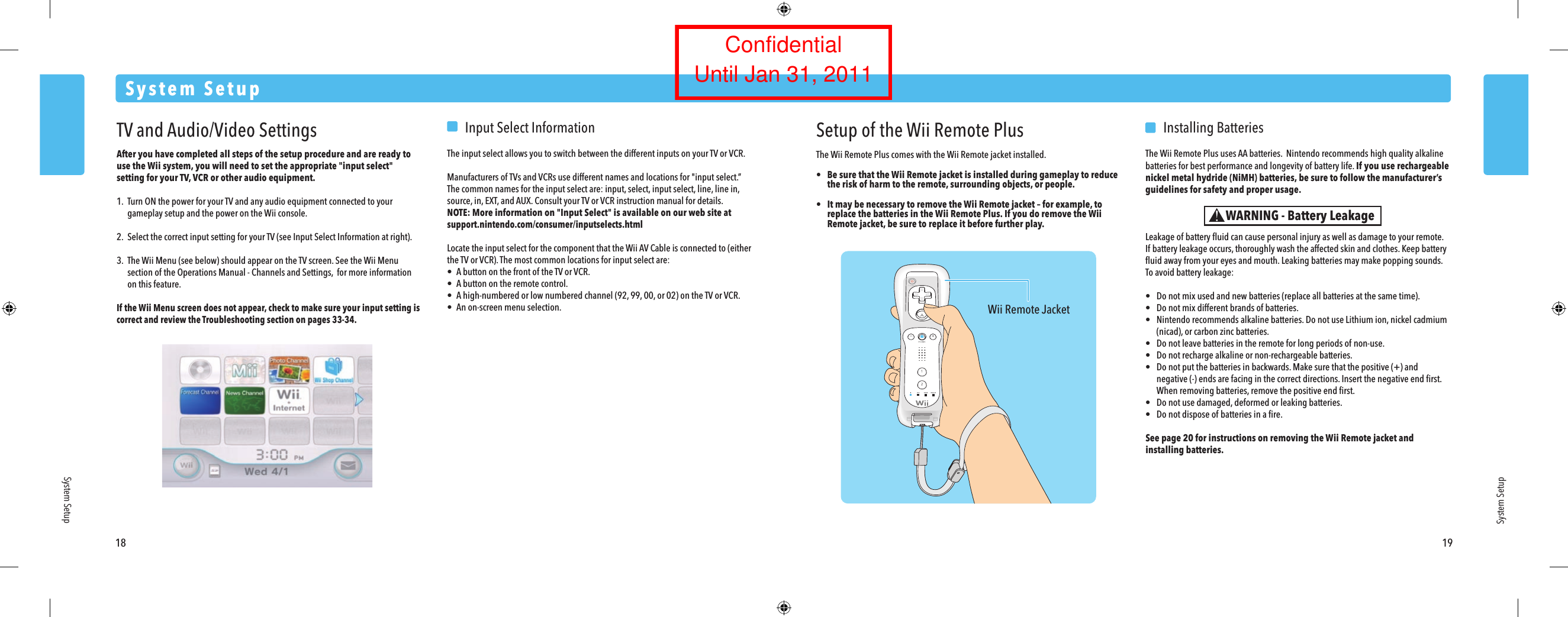
Wii Remote Jacket18 19System SetupSystem SetupSystem SetupWARNING - Battery LeakageTV and Audio/Video SettingsAfter you have completed all steps of the setup procedure and are ready to use the Wii system, you will need to set the appropriate "input select" setting for your TV, VCR or other audio equipment.1. Turn ON the power for your TV and any audio equipment connected to your  gameplay setup and the power on the Wii console.2.  Select the correct input setting for your TV (see Input Select Information at right).3. The Wii Menu (see below) should appear on the TV screen. See the Wii Menu  section of the Operations Manual - Channels and Settings,  for more information  on this feature.If the Wii Menu screen does not appear, check to make sure your input setting is correct and review the Troubleshooting section on pages 33-34.  Input Select InformationThe input select allows you to switch between the different inputs on your TV or VCR.Manufacturers of TVs and VCRs use different names and locations for "input select.” The common names for the input select are: input, select, input select, line, line in, source, in, EXT, and AUX. Consult your TV or VCR instruction manual for details.NOTE: More information on "Input Select" is available on our web site at support.nintendo.com/consumer/inputselects.htmlLocate the input select for the component that the Wii AV Cable is connected to (either the TV or VCR). The most common locations for input select are:•  A button on the front of the TV or VCR.•  A button on the remote control.•  A high-numbered or low numbered channel (92, 99, 00, or 02) on the TV or VCR.•  An on-screen menu selection.Setup of the Wii Remote PlusThe Wii Remote Plus comes with the Wii Remote jacket installed.•  Be sure that the Wii Remote jacket is installed during gameplay to reduce the risk of harm to the remote, surrounding objects, or people. •  It may be necessary to remove the Wii Remote jacket – for example, to replace the batteries in the Wii Remote Plus. If you do remove the Wii Remote jacket, be sure to replace it before further play.  Installing BatteriesThe Wii Remote Plus uses AA batteries.  Nintendo recommends high quality alkaline batteries for best performance and longevity of battery life. If you use rechargeable nickel metal hydride (NiMH) batteries, be sure to follow the manufacturer’s guidelines for safety and proper usage.Leakage of battery fluid can cause personal injury as well as damage to your remote.If battery leakage occurs, thoroughly wash the affected skin and clothes. Keep battery fluid away from your eyes and mouth. Leaking batteries may make popping sounds.To avoid battery leakage:•  Do not mix used and new batteries (replace all batteries at the same time).•  Do not mix different brands of batteries.•  Nintendo recommends alkaline batteries. Do not use Lithium ion, nickel cadmium  (nicad), or carbon zinc batteries.•  Do not leave batteries in the remote for long periods of non-use.•  Do not recharge alkaline or non-rechargeable batteries.•  Do not put the batteries in backwards. Make sure that the positive (+) and  negative (-) ends are facing in the correct directions. Insert the negative end first.  When removing batteries, remove the positive end first.•  Do not use damaged, deformed or leaking batteries.•  Do not dispose of batteries in a fire.See page 20 for instructions on removing the Wii Remote jacket and installing batteries.ConfidentialUntil Jan 31, 2011
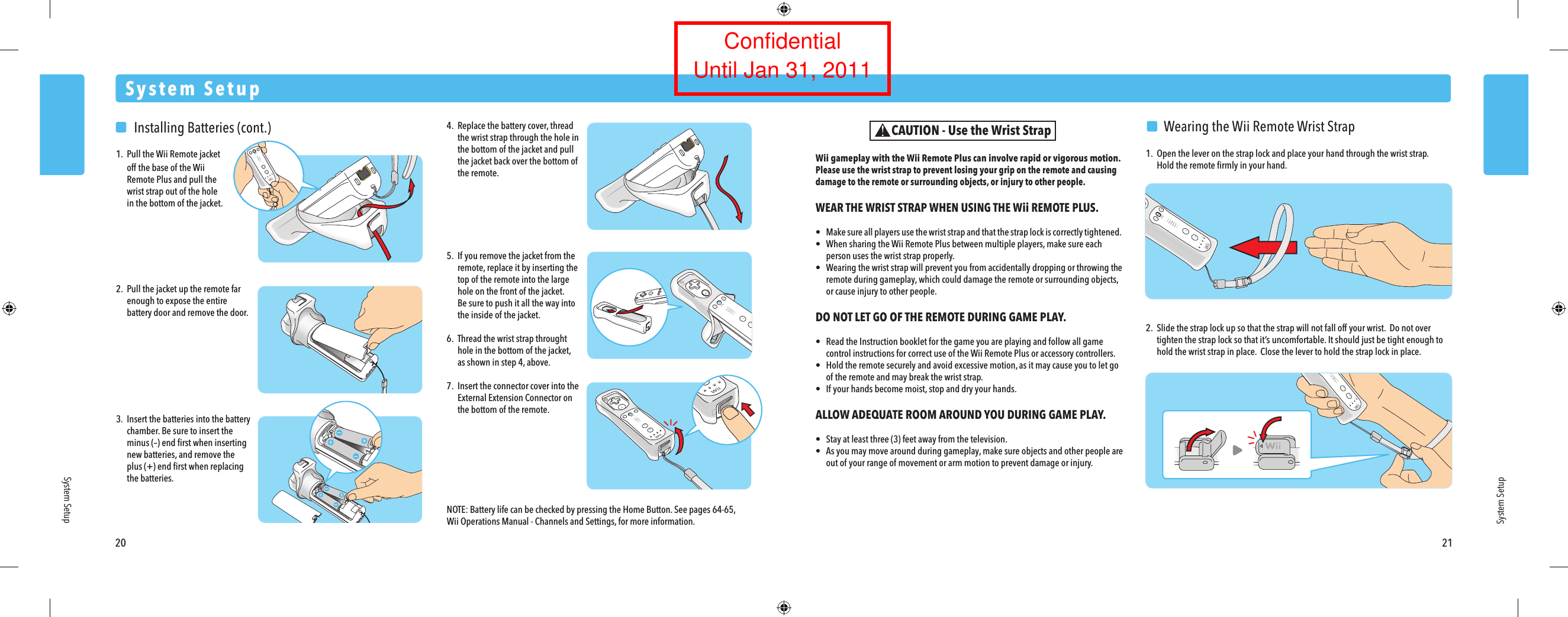
20 21System SetupSystem SetupSystem Setup  Wearing the Wii Remote Wrist Strap1.  Open the lever on the strap lock and place your hand through the wrist strap.  Hold the remote firmly in your hand.2.  Slide the strap lock up so that the strap will not fall off your wrist.  Do not over  tighten the strap lock so that it’s uncomfortable. It should just be tight enough to  hold the wrist strap in place.  Close the lever to hold the strap lock in place.Wii gameplay with the Wii Remote Plus can involve rapid or vigorous motion. Please use the wrist strap to prevent losing your grip on the remote and causing damage to the remote or surrounding objects, or injury to other people.WEAR THE WRIST STRAP WHEN USING THE Wii REMOTE PLUS.•  Make sure all players use the wrist strap and that the strap lock is correctly tightened. •  When sharing the Wii Remote Plus between multiple players, make sure each  person uses the wrist strap properly.•  Wearing the wrist strap will prevent you from accidentally dropping or throwing the remote during gameplay, which could damage the remote or surrounding objects,  or cause injury to other people.DO NOT LET GO OF THE REMOTE DURING GAME PLAY.•  Read the Instruction booklet for the game you are playing and follow all game  control instructions for correct use of the Wii Remote Plus or accessory controllers.•  Hold the remote securely and avoid excessive motion, as it may cause you to let go  of the remote and may break the wrist strap.•  If your hands become moist, stop and dry your hands.ALLOW ADEQUATE ROOM AROUND YOU DURING GAME PLAY.•  Stay at least three (3) feet away from the television.•  As you may move around during gameplay, make sure objects and other people are  out of your range of movement or arm motion to prevent damage or injury.CAUTION - Use the Wrist Strap  Installing Batteries (cont.)1.  Pull the Wii Remote jacket  off the base of the Wii Remote Plus and pull the   wrist strap out of the hole  in the bottom of the jacket.2.  Pull the jacket up the remote far  enough to expose the entire  battery door and remove the door.3.  Insert the batteries into the battery  chamber. Be sure to insert the  minus (–) end first when inserting  new batteries, and remove the  plus (+) end first when replacing  the batteries.4. Replace the battery cover, thread  the wrist strap through the hole in  the bottom of the jacket and pull  the jacket back over the bottom of  the remote.5.  If you remove the jacket from the remote, replace it by inserting the  top of the remote into the large  hole on the front of the jacket.  Be sure to push it all the way into  the inside of the jacket.6.  Thread the wrist strap throught  hole in the bottom of the jacket,  as shown in step 4, above.7.  Insert the connector cover into the  External Extension Connector on  the bottom of the remote.NOTE: Battery life can be checked by pressing the Home Button. See pages 64-65, Wii Operations Manual - Channels and Settings, for more information.ConfidentialUntil Jan 31, 2011
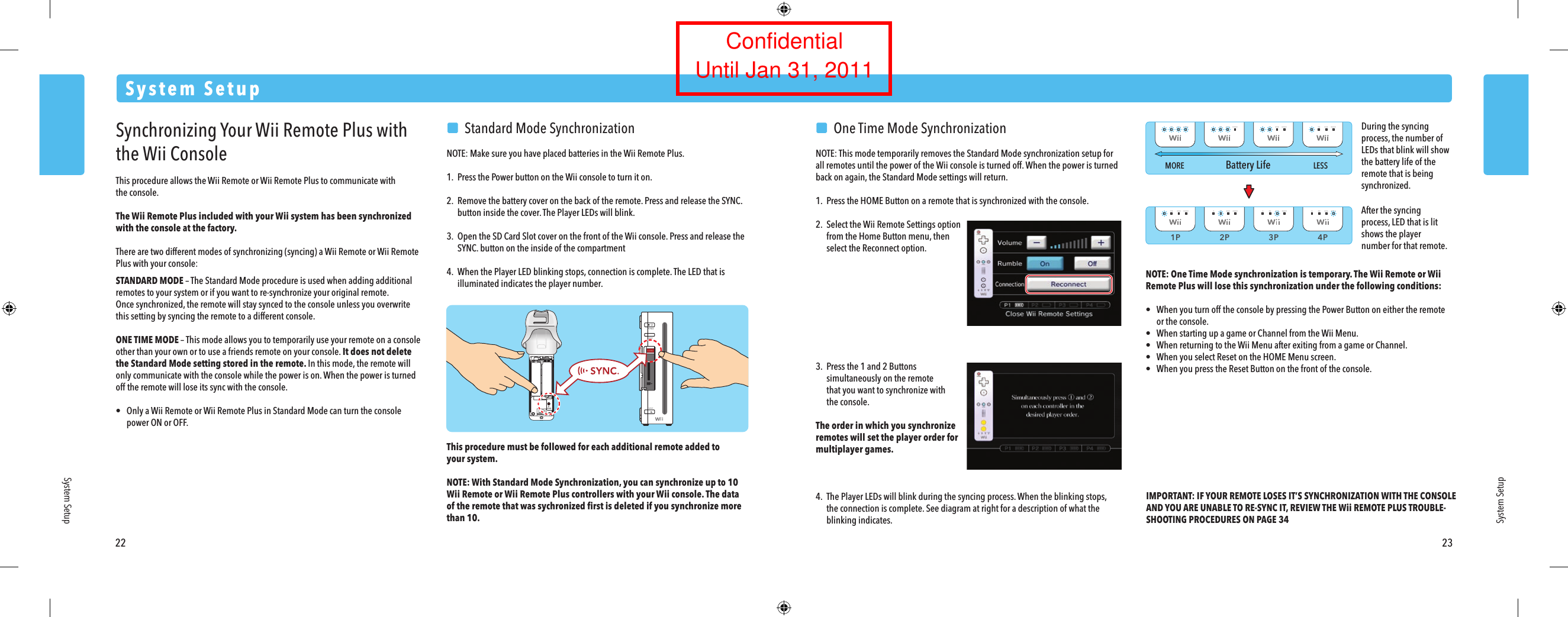
1P 2P 3P 4PMORE LESSBattery Life22 23System SetupSystem SetupSystem SetupSynchronizing Your Wii Remote Plus with the Wii ConsoleThis procedure allows the Wii Remote or Wii Remote Plus to communicate withthe console.The Wii Remote Plus included with your Wii system has been synchronized with the console at the factory. There are two different modes of synchronizing (syncing) a Wii Remote or Wii Remote Plus with your console:STANDARD MODE – The Standard Mode procedure is used when adding additional remotes to your system or if you want to re-synchronize your original remote. Once synchronized, the remote will stay synced to the console unless you overwrite this setting by syncing the remote to a different console.ONE TIME MODE – This mode allows you to temporarily use your remote on a console other than your own or to use a friends remote on your console. It does not delete the Standard Mode setting stored in the remote. In this mode, the remote will only communicate with the console while the power is on. When the power is turned off the remote will lose its sync with the console.•  Only a Wii Remote or Wii Remote Plus in Standard Mode can turn the console  power ON or OFF.  Standard Mode SynchronizationNOTE: Make sure you have placed batteries in the Wii Remote Plus.1.  Press the Power button on the Wii console to turn it on.2. Remove the battery cover on the back of the remote. Press and release the SYNC.  button inside the cover. The Player LEDs will blink.3.  Open the SD Card Slot cover on the front of the Wii console. Press and release the SYNC. button on the inside of the compartment4.  When the Player LED blinking stops, connection is complete. The LED that is  illuminated indicates the player number.This procedure must be followed for each additional remote added toyour system.NOTE: With Standard Mode Synchronization, you can synchronize up to 10 Wii Remote or Wii Remote Plus controllers with your Wii console. The dataof the remote that was sychronized first is deleted if you synchronize more than 10.   One Time Mode SynchronizationNOTE: This mode temporarily removes the Standard Mode synchronization setup for all remotes until the power of the Wii console is turned off. When the power is turned back on again, the Standard Mode settings will return.1.  Press the HOME Button on a remote that is synchronized with the console.2.  Select the Wii Remote Settings option  from the Home Button menu, then  select the Reconnect option.3.  Press the 1 and 2 Buttons  simultaneously on the remote  that you want to synchronize with  the console.The order in which you synchronizeremotes will set the player order formultiplayer games.4. The Player LEDs will blink during the syncing process. When the blinking stops,  the connection is complete. See diagram at right for a description of what the  blinking indicates.NOTE: One Time Mode synchronization is temporary. The Wii Remote or Wii Remote Plus will lose this synchronization under the following conditions:•  When you turn off the console by pressing the Power Button on either the remote  or the console.•  When starting up a game or Channel from the Wii Menu.•  When returning to the Wii Menu after exiting from a game or Channel.•  When you select Reset on the HOME Menu screen.•  When you press the Reset Button on the front of the console.IMPORTANT: IF YOUR REMOTE LOSES IT’S SYNCHRONIZATION WITH THE CONSOLE AND YOU ARE UNABLE TO RE-SYNC IT, REVIEW THE Wii REMOTE PLUS TROUBLE-SHOOTING PROCEDURES ON PAGE 34After the syncing process, LED that is lit shows the player number for that remote.During the syncing process, the number of LEDs that blink will show the battery life of the remote that is being synchronized.ConfidentialUntil Jan 31, 2011

Navigation menu