Hosiden CFS8510 Bluetooth WRIG User Manual Users manual part 2

Hosiden Corporation Bluetooth WRIG Users manual part 2

Contents

Users manual part 2

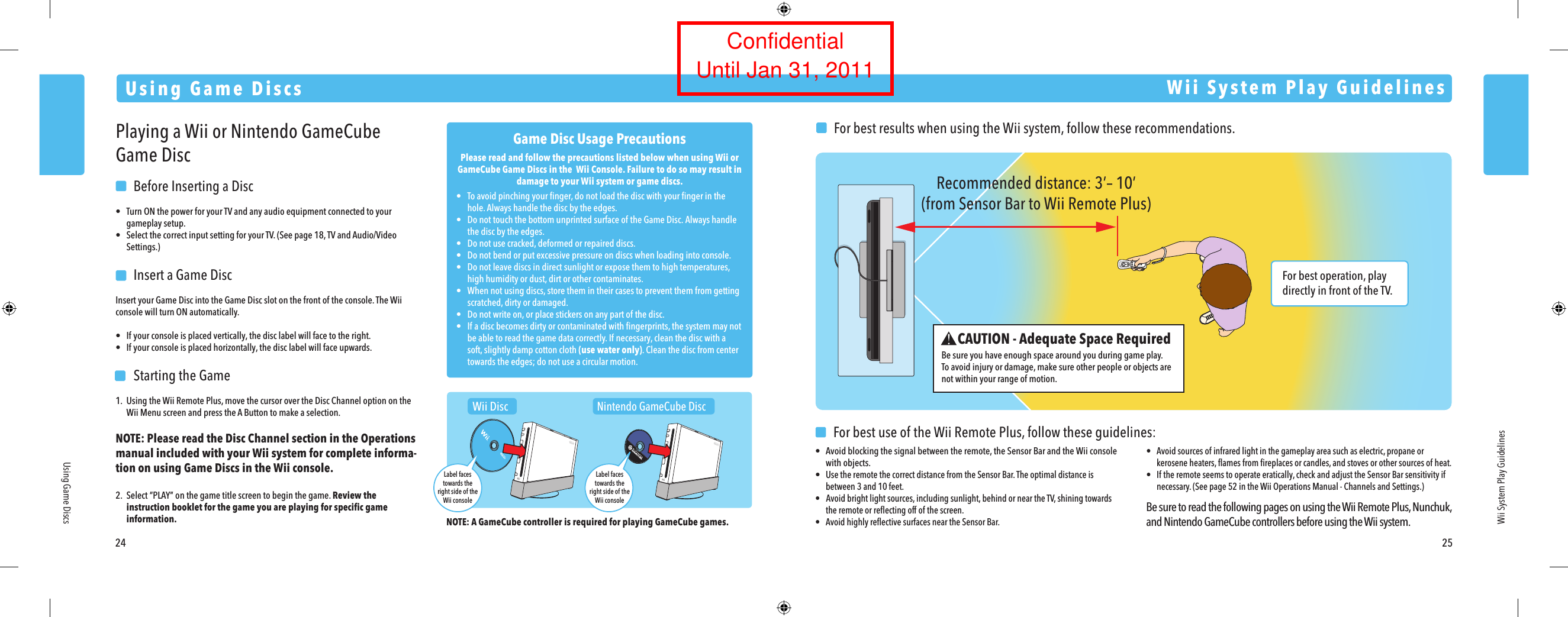
For best operation, play directly in front of the TV. Recommended distance: 3’– 10’(from Sensor Bar to Wii Remote Plus)24 25Using Game DiscsUsing Game DiscsWii System Play GuidelinesPlaying a Wii or Nintendo GameCube Game Disc  Before Inserting a Disc•  Turn ON the power for your TV and any audio equipment connected to your  gameplay setup.•  Select the correct input setting for your TV. (See page 18, TV and Audio/Video  Settings.)  Insert a Game DiscInsert your Game Disc into the Game Disc slot on the front of the console. The Wii console will turn ON automatically.•  If your console is placed vertically, the disc label will face to the right.•  If your console is placed horizontally, the disc label will face upwards.  Starting the Game1.  Using the Wii Remote Plus, move the cursor over the Disc Channel option on the  Wii Menu screen and press the A Button to make a selection.NOTE: Please read the Disc Channel section in the Operations  manual included with your Wii system for complete informa-tion on using Game Discs in the Wii console.2. Select “PLAY” on the game title screen to begin the game. Review the  instruction booklet for the game you are playing for specific game  information.Game Disc Usage PrecautionsPlease read and follow the precautions listed below when using Wii or GameCube Game Discs in the  Wii Console. Failure to do so may result in damage to your Wii system or game discs.•  To avoid pinching your finger, do not load the disc with your finger in the  hole. Always handle the disc by the edges.•  Do not touch the bottom unprinted surface of the Game Disc. Always handle  the disc by the edges.•  Do not use cracked, deformed or repaired discs.•  Do not bend or put excessive pressure on discs when loading into console.•  Do not leave discs in direct sunlight or expose them to high temperatures,  high humidity or dust, dirt or other contaminates.•  When not using discs, store them in their cases to prevent them from getting  scratched, dirty or damaged.•  Do not write on, or place stickers on any part of the disc.•  If a disc becomes dirty or contaminated with fingerprints, the system may not  be able to read the game data correctly. If necessary, clean the disc with a  soft, slightly damp cotton cloth (use water only). Clean the disc from center  towards the edges; do not use a circular motion.Wii System Play GuidelinesCAUTION - Adequate Space RequiredBe sure you have enough space around you during game play.To avoid injury or damage, make sure other people or objects are not within your range of motion.  For best results when using the Wii system, follow these recommendations.   For best use of the Wii Remote Plus, follow these guidelines:•  Avoid blocking the signal between the remote, the Sensor Bar and the Wii console  with objects.• Use the remote the correct distance from the Sensor Bar. The optimal distance is  between 3 and 10 feet.•   Avoid bright light sources, including sunlight, behind or near the TV, shining towards  the remote or reflecting off of the screen.•  Avoid highly reflective surfaces near the Sensor Bar.•  Avoid sources of infrared light in the gameplay area such as electric, propane or kerosene heaters, flames from fireplaces or candles, and stoves or other sources of heat.•  If the remote seems to operate eratically, check and adjust the Sensor Bar sensitivity if  necessary. (See page 52 in the Wii Operations Manual - Channels and Settings.)Be sure to read the following pages on using the Wii Remote Plus, Nunchuk, and Nintendo GameCube controllers before using the Wii system.NOTE: A GameCube controller is required for playing GameCube games.Wii DiscNintendo GameCube DiscLabel facestowards theright side of theWii consoleLabel facestowards theright side of theWii consoleConfidentialUntil Jan 31, 2011
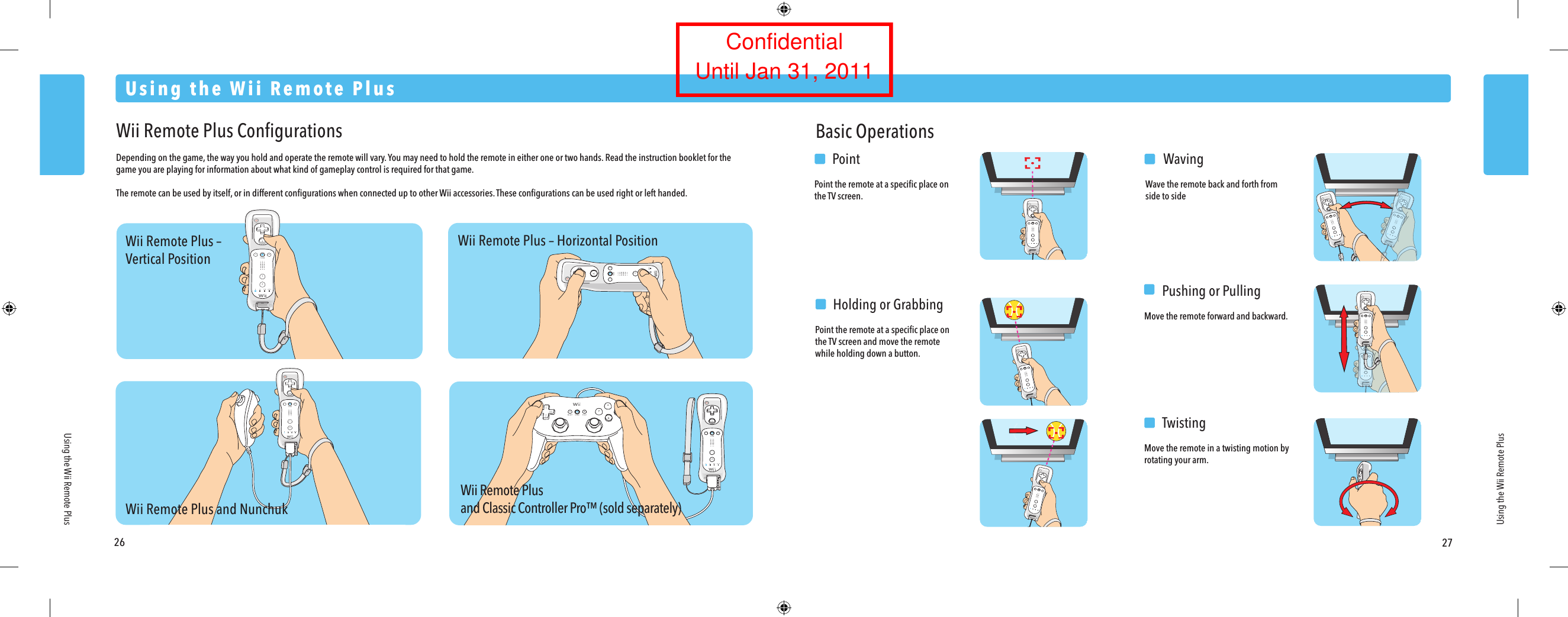
Wii Remote Plus –Vertical PositionWii Remote Plus and NunchukWii Remote Plusand Classic Controller Pro™ (sold separately)Wii Remote Plus – Horizontal Position26 27Using the Wii Remote PlusUsing the Wii Remote PlusUsing the Wii Remote PlusWii Remote Plus ConfigurationsDepending on the game, the way you hold and operate the remote will vary. You may need to hold the remote in either one or two hands. Read the instruction booklet for the game you are playing for information about what kind of gameplay control is required for that game.The remote can be used by itself, or in different configurations when connected up to other Wii accessories. These configurations can be used right or left handed.Basic Operations  PointPoint the remote at a specific place on the TV screen.  WavingWave the remote back and forth from side to side  Pushing or PullingMove the remote forward and backward.  TwistingMove the remote in a twisting motion by rotating your arm.  Holding or GrabbingPoint the remote at a specific place on the TV screen and move the remote while holding down a button.ConfidentialUntil Jan 31, 2011
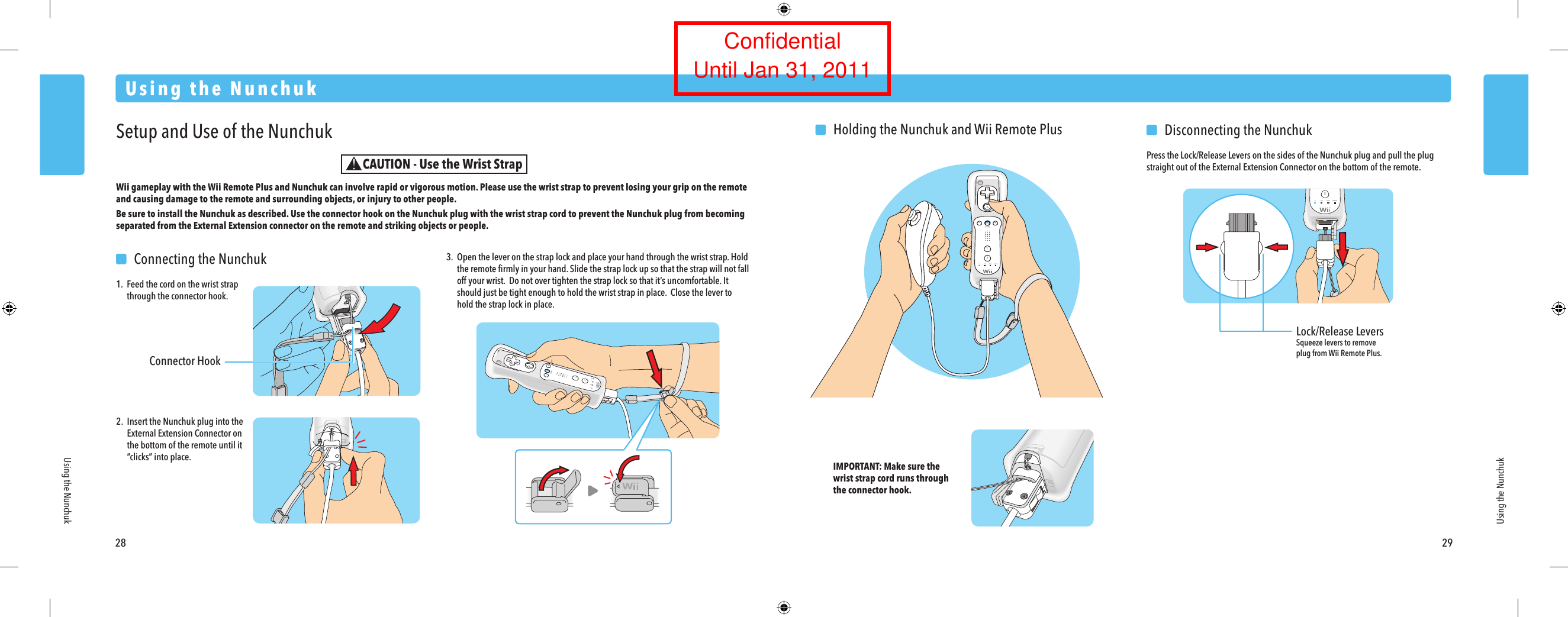
Lock/Release LeversSqueeze levers to remove plug from Wii Remote Plus.28 29Using the NunchukUsing the NunchukUsing the NunchukSetup and Use of the NunchukWii gameplay with the Wii Remote Plus and Nunchuk can involve rapid or vigorous motion. Please use the wrist strap to prevent losing your grip on the remote and causing damage to the remote and surrounding objects, or injury to other people.Be sure to install the Nunchuk as described. Use the connector hook on the Nunchuk plug with the wrist strap cord to prevent the Nunchuk plug from becoming separated from the External Extension connector on the remote and striking objects or people. 2.  Insert the Nunchuk plug into the  External Extension Connector on  the bottom of the remote until it “clicks” into place. IMPORTANT: Make sure the wrist strap cord runs through the connector hook.  Connecting the Nunchuk1. Feed the cord on the wrist strap  through the connector hook.  Disconnecting the NunchukPress the Lock/Release Levers on the sides of the Nunchuk plug and pull the plug straight out of the External Extension Connector on the bottom of the remote.3.  Open the lever on the strap lock and place your hand through the wrist strap. Hold  the remote firmly in your hand. Slide the strap lock up so that the strap will not fall  off your wrist.  Do not over tighten the strap lock so that it’s uncomfortable. It  should just be tight enough to hold the wrist strap in place.  Close the lever to  hold the strap lock in place.  Holding the Nunchuk and Wii Remote PlusConnector HookCAUTION - Use the Wrist StrapConfidentialUntil Jan 31, 2011
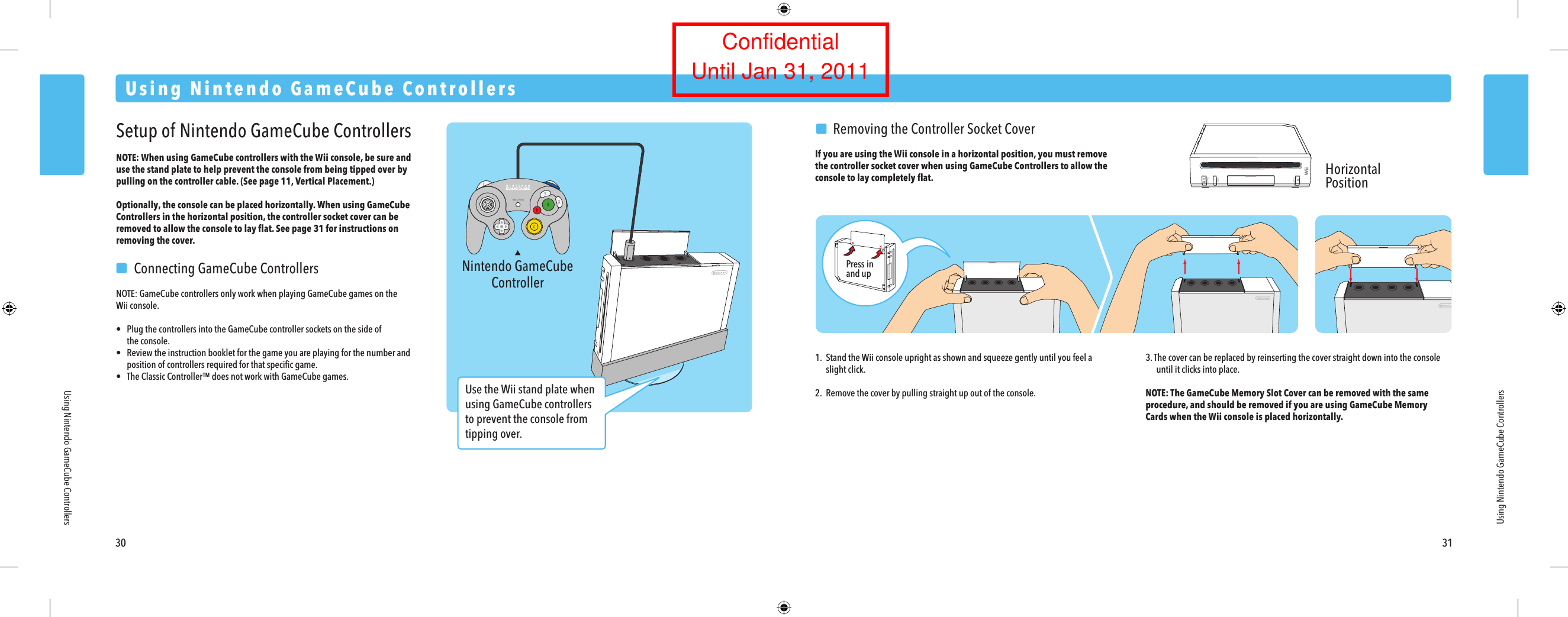
Nintendo GameCubeController30 31Using Nintendo GameCube ControllersUsing Nintendo GameCube ControllersUsing Nintendo GameCube ControllersSetup of Nintendo GameCube ControllersNOTE: When using GameCube controllers with the Wii console, be sure and use the stand plate to help prevent the console from being tipped over by pulling on the controller cable. (See page 11, Vertical Placement.)Optionally, the console can be placed horizontally. When using GameCube Controllers in the horizontal position, the controller socket cover can be removed to allow the console to lay flat. See page 31 for instructions on removing the cover.  Connecting GameCube ControllersNOTE: GameCube controllers only work when playing GameCube games on theWii console.•  Plug the controllers into the GameCube controller sockets on the side of  the console.•  Review the instruction booklet for the game you are playing for the number and  position of controllers required for that specific game.•  The Classic Controller™ does not work with GameCube games.  Removing the Controller Socket CoverIf you are using the Wii console in a horizontal position, you must remove the controller socket cover when using GameCube Controllers to allow the console to lay completely flat.1. Stand the Wii console upright as shown and squeeze gently until you feel a  slight click.2. Remove the cover by pulling straight up out of the console. 3. The cover can be replaced by reinserting the cover straight down into the console  until it clicks into place.NOTE: The GameCube Memory Slot Cover can be removed with the same procedure, and should be removed if you are using GameCube Memory Cards when the Wii console is placed horizontally.HorizontalPositionPress inand upUse the Wii stand plate when using GameCube controllers to prevent the console from tipping over.ConfidentialUntil Jan 31, 2011
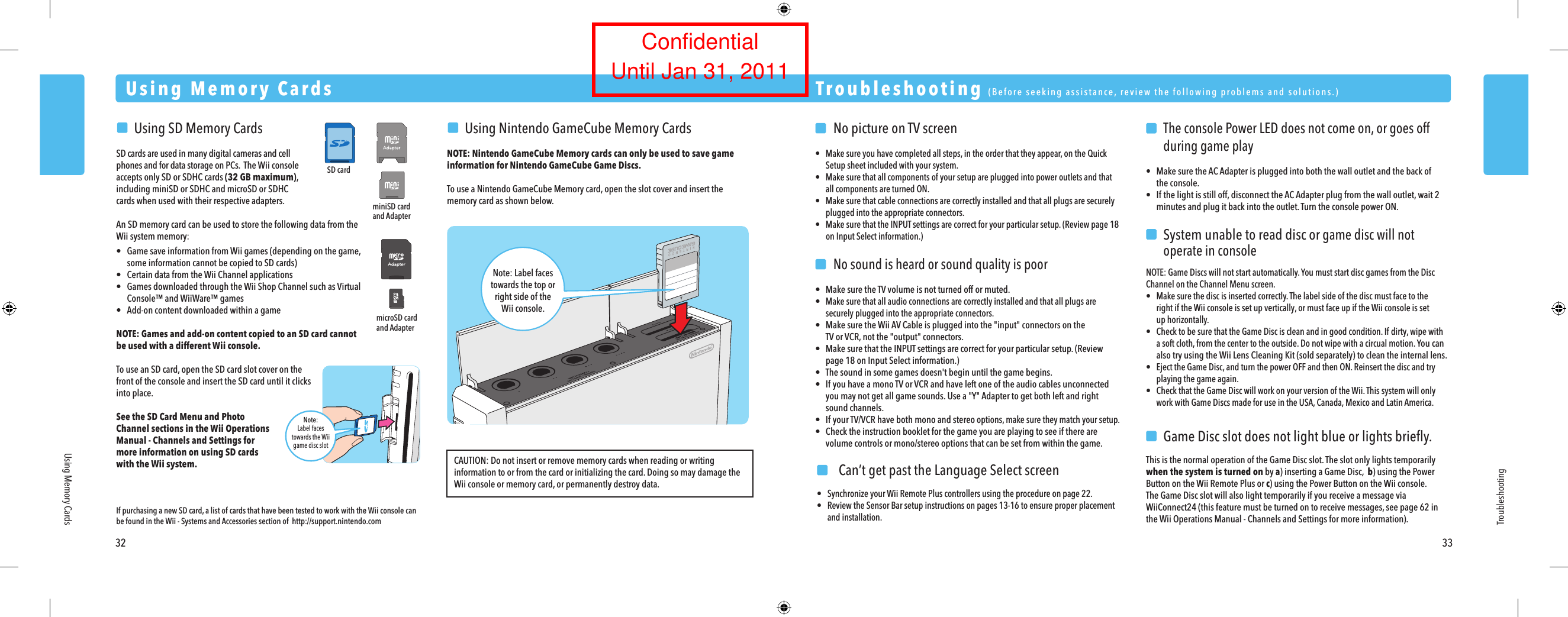
miniSD cardand AdaptermicroSD cardand AdapterSD cardNote:Label facestowards the Wiigame disc slot  No picture on TV screen•  Make sure you have completed all steps, in the order that they appear, on the Quick  Setup sheet included with your system.•  Make sure that all components of your setup are plugged into power outlets and that  all components are turned ON.•  Make sure that cable connections are correctly installed and that all plugs are securely  plugged into the appropriate connectors.•  Make sure that the INPUT settings are correct for your particular setup. (Review page 18  on Input Select information.)  No sound is heard or sound quality is poor•  Make sure the TV volume is not turned off or muted.• Make sure that all audio connections are correctly installed and that all plugs are  securely plugged into the appropriate connectors.•  Make sure the Wii AV Cable is plugged into the "input" connectors on the  TV or VCR, not the "output" connectors.•  Make sure that the INPUT settings are correct for your particular setup. (Review  page 18 on Input Select information.)•  The sound in some games doesn't begin until the game begins.•  If you have a mono TV or VCR and have left one of the audio cables unconnected  you may not get all game sounds. Use a "Y" Adapter to get both left and right  sound channels.•  If your TV/VCR have both mono and stereo options, make sure they match your setup.•  Check the instruction booklet for the game you are playing to see if there are  volume controls or mono/stereo options that can be set from within the game.    The console Power LED does not come on, or goes off  during game play• Make sure the AC Adapter is plugged into both the wall outlet and the back of  the console.• If the light is still off, disconnect the AC Adapter plug from the wall outlet, wait 2  minutes and plug it back into the outlet. Turn the console power ON.  System unable to read disc or game disc will not  operate in consoleNOTE: Game Discs will not start automatically. You must start disc games from the Disc Channel on the Channel Menu screen.•  Make sure the disc is inserted correctly. The label side of the disc must face to the  right if the Wii console is set up vertically, or must face up if the Wii console is set  up horizontally.•  Check to be sure that the Game Disc is clean and in good condition. If dirty, wipe with  a soft cloth, from the center to the outside. Do not wipe with a circual motion. You can  also try using the Wii Lens Cleaning Kit (sold separately) to clean the internal lens.•  Eject the Game Disc, and turn the power OFF and then ON. Reinsert the disc and try  playing the game again.•  Check that the Game Disc will work on your version of the Wii. This system will only  work with Game Discs made for use in the USA, Canada, Mexico and Latin America.  Game Disc slot does not light blue or lights briefly.This is the normal operation of the Game Disc slot. The slot only lights temporarily when the system is turned on by a) inserting a Game Disc,  b) using the Power Button on the Wii Remote Plus or c) using the Power Button on the Wii console.The Game Disc slot will also light temporarily if you receive a message via WiiConnect24 (this feature must be turned on to receive messages, see page 62 in the Wii Operations Manual - Channels and Settings for more information). Troubleshooting  (Before seeking assistance, review the following problems and solutions.)Troubleshooting32 33Using Memory CardsUsing Memory Cards  Using SD Memory CardsSD cards are used in many digital cameras and cell phones and for data storage on PCs.  The Wii console accepts only SD or SDHC cards (32 GB maximum), including miniSD or SDHC and microSD or SDHC cards when used with their respective adapters.An SD memory card can be used to store the following data from the Wii system memory:•  Game save information from Wii games (depending on the game,  some information cannot be copied to SD cards)•  Certain data from the Wii Channel applications•  Games downloaded through the Wii Shop Channel such as Virtual Console™ and WiiWare™ games•  Add-on content downloaded within a gameNOTE: Games and add-on content copied to an SD card cannot be used with a different Wii console.To use an SD card, open the SD card slot cover on the front of the console and insert the SD card until it clicks into place.See the SD Card Menu and Photo Channel sections in the Wii Operations Manual - Channels and Settings for more information on using SD cards with the Wii system.   Using Nintendo GameCube Memory CardsNOTE: Nintendo GameCube Memory cards can only be used to save game information for Nintendo GameCube Game Discs.To use a Nintendo GameCube Memory card, open the slot cover and insert the memory card as shown below.Note: Label facestowards the top orright side of theWii console.If purchasing a new SD card, a list of cards that have been tested to work with the Wii console can be found in the Wii - Systems and Accessories section of  http://support.nintendo.comCAUTION: Do not insert or remove memory cards when reading or writing information to or from the card or initializing the card. Doing so may damage the Wii console or memory card, or permanently destroy data.  Can’t get past the Language Select screen•  Synchronize your Wii Remote Plus controllers using the procedure on page 22.•  Review the Sensor Bar setup instructions on pages 13-16 to ensure proper placement  and installation.ConfidentialUntil Jan 31, 2011
    Wii Remote Plus lights blink, but don’t stay lit    (remote does not sync)•  Review the Sensor Bar setup instructions in this manual to ensure proper placement.•  Make sure batteries are not depleted.•  Try resetting the Wii Remote Plus - remove the batteries, wait one minute,  then replace the batteries. Wait a few seconds, and then try synchronizing  the remote again.•  If you are unable to re-sync the remote, try the following procedure:  1. Turn off the power of the Wii console with the POWER Button on the front of    the console.  2.  Unplug the power cord from the wall outlet for a few seconds, then plug it back    in again.  3. Turn on the power of the Wii console.  4.  When you see the Health and Safety screen, press and hold the SYNCHRO    Button on the console down for 15 seconds.  This will clear any sync    information left on the console.  5. Synchronize your Wii Remote Plus controllers using the procedure on page 22.    Wii Remote Plus or controller accessory buttons stickClean sticking buttons using the following procedure:1. For the Wii Remote Plus, remove batteries and disconnect any accessories before cleaning.2.  Use an unused toothbrush and hot tap water. Do not use boiling water, soap  or detergent.3.  Dip the toothbrush in hot water and shake off excess amount. Lightly scrub  sticking buttons, working the bristles around sides of buttons and into cracks.4.  Dry controller with soft cloth or towel and let air dry for at least 2 hours.5. Test buttons and repeat procedure if necessary. Do not submerge in, or pour  any type of liquid onto a controller or accessory.  Wii Remote Plus doesn't properly respond to player  motion (erratic hand cursor, can’t swing bat, can’t bowl, etc.)•  If the lights on your remote blink, but do not stay lit, see the first troubleshooting  step on this page, at left.•  Review the Sensor Bar setup instructions in this manual to ensure proper  placement.•  Make sure no objects are blocking the signals between the Sensor Bar, the Wii  console, and the Wii Remote Plus.•  Make sure batteries are not depleted.•  Use the Sensor Bar Stand if the Sensor Bar is located below under the TV.•  Check and adjust the Sensor Bar sensitivity if necessary.  (See page 52 in the Wii  Operations Manual - Channels and Settings.)The following conditions can interfere with the operation of the remote:  1.  Using the remote too close or too far from the Sensor Bar.  The optimal distance  is between 3 and 10 feet.  2.  Bright light sources, including sunlight, behind or near the TV, shining towards  the remote or reflecting off the TV screen.  3.  Highly reflective surfaces near the sensor bar.  4. Sources of infrared light in the gameplay area such as electric, propane or  kerosene heaters, flames from fireplaces or candles, and stoves or other sources  of heat.  5. Radio frequency interference may cause the Wii Remote Plus to work erratically.   Check for and move or turn off wireless devices such as cordless phones,  wireless computer keyboards or mice or other similar devices.If you think any of these conditions are affecting the operation of the remote, try removing or reducing the source of interference.TroubleshootingFCC Information34 35TroubleshootingFCC InformationRegulations for Equipment Use in U.S.A. and CanadaFCC and Industry Canada InformationIn order to comply with FCC radio-frequency radiation exposure guidelines for an uncontrolled exposure, this device and its antenna must not be co-located or operating in conjunction with any other antenna or transmitter. This device complies with Part 15 of the FCC Rules and RSS-210 of Industry Canada. Operation is subject to the following two conditions:  (1) this device may not cause harmful interference, and (2) this device must accept any interference received, including interference that may cause undesired operation. Changes or modifications not expressly approved by the manufacturer could void the user's authority to operate this device.NOTE: This equipment has been tested and found to comply with the limits for a Class B digital device, pursuant to part 15 of the FCC Rules. These limits are designed to provide reasonable protection against harmful interference in a residential installation. This equipment generates, uses and can radiate radio frequency energy and, if not installed and used in accordance with the instructions, may cause harmful interference to radio communications. However, there is no guarantee that interference will not occur in a particular installation. If this equipment does cause harmful interference to radio or television reception, which can  be determined by turning the equipment off and on, the user is encouraged to try to correct the interference by one or more of the following measures: •  Reorient or relocate the receiving antenna. •  Increase the separation between the equipment and receiver. •  Connect the equipment into an outlet on a circuit different from that to which the  receiver is connected. •  Consult the dealer or an experienced radio/TV technician or call Nintendo  Consumer Service at 1-800-255-3700 for assistance.The user may find the following booklet prepared by the Federal Communications Commission helpful: How to Identify and Resolve Radio-TV Interference Problems. This booklet is available from the U.S. Government Printing Office, Washington, D.C., 20402, Stock No. 004-000-00345-4.The term IC before the certification/registration number only signifies that the Industry Canada technical specifications were met.If your Wii system still does not operate correctly after trying the troubleshooting steps, DO NOT return the console to the store. You will lose saved game data and all Wii Shop Channel downloads and Wii Points.Visit support.nintendo.com for assistance and additional troubleshooting and repair options or call 1-800-255-3700.  When playing a game that includes Wii MotionPlus  features, the Wii Remote Plus operates erratically  or unexpectedly.•  The Wii Remote Plus may need to be recalibrated due to the following:  1.  Changing batteries in the Wii Remote Plus during gameplay.  2.  Moving Wii MotionPlus from a cold environment into a warm environment.To recalibrate the Wii Remote Plus, place it on a flat horizontal surface with the buttons facing down. It should be 20” or more from your television and Wii console for correct calibration. Wait for a few seconds and check the operation. Also, review the instruction manual for the game you are playing for more information.NOTE: This procedure must be done during gameplay.ConfidentialUntil Jan 31, 2011
Warranty and Service informationUnlicensed AccessoriesDo not attach unlicensed accessories to the Wii Remote Plus, as the use of unlicensed accessories may lead to injury to yourself or others and may cause performance issues and/or damage to the system. Use of any such unlicensed accessories will invalidate your Nintendo product warranty.36Warranty and Service InformationMode d’emploi de la WiiInstallation de la consoleYou may need only simple instructions to correct a problem with your product.  Try our web site at support.nintendo.com or call our Consumer Assistance Hotline at 1-800-255-3700, rather than going to your retailer.  Hours of operation are 6 a.m. to 7 p.m., Pacific Time, Monday - Sunday (times subject to change). If the problem cannot be solved with the troubleshooting information available online or over the telephone, you will be offered express factory service through Nintendo.  Please do not send any products to Nintendo without contacting us first.HARDWARE WARRANTYNintendo of America Inc. ("Nintendo") warrants to the original purchaser that the hardware product shall be free from defects in material and workmanship for twelve (12) months from the date of purchase.  If a defect covered by this warranty occurs during this warranty period, Nintendo will repair or replace the defective hardware product or component, free of charge.*  The original purchaser is entitled to this warranty only if the date of purchase is registered at point of sale or the consumer can demonstrate, to Nintendo’s satisfaction, that the product was purchased within the last 12 months.GAME & ACCESSORY WARRANTYNintendo warrants to the original purchaser that the product (games and accessories) shall be free from defects in material and workmanship for a period of three (3) months from the date of purchase.  If a defect covered by this warranty occurs during this three (3) month warranty period, Nintendo will repair or replace the defective product, free of charge.*SERVICE AFTER EXPIRATION OF WARRANTYPlease try our web site at support.nintendo.com or call the Consumer Assistance Hotline at 1-800-255-3700 for troubleshooting information and repair or replacement options and pricing.** In some instances, it may be necessary for you to ship the complete product, FREIGHT PREPAID AND INSURED FOR LOSS OR DAMAGE, to Nintendo.  Please do not send any products to Nintendo without  contacting us first.WARRANTY LIMITATIONSTHIS WARRANTY SHALL NOT APPLY IF THIS PRODUCT: (a) IS USED WITH PRODUCTS NOT SOLD OR LICENSED BY NINTENDO (INCLUDING, BUT NOT LIMITED TO, NON-LICENSED GAME ENHANCEMENT AND COPIER DEVICES, ADAPTERS, SOFTWARE, AND POWER SUPPLIES); (b) IS USED FOR COMMERCIAL PURPOSES (INCLUDING RENTAL); (c) IS MODIFIED OR TAMPERED WITH; (d) IS DAMAGED BY NEGLIGENCE, ACCIDENT, UNREASONABLE USE, OR BY OTHER CAUSES UNRELATED TO DEFECTIVE MATERIALS OR WORKMANSHIP; OR (e) HAS HAD THE SERIAL NUMBER ALTERED, DEFACED OR REMOVED.ANY APPLICABLE IMPLIED WARRANTIES, INCLUDING WARRANTIES OF MERCHANTABILITY AND FITNESS  FOR A PARTICULAR PURPOSE, ARE HEREBY LIMITED IN DURATION TO THE WARRANTY PERIODS DESCRIBED ABOVE (12 MONTHS OR 3 MONTHS, AS APPLICABLE).  IN NO EVENT SHALL NINTENDO BE LIABLE FOR CONSEQUENTIAL OR INCIDENTAL DAMAGES RESULTING FROM THE  BREACH OF ANY IMPLIED OR EXPRESS WARRANTIES.  SOME STATES DO NOT ALLOW LIMITATIONS ON HOW LONG AN IMPLIED WARRANTY LASTS OR EXCLUSION OF CONSEQUENTIAL OR INCIDENTAL DAMAGES, SO THE ABOVE LIMITATIONS MAY NOT APPLY TO YOU.This warranty gives you specific legal rights. You may also have other rights which vary from state to state or province to province. Nintendo’s address is: Nintendo of America Inc., P.O. Box 957, Redmond, WA 98073-0957 U.S.A. This warranty is only valid in the United States and Canada.Rev. RConfidentialUntil Jan 31, 2011

Navigation menu