Hyundai Imagequest Hql170Wr Users Manual 1_20PAL_General
HQL170WR to the manual cf44f07d-c9e3-5f84-2912-e6f96c785f08
2015-01-23
: Hyundai Hyundai-Imagequest-Hql170Wr-Users-Manual-221836 hyundai-imagequest-hql170wr-users-manual-221836 hyundai pdf
Open the PDF directly: View PDF  .
.
Page Count: 83
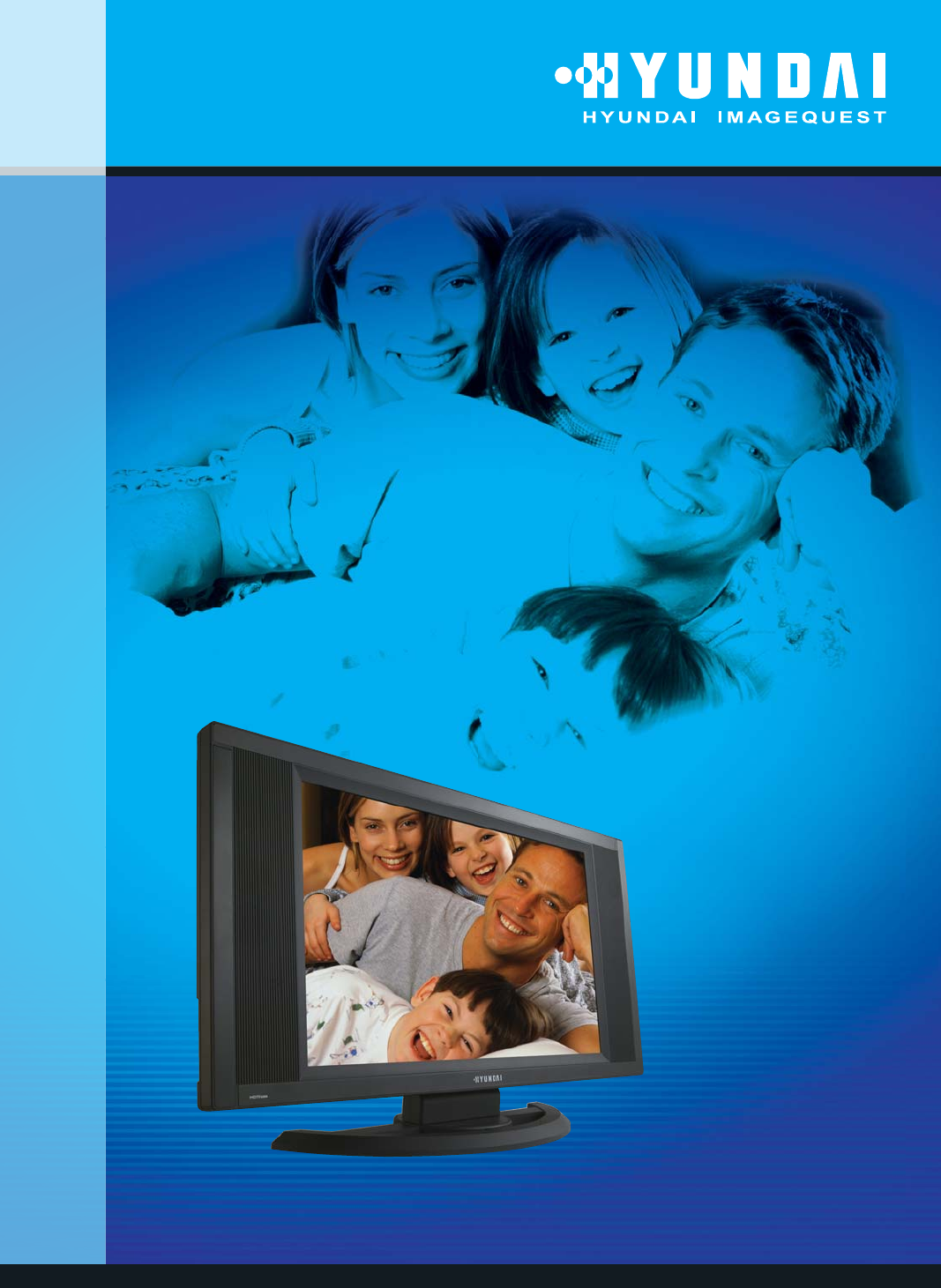
Model. HQL170WR/200NR
User's Guide
HYUNDAI IMAGEQUEST LCD TV
USA
Hyundai ImageQuest America
3101 North First Street San Jose, CA 95134
Hyundai tech support
Tel : +800-568-0061,408-232-8654
Fax : +408- 232-8146
e-mail : syuen@hyundaiqa.com
AVC USA. INC.
777 Mark Street, Wood Dale, IL 60191
Tel : 630-595-0123 / 800-568-0060
Fax : 630-595-2345 / 800-784-9422
e-mail : avctech@avcusa.com
NEW ZEALAND
TRANSTECH DISTRIBUTORS Ltd.
PO Box 12985 Penrose,
Auckland New Zealand
Tel : 09-571-0775
Fax : 09-571-0776
e-mail : LouisG@Transtech.co.nz
WWW : www.transtech.co.nz
AUSTRALIA
Thomas Electronics Australia Pty Ltd.
3 Sheridan Close
Milperra NSW 2214, Australia
Tel : +61 2 9773 7400
Fax : 61 2 9773 7177
Attn : Ms. Shiely Poniman
GERMANY
Hyundai ImageQuest Europe GmbH
Geheimrat Hummel Platz 2
65239, Hochheim, Germany
Tel : 06146 / 904 444
Fax : 06146 / 904 410
e-mail : service@hyundaiq.de
WWW : www.hyundaiq.com
JAPAN
Hyundai ImageQuest JAPAN
Shin-Hibiya Bldg, East 5F 1-3-6
Uchisaiwai-Cho, Chiyoda-ku,
Tokyo, Japan 100-0011
Tel : 03-5157-2286
Fax : 03-5157-2284
e-mail : pjkim@iqt.co.kr
C/S P.J.Kim
P/N 632 0238 302 Rev.00 * The above image may look different from the real product.
GENERAL INFORMATION
FCC Information
User Instructions
The Federal Communications Commission Radio Frequency Interference Statement includes the
following warning :
NOTE : This equipment has been tested and found to comply with the limits for a Class B digital device
pursuant to Part 15 of the FCC Rules.
These limits are designed to provide reasonable protection against harmful interference in a
residential installation. This equipment generates, uses, and can radiate radio frequency energy and, if
not installed and used in accordance with the instructions, may cause harmful interference to radio
communications. However, there is no guarantee that interference will not occur in a particular
installation.
If this equipment does cause harmful interference to radio or television receptions, which can be
determined by turning the equipment off and on, the user is encouraged to try to correct the
interference by one or more of the following measures :
• Reorient or relocate the receiving antenna.
• Increase the separation between the equipment and receiver.
• Connect the equipment into an outlet on a circuit different from that to which the receiver is
connected.
• Consult the dealer or an experienced radio/TV technician for assistance.
User Information
Changes or modifications not expressly approved by the party responsible for compliance could void
the user’s authority to operate the equipment.
Connecting of peripherals requires the use of grounded shielded signal cables.
GENERAL INFORMATION
HYUNDAI LCD TV HQL170WR/200NR
Kind of equipment : LCD TV
Safety : EN60065 : 1998/IEC60065:1998
EMC : EN 55013 /1990+A12 : 1994+A13 : 1996+A14 : 1999
EN 55022 : 1998+A1 : 2000 Class B
EN 55024 : 1998+A1 : 2001
EN 55020 : 1994+A11 : 1996+A13 : 1996+A14 : 1999+A12 : 1999
EN 61000-3-2 : 2000, EN 61000-3-3 : 1995+A1 : 2001
Type-Designation : LT17AW000 / LT20A0000
WE HYUNDAI ImageQuest CO., LTD.
Ami-ri Bubal-Eub Ichon-Si Kyungki-Do
467-860 KOREA
declare under our sole responsibility that the product:
to which this declaration relates is in conformity with the
following standard(s) or other normative document(s)
following the provisions of the Low Voltage Directive 73/23/EEC,
93/68/EEC and the EMC Directive 89/336/EEC.
KOREA /MAY. 15, 2004 HONG KI, KIM
Place and date of issue) (Name and signature of
authorized person)
Accredited testlaboratory:
TÜV Rheinland
Am Grauen Stein
51105 Köln
DECLARATION OF CONFORMITY
Important Tips
Image Retention Effect(Image Sticking)
1. Cause :
- If LCD TV displays the same pattern for a long period of time, Image Retention Effect may develop
due to the LCD structure.
- This is a common phenomenon that occurs in all LCD products on current market.
2. Prevention :
- To avoid this matter, use the product after reducing brightness and contrast, especially when a still
image is displaying for a long time. (Example : Contrast 25, Brightness 25 - See the page 34)
Once Image retention occurs, change the mode into Video mode which displays more motion
pictures. It will help reduce this effect, but cannot completely eliminate the effect once it occurs.
When a fixed pattern is displayed often, screen brightness may get worse.
3. Solution :
- Displaying a full white pattern for around 10 hours might help reduce latent image effect temporarily.
- It is not possible to permanently prevent Image Sticking Effect using current technology.
4. Notice :
- It is very important to notify every buyer/customer of this information and all distributors/buyers/
customers should be fully aware of this.
- A manufacturer cannot provide a technical support of Image Sticking Effect of LCD TV. And Warranty
does not include Image Sticking Effect.
HYUNDAI LCD TV HQL170WR/200NR
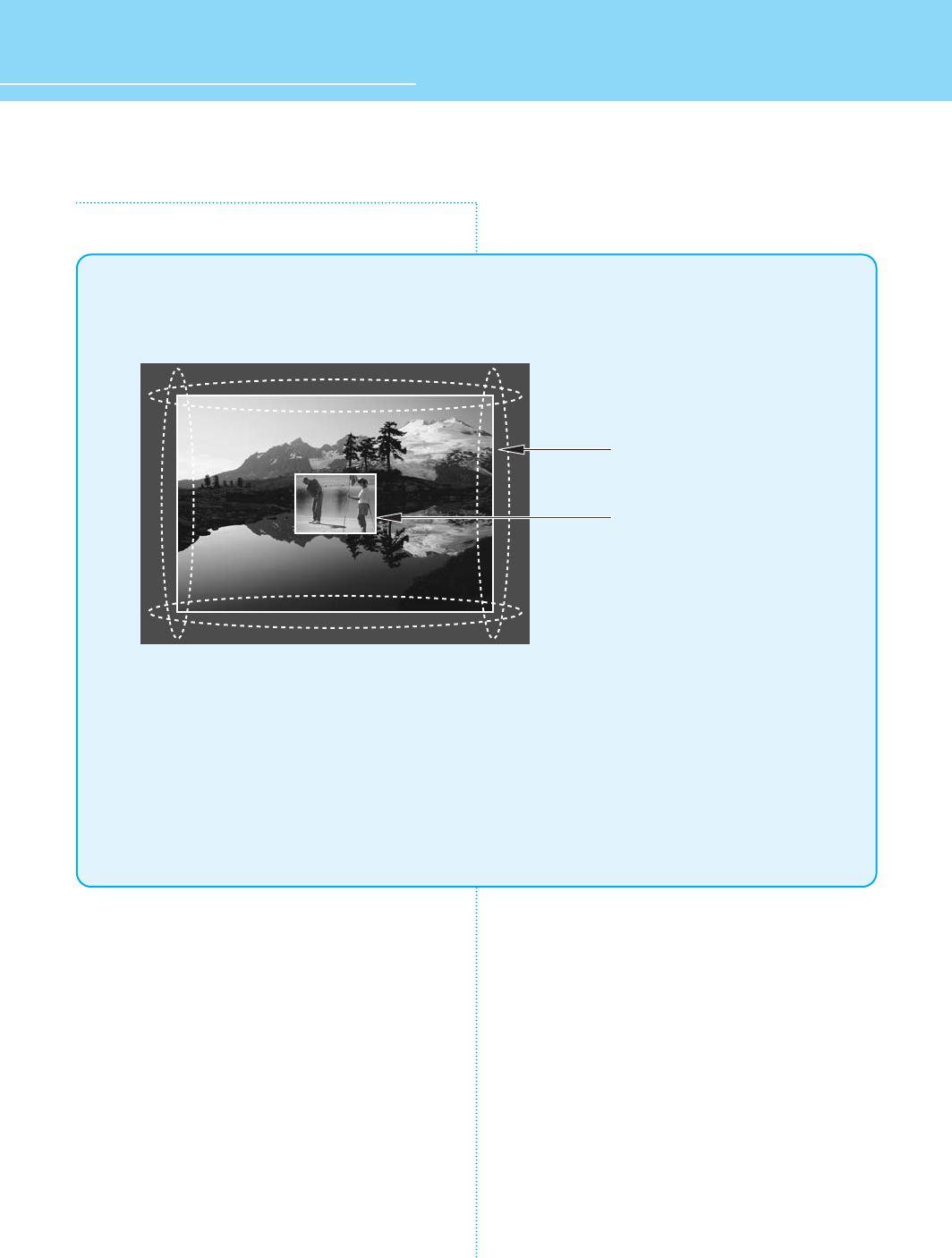
Image Sticking Precaution
Still Image Wide/4:3 in Motion Image
• Precaution :
- Image Sticking could be come from Still Image and Boundary line for a long time display and
Brightness gap in Boundary.
- This Matter(Image Sticking) is same thing under the other LCD TV's Company.
- Still Image/Letter in watching TV also will be effect to Image sticking.
*This matter(Image Sticking) is out of warranty.
Wide, 4:3 aspect ratio
Box or Still image

Features
A Wide Array of Screen Settings
You can choose different screen settings depending on the type of program you are watching
or the surrounding conditions (the lighting or the outside weather conditions).
You can switch among Dynamic, Mild and Standard, or you can configure the screen settings
for yourself.
A Wide Array of Sound Settings
You can choose an optimal sound setting for the type of program you are watching.
You can switch among Standard, Music, Movie and News, or you can configure the settings for
yourself.
Various Screen Sizes
Standard (4:3), Widescreen (16:9) and Zoom are available.
PIP (Picture In Picture), POP (Picture Of Picture) are Multi(9 screens) functions are provided.
Teletext Function
You can display teletext information at any time on your TV.
Surround Audio Function
You can listen to dynamic and surround sound only with ordinary speakers.
Auto ON/OFF Function
This function allows you to turn on/off your LCD TV at the preset time.

HYUNDAI LCD TV HQL170WR/200NR
Table of Contents
General Information
Safety Precaution .................................................................5
Contents of the Package .....................................................11
Separately Sold Products ....................................................11
How to Use the Kensington Security Slot ............................12
How to Use the Rear Cap and Cable Holder .........................13
How to Adjust the View Angle .............................................14
How To Install Wall Mount Support .....................................15
Parts Names and Functions ................................................17
Remote Control ..................................................................19
Connections
Connecting Indoor/Outdoor TV Antenna(UHF/VHF) ...............23
Connecting to the Antenna Input Connection
on the External Equipment ..................................................24
Connecting a VCR, Cable/Satellite Receiver .......................25
Connecting a DTV Receiver or DVD Player ..........................26
Playing Back a Tape Recorded On a Camcorder .................27
Connecting to a PC .............................................................28
Resolutions Supported in PC ..............................................29
Scart Connection to the External Input/Output .....................30
Scart Pin Specifications ......................................................31
Picture Setup
How to Select the Picture Mode ..........................................33
How to Set the Desired Picture ...........................................34
How to Set Noise Reduction ................................................35
How to Set PIP [Mode] ........................................................36
How to Set POP [Mode] ......................................................36
How to Set Multi [Mode] .....................................................37
How to Freeze Picture .........................................................38
How to Select the Aspect Ratio ...........................................39
Audio Setup
How to Select the Volume, Balance and Mute .....................41
How to Set the Audio Mode(Equalize) ..................................42
How to Set the Desired Audio .............................................43
How to Listen to Stereo Sound / Dual Sound .......................44
How to Select the Surround ................................................46
How to Select AVL .............................................................47
How to Select the Sound Swap ...........................................48
PC Setup
How to Select the Color Mode .............................................51
How to Select the Auto Adjust .............................................52
How to Set the Geometry ....................................................53
TV Setup
How to Store Program Automatically ...................................55
How to Set Manual Store ....................................................56
How to Directly Select the PR LIST ......................................59
Option Setup
Choosing Your Language ....................................................61
How to Set OSD(On-Screen-Display) Display Time ..............62
How to Select the OSD Background ....................................63
How to Set Sleep Time .......................................................64
How to Set Clock ................................................................65
How to Set On /Off Time .....................................................66
How to Set Key-Lock ..........................................................68
Displaying Information ........................................................69
Teletext Feature .................................................................71
Displaying the Teletext Information .....................................72
Selecting Display Options ...................................................72
Appendix
Troubleshooting ..................................................................75
Care and Cleaning ..............................................................77
Product Specifications ........................................................78
5
GENERAL INFORMATION
WARNING
WARNING
Safety Precaution
The contents of this section are provided for the safety of users and their property.
Please read the instructions carefully before using.
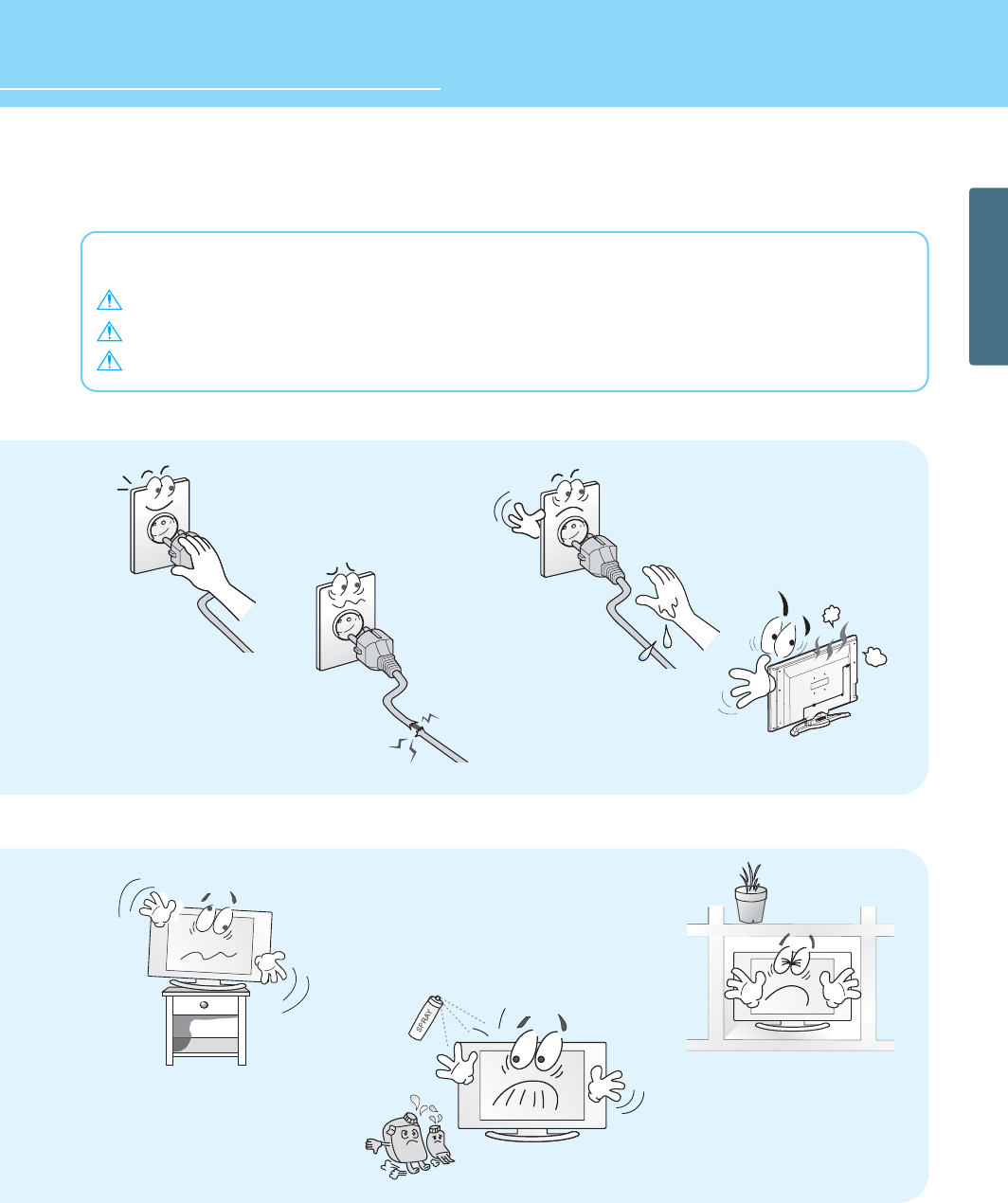
Do not connect multiple electrical
appliances to a single outlet.
- It may cause a fire due to overheating from the
outlet.
Do not put a water bowl, vase,
candle, bug repellant smoke,
cigarette, plants, or heavy thing on
the LCD TV.
- It may cause electric shock or fire and also
heavy things may cause injury when they fall.
If there is a persistent accumulation
of dusts or water on the plug, please
make sure to wipe it off using a dry
cloth.
- It may cause a fire or an electric shock.
Do not install in a place where there
is oil, smoke, excessive humidity, or
where water may be sprinkled,
dripped, splashed on it.
- This may cause electric shock or fire.
6
GENERAL INFORMATION
HYUNDAI LCD TV HQL170WR/200NR
Safety instructions are divided into “Warning” and “Alert”. Their meanings are as follows.
This icon is intended to alert the user to the presence of potential danger and important operating instructions.
Warning : When there is a possibility of serious injury or death if not observed.
Alert : When there is a possibility of slight injury or product damage if not observed.
Do not install on an unstable place
or small support.
- This may cause the LCD TV to fall, resulting in
serious injury to a child or adult.
Do not use or store a flammable
spray or inflammable things near the
LCD TV.
- They may cause explosion or fire.
Do not install the LCD TV in a
bookshelf, closet, or a place where
there is poor air circulation.
- Fire may be caused due to the rise of internal
temperature.
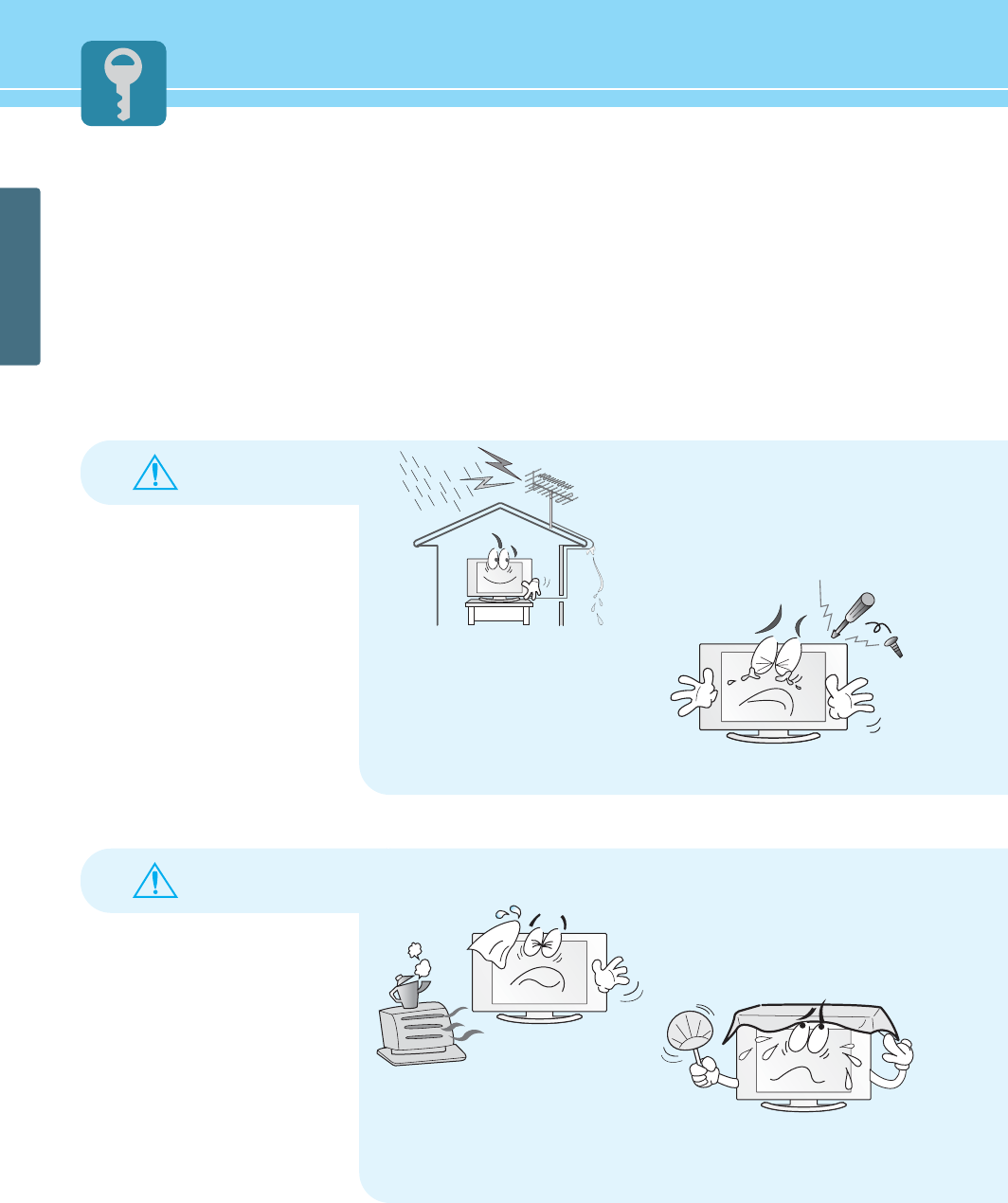
Firmly plug in the power
cord so that it does not pull
out.
- An unstable connection may cause
fire.
Do not use a damaged
power cord or plug, or loose
outlet.
- They may cause electric shock or fire.
Please avoid touching the panel
at the rear of LCD TV as it is
producing high temperature.
- Direct contact with the hot surface may
cause physical burns.
Never touch the power plug
or outlet with wet hands.
- This may cause electric shock.
7
GENERAL INFORMATION
Safety Precaution ....................................Continued from previous page
The contents of this section are provided for the safety of users and their property.
Please read the instructions carefully before using.
WARNING
WARNING
Do not place any heat sources such
as radiators and heat registers, etc.
on or near the LCD TV.
- It may cause a fire.
Do not block ventilating slits.
- Blocking the ventilation slits prevents inner heat
from escaping, which may lead to a fire.
Make the antenna cable loop at the entrance
of the building. Any necessary action such as
making the antenna cable loop at the
entrance of the building should be taken to
prevent rainwater on the outdoor antenna
cable from possibly running into the indoor.
- If raindrop gets into the LCD TV, it may cause a
fire or an electric shock.
Never attempt to open, fix, or modify
the LCD TV.
- When there is a need for fixing, call a service
center. Fire or electric shock may be caused.
8
GENERAL INFORMATION
HYUNDAI LCD TV HQL170WR/200NR
Safety instructions are divided into “Warning” and “Alert”. Their meanings are as follows.
This icon is intended to alert the user to the presence of potential danger and important operating instructions.
Warning : When there is a possibility of serious injury or death if not observed.
Alert : When there is a possibility of slight injury or product damage if not observed.
Do not install the product on the
floor.
- If it falls over, your child may be injured.
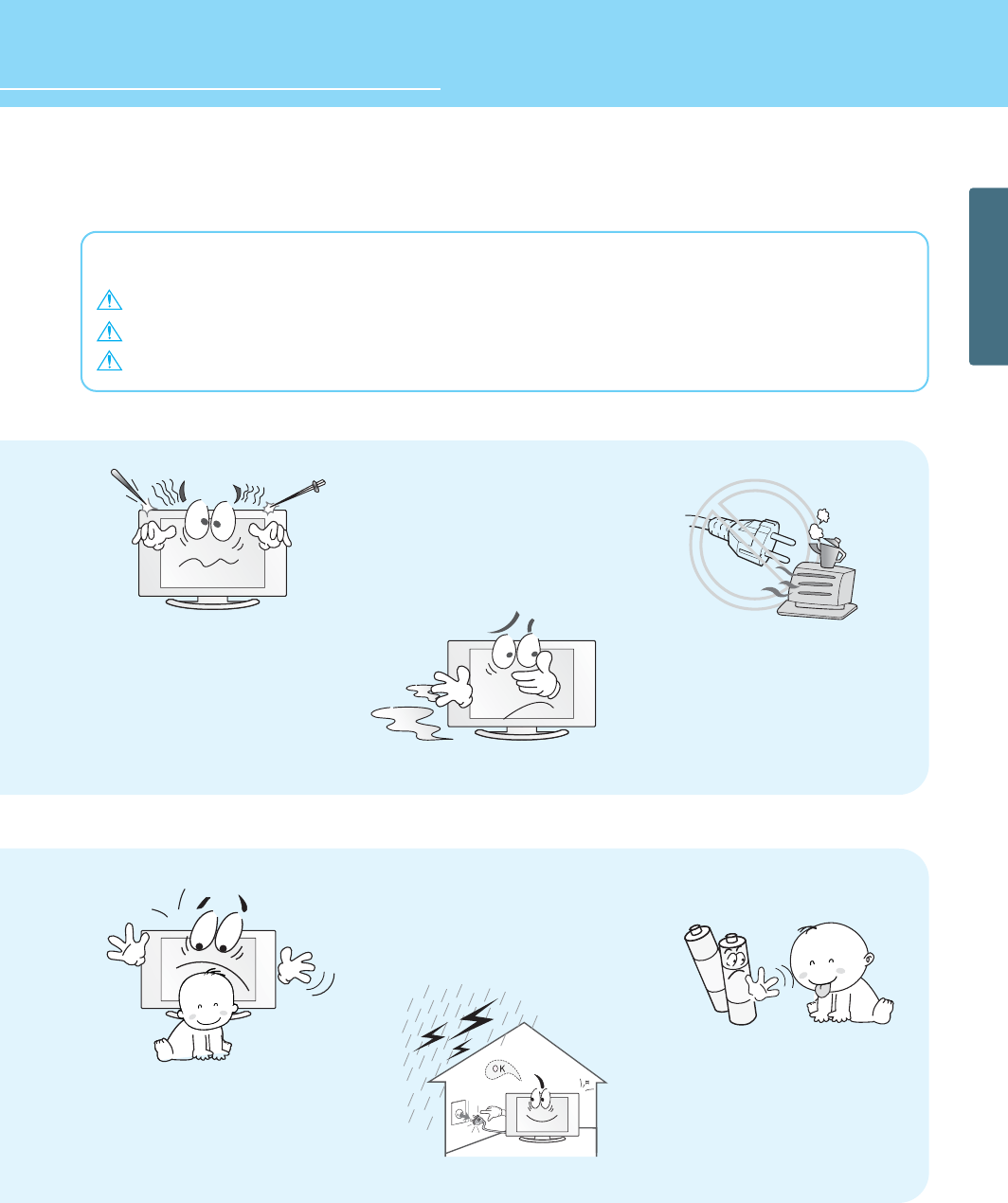
Unplug the product during lightning
or thunderstorms and never touch
the antenna cable.
- It may cause a fire or an electric shock.
Keep the remote control batteries
out of sight and out reach of
children.
- If your child swallows a battery, see your doctor
immediately.
Do not put a metallic object like
chopstick, wire, or puncher or
inflammables like paper or a match
in a vent, headphone jack, or AV
jacks of the LCD TV.
- Electric shock or fire may be caused.
When the LCD TV produces abnormal
noise, burning smell, or smoke,
unplug the LCD TV immediately and
call a service center.
- Electric shock or fire may be caused.
Ensure the power cord
doesn’t trail across any hot
objects like a heater.
- This may cause a fire or an electric shock.
9
GENERAL INFORMATION
Safety Precaution ....................................Continued from previous page
The contents of this section are provided for the safety of users and their property.
Please read the instructions carefully before using.
ALERT
WARNING
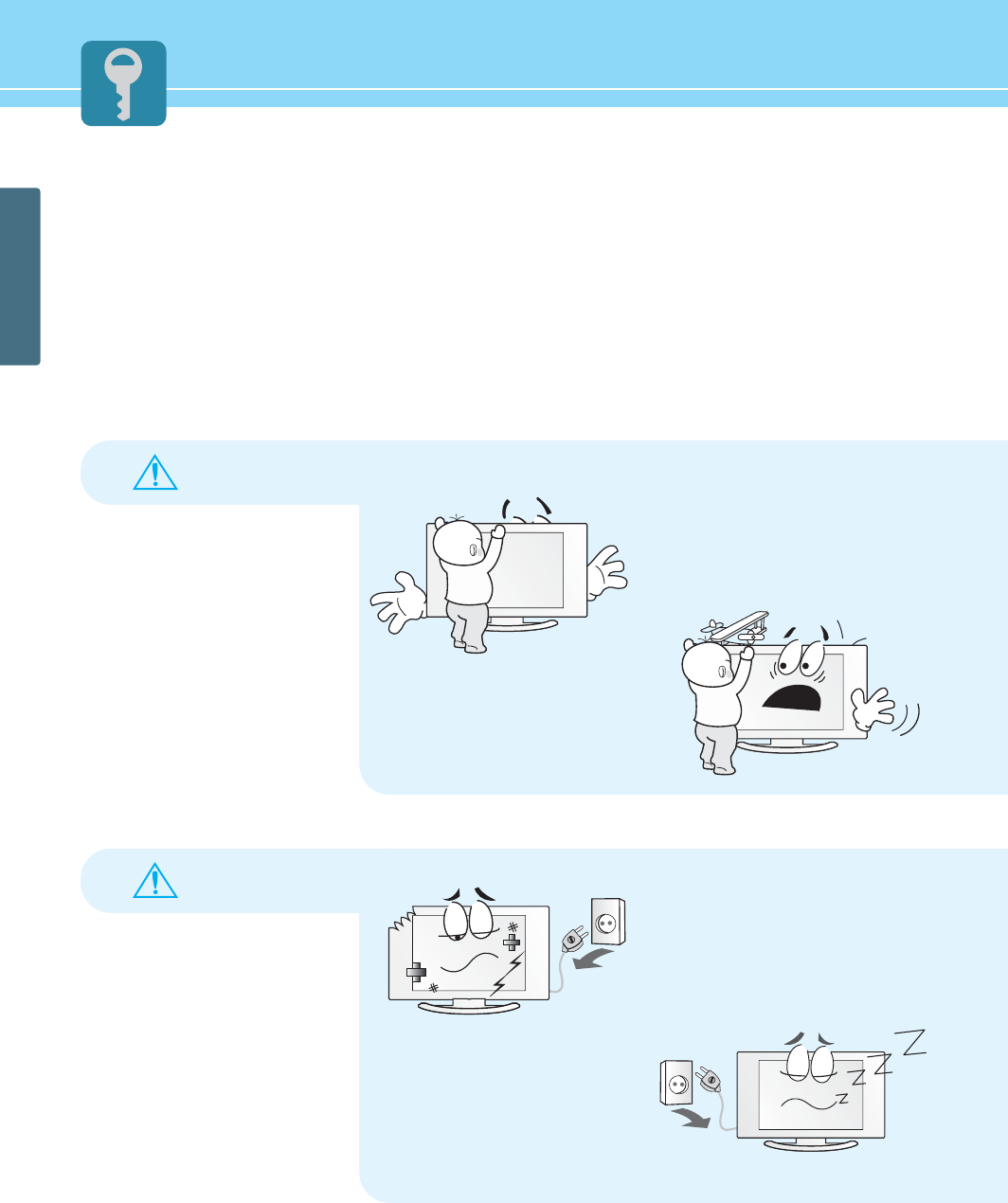
Do not allow children to climb or
play on the LCD TV.
- If it falls over on children, it may cause serious
injury.
Do not place toys and cookies, etc.
on the LCD TV, which may attract
children’s attention. Children will
climb on the LCD TV to reach
whatever they have their eyes on.
- If it falls over on children, it may cause serious
injury.
In the event of damaging or
dropping the product, switch off the
power and remove the plug.
- Using a damaged product may cause an electric
shock or a fire.
- Contact your local service center.
Unplug when you do not use your
LCD TV for a long time.
- If dust is stacked on the LCD TV, electric shock
or fire may be caused from heat, fire, or
deterioration of insulation.
HYUNDAI LCD TV HQL170WR/200NR
10
GENERAL INFORMATION
LUBRICANT
Benzene
Alcohol
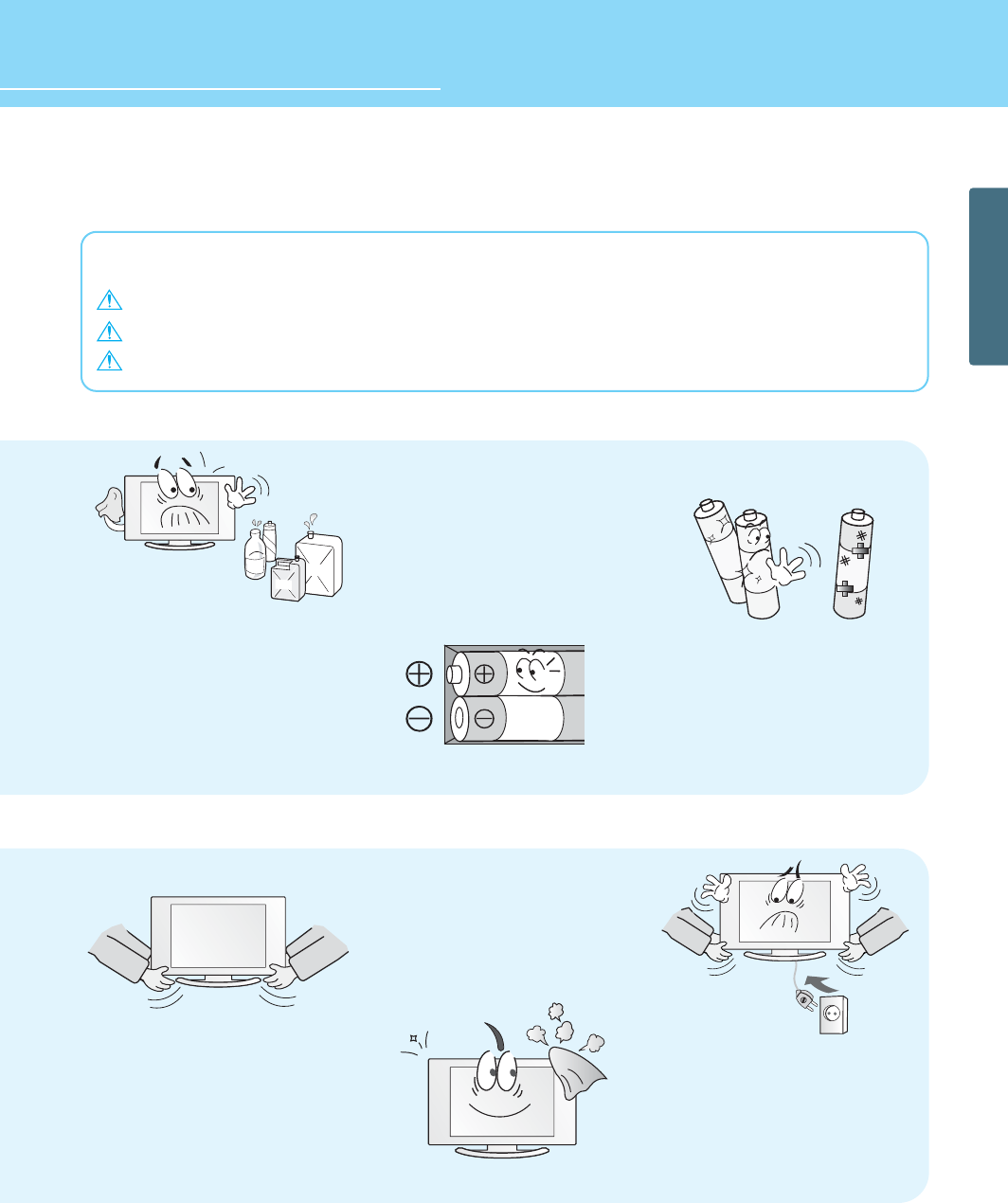
When cleaning the LCD TV, make sure
to disconnect the power plug and use
a dry, soft cloth for a cleanup.
- Please avoid using chemicals such as wax,
benzene, alcohol, thinner, mosquito spray,
air freshener, lubricant or synthetic
detergent.
When replacing batteries, make
sure to match the batteries to the
(+) and (-) marks in the battery
compartment.
- Mismatching of polarities may result in internal
damage to batteries, fire due to leakage or
contamination.
Always use the standard batteries
and avoid using old batteries
together with new ones.
- Otherwise it may result in internal damage to
batteries, fire due to leakage or contamination.
When moving the LCD TV, 2 or more
people are advised to carry it.
- Injury or damage may be caused when the LCD
TV falls.
Before moving your LCD TV, ensure to
switch off the power and unplug all the
electrical cords and the external
connection cords such as an antenna
cable and other source connections, etc.
- An electrical cord(s) may be damaged resulting
in a fire or an electrical shock.
Consult a service center or customer
service for inside cleaning about
once a year.
- When dust is piled inside the LCD TV for a long
time, fire or malfunction may be caused.
Safety instructions are divided into “Warning” and “Alert”. Their meanings are as follows.
This icon is intended to alert the user to the presence of potential danger and important operating instructions.
Warning : When there is a possibility of serious injury or death if not observed.
Alert : When there is a possibility of slight injury or product damage if not observed.
GENERAL INFORMATION
11
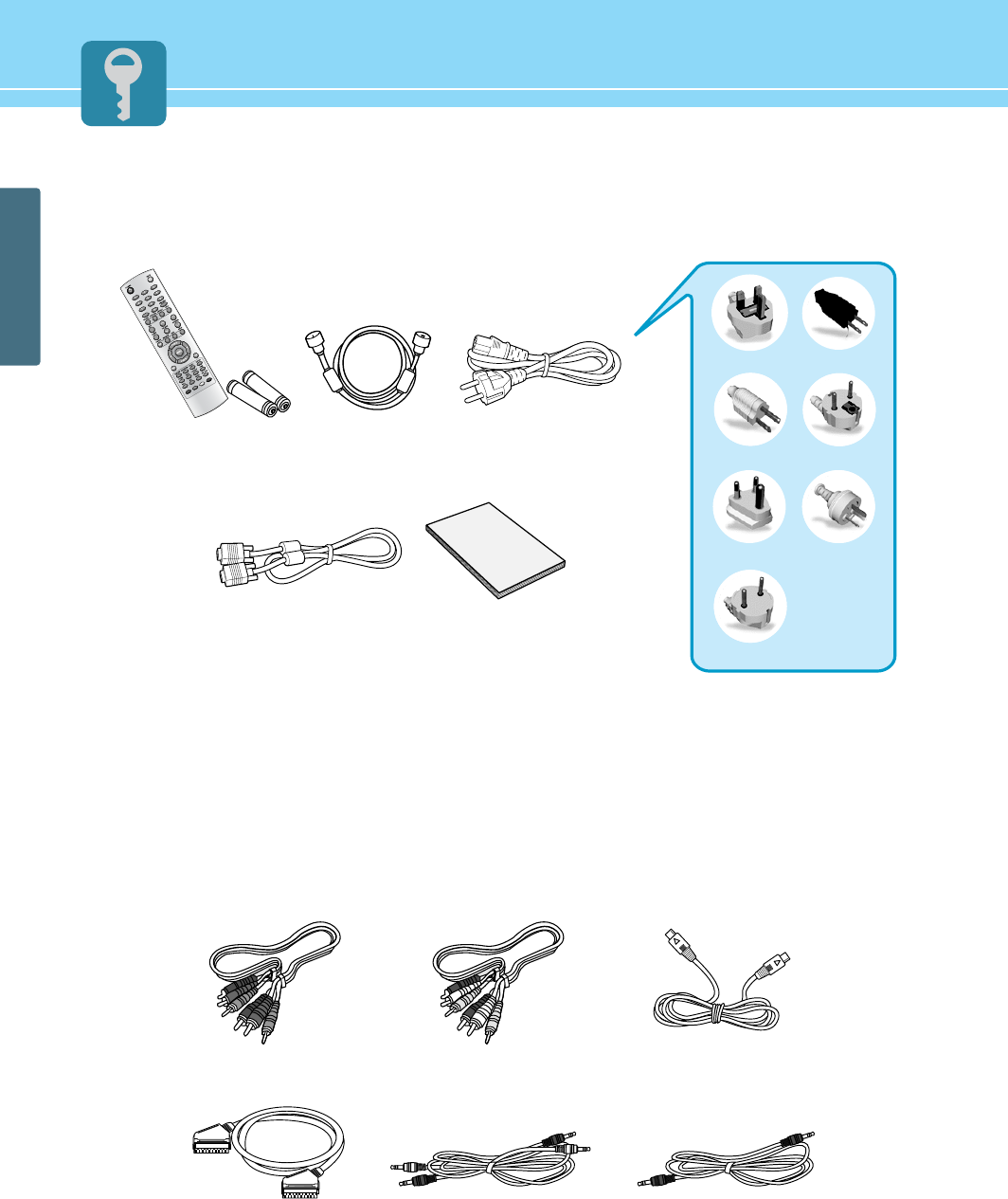
Contents of the Package
To purchase additional parts, consult a distributor or selling agent.
Separately Sold Products
If you want to purchase separately sold products, consult a service center, electronics shops, or parts seller.
UK
America/Canada
Japan
Australia
Korea
Europe
South Africa
Power CordAntenna CableRemote Control/2
Batteries
(1.5V AAA)
User’s GuidePC signal Cable(D-SUB)
Audio Cable(DVD/DTV)Scart Cable Audio Cable(PC)
Composite(Video & Audio) Cable S-video cable Component(Y, Pb, Pr) Cable
HYUNDAI LCD TV HQL170WR/200NR
GENERAL INFORMATION
12
How to Use the Kensington Security Slot
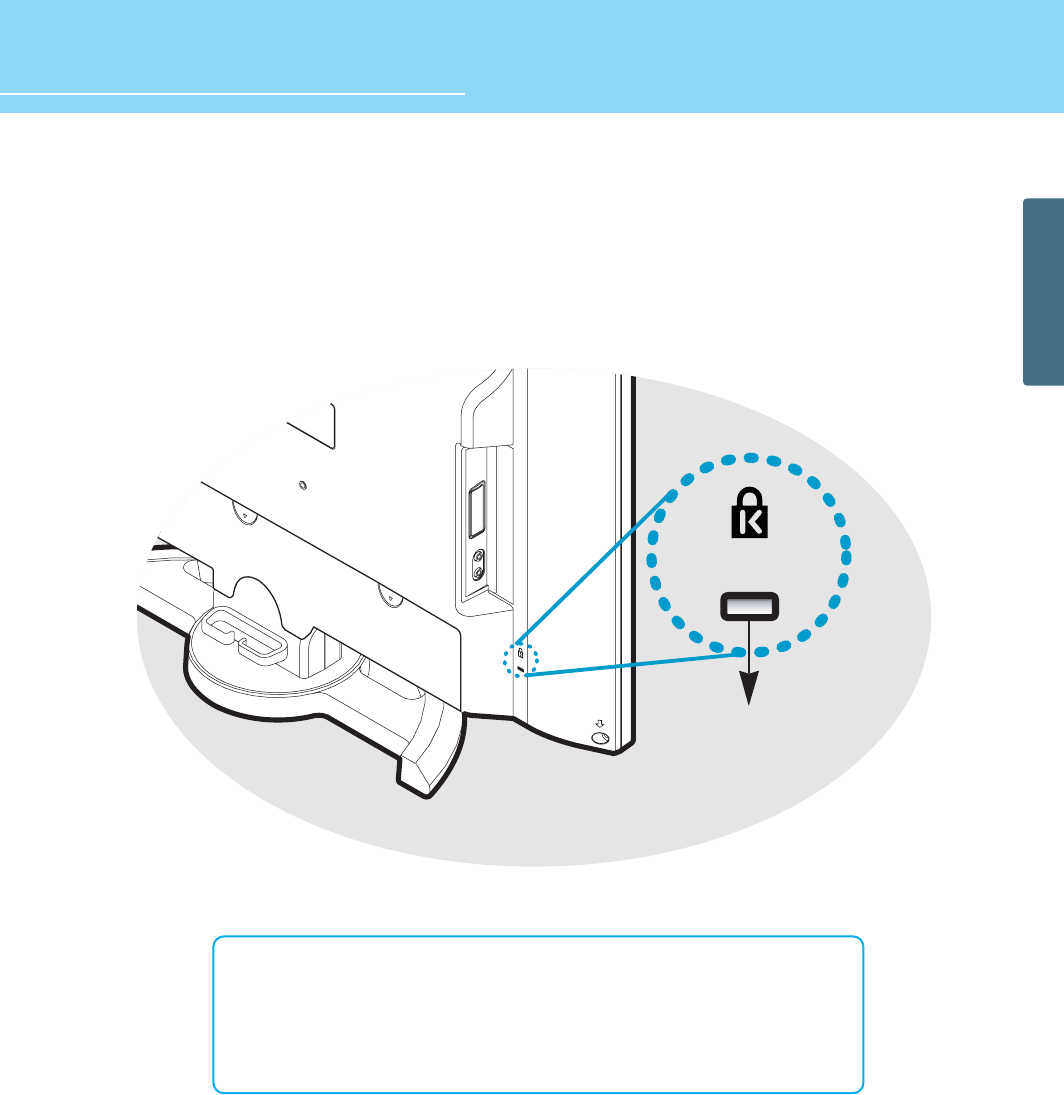
- This display unit supports a Kensington-type security device to secure your LCD TV. Kensington lock is not
included.
- To purchase and install the Kensington locking device, please refer to the following contact information.
* Kensington Technology Group
• Address : 2000 Alameda de las Pulgas 2F San Mateo, California 94403-1289
• Tel : +1 650 572 2700 • Fax : +1 650 572 9675
• Web-site : www.kensington.com
Kensington
security slot
13
GENERAL INFORMATION
How to Use the Rear Cap and Cable Holder
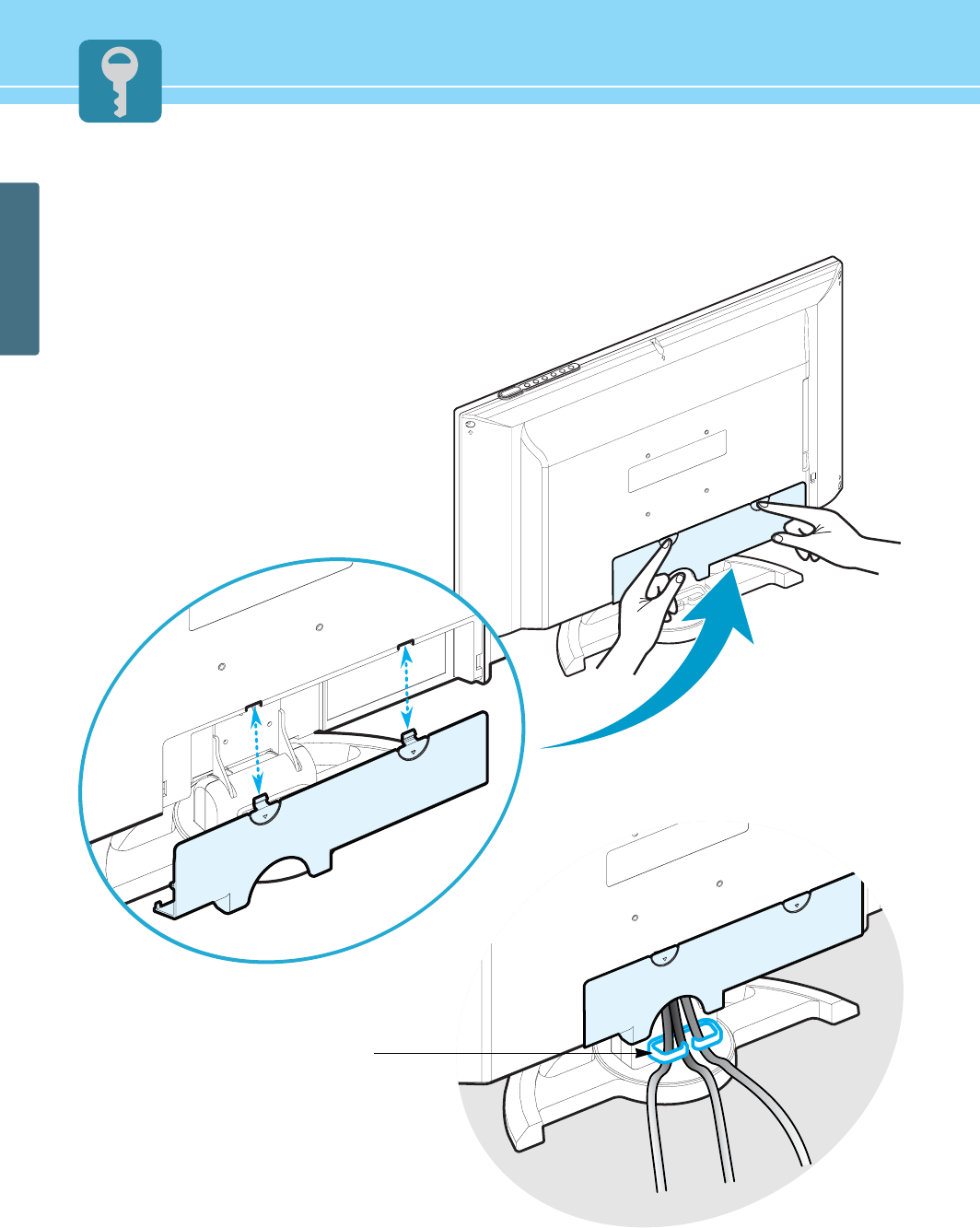
The Rear Cap and Cable Holder allow you to organize the connection cables on the rear of the product.
1. Pressing and pulling two hooks on the
rear downward can detach the rear cover.
2. Connect your cables to the terminals of
the rear.
3. Organize the connected cables neatly
using the Cable Holder.
4. Align the rear cover with the guide holes
and push the cover firmly toward the front
of the monitor until the latches click into
the locked position.
Cable Holder
14
GENERAL INFORMATION
HYUNDAI LCD TV HQL170WR/200NR
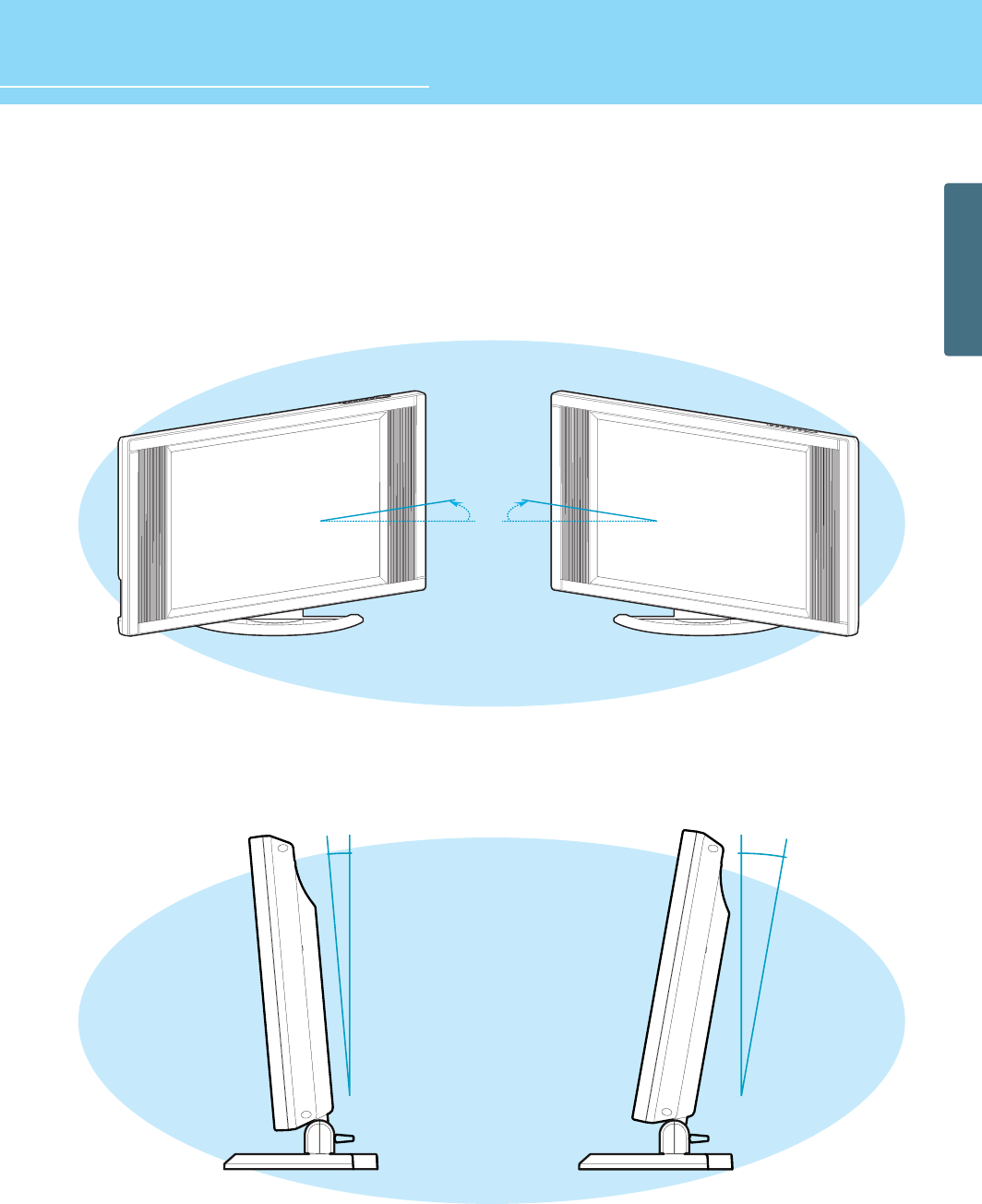
-5O
How to Adjust the View Angle
You can adjust the angle of the view for the desired view angle.
You can adjust any angle within a range of 30º to the left or right.
You can adjust the tilt of the TV from -5º to 10º after the installation.
10O
30O
30O
15
GENERAL INFORMATION
How To Install Wall Mount Support
1. Caution
1. Install on the vertical wall surface only.
2. Do not install on the following places to protect the performance of LCD TV and to prevent malfunction.
Near sprinkler Detector, Near heating devices,
Places where vibration or shock may be applied , Near high voltage electric power line
3. Install in a proper method with the structural materials of the wall.
If the wall is not strong enough to stand weight of TV set, reinforce the wall surface before installation.
4. Do not install within a wall.
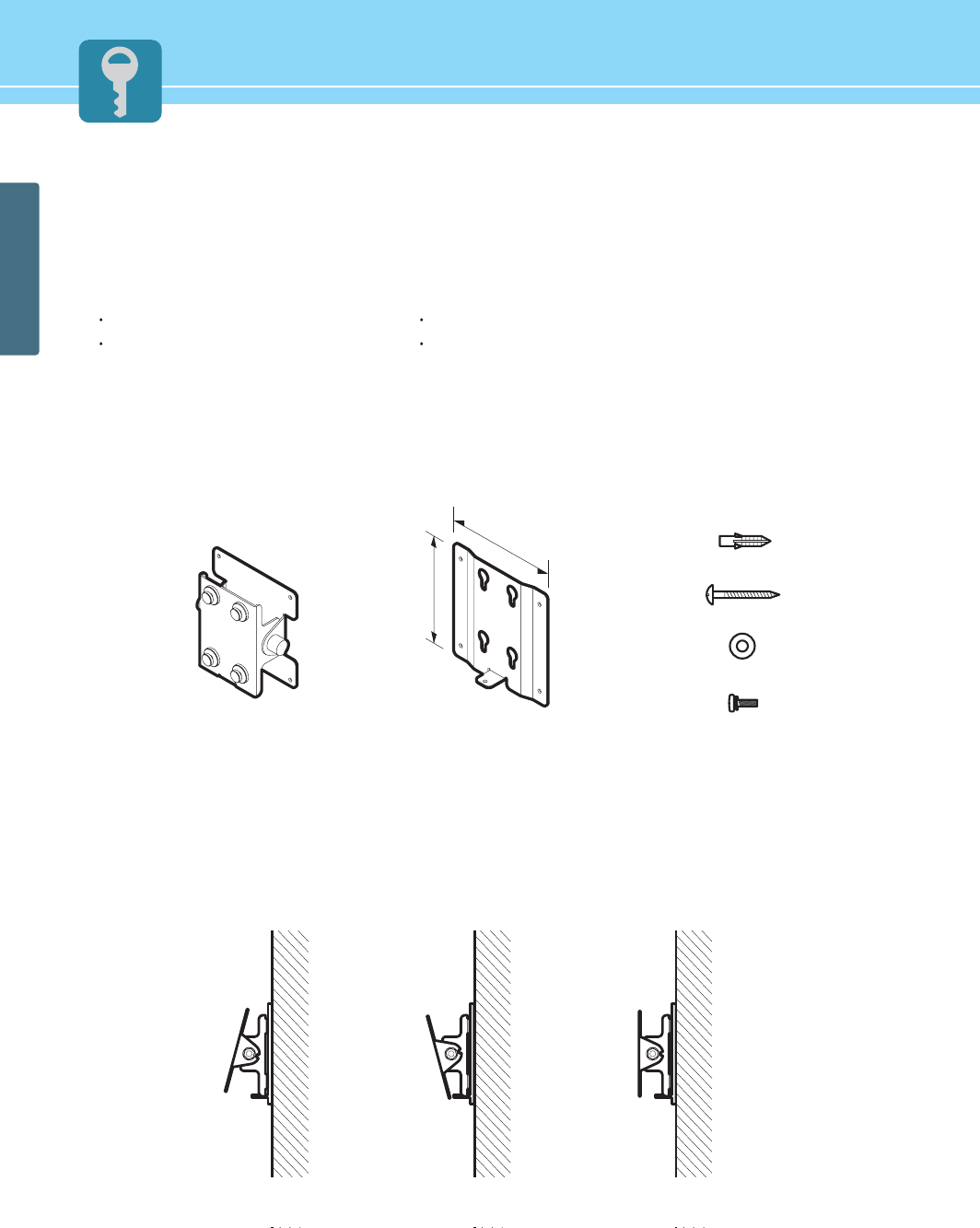
2. Parts configuration chart
* The above image may look different from the real product.
3. Angle Adjustment(Option)
The angle of LCD TV may be adjusted from -15 degree to 15 degree.
* A fixed wall mount frame does not support angle adjustment.
130.0
135.0
Screw - 5 EA
Washer - 4 EA
Screw - 4 EA
Plastic Anchor - 4 EA
Fixing Panel Assembly Base frame Assembly
150angle -150angle No angle
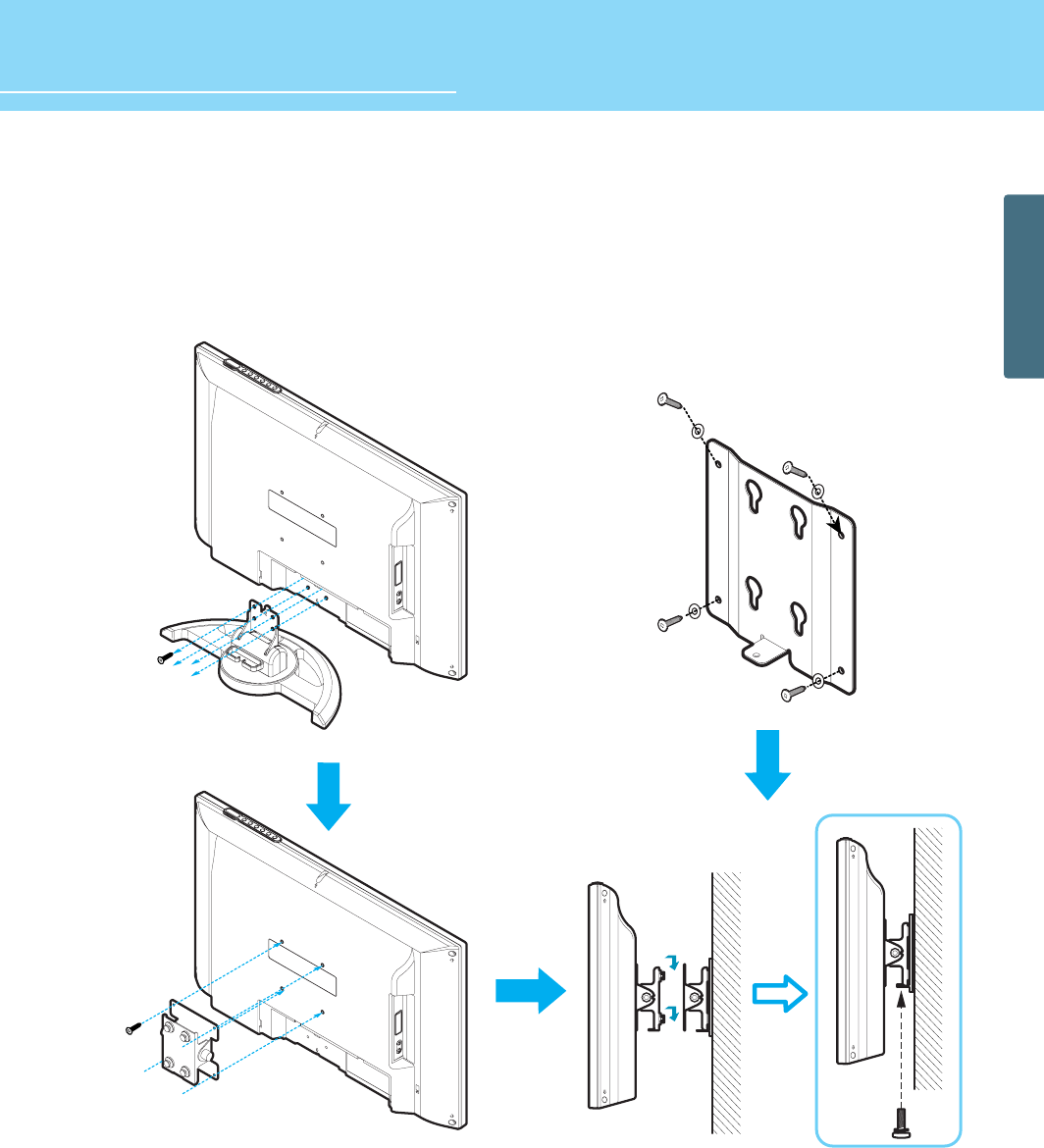
16
GENERAL INFORMATION
HYUNDAI LCD TV HQL170WR/200NR
How To Install Wall Mount Frame
4. Installation Method
1. Unscrew screws fastened on 4 spots on the stand of LCD
TV.
2. Fasten the Fixing Panel assembly on the back of LCD TV as
shown on the picture.
(ATTENTION! Please use the supplied screws (4 x 12 mm
or no longer than 12 mm.)
3. Fix the Base Frame Assy on the wall with screws or nails.
4. Hook the Fixing Panel Assy with the LCD TV attached on
the Base Frame Assy. (Tighten the screws as shown in
the above picture to ensure that the TV is secured.)
17
GENERAL INFORMATION
- Power Indicator Staus -
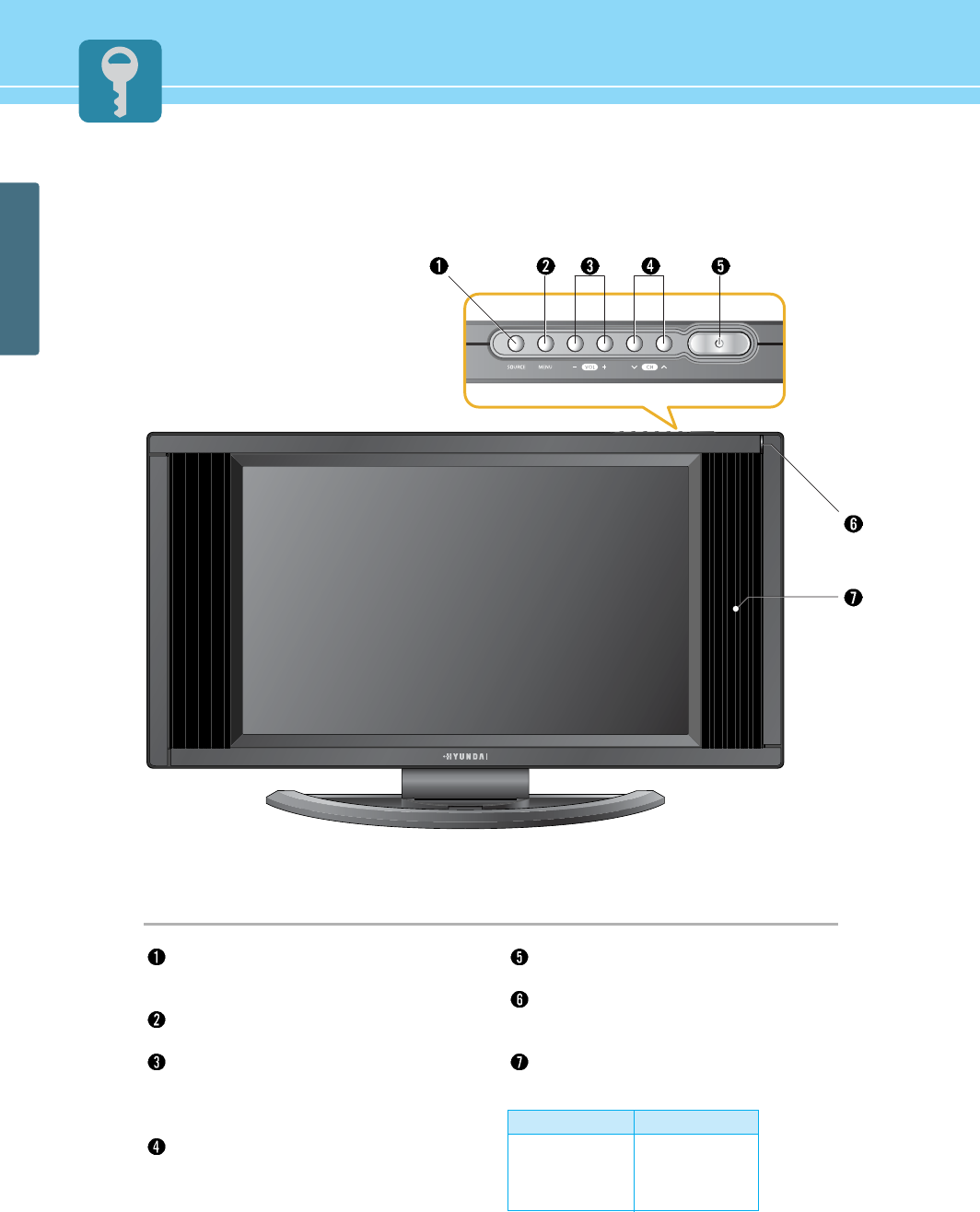
Parts Names and Functions
Front View
Source button
Use this button to switch among inputs
connected to the LCD TV.
Menu button
Use this button to display or exit from menus.
Volume buttons
Use these buttons for your desired sound
level. These buttons also serve as the cursor
of Select/Adjust when in Menu mode.
Channel(Program) buttons
Use these buttons to change programs.
These buttons also serve as the cursor of
Down and Up buttons when in Menu mode.
Power button
Use this button to turn on or off the LCD TV.
Remote sensor and power LED.
- Point the remote control toward here.
- It displays standby or operation status.
Speaker
Indicator
Red
Green
Green blinking
Status
Stand-by
Power on
Remote control
* The above image may look different from the real product.
HYUNDAI LCD TV HQL170WR/200NR
GENERAL INFORMATION
18
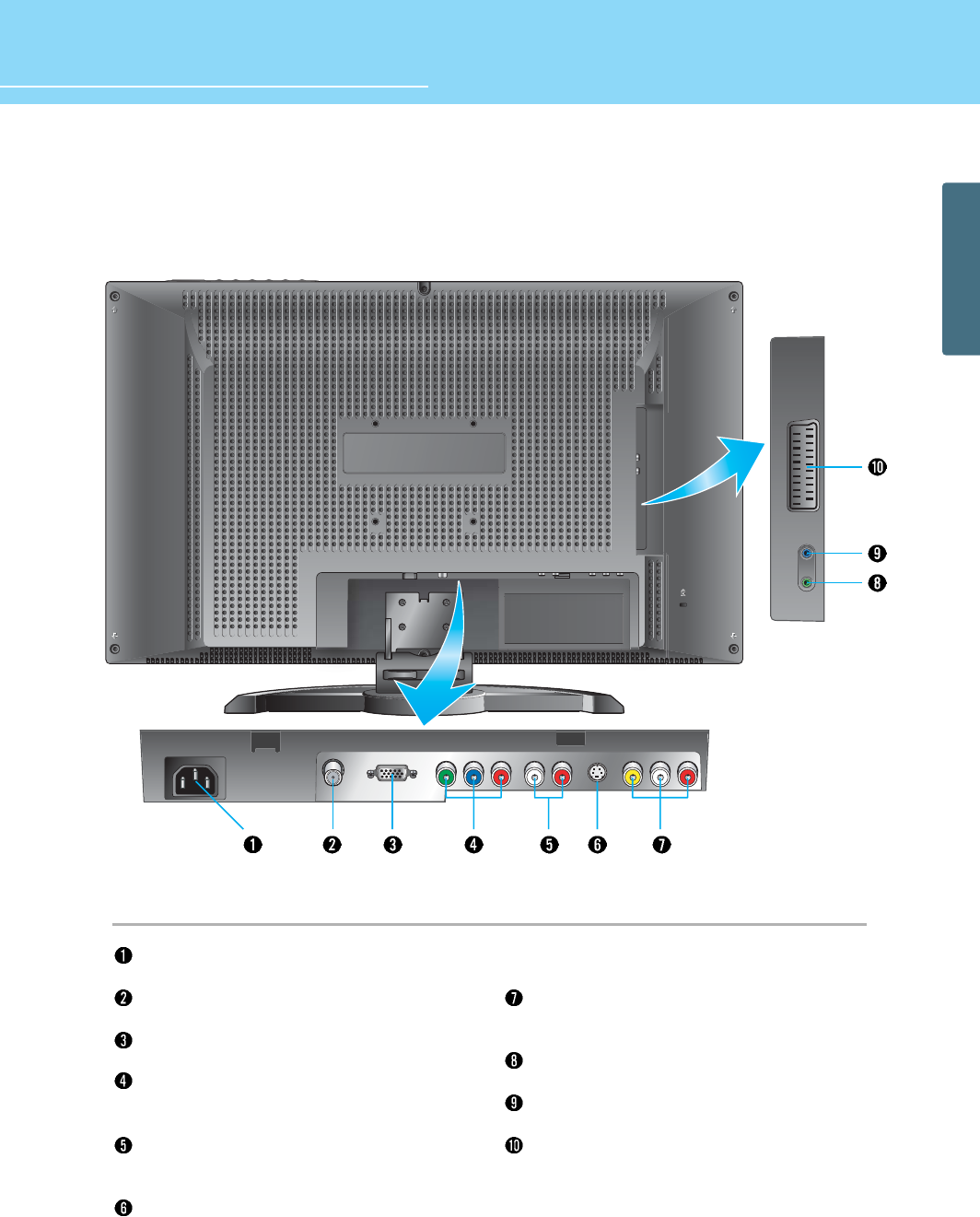
Rear View
Power input terminal
Power cord is connected here.
ANT. input
This allows you to connect your antenna.
D-SUB input terminal
Connect to RGB output terminal of a PC.
Component input terminal for DVD or DTV
Connect to the Component output terminal of DVD
player/DTV receiver.
Audio input terminal for DVD or DTV
Connect to the audio output terminal of DVD
player/DTV receiver.
S-video input terminal
Use this for the better video quality than Composite
video input terminal.
Video and Audio Composite input terminal for VCR
Connect to the Composite Video output terminal of
VCR or DVD player.
Headphone Jack
Connect to the Headphone.
Audio input Jack
Connect to the audio output terminal of PC.
Scart input terminal
For Composite Video/Audio or R, G, B input used in
the European area.
* The above image may look different from the real product.
GENERAL INFORMATION
19
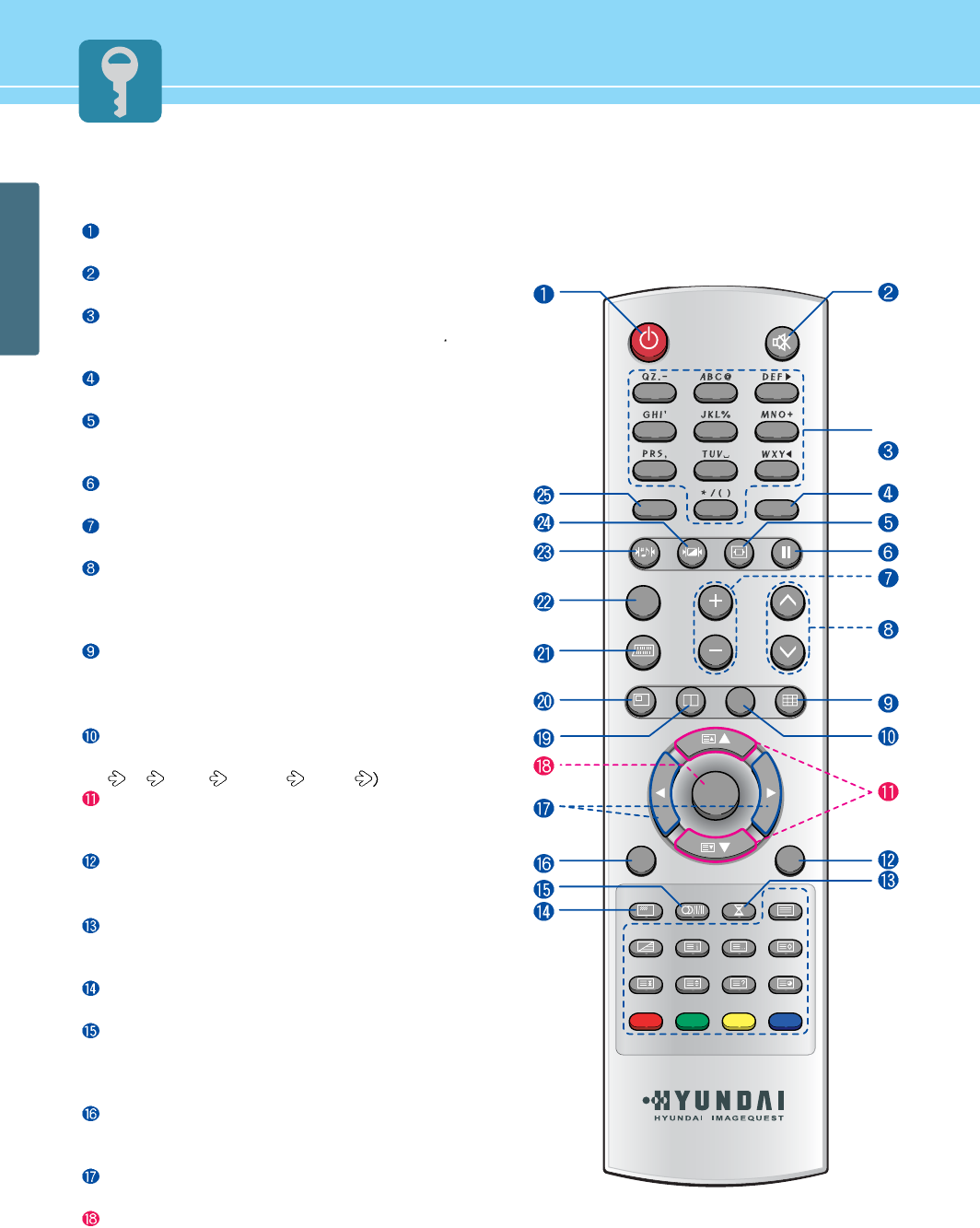
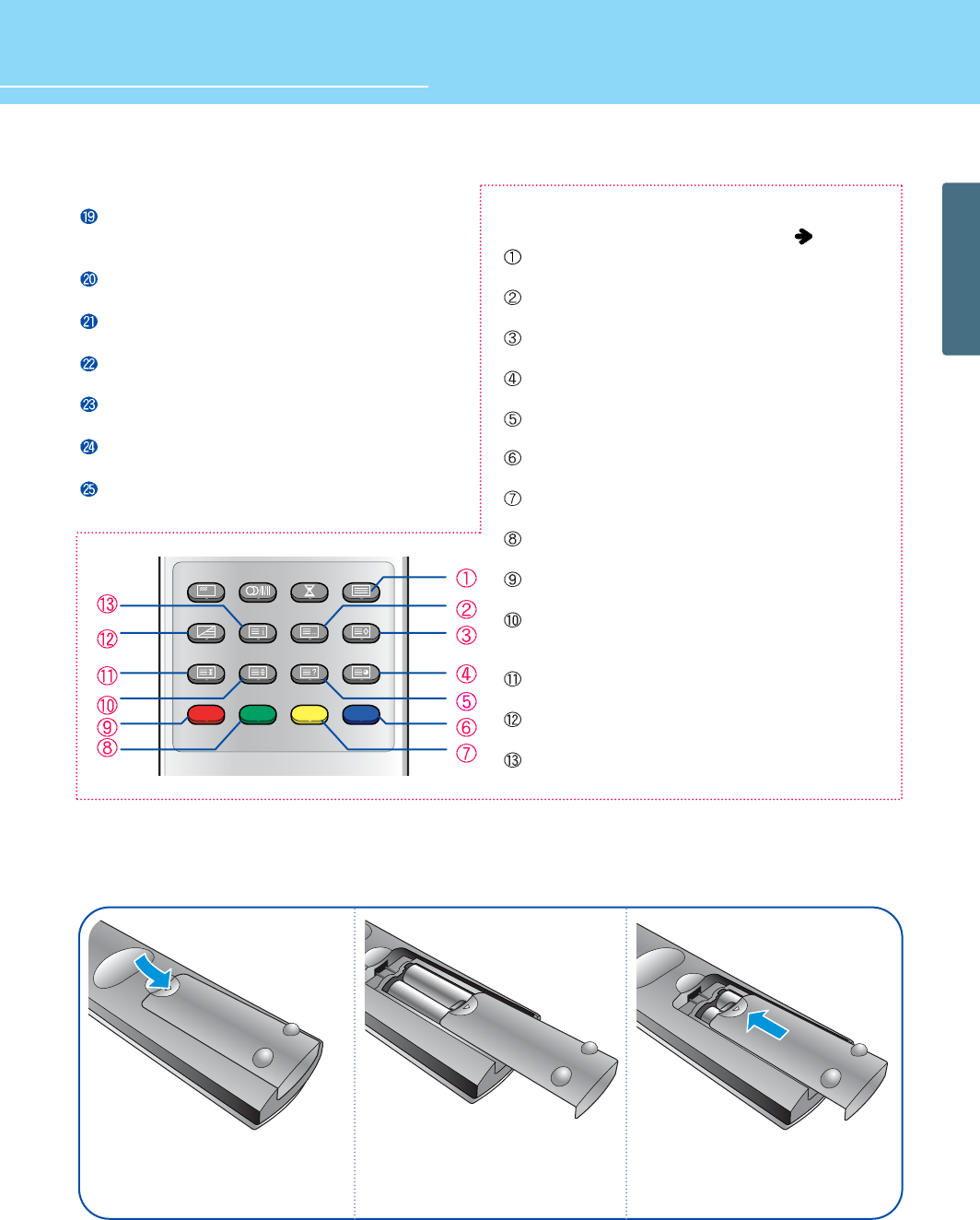
Remote Control
POWER/STANDBY
Use this button to turn the TV set on or off.
MUTE
Use this button to turn the sound off completely.
NUMERIC KEYS
- Use these buttons to select programs and input digit
- Enter program names using alphabets and special letters.
PRE-PR
Use these buttons to return to the previous program.
ASPECT RATIO
Use this button to change the picture size. (This function is
available only with the TV, Video, S-Vedio, Scart mode.)
STILL
Use this button to freeze a picture.
VOLUME
Use this button to control the volume level.
PR
- Use this button to select programs.
- Use this button to jump back to TV mode from other mode.
- Use this button to turn the TV set on.
MULTI/S.SWAP
- Use this button to select 9 partitions screens. (This function
is available only with the TV, Video, S-Video, Scart mode.)
- Sound Swap is only available when in PIP/POP mode.
SUB SOURCE
Use this button to select the input source in sub picture.
(TV VIDEO S-VIDEO SCART
UP/DOWN
Use these buttons to move each item of menu you want to
choose.
MAIN SOURCE
- Use these buttons to display the available video source.
(TV, VIDEO, S-VIDEO, SCART, COMPONENT, PC)
SLEEP
Use this button to allow your TV to turn off automatically at
designated time.
INFO
Use this button to display input source and clock information.
S.MODE
Use this button to display types of audio signals currently
aired on TV. Or you can use this button to switch to other
Sound Mode available.
EXIT
Use this button to exit from a menu or function.
Use this button to exit from PIP/POP/MULTI.
LEFT/RIGHT
Use this button to select or adjust each item of menu.
MENU
Use this button to bring up the OSD on the screen.
1 2
0
3
4
7
5
8
6
9
MENU
INFO S.MODE SLEEP TTX
MIX INDEX LIST/FLOF STORE
HOLD SIZE REVEAL SUB PAGE
MAINEXIT
MUTE
PR LIST PRE
–
PR
SOUND
COMPONENT
PC
SUB
VOLUMEVIDEO
PIP
S.SWAPPOSITION
POP SOURCE MULTI
SOURCE
PICTURE ASPECT STILL
POWER
PR
HYUNDAI LCD TV HQL170WR/200NR
20
GENERAL INFORMATION
How to Insert Batteries in Remote Control
*Battery type : 1.5V/BP-2KM(AAA/LR03G
Press and hold ∆part and push to
open cover.
Insert batteries with proper
polarities of + and - .
Use the remote control with cover
closed.
123
POP (Picture Of Picture)
Use this button for POP On/Off. (This function is available
only with the TV, Video, S-Vedio, Scart mode.)
PIP (Picture in Picture) / POSITION
Use this button for PIP On/Off or select position.
VIDEO
Use this button to select Video, S-Video or Scart mode.
COMPONENT/PC
Use this button to select Component or PC mode.
SOUND
Use this button to select the status of sound.
PICTURE
Use this button to select the status of picture.
PR LIST
Use this button to select program list.
Teletext & Fastext Function
(P. 71 ~ 73)
TTX
Use this button to activate the teletext mode.
LIST/FLOF
To select LIST/FLOF mode.
STORE
To store teletext pages.
SUB PAGE
To move to Sub Page.
REVEAL
To reveal the hidden TTX information.
BLUE
To move between BLOCK and BLOCK.
YELLOW
To move to NEXT GROUP PAGE.
GREEN
To move to NEXT EXISTING PAGE.
RED
To return to the previous selection
SIZE
The size is changed from Normal, Double to Double
Bottom mode in order.
HOLD
To freeze the TV screen when in Multi Page.
MIX
To select MIX mode.
INDEX
To move to INDEX in FLOF or move to INFO in TOP.
INFO S.MODE SLEEP TTX
MIX INDEX LIST/FLOF STORE
HOLD SIZE REVEAL SUB PAGE

21
GENERAL INFORMATION

Connecting Indoor/Outdoor TV Antenna(UHF/VHF) ......................23
Connecting to the Antenna Input Connection on the External
Equipment ...................................................................................24
Connecting a VCR, Cable/Satellite Receiver ...............................25
Connecting a DTV Receiver or DVD Player .................................26
Playing Back a Tape Recorded On a Camcorder .........................27
Connecting to a PC ......................................................................28
Resolutions Supported in PC ......................................................29
Scart Connection to the External Input/Output ...........................30
Scart Pin Specifications ..............................................................31
Connections
HYUNDAI LCD COLOR TV
23
CONNECTIONS
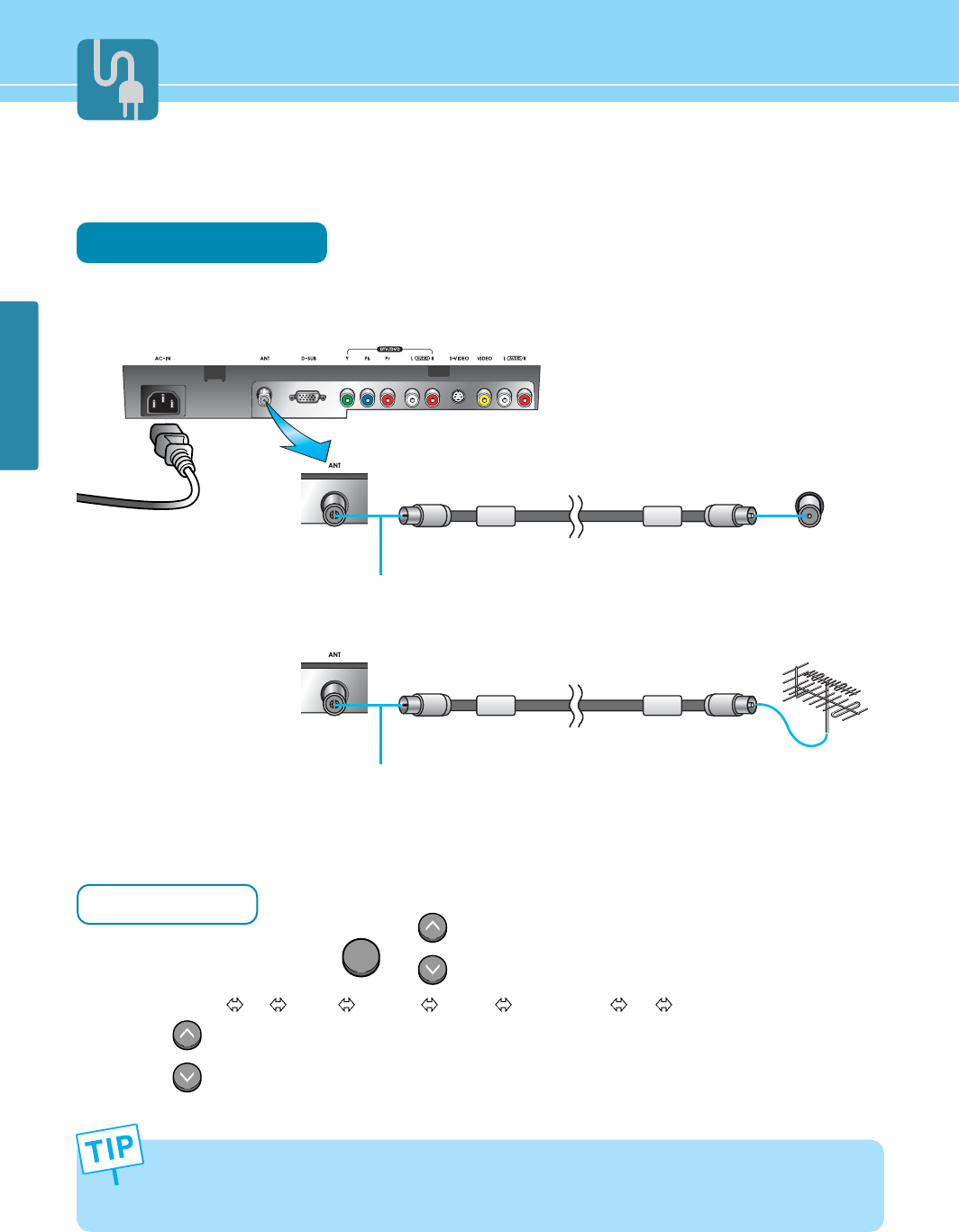
Connecting Indoor/Outdoor TV Antenna(UHF/VHF)
Connection Method
Ensure to connect an antenna cable to the antenna input connection.
How to Watch
Turn on your LCD TV and press or on remote control unit to select TV.
You can select TV VIDEO S-VIDEO SCART COMPONENT PC in order.
Press or Numeric keys to select the desired Programs.
1
2
• When inserting a 75-ohm coaxial cable into the input connection, ensure the wire tip not to bend.
• If you experience poor signal reception, we recommend you purchase a signal amplifier for better picture
quality.
MAIN
SOURCE
outdoor antenna
indoor antenna
Antenna cable
Antenna cable
Coaxial cable
Coaxial cable
Power Cable
PR
PR
HYUNDAI LCD TV HQL170WR/200NR
24
CONNECTIONS
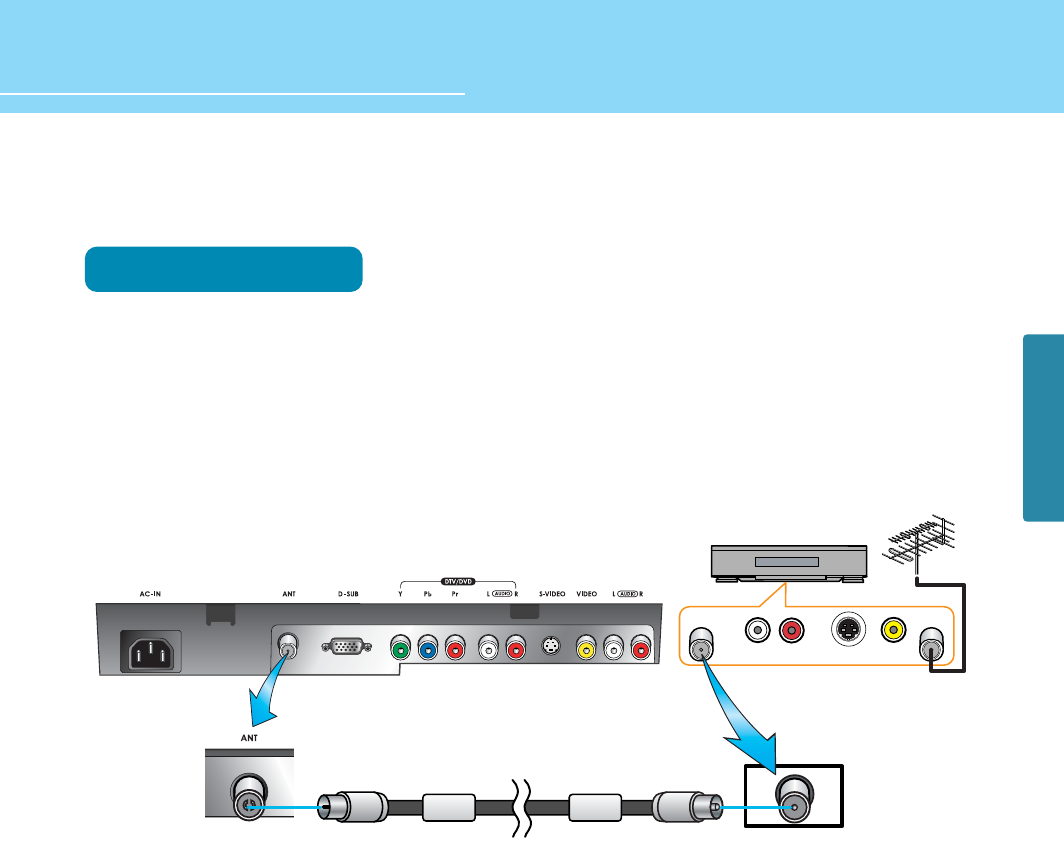
Connecting to the Antenna Input Connection on the External Equipment
Connection Method
Connect an antenna cable to VCR/Cable/Satellite Receiver with the antenna input.
Use a coaxial cable to connect VCR/Cable/Satellite Receiver's antenna output to the antenna input on your
LCD TV.
1
2
VCR/Cable Receiver
)=,17
;>1,-7
>1,-7
:4
)6<7=<
)6<16
Coaxial cable
CONNECTIONS
25
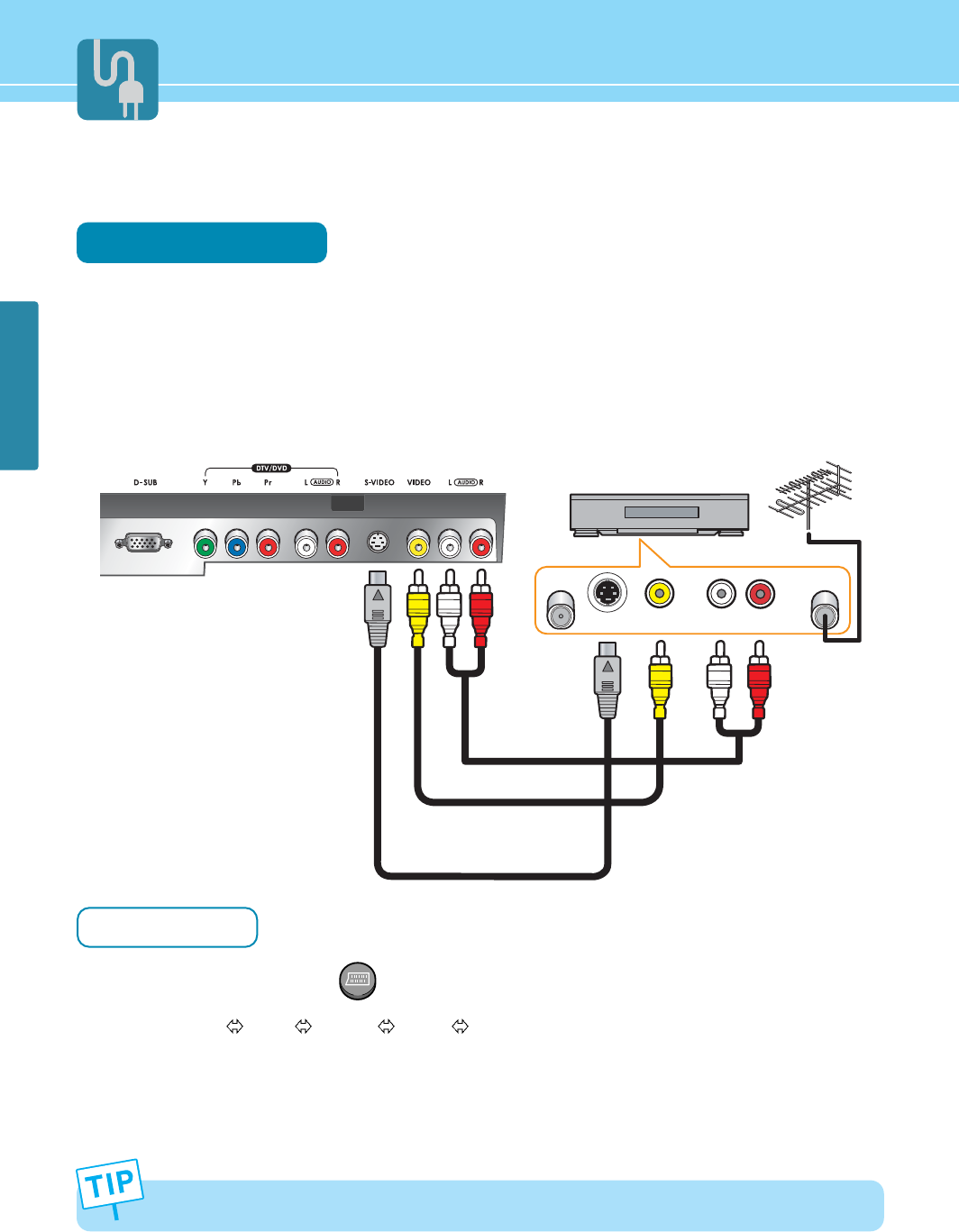
Connecting a VCR, Cable/Satellite Receiver
Connection Method
Connect Video/S-Video cable between Video/S-Video output terminal of VCR or Cable/Satellite receiver and
Video/S-Video input terminal of LCD TV.
(Connect cables and terminal in the same colors)
Connect Audio cable (left:white color, right:red color) between Audio output terminal of VCR or cable/satellite
receiver and Audio input terminal of LCD TV.
(Connect cables and terminal in the same colors)
How to Watch
Turn on your LCD TV and press on remote control unit to select Video or S-Video.
You can select VIDEO S-VIDEO SCART in order.
VCR play : Turn on the VCR and insert a tape and play it.
Cable/Satellite receiver : Turn on the receiver and select a channel.
Read a user manual of VCR, Cable/Satellite Receiver for more details.
1
2
1
2
Use S-video cables for better picture quality.
)=,17>1,-7
;>1,-7
:4
)6<16
)6<7=<
VIDEO
Audio Cable
VIDEO Cable or
S-VIDEO Cable
VCR/Cable Receiver
AUDIO
VIDEO S-VIDEO
COMPONENT VIDEO
HYUNDAI LCD TV HQL170WR/200NR
CONNECTIONS
26
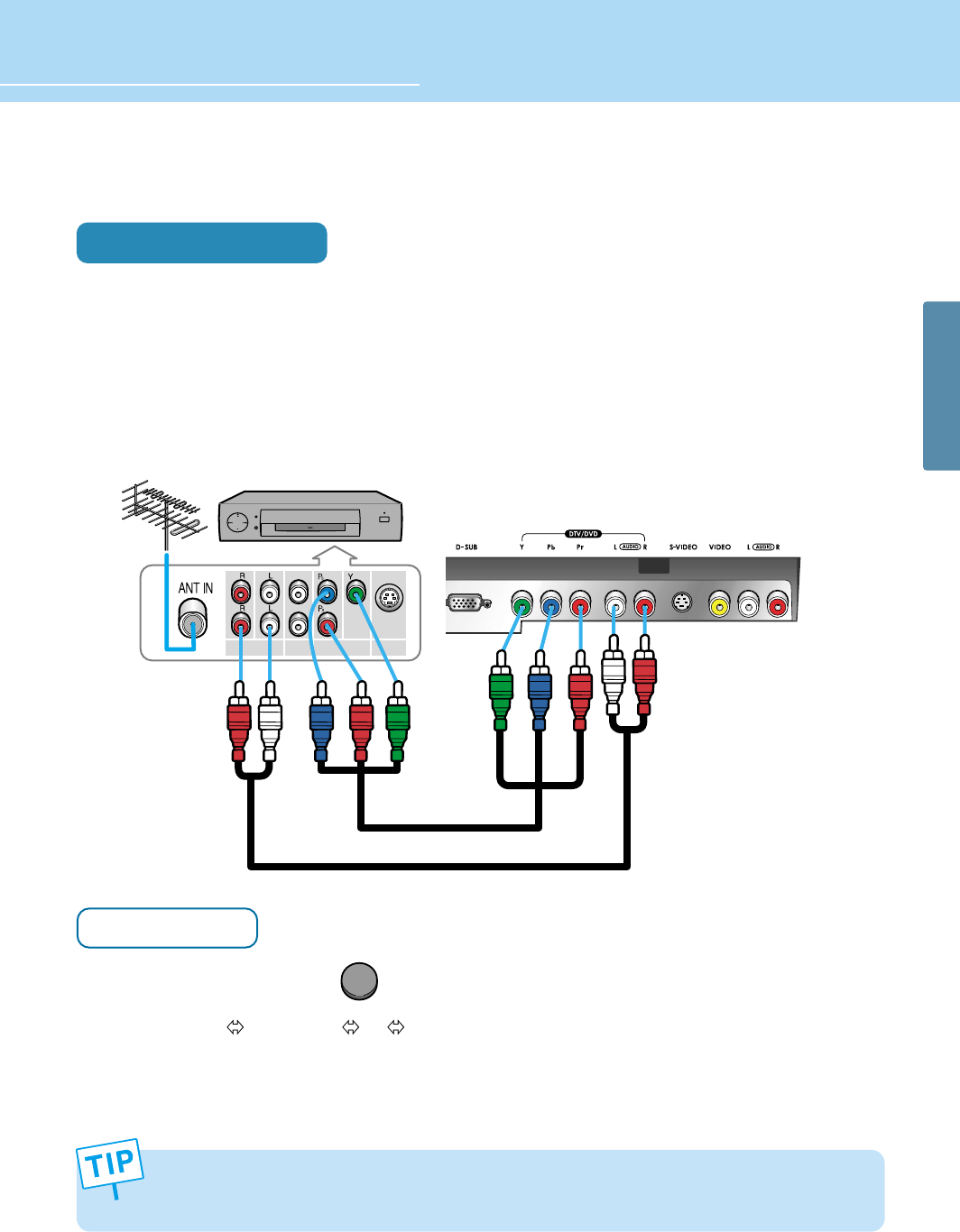
Audio Cable
VIDEO(Y, Pb, Pr) Cable
Connecting a DTV Receiver or DVD Player
Connection Method
Connect video cables(Y, Pb, Pr) between output terminals(Y, Pb, Pr) of DTV receiver or DVD player and the
input terminals(Y, Pb, Pr) of DTV/DVD on the rear of LCD TV.
(Connect cables and terminal in the same colors)
Connect Audio cable between Audio output terminal of DTV receiver or DVD player and Audio input terminal
for DTV/DVD Audio on the rear of LCD TV.
(Connect cables and terminal in the same colors)
How to Watch
Turn on your LCD TV and press on remote control unit to select DTV or DVD.
You can select COMPONENT PC in order.
Turn on a DTV receiver or DVD player and use it.
Read the user manual of DTV receiver or DVD player for more details.
1
- Output terminal mark(Y, Pb, and Pr) of DVD player may be written as Y, B-Y, R-Y/Y-Cb-Cr / Y-Pb-Pr. (It depends
on DVD player)
- To watch digital broadcast, you have to separately purchase a digital set-top box and connect it to LCD TV.
2
COMPONENT
PC
1
2
DTV receiver / DVD Player
27
CONNECTIONS
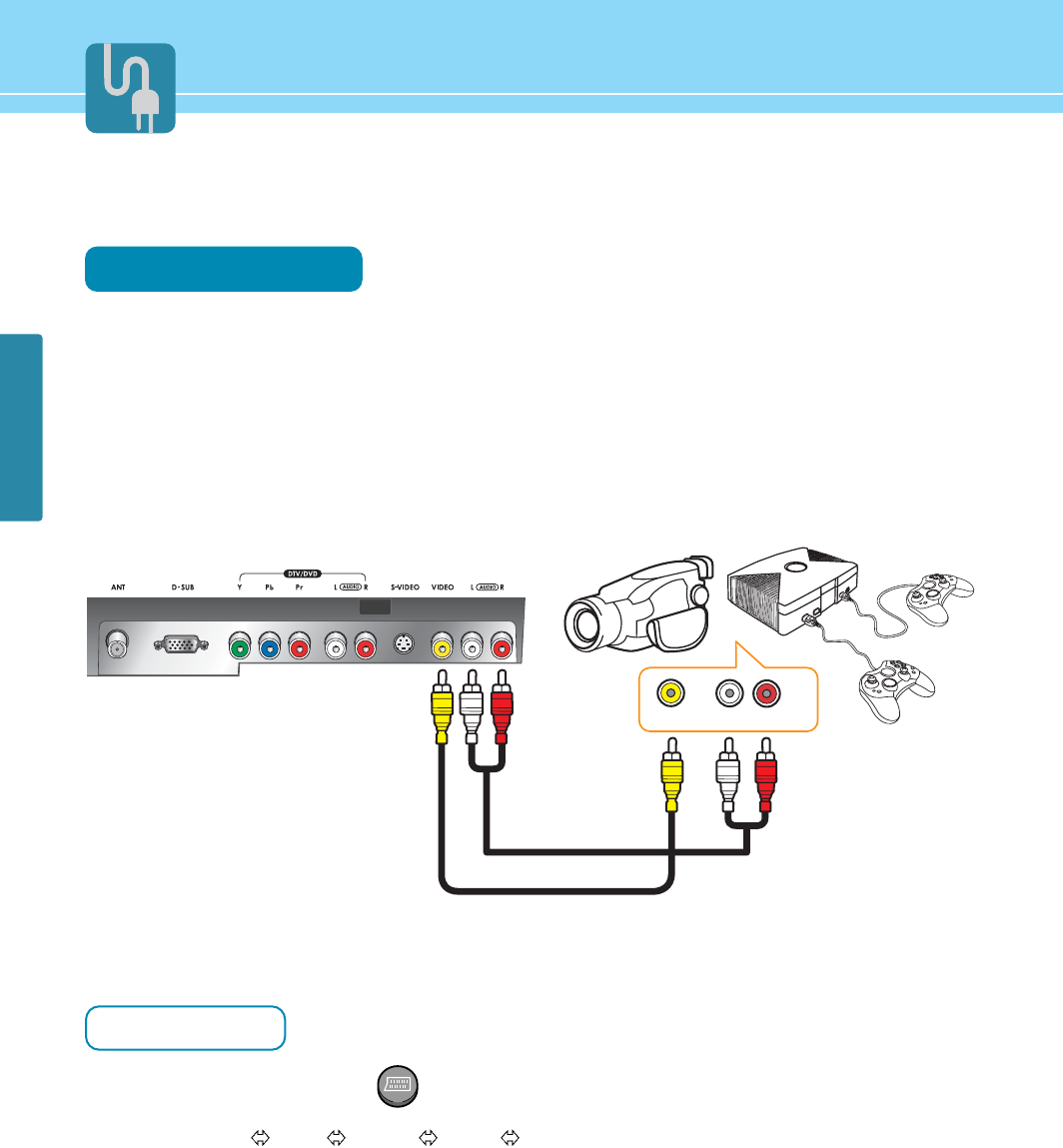
Playing Back a Tape Recorded On a Camcorder
Connection Method
Connect Video cable between Video output terminal of Camcoder/Game player and Video input terminal of
LCD TV.
(Connect cables and terminal in the same colors)
Connect Audio cable (left:white color, right:red color) between Audio output terminal of Camcoder/Game
player and Audio input terminal of LCD TV.
(Connect cables and terminal in the same colors)
How to Watch
Turn on your LCD TV and press on remote control unit to select Video.
You can select VIDEO S-VIDEO SCART in order.
Turn on a Game player or Camcorder and use it.
Read the user manual of Game player or Camcorder for more details.
1
2
1
2
VIDEO
)=,17>1,-7
:4
Game PlayerCamcorder
Audio Cable
VIDEO Cable
HYUNDAI LCD TV HQL170WR/200NR
CONNECTIONS
28
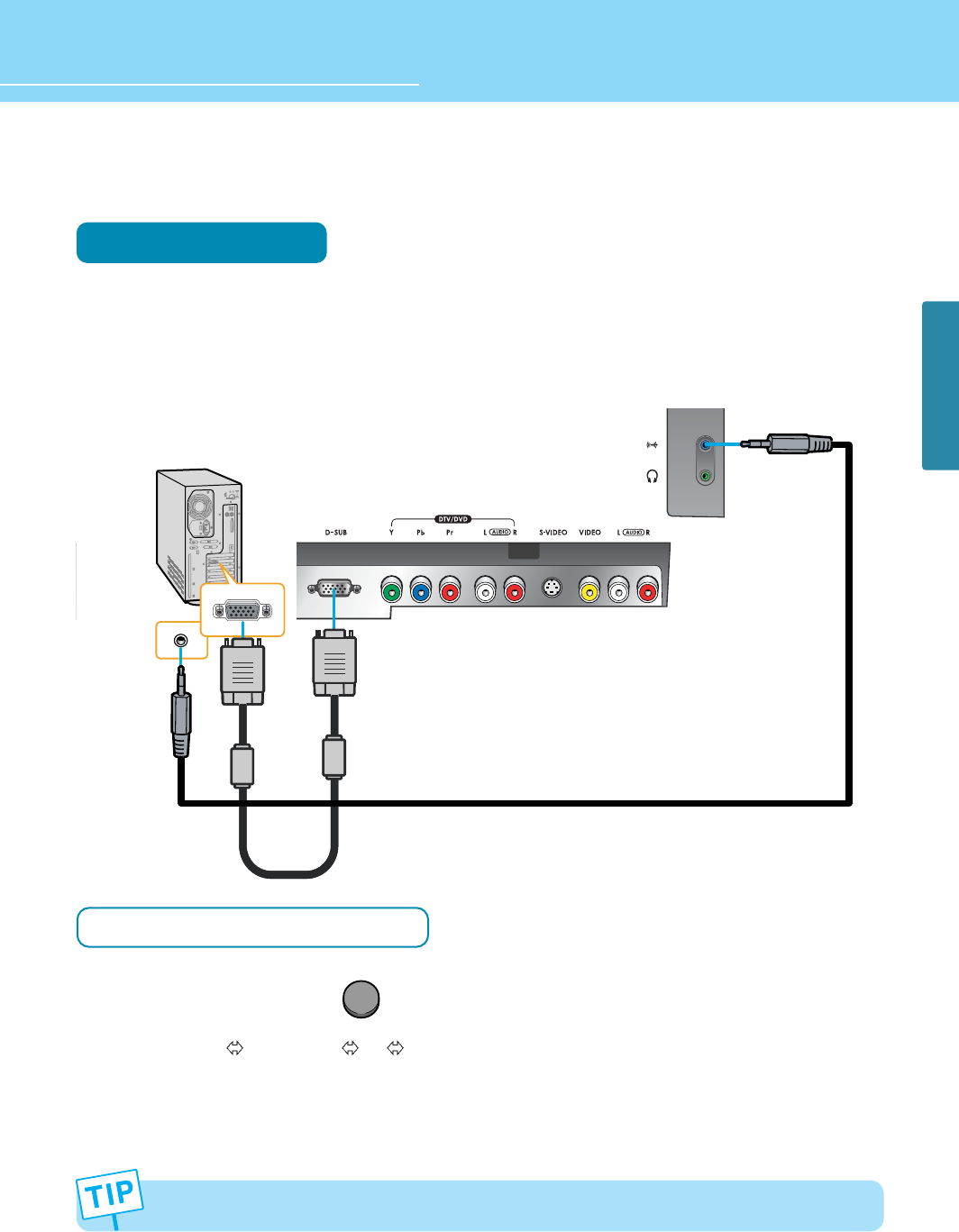
Connecting to a PC
Connection Method
Connect PC signal cable(15 pins D-SUB) between output terminal of PC and the D-SUB input terminal of
a LCD TV.
Connect Audio cable between Audio output terminal of PC and Audio input terminal for PC of LCD TV.
(Connect cables and terminal in the same colors)
When Using as a PC Monitor
Turn on your LCD TV and press on remote control unit to select PC.
You can select COMPONENT PC in order.
Turn on the PC and use it. (Refer to next page on the back for the supported resolutions for PC)
This product supports plug-and-play function.
1
2
1
2
COMPONENT
PC
Audio Cable
D-SUB Cable
(15pin)
29
CONNECTIONS
Resolutions Supported in PC
Resolution
31.5
31.5
37.9
37.9
46.9
48.4
56.5
60
720 x 400
800 x 600
1024 x 768
Horizontal frequency(kHz)
640 x 480
70.1
59.9
72.8
60.3
75
60
70.1
75
Vertical frequency(Hz)
HQL200NR
- Recommended Resolution is 640x480@60Hz
- Max Resolution is 1024x768@75Hz
HQL170WR
- Recommended Resolution is 1024x768@60Hz
- Max Resolution is 1024x768@75Hz
30
CONNECTIONS
HYUNDAI LCD TV HQL170WR/200NR
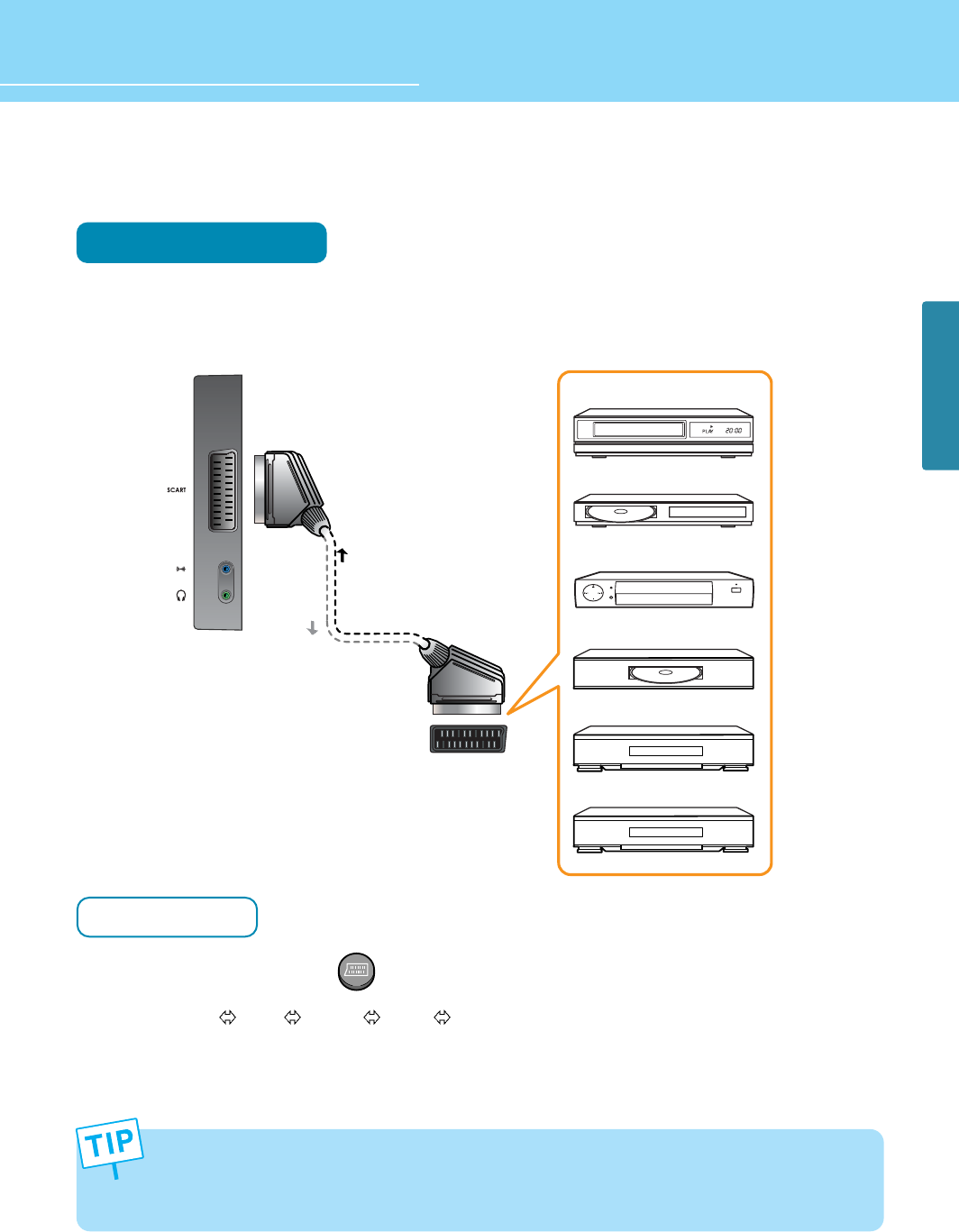
Scart Connection to the External Input/Output
Connection Method
This end can be fitted with : A Scart connector
How to Watch
Turn on your LCD TV and press on remote control unit to select SCART.
You can select VIDEO S-VIDEO SCART in order.
Read a user manual of VCR, DVD, Satellite Receiver and other etc. for more details.
1
2
VIDEO
SCART CABLE :
RGB or VIDEO(CVBS) + Audio(L/R)
Video Game Device
Video Disc Player
Satellite Receiver
DVD
VCR
TV IN
TV OUT
Set Top Box
- When switching voltage comes into the Scart-Pin 8 during viewing a TV program, the current mode will be
switched to Scart mode.
- Any inappropriate connection when connecting or removing your scart connector may generate a Blue Screen.
If this happens, ensure that the scart connector is properly connected.

31
CONNECTIONS
Scart Pin Specifications
If you wish to connect other equipment via the scart connectors on your TV, contact your dealer or a qualified
technician to wire the A/V cable as illustrated below.
PIN SIGNAL
1Audio Output R
2Audio Intput R
3Audio Output L
4Audio Intput GND
5Blue Intput GND
6Audio Intput L
7RGB Blue Input
8Switching Voltage Input
9Green Intput GND
10 -
11 RGB Green Intput
PIN SIGNAL
12 -
13 Red Intput GND
14 -
15 RGB Red Input
16 RGB Blinking Signal Input
17 Video Output GND
18 Video Intput GND
19 Video Output (CVBS)
20 Video Intput (CVBS)
21 Scart Connector GND

How to Select the Picture Mode .................................................33
How to Set the Desired Picture ...................................................34
How to Set Noise Reduction .......................................................35
How to Set PIP [Mode] ................................................................36
How to Set POP [Mode] ..............................................................36
How to Set Multi [Mode] .............................................................37
How to Freeze Picture ................................................................38
How to Select the Aspect Ratio ..................................................39
Picture Setup
HYUNDAI LCD COLOR TV
33
PICTURE SETUP
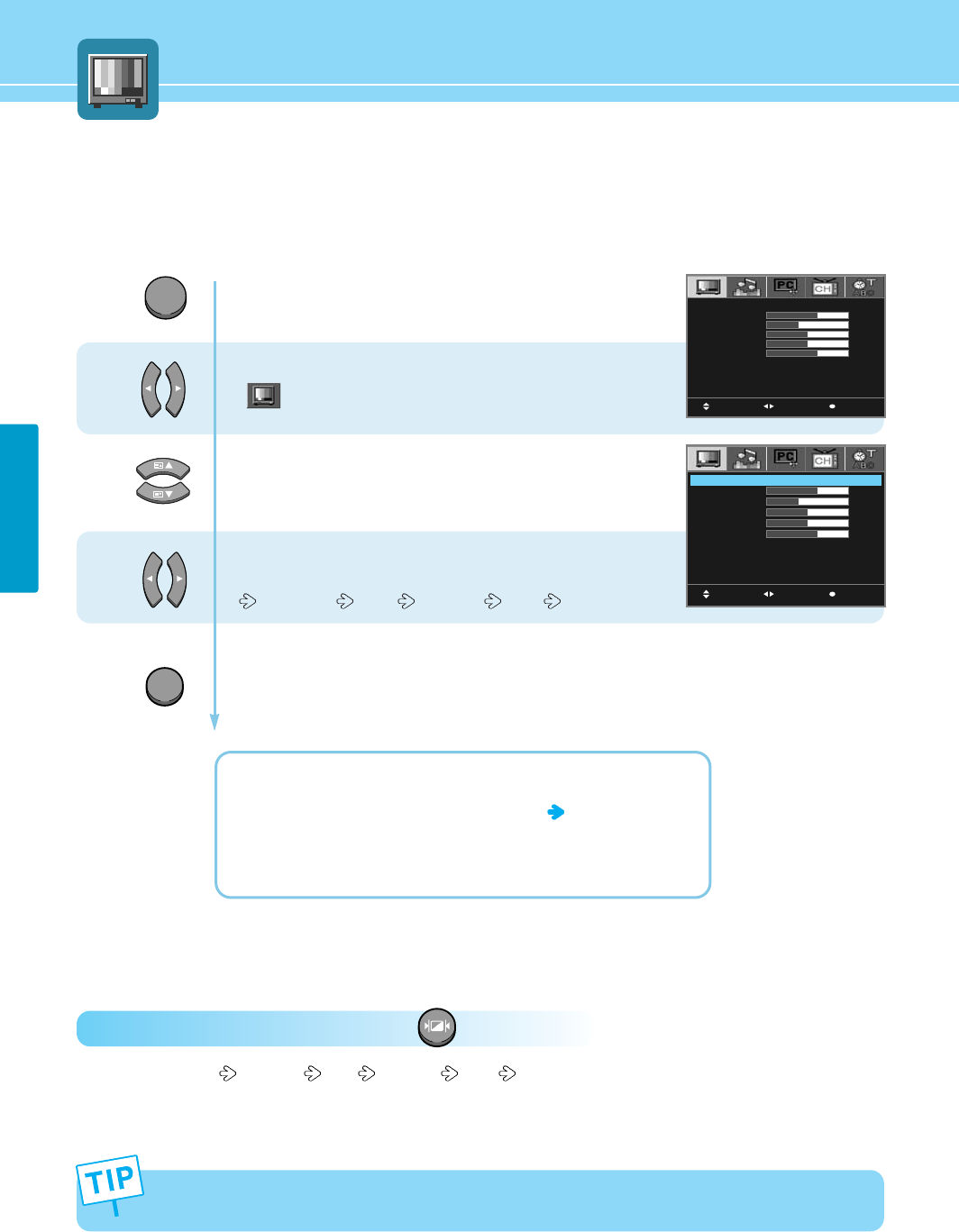
Press Menu button.
Menu items appear on the screen.
Press Left and Right buttons to select
“”
.
Press Up and Down buttons to move to
“Mode”.
Press Left and Right buttons, then the menu
changes in order below.
STANDARD USER DYNAMIC MILD
Press MENU button after the setting is done, and Menu goes to the previous menu.
If the EXIT button is pressed, the menu disappears.
STANDARD : For a general contents, It fits most video contents.
USER : When the user wants to set the values see the next page
DYNAMIC : For a clear display.
MILD : For a soft display.
1
2
3
How to Select the Picture Mode
Users can adjust picture mode automatically according to the input mode(TV, Video, S-Video, Scart, Component).
How To Directly Select Picture Mode : Press button.
- Users can select Standard User Dynamic Mild in order.
PICTURE
MOVE MENUSELECT
MODE
CONTRAST
BRIGHTNESS
COLOR
TINT
SHARPNESS
NOISE REDUCT
USER
30
20
25
25
20
OFF
MOVE MENUSELECT
MODE
CONTRAST
BRIGHTNESS
COLOR
TINT
SHARPNESS
NOISE REDUCT
USER
30
20
25
25
20
OFF
Adjustments menu may be different according to the input source.
(To set Picture mode in PC mode, please see page 51.)
MENU
EXIT
34
PICTURE SETUP
HYUNDAI LCD TV HQL170WR/200NR
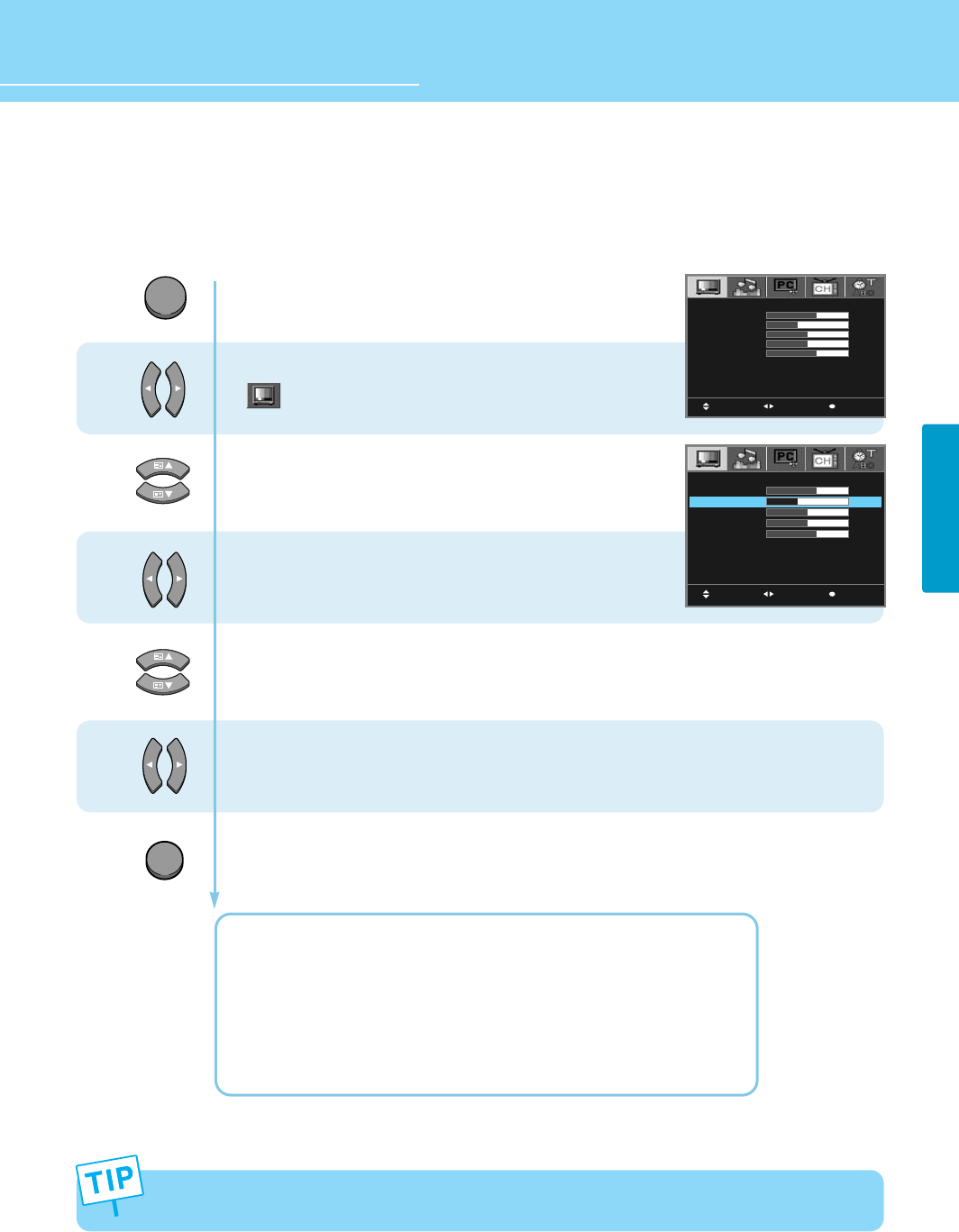
How to Set the Desired Picture
Users can manually adjust the picture in their own ways.
Press Menu button.
Menu items appear on the screen.
Press Left and Right buttons to select
“”
.
Press Up and Down buttons to move to
“MODE”.
Press Left and Right buttons to select
“USER”.
Press Up and Down buttons to choose
one of the items listed.
Press Left and Right buttons to adjust.
Press MENU button after the setting is done, and Menu goes to the previous menu.
If the EXIT button is pressed, the menu disappears.
CONTRAST : Adjust the brightness and darkness of object and background.
BRIGHTNESS : Adjust the brightness of the entire picture.
COLOR : Adjust colors into deeper or lighter colors.
TINT : Adjust colors naturally.
SHARPNESS : Adjust clarity of outline of objects.
1
2
3
4
5
MOVE MENUSELECT
MODE
CONTRAST
BRIGHTNESS
COLOR
TINT
SHARPNESS
NOISE REDUCT
USER
30
20
25
25
20
OFF
MOVE MENUSELECT
MODE
CONTRAST
BRIGHTNESS
COLOR
TINT
SHARPNESS
NOISE REDUCT
USER
30
20
25
25
20
OFF
- COLOR, TINT, SHARPNESS is not applied to PC mode.
- SHARPNESS is not applied to Component mode.
MENU
EXIT
35
PICTURE SETUP
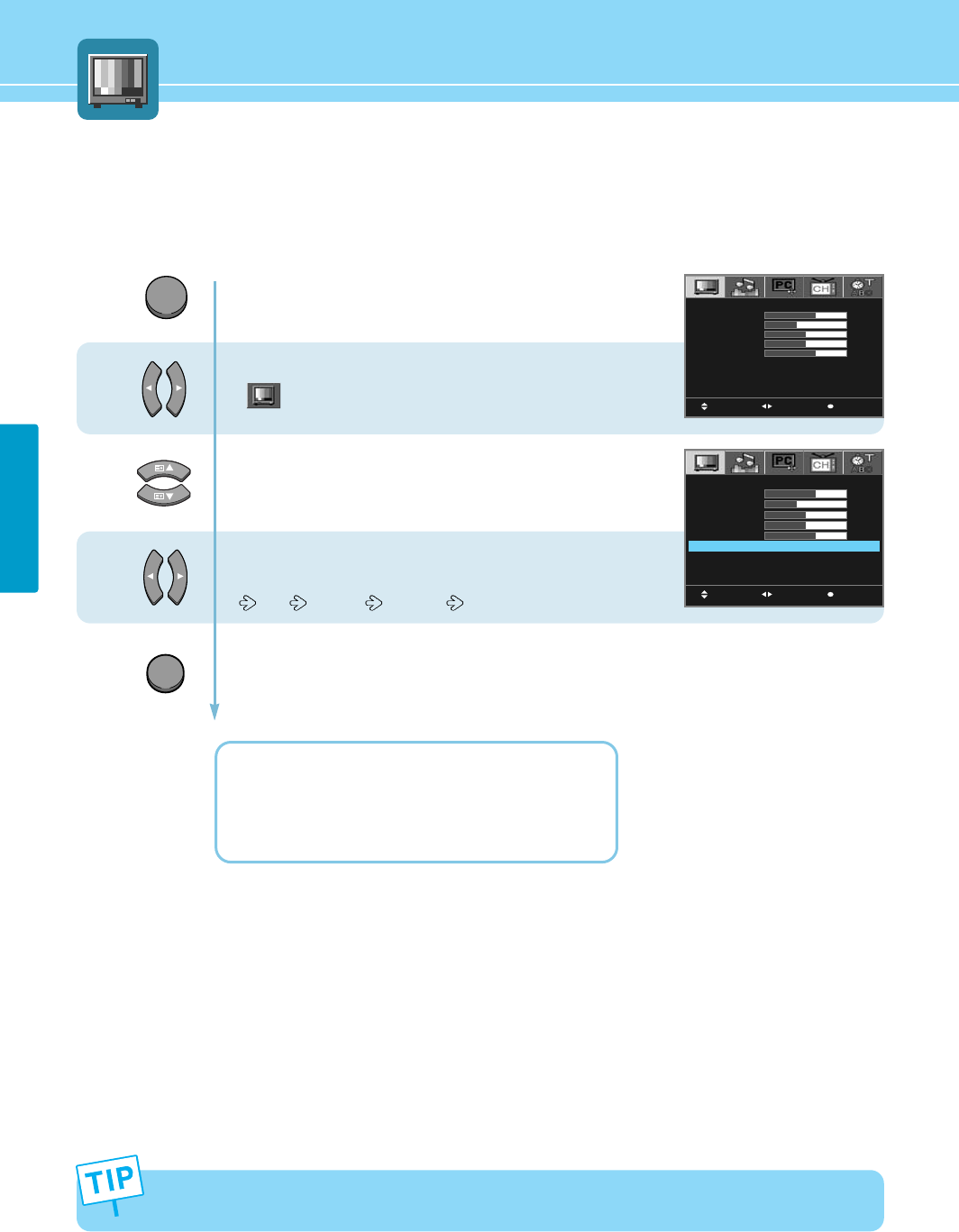
Press Menu button.
Menu items appear on the screen.
Press Left and Right buttons to select
“”
.
Press Up and Down buttons to move to
“NOISE REDUCT”.
Press Left and Right buttons, then the menu
changes in order below.
OFF MIDDLE STRONG
Press MENU button after the setting is done, and Menu goes to the previous menu.
If the EXIT button is pressed, the menu disappears.
OFF : For a normal screen.
MIDDLE : For a reduced noise on the screen.
STRONG : For a strongly reduced noise on the screen.
1
2
3
How to Set Noise Reduction
Noise Reduction is to eliminate some noise on the screen and is not applied to Component and PC mode.
MOVE MENUSELECT
MODE
CONTRAST
BRIGHTNESS
COLOR
TINT
SHARPNESS
NOISE REDUCT
USER
30
20
25
25
20
OFF
MOVE MENUSELECT
MODE
CONTRAST
BRIGHTNESS
COLOR
TINT
SHARPNESS
NOISE REDUCT
USER
30
20
25
25
20
OFF
MENU
EXIT
In the noise reduction, the more you reduce screen noise, the more the sharpness level of the picture will
degrade.
36
PICTURE SETUP
HYUNDAI LCD TV HQL170WR/200NR
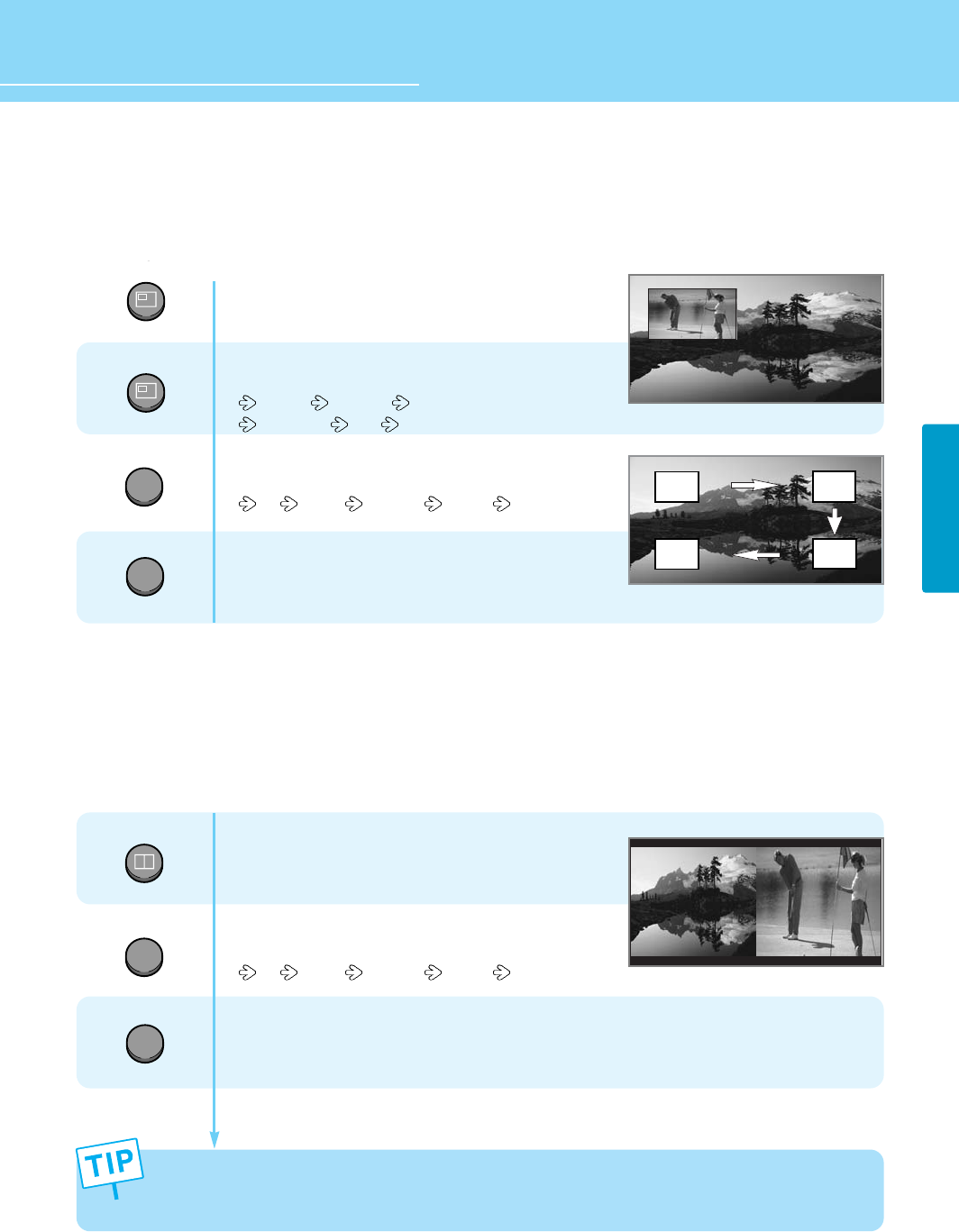
How to Set PIP [Mode]
- You can watch another device's image in the PIP while watching the main image.
- This function is available only with the remote control.
How to Set POP [Mode]
- You can watch another device's image in the POP while watching the main image in TV, VIDEO, S-VIDEO or SCART mode.
- This function is available only with the remote control.
Press the PIP button.
You will see the PIP at the upper left corner.
Press the PIP button, then position
changes in order below.
Left Up Right Up Right Down
Left Down OFF
Press the SOURCE button, then PIP input source
changes in order below.
TV VIDEO S-VEDIO SCART
To deselect PIP function,
Press EXIT button.
Press the POP button.
You will see the POP at the Right.
To deselect POP function,
Press POP button once more.
Press the SOURCE button, then POP input source
changes in order below.
TV VIDEO S-VEDIO SCART
To deselect POP function,
Press EXIT button.
1
4
2
3
Main
Main POP
- Main and sub pictures cannot have the same input source.
- In case of TV mode, you can change the PIP TV program by “PR” Button.
- In case of TV mode, you can change the POP TV program by “PR” Button.
PIP
SUB
SOURCE
POP
PIP
EXIT
EXIT
PIP
SUB
SOURCE
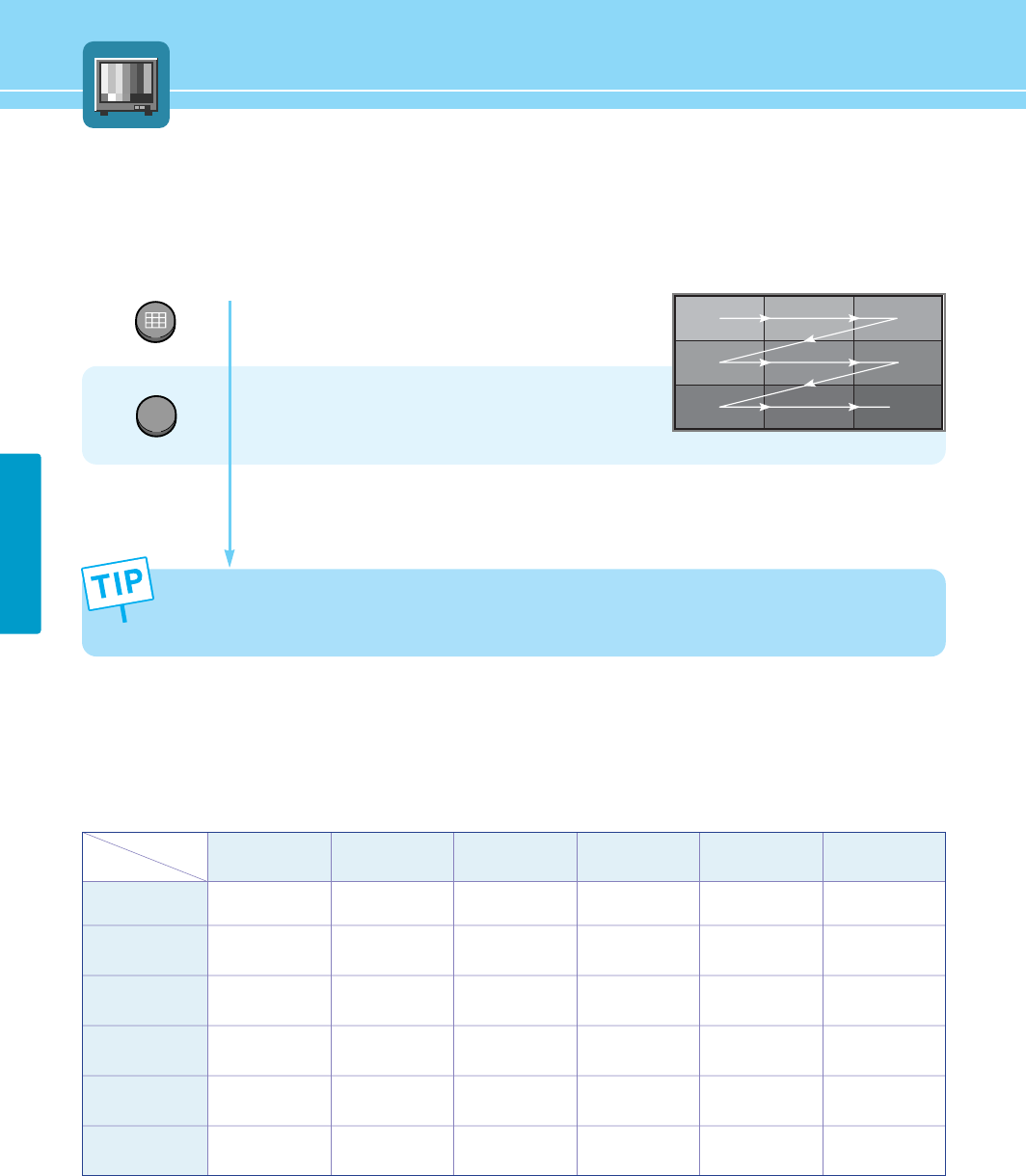
How to Set Multi [Mode]
- You can watch all 9 screens in sequence.
- You can watch another device's image in the MULTI while watching the main image in TV, VIDEO, S-VIDEO or SCART mode.
- This function is available only with the remote control.
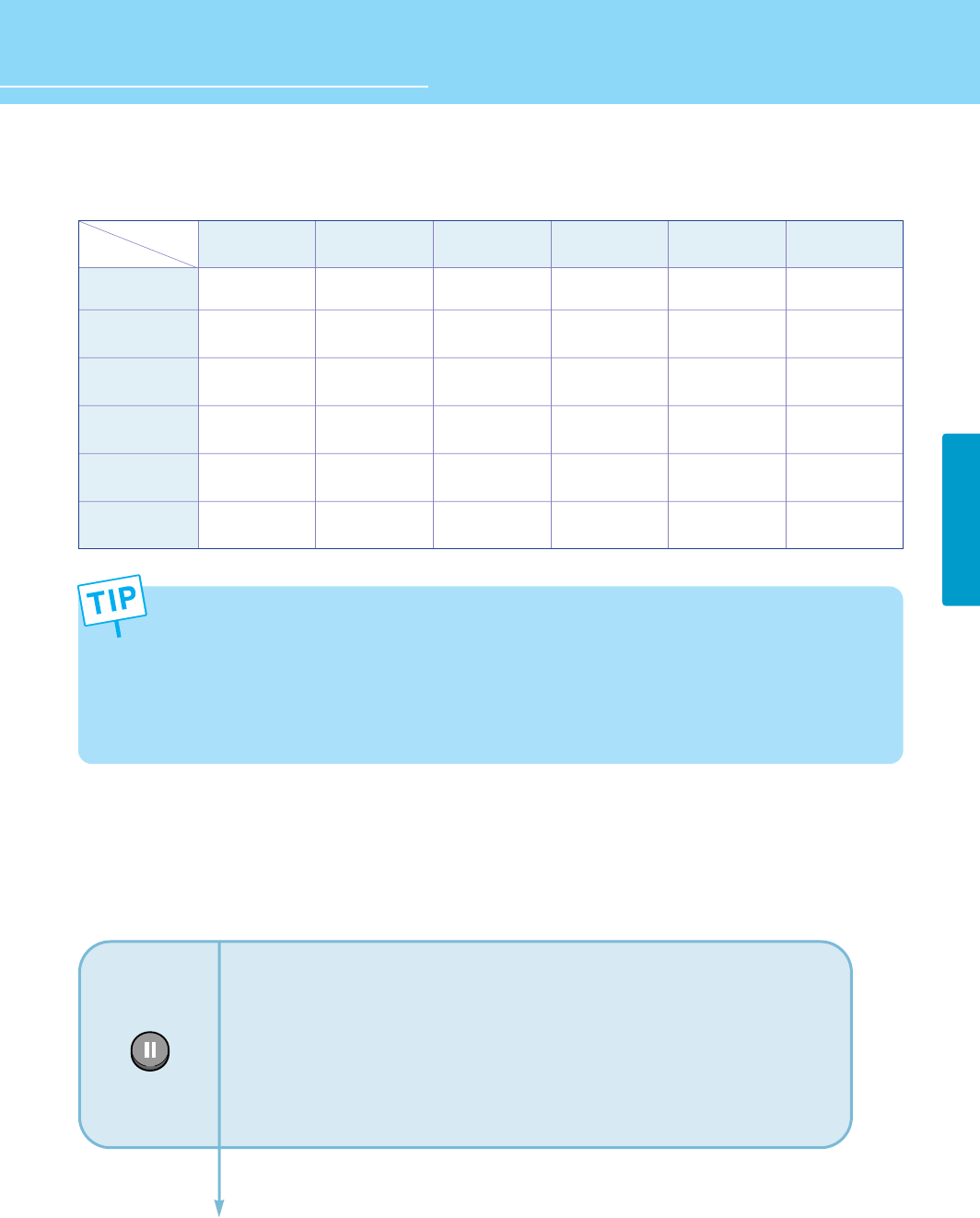
Supported PIP Table
PIP : O →Supported, X →Not Supported
37
PICTURE SETUP
Press the MULTI button.
You will see the Multi screen of nine screens.
To deselect Multi function, Press Multi button once more.
To deselect Multi function,
Press EXIT button.
123
4 5
6
789
EXIT
S.SWAP
MULTI
- In case of TV mode, you can change the multi TV program.
- You cannot change the multi input source.
- This function is not available when in PIP/POP Mode.
PC
O
O
O
O
X
X
Component
O
O
O
O
X
X
Scart
O
O
O
X
X
X
S-Video
O
O
X
O
X
X
Video
O
X
O
O
X
X
TV
X
O
O
O
X
X
TV
Video
S-Video
Scart
Component
PC
Sub Main
38
PICTURE SETUP
HYUNDAI LCD TV HQL170WR/200NR
Supported POP Table
POP : O →Supported, X →Supported
How to Freeze Picture
The user can temporarily stop the playing picture.
STILL
Press Still button.
Playing picture is stopped.
* In PIP/POP mode, the main picture stops.
To deselect Still function.
Press Still button once more.
PC
X
X
X
X
X
X
Component
X
X
X
X
X
X
Scart
O
O
O
X
X
X
S-Video
O
O
X
O
X
X
Video
O
X
O
O
X
X
TV
X
O
O
O
X
X
TV
Video
S-Video
Scart
Component
PC
Sub Main
- When power is ON/OFF, PIP, POP and MULTI functions are not stored.
- When main picture is in PC/Component input mode, POP function is not supported.
- In PIP or POP function, you cannot use PC/Component input mode for sub-picture.
- In PC/Component input mode, MULTI function is not supported.
- While MULTI function is activated, STILL is not supported.
- While PIP is activated, you cannot change the sub-picture's size.
- Image SWAP function is not supported.
39
PICTURE SETUP
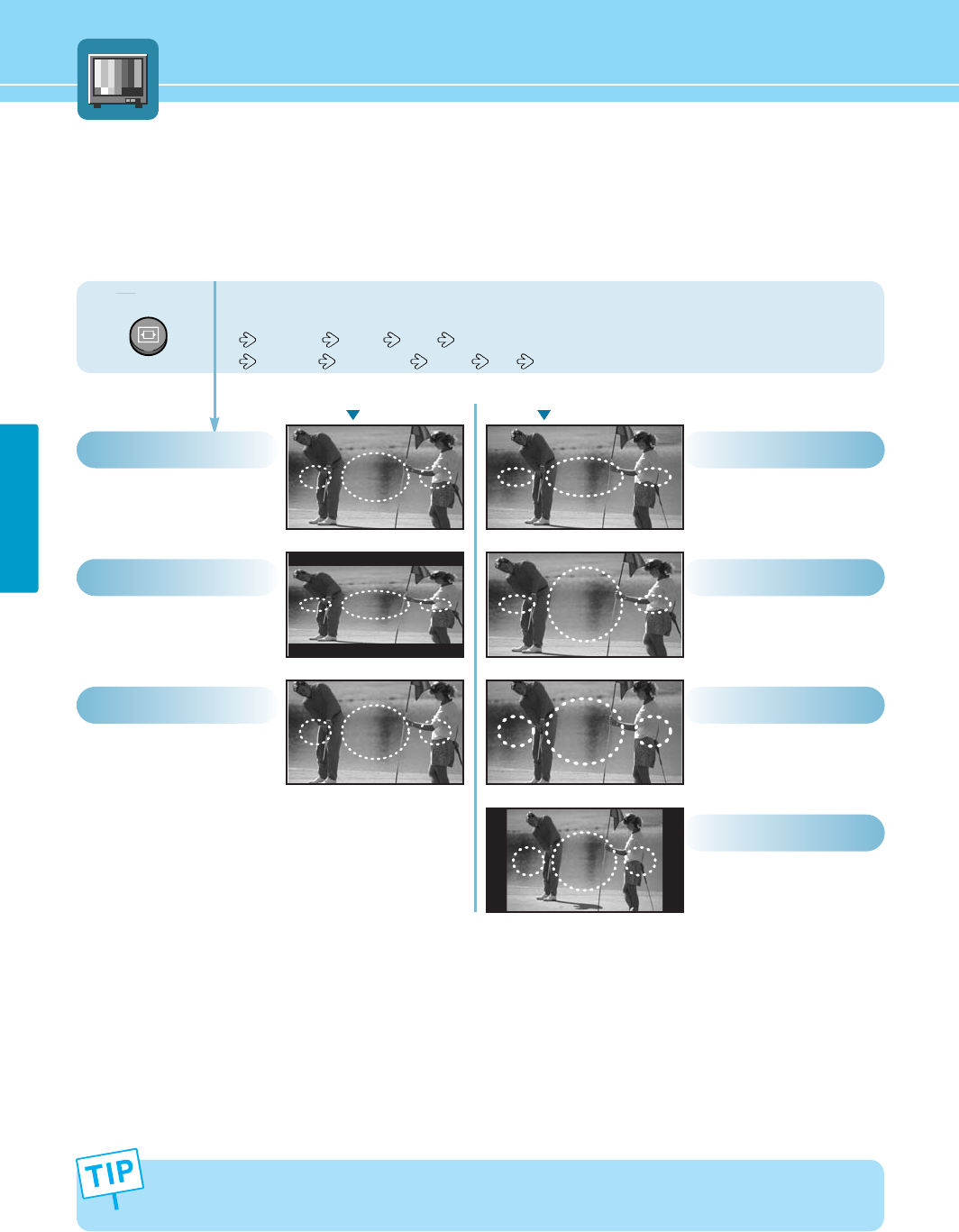
How to Select the Aspect Ratio
- Users can adjust Aspect Ratio as users want.
- This function is available only with the remote control.
ASPECT
Press the ASPECT button, then Aspect Ratio
changes in order below.
NORMAL Zoom 16:9 (HQL200NR)
NORMAL Panorama Zoom 4:3 (HQL170WR)
This function is available only in TV, VIDEO, S-VIDEO, SCART mode.
This function is not available in PIP, POP, MULTI mode.
General broadcast picture
size.
Normal
Picture size for panorama
video.
Panorama
General broadcast picture
is adjusted to 15:9.
Normal
General broadcast picture is
adjusted to 16:9.
16:9
Zoom in 4:3 in vertical
direction. (This mode is
recommended in letter
box format.)
Zoom
Zoom in 4:3 in vertical
direction. (This mode is
recommended in letter
box format.)
Zoom
4:3
General broadcast picture
size.
HQL200NR HQL170WR

How to Select the Volume, Balance and Mute ............................41
How to Set the Audio Mode(Equalize) .........................................42
How to Set the Desired Audio .....................................................43
How to Listen to Stereo Sound / Dual Sound ..............................44
How to Select the Surround ........................................................46
How to Select AVL ......................................................................47
How to Select the Sound Swap ..................................................48
Audio Setup
HYUNDAI LCD COLOR TV
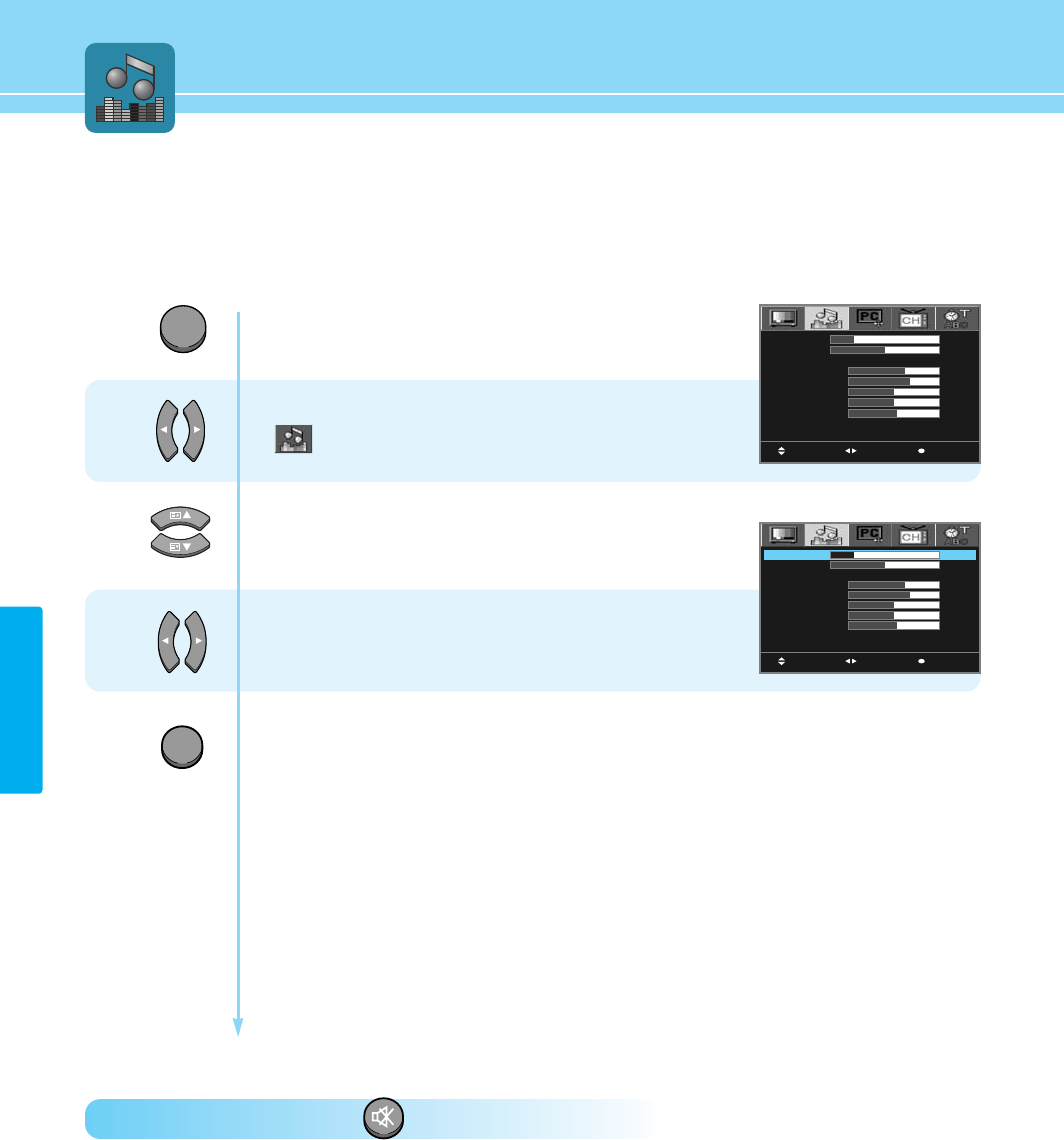
How to Select the Volume, Balance and Mute
- Users can adjust the volume and Balance of left and right speakers.
How To Select the Mute : Press button.
Playing sound is Stopped.
To deselect Mute function, Press MUTE button once more.
41
AUDIO SETUP
Press Menu button.
Menu items appear on the screen.
Press Left and Right buttons to select
“”
.
Press Up and Down buttons to move to
“VOLUME or BALANCE”.
Press Left and Right buttons to adjust.
Press MENU button after the setting is done, and Menu goes to the previous menu.
If the EXIT button is pressed, the menu disappears.
1
2
3
MOVE MENUSELECT
VOLUME
BALANCE
EQUALIZE
120 Hz
500 Hz
1.5 kHz
5 kHz
10 kHz
SURROUND
AVL
20
25
STANDARD
15
16
12
12
13
OFF
OFF
MOVE MENUSELECT
VOLUME
BALANCE
EQUALIZE
120 Hz
500 Hz
1.5 kHz
5 kHz
10 kHz
SURROUND
AVL
20
25
STANDARD
15
16
12
12
13
OFF
OFF
MENU
EXIT
MUTE
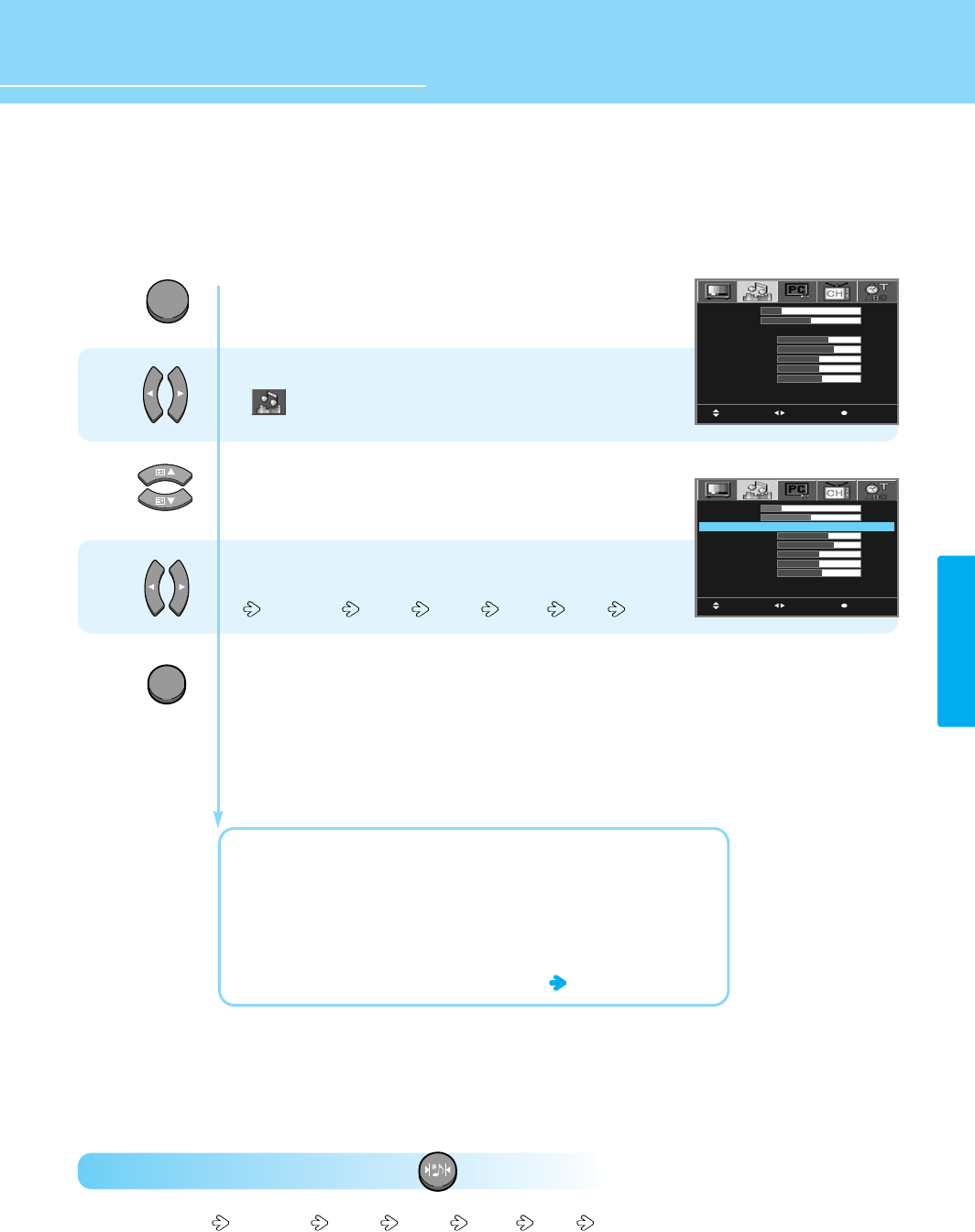
HYUNDAI LCD TV HQL260
How to Set the Audio Mode(Equalize)
Users can adjust sound mode automatically as users want.
How To Directly Select Sound Mode : Press button.
Users can select STANDARD MUSIC MOVIE NEWS USER in order.
42
AUDIO SETUP
HYUNDAI LCD TV HQL170WR/200NR
Press Menu button.
Menu items appear on the screen.
Press Left and Right buttons to select
“”
.
Press Up and Down buttons to move to
“EQUALIZE”.
Press Left and Right buttons, then the menu
changes in order below.
STANDARD MUSIC MOVIE NEWS USER
Press MENU button after the setting is done, and Menu goes to the previous menu.
If the EXIT button is pressed, the menu disappears.
STANDARD : For the general sound. This fits most audio contents.
MUSIC : For original sound
MOVIE : For grandiose sound
NEWS : For clear sound
USER : When the user wants to set the value see the next page
1
2
3
MOVE MENUSELECT
VOLUME
BALANCE
EQUALIZE
120 Hz
500 Hz
1.5 kHz
5 kHz
10 kHz
SURROUND
AVL
20
25
STANDARD
15
16
12
12
13
OFF
OFF
MOVE MENUSELECT
VOLUME
BALANCE
EQUALIZE
120 Hz
500 Hz
1.5 kHz
5 kHz
10 kHz
SURROUND
AVL
20
25
STANDARD
15
16
12
12
13
OFF
OFF
MENU
EXIT
SOUND
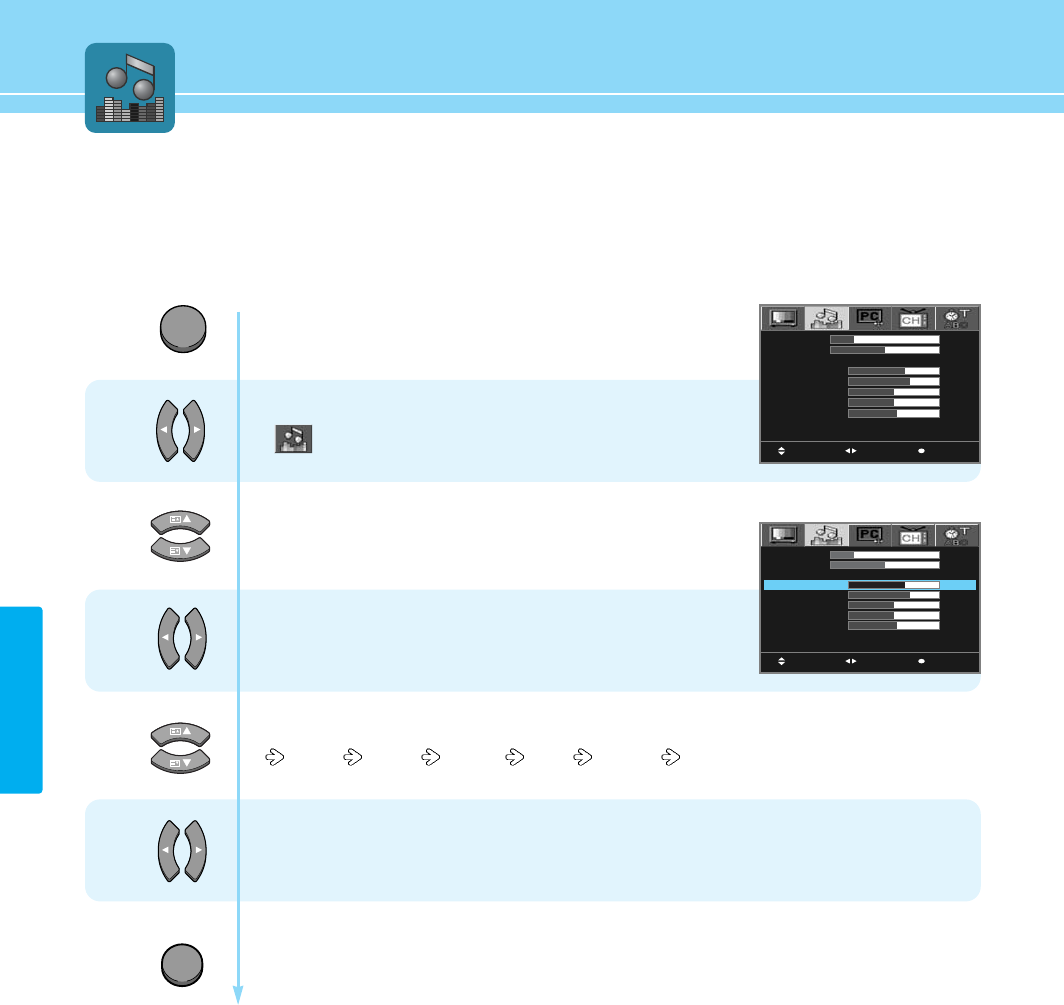
AUDIO SETUP
43
How to Set the Desired Audio
Users can manually adjust the sound in thier own ways.
Press Menu button.
Menu items appear on the screen.
Press Left and Right buttons to select
“”
.
Press Up and Down buttons to move to
“EQUALIZE”.
Press Left and Right buttons to select “USER”.
Press Up and Down buttons to choose one of the items listed.
120 Hz 500 Hz 1.5 kHz 5 kHz 10 kHz
Press Left and Right buttons to adjust.
Press MENU button after the setting is done, and Menu goes to the previous menu.
If the EXIT button is pressed, the menu disappears.
1
2
3
4
5
MOVE MENUSELECT
VOLUME
BALANCE
EQUALIZE
120 Hz
500 Hz
1.5 kHz
5 kHz
10 kHz
SURROUND
AVL
20
25
STANDARD
15
16
12
12
13
OFF
OFF
MOVE MENUSELECT
VOLUME
BALANCE
EQUALIZE
120 Hz
500 Hz
1.5 kHz
5 kHz
10 kHz
SURROUND
AVL
20
25
STANDARD
15
16
12
12
13
OFF
OFF
MENU
EXIT
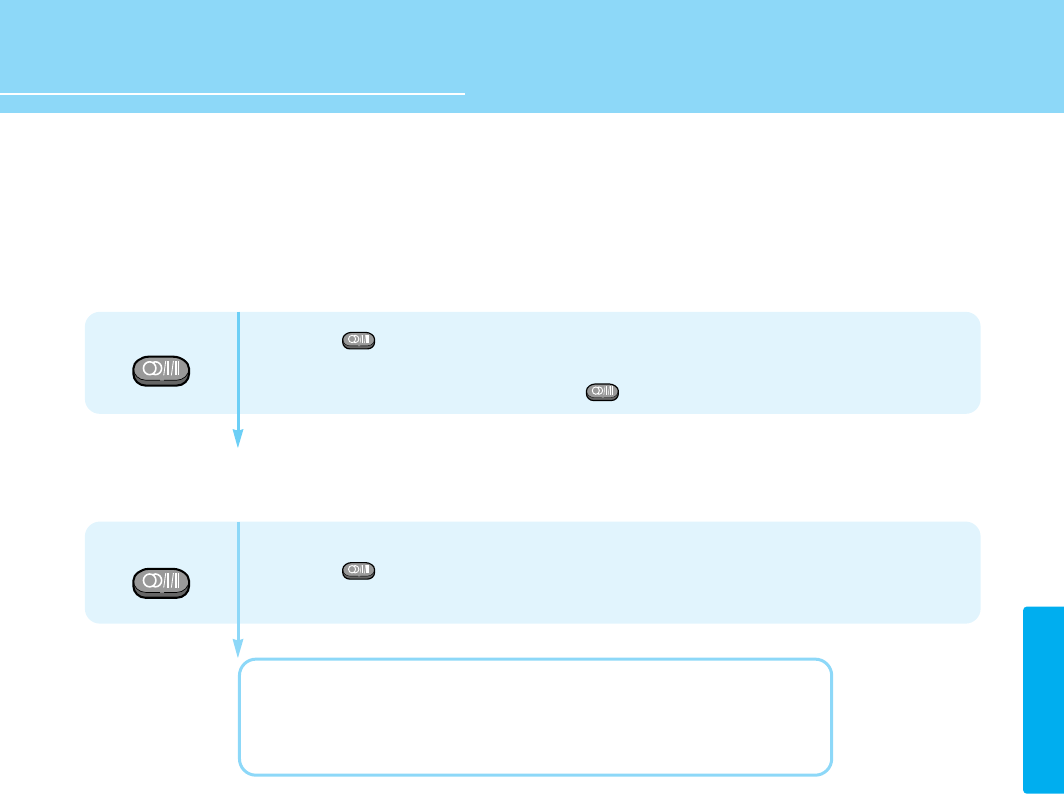
HYUNDAI LCD TV HQL170WR/200NR
44
AUDIO SETUP
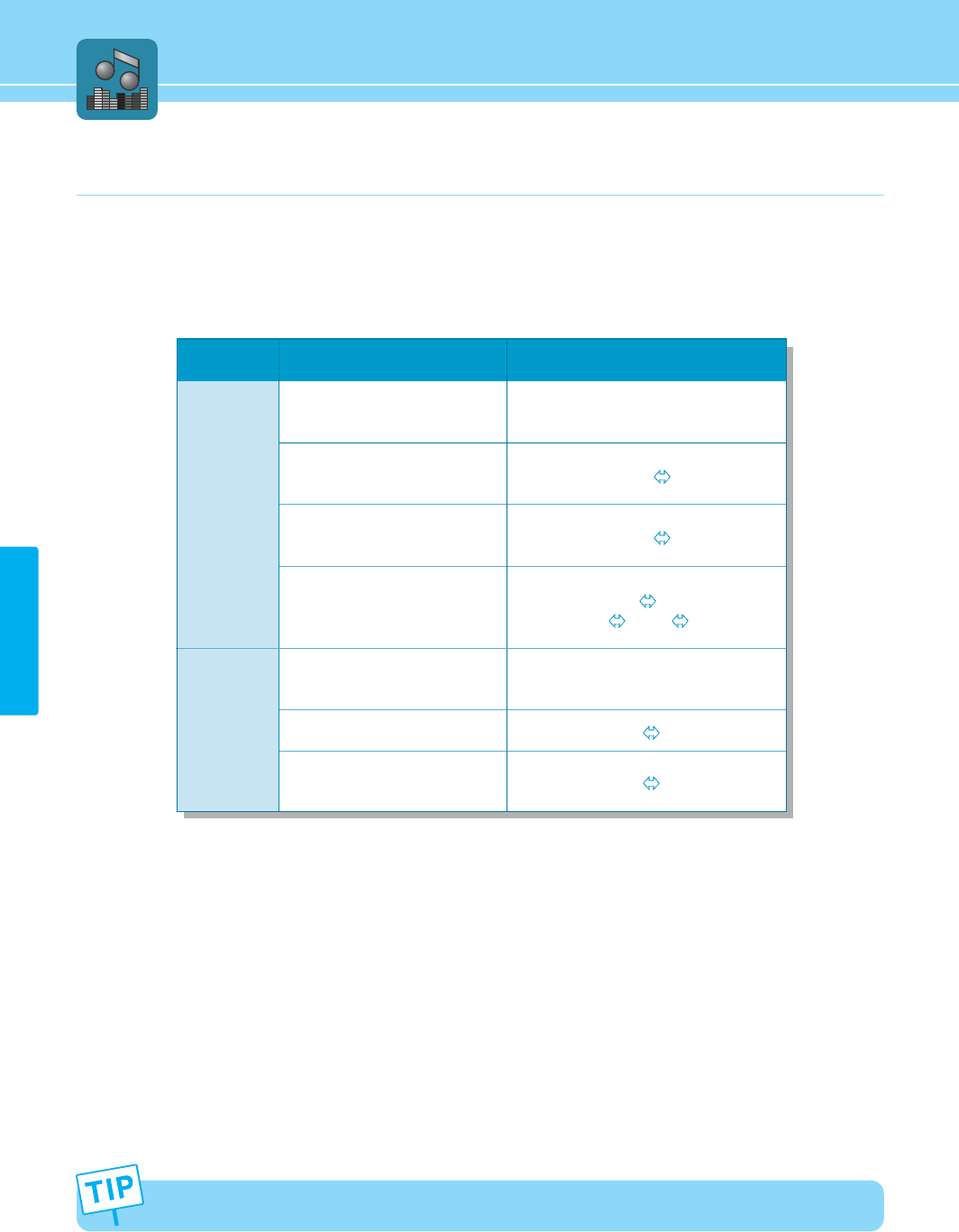
How to Listen to Stereo Sound / Dual Sound
- Users can set sound mode as users want.
- This function is available only with the remote control.
- Listening to stereo sound
- Listening to the Dual sound
Press the button on the remote control to select Mono or Stereo.
Mono or Stereo be will selected in turn whenever you press the button.
(*During FM MONO broadcast, pressing the button will display the current status.)
Press the button on the remote control to select Dual sound.
Dual 1 : Your national language.
Dual 2 : Foreign language
(*Dual 1 or Dual 2 be will selected in turn whenever you press the button.)
S.MODE
S.MODE
S.MODE
S.MODE
S.MODE
45
AUDIO SETUP
This S.MODE displays the current Audio signal status, and controls the processing of Audio signal. When power
is switched on, the mode is automatically preset to either “Dual-I” or “Stereo”, depending on the current signal
transmission condition.
If the signal reception conditions deteriorate, setting to Mono will make your listening condition better.
NICAM
Stereo
A2
Stereo
Type of Broadcast
Regular Broadcast
(Standard audio)
Regular+
NICAM Mono
NICAM Stereo
NICAM Dual-I/II
Regular broadcast
(Standard audio)
Bilingual or Dual-I/II
Stereo
On-Screen Indication
Mono
(Normal use)
NICAM Mono Mono
NICAM Stereo Mono
NICAM Dual 1 NICAM Dual 2
Mono
Mono
(Normal use)
Dual 1 Dual 2
Stereo Mono
46
AUDIO SETUP
HYUNDAI LCD TV HQL170WR/200NR
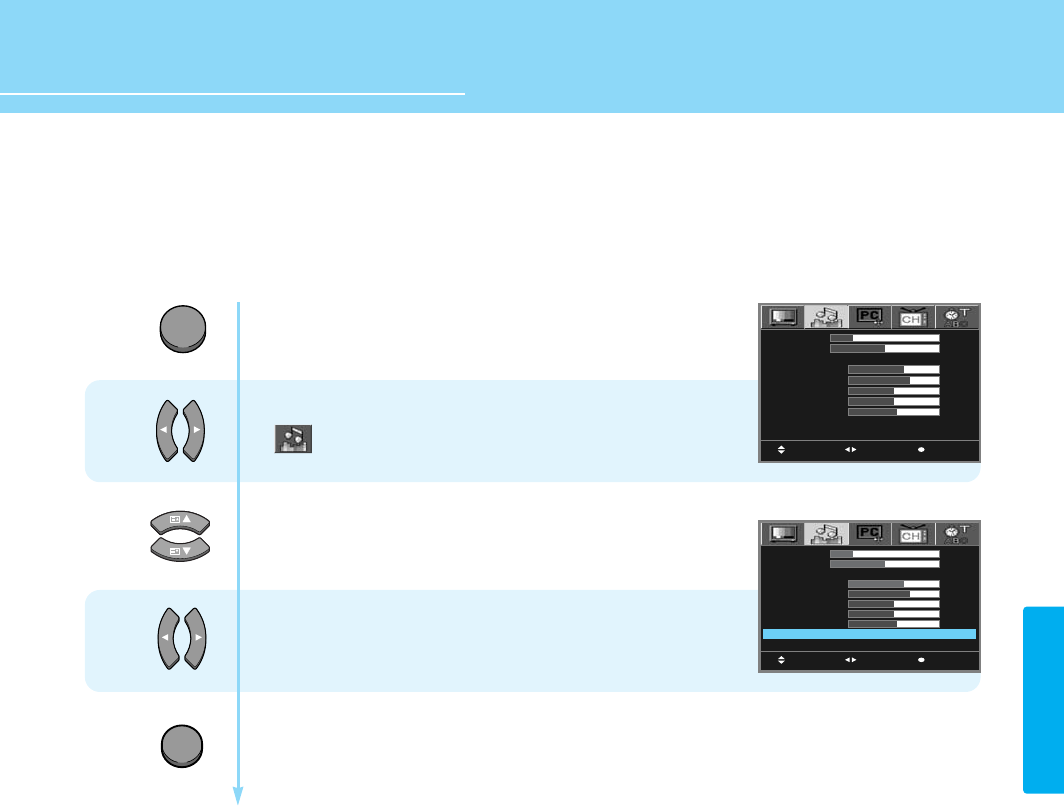
How to Select the Surround
You can listen to dynamic and surround sound only with ordinary speakers.
Press Menu button.
Menu items appear on the screen.
Press Left and Right buttons to select
“”
.
Press Up and Down buttons to move to
“SURROUND”.
Press Left and Right buttons to select “ON/OFF”.
Press MENU button after the setting is done, and Menu goes to the previous menu.
If the EXIT button is pressed, the menu disappears.
1
2
3
MENU
EXIT
MOVE MENUSELECT
VOLUME
BALANCE
EQUALIZE
120 Hz
500 Hz
1.5 kHz
5 kHz
10 kHz
SURROUND
AVL
20
25
STANDARD
15
16
12
12
13
OFF
OFF
MOVE MENUSELECT
VOLUME
BALANCE
EQUALIZE
120 Hz
500 Hz
1.5 kHz
5 kHz
10 kHz
SURROUND
AVL
20
25
STANDARD
15
16
12
12
13
ON
OFF
47
AUDIO SETUP
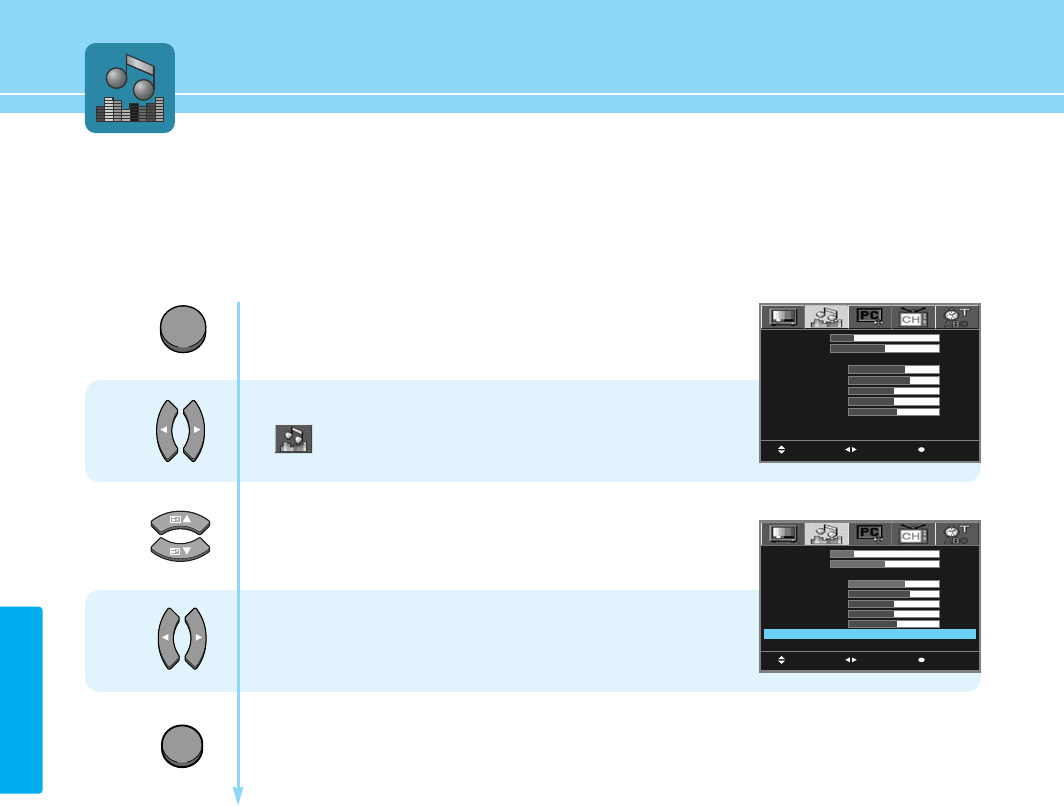
How to Select AVL
This function automatically gives a similar volume size to each channel.
Press Menu button.
Menu items appear on the screen.
Press Left and Right buttons to select
“”
.
Press Up and Down buttons to move to
“AVL”.
Press Left and Right buttons to select “ON/OFF”.
Press MENU button after the setting is done, and Menu goes to the previous menu.
If the EXIT button is pressed, the menu disappears.
1
2
3
MENU
EXIT
MOVE MENUSELECT
VOLUME
BALANCE
EQUALIZE
120 Hz
500 Hz
1.5 kHz
5 kHz
10 kHz
SURROUND
AVL
20
25
STANDARD
15
16
12
12
13
OFF
OFF
MOVE MENUSELECT
VOLUME
BALANCE
EQUALIZE
120 Hz
500 Hz
1.5 kHz
5 kHz
10 kHz
SURROUND
AVL
20
25
STANDARD
15
16
12
12
13
ON
OFF
48
AUDIO SETUP
HYUNDAI LCD TV HQL170WR/200NR
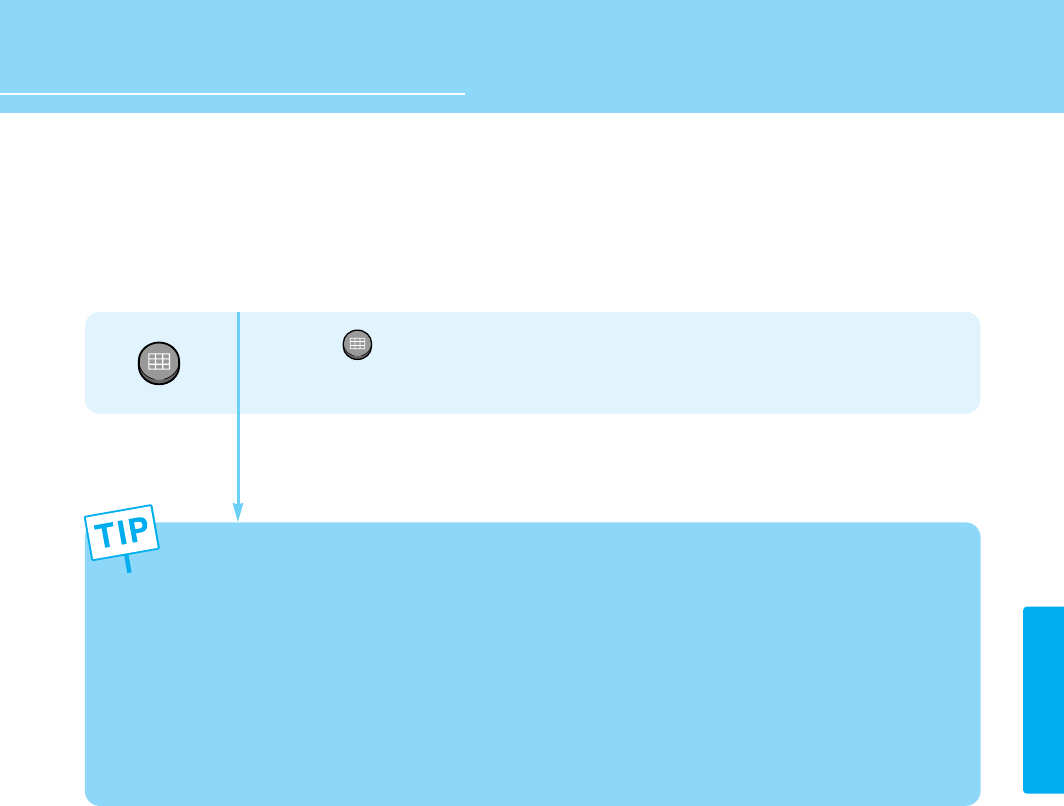
How to Select the Sound Swap
Press the button.
The Main Sound and Sub Sound will switch with each other whenever you press this button.
S.SWAP
MULTI
S.SWAP
MULTI
- An Audio Swap function is only available when in PIP/POP mode.
- A Multi function is not available when in PIP/POP mode.
- If you select the Audio Swap in Audio Swap mode and end PIP/POP, the sound of main screen will come back.
- The audio input jack is used for both Video and S-Video.
- While watching the main screen and listening to the sound of sub-screen, the sound of sub-screen will be still
active even if you switch the current channel to another
- After selecting the Audio Swap, when you turn the power off and back on, the sound of main-screen will
come back.
- After switching to the sound of sub-screen in PIP/POP mode, even if you change the input of sub-screen to
other input, the sound of sub-screen will be still kept.

49
AUDIO SETUP

How to Select the Color Mode ....................................................51
How to Select the Auto Adjust ....................................................52
How to Set the Geometry ............................................................53
PC Setup
HYUNDAI LCD COLOR TV
51
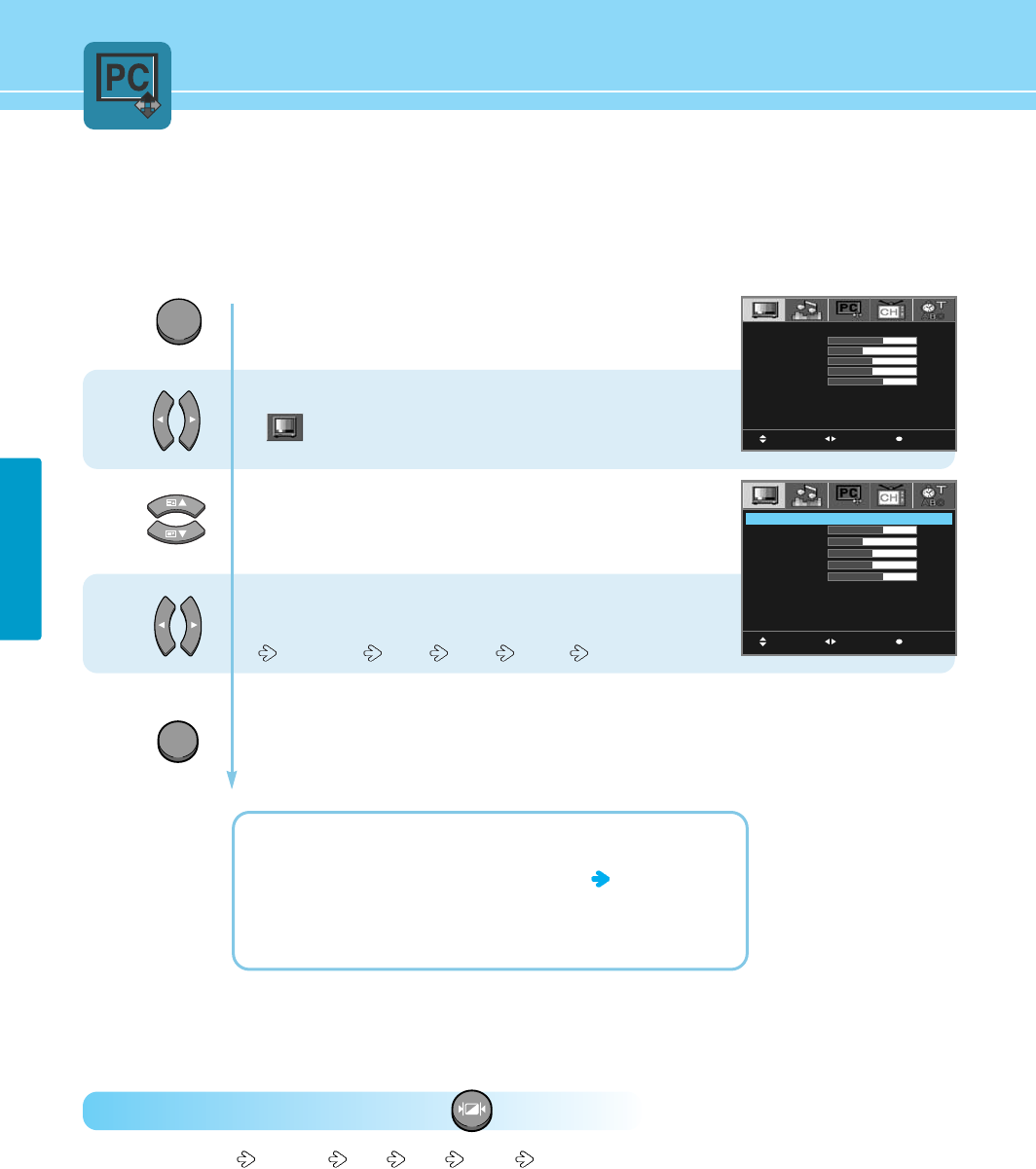
PC SETUP
Press Menu button.
Menu items appear on the screen.
Press Left and Right buttons to select
“”
.
Press Up and Down buttons to move to
“Mode”.
Press Left and Right buttons, then the menu
changes in order below.
STANDARD USER COOL WARM
Press MENU button after the setting is done, and Menu goes to the previous menu.
If the EXIT button is pressed, the menu disappears.
STANDARD : Color for general picture.
USER : When the user wants to set the values see the 34 page
COOL : For colors with bluish tone.
WARM : Warm colors with reddish tone.
1
2
3
How to Select the Color Mode
This function is available only with the PC mode.
How To Directly Select Picture Mode : Press button.
- Users can select Standard User Cool Warm , when the input mode is PC mode.
PICTURE
MOVE MENUSELECT
MODE
CONTRAST
BRIGHTNESS
COLOR
TINT
SHARPNESS
NOISE REDUCT
USER
30
20
25
25
20
OFF
MOVE MENUSELECT
MODE
CONTRAST
BRIGHTNESS
COLOR
TINT
SHARPNESS
NOISE REDUCT
USER
30
20
25
25
20
OFF
MENU
EXIT
52
PC SETUP
HYUNDAI LCD TV HQL170WR/200NR
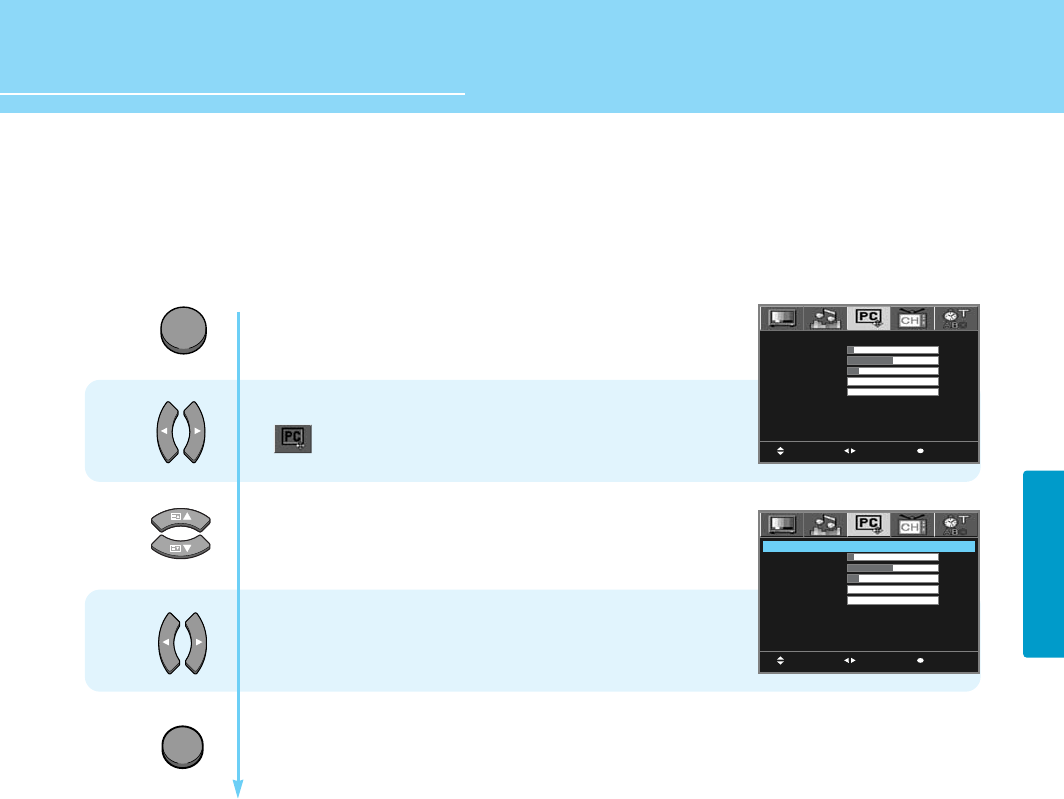
Press Menu button.
Menu items appear on the screen.
Press Left and Right buttons to select
“”
.
Press Up and Down buttons to move to
“Auto Adjust”.
Press Left and Right buttons to “Auto Adjust”,
then it will be adjusted the screen.
Press MENU button after the setting is done, and Menu goes to the previous menu.
If the EXIT button is pressed, the menu disappears.
1
2
3
How to Select the Auto Adjust
- Horizontal/Vertical positions are automatically adjusted.
- This function is available only with the PC mode.
MOVE MENUSELECT
AUTO ADJUST
H-SIZE
H-POSITION
V-POSITION
FINE TUNE
SMOOTHING
7
25
12
0
0
MOVE MENUSELECT
AUTO ADJUST
H-SIZE
H-POSITION
V-POSITION
FINE TUNE
SMOOTHING
7
25
12
0
0
MENU
EXIT
53
PC SETUP
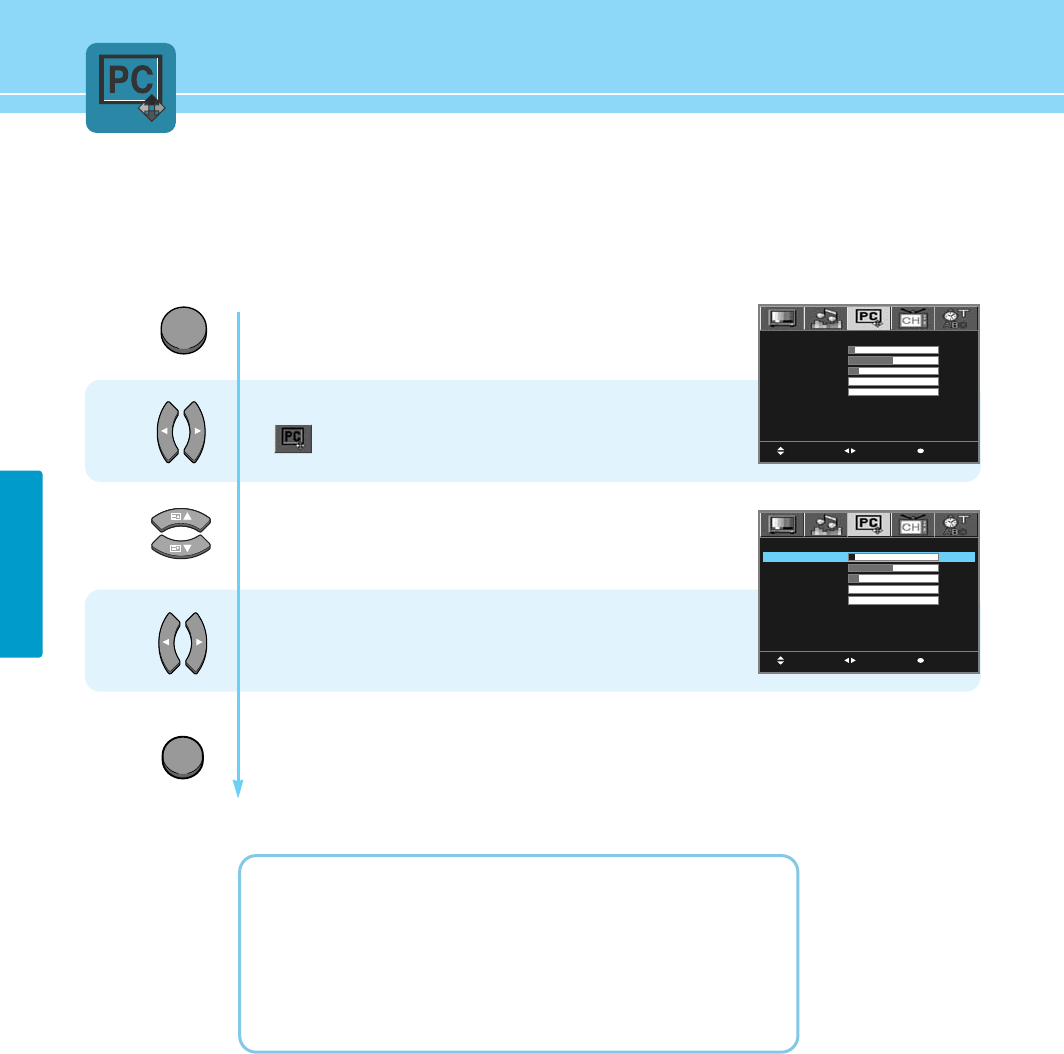
Press Menu button.
Menu items appear on the screen.
Press Left and Right buttons to select
“”
.
Press Up and Down buttons to choose
one of the items listed.
Press Left and Right buttons to adjust.
Press MENU button after the setting is done, and Menu goes to the previous menu.
If the EXIT button is pressed, the menu disappears.
H-SIZE : To adjust the horizontal size of the picture.
H-POSITION : To adjust the horizontal position of the picture.
V-POSITION : To adjust the vertical position of the picture.
FINE TUNE : To adjust to eliminate the shake of picture.
SMOOTHING : To change viewing point at high resolution(Upper VGA)
1
2
3
How to Set the Geometry
- This is reduct image retention and noise.
- This function is available only with the PC mode.
MOVE MENUSELECT
AUTO ADJUST
H-SIZE
H-POSITION
V-POSITION
FINE TUNE
SMOOTHING
7
25
12
0
0
MOVE MENUSELECT
AUTO ADJUST
H-SIZE
H-POSITION
V-POSITION
FINE TUNE
SMOOTHING
7
25
12
0
0
MENU
EXIT

How to Store Program Automatically ..........................................55
How to Set Manual Store ............................................................56
How to Directly Select the PR LIST .............................................59
TV Setup
HYUNDAI LCD COLOR TV
TV SETUP
55
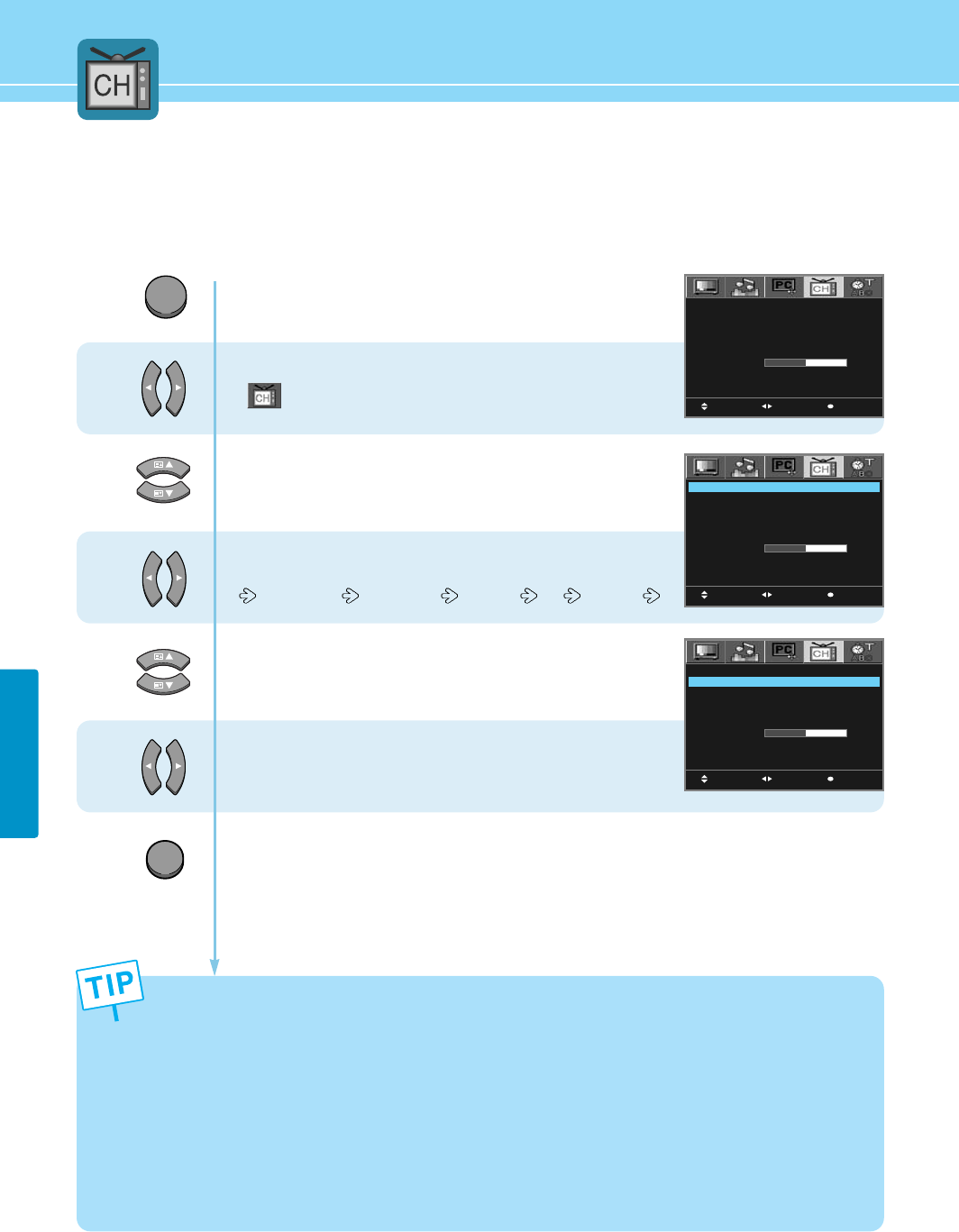
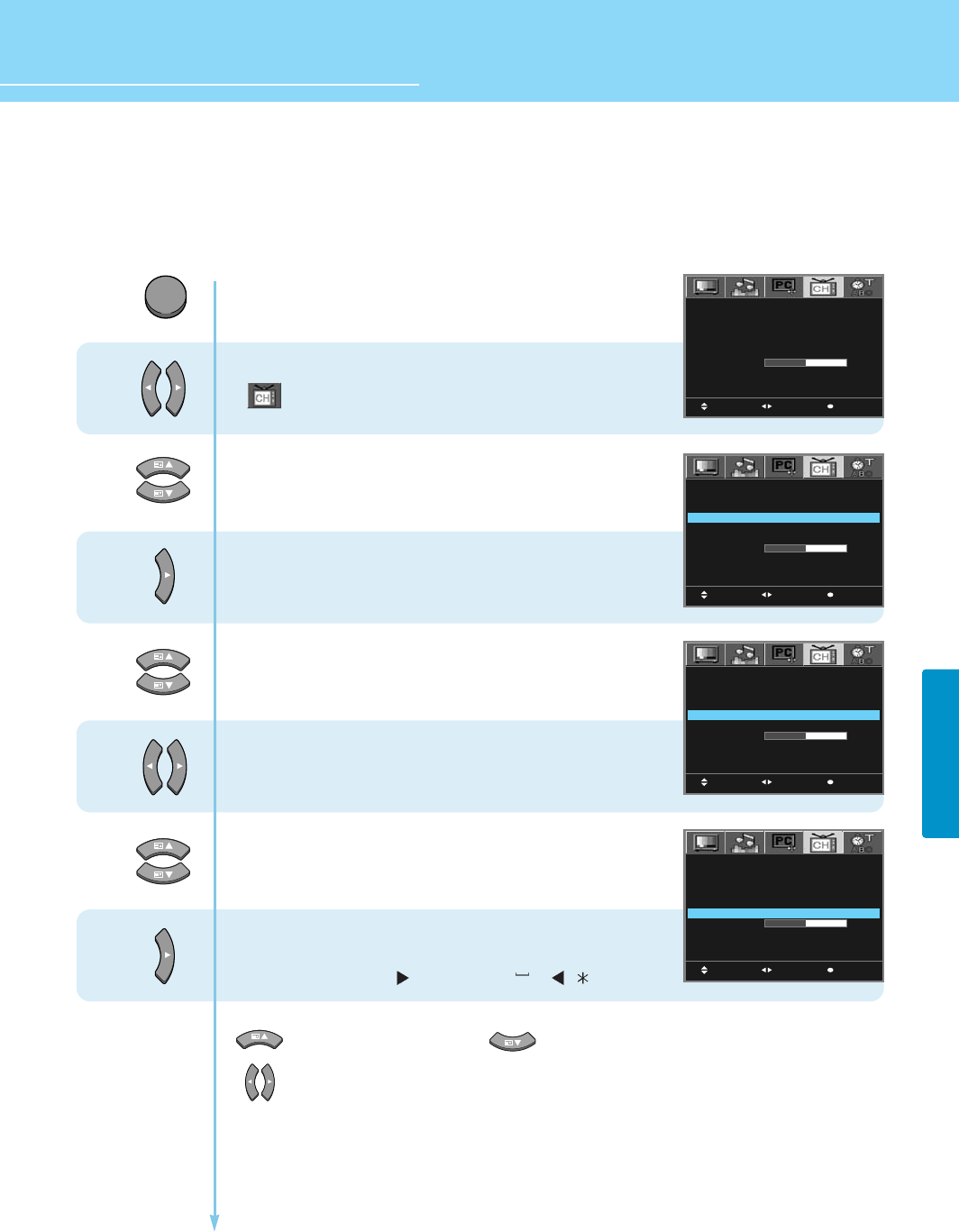
How to Store Program Automatically
- When you start using your TV for the first time, you must select your country to auto store.
- You can scan channels available to you automatically.
1
2
3
4
5
6
Press Menu button.
Menu items appear on the screen.
Press Left and Right buttons to select
“”
.
Press Up and Down buttons to move to
“Country”.
Press Left and Right buttons,
then the menu changes in order below.
WEST EURO EAST EURO FRANCE UK OTHERS
Press Up and Down buttons to move to
“Auto Store”.
Frequency : 48.25 Mhz ~ 855.25 Mhz
Press Left and Right buttons to selcet “Auto Store”,
then it will be stored the searched channels.
After completing channel searching,
it will return to the first stored program No.
Press MENU button after the setting is done, and Menu goes to the previous menu.
If the EXIT button is pressed, the menu disappears.
MOVE EXITSELECT
COUNTRY
AUTO STORE
MANUAL STORE
SEARCHING
PROGRAM NO.
NAME
FINE TUNE
PR EDIT
SORT
FROM OO TO OO SAVE
WEST EURO
0
-1
ERASED
MOVE EXITSELECT
COUNTRY
AUTO STORE
MANUAL STORE
SEARCHING
PROGRAM NO.
NAME
FINE TUNE
PR EDIT
SORT
FROM OO TO OO SAVE
WEST EURO
0
– 1
ERASED
MOVE EXITSELECT
COUNTRY
AUTO STORE
MANUAL STORE
SEARCHING
PROGRAM NO.
NAME
FINE TUNE
PR EDIT
SORT
FROM OO TO OO SAVE
WEST EURO
0
– 1
ERASED
MENU
EXIT
- When AUTO STORE is completed, you will get back to the first stored program No.
- If you press MENU or EXIT button during AUTO STORE in progress, the AUTO STORE will stop at the last
stored program No. at the moment of pressing the button.
- After activating AUTO STORE, program numbers in green indicate that the correspondent channels are stored
and program numbers in blue indicate that the correspondent channels are not stored.
- After activating AUTO STORE, if you experience an unstable image of the stored channel, please refer to Step
8 and 9 on next page. If you live in a poor reception area, the image quality may not be improved.
- While Auto Store in progress, all channels broadcasting are memorized regardless of TV or CATV channels.
- WEST EURO(Germany, Spain, Italy, Netherland, Greece, Portugal, Norway, Denmark, Sweden, Switzerland,
Austria, Yugo, Slovenia...), EAST EURO(Russia, Slovak. Rep, Poland, Bulgalia, Hungary...), FRANCE, UK(UK,
Ireland), OTHERS(Luxembourg, Monaco...)
HYUNDAI LCD TV HQL170WR/200NR
TV SETUP
56
5
1
2
3
4
MENU
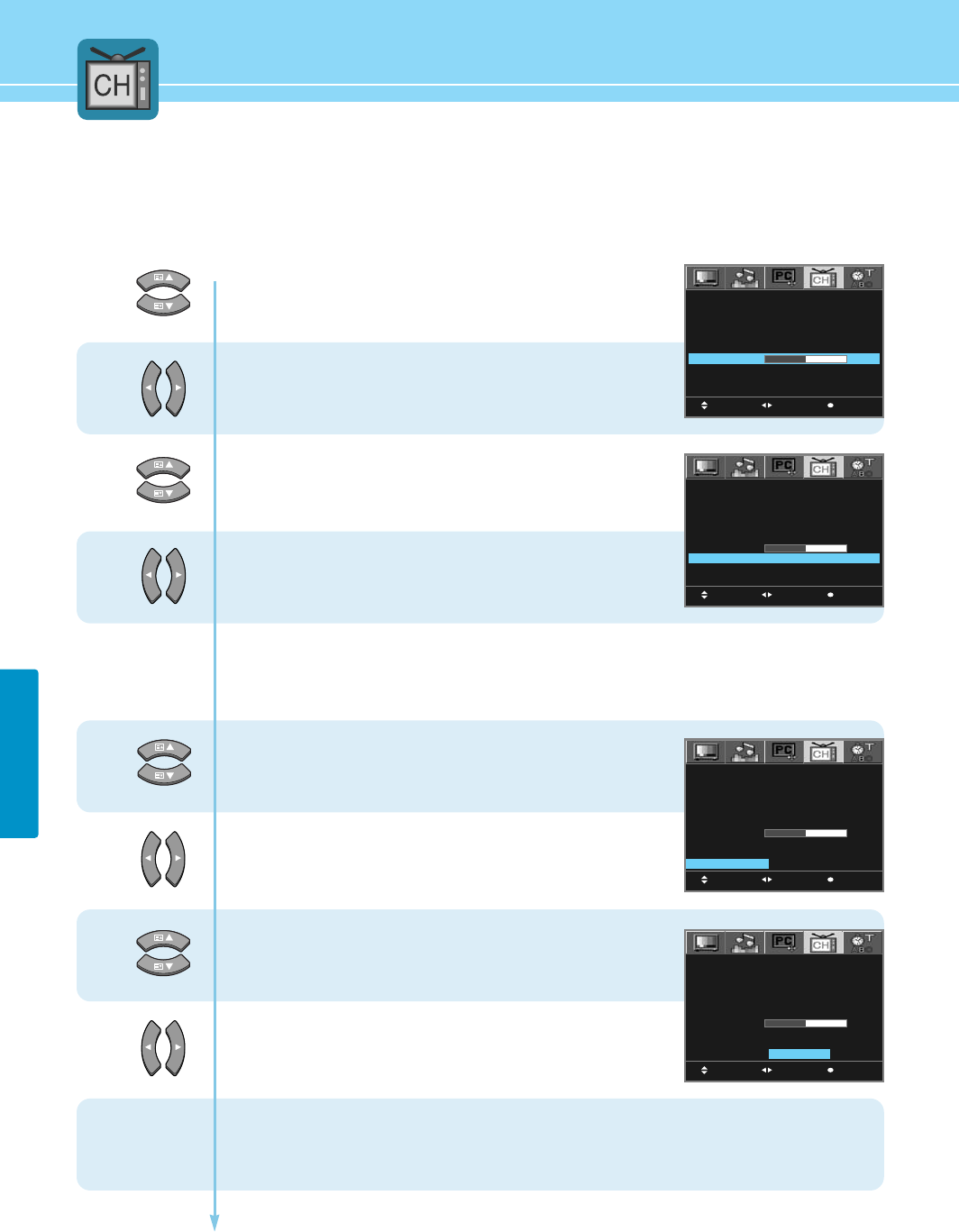
How to Set Manual Store
This function allows you to manually edit the desired programs while watching a TV program.
If the signal is weak or distorted, you have to fine tune the program manually.
Press Menu button.
Menu items appear on the screen.
Press Left and Right buttons to select
“”
.
Press Up and Down buttons to move to
“Searching”.
Press Right button to searching the channel,
then the frequency changes in order below.
Channel Searching proceeds from
the current channel to the next channel.
Press Up and Down buttons to move to
“Program No”.
Press Left and Right buttons to change the “Program No”.
Program Number is a current channel.
Press Up and Down buttons to move to
“Name”.
Press Right button to input the program name.
You can set up to 0 ~ 9 buttons.
A~Z , 0~9 , • , – , @ , , ’ , % , + , ‚ , , , , / , ( , )
To move one space (Space). To delete one character (Delete)
To move your cursor to the right or left (Direction Key)
* If you do nothing within 5 seconds, you will automatically exit the NAME MENU.
Go to next page,
If the signal of current program is weak or distored.
7
6
MOVE EXITSELECT
COUNTRY
AUTO STORE
MANUAL STORE
SEARCHING
PROGRAM NO.
NAME
FINE TUNE
PR EDIT
SORT
FROM OO TO OO SAVE
WEST EURO
0
– 1
ERASED
MOVE EXITSELECT
COUNTRY
AUTO STORE
MANUAL STORE
SEARCHING
PROGRAM NO.
NAME
FINE TUNE
PR EDIT
SORT
FROM OO TO OO SAVE
WEST EURO
0
– 1
ERASED
MOVE EXITSELECT
COUNTRY
AUTO STORE
MANUAL STORE
SEARCHING
PROGRAM NO.
NAME
FINE TUNE
PR EDIT
SORT
FROM OO TO OO SAVE
WEST EURO
0
-1
ERASED
MOVE EXITSELECT
COUNTRY
AUTO STORE
MANUAL STORE
SEARCHING
PROGRAM NO.
NAME
FINE TUNE
PR EDIT
SORT
FROM OO TO OO SAVE
WEST EURO
0
ABCD
– 1
ERASED
57
TV SETUP
...... Continued from previous page.
12
9
8
10
11
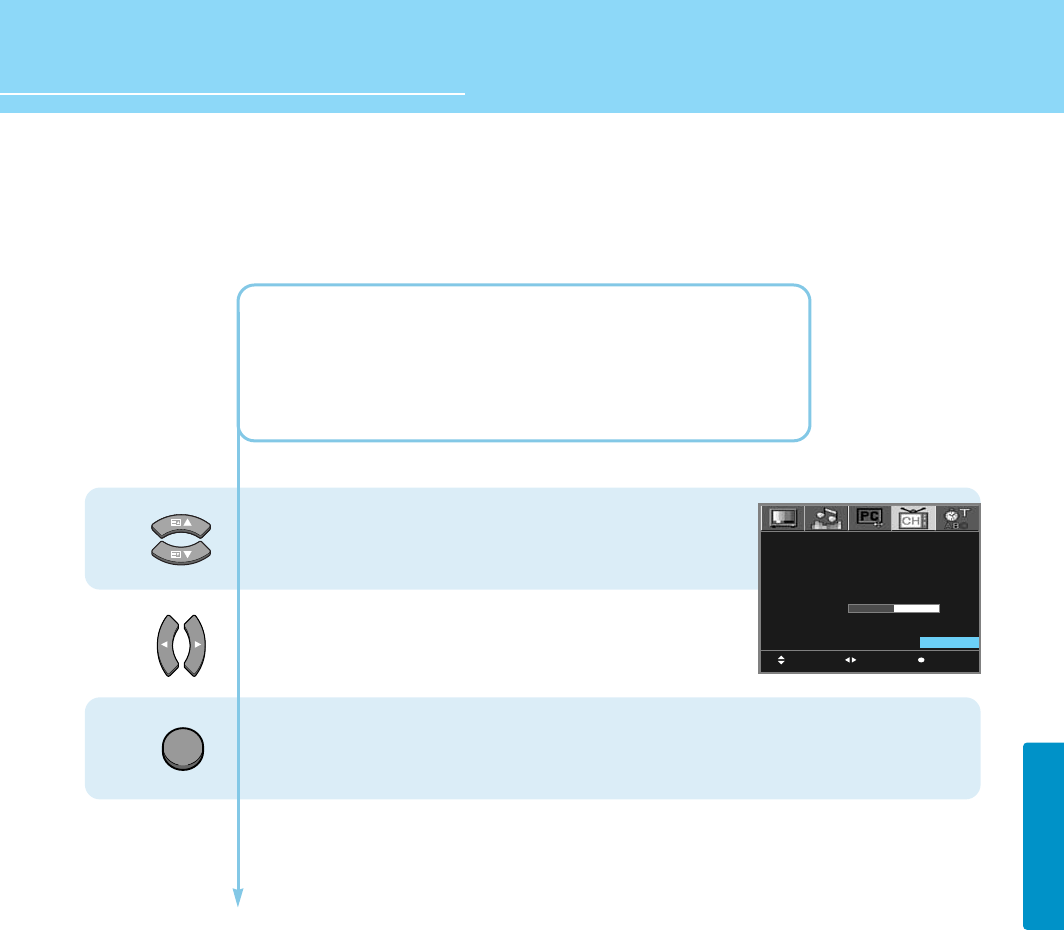
Press Up and Down buttons to move to “Fine Tune”.
Press Left and Right buttons to adjust.
The fine tuned programs are automatically stored.
Press Up and Down buttons to move to “PR EDIT”.
Press Left and Right buttons to select “Stored/Erased”,
Program number is a current channel.
Go to step 12,
If users want to Sort the Program Number.
Press Up and Down buttons to move to “From”
Press Left and Right buttons to change the Program No.
Press Up and Down buttons to move to “To”.
Press Left and Right buttons to change the Program No.
Countinued on next page ......
14
15
13
MOVE EXITSELECT
COUNTRY
AUTO STORE
MANUAL STORE
SEARCHING
PROGRAM NO.
NAME
FINE TUNE
PR EDIT
SORT
FROM OO TO OO SAVE
WEST EURO
0
ABCD
– 1
ERASED
MOVE EXITSELECT
COUNTRY
AUTO STORE
MANUAL STORE
SEARCHING
PROGRAM NO.
NAME
FINE TUNE
PR EDIT
SORT
FROM OO TO OO SAVE
WEST EURO
0
ABCD
– 1
ERASED
MOVE EXITSELECT
COUNTRY
AUTO STORE
MANUAL STORE
SEARCHING
PROGRAM NO.
NAME
FINE TUNE
PR EDIT
SORT
FROM O 5 TO OO SAVE
WEST EURO
0
ABCD
– 1
ERASED
MOVE EXITSELECT
COUNTRY
AUTO STORE
MANUAL STORE
SEARCHING
PROGRAM NO.
NAME
FINE TUNE
PR EDIT
SORT
FROM O 5 TO 1 O SAVE
WEST EURO
0
ABCD
– 1
ERASED
58
TV SETUP
HYUNDAI LCD TV HQL170WR/200NR
16
17
...... Continued from previous page.
MOVE EXITSELECT
COUNTRY
AUTO STORE
MANUAL STORE
SEARCHING
PROGRAM NO.
NAME
FINE TUNE
PR EDIT
SORT
FROM O 5 TO 1 O SAVE
WEST EURO
0
ABCD
– 1
ERASED
EXIT
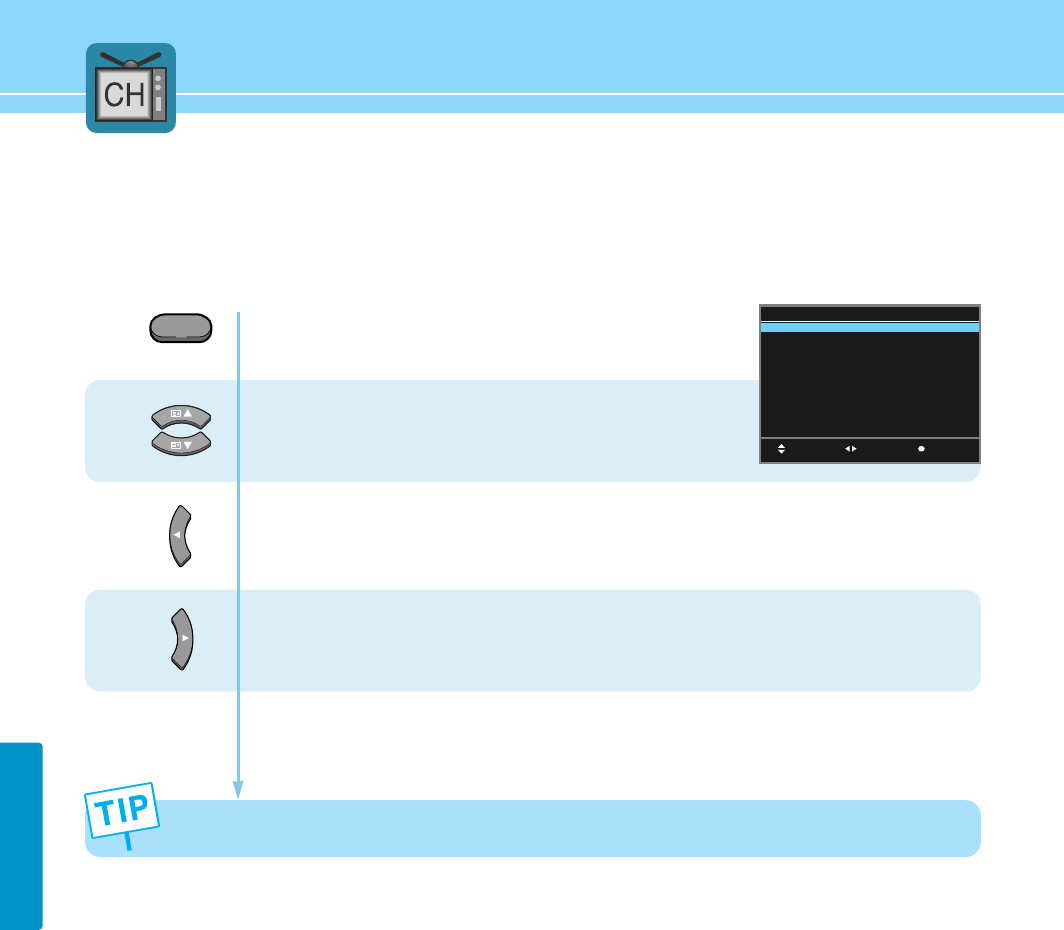
• FROM : Current Program Number
• TO : Change Program Number
ex) From 5, To 10
Change the program number from 5 to 10.
Press Up and Down buttons to move to “SAVE”.
Press Left and Right buttons to select the “Yes”
Press MENU button after the setting is done, and Menu goes to the previous menu.
If the EXIT button is pressed, the menu disappears.
59
TV SETUP
How to Directly Select the PR LIST
1
2
3
Press PR EDIT button.
PR list items appear on the screen.
Press Up and Down buttons to move to
“Program No”.
* Program No. : 00 ~ 99
Press Left button to select “Stored/Erased”.
Program Number is a current channel.
Press Right button to select “Program No”.
MOVE EXITSELECT
PROGRAM NO.
00
01
02
03
04
05
06
07
08
09
STORED
NO
YES
YES
YES
YES
YES
YES
YES
YES
YES
NAME
ABC
CNN
PR LIST
If you want to change the program name or programe sort, please refer to page 56.

Choosing Your Language ............................................................61
How to Set OSD(On-Screen-Display) Display Time .....................62
How to Select the OSD Background ...........................................63
How to Set Sleep Time ...............................................................64
How to Set Clock ........................................................................65
How to Set On /Off Time .............................................................66
How to Set Key-Lock ..................................................................68
Displaying Information ................................................................69
Teletext Feature ..........................................................................71
Displaying the Teletext Information ............................................72
Selecting Display Options ...........................................................72
Option Setup
HYUNDAI LCD COLOR TV
61
OPTION SETUP
Choosing Your Language
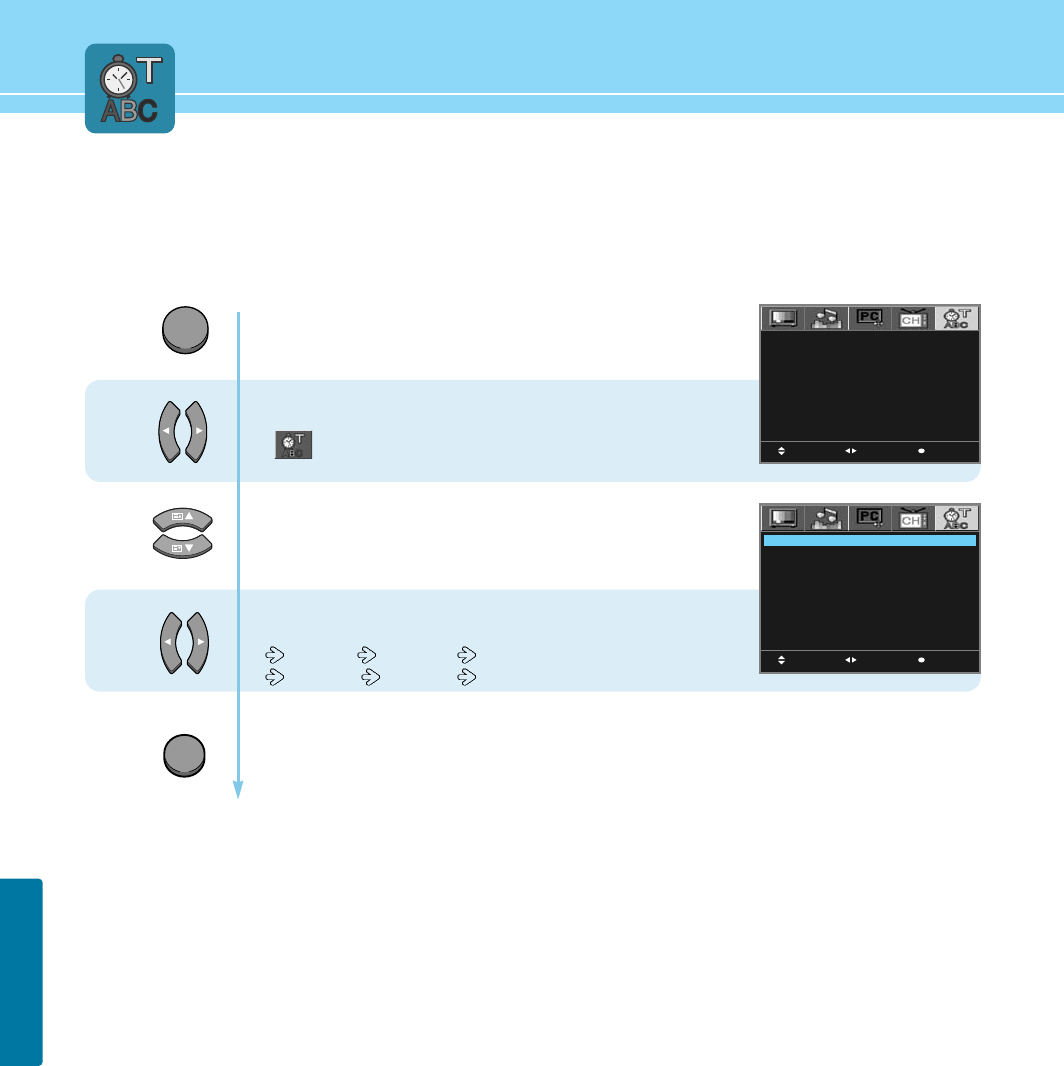
When you start using your TV for the first time, you must select your language preference in order to display main
menu and sub menues, etc.
1
2
3
Press Menu button.
Menu items appear on the screen.
Press Left and Right buttons to select
“”
.
Press Up and Down buttons to move to
“Language”.
Press Left and Right buttons, then the menu
changes in order below.
ENGLISH FRANÇAIS DEUTSCH
ESPAÑOL ITALIANO
Press MENU button after the setting is done, and Menu goes to the previous menu.
If the EXIT button is pressed, the menu disappears.
MOVE MENUSELECT
LANGUAGE
DISPLAY TIME
BACKGROUND
SLEEP
CLOCK
TIMER
ON TIME
PROGRAM NO. 1 1
OFF TIME
KEY LOCK
ENGLISH
5 SECONDS
TRANSPARENT
– –
OO : OO
OFF
OO : OO
VOLUME O
OO : OO
OFF
MOVE MENUSELECT
LANGUAGE
DISPLAY TIME
BACKGROUND
SLEEP
CLOCK
TIMER
ON TIME
PROGRAM NO. 1 1
OFF TIME
KEY LOCK
ENGLISH
5 SECONDS
TRANSPARENT
– –
OO : OO
OFF
OO : OO
VOLUME O
OO : OO
OFF
MENU
EXIT
62
OPTION SETUP
HYUNDAI LCD TV HQL170WR/200NR
How to Set OSD(On-Screen-Display) Display Time
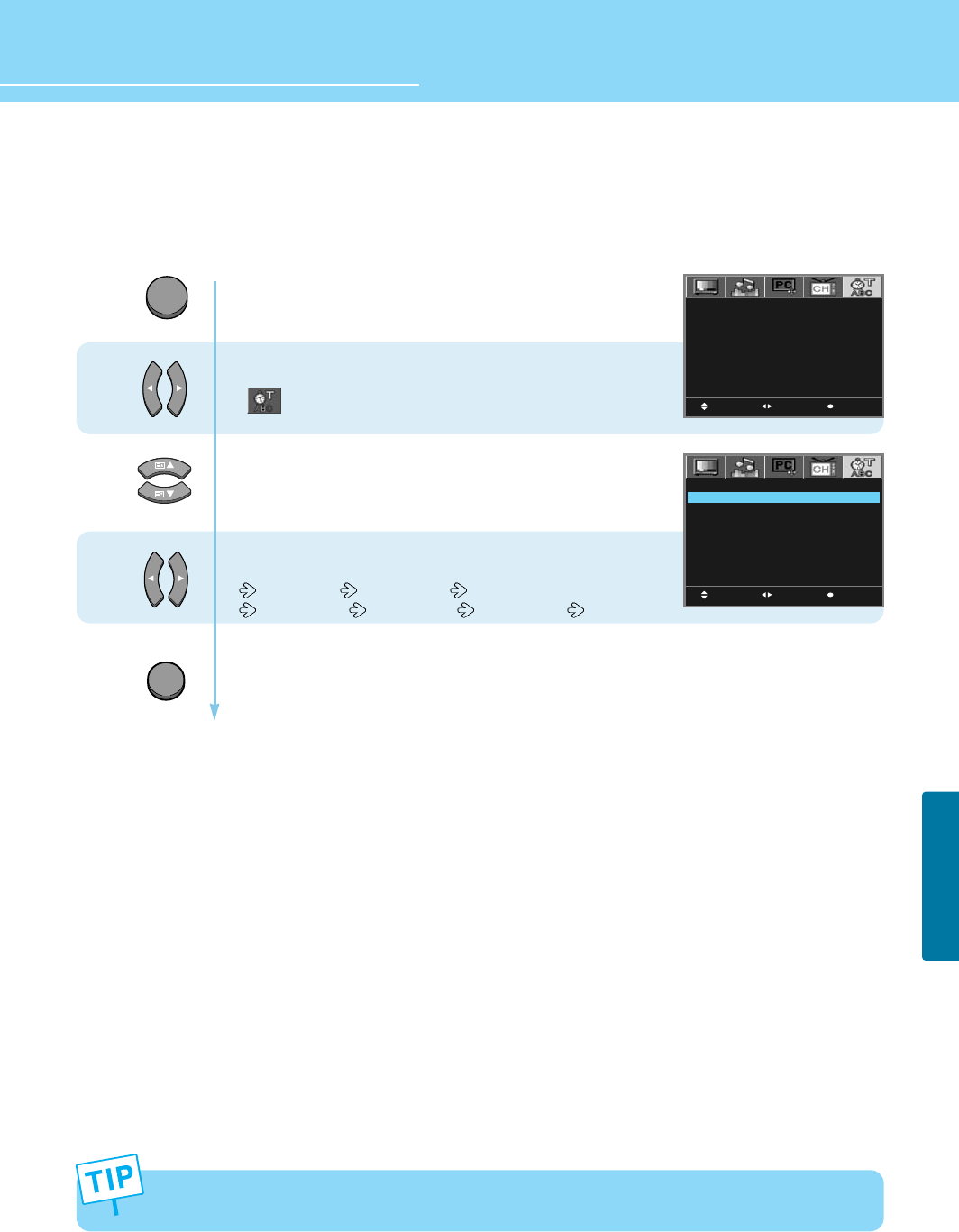
1
2
3
Press Menu button.
Menu items appear on the screen.
Press Left and Right buttons to select
“”
.
Press Up and Down buttons to move to
“Display Time”.
Press Left and Right buttons, then the menu
changes in order below.
5 SECONDS 15 SECONDS 20 SECONDS
25 SECONDS 30 SECONDS 40 SECONDS
Press MENU button after the setting is done, and Menu goes to the previous menu.
If the EXIT button is pressed, the menu disappears.
MOVE MENUSELECT
LANGUAGE
DISPLAY TIME
BACKGROUND
SLEEP
CLOCK
TIMER
ON TIME
PROGRAM NO. 1 1
OFF TIME
KEY LOCK
ENGLISH
5 SECONDS
TRANSPARENT
– –
OO : OO
OFF
OO : OO
VOLUME O
OO : OO
OFF
MOVE MENUSELECT
LANGUAGE
DISPLAY TIME
BACKGROUND
SLEEP
CLOCK
TIMER
ON TIME
PROGRAM NO. 1 1
OFF TIME
KEY LOCK
ENGLISH
5 SECONDS
TRANSPARENT
– –
OO : OO
OFF
OO : OO
VOLUME O
OO : OO
OFF
MENU
EXIT
If you do not press the EXIT button after adjusting the OSD display time, the OSD menu will disappear
automatically after the set time.
63
OPTION SETUP
How to Select the OSD Background
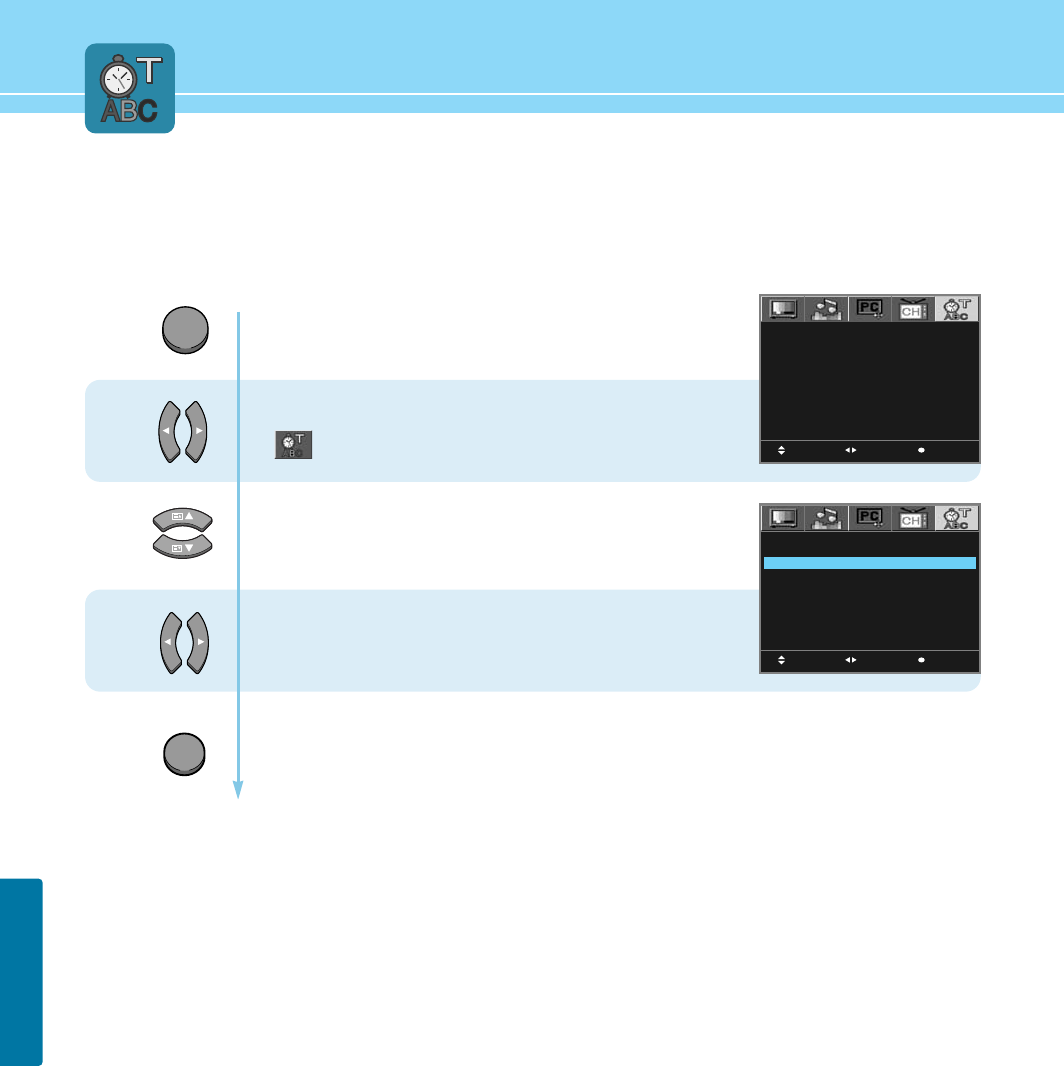
Users can select background type on On-Screen-Display.
1
2
3
Press Menu button.
Menu items appear on the screen.
Press Left and Right buttons to select
“”
.
Press Up and Down buttons to move to
“Background”.
Press Left and Right buttons to select
“Transparent/Opaque”.
Press MENU button after the setting is done, and Menu goes to the previous menu.
If the EXIT button is pressed, the menu disappears.
MOVE MENUSELECT
LANGUAGE
DISPLAY TIME
BACKGROUND
SLEEP
CLOCK
TIMER
ON TIME
PROGRAM NO. 1 1
OFF TIME
KEY LOCK
ENGLISH
5 SECONDS
TRANSPARENT
– –
OO : OO
OFF
OO : OO
VOLUME O
OO : OO
OFF
MOVE MENUSELECT
LANGUAGE
DISPLAY TIME
BACKGROUND
SLEEP
CLOCK
TIMER
ON TIME
PROGRAM NO. 1 1
OFF TIME
KEY LOCK
ENGLISH
5 SECONDS
TRANSPARENT
– –
OO : OO
OFF
OO : OO
VOLUME O
OO : OO
OFF
MENU
EXIT
HYUNDAI LCD TV HQL170WR/200NR
64
OPTION SETUP
EXIT
How to Set Sleep Time
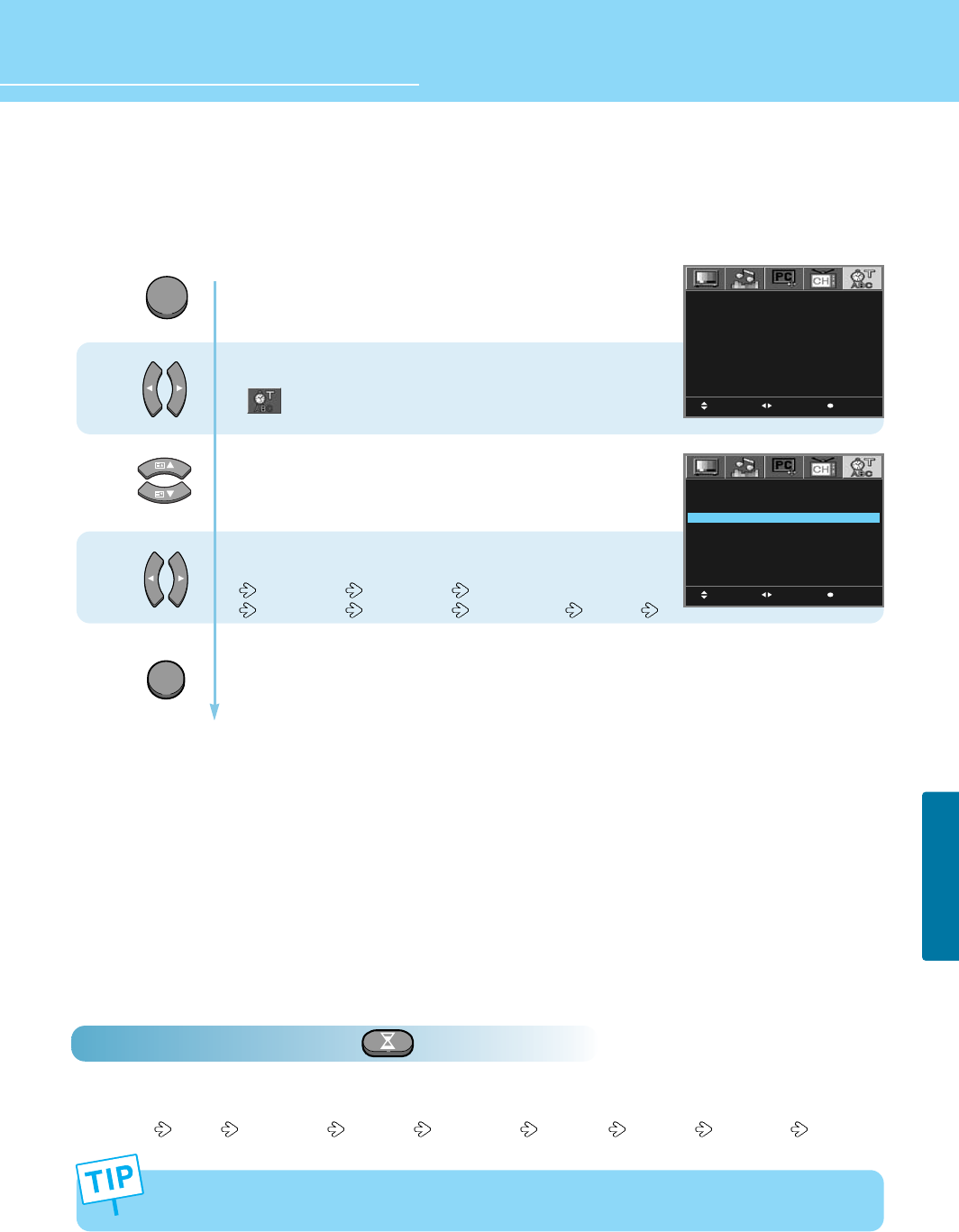
This function allows you to automatically turn off your LCD TV after a designated amount of time.
How To Directly Select SLEEP : Press button.
The current SLEEP time is first displayed. Whenever you press the button, the setting is changed in order below.
- - (OFF) SLEEP 15 MINUTES SLEEP 15 30 MINUTES SLEEP 30 ............... SLEEP 120
1
2
3
Press Menu button.
Menu items appear on the screen.
Press Left and Right buttons to select
“”
.
Press Up and Down buttons to move to
“Sleep”.
Press Left and Right buttons, then the menu
changes in order below.
15 MINUTES 30 MINUTES 45 MINUTES
60 MINUTES 90 MINUTES 120 MINUTES OFF(- -)
Press MENU button after the setting is done, and Menu goes to the previous menu.
If the EXIT button is pressed, the menu disappears.
MOVE MENUSELECT
LANGUAGE
DISPLAY TIME
BACKGROUND
SLEEP
CLOCK
TIMER
ON TIME
PROGRAM NO. 1 1
OFF TIME
KEY LOCK
ENGLISH
5 SECONDS
TRANSPARENT
– –
OO : OO
OFF
OO : OO
VOLUME O
OO : OO
OFF
MENU
If the sleep time has been set, your TV will display “TURN OFF AFTER 1 MIN” before your TV turns off.
SLEEP
MOVE MENUSELECT
LANGUAGE
DISPLAY TIME
BACKGROUND
SLEEP
CLOCK
TIMER
ON TIME
PROGRAM NO. 1 1
OFF TIME
KEY LOCK
ENGLISH
5 SECONDS
TRANSPARENT
– –
OO : OO
OFF
OO : OO
VOLUME O
OO : OO
OFF
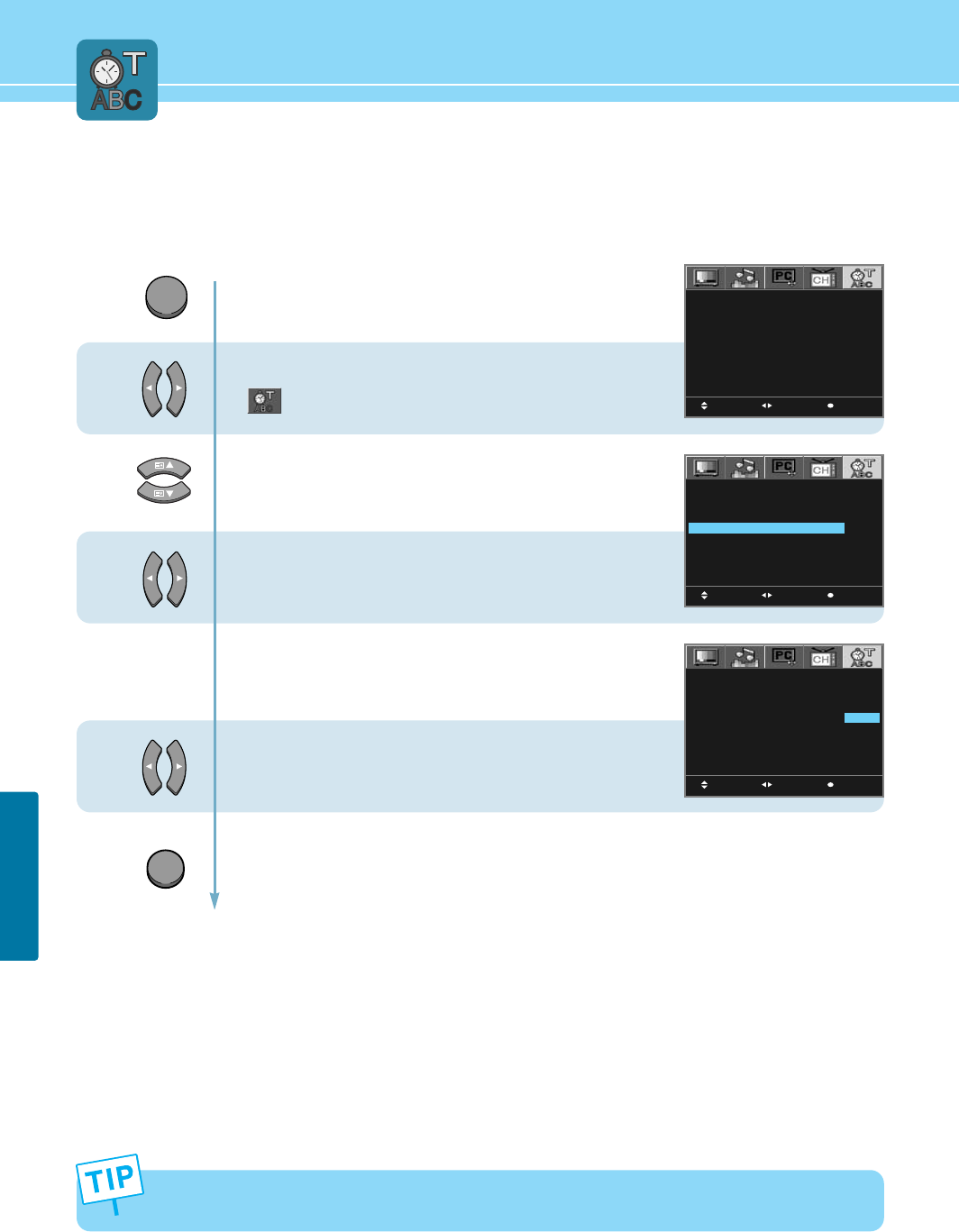
65
OPTION SETUP
How to Set Clock
You can set the current time so that it may be displayed by pressing the “INFO” button. You must also set a clock if
you wish to use the automatic on or off timers.
- When the power supply AC main power is cut off, the clock is reset to the value before the Time set.
- User cannot use number(0~9) buttons to set the clock.
1
2
3
4
Press Menu button.
Menu items appear on the screen.
Press Left and Right buttons to select
“”
.
Press Up and Down buttons to move to
“Clock”.
then cursors are moved to “Hour” unit.
Press Left and Right buttons to set
the “Hour”.
Press Up and Down buttons and then go to step 4
if you need to set the “Minute”.
Press Left and Right buttons to set
the “Minute”.
Press MENU button after the setting is done, and Menu goes to the previous menu.
If the EXIT button is pressed, the menu disappears.
MOVE MENUSELECT
LANGUAGE
DISPLAY TIME
BACKGROUND
SLEEP
CLOCK
TIMER
ON TIME
PROGRAM NO. 1 1
OFF TIME
KEY LOCK
ENGLISH
5 SECONDS
TRANSPARENT
– –
OO : OO
OFF
OO : OO
VOLUME O
OO : OO
OFF
MOVE MENUSELECT
LANGUAGE
DISPLAY TIME
BACKGROUND
SLEEP
CLOCK
TIMER
ON TIME
PROGRAM NO. 1 1
OFF TIME
KEY LOCK
ENGLISH
5 SECONDS
TRANSPARENT
– –
1 2 : O O
OFF
OO : OO
VOLUME O
OO : OO
OFF
MOVE MENUSELECT
LANGUAGE
DISPLAY TIME
BACKGROUND
SLEEP
CLOCK
TIMER
ON TIME
PROGRAM NO. 1 1
OFF TIME
KEY LOCK
ENGLISH
5 SECONDS
TRANSPARENT
– –
1 2 : 3 O
OFF
OO : OO
VOLUME O
OO : OO
OFF
MENU
EXIT
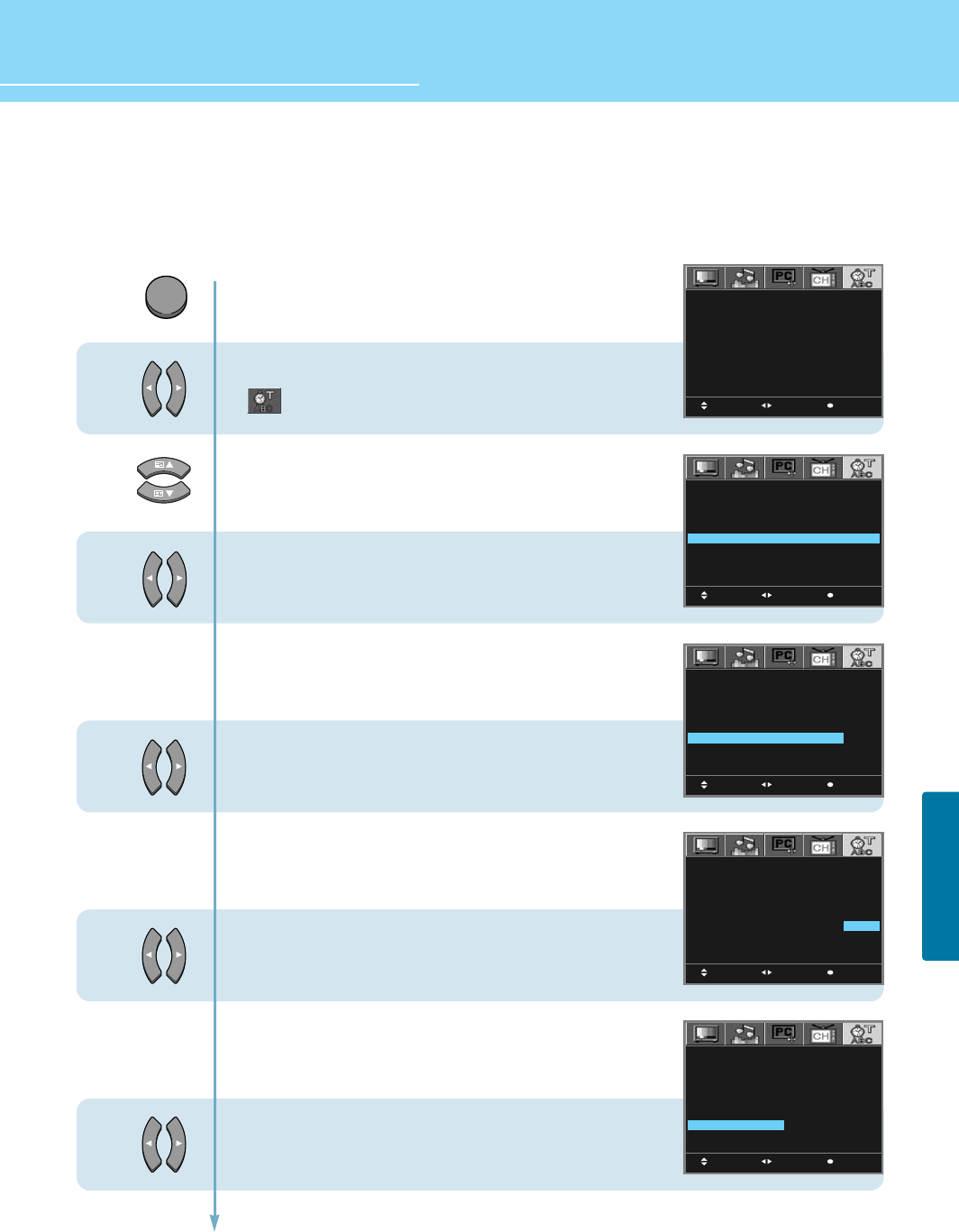
HYUNDAI LCD TV HQL170WR/200NR
66
OPTION SETUP
How to Set On /Off Time
- This function is allowed you to automatically turn on/off your LCD TV at the preset time.
- If you wish to use this function, make sure to set the timer to ON.
1
2
3
4
5
6
Press Menu button.
Menu items appear on the screen.
Press Left and Right buttons to select
“”
.
Press Up and Down buttons to move to
“Timer”.
Press Left and Right buttons to selcet
“ON”.
Press Up and Down buttons and then go to step 4
if you need to set to “On Time”.
Cursors are moved to “ON TIME”.
Press Left and Right buttons to set
to “Hour”.
Press Up and Down buttons and then go to step 5
if you need to set to “Minute”.
Press Left and Right buttons to set
to “Minute”.
Press Up and Down buttons and then go to step 6
if you need to set to “Program No”.
Cursors are moved to “Program No”.
Press Left and Right buttons to set to
“Program No”.
Continued on next page ......
MOVE MENUSELECT
LANGUAGE
DISPLAY TIME
BACKGROUND
SLEEP
CLOCK
TIMER
ON TIME
PROGRAM NO. 1 1
OFF TIME
KEY LOCK
ENGLISH
5 SECONDS
TRANSPARENT
– –
1 2 : 3 O
ON
OO : OO
VOLUME O
OO : OO
OFF
MOVE MENUSELECT
LANGUAGE
DISPLAY TIME
BACKGROUND
SLEEP
CLOCK
TIMER
ON TIME
PROGRAM NO. 1 1
OFF TIME
KEY LOCK
ENGLISH
5 SECONDS
TRANSPARENT
– –
1 2 : 3 O
ON
0 7 : OO
VOLUME O
OO : OO
OFF
MOVE MENUSELECT
LANGUAGE
DISPLAY TIME
BACKGROUND
SLEEP
CLOCK
TIMER
ON TIME
PROGRAM NO. 1 1
OFF TIME
KEY LOCK
ENGLISH
5 SECONDS
TRANSPARENT
– –
1 2 : 3 O
ON
0 7 : OO
VOLUME O
OO : OO
OFF
MOVE MENUSELECT
LANGUAGE
DISPLAY TIME
BACKGROUND
SLEEP
CLOCK
TIMER
ON TIME
PROGRAM NO. 1 6
OFF TIME
KEY LOCK
ENGLISH
5 SECONDS
TRANSPARENT
– –
1 2 : 3 O
ON
0 7 : OO
VOLUME O
OO : OO
OFF
MENU
MOVE MENUSELECT
LANGUAGE
DISPLAY TIME
BACKGROUND
SLEEP
CLOCK
TIMER
ON TIME
PROGRAM NO. 1 1
OFF TIME
KEY LOCK
ENGLISH
5 SECONDS
TRANSPARENT
– –
OO : OO
OFF
OO : OO
VOLUME O
OO : OO
OFF
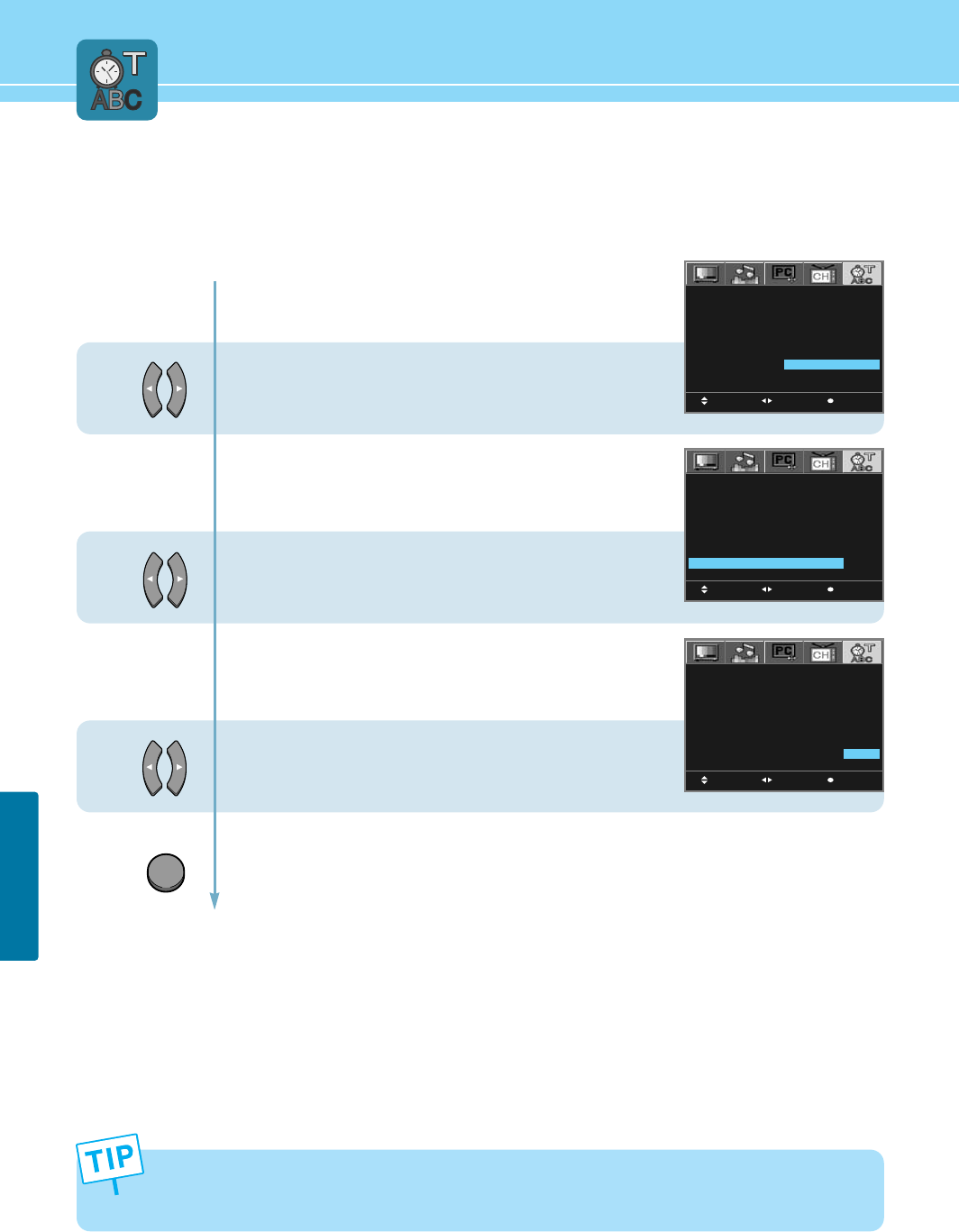
67
OPTION SETUP
...... Continued from previous page. (Set the volume level at the time when your LCD TV turns on.)
7
8
9
- Regardless of which Input Mode you set On Time in, your LCD TV will turn on in TV Mode only.
- User cannot use number(0~9) buttons to set the On/Off Time.
- If the OFF TIME has been set, your TV will display "TURN OFF AFTER 1 MIN” 1 minute before your TV turns off.
Press Up and Down buttons and then go to step 7
if you need to set to “Volume”.
Press Left and Right buttons to adjust “Volume”.
Press Up and Down buttons and then go to step 8
if you need to set to “Off Time”.
Cursors are moved to “OFF TIME”.
Press Left and Right buttons to set
to “Hour”.
Press Up and Down buttons and then go to step 9
if you need to set to “Minute”.
Press Left and Right buttons to set to “Minute”.
Press MENU button after the setting is done, and Menu goes to the previous menu.
If the EXIT button is pressed, the menu disappears.
MOVE MENUSELECT
LANGUAGE
DISPLAY TIME
BACKGROUND
SLEEP
CLOCK
TIMER
ON TIME
PROGRAM NO. 1 6
OFF TIME
KEY LOCK
ENGLISH
5 SECONDS
TRANSPARENT
– –
1 2 : 3 O
ON
0 7 : OO
VOLUME 15
OO : OO
OFF
MOVE MENUSELECT
LANGUAGE
DISPLAY TIME
BACKGROUND
SLEEP
CLOCK
TIMER
ON TIME
PROGRAM NO. 1 6
OFF TIME
KEY LOCK
ENGLISH
5 SECONDS
TRANSPARENT
– –
1 2 : 3 O
ON
0 7 : OO
VOLUME 15
2 3 : O O
OFF
MOVE MENUSELECT
LANGUAGE
DISPLAY TIME
BACKGROUND
SLEEP
CLOCK
TIMER
ON TIME
PROGRAM NO. 1 6
OFF TIME
KEY LOCK
ENGLISH
5 SECONDS
TRANSPARENT
– –
1 2 : 3 O
ON
0 7 : OO
VOLUME 15
2 3 : 3 O
OFF
EXIT
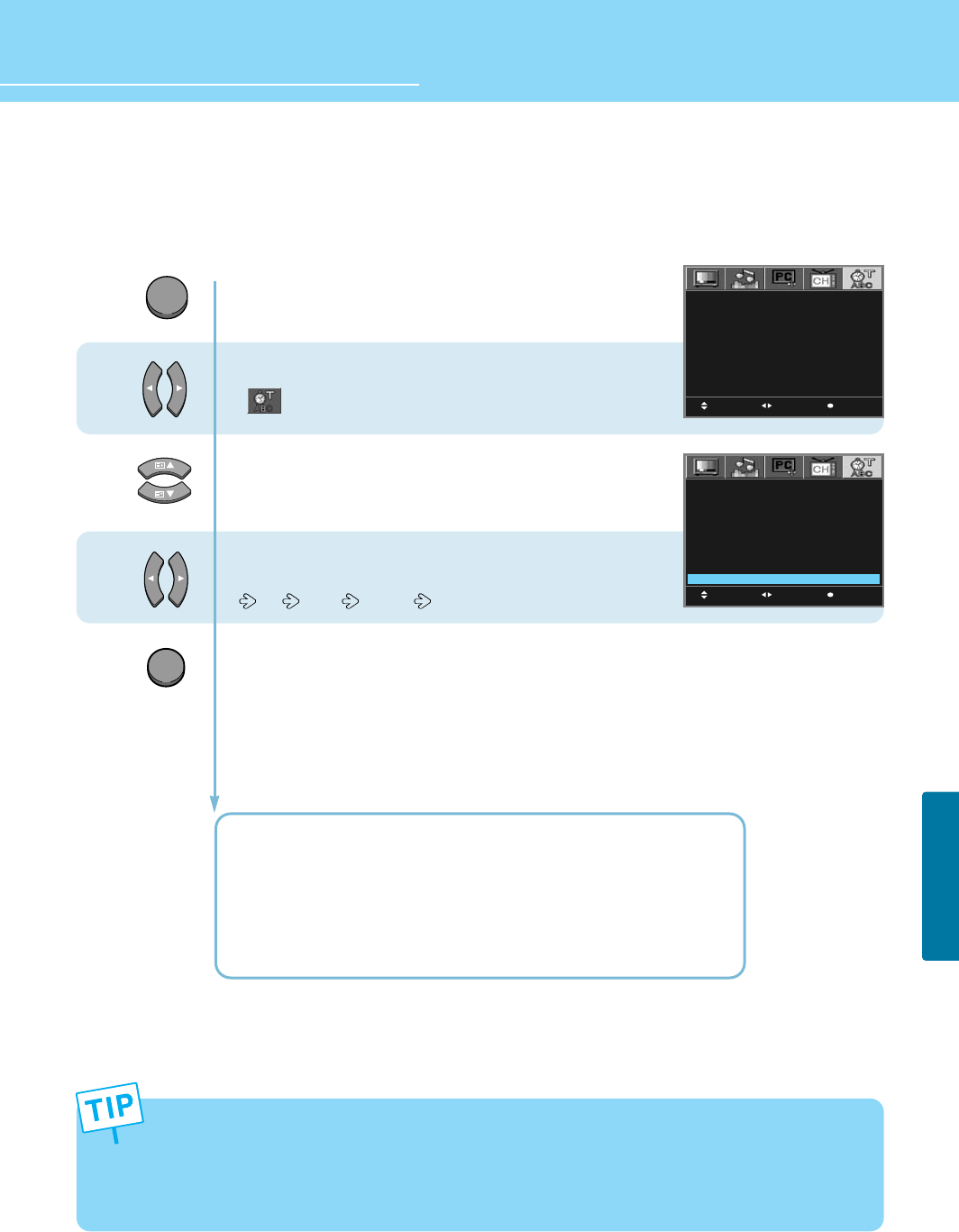
68
OPTION SETUP
HYUNDAI LCD TV HQL170WR/200NR
How to Set Key-Lock
- This is to lock the control buttons on the front top of LCD TV.
- After setting the Key-Lock, your TV will work only with the remote control.
Press Menu button.
Menu items appear on the screen.
Press Left and Right buttons to select
“”
.
Press Up and Down buttons to move to
“key Lock”.
Press Left and Right buttons, then the menu
changes in order below.
Off Once Always
Press MENU button after the setting is done, and Menu goes to the previous menu.
If the INPUT button is pressed, the menu disappears.
OFF : With the lock function off, you can control the TV with both
the remote control and the buttons on the TV.
ONCE : The lock function will turn off automatically after AC power off/on.
Or after power-cut or unplugging the power cord to plug it back in.
ALWAYS : With the lock function always on, you can control the TV
only with the remote control, not with the buttons on the TV.
- This function prevents children from controlling the TV when parents are not home.
* How to Unlock Key-Lock :
- Bring up the Menu window using the remote control and switch off the Key-Lock.
- When the remote control is not available, press the Power button within 0.5 second while pressing the Menu
button on the top of the TV.
1
2
3
MOVE MENUSELECT
LANGUAGE
DISPLAY TIME
BACKGROUND
SLEEP
CLOCK
TIMER
ON TIME
PROGRAM NO. 1 6
OFF TIME
KEY LOCK
ENGLISH
5 SECONDS
TRANSPARENT
– –
1 2 : 3 O
ON
0 7 : OO
VOLUME 15
2 3 : 3 O
OFF
MOVE MENUSELECT
LANGUAGE
DISPLAY TIME
BACKGROUND
SLEEP
CLOCK
TIMER
ON TIME
PROGRAM NO. 1 1
OFF TIME
KEY LOCK
ENGLISH
5 SECONDS
TRANSPARENT
– –
OO : OO
OFF
OO : OO
VOLUME O
OO : OO
OFF
EXIT
MENU
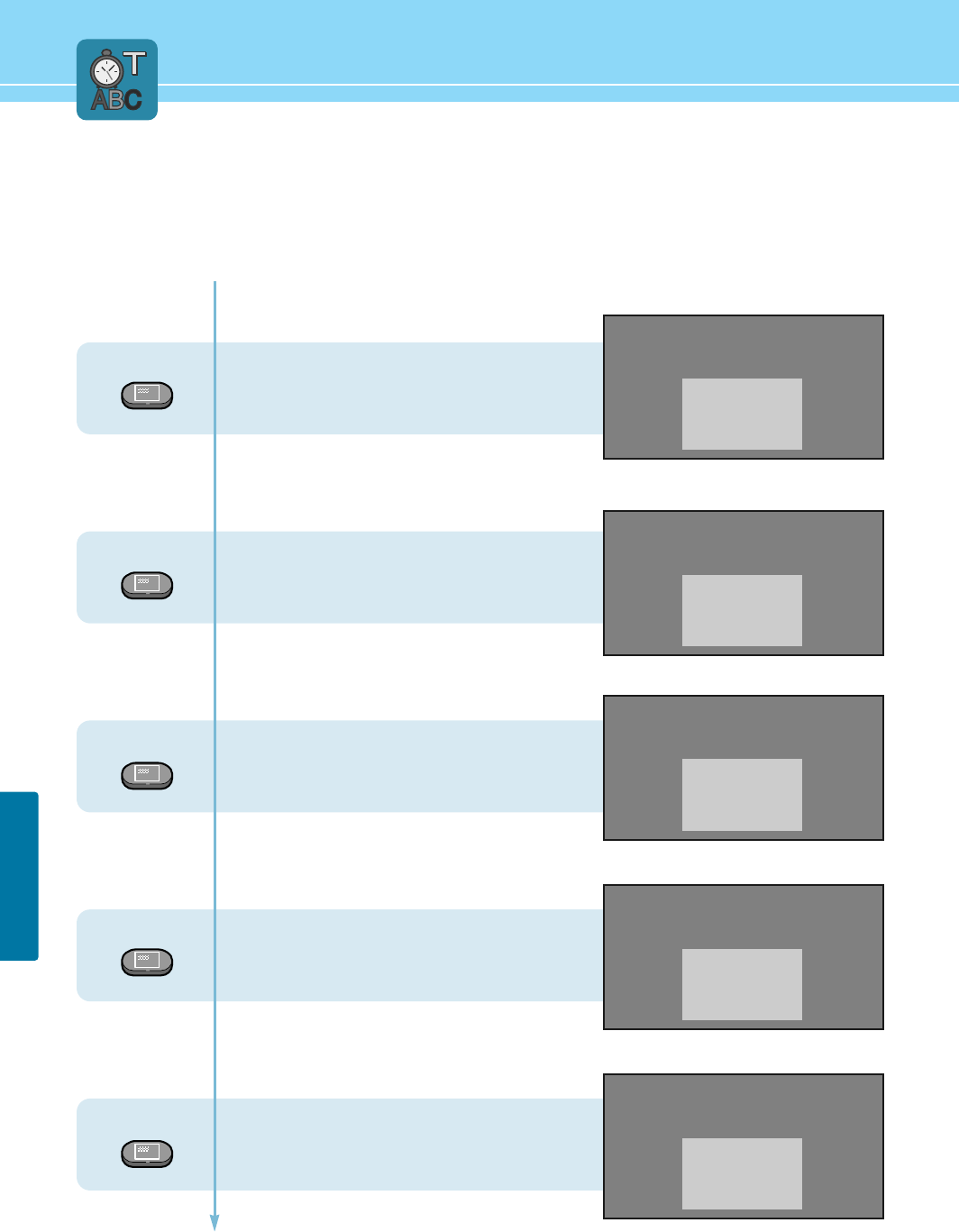
69
OPTION SETUP
Displaying Information
You can view the channel information and setting status by pressing the “INFO” button on the remote control.
In case of applying TV input
Press INFO button.
In case of applying VIDEO input
Press INFO button.
In case of applying S-VIDEO input
Press INFO button.
In case of applying SCART input
Press INFO button.
In case of applying COMPONENT input
Press INFO button.
INFO
INFO
INFO
INFO
INFO
PROG NO 5 FREQ 139.25
USER : MONO
CLOCK PM 12 : 30
ON TIME AM 7 : 20
OFF TIME PM 11 : 30
VIDEO
CLOCK PM 12 : 30
ON TIME AM 7 : 20
OFF TIME PM 11 : 30
S-VIDEO
CLOCK PM 12 : 30
ON TIME AM 7 : 20
OFF TIME PM 11 : 30
SCART
CLOCK PM 12 : 30
ON TIME AM 7 : 20
OFF TIME PM 11 : 30
COMPONENT
1080i
CLOCK PM 12 : 30
ON TIME AM 7 : 20
OFF TIME PM 11 : 30
70
OPTION SETUP
HYUNDAI LCD TV HQL170WR/200NR
In case of applying PC input
Press INFO button.
INFO
PC
1024 x 768
CLOCK PM 12 : 30
ON TIME AM 7 : 20
OFF TIME PM 11 : 30
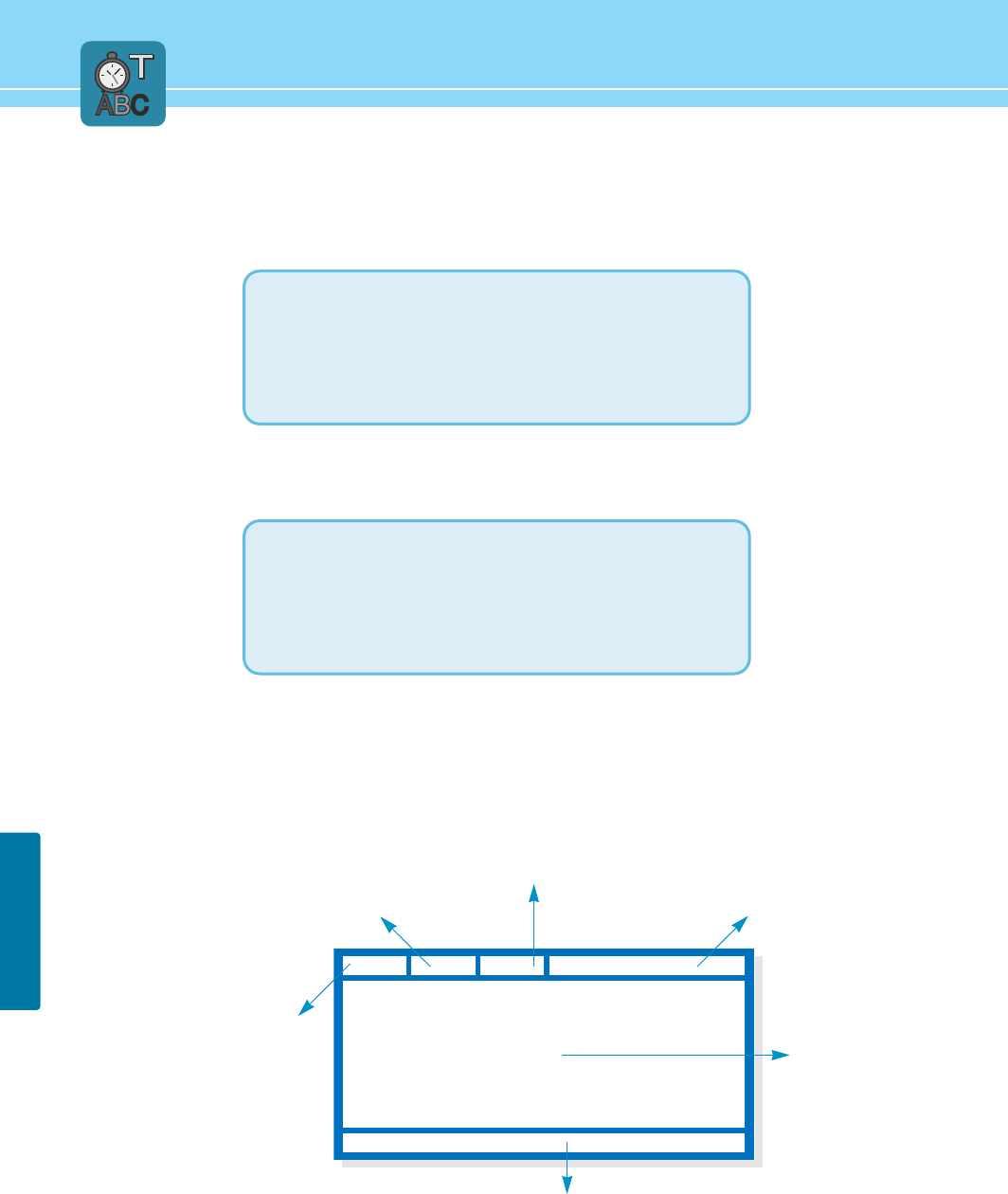
71
OPTION SETUP
Teletext Feature
Most TV channels provide written information services via teletext.
Information provided includes with the next entry it is same :
Teletext information is often divided between several pages displayed in sequence,
which can be accessed by :
Teletext OSD(On-Screen-Display) Picture
Data and Time
D
F
E
CBA
Selected page number
Broadcasting channel identity
Text
Current page number or
search indications.
Status information
Fastext information
- TV programme times
- News bulletins and weather forecasts
- Sports results
- Travel information
- Entering the number
- Selecting a title in a list
- Selecting a coloured heading (FASTEXT SYSTEM)
- Travel information
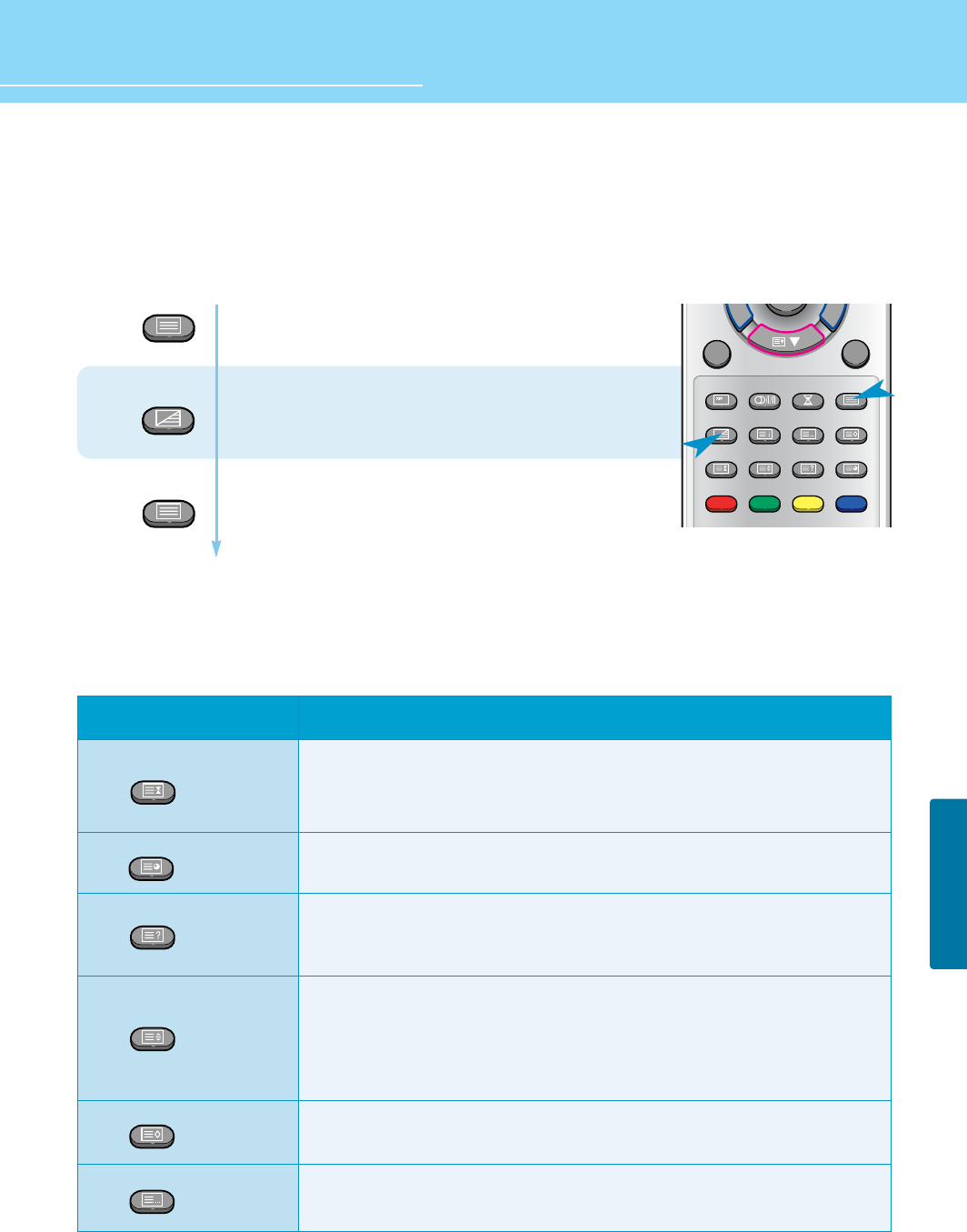
72
OPTION SETUP
HYUNDAI LCD TV HQL170WR/200NR
Displaying the Teletext Information
You can display Teletext information at any time on your TV.
For Teletext information to be display correctly channel reception to be stable otherwise
- Information maybe missing or some pages may not be displayed.
Selecting Display Options
When you have displayed a teletext page, you can have various options to suit you requirements.
Press TTX button to activate the TTX mode.
(The contents of page 252 are displayed.)
If you wish to display the actual broadcast
at the same time as the teletext page, press TTX/MIX button.
- If the button is pressed a second time,
the function will be deactivated.
Press TTX button again to
exit from the teletext display.
2
1
3
INFO S.MODE SLEEP TTX
MIX INDEX LIST/FLOF STORE
HOLD SIZE REVEAL SUB PAGE
MAINEXIT
SOURCE
TTX
MIX
TTX
DISPLAY(ACTION)
When the secondary pages are displayed in sequence, press the HOLD button.
To freeze the current display page, press the HOLD button again to resume.
Displays a secondary page by entering its number.
Displays concealed text such as answer to quiz games.
To return to normal viewing, press this button again.
Whenever you press this button, the letter size of the page will be changed.
Once press : The letter of the top half page enlarge to double size.
Twice press : The letter of the bottom half page enlarge to double size.
Three times press : Return to the normal viewing
To store teletext page in list mode.
Return to LIST or FLOF mode.
BUTTON
HOLD
SUB PAGE
REVEAL
SIZE
STORE
LIST/FLOF
HOLD
SUB PAGE
REVEAL
SIZE
STORE
LIST/FLOF
73
OPTION SETUP
While viewing TTX information, PIP, POP, Multi Function is not supported.
DISPLAY(ACTION)
To display the index page, press the INDEX button.
Displays the next page.
Displays the previous page.
BUTTON
INDEX
PAGE UP
PAGE DOWN
INDEX

Troubleshooting ..........................................................................75
Care and Cleaning ......................................................................77
Product Specifications ................................................................78
Appendix
HYUNDAI LCD COLOR TV

75
APPENDIX
Troubleshooting
Installation Problems
Picture Problems
Symptom
How can I install an
antenna?
TV screen is not clear after
installing an indoors
antenna.
How can I view cable
broadcasting?
Symptom
Neither picture nor
sound comes up.
Picture turns on slowly
after power is on.
Vertical and horizontal lines
and web patterns briefly
appear on the
picture and shake.
Input Source information only
appears on black screen.
Poor reception on some
channels.
Black and white on some
channels.
TV won’t turn on.
Screen is too bright or too
dark.
Possible solution
Refer to pages 23~24.
Indoors antenna may experience poor reception due to surrounding buildings.
Please install an outdoors antenna or wireless antenna.
Please install a cable broadcasting receiver (Converter).
Possible solution
Check whether power is on.
Check whether the power is cut or whether power cord is properly connected.
Try to plug another product’s power cord to the outlet the LCD TV is plugged into.
This symptom is not a malfunction. This delay is designed to prevent the
distorted and noisy picture when power is on. However, if the picture does not
appear more than 5 minutes after power is on, call a service center.
This symptom may be caused by interference from other electric appliances.
Please avoid using a cordless phone, hairdryer, and electric drill, etc.
Check whether your TV is properly connected to external devices.
Check whether you selected proper channels. Try re-orienting your antenna.
Ensure LNA is activated.
Check other channels for black and white screen. Adjust colour.
Ensure the power cord is plugged.
Adjust brightness.

76
APPENDIX
HYUNDAI LCD TV HQL170WR/200NR
Audio Problems
General
Auto On does not work.
After setting the time,
I turned TV off and turn it on.
The programmed information
has been erased.
Symptom
Too much noise occurs.
No sound while viewing a
cable channel
Picture is OK but sound does
not come out.
One of the speakers does not
produce sound.
Symptom
Remote control won't work.
Where does the S-Video
cable plug in for audio
output?
Strange noises are heard.
I tried to use the TV screen
as a PC monitor
but it doesn’t work.
Ensure to use the remote control or power button on the product to turn off your
TV. If you unplug the power cord, the stand-by consumption power becomes 0
(zero), which causes the programmed time to be erased.
Ensure to use the remote control or power button on the product to turn off your
TV. If you unplug the power cord, the stand-by consumption power becomes 0
(zero), which causes the programmed time to be erased.
Possible solution
Check whether the audio setting is in the Stereo mode. In the Stereo mode, the
sound may be distorted in the area where experiences poor reception or is
located far away from a TV broadcasting station.
Make sure an audio or audio/video component is securely inserted into the
appropriate jacks. Check other channels for sound. Check the volume settings on
the cable broadcasting receiver.
Try to press volume up/volume down buttons of your remote control.
Select sound balance and make proper adjustment. (Page 41)
Check the speaker connection cables.
Possible solution
Check whether there is a blocking object between the remote control and LCD TV.
Make sure your LCD TV is Power On. (In case of normal, LED on the front panel is
in Red.)
Check whether batteries are inserted with proper polarities(+, -).
When the batteries are worn out, replace with new ones.
Connect the two Audio jacks from the S-Video cable to the left and right ports on
the Composite.
Ticking noise during or after watching is caused by the change of ambient
environment such as humidity and temperature, which is characterized by plastic
products. Strange ticking noise occurs because a signal is suddenly transmitted
to the LCD panel. So, this is not a malfunction.
Adjust the resolution referring to the standard signal mode table. Check the
specification of your video card installed in your PC. If your video card does not
work in supported hardware. Try upgrading the video card’s driver.
APPENDIX
77
Care and Cleaning
Cabinet Cleaning
Wipe a soft dry cloth.
Do not use inflammables like Benzene or Thinner, or wet clothes.
Do not scratch the panel of TV with a fingernail or pointed object.
Screen Cleaning
Clean the screen with a soft cloth moistened in mild glass
detergent and dry with a soft cloth.
Never use any solvent on the screen such as Acetone, Benzene, or
Thinner, etc.
Cleaning Inside
When the inside needs to be cleaned, contact a service center or
distribution agent where the item is purchased.
It is recommended cleaning is complete before the rainy season.

HYUNDAI LCD TV HQL170WR/200NR
APPENDIX
78
Product Specifications
- Specification is subject to change without notice for performance improvement.
MODEL
Input/Output
Power
Dimension(W x D x H mm)
Weight
Control Type
HQL200NR
1 EA(with common A/V Audio)
1 EA (Input, with Audio)
1 EA (with Audio)
1 EA
1 EA (FULL)
D-SUB
640 x 480 @ 60 Hz
PC Audio
1 EA
AC 100 - 240 V, 50/60 Hz
Typical 80 W
< 5 W
650 x 184 x 450 (with stand)
8.5 Kg (with stand)
Remote Control, Key Control
HQL170WR
1 EA(with common A/V Audio)
1 EA (Input, with Audio)
1 EA (with Audio)
1 EA
1 EA (FULL)
D-SUB
1024 x 768 @ 60 Hz
PC Audio
1 EA
AC 100 - 240 V, 50/60 Hz
Typical 70 W
< 5 W
560 x 184 x 361 (with stand)
6.5 Kg (with stand)
Remote Control, Key Control
S-Video
A/V (RCA)
Component(Y/Cb/Cr)
RF
SCART
PC Connector
Recommended. Resolution
Audio
Headphone
Supply
Consumption
Saving

79
APPENDIX
Model. HQL170WR/200NR
User's Guide
HYUNDAI IMAGEQUEST LCD TV
USA
Hyundai ImageQuest America
3101 North First Street San Jose, CA 95134
Hyundai tech support
Tel : +800-568-0061,408-232-8654
Fax : +408- 232-8146
e-mail : syuen@hyundaiqa.com
AVC USA. INC.
777 Mark Street, Wood Dale, IL 60191
Tel : 630-595-0123 / 800-568-0060
Fax : 630-595-2345 / 800-784-9422
e-mail : avctech@avcusa.com
NEW ZEALAND
TRANSTECH DISTRIBUTORS Ltd.
PO Box 12985 Penrose,
Auckland New Zealand
Tel : 09-571-0775
Fax : 09-571-0776
e-mail : LouisG@Transtech.co.nz
WWW : www.transtech.co.nz
AUSTRALIA
Thomas Electronics Australia Pty Ltd.
3 Sheridan Close
Milperra NSW 2214, Australia
Tel : +61 2 9773 7400
Fax : 61 2 9773 7177
Attn : Ms. Shiely Poniman
GERMANY
Hyundai ImageQuest Europe GmbH
Geheimrat Hummel Platz 2
65239, Hochheim, Germany
Tel : 06146 / 904 444
Fax : 06146 / 904 410
e-mail : service@hyundaiq.de
WWW : www.hyundaiq.com
JAPAN
Hyundai ImageQuest JAPAN
Shin-Hibiya Bldg, East 5F 1-3-6
Uchisaiwai-Cho, Chiyoda-ku,
Tokyo, Japan 100-0011
Tel : 03-5157-2286
Fax : 03-5157-2284
e-mail : pjkim@iqt.co.kr
C/S P.J.Kim
P/N 632 0238 302 Rev.01 * The above image may look different from the real product.
