Hyundai P224W Widescreen Lcd Monitor P224Wk Users Manual
P224WK to the manual 7a23b79d-9a6f-46df-8285-babf6b2c44a7
2015-01-23
: Hyundai Hyundai-P224W-Widescreen-Lcd-Monitor-P224Wk-Users-Manual-221844 hyundai-p224w-widescreen-lcd-monitor-p224wk-users-manual-221844 hyundai pdf
Open the PDF directly: View PDF  .
.
Page Count: 44
PANTONE COLOR 432 U PANTONE COLOR 432 U

U.S.A.
U.S.FEDERAL COMMUNICATIONS COMMISSION RADIO FREQUENCY INTERFERENCE
STATEMENT INFORMATION TO THE USER
NOTE : This equipment has been tested and found to comply with the limits for a Class A
digital device pursuant to Part 15 of the FCC Rules.
These limits are designed to provide reasonable protection against harmful interference in a
residential installation.
This equipment generates, uses, and can radiate radio frequency energy and, if not installed
and used in accordance with the instructions, may cause harmful interference to radio
communications.
However, there is no guarantee that interference will not occur in a particular installation.
If this equipment does cause harmful interference to radio or television reception, which can be
determined by turning the equipment off and on, the user is encouraged to try to correct the
interference by one or more of the following measures:
Reorient or relocate the receiving antenna.
Increase the separation between the equipment and receiver.
Connect the equipment into an outlet of a circuit different from that to which the receiver
is connected.
Consult the dealer or an experienced radio/Monitor technician for assistance.
Changes or modification not expressly approved by the party responsible for
compliance could void the user’s authority to operate the equipment.
Connecting of peripherals requires the use of grounded shielded signal cables.
DID_eng.indb 2 2009-09-15 오후 8:24:18
DECLARATION OF CONFORMITY
For the following product :
All of Digital sigange HYUNDAI IT provides
Manufactured at :
(factory name, address)
1. Hyundai IT Corp. 1229 In-ri, Apo-eup Gimcheon, Gyeongsangbuk-do 740-860 Rep. of Korea
2. Hyundai IT Corp. San 136-1 Ami-ri, Bubal-eub, Ichon-si, Kyungki-Do, 467-860 Rep. of Korea
We herewith confirmed to comply with the requirements set put in the Council Directive on the
Approximation of the Lows of the Member States relating to Electromagnetic Compatibility Directive
(89/336/EEC), Low-Voltage Directive(73/23/EEC , 93/68/EEC) . For the evaluation regarding the Directives,
the following standards were applied:
EN60065 : 2002
EN55022 : 1998+A1 : 2000 +A2 : 2003 CLASS A
EN55024 : 1998+A1 : 2001 +A2 : 2003
EN 61000-3-2 : 2000 +A2 : 2005
EN 61000-3-3 : 1995 +A1 : 2001 +A2 : 2005
DID_eng.indb 3 2009-09-15 오후 8:24:18
Contents
1/35
Major features ...............................................................................................2
Safety Information ........................................................................................2
Be sure to understand ..................................................................................5
Check the product list ...................................................................................6
Proper location for product installation ......................................................7
Title and function of each part ....................................................................8
How to Connecting Kiosk ...........................................................................11
How to Connecting Digital RGB(HDMI) .....................................................12
How to Connecting analog RGB (PC D-SUB) .............................................14
How to Connecting the component (Option) ...........................................16
How to Connecting the the video (Option) ..............................................18
Adjusting OSD and explanation of its function .......................................19
Diagnosis .....................................................................................................33
Specifications ..............................................................................................35
**REMOTE CONTROL / RS232C COMMAND SPEC
English
DIGITAL SIGNAGE
DID_eng.indb 4 2009-09-15 오후 8:24:19

/36
DIGITAL SIGNAGE
Major features
Safety Information
This product has been designed to enable the user ease of use, and display information
effectively and conveniently.
• TFT LCD Module adopted
D320ML(I/G) / D400ML / D420ML(I/G/P/T) / D460ML(I/G/P/T/H) / D468ML(I/G/P/T/H) /
D460SL(I) : 1366 x 768 WXGA (HD)
D405ML(I/G) / D407ML(I/G/P/T) / D425ML(I/G/P/T)/ D465ML(I/G) / D467ML(I/G/P/T) /
D525ML(I/G) / D825ML(I/G) / D525SL(I) / D705ML(I/G) / D705SL(I) / D825SL(I)
: 1920 x 1080 WUXGA (Full HD)
• Vivid digital color display
• OSD control function
• Automatic Image control
• Automatic temperature control
• Analog/Digital RGB(HDMI) input and output
• Y Pb Pr/AV input and output
• Built in multi-vision function
This product is designed to ensure user's safety.
Avoid the following items to prevent serious electric shot and other dangers.
- Do not place wet objects on or around the product or the power cord.
- Do not cover or insert anything over or into the ventilation openings.
- Do not place in a location where damage can be caused by oil, smoke, high temperature,
high humidity, dust etc.
- The product is not suitable for use at visual display workplaces according to §2 of the German
Ordinance for Work with Visual Display Units.
DID_eng.indb 2 2009-09-15 오후 8:24:19
3/36
English
DIGITAL SIGNAGE
- The main plug of the power supply cord shall remain readily operable.
- An apparatus with CLASS I construction shall be connected to a Mains socket outlet
with a protective earthing connection.
- Make sure that the power cord and other cables are correctly plugged in.
- Plug the power cord correctly into the end, do not wobble/jiggle, it may cause electric shock fire.
- Do not touch the power cord with wet hands, it may cause electric shock.
- Overloaded AC outlets and extension cables are as dangerous as the power cord being damaged,
call service engineer for replacement as it may cause electric shock or fire.
- Do not use multiple devices in a single power outlet, it may cause overheating or fire.
- Do not use or place sharp objects near the LCD surface, as this can cause damage to the screen itself.
- When cleaning the LCD screen / Surface, do not use chemical cleaning products as this can
seriously damage the special coatings on the screen. Only use water to dampen a soft cloth and
lightly clear the screen.
- Over time dust deposits can build up inside the product, this can cause the product to overheat
thus causing premature malfunction or fire. Please do not attempt to clean the inside of the
product yourself, please contact the local service agent.
- Do not use alcohol or strong chemical solvent such as methyl, ethyl or a Isopropyl.
- In the case of cleaning, be sure to remove the power cord and wipe with a soft dry fabric.
- Keep batteries for the remote control out of children's sight.
- Batteries should be inserted using the correct polarity (+,-).
- Use only new batteries, do not mix old & new.
- Place unit on a stable bracket or surface.
- More than 2 people should work together when moving or installing.
DID_eng.indb 3 2009-09-15 오후 8:24:19
/36
DIGITAL SIGNAGE
- Do not hang on or jump to the product or mounting rack.
- When the product is left unused for a long time, be sure to unplug the power cord.
- In the case of damage or breakage do not attempt to self repair, please contact local service
engineer.
- For D460SL(I), D525SL(I), D705ML(I/G), D705SL(I), D825SL(I), install the product on the flat
surface and secure the wheels not to move itself or fall down.
- For D460SL(I), D525SL(I), D705ML(I/G), D705SL(I), D825SL(I), make sure to turn the power off
before connecting cables.
- This manual contains general instructions for the display products only so refer to the
provided CD-ROM manual and the driver installation manual for the driver installation
instructions for touch screen and/or touch screen itself.
- The apparatus shall not be exposed to dripping or splashing and that no objects filled with
liquids, such as vases, shall be placed on the apparatus.
- Shall be connected to a MAINS socket outlet with a protective earthing connection.
- The disconnect device shall remain readily operable.
- The socket-outlet shall be installed near the equipment and shall be easily accessible.
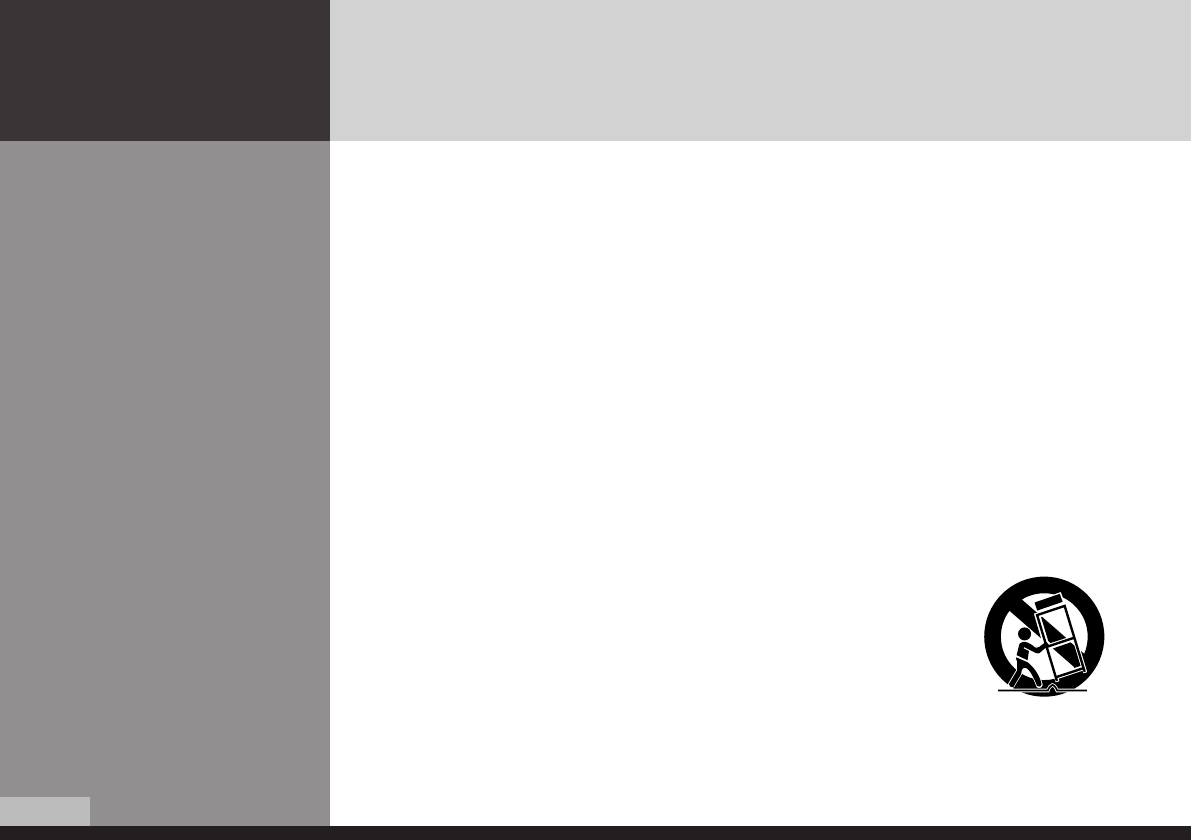
- Use only with a cart, stand, tripod, bracket, or table specified by the
manufacturer, or sold with the apparatus. When a cart is used, use
caution when moving the cart/apparatus combination to avoid injury
from tip-over.
DID_eng.indb 4 2009-09-15 오후 8:24:20
5/36
English
DIGITAL SIGNAGE
Image quality of the product
CAUSE
Due to the nature of LCD's property, Afterimage can occur. Afterimage appears when
identical frames / images are displayed continuasly. If displayed for prolonged periods of
time this can become permanent.
PREVENTION
When you display a freeze frame for a long time, lower the brightness and contrast
(Brightness, 70/ Contrast, 80). Also it can be prevented by using moving frame.
COUNTERMEASURES
Temporary afterimage can be alleviated by displaying white or moving frame about 10
hours.(But, permanent afterimage cannot be disappeared according to the property of
LCD) This method is used to remove temporary afterimage that may occur after
displaying a still frame for a certain time.
It can take several minutes or hours to remove afterimage according to the severity. In
the case that your cannot avoid displaying identical still image continuously, you can
prevent it by displaying moving image for 2 or 3 minutes in every hour. As the brightness
of still image and time of display are the cause of afterimage, you are recommended to
lower the brightness in that case.
!
Above problem shall not be covered by warranty.
Be sure to understand
DID_eng.indb 5 2009-09-15 오후 8:24:20
6/36
DIGITAL SIGNAGE
Check the product list
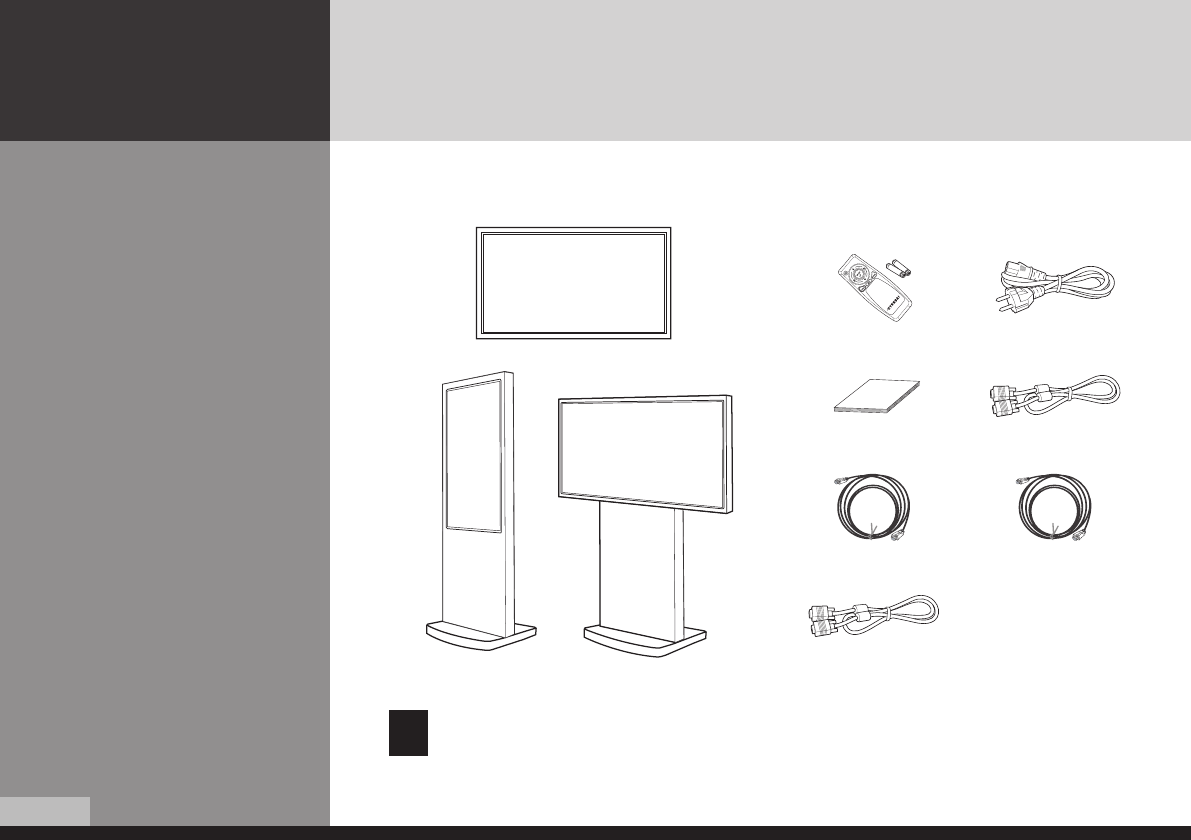
Please check the following components provided with the product after you open the box.
Remote control & batteries Power Cord
User's manual D-SUB Cable
HDMI to DVI Cable (Option) HDMI cable
RS232C Cable (Option)
!
please check the following components provided with the product after you open
the box and contact the dealer if any missing.
** The contents may vary depending on models and sometimes the contents may be attached on the product.
Kiosk Type (Landscape)
Kiosk Type (Portrait)
Base Frame Type
DID_eng.indb 6 2009-09-15 오후 8:24:21
/36
English
DIGITAL SIGNAGE
Proper location for
product installation
1. Locate the product at least 30cm away from the electric appliance or heating product.
2. The product must be placed at least 10cm away from the wall and ground.
3. Keep the product out of direct ray of light and locate screen not to be reflected by the
sunlight.
4. Make sure the mounting rack firmly tightened before installation.
!
Please take extra care during installation, it is possible to cause damage if the unit is
handled badly or knocked.
Check the product list
Please check the following components provided with the product after you open the box.
Remote control & batteries Power Cord
User's manual D-SUB Cable
HDMI to DVI Cable (Option) HDMI cable
RS232C Cable (Option)
!
please check the following components provided with the product after you open
the box and contact the dealer if any missing.
** The contents may vary depending on models and sometimes the contents may be attached on the product.
DID_eng.indb 7 2009-09-15 오후 8:24:21
/36
DIGITAL SIGNAGE
Title and function of each
part
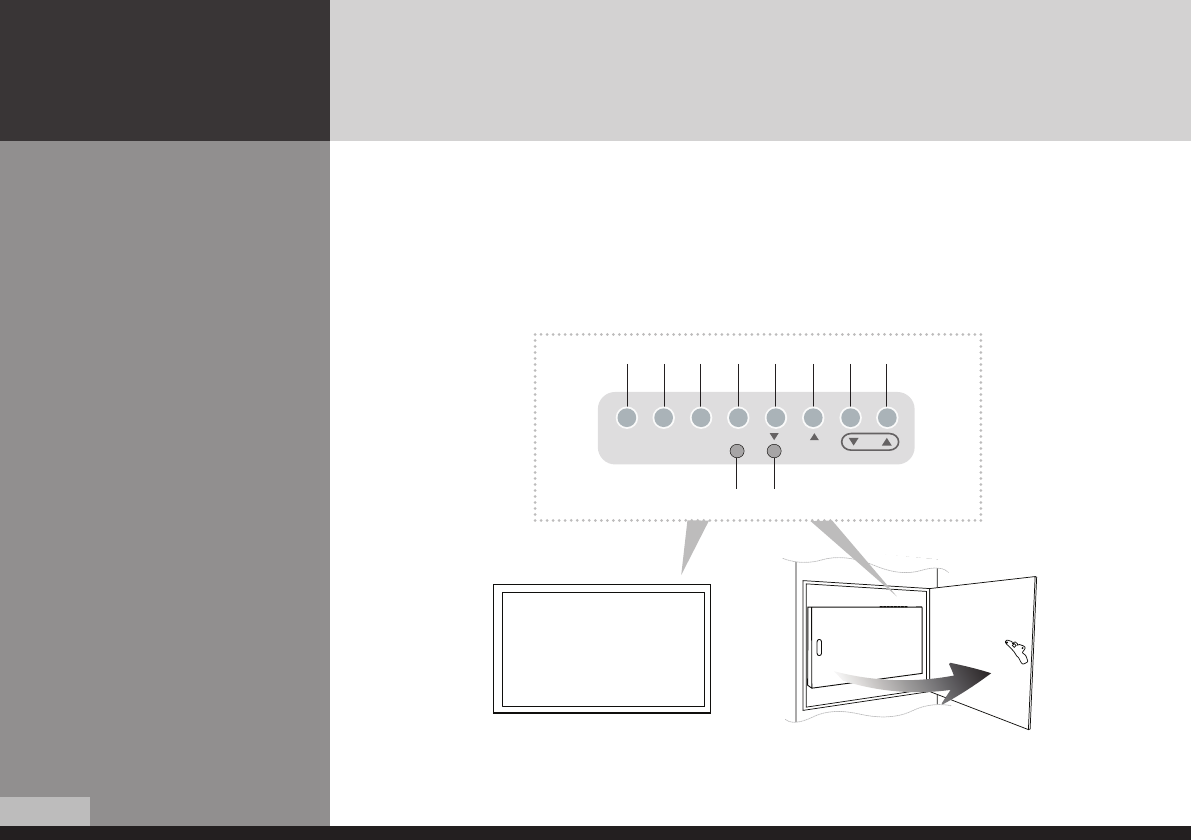
Control Panel
1
Remote control receiving sensor.
2
Power display LED red-stand by/ Green-working.
3
~
0
OSD button.
3
Power button ; to turn the power on or off.
4
Input selection button : to select other connected
device.
POWER SOURCE MENU SELECT
VOL
1 2
3 4 5 6 7 8 9 0
** The locations of OSD board and remote control receiving sensor may vary depending on models.
5
Menu button : to display menu or exit from the menu.
6
select button.
7
To move down in OSD menu.
8
To move up in OSD menu.
9
To move left and control the volume down in OSD menu.
0
To move right and control the volume up OSD menu.
Kiosk Type (Rear)
Base Frame Type (Front)
DID_eng.indb 8 2009-09-15 오후 8:24:22
/36
English
DIGITAL SIGNAGE
** The locations of OSD board and remote control receiving sensor may vary depending on models.
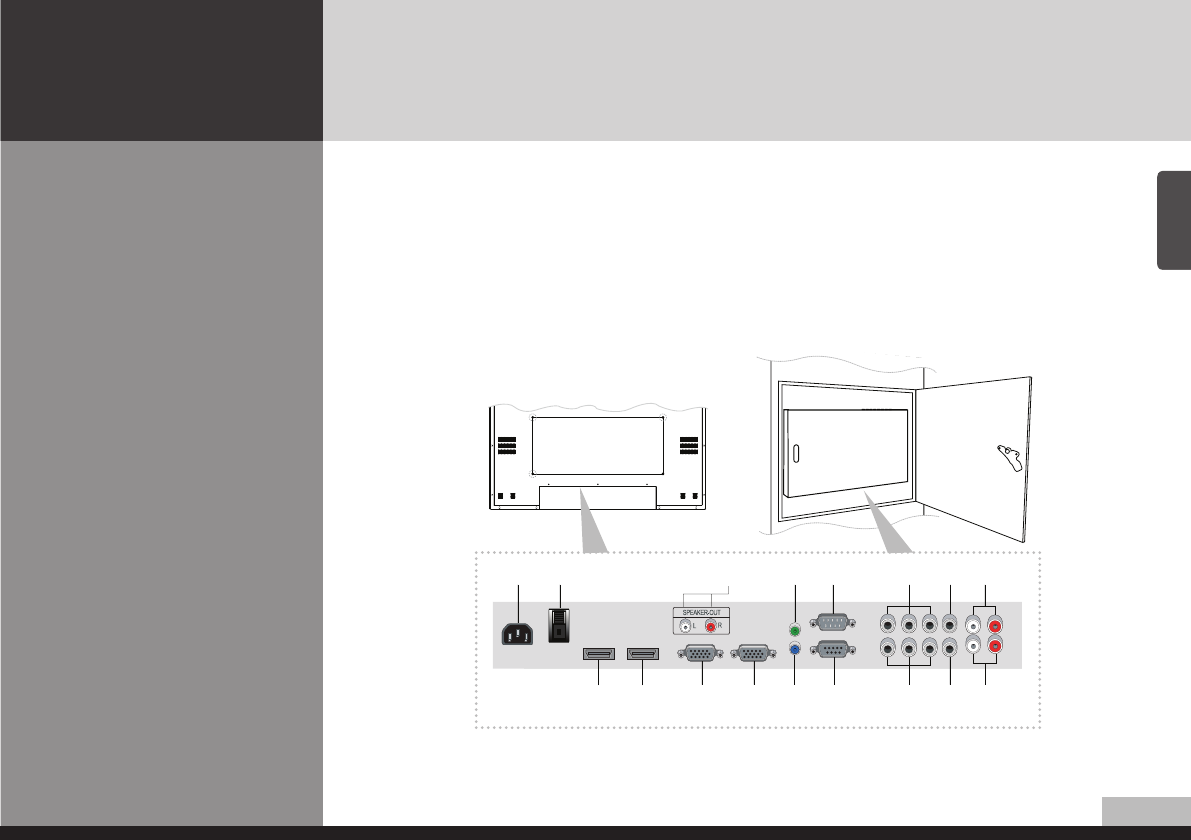
Terminal panel
1
AC IN
2
AC POWER SWITCH
3
HDMI IN
4
HDMI OUT
5
SPEAKER OUT
6
PC D-SUB IN
7
PC D-SUB OUT
8
UPGRADE
9
PC AUDIO IN
0
RS-232C OUT
!
RS-232C IN
@
COMPONENT IN (Y Pb Pr)
#
COMPONENT OUT (Y Pb Pr)
$
CVBS IN
%
CVBS OUT
^
COMPONENT AUDIO IN (L R)
&
COMPOSITE AUDIO IN (L R)
18
!#
2
3
5
6
0@
74 9
$
%
^
&
** The locations of connectors may vary depending on models.
- The items no. 12–17 are optional items.
-
When you select the "Source"button on the remote control, the "Source"menu of the "Option" item
is displayed.
DID_eng.indb 9 2009-09-15 오후 8:24:23
10/36
DIGITAL SIGNAGE
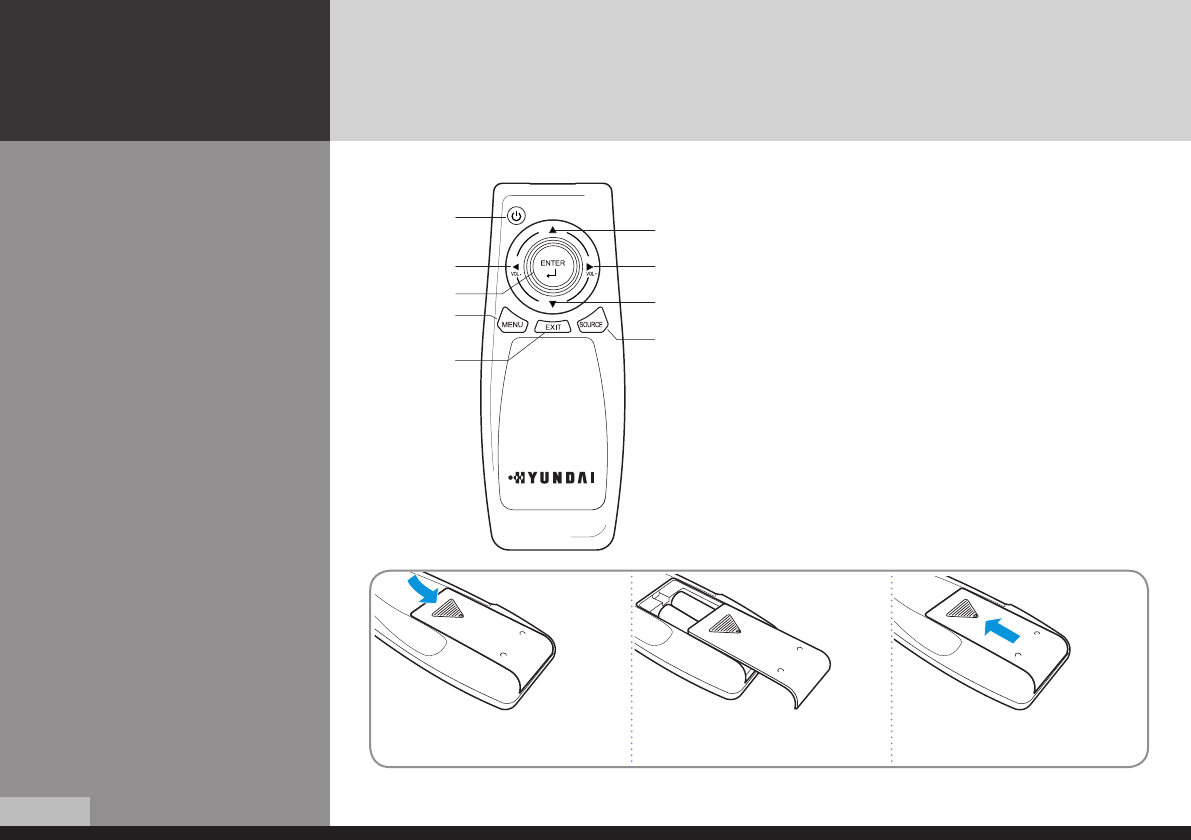
Remote control
How to insert batteries
Pull while pressing at rear lid. Insert the batteries into proper polarities
(+,-).
Use after the lid closed.
1 2 3
1
To turn the power on or off.
2
Move up in OSD menu.
3
To move left or control the volume down in OSD menu.
4
To move right or control the volume up in OSD menu.
5
To move down in OSD menu.
6
Select in OSD menu.
7
Display the menu screen.
8
Close the menu screen.
9
Convert the input signal.
12
34
5
6
7
8
9
DID_eng.indb 10 2009-09-15 오후 8:24:23
11/36
English
DIGITAL SIGNAGE
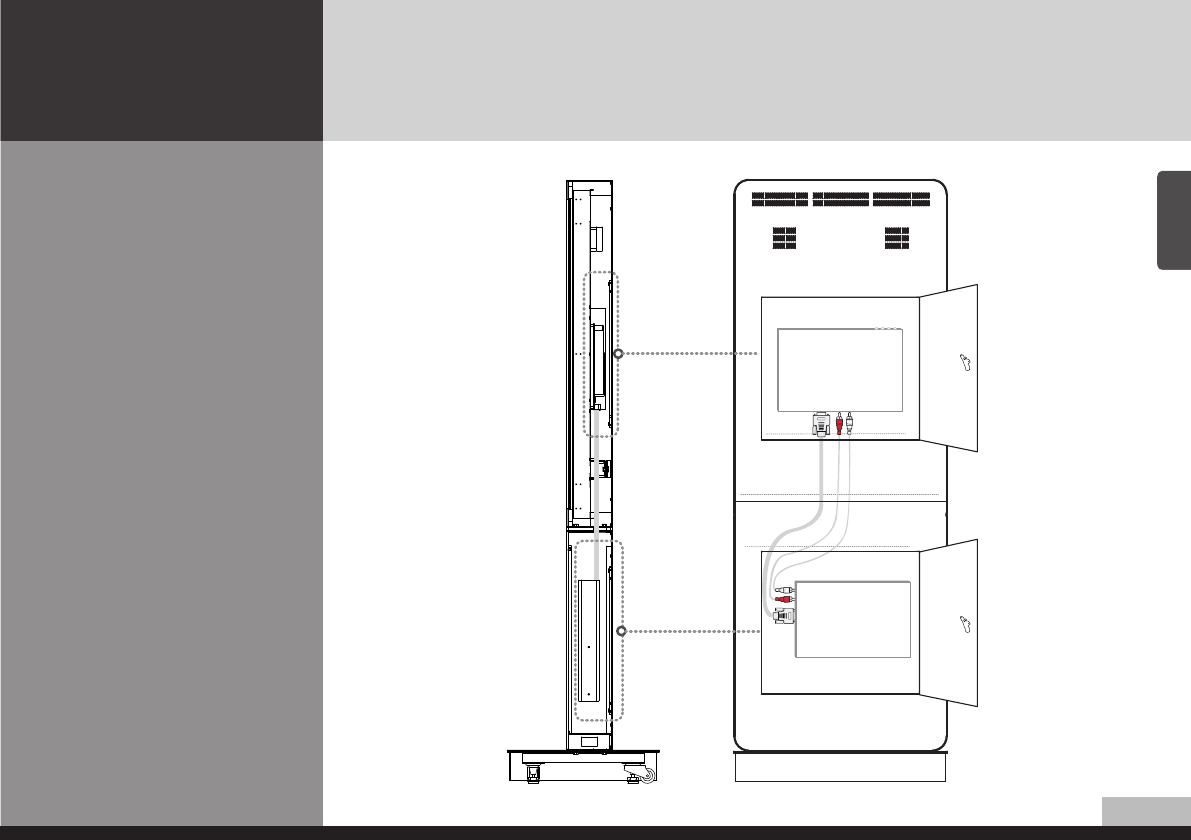
How to Connecting
Kiosk
PC or Source
(Satellite receiver,
Camcorder etc.)
DID_eng.indb 11 2009-09-15 오후 8:24:24
1/36
DIGITAL SIGNAGE
How to Connecting
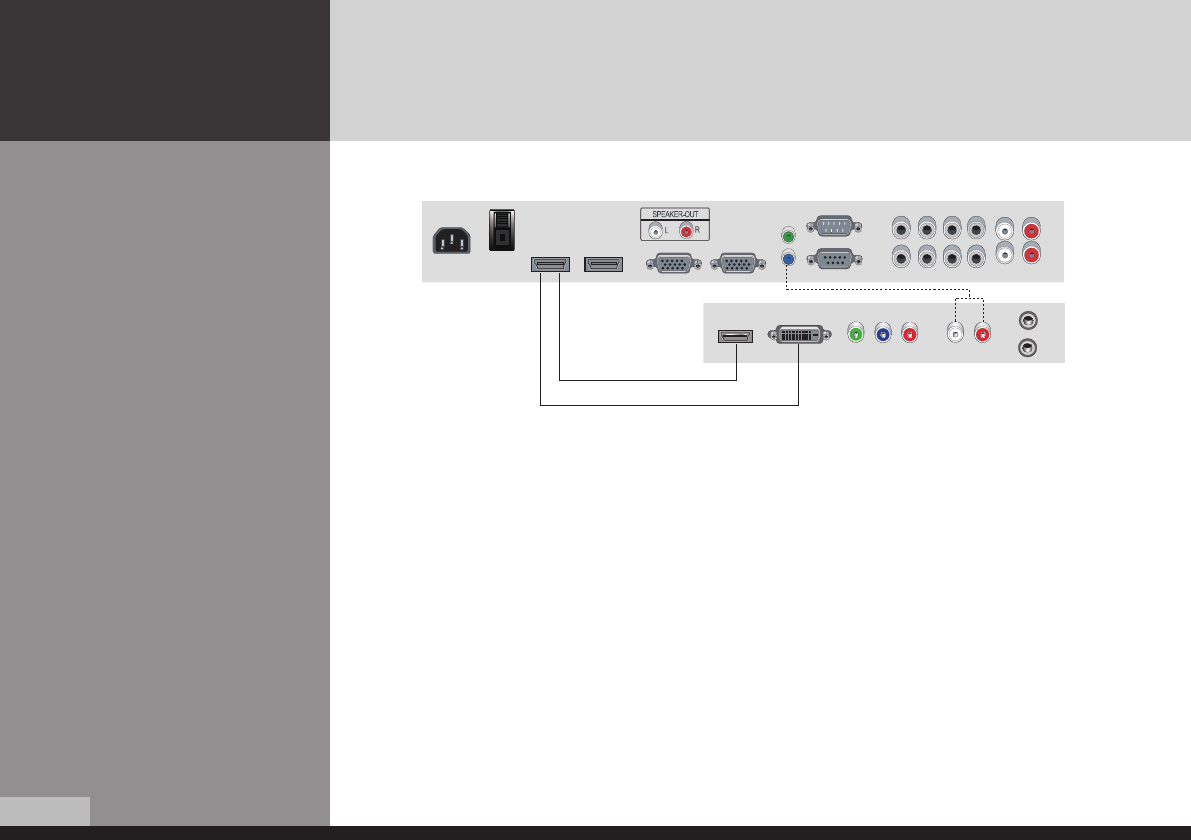
Digital RGB(HDMI)
1. Please ensure that the power to the device is switched off, then connect each cable one
after another before restoring power.
1
when connect HDMI to HDMI cable
2
when connect DVI to HDMI cable
– must utilize device with DVI signal output from peripheral device
2. Connect the power code to the product.
3. Turn on the power of the product and peripheral device. Screen shows up within 10 seconds.
4. Select "HDMI" input by pressing "SOURCE" on OSD button or remote control.
– HDMI input gives better video quality than analog RGB input.
– Both HDMI and analog RGB support plug and play.
1
2
DID_eng.indb 12 2009-09-15 오후 8:24:24
13/36
English
DIGITAL SIGNAGE
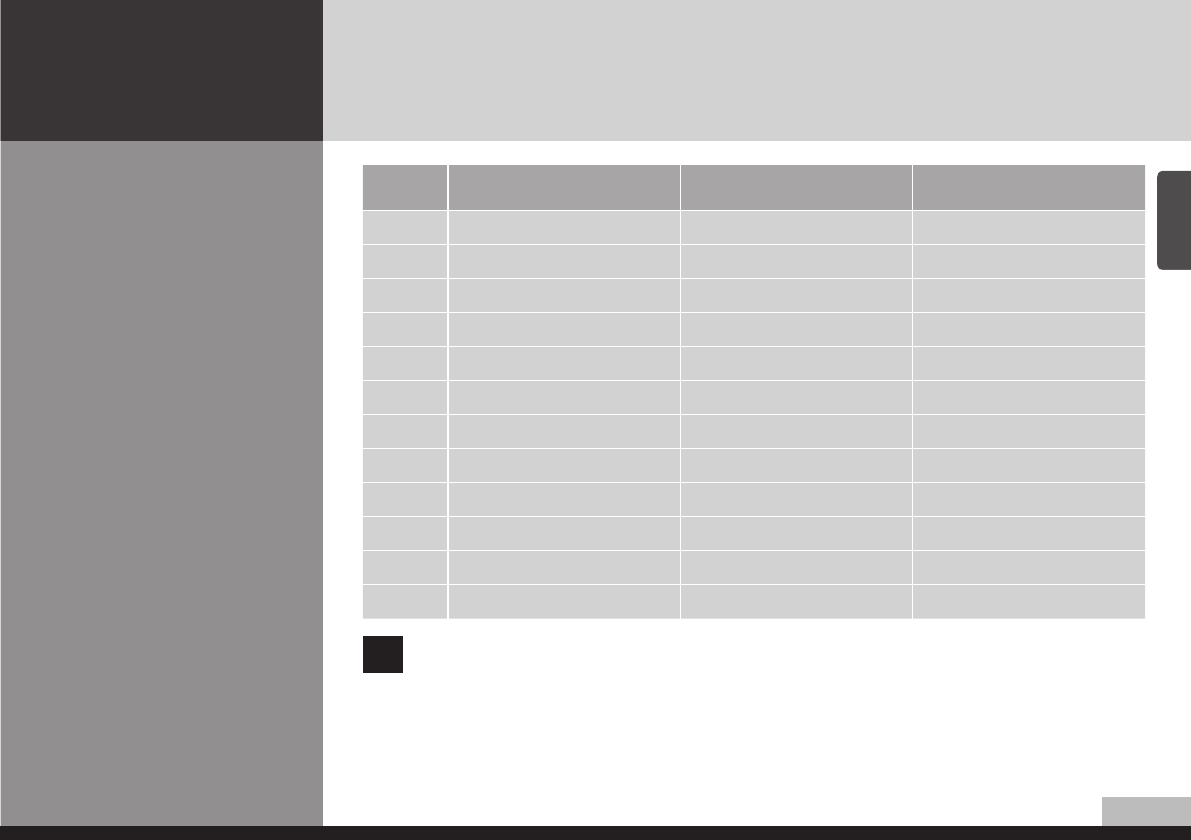
Support timing for
HDMI
NO Resolution Horizontal frequency
(KHz)
Vertical frequency
(Hz)
1480p 640 x 480p 60
2576p 720 x 576p 50
3720p 1280 x 720p 50 / 60
41080i 1920 x 1080i 50 / 60
5640 x 480 31.47 59.94
6640 x 480 37.88 60.32
71024 x 768 48.36 60
81360 x 768 47.70 60
91360 x 768 64.00 60
10 1600 x 1200 75.00 60
11 1920 x 1080 67.50 60
12 1080p 1920 x 1080p 60
!9, 10, 11 and 12 are only for Full HD
1. Please ensure that the power to the device is switched off, then connect each cable one
after another before restoring power.
1
when connect HDMI to HDMI cable
2
when connect DVI to HDMI cable
– must utilize device with DVI signal output from peripheral device
2. Connect the power code to the product.
3. Turn on the power of the product and peripheral device. Screen shows up within 10 seconds.
4. Select "HDMI" input by pressing "SOURCE" on OSD button or remote control.
– HDMI input gives better video quality than analog RGB input.
– Both HDMI and analog RGB support plug and play.
DID_eng.indb 13 2009-09-15 오후 8:24:24
1/36
DIGITAL SIGNAGE
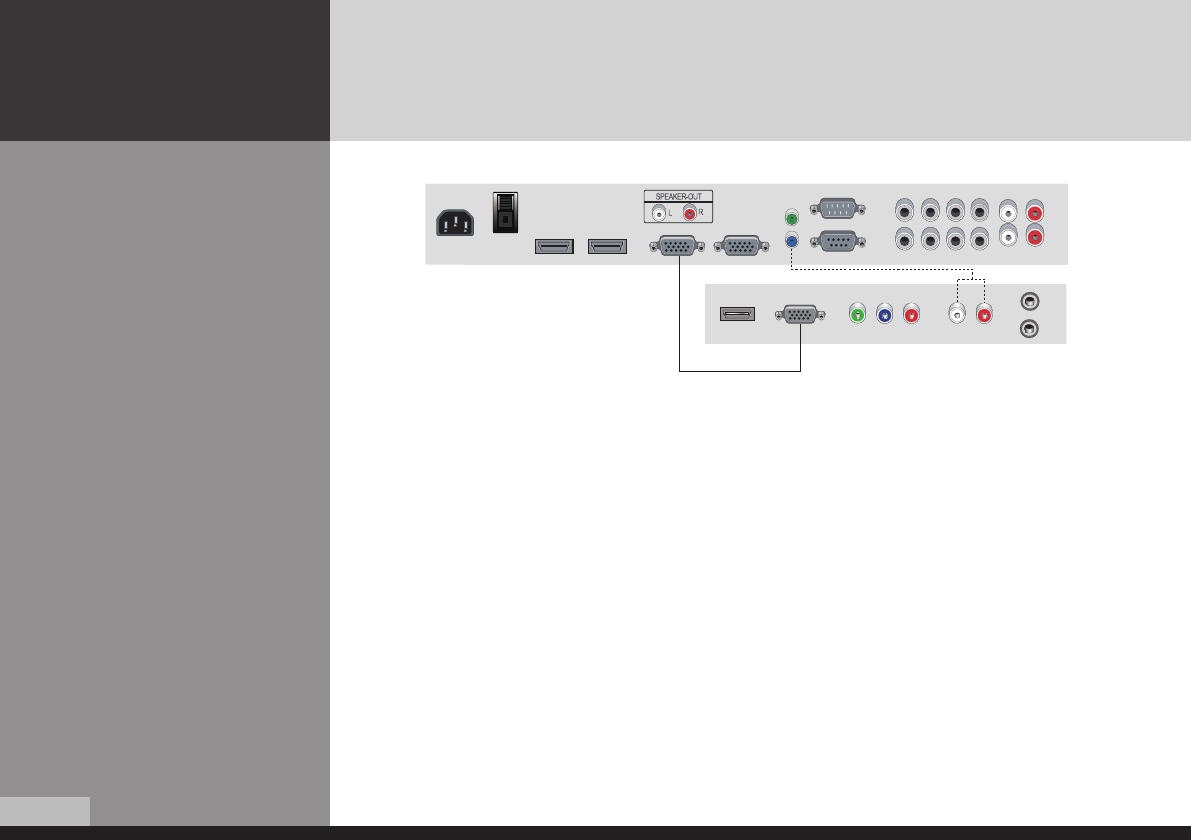
1. Please ensure that the power to the device is switched off, then connect each cable one
after another before restoring power.
2. Connect D-SUB to D-Sub cable. Then tighten the screw of the cable after connecting PC
D-SUB.
3. Connect the power cord to the product.
4. Turn on the power of the product and PC . The screen will appear within 10 seconds.
5. Select "PC" input by pressing "SOURCE" on OSD button or remote control.
– HDMI input gives better video quality than analog RGB input.
– Both HDMI and analog RGB support plug and play.
How to Connecting analog
RGB (PC D-SUB)
DID_eng.indb 14 2009-09-15 오후 8:24:25
15/36
English
DIGITAL SIGNAGE
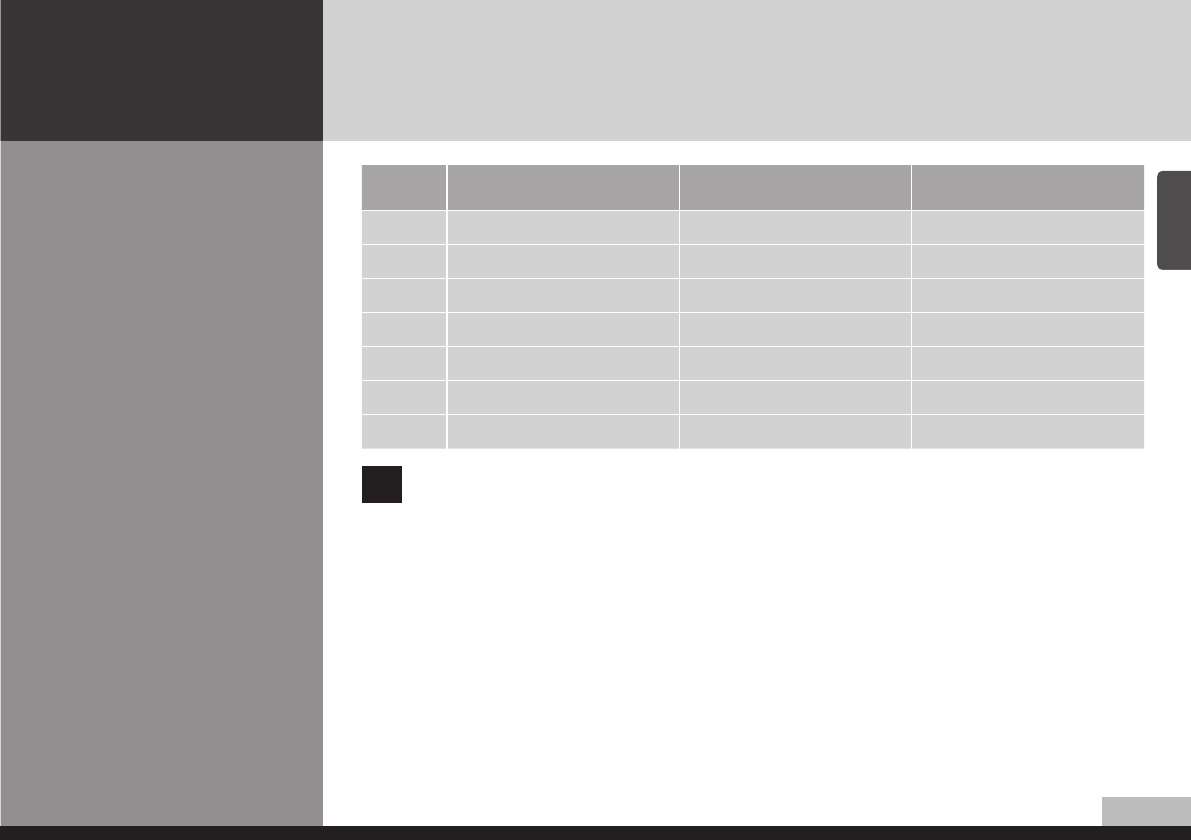
Support timing for PC
NO Resolution Horizontal frequency
(KHz)
Vertical frequency
(Hz)
1640 x 480 31.47 59.94
2800 x 600 37.88 60.32
31024 x 768 48.36 60.00
41360 x 768 47.71 60.00
51280 x 1024 64.00 60.00
61600 x 1200 75.00 60.00
71920 x 1080 67.50 60.00
!5, 6 and 7 are only for Full HD
DID_eng.indb 15 2009-09-15 오후 8:24:25
16/36
DIGITAL SIGNAGE
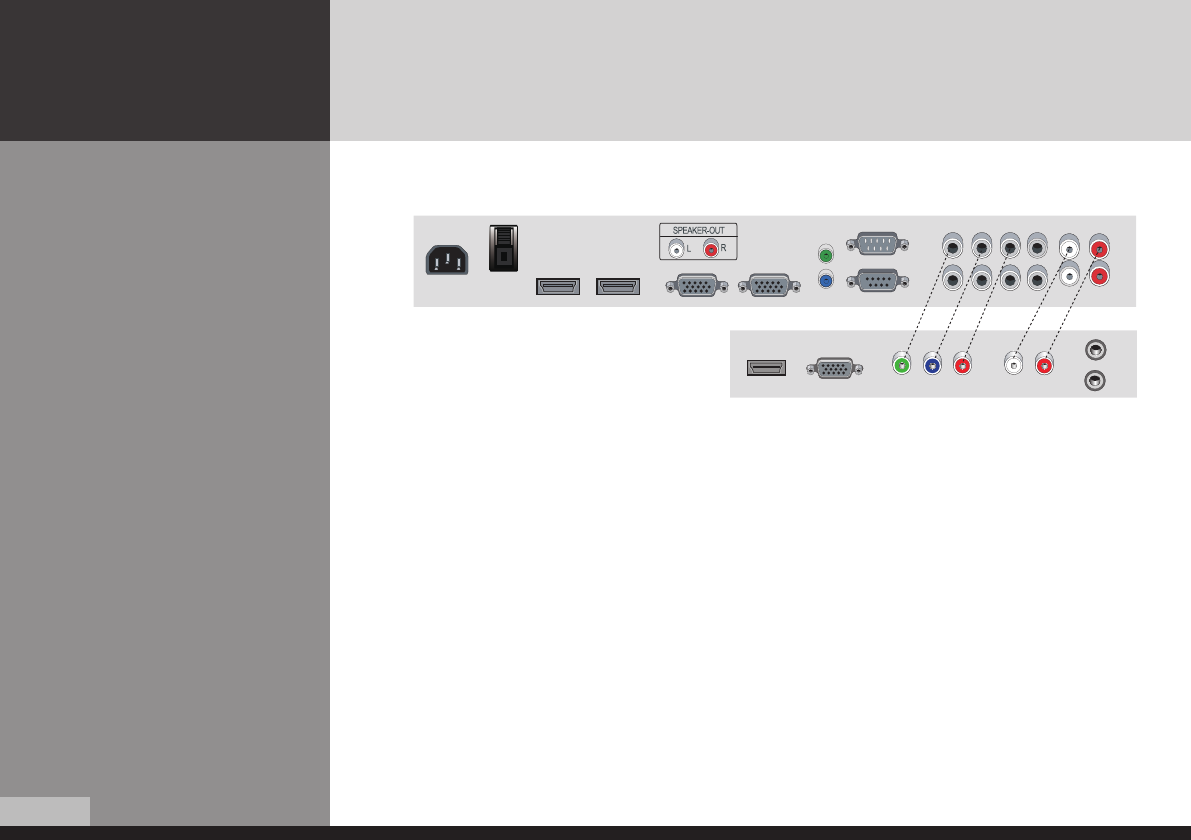
1. Please ensure that the power to the device is switched off, then connect each cable one
after another before restoring power.
2. Connect the component cables to Y, Pb, and Pr correctly.
Connect BNC cable and tighten.
3. Connect the power cord to the product.
4. Turn on the power of the product and peripheral device .
The screen will appear within 10 seconds.
5. Select "COMPONENT" input by pressing "SOURCE" on OSD button or remote control.
How to Connecting the
component (Option)
DID_eng.indb 16 2009-09-15 오후 8:24:25
1/36
English
DIGITAL SIGNAGE
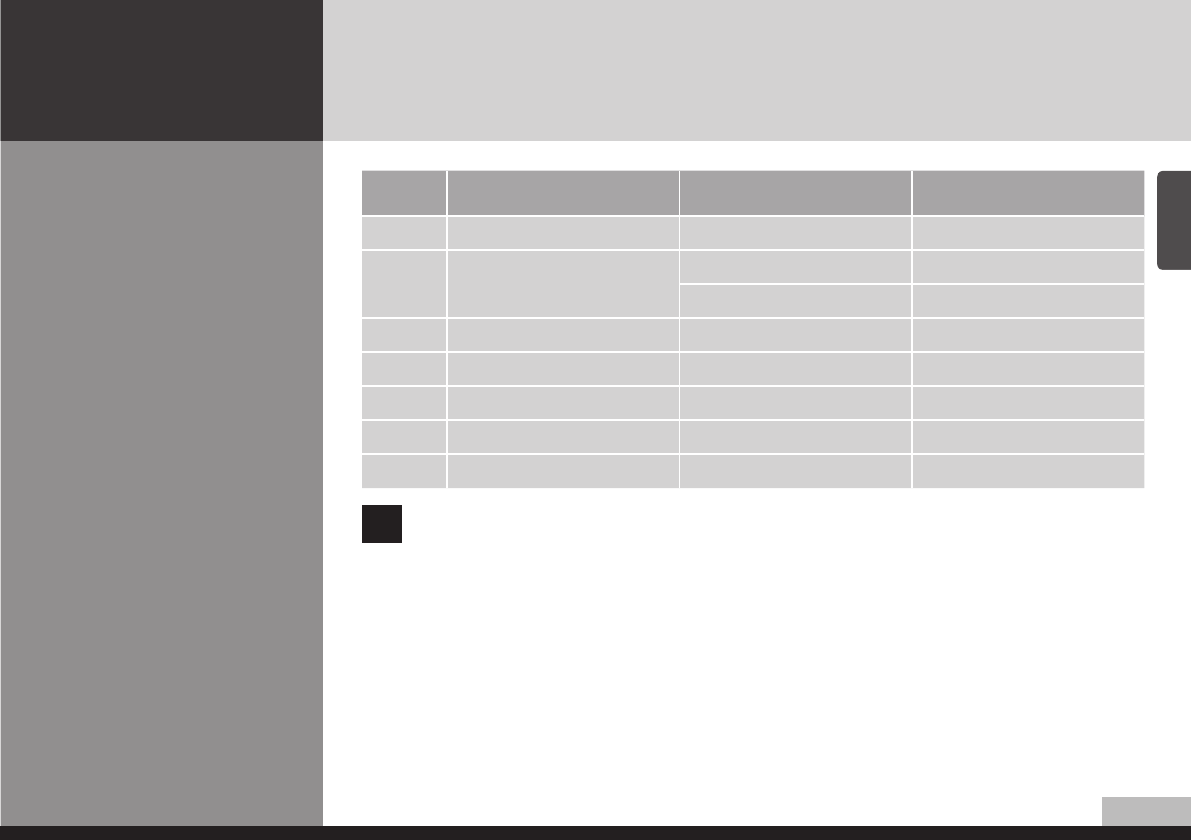
Support timing for
component & AV
NO Resolution Horizontal frequency
(KHz)
Vertical frequency
(Hz)
10i 0 x 0i 5. / 60
0p
60 x 0p 5. / 60
0 x 0p 5. / 60
356i 0 x 56i 50
56p 0 x 56p 50
50p 10 x 0p 5. / 60 / 50
6100i 10 x 100i 5. / 60 / 50
100p 10 x 100p 60 / 50
!7 is only for Full HD
DID_eng.indb 17 2009-09-15 오후 8:24:25
1/36
DIGITAL SIGNAGE
How to Connecting the
the video (Option)
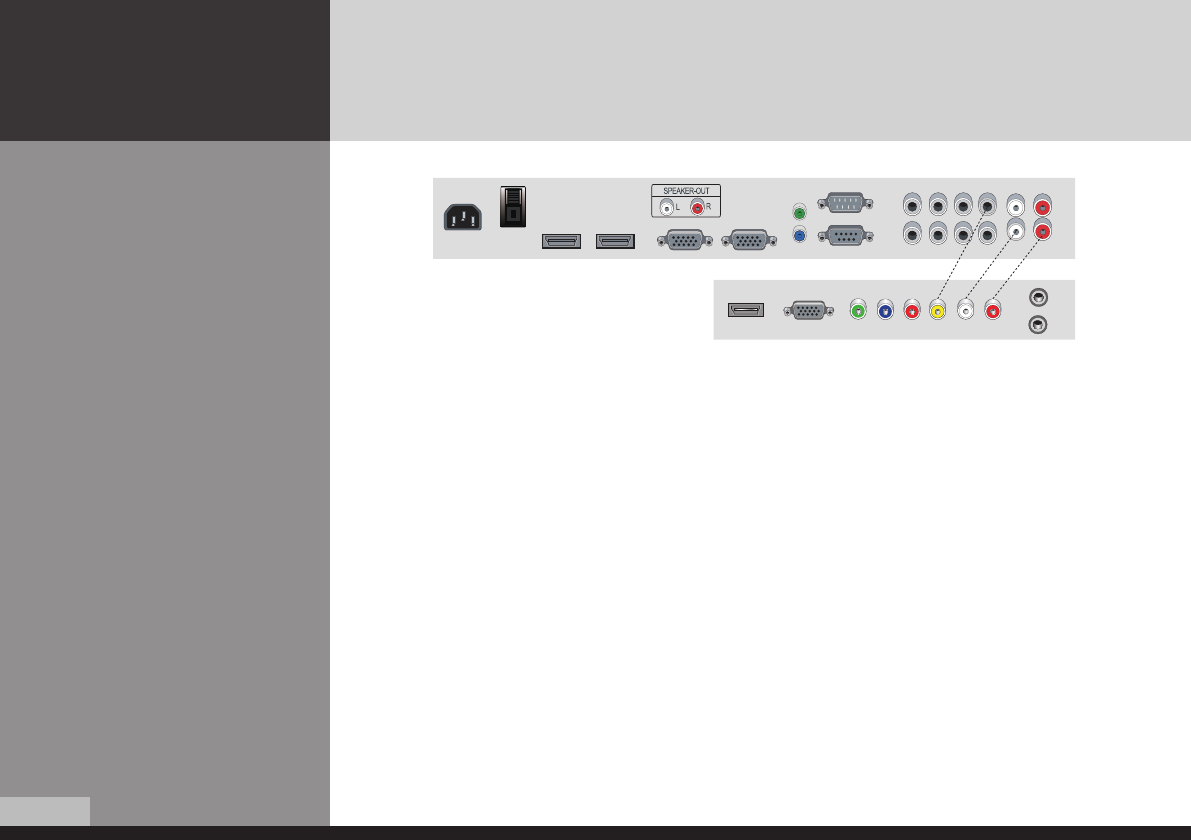
1. Please ensure that the power to the device is switched off, then connect each cable one after
another before restoring power.
2. Connect video cable and BNC cable, and then tighten.
3. Connect the power cord to the product.
4. Turn on the power of the product and peripheral device .
The screen will appear within 10 seconds.
5. Select AV input by pressing "SOURCE" on OSD button or remote control.
DID_eng.indb 18 2009-09-15 오후 8:24:25
1/36
English
DIGITAL SIGNAGE
Adjusting OSD and
explanation of its
function
How to Select the Picture
Mode
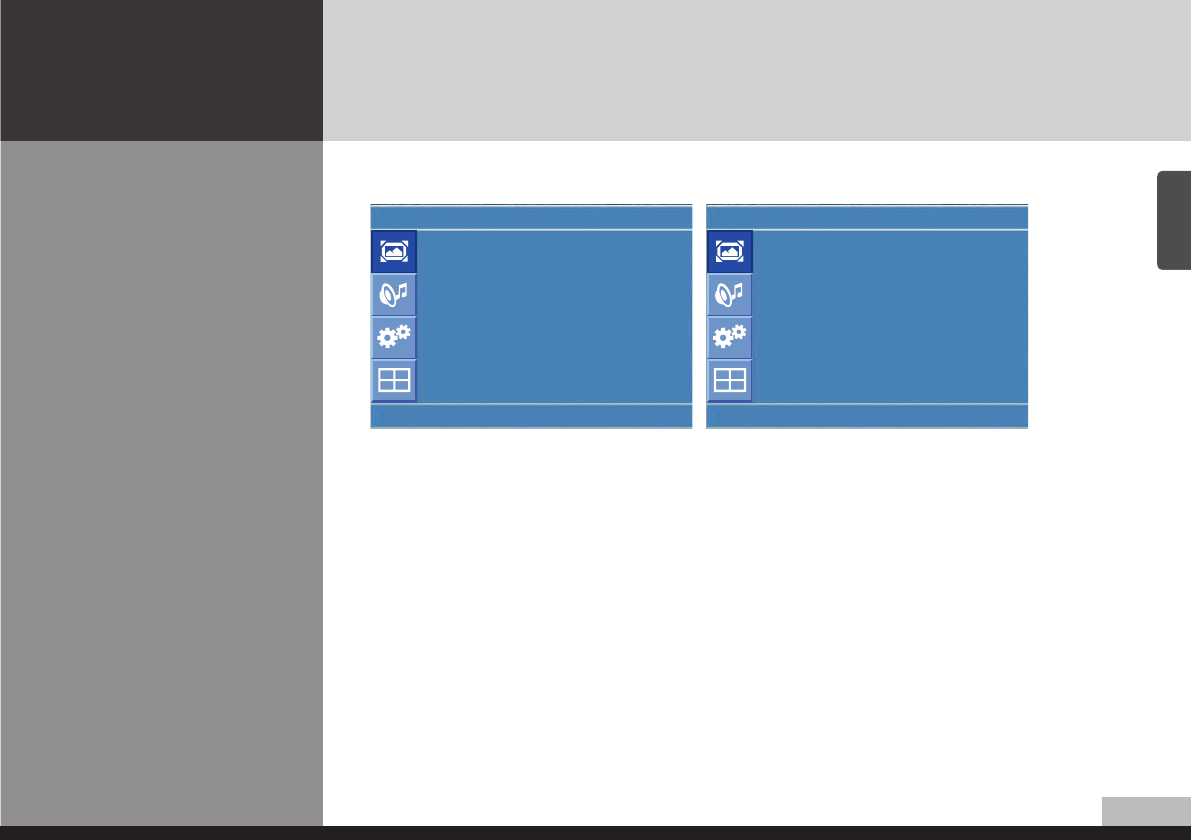
1. Press Menu button. Menu items appear on the screen.
2. Press ↲ button to select "Picture" Icon. "Picture mode" is highlighted.
3. Press ▶ or ↲ buttons to select "Picture mode".
4. The menu changes in the following order.
AV/Component input : Custom -> Dynamic -> Standard -> Movie -> Mild
PC/HDMI Input : Custom -> High -> Middle -> Low
5. Press EXIT button to escape OSD MENU or press MENU button to return to the previous menu.
- Custom : When the user wants to set the values directly.
- Dynamic : Clear display
- Standard : Most video contents are appropriate to this mode.
- Movie : When watching a movie
- Mild : Soft display.
Picture
Picture Mode :Custom
Custom
Dynamic
Colour Tone
Standard
Size : Movie
NR : Mild
Film Mode :
U Adjust Enter Menu
Picture
Picture Mode :Custom
Custom
High
Colour Tone
Middle
Size : Low
PC
NR :
U Adjust Enter Menu
Users can automatically adjust the picture mode according to the input mode.
DID_eng.indb 19 2009-09-15 오후 8:24:26
0/36
DIGITAL SIGNAGE
How to Set the Desired
Picture
Users can manually adjust their desired picture
1. Press Menu button.
Menu items appear on the screen.
2. Press ↲ button to select "Picture" Icon.
"Picture mode" is highlighted.
3. Press ▲ / ▼ buttons to move to "Custom" and press ▶or
↲ buttons to select "Custom".
4. Select required option by pressing the ▲ / ▼ or ↲ button,
then Press◀ / ▶ button to adjust.
5. Press EXIT button to escape OSD MENU or press MENU
button to return to the previous menu.
- Brightness : Adjust the brightness of the entire picture.
- Contrast : Adjust the brightness and darkness of the object and backgrounds.
- Colour : Adjust colors into deeper or lighter colors.(not operational in PC and HDMI mode)
- Tint : Adjust colors naturally.(not operational in PC, HDMI and component mode)
- Sharpness : Adjust the clarity of object outlines.(not operational in PC and HDMI mode)
Custom
Brightness : 40
Contrast : 80
Colour : 50
Tint : 50
Sharpness : 60
U Move Adjust Menu
DID_eng.indb 20 2009-09-15 오후 8:24:26
1/36
English
DIGITAL SIGNAGE
Users can adjust Color as users want.
1. Press Menu button.
Menu items appear on the screen.
2. Press ↲ button to select "Picture" Icon.
"Picture Mode" is highlighted.
3. Press ▲ / ▼ buttons to move to "Colour Tone"
4. Press
▶
or
↲
buttons to select "Colour Tone" .
5. Press ▲ / ▼ buttons, then the menu changes in the
following order.
Custom -> Cool2 -> Cool1 -> Normal -> Warm1 -> Warm2
6. Press EXIT button to escape OSD menu or press MENU button to return to the previous menu.
- Custom : When the user wants to set the degree of RGB directly.
- Cool : For cool colors with bluish tone.
- Normal : For a general Colour Tone.
- Warm : For warm colors with reddish tone.
How to Select a Colour Tone
Colour Tone
Colour Tone :Custom
Red : 50
Green : 50
Blue : 50
U Move Enter Menu
DID_eng.indb 21 2009-09-15 오후 8:24:26
/36
DIGITAL SIGNAGE
Users can adjust the display scale as they want
How to Set the Display Size
1. Press Menu button. Menu items appear on the screen.
2. Press ↲ button to select "Picture" Icon. "Picture Mode" is highlighted.
3. Press ▲ / ▼ buttons to move to "Size".
4. Press ◀ / ▶ or ↲ buttons and press ▲ / ▼ then the mode change in the following order.
AV/Component Inputs : Auto Size ->Wide -> Panorama -> Zoom -> 4 : 3 -> 14 : 9
PC input : Wide -> 4 : 3
DVI input : 4 : 3 -> Wide -> 1 : 1
5. Press EXIT button to escape OSD MENU or press MENU button to return to the previous menu.
- Auto Size - Screen size adjust automatically by screen signal.
- Wide - General broadcast picture is adjusted to 16:9.
- Panorama - Picture enlarged to 16:9 format, letter box format.
- Zoom - Zoom in 16:9 in vertical direction
- 4 : 3 - 4 : 3 general picture size
- 14 : 9 - 14 : 9 picture size
- 1 : 1 - 1 : 1 real size
Picture
Picture Mode : Auto size
Custom
Wide
Colour Tone
Panorama
Size : Zoom
NR : 4 : 3
Film Mode : 14 : 9
U Adjust Select Menu
Picture
Picture Mode :
Custom
Colour Tone
4 : 3
Size : Wide
PC
NR :
U Adjust Enter Menu
DID_eng.indb 22 2009-09-15 오후 8:24:26
3/36
English
DIGITAL SIGNAGE
How to set image adjustment
in PC mode
(Supported only in PC mode)
1. Press Menu button.
Menu items appear on the screen.
2. Press ↲ button to select "Picture" Icon.
"Picture Mode" is highlighted.
3. Press ▲ / ▼ buttons to move to PC and press
▶ or ↲ buttons to select to "PC"
4. "Auto Adjust" is high lighted.
5. Press ↲ button to execute the "Auto Adjust"
6. Select the required option by pressing the ◀ / ▶ or ↲
button, then press ◀ / ▶button to adjust
7. Press EXIT button to escape OSD MENU or press MENU button to return to the previous menu.
- Auto Adjust : Horizontal/vertical positions are automatically adjusted.
- Phase : To eliminate the shake of the picture.
- H-Position : To adjust the horizontal position of the picture.
- V-Position : To adjust the vertical position of the picture.
- Frequency : To eliminate the shake of picture.
Picture
Auto Adjust
Phase : 52
H-Posilion : 16
V-Posilion : 24
Fiequency : -78
U Move Enter Menu
DID_eng.indb 23 2009-09-15 오후 8:24:26
/36
DIGITAL SIGNAGE
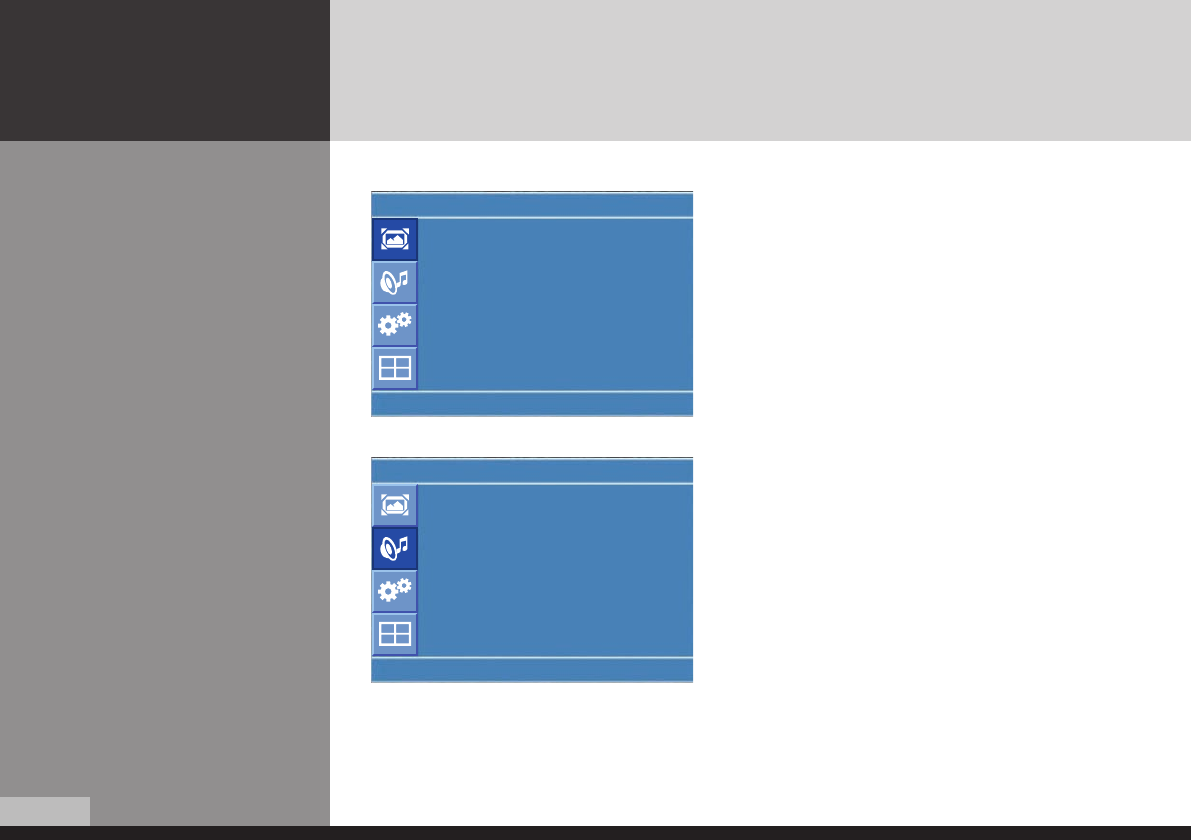
User can eliminate noises on the screen in AV/Component/HDMI mode.(Not supported in PC mode)
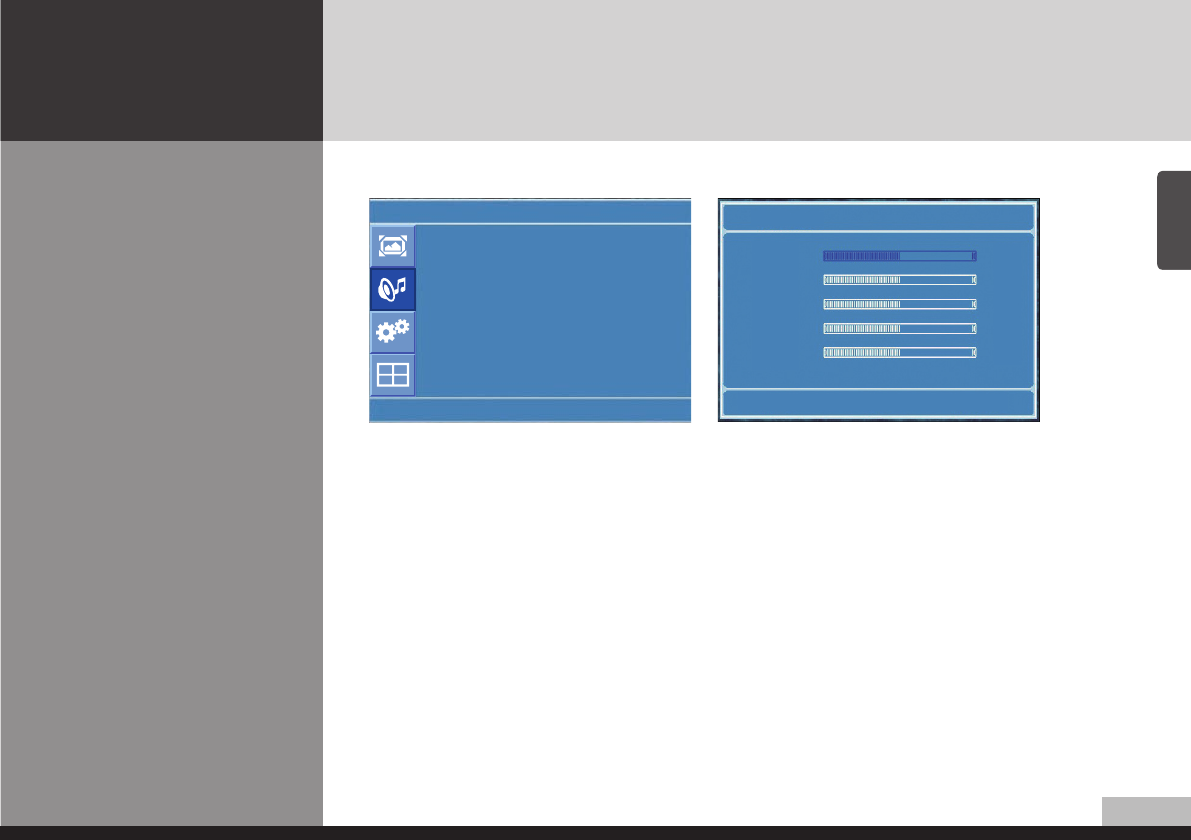
Users can adjust sound mode automatically as they want.
How to Set Noise
Reduction(NR)
How to Select the Audio
Mode
1. Press Menu button.
Menu items appear on the screen.
2. Press ↲ button to select "Picture" Icon.
"Picture Mode" is highlighted.
3. Press ▲ / ▼ buttons to move to "NR" .
4. Press ◀ / ▶ buttons to select to "NR".
5. Press ▲ / ▼ or ↲ buttons to set "On/Off".
6. Press EXIT button to escape OSD MENU or press MENU
button to return to the previous menu.
1. Press Menu button. Menu items appear on the screen.
2. Press ▲ / ▼ buttons to move to "Sound" Icon.
3. Press ↲ button to select "Sound" Icon. "Mode" is
highlighted.
4. Press ▶ or ↲ buttons, to select to Sound mode.
then the menu changes in the following order.
Custom->Standard -> Music -> Movie -> Speech
5. Press EXIT button to escape OSD MENU or press MENU
button to return to the previous menu.
- Custom : When the user wants to set the values directly.
- Standard : For the general sound. Most audio contents are appropriate to this mode.
- Music : For enjoying original sound.
- Movie : Grandiose sound.
- Speech : Clear sound.
Picture
Picture Mode :
Custom
Colour Tone
Size : Off
NR : On
Film Mode :
U Adjust Enter Menu
Sound
Mode :Custom
Volume : Standard
Balance : Music
Equalizer
Movie
Auto Volume : Speech
Sound Mode :
U Adjust Enter Menu
DID_eng.indb 24 2009-09-15 오후 8:24:27
5/36
English
DIGITAL SIGNAGE
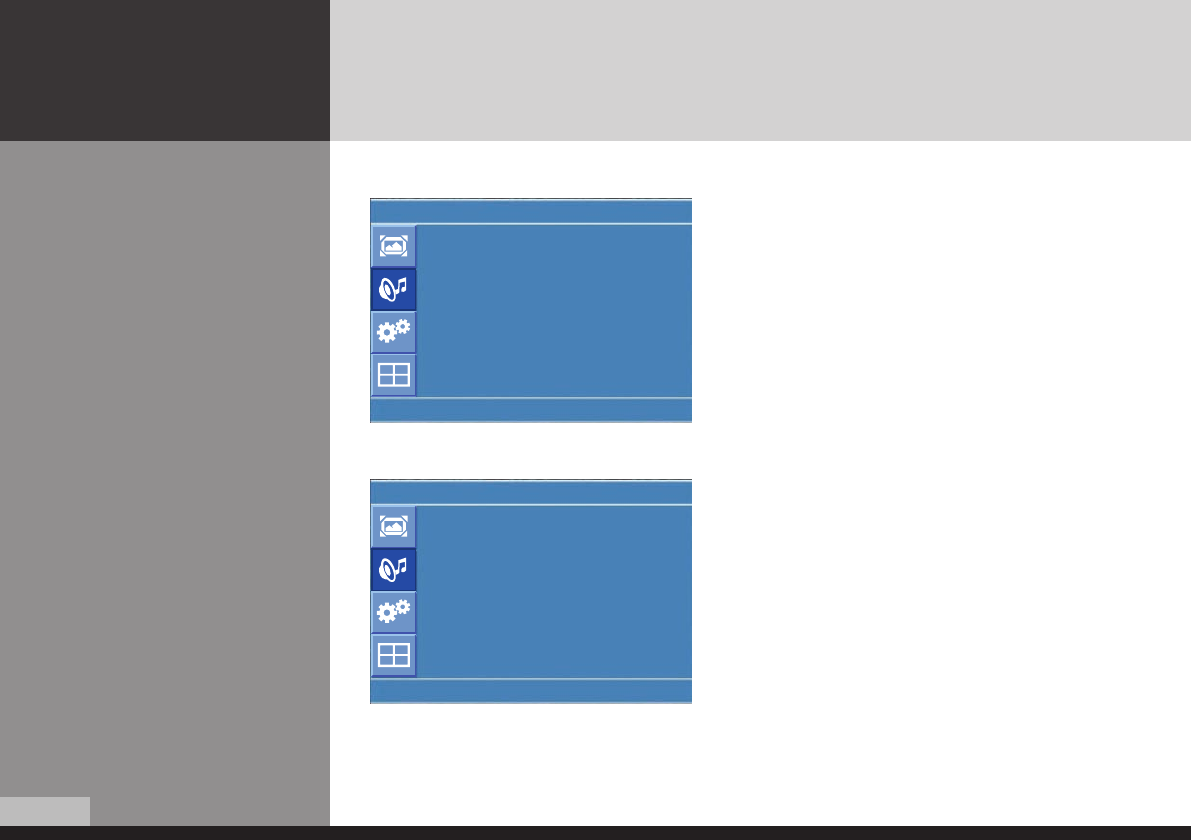
Users can adjust sound mode automatically as they want.
How to Adjust the Desired
Audio Mode
1. Press Menu button. Menu items appear on the screen.
2. Press ▲ / ▼ buttons to move to "Sound" Icon.
3. Press ↲ button to select "Sound" Icon. "Mode" is highlighted.
4. Press
▲ / ▼
buttons to move to
"
Balance
"
or
"
Equalizer
"
.
5. Press ↲ buttons to select "Balance" or "Equalizer". Balance or Equalizer menu appears.
6. Select required option by pressing the ▲ / ▼ buttons, then Press ◀ / ▶ buttons to adjust.
7. Press EXIT button to escape OSD MENU or press MENU button to return to the previous menu.
- Balance : Adjusts the balance of left and right speakers.
- Equalizer : Adjusts the audio output signal in the desired band.
Sound
Mode : Custom
Volume : 34
Balance : L50 R50
Equalizer
Auto Volume : Off
Sound Mode : Stereo
U Move Enter Menu
Sound
10KHz 50
3KHz 50
1KHz 50
300Hz 50
100Hz 50
U Move L Adjust Menu
DID_eng.indb 25 2009-09-15 오후 8:24:27
6/36
DIGITAL SIGNAGE
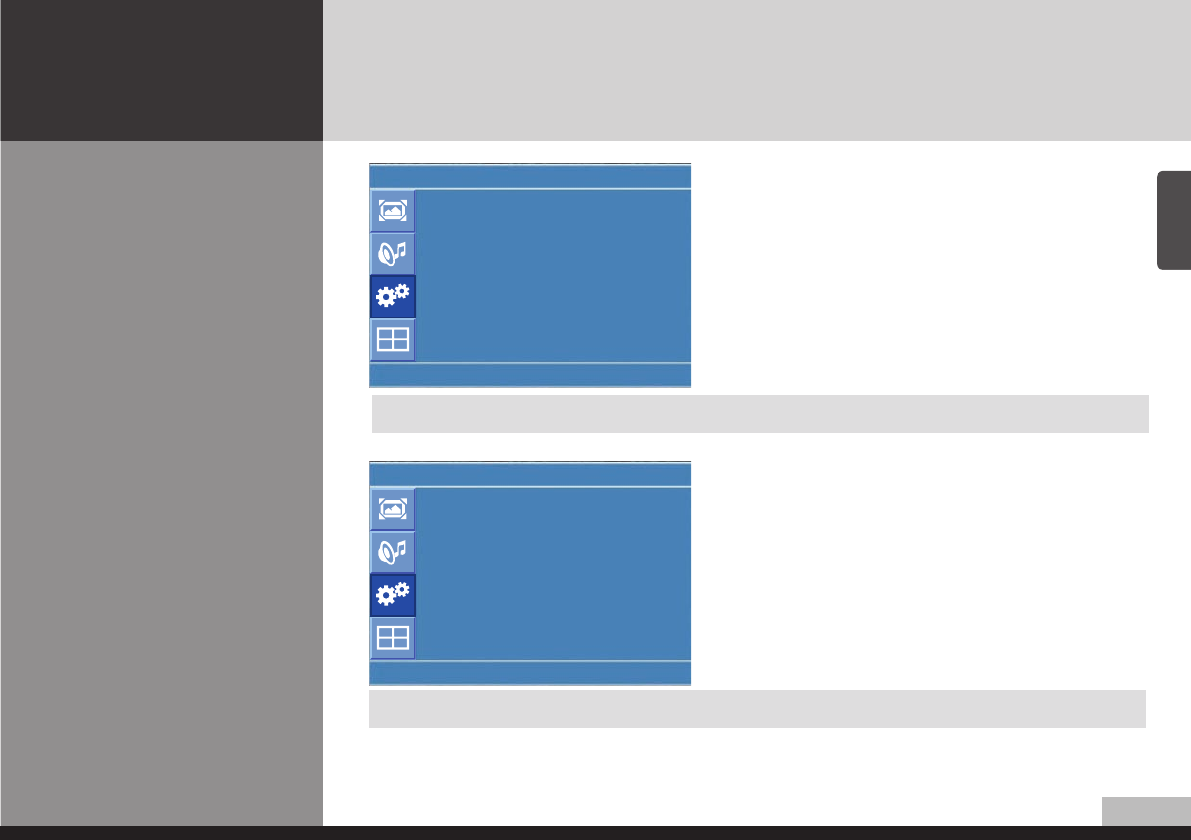
How to Select Auto Volume
How to Select Sound Mode
This function will automatically give a similar volume size to each channel.
1. Press Menu button.
Menu items appear on the screen.
2. Press ▲ / ▼ buttons to move to "Sound" Icon.
3. Press ↲ button to select "Sound" Icon.
"Mode" is highlighted.
4. Press ▲ / ▼ buttons to move to "Auto Volume".
5. Press ◀ / ▶ or ↲ buttons to select "On/Off".
6. Press ▲ / ▼ or ↲ buttons to set to "On/Off".
7. Press EXIT button to escape OSD MENU or press MENU
button to return to the previous menu
- Choose "Stereo" for channels that are broadcasting in Stereo.
- Choose "Mono" for channels that are broadcasting in Mono, or if you are having difficultly receiving
a Stereo signal.
1. Press Menu button.
Menu items appear on the screen.
2. Press ↲ button to select "Sound" Icon.
"Mode" is highlighted.
3. Press ▲ / ▼ buttons to move to "Sound Mode".
4. Press
▶
or
↲
buttons to select to "Sound Mode".
5. Press ▲ / ▼ buttons to select to "Stereo"," Mono L"or
"Mono R.
6. Press exit button to escape OSD MENU or press MENU button
to return to the previous menu
Depending on the particular program being broadcast, you can select stereo or mono.
Sound
Mode :
Volume :
Balance :
Equalizer
On
Auto Volume :Off
Sound Mode :
U Adjust Enter Menu
Sound
Mode :
Volume :
Balance :
Equalizer
Stereo
Auto Volume : Mono L
Sound Mode : Mono R
U Select Enter Menu
DID_eng.indb 26 2009-09-15 오후 8:24:28
/36
English
DIGITAL SIGNAGE
How to Reset
How to Set Clock,Sleep Time,
ON/OFF Time
1. Press Menu button.
Menu items appear on the screen.
2. Press ↲ button to select "Setup" Icon.
"Reset" is highlighted.
3. Press ▶ or ↲ buttons to select to "Reset".
4. Press ↲ buttons to choose to "Reset".
5. Press EXIT button to escape OSD MENU or press MENU button
to return to the previous menu.
1. Press Menu button.
Menu items appear on the screen.
2. Press ↲ button to select "Setup" Icon.
"Reset" is highlighted.
3. Press ▲ / ▼ buttons to move to "Time".
4. Press ▶ or ↲ buttons to select "Time".
Time menu appears, then "Clock" is highlighted.
5. Press ◀ / ▶ buttons to move between Hour, Minute and
Press ▲ / ▼ buttons to set Hour, Minute.
When the power supply(AC main power) is cut off, the clock is reset to the value before the Timer set.
When you select "Reset" user setting Value will initialize.
Setup
Reset
Enter
Time
Language :
OSD Tone :
Key Lock :
Select Menu
Time
Clock : 0 : 0
On Timer : 0 : 0 Off
Off Timer : 0 : 0 Off
On Time Volume : 0
Source : AV
U Move Enter Menu
DID_eng.indb 27 2009-09-15 오후 8:24:28
/36
DIGITAL SIGNAGE
Choosing the Your
Languages
<Go to step 6 if you need to set the "On or Off Timer">
6. Press ▲ / ▼ buttons to move to "On or Off Timer".
7. Press ▶ or ↲ buttons to select "On or Off Timer" .
8. Press ◀ / ▶ buttons to move between Hour, Minute and on/
off and Press ▲ / ▼ buttons to set Hour, Minute and on/off
<go to step 9 if you need to set the "On Time Volume">
9. Press ▲ / ▼ buttons to move to "On Time Volume".
10. Press ◀ / ▶ buttons to adjust Volume.
<go to step 11 if you need to set the "Source">
11. Press ▲ / ▼ buttons to move to "Source"
12. Press ▶ or ↲ buttons to select to "Source"
13. Press ▲ / ▼ buttons to set to Source
1. Press Menu button.
Menu items appear on the screen.
2. Press ↲ button to select "Setup" Icon.
"Reset" is highlighted.
3. Press ▲ / ▼ button to move to "Language" and press
▶ or ↲ button to select to Language.
4. Press EXIT button to escape OSD MENU or press MENU
button to return to the previous menu.
Setup
Reset
Time
Language : English
OSD Tone : Off
Key Lock : Off
U Move Select Menu
Setup
Reset
English
Time
Fiangais
Language : Deutschland
OSD Tone : Ilaliano
Key Lock : Espafiol
Nederland
Suomi
Polski
Cestina
Pyeeknn
U Adjust Enter Menu
DID_eng.indb 28 2009-09-15 오후 8:24:28
/36
English
DIGITAL SIGNAGE
How to set OSD tone
How to Set Key-Lock
1. Press Menu button.
Menu items appear on the screen.
2. Press ↲ button to select "Setup" Icon.
"Reset" is highlighted.
3. Press ▲ / ▼ buttons to move to "OSD Tone"
4. Press ▶ or ↲ buttons to select to "OSD Tone".
5. Press ▲ / ▼ or ↲ buttons to set to "On/Off".
User can lock the control buttons on the front bottom of the Monitor.
1. Press Menu button.
Menu items appear on the screen.
2. Press ▲ / ▼ button to move to "Setup" Icon.
3. Press ↲ button to select "Setup" Icon.
"Reset" is highlighted
4. Press ▲ / ▼ buttons to move to "Key Lock".
5. Press ▶ or ↲ buttons to select to "Key Lock".
6. Press ▲ / ▼ or ↲ buttons to set to "On/Off".
7. Press EXIT button to escape OSD MENU or press MENU
button to return to the previous menu.
Setup
Reset
Time
Language : Off
OSD Tone : On
Key Lock :
U Adjust Enter Menu
Setup
Reset
Time
Language :
OSD Tone : Off
Key Lock : On
U Select Enter Menu
DID_eng.indb 29 2009-09-15 오후 8:24:29
30/36
DIGITAL SIGNAGE
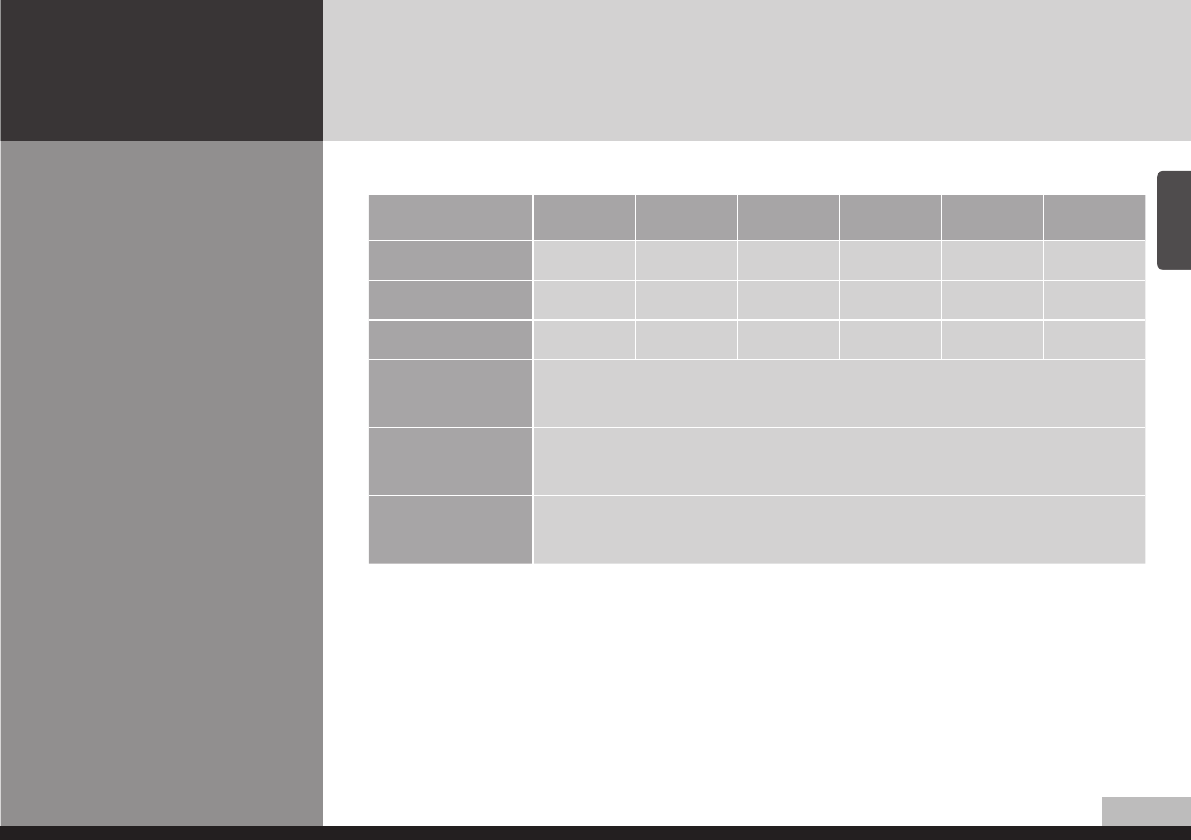
How to Set the Multi
Function
Product 1 Product 2 Product 3
Product 4 Product 5 Product 6
1. Press Menu button.Menu items appear on the screen.
2. Press ▲ / ▼ button to move to "Multi" Icon.
3. Press ↲ button to select "Mutli" Icon. "Mutli Function" is highlighted
4. Press ▲ / ▼ buttons to set up and change the location of the screen to be displyed. H Set Count/
V Set Count/Display Sequence / H Edge ADJ / V Edge ADJ / SET ID/ Master
(Example of installation) install 3x2 with 6 units
Multi
H Set CounL : 0
V Set CounL : 0
Display Sequence : 0
H Edge ADJ : 0
V Edge ADJ : 0
SET ID : 0
Master Off
U Move Adjust Menu
Multi
Multi Function
Heal Control
U Move Enter Menu
DID_eng.indb 30 2009-09-15 오후 8:24:29
31/36
English
DIGITAL SIGNAGE
installation item Product 1 Product 2 Product 3 Product 4 Product 5 Product 6
H Set Count 333333
V Set Count 222222
Display Sequence 123456
H Edge ADJ /
V Edge ADJ
These are the set up value to make up the un-displayed area of Bezel Part.
It can be adjustable according to the contents
SET ID It is necessary to control via RS232 communication port on PC. But do not
need to set up or change when they are not controlled by PC
Master You are recommended to use the Master on state only one of products that
you are using
Set up Value
[Cautions]
- In case of connecting the products in series from the input device (HDMI, analog RGB,
component, video etc.), up to about 25 units are possible. But, the number of connecting
devices can be different from the input signal level of each device and thereby amplified
distributor can be needed for this product.
(when over 25 units are connected, the screen may not be displayed properly)
- You are recommended to use the component and progressive frequency of digital RGB in
case of using multi-vision function.
(It may not be displayed properly when using Video input and interlace frequency)
DID_eng.indb 31 2009-09-15 오후 8:24:29
3/36
DIGITAL SIGNAGE
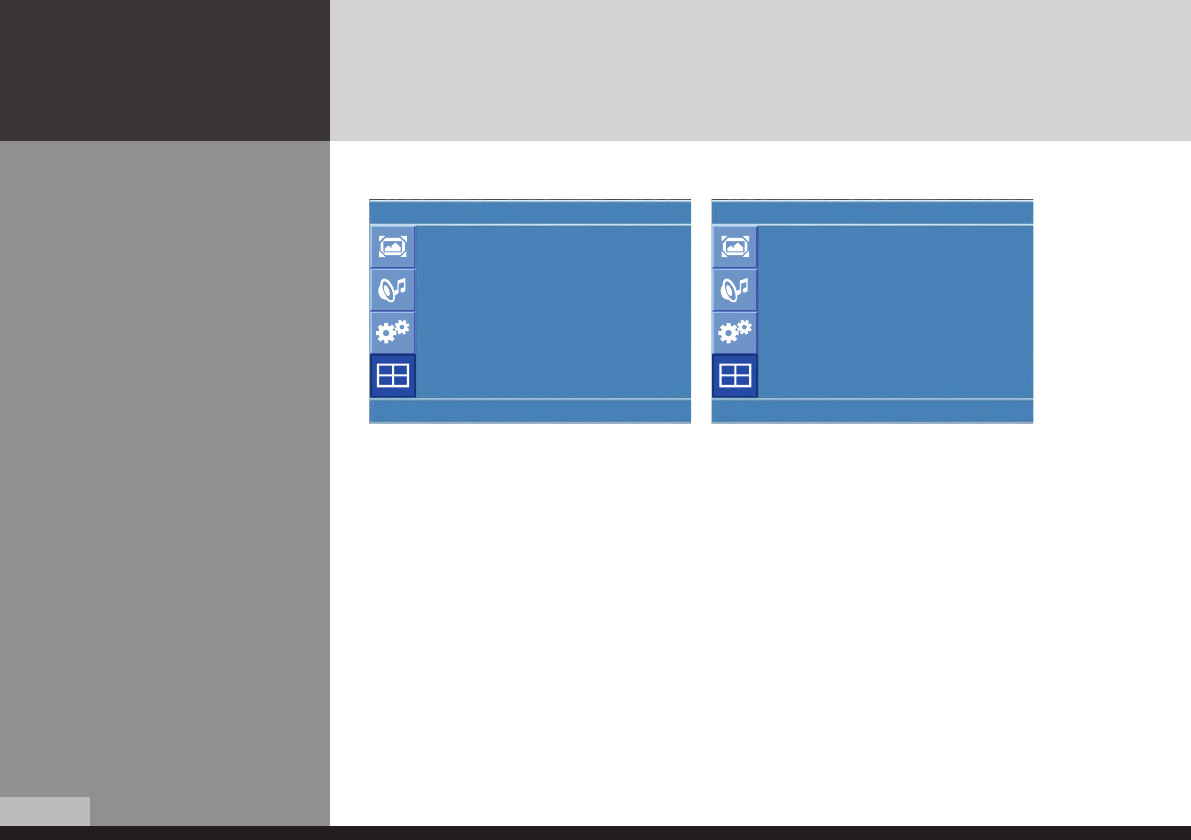
1. Press Menu button. Menu items appear on the screen.
2. Press ▲ / ▼ button to move to "Multi" Icon.
3. Press ↲ button to select "Multi" Icon. "Multi Function" is highlighted
4. Press ▲ / ▼ buttons to move to "Heat Control".
5. Press ▶ or ↲ buttons to set up and change the Heat Control.
“Fan Control" - AS the fan operation options, following 3 options are available
- Off : Fan is idle in Off status.
- On : Fan is working in On-status.
- Auto : Fan start working when the working temperature is higher than the measured temperature.
• Fan active Temp -set up value to start the fan.
• Hysteresis- tolerance value of fan operation temperature.
• Temperature- measured current temperature by sensor affixed to PCB'A
How to Set the Heat
Control
"Heat control" allows you set up fan operation according to interior temperture of the product
Multi
Multi Function
Heal Control
U Move Enter Menu
Multi
Fan Control : Off
Fan Active Temp : 50 °C
Hysteresis : 50 °C
Temprature : 50 °C
U Move Enter Menu
DID_eng.indb 32 2009-09-15 오후 8:24:29
33/36
English
DIGITAL SIGNAGE
Diagnosis
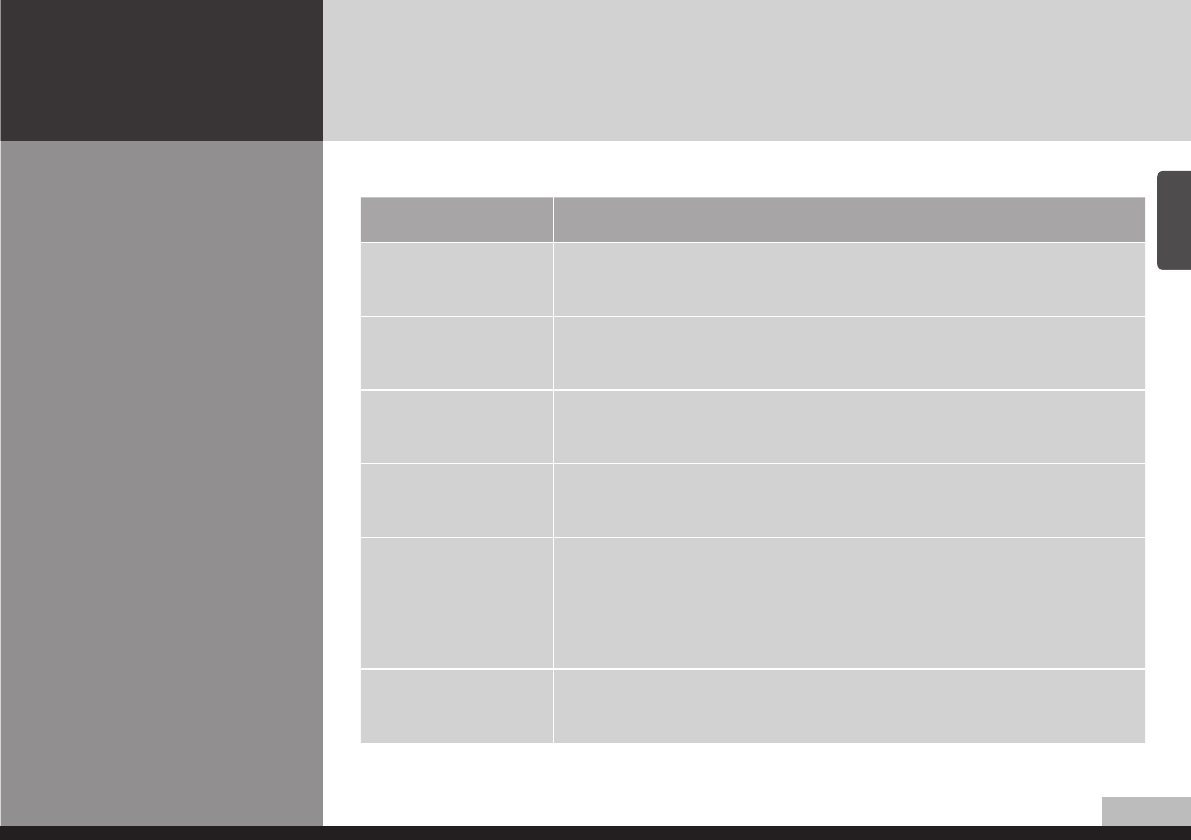
When the product is not working properly, please check before you call customer center.
Symptoms How to solve the problem
Screen displays late
after the power is on.
It happens not to show the screen noise when the power is on. Therefore it is not a
defect. But if the screen doesn't show up within 5 minutes from turning on, please
contact the customer center.
The screen is too dark
or bright? Adjust the brightness or contrast.
The screen doesn't
show up indicating
"Out of range".
You are using a signal which is outside the operating frequencies of the product
(Unsupported), please change you video signal.
when the screen is
scrambled.
please check the cable connection and the signal generator and contact customer
center.
Automatic switching-on
function is not working
/ the input data were
disapperared when
reboot the system after
setting up the time
Automatic switching-on function is working when the product has been turned
off via remote control or power button on main body. It is because that the set-
up values are deleted when the power cord is unplugged.
The screen and sound
are not synchronized
Check if the power is on, suspended or is correctly plugged into the outlet. Plug
the power cord of other peripheral device to the outlet that the product is being
connected.
DID_eng.indb 33 2009-09-15 오후 8:24:29
3/36
DIGITAL SIGNAGE
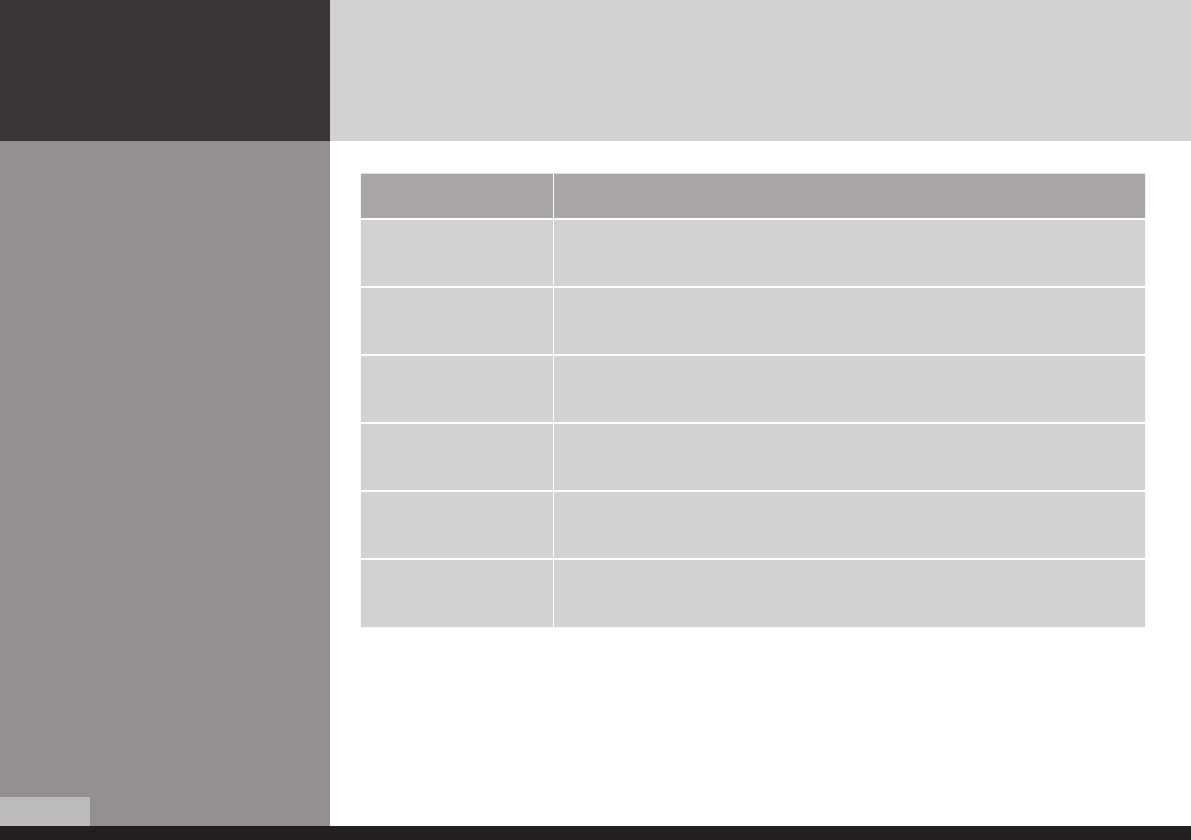
Symptoms How to solve the problem
The screen displays
without the sound. check the volume up and down with remote control and audio connection cable
No sound from either
right speaker or left
speaker.
Confirm the status of the sound balance on OSD menu and check the connection
of speaker cable.
Remote control
doesn't work.
Check if any foreign substances in the sensor and the polarity of battery inserted.
If the batteries are drained, replace them with new batteries.
PC D-SUB doesn't
work.
Set up the resolution referring to frequency table of input terminal. And re-boot
the system as it supports Plug and Play.
Fan on the rear
doesn't work Check the status of temperature control on OSD menu
The screen doesn't
show up when display
the multi-vision.
check if it is set up to video input. Confirm if Interlace Timing was inputted.
( Refer to the cautions on Page 31 )
• If any problem unsolved by above diagnosis, please call customer center.
DID_eng.indb 34 2009-09-15 오후 8:24:30
35/36
English
DIGITAL SIGNAGE
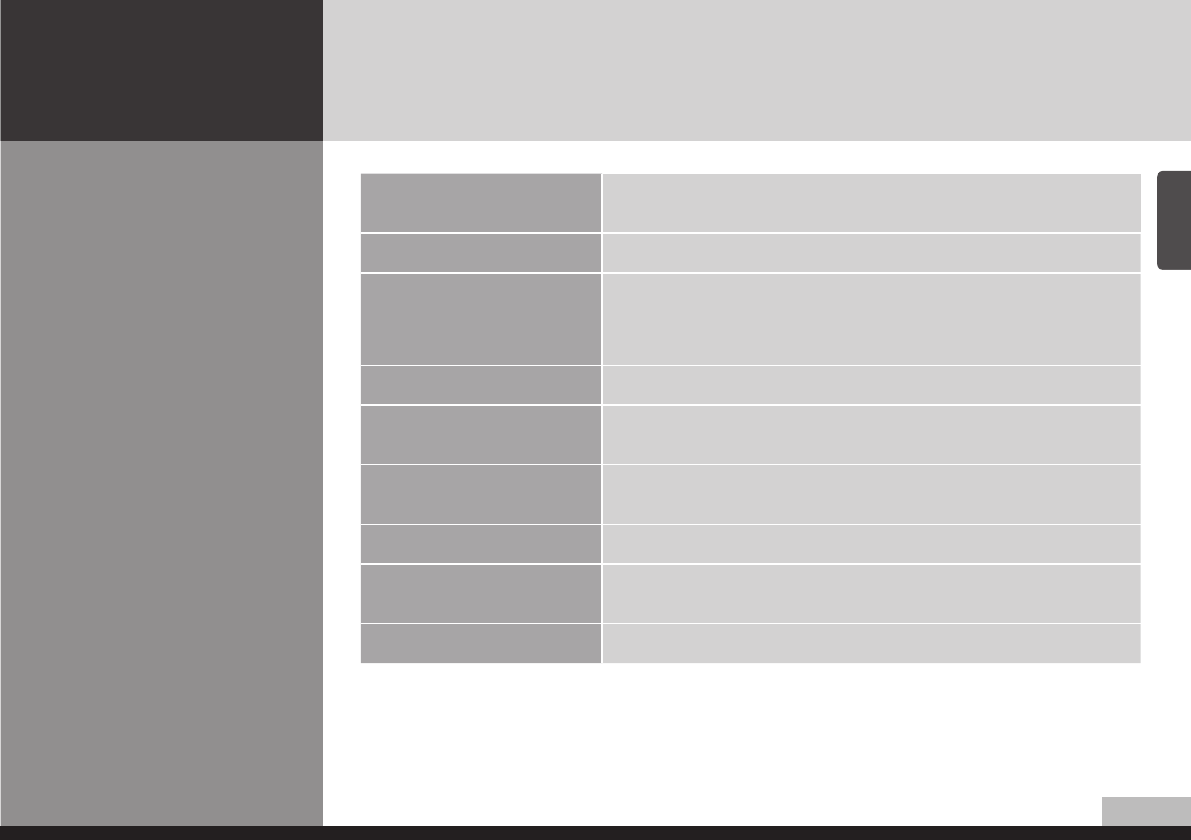
Specifications
D320ML(I/G)/D400ML/
D420ML(I/G/P/T)/
D460ML(I/G/P/T/H)/
D468ML(I/G/P/T/H)/D460SL(I)
Model D320ML(I/G) / D400ML / D420ML(I/G/P/T) /
D460ML(I/G/P/T/H) / D468ML(I/G/P/T/H) / D460SL(I)
LCD 1366 x 768 Pixel (HD)
Screen size (HxV/mm)
D320ML(I/G) : 697.7 x 392.3 / Pixel pitch 0.51
D400ML : 885.2 x 497.7 / Pixel pitch 0.65
D420ML(I/G/P/T) : 930.3 x 523.0 / Pixel pitch 0.68
D460ML(I/G/P/T/H), D468ML(I/G/P/T/H) : 1018.4x572.5 / Pixel 0.75
D460SL(I) : 1018.4x572.5 / Pixel 0.75
Recommended resolution 1360 x 768 @60Hz
Input Digital RGB, Analog RGB, Component(Option), Video(Option), PC Audio L/R,
Component Audio L/R(Option), Video Audio L/R(Option), RS232C
Output Digital RGB, Analog RGB, Component(Option), Video(Option),
Audio L/R, RS232C
Power AC 100- 240V 50/60Hz
Consumption (Typical) D320ML(I/G) :170W / D400ML :200W / D420ML(I/G/P/T) :220W /
D460ML(I/G/P/T/H), D468ML(I/G/P/T/H) :260W / D460SL(I) :260W
Control type Remote control, key control
• Above specification may be changed without prior notification for quality improvement.
DID_eng.indb 35 2009-09-15 오후 8:24:30
36/36
DIGITAL SIGNAGE
Specifications
D405ML(I/G)/D407ML(I/G/P/T)/
D425ML(I/G/P/T)/D465ML(I/G)/
D467ML(I/G/P/T)/ D525ML(I/G)/
D825ML(I/G)/ D525SL(I)/
D705ML(I/G)/D705SL(I)/
D825SL(I)
Model
D405ML(I/G)/D407ML(I/G/P/T)/D425ML(I/G/P/T)/D465ML(I/G)/
D467ML(I/G/P/T)/D525ML(I/G)/D825ML(I/G)/ D525SL(I)/D705ML(I/G)/
D705SL(I)/D825SL(I)
LCD 1920 x 1080 Pixel (Full HD)
Screen size (HxV/mm)
D405ML(I/G) : 885.6 x 498.15 / Pixel pitch 0.46
D407ML(I/G/P/T) : 885.2 x 497.7 / Pixel pitch 0.46
D425ML(I/G/P/T) : 930.25 x 523 / Pixel pitch 0.4845 x 0.4845
D465ML(I/G) : 1018.08 x 572.67 / Pixel pitch 0.53
D467ML(I/G/P/T) : 1018.4 x 572.5 / Pixel pitch 0.53
D525ML(I/G) : 1152.00 x 684.00 / Pixel pitch 0.60
D825ML(I/G) : 1806 x 1015 / Pixel pitch
D525SL(I) : 1152.00 x 684.00 / Pixel pitch 0.60
D705ML(I/G), D705SL(I) : 1549.44 x 871.56 / Pixel pitch 0.81
D825SL(I) : 1806 x 1015 / Pixel pitch
Recommended resolution 1920 x 1080 @ 60Hz
Input Digital RGB, Analog RGB, Component(Option), Video(Option), PC Audio L/R,
Component Audio L/R(Option), Video Audio L/R(Option), RS232C
Output Digital RGB, Analog RGB, Component(Option), Video(Option),
Audio L/R, RS232C
Power AC 100- 240V 50/60Hz
Consumption (Typical)
D405ML(I/G) : 200W / D407ML(I/G/P/T), D425ML(I/G/P/T) : 260W /
D465ML(I/G), D467ML(I/G/P/T) : 250W /
D525ML(I/G), D825ML(I/G) : 320W /
D705ML(I/G), D705SL(I) : 800W / D825SL(I) : 900W
Control type Remote control, key control
• Above specification may be changed without prior notification for quality improvement.
DID_eng.indb 36 2009-09-15 오후 8:24:30
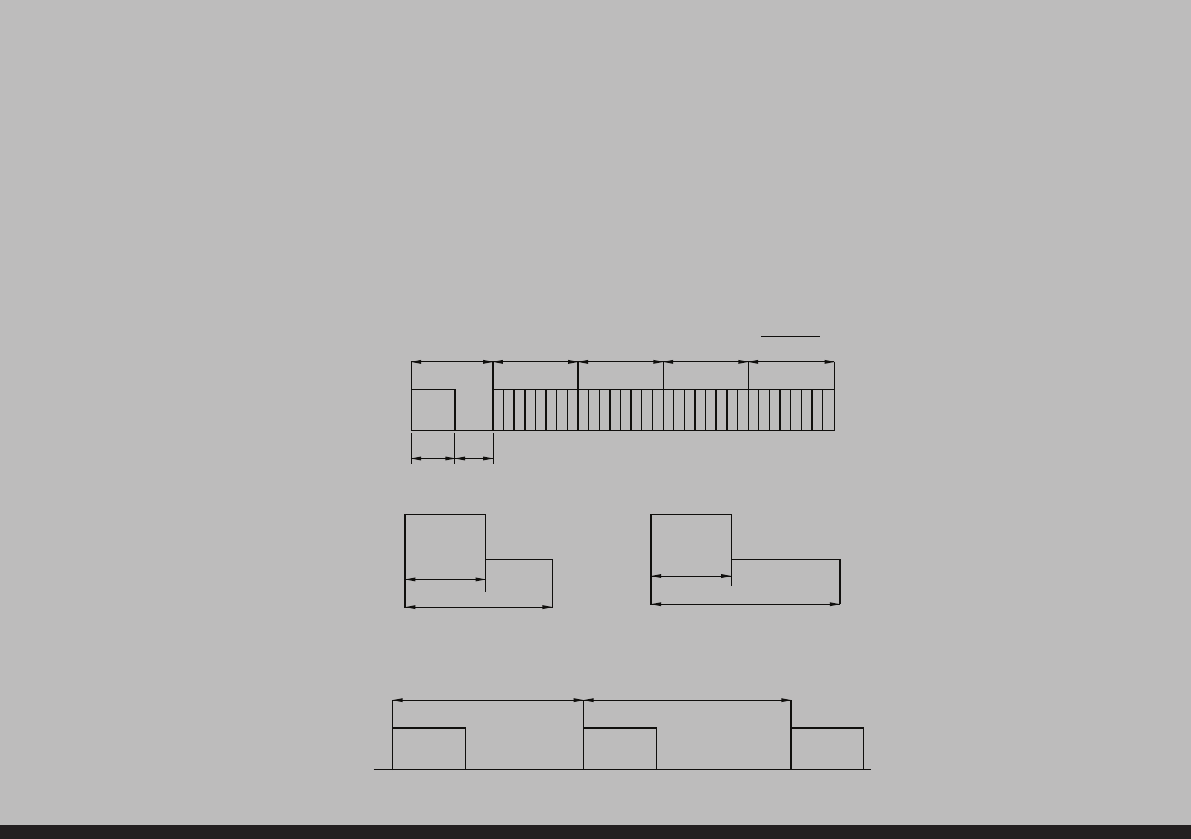
< REMOTE CONTROL / RS232C COMMAND SPEC >
1. SPEED : 9600 Baud/s, 8 bit, No parity, 1 Stop bit.
2. REMOTE CONTROL WAVE FORM
1) Remote Control System Infrared rey system
fosc=455KHZ fc=fosc/2=37.917KHZ
2) Signal code
2-1) Transmission
- One pulse
- Bit Desciption
- Flame Interval
LEAD CODE
9ms 4.5ms
0.56ms
1.125ms
Tf Tf
Tf=108ms 455KHz
0.56ms
2.25ms
CUSTOM CODE
LOW
CUSTOM CODE
HIGH
DATA CODE DATA CODE
LEAD CODE
9ms 4.5ms
0.56ms
1.125ms
Tf Tf
Tf=108ms 455KHz
0.56ms
2.25ms
CUSTOM CODE
LOW
CUSTOM CODE
HIGH
DATA CODE DATA CODE
LEAD CODE
9ms 4.5ms
0.56ms
1.125ms
Tf Tf
Tf=108ms 455KHz
0.56ms
2.25ms
CUSTOM CODE
LOW
CUSTOM CODE
HIGH
DATA CODE DATA CODE
Bit “0”Bit “1”
DID_eng.indb 37 2009-09-15 오후 8:25:47
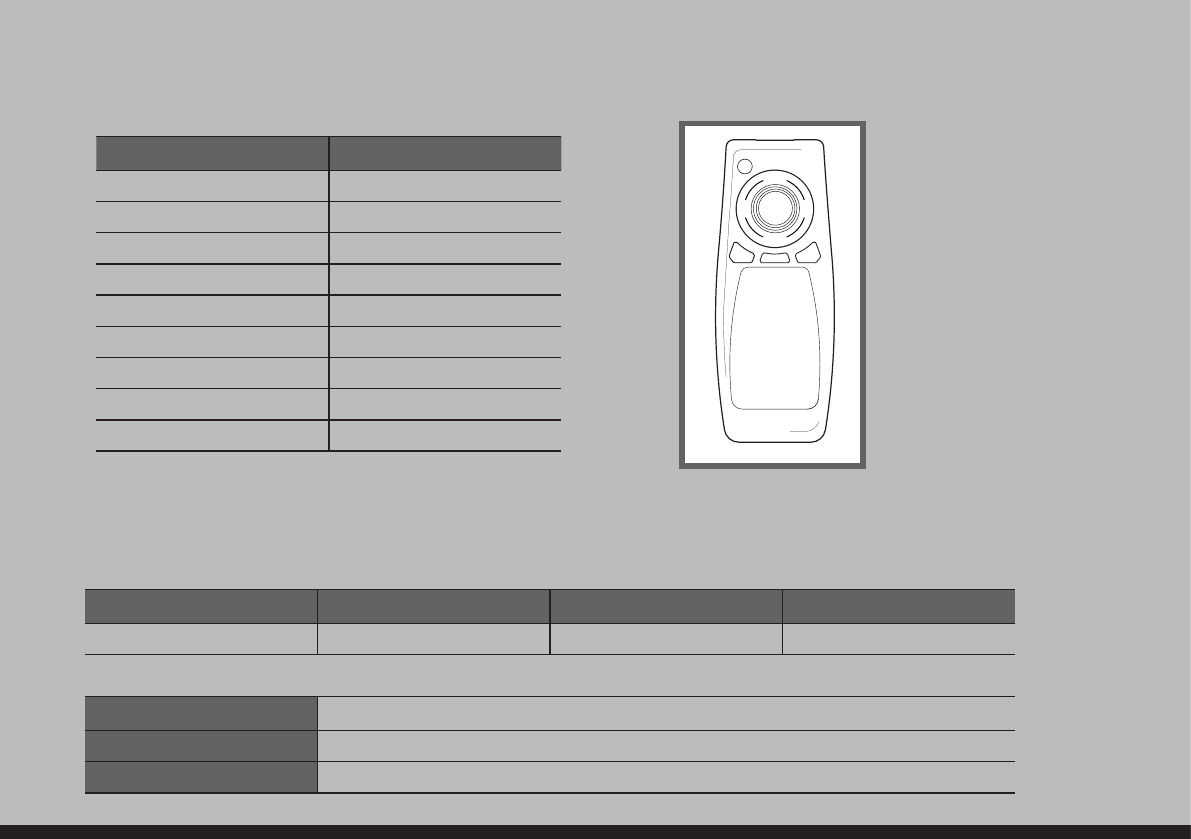
3. REMOTE CONTROL KEY CODE TABLE
KEY DATA
POWER 0x80
MENU 0x95
EXIT 0x96
SOURCE 0xAC
ENTER 0x8C
UP 0x8D
DOWN 0x8E
LEFT 0x8F
RIGHT 0x90
8O
8D
8C8F
95 AC
9O
8E
96
DATA LAYOUTCustom Code : 7788H
4. COMMAND FORMAT
* SET ID must select from the OSD menu and can't be select through the COMMAND.
* Only one unit can be set as Master unit, select Master ON from the OSD Menu. (DEFAULT OFF)
* For viewing COMMAND from Hyper Terminal windows, One unit must set as MASTER ON
HEADER SET ID COMMAND TYPE END
did: x- or all- Command
<Command example>
did:1-pf. To power off set that is SET ID 1
did:all-fr. To factory reset all set
did:2-fn. To fan on set that is SET ID 2
DID_eng.indb 38 2009-09-15 오후 8:25:47
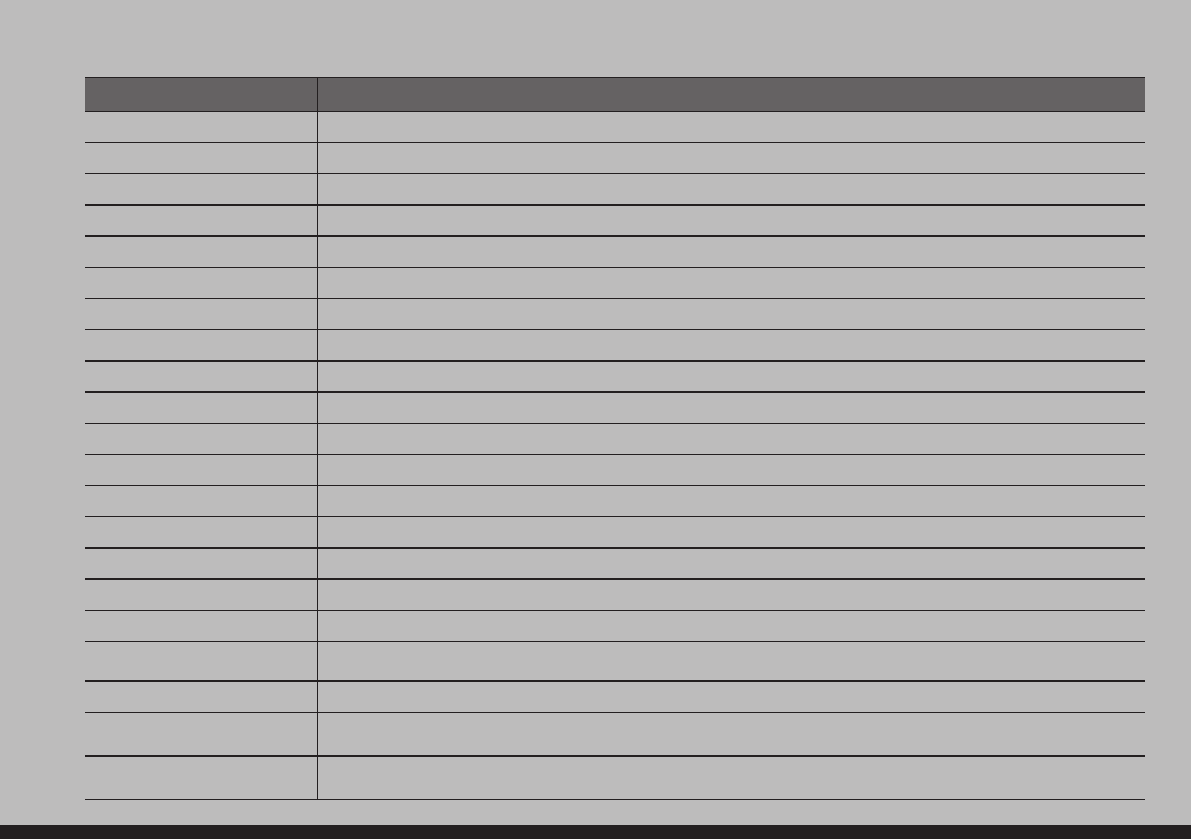
5. COMMAND TYPE
Command Description
pn / pf Power on / Power off
fn / ff Fan on / Fan off
fr Factory reset
sd / sp / sc / sa Source change ( d:HDMI, p:PC, c:Component, a:AV )
sbu / sbd Sub-Brightness 1 step up / down
rou / rod Red Offset 1 step up / down
gou / god Green Offset 1 step up / down
bou / bod Blue Offset 1 step up / down
scu / scd Sub-Contrast 1 step up / down
rgu / rgd Red Gain 1 step up / down
ggu / ggd Green Gain 1 step up / down
bgu / bgd Blue Gain 1 step up / down
blu / bld BACKLIGHT Value 1 step up / down
chxvy H Set Count is x, V Set Count is y
nhxvy H Set window is x, V Set window is y
ehxvy H Edge ADJ is x, V Edge ADJ is y
x ( gure ) Display sequence no is x
cr Enable Color Control Mode; Under Cr mode, user can set color value without Header command
ex) ro120 : Red Offset 120, bg100 : Blue Gain 100
ir Enable Ir Mode, In IR Mode, user can use keyboard buttonsas remote controller
ps Current power status check. If current power is on(off),
Hyper Terminal windows display “Power On(Power Off)” message.
is Current input source status check.
If current input source is VGA, Hyper Terminal windows display “VGA Mode” message.
DID_eng.indb 39 2009-09-15 오후 8:25:48
6. REMOTE CONTROL KEY CODE TABLE
Key value Key value
qquit ( from Ir mode ) tvolume up
ppower vvolume down
uuprmute
ndowncpicturemode
jleft lsleep
kright dsound
eenter ss.mode
mmenu yinfo->display
xexit The others quit ( from Ir mode )
iinput
7. REMOTE CONTROL KEY CODE TABLE
Command Description
did:all-wn=si. Change all units 'Display sequence' to 'SET ID'
did:allfst-hxvy Set all units to 'H SET Count' = x, 'V SET Count' = y, 'Display sequence' = 'Select to SET ID'
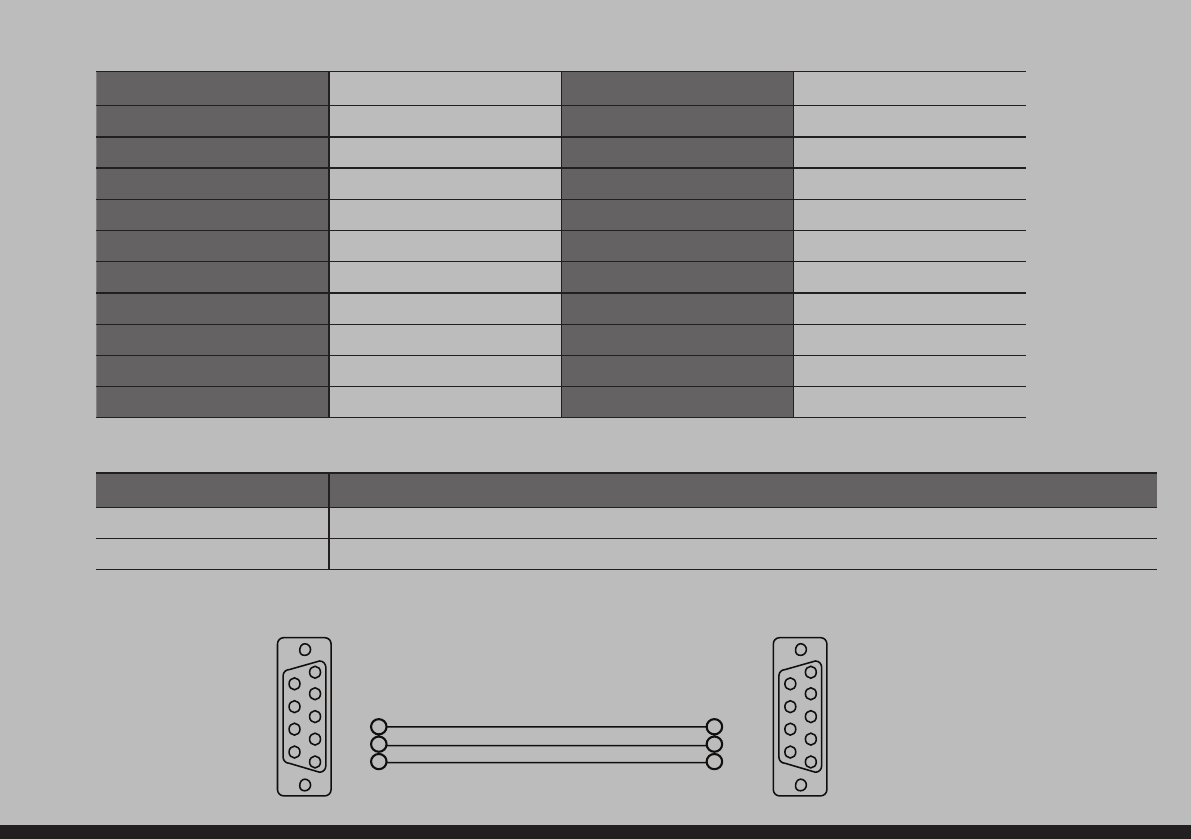
8. CONNECTION
&21752/(53&0/6HULHV0RGHO
1
2
2
3
5
2
3
5
3
4
5
6
7
8
9
1
2
3
4
5
6
7
8
9
9Pin DIN male
Rx
Tx
G
Tx
Rx
G
9Pin DIN male
DID_eng.indb 40 2009-09-15 오후 8:25:48
@
HYUNDAI IT Service Center
DID_eng.indb 41 2009-09-15 오후 8:25:49
