I O INTERCONNECT HA815 HP Wireless Display Adapter User Manual

I/O INTERCONNECT INC. HP Wireless Display Adapter

User Manual.pdf

HP Wireless Display AdapterUser Guide
© Copyright 2014 Hewlett-PackardDevelopment Company, L.P.Mac OS is a registered trademark of AppleInc. Chrome OS is a trademark of GoogleInc. Intel, Intel Pro WiDi, and Intel WiDi aretrademarks of Intel Corporation in the U.S.and other countries. Windows is a U.S.registered trademark of the Microsoft groupof companies.The information contained herein is subjectto change without notice. The onlywarranties for HP products and services areset forth in the express warranty statementsaccompanying such products and services.Nothing herein should be construed asconstituting an additional warranty. HP shallnot be liable for technical or editorial errorsor omissions contained herein.First Edition: April 2014Document Part Number: 749635–001
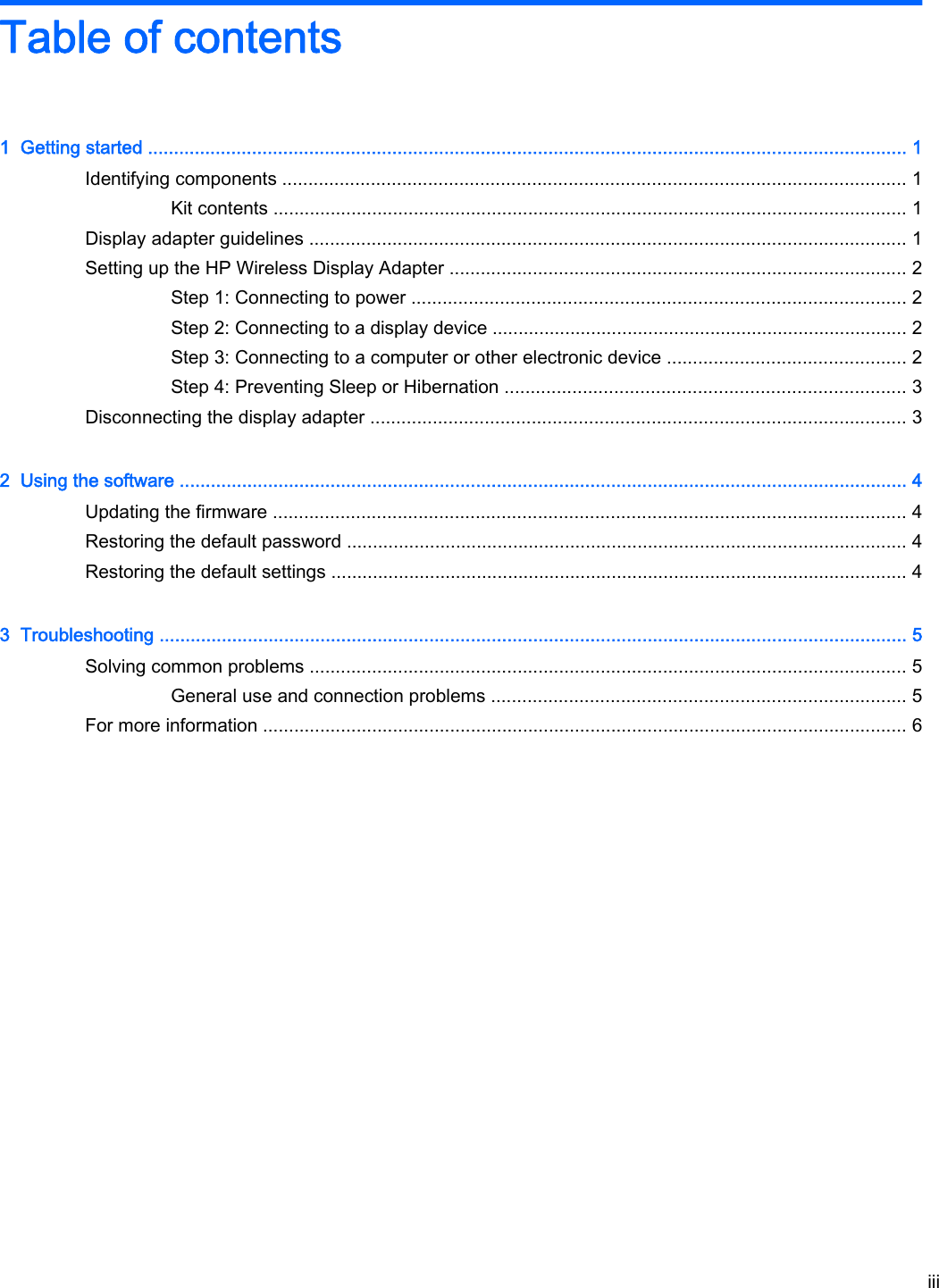
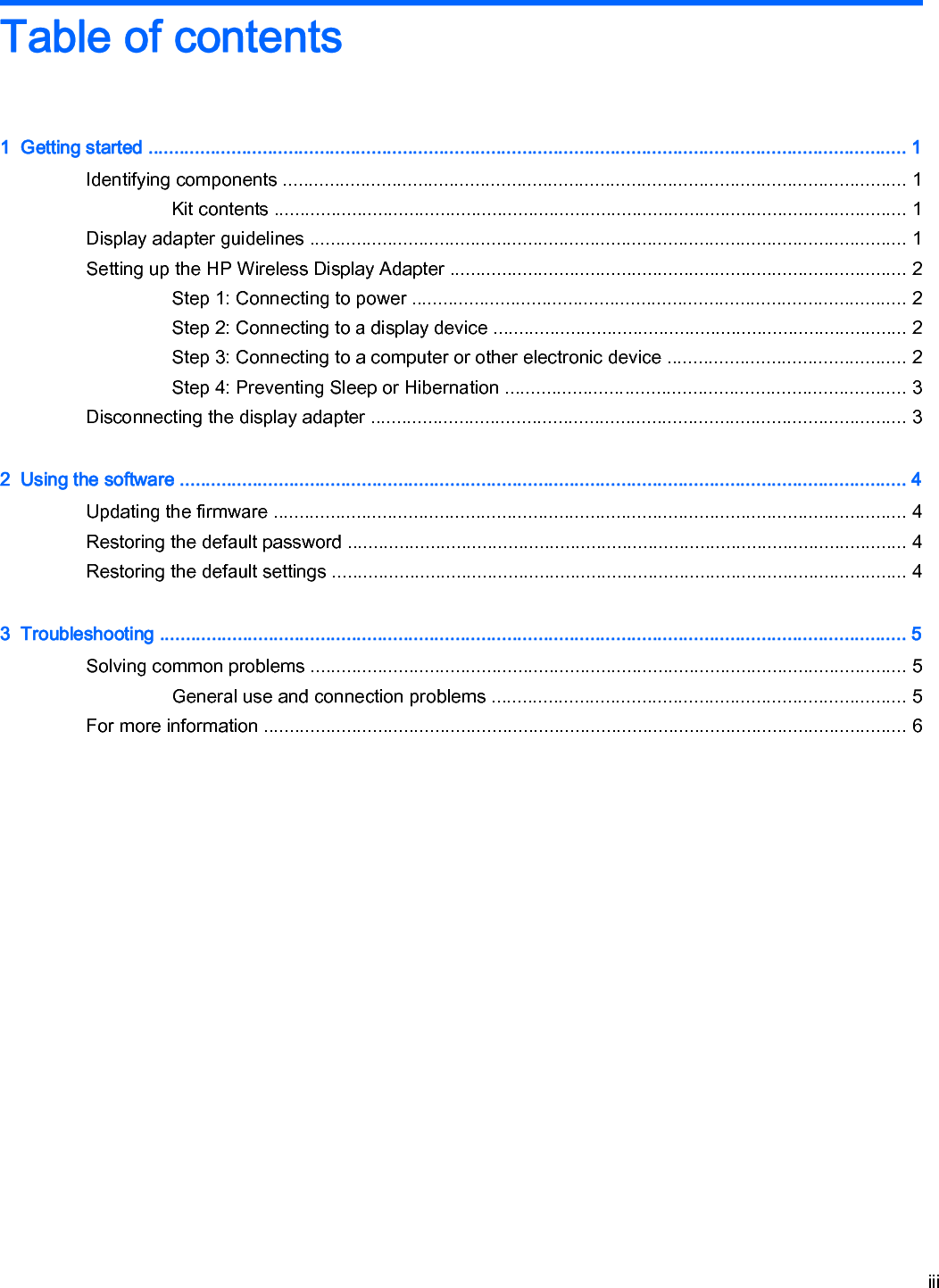
Table of contents1  Getting started .................................................................................................................................................. 1Identifying components ........................................................................................................................ 1Kit contents .......................................................................................................................... 1Display adapter guidelines ................................................................................................................... 1Setting up the HP Wireless Display Adapter ........................................................................................ 2Step 1: Connecting to power ............................................................................................... 2Step 2: Connecting to a display device ................................................................................ 2Step 3: Connecting to a computer or other electronic device .............................................. 2Step 4: Preventing Sleep or Hibernation ............................................................................. 3Disconnecting the display adapter ....................................................................................................... 32  Using the software ............................................................................................................................................ 4Updating the firmware .......................................................................................................................... 4Restoring the default password ............................................................................................................ 4Restoring the default settings ............................................................................................................... 43  Troubleshooting ................................................................................................................................................ 5Solving common problems ................................................................................................................... 5General use and connection problems ................................................................................ 5For more information ............................................................................................................................ 6iii
iv
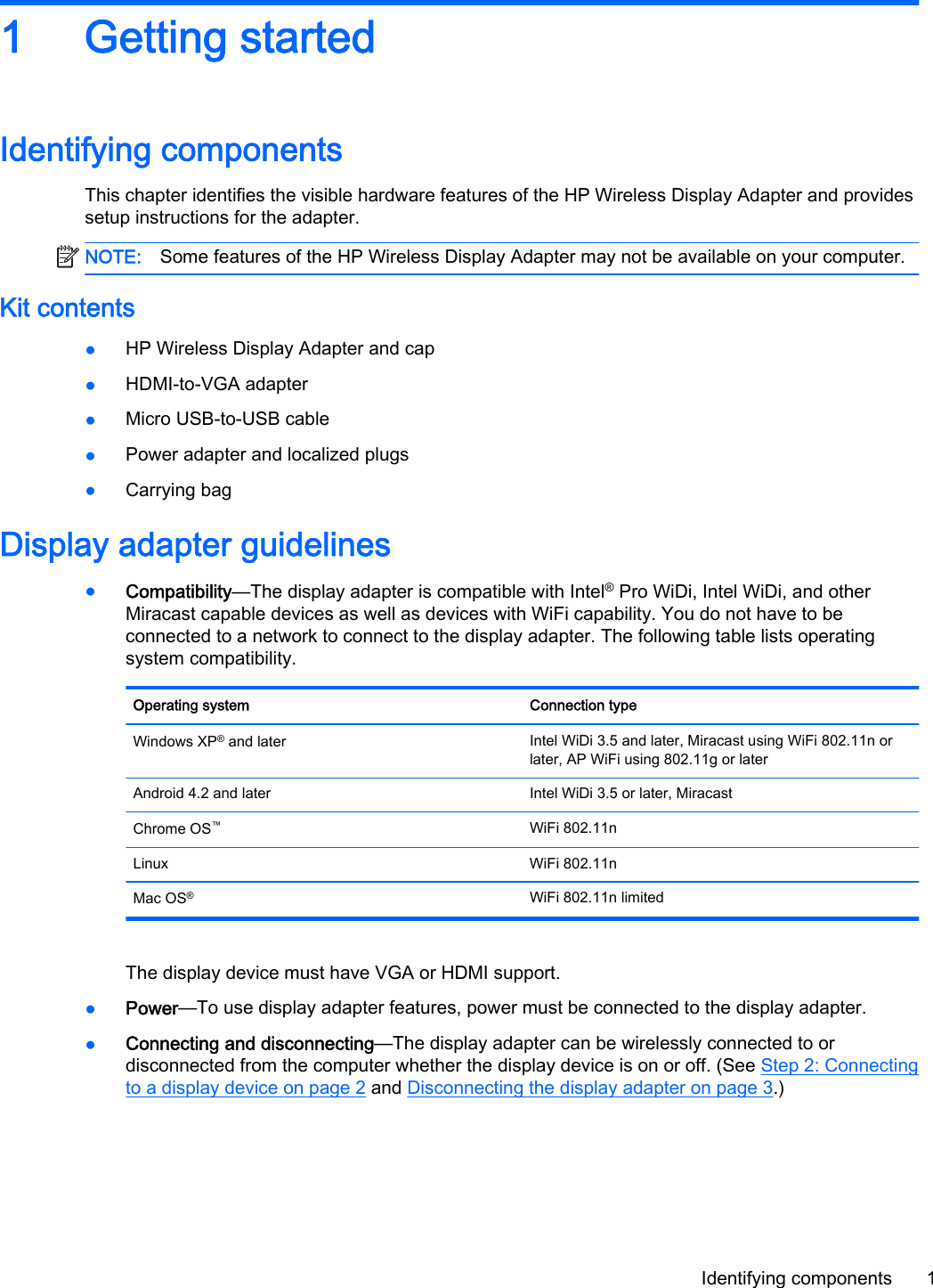
1 Getting startedIdentifying componentsThis chapter identifies the visible hardware features of the HP Wireless Display Adapter and providessetup instructions for the adapter.NOTE: Some features of the HP Wireless Display Adapter may not be available on your computer.Kit contents●HP Wireless Display Adapter and cap●HDMI-to-VGA adapter●Micro USB-to-USB cable●Power adapter and localized plugs●Carrying bagDisplay adapter guidelines●Compatibility—The display adapter is compatible with Intel® Pro WiDi, Intel WiDi, and otherMiracast capable devices as well as devices with WiFi capability. You do not have to beconnected to a network to connect to the display adapter. The following table lists operatingsystem compatibility.Operating system Connection typeWindows XP® and later Intel WiDi 3.5 and later, Miracast using WiFi 802.11n orlater, AP WiFi using 802.11g or laterAndroid 4.2 and later Intel WiDi 3.5 or later, MiracastChrome OS™WiFi 802.11nLinux WiFi 802.11nMac OS®WiFi 802.11n limitedThe display device must have VGA or HDMI support.●Power—To use display adapter features, power must be connected to the display adapter.●Connecting and disconnecting—The display adapter can be wirelessly connected to ordisconnected from the computer whether the display device is on or off. (See Step 2: Connectingto a display device on page 2 and Disconnecting the display adapter on page 3.)Identifying components 1
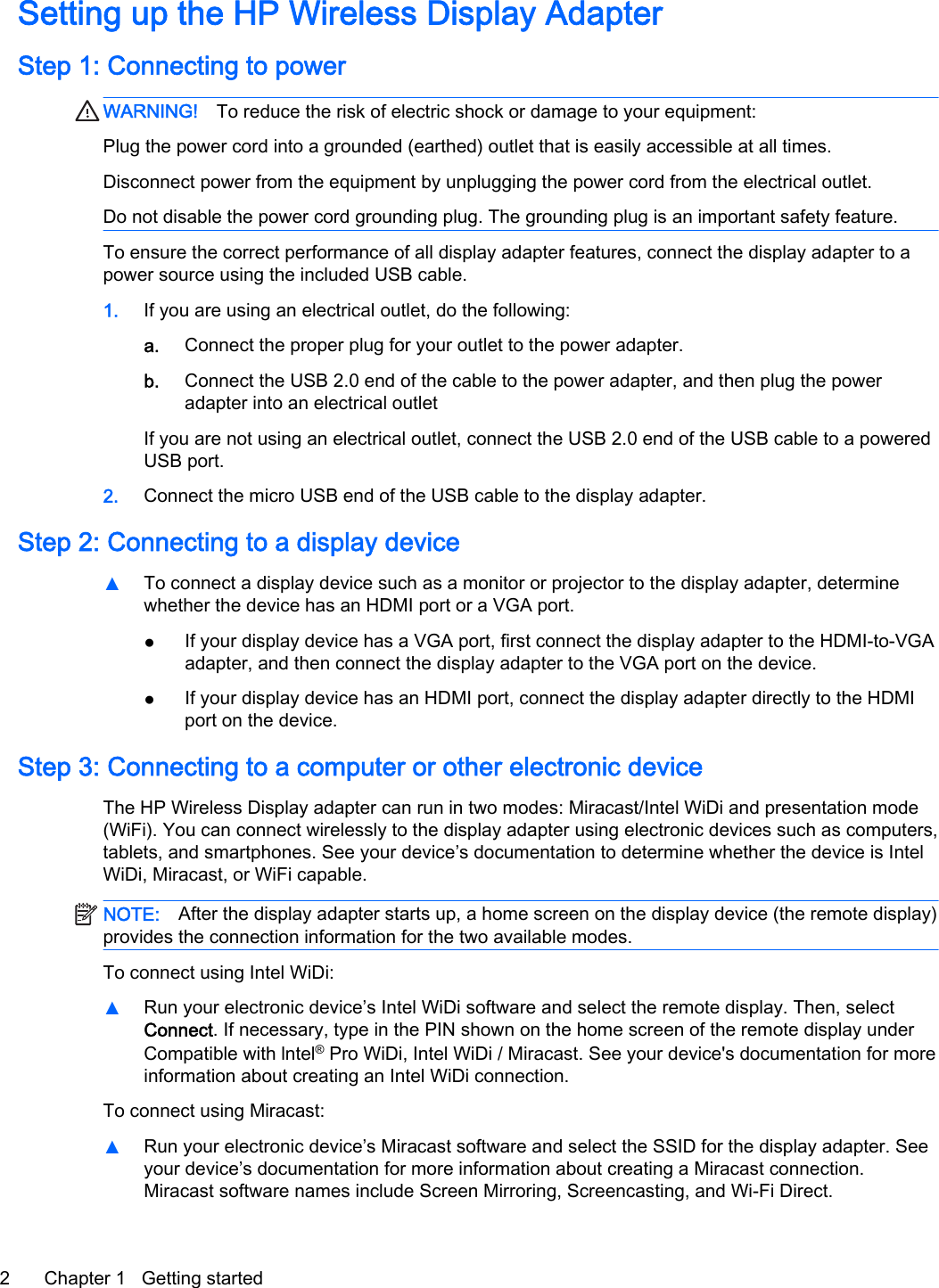
Setting up the HP Wireless Display AdapterStep 1: Connecting to powerWARNING! To reduce the risk of electric shock or damage to your equipment:Plug the power cord into a grounded (earthed) outlet that is easily accessible at all times.Disconnect power from the equipment by unplugging the power cord from the electrical outlet.Do not disable the power cord grounding plug. The grounding plug is an important safety feature.To ensure the correct performance of all display adapter features, connect the display adapter to apower source using the included USB cable.1. If you are using an electrical outlet, do the following:a. Connect the proper plug for your outlet to the power adapter.b. Connect the USB 2.0 end of the cable to the power adapter, and then plug the poweradapter into an electrical outletIf you are not using an electrical outlet, connect the USB 2.0 end of the USB cable to a poweredUSB port.2. Connect the micro USB end of the USB cable to the display adapter.Step 2: Connecting to a display device▲To connect a display device such as a monitor or projector to the display adapter, determinewhether the device has an HDMI port or a VGA port.●If your display device has a VGA port, first connect the display adapter to the HDMI-to-VGAadapter, and then connect the display adapter to the VGA port on the device.●If your display device has an HDMI port, connect the display adapter directly to the HDMIport on the device.Step 3: Connecting to a computer or other electronic deviceThe HP Wireless Display adapter can run in two modes: Miracast/Intel WiDi and presentation mode(WiFi). You can connect wirelessly to the display adapter using electronic devices such as computers,tablets, and smartphones. See your device’s documentation to determine whether the device is IntelWiDi, Miracast, or WiFi capable.NOTE: After the display adapter starts up, a home screen on the display device (the remote display)provides the connection information for the two available modes.To connect using Intel WiDi:▲Run your electronic device’s Intel WiDi software and select the remote display. Then, selectConnect. If necessary, type in the PIN shown on the home screen of the remote display underCompatible with lntel® Pro WiDi, Intel WiDi / Miracast. See your device's documentation for moreinformation about creating an Intel WiDi connection.To connect using Miracast:▲Run your electronic device’s Miracast software and select the SSID for the display adapter. Seeyour device’s documentation for more information about creating a Miracast connection.Miracast software names include Screen Mirroring, Screencasting, and Wi-Fi Direct.2 Chapter 1   Getting started
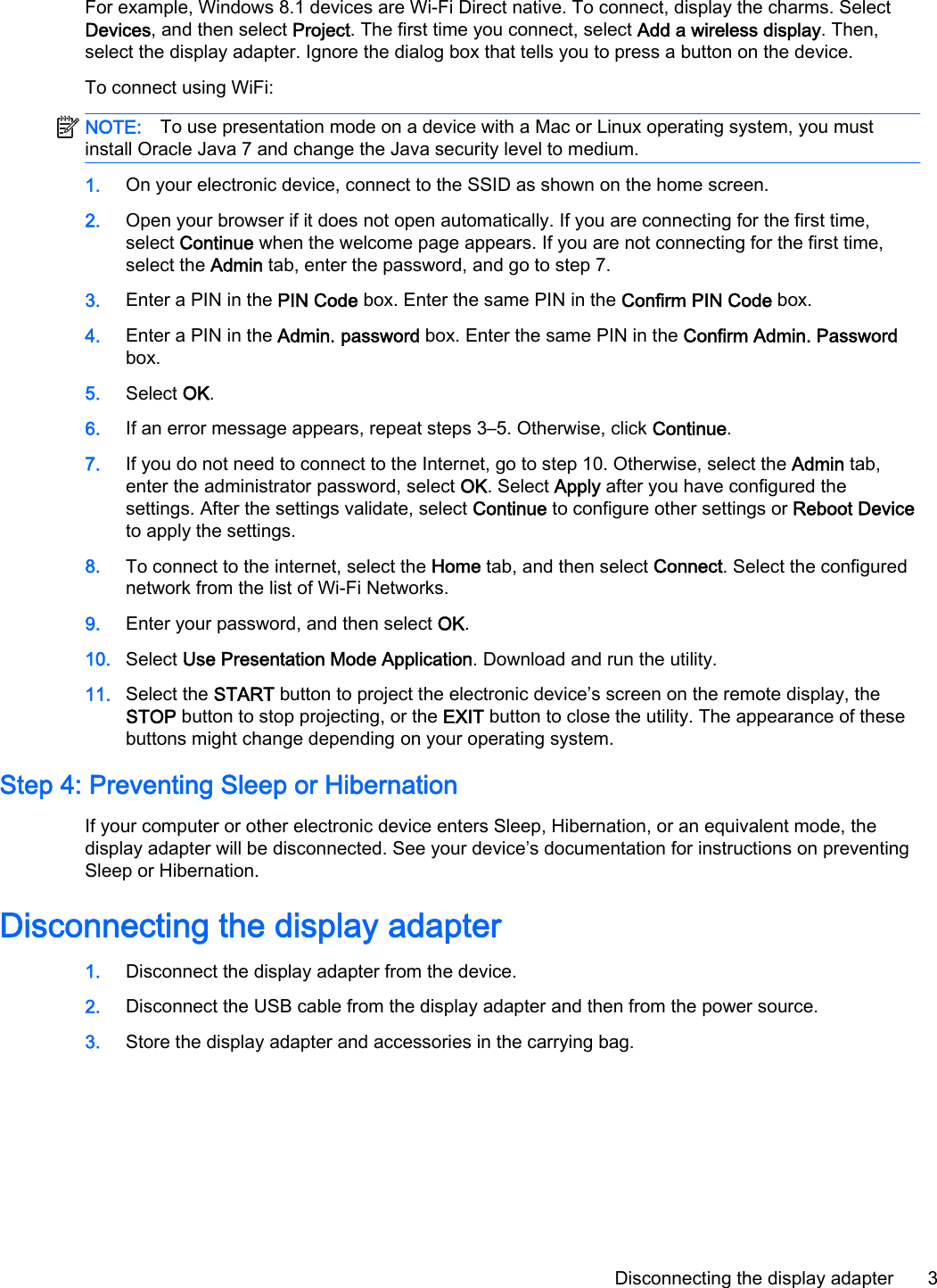
For example, Windows 8.1 devices are Wi-Fi Direct native. To connect, display the charms. SelectDevices, and then select Project. The first time you connect, select Add a wireless display. Then,select the display adapter. Ignore the dialog box that tells you to press a button on the device.To connect using WiFi:NOTE: To use presentation mode on a device with a Mac or Linux operating system, you mustinstall Oracle Java 7 and change the Java security level to medium.1. On your electronic device, connect to the SSID as shown on the home screen.2. Open your browser if it does not open automatically. If you are connecting for the first time,select Continue when the welcome page appears. If you are not connecting for the first time,select the Admin tab, enter the password, and go to step 7.3. Enter a PIN in the PIN Code box. Enter the same PIN in the Confirm PIN Code box.4. Enter a PIN in the Admin. password box. Enter the same PIN in the Confirm Admin. Passwordbox.5. Select OK.6. If an error message appears, repeat steps 3–5. Otherwise, click Continue.7. If you do not need to connect to the Internet, go to step 10. Otherwise, select the Admin tab,enter the administrator password, select OK. Select Apply after you have configured thesettings. After the settings validate, select Continue to configure other settings or Reboot Deviceto apply the settings.8. To connect to the internet, select the Home tab, and then select Connect. Select the configurednetwork from the list of Wi-Fi Networks.9. Enter your password, and then select OK.10. Select Use Presentation Mode Application. Download and run the utility.11. Select the START button to project the electronic device’s screen on the remote display, theSTOP button to stop projecting, or the EXIT button to close the utility. The appearance of thesebuttons might change depending on your operating system.Step 4: Preventing Sleep or HibernationIf your computer or other electronic device enters Sleep, Hibernation, or an equivalent mode, thedisplay adapter will be disconnected. See your device’s documentation for instructions on preventingSleep or Hibernation.Disconnecting the display adapter1. Disconnect the display adapter from the device.2. Disconnect the USB cable from the display adapter and then from the power source.3. Store the display adapter and accessories in the carrying bag.Disconnecting the display adapter 3
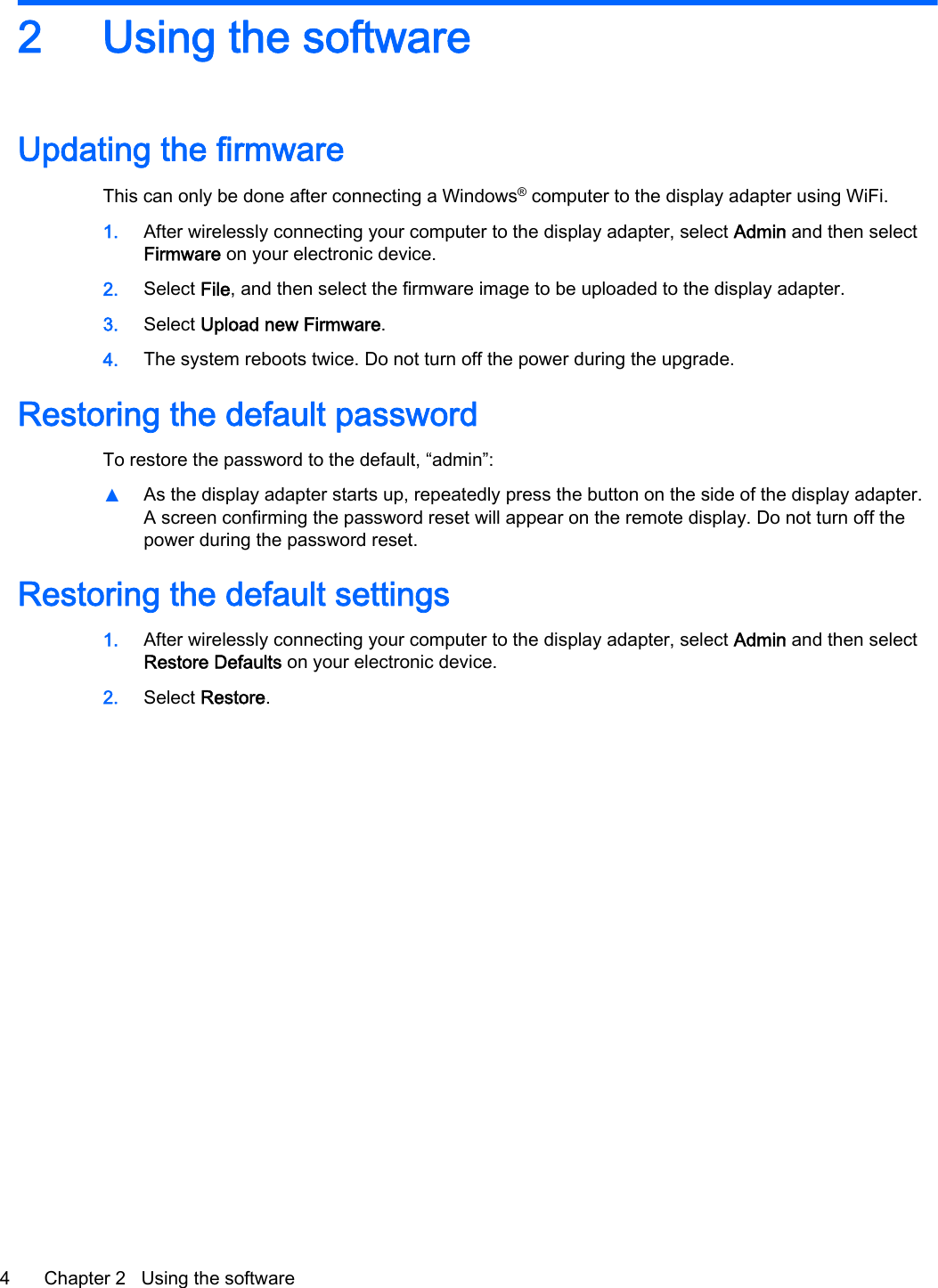
2 Using the softwareUpdating the firmwareThis can only be done after connecting a Windows® computer to the display adapter using WiFi.1. After wirelessly connecting your computer to the display adapter, select Admin and then selectFirmware on your electronic device.2. Select File, and then select the firmware image to be uploaded to the display adapter.3. Select Upload new Firmware.4. The system reboots twice. Do not turn off the power during the upgrade.Restoring the default passwordTo restore the password to the default, “admin”:▲As the display adapter starts up, repeatedly press the button on the side of the display adapter.A screen confirming the password reset will appear on the remote display. Do not turn off thepower during the password reset.Restoring the default settings1. After wirelessly connecting your computer to the display adapter, select Admin and then selectRestore Defaults on your electronic device.2. Select Restore.4 Chapter 2   Using the software
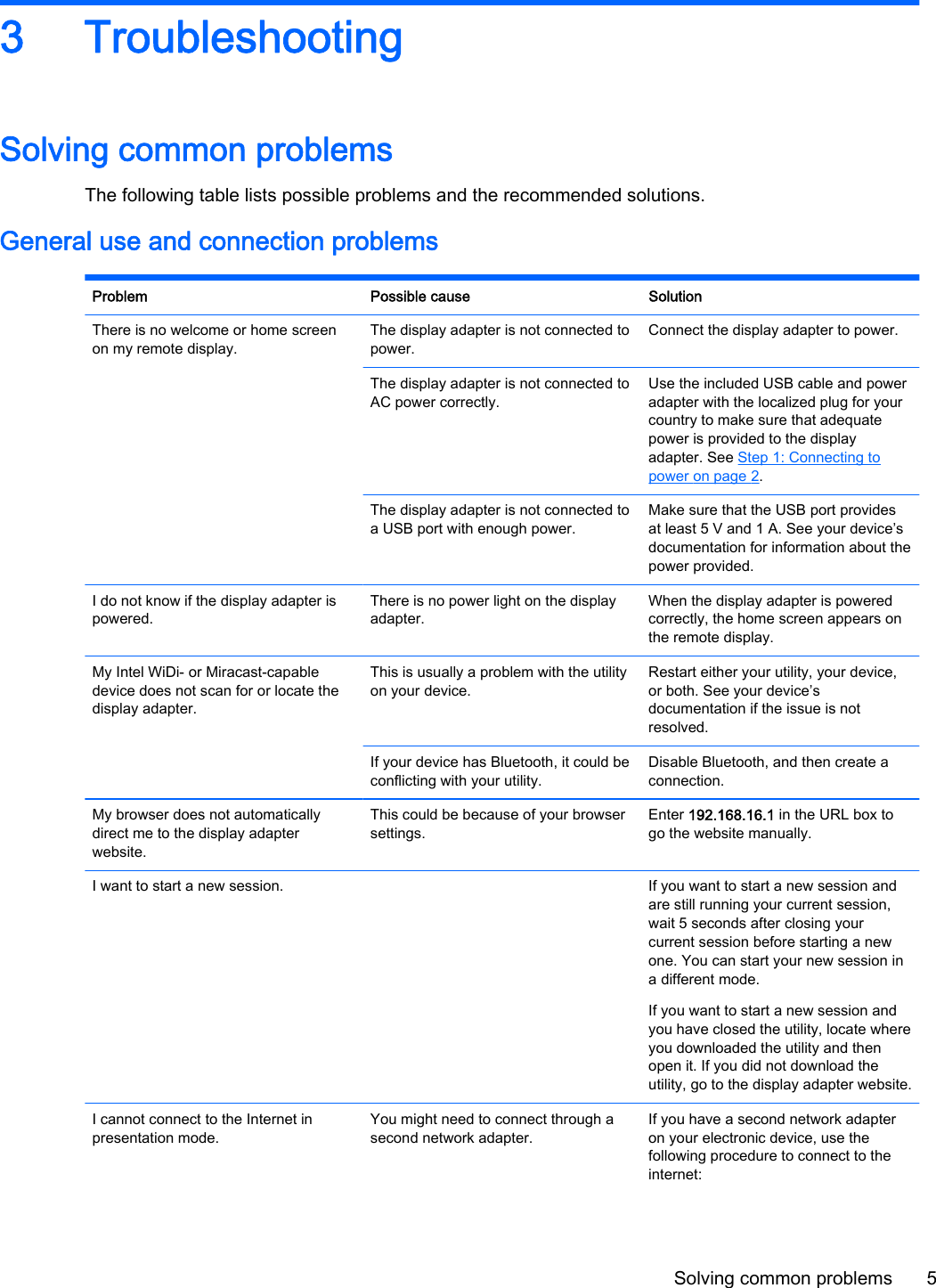
3 TroubleshootingSolving common problemsThe following table lists possible problems and the recommended solutions.General use and connection problemsProblem Possible cause SolutionThere is no welcome or home screenon my remote display.The display adapter is not connected topower.Connect the display adapter to power.The display adapter is not connected toAC power correctly.Use the included USB cable and poweradapter with the localized plug for yourcountry to make sure that adequatepower is provided to the displayadapter. See Step 1: Connecting topower on page 2.The display adapter is not connected toa USB port with enough power.Make sure that the USB port providesat least 5 V and 1 A. See your device’sdocumentation for information about thepower provided.I do not know if the display adapter ispowered.There is no power light on the displayadapter.When the display adapter is poweredcorrectly, the home screen appears onthe remote display.My Intel WiDi- or Miracast-capabledevice does not scan for or locate thedisplay adapter.This is usually a problem with the utilityon your device.Restart either your utility, your device,or both. See your device’sdocumentation if the issue is notresolved.If your device has Bluetooth, it could beconflicting with your utility.Disable Bluetooth, and then create aconnection.My browser does not automaticallydirect me to the display adapterwebsite.This could be because of your browsersettings.Enter 192.168.16.1 in the URL box togo the website manually.I want to start a new session.   If you want to start a new session andare still running your current session,wait 5 seconds after closing yourcurrent session before starting a newone. You can start your new session ina different mode.If you want to start a new session andyou have closed the utility, locate whereyou downloaded the utility and thenopen it. If you did not download theutility, go to the display adapter website.I cannot connect to the Internet inpresentation mode.You might need to connect through asecond network adapter.If you have a second network adapteron your electronic device, use thefollowing procedure to connect to theinternet:Solving common problems 5
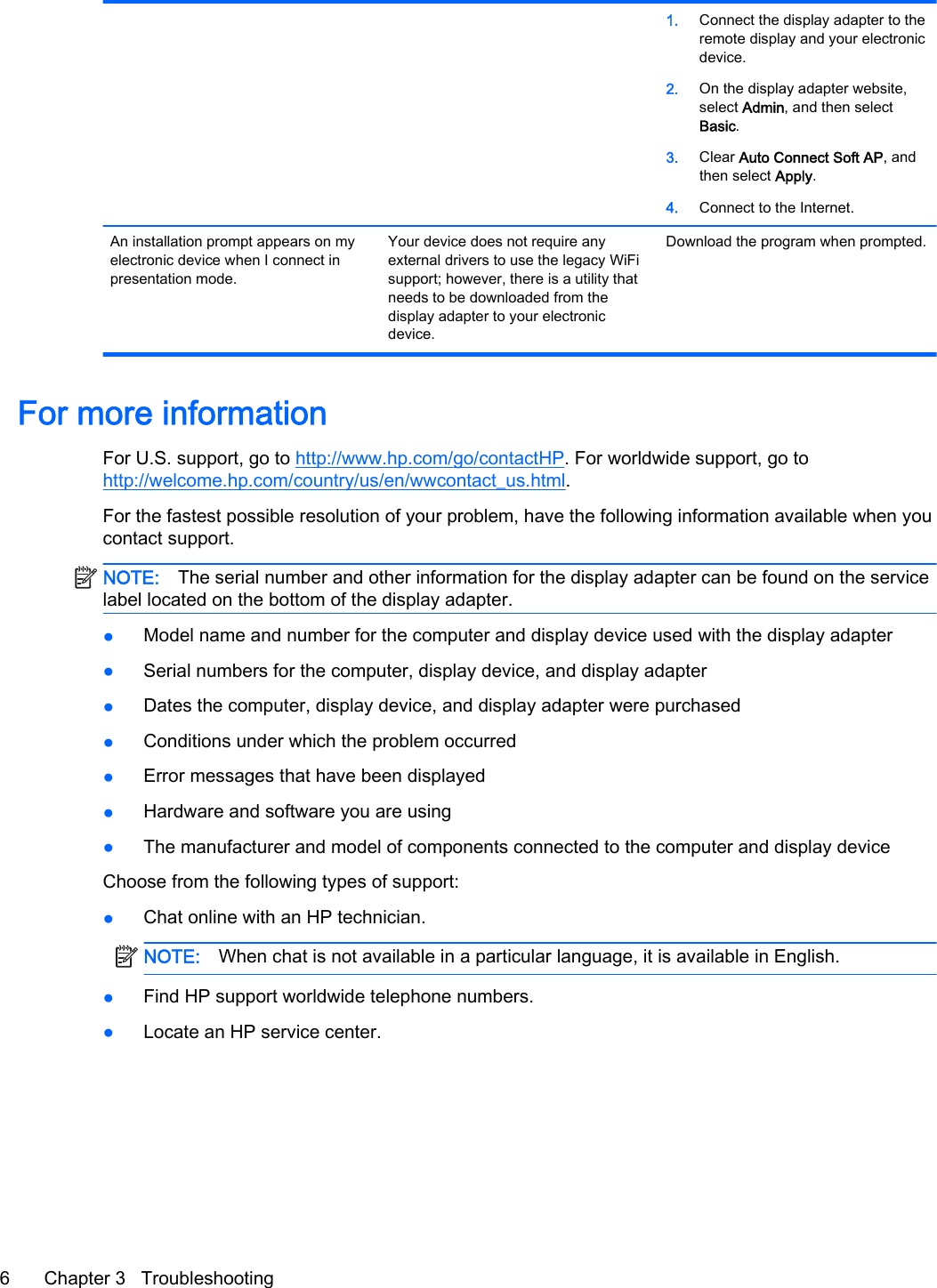
1. Connect the display adapter to theremote display and your electronicdevice.2. On the display adapter website,select Admin, and then selectBasic.3. Clear Auto Connect Soft AP, andthen select Apply.4. Connect to the Internet.An installation prompt appears on myelectronic device when I connect inpresentation mode.Your device does not require anyexternal drivers to use the legacy WiFisupport; however, there is a utility thatneeds to be downloaded from thedisplay adapter to your electronicdevice.Download the program when prompted.For more informationFor U.S. support, go to http://www.hp.com/go/contactHP. For worldwide support, go tohttp://welcome.hp.com/country/us/en/wwcontact_us.html.For the fastest possible resolution of your problem, have the following information available when youcontact support.NOTE: The serial number and other information for the display adapter can be found on the servicelabel located on the bottom of the display adapter.●Model name and number for the computer and display device used with the display adapter●Serial numbers for the computer, display device, and display adapter●Dates the computer, display device, and display adapter were purchased●Conditions under which the problem occurred●Error messages that have been displayed●Hardware and software you are using●The manufacturer and model of components connected to the computer and display deviceChoose from the following types of support:●Chat online with an HP technician.NOTE: When chat is not available in a particular language, it is available in English.●Find HP support worldwide telephone numbers.●Locate an HP service center.6 Chapter 3   Troubleshooting
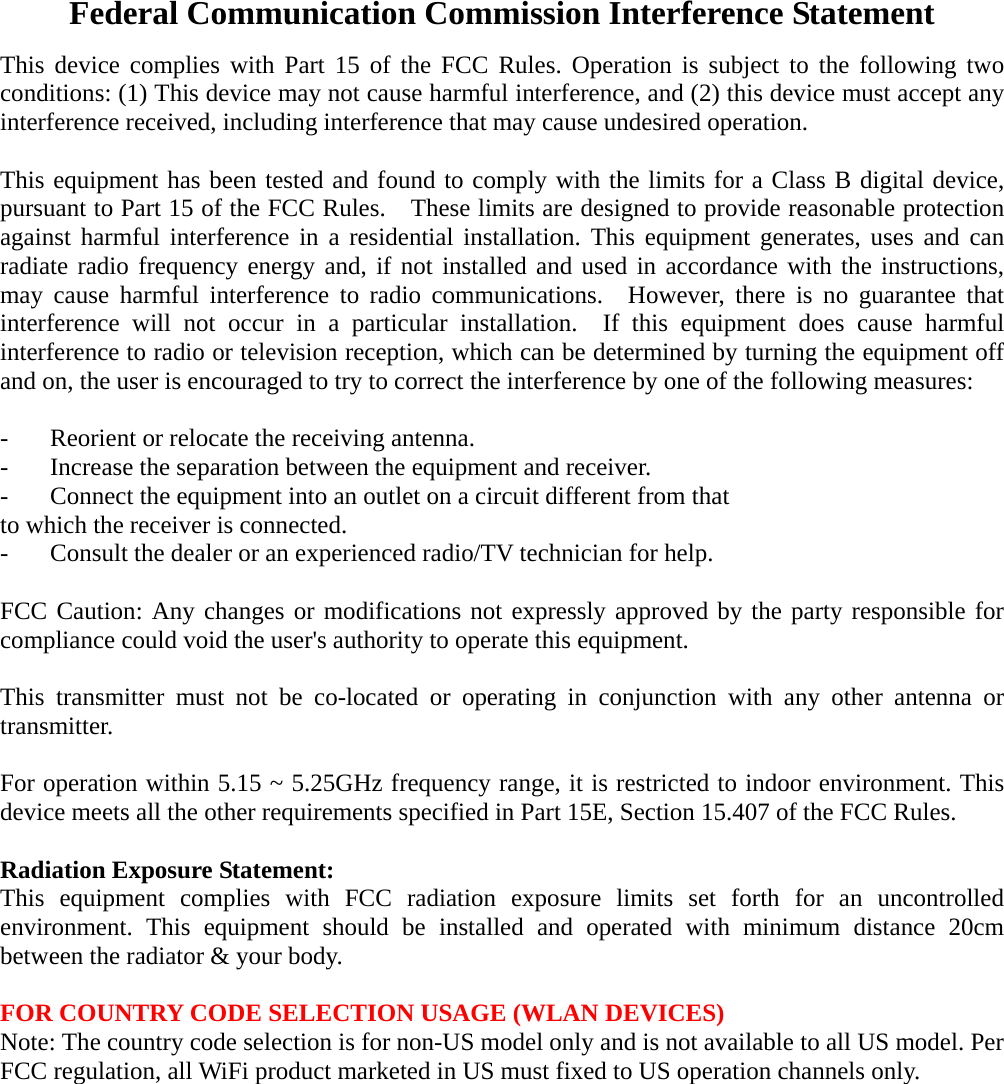
Federal Communication Commission Interference Statement This device complies with Part 15 of the FCC Rules. Operation is subject to the following two conditions: (1) This device may not cause harmful interference, and (2) this device must accept any interference received, including interference that may cause undesired operation.  This equipment has been tested and found to comply with the limits for a Class B digital device, pursuant to Part 15 of the FCC Rules.    These limits are designed to provide reasonable protection against harmful interference in a residential installation. This equipment generates, uses and can radiate radio frequency energy and, if not installed and used in accordance with the instructions, may cause harmful interference to radio communications.  However, there is no guarantee that interference will not occur in a particular installation.  If this equipment does cause harmful interference to radio or television reception, which can be determined by turning the equipment off and on, the user is encouraged to try to correct the interference by one of the following measures:  -  Reorient or relocate the receiving antenna. -  Increase the separation between the equipment and receiver. -  Connect the equipment into an outlet on a circuit different from that to which the receiver is connected. -  Consult the dealer or an experienced radio/TV technician for help.  FCC Caution: Any changes or modifications not expressly approved by the party responsible for compliance could void the user's authority to operate this equipment.  This transmitter must not be co-located or operating in conjunction with any other antenna or transmitter.  For operation within 5.15 ~ 5.25GHz frequency range, it is restricted to indoor environment. This device meets all the other requirements specified in Part 15E, Section 15.407 of the FCC Rules.  Radiation Exposure Statement: This equipment complies with FCC radiation exposure limits set forth for an uncontrolled environment. This equipment should be installed and operated with minimum distance 20cm between the radiator & your body.  FOR COUNTRY CODE SELECTION USAGE (WLAN DEVICES) Note: The country code selection is for non-US model only and is not available to all US model. Per FCC regulation, all WiFi product marketed in US must fixed to US operation channels only.
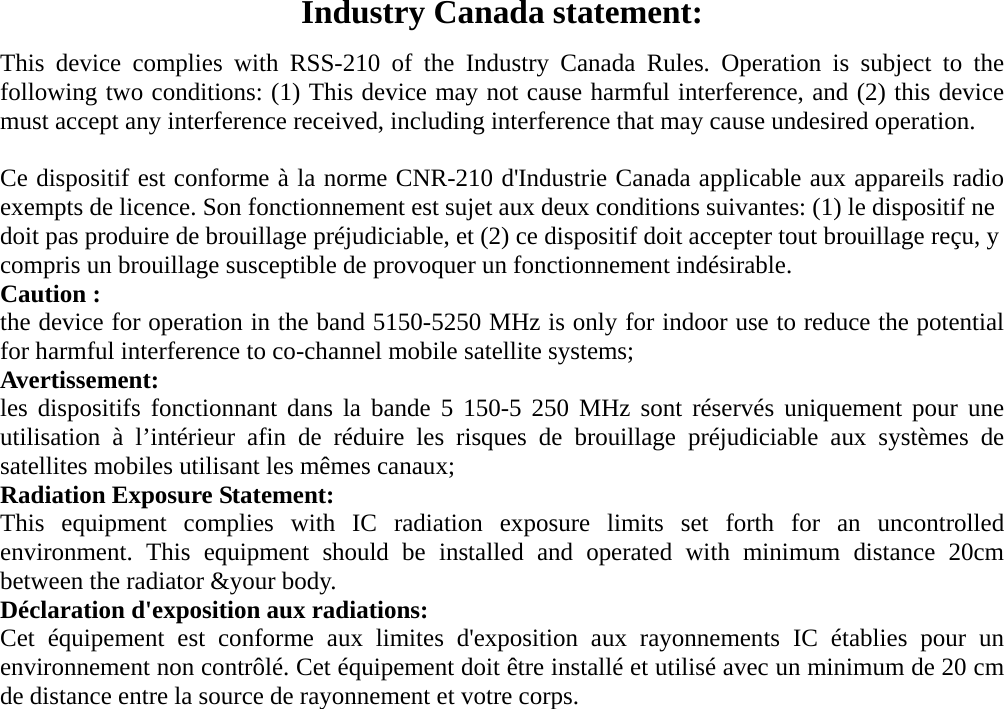
 Industry Canada statement: This device complies with RSS-210 of the Industry Canada Rules. Operation is subject to the following two conditions: (1) This device may not cause harmful interference, and (2) this device must accept any interference received, including interference that may cause undesired operation.  Ce dispositif est conforme à la norme CNR-210 d'Industrie Canada applicable aux appareils radio exempts de licence. Son fonctionnement est sujet aux deux conditions suivantes: (1) le dispositif ne doit pas produire de brouillage préjudiciable, et (2) ce dispositif doit accepter tout brouillage reçu, y compris un brouillage susceptible de provoquer un fonctionnement indésirable. Caution : the device for operation in the band 5150-5250 MHz is only for indoor use to reduce the potential for harmful interference to co-channel mobile satellite systems; Avertissement: les dispositifs fonctionnant dans la bande 5 150-5 250 MHz sont réservés uniquement pour une utilisation à l’intérieur afin de réduire les risques de brouillage préjudiciable aux systèmes de satellites mobiles utilisant les mêmes canaux; Radiation Exposure Statement: This equipment complies with IC radiation exposure limits set forth for an uncontrolled environment. This equipment should be installed and operated with minimum distance 20cm between the radiator &your body. Déclaration d'exposition aux radiations: Cet équipement est conforme aux limites d'exposition aux rayonnements IC établies pour un environnement non contrôlé. Cet équipement doit être installé et utilisé avec un minimum de 20 cm de distance entre la source de rayonnement et votre corps.

Navigation menu