IDO Intelligent Technology M3S001A01 SwiftCam M3s Mobile Stabilizer User Manual Instructions 2 re
Shenzhen IDO Intelligent Technology Co. Ltd SwiftCam M3s Mobile Stabilizer Instructions 2 re
(SC-HG-M3S) UserMan
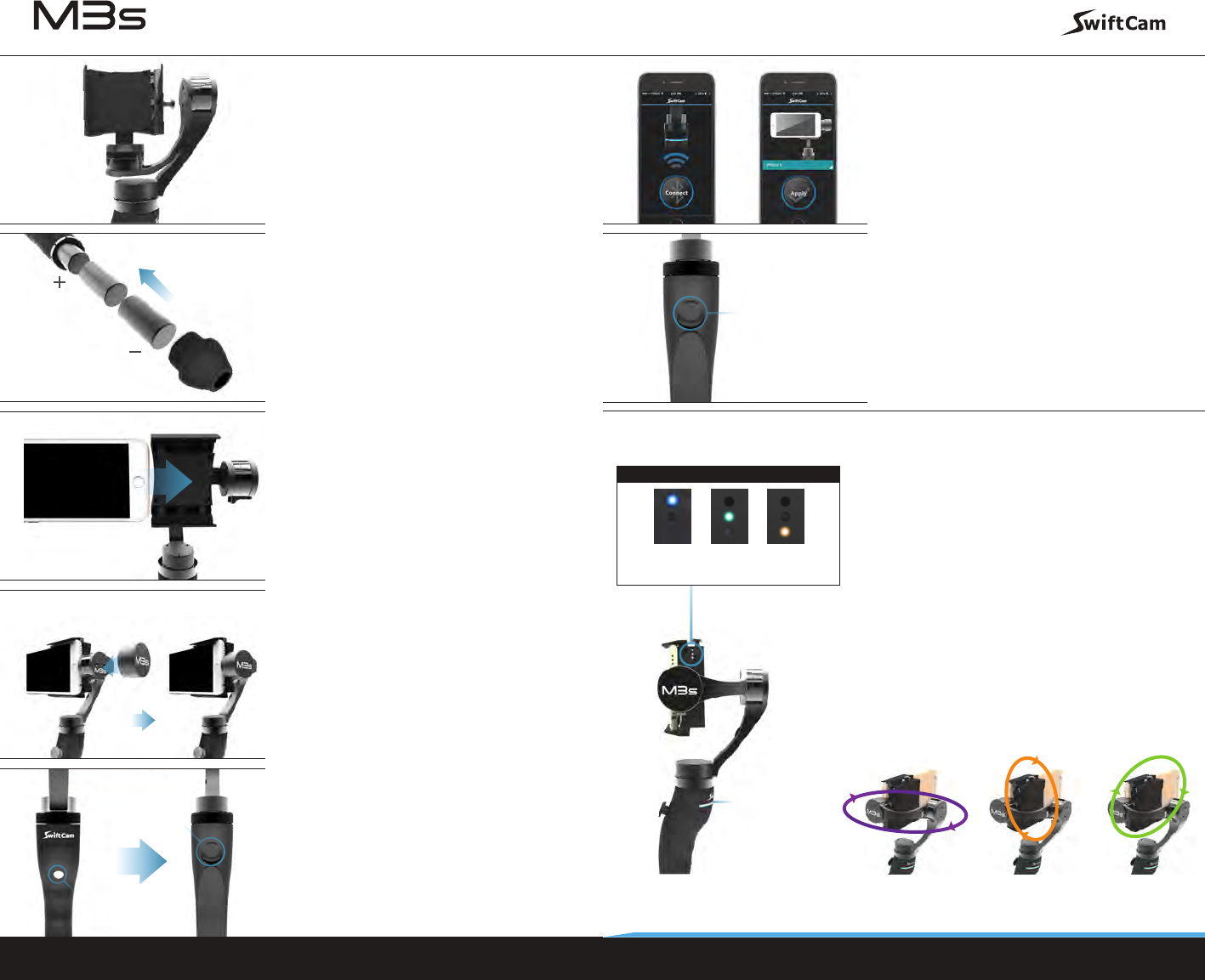
Magnetic Position Locking System
The clipping arm is magnetically held in its
original desired position when unpacked.
Push the clipping arm slightly to unlock .
For storage and travel, simply turn the arm
back to the original position and it will lock
automatically by the magnetic system.
Insert Batteries
Release the bottom cap and put the
provided batteries into the compartment
in the direction as shown in the diagram.
(Note: Charge the batteries before use.)
Auto-Pressure Clip Design
Put smartphone on M3s using the auto-
pressure clip designed to hold smartphones
of different sizes, from iPhone 5 / 6 / 6 plus to
Samsung Galaxy Note 4, etc. Press the button
down to open the clip and put on the
smartphone, then release the button to let
the clip hold the smartphone rmly.
Balancing Weight
For large size smartphones like iPhone 6 Plus
or Samsung Galaxy Note 4, put the provided
Balancing Weight on the indicated position
for better performance.
Power On
Press the power button to switch on the
device (the blue power indicator lights up).
Then press and hold the joystick for 2 seconds
to start up. When the power indicator blinks
frequently, recharge the batteries.
Auto-Balancing via App
Open the App and pair M3s with your
smartphone via Bluetooth, then choose
your designated smartphone model in the
App to automatically optimize the
performance of M3s.
Versatile Joystick Control
Use the joystick to pan left and right, tilt up
and down, or even shoot a 360-degree turn.
Press the joystick down to switch modes
programmed to meet shooting needs of
different occasions.
Shooting Modes
Full Follow Mode: Follow Pitch and Pan axis. Lock
Roll. (Mode Indicator lights
blue. Power indicator blinks
once.)
Follow Pan Mode: Follow Pan axis. Lock Roll and
Pitch. (Mode Indicator lights
green. Power indicator blinks
twice.)
Lock Mode: Lock all 3 axes (Mode Indicator
lights red. Power indicator
blinks three times)
www.swiftcam.com
Press to switch mode
Hold 2 seconds
Power On
Power indicator
Full
Follow
Mode
Follow
Pan
Mode
Lock
Mode
Mode indicator
Startup Guide
Roll axisPan axis Pitch axis
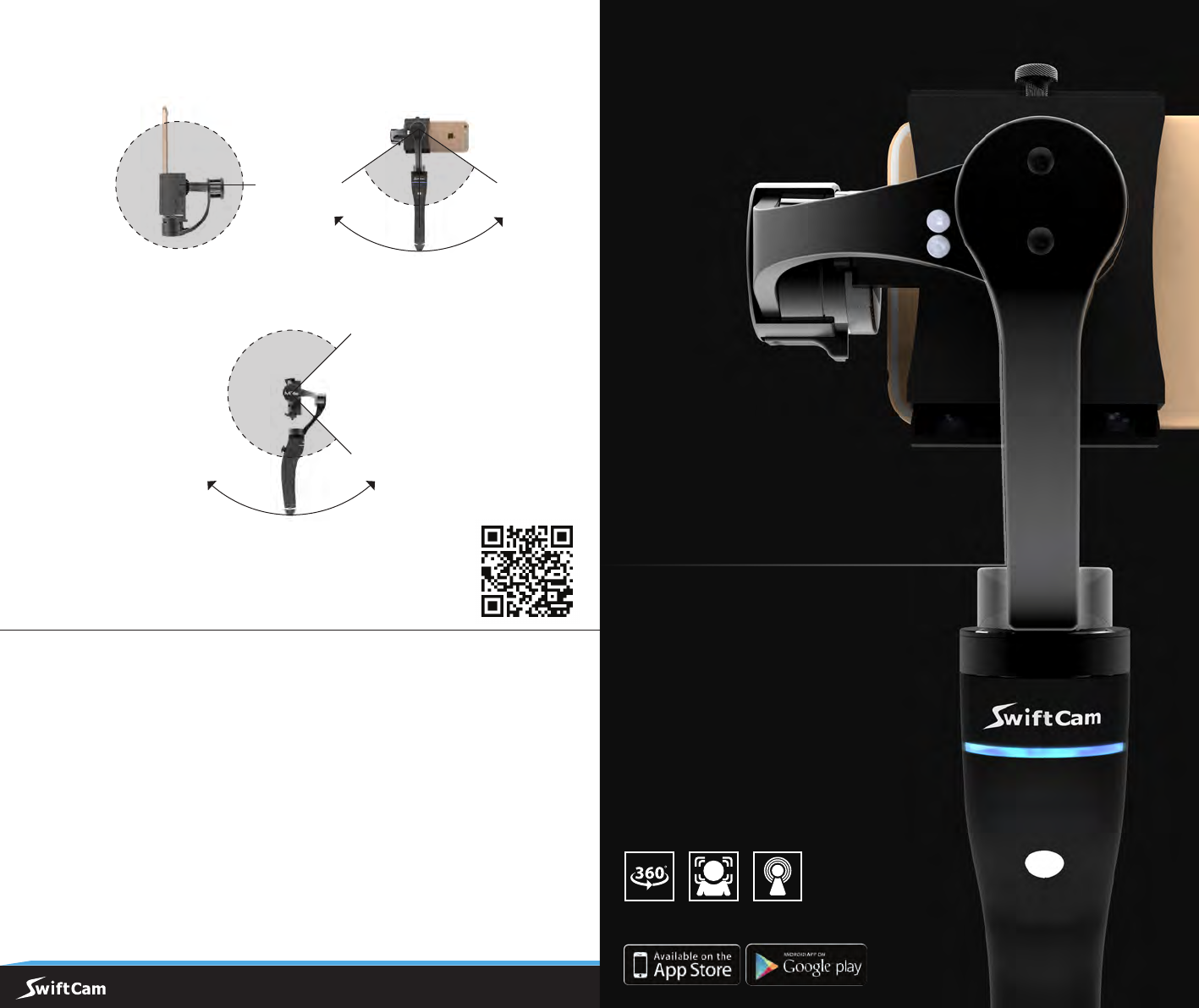
Wider and More Stable Operating Angles
www.swiftcam.com
Roll axis: +/- 60 degreesPan axis: 360 degrees
Pitch axis: 0 - 270 degrees
+60°
270°
360°
-60°
FEDERAL COMMUNICATIONS COMMISSION INTERFERENCE STATEMENT
This equipment has been tested and found to comply with the limits for a Class B digital device, pursuant to
part 15 of the FCC Rules. These limits are designed to provide reasonable protection against harmful
interference in a residential installation. This equipment generates, uses and can radiate radio frequency
energy and, if not installed and used in accordance with the instructions, may cause harmful interference to
radio communications. However, there is no guarantee that interference will not occur in a particular
installation. If this equipment does cause harmful interference to radio or television reception, which can be
determined by turning the equipment o and on, the user is encouraged to try to correct the interference by
one or more of the following measures:
-Reorient or relocate the receiving antenna.
-Increase the separation between the equipment and receiver.
-Connect the equipment into an outlet on a circuit dierent from that to which the receiver is connected.
-Consult the dealer or an experienced radio/ TV technician for help.
Any changes or modications not expressly approved by the grantee of this device could void the user's
authority to operate the equipment.
This device complies with Part 15 of the FCC Rules. Operation is subject to the following two conditions: (1)
this device may not cause harmful interference, and (2) this device must accept any interference received,
including interference that may cause undesired operation.
RF exposure warning
The equipment complies with FCC RF exposure limits set forth for an uncontrolled environment.
The equipment must not be co-located or operating in conjunction with any other antenna or transmitter.
For more details of setting up of M3s, please see the tutorial video at
Face
Detection Broadcasting360-degree
Panorama
Upcoming App Features:
3-axis Stabilizing Technology for Smartphones