IDX CW-F25-140401 Wireless Video Transmission System User Manual CW F25 Manual US

IDX Company, Ltd. Wireless Video Transmission System CW F25 Manual US

User manual

    CInstrfoIDX             CW-ructionor United   X CompF25n Mand Statespany, L5 nual Ltd.
      IDXuniqPlea                       Toe IueI  thanks you fque features.   se read this inThe material of IDX Compequipment desIDX Companuse herein foequipment deIDX Companyfor choosing tnstruction mancontained in tpany, Ltd. andscribed in thisny, Ltd. prohibor any applicascribed in thiy, Ltd. the CW-F25 nual to safely othis manual cod is intended ss manual.   bits the duplication other this manual wit and is sure thoperate and toonsists of infosolely for the cation of any phat the operathout the exprhat you will bo maximize peormation that use by the puportion of thisation or mainressed writtenbenefit from ierformance. is the properturchasers of ths manual or thntenance of thn permission oits ty he he he of
 2   F  E  FCC noFCC conditThis device cfollowing two 1. This device2. This devicmay cause u3. This equipinstructions aprovide a sep EU ConThis product marked with harmonized Directive 192006/95/EC.  Responsible IDX TechnUnit9, LangBerkshire STel: +44 17 Manufacture:IDX Comp6-28-11 Sh214-0021 J   tice tions complies with pconditions:  e may not cauce must accepndesired operpment must band the anteparation distanformity and the supp"CE" and coEuropean st999/5/EC anfor CE-markinology Europe,gley Park, WaSL3 6AD Eng753 547692 : any, Ltd. hukugawara, TJapan part 15 of the use harmful intpt any interferration. be installed annna(s) used nce of at leastStatemeplied accessoomply therefotandards listend the Lowng: , Ltd. aterside Drive,land Tama-ku, KawFCC Rules. Oterference. rence receivednd operated ifor this trans 20 cm from aent ories (if applicare with the aed under thew Voltage  Langley,   wasaki-shi, KanOperation is sud, including inn accordancesmitter must all persons. able) are applicable e R&TTE Directive nagawa-ken ubject to the nterference the with providebe installed tat ed to
 3  Contents I. Introduction ........................................................................................................... 4 1. Product overview ................................................................................ 4 2. Safety Notes ....................................................................................... 6 3. Notes of the radio waves .................................................................... 9 4. Packing list ....................................................................................... 11 5. Names of parts .................................................................................. 12 6. Optional accessories ......................................................................... 16 II. Preparation .......................................................................................................... 17 1. Installation of optional plates ........................................................... 17 2. Installation of antenna ...................................................................... 20 3. Preparing for power supply .............................................................. 23 4. Menu setting .....................................................................................  25 III. Operation of CW-F25 ...................................................................................... 30 1. Basics ............................................................................................... 30 2. Return video ..................................................................................... 32 3. IP camera setup - wireless LAN bridge - .......................................... 34 4. Intercom operation ........................................................................... 36 5. GPI connection - as tally .................................................................. 38 6. RS-422 remote .................................................................................. 41 IV. Useful information .......................................................................................... 43 1. Troubleshooting ................................................................................ 43 2. Revert to default settings .................................................................. 49 3. Firmware update ............................................................................... 49 V. References ........................................................................................................... 51 1. List of setup menus - Rule ................................................................ 51 2. Setup menus - Transmitter ................................................................ 52 3. Setup menus - Receiver ....................................................................  60 4. Status LED ....................................................................................... 68 5. Specification ..................................................................................... 69 6. Connector and pin assignment .......................................................... 75 7. Index ................................................................................................. 76 VI. Warranty & Service ......................................................................................... 81 1. Product warranty .............................................................................. 81 2. About exemptions............................................................................. 81 3. Support & Service contact ................................................................ 82
 4    I. Introduction 1. Product overview CW-F25 is a wireless video transmission system which enable to transmit the downlink and uplink1 video, audio and various data. Based on IEEE 802.11n Wireless LAN technology with newly developed 4x4 MIMO and beam-forming technology,    CW-F25 enable to transmit H.264 high profile signal up to 25Mbps.   High-quality video   CW-F25 supports HD-SDI&3G-SDI and full HD video - up to 1920x1080 resolution. A system utilized H.264 high profile compression and supports up to 25Mbps.  Adaptive variable-bit rate control   CW-F25 has an adaptive variable-bit rate control function to prevent sudden disconnection of video and audio link due to the distance between the transmitter and receiver and/or the deterioration of radio waves caused by the obstacles, weather condition and so on. To minimize an unexpected shout down of the link, CW-F25 has a function to reduce the transmission video bit rate automatically. Operator can be selected a sufficient bit rate from auto or manual by menu setting.  Optional 18dBi High-Gain 4x4 MIMO antenna array (A-4XANT) When set the antenna array on both transmitter and the receiver, a transmission distance can be extended up to 2Km/1.2miles LOS.  Bidirectional signal and data transmission   CW-F25 is not a ordinal downlink video transmission system but supports variety of bidirectional signal and data such as return video, intercom, tally and RS-422 remote.                                                             1 In this manual, the video  that transmitted from a transmitter to a receiver referred as "downlink video" and the video that transmitted from receiver to transmitter referred as "return video".
 5   Wireless LAN bridge CW-F25 has Ethernet I/O equipped. This performs as a wireless LAN bridge therefore it is possible to connect the IP camera, remote controller, etc.. Also this Ethernet can simultaneously operate together with SDI video.  DFS - Dynamic Frequency Selection CW-F25 has a DFS function built-in which detect the weather radar and avoid a confliction with such an official radio waves. With DFS functionality, CW-F25 can be freely used in indoor and/or outdoor without violating local law.
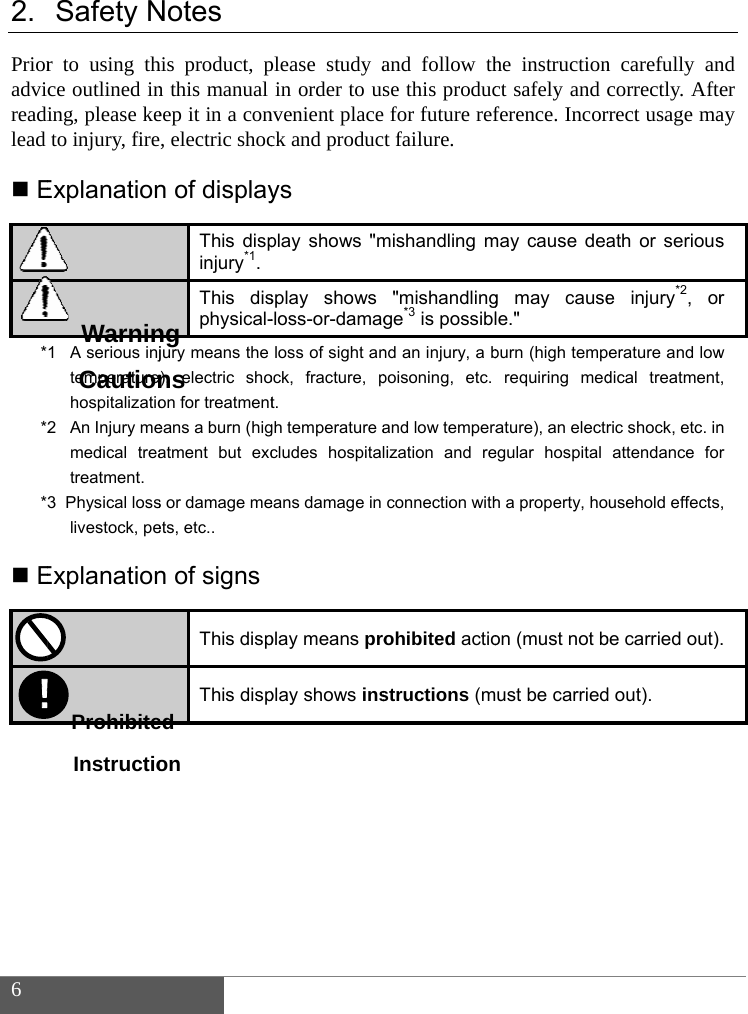
 6  2. Prioradvicreadilead   E**2*3  E  !Safety Nr to using thce outlined ining, please keto injury, fireExplanation1  A serious injtemperaturehospitalizatio2   An Injury memedical treatreatment. 3  Physical losslivestock, peExplanation WarninCautionProhibiteInstructio Notes his product, pn this manual eep it in a con, electric shocn of display This dispinjury*1.  This disphysical-jury means the ), electric shoon for treatmenteans a burn (higatment but excs or damage meets, etc.. n of signs  This disp This dispngnsedonplease study ain order to usnvenient placeck and producys play shows "msplay shows -loss-or-damagloss of sight anock, fracture, pt. gh temperature acludes hospitaleans damage in play means proplay shows ins and follow thse this produc for future reft failure. mishandling m"mishandlingge*3 is possiblnd an injury, a bpoisoning, etc.and low temperalization and reconnection withohibited actiostructions (mhe instructionct safely and cference. Incormay cause deag may causele." burn (high temprequiring medature), an electregular hospital h a property, hoon (must not bust be carriedn carefully ancorrectly. Afterrect usage maath or seriouse injury*2, orerature and lowdical treatmentric shock, etc. inattendance fousehold effectsbe carried out)d out). nd er ay s r w , n r , .
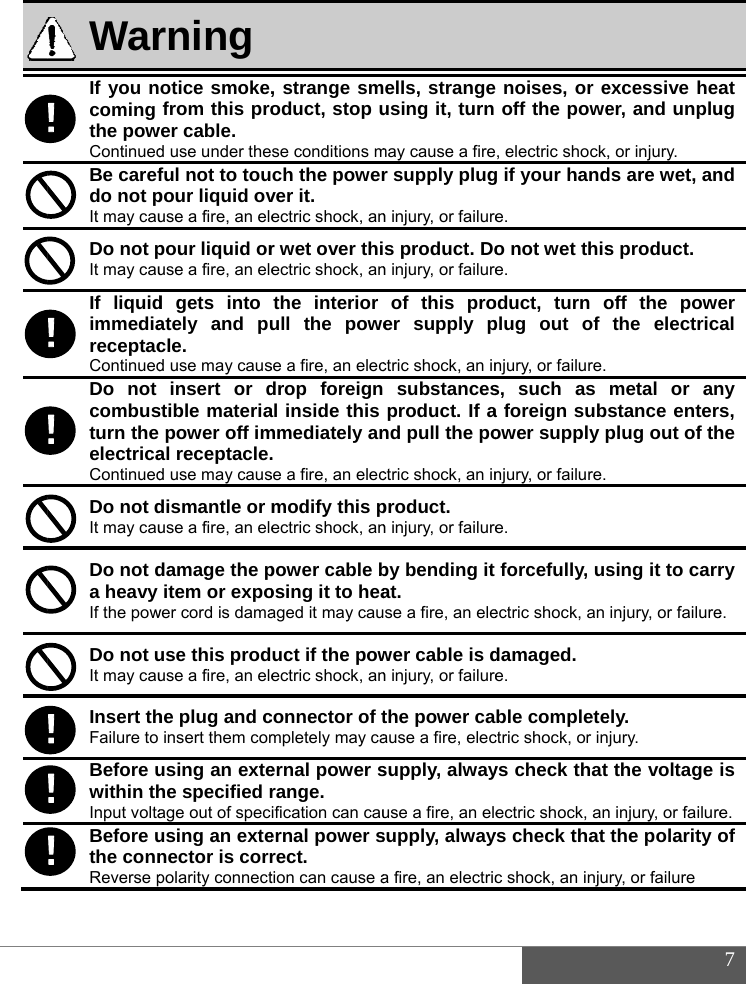
                 WarIf you ncoming the powContinuedBe carefdo not pIt may cauDo not pIt may cauIf liquidimmediareceptacContinuedDo not combusturn the electricaContinuedDo not dIt may cauDo not da heavy If the powDo not uIt may cauInsert thFailure to Before uwithin thInput voltaBefore uthe connReverse p!!!!!!rning otice smoke,from this prower cable. d use under theful not to toupour liquid ovuse a fire, an elepour liquid oruse a fire, an eled gets into ately and pucle. d use may causinsert or dstible materiapower off imal receptacle.d use may causdismantle or muse a fire, an eledamage the pitem or expower cord is damause this produse a fire, an elehe plug and cinsert them comusing an extehe specified rage out of specusing an extenector is corrpolarity connect, strange smoduct, stop use conditions mch the powerver it. ectric shock, anr wet over thiectric shock, anthe interior ull the powese a fire, an elecdrop foreign al inside thismmediately an. se a fire, an elecmodify this pectric shock, anpower cable bosing it to heaaged it may cauuct if the powectric shock, anconnector of tmpletely may caernal power srange. ification can cauernal power srect. tion can cause a ells, strangeusing it, turn may cause a firer supply plugn injury, or failures product. Don injury, or failureof this proer supply pctric shock, an insubstancesproduct. If and pull the poctric shock, an inproduct. n injury, or failureby bending it at. se a fire, an elewer cable is dn injury, or failurethe power caause a fire, elecsupply, alwayuse a fire, an elesupply, alwaya fire, an electric noises, or eoff the powe, electric shock,gif your hande.o not wet thise. oduct, turn oplug out of njury, or failure.s, such as a foreign subsower supply pnjury, or failure.e. forcefully, usectric shock, an damaged. e. ble completectric shock, or inys check thatectric shock, anys check that c shock, an injuexcessive heaer, and unplu, or injury. ds are wet, ans product. off the powethe electricmetal or anstance entersplug out of thsing it to carrinjury, or failureely. jury. the voltage n injury, or failurethe polarity ory, or failure 7 at ug nd er  al ny s, he ry e. is e. of
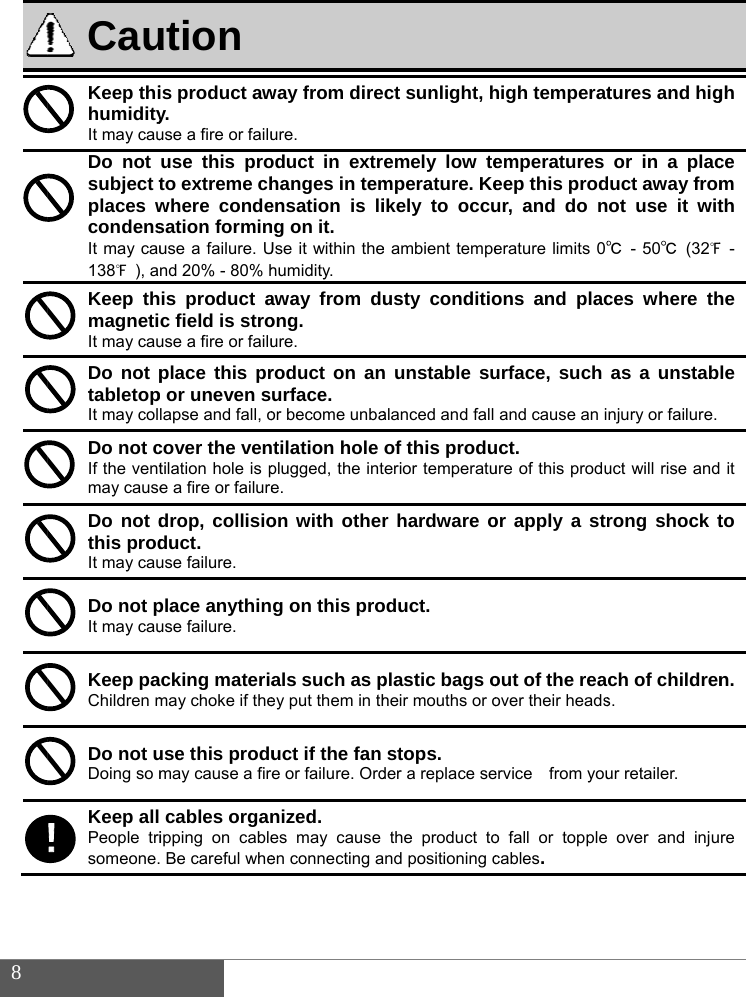
 8                CauKeep thihumidityIt may cauDo not subject tplaces wcondensIt may cau138℉ ), aKeep thmagnetiIt may cauDo not ptabletopIt may colDo not cIf the ventmay causeDo not dthis prodIt may cauDo not pIt may cauKeep paChildren mDo not uDoing so mKeep all People trisomeone.! ution is product awy. use a fire or failuuse this proto extreme chwhere condesation forminuse a failure. Und 20% - 80% his product ac field is strouse a fire or failuplace this prp or uneven slapse and fall, ocover the ventilation hole is pe a fire or failuredrop, collisioduct. use failure. place anythinuse failure. acking materiamay choke if theuse this produmay cause a firecables organipping on cable Be careful wheway from direure. oduct in extrehanges in temensation is ling on it. Use it within thehumidity. away from duong. ure. roduct on anurface. or become unbatilation hole plugged, the inte. on with otherg on this proals such as pey put them in thuct if the fan e or failure. Ordnized. es may causeen connecting a ct sunlight, hemely low temperature. Keikely to occue ambient tempeusty condition unstable sualanced and fall of this produerior temperatur hardware ooduct. plastic bags oheir mouths or ostops. der a replace sethe product tond positioning chigh temperatemperatures eep this produr, and do nerature limits 0℃ons and placurface, such and cause an iuct. ure of this produor apply a strout of the reaover their headservice  from youo fall or topple cables. tures and higor in a placduct away fromot use it wit℃ - 50℃ (32℉ces where thas a unstabnjury or failure. uct will rise androng shock tch of childrens. ur retailer. over and injugh ce m th ℉ - he le  it to n. re
 9  3.  Notes of the radio waves FCC Statement This equipment has been tested and found to comply with the limits for a Class B digital device, pursuant to part 15 of the FCC rules. These limits are designed to provide reasonable protection against harmful interference in a residential installation. This equipment generates, uses and can radiate radio frequency energy and, if not installed and used in accordance with the instructions, may cause harmful interference to radio communications. However, there is no guarantee that interference will not occur in a particular installation. If this equipment does cause harmful interference   to radio or television reception, which can be determined by turning the equipment off and on, the user is encouraged to try to correct the interference by one or more of the following measures: -Reorient or relocate the receiving antenna. -Increase the separation between the equipment and receiver. -Connect the equipment into an outlet on a circuit different from that to which the receiver is connected. -Consult the dealer or an experienced radio/TV technician for help. To assure continued compliance, any changes or modifications not expressly approved by the party responsible for compliance could void the user’s authority to operate this equipment. (Example- use only shielded interface cables when connecting to computer or peripheral devices).  FCC Radiation Exposure Statement       This equipment complies with FCC RF radiation exposure limits set forth for an
 10    uncontrolled environment. This transmitter must not be co-located or operating in conjunction with any other antenna or transmitter. This equipment complies with Part 15 of the FCC Rules. Operation is subject to the following two conditions:     (1) This device may not cause harmful interference, and     (2) This device must accept any interference received, including interference that may cause undesired operation.     Caution!  The manufacturer is not responsible for any radio or TV interference caused by unauthorized modifications to this equipment. Such modifications could void the user authority to operate the equipment.
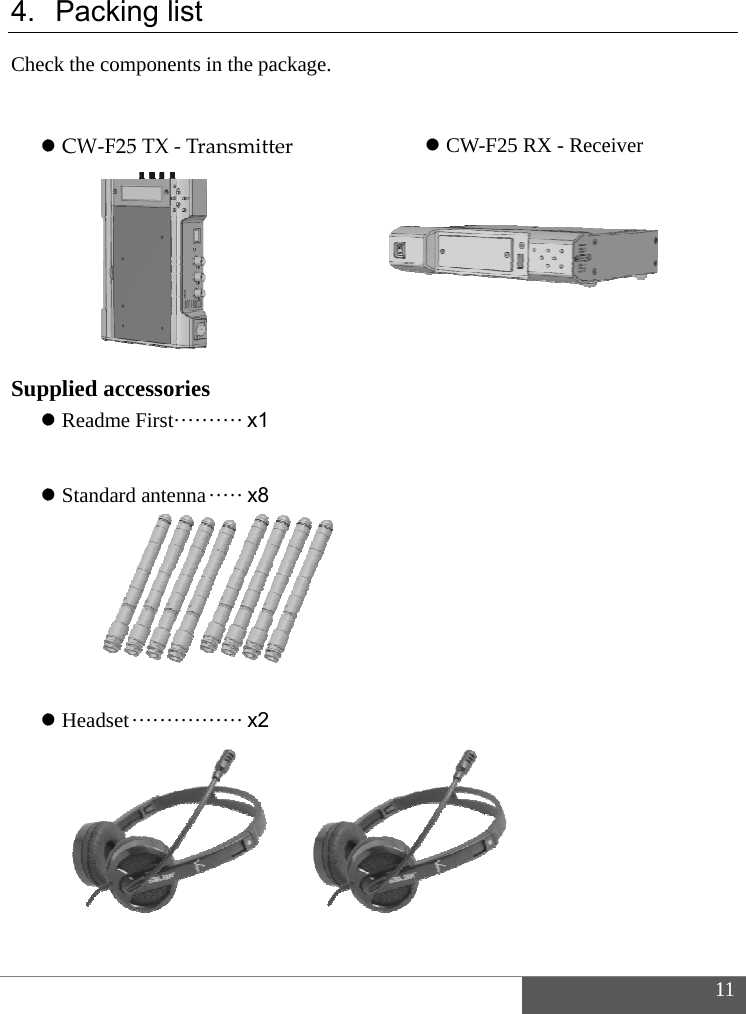
  4. Chec          Sup       Packing ck the compon CW‐F25TXpplied access Readme Fir  Standard an      Headset ····list nents in the paX‐Tran sm ittsories st ·········· x1ntenna ····· x8············ x2ackage. ter   CW-F F25 RX - Rece1eiver 11
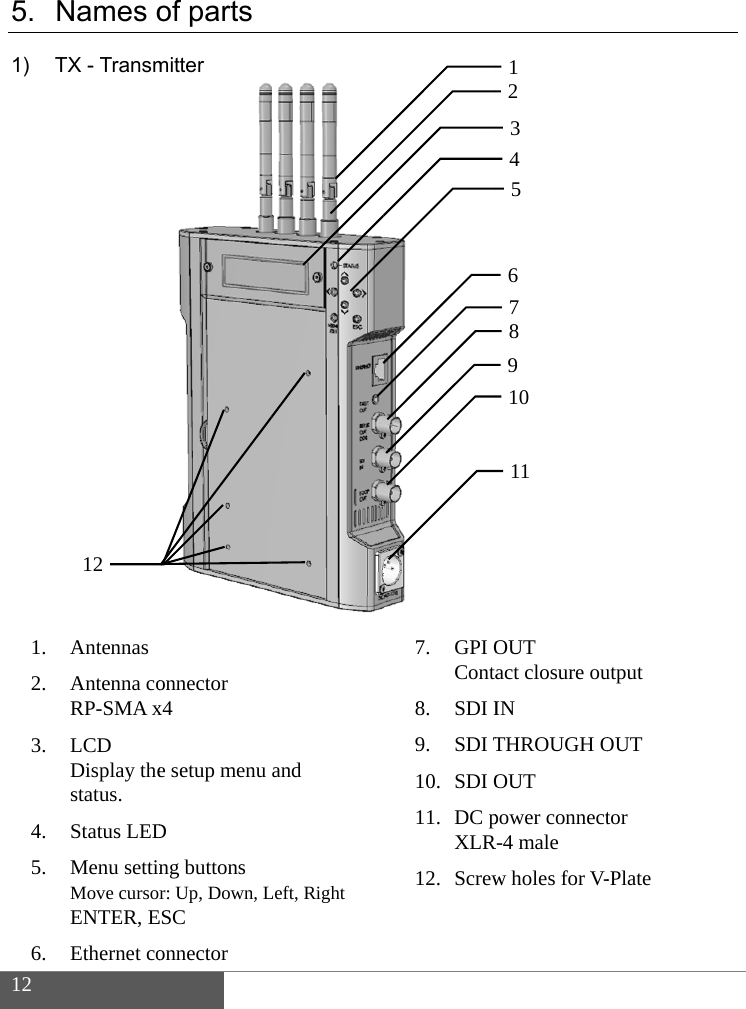
 12  5. 1)                1. 2.  3.   4. 5.   6. Names oTX - TransmAntennas Antenna coRP-SMA xLCD Display thestatus. Status LEDMenu settinMove cursorENTER, EEthernet co12 of parts mitter onnector x4 e setup menu D ng buttons r: Up, Down, LESC onnector  and  Left, Right 7. GPI O Conta8. SDI I9. SDI T10. SDI O11. DC p XLR12. Screw  OUT act closure ouIN THROUGH OOUT power connectR-4 male w holes for V-1 3 4 5 6 7 8 9 10 11 2 utput OUT tor -Plate
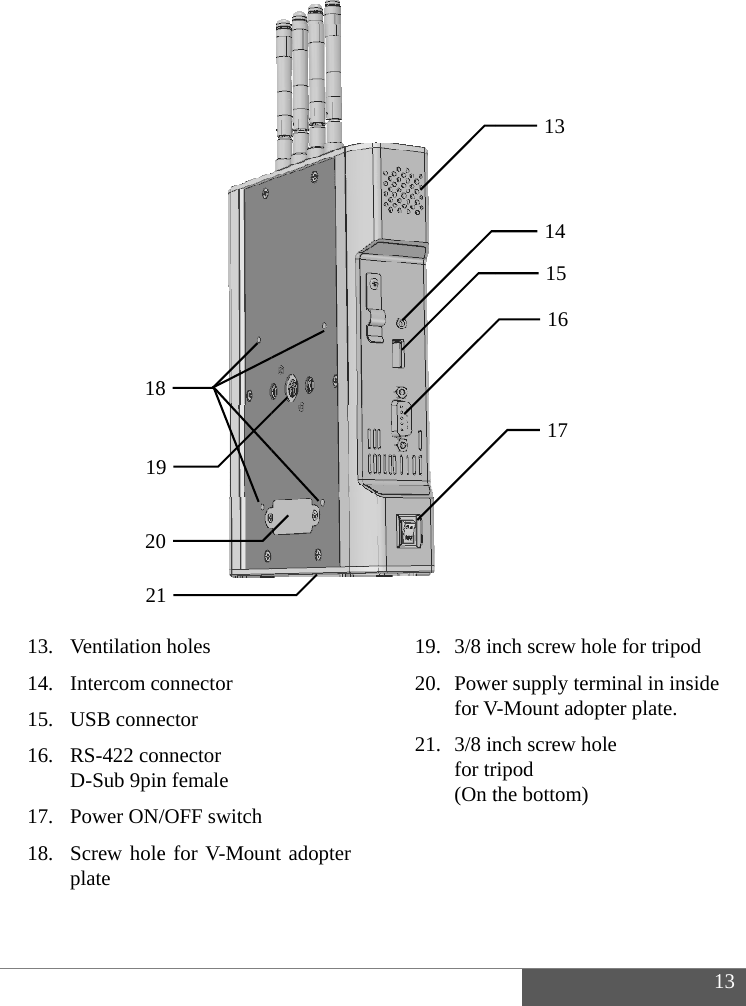
                              13141516 1718  . Ventilation. Intercom c. USB conne. RS-422 conD-Sub 9pin. Power ON/. Screw holeplate 20191821n holes onnector ector nnector n female /OFF switch e for V-Moun0981 nt adopter   19. 3/8 in20. Powe for V21. 3/8 in for tr (On t nch screw holer supply termV-Mount adoptnch screw holripod the bottom) 13 14 15 16 17 1e for tripod minal in inside ter plate. e  13
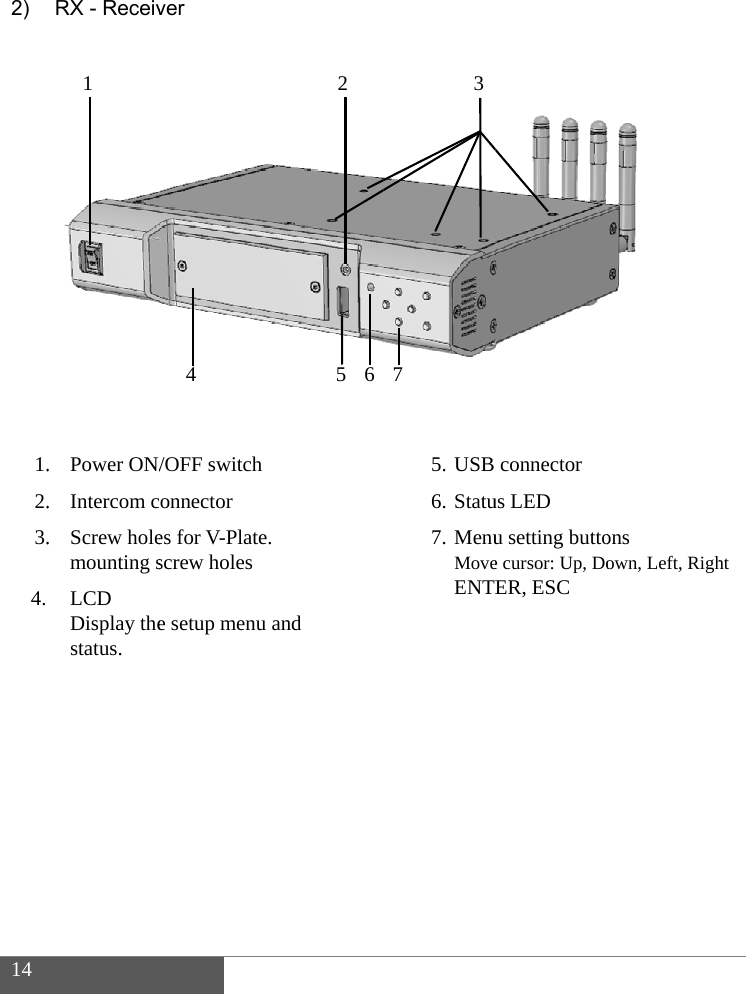
 14  2)                 1.2.3. 4.       RX - Receiv. Power ON/. Intercom c. Screw holemounting sLCD Display thestatus. 1  ver /OFF switch onnector es for V-Plate.screw holes   e setup menu 4   and   2655. USB6. Statu7. Menu Move ENTE37connector us LED u setting buttoe cursor: Up, DoER, ESC   ons own, Left, Righht
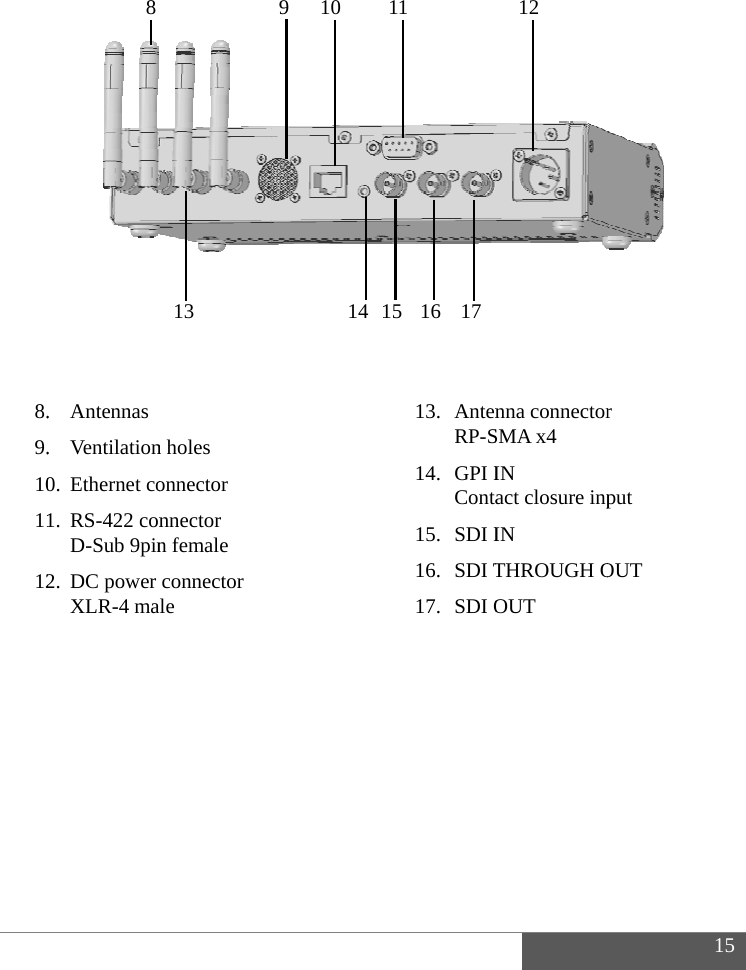
                     8.9.1011 12          . Antennas . Ventilation0. Ethernet co1. RS-422 conD-Sub 9pin2. DC power XLR-4 ma8 n holes onnector nnector n female connector le 13 91014113. Anten RP-S14. GPI I Conta15. SDI I16. SDI T17. SDI O11151617nna connectorSMA x4 IN  act closure inpIN  THROUGH OOUT 121r put OUT  15
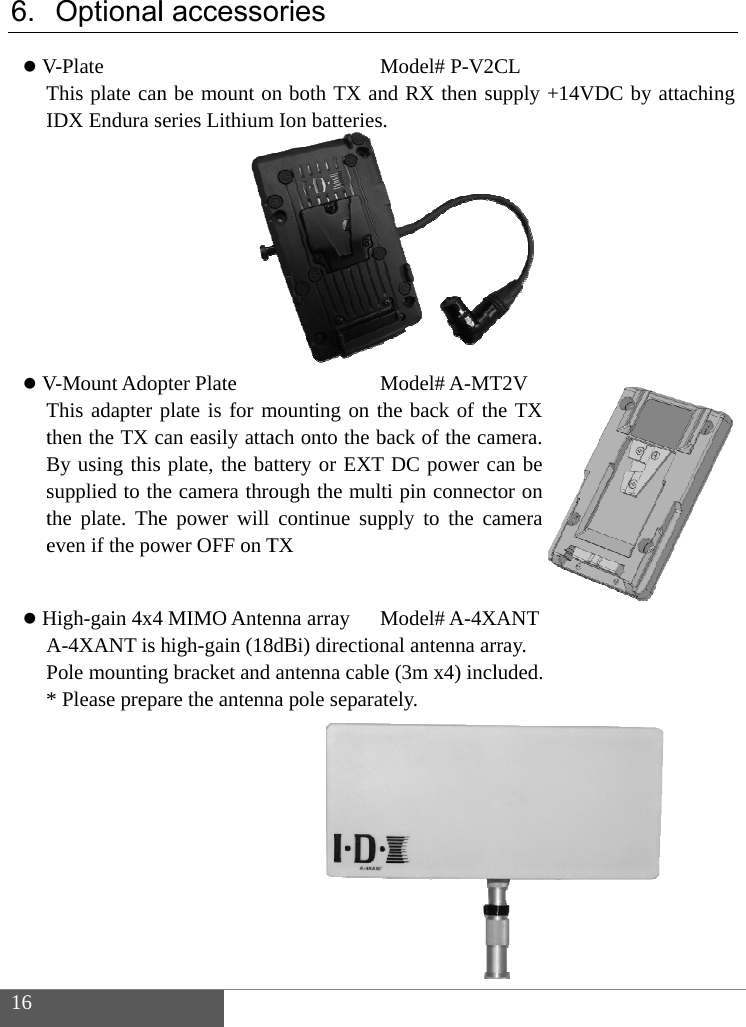
 16  6.  VTI         VTtBste  HAP*   OptionalV-Plate This plate canIDX Endura sV-Mount AdopThis adapter pthen the TX cBy using thissupplied to ththe plate. Theeven if the poHigh-gain 4x4A-4XANT is Pole mounting* Please prepa l accesson be mount onseries Lithiumpter Plate plate is for mcan easily attas plate, the bahe camera throe power will wer OFF on T4 MIMO Antenhigh-gain (18g bracket and are the antennories Mn both TX anm Ion batteriesMmounting on thach onto the battery or EXT ough the multcontinue supTX nna array M8dBi) directionantenna cablena pole separatModel# P-V2Cnd RX then su. Model# A-MThe back of thback of the caDC power cti pin connectpply to the caModel# A-4Xnal antenna are (3m x4) incltely. CL upply +14VDT2V he TX mera. an be tor on amera XANT rray. luded. DC by attachinng
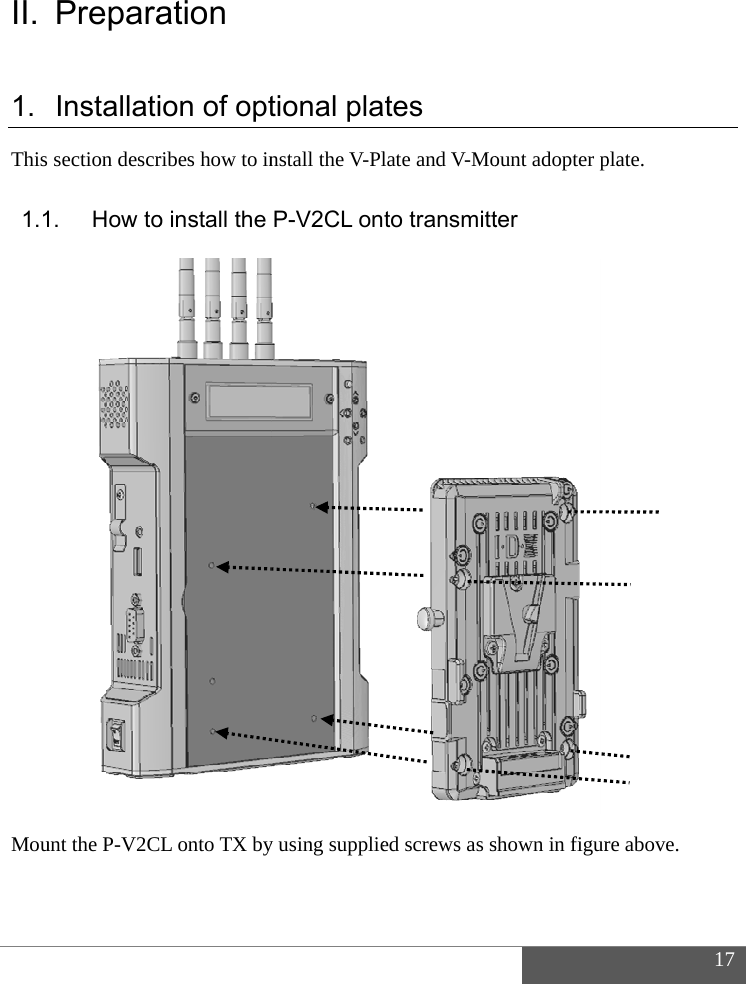
  II. 1. This1.1                       Mou PreparaInstallati section descr1.  How tount the P-V2Cation ion of optribes how to ino install the L onto TX bytional planstall the V-PlP-V2CL ony using supplie tes late and V-Moto transmitted screws as sount adopter pter shown in figur1plate. re above. 17
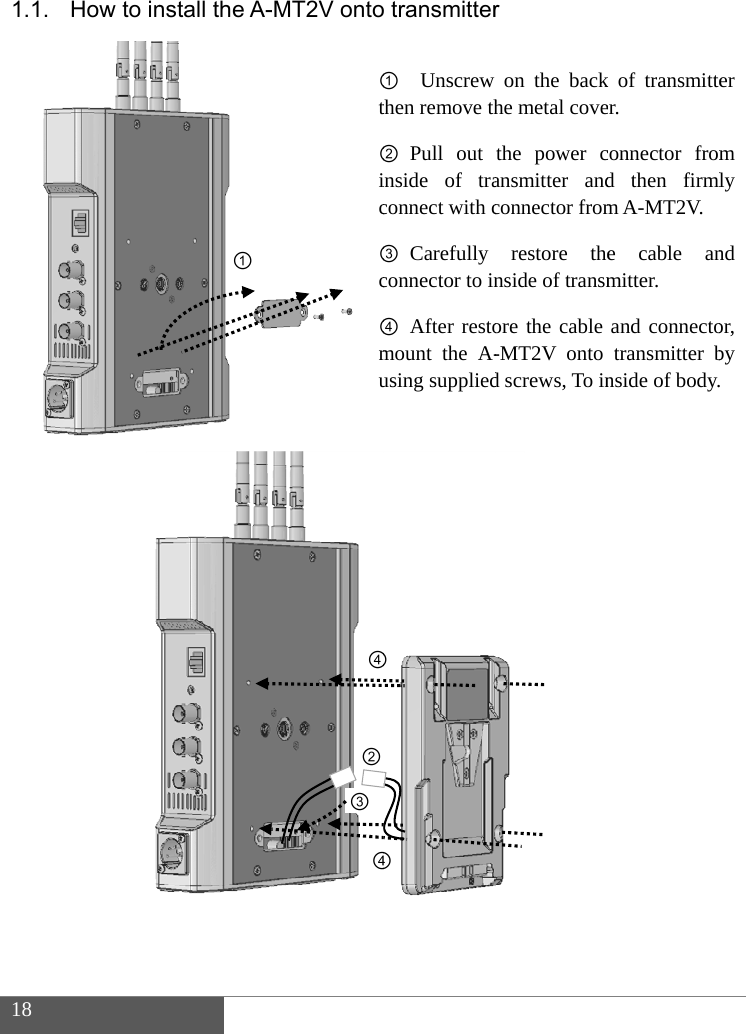
 18  1.1.              How to in nstall the A-① -MT2V onto①t②ic③c④mu ②③④④ transmitter①  Unscrew then remove th② Pull out inside of traconnect with c③ Carefully connector to in④ After restomount the A-using supplied④④r on the backhe metal covethe power cansmitter andconnector fromrestore thenside of transmore the cable -MT2V onto d screws, To ink of transmitteer. connector fromd then firmlm A-MT2V. e cable anmitter. and connectotransmitter bnside of body.er m ly nd or, by
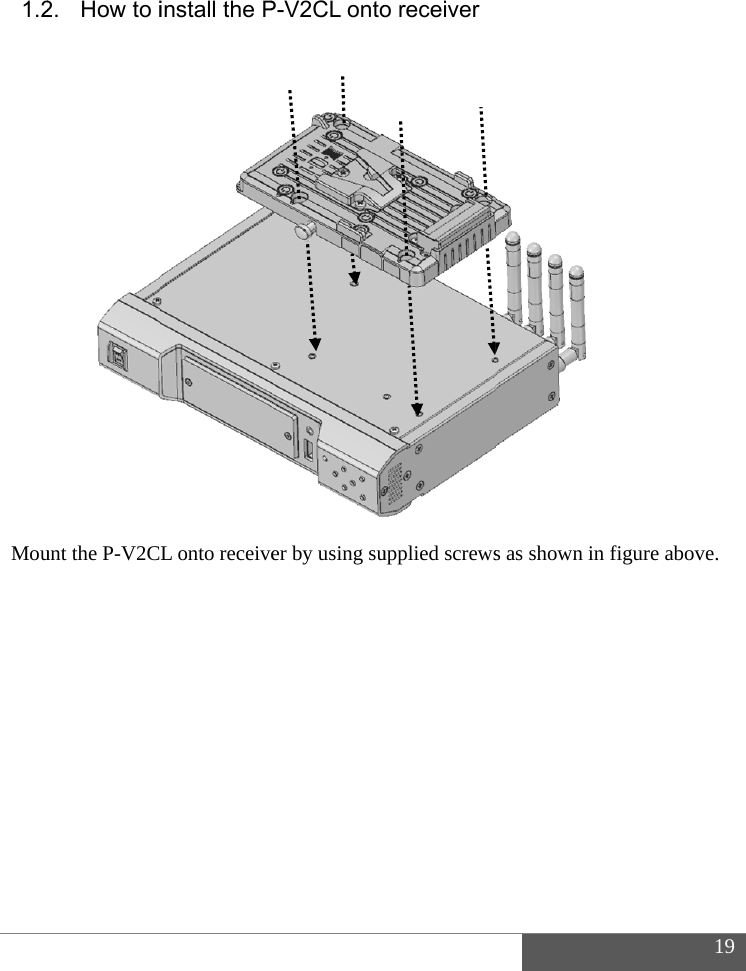
   1.2                    Mou   2. How to iunt the P-V2Cinstall the PL onto receiveP-V2CL ontoer by using su o receiverupplied screwss as shown in 1figure above. 19
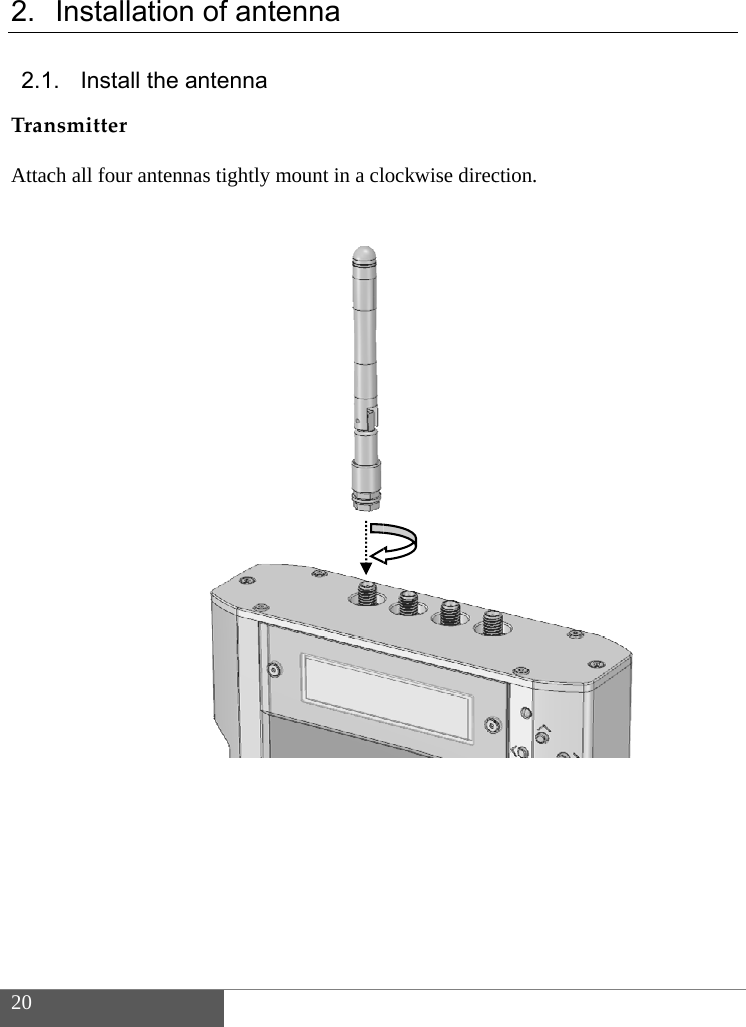
 20  2. 2.1Tran Attac                          Installati1. Install thnsmitterch all four ant ion of anthe antennatennas tightly tenna  mount in a cl lockwise direcction.
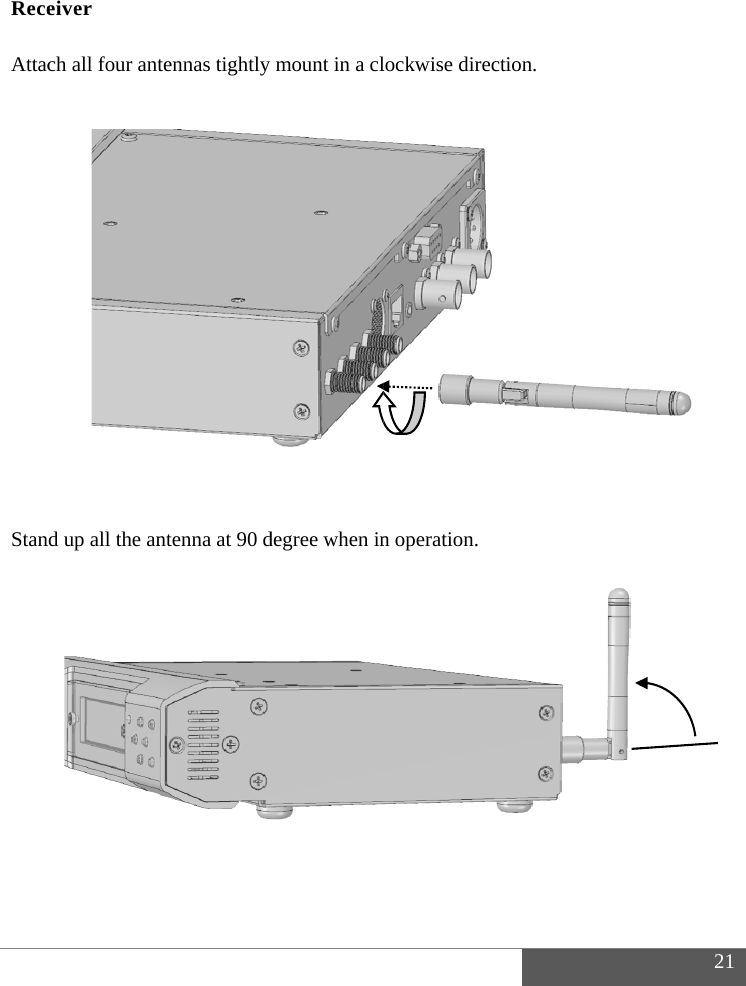
   Rece Attac                  Stan               eiver ch all four antnd up all the antennas tightly ntenna at 90 dmount in a cldegree when inlockwise direcn operation.ction. 221
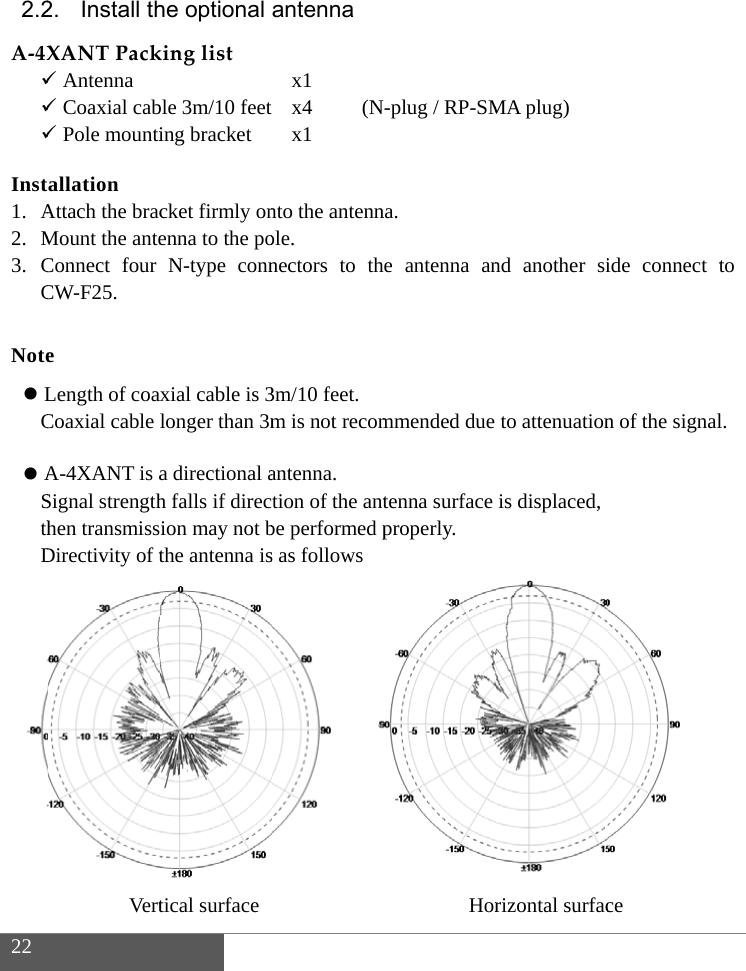
22 2.2A‐4XInst1.A2.M3. CCNote LC ASthD2. Install thXANTPack Antenna Coaxial cab Pole mountiallation Attach the bracMount the anteConnect four CW-F25. e Length of coaCoaxial cable A-4XANT is aSignal strengthhen transmissDirectivity of tVerthe optional kinglistble 3m/10 feeting bracket cket firmly onenna to the poN-type connaxial cable is 3longer than 3ma directional ah falls if direcion may not bthe antenna istical surface antenna x1  x4  (Nx1 nto the antennole. nectors to th3m/10 feet. m is not recomantenna. tion of the antbe performed ps as follows -plug / RP-SMna. e antenna anmmended due tenna surface properly. HorMA plug) nd another sito attenuationis displaced, rizontal surfacide connect tn of the signalce to l.
23 3. Preparing for power supplyAC adapter is not included to the package. Recommended power supply for the CW-F25 shown in below. 3.1. Recommended products AC adapter IDX  IA-60a IA-200a  IA-300a  AC-100 Power base station  IDX  EB-2  EB-4  EB-424LBatteries IDX  Endura series battery with optional P-V2CL. 3.2. Note P-V2CL is an adopter for V-Mount batteries.Input voltage range is DC 7V to 17V.Power input connecter is Cannon 4-pin male.Pin assignment  #1: minus (-)#4: plus (+) Caution Please make sure the input voltage range.Please be careful not to reverse connection of power supply.Useable battery is 7.4V lithium-ion battery or 14V lithium-ion battery. 24V batterycannot be used.
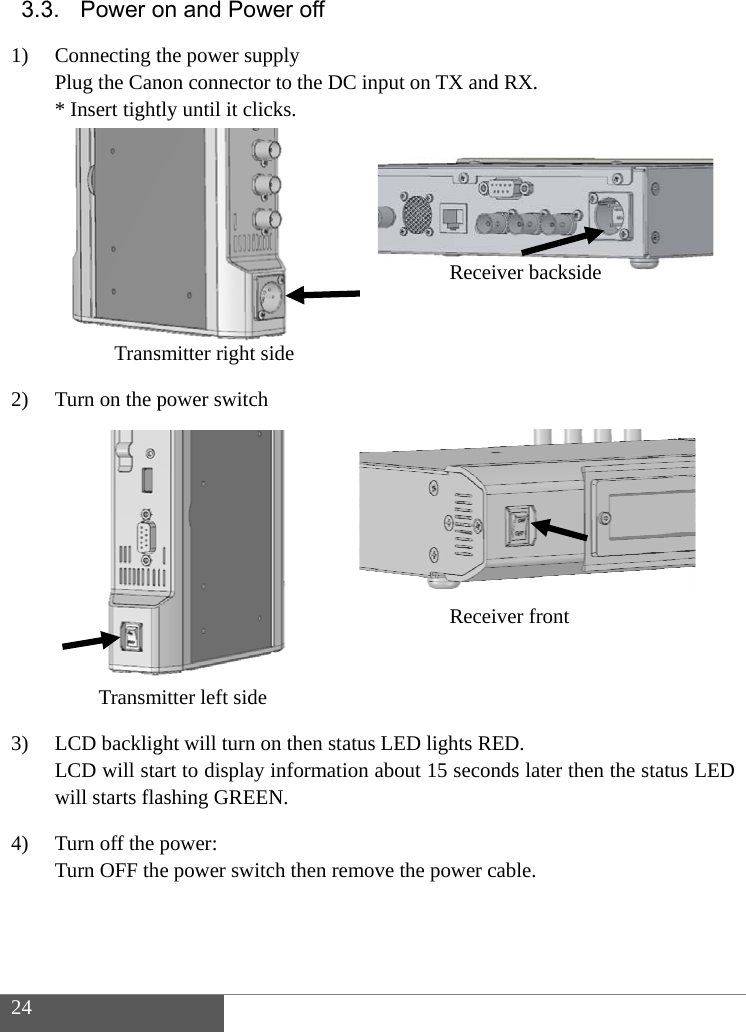
24 3.31) 2) 3) 4) 3. Power oConnecting tPlug the Can* Insert tight TransTurn on the p TransmLCD backligLCD will stawill starts flaTurn off the pTurn OFF thon and Powthe power supnon connector tly until it clicsmitter right sipower switchmitter left sideght will turn onart to display iashing GREENpower: e power switcwer off pply to the DC inpcks. ide n then status Linformation abN. ch then removput on TX andReceiReceiLED lights REbout 15 seconve the power cd RX. iver backsideiver front ED. nds later then cable. the status LED
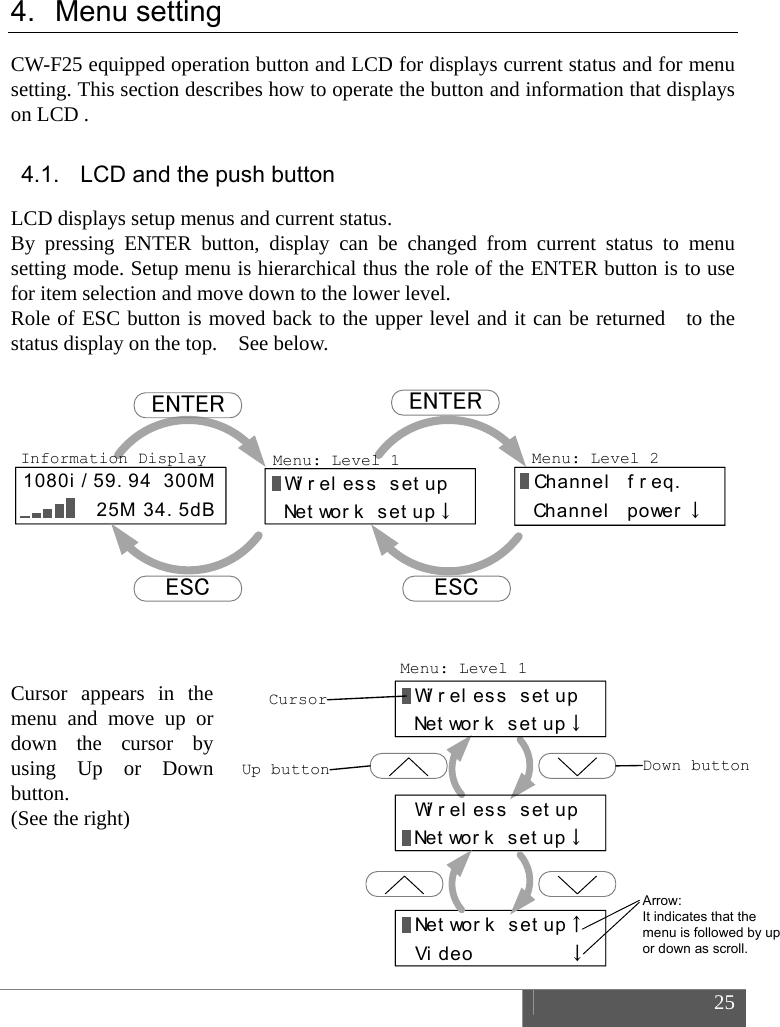
 25  Menu: Level 1Wi r el ess set upNetwork setup↓Wi r el ess set upNetwork setup↓Ne t wo r k  s e t u p ↑Video        ↓CursorUp button Down buttonArrow: It indicates that the menu is followed by up or down as scroll.4. Menu setting CW-F25 equipped operation button and LCD for displays current status and for menu setting. This section describes how to operate the button and information that displays on LCD . 4.1.  LCD and the push button LCD displays setup menus and current status. By pressing ENTER button, display can be changed from current status to menu setting mode. Setup menu is hierarchical thus the role of the ENTER button is to use for item selection and move down to the lower level. Role of ESC button is moved back to the upper level and it can be returned    to the status display on the top.    See below.              Cursor appears in the menu and move up or down the cursor by using Up or Down button.  (See the right)       1080i / 59. 94 300M 25M 34. 5dBENTERESC ESCENTERInformation Display Menu: Level 1 Menu: Level 2Wireless setupNe t wo r k  s e t u p ↓Channel  f r eq.Channel  power ↓
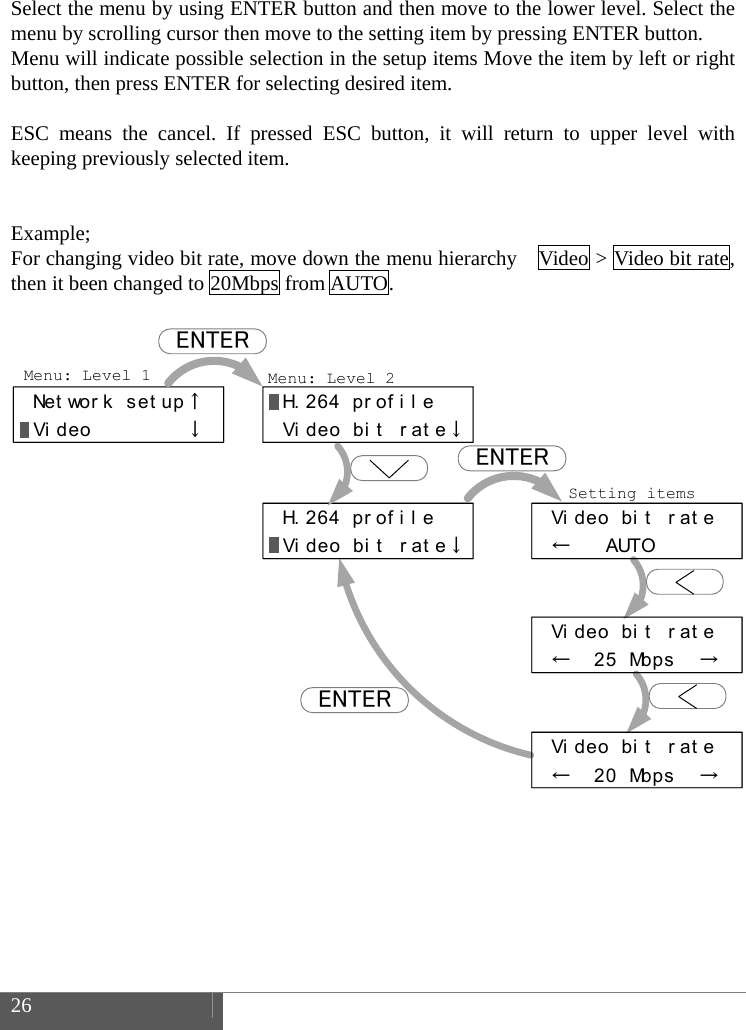
26 Select the menu by using ENTER button and then move to the lower level. Select the menu by scrolling cursor then move to the setting item by pressing ENTER button. Menu will indicate possible selection in the setup items Move the item by left or right button, then press ENTER for selecting desired item. ESC means the cancel. If pressed ESC button, it will return to upper level with keeping previously selected item. Example; For changing video bit rate, move down the menu hierarchy    Video > Video bit rate, then it been changed to 20Mbps from AUTO. Net wor k set up↑Video        ↓H. 264 pr of i l eVi deo bi t  r at e↓H. 264 pr of i l eVi deo bi t  r at e↓Vi deo bi t  r at e←   AUTO   Vi deo bi t  r at e←  25 Mbps  →Vi deo bi t  r at e←  20 Mbps  →Menu: Level 1 Menu: Level 2Setting itemsENTERENTERENTER
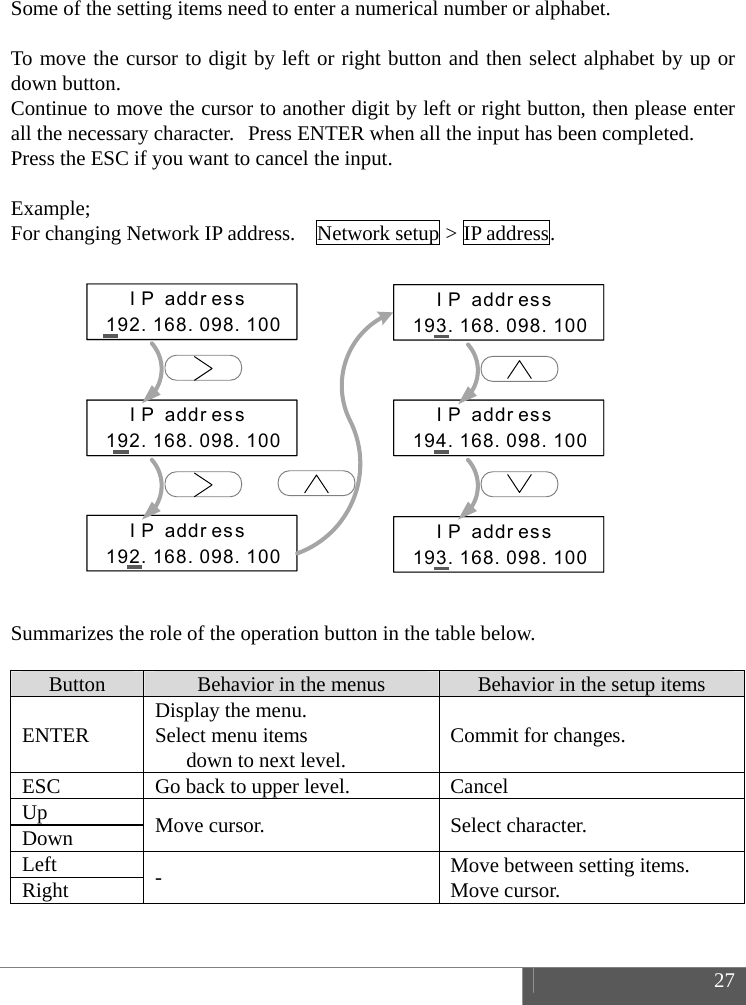
 27   Some of the setting items need to enter a numerical number or alphabet.  To move the cursor to digit by left or right button and then select alphabet by up or down button. Continue to move the cursor to another digit by left or right button, then please enter all the necessary character. Press ENTER when all the input has been completed. Press the ESC if you want to cancel the input.  Example; For changing Network IP address.    Network setup > IP address.                Summarizes the role of the operation button in the table below.  Button  Behavior in the menus  Behavior in the setup items ENTER  Display the menu. Select menu items       down to next level.  Commit for changes. ESC  Go back to upper level.  Cancel Up  Move cursor.  Select character. Down Left  -  Move between setting items. Move cursor. Right     IP address192. 168. 098. 100  IP address192. 168. 098. 100  IP address192. 168. 098. 100  IP address193. 168. 098. 100  IP address194. 168. 098. 100  IP address193. 168. 098. 100
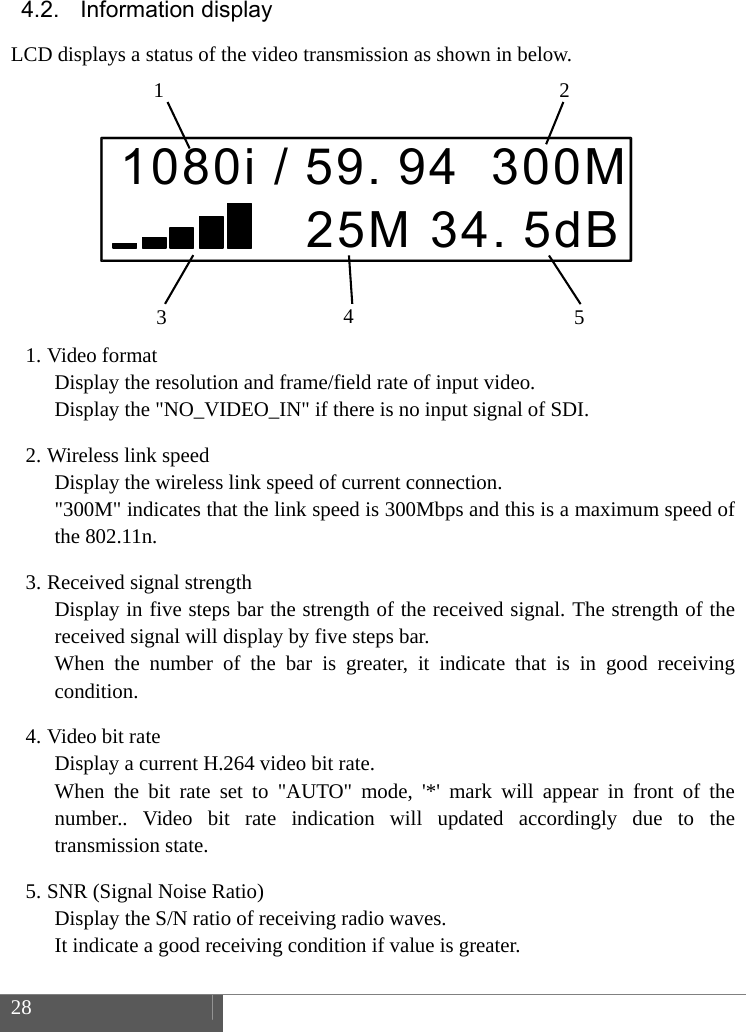
28 4.2. Information display LCD displays a status of the video transmission as shown in below. 1. Video formatDisplay the resolution and frame/field rate of input video. Display the "NO_VIDEO_IN" if there is no input signal of SDI. 2. Wireless link speedDisplay the wireless link speed of current connection. "300M" indicates that the link speed is 300Mbps and this is a maximum speed of the 802.11n. 3. Received signal strengthDisplay in five steps bar the strength of the received signal. The strength of the received signal will display by five steps bar. When the number of the bar is greater, it indicate that is in good receiving condition. 4. Video bit rateDisplay a current H.264 video bit rate.   When the bit rate set to "AUTO" mode, '*' mark will appear in front of the number.. Video bit rate indication will updated accordingly due to the transmission state. 5. SNR (Signal Noise Ratio)Display the S/N ratio of receiving radio waves. It indicate a good receiving condition if value is greater. 1080i / 59. 94 300M 25M 34. 5dB1  23  45
29 4.3. Default settings CW-F25 has shipped with default setting that enable for immediate use, however, please be sure to check the frequency every time prior to use. Transmitter only - setting the radio frequencyPlease select and set at desired frequency. Menu:    Wireless setup > Channel freq. Other settings may be set as required.For more information about settings, please refer to P.51 "References".
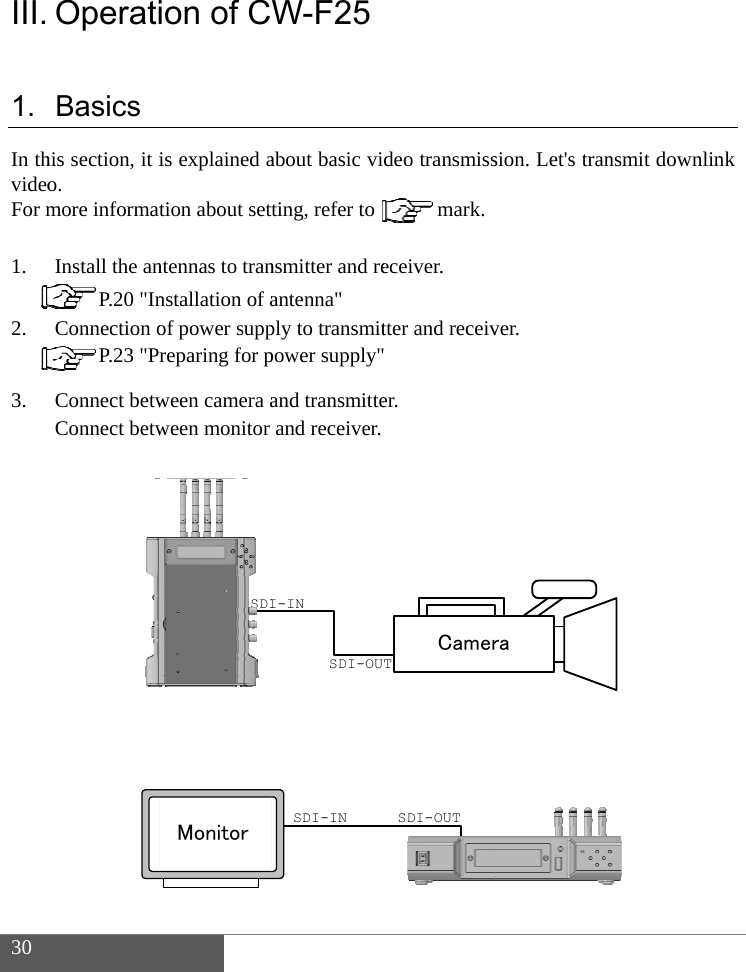
30 III.1. In thvideoFor m1. 2. 3.  OperatiBasics his section, it io. more informatInstall the an P.20 "InConnection o P.23 "PrConnect betwConnect betwion of Cis explained ation about settntennas to trannstallation of aof power suppreparing for pween camera aween monitor SDIMonitorW-F25about basic viting, refer to nsmitter and reantenna" ply to transmitpower supply"and transmitteand receiver.I-INSDI-OUTSDI-INdeo transmiss  mark.eceiver. tter and receiv er.   TCamerSDI-OUTsion. Let's tranver. ransmit downlinnk
  4. 5. 6.   Turn the pow P.24 "PSet the frequ P.52 "SIf the connemonitor.   Note: If you select of waiting timwer ON of tranower on and Puency in a setuetup menus - ection succesthe radio freqme. One minunsmitter and rPower off" up menu of traTransmitter"sful, the tranquency of DFute of waiting  eceiver. ansmitter. nsmitted videoFS, signal willtime is strict ro will be disl link after abrule of DFS fr3splayed on thout one minurequency use. 31 he te
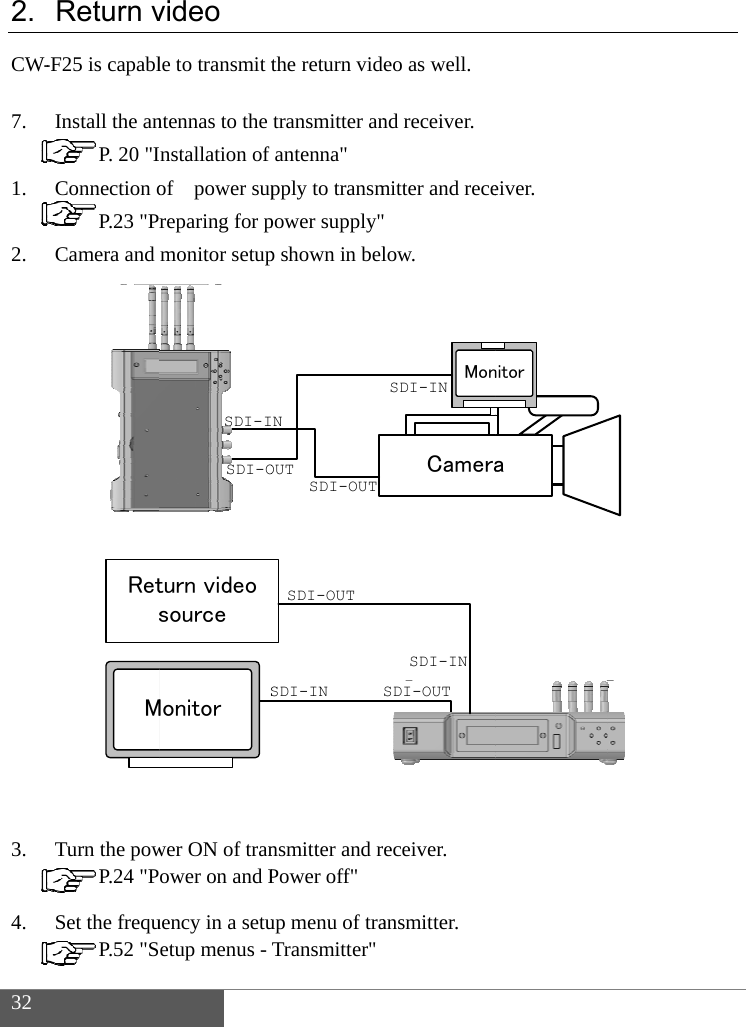
 32  2. CW- 7. 1. 2. 3. 4. Return v-F25 is capablInstall the an P. 20 "IConnection o P.23 "PrCamera and                  Turn the pow P.24 "PSet the frequ P.52 "SMRets video le to transmit tntennas to the nstallation of of  power supreparing for pmonitor setupwer ON of tranower on and Puency in a setuetup menus - SDI-ISDI-OSMonitorturn video sourcethe return videtransmitter anantenna" pply to transmpower supply"p shown in belnsmitter and rPower off" up menu of traTransmitter"NSDI-OUTOUTSDI-INSSDI-OUTeo as well. nd receiver. mitter and rece low. eceiver. ansmitter. CameraMonSDI-INSDI-OUTSDI-INeiver. anitor
  5. 6.  Enable the reVideo > RetuVideo > Emvideo is not r* Factory def P.60 "SThe last settiIf the connecthe return vid  eturn video in urn Video > Ombedded Audirequired. fault setting isetup menus -ing is memorizction successfdeo will displaa setup menuON io > ON   Ps both ON. Receiver" zed even afterful, the downlay on the mon u of receiver.Please select r power turnedlink video wilnitor of camerOFF If audiod OFF. l display on thra side. 3o in the returhe monitor an33 rn nd
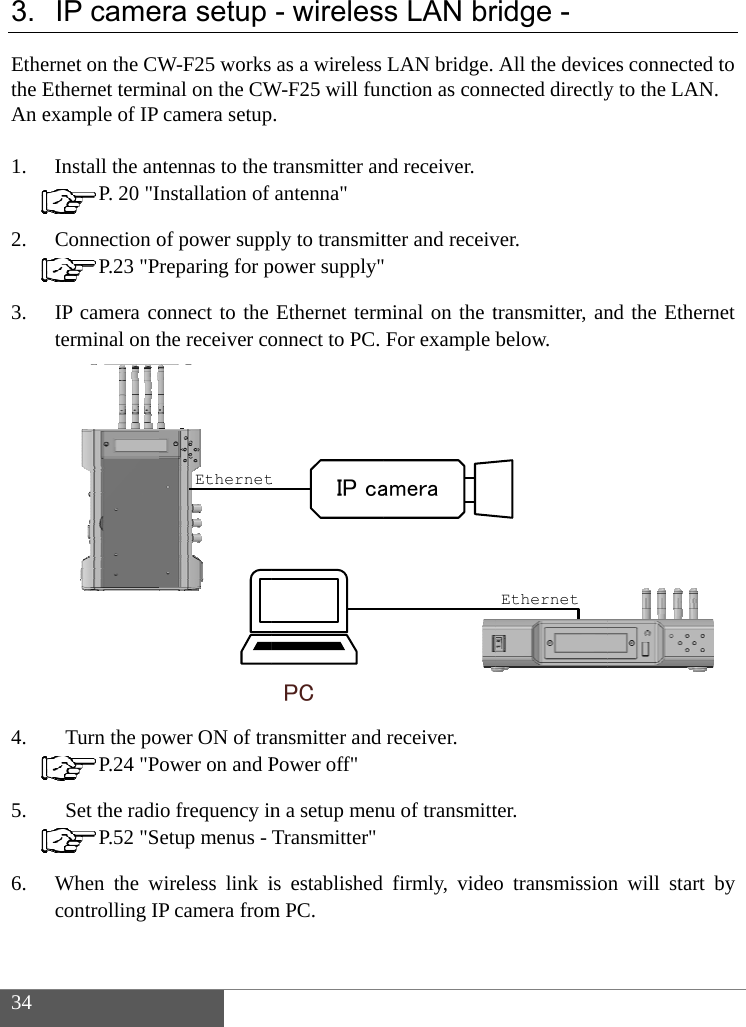
 34  3. Ethethe EAn e 1. 2. 3. 4. 5. 6. IP cameernet on the CWEthernet termiexample of IP Install the an P. 20 "IConnection o P.23 "PrIP camera coterminal on t               Turn the po P.24 "P  Set the radi P.52 "SWhen the wcontrolling IP  era setupW-F25 works inal on the CWcamera setupntennas to the nstallation of of power suppreparing for ponnect to the the receiver coower ON of traower on and Po frequency inetup menus - wireless link iP camera fromEthernet- wirelesas a wireless W-F25 will fun. transmitter anantenna" ply to transmitpower supply"Ethernet termonnect to PC. ansmitter and Power off" n a setup menTransmitter"is established m PC. PCIP cats LAN brLAN bridge. nction as connnd receiver. tter and receiv minal on the tFor example breceiver. nu of transmittfirmly, videoameraridge - All the devicenected directlyver. transmitter, anbelow. ter. o transmissioEthernetes connected ty to the LAN. nd the Ethernn will start bto  et by
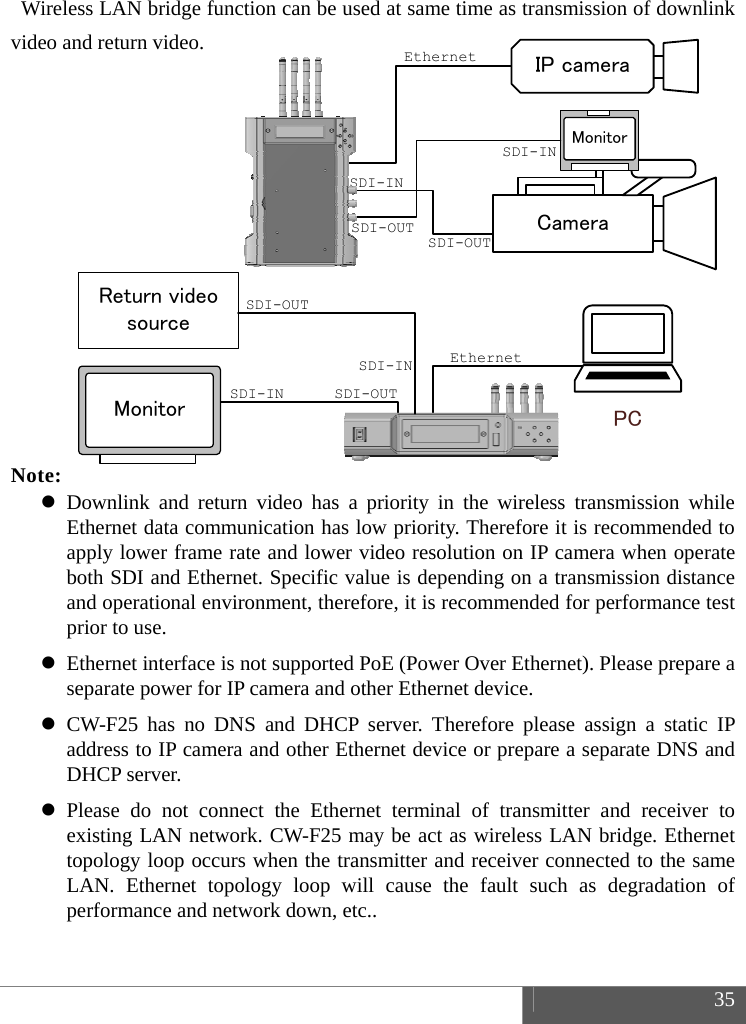
 35  SDI-INSDI-OUTCameraMonitorSDI-OUTSDI-INIP cameraEthernetSDI-IN SDI-OUTMonitorReturn video sourceSDI-INSDI-OUTPCEthernet  Wireless LAN bridge function can be used at same time as transmission of downlink video and return video.             Note:  Downlink and return video has a priority in the wireless transmission while Ethernet data communication has low priority. Therefore it is recommended to apply lower frame rate and lower video resolution on IP camera when operate both SDI and Ethernet. Specific value is depending on a transmission distance and operational environment, therefore, it is recommended for performance test prior to use.  Ethernet interface is not supported PoE (Power Over Ethernet). Please prepare a separate power for IP camera and other Ethernet device.  CW-F25 has no DNS and DHCP server. Therefore please assign a static IP address to IP camera and other Ethernet device or prepare a separate DNS and DHCP server.  Please do not connect the Ethernet terminal of transmitter and receiver to existing LAN network. CW-F25 may be act as wireless LAN bridge. Ethernet topology loop occurs when the transmitter and receiver connected to the same LAN. Ethernet topology loop will cause the fault such as degradation of performance and network down, etc..
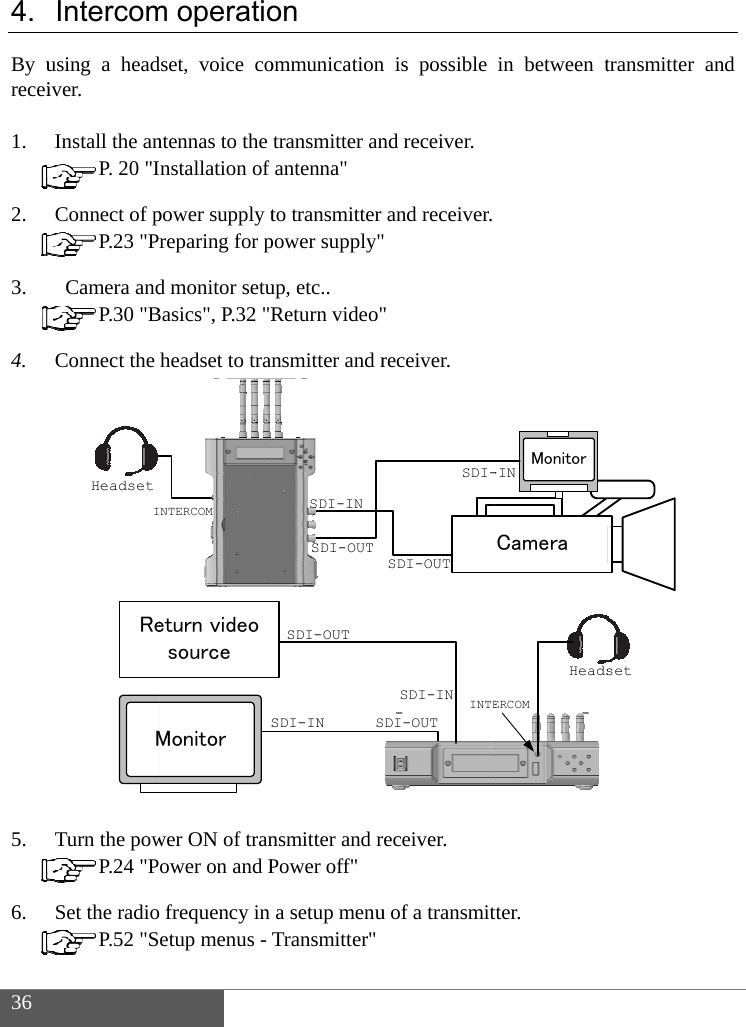
 36  4. By urecei 1. 2. 3. 4. 5. 6. HeadsetIMReIntercomusing a headiver. Install the an P. 20 "IConnect of p P.23 "Pr Camera and P.30 "BConnect the                 Turn the pow P.24 "PSet the radio P.52 "S NTERCOMSMonitoreturn video sourcem operatiodset, voice contennas to the nstallation of power supply treparing for pd monitor setuBasics", P.32 "Rheadset to tranwer ON of tranower on and P frequency in etup menus - SDI-INSDI-OUTSDI-INSSDI-OUTon ommunicationtransmitter anantenna" to transmitter power supply"up, etc.. Return video"nsmitter and rnsmitter and rPower off" a setup menuTransmitter"SDI-OUTSDI-DI-OUTSDI-ININTEn is possible nd receiver. and receiver. " receiver. eceiver. u of a transmittCameraMonitor-INHeadsERCOMin between tter. settransmitter annd
 37  7. Enable an intercom in the setup menu of transmitter and receiver. Intercom > Intercom > ON * Default setting is ON.. Last setting is memorized even after power is turned OFF. 8. CW-F25 is able to talk through the headsets on both transmitter and receiver.  Volume control Sound and microphone volume can be set in the menu.  Sound volume Intercom > Phone level > 0 to 10 , 0 is minimum. 10 is maximum.  Microphone volume Intercom > Mic Level >    0 to 10, 0 is minimum. 10 is maximum.  Using another headset Intercom jack is CTIA compliant 4-pole mini jack. Please check the pin assignment prior to use the headset on the market. Please refer to P.75 "Connector and pin assignment" for pin assignment.
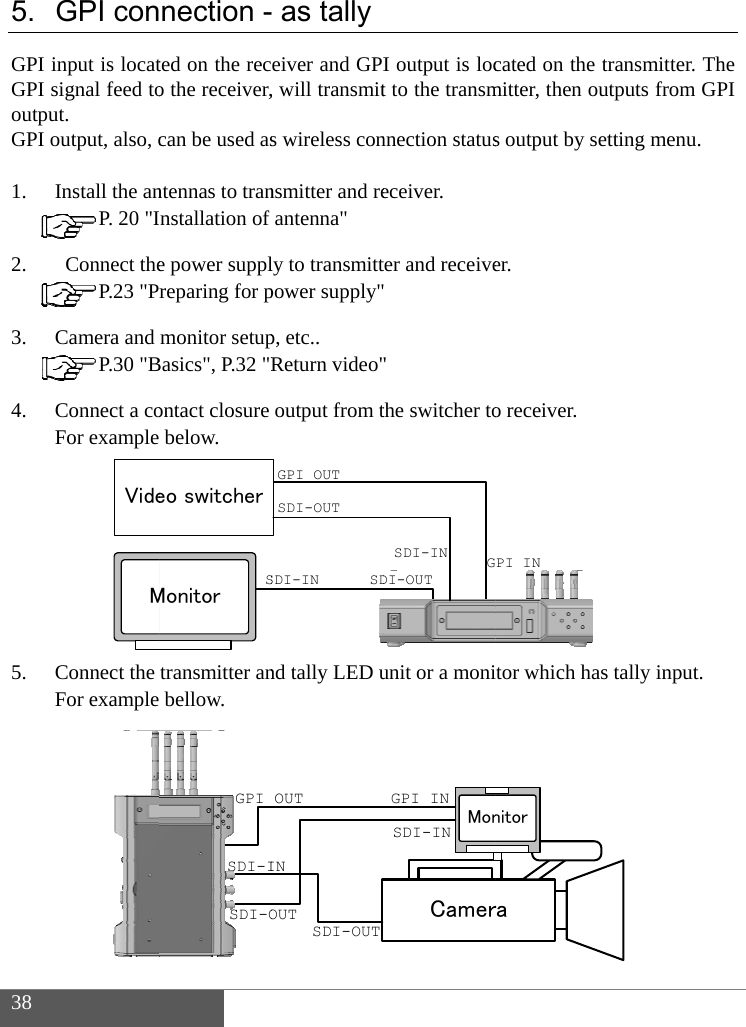
 38  5. GPI GPI outpGPI  1. 2. 3. 4. 5.  GPI coninput is locatsignal feed tout.  output, also, cInstall the an P. 20 "I Connect the P.23 "PrCamera and  P.30 "BConnect a coFor example        Connect the For example         MVide nection -ted on the reco the receiver,can be used asntennas to trannstallation of e power supplreparing for pmonitor setupBasics", P.32 "Rontact closure below. transmitter anbellow. SMonitoreo switcherSDI-ISDI-OGPI  as tallyeiver and GPI, will transmits wireless connsmitter and reantenna" ly to transmittpower supply"p, etc.. Return video"output from tnd tally LED uSDI-INSDSDI-OUTGPI OUTINSDI-OUTOUTOUTI output is loct to the transmnnection statuseceiver. ter and receive " the switcher tounit or a moniDI-OUTSDI-INGPCamerMonSDI-INGPI INcated on the tmitter, then ous output by seter.  o receiver. tor which hasPI INranitorransmitter. Thutputs from GPtting menu.  tally input. he PI
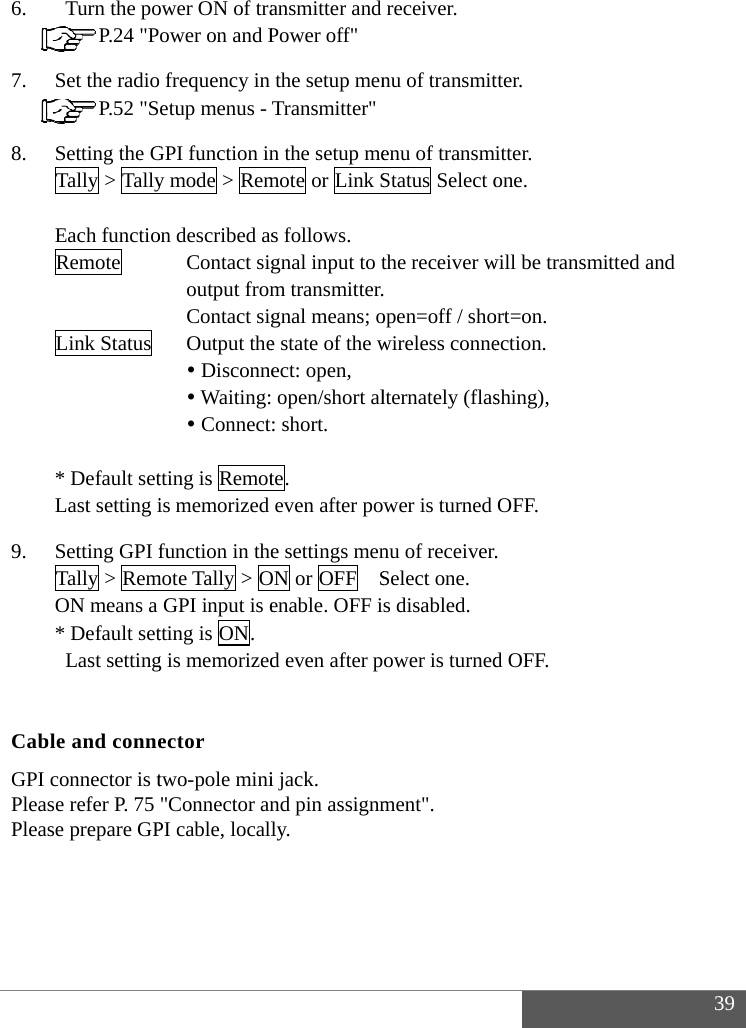
  6. 7. 8. 9.  CabGPI PleaPlea   Turn the po P.24 "PSet the radio P.52 "SSetting the GTally > Tally Each functioRemote    Link Status         * Default setLast setting iSetting GPI fTally > RemON means a * Default set Last settingble and conneconnector is tse refer P. 75 se prepare GPower ON of traower on and P frequency in etup menus - GPI function iny mode > Remon described asContact sigoutput fromContact sigOutput the Disconne Waiting: Connecttting is Remotis memorized function in themote Tally > OGPI input is etting is ON. g is memorizedector two-pole mini"Connector anPI cable, locallansmitter and Power off" the setup menTransmitter"n the setup memote or Link Ss follows. gnal input to tm transmitter.gnal means; oe state of the wect: open,  open/short al: short. te. even after powe settings menON or OFF   Senable. OFF id even after pi jack. nd pin assignmly.  receiver.  nu of transmitenu of transmiStatus Select othe receiver w open=off / showireless connelternately (flaswer is turned nu of receiver.Select one. s disabled. ower is turnedment".  tter. itter. one.  will be transmiort=on. ection.  shing), OFF. . d OFF. 3itted and   39
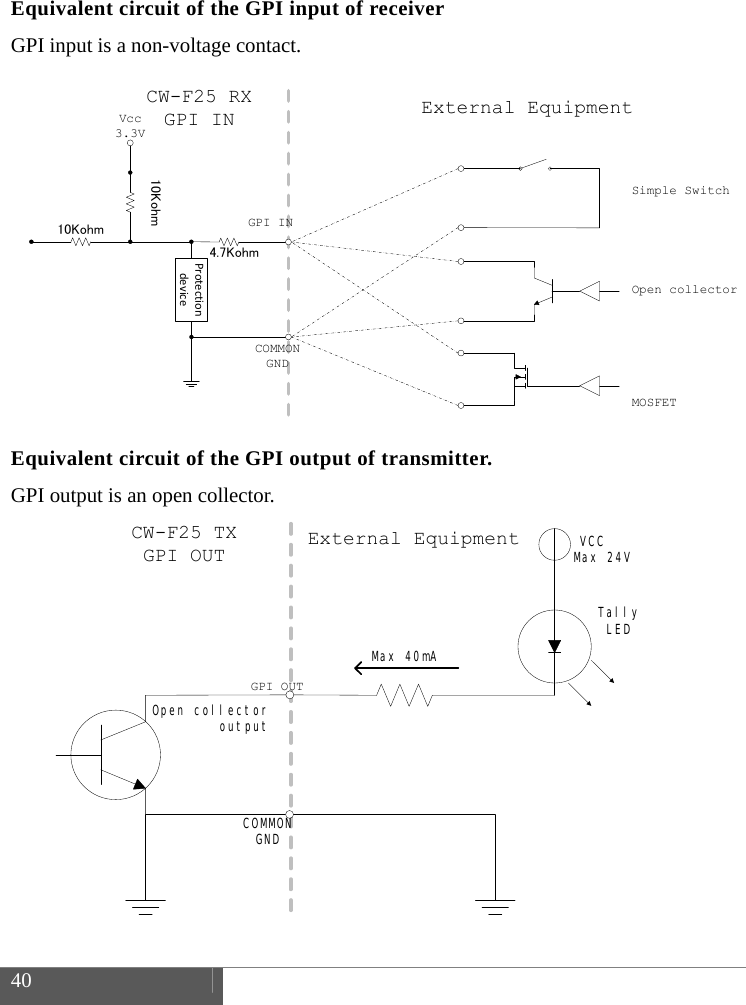
 40     Equivalent circuit of the GPI input of receiver GPI input is a non-voltage contact.                Equivalent circuit of the GPI output of transmitter. GPI output is an open collector.                  VCCTally LEDMax 24VMax 40mACOMMONGNDOpen collectoroutputGPI OUTCW-F25 TXGPI OUTExternal EquipmentVcc3.3VCW-F25 RXGPI IN External EquipmentGPI INCOMMONGNDSimple SwitchOpen collectorMOSFETProtectiondevice10Kohm10Kohm4.7Kohm
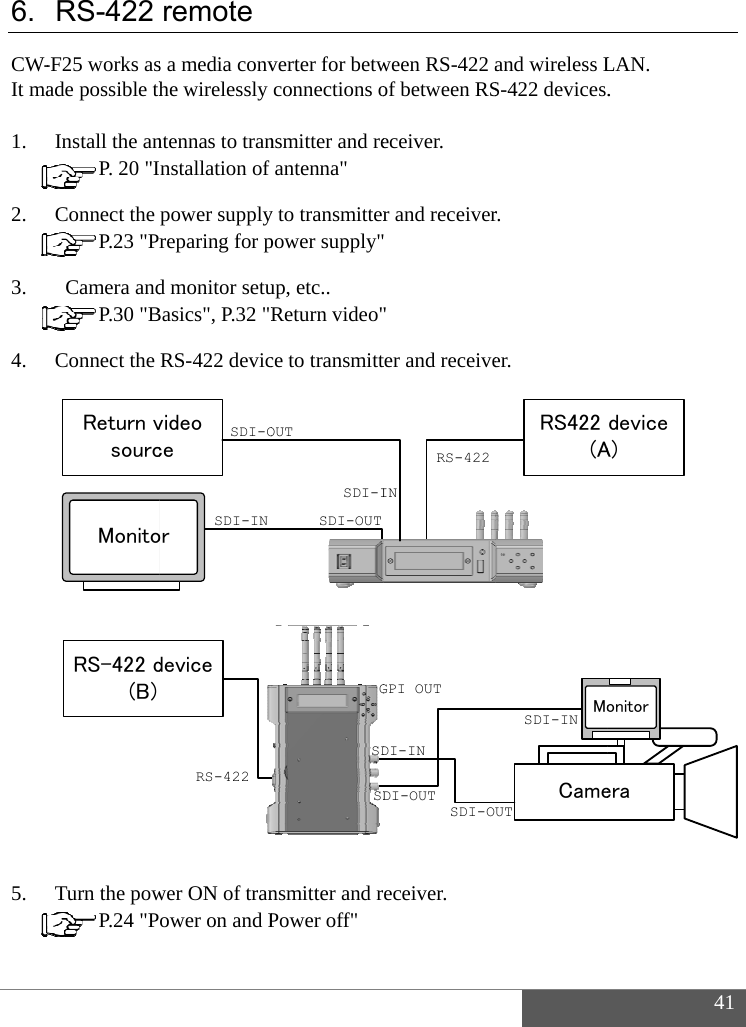
  6. CW-It ma 1. 2. 3. 4. 5. RS-422 -F25 works asade possible thInstall the an P. 20 "IConnect the  P.23 "Pr Camera and P.30 "BConnect the                   Turn the pow P.24 "PMonitoReturn vsourcRS-422 d(B)remote s a media convhe wirelessly ntennas to trannstallation of power supplyreparing for pd monitor setuBasics", P.32 "RRS-422 devicwer ON of tranower on and PSDI-INorvideo ceSDI-Odevice RS-422verter for betwconnections onsmitter and reantenna" y to transmitterpower supply"up, etc.. Return video"ce to transmittnsmitter and rPower off" SDI-OUTSDI-IOUTSDSDGween RS-422 aof between RSeceiver. r and receiver " ter and receiveeceiver. INRS-422DI-INSDI-OUDI-OUTGPI OUTand wireless LS-422 devices.r. er. RS422 (AUTCameMoSDI-IN4LAN. . deviceA)eraonitor41
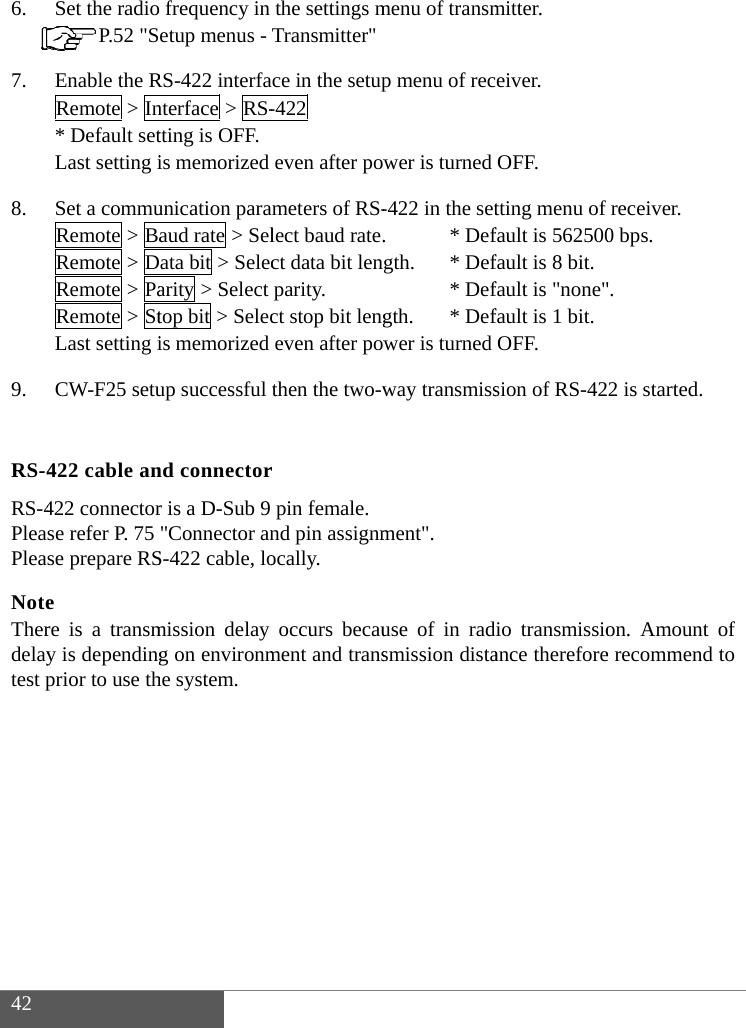
 42  6. 7. 8. 9.  RS-4RS-4PleaPleaNoteTherdelaytest pSet the radio P.52 "SEnable the RRemote > In* Default setLast setting iSet a commuRemote > BaRemote > DRemote > PaRemote > StLast setting iCW-F25 setu422 cable an422 connectorse refer P. 75 se prepare RSe re is a transmy is dependingprior to use th  frequency in etup menus - RS-422 interfanterface > RS-tting is OFF. is memorized unication paraaud rate > Selata bit > Selecarity > Select top bit > Selecis memorized up successful nd connectorr is a D-Sub 9 "Connector anS-422 cable, lomission delay g on environmhe system. the settings mTransmitter"ce in the setup-422 even after powmeters of RS-lect baud rate.ct data bit lengparity. ct stop bit lengeven after powthen the two-wr pin female. nd pin assignmocally. occurs becaument and transmenu of transmp menu of recwer is turned -422 in the set.   * Defgth. * Def* Defgth. * Defwer is turned way transmissment". use of in radsmission distamitter. eiver. OFF. tting menu of fault is 562500fault is 8 bit.fault is "none"fault is 1 bit.OFF. sion of RS-42io transmissioance thereforereceiver. 0 bps. ". 2 is started. on. Amount oe recommend tof to
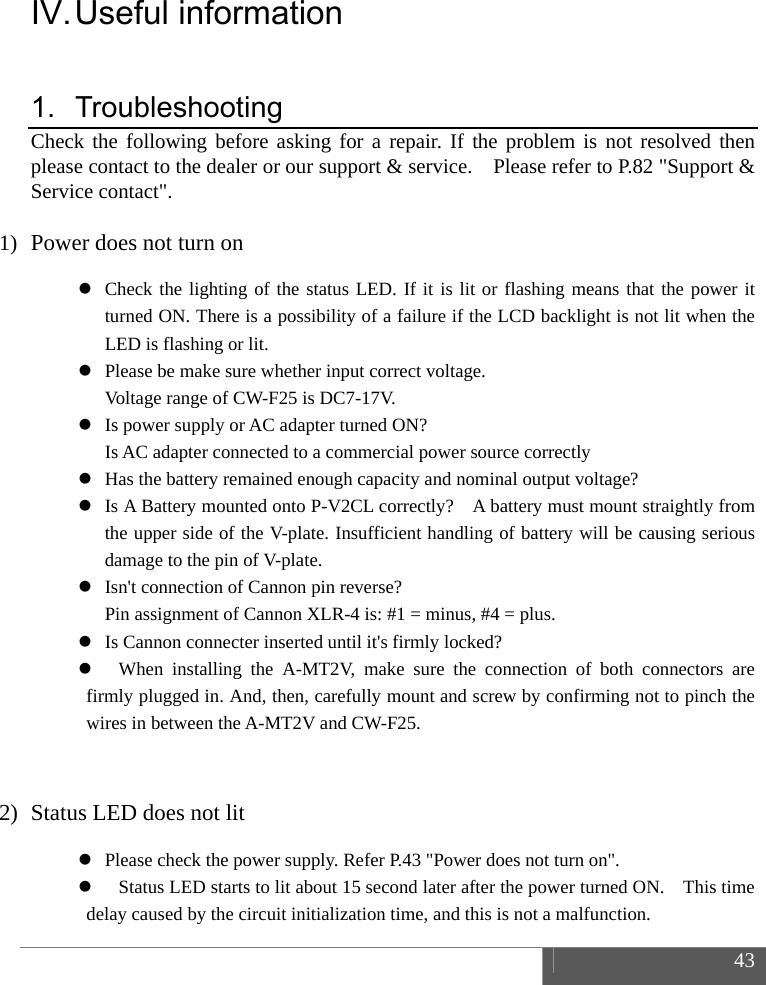
 43  IV. Useful  information 1. Troubleshooting Check the following before asking for a repair. If the problem is not resolved then please contact to the dealer or our support & service.    Please refer to P.82 "Support & Service contact".  1) Power does not turn on  Check the lighting of the status LED. If it is lit or flashing means that the power it turned ON. There is a possibility of a failure if the LCD backlight is not lit when the LED is flashing or lit.  Please be make sure whether input correct voltage.   Voltage range of CW-F25 is DC7-17V.  Is power supply or AC adapter turned ON?     Is AC adapter connected to a commercial power source correctly  Has the battery remained enough capacity and nominal output voltage?  Is A Battery mounted onto P-V2CL correctly?    A battery must mount straightly from the upper side of the V-plate. Insufficient handling of battery will be causing serious damage to the pin of V-plate.  Isn't connection of Cannon pin reverse?   Pin assignment of Cannon XLR-4 is: #1 = minus, #4 = plus.  Is Cannon connecter inserted until it's firmly locked?  When installing the A-MT2V, make sure the connection of both connectors are firmly plugged in. And, then, carefully mount and screw by confirming not to pinch the wires in between the A-MT2V and CW-F25.  2) Status LED does not lit  Please check the power supply. Refer P.43 "Power does not turn on".  Status LED starts to lit about 15 second later after the power turned ON.    This time delay caused by the circuit initialization time, and this is not a malfunction.
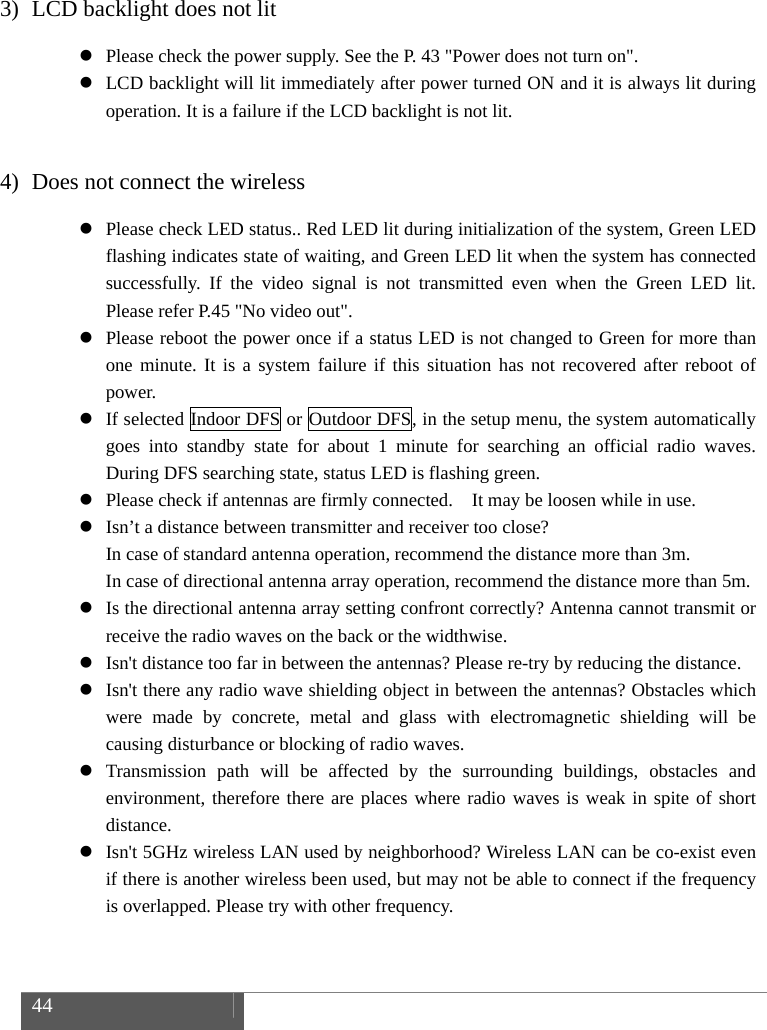
 44    3) LCD backlight does not lit  Please check the power supply. See the P. 43 "Power does not turn on".  LCD backlight will lit immediately after power turned ON and it is always lit during operation. It is a failure if the LCD backlight is not lit.  4) Does not connect the wireless  Please check LED status.. Red LED lit during initialization of the system, Green LED flashing indicates state of waiting, and Green LED lit when the system has connected successfully. If the video signal is not transmitted even when the Green LED lit. Please refer P.45 "No video out".  Please reboot the power once if a status LED is not changed to Green for more than one minute. It is a system failure if this situation has not recovered after reboot of power.  If selected Indoor DFS or Outdoor DFS, in the setup menu, the system automatically goes into standby state for about 1 minute for searching an official radio waves. During DFS searching state, status LED is flashing green.  Please check if antennas are firmly connected.    It may be loosen while in use.  Isn’t a distance between transmitter and receiver too close?   In case of standard antenna operation, recommend the distance more than 3m. In case of directional antenna array operation, recommend the distance more than 5m.  Is the directional antenna array setting confront correctly? Antenna cannot transmit or receive the radio waves on the back or the widthwise.  Isn't distance too far in between the antennas? Please re-try by reducing the distance.  Isn't there any radio wave shielding object in between the antennas? Obstacles which were made by concrete, metal and glass with electromagnetic shielding will be causing disturbance or blocking of radio waves.  Transmission path will be affected by the surrounding buildings, obstacles and environment, therefore there are places where radio waves is weak in spite of short distance.  Isn't 5GHz wireless LAN used by neighborhood? Wireless LAN can be co-exist even if there is another wireless been used, but may not be able to connect if the frequency is overlapped. Please try with other frequency.
 45   Isn't there a source of powerful electric wave nearby? Wireless connection in the area where close to the powerful radio sources is difficult. This is because the receiving sensitivity of the receiver is reduced, even if using a different frequency band. Please use away from these area.  Is SSID setting on transmitter and receiver same?    It is not possible to connect if the SSID setting were different.    *Same SSID is set at factory.  Is password setting on transmitter and receiver same? It is not possible to connect if the password setting were different. *Same password is set at factory.  Please check the following item when IP address has changed. ・Subnet must be same. Please check the Netmask. ・IP address must not conflicts.  Please Check the IP Address and the Codec Local IP . ・Codec Local IP of transmitter and Codec Remote IP of receiver must be the same. Receiver attempts to connect to an address set in Codec Remote IP. Please check when change the IP address. For details, please refer P.52 "Setup menus - Transmitter" & P.60 "Setup menus - Receiver".  5) No video out  Please check the SDI connection. Transmitter:  Output of return video is 'SDI OUT' connector.  Output of loop-out is 'SDI THRU OUT' connector. Receiver:  Output of downlink video is SDI OUT connector.  Output of loop-out is 'SDI THRU OUT' connector.  Input of return video is 'SDI IN' connector.  Please confirm the video format whether it is supported by the system. It is not possible to transmit if it was an unsupported video format. Please refer P.69 "Specification".  Video input and output are SDI only. This product does not support an analog signal.  Please check the camera settings. Is SDI output enabled?  Please check the settings of monitor. Is input selection correct?  Please check coaxial cable. Isn’t cable broken? Isn’t cable length too long? Is the video output if changed cable?
 46     6) No audio out  If the embedded audio of downlink video is not output, please check Embedded Audio setting of transmitter. Is it turned ON?  If the embedded audio of the return video is not output, please check Embedded Audio setting of receiver. Is it turned ON?  The SDI embedded audio is supported 4CH in the downlink. (Group 1)  The SDI embedded audio in the return video is supported 2CH. (Group 1)  CW-F25 supports only SDI embedded audio.  It does not supports an analog audio and AES/EBU.  7) Video interruption & disturbance  Please check the video rate setting. It is required more channel capacity when set at high bit rate. Reduce the setting of bit rate or set it to AUTO bit rate. Video block noise and/or drop frame will occur if there is no sufficient channel capacity available that causing by the interference and distance.  Video distortion or blackout occur if the input video format is changed during transmission.  Video will freeze temporarily if the H.264 profile is changed during transmission.  Isn't there any radio wave shielding object in between? Obstacles which were made by concrete, metal and glass with electromagnetic shielding will be causing disturbance or blocking of radio waves.  Transmission path will be affected by the surrounding buildings, obstacles and environment, therefore there are places where radio waves is weak in spite of short distance.  Isn't 5GHz wireless LAN used by neighborhood?  Wireless LAN can be co-exist even if there is another wireless been used, but may not be able to connect if the frequency is overlapped. Please try with other frequency.  Isn't there a source of powerful electric wave nearby? Wireless connection in the area where close to the powerful radio sources is difficult. This is because the receiving sensitivity of the receiver is reduced, even if using a different frequency band. Please use away from these area.
 47  8) Intercom trouble  Please check the settings. Is Intercom setting turned ON?  Re-adjust the microphone and phone level in the setup menu.  Is plug correctly inserted? Please insert the plug all the way and firmly. Poor contact will occur if the plug is loose.  When using a third-party's headset, please check a pin assignment of the plug. CW-F25 is a CTIA compliance but the third-party's headset might have a different pin arrangement  There is a headset that has volume control.    Please check volume.  9) GPI trouble  Please check Tally setting of transmitter and receiver.  If required remote tally, please select Remote Tally at transmitter side, and set Tally > ON at receiver side.  Check pin assignment of e GPI cable.  Please check the specifications of the equipment to be connected to the GPI output.  Vcc of the external device must be 24V or less and current should be less than 40mA.  GPI input is a non-voltage contact. This output cannot be connected with the equipment that represents the on/off depending on the voltage level.  10) RS-422 trouble  Please check Remote settings. Default value is OFF. Set ON for use.  It will not communicate if baud rate, data bits, parity, stop bits, were not matched.  Please check the pin assignment of RS-422 cable.  If using long cable, please replace with shorter one.  CW-F25 does not support RS-232C.  11) Ethernet trouble  Please check an IP address setting. Must not be assigned a duplicate IP address with other devices.
 48     If connecting to an existing LAN network, please check the network address or IP address of CW-F25. It is recommended to set an IP address of CW-F25 not to conflict with the subnet of existing LAN network.  Please set an IP address in full attention to avoid duplication if the CW-F25 will be participated in existing LAN subnet.  When connecting to an existing LAN network, please do not connect a transmitter and receiver at same time. Otherwise the network will establish wireless bridge and failure loop occurs in the LAN network. Path loop in the wireless bridge will cause of  performance degradation , then the LAN network will down.
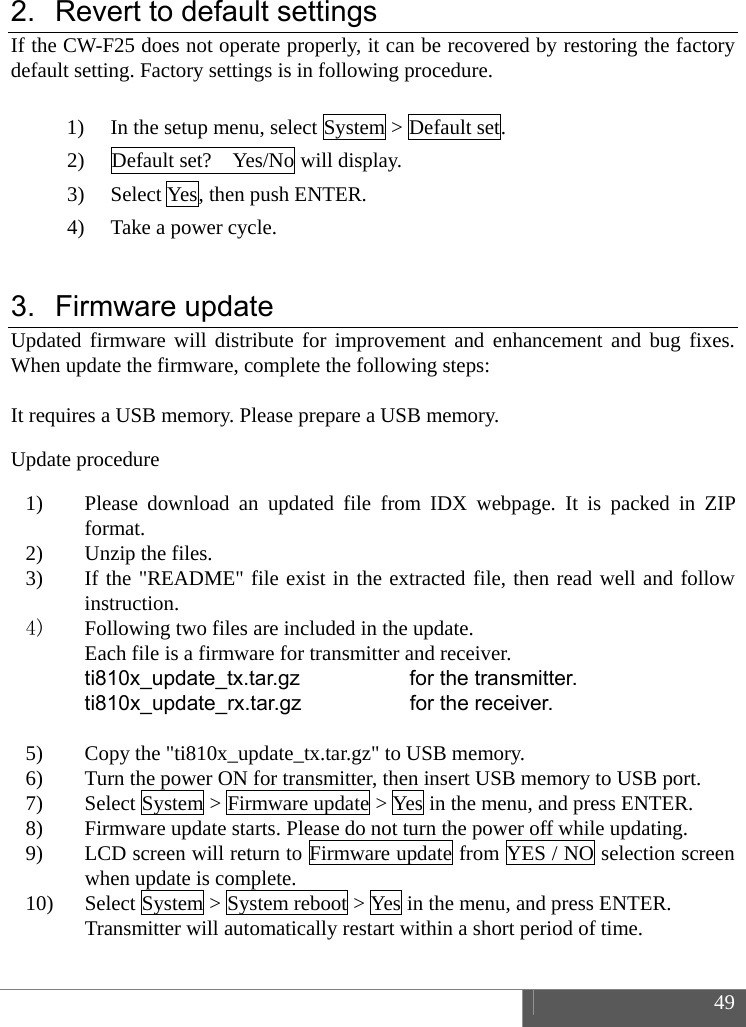
 49  2.  Revert to default settings If the CW-F25 does not operate properly, it can be recovered by restoring the factory default setting. Factory settings is in following procedure.  1) In the setup menu, select System > Default set. 2) Default set?    Yes/No will display. 3) Select Yes, then push ENTER. 4) Take a power cycle.  3. Firmware update Updated firmware will distribute for improvement and enhancement and bug fixes. When update the firmware, complete the following steps:  It requires a USB memory. Please prepare a USB memory.   Update procedure 1) Please download an updated file from IDX webpage. It is packed in ZIP format. 2) Unzip the files. 3) If the "README" file exist in the extracted file, then read well and follow instruction. 4) Following two files are included in the update. Each file is a firmware for transmitter and receiver. ti810x_update_tx.tar.gz  for the transmitter. ti810x_update_rx.tar.gz  for the receiver.  5) Copy the "ti810x_update_tx.tar.gz" to USB memory. 6) Turn the power ON for transmitter, then insert USB memory to USB port. 7) Select System > Firmware update > Yes in the menu, and press ENTER. 8) Firmware update starts. Please do not turn the power off while updating. 9) LCD screen will return to Firmware update from YES / NO selection screen when update is complete. 10) Select System > System reboot > Yes in the menu, and press ENTER. Transmitter will automatically restart within a short period of time.
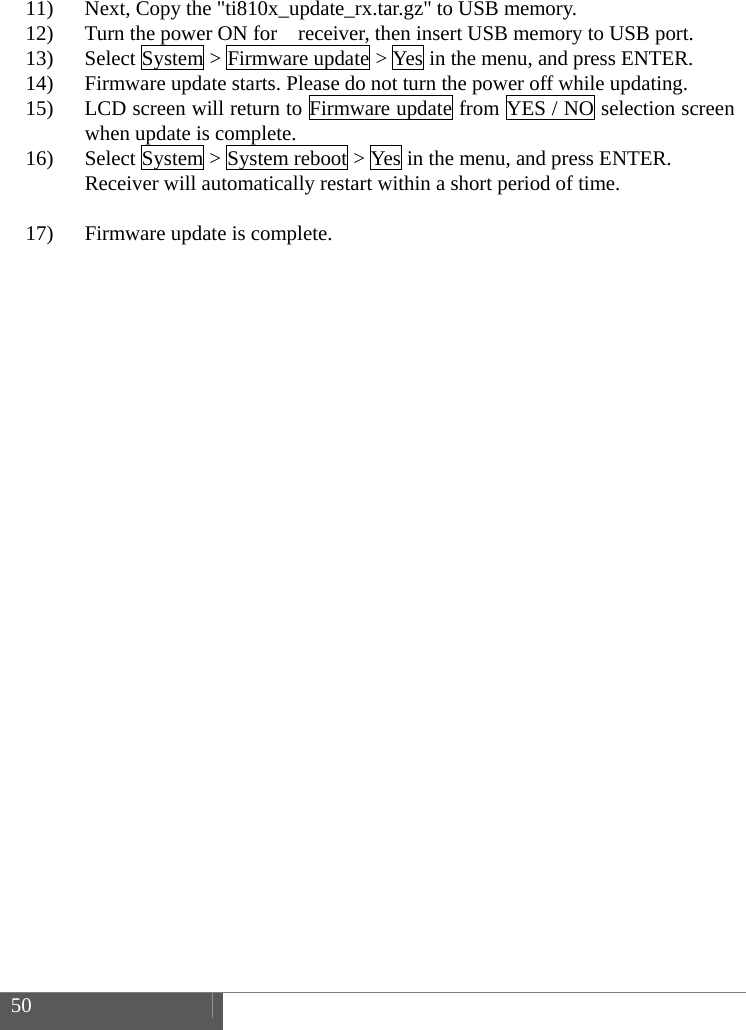
 50    11) Next, Copy the "ti810x_update_rx.tar.gz" to USB memory. 12) Turn the power ON for    receiver, then insert USB memory to USB port. 13) Select System > Firmware update > Yes in the menu, and press ENTER. 14) Firmware update starts. Please do not turn the power off while updating.   15) LCD screen will return to Firmware update from YES / NO selection screen when update is complete. 16) Select System > System reboot > Yes in the menu, and press ENTER. Receiver will automatically restart within a short period of time.  17) Firmware update is complete.
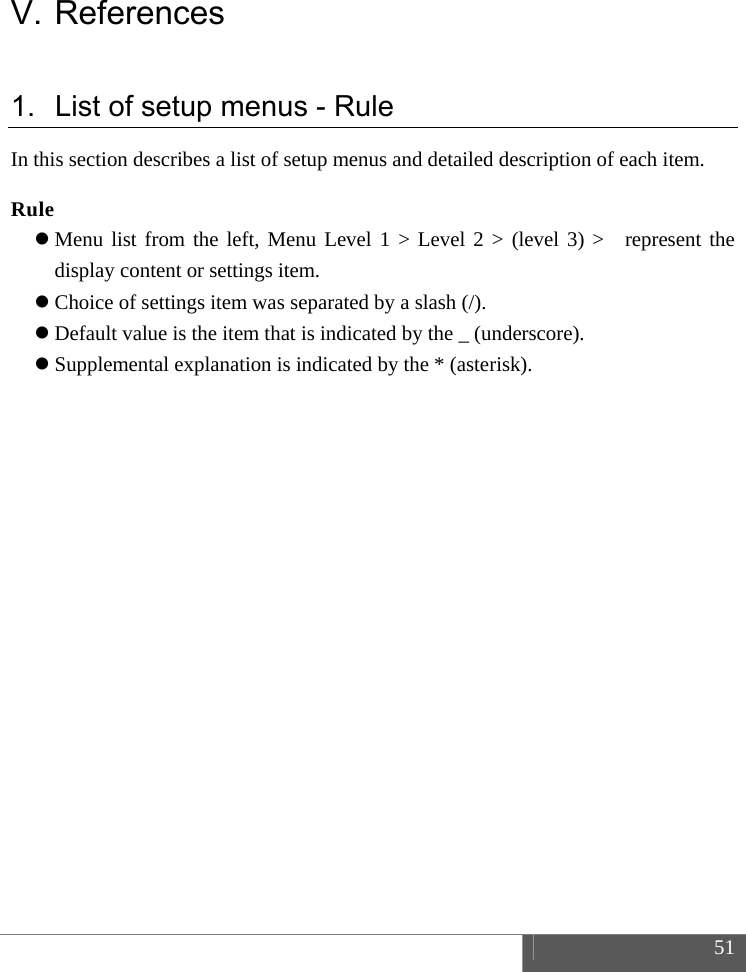
 51  V. References 1.  List of setup menus - Rule In this section describes a list of setup menus and detailed description of each item.  Rule  Menu list from the left, Menu Level 1 > Level 2 > (level 3) >  represent the display content or settings item.  Choice of settings item was separated by a slash (/).  Default value is the item that is indicated by the _ (underscore).  Supplemental explanation is indicated by the * (asterisk).
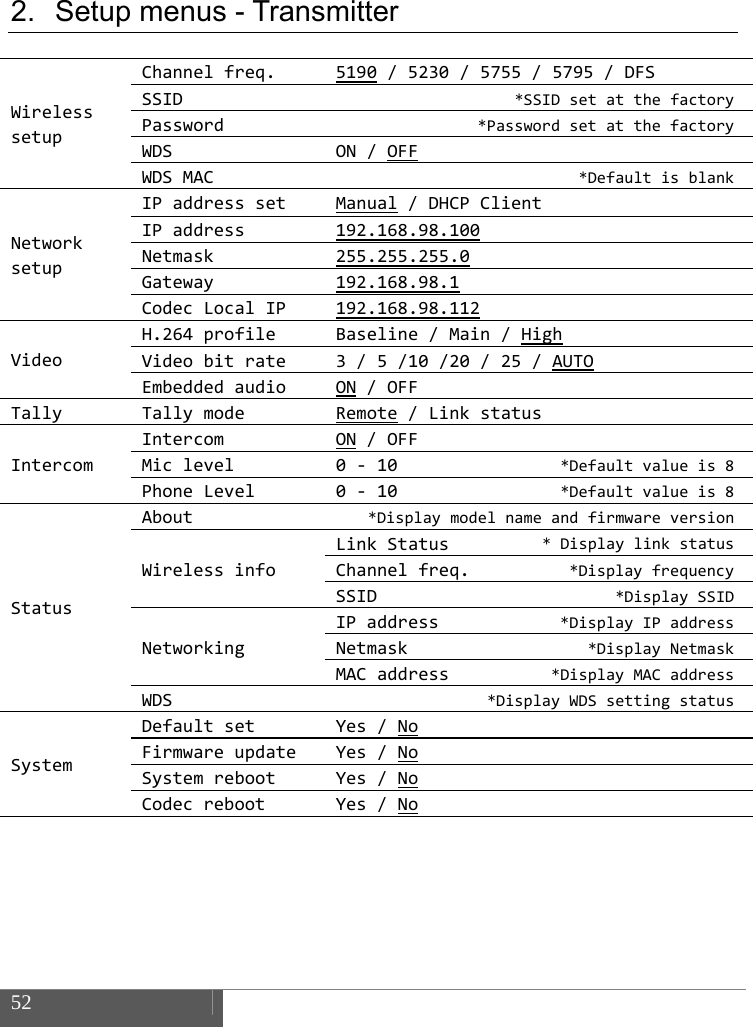
 52    2.  Setup menus - Transmitter  WirelesssetupChannelfreq.5190/5230/5755/5795/DFSSSID*SSIDsetatthefactoryPassword*PasswordsetatthefactoryWDSON/OFFWDSMAC *DefaultisblankNetworksetupIPaddresssetManual/DHCPClientIPaddress192.168.98.100Netmask255.255.255.0Gateway192.168.98.1CodecLocalIP192.168.98.112VideoH.264profileBaseline/Main/HighVideobitrate3/5/10/20/25/AUTOEmbeddedaudioON/OFFTallyTallymodeRemote/LinkstatusIntercomIntercomON/OFFMiclevel0‐10 *Defaultvalueis8PhoneLevel0‐10 *Defaultvalueis8StatusAbout*DisplaymodelnameandfirmwareversionWirelessinfoLinkStatus*DisplaylinkstatusChannelfreq. *DisplayfrequencySSID*DisplaySSIDNetworkingIPaddress*DisplayIPaddressNetmask*DisplayNetmaskMACaddress*DisplayMACaddressWDS*DisplayWDSsettingstatusSystemDefaultsetYes/NoFirmwareupdateYes/NoSystemrebootYes/NoCodecrebootYes/No
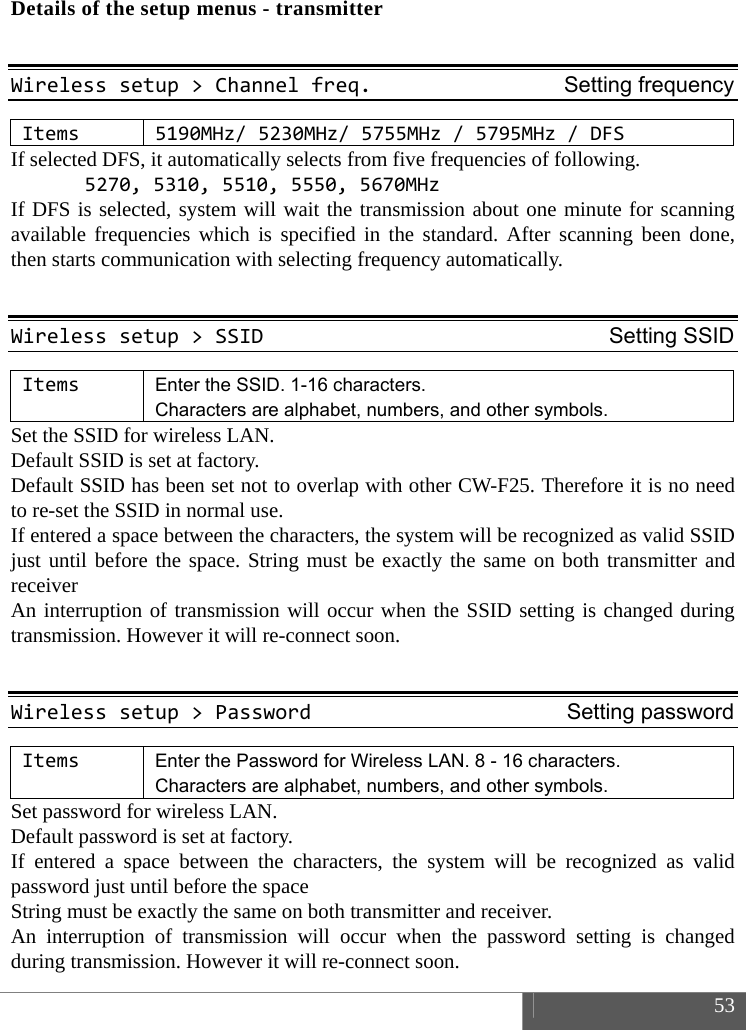
 53  Details of the setup menus - transmitter  Wirelesssetup>Channelfreq.Setting frequencyItems5190MHz/5230MHz/5755MHz /5795MHz/DFSIf selected DFS, it automatically selects from five frequencies of following. 5270,5310,5510,5550,5670MHzIf DFS is selected, system will wait the transmission about one minute for scanning available frequencies which is specified in the standard. After scanning been done, then starts communication with selecting frequency automatically.  Wirelesssetup>SSIDSetting SSIDItemsEnter the SSID. 1-16 characters.   Characters are alphabet, numbers, and other symbols. Set the SSID for wireless LAN.   Default SSID is set at factory.   Default SSID has been set not to overlap with other CW-F25. Therefore it is no need to re-set the SSID in normal use. If entered a space between the characters, the system will be recognized as valid SSID just until before the space. String must be exactly the same on both transmitter and receiver An interruption of transmission will occur when the SSID setting is changed during transmission. However it will re-connect soon.  Wirelesssetup>PasswordSetting password ItemsEnter the Password for Wireless LAN. 8 - 16 characters. Characters are alphabet, numbers, and other symbols. Set password for wireless LAN.   Default password is set at factory.   If entered a space between the characters, the system will be recognized as valid password just until before the space String must be exactly the same on both transmitter and receiver. An interruption of transmission will occur when the password setting is changed during transmission. However it will re-connect soon.
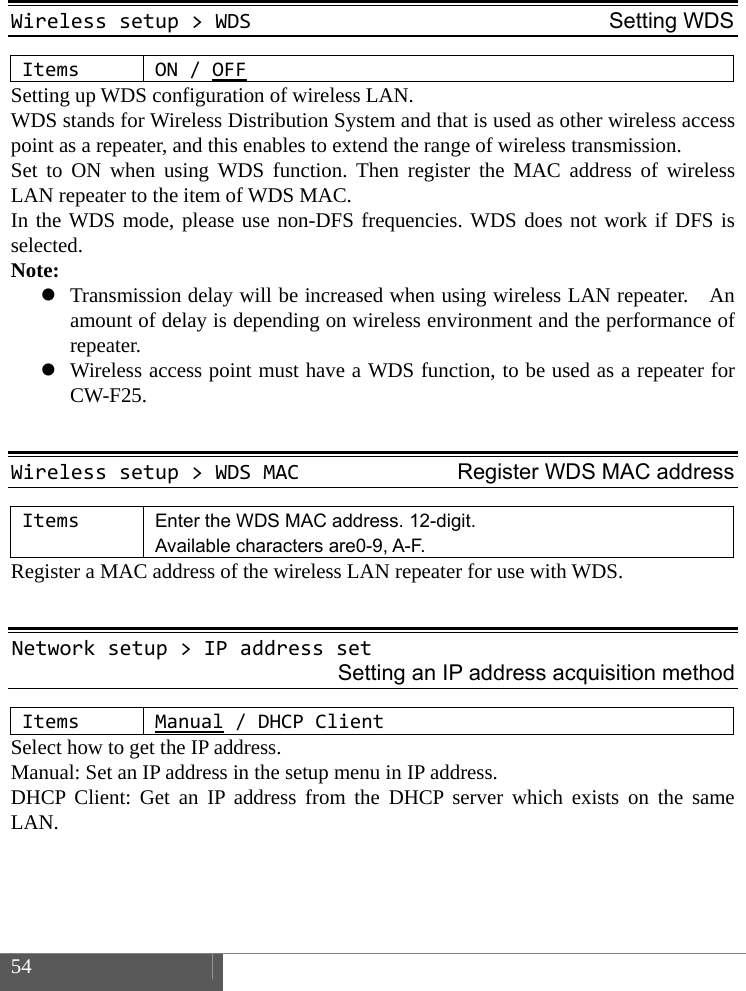
 54     Wirelesssetup>WDSSetting WDSItemsON/OFFSetting up WDS configuration of wireless LAN.   WDS stands for Wireless Distribution System and that is used as other wireless access point as a repeater, and this enables to extend the range of wireless transmission.   Set to ON when using WDS function. Then register the MAC address of wireless LAN repeater to the item of WDS MAC.   In the WDS mode, please use non-DFS frequencies. WDS does not work if DFS is selected. Note:  Transmission delay will be increased when using wireless LAN repeater.    An amount of delay is depending on wireless environment and the performance of repeater.  Wireless access point must have a WDS function, to be used as a repeater for CW-F25.  Wirelesssetup>WDSMACRegister WDS MAC addressItemsEnter the WDS MAC address. 12-digit. Available characters are0-9, A-F. Register a MAC address of the wireless LAN repeater for use with WDS.  Networksetup>IPaddressset Setting an IP address acquisition method ItemsManual/DHCP Client Select how to get the IP address. Manual: Set an IP address in the setup menu in IP address.   DHCP Client: Get an IP address from the DHCP server which exists on the same LAN.
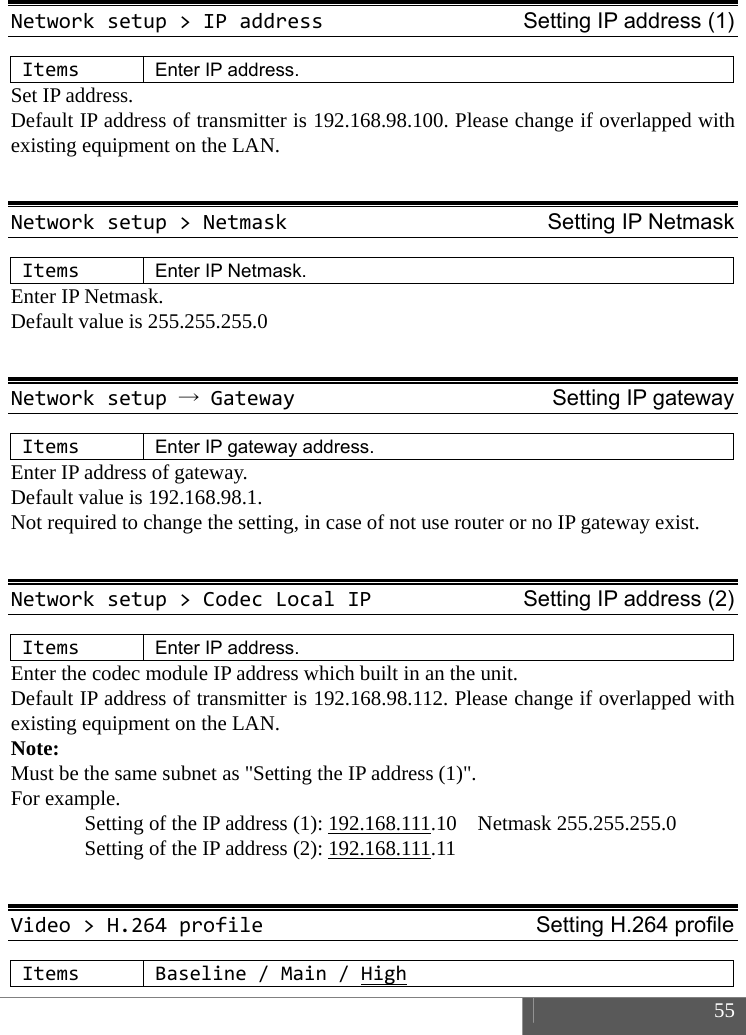
 55  Networksetup>IPaddressSetting IP address (1)ItemsEnter IP address. Set IP address.   Default IP address of transmitter is 192.168.98.100. Please change if overlapped with existing equipment on the LAN.  Networksetup>NetmaskSetting IP NetmaskItemsEnter IP Netmask. Enter IP Netmask. Default value is 255.255.255.0  Networksetup→GatewaySetting IP gatewayItemsEnter IP gateway address. Enter IP address of gateway.   Default value is 192.168.98.1.   Not required to change the setting, in case of not use router or no IP gateway exist.  Networksetup>CodecLocalIPSetting IP address (2)ItemsEnter IP address. Enter the codec module IP address which built in an the unit. Default IP address of transmitter is 192.168.98.112. Please change if overlapped with existing equipment on the LAN. Note:  Must be the same subnet as "Setting the IP address (1)". For example.   Setting of the IP address (1): 192.168.111.10  Netmask 255.255.255.0   Setting of the IP address (2): 192.168.111.11   Video>H.264profileSetting H.264 profileItemsBaseline/Main/High
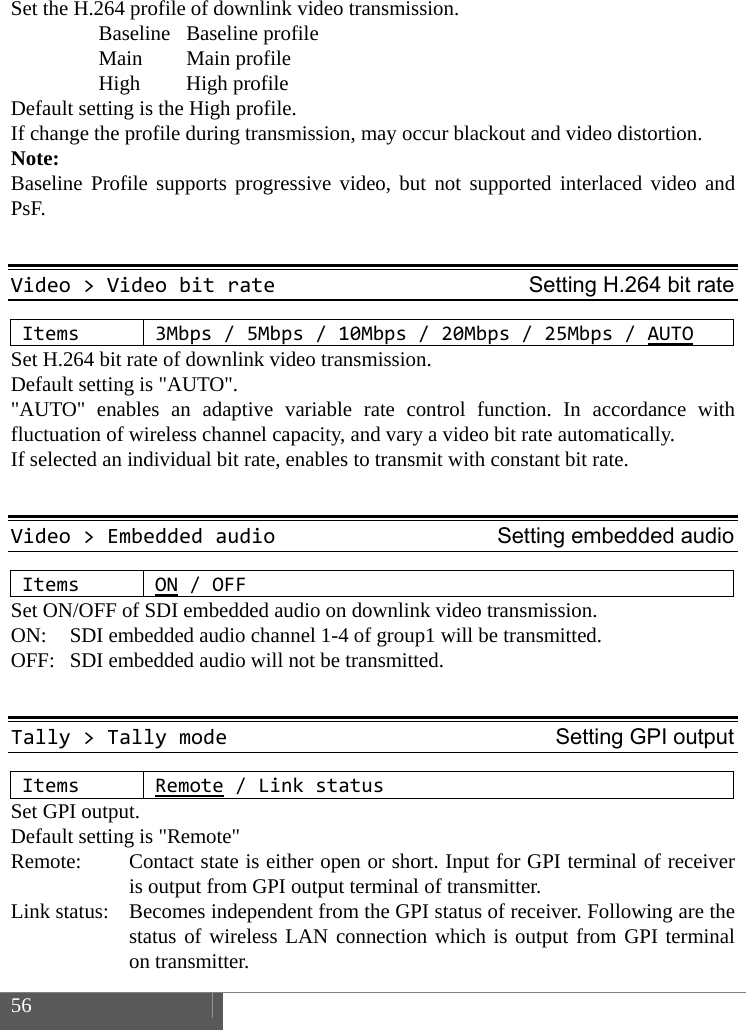
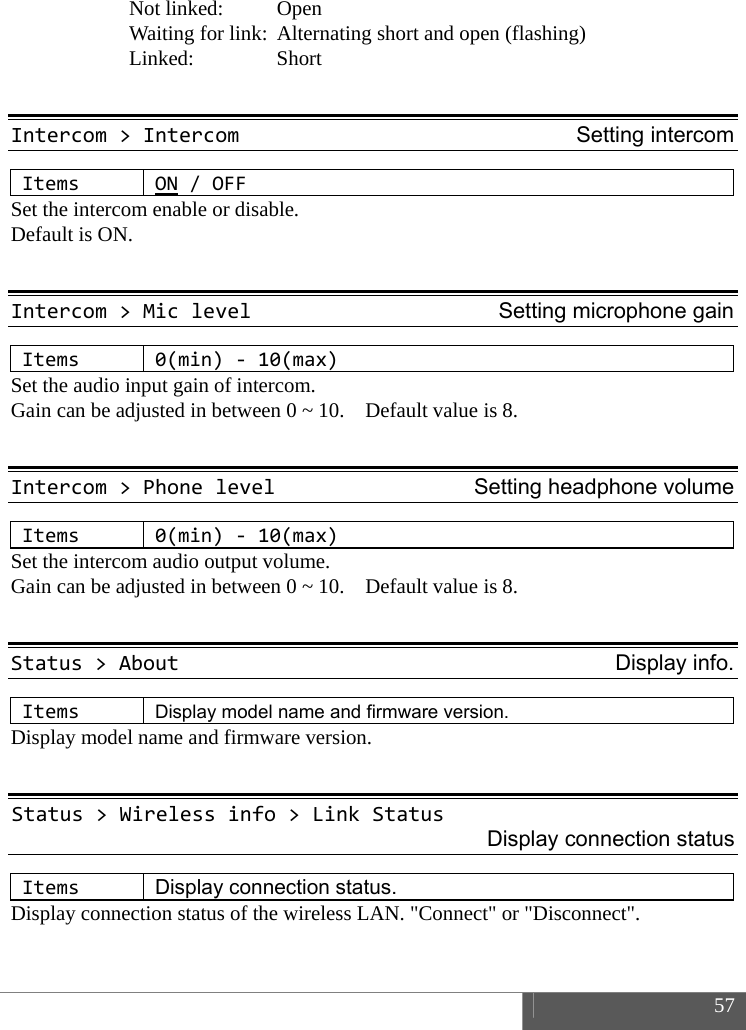
 56    Set the H.264 profile of downlink video transmission.  Baseline Baseline profile  Main Main profile  High High profile Default setting is the High profile. If change the profile during transmission, may occur blackout and video distortion. Note: Baseline Profile supports progressive video, but not supported interlaced video and PsF.  Video>VideobitrateSetting H.264 bit rateItems3Mbps/5Mbps/10Mbps/20Mbps/25Mbps/AUTOSet H.264 bit rate of downlink video transmission. Default setting is "AUTO". "AUTO" enables an adaptive variable rate control function. In accordance with fluctuation of wireless channel capacity, and vary a video bit rate automatically. If selected an individual bit rate, enables to transmit with constant bit rate.  Video>EmbeddedaudioSetting embedded audioItemsON/OFFSet ON/OFF of SDI embedded audio on downlink video transmission.   ON:  SDI embedded audio channel 1-4 of group1 will be transmitted.   OFF:  SDI embedded audio will not be transmitted.  Tally>TallymodeSetting GPI outputItemsRemote/LinkstatusSet GPI output. Default setting is "Remote" Remote:      Contact state is either open or short. Input for GPI terminal of receiver is output from GPI output terminal of transmitter. Link status:    Becomes independent from the GPI status of receiver. Following are the status of wireless LAN connection which is output from GPI terminal on transmitter.
 57   Not linked:  Open   Waiting for link:  Alternating short and open (flashing)  Linked:  Short  Intercom>IntercomSetting intercomItemsON/OFFSet the intercom enable or disable. Default is ON.  Intercom>MiclevelSetting microphone gainItems0(min)‐10(max)Set the audio input gain of intercom.   Gain can be adjusted in between 0 ~ 10.    Default value is 8.  Intercom>PhonelevelSetting headphone volumeItems0(min)‐10(max)Set the intercom audio output volume.   Gain can be adjusted in between 0 ~ 10.    Default value is 8.  Status>AboutDisplay info.ItemsDisplay model name and firmware version. Display model name and firmware version.  Status>Wirelessinfo>LinkStatusDisplay connection statusItemsDisplay connection status. Display connection status of the wireless LAN. "Connect" or "Disconnect".
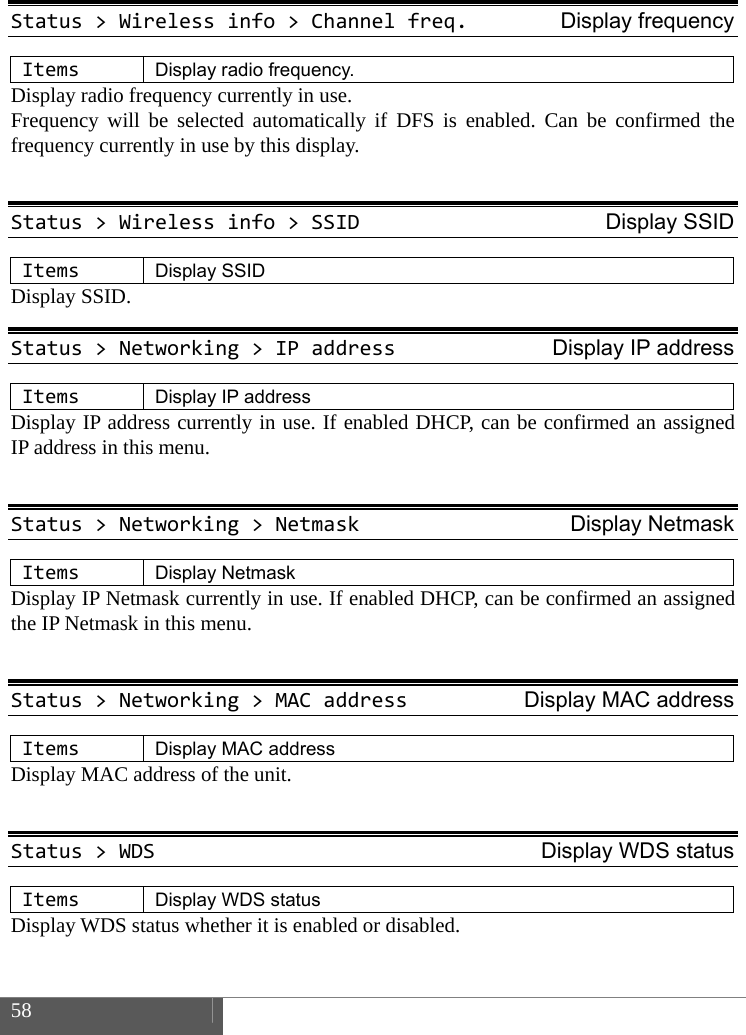
 58    Status>Wirelessinfo>Channelfreq.Display frequencyItemsDisplay radio frequency. Display radio frequency currently in use.   Frequency will be selected automatically if DFS is enabled. Can be confirmed the frequency currently in use by this display.  Status>Wirelessinfo>SSIDDisplay SSIDItemsDisplay SSID Display SSID. Status>Networking>IPaddressDisplay IP addressItemsDisplay IP address Display IP address currently in use. If enabled DHCP, can be confirmed an assigned  IP address in this menu.  Status>Networking>NetmaskDisplay NetmaskItemsDisplay Netmask Display IP Netmask currently in use. If enabled DHCP, can be confirmed an assigned the IP Netmask in this menu.  Status>Networking>MACaddressDisplay MAC addressItemsDisplay MAC address Display MAC address of the unit.  Status>WDSDisplay WDS statusItemsDisplay WDS status Display WDS status whether it is enabled or disabled.
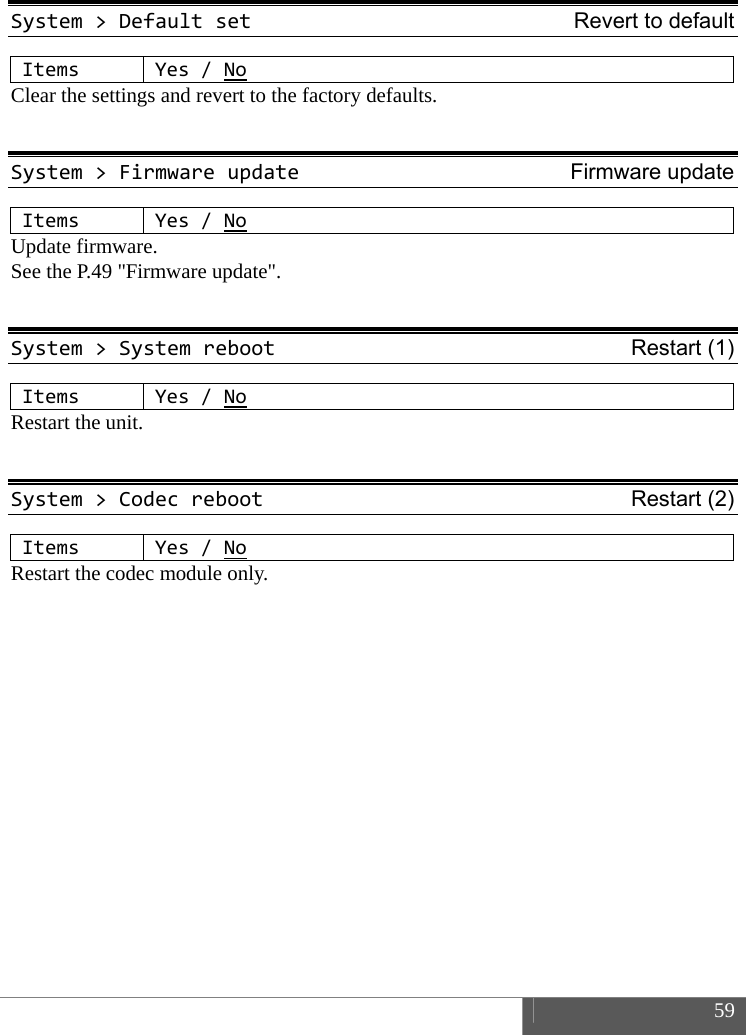
 59  System>DefaultsetRevert to default ItemsYes/NoClear the settings and revert to the factory defaults.  System>FirmwareupdateFirmware updateItemsYes/NoUpdate firmware. See the P.49 "Firmware update".  System>SystemrebootRestart (1) ItemsYes/NoRestart the unit.  System>CodecrebootRestart (2) ItemsYes/NoRestart the codec module only.
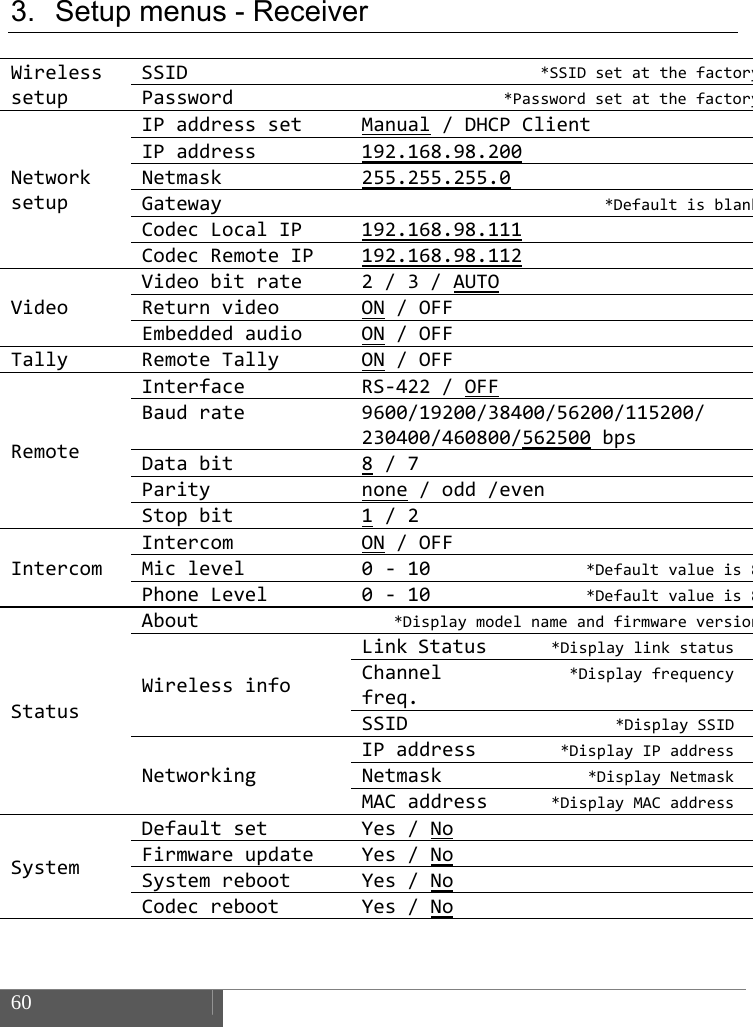
 60    3.  Setup menus - Receiver  WirelesssetupSSID*SSIDsetatthefactoryPassword*PasswordsetatthefactoryNetworksetupIPaddresssetManual/DHCPClientIPaddress192.168.98.200Netmask255.255.255.0Gateway*DefaultisblankCodecLocalIP 192.168.98.111CodecRemote IP 192.168.98.112VideoVideobitrate 2/3/AUTOReturnvideo ON /OFFEmbeddedaudio ON /OFFTallyRemoteTallyON/OFFRemoteInterfaceRS‐422/OFFBaudrate9600/19200/38400/56200/115200/230400/460800/562500 bpsDatabit8 /7Paritynone /odd/evenStopbit1 /2IntercomIntercomON /OFFMiclevel0‐ 10*Defaultvalueis8PhoneLevel 0‐ 10*Defaultvalueis8StatusAbout*DisplaymodelnameandfirmwareversionWirelessinfoLinkStatus *DisplaylinkstatusChannelfreq.*DisplayfrequencySSID *DisplaySSIDNetworkingIP address *DisplayIPaddressNetmask *DisplayNetmaskMAC address *DisplayMACaddressSystemDefaultsetYes/NoFirmwareupdateYes/NoSystemrebootYes/NoCodecrebootYes/No
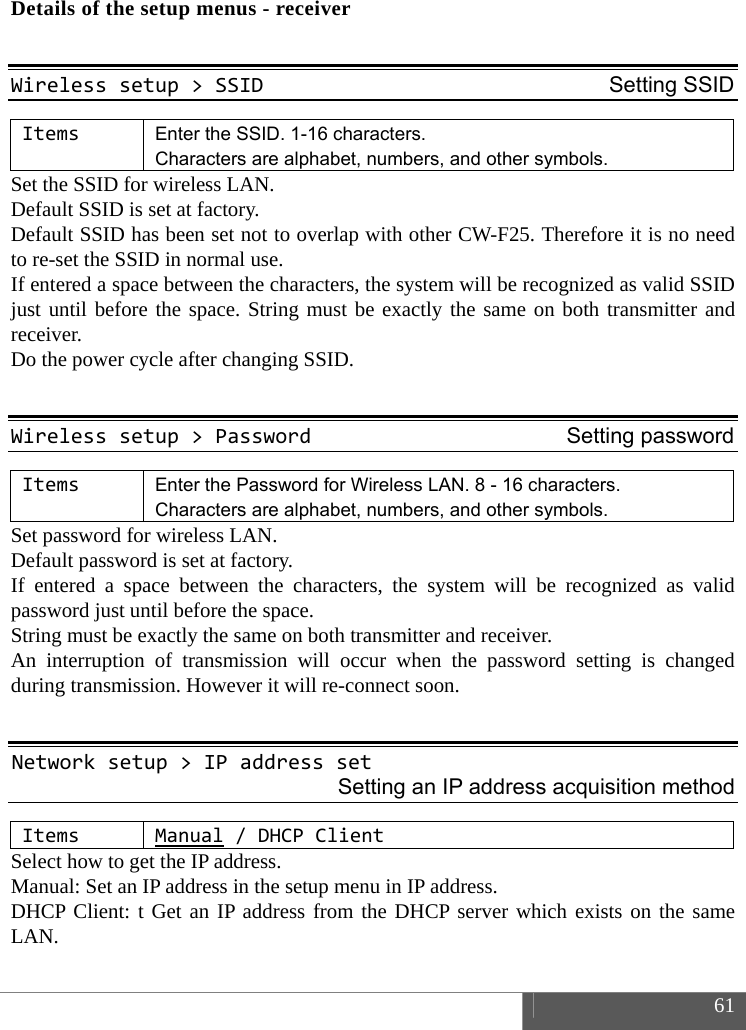
 61  Details of the setup menus - receiver  Wirelesssetup>SSIDSetting SSIDItemsEnter the SSID. 1-16 characters.   Characters are alphabet, numbers, and other symbols. Set the SSID for wireless LAN.   Default SSID is set at factory.   Default SSID has been set not to overlap with other CW-F25. Therefore it is no need to re-set the SSID in normal use.   If entered a space between the characters, the system will be recognized as valid SSID just until before the space. String must be exactly the same on both transmitter and receiver.  Do the power cycle after changing SSID.  Wirelesssetup>PasswordSetting passwordItemsEnter the Password for Wireless LAN. 8 - 16 characters. Characters are alphabet, numbers, and other symbols. Set password for wireless LAN.   Default password is set at factory.   If entered a space between the characters, the system will be recognized as valid password just until before the space. String must be exactly the same on both transmitter and receiver. An interruption of transmission will occur when the password setting is changed during transmission. However it will re-connect soon.  Networksetup>IPaddressset Setting an IP address acquisition method ItemsManual/DHCP Client Select how to get the IP address. Manual: Set an IP address in the setup menu in IP address.   DHCP Client: t Get an IP address from the DHCP server which exists on the same LAN.
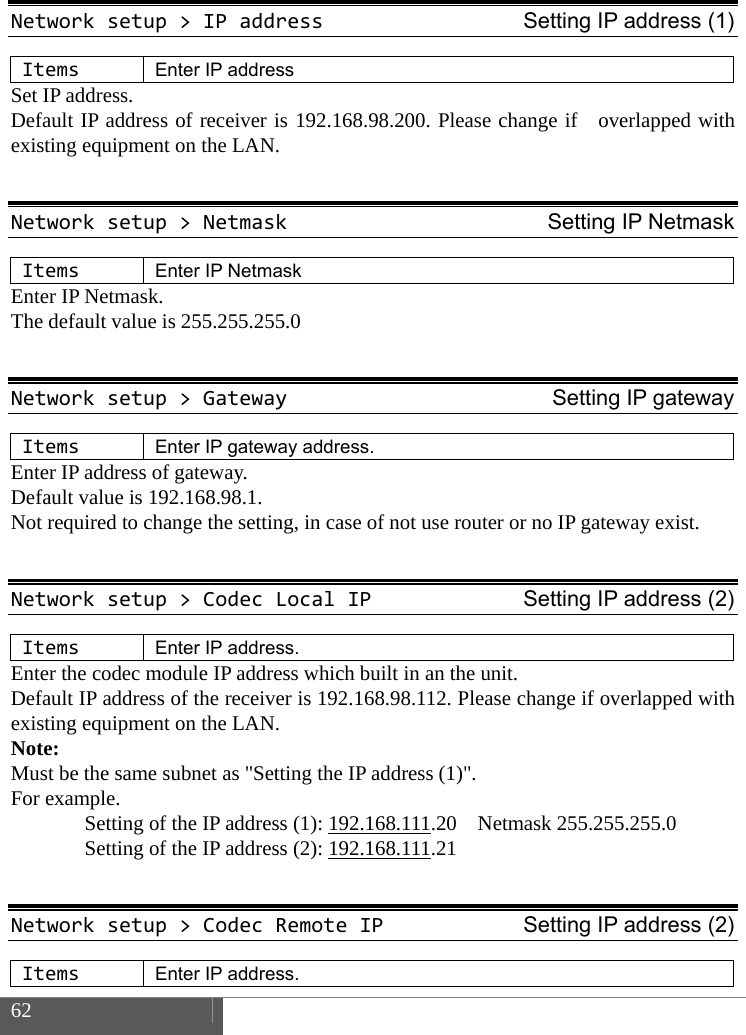
 62    Networksetup>IPaddressSetting IP address (1)ItemsEnter IP address Set IP address.   Default IP address of receiver is 192.168.98.200. Please change if  overlapped with existing equipment on the LAN.  Networksetup>NetmaskSetting IP NetmaskItemsEnter IP Netmask Enter IP Netmask. The default value is 255.255.255.0  Networksetup>GatewaySetting IP gatewayItemsEnter IP gateway address.Enter IP address of gateway.   Default value is 192.168.98.1.   Not required to change the setting, in case of not use router or no IP gateway exist.  Networksetup>CodecLocalIPSetting IP address (2)ItemsEnter IP address.Enter the codec module IP address which built in an the unit. Default IP address of the receiver is 192.168.98.112. Please change if overlapped with existing equipment on the LAN. Note:  Must be the same subnet as "Setting the IP address (1)". For example.   Setting of the IP address (1): 192.168.111.20  Netmask 255.255.255.0   Setting of the IP address (2): 192.168.111.21   Networksetup>CodecRemoteIPSetting IP address (2)ItemsEnter IP address.
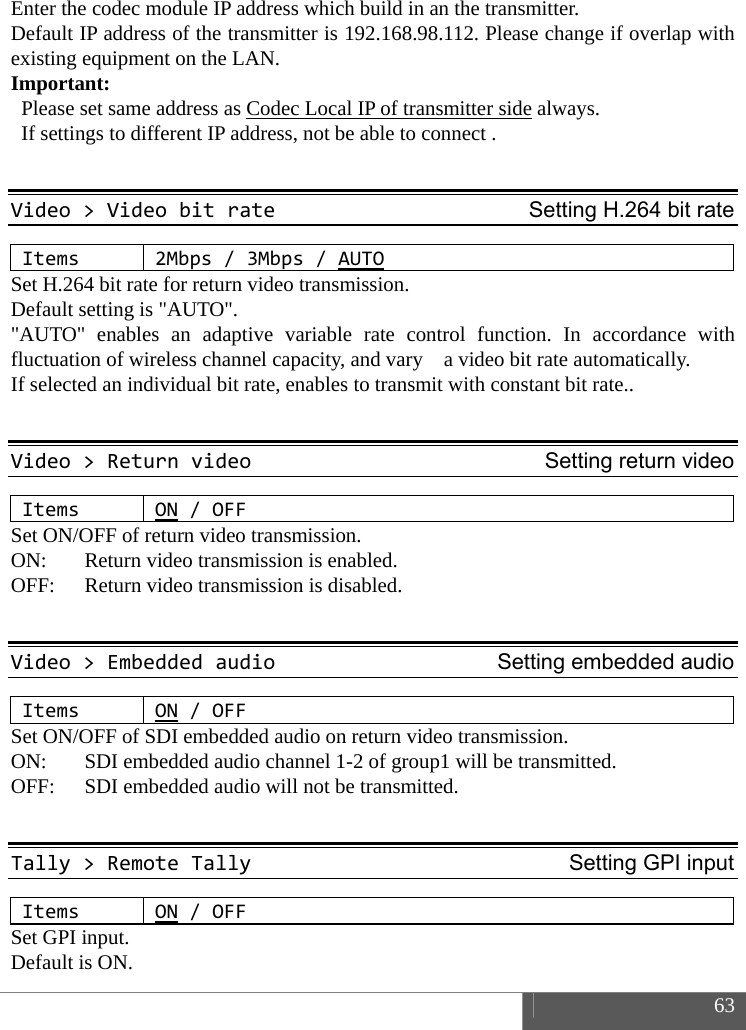
 63  Enter the codec module IP address which build in an the transmitter. Default IP address of the transmitter is 192.168.98.112. Please change if overlap with existing equipment on the LAN.   Important:   Please set same address as Codec Local IP of transmitter side always.     If settings to different IP address, not be able to connect .  Video>VideobitrateSetting H.264 bit rateItems2Mbps/3Mbps/AUTOSet H.264 bit rate for return video transmission. Default setting is "AUTO". "AUTO" enables an adaptive variable rate control function. In accordance with fluctuation of wireless channel capacity, and vary    a video bit rate automatically. If selected an individual bit rate, enables to transmit with constant bit rate..  Video>ReturnvideoSetting return videoItemsON/OFFSet ON/OFF of return video transmission.   ON:    Return video transmission is enabled.   OFF:    Return video transmission is disabled.  Video>EmbeddedaudioSetting embedded audioItemsON/OFFSet ON/OFF of SDI embedded audio on return video transmission.   ON:  SDI embedded audio channel 1-2 of group1 will be transmitted.   OFF:  SDI embedded audio will not be transmitted.  Tally>RemoteTallySetting GPI inputItemsON/OFFSet GPI input. Default is ON.
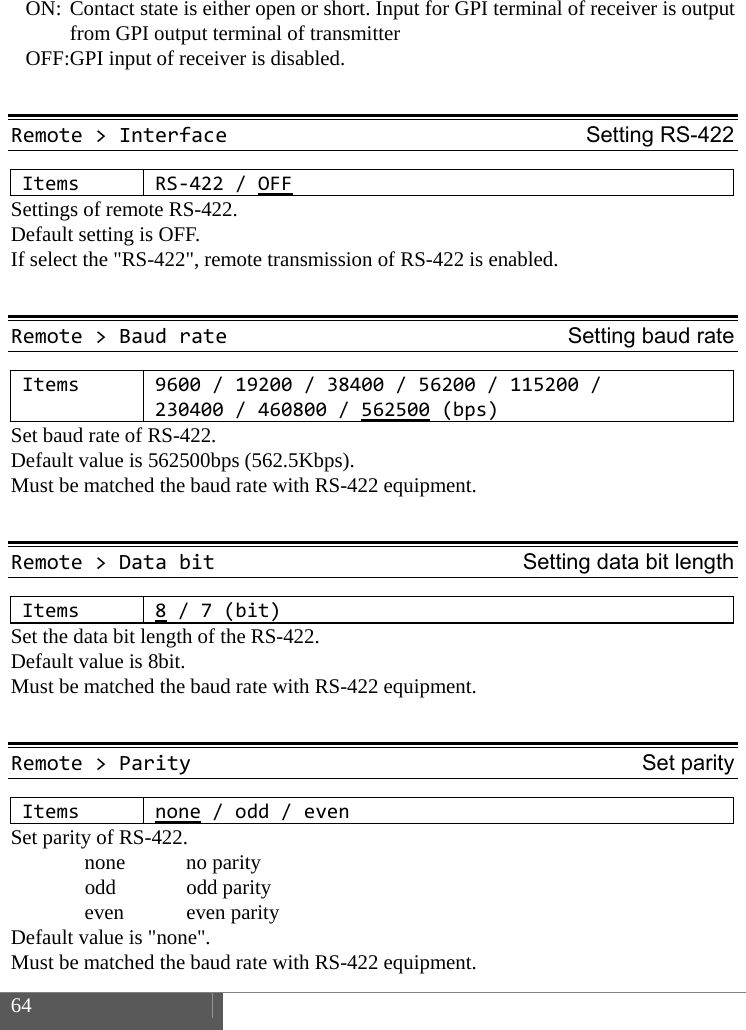
 64    ON: Contact state is either open or short. Input for GPI terminal of receiver is output from GPI output terminal of transmitter   OFF: GPI input of receiver is disabled.  Remote>InterfaceSetting RS-422ItemsRS‐422/OFFSettings of remote RS-422.   Default setting is OFF. If select the "RS-422", remote transmission of RS-422 is enabled.  Remote>BaudrateSetting baud rateItems9600/19200/38400/56200/115200/230400/460800/562500 (bps)Set baud rate of RS-422.   Default value is 562500bps (562.5Kbps).   Must be matched the baud rate with RS-422 equipment.  Remote>DatabitSetting data bit lengthItems8/7(bit)Set the data bit length of the RS-422.   Default value is 8bit.   Must be matched the baud rate with RS-422 equipment.  Remote>ParitySet parityItemsnone/odd/evenSet parity of RS-422.  none no parity  odd odd parity  even even parity Default value is "none".   Must be matched the baud rate with RS-422 equipment.
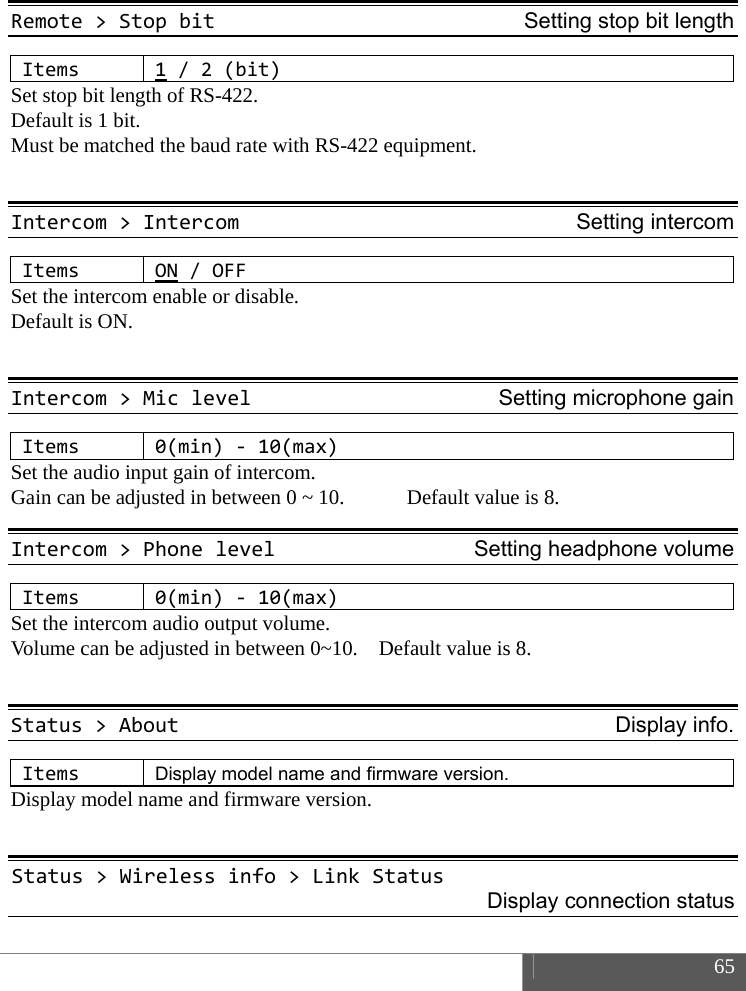
 65   Remote>StopbitSetting stop bit lengthItems1/2(bit)Set stop bit length of RS-422. Default is 1 bit.   Must be matched the baud rate with RS-422 equipment.  Intercom>IntercomSetting intercomItemsON/OFFSet the intercom enable or disable. Default is ON.  Intercom>MiclevelSetting microphone gainItems0(min)‐10(max)Set the audio input gain of intercom.   Gain can be adjusted in between 0 ~ 10.            Default value is 8. Intercom>PhonelevelSetting headphone volumeItems0(min)‐10(max)Set the intercom audio output volume.   Volume can be adjusted in between 0~10.    Default value is 8.  Status>AboutDisplay info.ItemsDisplay model name and firmware version. Display model name and firmware version.  Status>Wirelessinfo>LinkStatusDisplay connection status
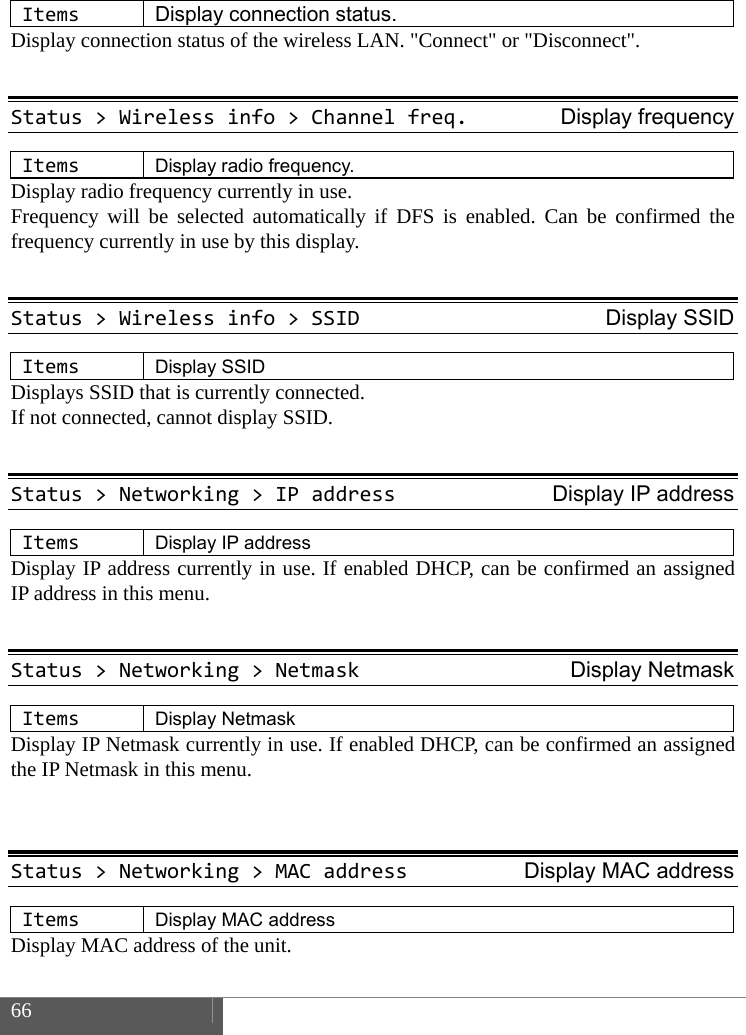
 66    ItemsDisplay connection status. Display connection status of the wireless LAN. "Connect" or "Disconnect".  Status>Wirelessinfo>Channelfreq.Display frequencyItemsDisplay radio frequency. Display radio frequency currently in use.   Frequency will be selected automatically if DFS is enabled. Can be confirmed the frequency currently in use by this display.  Status>Wirelessinfo>SSIDDisplay SSIDItemsDisplay SSID Displays SSID that is currently connected.   If not connected, cannot display SSID.  Status>Networking>IPaddressDisplay IP addressItemsDisplay IP address Display IP address currently in use. If enabled DHCP, can be confirmed an assigned  IP address in this menu.  Status>Networking>NetmaskDisplay NetmaskItemsDisplay Netmask Display IP Netmask currently in use. If enabled DHCP, can be confirmed an assigned the IP Netmask in this menu.   Status>Networking>MACaddressDisplay MAC addressItemsDisplay MAC address Display MAC address of the unit.
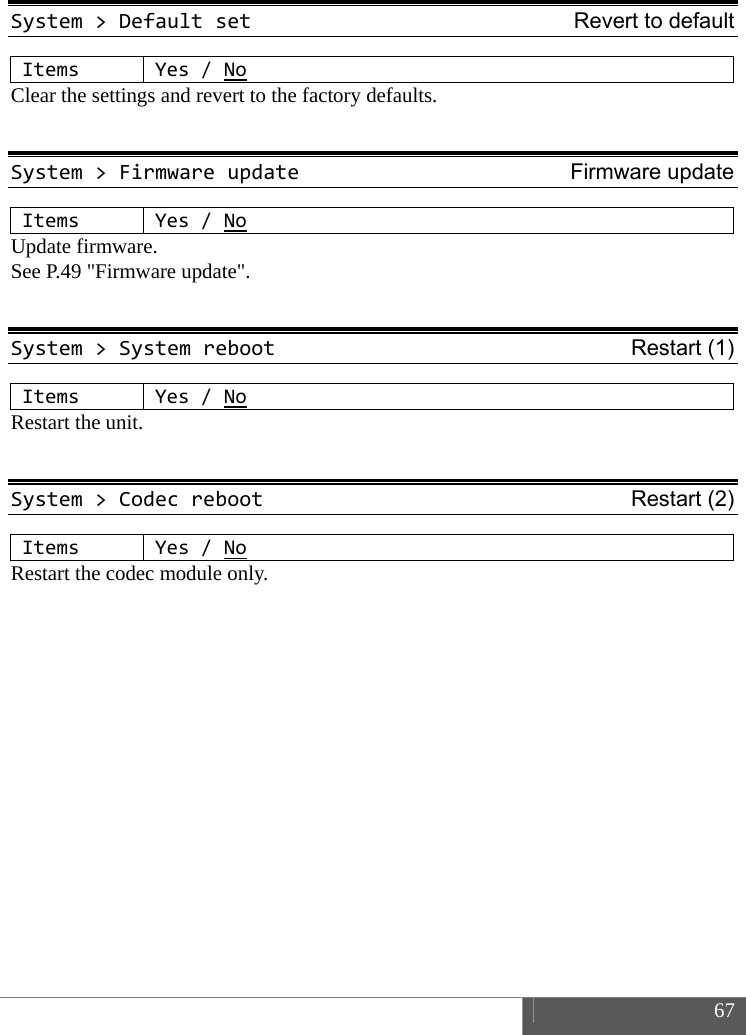
 67  System>DefaultsetRevert to default ItemsYes/NoClear the settings and revert to the factory defaults.  System>FirmwareupdateFirmware updateItemsYes/NoUpdate firmware. See P.49 "Firmware update".  System>SystemrebootRestart (1) ItemsYes/NoRestart the unit.  System>CodecrebootRestart (2) ItemsYes/NoRestart the codec module only.
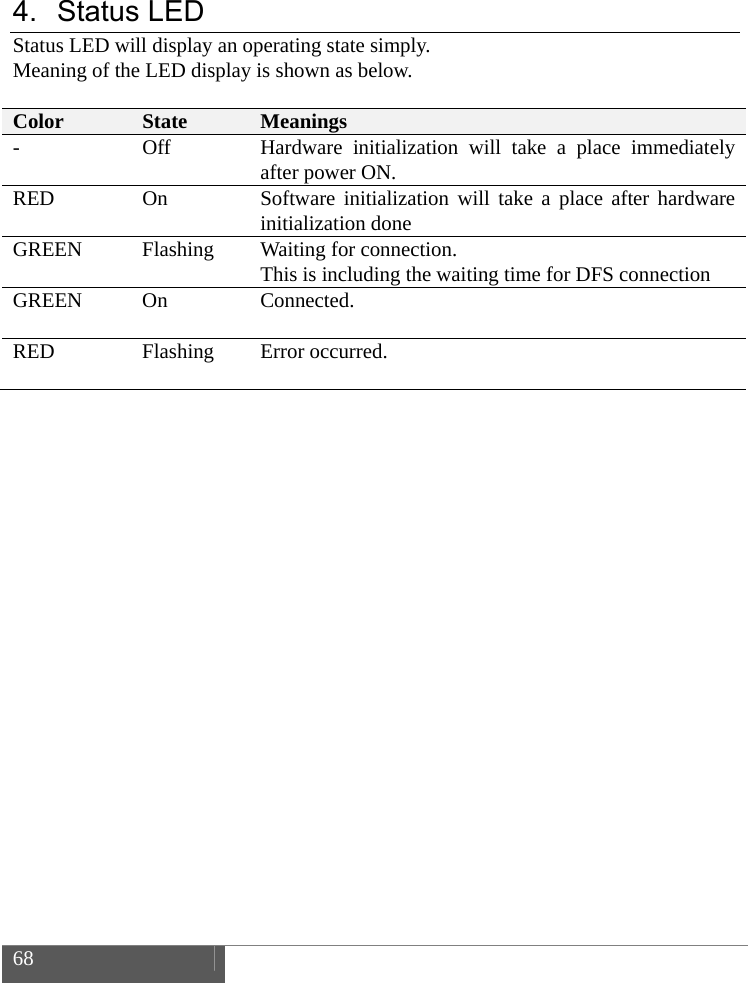
 68     4. Status LED Status LED will display an operating state simply.   Meaning of the LED display is shown as below.  Color  State  Meanings -  Off  Hardware initialization will take a place immediately after power ON. RED  On  Software initialization will take a place after hardware initialization done GREEN  Flashing  Waiting for connection.   This is including the waiting time for DFS connection   GREEN On  Connected.  RED Flashing Error occurred.
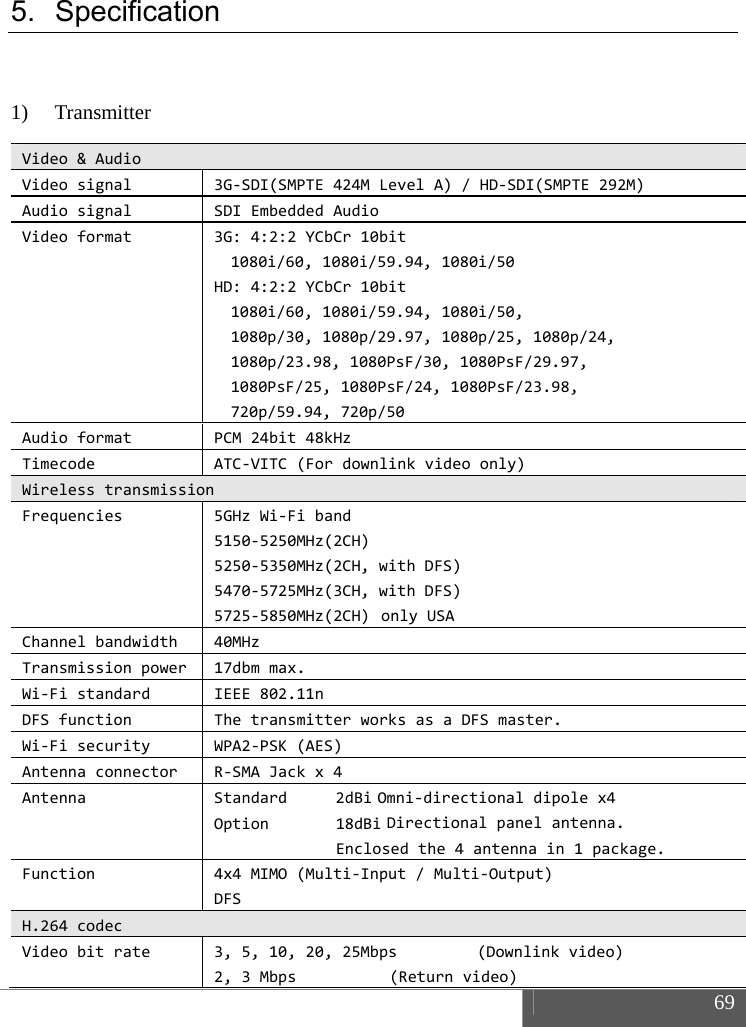
 69  5. Specification  1) Transmitter Video&AudioVideosignal3G‐SDI(SMPTE424MLevelA)/HD‐SDI(SMPTE292M)AudiosignalSDIEmbeddedAudioVideoformat3G:4:2:2YCbCr10bit1080i/60,1080i/59.94,1080i/50HD:4:2:2YCbCr10bit1080i/60,1080i/59.94,1080i/50,1080p/30,1080p/29.97,1080p/25,1080p/24,1080p/23.98,1080PsF/30,1080PsF/29.97,1080PsF/25,1080PsF/24,1080PsF/23.98,720p/59.94,720p/50AudioformatPCM24bit48kHzTimecodeATC‐VITC(Fordownlinkvideoonly)WirelesstransmissionFrequencies5GHzWi‐Fiband5150‐5250MHz(2CH)5250‐5350MHz(2CH,withDFS)5470‐5725MHz(3CH,withDFS)5725‐5850MHz(2CH) onlyUSA Channelbandwidth40MHzTransmissionpower17dbmmax.Wi‐FistandardIEEE802.11nDFSfunctionThetransmitterworksasaDFSmaster.Wi‐FisecurityWPA2‐PSK(AES)AntennaconnectorR‐SMAJackx4AntennaStandard2dBi Omni‐directionaldipolex4Option 18dBi Directionalpanelantenna.Enclosedthe4antennain1package.Function4x4MIMO(Multi‐Input/Multi‐Output)DFSH.264codecVideobitrate3,5,10,20,25Mbps(Downlinkvideo)2,3Mbps (Returnvideo)
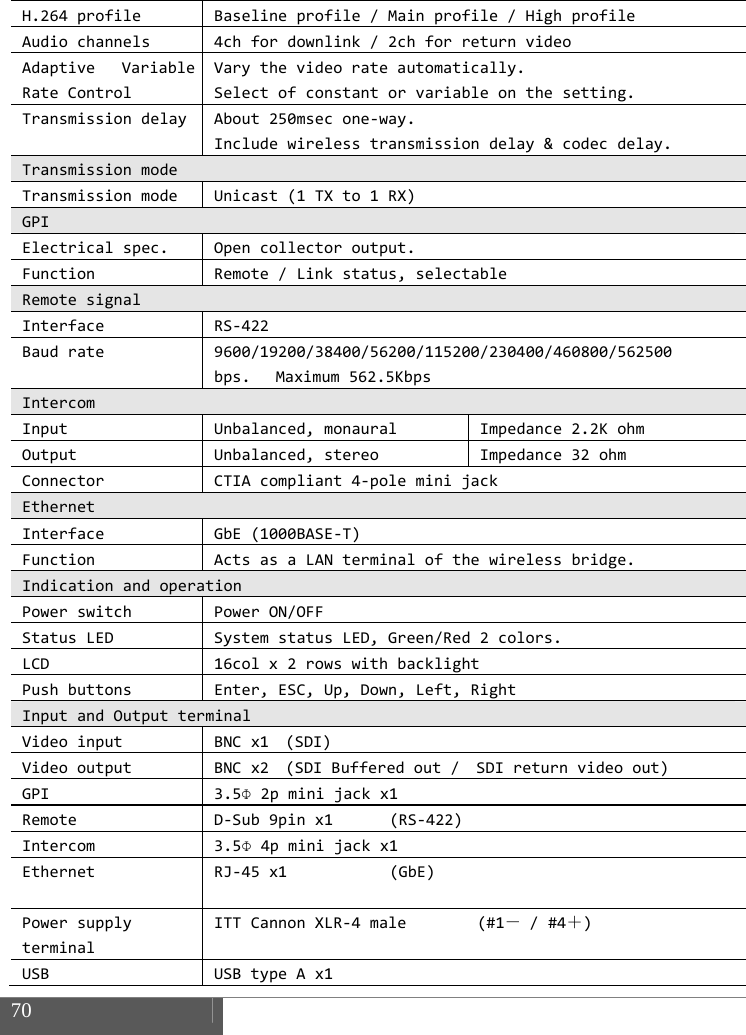
 70    H.264profileBaselineprofile/Mainprofile/HighprofileAudiochannels4chfordownlink/2chforreturnvideoAdaptiveVariableRateControlVarythevideorateautomatically.Selectofconstantorvariableonthesetting.TransmissiondelayAbout250msecone‐way.Includewirelesstransmissiondelay&codecdelay.TransmissionmodeTransmissionmodeUnicast(1TXto1RX)GPIElectricalspec.Opencollectoroutput.FunctionRemote/Linkstatus,selectableRemotesignalInterfaceRS‐422Baudrate9600/19200/38400/56200/115200/230400/460800/562500bps.Maximum562.5KbpsIntercomInputUnbalanced,monauralImpedance2.2KohmOutputUnbalanced,stereoImpedance32ohmConnectorCTIAcompliant4‐poleminijackEthernetInterfaceGbE(1000BASE‐T)FunctionActsasaLANterminalofthewirelessbridge.IndicationandoperationPowerswitchPowerON/OFFStatusLEDSystemstatusLED,Green/Red2colors.LCD16colx2rowswithbacklightPushbuttonsEnter,ESC,Up,Down,Left,RightInputandOutputterminalVideoinputBNCx1 (SDI)VideooutputBNCx2 (SDIBufferedout/SDIreturnvideoout)GPI3.5Φ2pminijackx1RemoteD‐Sub9pinx1(RS‐422)Intercom3.5Φ4pminijackx1EthernetRJ‐45x1 (GbE)PowersupplyterminalITTCannonXLR‐4male(#1-/#4+)USBUSBtypeAx1
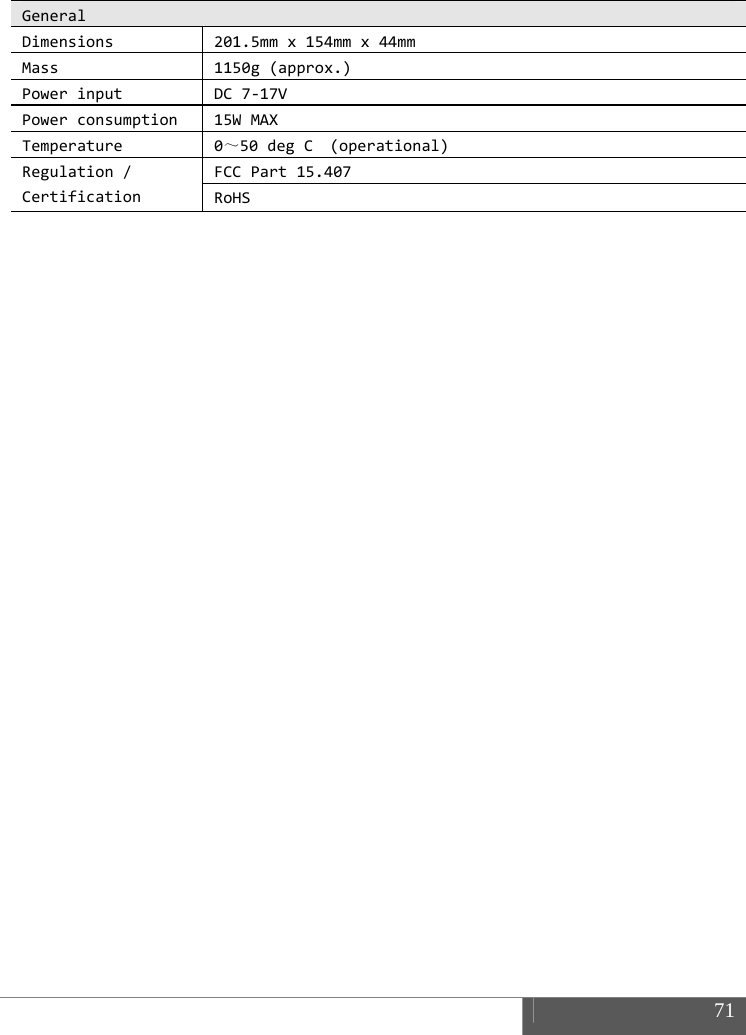
 71  GeneralDimensions201.5mmx154mmx44mmMass1150g(approx.)PowerinputDC7‐17VPowerconsumption15WMAXTemperature0~50degC(operational)Regulation/CertificationFCCPart15.407RoHS
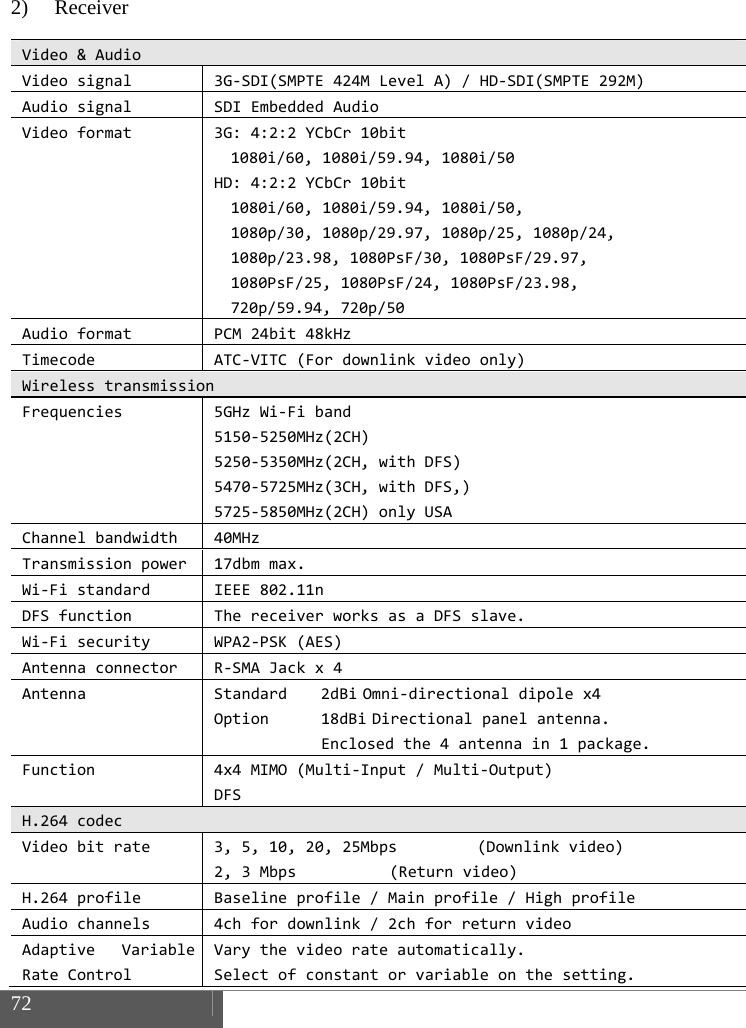
 72    2) Receiver Video&AudioVideosignal3G‐SDI(SMPTE424MLevelA)/HD‐SDI(SMPTE292M)AudiosignalSDIEmbeddedAudioVideoformat3G:4:2:2YCbCr10bit1080i/60,1080i/59.94,1080i/50HD:4:2:2YCbCr10bit1080i/60,1080i/59.94,1080i/50,1080p/30,1080p/29.97,1080p/25,1080p/24,1080p/23.98,1080PsF/30,1080PsF/29.97,1080PsF/25,1080PsF/24,1080PsF/23.98,720p/59.94,720p/50AudioformatPCM24bit48kHzTimecodeATC‐VITC(Fordownlinkvideoonly)WirelesstransmissionFrequencies5GHzWi‐Fiband5150‐5250MHz(2CH)5250‐5350MHz(2CH,withDFS)5470‐5725MHz(3CH,withDFS,)5725‐5850MHz(2CH)onlyUSAChannelbandwidth40MHzTransmissionpower17dbmmax.Wi‐FistandardIEEE802.11nDFSfunctionThereceiverworksasaDFSslave.Wi‐FisecurityWPA2‐PSK(AES)AntennaconnectorR‐SMAJackx4AntennaStandard2dBi Omni‐directionaldipolex4Option 18dBi Directionalpanelantenna.Enclosedthe4antennain1package.Function4x4MIMO(Multi‐Input/Multi‐Output)DFSH.264codecVideobitrate3,5,10,20,25Mbps(Downlinkvideo)2,3Mbps (Returnvideo)H.264profileBaselineprofile/Mainprofile/HighprofileAudiochannels4chfordownlink/2chforreturnvideoAdaptiveVariableRateControlVarythevideorateautomatically.Selectofconstantorvariableonthesetting.
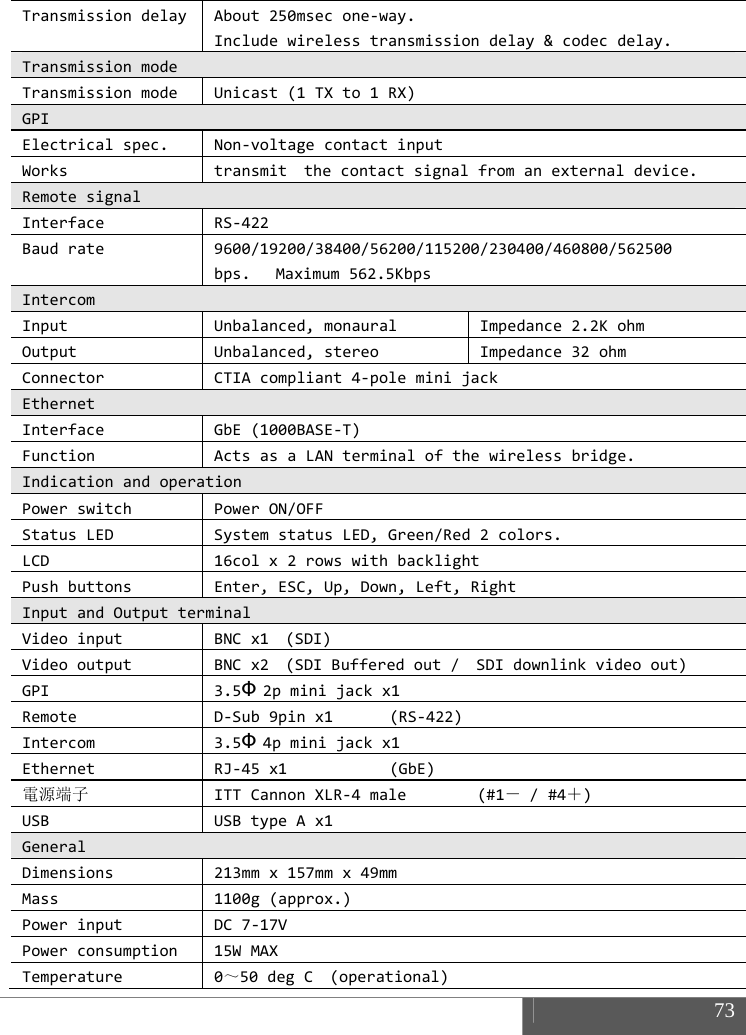
 73  TransmissiondelayAbout250msecone‐way.Includewirelesstransmissiondelay&codecdelay.TransmissionmodeTransmissionmodeUnicast(1TXto1RX)GPIElectricalspec.Non‐voltagecontactinputWorkstransmitthecontactsignalfromanexternaldevice.RemotesignalInterfaceRS‐422Baudrate9600/19200/38400/56200/115200/230400/460800/562500bps.Maximum562.5KbpsIntercomInputUnbalanced,monauralImpedance2.2KohmOutputUnbalanced,stereoImpedance32ohmConnectorCTIAcompliant4‐poleminijackEthernetInterfaceGbE(1000BASE‐T)FunctionActsasaLANterminalofthewirelessbridge.IndicationandoperationPowerswitchPowerON/OFFStatusLEDSystemstatusLED,Green/Red2colors.LCD16colx2rowswithbacklightPushbuttonsEnter,ESC,Up,Down,Left,RightInputandOutputterminalVideoinputBNCx1 (SDI)VideooutputBNCx2 (SDIBufferedout/SDIdownlinkvideoout)GPI3.5Φ 2pminijackx1RemoteD‐Sub9pinx1(RS‐422)Intercom3.5Φ 4pminijackx1EthernetRJ‐45x1 (GbE)電源端子ITTCannonXLR‐4male(#1-/#4+)USBUSBtypeAx1GeneralDimensions213mmx157mmx49mmMass1100g(approx.)PowerinputDC7‐17VPowerconsumption15WMAXTemperature0~50degC(operational)
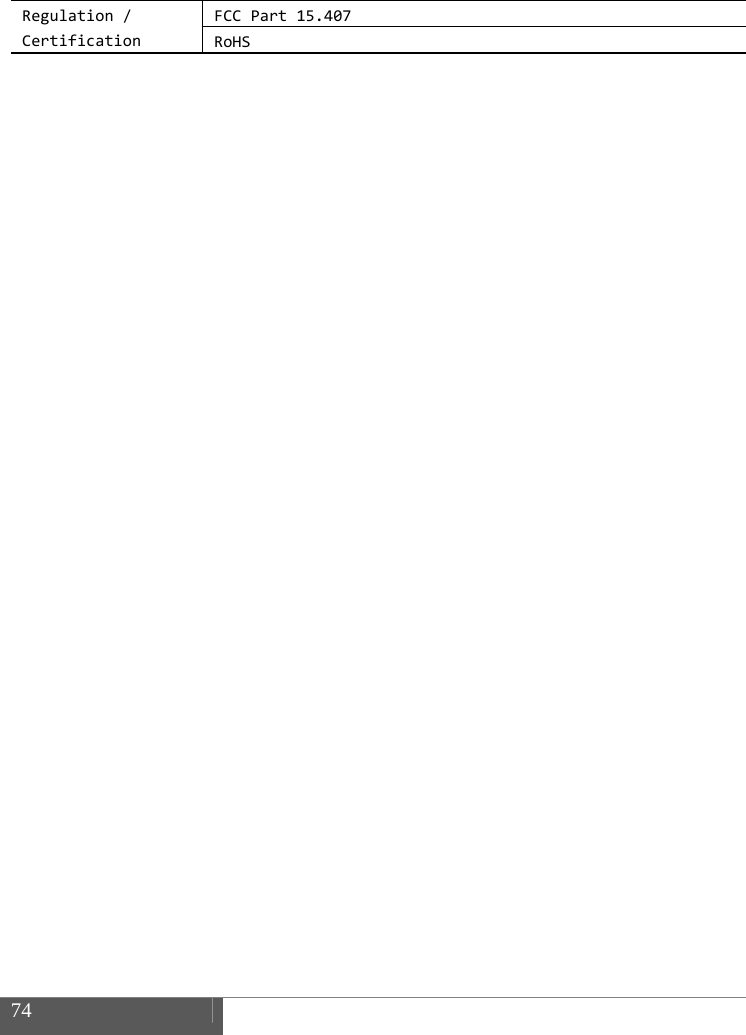
 74    Regulation/CertificationFCCPart15.407RoHS
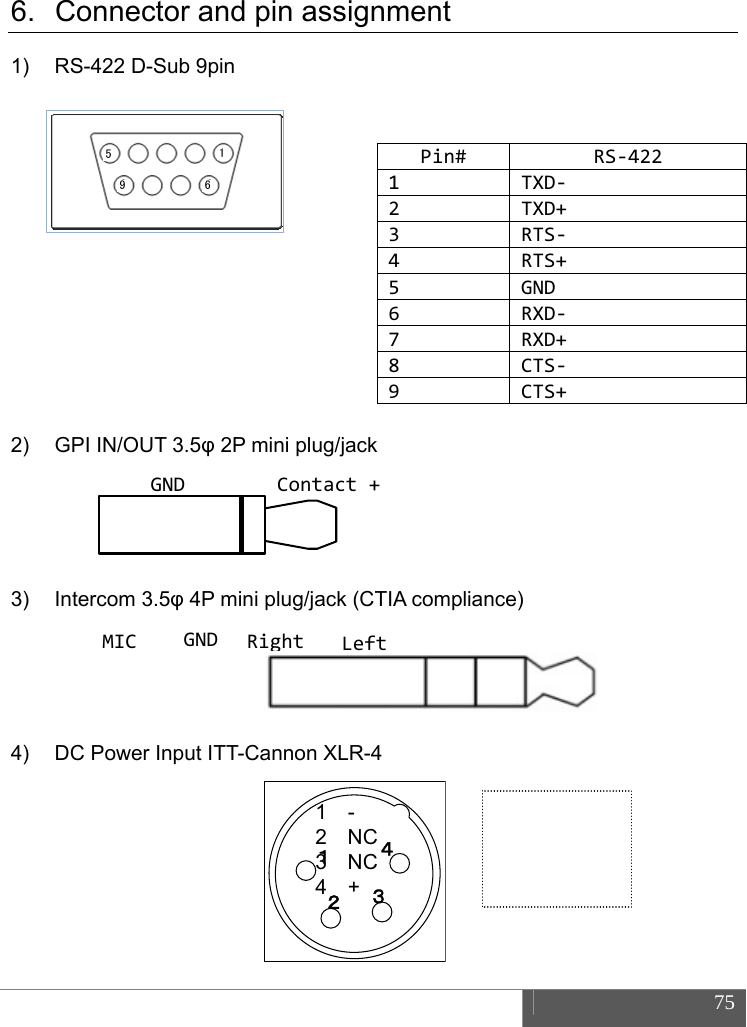
 75  6.  Connector and pin assignment 1)  RS-422 D-Sub 9pin       2) GPI IN/OUT 3.5φ 2P mini plug/jack     3) Intercom 3.5φ 4P mini plug/jack (CTIA compliance)     4)  DC Power Input ITT-Cannon XLR-4         Pin# RS‐4221TXD‐2TXD+3RTS‐4RTS+5GND6RXD‐7RXD+8CTS‐9CTS+1569GNDContact+GNDMICLeftRight12341  - 2  NC 3  NC 4  +
 76    7. Index 3 3G-SDI ......................................................................................................  68,  71 5 5GHz .....................................................................................................  9, 68, 71 8 802.11n ..................................................................................................... 68, 71 A A-4XANT .................................................................................................. 15, 21 Adaptive variable-rate control ........................................................................ 4 Adopter Plate ................................................................................................. 15 A-MT2V .......................................................................................................... 15 antenna ................................................................. 10, 15, 19, 20, 21, 43, 68, 71 audio ....................................................................................... 45, 55, 56, 62, 64 AUTO ............................................................................................ 51, 55, 59, 62 B backlight ............................................................................................. 43, 69, 72 battery ............................................................................................................ 22 bit rate ........................................................................ 27, 51, 55, 59, 62, 69, 71 bps ................................................................................................. 41, 63, 69, 72 button ............................................................................................................. 26 C cable ........................................................................ 7, 15, 21, 23, 38, 41, 44, 46 camera ...................................................................................................... 35, 37 Cannon ......................................................................................... 42, 69, 72, 74 CE ..................................................................................................................... 2 certification ...................................................................................................... 9 channel ..................................................................................................... 55, 62 Channel ................................................................ 28, 51, 52, 57, 59, 65, 68, 71
 77  channel capacity ...................................................................................... 55, 62 coaxial .............................................................................................................  44 codec ...................................................................... 44,  51, 54, 58, 59, 61, 62, 66 connect .................................................................................... 35, 37, 40, 56, 65 Connector ......................................................................... 36, 38, 41, 69, 72, 74 contact signal ........................................................................................... 38, 72 CTIA ................................................................................................... 69, 72, 74 cursor .................................................................................................. 11, 13, 26 CW-F25 ....................................................... 1, 10, 21, 29, 40, 46, 47, 49, 52, 82 D DC ..................................................................................... 11,  14,  22, 70, 72, 74 default ................................................. 32, 36, 48, 50, 54, 56, 58, 61, 62, 64, 66 DFS ....................................................... 5, 30, 43, 51, 52, 53, 57, 65, 67, 68, 71 DHCP ................................................................................ 51, 53, 57, 59, 60, 65 Directional .......................................................................................... 15, 68, 71 disconnect .................................................................................................  56,  65 display .......................................................................... 6, 27, 48, 50, 57, 65, 67 downlink video ....................................................... 4, 31, 44, 45, 55, 68, 71, 72 D-Sub ................................................................................ 12,  14,  41, 69, 72, 74 Dynamic Frequency Selection ......................................................................... 5 E embedded audio ........................................................................... 51, 55, 59, 62 ENTER ............................................................................. 11, 13, 25, 26, 48, 49 ESC ......................................................................................... 11, 13, 26, 69, 72 Ethernet ................................................................................. 11, 14, 46, 69, 72 F FCC ...................................................................................................................  2 firmware ........................................................................... 48, 49, 51, 58, 59, 66 frequency ............................................ 28, 30, 33, 35, 38, 41, 51, 52, 57, 59, 65 G gain ..................................................................................................... 15, 56, 64 gateway......................................................................................... 51, 54, 59, 61 GPI ................................................ 11, 14, 37, 38, 39, 46, 55, 62, 63, 69, 72, 74
 78    H H.264 .................................................................... 45, 51, 54, 55, 62, 68, 69, 71 HD-SDI .....................................................................................................  68,  71 Headset ...........................................................................................................  10 I IDX .................................................................................... 1, 2, 22, 80, 81, 82, 1 IEEE ......................................................................................................... 68,  71 indoor ................................................................................................................  9 intercom ........................................ 12, 13, 35, 36, 46, 51, 56, 59, 64, 69, 72, 74 interference ...................................................................................................... 2 IP ............................................. 26, 33, 46, 47, 51, 53, 54, 57, 59, 60, 61, 62, 65 IP address ..................................... 26, 46, 47, 51, 53, 54, 57, 59, 60, 61, 62, 65 IP camera ....................................................................................................... 33 J jack ................................................................................................ 38, 69, 72, 74 L LAN ........................................ 33, 40, 47, 52, 53, 54, 56, 60, 61, 62, 65, 69, 72 LCD ....................................................................... 11, 13, 24, 43, 48, 49, 69, 72 LED ..................................................................................................... 67, 69, 72 license ............................................................................................................... 9 link ...................................................................................................... 27, 51, 59 lithium-ion ......................................................................................................  22 M MAC ........................................................................................  51,  53, 57, 59, 65 menu ......... 11, 13, 24, 26, 30, 32, 33, 35, 36, 38, 41, 46, 48, 49, 53, 57, 60, 65 mic .......................................................................................... 36, 51, 56, 59, 64 MIMO ................................................................................................. 15, 68, 71 monitor ......................................................................................... 30, 35, 37, 44 N netmask ...................................................................... 44,  51,  54, 57, 59, 61, 65 network ....................................................................... 26,  51,  53, 54, 59, 60, 61
 79  O outdoor ..............................................................................................................  9 P password ....................................................................................... 51, 52, 59, 60 phone ...................................................................................... 36, 51, 56, 59, 64 plug ....................................................................................................... 7, 21, 74 Power base station ......................................................................................... 22 power supply .......................................................... 7, 22, 23, 35, 37, 40, 42, 43 profile ................................................................................ 45,  51, 54, 55, 69, 71 push button .................................................................................................... 24 P-V2CL ............................................................................................... 15, 16, 18 R reboot .......................................................................... 43,  48,  49, 51, 58, 59, 66 regulations ....................................................................................................... 9 remote ..................................... 38, 41, 44, 46, 51, 55, 59, 61, 62, 63, 64, 69, 72 Remote .................................... 38, 41, 44, 46, 51, 55, 59, 61, 62, 63, 64, 69, 72 return video .............................. 4, 31, 32, 34, 35, 37, 40, 44, 45, 59, 62, 69, 71 RP-SMA .............................................................................................. 11, 14, 21 RS-422 ................................................ 12, 14, 40, 41, 46, 59, 63, 64, 69, 72, 74 S S/N ratio ......................................................................................................... 27 screw hole ................................................................................................. 12, 13 SDI ............................................................ 11, 14, 27, 44, 55, 62, 68, 69, 71, 72 setup ............... 11, 13, 26, 28, 32, 38, 41, 46, 48, 50, 51, 52, 53, 54, 59, 60, 61 signal strength ............................................................................................... 27 SMA .......................................................................................................... 68,  71 SNR .................................................................................................................  27 SSID ..................................................................................  51,  52,  57, 59, 60, 65 status ...................................... 11, 13, 38, 42, 51, 56, 57, 59, 64, 65, 67, 69, 72 Status LED ................................................................. 11, 13, 42, 43, 67, 69, 72 switch ...................................................................................... 12, 13, 23, 69, 72 system ............................................................... 48, 49, 51, 58, 59, 66, 69, 72, 1
 80    T tally ........................................................................................................... 37,  46 Tally .................................................................................. 38,  46,  51, 55, 59, 62 transmission ................................................. 4, 5, 45, 55, 62, 63, 68, 69, 71, 72 U USB ...................................................................................  12,  13,  48, 49, 69, 72 V Vcc ...................................................................................................................  46 V-Mount ....................................................................................................  15,  16 V-Plate ................................................................................................ 13, 15, 16 W WDS .................................................................................................... 51, 53, 57 wireless ............................... 5, 27, 28, 51, 52, 53, 56, 57, 59, 60, 64, 65, 68, 71 Wireless LAN ....................................................................................... 5, 52, 60 X XLR-4 ................................................................................  11,  14,  42, 69, 72, 74
 81  VI. Warranty & Service 1. Product warranty  Warranty period of this product is 1 years after purchase.  Warranty covers manufacturing defects caused by poor workmanship or materials.  Warranty may be voided even within the warranty period when IDX noticed followings: Improper use of this product / Malfunction due to excess or deficiency of power / Malfunction due to power short circuit / Physical damages caused by dropping or vibration / Malfunction due to water / Unauthorized used and/or modification done by customer  Original serial numbers removed or tampered with voids any warranty.  2. About exemptions IDX does not take responsibility for failure generated by or as a result of any of the following items.   Damage caused by natural disasters, such as earthquakes, thunder storms, flood damage and fire or acts by third parties outside the responsibility of our company other accidents, and intentional negligence and misuse by the user, or use under unusual conditions.  Consequential damage through misuse of this product, or malfunction (change, disappearance of the information contents, loss of profits, enterprise failure, etc.)  Damage produced by non-compliance with the items mentioned in the operating manual.  Damage produced from using non-compatible hardware and software does not approved, tested by IDX .
 82    3.  Support & Service contact When any assistance is needed, please contact your local IDX dealer or appropriate IDX office below.   WEB http://idxtek.com/idx_contact/form  Contact us IDX System Technology, Inc. 19001 Harborgate Way, Suite 105 Torrance, CA 90501 USA Tel: +1-310-328-2850 Fax: +1-310-328-8202 E-mail: idx.usa@idx.tv
 83                              CW-F25 Instruction manual, US version. XXWK140187 1st DRAFT Edition, 1 Jun. 2014  IDX Company, Ltd. 6-28-11 Shukugawara, Tama-ku, Kawasaki-shi, Kanagawa-ken, 214-0021 JAPAN
6KawE                      In Japan / AIDX Company,6-28-11 ShukugTama-Kuwasaki-Shi, Kana214-0021JAPAN TEL: 81-44-850FAX: 81-44-850E-mail: idx.japanFOR SALAsia , Ltd. gawara, , agawa-Ken , 0-8801 0-8838 n@idx.tv http://wwwLES AND SEIn the UniteIDX System Tec19001 HarboSuite 105 TCA 90USATEL: 1-310-FAX: 1-310-E-mail: idx.uw.idx.tv/ RVICE CONTed States chnology, Inc. orgate Way, Torrance 501 A 328-2850 328-8202 usa@idx.tv TACT In Europe IDX TechnoUnit 9, L Waterside BerkshENTEL: 44-1FAX: 44-1E-mail: idx / Middle East. logy Europe Ltd.Langley Park, Drive, Langley, ire SL3 6AD GLAND 1753-547692 1753-546660 x.europe@idx.tv .

Navigation menu