IDnet VIP15XB ALL- IN- ONE PC User Manual 917 1

IDnet Co.,Ltd ALL- IN- ONE PC 917 1

Contents

USERS MANUAL 2

Info: Because of the inherent limitations of the Windows operating system in  handlingfiles over 2 GB, PowerVCR will automatically save and chunk your  video files into 600 MB files if the file's size is over this limit. Thus, when you  select the appropriate playlist for playback, all the chunked files will play  continuously like a single file.10 To delete all the file(s), click Delete.Note:  When you click Delete, the file(s) will be deleted from your playlist.11 Click OK when the dialog box appears to confirm your deletion.12 Click on Save to... to save it to another folder other than the default folder. 13 A dialog box will appear for you to save it in another folder or to rename it. Click Save when you are finished.Recording Analog Video from a Variety Of SourcesNot only can you record TV programming with PowerVCR, there are a lot more sources you may record from. Converting all the analog video content (e.g. videotapes) in your private collection into everlasting digital technology is also not out of the question:PC camerascamcordersVCRsTVsFor the aforementioned capturing devices, make sure they are installed properly with the proper drivers. Refer to their respective user's guide for more information.1Start PowerVCR. 2Select the correct source by clicking on the source indicator. 3If the screen is still blank, click System Settings  to properly configure the source. Refer to "Chapter 5: Changing System Settings" on page 39 for more details.
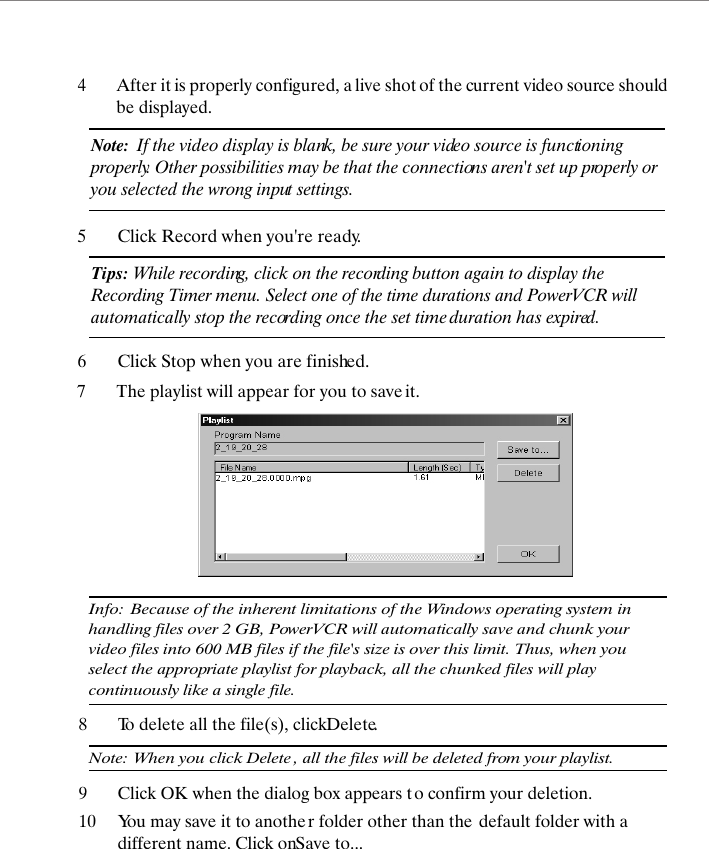
4After it is properly configured, a live shot of the current video source should be displayed. Note:  If the video display is blank, be sure your video source is functioning properly. Other possibilities may be that the connections aren't set up properly or you selected the wrong input settings.5Click Record when you're ready.Tips: While recording, click on the recording button again to display the Recording Timer menu. Select one of the time durations and PowerVCR will automatically stop the recording once the set time duration has expired.6Click Stop when you are finished.7The playlist will appear for you to save it.Info: Because of the inherent limitations of the Windows operating system in handling files over 2 GB, PowerVCR will automatically save and chunk your video files into 600 MB files if the file's size is over this limit. Thus, when you select the appropriate playlist for playback, all the chunked files will play continuously like a single file.8To delete all the file(s), click Delete.Note: When you click Delete , all the files will be deleted from your playlist.9Click OK when the dialog box appears t o confirm your deletion.10 You may save it to another folder other than the  default folder with a different name. Click on Save to...
11A dialog box will appear for you to save it in another fo lder or to rename it. Click Save when you are finished.Tips: To enlarge the video display to full screen, click anywhere on the screen. To restore to original size, click again.Recording from a DV CamcorderWhether your DV is playing video or fil ming special moments, PowerVCR records in real-time. With the astounding FireWire transfer rate, you can also record crystal clear video and audio from yo ur DV camcorder.Note: Before beginning, make sure all devices are installed properly with the proper drivers and that your DV camcorder is already turned on. Refer to the respective user's guide for more information.1Start PowerVCR. 2Select the correct source by clicking on the source indicator. 3If the screen is still blank, click System Settings to properly configure the source. Refer to "Chapter 5: Changing System Settings" on page 39 for more details.4After it is properly configured, a live shot of the current video source should be displayed.5Turn the DV camcorder s power switch to play (VCR) mode. 6Fast forward or rewind to the beginning of the segment that you want to record. Press your camcorder s play button.7Or, turn the DV camcorder s power switch to record (Camera) mode if you would like PowerVCR to record real-time content through the DV camcorder, which is in standby mode but not recording. 8 Then, begin recording by clicking PowerVCR s Record  button.9Click Stop when you are finished.
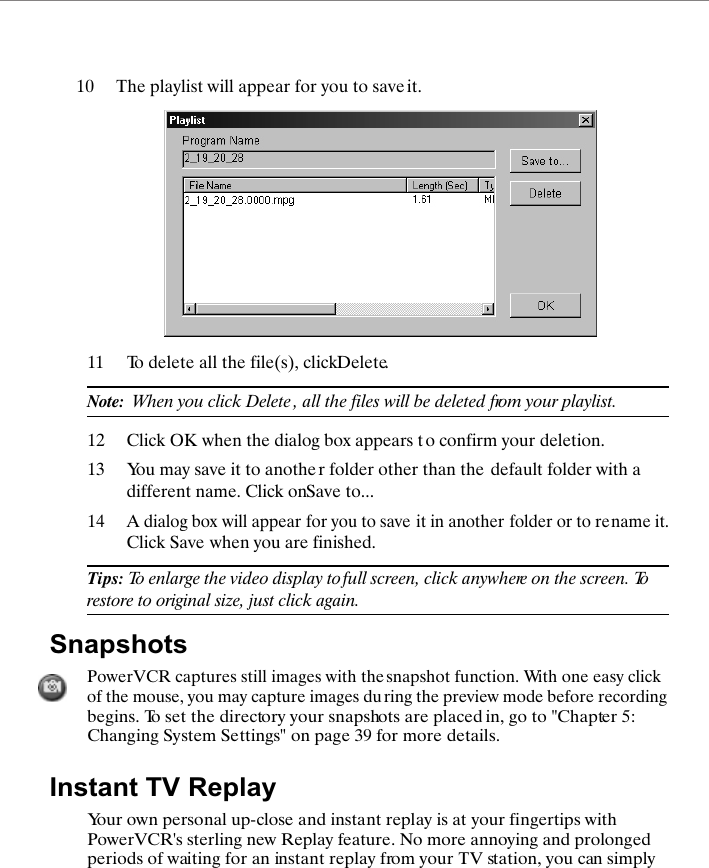
10 The playlist will appear for you to save it.11 To delete all the file(s), click Delete.Note:  When you click Delete , all the files will be deleted from your playlist.12 Click OK when the dialog box appears t o confirm your deletion.13 You may save it to another folder other than the  default folder with a different name. Click on Save to...14A dialog box will appear for you to save it in another folder or to rename it. Click Save when you are finished.Tips: To enlarge the video display to full screen, click anywhere on the screen. To restore to original size, just click again.SnapshotsPowerVCR captures still images with the snapshot function. With one easy click of the mouse, you may capture images during the preview mode before recording begins. To set the directory your snapshots are placed in, go to "Chapter 5: Changing System Settings" on page 39 for more details. Instant TV Replay Your own personal up-close and instant replay is at your fingertips with PowerVCR's sterling new Replay feature. No more annoying and prolonged periods of waiting for an instant replay from your TV station, you can simply
invoke the Replay function while watching TV for your own private instant replay!Note:  Replay files are temporarily stored in your hard drive, but are automatically deleted as soon as exiting Replay mode.1While watching TV with PowerVCR, switch to the  Instant TV Replay function by clicking it in the Master panel and instant replay playback will commence. Refer to "Chapter 5: Changing System Settings" on page 39 for more details.2Refer to the next section for more details on Navigating in Replay Mode.Note:  There is no Stop function in Instant TV Replay mode.Navigating in Replay ModeSkip forward  (skip commercials) or backward (instant replay) by clicking on the corresponding buttons in the control wheel.Note: The skipping forward or backward speed is set at seven seconds. Click Pause to momentarily cease instant replay.The fastest method for navigating here is to drag the slider. Note that the live broadcast will always be at the slider's end, so you may notice that the slider bar will regularly reposition itself during playback.
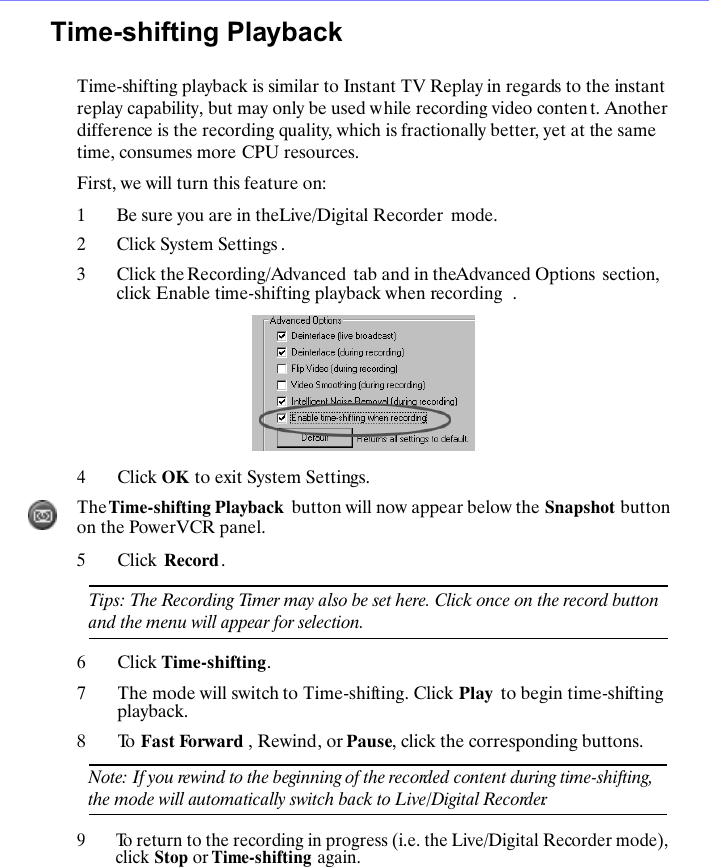
Time-shifting PlaybackTime-shifting playback is similar to Instant TV Replay in regards to the instant replay capability, but may only be used while recording video conten t. Another difference is the recording quality, which is fractionally better, yet at the same time, consumes more CPU resources.First, we will turn this feature on:1Be sure you are in the Live/Digital Recorder  mode.2Click System Settings . 3Click the Recording/Advanced  tab and in the Advanced Options  section, click Enable time-shifting playback when recording .4Click OK to exit System Settings.The Time-shifting Playback  button will now appear below the Snapshot button on the PowerVCR panel. 5Click  Record .Tips: The Recording Timer may also be set here. Click once on the record button and the menu will appear for selection.6Click Time-shifting.7The mode will switch to Time-shifting. Click Play  to begin time-shifting playback. 8To  Fast Forward , Rewind, or Pause, click the corresponding buttons.Note: If you rewind to the beginning of the recorded content during time-shifting, the mode will automatically switch back to Live/Digital Recorder.9To return to the recording in progress (i.e. the Live/Digital Recorder mode), click Stop or Time-shifting again.
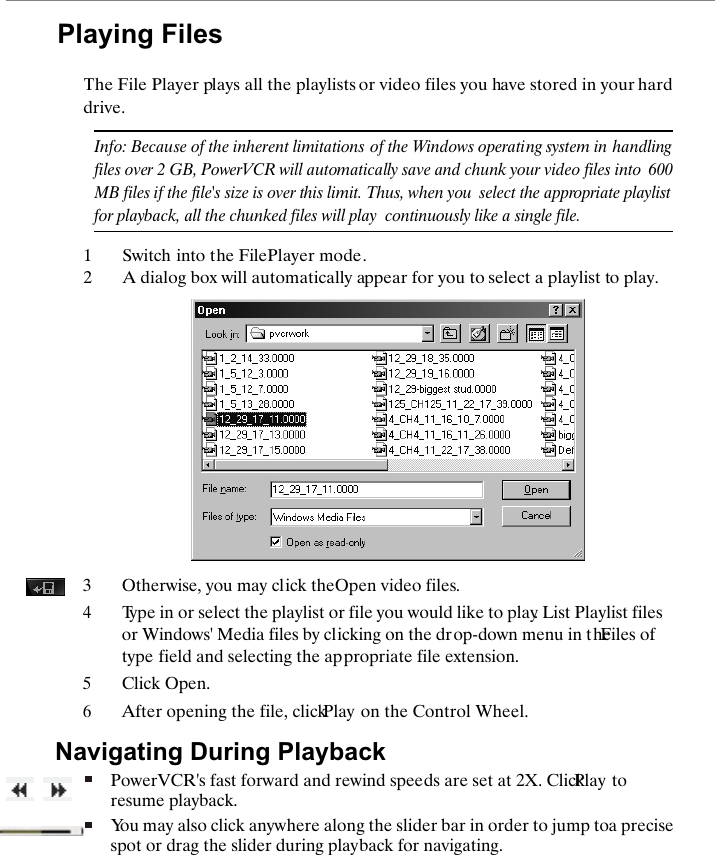
Playing FilesThe File Player plays all the playlists or video files you have stored in your hard drive.Info: Because of the inherent limitations of the Windows operating system in  handling files over 2 GB, PowerVCR will automatically save and chunk your video files into  600MB files if the file's size is over this limit. Thus, when you  select the appropriate playlist for playback, all the chunked files will play  continuously like a single file. 1Switch into the File Player mode.2A dialog box will automatically appear for you to select a playlist to play.3Otherwise, you may click the Open video files. 4Type in or select the playlist or file you would like to play. List Playlist files or Windows' Media files by clicking on the drop-down menu in the Files of type field and selecting the appropriate file extension. 5Click Open.6After opening the file, click Play on the Control Wheel. Navigating During PlaybackPowerVCR's fast forward and rewind speeds are set at 2X. Click Play to resume playback.You may also click anywhere along the slider bar in order to jump to a precise spot or drag the slider during playback for navigating.
When you click Stop during playback, the video will always return to the beginning of the file.Using the Step FunctionsDuring playback, use the step functions while you are in the Pause or Stop mode. You may save time capturing snapshots of specific frames by stepping backward (left) or forward (right) without wasting precious minutes blindly pausing on the right frames. Please refer to "Snapshots" on page 32 for more information on snapshots.1When in Pause or Stop mode, click the Step Left or Step Right functions for moving minimal frames at a time.Note:  Step Left functions move one GOP (Group of Pictures) backward at a time, while Step Right moves one frame forward at a time. 2To begin playback, click Play.SnapshotsPowerVCR captures still images with the snapshot function. With one easy click of the mouse, you may capture images during the preview mode before recording begins. To set the directory your snapshots are placed in, go to "Chapter 5: Changing System Settings" on page 39 for more details.
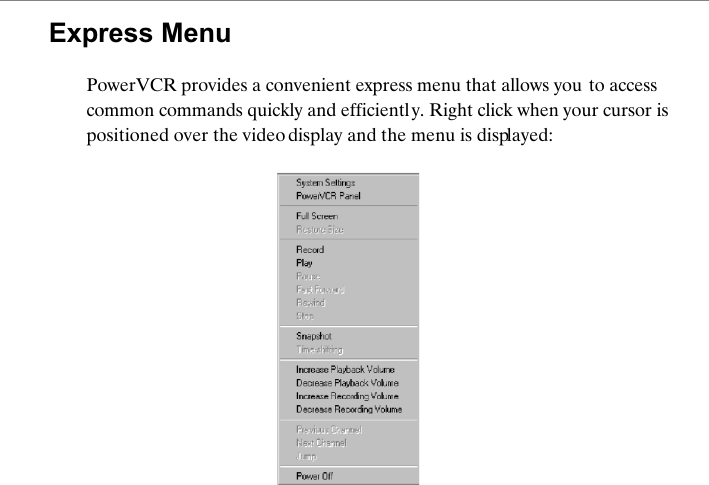
Express MenuPowerVCR provides a convenient express menu that allows you to access common commands quickly and efficiently. Right click when your cursor is positioned over the video display and the menu is displayed:
CHANGING SYSTEM SETTINGSSettings are configured automatically before recording. If you would like to alter them, these are the following sections under the Live/Digital Recorder  mode:V/A Devices  set configuration for all video and audio devices. Video configures the visual elements of PowerVCR along with setting your video overlay mode.Profiles select and create recording profiles along with identifying and displaying instruction sets.Recording/Advanced sets the timer recorder along with advanced recording options.Channels  list available stations in your area and allow you to name specific channels.Snapshot Settings select where you would like your snapshot image to be placed.Replay Settings modify how much disk space you would like to allot for instant replaying. The replay working directory may also be set here.
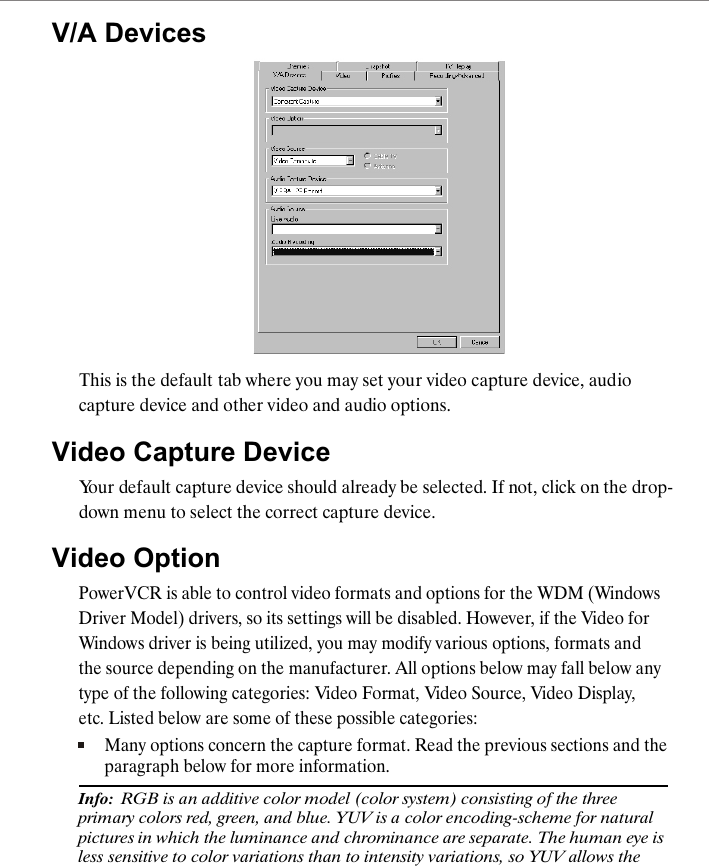
V/A DevicesThis is the default tab where you may set your video capture device, audio capture device and other video and audio options. Video Capture DeviceYour default capture device should already be selected. If not, click on the drop-down menu to select the correct capture device.Video OptionPowerVCR is able to control video formats and options for the WDM (Windows Driver Model) drivers, so its settings will be disabled. However, if the Video for Windows driver is being utilized, you may modify various options, formats and the source depending on the manufacturer. All options below may fall below any type of the following categories: Video Format, Video Source, Video Display, etc. Listed below are some of these possible categories:Many options concern the capture format. Read the previous sections and the paragraph below for more information.Info:  RGB is an additive color model (color system) consisting of the three primary colors red, green, and blue. YUV is a color encoding-scheme for natural pictures in which the luminance and chrominance are separate. The human eye is less sensitive to color variations than to intensity variations, so YUV allows the
encoding of luminance (Y) information at full bandwidth and chrominance (UV) information at half bandwidth. The YUV color model luminosity and color values are processed separately. The YUV values are calculated by addition or subtraction of specifically formed RGB values. RGB is the default setting with 16 bit (the higher the bit, the better the quality but with more memory consumed).For video source, choose the appropriate input such as SVHS, S-Video, TV tuner, composite, etc.Some allow field order (even versus odd fields first) selections. These do not and do not impact the codecs. have to be alteredOutput size or the image size of your video display is a prevalent option. The more it will consume CPU resources so select according to larger the size, the available resources.Note:  If you have modified the image size (output size) here, and the setting is  from that of your recording profile, the profile's output size will always different Go to act as the default. "Chapter 2: Video Signal Formats" on page  12  for more details.Some allow adjustment of brightness, hue, color, and saturation. Click on the slider and drag. You may also choose the type of video signal. Refer to "Chapter 2: Video Signal Formats" on page 12 in selecting the appropriate one.Video SourceClick on the drop-down menu to select one of the available opti ons depending on your video source. If you chose Video Tuner, click on Antenna or Cable depending on how your TV tuner card receives the signals.Audio Capture DeviceThe default should be automatically set as your sound card. If not, click on the drop-down menu to select the correct sound card device.Audio Source (Live Audio & Audio Recording)Typically, both of these settings should be identical.Set the correct audio source for listening during Live Audio by clicking on the drop-down menu and selecting.For Audio Recording, the audio source does not have to match Live Audio depending if you have multiple audio sources. Click on the drop-down menu to select other audio sources if necessary.
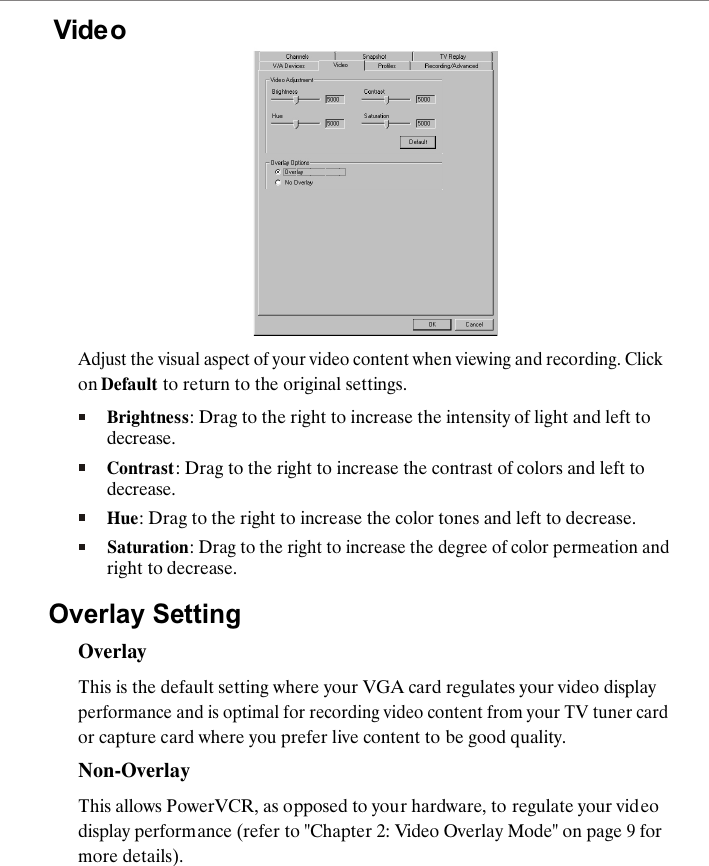
VideoAdjust the visual aspect of your video content when viewing and recording. Click on Default to return to the original settings.Brightness: Drag to the right to increase the intensity of light and left to decrease.Contrast: Drag to the right to increase the contrast of colors and left to decrease.Hue: Drag to the right to increase the color tones and left to decrease.Saturation: Drag to the right to increase the degree of color permeation and right to decrease.Overlay SettingOverlayThis is the default setting where your VGA card regulates your video display performance and is optimal for recording video content from your TV tuner card or capture card where you prefer live content to be good quality.Non-OverlayThis allows PowerVCR, as opposed to your hardware, to regulate your video display performance (refer to "Chapter 2: Video Overlay Mode" on page 9 for more details).
Depending on your VGA graphics card and capture card, you may not be able to override the hardware default setting for video overlay. When hardware employs the overlay mode, less CPU resources are consumed, speed is faster, video quality is better, but less stable than non-overlay mode (when PowerVCR regulates video display performance).
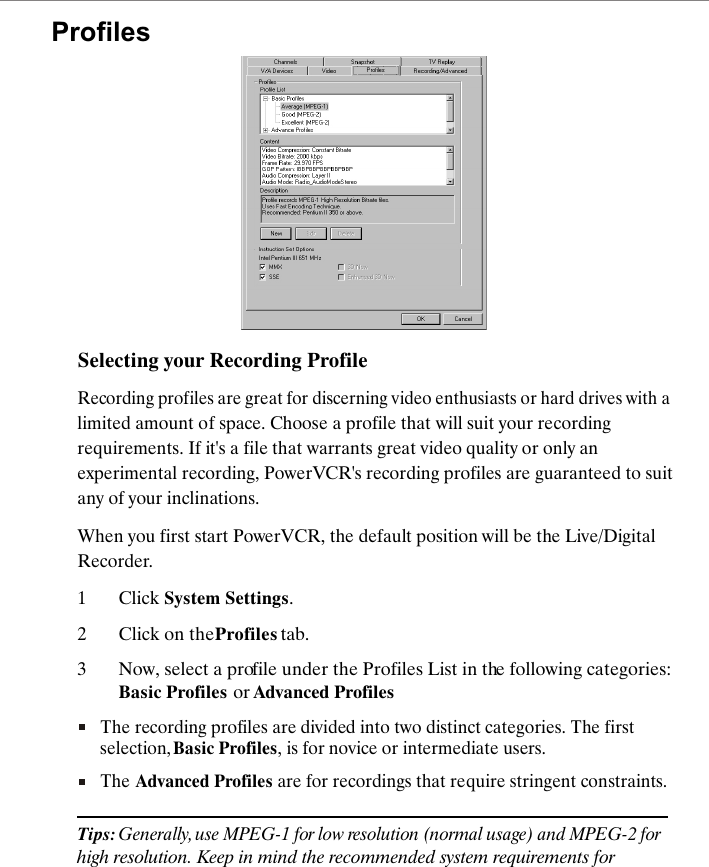
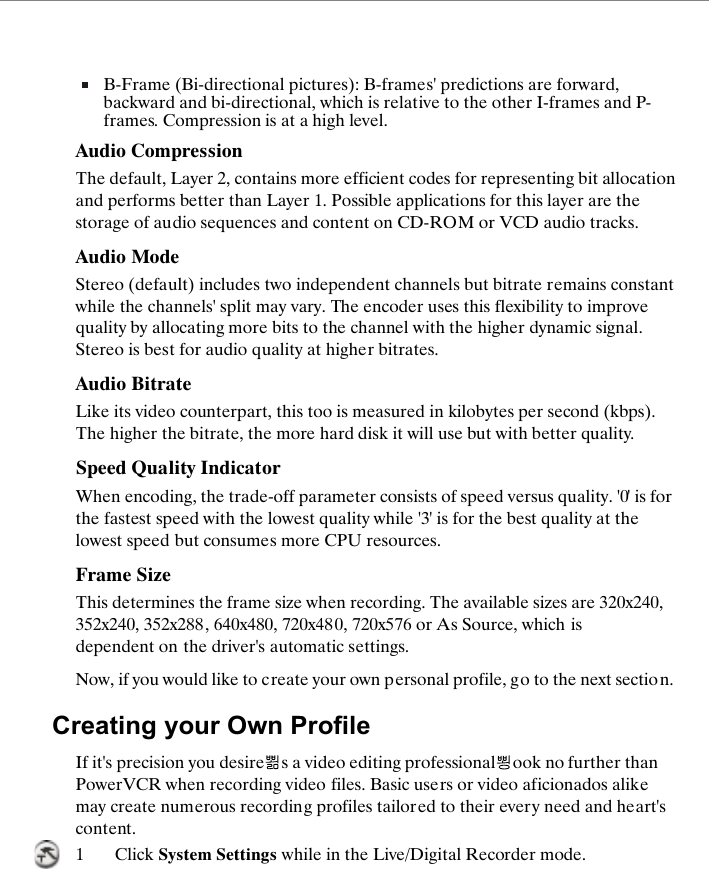
Selecting your Recording ProfileRecording profiles are great for discerning video enthusiasts or hard drives with a limited amount of space. Choose a profile that will suit your recording requirements. If it's a file that warrants great video quality or only an experimental recording, PowerVCR's recording profiles are guaranteed to suit any of your inclinations. When you first start PowerVCR, the default position will be the Live/Digital Recorder. 1Click System Settings.2Click on the Profiles tab.3Now, select a profile under the Profiles List in the following categories: Basic Profiles or Advanced ProfilesThe recording profiles are divided into two distinct categories. The first selection, Basic Profiles, is for novice or intermediate users. The Advanced Profiles are for recordings that require stringent constraints.Tips: Generally, use MPEG-1 for low resolution (normal usage) and MPEG-2 for high resolution. Keep in mind the recommended system requirements for Profiles
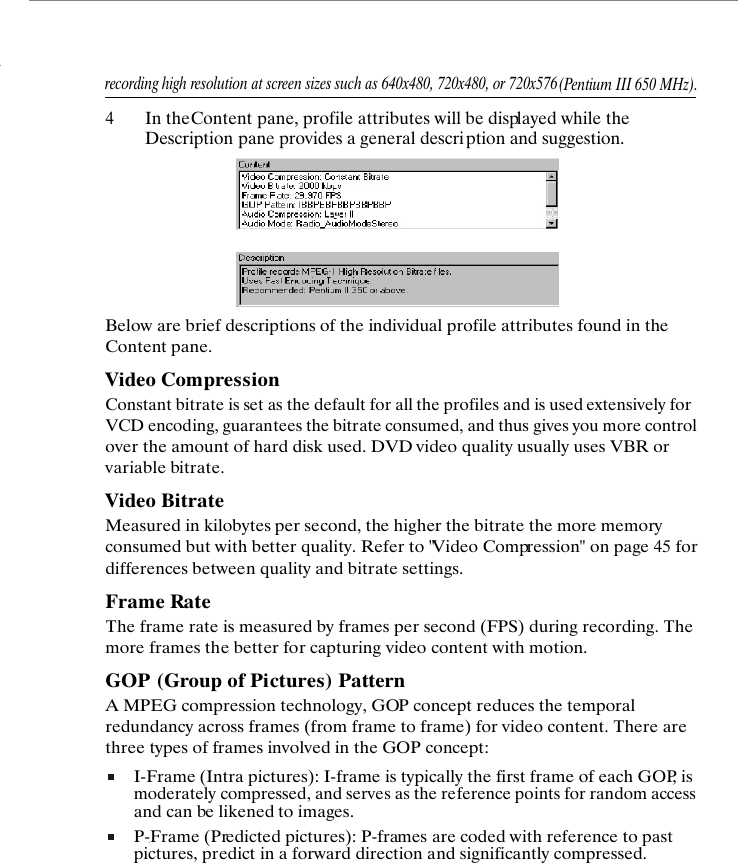
recording high resolution at screen sizes such as 640x480, 720x480, or 720x576 Below are brief descriptions of the individual profile attributes found in the Constant bitrate is set as the default for all the profiles and is used extensively for VCD encoding, guarantees the bitrate consumed, and thus gives you more control over the amount of hard disk used. DVD video quality usually uses VBR or Measured in kilobytes per second, the higher the bitrate the more memory consumed but with better quality. Refer to "Video Compression" on page 45 for The frame rate is measured by frames per second (FPS) during recording. The (Pentium III 650 MHz). 4In the Content pane, profile attributes will be displayed while the Description pane provides a general descri ption and suggestion.Content pane. Video Compressionvariable bitrate.Video Bitratedifferences between quality and bitrate settings.Frame Ratemore frames the better for capturing video content with motion.GOP (Group of Pictures) PatternA MPEG compression technology, GOP concept reduces the temporal three types of frames involved in the GOP concept:I-Frame (Intra pictures): I-frame is typically the first frame of each GOP, is moderately compressed, and serves as the reference points for random access and can be likened to images.P-Frame (Predicted pictures): P-frames are coded with reference to past pictures, predict in a forward direction and significantly compressed.redundancy across frames (from frame to frame) for video content. There are
B-Frame (Bi-directional pictures): B-frames' predictions are forward, backward and bi-directional, which is relative to the other I-frames and P-frames. Compression is at a high level. Audio CompressionThe default, Layer 2, contains more efficient codes for representing bit allocation and performs better than Layer 1. Possible applications for this layer are the storage of audio sequences and content on CD-ROM or VCD audio tracks.Audio ModeStereo (default) includes two independent channels but bitrate remains constant while the channels' split may vary. The encoder uses this flexibility to improve quality by allocating more bits to the channel with the higher dynamic signal. Stereo is best for audio quality at higher bitrates.Audio BitrateLike its video counterpart, this too is measured in kilobytes per second (kbps). The higher the bitrate, the more hard disk it will use but with better quality. Speed Quality IndicatorWhen encoding, the trade-off parameter consists of speed versus quality. '0' is for the fastest speed with the lowest quality while '3' is for the best quality at the lowest speed but consumes more CPU resources.Frame Size This determines the frame size when recording. The available sizes are 320x240, 352x240, 352x288, 640x480, 720x48 0, 720x576 or As Source, which is dependent on the driver's automatic settings. Now, if you would like to create your own personal profile, go to the next section. Creating your Own ProfileIf it's precision you desire s a video editing professional ook no further than PowerVCR when recording video files. Basic users or video aficionados alike may create numerous recording profiles tailored to their every need and heart's content. 1Click System Settings while in the Live/Digital Recorder mode.
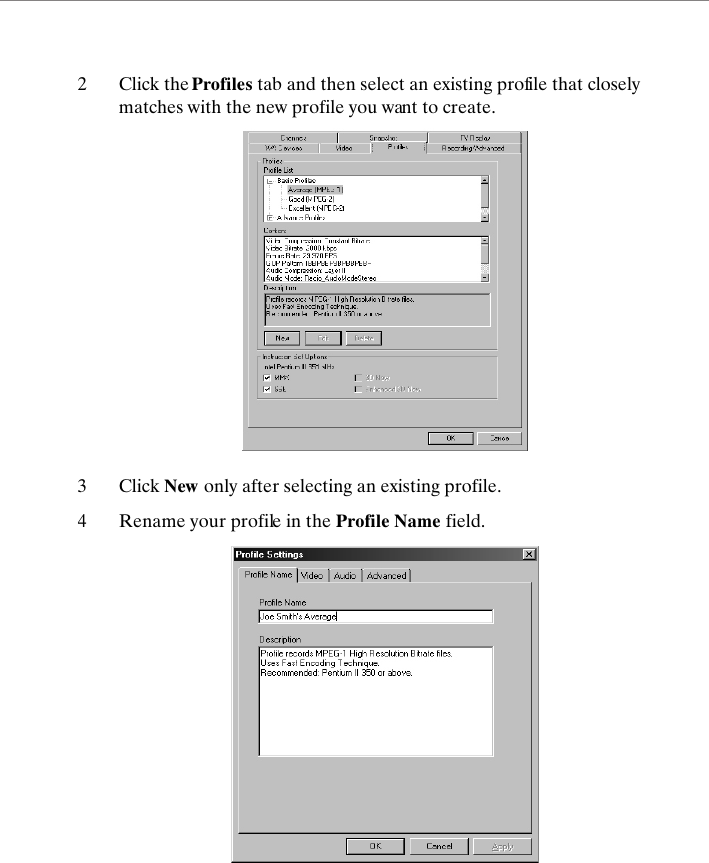
2Click the Profiles tab and then select an existing profile that closely matches with the new profile you want to create.3Click New only after selecting an existing profile.4Rename your profile in the Profile Name field.
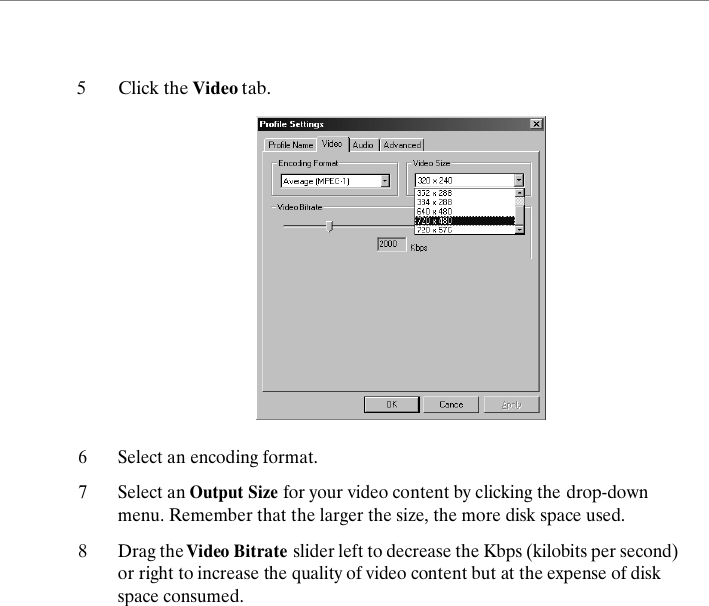
6Select an encoding format. 7Select an Output Size for your video content by clicking the drop-down menu. Remember that the larger the size, the more disk space used.8Drag the Video Bitrate slider left to decrease the Kbps (kilobits per second) or right to increase the quality of video content but at the expense of disk space consumed.5Click the Video tab.
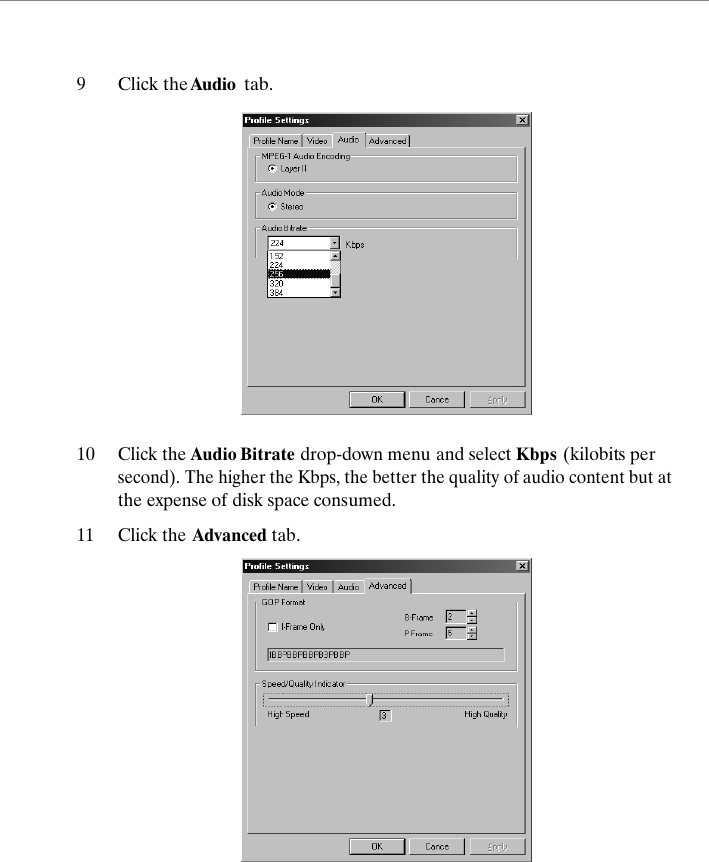
9Click the Audio  tab. 10Click the Audio Bitrate drop-down menu and select Kbps (kilobits per second). The higher the Kbps, the better the quality of audio content but at the expense of disk space consumed. 11Click the Advanced tab.
12 Click on the arrows to increase the number of a specific frame or click the I-Frame Only box. Refer to the "GOP (Group of Pictures) Pattern" on page 45 for more details.13 Click and drag the indicator left or right to adjust the quality and speed of the recording. Refer to "Speed Quality Indicator" on page 46 for more details.14 When you're done, click OK. Click OK again to exit the System Settings.Instruction Set OptionsThe CPU Type  will automatically be determined by PowerVCR. The Instruction Set Options depend on the CPU type, which are from two possible microprocessor manufacturers:Intel (MMX and Streaming SIMD Extension)Advanced Micro Devices (3D Now and Enhanced 3D Now)Info:  Instruction sets optimize and regulate multimedia tasks and configuration. Be sure that all possible selections are checked for optimal recording.
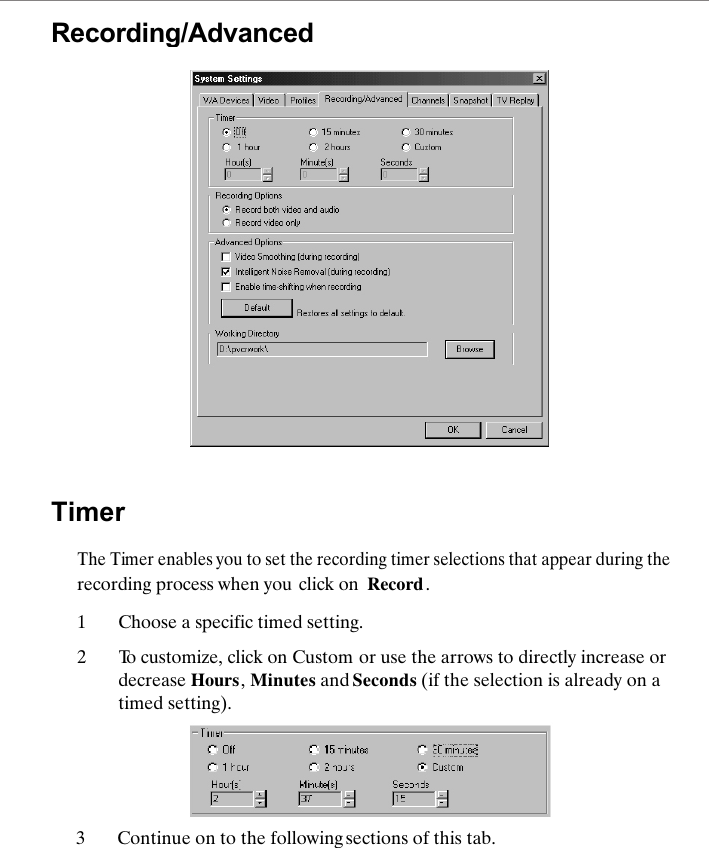
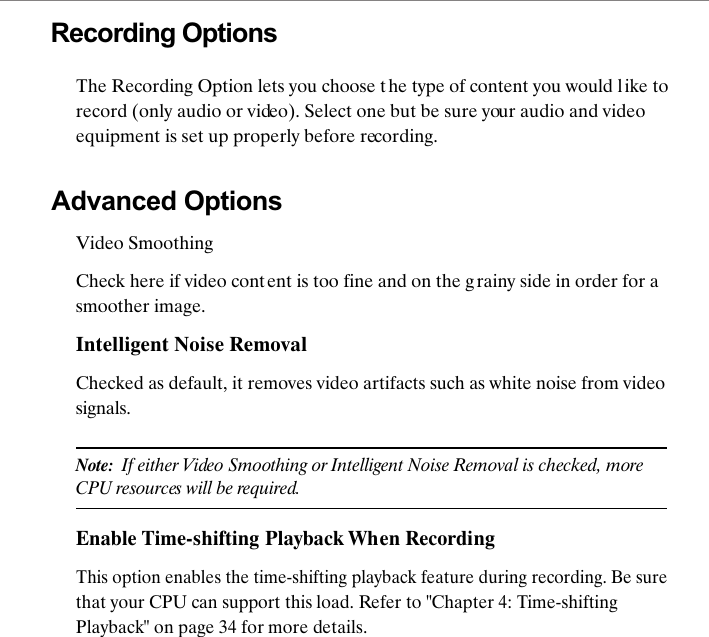
Recording/AdvancedTimerThe Timer enables you to set the recording timer selections that appear during the recording process when you click on  Record . 1Choose a specific timed setting. 2To customize, click on Custom or use the arrows to directly increase or decrease Hours, Minutes and Seconds (if the selection is already on a timed setting). 3Continue on to the following sections of this tab.
Recording OptionsThe Recording Option lets you choose the type of content you would l ike to record (only audio or video). Select one but be sure your audio and video equipment is set up properly before recording. Advanced OptionsVideo SmoothingCheck here if video content is too fine and on the g rainy side in order for a smoother image.Intelligent Noise RemovalChecked as default, it removes video artifacts such as white noise from video signals.Note:  If either Video Smoothing or Intelligent Noise Removal is checked, more CPU resources will be required.Enable Time-shifting Playback When RecordingThis option enables the time-shifting playback feature during recording. Be sure that your CPU can support this load. Refer to "Chapter 4: Time-shifting Playback" on page 34 for more details.
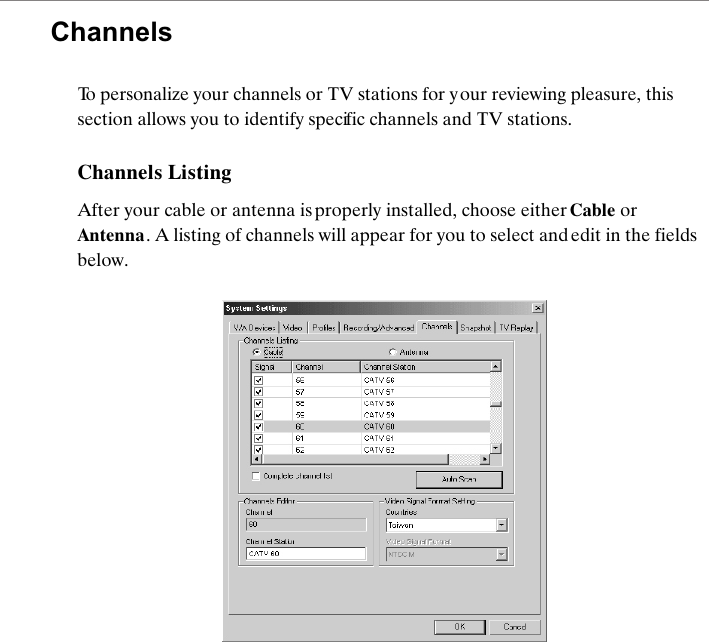
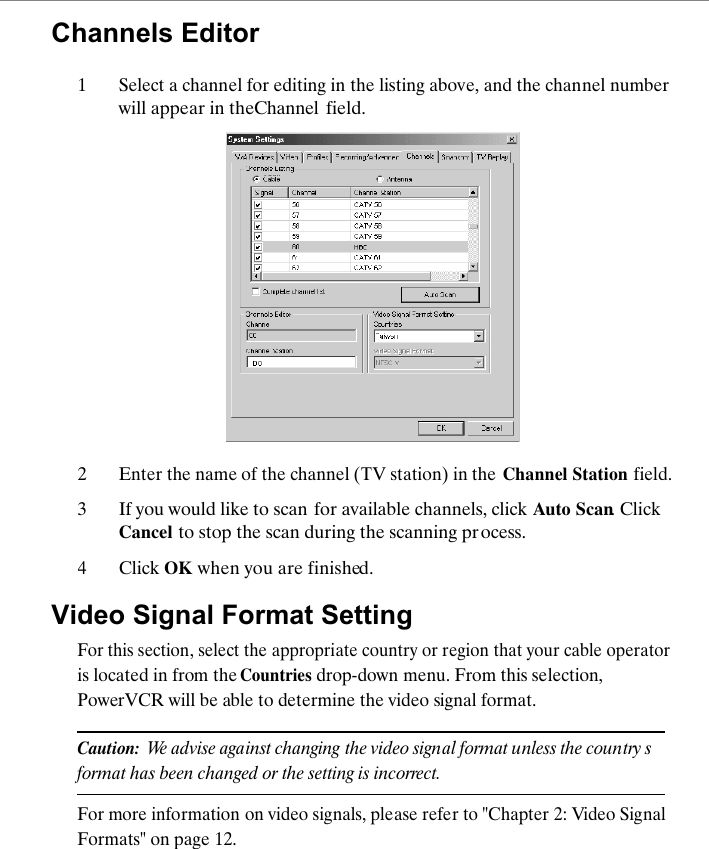
ChannelsTo personalize your channels or TV stations for y our reviewing pleasure, this section allows you to identify specific channels and TV stations. Channels ListingAfter your cable or antenna is properly installed, choose either Cable or Antenna. A listing of channels will appear for you to select and edit in the fields below.
Channels Editor1Select a channel for editing in the listing above, and the channel number will appear in the Channel  field.2Enter the name of the channel (TV station) in the Channel Station field.3If you would like to scan for available channels, click  Auto Scan. Click Cancel to stop the scan during the scanning process.4Click OK when you are finished.Video Signal Format SettingFor this section, select the appropriate country or region that your cable operator is located in from the Countries drop-down menu. From this selection, PowerVCR will be able to determine the video signal format.Caution:  We advise against changing the video signal format unless the country s format has been changed or the setting is incorrect.For more information on video signals, please refer to "Chapter 2: Video Signal Formats" on page 12.
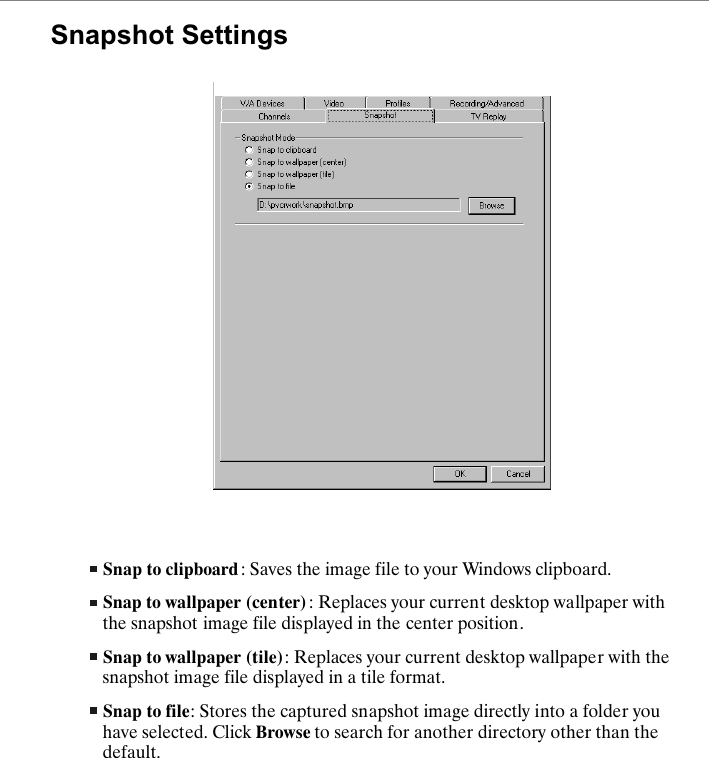
Snapshot SettingsSnap to clipboard : Saves the image file to your Windows clipboard.Snap to wallpaper (center) : Replaces your current desktop wallpaper with the snapshot image file displayed in the center position.Snap to wallpaper (tile): Replaces your current desktop wallpaper with the snapshot image file displayed in a tile format.Snap to file: Stores the captured snapshot image directly into a folder you have selected. Click Browse to search for another directory other than the default.
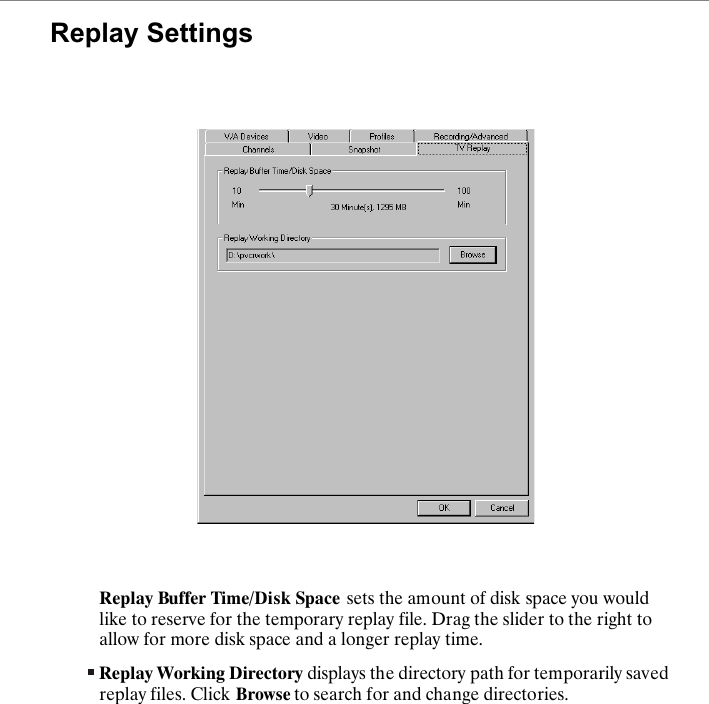
Replay SettingsReplay Buffer Time/Disk Space sets the amount of disk space you would like to reserve for the temporary replay file. Drag the slider to the right to allow for more disk space and a longer replay time. Replay Working Directory displays the directory path for temporarily saved replay files. Click Browse to search for and change directories.
DITING  AND CONVERTING VIDEO  ILESNot only does PowerVCR possess astounding recording features and breathtaking recording quality, it also allows you to edit all the files that you have recorded or boxes full of VHS tapes stashed away in your private collection. PowerVCR cuts and trims out unwanted footage of any given file or combines and merges video clips or files to resemble a feature length movie.If you have in your possession AVI video files that are clogging up a lot of disk space, there is no need to fret because PowerVCR's converting function saves you all the disk space you need, for it converts large and uncompressed AVI files into MPEG format. Refer to the "Converting" on page 67 for more information.EditingThere is a host of ways to go about editing your video files. You may trim or merge them in any fashion you like, but be sure to make use of the Step Left/Right Trim functions for precise editing.EF
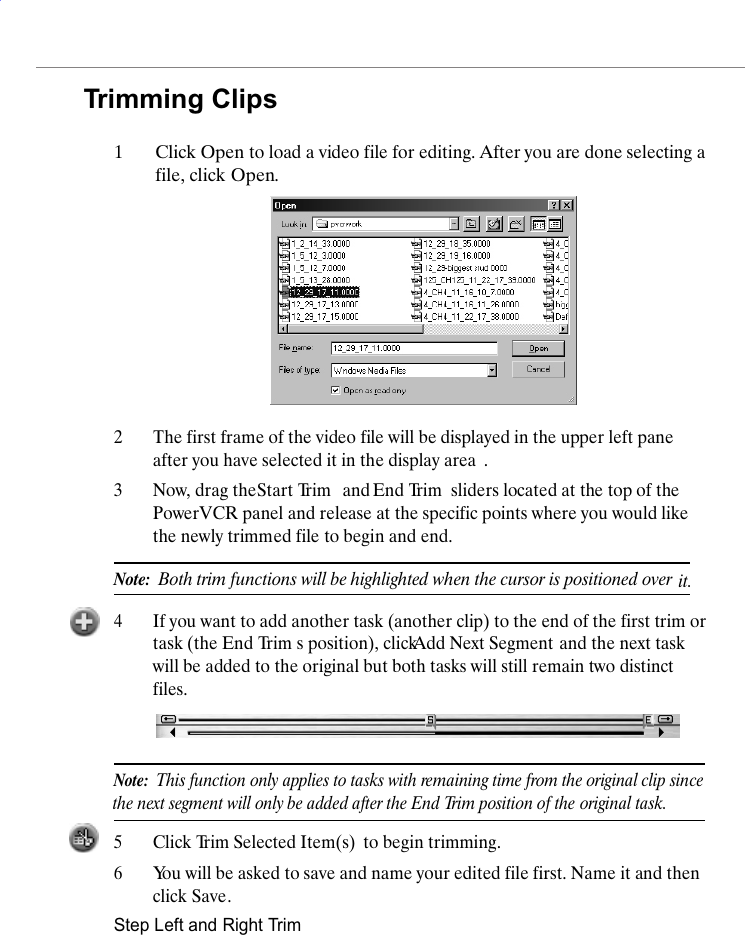
Trimming Clips1Click Open to load a video file for editing. After you are done selecting a file, click Open.2The first frame of the video file will be displayed in the upper left pane after you have selected it in the display area .3Now, drag the Start Trim  and End Trim  sliders located at the top of the PowerVCR panel and release at the specific points where you would like the newly trimmed file to begin and end.Note:  Both trim functions will be highlighted when the cursor is positioned over it.4If you want to add another task (another clip) to the end of the first trim or task (the End Trim s position), click Add Next Segment and the next task will be added to the original but both tasks will still remain two distinct files.Note:  This function only applies to tasks with remaining time from the original the next segment will only be added after the End Trim position of the clip sinceoriginal task.5Click Trim Selected Item(s)  to begin trimming.6You will be asked to save and name your edited file first. Name it and then click Save.Step Left and Right Trim
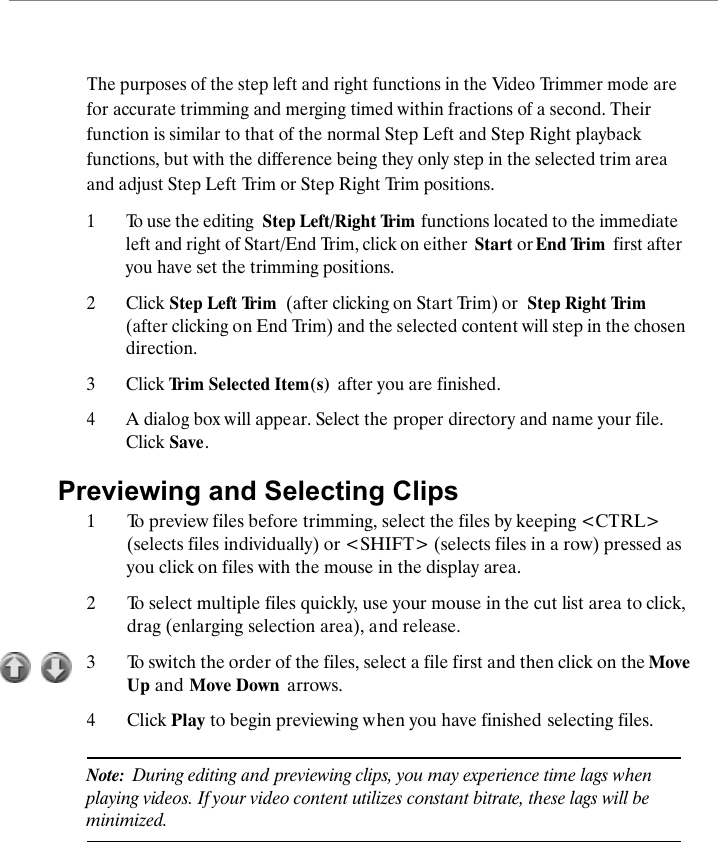
The purposes of the step left and right functions in the Video Trimmer mode are for accurate trimming and merging timed within fractions of a second. Their function is similar to that of the normal Step Left and Step Right playback functions, but with the difference being they only step in the selected trim area and adjust Step Left Trim or Step Right Trim positions. 1To use the editing  Step Left/Right Trim  functions located to the immediate left and right of Start/End Trim, click on either  Start or End Trim  first after you have set the trimming positions.2Click Step Left Trim  (after clicking on Start Trim) or  Step Right Trim (after clicking on End Trim) and the selected content will step in the chosen direction.3Click Trim Selected Item(s)  after you are finished. 4A dialog box will appear. Select the proper directory and name your file. Click Save.Previewing and Selecting Clips1To preview files before trimming, select the files by keeping <CTRL> (selects files individually) or <SHIFT> (selects files in a row) pressed as you click on files with the mouse in the display area.2To select multiple files quickly, use your mouse in the cut list area to click, drag (enlarging selection area), and release. 3To switch the order of the files, select a file first and then click on the Move Up and Move Down  arrows.4Click Play to begin previewing when you have finished selecting files.Note:  During editing and previewing clips, you may experience time lags when playing videos. If your video content utilizes constant bitrate, these lags will be minimized.
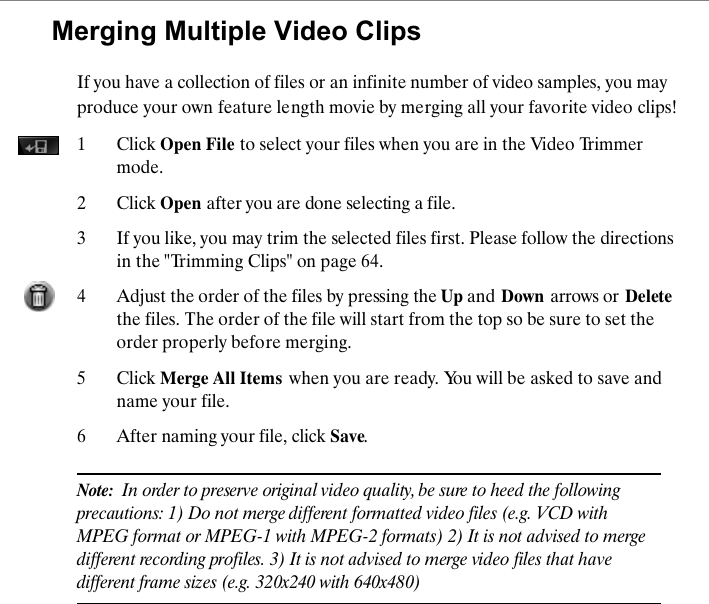
Merging Multiple Video ClipsIf you have a collection of files or an infinite number of video samples, you may produce your own feature length movie by merging all your favorite video clips!1 Click Open File to select your files when you are in the Video Trimmer mode. 2 Click Open after you are done selecting a file.3 If you like, you may trim the selected files first. Please follow the directions in the "Trimming Clips" on page 64.4Adjust the order of the files by pressing the Up and Down arrows or Deletethe files. The order of the file will start from the top so be sure to set the order properly before merging. 5 Click Merge All Items  when you are ready. You will be asked to save and name your file.6 After naming your file, click Save.Note:  In order to preserve original video quality, be sure to heed the following precautions: 1) Do not merge different formatted video files (e.g. VCD with MPEG format or MPEG-1 with MPEG-2 formats) 2) It is not advised to merge different recording profiles. 3) It is not advised to merge video files that have different frame sizes (e.g. 320x240 with 640x480)
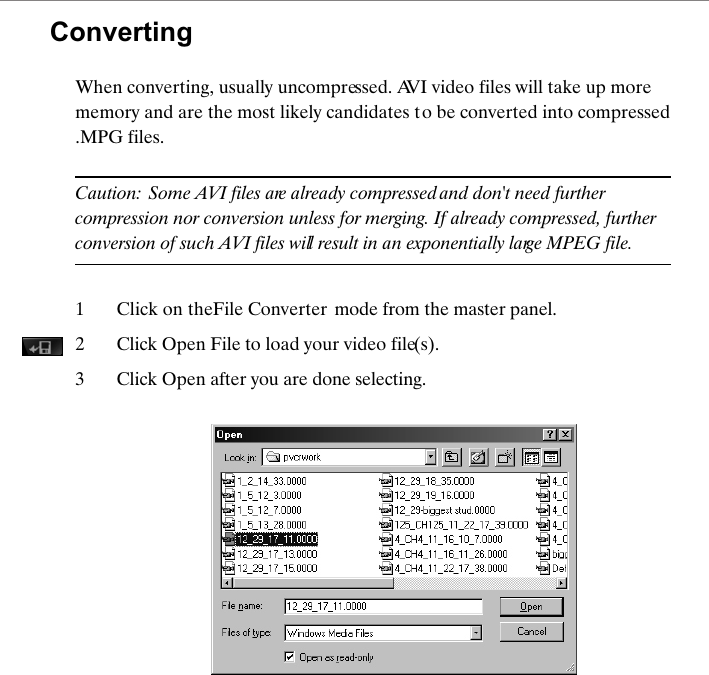
ConvertingWhen converting, usually uncompressed. AVI video files will take up more memory and are the most likely candidates to be converted into compressed .MPG files. Caution: Some AVI files are already compressed and don't need further compression nor conversion unless for merging. If already compressed, further conversion of such AVI files will result in an exponentially large MPEG file.1Click on the File Converter  mode from the master panel.2Click Open File to load your video file(s). 3 Click Open after you are done selecting.
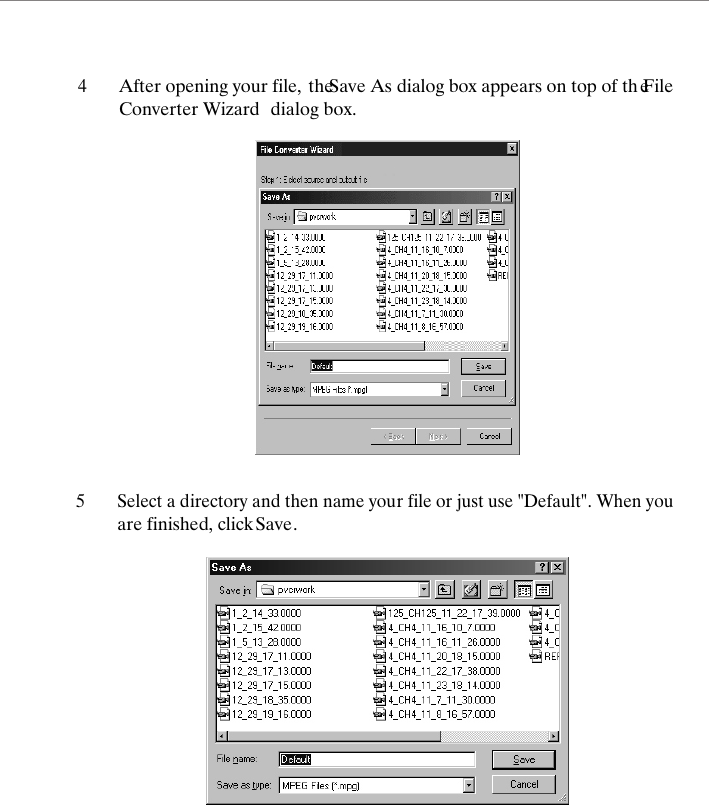
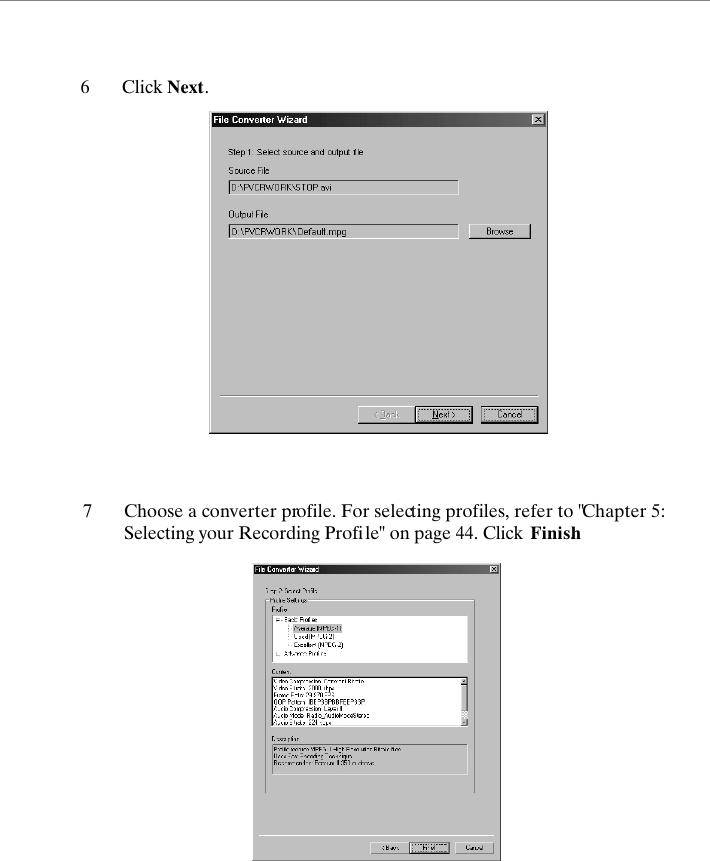
4After opening your file, the Save As dialog box appears on top of th e File Converter Wizard  dialog box. 5Select a directory and then name your file or just use "Default". When you are finished, click Save.
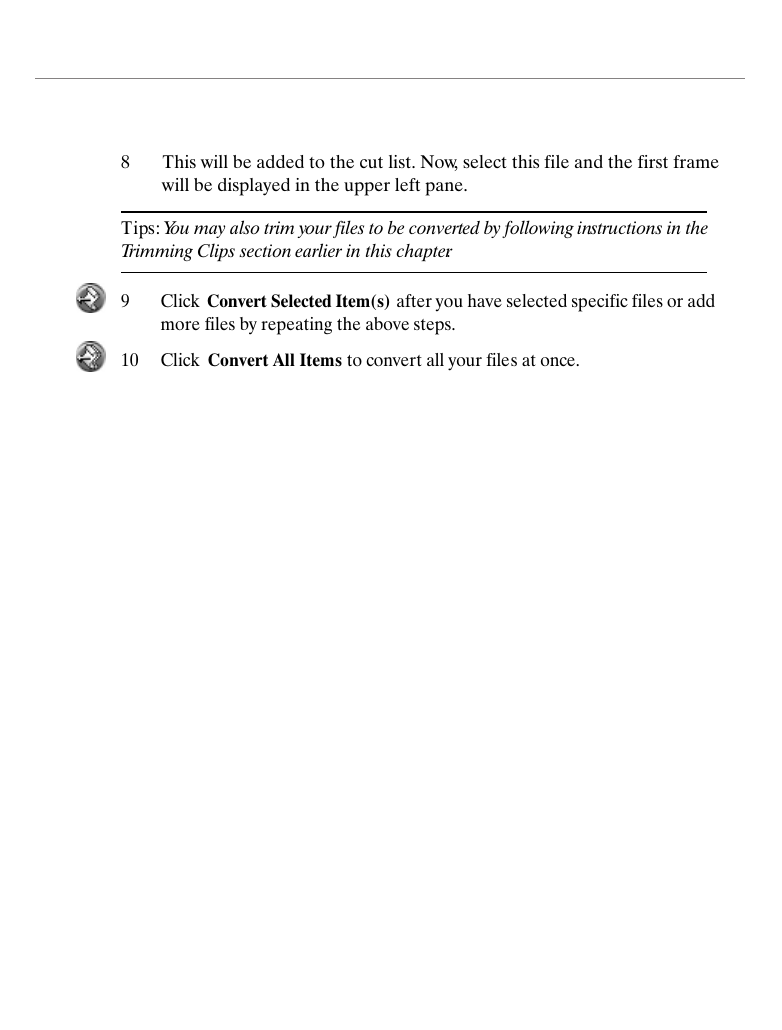
6Click Next.7Choose a converter profile. For selecting profiles, refer to "Chapter 5: Selecting your Recording Profile" on page 44. Click  Finish.
8This will be added to the cut list. Now, select this file and the first frame will be displayed in the upper left pane.Tips: You may also trim your files to be converted by following instructions in the Trimming Clips section earlier in this chapter.9 Click  Convert Selected Item(s) after you have selected specific files or add more files by repeating the above steps.10 Click  Convert All Items to convert all your files at once.
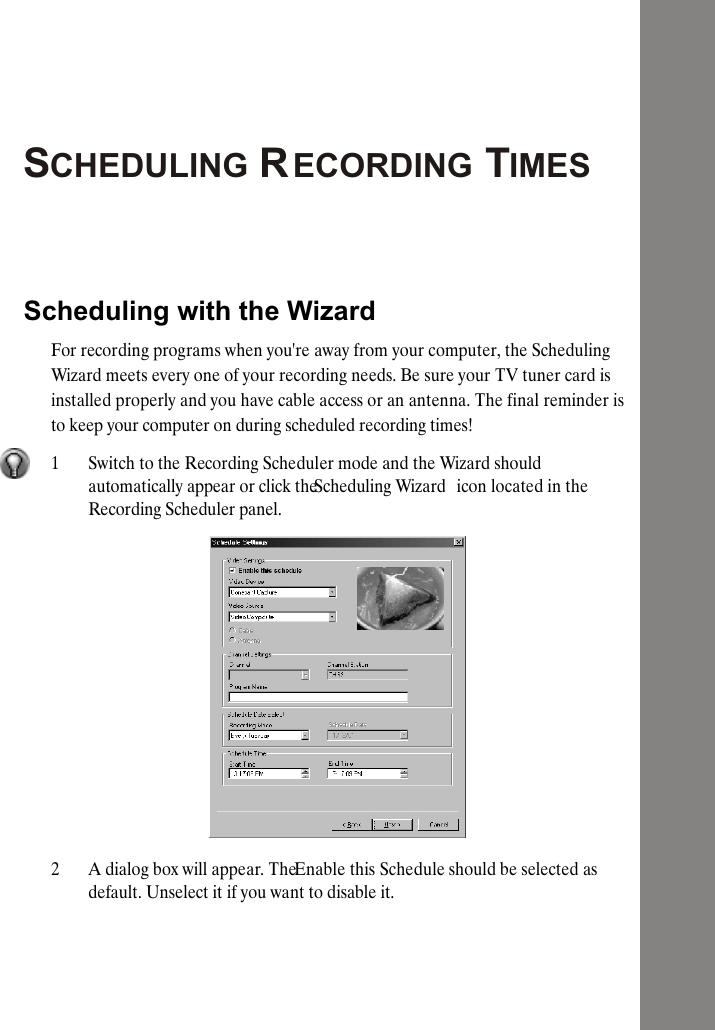
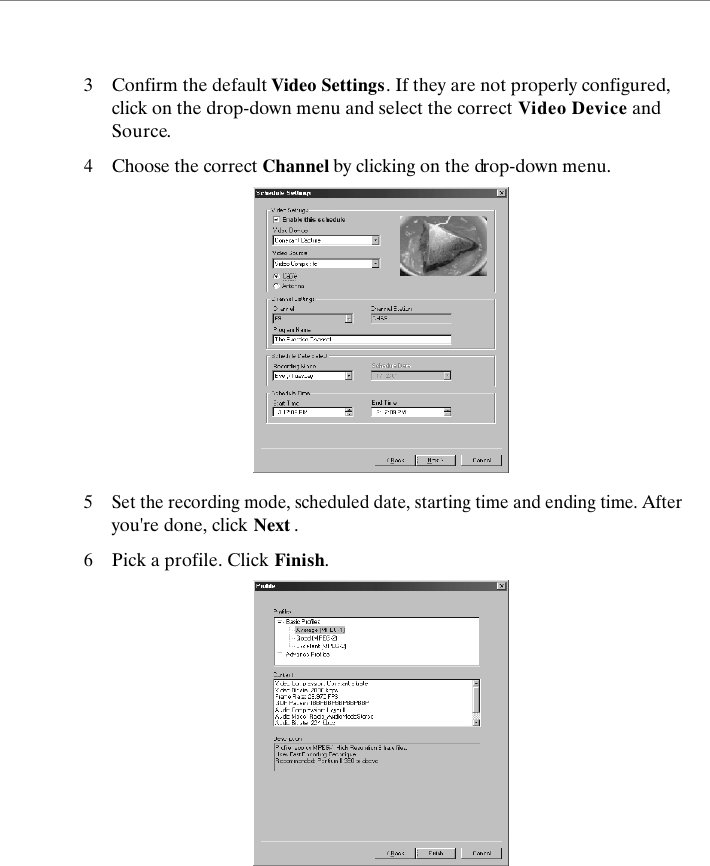
SCHEDULING RECORDING TIMESScheduling with the WizardFor recording programs when you're away from your computer, the Scheduling Wizard meets every one of your recording needs. Be sure your TV tuner card is installed properly and you have cable access or an antenna. The final reminder is to keep your computer on during scheduled recording times!1Switch to the Recording Scheduler mode and the Wizard should automatically appear or click the Scheduling Wizard  icon located in the Recording Scheduler panel.2 A dialog box will appear. The Enable this Schedule should be selected as default. Unselect it if you want to disable it.
3 Confirm the default Video Settings. If they are not properly configured, click on the drop-down menu and select the correct Video Device and Source.4Choose the correct Channel by clicking on the drop-down menu.5Set the recording mode, scheduled date, starting time and ending time. After you're done, click Next .6Pick a profile. Click Finish.
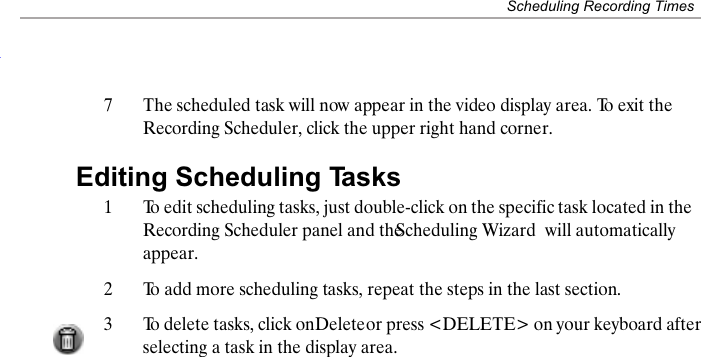
Scheduling Recording Times7The scheduled task will now appear in the video display area. To exit the Recording Scheduler, click the upper right hand corner.Editing Scheduling Tasks1To edit scheduling tasks, just double-click on the specific task located in the Recording Scheduler panel and the Scheduling Wizard  will automatically appear.2To add more scheduling tasks, repeat the steps in the last section.3To delete tasks, click on Delete or press <DELETE> on your keyboard after selecting a task in the display area.
NETWORKINGNetworking ProtocolsTCP/IP, 10/100 Base-T Fast EthernetBuilt-in Ethernet Controller: RealTek  RTL8139CWireless LAN through PCMCIA socketSOFTWAREOperating SytemMicrosoft Windows 98 Second EditionMicrosoft Windows 98 Millennium EditionMicrosoft Windows XP Home EditionApplication ProgromT PCI TV ProgramENVIRONMENTALREGULATORY COMPLIANCEEnvironmental SpecificationsRF InterferenceOperating temperature 5  to 35Storage temperture 0 to 60Humidity 30% to 80% non-condensingFCC Class B Power SpecificationsExternal power supply100-240 VAC at 50-60HzMax 6.67A
STATIONUser's GuideAll-In-On PCAugust.2003e

Navigation menu