Imobiile Technology JUPITER GSM Mobile Phone User Manual
Imobiile Technology, L.L.C GSM Mobile Phone Users Manual
Users Manual

1
GSM Mobile Phone
Model Number: JUPITER
2
Technical Specifications
Technical Specifications Weight:
Size:
Battery:
For the network:
Battery refer to the following table:
Battery
Type
Battery
Capaci
ty
Talk
tim
e
Standby
time
Li-battery
Notice:
The actual condition for mobile phones using has the
relation to the network of the local environmental
conditions, SIM card and the way using.
Warning:
For the consequences result by violating the
following recommendations or using mobile phones
In accurately, the manufacturers has no responsibility.
Explain: If relate to the upgrades, without notice. The
Company has the right for the final interpretation of
this statement.

3
Table of Contents
Mobile Appearance picture…………………. 1
1. Foreword .......................... 6
2. Quick start ........................ 9
2.1 Icon Explain ............................................. 9
2.2 Install SIM card ...................................... 10
2.3 Install T-flash card.................................. 10
2.4 Installing Battery .................................... 11
2.5 Battery Charging.................................... 11
2.6 Switching on/off ..................................... 12
3. Call function ................... 13
3.1 Dialing telephone ................................... 13
3.2 Receiving telephone .............................. 14
3.3 call in the menu ..................................... 14
4. Services .......................... 16
4.1 Homepage ............................................. 16
4.2 Bookmarks ............................................ 16
4.3 Input address......................................... 16
4.4 Recent pages ........................................ 16
4.5 Settings ................................................. 17
5. Phonebook ..................... 18
5.1 Quick search ......................................... 18
5.3 Add new contact .................................... 19
6. File manager .................. 20
7. Fun&Games ................... 21
7.1 Games .................................................. 21

4
8. Messages ....................... 22
8.1 Write message ...................................... 22
8.2 Inbox ..................................................... 23
8.3Drafts ..................................................... 25
8.4 Outbox .................................................. 25
8.5 Sent messages ...................................... 25
8.6 Delete messages ................................... 25
8.7 Boradcast messages ............................. 25
8.8 message settings................................... 25
9. Multimedia ...................... 28
9.1 Camera ................................................. 29
9.2 Image viewer ......................................... 29
9.3 Video recorder ....................................... 29
9.4 Video player .......................................... 30
9.5 Audio player .......................................... 31
9.6 Sound recorder ...................................... 32
9.7 FM radio ................................................ 32
10. Call Center...................... 34
10.1 Call history .......................................... 34
10.2 Call settings ......................................... 35
11. Settings .......................... 38
11.1 Dual SIM settings ................................. 38
11.2 Phone settings ..................................... 38
11.3User profiles ......................................... 40
11.4 Network settings .................................. 41
11.5 Security Settings .................................. 41
11.6 Connectivity ......................................... 44

5
11.7 Restore factory settings ....................... 45
11.8 Sound effects ....................................... 45
12. Extra ............................... 46
12.1 Calculator ............................................ 46
12.2 Currency converter .............................. 46
12.3 Stopwatch ............................................ 46
12.4 E-book reader ...................................... 46
12.5 Torch ................................................... 47
12.6 Calendar.............................................. 47
12.7 Tasks ................................................... 47
12.8 Alarm ................................................... 48
12.9 World clock .......................................... 48
12.10 Bluetooth ........................................... 49
13. Input methods ................ 51
14. Phonemaintenance ........ 51
15. Accessories ................... 55
16. Safety Information ......... 56
16.1 Use of the environment ........................ 56
16.2 Medical equipment .............................. 56
16.3 Battery Charging Precautions .............. 58

6
1. Foreword
Honorific mobile phones user, thank you for choosing our
mobile phone!
Our cellular phones is according with the communication
industry standards of PRC, and also according with the
standards of European, and are approved for GSM
networks.
Your phone may be used internationally with various
networks depending on your roaming arrangements with
your service provider.
To use this phone you must subscribe to a GSM service
from a provider. We have included many features in this
device but their function depends on the features
available with your subscribed wireless network. Please
contact your service provider for more information.
We strongly recommend you carefully read and
understand this manual before using your phone in order
to keep it under best conditions for your effective usage
and utmost satisfaction.
Safety
Never attempt to disassemble your phone. You alone are
responsible for how you use your phone and any
consequences of its use.
As a general rule, always switch off your phone wherever
the use of a phone is prohibited.
Use of your phone is subject to safety measures designed
to protect users and their environment.
Do not use your phone in damp areas (bathroom,
swimming pool…). Protect it from liquids and other
moisture.
Do not expose your phone to extreme temperatures lower

7
than - 10°C and higher than + 55°C.
The physicochemical processes created by chargers
impose temperature limits when charging the battery. Your
phone automatically protects the batteries in extreme
temperatures.
Do not leave your phone within the reach of small children
(certain removable parts may be accidentally ingested).
Electrical safety
Only use the chargers listed in the manufacturer’s
catalogue. Using any other charger may be dangerous; it
would also invalidate your warranty. Line voltage must be
exactly the one indicated on the charger’s serial plate.
Aircraft safety
When traveling by plane, you will need to switch your
phone off when so instructed by the cabin crew or the
warning signs. Using a mobile phone may be dangerous
to the operation of the aircraft and may disrupt the phone
network.
Its use is illegal and you could be prosecuted or banned
from using cellular networks in the future if you do not
abide by these regulations.
Explosive materials
Please comply with warning signs at petrol station when
personnel asking you to switch your phone off. You will
need to comply with radio equipment usage restrictions in
places such as chemical plants, fuel depots and at any
location where blasting operations are under way.
Electronic equipment
To avoid the risk of demagnetization, do not let electronic
devices close to your phone for a long time.
Electronic medical equipment
Your phone is a radio transmitter which may interfere with

8
electronic medical equipment or implants, such as hearing
aids, pacemakers, insulin pumps, etc. It is recommended
that a minimum separation of 15 cm be maintained
between the phone and an implant. Your doctor or the
manufacturers of such equipment will be able to give you
any advice you may need in this area.
Hospitals
Always make sure that your phone is switched off in
hospitals when so instructed by warning signs or by
medical staff.
Road safety
Do not use your phone when driving. In order to give your
full attention to driving, stop and park safely before making
a call. You must comply with any current legislation.
Distance of operation
This phone model has been tested and meets
radiofrequency exposure guidelines when used
As follows:
·Against the ear: place or receive a phone call and hold
the phone as you would a wire line telephone.
·Body worn: when transmitting, place the phone in a carry
accessory that contains no metal and positions the phone
a minimum of 2.5 cm form your body. Use of other
accessories may not ensure compliance with
radiofrequency exposure guidelines. If you do not use a
body worn accessory and are not holding the phone at the
ear, position the phone a minimum of 2.5 cm from your
body,
·Data operation: when using a data feature, position the
phone a minimum of 2.5 cm from your body for the whole
duration of the data transmission.
9
2. Quick start
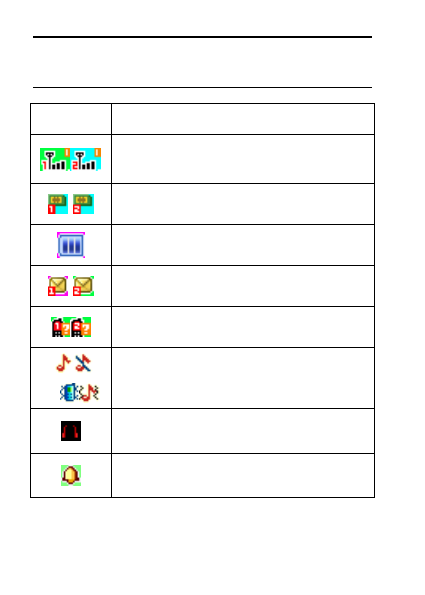
2.1 Icon Explain
Icon
Function description
Network signal strength:
number of the more stronger the signal;
SIM card 1/2 network ID
number of the more power the more full
Battery capacity
number of the more power the more full;
SMS
SIM1/SIM2 have unread SMS
Missed call
SIM1/SIM2 have missed calls
Used profiles
Different icons show different icon:
General, Silent, Metting, Outdoor
Headset
Plug in headset
Alarm
Alarm function opened

10
Stopwatch
Stopwatch function turn on
Key lock
Show key and screen lock
2.2 Install SIM card
This phone supports two GSM SIM cards. Find SIM
card’s groove in the back of the phone and slide it
completely there. During installation, please make
sure the chip is facing downwards and pay attention to
slot direction.
Note:
1. Keep SIM card out of children’s touch.
2. Any abrasion or folding could easily damage
SIM card, so please be extremely careful when you
insert, Remove and preserve it.
3. Please make sure that you have cut off the
power supply and have taken out battery
before you remove SIM card.
2.3 Install T-flash card
1. First switch off the phone and remove the battery.
2. Push the metal card holder toward the bottom of the
phone and lift the released end of the holder.
3. Place the memory card into the holder with the metal
contacts face down and push the holder until it locks into
place.
Note:
1.To avoid damaging memory card, please do not

11
plug memory card fast or frequently.
2. Please regularly backup information in the
cards on other equipment when you use Cards
like T-flash! Improper use or other uncertain
factors may cause the damage or loss to the
content in the cards.
2.4 Installing Battery
Align the battery chip with the metallic salient point in
battery jar, insert the battery until it is inserted into the
battery jar. Slide battery cover into back of the phone until
it is locked.
2.5 Battery Charging
Unclose dustproof soft gum of attachment mode on the
bottom of the phone, insert one end of the charger, i.e.,
the charging plug into attachment mode and the other end
into electrical outlet, Screen will display the charging sign.
After charging is finished, just pull out the plug.
Note:
1. Please use the standard battery and charger, or
may explode.
2. If the battery is completely discharged, the
battery icon should be in charge after 2 to 3
minutes to appear. Generally based on the current
state of the phone (if boot, call, etc.) of different
charging time for 2 to 5 hours.
3. Please use the charger, charging as much as
possible to avoid using USB cable.
4. To ensure optimal battery performance, the
completion of two to three times the battery
charge and discharge cycles. Several new battery
initial charge, please charge more than 10 hours
straight.

12
2.6 Switching on/off
Long press the Red key to switch your phone on or off.
1. If there is no SIM card, SIM card is defective, or SIM
card contact is loose, you will be prompt with a warning
after powering on, shut down and check your SIM and its
installation.
2. If inserted one GSM SIM card only into the phone,
meanwhile phone code and PIN code is turn on. When
switched on, after entering the PIN code and phone code,
the phone enter the standby mode by the current SIM.
3. If inserted two GSM SIM cards, meanwhile phone code,
PIN1 code and PIN2 code are all turned on. When
switched on, you will be prompted to enter the code one
by one. After switched on, the phone will automatically
search the network.
4. If the phone detected authorized network, the screen
will display network name and signal strength;If there is
no authorized network is found,the phone can only make
emergency calls or use non-communications features.

13
3. Call function
3.1 Dialing telephone
1. Direct dial
In standby mode, press the corresponding numeric
keys to enter the phone number that you want to dial,
including necessary area codes. Short Press the Right
soft key [Clear] to delete one character, and Long Press
delete all inputs, if inserted only one SIM card, press the
Green key can directly to dial; if inserted two SIM cards,
press the green key use SIM1 to dial, press the left soft
key use SIM2 to dial.
2. Making an International Call:
To make an international call, long press [0] key until the
prefix symbol "+" of international call displays in screen.
3. Dialing from Phonebook
Enter the Phonebook via the menu, use the Up/Down
Navigator keys to scroll to the desired contact, or press
the first letter of the name of the desired contact as saved
in your phonebook for quick access to names beginning
with the letter then scroll to the desired, if inserted only
one SIM card, press the Green key can directly to dial; if
inserted two SIM cards, press the green key into SIM
select screen to dial.
4. Dialing from Call history
Enter the Call center (press the Green key from standby
or via the menu), use the Up/ Down navigator keys to
scroll to the desired contact, press the green key can
direct dial.
5. Dial emergency service
You can directly dial the emergency service number

14
without SIM card. Different networks use different urgency
service numbers, so for details please inquire the network
operation company.
3.2 Receiving telephone
When there is an incoming call, the phone will give
corresponding alert, if your network supports caller ID, the
screen will display caller’s name or number (depending on
whether there is information of the caller in your
phonebook).
1. Press the green key or press the Left soft key and
confirm [options] to answer the incoming call.
2. If function of [call center/call setting/Advanced setting/
Answer mode] is selected as [Any-key], press the any key
to answer the incoming call except the Right soft key or
the Red key.
3. If you do not want to answer an incoming call, press the
Red key or the Right soft key [Reject] to reject it.
You can also press the Red key to end a call.
4. During a call, you can press the Up/Down navigator key
to adjust receiver volume.
3.3 call in the menu
During a call, press the right soft key can also open / close
the hands-free function, press the left soft-key into the
options:
- Swap*: Is maintained in the current call and switch
between calls
- Conference*:Into the multi-party conference call, you
can follow the prompts to answer the waiting call, to add
multi-session conference call will be maintained; and the
party conference in private conversation, the call to keep
all other parties; the parties to keep the party; the end of
the current Calls and all calls remain.

15
- Hold/Retrieve single call*: The current call on hold or
resume the call
- End single call*: end off the current call.
- End all calls*: end off the current call and the hold call
- Transfer*: the function need network support.
- New call: enter the dial-up interfaces.
- Phonebook: enter the phonebook list of interfaces.
- Messages: access to the message menu.
- Call history: access to call history list.
- Sound recorder: record the current call.
Note:
Recording of the call, in some countries is illegal.
Therefore, when you talk to Recording, should seek
prior approval from the other party's consent.
- Mute: mute on or off, open the case in the quiet do not
send local voice.
-DTMF: The dual tone multi-frequency switching
operation (a call, you press the keys on the keyboard, the
audio signal will be sent to each other, for telephone
banking, automatic answering machine, etc.)
Note:
* Denotes menu items only appear in specific
circumstances.
Such as: [Swap] exist only in the state of the phone
and call the phone only appears to be suspended. At
the same time for the conferencing, you need to the
appropriate service provider to subscribe.

16
4. Services
The Internet is the combination of wireless
communications and Internet application platform that
enables you to get rich by phone and ecommerce and
other Internet information resources application.
Note:
1. Your ISP may not support some features, in
order to ensure the normal operation of the
browser, make sure your SIM card is supported
and open Internet access.
2. If you browse the web, you need to charge fees
related to traffic.
4.1 Homepage
This is the WAP settings you set in the homepage
address, if you have no other set will have a direct
connection to the phone pre-set or the default home
page.
4.2 Bookmarks
In this menu, the display has all the bookmarks in the
bookmark, you can add and save you frequently visit the
site name and address for future quick access.
4.3 Input address
Enter the need to access the WAP services, and URL
addresses, complete, can be connected to the WAP site
you want to connect. From the surface in the bookmarks,
web history, other than to provide you a flexible way to
access the network.
4.4 Recent pages
List of pages you have recently visited records to facilitate
your browsing history in selected cases, can directly
select [Enter] to access the page, the record could be

17
deleted.
4.5 Settings
Homepage: Into the function, you can select default
homepage or user-defined.
Data account: Into the function, you can set correspond
SIM card data account.
Browser options: Clear the temporary buffer information
and cookie, it’s can avoid congestion and improve web
browsing speed, periodically clear.
Preferences: You can set the appropriate parameters,
including the display time, display pictures, cache and
cookie.

18
5. Phonebook
The Phone for your well-prepared high-capacity phone
storage space. You can use the phone's contacts feature
to save the contact name, number and caller ring-tone.
The phone can save 300 phone book records, SIM card
number of records stored phone numbers vary because of
their capacity.
5.1 Quick search
In order to facilitate you to quickly search the phone book
to the desired number, the phone prompts you to quickly
find features.
In the contact list interface, you press # key to switch input
method, enter the contact name of the first characters to
locate search.
After searching for the name, press the Green key to dial
the number and press the Red key to end dialing.
5.2 Browse contacts
In the phonebook list screen, press the up / down
navigation key to select the contact record, press the
green key to dial the number in the record, then the red
key to end the dialing. Press the OK Key to display the
details of the selected record. In the phonebook list
screen, select either the phonebook record, press the left
key to perform the following operation:
- View: view the select
- send text message: send SMS to the select number
-send multimedia message: send MMS to the select
number.
- Call: call the select number
- IP Dial: Use IP number to call the select number
- Edit: you can edit the select record

19
- Delete: Delete the select record
- Copy: this record can copy to “SIM1” “SIM2” or “phone”
- Move: this record can move from SIM to phone, or move
from phone to SIM
- Add to Blacklist: this record can add to blacklist.
- Phonebook settings:
Speed dial: Add this number to the fast dial list. Set the
speed dial feature, in standby mode press the
corresponding number key, you can directly dial the
number key corresponding to the speed dial number.
My number and Extra numbers: set this number to own
number
Memory Status: Query "SIM1", "SIM2", "phone"
memory Phonebook using status
Copy contacts: copy all contacts from phone to SIM, or
from SIM to phone.
Move contacts: move all contacts from phone to SIM,
or from SIM to phone
Delete all contacts: delete all SIM contacts or delete all
phone contacts
5.3 Add new contact
-SIM1:New records added to the SIM1, each
name can only be stored under a number.
-SIM2:New records added to the SIM2, each
name can only be stored under a number.
-Phone:you can input name, number and set
caller ring-tone. This Records stored in your
phone,.

20
6. File manager
In document management, you can open files in the
Phone or Memory card, you can select file or folder to
press the left soft key into [Options], you can do the
following:
- Open: open the file or folder.
- New Folder: the folder in the selected directory New
Folder.
- Rename: you can rename the select folder.
- Delete: delete the selected file or folder.
- Details: View the details of a folder or file.
-Use as: The file can be selected as ring-tones,
wallpapers, etc., depending on file format decided
- Search: memory card can be customized to find all the
documents.
- Sort by: can "name", “time” "size" "type" or “none”.
- Send: the select file can send by MMS or Bluetooth.
- Copy: you can copy the select file to other folders.
- Move: you can move the select file to other folders.
- Delete all files: you can delete all files in the folders.
Note:
Memory card as the default save path, order to facilitate
the use of multimedia features, please copy the
appropriate files to My Music, Photos, Videos etc.

21
7. Fun&Games
7.1 Games
The game is based phones built a Panda game,
particular explain see the help information.

22
8. Messages
Message service is a network dependent function, which
allows you to send, receive and edit all kinds of messages.
Please contact the network operator for more details.
8.1 Write message
Text message
Edit a new message, save or send it to the recipient.
Note:
to send SMS, you need to set the correct SMS
service center number which can be obtained from
network provider.
While editing, press the # key to change input method, a
text message can be up to 612 characters in length.
Press the OK Key, into add recipient interface, you can
enter number and add from phonebook, you can add one
number or more number, press the Left Soft key [Options]
to select options when editing:
- Send: Enter the destination number is sent, or press OK
into the address book to find the necessary records, you
can select the type of SIM card, confirmed, you can send.
- Edit recipient: you can edit recipient number.
- Remove recipient: you can remove one recipient.
- Remove all recipients: you can remove all recipients
- Save to drafts: Save the edited message to the Drafts
box
Multimedia message
It’s multimedia information, with the information service,
you can use the phone to send or receive text content.
Including color pictures, animation and music can be sent
by MMS to each other or receive their own phone.
Note:

23
To use this feature only when the network operator
is supported. And only those that with compatible
MMS-enabled mobile phone can receive and
display properly.
Into the editing interface, press left soft key to option:
-send to:you can enter number and add from phonebook,
you can add one number or more number, after number
edit, you can also remove number, change to CC or
change to BCC.
-Input method:You can select input method, or insert
symbol.
-Add picture:Insert picture in phone or memory card to
MMS.
-Picture options*: can remove the current picture.
-Add sound:Insert audio file in phone or memory card to
MMS.
-Sound options*: can remove the current sound
-Add video:Insert video file in phone or memory card to
MMS.
-Video options*: can remove the current video
-Add subject:add MMS subject
-Preview MMS:Preview each page in turn.
-Slide options: Under this option adder to the next page,
add the page to the previous page and set the slide
timing.
-Advanced: can select insert attachment and insert
bookmark option
-Save to Drafts:Save the MMS to the [Drafts], re-edit or
send.
8.2 Inbox
Received SMS/MMS messages can be stored either in

24
phone or in SIM1/SIM2 memory, and are accessed here.
When you have received a message, the tones or
vibration to alert you and message mark will also be
shown on the screen. Press the Left soft key [Read] or the
OK key to read the new message, press the Right soft key
[Back] to return, and you can also access the inbox to
read the new message.
If the message memory is full, the indication “Memory full”
and the message icon will be shown on the screen and
flashed. Before you can receive new messages, delete
some of your old messages in the inbox folder. If the
capacity of new messages is beyond the capacity of the
inbox, the information will be lost and incomplete.
In message list, press the OK key to read the selected
message, press the Left soft key [Options] to make the
following menu:
-View: view the current message
-Reply by SMS: Reply SMS to the message sender
directly.
-Reply by MMS: Reply MMS to the message sender
directly.
-Call Sender: Select the "direct dial" or "IP dial-up" to call
the sender number
-Forward: forward the current message to other number.
-Delete: Delete the messages.
-Delete all: delete all messages in inbox.
-Save to phonebook: Save the information in the sender
number to the phonebook.

25
8.3Drafts
Not send SMS and MMS, will be stored in the mail within,
the operation is the same with inbox
8.4 Outbox
Failed to send SMS and MMS, will be stored in the mail
within, the operation is the same with inbox.
8.5 Sent messages
If SMS or MMS is sent successfully, then be stored in the
letter box. Automatically save messages need to select
in [Message Settings →Text message →Message setting
→common settings→save sent message], other operation
is the same with inbox.
8.6 Delete messages
In this feature, you can choose to delete a single mailbox,
you can also choose to delete all mailbox information.
8.7Broadcastmessages
Broadcast message is sent by network operators, public
information, this function needs the network operator
support, please contact the network operator. Using the
cell broadcast service, you can receive from the network
operator information on various topics, such as weather,
taxis, hospitals and so on. For information on available
topics, please consult your local network operator.
8.8 Message settings
Text messages
Profile settings: You can choose either of two modes,
custom different parameters, including the model name,
short message center number, Validity period and
Message type.
Voicemail server: When you can not answer the phone,
automatically incoming calls to voice mail number, you
can let the other party to your message, a message stored

26
in the network's voice mail system, and afterwards, you
can access the voice mail system to listen to a message.
Into the voice mail sub-menu, you can see the current
voice message (up to the establishment of two voice mail)
Voice mail function needs the support of network operator,
you may need to subscribe to the service. For details,
please contact with the operator.
Common settings:
Delivery report: Open the function, after a successful send
text messages, the system will return to report.
Reply path: If the network allows, open the function, the
recipient receives a text message, the system will send a
confirmation message.
Save sent message: open the function, After the success
of SMS will be automatically saved in the Outbox.
Memory status: can view the memory storage status.
Preferred storage: you can choose to give priority to
messages stored in SIM card or mobile phone.
Preferred connection: You can select prefer connection:
GPRS or GSM.
Multimedia message
Data account:Internet access account settings.
Common settings:
Compose: In the menu, you can set slide time, creation
mode, signature set act.
Sending
Delivery report:Select [On], when the recipient receives
and download, the network will send a message to notify
you (subject to network support); You can also choose
[Off]

27
Read report:Select [On], then when the recipient read the
MMS, you can choose to read the report sent to you(need
network support), you can also choose [Off].
Priority:Priority Setting MMS.
Delivery time:you can set delivery time,immediate\1 hour
later\12 hours later\24 hours later.
Send and save: open the function, After the success of
MMS will be automatically saved in the Outbox.
Retrieval: In the menu, you can set home
network\Roaming\Filters\Read report\Delivery report
Preferred storage: you can select preferred storage as
phone or memory card.
Memory status: you can select phone or memory card to
view Used status.
Service messages
Enable push: you can select accept all push messages
or disable.
Enable service loading: you can select prompt, Auto
launch or disable.

28
9. Multimedia
9.1 Camera
Your phone is fitted with camera allows you to take photos
whenever possible. You can store the pictures in phone or
customize the wallpaper.
In the multimedia menu, select the camera into the
camera preview screen, press the following keys can be
set for the following cameras:
Press left/right navigation key to adjust [Exposal bias]
Press up/down navigation key to adjust [Focal distance]
Press “1” key to adjust [Image Size]
Press”2” key to adjust [Image Quality]
Press”4” key to adjust [White balance]
Press”6” key to adjust [Delay timer]
Press”7” key to adjust [Cont. shot]
Press the OK key to take photo, press the right soft key to
return, press the left soft key to option:
Photos: select the function into image viewer.
Camera settings: Press the left/right navigation key to
adjust the following options, including Shutter sound, Ev,
Anti-flicker, Contrast, Delay timer, Cont. shot, Profile that
is complete, press the left soft key or the OK key to
confirm the current setting.
Image settings: can set the image quality and image
size.
White balance: can set white balance
Scene mode: can set the photo mode as auto or night.
Effect settings: can set special effect
Storage: Can choose camera phone or memory card as
the storage location
Restore default: select the function and confirmed, the

29
camera parameters can be restored to the default location
After taking pictures, press the back button to return
camera preview screen, press the left soft key to enter
options, can take pictures to send or delete
9.2 Image viewer
This feature is convenient for users to view the
photos stored in albums, press the OK key to open the
picture, press the left soft key to open the option menu:
View: open the current image to view.
Image information: can display the current image
information.
Browse style: can set to list style or Matrix style.
Send:Pictures can be selected through the "MMS" or
"Bluetooth" method to send.
Use as: The selected picture set to phone wallpaper,
Screen saver, power on display, power off display.
Rename: Change the name of the selected picture.
Delete:Delete the select image.
Sort by:Can sort by name, Type, Time, Size, None
Delete all files:Delete all image files.
Storage:Can choose phone or memory card as the
storage location
Note:
When no pictures in Image viewer, the options
menu only displays the browse style and storage.
9.3 Video recorder
In the multimedia menu, select the video recorder into the
video preview screen, Press left/right navigation key to
adjust [Exposal bias], Press up/down navigation key to

30
adjust [Focal distance], press “2” key to adjust [video
quality], press “3” key to adjust [Night mode], press”4”key
to adjust [white balance], press the left soft key into
options menu:
Camcorder settings: Press the left/right navigation key
to adjust the following options, including EV, Night mode,
Anti-flicker.
Video settings: Can set the image quality
White balance: Can set white balance
Effect settings: Can set special effect.
Storage: Can choose camera phone or memory card as
the storage location
Restore default: select the function and confirmed, the
camera parameters can be restored to the default
location.
Press the OK key to start recorder, recording, press the
OK key to pause or resume recording; Press the right soft
key to stop recording, the screen will be prompted to save
video, press the left soft key to save and return to the
video preview screen, press the right soft key to not save
directly Back to the preview screen.
9.4 Video player
This feature can be played stored in the mobile U disk or
video files, supported formats to 3gp, mp4, Avi file player.
In the multimedia menu, select the video player into the
video list, press left soft key open the option menu:
Play:Play the current video file
Send: can be selected video through the "MMS" or
"Bluetooth" method to send.
Rename:Change the name of the selected video.

31
Delete:Delete the select video.
Delete all files:Delete all video files.
Sort by:Can sort by name, Type, Time, Size, None
Storage:Can choose phone or memory card as the
storage location
9.5 Audio player
Play the audio files saved in the phone or memory card.
In playing interface, press the up navigation key to
start/pause the current song, press the down navigation
key to stop play, press the left/right navigation key to
switch previous/next song; press the */# key to adjust
the volume,
In playing interface, press the red key or the right soft key
to exit player interface, Phone into the background playing
mode, while the idle screen shows the name of the music.
Press the left soft key into the play list, play the left soft
key into option menu:
Play:play the current song.
Details:can view the current song information, include
song size and time.
Refresh list: can refresh the play list.
Settings:
Pre. Play list: Press the left/right navigation key to switch
phone or memory card.
List auto gen.: Select this option enabled, each time the
player list will automatically update.
Repeat: You can choose play mode repeat all, repeat one
or off.
Shuffle: When you select on, the player will not play in
order by list.

32
Background play: Select ON when playing the exit music
player can continue playing.
Bluetooth settings: you can set BT output to stereo or
mono.
Audio effect: can set sound effect.
9.6 Sound recorder
Enter the recording screen, press the left key into options
menu:
New record: when you choose the function, start new
record, In recording, press the left soft key to pause/
continue record, press the right soft key to stop record, the
screen will be prompted to save video, press the left soft
key to save and return to the record screen, press the
right soft key to not save and directly Back to the record
screen.
Play*: can play the current recording.
Rename*: Change the name of the current recorder file
Delete*: Delete the current recording.
List: Display recorder files list
Settings: you can set storage location and audio quality.
Use as*: You can set the current recorder as coming call
ring-tone.
Send*: Can be current recorder through the “MMS” or
“Bluetooth” method to send.
9.7 FM radio
FM radio is supported by the phone. Access the function
only when you have plugged the earphone.
In FM radio interface, press the down navigation key to
open/close FM. press the up navigation key to open/close

33
auto tuning function, when open this feature, press the left
/ right navigation key to move forward / backward auto
search until the search to the channel so far. when close
the automatic search function, you can use the manual to
search for the channel, press the left / right navigation key
to move forward /backward 0.1MHZ. Press the */# key
to adjust play volume. Press the right soft key or red key
to exit FM radio, and FM plays in the background.
Press the left soft key to the option menu:
Channel list:Display channel list
Manual input:Manual enter frequency to identify, Radio
interface automatically skip to the frequency to listen.
Auto search:Can auto search channel and save channel
Settings:
Background play:Phone back to the idle screen after
Select the function, FM plays in the background.
Loudspeaker:Open (close) the function, Radio sound will
play outside/Handset mode.
Note: Quality of radio subscription is possible
influenced by environment like indoor or under shield.
You can improve this situation as following: stand
closer to the window, adjust the position of earphone
line or adjust the channel manually

34
10. Call Center
This phone can record all answered, dialed and missed
calls as well as their call time. Only when related function
is supported by network and phone is switched on and in
network service area, it can record the answered and
missed calls. Call records may be accessed by pressing
the Green key from standby or accessing through the
menu.
Access the Call Center menu using the normal menu path,
the submenus are as follow:
10.1 Call history
Missed/Dialed/Received calls
Display list of missed/dialed/received calls.
Once on the call records list, press the Green key to make
a call; press the OK key to view the details of current call
record; press the left soft key to make the following:
- View: View the details of current call record.
- Call: call current record.
- send text message: send SMS to the select number
-send multimedia message: send MMS to the select
number.
- Save to phonebook: Store the number as a phonebook
entry.
- Add to blacklist: The phone number is set to refuse to
answer the phone, you can set the number after the [call
center →call setting →Advanced settings→blacklist]
query to
- Edit before call: edit number before the call history
- Delete: Delete the current call record.
Delete call logs
Choose to delete which call log or all call histories.

35
Call timers
View all time for the Last call\ dialed call\received call
time, and you can reset all call timers.
Text message counter
View SIM1/SIM2 sent and received message quantity.
GPRS counter
View the GPRS data volume on the network.
10.2 Call settings
SIM call settings
Call waiting:
you can choose to Activate, Deactivate or Query status of
this feature.
Activate this feature, if you call any other incoming call,
the phone beeps, and the screen will display the caller
number or name and call waiting information.
Call divert:
This feature allows you to play to your phone calls
transferred to your voice mailbox or another phone
number you specify. This function needs the support of
network operator, please contact the network operator.
Transfer in the following ways, each way can be set to
enable, disable, and query status. When turned on, the
on-screen prompts to transfer the phone number.
Divert all voice call: Transfer all voice calls to your
settings in the phone number or voice mail
Divert if unreachable: When your phone is off or not on
the network service area, the transfer of all voice calls to
your phone number or set voice mail
Divert if no answer: No answer transfer all voice calls to
your phone number or set voice mail
Divert if busy: When the call is busy, the transfer of all
voice calls to your phone number or set voice mail

36
Divert all data calls: Transfer all the data calls to the
phone number you set, this function is supported by the
network operator, please contact the network operator.
Cancel all diverts: cancel all call forwarding type.
Call barring:
Set limits each case to answer or dial the phone. Network
operators must first apply for international calling features,
and limit access network password, to set the limit
function.
This function needs the support of network operator,
please contact the network operator.
Call restrictions can be set for activate, deactivate and
query status
Line switching:
Can switch to Line 1 or Line 2, Line 1 is default, if you
choose line 2, then there may be no phone call.
Advanced settings
Blacklist:
You can on or off this feature to edit the blacklist number,
up to 20 numbers can be edited. Open the function, the
blacklist numbers you call, the other shows you are on the
phone, and your phone is in a state of no response.
Auto redial:
You can enable or disable this feature, the feature is
turned on, after the dial-up, then if the other party does not
answer the phone over a period of time will be
automatically re-dial, redial the number up to 10 times, in
this period, the user can not call any other phone , to end
the re-dial, simply press the right soft key to cancel.
IP dial:
In this feature, you can edit the Group 3 IP number, select
one of a set of valid IP numbers before the open will be

37
icon
Call time reminder:Can set the prompt type
Off: When the phone call, no minutes of tone.
Single: Select 1-3000 seconds after the prompt enter
either of the time, when you call the phone at the time
when prompted.
Periodic: Select 30-60 seconds after the input in any one
time, when you call for every minute the phone will be
reminded of the time.
Auto quick end:
Automatic limit talk time, when the feature is turned on
and set a good time, call wait time, the phone will
automatically hang up
Answer mode:
Any key: Select the feature, all incoming calls, in addition
to the red key and right soft keys, all keys can answer the
call
Auto answer when headset: Enable this feature, when the
phone is in headset mode, there are about 2 seconds
after the incoming call, the phone will automatically
answer the call.

38
11. Settings
11.1 Dual SIM settings
You can choose dual-mode card, only SIM1 open or SIM2
open.
11.2 Phone settings
Time and date
Set home city: You can choose a phone provided in the
city as the current time zone of your location
Set time/date: Under this you can set the phone to the
current date and time. The phone allows you to set the
date range of calendar 2000 to 2030.
Set format: Under this you can set the time and date
display format
Schedule power on/off
There are four switch time for you to edit, including the
following items each time setting the timer on / off, power
on / off and timing of the time and so on. When turned on
and set to boot, set the time automatically when the power;
when turned on and set off, then set the time when you
are prompted to shut down.
Note: Time to set the same, can not be activated in
order to avoid conflict.
Language
Under this you can choose the language provided by the
phone.
Pref. input method
You can set default input method.
Display
Wallpaper:The standby interface is used to set the
background wallpaper.

39
You can choose from the built-in wallpaper can also be
selected from File Manager image file.
Screen saver
Status: The following can be turned on or off the screen
saver function
Waiting: This screen saver can be set to start the waiting
time for 5S, 15S, 30S, 1minute
Select Screen Saver: This screen saver can choose the
system default can also choose from other document
management as a screen saver picture
Power on display: The animation can be set to boot, you
can choose preset animation for mobile phones, but also
into the File Manager, select the desired animation.
Power off display: The animation can be set to shutdown,
set with the power on display
Show date and time: You can set the idle screen time
display on or off.
Greeting text:
Status: You can turn on or off the greeting display, when
turned on, the mobile power on to display greeting text,
when turned off, the mobile is not display greeting text.
Greeting text: you can edit the greeting text.
Shortcuts:
This menu can be set more frequently used functions, so
you can directly access the most rapid of these features.
Quick list of features in the current case, you may be left
soft key to enter the Options menu, add a button to enter a
list of alternative options, press the up / down navigation
key to select your most frequently used functions, press
the left or right navigation key to select the order of the
feature location.
Dedicated key: you can change navigation keys function

40
corresponding to the shortcut in the idle screen.
Flight mode: This optional mode in which the phone is
normal mode or flight mode, flight mode if you choose, the
phone can only use some of the functions of
non-communications
Misc. settings: Under this function can be press the left
or right navigation key to adjust the time on the backlight.
11.3User profiles
The phone provides you with five profiles: General, Silent,
Meeting,Outdoor and My style. It’s help you according to
the different events and environments in different custom
ring tones.
according to different location, choose a different profile,
then you only need to personalize your profile and activate.
Note: The factory setting various modes set has been
done and has been the general pattern of the default start
Activate: Start the selected profile.
Customize: You can set all kinds of effects to your own
needs. In the Settings screen, press the down navigation
key to move the highlight to the item needs to be set.
Alert type: Press the left/right navigation key to select:
vibrate only, vibrate and ring, vibrate then ring or ring only.
Ring type: Press the left/right navigation key to select:
Repeat, Ascending, Beep once
Incoming call: There are ten built-in ring tones to choose
for you, and you may also to choose your favorite audio
file as your ring-tone from file management.
Ring-tone volume: Press the left/right navigation key to
adjust the ring-tone volume.
Message ring-tone: There are ten built-in ring tones to
choose for you, and you may also to choose your favorite

41
audio file as your ring-tone from file management.
Message volume: Press the left/right navigation key to
adjust the ring-tone volume.
Keypad: Press the left/right navigation key to select click,
or tone.
Key-tone volume: Press the left/right navigation key to
adjust the key-tone volume.
Power on/off: Phone preset ten tones to choose for you,
you can also choose silent to turn off the power on/off
tone.
System alert: You can set whether to open system alert
tone.
Reset: restore the default settings.
11.4 Network settings
Can be set automatically or manually select the network,
select Automatic, the phone will be SIM card based on the
network where the first selection, select Manual, you need
to select the SIM card registered with the network
operator can use the same network
11.5 Security Settings
SIM security
You can use the PIN code, PIN2 code, set the boot
password and set security features to protect information
security.
PIN password (PIN1) is the SIM card PIN. If the user
don’t changes the password, the original password is
1234 or 0000. If you enable the boot PIN code, then after
each start 4-digit PIN code is necessary to input, PIN code
can be amended, to protect their SIM card is not used by

42
others. Note that, if the input PIN code wrong three times,
the phone card will automatically lock and unlock
prompted to enter PUK code, this time close to the edge
of danger, so if unauthorized modification of the PIN code,
we must bear in mind.
PUK password (PUK1) from consists of 8 digits, which
users can not change. PIN code when the phone is locked,
and when prompted enter the PUK password, do not act
rashly, because the PUK code input opportunities is only
10 times and if enter the wrong words for 10 times, SIM
card will be permanently locked, that is scrapped. Part of
the SIM card PUK code is never used when the user
comes with the card, while the other part of the network
operators will need to obtain the PIN code if you do not
know the PUK code locked, do not random input, then the
correct way is to call the SIM card hotline operators, after
a simple user data are verified, you can obtain the PUK
password to unlock the phone lock, the service is free of
charge.
Note:Please use this feature with caution, if forget
PUK password, please contact the network operator.
If input PUK code in error for 10 times consecutively ,
SIM card will be scrapped.
PIN lock
Under this you can enable or disable PIN password, PIN
code on or off are required to enter the correct PIN
password. When open this feature, every time you turn
the phone prompts you to enter the PIN password.
Change PIN
If the current PIN password is already open, you can
make changes to the PIN password. First enter the old
PIN password, after repeated twice to determine and

43
identify new password.
Change PIN2
PIN2(PersonalIdentificationNumber2 )password is to
enter a particular function (such as setting a fixed number,
set the call billing, etc.) to enter the personal identification
number.
Pin2 password is provided by suppliers for SIM card to
another password, used to qualify the dial personal
identification password, Mainly used to eliminate the call
cost information, set the phone calls and the billing
currency unit, the cost limit function, limited dial-up
("Security settings "---" limited dial-up" can only be opened
after the phone call which can be used to set the number
and do not call this). My phone's SIM card predictive value
is 12345. Pin2 after input error password 3 will be locked,
needed Puk2 to unlock.
PIN2 password is used to set the phone billing. If you
enter three times wrong, the phone will need PUK2 unlock
password, the process described in the previous PIN
password, PUK password the same. However, both the
password and network SIM card billing and modify the
internal data, it will not open, and even if PIN2 password
locked, it will not affect the normal use of mobile phones.
Thus PIN2 password, and not to deliberately ignore PUK2
password.
Note:
Please use this feature with caution, If input PUK
code in error for 10 times consecutively, SIM card
will be scrapped.
Change operation with the PIN1.

44
Phone security
Under this password there you can set the phone to avoid
unauthorized use of your mobile phone
Phone lock
Under this you can enable or disable phone password,
phone password on or off are required to enter the correct
phone password. When open this feature, every time you
turn the phone prompts you to enter the phone password.
Change password
You can make changes to the phone password. First enter
the old phone password, after repeated twice to determine
and identify new password.
Auto keypad lock
Under this you can set the time to open or close the
keyboard lock keyboard lock feature. Set the keyboard
lock time, the idle screen, mobile phone within the set time
the keyboard does not perform any operation, it will be
automatically locked, then you can press the # key to
unlock.
Note: Keyboard locked and the backlight is off, to be
selected button lights up the screen, then press the #
key to unlock
11.6 Connectivity
Data account
You can choose the Internet account. You can add
Internet accounts by yourself.
In the Internet interface, press [Options], you can do
operations as followed:
Edit: Edit selected network count.
Add PS account: Mobile support 6 maximum data account.

45
Every account to edit the information: account name, APN,
user name, password, auth type, SIM selection, advanced
settings etc.
Delete: delete the selected Internet account
Change default: select this function to restore default.
11.7 Restore factory settings
Reset the parameter value mobile phone, make your
phone reset to default settings. Please enter a privacy
password (initial password is 1234), restore factory
settings.
11.8 Sound effects
In this feature, you can set all audio equalizer.

46
12. Extra
12.1 Calculator
Into the calculator, the calculator interface:
Press 0 - 9 numeric keys to enter the number to be
calculated,
Press the navigation key to select the location on the
screen corresponding to add, subtract, multiply and divide
symbols for computing
Press the # key for a decimal point.
Press the right soft key to clear the last bit can be input or
the result (no input figures, has withdrawn from the
calculator function)
Press the left soft key or the OK button to display the
results.
12.2 Currency converter
Enter the exchange rate conversion interface, first enter
the exchange rate, determined to enter conversion
interface, the rate of switching bar, press the left / right
navigation key to switch the current exchange rate of the
proportional method, that is, the local currency to foreign
currency rate or its reciprocal, press the up/down
navigation key to switch to local currency field, enter the
amount of domestic currency, the press the left soft key,
you can display in the foreign currency translation results.
12.3 Stopwatch
The phone provide typical stopwatch and nWay stopwatch
use for you.
12.4 Ebook reader
You can read the .TXT format document by this function,
after you have copied the TXT document into folder [File
manager →Phone or Memory Card →Cool_Ebook].

47
Select any Ebook, press the OK key to read. open the
selected E-Book, press the navigation keys to view the
ebook, press the Left soft key into options menu to related
operation.:
12.5 Torch
Into the flashlight interface, select on, torch light; select off,
torch dark.
On the idle screen, long press the left soft key, Torch on
or off quickly.
12.6 Calendar
Choose to enter the calendar, the screen will display the
system date on the calendar month, and have a
background box marked the current date. Press the
navigation key to select the date, calendar information on
the screen will be updated accordingly.
Select any date, press the left soft key to enter options to
the following:
View: View the details of the selected schedule, and
re-editing of the operating schedule
View all: view all schedule
Add event: Create a calendar reminder, the default time
is the date where the calendar highlights.
Delete event: Delete calendar
Jump to date: Jump the selected date.
Go to today: the date of the input query calendar
information
Go to weekly/monthly view: can set the calendar
display mode through week or month.
12.7 Tasks
This feature allows you to easily manage all tasks in
working life, arrange and record your do in the future
matters. When you scheduled a matter of time arrives, the

48
phone will provide a tone with you to complete these
pre-arranged matters, the use of the same calendar.
12.8 Alarm
You can use the phone as alarm clock, this feature allows
you to set time arrives, make the phone ring or vibrate to
remind issue.
When the alarm is turned on state, the alarm symbol is
displayed in the top of the screen.
When the alarm clock for reminders, press the left soft key
to terminate the alarm reminder, press the right soft key is
the alarm clock to sleep.
The phone number of alarm clocks available, both in the
off or silent mode, set the alarm clock function has been
effective.
Select any of the alarm clock, press the left soft key or OK
key to the following:
1, can be turned on or off the selected alarm to open
before the alarm clock icon will be displayed
2, set the alarm, reminder time
3, according to the time you need to set the alarm clock to
remind the period of a day, week or custom to be
reminded of a few days
4, the selected option when the alarm time to remind
ring-tone
5, you can set the alarm time to remind the selected mode:
ring and vibration, ring, vibration
6, you can set sleep time
Set the required entry, press the right soft key to save and
return directly.
12.9 World clock
In this menu, press the left / right navigation key to view
some cities in the world relative to the current time the

49
phone correspond to time.
12.10 Bluetooth
The phone supports Bluetooth, users can turn the feature
on according to demand.
Bluetooth technology can connect electronic devices
wirelessly. Because Bluetooth communicate by radio, so
in your phone and another Bluetooth device do not need
to in the opposite direction, please maintain the maximum
distance that between two devices is not more than 10
meters during communicating. In some countries or
regions may be developed within a number of provisions
restricting the use of Bluetooth devices, please contact
your local authorities.
Power: Press the OK key or the left soft key to open or
close the Bluetooth function. If close some function, then
you will end all the Bluetooth connection. Bluetooth
connection will consume battery power, reducing cell
phone operation time, when using the phone to perform
other operations, please consider this factor.
Visibility: Press the OK key or the left soft key to switch on
or off, if you select on, other Bluetooth devices can find
the phone; if you select off, other Bluetooth devices can’t
find the phone.
My device: Select to add new equipment, search for
Bluetooth devices within range of the signal. After the
Bluetooth device is found, you can select the matching
connections.
Search audio device: Search within signal range of
Bluetooth hands-free devices, such as Bluetooth
headsets.
My name: Display the Bluetooth device name of the
machine can access to vies and edit.

50
Advanced:
Audio path: set the audio path, is leave in phone or
forward to Bluetooth headsets.
Storage: set storage location in phone or memory card.
My address: Display the Bluetooth device address.

51
13. Input methods
This phone provides diversified input modes for you to
enter letter information when editing SMS and adding
phonebook.
Use the # key to switch between different input methods.
When editing the key controls:
The Left soft key: Generally represents confirmation.
The Right soft key: Press to clear one character, long
press to clear all.
The End/Power key: Return to the idle screen.
[*] key: In every input status, press this key to call out
punctuation and symbol input frame.
ABC (abc) input method
Each key is used to input several characters. Fast and
repeatedly press key until your required character
appears.
When you need to input English punctuation and some
special signs, press the [*] numeric key to call out special
sign input box in English input status
Press the [0] key to input blank once.
AR(AR123) input method
It’s Arabia uppercase and lowercase letters input, Each
key is used to input several characters. Fast and
repeatedly press key until your required character
appears. Other key operation similar to the ABC input
method.
PT(pt) input method
It’s Portuguese uppercase and lowercase letters input,
Each key is used to input several characters. Fast and
repeatedly press key until your required character
appears. Other key operation similar to the ABC input

52
Smart input method
Smart input method, the input method has association
functions so that you can simply press each letter once to
change the word order. Representatives of each key on
the keyboard character, the input method will
automatically compare phone language database, and
select the correct word, so it needs more than the
traditional input method saves time, smart input general
methods of operation:
Enter the appropriate key for each character, and
automatically switch to the key-word based on previous
corresponding characters. Quick Press Up / Down
navigation key until the desired character or word you are
there, you can choose it.
You can press the left soft key to select the word or
character, then press [0] key to confirm and enter the full
word.
The Numeric input method
To input numerical values, press the respective numeric
keys.

53
14. Phonemaintenance
Mobile is a high-precision electronic products, please
carefully maintained. The following suggestions can help
you maintain phone, to extend the lifespan:
- Phone and its accessories should be placed out of the
reach of children.
- Keep the device dry. Rain, humidity or moisture will
corrode the circuit board. If the phone is accidentally
flooded, shall promptly remove the battery, and
immediately sent to a local authorized service center for
processing.
- Do not place your phone in dusty places, this may
affect the normal use of mobile phones.
- LCD display is easily damaged cell phone parts, mobile
phone dropped onto the ground should be avoided or be
strong vibration; prohibit the use of sharp objects to touch
the screen.
-Do not place the phone where the temperature is too high.
High temperatures can shorten the life of electronic
devices, damage batteries, and warp or melt plastic shell
phone.
- Do not place the phone where the temperature is too low.
Otherwise, when the phone temperature to normal
temperature, moisture will be generated internally, could
damage the device electronic circuit boards.
- Do not drop, knock or severe shaking the phone, so as
not to damage the internal circuit boards and precision
mobile structure.
- Do not use chemicals, cleaning solvents or strong
detergents to clean the device, apply a soft cloth soaked
in soapy water and gently scrub.

54
- Do not use paint pigment cell phone to avoid moving
parts and be stuck to proper operation.
- Use a clean soft lens cleaning cloth. Such as: camera
lens.
- Replacement antenna, use only the supplied or
designated by the antenna. Use of unauthorized antennas,
cell phone accessories or modifications, could damage
the device and may violate regulations governing radio
devices.

55
15. Accessories
Use only batteries, chargers, and accessories approved
by the manufacturer with this device. Use of any other
types will invalidate the warranty and may be dangerous.
Check with your dealer for available accessories. You may
opt to buy:
Extra Battery
Extra batteries of various capacities are available from our
company or through your dealer.
Charger Plug, charger cable
Charger plug used to connect with the charger cable for
charging on wall outlets. Also you can use the charger
cable to connect with the other devices such as the
personal computers to charge the phone.
Charging time is about 2 to 3 hours. The charging
condition is displayed on screen. You may use your phone
while charging.
Earphone
A mini, practical, hands-free device; you can use its button
to answer and end calls. Some models may also come
with a volume control knob.
Do not plug or unplug the earphone when connecting
dialed or incoming calls.
Please to adjust the incoming call alert volume to the
felicitousness before you plug in the earphone.

56
16. Safety Information
16.1 Use of the environment
In order to ensure that you use your cell phone rationally,
avoid impacting you and environmental, please remember
that when use the phone, you should abide the relational
stipulate and byelaw in any place.
In any place where may lead to an explosion, such as gas
stations, fuel depots, chemical plants or where blasting
operations, please turn off your cell phone, and comply
with all safety signs and instructions. Disobey the relevant
stipulate may cause an explosion, causing personal injury.
Using cell phones on airplanes would interfere with
aircraft flight operations and bring danger. Therefore,
before boarding make sure to turn off your cell phone, and
mobile phones throughout the flight to ensure that both
are turned off.
When driving, the phone should be placed on the special
bracket, do not put in the seat, or in the crash, slam the
brakes may fall in place. Do not use mobile phones during
driving, to ensure safe driving, to avoid traffic accidents. If
you must use the phone, make sure that first stop the car
and then use the phone.
Please put the phone away from high temperature to
avoid cell phone battery temperature increases due to the
explosion.
16.2 Medical equipment
The express provision for the shutdown of electronic
medical equipment (such as pacemakers, hearing aids
and other medical equipment) near you close the phone.
Most medical equipment is shielded phone to RF signals,
but there are some electronic devices do not have this

57
feature. Medical equipment in case of doubt or uncertainty
whether shielded RF signals, please consult your doctor
or medical equipment manufacturers.
Pacemaker
Pacemaker manufacturers recommend that your phone
and the pacemaker to keep the distance at least about 6
inches (15.3cm), so as not to interfere with cell phones on
pacemakers.
Persons wearing pacemakers:
When your phone is switched on, the need to ensure that
the distance between the phone and the pacemaker that
maintain at least about 6 inches (or 15.3cm) or more.
Do not place your phone in a breast pocket.
Please wear a pacemaker using different side of the ear.
Notice:
If you suspect there is interference, please switch off
phone immediately, and advice to the medical staff in
time.
Hearing aids
Phone hearing aid may give some cause interference, if
disruptive, please contact the manufacturer immediately
and a hearing aid.
Emergency call
If your phone is turned off, please turn and check the
network signal is strong enough.
- Input the correct local emergency number (such as
the 120 emergency center), different regions with
different emergency numbers.
- Press the call key to call.
Notice:
When dial an emergency call, please provide all
the important information as accurately as

58
possible. At this point the only cell phones may
be the scene of communication, do not end the
call without permission.
16.3 Battery Charging Precautions
The phones use lithium ion batteries to provide energy,
both system environment, phone settings can affect the
standby and talk time of the phone. Please use Amoi
companies standard batteries and chargers, the damage
caused by using non-recognition of the company's battery
or charger, the company does not bear the consequences.
Turned on, the phone screen, the battery icon in the
power bar starts scrolling.
Notice:
1. If the battery is completely discharged, the battery
icon should appear after in charge 2 to 3 minutes.
Generally based on the distinctness of current state
of the phone (if boot, call, etc.), charging time is 2 to 5
hours.
2. To achieve optimal battery performance, please
complete two or three times charge and discharge
cycles of the battery. In initial charge of new battery,
please charge more than 10 hours straight.
6.Warning
FCC RF Exposure Information and Statement
The SAR limit of USA (FCC) is 1.6W/kg averaged over one
gram of tissue.

59
Product, model number: JUPITER (FCC ID: ZOTJUPITER)
has also been tested against this SAR limit. The highest SAR
value reported under this standard during product certification
for use at the head is
0.755W/kg and when properly worn on the body is 0.531 W/kg.
The device was tested for typical body-worn operations with
the back of the handset kept 1.5cm from the body. To maintain
compliance with FCC RF exposure requirements, use
accessories that maintain a 1.5cm separation distance between
the user body and the back of the handset .The use of belt clips,
holders and similar accessories should not contain metallic
components in its assembly. The use of accessories that do not
satisfy these requirements may not comply with FCC RF
exposure requirements, and should be avoided.
This device complies with part 15 of the FCC Rules.
Operation is subject to the following two conditions: (1)
This device may not cause harmful interference, and (2)
this device must accept any interference received,
including interference that may cause undesired
operation.
Any Changes or modifications not expressly approved by the
party responsible for compliance could void the user’s
authority to operate the equipment.
Note: This equipment has been tested and found to comply with
the limits for a Class B digital device, pursuant to part 15 of the
FCC Rules. These limits are designed to provide reasonable
protection against harmful interference in a residential
installation. This equipment generates uses and can radiate
radio frequency energy and, if not installed and used in

60
accordance with the instructions, may cause harmful
interference to radio communications. However, there is no
guarantee that interference will not occur in a particular
installation. If this equipment does cause harmful interference
to radio or television reception, which can be determined by
turning the equipment off and on, the user is encouraged to try
to correct the interference by one or more of the following
measures:
—Reorient or relocate the receiving antenna.
—Increase the separation between the equipment and receiver.
—Connect the equipment into an outlet on a circuit different
from that to which the receiver is connected.
—Consult the dealer or an experienced radio/TV technician
for help.