InFocus IN3924 Digital Projector User Manual RG INF IN3924 IN3926

InFocus Corporation Digital Projector RG INF IN3924 IN3926

Contents

User Manual Part 2

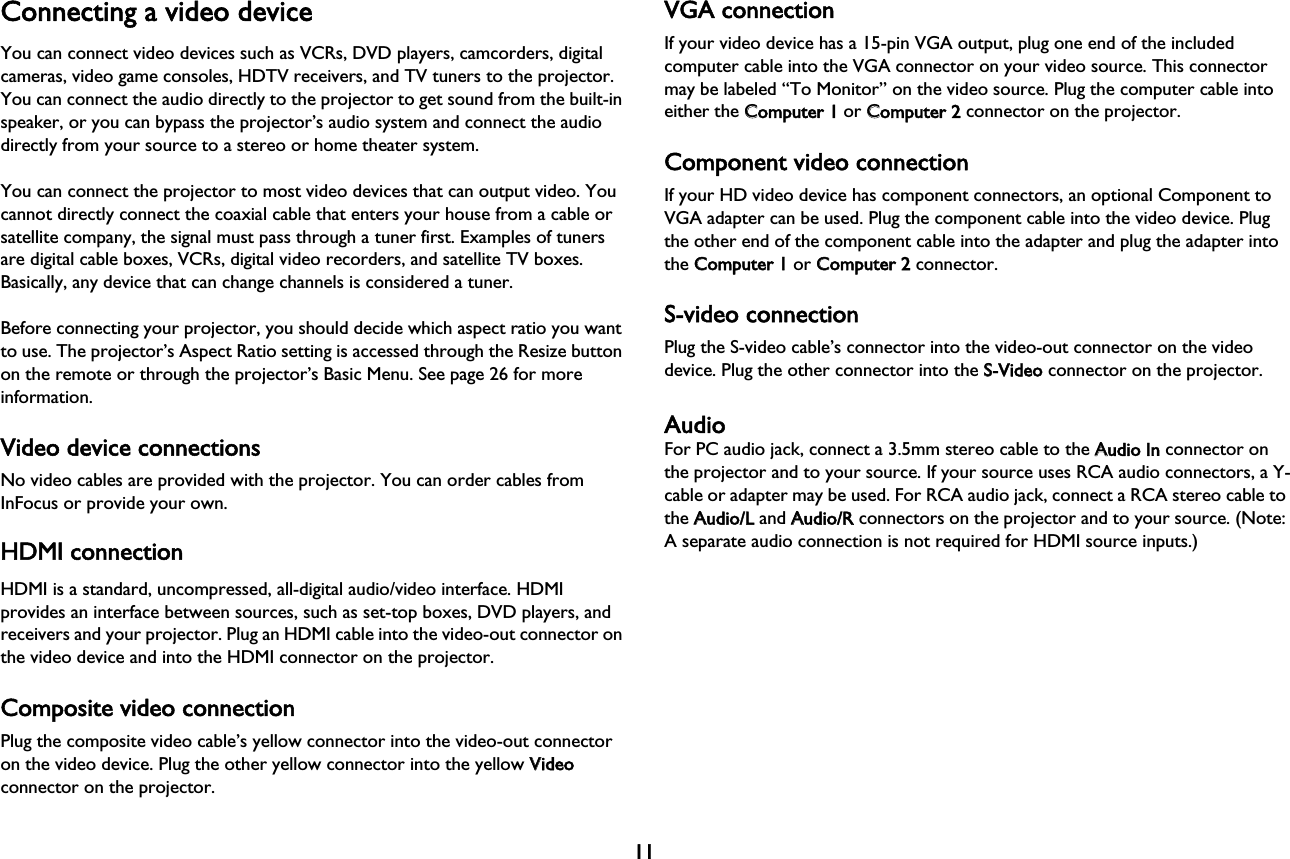
11Connecting a video deviceYou can connect video devices such as VCRs, DVD players, camcorders, digital cameras, video game consoles, HDTV receivers, and TV tuners to the projector. You can connect the audio directly to the projector to get sound from the built-in speaker, or you can bypass the projector’s audio system and connect the audio directly from your source to a stereo or home theater system.You can connect the projector to most video devices that can output video. You cannot directly connect the coaxial cable that enters your house from a cable or satellite company, the signal must pass through a tuner first. Examples of tuners are digital cable boxes, VCRs, digital video recorders, and satellite TV boxes. Basically, any device that can change channels is considered a tuner.Before connecting your projector, you should decide which aspect ratio you want to use. The projector’s Aspect Ratio setting is accessed through the Resize button on the remote or through the projector’s Basic Menu. See page 26 for more information.Video device connectionsNo video cables are provided with the projector. You can order cables from InFocus or provide your own.HDMI connectionHDMI is a standard, uncompressed, all-digital audio/video interface. HDMI provides an interface between sources, such as set-top boxes, DVD players, and receivers and your projector. Plug an HDMI cable into the video-out connector on the video device and into the HDMI connector on the projector.Composite video connectionPlug the composite video cable’s yellow connector into the video-out connector on the video device. Plug the other yellow connector into the yellow VVideo connector on the projector.VGA connectionIf your video device has a 15-pin VGA output, plug one end of the included computer cable into the VGA connector on your video source. This connector may be labeled “To Monitor” on the video source. Plug the computer cable into either the CComputer 1 or CComputer 2 connector on the projector.Component video connectionIf your HD video device has component connectors, an optional Component to VGA adapter can be used. Plug the component cable into the video device. Plug the other end of the component cable into the adapter and plug the adapter into the CComputer 1 or CComputer 2 connector.S-video connectionPlug the S-video cable’s connector into the video-out connector on the video device. Plug the other connector into the SS-Video connector on the projector.AudioFor PC audio jack, connect a 3.5mm stereo cable to the AAudio In connector on the projector and to your source. If your source uses RCA audio connectors, a Y-cable or adapter may be used. For RCA audio jack, connect a RCA stereo cable to the AAudio/L and AAudio/R connectors on the projector and to your source. (Note: A separate audio connection is not required for HDMI source inputs.)
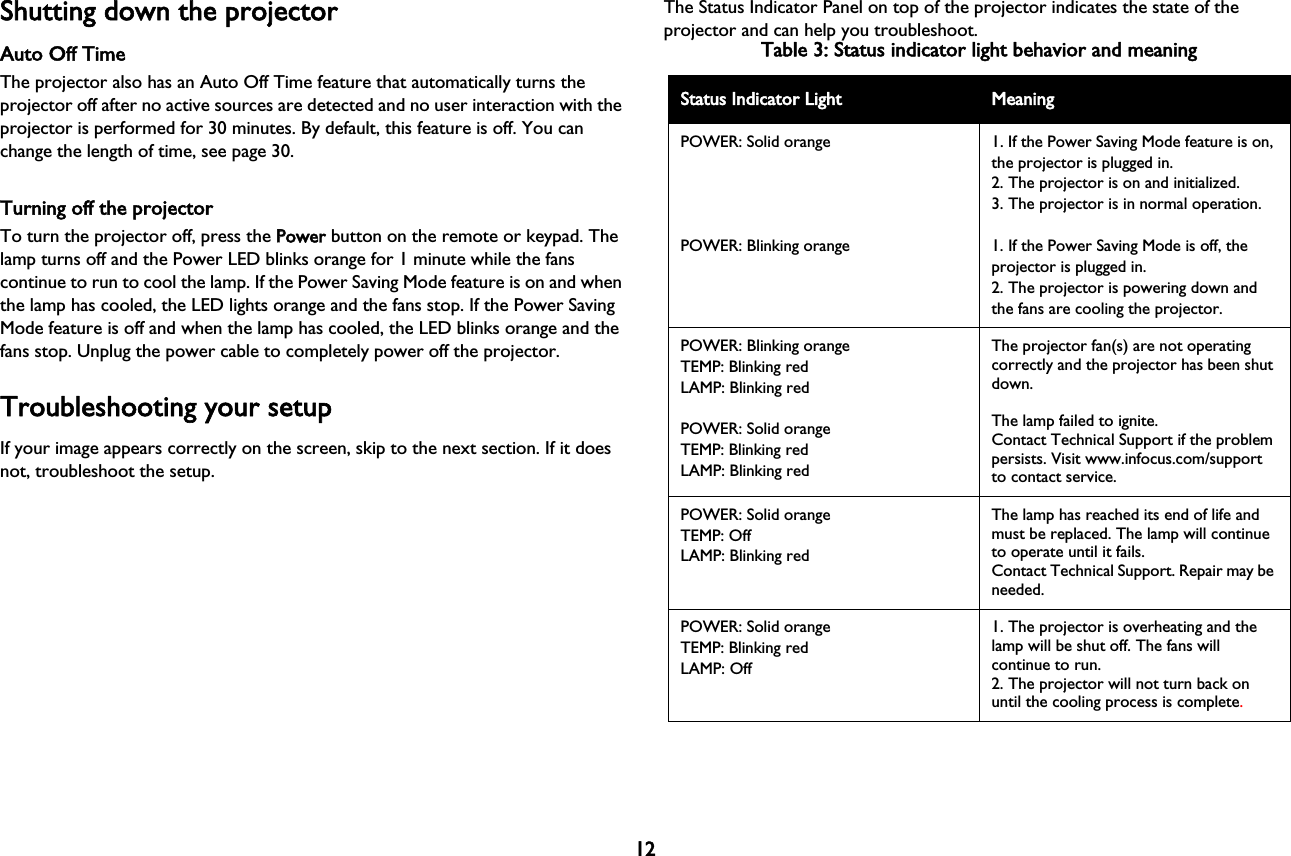
12Shutting down the projectorAuto Off TimeThe projector also has an Auto Off Time feature that automatically turns the projector off after no active sources are detected and no user interaction with the projector is performed for 30 minutes. By default, this feature is off. You can change the length of time, see page 30.Turning off the projectorTo turn the projector off, press the PPower button on the remote or keypad. The lamp turns off and the Power LED blinks orange for 1 minute while the fans continue to run to cool the lamp. If the Power Saving Mode feature is on and when the lamp has cooled, the LED lights orange and the fans stop. If the Power Saving Mode feature is off and when the lamp has cooled, the LED blinks orange and the fans stop. Unplug the power cable to completely power off the projector.Troubleshooting your setupIf your image appears correctly on the screen, skip to the next section. If it does not, troubleshoot the setup.The Status Indicator Panel on top of the projector indicates the state of the projector and can help you troubleshoot.Table 3: Status indicator light behavior and meaningStatus Indicator Light MeaningPOWER: Solid orangePOWER: Blinking orange1. If the Power Saving Mode feature is on, the projector is plugged in.2. The projector is on and initialized.3. The projector is in normal operation.1. If the Power Saving Mode is off, the projector is plugged in.2. The projector is powering down and the fans are cooling the projector.POWER: Blinking orangeTEMP: Blinking redLAMP: Blinking redPOWER: Solid orangeTEMP: Blinking redLAMP: Blinking redThe projector fan(s) are not operating correctly and the projector has been shut down.The lamp failed to ignite.Contact Technical Support if the problem persists. Visit www.infocus.com/support to contact service.POWER: Solid orangeTEMP: OffLAMP: Blinking redThe lamp has reached its end of life and must be replaced. The lamp will continue to operate until it fails.Contact Technical Support. Repair may be needed.POWER: Solid orangeTEMP: Blinking redLAMP: Off1. The projector is overheating and the lamp will be shut off. The fans will continue to run.2. The projector will not turn back on until the cooling process is complete.
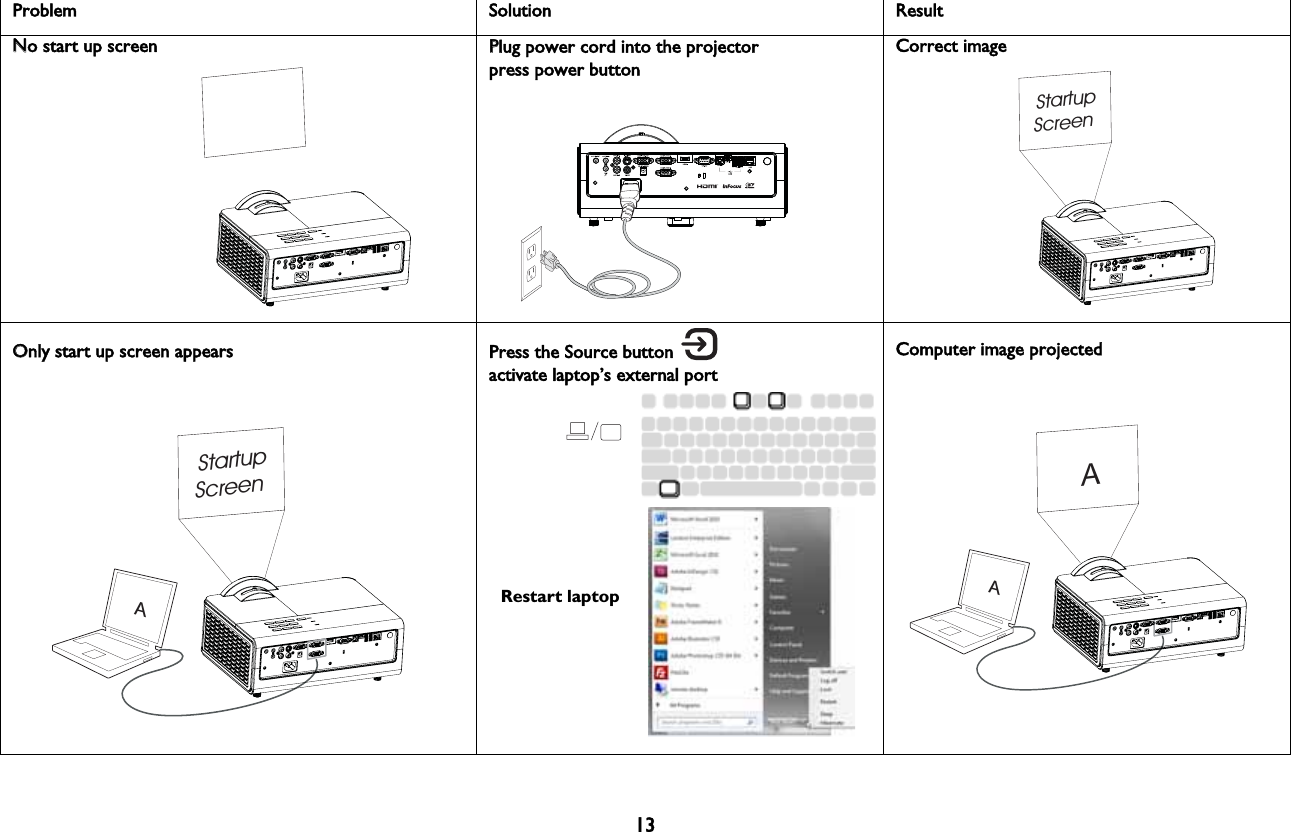
Problem  Solution ResultNNo start up screenPPlug power cord into the projectorpress power buttonStartupScreenCorrect imageAStartupScreenOOnly start up screen appearsRestart laptopPress the Source button activate laptop’s external portAAComputer image projected13
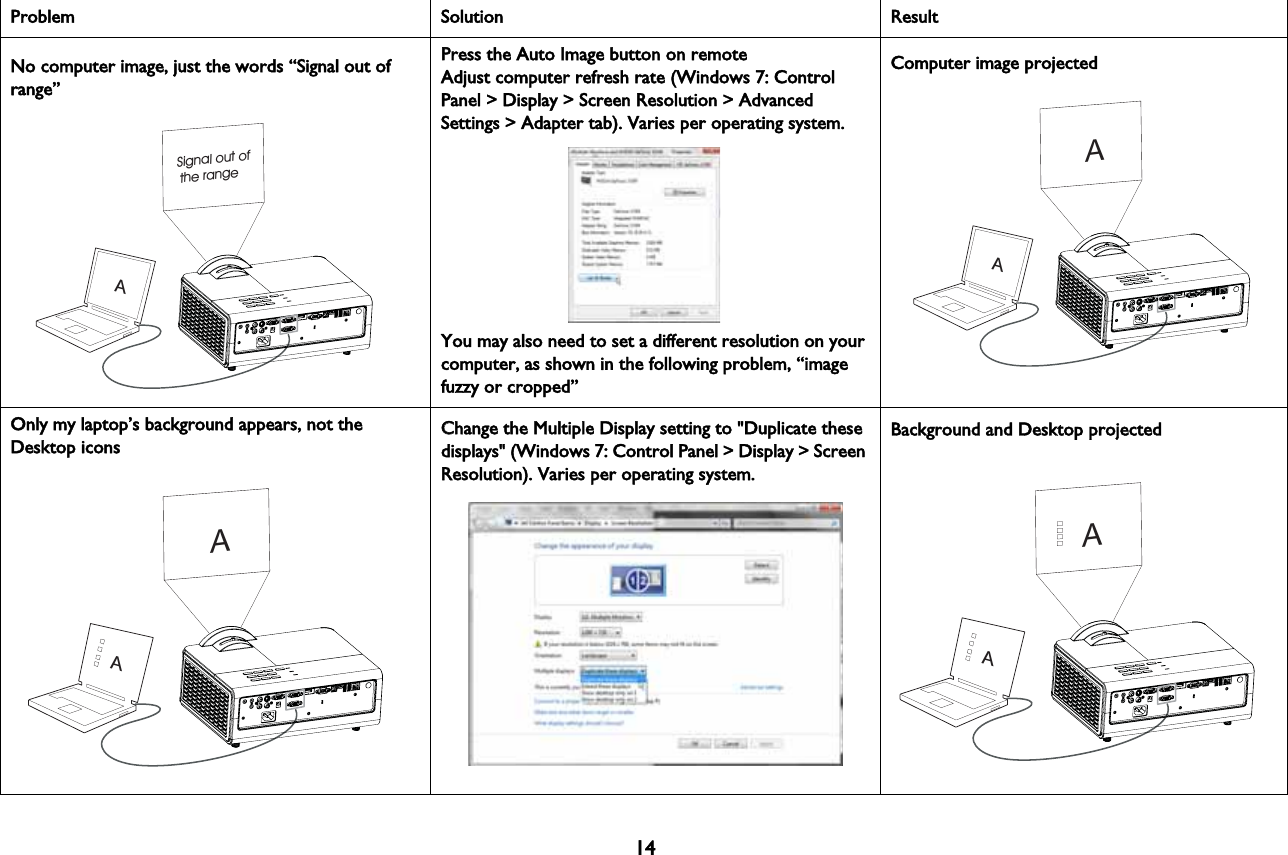
14Problem Solution ResultNo computer image, just the words “Signal out of range” ASignal out of the rangePPress the Auto Image button on remoteAdjust computer refresh rate (Windows 7: Control Panel > Display > Screen Resolution > Advanced Settings > Adapter tab). Varies per operating system.You may also need to set a different resolution on your computer, as shown in the following problem, “image fuzzy or cropped”Computer image projectedAAOnly my laptop’s background appears, not the Desktop iconsAACChange the Multiple Display setting to "Duplicate these displays" (Windows 7: Control Panel > Display > Screen Resolution). Varies per operating system. Background and Desktop projectedAA
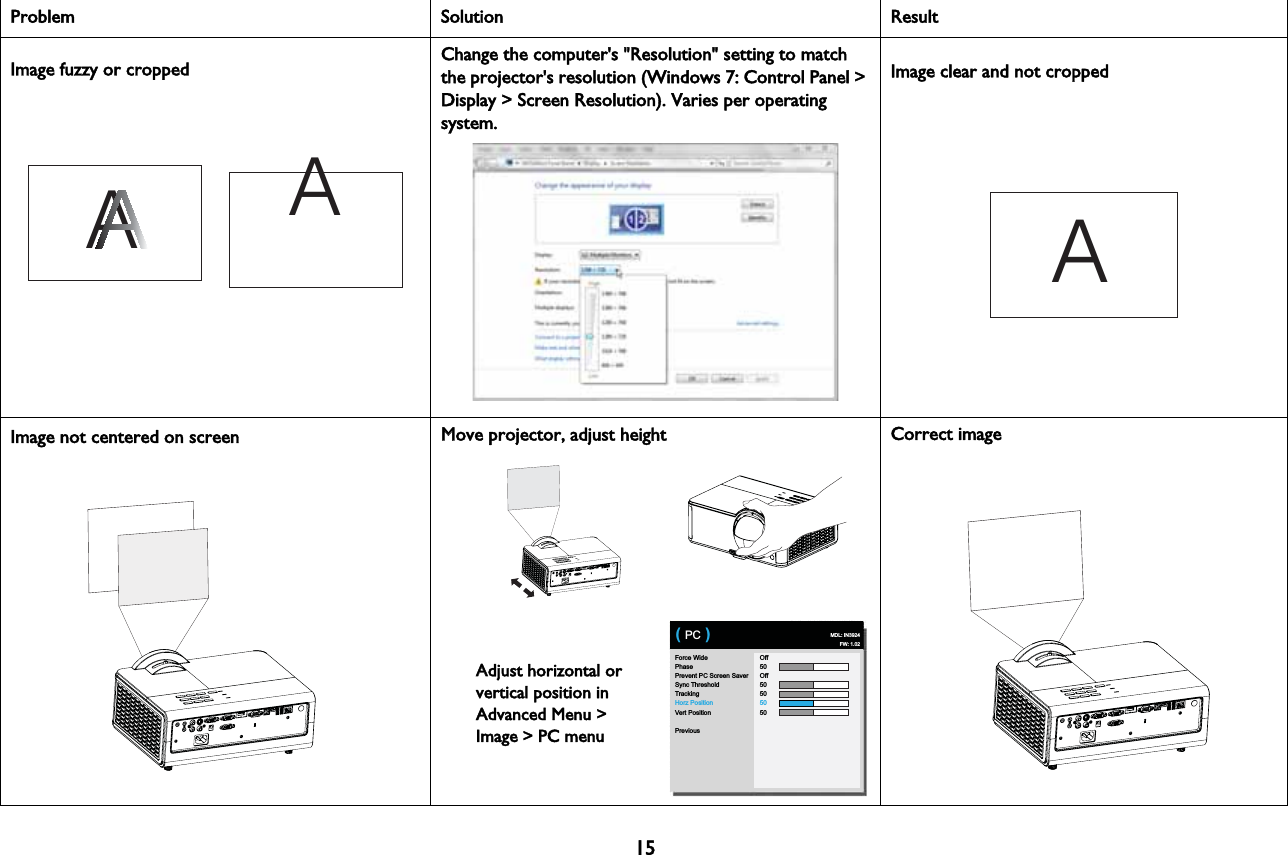
15Image fuzzy or cropped AAChange the computer's "Resolution" setting to match the projector's resolution (Windows 7: Control Panel > Display > Screen Resolution). Varies per operating system. AImage clear and not croppedImage not centered on screenForce WidePhasePrevent PC Screen SaverSync ThresholdTrackingHorz PositionVert PositionPreviousOff50Off50505050( PC ) MDL: IN3924FW: 1.02AAdjust horizontal or vertical position in Advanced Menu > Image > PC menuMMove projector, adjust height Correct imageProblem Solution Result
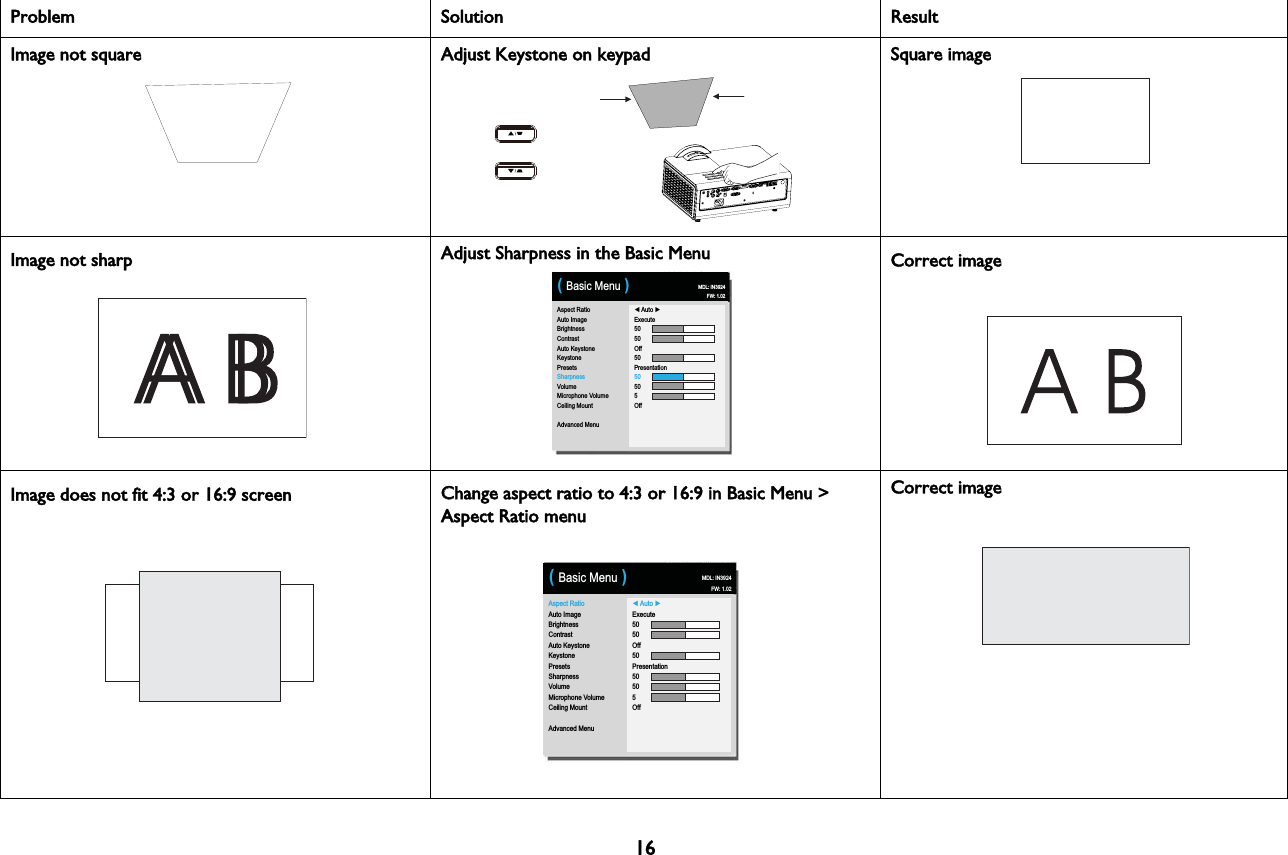
16Image not squareAAdjust Keystone on keypad Square imageImage not sharpAspect RatioAuto ImageBrightnessContrastAuto KeystoneKeystonePresetsSharpnessVolumeMicrophone VolumeCeiling MountAdvanced Menu◄ Auto ►Execute5050Off50Presentation50505Off( Basic Menu ) MDL: IN3924FW: 1.02AAdjust Sharpness in the Basic Menu Correct imageImage does not fit 4:3 or 16:9 screenAspect RatioAuto ImageBrightnessContrastAuto KeystoneKeystonePresetsSharpnessVolumeMicrophone VolumeCeiling MountAdvanced Menu◄ Auto ►Execute5050Off50Presentation50505Off( Basic Menu ) MDL: IN3924FW: 1.02CChange aspect ratio to 4:3 or 16:9 in Basic Menu > Aspect Ratio menuCorrect imageProblem Solution Result
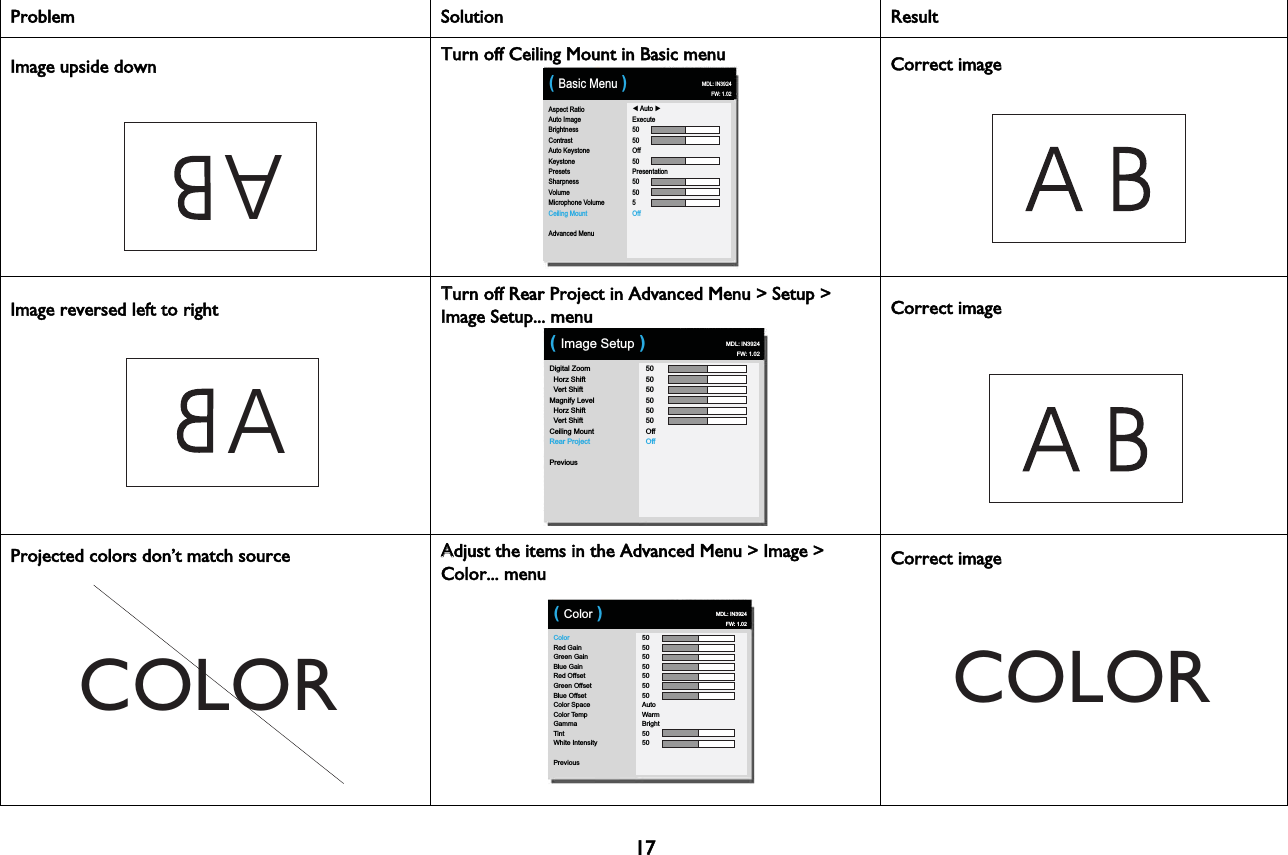
A17Image upside downAspect RatioAuto ImageBrightnessContrastAuto KeystoneKeystonePresetsSharpnessVolumeMicrophone VolumeCeiling MountAdvanced Menu◄ Auto ►Execute5050Off50Presentation50505Off( Basic Menu ) MDL: IN3924FW: 1.02TTurn off Ceiling Mount in Basic menu Correct imageImage reversed left to rightADigital Zoom  Horz Shift  Vert ShiftMagnify Level  Horz Shift  Vert ShiftCeiling MountRear ProjectPrevious505050505050OffOff( Image Setup ) MDL: IN3924FW: 1.02TTurn off Rear Project in Advanced Menu > Setup > Image Setup... menu Correct image COLORProjected colors don’t match sourceColorRed GainGreen GainBlue GainRed OffsetGreen OffsetBlue OffsetColor SpaceColor TempGammaTintWhite IntensityPrevious50505050505050AutoWarmBright5050( Color ) MDL: IN3924FW: 1.02AAdjust the items in the Advanced Menu > Image > Color... menuCOLORCorrect imageProblem Solution Result
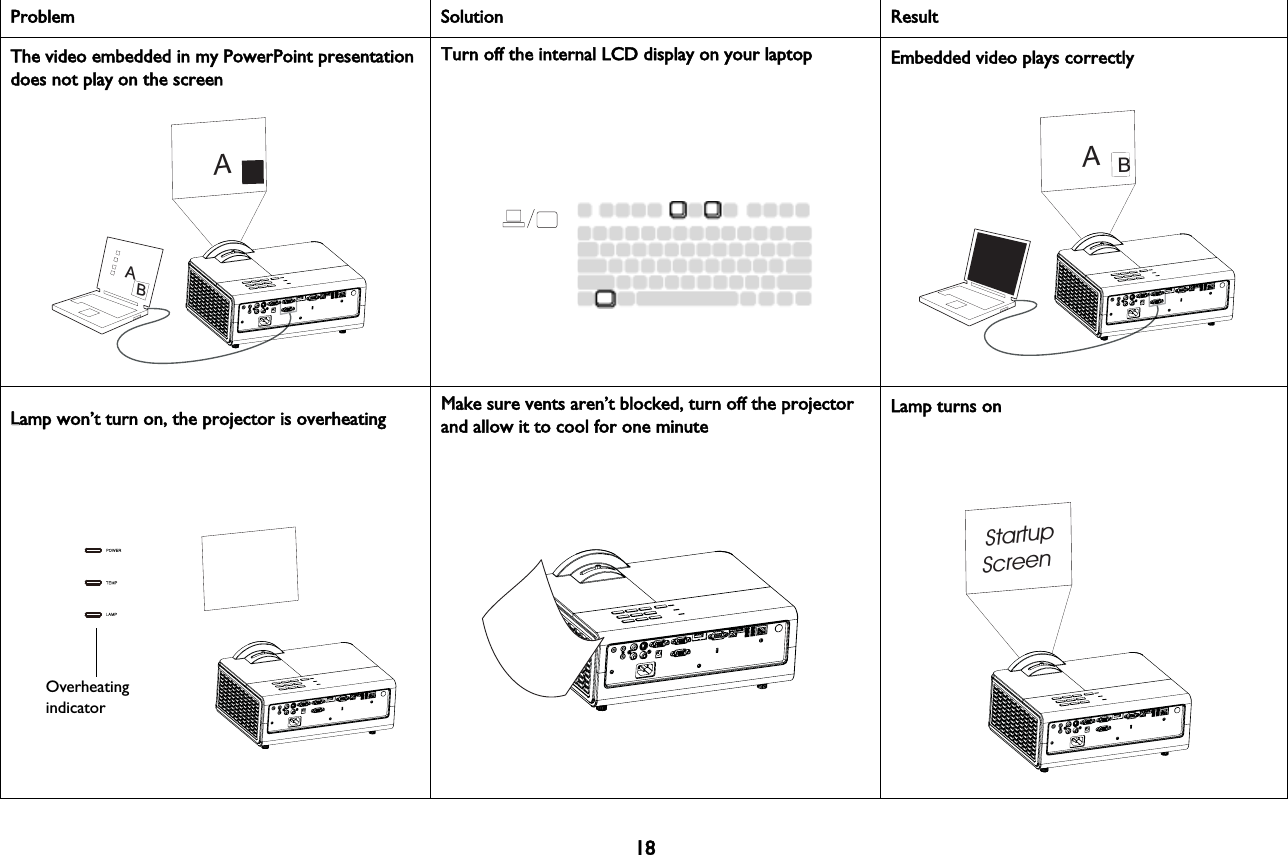
18The video embedded in my PowerPoint presentation does not play on the screenAABBTTurn off the internal LCD display on your laptop Embedded video plays correctlyABOverheating indicatorLLamp won’t turn on, the projector is overheatingMMake sure vents aren’t blocked, turn off the projector and allow it to cool for one minute StartupScreenLamp turns onProblem Solution Result
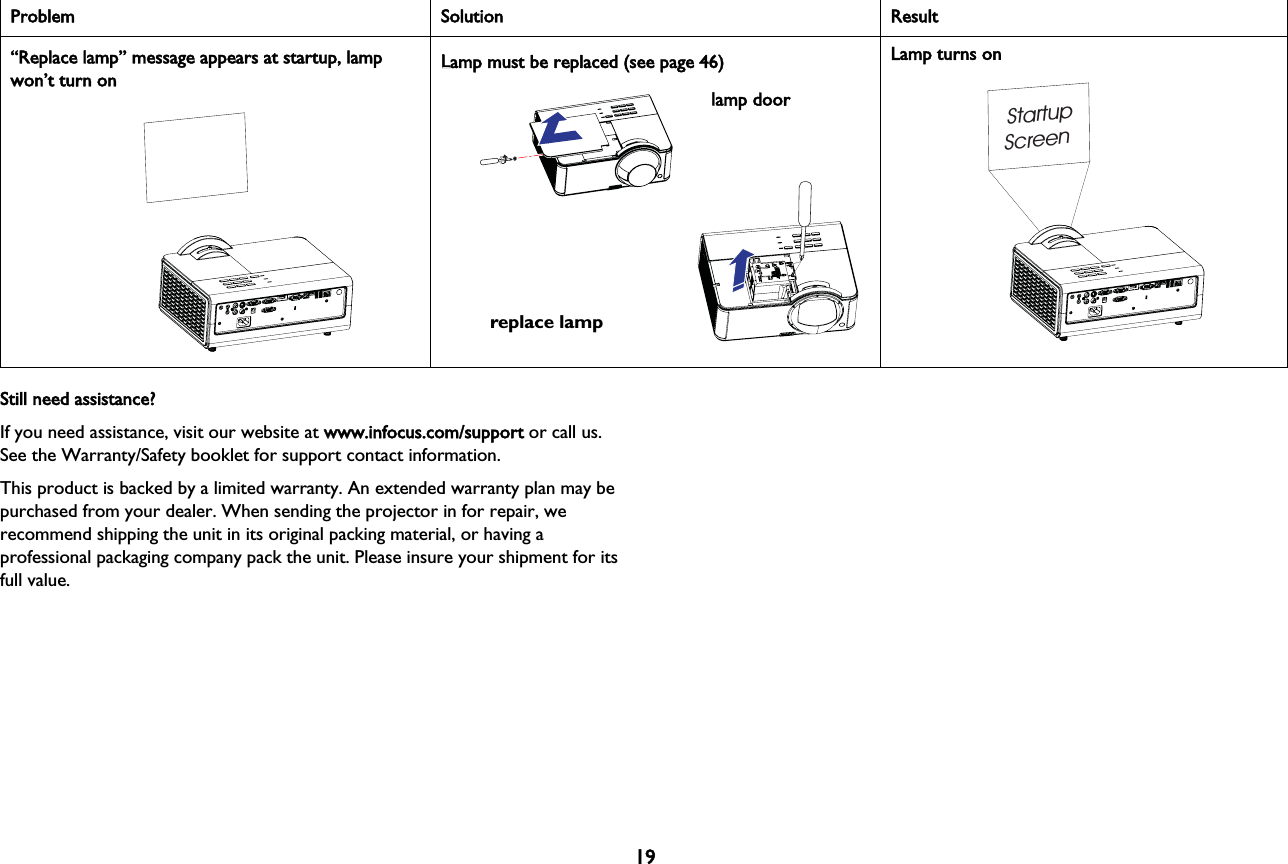
19Still need assistance?If you need assistance, visit our website at wwww.infocus.com/support or call us. See the Warranty/Safety booklet for support contact information.This product is backed by a limited warranty. An extended warranty plan may be purchased from your dealer. When sending the projector in for repair, we recommend shipping the unit in its original packing material, or having a professional packaging company pack the unit. Please insure your shipment for its full value.“Replace lamp” message appears at startup, lamp won’t turn onllamp doorreplace lampLLamp must be replaced (see page 46)StartupScreenLamp turns onProblem Solution Result
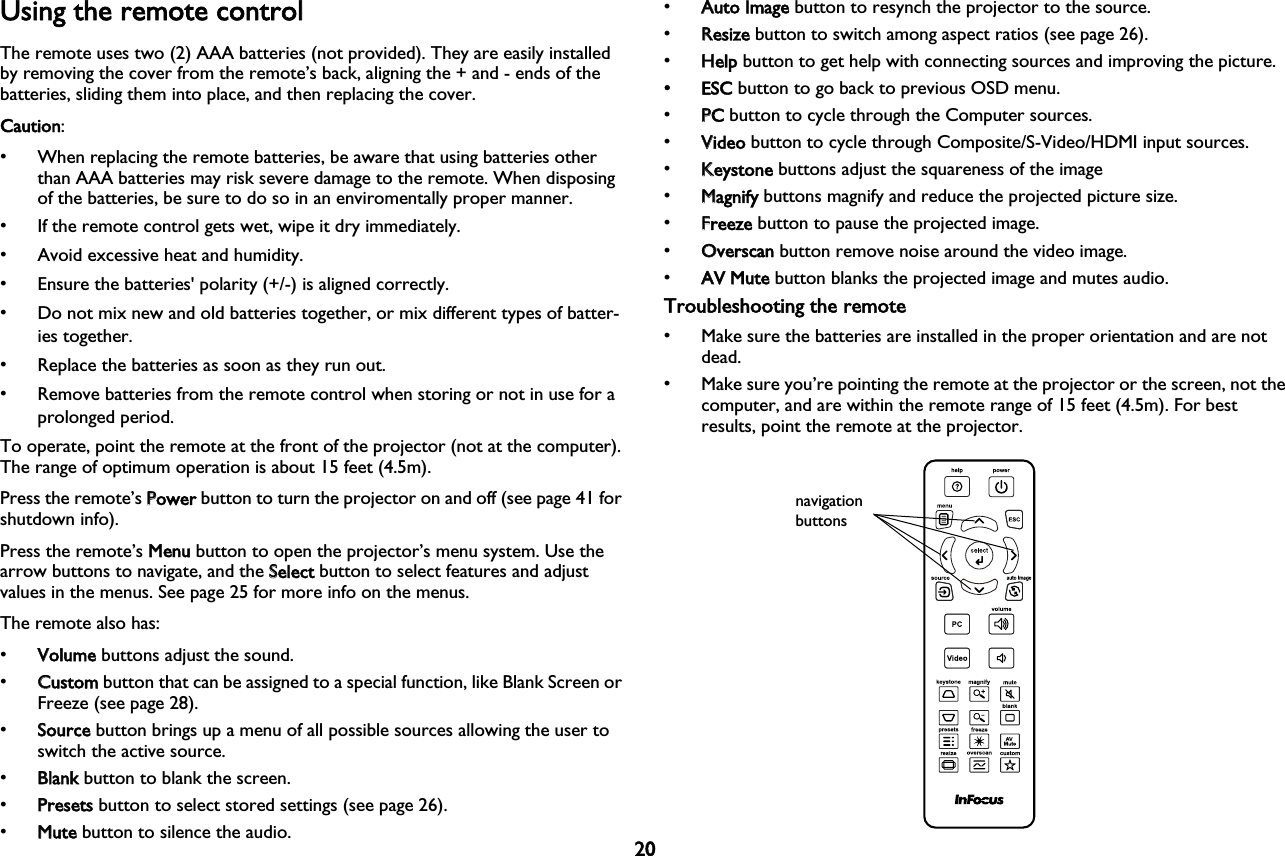
20Using the remote controlThe remote uses two (2) AAA batteries (not provided). They are easily installed by removing the cover from the remote’s back, aligning the + and - ends of the batteries, sliding them into place, and then replacing the cover.Caution: • When replacing the remote batteries, be aware that using batteries other than AAA batteries may risk severe damage to the remote. When disposing of the batteries, be sure to do so in an enviromentally proper manner.• If the remote control gets wet, wipe it dry immediately.• Avoid excessive heat and humidity.• Ensure the batteries' polarity (+/-) is aligned correctly.• Do not mix new and old batteries together, or mix different types of batter-ies together.• Replace the batteries as soon as they run out.• Remove batteries from the remote control when storing or not in use for a prolonged period.To operate, point the remote at the front of the projector (not at the computer). The range of optimum operation is about 15 feet (4.5m).Press the remote’s PPower button to turn the projector on and off (see page 41 for shutdown info).Press the remote’s MMenu button to open the projector’s menu system. Use the arrow buttons to navigate, and the SSelect button to select features and adjust values in the menus. See page 25 for more info on the menus.The remote also has:•VVolume buttons adjust the sound.•CCustom button that can be assigned to a special function, like Blank Screen or Freeze (see page 28).•SSource button brings up a menu of all possible sources allowing the user to switch the active source.•BBlank button to blank the screen.•PPresets button to select stored settings (see page 26).•MMute button to silence the audio.•AAuto Image button to resynch the projector to the source.•RResize button to switch among aspect ratios (see page 26).•HHelp button to get help with connecting sources and improving the picture.• ESC button to go back to previous OSD menu.•PPC button to cycle through the Computer sources.•VVideo button to cycle through Composite/S-Video/HDMI input sources.•KKeystone buttons adjust the squareness of the image•MMagnify buttons magnify and reduce the projected picture size.•FFreeze button to pause the projected image.•OOverscan button remove noise around the video image.•AAV Mute button blanks the projected image and mutes audio.Troubleshooting the remote• Make sure the batteries are installed in the proper orientation and are not dead.• Make sure you’re pointing the remote at the projector or the screen, not the computer, and are within the remote range of 15 feet (4.5m). For best results, point the remote at the projector.navigation buttons
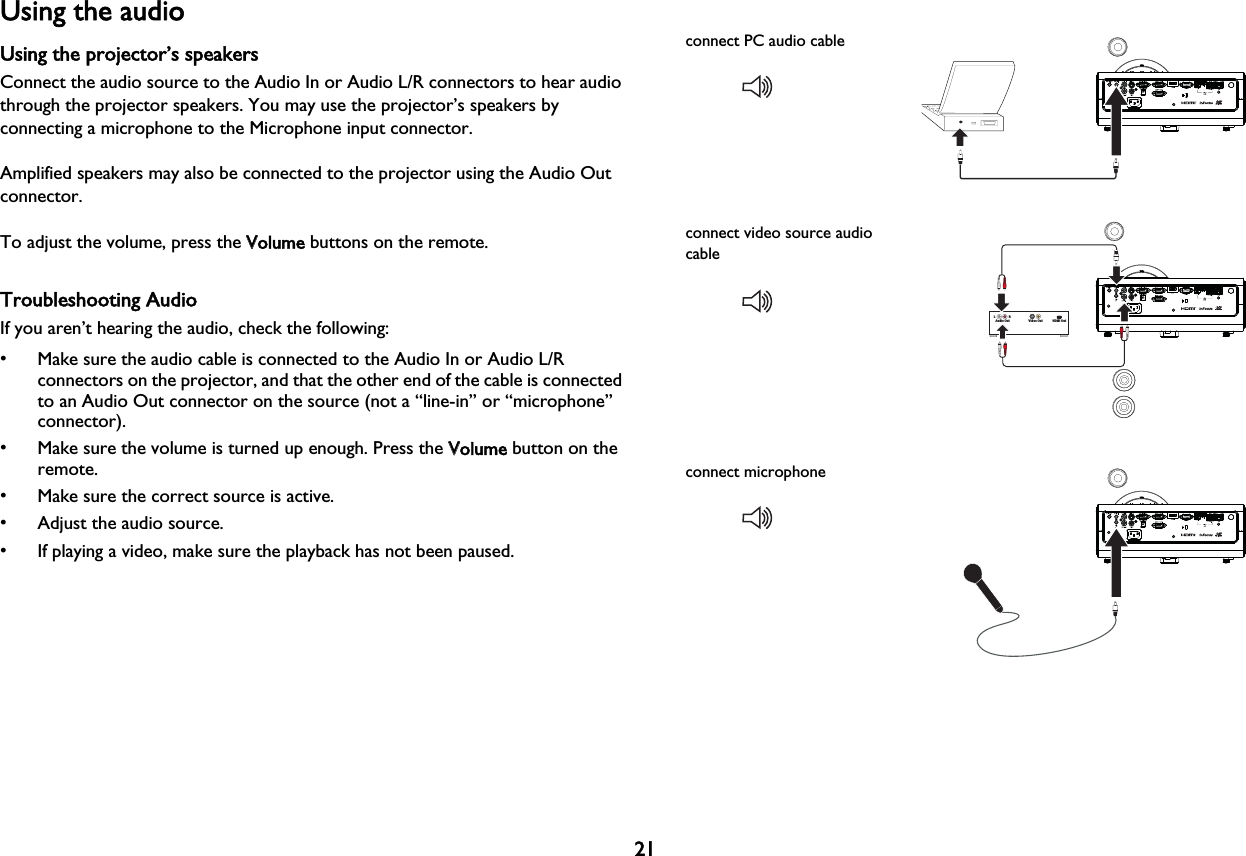
21Using the audioUsing the projector’s speakersConnect the audio source to the Audio In or Audio L/R connectors to hear audio through the projector speakers. You may use the projector’s speakers by connecting a microphone to the Microphone input connector.Amplified speakers may also be connected to the projector using the Audio Out connector.To adjust the volume, press the VVolume buttons on the remote.Troubleshooting AudioIf you aren’t hearing the audio, check the following:• Make sure the audio cable is connected to the Audio In or Audio L/R connectors on the projector, and that the other end of the cable is connected to an Audio Out connector on the source (not a “line-in” or “microphone” connector).• Make sure the volume is turned up enough. Press the VVolume button on the remote.• Make sure the correct source is active.• Adjust the audio source.• If playing a video, make sure the playback has not been paused.connect PC audio cableVideo Out HDMI OutAudio OutL                  Rconnect video source audio cableconnect microphone
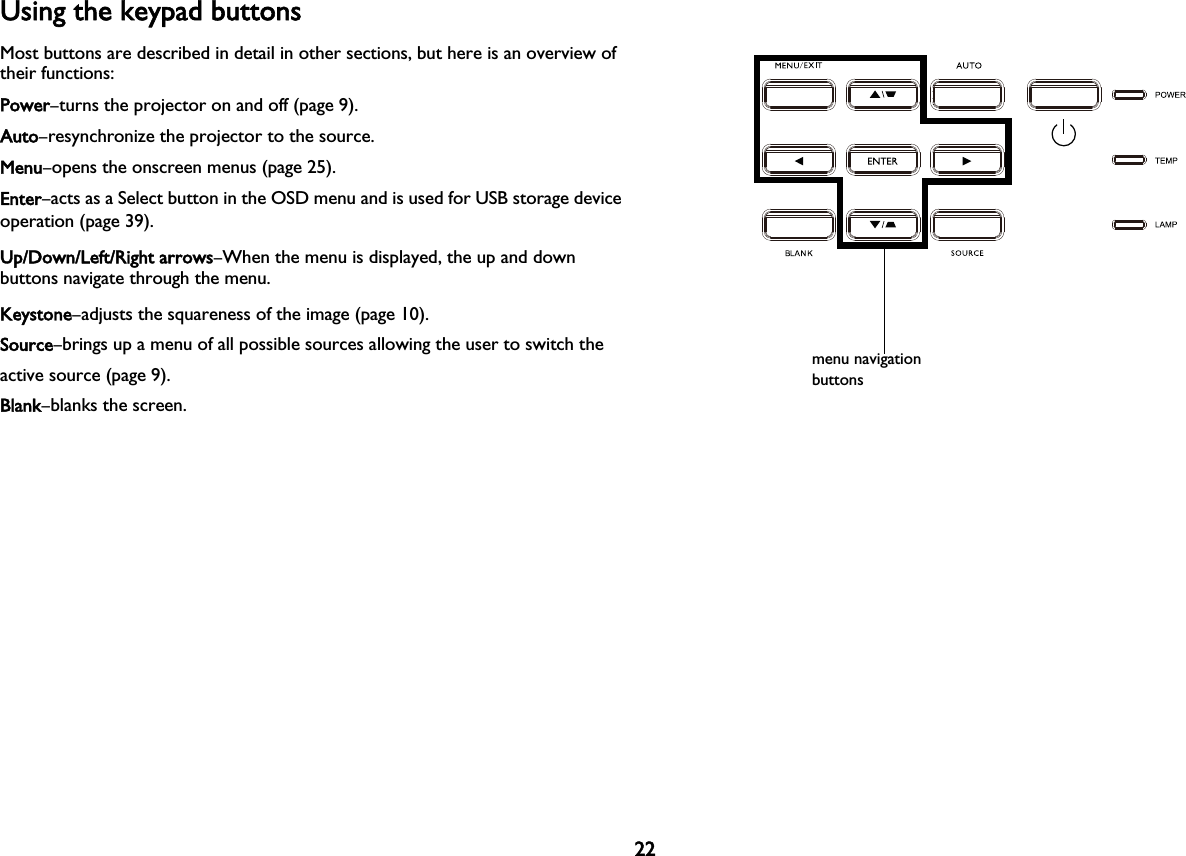
22Using the keypad buttonsMost buttons are described in detail in other sections, but here is an overview of their functions:Power–turns the projector on and off (page 9).Auto–resynchronize the projector to the source.Menu–opens the onscreen menus (page 25).Enter–acts as a Select button in the OSD menu and is used for USB storage device operation (page 39).Up/Down/Left/Right arrows–When the menu is displayed, the up and down buttons navigate through the menu.Keystone–adjusts the squareness of the image (page 10).Source–brings up a menu of all possible sources allowing the user to switch the active source (page 9).Blank–blanks the screen.menu navigation buttons
23Optimizing computer imagesAfter the projector is running and the image is on the screen, you can optimize the image using the onscreen menus. For general information on using the menus, see page 25.• Select default image settings using a preset appropriate to your environment.• Adjust the Keystone, Contrast, or Brightness (page 26).• Change the Aspect Ratio. Choose the option that best fits your input source (page 26).• Adjust the Color Temperature (page 27).• Adjust the Phase, Tracking, or Horizontal or Vertical position (page 27).• Once you have optimized the image for a particular source, you can save the settings using Presets. This allows you to quickly recall these settings later (page 26).Presentation featuresSeveral features are provided to make giving presentations easier. Here is an overview, details are found in the menu section.• The Custom key allows you to assign various features to the button. The default effect is Source Info, which displays information about the projector and current source. See page 28 for details.• The Search Screen option lets you change the appearance of the blank screen and start up screen (page 29).• Auto Off Time is provided to automatically shut down the projector after several minutes. This helps preserve lamp life (page 29).
24Optimizing video imagesAfter your video device is connected properly and the image is on the screen, you can optimize the image using the onscreen menus. For general information on using the menus, see page 25.• Adjust the Keystone, Contrast, Brightness, Color, or Tint (page 26).• Change the Aspect Ratio. Choose the option that best fits your input source (page 26).• Select a Sharpness setting (page 26).• Adjust the Color Temperature. Select a listed warmth value (page 27).• Turn on Overscan to remove noise on the edges of the image (page 28).Customizing the projectorYou can customize the projector for your specific setup and needs. See page 28 for details on these features.• For rear projection, turn Rear Project on in the Advanced Menu > Setup > Image Setup menu.• For ceiling mounted projection, turn Ceiling Mount on in the Basic menu.• Specify which source the projector checks first for active video during power-up.• Specify the function of the Custom key on the remote.• Turn the projector’s display messages on and off.• Turn on power saving features.• Specify appearance of blank screen and startup screen.• Specify the language viewed on the menus.• Save settings for the active source as a preset.
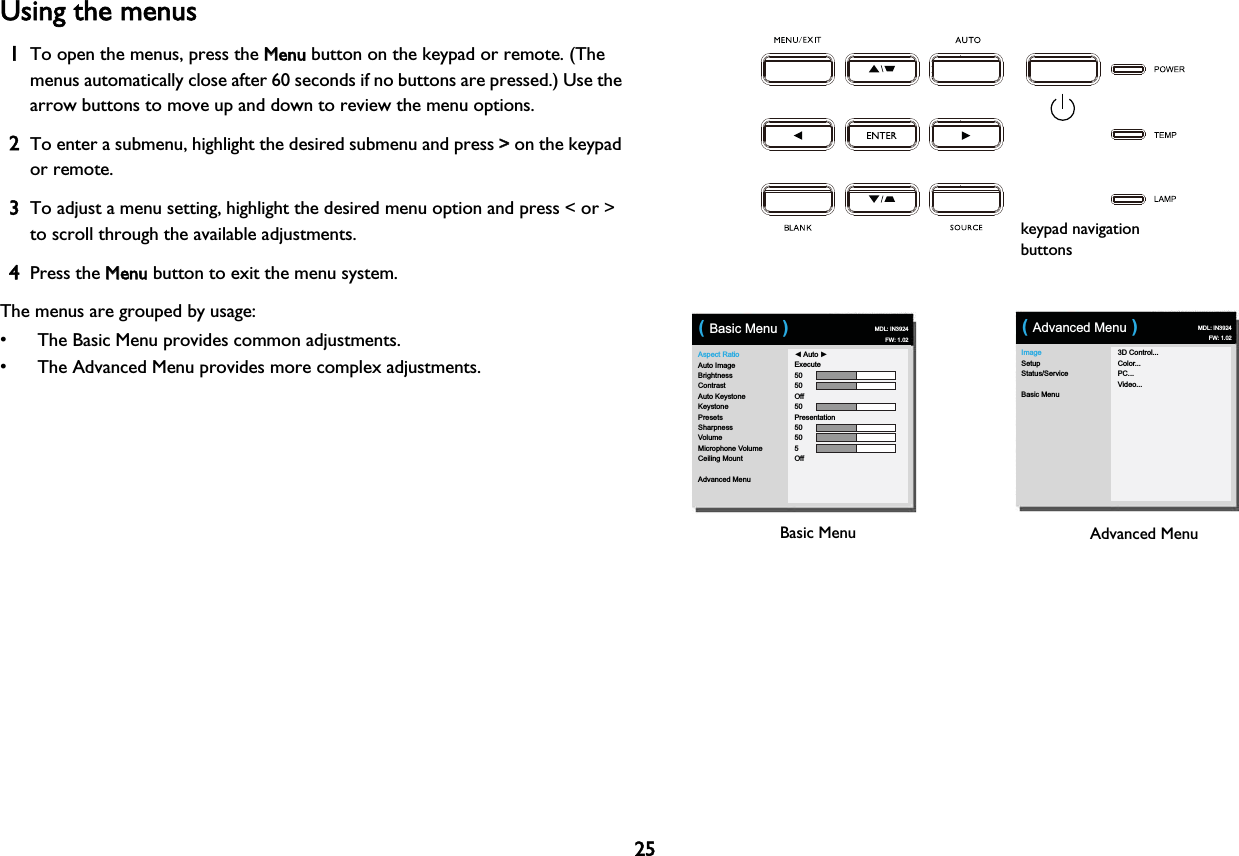
25Using the menus1To open the menus, press the MMenu button on the keypad or remote. (The menus automatically close after 60 seconds if no buttons are pressed.) Use the arrow buttons to move up and down to review the menu options.2To enter a submenu, highlight the desired submenu and press >> on the keypad or remote.3To adjust a menu setting, highlight the desired menu option and press < or > to scroll through the available adjustments. 4Press the MMenu button to exit the menu system.The menus are grouped by usage:• The Basic Menu provides common adjustments.• The Advanced Menu provides more complex adjustments.keypad navigation buttonsImageSetupStatus/ServiceBasic Menu3D Control...Color...PC...Video...( Advanced Menu ) MDL: IN3924FW: 1.02Basic Menu Advanced MenuAspect RatioAuto ImageBrightnessContrastAuto KeystoneKeystonePresetsSharpnessVolumeMicrophone VolumeCeiling MountAdvanced Menu◄ Auto ►Execute5050Off50Presentation50505Off( Basic Menu )MDL: IN3924FW: 1.02
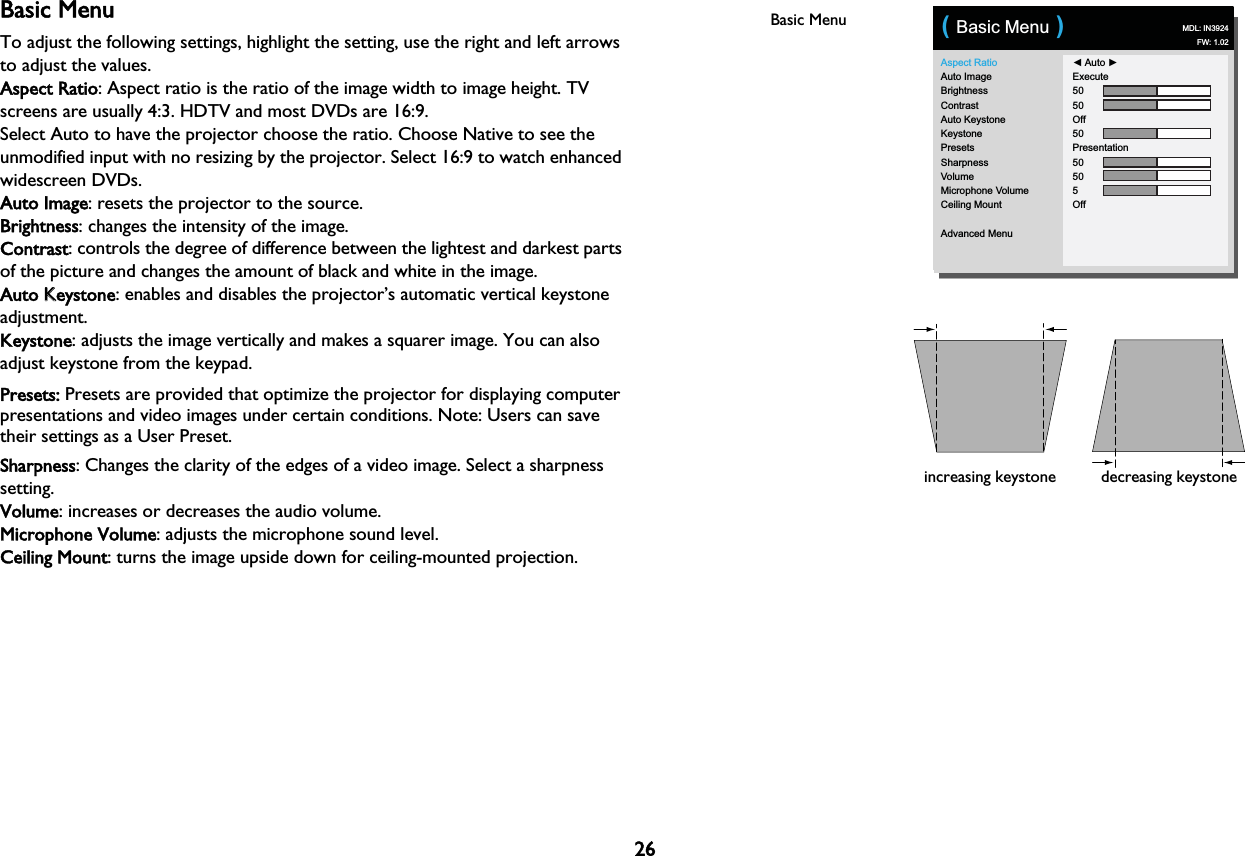
26Basic MenuTo adjust the following settings, highlight the setting, use the right and left arrows to adjust the values.Aspect Ratio: Aspect ratio is the ratio of the image width to image height. TV screens are usually 4:3. HDTV and most DVDs are 16:9.Select Auto to have the projector choose the ratio. Choose Native to see the unmodified input with no resizing by the projector. Select 16:9 to watch enhanced widescreen DVDs.Auto Image: resets the projector to the source.Brightness: changes the intensity of the image.Contrast: controls the degree of difference between the lightest and darkest parts of the picture and changes the amount of black and white in the image.Auto KKeystone: enables and disables the projector’s automatic vertical keystone adjustment.Keystone: adjusts the image vertically and makes a squarer image. You can also adjust keystone from the keypad.Presets: Presets are provided that optimize the projector for displaying computer presentations and video images under certain conditions. Note: Users can save their settings as a User Preset.Sharpness: Changes the clarity of the edges of a video image. Select a sharpness setting.Volume: increases or decreases the audio volume.Microphone Volume: adjusts the microphone sound level.Ceiling Mount: turns the image upside down for ceiling-mounted projection.Basic MenuAspect RatioAuto ImageBrightnessContrastAuto KeystoneKeystonePresetsSharpnessVolumeMicrophone VolumeCeiling MountAdvanced Menu◄ Auto ►Execute5050Off50Presentation50505Off( Basic Menu )MDL: IN3924FW: 1.02increasing keystone decreasing keystone
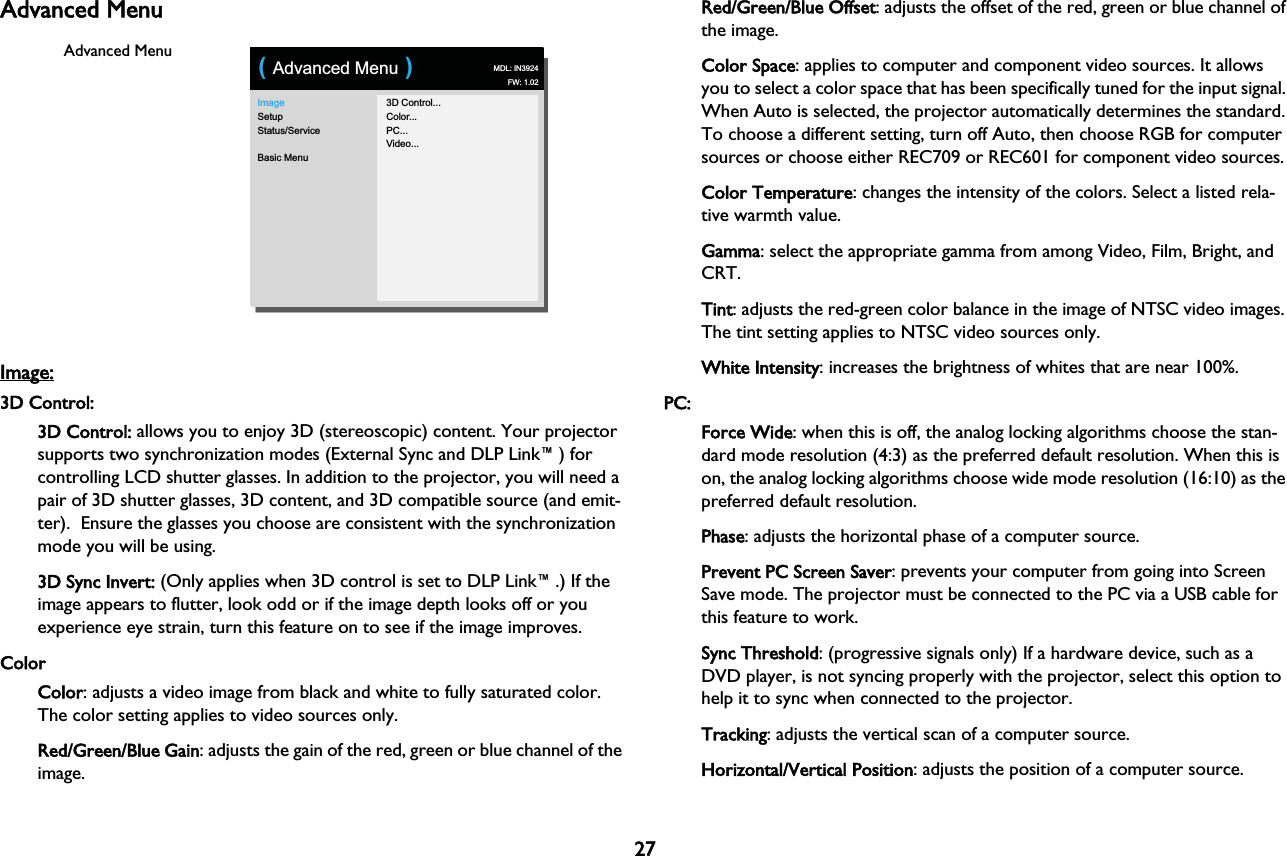
27Advanced MenuImageSetupStatus/ServiceBasic Menu3D Control...Color...PC...Video...( Advanced Menu )MDL: IN3924FW: 1.02Advanced MenuImage: 3D Control:3D Control: allows you to enjoy 3D (stereoscopic) content. Your projector supports two synchronization modes (External Sync and DLP Link™) for controlling LCD shutter glasses. In addition to the projector, you will need a pair of 3D shutter glasses, 3D content, and 3D compatible source (and emit-ter).  Ensure the glasses you choose are consistent with the synchronization mode you will be using.3D Sync Invert: (Only applies when 3D control is set to DLP Link™.) If the image appears to flutter, look odd or if the image depth looks off or you experience eye strain, turn this feature on to see if the image improves. ColorColor: adjusts a video image from black and white to fully saturated color. The color setting applies to video sources only.Red/Green/Blue Gain: adjusts the gain of the red, green or blue channel of the image.Red/Green/Blue Offset: adjusts the offset of the red, green or blue channel of the image.Color Space: applies to computer and component video sources. It allows you to select a color space that has been specifically tuned for the input signal. When Auto is selected, the projector automatically determines the standard. To choose a different setting, turn off Auto, then choose RGB for computer sources or choose either REC709 or REC601 for component video sources.Color Temperature: changes the intensity of the colors. Select a listed rela-tive warmth value.Gamma: select the appropriate gamma from among Video, Film, Bright, and CRT.Tint: adjusts the red-green color balance in the image of NTSC video images. The tint setting applies to NTSC video sources only.White Intensity: increases the brightness of whites that are near 100%.PC:Force Wide: when this is off, the analog locking algorithms choose the stan-dard mode resolution (4:3) as the preferred default resolution. When this is on, the analog locking algorithms choose wide mode resolution (16:10) as the preferred default resolution.Phase: adjusts the horizontal phase of a computer source.Prevent PC Screen Saver: prevents your computer from going into Screen Save mode. The projector must be connected to the PC via a USB cable for this feature to work.Sync Threshold: (progressive signals only) If a hardware device, such as a DVD player, is not syncing properly with the projector, select this option to help it to sync when connected to the projector.Tracking: adjusts the vertical scan of a computer source.Horizontal/Vertical Position: adjusts the position of a computer source.
28Video:Detect Film: determines whether the original source of the input video was film (progressive) or video (interlaced).Overscan: removes noise around the video image.Set Black Level: analyzes the current input image and calculates an offset value which is then added to the analog to digital converter black level value. This ensures optimum black level for each analog source.Setup:Audio SetupInternal Speakers: turns the internal speakers on or off.Computer 1: selects the audio input for Computer in 1 signal.Computer 2: selects the audio input for Computer in 2 signal.Video: selects the audio input for video source.HDMI: select the audio input for HDMI signal.Closed CaptionsClosed Captions: controls closed captioning. If the source is NTSC and contains captions on the selected channel, then the projector will display caption text overlaid on the image. When Closed Captions is off and volume is muted, closed captioning will appear. Options are: Off, CC1 and CC2.Image SetupDigital Zoom: reduces the size of projector’s display area. If the display area has been resized by this setting, it can be moved by changing the HHorz Shift and VVert Shift settings.Magnify Level: magnifies the image. If the image has been magnified by this set-ting, it can be moved by changing the HHorz Shift and VVert Shift settings.Ceiling Mount: turns the image upside down for ceiling-mounted projection.Rear Project: reverses the image so you can project from behind a translu-cent screen.Keypad/RemoteBlank Key: select what to display when the blank key on the remote is pressed: a solid color screen (blue, black or white), or the factory logo screen.Custom Key: allows you to assign a different function to the Custom button, allowing you to quickly and easily use the effect. Press < or > on the keypad or remote to choose a different one. •Blank Screen: displays an empty screen.•Mute: turns off all sound.•Source: brings up a menu of available sources.•Auto Image: resets the projector to the source.•Freeze Screen: pauses the projected image.•Source Info: the default action. Shows the Source Info menu.•Projector Info: shows the Projector Info menu.•Overscan: removes noise around the image.•AAV Mute: enables or disables AV Mute function.•CClosed Captions: enables or disables Closed Captions.Keypad: enables or locks the projector keypad.LiteBoard™WWand: selects the LiteBoard™Wand mode. Options are: None, Single Pen and Dual Pens.
29LampProgrammed Dimming: When enabled, Programmed Dimming enhances con-trast ratios in dark scenes and disables Lamp Low Power. Programmed Dim-ming will impact lamp life and system noise performance. Programmed Dimming works in conjunction with the lamp. If Lamp Low Power is enabled, Programmed Dimming is unavailable.Lamp Low Power: toggles between on and off. Turn it on to lower the light output of the lamp. This also lowers the fan speed, making the projector qui-eter.OSD SetupLanguage: allows you to select a language for the onscreen display.Menu Position: allows you to change the position of the On Screen Display items.Menu Transparency: allows you to change how much of the projected image behind the menu you can see. As the value increases, more of the image behind the menu is visible.Show Messages: displays status messages (such as “Searching”) in the lower-left corner of the screen.PIN SettingsPIN Protect: The PIN (personal identification number) feature allows you to password protect your projector. Once you enable the PIN feature, you must enter the PIN before you can project an image. Use the UUp/Down/Left/Right arrows buttons on the remote or keypad to set a 4-button press sequence. If you enter an incorrect PIN 3 times in succession, the projector will automat-ically shut down. If you lose or forget your custom PIN, contact InFocus Technical Support.To enter the PIN at projector startup:Power up the projector. The “EEnter PIN” dialog box  displays after the star-tup screen. Enter the PIN. Use the UUp/Down/Left/Right arrows buttons on the remote or keypad to enter the correct 4-button press sequence. See the description above for instructions.To change the PIN:Select “CChange PIN...” in the Advanced Menu > Setup > PIN settings menu. Enter the existing PIN. Enter the new PIN.PowerPower Saving Mode: When the Power Saving Mode is On and the projector is in standby (powered off but connected to AC power), the monitor out func-tion will not work.SourceAuto Source: When this feature is On, the projector automatically finds the active source, checking the selected Power-up Source first. When this feature is Off, the projector defaults to the source selected in Power-up Source. To display another source, you must manually select one by pressing the SSource button on the remote or keypad and selecting one from the displayed Source menu.Power-up Source: determines which source the projector checks first for active video during power-up.Search Screen: allows you to display a blank screen instead of the default screen at startup, and when no source is detected.
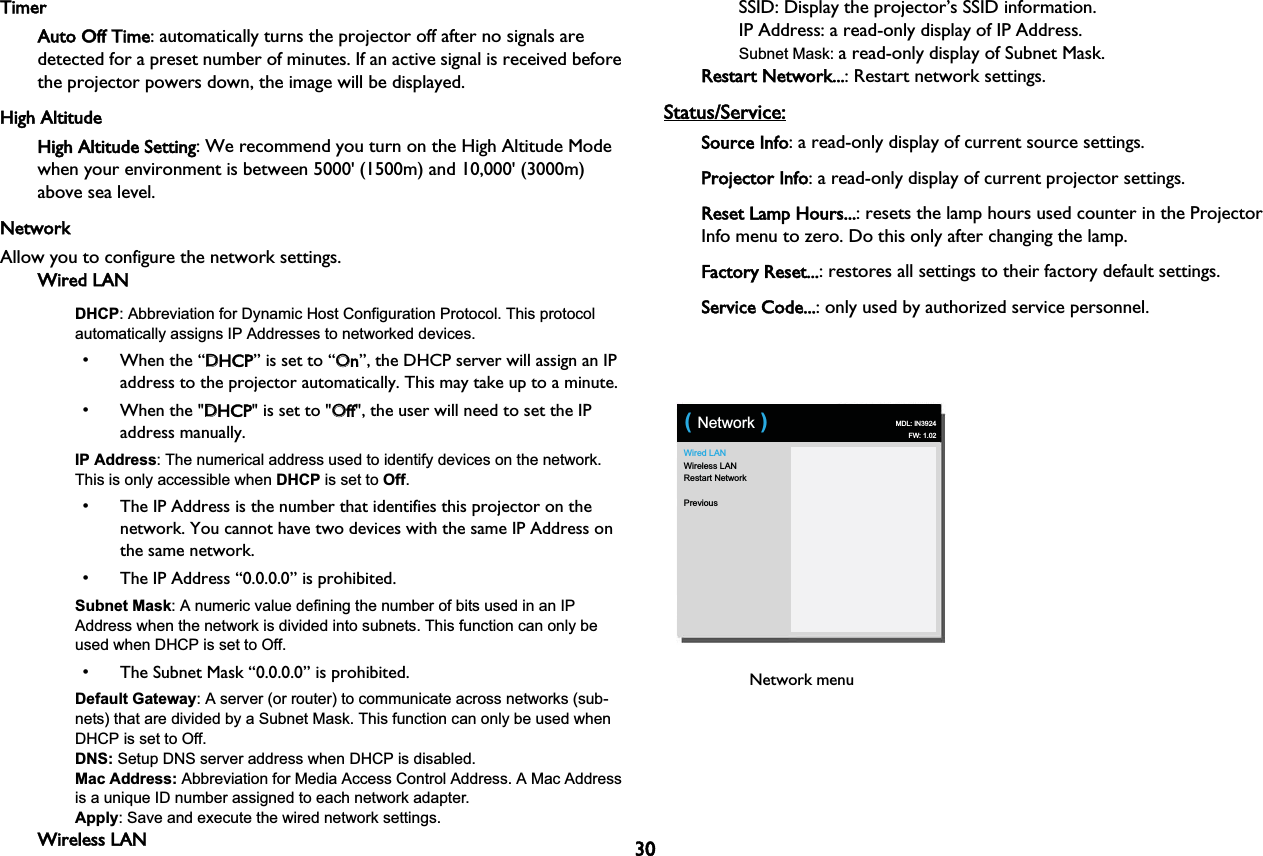
30TimerAuto Off Time: automatically turns the projector off after no signals are detected for a preset number of minutes. If an active signal is received before the projector powers down, the image will be displayed.High AltitudeHigh Altitude Setting: We recommend you turn on the High Altitude Mode when your environment is between 5000' (1500m) and 10,000' (3000m) above sea level.NetworkAllow you to configure the network settings.Wired LANDHCP: Abbreviation for Dynamic Host Configuration Protocol. This protocol automatically assigns IP Addresses to networked devices.• When the “DDHCP” is set to “OOn”, the DHCP server will assign an IP address to the projector automatically. This may take up to a minute.• When the "DDHCP" is set to "OOff", the user will need to set the IP address manually.IP Address: The numerical address used to identify devices on the network. This is only accessible when DHCP is set to Off.• The IP Address is the number that identifies this projector on the network. You cannot have two devices with the same IP Address on the same network.• The IP Address “0.0.0.0” is prohibited.Subnet Mask: A numeric value defining the number of bits used in an IP Address when the network is divided into subnets. This function can only be used when DHCP is set to Off.• The Subnet Mask “0.0.0.0” is prohibited.Default Gateway: A server (or router) to communicate across networks (sub-nets) that are divided by a Subnet Mask. This function can only be used when DHCP is set to Off.DNS: Setup DNS server address when DHCP is disabled.Mac Address: Abbreviation for Media Access Control Address. A Mac Address is a unique ID number assigned to each network adapter.Apply: Save and execute the wired network settings.Wireless LANSSID: Display the projector’s SSID information.IP Address: a read-only display of IP Address.Subnet Mask: a read-only display of Subnet Mask.Restart Network...: Restart network settings.Status/Service:Source Info: a read-only display of current source settings.Projector Info: a read-only display of current projector settings.Reset Lamp Hours...: resets the lamp hours used counter in the Projector Info menu to zero. Do this only after changing the lamp.Factory Reset...: restores all settings to their factory default settings.Service Code...: only used by authorized service personnel.Wired LANWireless LANRestart NetworkPrevious( Network ) MDL: IN3924FW: 1.02Network menu
31Controlling the projector through a LANenvironmentThe projector supports Crestron® software. With correct settings for the  Network menu, you can manage the projector from a computer using a web browser when the computer and the projector are properly connected to the same local area network.Wired connectionInternetIP RouterCConfiguring the LAN control settingIf you are in a DHCP environment:1Take a RJ45 cable and connect one end to the RJ45 LAN input jack of the projector and the other end to the RJ45 port .2Press MMenu on the keypad or remote and then go to AAdvanced Menu > SSetup > NNetwork menu.3Press v to highlight DDHCP and press < or > to select OOn.4Press v to highlight AApply and press >.5Please wait for around 15 - 20 seconds, and then re-enter the NNetwork page. The IIP address, SSubnet Mask, DDefault Gateway, DDNS and Mac Address settings will be displayed. Write down the IP address displayed in the IIP address row.•If the Projector IP Address still does not display, contact your network administrator.•If the RJ45 cables are not properly connected, the IP Address, Subnet Mask, Default Gateway, DNS and Mac Address settings will display 0.0.0.0. Make sure the cables are properly connected and perform the procedures above again.•If you need to connect to the projector in its standby mode, set the PPower Saving Mode feature to OOff.If you are in a non-DHCP environment:1Repeat steps 1-2 above.2Press v  to highlight DDHCP and press < or > to select OOff.3Contact your network administrator for information on the IIP address, SSubnet Mask, DDefault Gateway, DDNS and Mac Address settings.4Press ^ or v to select the item you want to modify.5Press < or > to move the cursor and then press ^ or v to select the value.6Press v to highlight AApply and press > to save the settings.•If the RJ45 cables are not properly connected, the IP Address, Subnet Mask, Default Gateway, DNS and Mac Address settings will display 0.0.0.0. Make sure the cables are properly connected and perform the procedures above again.•If you wish to connect to the projector in its standby mode, be sure to select RJ45 and obtain the IP Address, Subnet Mask, Default Gateway, DNS and Mac Address information when the projector is on.
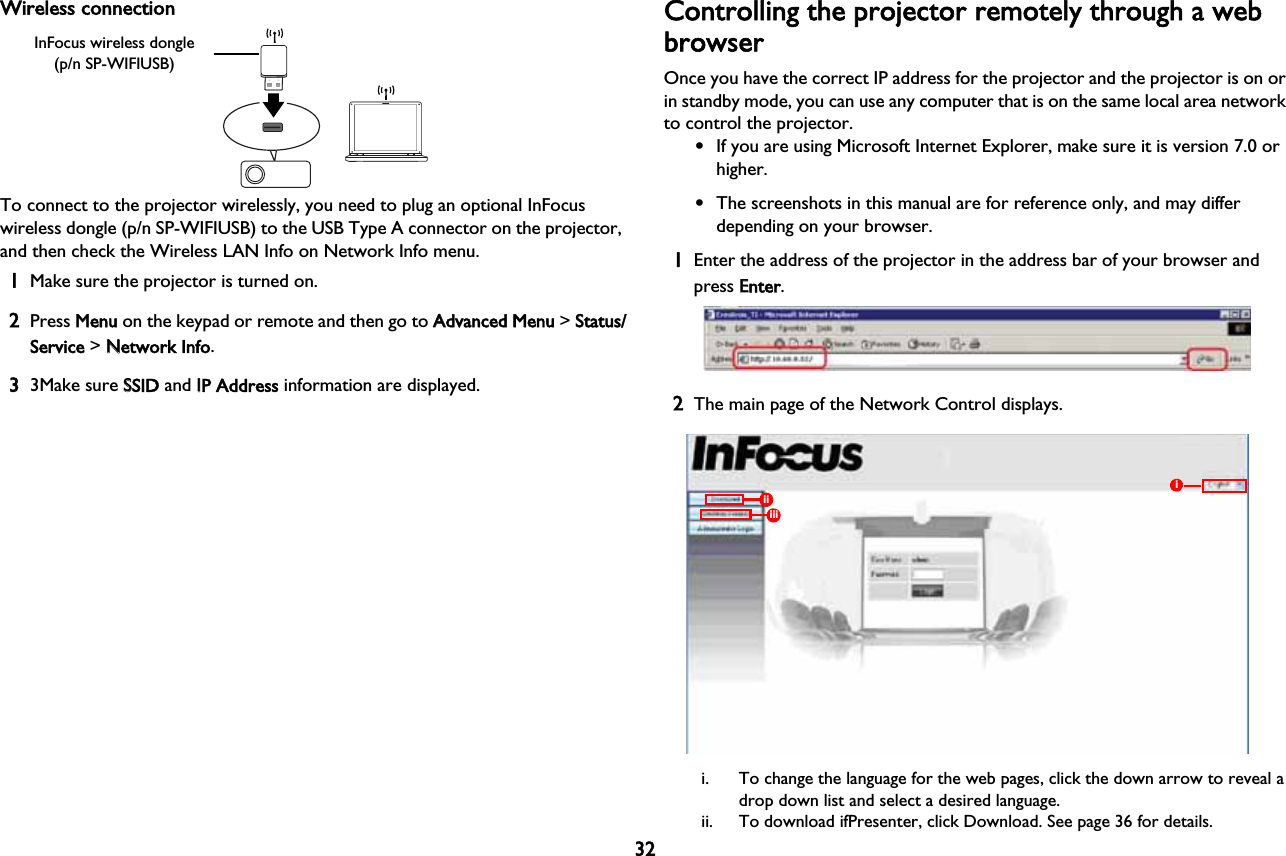
32Wireless connectionTo connect to the projector wirelessly, you need to plug an optional InFocus wireless dongle (p/n SP-WIFIUSB) to the USB Type A connector on the projector, and then check the Wireless LAN Info on Network Info menu.1Make sure the projector is turned on.2Press MMenu on the keypad or remote and then go to AAdvanced Menu > SStatus/Service > NNetwork Info.33Make sure SSSID and IIP Address information are displayed.Controlling the projector remotely through a web browserOnce you have the correct IP address for the projector and the projector is on or in standby mode, you can use any computer that is on the same local area network to control the projector.•If you are using Microsoft Internet Explorer, make sure it is version 7.0 or higher.•The screenshots in this manual are for reference only, and may differ depending on your browser.1Enter the address of the projector in the address bar of your browser and press EEnter. 2The main page of the Network Control displays.iiiiiii. To change the language for the web pages, click the down arrow to reveal a drop down list and select a desired language.ii. To download ifPresenter, click Download. See page 36 for details.InFocus wireless dongle(p/n SP-WIFIUSB)
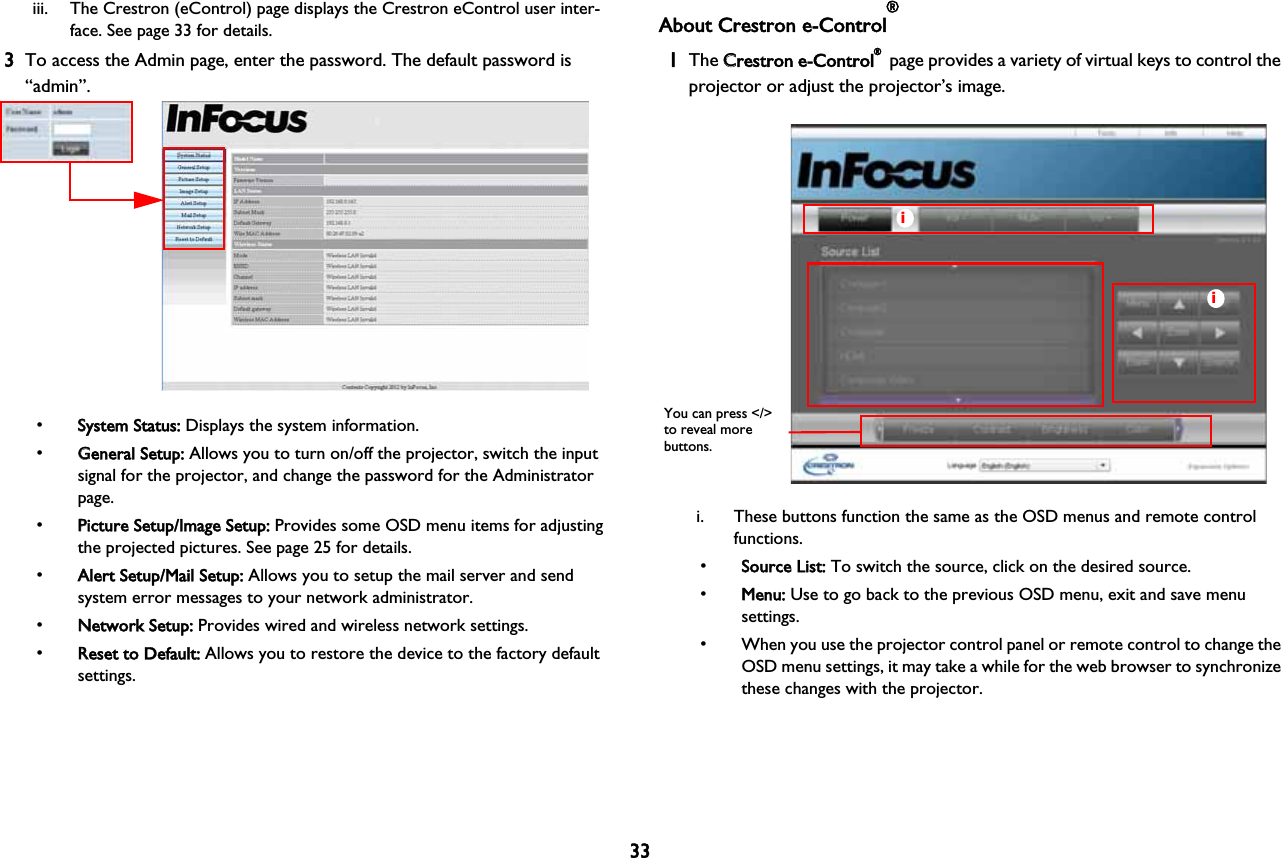
33iii. The Crestron (eControl) page displays the Crestron eControl user inter-face. See page 33 for details.3To access the Admin page, enter the password. The default password is “admin”.•SSystem Status: Displays the system information.•GGeneral Setup: Allows you to turn on/off the projector, switch the input signal for the projector, and change the password for the Administrator page.•PPicture Setup/Image Setup: Provides some OSD menu items for adjusting the projected pictures. See page 25 for details.•AAlert Setup/Mail Setup: Allows you to setup the mail server and send system error messages to your network administrator.•NNetwork Setup: Provides wired and wireless network settings.•RReset to Default: Allows you to restore the device to the factory default settings.About Crestron e-Control®1The CCrestron e-Control® page provides a variety of virtual keys to control the projector or adjust the projector’s image. iiYou can press </> to reveal more buttons.i. These buttons function the same as the OSD menus and remote control functions. •SSource List: To switch the source, click on the desired source. •MMenu: Use to go back to the previous OSD menu, exit and save menu settings. • When you use the projector control panel or remote control to change the OSD menu settings, it may take a while for the web browser to synchronize these changes with the projector.
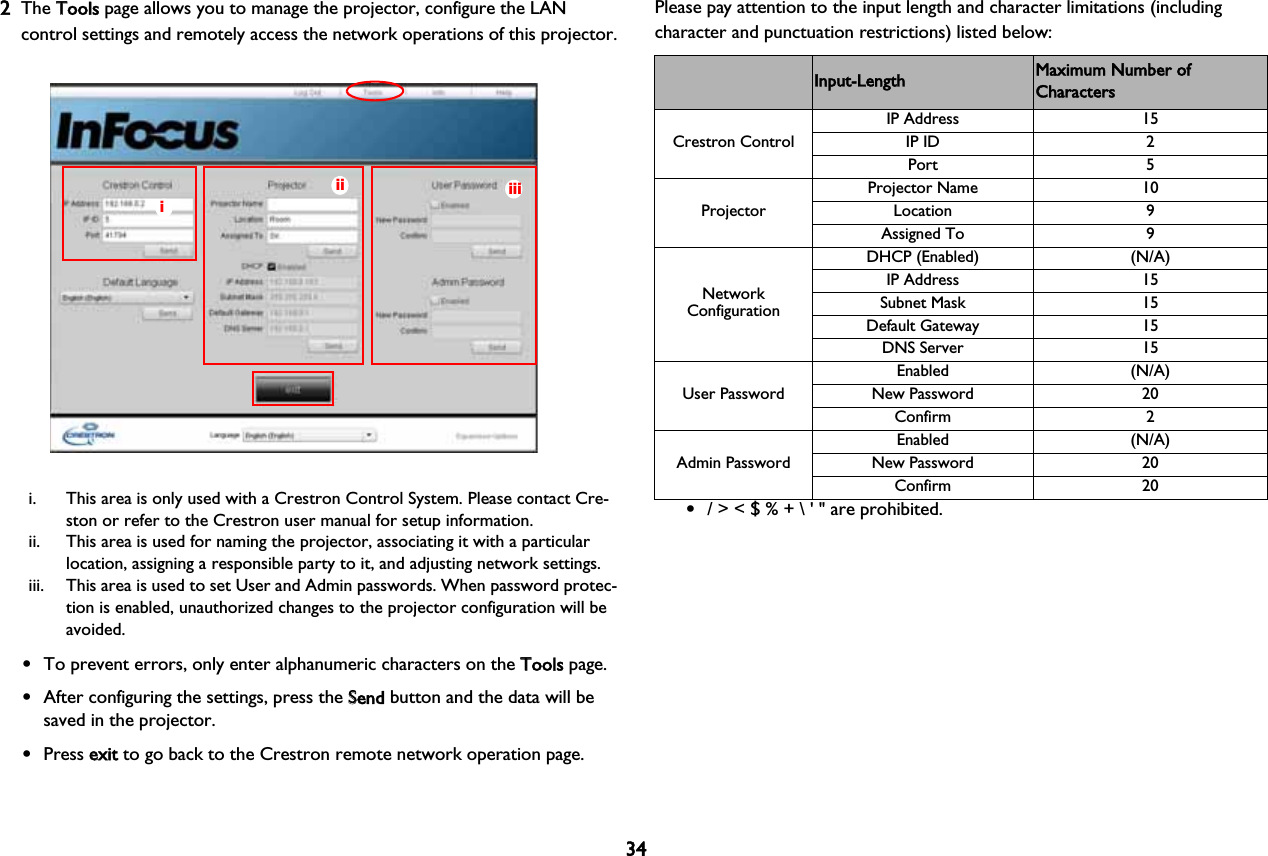
342The TTools page allows you to manage the projector, configure the LAN control settings and remotely access the network operations of this projector.iiiiiii. This area is only used with a Crestron Control System. Please contact Cre-ston or refer to the Crestron user manual for setup information.ii. This area is used for naming the projector, associating it with a particular location, assigning a responsible party to it, and adjusting network settings.iii. This area is used to set User and Admin passwords. When password protec-tion is enabled, unauthorized changes to the projector configuration will be avoided.•To prevent errors, only enter alphanumeric characters on the TTools page.•After configuring the settings, press the SSend button and the data will be saved in the projector.•Press eexit to go back to the Crestron remote network operation page.Please pay attention to the input length and character limitations (including character and punctuation restrictions) listed below:Category Item Input-Length Maximum Number of CharactersCrestron Control•/ > < $ % + \ ' " are prohibited. IP Address 15IP ID 2Port 5ProjectorProjector Name 10Location 9Assigned To 9Network ConfigurationDHCP (Enabled) (N/A)IP Address 15Subnet Mask 15Default Gateway 15DNS Server 15User PasswordEnabled (N/A)New Password 20Confirm 2Admin PasswordEnabled (N/A)New Password 20Confirm 20
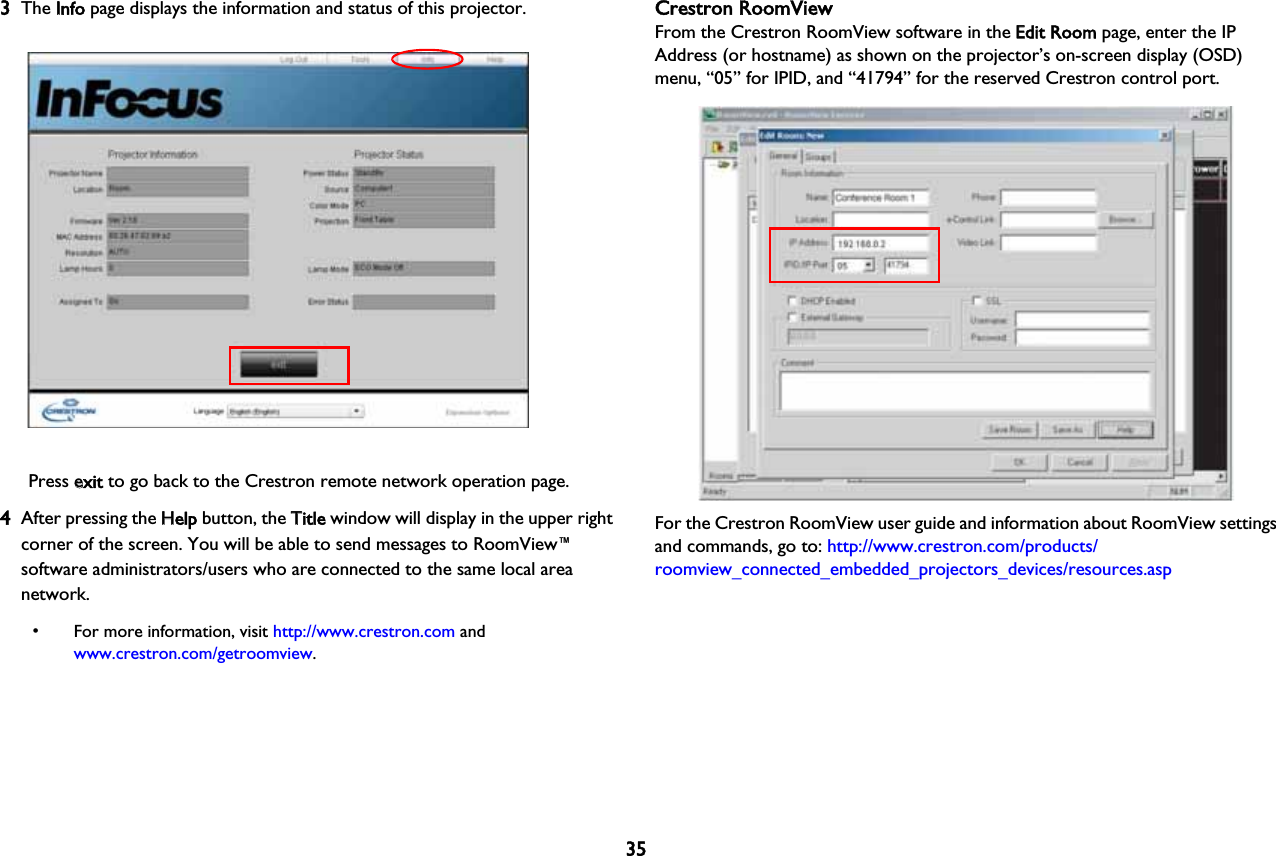
353The IInfo page displays the information and status of this projector.Press eexit to go back to the Crestron remote network operation page.4After pressing the HHelp button, the TTitle window will display in the upper right corner of the screen. You will be able to send messages to RoomView™ software administrators/users who are connected to the same local area network. • For more information, visit http://www.crestron.com and www.crestron.com/getroomview.Crestron RoomViewFrom the Crestron RoomView software in the EEdit Room page, enter the IP Address (or hostname) as shown on the projector’s on-screen display (OSD) menu, “05” for IPID, and “41794” for the reserved Crestron control port.For the Crestron RoomView user guide and information about RoomView settings and commands, go to: http://www.crestron.com/products/roomview_connected_embedded_projectors_devices/resources.asp
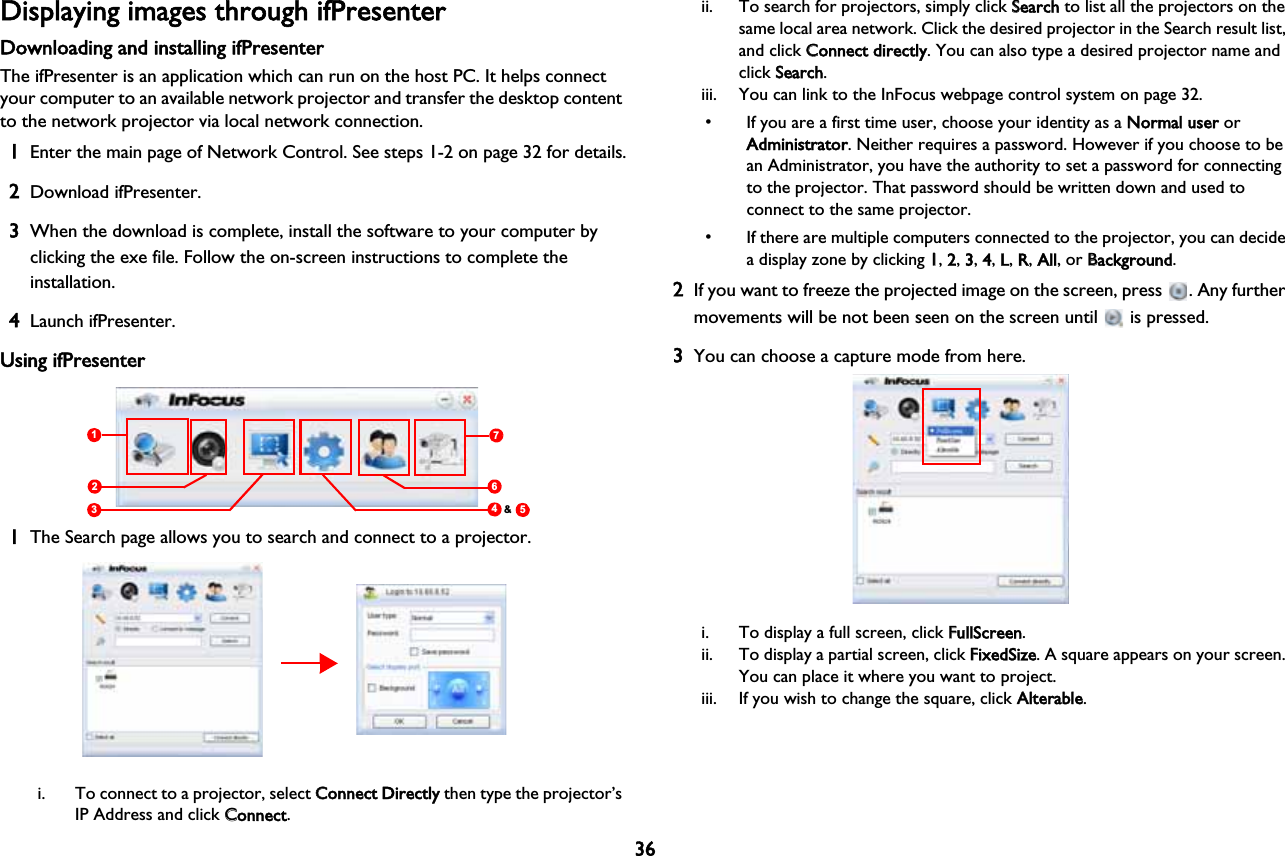
36Displaying images through ifPresenterDownloading and installing ifPresenterThe ifPresenter is an application which can run on the host PC. It helps connect your computer to an available network projector and transfer the desktop content to the network projector via local network connection.1Enter the main page of Network Control. See steps 1-2 on page 32 for details.2Download ifPresenter.3When the download is complete, install the software to your computer by clicking the exe file. Follow the on-screen instructions to complete the installation.4Launch ifPresenter.Using ifPresenter712345&61The Search page allows you to search and connect to a projector.i. To connect to a projector, select CConnect Directly then type the projector’s IP Address and click CConnect.ii. To search for projectors, simply click SSearch to list all the projectors on the same local area network. Click the desired projector in the Search result list, and click CConnect directly. You can also type a desired projector name and click SSearch.iii. You can link to the InFocus webpage control system on page 32.• If you are a first time user, choose your identity as a NNormal user or Administrator. Neither requires a password. However if you choose to be an Administrator, you have the authority to set a password for connecting to the projector. That password should be written down and used to connect to the same projector.• If there are multiple computers connected to the projector, you can decide a display zone by clicking 11,  2,  3,  4,  L,  R,  All, or BBackground.2If you want to freeze the projected image on the screen, press  . Any further movements will be not been seen on the screen until   is pressed.3You can choose a capture mode from here.i. To display a full screen, click FFullScreen.ii. To display a partial screen, click FFixedSize. A square appears on your screen. You can place it where you want to project. iii. If you wish to change the square, click AAlterable.
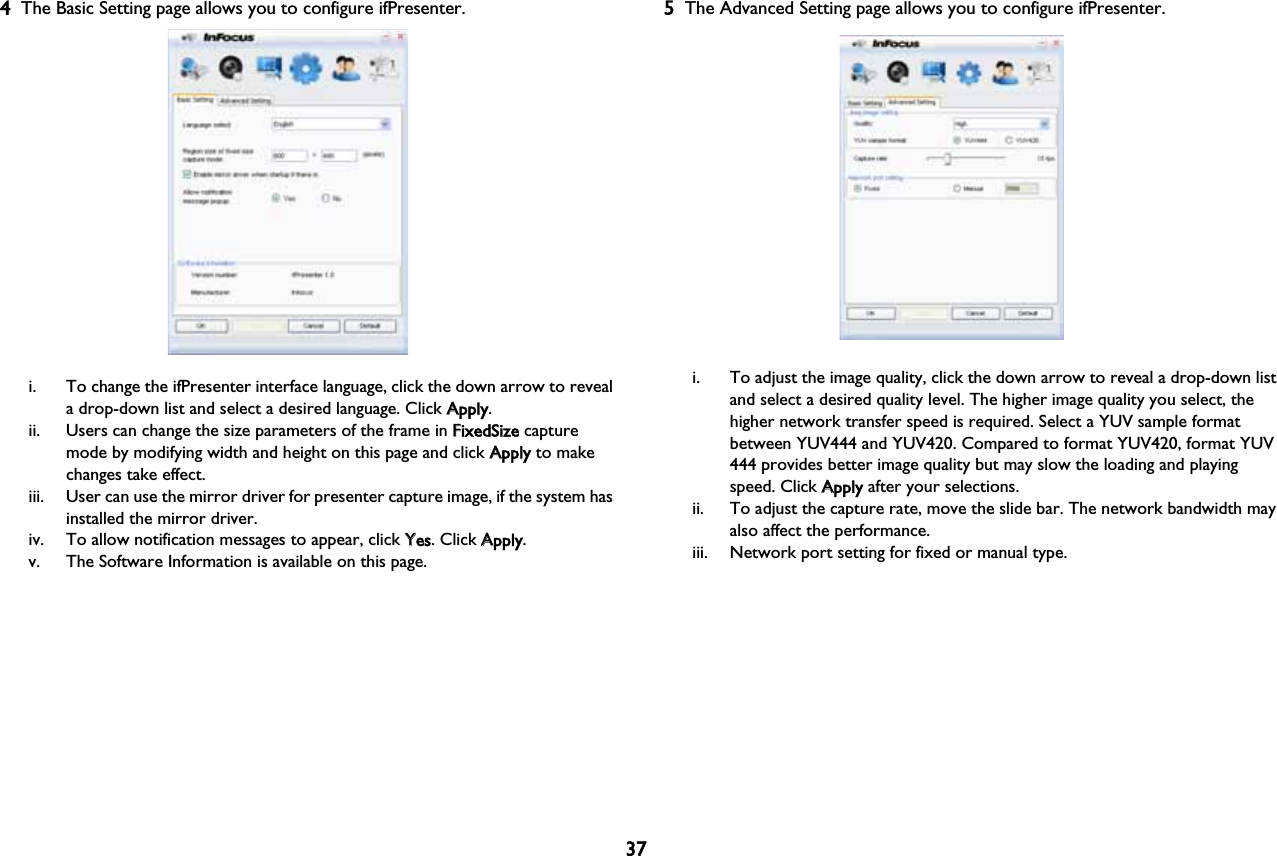
374The Basic Setting page allows you to configure ifPresenter.i. To change the ifPresenter interface language, click the down arrow to reveal a drop-down list and select a desired language. Click AApply.ii. Users can change the size parameters of the frame in FFixedSize capture mode by modifying width and height on this page and click AApply to make changes take effect. iii. User can use the mirror driver for presenter capture image, if the system has installed the mirror driver.iv. To allow notification messages to appear, click YYes. Click AApply.v. The Software Information is available on this page.5The Advanced Setting page allows you to configure ifPresenter.i. To adjust the image quality, click the down arrow to reveal a drop-down list and select a desired quality level. The higher image quality you select, the higher network transfer speed is required. Select a YUV sample format between YUV444 and YUV420. Compared to format YUV420, format YUV 444 provides better image quality but may slow the loading and playing speed. Click AApply after your selections.ii. To adjust the capture rate, move the slide bar. The network bandwidth may also affect the performance.iii. Network port setting for fixed or manual type.
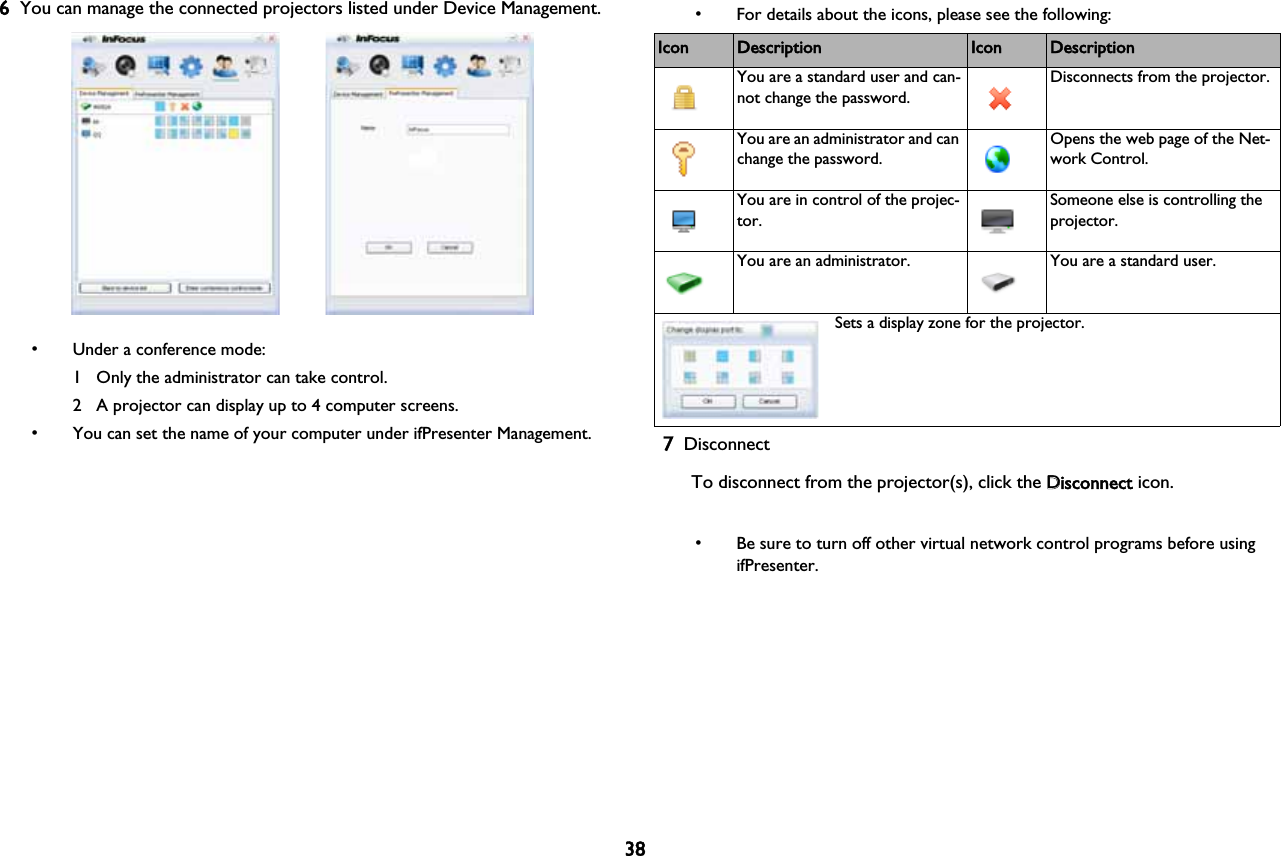
386You can manage the connected projectors listed under Device Management.• Under a conference mode:1 Only the administrator can take control.2 A projector can display up to 4 computer screens.• You can set the name of your computer under ifPresenter Management.• For details about the icons, please see the following:7DisconnectTo disconnect from the projector(s), click the DDisconnect icon.• Be sure to turn off other virtual network control programs before using ifPresenter.Icon Description Icon DescriptionYou are a standard user and can-not change the password.Disconnects from the projector.You are an administrator and can change the password.Opens the web page of the Net-work Control.You are in control of the projec-tor.Someone else is controlling the projector.You are an administrator. You are a standard user.Sets a display zone for the projector.
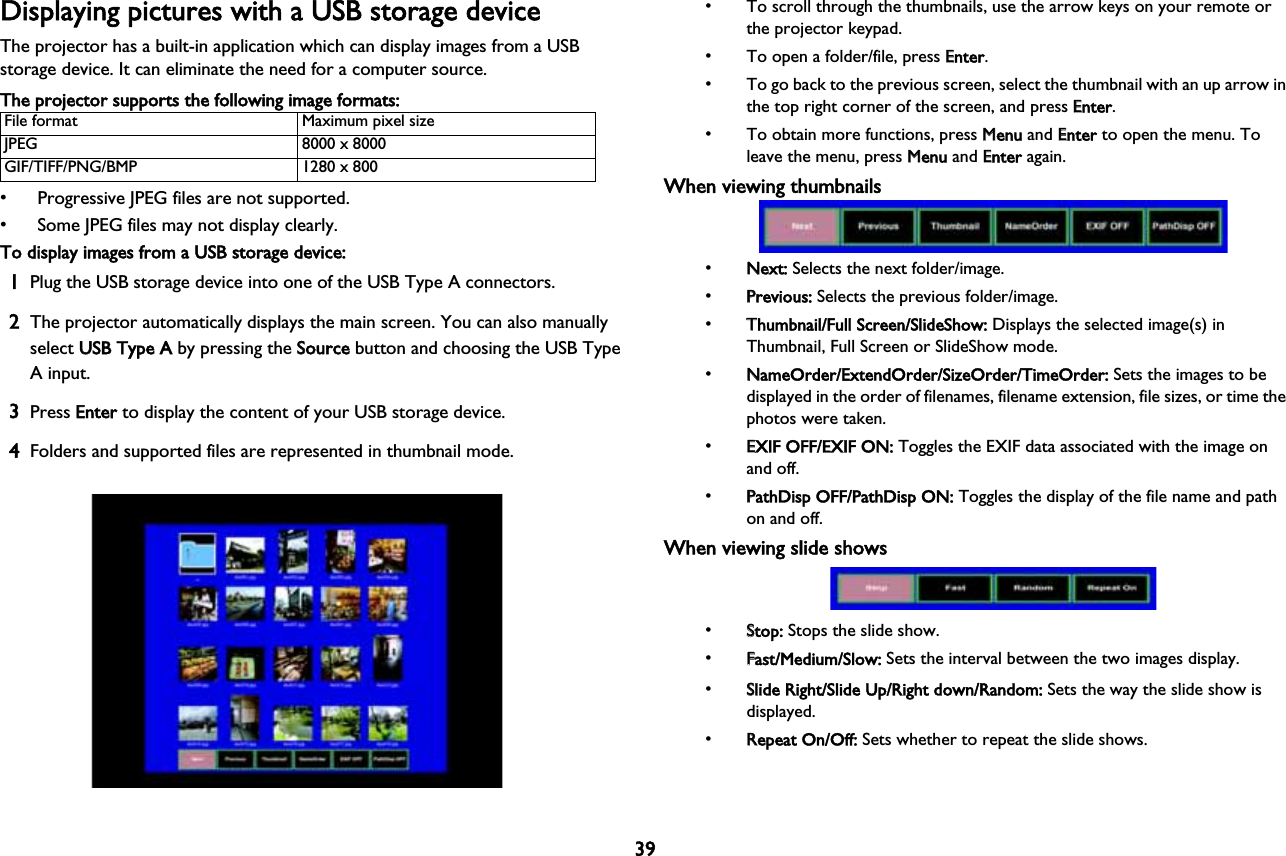
39Displaying pictures with a USB storage deviceThe projector has a built-in application which can display images from a USB storage device. It can eliminate the need for a computer source.The projector supports the following image formats:File format Maximum pixel sizeJPEG 8000 x 8000GIF/TIFF/PNG/BMP 1280 x 800• Progressive JPEG files are not supported.• Some JPEG files may not display clearly.To display images from a USB storage device:1Plug the USB storage device into one of the USB Type A connectors.2The projector automatically displays the main screen. You can also manually select UUSB Type A by pressing the SSource button and choosing the USB Type A input.3Press EEnter to display the content of your USB storage device.4Folders and supported files are represented in thumbnail mode.• To scroll through the thumbnails, use the arrow keys on your remote or the projector keypad.• To open a folder/file, press EEnter.• To go back to the previous screen, select the thumbnail with an up arrow in the top right corner of the screen, and press EEnter.• To obtain more functions, press MMenu and EEnter to open the menu. To leave the menu, press MMenu and EEnter again.When viewing thumbnails•NNext: Selects the next folder/image.•PPrevious: Selects the previous folder/image.•TThumbnail/Full Screen/SlideShow: Displays the selected image(s) in Thumbnail, Full Screen or SlideShow mode.•NNameOrder/ExtendOrder/SizeOrder/TimeOrder: Sets the images to be displayed in the order of filenames, filename extension, file sizes, or time the photos were taken.•EEXIF OFF/EXIF ON: Toggles the EXIF data associated with the image on and off.•PPathDisp OFF/PathDisp ON: Toggles the display of the file name and path on and off.When viewing slide shows•SStop: Stops the slide show.•FFast/Medium/Slow: Sets the interval between the two images display.•SSlide Right/Slide Up/Right down/Random: Sets the way the slide show is!displayed.•RRepeat On/Off: Sets whether to repeat the slide shows.
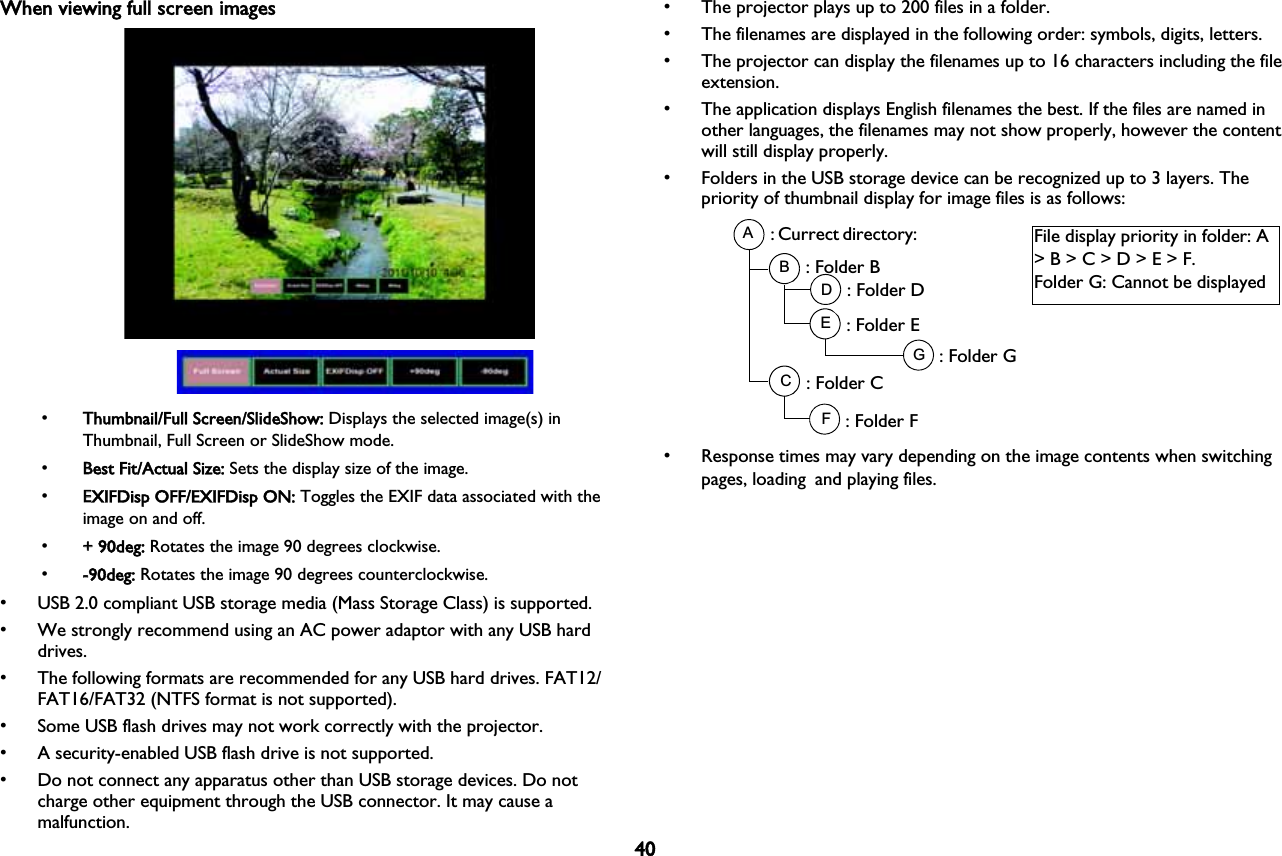
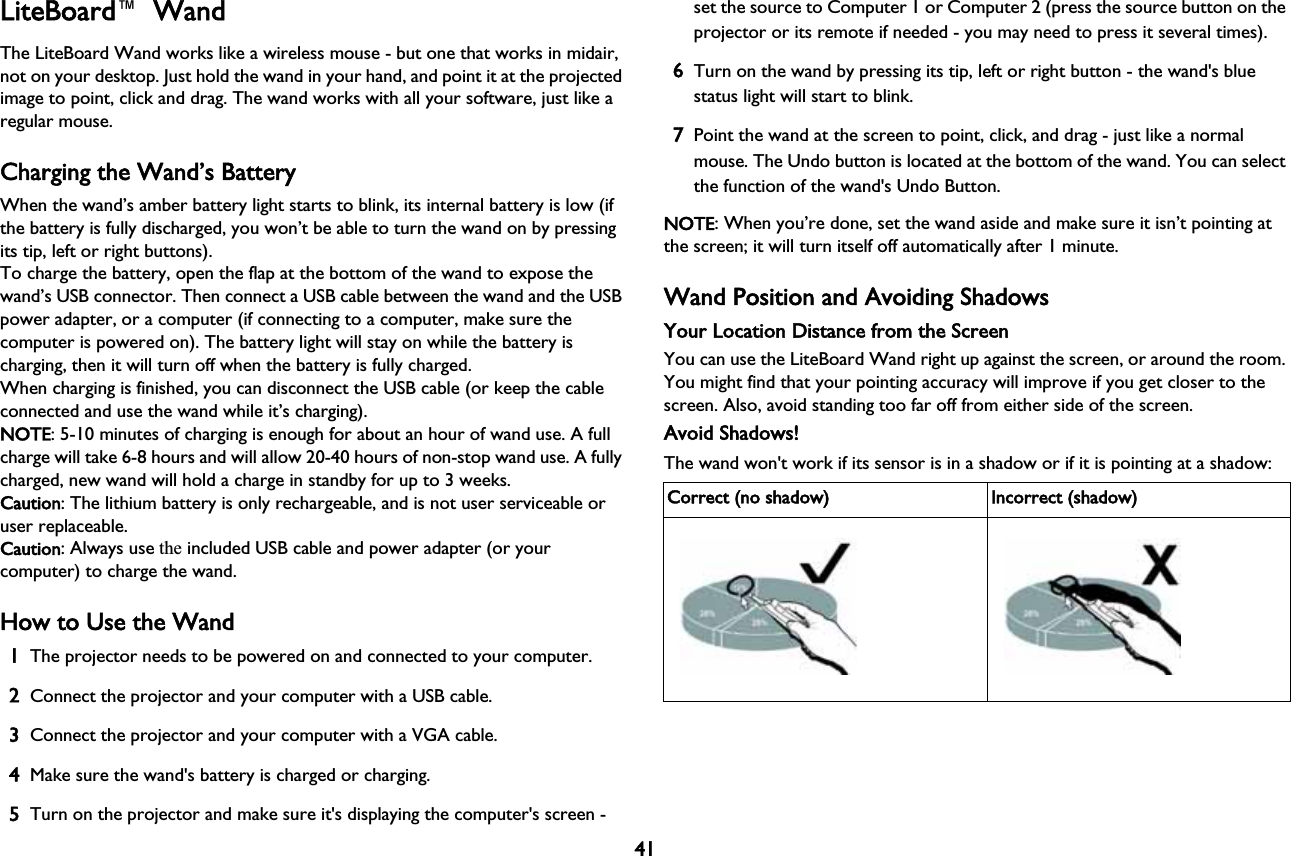
40When viewing full screen images•TThumbnail/Full Screen/SlideShow: Displays the selected image(s) in Thumbnail, Full Screen or SlideShow mode.•BBest Fit/Actual Size: Sets the display size of the image.•EEXIFDisp OFF/EXIFDisp ON: Toggles the EXIF data associated with the image on and off.•++ 90deg: Rotates the image 90 degrees clockwise.•--90deg: Rotates the image 90 degrees counterclockwise.• USB 2.0 compliant USB storage media (Mass Storage Class) is supported.• We strongly recommend using an AC power adaptor with any USB hard drives.• The following formats are recommended for any USB hard drives. FAT12/FAT16/FAT32 (NTFS format is not supported).• Some USB flash drives may not work correctly with the projector.• A security-enabled USB flash drive is not supported.• Do not connect any apparatus other than USB storage devices. Do not charge other equipment through the USB connector. It may cause a malfunction.• The projector plays up to 200 files in a folder.• The filenames are displayed in the following order: symbols, digits, letters.• The projector can display the filenames up to 16 characters including the file extension.• The application displays English filenames the best. If the files are named in other languages, the filenames may not show properly, however the content will still display properly.• Folders in the USB storage device can be recognized up to 3 layers. The priority of thumbnail display for image files is as follows:ABCDEFG: Currect directory: : Folder B: Folder D: Folder E: Folder G: Folder C: Folder FFile display priority in folder: A > B > C > D > E > F.Folder G: Cannot be displayed • Response times may vary depending on the image contents when switching pages, loading!and playing files.
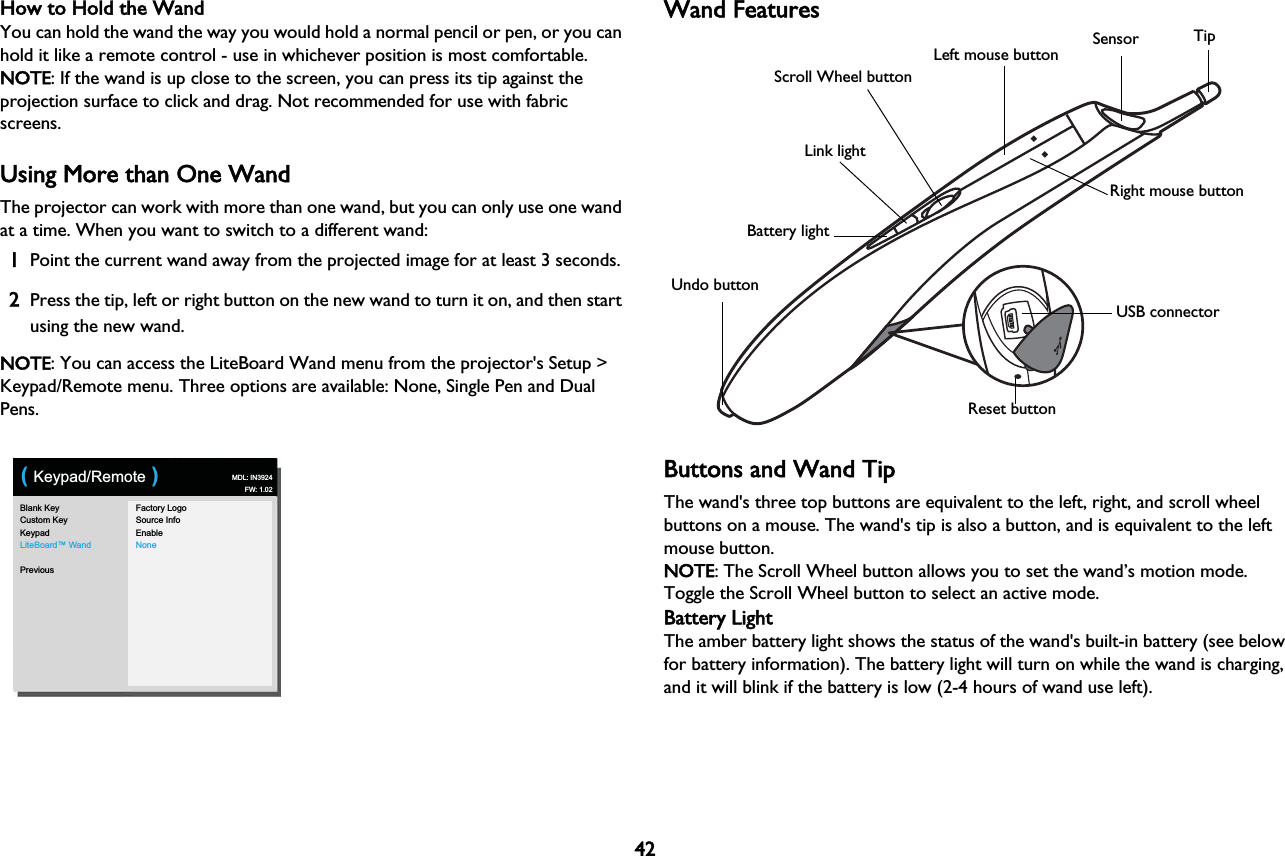
41LiteBoard™  WandThe LiteBoard Wand works like a wireless mouse - but one that works in midair, not on your desktop. Just hold the wand in your hand, and point it at the projected image to point, click and drag. The wand works with all your software, just like a regular mouse.Charging the Wand’s BatteryWhen the wand’s amber battery light starts to blink, its internal battery is low (if the battery is fully discharged, you won’t be able to turn the wand on by pressing its tip, left or right buttons).To charge the battery, open the flap at the bottom of the wand to expose the wand’s USB connector. Then connect a USB cable between the wand and the USB power adapter, or a computer (if connecting to a computer, make sure the computer is powered on). The battery light will stay on while the battery is charging, then it will turn off when the battery is fully charged.When charging is finished, you can disconnect the USB cable (or keep the cable connected and use the wand while it’s charging).NOTE: 5-10 minutes of charging is enough for about an hour of wand use. A full charge will take 6-8 hours and will allow 20-40 hours of non-stop wand use. A fully charged, new wand will hold a charge in standby for up to 3 weeks.Caution: The lithium battery is only rechargeable, and is not user serviceable or user replaceable.Caution: Always use the included USB cable and power adapter (or your computer) to charge the wand.How to Use the Wand1The projector needs to be powered on and connected to your computer.2Connect the projector and your computer with a USB cable.3Connect the projector and your computer with a VGA cable.4Make sure the wand's battery is charged or charging.5Turn on the projector and make sure it's displaying the computer's screen - set the source to Computer 1 or Computer 2 (press the source button on the projector or its remote if needed - you may need to press it several times).6Turn on the wand by pressing its tip, left or right button - the wand's blue status light will start to blink.7Point the wand at the screen to point, click, and drag - just like a normal mouse. The Undo button is located at the bottom of the wand. You can select the function of the wand's Undo Button.NOTE: When you’re done, set the wand aside and make sure it isn’t pointing at the screen; it will turn itself off automatically after 1 minute.Wand Position and Avoiding ShadowsYour Location Distance from the ScreenYou can use the LiteBoard Wand right up against the screen, or around the room. You might find that your pointing accuracy will improve if you get closer to the screen. Also, avoid standing too far off from either side of the screen.Avoid Shadows!The wand won't work if its sensor is in a shadow or if it is pointing at a shadow:Correct (no shadow) Incorrect (shadow)
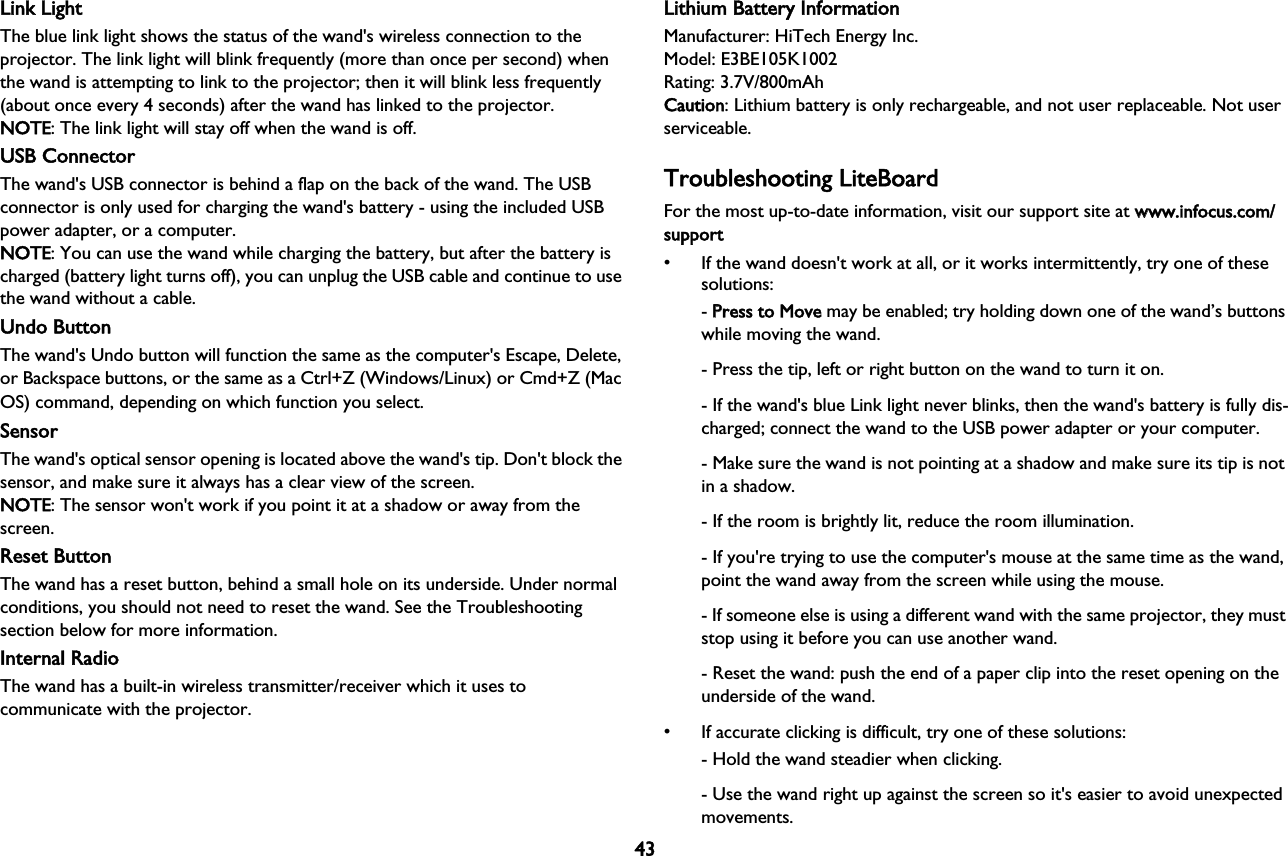
42How to Hold the WandYou can hold the wand the way you would hold a normal pencil or pen, or you can hold it like a remote control - use in whichever position is most comfortable. NOTE: If the wand is up close to the screen, you can press its tip against the projection surface to click and drag. Not recommended for use with fabric screens.Using More than One WandThe projector can work with more than one wand, but you can only use one wand at a time. When you want to switch to a different wand: 1Point the current wand away from the projected image for at least 3 seconds.2Press the tip, left or right button on the new wand to turn it on, and then start using the new wand.NOTE: You can access the LiteBoard Wand menu from the projector's Setup > Keypad/Remote menu. Three options are available: None, Single Pen and Dual Pens.Blank KeyCustom KeyKeypadLiteBoard™ WandPreviousFactory LogoSource InfoEnableNone( Keypad/Remote ) MDL: IN3924FW: 1.02Wand FeaturesUSB connectorLink lightBattery lightReset buttonRight mouse buttonLeft mouse buttonScroll Wheel buttonSensor TipUndo buttonBButtons and Wand TipThe wand's three top buttons are equivalent to the left, right, and scroll wheel buttons on a mouse. The wand's tip is also a button, and is equivalent to the left mouse button. NOTE: The Scroll Wheel button allows you to set the wand’s motion mode. Toggle the Scroll Wheel button to select an active mode.Battery LightThe amber battery light shows the status of the wand's built-in battery (see below for battery information). The battery light will turn on while the wand is charging, and it will blink if the battery is low (2-4 hours of wand use left).
43Link LightThe blue link light shows the status of the wand's wireless connection to the projector. The link light will blink frequently (more than once per second) when the wand is attempting to link to the projector; then it will blink less frequently (about once every 4 seconds) after the wand has linked to the projector. NOTE: The link light will stay off when the wand is off.USB ConnectorThe wand's USB connector is behind a flap on the back of the wand. The USB connector is only used for charging the wand's battery - using the included USB power adapter, or a computer. NOTE: You can use the wand while charging the battery, but after the battery is charged (battery light turns off), you can unplug the USB cable and continue to use the wand without a cable.Undo ButtonThe wand's Undo button will function the same as the computer's Escape, Delete, or Backspace buttons, or the same as a Ctrl+Z (Windows/Linux) or Cmd+Z (Mac OS) command, depending on which function you select. SensorThe wand's optical sensor opening is located above the wand's tip. Don't block the sensor, and make sure it always has a clear view of the screen. NOTE: The sensor won't work if you point it at a shadow or away from the screen.Reset ButtonThe wand has a reset button, behind a small hole on its underside. Under normal conditions, you should not need to reset the wand. See the Troubleshooting section below for more information.Internal RadioThe wand has a built-in wireless transmitter/receiver which it uses to communicate with the projector.Lithium Battery InformationManufacturer: HiTech Energy Inc.Model: E3BE105K1002Rating: 3.7V/800mAhCaution: Lithium battery is only rechargeable, and not user replaceable. Not user serviceable.Troubleshooting LiteBoardFor the most up-to-date information, visit our support site at wwww.infocus.com/support• If the wand doesn't work at all, or it works intermittently, try one of these solutions:- PPress to Move may be enabled; try holding down one of the wand’s buttons while moving the wand.- Press the tip, left or right button on the wand to turn it on.- If the wand's blue Link light never blinks, then the wand's battery is fully dis-charged; connect the wand to the USB power adapter or your computer.- Make sure the wand is not pointing at a shadow and make sure its tip is not in a shadow.- If the room is brightly lit, reduce the room illumination.- If you're trying to use the computer's mouse at the same time as the wand, point the wand away from the screen while using the mouse.- If someone else is using a different wand with the same projector, they must stop using it before you can use another wand.- Reset the wand: push the end of a paper clip into the reset opening on the underside of the wand.• If accurate clicking is difficult, try one of these solutions:- Hold the wand steadier when clicking.- Use the wand right up against the screen so it's easier to avoid unexpected movements.
44• If the mouse pointer is in the wrong place on the screen, or the mouse pointer's movement is restricted to only part of the screen, try one of these solutions:- Make sure your projector is displaying the computer's screen and not some other source (such as DVD, VCR, etc.). To change the source, press the Source button on the projector or its remote.- Make sure the projector is displaying the same image as the computer's main or built-in monitor (don't extend your desktop onto multiple monitors). To correct this:On Windows XP: Open the Display control panel, click Settings, click the dis-play that represents the projector, then un-check “Extend my Windows desk-top...”.On Windows Vista: Right-click on the desktop, choose Personalize..., click Display Settings, click the display that represents the projector, then un-check “Extend the desktop...”On Windows 7.0: Right-click on the desktop, choose Screen Resolution, click the display that represents the projector, and then choose the “Duplicate Display...” under Multiple Displays.On Macintosh: Select System Preferences from the Apple Menu, then select Displays. Click Arrangement, and check “Mirror Displays.”• If the battery light does not turn on when the wand is being charged, try one of the following:- Make sure a USB cable is connected between the wand and either the USB power adapter, or a USB port on your computer.- If the wand is connected to the USB power adapter, make sure the adapter is plugged in to a live electrical outlet. If the wand is connected to your com-puter, make sure the computer is powered on.- If the wand still won't charge, contact InFocus support at: wwww.infocus.com/support.
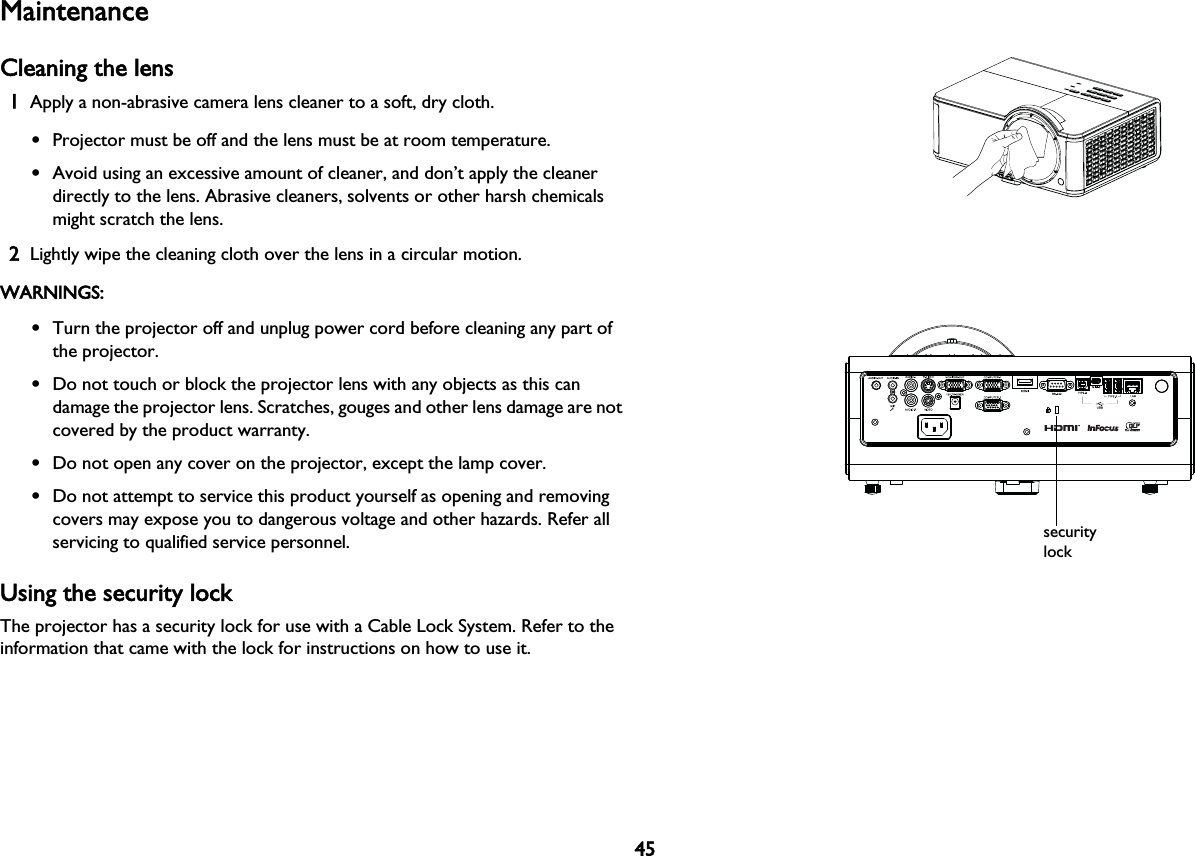
45MaintenanceCleaning the lens1Apply a non-abrasive camera lens cleaner to a soft, dry cloth.•Projector must be off and the lens must be at room temperature.•Avoid using an excessive amount of cleaner, and don’t apply the cleaner directly to the lens. Abrasive cleaners, solvents or other harsh chemicals might scratch the lens.2Lightly wipe the cleaning cloth over the lens in a circular motion.WARNINGS:•Turn the projector off and unplug power cord before cleaning any part of the projector.•Do not touch or block the projector lens with any objects as this can damage the projector lens. Scratches, gouges and other lens damage are not covered by the product warranty.•Do not open any cover on the projector, except the lamp cover.•Do not attempt to service this product yourself as opening and removing covers may expose you to dangerous voltage and other hazards. Refer all servicing to qualified service personnel.Using the security lockThe projector has a security lock for use with a Cable Lock System. Refer to the information that came with the lock for instructions on how to use it.security lock
46Replacing the projection lampThe Lamp Hours timer in the Projector Info menu counts the number of hours the lamp has been in use. Twenty hours before the lamp life expires, the message “Replace lamp” displays on the screen at startup.•NNOTE: Be sure to use the InFocus lamp module designed for this projector. You can order new lamps from wwww.infocus.com (in select areas), your retailer or your dealer. OOnly genuine InFocus lamps are tested for use in this projector. Use of non InFocus lamps may cause electrical shock and fire, and may void the projector warranty.  InFocus is not liable for the performance, safety or certification of any other lamps.WARNINGS:• The projector uses a high-pressure mercury glass lamp.  The lamp may fail prematurely, or it may rupture with a popping sound if jolted, scratched, or handled while hot.  The risk of lamp failure or rupture also increases as the lamp age increases; please replace the lamp when you see the “Replace Lamp” message.• To avoid burns, allow the projector to cool for at least 60 minutes before you replace the lamp.• Do not touch or block the projector lens with any objects as this can damage the projector lens. Scratches, gouges and other lens damage are not covered by the product warranty. • Unplug the power cord before replacing the lamp.• Do not drop the lamp module. The glass may shatter and cause injury.• Do not touch the glass surface of the lamp module. Fingerprints can obscure projection sharpness and may cause the glass to shatter.• Be extremely careful when removing the lamp housing. In the unlikely event that the lamp ruptures, small glass fragments may be generated. The lamp module is designed to contain most of these fragments, but use caution when removing it. • Before replacing a ruptured lamp, clean the lamp compartment and dispose of cleaning materials. Wash hands after lamp replacement. • When replacing the lamp while the projector is ceiling-mounted, wear protective eyewear to prevent eye injury.Hg – Lamp contains mercury. Manage in accordance with local disposal laws. See wwww.lamprecycle.org.
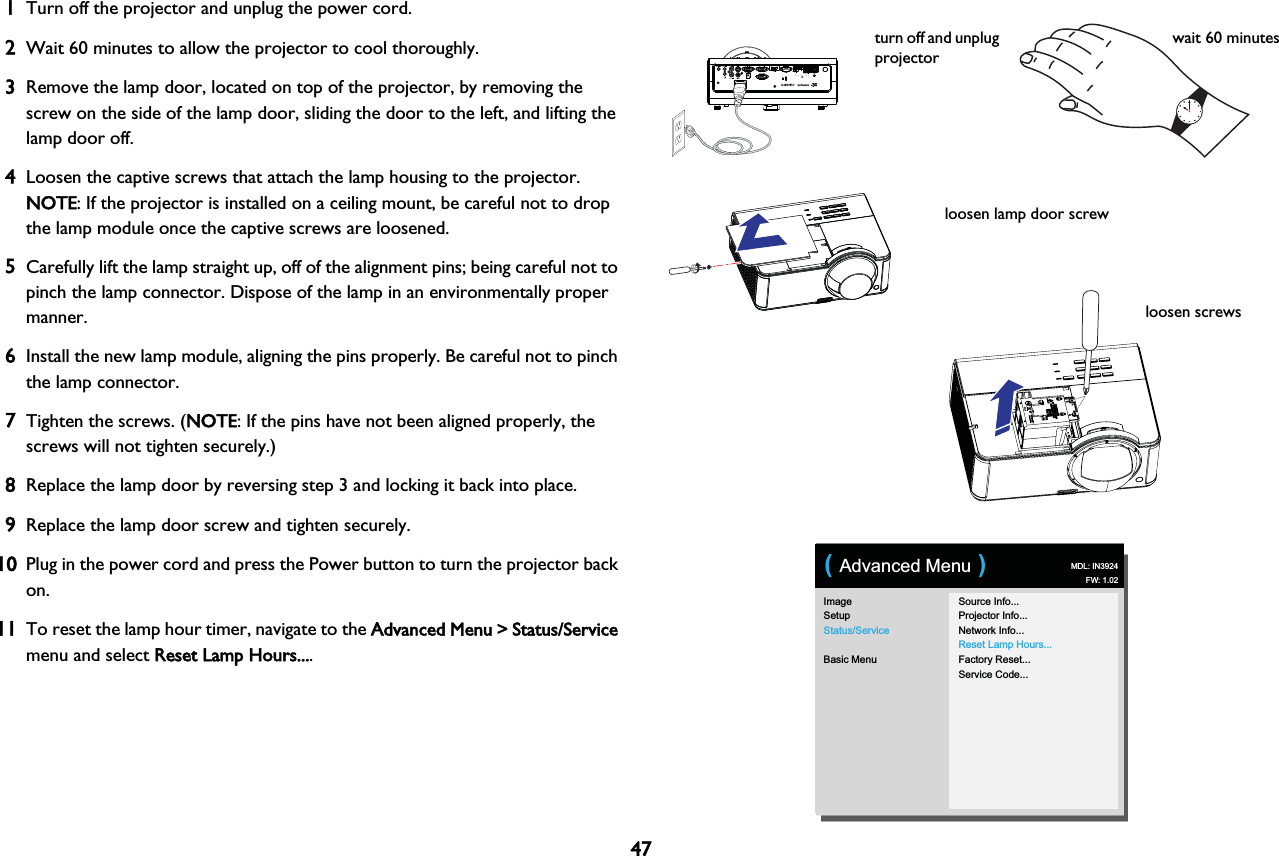
471Turn off the projector and unplug the power cord.2Wait 60 minutes to allow the projector to cool thoroughly. 3Remove the lamp door, located on top of the projector, by removing the screw on the side of the lamp door, sliding the door to the left, and lifting the lamp door off.4Loosen the captive screws that attach the lamp housing to the projector. NOTE: If the projector is installed on a ceiling mount, be careful not to drop the lamp module once the captive screws are loosened.5Carefully lift the lamp straight up, off of the alignment pins; being careful not to pinch the lamp connector. Dispose of the lamp in an environmentally proper manner.6Install the new lamp module, aligning the pins properly. Be careful not to pinch the lamp connector.7Tighten the screws. (NNOTE: If the pins have not been aligned properly, the screws will not tighten securely.)8Replace the lamp door by reversing step 3 and locking it back into place.9Replace the lamp door screw and tighten securely.10Plug in the power cord and press the Power button to turn the projector back on.11To reset the lamp hour timer, navigate to the AAdvanced Menu > Status/Service menu and select RReset Lamp Hours....turn off and unplug projectorwait 60 minutesloosen screwsloosen lamp door screwImageSetupStatus/ServiceBasic MenuSource Info...Projector Info...Network Info...Reset Lamp Hours...Factory Reset...Service Code...( Advanced Menu ) MDL: IN3924FW: 1.02
48INDEXNumerics3D Sync Invert 27AApply 30Aspect Ratio 26Audio In Computer connector 8Auto Image 26Auto Keystone 26Auto Off Time 30Auto Source 29AV Mute 28BBattery Light 42Blank Key 28Blank Screen 28Brightness 26CCable box 11Ceiling Mount 28Closed Captions 28Color Space 27Computer In connector 8ConnectingVideo device 11Contrast 26Crestron e-Control® 33Crestron RoomView 35DDefault Gateway 30Detect Film 28DHCP 30Digital Zoom 28DNS 30FFactory Reset 30Focus 10Force wide 27Freeze Screen 28GGamma 27HHDTV 26High Altitude Setting 30Horizontal Position 27Horz Shift 28IifPresenter 32Internal Radio 43Internal Speaker 28IP Address 30KKeypad 28Keypad buttons 22Keystone 26LLamp Low Power 29LAN 31Link Light 43LiteBoard™ Wand 41MMac Address 30Magnify Level 28Menu Transparency 29Menu usage 25Microphone Volume 26Mute 28NNetwork 30
49OOverscan 28PPhase 27PIN Protect 29Power connector 8Power cord 8Power Saving Mode 29Prevent PC Screen Saver 27Programmed Dimming 29ProjectorKeypad buttons 22Menus 25Positioning 7Setting up 7Troubleshooting problems 12Projector Info 28, 30RRear Project 28Red/Green/Blue Gain 27Red/Green/Blue Offset 27Remote control 20Reset Button 43Resetting the projector 30Restart Network... 30SScreen Aspect 11Search Screen 29Sensor 43Service 30Set Black Level... 28Sharpness 26Show Messages 29Source 28Source Info 28, 30SSID 30Subnet Mask 30Sync Threshold 27TTint 27Tracking 27Troubleshooting 12Troubleshooting LiteBoard 43UUndo Button 43USB 6USB Connector 43VVert Shift 28Vertical Position 27Volume 26Volume button 21WWarranty 19Web browser 32Wired LAN 30Wireless connection 32Wireless LAN 30

Navigation menu