Ixia EE11ABG3 802.11 a/b/g Emulation Engine User Manual EmulationEngine 11a b g User s Guide
Ixia 802.11 a/b/g Emulation Engine EmulationEngine 11a b g User s Guide
Ixia >
Contents
- 1. User Manual part 1
- 2. User Manual part 2
- 3. User Manual part 3
User Manual part 3

EmulationEngine 11a/b/g User's Guide
080104 6-1
CHAPTER 6: The Command Line Interface (CLI)
The CLI can be used to display and modify the configuration of the
EmulationEngine from a PC that is connected via Telnet or the serial port.
The CLI also includes commands to configure and run virtual stations,
display statistics, and to access the System Under Test. The
EmulationEngine maintains statistics and event log files that you can
configure and display using CLI commands.
CLI Usage Notes
1) CLI commands are not case sensitive (e.g., "set Date" is the same as
"set date").
2) You do not need to enter the entire command string to execute a
command. Only the number of unique characters required to identify the
command are needed (e.g., "se da" will execute the "set date" command
because there are no other CLI commands that begin with “se” and no
other set objects that begin with "da").
3) Some parameters can be assigned very large values in the range:
0...2,147,483,647. Do not enter commas (,) for values larger than 999
(e.g., use 1000 rather than 1,000).
4) It is very important to keep a printed record of configuration
parameters. See "Configuration Records" in Chapter 9.
User Log-In
The EE login prompt is displayed after you successfully establish a
connection to the EmulationEngine. See “Initial Setup” in Chapter 4. When
you have successfully established this connection, the CLI prompts you to
enter a log in name and password.
EE login: Admin
Password: **
The default log in user name is "Admin". The default password is "EE".
Both entries are case sensitive (i.e., the default user name is "Admin", not
"admin"). After you enter a valid user name and password, the CLI
displays a version banner, the current system time and status, and a CLI
prompt.
Communication Machinery Corporation
EmulationEngine(tm) 11a/b/g Rev 2.3.0.a1
System date & time: THU JAN 01 00:00:20 2004
Use the "set date" or "set time" command to adjust
EmulationEngine 11a/b/g software version 2.3.0.a1
WLAN mode .................... 802.11a
WLAN MAC address ............. 00:02:8a:b6:1e:c9
WLAN address mask ............ ff:ff:ff:ff:00:00
LAN MAC address .............. 00:0b:16:00:00:57
BSSID of System Under Test ... 00:04:e2:38:a7:9c
EE-SUT connection status ..... SUT not detected in most recent
scan
Power Management mode ........ Active (always awake)
0 vSTAs currently in the system.
CMC_EE ->
The CLI is now ready to accept your commands.

Communication Machinery Corporation (CMC)
6-2 080104
NOTE: If the CLI displays the message “This EmulationEngine has not
been Node Locked” after you enter the EE login name and password, see
“Missing Key File” in Chapter 9, Troubleshooting.
User Log-Off
Use the quit command to log off from the CLI:
CMC_EE -> quit
After log-off, you must reopen the telnet connection to log in to the CLI.
CLI Commands
The “help” command will display a list of all CLI commands. Example:
CMC_EE -> help
List of EmulationEngine CLI commands:
assoc -- Associate a vSTA with the SUT
auth -- Authenticate a vSTA with the SUT
acquireip -- Acquire an IP address for a vSTA
releaseip -- Release a vSTA's IP address
autoconf -- Autoconfig-init-auth-assoc N vSTAs
autorun -- Run N configured/associated vSTAs
clear bssid -- Clear BSSID for System Under Test
clear evlog -- Clear event log file or buffer
clear group -- Clear vSTA group data
clear sntpserver -- Clear SNTP/NTP server IP address
clear systemname -- Clear the EmulationEngine system name
clear vsta -- Clear vSTA data
conf -- Configure a vSTA
deauth -- Deauthenticate a vSTA
del group -- Delete a vSTA group
del key -- Delete Encryption key
del statfile -- Delete a vSTA statistics file
del summfile -- Delete a vSTA statistics summary file
del vsta -- Delete a vSTA
disassoc -- Disassociate a vSTA
exec -- Execute a command file
ftp -- Software update via FTP
get association -- Display Association Table
get basic11b -- Display Basic 11b Rates
get bssid -- Display BSSID of System Under Test
get bsslist -- Display list of discovered BSSIDs
get channel -- Display Radio Channel
get config -- Display current EmulationEngine configuration
get countrycode -- Display Country Code
get ctsmode -- Display CTS mode (11g)
get ctsrate -- Display CTS rate (11g)
get ctstype -- Display CTS type (11g)
get eemac -- Display Wireless LAN MAC Address
get eemask -- Display Wireless LAN Address Mask
get eestatus -- Display EmulationEngine status
get evlog -- Display event log data
get features -- Display authorized features
get frequency -- Display Radio Frequency (MHz)
get gateway -- Display Gateway IP Address
get group -- Display information for a vSTA group
get hardware -- Display Hardware Revisions
get ipaddr -- Display IP Address
get ipmask -- Display IP Subnet Mask
get key -- Display Encryption Key

EmulationEngine 11a/b/g User's Guide
080104 6-3
get keyentrymethod -- Display Encryption Key Entry Method
get login -- Display Login User Name
get pmmode -- Display Power Management Mode
get power -- Display Transmit Power Setting
get psinterval -- Display Power Save Listen Interval
get rate -- Display Data Rate
get shortpreamble -- Display Short Preamble (11b/11g) Usage
get shortslottime -- Display Short Slot Time (11g) Usage
get sntpserver -- Display SNTP/NTP Server IP Address
get ssid -- Display Service Set ID
get statfile -- Display vSTA statistics from file
get station -- Display Station Status
get summfile -- Display vSTA statistics summary from file
get systemname -- Display the EmulationEngine system name
get telnet -- Display Telnet Mode
get tzone -- Display Time Zone Setting
get uptime -- Display UpTime
get version -- Display Firmware Version
get vsta -- Display vSTA information
get wirelessmode -- Display Wireless LAN Mode
halt -- Halt a running vSTA
help -- Display CLI Command List
history -- Display the command line history
init -- Initialize a configured vSTA
join -- Join the EE with the System Under Test
ping -- Ping
quit -- Logoff
reboot -- Reboot the EmulationEngine
reset eemac -- Reset the WLAN MAC address to default value
reset group -- Reset a vSTA group to the initialized state
reset vsta -- Reset a vSTA to the initialized state
run -- Run an associated vSTA
save evlog -- Save the event log buffer to file
save group -- Save vSTA group data
save vsta -- Save vSTA data
scan -- Acquire SUT (scan/join)
set basic11b -- Set Use of Basic 11b Rates
set bssid -- Set the BSSID for the System Under Test
set countrycode -- Set Country Code
set ctsmode -- Set CTS Mode (11g)
set ctsrate -- Set CTS Rate (11g)
set ctstype -- Set CTS Type (11g)
set date -- Set the system date
set eemac -- Set WLAN MAC Address
set eemask -- Set WLAN Address Mask
set evlog -- Set event log controls
set factorydefault -- Restore to Default Factory Settings
set features -- Upgrade current feature set
set gateway -- Set Gateway IP Address
set group -- Set vSTA group configuration parameters
set ipaddr -- Set IP Address
set ipmask -- Set IP Subnet Mask
set key -- Set Encryption Key
set keyentrymethod -- Select Encryption Key Entry Method
set login -- Modify Login User Name
set password -- Modify Password
set pmmode -- Set Power Management Mode
set power -- Set Transmit Power
set psinterval -- Set Power Save Listen Interval
set rate -- Set Data Rate

Communication Machinery Corporation (CMC)
6-4 080104
set shortpreamble -- Set Short Preamble (11b/11g) Usage
set shortslottime -- Set Short Slot Time (11g) Usage
set sntpserver -- Set SNTP/NTP Server IP Address
set ssid -- Set Service Set ID
set systemname -- Set the EmulationEngine system name
set telnet -- Set Telnet Mode
set time -- Set the system time
set tzone -- Set Time Zone Setting
set vsta -- Set vSTA configuration parameters
set wirelessmode -- Set Wireless LAN Mode
timeofday -- Display Current Time of Day
version -- Software version
CMC_EE ->
This list does not include the commands that are available in
administrative mode. See “Administrative Mode Commands” for a list of
additional commands that are available in administrative mode.
System Under Test Commands
These commands are used to scan for and join with a device that can be
tested by the EmulationEngine. These commands must be used to select
and join with a System Under Test before you can use the Virtual Station
Set-Up and Control Commands described below.
clear bssid -- Clear BSSID for System Under Test
get bssid -- Display BSSID of System Under Test
get bsslist -- Display list of discovered BSSIDs
get wirelessmode -- Display Wireless LAN Mode
join -- Join the EE with the System Under Test
scan -- Acquire SUT (scan/join)
set bssid -- Set the BSSID for the System Under Test
set wirelessmode -- Set Wireless LAN Mode
These commands can also be used to change the System Under Test while
virtual stations are defined and active. Use the following command
sequence:
1) Use the reset command to return all virtual stations to an initialized
state:
reset vsta all
2) If the new System Under Test is not in the EmulationEngine's BSS list,
a scan is required:
scan
3) Use the set bssid command to set the EmulationEngine to another
System Under Test:
set bssid <mac_address_of_new_SUT>
4) Use the join command to join with the System Under Test:
join
5) Issue the authenticate command for all virtual stations:
auth vsta all
6) Issue the associate command for all virtual stations:
assoc vsta all
7) Run the test for all virtual stations:
run vsta all

EmulationEngine 11a/b/g User's Guide
080104 6-5
bssid (get/set/clear)
get bssid
This command shows the current BSSID/MAC address of the system that
is being tested.
get bssid
Example:
CMC_EE -> get bssid
BSSID of System Under Test: 00:04:e2:34:e0:a8
CMC_EE ->
set bssid
This command specifies the BSSID/MAC address of the system to be
tested. This is the System Under Test that the EmulationEngine will scan
for and join with. The default value is all zeros.
NOTE: The EmulationEngine must be configured with a non-zero BSSID in
order to perform a Join operation and to create and run virtual stations.
set bssid <mac_address>
<mac_address>: MAC address of the System Under Test.
Example:
CMC_EE -> set bssid 00:04:e2:34:e0:a8
BSSID of System Under Test: 00:04:e2:34:e0:a8
CMC_EE ->
CMC_EE -> get bssid
BSSID of System Under Test: 00:04:e2:34:e0:a8
CMC_EE ->
clear bssid
This command clears the current BSSID.
clear bssid
Example:
CMC_EE -> clear bssid
BSSID 00:04:e2:34:e0:a8 cleared
use the set bssid CLI command to set the BSSID of the
System Under Test
CMC_EE ->
bsslist (get)
This command shows the Basic Service Sets discovered in the most recent
scan. See the scan command.
get bsslist
Example:
CMC_EE -> get bsslist
BSS Type Channel RSSI BSSID SSID
-------- ------- ---- ----- ----
SUT BSS 5.180 ( 36) 38 00:04:e2:37:e6:a1 CMC/KDB SMC-1
SUT BSS 5.200 ( 40) 36 00:05:5d:89:c5:f9 Noah - DLink
SUT BSS 5.220 ( 44) 35 00:04:e2:38:a7:87 jeff
SUT BSS 5.260 ( 52) 68 00:04:e2:38:a8:d2 SMC_03
SUT: 4, Ad-Hoc: 0. Total BSS: 4
CMC_EE ->

Communication Machinery Corporation (CMC)
6-6 080104
join
This command joins with the System Under Test. It must be present in the
current Basic Service Set list. See the bsslist command.
join
Example:
CMC_EE -> join
The join should take about 1 sec
CMC_EE -> EE Join: Checking BSS ... OK
EE Join: Checking channel ... OK
EE Join: Initiating JOIN ...
Infrastructure 5.260 55 00:04:e2:38:a8:d2 SMC_03
EE Join: channel 5260, SMC_03
OK
CMC_EE ->
vSTA ID:0 NOTIFY Operation JOIN succeeded. - WED JUL 09
10:12:24 2003
CMC_EE ->
scan
This command scans for Basic Service Set IDs and, optionally, joins with
the System Under Test. The EmulationEngine’s wireless mode affects the
type of devices that can be discovered in a scan. See “set wirelessmode”
to change the EmulationEngine’s wireless mode.
NOTE: If a test is in process (see the run command), a scan operation will
be disruptive to the normal testing operations of the EmulationEngine.
CMC_EE -> scan
Active (probe request) or passive (listen for beacons) [a/p:
p]?
Enter "a" and press the <Enter> key to select an active scan. Just press
the <Enter> key to select the default passive mode. If passive mode is
selected, the CLI will prompt for the following scanning options:
Channel (0 = all) [0]?
Channel timeout in msec [300]?
Attempt a join with SUT 00:04:e2:34:e0:a8 [y/n: n]?
If active mode is selected, the CLI will prompt for the following scanning
options:
Broadcast or directed probe request [b/d: d]?
Channel (0 = all) [0]?
Channel timeout in msec [300]?
Attempt a join with SUT 00:04:e2:38:56:78 [y/n: n]? n
In response to the Channel prompt, you may enter zero for all channels or
any valid 802.11a or 802.11b/g channel number or frequency. The range
of channels/frequencies depends on the wireless mode and the features
that are enabled on the EmulationEngine. See the specifications in
Appendix A for a list of valid channel numbers and frequencies for
802.11a, 802.11b, and 802.11g.
Examples:
CMC_EE -> scan
Active (probe request) or passive (listen for beacons)
[a/p:p]?
Channel (0 = all) [0]?
Channel timeout in msec [300]?

EmulationEngine 11a/b/g User's Guide
080104 6-7
Attempt a join with SUT 00:04:e2:38:a8:d2 [y/n: n]?
The scan should take about 4 sec
CMC_EE -> OK
CMC_EE ->
CMC_EE ->
Passive scanning 5 GHz 54Mbps (802.11a) channels for 4
seconds...
BSS No. 0 BSSID 00:04:E2:38:A8:D2
BSS No. 1 BSSID 00:04:E2:38:56:68
BSS No. 2 BSSID 00:04:E2:37:E6:A1
BSS No. 3 BSSID 00:04:E2:38:A7:87
Select BSS: Looking for .. 00:04:E2:38:A8:D2
Select BSS: Found ........ 00:04:E2:38:A8:D2
=> BSS'es from the selected wireless mode <=
BSS Type Channel RSSI BSSID SSID
-------- ------- ---- ----- ----
SUT BSS 5.220 ( 44) 31 00:04:e2:38:a7:87 jeff
SUT BSS 5.260 ( 52) 55 00:04:e2:38:a8:d2 SMC_03
SUT BSS 5.280 ( 56) 46 00:04:e2:38:56:68 DSM APDUT
SUT BSS 5.300 ( 60) 44 00:04:e2:37:e6:a1 CMC/KDB SMC-1
SUT: 4, Ad-Hoc: 0. Total BSS: 4
vSTA ID:0 NOTIFY Operation SCAN succeeded. - WED JUL 09
10:12:19 2003
CMC_EE -> scan
Active (probe request) or passive (listen for beacons) [a/p:
p]? a
Broadcast or directed probe request [b/d: d]?
Channel (0 = all) [0]? 2412
Channel timeout in msec [300]?
Attempt a join with SUT 00:04:e2:38:a8:d2 [y/n: n]?
The scan should take about 1 sec
CMC_EE -> OK
CMC_EE ->
CMC_EE -> InitSingleScan -- 2412, a00 cck 2.4
Active scanning 2.4GHz 11Mbps (802.11b) channels for 1
seconds...
wlanMlmeProbeRequest -- channel 2412
Select BSS: Looking for .. 00:04:E2:38:A8:D2
Select BSS: Found ........ 00:04:E2:38:A8:D2
InitSingleScan -- 2412, a00 cck 2.4
Active scanning 2.4GHz 11Mbps (802.11b) channels for 1
seconds...
wlanMlmeProbeRequest -- channel 2412
vSTA ID:0 NOTIFY Operation SCAN succeeded. - THU JUL 24
09:59:06 2003
CMC_EE ->
wirelessmode (get/set)
get wirelessmode
This command displays the current Wireless LAN Mode (11a, 11b, or 11g):
get wirelessmode

Communication Machinery Corporation (CMC)
6-8 080104
Example:
CMC_EE -> get wirelessmode
Wireless LAN Mode: 11g
CMC_EE ->
set wirelessmode
This command sets the EmulationEngine’s Wireless LAN Mode:
set wirelessmode <mode>
<mode>: 11a = 802.11a, 11b = 802.11b, or 11g = 802.11g. The default
value is 11g.
NOTE: The feature set you ordered from CMC may limit the number of
available wireless mode selections. The CLI will display an error message
if the wireless mode selection is not in your feature set.
Virtual Station Set-Up & Control Commands
The following commands configure and activate virtual stations. Most of
these commands require that you select and join with a System Under
Test before the command is issued (see the “System Under Test
Commands”).
acquireip -- Acquire an IP address for a vSTA
assoc -- Associate a vSTA with the SUT
auth -- Authenticate a vSTA with the SUT
autoconf -- Autoconfig-init-auth-assoc N vSTAs
autorun -- Run N configured/associated vSTAs
clear group -- Clear vSTA group data
clear vsta -- Clear vSTA data
conf -- Configure a vSTA
deauth -- Deauthenticate a vSTA
del group -- Delete a vSTA group
del vsta -- Delete a vSTA
disassoc -- Disassociate a vSTA
get group -- Display information for a vSTA group
get vsta -- Display vSTA information
halt -- Halt a running vSTA
releaseip –- Release a vSTA’s IP address
init -- Initialize a configured vSTA
reset group -- Reset a vSTA group to the initialized state
reset vsta -- Reset a vSTA to the initialized state
run -- Run an associated vSTA
save group -- Save vSTA group data
save vsta -- Save vSTA data
set group -- Set vSTA group configuration parameters
set vsta -- Set vSTA configuration parameters
Most of the commands in this group require that you join with a System
Under Test. If a join or scan has not been done, the CLI will display the
following message:
**You must do a "join" or a "scan" with the join option first.
Use the System Under Test commands described above to join with a
System Under Test before using the commands in this group.
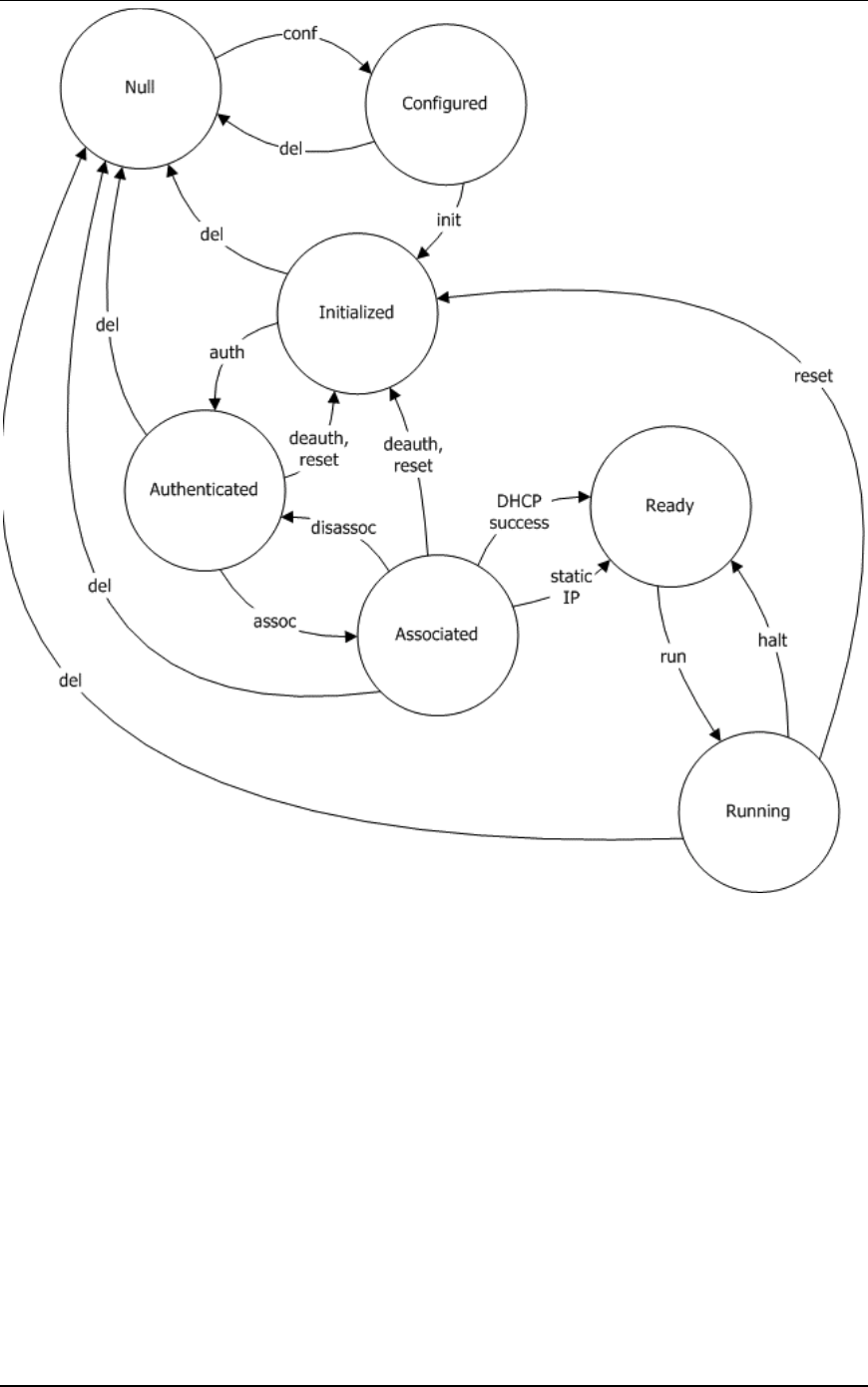
The following diagram illustrates the life cycle of a virtual station from its
null (un-configured) state to its running state in the active execution of a
test. This illustration will help you determine the sequence of commands
to use to achieve the desired results with virtual station setup and control
commands.
EmulationEngine 11a/b/g User's Guide
080104 6-9
NOTES: The state names used in the diagram are defined as follows:
Null: The virtual station does not yet exist, it hasn't been created (i.e.,
configured).
Configured: The initial configuration parameters for the virtual station
have been defined.
Initialized: The virtual station has been added to the system's internal
tables (addressing, etc.).
Authenticated: The virtual station has been authenticated with the System
Under Test.
Associated: The virtual station has been associated with the System Under
Test.
Ready: The virtual station has received an IP address via DHCP or was
configured with a static IP address.
Running: The virtual station is running, either its internal load application
or externally supplied network traffic.

Communication Machinery Corporation (CMC)
6-10 080104
acquireip
This command initiates the DHCP negotiation process for the specified
virtual station(s). The virtual station must be in the 802.11 Associated
state and the vSTA’s DHCP mode (dhcpmode) must be set to “on”. See
the autoconf, conf, and set vsta commands for information about setting
DHCP mode.
acquireip <id>
<id>: Virtual Station ID (1...64), Group ID (1...64), or “all”
Example:
CMC_EE -> acquireip vsta 1
CMC_EE -> OK
vSTA ID:1 NOTIFY Operation ACQIP (10.1.35.10) succeeded - THU
JAN 08 10:04:31 2004
assoc
This command initiates the association sequence for one or more virtual
stations. The virtual station(s) must be configured, initialized, and
authenticated before this command can be used.
The following command will initiate the association sequence for one or all
virtual stations.
assoc vsta <vStaId>
<vStaId>: Virtual Station ID (1...64) or "all". If <vStaId> is set to "all"
(i.e., assoc vsta all), the association sequence is initiated for all virtual
stations.
The following command will initiate the association sequence for all virtual
stations in a specified group.
assoc group <grpId>
<grpId>: Group ID (1...64)
Example:
CMC_EE -> assoc vsta 1
CMC_EE -> OK
CMC_EE ->
vSTA ID:1 NOTIFY Operation ASSOC succeeded - TUE JUL 15
03:08:38 2003
CMC_EE ->
auth
This command initiates the authentication sequence for one or more
virtual stations. The virtual station(s) must be configured and initialized
before this command can be used.
NOTE: The EmulationEngine supports both open system and shared key
authentication.
The following command will initiate the authentication sequence for one or
all virtual stations.
auth vsta <vStaId>
<vStaId>: Virtual Station ID (1...64) or "all". If <vStaId> is set to "all"
(i.e., auth vsta all), the authentication sequence is initiated for all virtual
stations.

EmulationEngine 11a/b/g User's Guide
080104 6-11
The following command will initiate the authentication sequence for all
virtual stations in a specified group.
auth group <grpId>
<grpId>: Group ID (1...64)
Example:
CMC_EE -> auth vsta 1
CMC_EE -> OK
CMC_EE ->vSTA ID:1 NOTIFY Operation AUTH succeeded - TUE JUL
15 03:08:15 2003
autoconf
This command can be used to configure, initialize, authenticate and
associate a number of virtual stations using a single command. It can be
issued multiple times. The first time the command is issued the base MAC
and IP virtual station addresses must be specified. For subsequent
commands, the IP and MAC address parameters are not required. The
specified number of virtual stations will be configured using either default
values or the values specified in the command line. Except for the number
of virtual stations to be configured, values are specified using a
"name/value" pair syntax and may be given in any order.
autoconf
<num>
mac <mac_addr>
ip <ip_addr>
[group <grpId>]
[csmode persistent|non-persistent]
[retry <integer>]
[timeout <integer>]
[authentication open-system|shared-key]
[encryption on|off]
[keyindex <integer>]
[cipher wep]
[mode internal|external]
[target <ip_addr>]
[count <integer>]
[size <integer>]
[dhcpmode <off|on|auto>]
[layer <2|3>]
[fragmentthreshold <nBytes>]
[rtsthreshold <nBytes>]
<num>: The number of virtual stations to be configured (1...64). If this is
not the first autoconf command, new virtual stations will be configured
starting at the last virtual station and incrementing for <num>. Default:
None.
mac <mac_address>: Base/starting value to be used for virtual station
MAC addresses. This parameter is required for the first autoconf command
and should not be specified for subsequent commands. Default: Last MAC
address + 1. The starting MAC address must be within the range of MAC
addresses defined by the WLAN Base MAC Address and WLAN MAC Mask
in EmulationEngine configuration (see “set eemac” & “set eemask”).
ip <ip_address>: Base/starting value to be used for virtual station IP
addresses. This parameter is required for the first autoconf command and
should not be specified for subsequent commands. Default: Last IP
address + 1.

Communication Machinery Corporation (CMC)
6-12 080104
[group <grpId>]: Optional group ID number (1...64).
[csmode persistent|non-persistent]: Connection mode (persistent or non-
persistent).
[retry <integer>]: If csmode is presistent, this parameter specifies the
Authentication/Association retry limit (1...2,147,483,647 or zero (=no
retries)).
[timeout <integer>]: If csmode is presistent, this parameter specifies the
Authentication/Association timeout in milliseconds (1...2,147,483,647 or
zero (=immediate timeout)).
[authentication open-system|shared-key]: Authentication mode (open-
system or shared-key).
[encryption on|off]: Encryption mode (on or off).
[keyindex <integer>]: If encryption is on, a shared key index number
(1...4).
[cipher wep]: Enables WEP cipher mode.
[mode internal|external]: If mode is internal, virtual station(s) will
generate data using Ping (ICMP Echo Request) packets. Each virtual
station will run a ping transmitter process. The packets will contain virtual
station IP and MAC source address. If Internal is specified the "target"
parameter must also be specified. If mode is external, data for virtual
station(s) will be generated by an external host connected to the same
LAN as the EmulationEngine. For vSTAs configured at layer 3, IP and ARP
packets generated from this host that contain the virtual station's IP
address as a source will be translated at the MAC layer to appear as if
sourced from the virtual station's MAC address. Default: Internal.
[target <ip_address>]: Target host's IP address. If mode is Internal this
parameter is required. Default: None.
[count <integer>]: Number of ping packets to send: 0...2,147,483,647.
Default: 1000.
[size <integer>]: Size of ping data buffer (64...1024). Default: 1024.
[dhcpmode <off|on|auto>]: The DHCP mode allows virtual stations to
have IP addresses dynamically assigned from a DHCP server on the
network rather than a fixed, configured IP address. If dhcpmode is off,
DHCP mode is not active and virtual stations must have a static IP
address. If dhcpmode is on, the acquireip command must be used to
initiate lease negotiation. If dhcpmode is auto, the EmulationEngine will
automatically initiate lease negotiation if association succeeds. The default
value is off.
[layer <2|3>]: If mode is external, this parameter specifies how the
external data stream is captured. If layer is 2, frames will be captured
based on the source 802.3 MAC address. If layer is 3, frames will be
captured based on the source IP address. The default value is 3.
[fragmentthreshold <nBytes>]: <nBytes> can be a value in the range
256...2346 and defines the fragmentation threshold for the virtual
station(s) configured by this command. The fragmentation threshold will
limit the number of bytes in any 802.11 frame transmitted by the vSTA. If
<nBytes> is set to 2346 (i.e., the maximum 802.11 frame size),
fragmentation is effectively disabled. The default value is 2346.

EmulationEngine 11a/b/g User's Guide
080104 6-13
[rtsthreshold <nBytes>]: <nBytes> can be a value in the range
1...2346 and defines the RTS threshold for the virtual station(s)
configured by this command. Any frame to be transmitted by a vSTA that
exceeds the vSTA’s RTS threshold will require a successful RTS/CTS frame
exchange before the frame is transmitted. The minimum value (1)
effectively requires RTS/CTS for all transmit frames. The maximum value
(2346) is the maximum 802.11 frame size and effectively disables RTS.
The default value is 2346.
Examples:
CMC_EE -> autoconf 1 ip 10.1.35.234 mac 00:0b:16:57:00:01
target 10.1.35.10 fragmentthreshold 750
vSTA ID:1 IP:10.1.35.234 MAC:00:0b:16:57:00:01 CONF OK
vSTA ID:1 INIT OK
vSTA ID:1 AUTH CMD OK
vSTA ID:1 AUTH NOTIFY OK
vSTA ID:1 ASSOC CMD OK
vSTA ID:1 ASSOC NOTIFY OK
CMC_EE -> get vsta 1 conf
vSTA Configuration:
ID ........................ 1
Group ID .................. 1
IP Address ................ 10.1.35.234
DHCP ................... Off
MAC Address ............... 00:0b:16:57:00:01
Connection Mode ........... persistent
Auth/Assoc Retry .......... 2
Authentication Timeout .... 300 mSec
Association Timeout ....... 300 mSec
Authentication ............ Open-System
Cipher .................... WEP(RC4)
Data Encryption ........... Off
Shared-key Index .......... 0
Fragmentation Threshold ... 750
RTS Threshold ............. 2346
Mode ...................... internal
Layer .................. 3
Load Application .......... ping
Target IP Address ......... 10.1.35.10
Ping Transmit Count ....... 1000
Ping Data Size ............ 1024
CMC_EE -> autoconf 1 ip 10.1.35.97 mac 00:0b:16:57:00:01 mode
external layer 3
vSTA ID:1 IP:10.1.35.97 MAC:00:0b:16:57:00:01 CONF OK
vSTA ID:1 INIT OK
vSTA ID:1 AUTH CMD OK
vSTA ID:1 AUTH NOTIFY OK
vSTA ID:1 ASSOC CMD OK
vSTA ID:1 ASSOC NOTIFY OK
CMC_EE -> get vsta 1 conf
vSTA Configuration:
ID ........................ 1
Group ID .................. 1
IP Address ................ 10.1.35.97
DHCP ................... Off
MAC Address ............... 00:0b:16:57:00:01

Communication Machinery Corporation (CMC)
6-14 080104
Connection Mode ........... persistent
Auth/Assoc Retry .......... 2
Authentication Timeout .... 300 mSec
Association Timeout ....... 300 mSec
Authentication ............ Open-System
Cipher .................... WEP(RC4)
Data Encryption ........... Off
Shared-key Index .......... 0
Fragmentation Threshold ... 2346
RTS Threshold ............. 2346
Mode ...................... external
Layer .................. 3
Load Application .......... ping
Target IP Address ......... 0.0.0.0
Ping Transmit Count ....... 1000
Ping Data Size ............ 1024
CMC_EE -> autoconf 1 layer 2 mode external
vSTA ID:2 IP:0.0.0.0 MAC:00:0b:16:57:00:02 CONF OK
vSTA ID:2 INIT OK
vSTA ID:2 AUTH CMD OK
vSTA ID:2 AUTH NOTIFY OK
vSTA ID:2 ASSOC CMD OK
vSTA ID:2 ASSOC NOTIFY OK
CMC_EE -> get vsta 2 conf
vSTA Configuration:
ID ........................ 2
Group ID .................. 1
IP Address ................ 0.0.0.0
DHCP ................... Off
MAC Address ............... 00:0b:16:57:00:02
Connection Mode ........... persistent
Auth/Assoc Retry .......... 2
Authentication Timeout .... 300 mSec
Association Timeout ....... 300 mSec
Authentication ............ Open-System
Cipher .................... WEP(RC4)
Data Encryption ........... Off
Shared-key Index .......... 0
Fragmentation Threshold ... 2346
RTS Threshold ............. 2346
Mode ...................... external
Layer .................. 2
Load Application .......... ping
Target IP Address ......... 0.0.0.0
Ping Transmit Count ....... 1000
Ping Data Size ............ 1024
CMC_EE ->
NOTE: By default, all virtual stations that are created in the CLI are
assigned to group 1. This can be changed using the “set vsta <vStaId>
group <grpId>” command.
autorun
This command automatically runs one or more configured virtual stations
that are in the associated state. It is intended for use in conjunction with
the autoconf command. Any other use may produce unexpected results. It
will issue the run command for the specified number of virtual stations.
autorun [nVstas]

EmulationEngine 11a/b/g User's Guide
080104 6-15
[nVstas]: Optional number of virtual stations (1...64). If this parameter is
omitted, the total number of auto-configured (autoconf) virtual stations is
used.
conf
This command configures a virtual station. It specifies a virtual station's IP
address, WLAN MAC address and load application mode. It also specifies
the load application protocol, target host and application specific
parameters. After a virtual station is configured, it must be initialized with
the "init" command.
conf <vStaId> <ip|dhcp_value> <mac> <mode> <lp> <targetIP>
<count> <size>
<vStaId>: Virtual Station ID (1...64)
<ip|dhcp_value>: Specify the virtual station’s WLAN IP address
(nnn.nnn.nnn.nnn) – OR – a <dhcp_value>. <dhcp_value> can be on,
off, or auto. on = manual (requires the acquireip command to initiate), off
= DHCP is not active. vSTA(s) must have a static IP address, auto =
initiate lease negotiation if association succeeds.
<mac>: Virtual station’s WLAN MAC address (xx:xx:xx:xx:xx:xx). The
starting MAC address must be within the range of MAC addresses defined
by the WLAN Base MAC Address and WLAN MAC Mask in EmulationEngine
configuration (see “set eemac” & “set eemask”).
<mode>: external or internal. If external mode is used, the remaining
parameters (<lp> <target> <count> <size>) are optional.
<lp>: Specifies the Load Application Protocol (ping).
<targetIP>: Target IP address (nnn.nnn.nnn.nnn)
<count>: Number of ICMP Echo Requests to transmit: 0...2,147,483,647.
<size>: Number of data bytes to be included in ICMP Echo Requests:
64...1024.
Note that the conf command does not include the full set of attributes that
can be assigned to a virtual station. When these attributes are not
otherwise specified, the EmulationEngine uses the following default values
for these attributes:
Attribute Default Value
authentication open-system
cipher wep
csmode persistent
encryption off
fragmentthreshold 2346
group 1
keyindex 1 (i.e., shared key 0)
layer 3
retry 2
rtsthreshold 2346

Communication Machinery Corporation (CMC)
6-16 080104
Attribute Default Value
timeout 300
The “set vsta” command can be used to change any of these default
values.
Examples:
CMC_EE -> conf 3 10.1.40.20 00:0b:cd:59:00:01 internal ping
10.1.40.16 64000 1024
CMC_EE -> OK
CMC_EE -> conf 1 10.1.35.150 02:CF:1F:00:00:01 int ping
10.1.35.38 10 1024
CMC_EE -> OK
CMC_EE -> conf 1 on 02:CF:1F:00:00:01 int ping 10.1.35.38 10
1024
CMC_EE -> OK
CMC_EE -> conf 1 auto 02:CF:1F:00:00:01 int ping 10.1.35.38 10
1024
CMC_EE -> OK
NOTE: By default, all virtual stations that are created in the CLI are
assigned to group 1. This can be changed using the “set vsta <vStaId>
group <grpId>” command.
deauth
This command initiates the de-authentication sequence for one or more
virtual stations. The virtual station(s) must be configured, initialized and
authenticated before this command can be used. The following command
will initiate the de-authentication sequence for one or all virtual stations.
deauth vsta <vStaId>
<vStaId>: Virtual Station ID (1...64) or "all". If <vStaId> is set to "all"
(i.e., deauth vsta all), the de-authentication sequence is initiated for all
virtual stations.
The following command will initiate the de-authentication sequence for all
virtual stations in a specified group.
deauth group <grpId>
<grpId>: Group ID (1...64)
Example:
CMC_EE -> deauth vsta 1
CMC_EE -> OK
CMC_EE ->vSTA ID:1 NOTIFY Operation DEAUTH succeeded - TUE JUL
15 03:09:56 2003
disassoc
This command initiates the disassociation sequence for one or more
virtual stations. The virtual station(s) must be configured, initialized,
authenticated, and associated before this command can be used. The
following command will initiate the disassociation sequence for one or all
virtual stations.
disassoc vsta <vStaId>
<vStaId>: Virtual Station ID (1...64) or "all". If <vStaId> is set to "all"
(i.e., disassoc vsta all), the disassociation sequence is initiated for all
virtual stations.

EmulationEngine 11a/b/g User's Guide
080104 6-17
The following command will initiate the disassociation sequence for all
virtual stations in a specified group.
disassoc group <grpId>
<grpId>: Group ID (1...64)
Example:
CMC_EE -> disassoc vsta 1
CMC_EE -> OK
CMC_EE ->vSTA ID:1 NOTIFY Operation DISASSOC succeeded - TUE
JUL 15 03:09:50 2003
group (clear/del/get/reset/save/set)
These commands display and modify group configuration. Group
commands are a convenient way to reference multiple virtual stations
using a single command. For example, the "set group" command will
assign the specified parameters to all virtual stations in the group.
clear group stats
This command clears all statistics for all virtual stations in a specified
group.
clear group <grpId> stats
<grpId>: Group ID (1...64)
del group
This command clears all configuration parameters for a specified group
and removes the group from the system.
del group <grpId>
<grpId>: Group Number (1...64)
Example:
CMC_EE -> del group 2
5 vSTAs deleted
CMC_EE -> OK
CMC_EE ->vSTA ID:6 NOTIFY DELETED - reason: delete command -
WED JUL 16 07:35:27 2003
CMC_EE -> OK
CMC_EE ->vSTA ID:7 NOTIFY DELETED - reason: delete command -
WED JUL 16 07:35:27 2003
CMC_EE -> OK
CMC_EE ->vSTA ID:8 NOTIFY DELETED - reason: delete command -
WED JUL 16 07:35:27 2003
CMC_EE -> OK
CMC_EE ->vSTA ID:9 NOTIFY DELETED - reason: delete command -
WED JUL 16 07:35:28 2003
CMC_EE -> OK
CMC_EE ->vSTA ID:10 NOTIFY DELETED - reason: delete command -
WED JUL 16 07:35:28 2003
get group
This command retrieves and displays a configuration parameter or
statistics for all virtual stations in a group.
get group <grpId> <attribute>

Communication Machinery Corporation (CMC)
6-18 080104
<grpId>: Group Number (1...64). If <attribute> is “summary”, you may
specify “all” as the group number (i.e., get group all summary) to display
summary statistics for all groups.
<attribute>: The attribute of the information to get/display. It can be
one of the following. See the set group command for a more detailed
description of the information that may be shown by each of these
attributes.
!" authentication: Display the group’s authentication mode (open-system or
shared-key).
!" cipher: Display the group’s cipher mode (wep)
!" count: If mode is “internal”, display the configured ping count
(0...2,147,483,647)
!" csmode: Display the group’s connection mode (persistent or non-
persistent)
!" encryption: Display the group’s encryption mode: on or off.
!" dhcpinfo: If dhcpmode is “on” or “auto”, display DHCP information.
!" dhcpmode: Display the DHCP Mode setting (on, off, or auto).
!" fragmentthreshold: Display fragmentation threshold setting (256...2346).
!" keyindex: Display the group’s shared-key index (1, 2, 3, or 4)
!" layer: If mode is “external”, display the method (layer 2 or 3) that is used
to capture external data frames.
!" lp: Load Protocol: ping
!" mode: Display the group’s test mode (external or internal)
!" retry: If csmode is “persistent”, display the configured
Authentication/Association retry limit (1...2,147,483,647 or zero (=no
retries)).
!" rtsthreshold: Display group’s RTS threshold setting (1...2346).
!" size: If mode is “internal”, display the configured ping packet size
(64...1024).
!" stats: Displays statistics counters for all virtual stations in a group.
!" summary: Displays cumulative summary statistics for all virtual stations in
one or all groups.
!" target: If mode is “internal”, display the configured target IP address.
!" timeout: If csmode is “persistent”, display the configured
Authentication/Association timeout in milliseconds (1...2,147,483,647 or
zero (=immediate timeout).
Example:
CMC_EE -> get group 1 csmode
vSTA 1 connection mode: persistent
vSTA 2 connection mode: persistent
vSTA 3 connection mode: persistent
vSTA 4 connection mode: persistent
vSTA 5 connection mode: persistent
5 vSTAs found
CMC_EE ->

EmulationEngine 11a/b/g User's Guide
080104 6-19
reset group
This command resets all virtual stations in a group to the Initialized state
and clears all group statistics counters.
reset group <grpId>
<grpId>: Group Number (1...64)
Example:
CMC_EE -> reset group 1
5 vSTAs reset
CMC_EE ->
save group stats
This command saves statistics information in a file for all virtual stations in
a specified group. Each virtual station in the group is saved to its own file.
The file will be stored in the /Statistics subdirectory and named
"Vsta#Stats.dat" (where "#" is the virtual station ID).
save group <grpId> stats
<grpId>: Group ID (1...64)
save group summary
This command saves cumulative summary statistics in a file for all virtual
stations in one or all groups. Each group is saved to its own file. The file
will be stored in the /Statistics subdirectory and named "Grp#Summ.dat"
(where "#" is the group ID).
save group <grpId> summary
<grpId>: Group ID (1...64) or "all". If <grpId> is set to "all" (i.e., save
group all summary), summary statistics are saved for all virtual stations in
all groups.
set group
This command modifies configuration parameters for all virtual stations in
a specified group.
set group <grpId> <attribute> <value>
<grpId>: Group Number (1...64)
<attribute>/<value>: The allowable <attribute>/<value> combinations
are defined in the following table.
<attribute> <value> Default
authentication “open-system” or “shared-key” open-system
cipher “wep” wep
count 0...2,147,483,647 1000
csmode “persistent” or “non-persistent” persistent
dhcpmode “on”, “off”, or “auto” off
encryption “on” or “off” off
fragmentthreshold 256...2346 2346
keyindex 1, 2, 3, or 4 1 (i.e., shared key
0)

Communication Machinery Corporation (CMC)
6-20 080104
<attribute> <value> Default
layer 2 or 3 3
lp “ping” ping
mode “external” or “internal” internal
retry 0...2,147,483,647 2
rtsthreshold 1...2346 2346
size 64...1024 1024
target An IP address in ASCII Dotted
Decimal Notation:
nnn.nnn.nnn.nnn (e.g.,
10.1.35.100).
none
timeout 0...2,147,483,647 300
authentication: This attribute sets the authentication mode (open-
system or shared-key) for all virtual stations in the specified group.
cipher: This attribute sets the cipher mode (wep) for all virtual stations in
the specified group.
count: If mode is “internal”, this attribute sets the ping count
(0...2,147,483,647)
csmode: When csmode is enabled (persistent), virtual stations in this
group will remain persistent (connected) if the System Under Test de-
authenticates or disassociates. If the EmulationEngine loses connection to
a System Under Test, persistence will allow it to recover and continue the
test at the point where it was interrupted. For example, if a virtual station
is in a run or associated state and an 802.11 management frame (deauth
or disassoc) is sent by the System Under Test and received by the
EmulationEngine, the virtual station will attempt to return to the state it
was in before the management frame was received. If the virtual station
was running a ping test, the ping test will continue. If it was in an
associated state, the virtual station will reissue the associate request.
dhcpmode: The DHCP mode allows virtual stations to have IP addresses
dynamically assigned from a DHCP server on the network rather than a
fixed, configured IP address. If dhcpmode is off, DHCP mode is not active
and virtual stations must have a static IP address. If dhcpmode is on, the
acquireip command must be used to initiate lease negotiation. If
dhcpmode is auto, the EmulationEngine will automatically initiate lease
negotiation if association succeeds. The default value is off.
encryption: This attribute sets the encryption mode (on or off) for all
virtual stations in the specified group.
fragmentthreshold: This attribute defines the fragmentation threshold
for the virtual station(s) configured by this command. The fragmentation
threshold will limit the number of bytes in any 802.11 frame transmitted
by the vSTA. If <value> is set to 2346 (i.e., the maximum 802.11 frame
size), fragmentation is effectively disabled. The default value is 2346.
keyindex: If encryption is “on”, this attribute assigns a shared key index
number to all virtual stations in the specified group.

EmulationEngine 11a/b/g User's Guide
080104 6-21
layer: If mode is external, this parameter specifies how the external data
stream is captured. If layer is 2, frames will be captured based on the
source 802.3 MAC address. If layer is 3, frames will be captured based on
the source IP address. The default value is 3.
lp: If mode is “internal”, this attribute defines the Load Protocol (ping).
mode: This attribute defines the test mode (internal or external) for all
virtual stations in the specified group.
retry: If csmode is “persistent”, this attribute defines the group’s
Authentication/Association retry limit (zero = no retries).
rtsthreshold: This attribute defines the RTS threshold for the virtual
station(s) configured by this command. Any frame to be transmitted by a
vSTA that exceeds the vSTA’s RTS threshold will require a successful
RTS/CTS frame exchange before the frame is transmitted. The minimum
value (1) effectively requires RTS/CTS for all transmit frames. The
maximum value (2346) is the maximum 802.11 frame size and effectively
disables RTS. The default value is 2346.
size: If mode is “internal”, this attribute defines the Ping Packet Size
(64...1024).
target: If mode is “internal”, this attribute defines the target IP address.
timeout: If csmode is “persistent”, this attribute defines the
Authentication/Association timeout in milliseconds (zero = immediate
timeout)
Example:
CMC_EE -> set group 1 size 64
5 vSTAs updated
OK
CMC_EE ->
halt
This command initiates an immediate halt of the load application currently
being run by one or more virtual stations. The virtual station(s) must be
configured, initialized, authenticated, associated and running a load
application. As long as the specified virtual station remains in the
associated state, the load application may be re-started by issuing a run
command. The following command will execute the halt for one or all
virtual stations.
halt vsta <vStaId>
<vStaId>: Virtual Station ID (1...64) or "all". If <vStaId> is set to "all"
(i.e., halt vsta all), the halt command will be sent to all virtual stations.
The following command will execute the halt for all virtual stations in a
specified group.
halt group <grpId>
<grpId>: Group ID (1...64)
Example:
CMC_EE -> halt vsta 1
CMC_EE ->
vSTA ID:1 halted OK
CMC_EE ->

Communication Machinery Corporation (CMC)
6-22 080104
init
This command initializes one or more virtual stations. A virtual station
must be configured before it can be initialized. See the "conf" command.
The following command initializes one or all virtual stations.
init vsta <vStaId>
<vStaId>: Virtual Station ID (1...64) or "all". If <vStaId> is set to "all"
(i.e., init vsta all), all virtual stations are initialized.
The following command initializes all virtual stations in a specified group.
init group <grpId>
<grpId>: Group ID (1...64)
Example:
CMC_EE -> init vsta 1
CMC_EE -> OK
releaseip
This command releases the specified virtual station’s DHCP IP address
lease. Following successful completion of this command, the specified
virtual station(s) will transition to the lowest state required for initiating
DHCP lease negotiations. The vSTA’s current IP address will be set to
zero. If the vSTA is operating in internal mode, it will be removed from
the ARP table.
releaseip <id>
<id>: Virtual Station ID (1...64), Group ID (1...64), or “all”
Example:
CMC_EE -> releaseip vsta 1
CMC_EE -> 10.1.35.10 (10.1.35.10) deleted
OK
run
This command starts running the load application for one or more virtual
stations. The virtual station(s) must be configured, initialized,
authenticated and associated before issuing this command. After a run
command has completed, it may be reissued/re-started as long as the
virtual station remains in the associated state. The following command
starts running the load application for one or all virtual stations.
run vsta <vStaId>
<vStaId>: Virtual Station ID (1...64) or "all". If <vStaId> is set to "all"
(i.e., run vsta all), the run command is sent to all virtual stations.
The following command starts running the load application for all virtual
stations in a specified group.
run group <grpId>
<grpId> = Group ID (1...64)
Example:
CMC_EE ->run vsta 1
CMC_EE ->
vSTA ID:1 running OK
CMC_EE ->vSTA ID:1 NOTIFY Operation RUN completed.
CMC_EE ->

EmulationEngine 11a/b/g User's Guide
080104 6-23
vsta (clear/del/get/reset/save/set)
These commands can be used to clear virtual station statistics, delete
virtual stations from the system, display virtual station configuration and
statistics, reset virtual stations, save virtual station statistics in a file, and
to set virtual station parameters.
clear vsta stats
This command clears all statistics for one or more virtual stations.
clear vsta <vStaId> stats
<vStaId>: Virtual Station ID (1...64), "all", or "master". If <vStaId> is
set to "all" (i.e., clear vsta all stats), this command will clear all statistics
for all virtual stations. If <vStaId> is set to "master" (i.e., clear vsta
master stats), this command will clear all statistics for the
EmulationEngine.
Example:
CMC_EE -> clear vsta 1 stats
CMC_EE ->
del vsta
This command clears all configuration parameters for one or more virtual
stations and removes the virtual station(s) from the system.
del vsta <vStaId>
<vStaId>: Virtual Station ID (1...64) or "all". If <vStaId> is set to "all"
(i.e., del vsta all), all virtual stations are deleted.
Example:
CMC_EE -> del vsta 1
CMC_EE -> OK
CMC_EE ->vSTA ID:1 NOTIFY DELETED - reason: delete command -
WED JUL 16 07:44:09 2003
CMC_EE ->
get vsta
This command gets (retrieves and displays) a configuration parameter or
statistics for one or all virtual stations.
get vsta <vStaId> <attribute>
<vStaId>: Virtual Station ID (1...64). Use "all" to display <attribute> for
all virtual stations. If the <attribute> is set to “stats” to display statistics,
the <vStaId> can be set to “master” to show statistics for the
EmulationEngine (i.e., get vsta master stats). If <attribute> is
“summary”, <vStaId> must be set to “all”
<attribute>: The attribute of the information to get. Omit this parameter
(e.g., get vsta 1) to show a virtual station's complete configuration. Or,
use one of the following attributes to show a specific configuration
parameter. See the set vsta command for a more detailed description of
the information that may be displayed by each of these attributes.
!" authentication: Display the virtual station’s authentication mode (open-
system or shared-key).
!" cipher: Display the virtual station’s cipher mode (wep).
!" count: If mode is “internal”, display the configured ping count
(0...2,147,483,647).

Communication Machinery Corporation (CMC)
6-24 080104
!" csmode: Display the virtual station’s connection mode (persistent or non-
persistent).
!" dhcpinfo: If dhcpmode is “on” or “auto”, display DHCP information.
!" dhcpmode: Display the DHCP Mode setting (on, off, or auto).
!" encryption: Display the virtual station’s encryption mode (on or off).
!" fragmentthreshold: Display the fragmentation threshold setting
(256...2346).
!" keyindex: If encryption is “on”, display the virtual station’s shared-key
index (1, 2, 3, or 4).
!" layer: Display the method (layer 2 or 3) that is used to capture external
data frames.
!" lp: If mode is “internal”, display the virtual station’s Load Protocol (ping).
!" mode: Display the virtual station’s test mode (external or internal).
!" retry: If csmode is “persistent”, display the Authentication/Association
retry limit (1...2,147,483,647 or zero (=no retries)).
!" rtsthreshold: Display the RTS threshold setting (1...2346).
!" size: If mode is “internal”, display the configured ping packet size
(64...1024).
!" stats: Depending on the value of <id>, display statistics counters for one
virtual station, all virtual stations, or the EmulationEngine.
!" summary: Display cumulative summary statistics for all virtual stations
!" target: If mode is “internal”, display the configured ping target IP address
(e.g., 10.1.35.100).
!" timeout: If csmode is “persistent”, display the Authentication/Association
timeout in milliseconds (1...2,147,483,647 or zero (=immediate
timeout)).
Example get vsta <vStaId> dhcpinfo:
CMC_EE-> get vsta 1 dhcpinfo
** vSTA 1 DHCP Lease Information **
State ............ BOUND
Last XID ......... 0x0000167e
Try limit ........ 4
Current try ...... 0
Offer limit ...... 1
Current offer .... 1
Try interval ..... 8 (Secs)
Current timer .... 0 (Secs)
Pkts xmtd ok ..... 2
DISCOVERs ...... 1
REQUESTs ....... 1
RENEWALs ...... 0
REBINDs ........ 0
RELEASEs ....... 0
DECLINEs ....... 0
Pkts xmtd err .... 0
Pkts rcvd ok ..... 3
OFFERs ......... 2
ACKs ........... 1
NAKs ........... 0

EmulationEngine 11a/b/g User's Guide
080104 6-25
Pkts rcvd err .... 0
state err ...... 0
xid err ........ 1
Requested lease .. 3600
Lease duration ... 3600
Expiration ticks . 3577
Renewal ticks .... 1777
Rebind ticks ..... 3127
Leased Address ... 10.1.35.56
DHCP Server ...... 10.2.10.10
Relay ............ 10.1.35.1
Server/relay MAC . 00:00:00:00:00:00
Subnet Mask ...... 255.255.255.0
Gateway .......... 10.1.35.1
DNS Server ....... 0.0.0.0
Example get vsta <vStaId>:
CMC_EE->get vsta 1
vSTA Configuration:
ID ........................ 1
Group ID .................. 1
IP Address ................ 0.0.0.0
DHCP ................... Auto
MAC Address ............... 02:0b:cd:59:00:01
Connection Mode ........... persistent
Auth/Assoc Retry .......... 2
Authentication Timeout .... 300 mSec
Association Timeout ....... 300 mSec
Authentication ............ Open-System
Cipher .................... WEP(RC4)
Data Encryption ........... Off
Shared-key Index .......... 0
Fragmentation Threshold ... 2346
RTS Threshold ............. 2346
Mode ...................... internal
Layer .................. 3
Load Application .......... ping
Target IP Address ......... 10.1.38.38
Ping Transmit Count ....... 1000
Ping Data Size ............ 1024
CMC_EE ->
Example get vsta <vStaId> count:
CMC_EE -> get vsta 1 count
vSTA 1 Ping count: 1000
Example get vsta <vStaId> state:
CMC_EE -> get vsta 1 state
vSTA: 1
State: Running
Mode: internal
vStaPingRcv:Active
vStaPingXmt:Active
CMC_EE ->
Example get vsta <vStaId> stats:
CMC_EE -> get vsta 1 stats
vSTA 1: MAC 00:0b:cd:59:00:01, IP 10.1.35.150, State: Running
Authentications: 1, Deauthentications: 0
Associations: 1, Disassociations: 0

Communication Machinery Corporation (CMC)
6-26 080104
Rcv Sig Strength: 72, Ack Sig Strength: 83
Rcv Rate: 24, Tx SF Rate: 54, Tx LF Rate: 54
Frame counts: MSDUs Data Mcast Mgmt Ctrl
Rcv 240 238 0 2 0
Tx 95 97 0 2 0
vSTA 1 Ping statistics:
Transmit count: 1000
Transmit data size: 1024
Packets transmitted: 96 Round-trip (uSec):
Bytes transmitted: 99072 Min: 50000
Transmit ENOBUFS: 0 Max: 100000
Packets received: 96 Avg: 74725
Bytes received: 99072 Stddev: 25137
Packet loss: 0%
Rcv Errors: 64, Tx Errors: 4
Rcv PHY Errors: 0, Excess Retries: 3
Rcv CRC Errors: 64, Total Retries: 7
Rcv Duplicates: 146, Tx Filtered: 1
Rcv Discarded: 146, Tx Discarded: 0
Ack Rcv Fails: 0, RTS Fails: 0
Authentication Type: Open System
Encryption: Off, FCS Fails: 0
Rcv Decrypt Errs: 0, WEP Excluded: 0
CMC_EE ->
Example get vsta all summary:
CMC_EE -> get vsta all summary
Summary statistics for 5 vSTAs:
Authentications: 6 Deauthentications: 3
Associations: 6 Disassociations: 0
Signal Quality: Min Max Avg
Rcv Strength 0 61 36
Ack Strength 0 60 35
Rcv Rate 54 54 54
Tx SF Rate 54 54 54
Tx LF Rate 54 54 54
Rcv Frames: Min Max Avg Total
MSDUs 0 10 6 30
Data 0 0 0 0
Multicast 0 0 0 0
Management 0 6 4 18
Control 0 4 2 12
Error 0 0 0 0
Tx Frames: Min Max Avg Total
MSDUs 0 4 2 12
Data 0 0 0 0
Multicast 0 0 0 0
Management 0 4 2 12
Control 0 0 0 0
Error 0 0 0 0
Tx Retries 0 0 0 0
Rcv Errors: 0, Tx Errors: 0
Rcv PHY Errors: 0, Excess Retries: 0
Rcv CRC Errors: 0, Total Retries: 0
Rcv Duplicates: 3, Tx Filtered: 0
Rcv Discarded: 0, Tx Discarded: 0
Ack Rcv Fails: 0, RTS Fails: 0
Rcv Decrypt Errs: 0, WEP Excluded: 0
FCS Fails:

EmulationEngine 11a/b/g User's Guide
080104 6-27
Example get vsta all conf:
CMC_EE -> get vsta all conf
vSTA Configuration:
ID ........................ 1
Group ID .................. 1
IP Address ................ 0.0.0.0
DHCP ................... Auto
MAC Address ............... 02:0b:cd:59:00:01
Connection Mode ........... persistent
Auth/Assoc Retry .......... 2
Authentication Timeout .... 300 mSec
Association Timeout ....... 300 mSec
Authentication ............ Open-System
Cipher .................... WEP(RC4)
Data Encryption ........... Off
Shared-key Index .......... 0
Fragmentation Threshold ... 2346
RTS Threshold ............. 2346
Mode ...................... internal
Layer .................. 3
Load Application .......... ping
Target IP Address ......... 10.1.38.38
Ping Transmit Count ....... 1000
Ping Data Size ............ 1024
vSTA Configuration:
ID ........................ 2
Group ID .................. 1
IP Address ................ 0.0.0.0
DHCP ................... Auto
MAC Address ............... 02:0b:cd:59:00:02
Connection Mode ........... persistent
Auth/Assoc Retry .......... 2
Authentication Timeout .... 300 mSec
Association Timeout ....... 300 mSec
Authentication ............ Open-System
Cipher .................... WEP(RC4)
Data Encryption ........... Off
Shared-key Index .......... 0
Fragmentation Threshold ... 2346
RTS Threshold ............. 2346
Mode ...................... internal
Layer .................. 3
Load Application .......... ping
Target IP Address ......... 10.1.38.38
Ping Transmit Count ....... 1000
Ping Data Size ............ 1024
2 vSTAs found
CMC_EE ->
reset vsta
This command resets virtual stations to the Initialized state and clears the
virtual station's statistics counters.
reset vsta <vStaId>
<vStaId>: Virtual Station ID (1...64) or "all". If <vStaId> is set to all
(i.e., reset vsta all), this command will reset all virtual stations.

Communication Machinery Corporation (CMC)
6-28 080104
Example:
CMC_EE -> reset vsta 1
CMC_EE ->
save vsta stats
This command writes all statistics for virtual stations to a file in the flash
file system. The file will be stored in the /Statistics subdirectory and
named "Vsta#Stats.dat" (where "#" is the virtual station ID).
save vsta <vStaId> stats
<vStaId>: Virtual Station ID (1...64), "all", or "master". If <vStaId> is
set to all (i.e., save vsta all stats), statistics for all virtual stations are
written to individual files. If <vStaId> is set to "master" (i.e., save vsta
master stats), EmulationEngine statistics information are written in the file
/Statistics/VstaMasterStats.dat.
Example:
CMC_EE -> save vsta 1 stats
Wrote vSTA 1 statistics to file
CMC_EE ->
save vsta all summary
This command saves cumulative summary statistics for all virtual stations
to the file /Statistics/VstaAllSumm.dat.
save vsta all summary
Example:
CMC_EE -> save vsta all summary
Wrote vSTA all summary to file
CMC_EE ->
set vsta
This command modifies virtual station parameters.
set vsta <vStaId> <attribute> <value>
<vStaId>: Virtual Station ID (1...64). If <attribute> is anything other
than "ip" or "mac", the <vStaId> can be given as "all" to apply the
configuration parameter to all virtual stations.
<attribute>/<value>: The allowable <attribute>/<value> combinations
are defined in the following table.
<attribute> <value> Default
authentication “open-system” or “shared-key” open-system
cipher “wep” wep
count 0...2,147,483,647 1000
csmode “persistent” or “non-persistent” persistent
dhcpmode “on”, “off”, or “auto” off
encryption “on” or “off” off
fragmentthreshold 256...2346 2346
group 1...64 1
ip IP address in ASCII Dotted none

EmulationEngine 11a/b/g User's Guide
080104 6-29
<attribute> <value> Default
Decimal Notation:
nnn.nnn.nnn.nnn (e.g.,
10.1.35.100)
keyindex 1, 2, 3, or 4 1 (i.e., shared key
0)
layer 2 or 3 3
lp “ping” ping
mac MAC address in ASCII Colon
Separated Hexadecimal
Notation: xx:xx:xx:xx:xx:xx
(e.g., 02:cf:1f:00:00:01)
none
mode “external” or “internal” internal
retry 0...2,147,483,647 2
rtsthreshold 1...2346 2346
size 64...1024 1024
target An IP address in ASCII Dotted
Decimal Notation:
nnn.nnn.nnn.nnn (e.g.,
10.1.35.100).
none
timeout 0...2,147,483,647 300
authentication: This attribute sets the authentication mode (open-
system or shared-key) for virtual station(s) configured by this command.
cipher: This attribute sets the cipher mode (wep) for virtual station(s)
configured by this command.
count: If mode is “internal”, this attribute sets the ping count
(0...2,147,483,647)
csmode: When csmode is enabled (persistent), virtual stations will
remain persistent (connected) if the System Under Test de-authenticates
or disassociates. If the EmulationEngine loses connection to a System
Under Test, persistence will allow it to recover and continue the test at the
point where it was interrupted. For example, if a virtual station is in a run
or associated state and an 802.11 management frame (deauth or
disassoc) is sent by the System Under Test and received by the
EmulationEngine, the virtual station will attempt to return to the state it
was in before the management frame was received. If the virtual station
was running a ping test, the ping test will continue. If it was in an
associated state, the virtual station will reissue the associate request.
dhcpmode: The DHCP mode allows virtual stations to have IP addresses
dynamically assigned from a DHCP server on the network rather than a
fixed, configured IP address. If dhcpmode is off, DHCP mode is not active
and virtual stations must have a static IP address. If dhcpmode is on, the
acquireip command must be used to initiate lease negotiation. If
dhcpmode is auto, the EmulationEngine will automatically initiate lease
negotiation if association succeeds. The default value is off.

Communication Machinery Corporation (CMC)
6-30 080104
encryption: This attribute sets the encryption mode (on or off) for
virtual station(s) configured by this command.
fragmentthreshold: This attribute defines the fragmentation threshold
for the virtual station(s) configured by this command. The fragmentation
threshold will limit the number of bytes in any 802.11 frame transmitted
by the vSTA. If <value> is set to 2346 (i.e., the maximum 802.11 frame
size), fragmentation is effectively disabled. The default value is 2346.
group: The value of this attribute assigns one or more virtual stations to
a group (1...64).
ip: This attribute assigns an IP address to an individual virtual station.
keyindex: If encryption is “on”, this attribute assigns a shared key index
number to virtual station(s) configured by this command.
layer: If mode is external, this parameter specifies how the external data
stream is captured. If layer is 2, frames will be captured based on the
source 802.3 MAC address. If layer is 3, frames will be captured based on
the source IP address. The default value is 3.
lp: If mode is “internal”, this attribute defines the Load Protocol (ping).
mac: This attribute assigns an MAC address to an individual virtual
station.
mode: This attribute defines the test mode (internal or external) for
virtual station(s) configured by this command.
retry: If csmode is “persistent”, this attribute defines the
Authentication/Association retry limit (zero = no retries).
rtsthreshold: This attribute defines the RTS threshold for the virtual
station(s) configured by this command. Any frame to be transmitted by a
vSTA that exceeds the vSTA’s RTS threshold will require a successful
RTS/CTS frame exchange before the frame is transmitted. The minimum
value (1) effectively requires RTS/CTS for all transmit frames. The
maximum value (2346) is the maximum 802.11 frame size and effectively
disables RTS. The default value is 2346.
size: If mode is “internal”, this attribute defines the Ping Packet Size
(64...1024).
target: If mode is “internal”, this attribute defines the target IP address.
timeout: If csmode is “persistent”, this attribute defines the
Authentication/Association timeout in milliseconds (zero = immediate
timeout).
Examples:
CMC_EE -> set vsta 1 count 100
CMC_EE -> OK
CMC_EE -> set vsta 1 csmode persistent
CMC_EE -> OK
CMC_EE -> set vsta 1 csmode non-persistent
CMC_EE -> OK
CMC_EE -> set vsta 1 dhcpmode auto
CMC_EE -> OK
CMC_EE -> set vsta 1 fragmentthreshold 1000
CMC_EE -> OK
CMC_EE -> set vsta 1 rtsthreshold 1000
CMC_EE -> OK

EmulationEngine 11a/b/g User's Guide
080104 6-31
Statistics File Commands
The following commands can be used to display and delete statistics files:
del statfile -- Delete a vSTA statistics file
del summfile -- Delete a vSTA statistics summary file
get statfile -- Display vSTA statistics from file
get summfile -- Display vSTA statistics summary from file
See "Chapter 8, Statistics Counters" for a description of the fields that
may be displayed by any of the commands in this group that display
statistics counters. Also see the “group” and “vsta” commands under
“Virtual Station Setup & Control Commands” above for commands that
display, clear, and save statistics counters for a group or one or more
virtual stations.
Delete Statistics File
del statfile group
This command deletes the statistic file for all virtual stations in a specified
group.
del statfile group <grpId>
<grpId>: Group ID (1...64)
del statfile vsta
This command deletes the statistic file for one or more virtual stations.
del statfile vsta <vStaId>
<vStaId>: Virtual Station ID (1...64), "all", or "master". If <vStaId> is
set to "all" (i.e., del statfile vsta all), this command will delete the
statistics file for all virtual stations. If <id> is set to "master" (i.e., del
statfile vsta master), this command will delete the statistics file for the
EmulationEngine.
Example:
CMC_EE -> del statfile vsta 1
Deleted vSta 1 statistics file
CMC_EE ->
del summfile group
This command deletes the group summary statistics file for one or all
groups.
del summfile group <grpId>
<grpId>: Group ID (1...64) or "all". If <grpId> is set to "all" (i.e., get
group all summfile), group summary statistics are deleted for all groups.
del summfile vsta all
This command deletes the overall summary statistics file for all virtual
stations.
del vsta all summfile
Get/Display Statistics File
get statfile group
This command retrieves and displays a statistics file for all virtual stations
in a specified group.

Communication Machinery Corporation (CMC)
6-32 080104
get statfile group <grpId>
<grpId>: Group ID (1...64)
get statfile vsta
This command retrieves and displays a statistics file for one or more
virtual stations.
get statfile vsta <vStaId>
<vStaId>: Virtual Station ID (1...64), "all", or "master". If <vStaId> is
set to "all" (i.e., get statfile vsta all), this command will display the
statistics file for all virtual stations. If <id> is set to "master" (i.e., get
statfile vsta master), this command will display the statistics file for the
EmulationEngine.
get summfile group
This command displays cumulative statistics from a summary statistics file
for all virtual stations in one or all groups.
get summfile group <grpId>
<grpId>: Group ID (1...64) or "all". If <grpId> is set to "all" (i.e., get
summfile group all), group summary statistics are displayed for all groups.
get summfile vsta all
This command displays cumulative statistics from a summary statistics file
for all virtual stations.
get summfile vsta all
Event Log Commands
These commands can be used to clear the event log, display the event
log, set event log controls, and save the event log in a file.
clear evlog -- Clear event log file or buffer
get evlog -- Display event log data
save evlog -- Save the event log buffer to file
set evlog -- Set event log controls
Also see "Chapter 7, Event Logging" for more information about how the
EmulationEngine creates and maintains the event log.
Clear Event Log
clear evlog buffer
This command clears the EmulationEngine's event log buffer.
clear evlog buffer
Example:
CMC_EE -> clear evlog buffer
clear evlog file
This command clears a log file.
clear evlog file <fileAorB>
<fileAorB>: A or B
Example:
CMC_EE -> clear evlog file A

EmulationEngine 11a/b/g User's Guide
080104 6-33
Get/Display Event Log
get evlog buffer
This command displays event log data from the event log buffer.
get evlog buffer <n>
<n>: the number of records to display. The CLI will display the last <n>
number of records in the buffer. Omit this parameter to show all records
in the buffer.
Example:
CMC_EE -> get evlog buffer
1/17/2003,10:25:14,5527.040462,0, Joined, BSSID
00:04:e2:38:52:18, chan 5280
1/17/2003,10:27:19,5651.922666,1, vSta conf ID 1, IP
10.1.35.231, mac 02:22:33:44:55:61, mode external
1/17/2003,10:27:19,5652.172465,2, vSta conf ID 2, IP
10.1.35.232, mac 02:22:33:44:55:62, mode external
1/17/2003,10:27:20,5652.672575,3, vSta init ID 1
1/17/2003,10:27:20,5652.922582,4, vSta init ID 2
1/17/2003,10:27:21,5653.839116,5, vSta auth ID 1
1/17/2003,10:27:22,5654.339023,6, vSta auth ID 2
1/17/2003,10:27:23,5655.339004,7, vSta assoc ID 1
1/17/2003,10:27:23,5655.839090,8, vSta assoc ID 2
get evlog file
This command displays event log data from an event log file.
get evlog file <fileAorB> [<startRec#> [<count>]]
get evlog file <fileAorB> ?
<fileAorB>: A or B
<startRec#>: The first record to be displayed. Omit this parameter to
start with the first record in the file.
<count>: The number of records to display. Omit this parameter to show
all remaining records in the file. This parameter can only be used if
<startRec#> is specified.
Use "?" to display the number of records in the file.
Example:
CMC_EE -> get evlog file A ?
Log file A has 15 records
CMC_EE -> get evlog file A
1/1/1970,0:00:37,30.963149,0, CLI: set date 5/5/2003 15:21
5/5/2003,15:21:03,34.229892,1, CLI: (null)
5/5/2003,15:21:21,52.663185,2, CLI: autoconf 5 ip 10.1.35.150
mac 00:0b:cd:59:00:01
1 mode external
5/5/2003,15:21:23,54.646520,3, CLI: join
5/5/2003,15:21:23,61.952464,4, Joined, BSSID
00:04:e2:3a:3c:32, chan 5180
5/5/2003,15:21:45,83.939091,5, CLI: autoconf 2 ip 10.1.35.150
mac 00:0b:cd:59:00:02 mode external
5/5/2003,15:21:45,83.939443,6, vSTA 1: configured, IP
10.1.35.150, mac 00:0b:cd:59:00:03, mode external
5/5/2003,15:21:45,84.189298,7, vSTA 2: configured, IP
10.1.35.151, mac 04:cf:1f:00:00:02, mode external
5/5/2003,15:21:46,84.439303,8, vSTA 1: initialized

Communication Machinery Corporation (CMC)
6-34 080104
5/5/2003,15:21:46,84.689242,9, vSTA 2: initialized
5/5/2003,15:21:46,85.022468,10, vSTA 1: authenticated
5/5/2003,15:21:47,85.272568,11, vSTA 2: authenticated
5/5/2003,15:21:47,85.522474,12, vSTA 1: associated
5/5/2003,15:21:47,85.772538,13, vSTA 2: associated
5/5/2003,15:21:53,91.422499,22, CLI: save evlog
get evlog settings
This command displays the current event log control settings.
get evlog settings
Example:
CMC_EE -> get evlog settings
Event logging is enabled
Event log verbosity : critical events only
WLANTX module: disabled
WLANRX module: disabled
EE module: enabled
VSTA module: enabled
UI module: disabled
Event data to console: disabled
Event data to file : disabled
CMC_EE ->
Save Event Log (save evlog)
This command flushes all records from the log buffer to the current log
file, even if log to file is not enabled.
save evlog
NOTE: When logging to file is enabled (i.e., set evlog file enable), event
records are automatically written to the log file as they occur. The "save
evlog" command is intended for use when log to file is not enabled but
there are significant events in the event log buffer that you want to save
to file.
Set Event Log Controls
set evlog
This command enables/disables event logging.
set evlog <mode>
<mode>: enable/disable
Example:
CMC_EE -> set evlog enable
set evlog console
This command enables/disables event logging to the console.
set evlog console <mode>
<mode>: enable/disable
Example:
CMC_EE -> set evlog console enable
set evlog file
This command enables/disables event logging to event log files.
set evlog file <mode>

EmulationEngine 11a/b/g User's Guide
080104 6-35
<mode>: enable/disable
Example:
CMC_EE -> set evlog file enable
set evlog level
This command sets the level at which events are logged. The verbosity
level sets an “importance” threshold for events: at lower verbosity, only
more “important” events are logged; at higher verbosity, less important
events may also be logged.
set evlog level <level>
<level>: 0 or critical = Log critical events only, 1 or low = Set log level to
low verbosity, 2 or medium = Set log level to medium verbosity, 3 or high
= Set log level to high verbosity.
Example:
CMC_EE -> set evlog level 1
set evlog module
This command enables/disables event logging for specific modules.
set evlog module <module_name> <mode>
<module_name>: WLANTX = 802.11 WLAN frame transmissions,
WLANRX = 802.11 WLAN frame receptions, EE = EmulationEngine control,
VSTA = Virtual station control, UI = User interface actions
<mode>: enable/disable
Example:
CMC_EE -> set evlog module EE enable
EmulationEngine Commands
The commands in this group can be used to display and modify the
EmulationEngine configuration.
clear sntpserver -- Clear SNTP/NTP server IP address
clear systemname -- Clear the EmulationEngine system name
del key -- Delete Encryption key
exec -- Execute a command file
ftp -- Software update via FTP
get association -- Display Association Table
get channel -- Display Radio Channel
get config -- Display current EmulationEngine configuration
get countrycode -- Display Country Code
get eemac -- Display Wireless LAN MAC Address
get eemask -- Display Wireless LAN Address Mask
get eestatus -- Display EmulationEngine status
get features -– Display authorized features
get frequency -- Display Radio Frequency (MHz)
get gateway -- Display Gateway IP Address
get hardware -- Display Hardware Revisions
get hwtxretries – Display HW Transmit Retry Limit
get ipaddr -- Display IP Address
get ipmask -- Display IP Subnet Mask
get key -- Display Encryption Key
get keyentrymethod -- Display Encyrption Key Entry Method
get login -- Display Login User Name

Communication Machinery Corporation (CMC)
6-36 080104
get pmmode -- Get Power Management Mode
get power -- Display Transmit Power Setting
get psinterval -– Get Power Save Interval
get rate -- Display Data Rate
get sntpserver -- Display SNTP/NTP Server IP Address
get station -- Display Station Status
get systemname -- Display the EmulationEngine system name
get telnet -- Display Telnet Mode
get tzone -- Display Time Zone Setting
get uptime -- Display UpTime
help -- Display CLI Command List
history -- Display the command line history
ping -- Ping
quit -- Logoff
reboot -- Reboot the EmulationEngine
reset eemac -- Reset the WLAN MAC address to default value
set countrycode -- Set Country Code
set date -- Set the system date
set eemac -- Set WLAN MAC Address
set eemask -- Set WLAN Address Mask
set factorydefault -- Restore to Default Factory Settings
set features -- Upgrade current feature set
set gateway -- Set Gateway IP Address
set hwtxretries – Set HW Transmit Retry Limit
set ipaddr -- Set IP Address
set ipmask -- Set IP Subnet Mask
set key -- Set Encryption Key
set keyentrymethod -- Select Encryption Key Entry Method
set login -- Modify Login User Name
set password -- Modify Password
set pmmode -- Set Power Management Mode
set power -- Set Transmit Power
set psinterval -- Set Power Save Interval
set rate -- Set Data Rate
set sntpserver -- Set SNTP/NTP Server IP Address
set systemname -- Set the EmulationEngine system name
set telnet -- Set Telnet Mode
set time -- Set the system time
set tzone -- Set Time Zone Setting
timeofday -- Display Current Time of Day
version -- Software version
!WARNING!: When EmulationEngine configuration settings are changed
using many of these commands, the device will write all settings to a new
configuration file in Flash. This process is delayed to allow multiple
parameters to be changed. The new file will be written within one minute
from the time the first parameter is changed. The EmulationEngine will
display the following warning and confirmation:
**
** DO NOT REMOVE POWER FROM THE EmulationEngine!
** Wait for the EE to update the configuration file in
** Flash or use the "reboot" command for immediate
** update & reboot.
** Automatic update will be done within one minute.
**
...Configuration file update completed.

EmulationEngine 11a/b/g User's Guide
080104 6-37
association (get)
This command shows a list of known stations and their association status.
This list will include the master station, the System Under Test, and all
virtual stations.
get association
Example:
CMC_EE -> get association
AID vSTA DEV MAC Address State
SUT wlan0 00:04:E2:37:E6:A1 Up
1 1 wlan0 00:0B:16:57:00:01 Associated
2 2 wlan0 00:0B:16:57:00:02 Associated
channel (get)
This command displays the radio channel/frequency used by the
EmulationEngine. The channel is set automatically when it joins with the
System Under Test.
get channel
Example:
CMC_EE -> get channel
Radio Frequency: 5260 MHz (IEEE 52)
CMC_EE ->
config (get)
This command displays the EmulationEngine configuration.
get config
Example: This example shows the default configuration.
CMC_EE -> get config
EmulationEngine Cfg Rev: 2
File Write Count: 5
Country Code: NA
Wireless Mode: 802.11a
Data Rate: best
Login Username: Admin
BSSID of System Under Test: 00:04:e2:38:a7:9c
WLAN MAC Address: 00:00:00:00:00:00
WLAN MAC Address Mask: ff:ff:ff:ff:00:00
SSID: CMC EE Test Wireless Network
System Name:
DTIM: 1
IP Address: 192.168.0.50
IP Mask: 255.255.255.0
Host IP Address: 0.0.0.0
Gateway IP Address: 192.168.1.254
SNTP/NTP Server IP Address:
Time Zone:
HW Transmit Retry Limit: 4
TransmitPower: full
Current Transmit Output Power 15.0 dBm
Default transmit key: 1
Shared Key 1, size 40, 1234567890
Key Entry Method: hexadecimal
Telnet: Enabled
CMC_EE ->

Communication Machinery Corporation (CMC)
6-38 080104
countrycode (get/set)
get countrycode
This command displays the country code that is currently configured in the
EmulationEngine.
get countrycode
Example:
CMC_EE -> get country code
Country Code: US - UNITED_STATES
set countrycode
This command sets the country code configuration parameter for the
EmulationEngine.
set <country_code>
<country_code>: An ISO standard country code (e.g., DB - DEBUG, NA
- NO_COUNTRY_SET, PR - PUERTO_RICO, US - UNITED_STATES, etc.)
Example:
CMC_EE -> set countrycode us
Country Code: US
**
**DO NOT REMOVE POWER FROM THE EmulationEngine!
**Wait for the EE to update the configuration file in Flash
**or use the "reboot" command for immediate update & reboot.
**Automatic update will be done within one minute.
**
CMC_EE -> ...Configuration file update completed.
get countrycode
Country Code: US
CMC_EE ->
date (set)
This command sets the current system date and (optionally) time in the
EmulationEngine.
set date <date> [<time>]
<date>: current date in the format: mm/dd/yyyy
<time>: current time in the format: hh:mm:ss. Use 24-hour clock
numbers (i.e., 13:30:00 = 1:30PM). This parameter is optional. If not
specified, the current system time is used. The system time starts at
midnight when the unit is powered on or reset. If the time is given, the
“seconds” component is optional. If not specified the seconds value is
initialized to zero.
Example:
CMC_EE -> set date 06/04/03 06:14:15
System date & time: THU JUL 31 09:00:00 2003
Use the "set date" or "set time" command to adjust
CMC_EE ->
eemac (get/reset/set)
These commands are used to get (display), reset, and set the Wireless
LAN MAC Address. The Wireless LAN MAC address defaults to a unique
address (typically in the 00:0b:cd:xx:xx:xx
range). It is a globally unique MAC address that is programmed in to the

EmulationEngine 11a/b/g User's Guide
080104 6-39
EmulationEngine hardware. The address can be changed to any valid non-
broadcast or non-multicast MAC address. If you use multiple
EmulationEngine's at your facility, each should have a WLAN MAC whose
prefix is unique. For example, on the first EmulationEngine, use WLAN
MAC Address: 04:0d:e0:62:23:57 and on the second EmulationEngine,
use WLAN MAC Address: 06:0f:14:62:32:a0. This address and the WLAN
MAC Mask (see “set eemask”) limits the range of MAC addresses that can
be assigned to virtual stations.
get eemac
This command displays the current Wireless LAN MAC Address:
get eemac
Example:
CMC_EE -> get eemac
WLAN MAC Address: 00:0b:cd:59:23:44
CMC_EE ->
reset eemac
This command resets the Wireless LAN MAC Address to its default value:
reset eemac
Example:
CMC_EE -> reset eemac
**
** DO NOT REMOVE POWER FROM THE EmulationEngine!
** Wait for the EE to update the configuration file in Flash
** or use the "reboot" command for immediate update & reboot.
** Automatic update will be done within one minute.
**
set eemac
This command sets the Wireless LAN MAC Address:
set eemac <address>
<address>: any non-broadcast or non-multicast valid MAC address (e.g.,
00:0b:cd:59:23:44)
eemask (get/set)
These commands are used to get (display) and set the Wireless LAN
address mask. The Wireless LAN address mask is used in conjunction with
the Wireless LAN MAC address (set by “set eemac”) to define the range of
MAC addresses that can be assigned to virtual stations. If for example,
“eemac” is set to 00:0b:cd:59:23:44 and “eemask” is set at
ff:ff:ff:ff:00:00, the only MAC addresses that can be detected on the
wireless LAN and received by the EmulationEngine
are: 00:0b:cd:59:00:00 - 00:0b:cd:59:FF:FF. All other MAC addresses will
be filtered out. The “eemac” and “eemask” limits the range of MAC
addresses that can be assigned to virtual stations.
get eemask
This command displays the Wireless LAN Address Mask:
get eemask

Communication Machinery Corporation (CMC)
6-40 080104
Example:
CMC_EE -> get eemask
WLAN Address Mask: ff:ff:ff:ff:00:00
CMC_EE ->
set eemask
This command sets the Wireless LAN Address Mask:
set eemask <address_mask>
<address_mask>: a valid address mask (e.g., ff:ff:ff:ff:00:00)
eestatus (get)
This command displays a high-level summary of the EmulationEngine's
current status. It includes: the BSSID of the System Under Test, an
indication of whether this system has been detected and if the
EmulationEngine is joined with it, and a count of current virtual stations
get eestatus
Example:
CMC_EE -> get eestatus
EmulationEngine 11a/b/g software version 2.2.2
WLAN mode .................... 802.11a
WLAN MAC address ............. 00:0b:16:57:57:57
WLAN address mask ............ ff:ff:ff:ff:00:00
LAN MAC address .............. 00:0b:16:00:00:01
BSSID of System Under Test ... 00:04:e2:37:e6:a1
EE-SUT connection status ..... Not joined
Power Management mode ........ Power Save
Power Save listen interval ... 3 beacon periods
0 vSTAs currently in the system.
exec
This command executes a command file. The command file must contain a
series of CLI commands. When this command is executed, the commands
in the file will be treated/executed as if they were entered via the CLI.
exec <file_name>
<file_name>: The name of the command file to be executed.
Example: The try.txt file in this example contains "version" and "get
association" CLI commands.
CMC_EE -> exec try.txt
run -> version
EmulationEngine (tm) software version 2.0.0
d@W:D:/WLANLO~1/src/ap/os/vxworks/Jan 17 2003, 16:16:59
DEBUG
run -> get association
STA MAC Address State
0 00:04:E2:38:56:78 up
SUT 00:04:E2:38:A8:D2 up
CMC_EE ->
NOTE: You must use the "ftp" command to upload the command file to
the EmulationEngine's flash file system.
factorydefault (set)
This command restores the EmulationEngine configuration to default
factory settings.

EmulationEngine 11a/b/g User's Guide
080104 6-41
set factorydefault
NOTE: The example with the get config command shows the
EmulationEngine's factory default configuration.
features (get/set)
get features
This command displays features that have been enabled by your
authorization code:
get features
Example:
CMC_EE -> get features
Features: 802.11A, 802.11B and 802.11G
CMC_EE ->
See “802.11b/g Commands” below for additional commands that are
available if your feature set includes 802.11B or 802.11G.
set features
This command can be used to modify your authorization code keyfile in
the flash file system to enable new features (i.e., 802.11b and 802.11g).
CMC_EE -> set features
This command will modify your system!!
Are you sure you want to do this (y/n)?y
*** This EmulationEngine has not been Node Locked
*** Please enter "admin" to continue
CMC_EE -> admin
Password: ***
Ok
Please Enter EE Authorization Codes for MAC: 00:0b:16:00:00:07
CMC_EE -> ba27108c5b7f16dda96094be96b3105734643030303030300000
Thank you...Authorization Codes Accepted
CONGRATULATIONS! you have been authorized for
Features: 802.11A, 802.11B and 802.11G
CMC_EE ->
This command is only used when you upgrade the EmulationEngine
software with new features (i.e., from 802.11a to 802.11b or from
802.11a or 11b to 802.11a/b/g).
frequency (get)
This command displays the EmulationEngine's radio frequency setting.
get frequency
Example:
CMC_EE -> get frequency
Radio Frequency: 5260 MHz (IEEE 52)
CMC_EE ->

Communication Machinery Corporation (CMC)
6-42 080104
ftp
This command can be used to update the EmulationEngine software using
FTP. It can also be used to upload command files into the EmulationEngine
file system (see the "exec" command).
ftp <host_name>
<host_name>: The IP address of the target host.
The CLI will prompt for the following entries:
Username: The user name required to access the remote file.
Password: The password required to access the remote file.
Remote File: The file name on the remote host. The full pathname should
be included.
Local File: The name of the file to be used in the EmulationEngine.
download or upload: download (get from the remote host to the
EmulationEngine) or upload (put from the EmulationEngine to the remote
host). This entry is case sensitive.
Example:
CMC_EE -> ftp 10.1.35.67
Username:
Password:
Remote File: I:\Engineering\EE\SW\Release\2.0.0\EE22.SYS
Local File: EE22NEW.SYS
download or upload: download
Getting
@10.1.35.67:I:\Engineering\LoadGenerator\Software\Release\2.0.
0\EE2
SYS -> EE22NEW.SYS
###########################################################
###########################################################
###########################################################
###########################################################
###########################################################
###########################################################
###########################################################
###########################################################
###########################################################
###########################################################
###########################################################
###########################################################
#
done
1007441 bytes
CMC_EE ->
gateway (get/set)
get gateway
This command displays the EmulationEngine's default gateway IP address
defined in the configuration file (set by set gateway). If DHCP mode is
enabled for virtual stations, it will also show the run-time, DHCP
configured gateway IP address.
get gateway

EmulationEngine 11a/b/g User's Guide
080104 6-43
Example:
CMC_EE -> get gateway
Gateway's IP Address:10.1.35.1 (eecfg value)
Gateway's IP Address:10.1.35.38 (Runtime - DHCP Configured)
CMC_EE->
set gateway
This command sets the EmulationEngine's default gateway IP address.
set gateway <ip_address>
<ip_address>: A valid IP address in ASCII dotted-decimal notation
(nn.nn.nn.nn).
hardware (get)
This command displays the EmulationEngine hardware revision
information.
get hardware
Example:
CMC_EE -> get hardware
wlan0:
PCI Vendor ID: 0x168c, Device ID: 0x13
Sub Vendor ID: 0x168c, Sub Device ID: 0x2026
wlan revisions: mac 5.6 phy 4.1 analog 1.7
CMC_EE ->
help
This command displays all commands that are available in the CLI
command set.
help
history
The command displays the last 20 commands that were entered in the
CLI.
history
Example:
CMC_EE -> history
1 set date 2/4/03 11:09:30
2 join
3 autoconf 2 ip 10.1.35.231 mac 10:20:30:40:50:61 mode
external
4 get vsta 1 conf
hwtxretries (get/set)
get hwtxretries
This command displays the current setting of the maximum number of
hardware transmit retries for standard 802.11 MAC protocol frames.
get hwtxretries
Example:
CMC_EE -> get hwtxretries
HW Transmit Retry Limit: 4
CMC_EE ->

Communication Machinery Corporation (CMC)
6-44 080104
set hwtxretries
This command sets the maximum number of hardware transmit retries for
standard 802.11 MAC protocol frames.
set hwtxretries <limit>
<limit>: 4...31
ipaddr (get/set)
get ipaddr
This command displays the EmulationEngine's IP address.
get ipaddr
Example:
CMC_EE -> get ipaddr
IP Address: 10.10.10.46
CMC_EE ->
set ipaddr
This command sets the EmulationEngine's IP address.
set ipaddr <ip_address>
<ip_address>: A valid IP address in ASCII dotted-decimal notation
(nn.nn.nn.nn).
ipmask (get/set)
get ipmask
This command displays the EmulationEngine's IP subnet mask defined in
the configuration file (set by set ipmask). If DHCP mode is enabled for
virtual stations, it will also show the run-time, DHCP configured IP subnet
mask.
get ipmask
Example:
CMC_EE -> get ipmask
IP Subnet Mask: 255.255.0.0 (eecfg value)
IP Subnet Mask: 255.255.255.0 (Runtime - DHCP Configured)
CMC_EE ->
set ipmask
This command sets the EmulationEngine's IP subnet mask.
set ipmask <ip_mask>
<ip_mask>: A valid IP address mask in ASCII dotted-decimal notation
(nn.nn.nn.nn).
NOTE: The ipmask of the EmulationEngine must match the IP subnet
addressing scheme for internal mode (it is not used for external mode).
For example, if the EmulationEngine's IP address is 10.1.40.18 and the
System Under Test is 10.1.35.17, then the subnet mask is 16 bits or
255.255.0.0.
key (del/get/set)
del key
This command deletes the encryption key.

EmulationEngine 11a/b/g User's Guide
080104 6-45
del key <key_number>
get key
This command displays an encryption key.
get key <key_number>
Example:
CMC_EE -> get key 1
Shared Key 1, size 40, 1234567890
CMC_EE ->
set key
This command sets an encryption key or default shared key.
set key["keynum"|unique][40|104|128]keystring
set key [1-4] default
Example:
CMC_EE -> set key
set key [1-4] default
set key ["keynum"|unique] [40|104|128] value
CMC_EE ->
CMC_EE -> set key 1 40 1234567890
Shared Key 1, size 40: 1234567890
CMC_EE ->
CMC_EE -> get key 1
Shared Key 1, size 40, 1234567890
CMC_EE ->
keyentrymethod (get/set)
get keyentrymethod
This command displays the current Encryption Key Entry Method:
get keyentrymethod
Example:
CMC_EE -> get keyentrymethod
Key Entry Method: Hexadecimal
CMC_EE ->
set keyentrymethod
This command sets the Encryption Key Entry Method:
set keyentrymethod <method>
<method>: hexadecimal = Key contains (0 - 9, A - F), asciitext = Key
contains keyboard characters
login (get/set)
get login
This command displays the login user name.
-> get login
Login Username:
Example:
CMC_EE -> get login
Login Username: My_User_Name
CMC_EE ->

Communication Machinery Corporation (CMC)
6-46 080104
set login
This command sets the login user name. The login user name is a text
string and can be up to 32 characters. Control characters are not
permitted.
set login <User_Name_String>
Example:
CMC_EE -> set login Your_User_Name
Login Username: Your_User_Name
CMC_EE ->
password (set)
This command sets the password that will be required to log in into the
EmulationEngine command line interface and web-based user interface.
Type the new password twice to confirm the use of the new password. The
password is a text string and can be up to 32 characters. Control
characters are not permitted. The password is case sensitive.
CMC_EE -> set password
Password: *******
Type password again to confirm: *******
Password confirmed
CMC_EE ->
ping
This command can be used to ping other hosts on the subnet. If <count>
is not supplied, three pings are sent.
ping <host_name> <count>
<host_name>: Host name.
<count>: Number of pings packets to send: 0...2,147,483,647.
Example:
CMC_EE -> ping 10.10.10.233 3
PING 10.10.10.233: 56 data bytes
64 bytes from here(10.10.10.233) : icmp-seq=O. time=O. ms
64 bytes from here(10.10.10.233) : icmp-seq=l. time=O. ms 64
bytes from here(10.10.10.233) : icmp-seq=2. time=O. ms
----10.10.10.233 PING Statistics ----
3 packets transmitted, 3 packets received, 0% packet loss
round-trip (ms) min/avg/max = 0/0/0
-> ping 10.10.10.233 1
10.10.10.233 is alive
CMC_EE ->
pmmode (get/set)
get pmmode
This command displays the EmulationEngine’s power management mode.
get pmmode
Example:
CMC_EE -> get pmmode
Power Management mode ........ Power Save
Power Save listen interval ... 1 beacon period

EmulationEngine 11a/b/g User's Guide
080104 6-47
set pmmode
This command sets the EmulationEngine’s power management mode.
set pmmode <mode>
<mode>: active (always awake) or psave (Power Save: doze for the
specified listen interval set by set psinterval). Default: active.
When Power Management mode is set to “active”, the EmulationEngine
will remain in the awake state at all times.
When the Power Management mode is set to “psave”, the
EmulationEngine will enter a dozing state until it is awakened by the listen
interval set by set psinterval. When dozing:
!" The EmulationEngine will not accept WLAN frames transmitted to any
vSTA.
!" The EmulationEngine will awaken at each listen interval to receive the
next beacon and poll for frames buffered for any vSTA in accordance with
802.11 Power Management requirements.
!" The EmulationEngine will awaken at DTIM intervals to receive DTIM
beacons when buffered broadcast/multicast frames are indicated.
While in either state, any WLAN frames to be transmitted from any vSTA
may be immediately placed into the Transmit Queue for transmission by
the WLAN interface. Any transmission from any vSTA will indicate the
EmulationEngine’s current Power Management mode.
Example:
CMC_EE -> set pmmode psave
CMC_EE -> OK
power (get/set)
get power
This command displays the EmulationEngine's transmit power setting.
get power
Example:
CMC_EE -> get power
TransmitPower: half (-3 dB)
Current Transmit Output Power 18 dBm
CMC_EE ->
set power
This command sets the transmit power setting. A lower setting will reduce
the range of the EmulationEngine.
set power <mode>
<mode>: full = maximum (normal) transmit power (18 dBm/64 mW),
half = fractional (1/2) transmit power (15 dBm/31.5 mW), quarter =
fractional (1/4) transmit power (12 dBm/16 mW),
eighth = fractional (1/8) transmit power (9 dBm/8 mW), min = minimum
transmit power (3 dBm/2 mW)
Example:
CMC_EE -> set power half
Transmit Power: half (-3 dB)
**

Communication Machinery Corporation (CMC)
6-48 080104
** DO NOT REMOVE POWER FROM THE EmulationEngine!
** Wait for the EE to update the configuration file in Flash
** or use the "reboot" command for immediate update & reboot.
** Automatic update will be done within one minute.
**
CMC_EE -> CMC_EE -> ...Configuration file update completed.
get power
TransmitPower: half (-3 dB)
Current Transmit Output Power 18 dBm
CMC_EE ->
psinterval (get/set)
get psinterval
This command displays the power save interval.
get psinterval
Example:
CMC_EE -> get psinterval
Power Save listen interval ... 3 beacon periods
Power Management mode ........ Power Save
set psinterval
When the EmulationEngine’s power management mode is set to Power
Save mode (i.e., set pmmode psave), this command sets the listen
interval.
set psinterval <nBeacons>
<nBeacons>: Number of beacon intervals (1...100). The default value is
1.
The beacon rate is determined by the System Under Test, usually by some
user-configurable parameter. The EmulationEngine receives beacons that
are sent by the System Under Test. A typical beacon rate is one every 100
Time Units. An 802.11 Time Unit is defined as 1024 microseconds. So, the
beacon rate would be one every 102.4 milliseconds, or about 10 per
second. As an example, if the pmmode command is set to psave
and psinterval is set to 3, the EmulationEngine will wake up about every
307.2 milliseconds to poll for frames queued in the System Under Test.
Also see the pmmode command for more information about how this
interval is used.
Example:
CMC_EE -> set psinterval 3
CMC_EE -> OK
quit
This command exits the CLI.
quit
You must reopen the telnet connection to log in after this command is
used.
rate (get/set)
get rate
This command displays the EmulationEngine's data rate.
get rate

EmulationEngine 11a/b/g User's Guide
080104 6-49
Example:
CMC_EE -> get rate
Data Rate: best
CMC_EE ->
set rate
This command sets the EmulationEngine data rate. Available selections
will be different depending on the current wireless mode: 802.11a,
802.11b, or 802.11b. When you choose the best rate, the
EmulationEngine attempts to deliver unicast data packets at the highest
possible optimum data rate. If there are obstacles or interference, the
EmulationEngine automatically steps down to an optimum data rate that
supports reliable data transmission. In addition, the optimum data rate is
adjusted periodically based on past performance of the data transmissions
at different neighboring data rates.
set rate <rate>
<rate>: If the wireless mode is 802.11a, <rate> can be: 6, 9, 12, 18,
24, 36, 48, 54, or best (variable rate). If the wireless mode is 802.11b,
<rate> can be: 1, 2, 5.5, 11, or best (variable rate). If the wireless mode
is 802.11g, <rate> can be: 1, 2, 5.5, 11, 6, 9, 12, 18, 24, 36, 48, 54, or
best (variable rate). All values are Mbps.
If a <rate> value is not given, the CLI will show a list of available rates for
the current wireless mode. Example:
CMC_EE -> get wirelessmode
Wireless LAN Mode: 11g
CMC_EE -> set rate
rate best -- Select best data rate
rate 1 -- Select 1 Mbps
rate 2 -- Select 2 Mbps
rate 5.5 -- Select 5.5 Mbps
rate 11 -- Select 11 Mbps
rate 6 -- Select 6 Mbps
rate 9 -- Select 9 Mbps
rate 12 -- Select 12 Mbps
rate 18 -- Select 18 Mbps
rate 24 -- Select 24 Mbps
rate 36 -- Select 36 Mbps
rate 48 -- Select 48 Mbps
rate 54 -- Select 54 Mbps
Not enough parameters!
CMC_EE ->
reboot
This command reboots the EmulationEngine:
reboot
sntpserver (get/set/clear)
clear sntpserver
This command clears the IP Address of the SNTP server.
clear sntpserver
get sntpserver
This command displays the IP Address of the SNTP server.

Communication Machinery Corporation (CMC)
6-50 080104
get sntpserver
set sntpserver
This command sets the SNTP server address. If an SNTP server address is
configured, the EmulationEngine will attempt to retrieve the time from
that server during initialization.
set sntpserver <ip_address>
<ip_address>: The IP address of the SNTP server.
station (get)
This command displays the status of an 802.11 STA from the
EmulationEngine’s station information base. This command is intended for
diagnostic purposes.
get station <id>
<id>: Station Index
systemname (clear/get/set)
clear systemname
This command clears the EmulationEngine system name.
clear systemname
get systemname
This command displays the EmulationEngine system name.
get systemname
set systemname
This command sets the EmulationEngine system name. It can be up to 32
characters. Control characters are not allowed.
set systemname <name>
<name>: up to 32 printable characters
telnet (get/set)
get telnet
This command displays the telnet mode and the current state of telnet
connections.
get telnet
Example:
CMC_EE -> get telnet
Telnet Access: Enabled
1 of 4 connections active
2 connection attempts
2 good logins
0 failed logins
CMC_EE ->
set telnet
This command enables/disables telnet mode.
set telnet <mode>
<mode>: enable = allow access to the EmulationEngine CLI via telnet,
disable = do not allow access via telnet

EmulationEngine 11a/b/g User's Guide
080104 6-51
time (set)
This command sets the current system time.
set time <time>
<time>: current time in the format: hh:mm:ss. Use 24-hour clock
numbers (i.e., 13:30:00 = 1:30PM). Seconds are optional. If omitted, the
seconds will be initialized to zero.
Example:
CMC_EE -> set time 07:01:15
System date & time: THU JUL 31 09:00:00 2003
Use the "set date" or "set time" command to adjust
CMC_EE ->
timeofday
This command shows the current system time.
timeofday
Example:
CMC_EE-> timeofday
System date & time: THU JUL 31 09:00:00 2003
Use the "set date" or "set time" command to adjust
CMC_EE ->
tzone (get/set)
get tzone
This command shows the current time zone setting.
get tzone
Example:
CMC_EE -> get tzone
SNTP/NTP Time Zone: -8
CMC_EE ->
set tzone
This command sets the local time zone. If no time zone is defined, GMT
time is used. For example, use "set tzone -8" to set the time zone for the
west coast of North America.
set tzone <zone>
<zone>: -12...14
uptime (get)
This command displays the elapsed time the EmulationEngine has been up
and running.
get uptime
Example:
CMC_EE -> get uptime
EE Uptime -- 5 days, 15:32:29
CMC_EE ->
version (get)
These commands display the software version or the version of the
configuration file stored in Flash. Use "version" to display the software

Communication Machinery Corporation (CMC)
6-52 080104
version. Use "get version" to show the version of the configuration file
stored in Flash.
CMC_EE -> version
CMC_EE -> get version
Example:
CMC_EE -> version
Communication Machinery Corporation EmulationEngine(tm)
11a/b/g Rev 2.2.2
a@ab:C:/WLANLoadEmulator/src/ap/os/vxworks/target/proj/ap-ppc
May 1 2003, 17:02:39
CMC_EE ->
CMC_EE -> get version
EE Cfg Rev: 2
CMC_EE ->
802.11b/g Commands
The following commands are only available when the wireless mode is set
to 802.11b or 802.11g.
get basic11b -- Display Basic 11b Rates
get ctsmode -- Display CTS mode (11g)
get ctsrate -- Display CTS rate (11g)
get ctstype -- Display CTS type (11g)
get shortpreamble -- Display Short Preamble (11b/11g) Usage
get shortslottime -- Display Short Slot Time (11g) Usage
set basic11b -- Set Use of Basic 11b Rates
set ctsmode -- Set CTS Mode (11g)
set ctsrate -- Set CTS Rate (11g)
set ctstype -- Set CTS Type (11g)
set shortpreamble -- Set Short Preamble (11b/11g) Usage
set shortslottime -- Set Short Slot Time (11g) Usage
These commands are specific to the current wireless mode. If you enter
an 11g only command while in 802.11a or 802.11b wireless mode for
example, the CLI will display a message:
This command is not applicable for this wireless mode
CMC_EE ->
basic11b (get/set)
get basic11b (11b only)
This command display the current setting of basic 802.11b mode (enabled
or disabled):
get basic 11b
Example:
CMC_EE -> get basic11b
Use only basic 11b Rates (1, 2): Disabled
CMC_EE ->
set basic11b (11b only)
This command enables/disables use of basic 802.11b rates only. When
enabled, only basic 802.11b rates (1 and 2Mbps) are used. When
disabled, all rates are used.
set basic11b <mode>
<mode>: enable = use only basic 802.11b rates, disable = Disable only
basic 11b rates - use all rates.

EmulationEngine 11a/b/g User's Guide
080104 6-53
ctsmode (get/set)
These commands are used to get (display) and set CTS protection mode.
802.11 is a "listen and wait" protocol (CSMA/CA or collision avoidance)
that requires the airwaves to be clear before transmission. Because
802.11b and 802.11g use different modulation schemes (CCK for 11b and
OFDM for 11g), the RTS/CTS mechanism can be used to allow 11b and
11g devices to communicate. When CTS protection mode is enabled
(mode = always or auto), the EmulationEngine will use RTS/CTS (as
defined by “ctstype”) to communicate with an 11b device.
get ctsmode (11g only)
This command displays the current CTS protection mode setting:
get ctsmode
Example
CMC_EE -> get ctsmode
CTS Mode: AUTO
CMC_EE ->
set ctsmode (11g only)
This command sets CTS protection mode:
set ctsmode <mode>
<mode>: none = never use CTS protection, always = always use CTS
Protection, or auto = use CTS protection when an 802.11b device is
detected.
ctsrate (get/set)
get ctsrate (11g only)
This command displays the current CTS rate:
get ctsrate
Example:
CMC_EE -> get ctsrate
CTS Rate: 11 Mbps
CMC_EE ->
set ctsrate (11g only)
When CTS mode is enabled (always or auto), this command sets the rate
at which RTS/CTS frames are transmitted:
set ctsrate <rate>
<rate>: 1, 2, 5.5, or 11 Mbps.
ctstype (get/set)
get ctstype (11g only)
This command displays the current CTS type setting:
get ctstype
Example:
CMC_EE -> get ctstype
CTS Type: CTS-ONLY
CMC_EE ->

Communication Machinery Corporation (CMC)
6-54 080104
set ctstype (11g only)
When CTS mode is enabled (always or auto), this command sets the CTS
type:
set ctstype <type>
<type>: cts-only = before transmission the EmulationEngine will transmit
a CTS frame or rts-cts = transmission will follow an RTS/CTS frame
exchange.
shortpreamble (get/set)
The preamble is a field in the 802.11 header. An 802.11b or 802.11g
frame format can use a Short or Long preamble (Short = 56 bits, Long =
128 bits).
get shortpreamble (11b/11g)
This command displays the current Short Preamble (11b/11g) Usage
setting (enabled or disabled):
get shortpreamble
Example:
CMC_EE -> get shortpreamble
Short Preamble (11b/11g) Usage: Enabled
CMC_EE ->
set shortpreamble (11b/11g)
This command enables/disables Short Preamble (11b/11g) Usage:
set shortpreamble <mode>
<mode>: enable = Enable Short and Long Preamble, disable = Disable
Short Preamble (use only long).
shortslottime (get/set)
get shortslottime (11g only)
This command displays the current Short Slot Time (11g) Usage setting
(enabled or disabled):
get shortslottime
Example:
CMC_EE -> get shortslottime
Short Slot Time: Enabled
CMC_EE ->
set shortslottime (11g only)
This command enables/disables Short Slot Time (11g) Usage. When
enabled, the EmulationEngine will advertise using 9 millisecond slot times.
When disabled, the EmulationEngine will advertise using 20 millisecond
slot times.
set shortslottime <mode>
<mode>: enable = Enable Short Slot Time (G mode), disable = Disable
Short Slot Time (use only long).

EmulationEngine 11a/b/g User's Guide
080104 6-55
Administrative Mode Commands
The following commands are only available in administrative mode in the
Command Line Interface. They are not available in user mode or in the
EmulationEngine's web-based user interface.
!WARNING!: Do not use these commands unless instructed to do so by
an EmulationEngine engineer.
# -- Identifies a comment line in a command file
? -- Display CLI Command List
admin – Temporary factory admin
boot flash -- Boot from flash
boot ethernet -- Boot from network
bootrom -- Update boot ROM image
clear admin -- Quit admin mode
cp -- Copy file
format -- Format flash file system
get basic11g -- Display Basic 11g Rates
get calibration -- Display noise & offset calibration mode
get hostipaddr -- Display Host IP Address
get watchdog -- Display watchdog mode.
ls -- List the files in the flash file system.
mv – Move file
rm -- Remove file
set calibration -- Set noise and offset calibration mode
set basic11g -- Set Use of Basic 11g Rates
set hostipaddr -- Set Host IP Address
set regulatorydomain –- Set Regulatory Domain
set watchdog -- Set watchdog mode.
trace -- Enable/Disable EmulationEngine debug trace functions.
translate -- Enable/disable vSTA address translation
If you attempt to enter any of the commands before activating
administrative mode, the CLI will indicate that the command does not
exist. Example:
CMC_EE -> get calibration
Invalid parameter: calibration
Type "help" for a list of valid commands.
CMC_EE ->
You must use the admin command to activate administrative mode before
using any of the commands listed in this table.
admin (clear)
This command is used to activate and deactivate administrative mode.
Enter "admin" and the administrative mode password (cmc) to activate
administrative mode. The password is case sensitive (use "cmc", not
"CMC"). Enter "clear admin" and press <Enter> to deactivate
administrative mode.
CMC_EE -> admin
Password: ***
Ok
CMC_EE -> clear admin
Ok
CMC_EE ->
NOTE: This admin command is not the same as the default Admin
password. The default Admin password is case sensitive. This admin

Communication Machinery Corporation (CMC)
6-56 080104
command is not case sensitive. The administrative mode password that is
required to successfully execute this command is also case sensitive.
basic11g (get/set)
get basic11g (11g only)
This command displays the current setting of 802.11g wireless mode basic
rates:
get basic 11g
Example:
CMC_EE -> get basic11g
Basic Rate Set (11g): (1, 2, 5.5, 11)
CMC_EE ->
set basic11g (11g only)
This command sets the basic rates to be used in 802.11g wireless mode.
set basic11g <mode>
<mode>: 11 = Use Basic rates (1, 2), 11b = Use Basic rates (1, 2, 5.5,
11), 11g = Use Basic rates (1, 2, 5.5, 11, 6, 12, 24), ofdm = Use Basic
rates (6, 12, 24).
boot
This command can be used to reboot the EmulationEngine from flash or
the network.
CMC_EE -> boot <source> <file> [hostname [hostIP [username
[password]
<source>: flash or ethernet
<filename>: The name of an image file (.sys) to use to boot the
EmulationEngine.
<hostname>: If <source> is ethernet, the name of the host computer
where <filename> resides.
<hostIP>: If <source> is ethernet, the IP address of the host computer
where <filename> resides.
<username>: If <source> is ethernet, the user name required to access
<hostname>.
<password>: If <source> is ethernet, the password required to access
<hostname>.
Examples:
CMC_EE -> boot flash ee22.sys
boot device : tffs:
unit number : 0
processor number : 0
file name : /fl/ee22.sys
inet on ethernet (e) : 192.168.0.50
host inet (h) : 192.168.0.2
gateway inet (g) : 10.10.5.1
user (u) : anonymous
ftp password (pw) : atheros
flags (f) : 0x0
other (o) : dp

EmulationEngine 11a/b/g User's Guide
080104 6-57
CMC_EE -> ...Configuration file update completed.
bootrom
This command can be used to update the EmulationEngine boot ROM
image.
bootrom
When you enter this command, you will be prompted to confirm execution
of this command:
Updating boot firmware with a flat binary file bootrom*.sys
This is a risky operation!
Are you sure (y/n)?
calibration (get/set)
To ensure performance of the EmulationEngine over temperature and
environment changes, the software performs periodic calibration.
get calibration
This command displays the current calibration period.
get calibration
Example:
CMC_EE -> get calibration
Calibration time: 60 seconds
CMC_EE ->
set calibration
This command sets the current calibration period.
CMC_EE -> set calibration <seconds>
<seconds> = 0...60 seconds (zero disables the periodic calibration).
cp
This command copies a file in the EmulationEngine's flash file system.
CMC_EE -> cp <source_file> <destination_file>
format
This command formats the EmulationEngine's flash file system.
CMC_EE -> format
hostipaddr (get/set)
get hostipaddr
This command is used for debugging only. It allows the EmulationEngine
to find the host PC in order to load software via FTP from a file on the PC
into RAM (instead of from flash into RAM as is the normal operation).
CMC_EE -> get hostipaddr
set hostipaddr
This command sets the host IP address that can be used by the get
hostipaddr command.
CMC_EE -> set hostipaddr <ip_address>

Communication Machinery Corporation (CMC)
6-58 080104
<ip_address>: A valid IP address in ASCII dotted-decimal notation
(nn.nn.nn.nn).
ls
This command lists the files in the EmulationEngine's flash file system.
CMC_EE -> ls <directory_name>
Example:
CMC_EE -> ls
Directory listing of ".":
2/18/2003 17:12:24 1009597 EE22.SYS
12/01/2002 9:03:32 <DIR> Scenarios
12/06/2002 11:03:06 <DIR> Statistics
1/21/2003 14:06:00 598 eecfg.bak
3/05/2003 12:27:24 598 eecfg
11/21/2002 8:33:02 <DIR> Logs
11/21/2002 10:01:36 <DIR> Scripts
4 directories, 5 files
1839104 bytes free
mv
This command renames a file in the EmulationEngine's flash file system.
CMC_EE -> mv <old_file_name> <new_file_name>
regulatorydomain (set)
This command enables different radio frequencies for different countries.
CMC_EE -> set regulatorydomain <domain>
<domain>: NONE, FCC, MKK, or ETSI
rm
This command removes/deletes a file in the EmulationEngine's flash file
system.
CMC_EE -> rm <file_name>
NOTE: If <file_name> is a non-existent file or a directory that contains
files, this command will not provide an error indication. A directory that
contains files will not be deleted. You must delete all of the files in the
directory before you can delete the directory.
trace
This command enable/disable EmulationEngine debug trace functions.
trace <mode>
<mode>: Can be one of the following:
all = Enable all EmulationEngine debug trace functions. See Note.
none = Disable all EmulationEngine debug trace functions
ctask = Toggle virtual station control debug trace function
mtask = Toggle virtual station master debug trace function
prdr = Toggle Ping Reader debug trace function
pwrt = Ping Writer debug trace function
dso = Toggle DS Out debug trace function
dsi = Toggle DS In debug trace function

EmulationEngine 11a/b/g User's Guide
080104 6-59
arp = Toggle ARP debug trace function
show = Display EE debug trace status
NOTE: If you are running a log generator tool, do not enable "trace all”.
This will cause numerous “printf” statements to be generated in the
background and the EmulationEngine will malfunction.
watchdog (get/set)
get watchdog
This command displays the current watchdog setting.
CMC_EE -> get watchdog
Watchdog: Enabled
set watchdog
This command enables/disables the system watchdog. If enabled, the
watchdog monitors the system for processes and services that are not
responding. It also maintains the hardware watchdog timer.
set watchdog <mode>
<mode>: enable/disable
Example Configurations
Example First Time Configuration
The EmulationEngine is shipped with default configuration parameters.
You can change configuration settings via the CLI or the web-based user
interface. It is strongly recommended that you keep careful records of the
current configuration of each EmulationEngine in use at your facility. You
may view a detailed configuration report by entering the "get conf"
command.
The default IP address of your EmulationEngine is 192.168.0.50. For the
initial configuration of your EmulationEngine, use the provided crossover
Ethernet cable to establish a direct connection between a PC and the
EmulationEngine. The PC must also be configured with an IP addresses in
the 192.168.0.xxx range. You may then use telnet on the PC to login to
the EmulationEngine and use the CLI to set the desired configuration
parameters.
You may wish to change the following settings from their defaults:
Parameter Default CLI Command Example
IP address 192.168.0.50 set ipaddr set ipaddr 10.1.35.16
Subnet mask 255.255.255.0 set ipmask set ipmask 255.255.255.0
Gateway 0.0.0.0 set gateway set gateway 10.1.35.1
Username Admin set login set login Admin
Password EE set password set password (then follow prompts)
BSSID of the
System Under Test 00:00:00:00:00:00 set bssid set bssid 00:04:e2:38:52:18
WLAN Base MAC
Address set eemac set eemac 00:0b:cd:59:23:44
WLAN MAC Mask ff:ff:ff:ff:00:00 set eemask set eemask ff:ff:ff:ff:00:00

Communication Machinery Corporation (CMC)
6-60 080104
A suitable static IP address must be assigned to the EmulationEngine in
accordance with network policy at your facility. Each EmulationEngine
must have its own IP address. If you use multiple EmulationEngine's at
your facility, each should have a WLAN MAC whose prefix is unique. For
example, on the first EmulationEngine, use WLAN MAC Address:
04:0d:e0:62:23:57 and on the second EmulationEngine, use WLAN MAC
Address: 06:0f:14:62:32:a0.
The following table shows some additional, optional parameters you may
wish to set:
Parameter Default CLI Command Example
System name (none) set systemname set systemname EE_1
SNTP server (none) set sntpserver set sntpserver 128.138.140.44
Time zone -8 (i.e., PST) set tzone set tzone -6
Example Security Configuration
Step 1: Configure the virtual station.
CMC_EE -> conf 1 10.1.40.18 04:cf:1f:00:00:01 internal ping
10.1.40.16 10 1000000 1024
CMC_EE -> OK
CMC_EE -> get vsta 1
vSTA Configuration:
ID ........................ 1
Group ID .................. 1
IP Address ................ 10.1.40.18
DHCP ................... Off
MAC Address ............... 04:cf:1f:00:00:01
Connection Mode ........... persistent
Auth/Assoc Retry .......... 2
Authentication Timeout .... 300 mSec
Association Timeout ....... 300 mSec
Authentication ............ Open-System
Cipher .................... WEP(RC4)
Data Encryption ........... Off
Shared-key Index .......... 0
Fragmentation Threshold ... 2346
RTS Threshold ............. 2346
Mode ...................... internal
Layer .................. 3
Load Application .......... ping
Target IP Address ......... 10.1.40.16
Ping Transmit Count ....... 1000
Ping Data Size ............ 1024
CMC_EE ->
Step 2: Turn on data encryption for the specified virtual station.
CMC_EE -> set vsta 1 encryption on
CMC_EE -> OK
Step 3: Set the shared key to 64 bit with the following key.
CMC_EE -> set key 1 40 1234567890
Shared Key 1, size 40: 1234567890
Step 4: Set a virtual station to the shared key index (1-4) to be used.

EmulationEngine 11a/b/g User's Guide
080104 6-61
CMC_EE -> set vsta 1 keyindex 1
CMC_EE -> OK
CMC_EE -> get vsta 1
vSTA Configuration:
ID ........................ 1
Group ID .................. 1
IP Address ................ 10.1.40.18
DHCP ................... Off
MAC Address ............... 04:cf:1f:00:00:01
Connection Mode ........... persistent
Auth/Assoc Retry .......... 2
Authentication Timeout .... 300 mSec
Association Timeout ....... 300 mSec
Authentication ............ Open-System
Cipher .................... WEP(RC4)
Data Encryption ........... On
Shared-key Index .......... 1
Fragmentation Threshold ... 2346
RTS Threshold ............. 2346
Mode ...................... internal
Layer .................. 3
Load Application .......... ping
Target IP Address ......... 10.1.40.16
Ping Transmit Count ....... 1000
Ping Data Size ............ 1024
CMC_EE ->
Step 5: Use the following command to turn on authentication using
shared keys.
CMC_EE -> set vsta 1 authentication shared-key
CMC_EE -> OK
NOTE: Virtual stations could have authentication using shared static key
or data encryption using shared static key or both. Only WEP cipher is
available.
Changing the EmulationEngine IP Address
The following example describes how to change the EmulationEngine's IP
address to match the IP subnet addressing scheme of the network where
it is being installed. The example assumes the IP subnet of the network is
10.1.40.x.
Step 1: Change the command PC’s IP Address and subnet mask as
follows:
!" Select Control Panel from the Start menu on the PC.
!" Double click on the Network Connections icon.
!" Right-click on the Local Area Connection icon for the Ethernet controller
that is connected to the EmulationEngine. Select Properties from the right-
click menu to display the Local Area Connection Properties dialog.
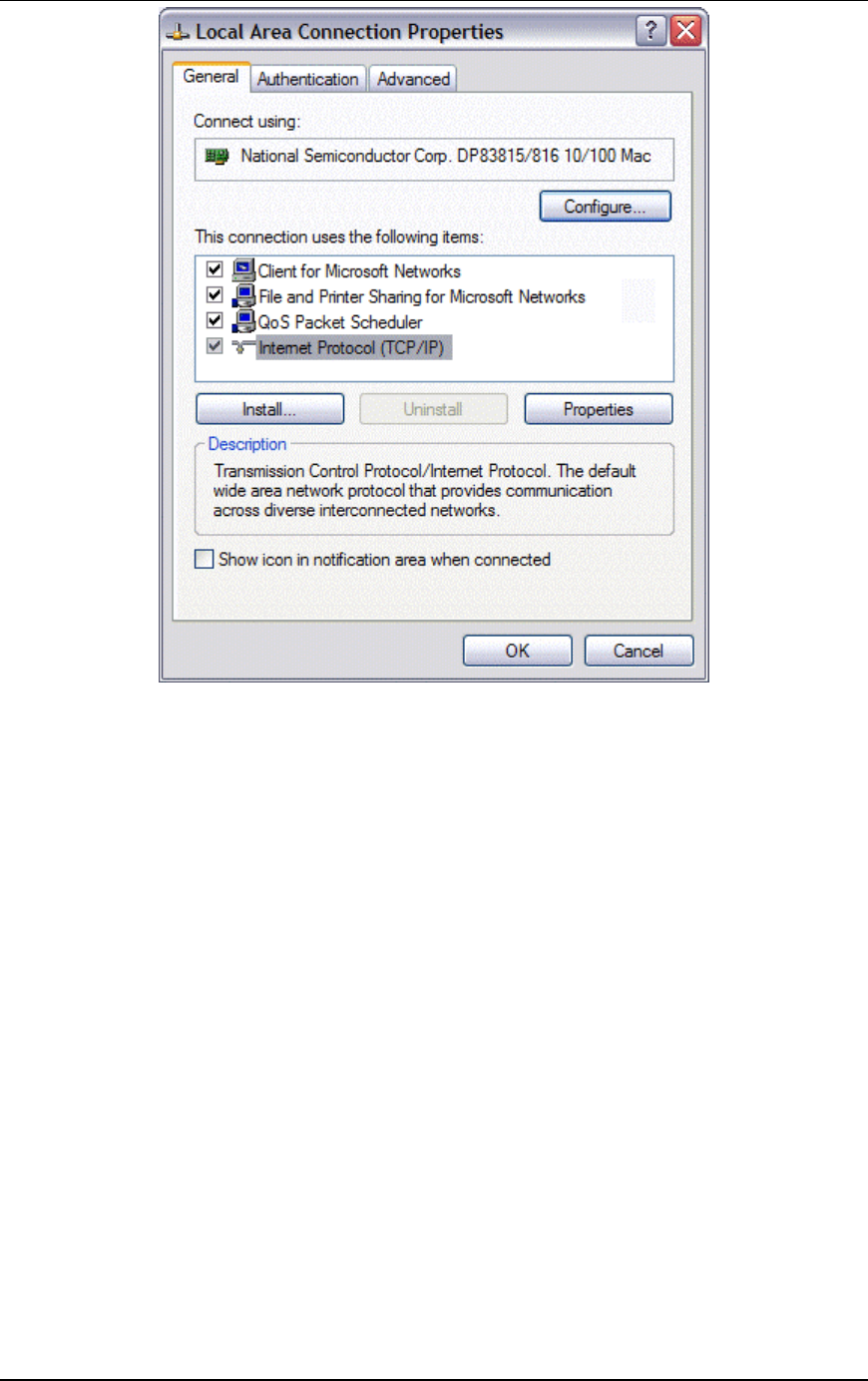
Communication Machinery Corporation (CMC)
6-62 080104
!" Select/highlight Internet Protocol (TCP/IP).
!" Click the Properties button to display the Internet Protocol (TCP/IP)
Properties dialog.
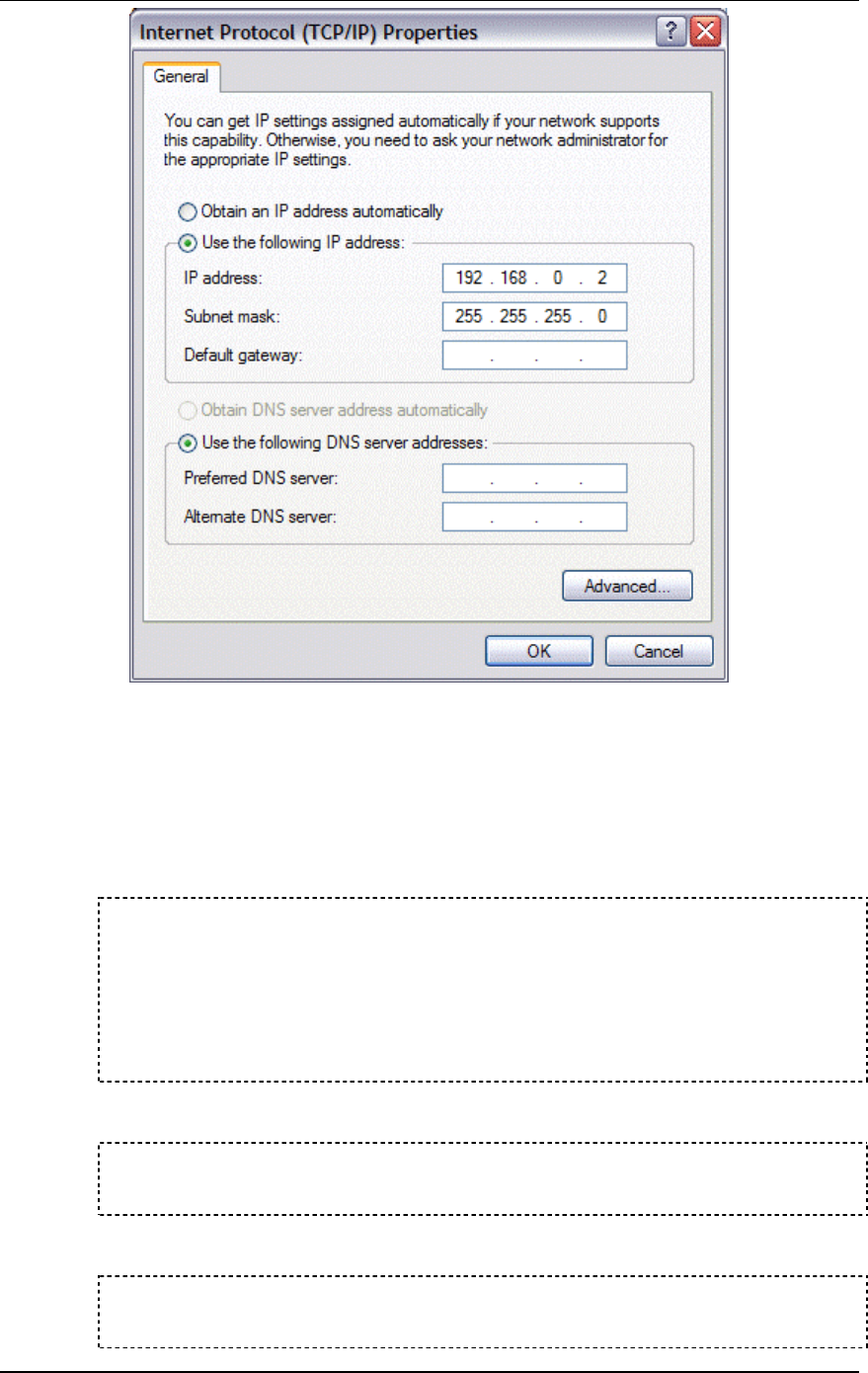
EmulationEngine 11a/b/g User's Guide
080104 6-63
!" Select the “Use the following IP address” radio button and enter the IP
address for the Ethernet connection. Use an IP Address that resides on the
same IP subnet as the EmulationEngine. For example, use 192.168.0.2 if
you are using the EmulationEngine's default IP address 192.168.0.50.
!" Click “OK” to close the Internet Protocol (TCP/IP) Properties dialog.
!" Click the Close button in the Local Area Connection Properties dialog.
!" Open a DOS windows and verify your PC's IP address has been changed:
C:\Documents and Settings\my_computer>ipconfig
Windows IP Configuration
Ethernet adapter Local Area Connection:
Connection-specific DNS Suffix . :
IP Address. . . . . . . . . . . . : 192.168.0.2
Subnet Mask . . . . . . . . . . . : 255.255.255.0
Default Gateway . . . . . . . . . :
C:\Documents and Settings\my_computer>
Step 2: Open a telnet connection to the EmulationEngine (192.168.0.50)
and login:
telnet 192.168.0.50
EE login: Admin
Password: **
The default log in name is Admin. The default password is EE. Following
successful log in, the CLI will display the log in banner:
Communication Machinery Corporation
EmulationEngine(tm) 11a/b/g Rev 2.3.0.a1

Communication Machinery Corporation (CMC)
6-64 080104
System date & time: THU JAN 01 00:00:20 2004
Use the "set date" or "set time" command to adjust
EmulationEngine 11a/b/g software version 2.3.0.a1
WLAN mode .................... 802.11a
WLAN MAC address ............. 00:02:8a:b6:1e:c9
WLAN address mask ............ ff:ff:ff:ff:00:00
LAN MAC address .............. 00:0b:16:00:00:57
BSSID of System Under Test ... 00:04:e2:38:a7:9c
EE-SUT connection status ..... SUT not detected in most recent
scan
Power Management mode ........ Active (always awake)
0 vSTAs currently in the system.
CMC_EE ->
Step 3: Change the EmulationEngine's IP address.
CMC_EE -> set ipaddr 10.1.40.17
IP Address: 10.1.40.17
CMC_EE ->
Step 4: Reboot.
CMC_EE -> reboot
Rebooting EE...
Step 5: Repeat Step 1 but change the command PC's IP address to your
desired subnet (e.g., 10.1.40.15).
Step 6: Reestablish the telnet connection and log back into the
EmulationEngine:
telnet 10.1.40.17
EE login: Admin
Password: **
Communication Machinery Corporation
EmulationEngine(tm) 11a/b/g Rev 2.3.0.a1
System date & time: THU JAN 01 00:00:20 2004
Use the "set date" or "set time" command to adjust
EmulationEngine 11a/b/g software version 2.3.0.a1
WLAN mode .................... 802.11a
WLAN MAC address ............. 00:02:8a:b6:1e:c9
WLAN address mask ............ ff:ff:ff:ff:00:00
LAN MAC address .............. 00:0b:16:00:00:57
BSSID of System Under Test ... 00:04:e2:38:a7:9c
EE-SUT connection status ..... SUT not detected in most recent
scan
Power Management mode ........ Active (always awake)
0 vSTAs currently in the system.
CMC_EE ->
CLI Editor
After you have entered one or more CLI commands, press the <Esc> key
to enter edit mode. In edit mode, you can use UNIX vi-style commands to
quickly navigate, edit and resubmit previous CLI commands. Use the
history (hi) command to show a history of the last up-to-20 commands.

EmulationEngine 11a/b/g User's Guide
080104 6-65
Movement & Search Commands
In the following commands, the default value for “n” is 1
nG: Go to command number n (e.g., 2G = go to command number 2)
/s: Search backward in history for string s (e.g., /stats = search
backward for "stats")
?s: Search forward in history for string s (e.g., ?stats = search forward for
"stats")
n: Repeat last search.
N: Repeat last search in opposite direction.
nk or n-: Get nth previous shell command in history.
nj or n+: Get nth next shell command in history.
nh or <Ctrl>H: Move cursor left n characters.
nl or <Space>: Move right n characters.
nw: Move n words forward.
nW: Move n blank-separated words forward.
ne: Move to end of the nth next word.
nE: Move to end of the nth next blank-separated word.
nb: Move back n words.
nB: Move back n blank-separated words.
fc: Find character c, searching forward.
Fc: Find character c, searching backward.
^: Move cursor to first non-blank character in line.
$: Go to end of line.
0 (zero): Go to beginning of line.
Insert Commands
In the following commands, input is expected until you press the <Esc>
key:
a: Append.
A: Append at end of line.
c SPACE: Change character.
cl: Change character.
cw: Change word.
cc or S: Change entire line.
c$ or C: Change everything from cursor to end of line.
i: Insert.
I: Insert at beginning of line.
R: Type over characters.

Communication Machinery Corporation (CMC)
6-66 080104
Editing Commands
In the following commands, the default value for n is 1
nrc: Replace the following n characters with c.
nx: Delete n characters starting at cursor.
nX: Delete n characters to the left of the cursor.
d SPACE: Delete character.
dl: Delete character.
dw: Delete word.
dd: Delete entire line.
d$ or D: Delete everything from cursor to end of line.
p: Put last deletion after the cursor.
P: Put last deletion before the cursor.
u: Undo last command.
~: Toggle case, lower to upper or vice versa.
Special Commands
CTRL-U: Delete line and leave edit mode.
CTRL-L: Redraw line.
CTRL-D: Complete symbol name.
RETURN: Give line to shell and leave edit mode.
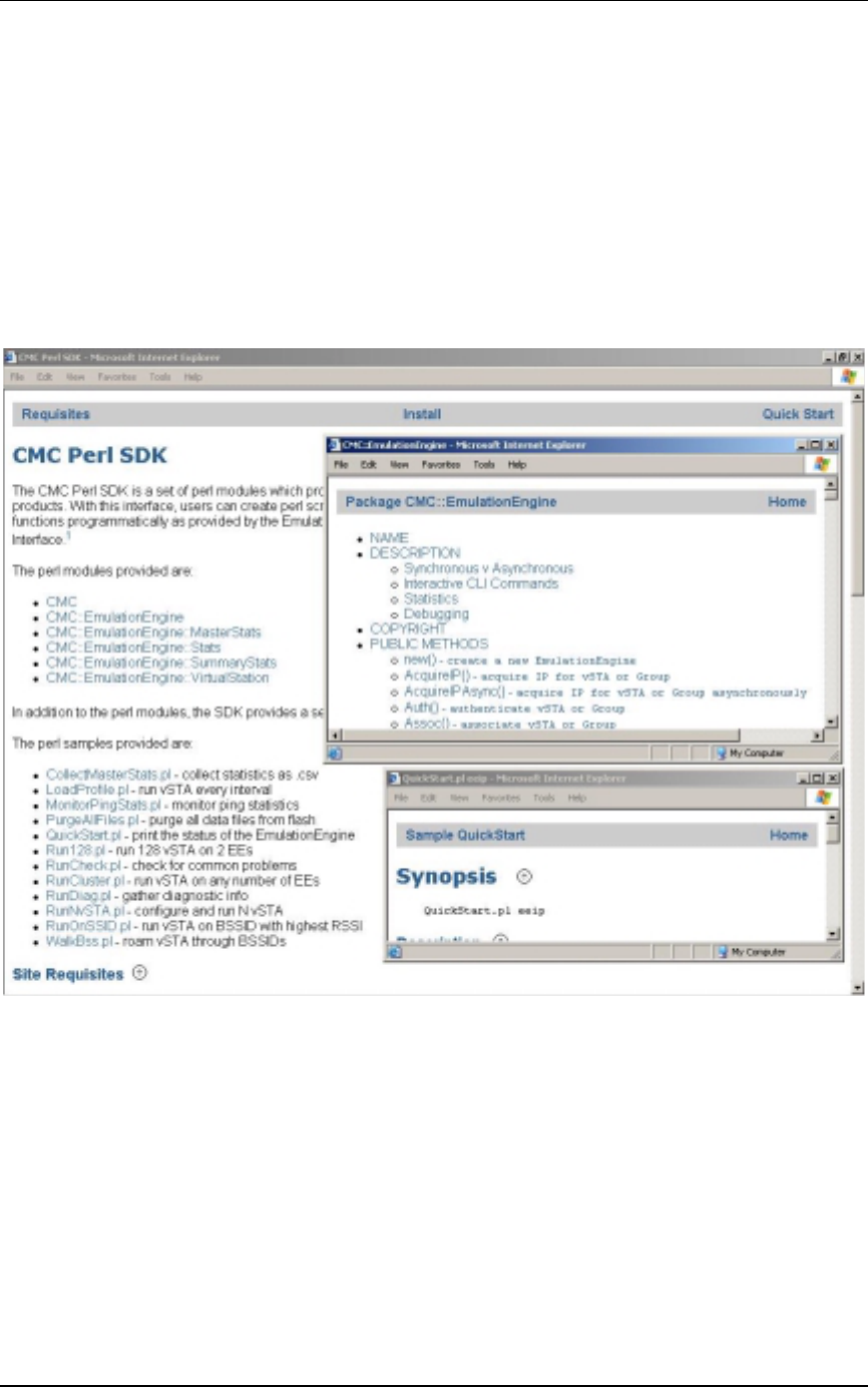
EmulationEngine 11a/b/g User's Guide
080104 7-1
CHAPTER 7: The Programming Interface (Perl)
The CMC Perl Software Developer Kit (SDK) is a set of perl modules which
provide an application programming interface to the CMC
EmulationEngine(tm) family of products. With this interface, users can
create Perl scripts that configure an EmulationEngine, vSTA (Virtual
Stations), and perform other functions programmatically as provided by
the EmulationEngine CLI (Command Line Interface) and the
EmulationEngine Web-Based User Interface.
Note that the Perl scripts execute on the command PC, not on the
EmulationEngine.
Documentation for the Perl SDK is on the CD-ROM in the directory:
sdk/Perl/doc/index.html.

Communication Machinery Corporation (CMC)
7-2 080104

EmulationEngine 11a/b/g User's Guide
080104 8-1
CHAPTER 8: Event Logging
Overview
During normal operation, the EmulationEngine processes and can log
various types of events. When an event is logged, a record of the event is
stored for future analysis. The event record includes a timestamp, an
indicator of the type of event that occurred, and a limited amount of data
to describe the event. Event logging is controlled on three levels:
1) master enable (controlled by set evlog enable/disable)
2) verbosity level (controlled by set evlog level <level>)
3) module enable (controlled by set evlog module <module name>
enable/disable)
1) The master enable controls whether event logging occurs at all. The
master control is independent of other filters. If "set evlog disable" is
used, enabling event logging for a particular module has no effect.
2) The verbosity level sets an “importance” threshold for events: at lower
verbosity, only more “important” events are logged; at higher verbosity,
less important events may also be logged.
3) Each event is processed by a given module or process within the
EmulationEngine. The various processes of the system can be individually
enabled for event logging.
The event logging function stores event records into a buffer area in
memory. The log buffer is a circular buffer that can store 512 event
records. The "get evlog buffer" command can be used to display the
contents of the buffer at any time.
Event data can also be written to a log file in Flash. When writing to a file
is enabled by the "set evlog file enable" command, the log buffer is
flushed to a file every 30 seconds or every time it wraps at the 512-record
limit (which ever comes first). There are two log files, A and B. The
EmulationEngine will alternate between the two files so that at least one
full file is available at any given time. Each log file can store up to 4,000
event records. You can display the records stored in either file using the
"get evlog file A" and "get evlog file B" CLI commands.
Event Record Format
Event records are printed in the following format:
[header]: [message] [optional parameters]
[header] is a standard header consisting of a timestamp, microsecond
clock reference and sequence number (e.g.: 12/27/2002, 9:59:57,
2296.320226,11396). timestamp = time the event occurred, taken from
the system clock (e.g., 12/27/2002,9:59:57). microsecond clock reference
= time in seconds, resolution to 1 microsecond, not synchronized to
timestamp (e.g, 2296.320226). sequence number = a sequential number
assigned to each record (e.g., 11396; next event would be 11397, 11398,
etc.)
[message] is very brief text string (typically < 15-20 characters)
indicating the type of event that occurred (e.g.: RX: ok indicates a valid
802.11 frame received without error).

Communication Machinery Corporation (CMC)
8-2 080104
[optional parameters] describe the specific circumstances of this particular
occurrence of the event. It can be up to four 32-bit parameters. Example:
pDesc 0x9326c0 hwStatus 01cd803c:0be20203 numRxDesc 9643712.
Example:
12/27/2002,9:59:57,2296.320226,11396: RX: ok pDesc 0x9326c0
hwStatus 01cd803c:0be20203 numRxDesc 9643712
CLI Commands
The following CLI commands control event logging:
set evlog enable/disable: This is the master control to enable or disable
event logging (i.e., to the event log buffer in RAM). The default is enabled.
set evlog level <level>: This command sets the verbosity level (0/critical,
1/low, 2/medium, or 3/high) for event logging. The default is critical.
set evlog module <module> enable/disable: This command enables or
disables logging of events from a specified module or process:
EmulationEngine control, virtual station control, WLAN transmit/receive
events, and User Interface events. By default, the following processes are
enabled for event logging: EmulationEngine control events and virtual
station control events. The following processes are disabled for event
logging: WLAN transmit and receive events and User Interface events.
set evlog console enable/disable: This command enables or disables
logging directly to the console. The default is disabled.
set evlog file enable/disable: This command enables or disables recording
logged events to file. The default is disabled.
get evlog settings: This command shows the current event log control
settings.
get evlog buffer [n] – This command prints the last n events logged to the
log buffer in memory. If [n] is omitted or zero, all events currently in the
log buffer will be displayed.
get evlog file A/B <startRec#> <count>: This command displays event
records in log file A or B. If no starting record number <startRec#> is
given, records are displayed starting with the first record in the file. If no
count of records is given, all records are displayed. You can also use "?" to
display the number of records in the file.
clear evlog file A/B: This command clears all records from log file A or B
clear evlog buffer: This command clears all event records from the log
buffer.
save evlog: This command flushes all records from the log buffer to the
log file, even if log to file is not enabled.
NOTE: Event log control settings are not permanent. They are not saved
with other configuration controls. They must be entered following startup
as desired to change event log operation from the default settings.
The Web-Based User Interface
You can configure and display the event log by selecting the Logging tab
in the web-based user interface side bar. See the "Event Log Side Bar" in
Chapter 5 for details.

EmulationEngine 11a/b/g User's Guide
080104 9-1
CHAPTER 9: Statistics Counters
The statistics counters defined in this chapter can be:
1) Selected when creating a new monitor in the Monitoring/New Monitor
dialog.
2) Displayed as legends or table headings in a monitor or reports page.
3) Displayed using CLI commands.
Individual Virtual Station Counters
If statistics for individual virtual stations are selected, one or more of the
following values may be shown.
Individual Virtual Station 802.11 Management Counters
Authentications: Number of times the virtual station has Authenticated
with the System Under Test
Deauthentications: Number of times the virtual station has De-
authenticated from the System Under Test
Associations: Number of times the virtual station has Associated with
the System Under Test
Disassociations: Number of times the virtual station has Disassociated
from the System Under Test
Individual Virtual Station Signal Quality Indication
Rcv Signal Strength: Signal strength indication for the most recently
received frame
Ack Signal Strength: Received signal strength indication (RSSI) in the
most recently received ACK frame
Rcv Rate: Data rate for the most recently received frame
Tx SF Rate: Data rate for the most recently transmitted short frame
Tx LF Rate: Data rate for the most recently transmitted long frame
Individual Virtual Station Frame Counts
Rcv MSDUs: Total frames received by the virtual station, all frame types
Rcv Data: Data frames received by the virtual station
Rcv Mcast: Multicast frames received by the virtual station
Rcv Mgmt: Management frames received by the virtual station
Rcv Ctrl: Control frames received by the virtual station
Tx MSDUs: Total frames transmitted by the virtual station, all frame
types
Tx Data: Data frames transmitted by the virtual station
Tx Mcast: Multicast frames transmitted by the virtual station
Tx Mgmt: Management frames transmitted by the virtual station
Tx Ctrl: Control frames transmitted by the virtual station

Communication Machinery Corporation (CMC)
9-2 080104
Individual Virtual Station Ping Statistics
These counters are only shown if the virtual station was configured for
internal mode:
Transmit Count: Number of Pings the virtual station is configured to
send
Transmit Data Size: Size of the data payload in the ICMP Echo message
Packets Transmitted: Number of ICMP Echo packets that have been
transmitted
Bytes Transmitted: Number of data bytes that have been transmitted in
ICMP Echo packets
Transmit ENOBUFS: Number of times a buffer was not available for
transmission
Packets Received: Number of ICMP Echo Response packets that have
been received
Bytes Received: Number of data bytes that have been received in ICMP
Echo Response packets
Round-trip Min: Time difference between transmitted ICMP Echo and
received ICMP Echo Response, minimum observed
Round-trip Max: Time difference between transmitted ICMP Echo and
received ICMP Echo Response, maximum observed
Round-trip Avg: Average time difference between transmitted ICMP
Echo and received ICMP Echo Response, in microseconds
Round-trip Stddev: Standard deviation in time difference between
transmitted ICMP Echo and received ICMP Echo Response
Individual Virtual Station Error Statistics
Rcv Errors: Total receive errors
Rcv PHY Errors: Receive errors at the PHY level
Rcv CRC Errors: CRC errors in received frames
Rcv Duplicates: Duplicate frames received
Rcv Discarded: Received frames discarded
Ack Rcv Fails: ACK receipt failures
Tx Errors: Total transmit errors
Excess Retries: Transmit retry attempts exceeded
Total Retries: Total transmission retries
Tx Filtered: Transmit frames filtered
Tx Discarded: Transmit frames discarded
RTS Fails: RTS-CTS failures
Authentication Type: Virtual station authentication type (open-system
or shared-key).
Encryption: Virtual station encryption mode (on/off)
Rcv Decrypt Errs: Received frame decryption CRC errors

EmulationEngine 11a/b/g User's Guide
080104 9-3
FCS_Fails: Frame checksum errors in received frames
WEP_Excluded: Received frames that were rejected because of incorrect
encryption
Summary Statistics
Summary statistics provide a summary report taken over a set of virtual
stations. The virtual station set can be a defined group or all virtual
stations currently in the system. In contrast, the individual virtual station
statistics report provides a list of statistics and counters for an individual
virtual station. The summary report provides a summary of the statistics
and counters taken over the indicated set of virtual stations. For each
counter, the summary gives: the minimum and maximum values for that
counter found in the set of virtual stations examined, the average value,
and where applicable the total (sum) over the set of virtual stations. One
or more of the following values may be shown.
Summary Signal Counters
RxSigMin: Minimum signal strength indication for received frames
RxSigMax: Maximum signal strength indication for received frames
RxSigAvg: Average signal strength indication for received frames
AckSigMin: Minimum received signal strength indication (RSSI) in
received ACK frames
AckSigMax: Maximum received signal strength indication (RSSI) in
received ACK frames
AckSigAvg: Average received signal strength indication (RSSI) in
received ACK frames
RxRateMin: Minimum data rate for received frames
RxRateMax: Maximum data rate for received frames
RxRateAvg: Average data rate for received frames
TxRateSfMin: Minimum data rate for transmitted short frames
TxRateSfMax: Maximum data rate for transmitted short frames
TxRateSfAvg: Average data rate for transmitted short frames
TxRateLfMin: Minimum data rate for transmitted long frames
TxRateLfMax: Maximum data rate for transmitted long frames
TxRateLfAvg: Average data rate for transmitted long frames
Summary Transmit Statistics
TxMsduMin: Minimum frames transmitted per virtual station, all frame
types
TxMsduMax: Maximum frames transmitted per virtual station, all frame
types
TxMsduAvg: Average frames transmitted per virtual station, all frame
types
TxMSDUs: Total frames transmitted by all virtual stations, all frame types
TxDataMin: Minimum data frames transmitted per virtual station

Communication Machinery Corporation (CMC)
9-4 080104
TxDataMax: Maximum data frames transmitted per virtual station
TxDataAvg: Average data frames transmitted per virtual station
TxDataFrames: Total data frames transmitted by all virtual station
TxMcastMin: Minimum Multicast frames transmitted per virtual station
TxMcastMax: Maximum Multicast frames transmitted per virtual station
TxMcastAvg: Average Multicast frames transmitted per virtual station
TxMcastFrames: Total Multicast Frames transmitted by all virtual
stations
TxMgmtMin: Minimum Management Frames transmitted per virtual
station
TxMgmtMax: Maximum Management Frames transmitted per virtual
station
TxMgmtAvg: Average Management Frames transmitted per virtual
station
TxMgmtFrames: Total Management Frames transmitted by all virtual
stations
TxCtrlMin: Minimum Control Frames transmitted per virtual station
TxCtrlMax: Maximum Control Frames transmitted per virtual station
TxCtrlAvg: Average Control Frames transmitted per virtual station
TxCtrlFrames: Total Control Frames transmitted by all virtual stations
TxRetryMin: Minimum transmission retries per virtual station
TxRetryMax: Maximum transmission retries per virtual station
TxRetryAvg: Average transmission retries per virtual station
TxTotalRetries: Total transmission retries by all virtual stations
TxErrMin: Minimum transmission errors per virtual station
TxErrMax: Maximum transmission errors per virtual station
TxErrAvg: Average transmission errors per virtual station
TxErrors: Total transmission errors by all virtual stations
Summary Receive Statistics
RxMsduMin: Minimum frames received per virtual station, all frame types
RxMsduMax: Maximum frames received per virtual station, all frame
types
RxMsduAvg: Average frames received per virtual station, all frame types
RxMSDUs: Total frames received by all virtual stations, all frame types
RxDataMin: Minimum data frames received per virtual station
RxDataMax: Maximum data frames received per virtual station
RxDataAvg: Average data frames received per virtual station
RxDataFrames: Total data frames received by all virtual stations
RxMcastMin: Minimum Multicast frames received per virtual station

EmulationEngine 11a/b/g User's Guide
080104 9-5
RxMcastMax: Maximum Multicast frames received per virtual station
RxMcastAvg: Average Multicast frames received per virtual station
RxMcastFrames: Total Multicast Frames received by all virtual stations
RxMgmtMin: Minimum Management Frames received per virtual station
RxMgmtMax: Maximum Management Frames received per virtual station
RxMgmtAvg: Average Management Frames received per virtual station
RxMgmtFrames: Total Management Frames received by all virtual
stations
RxCtrlMin: Minimum Control Frames received per virtual station
RxCtrlMax: Maximum Control Frames received per virtual station
RxCtrlAvg: Average Control Frames received per virtual station
RxCtrlFrames: Total Control Frames received by all virtual stations
RxErrMin: Minimum receive errors per virtual station
RxErrMax: Maximum receive errors per virtual station
RxErrAvg: Average receive errors per virtual station
RxErrors: Total receive errors by all virtual stations
Summary Error Statistics
Rcv_PHY_Errors: Receive errors at the PHY level
Rcv_CRC_Errors: CRC errors in received frames
Rcv_Discarded: Total received frames discarded
Rcv_Duplicates: Duplicate frames received
Ack_Rcv_Fails: ACK receipt failures
FCS_Fails: Frame checksum errors in received frames
Tx_Discarded: Total transmit frames discarded
Tx_Excess_Retries: Transmit retry attempts exceeded
Rcv_Decrypt_Errors: Received frame decryption CRC errors.
WEP_Excluded: Received frames rejected because of incorrect
encryption

Communication Machinery Corporation (CMC)
9-6 080104

EmulationEngine 11a/b/g User's Guide
080104 10-1
CHAPTER 10: Troubleshooting
Login Name and/or Password Recovery
If configuration records for your EmulationEngine are lost and you do not
remember its user name or password, it may not be possible to log in to
the device. If this should happen, a special login sequence will direct the
EmulationEngine to reset the login name and password to their factory
defaults.
!" Open a telnet connection to the device
!" At the login prompt, type RESET in response to the EE login prompt and
FACTORY in response to the Password prompt. Both are case sensitive.
EE login: RESET
Password: *******
In response to this sequence, the EmulationEngine will reset both the
login username and the login password to their factory defaults (User
Name: Admin, Password: EE). A new configuration file with the reset login
and password will be written to the Flash file system, and the
EmulationEngine will issue a new login prompt. No other configuration
parameters are affected by this operation.
You may now log in using the factory default login name (Admin) and
password (EE). Following successful login, you may use the "set login" or
"set password" CLI commands to set these parameters as desired. Be sure
to record the new settings for future reference.
Using a Third-Party Load Generator
Symptom: Telnet or the Web Client becomes unresponsive during a test
or cannot connect at the conclusion of a test.
Possible Problems:
!" If your Load Generator exceeds the maximum 802.3 rate specified in the
EmulationEngine Specifications during a test: 1) Telnet and/or the Web
Client may not be able to establish a new connection. 2) If connected,
Telnet and/or the Web Client may lose connectivity to the
EmulationEngine.
!" If Telnet or the Web Client become unresponsive during a test or cannot
connect at the conclusion of a test, make sure your Load Generator is not
responding to ARP requests that are targeted to the EmulationEngine
address. If this occurs, the ARP request transmitted from the PC Client
(running telnet) or the Web Client for the purpose of obtaining the MAC
address of an IP address, will respond with the Load Generator's MAC
address instead of the EmulationEngine's MAC address. All data sourced
from the PC client would incorrectly be destined to the Load Generator
instead of the EmulationEngine.
Web-Based User Interface Start-Up Error
The web-based user interface requires Internet Explorer 6.0 or higher. In
addition, the “Check for newer versions of stored pages on every visit to
the page” option must be selected under Temporary Internet files
settings. If this option is not selected, the following dialog box will appear:
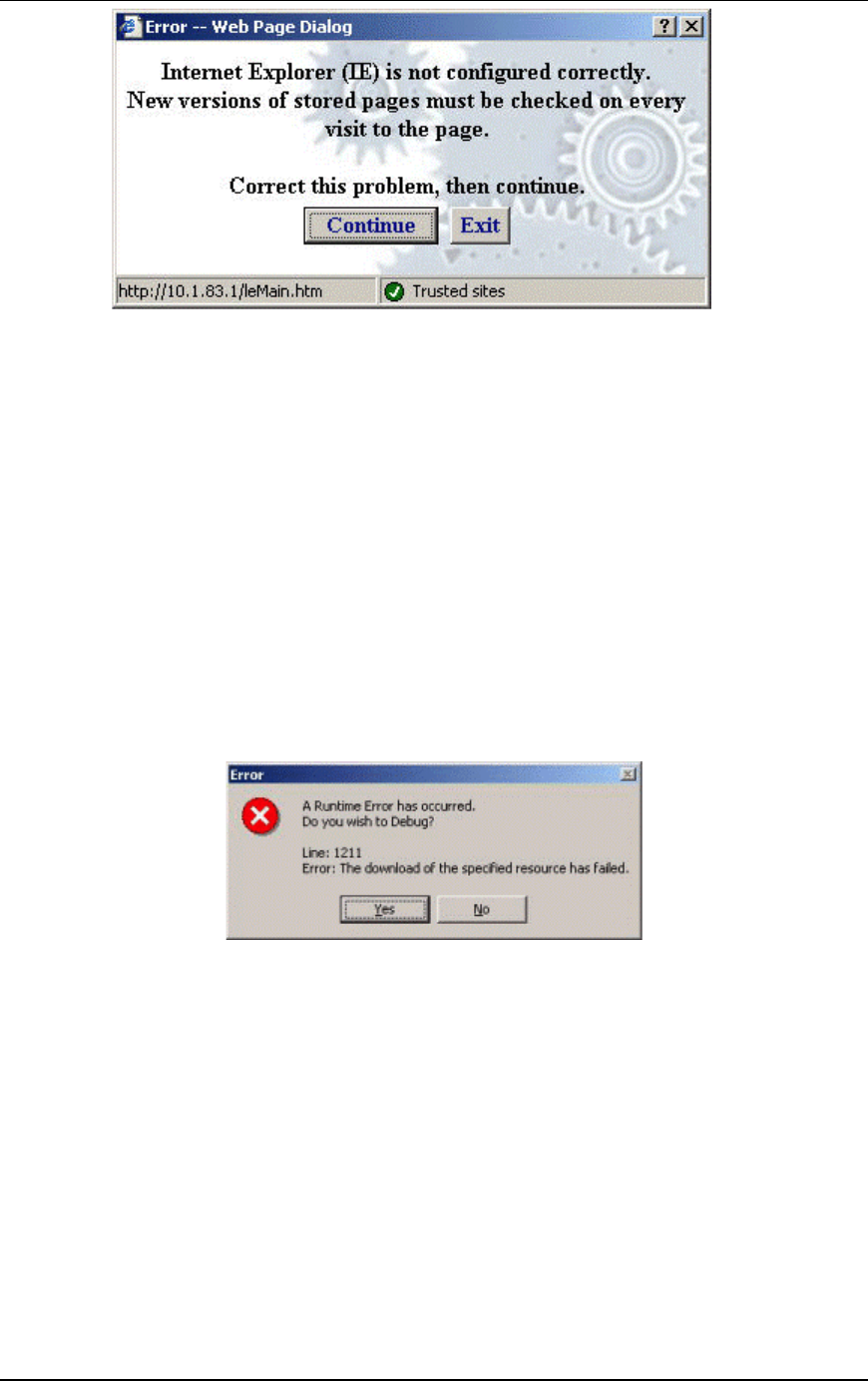
Communication Machinery Corporation (CMC)
10-2 080104
If this dialog is displayed, complete the following steps:
!" Select Internet Options from the Tools menu in Internet Explorer.
!" Select the General tab in the Internet Options dialog.
!" Click the Settings... button in the Temporary Internet Files section of the
dialog.
!" In the Settings dialog, make sure the “Every visit to page” radio button is
selected under “Check for newer versions of stored pages”. Click OK to
close the Setting dialog and return to the Internet Options dialog.
!" Click the Continue button in the Error – Web Page Dialog.
Web-Based User Interface Login Error
If you are running a personal firewall product (e.g., ZoneAlarm, McAfee's
software firewall, etc.) on the command PC, the following error dialog may
be displayed by your browser immediately following successful log-in to
the EmulationEngine web server:
If this error dialog is displayed, just click the No button to continue. This
error has no impact on the operation of the web-based user interface or
the EmulationEngine.
Hardware Installation/LEDs
Power LED: When you apply power to the EmulationEngine, the power
LED (the left-most LED facing the front of the unit) should flash
momentarily and then light ON (solid). If this does not occur, check the
power cable connection and/or the power outlet where the power supply is
installed. If power is being supplied to the unit and the Power LED remains
off, it may indicate that the EmulationEngine’s software image file
(EE22.SYS) cannot be loaded into flash (i.e., corrupted or does not exist).
Ethernet LED: When you attach the Ethernet cable between the
command PC and the EmulationEngine, the Ethernet link LED (the middle
LED) should flash momentarily and then light ON (solid). This should occur
if you are attaching directly to the EmulationEngine using a cross-over
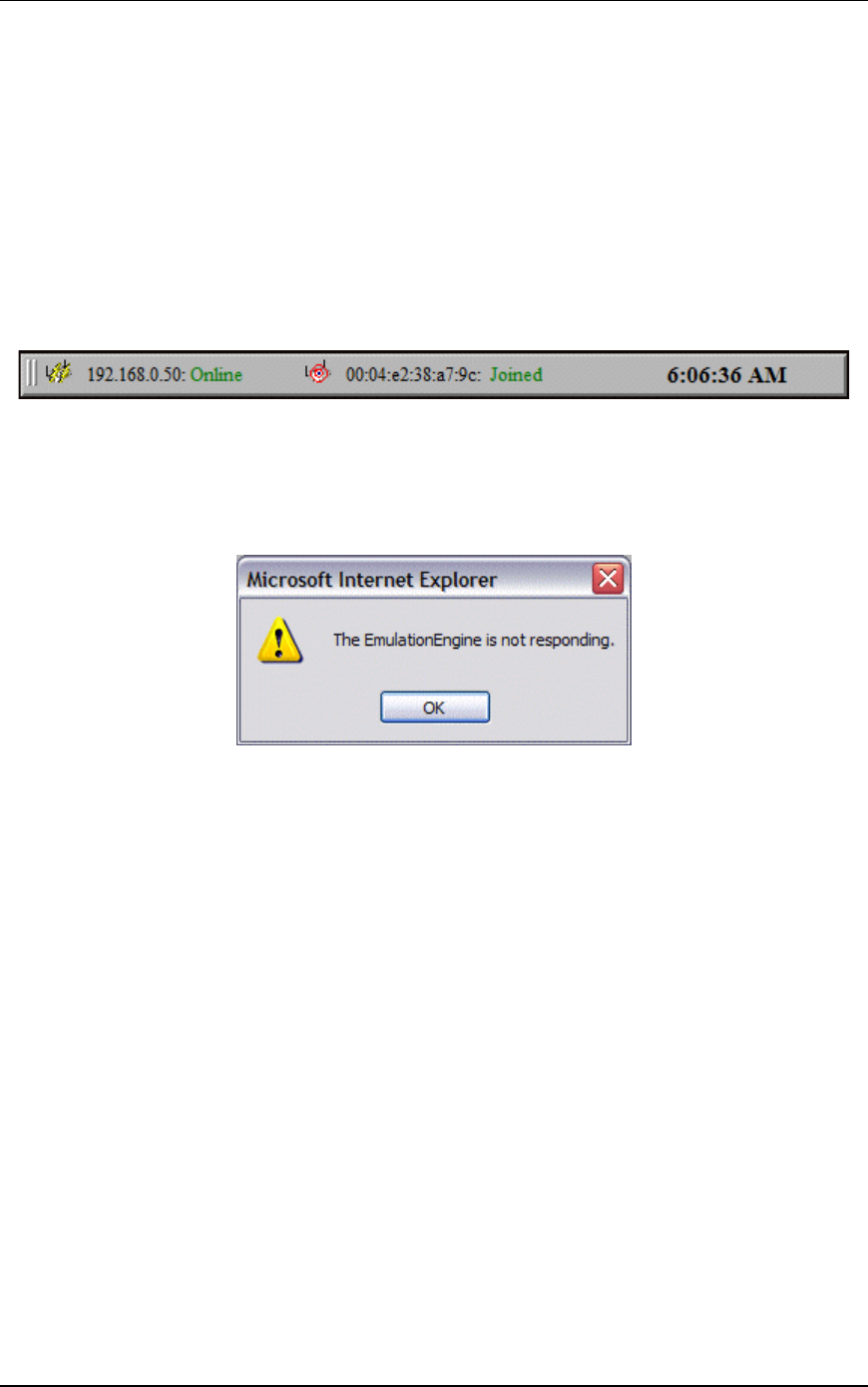
EmulationEngine 11a/b/g User's Guide
080104 10-3
cable or through a hub/switch using a straight cable. If the LED remains
OFF, check the cable connections. If the LED remains OFF, one or more of
the following problems may exist:
!" Incorrect or defective cable
!" Defective hub/switch
!" Using the wrong port on a hub/switch (i.e., uplink port instead of 10/100
port)
EmulationEngine Busy or Not Responding
The status bar in the top-right corner of the web-based user interface
main page shows the status of the EmulationEngine with the System
Under Test.
The status (e.g., Online) next to the EmulationEngine IP address indicates
the current status of EmulationEngine with the web-based user interface.
This status may intermittently display “Busy”. If the Busy condition lasts
longer than the Polling Timeout specified in the Configure EmulationEngine
dialog, the status will change to Not Responding and the following dialog
will be displayed:
When this dialog is displayed, the user interface will disable all actions
until the EmulationEngine starts responding again. When you click “OK” to
dismiss this dialog, the EmulationEngine/System connection status in the
status bar will display “Offline”.
!" If Busy is frequently shown in the status bar, increase the value of the
Polling Interval in the Configure EmulationEngine dialog (see EE-
>Configure EE).
!" If the “EmulationEngine Not Responding” dialog is displayed frequently,
increase the value of the EE Polling Timeout in the Configure
EmulationEngine dialog (see EE->Configure EE).
!" If the “EmulationEngine Not Responding” dialog continues to be displayed,
check the cable connections between the command PC and the
EmulationEngine.
!" You may also establish a telnet connection to access and log in to the CLI
to verify that the EmulationEngine is or is not responding.
When Not Responding status is cleared and the web-based user interface
receives a response from the EmulationEngine, this dialog is displayed:
Communication Machinery Corporation (CMC)
10-4 080104
Loading Files from the Command PC
If you attempt to load a scenario file from the command PC using the
web-based user interface, the browser may display the following warning
dialog:
Missing Key File
The EmulationEngine is offered in three configurations:
!" EmulationEngine 11a: Supports IEEE 802.11a only.
!" EmulationEngine 11b: Supports IEEE 802.11b only.
!" EmulationEngine 11a/b/g: Supports IEEE 802.11a, 802.11b, and 802.11g.
Each configuration is shipped with a unique feature key that is stored in
the EmulationEngine’s flash file system. If the keyfile does not exist or is
corrupted or you have requested a feature upgrade, the CLI will prompt
you to enter your authorization code in order to create the keyfile. There
are only two conditions where the authorization code must be entered.
1) Feature Upgrades
2) Corrupted or non-existent keyfile
NOTE: The web-based user interface does not provide any indication of a
missing keyfile. When the keyfile is missing, the EmulationEngine’s web
server will not respond to the browser.
If the keyfile has been corrupted or does not exist or you have requested
a feature upgrade, you will be prompted to enter your unique
key/authorization code when you establish a telnet or serial connection
and log in to the CLI. Example:
telnet 192.168.0.50
EE login: Admin
Password: **
Communication Machinery Corporation

EmulationEngine 11a/b/g User's Guide
080104 10-5
EmulationEngine(tm) 11a/b/g Rev 2.3.0.a1
System date & time: THU JAN 01 00:00:20 2004
Use the "set date" or "set time" command to adjust
EmulationEngine 11a/b/g software version 2.3.0.a1
WLAN mode .................... 802.11a
WLAN MAC address ............. 00:02:8a:b6:1e:c9
WLAN address mask ............ ff:ff:ff:ff:00:00
LAN MAC address .............. 00:0b:16:00:00:57
BSSID of System Under Test ... 00:04:e2:38:a7:9c
EE-SUT connection status ..... SUT not detected in most recent
scan
Power Management mode ........ Active (always awake)
0 vSTAs currently in the system.
CMC_EE ->
*** This EmulationEngine has not been Node Locked
*** Please enter "admin" to continue
Enter the “admin” command and enter “cmc” at the password prompt:
CMC_EE -> admin
Password: ***
Ok
When administrative mode is activated with this command, the CLI will
prompt for the authorization code:
Please Enter EE Authorization Codes for MAC: 00:0b:16:00:00:07
CMC_EE ->
Enter your authorization code at the CMC_EE-> prompt. This authorization
code is provided on a separate sheet in your shipping container with the
EmulationEngine. If you have lost your authorization code, please contact
CMC Technical Support (www.cmc.com). After you enter the correct
authorization code, the CLI will display the following message.
Thank you...Authorization Codes Accepted
When this message is displayed, the keyfile is created in flash and this
procedure will no longer be required.

Communication Machinery Corporation (CMC)
10-6 080104
Configuration Records
Print this page and use the following form to keep a record of
EmulationEngine configuration parameters:
Parameter Default CLI Command Configured Value
IP address 192.168.0.50 set ipaddr
Subnet mask 255.255.255.0 set ipmask
Gateway 192.168.1.254 set gateway
Username Admin set login
Password EE set password
WLAN Base
MAC Address set eemac
WLAN MAC
Mask ff:ff:ff:ff:00:00 set eemask

EmulationEngine 11a/b/g User's Guide
080104 A-1
APPENDIX A: Specifications
Hardware
Standards: IEEE 802.3, 802.3u, 802.1d, 802.11a, 802.11b, 802.11g
Ports:
!" (1) 10/100Base-T Ethernet, RJ-45(UTP)
!" (1) RS-232 (DB9)
!" (1) Power - 5V DC, 2.5A
Frequency Range: 802.11a: 5GHz Unlicensed National Information
Infrastructure (UNII) band, 802.11b/g: 2.4 GHz band.
Modulation Technology: Orthogonal Division Frequency Multiplexing
(OFDM) and Complementary Code Keying (CCK)
Data Rates:
!" 54, 48, 36, 24, 18, 9, 6 Mbps OFDM
!" 11, 5.5 Mbps CCK
!" 2 Mbps QPSK (Quadrature Phase Shift Keying)
!" 1 Mbps BPSK (Binary Phase Shift Keying)
Media Access Control: CSMA/CA
Wireless Frequency Range:
!" 2.4 to 2.4825 MHz
!" 5.150 to 5.850 GHz
LEDs:
!" Power
!" Ethernet Link/Activity
!" Wireless Activity
Antenna Type: Tri-mode dual 5dBi dipole antennas with diversity, Power
software configurable.
Physical Dimensions:
!" L = 9.25 inches
!" W= 6.38 inches
!" H = 1.63 inches
Temperature:
!" Operating: 0°C to 55°C (32°F to 131°F)
!" Storing: -20°C to 65°C (-4°F to 149°F)
Humidity: 5%-95%, non-condensing
Safety and Emissions: FCC
Channels supported in GHz: 802.11a: 36(5.180), 40(5.200),
44(5.220), 48(5.240), 52(5.260), 56(5.280), 60(5.300), 64 (5.320), 149
(5.745), 153 (5.765), 157 (5.785), 161 (5.805), 165 (5.825).

Communication Machinery Corporation (CMC)
A-2 080104
802.11b/g: 1 (2.412), 2 (2.417), 3 (2.422), 4 (2.427), 5 (2.432), 6
(2.437), 7 (2.442), 8 (2.447), 9 (2.452), 10 (2.457), 11 (2.462).
Software
EmulationEngine Core:
!" IEEE 802.11a, 802.11b, 802.11g
!" Maximum number of vSTAs: 64
Performance:
!" Average Latency per frame (uSec) at 54 Mbps: EmulationEngine-to-SUT:
minimum 263, maximum 609, average 279. SUT-to-EmulationEngine:
minimum 279, maximum 574, average 315.
!" Internal traffic ping rate: 4 pings/sec/vSTA with packet size 0...1024
bytes. Maximum rate: 4 x 64 vSTA=256 packet/sec
!" Rate of vSTA authentication/association management frames: 1
authentication or association each 50 milliseconds
Network Management: Web-Based browser with JavaScript and
Command Line Interface (CLI)
Web-Based User Interface:
!" Maximum number of groups per Scenario: 10
!" Maximum monitors per Scenario: 4
Encryption:
!" Cipher Encryption Mode: Shared WEP key per vSTA
!" Authentication: Open-system and shared keys per vSTA
!" Shared keys: up to 4 keys
!" Shared WEP encryption keys: 64-, 128-, 152-bit
RTS/CTS: Support for RTS/CTS per vSTA
Fragmentation: Fragment Threshold support per vSTA
Rates: 802.11a: 6, 9, 12, 18, 24, 26, 48, 54 Mbps. 802.11b: 1, 2, 5.5,
11 Mbps. 802.11g: 1, 2, 5.5, 11, 6, 9, 12, 18, 24, 36, 48, 54.
Circular Event Log: up to 8000 records
Telnet Sessions: up to 4
Maximum 802.3 packet size: 1518 bytes
802.11 Emulation: Fully emulates 802.11 station states in terms of:
authentication, association, disassociation, de-authentication
Operational Mode: Constant Awake Mode (CAM) or Power Save Mode
External mode: Layer 2 traffic or Layer 3 IP/ARP traffic, per vSTA
DHCP client: available per vSTA
Internal Log-In: user name and password
Flash size: 3.0 MBytes Total/1.2 MBytes Available for storing scenarios,
event logs and statistics

EmulationEngine 11a/b/g User's Guide
080104 A-3
Performance
NOTE: All performance data was collected in an open air enterprise
environment. Performance results may vary depending on the device
being tested as the EmulationEngine assesses the entire System Under
Test (SUT).
802.11a Throughput per vSTA per Packet Length: External Mode
64
Bytes 128
Bytes 256
Bytes 512
Bytes 1024
Bytes 1280
Bytes 1518
Bytes
Bi-Directional 1 vSTA 3.15 5.88 10.53 17.52 26.29 28.81 30.89
SUT-to-EmulationEngine 1 vSTA 2.71 5.19 9.38 15.97 24.58 26.01 29.14
EmulationEngine-to-SUT 1 vSTA 2.76 5.29 9.69 16.38 25.02 27.65 30.29
Bi-Directional 30 vSTAs 3.14 5.92 10.67 17.72 26.22 28.64 30.58
SUT-to-EmulationEngine 30 vSTAs 2.71 5.08 9.39 16.05 24.61 26.09 29.33
EmulationEngine-to-SUT 30 vSTAs 2.75 5.32 9.67 16.41 25.05 27.57 30.13
Bi-Directional 59 vSTAs 3.16 5.93 10.73 17.78 26.19 28.42 30.64
SUT-to-EmulationEngine 59 vSTAs 2.69 4.41 9.42 16.18 24.82 26.11 29.75
EmulationEngine-to-SUT 59 vSTAs 2.79 5.35 9.63 16.43 25.09 27.34 30.01
~
64
Bytes 128
Bytes 256
Bytes 512
Bytes 1024
Bytes 1280
Bytes 1518
Bytes
76.19Mbps 86.48Mbps 92.75Mbps 96.23Mbps 98.08Mbps 98.46Mbps 98.70Mbps Maximum 802.3
Sustainable Rate
without Web-Based
User Interface
148,810pps 84,460pps 45,290pps 23,496pps 11,973pps 9,616pps 8,128pps
2.56Mbps 5.12Mbps 9.83Mbps 18.02Mbps 27.85Mbps 30.72Mbps 34.00Mbps Maximum 802.3
rate with Web-
Based User
Interface
5000pps 5000pps 4800pps 4400pps 3400pps 3000pps 2800pps
2.65Mbps 5.00Mbps 9.27Mbps 15.99Mbps 24.31Mbps 27.44Mbps 29.68Mbps
802.11 Theoretical
unidirectional
@54Mbps 5181pps 4878pps 4524pps 3831pps 2967pps 2680pps 2444pps
Notes: 1) Frames include TCP/IP header plus data packet, 2) Data Packet
is the payload within the frame, 3) pps = Packets-per-Second.
802.11b Throughput per vSTA per Packet Length: External Mode
64
Bytes 128
Bytes 256
Bytes 512
Bytes 1024
Bytes 1280
Bytes 1518
Bytes
Bi-Directional 1 vSTA 0.51 0.91 1.68 2.87 4.64 5.28 5.44
SUT-to-EmulationEngine 1 vSTA 0.65 1.33 2.15 3.52 5.16 5.73 6.07
EmulationEngine-to-SUT 1 vSTA 0.36 0.69 1.33 2.42 4.08 4.51 5.06
Bi-Directional 30 vSTAs 0.45 0.95 1.71 2.81 4.56 4.97 5.33
SUT-to-EmulationEngine 30 vSTAs 0.64 1.26 2.15 3.51 5.17 5.73 6.12
EmulationEngine-to-SUT 30 vSTAs 0.36 0.68 1.32 2.34 3.98 4.48 4.99
Bi-Directional 64 vSTAs 0.46 0.98 1.72 2.71 4.52 4.84 5.29
SUT-to-EmulationEngine 64 vSTAs 0.63 1.19 2.15 3.56 5.24 5.73 6.25
EmulationEngine-to-SUT 64 vSTAs 0.34 0.68 1.29 2.27 3.93 4.46 4.98
~
64Bytes 128Bytes 256Bytes 512Bytes 1024Bytes 1280Bytes 1518Bytes
76.19Mbps 86.48Mbps 92.75Mbps 96.23Mbps 98.08Mbps 98.46Mbps 98.70Mbps
Maximum 802.3
Sustainable
Rate without
Web-Based
User Interface
148,810pps 84,460pps 45,290pps 23,496pps 11,973pps 9,616pps 8,128pps

Communication Machinery Corporation (CMC)
A-4 080104
64Bytes 128Bytes 256Bytes 512Bytes 1024Bytes 1280Bytes 1518Bytes
0.51Mbps 0.80Mbps 1.61Mbps 2.59Mbps 4.28Mbps 4.30Mbps 5.08Mbps
Maximum 802.3
rate with Web-
Based User
Interface
1000pps 781pps 781pps 634pps 523pps 420pps 419pps
0.70Mbps 1.31Mbps 2.34Mbps 3.85Mbps 5.71Mbps 6.32Mbps 6.76Mbps 802.11
Theoretical
unidirectional
@11Mbps (short
preamble)
1358pps 1278pps 1142pps 941pps 697pps 617pps 557pps
Notes: 1) Frames include TCP/IP header plus data packet, 2) Data Packet
is the payload within the frame, 3) pps = Packets-per-Second.
802.11g Throughput per vSTA per Packet Length: External Mode
All values in this table are Mbps 64
Bytes 128
Bytes 256
Bytes 512
Bytes 1024
Bytes 1280
Bytes 1518
Bytes
EmulationEngine-to-SUT 1 vSTA 2.53 4.78 8.78 14.33 22.42 24.51 26.72
SUT-to-EmulationEngine 1 vSTA 2.22 4.46 7.78 14.62 20.48 22.52 23.81
Bi-Directional 1 vSTA 1.01 1.89 2.79 5.55 7.45 8.34 9.14
EmulationEngine-to-SUT 30 vSTA 2.42 4.78 8.45 14.27 22.14 24.32 26.88
SUT-to-EmulationEngine 30 vSTA 2.24 4.49 7.77 14.08 19.11 21.33 24.87
Bi-Directional 30 vSTA 0.97 1.83 2.77 5.23 7.12 8.32 9.02
EmulationEngine-to-SUT 63 vSTA 2.43 4.77 8.46 14.19 21.53 23.65 26.91
SUT-to-EmulationEngine 63 vSTA 2.27 4.85 7.71 13.92 18.31 20.89 25.51
Bi-Directional 63 vSTA 0.82 1.81 2.77 5.04 6.44 8.31 8.96
~
64Bytes 128Bytes 256Bytes 512Bytes 1024Bytes 1280Bytes 1518Bytes
76.19Mbps 86.48Mbps 92.75Mbps 96.23Mbps 98.08Mbps 98.46Mbps 98.70Mbps Maximum 802.3
Sustainable Rate
without Telnet or
GUI 148,810pps 84,460pps 45,290pps 23,496pps 11,973pps 9,616pps 8,128pps
2.20Mbps 4.19Mbps 7.41Mbps 13.57Mbps 21.57Mbps 22.97Mbps 24.50Mbps Maximum 802.3
rate with GUI
Enabled
4300pps 4100pps 3619pps 3314pps 2634pps 2244pps 2018pps
Notes: 1) Frames include TCP/IP header plus data packet, 2) Data Packet
is the payload within the frame, 3) pps = Packets-per-Second.

EmulationEngine 11a/b/g User's Guide
080104 B-1
APPENDIX B: Software Upgrades
Complete the following steps to load a new software file into the
EmulationEngine’s flash file system:
1) If you are already logged in to the CLI, type reboot to return the
EmulationEngine to a known state:
reboot
2) Use Telnet to log back in to the CLI:
telnet 192.168.0.50
EE login: Admin
Password: EE
EmulationEngine Rev x.x
CMC_EE ->
This step uses the EmulationEngine’s default IP address (192.168.0.50). If
you have changed the IP address, use the address you previously
configured in the EmulationEngine.
3) Use the "ls" command to verify that there is enough space in the flash
file system for the new software.
CMC_EE -> ls
4) Compare the bytes free count to the size of the software file you want
to download. If there is not enough space, use the "rm" command to
remove one or more files from flash. DO NOT remove the keyfile.
CMC_EE -> rm <file_name>
5) You must have an FTP server running in order to complete this step. In
the CLI, enter the "ftp" command and the command PC’s IP address.
Example:
CMC_EE -> ftp 192.168.0.2
6) Enter your FTP server user name and password. Just press <Return>
in response to either prompt if there is no user name or password.
Username: <your_user_name>
Password: <your_password>
7) At the prompt for a remote file, give the pathname to the latest
EE22.SYS file on your PC (e.g., c:\EE22.SYS). For the local file use
EE22NEW.SYS. Enter “down” at the “dowload or upload” prompt.
Remote File: c:\EE22.SYS
Local File: EE22NEW.SYS
download or upload: down
Getting @192.168.0.2:c:\EE22.SYS -> EE22NEW.SYS
###########################################################
###########################################################
###########################################################
###########################################################
###########################################################
###########################################################
###########################################################
###########################################################
###########################################################
###########################################################
###########################################################
###########################################################
###########################################################
###########################################################

Communication Machinery Corporation (CMC)
B-2 080104
#
done
1007441 bytes
CMC_EE ->
8) When the transfer is complete, use the "ls" command to verify that the
size of the file in Flash is the same number of bytes as the file on the FTP
server/command PC.
CMC_EE -> ls
9) At the CMC_EE-> prompt, type the following command to move the file
and use the correct boot name.
CMC_EE -> mv EE22NEW.SYS EE22.SYS
10) When the move is complete, use the "ls" command to verify the file
has been moved with the correct name.
CMC_EE -> ls
11) Use the "reboot" command to reboot the EmulationEngine and to
activate the new software.
CMC_EE -> reboot
After reboot, you must reestablish the telnet session in order to log back
in to the CLI. If the CLI displays the message “This EmulationEngine has
not been Node Locked” after you enter the login name and password, see
“Missing Key File” in Chapter 9. Troubleshooting.
If you are using the web-based user interface, you must clear the Internet
Explorer cache after a software upgrade.
!" From Internet Explorer, select Tools->Internet Options
!" From Internet Options, under Temporary Internet files, select Delete
Files…
!" From Delete Files, select “Delete all offline content”, then “OK”
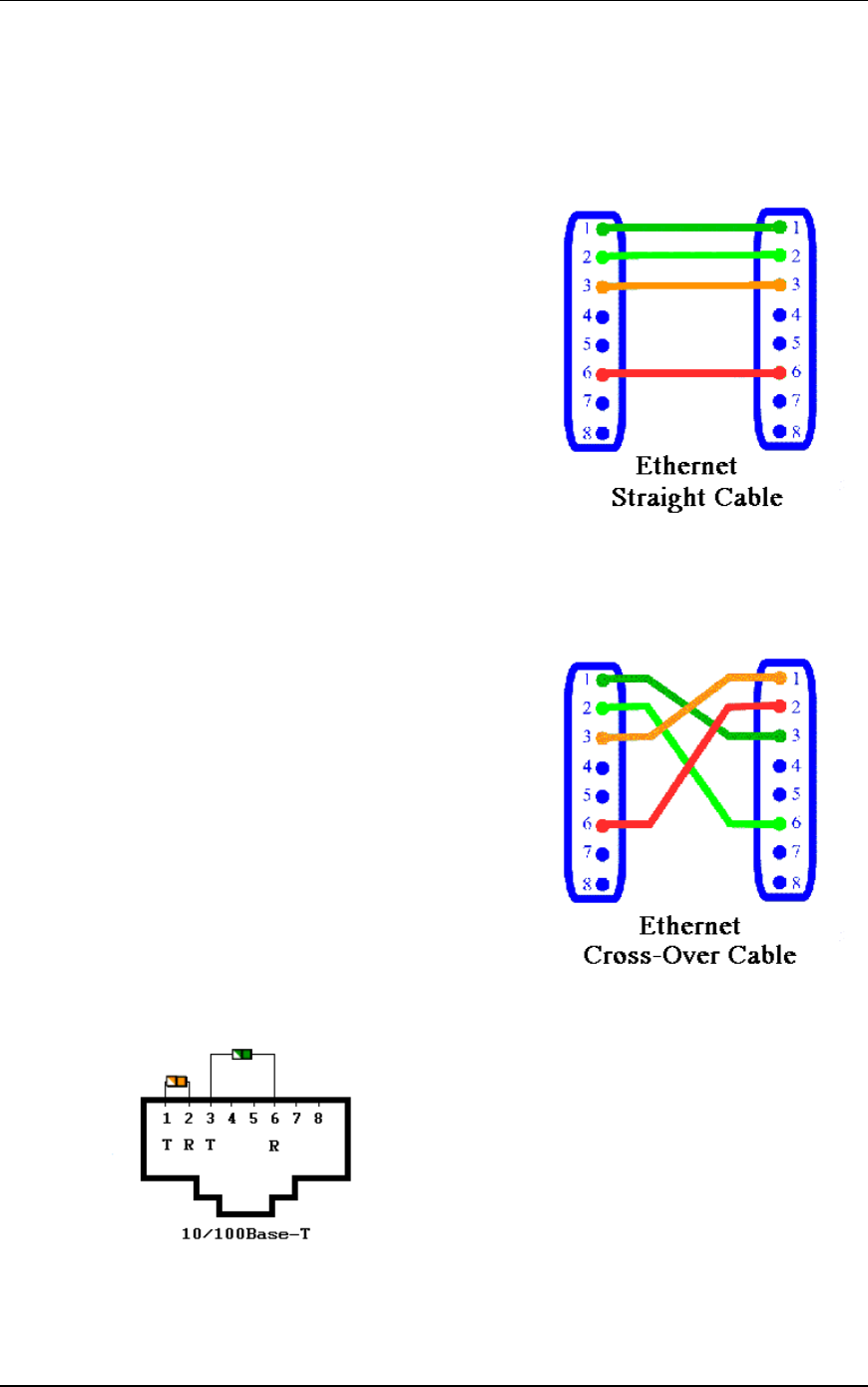
EmulationEngine 11a/b/g User's Guide
080104 C-1
APPENDIX C: Cable Pin Assignments
Standard Ethernet Cable
A straight cable can be used to connect the Command PC to a hub and the
hub to the EmulationEngine For a straight cable; the wires match one for
one. This cable is not provided.
Pin 1: Rx+
Pin 2: Rx-
Pin 3: Tx+
Pin 4: Not Used
Pin 5: Not Used
Pin 6: Tx-
Pin 7: Not Used
Pin 8: Not Used
Ethernet Cross-Over Cable
A cross-over cable must be used to connect the Command PC directly to
the EmulationEngine. This cable is provided.
Pin 1: Rx+
Pin 2: Rx-
Pin 3: Tx+
Pin 4: Not Used
Pin 5: Not Used
Pin 6: Tx-
Pin 7: Not Used
Pin 8: Not Used
RJ-45 Connector
Serial Cable
The following table shows the connector pin assignments for the DB9
connector. The provided serial cable is a straight cable with female and

Communication Machinery Corporation (CMC)
C-2 080104
male connectors. In this table, DTE refers to the local/EmulationEngine
side of the connection and DCE is the remote side.
DB-9 Signal Direction Signal Name
1 x Protective Ground
3 DTE-to-DCE Transmitted Data
2 DCE-to-DTE Received Data
7 DTE-to-DCE Request To Send
8 DCE-to-DTE Clear To Send
6 DCE-to-DTE Data Set Ready
5 x Signal Ground
1 DCE-to-DTE Received Line Signal Detector (Carrier Detect)
4 DTE-to-DCE Data Terminal Ready
9 DCE-to-DTE Ring Indicator

EmulationEngine 11a/b/g User's Guide
080104 D-1
APPENDIX D: Error and Status Messages
The EmulationEngine CLI may display the following error and status
messages in response to incorrect or unexpected user actions or WLAN
activity.
EmulationEngine or Virtual Station Control Messages
EE Lost SUT (no beacons): The EmulationEngine was joined with the
System Under Test but has stopped receiving beacons from it.
EE Not joined with System Under Test: A requested operation could
not be performed because the EmulationEngine is not joined with a
System Under Test.
Internal system error: Requested operation resulted in an unspecified
internal error.
Invalid message identifier: Internal error - the vSTA control task
received a Command message with an invalid message identifier.
Invalid object identifier: The vSTA control task received a GET or SET
Command message with an invalid Object identifier.
Invalid object value: The vSTA control task received a SET Command
message with an invalid object value.
Invalid operation: Internal error - the vSTA control task received a
Command message with an invalid operation code.
Invalid vSTA identifier: The vSTA control task received a Command
message with an invalid vSTA identifier.
Invalid vSTA state for operation: A requested operation could not be
performed because the specified vSTA is not in the appropriate state.
vSTA idle: A requested operation could not be performed because the
specified vSTA is in the Idle state.
VSTA is not configured for DHCP: This message can be generated in
response to an acquireip or releaseip command when the specified virtual
station is not configured with DHCP mode set to “on” or “auto”.
vSTA not configured: A requested operation could not be performed
because the specified vSTA has not been Configured.
vSTA not idle: A requested operation could not be performed because
the specified vSTA is not in the Idle state.
vSTA not initialized: A requested operation could not be performed
because the specified vSTA has not been Initialized.
vStaControl() Err writing NOTIFY into UI's queue: The vSTA control
task cannot post a message because the UI task queue is full. This may
occur if a web user logs out while the EmulationEngine is running.
vStaControl() Task for NOTIFY no longer exists: The vSTA control
task cannot post a message because the UI task is no longer present. This
may occur if a telnet user logs out while the EmulationEngine is running.
MAC Layer Management Messages
Invalid parameter: Internal error - an MLME function has been invoked
with an invalid parameter.

Communication Machinery Corporation (CMC)
D-2 080104
MLME Already in BSS: Internal error - a requested MLME function was
rejected because the EmulationEngine is already a member of a BSS.
MLME Driver error: Internal error - an MLME function has encountered
an unspecified error in the device driver.
MLME Op not supported: Internal error - an MLME function has been
invoked which is not supported in the current configuration.
MLME Op refused: Internal error - a requested MLME function was
rejected due to other current system activity.
MLME Op timed out: An invoked MLME function (e.g., Authentication or
Association) has not completed within programmed timing parameters.
MLME Too many requests: Internal error - an MLME function has been
invoked repeatedly without adequate completion.
Standard 802.11 WLAN Reason Codes
Authentication expired: Previous authentication of a station is no longer
valid.
Class 2 frame received STA not AUTH: A class 2 frame was received
from a nonauthenticated station.
Class 3 frame received STA not ASSOC: A class 3 frame was received
from a nonassociated station.
Inactivity: A station was disassociated due to inactivity.
Leaving: Station deauthentication or disassociation because the station is
leaving a BSS.
Not authenticated: Station requesting association is not authenticated.
Too many associations: System Under Test is unable to handle all
currently associated stations.
Unspecified: Unspecified reason.
Standard 802.11 WLAN Status Codes
Association denied - Reason outside scope of standard
Association denied - STA does not support all data rates
Association denied - too many stations
Authentication frame with unexpected sequence
Authentication rejected - challenge failure
Authentication rejected - next frame timed out
Can't support all requested capabilities
Reassociation denied - Can't confirm association exists
Specified algorithm not supported
Unspecified failure

EmulationEngine 11a/b/g User's Guide
080104 Index-1
Index
8
802.11
Association 5-28, 5-62, 5-66, 5-67, 5-68, 6-10
Authentication 5-28, 5-30, 5-62, 5-66, 5-67, 5-68, 6-10
Deauthentication 5-62, 6-16
Disassociation 5-62, 6-16
Management Counters 9-1
WLAN Reason Codes D-2
A
Antennas 2-2
Association 5-28, 5-62, 5-66, 5-67, 5-68, 6-10, 6-37
Authentication 5-28, 5-30, 5-62, 5-66, 5-67, 5-68, 6-10
Authentication Mode 6-18, 6-23, 6-61
B
Basic Service Set (BSS) ID 6-5
Basic Service Set (BSS) List 6-5
Busy 5-12, 5-35, 10-3
C
Calibration 6-57
Cipher 6-15, 6-19, 6-28
Cipher Mode 6-18
CLI
Administrative Mode Commands 6-55
Editor 6-64
EmulationEngine Commands 6-36
Event Log Commands 6-32
Log In 10-4
Log Off/Quit 6-2
Statistics Commands 6-31
System Under Test Commands 6-4
Usage Notes 6-1
Virtual Station Set-Up & Control Commands 6-8
CLI Command
assoc 6-10
association (get) 6-37
auth 6-10
autoconf 6-11
autorun 6-14
bssid (clear) 6-5
bssid (get) 6-5

Communication Machinery Corporation (CMC)
Index-2 080104
bssid (set) 6-5
bsslist (get) 6-5
channel (get) 6-37
conf 6-15
config (get) 6-37
countrycode (get/set) 6-38
date (set) 6-38
deauth 6-16
disassoc 6-16
eestatus (get) 6-40
evlog (save) 6-34
evlog (set) 6-34
evlog buffer (clear) 6-32
evlog buffer (get) 6-33
evlog console (set) 6-34
evlog file (clear) 6-32
evlog file (get) 6-33
evlog file (set) 6-34
evlog level (set) 6-35
evlog module (set) 6-35
evlog settings (get) 6-34
exec 6-40
factorydefault (set) 6-40
frequency (get) 6-41
ftp 6-42
gateway (get/set) 6-42, 6-44
group (del(ete)) 6-17
group (get) 6-17
group (reset) 6-19
group (set) 6-19
group stats (clear) 6-17
group stats (save) 6-19
group summary (save) 6-19
halt 6-21
hardware (get) 6-43
help 6-43
history 6-43
init 6-22
ipaddr (get/set) 6-44
join 6-6
key (del/get/set) 6-44
login (get/set) 6-45
password (set) 6-46
ping 6-46
power (get/set) 6-47
quit 6-48
rate (get/set) 6-48
reboot 6-49
retrylimit (get/set) 6-43
run 6-22
scan 6-6
sntpserver (get/set/clear) 6-49
statfile group (del(ete)) 6-31
statfile group (get) 6-31
statfile vsta (del(ete)) 6-31
statfile vsta (get) 6-32

EmulationEngine 11a/b/g User's Guide
080104 Index-3
station (get) 6-50
summfile group (del(ete)) 6-31
summfile group (get) 6-32
summfile vsta all (del(ete)) 6-31
summfile vsta all (get) 6-32
systemname (clear/get/set) 6-50
telnet (get) 6-50
time (set) 6-51
timeofday 6-51
tzone (get/set) 6-51
uptime (get) 6-51
version (get) 6-52
vsta (del(ete)) 6-23
vsta (get) 6-23
vsta (reset) 6-27
vsta (set) 6-28
vsta all summary (save) 6-28
vsta stats (clear) 6-23
vsta stats (save) 6-28
Command Line Interface (CLI) 6-1
Command PC Setup 4-1
Configuration
Encryption 5-58
Ping Defaults 5-59
Preferences 5-60
Country Code 6-38
D
Data Rate 6-48
Date/Time 6-38, 6-51
Deauthentication 5-62, 6-16
Default Configuration
Encryption 5-58
Ping 5-59
DHCP 5-7, 5-24, 6-9, 6-12, 6-15, 6-20, 6-24, 6-29, 6-42, 6-44
Acquire IP Address 6-10
Information 6-18, 6-24
Release IP Address 6-22
Disassociation 5-62, 6-16
E
EmulationEngine
Busy 5-12, 5-35
Changing IP Address 6-61
CLI Commands 6-36
Configuration 5-34, 6-37
IP Mask 6-44
Not Reponding 10-3
Not Responding 5-36
Polling Interval 10-3

Communication Machinery Corporation (CMC)
Index-4 080104
Polling Timeout 10-3
Power Save Mode 5-40, 6-46
Reboot 5-42, 6-49
Receive Parameters 5-35
Reconnect 5-41
Reset 5-42
Status 6-40
Transmit Parameters 5-36
Transmit Power 5-40
Virtual Station Status 6-50
Wireless Mode 5-39
Encryption
Defaults 5-58
Keys 5-30, 6-12, 6-44
Mode 5-29, 6-12, 6-24
Ethernet Compatibility 1-4
Ethernet Connector 2-2
Event Log 5-50, 8-1
Clear 5-51, 6-32
CLI Commands 6-32
Configuration 5-52, 6-34
Controls/Configuration 6-34
Display 5-50, 6-33
Export 5-52
Modules 5-53, 6-35, 8-1, 8-2
Record Format 8-1
Verbosity Level 5-53, 6-35, 8-1, 8-2
External Mode 5-8, 5-25, 6-12, 6-15
Layer 2/3 Frame Capture 5-25, 6-12, 6-21, 6-30
F
Factory Default Configuration 6-40
File Transfer Protocol (FTP) 6-42
Files 1-3
Command 6-40
Event Log 6-33, 8-1
Statistics 6-31
Summary Statistics 6-32
Fragmentation Threshold per vSTA 5-27, 6-12, 6-20, 6-30
G
GID 5-15
Group Control 5-14
H
Hardware 6-43

EmulationEngine 11a/b/g User's Guide
080104 Index-5
I
Installation 3-1
Internal Mode 5-5, 5-25, 6-12, 6-15
Interval
EmulationEngine Polling 5-35
Monitor Update 5-50
IP Address 6-42, 6-44
Iteration 5-15, 5-26, 5-27, 5-60
L
Layer 2 Frame Capture 5-25, 6-12, 6-21, 6-30
Layer 3 Frame Capture 5-25, 6-12, 6-21, 6-30
LEDs 2-1
Ethernet LED Off 2-2
Status at Installation 10-2
Load Profiles 5-18, 5-20
Logging
CLI Commands 6-32
Login 6-1
M
Menus 5-60
Edit 5-66
File 5-64
Group 5-67
Options 5-69
Reports 5-68
Scenario 5-66
vSTA 5-68
Monitor Controls 5-47
Monitors 5-43
Clear 5-48
Configure 5-49
Delete 5-47
Export 5-48
Maximum Number 5-43
Predefined 5-43
Stored in RAM 5-43
Summary 5-44
Toolbar 5-62
Update Interval 5-50
Update Timeout 5-50
Virtual Station 5-45
N
Not Responding 10-3

Communication Machinery Corporation (CMC)
Index-6 080104
P
Password 6-1, 6-46
Recovery 10-1
Persistence 5-27
Ping Configuration 5-59
Polling Interval 5-12, 5-35
Polling Timeout 5-12, 5-36
Power Save Interval 6-48
Power Save Mode 5-40, 6-46
Power Supply Connector 2-2
Preferences 5-60
R
Radio Channel/Frequency 6-37
Radio Frequency 6-41
Reboot 5-42, 6-49
Reports 5-53
EE Configuration 5-54
Export 5-57
Group Summary 5-55
Master Station 5-56
Scenario Summary 5-54
Templates 5-58
Virtual Station Detail 5-57
RJ-45 Ethernet Connector 2-2
RTS Threshold per vSTA 5-27, 6-13, 6-21, 6-30
S
Scenario
Create New 5-3, 5-5
Group 5-22, 5-67
Menu 5-66
Open Existing 5-4
Run 5-9
Save 5-10
Security 5-58
Security Configuration Example 6-60
Side Bar Buttons 5-13
SNTP Server 6-49
Software Upgrades B-1
Statistics
Clear 6-23
CLI Commands 6-31
File 6-31
Group 6-23
Saving 6-19
EmulationEngine 11a/b/g User's Guide
080104 Index-7
Signal Counters 9-2
Virtual Stations 6-23, 9-1
Statistics Summary 9-3
Status/Error Messages D-1
System Name 6-50
System Requirements 1-3, 5-1
System Under Test
BSS List 6-5
Changing 6-4
CLI Commands 6-4
Join 5-9, 5-34, 6-6
Scan 5-19, 6-6
Select System Under Test 5-3, 5-33
T
Test Clock 5-13
Test Toolbar 5-13, 5-61
Time Zone 6-51
Toolbars 5-60
Traffic Types 5-24
Transmit Power 5-40, 6-47
Transmit Retries 6-43
U
User Interface Configuration 5-60
User Name 6-1, 6-45
V
Virtual Stations 5-22
Add to Group 5-32
Address Generation 5-24
Auto Configure 6-11
CLI Commands 6-8, 6-23
Configure 5-22, 6-15
Edit 5-16
Encryption 5-29, 6-12, 6-24
Halt 5-62, 5-68, 6-21
Initialize 5-62, 5-68, 6-22
IP Addresses 5-23, 6-11
Life Cycle 6-8
MAC Addresses 5-24, 6-11, 6-15
Persistence 5-27, 5-28
Run 5-62, 5-68, 6-22
Run Time Parameters 5-27
Statistics 6-23
Status 6-50
Toolbar 5-13, 5-61

Communication Machinery Corporation (CMC)
Index-8 080104
Traffic Types 5-25, 6-12, 6-15
Transitional States 5-60
W
Web-Based User Interface 5-1
Welcome Screen 5-2, 5-60
Wireless Mode 5-33, 6-8

EmulationEngine 11a/b/g User's Guide
080104 Index-9
EmulationEngine, vSTA, EEAnalyst and EEScenario are trademarks of Communication
Machinery Corporation.
Copyright © 2004 Communication Machinery Corporation, all rights reserved.
Patent Pending No. 60/367,174 | 080104