JVC CX 7000 User Manual LST1006 002B
User Manual: JVC CX-7000 CX-7000 English,
Open the PDF directly: View PDF  .
.
Page Count: 124 [warning: Documents this large are best viewed by clicking the View PDF Link!]
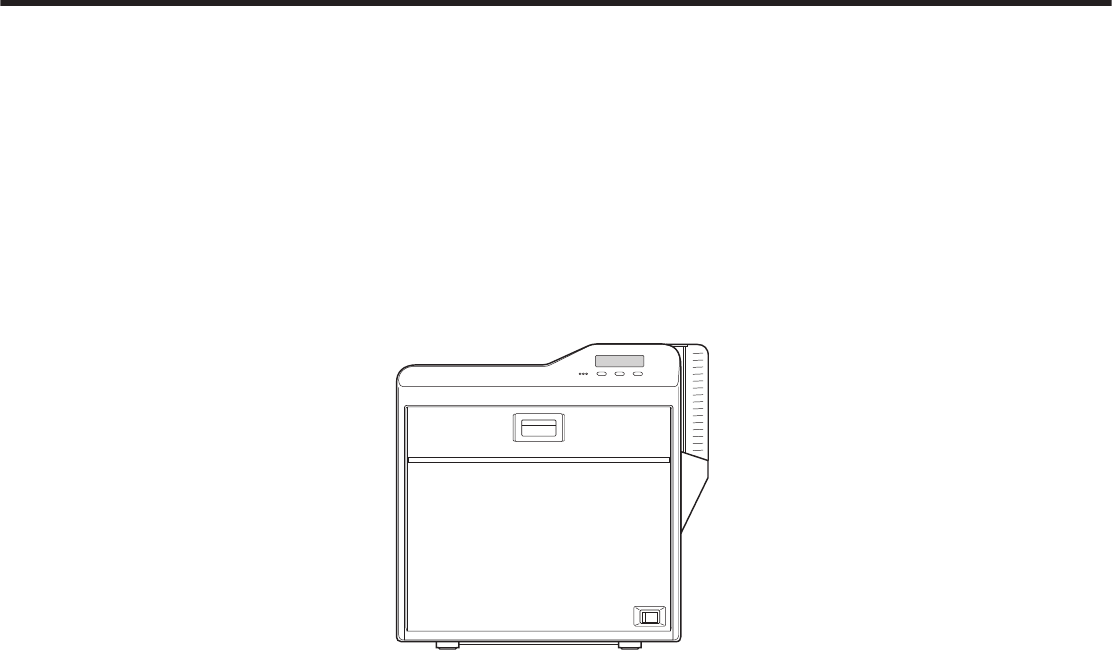
Card Printer
CX-7000 Series Electronic
Manual
Thank you for purchasing this product.
Please read through this “Electronic Manual”
carefully in advance to ensure proper use of the
product. Also, to make sure that the product is
used safely, please read through the “Safety
Precautions” in the “READ ME FIRST” booklet.
Please store the manuals properly after reading
so that they can be referred to whenever
necessary. LST1006-002B
Contents
Before Use
About this Manual ................................................................ 3
Precautions .......................................................................... 3
Disclaimer ............................................................................ 7
Name and Functions of Parts .............................................. 7
Specifications ..................................................................... 10
Accessories/Products Sold Separately .............................. 10
Options .............................................................................. 11
Operating the Printer
Printing a Card ................................................................... 12
Operation Panel ................................................................. 13
Setting Mode ...................................................................... 15
Sequence of Setting Modes ........................................... 17
Factory Settings ............................................................. 19
Security Lock ..................................................................... 20
Setting Using the Operation Panel .................................... 22
Setting Using the Status Monitor ....................................... 30
Replacement
Cards ................................................................................. 31
Ink Ribbon .......................................................................... 32
Retransfer Film .................................................................. 33
Maintenance
Servicing of Parts ............................................................... 35
Servicing Based on Print Output ........................................ 43
Troubleshooting
When an Error Message is Displayed ............................... 44
Cards ................................................................................. 46
Ink Ribbon .......................................................................... 54
Retransfer Film .................................................................. 56
Unable to Produce Desired Printing Results ..................... 57
Printer not Operating as Desired ....................................... 58
Before Sending Printer for Repair ...................................... 58
Setup
Installation and Connection ............................................... 59
Printing Media .................................................................... 60
Printer and Computer Connection ..................................... 64
Computer Settings ............................................................. 65
Software ......................................................................... 65
Install .............................................................................. 65
Uninstall ......................................................................... 80
IPSec .............................................................................. 84
Printer Driver Settings .................................................... 87
Port Monitor Settings .................................................... 106
Status Monitor Settings ................................................ 107
Inline Encoding ............................................................. 118
List of Error Codes ....................................................... 120
Frequently Asked Questions ........................................ 123
2
About this Manual
Contents of this Manual
vThe copyright of this manual belongs to our company. Reprint and
duplicate of this manual in part or full without the prior consent of our
company is strictly prohibited.
vProduct names of other companies described in the manual are the
trademarks or registered trademarks of the respective companies.
Symbols such as ™, W and Q are omitted in this manual.
vDesigns, specifications, or other details described in this manual
may be modified for improvement without prior notice.
vMicrosoft and Windows are either registered trademarks or
trademarks of Microsoft Corporation in the United States and/or
other countries. MicrosoftW WindowsW 7 operating system,
MicrosoftW Windows Vista™ operating system, MicrosoftW
WindowsW XP operating system and MicrosoftW WindowsW 2000
operating system are represented as Windows 7, Windows Vista,
Windows XP and Windows 2000 respectively in this manual.
vMicrosoft product screen shot(s) reprinted with permission from
Microsoft Corporation.
vThis product includes software developed by the OpenSSL Project
for use in the OpenSSL Toolkit. (http://www.openssl.org/)
This product includes cryptographic software written by Eric Young
(eay@cryptsoft.com).
This product includes software written by Tim Hudson
(tjh@cryptsoft.com).
How to Read this Manual
.
vInformation in this frame is for reference purposes, such as
information on functions and usage restrictions.
.
vPrecautions are described in this frame.
.
vClick this frame to display the details page.
.
vClick this icon to return to the top page.
.
Batch Print
vClick this icon to open the PDF files for all items.
The “Adobe Reader” application is needed to browse the PDF file.
.
Print
vClick this icon to open the PDF file for the displayed item.
The “Adobe Reader” application is needed to browse the PDF file.
Precautions
Safety Precautions
vPlease read through all the following items before using the
printer.
Graphical Symbols
vA number of graphical symbols are used in this manual as well as on
the printer. They are intended to ensure the safe use of this product,
protect users against safety hazards, as well as prevent damage of
property. Make sure that you read through this manual after gaining
a proper understanding of the symbols’ meaning.
.
Before Use
3
Warnings
.
.
.
Before Use
4
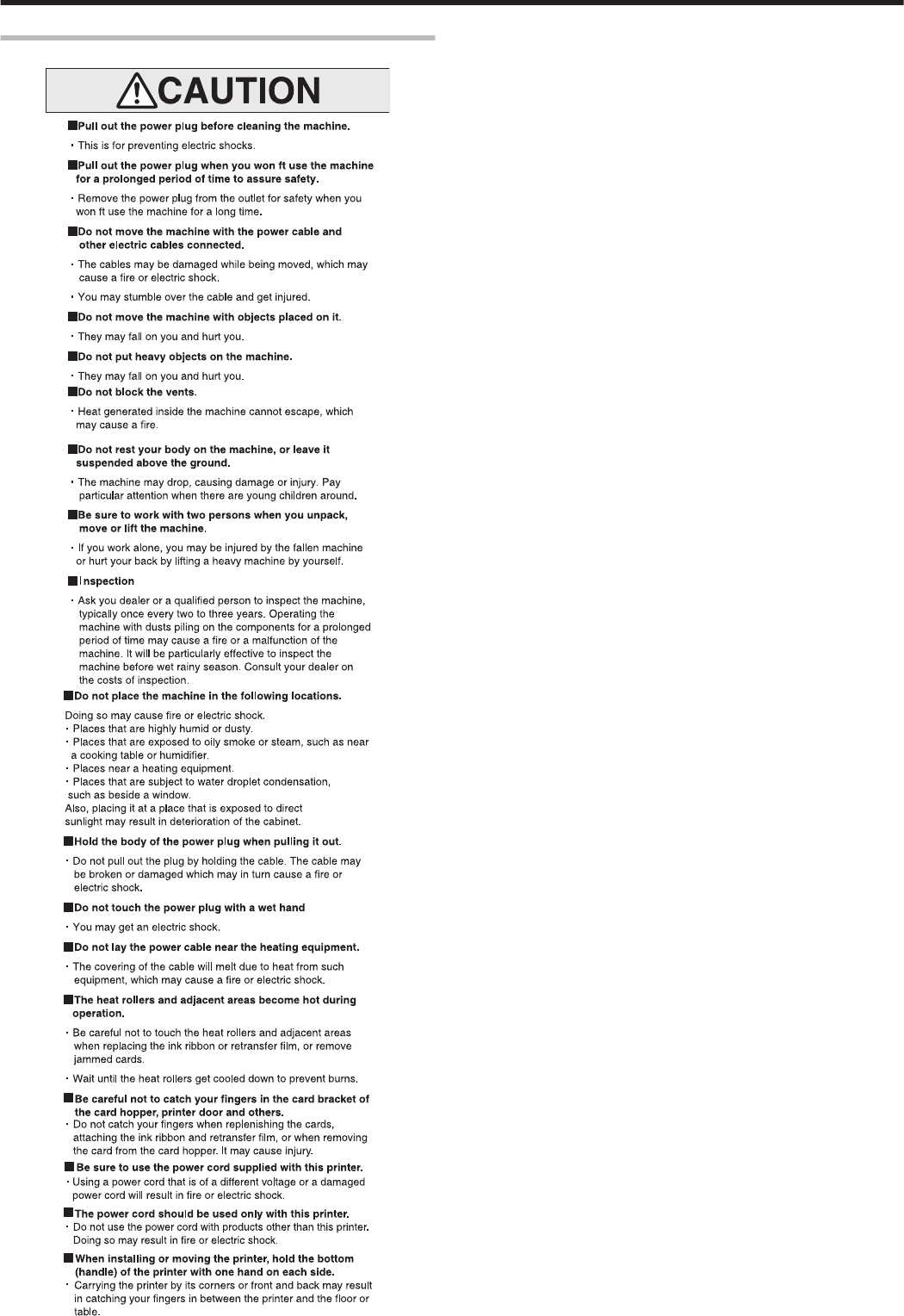
Caution
.
.
Before Use
5
Precautions During Use
v
Please read through all the following items before using the printer.
Printer Installation
vWhen the printer is not in use, it is recommended that you turn off
the power, and use a cover that is large enough to cover up the
entire printer unit.
vDo not place the printer unit in the following locations. Doing so may
have adverse effects on the printer.
vCarpeted room.
vPlaces with a busy flow of people.
vPlaces where paper (corrugated boards, etc.) is handled or stored.
vPlaces near photocopiers.
vPlaces exposed to direct sunlight or near a heating equipment
(such as a stove).
vInclined or unstable surfaces.
vPlaces exposed directly to cold air, such as near an air-conditioner
outlet, or places subject to high temperatures.
vWhen installing the printer, ensure there is sufficient space around
the printer. (Install the printer by allowing a clearance of at least 20
cm between its sides and surrounding walls. Allow a clearance of at
least 10 cm between the rear of the printer and the wall.)
v
When installing or moving the printer, hold the bottom (handle) of the printer
with one hand on each side to avoid jamming your hands or fingers.
mCanceling the transport mode
vWhile in the transport mode during installation, the retransfer film
cannot be loaded. If the printer is turned on without loading the
retransfer film, a [Film Search] message appears and the transport
mode is canceled.
mDuring transport or moving of the printer
vMake sure to set to the transport mode.
"Transport Mode Setting" (A page 29)
Precautions on Retransfer Film/Ink Ribbon/Card
mHandling instructions
Pay careful attention of the following when handling a printing media
(retransfer film or ink ribbon) or card.
vUsing a deformed or scratched card may cause card feed errors.
vTouching the printing surface of the printing media or card directly
with your hand may cause the print to turn out uneven.
v
Foreign particles attached to the printed areas may result in printing
voids. Install the printing media or card in a clean environment.
vUse of electrically-charged printing media or cards may cause
printing errors. Do not allow static to occur, such as due to cards
rubbing against each other.
v
When replacing or replenishing a printing media or card that is stored
under a low temperature, use after leaving the media or card in the
operating ambient temperature of the printer for at least one hour.
Otherwise, condensation may occur, causing printing errors or
malfunction of the printer.
mStorage instructions
vThe storage conditions of the printing media (retransfer film or ink
ribbon) and card have a significant effect on the printing quality.
Store the printing media or card in one of the following locations.
mStorage environment
vTemperature: 5 °C to 25 °C
vRelative humidity: 40 % to 60 %
mStorage location
Do not store the printing media or card in the following locations.
Doing so may cause the media or card to deteriorate.
vPlaces exposed to direct sunlight.
vPlaces with a high temperature and humidity.
vPlaces near organic solvents or diazo copiers.
mStorage period
vUse the printing media (retransfer film or ink ribbon) within half a
year after purchase. For details on the cards, please consult our
authorized dealers.
Precautions on Retransfer Film/Ink Ribbon
vPut on the supplied gloves when handling the retransfer film/ink
ribbon. Direct contact of your hand with the printing surface may
result in printing errors.
mWhen retransfer film/ink ribbon is dismantled
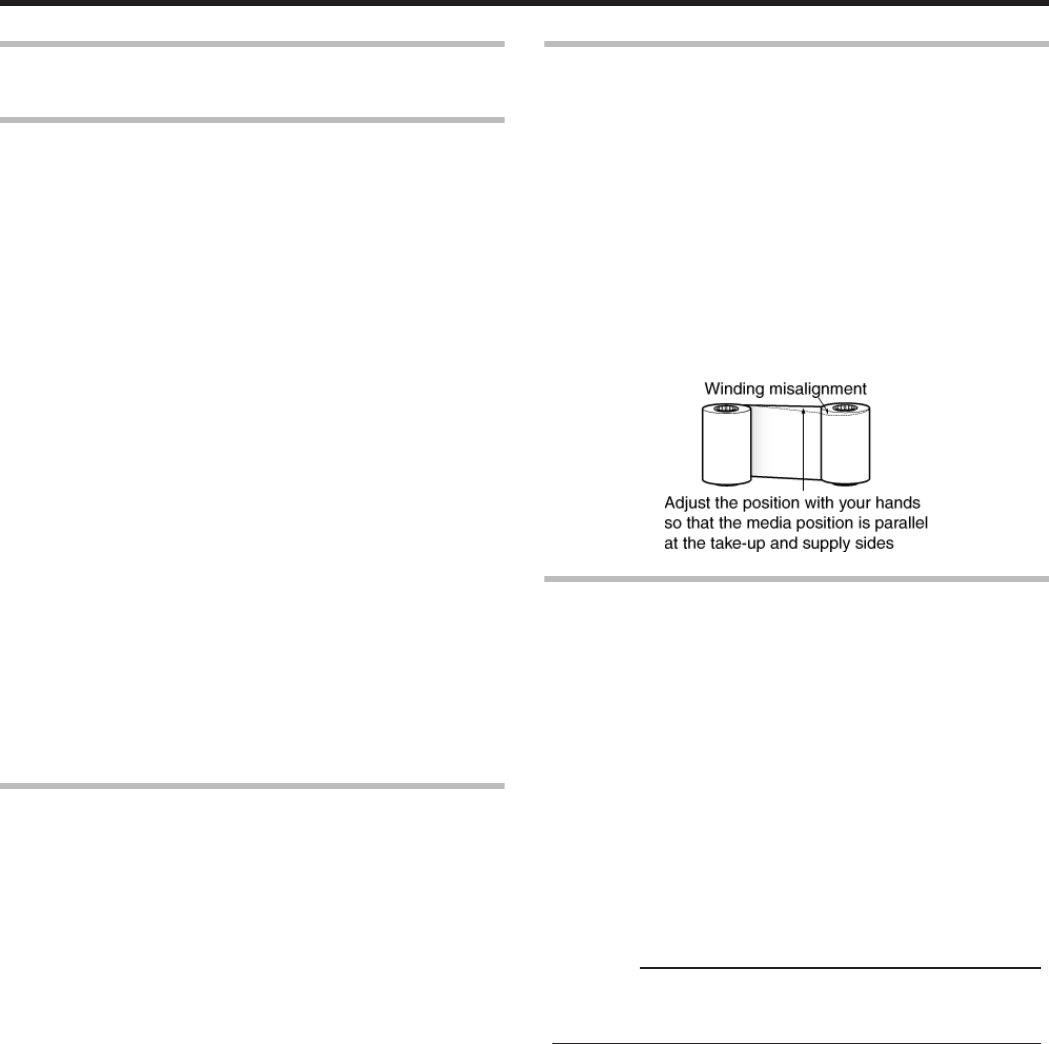
vWinding misalignment may occur. If an improperly wound
retransfer film/ink ribbon is loaded, printing failure or error may
occur.
mWhen loading the retransfer film/ink ribbon
vUse your hands to adjust the media at the supply and take-up
sides so that they are parallel to each other.
When doing so, make sure you do not touch the printing surface.
vRefer to the label adhered to the cassette for alignment of the
image position. Printing errors may occur if the position is not
properly aligned.
.
Precautions on Cards
vPut on the supplied gloves when handling the cards. Direct contact
of your hand with the printing surface of the card may result in
printing errors.
mHandling and storage of cards after printing
Avoid storing cards at places that are exposed to direct sunlight or
subject to high temperature and humidity.
Discoloration or fading may occur if a card comes into contact with
the following chemicals or stationery.
vOrganic solvents, including alcohol, film cleaner, and diazo copies.
vFiles, document cases, pass holders, or erasers made of flexible
polyvinyl chloride.
vHair wax or cosmetic products.
mCard types
Thin cards and certain card materials may not be suitable for printing
using this printer. For details on the card material to use and other
specifications, please consult our authorized dealers in advance.
Cautions:
vIf the card thickness is not properly adjusted, printing error or
printer malfunction may occur.
"Adjusting card thickness" (A page 63)
mWhen a card is jammed inside the printer
Cards may not be discharged correctly such as when the retransfer
setting for the card is inappropriate.
Stop using and remove the jammed cards immediately. Otherwise,
you may have problems removing the cards, and fire or electric
shock may also occur as a result.
vWhen a card is jammed, remove it according to the procedure
described in the Electronic Manual.
vIf the card cannot be removed, do not try to do so forcibly. Consult
our authorized dealers or the servicing personnel.
Before Use
6
Disclaimer
.
Name and Functions of Parts
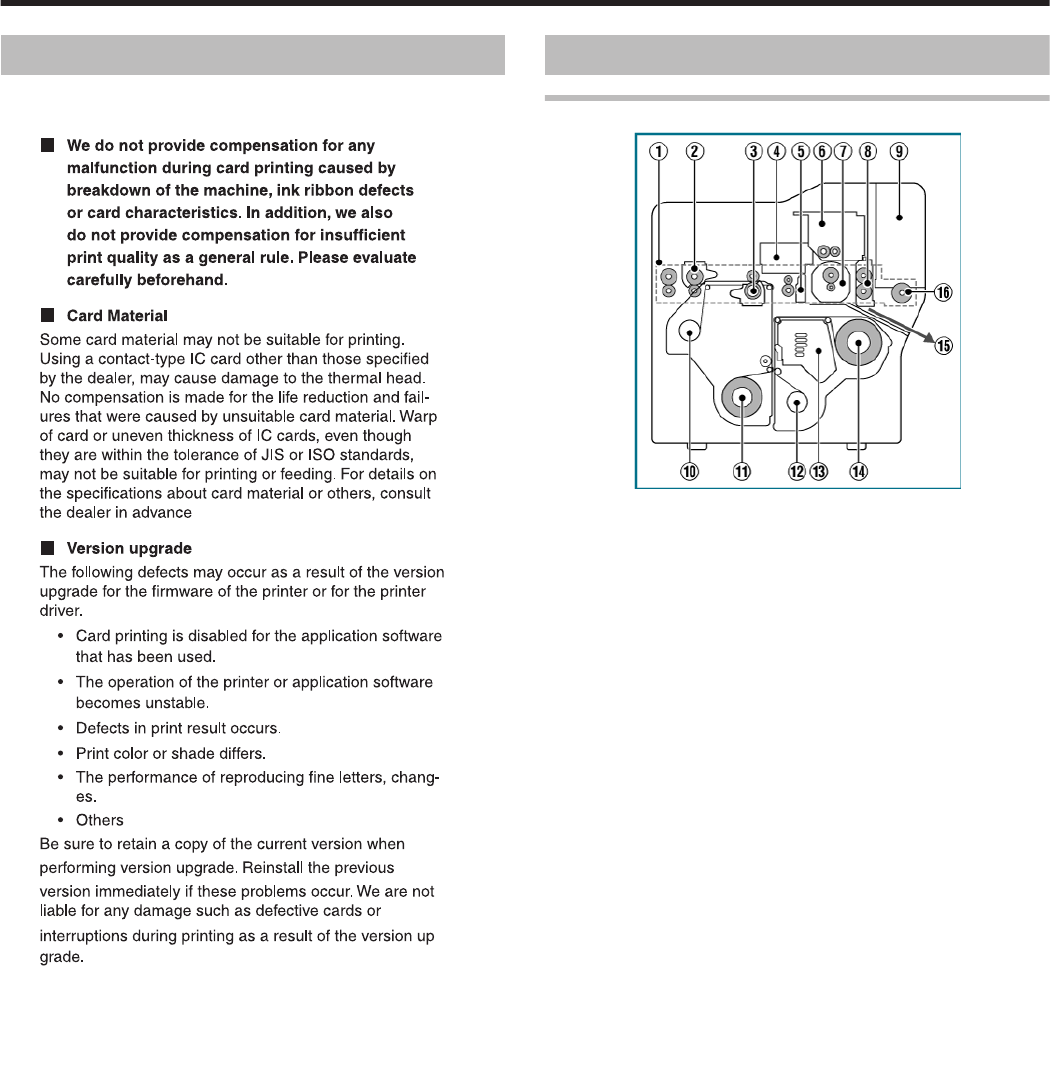
Internal Mechanism Diagram
.
A Card feeder unit
vThis is the roller for feeding cards.
B Bend remedy unit (optional)
vCorrects bending of the card after retransfer.
C Retransfer heating roller
vTransfers images printed on the retransfer film to the card.
D Non-contact IC encoder (optional)
vWrites data to a non-contact IC card.
E Contact section of contact IC encoder (optional)
vWrites data to a contact IC card.
F Magnetic encoder (optional)
vWrites data to a magnetic stripe card.
G Card turn over unit (double-sided printer only)
vInverts the card.
H Cleaning roller
vRemoves dust or dirt attached to the card.
I Card hopper
vFor loading cards.
J Retransfer film (take-up side)
vFor attaching the take-up side of the retransfer film.
K Retransfer film (supply side)
vFor attaching the unused side of the retransfer film.
L Ink ribbon (take-up side)
vFor attaching the take-up side of the ink ribbon.
M Thermal head
vPrints images on the retransfer film.
N Ink ribbon (supply side)
vFor attaching the unused side of the ink ribbon.
O NG card outlet
vDischarges NG cards, such as during card jams.
P Card load roller
vRoller for loading cards.
Before Use
7
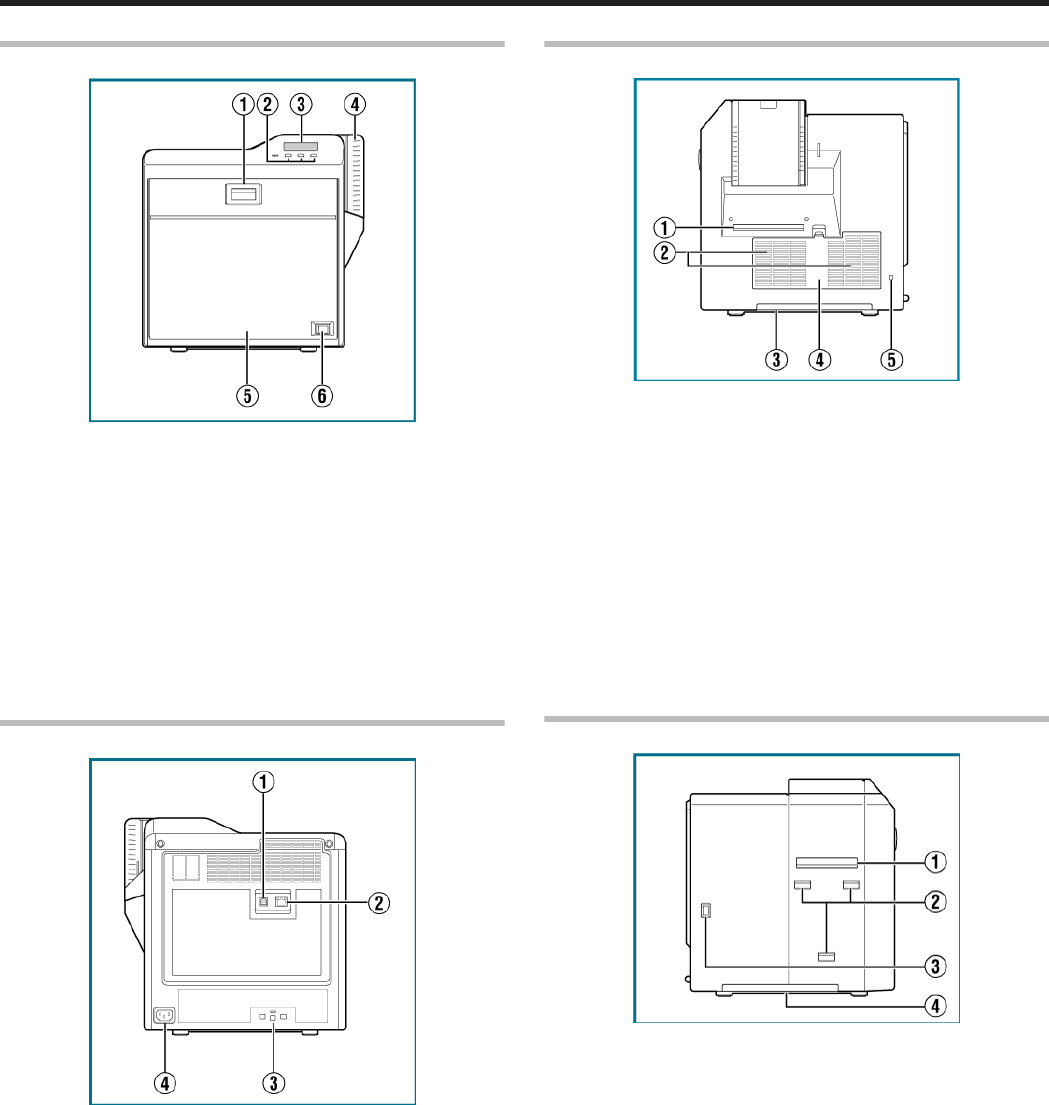
Front
.
A Sliding knob
vOpens/closes the printer door.
vSlide it upward, and pull toward you to open the printer door.
B Operation buttons
vFor selecting and confirming information on the operation panel.
C Operation panel
vDisplays the settings, operating status, and error messages.
D Card hopper
vFor loading cards.
E Printer door
F Power switch
vTurns the power On/Off.
Rear
.
A USB cable connection terminal
vFor connecting a USB 2.0 interface cable.
B LAN cable connection terminal
vFor connecting a LAN cable.
C Cable clamp
vFor securing the supplied USB cable.
"Connection" (A page 64)
D AC inlet
vFor connecting the power cord.
Right
.
A NG card outlet
vIf a card is left inside the printer when the power is turned on or
reset, the card will be automatically discharged.
vCards in the printer are discharged when an error occurs in the
magnetic stripe card or IC card.
B Air suction fan opening
vAir inlet of the internal cooling fan.
C Handle
vHold this area when moving the printer.
D Filter cover
vCover of the fan filter.
E Security slot
vAn anti-theft device that supports Kensington locks can be
installed.
Left
.
A Card outlet
vOutlet for discharging the cards.
B Card stacker (supplied) attachment slot
vFor installing the supplied card stacker.
C Infrared window
vSends or receives data via infrared communication by connecting
with an external unit.
D Handle
vHold this area when moving the printer.
Before Use
8
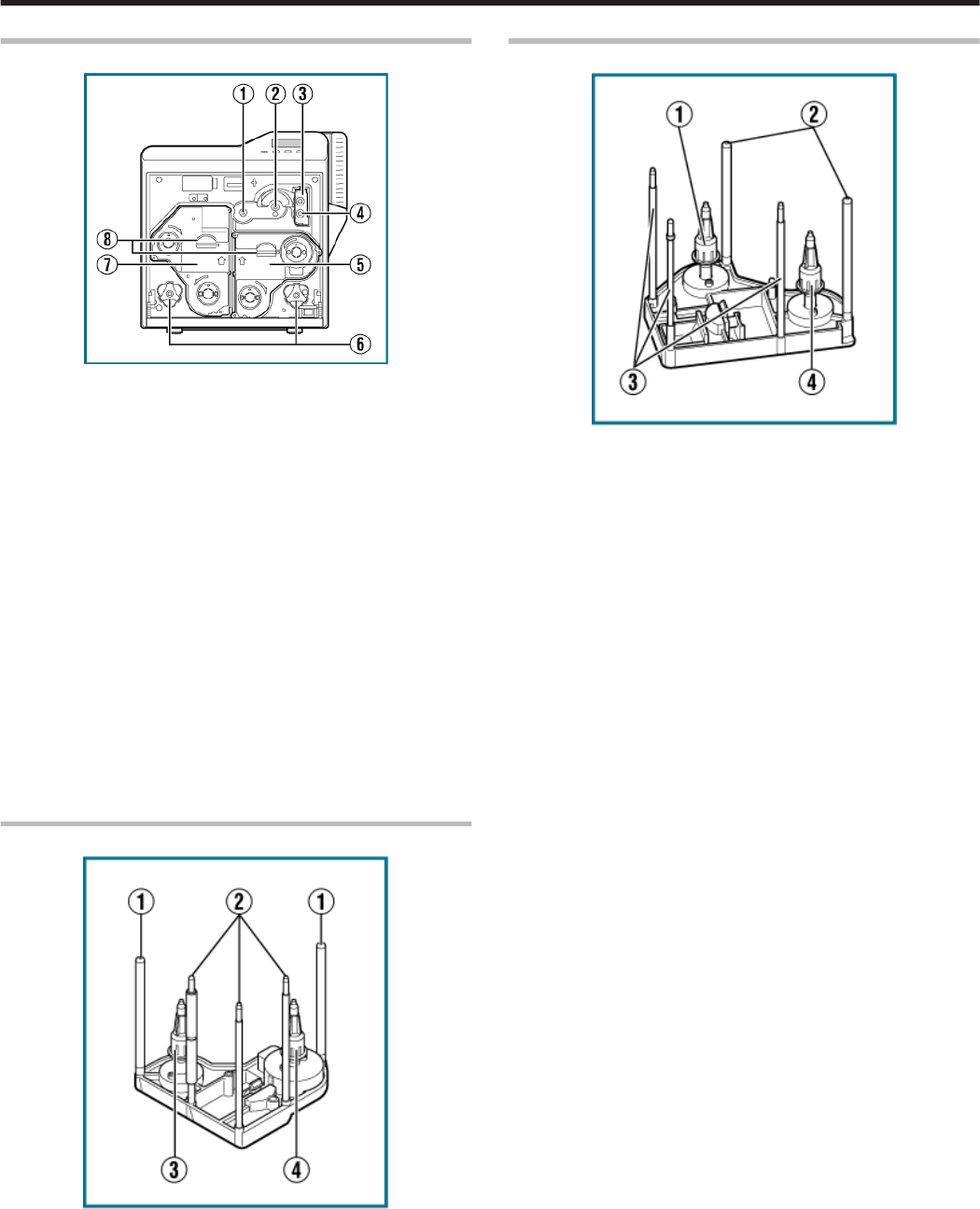
When Printer Door is Open
.
A Card feed roller shaft
vWhen a card jam occurs, attach a jog dial to turn the card feed
roller.
B Card turn over unit shaft
vWhen a card jam occurs, attach a jog dial to turn the card turn
over unit.
C Cleaning unit
vRemoves dust or dirt attached to the card.
D Cleaning roller shaft
vWhen a card jam occurs, attach a jog dial to turn the cleaning
roller.
E Ink ribbon cassette
vFor installing the ink ribbon.
F Jog dials
vFor removing jammed cards by turning it after it is detached from
the printer unit and attached to the shaft.
G Retransfer film cassette
vFor installing the retransfer film.
H Cassette buttons
vPress these buttons in order to pull out the ink ribbon cassette or
retransfer film cassette.
Ink Ribbon Cassette
.
A Guide shaft
vProvides guide to the position for installing the cassette.
B Shafts
vFor installing the ink ribbon.
C Bobbin holder (black)
vFor securing the take-up side of the ink ribbon.
D Bobbin holder (yellow)
vFor securing the unused side of the ink ribbon.
Retransfer Film Cassette
.
A Bobbin holder (black)
vFor securing the take-up side of the retransfer film.
B Guide shaft
vProvides guide to the position for installing the cassette.
C Shafts
vFor installing the retransfer film.
D Bobbin holder (green)
vFor securing the unused side of the retransfer film.
Before Use
9
Specifications
Main Specifications
Item Description
Recording system Dye sublimation retransfer
Paper feed mode Automatic
Recording density 300 dpi
Reproduction
gradation
256 levels each for Y, M and C
2 levels for Resin K
Interface
USB2.0(Hi-speed/Full Speed)
Ethernet(100BASE-TX/10BASE-T)
Operating
environment
conditions
Temperature: 15 °C to 30 °C
(When peel-off ink, UV ink is used: 17 °C to 28 °C)
Humidity: 35 % to 70 % No condensation
(When peel-off ink, UV ink is used: 35 % to 60 %)
Storage
environment
conditions
<Printer unit>
Temperature: -15 °C to 55 °C
Humidity: 20 % to 80 %
<Printing media (retransfer film or ink ribbon) /
card>
Temperature: 5 °C to 25 °C
Humidity: 40 % to 60 %
Power supply AC 100 V - 120 V, 50 Hz/60 Hz
AC 220 V - 240 V, 50 Hz/60 Hz
Current
consumption
3.5 A (100 V system)
1.6 A (200 V system)
Power
consumption
310 W (maximum power when all options are
installed)
Mass approx. 13.5 kg (single-sided printer, including
bend remedy unit)
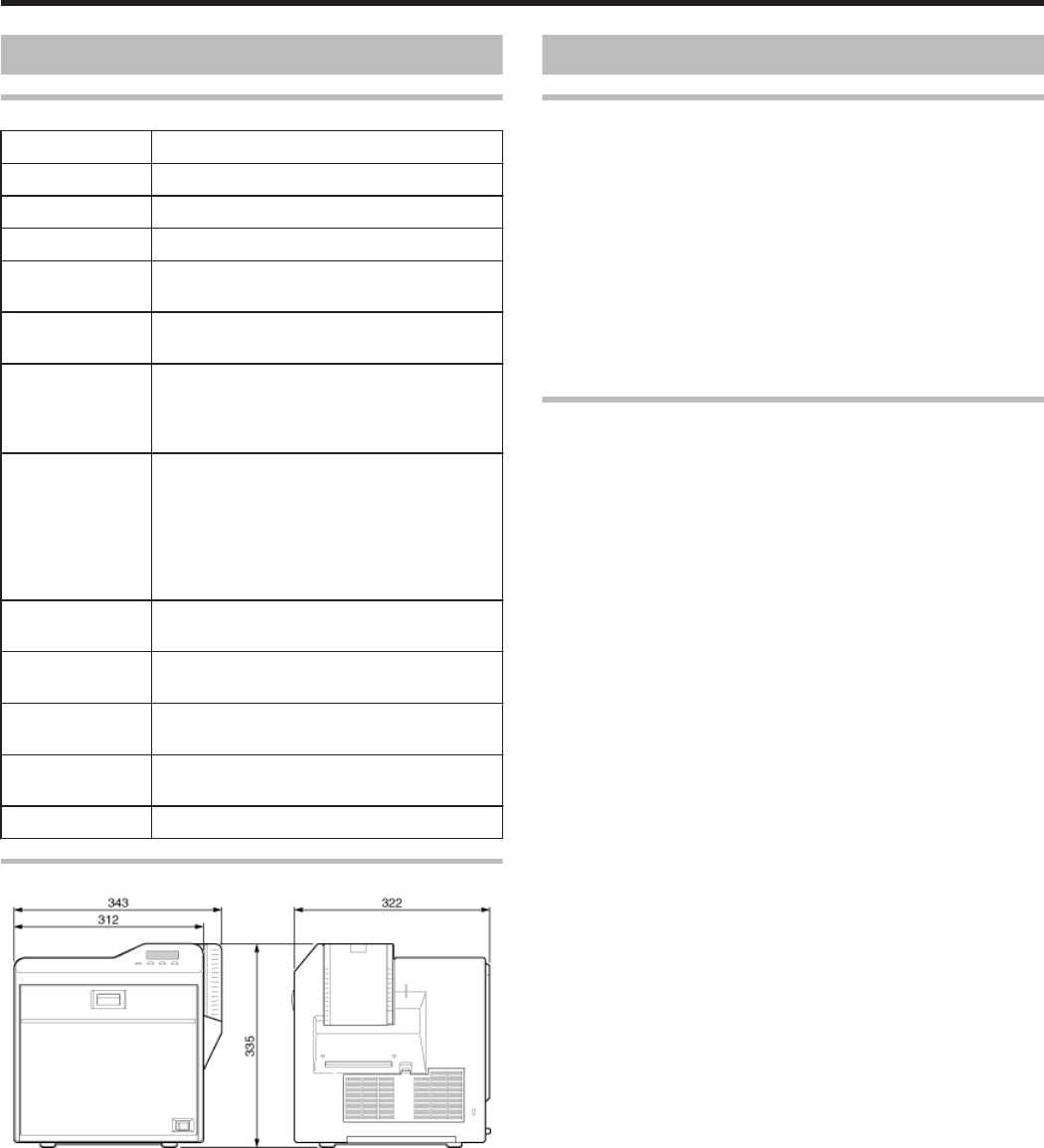
Dimensions 343 mm x 335 mm x 322 mm (W x H x D)
Outline Dimensional Drawing
.
*The specifications and appearance of this product may be modified
for improvement without prior notice.
Accessories/Products Sold Separately
Accessories
Please check to ensure that the printer accessories are in place
when unpacking the product package.
vCD-ROM
vInstruction Manual
v“READ ME FIRST”(LST1004)
vPower Cord (2 m)
vCleaning Card
vCard Stacker
vUSB 2.0 Cable (2 m)
vGloves
vTweezers
Products Sold Separately
To purchase these items, please consult our authorized dealers.
Use the retransfer film or ink ribbon within half a year after purchase.
vInk Ribbon (YMCK) 1000 frames/roll
vInk Ribbon (YMCKP) 750 frames/roll
vInk Ribbon (YMCKK) 750 frames/roll
vInk Ribbon (YMCKU) 750 frames/roll
vRetransfer Film 1000 frames/roll
vCleaning Kit, Model: CX210-CKIT1
Magnetic Head Cleaning Card (5 Pcs), Cotton Swab (5 Large and
5 Small), Cleaning Wipes (1 Box)
vCleaning Card, Model: CX210-CC1
10 Pcs/Set
Before Use
10

Options
Options
vBend remedy unit
Device for correcting card bend after printing.
vMagnetic encoder
Device for writing data to a magnetic stripe card.
It can only be installed on a double-sided printer.
vContact IC encoder
Device for writing data to a contact IC card.
vNon-contact IC encoder
Device for writing data to a non-contact IC card.
Before Use
11
Printing a Card
Cautions:
vIf you see an [Initializing..] or [Preheating..] message on the LCD
panel of the printer, this means the printer is not ready yet. Printing
cannot be performed until a [Ready] massage appears.
vPrinting the card on the side with the magnetic stripe may cause
printing errors or damage to the card’s functions. If you want to do
so, please consult our authorized dealers in advance.
vFor printing using application software prepared by the user, refer to
the instruction manual of the corresponding application.
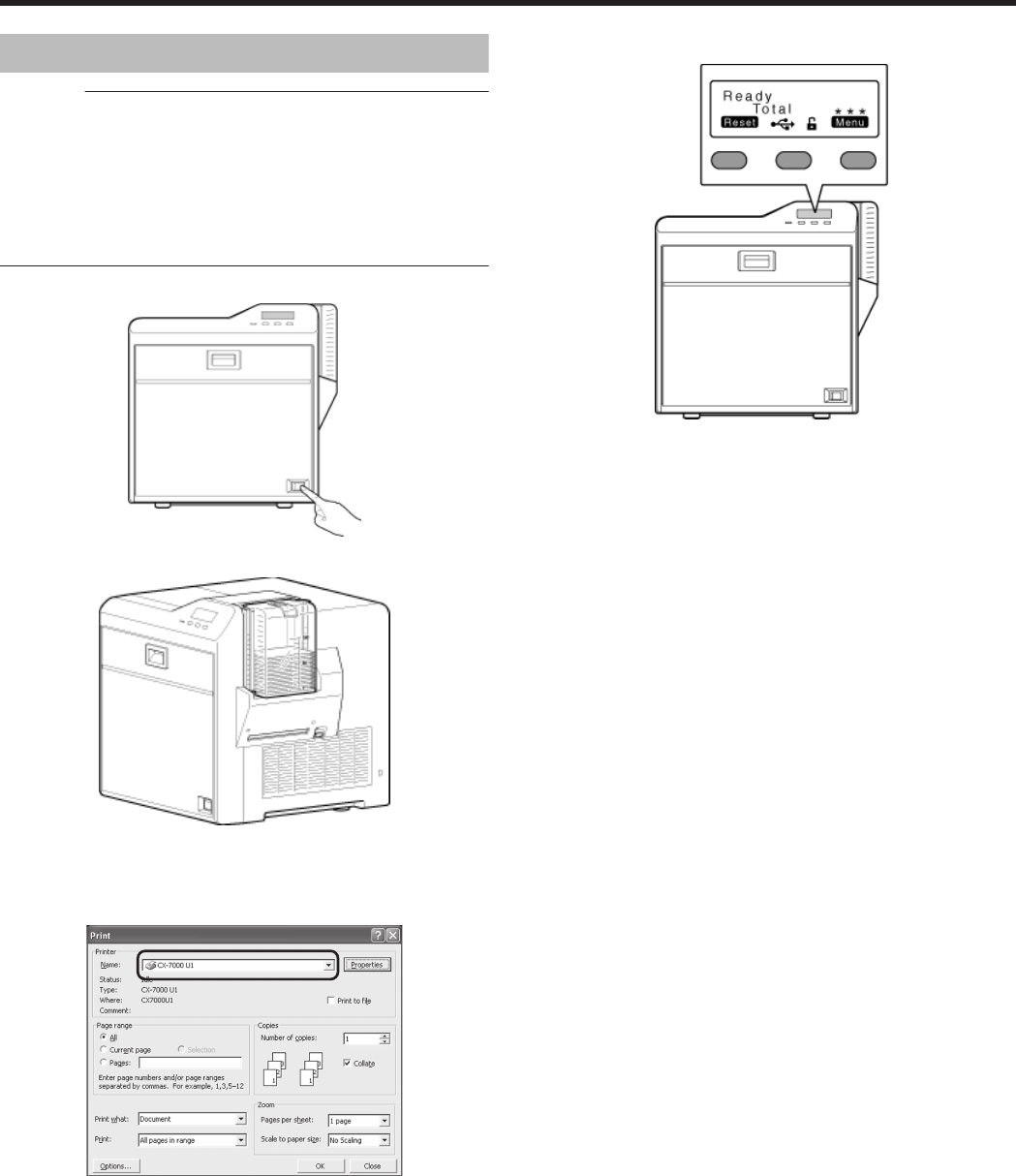
1Turn on the power
.
2Check to ensure that cards are inserted into the card hopper
.
3Open the application’s print settings screen, and select this printer in
[Name]
vIf there are multiple printers, select the name of the printer that you
want to perform printing on.
.
4After ensuring that a [Ready] message appears on the LCD panel of
the printer, start printing
.
Operating the Printer
12
Operation Panel
Name and Functions of Parts
.
Ready
Total
Reset Menu
***
A
B
C
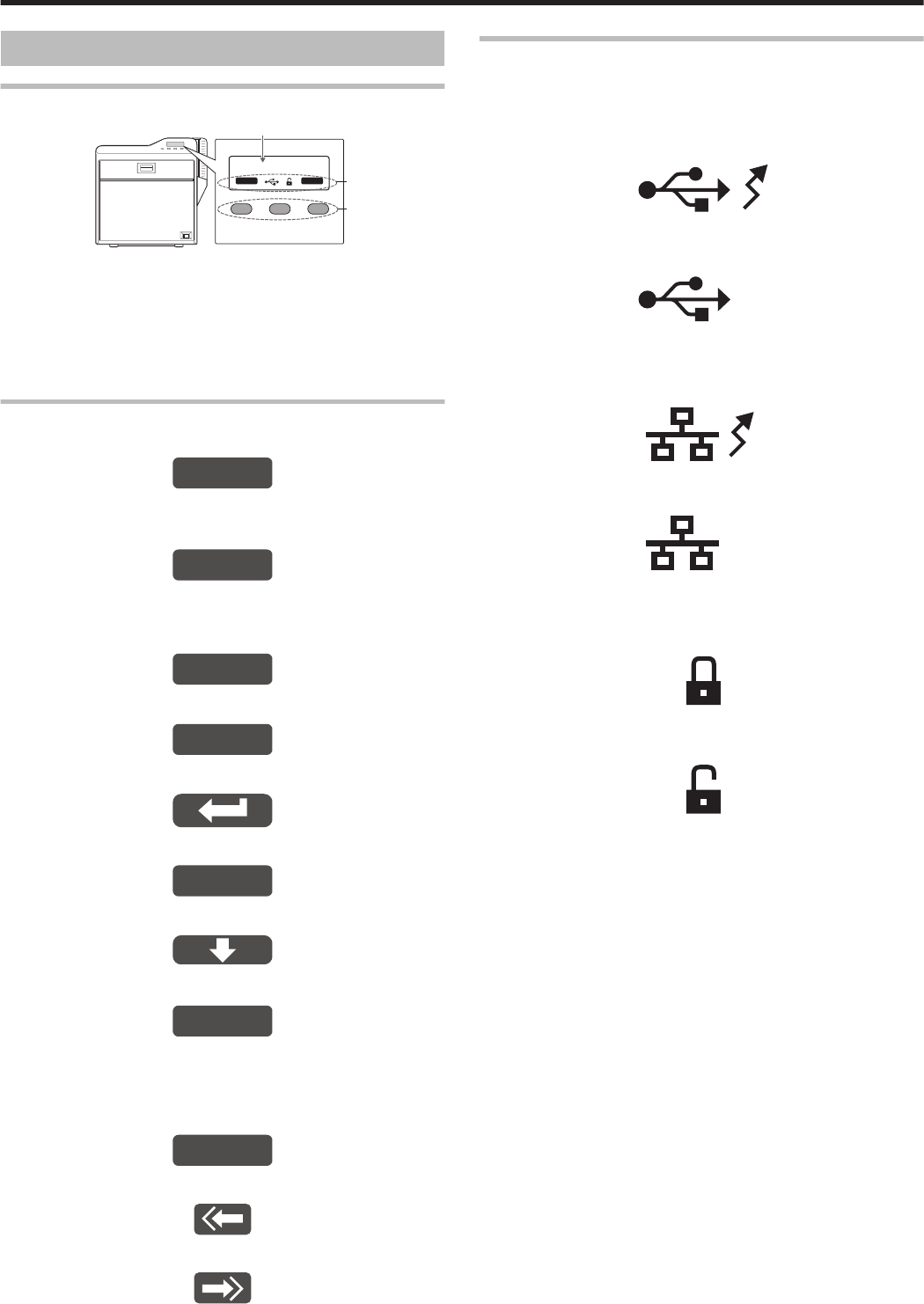
A Operation panel
vDisplays the settings, operating status, and error messages.
B Status icon/operation button display
vDisplays the status icon and function of the operation button.
C Operation buttons
vFor selecting a button function displayed on the operation panel.
Operation Buttons
mResets the printer.
.
Reset
vPress KNB in sequence.
mEnters the setting mode.
.
Menu
mExits setting.
Pressing it each time brings you to the setting item on
the next higher level.
.
Exit
mDisplays the setting item on the next lower level.
.
Enter
mConfirms or executes the setting.
.
mPressing it each time displays the next setting item.
.
Next
mPressing it each time displays the next setting.
.
mEnters the settings change mode.
.
Chan
g
e
vIf F is not displayed for an item, you can adjust the settings on
the status monitor of a computer.
"Status Monitor Settings" (A page 107)
mEnters the scroll mode for the displayed characters.
.
Scroll
mScrolls to the next displayed character on the left.
.
mScrolls to the next displayed character on the right.
.
Icon Displays on the Operation Panel
mUSB connection
vIP address established
Printer information can be viewed through the network. However,
printing is performed through USB connection.
.
vIP address not established
.
mNetwork connection
vIP address established
.
vIP address not established
.
mSecurity lock status
vLocked
.
vUnlocked
.
Operating the Printer
13
Operation Panel Operation Display
Background color
Changes according to the printer’s operating status.
vDuring startup
Bright green
vUnder normal circumstances
Sky blue
vDuring initialization using K, during test printing using the
operation panel, cleaning, downloading and during security lock
setting using the operation panel
Light purple
vDuring error
Red
mStarting up
.
Boot Up..
mInitializing
.
Initializing..
mPreheating
.
Preheating..
mReady
.
Ready
mFeeding card or discharging NG card
.
Moving..
mPrinting
.
Printing..
mTest print in progress
.
Testing..
mLoading card
.
Loading..
mDownloading
.
Downloading..
mMagnetic encoding in progress
.
MG Encoding..
mIC encoding
.
IC Encoding..
mAdjusting heating roller to the preset temperature
.
Heating..
mRetransferring
.
Retransfer..
mCleaning
.
Cleaning..
mPower Saving mode
.
Sleeping..
Operating the Printer
14
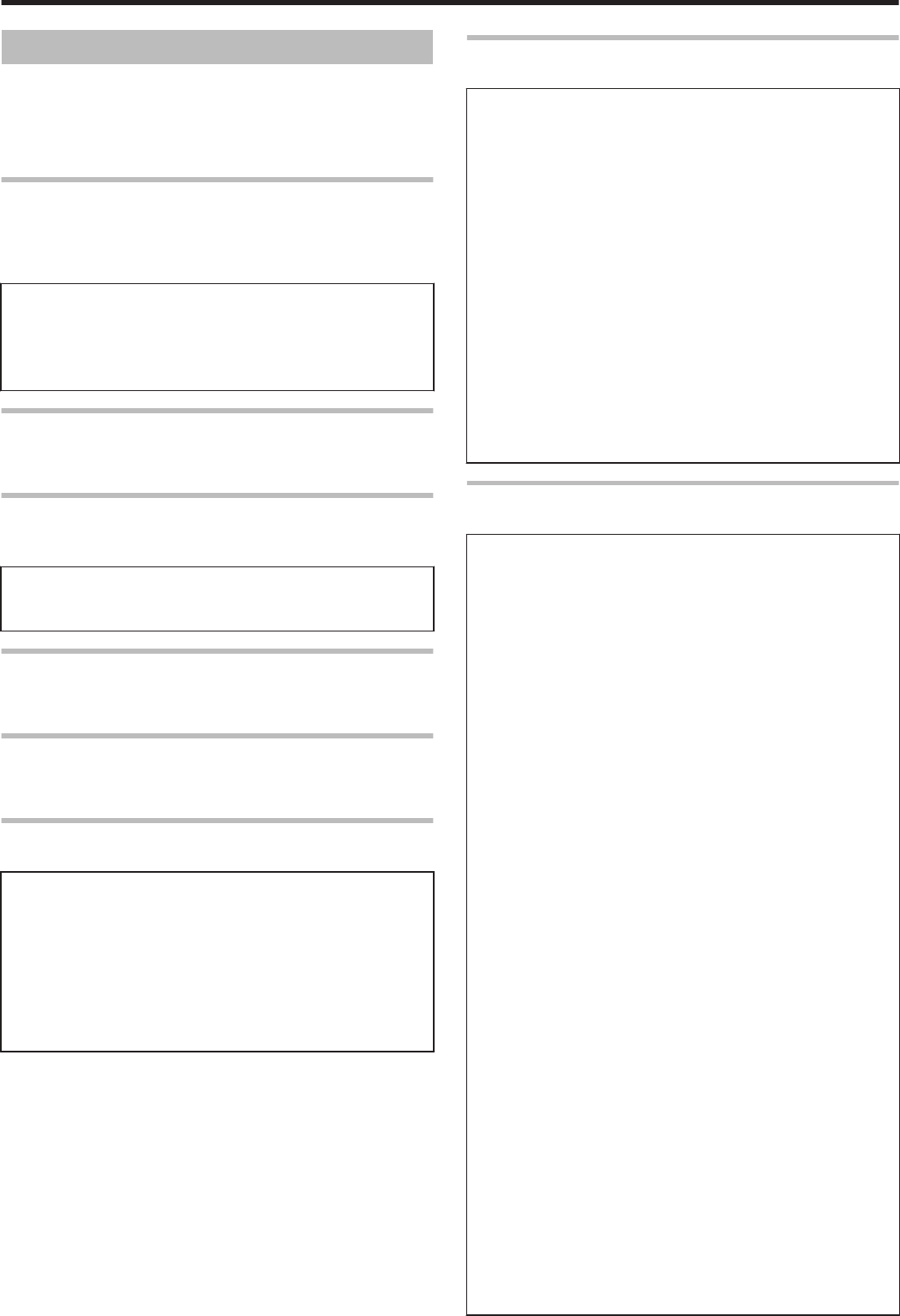
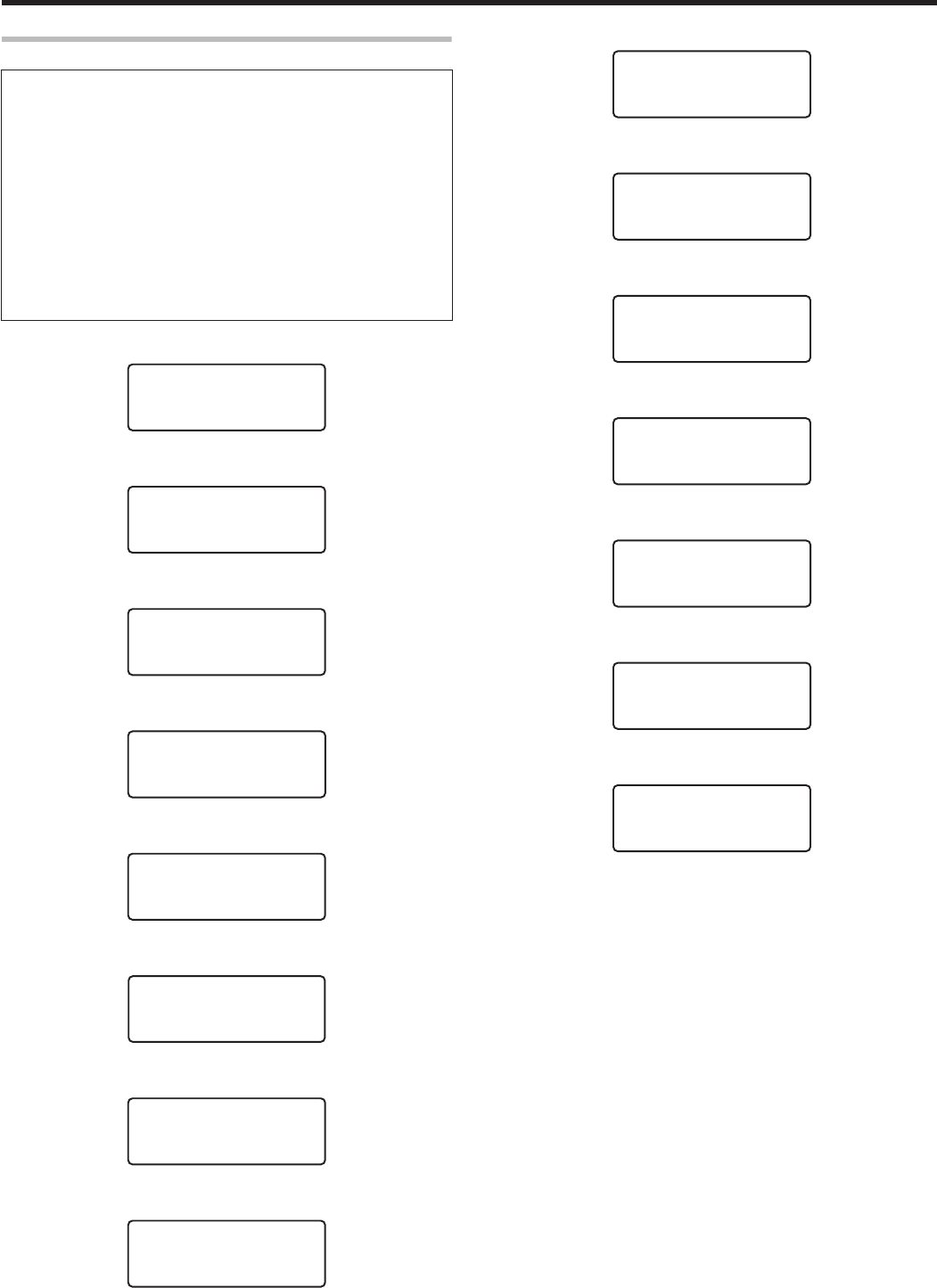
Setting Mode
vSettings can be viewed on the printer’s operation panel.
vSettings can be changed on the status monitor of the computer.
"Setting Using the Operation Panel" (A page 22)
"Sequence of Setting Modes" (A page 17)
"Factory Settings" (A page 19)
Cleaning
vFor setting during cleaning of the card feed roller, heating roller or
magnetic head.
"Card Feed Roller/Heating Roller" (A page 37)
"Magnetic Head" (A page 39)
Settings
vRollers
Select this value when cleaning the card feed roller or heating roller.
vMG
Select this value when cleaning the magnetic head.
Counter Reset
vThis is used to reset the free counter and error counter.
"Counter Reset" (A page 26)
Test Print
vPrints the printer’s built-in test pattern, or the different settings.
"Test Print" (A page 23)
Settings
vTest Print: Test Pattern, Printer Setting, Network Setting, Lami
Setting
Download
vUpdates the firmware.
"Firmware Update" (A page 24)
Transport Mode
vFor setting the transport mode.
"Transport Mode Setting" (A page 29)
Media
vDisplays the settings of the printing media.
Settings
vInk Type: YMCK, YMCKPO, YMCKK, YMCKUV
Displays the ink ribbon type.
vFilm Type: 1000, 750
Set according to the type of retransfer film.
vCard Thickness: Standard, Thin
Set according to the thickness of the card.
Standard: Supports card thickness of 0.76 mm
Thin: Supports card thickness of 0.25 mm
Print
vDisplays the printing settings.
Settings
vYMC Level: -3, -2, -1, 0, 1, 2, 3
For setting the YMC (color) density level.
Selecting a larger value increases the density level.
vBlack Level: -3, -2, -1, 0, 1, 2, 3
For setting the K (black) density level.
Selecting a larger value increases the density level.
vBlack Mode: Standard, Fine
For setting the printing mode for the K (black) component.
If the characters still appear faded after raising the [Black Level], set
to [Fine]. However, printing time required will be longer than the
[Standard] setting.
vUV Level: -3, -2, -1, 0, 1, 2, 3
For setting the UV ink density level.
Selecting a larger value increases the density level.
During UV printing, card bend may increase if the card has a low
heat resistance or in an environment with high temperature.
vPO Level: -3, -2, -1, 0, 1, 2, 3
For setting the density level of the peel-off ink.
Selecting a larger value increases the density level.
Retransfer
vDisplays the retransfer mode settings.
Settings
v
Temp Level: -2, -1, 0, 1, 2
For setting the retransfer heating roller temperature.
Selecting a larger value increases the temperature.
Retransfer may fail depending on the card used. If retransfer fails, raise
the setting to the next higher value.
A higher retransfer heating roller temperature helps to enhance the card
retransfer performance, but the stronger heat may cause the card to
deform more.
If the printer is not reset after changing the temperature setting,
temperature is adjusted after the printing operation starts.
v
Speed (Front): -3, -2, -1, 0, 1, 2
For setting the front side retransfer speed.
Selecting a larger value increases the speed.
Retransfer may not be successful on some parts of the card depending on
the card used. Lowering the setting value helps to enhance the retransfer
performance, but the stronger heat may cause the card to deform more.
v
Speed (F-UV): -3, -2, -1, 0, 1, 2
For setting the retransfer speed of the second panel on the front side during
UV ink printing of retransfer films in two panels. Selecting a larger value
increases the speed.
v
Speed (Back): -3, -2, -1, 0, 1, 2
For setting the back side retransfer speed.
Selecting a larger value increases the speed.
Some types of cards may bend during double-sided printing. If card bend
occurs, raise the back side retransfer speed to one level higher than the
front side retransfer speed setting.
v
Speed (B-UV): -3, -2, -1, 0, 1, 2
For setting the retransfer speed of the second panel on the back side during
UV ink printing of retransfer films in two panels. Selecting a larger value
increases the speed.
v
MG Peel Mode: Standard, MG Stripe
For setting the method for peeling the retransfer film.
Retransfer at areas close to the magnetic stripe may not be performed
correctly for some card types. When a magnetic stripe card is used, this
problem may be remedied by setting to [MG Stripe].
v
Standby Mode: Front wait, Back wait
During double-sided printing by connecting to a laminator, retransfer
remains in the standby state until the laminator is in the [Ready] mode.
Select whether to standby using the front or back side.
v
Backside Cool: On, Off
For setting the time interval for cooling the card before performing
retransfer on the back side during double-sided printing. Setting this to
[On] may help to reduce card bend.
Operating the Printer
15

Bend Remedy
vDisplays the bend remedy mode settings.
Settings
vTemp Level: -5, -4, -3, -2, -1, 0, Off
For setting the bend remedy heating roller temperature.
Selecting a larger value increases the temperature.
If the printer is not reset after changing the temperature setting,
temperature is adjusted after the printing operation starts.
vSpeed: -2, -1, 0, 1, 2
For setting the bend remedy speed.
Selecting a larger value increases the speed.
Heat Roller
vDisplays the settings of the Power Saving mode or HR Control
mode.
Settings
vPower Saving: 5, 10, 15, 20, 25, 30, 45, 60, Off (unit: minutes)
For setting the time for the Power Saving mode.
While in the [Ready] mode, if the printer is not operated for a specific
time interval, the retransfer heating roller, bend remedy heating
roller, and backlight of the operation panel will turn off automatically
to save power.
While in the Power Saving mode, [Sleeping..] is displayed.
To cancel the setting temporarily using the operation panel, press
KNB to reset the printer.
vHR Control: Off, On
For setting whether to standby the printer by lowering the retransfer
heating roller temperature if cards are not printed for 30 minutes or
longer.
The printer will automatically be restored to the original mode during
the next card printing, but it may take a longer time before the first
card is printed. Set this to [On] during normal use.
Setting
vDisplays the printer settings.
vSetting can also be performed using the printer’s operation panel.
Settings
vDisplay:
Mode: Counter, Laminator State
This is used for setting the information to be displayed on the
operation panel.
"Display Mode Setting" (A page 25)
Counter: Total Cnt, Head Cnt, Free Cnt, Cleaning Cnt, Error Cnt
This is used for setting the type of counter displayed on the
operation panel.
"Counter Setting" (A page 25)
Contrast: -3, -2, -1, 0, 1, 2, 3
For setting the contrast of the operation panel display.
"Contrast Setting" (A page 27)
vBuzzer: On, Off
For setting whether to sound the buzzer when an error occurs or
when settings are changed.
"Buzzer Setting" (A page 28)
vUnit No.:No.1 - No.10
For setting the printer’s unit number according to the USB
environment.
"Unit Number Setting" (A page 28)
Option
vDisplays the optional settings.
Settings
vMG: None, ISO
Displays the availability of a magnetic encoder or the type of
magnetic encoder used.
vIC Antenna: None, Installed
Displays the availability of a non-contact IC encoder.
vIC Contact: None, ISO Type
Displays the availability of a contact IC encoder (contact section) or
the type of IC encoder used.
vContact IC R/W: None, Installed
Displays the availability of a contact IC R/W.
vBend Remedy HR: None, Installed
Displays the availability of a bend remedy unit.
vTurn Over: None, Installed
Displays the availability of a card turn over unit.
MG
vDisplays the magnetic encoder settings.
Settings
vISO Type: Loco, Hico
For setting the coercivity when writing data to an ISO magnetic stripe
card.
vRetry Count: 0, 1, 2, 3
For setting the maximum number of retries when writing to or
reading of the magnetic stripe fails.
Network
vDisplays the network settings.
Settings
vPrinter Name: ASCII character strings (10 characters)
For setting the printer name.
vHost IF: LAN, USB
For setting the interface.
If the printer is connected via USB interface, the setting switches
automatically to USB when initialization starts even if the LAN setting
is selected.
vIPv4:
DHCP: On, Off
Setting: IP Address, Subnet Mask, Gateway
Efective IP:IP Address
For setting IPv4.
vIPv6:
Adrs Config: Auto, Manual
Setting: IP Address, Prefix Len, Gateway
Efective IP: IP Address1, IP Address2, IP Address3
For setting IPv6.
vSession Time Out: Off, 10 min, 20 min, 30 min, 60 min
For setting the session timeout interval.
vMAC Address: Hexadecimal character strings
Displays the MAC address.
vIPSec Mode: Off, On
For setting the availability of IPSec.
vIPSec Type: not Setting, Preshard, Certificate
Displays the method of IPSec authentication.
Operating the Printer
16
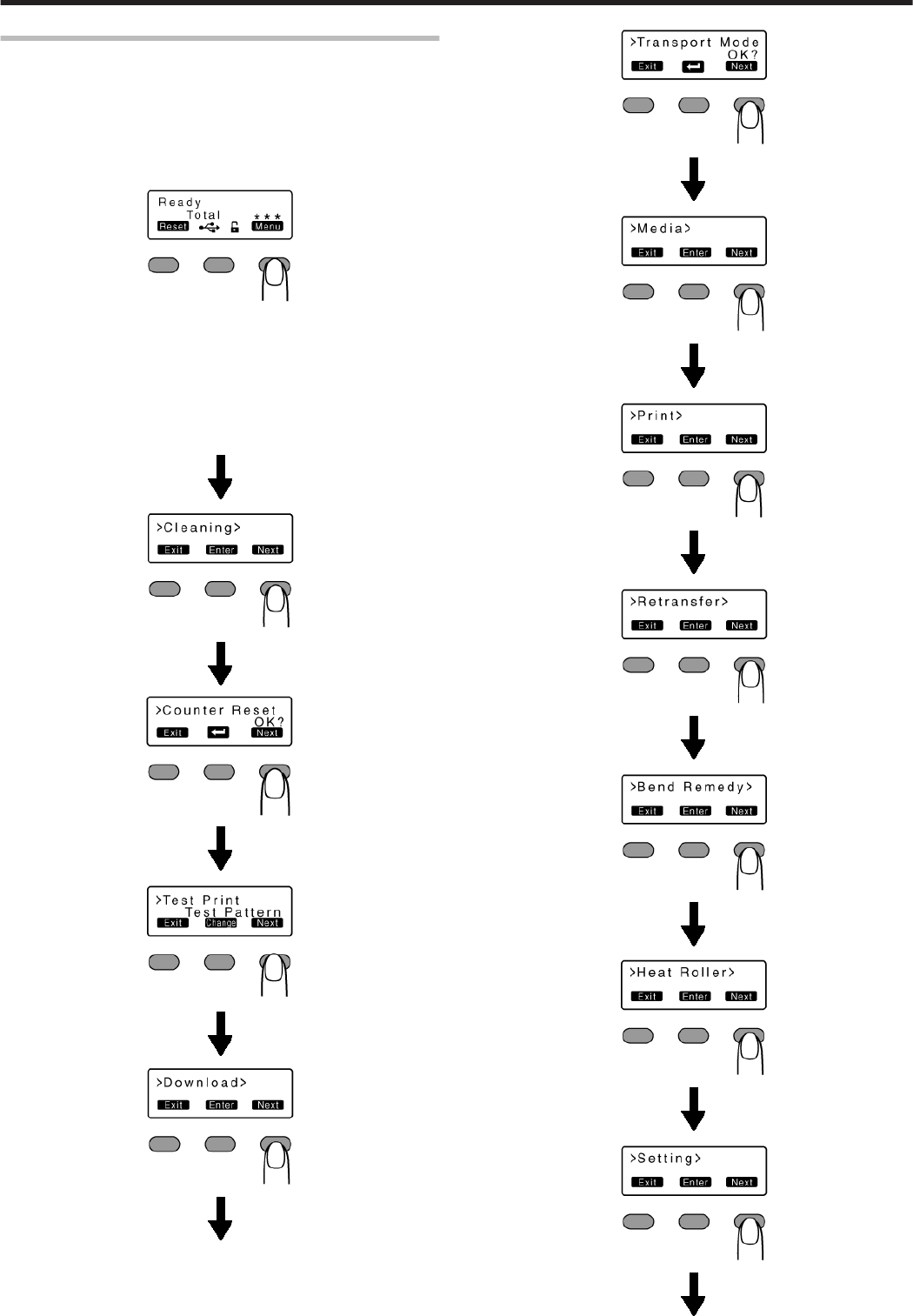
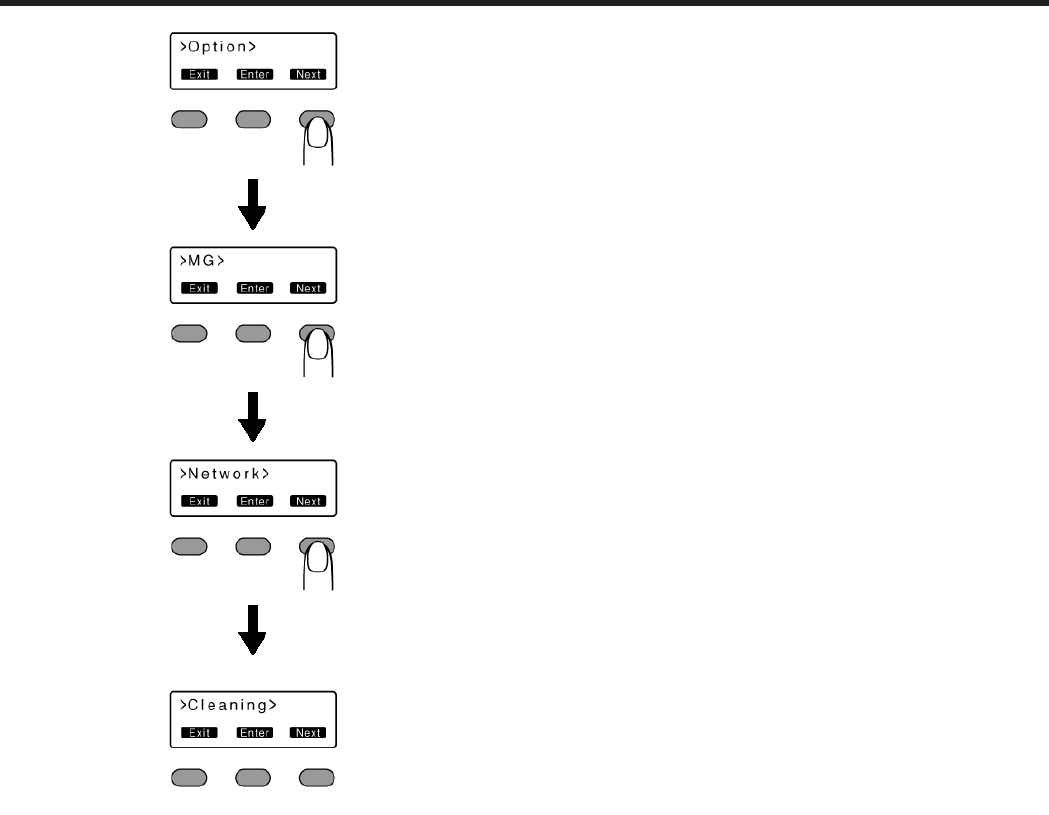
Sequence of Setting Modes
vSettings can be viewed on the printer’s operation panel.
vSettings can be changed on the status monitor of the computer.
"Setting mode" (A page 15)
1Press I
vEnters the setting mode.
.
2Press J
vPressing it each time displays the next setting item.
vPressing G displays the setting item on the next lower level.
vPressing F enters the settings change mode.
vPressing B confirms or executes the setting.
vPressing H displays the setting item on the next higher level.
.
.
.
.
.
.
.
.
.
.
.
.
.
.
.
.
.
.
.
.
.
.
.
Operating the Printer
17
.
.
.
.
.
.
.
Operating the Printer
18
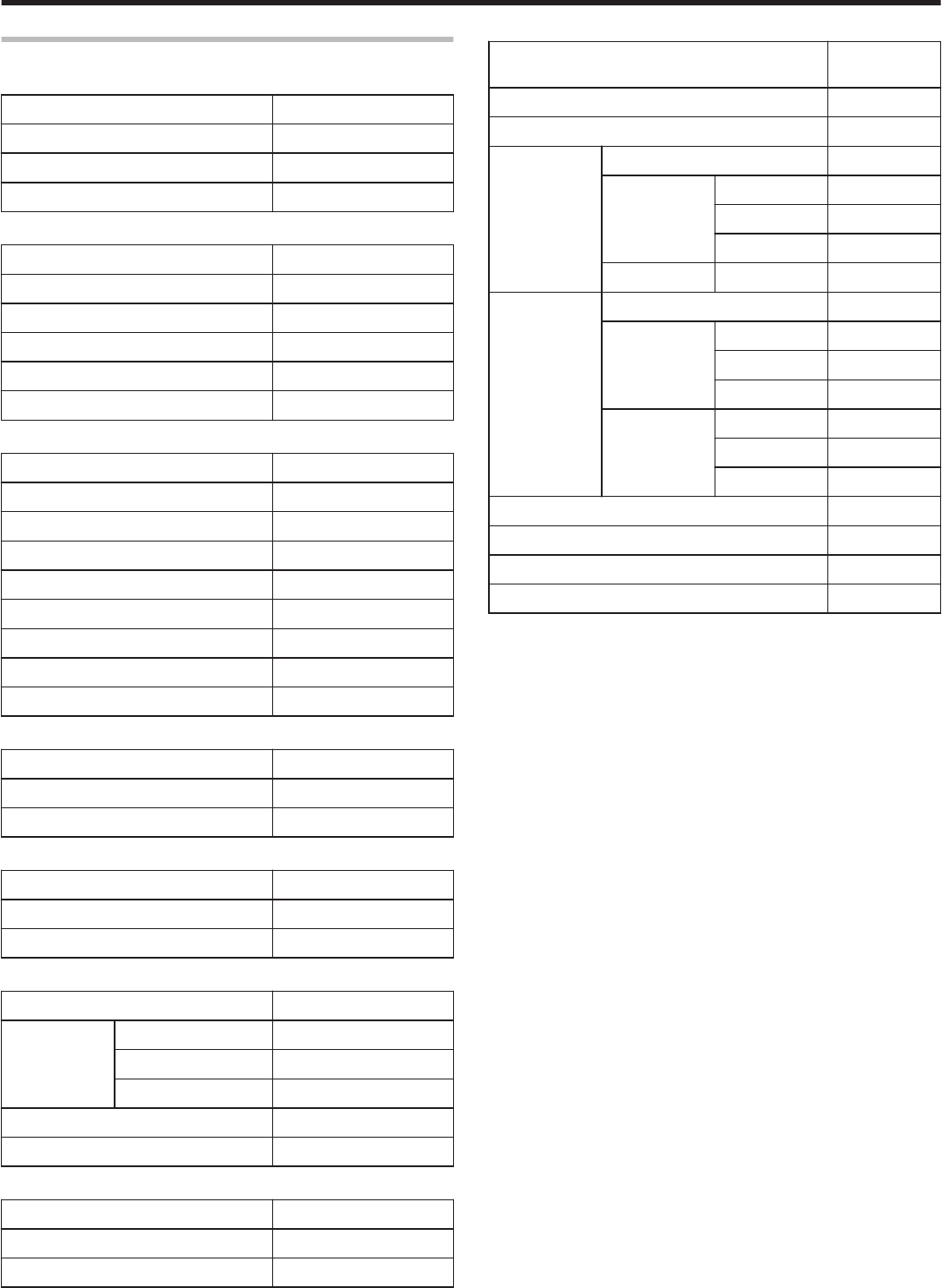
Factory Settings
mMedia
Item Factory Settings
Ink Type -
Film Type 1000
Card Thickness Standard
mPrint
Item Factory Settings
YMC Level 0
Black Level 0
Black Mode Standard
UV Level 3
PO Level 0
mRetransfer
Item Factory Settings
Temp Level 1
Speed (Front) 2
Speed (F-UV) 2
Speed (Back) 2
Speed (B-UV) 2
MG Peel Mode Standard
Standby Mode Front Wait
Backside Cool Off
mBend Remedy
Item Factory Settings
Temp Level Off
Speed 2
mHeat Roller
Item Factory Settings
Power Saving Off
HR Control On
mSetting
Item Factory Settings
Display Mode Counter
Counter Total Cnt
Contrast 0
Buzzer On
Unit No. No.1
mMG
Item Factory Settings
ISO Type Hico
Retry Count 1
mNetwork
Item Factory
Settings
Printer Name PRINTER01
Host IF LAN
IPv4 DHCP On
Setting IP Address 192.168.0.141
Subnet Mask 255.255.255.0
Gateway 192.168.0.1
Effective IP IP Address -
IPv6 Adrs Config Auto
Setting IP Address None
Prefix Len 64
Gateway None
Effective IP IP Address 1 -
IP Address 2 -
IP Address 3 -
Session Time Out Off
Mac Address -
IPSec Mode Off
IPSec Type not Setting
Operating the Printer
19
Security Lock
vThe security lock function can be applied to the printer door and card
hopper to prevent opening of the printer door as well as removal of
cards.
vThe lock can be turned on/off using the status monitor on the
computer.
"Status monitor" (A page 117)
vBy registering a security key number on the printer unit, you can turn
off the security lock by entering the security key number on the
operation panel of the printer.
vIf you forgot the security key number, please consult our authorized
dealer or the servicing personnel.
Registration of Security Key Number
vTo change the security key number, you have to delete it and
register a new number again.
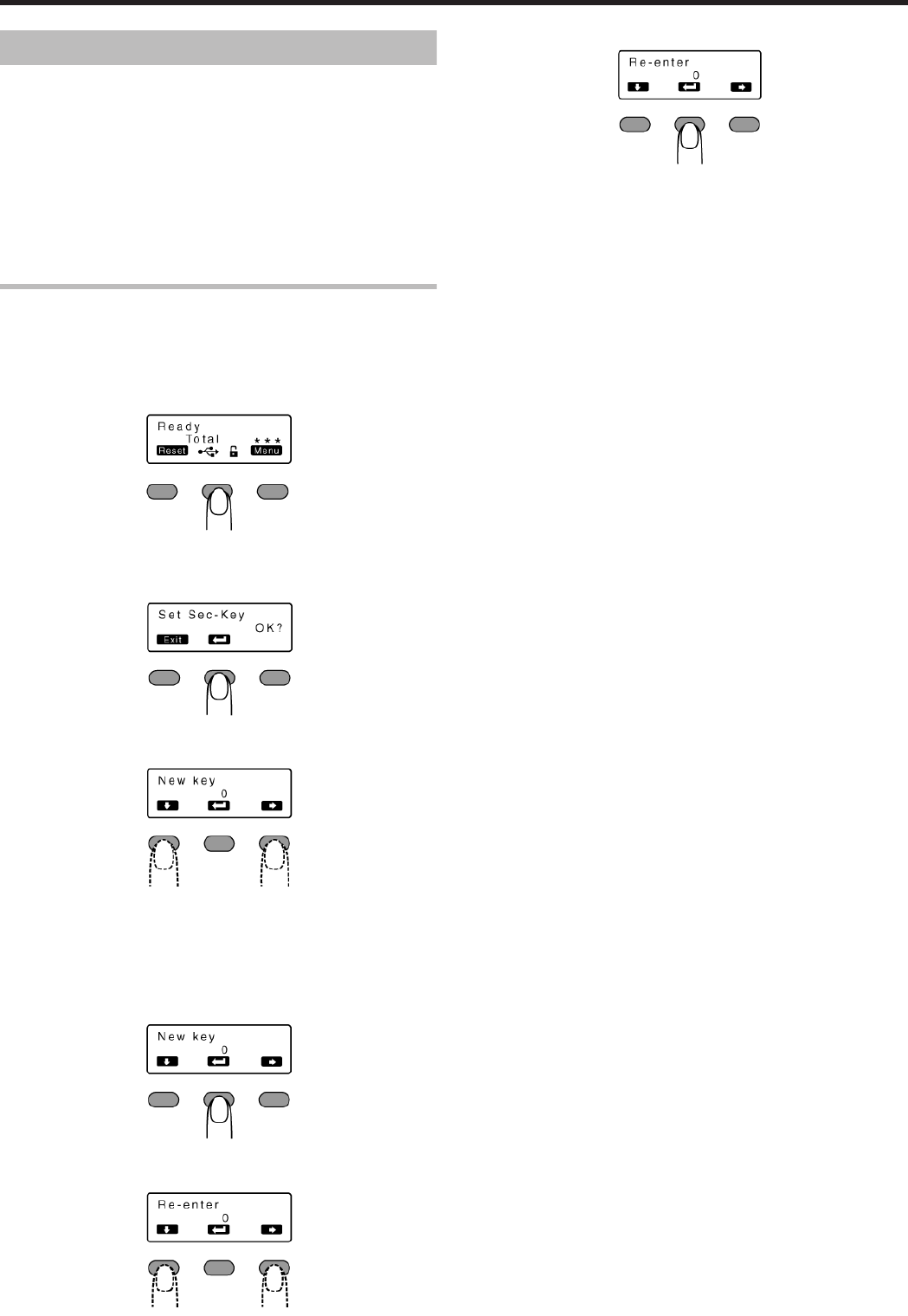
1Press the operation button (center) for at least three seconds
vA [Set Sec-Key OK?] message appears.
.
2Press B
vA [New key] message appears.
.
3Enter a number
.
vYou can enter up to 8 digits.
vPressing A each time advances to the next number.
vPressing E each time advances to the next digit.
4Press B
vA [Re-enter] message appears.
.
5Input the number you have entered in [New key] again
.
6Press B
.
vIf this number is consistent with the number entered in [New key],
the display returns to [Ready], and the security key number is
registered.
vIf this number is not consistent with the number entered in [New
key], the display returns to [Set Sec-Key OK?]. Enter a number
again.
Operating the Printer
20
Deactivating the Security Lock
vWhen a security lock is turned on, you can deactivate it as follows.
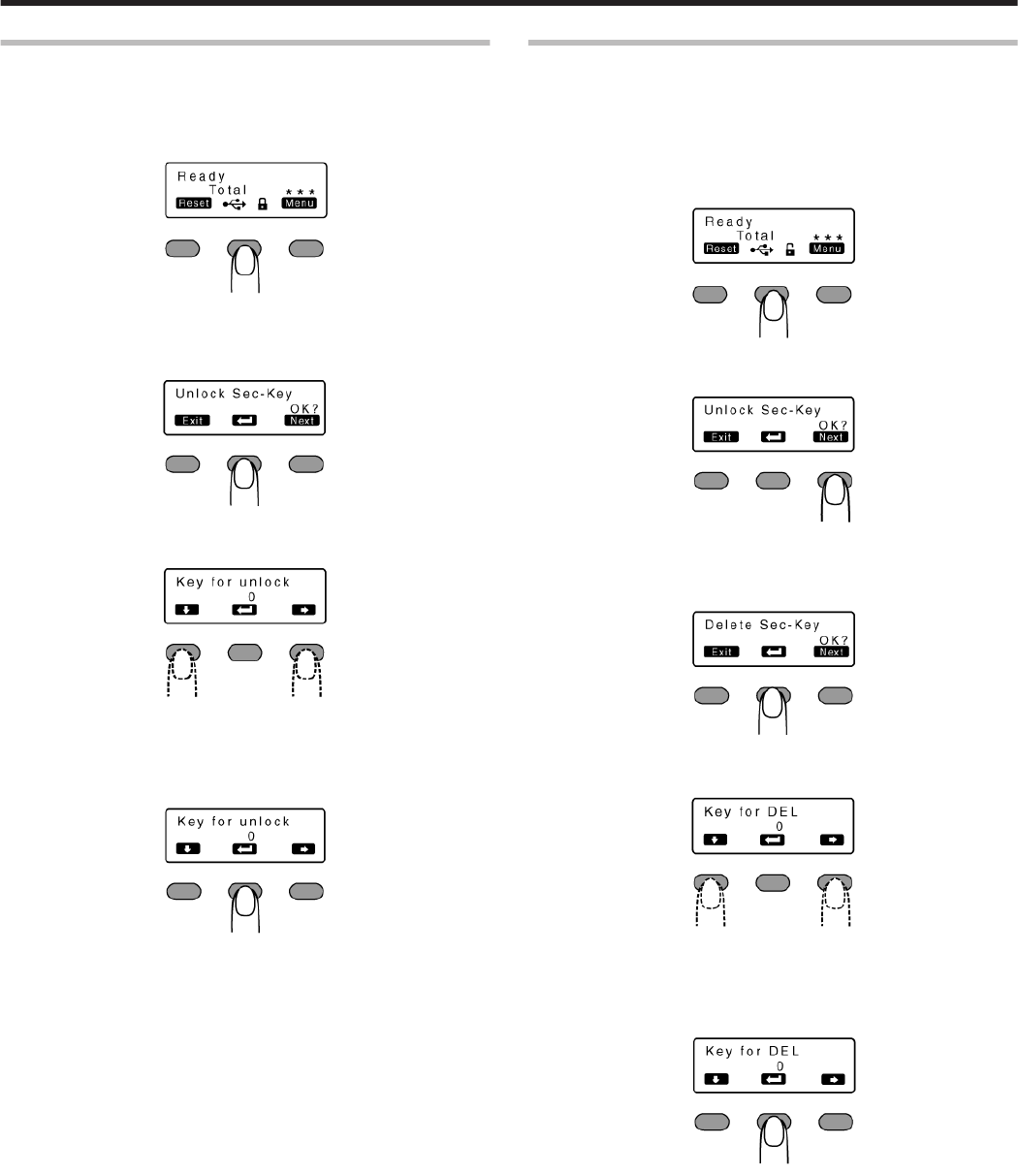
1Press the operation button (center) for at least three seconds
vA [Unlock Sec-Key OK?] message appears.
.
2Press B
vA [Key for unlock] message appears.
.
3Enter the registered security key number
.
vPressing A each time advances to the next number.
vPressing E each time advances to the next digit.
4Press B
.
vIf this number is consistent with the registered number, the display
returns to [Ready], and the security lock is deactivated.
vIf this number is not consistent with the registered number, the
display returns to [Unlock Sec-Key OK?]. Enter a number again.
Deleting the Security Key Number
vYou can delete a registered security key number as follows.
vTo change the security key number, you have to delete it and
register a new number again.
1Press the operation button (center) for at least three seconds
vA [Unlock Sec-Key OK?] message appears.
.
2Press J to set to [Delete Sec-Key OK?]
.
3Press B
vA [Key for DEL] message appears.
.
4Enter the registered security key number
.
vPressing A each time advances to the next number.
vPressing E each time advances to the next digit.
5Press B
.
vIf this number is consistent with the registered number, the display
returns to [Ready], and the security key number is deleted.
vIf this number is not consistent with the registered number, the
display returns to [Delete Sec-Key OK?]. Enter a number again.
Operating the Printer
21
Setting Using the Operation Panel
Initialization
vWhenever the power is turned on, cue (initialization) is performed
automatically on the ink ribbon and retransfer film.
vYou can also perform initialization manually using the operation
button on the operation panel.
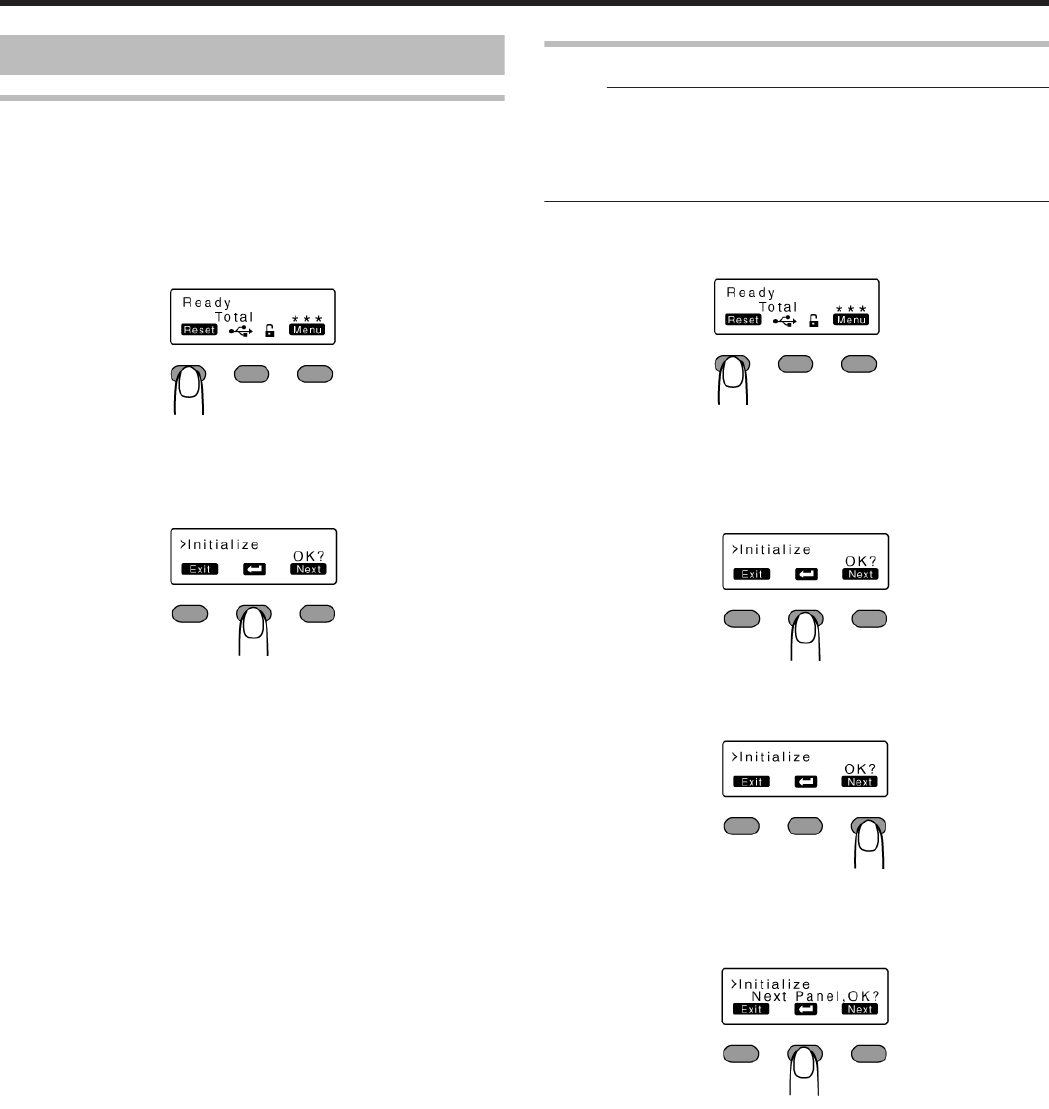
1Press K
vAn [Initialize OK?] message appears.
.
2Press B
vAn [Initializing..] message appears, and initialization of the printer
starts.
.
Initializing Printer When Installing the Cassette
Memo:
vWhen detaching the ink ribbon cassette or retransfer film cassette
from the printer body, dust may adhere to the ink ribbon or retransfer
film. Errors such as discoloring may occur depending on the size of
the dust particles. To avoid these problems, it is recommended that
you forward by one or two images after installing the cassette.
1Press K
vAn [Initialize OK?] message appears.
.
mInitializing printer without feeding the image
A Press B
vAn [Initializing..] message appears, and initialization of the
printer starts.
.
mInitializing printer after feeding by one image
A Press J to set to [Next Panel, OK?]
.
B Press B
vAn [Initializing..] message appears, and the printer is initialized
after feeding the ink ribbon and retransfer film by one image.
.
Operating the Printer
22
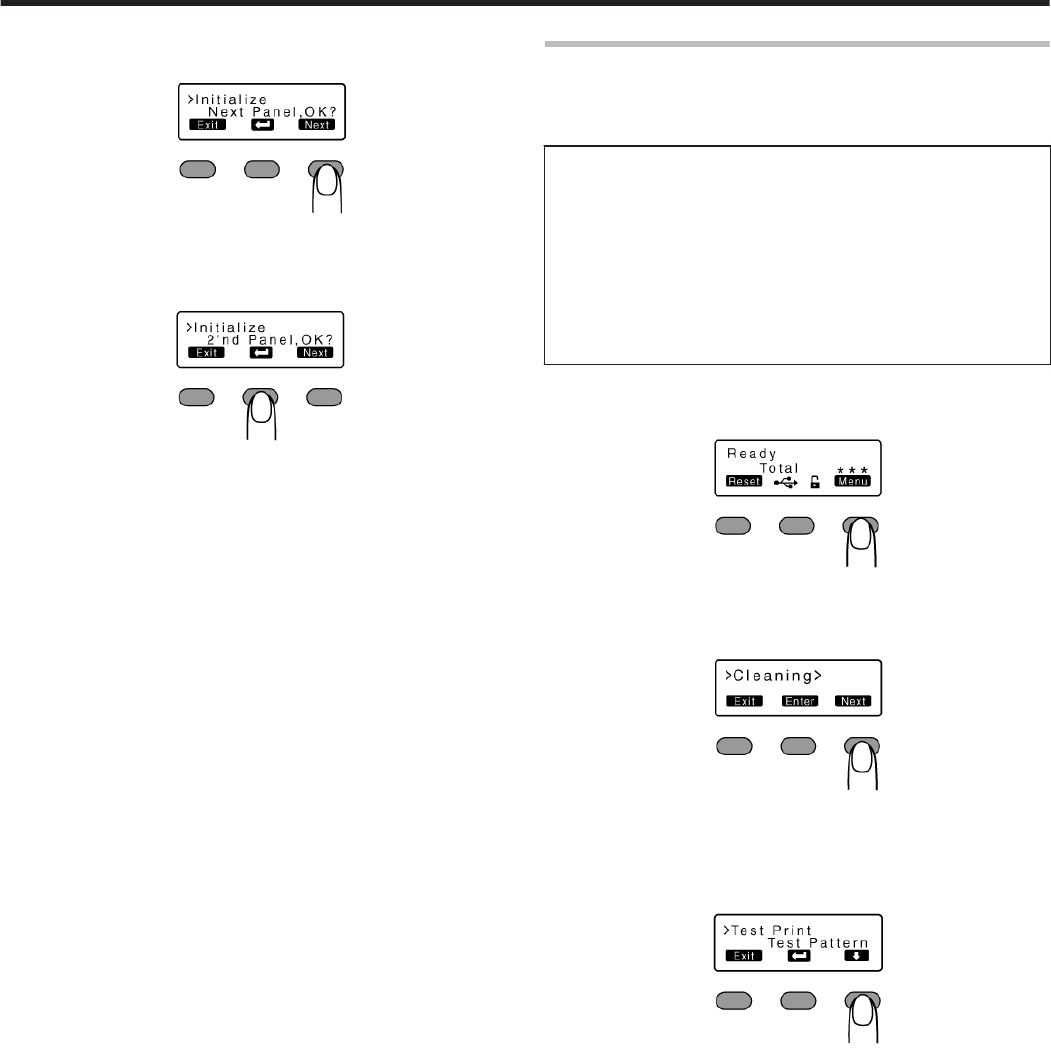
mInitializing printer after feeding by two images
A Press J to set to [2'nd Panel, OK?]
.
B Press B
vAn [Initializing..] message appears, and the printer is initialized
after feeding the ink ribbon and retransfer film by two images.
.
Test Print
vPrints the printer’s built-in test pattern, or the different settings.
vThe printer unit can be made to run alone when a system error
occurs by separating the computer from the printer.
Test Pattern Types
vTest Pattern:
Prints standard color pattern on a single side of a card.
vPrinter Setting:
Prints the printer settings.
vNetwork Setting:
Prints the network settings.
vLami Setting:
Prints the laminator settings.
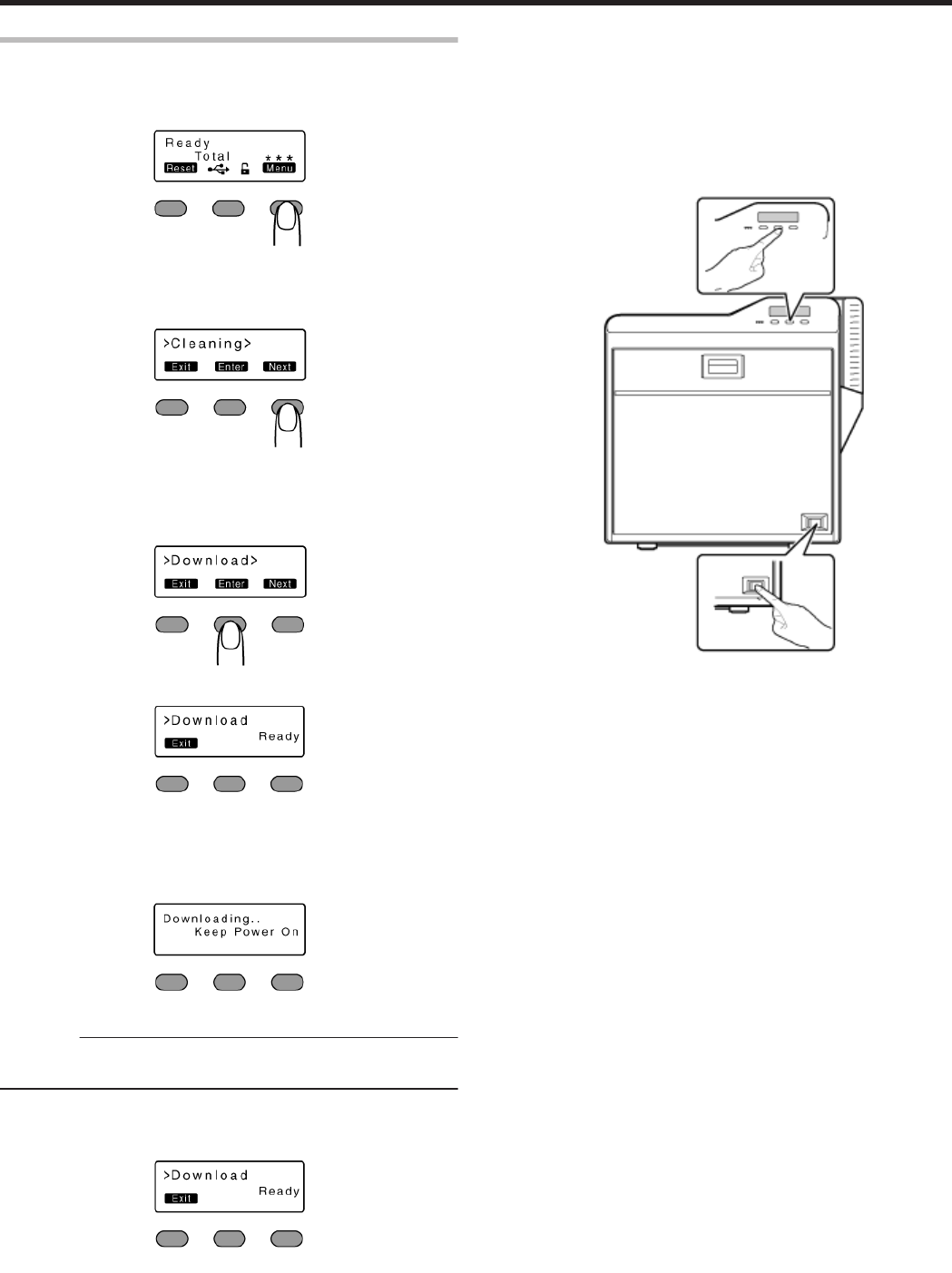
1Press I
vA [Cleaning] message appears.
.
2Press J to set to [Test Print]
vPressing it each time displays the next setting item.
.
3Press F
vA test pattern selection screen appears.
4Press A and select a test pattern type
.
5Press B
vTest print starts.
Operating the Printer
23
Firmware Update
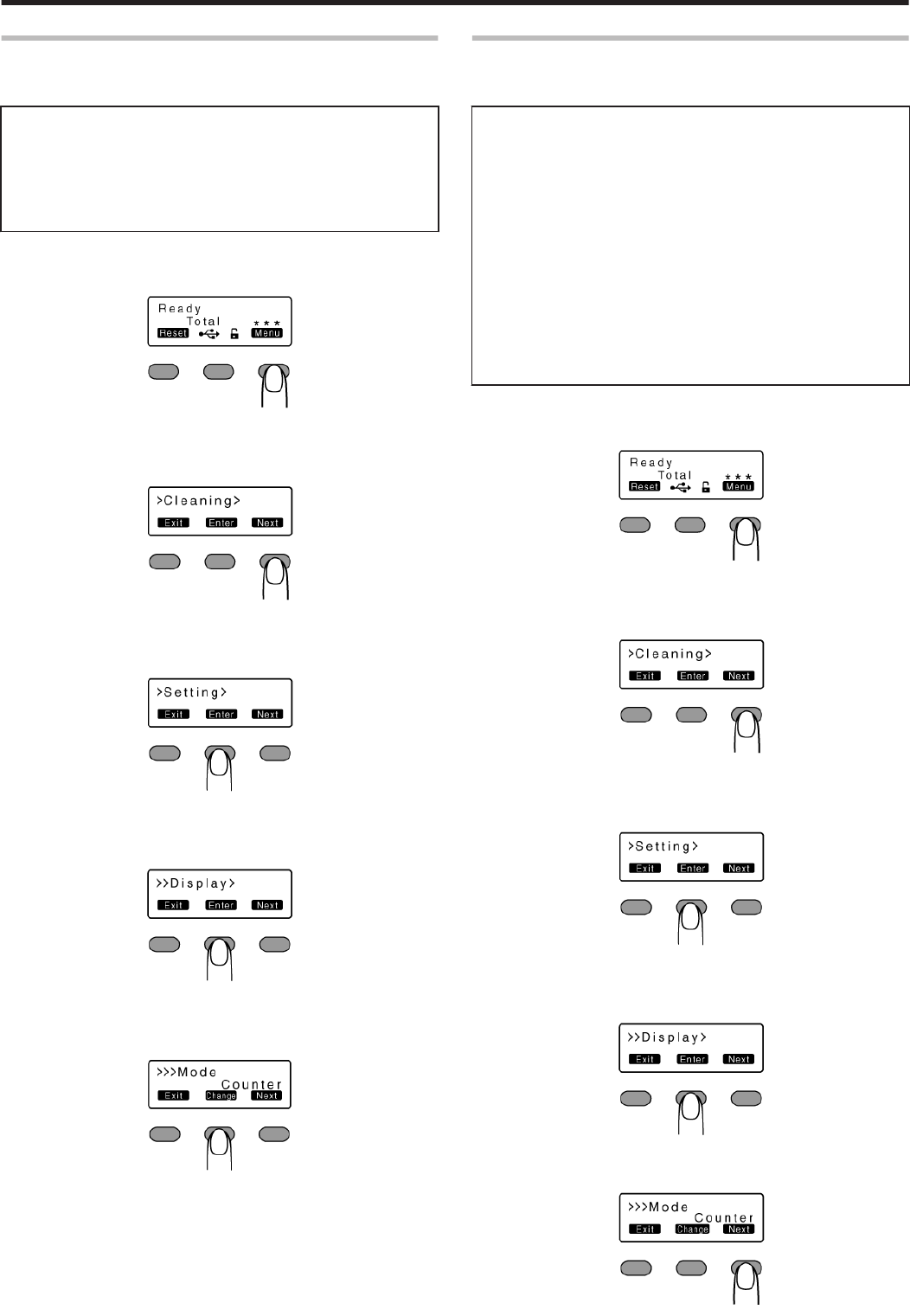
1Press I
vA [Cleaning] message appears.
.
2Press J to set to [Download]
vPressing it each time displays the next setting item.
.
3Press G
vA [Download Ready] message appears, indicating that the printer is
ready to download data from the computer.
.
.
4Start data download from the computer
vA [Downloading..] message appears.
.
Cautions:
vDo not turn off the power during data download from the computer.
Doing so may damage the printer firmware and cause malfunction.
vA [Download Ready] message appears when data download from
the computer is complete.
.
5When [Download Ready] appears, press H
6When the [Please Power Off] message appears, turn off the power
vThe firmware is updated after the power is turned on again.
mIf download fails and printer cannot be started up
vIf download of the printer firmware fails, the printer may not be
able to start up when it is rebooted. When this occurs, download
the firmware again according the following procedure.
A Turn on the power while holding down the operation button
(center)
vA [SBP2 Running] message appears, indicating that the printer
is ready to download data from the computer.
.
B Start data download from the computer
vA [Downloading..] message appears.
vA [SBP2 Running] message appears when data download from
the computer is complete.
C When the [SBP2 Running] message appears, turn off the power
vThe firmware is updated after the power is turned on again.
Operating the Printer
24
Display Mode Setting
vThis is used for setting the information to be displayed on the
operation panel.
Settings
vCounter:
Displays the counter preset in "Counter setting".
vLaminator State:
Displays the operating status of the connected laminator. If a
laminator is not connected, the counter is displayed.
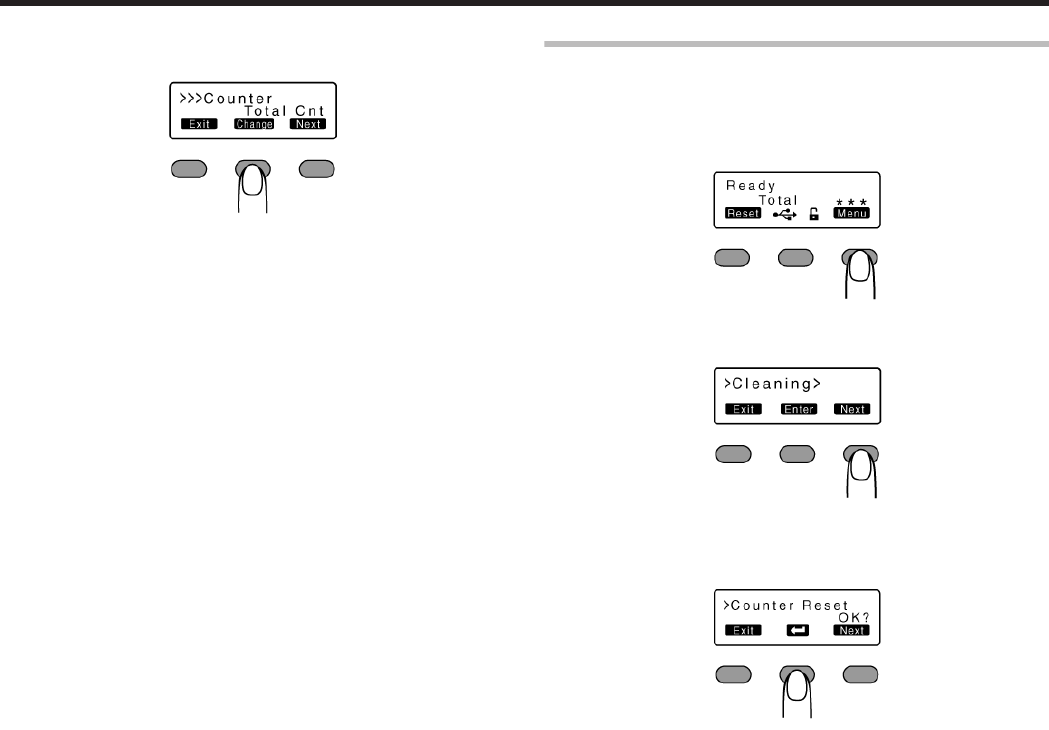
1Press I
vA [Cleaning] message appears.
.
2Press J to set to [Setting]
vPressing it each time displays the next setting item.
.
3Press G
vA [Display] message appears.
.
4Press G
vA [Mode] message appears.
.
5Press F
vEnters the settings change mode.
.
6Press A and select a setting
7Press B to confirm the setting
vPressing B confirms the setting and returns you to the previous
screen.
8Press H to exit the setting mode
v
Pressing it each time displays the setting item on the next higher level.
Counter Setting
vThis is used for setting the type of counter displayed on the
operation panel.
Counter Types
vTotal Cnt: total counter
Displays the total number of cards that are correctly printed.
vHead Cnt: head counter
Displays the total number of printed sides for the same head.
vFree Cnt: free counter
Displays the number of cards that are correctly printed. This number
can be reset.
vCleaning Cnt: cleaning counter
Displays the number of cards that are correctly printed after the last
cleaning.
vError Cnt: error counter
Displays the number of cards that are not correctly printed. This
number can be reset.
1Press I
vA [Cleaning] message appears.
.
2Press J to set to [Setting]
vPressing it each time displays the next setting item.
.
3Press G
vA [Display] message appears.
.
4Press G
vA [Mode] message appears.
.
5Press J to set to [Counter]
.
Operating the Printer
25
6Press F
vEnters the settings change mode.
.
7Press A and select a setting
8Press B to confirm the setting
vPressing B confirms the setting and returns you to the previous
screen.
9Press H to exit the setting mode
vPressing it each time displays the setting item on the next higher
level.
Counter Reset
vThis is used to reset the free counter and error counter.
1Press I
vA [Cleaning] message appears.
.
2Press J to set to [Counter Reset]
.
3Press B
vResets the free counter and error counter.
.
mChecking reset
vSelect [Free Cnt] or [Error Cnt] for "Counter setting".
Operating the Printer
26
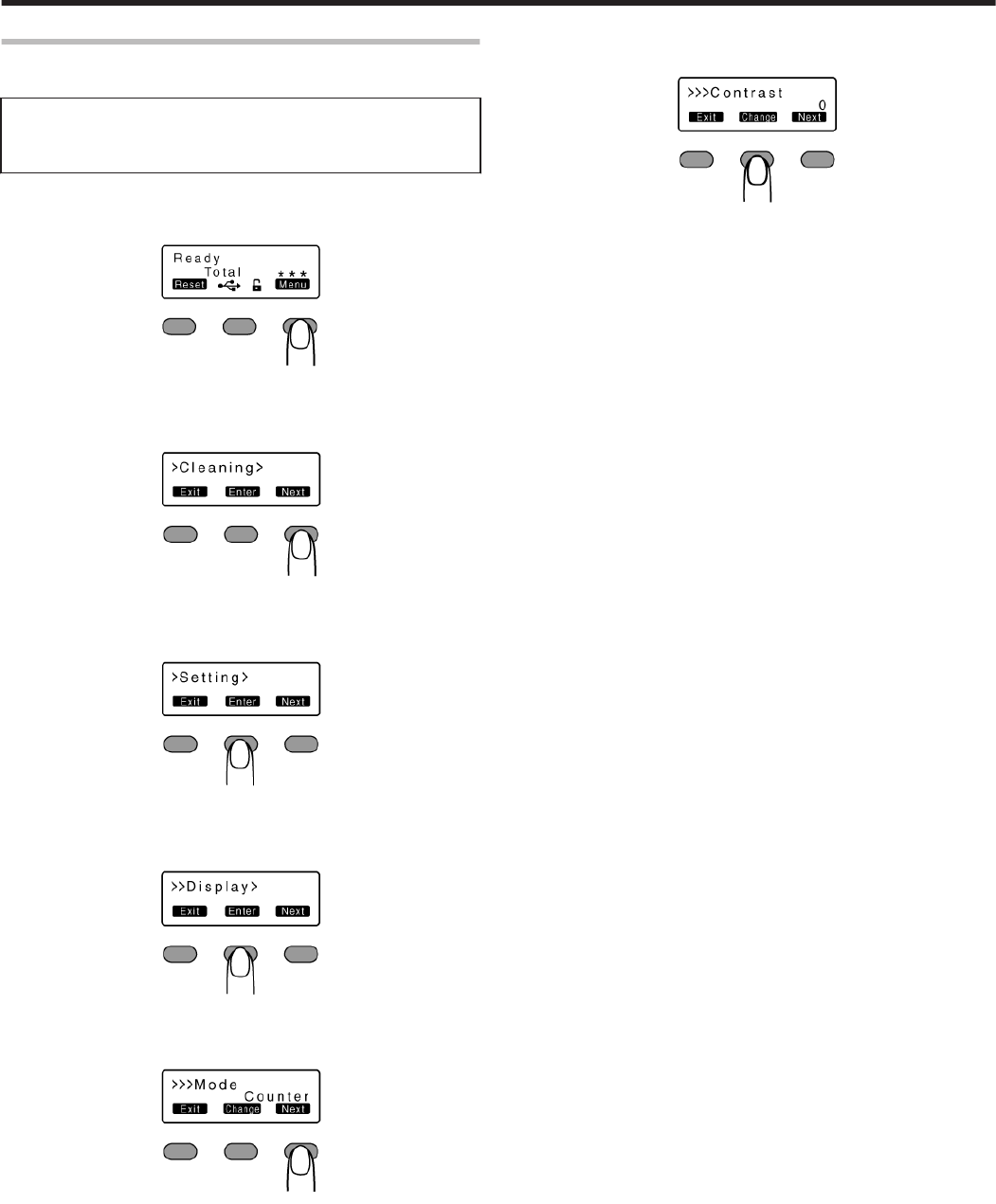
Contrast Setting
vFor setting the contrast of the operation panel display.
Settings
v-3, -2, -1, 0, 1, 2, 3
Selecting a larger value increases the contrast.
1Press I
vA [Cleaning] message appears.
.
2Press J to set to [Setting]
vPressing it each time displays the next setting item.
.
3Press G
vA [Display] message appears.
.
4Press G
vA [Mode] message appears.
.
5Press J to set to [Contrast]
vPressing it each time displays the next setting item.
.
6Press F
vEnters the settings change mode.
.
7Press A and select a setting
8Press B to confirm the setting
vPressing B confirms the setting and returns you to the previous
screen.
9Press H to exit the setting mode
vPressing it each time displays the setting item on the next higher
level.
Operating the Printer
27
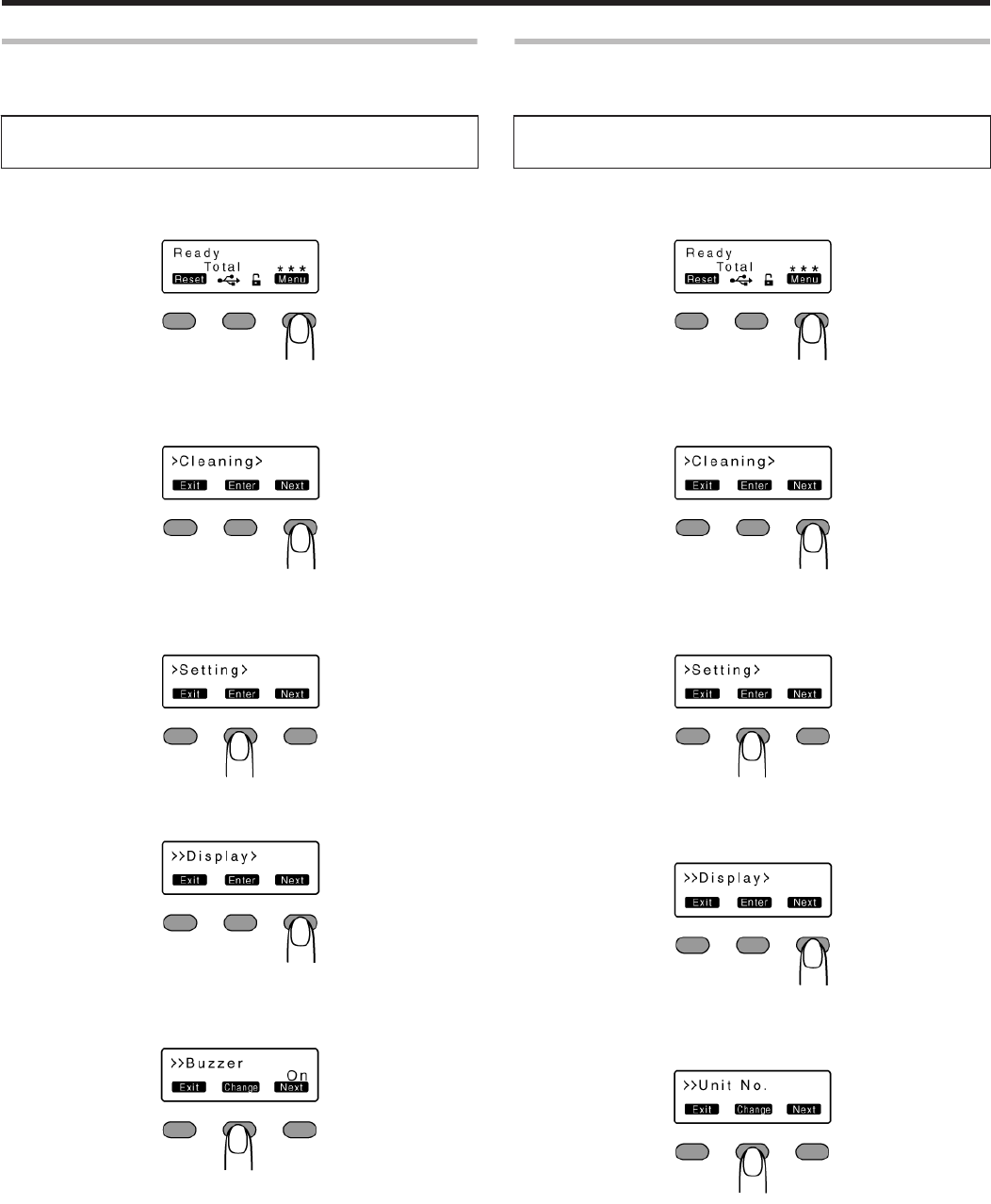
Buzzer Setting
vFor setting whether to sound the buzzer when an error occurs or
when settings are changed.
Settings
vOn: turns on buzzer sound, Off: turns off buzzer sound
1Press I
vA [Cleaning] message appears.
.
2Press J to set to [Setting]
vPressing it each time displays the next setting item.
.
3Press G
vA [Display] message appears.
.
4Press J to set to [Buzzer]
.
5Press F
vEnters the settings change mode.
.
6Press A and select a setting
7Press B to confirm the setting
vPressing B confirms the setting and returns you to the previous
screen.
8Press H to exit the setting mode
vPressing it each time displays the setting item on the next higher
level.
Unit Number Setting
vFor setting the printer’s unit number according to the USB
environment.
Settings
vNo.1 - No.10
1Press I
vA [Cleaning] message appears.
.
2Press J to set to [Setting]
vPressing it each time displays the next setting item.
.
3Press G
vA [Display] message appears.
.
4Press J to set to [Unit No.]
vPressing it each time displays the next setting item.
.
5Press F
vEnters the settings change mode.
.
6Press A and select a setting
vYou can select the unit number from No. 1 to No. 10.
7Press B to confirm the setting
v
Pressing B confirms the setting and returns you to the previous screen.
8Press H to exit the setting mode
v
Pressing it each time displays the setting item on the next higher level.
9Turn off the power
vThe changes to the setting will be reflected when you turn on the
power again.
Operating the Printer
28
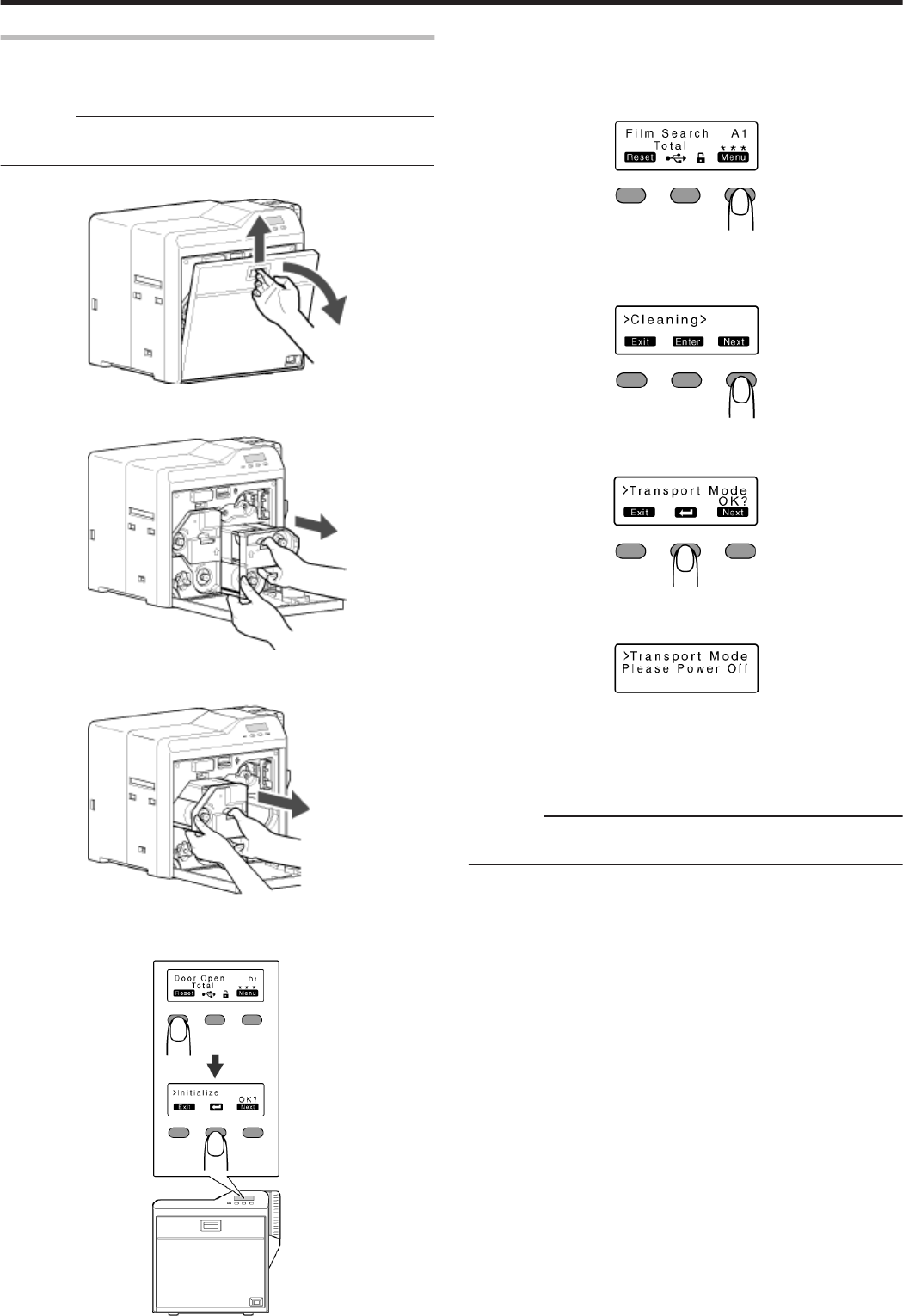
Transport Mode Setting
vWhen transporting or moving the printer, ensure that the heating
roller is fastened to a safe position.
Cautions:
v
Make sure that you set to the transport mode when transporting or
moving the printer. Failure to do so will cause the printer to malfunction.
1Open the printer door
.
2Press and hold down the cassette button, and remove the ink ribbon
cassette (on the right) to remove the ink ribbon
.
3Press and hold down the cassette button, and remove the retransfer
film cassette (on the left) to remove the retransfer film
.
4Close the printer door
5Press KNB to reset the printer
.
6Check to ensure that [Film Search] is displayed on the operation
panel of the printer
7Press I
vA [Cleaning] message appears.
.
8Press J to set to [Transport Mode]
vPressing it each time displays the next setting item.
.
9Press B
.
.
vAfter setting to the transport mode, a [Please Power Off] message
appears.
10 Turn off the power, and install the cassette
Cautions:
vWhile in the transport mode, the retransfer film cassette cannot be
installed to the printer with the retransfer film loaded.
mCanceling the transport mode
vWith the printer door closed, turn on the power to cancel the
transport mode.
Operating the Printer
29

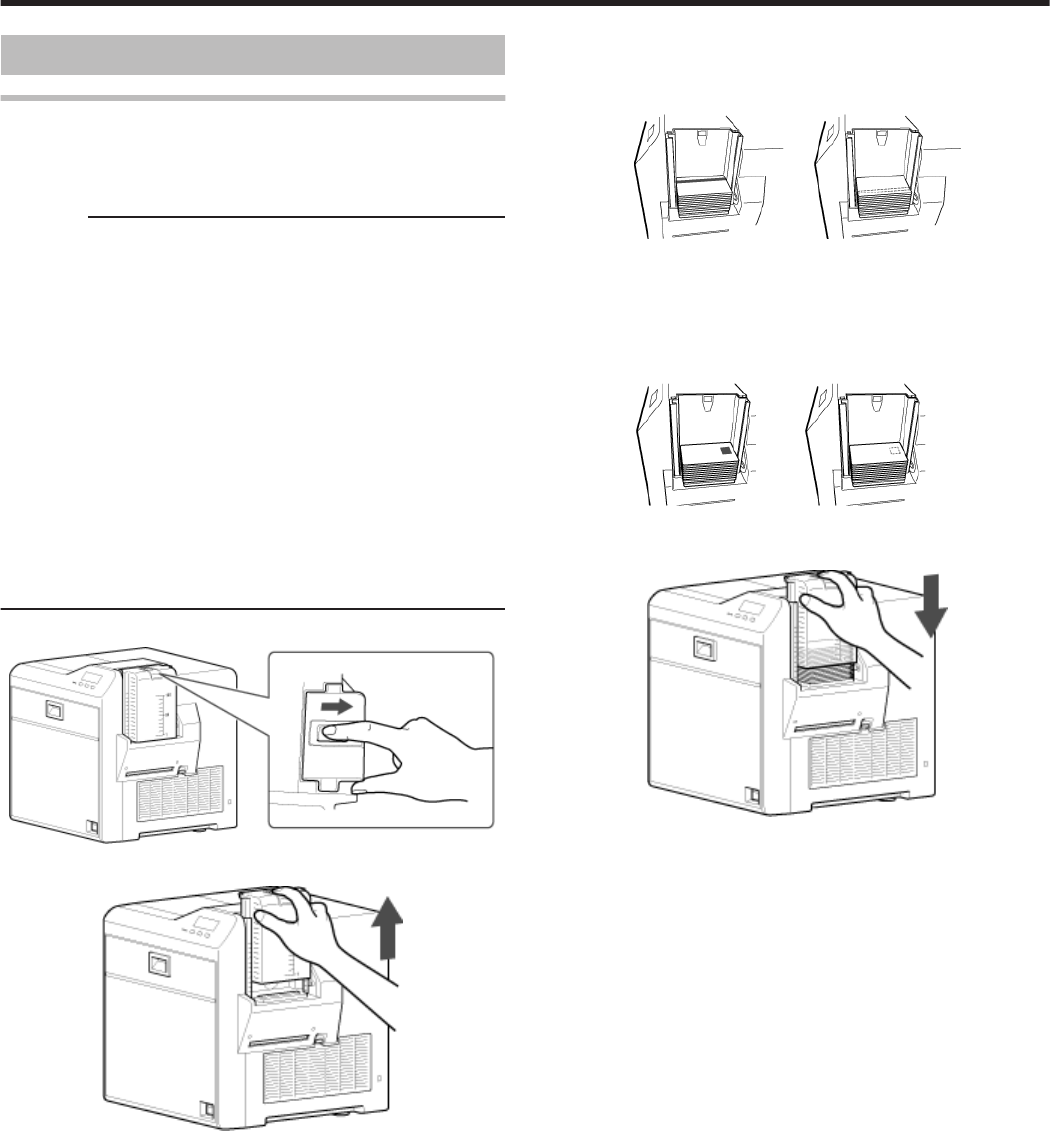
Cards
Cards have Run Out
vReplenish the cards.
vThe card hopper is able to store up to about 100 cards with a
thickness of 0.76 mm.
Cautions:
vGet ready cards that are designated by the authorized dealer.
vIf the security lock is on, deactivate it. After work is complete,
activate the security lock again.
vDo not touch the printing surface of the card. Touching it may cause
printing errors. Put on the supplied gloves when handling the cards.
vTo prevent card jams from occurring, limit the number of cards
stored in the card hopper at any time to about 100 pieces regardless
of the card thickness.
vWhen using new cards, set them after making sure that they are not
adhered to each other due to static.
vAlign the cards before setting them in the printer. Otherwise, the card
hopper cover may not close properly, and this may damage the
printer.
vPrinting the card on the side with the magnetic stripe may cause
printing errors or damage to the card’s functions. If you want to do
so, please consult our authorized dealers in advance.
vTo set cards with both functions (magnetic stripe and contact IC),
follow the procedure for setting the contact IC card.
1Set the card hopper knob to [OPEN]
.
2Lift to remove the card hopper cover
.
3Align the orientation of the cards, and set them in the printer
mMagnetic stripe cards
vSet the card with the magnetic stripe facing upward and toward
the printer, or facing downward and toward you.
.
mISO contact IC cards
vSet the card with the Contact IC terminal facing upward and
toward the rear of the printer, or downward and toward the rear of
the printer.
vFor single-sided printers, set the cards with the IC terminal facing
down and toward the rear of the printer.
.
4Install the card hopper cover, and set the card hopper knob to
[LOCK]
.
Replacement
31
Ink Ribbon
Ink Ribbon has Run Out
vReplace with a new ink ribbon.
Cautions:
vIf the security lock is on, deactivate it. After work is complete,
activate the security lock again.
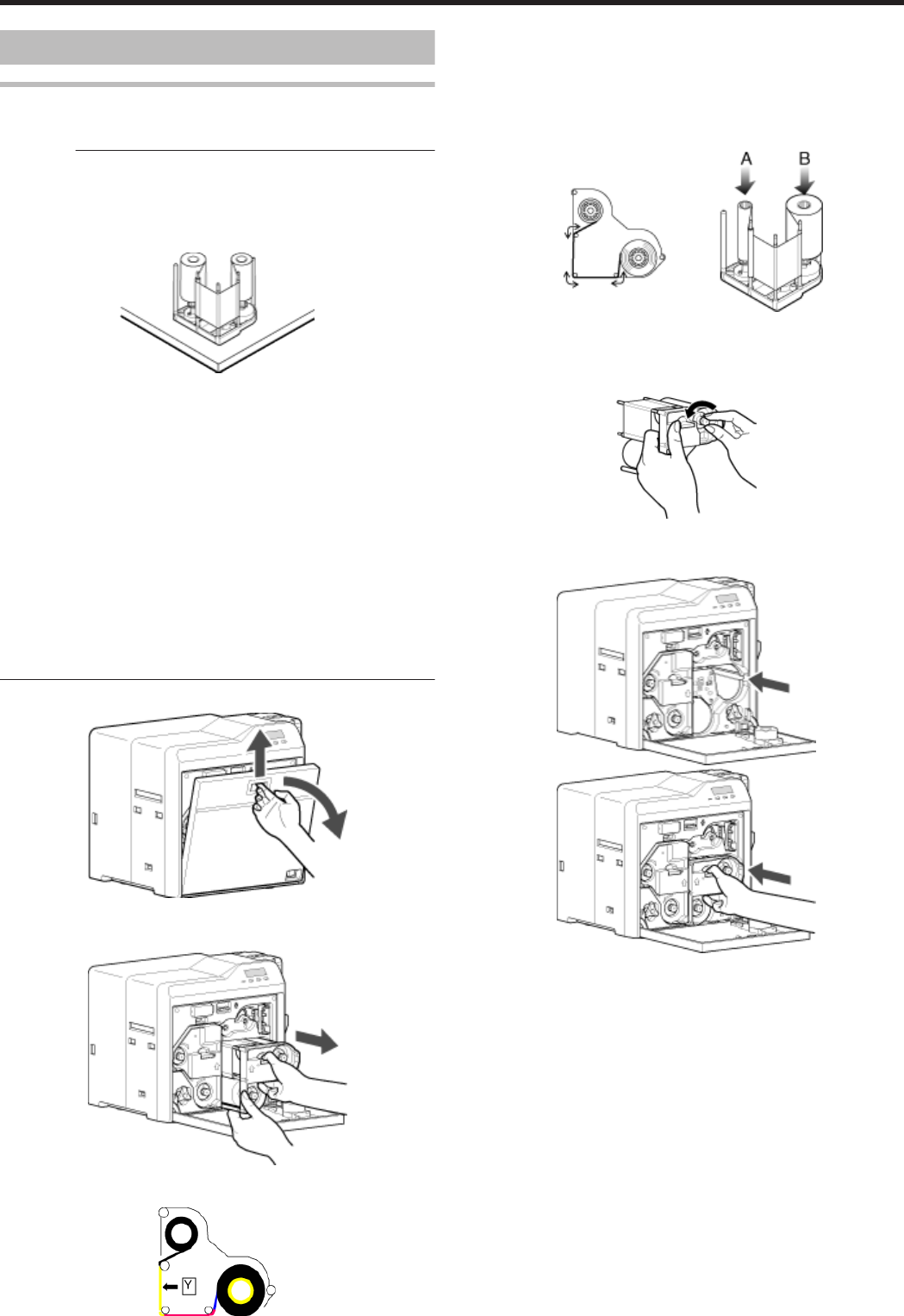
vStand the cassette on a flat surface as illustrated in the diagram.
Avoid doing so on the floor as dust attached to it may cause printing
errors.
.
vDo not touch the inked surface (the side that faces outward when
installed) with your hand. Touching it may cause printing errors. Put
on the supplied gloves when handling the ink ribbon.
vWhen installing a used ink ribbon, align the yellow side of the unused
ribbon with the arrow indicated on the label of the cassette. If the
position of the yellow side is not properly aligned, the print may turn
out light.
vThe cassette is heavy when the ink ribbon is loaded. To prevent the
cassette from dropping during handling, make sure to hold it with
both hands.
vDo not perform any work on the printer door. Do not place heavy
objects or apply load on the printer. Doing so may damage it.
vDuring replacement, clean the four bobbin holders on the printer. If
burrs produced by friction with the bobbins are attached to the
bobbin holders, they may fall onto the card, ink ribbon, or retransfer
film, causing printing errors.
"Cleaning the bobbin holders" (A page 40)
1Open the printer door
.
2Press and hold down the cassette button, and pull out the ink ribbon
cassette (on the right) to remove the ink ribbon
.
3Install a new ink ribbon
vInstall while referring to the indication on the label of the cassette.
.
A With the inked surface facing outward, align the yellow side of the
unused ribbon with the arrow on the cassette, and unwind it
along the three shafts.
B Insert the ink ribbon firmly into the bobbin holders with the ribbon
set to the far end of the guides.
vA: take-up side (black)
vB: unused side (yellow)
.
4Remove any slack in the ink ribbon
A Hold the cassette.
B Turn the knob in the direction indicated by the arrow.
.
5Insert the cassette all the way in along the guide rail until a “click”
sound is heard, followed by closing the printer door
.
.
Replacement
32
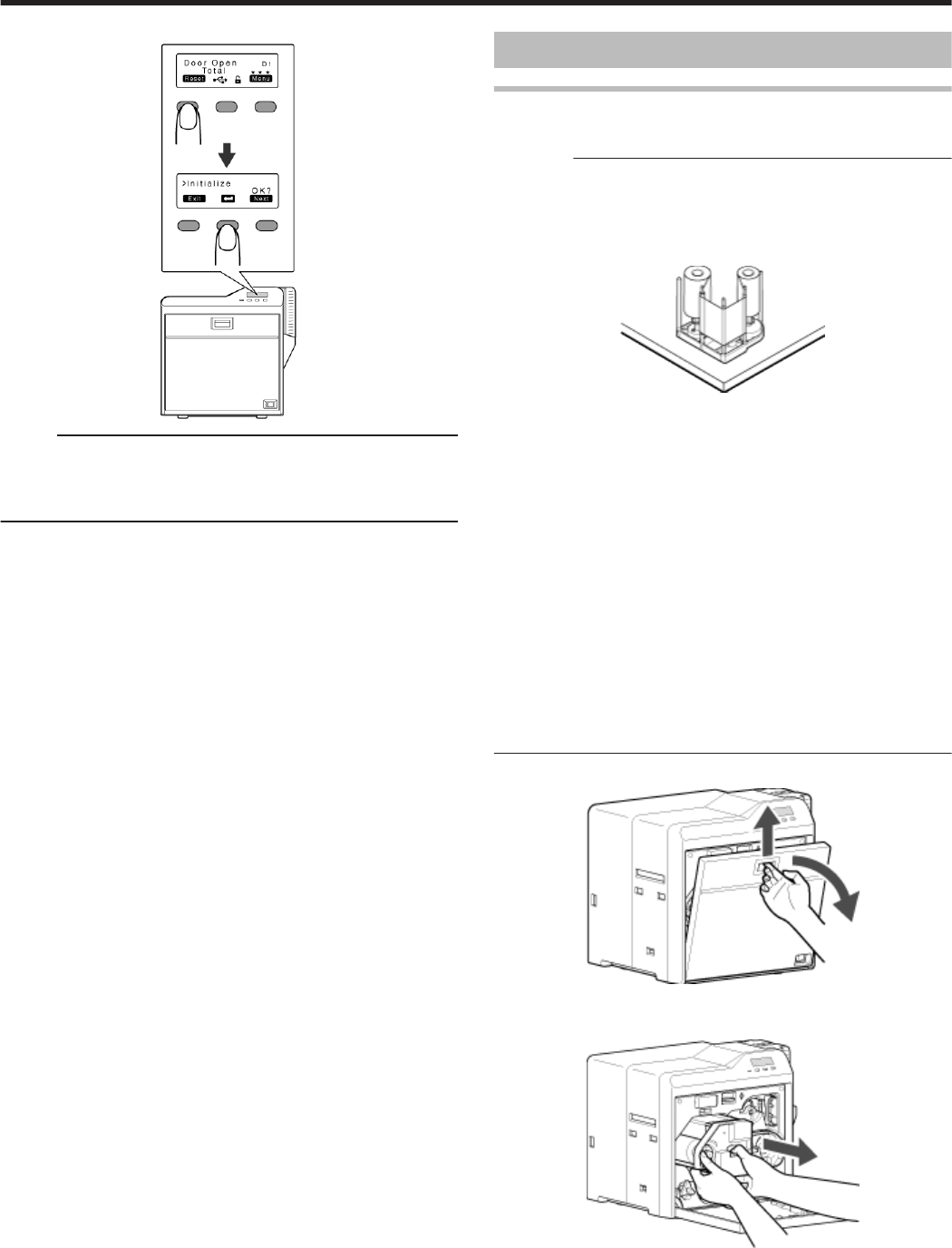
6Press KNB to reset the printer
.
Memo:
vTo avoid printing errors, it is recommended that you forward by one
or two images after installing the ink ribbon cassette or retransfer film
cassette.
"Initializing printer when installing the cassette" (A page 22)
Retransfer Film
Retransfer Film has Run Out
vReplace with a new retransfer film.
Cautions:
vIf the security lock is on, deactivate it. After work is complete,
activate the security lock again.
vStand the cassette on a flat surface as illustrated in the diagram.
Avoid doing so on the floor as dust attached to it may cause printing
errors.
.
vDo not touch the retransfer face (the side that faces outward when
installed) with your hand. Touching it may cause printing errors. Put
on the supplied gloves when handling the retransfer film.
vThe cassette is heavy when the retransfer film is loaded. To prevent
the cassette from dropping during handling, make sure to hold it with
both hands.
vWhen installing a used retransfer film, align the unused side of the
film with the arrow indicated on the label of the cassette. Improper
alignment may result in errors, or the print may turn out light.
vWhen installing a new film, make sure that at least three black lines
are wound onto the take-up side. Insufficient winding may cause the
printer to malfunction.
vDo not perform any work on the printer door. Do not place heavy
objects or apply load on the printer. Doing so may damage it.
vDuring replacement, clean the four bobbin holders on the printer. If
burrs produced by friction with the bobbins are attached to the
bobbin holders, they may fall onto the card, ink ribbon, or retransfer
film, causing printing errors.
"Cleaning the bobbin holders" (A page 40)
1Open the printer door
.
2Press and hold down the cassette button, and pull out the retransfer
film cassette (on the left) to remove the retransfer film
.
Replacement
33
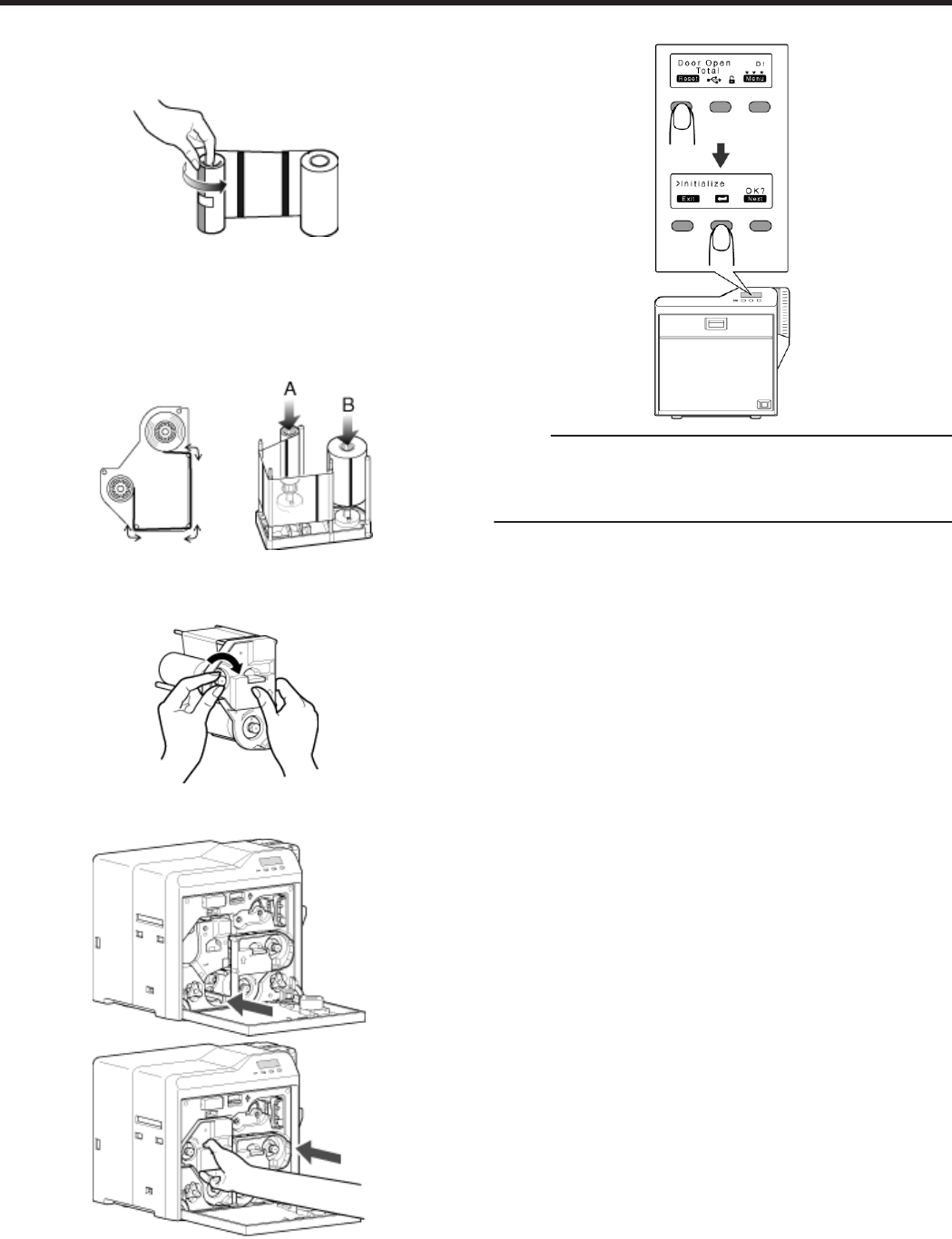
3Install a new retransfer film
vInstall while referring to the indication on the label of the cassette.
A When installing the retransfer film, make sure that at least three
black lines are wound onto the take-up side.
.
B With the retransfer face facing outward, align the unused side of
the film with the arrow on the cassette, and unwind it along the
three shafts.
C Insert the retransfer film firmly into the bobbin holders with the film
set to the far end of the guides.
vA: take-up side (black)
vB: unused side (green)
.
4Remove any slack in the film
A Hold the retransfer film cassette.
B Turn the knob in the direction indicated by the arrow.
.
5Insert the cassette all the way in along the guide rail until a “click”
sound is heard, followed by closing the printer door
.
.
6Press KNB to reset the printer
.
Memo:
vTo avoid printing errors, it is recommended that you forward by one
or two images after installing the ink ribbon cassette or retransfer film
cassette.
"Initializing printer when installing the cassette" (A page 22)
Replacement
34
Servicing of Parts
mRequest for routine servicing
vIn order to prevent printing errors and malfunctions from occurring
in advance, please request for routine servicing by the servicing
personnel. For details on servicing, please consult our authorized
dealers.
Cleaning Roller
vThe function of the cleaning roller is to remove any dirt or dust
attached to the card.
vThe color of the printed card may appear faded or dirt may appear
conspicuous if the cleaning roller is dirty. Card jams may also occur
as a result.
Cautions:
vIf the security lock is on, deactivate it. After work is complete,
activate the security lock again.
vStart work after ensuring that the power has been turned off.
vIf the printer is used every day, make sure to clean the cleaning
roller daily at the end of the operation.
vDo not perform any work on the printer door. Do not place heavy
objects or apply load on the printer. Doing so may damage it.
vAfter washing, allow the cleaning roller to dry completely before
installing it to the printer.
vDo not wash the cleaning roller with anything other than water (e.g.,
alcohol).
vReplace the cleaning unit with a new one after using it for about one
year. For details on its replacement, please consult our authorized
dealers.
vAfter cleaning is complete, check to ensure that all dismantled parts
are restored to their original positions. Failure to restore the parts
may result in malfunction of the printer.
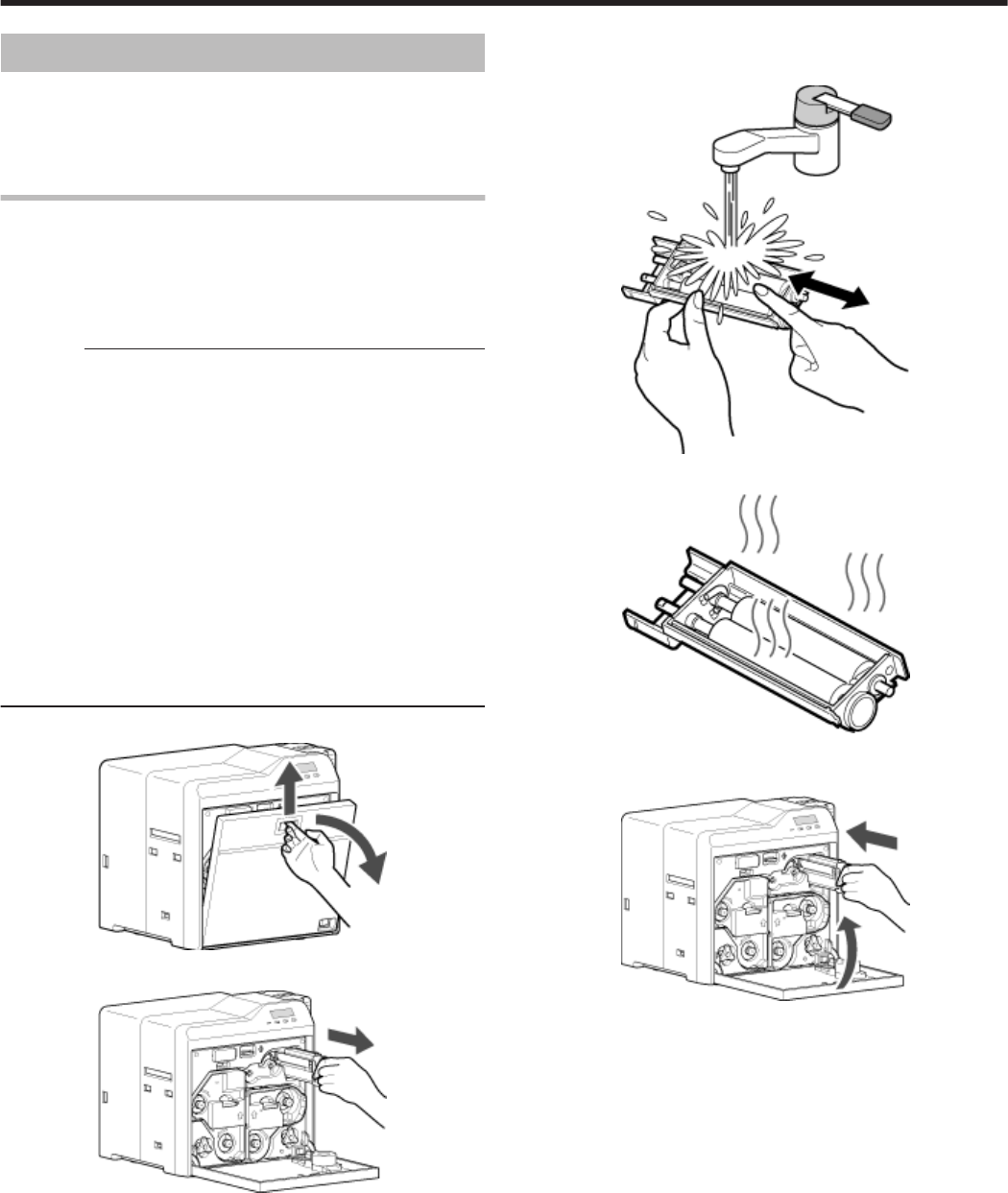
1Open the printer door
.
2Remove the cleaning unit
.
3Wash the cleaning roller with water
vWash the roller with water, and remove any dirt from the surface of
the cleaning roller with your finger.
.
4Allow the cleaning roller to air dry
.
5Set the cleaning unit, and close the printer door
vWith the roller facing the right, insert it all the way in.
.
Maintenance
35
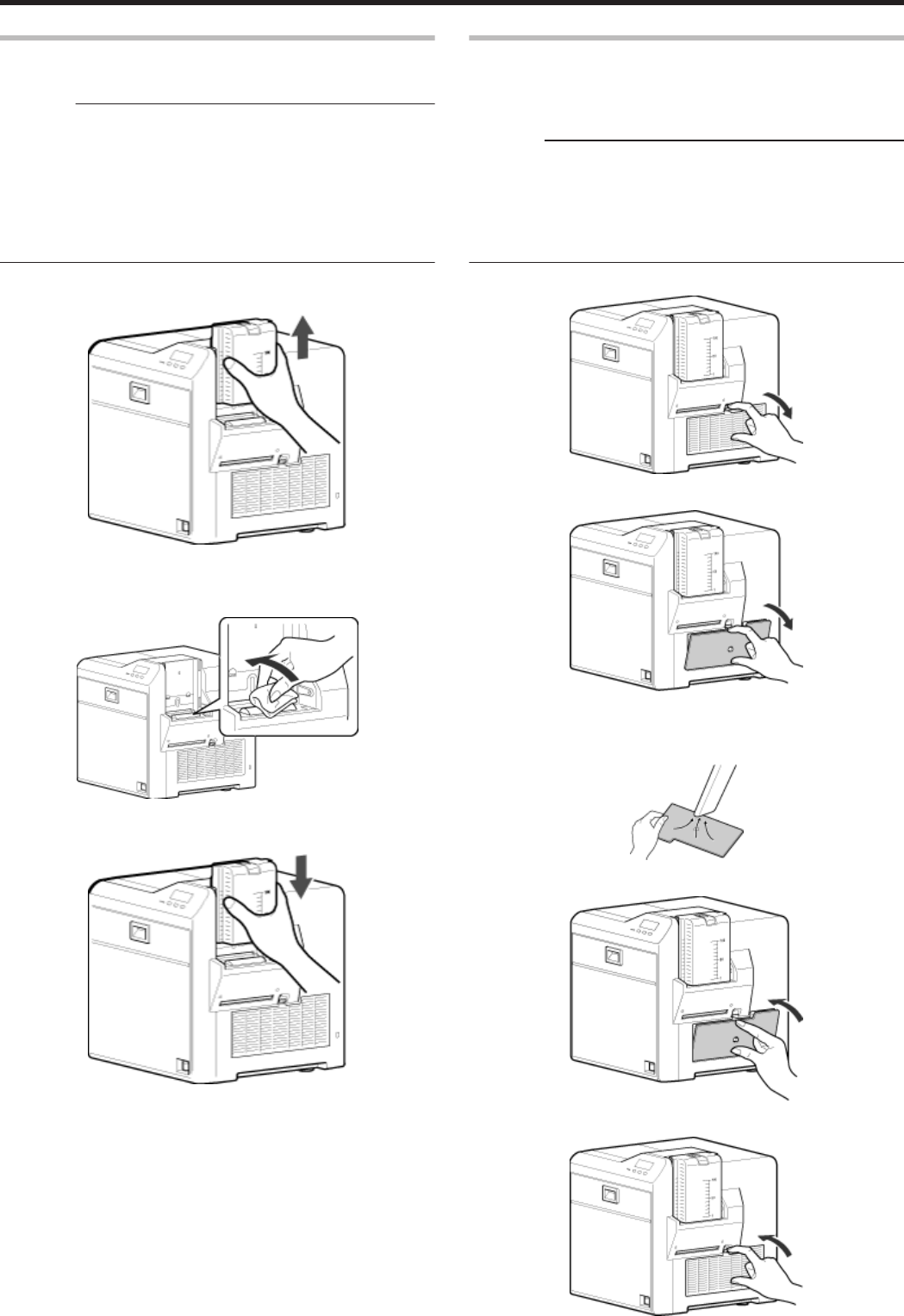
Card Load Roller
vCard jams may occur if the card load roller is dirty.
Cautions:
vIf the security lock is on, deactivate it. After work is complete,
activate the security lock again.
vStart work after ensuring that the power has been turned off.
vAfter cleaning is complete, check to ensure that all dismantled parts
are restored to their original positions. Failure to restore the parts
may result in malfunction of the printer.
vFor details on separately sold items, please consult our authorized
dealers.
1Remove the card hopper
.
2Apply alcohol (sold separately) to a wiper (sold separately), and use
it to wipe the surface of the card load roller
vWipe while turning the card load roller in the anti-clockwise direction.
.
3Install the card hopper
.
Fan Filter
vThe color of the printed card may appear faded or dirt may appear
conspicuous if the fan filter is dirty.
vPerform cleaning after printing about 10,000 cards.
Cautions:
vStart work after ensuring that the power has been turned off.
vAfter cleaning is complete, check to ensure that all dismantled parts
are restored to their original positions. Failure to restore the parts
may result in malfunction of the printer.
v
Replace the fan filter with a new one after using it for about one year.
For details on its replacement, please consult our authorized dealers.
1Remove the filter cover located on the side of the printer
.
2Remove the fan filter
.
3
Remove any dirt that is attached to the fan filter using a vacuum cleaner
vHold the filter with your hand to prevent it from being sucked into the
vacuum cleaner.
.
4Set the fan filter
.
5Set the filter cover
.
Maintenance
36
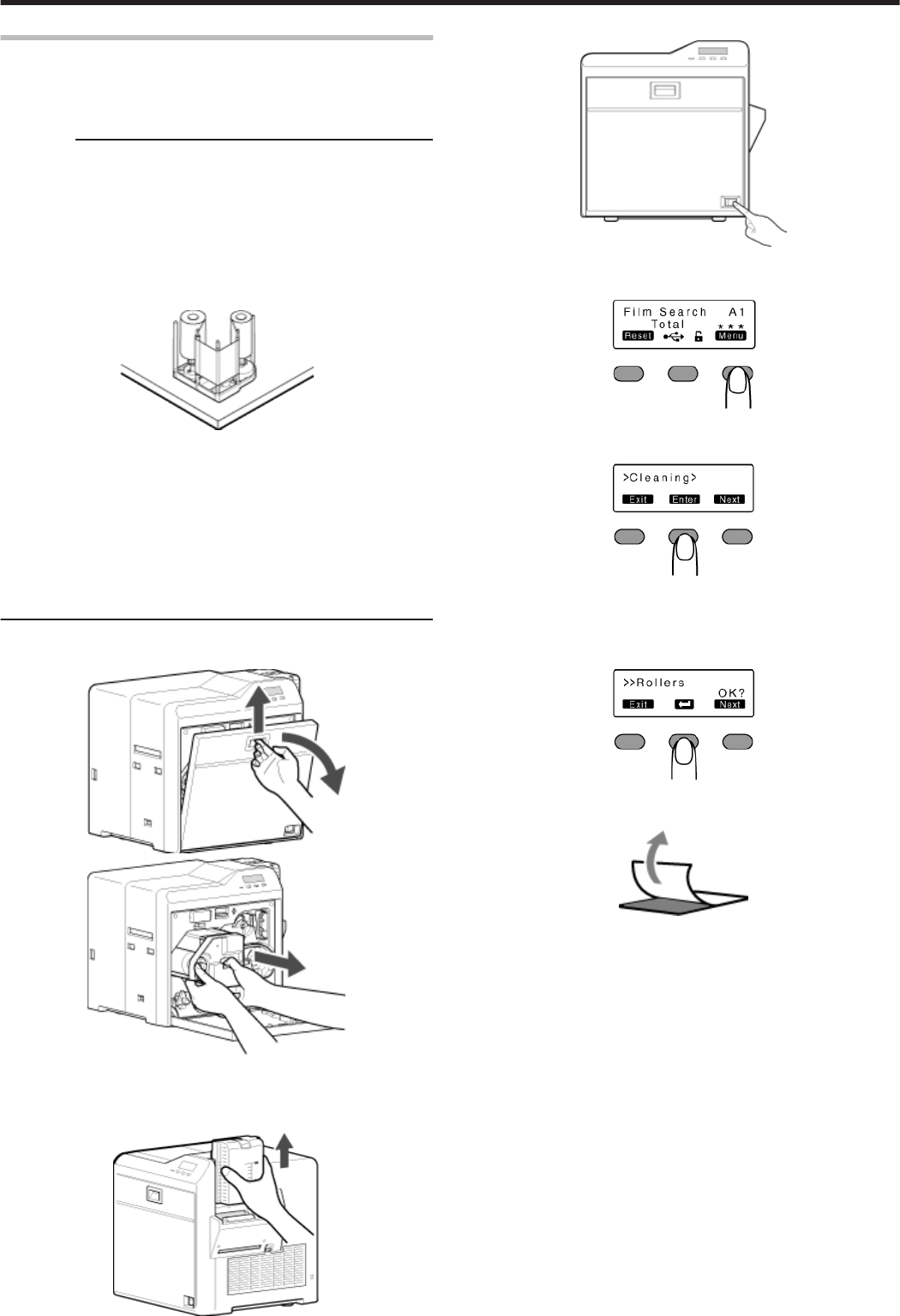
Card Feed Roller/Heating Roller
vThe color of the printed card may appear faded or dirt may appear
conspicuous if the card feed roller or heating roller is dirty.
vPerform cleaning after printing about 1,000 cards.
Cautions:
vIf the security lock is on, deactivate it. After work is complete,
activate the security lock again.
vBefore cleaning the card feed roller and heating roller, make sure
that you clean the cleaning roller. Otherwise, dirt on the cleaning
roller may be attached to the cleaning card, causing its cleaning
capability to deteriorate.
vStand the cassette on a flat surface as illustrated in the diagram.
Avoid doing so on the floor as dust attached to it may cause printing
errors.
.
vIf card jam occurs when the cleaning card is inserted, turn off and on
the power of the printer. Doing so automatically discharges the card.
vDo not perform any work on the printer door. Do not place heavy
objects or apply load on the printer. Doing so may damage it.
vEach cleaning card can only be used once. Reusing a dirty card may
dirty the roller or cause the printer to malfunction.
vAfter cleaning is complete, check to ensure that all dismantled parts
are restored to their original positions. Failure to restore the parts
may result in malfunction of the printer.
v
For details on separately sold items, please consult our authorized dealers.
1Open the printer door. Press and hold down the cassette button,
and remove the retransfer film cassette (on the left)
.
.
2Close the printer door
3Remove the card hopper
.
4Turn on the power
.
5Press I to set to [Cleaning]
.
6Press G to set to [Rollers]
.
7Press B
vA [Film Checking..] message appears, followed by a [Cleaning Start
OK?] message.
.
8Peel off the backing paper from the cleaning card (sold separately)
.
Maintenance
37
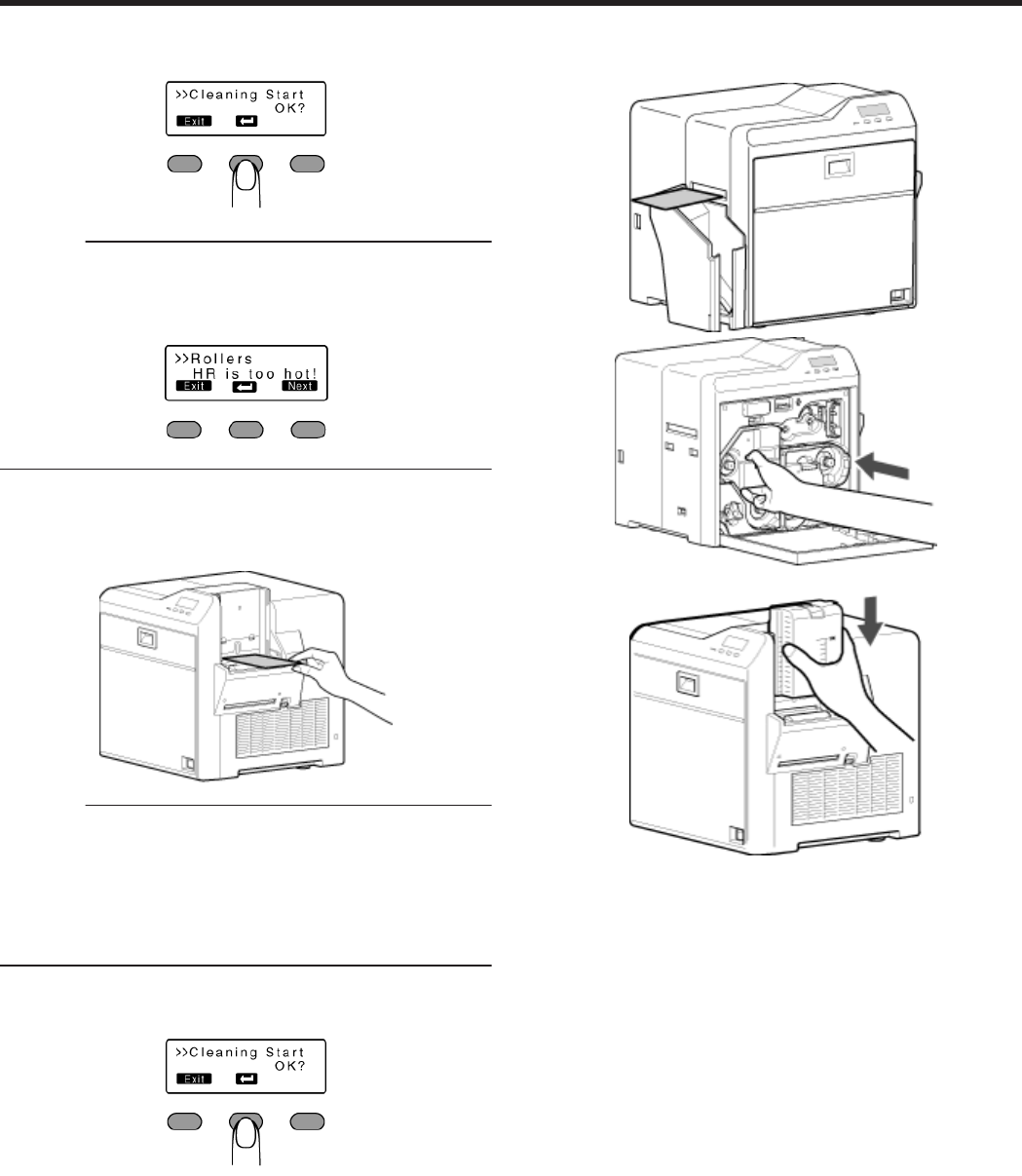
9Press B
vA [Cleaning..] message appears.
.
Cautions:
vIf the retransfer heating roller is hot, a [HR is too hot!] message will
be displayed. Turn off the power, and perform cleaning after the
retransfer heating roller has cooled down completely.
.
10 Insert the cleaning card (sold separately) within 20 seconds
vThe roller draws in the card, and cleaning starts automatically.
vA [Cleaning Start OK?] message appears after the card is
discharged.
.
Cautions:
vInsert the card within 20 seconds after pressing B.
vAfter pressing B, the buzzer sounds upon a lapse of 20 seconds,
and a [Jam(Hopper)] error message appears about 10 seconds later.
Press KNB to cancel the error.
vWhen a standard-sized card is inserted, the card is automatically
discharged from the NG card outlet, and a [Cleaning Start OK?]
message appears.
11 Press B, and insert the cleaning card again
vReverse the adhesive face, and insert the card.
.
12 After the cleaning card is discharged, turn off the power, install the
retransfer film cassette, close the printer door, and install the card
hopper
.
.
.
v
To turn on the power again, do so after an interval of at least 10 seconds.
Maintenance
38
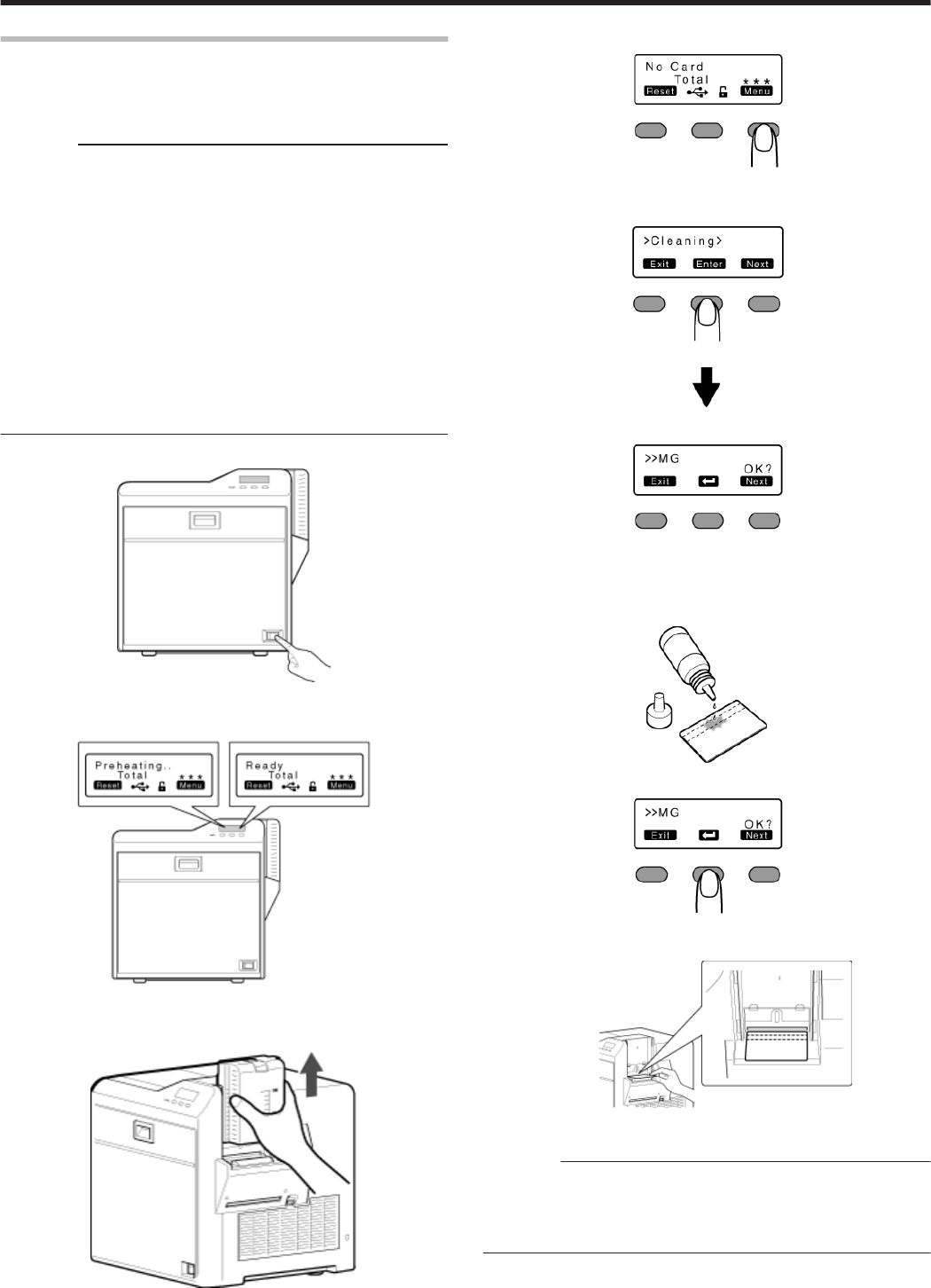
Magnetic Head
vIf the magnetic head is dirty, errors may occur during writing to or
reading of the magnetic stripe card.
vClean the magnetic head after approximately every 1,000 cards.
Cautions:
vIf the security lock is on, deactivate it. After work is complete,
activate the security lock again.
vBefore cleaning the magnetic head, make sure that you clean the
cleaning roller. Otherwise, dirt on the cleaning roller may be attached
to the cleaning card, causing its cleaning capability to deteriorate.
vAfter cleaning is complete, check to ensure that all dismantled parts
are restored to their original positions. Failure to restore the parts
may result in malfunction of the printer.
vDo not perform any work on the printer door. Do not place heavy
objects or apply load on the printer. Doing so may damage it.
vFor details on separately sold items, please consult our authorized
dealers.
vReplace the magnetic head cleaning card accordingly if it has
become dirty. Using a dirty card may dirty the head and cause
malfunction.
1Turn on the power
.
2Check to ensure that [Ready] or [Preheating..] is displayed on the
operation panel of the printer
.
3Remove the card hopper
.
4Press I to set to [Cleaning]
.
5Press GNJ to set to [MG]
.
6Apply alcohol on the magnetic head cleaning card (sold separately)
vApply about three to four drops of alcohol on the position of the
magnetic stripe.
.
7Press B
.
8Insert the magnetic head cleaning card within 20 seconds
.
Cautions:
vInsert the card within 20 seconds after pressing B.
vAfter pressing B, the buzzer sounds upon a lapse of 20 seconds,
and a [Jam(Hopper)] error message appears about 10 seconds later.
Press KNB to cancel the error.
Maintenance
39
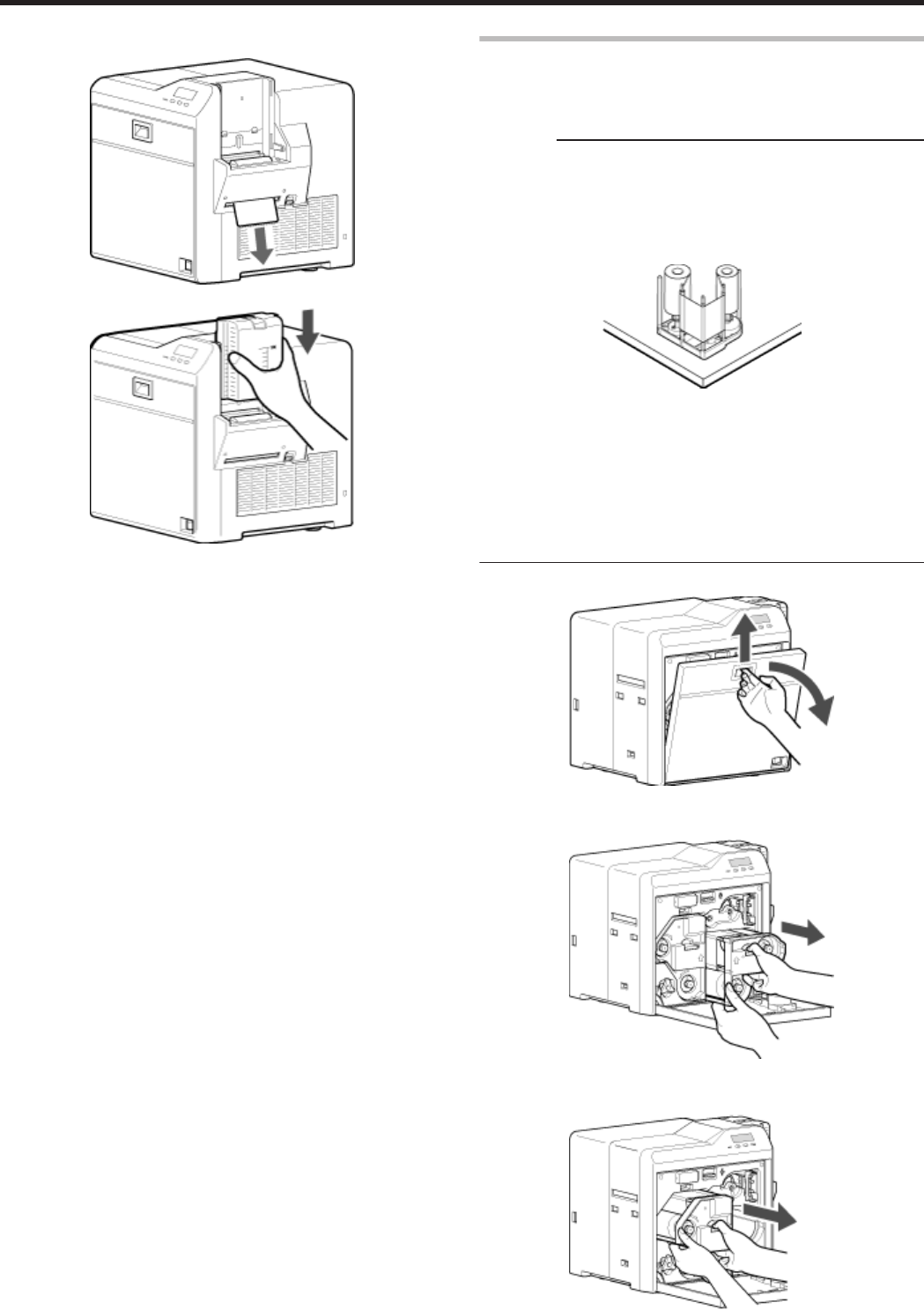
9After the cleaning card is discharged, turn off the power, and install
the card hopper
.
.
vTo turn on the power again, do so after an interval of at least 10
seconds.
Bobbin Holders
vIf burrs produced by friction with the bobbins are attached to the
bobbin holders, they may fall onto the card, ink ribbon, or retransfer
film, causing printing errors.
Cautions:
vIf the security lock is on, deactivate it. After work is complete,
activate the security lock again.
vStart work after ensuring that the power has been turned off.
vStand the cassette on a flat surface as illustrated in the diagram.
Avoid doing so on the floor as dust attached to it may cause printing
errors.
.
vDo not perform any work on the printer door. Do not place heavy
objects or apply load on the printer. Doing so may damage it.
vPerform cleaning each time you replace the ink ribbon or retransfer
film.
vAfter cleaning is complete, check to ensure that all dismantled parts
are restored to their original positions. Failure to restore the parts
may result in malfunction of the printer.
vFor details on separately sold items, please consult our authorized
dealers.
1Open the printer door
.
2Press and hold down the cassette button, and remove the ink ribbon
cassette (on the right)
.
3Press and hold down the cassette button, and remove the retransfer
film cassette (on the left)
.
Maintenance
40
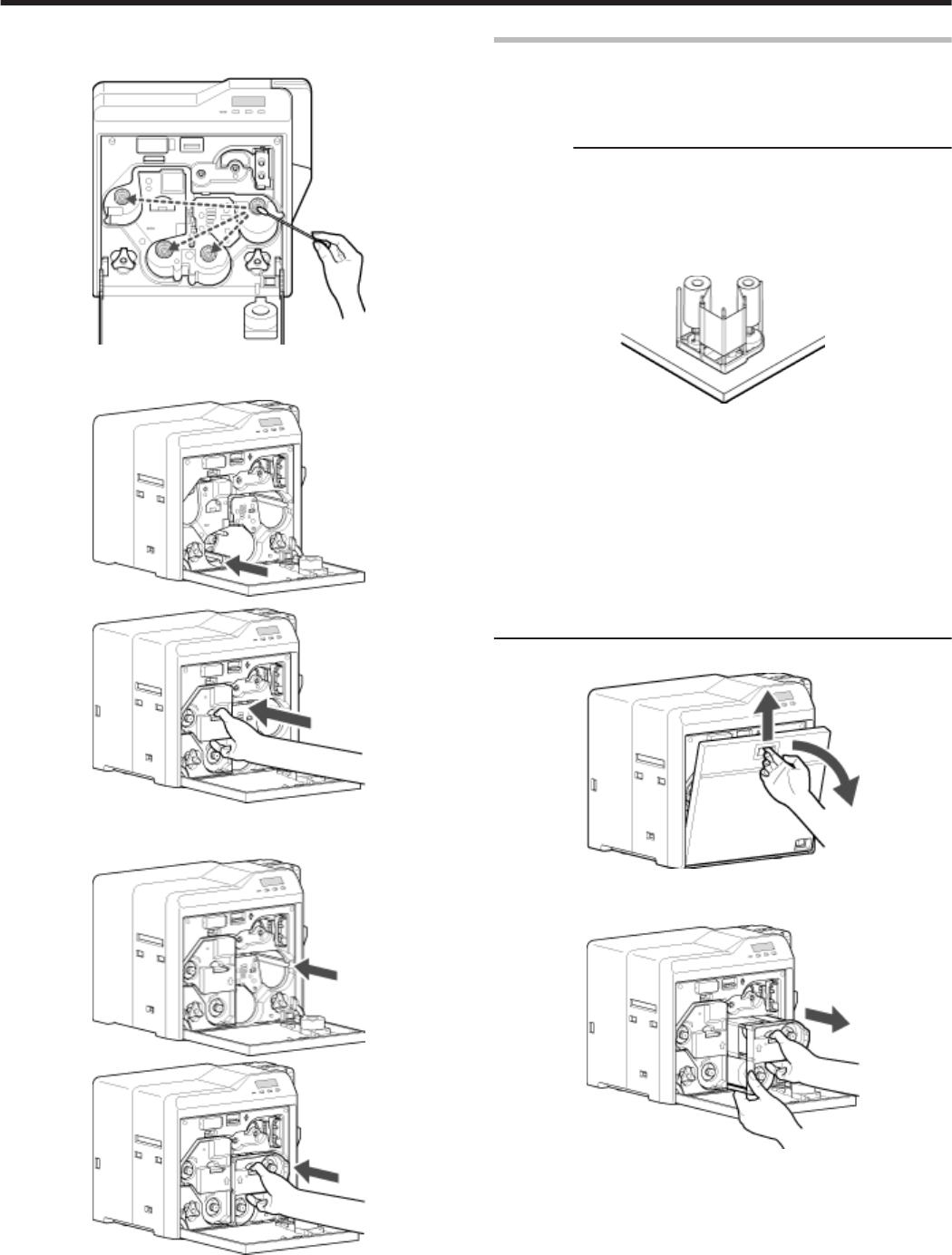
4Apply alcohol to a cotton swab (large), and use it to wipe the four
bobbin holders
(Cotton swab and alcohol: sold separately)
.
5Insert the retransfer film cassette along the guide rail until a “click”
sound is heard
.
.
6Insert the ink ribbon cassette along the guide rail until a “click”
sound is heard, followed by closing the printer door
.
.
Thermal Head
vLines may appear on the card after printing if the thermal head is
dirty.
vClean the thermal head after printing about 10,000 images.
Cautions:
vIf the security lock is on, deactivate it. After work is complete,
activate the security lock again.
vStart work after ensuring that the power has been turned off.
vStand the cassette on a flat surface as illustrated in the diagram.
Avoid doing so on the floor as dust attached to it may cause printing
errors.
.
vDo not perform any work on the printer door. Do not place heavy
objects or apply load on the printer. Doing so may damage it.
vTouching the thermal head with your body electrostatically charged
may cause damage to the head. Make sure that you touch the
metallic part of the printer before commencing work.
vPay attention to prevent metallic objects from knocking against the
thermal head. Doing so may damage it.
vAfter cleaning is complete, check to ensure that all dismantled parts
are restored to their original positions. Failure to restore the parts
may result in malfunction of the printer.
vFor details on separately sold items, please consult our authorized
dealers.
1Open the printer door
.
2Press and hold down the cassette button, and remove the ink ribbon
cassette (on the right)
.
Maintenance
41
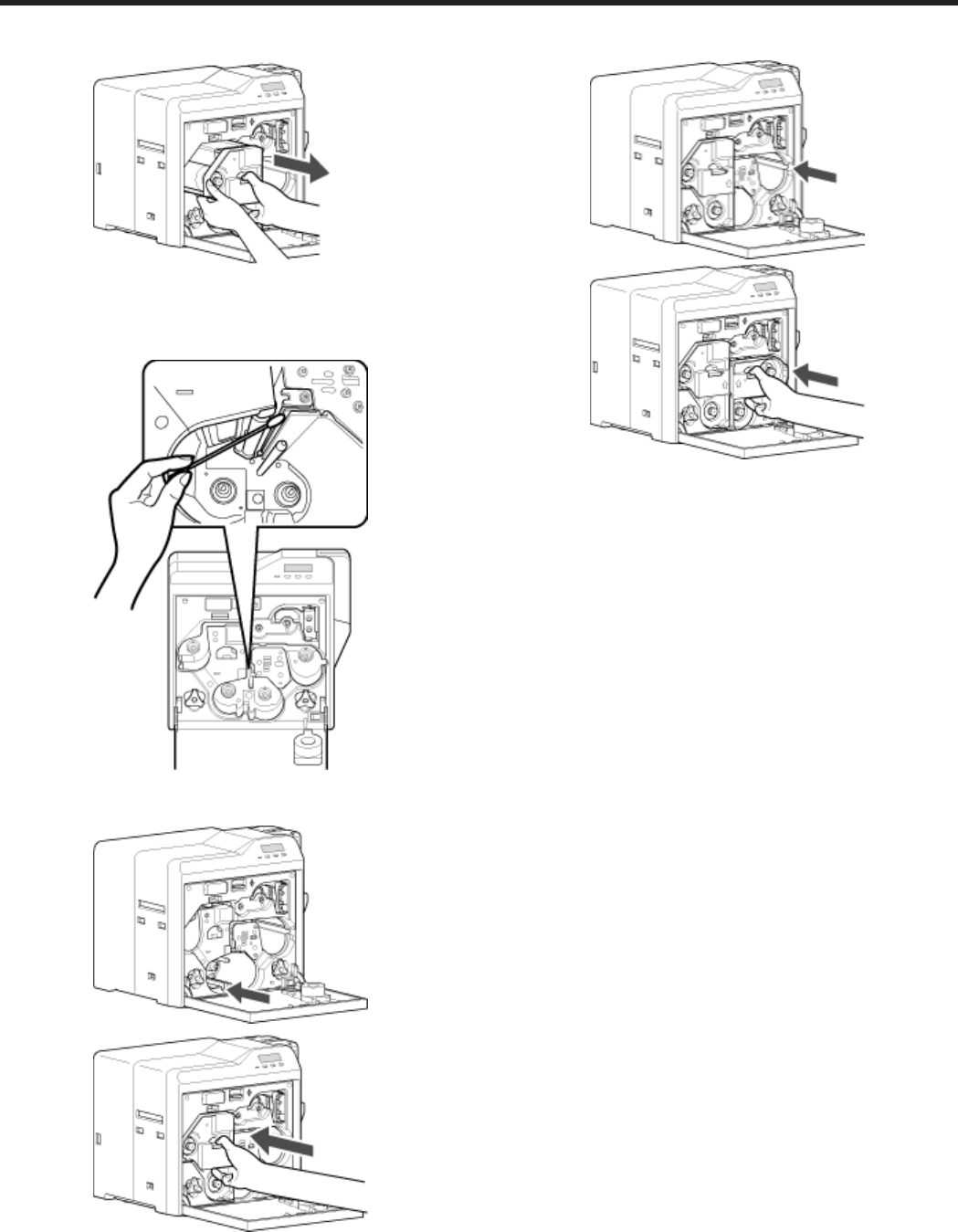
3Press and hold down the cassette button, and remove the retransfer
film cassette (on the left)
.
4Apply alcohol to a cotton swab (large), and use it to wipe the thermal
head
(Cotton swab and alcohol: sold separately)
vWipe the thermal head with care in the horizontal direction.
.
5Insert the retransfer film cassette along the guide rail until a “click”
sound is heard
.
.
6Insert the ink ribbon cassette along the guide rail until a “click”
sound is heard, followed by closing the printer door
.
.
Maintenance
42

Servicing Based on Print Output
Colors Appear Faded or Dirt is Conspicuous
v"Clean the cleaning roller." (A page 35)
v"Clean the fan filter." (A page 36)
v"Clean the card feed roller/heating roller." (A page 37)
v"Clean the bobbin holders." (A page 40)
Card Jam
v"Clean the cleaning roller." (A page 35)
v"Clean the card load roller." (A page 36)
Error During Writing to or Reading of Magnetic Stripe Card
v"Clean the magnetic head." (A page 39)
Lines Appear on Card after Printing
v"Clean the thermal head." (A page 41)
Maintenance
43
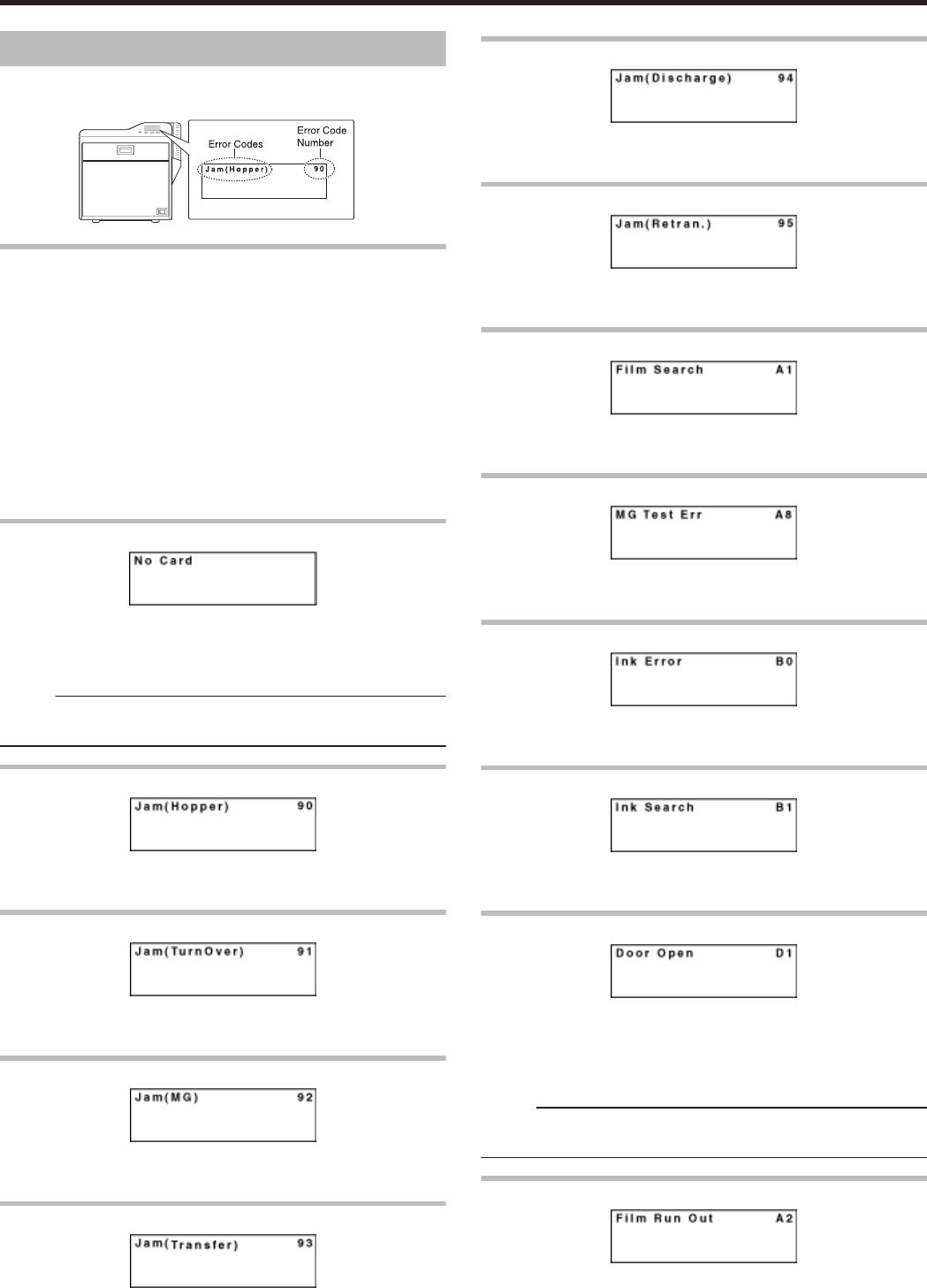
When an Error Message is Displayed
vCheck the error code and error code number displayed on the
operation panel.
.
List of Error Codes
vClick on an error code below to jump to the page with the
corresponding error descriptions.
"44" (A page 45) "90" (A page 44) "91" (A page 44)
"92" (A page 44) "93" (A page 44) "94" (A page 44)
"95" (A page 44)
"A1" (A page 44) "A2" (A page 44) "A8" (A page 44)
"AB" (A page 45) "AC" (A page 45)
"B0" (A page 44) "B1" (A page 44) "B2" (A page 45)
"C1" (A page 45) "C2" (A page 45) "C3" (A page 45)
"D1" (A page 44) "D8" (A page 45)
"F0" (A page 45) "F1" (A page 45) "F2" (A page 45)
"F3" (A page 45) "F4" (A page 45) "F5" (A page 45)
"F6" (A page 45) "F8" (A page 45)
No Card
.
vCards have run out.
"Replenish the cards." (A page 31)
vThe card hopper is not installed.
Install the card hopper.
Memo:
vThe operation panel display appears blinking when the cards have
run out or when the card hopper is not installed.
Jam(Hopper) 90
.
vCard jam near the card hopper and cleaning roller.
"Remove the jammed card." (A page 46)
Jam(TurnOver) 91
.
vCard jam near the card turn over unit.
"Remove the jammed card." (A page 47)
Jam(MG) 92
.
vCard jam in the magnetic encoder unit.
"Remove the jammed card." (A page 49)
Jam(Transfer) 93
.
vCard jam in the card feed roller.
"Remove the jammed card." (A page 50)
Jam(Discharge) 94
.
vCard jam near the card outlet.
"Remove the jammed card." (A page 51)
Jam(Retran.) 95
.
vCard jam near the retransfer heating roller.
"Remove the jammed card." (A page 52)
Film Search A1
.
vRetransfer film is broken.
"Repair the retransfer film." (A page 56)
MG Test Err A8
.
vA writing error has occurred during magnetic encoder self-diagnosis.
Press KNB to reset the printer.
Ink Error B0
.
vAn incorrect ink ribbon is installed.
Install a correct ink ribbon.
Ink Search B1
.
vInk ribbon is broken.
"Repair the ink ribbon." (A page 54)
Door Open D1
.
vThe printer door is open.
Close the printer door, and press KNB to reset the printer.
vCleaning unit is not installed.
Install the cleaning unit, close the printer door, and press
KNB to reset the printer.
Memo:
vThe operation panel display appears blinking when the printer door
is open or when the cleaning unit is not installed.
Film Run Out A2
.
vRetransfer film has run out.
"Replace with a new one." (A page 33)
Troubleshooting
44
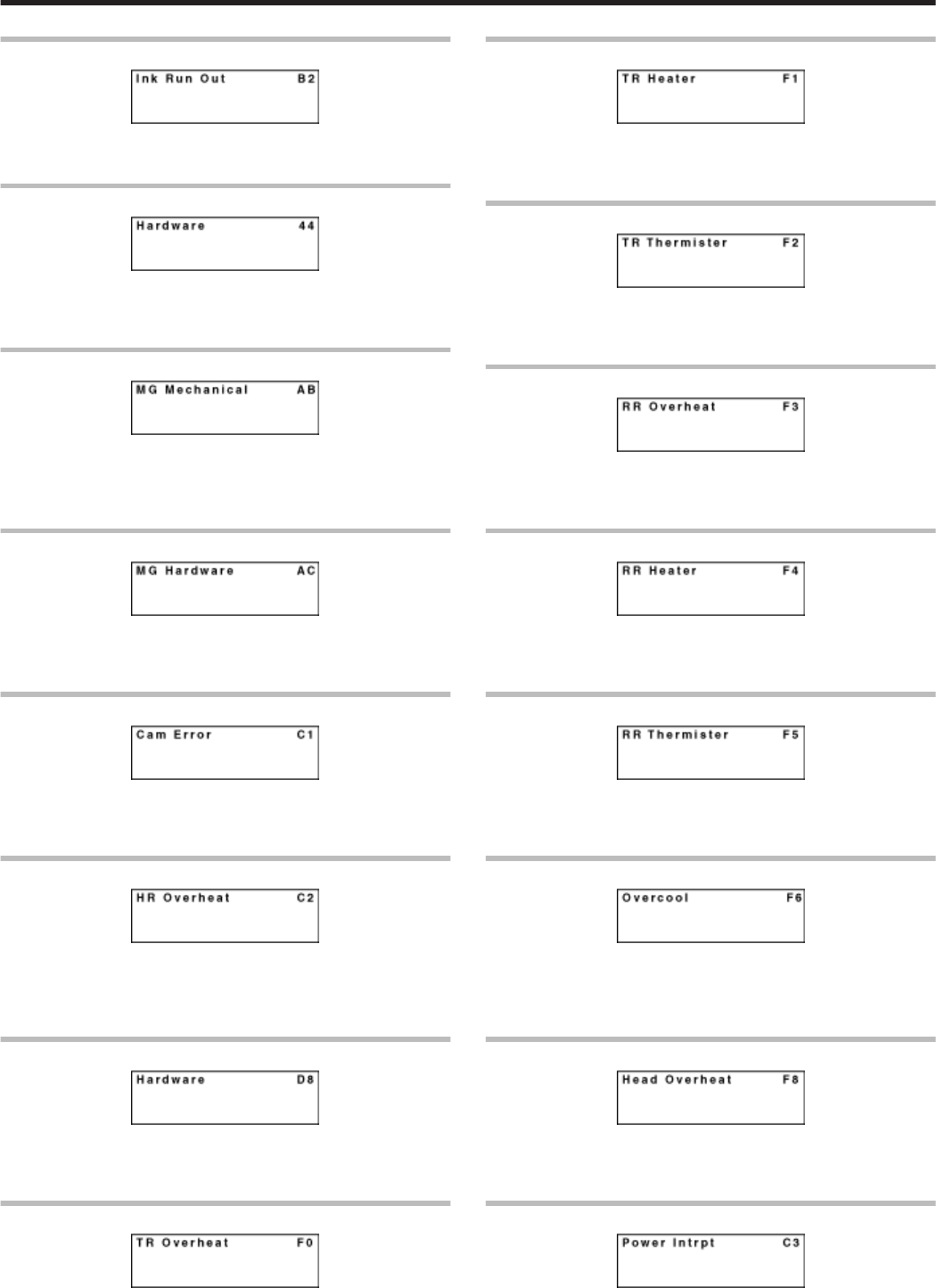
Ink Run Out B2
.
vInk ribbon has run out.
"Replace with a new one." (A page 32)
Hardware 44
.
vA hardware failure has occurred on the printer.
Turn off and on the power again. If the same problem recurs, turn off
the power and consult our authorized dealers.
MG Mechanical AB
.
vAn error has occurred in the mechanical component of the magnetic
encoder.
Turn off and on the power again. If the same problem recurs, turn off
the power and consult our authorized dealers.
MG Hardware AC
.
vA hardware failure has occurred on the magnetic encoder.
Turn off and on the power again. If the same problem recurs, turn off
the power and consult our authorized dealers.
Cam Error C1
.
vA heating roller operation error has occurred.
Turn off and on the power again. If the same problem recurs, turn off
the power and consult our authorized dealers.
HR Overheat C2
.
vThe temperature of the bend remedy heating roller or retransfer
heating roller is too high.
Turn off and on the power again. If the same problem recurs, turn off
the power and consult our authorized dealers.
Hardware D8
.
vA hardware error has occurred during initialization.
Turn off and on the power again. If the same problem recurs, turn off
the power and consult our authorized dealers.
TR Overheat F0
.
vThe temperature of the retransfer heating roller is too high.
Turn off and on the power again. If the same problem recurs, turn off
the power and consult our authorized dealers.
TR Heater F1
.
vThe retransfer heating roller is faulty.
Turn off and on the power again. If the same problem recurs, turn off
the power and consult our authorized dealers.
TR Thermister F2
.
vThe retransfer heating roller thermistor is faulty.
Turn off and on the power again. If the same problem recurs, turn off
the power and consult our authorized dealers.
RR Overheat F3
.
vThe temperature of the bend remedy heating roller is too high.
Turn off and on the power again. If the same problem recurs, turn off
the power and consult our authorized dealers.
RR Heater F4
.
vThe bend remedy unit is faulty.
Turn off and on the power again. If the same problem recurs, turn off
the power and consult our authorized dealers.
RR Thermister F5
.
vThe bend remedy heating roller thermistor is faulty.
Turn off and on the power again. If the same problem recurs, turn off
the power and consult our authorized dealers.
Overcool F6
.
vThe operating ambient temperature of the printer is too low.
Check the temperature. If the same problem recurs within the range
of operating ambient temperature, turn off the power and consult our
authorized dealers.
Head Overheat F8
.
vThe temperature of the thermal head is too high.
Turn off and on the power again. If the same problem recurs, turn off
the power and consult our authorized dealers.
Power Intrpt C3
.
vAn instantaneous interruption is detected.
Turn off and on the power again. If the same problem recurs, turn off
the power and consult our authorized dealers.
Troubleshooting
45
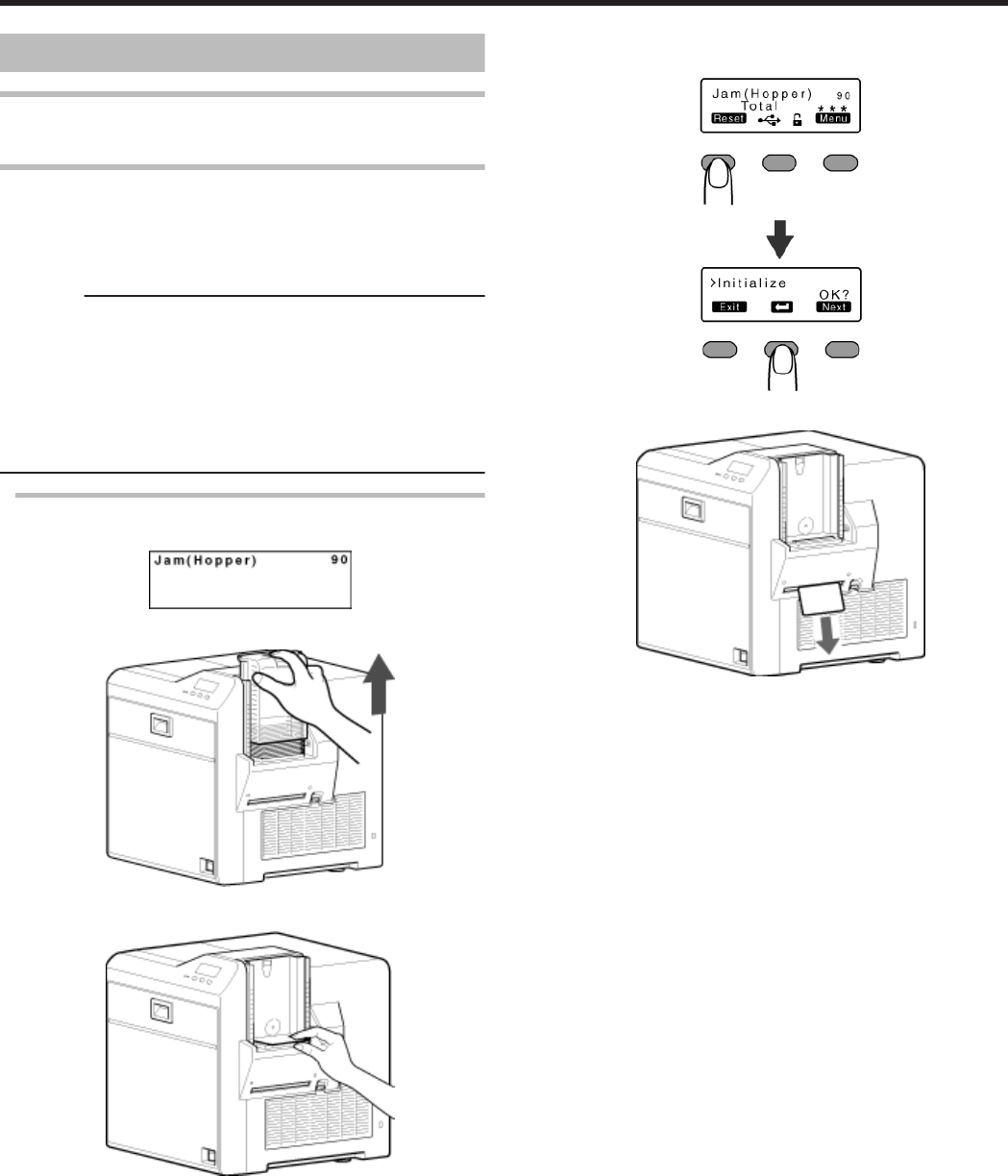
Cards
Cards have Run Out
v"Replenish the cards." (A page 31)
Card Jam
vError codes are displayed on the operation panel according to the
location of the card jam.
vCheck the error code, and remove the card according to the
corresponding procedure.
Cautions:
vIf the card cannot be removed, do not try to do so forcibly. Consult
our authorized dealers or the servicing personnel.
vIf the security lock is on, deactivate it. After work is complete,
activate the security lock again.
vDo not apply excessive force on the card hopper. Doing so may
damage it.
vDo not touch the printing surface of the card. Touching it may cause
printing errors. Put on the supplied gloves when handling the cards.
Error Code Jam(Hopper) 90
vCard jam near the card hopper and cleaning roller.
.
1Detach the card hopper cover, and remove the unused cards
.
2Remove the jammed card with a hand
.
"If the card cannot be removed by hand" (A page 46)
3Return the unused cards to their original position
4Install the card hopper cover
mIf the card cannot be removed by hand
A Press KNB to reset the printer
.
vThe card is discharged from the NG card outlet.
.
"Go to step 3" (A page 46)
"If the card cannot be discharged" (A page 47)
Troubleshooting
46
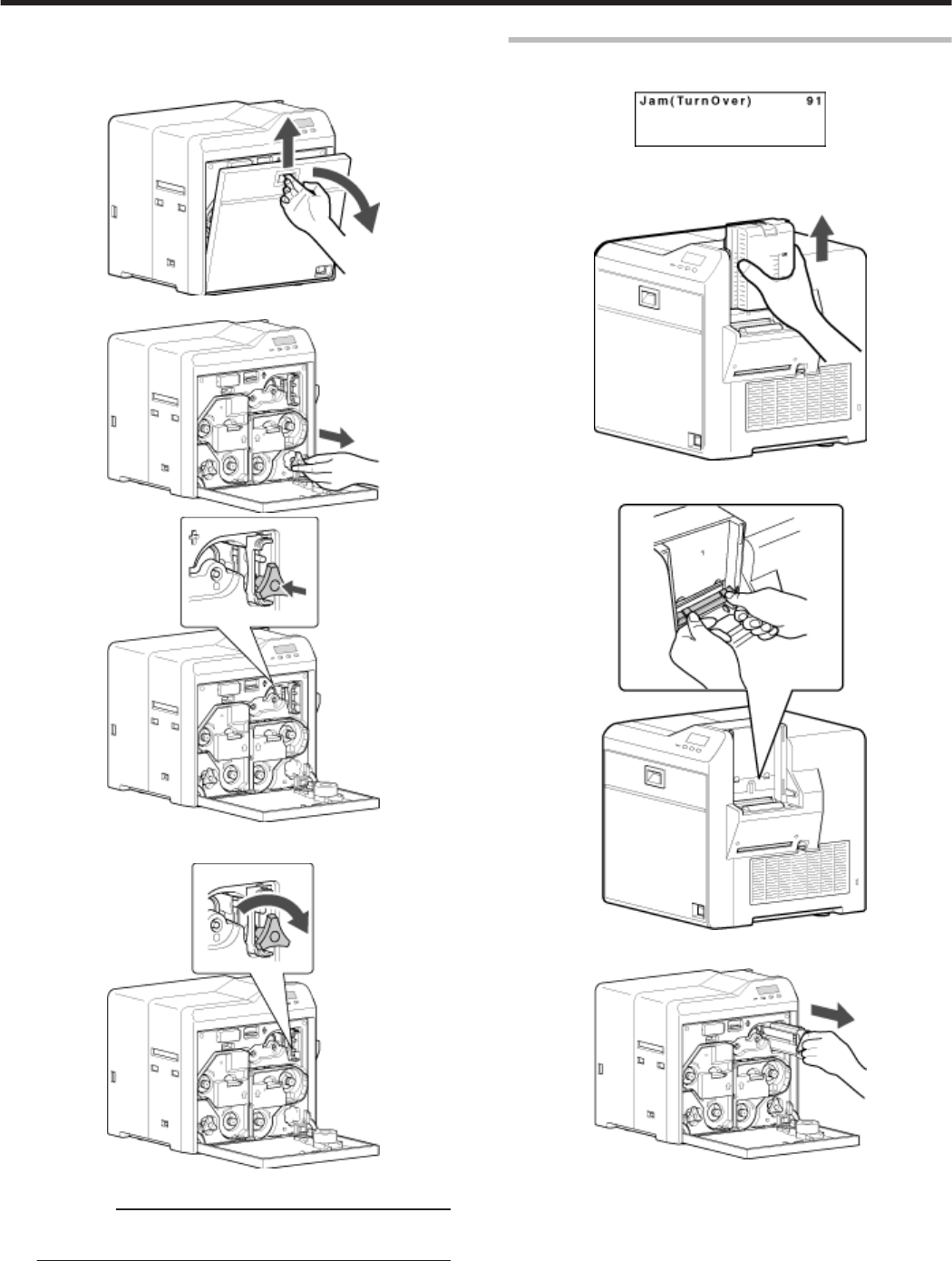
mIf the card cannot be discharged
A Turn off the power
B Open the printer door, and check the position of the jammed
card
.
C Attach the jog dial to the cleaning roller shaft
.
.
D Turn the cleaning roller shaft in the clockwise direction, while
checking the position of the card
.
E Remove the card after it is discharged from the card load slot
Cautions:
vIf the card cannot be removed, do not try to do so forcibly.
Consult our authorized dealers or the servicing personnel.
F Restore the jog dial to its original position, and close the
printer door
G Turn on the power
"Go to step 3" (A page 46)
Error Code Jam(TurnOver) 91
vCard jam near the card turn over unit.
.
1Turn off the power
2Remove the card hopper
.
3Detach the card load slot cover
.
4Open the printer door, and remove the cleaning unit
.
Troubleshooting
47
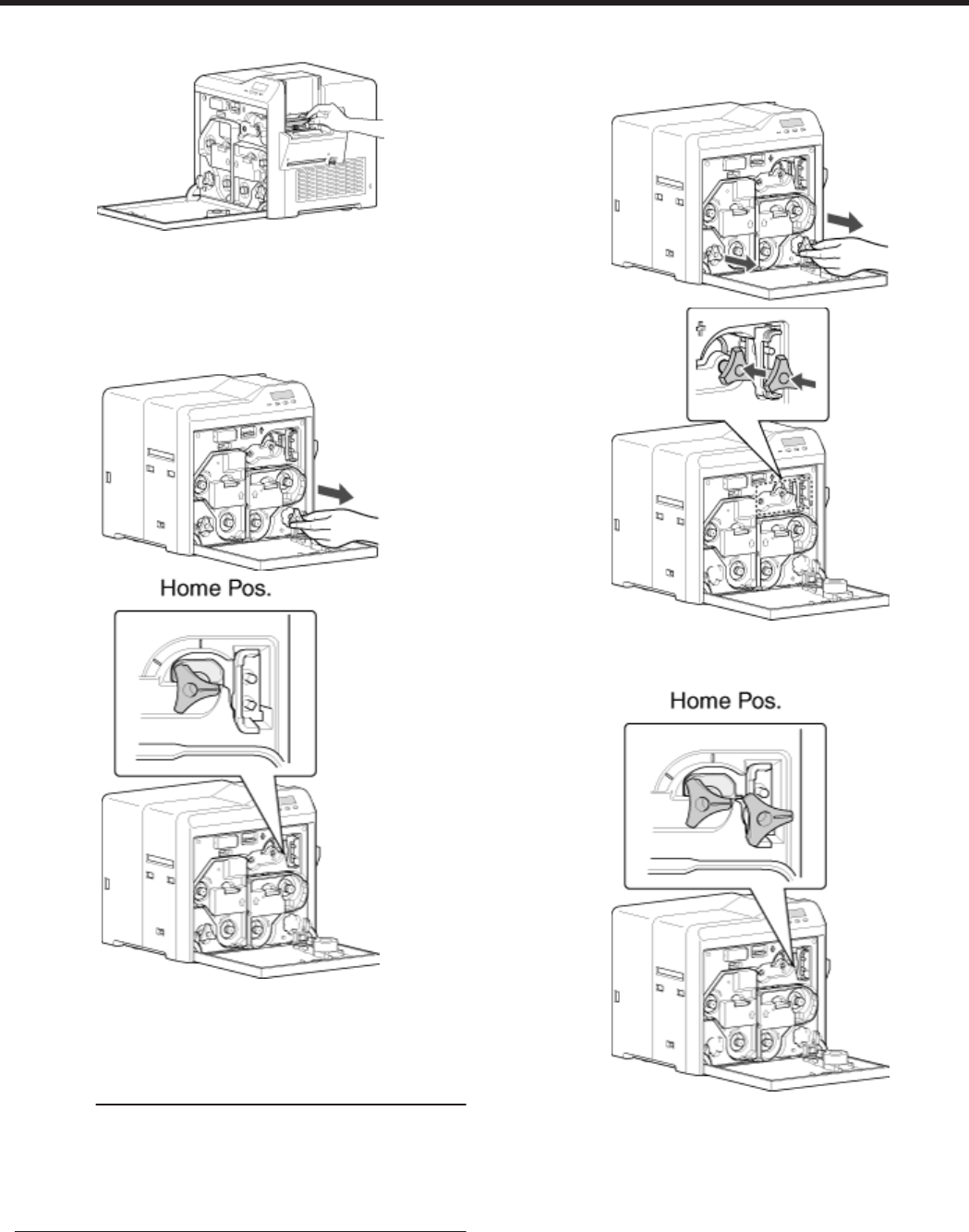
5Remove the jammed card in the card turn over unit from the card
load slot
.
"If the card cannot be removed" (A page 48)
6Install the cleaning unit
7Attach the jog dial to the card turn over unit shaft, and set the card
turn over unit to “Home Pos.”
v“Home Pos.” is the position where the slit on the jog dial points to
the right and the card turn over unit is horizontal.
.
.
8Restore the jog dial to its original position
9Install the card load slot cover and card hopper, and close the
printer door
10 Turn on the power
Cautions:
vWhen a Jam(TurnOver) error occurs, the [Jam(TurnOver)]
message will not disappear after removing the jammed card until
the card turn over unit is set to “Home Pos.”.
vIf the printer door is opened when a Jam(TurnOver) error occurs, a
[Please Adjust Turn Unit Pos!] message will be displayed. Remove
the jammed card, and set the card turn over unit to “Home Pos.”.
mIf the card cannot be removed
A Install the cleaning unit
B Attach the jog dial to the cleaning roller shaft and card turn
over unit shaft
.
.
C Set the card turn over unit to “Home Pos.”
v“Home Pos.” is the position where the slit on the jog dial
points to the right and the card turn over unit is horizontal.
.
vIf the card protrudes from the card turn over unit, turn the
cleaning roller shaft to move the card into the unit.
Troubleshooting
48
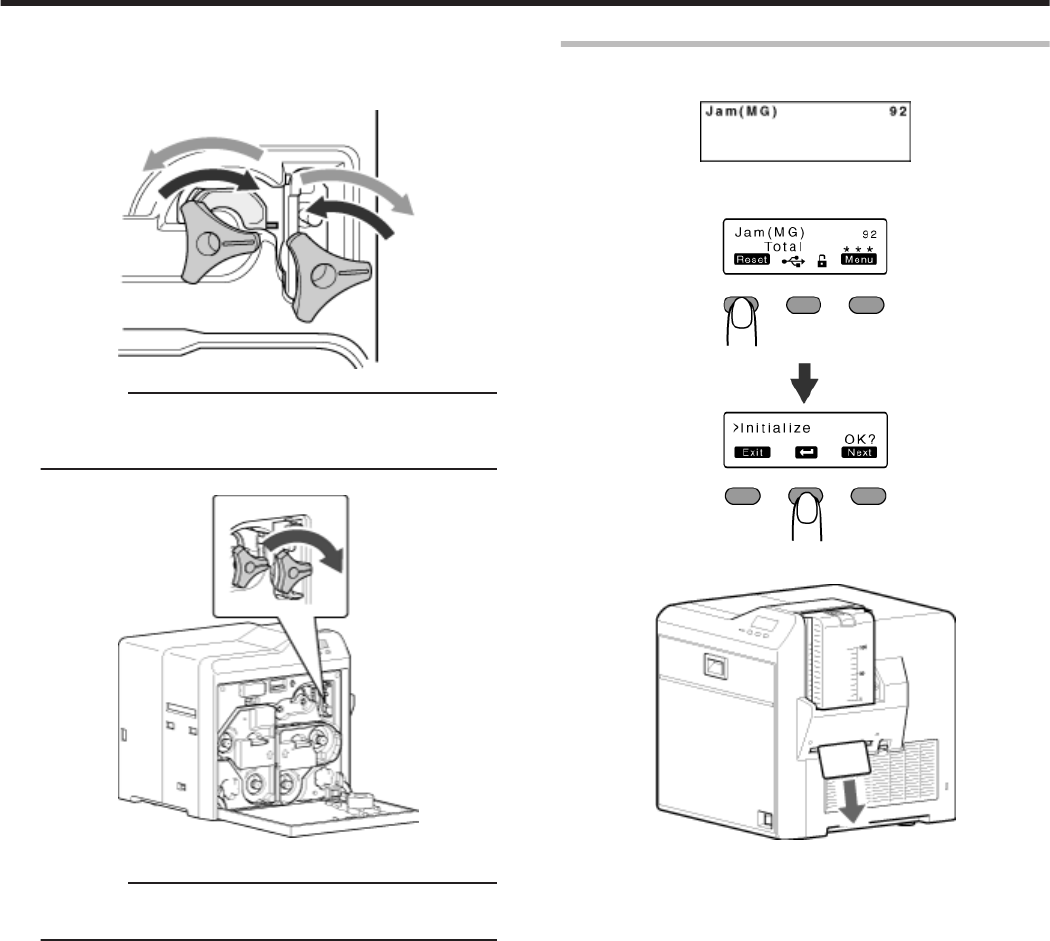
vTurning the card turn over unit moves the card inside the unit
outward. Turn the card turn over unit while turning the
cleaning roller shaft so that the card is retained inside the card
turn over unit, and set to “Home Pos.”.
.
Cautions:
vWhen the card turn over unit cannot be turned, do not turn it
forcibly with the jog dial.
Doing so may cause the card turn over unit to malfunction.
D Turn the cleaning roller shaft in the clockwise direction
.
E Remove the card after it is discharged from the card load slot
Cautions:
vIf the card cannot be removed, do not try to do so forcibly.
Consult our authorized dealers or the servicing personnel.
"Go to step 8" (A page 48)
Error Code Jam(MG) 92
vCard jam in the magnetic encoder unit.
.
1Press KNB to reset the printer
.
vThe card is discharged from the NG card outlet.
.
Troubleshooting
49
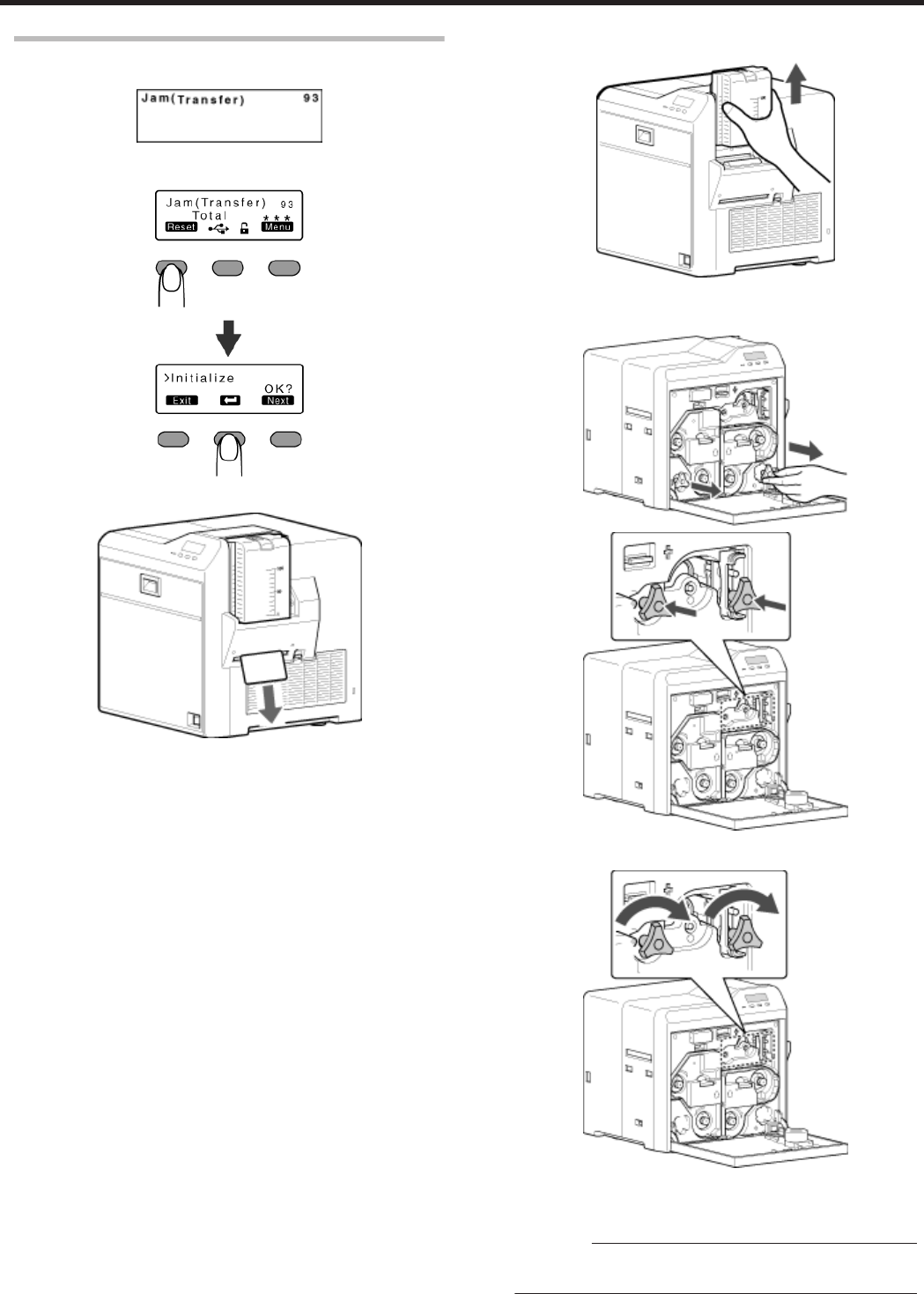
Error Code Jam(Transfer) 93
vCard jam in the card feed roller.
.
1Press KNB to reset the printer
.
vThe card is discharged from the NG card outlet.
.
mIf the card cannot be discharged
A Turn off the power, and detach the card hopper
.
B
Open the printer door, and check the position of the jammed
card
C
Attach the jog dial to the card feed roller shaft and cleaning roller shaft
.
.
D Turn the card feed roller shaft and cleaning roller shaft in the
clockwise direction, while checking the position of the card
.
vRemove the card after it is discharged from the card load slot.
(For single-sided printers, the card is discharged from the NG
card outlet.)
Cautions:
vIf the card cannot be removed, do not try to do so forcibly.
Consult our authorized dealers or the servicing personnel.
E Restore the jog dial to its original position
F Install the card hopper, and close the printer door
G Turn on the power
Troubleshooting
50
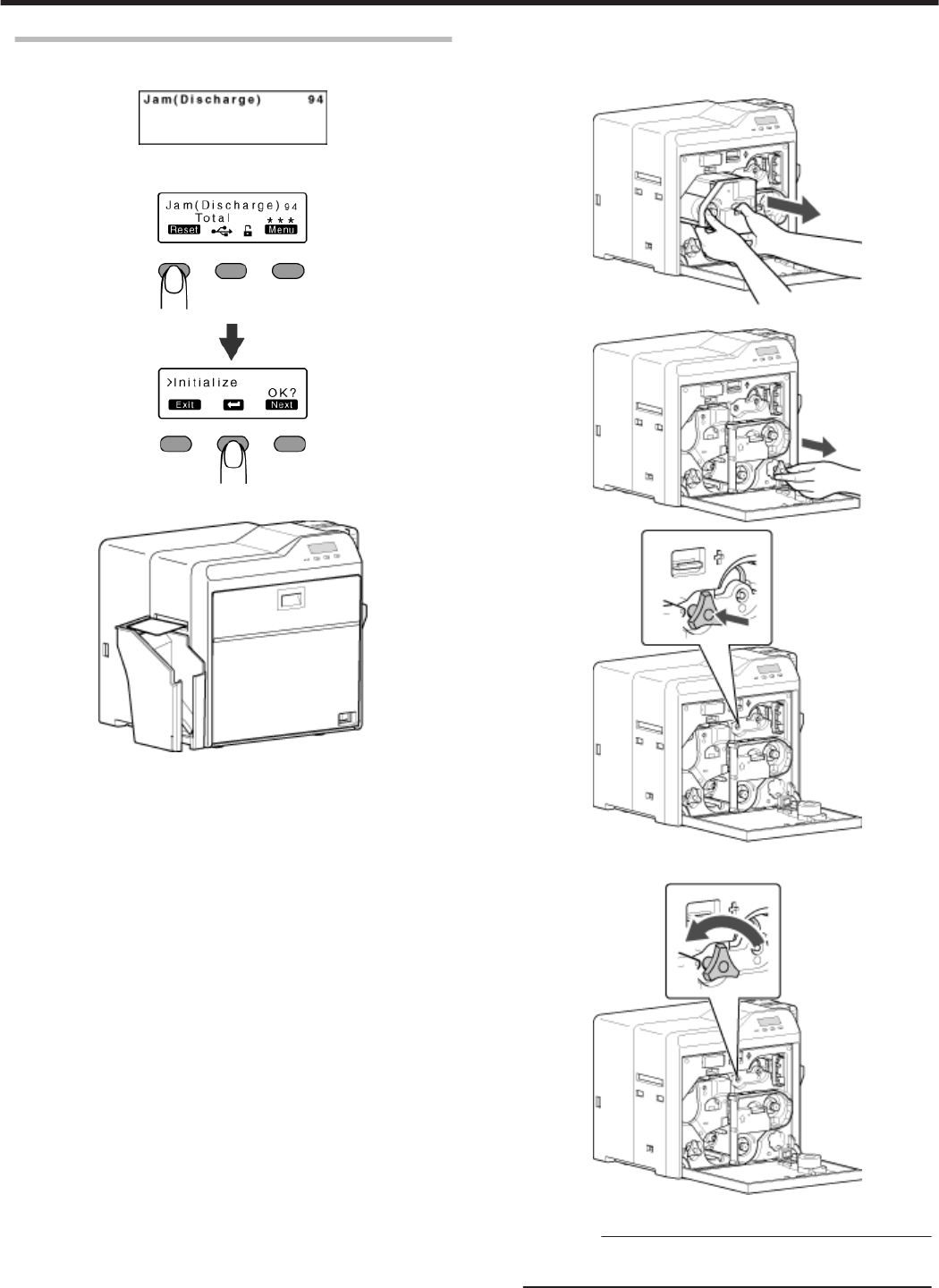
Error Code Jam(Discharge) 94
vCard jam near the card outlet.
.
1Press KNB to reset the printer
.
vThe card is discharged from the card outlet.
.
mIf the card cannot be discharged
A Turn off the power, and open the printer door
B Pull out the retransfer film cassette, and check the position of
the card
.
C Attach the jog dial to the card feed roller shaft
.
.
D Turn the card feed roller shaft in the anti-clockwise direction,
while checking the position of the card
.
vThe card is discharged from the card outlet.
Cautions:
vIf the card cannot be removed, do not try to do so forcibly.
Consult our authorized dealers or the servicing personnel.
E Restore the jog dial to its original position, and install the
retransfer film cassette
F Close the printer door, and turn on the power
Troubleshooting
51
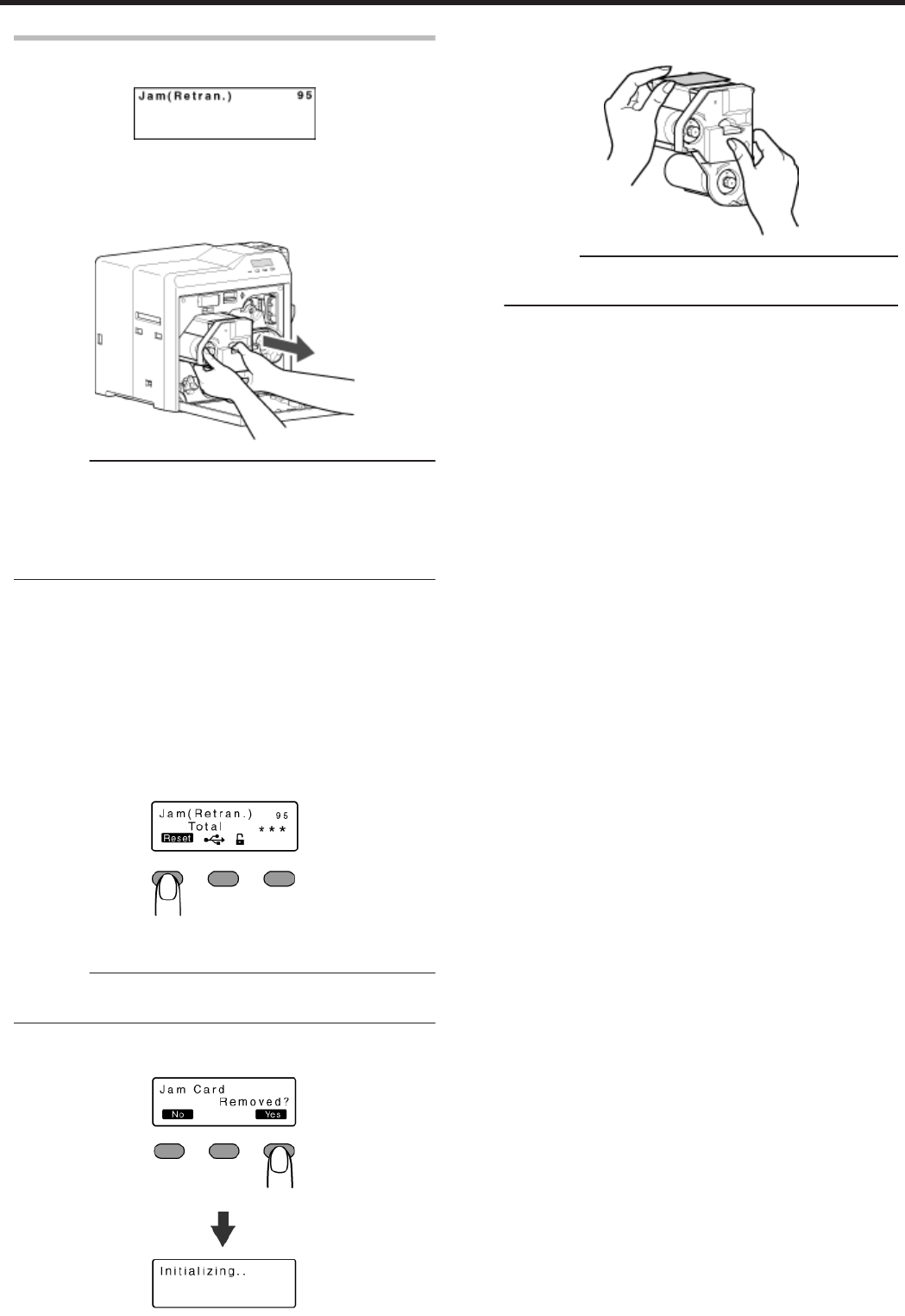
Error Code Jam(Retran.) 95
vCard jam near the retransfer heating roller.
.
1Open the printer door
vA [Please Remove Jam Card!] or [Please Close Door] message
appears.
2Pull out the retransfer film cassette
.
Cautions:
vThe card may be adhered to the retransfer film. Pull out the
retransfer film while taking care not to jam it.
vIf a [Please Close Door] message is displayed, the retransfer film
is stuck and the retransfer film cassette cannot be removed.
In this case, close the printer door before pulling out the retransfer
film cassette.
3Remove the jammed card
"If the card is adhered to the retransfer film" (A page 52)
"If the card is inside the printer unit" (A page 53)
"If the card is caught in the card feed roller to the right of the
retransfer heating roller" (A page 53)
"If the card is caught in the card feed roller to the left of the retransfer
heating roller" (A page 54)
4Install the retransfer film cassette, and close the printer door
5Press K
vA [Jam Card Removed?] message appears.
.
6Press O
Cautions:
v
Initializing the printer without first removing the card will cause the
printer to malfunction. Be sure to remove the card then press O.
vAn [Initializing..] message appears, and initialization of the printer
starts.
.
mIf the card is adhered to the retransfer film
vRemove the jammed card with a hand.
.
Cautions:
vThe card may be very hot. Be careful not to burn your fingers
when removing the card.
"Go to step 4" (A page 52)
Troubleshooting
52
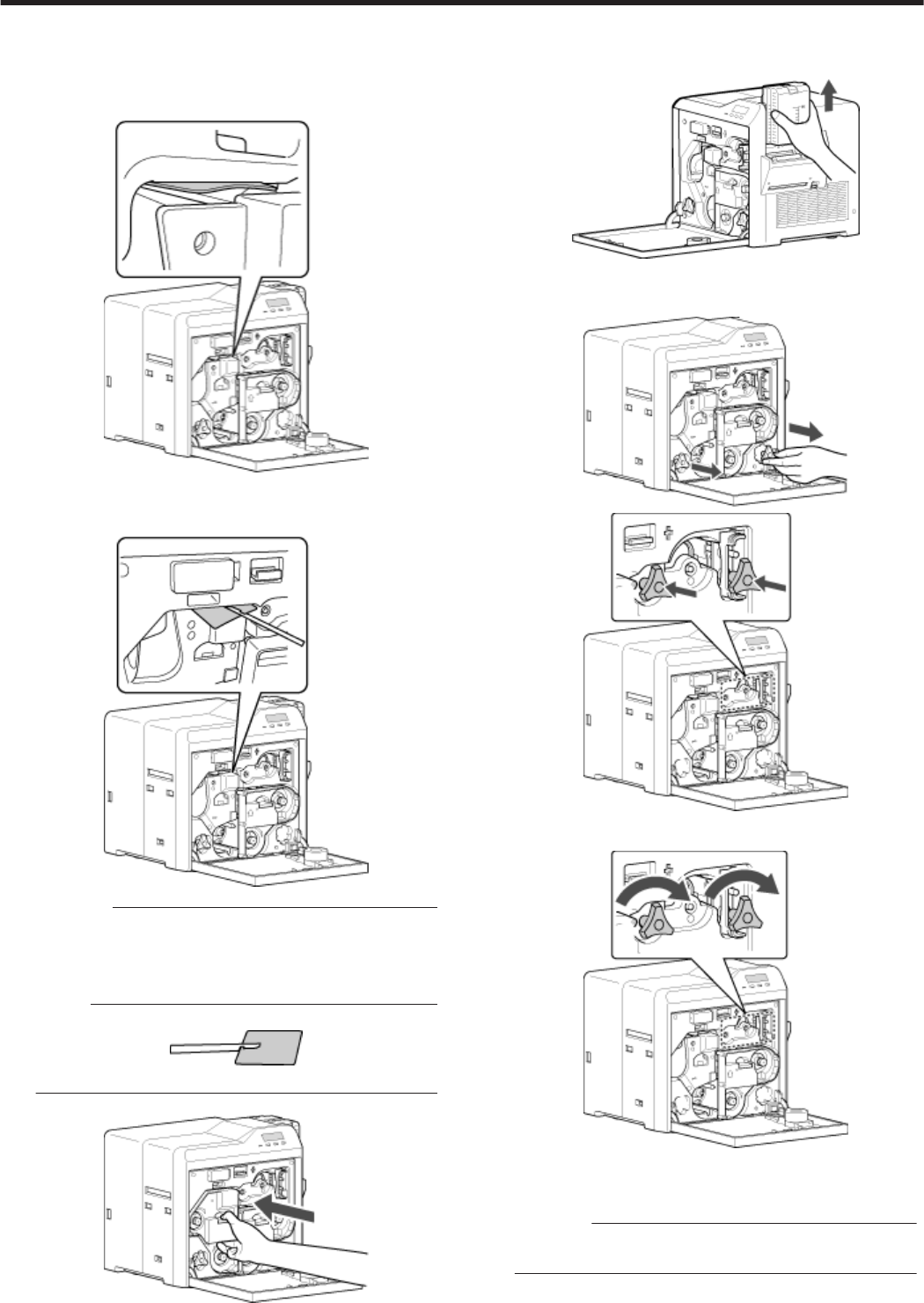
mIf the card is inside the printer unit
vIf the card is not drawn into the card feed roller and is left inside
the printer, use the tweezers (supplied) to remove the card.
A Turn off the power
B Check the position of the card that is left inside the printer
.
C Pick up the card using the tip of the tweezers (supplied)
vBe careful not to drop the card inside the printer.
D Pull out the card slowly
.
Cautions:
vThe card may be very hot. Be careful not to burn your fingers
when removing the card.
vIf the card cannot be removed, do not try to do so forcibly.
Consult our authorized dealers or the servicing personnel.
Memo:
Example of how to pick up the card
.
vPick up the card by following the diagram above.
E Install the retransfer film cassette, and close the printer door
.
F Turn on the power
"Go to step 5" (A page 52)
mIf the card is caught in the card feed roller to the right of the
retransfer heating roller
A Turn off the power, and detach the card hopper
.
B Check the position of the card
C Attach the jog dial to the card feed roller shaft and cleaning
roller shaft
.
.
D Turn the card feed roller shaft and cleaning roller shaft in the
clockwise direction, while checking the position of the card
.
vRemove the card after it is discharged from the card load slot.
(For single-sided printers, the card is discharged from the NG
card outlet.)
Cautions:
vIf the card cannot be removed, do not try to do so forcibly.
Consult our authorized dealers or the servicing personnel.
E
Restore the jog dial to its original position, and install the card hopper
F Install the retransfer film cassette, and close the printer door
G Turn on the power
"Go to step 5" (A page 52)
Troubleshooting
53
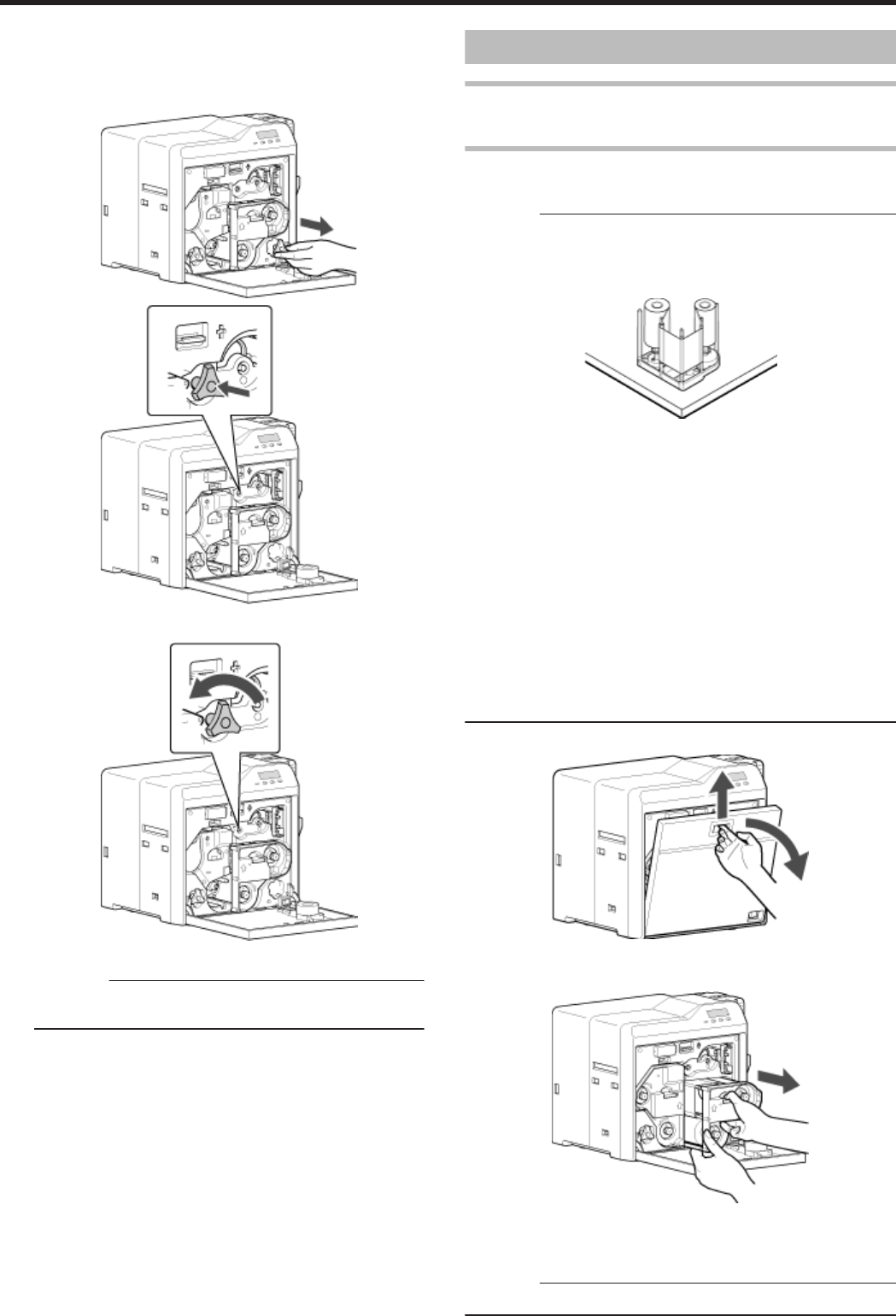
mIf the card is caught in the card feed roller to the left of the
retransfer heating roller
A Turn off the power
B Check the position of the card
C Attach the jog dial to the card feed roller shaft
.
.
D Turn the card feed roller shaft in the anti-clockwise direction,
while checking the position of the card
.
vThe card is discharged from the card outlet.
Cautions:
vIf the card cannot be removed, do not try to do so forcibly.
Consult our authorized dealers or the servicing personnel.
E Restore the jog dial to its original position
F Install the retransfer film cassette, and close the printer door
G Turn on the power
"Go to step 5" (A page 52)
Ink Ribbon
Ink Ribbon has Run Out
v"Replace with a new ink ribbon." (A page 32)
Ink Ribbon is Broken
vRepair the ink ribbon.
Cautions:
vIf the security lock is on, deactivate it. After work is complete,
activate the security lock again.
v
Stand the cassette on a flat surface as illustrated in the diagram. Avoid
doing so on the floor as dust attached to it may cause printing errors.
.
vDo not touch the inked surface (the side that faces outward when
installed) with your hand. Touching it may cause printing errors. Put
on the supplied gloves when handling the ink ribbon.
vThe cassette is heavy when the ink ribbon is loaded. To prevent the
cassette from dropping during handling, make sure to hold it with
both hands.
vWhen installing a used ink ribbon, align the yellow side of the unused
ribbon with the arrow indicated on the label of the cassette. If the
position of the yellow side is not properly aligned, the print may turn
out light.
vDo not perform any work on the printer door. Do not place heavy
objects or apply load on the printer. Doing so may damage it.
vDuring replacement, clean the four bobbin holders on the printer. If
burrs produced by friction with the bobbins are attached to the
bobbin holders, they may fall onto the card, ink ribbon, or retransfer
film, causing printing errors.
"Cleaning the bobbin holders" (A page 40)
1Open the printer door
.
2Press and hold down the cassette button, and remove the ink ribbon
cassette (on the right)
.
3Cut away the broken portion, and attach the unused portion at the
supply side to the other end at the take-up side using an adhesive
tape, while making sure that the joint surface is even
Cautions:
vDo not discard the used ribbon at the take-up side.
Troubleshooting
54
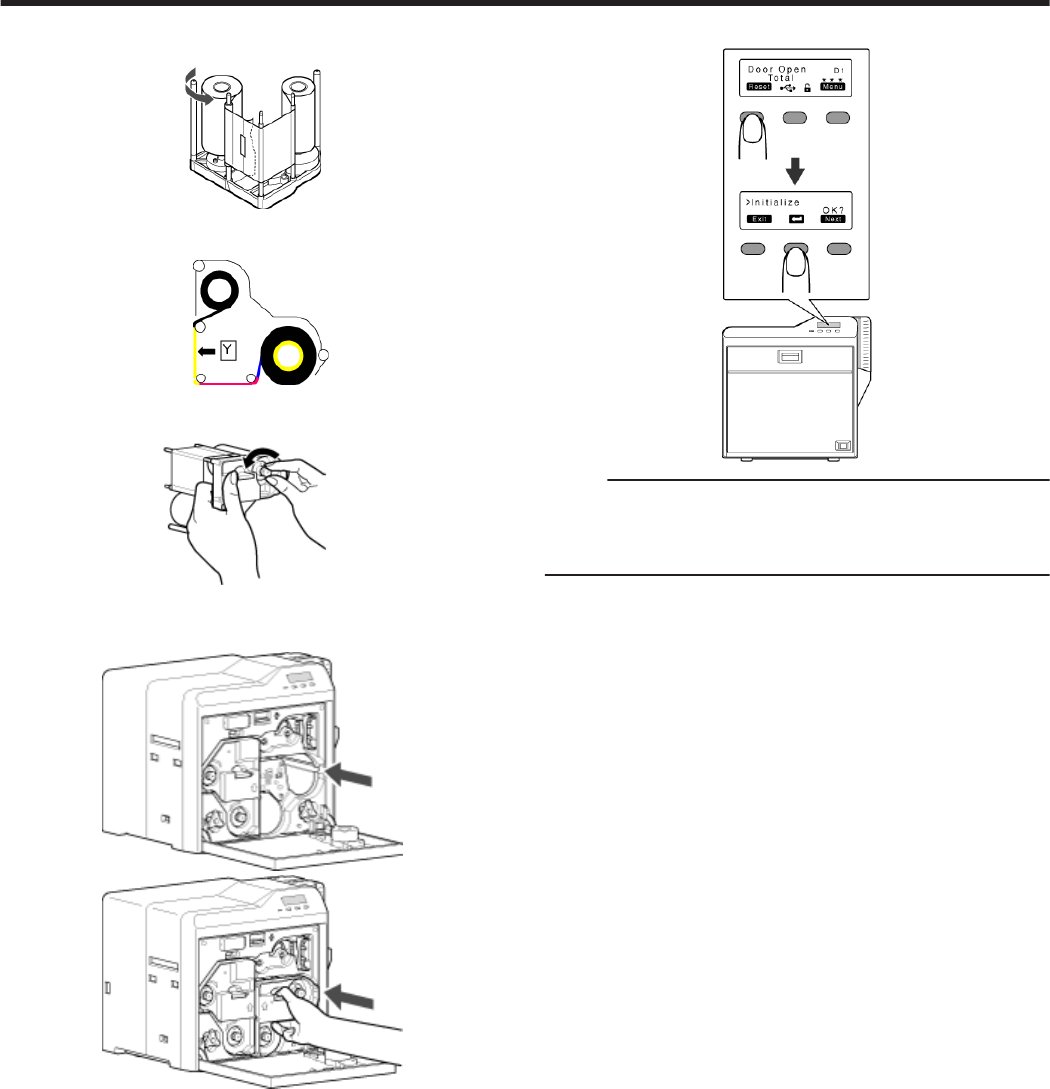
4Turn the take-up side using your hand until the broken portion can
no longer be seen
.
vAlign the yellow side of the unused portion with the arrow indicated
on the label of the cassette.
.
5Remove any slack in the ink ribbon
.
6Insert the cassette all the way in along the guide rail until a “click”
sound is heard, followed by closing the printer door
.
.
7Press KNB to reset the printer
.
Memo:
vTo avoid printing errors, it is recommended that you forward by one
or two images after installing the ink ribbon cassette or retransfer film
cassette.
"Initializing printer when installing the cassette" (A page 22)
Troubleshooting
55
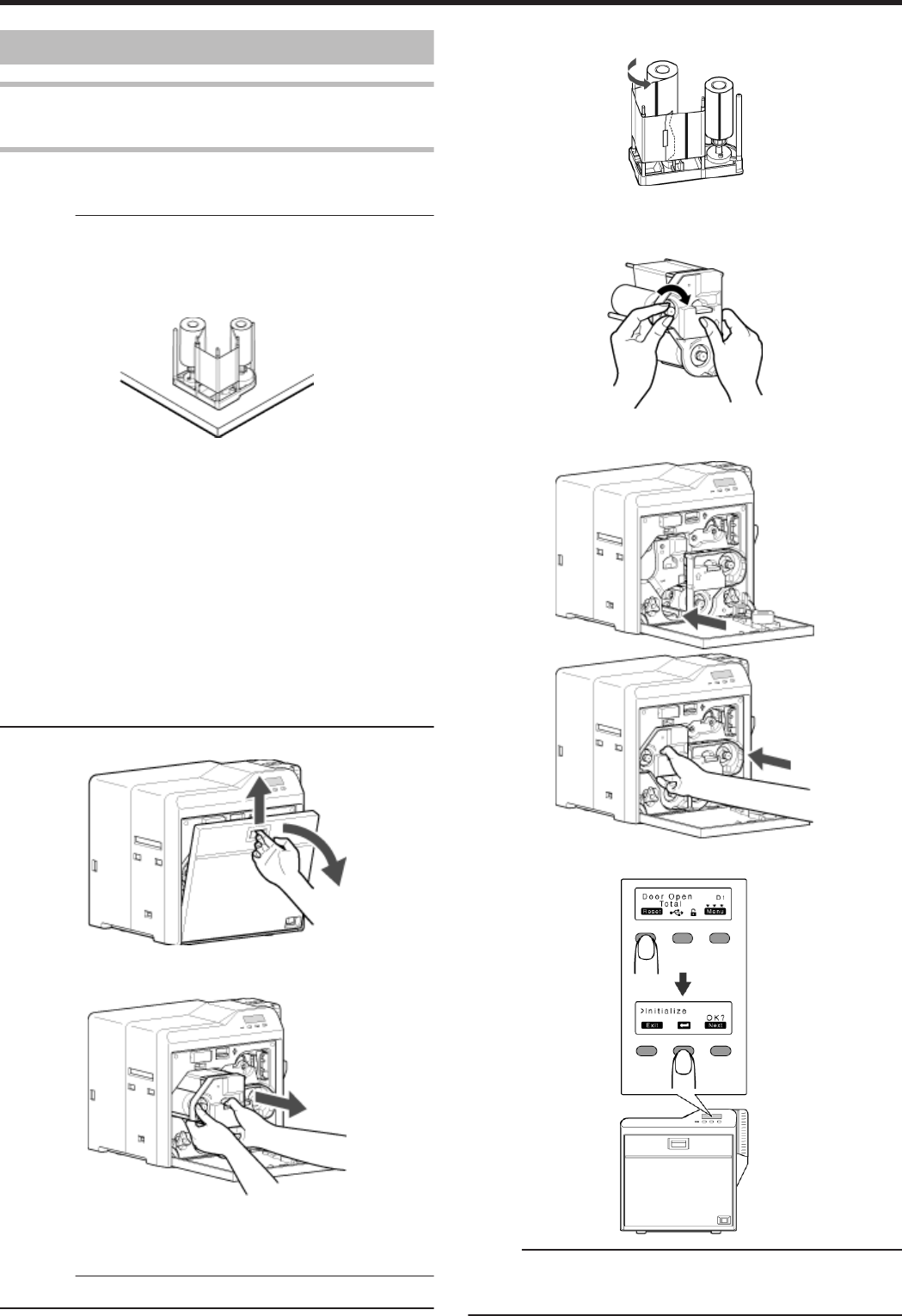
Retransfer Film
Retransfer Film has Run Out
v"Replace with a new retransfer film." (A page 33)
Retransfer Film is Broken
vRepair the retransfer film.
Cautions:
vIf the security lock is on, deactivate it. After work is complete,
activate the security lock again.
vStand the cassette on a flat surface as illustrated in the diagram.
Avoid doing so on the floor as dust attached to it may cause printing
errors.
.
vDo not touch the retransfer face (the side that faces outward when
installed) with your hand. Touching it may cause printing errors. Put
on the supplied gloves when handling the retransfer film.
vThe cassette is heavy when the retransfer film is loaded. To prevent
the cassette from dropping during handling, make sure to hold it with
both hands.
vWhen installing a used retransfer film, align the unused side of the
film with the arrow indicated on the label of the cassette. Improper
alignment may result in errors, or the print may turn out light.
vDo not perform any work on the printer door. Do not place heavy
objects or apply load on the printer. Doing so may damage it.
vDuring replacement, clean the four bobbin holders on the printer. If
burrs produced by friction with the bobbins are attached to the
bobbin holders, they may fall onto the card, ink ribbon, or retransfer
film, causing printing errors.
"Cleaning the bobbin holders" (A page 40)
1Open the printer door
.
2Press and hold down the cassette button, and remove the retransfer
film cassette (on the left)
.
3Cut away the broken portion, and attach the unused portion at the
supply side to the other end at the take-up side using an adhesive
tape, while making sure that the joint surface is even
Cautions:
vDo not discard the used retransfer film at the take-up side.
4Turn the take-up side using your hand until the broken portion can
no longer be seen
.
vAlign the film side of the unused portion with the arrow indicated on
the label of the cassette.
5Remove any slack in the film
.
6Insert the cassette all the way in along the guide rail until a “click”
sound is heard, followed by closing the printer door
.
.
7Press KNB to reset the printer
.
Memo:
v
To avoid printing errors, it is recommended that you forward by one or two
images after installing the ink ribbon cassette or retransfer film cassette.
"Initializing printer when installing the cassette" (A page 22)
Troubleshooting
56
Unable to Fit Retransfer Film Cassette into Printer
vWith the printer door closed, turn on the power to cancel the
transport mode.
vWhile in the transport mode, the retransfer film cassette cannot be
installed to the printer with the retransfer film loaded.
"Transport Mode Setting" (A page 29)
Unable to Produce Desired Printing
Results
Lines Appear on Card after Printing
v"Clean the thermal head." (A page 41)
Colors on Card Appear Faded after Printing
v"Clean the cleaning roller." (A page 35)
v"Clean the fan filter." (A page 36)
v"Clean the card feed roller/heating roller." (A page 37)
v"Clean the bobbin holders." (A page 40)
Peeling Occurs on Card after Printing
v"Check the retransfer mode settings." (A page 111)
Overall Printing Quality is Poor
v"Clean the cleaning roller." (A page 35)
v"Clean the fan filter." (A page 36)
v"Clean the card feed roller/heating roller." (A page 37)
v"Clean the bobbin holders." (A page 40)
vIs the printing face of the card dirty?
Use a clean card.
Card is Printed in a Single Color
vIs the print setting set to single-color printing?
vIs the software application setting set to single-color printing?
Check the print settings.
Strange Characters or Images are Printed
vIs the driver for this printer selected on the computer?
Select the driver for this printer.
vIs the USB cable connection loose?
Plug in the USB cable properly.
Retransfer cannot be Performed Successfully
vIs the printing face of the card dirty?
Use a clean card.
vIs the surrounding temperature or card surface temperature too
low?
Use the printer when the surrounding temperature is sufficiently high.
vIs the retransfer speed setting value too high?
Set to a value that is smaller than the standard value, +2 (i.e.,
between +1 and -3).
vIs the temperature of the retransfer heating roller too low?
Set to a value that is larger than the standard value, +1 (i.e., +2).
Troubleshooting
57
Printer not Operating as Desired
Card is not Fed into the Printer
vIs the card load roller dirty?
"Clean the card load roller." (A page 36)
vIs the cleaning roller dirty?
"Clean the cleaning roller." (A page 35)
vIs the card thickness correctly adjusted?
"Check the adjusted card thickness." (A page 63)
vAre the cards adhered to one another?
When using new cards, set them after making sure that they are not
adhered to each other due to static.
Power does not Turn On
vIs the power switch turned off? (¡ position)
Turn on the power. (I position)
vIs the power cord disconnected?
Plug in the power cord properly.
vIs there electricity supply from the outlet?
Try connecting another electrical device to the outlet. If the device
works normally, then it could be due to malfunctioning of the printer.
Please consult our authorized dealers.
Printing does not Start or Stops Halfway
vIs the printer door open?
"Close the printer door properly, and reset the printer." (A page 22)
vIs the printer connected to a computer?
Connect the printer to a computer correctly using a USB/LAN cable.
vIs the length of the USB cable too long?
A USB cable with a length of not more than 2 m is recommended.
vAre cards set into the printer?
"Set the cards correctly." (A page 31)
vIs the ink ribbon installed?
"Install the ink ribbon correctly." (A page 32)
vIs the retransfer film installed?
"Install the retransfer film correctly." (A page 33)
vIs the driver for this printer selected?
Select the driver for this printer.
Before Sending Printer for Repair
Enter the symptoms into the troubleshooting sheet.
vClicking the Print icon displays a PDF file.
vPrint out the PDF file and enter accordingly.
Troubleshooting
58
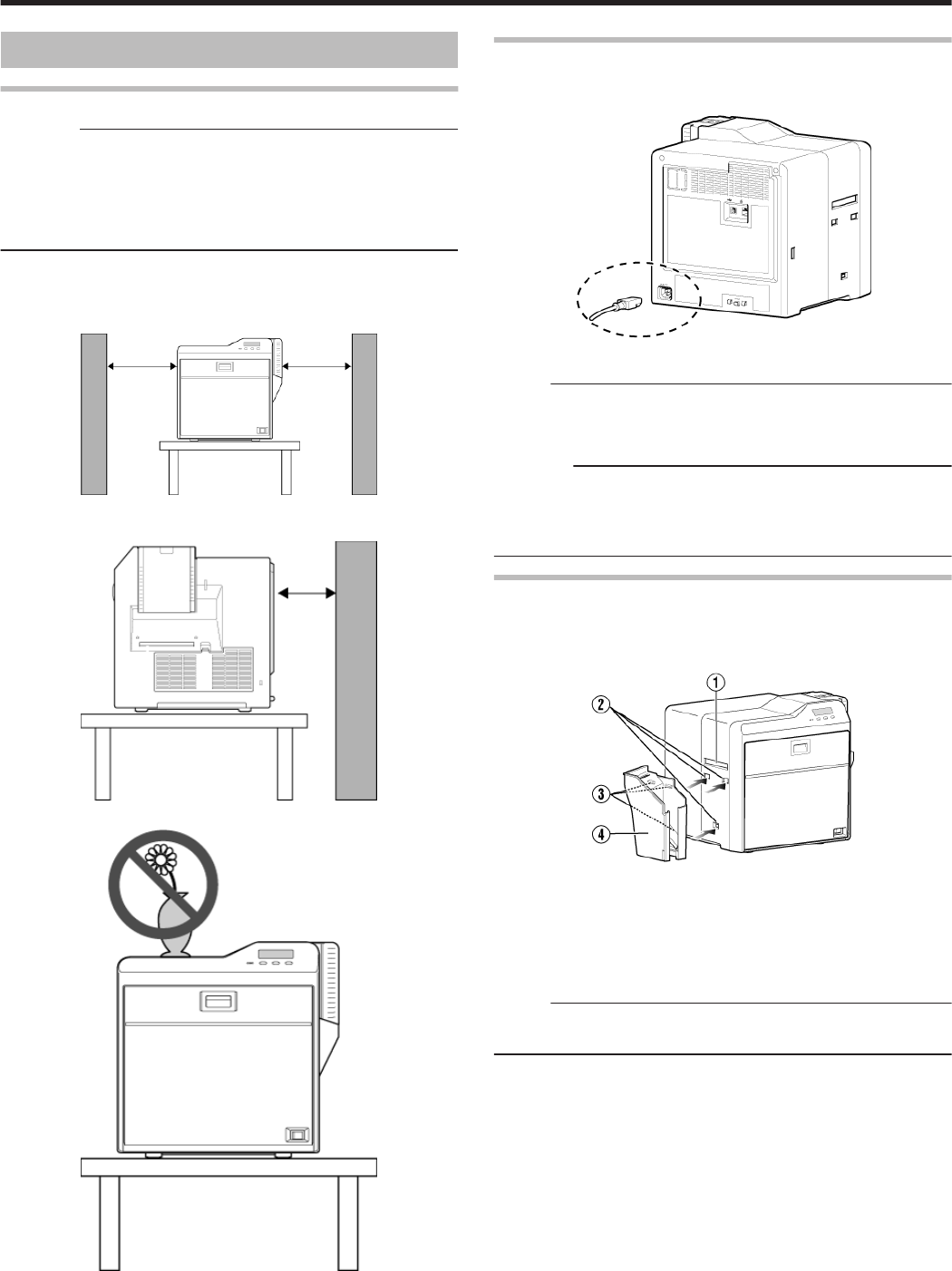
Installation and Connection
Printer Installation
Cautions:
vUsing the printer in an environment beyond the operating ambient
temperature range may result in retransfer or printing errors. Check
the “Precautions on installation location” and “Operating environment
conditions” specifications.
"Precautions on installation location" (A page 6)
"Operating environment conditions" (A page 10)
Ventilation holes for the cooling fan are located at the rear and side of
the printer.
vInstall the printer by allowing a clearance of at least 20 cm between
its sides and surrounding walls.
.
vAllow a clearance of at least 10 cm between the rear of the printer
and the wall.
.
vDo not place any object on the printer.
.
Power Cord Connection
1Insert the power cord (supplied) to the AC inlet at the rear of the
printer
.
2Plug the power cord (supplied) into an outlet
Memo:
vMake use of an AVR (automatic voltage regulator) to prevent any
fluctuation in voltage. Alternatively, an uninterruptible power supply
is recommended in case momentary power failure occurs.
Cautions:
vMake sure that the power outlet is grounded and used as a
dedicated power source for the printer.
vPlug the power cord of the printer directly to the outlet. Do not share
the same outlet with other devices.
Card Stacker (Supplied)
1Hook the tab on the card stacker to the card stacker attachment slot
.
A Card outlet
B Card stacker attachment slot
C Tab
D Card stacker
Memo:
vThe card stacker is able to store up to about 100 cards with a
thickness of 0.76 mm.
Setup
59
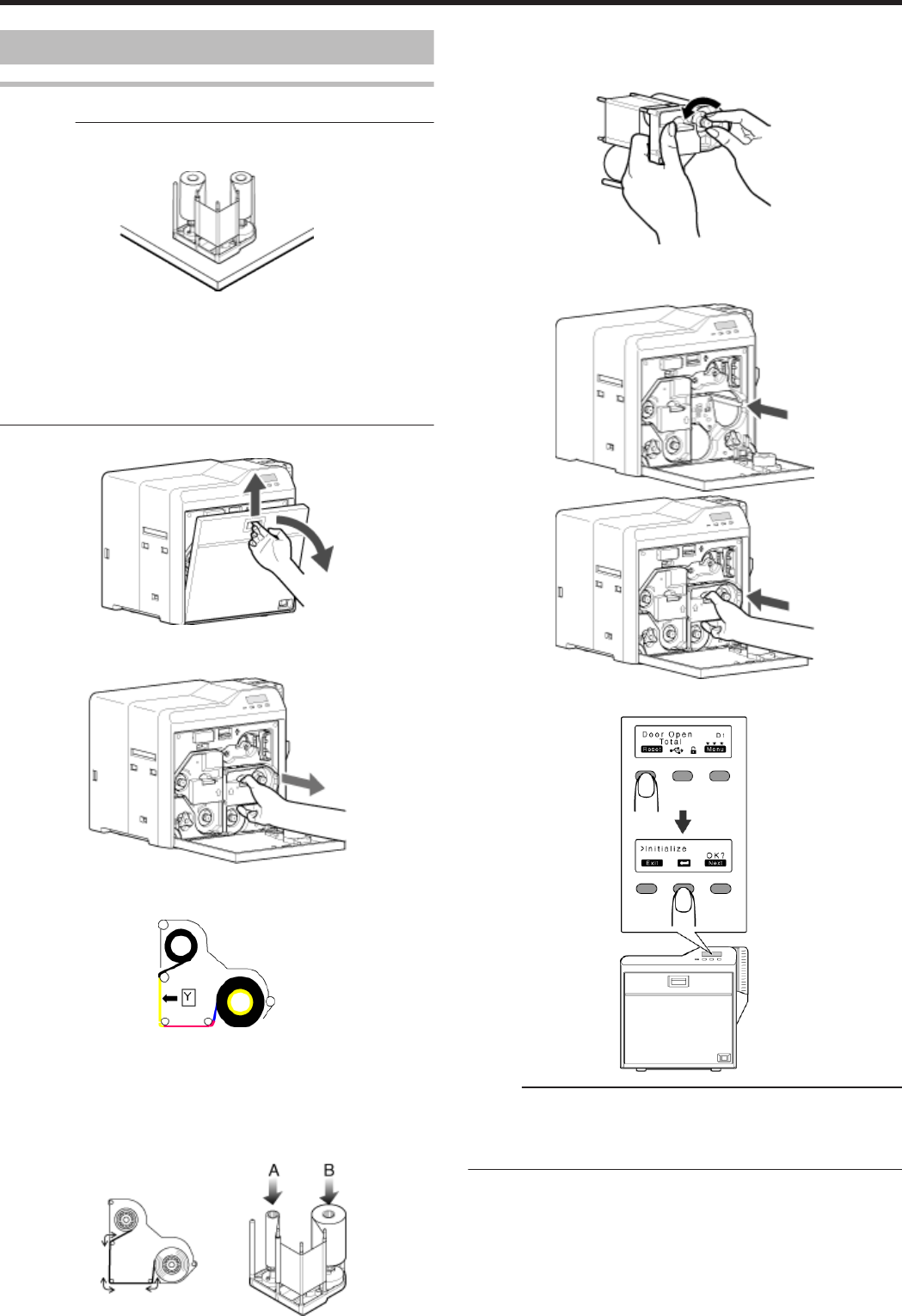
Printing Media
Installing the Ink Ribbon
Cautions:
v
Stand the cassette on a flat surface as illustrated in the diagram. Avoid
doing so on the floor as dust attached to it may cause printing errors.
.
vDo not touch the inked surface (the side that faces outward when
installed) with your hand. Touching it may cause printing errors. Put
on the supplied gloves when handling the ink ribbon.
v
The cassette is heavy when the ink ribbon is loaded. To prevent the cassette
from dropping during handling, make sure to hold it with both hands.
vDo not perform any work on the printer door. Do not place heavy
objects or apply load on the printer. Doing so may damage it.
1Open the printer door
.
2Press and hold down the cassette button, and remove the ink ribbon
cassette (on the right)
.
3Install a new ink ribbon
vInstall while referring to the indication on the label of the cassette.
.
A With the inked surface facing outward, align the yellow side of the
unused ribbon with the arrow on the cassette, and unwind it
along the three shafts.
B Insert the ink ribbon firmly into the bobbin holders with the ribbon
set to the far end of the guides.
vA: take-up side (black)
vB: unused side (yellow)
.
4Remove any slack in the ink ribbon
A Hold the cassette.
B Turn the knob in the direction indicated by the arrow.
.
5Insert the cassette all the way in along the guide rail until a “click”
sound is heard, followed by closing the printer door
.
.
6Press KNB to reset the printer
.
Memo:
vTo avoid printing errors, it is recommended that you forward by one
or two images after installing the ink ribbon cassette or retransfer film
cassette.
"Initializing printer when installing the cassette" (A page 22)
Setup
60
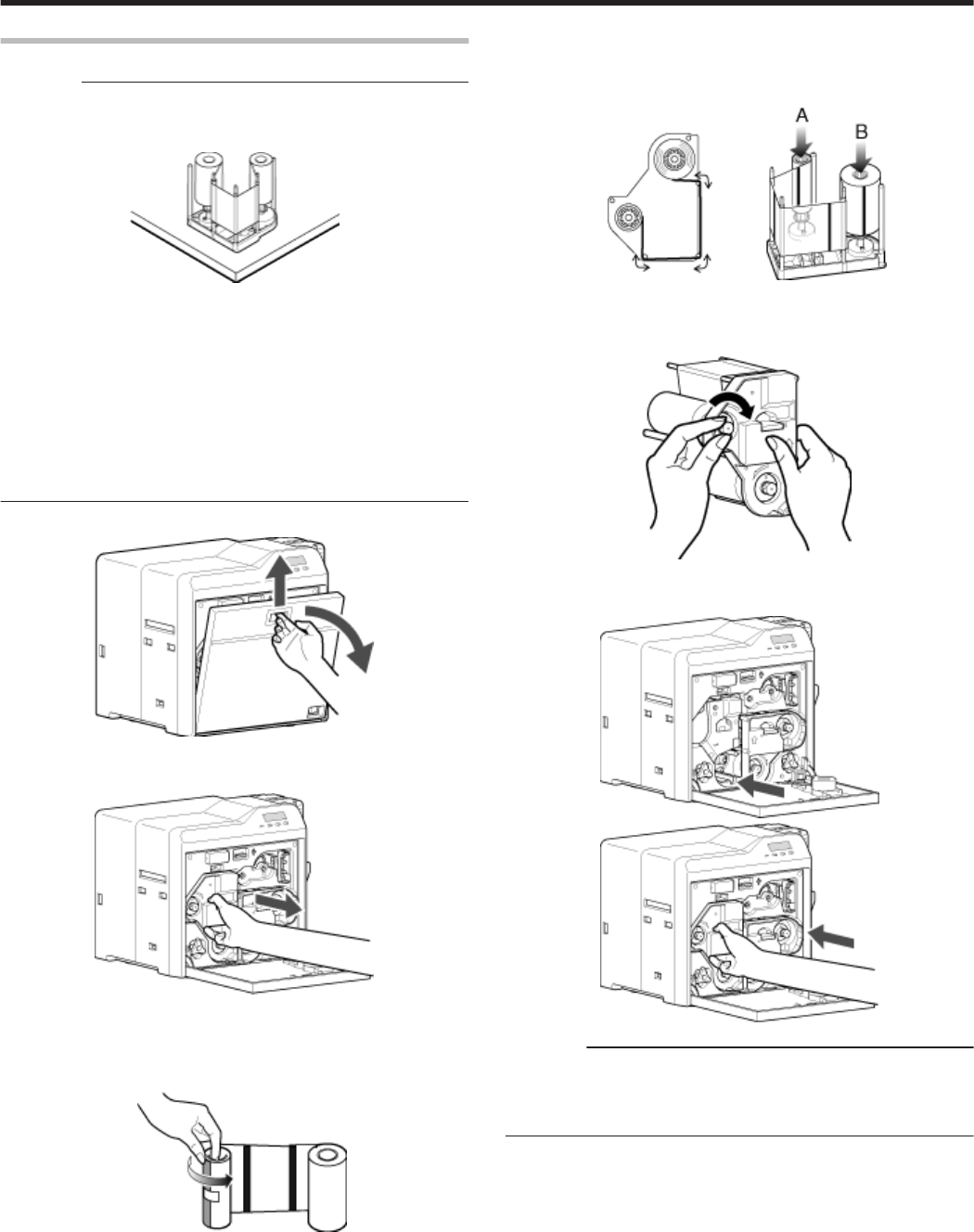
Installing the Retransfer Film
Cautions:
vStand the cassette on a flat surface as illustrated in the diagram.
Avoid doing so on the floor as dust attached to it may cause printing
errors.
.
vDo not touch the retransfer face (the side that faces outward when
installed) with your hand. Touching it may cause printing errors. Put
on the supplied gloves when handling the retransfer film.
vThe cassette is heavy when the retransfer film is loaded. To prevent
the cassette from dropping during handling, make sure to hold it with
both hands.
vWhen installing a new film, make sure that at least three black lines
are wound onto the take-up side. Insufficient winding may cause the
printer to malfunction.
vDo not perform any work on the printer door. Do not place heavy
objects or apply load on the printer. Doing so may damage it.
1Open the printer door
.
2Press and hold down the cassette button, and remove the retransfer
film cassette (on the left)
.
3Install a new retransfer film
vInstall while referring to the indication on the label of the cassette.
A When installing the retransfer film, make sure that at least three
black lines are wound onto the take-up side.
.
B With the retransfer face facing outward, align the unused side of
the film with the arrow on the cassette, and unwind it along the
three shafts.
C Insert the retransfer film firmly into the bobbin holders with the film
set to the far end of the guides.
vA: take-up side (black)
vB: unused side (green)
.
4Remove any slack in the film
A Hold the retransfer film cassette.
B Turn the knob in the direction indicated by the arrow.
.
5Insert the cassette all the way in along the guide rail until a “click”
sound is heard, followed by closing the printer door
.
.
Cautions:
vWhile in the transport mode, the retransfer film cassette cannot be
installed to the printer with the retransfer film loaded. With the printer
door closed, turn on the power to cancel the transport mode.
"Transport Mode Setting" (A page 29)
Setup
61
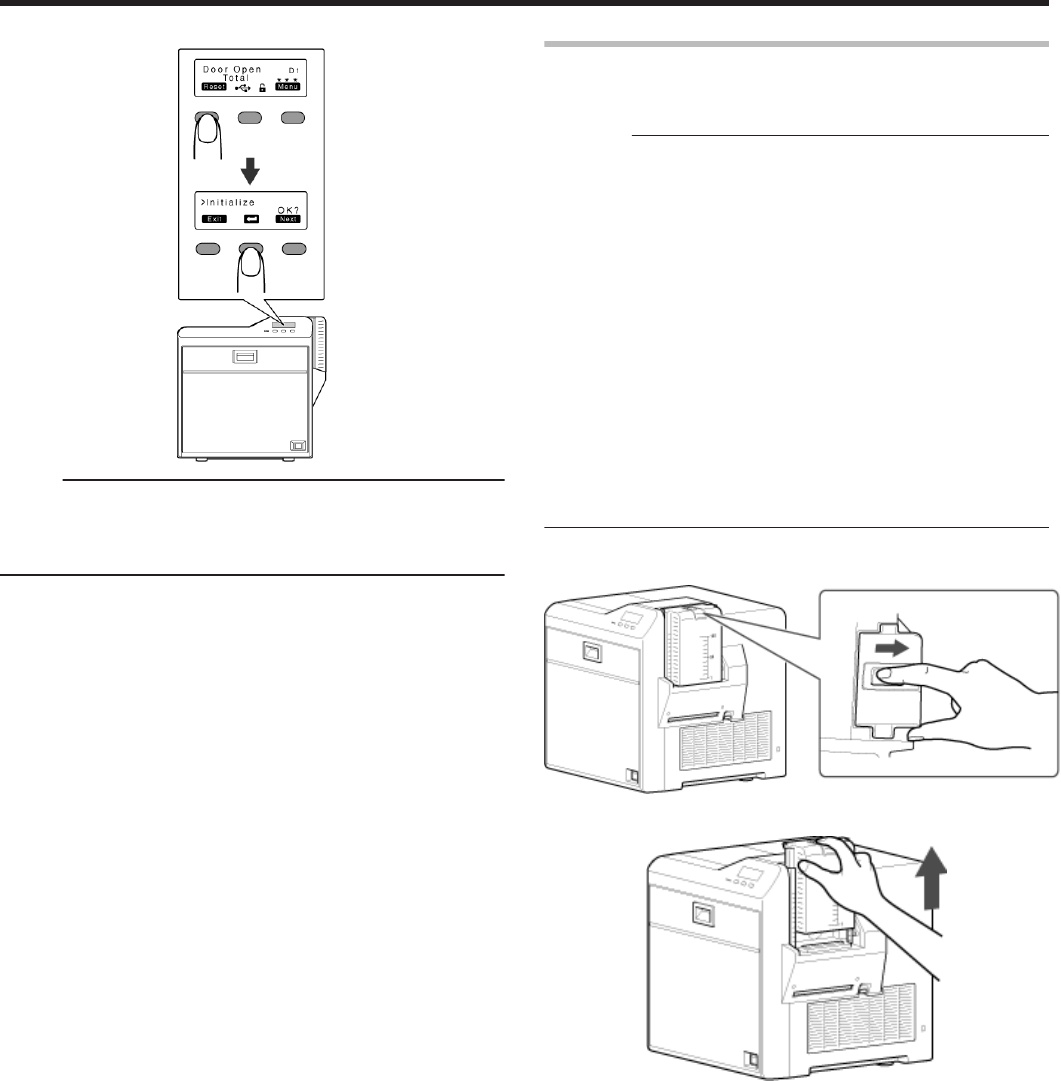
6Press KNB to reset the printer
.
Memo:
vTo avoid printing errors, it is recommended that you forward by one
or two images after installing the ink ribbon cassette or retransfer film
cassette.
"Initializing printer when installing the cassette" (A page 22)
Setting Cards
vThe card hopper is able to store up to about 100 cards with a
thickness of 0.76 mm.
Cautions:
vGet ready cards that are designated by the authorized dealer.
vIf the security lock is on, deactivate it. After work is complete,
activate the security lock again.
vDo not touch the printing surface of the card. Touching it may cause
printing errors. Put on the supplied gloves when handling the cards.
vTo prevent card jams from occurring, limit the number of cards
stored in the card hopper at any time to about 100 pieces regardless
of the card thickness.
vWhen using new cards, set them after making sure that they are not
adhered to each other due to static.
vAlign the cards before setting them in the printer. Otherwise, the card
hopper cover may not close properly, and this may damage the
printer.
vPrinting the card on the side with the magnetic stripe may cause
printing errors or damage to the card’s functions. If you want to do
so, please consult our authorized dealers in advance.
vTo set cards with both functions (magnetic stripe and contact IC),
follow the procedure for setting the contact IC card.
1Set the card hopper knob to [OPEN]
.
2Lift to remove the card hopper cover
.
Setup
62
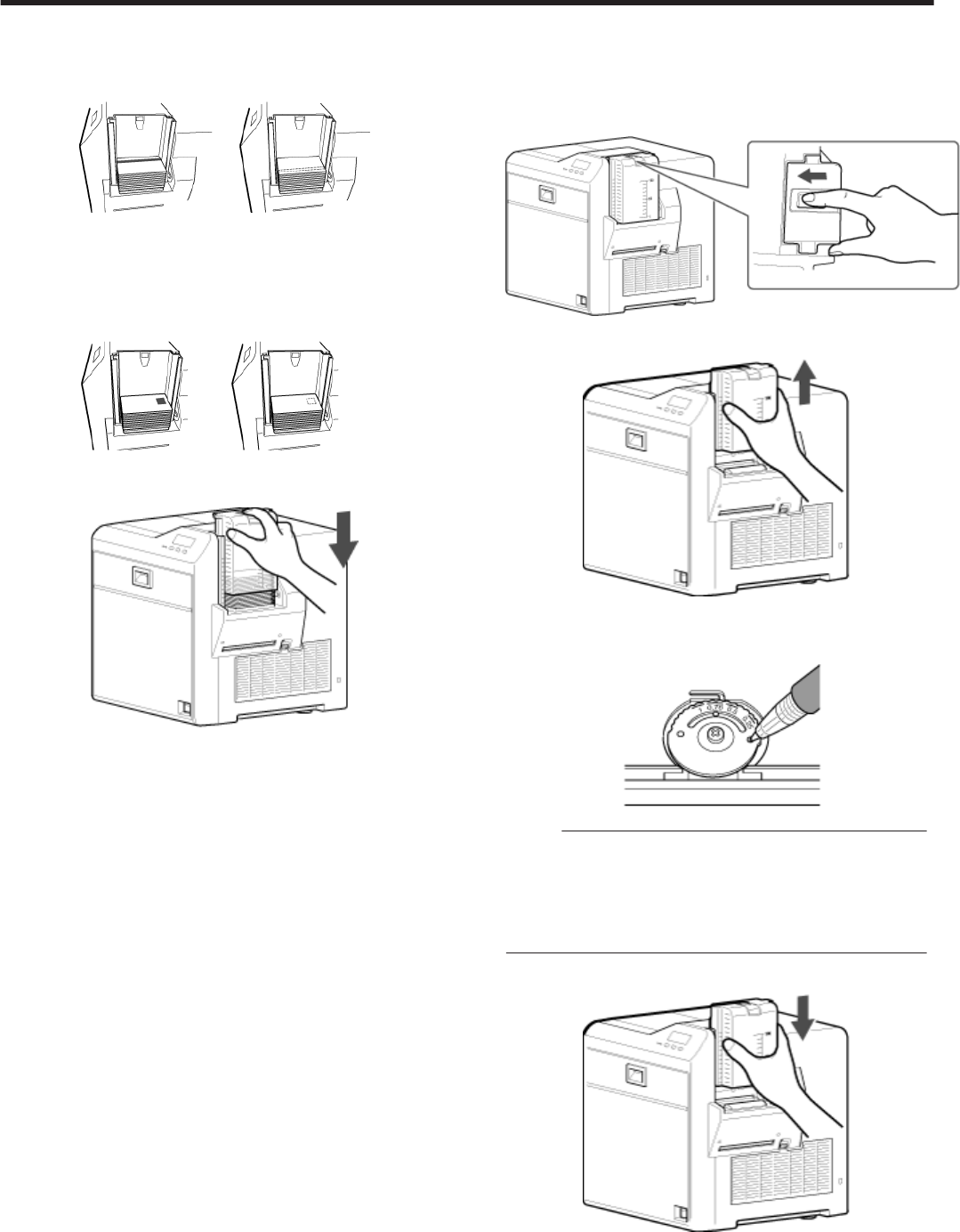
3Align the orientation of the cards, and set them in the printer
mMagnetic stripe cards
vSet the card with the magnetic stripe facing upward and toward
the printer, or facing downward and toward you.
.
mISO contact IC cards
vSet the card with the Contact IC terminal facing upward and
toward the rear of the printer, or downward and toward the rear of
the printer.
vFor single-sided printers, set the cards with the IC terminal facing
down and toward the rear of the printer.
.
4Install the card hopper cover, and set the card hopper knob to
[LOCK]
.
mAdjusting card thickness
vThe thickness of a card that is adjustable is between 0.25 mm and
1.00 mm.
This is adjusted to a thickness of 0.76 mm by default.
A Set the card hopper knob to [LOCK]
.
B Remove the card hopper
.
C Insert a ballpoint pen into the card separator hole, and turn
slowly
vAdjust according to the range of the card thickness used.
.
Memo:
vIf the card cannot be discharged during printing, adjust the card
thickness by turning the card separator in the clockwise
direction by one scale at a time.
vIf two cards are discharged at a time during printing, adjust the
card thickness by turning the card separator in the anti-
clockwise direction by one scale at a time.
D Install the card hopper
.
Setup
63
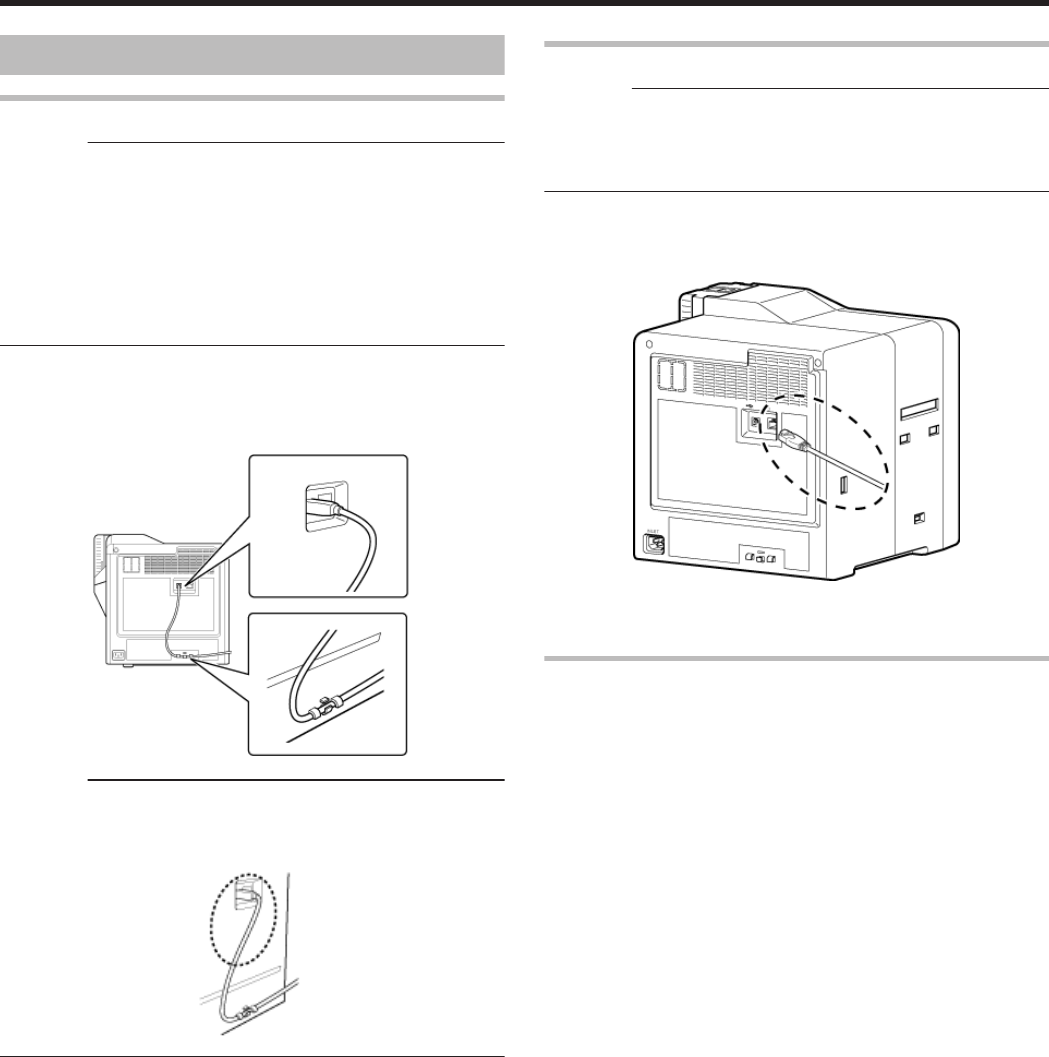
Printer and Computer Connection
Connecting with a USB Cable
Cautions:
vWhile printing is in progress, do not turn off the power of the
computer, or switch it to the sleep or standby mode. Doing so may
stop the movement of the cards inside the printer.
vPlug the USB cable in correctly and firmly.
vDo not connect the cable to the USB connectors on the monitor or
keyboard of the computer. The printer may not be correctly
recognized.
vWhen using a USB hub, make use of one that is directly connected
to the computer.
1Turn off the power of the printer and computer
2Plug the USB cable into the USB cable connection terminal at the
rear of the printer, and "Cable clamp" (A page 8) pass the USB
cable through the cable clamp
.
Cautions:
vAs illustrated in the diagram, do not pull the USB cable excessively
toward the cable clamp. Doing so may subject the USB connector of
the printer to stress, thus resulting in connection problems.
.
3Plug the other end of the USB cable into the USB cable connection
terminal of the computer
Connecting with a LAN Cable
Cautions:
vPlug the LAN cable in correctly and firmly.
vMake use of a shielded LAN cable to avoid any malfunction.
vIf a USB cable is also connected at the same time when the power is
turned on, priority will be given to USB.
1Turn off the power of the printer and computer
2Plug the LAN cable into the LAN cable connection terminal at the
rear of the printer
.
3Plug the LAN cable into the connection terminal of the hub that is
installed on the network that the computer is connected to
Connecting Multiple Printers
vTo connect multiple printer units to one computer via USB, assign a
different unit number from 1 to 10 to each of the printers.
"Unit Number Setting" (A page 28)
vTo connect multiple printers to the same network, set a different IP
address for each printer.
Setup
64
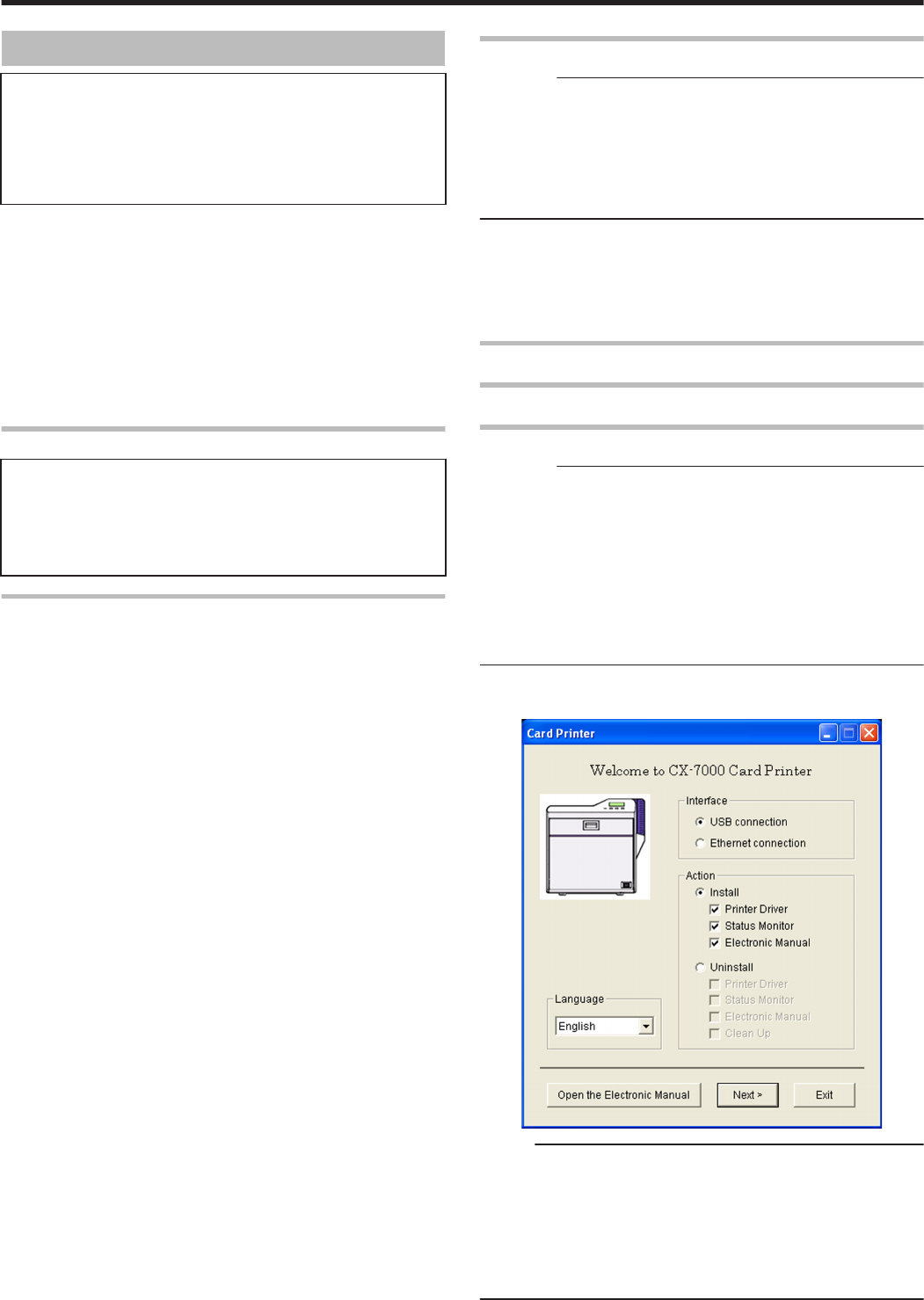
Computer Settings
mSystem Requirements
vThe printer software runs under the following environments.
vMicrosoft Windows 7 32 bit / 64 bit
vMicrosoft Windows Vista 32 bit (Service Pack 1)
vMicrosoft Windows XP 32 bit (Service Pack 2/3)
vMicrosoft Windows 2000 Professional 32bit (Service Pack 4)
v"Software" (A page 65)
v"Install" (A page 65)
v"Uninstall" (A page 80)
v"IPSec" (A page 84)
v"Printer Driver Settings" (A page 87)
v"Port Monitor Settings" (A page 106)
v"Status Monitor Settings" (A page 107)
v"Inline Encoding" (A page 118)
v"List of Error Codes" (A page 120)
v"Frequently Asked Questions" (A page 123)
Software
vUsing the installer (automatic execution program) enables easy
installation of the printer software, as well as opening of the
Electronic Manual.
vThe installer application installs programs based on the Windows
language settings. To change the language setting of a program,
use the language selection pull-down menu.
Software License Agreement
vUsers need to agree to the terms and conditions in the “Software
License Agreement” before using the software. Please read through
the License Agreement.
Install
Cautions:
vTo install the software, log into the system as an administrative user
(Administrators group).
vA part of the illustrations in this Electronic Manual may not be
displayed depending on the computer’s environment. Skip the
procedures in this case.
vTo install the software in Windows 7, follow the same procedure as
in Windows Vista.
v"Printer Driver" (A page 65)
v"Network Sharing of Printer" (A page 73)
v"Status Monitor" (A page 75)
v"USB Driver" (A page 76)
v"Electronic Manual" (A page 79)
Printer Driver
Installing the Printer Driver
USB Connection
Cautions:
vDo not turn on the power of the printer until instruction asking you to
do so appears on the installer.
vDo not connect the printer to the USB until instruction asking you to
do so appears on the installer.
vYou need to enable the USB hub before connecting the printer via
this hub. Do not connect the printer to the USB hub until instruction
asking you to do so appears.
vExit all applications that are currently running.
vIf document printing is currently in progress, wait for all the jobs to
complete.
1Start up Windows, and set the supplied CD-ROM into the computer
vA card printer setup screen appears.
.
Memo:
vIf the CD-ROM drive of the computer is set to run automatically, the
installer will be executed automatically.
If the installer is not automatically initiated, double-click “SETUP.exe”
in the CD-ROM.
vIf you are not using the “SETUP.exe” automatic execution program
in the CD-ROM, start the installer for the printer driver by double-
clicking the following file in the CD-ROM: “English\USB_Soft
\install.exe”.
Setup
65
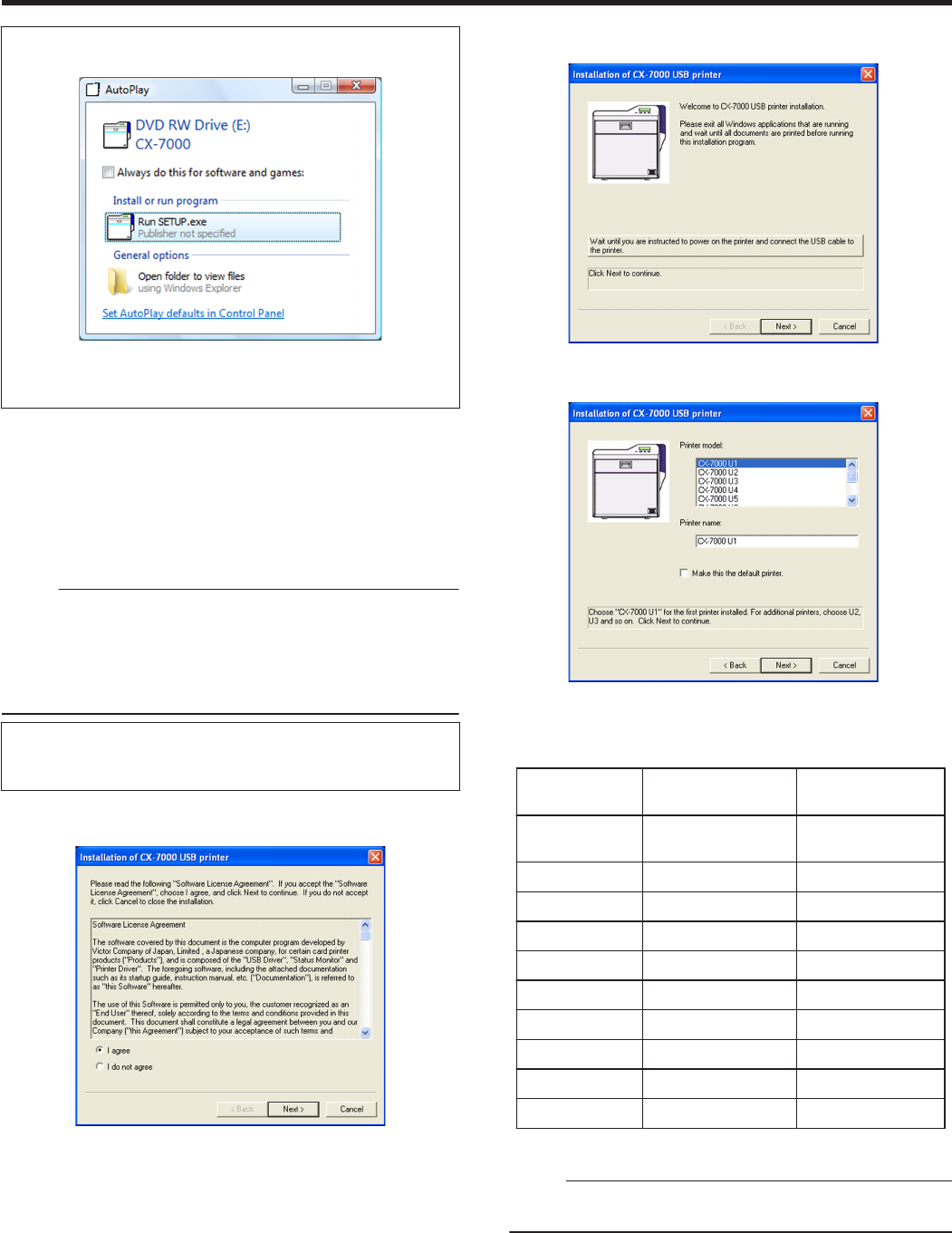
mWindows Vista
vA [AutoPlay] screen appears.
.
vClicking [Run SETUP.exe] displays the [User Account Control]
screen.
vClicking [Allow] displays the card printer setup screen.
2Select the [Printer Driver] checkbox on the card printer setup screen
A Select the language to use from the [Language] pull-down menu
vSelecting [Japanese] switches the program to the Japanese
version.
vSelecting [English] switches the program to the English version.
B Select [USB connection] from [Interface]
C Select [Install] under [Action], and select the [Printer Driver]
checkbox
Memo:
vYou can select the [Status Monitor] and [Electronic Manual]
checkboxes to install them simultaneously. Selecting all checkboxes
starts installation in the order of the Electronic Manual, printer driver,
and status monitor.
vThe same status monitor can be used for printers connected via
USB and Ethernet.
vClicking [Open the Electronic Manual] opens the Electronic
Manual.
vClicking [Exit] ends the installation.
3Click [Next]
vA [Installation of CX-7000 USB printer] screen appears.
.
4Read through the “Software License Agreement”
vIf you accept the terms and conditions, select [I agree] to start
installation.
vIf you do not agree, click [Cancel] to stop the installation.
5Click [Next]
vA start installation screen appears.
.
6Check the details, followed by clicking [Next]
vA screen for setting [Printer model] and [Printer name] appears.
.
A Select a [Printer model] according to the unit number of the printer
"Unit Number Setting" (A page 28)
vSelect a [Printer model] according to the unit number of the
printer. Installation may fail if the combination is incorrect.
Printer Unit
Number
Printer Model
Options
USB Device Name
1 (Factory
Setting)
CX-7000 U1 CX-7000 U1
2 CX-7000 U2 CX-7000 U2
3 CX-7000 U3 CX-7000 U3
4 CX-7000 U4 CX-7000 U4
5 CX-7000 U5 CX-7000 U5
6 CX-7000 U6 CX-7000 U6
7 CX-7000 U7 CX-7000 U7
8 CX-7000 U8 CX-7000 U8
9 CX-7000 U9 CX-7000 U9
10 CX-7000 U10 CX-7000 U10
B Enter the [Printer name]
C Select the [Make this the default printer.] checkbox if necessary
Memo:
vDoing so enables you to set it as a default printer after installation
is complete.
7Click [Next]
vA screen for entering the shared name appears.
Setup
66
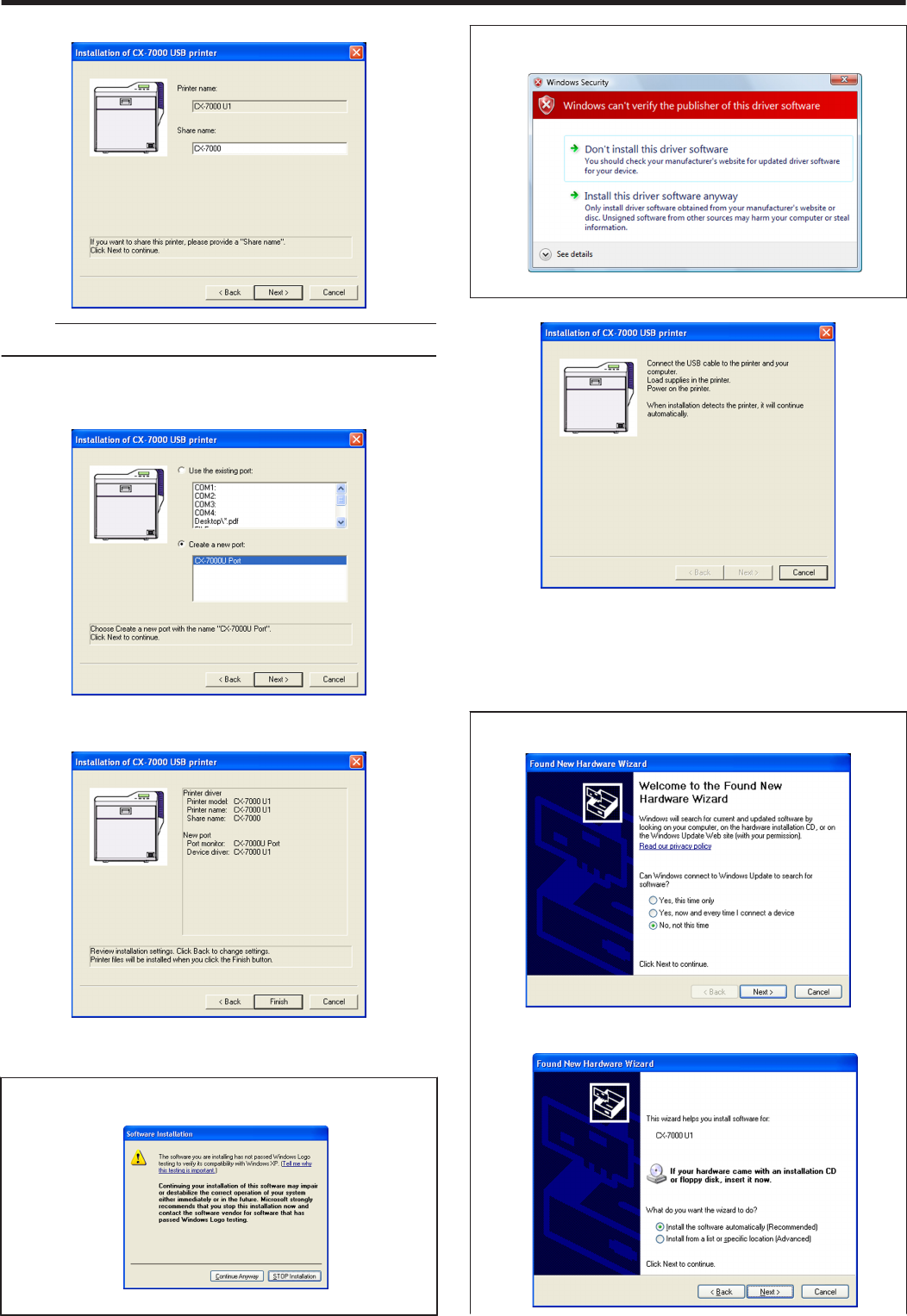
vEnter the shared name when you are sharing a printer.
.
Memo:
vYou can also set the shared name after installation is complete.
8Click [Next]
vA port selection screen appears.
vSelect [CX-7000U Port] under [Create a new port].
.
9Click [Next]
vAn install information confirmation screen appears.
.
10 Check the installation information, followed by clicking [Finish]
vTo change the settings, click [Back].
mWindows XP
vA [Software Installation] screen appears.
.
A Click [Continue Anyway]
mWindows Vista
vA [Windows Security] screen appears.
.
A Click [Install] part
vA USB cable connection instruction screen appears.
.
11 Connect the printer and computer using the USB cable
12 Turn on the power of the printer
vInstallation starts automatically after the printer is detected.
vInstallation does not start if connection is improper. When this
occurs, check the connection.
mWindows XP
A [Found New Hardware Wizard] screen appears.
.
A Select [No, not this time], and click [Next]
vAn installation method selection screen appears.
.
Setup
67
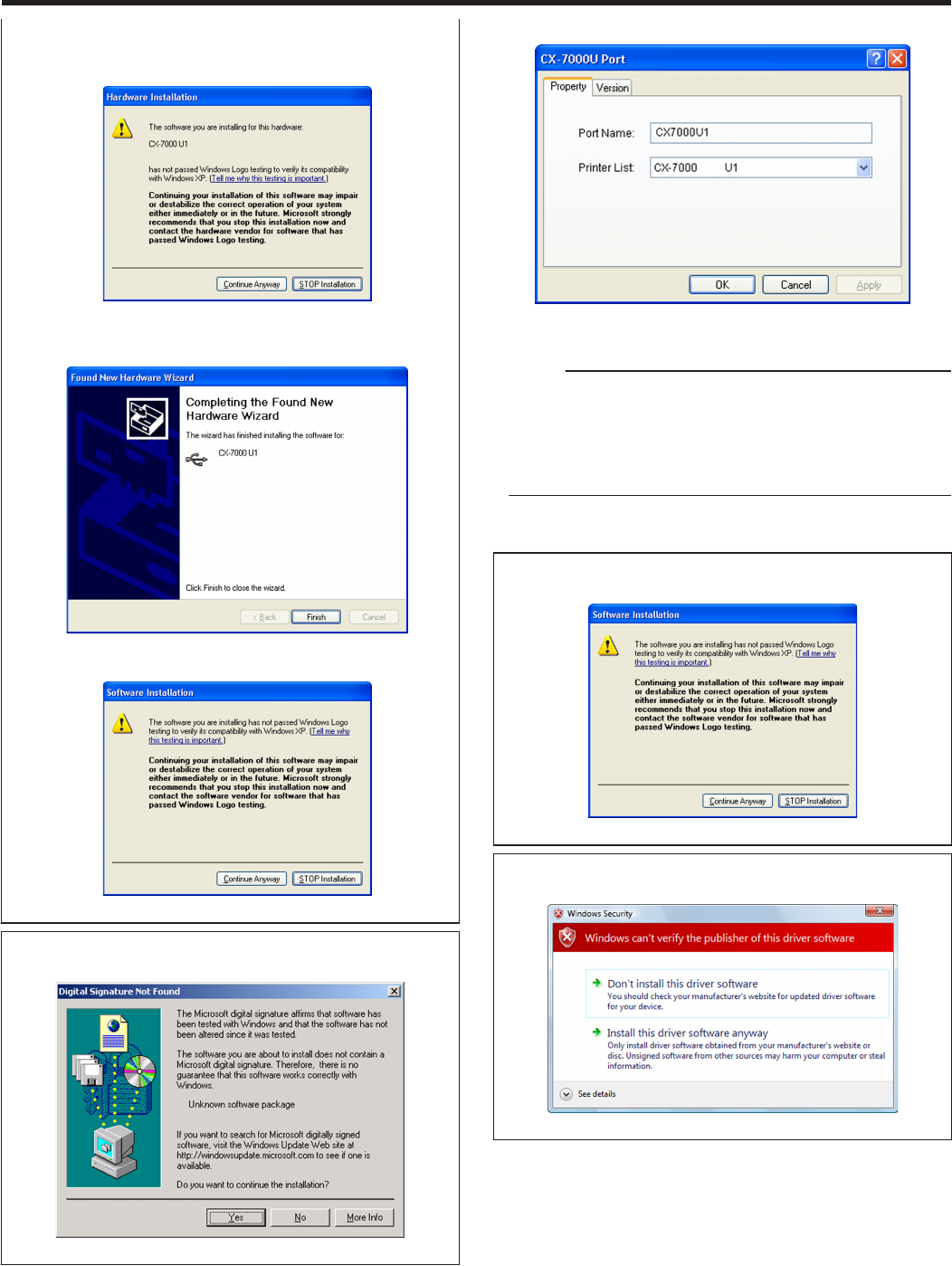
B Select [Install the software automatically (Recommended)], and
click [Next]
vA [Hardware Installation] screen appears.
.
C Click [Continue Anyway]
vA “Completing the Found New Hardware Wizard” screen
appears.
.
D Click [Finish]
vA [Software Installation] screen appears.
.
E Click [Continue Anyway]
mWindows 2000
vA [Digital Signature Not Found] screen appears.
.
A Click [Yes]
vA [CX-7000U Port] screen appears.
.
13 Select the [Property] tab
A Select this printer from [Printer List]
Memo:
vUSB connection is improper if “No Device” appears in the [Printer
List]. When this occurs, end the installation process and reinstall
the program.
vIf “No Selection” appears in the [Printer List], select a USB device
name that coincides with the printer unit number that is currently
being installed from the pull-down list.
B Enter the port name
14 Click [OK]
mWindows XP
vA [Software Installation] screen appears.
.
A Click [Continue Anyway]
mWindows Vista
vA [Windows Security] screen appears.
.
A Click [Install] part
Setup
68
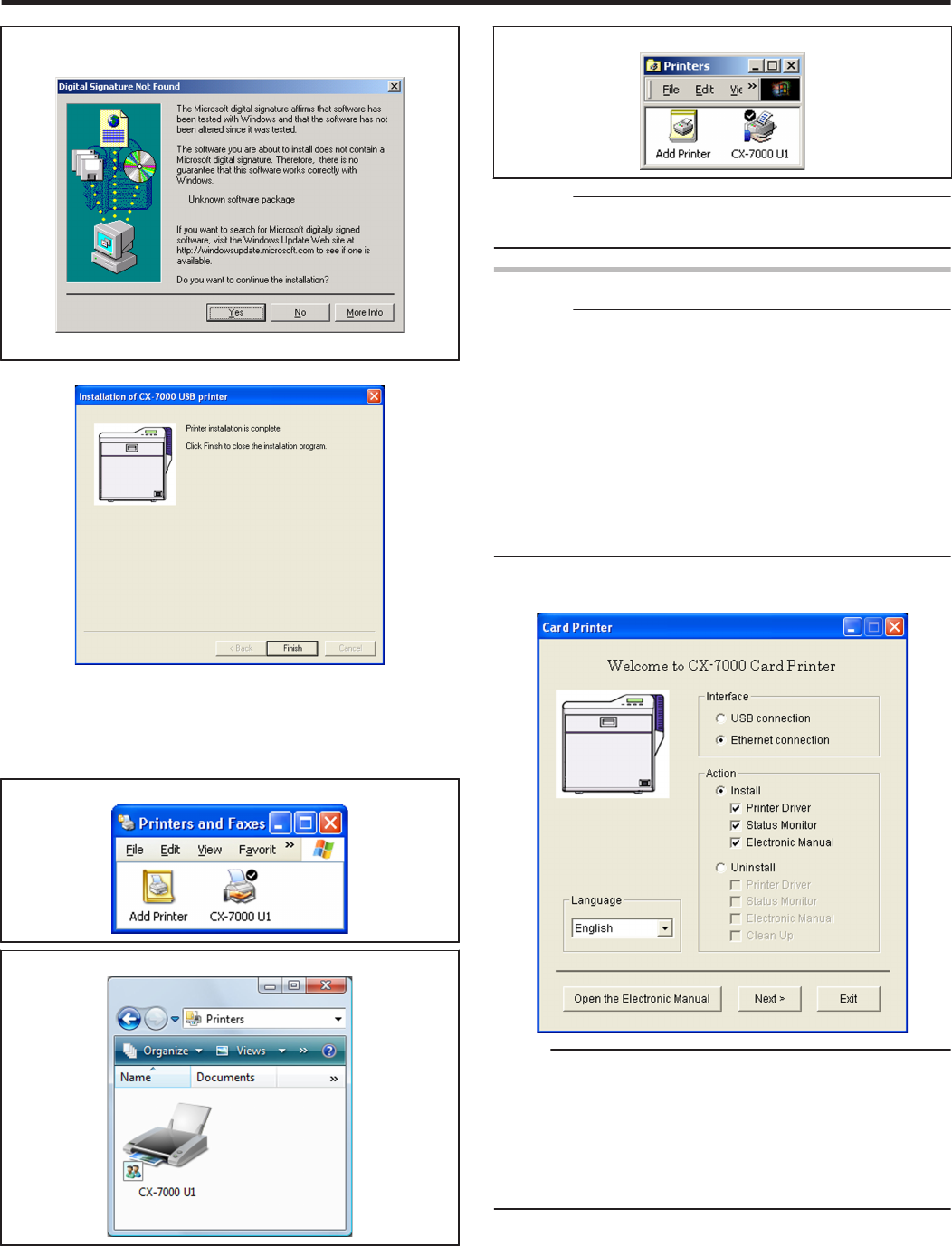
mWindows 2000
vA [Digital Signature Not Found] screen appears.
.
A Click [Yes]
vA printer installation complete screen appears.
.
15 Click [Finish]
vExits the installation program.
16 Open “Printers” in [Control Panel]
vCheck to ensure that the printer is added.
mWindows XP (Example)
.
mWindows Vista (Example)
.
mWindows 2000 (Example)
.
Cautions:
vTo delete a printer, execute “Uninstall printer driver” after restarting
Windows.
Ethernet (LAN) Connection
Cautions:
vConfigure the IP address and other necessary settings for the printer
in advance.
vDo not connect the printer to the USB port.
vDo not connect the printer to the Ethernet (LAN) until instruction
asking you to do so appears on the installer.
vDo not turn on the power of the printer until instruction asking you to
do so appears on the installer.
vYou need to enable the LAN hub before connecting the printer via
this hub.
vExit all applications that are currently running.
vIf document printing is currently in progress, wait for all the jobs to
complete.
1Start up Windows, and set the supplied CD-ROM into the computer
vA card printer setup screen appears.
.
Memo:
vIf the CD-ROM drive of the computer is set to run automatically, the
installer will be executed automatically.
If the installer is not automatically initiated, double-click “SETUP.exe”
in the CD-ROM.
vIf you are not using the “SETUP.exe” automatic execution program
in the CD-ROM, start the installer for the printer driver by double-
clicking the following file in the CD-ROM: “English\LAN_Soft
\install.exe”.
Setup
69
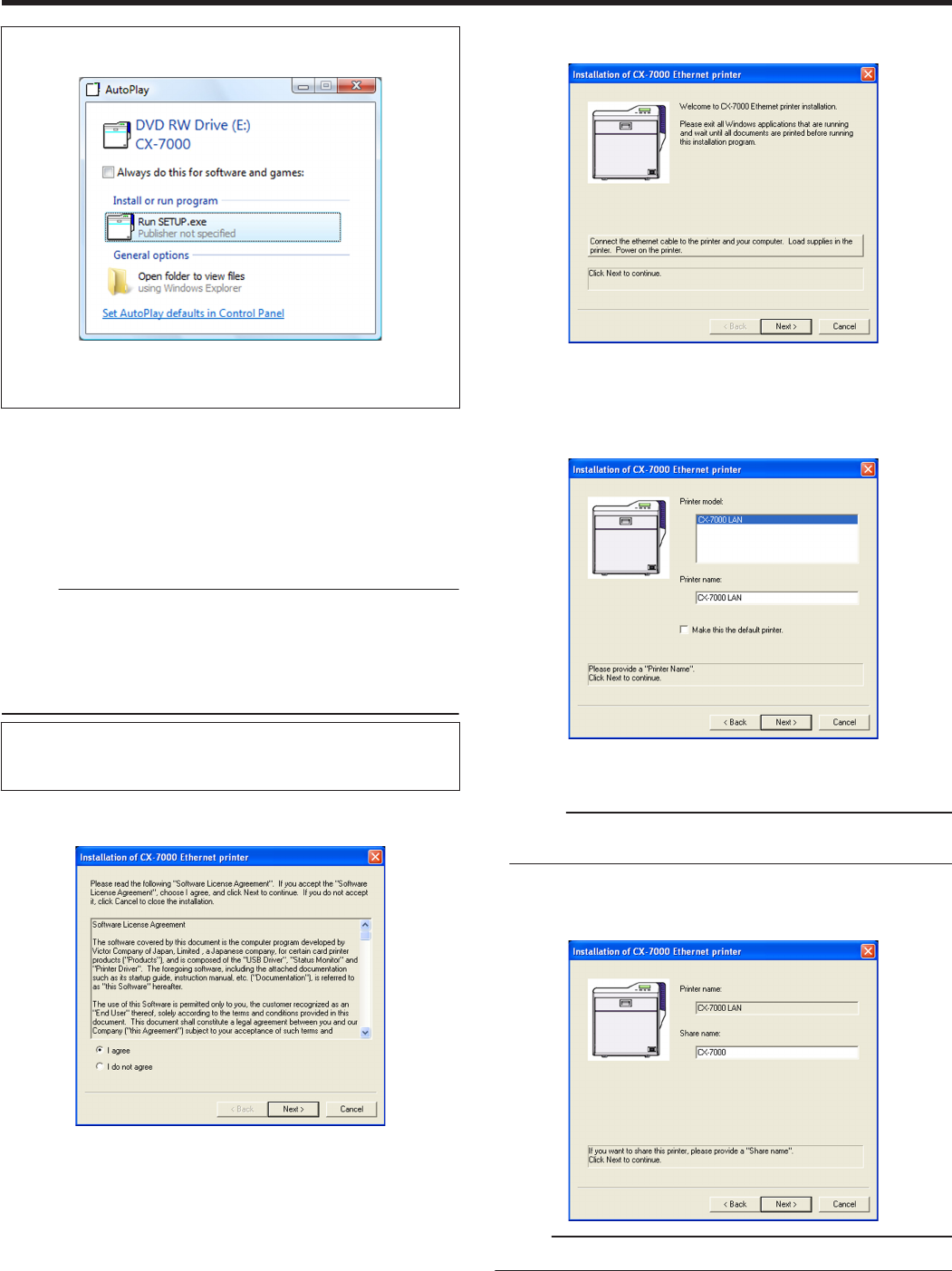
mWindows Vista
vA [AutoPlay] screen appears.
.
vClicking [Run SETUP.exe] displays the [User Account Control]
screen.
vClicking [Allow] displays the card printer setup screen.
2Select the [Printer Driver] checkbox on the card printer setup screen
A Select the language to use from the [Language] pull-down menu
vSelecting [Japanese] switches the program to the Japanese
version.
vSelecting [English] switches the program to the English version.
B Select [Ethernet connection] from [Interface].
C Select [Install] under [Action], and select the [Printer Driver]
checkbox
Memo:
vYou can select the [Status Monitor] and [Electronic Manual]
checkboxes to install them simultaneously. Selecting all checkboxes
starts installation in the order of the Electronic Manual, status
monitor, and printer driver.
vThe same status monitor can be used for printers connected via
USB and Ethernet.
vClicking [Open the Electronic Manual] opens the Electronic
Manual.
vClicking [Exit] ends the installation.
3Click [Next]
vA [Installation of CX-7000 Ethernet printer] screen appears.
.
4Read through the “Software License Agreement”
vIf you accept the terms and conditions, select [I agree] to start
installation.
vIf you do not agree, click [Cancel] to stop the installation.
5Click [Next]
vA start installation screen appears.
.
6Connect the printer and computer using a LAN cable
7Turn on the power of the printer
8Check the details, followed by clicking [Next]
vA screen for setting [Printer model] and [Printer name] appears.
.
A Select a [Printer model]
B Enter the [Printer name]
C Select the [Make this the default printer.] checkbox if necessary
Memo:
vDoing so enables you to set it as a default printer after installation
is complete.
9Click [Next]
vA screen for entering the shared name appears.
vEnter the shared name when you are sharing a printer.
.
Memo:
vYou can also set the shared name after installation is complete.
Setup
70
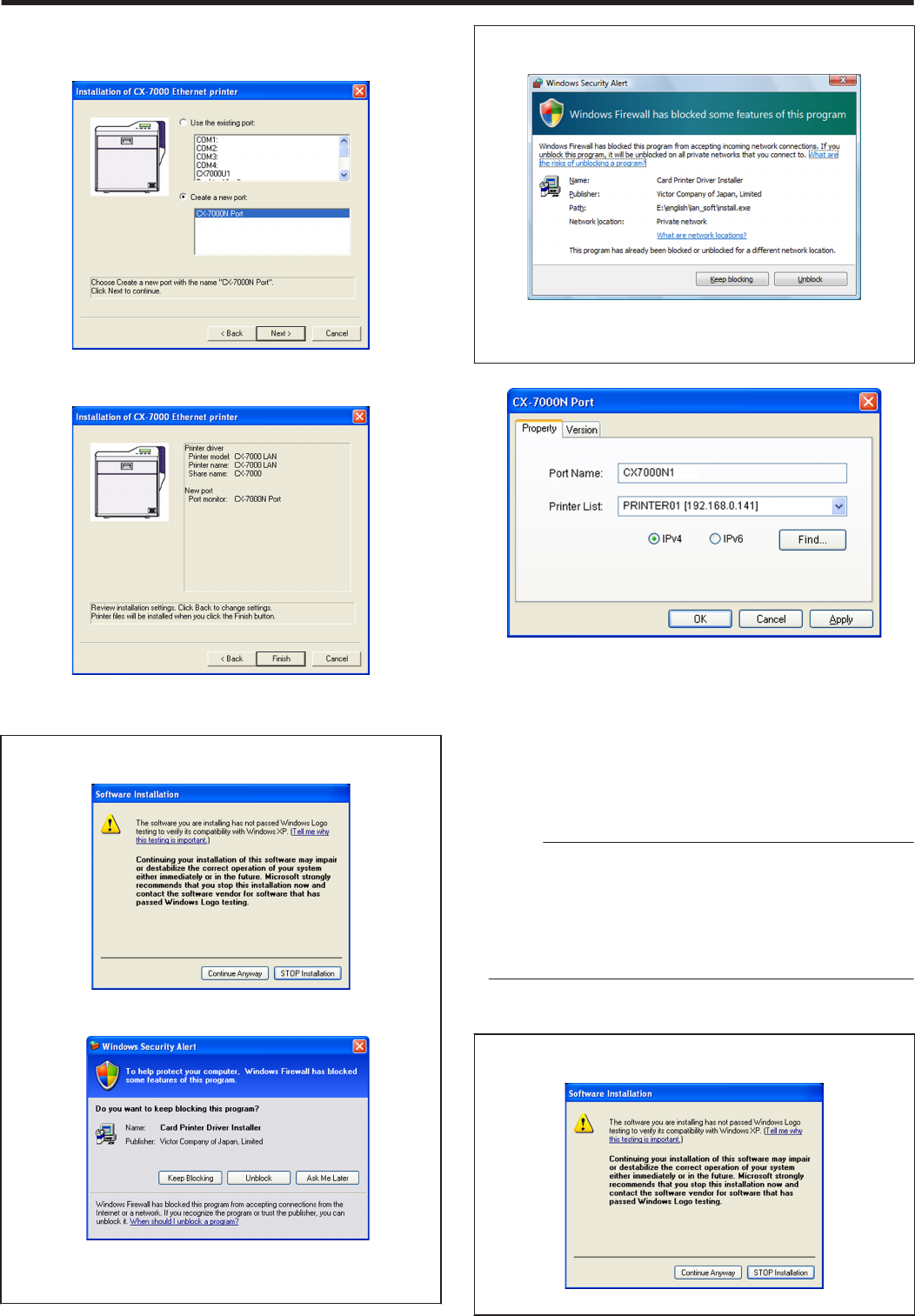
10 Click [Next]
vA port selection screen appears.
vSelect [CX-7000N Port] under [Create a new port].
.
11 Click [Next]
vAn install information confirmation screen appears.
.
12 Check the installation information, followed by clicking [Finish]
vTo change the settings, click [Back].
mWindows XP
vA [Software Installation] screen appears.
.
A Click [Continue Anyway]
vA [Windows Security Alert] screen appears.
.
B Click [Unblock]
vThe program will fail to function properly if you click on buttons
other than [Unblock].
mWindows Vista
vA [Windows Security Alert] screen appears.
.
A Click [Unblock]
vThe program will fail to function properly if you click on [Keep
blocking].
vA [CX-7000N Port] screen appears.
.
13 Select the [Property] tab
A Select this printer from [Printer List]
vWhen connecting using the IPv4 address, select [IPv4], followed
by clicking [Find...] to search for the printer. After clicking [IPv4],
you can search for the printer by directly entering the IPv4 address
in the [Printer List].
vWhen connecting using the IPv6 address, select [IPv6], followed
by clicking [Find...] to search for the printer. After clicking [IPv6],
you can search for the printer by directly entering the IPv6 address
in the [Printer List].
Memo:
vEthernet (LAN) connection is improper if “Not Connected” appears
in the [Printer List]. If the printer that is currently being installed
cannot be found by clicking [Find...], end the installation process
and reinstall the program.
vIf “Not Selected” appears in the [Printer List], select an item that
coincides with the IP address of the printer that is currently being
installed from the pull-down list.
B Enter the [Port Name]
14 Click [OK]
mWindows XP
vA [Software Installation] screen appears.
.
A Click [Continue Anyway]
Setup
71
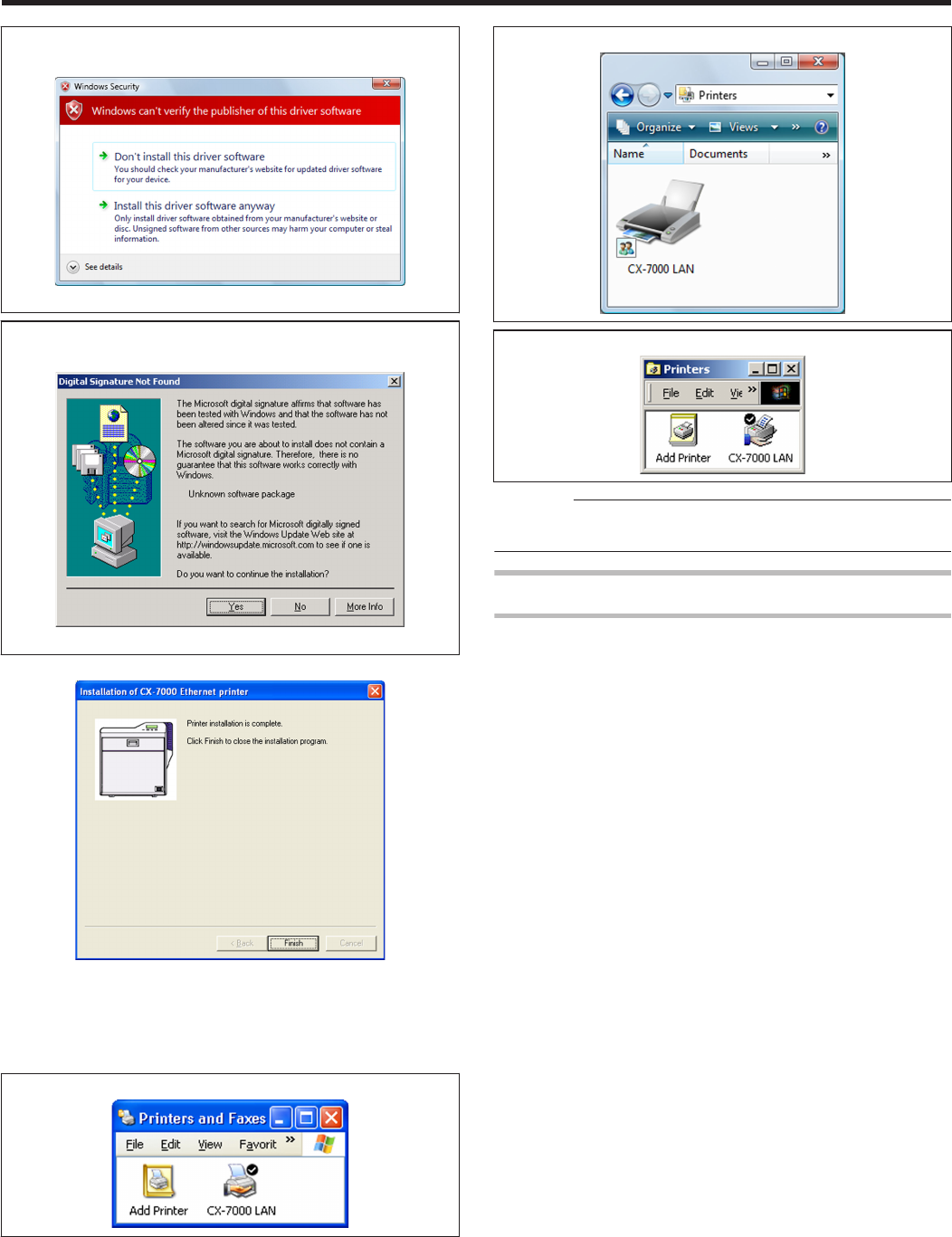
mWindows Vista
vA [Windows Security] screen appears.
.
A Click [Install] part
mWindows 2000
vA [Digital Signature Not Found] screen appears.
.
A Click [Yes]
vA printer installation complete screen appears.
.
15 Click [Finish]
vExits the installation program.
16 Open “Printers” in [Control Panel]
vCheck to ensure that the printer is added.
mWindows XP (Example)
.
mWindows Vista (Example)
.
mWindows 2000 (Example)
.
Cautions:
vTo delete a printer, execute “Uninstall printer driver” after restarting
Windows.
Update of Printer Driver
To update
1Delete the existing printer driver
"Uninstalling the Printer Driver" (A page 80)
2Re-install the printer driver
"Installing the Printer Driver" (A page 65)
Setup
72
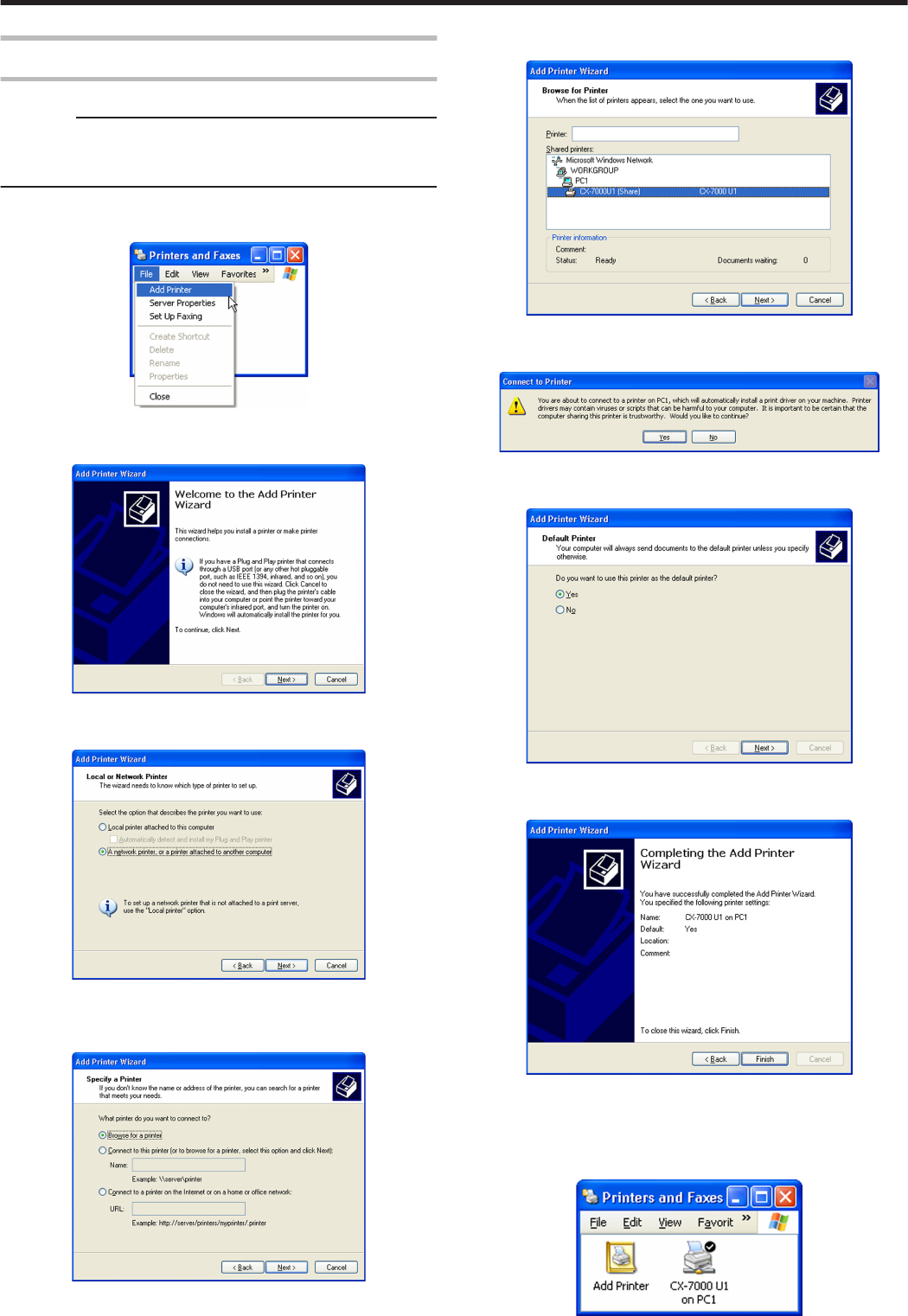
Network Sharing of Printer
Windows XP/ Windows 2000
Cautions:
vCheck to ensure that you can access the computer to which the
printer is connected.
vCheck also to ensure that the printer can be shared.
1Open “Printers” in [Control Panel]
vA [Printers and Faxes] screen appears.
.
2Click [Add Printer] under the [File] menu
vA “Welcome to the Add Printer Wizard” screen appears.
.
3Click [Next]
vA printer type selection screen appears.
.
4Select [A network printer, or a printer attached to another computer],
and click [Next]
vA “Specify a Printer” screen appears.
.
5Select [Browse for a printer], and click [Next]
vA “Browse for Printer” screen appears.
.
6Select a printer from [Shared printers], and click [Next]
vA [Connect to Printer] screen appears.
.
7Click [Yes]
vA “Default Printer” screen appears.
.
8Select [Yes] if necessary, and click [Next]
vA “Completing the Add Printer Wizard” screen appears.
.
9Check the details, followed by clicking [Finish]
vNetwork sharing of the printer is complete.
10 Open “Printers” in [Control Panel]
vCheck to ensure that the printer is added.
.
Setup
73
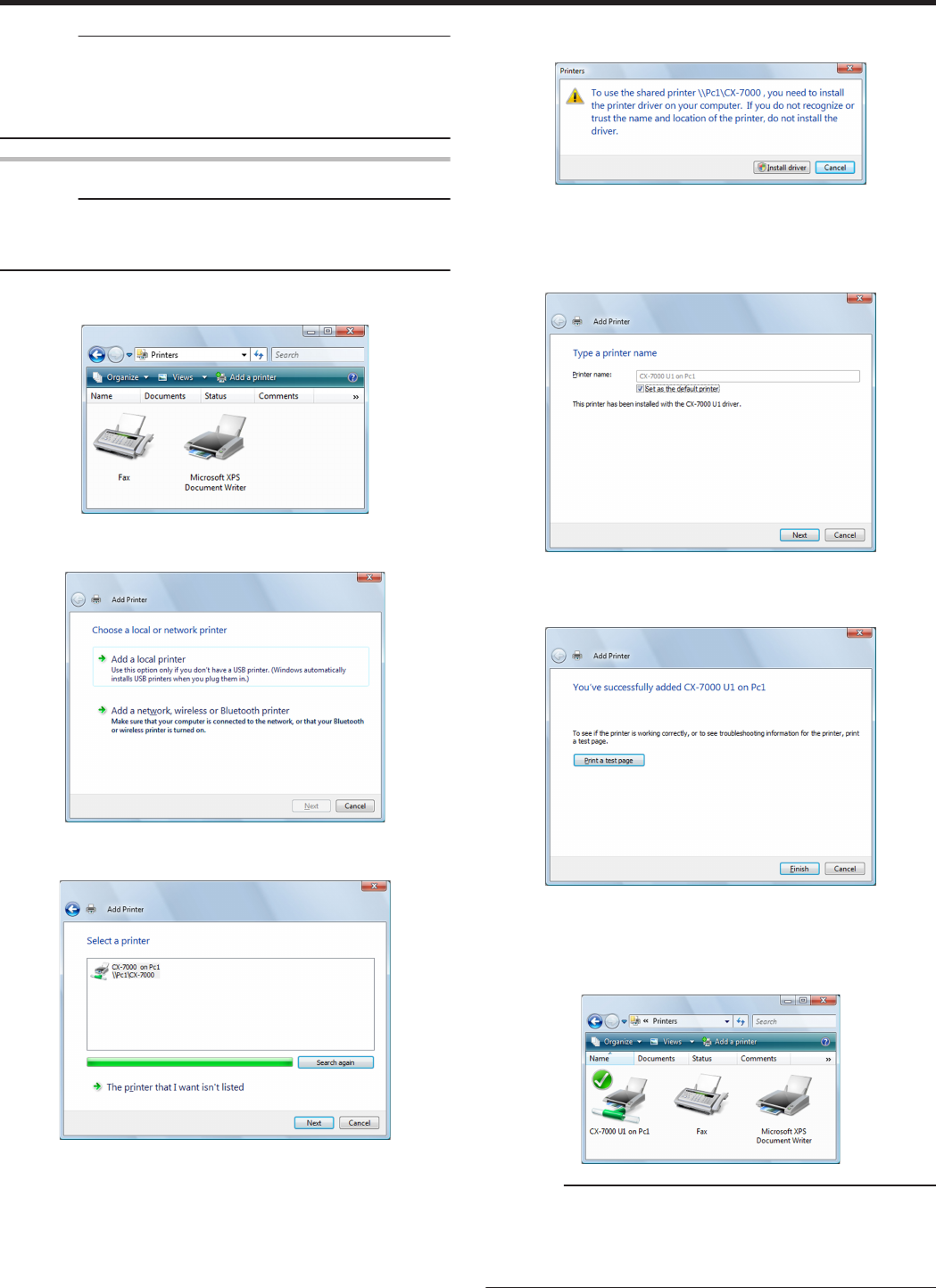
Cautions:
vWhen the access authority of the computer is not proper, the printer
may not be able to perform printing even if installation of the printer
driver is completed.
Ensure that the access authority is proper according to the
instructions of the network administrator.
Windows Vista
Cautions:
vCheck to ensure that you can access the computer to which the
printer is connected.
vCheck also to ensure that the printer can be shared.
1Open “Printers” in [Control Panel]
vA [Printer] screen appears.
.
2Click [Add a printer] in the toolbar
vA printer selection screen appears.
.
3Select [Add a network, wireless or Bluetooth printer], and click [Next]
vA screen for selecting the printer appears.
.
4Select a printer, and click [Next]
vA driver installation confirmation screen appears.
.
5Click [Install driver]
vA [User Account Control] screen appears.
6On the user account screen, click [Continue]
vA screen for entering the printer name appears.
.
7Select the [Set as the default printer] checkbox if necessary, and
click [Next]
vA screen indicating that the printer is added appears.
.
8Check the details, followed by clicking [Finish]
vNetwork sharing of the printer is complete.
9Open “Printers” in [Control Panel]
vCheck to ensure that the printer is added.
.
Cautions:
vWhen the access authority of the computer is not proper, the printer
may not be able to perform printing even if installation of the printer
driver is completed.
Ensure that the access authority is proper according to the
instructions of the network administrator.
Setup
74
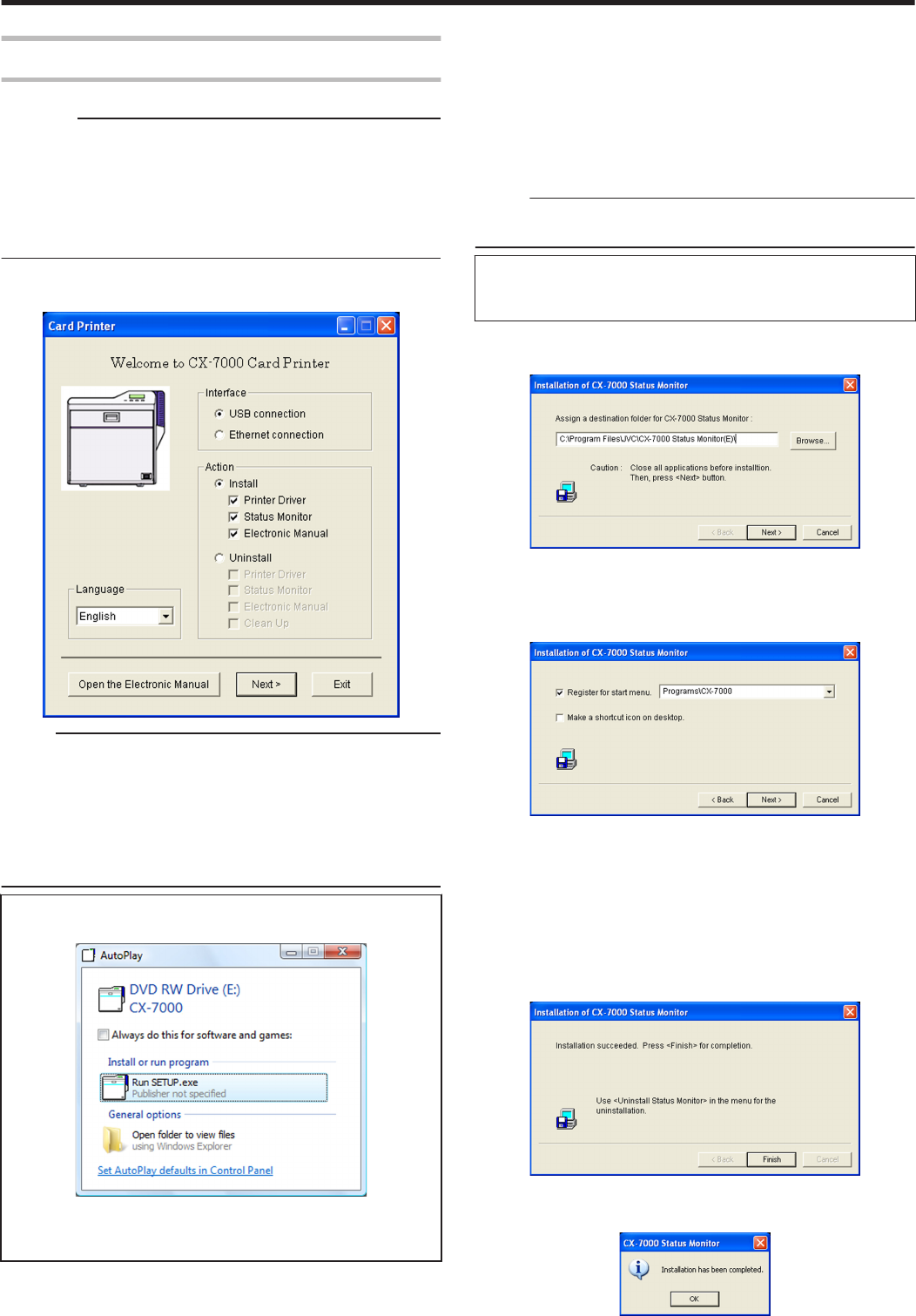
Status Monitor
Installing the Status Monitor
Cautions:
vThe same status monitor can be used for printers connected via
USB and Ethernet.
vMake sure that the status monitor is only installed once on a single
computer.
vTo continue using the status monitor after uninstalling the printer
driver, update the status monitor accordingly.
"Update of Status Monitor" (A page 76)
1Start up Windows, and set the supplied CD-ROM into the computer
vA card printer setup screen appears.
.
Memo:
vIf the CD-ROM drive of the computer is set to run automatically, the
installer will be executed automatically.
If the installer is not automatically initiated, double-click “SETUP.exe”
in the CD-ROM.
vIf you are not using the “SETUP.exe” automatic execution program
in the CD-ROM, start the installer for the status monitor by double-
clicking the following file in the CD-ROM: “English\Software
\STT_MON\install.exe”.
mWindows Vista
vA [AutoPlay] screen appears.
.
vClicking [Run SETUP.exe] displays the [User Account Control]
screen.
vClicking [Allow] displays the card printer setup screen.
2Select the [Status Monitor] checkbox on the card printer setup
screen
A Select the language to use from the [Language] pull-down menu
vSelecting [Japanese] switches the program to the Japanese
version.
vSelecting [English] switches the program to the English version.
B Select [USB connection] or [Ethernet connection] from [Interface]
C Select [Install] under [Action], and select the [Status Monitor]
checkbox
Memo:
vYou can select the [Printer Driver] and [Electronic Manual]
checkboxes to install them simultaneously.
vClicking [Open the Electronic Manual] opens the Electronic
Manual.
vClicking [Exit] ends the installation.
3Click [Next]
vA status monitor installation screen appears.
.
vTo change the displayed installation destination, click [Browse...] and
specify the destination folder.
4Click [Next]
vA selection screen for registering the status monitor appears.
.
A Select the [Register for start menu] checkbox
vTo change the registration in the displayed Start menu, make a
selection from the [Register for start menu] list.
B Select the [Make a shortcut icon on desktop.] checkbox if
necessary
5Click [Next]
vInstallation starts.
vAfter installation is complete, an installation complete screen
appears.
.
6Click [Finish]
vAn installation complete confirmation screen appears.
.
Setup
75
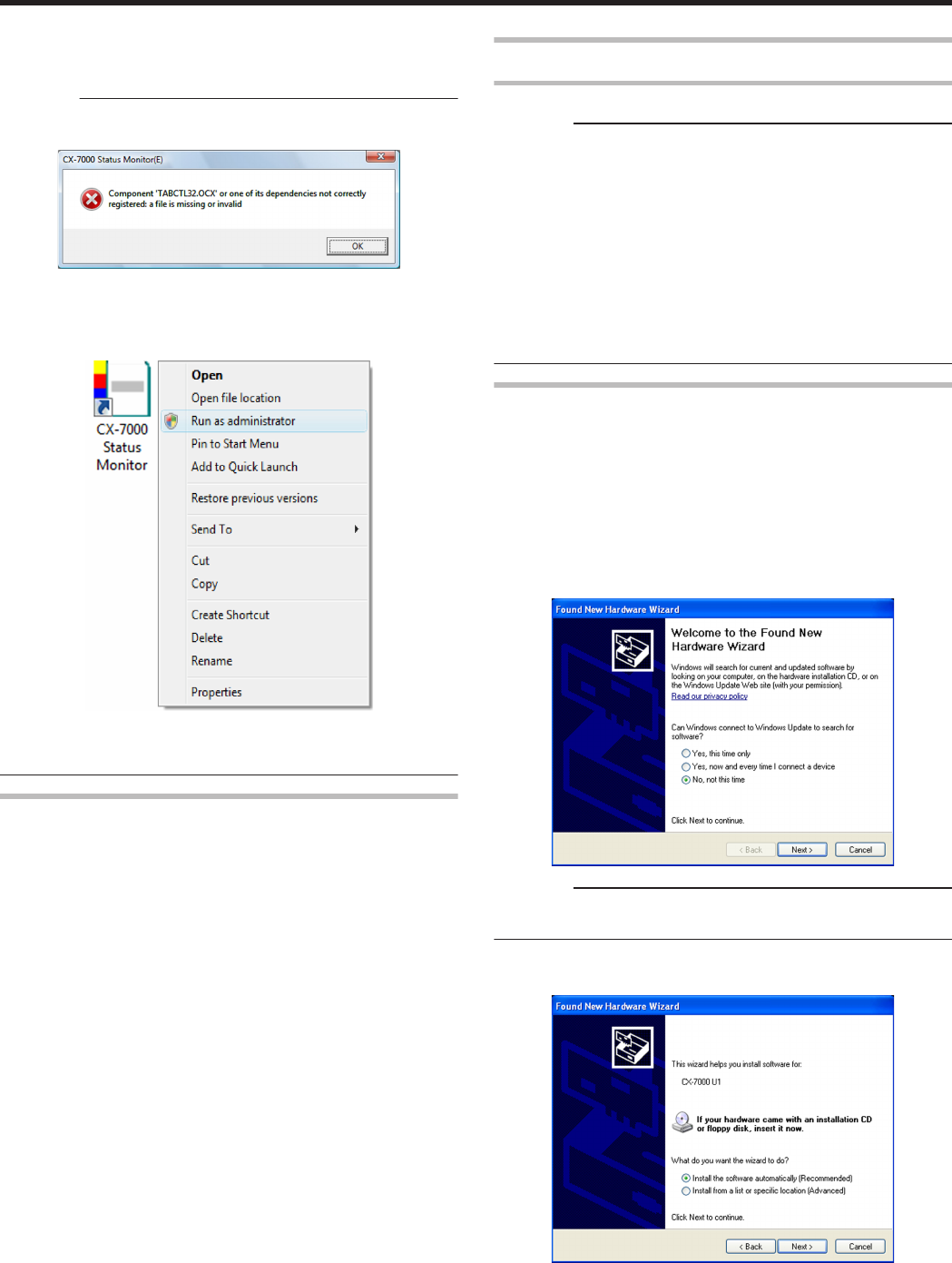
7Click [OK]
vExits the installation program.
vYou can now start the status monitor from [Start menu].
Cautions:
vThe following error may occur when you start executing the status
monitor on Windows Vista.
.
Cause: The status monitor cannot run because the program cannot be
identified by Windows Vista.
Action: Select “Run as administrator” to start the status monitor as a
user with administrator authority. Doing so enables the program to be
identified by Windows Vista, and the same error will not recur.
.
vEven if a user is logged on with the administrator account on
Windows Vista, the user may be regarded as one without
administrator authority when running the status monitor.
Update of Status Monitor
1Delete the status monitor
"Uninstalling the Status Monitor" (A page 83)
2Re-install the status monitor
"Installing the Status Monitor" (A page 75)
USB Driver
Installing the USB Driver
Cautions:
vThe USB driver is also installed while you are installing the printer
driver via USB connection.
vInstall the USB driver additionally only when you want to set items
other than the [Printer Name] on the [Printer Selection] screen of the
status monitor.
vDo not turn on the power of the printer until instruction asking you to
do so appears on the installer.
vDo not connect the printer to the USB until instruction asking you to
do so appears on the installer.
vYou need to enable the USB hub before connecting the printer via
this hub. Do not connect the printer to the USB hub until instruction
asking you to do so appears.
Windows XP
1Start up Windows
2Set the supplied CD-ROM into the computer
vThe “SETUP.exe” automatic execution program in the CD-ROM is
not used. Exit this program.
3Connect the computer and printer using the USB cable, and turn on
the power of the printer
vThe printer is automatically detected by the computer.
vA [Found New Hardware Wizard] screen appears.
.
Cautions:
vConnection is improper if this screen does not appear. Make sure
that the connection is properly established.
4Select [No, not this time], and click [Next]
vAn installation method selection screen appears.
.
Setup
76
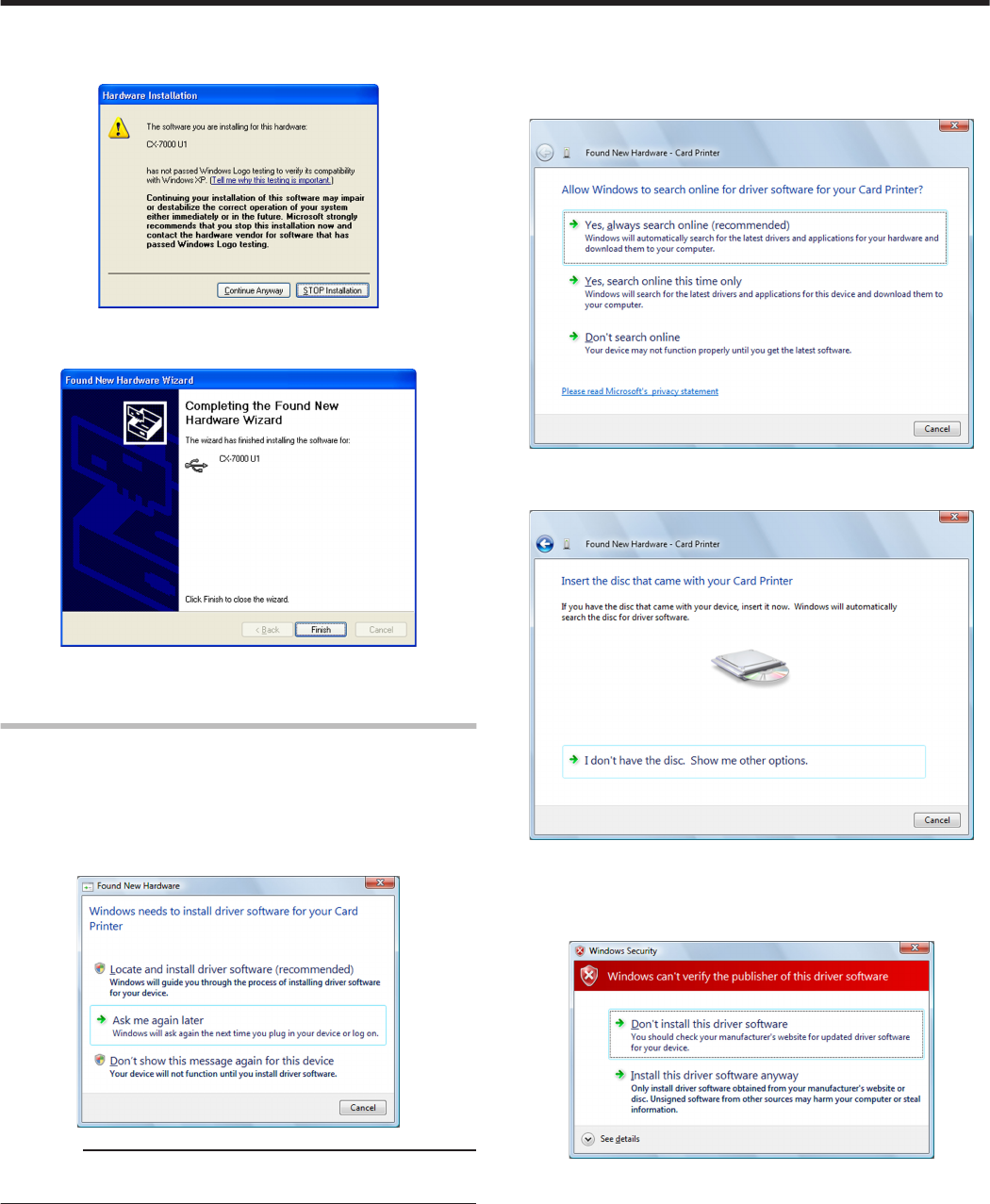
5Select [Install the software automatically (Recommended)], and click
[Next]
vA [Hardware Installation] screen appears.
.
6Click [Continue Anyway]
vA “Completing the Found New Hardware Wizard” screen appears.
.
7Click [Finish]
vInstallation of the USB driver is complete.
Windows Vista
1Start up Windows
2Connect the computer and printer using the USB cable, and turn on
the power of the printer
vThe printer is automatically detected by the computer.
vA [Found New Hardware] screen appears.
.
Cautions:
vConnection is improper if this screen does not appear. Make sure
that the connection is properly established.
3Click [Locate and install driver software (Recommended)]
vA [User Account Control] screen appears.
4Click [Continue]
vA [Found New Hardware] screen appears.
.
5Click [Don’t search online]
vA screen appears, prompting you to insert the disc.
.
6Set the supplied CD-ROM into the computer
vThe “SETUP.exe” automatic execution program in the CD-ROM is
not used. Exit this program.
vA [Windows Security] screen appears.
.
Setup
77
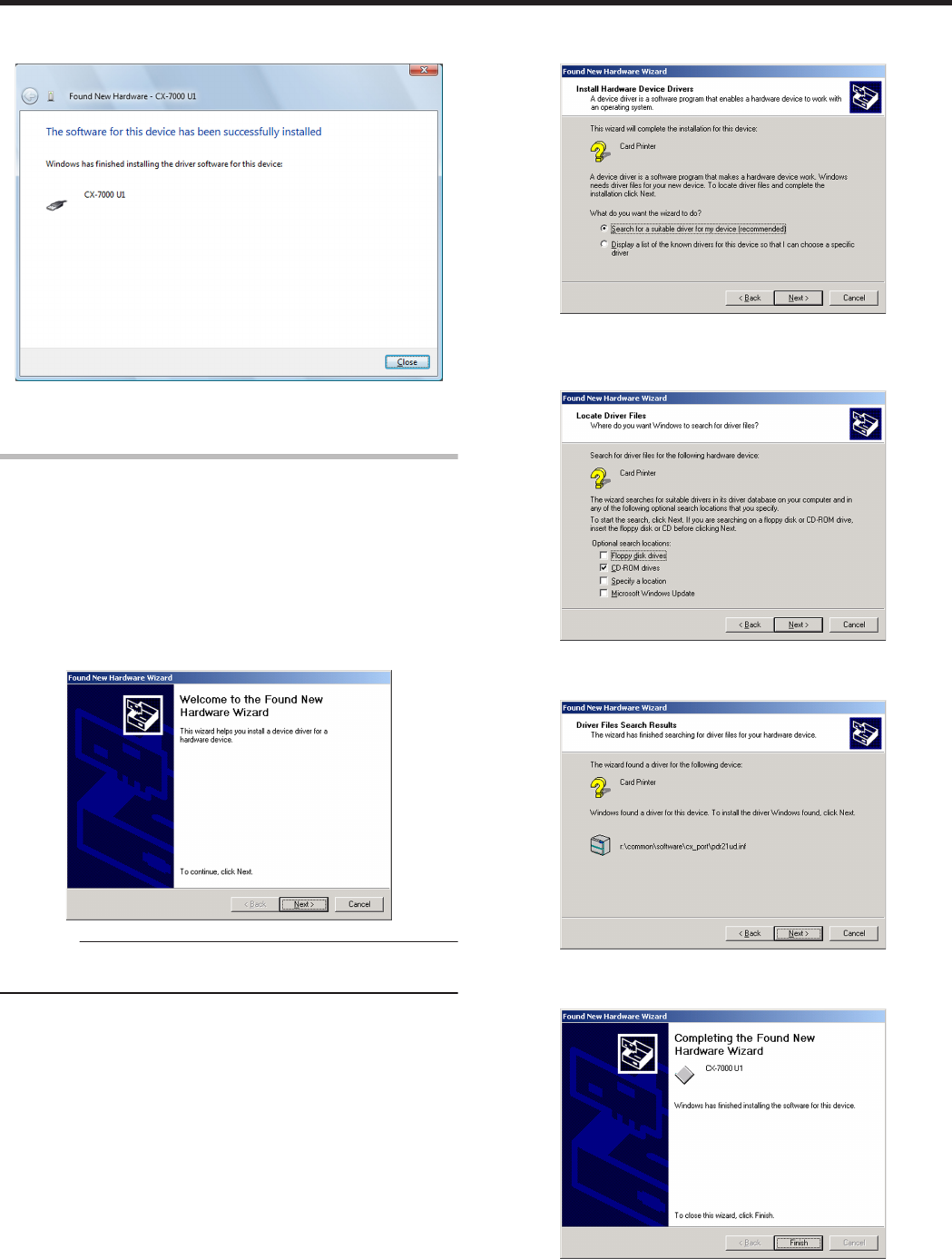
7Click [Install this driver software anyway]
vAn installation complete screen appears.
.
8Click [Close]
vInstallation of the USB driver is complete.
Windows 2000
1Start up Windows
2Set the supplied CD-ROM into the computer
vThe “SETUP.exe” automatic execution program in the CD-ROM is
not used. Exit this program.
3Connect the computer and printer using the USB cable, and turn on
the power of the printer
vThe printer is automatically detected by the computer.
vA [Found New Hardware Wizard] screen appears.
.
Cautions:
vConnection is improper if this screen does not appear. Make sure
that the connection is properly established.
4Click [Next]
vA search method selection screen appears.
.
5Select [Search for a suitable driver for my device (recommended)],
and click [Next]
vA “Locate Driver Files” screen appears.
.
6Select the [CD-ROM drives] checkbox, and click [Next]
vA “Driver Files Search Results” screen appears.
.
7Click [Next]
vA “Completing the Found New Hardware Wizard” screen appears.
.
8Click [Finish]
vInstallation of the USB driver is complete.
Setup
78
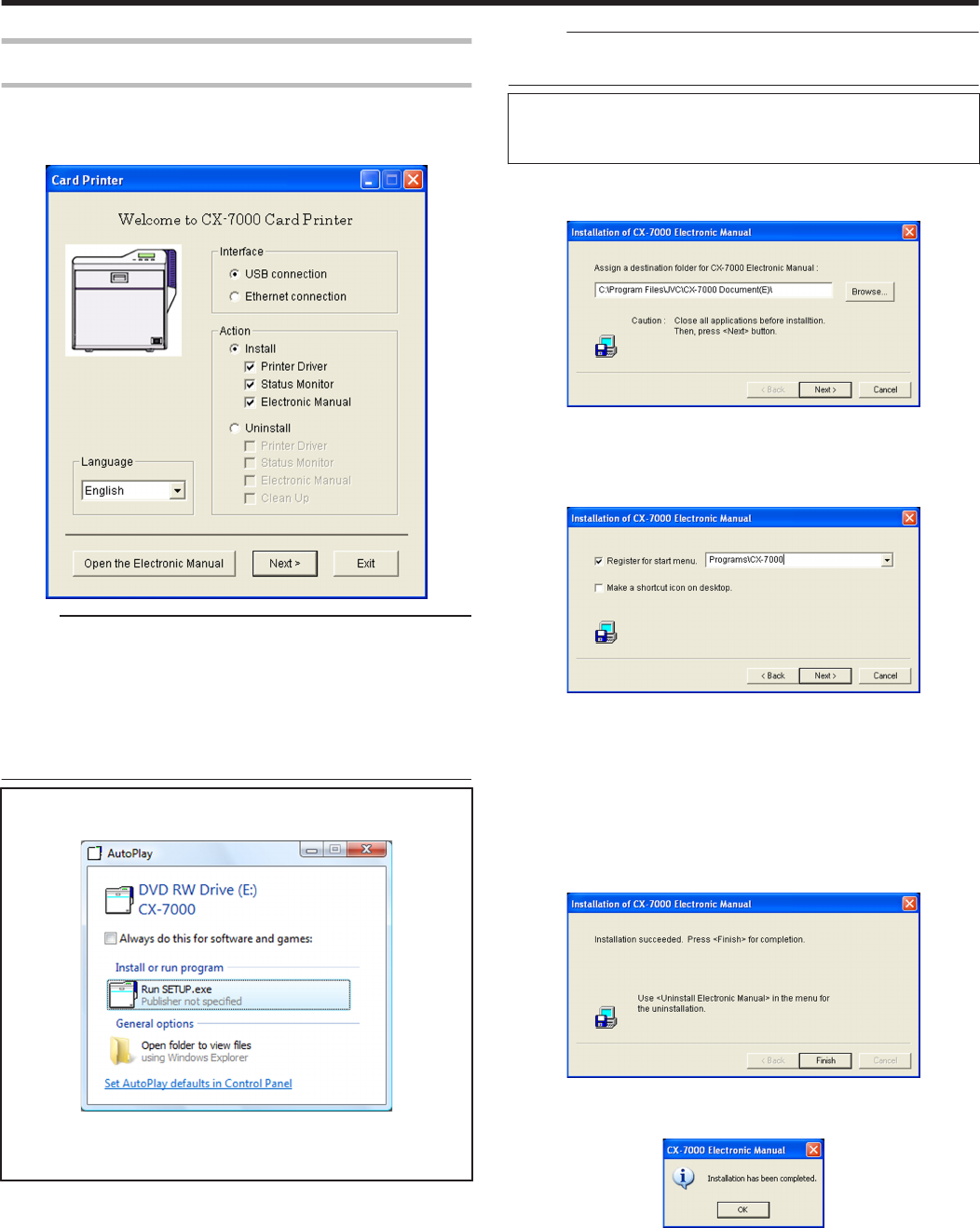
Electronic Manual
Installing the Electronic Manual
1Start up Windows, and set the supplied CD-ROM into the computer
vA card printer setup screen appears.
.
Memo:
vIf the CD-ROM drive of the computer is set to run automatically, the
installer will be executed automatically.
If the installer is not automatically initiated, double-click “SETUP.exe”
in the CD-ROM.
vIf you are not using the “SETUP.exe” automatic execution program
in the CD-ROM, start the installer for the Electronic Manual by
double-clicking the following file in the CD-ROM: “English\Document
\Manual\install.exe”.
mWindows Vista
vA [AutoPlay] screen appears.
.
vClicking [Run SETUP.exe] displays the [User Account Control]
screen.
vClicking [Allow] displays the card printer setup screen.
2Select the [Electronic Manual] checkbox on the card printer setup
screen
A Select the language to use from the [Language] pull-down menu
vSelecting [Japanese] switches the program to the Japanese
version.
vSelecting [English] switches the program to the English version.
B Select [USB connection] or [Ethernet connection] from [Interface]
C Select [Install] under [Action], and select the [Electronic Manual]
checkbox
Memo:
vYou can select the [Printer Driver] and [Status Monitor] checkboxes
to install them simultaneously.
vClicking [Open the Electronic Manual] opens the Electronic
Manual.
vClicking [Exit] ends the installation.
3Click [Next]
vAn Electronic Manual installation screen appears.
.
vTo change the displayed installation destination, click [Browse...] and
specify the destination folder.
4Click [Next]
vA selection screen for registering the Electronic Manual appears.
.
A Select the [Register for start menu] checkbox
vTo change the registration in the displayed Start menu, make a
selection from the [Register for start menu] list.
B Select the [Make a shortcut icon on desktop.] checkbox if
necessary
5Click [Next]
vInstallation starts.
vAfter installation is complete, an installation complete screen
appears.
.
6Click [Finish]
vAn installation complete confirmation screen appears.
.
7Click [OK]
vExits the installation program.
vYou can now open the Electronic Manual from [Start menu].
Setup
79
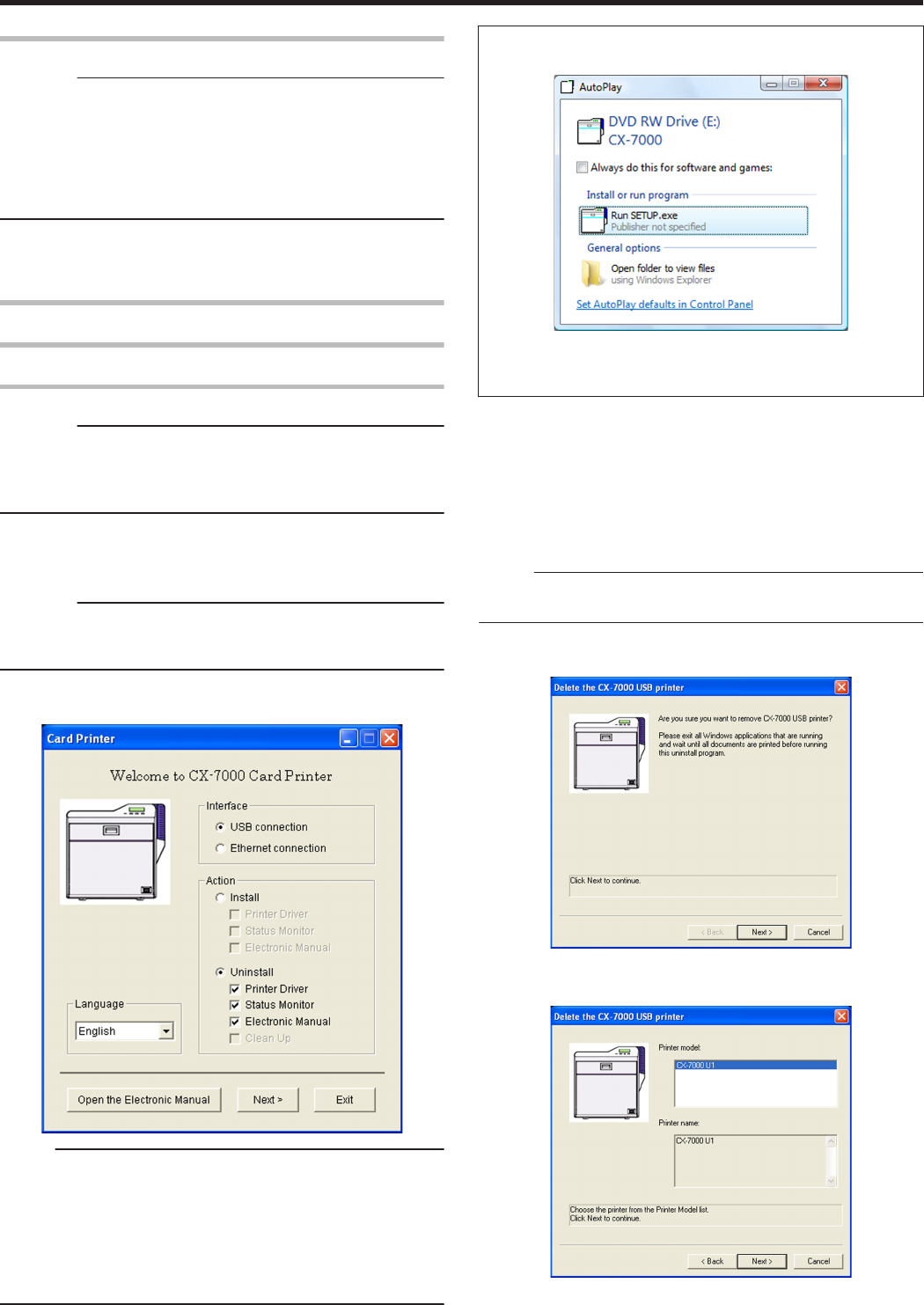
Uninstall
Cautions:
vTo uninstall the software, log into the system as an administrative
user (Administrators group).
vA part of the illustrations in this Electronic Manual may not be
displayed depending on the computer’s environment. Skip the
procedures in this case.
vTo uninstall the software in Windows 7, follow the same procedure
as in Windows Vista.
v"Printer Driver" (A page 80)
v"Status Monitor" (A page 83)
v"Electronic Manual" (A page 83)
Printer Driver
Uninstalling the Printer Driver
USB Connection
Cautions:
vDo not execute “Uninstall” if there are applications that are currently
running.
vIf document printing is currently in progress, wait for all the jobs to
complete.
1Start up Windows
2Connect the computer and printer using the USB cable, and turn on
the power of the printer
Cautions:
vCheck to ensure that the printer connected via USB is recognized on
the computer. If the USB connection is not recognized, the USB
driver cannot be correctly deleted.
3Set the supplied CD-ROM into the computer
vA card printer setup screen appears.
.
Memo:
vIf the CD-ROM drive of the computer is set to run automatically, the
installer will be executed automatically.
If the installer is not automatically initiated, double-click “SETUP.exe”
in the CD-ROM.
vIf you are not using the “SETUP.exe” automatic execution program
in the CD-ROM, start the uninstaller for the printer driver by double-
clicking the following file in the CD-ROM: “English\USB_Soft
\uninstall.exe”.
mWindows Vista
vA [AutoPlay] screen appears.
.
vClicking [Run SETUP.exe] displays the [User Account Control]
screen.
vClicking [Allow] displays the card printer setup screen.
4Select the [Printer Driver] checkbox on the card printer setup screen
A Select the language to use from the [Language] pull-down menu
vSelecting [Japanese] switches the program to the Japanese
version.
vSelecting [English] switches the program to the English version.
B Select [USB connection] from [Interface]
C Select [Uninstall] under [Action], and select the [Printer Driver]
checkbox
Memo:
vYou can select the [Status Monitor] and [Electronic Manual]
checkboxes to uninstall them simultaneously.
5Click [Next]
vA [Delete the CX-7000 USB printer] screen appears.
.
6Check the details, followed by clicking [Next]
vA printer model selection screen appears.
.
Setup
80
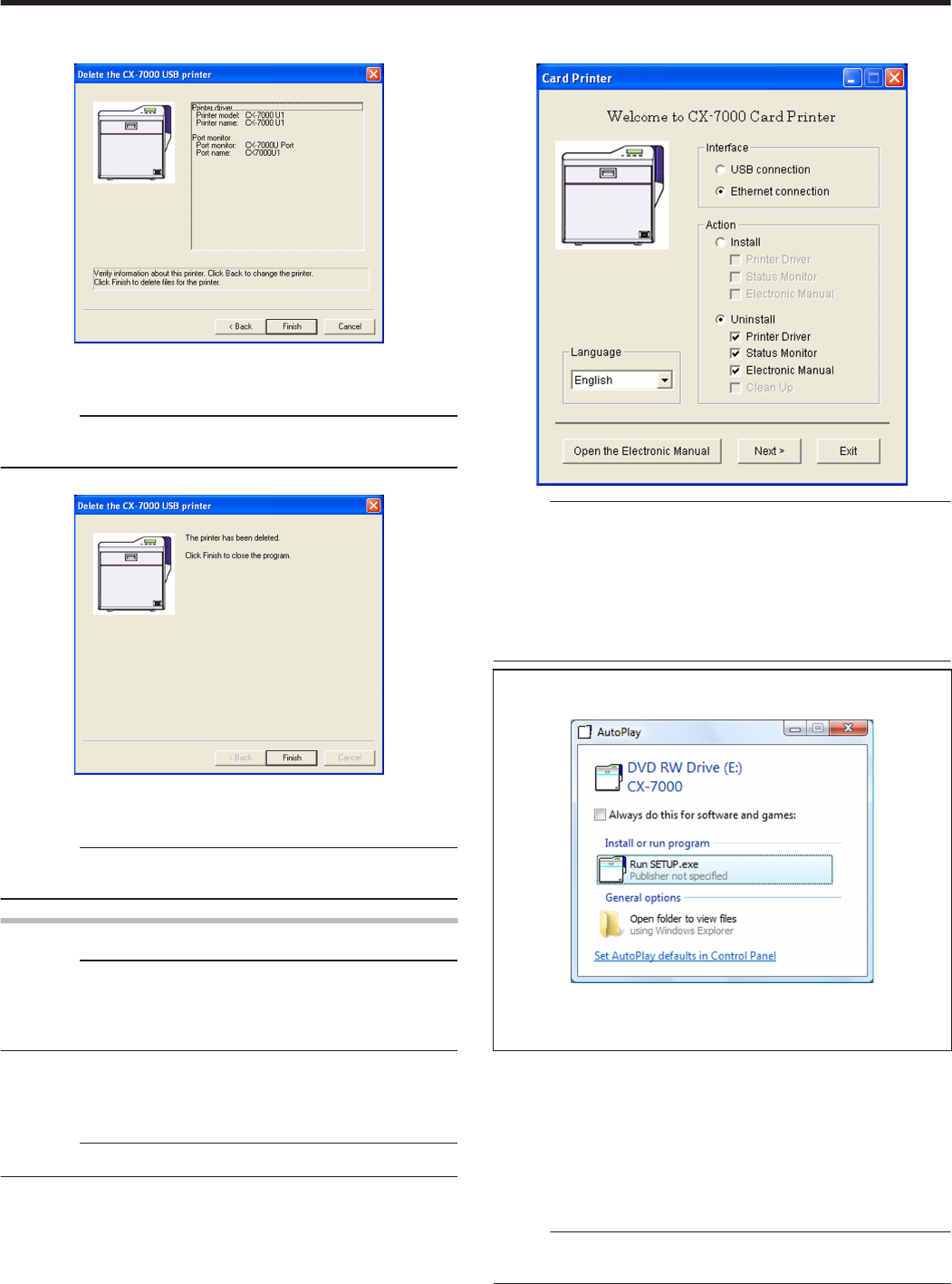
7Select the printer to uninstall, and click [Next]
vAn uninstall information confirmation screen appears.
.
8Check the details, followed by clicking [Finish]
vTo change a printer, click [Back].
Cautions:
vUninstall the USB printer drivers accordingly for each printer unit
number.
vAn uninstallation complete screen appears.
.
9Click [Finish]
vExits uninstallation.
Cautions:
vTo reinstall the printer driver, perform the installation procedures
after restarting Windows.
Ethernet (LAN) Connection
Cautions:
vDo not execute “Uninstall” if there are applications that are currently
running.
vIf document printing is currently in progress, wait for all the jobs to
complete.
1Start up Windows
2Connect the computer and printer using a LAN cable, and turn on
the power of the printer
Cautions:
vDo not connect a USB cable to the printer.
3Set the supplied CD-ROM into the computer
vA card printer setup screen appears.
.
Memo:
vIf the CD-ROM drive of the computer is set to run automatically, the
installer will be executed automatically.
If the installer is not automatically initiated, double-click “SETUP.exe”
in the CD-ROM.
vIf you are not using the “SETUP.exe” automatic execution program
in the CD-ROM, start the uninstaller for the printer driver by double-
clicking the following file in the CD-ROM: “English\LAN_Soft
\uninstall.exe”.
mWindows Vista
vA [AutoPlay] screen appears.
.
vClicking [Run SETUP.exe] displays the [User Account Control]
screen.
vClicking [Allow] displays the card printer setup screen.
4Select the [Printer Driver] checkbox on the card printer setup screen
A Select the language to use from the [Language] pull-down menu
vSelecting [Japanese] switches the program to the Japanese
version.
vSelecting [English] switches the program to the English version.
B Select [Ethernet connection] from [Interface].
C Select [Uninstall] under [Action], and select the [Printer Driver]
checkbox
Memo:
vYou can select the [Status Monitor] and [Electronic Manual]
checkboxes to uninstall them simultaneously.
Setup
81
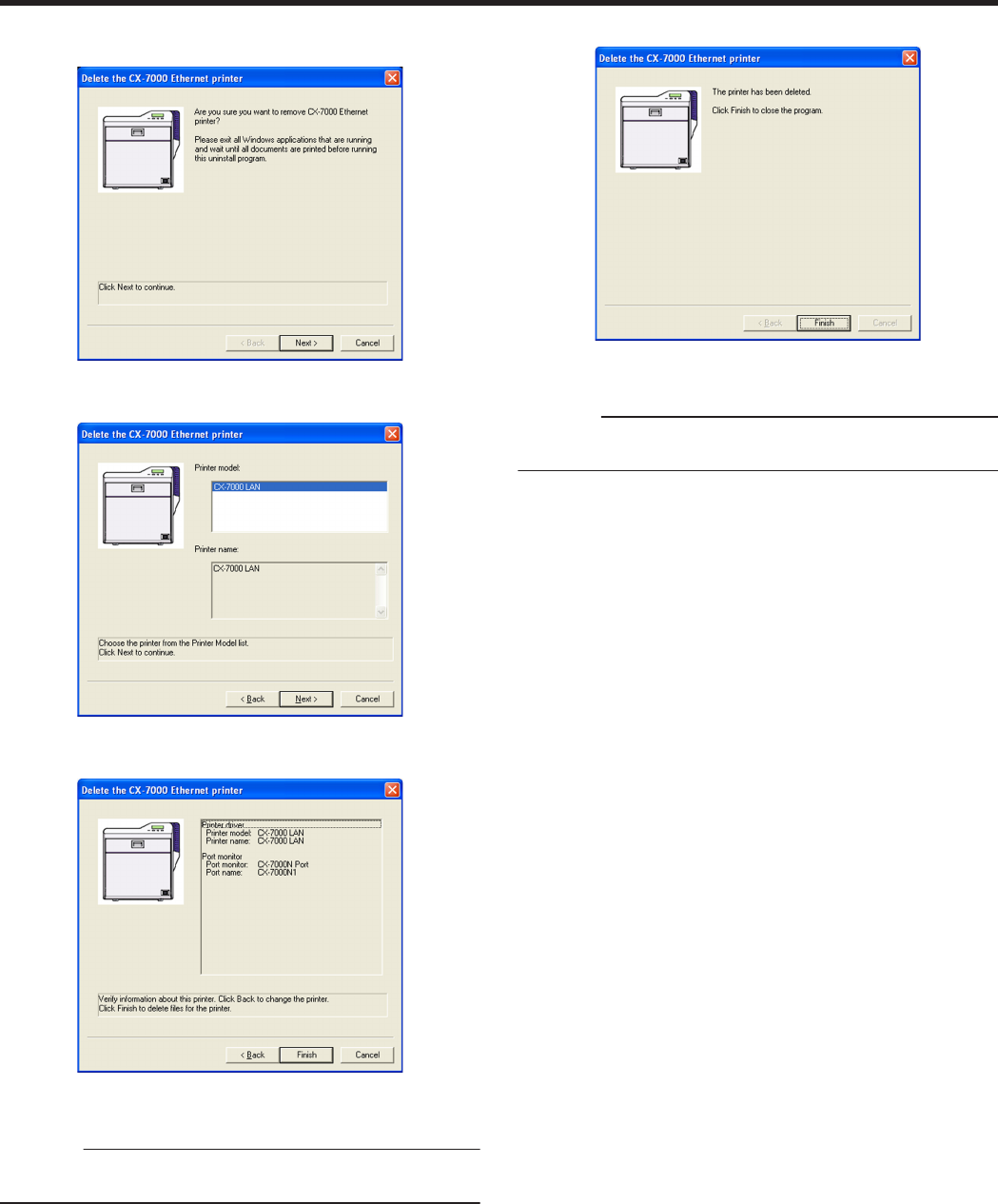
5Click [Next]
vA [Delete the CX-7000 Ethernet printer] screen appears.
.
6Check the details, followed by clicking [Next]
vA printer model selection screen appears.
.
7Select the printer to uninstall, and click [Next]
vAn uninstall information confirmation screen appears.
.
8Check the details, followed by clicking [Finish]
vTo change a printer, click [Back].
Cautions:
vIn the case where multiple Ethernet (LAN) printer drivers are
installed, the uninstaller deletes all of these printer drivers.
vAn uninstallation complete screen appears.
.
9Click [Finish]
vExits uninstallation.
Cautions:
vTo reinstall the printer driver, perform the installation procedures
after restarting Windows.
Setup
82
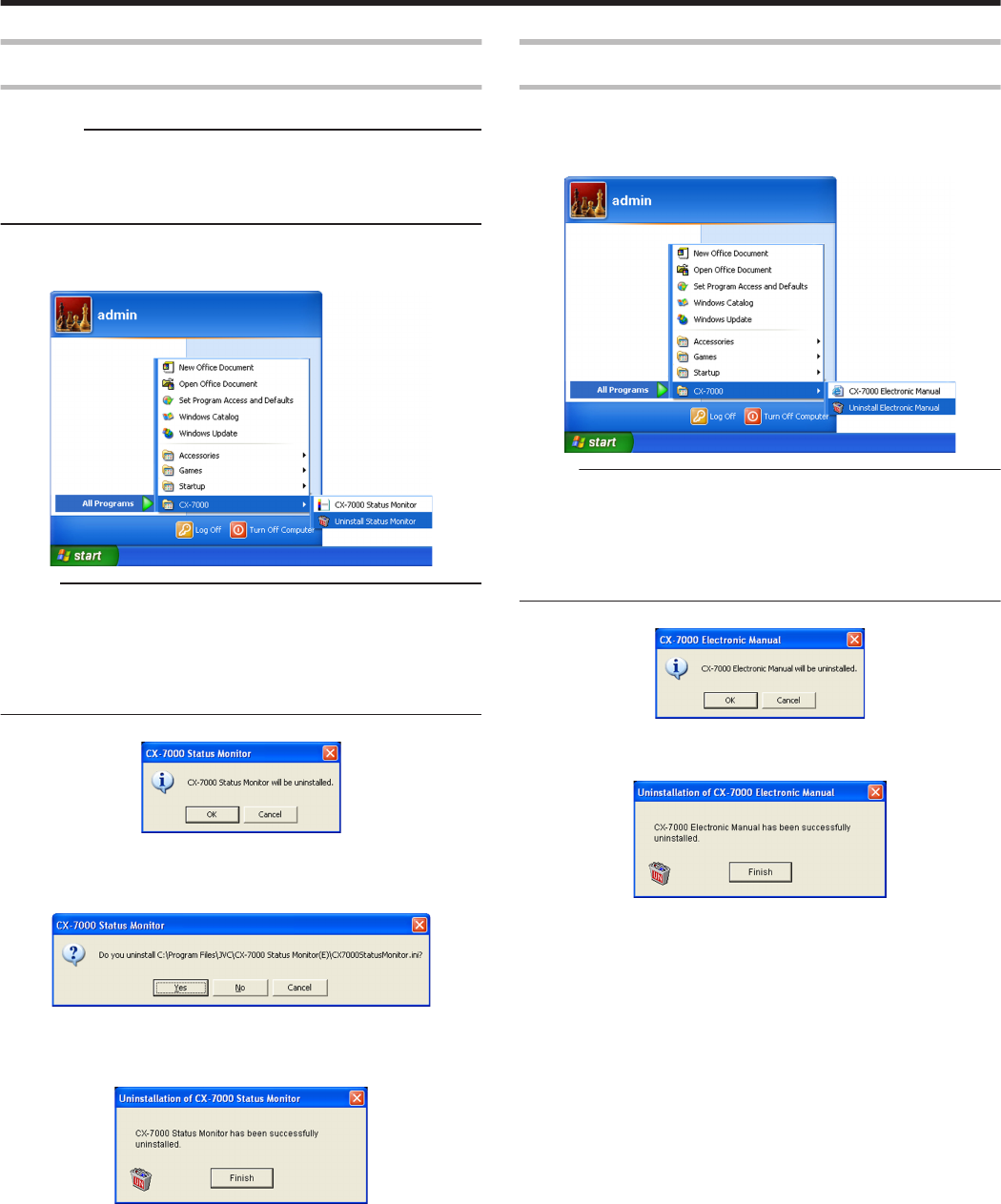
Status Monitor
Uninstalling the Status Monitor
Cautions:
vDo not execute “Uninstall” if there are applications that are currently
running.
vIf document printing is currently in progress, wait for all the jobs to
complete.
1Exit the status monitor
2Select [Uninstall Status Monitor] from [Start menu]
.
Memo:
vIf the [Register for start menu] checkbox is not selected during
installation of the status monitor, delete using [Add or Remove
Programs] in [Control Panel].
vYou can also perform uninstallation using the “SETUP.exe”
automatic execution program.
"SETUP.exe" (A page 75)
vA status monitor deletion confirmation screen appears.
.
3Click [OK]
vUninstallation starts, and a confirmation screen for deleting the
setting file appears.
.
4Click [Yes]
vDeletes the setting file for the status monitor. If you do not want to
delete it, click [No].
.
5Click [Finish]
vExits uninstallation.
Electronic Manual
Uninstalling the Electronic Manual
1Exit the Electronic Manual
2Select [Uninstall Electronic Manual] from [Start menu]
.
Memo:
vIf the [Register for start menu] checkbox is not selected during
installation of the Electronic Manual, delete using [Add or Remove
Programs] in [Control Panel].
vYou can also perform uninstallation using the “SETUP.exe”
automatic execution program.
"SETUP.exe" (A page 79)
vAn Electronic Manual screen appears.
.
3Click [OK]
vAn Electronic Manual deletion screen appears.
.
4Click [Finish]
vExits uninstallation.
Setup
83
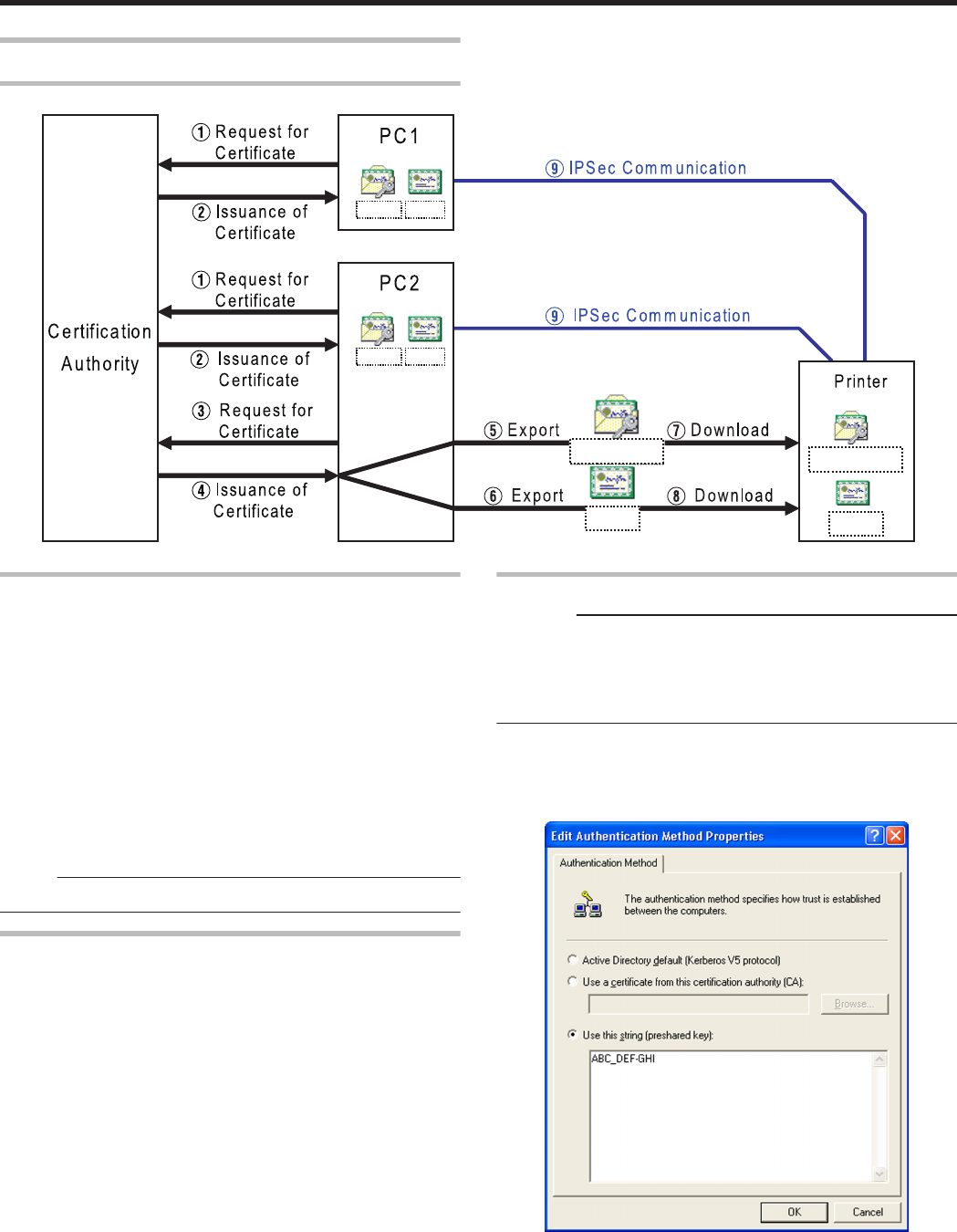
IPSec
Setting Procedures
.
CA.cer
PC1.pfx
CA.cer
PC2.pfx
CA.cer
Printer01.pfx
CA.cer
Printer01.pfx
Certificate Authentication
A Request the “PC Certificate” from the certification authority.
B The “PC Certificate” and “Certification Authority Certificate” are
issued by the certification authority. Install these on the PC.
C Request the “Printer Certificate” from the certification authority.
D The “Printer Certificate” and “Certification Authority Certificate”
are issued by the certification authority. Install these on the PC.
E Export the “Printer Certificate” and save it in a file.
F Export the “Certification Authority Certificate” and save it in a file.
G Connect the printer via USB, and download the “Printer
Certificate” using the status monitor.
H Connect the printer via USB, and download the “Certification
Authority Certificate” using the status monitor.
I Connect the printer via the network (Ethernet), and enable IPSec
(IP Security) on the PC to start IPSec communication.
Memo:
vConsult the network administrator regarding A to D above.
Preshared Key Authentication
A Connect the printer via USB, and download the “Preshared Key
File” using the status monitor.
B Connect the printer via the network (Ethernet), and enable IPSec
(IP Security) on the PC to start IPSec communication.
Preshared Key File
Cautions:
vOperate IPSec (IP Security) on Windows by following the
instructions of the network administrator for the location where the
printer is installed.
vManage the “Preshared Key File” according to the instructions of the
network administrator.
1Start [IP Security Policy Management] under the MMC
(Management Console)
2Open the [Edit Authentication Method Properties] of the policy for
which the preshared key is to be used
.
Setup
84
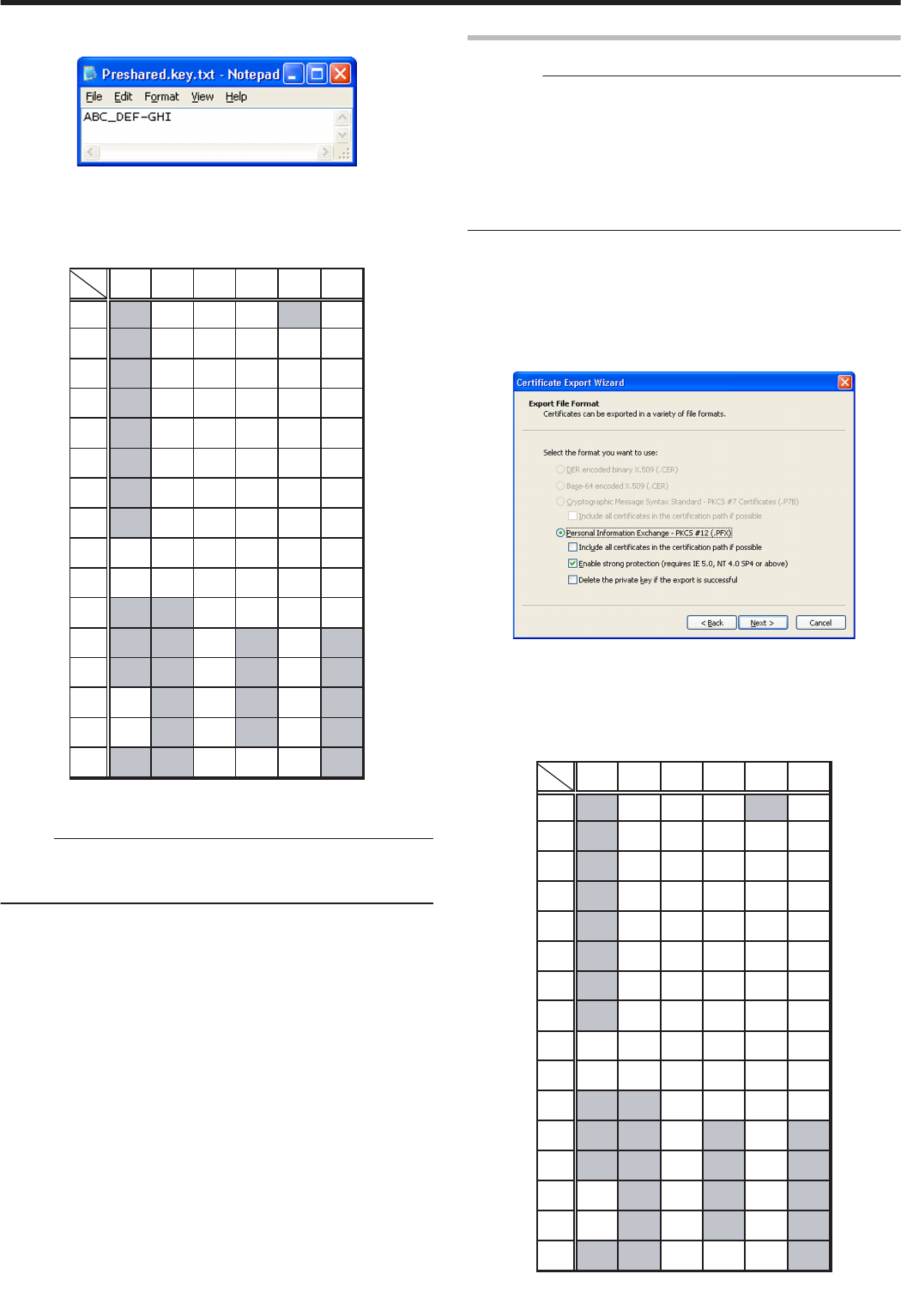
3Make use of applications such as Windows Notepad to create a
preshared key string, and save it as a file with the extension “.key”
.
vAfter saving, this file will be downloaded as the “Preshared Key File”
when setting “Preshared Key Authentication” using the status
monitor.
vASCII characters that can be used for the preshared key of the
printer are as follows. The maximum length is 255 characters.
.
2x
3x
4x
5x
6x
7x
0
0
@
P
p
1
1
A
Q
a
q
2
2
B
R
b
r
3
3
C
S
c
s
4
4
D
T
d
t
5
5
E
U
e
u
6
6
F
V
f
v
7
7
G
W
g
w
8
(
8
H
X
h
x
9
)
9
I
Y
I
y
A
J
Z
j
z
B
K
k
C
L
l
D
-
M
m
E
.
N
n
F
O
_
o
Memo:
vFor procedures to set “Preshared Key Authentication” on the printer,
refer to the section of the Status Monitor Settings.
"File settings required for preshared key authentication" (A page 116)
Printer Certificate File
Cautions:
vOperate IPSec (IP Security) on Windows by following the
instructions of the network administrator for the location where the
printer is installed.
vManage the “Printer Certificate File” according to the instructions of
the network administrator.
vThere is an expiration date for the “Printer Certificate”. IPSec
communication may fail or may not be encrypted successfully if an
expired certificate is used.
1Obtain the printer certificate from the certification authority, and
install it on the PC’s [Certificates (Local Computer)]
vObtain the printer certificate as an “exportable key”.
2Start [Certificates (Local Computer)] under the MMC (Management
Console)
3Open the Personal Store to export the printer certificate
.
vThe format is “PKCS#12”. Make sure that you specify a password.
The file is saved with the extension “.pfx”.
v
After saving, this file will be downloaded as the “Printer Certificate File”
when setting “Certificate Authentication” using the status monitor.
v
ASCII characters that can be used for the password of the printer certificate
of the printer are as follows. The maximum length is 255 characters.
.
2x
3x
4x
5x
6x
7x
0
0
@
P
p
1
1
A
Q
a
q
2
2
B
R
b
r
3
3
C
S
c
s
4
4
D
T
d
t
5
5
E
U
e
u
6
6
F
V
f
v
7
7
G
W
g
w
8
(
8
H
X
h
x
9
)
9
I
Y
I
y
A
J
Z
j
z
B
K
k
C
L
l
D
-
M
m
E
.
N
n
F
O
_
o
Setup
85
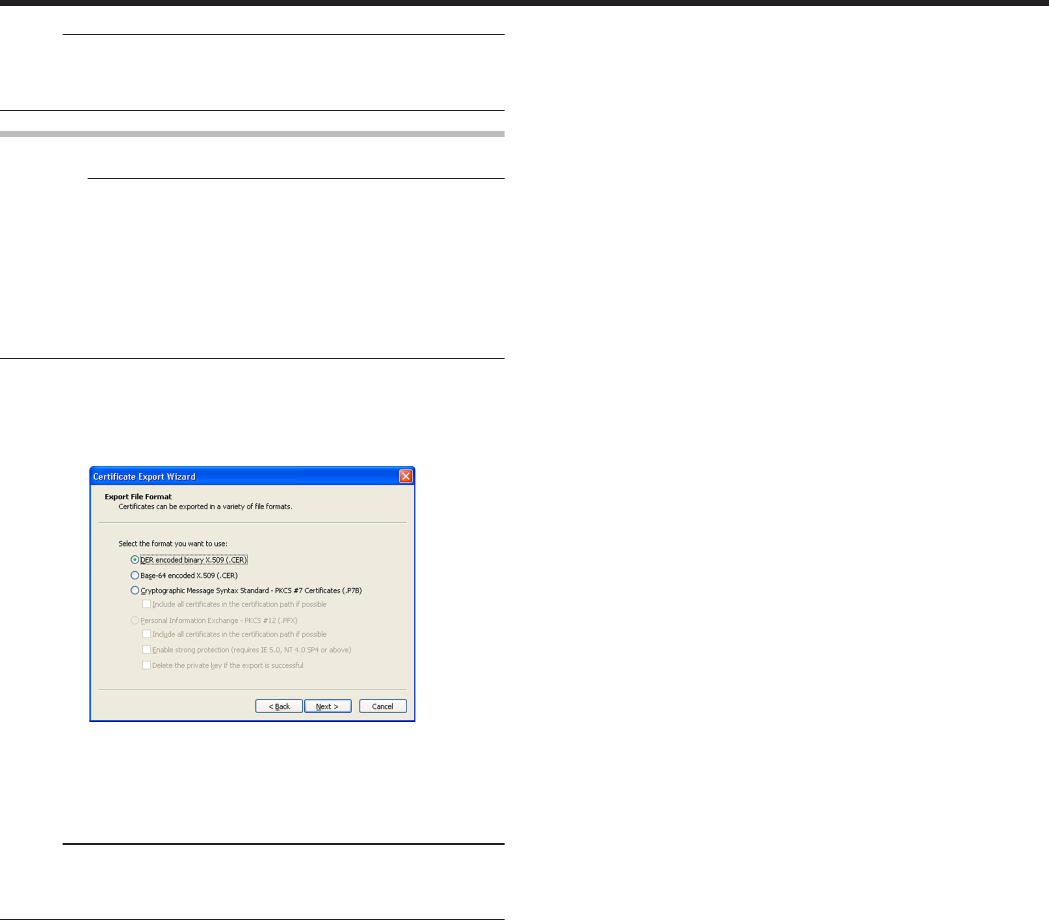
Memo:
vFor procedures to set “Certificate Authentication” on the printer, refer
to the section of the Status Monitor Settings.
"File settings required for certificate authentication" (A page 116)
Certification Authority Certificate File
Cautions:
vOperate IPSec (IP Security) on Windows by following the
instructions of the network administrator for the location where the
printer is installed.
vManage the “Certification Authority Certificate File” according to the
instructions of the network administrator.
vThere is an expiration date for the “Certification Authority Certificate”.
IPSec communication may fail or may not be encrypted successfully
if an expired certificate is used.
1Start [Certificates (Local Computer)] under the MMC (Management
Console)
2Open the Certification Authorities Store, and export the same
“Certification Authority Certificate” as the printer certificate
.
vThe format is “DER encoded binary X509”. The file is saved with the
extension “.cer”.
vAfter saving, this file will be downloaded as the “Certification
Authority Certificate File” when setting “Certificate Authentication”
using the status monitor.
Memo:
vFor procedures to set “Certificate Authentication” on the printer, refer
to the section of the Status Monitor Settings.
"File settings required for certificate authentication" (A page 116)
Setup
86
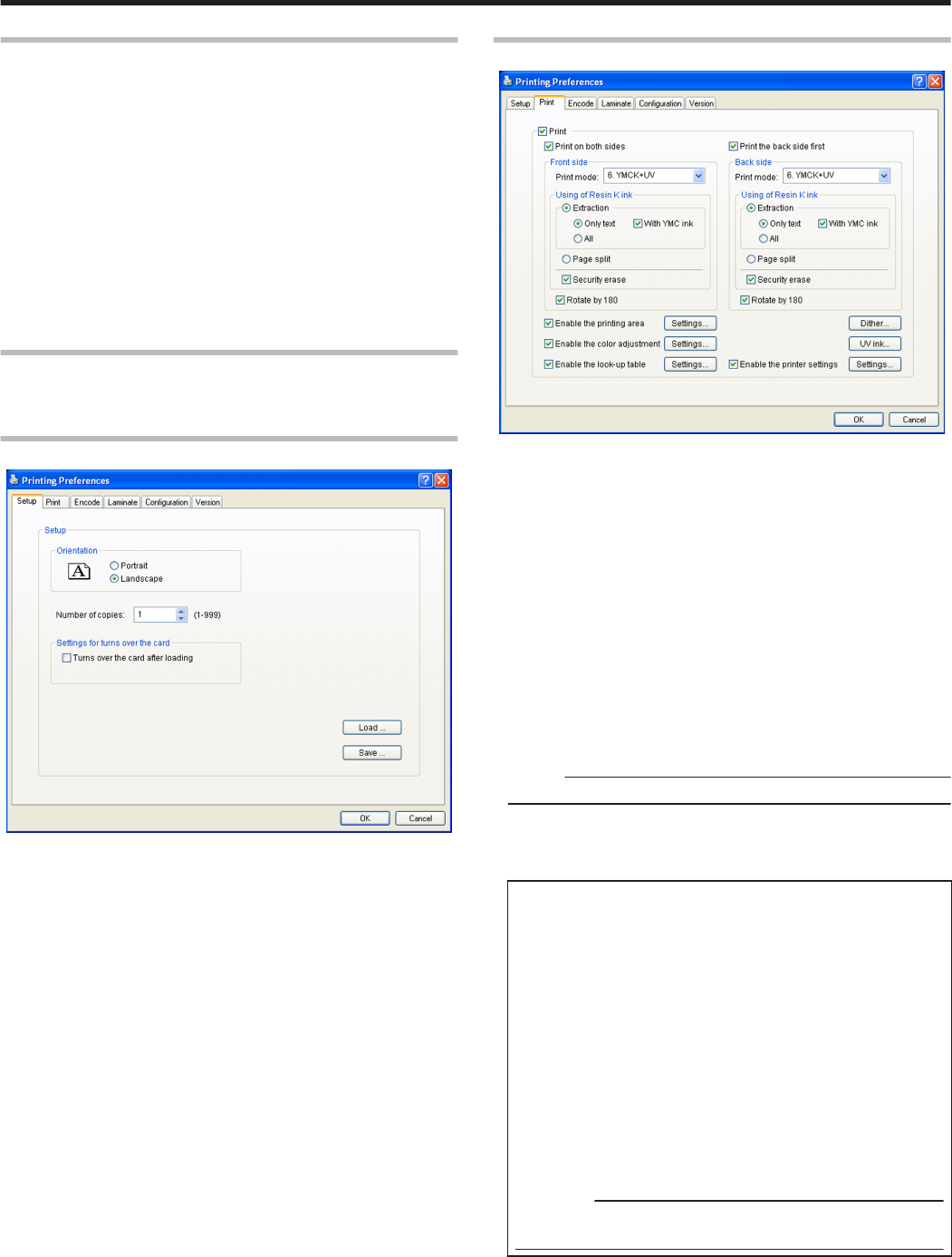
Printer Driver Settings
m"[Setup] Tab" (A page 87)
m"[Print] Tab" (A page 87)
v"[Printing area] Dialog Box" (A page 89)
v"[Color] Dialog Box" (A page 90)
v"[Look up table] Dialog Box" (A page 90)
v"[Dither] Dialog Box" (A page 91)
v"[UV ink] Dialog Box" (A page 91)
v"[Printer settings] Dialog Box" (A page 94)
m"[Encode] Tab" (A page 94)
m"[Configuration] Tab" (A page 95)
m"[Version] Tab" (A page 95)
Setting Example
"Example of Printer Setting" (A page 96)
"Example of Encode Setting" (A page 102)
[Setup] Tab
.
mOrientation
Settings for printing orientation.
vPortrait
Print with the shorter edge of the card on top.
vLandscape
Print with the longer edge of the card on top.
mNumber of copies
Number of copies to print. Enter a number up to 999.
mSettings for turns over the card
Settings for the card turn over operation.
vTurns over the card after loading
Selecting this checkbox turns over the card after it is loaded.
m[Load...] button
Loads setting information from a specified file.
m[Save...] button
Saves setting information to a specified file.
[Print] Tab
.
mPrint
Executes printing.
Checked : Executes printing.
Unchecked : Printing is not executed, but encoding can be
performed.
mPrint on both sides
Prints both sides of the card.
Unchecked : Prints one side of the card.
Checked : Prints both sides of the card.
mPrint the back side first
Prints the image on the back side first when printing on both sides of
the card.
Unchecked : Starts printing from the image on the front side.
Checked : Starts printing from the image on the back side.
Memo:
The checkbox is enabled during double-sided printing.
mFront side/Back side
Front side : Print settings for the front side of the card.
Back side : Print settings for the back side of the card.
mPrint mode
Ink list. Specify the ink to use for printing.
v1. YMC:
Prints using the YMC ink.
v2. K:
Prints using the Resin K ink.
v3. YMCK:
Prints using the YMC ink and Resin K ink.
v4. YMC+UV:
Prints using the YMC ink. Prints data set in the [UV ink] dialog
using the UV ink.
v5. K+UV:
Prints using the Resin K ink. Prints data set in the [UV ink]
dialog using the UV ink.
v6. YMCK+UV:
Prints using the YMC ink and Resin K ink. Prints data set in the
[UV ink] dialog using the UV ink.
Cautions:
vPrint error occurs if an ink that is not mounted to the printer is
selected.
Setup
87
mUsing of Resin K ink
For specifying the component to print using the Resin K ink.
vExtraction
Prints the black color component on each page using the Resin K
ink.
Only text :Prints only the black color text using the Resin K
ink.
All :Prints all black color components using the Resin
K ink.
With YMC
ink
:Prints the background of the specified black color
component using the YMC ink.
vPage split
Prints all components on a specific page using the Resin K ink.
vSecurity erase
Enables the Resin K security erase feature.
mRotate by 180
Prints the page upside down.
mEnables the printing area
Enables the printing area of the peel-off ink and the area that is not
printed by all (YMCKUV) inks. Set a value in the [Printing area]
dialog.
Unchecked : Prints with the printing area disabled.
Checked : Prints with the preset printing area enabled.
v[Settings...] button
Opens the [Printing area] dialog.
"[Printing area] Dialog Box" (A page 89)
mEnable the color adjustment
Adjusts the color. Set a value in the [Color] dialog.
Unchecked : Prints with color adjustment disabled.
Checked : Prints with the predetermined color adjustment
settings enabled.
v[Settings...] button
Opens the [Color] dialog.
"[Color] Dialog Box" (A page 90)
mEnable the look-up table
Uses the look-up table. Set a value in the [Look up table] dialog.
Unchecked : Prints with the look-up table disabled.
Checked : Prints with the preset look-up table enabled.
v[Settings...] button
Opens the [Look up table] dialog.
"[Look up table] Dialog Box" (A page 90)
m[Dither...] button
For specifying settings related to dithering.
Set a value in the [Dither] dialog.
"[Dither] Dialog Box" (A page 91)
Memo:
vSelecting [2.K], [3.YMCK], [5.K+UV] or [6.YMCK+UV] in [Print
mode] enables the [Dither...] button.
m[UV ink...] button
For specifying settings related to UV ink print data.
Set a value in the [UV ink] dialog.
"[UV ink] Dialog Box" (A page 91)
Memo:
vSelecting [4.YMC+UV], [5.K+UV] or [6.YMCK+UV] in [Print mode]
enables the [UV ink...] button.
mEnable the printer settings
Enables the [Printer settings] dialog settings. Set the item in the
[Printer settings] dialog.
Unchecked : Prints with the printer settings disabled.
Checked : Prints with the printer settings enabled.
Memo:
If the [Printer settings] checkbox in the [Configuration] tab is
selected, the Enable the printer settings checkbox will also be
automatically selected.
"[Configuration] Tab" (A page 95)
v[Settings...] button
Opens the [Printer settings] dialog.
"[Printer settings] Dialog Box" (A page 94)
Setup
88
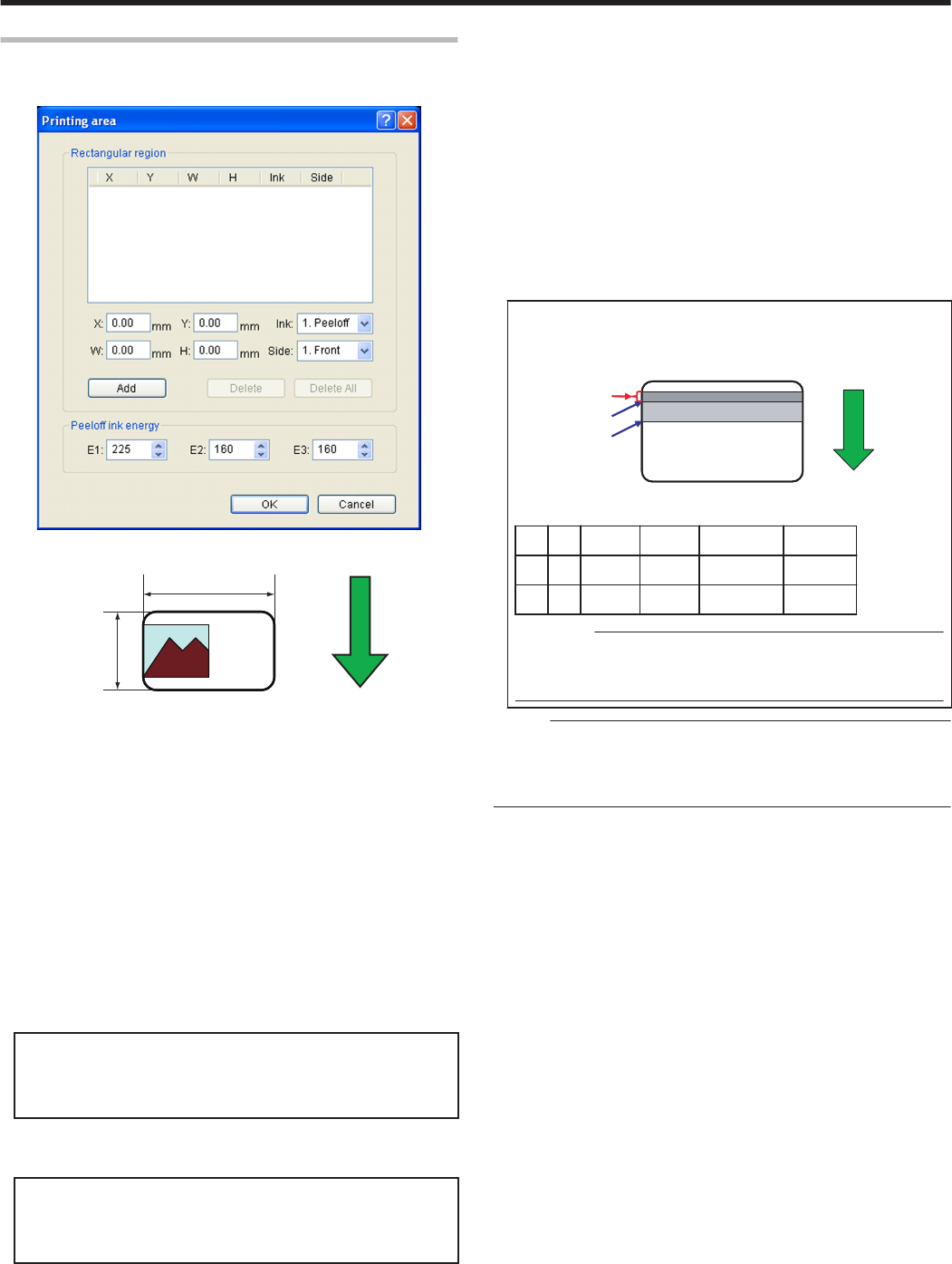
[Printing area] Dialog Box
Settings related to the printing area using the peel-off ink or areas not
to be printed using all YMCKUV inks.
.
.
Direction of card
movement
H
W
Y=0
X=0 About X=87.5
About Y=56.0
mRectangular region
Printing area information.
mX
X coordinate that indicates the start of the area. (Unit: mm).
mY
Y coordinate that indicates the start of the area. (Unit: mm).
mW
Width of the printing area. (Unit: mm).
mH
Height of the printing area. (Unit: mm).
mInk
Ink valid for the printing area.
v1. Peeloff:
Area for printing using the peel-off ink.
v2. YMCK:
Area not to be printed using all YMCKUV inks.
mSide
The side of the card for which the printing area is valid.
v1. Front:
Front side
v2. Back:
Back side
m[Add] button
Registers the input data. You can enter up to 8 input data.
m[Delete] button
Deletes the information selected in the list.
m[Delete All] button
Deletes all registered information.
mPeeloff ink energy
Print density of the peel-off ink.
Do not alter the following values.
vE1: 225
vE2: 160
vE3: 160
mSetting values
The following requirements must be satisfied.
.
E1
E2
E3
>
=
>
=
E1
E2
E3
The following values are recommended when peel-off printing is
performed on the ISO magnetic stripe area of the card.
XY W H Ink Side
0 0 87.46 17.86 1. Peeloff 1. Front
0 0 87.46 21.42 2. YMCK 1. Front
Cautions:
vThe input value of the textbox may differ from the value of the
“Printing area information” portion by an accidental error in
calculation.
Memo:
vThe printing start position displayed on the application software may
not coincide with the X=0, Y=0 position above.
About 1 mm from the edge of the image is not printed on the card.
"The edge of the image is not printed" (A page 123)
Setup
89
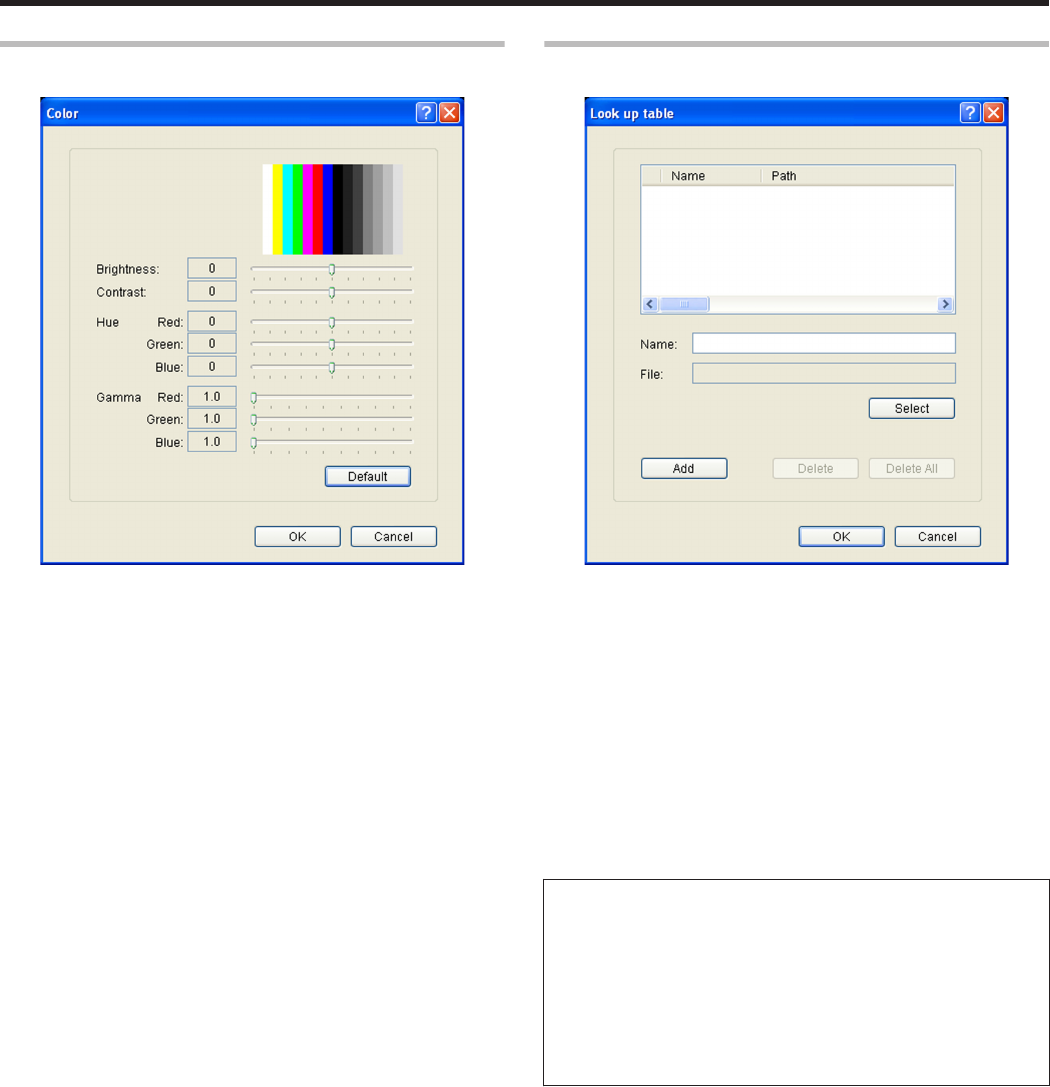
[Color] Dialog Box
Settings related to color adjustment.
.
mBrightness
Brightness level.
mContrast
Contrast level.
mHue
Hue level.
mGamma
Gamma level.
m[Default] button
Restores the settings to the default values.
[Look up table] Dialog Box
Settings related to the look-up table.
.
mName
Registered name of the look-up table file. You can enter a name up to
30 characters.
mFile
Look-up table file. Click the [Select] button to select a file.
m[Add] button
Registers the input data. You can enter up to 16 input data.
m[Delete]
Deletes the information selected in the list.
m[Delete All]
Deletes all registered information.
mFile structure of the look-up table
vData format of the file is CSV (Comma Separated Values).
vDelimiter character is comma (ASCII character code: 0x2c) or LF
(Line Feed = ASCII character code: 0x0A).
vThere is a total of 1024 fields. This is comprised of four planes,
each containing 256 fields.
vThe planes are arranged in the order of yellow, magenta, cyan,
and black colors.
vThe value of each field ranges between 0 and 255.
Setup
90
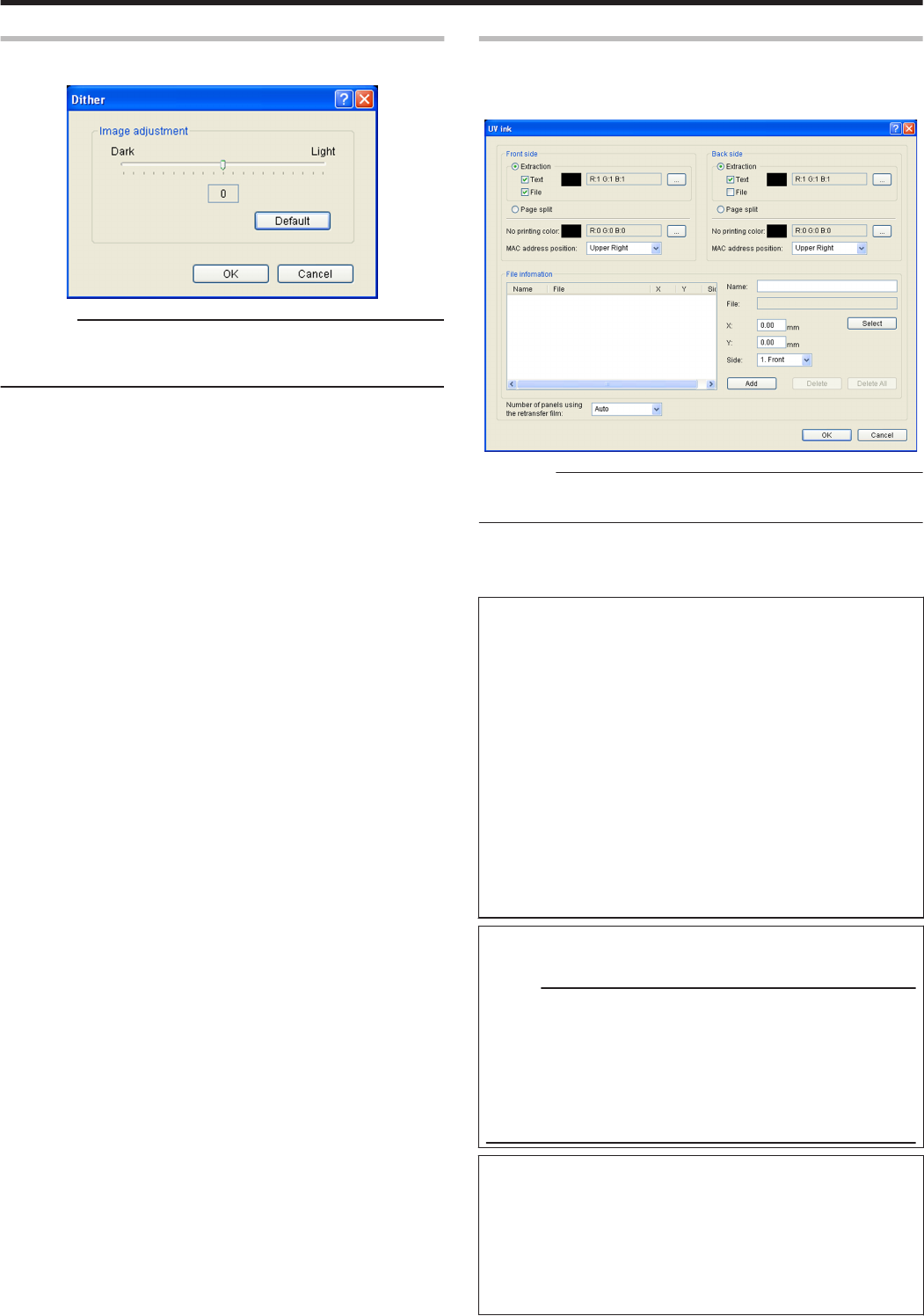
[Dither] Dialog Box
Settings related to dithering.
.
Cautions:
vThis setting is enabled only when the [Print mode] item inside the
[Print] tab is specified as [2.K] or [5.K+UV], and when the [Page split]
is selected for [Using of Resin K ink].
mImage adjustment
Image adjustment value.
vDark:
Darkens the printed image after dithering.
v0:
Default value.
vLight:
Brightens the printed image after dithering.
m[Default] button
Restores the settings to the default values.
[UV ink] Dialog Box
Settings related to the data to be printed using the UV ink. Settings for
the [MAC address position] and [Number of panels using the retransfer
film] can be specified in this section.
.
Cautions:
vThis setting is enabled only when the [Print mode] item of the [Print]
tab is specified as [4.YMC+UV], [5.K+UV] or [6.YMCK+UV].
mFront side/Back side
Front side: Settings for the front side of the card.
Back side: Settings for the back side of the card.
mExtraction
Prints the following color component on each page using the UV ink.
"Priority of printing data" (A page 92)
vText
Prints the text of a specified color using the UV ink with maximum
density.
White and black colors cannot be selected.
vFile
Prints the image files registered in the [File information] list using
the UV ink.
mPage split
Prints all components on a specific page using the UV ink with 256
gradation. Page split is divided in the order of YMC ink, Resin K ink
and UV ink.
"Page number for the printed document and page split settings" (A
page 92)
mNo printing color
Selected color is not printed using the UV ink.
Memo:
vThe background of the UV ink image is specified here. Paint the
background of the image with a specific color such as by using a
graphic software.
Select the background color carefully, as any color in the image
that is the same as the background color will not be printed.
vThe color selected here does not influence the colors specified in
[Extraction]-[Text]. Even when the same color is selected, the text
in that color will be printed.
mMAC address position
The network (Ethernet) MAC address of the printer is printed at the
following specified position using the UV ink.
A Upper Right:
Upper right position
B Lower Left:
Lower left position
"MAC Address Position" (A page 92)
Setup
91
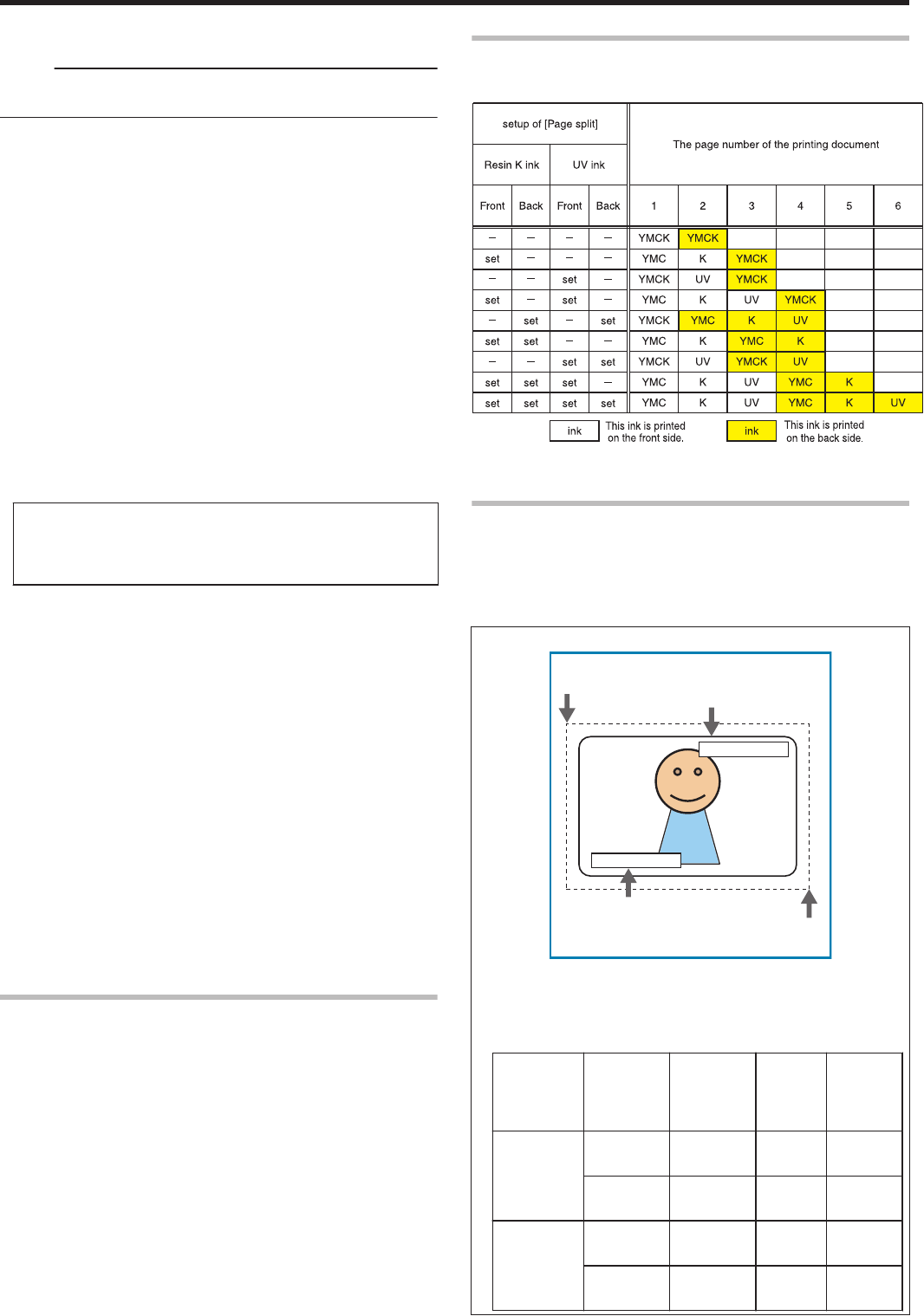
mFile information
Settings related to the image file to be printed using the UV ink.
Memo:
vThis setting is enabled when [Extraction]-[File] for the front side or
back side is specified.
mName
Registered name of the image file. You can enter a name up to 30
characters.
mFile
Image file. Click the [Select] button to select a file.
"Windows Bitmap File Format" (A page 93)
mX
X coordinate where printing of the image file starts. (Unit: mm).
When [Orientation] inside the [Setup] tab is set to [Landscape], the
value is 0.00 to 87.4. When [Portrait] is set, the value is 0.00 to 55.9.
Data outside the printing area is not printed.
mY
Y coordinate where printing of the image file starts. (Unit: mm).
When [Orientation] inside the [Setup] tab is set to [Landscape], the
value is 0.00 to 55.9. When [Portrait] is set, the value is 0.00 to 87.4.
Data outside the printing area is not printed.
mSide
The side of the card for which the printing area is valid.
v1. Front:
Front side
v2. Back:
Back side
m[Add] button
Registers the input data. You can enter up to 8 input data.
m[Delete] button
Deletes the information selected in the list.
m[Delete All] button
Deletes all registered information.
mNumber of panels using the retransfer film
Number of retransfer film panels to be used.
vAuto:
Automatically prints one panel of the retransfer film when the data
of other ink types does not overlap with the UV ink printing
position.
v1 panel:
Always prints one panel of the retransfer film. When the data of
other ink types overlaps with the UV ink printing position, the data
of the ink types will be adjusted.
v2 panels:
Always prints two panels of the retransfer film.
"Number of retransfer film panels during printing" (A page 93)
Priority of printing data
vAn extracted text has a higher priority than an image file, and is
always printed on the top.
vThe image files are processed in the order of registration. When
there is overlap in the printing areas, the older data will be
overwritten by the data of the image file that is registered later.
Page Number for the Printed Document and Page Split
Settings
.
vWhen [Page split] is not set, UV ink data is extracted from the YMC
ink data, or the UV ink image file is used.
MAC Address Position
vIn the case of UV ink printing, the printer always prints the MAC
address.
vThe printing position of the MAC address can be set separately for
the front and back sides using the printer driver. The two positions
below can be selected.
m[Landscape] Orientation
.
1234-5678-90AB
1234-5678-90AB
A
C
BD
A MAC address printing position when [Upper Right] is selected
B MAC address printing position when [Lower Left] is selected
C (X=0, Y=0)
D (X = approx. 87.5 mm, Y = approx. 56.0 mm), (X = 1035 pixel,
Y = 663 pixel)
MAC
Address
Printing
Position
Starting
X
Starting
Y
Width Height
AUpper
Right
64.69 mm 1.52 mm 19.47
mm
2.88
mm
764 pixel 18 pixel 230
pixel
34 pixel
BLower
Left
3.56 mm 51.73 mm 19.47
mm
2.88
mm
42 pixel 611 pixel 230
pixel
34 pixel
Setup
92
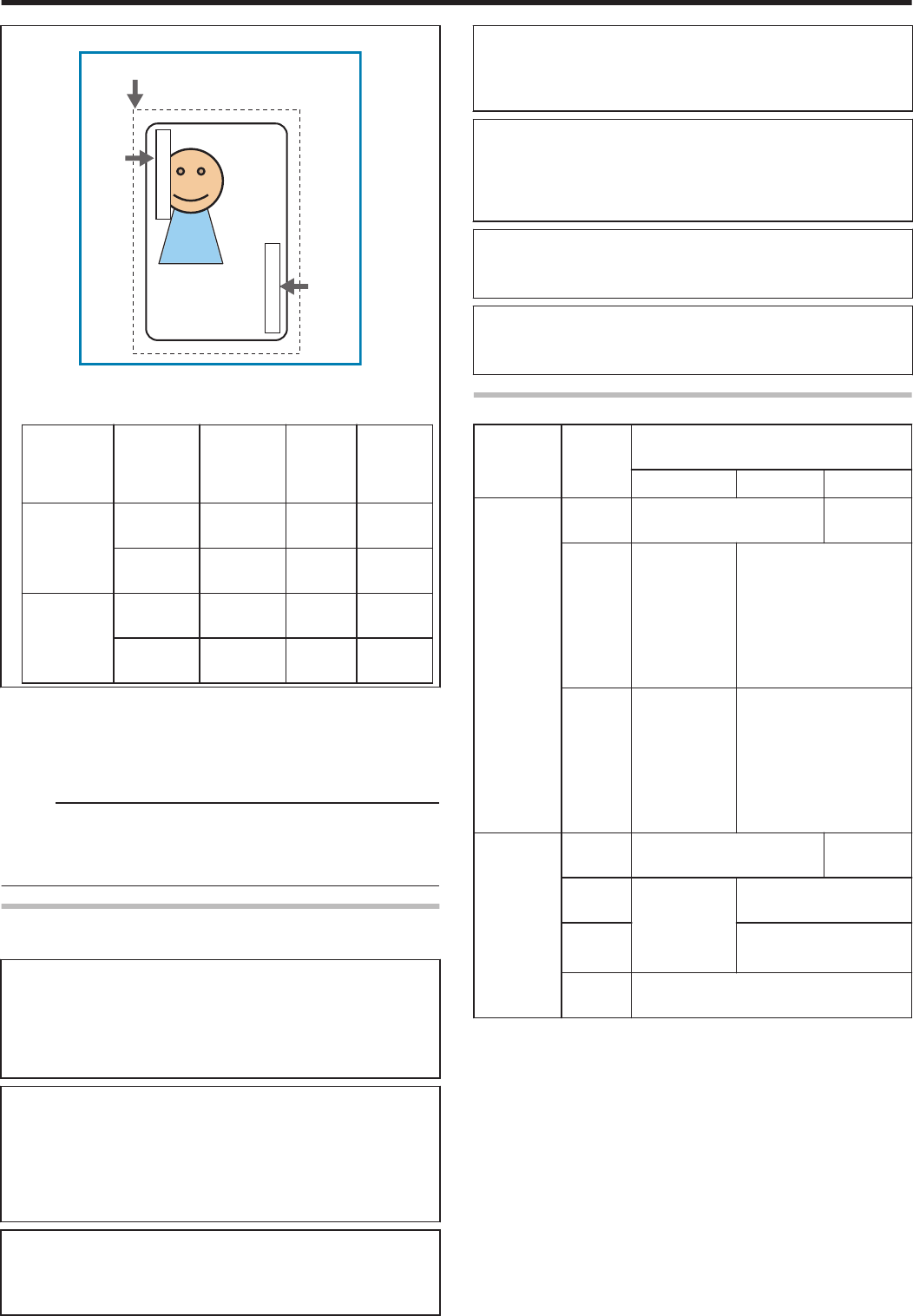
m[Portrait] Orientation
.
B
C
A
1234-5678-90AB
1234-5678-90AB
A MAC address printing position when [Upper Right] is selected
B MAC address printing position when [Lower Left] is selected
C (X=0, Y=0)
MAC
Address
Printing
Position
Starting
X
Starting
Y
Width Height
AUpper
Right
51.82 mm 64.69 mm 2.88
mm
19.47
mm
612 pixel 764 pixel 34 pixel 230
pixel
BLower
Left
1.61 mm 3.56 mm 2.88
mm
19.47
mm
19 pixel 42 pixel 34 pixel 230
pixel
vThe above printing position setting for the MAC address is always
effective regardless of the printer unit settings.
The above measurements show the relative position from the
starting point of the image. As such, the actual printing position on
the card may be slightly different from the abovementioned
measurements.
Memo:
vThe printing start position displayed on the application software may
not coincide with the X=0, Y=0 position above.
About 1 mm from the edge of the image is not printed on the card.
"The edge of the image is not printed" (A page 123)
Windows Bitmap File Format
The following Windows bitmap file formats (*.BMP) are supported.
mMonochrome/Black & white
vBit(s): 1
Normally, white color is printed using the UV ink with maximum
density.
When white color is selected in [No printing color], black color is
printed using the UV ink with maximum density.
m2 colors
vBit(s): 1
Prints using the UV ink with 256 gradation in accordance with the
color palette.
If any of the colors in the color palette is specified in [No printing
color], other colors that are not specified are printed using the UV ink
with maximum density.
m16 colors
vBit(s): 4
Prints using the UV ink with 256 gradation in accordance with the
color palette.
m256 colors
vBit(s): 8
Prints using the UV ink with 256 gradation in accordance with the
color palette.
m32768 colors
vBit(s): 15
Prints using the UV ink with 256 gradation.
Only the “(MSB) GGGBBBBB-XRRRRRGG(LSB)” format is
supported.
m24 bits
vBit(s): 24
Prints using the UV ink with 256 gradation.
m32 bits
vBit(s): 32
Prints using the UV ink with 256 gradation.
Number of retransfer film panels during printing
Printing
Data
[Number of panels using the retransfer
film] Setting
1 Panel Auto 2 Panels
Printing
data that
overlaps
with the UV
ink data
outside the
MAC
address
printing
area
None Print in 1 panels Print in 2
panels
YMC
Ink
Print in 1
panels
* The YMC ink
is not printed
at areas
where it
overlaps with
the UV ink.
Print in 2 panels
K
Ink
Print in 1
panels
* The UV ink
is not printed
at areas
where it
overlaps with
the K ink.
Print in 2 panels
Printing
data inside
the MAC
address
area
None Print in 1 panels Print in 2
panels
YMC
Ink
Print in 1
panels
* Does not
print using the
YMCK ink.
Print in 2 panels
K
Ink
Print in 2 panels
UV
Ink
Prints the MAC address only
The target printing data is compared in units of pixels to determine
whether there is any overlap.
Priority is given to the “Print in 2 panels” setting.
Setup
93
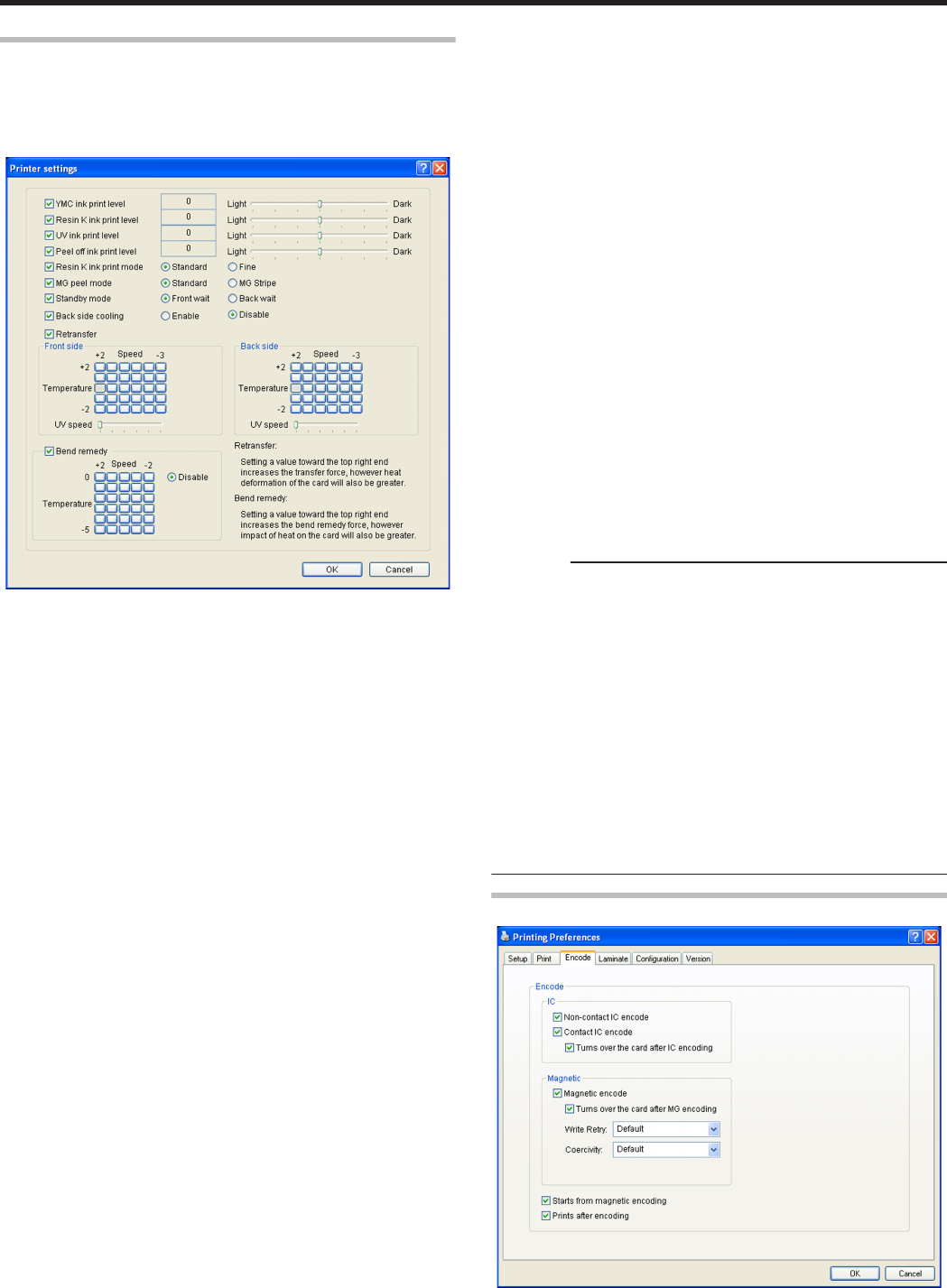
[Printer settings] Dialog Box
Settings related to the printer.
Select the checkbox for the setting item to enable, followed by
specifying a value. Doing so prints the data using the set values.
When the setting is not enabled, data is printed using the preset values
of the printer unit.
.
mYMC ink print level
Print density of the YMC ink.
Use the [+] values to increase, and [-] values to decrease the density.
mResin K ink print level
Print density of the Resin K ink.
Use the [+] values to increase, and [-] values to decrease the density.
mUV ink print level
Print density of the UV ink.
Use the [+] values to increase, and [-] values to decrease the density.
mPeel off ink print level
Print density of the peel-off ink.
Use the [+] values to increase, and [-] values to decrease the density.
mResin K ink print mode
Print quality of the Resin K ink.
Selecting [Fine] enhances the printing quality, but slows down the
printing speed.
mMG peel mode
When a magnetic encoder unit is installed, selecting [MG Stripe]
optimizes the peeling operation of retransfer films for magnetic stripe
cards.
mStandby mode
Specify a position when a laminator is connected.
This is used for setting the standby position of the card during double-
sided printing until the laminator is ready. [Front wait] is selected by
default.
mBack side cooling
This setting is only valid during double-sided printing.
Setting this item may help to reduce card bend during double-sided
printing. However, the printing time may also be affected.
mRetransfer
Settings related to retransfer. Click on the corresponding square to
change the value.
Setting a value toward the top right end increases the transfer force.
However, the stronger heat also increases the deformation of the card.
vTemperature
Temperature of the retransfer heating roller.
vSpeed
Retransfer speed.
vUV speed
Setting for printing the retransfer film in two panels when UV ink is
used.
It is used to set the speed of the retransfer heating roller during
retransfer of the UV ink.
This setting helps to increase the retransfer speed without affecting
the quality of the UV print.
mBend remedy
Settings related to bend remedy.
Click on the corresponding square to change the value.
Setting a value toward the top right end increases the bend remedy
force. However, the stronger heat may have a greater impact on the
card.
To disable bend remedy, select the [Disable] button.
vTemperature
Temperature of the bend remedy heating roller.
vSpeed
Bend remedy speed.
Cautions:
vThe optimal retransfer and bend remedy settings vary according to
the card type as well as environment in which the printer is used.
Adjust the setting according to the actual environment.
vIf the retransfer or bend remedy settings are different from the preset
temperature of the printer, it may take a while before printing starts.
vThere is only one standard retransfer temperature. Altering the
retransfer temperature on one side changes the temperature on the
other side.
vBend remedy is effective when printing on only one side. Setting
bend remedy to a high temperature during double-sided printing may
cause the card to deform significantly.
As such, select the [Disable] button during double-sided printing.
vWhen bend remedy is disabled using the [Disable] button, the speed
is automatically set to the maximum value of [+2].
vThe stronger the bend remedy force, the less glossy the surface of
the remedy side will be.
[Encode] Tab
.
Setup
94
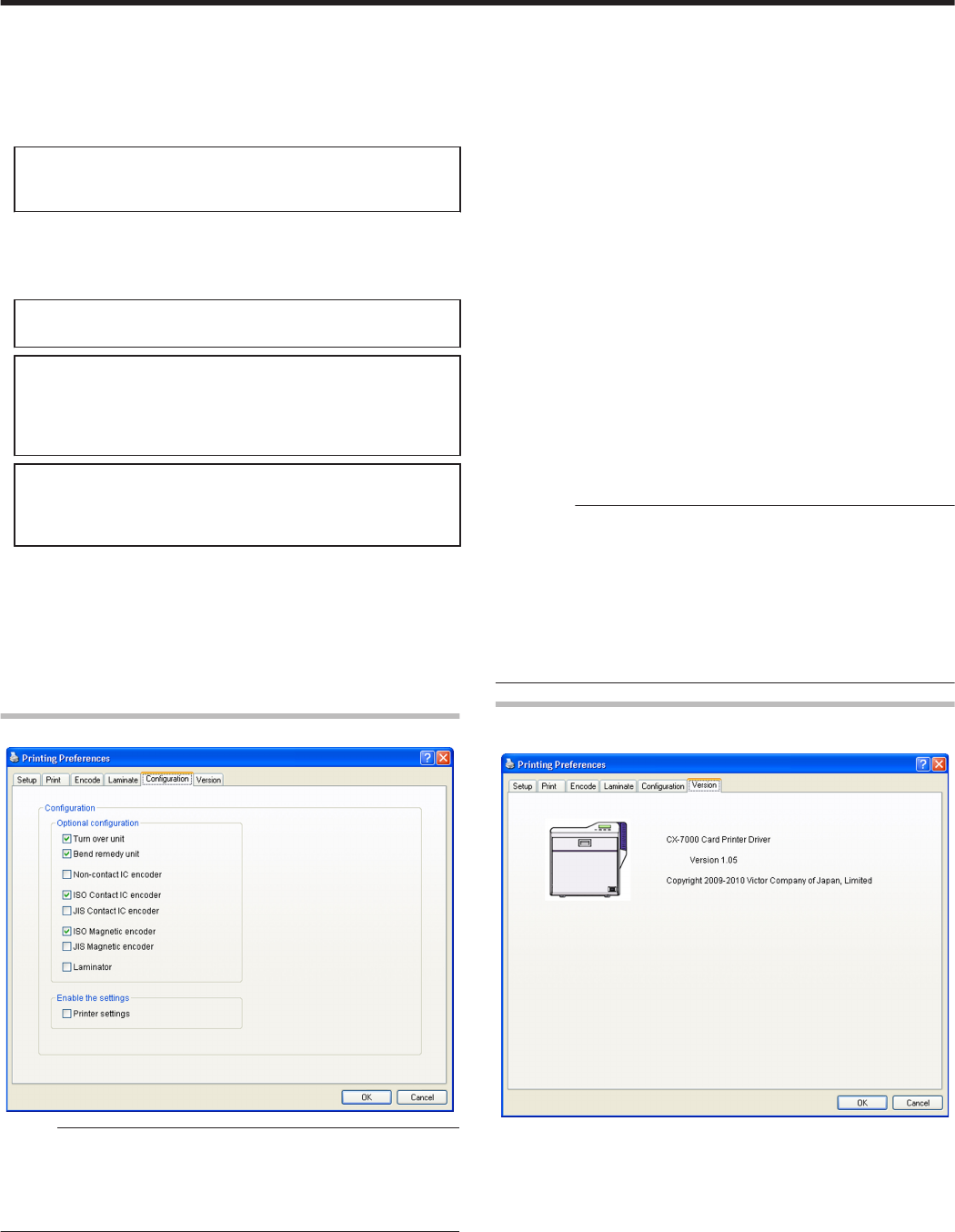
mIC
mNon-contact IC encode
Allows writing of data to a non-contact IC.
mContact IC encode
Allows writing of data to a contact IC.
mTurns over the card after IC encoding
Turns over the card after writing data to the non-contact/contact
IC.
mMagnetic
mMagnetic encode
Allows writing of data to the magnetic stripe.
mTurns over the card after MG encoding
Turns over the card after writing data to the magnetic stripe.
mWrite Retry
For setting the maximum number of retries when writing to or
reading of the magnetic stripe fails.
When the [Default] is selected, the retry counter uses the preset
value of the printer.
mCoercivity
Coercivity of the magnetic stripe card.
When the [Default] is selected, the coercivity uses the preset value
of the printer.
mStarts from magnetic encoding
Unchecked : Encodes in the ICNMagnetic sequence.
Checked : Encodes in the MagneticNIC sequence.
mPrints after encoding
Unchecked : Starts printing while encoding is in progress.
Checked : Starts printing after encoding is complete.
[Configuration] Tab
.
Memo:
vThese settings can be altered only when the user logs into the
printer driver settings page with administrator authority
(Administrators group).
This tab is displayed in the read-only mode when a user without
administrator authority logs in.
mOptional configuration
For specifying whether the options are installed.
mTurn over unit
mBend remedy unit
mNon-contact IC encoder
mISO Contact IC encoder
mJIS Contact IC encoder
mISO Magnetic encoder
mJIS Magnetic encoder
mLaminator
mEnable the settings
Permits or forbids the [Enable the printer settings] functions in the
[Print] tab.
mPrinter settings
Unchecked : Forbids the [Enable the printer settings] functions in
the [Print] tab.
Checked : Permits the [Enable the printer settings] functions in
the [Print] tab.
"Enable the printer settings" (A page 88)
Cautions:
vWhen a user logs in with administrator authority (Administrators
group), the [Configuration] settings can be specified.
If a user logs in without administrator authority, the [Configuration]
settings appear in the read-only mode, and they cannot be specified.
vFor Windows 7, start [Print Management] from [Administrative Tools]
in Windows, then select the desired printer from [Printers]. When
[Set Printing Default...] is selected from [More Actions], the [Printing
Defaults] of the printer opens. You can change the settings in the
[Configuration] tab.
[Version] Tab
Displays the version and copyright information.
.
Setup
95
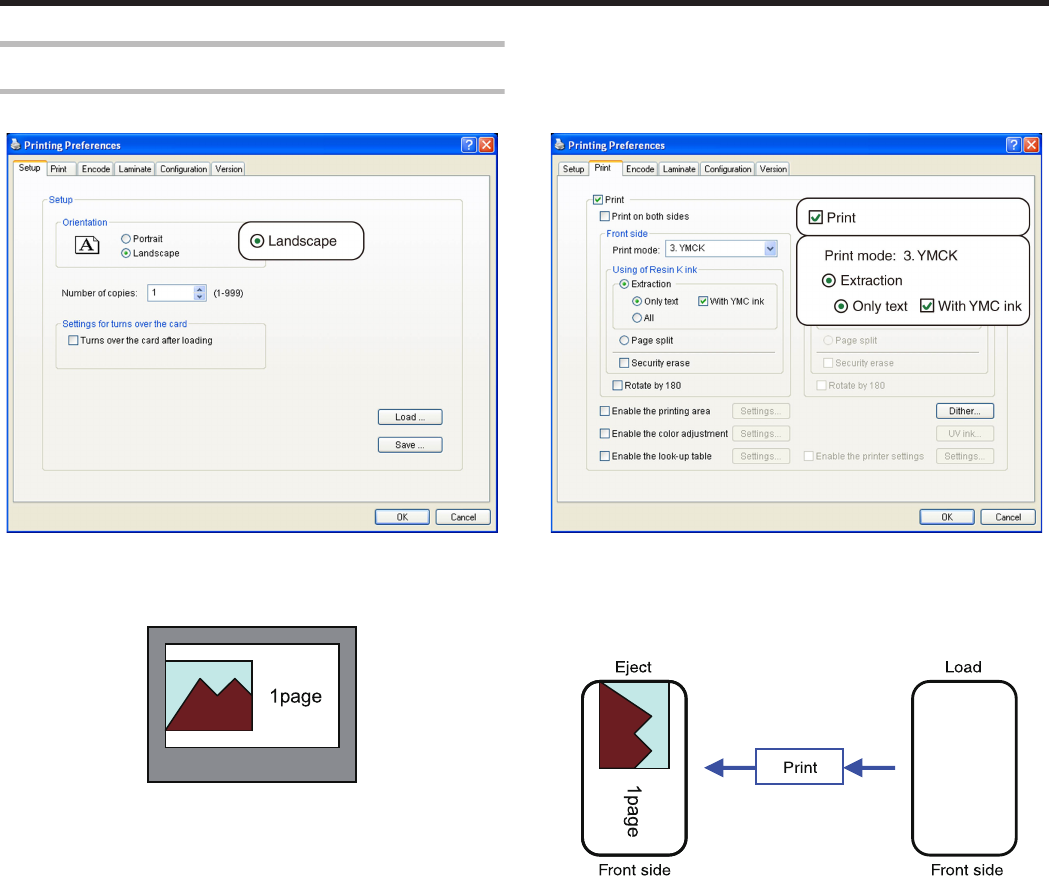
Example of Printer Setting
Single-sided Printing (Landscape)
. .
mApplication software
vGraphic: colored
vText: black
.
mPrinter
vGraphic: YMC ink
vText: YMC ink + Resin K ink
.
Setup
96
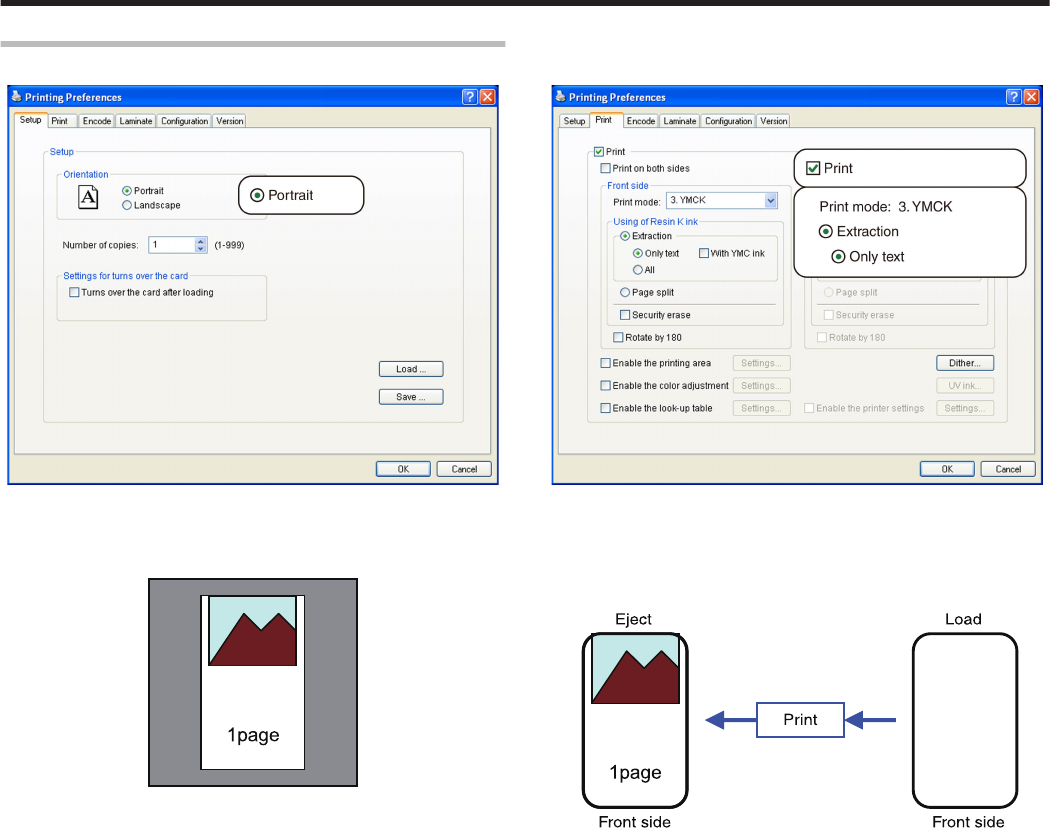
Single-sided Printing (Portrait)
. .
mApplication software
vGraphic: colored
vText: black
.
mPrinter
vGraphic: YMC ink
vText: Resin K ink
.
Setup
97
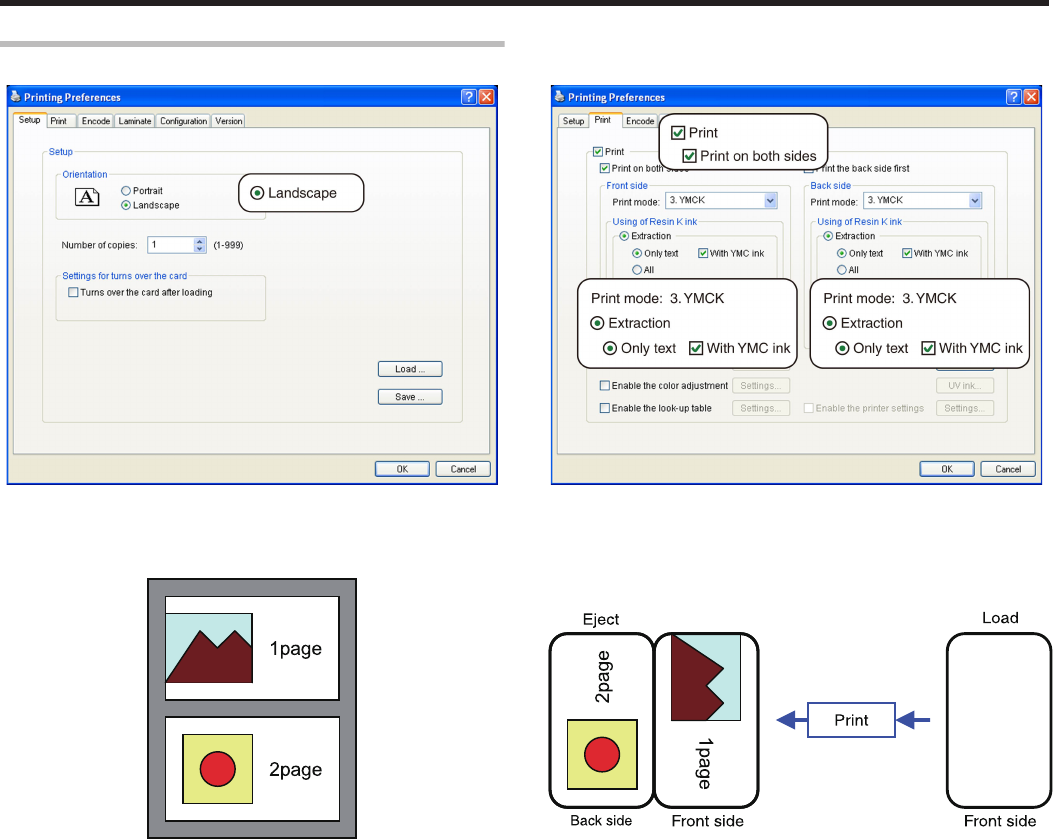
Double-sided Printing (Default)
. .
mApplication software
vGraphic: colored
vText: black
.
mPrinter
vGraphic: YMC ink
vText: YMC ink + Resin K ink
.
Setup
98
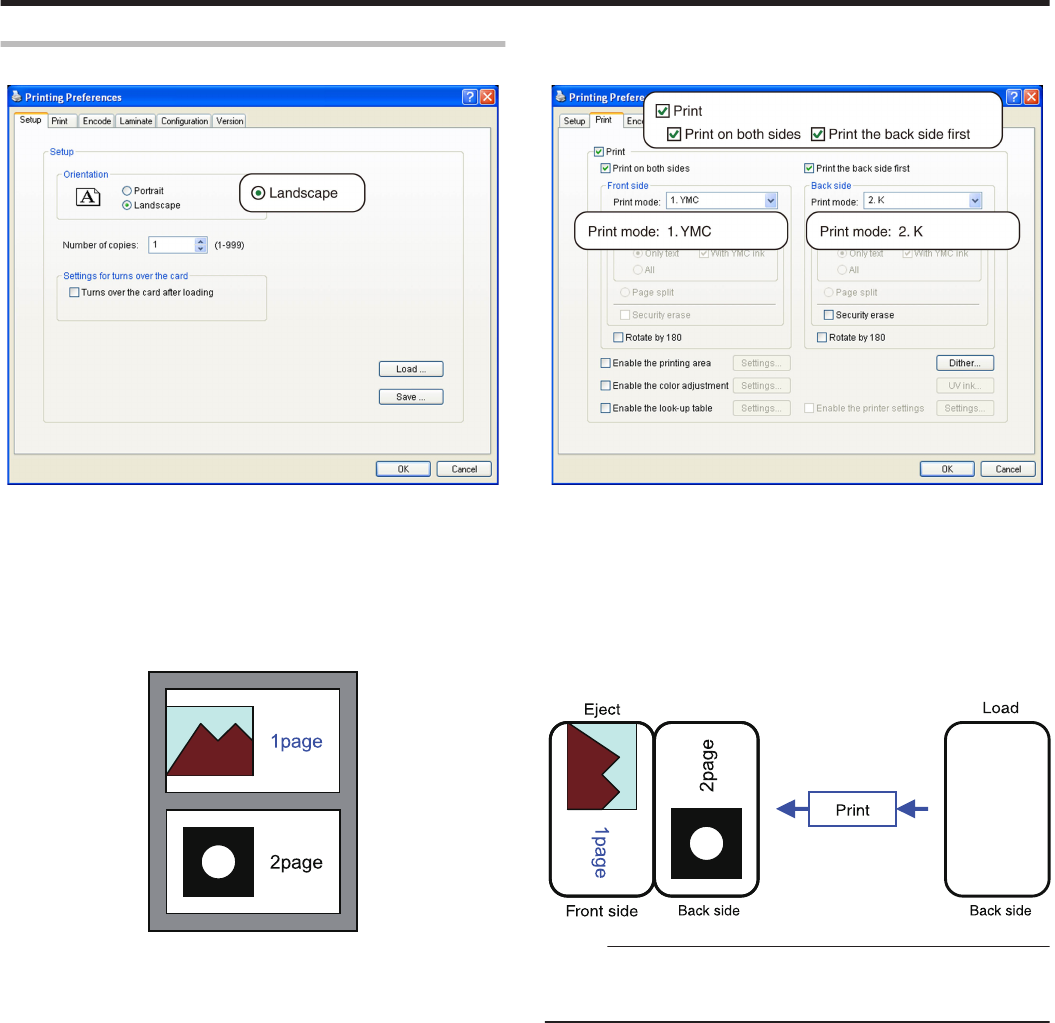
Double-sided Printing (Single-side Lamination)
. .
mApplication software
Page 1
vGraphic: colored
vText: colored
Page 2
vGraphic: black
vText: black
.
mPrinter
Front side
vGraphic: YMC ink
vText: YMC ink
Back side
vGraphic: Resin K ink
vText: Resin K ink
.
Memo:
vIf page 2 is set as colored, printing is performed using the Resin K
ink after dithering is complete.
"[Dither] Dialog Box" (A page 91)
Setup
99
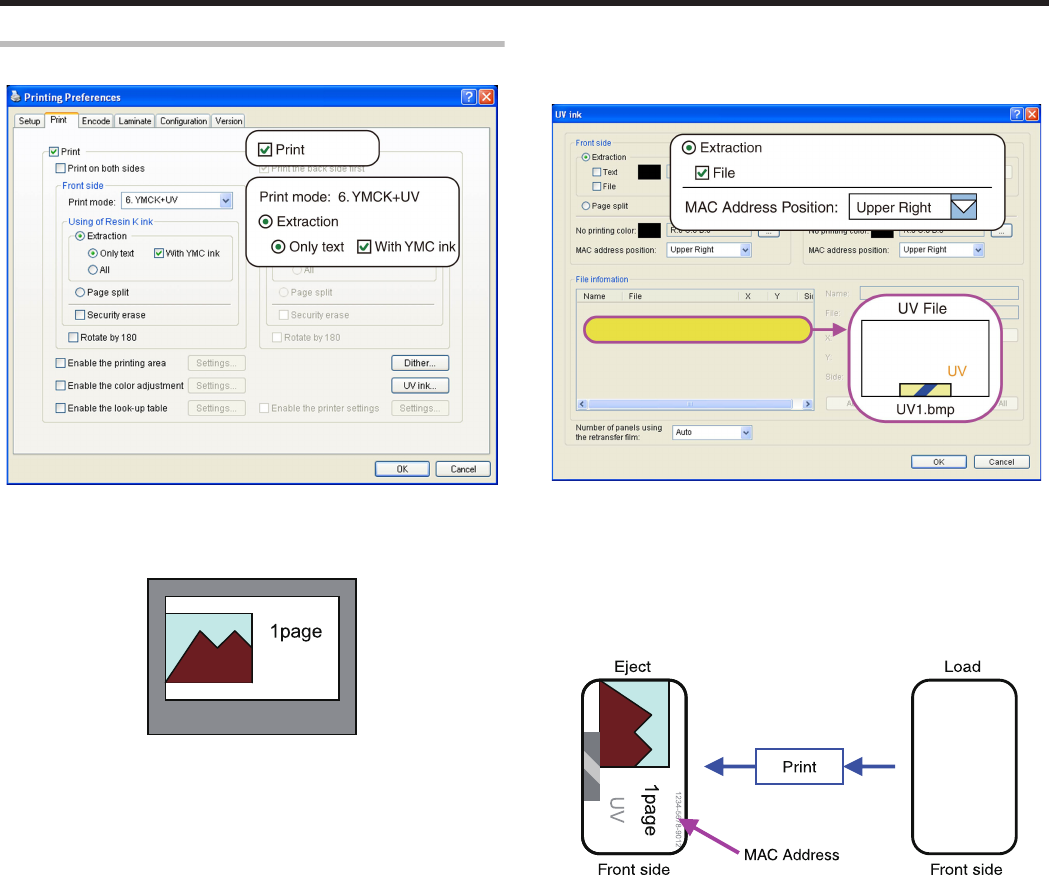
Single-sided UV Printing
.
Clicking [UV ink...] opens the [UV ink] dialog box.
.
mApplication software
vGraphic: colored
vText: black
.
mPrinter
vGraphic: YMC ink
vText: YMC ink + Resin K ink
vUV1.bmp: UV ink
vMAC address: UV ink
.
Setup
100
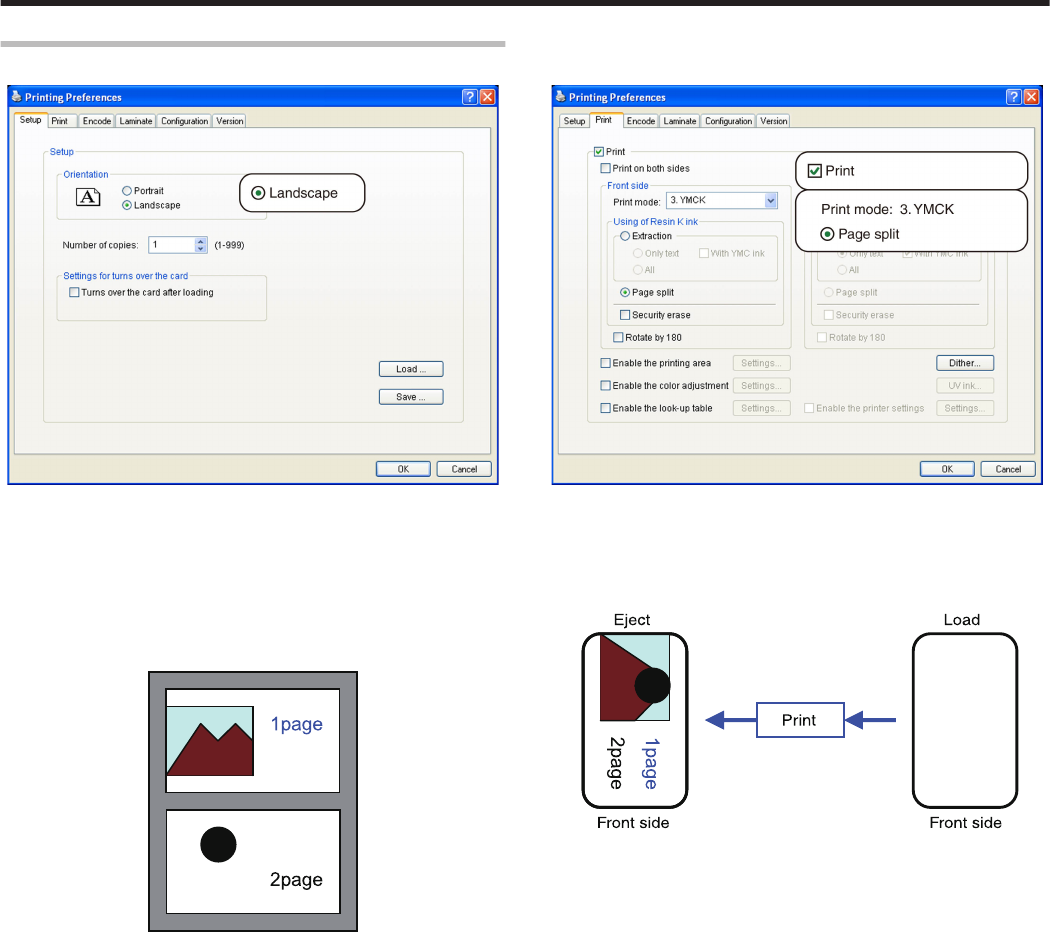
Page Split
. .
mApplication software
Page 1
vGraphic: colored
vText: colored
Page 2
vGraphic: black
vText: black
.
mPrinter
vGraphic: YMC ink + Resin K ink
vText: YMC ink + Resin K ink
.
Setup
101
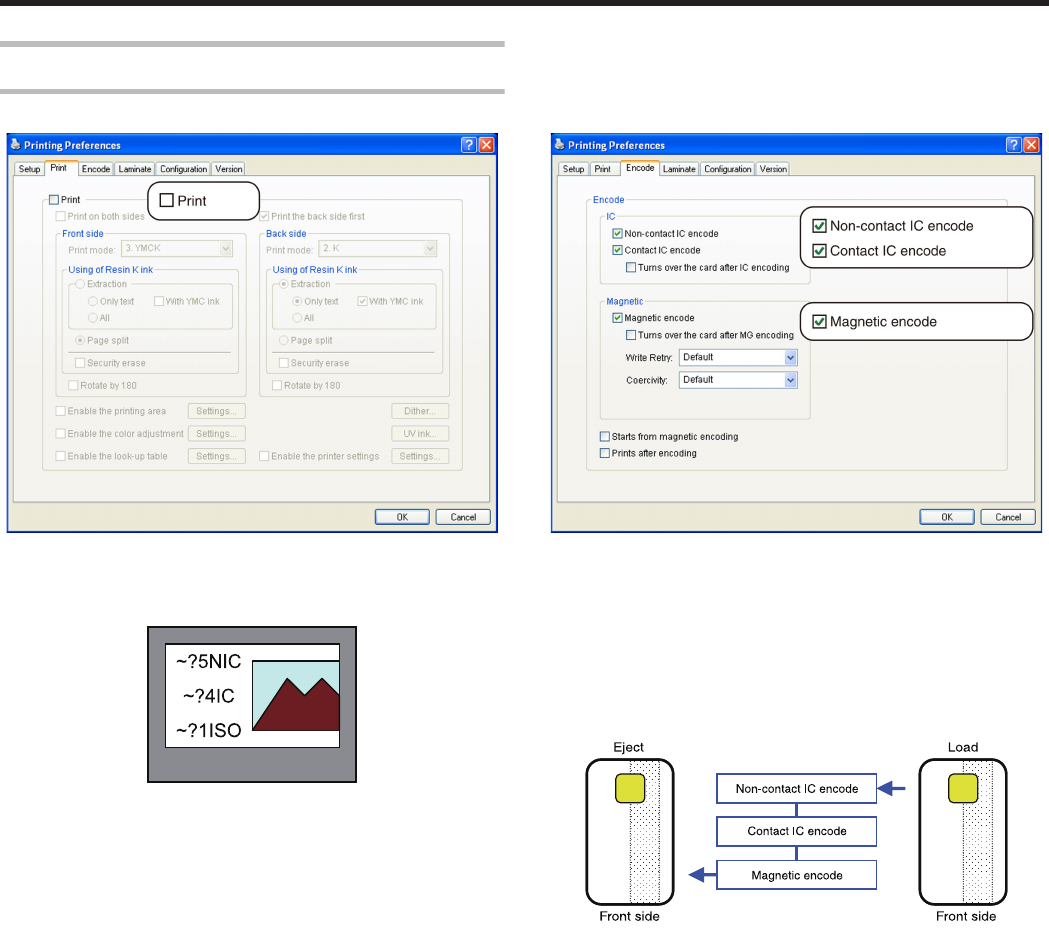
Example of Encode Setting
Encoding Only (ISO Card)
. .
mApplication software
vGraphic: colored
vText: black
.
mPrinter
vGraphic: none
vText: none
mInline Encoding
vNon-contact IC encode data: NIC
vContact IC encode data: IC
vISO track 1 magnetic encode data: ISO
.
Setup
102
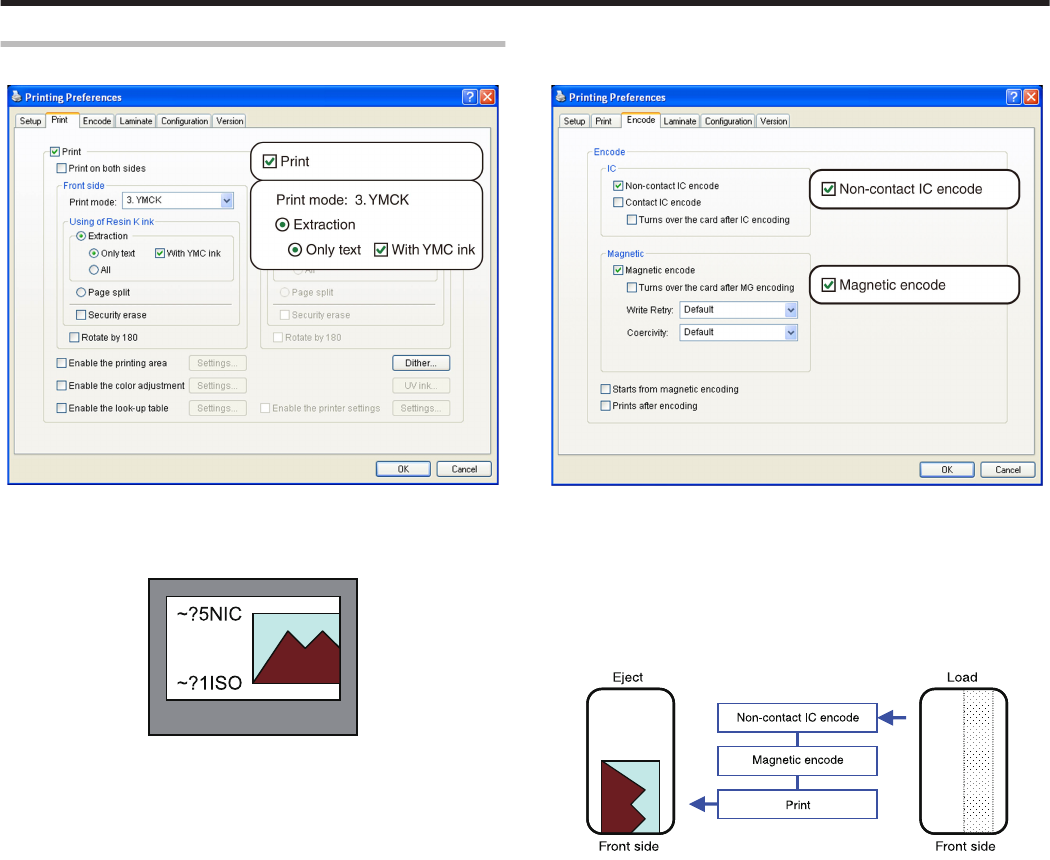
Encoding and Printing (ISO Card)
.
.
mApplication software
vGraphic: colored
vText: black
.
mPrinter
vGraphic: YMC ink
vText: YMC ink + Resin K ink
mInline Encoding
vNon-contact IC encode data: NIC
vISO track 1 magnetic encode data: ISO
.
Setup
103
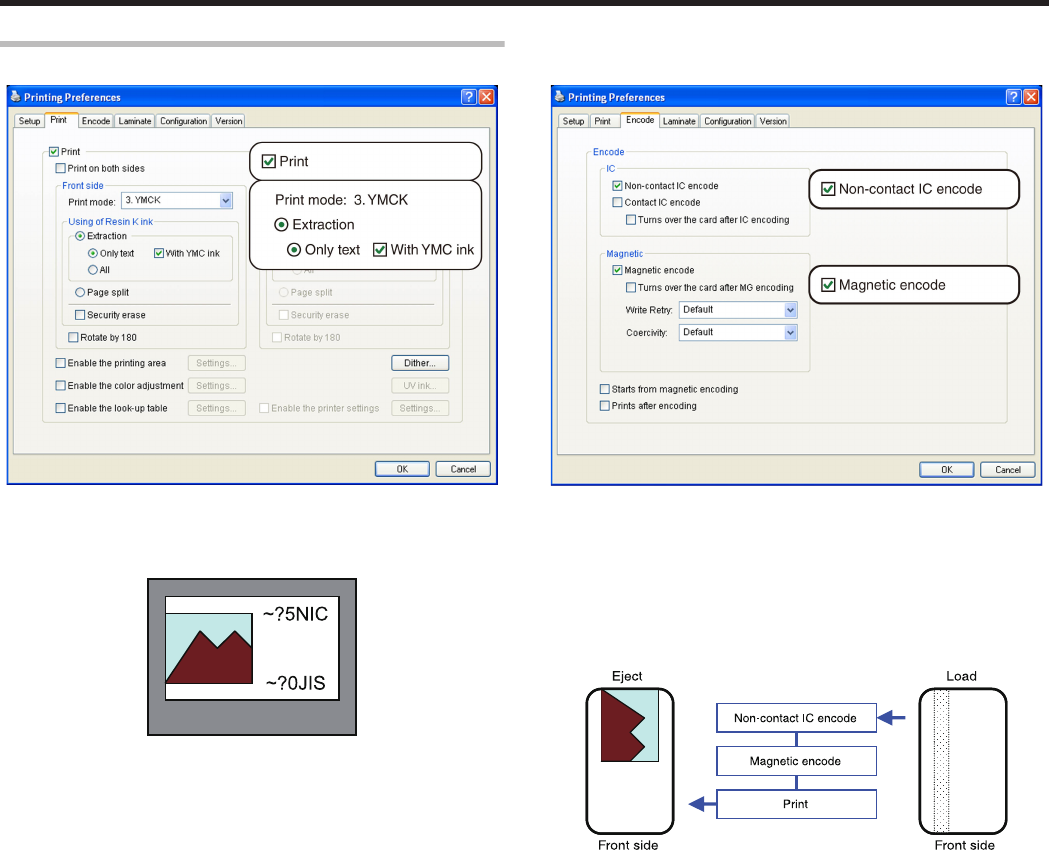
Encoding and Printing (JIS Card)
.
.
mApplication software
vGraphic: colored
vText: black
.
mPrinter
vGraphic: YMC ink
vText: YMC ink + Resin K ink
mInline Encoding
vNon-contact IC encode data: NIC
vJIS2 magnetic encode data: JIS
.
Setup
104
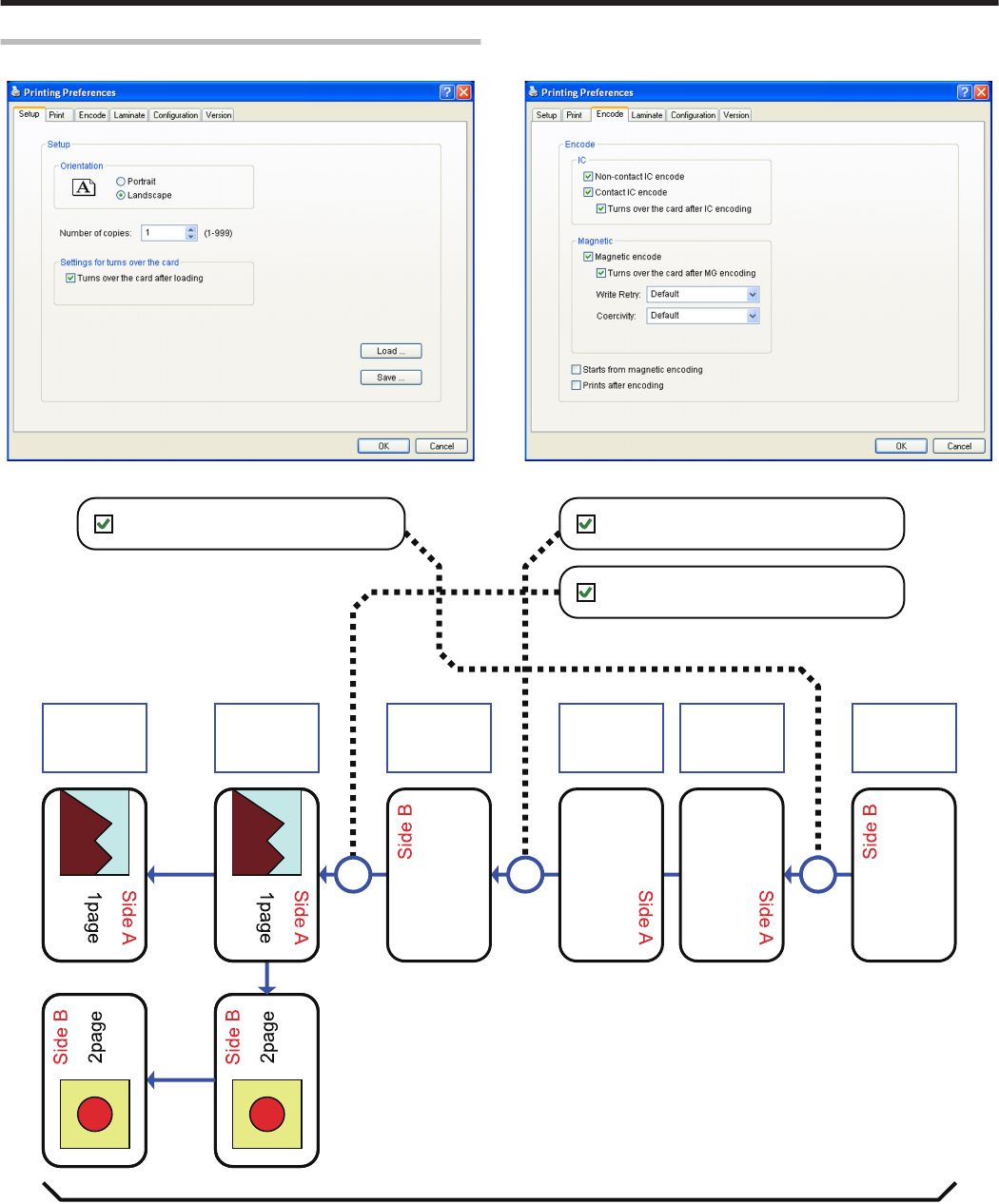
Card Turn Over Illustration
. .
.
Tur ns over the card after loading
Double-sided
Logical configuration of printer
Eject Print Magnetic
encode
Contact IC
encode
Non-contact IC
encode
Load
Tur ns over the card after MG encoding
Tur ns over the card after IC encoding
Setup
105
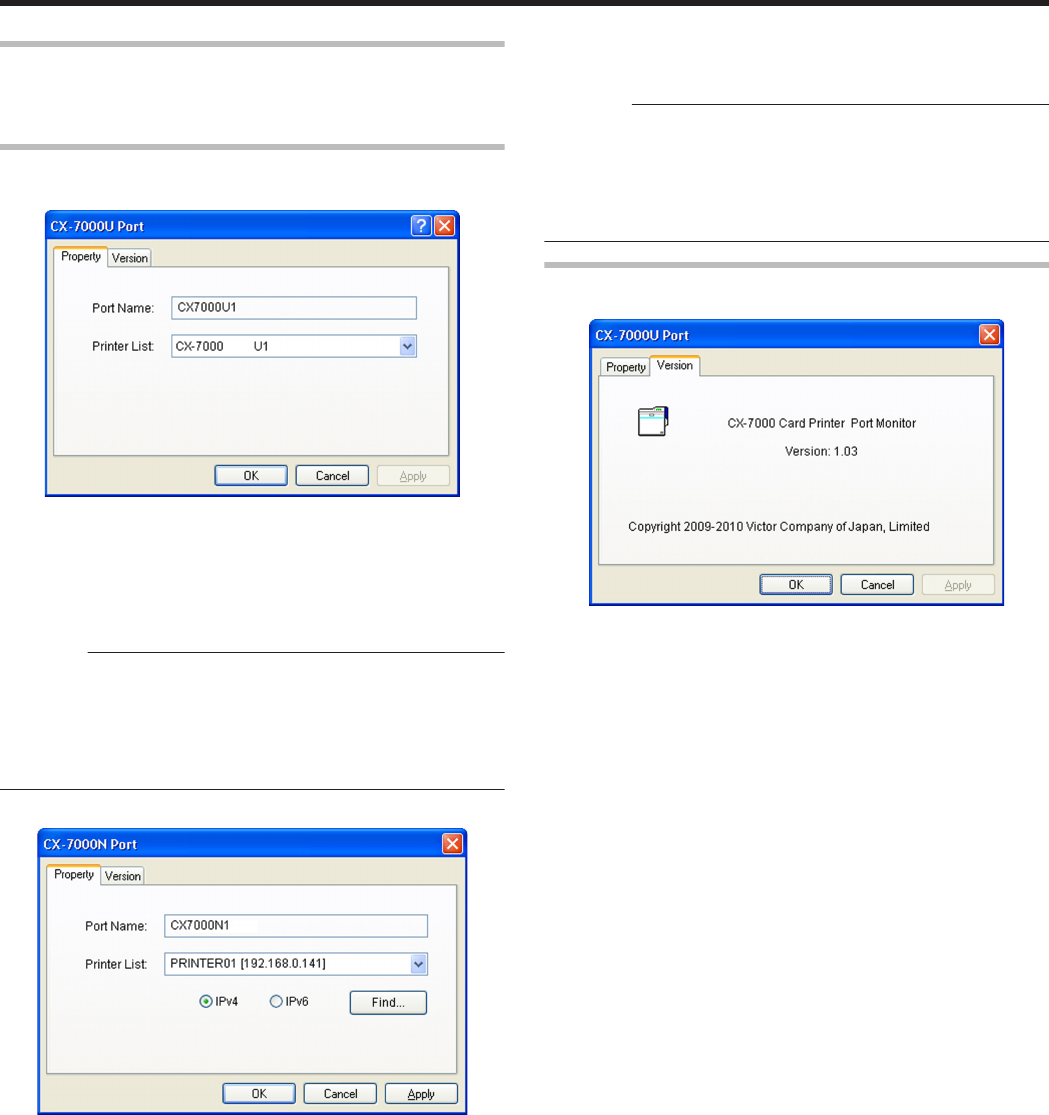
Port Monitor Settings
v"[Property] Tab" (A page 106)
v"[Version] Tab" (A page 106)
[Property] Tab
mUSB connection
.
mPort Name
Name of the port. You can enter a name up to 24 characters.
mPrinter List
List of connected printers. The selected printer is used for printing
the card.
Cautions:
The setting is incorrect if the following message appears.
vNo Device:
Printer is not found.
vNo selection:
Last used printer is not found. A different printer is currently
connected.
mEthernet (LAN) connection
.
mPort Name
Name of the port. You can enter a name up to 24 characters.
mPrinter List
List of connected printers. The selected printer is used for printing
the card.
mIPv4
When connecting using the IPv4 address, select [IPv4], followed by
clicking [Find...] to search for the printer.
After clicking [IPv4], you can search for the printer by directly
entering the IPv4 address in the [Printer List].
mIPv6
When connecting using the IPv6 address, select [IPv6], followed by
clicking [Find...] to search for the printer.
After clicking [IPv6], you can search for the printer by directly
entering the IPv6 address in the [Printer List].
m[Find...] button
Search for the printer after selecting [IPv4] or [IPv6]. The search
results are displayed in the [Printer List].
Cautions:
The setting is incorrect if the following message appears.
vNo Device:
Printer is not found.
vNo selection:
Last used printer is not found. A different printer is currently
connected.
[Version] Tab
Displays the version and copyright information.
.
Setup
106
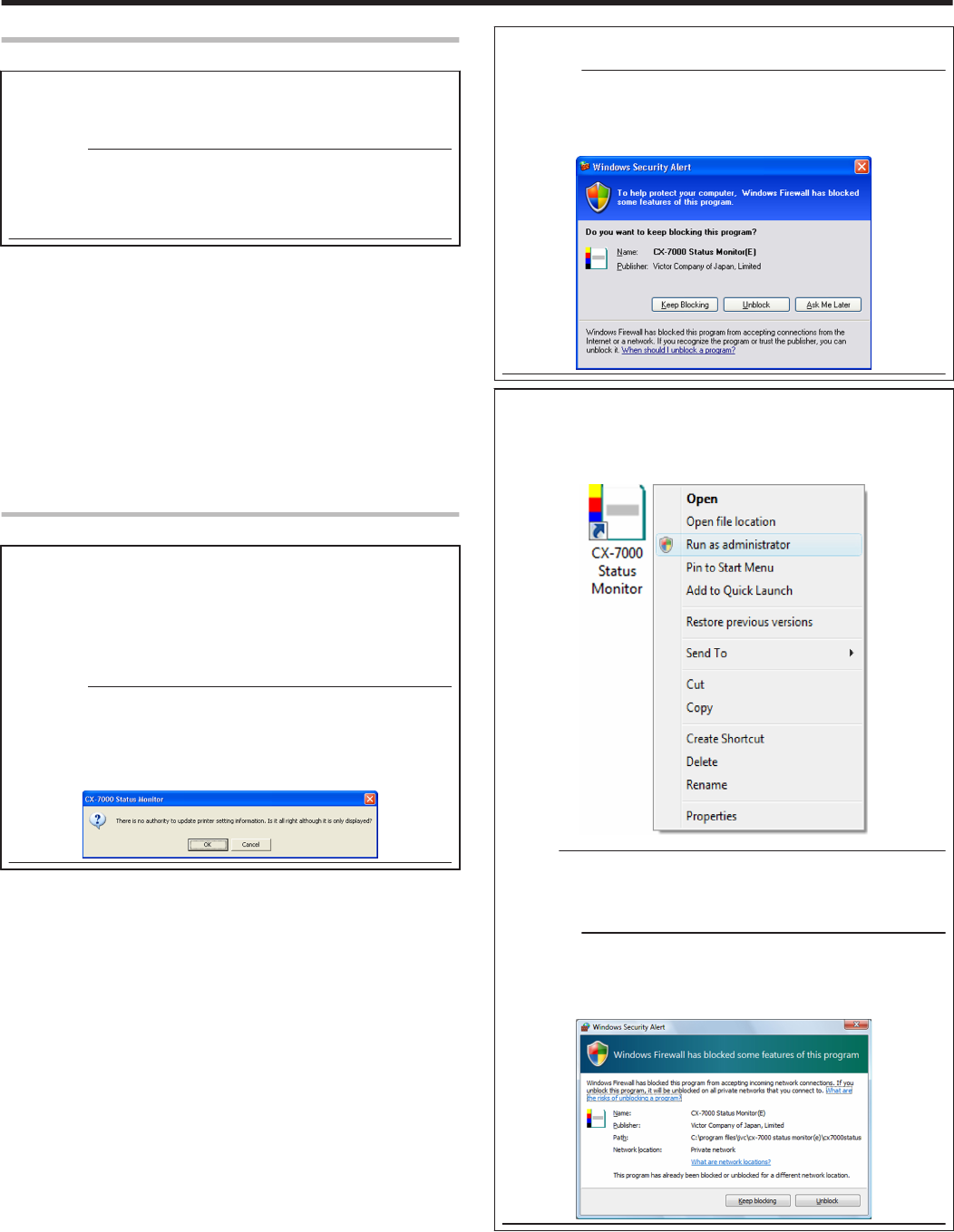
Status Monitor Settings
mWhat is status monitor?
The status monitor is software for displaying the printer status as
well as specifying various printer settings.
Cautions:
vThe printer driver needs to be installed on the computer. You can
install the printer driver using the CD-ROM supplied with the
printer.
vUse the status monitor with the power of the printer turned on.
m"Executing the status monitor" (A page 107)
m"Screen Configuration" (A page 108)
v"[Printer Status] Tab" (A page 108)
v"[Printer Setting] Tab" (A page 110)
v"[Retransfer] Tab" (A page 111)
v"[Bend Remedy] Tab" (A page 112)
v"[Media Setting] Tab" (A page 112)
v"[Property] Tab" (A page 113)
v"[Printer Select] Tab" (A page 114)
v"[Security Lock] Tab" (A page 117)
v"[Others] Tab" (A page 117)
Executing the status monitor
You can run the status monitor using the following methods.
vRun using the shortcut on the Desktop display (if the icon is
created during installation).
vRun from the Start menu (if a shortcut icon is created during
installation).
vRun directly from the installed folder of the program.
Cautions:
vWhen a user logs in with administrator authority (Administrators
group), the printer settings can be specified on the status monitor.
If a user logs in without administrator authority, the printer settings
appear in the read-only mode, and they cannot be specified on the
status monitor.
.
mWindows XP
Cautions:
vIf a [Windows Security Alert] screen appears upon starting up the
status monitor, click [Unblock].
The status monitor will fail to function properly if you click on
buttons other than [Unblock].
.
mWindows 7 and Windows Vista
Selecting [Run as administrator...] enables you to run the status
monitor as a user with administrator authority. Double-clicking the
icon of the status monitor or selecting [Open] runs the status monitor
as a user without administrator authority.
.
Memo:
vEven if a user is logged on with the administrator account on
Windows Vista, the user may be regarded as one without
administrator authority when running the status monitor.
Cautions:
vIf a [Windows Security Alert] screen appears upon starting up the
status monitor, click [Unblock].
The status monitor will fail to function properly if you click [Keep
blocking].
.
Setup
107
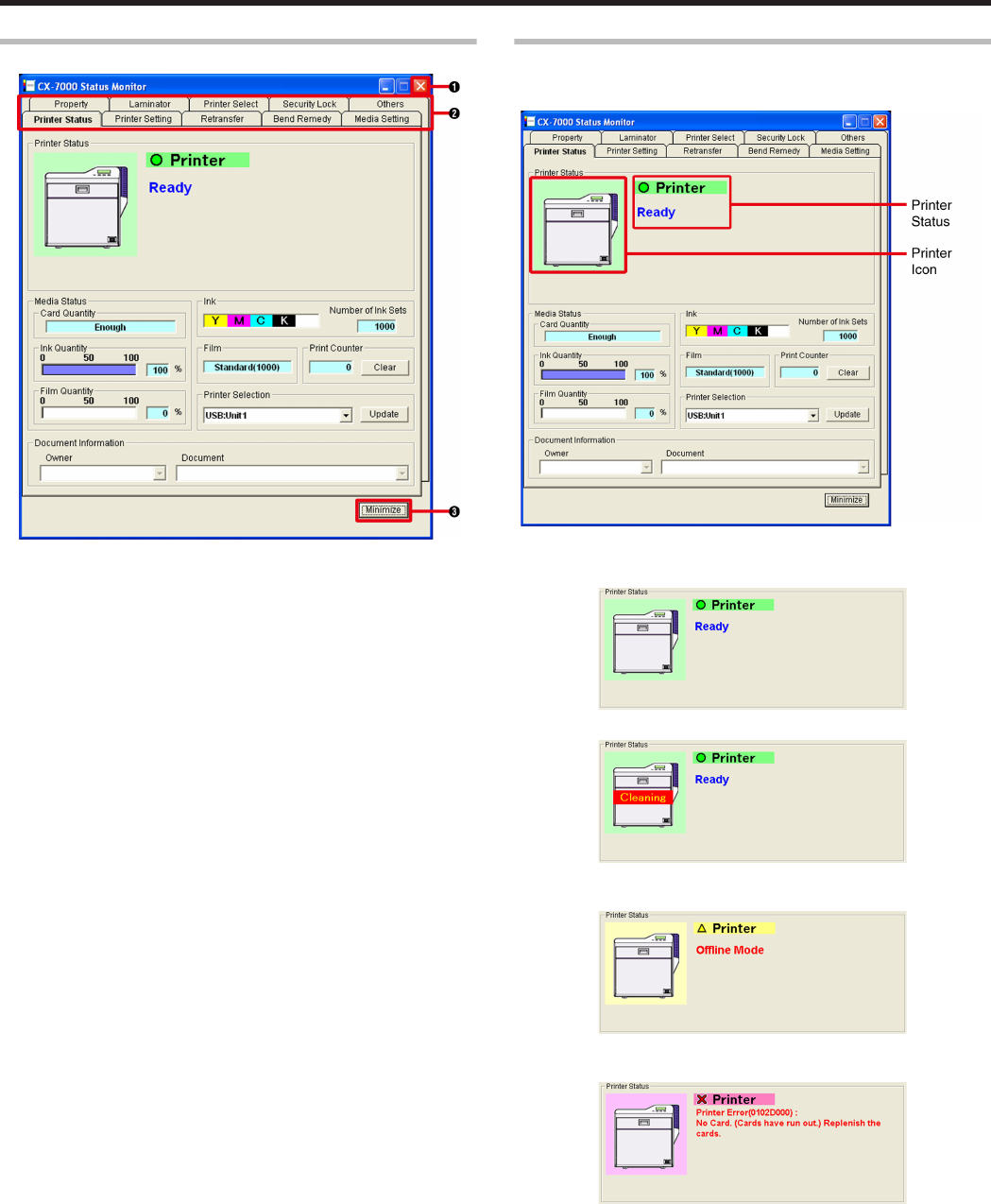
Screen Configuration
.
A Close button
Closes the status monitor.
B Screen selection tabs
Use these to switch to the following screens.
vPrinter Status
Displays the printer’s status.
vPrinter Setting
For displaying and specifying the printer’s print settings.
For displaying and specifying the printer’s device settings.
vRetransfer
For displaying and specifying the conditions during retransfer to the
card.
vBend Remedy
For displaying and specifying the conditions during bend remedy of
the card.
vMedia Setting
Displays the status of the ink ribbon.
For setting the card and retransfer film.
vProperty
Displays the device configuration.
Displays the firmware version.
Displays the counter value.
vPrinter Select
For selecting a printer.
For displaying and setting the network connection status.
vSecurity Lock
For displaying and setting the security lock status.
vOthers
For performing test prints.
For downloading the firmware.
C Minimize button
Minimizes the status monitor to an icon. The icon is displayed in the
taskbar.
[Printer Status] Tab
Displays the printer’s status. Information on the screen is automatically
updated at regular intervals.
.
mPrinter Status
vReady mode. The printer is ready to start printing.
.
vCleaning of the card feed roller and heating roller is required.
.
"Card Feed Roller/Heating Roller" (A page 37)
vThe printer is busy.
.
vFailure has occurred. The error code and description of the failure
are displayed. In the example below, “0102D000” is the error code.
.
For more details, refer to "List of Error Codes" (A page 120) .
Setup
108
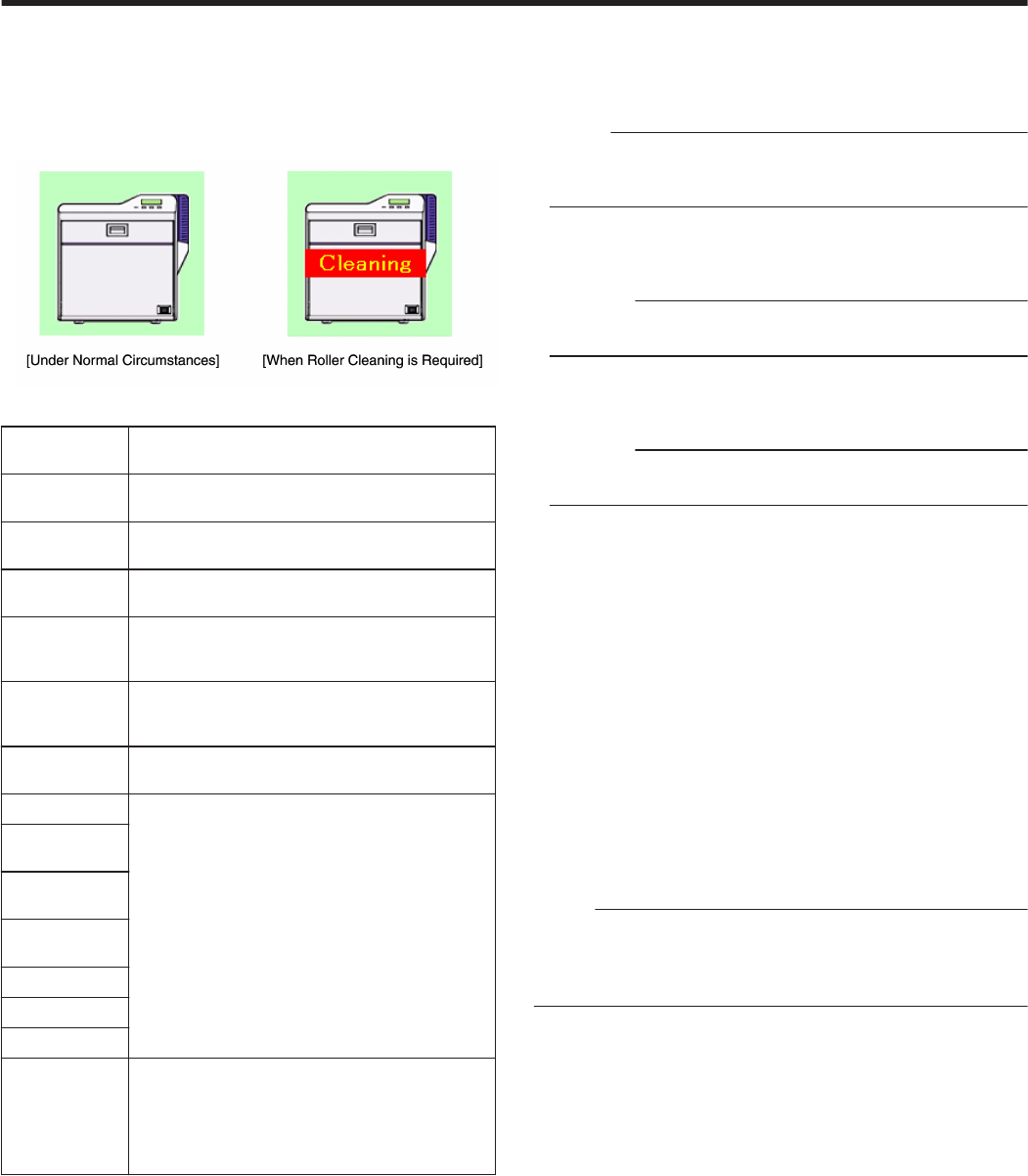
mPrinter icons
The icon on the left is displayed when the printer is functioning
normally. After printing more than 1000 cards since the last cleaning,
it changes to the icon display shown on the right.
When the right icon appears, perform procedures in "Card Feed
Roller/Heating Roller" (A page 37) under “Maintenance”.
.
mList of Status Display Messages
Status Display
Message
Description
Printer is not
found.
The power of the printer is not turned on, or the
computer is not properly connected to the printer.
Ready The printer is in the ready mode. The printer is
ready to start printing cards.
Initializing Printer initializing. The printer switches to the
Ready mode after initialization is complete.
Offline Mode The printer is in the setting mode, or roller
cleaning is in progress. When this is complete, the
printer switches to the Ready mode.
Preheating Preheating of the heating roller is in progress. The
printer switches to the Ready mode upon reaching
an appropriate temperature.
Heating Adjusting the heating roller to the preset
temperature.
Card Loading The printer is printing cards. Indicates the
operating status when the printer is printing cards.
After card printing is complete, the printer returns
to the Ready mode.
Card
Transporting
No-Contact IC
Encoding
Contact IC
Encoding
MG Encoding
Printing
Retransfer
Power Saving The printer is in the Power Saving mode, which
helps to reduce power consumption. To exit the
Power Saving mode, reset using the operation
panel of the printer.
For more details, refer to"Initialization" (A page
22) under "Adjusting the Printer Settings".
mMedia Status
Displays the remaining space on the media.
mCard Quantity
Displays the remaining card quantity as [Enough] or [None].
Memo:
vIf [None] is displayed, replenish the cards accordingly.
For more details, refer to "Cards have run out" (A page 31) under
"Adjusting the Printer Settings".
mInk Quantity
Displays the remaining ink ribbon quantity in percentage in 50
different levels.
Cautions:
vThe remaining quantity is an estimated value. Differences may
occur depending on the usage as well as media type.
mFilm Quantity
Displays the remaining retransfer film quantity in percentage in 10
different levels.
Cautions:
vThe remaining quantity is an estimated value. Differences may
occur depending on the usage as well as media type.
mInk
Displays the information on the loaded ink ribbon. The print counter
appears blank if the ink ribbon is not correctly recognized.
You may not be able to control the ink ribbon properly in this case.
Check to ensure that the ink ribbon is properly installed.
For more details, refer to "Installing the Ink Ribbon" (A page 60) under
"Printing Media".
mFilm
Displays the type of retransfer film loaded.
mPrint Counter
Displays the total number of cards that are correctly printed. Press the
[Clear] button to reset the print counter to 0.
mPrinter Selection
You can switch to the relevant printer when multiple printers are
connected to a single computer.
If the printer is not found or if you want to change the search criteria,
refer to "Searching a printer" (A page 114) in the “[Printer Select] Tab”.
Memo:
vPressing the [Update] button searches for a connected printer and
updates the printer in the list box.
vSelecting a printer from the pull-down menu switches the display to
the current status of the selected printer.
mDocument Information
When printing from the printer driver, the name of the owner and
document are displayed.
Setup
109
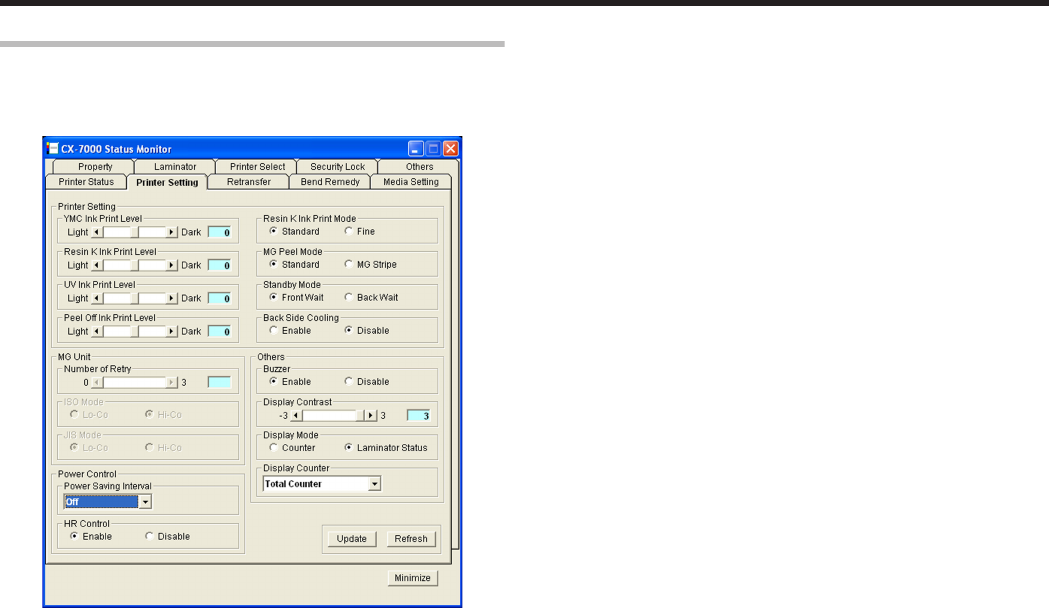
[Printer Setting] Tab
For specifying the printer settings.
Make sure that you take down the set values before making any
changes.
.
mPrinter Setting
mYMC Ink Print Level
For setting the print density of the YMC ink.
mResin K Ink Print Level
For setting the print density of the Resin K ink.
mUV Ink Print Level
For setting the print density of the UV ink.
mPeel Off Ink Print Level
For setting the print density of the peel-off ink.
mResin K Ink Print Mode
For setting the print quality of the Resin K ink.
Selecting [Fine] enhances the printing quality, but slows down the
printing speed.
mMG Peel Mode
When a magnetic encoder unit is installed, selecting [MG Stripe]
optimizes the peeling operation of retransfer films for magnetic stripe
cards.
mStandby Mode
Specify a position when a laminator is connected.
This is used for setting the standby position of the card during
double-sided printing until the laminator is ready. The default setting
is [Front Wait].
mBack Side Cooling
This setting is only valid during double-sided printing.
Setting this item may help to reduce card bend during double-sided
printing. However, the printing time may also be affected.
mMG Unit
mNumber of Retry
For setting the maximum number of retries when writing to or
reading of the magnetic stripe fails. The default value is [1].
mISO Mode
For specifying the coercivity of the ISO magnetic stripe. The default
setting is [Hi-Co].
mJIS Mode
For specifying the coercivity of the JIS magnetic stripe. The default
setting is [Lo-Co].
mPower Control
mPower saving interval
The Power Saving mode helps to reduce power consumption when
printing or operation is not performed over a specified time interval.
Select whether to disable the Power Saving mode or specify the time
interval before switching to the Power Save mode.
Selecting [Disable] deactivates the Power Saving mode. The default
setting is [Disable].
mHR Control
Switches to the standby mode by lowering the temperature of the
retransfer heating roller when printing is not performed for 30
minutes or longer. The default setting is [Enable].
mOthers
mBuzzer
For setting the warning sound when an error occurs or when the
cards run out, as well as the confirmation sound upon pressing B
on the operation panel of the printer unit.
The buzzer does not sound when [Disable] is selected. The default
setting is [Enable].
mDisplay Contrast
For setting the contrast of the printer’s operation panel display.
mDisplay Mode
For setting the information to be displayed on the printer’s operation
panel.
mDisplay Counter
This is used for setting the type of counter to be displayed on the
printer’s operation panel.
For more details, refer to "Counter Types" (A page 25) under
"Setting Using the Operation Panel".
m[Update] button
For applying changes made using the slide bar or radio buttons to the
printer settings.
m[Refresh] button
Displays the printer settings on the screen.
Setup
110
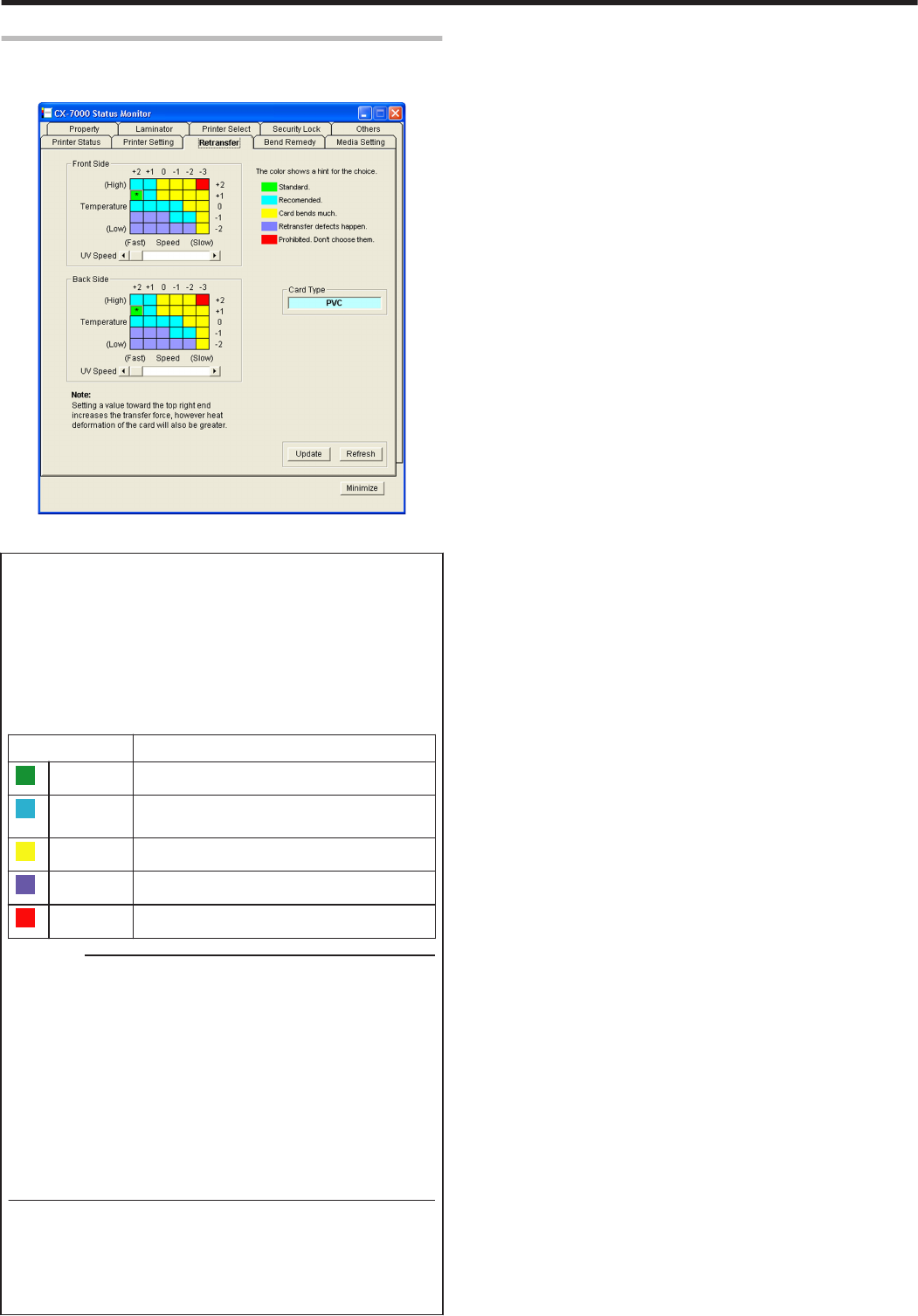
[Retransfer] Tab
The retransfer settings screen enables you to set the conditions of
retransfer to the card.
.
mFront/Back side settings
mSetting procedures
v
The vertical axis shown in the setting area indicates the retransfer
temperature, and the horizontal axis represents the retransfer
speed.
vClick on the corresponding square to change the value. The
selected value is indicated by [*].
vSetting a value toward the top right end increases the transfer
force. However, the stronger heat also increases the deformation
of the card.
vThe colors below serve as a rough indicator for selection.
Color Description
.
Green
Standard value.
.Light Blue
Appropriate range. Recommended range when
selecting a value other than the standard value.
.Yellow Card bend increases.
.
Blue Retransfer defect may occur.
.
Red Do not select these values.
Cautions:
v
The different colors serve as a rough guide. The optimal value varies
according to the card type as well as the environment in which the
printer is used. Adjust the setting according to the actual
environment.
vIt may take a while for printing to start when the retransfer
temperature is changed.
vThere is only one standard retransfer temperature. Altering the
retransfer temperature on one side changes the temperature on
the other side.
vThe range of optimal values varies according to the [Card Type].
You can change the card type in the [Media Setting] Tab.
vIf the card type varies across printers, set the card type to use
accordingly. The color of the setting area varies according to the
card type in use.
mUV Speed
Setting for printing the retransfer film in two panels when UV ink is used.
It is used to set the speed of the retransfer heating roller during retransfer
of the UV ink.
This setting helps to increase the retransfer speed without affecting the
quality of the UV print.
mCard Type
The appropriate value varies according to the type of card used. You
can change the card type in the [Media Setting] Tab.
For more details, refer to "Card Type" (A page 112) in the “[Media
Setting] Tab”.
m[Update] button
Applies the selected value to the printer.
m[Refresh] button
Displays the printer settings on the screen.
Setup
111
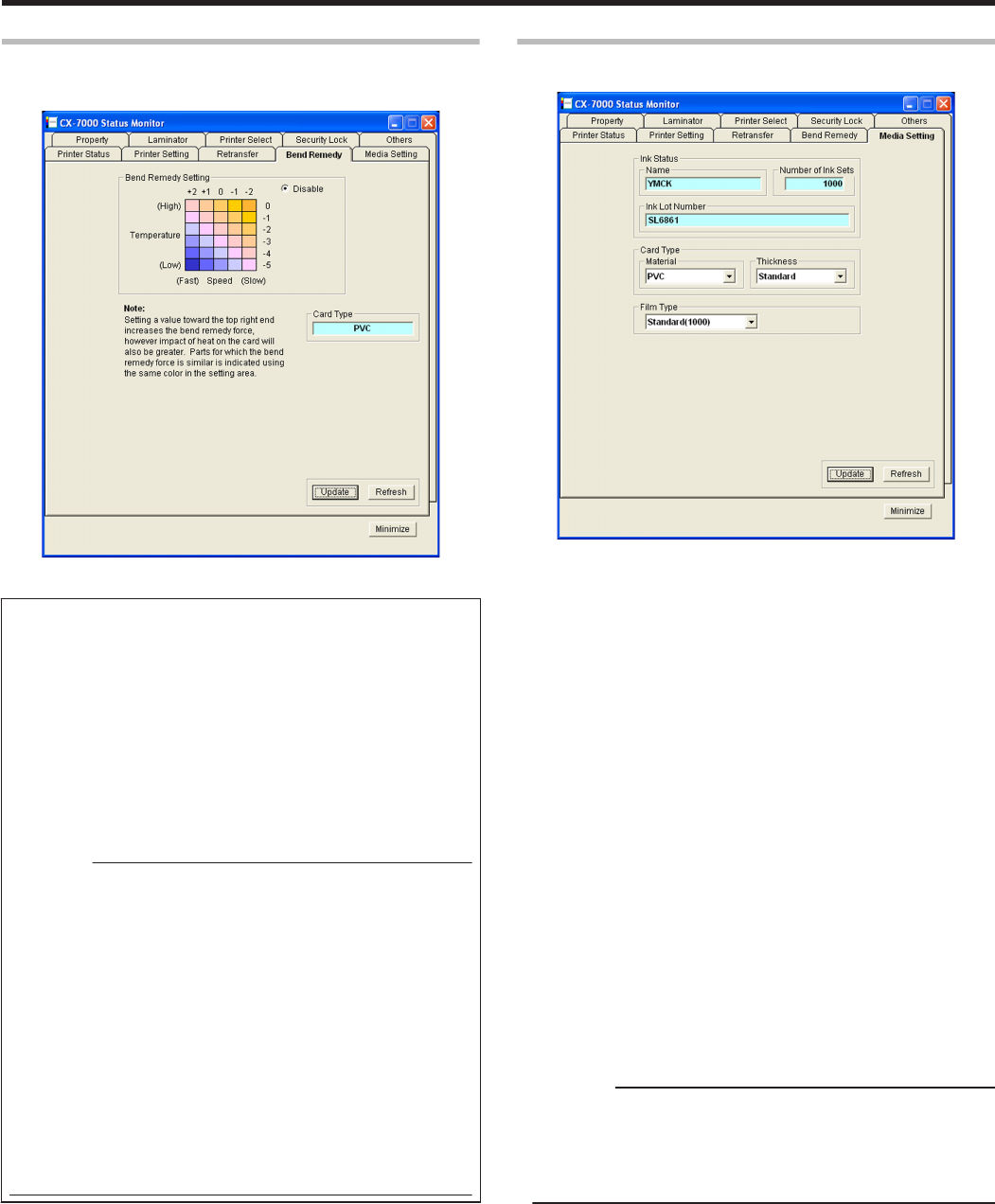
[Bend Remedy] Tab
The bend remedy settings screen enables you to set the conditions for
the card’s bend remedy.
.
mBend Remedy Setting
mSetting procedures
vThe vertical axis in the setting area indicates the bend remedy
temperature, and the horizontal axis represents the bend remedy
speed.
vClick on the corresponding square to change the value. The
selected value is indicated by [*].
vSetting a value toward the top right end increases the bend
remedy force. However, the stronger heat may have a greater
impact on the card.
vParts for which the bend remedy force is similar is indicated using
the same color in the setting area.
vTo disable bend remedy, select the [Disable] button. [Disable] is
selected in the default setting.
Cautions:
vThe different colors serve as a rough guide. The optimal value
varies according to the card type as well as the environment in
which the printer is used. Adjust the setting according to the actual
environment.
vBend remedy is effective when printing on only one side.
Performing double-sided printing with a high bend remedy
temperature may cause the card to deform significantly.
As such, select the [Disable] button during double-sided printing.
vWhen the [Disable] radio button is deselected, the printer switches
to and remains in the preheating mode (for approximately 10
minutes) until the bendy remedy heating roller’s temperature has
gone down.
This is not a malfunction. Wait for the printer to switch to the
Ready mode.
vWhen the [Disable] button is selected, the speed is automatically
set to the maximum value of [+2].
vThe stronger the bend remedy force, the less glossy the surface of
the remedy side will be.
mCard Type
The appropriate value varies according to the type of card used. You
can change the card type in the [Media Setting] Tab.
For more details, refer to "Card Type" (A page 112) in the “[Media
Setting] Tab”.
m[Update] button
Applies the selected value to the printer.
m[Refresh] button
Displays the printer settings on the screen.
[Media Setting] Tab
This is used for specifying the printing media settings.
.
mInk Status
mName
Displays the name of the loaded ink ribbon. A message indicating
the cause appears when the ink ribbon cannot be recognized.
For more details, refer to "Ink ribbon cannot be recognized" (A page
113) .
mNumber of Ink Sets
Displays the specification of the loaded ink ribbon in the number of
images. This is not an indication of the current ink level.
mInk Lot Number
Displays the lot number of the loaded ink ribbon.
mCard Type
mMaterial
For selecting [PVC], [PET-G] or [HR-PET-G] as the card material. An
optimal value for the retransfer speed and temperature settings is
displayed according to the selected card.
The optimal value of other materials will not be displayed.
[HR-PET-G] : Heat-resistant PET-G
"[Retransfer] Tab" (A page 111)
"[Bend Remedy] Tab" (A page 112)
mThickness
For setting the discharge rate to the card stacker in accordance with
the card thickness. Set this to [Standard] during normal use.
Cautions:
vTo use cards of different thickness, refer to “Adjusting Card
Thickness” and adjust accordingly.
"Adjusting card thickness" (A page 63)
vIf the material of the cards to be used varies across printers, set
the card material separately.
Setup
112
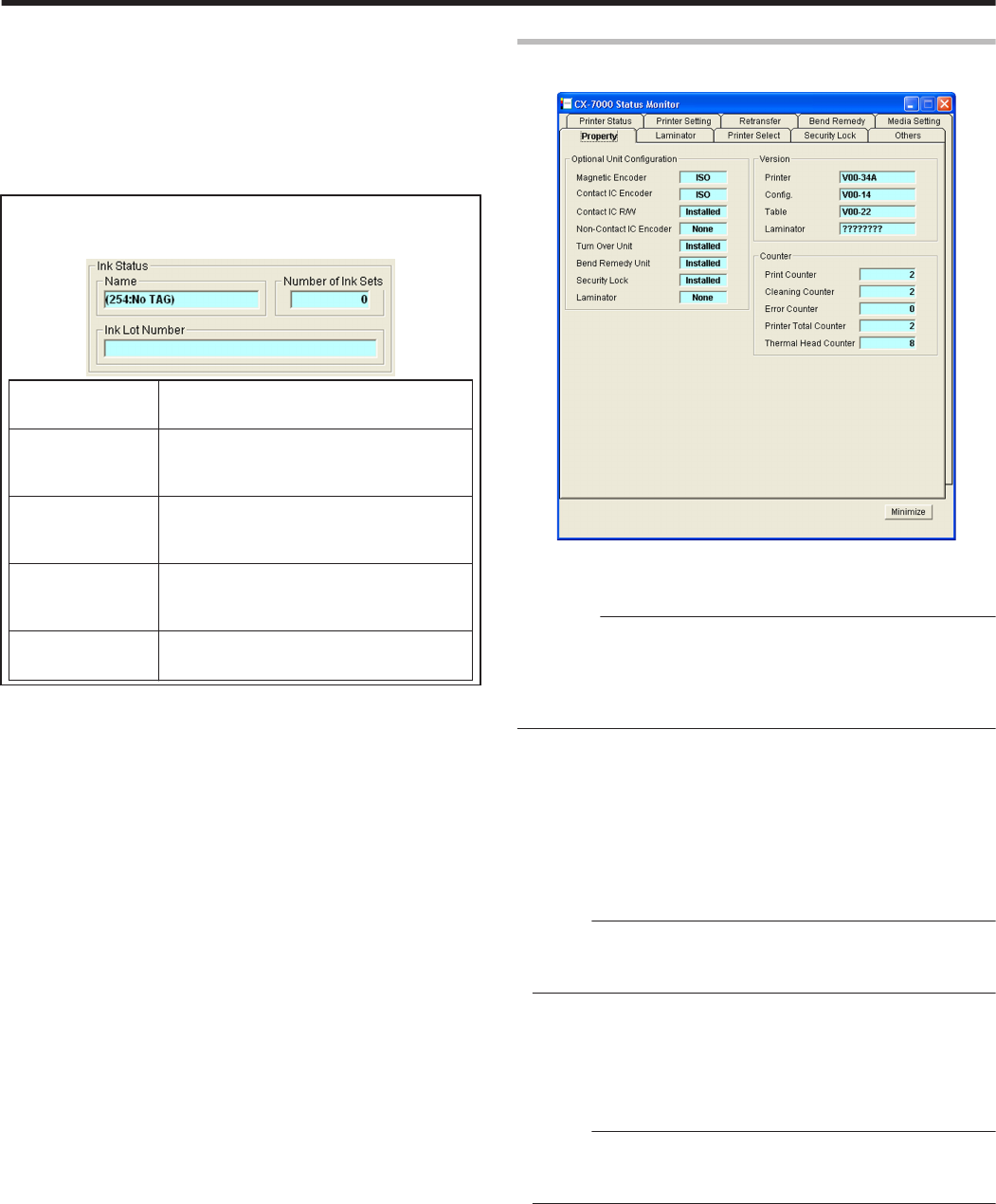
mFilm Type
Displays the specification of the loaded retransfer film in the number of
images. This is not an indication of the current film level.
m[Update] button
Applies the selected value to the printer.
m[Refresh] button
Displays the printer settings on the screen.
mInk ribbon cannot be recognized
If the ink ribbon cannot be recognized, the cause for this problem is
indicated in the [Name] field under [Ink Status].
.
Message Cause and Action During Ink
Recognition Error
(252:Invalid TAG
Data)
The TAG record data adhered to the ink
ribbon is incorrect. Replace the ink ribbon
and try again.
(253:Defective
TAG)
Unable to establish communication with
the TAG adhered to the ink ribbon.
Replace the ink ribbon and try again.
(254:No TAG) Unable to read the TAG adhered to the ink
ribbon. Check to ensure that the ink ribbon
is correctly set.
(255:Defective R/
W)
Printer TAG reader error. The printer
needs to be repaired.
[Property] Tab
This tab displays the device configuration.
.
mOptional Unit Configuration
Displays the configuration of optional devices.
Cautions:
vIf a setting other than [None] is displayed for the contact or non-
contact IC encoder, it means the configuration supports installation
of an IC encoder, and is not an indication that an IC encoder has
been installed.
vConsult our authorized dealers on how to install the IC encoder.
mVersion
Displays the firmware version of the printer and laminator. If a
laminator is not connected, [????????] will appear.
mCounter
Displays the counter value of the printer.
mPrint Counter (free counter)
Displays the total number of cards that are correctly printed.
Memo:
vClicking [Clear] for “Print Counter” in the [Printer Status] Tab
resets the counter value of the [Print Counter] to 0.
"Print Counter" (A page 109)
mCleaning Counter
Displays the number of cards that are correctly printed after the last
cleaning.
mError Counter
Displays the number of cards that are not correctly printed.
Memo:
vClicking [Clear] for “Print Counter” in the [Printer Status] Tab
resets the counter value of the [Error Counter] to 0.
"Print Counter" (A page 109)
mPrinter Total Counter (total counter)
Displays the number of cards that are correctly printed.
mThermal Head (head counter)
Displays the number of print ink panels for the thermal head.
For example, when printing on a single side using all YMCK inks, 4
are added to each card.
Setup
113
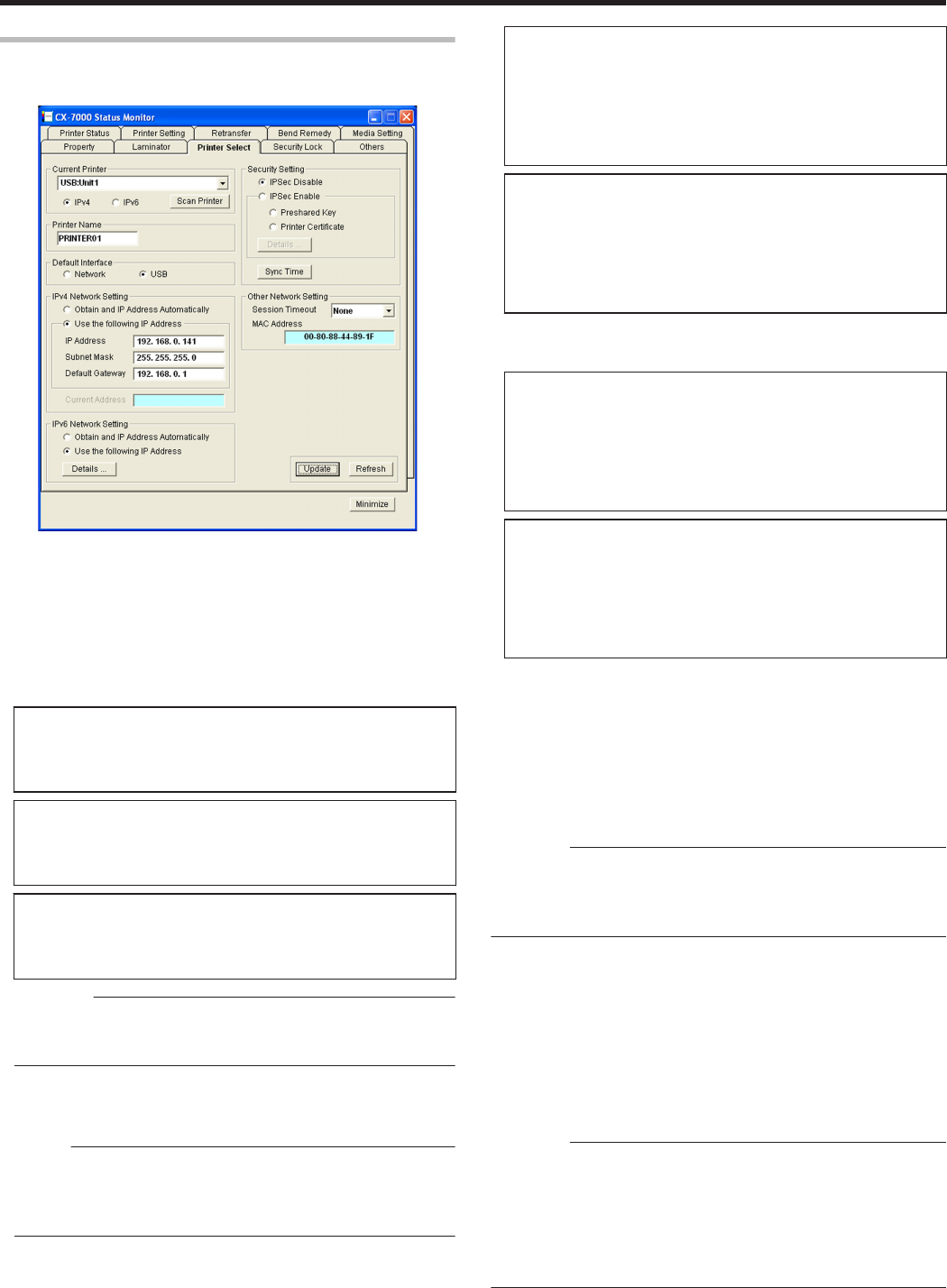
[Printer Select] Tab
This tab is used for selecting a printer and specifying the network
settings.
.
mCurrent Printer
mSelecting a printer
Selecting a printer from the pull-down menu switches the display to
the current status of the selected printer.
mSearching a printer
Clicking the [Scan Printer] button displays the search results in the
pull-down menu.
mSearching USB connection printers
A Click [Scan Printer].
B Printer search is performed, and the result is displayed in the
pull-down menu.
mSearching printers for the IPv4 address
A Select [IPv4], and click [Scan Printer].
B Printer search is performed, and the result is displayed in the
pull-down menu.
mSearching printers for the IPv6 address
A Select [IPv6], and click [Scan Printer].
B Printer search is performed, and the result is displayed in the
pull-down menu.
Cautions:
vThe printer connected via Ethernet (LAN) may not be searchable if
IPSec is enabled. In this case, search the printer again after
registering the printer.
mRegistering a printer
You can enter the IP address in the pull-down menu to register the
printer for the IP address in the menu.
Memo:
vRegistered IP addresses will be stored in the memory even after
exiting the status monitor.
vThe printer cannot be registered if the IP address format is
incorrect.
mRegistering printers for the IPv4 address
A Select [IPv4], and enter the IPv4 address in the pull-down
menu.
B Click [Scan Printer] to display the registration confirmation
dialog box.
C Click [OK] to register the printer for the entered IP address to
the pull-down menu.
mRegistering printers for the IPv6 address
A Select [IPv6], and enter the IPv6 address in the pull-down
menu.
B Click [Scan Printer] to display the registration confirmation
dialog box.
C Click [OK] to register the printer for the entered IP address to
the pull-down menu.
mDeleting a printer
You can select a printer and delete it from the pull-down menu.
mDeleting printers for the IPv4 address
A Select [IPv4], followed by selecting the printer to delete from
the pull-down menu.
B Select [Delete Printer] from the pull-down menu. A deletion
confirmation dialog box appears.
C Click [OK] to delete the selected printer from the pull-down
menu.
mDeleting printers for the IPv6 address
A Select [IPv6], followed by selecting the printer to delete from
the pull-down menu.
B Select [Delete Printer] from the pull-down menu. A deletion
confirmation dialog box appears.
C Click [OK] to delete the selected printer from the pull-down
menu.
mPrinter Name
For setting the name of the selected printer.
You can input up to 10 ASCII characters. Symbol characters may not
be displayed on the operation panel.
mDefault Interface
For setting the interface during startup. For Ethernet (LAN) connection,
the settings are displayed in the read-only mode, and they cannot be
changed.
Cautions:
vRegardless of the default interface setting, priority is given to USB if
a USB cable is connected.
vTo assign priority to the USB connection, enable the operation of the
computer and USB hub.
mNetwork
Enables you to print via the Ethernet (LAN) connection.
mUSB
Enables you to print via the USB connection.
mIPv4 Network Setting
For setting items related to Ethernet (LAN). For Ethernet (LAN)
connection, the settings are displayed in the read-only mode, and they
cannot be changed.
Cautions:
vDetermine the network setting items according to the instructions of
the network administrator for the location where the printer unit is
installed.
vOther network devices may be affected if the network setting is
incorrect.
vWhen only USB connection is used, there is no need to specify the
network setting.
Setup
114
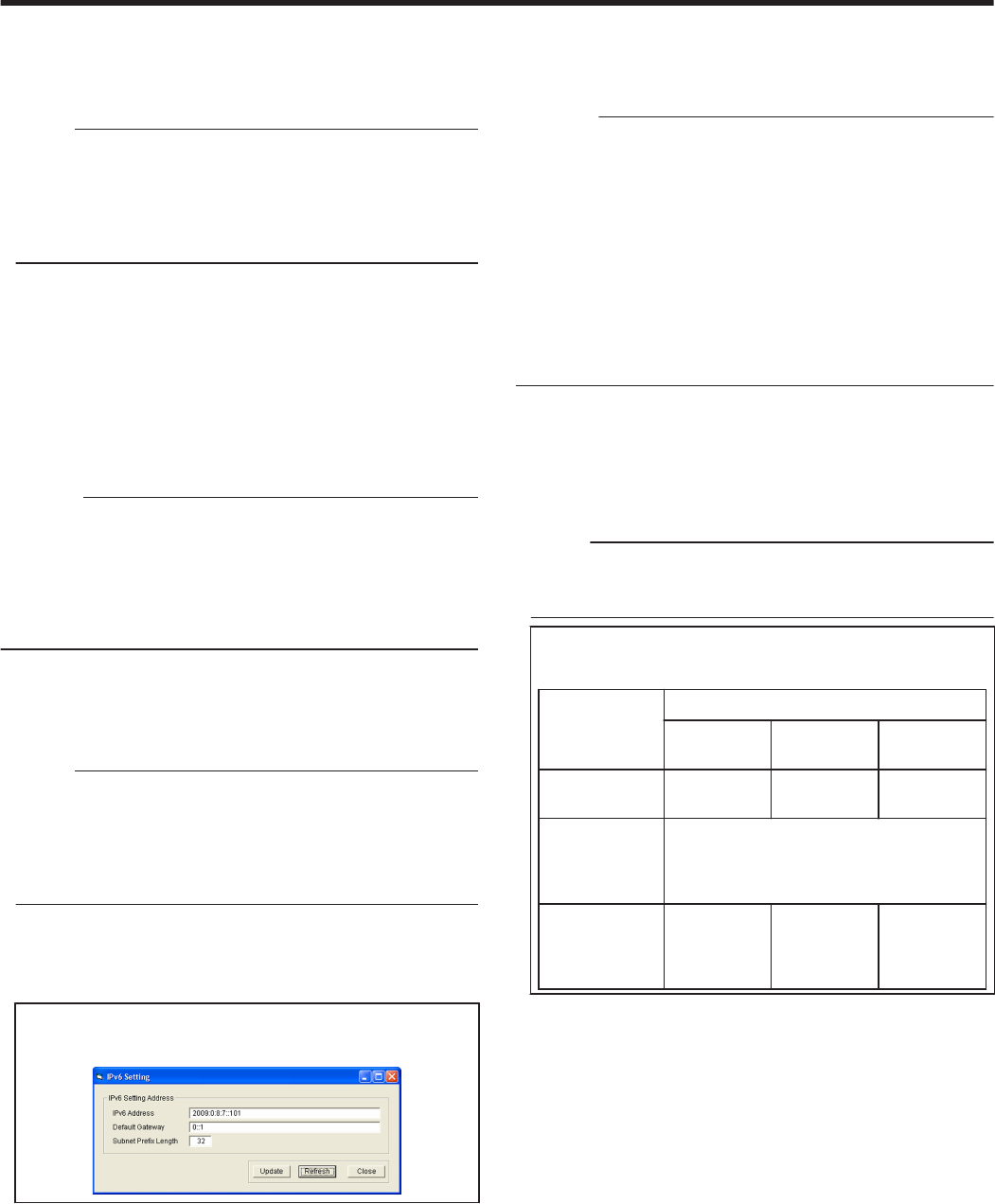
mObtain and IP Address Automatically
Values such as the IPv4 address can be automatically acquired from
the DHCPv4 server.
If the DHCPv4 server is not found, settings in the [Use the following
IP Address] will be applied.
Memo:
vFor values automatically acquired from the DHCPv4 server, only
the IP address is displayed in [Current Address].
vValues such as the IP address may change regularly according to
the DHCPv4 server settings.
vIf you want to use a static IP address for application software such
as the printer driver, set to [Use the following IP Address].
mUse the following IP Address
Uses a static IP address. Set the [IP Address], [Subnet Mask], and
[Default Gateway].
mCurrent Address
Displays the IPv4 address.
mIPv6 Network Setting
For setting items related to Ethernet (LAN). For Ethernet (LAN)
connection, the settings are displayed in the read-only mode, and they
cannot be changed.
Cautions:
vDetermine the network setting items according to the instructions of
the network administrator for the location where the printer unit is
installed.
vOther network devices may be affected if the network setting is
incorrect.
vWhen only USB connection is used, there is no need to specify the
network setting.
mObtain and IP Address Automatically
Values such as the IPv6 address can be automatically acquired from
the DHCPv6 server.
If the DHCPv6 server is not found, settings in the [Use the following
IP Address] will be applied.
Memo:
vFor values automatically acquired from the DHCPv6 server, only
the IP address is displayed when you click [Details...].
vValues such as the IP address may change regularly according to
the DHCPv6 server settings.
vIf you want to use a static IP address for application software such
as the printer driver, set to [Use the following IP Address].
mUse the following IP Address
You can specify a static IP address as follows.
Click [Details...] to set [IPv6 Address], [Default Gateway], and
[Subnet Prefix Length].
m[Details...] button
Displays the [IPv6 Setting] screen.
Set [IPv6 Address], [Default Gateway], and [Subnet Prefix Length].
.
mSecurity Setting
For setting items related to the IPSec of Ethernet (LAN). The settings
are displayed in the read-only mode when connection is established
via Ethernet (LAN). The settings cannot be changed.
Cautions:
vDetermine the setting items according to the instructions of the
network administrator for the location where the printer unit is
installed.
vEncrypted communication cannot be established if the security
settings are incorrect.
vWhen only USB connection is used, there is no need to specify the
security settings. USB connection does not support encrypted
communication.
vIt is not possible to specify the security settings for the printer unit
without using a USB connection.
vFor details on downloaded files to be used for the security settings,
refer to "IPSec".
"IPSec" (A page 84)
mIPSec Disable
Communication is enabled only when IPSec is not used. The default
setting is [IPSec Disable].
mIPSec Enable
Communication is established using IPSec. After [Details...] setting is
complete, [Preshared Key] or [Printer Certificate] is selected.
Memo:
vSelecting [IPSec Enable] enables [Details...].
vClicking the [Preshared Key] or [Printer Certificate] button does not
enable you to change the settings.
mEncrypted communication by IPSec
Refer to the table below on whether encrypted communication by
IPSec can be performed.
Printer
Settings
IPSec Policy of PC
Security
Required
Request for
Security
Not
Protected
“Disable
IPSec”
Communication
disabled
Normal
communication
Normal
communication
“Enable
IPSec” (When
authentication
fails)
Communication disabled
“Enable
IPSec” (When
authentication
is successful)
Encrypted
communication
Encrypted
communication
Communication
disabled
v[Details...] button
Displays the [IPSec Setting] screen.
Downloads files required for IPSec authentication to the printer.
Setup
115
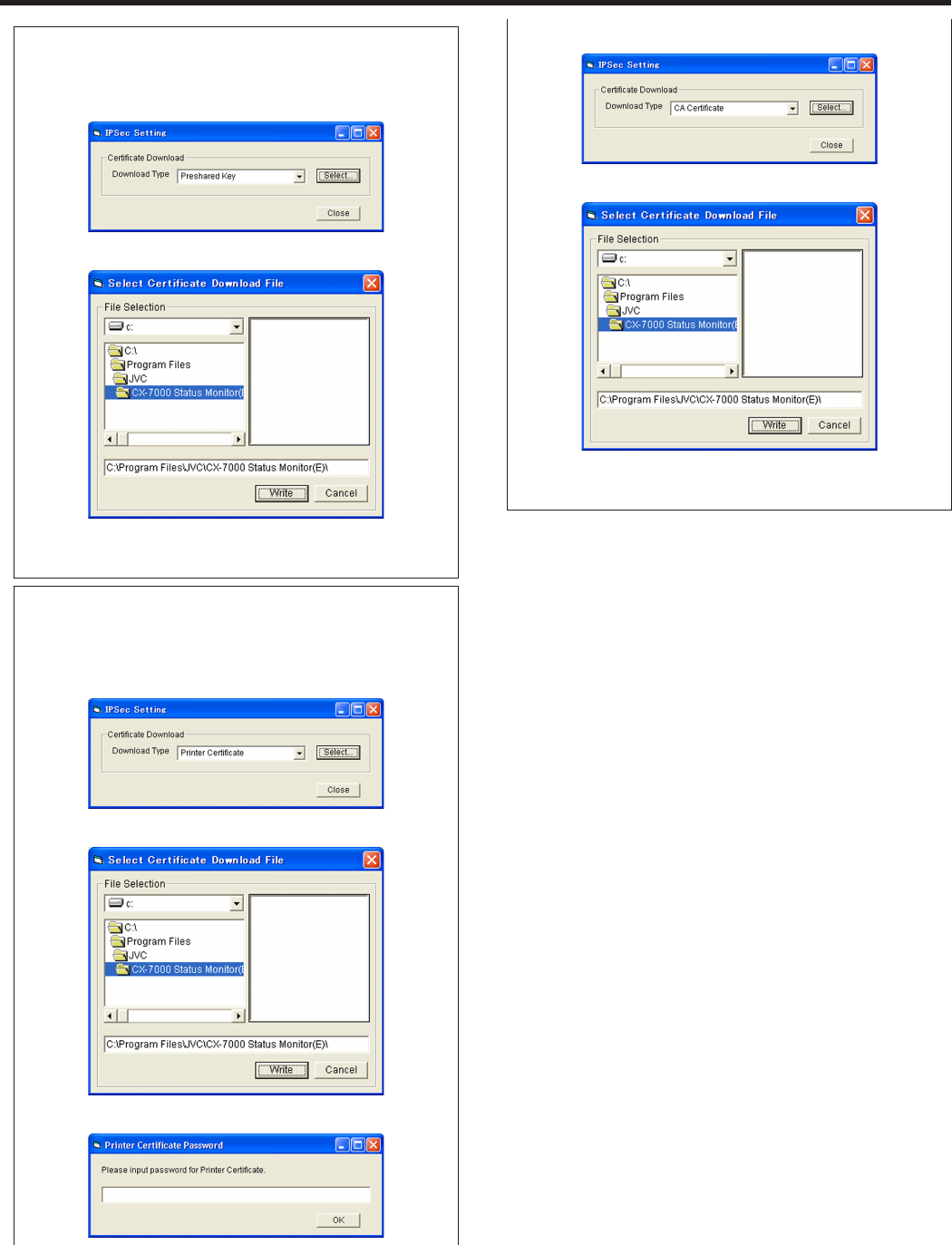
mFile settings required for preshared key authentication
A preshared key file is required for preshared key authentication.
1Select [Preshared Key] for [Download Type], and click
[Select...]
.
2Select a preshared key file, and click [Write]
.
3Click the [Close] button on the [IPSec Setting] screen
vIPSec setting for the printer is complete after closing the screen.
mFile settings required for certificate authentication
Certificate files for the printer as well as from the certification
authority are required for certificate authentication.
1Select [Printer Certificate] for [Download Type], and click
[Select...]
.
2Select a printer certificate file, and click [Write]
.
3Enter the password for the printer certificate file, and click [OK]
.
4Select [CA Certificate] for [Download Type], and click [Select...]
.
5Select a certification authority certificate file, and click [Write]
.
6Click the [Close] button on the [IPSec Setting] screen
vIPSec setting for the printer is complete after closing the screen.
mSync Time
clicking the [Sync Time] button sends out the current time of the PC
to the printer. You can specify this setting via USB or network
connection.
mOther Network Setting
mSession Timeout
For setting the time interval before disconnecting automatically if
there is no communication after printing connection is established.
The default setting is [None].
mMAC Address
Displays the MAC address of the printer.
m[Update] button
Applies the selected value to the printer.
m[Refresh] button
Displays the printer settings on the screen.
Setup
116
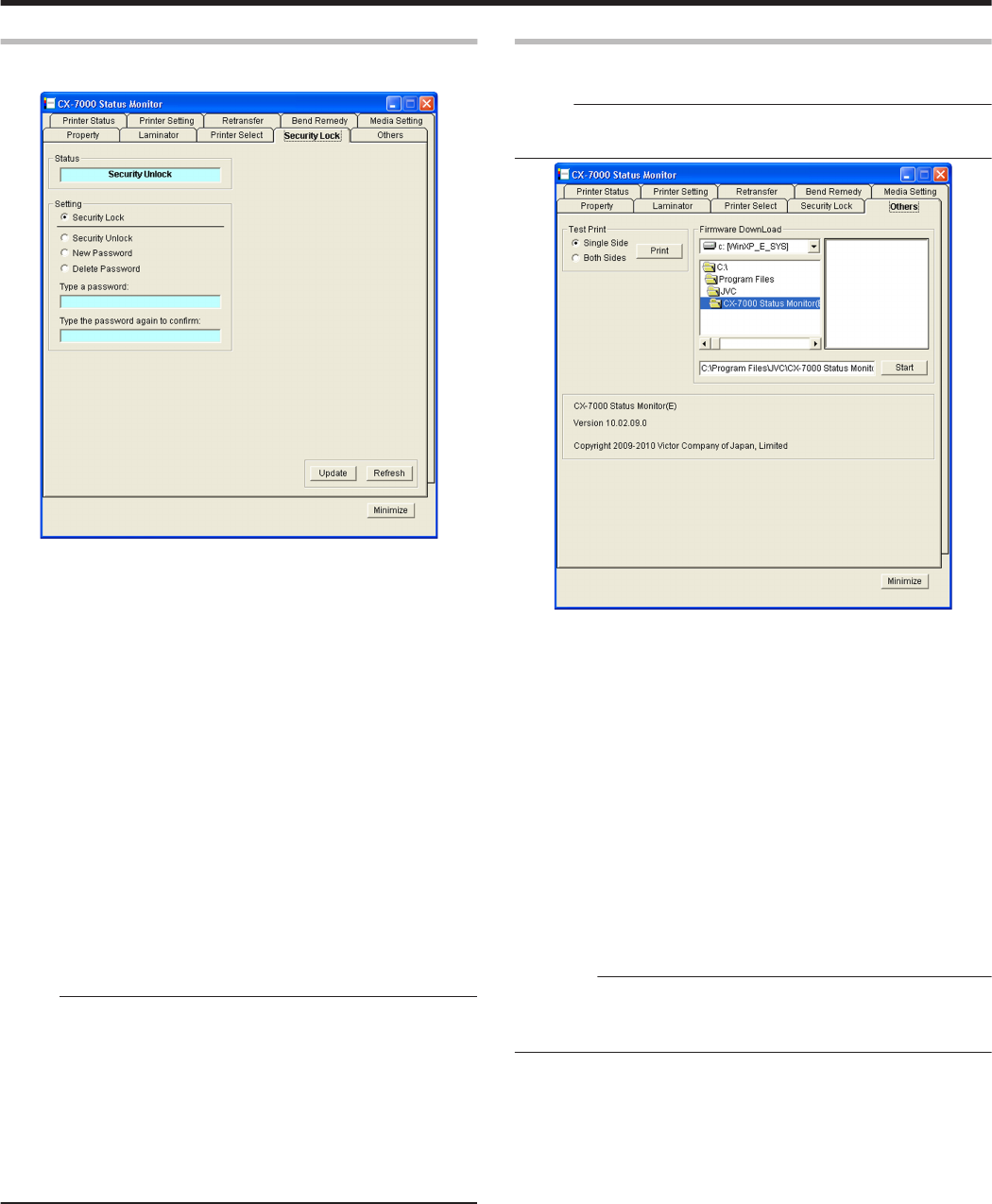
[Security Lock] Tab
For displaying and setting the security lock status.
.
mStatus
Displays the current security lock status.
mSetting
m[Security Lock]
Select [Security Lock], followed by clicking [Update] to activate the
security lock.
The security lock cannot be activated if a password is not specified.
m[Security Unlock]
Select [Security Unlock], enter the password in [Type a password],
followed by clicking [Update] to deactivate the security lock.
m[New Password]
Select [New Password], and enter a password of up to eight
characters.
Enter the same password for [Type a password] and [Type the
password again to confirm], followed by clicking [Update] to set the
password.
m[Delete Password]
Select [Delete password], enter the password in [Type a password],
followed by clicking [Update] to delete the password.
Memo:
vTo change the password, you have to delete it and register a new
password again.
vIf you forgot the password, please consult our authorized dealer or
the servicing personnel.
vThere is no relation between the password for the status monitor and
the security number that is input on the operation panel of the
printer. You can specify different values for these items.
The password for the status monitor supports alphanumeric
characters.
"Security Lock" (A page 20)
m[Update] button
Applies the selected value to the printer.
m[Refresh] button
Displays the printer settings on the screen.
[Others] Tab
This tab enables you to perform test prints and download the firmware.
Memo:
vFor printers connected via Ethernet (LAN), the test print and
firmware download items are not displayed.
.
mTest Print
Test print uses the printer’s self-diagnosis function without making use
of the printer driver. You can use it to verify whether the printer is
functioning correctly.
1Select [Single Side] or [Both Sides], and click [Print]
vTest print starts. The built-in standard color pattern of the printer is
printed on a card.
mFirmware DownLoad
Updates the printer’s firmware.
1Perform the “Firmware Update” procedure on the operation panel of
the printer
"Firmware Update" (A page 24)
2Select a file, and click [Start]
3Follow the instructions on the screen
Cautions:
vFor details on update of the printer’s firmware, please consult the
servicing personnel or our authorized dealers.
vThe printer may not start up if update of the firmware fails.
mSoftware
Displays the version and copyright information.
Setup
117
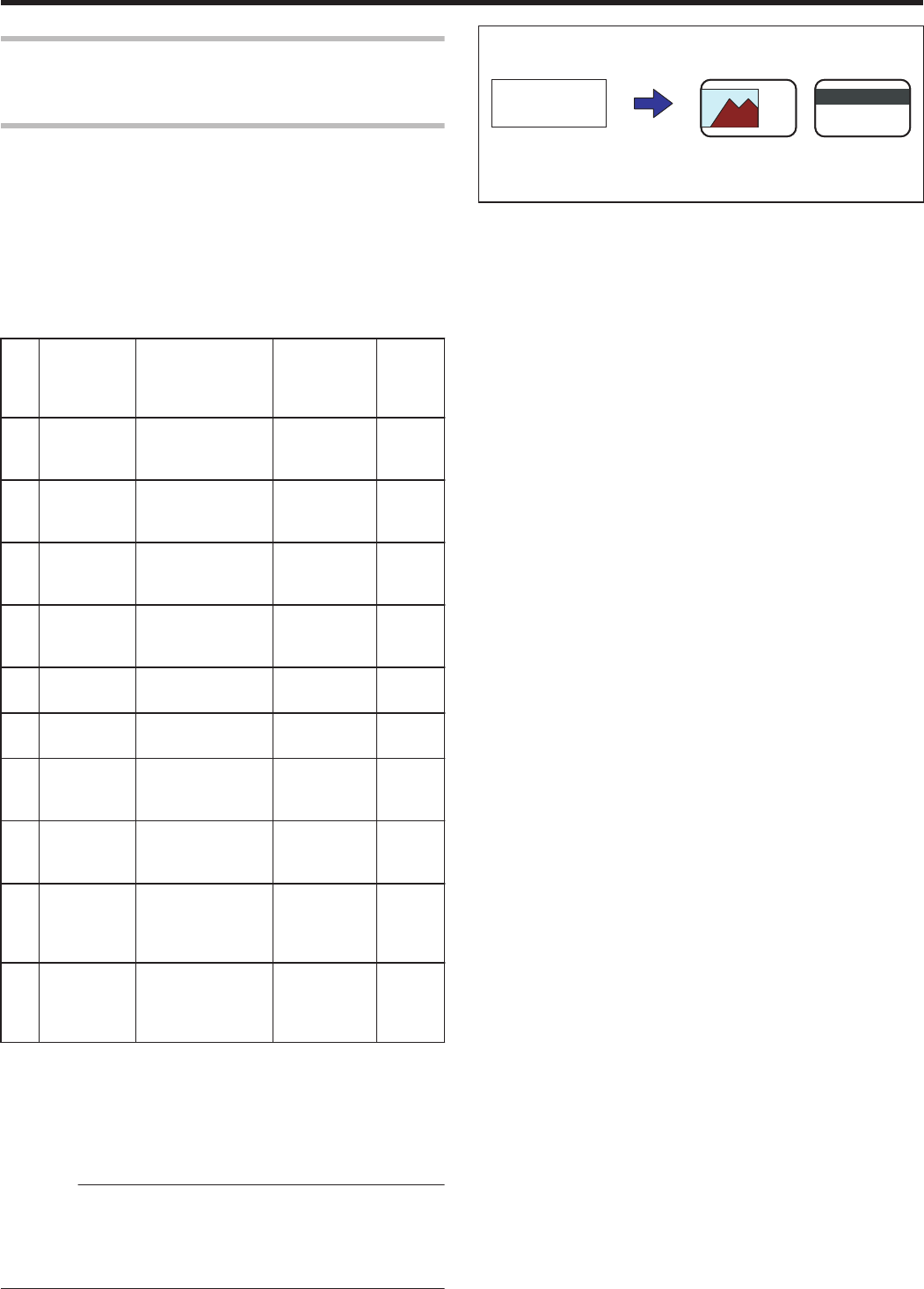
Inline Encoding
v"Inline Encoding Format" (A page 118)
v"Character Code List" (A page 119)
Inline Encoding Format
vInline encoding can be performed by enabling the settings in the
[Encode] tab of the printer driver settings.
"[Encode] Tab" (A page 94)
vEncoding data can be sent to the printer through the printer driver
using the special character strings (prefixes) described below.
This function is called “inline encoding”.
vAdding a prefix (tilde (~), ?, or numeric characters) at the beginning
of a text string enables the string to be recognized as encoding data.
Character strings including prefixes are not printed on the card when
they are recognized as encoding data.
No. Prefix (half-
width
character
string)
Text string
following prefix A
Usable
character
code list B
Max.
string
length
C
1 ~ ?0 String denotes
JIS2 magnetic
encoding data. D
7-unit code 69
2 ~ ?1 String denotes ISO
track 1 magnetic
encoding data.
6-unit code 76
3 ~ ?2 String denotes ISO
track 2 magnetic
encoding data.
4-unit code 37
4 ~ ?3 String denotes ISO
track 3 magnetic
encoding data.
4-unit code 104
5 ~ ?4 Contact IC
encoding data.
8-unit code 32760
6 ~ ?5 Non-contact IC
encoding data.
8-unit code 32760
7 ~ ?6 String denotes ISO
track 1 magnetic
encoding data.
7-unit code 69
8 ~ ?7 String denotes ISO
track 3 magnetic
encoding data.
7-unit code 69
9 ~ ?8 String denotes ISO
track 1 magnetic
encoding data
(AAMVA standard).
6-unit code 79
10 ~ ?9 String denotes ISO
track 3 magnetic
encoding data
(AAMVA standard).
6-unit code 79
A Make sure that the string is not broken, and use the same font.
B Encoding cannot be performed correctly if characters that do not
conform with the usable character code list are used.
C The maximum string length is the number of characters including
control codes and excluding prefixes.
D Half-width katakana characters can be used. For a list of usable
characters, refer to the Katakana Character Code List.
Cautions:
vCharacter strings may not be recognized as encoding data if they
are processed as graphics, such as screen captures. Processing of
character strings is dependent on the application software in use.
vEnter the inline encoding character strings in the first image of each
card to be printed.
mExample
.
A CB
~?1DEF
ABC DEF
ABC
A Textbox character strings of application software
B Character string to be printed on card
C Encoding data to be sent to ISO track 1
Setup
118
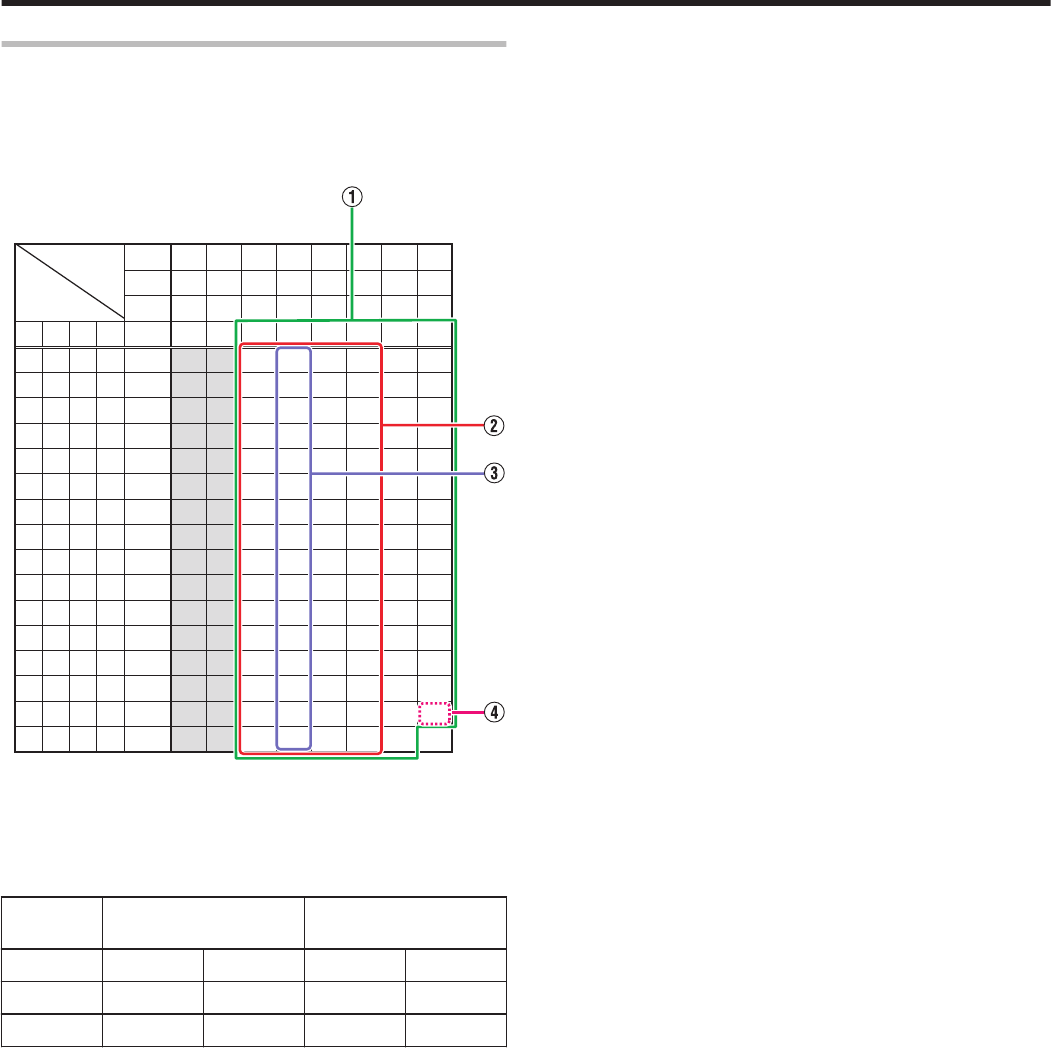
Character Code List
mASCII character code list
vBelow is the list of usable ASCII character codes. Specify the text
string to encode using the usable half-width characters for each of
the unit codes.
.
!
"
#
$
%
&
'
(
)
*
+
,
-
.
/
0
1
2
3
4
5
6
7
8
9
:
;
<
=
>
?
@
A
B
C
D
E
F
G
H
I
J
K
L
M
N
O
P
Q
R
S
T
U
V
W
X
Y
Z
[
\
]
^
_
`
a
b
c
d
e
f
g
h
i
j
k
l
m
n
o
p
q
r
s
t
u
v
w
x
y
z
{
|
}
~
DEL
LF
b4 b3 b2 b1
0 0 0 0
0 0 0 1
0 0 1 0
0 0 1 1
0 1 0 0
0 1 0 1
0 1 1 0
0 1 1 1
1 0 0 0
1 0 0 1
1 0 1 0
1 0 1 1
1 1 0 0
1 1 0 1
1 1 1 0
1 1 1 1
b7
b6
b5
0
1
2
3
4
5
6
7
8
9
A
B
C
D
E
F
0 0 0 0 1 1 1 1
0 0 1 1 0 0 1 1
0 1 0 1 0 1 0 1
0 1 2 3 4 5 6 7
A Range of usable text characters for 7-unit code
B Range of usable text characters for 6-unit code
C Range of usable text characters for 4-unit code
D Tilde character (Hexadecimal: 7E)
vThe start sentinel and end sentinel listed below cannot be used in
the encoding data.
Unit Code Start Sentinel
(Hexadecimal)
End Sentinel
(Hexadecimal)
4-unit code
; (3B) ? (3F)
6-unit code
% (25) ? (3F)
7-unit code
DEL (7F) DEL (7F)
Setup
119

List of Error Codes
Printer (Error Code:0x01000000-0x01040000)
No. Error Code Description Actions (Reference Page No.)
1 0x0102D000 Cards have run out. Replenish the cards. (A page 31)
The card hopper is detached. Install the card hopper. (A page 63)
2 0x0102D100 The printer door is open. Close the door, and press K N B to reset the printer. (A page
22)
The cleaning unit is detached. Install the cleaning unit. (A page 35)
3 0x0102D300 The printer is busy. -
0x0102D400
0x0102D500
4 0x0102DA00 Preheating is in progress. Wait until preheating is complete.
5 0x0102DB00 Printer is initializing. Wait until initialization is complete.
6 0x0102DC00 Offline testing is in progress. Wait until the offline test is complete.
Cleaning is in progress. Wait until cleaning is complete.
7 0x0102DD00 Operation panel is currently in use. -
The printer is in the transport mode. Cancel the transport mode. (A page 29)
8 0x0102DE00 The firmware cannot be downloaded. Set the printer to the download mode. (A page 24)
9 0x0102FD00 The printer is in the Power Saving mode. Resetting the printer temporarily cancels the Power Saving mode. (A
page 22)
The printer resets automatically when the printer driver is used to start
printing.
10 0x0102FE00 Password authentication is not complete. -
11 0x0102RRRR The printer is not ready. -
12 0x01039000 Failure occurred during card loading. Remove the card according to the procedure for the "Error Code: Jam
(Hopper) 90". (A page 46)
13 0x01039100 Card jam near the card turn over unit. Remove the card according to the procedure for the "Error Code:
Jam(TurnOver) 91". (A page 47)
14 0x01039200 Card jam near the magnetic encoder. Remove the card according to the procedure for the "Error Code: Jam
(MG) 92". (A page 49)
15 0x01039300 Card jam near the card feed roller. Remove the card according to the procedure for the "Error Code: Jam
(Transfer) 93". (A page 50)
16 0x01039400 Card jam near the card outlet. Remove the card according to the procedure for the "Error Code: Jam
(Discharge) 94". (A page 51)
17 0x01039500 Card jam near the retransfer heating roller. Remove the card according to the procedure for the "Error Code: Jam
(Retran.) 95". (A page 52)
18 0x0103A100 Retransfer film is broken. Repair the retransfer film. (A page 56)
Retransfer film is not detected. Install the retransfer film correctly. (A page 61)
19 0x0103A800 A writing error has occurred during magnetic
encoder self-diagnosis.
Check the card specifications.
20 0x0103AD00 An error has occurred during magnetic encoding
data writing.
21 0x0103AE00 An error has occurred during magnetic encoding
data reading.
22 0x0103B000 An incorrect ink ribbon is installed. Install a correct ink ribbon.
23 0x0103B100 Ink ribbon is broken. Repair the ink ribbon. (A page 54)
Ink ribbon is not detected. Install the ink ribbon correctly. (A page 60)
24 0x0103RRRR A media error has occurred. Check the card specifications.
Setup
120
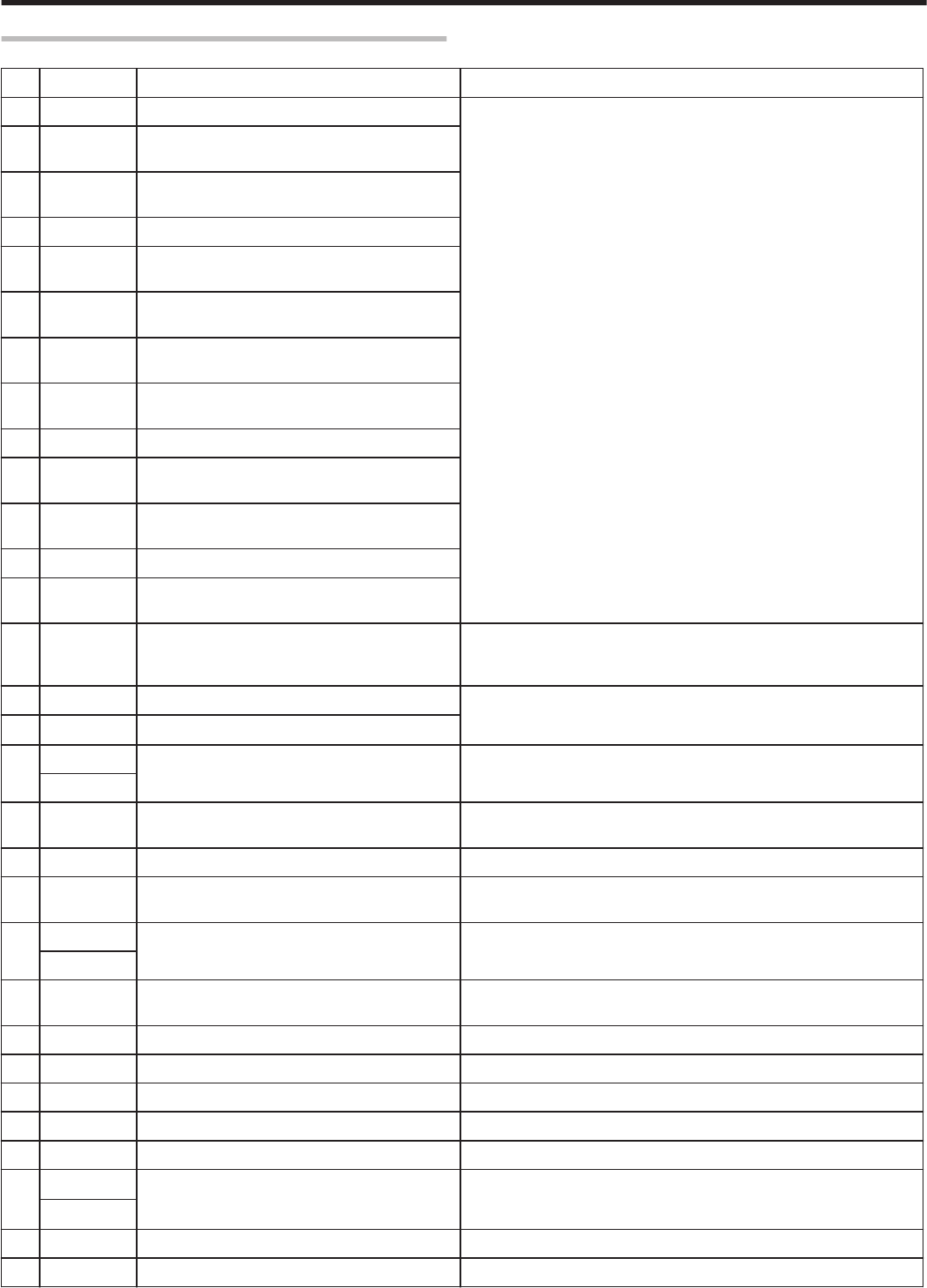
Printer (Error Code:0x01040000-0x02000000)
No. Error Code Description Actions (Reference Page No.)
25 0x01044400 A hardware error has occurred. Turn off and on the power again. If the same problem recurs, turn off
the power and consult our authorized dealers.
26 0x0104AB00 An error has occurred in the mechanical
component of the magnetic encoder.
27 0x0104AC00 A hardware error has occurred in the magnetic
encoder.
28 0x0104C100 A heating roller operation error has occurred.
29 0x0104C200 The temperature of the bend remedy heating
roller or retransfer heating roller is too high.
30 0x0104C300 An internal 24v instantaneous interruption is
detected.
31 0x0104D800 A hardware error has occurred during
initialization.
32 0x0104F000 The temperature of the retransfer heating roller is
too high.
33 0x0104F100 The retransfer heating roller is faulty.
34 0x0104F200 The thermistor of the retransfer heating roller is
faulty.
35 0x0104F300 The temperature of the bend remedy heating
roller is too high.
36 0x0104F400 The bend remedy unit is faulty.
37 0x0104F500 The thermistor of the bend remedy heating roller
is faulty.
38 0x0104F600 The operating ambient temperature of the printer
is too low.
Check the temperature. If the same problem recurs within the range of
operating ambient temperature, turn off the power and consult our
authorized dealers.
39 0x0104F800 The temperature of the thermal head is too high. Turn off and on the power again. If the same problem recurs, turn off
the power and consult our authorized dealers.
40 0x0104RRRR A hardware error has occurred.
41 0x01051A00 Printer command is incorrect. Please consult our authorized dealers.
0x01052000
42 0x01052100 A security key has already been set. A new
security key cannot be specified.
-
43 0x01052200 Entry does not match the preset security key. -
44 0x01052300 Security key has not been specified. The security
lock function is not enabled.
-
45 0x01052400 Printer command is incorrect. Please consult our authorized dealers.
0x01052600
46 0x01052700 Ink ribbon specification is incorrect.
Ensure that the printer driver’s ink setting matches the installed ink ribbon.
(A page 87)
47 0x01052A00 Printer command is incorrect. Please consult our authorized dealers.
48 0x01052B00 Magnetic encoding data is incorrect. Check the card specifications.
49 0x01052C00 IC encoder is not installed. -
50 0x01052D00 Magnetic encoder is not installed. -
51 0x01052E00 Optional devices are not installed. -
52 0x0105RRRR A command error has occurred. Please consult our authorized dealers.
0x010BRRRR
53 0x0142A200 Retransfer film has run out. Replace with a new one. (A page 33)
54 0x0142B200 Ink ribbon has run out. Replace with a new one. (A page 32)
Setup
121
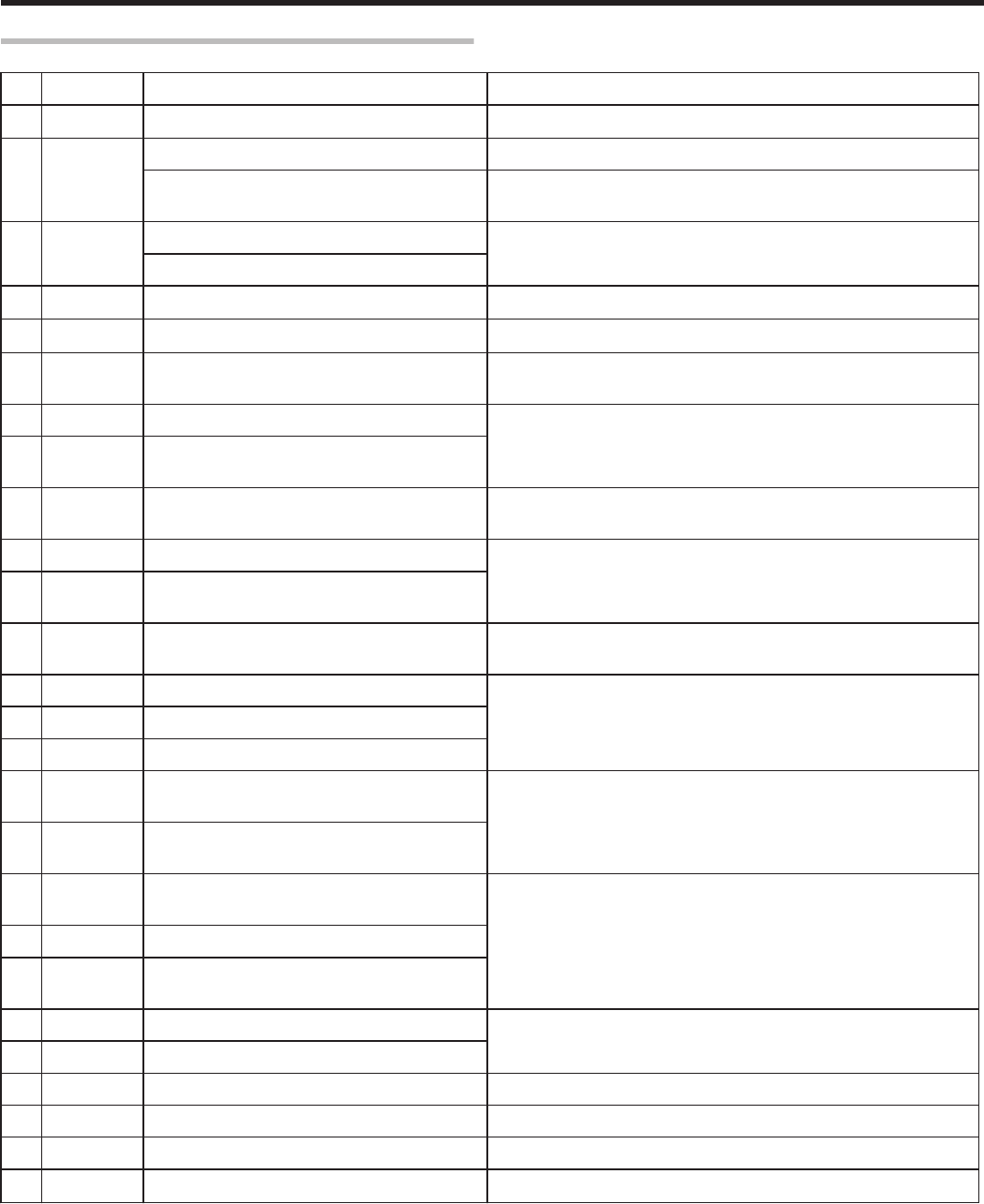
Printer Driver (Error Code:0x02000000-)
No. Error Code Description Actions (Reference Page No.)
10x02RRRRRR Printer is not found. Check the printer connection.
2 0x0300274D Printer is not found. Check the printer connection.
Printing using a USB-connected printer cannot
be performed via Ethernet (LAN) connection.
To print via Ethernet (LAN) connection, disconnect the USB cable from
the printer. (A page 64)
30x03RRRRRR Printer is not found. Check the printer connection.
A communication error has occurred.
40x04RRRRRR A communication error has occurred. Check the printer connection.
50x09RRRRRR A command error has occurred. Check the computer settings.
6 0x10000103 An error has occurred during magnetic encoding
data writing.
Check the card specifications.
7 0x10000201 Contact IC encoding program is not found. Please consult our authorized dealers.
8 0x10000202 Unable to establish communication with the
contact IC encoder.
9 0x10000203 An error has occurred during contact IC encoding
data writing.
Check the card specifications.
10 0x10000301 Non-contact IC encoding program is not found. Please consult our authorized dealers.
11 0x10000302 Unable to establish communication with the non-
contact IC encoder.
12 0x10000303 An error has occurred during non-contact IC
encoding data writing.
Check the card specifications.
13 0x10000401 User program is not found. Please consult our authorized dealers.
14 0x10000403 An error is returned for the user program.
15 0x10000501 Magnetic encoding program is not found.
16 0x10000503 An error has occurred during magnetic encoding
data writing.
Check the card specifications.
17 0x10000504 An error has occurred during magnetic encoding
data reading.
18 0x10000505 A magnetic encoding command error has
occurred.
Please consult our authorized dealers.
19 0x10000601 End notification program is not found.
20 0x10000603 An error is returned for the end notification
program.
21 0x10001001 Ink ribbon cannot be recognized. Ensure that the printer driver’s ink setting matches the installed ink
ribbon. (A page 87)
22 0x10001002 Ink ribbon specification is incorrect.
23 0x10001003 IC encoder is not installed. -
24 0x10001004 Magnetic encoder is not installed. -
25 0x10002000 Printer is not found. Check the printer connection.
26 0x1000200RThe printer is not ready. -
Setup
122
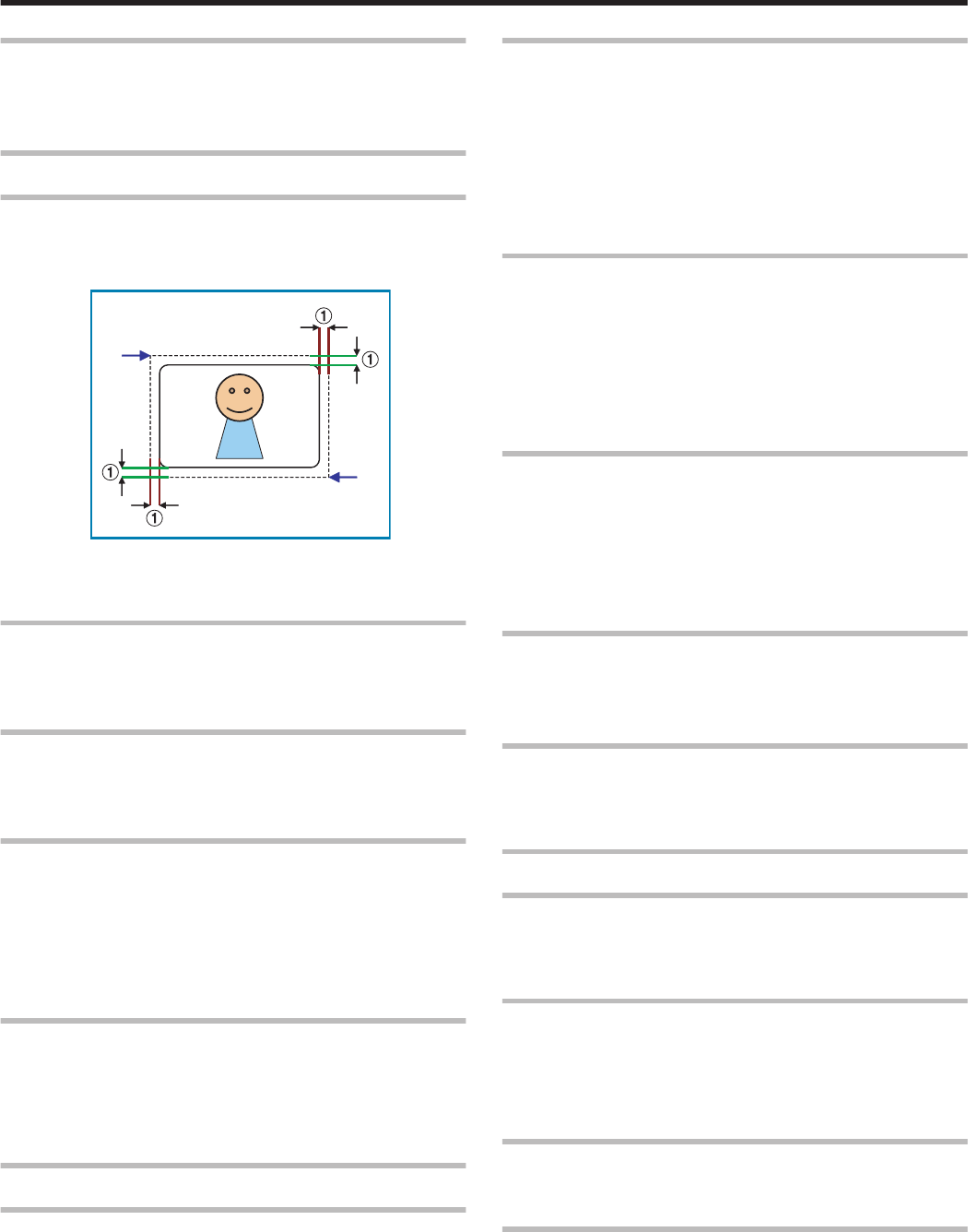
Frequently Asked Questions
v"Printing Settings" (A page 123)
v"UV Ink" (A page 123)
v"Others" (A page 123)
Printing Settings
The edge of the image is not printed
vCheck the printing margin setting in the application software.
vAbout 1 mm from the edge of the image is not printed on the card.
Refer to the following diagram.
.
C
B
A About 1 mm
B (X=0, Y=0)
C (X = approx. 87.5 mm, Y = approx. 56.0 mm)
The card is discharged without being printed
vThe [Print] checkbox in the [Print] tab may not be selected. Select
the [Print] checkbox.
"[Print] Tab" (A page 87)
How can I print black color using the Resin K ink?
vSelect [2.K], [3.YMCK], [5.K+UV] or [6.YMCK+UV] for [Print mode] in
the [Print] tab.
"[Print] Tab" (A page 87)
How can I print a card using the security erase function?
vSelect [2.K], [3.YMCK], [5.K+UV] or [6.YMCK+UV] for [Print mode] in
the [Print] tab, and select the [Security erase] checkbox.
Doing so enables the security erase function for the Resin K ink.
The security erase function is enabled when using the YMCK,
YMCKK or YMCKUV ink.
For details on the settings, please consult our authorized dealers.
"[Print] Tab" (A page 88)
How can I store the print settings?
vClicking [Save...] in the [Setup] tab enables you to save the print
settings in a file.
Clicking [Load...] in the [Setup] tab restores the print settings from
the saved file.
"[Setup] Tab" (A page 87)
UV Ink
How can I print cards using the UV ink ?
vSelect [4.YMC+UV], [5.K+UV], or [6.YMCK+UV] for [Print mode] in
the [Print] tab, and specify the relevant item in [UV ink...].
If UV ink is not installed into the printer, an error will occur during
printing.
"[Print] Tab" (A page 87)
"[UV ink] Dialog Box" (A page 91)
Image at the top right corner is not printed
vIn the case of printing using UV ink, the printer always prints the
MAC address. If the “Number of retransfer film panels” in the UV ink
settings is set to “1 panel”, the printer will not print the image that is
inside the MAC address printing area (top right or bottom left corner).
Position the image so that the printing area of the YMCK ink does
not overlap with that of the MAC address.
If the “Number of retransfer film panels” is set to “2 panels”, the
printer will print the YMCK image.
"MAC Address Position" (A page 92)
A part of the image is not printed
vIf the “Number of retransfer film panels” in the UV ink settings is set
to “1 panel”, the area where the UV ink overlaps with the YMC ink
will not be printed.
Position the image so that the printing area of the YMC ink does not
overlap with that of the UV ink.
If the “Number of retransfer film panels” is set to “2 panels”, the
printer will print the YMCK image.
"Number of retransfer film panels during printing" (A page 93)
How can I print images with the UV ink without the
background color?
vPaint the background of the image with a specific color such as by
using a graphic software.
Set the color in [No printing color] of the [UV ink] dialog box.
Select the background color carefully, as any color in the image that
is the same as the background color will not be printed.
"No printing color" (A page 91)
Image using the UV ink is not printed
vThe format of the image file is not supported.
"Windows Bitmap File Format" (A page 93)
vOther application software may be using the image file.
Hidden by the Resin K ink
vIf the “Number of retransfer film panels” in the UV ink settings is set
to “1 panel”, UV ink will not be printed at the area where it overlaps
with the K ink.
Others
How can I perform magnetic/IC encoding?
vSpecial applications are required for methods other than inline
encoding.
For more details, please consult our authorized dealers.
Printing cannot be performed through network sharing
vWhen the access authority of the computer is not proper, the printer
may be unable to perform printing even if installation of the printer
driver is completed through network sharing.
Ensure that the access authority is proper according to the
instructions of the network administrator.
How can I set USB as default?
vYou can fix the interface to “USB” by setting [Default Interface] in the
[Printer Select] tab on the status monitor to [USB].
How can I set the IP address of the network?
vTo set the network, it is necessary to connect the printer via USB
and perform the setting on the status monitor.
Install the USB driver. After setting the network, remove the USB
cable.
Setup
123

CX-7000
Card Printer
LST1006-002B
