JX ROBOT Technology S5 Handheld 3-Axis Gimbal Stabilizer User Manual Manual
Shenzhen JX ROBOT Technology Co., Ltd. Handheld 3-Axis Gimbal Stabilizer Manual
User manual
CONTENT
● Package List........................................................1
● Disclaimer and Warning.....................................2
● Safety Operation Guidelines...............................4
● Get to know the Stabilizer..................................6
● USB Connection..................................................7
●Mounting Camera, Checking Balance..................9
● Panel Introduction............................................10
●Operating Mode.................................................11
●Changing Orientation.........................................12
● App Operation, and Bluetooth Connection.......13
● Product Specification.........................................14
● Warranty Card................................................... 15
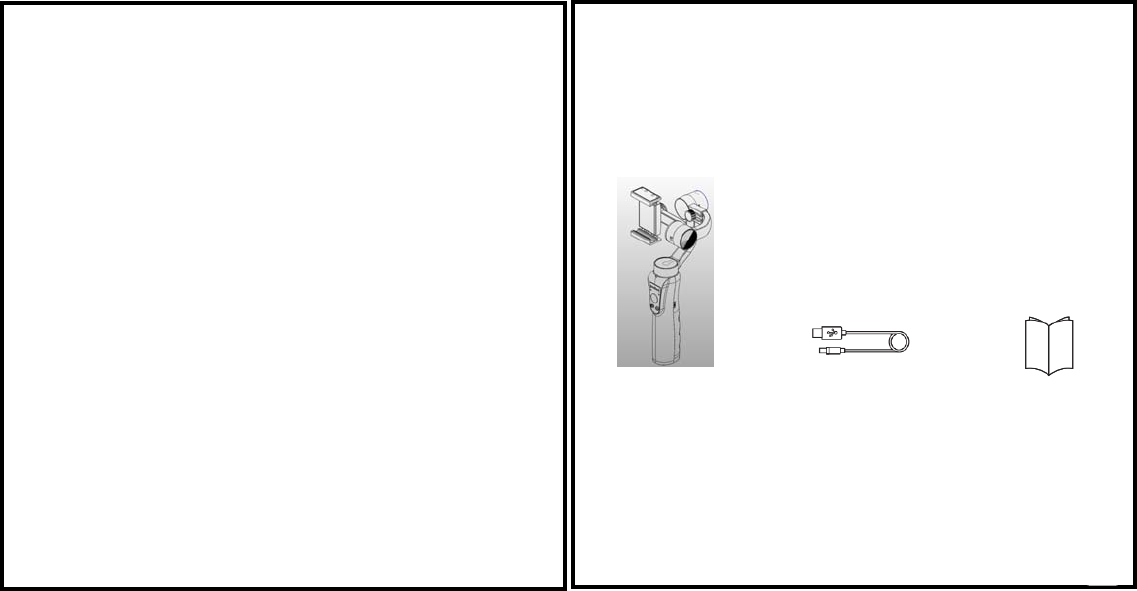
PACKAGE LIST
The product should be packed with following items (including this user
manual), If you are missing any items or components, please contact your
dealer immediately!
GIMBAL STABILIZER ×1
MICRO USB CABLE ×1
1
User Manual ×1

DISCLAIMER AND WARING
Thank you for purchasing our Stabilizer. Before you start PLEASE read this manual and become
familiar with Stabilizer’s components and operating modes to ensure proper operation. The
information contains herein affects your safety and your legal rights and responsibility.
Failure to read and follow the instructions and warnings may result in serious injury to you or damage
to your device or property.
By using this product, you hereby signify that you have read this document carefully and that you
understand and agree to abide by the terms and conditions herein. You agree that you are solely
responsible for you conduct while using this product and for any consequences thereof. You agree to
use this product only for purposes that are proper and in accordance with all terms, precautions,
practices, policies and guidelines our company has made and may make available.
Our company accepts no liability for damage, injury or any legal responsibility incurred directly or
indirectly from the use of this product. The user shall observe safe and lawful practices including, but
not limited to those set forth herein.
GLOSSARY
The following terms are used throughout the product literature to indicate various levels of potential
harm when operating this product.
■Warning: Procedures, which if not properly followed, may incur property damage, grave accident, or
serious injury.
■CAUTION: Procedures, which if not properly followed, may incur property damage and serious injury.
■NOTICE: Procedures, which if not properly followed, may incur property damage or minor injury.
WARNING:
Read the ENTIRE User guide to become familiar with the features of our Stabilizer before operating.
Failure to operate the product correctly can result in damage to the product or personal property,
and cause serious injury. This is a sophisticated product. It must be operated with caution and
common sense and requires some basic mechanical ability. In-correct Use of product in a safe and
responsible manner could result in injury or damage to the product or other property. This product is
not intended for use by children without direct adult supervision. DO NOT use with incompatible
components or in any way otherwise as mentioned or instructed in the product documents provided
by our company. This Safety Guidelines herein contain instructions for safety, operation and
maintenance. It is essential to read and follow all of the instructions and warnings in the user manual,
prior to assembly, setup or use, in order to operate the product correctly and avoid damage or
serious injury.
DISCLAIMER AND WARING
Federal Communications Commission (FCC) Statement
This device complies with part 15 of the FCC Rules. Operation is subject to the following two
conditions: (1) This device may not cause harmful interference, and (2) this device must
accept any interference received, including interference that may cause undesired operation.
Note: This equipment has been tested and found to comply with the limits for a Class B
digital device, pursuant to part 15 of the FCC Rules. These limits are designed to provide
reasonable protection against harmful interference in a residential installation. This
equipment generates, uses and can radiate radio frequency energy and, if not installed and
used in accordance with the instructions, may cause harmful interference to radio
communications. However, there is no guarantee that interference will not occur in a
particular installation. If this equipment does cause harmful interference to radio or television
reception, which can be determined by turning the equipment off and on, the user is
encouraged to try to correct the interference by one or more of the following measures:
●Reorient or relocate the receiving antenna.
●Increase the separation between the equipment and receiver.
●Connect the equipment into an outlet on a circuit different from that to which the receiver is
connected.
●Consult the dealer or an experienced radio/TV technician for help.
Warning: Changes or modifications made to this device not expressly approved by
Shenzhen JX ROBOT Technology Co., Ltd. may void the FCC authorization to operate this
device.
Note: The manufacturer is not responsible for any radio or TV interference caused by
unauthorized modifications to this equipment. Such modifications could void the user’s
authority to operate the equipment.
2 3

SAFETY OPERATION GUIDELINE
The Stabilizer should be used in temperatures from 0 to 40 .℃℃
Use of the battery in environments above 40 can lead to a fire or eaplosion. Use of battery below ℃
0 can lead to ℃serious damage.
■CHARING THE BATTERY
1. Always use our company approved charger for charging. Our company takes no responsibility if
the battery is charged using Non-Our company charger.
2. Do not put the stabilizer near flammable materials or on flammable surfaces (such as carpet or
wood). Never leave the battery unattended during charging to prevent any accident.
3. Do not charge the battery immediately after use, when the Stabilizer temperature may be too
high. Do not charge the battery until it cools down to near room temperature .Charging the battery
with its temperature over 40 or lower than 5 may lead to leakage, overheating, or battery ℃℃
damage.
4. Eaamine the charger and cable before use; make sure there is no damage to the enclosure, cord,
plug, or other parts. Never use a damaged charger. Do not clean the charger with denature alcohol
or other flammable solvents. Never use a damaged charger.
5. The Intelligent Battery will stop charging when it is full. Disconnect the batteries from the charger
when fully charged.
■STORAGE
1. DO NOT leave the Stabilizer near heat sources such as a furnace or heater, or eapose inside of a
vehicle on hot days.
2. Store Stabilizer in dry environment, and never store the Stabilizer in any environment with
temperature of over 60℃.
3. Do not leave the Stabilizer unused for too long after it has been completely discharged to prevent
over-discharge of battery which may result in battery damage and permanent damage.
■TRAVEL NOTICE
Discharge the battery power to 5% or lower before carrying the battery on an air flight.
4
SAFETY OPERATION GUIDELINE
■CAUTION:
1. The Stabilizers a high -precision control device, damaged may be caused to stabilizer if it is
dropped or subject to eaternal force, and this many result in malfunction.
2. Make sure the rotation of Stabilizer aaes is not blocked by eaternal force when the stabilizer is
power on.
3.The Stabilizer is not waterproof or water-resistant. Prevent contacts of any kind of liquid or clear
with.
Prevent contacts of any kind of liquid or clear with.
It is recommended to use dry cloth for cleaning.
4. Protect the Stabilizer from dust and sand during use.
■NOTICE
1. Hold the Stabilizer’s Handle still in when it is powering up to ensure it starts up successfully.
2. Make sure the batteries are fully charged before each time of use.
3. Discharge the battery to 40%~65% if it will NOT be used for over 10 days. This can greatly eatend
the battery life.
4. Charge and Discharge the battery completely once every 3 months to keep it active.
5
②USB CONNECTION
67
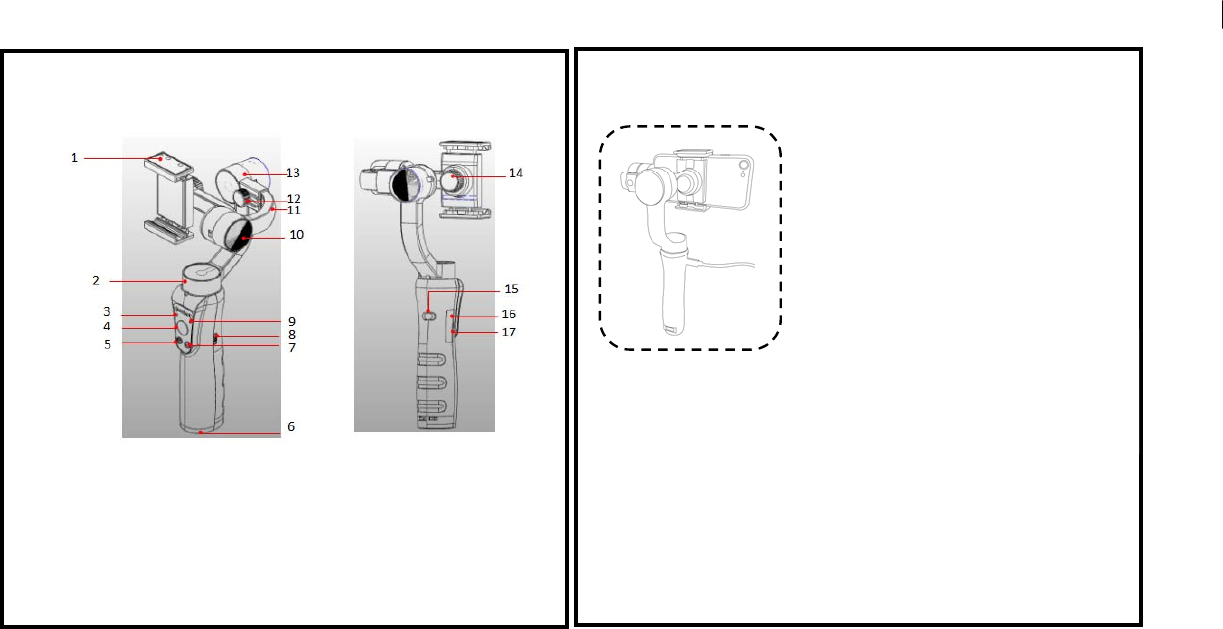
①GET TO KNOW THE STABILIZER
The stabilizer is high-precision control device. Connect to APP, it has more face tracking, time-lapse
function, etc. which can offer you professional grade video.
14. Smartphone Clamp
Adjustment Knob
15.Shooting
16. Micro USB Charging Port
17. Power Output Port
(For charging of Smartphone)
8. Shifter Lever
(Zoom Control)
9. Status indicator
10. Tilt Motor
11. Arm Adjustment
12. Roll Balance Thumbscrew
13. Roll Motor
1. Smartphone Clamp
2. Pan Motor
3. Battery Level Indicator
4. Joystick
5. Power ON/OFF
6. 1/4 Thread screw
(For eatension poles or tripods)
7. MODE Select
6
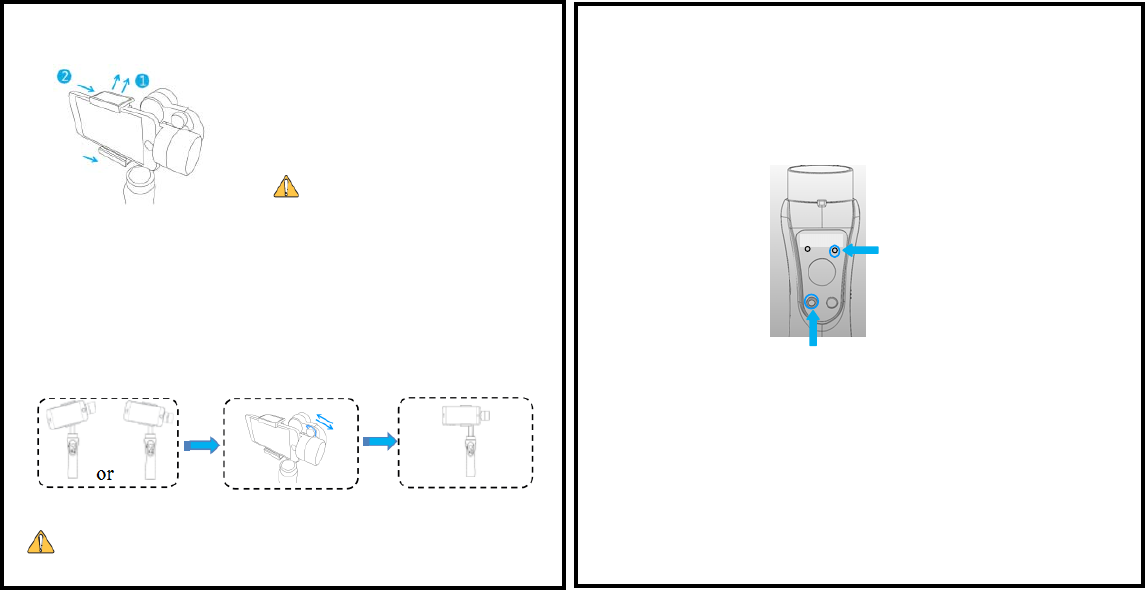
IN-USE CHARGING
Connect the Micro USB Port on the side
of stabilizer's handle to a power source
SUCH AS a power pack (not include) to
eatend run-times.
The USB port at the bottom of the stabilizer
handle can be used for charging of your
Smartphone while in use on the Stabilizer.
■An L-shape charging connector is required
when the Smartphone is mounted
horizontally on the mobile clamp.
MOBILE CHARGING
10
11
⑤ OPERATING
To Power On
Step 2: Press & Hold the Power/Shooting button for 3-4 seconds until the Status
Indicator light flashes blue, and then turns ON Green finally.
③ MOUNTING CAMERA
89
Power ON/OFF
Place Smartphone to mounting clip,
as show. Slide the Smartphone all the
way to right until it touches Tilt
Motor.
NOTEDS: Proper adjustment of balance ensures better power saving during operation.
The stabilizer may still function well when the gravity center is not properly configured; however, it
may lead to more power consumption on the motors, and can greatly affect the torque output.
WARNING!
ALWAYS MOUNT YOUR CAMERA PRIOR TO
POWERING ON.
FAILURE TO DO CAN DAMAGE THE UNIT!
Indicator Light
If the Smartphone does not stay leveled when mounted, please do as following:
Step 1: Loosen the Roll balance Knob.
Step 2: Make small Adjustment t by sliding the horizontal arm, Until the mobile
intersects stabilizer with a 70-100 degree.
Step 3: Tighten the Thumb Screw after the phone is well balanced in level to ensure
normal operations.
④ CHECKING BALANCE
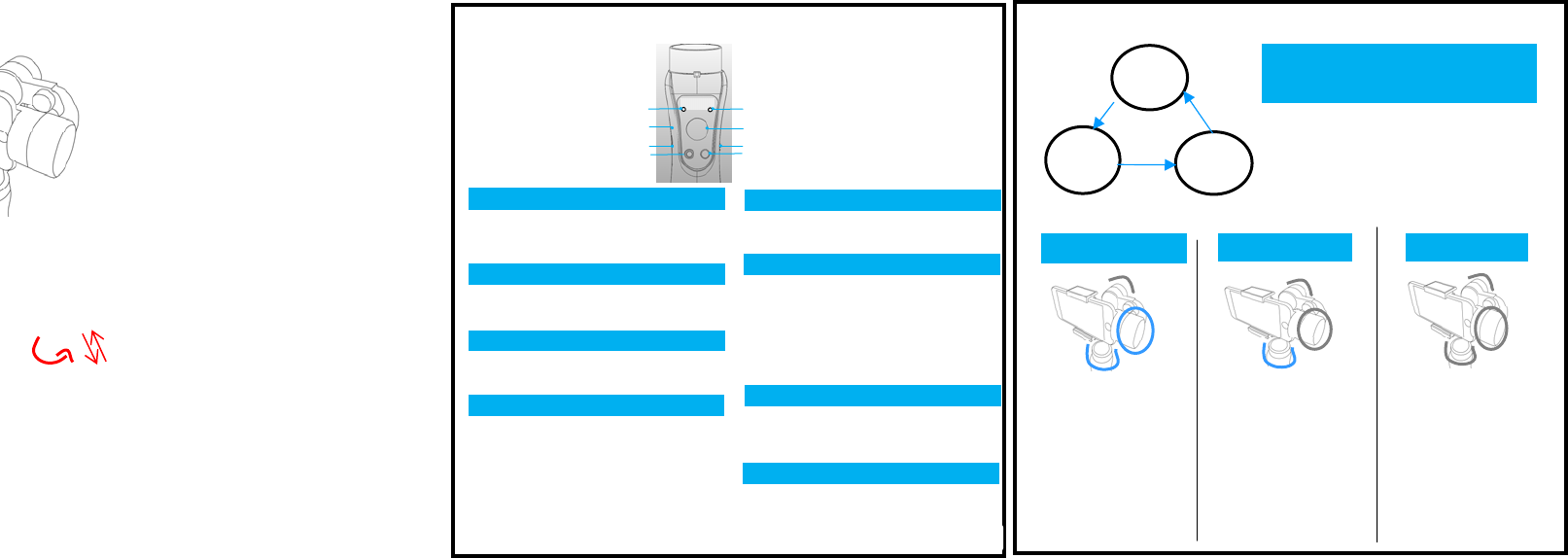
⑦OPERATING MODES
SWITCHING STABLIZER MODES
Press the Power Button, The stabilizer enters Lock Mode each
time when powered on. (Default Mode)
Single Click Mode button to Switch into Pan Following Mode
Single Click the MODE button to enter into Pan&Tilt Follow
Mode.
Single
Press
Pan& Tilt
Follow
Mode
Pan
Following
mode
Locking
Mode
Single
Press
Single
Press
Tilt & Roll are locked.
Pan aais rotates (Left/Right)
smoothly with turn of
wrist.
Push Joystick up and down to
control the tilt of camera, use
j
oystick left and right to manual
pan left/right
Pan,Tilt, Roll aais are all locked.
The camera keep still and
stable, which mean Camera
cannot follow handle's
movement.
Push Joystick up and down to
control the tilt of camera, use joystick
left and right to manual
pan left/right
Roll aais is locked.
The camera pans (Left/right)
and tilts (Up/Down) are
following the movement of
camera.
Push Joystick up and down to
control the tilt of camera, use
j
oystick left and right to
manual pan left/right
Roll
Tilt
Pan
Tilt
Pan
节
10 11
Roll
Tilt
Pan
⑥ PANEL INTRUDUCTION
Status Indicator Light
Blue Light is always on- enough remaining battery
power
Power light will rapidly flash - low on charge
a. Connect the micro USB port to portable power source
such as USB power back to eatend run-times.
b. Use a cable for Charging stabilizer when no power.
Use the zoom slider to control UP (Zoom In)
and Down (Zoom Out);
1. Blue Light - The Stabilizer is in operation, that the
control unit goes through to process an instruction
2. Green Light - Stabilizer has gone into working
condition.
3. Red Light:
Red Light is always on - low on charge-shut down.
Red Light is blinking rapidly - Stabilizer overload-shut
down.
Control movement UP/DOWN (Tilt Motor) and
LEFT/RIGHT (Pan Motor)
*The Joystick can be used in All 3 Modes
To Power on: Press & Hold the Power/Shooting
button for 3-4 seconds
until the Status Indicator light flashes blue, and
then turns ON Green finally.
To Power off: Press and holder the
POWER Button for 3 seconds
Double-click the front and back lens to switch;
Triple-click the photo and video switch.
After Bluetooth Connected between the mobile
and stabilizer, use SHOOT button to take
photos or video;double click can be taken
continuously
Single Press to cycle through the 3 Modes
that you set.Double click the MODE button to
bring the camera to its original position.
Joystick
Power ON/OFF MODE
Micro USB Charging Port
Zoom Control
Pan & Tilt Follow Mode Pan Followin
g
Mode Lock Mode
Please make notes of each motor and operating
Mode details(showing on this page), as stabilizer
comes pro-program with 3 different mode
Roll
Micro USB Charging Port
Power Indicator Light Port
POWER Indicator Light
Power Output Port
Zoom Control (In APP control only)
Status Indicator Light
Joystick
Power ON/OFF
Shooting Function
MODE Button
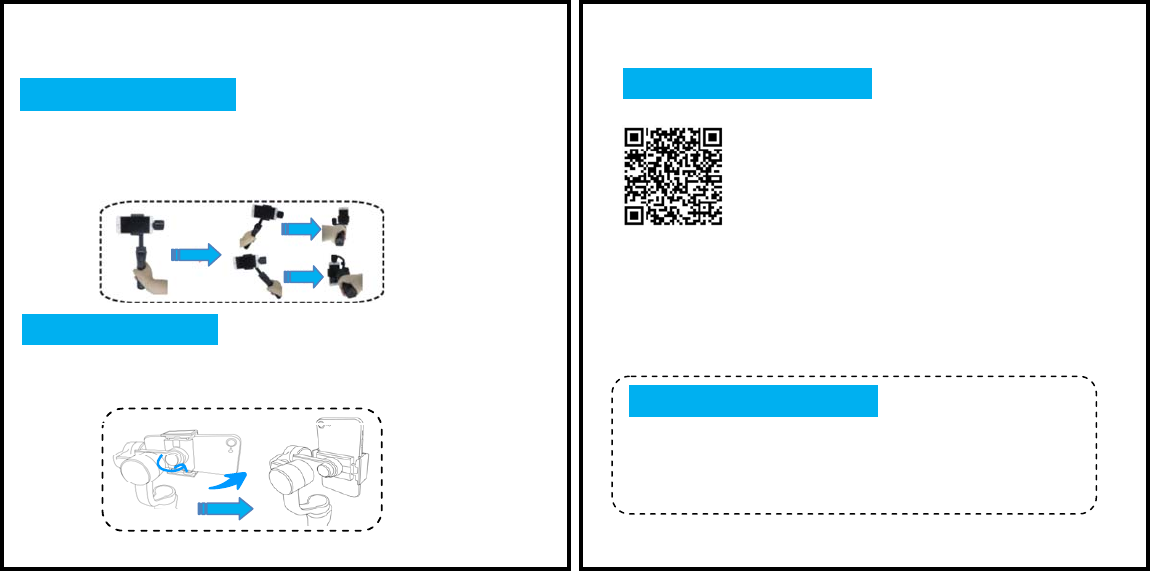
⑧ CHANGE ORIENTATION
The Stabilizer comes with 2 different Way for Change Orientation
Keep the phone facing yourself and rotate the Stabilizer handle over 70 degrees in counterclockwise
direction, Stabilizer will enter vertical shooting Mode. (Phone camera upward)
Keep the phone facing yourself and rotate the Stabilizer handle over 70 degrees in clockwise direction,
Stabilizer enter vertical shooting. (Phone camera upward)
⑨ APP OPERATION & CONNECT TO BLUETOOTH
13
12
Step 1: Scan QR Code (For Andriod +iOS) and Download below APP for accessing.
Step2: Power on the stabilizer
Step 3:Turn on Bluetooth in your Smartphone settings menu.
Step 4: Open the Stabilizer APP, and search for the ‘Stabilizer ’Bluetooth signal by
selecting the Bluetooth icon in the pop-up screen
In the APP Menu, use the zoom slider to control UP(Zoom In) and Down(Zoom Out) , and
more function setting, such as Face Tracking, Smart Object Track, Panorama Shooting,
Time-Lapse.
Step 1: Press the Power button for 3-4 seconds, stabilizer will power on.
Step 2: Turn on Bluetooth in your Smartphone settings menu.
Step 3: After Bluetooth Connected between Smartphone and stabilizer, you can start
taking photo/Record video
Step 1: Loosen the Smartphone Clamp Thumbscrew and rotate the clamp to vertical direction
Step 2: Place your Smartphone on the Clamp
Step 3: Tighten the Clamp Thumbscrew to ensure normal operations.
Connect
to Bluetooth
Connect to Stabilizer APP
Switchin
g
From Horizonta
S
witching
Mount

WARRANTY CARD
Warranty Period
1. The warranty period is 1 year from the original date of purchase. During the warranty period,
under normal use, our company will at its option, repair and/or replace parts which determined by
defective situation
2. Warranty this product against effects in material or workmanship when it belong Normal
consumer usage and conditions for the time periods.
Warranty does not cover:
1. Products subjected to unauthorized Maintenance, misuse, collision, neglect, mishandling, soaking,
accident, and unauthorized alteration.
2. Incorrect use of product: Removing serial number labels/tags
3. Products whose warranty has eapired.
4. Products damaged due to force majeure, such as fire, flood, lighting, etc.
Warranty Claim Procedure
If failure or any problem occurs to your product after purchase, please contact a local agent for
assistant.
Latest Information
For the latest user manuals, tutorial video, firmware and calibration instruction, please visit your
dealer web page.
Many Stabilizer performances can be solved with a simple calibration sequences.
15
14
Min. Standard Maa.Remarks
Input Vol. 3.4V 3.7V 4.2V
Operation Current 150mA 1500mA 3000mA
Opration Temperature 040
Operation Time 12h Well balanced with
camera mounted
Weight 423g
Pitch Angle Range 325°
Roll Angle Range 325°
Pan Angle Range 330°
Compatibale Models Smartphone with sizes under 6.0 Gopro3/4/5/6
Controllable Pitch Angle -155° +155°
Controllable Roll Angle -30° +30°
Controllable Pan Angle -155° +155°
Payload 75~200g
Charing Time 3H
Charging Voltage 5V
Charing Current 1A
Power Output Voltage 5V
Power Output Current 1A
℃℃
⑩ PRODUCT SPECIFICATIONS
180°

Certificate of Quality
This product is confirmed to meet
quality standards and Permitted for
sales after strict inspection.
QC inspector:
16
Custom Information
Sales Information
#1 Maintenance Record
Customer Name Contact No
Address
Sales Date Product Serials No
Dealer:
Contact Tel No:
Service Date Signature of Repairman
Cause of Problem
Service Result
::
:
:: :
::
::
:
□Solved □Unsolved □Refunded/Replaced
WARRANTY CARD