Jimi Electronic JH08 Wireless Home Monitor User Manual
Shenzhen Jimi Electronic Co., Ltd. Wireless Home Monitor
User manual
JH08 Wireless Home Monitor
User Manual
(Version: V0.2)
Prior to use, please read this manual thoroughly to ensure fast and effective installation. Final
appearance, color and accessories are subject to change without notice.
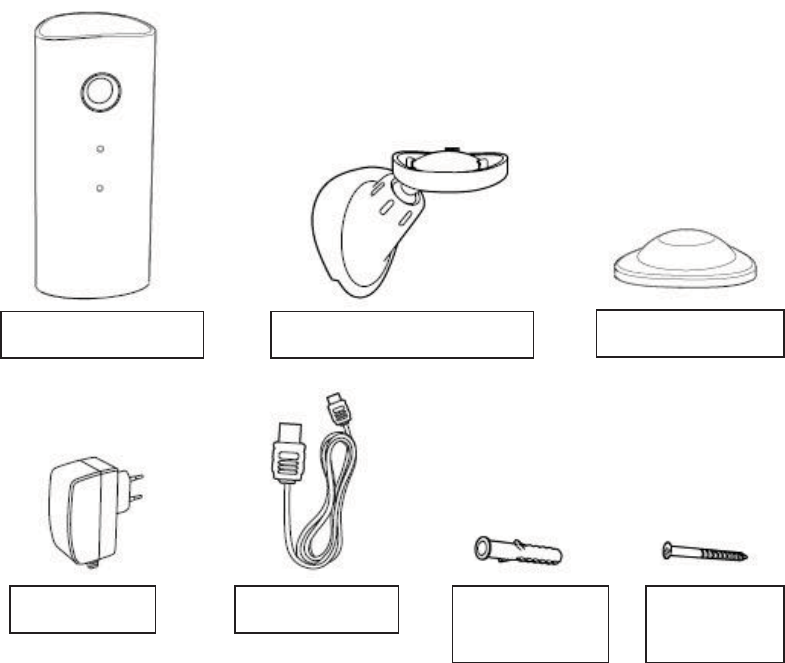
1 Accessories
Check the product and accessories as below to see if they are complete, otherwise please contact
your local supplier.
Camera body
Wall mount (Optional)
Magnetic base
Screw ×3
(Optional)
Setscrew ×3
(Optional)
Power cable
Charger

2 Specifications
Type
JH08 IR
Network Interface
WiFi (IEEE802.11b/g/n)
CPU
32bit RISC SoC Processor
Image Sensor
1/4"Color CMOS Sensor1.3 Megapixel
Image Resolution
HD 720P(1280*720), WVGA(854*480)
Camera Lens
Aperture F2.8, 127° wide angle
Video Compression Format
H.264
Built-in microphone and speaker, voice monitor, snapshot,
motion alert
Memory
TF Card(Max 32G) local storage and cloud storage server
Working Status Indicator
Constant bright
˄
AP setting mode
˅
Slow flashing
˄
WIFI mode
˅
Power Input
5V/1A
ˈ
USB Interface
Dimensions
50
˄
L
˅
×50
˄
W
˅
×98
˄
H
˅
mm(with base)
40
˄
L
˅
×36
˄
W
˅
×89
˄
H
˅
mm(without base)
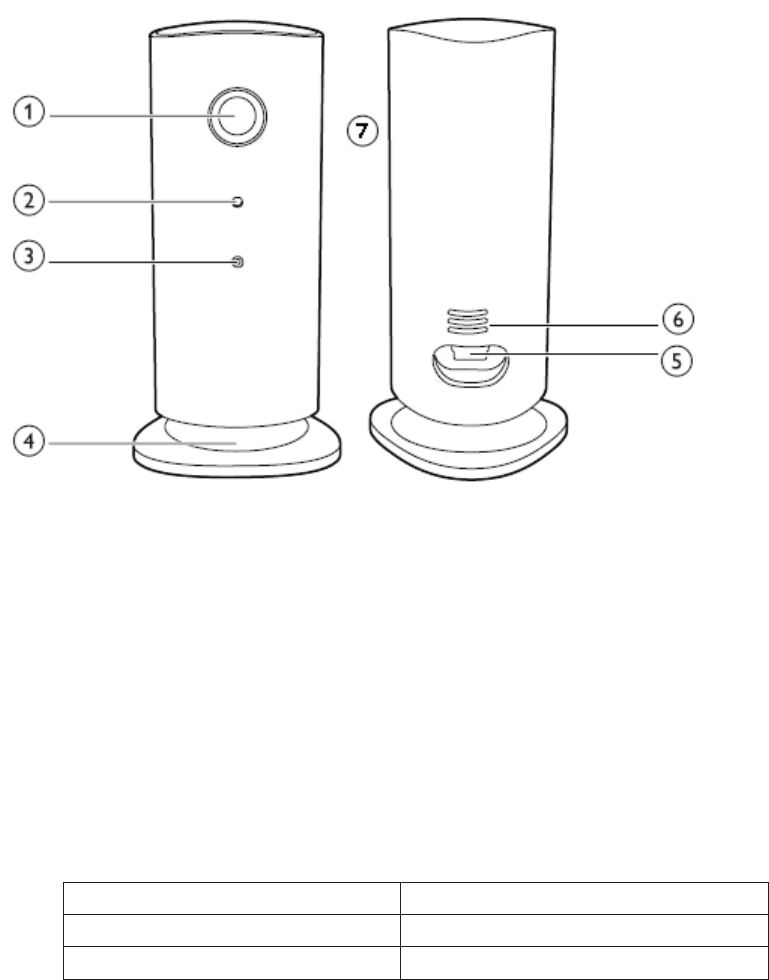
3 Structure
ķ Camera
ĸ LED indicator
Ĺ Mic
ĺ Magnetic base
Ļ Power input
ļ Speaker
Ľ Micro SD slot
3.2 LED indicator status
Status
Meaning
Blue constant on
AP setting mode
Blue flashing slow
WIFI connection normal

4 Operation
4.1 Connect with power
1˅Connect with the power cable and charger
2˅The Blue LED indicator will be flashing slowly if the device is connected successfully with the
WIFI network. If the Blue LED is constant on, it means the WIFI network is not set correctly or
there is no WIFI, and it will enter into AP setting mode.
4.2 Fast setting
4.2.1 APP
Please download APP from APP store or at www.jimilab.com.
4.2.2 WIFI setting
1˅When the device is ON with Blue LED in constant bright status, connect to a available WIFI in
your phone setting.
2˅Start APP on your phone, create account and login.
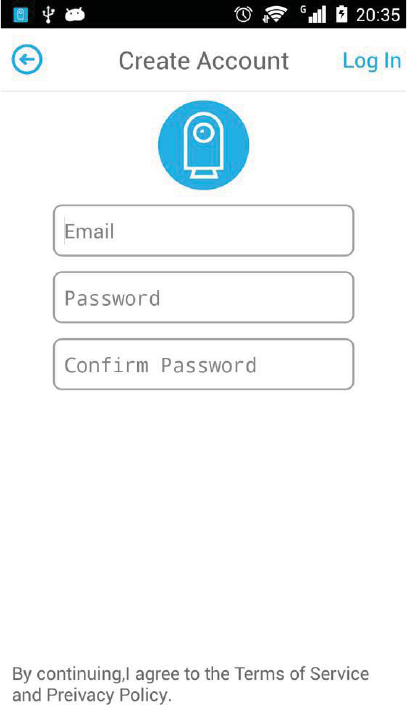
A˅
˅
Create Account
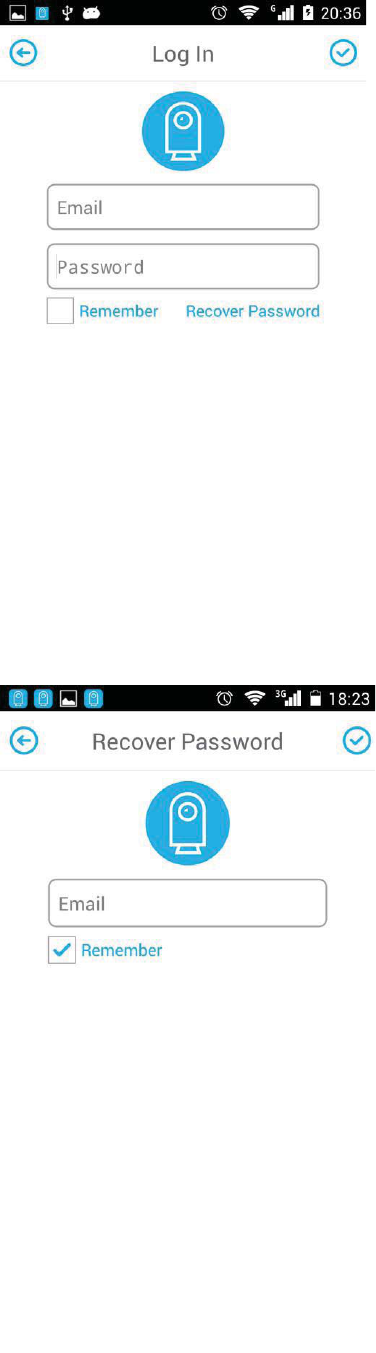
B˅
˅
Log In
C
˅
Recover password
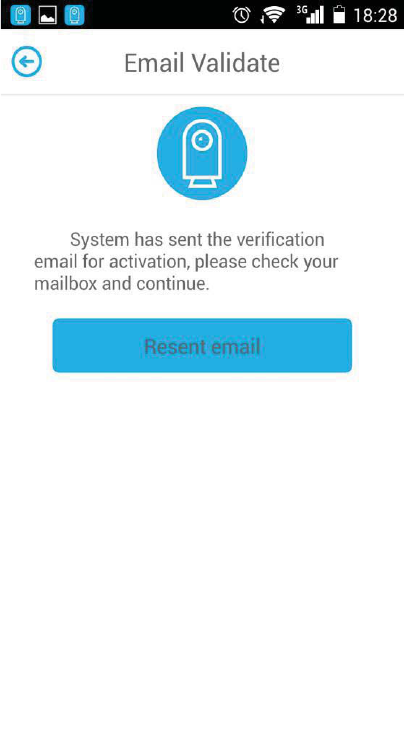
D˅
˅
Email Validate
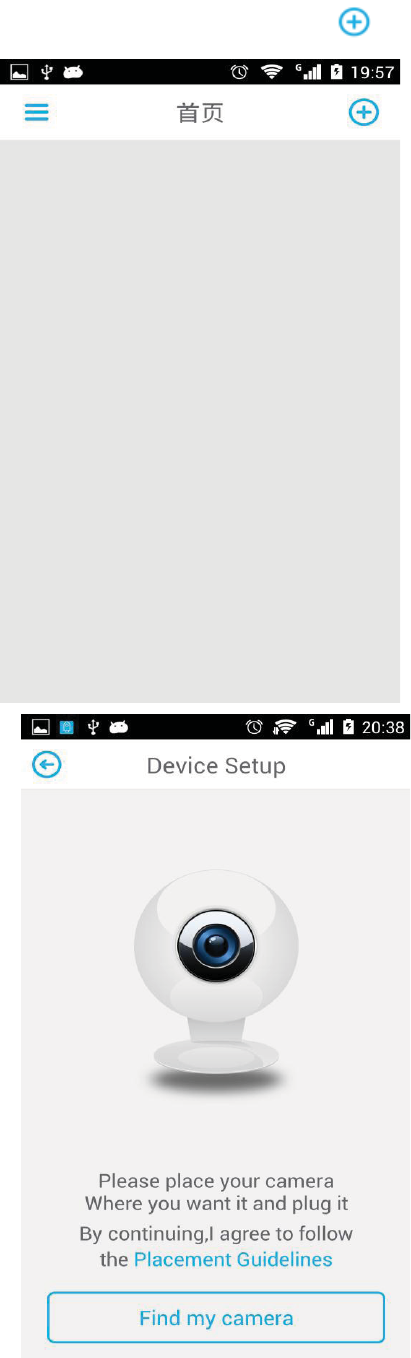
3˅After effective connection, click to add camera.
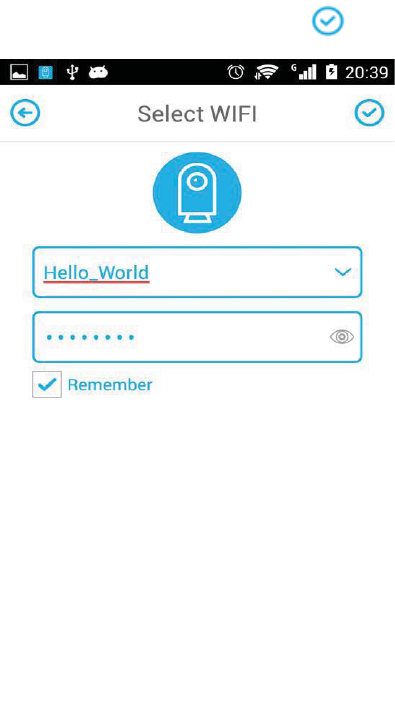
4˅Select WIFI and confirm by clicking ;
Select your camera and start setup.
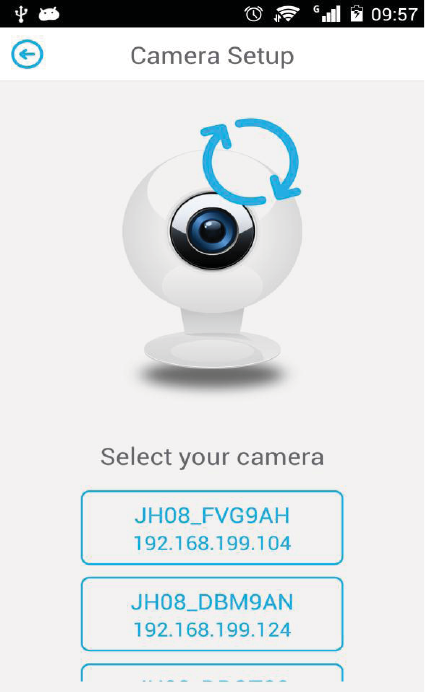
5˅Personalize the environment of the camera
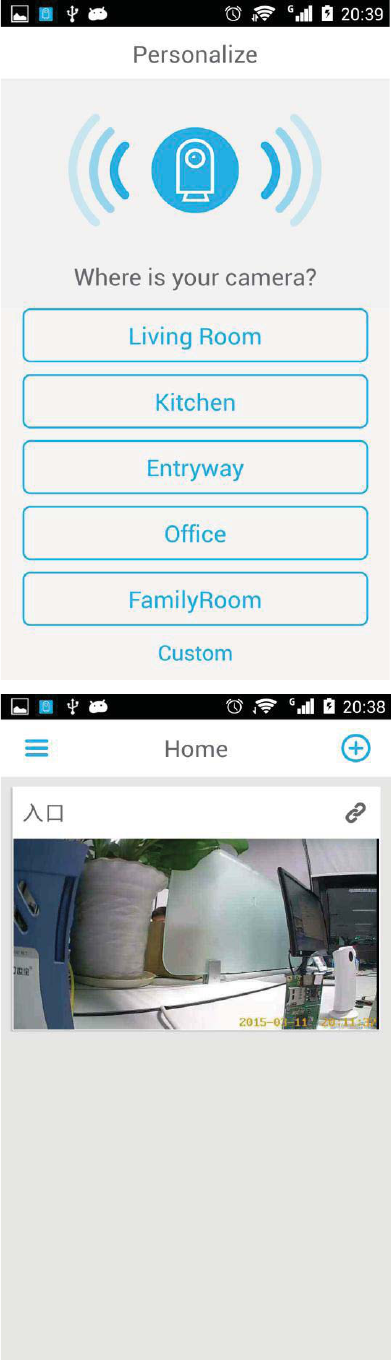
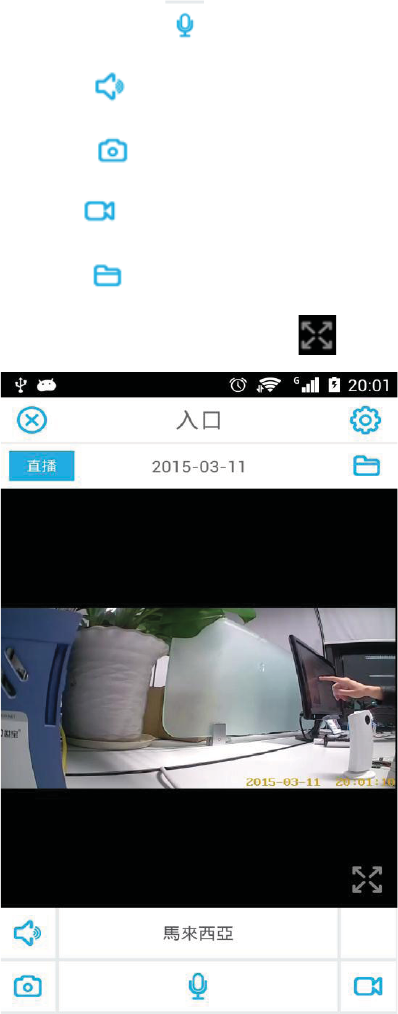
6˅Click camera to enter Live-monitor;
Press and hold to talk to the camera;
Click to turn ON/OFF voice monitor;
Click to take a snapshot;
Click to take video manully;
Click to check alerting report, video and snapshot;
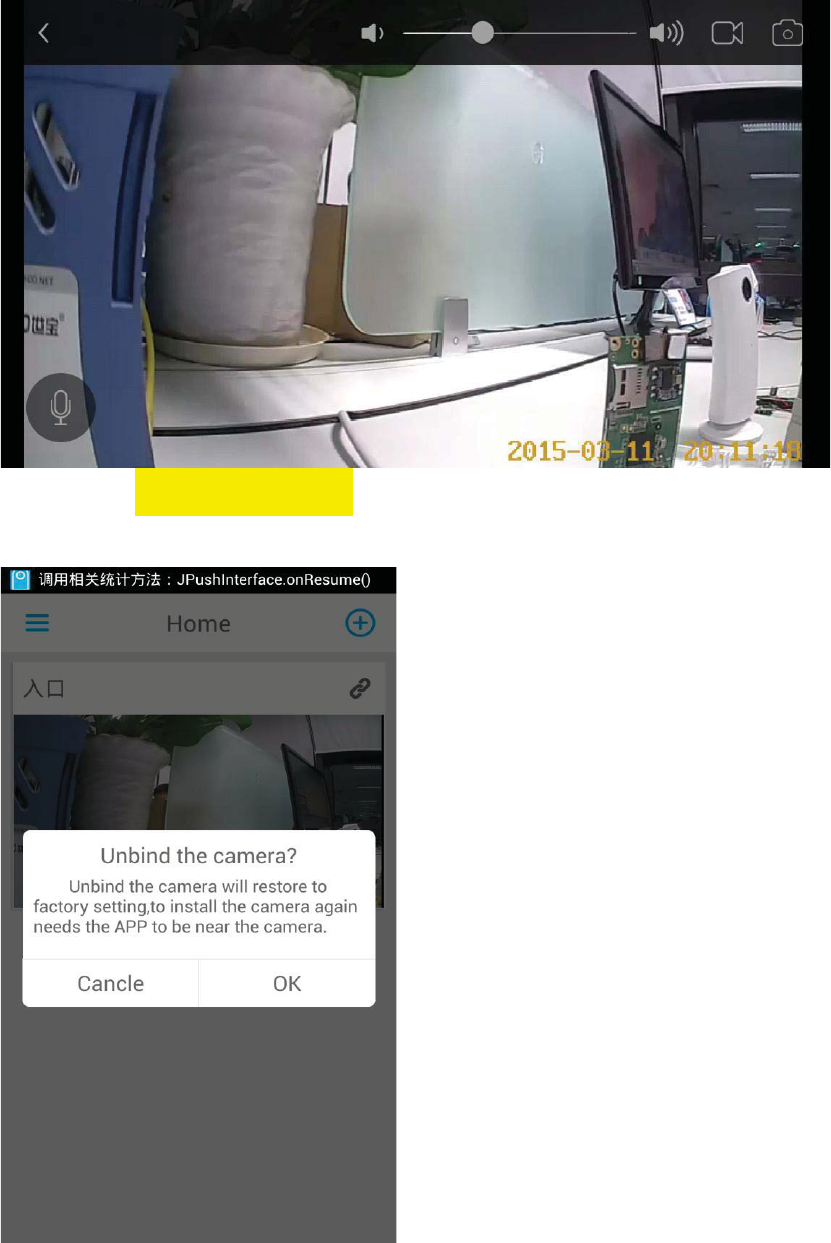
Double click the screen or click to switch screen orientation.
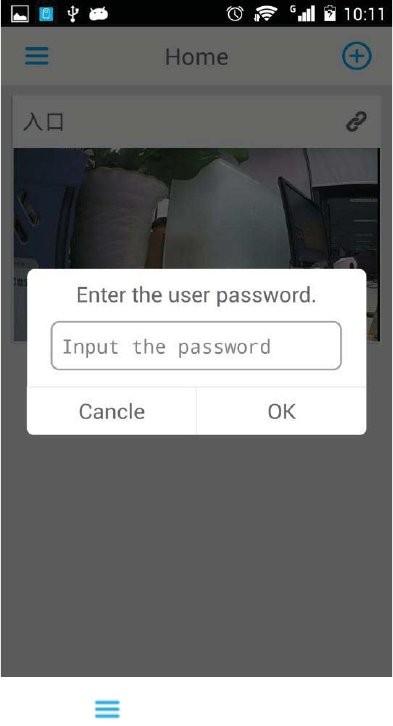
7˅Press and hold the screen to delete the target camera. Unbinding the camera will ask for
account and password information and restore to AP mode again.
8˅Click at front page to enter drawer layout page. “Account” and “About” information
could be checked here.
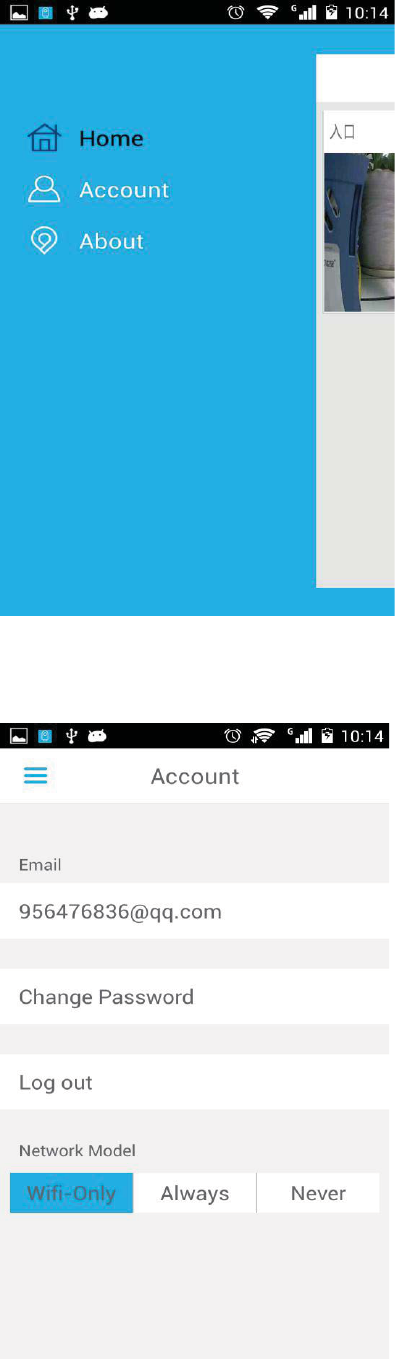
A) Account: Log out, change password and choose network model ˄Wifi-Only˖Live-monitor
and Playback only with available WIFIˈAlways˖Live-monitor and Playback with WIFI or
mobile network; Never˖Live-monitor and Playback is never allowed.˅
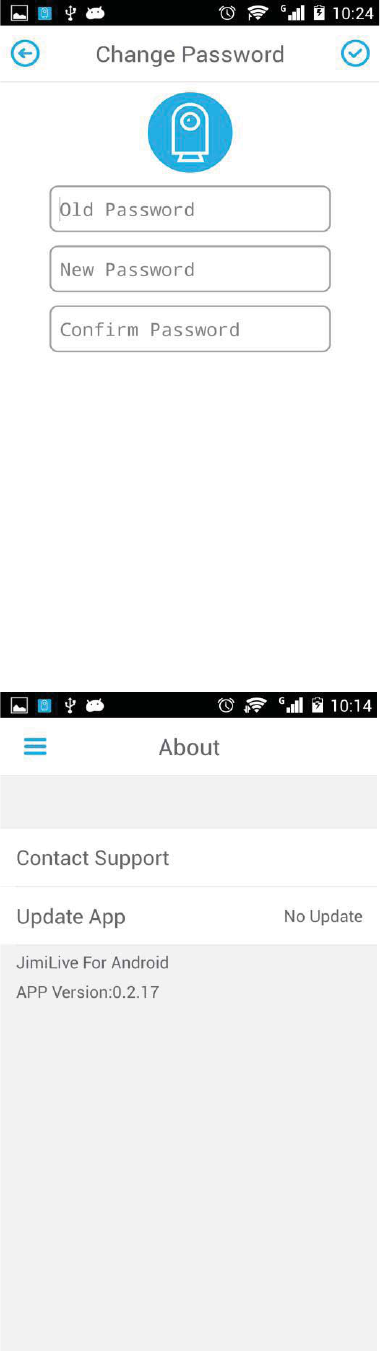
B˅Change password
C˅About: Version check and update for APP
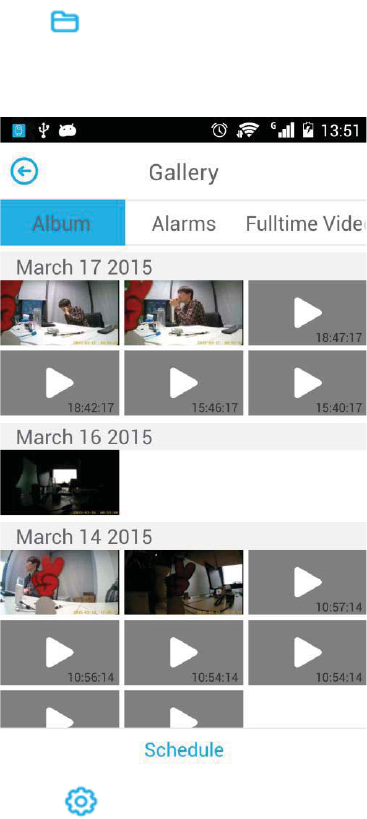
9˅Click on Live-monitor page to access Album, Alarms and Fulltime video. Album includes
snapshot and manual video. Alarms includes motion detection alarm and voice detection alarm.
Click the video to playback.
10) Click on the Live page to enter Setting page.
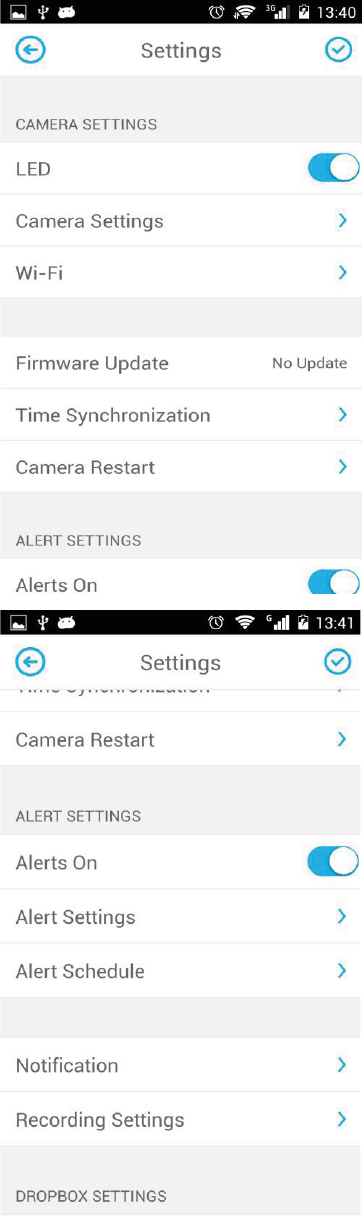
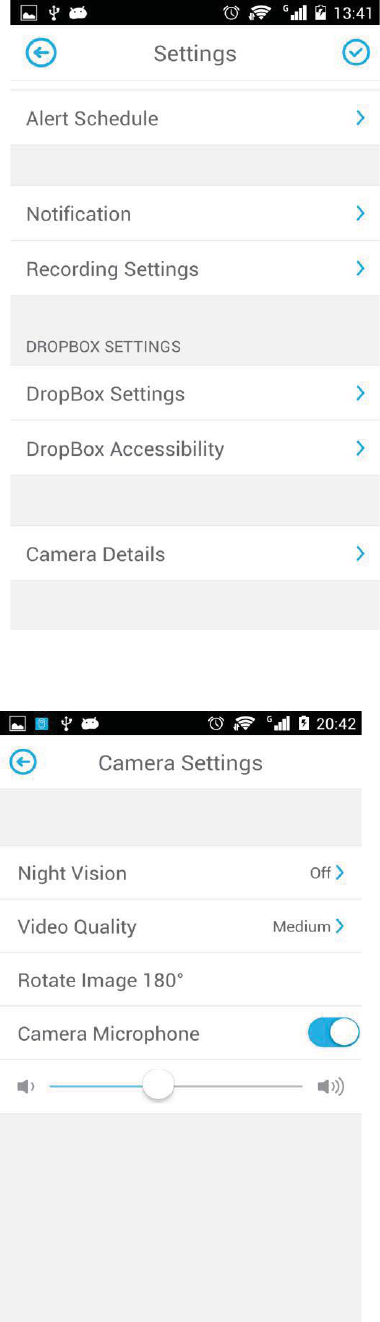
A˅Camera setting
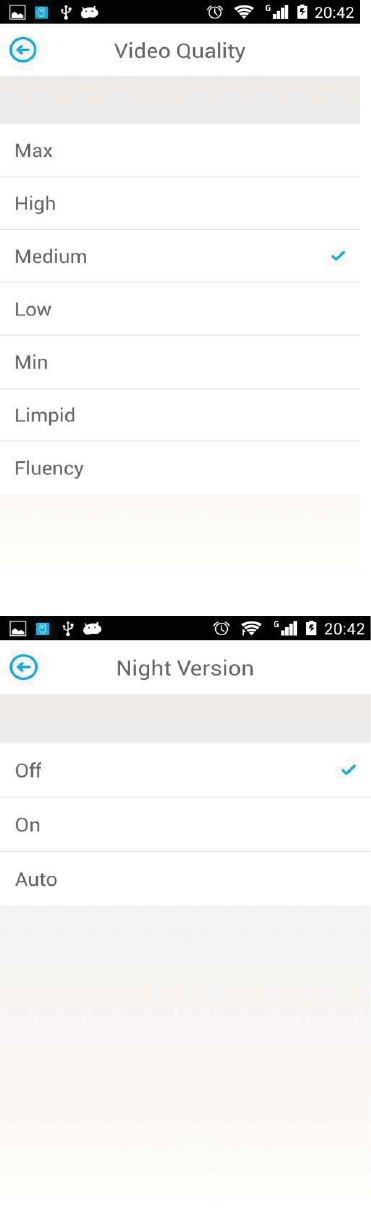
B˅WIFI setting
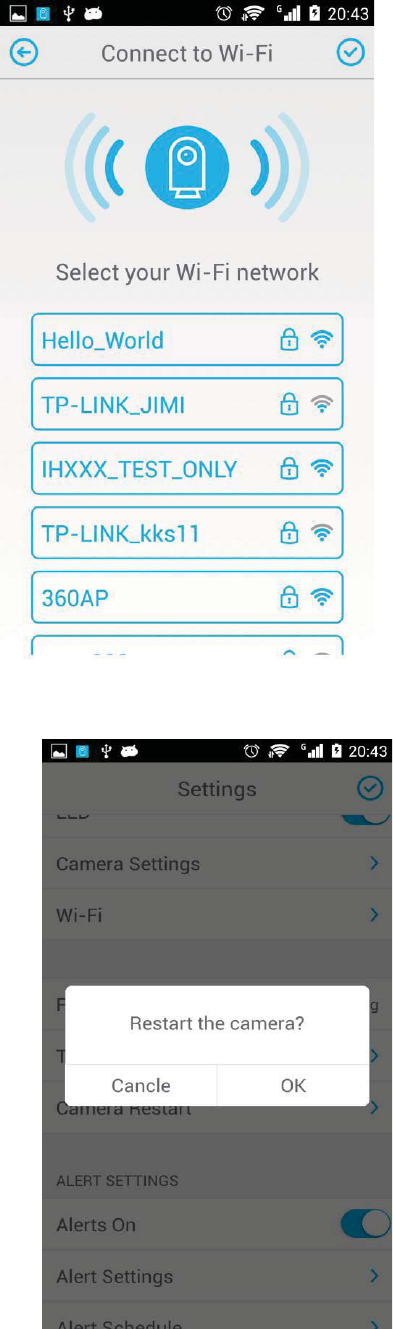
C) Camera Reboot
D˅Alert settings
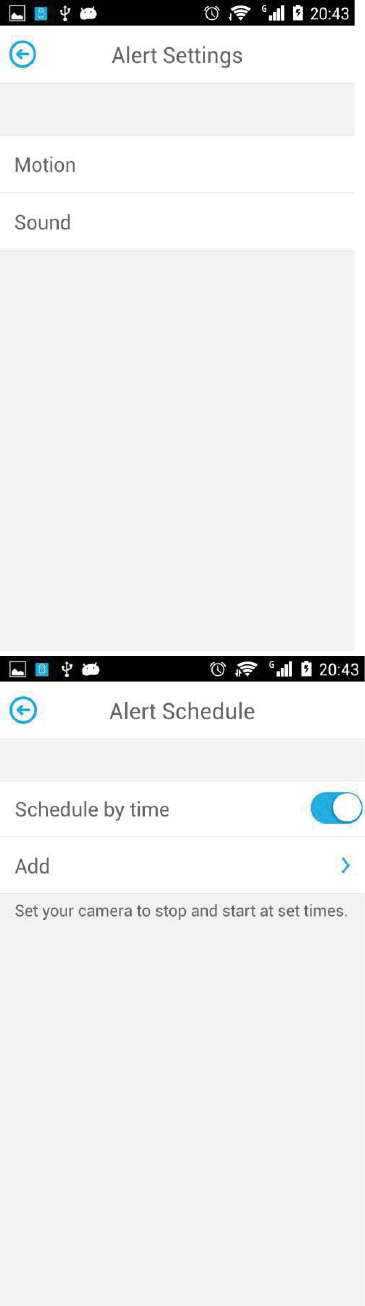
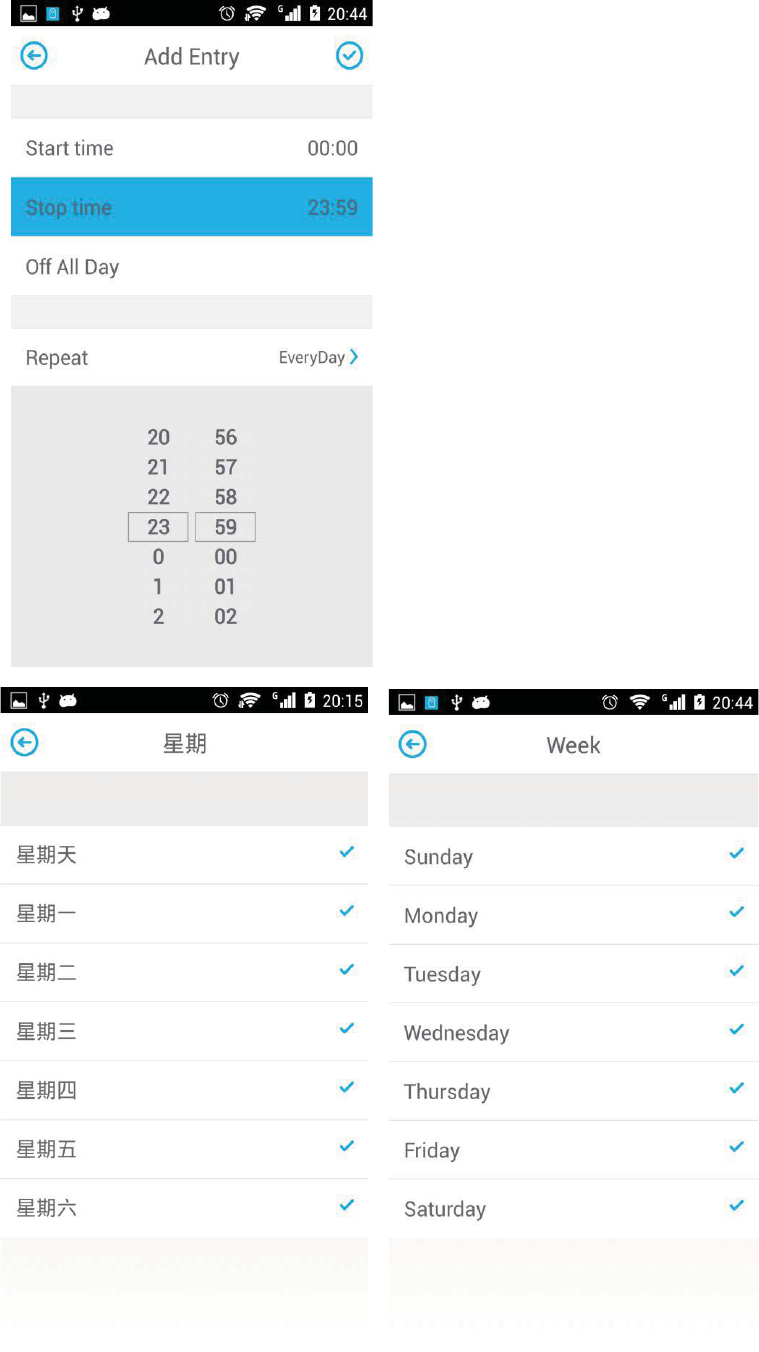
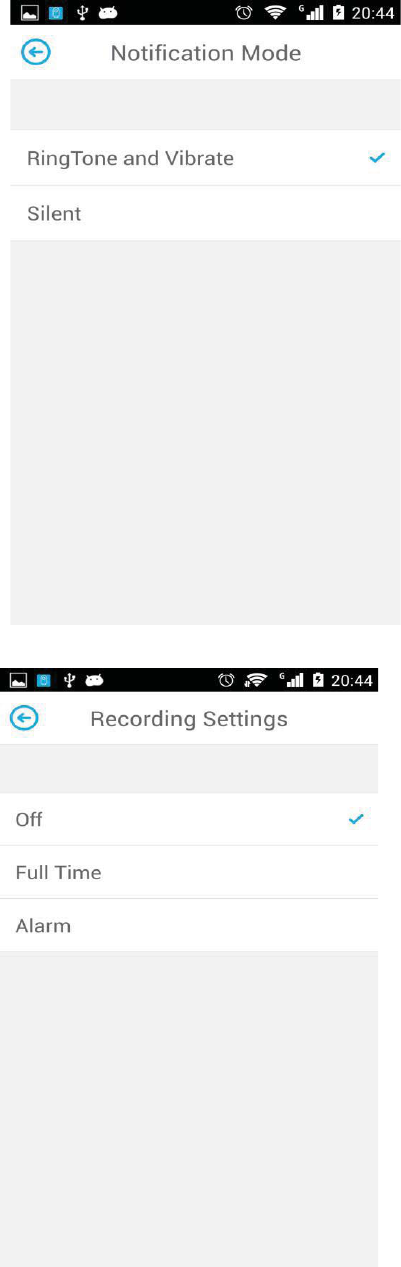
E˅Notification Mode˄Alarm notification pushed to the mobile phone˅
F˅Recording settings˄Alarm setting and schedule could be checked in Gallery page˅
G˅DROPBOX Settings˖DropBox identification means DropBox would ask for a temporary code
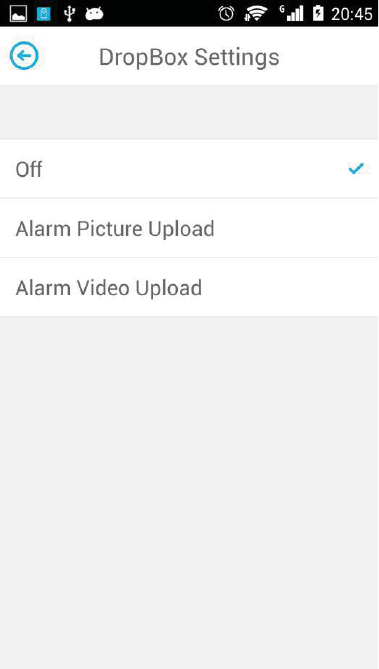
to enable your upload. Prior the setting please create an account on DropBox official web, which
enables you to upload alarm picture and video to Dropbox cloud storage.
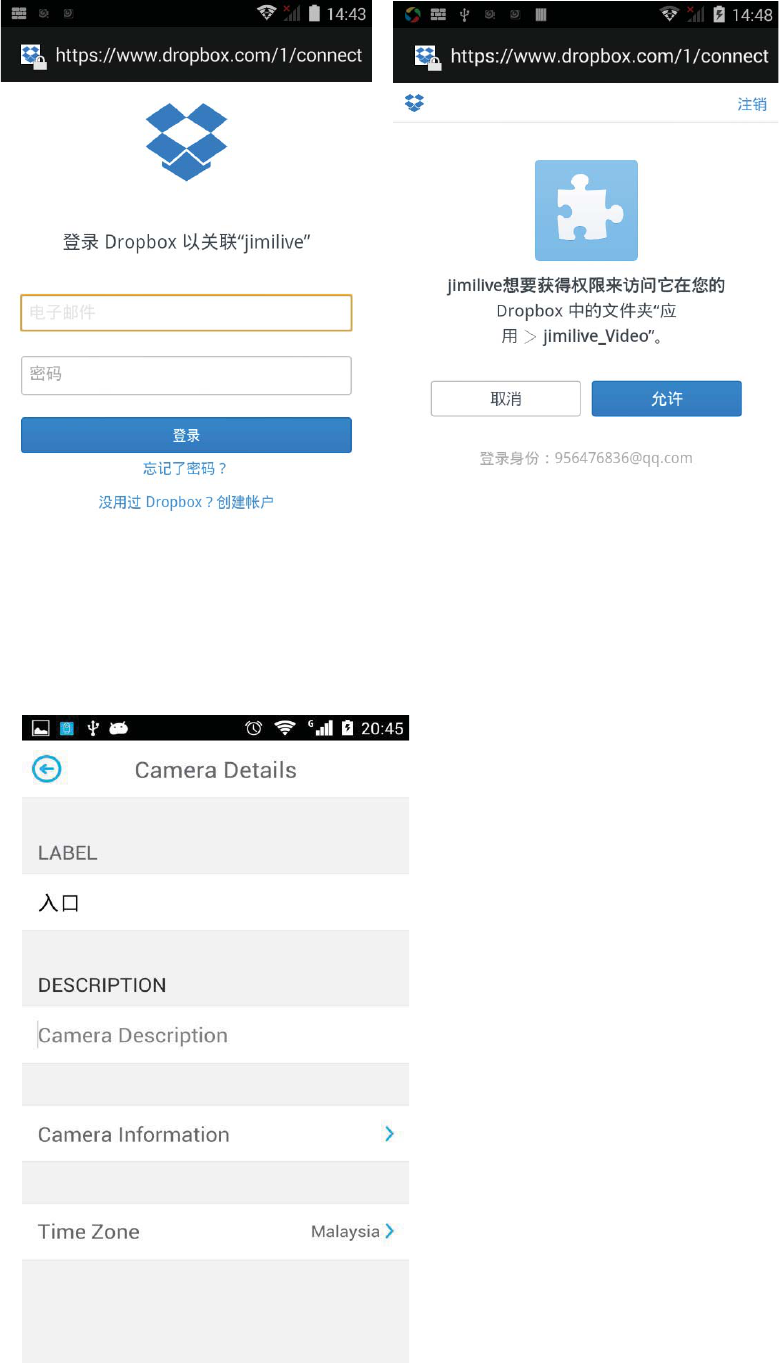
H˅Camera details
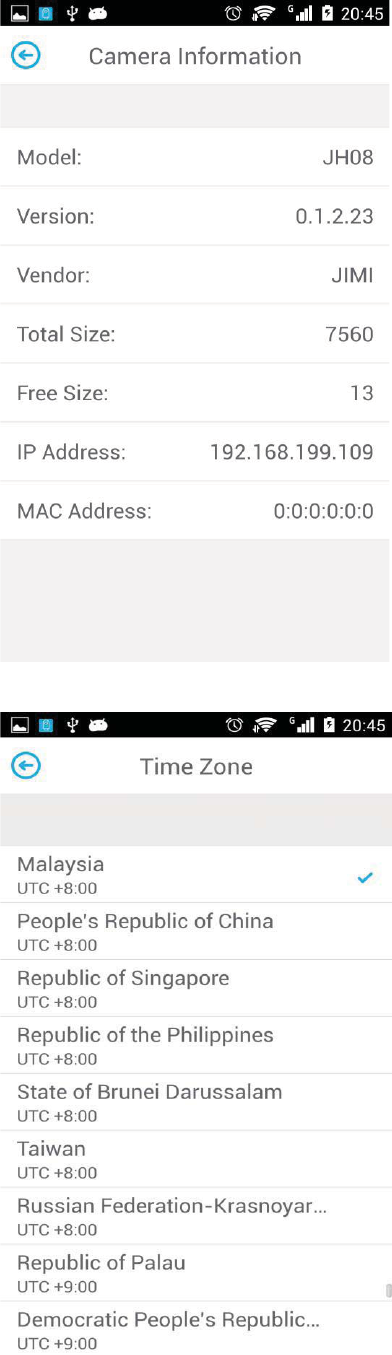
I˅Timezone setting
5 Installation
You can put the device on a flat surface with the magnetic base or install it on the wall or the
ceiling. Please check the details as below:
Notice: a. Before installation, please make sure the device is close to the power socket.
b. Before secure the pin and the screw, please drill holes on flat and solid surface.
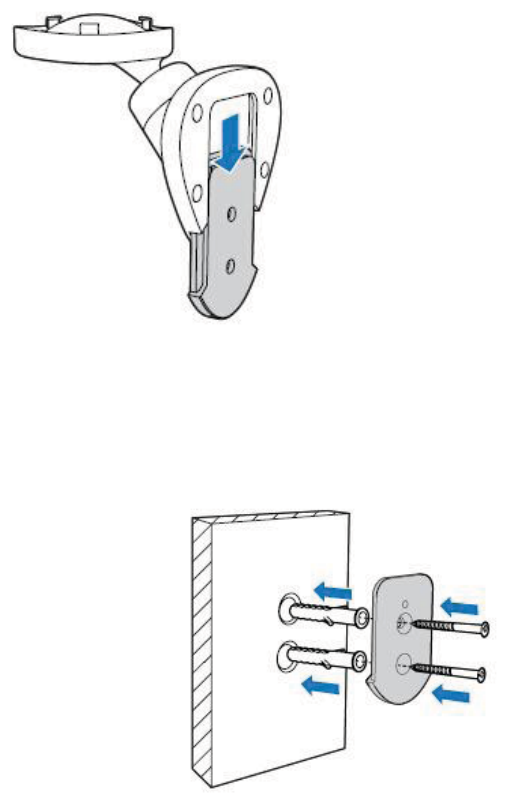
5.1 Wall mounting
5.1.1 Remove the pin from wall-mount; Push the pin according to the position as below.
5.1.2 Drill holes
Drills holes on the wall according to the position of the pin holes.
5.1.3 Secure the pin to the wall
Place two setscrews into the holes, then secure the pin to the wall with the two screws.
5.1.4 Secure the device on the wall mount; Secure the device and the pin.

5.1.5 Secure the wall mount to the pin
5.2 Celling installation
Notice: Please set “Video flip” in the APP’s “Camera setting” if installed in on the ceiling,
otherwise the image will be back side down.
5.2.1
Use a slot type screwdriver to take out the top cover gently and review the screw hole.
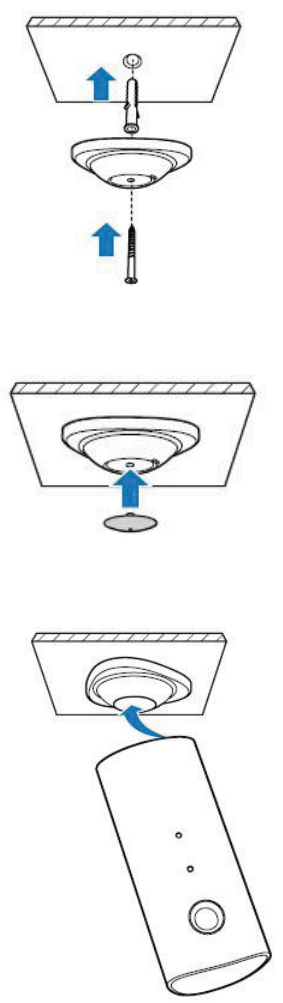
5.2.2 Drill holes on the ceiling according to position of the magnetic base.
5.2.3 Secure the magnetic base onto the ceiling
Use one setscrew and one screw to secure the magnetic base to the ceiling.
5.2.4 Press back the circle top cover
5.2.5 Place the device onto the magnetic base, and then adjust the angle to a proper position.

6 Trouble shooting
During operation if any problem appears, please read the following table and contact your local
supplier if the problem remains unsolved.
Common errors
Possible Causes Solutions
Connection failed
Device not in WIFI
Confirm the device is connected
to WIFI successfully
WIFI network error Check WIFI status
Phone network error
Make sure your phone can access
internet
Cannot receive motion
det
ect alarm messages
Motion detect not activated
Activate motion detect function
Not login to APP
Make sure the APP is running or
running in backstage
Micro SD error
No SD card
Insert SD card
Micro SD card fail
Replace or format the card
Live view black screen
or replay failure
Bad network connection of
cellphone
Improve network condition

m
mjjGzG
XUG{GGGGwGX\GGGmjjGyUGvGGGGG
GGaG
OXPG{GGGGGGUG
OYPG{GGGGGGSGGGG
GGGUG
YUGjGGGGGGGGGGG
GGGGNGGGGGUG
uv{laG G
{GGGGGGGGGGGGGGjGiG
GSGGGwGX\GGGmjjGyUG{GGGGG
GGGGGGGGG
UG
{GGGGGGGGGGSGGG
GGGGGGGSGGGG
GGGUGoSGGGGGG
GGGGGGGUGpGGGGG
GGGGGGSGGGGGG
GGGGGSGGGGGGGGGG
GGGGGGGGaG
yGGGGGUG
pGGGGGGGUG
jGGGGGGGGGGGGGGG
GGUG G
jGGGGGGV{}GGGUG
hGGGGGYWGGGGGG˅G
GGGG
GG