Jinan USR IOT Technology WIFI232D2A Embedded WiFi Module User Manual GPON SFU System Design
Jinan USR IOT Technology Limited Embedded WiFi Module GPON SFU System Design
Contents
- 1. Manual
- 2. Addendum
Manual
USR-WIFI232- D2 User Manual www.usr iot .com
Jinan USR IOT Technology Limited Page 1 of 78 tec@usr.cn
USR-WIFI232-
USR-WIFI232-
USR-WIFI232-
USR-WIFI232- D2
D2
D2
D2
Embedded
Embedded
Embedded
Embedded WiFi
WiFi
WiFi
WiFi Module
Module
Module
Module User
User
User
User Manual
Manual
Manual
Manual
Version :V1.0.0
Remarks:
Remarks:
Remarks:
Remarks: This module is applicable to USR-WIFI232- D2 . For Other modules please refer to the
corresponding document.

USR-WIFI232- D2 User Manual www.usr iot .com
Jinan USR IOT Technology Limited Page 2 of 78 tec@usr.cn
Table
Table
Table
Table Of
Of
Of
Of Contents
Contents
Contents
Contents
1 Quick Start .......................................................................................................................................... 6
1.1 Hardware connect ................................................................................................................... 6
1.2 Network connection ................................................................................................................. 6
1.3 C ommunication test ................................................................................................................. 7
2 Product Overview ............................................................................................................................... 8
2.1 General Description ................................................................................................................. 8
1 Quick Start .......................................................................................................................................... 6
1.1 Hardware connect ................................................................................................................... 6
1.2 Network connection ................................................................................................................. 6
1.3 Communication test ................................................................................................................. 7
2 Product Overview ............................................................................................................................... 8
2.1 General Description ................................................................................................................. 8
2.2 Device Features ...................................................................................................................... 9
2.3 Device Paremeters ................................................................................................................ 10
2.4 Key Application ...................................................................................................................... 10
2.5 Package Information .............................................................................................................
11
2.5.1 Recommended Reflow Profile ....................................................................................
11
2.5.2 Device Handling Instruction (Module IC SMT Preparation) ......................................
11
2.5.3 Shipping Information ...................................................................................................
11
3 Hardware Introduction ..................................................................................................................... 12
3.1 Pins Definition ........................................................................................................................ 12
3.1.1 USR-WIFI232-D2 Pins Definition ............................................................................... 12
3.1.2 USR-WIFI232-D2 Size ............................................................................................... 14
3.2 Antenna .................................................................................................................................. 14
3.2.1 On-board Chip Antenna .............................................................................................. 14
3.2.2 External Antenna ........................................................................................................ 15
3.3 Evaluation Kit ......................................................................................................................... 16
3.4 Hardware Reference Design ................................................................................................ 17
3.4.1 Hardware Typical Application ..................................................................................... 17
3.4.2 10/100M Ethernet Interface ....................................................................................... 18
3.4.3 UART Interface ........................................................................................................... 18
3.4.4 Power Interface ........................................................................................................... 19
4 Modules Function Description ......................................................................................................... 19
4.1 User configuration process ................................................................................................... 19
4.2 Working mode ....................................................................................................................... 20
4.2.1 Transparent Transmission Mode ............................................................................... 20
4.2.2 Serial command mode ............................................................................................... 20
4.2.3 GPIO mode ................................................................................................................. 22
4.2.4 HTTPD Client mode ................................................................................................... 22
4.3 Wireless Networking ............................................................................................................. 23

USR-WIFI232- D2 User Manual www.usr iot .com
Jinan USR IOT Technology Limited Page 3 of 78 tec@usr.cn
4.3.1 STA .............................................................................................................................. 23
4.3.2 AP ................................................................................................................................ 24
4.3.3 AP+STA ....................................................................................................................... 24
4.4 Ethernet Interface Communication ....................................................................................... 26
4.4.1 USR-WIFI232-D2 Ethernet Interface Networking (As AP) ....................................... 26
4.4.2 USR-WIFI232-D2 Ethernet Interface Networking (As STA, N-Ver) ......................... 26
4.4.3 USR-WIFI232-D2 Ethernet Interface Networking (As STA, Z-Ver) .......................... 27
4.5 WI-FI parameter setting ........................................................................................................ 27
4.5.1 Auto- Frequency Function .......................................................................................... 27
4.5.2 Security ....................................................................................................................... 27
4.5.3 Search Function for STA ............................................................................................ 28
4.5.4 Address Binding .......................................................................................................... 28
4.6 UART Frame Scheme ........................................................................................................... 28
4.6.1 UART Free-Frame ...................................................................................................... 28
4.6.2 UART Auto-Frame ...................................................................................................... 29
4.7 Network Setting ..................................................................................................................... 29
4.7.1 Socket A ...................................................................................................................... 29
4.7.2 Socket B ...................................................................................................................... 30
4.8 New function .......................................................................................................................... 30
4.8.1 TCP password authentication .................................................................................... 30
4.8.2 Upload ID .................................................................................................................... 30
4.8.3 Self-adaption Baudrate ............................................................................................... 30
4.8.4 WEB IO ....................................................................................................................... 31
4.8.5 Keepalive .................................................................................................................... 31
4.8.6 Multiple
STA
parameters ............................................................................................ 31
4.8.7 Websocket .................................................................................................................. 31
4.9 Palmodic Signal ..................................................................................................................... 32
4.10 Parameters Configuration ................................................................................................... 32
4.11 Firmware Upgrade ............................................................................................................... 33
5 Web Accessing and AT+instruction set ........................................................................................... 34
5.1 Configuration via Web Accessing ......................................................................................... 34
5.1.1 Open Web Management Interface ............................................................................. 34
5.1.2 Quick Configure .......................................................................................................... 35
5.1.3 Mode Selection Page ................................................................................................. 35
5.1.4 AP Interface Setting Page .......................................................................................... 36
5.1.5
STA
Interface Setting Page ........................................................................................ 36
5.1.6 Application Setting Page ............................................................................................ 37
5.1.7 Ethernet Setting .......................................................................................................... 38
5.1.8 HTTPD Client Mode ................................................................................................... 39
5.1.9 WEB IO ....................................................................................................................... 39
5.1.10 Device Management Page ....................................................................................... 40
5.2 AT+instruction Introduction ................................................................................................... 41
5.2.1 Configuration Mode .................................................................................................... 41
5.2.1.1 Switch to Configuration Mode ......................................................................... 41

USR-WIFI232- D2 User Manual www.usr iot .com
Jinan USR IOT Technology Limited Page 4 of 78 tec@usr.cn
5.2.2 AT+ Instruction Set Overview ..................................................................................... 42
5.2.2.1 Instruction Syntax Format ................................................................................ 43
5.2.2.2 AT+ Instruction Set ........................................................................................... 44
5.2.2.2.1 AT+E ....................................................................................................... 46
5.2.2.2.2 AT+ENTM ............................................................................................... 46
5.2.2.2.3 AT+NETP ............................................................................................... 46
5.2.2.2.4 AT+UART ............................................................................................... 46
5.2.2.2.5 AT+ UARTF ............................................................................................ 47
5.2.2.2.6 AT+ UARTFT ......................................................................................... 47
5.2.2.2.7 AT+ UARTFL .......................................................................................... 48
5.2.2.2.8 AT+TMODE ............................................................................................ 48
5.2.2.2.9 AT+WMODE .......................................................................................... 48
5.2.2.2.10 AT+WSKEY .......................................................................................... 48
5.2.2.2.11 AT+WSSSID ......................................................................................... 49
5.2.2.2.12 AT+ WSLK ........................................................................................... 49
5.2.2.2.13 AT+WEBU ............................................................................................ 50
5.2.2.2.14 AT+WAP ............................................................................................... 50
5.2.2.2.15 AT+WAKEY .......................................................................................... 50
5.2.2.2.16 AT+HIDESSID ..................................................................................... 51
5.2.2.2.17 AT+MSLP ............................................................................................. 51
5.2.2.2.18 AT+WSCAN ......................................................................................... 52
5.2.2.2.19 AT+ TCPLK .......................................................................................... 52
5.2.2.2.20
AT
+ TCPDIS ....................................................................................... 52
5.2.2.2.21 AT+ WANN ........................................................................................... 52
5.2.2.2.22 AT+ LANN ............................................................................................ 53
5.2.2.2.23 AT+DHCPDEN ..................................................................................... 53
5.2.2.2.24 AT+ DHCPGW ..................................................................................... 54
5.2.2.2.25 AT+ TCPTO ......................................................................................... 54
5.2.2.2.26 AT+ MAXSK ......................................................................................... 54
5.2.2.2.27 AT+TCPB ............................................................................................. 54
5.2.2.2.28 AT+TCPPTB ........................................................................................ 55
5.2.2.2.29 AT+TCPADDB ..................................................................................... 55
5.2.2.2.30 AT+TCPTOB ........................................................................................ 55
5.2.2.2.31 AT+TCPLKB ......................................................................................... 56
5.2.2.2.32 AT+STTC ............................................................................................. 56
5.2.2.2.33 AT+DOMAIN ........................................................................................ 56
5.2.2.2.34 AT+FRLDEN ........................................................................................ 56
5.2.2.2.35 AT+FUDLX ........................................................................................... 57
5.2.2.2.36 AT+MMID ............................................................................................. 57
5.2.2.2.37 AT+IDFIR ............................................................................................. 57
5.2.2.2.38 AT+IDEVE ............................................................................................ 58
5.2.2.2.39 AT+AABR ............................................................................................. 58
5.2.2.2.40 AT+RELD ............................................................................................. 58
5.2.2.2.41 AT+Z ..................................................................................................... 58

USR-WIFI232- D2 User Manual www.usr iot .com
Jinan USR IOT Technology Limited Page 5 of 78 tec@usr.cn
5.2.2.2.42 AT+MID ................................................................................................ 58
5.2.2.2.43 AT+VER ............................................................................................... 59
5.2.2.2.44 AT+H .................................................................................................... 59
5.2.2.2.45 AT+ HTTPURL ..................................................................................... 59
5.2.2.2.46 AT+ HTTPTP ....................................................................................... 59
5.2.2.2.47 AT+ HTTPPH ....................................................................................... 60
5.2.2.2.48 AT+ HTTPCN ....................................................................................... 60
5.2.2.2.49 AT+ HTTPUA ....................................................................................... 60
5.2.2.2.50 AT+EPHYA ........................................................................................... 60
5.2.2.2.51 AT+EPHYB .......................................................................................... 61
6 USR-WIFI232-D2 Usage Introduction ............................................................................................ 61
6.1 Module Debug ....................................................................................................................... 61
6.1.1 Software Debug Tools ................................................................................................ 61
6.1.2 Network Connection ................................................................................................... 61
6.1.3 Debug .......................................................................................................................... 62
6.2 Use Cases ............................................................................................................................. 64
6.2.1 Wireless Control Application ...................................................................................... 64
6.2.2 Remote Management Application .............................................................................. 64
6.2.3 Transparent Serial Port Application ........................................................................... 65
6.2.4 Wireless Data Acquisition Card Application .............................................................. 66
Appendix A: Questions and Answers ................................................................................................. 68
Q1: How to configure transparent serial port application (TCP protocol) with two WIFI
modules? ...................................................................................................................................... 68
Q2: Where to Set WIFI Module LAN IP and WAN
IP
through Web Page ?............................ 69
Q3: How to configure transparent serial port application (UDP protocol) with two WIFI
modules? ...................................................................................................................................... 69
Q4: Where to set USR-WIFI232-D2 module network protocol (TCP/UDP)? ........................... 70
Q5: How to configure transparent serial port application: Two WIFI modules all configured as
STA
and connection through AP? ............................................................................................... 71
Q6: How to avoid IP address confliction when apply USR-WIFI232-D2 module? ................... 72
Q7: PC works as server, all WIFI modules works as data acquisition card and connect with
PC, how to configure this application? ....................................................................................... 72
Q8: WIFI module support UDP multicast? ................................................................................. 73
Q9:WIFI module operates in
STA
mode, the PC how to get the IP module? ........................... 74
Appendix b: evb reference design ..................................................................................................... 75
Appendix c: external power shutdown mode reference design ........................................................ 76
Appendix D: The FCC statement ....................................................................................................... 76
Appendix e: Contact Information ........................................................................................................ 78
Appendix f: Disclaimer ........................................................................................................................ 78
Appendix g: History ............................................................................................................................. 78
USR-WIFI232- D2 User Manual www.usr iot .com
Jinan USR IOT Technology Limited Page 6 of 78 tec@usr.cn
1
1
1
1 Quick
Quick
Quick
Quick Start
Start
Start
Start
USR-WIFI232 -D2 series product is used to transm it data between RS232 and WIFI or Ethernet
TCPIP transparently, user can update the product to WIFI or Ethernet interface control without
know ing the WIFI , Ethernet and TCPIP detail. All the convert work is done by the module . F or
users, the RS232 side is only as a serial device,the WIFI side or Ethernet is TCPIP Socket data.
User can setup the work detail by sample settings which can setup via inside web pages or
RS232 port . T he setup work only need do once, then it will save the setting forever.
This chapter is a user guide for USR-WIFI232 -D2 series products. W e suggest users follow the
guide to test module at first, and will have a good understanding of the modules. U sers can also
choose the chapter which you are interested in to read. For specific details and instructions,
please refer to the following chapters.
1.1
1.1
1.1
1.1 Hardware
Hardware
Hardware
Hardware connect
connect
connect
connect
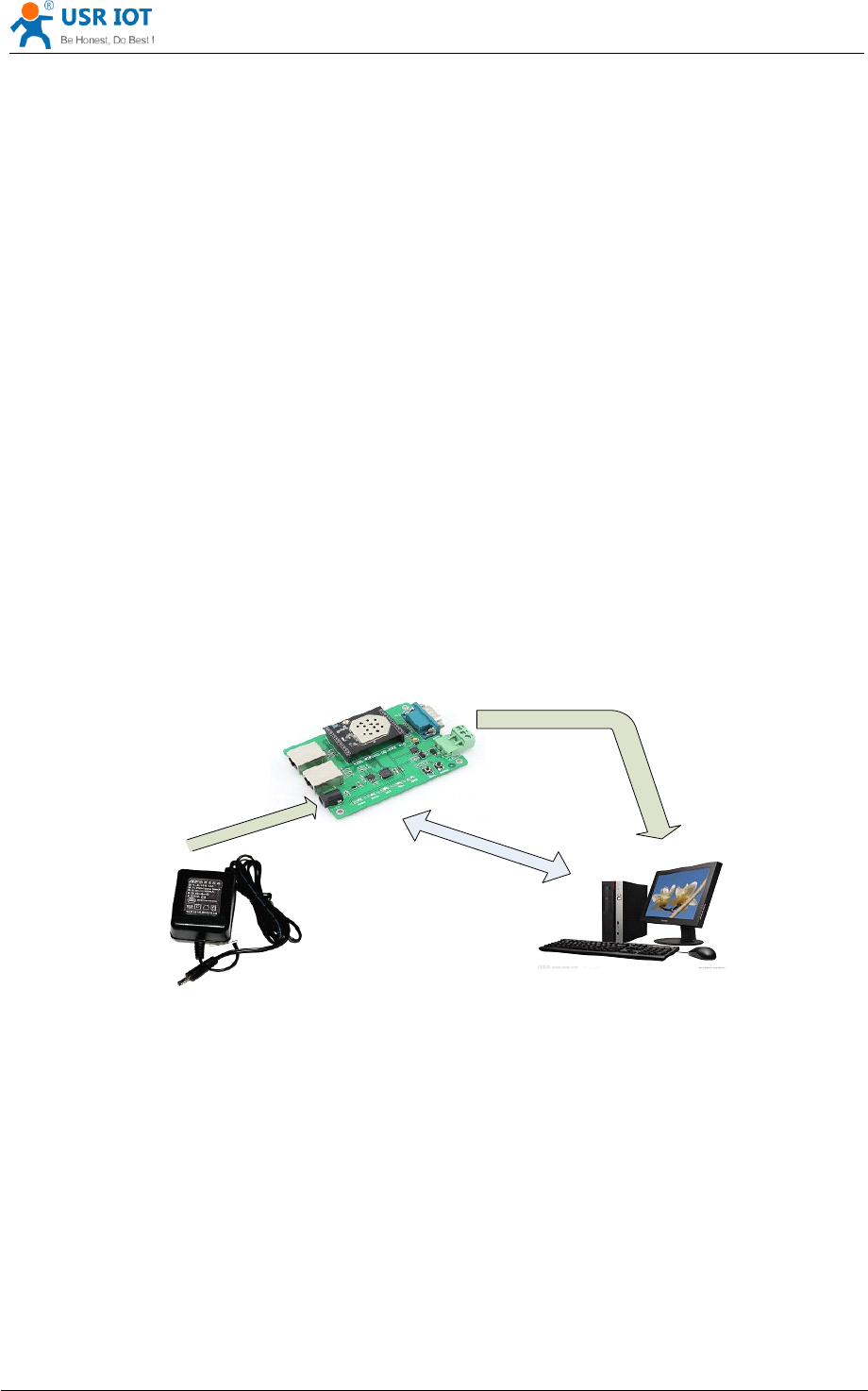
In order to test this module, we need connect module RS232 to PC and also WIFI or Ethernet to
PC.
In order to test the communication between serial and WIFI or Ethernet network, we need to
connect the serial port to PC, and also connect WIFI or Ethernet networks to PC.
D
C
5
-
1
8
V
P
O
W
E
R
WIFI or
Ethernet
R
S
2
3
2
Figure 1 hardware
hardware
hardware
hardware connection
connection
connection
connection diagram
diagram
diagram
diagram
About the serial connection, because the module RS232 is 3.3V TTL lev el, the computer can not
connect to module directly, the user needs to have a TTL to RS232 adapter cable and then
connect to the computer. in order to facilitate the test, we provide USR-WIFI232- D2-EVK
evaluation board for users to choose.
1.2
1.2
1.2
1.2 Network
Network
Network
Network connection
connection
connection
connection
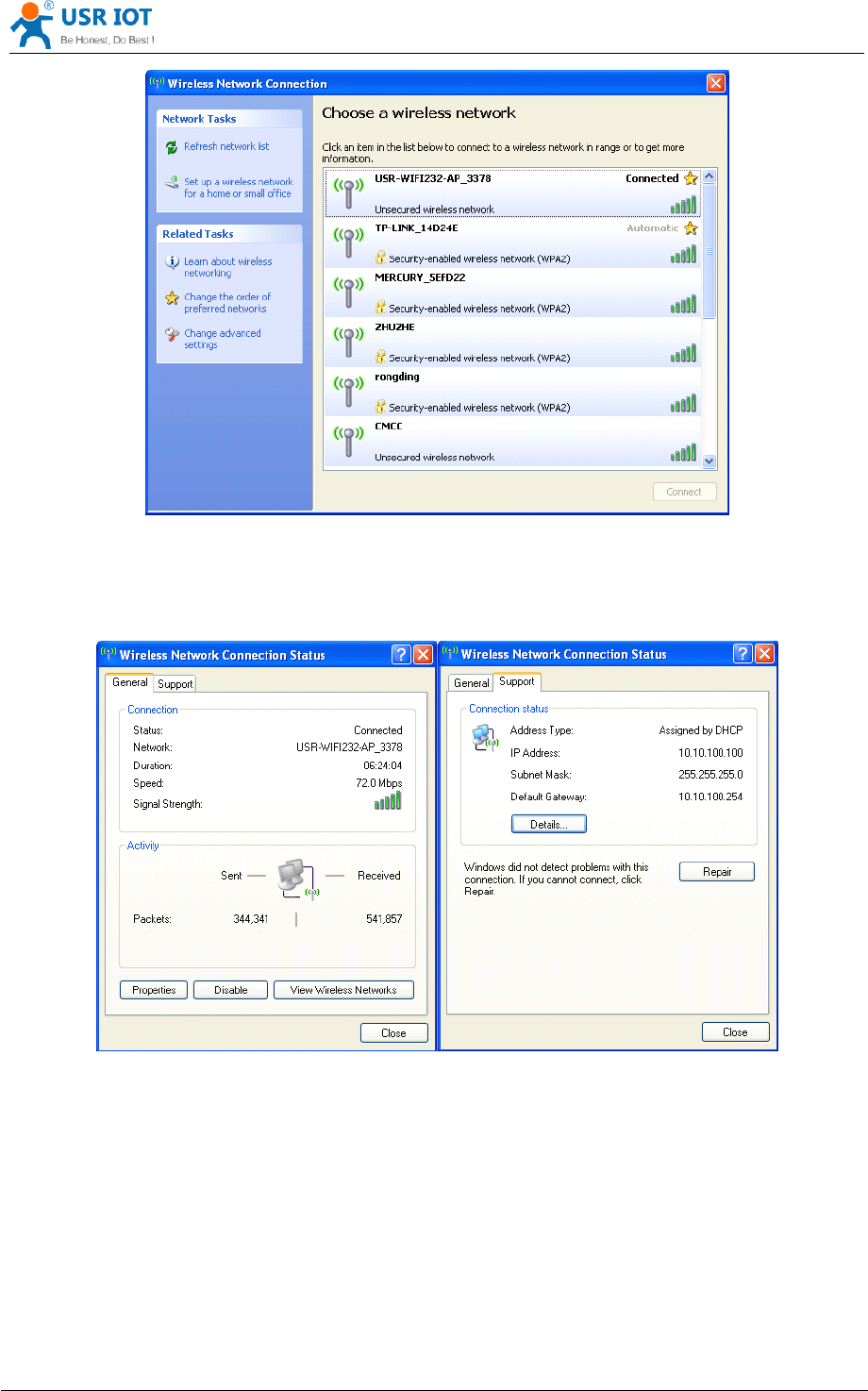
Open Wi-Fi, search network on the PC , as shown in below, USR-WIFI232- AP_3378 is the default
network name (SSID) of the module.
USR-WIFI232- D2 User Manual www.usr iot .com
Jinan USR IOT Technology Limited Page 7 of 78 tec@usr.cn
Figure 2 WIFI
WIFI
WIFI
WIFI Search
Search
Search
Search
Join the network, choose to automatically obtain
IP,
USR-WIFI232-D2 module supports DHCP
Server feature and is enabled by default.
Figure 3 WIFI
WIFI
WIFI
WIFI connection
connection
connection
connection
Now, link led of USR-WIFI232- D2-EVK Evaluation Board is lighting.
1.3
1.3
1.3
1.3 C
C
C
C ommunication
ommunication
ommunication
ommunication test
test
test
test
Module ’s default setting:
SSID:
SSID:
SSID:
SSID: USR-WIFI232-D2_xxxx(xxxx is the last of mac address);
Encryption
Encryption
Encryption
Encryption mode
mode
mode
mode :
:
:
:open ,none ;
UART:
UART:
UART:
UART: 57600 ,8,1,None ;
Network
Network
Network
Network parameters
parameters
parameters
parameters :TCP,Server,8899,10.10.100.254 ;
USR-WIFI232- D2 User Manual www.usr iot .com
Jinan USR IOT Technology Limited Page 8 of 78 tec@usr.cn
IP:
IP:
IP:
IP: 10.10.100.254;
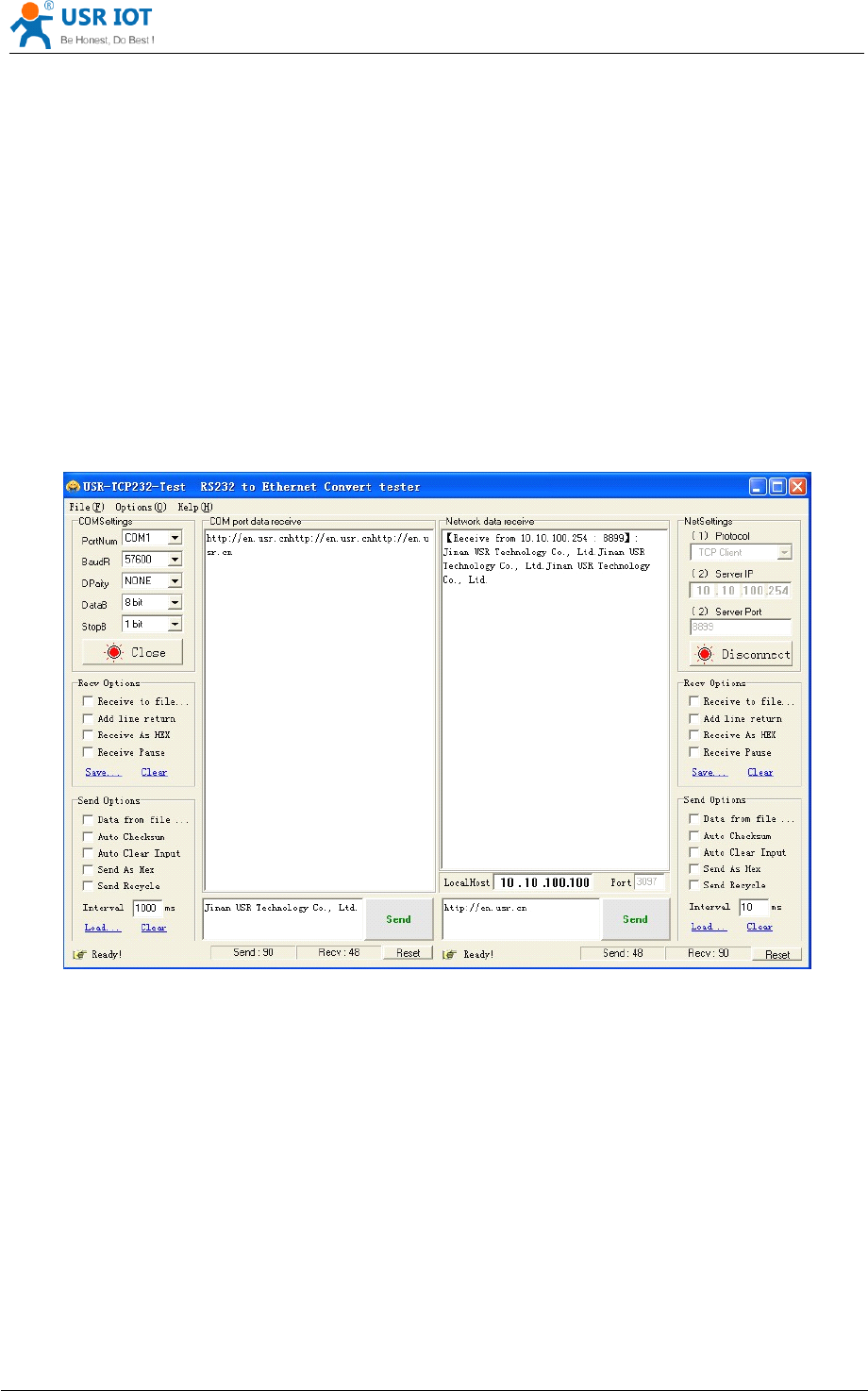
We just need to follow the parameters of the corresponding set of network communication
parameters, you can make serial < -- > WIFI or Ethernet communication, the steps are as follows:
1. Open test software USR-TCP232-Test ;
2. COM Settings area (left):
C hoose COM port witch has connect the module, there is COM3, choose band rate to 57600 , this
is the default band rate of WIFI module, Click Open COM port.
3. Net Settings area (right):
C hoose TCP client mode, Server IP write 10.10.100.254, it is the WIFI default IP address, Server
port to 8899, It is the default Port the WIFI module listen, Click Connect to link to the module.
Now, you can test send data between RS232 and WIFI.
COM port to WIFI: PC RS232 -> Module RS232 -> Module WIFI -> PC WIFI .
WIFI to COM port: PC WIFI or Ethernet -> Module WIFI or Ethernet -> Module RS232 -> PC
RS232.
Figure 4 serial
serial
serial
serial /
/
/
/ network
network
network
network transmission
transmission
transmission
transmission test
test
test
test
2
2
2
2 Product
Product
Product
Product Overview
Overview
Overview
Overview
2.1
2.1
2.1
2.1 General
General
General
General Description
Description
Description
Description
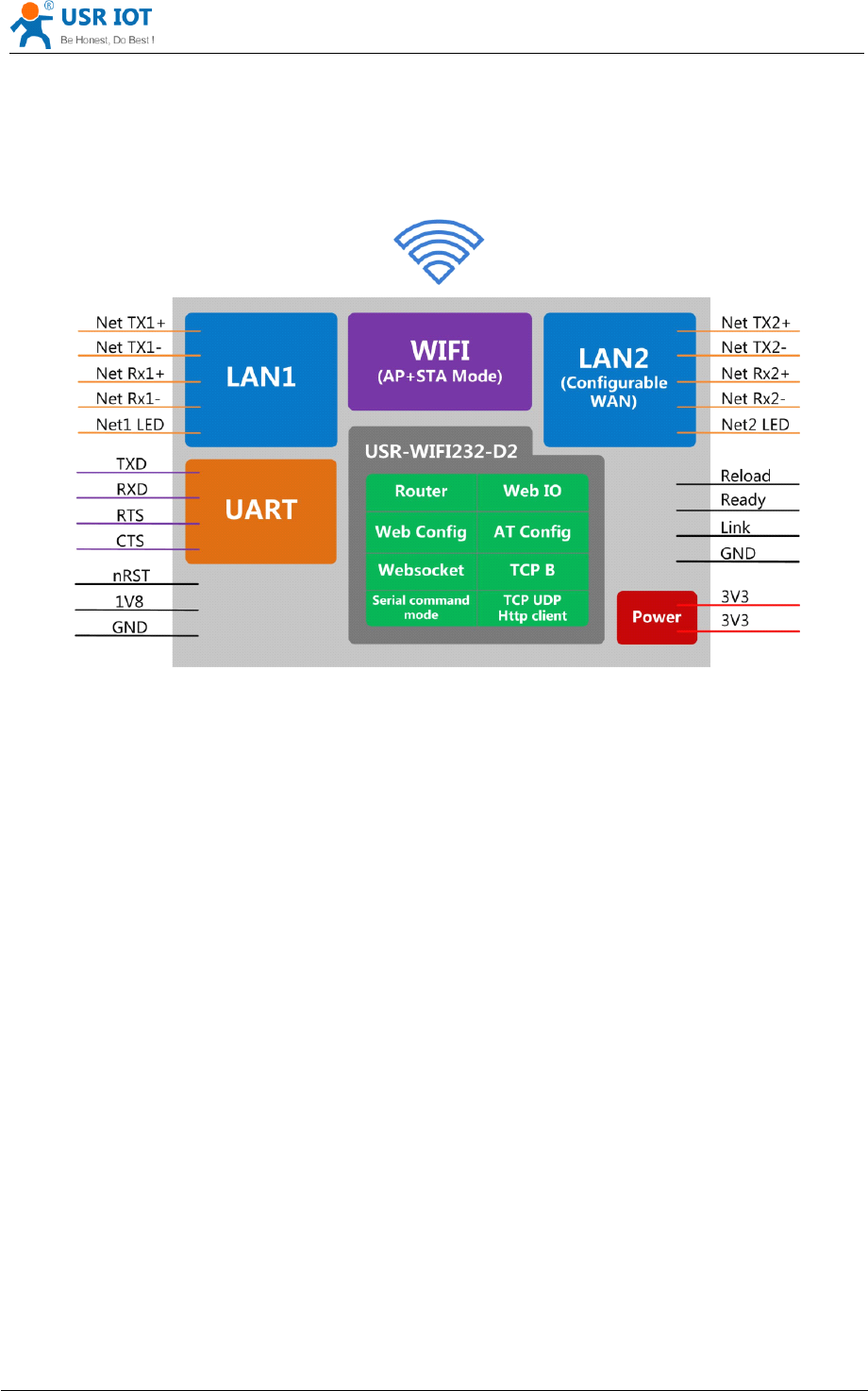
USR-WIFI232-D2 module is an integration of 802.11 b/g/n wi-fi module,which provide a wireless
interface and a Ethernet interface to any equipment with a Serial interface for data transfer.
The module used to MAC, Ethernet interface, baseband chip, RF transceiver unit, as well as the
power amplifier;Embedded firmware support wi-fi protocols and configuration, as well as the
network TCP/IP protocol stack.
USR-WIFI232- D2 User Manual www.usr iot .com
Jinan USR IOT Technology Limited Page 9 of 78 tec@usr.cn
USR-WIFI232-D2 uses the industry's highest performance embedded industrial structure, and for
the application of smart furniture, smart grid, handheld devices, personal medical, industrial
control, etc. These data fields, do a professional optimization.
USR-WIFI232-D2 as a hotspot can accommodate 32 clients simultaneously wi - fi access, but also
can accommodate 32 TCP client .
Figure 5 B
B
B
B lock
lock
lock
lock diagram
diagram
diagram
diagram
2.2
2.2
2.2
2.2 Device
Device
Device
Device Features
Features
Features
Features
Support
Support
Support
Support IEEE802.11b/g/n
IEEE802.11b/g/n
IEEE802.11b/g/n
IEEE802.11b/g/n Wireless
Wireless
Wireless
Wireless Standards
Standards
Standards
Standards
Support
Support
Support
Support TCP/IP/UDP
TCP/IP/UDP
TCP/IP/UDP
TCP/IP/UDP Network
Network
Network
Network Protocols
Protocols
Protocols
Protocols
Support
Support
Support
Support UART/GPIO/Ethernet
UART/GPIO/Ethernet
UART/GPIO/Ethernet
UART/GPIO/Ethernet Data
Data
Data
Data Interface
Interface
Interface
Interface
Support
Support
Support
Support Work
Work
Work
Work As
As
As
As STA/AP
STA/AP
STA/AP
STA/AP /AP+STA
/AP+STA
/AP+STA
/AP+STA Mode
Mode
Mode
Mode
Support
Support
Support
Support Router/Bridge
Router/Bridge
Router/Bridge
Router/Bridge Mode
Mode
Mode
Mode Networking
Networking
Networking
Networking
Support
Support
Support
Support Internal/External
Internal/External
Internal/External
Internal/External Antenna
Antenna
Antenna
Antenna Option
Option
Option
Option
Support
Support
Support
Support Transparent
Transparent
Transparent
Transparent Transmission
Transmission
Transmission
Transmission Mode
Mode
Mode
Mode
Support
Support
Support
Support AT+
AT+
AT+
AT+ Instruction
Instruction
Instruction
Instruction Set
Set
Set
Set for
for
for
for Configuration
Configuration
Configuration
Configuration
Support
Support
Support
Support Friendly
Friendly
Friendly
Friendly Web
Web
Web
Web Configuration
Configuration
Configuration
Configuration Page
Page
Page
Page
Support
Support
Support
Support Palmodic
Palmodic
Palmodic
Palmodic Signal
Signal
Signal
Signal
Support
Support
Support
Support UART
UART
UART
UART Auto-Frame
Auto-Frame
Auto-Frame
Auto-Frame Function
Function
Function
Function
Single
Single
Single
Single +3.3V
+3.3V
+3.3V
+3.3V Power
Power
Power
Power Supply
Supply
Supply
Supply
USR-WIFI232- D2 User Manual www.usr iot .com
Jinan USR IOT Technology Limited Page 10 of 78 tec@usr.cn
Small
Small
Small
Small Size:
Size:
Size:
Size: 45*32
45*32
45*32
45*32 mm
mm
mm
mm
FCC/CE
FCC/CE
FCC/CE
FCC/CE Certificated
Certificated
Certificated
Certificated
2.3
2.3
2.3
2.3 Device
Device
Device
Device Paremeters
Paremeters
Paremeters
Paremeters
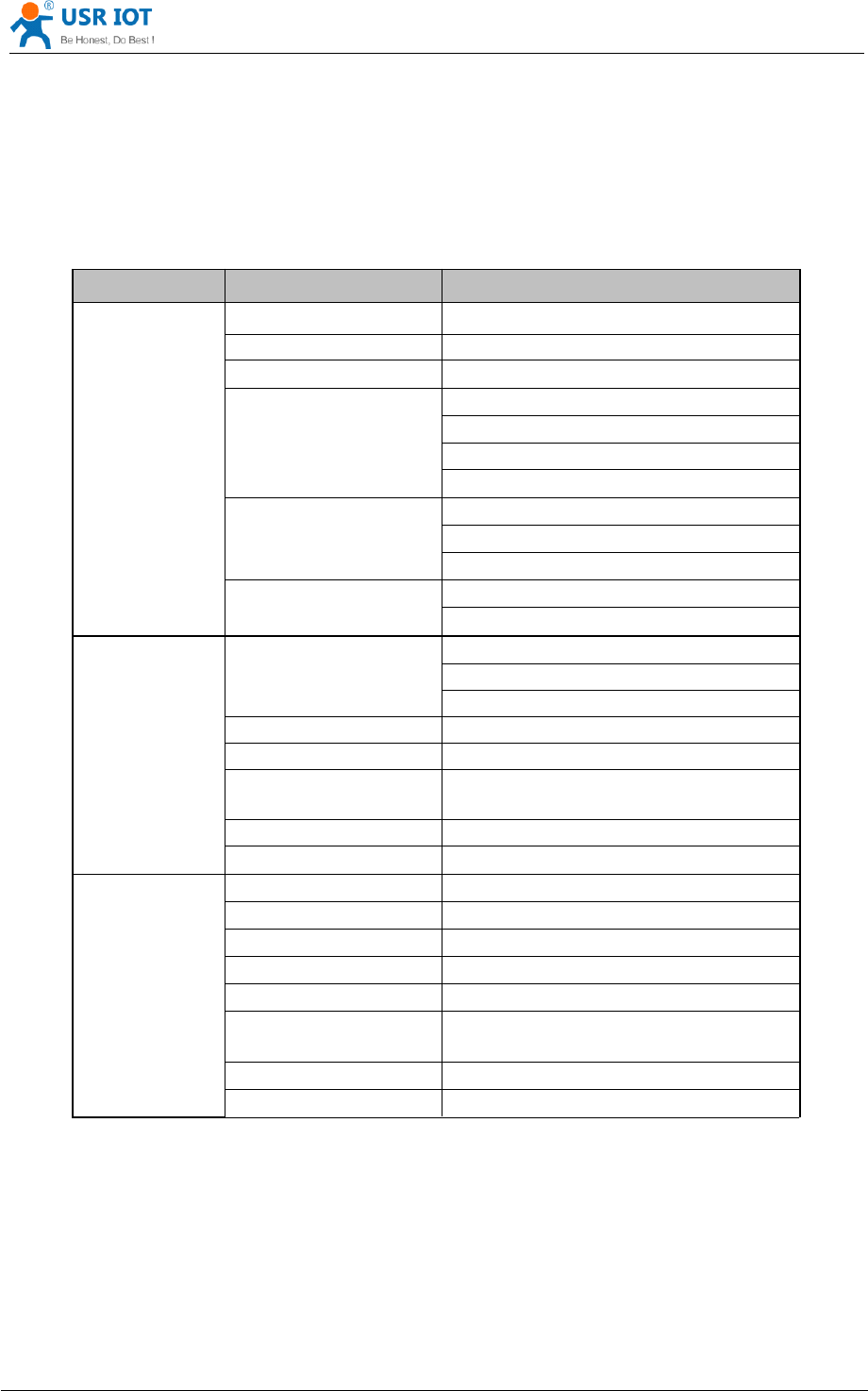
Table 1 USR-WIFI232-D2
USR-WIFI232-D2
USR-WIFI232-D2
USR-WIFI232-D2 Module
Module
Module
Module Technical
Technical
Technical
Technical Specifications
Specifications
Specifications
Specifications
Class
Class
Class
Class Item
Item
Item
Item Parameters
Parameters
Parameters
Parameters
Wireless
Wireless
Wireless
Wireless
Parameters
Parameters
Parameters
Parameters
Certification FCC / CE
Wireless standard 802.11 b/g/n
Frequency range 2.412GHz-2.484GHz
Transmit Power
802.11b: +20 dBm (Max.)
802.11g: +18 dBm (Max.)
802.11n: +15 dBm (Max.)
Configurable
Receiver Sensitivity
802.11b: -89 dBm
802.11g: -81dBm
802.11n: -71dBm
Antenna Option
External : I-PEX Connector
Internal :On-board chip antenna
Hardware
Hardware
Hardware
Hardware
Parameters
Parameters
Parameters
Parameters
Data Interface
UART: 1200bps - 230400bps
GPIOs
Ethernet: 100Mpbs
Operating Voltage 3.3V (+/-5%)
Operating Current 170mA~300mA
Operating
Temperature
-25 ℃- 85 ℃
Storage Temperature
-40 ℃- 125 ℃
Dimensions and Size 45 × 32 × 8mm
Software
Software
Software
Software
Parameters
Parameters
Parameters
Parameters
Network Type Station /AP mode /STA+AP
Security Mechanisms WEP/WAP-PSK/WAP2-PSK/WAPI
Encryption WEP64/WEP128/TKIP/AES
Work Mode Transparent Transmission
Serial command AT+instruction set
Network Protocol
TCP/UDP/ARP/ICMP/DHCP/DNS/HT
TP
Max. TCP Connection 32
User Configuration
Web Server +AT command config.
2.4
2.4
2.4
2.4 Key
Key
Key
Key Application
Application
Application
Application
Remote equipment monitoring
Industrial sensors and controls
Asset tracking and telemetry
Home automation

USR-WIFI232- D2 User Manual www.usr iot .com
Jinan USR IOT Technology Limited Page 11 of 78 tec@usr.cn
Medical devices
2.5
2.5
2.5
2.5 Package
Package
Package
Package Information
Information
Information
Information
2.5.1 Recommended Reflow Profile
Figure 6 Reflow
Reflow
Reflow
Reflow Soldering
Soldering
Soldering
Soldering Profile
Profile
Profile
Profile
Table 2 Reflow
Reflow
Reflow
Reflow Soldering
Soldering
Soldering
Soldering Parameter
Parameter
Parameter
Parameter
Note:
Note:
Note:
Note:
1. Recommend to supply N2 for reflow oven.
2. N2 atmosphere during reflow (O2<300ppm).
2.5.2 Device Handling Instruction (Module IC SMT Preparation)
Shelf life in sealed bag: 12 months, at <30 ℃and <60% relative humidity (RH)
After bag is opened, devices that will be re-baked required after last baked with window time
168 hours.
R ecommend to oven bake with N2 supplied.
Baked required with 24 hours at 125 ±5℃before rework process for two modules, one is
new module and two is board with module.
Recommend to store at ≦10% RH with vacuum packing.
If SMT process needs twice reflow:
(1) Top side SMT and reflow à (2) Bottom side SMT and reflow
Case 1: Wifi module mounted on top side. Need to bake when bottom side process over 168
hours window time, no need to bake within 168 hours.
Case 2: Wifi module mounted on bottom side, follow normal bake rule before process.
Note:
Window time means from last bake end to next reflow start that has 168 hours space.
2.5.3 Shipping Information
NO.
NO.
NO.
NO. Item
Item
Item
Item Temperature
Temperature
Temperature
Temperature (Degree)
(Degree)
(Degree)
(Degree)
Time(Sec)
Time(Sec)
Time(Sec)
Time(Sec)
1 Reflow Time Time of above 220
35~55 sec
2 Peak-Temp 260 max
USR-WIFI232- D2 User Manual www.usr iot .com
Jinan USR IOT Technology Limited Page 12 of 78 tec@usr.cn
Figure 7 Shipping
Shipping
Shipping
Shipping Information
Information
Information
Information
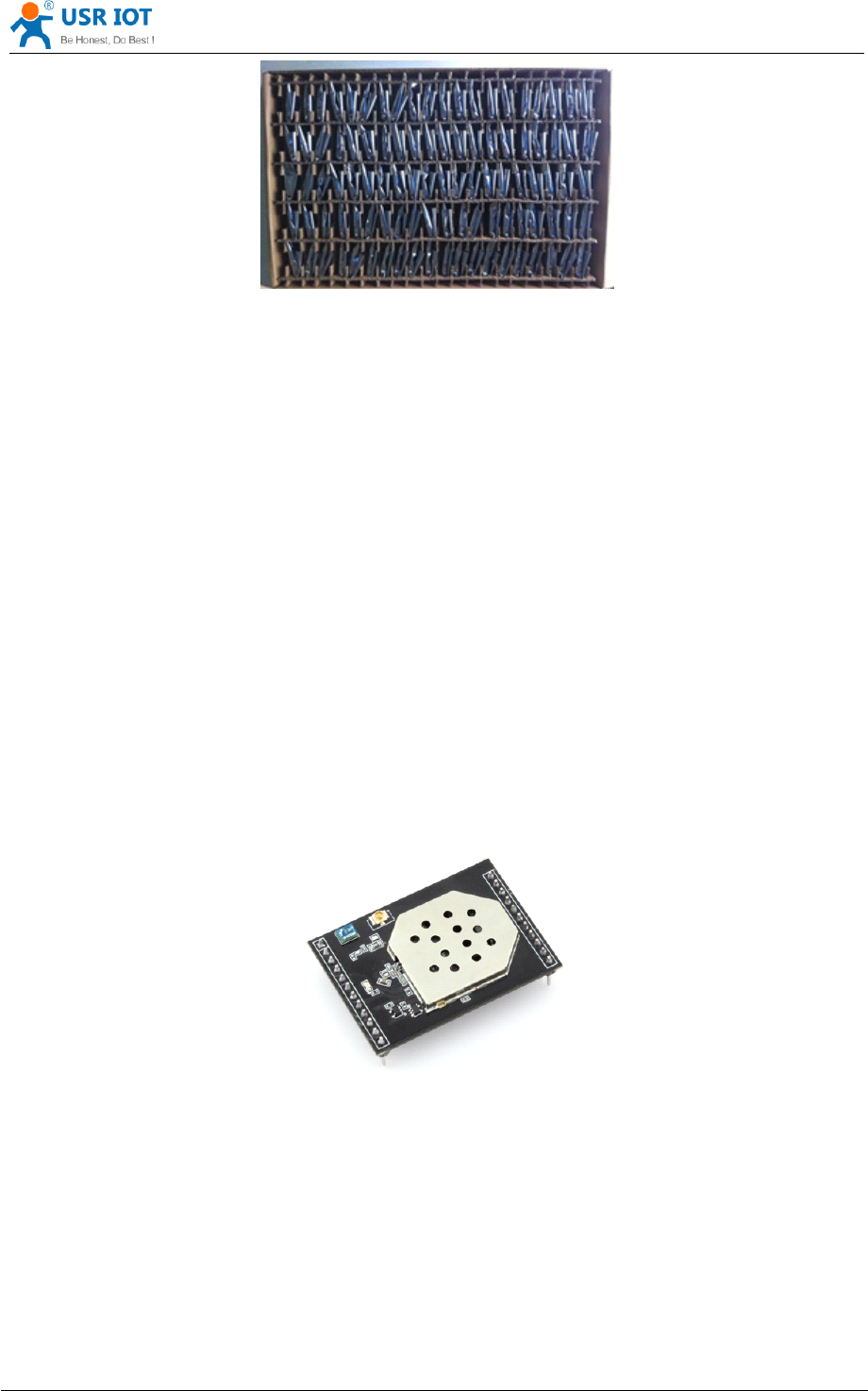
TRAY
TRAY
TRAY
TRAY Size: 420*245*34 mm
Note:
Note:
Note:
Note:
1 tray = 5*20 pcs = 100 pcs
1 box = 2 trays = 2*100 pcs = 200pcs
1 carton = 4 boxes = 4*200 pcs = 800pcs
3
3
3
3 Hardware
Hardware
Hardware
Hardware Introduction
Introduction
Introduction
Introduction
3.1
3.1
3.1
3.1 Pins
Pins
Pins
Pins Definition
Definition
Definition
Definition
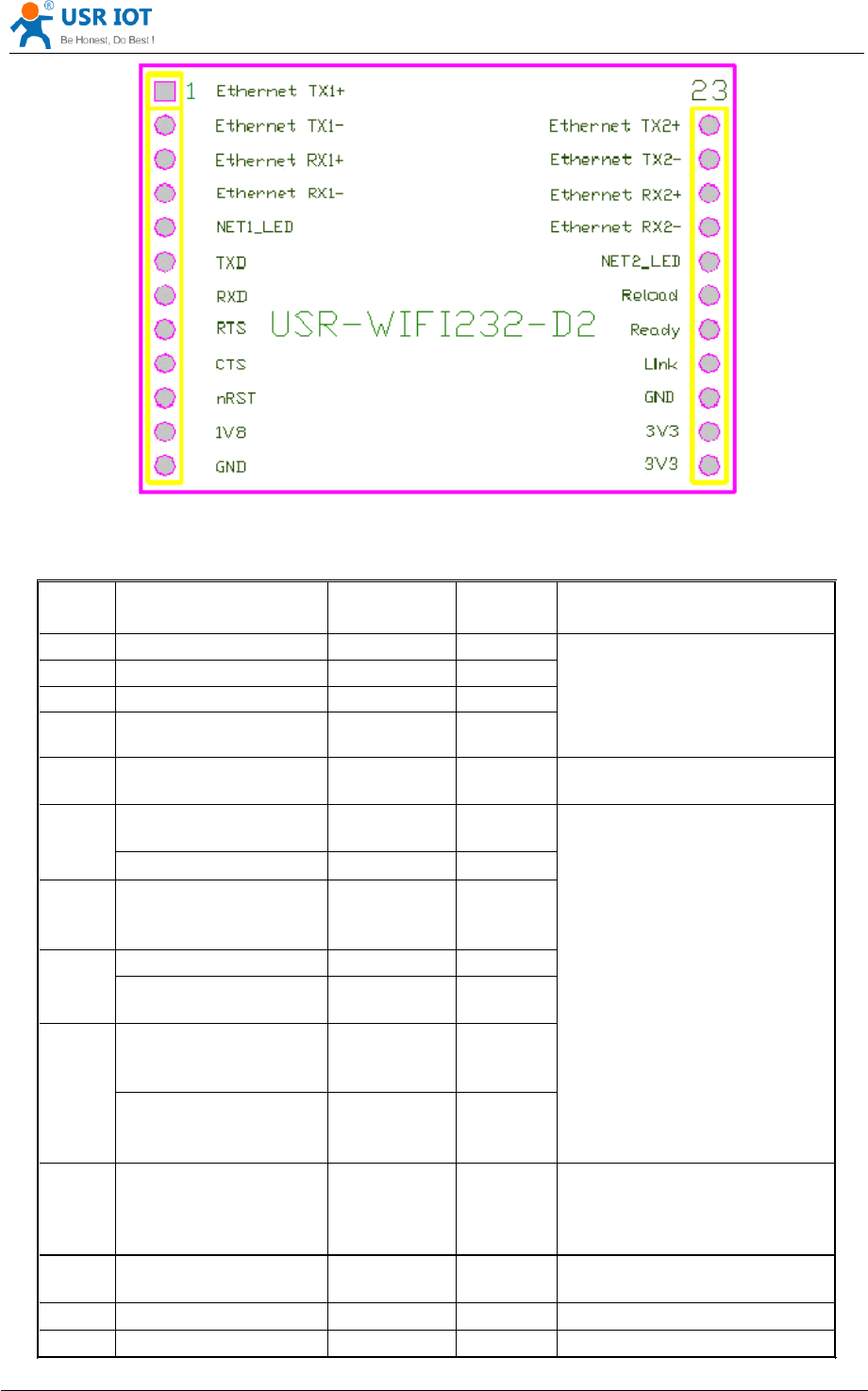
3.1.1 USR-WIFI232- D2 Pins Definition
Figure 8 USR-WIFI232-
USR-WIFI232-
USR-WIFI232-
USR-WIFI232- D2
D2
D2
D2
USR-WIFI232- D2 User Manual www.usr iot .com
Jinan USR IOT Technology Limited Page 13 of 78 tec@usr.cn
Figure 9 USR-WIFI232-
USR-WIFI232-
USR-WIFI232-
USR-WIFI232- D2
D2
D2
D2 Pins
Pins
Pins
Pins Map
Map
Map
Map
Table 3 USR-WIFI232-
USR-WIFI232-
USR-WIFI232-
USR-WIFI232- D2
D2
D2
D2 Pins
Pins
Pins
Pins Definition
Definition
Definition
Definition
Pin
Pin
Pin
Pin Description
Description
Description
Description Name
Name
Name
Name Directi
Directi
Directi
Directi o
o
o
o
n
n
n
n
Note
Note
Note
Note
1
1
1
1Ethernet 1 Output+ TX1+ O +1.8V Ethernet Data
Interface
Support transformer and
direct connection (AC
couple) mode.
2
2
2
2Ethernet 1 Output - TX1- O
3
3
3
3Ethernet 1 Input+ RX1+
I
4
4
4
4Ethernet 1 Input - RX1-
I
5
5
5
5Ethernet1 LED NET1_LED O
Ethernet1 pilot light
6
6
6
6
UART Data Transmit UART_TXD O
If not use UART function ,
this 4 pins can be
configured as GPIO pins,
and can change GPIO pin
status through AT
command .
GPIO GPIO 3 I/O
7
7
7
7
UART Data Receive UART_RXD
I
8
8
8
8
GPIO GPIO 4 I/O
UART sends request
of data transmission
UART_RTS O
9
9
9
9
GPIO GPIO 5 I/O
UART receives data
transmission
permission
UART_CTS
I
10
10
10
10
Module reset signal nRST
I
“ Low ( 0 ) ” effective reset
input.
The reset duration should be
kept more than 300ms
11
11
11
11
Output 1.8V 1.8V O 1.8V@300mA, to the Eth
application
12
12
12
12
GND GND Power Ground
13
13
13
13 /14
/14
/14
/14
VCC 3.3V Power 3.3V @ 350mA power input
USR-WIFI232- D2 User Manual www.usr iot .com
Jinan USR IOT Technology Limited Page 14 of 78 tec@usr.cn
15
15
15
15
GND GND Power Ground
16
16
16
16
WiFi status Indication L ink O “ 0 ” - WIFI connection
available, “ 1 ” - No WIFI
connection .
17
17
17
17
Indicate the module
status of power on
process
Ready O
“ 0 ” - Finish module boot up
process;
“ 1 ” - Module boot up not
finish.
18
18
18
18
Restore configuration Reload
I
Module will Restore factory
default configuration after set
this pin “ 0 ” more than 1s,
then set “ 1 ” .
19
19
19
19 Ethernet2 LED NET2_LED O
Ethernet2 pilot light
20
20
20
20 Ethernet 2 Output+ TX2+ O +1.8V Ethernet Data
Interface
Support transformer and
direct connection (AC
couple) mode.
21
21
21
21 Ethernet 2 Output - TX2- O
22
22
22
22 Ethernet 2 Input+ RX2+
I
23
23
23
23 Ethernet 2 Input - RX2-
I
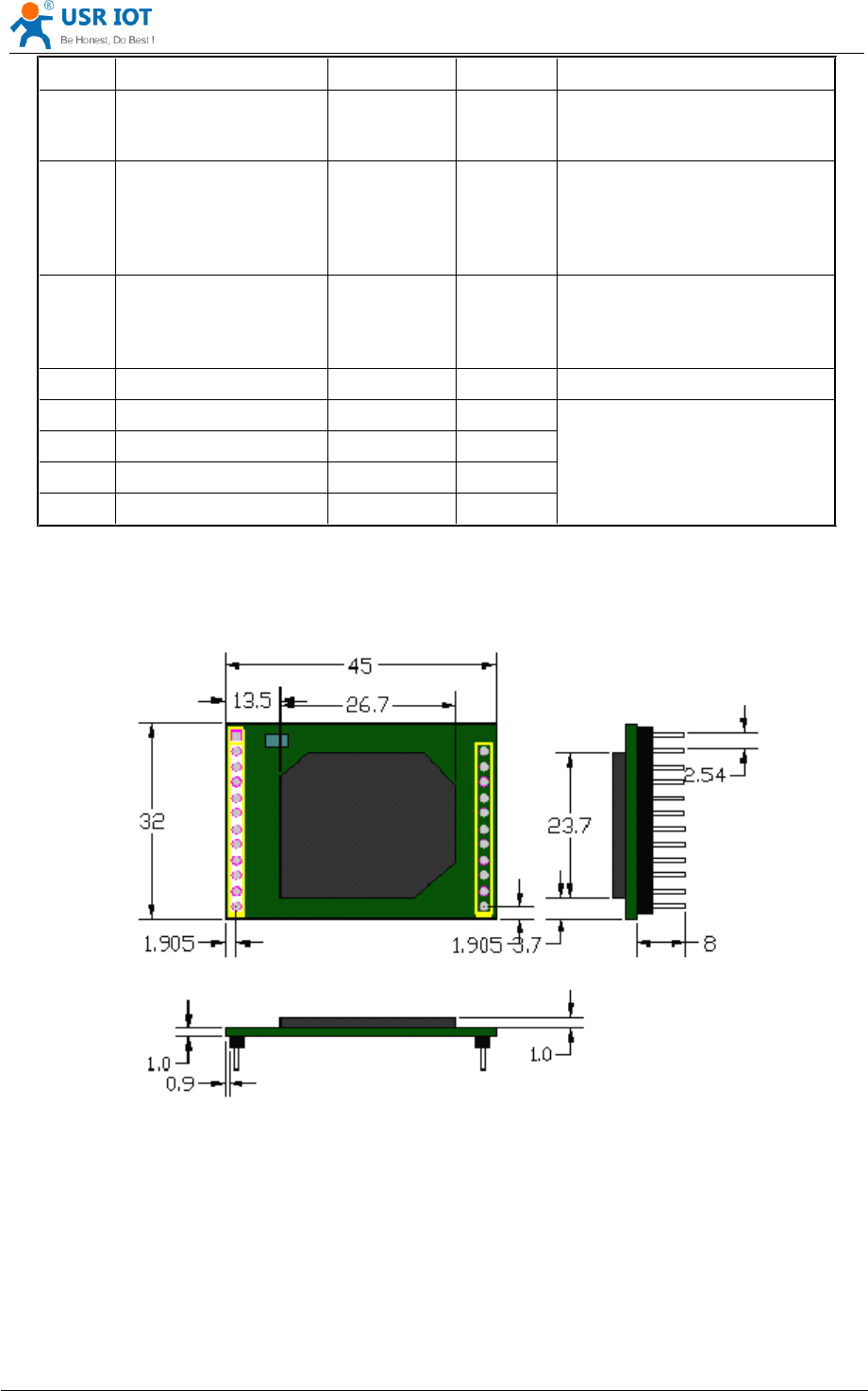
3.1.2 USR-WIFI232-D2 Size
USR-WIFI232- D2 module Mechanical Size:
Figure 10 USR-WIFI232-
USR-WIFI232-
USR-WIFI232-
USR-WIFI232- A/B
A/B
A/B
A/B Mechanical
Mechanical
Mechanical
Mechanical Size
Size
Size
Size
3.2
3.2
3.2
3.2 Antenna
Antenna
Antenna
Antenna
3.2.1 On-board Chip Antenna
USR-WIFI232-D2 supports a built-in antenna options, when customers choose a built-in antenna,
must comply with the following built-in antenna module placement of notes and general rules:
USR-WIFI232- D2 User Manual www.usr iot .com
Jinan USR IOT Technology Limited Page 15 of 78 tec@usr.cn
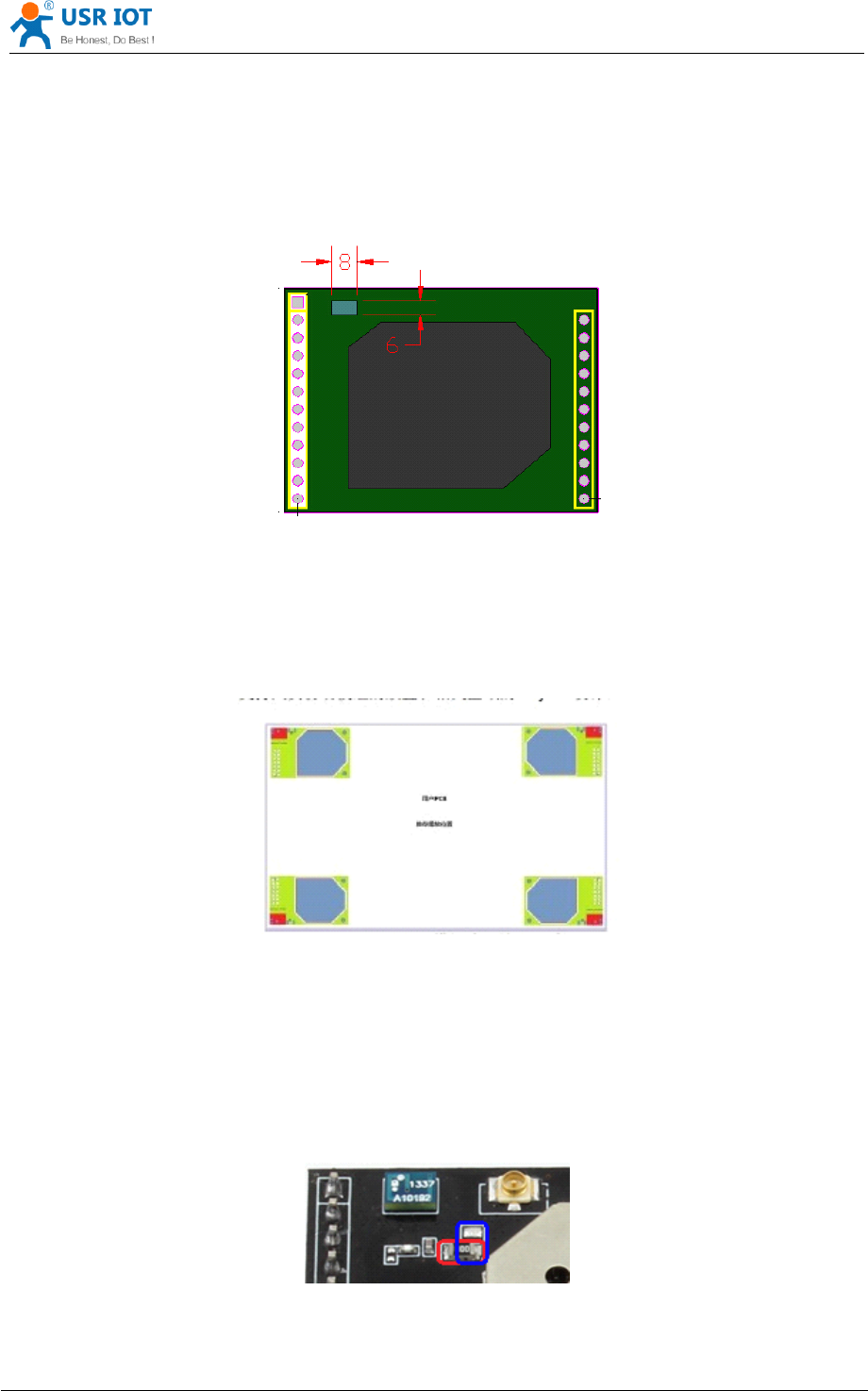
Be in the user's PCB board, and the Light blue region ( 6X8 mm ) corresponding to the region
cannot be placed components and with GND;
Antenna must away from the metal, at least to the distance around the higher components above
10MM;
Antenna can no t be shielded by any meal enclosure; All cover, include plastic, shall away from
antenna at least 10MM;
Figure 11 USR-WIFI232-D2
USR-WIFI232-D2
USR-WIFI232-D2
USR-WIFI232-D2 Chip
Chip
Chip
Chip Antenna
Antenna
Antenna
Antenna Keep
Keep
Keep
Keep Out
Out
Out
Out Region
Region
Region
Region
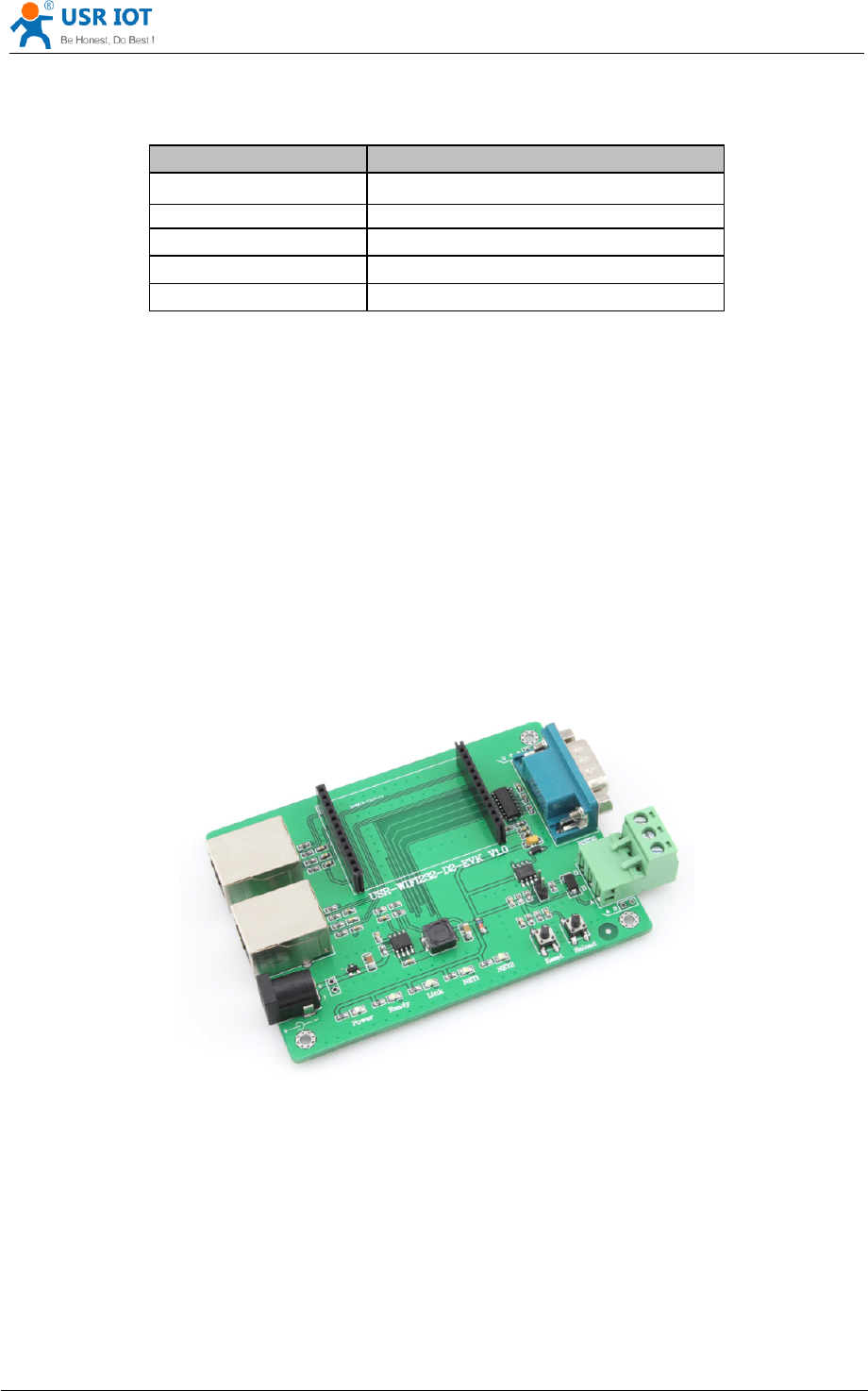
USR technological suggestions USR-WIFI232-D2 module be placed in the following areas of user
board, in order to reduce the antenna and a wireless signal influence, at the same time, please consult
with technology and technical support staff to assist module placement and associated regions of
Layout design.
Figure 12 Suggested
Suggested
Suggested
Suggested Module
Module
Module
Module Placement
Placement
Placement
Placement Region
Region
Region
Region
3.2.2 External Antenna
USR - WIFI232 - D2 module can be done by switching the resistance external antenna interface
to apply different customer application. If user select external antenna, USR-WIFI232-D2 modules
must be connected to the 2.4G antenna according to IEEE 802.11b/g/n standards.
The antenna parameters required as follows:
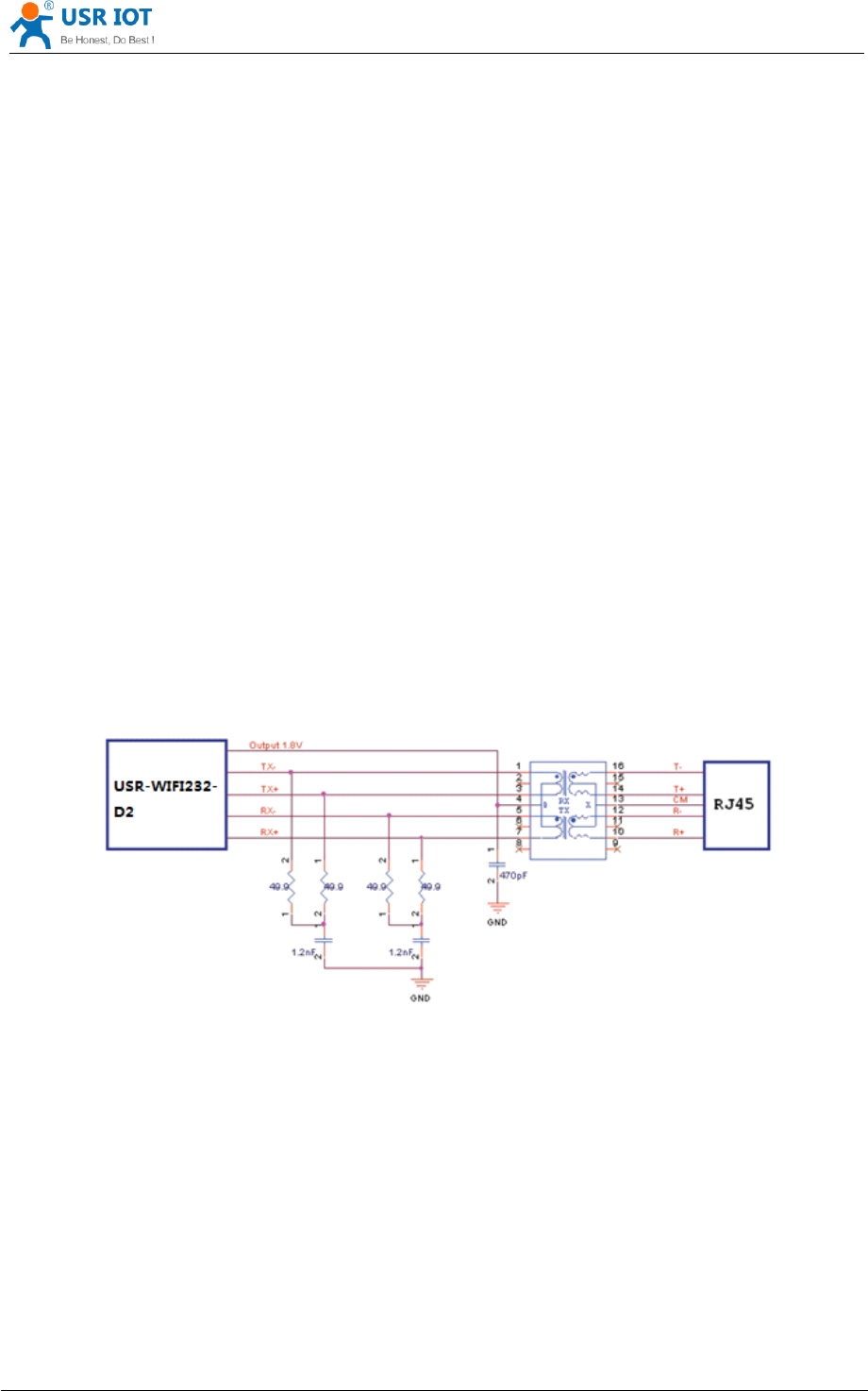
Figure 13 Switch
Switch
Switch
Switch R
R
R
R esistance
esistance
esistance
esistance
USR-WIFI232- D2 User Manual www.usr iot .com
Jinan USR IOT Technology Limited Page 16 of 78 tec@usr.cn
As shown in figure, switch resistance is normally in the red areas.For external antenna, the
resistance change to blue area.
Table 4 USR-WIFI232-D2
USR-WIFI232-D2
USR-WIFI232-D2
USR-WIFI232-D2 External
External
External
External Antenna
Antenna
Antenna
Antenna Parameters
Parameters
Parameters
Parameters
3.3
3.3
3.3
3.3 Evaluation
Evaluation
Evaluation
Evaluation Kit
Kit
Kit
Kit
USR provides the evaluation kit to promote user to familiar the product and develop the detailed
application. The evaluation kit shown as below, user can connect to USR-WIFI232-D2 module
with the RS-232 UART port, 100M Eth port or Wireless port to configure the parameters, manage
the module or do the some functional tests.
Figure 14 USR-WIFI232-
USR-WIFI232-
USR-WIFI232-
USR-WIFI232- D2
D2
D2
D2 module
module
module
module Evaluation
Evaluation
Evaluation
Evaluation Kit
Kit
Kit
Kit
Table 5 USR-WIFI232-
USR-WIFI232-
USR-WIFI232-
USR-WIFI232- D2
D2
D2
D2 Evaluation
Evaluation
Evaluation
Evaluation Kit
Kit
Kit
Kit Interface
Interface
Interface
Interface Description
Description
Description
Description
Item Parameters
Frequency range 2.4~2.5GHz
Impedance 50 Ohm
VSWR 2 (Max)
Return Loss -10dB (Max)
Connector Type I-PEX or populate directly

USR-WIFI232- D2 User Manual www.usr iot .com
Jinan USR IOT Technology Limited Page 17 of 78 tec@usr.cn
3.4
3.4
3.4
3.4 Hardware
Hardware
Hardware
Hardware Reference
Reference
Reference
Reference Design
Design
Design
Design
3.4.1 Hardware Typical Application
Figure 15 USR-WIFI232-D2
USR-WIFI232-D2
USR-WIFI232-D2
USR-WIFI232-D2 Hardware
Hardware
Hardware
Hardware Typical
Typical
Typical
Typical Application
Application
Application
Application
Notes
Notes
Notes
Notes :
nRST-
nRST-
nRST-
nRST- Module hardware reset signal. Input. Logics “ 0 ” effective.
There is 100K Ohm pull-up resister internal up to 3.3V. When module power up or some issue
happened, MCU need assert nRST signal “ 0 ” at least 300ms, then set ” 1 ” to keep module fully
reset.
Function
Function
Function
Function
Name
Name
Name
Name Description
Description
Description
Description
External
External
External
External
Interface
Interface
Interface
Interface
DC jack
5V power input connector
DB9
Male serial jack of 9-pin,and used to connect to
PC
RJ-45 (1) 100M Eth Interface
RJ-45 (2) 100M Eth Interface
Module
2x 12 2 .54 mm DIP connector , connect WIFI
module
LED
LED
LED
LED Power
(Red)
3.3V Power Indicator
NET1 Ethernet1 LED
NET2 Ethernet2 LED
Ready Ready /GPIO Indicator
Link Link /GPIO Indicator
Button
Button
Button
Button Reset
Used to reset the module.
Reload Module restore to factory default configuration.
USR-WIFI232- D2 User Manual www.usr iot .com
Jinan USR IOT Technology Limited Page 18 of 78 tec@usr.cn
Ready
Ready
Ready
Ready -
-
-
-Module boot up ready signal. Output. Logics “ 0 ” effective.
There is 4.7K Ohm pull-up resister internal up to 3.3V . The module will output “ 0 ” “ or “ Palmodic
Signal ” after normal boot up. This signal used to judge if module finish boot up and ready for
application or working at normal mode.
Link
Link
Link
Link -
-
-
-Module WIFI connection indication. Output.
There is 4.7K Ohm pull-up resister internal up to 3.3V . When module connect to AP (STA mode)
or some WiFi
STA
connect to module (AP mode), the module will output “ 0 ” . This signal used to
judge if module already at WiFi connection status.
nReload
nReload
nReload
nReload -Module restore to factory default configuration.Input. Logics “ 0 ” effective.
User can assert nReload signal “ 0 ” more than 3
’
s through button or MCU pin, then release,
module will restore to factory default configuration and re-start boot up process. User need add
4.7K~10K Ohm pull-up resister external the module. If not use this function, then can use AT
command AT+FRLDEN=off to disable it.
UART_TXD/RXD- UART port data transmit and receive signal.
There is 1K Ohm pull-down resister internal. User can ’ t add pull-up resister at these pins.
3.4.2 10/100M Ethernet Interface
User board put Ethernet transformer and RJ-45 connector. This is a general 10/100M Ethernet
phy layer connection. The reference design as following:
Figure 16 Ethernet
Ethernet
Ethernet
Ethernet Reference
Reference
Reference
Reference Design
Design
Design
Design with
with
with
with Transformer
Transformer
Transformer
Transformer
3.4.3 UART Interface
UART interface is the serial data transmition interface mainly used for USR-WIFI232-D2 modules.
User can add RS-232 chipset on user board and convert the signal to RS-232 voltage to
communicate with outside equipment or sensors. USR-WIFI232-D2 modules UART interface
include 4 general signals: TXD/RXD/RTS/CTS. The hardware reference design with RS-232
chipset as following:
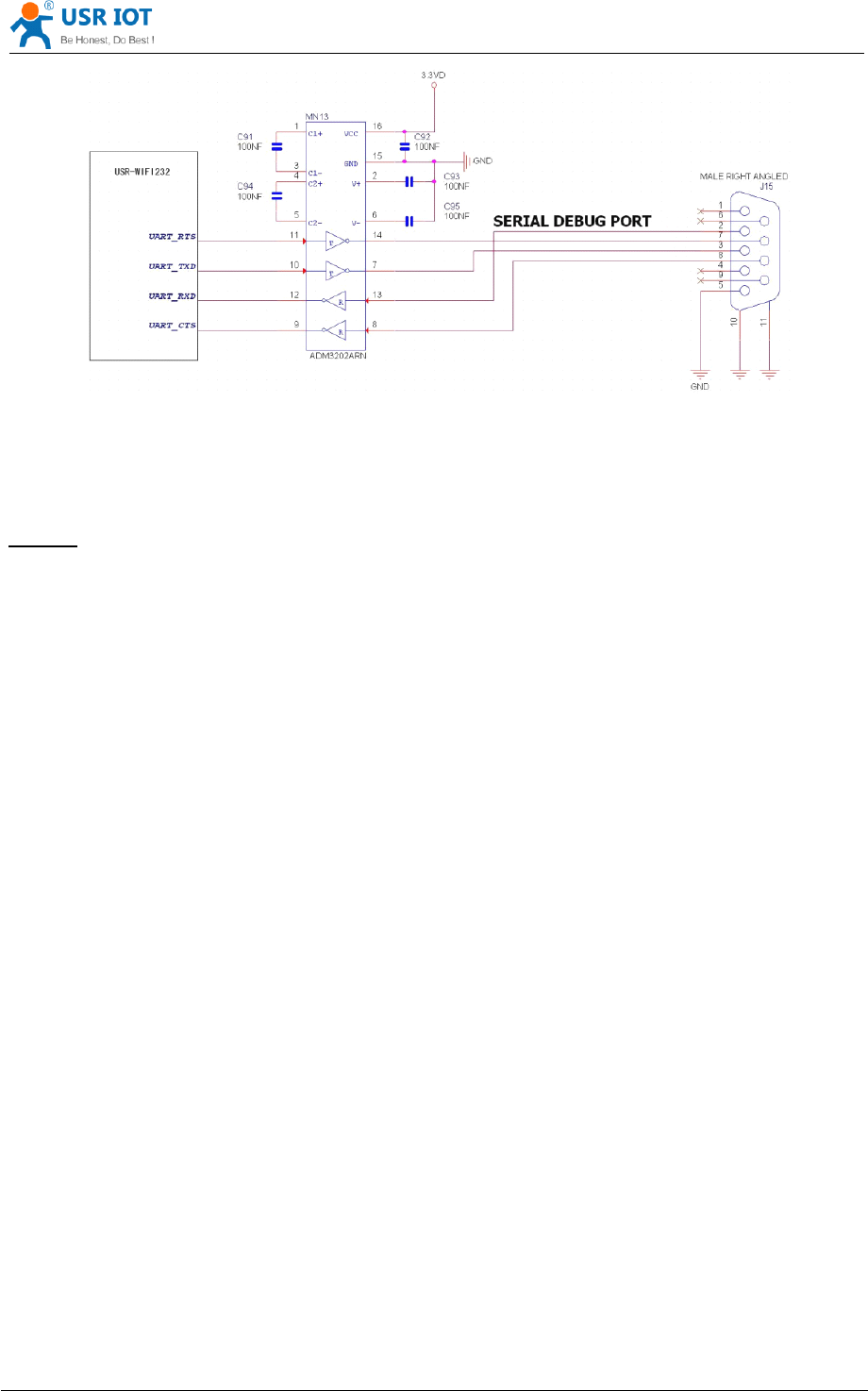
USR-WIFI232- D2 User Manual www.usr iot .com
Jinan USR IOT Technology Limited Page 19 of 78 tec@usr.cn
Figure 17 Figure
Figure
Figure
Figure 10
10
10
10 UART
UART
UART
UART Interface
Interface
Interface
Interface Reference
Reference
Reference
Reference Design
Design
Design
Design
Notes:
Notes:
Notes:
Notes: TXD pin is also hardware configuration pin internal module. So this pin MUST pull-down
during module power up. USR-WIFI232-D2 modules provide internal pull-down resister, user
can ’ t add pull-up/pull-down resister on user board, which may cause module can ’ t work.
3.4.4 Power Interface
USR-WIFI232-D2 module support single +3.3V power supply. The peak current shall about
350mA and normal WiFi working current shall about 200mA. The power save (WiFi OFF) mode
will about 100mA
Decoupling at power pin suggested, At least one 100uF , one 10uF and one 10 0n F capacitor
required at user board and put near module power input pin will increase the reliability and
performance.
4
4
4
4 Modules
Modules
Modules
Modules F
F
F
F unction
unction
unction
unction D
D
D
D escription
escription
escription
escription
4.1
4.1
4.1
4.1 User
User
User
User configuration
configuration
configuration
configuration process
process
process
process
After USR-WIFI232-D2 module electric starter, based on user pre-set parameters, automatically
connect to wireless networks and servers, and enter the working mode is set to open in
accordance with the default serial port parameters.
The parameters which need to configure include:
Wireless Network Parameters
Wireless Network Name (SSID )
Security Mode
Encryption Key

USR-WIFI232- D2 User Manual www.usr iot .com
Jinan USR IOT Technology Limited Page 20 of 78 tec@usr.cn
TCP/UDP Linking Parameters
Protocol Type
Link Type (Server or Client )
Target Port ID Number
Target Port IP Address
Serial Port Parameters
Baud Rate
Data Bit
Parity (Check) Bit
Stop Bit
Hardware Flow Control
Work Mode Selection
Transparent transmission /Serial command mode/GPIO mode/HTTPD Client mode
The following sections will introduce specific to each part in detail.
4.2
4.2
4.2
4.2 Working
Working
Working
Working mode
mode
mode
mode
4.2.1 Transparent Transmission Mode
USR-WIFI232-D2 modules support serial interface transparent transmission mode. The benefit of
this mode is achieves a plug and play serial data port, and reduces user complexity furthest. In
this mode, user should only configure the necessary parameters. After power on, module can
automatically connect to the default wireless network and server.
As in this mode, the module's serial port always work in the transparent transmission mode, so
users only need to think of it as a virtual serial cable, and send and receive data as using a
simple serial. In other words, the serial cable of users
’
original serial devices is directly replaced
with the module; user devices can be easy for wireless data transmission without any changes.
The transparent transmission mode can fully compatible with user ’ s original software platform
and reduce the software development effort for integrate wireless data transmission.
Notes:
Notes:
Notes:
Notes: Users also open the serial port hardware flow control (CTS/RTS) function, so that we can
make the bit error rate to a minimum.If the user doesn't need hardware flow control function of the
serial port, only need to the corresponding pin foot (CTS/RTS) hung up.
4.2.2 Serial command mode
In this mode, the user can send the serial data to a different server address, this pattern can be
use UDP or TCP client sends data to the server.
Customer MCU send packets according to the following format, parsing module is finished, only
the n bytes of data sent to the destination address.When data is returned, not analytical data from
serial port output directly.
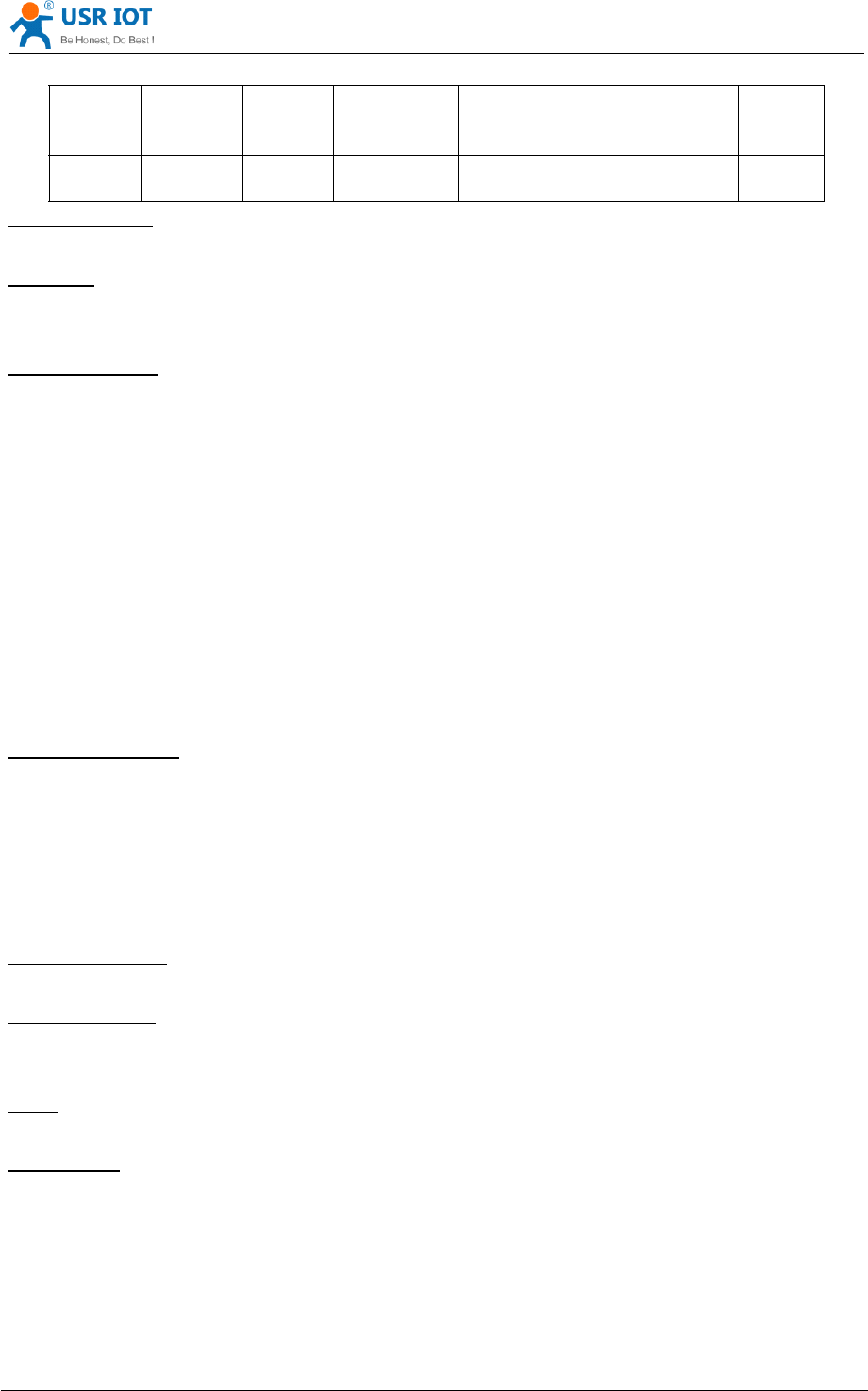
USR-WIFI232- D2 User Manual www.usr iot .com
Jinan USR IOT Technology Limited Page 21 of 78 tec@usr.cn
Table 6 Protocol
Protocol
Protocol
Protocol table
table
table
table of
of
of
of Serial
Serial
Serial
Serial command
command
command
command mode
mode
mode
mode
frame
header
length functio
n
byte
Backup
data area
Destinati
on port
Target
address
Data Sum
check
2 2
(n+m+5)
1 2 2 m n 1
frame
frame
frame
frame header
header
header
header :
0x55 0xAA (Constant )
Length
Length
Length
Length :
Starting from the function byte, to Sum check (does not contain the sum check) all bytes.
High byte at the front
Function
Function
Function
Function byte
byte
byte
byte :
Bit0: (UDP:0 ;TCP:1 )
Bit1: (Short connection:0;Long connection:1 )
Bit2: (IP:0;Domain name:1 )
Bit7: (cut protocol:0;full protocol:1 )Note: currently only supports cut protocol
Notes:
Bit1:If it is a short connection, it sends data, and then will be disconnected; if it is long
connection, it sends data, connection will remain, until the re changing the target address.
Bit2:Indicates that the target address is
IP
or domain name. If it is
IP,
the target address is 4
bytes; if the domain name, the target address length for the entire domain name string length
(the last byte address is ‘ \0 ’ , that is the end of the string).
Bit7:Under the cut protocol, reply frame contains only data; Under the full protocol, reply
frame has "failed to send", "waiting for", "UDP radio response equipment IP" frame data.
Backup
Backup
Backup
Backup data
data
data
data area
area
area
area :
:
:
:
First byte:If it is a short connection, this position is TCP waits for the timeout time (1-255), if
the send command is completed, did not receive a response, then wait a few seconds and
the corresponding, if 5, said to wait for the 5S to disconnect; if the sending command,
immediately receive the returned data, then immediately disconnected; if it is long connection,
this position is 0x00.
Second byte:Reserve
Destination
Destination
Destination
Destination port
port
port
port :
:
:
:
Little endian, low byte in the former,such as port 23, here are 0x17 0x00
Target
Target
Target
Target address:
address:
address:
address:
If it is
IP,
is 4 bytes, for example, 192.168.0.7 said 0x07 0x00 0xA8 0xC0; if it is a domain
name, then the address of indefinite length,ending with the ’ \0'.
Data:
Data:
Data:
Data:
Variable length,the maximum not exceeding 1000bytes.
Sum
Sum
Sum
Sum check:
check:
check:
check:
From the function word to check byte (does not contain a check byte), add Sum check.
The following is an example of a specific application:
send data:0x55 0xaa 0x00 0x0a 0x00 0x00 0x00 0x21 0x00 0x85 0x00 0xA8 0xC0 0x01 0x0f
Length:0x00 0x0a
Function byte:0x00 (UDP;Short connection;IP;cut protocol)
Destination port :0x21 0x00(33)

USR-WIFI232- D2 User Manual www.usr iot .com
Jinan USR IOT Technology Limited Page 22 of 78 tec@usr.cn
Target address: 0x85 0x00 0xA8 0xC0 (192.168.0.133)
Data:0x01(data length :1)
Sum check:0x0f ( 0x00+0x00+0x00+0x21+0x00+0x85+0x00+0xA8+0xC0+0x01=0x0f )
4.2.3 GPIO mode
USR-WIFI232-D2 module support GPIO mode,At GPIO,UART (TXD/ RXD/CTS/RTS) defined as
GPIO and others (Ready/Link/) also defined as GPIO pin.
When module works at GPIO mode, PC and other equipments can setup connection (TCP/UDP)
through WiFi, then read/write GPIO information through command.
GPIO n IN, Set GPIOn as input, Response GPIO OK or GPIO NOK;
GPIO n OUT 0, Set GPIOn as output and output ‘0’, Response GPIO OK or GPIO NOK;
GPIO n OUT 1, Set GPIOn as output and output ‘1’, Response GPIO OK or GPIO NOK;
GPIO n SW, Set GPIOn as output and switch the output status, Response GPIO OK or
GPIO NOK;
GPIO n PWM m1 m2, Set GPIOn output a wave: m1 is ‘high ’duration and m2 is ’low ’
duration (Time unit is ‘ms ’and minimal is 10ms), Response GPIO OK or GPIO NOK;
GPIO n GET, Read GPIOn status, Response I0,I1,O0,O1, means ”input low ”,”input
high ”,”output low ”,”output high ”
Notes: n can be 6,7,8,9,16,17 corresponding module pin. GPIO 4 can only defined as input and
GPIO 3 can only defined as output.
GPIO READ returns all current IO status, and GPIO n GET said method. Such as, I1I1I0I0I0I0O1,
I said input, O output. 0 low, 1 express high.
4.2.4 HTTPD Client mode
This mode is used to send data to the HTTP server.
After setting the HTTP header format by webpage or
AT
command, the data sent each time by
UART will add the HTTP header automatically.Convenient for the user directly submit data or
read data from the HTTP server.
Below is the specific application, for example:
The first set HTTP parameters using
AT
instructions.
AT+HTTPURL=192.168.1.1,80 The serveraddress and portsettings
AT+HTTPTP=POST Set the HTTP type, GET, PUT or POST
AT+HTTPPH=/set Set the path,the mostis50 bytes
AT+HTTPCN=keep-alive Set the Connection,maximum length of 20bytes
AT+HTTPUA=lwip13.2 Set the User-Agent,maximum length of 20bytes
If the sending data is 1234.In the 80 port of 192.168.1.1 will receive the following data
POST /set HTTP /1.1
Connection:keep-alive
User-Agent:lwip1.3.2
Content-Length:4
Host:192.168.1.1:80
1234
If the HTTP type is GET, the 80 port 192.168.1.1 receive data
POST /set 1234 HTTP /1.1
USR-WIFI232- D2 User Manual www.usr iot .com
Jinan USR IOT Technology Limited Page 23 of 78 tec@usr.cn
Connection:keep-alive
User-Agent:lwip1.3.2
Content-Length:0
Host:192.168.1.1:80
Data received from server will be directly sent to the serial port,without any treatment.
4.3
4.3
4.3
4.3 Wireless
Wireless
Wireless
Wireless Networking
Networking
Networking
Networking
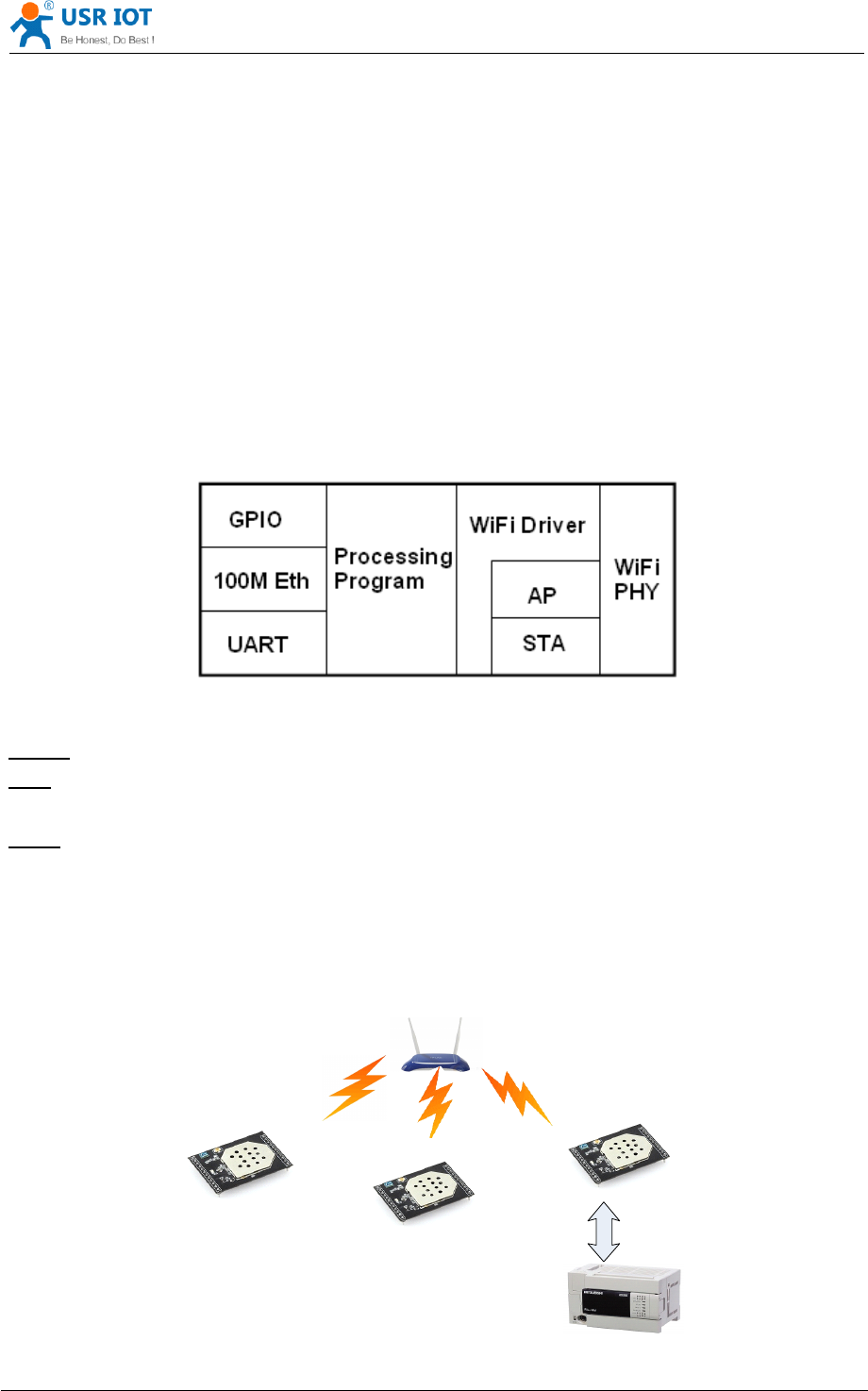
USR-WIFI232-D2 module can be configured as both wireless
STA
and AP base on network type.
Logically there are two interfaces in USR-WIFI232-D2 . One is for STA, and another is for
AP.
When USR-WIFI232-D2 works as
AP,
other
STA
equipments are able to connect to wireless LAN
via USR-WIFI232-D2 module. Wireless Networking with USR-WIFI232-D2 is very flexible.
Following figure shows the functional architecture of USR-WIFI232-D2 module:
Figure 18 USR-WIFI232-D2
USR-WIFI232-D2
USR-WIFI232-D2
USR-WIFI232-D2 Functional
Functional
Functional
Functional Architecture
Architecture
Architecture
Architecture
Notes:
Notes:
Notes:
Notes:
AP:
AP:
AP:
AP: that is the wireless Access Point, the founder of a wireless network and the cent er of the
network nodes. The wireless router we use at home or in office may be an
AP.
STA:
STA:
STA:
STA: short for Station, each terminal connects to a wireless network (such as laptops, PDA and
other networking devices) can be called with a
STA
device.
4.3.1 STA
Infrastructure: it
’
s also called basic network. It built by AP and many STAs which join in.
The characters of network of this type are that AP is the cent er , and all communication between
STAs is transmitted through the
AP.
The figure following shows such type of networking.
AP
USR
-
WIFI
232
-
D 2
USR
-
WIFI
232
-
D 2
USR
-
WIFI
232
-
D 2
UART
User Device
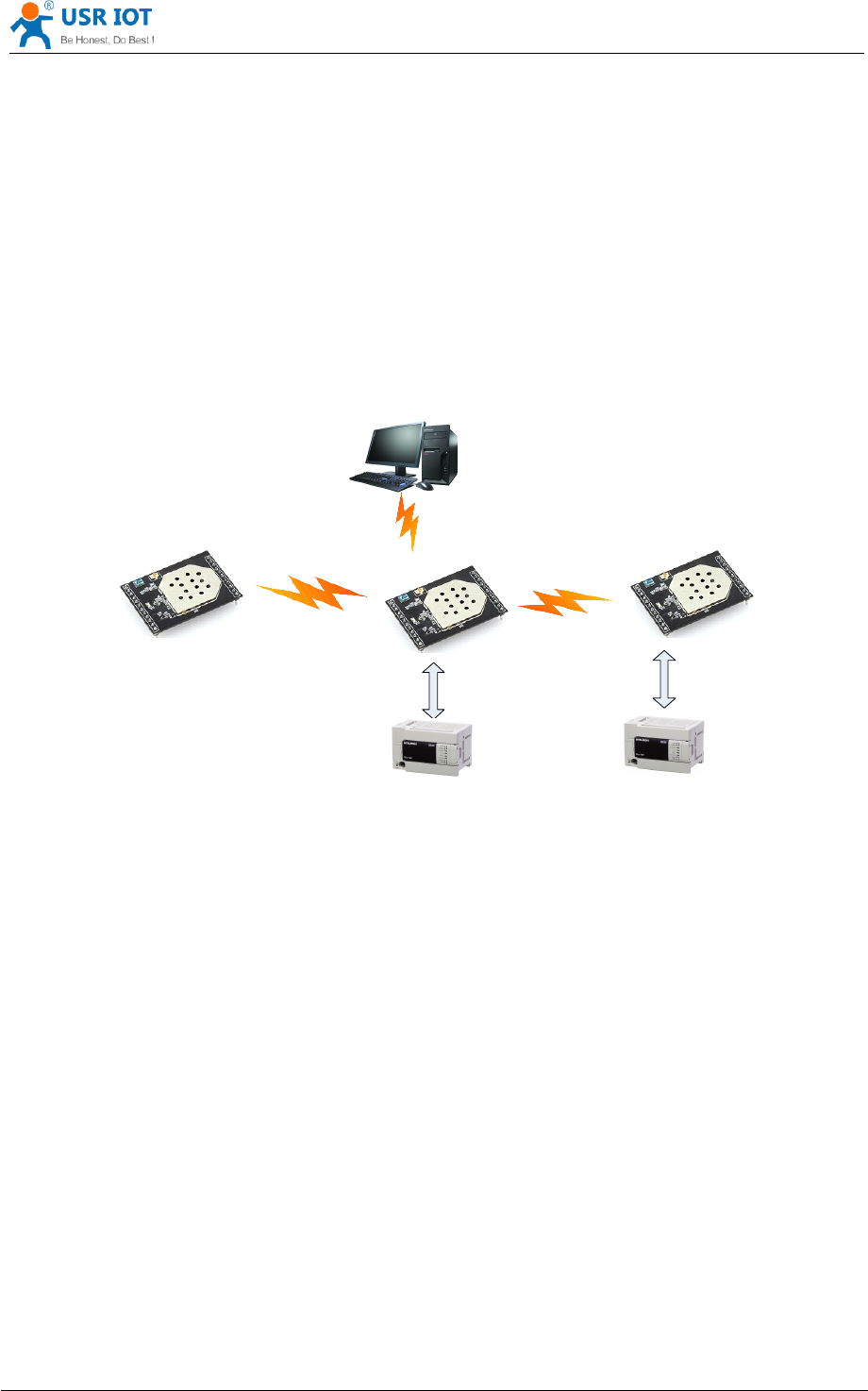
USR-WIFI232- D2 User Manual www.usr iot .com
Jinan USR IOT Technology Limited Page 24 of 78 tec@usr.cn
Figure 19 USR-WIFI232-D2
USR-WIFI232-D2
USR-WIFI232-D2
USR-WIFI232-D2 Basic
Basic
Basic
Basic Wireless
Wireless
Wireless
Wireless Network
Network
Network
Network Structure
Structure
Structure
Structure
4.3.2 AP
Because USR-WIFI232-D2 can be set to
AP,
can also be set to STA, so the USR-WIFI232-D2
can be achieved easily wireless ad hoc network.
As showing in the figure below, USR-WIFI232-D2 (1) can be treat as an
AP,
and USR-WIFI232-
D2 (2), USR-WIFI232-D2 (3) and the laptop are STAs connected to USR-WIFI232-D2 (1).
Meanwhile, all USR-WIFI232-D2 modules can connected to user device via UART interface. All
USR-WIFI232-D2 modules can be operated and managed through the laptop. So it is convenient
to O&M all USR-WIFI232-D2 modules. Moreover, in such Adhoc network structure, the whole
coverage of a wireless network can be extended easily.
PC
USR
-
WIFI
232
- D 2
User Device
UART
USR
-
WIFI
232
-D2
USR
-
WIFI
232
- D 2
UART
User Device
Figure 20 USR-WIFI232-D2
USR-WIFI232-D2
USR-WIFI232-D2
USR-WIFI232-D2 STA
STA
STA
STA Network
Network
Network
Network Structure
Structure
Structure
Structure
4.3.3 AP+STA
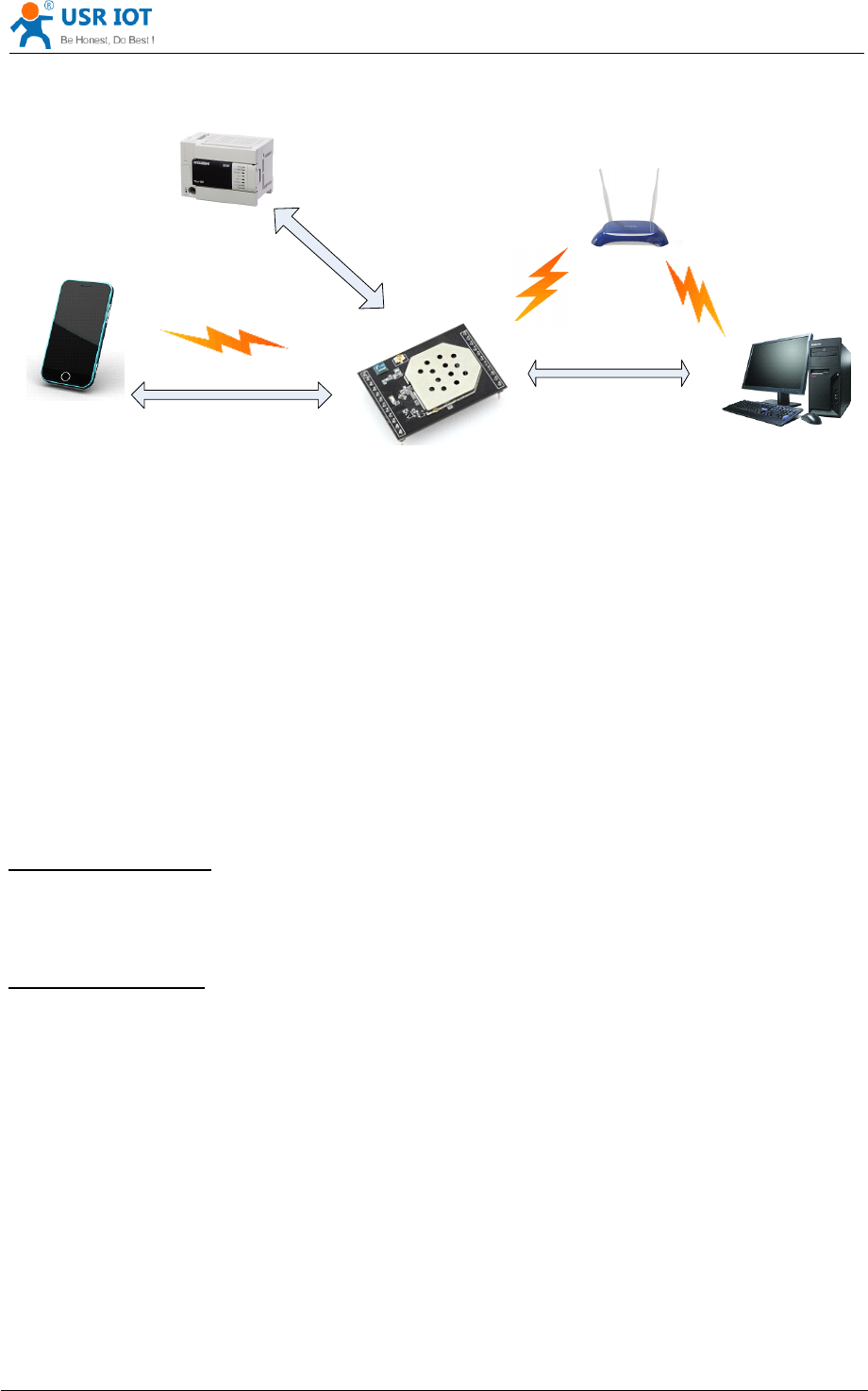
USR-WIFI232-D2 module support AP+STA network mode, means module support one AP
interface and one
STA
interface at the same time, as following figure,
USR-WIFI232- D2 User Manual www.usr iot .com
Jinan USR IOT Technology Limited Page 25 of 78 tec@usr.cn
AP
User
Device
UART
Phone
USR
-
WIFI
232
- D 2
Tcp
Client
Tcp
server
Tcp server
Tcpb
Figure 21 USR-WIFI232-D2
USR-WIFI232-D2
USR-WIFI232-D2
USR-WIFI232-D2 AP+STA
AP+STA
AP+STA
AP+STA Network
Network
Network
Network Structure
Structure
Structure
Structure
When module enables AP+STA function, Module ’ s
STA
interface can connect with router and
connect to TCP server in the network. At the same time, module ’ s AP interface is also active and
permit phone/PAD to connect through TCPB, then phone/PAD can control user device and and
setting the module parameters,
The advantage of AP+STA mode is:
Users can easily setting and track user device through Phone/PAD and not change the
orginal network setting.
Users can easily setting module
’
s parameters through WiFi when module works as
STA
mode.
AP+STA
AP+STA
AP+STA
AP+STA Mode
Mode
Mode
Mode Setting:
Setting:
Setting:
Setting:
AP+STA mode need serial
AT
command to enable as follows:
AT+FAPSTA=on, Enable AP+STA mode;
Then, when you configure module works as
STA
mode, it
’
s AP interface still active;
AP+STA
AP+STA
AP+STA
AP+STA Mode
Mode
Mode
Mode Notes:
Notes:
Notes:
Notes:
When user enable AT+STA function,the
STA
port need to keep connected with other
router(AP),
or
STA
port will have to scan the AP frequently ,which will affect AP port function and may cause
some date loss.
So ,if user confirm
STA
port can't connect with AP at some time,user can disable the
STA
scan
through the following command:
AT+STTC=on/off,on:Scan AP;off:N o Scan
AP.
After re-start module,this command not saved;
AT+FSTTC=on/off;
This command is saved after re-staring the module;

USR-WIFI232- D2 User Manual www.usr iot .com
Jinan USR IOT Technology Limited Page 26 of 78 tec@usr.cn
4.4
4.4
4.4
4.4 Ethernet
Ethernet
Ethernet
Ethernet Interface
Interface
Interface
Interface Communication
Communication
Communication
Communication
USR-WIFI232-D2 module provides one 100M Ethernet interface. With this Ethernet interface,
user can easily realize the three interface (WiFi, UART, and Ethernet) intercommunication and
networking. USR-WIFI232-D2 module can configured as Bridge Mode or Router Mode base on
different networking technology.
Notes: As the Ethernet mode will increase additional consumption, so it is default closed. If you
need this function, pls use AT+FEPHY=on to open it and RELD can ’ t change this. F or different
application, USR-WIFI232-610 need version switch via commands (such as following description
of N-ver and Z-ver). With command AT+FVER=n to switch to N-ver and with command
AT+FVER=z to switch to Z-ver.
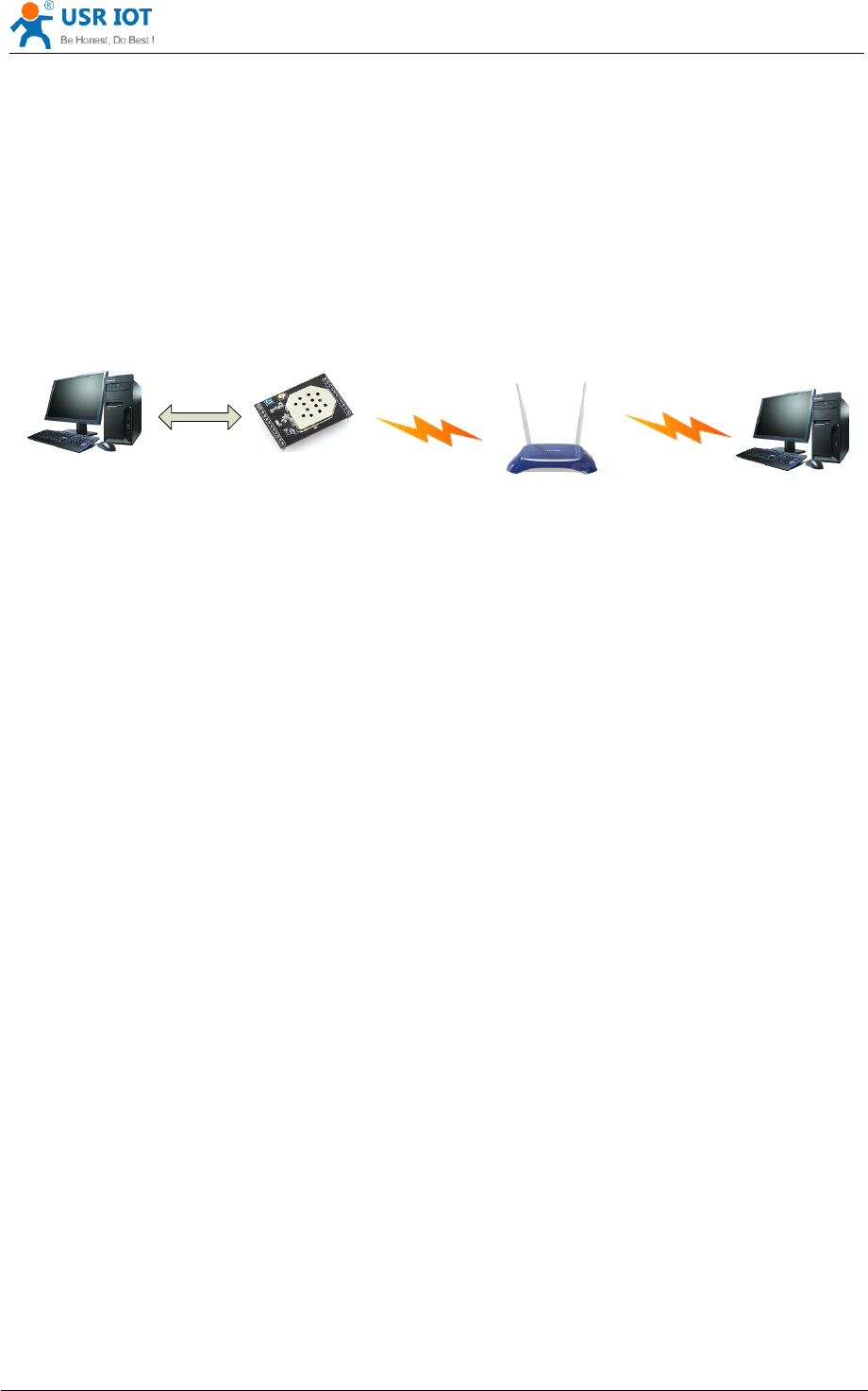
4.4.1 USR-WIFI232-D2 Ethernet Interface Networking (As AP)
PC
1
PC
2
USR
-
WIFI
232
- D 2
IP
:
10
.
10
.
100
.
101
GateWay
:
10
.
10
.
100
.
254
AP
IP
:
10
.
10
.
100
.
254
IP
:
10
.
10
.
100
.
100
GateWay
:
10
.
10
.
100
.
254
100
M Eth
Figure 22 USR-WIFI232-D2
USR-WIFI232-D2
USR-WIFI232-D2
USR-WIFI232-D2 Ethernet
Ethernet
Ethernet
Ethernet Interface
Interface
Interface
Interface Networking
Networking
Networking
Networking (As
(As
(As
(As AP)
AP)
AP)
AP)
USR-WIFI232-D2 module works as AP and also the cent er of this network. All devices
’
IP address
in this network shall use the same network segment with USR-WIFI232-D2 and they can
ntercommunication with this method.
4.4.2 USR-WIFI232-D2 Ethernet Interface Networking (As STA, N-Ver)
PC
1
USR
-
WIFI
232
- D 2
AP
PC
2
IP
:
10
.
10
.
100
.
101
GateWay
:
10
.
10
.
100
.
254
IP
:
10
.
10
.
100
.
254
IP
:
192
.
168
. 1 .
101
GateWay
:
192
.
168
. 1 .
101
IP
:
192
.
168
. 1 . 1
IP
:
192
.
168
.1.
100
GateWay
:
192
.
168
. 1 . 1
100
M Eth
STA N
-
Ver
USR-WIFI232- D2 User Manual www.usr iot .com
Jinan USR IOT Technology Limited Page 27 of 78 tec@usr.cn
Figure 23 USR-WIFI232-D2
USR-WIFI232-D2
USR-WIFI232-D2
USR-WIFI232-D2 Ethernet
Ethernet
Ethernet
Ethernet Interface
Interface
Interface
Interface Networking
Networking
Networking
Networking (As
(As
(As
(As STA
STA
STA
STA ,
,
,
, N-Ver
N-Ver
N-Ver
N-Ver )
)
)
)
USR-WIFI232-D2 module works as
STA
(Software is N-Version ), and module set as router mode.
When module connect to
AP,
it will get wireless port IP address from AP ( For example:
192.168.1.100 ) . At the same time, module also form a subnet ( Default 10.10.100.254 ) and all
devices connected to module Ethernet interface will get assigned IP address ( For example:
10.10.100.101 ) .So as shown , PC1 at internal subnet can initiate a connection to PC2 (For USR-
WIFI232-D2 works as router mode), but PC2 can ’ t active initiate a connection to PC1.
4.4.3 USR-WIFI232-D2 Ethernet Interface Networking (As STA, Z-Ver)
PC
1
USR
-
WIFI
232
-D2
AP
PC
2
IP
:
192
.
168
. 1 .
101
GateWay
:
192
.
168
. 1 . 1
IP
:
192
.
168
. 1 .
10
GateWay
:
192
.
168
. 1 . 1
IP
:
192
.
168
. 1 . 1
IP
:
192
.
168
. 1 .
100
GateWay
:
192
.
168
. 1 . 1
100
M Eth
STA Z
-
Ver
Figure 24 USR-WIFI232-D2
USR-WIFI232-D2
USR-WIFI232-D2
USR-WIFI232-D2 Ethernet
Ethernet
Ethernet
Ethernet Interface
Interface
Interface
Interface Networking
Networking
Networking
Networking (As
(As
(As
(As STA
STA
STA
STA ,
,
,
, Z-Ver
Z-Ver
Z-Ver
Z-Ver )
)
)
)
For above networking, USR-WIFI232-D2 module works as STA (Firmware is Z-Version ),and
module configured as bridge mode. When module connect to
AP,
all devices connected to
module Ethernet interface will get assigned IP address from AP (For example: 192.168.1.101).For
module works as bridge mode, it can be treated as a transparent device and PC1, PC2 can
communicate without any limit. But in this networking, USR-WIFI232-D2 module needs assign a
static LAN
IP
address (For example: 192.168.1.10) if module also needs communication with AP
or configuration through web page.
4.5
4.5
4.5
4.5 WI-FI
WI-FI
WI-FI
WI-FI parameter
parameter
parameter
parameter setting
setting
setting
setting
4.5.1 Auto- Frequency Function
When module works as STA, USR-WIFI232-D2 will adjust its wireless channel to keep the same
channel with associated AP and connect in.
When module works as AP and USR-WIFI232-D2 enable Auto-frequency function, then when
module boot up, it will select the best wireless channel based on surrounding environment.
4.5.2 Security
USR-WIFI232-D2 module supports multiple wireless encryption mechanisms, and enables to
protect the security of user
’
s data transmission, the mechanisms include:
WEP
WPA-PSK/TKIP
WPA-PSK/AES
USR-WIFI232- D2 User Manual www.usr iot .com
Jinan USR IOT Technology Limited Page 28 of 78 tec@usr.cn
WPA2-PSK/TKIP
WPA2-PSK/AES
4.5.3 Search Function for STA
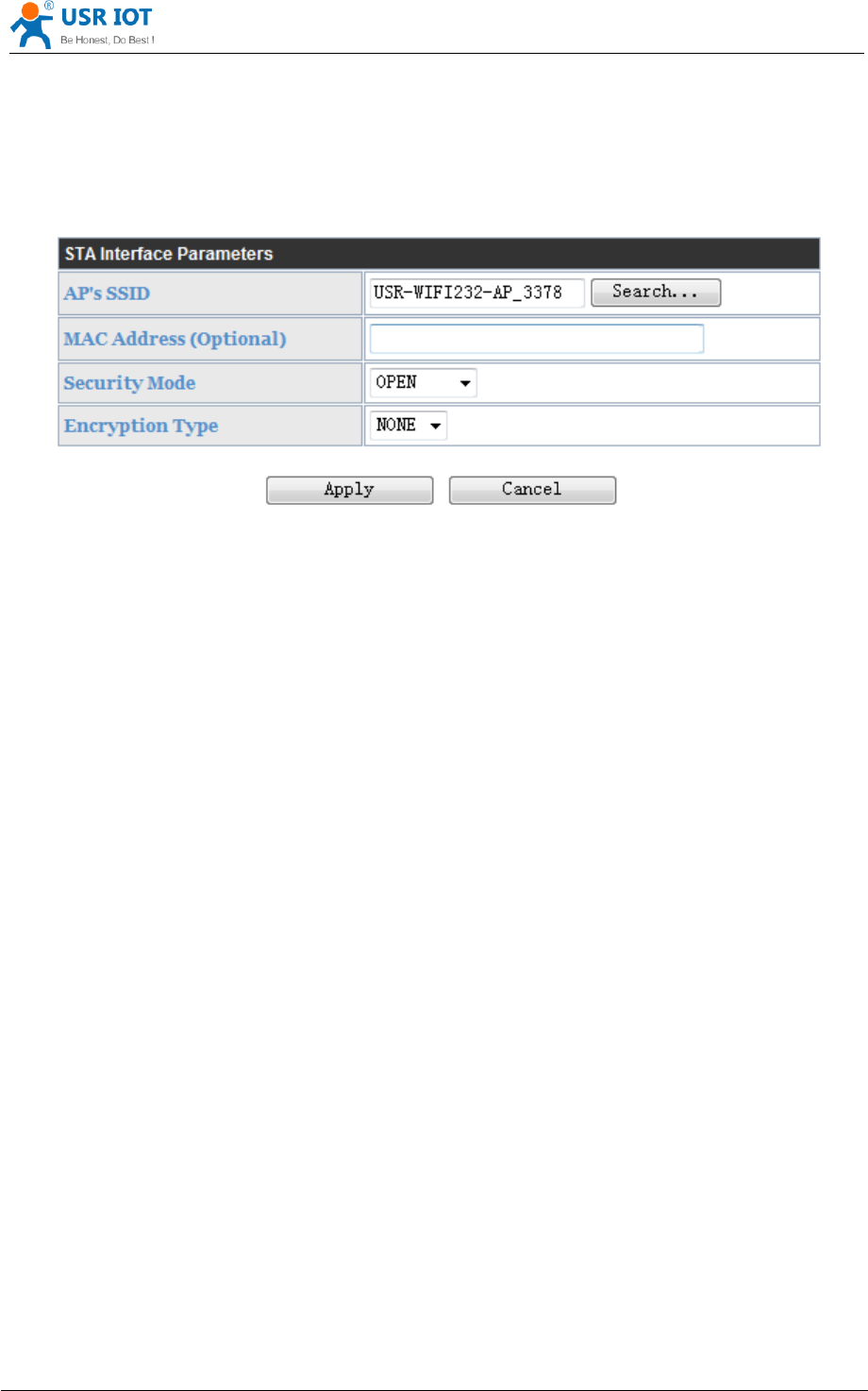
When using web configuration
STA
Interface Setting Page, user can push “ Search ” button to find
surrounding
AP,
and find a AP to associated.
Figure 25 Search
Search
Search
Search page
page
page
page
4.5.4 Address Binding
USR-WIFI232-D2 module supports the feature of binding the BSSID address of target network.
According to the provisions of 802.11 protocol, different wireless networks can have a same
network name (i.e. SSID / ESSID), but must correspond to a unique BSSID address (i.e. MAC
address). Illegal intruders can create a wireless network with the same SSID / ESSID, it will make
STAs in the network to join to the illegal
AP,
thereby and then network leakage happen.
Users can prevent
STA
from joining to illegal network by binding the BSSID address, to improve
wireless network security.
4.6
4.6
4.6
4.6 UART
UART
UART
UART Frame
Frame
Frame
Frame Scheme
Scheme
Scheme
Scheme
4.6.1 UART Free-Frame
USR-WIFI232-D2 support UART free-frame function. If user select open this function, module will
check the intervals between any two bytes when rec ei ving UART data. If this interval time
exceeds defined value (50ms default), USR-WIFI232-D2 will think it as the end of one frame and
transfer this free-frame to WiFi port, or USR-WIFI232-D2 will receive UART data until 4K bytes,
then transfer 4KB frame to WiFi port.
USR-WIFI232-D2 ’ s default interval time is 50ms. User can also set this interval to fast (10ms)
through
AT
command. But user have to consider if user MCU can send UART data with 10ms
interval ,or the UART data may be divide as fragment.

USR-WIFI232- D2 User Manual www.usr iot .com
Jinan USR IOT Technology Limited Page 29 of 78 tec@usr.cn
Through
AT
command: AT+FUARTTE=fas t /normal, user can set the interval time: fast (10ms) and
normal (50ms). This command is factory default setting command and AT+RELD can ’ t change its
value.
4.6.2 UART Auto-Frame
USR-WIFI232-D2 support UART auto-frame function. If user select open this function and setting
auto-frame trigger length and auto-frame trigger time parameters, then module will auto framing
the data which received from UART port and transmitting to the network as pre-defined data
structure.
Auto-frame
Auto-frame
Auto-frame
Auto-frame trigger
trigger
trigger
trigger length:
length:
length:
length: The fixed data length that module used to transmitting to the
network.
Auto-frame
Auto-frame
Auto-frame
Auto-frame trigger
trigger
trigger
trigger time:
time:
time:
time: After the trigger time, if UART port received data can ’ t reach auto-
frame trigger length, then module will transmitting available data to the network and bypass
the auto-frame trigger length condition.
Detailed UART auto-frame function can refer to AT+ instruction set “ UARTF/UARTFT/UARTFL ”
introduction.
4.7
4.7
4.7
4.7 Network
Network
Network
Network Setting
Setting
Setting
Setting
USR-WIFI232-D2 module has two TCP/UDP Socket: Socket A and Socket B. Serial data written
to the module, will be sent to the Socket
A
and B simultaneously; TCP/UDP data that module
receives through either Socket
A
or B,will be sent to the serial port.
Dual Socket through different settings, you can achieve a variety of network interconnect. When
the module shipped only open Socket A, Socket B default is not to connect, if the user needs to
use, please set by
AT
commands.
4.7.1 Socket A
Socket A has three work mode: TCP Server, TCP Client, UDP.The setting method, please refer to
the AT+NETP command instruction.
When Socket
A
configured as TCP Server, it supports Multi-TCP link connection, and maximum
32 TCP clients permitted to connect to Socket A.
Multi-TCP link connection will work as following structure:
Upstream: All dates from different TCP connection or client will be transmitted to the serial port as
a sequence.
Downstream: All data from serial port (user) will be duplicate and broadcast to every TCP
connection or client.
Detailed multi-TCP link data transmition structure as following figure:
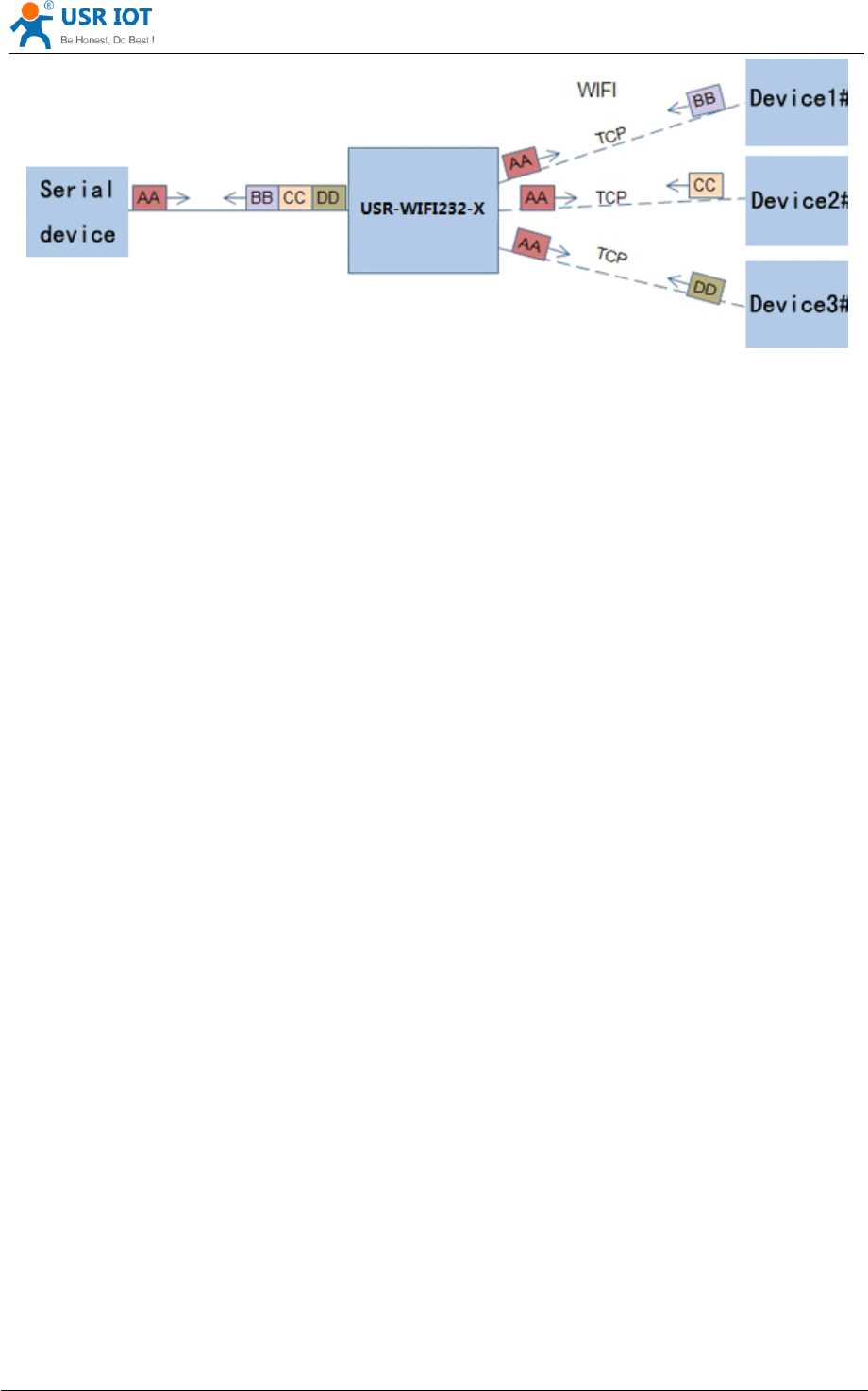
USR-WIFI232- D2 User Manual www.usr iot .com
Jinan USR IOT Technology Limited Page 30 of 78 tec@usr.cn
Figure 26 Multi-TCP
Multi-TCP
Multi-TCP
Multi-TCP Link
Link
Link
Link Data
Data
Data
Data Transmition
Transmition
Transmition
Transmition Structure
Structure
Structure
Structure
4.7.2 Socket B
Socket B has one work mode: TCP Client, please refer to the AT + SOCKB command instruction.
With variety work mode, socket B can provide users with flexible data transfer methods.For
example, Socket B can connect to a remote server in order to achieve remote control.
4.8
4.8
4.8
4.8 New
New
New
New function
function
function
function
This chapter is based on the function of V4.02.10.USR13 and above, if not this version you can
skip this section.
4.8.1 TCP password authentication
This feature is available only on the module as a TCP server, when the TCP client connection
module, the module will authenticate each connected tcp.
Each TCP client first data is the “ password +0x0d+0x0a ” (the password is Webpage
authentication password). The default password is “ admin ” , so the first piece of data should be
"0x61 0x64 0x6D 0x69 0x6E 0x0D 0x0A" ( Hex ). If the password is correct, the module returns
"OK", on the other hand, return to the "NO" and disconnect.
The TCP connection of this function can be Webpage in "TCP connection password
authentication" is opened or disable. Please refer to the specific "5.1.2" section.
4.8.2 Upload ID
This function only applies to the module as a TCP client, in front of the data when module
connected to the server with two bytes of ID (ID the range is 0 ~ 65535, the high byte before, and
the low byte behind) plus two bytes ID radix-minus-one complement.Module is the default ID is
1111,
for example, is sent to the server when the first four bytes "0x57 0x04 0xfb 0 xa8".
There are two ways to upload their own id: one is to upload their own id for connection to the
server for the first time;The other is a plus id in front of each data.
ID number related parameter is set in the "serial port and other Settings" section of the web, build
joint function of ID for the first time, and each data with the function of ID are opened by default.
ID can also use the at command to set the related parameters, specific refer to 5.2.1.4.32-
5.2.1.4.34 section.
4.8.3 S elf-adaption Baudrate
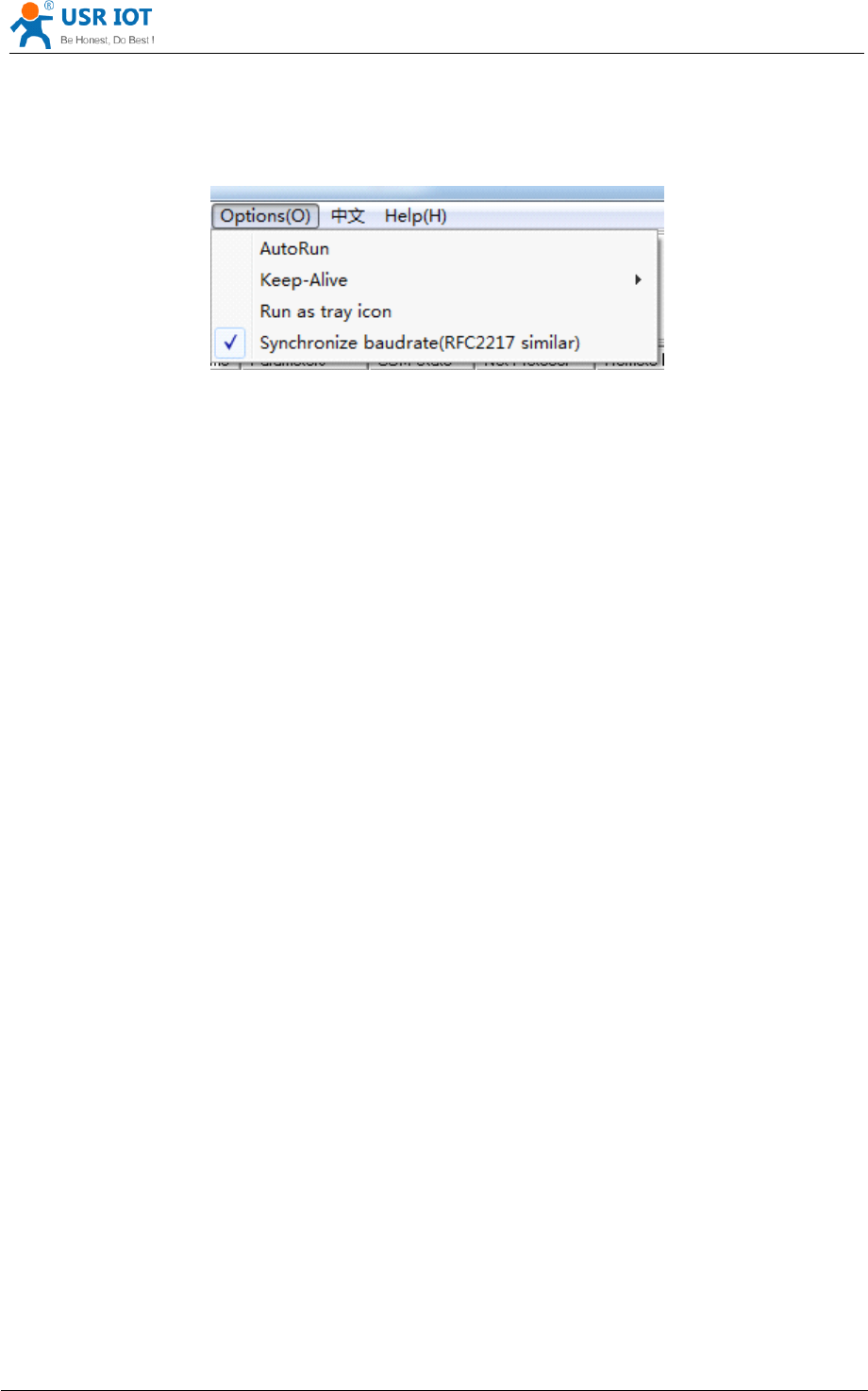
USR-WIFI232- D2 User Manual www.usr iot .com
Jinan USR IOT Technology Limited Page 31 of 78 tec@usr.cn
This feature, please cooperate with our company's virtual serial port software use.
Use a serial port connected module, and use the at command "at + AABR = on" open this
function and restart.In the USR - VOCM software "synchronous baud rate (RFC2217 similar )" is
selected, the following figure .
Figure 27 RFC
RFC
RFC
RFC 2217
2217
2217
2217
In this way, the module of baud rate will be as the USR-VCOM to change at any time, and don't
have to restart the module.If restart the module, baud rate and will come back to before.
4.8.4 WEB IO
This function only work for "GPIO mode".
When the module is in the "GPIO mode", enter the Webpage in " WEB IO ", you can click on the
corresponding button to control module pin level. Without the need to download and install app,
any platform, any equipment, as long as you can into the built-in Webpage of module through the
browser built- you can control module pin of IO.
4.8.5 Keepalive
V4.02.10. USR13 and above version of the firmware added keepalive when the TCP connection
mechanism, so when the module of network anomalies, timely diagnose abnormal to the network
and disconnect, when the network has resumed after, and just in time to connect to the server.
4.8.6 Multiple
STA
parameters
This function based on V4.02.10 D.U SR18 and above version of the firmware, in the sta mode, if
can network signal is too low, it will automatically switch to the other AP network (switching
network automatically restart).
This feature provides a signal threshold, when the current network signals is lower than the
critical value, the module of automatic switching network and restart.If the signal value is set to
100, the module will not switch network.Even if the current network signal is not the current
network will always search, not heavy to other networks.
The function of the specific Settings page refer to section 4.5.4.
4.8.7 Websocket
This module can realize the function of the websocket server, allowing serial real-time interaction
with the web module, replace the previous HTTP GET, POST, corresponding faster.This module
provides the corresponding websocket test page for user testing, specific page is as follows:(web
Page:10.10.100.254/websocketen.html)
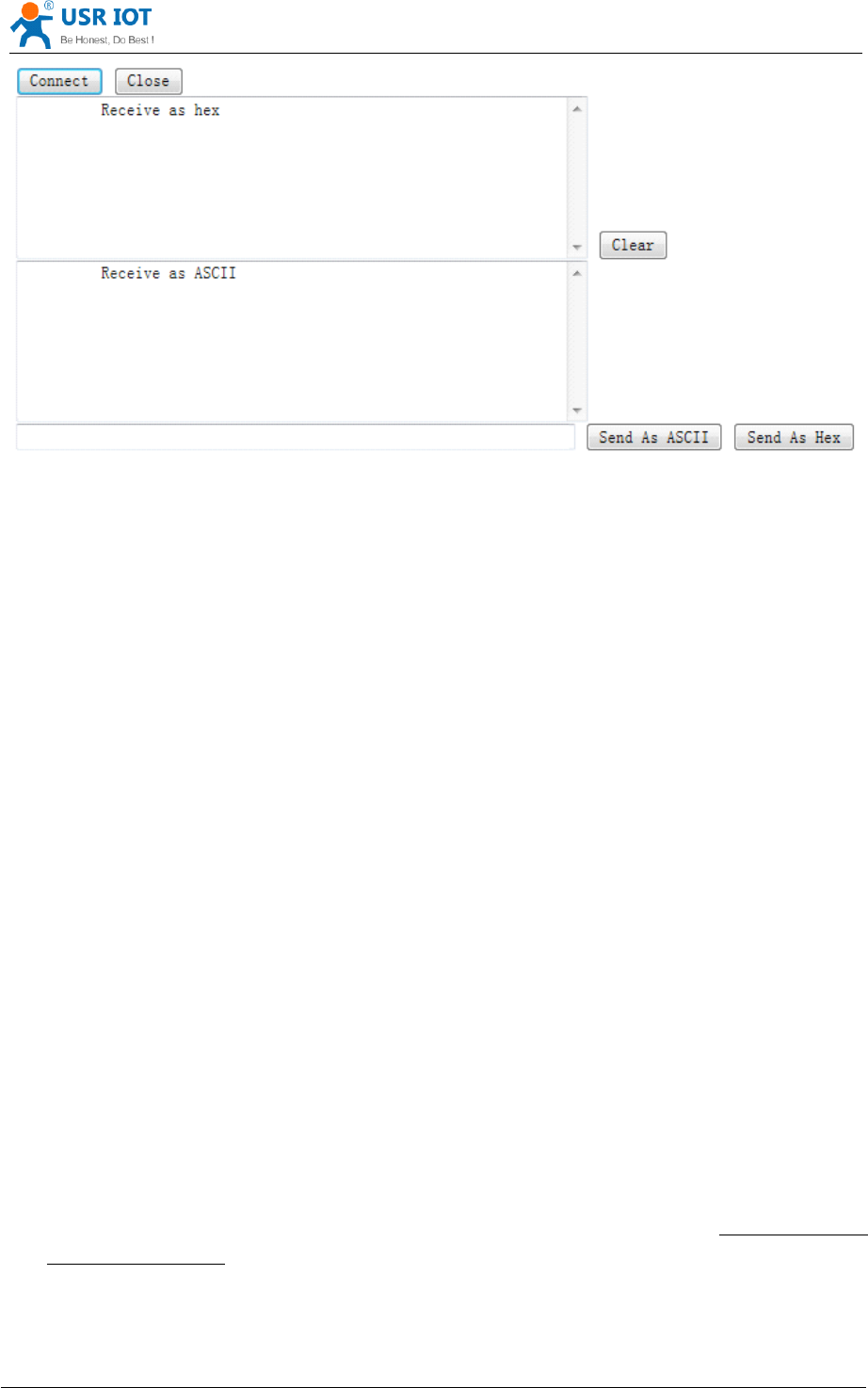
USR-WIFI232- D2 User Manual www.usr iot .com
Jinan USR IOT Technology Limited Page 32 of 78 tec@usr.cn
Figure 28 Websocket
Websocket
Websocket
Websocket Page
Page
Page
Page
Click on the "connect" page and then implements a connection, so a serial port with page can
send or receive data from each other.This module websocket server support 8 client connection
at the same time.
This function for web applications, and for web users with higher response speed, if you want to
customize the corresponding web page, can connect your company.
4.9
4.9
4.9
4.9 Palmodic
Palmodic
Palmodic
Palmodic Signal
Signal
Signal
Signal
Base on selected factory default setting, “ Ready ” signal can have two output statuses:
Status One: The module will output “0”after normal boot up. This signal used to judge if
module finish boot up and ready for application.
Status Two: The module will output “Palmodic Signal ”after normal boot up.The palmodic
signal is 0.5Hz square wave with dutyfactor 1:1. User can query this signal to judge if
moduleis active “live ”or need to re-boot. When module switches to command mode, it will
output “0”, which used to distinguish work mode and command mode.
Notes:
This function is user selected factory setting and RELD instruction will not effective for this
function. If user not requires this function, the default factory setting is Status One. Contact with
USR Technology for more detailed support.
4.10
4.10
4.10
4.10 Parameters
Parameters
Parameters
Parameters Configuration
Configuration
Configuration
Configuration
USR-WIFI232-D2 module support s two methods to configuration parameters: Web
Web
Web
Web Accessing
Accessing
Accessing
Accessing
and AT+instruction
AT+instruction
AT+instruction
AT+instruction set.
set.
set.
set.
Web accessing means users can configure parameters through built-in webpage. When USR-
WIFI232-D2 module connected to wireless network, parameters configuration is done on a PC
connected to the same wireless network. AT+instruction set configuration means user configure

USR-WIFI232- D2 User Manual www.usr iot .com
Jinan USR IOT Technology Limited Page 33 of 78 tec@usr.cn
parameters through serial interface command. Refer to “ AT+instruction set ” chapter for more
detail.
Notes:
Notes:
Notes:
Notes:
USR can customized the parameters setting as customer request and ship USR-WIFI232-D2
modules with these parameters as factory default configuration. It will reduce user ’ s module
configuration time for mass production. Also, if user need different parameters setting for every
module, USR can provide the auto-configuration tool to speed up the module con fi guration
duration. Please contact USR technical interface to acquire this tool if required.
4.11
4.11
4.11
4.11 Firmware
Firmware
Firmware
Firmware Upgrade
Upgrade
Upgrade
Upgrade
USR-WIFI232-D2 module supports firmware upgrade online .
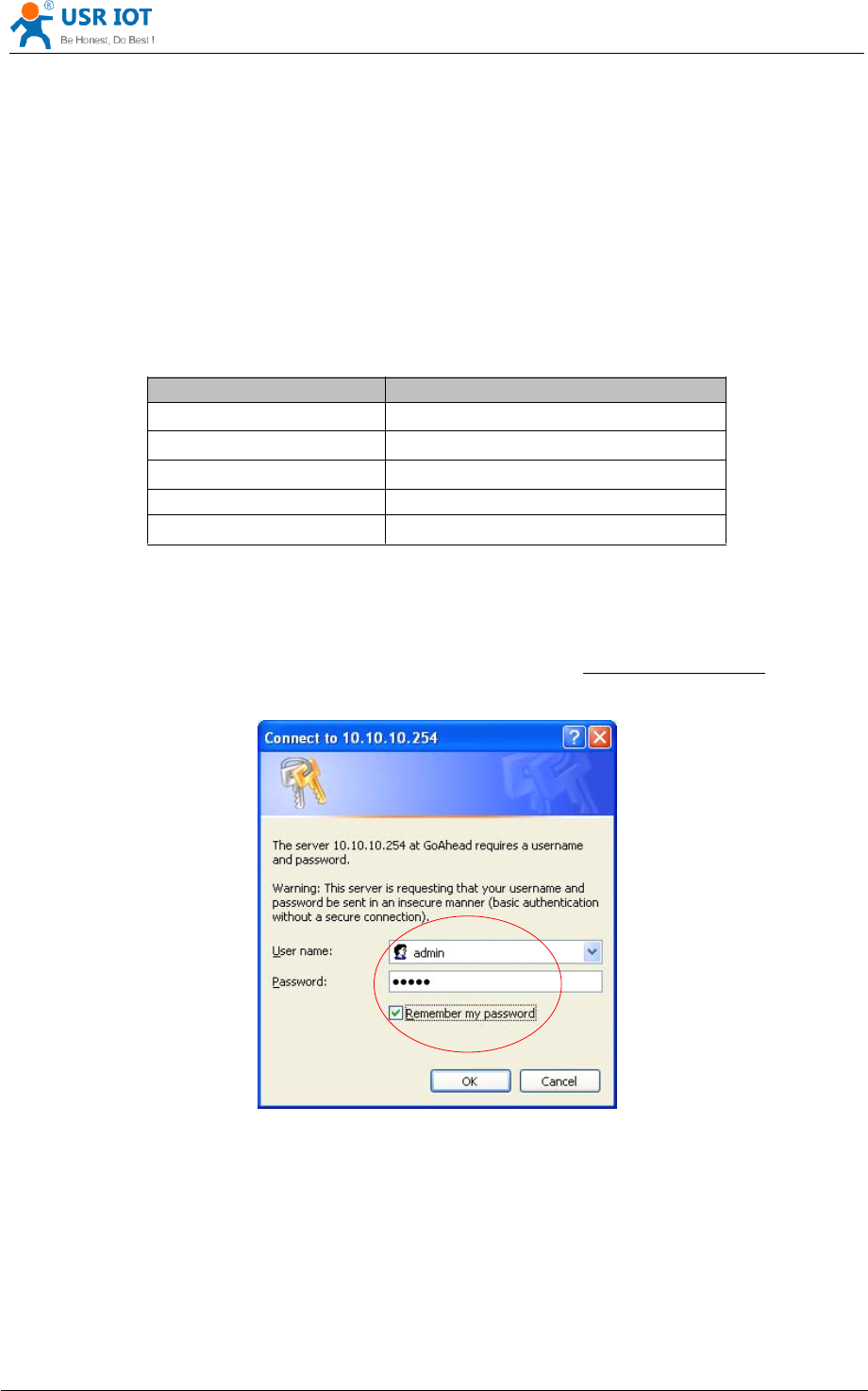
USR-WIFI232- D2 User Manual www.usr iot .com
Jinan USR IOT Technology Limited Page 34 of 78 tec@usr.cn
5
5
5
5 Web
Web
Web
Web Accessing
Accessing
Accessing
Accessing and
and
and
and AT+instruction
AT+instruction
AT+instruction
AT+instruction set
set
set
set
5.1
5.1
5.1
5.1 Configuration
Configuration
Configuration
Configuration via
via
via
via Web
Web
Web
Web Accessing
Accessing
Accessing
Accessing
When first use USR-WIFI232-D2 modules, user may need some configuration. User can connect
to USR-WIFI232-D2 module ’ s wireless interface with following default setting information and
configure the module through laptop.
Table 7 USR-WIFI232-D2
USR-WIFI232-D2
USR-WIFI232-D2
USR-WIFI232-D2 Web
Web
Web
Web Access
Access
Access
Access Default
Default
Default
Default Setting
Setting
Setting
Setting
Parameters
Parameters
Parameters
Parameters Default
Default
Default
Default Setting
Setting
Setting
Setting
SSID USR-WIFI232-A P_xxxx
IP Address 10.10.10 0 .254
Subnet Mask
255.255.255.0
User Name
admin
Password admin
5.1.1 Open Web Management Interface
Step 1: Connect laptop to SSID “ USR-WIFI232-AP_xxxx ” of USR-WIFI232-D2 module via
wireless LAN card;
Step 2: After wireless connection OK. Open browser and access “ http://10.10.100.254
http://10.10.100.254
http://10.10.100.254
http://10.10.100.254 ” ;
Step 3: Then input user name and password in the page as following and click “ OK ” button.
Figure 29 Open
Open
Open
Open Web
Web
Web
Web Management
Management
Management
Management page
page
page
page
The USR-WIFI232-D2 web management page support English and Chinese language. User can
select language environment at the top right corner and click “ Apply ” button.
The main menu include nine pages: “ Quick Configure ” , “ Mode Selection ” , ” AP Interface
Setting ” , ”
STA
Interface Setting ” , ” Application Setting ” , “ Ethernet Setting ” , ’’ HTTPD Client
m ode ” , “ WEB IO ” and “ Device Management ” .
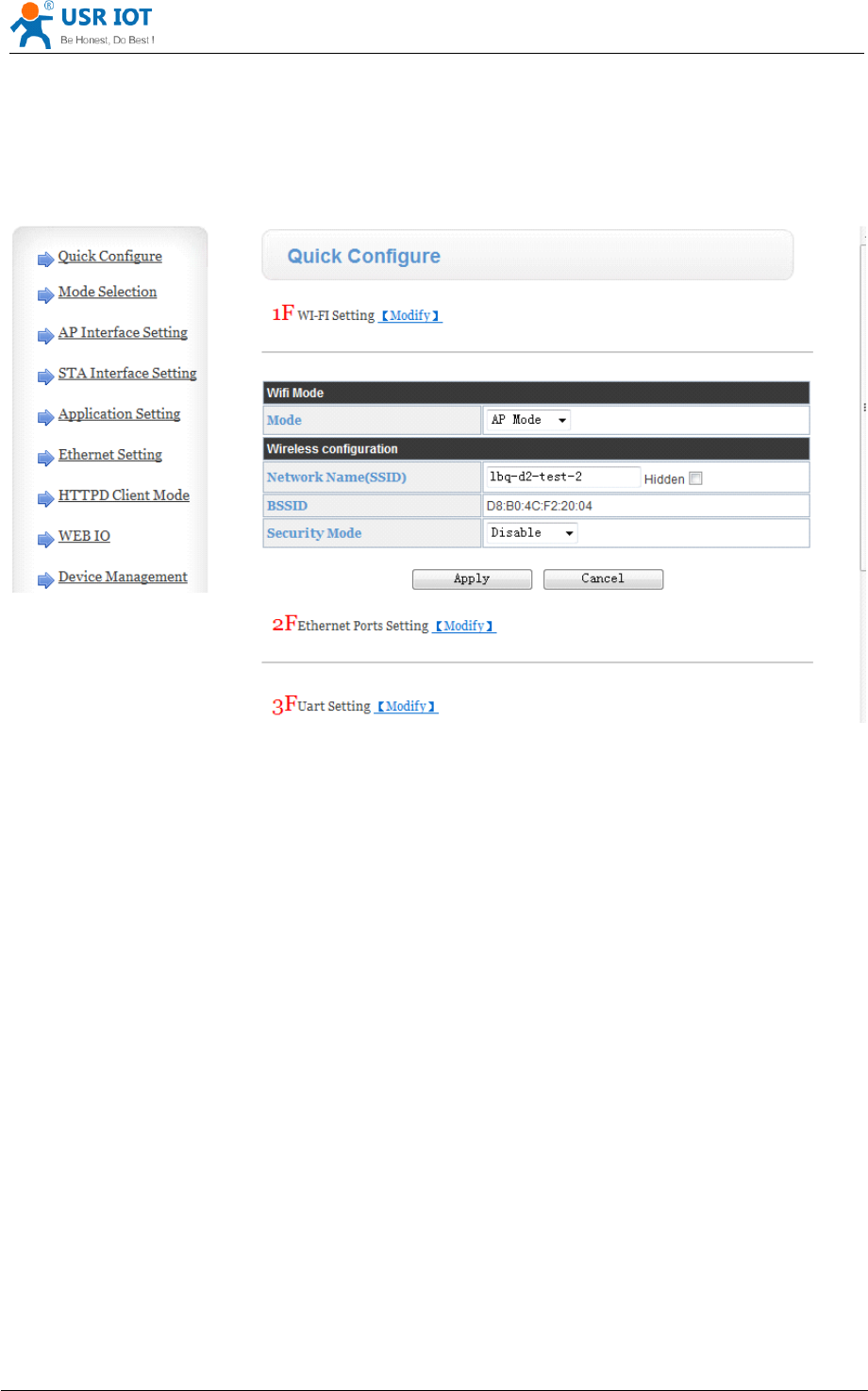
USR-WIFI232- D2 User Manual www.usr iot .com
Jinan USR IOT Technology Limited Page 35 of 78 tec@usr.cn
5.1.2 Quick Configure
This page provides users with a method of rapid configuration module.Users according to the
steps to configure the parameters and restart the module page, you can let the module is normal
work, reduced the configuration steps and time.Of course the options on this page is less, if some
detailed configuration, still need to the corresponding configuration page.
Figure 30 Quick
Quick
Quick
Quick Configure
Configure
Configure
Configure Page
Page
Page
Page
This page has four configuration options and a restart, the corresponding instructions below:
WI-FI Setting: set the working mode of wifi, AP mode or the STA.
Ethernet Ports Setting: open/close the Ethernet ports, and set up the corresponding work
mode.
UART Setting: set serial port parameters, including baud rate, parity bit, 485 functions and so
on.
Network Setting: set network parameters, Only TCPA related parameters.
Device Management: when after completion of the above parameters are configured, click
reset module.
5.1.3 Mode Selection Page
This page use to setting the wireless networking mode (AP and
STA
mode).
"Data transmission mode" selection module working mode are "Transparent Mode", "Serial Command
mode", "GPIO mode" and ”” HTTPD-Client Mode ” .
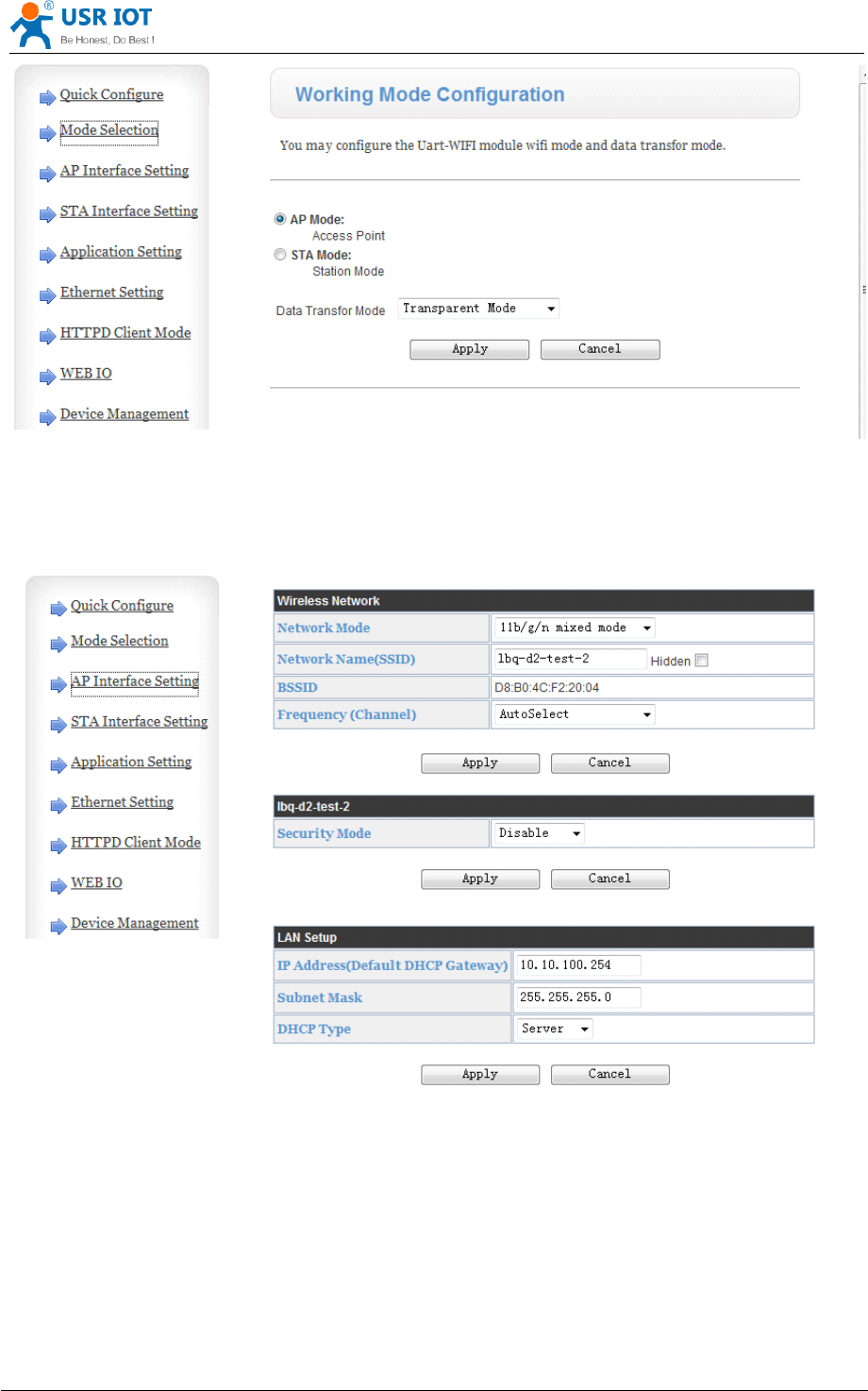
USR-WIFI232- D2 User Manual www.usr iot .com
Jinan USR IOT Technology Limited Page 36 of 78 tec@usr.cn
Figure 31 Mode
Mode
Mode
Mode Selection
Selection
Selection
Selection Page
Page
Page
Page
5.1.4 AP Interface Setting Page
This page use to setting the parameters when USR-WIFI232-D2 module works as
AP.
Figure 32 AP
AP
AP
AP Interface
Interface
Interface
Interface Setting
Setting
Setting
Setting Page
Page
Page
Page
5.1.5
STA
Interface Setting Page
This page use to setting the parameters when USR-WIFI232-D2 module works as STA.
Such as SSID of AP which module need to connected, and also select the networking type: DHCP or
static IP address.
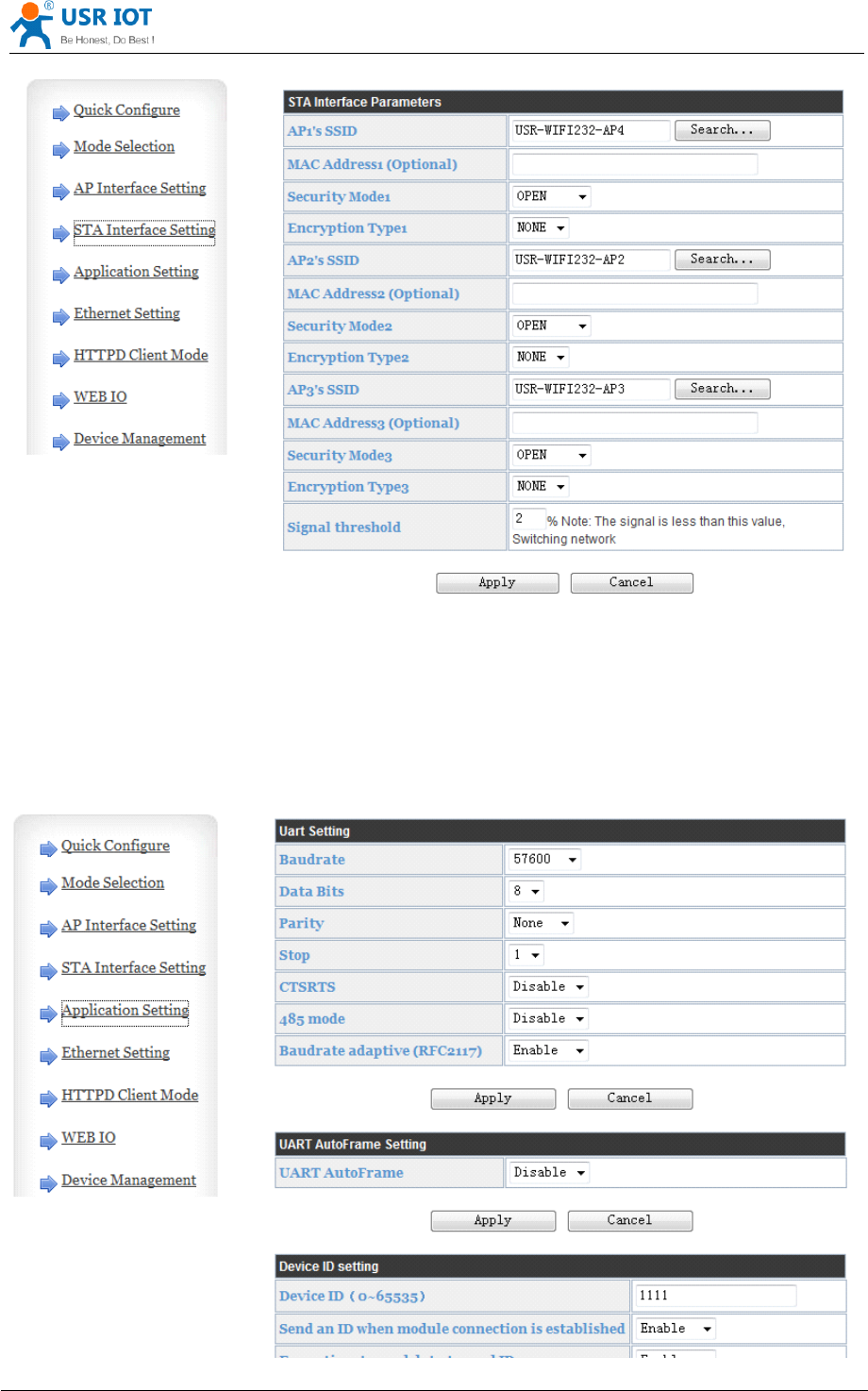
USR-WIFI232- D2 User Manual www.usr iot .com
Jinan USR IOT Technology Limited Page 37 of 78 tec@usr.cn
Figure 33 STA
STA
STA
STA Interface
Interface
Interface
Interface Setting
Setting
Setting
Setting Page
Page
Page
Page
5.1.6 Application Setting Page
This page use to setting the parameters of serial port communication, such as UART
setting , UART AutoFrame Setting , Ethernet function ,Device ID setting and high layer network
protocol setting which used support serial communication.
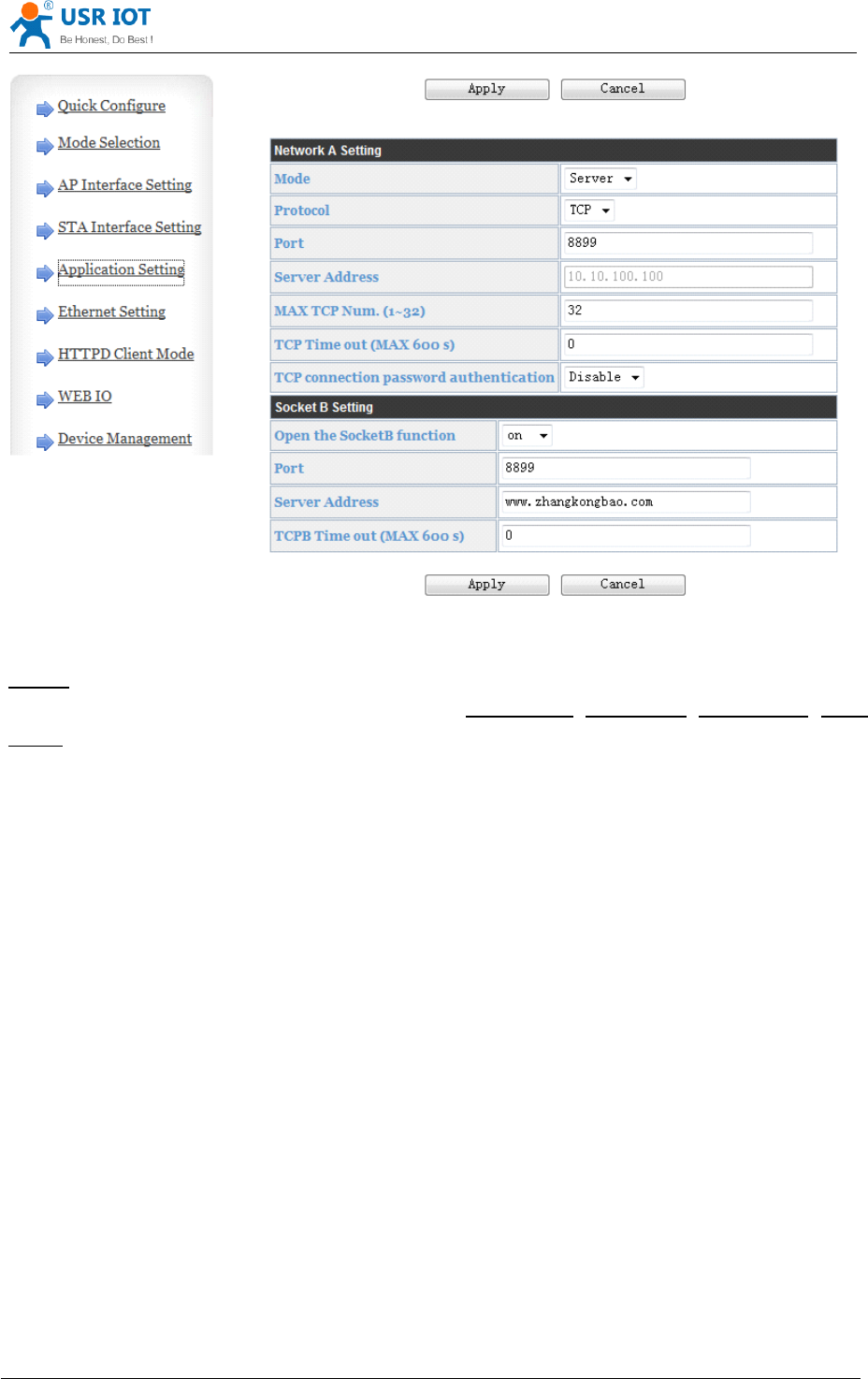
USR-WIFI232- D2 User Manual www.usr iot .com
Jinan USR IOT Technology Limited Page 38 of 78 tec@usr.cn
Figure 34 Application
Application
Application
Application Setting
Setting
Setting
Setting Page
Page
Page
Page
Notes:
Notes:
Notes:
Notes:
Generally, Network protocols support three modes: TCP
TCP
TCP
TCP Server
Server
Server
Server ,TCP
TCP
TCP
TCP Client
Client
Client
Client ,UDP
UDP
UDP
UDP Server
Server
Server
Server ,UDP
UDP
UDP
UDP
Client
Client
Client
Client .
When the module is configured to UDP server side, the module will memory the UDP client end
of the last communication, and communication with this UDP client.While the UDP client mode
will only with the target
IP
address and communication.When set to the TCP Server, do not need
to enter the IP address.For other Settings, need to fill in the need to connect each other IP
address.Fill in port with protocol port number, at the ends of the communication port number must
be the same.
The Socket B only as a TCP client terminal to communicate with the server.
TCP connection password authentication: when the module in the TCP server mode, password
authentication on the TCP client connect to.
Note: this verification is only in a module as a TCP server.After the opening, the TCP client connected
module, the first data which sent to the module is password and carriage returns.The password is the
password to login page default is "admin".Such as the default when sending the first data should be
"0x61 0x64 0x6D 0x69 0x6E 0x0D 0x0A" (hex) .
5.1.7 Ethernet Setting
This page is used to set two Ethernet front-end ports of the module, two Ethernet front-end ports
can be open or closed.And so the second can be set to the WAN port to use, this module can be
used as a secondary router, making it easy for users to network.Specific Settings page is as
follows:
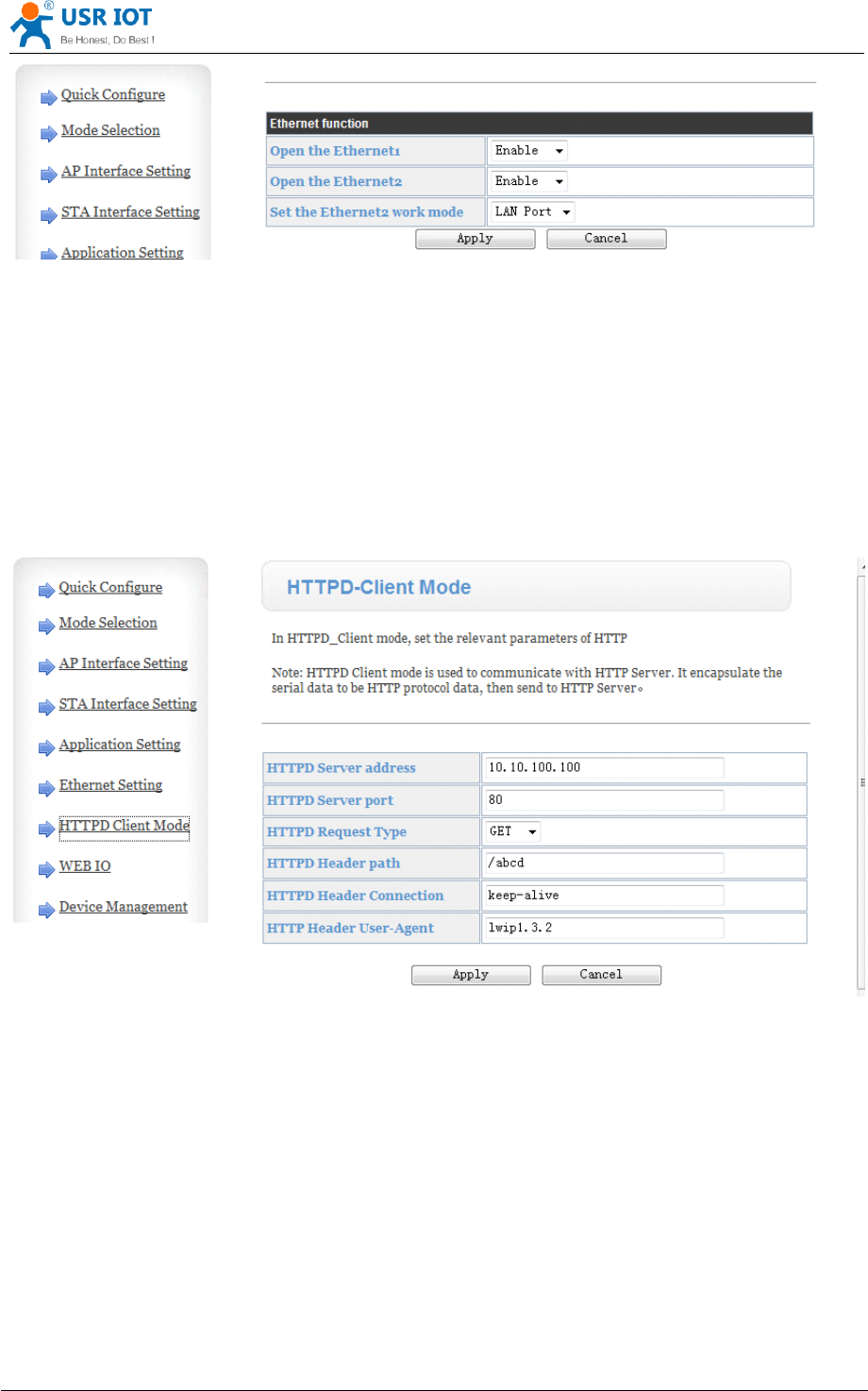
USR-WIFI232- D2 User Manual www.usr iot .com
Jinan USR IOT Technology Limited Page 39 of 78 tec@usr.cn
Figure 35 Ethernet
Ethernet
Ethernet
Ethernet Setting
Setting
Setting
Setting Page
Page
Page
Page
5.1.8 HTTPD Client Mode
This page sets the HTTP header in the HTTPD Client mode.Include: the address of the server,
the server port, request type, protocol header path, Connection, user-agent.
HTTPD Client mode support POST, PUT, GET three HTTP request types.Is a POST or PUT
request way, serial data can be added to the back of the HTTP header;When the request is a
GET, data can be added to the back of the path in the HTTP header.The specific way of sending
data can consult section 4.2.4.
Figure 36 HTTPD
HTTPD
HTTPD
HTTPD Client
Client
Client
Client Mode
Mode
Mode
Mode Page
Page
Page
Page
5.1.9 WEB IO
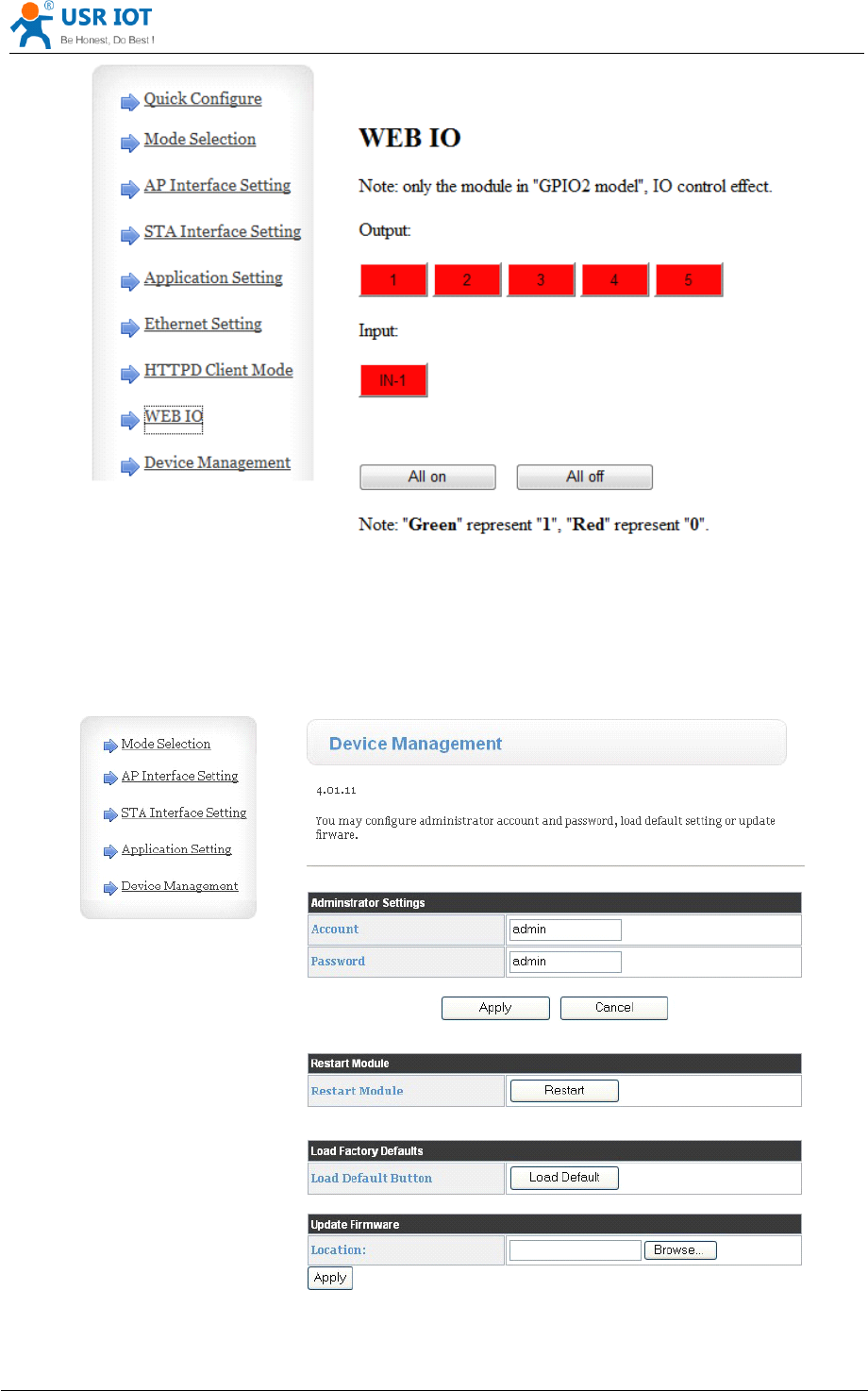
USR-WIFI232- D2 User Manual www.usr iot .com
Jinan USR IOT Technology Limited Page 40 of 78 tec@usr.cn
Figure 37 WEB
WEB
WEB
WEB IO
IO
IO
IO Page
Page
Page
Page
5.1.10 Device Management Page
This page use to manage USR-WIFI232-D2 module general setting, such as administrator setting,
restart module button, restore factory default setting button, and update firmware through webpage.
Figure 38 Device
Device
Device
Device Management
Management
Management
Management Page
Page
Page
Page
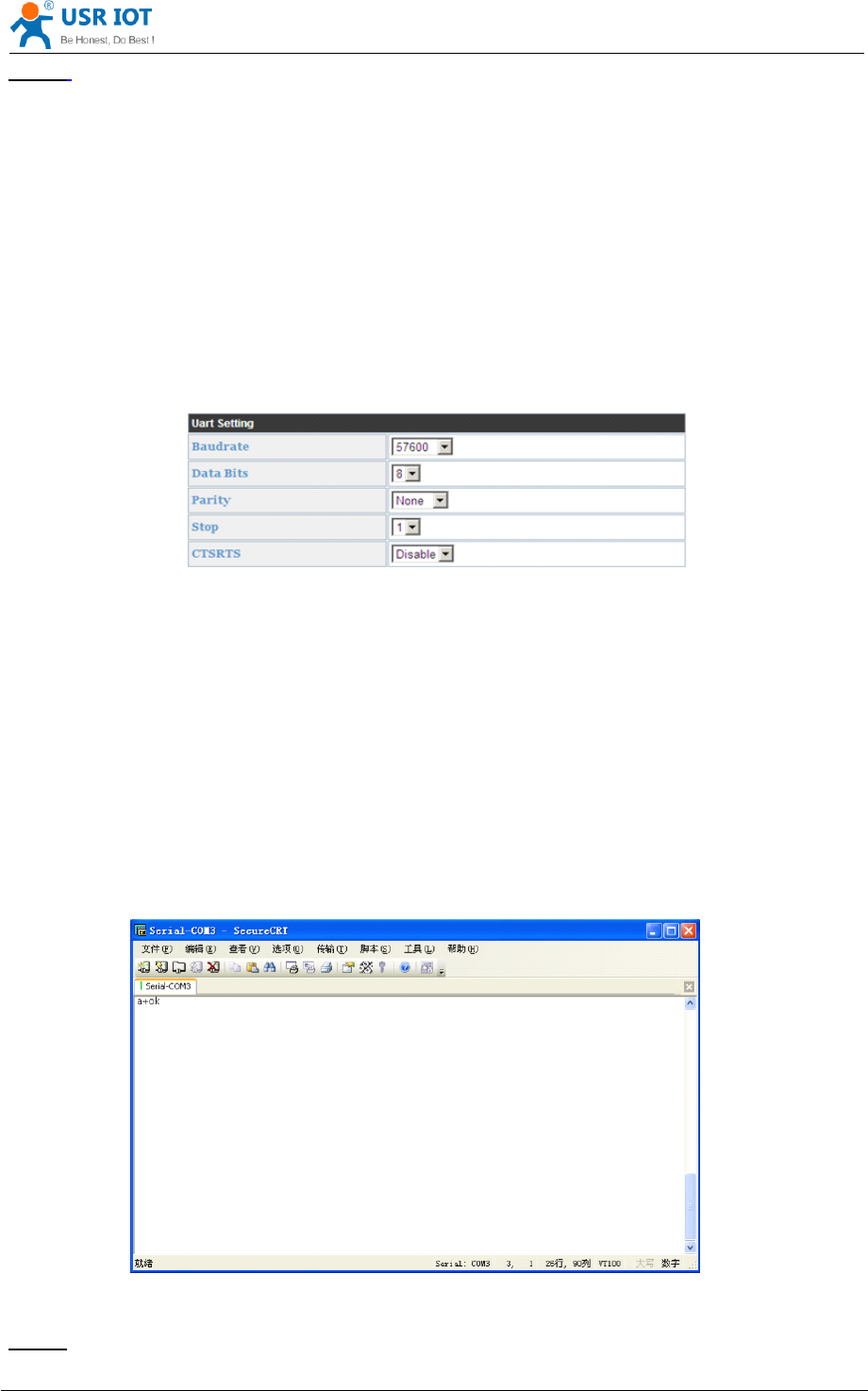
USR-WIFI232- D2 User Manual www.usr iot .com
Jinan USR IOT Technology Limited Page 41 of 78 tec@usr.cn
Notes:
Notes:
Notes:
Notes:
Restart module button: When you setting the parameters of different web pages, you will click
“ Apply ” button to confirm the setting, but the setting take effect only after user click the “ Restart ”
button here, the module will re-boot up and ref re sh the memory information with new changes.
5.2
5.2
5.2
5.2 AT+instruction
AT+instruction
AT+instruction
AT+instruction Introduction
Introduction
Introduction
Introduction
5.2.1 Configuration Mode
When USR-WIFI232-D2 power up, it will default works as transparent transmission mode, then
user can switch to configuration mode by serial port command. USR-WIFI232-D2 UART default
parameters setting as below figure
Figure 39 USR-WIFI232-D2
USR-WIFI232-D2
USR-WIFI232-D2
USR-WIFI232-D2 Default
Default
Default
Default UART
UART
UART
UART Port
Port
Port
Port Parameters
Parameters
Parameters
Parameters
In configuration mode, user can setting the module through AT+ instruction set, which cover all
web page setting function.
5.2.1.1 Switch to Configuration Mode
Two steps to finish switching from transparent transmission mode to configuration mode.
UART
UART
UART
UART input
input
input
input “
“
“
“ +++
+++
+++
+++ ”
”
”
” ,
,
,
, after
after
after
after module
module
module
module receive
receive
receive
receive “
“
“
“ +++
+++
+++
+++ ”
”
”
” ,
,
,
, and
and
and
and feedback
feedback
feedback
feedback “
“
“
“ a
a
a
a ”
”
”
” as
as
as
as confirmation.
confirmation.
confirmation.
confirmation.
UART
UART
UART
UART input
input
input
input “
“
“
“ a
a
a
a ”
”
”
” ,
,
,
, after
after
after
after module
module
module
module receive
receive
receive
receive “
“
“
“ a
a
a
a ”
”
”
” and
and
and
and feedback
feedback
feedback
feedback “
“
“
“ +ok
+ok
+ok
+ok ”
”
”
” to
to
to
to go
go
go
go into
into
into
into AT+
AT+
AT+
AT+
instruction
instruction
instruction
instruction set
set
set
set configuration
configuration
configuration
configuration mode.
mode.
mode.
mode.
Figure 40 Switch
Switch
Switch
Switch to
to
to
to Configuration
Configuration
Configuration
Configuration Mode
Mode
Mode
Mode
Notes:
Notes:
Notes:
Notes:
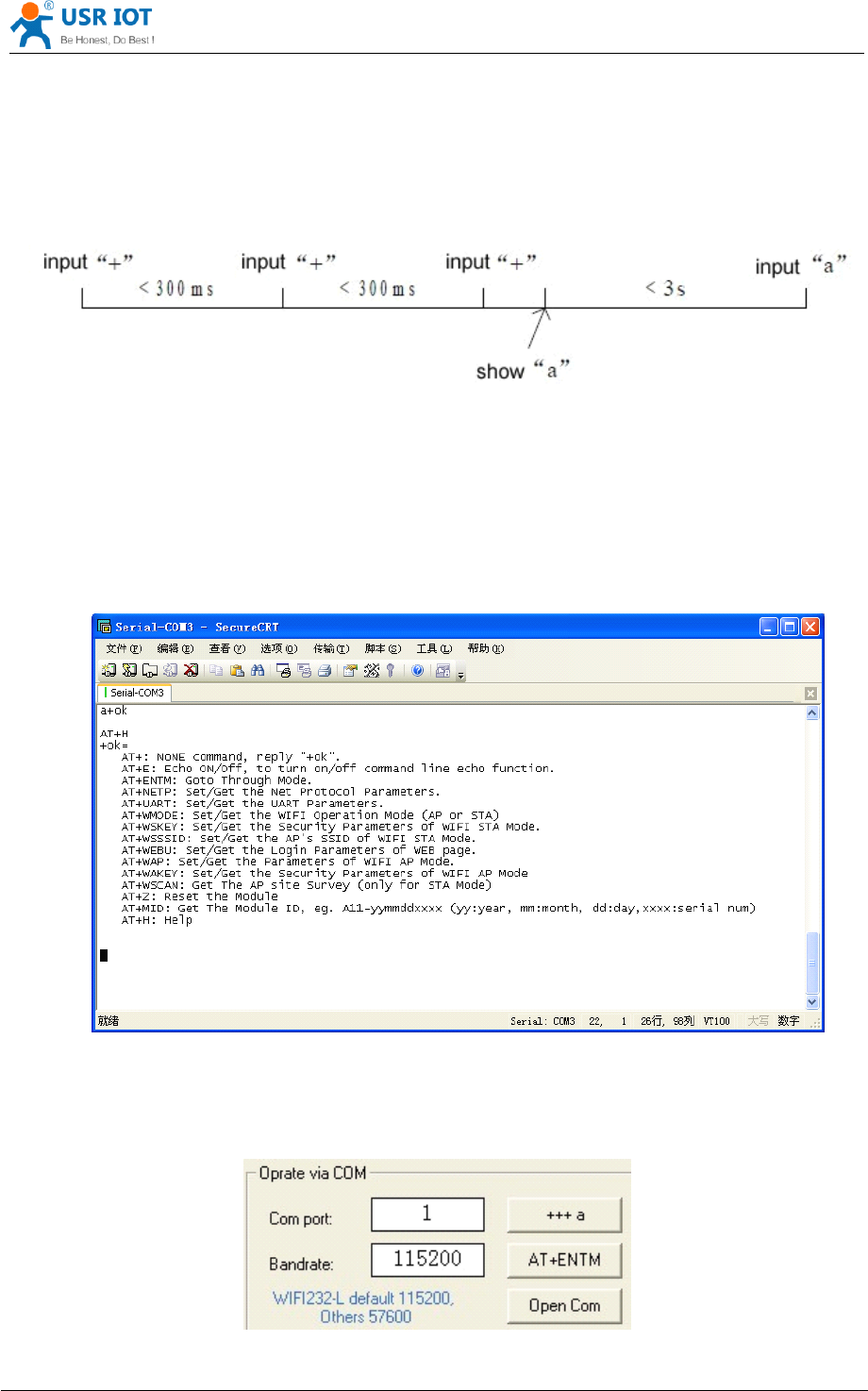
USR-WIFI232- D2 User Manual www.usr iot .com
Jinan USR IOT Technology Limited Page 42 of 78 tec@usr.cn
1. When user input “ +++ ” (No “ Enter ” key required), the UART port will display feedback
information “ a ” , and not display input information ” +++ ” as above UART display.
2. Any other input or wrong step to UART port will cause the module still works as original mode
(transparent transmission).
5.2.2 AT+ Instruction Set Overview
User can input AT+ Instruction through hyper terminal or other serial debug terminal, also can
program the AT+ Instruction to script. User can also input “ AT+H ” to list all AT+ Instruction and
description to start.
Figure 41 ”
”
”
” AT+H
AT+H
AT+H
AT+H ”
”
”
” Instruction
Instruction
Instruction
Instruction for
for
for
for Help
Help
Help
Help
We supply software USR-WIFI232-Setup to send command easily, software setup:
Figure 42 Serial
Serial
Serial
Serial port
port
port
port parameter
parameter
parameter
parameter
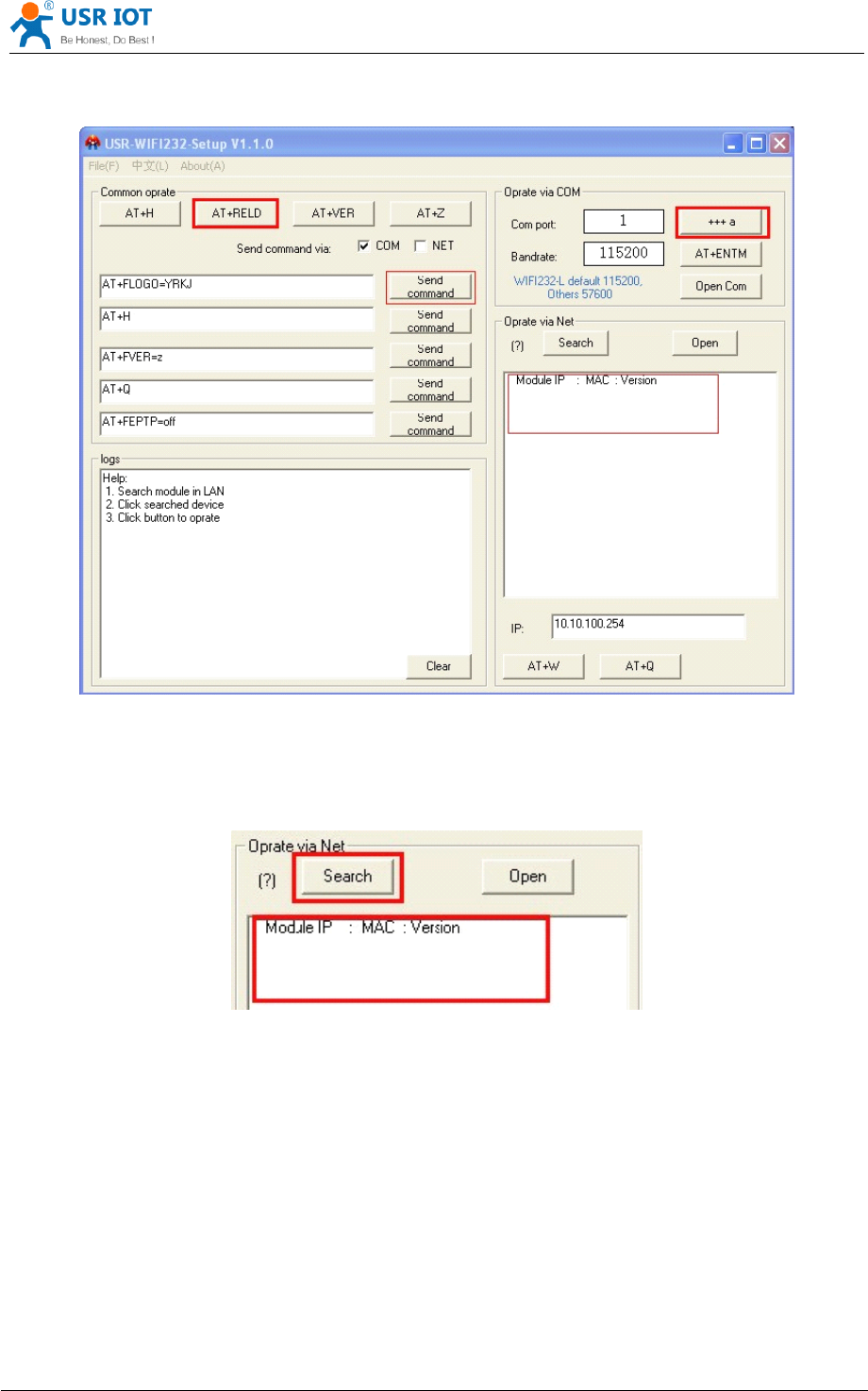
USR-WIFI232- D2 User Manual www.usr iot .com
Jinan USR IOT Technology Limited Page 43 of 78 tec@usr.cn
Click “ Open Com ” , send “ +++a ” , it will reply +ok in left side, then type in and send the command
you need to send, then click “ AT+RELD ” to restore, then parameters saved.
Figure 43 software
software
software
software of
of
of
of USR-WIFI232-Setup
USR-WIFI232-Setup
USR-WIFI232-Setup
USR-WIFI232-Setup
Above is by COM, also you can send by WIFI:
First, connect with PC, open the software, see Net part
Figure 44 Search
Search
Search
Search module
module
module
module
Click search, then will show module, click module then you can send command.
5.2.2.1 Instruction Syntax Format
AT+Instruction protocol is based on the instruction of ASCII command style, the description of
syntax format as follow.
Format
Format
Format
Format Description
Description
Description
Description
< >: Means the parts must be included
[ ]: Means the optional part
USR-WIFI232- D2 User Manual www.usr iot .com
Jinan USR IOT Technology Limited Page 44 of 78 tec@usr.cn
Command
Command
Command
Command Message
Message
Message
Message
AT+<CMD>[op][para-1,para-2,para-3,para-4
AT+<CMD>[op][para-1,para-2,para-3,para-4
AT+<CMD>[op][para-1,para-2,para-3,para-4
AT+<CMD>[op][para-1,para-2,para-3,para-4 …
…
…
… ]<CR>
]<CR>
]<CR>
]<CR>
AT+: Prefix of command message;
CMD: Command string;
[op]: Symbol of command operator,
“ = ” : The command requires parameters input;
“ NULL ” : Query the current command parameters setting;
[para-n]: Parameters input for setting if required;
<CR> : ” Enter ” Key, it ’ s 0x0a or 0x0d in ASCII;
Notes
Notes
Notes
Notes : When input AT+Instruction, “ AT+<CMD> ” character will display capital letter automatic
and other parts will not change as you input.
Response
Response
Response
Response Message
Message
Message
Message
+<RSP>[op]
+<RSP>[op]
+<RSP>[op]
+<RSP>[op] [para-1,para-2,para-3,para-4
[para-1,para-2,para-3,para-4
[para-1,para-2,para-3,para-4
[para-1,para-2,para-3,para-4 …
…
…
… ]<CR><LF><CR><LF>
]<CR><LF><CR><LF>
]<CR><LF><CR><LF>
]<CR><LF><CR><LF>
+: Prefix of response message;
RSP: Response string;
“ ok ” : Success
“ ERR ” : Failure
[op] : =
[para-n]: Parameters if query command or Error code when error happened;
<CR>: ASCII 0x0d;
<LF>: ASCIII 0x0a;
Error
Error
Error
Error Code
Code
Code
Code
Table 8 Error
Error
Error
Error Code
Code
Code
Code Description
Description
Description
Description USR-WIFI232-D2
USR-WIFI232-D2
USR-WIFI232-D2
USR-WIFI232-D2 Web
Web
Web
Web Access
Access
Access
Access Default
Default
Default
Default Setting
Setting
Setting
Setting
Error
Error
Error
Error Code
Code
Code
Code Description
Description
Description
Description
-1 Invalid Command Format
-2 Invalid Command
-3 Invalid Operation Symbol
-4 Invalid Parameter
-5 Operation Not Permitted
5.2.2.2 AT+ Instruction Set
Table 9 AT+
AT+
AT+
AT+ Instruction
Instruction
Instruction
Instruction Set
Set
Set
Set List
List
List
List
Instruction
Instruction
Instruction
Instruction Description
Description
Description
Description
<null> NULL
E Open/Close show back function
ENTM Set module into transparent transmission mode
NETP Set/Query network protocol parameters
UART Set/Query serial port parameters
USR-WIFI232- D2 User Manual www.usr iot .com
Jinan USR IOT Technology Limited Page 45 of 78 tec@usr.cn
UARTF Open/Close UART auto-frame function
UARTFT Set/Query UART auto-frame trigger time
UARTFL Set/Query UART auto-frame trigger length
TMODE Set/Query data transmission mode
(transparent transmission or agreement transmission)
WMODE Set/Query WIFI work mode (AP or STA)
WSKEY Set/Query WIFI security parameters as STA
WSSSID Set/Query WIFI target AP SSID parameters as STA
WSLK Query WiFi link status as STA
WEBU Set/Query WEB page login parameters
(User Name and Password)
WAP Set/Query WIFI parameters as AP
WAKEY Set/Query WIFI security parameters as AP
HIDESSID Set/Query hide AP ’ s SSID
MSLP Set modules into power save mode.(Turn OFF WiFi)
WSCAN Seek AP when module works as STA mode
TCPLK Query if TCP link already build-up
TCPDIS Open/Cose TCP (Only TCP Client available)
WANN Set/Query WAN setting, only effective as STA mode
LANN Set/Query LAN setting, only effective as AP mode
DHCPDEN Enable/Disable LAN DHCP server function
DHCPGW Set/Query DHCP gateway address
TCPTO Set/Query TCP timeout
MAXSK Set/Query maxima TCP connection
TCPB Open/Close TCPB function
TCPPTB Set/Query TCPB port number
TCPADDB Set/Query TCPB server address
TCPTOB Set/Query TCPB time out time
TCPLKB Query TCPB link status
STTC Enable/Disable STA port scan function
DOMAIN Set/Query domain of module webpage
FRLDEN Enable/Disable nReload pin function
RELD Restore to factory default setting
FUDLX Open / close the 485 function
MMID Device ID
IDFIR Send an ID when module connection is established
IDEVE Every time to send data to send ID
AABR Open / close baud rate adaptive function
MID Query module ID information
VER Query module software version information
H Help
HTTPURL Set /Query HTTP server IP address and Port Number
HTTPTP Set /Query HTTP request type
HTTPPH
Set/Query HTTP protocol header path
HTTPCN Set/Query Connection of HTTP protocol header
HTTPUA
Set/Query User-Agent of HTTP protocol header
EPHYA
Open/Close ETH 1 interface
EPHYB
Open/Close ETH 2 interface

USR-WIFI232- D2 User Manual www.usr iot .com
Jinan USR IOT Technology Limited Page 46 of 78 tec@usr.cn
Notes:
Notes:
Notes:
Notes: USR-WIFI232-D2 module can works as AP or STA, user have to use different AT+ Instruction
to set WiFi parameters when module works as AP or
STA
mode.
5.2.2.2.1
5.2.2.2.1
5.2.2.2.1
5.2.2.2.1 AT+E
AT+E
AT+E
AT+E
Function: Open/Close show back function;
Format:
AT+E<CR>
AT+E<CR>
AT+E<CR>
AT+E<CR>
+ok<CR><
+ok<CR><
+ok<CR><
+ok<CR>< LF
LF
LF
LF ><CR><
><CR><
><CR><
><CR>< LF
LF
LF
LF >
>
>
>
When USR-WIFI232-D2 module firstly switch from transparent transmission to configuration mode,
show back status is open, input “ AT+E ” to close show back function, input “ AT+E ” again to open show
back function.
5.2.2.2.2
5.2.2.2.2
5.2.2.2.2
5.2.2.2.2 AT+ENTM
AT+ENTM
AT+ENTM
AT+ENTM
Function: Set module into transparent transmi ss ion mode;
Format:
AT+ENTM<CR>
AT+ENTM<CR>
AT+ENTM<CR>
AT+ENTM<CR>
+ok<CR><
+ok<CR><
+ok<CR><
+ok<CR>< LF
LF
LF
LF ><CR><
><CR><
><CR><
><CR>< LF
LF
LF
LF >
>
>
>
When operate this command, module switch from configuration mode to transparent transmission
mode.
5.2.2.2.3
5.2.2.2.3
5.2.2.2.3
5.2.2.2.3 AT+NETP
AT+NETP
AT+NETP
AT+NETP
Function: Set/Query network protocol parameters;
Format:
Query Operation
AT+NETP<CR>
AT+NETP<CR>
AT+NETP<CR>
AT+NETP<CR>
+ok=<protocol,CS,port,IP><CR><
+ok=<protocol,CS,port,IP><CR><
+ok=<protocol,CS,port,IP><CR><
+ok=<protocol,CS,port,IP><CR>< LF
LF
LF
LF ><CR><
><CR><
><CR><
><CR>< LF
LF
LF
LF >
>
>
>
Set Operation
AT+NETP=<protocol,CS,port,IP><CR>
AT+NETP=<protocol,CS,port,IP><CR>
AT+NETP=<protocol,CS,port,IP><CR>
AT+NETP=<protocol,CS,port,IP><CR>
+ok<CR><
+ok<CR><
+ok<CR><
+ok<CR>< LF
LF
LF
LF ><CR><
><CR><
><CR><
><CR>< LF
LF
LF
LF >
>
>
>
Parameters:
protocol:
TCP
UDP
CS: Network mode:
SERVER
CLIENT
Port: protocol port ID: Decimal digit and less than 65535
IP: Server
’
s IP address when module set as client
After USR-WIFI232-D2 module boots up again, the setting will be effective.
5.2.2.2.4
5.2.2.2.4
5.2.2.2.4
5.2.2.2.4 AT+UART
AT+UART
AT+UART
AT+UART
Function: Set/Query serial port parameters;
Format:
Query Operation

USR-WIFI232- D2 User Manual www.usr iot .com
Jinan USR IOT Technology Limited Page 47 of 78 tec@usr.cn
AT+UART<CR>
AT+UART<CR>
AT+UART<CR>
AT+UART<CR>
+ok=<baudrate,data_bits,stop_bit,parity,flowctrl><CR><
+ok=<baudrate,data_bits,stop_bit,parity,flowctrl><CR><
+ok=<baudrate,data_bits,stop_bit,parity,flowctrl><CR><
+ok=<baudrate,data_bits,stop_bit,parity,flowctrl><CR>< LF
LF
LF
LF ><CR><
><CR><
><CR><
><CR>< LF
LF
LF
LF >
>
>
>
Set Operation
AT+UART=<baudrate,data_bits,stop_bit,parity,flowctrl><CR>
AT+UART=<baudrate,data_bits,stop_bit,parity,flowctrl><CR>
AT+UART=<baudrate,data_bits,stop_bit,parity,flowctrl><CR>
AT+UART=<baudrate,data_bits,stop_bit,parity,flowctrl><CR>
+ok<CR><
+ok<CR><
+ok<CR><
+ok<CR>< LF
LF
LF
LF ><CR><
><CR><
><CR><
><CR>< LF
LF
LF
LF >
>
>
>
Parameters:
baudrate:
50,75,110,134,150,200,300,600,1200,1800,2400,4800,9600,19200,38400,576
00,115200,230400,345600,460800
data_bits:
5,6,7,8
stop_bits:
1,2
parity:
NONE,EVEN,ODD,MARK,SPACE
flowctrl :hardware flow control (CTSRTS)
NFC: No flow control
FC: flow control
After USR-WIFI232-D2 module boots up again , the setting will be effective.
5.2.2.2.5
5.2.2.2.5
5.2.2.2.5
5.2.2.2.5 AT+
AT+
AT+
AT+ UARTF
UARTF
UARTF
UARTF
Function: Open/Close UART auto-frame function;
Format:
Query Operation
AT+
AT+
AT+
AT+ UARTF<CR>
UARTF<CR>
UARTF<CR>
UARTF<CR>
+ok=<para><CR><
+ok=<para><CR><
+ok=<para><CR><
+ok=<para><CR>< LF
LF
LF
LF ><CR><
><CR><
><CR><
><CR>< LF
LF
LF
LF >
>
>
>
Set Operation
AT+
AT+
AT+
AT+ UARTF=<para
UARTF=<para
UARTF=<para
UARTF=<para ><CR>
><CR>
><CR>
><CR>
+ok<CR><
+ok<CR><
+ok<CR><
+ok<CR>< LF
LF
LF
LF ><CR><
><CR><
><CR><
><CR>< LF
LF
LF
LF >
>
>
>
Parameters:
para:
disable - Close auto-frame function;
enable - Open auto-frame function;
5.2.2.2.6
5.2.2.2.6
5.2.2.2.6
5.2.2.2.6 AT+
AT+
AT+
AT+ UARTFT
UARTFT
UARTFT
UARTFT
Function: Set/Query UART auto-frame trigger time;
Format:
Query Operation
AT+
AT+
AT+
AT+ UARTFT<CR>
UARTFT<CR>
UARTFT<CR>
UARTFT<CR>
+ok=<time><CR><
+ok=<time><CR><
+ok=<time><CR><
+ok=<time><CR>< LF
LF
LF
LF ><CR><
><CR><
><CR><
><CR>< LF
LF
LF
LF >
>
>
>
Set Operation
AT+
AT+
AT+
AT+ UARTFT=<time
UARTFT=<time
UARTFT=<time
UARTFT=<time ><CR>
><CR>
><CR>
><CR>
+ok<CR><
+ok<CR><
+ok<CR><
+ok<CR>< LF
LF
LF
LF ><CR><
><CR><
><CR><
><CR>< LF
LF
LF
LF >
>
>
>
Parameters:
time: Range 100 ~10000; Unit: ms. Auto-frame trigger time

USR-WIFI232- D2 User Manual www.usr iot .com
Jinan USR IOT Technology Limited Page 48 of 78 tec@usr.cn
5.2.2.2.7
5.2.2.2.7
5.2.2.2.7
5.2.2.2.7 AT+
AT+
AT+
AT+ UARTFL
UARTFL
UARTFL
UARTFL
Function: Set/Query UART auto-frame trigger length;
Format:
Query Operation
AT+
AT+
AT+
AT+ UARTFL<CR>
UARTFL<CR>
UARTFL<CR>
UARTFL<CR>
+ok=<len><CR><
+ok=<len><CR><
+ok=<len><CR><
+ok=<len><CR>< LF
LF
LF
LF ><CR><
><CR><
><CR><
><CR>< LF
LF
LF
LF >
>
>
>
Set Operation
AT+
AT+
AT+
AT+ UARTFL=<len
UARTFL=<len
UARTFL=<len
UARTFL=<len ><CR>
><CR>
><CR>
><CR>
+ok<CR><
+ok<CR><
+ok<CR><
+ok<CR>< LF
LF
LF
LF ><CR><
><CR><
><CR><
><CR>< LF
LF
LF
LF >
>
>
>
Parameters:
len: Range 64 ~4096; Unit: byte. Auto-frame trigger length;
5.2.2.2.8
5.2.2.2.8
5.2.2.2.8
5.2.2.2.8 AT+TMODE
AT+TMODE
AT+TMODE
AT+TMODE
Function: Set/Query data transmi ss ion mode;
Format:
Query Operation
AT+TMODE<CR>
AT+TMODE<CR>
AT+TMODE<CR>
AT+TMODE<CR>
+ok=<tmode><CR><
+ok=<tmode><CR><
+ok=<tmode><CR><
+ok=<tmode><CR>< LF
LF
LF
LF ><CR><
><CR><
><CR><
><CR>< LF
LF
LF
LF >
>
>
>
Set Operation
AT+
AT+
AT+
AT+ TMODE=<tmode><CR>
TMODE=<tmode><CR>
TMODE=<tmode><CR>
TMODE=<tmode><CR>
+ok<CR><
+ok<CR><
+ok<CR><
+ok<CR>< LF
LF
LF
LF ><CR><
><CR><
><CR><
><CR>< LF
LF
LF
LF >
>
>
>
Parameters:
tmode: Data transm iss ion mode
Through: Transparent transmi ss ion
Agreement: Agreement transmi ss ion
Httpdclient :Httpd C lient Mode
Gpio : GPIO Mode
After USR-WIFI232-D2 module boots up again, the setting will be effective.
5.2.2.2.9
5.2.2.2.9
5.2.2.2.9
5.2.2.2.9 AT+WMODE
AT+WMODE
AT+WMODE
AT+WMODE
Function: Set/Query WIFI work mode;
Format:
Query Operation
AT+WMODE<CR>
AT+WMODE<CR>
AT+WMODE<CR>
AT+WMODE<CR>
+ok=<mode><CR><
+ok=<mode><CR><
+ok=<mode><CR><
+ok=<mode><CR>< LF
LF
LF
LF ><CR><
><CR><
><CR><
><CR>< LF
LF
LF
LF >
>
>
>
Set Operation
AT+
AT+
AT+
AT+ WMODE=<mode><CR>
WMODE=<mode><CR>
WMODE=<mode><CR>
WMODE=<mode><CR>
+ok<CR><
+ok<CR><
+ok<CR><
+ok<CR>< LF
LF
LF
LF ><CR><
><CR><
><CR><
><CR>< LF
LF
LF
LF >
>
>
>
Parameters:
mode:WIFI work mode
AP
STA
After USR-WIFI232-D2 module boots up again, the setting will be effective.
5.2.2.2.10
5.2.2.2.10
5.2.2.2.10
5.2.2.2.10 AT+WSKEY
AT+WSKEY
AT+WSKEY
AT+WSKEY
Function: Set/Query WIFI security parameters as STA;
Format:

USR-WIFI232- D2 User Manual www.usr iot .com
Jinan USR IOT Technology Limited Page 49 of 78 tec@usr.cn
Query Operation
AT+WSKEY<CR>
AT+WSKEY<CR>
AT+WSKEY<CR>
AT+WSKEY<CR>
+ok=<auth,encry,key><CR><
+ok=<auth,encry,key><CR><
+ok=<auth,encry,key><CR><
+ok=<auth,encry,key><CR>< LF
LF
LF
LF ><CR><
><CR><
><CR><
><CR>< LF
LF
LF
LF >
>
>
>
Set Operation
AT+
AT+
AT+
AT+ WSKEY=<
WSKEY=<
WSKEY=<
WSKEY=< auth,encry,key><CR>
auth,encry,key><CR>
auth,encry,key><CR>
auth,encry,key><CR>
+ok<CR><
+ok<CR><
+ok<CR><
+ok<CR>< LF
LF
LF
LF ><CR><
><CR><
><CR><
><CR>< LF
LF
LF
LF >
>
>
>
Parameters:
auth: Authentication mode
OPEN
SHARED
WPAPSK
encry:Encryption algorithm
NONE: When “ auth=OPEN ” , effective
WEP: When “ auth=OPEN ” or “ SHARED ” , effective
TKIP: When ” auth= WPAPSK ” , effective
AES: When “ auth= WPAPSK ” , effective
key: password, ASCII code, shall less than 64 bit and greater than 8bit
This Instruction only effective for USR-WIFI232-D2 works as STA. After USR-WIFI232-D2 module
boots up again, the setting will be effective. But user can set this command when module configured
as
AP.
5.2.2.2.11
5.2.2.2.11
5.2.2.2.11
5.2.2.2.11 AT+WSSSID
AT+WSSSID
AT+WSSSID
AT+WSSSID
Function: Set/Query WIFI target AP SSID parameters as STA.
Format:
Query Operation
AT+WSSSID<CR>
AT+WSSSID<CR>
AT+WSSSID<CR>
AT+WSSSID<CR>
+ok=<ap
+ok=<ap
+ok=<ap
+ok=<ap
’
’
’
’
s
s
s
s ssid><CR><
ssid><CR><
ssid><CR><
ssid><CR>< LF
LF
LF
LF ><CR><
><CR><
><CR><
><CR>< LF
LF
LF
LF >
>
>
>
Set Operation
AT+
AT+
AT+
AT+ WSSSID=<ap
WSSSID=<ap
WSSSID=<ap
WSSSID=<ap
’
’
’
’
s
s
s
s ssid
ssid
ssid
ssid ><CR>
><CR>
><CR>
><CR>
+ok<CR><
+ok<CR><
+ok<CR><
+ok<CR>< LF
LF
LF
LF ><CR><
><CR><
><CR><
><CR>< LF
LF
LF
LF >
>
>
>
Parameters:
ap
’
s ssid: AP ’ s SSID
This Instruction only effective for USR-WIFI232-D2 works as STA. After USR-WIFI232-D2 module
boots up again, the setting will be effective. But user can set this command when module configured
as
AP.
5.2.2.2.12
5.2.2.2.12
5.2.2.2.12
5.2.2.2.12 AT+
AT+
AT+
AT+ WSLK
WSLK
WSLK
WSLK
Function: Query WiFi link status as STA
Format:
Query Operation
AT+
AT+
AT+
AT+ WSLK<CR>
WSLK<CR>
WSLK<CR>
WSLK<CR>
+ok=<ret><CR><
+ok=<ret><CR><
+ok=<ret><CR><
+ok=<ret><CR>< LF
LF
LF
LF ><CR><
><CR><
><CR><
><CR>< LF
LF
LF
LF >
>
>
>
Parameters:
ret
” Disconnected ” , if no WiFi connection;

USR-WIFI232- D2 User Manual www.usr iot .com
Jinan USR IOT Technology Limited Page 50 of 78 tec@usr.cn
” AP
’
SSID (AP ’ s MAC ” ), if WiFi connection available;
” RF Off ” , if WiFi OFF;
This Instruction only effective for USR-WIFI232-D2 works as STA. After USR-WIFI232-D2 module
boots up again, the setting will be effective. But user can set this command when module configured
as
AP.
5.2.2.2.13
5.2.2.2.13
5.2.2.2.13
5.2.2.2.13 AT+WEBU
AT+WEBU
AT+WEBU
AT+WEBU
Function: Set/Query WEB page login parameters;
Format:
Query Operation
AT+WEBU<CR>
AT+WEBU<CR>
AT+WEBU<CR>
AT+WEBU<CR>
+ok=<usr,password><CR><
+ok=<usr,password><CR><
+ok=<usr,password><CR><
+ok=<usr,password><CR>< LF
LF
LF
LF ><CR><
><CR><
><CR><
><CR>< LF
LF
LF
LF >
>
>
>
Set Operation
AT+
AT+
AT+
AT+ WEBU=<
WEBU=<
WEBU=<
WEBU=< usr,password
usr,password
usr,password
usr,password ><CR>
><CR>
><CR>
><CR>
+ok<CR><
+ok<CR><
+ok<CR><
+ok<CR>< LF
LF
LF
LF ><CR><
><CR><
><CR><
><CR>< LF
LF
LF
LF >
>
>
>
Parameters:
usr: User name for WEB page access;
password :Password for WEB page access;
5.2.2.2.14
5.2.2.2.14
5.2.2.2.14
5.2.2.2.14
AT+WAP
AT+WAP
AT+WAP
AT+WAP
Function: Set/Query WIFI parameters as AP;
Format:
Query Operation
AT+WAP<CR>
AT+WAP<CR>
AT+WAP<CR>
AT+WAP<CR>
+ok=<wifi_mode,ssid,channel><CR><
+ok=<wifi_mode,ssid,channel><CR><
+ok=<wifi_mode,ssid,channel><CR><
+ok=<wifi_mode,ssid,channel><CR>< LF
LF
LF
LF ><CR><
><CR><
><CR><
><CR>< LF
LF
LF
LF >
>
>
>
Set Operation
AT+
AT+
AT+
AT+ WAP=<wifi_mode,ssid,channel><CR>
WAP=<wifi_mode,ssid,channel><CR>
WAP=<wifi_mode,ssid,channel><CR>
WAP=<wifi_mode,ssid,channel><CR>
+ok<CR><
+ok<CR><
+ok<CR><
+ok<CR>< LF
LF
LF
LF ><CR><
><CR><
><CR><
><CR>< LF
LF
LF
LF >
>
>
>
Parameters:
wifi_mode: WiFi protocols
11BG
11B
11G
11BGN
11N
ssid: SSID when module works as AP;
channel: WIFI channel selection
AUTO
CH1~CH11
This Instruction only effective for USR-WIFI232-D2 works as
AP.
After USR-WIFI232-D2 module boots
up again, the setting will be effective. But user can set this command when module configured as STA.
5.2.2.2.15
5.2.2.2.15
5.2.2.2.15
5.2.2.2.15 AT+WAKEY
AT+WAKEY
AT+WAKEY
AT+WAKEY
Function: Set/Query WIFI security parameters as AP;
Format:
Query Operation
AT+WAKEY<CR>
AT+WAKEY<CR>
AT+WAKEY<CR>
AT+WAKEY<CR>

USR-WIFI232- D2 User Manual www.usr iot .com
Jinan USR IOT Technology Limited Page 51 of 78 tec@usr.cn
+ok=<auth,encry,key><CR><
+ok=<auth,encry,key><CR><
+ok=<auth,encry,key><CR><
+ok=<auth,encry,key><CR>< LF
LF
LF
LF ><CR><
><CR><
><CR><
><CR>< LF
LF
LF
LF >
>
>
>
Set Operation
AT+
AT+
AT+
AT+ WAKEY=<
WAKEY=<
WAKEY=<
WAKEY=< auth,encry,key><CR>
auth,encry,key><CR>
auth,encry,key><CR>
auth,encry,key><CR>
+ok<CR><
+ok<CR><
+ok<CR><
+ok<CR>< LF
LF
LF
LF ><CR><
><CR><
><CR><
><CR>< LF
LF
LF
LF >
>
>
>
Parameters:
auth: Authentication mode
OPEN
SHARED
WPAPSK
encry:Encryption algorithm
NONE: When “ auth=OPEN ” , effective;
WEP: When “ auth=OPEN ” , effective or “ SHARED ” , effective;
TKIP: When “ auth=WPAPSK ” , effective;
AES:When “ auth=WPAPSK ” , effective;
TKIPAES:When “ auth=WPAPSK ” , effective;
key: password, ASCII code, shall less than 64 bit and greater than 8bit;
This Instruction only effective for USR-WIFI232-D2 works as AP. After USR-WIFI232-D2 module boots
up again, the setting will be effective. But user can set this command when module configured as STA.
5.2.2.2.16
5.2.2.2.16
5.2.2.2.16
5.2.2.2.16 AT+HIDESSID
AT+HIDESSID
AT+HIDESSID
AT+HIDESSID
Function: Set/Query hide AP
’
s SSID;
Format:
Query Operation
AT+HIDSSID<CR>
AT+HIDSSID<CR>
AT+HIDSSID<CR>
AT+HIDSSID<CR>
+ok=<sta.><CR><LF><CR><LF>
+ok=<sta.><CR><LF><CR><LF>
+ok=<sta.><CR><LF><CR><LF>
+ok=<sta.><CR><LF><CR><LF>
Set Operation
AT+HIDSSID=<sta><CR>
AT+HIDSSID=<sta><CR>
AT+HIDSSID=<sta><CR>
AT+HIDSSID=<sta><CR>
+ok<CR><LF><CR><LF>
+ok<CR><LF><CR><LF>
+ok<CR><LF><CR><LF>
+ok<CR><LF><CR><LF>
Parameters:
When Query,sta reply if module ’ s SSID is hide;
On-not hide SSID
Off- hide SSID
When Set,
Off-hide SSID
On- not hide SSID
5.2.2.2.17
5.2.2.2.17
5.2.2.2.17
5.2.2.2.17
A
A
A
A
T+MSLP
T+MSLP
T+MSLP
T+MSLP
Function: Set modules into power save mode.(Turn OFF WiFi);
Format:
Query Operation
AT+
AT+
AT+
AT+ MSLP
MSLP
MSLP
MSLP <CR>
<CR>
<CR>
<CR>
+ok=<sta.><CR><
+ok=<sta.><CR><
+ok=<sta.><CR><
+ok=<sta.><CR>< LF
LF
LF
LF ><CR><
><CR><
><CR><
><CR>< LF
LF
LF
LF >
>
>
>
Set Operation

USR-WIFI232- D2 User Manual www.usr iot .com
Jinan USR IOT Technology Limited Page 52 of 78 tec@usr.cn
AT+
AT+
AT+
AT+ MSLP=<on/off><CR>
MSLP=<on/off><CR>
MSLP=<on/off><CR>
MSLP=<on/off><CR>
+ok<CR><
+ok<CR><
+ok<CR><
+ok<CR>< LF
LF
LF
LF ><CR><
><CR><
><CR><
><CR>< LF
LF
LF
LF >
>
>
>
Parameters:
When Query,sta reply if the module in sleep mode;
On - Module not in sleep mode (WiFi ON);
Off - Module in sleep mode(WiFi OFF);
When Set,
Off - Set module to sleep mode (WiFi OFF);
On - Set module to normal mode (WiFi ON);
When module go into sleep mode, user can input “ AT+MSLP=on ” to re-start the module and module
go into transparent transmission mode.
5.2.2.2.18
5.2.2.2.18
5.2.2.2.18
5.2.2.2.18 AT+WSCAN
AT+WSCAN
AT+WSCAN
AT+WSCAN
Function: Seek AP when module works as
STA
mode;
Format:
AT+
AT+
AT+
AT+ WSCAN<CR>
WSCAN<CR>
WSCAN<CR>
WSCAN<CR>
+ok=<ap_site><CR><
+ok=<ap_site><CR><
+ok=<ap_site><CR><
+ok=<ap_site><CR>< LF
LF
LF
LF ><CR><
><CR><
><CR><
><CR>< LF
LF
LF
LF >
>
>
>
Parameters:
ap_site: AP searched;
5.2.2.2.19
5.2.2.2.19
5.2.2.2.19
5.2.2.2.19 AT+
AT+
AT+
AT+ TCPLK
TCPLK
TCPLK
TCPLK
Function: Query if TCP link already build-up;
Format:
AT+
AT+
AT+
AT+ TCPLK<CR>
TCPLK<CR>
TCPLK<CR>
TCPLK<CR>
+ok=<sta><CR><
+ok=<sta><CR><
+ok=<sta><CR><
+ok=<sta><CR>< LF
LF
LF
LF ><CR><
><CR><
><CR><
><CR>< LF
LF
LF
LF >
>
>
>
Parameters:
sta.: if module already setup TCP link;
on: TCP link setup;
off: TCP link not setup;
5.2.2.2.20
5.2.2.2.20
5.2.2.2.20
5.2.2.2.20
AT
AT
AT
AT
+
+
+
+ TCPDIS
TCPDIS
TCPDIS
TCPDIS
Function: Open/Cose TCP (Only TCP Client available);
Format:
Query Operation
AT+TCPDIS<CR>
AT+TCPDIS<CR>
AT+TCPDIS<CR>
AT+TCPDIS<CR>
+ok=<sta><CR><
+ok=<sta><CR><
+ok=<sta><CR><
+ok=<sta><CR>< LF
LF
LF
LF ><CR><
><CR><
><CR><
><CR>< LF
LF
LF
LF >
>
>
>
Set Operation
AT+
AT+
AT+
AT+ TCPDIS=<on/off><CR>
TCPDIS=<on/off><CR>
TCPDIS=<on/off><CR>
TCPDIS=<on/off><CR>
+ok<CR><
+ok<CR><
+ok<CR><
+ok<CR>< LF
LF
LF
LF ><CR><
><CR><
><CR><
><CR>< LF
LF
LF
LF >
>
>
>
Parameters:
sta.: set/qu er y TCP link status;
on: TCP link availab l e; When setting “ on ” , module will connect to TCP server
right away.
off: TCP link not availab l e; when setting “ off ” , module will disconnect with TCP
server and not connect again.
5.2.2.2.21
5.2.2.2.21
5.2.2.2.21
5.2.2.2.21 AT+
AT+
AT+
AT+ WANN
WANN
WANN
WANN
Function: Set/Query WAN setting, only effective as STA mode;

USR-WIFI232- D2 User Manual www.usr iot .com
Jinan USR IOT Technology Limited Page 53 of 78 tec@usr.cn
Format:
Query Operation
AT+WANN<CR>
AT+WANN<CR>
AT+WANN<CR>
AT+WANN<CR>
+ok=<mode,address,mask,gateway><CR><
+ok=<mode,address,mask,gateway><CR><
+ok=<mode,address,mask,gateway><CR><
+ok=<mode,address,mask,gateway><CR>< LF
LF
LF
LF ><CR><
><CR><
><CR><
><CR>< LF
LF
LF
LF >
>
>
>
Set Operation
AT+
AT+
AT+
AT+ WANN=<
WANN=<
WANN=<
WANN=< mode,address,mask,gateway
mode,address,mask,gateway
mode,address,mask,gateway
mode,address,mask,gateway ><CR>
><CR>
><CR>
><CR>
+ok<CR><
+ok<CR><
+ok<CR><
+ok<CR>< LF
LF
LF
LF ><CR><
><CR><
><CR><
><CR>< LF
LF
LF
LF >
>
>
>
Parameters:
mode: IP setting for WAN port
static: Static IP
DHCP: Dynamic IP
address: WAN port IP address;
mask: WAN port subnet mask;
gateway: WAN port gateway address;
This Instruction only effective for USR-WIFI232-D2 works as STA. After USR-WIFI232-D2 module
boots up again, the setting will be effective. But user can set this command when module configured
as
AP.
5.2.2.2.22
5.2.2.2.22
5.2.2.2.22
5.2.2.2.22 AT+
AT+
AT+
AT+ LANN
LANN
LANN
LANN
Function: Set/Query LAN setting, only effective as AP mode;
Format:
Query Operation
AT+LANN<CR>
AT+LANN<CR>
AT+LANN<CR>
AT+LANN<CR>
+ok=<address,mask
+ok=<address,mask
+ok=<address,mask
+ok=<address,mask ><CR><
><CR><
><CR><
><CR>< LF
LF
LF
LF ><CR><
><CR><
><CR><
><CR>< LF
LF
LF
LF >
>
>
>
Set Operation
AT+
AT+
AT+
AT+ LANN=<address,mask
LANN=<address,mask
LANN=<address,mask
LANN=<address,mask ><CR>
><CR>
><CR>
><CR>
+ok<CR><
+ok<CR><
+ok<CR><
+ok<CR>< LF
LF
LF
LF ><CR><
><CR><
><CR><
><CR>< LF
LF
LF
LF >
>
>
>
Parameters:
address: LAN port IP address;
mask: LAN port subnet mask;
This Instruction only effective for USR-WIFI232-D2 works as
AP.
After USR-WIFI232-D2 module boots
up again, the setting will be effective. But user can set this command when module configured as STA.
5.2.2.2.23
5.2.2.2.23
5.2.2.2.23
5.2.2.2.23 AT+DHCPDEN
AT+DHCPDEN
AT+DHCPDEN
AT+DHCPDEN
Function: Enable/Disable LAN DHCP server function;
Format:
Query Operation
AT+DHCPDEN<CR>
AT+DHCPDEN<CR>
AT+DHCPDEN<CR>
AT+DHCPDEN<CR>
+ok=<sta><CR><LF><CR><LF>
+ok=<sta><CR><LF><CR><LF>
+ok=<sta><CR><LF><CR><LF>
+ok=<sta><CR><LF><CR><LF>
Set Operation
AT+DHCPDEN=<sta><CR>
AT+DHCPDEN=<sta><CR>
AT+DHCPDEN=<sta><CR>
AT+DHCPDEN=<sta><CR>
+ok<CR><LF><CR><LF>
+ok<CR><LF><CR><LF>
+ok<CR><LF><CR><LF>
+ok<CR><LF><CR><LF>
Parameters:
sta.
If
Enable/Disable LAN DHCP server function;
on: Enable LAN DHCP function

USR-WIFI232- D2 User Manual www.usr iot .com
Jinan USR IOT Technology Limited Page 54 of 78 tec@usr.cn
off: Disable LAN DHCP function
5.2.2.2.24
5.2.2.2.24
5.2.2.2.24
5.2.2.2.24 AT+
AT+
AT+
AT+ DHCPGW
DHCPGW
DHCPGW
DHCPGW
Function: Set/Query DHCP gateway address;
Format:
Query Operation
AT+
AT+
AT+
AT+ DHCPGW<CR>
DHCPGW<CR>
DHCPGW<CR>
DHCPGW<CR>
+ok=<address><CR><
+ok=<address><CR><
+ok=<address><CR><
+ok=<address><CR>< LF
LF
LF
LF ><CR><
><CR><
><CR><
><CR>< LF
LF
LF
LF >
>
>
>
Set Operation
AT+
AT+
AT+
AT+ DHCPGW=<address
DHCPGW=<address
DHCPGW=<address
DHCPGW=<address ><CR>
><CR>
><CR>
><CR>
+ok<CR><
+ok<CR><
+ok<CR><
+ok<CR>< LF
LF
LF
LF ><CR><
><CR><
><CR><
><CR>< LF
LF
LF
LF >
>
>
>
Parameters:
address: DHCP gate address;
5.2.2.2.25
5.2.2.2.25
5.2.2.2.25
5.2.2.2.25 AT+
AT+
AT+
AT+ TCPTO
TCPTO
TCPTO
TCPTO
Function: Set/Query TCP timeout;
Format:
Query Operation
AT+
AT+
AT+
AT+ TCPTO<CR>
TCPTO<CR>
TCPTO<CR>
TCPTO<CR>
+ok=<time><CR><
+ok=<time><CR><
+ok=<time><CR><
+ok=<time><CR>< LF
LF
LF
LF ><CR><
><CR><
><CR><
><CR>< LF
LF
LF
LF >
>
>
>
Set Operation
AT+
AT+
AT+
AT+ TCPTO=<time
TCPTO=<time
TCPTO=<time
TCPTO=<time ><CR>
><CR>
><CR>
><CR>
+ok<CR><
+ok<CR><
+ok<CR><
+ok<CR>< LF
LF
LF
LF ><CR><
><CR><
><CR><
><CR>< LF
LF
LF
LF >
>
>
>
Parameters:
time: TCP timeout time.
<= 600, (600s);
>=0, (0 means no timeout);
Default, 300s;
5.2.2.2.26
5.2.2.2.26
5.2.2.2.26
5.2.2.2.26 AT+
AT+
AT+
AT+ MAXSK
MAXSK
MAXSK
MAXSK
Function: Set/Query maxima TCP connection;
Format:
Query Operation
AT+
AT+
AT+
AT+ MAXSK<CR>
MAXSK<CR>
MAXSK<CR>
MAXSK<CR>
+ok=<num><CR><
+ok=<num><CR><
+ok=<num><CR><
+ok=<num><CR>< LF
LF
LF
LF ><CR><
><CR><
><CR><
><CR>< LF
LF
LF
LF >
>
>
>
Set Operation
AT+
AT+
AT+
AT+ MAXSK
MAXSK
MAXSK
MAXSK =<num
=<num
=<num
=<num ><CR>
><CR>
><CR>
><CR>
+ok<CR><
+ok<CR><
+ok<CR><
+ok<CR>< LF
LF
LF
LF ><CR><
><CR><
><CR><
><CR>< LF
LF
LF
LF >
>
>
>
Parameters:
num: 1~32, default 32. maxima TCP connection;
When configure as TCP/Server, USR-WIFI232-D2 support maxim a 32 TCP connections.
If
not require
so much connection, user can resetting this parameters.
5.2.2.2.27
5.2.2.2.27
5.2.2.2.27
5.2.2.2.27 AT+TCPB
AT+TCPB
AT+TCPB
AT+TCPB
Function: Open/Close TCPB function;
Format:

USR-WIFI232- D2 User Manual www.usr iot .com
Jinan USR IOT Technology Limited Page 55 of 78 tec@usr.cn
Query Operation
AT+TCPB<CR>
AT+TCPB<CR>
AT+TCPB<CR>
AT+TCPB<CR>
+ok=<sta><CR><
+ok=<sta><CR><
+ok=<sta><CR><
+ok=<sta><CR>< LF
LF
LF
LF ><CR><
><CR><
><CR><
><CR>< LF
LF
LF
LF >
>
>
>
Set Operation
AT+
AT+
AT+
AT+ TCPB=<on/off><CR>
TCPB=<on/off><CR>
TCPB=<on/off><CR>
TCPB=<on/off><CR>
+ok<CR><
+ok<CR><
+ok<CR><
+ok<CR>< LF
LF
LF
LF ><CR><
><CR><
><CR><
><CR>< LF
LF
LF
LF >
>
>
>
Parameters:
sta: TCPB enable status
on, TCPB enable
off, TCPB disable
After USR-WIFI232-D2 module boots up again, the setting will be effective.
5.2.2.2.28
5.2.2.2.28
5.2.2.2.28
5.2.2.2.28 AT+TCPPTB
AT+TCPPTB
AT+TCPPTB
AT+TCPPTB
Function: Set/Query TCPB port number;
Format:
Query Operation
AT+TCPPTB<CR>
AT+TCPPTB<CR>
AT+TCPPTB<CR>
AT+TCPPTB<CR>
+ok=<port><CR><
+ok=<port><CR><
+ok=<port><CR><
+ok=<port><CR>< LF
LF
LF
LF ><CR><
><CR><
><CR><
><CR>< LF
LF
LF
LF >
>
>
>
Set Operation
AT+
AT+
AT+
AT+ TCPB=<port><CR>
TCPB=<port><CR>
TCPB=<port><CR>
TCPB=<port><CR>
+ok<CR><
+ok<CR><
+ok<CR><
+ok<CR>< LF
LF
LF
LF ><CR><
><CR><
><CR><
><CR>< LF
LF
LF
LF >
>
>
>
Parameters:
port: decimal ,<65535
After USR-WIFI232-D2 module boots up again, the setting will be effective.
5.2.2.2.29
5.2.2.2.29
5.2.2.2.29
5.2.2.2.29 AT+TCPADDB
AT+TCPADDB
AT+TCPADDB
AT+TCPADDB
Function: Set/Query TCPB server address;
Format:
Query Operation
AT+TCPADDB<CR>
AT+TCPADDB<CR>
AT+TCPADDB<CR>
AT+TCPADDB<CR>
+ok=<add><CR><
+ok=<add><CR><
+ok=<add><CR><
+ok=<add><CR>< LF
LF
LF
LF ><CR><
><CR><
><CR><
><CR>< LF
LF
LF
LF >
>
>
>
Set Operation
AT+
AT+
AT+
AT+ TCPADDB=<add><CR>
TCPADDB=<add><CR>
TCPADDB=<add><CR>
TCPADDB=<add><CR>
+ok<CR><
+ok<CR><
+ok<CR><
+ok<CR>< LF
LF
LF
LF ><CR><
><CR><
><CR><
><CR>< LF
LF
LF
LF >
>
>
>
Parameters:
add: TCPB server address, can be IP address or url.
After USR-WIFI232-D2 module boots up again, the setting will be effective
5.2.2.2.30
5.2.2.2.30
5.2.2.2.30
5.2.2.2.30 AT+TCPTOB
AT+TCPTOB
AT+TCPTOB
AT+TCPTOB
Function: Set/Query TCPB time out time;
Format:
Query Operation
AT+TCPTOB<CR>
AT+TCPTOB<CR>
AT+TCPTOB<CR>
AT+TCPTOB<CR>
+ok=<time><CR><
+ok=<time><CR><
+ok=<time><CR><
+ok=<time><CR>< LF
LF
LF
LF ><CR><
><CR><
><CR><
><CR>< LF
LF
LF
LF >
>
>
>
Set Operation
AT+
AT+
AT+
AT+ TCPTOB=<time><CR>
TCPTOB=<time><CR>
TCPTOB=<time><CR>
TCPTOB=<time><CR>

USR-WIFI232- D2 User Manual www.usr iot .com
Jinan USR IOT Technology Limited Page 56 of 78 tec@usr.cn
+ok<CR><
+ok<CR><
+ok<CR><
+ok<CR>< LF
LF
LF
LF ><CR><
><CR><
><CR><
><CR>< LF
LF
LF
LF >
>
>
>
Parameters:
time: TCPB time out time, <=600 (600s), >=0 (No time out), default 300
After USR-WIFI232-D2 module boots up again, the setting will be effective.
5.2.2.2.31
5.2.2.2.31
5.2.2.2.31
5.2.2.2.31 AT+TCPLKB
AT+TCPLKB
AT+TCPLKB
AT+TCPLKB
Function: Query TCPB link status;
Format:
AT+TCPCKB<CR>
AT+TCPCKB<CR>
AT+TCPCKB<CR>
AT+TCPCKB<CR>
+ok=<sta><CR><
+ok=<sta><CR><
+ok=<sta><CR><
+ok=<sta><CR>< LF
LF
LF
LF ><CR><
><CR><
><CR><
><CR>< LF
LF
LF
LF >
>
>
>
Parameters:
sta: TCPB link status
on, TCPB link OK
off, TCPB link not availab l e
5.2.2.2.32
5.2.2.2.32
5.2.2.2.32
5.2.2.2.32 AT+
AT+
AT+
AT+ STTC
STTC
STTC
STTC
Function : Enable/Disable STA port scan function
Format:
Query Operation
AT+
AT+
AT+
AT+ STTC
STTC
STTC
STTC <CR>
<CR>
<CR>
<CR>
+ok
+ok
+ok
+ok =<sta>
=<sta>
=<sta>
=<sta> <CR><
<CR><
<CR><
<CR>< LF
LF
LF
LF ><CR><
><CR><
><CR><
><CR>< LF
LF
LF
LF >
>
>
>
Set Operation
AT+STTC=<on/off><CR>
AT+STTC=<on/off><CR>
AT+STTC=<on/off><CR>
AT+STTC=<on/off><CR>
+ok<CR><LF><CR><LF>
+ok<CR><LF><CR><LF>
+ok<CR><LF><CR><LF>
+ok<CR><LF><CR><LF>
Parameters:
Sta: when query, this value feedback
On: Enable STA port scan function
Off: Disable STA port scan function
5.2.2.2.33
5.2.2.2.33
5.2.2.2.33
5.2.2.2.33 AT+DOMAIN
AT+DOMAIN
AT+DOMAIN
AT+DOMAIN
Function: Set/Query domain of module webpage;
Format
Query Operation
AT+DOMAIN<CR>
AT+DOMAIN<CR>
AT+DOMAIN<CR>
AT+DOMAIN<CR>
+ok=<domian><CR><LF><CR><LF>
+ok=<domian><CR><LF><CR><LF>
+ok=<domian><CR><LF><CR><LF>
+ok=<domian><CR><LF><CR><LF>
Set Operation
AT+DOMAIN=<domain><CR>
AT+DOMAIN=<domain><CR>
AT+DOMAIN=<domain><CR>
AT+DOMAIN=<domain><CR>
+ok<CR><LF><CR><LF>
+ok<CR><LF><CR><LF>
+ok<CR><LF><CR><LF>
+ok<CR><LF><CR><LF>
Parameters:
domain: domain to access to module webpage
5.2.2.2.34
5.2.2.2.34
5.2.2.2.34
5.2.2.2.34 AT+FRLDEN
AT+FRLDEN
AT+FRLDEN
AT+FRLDEN
Function: Enable/Disable nReload pin function;
Format:
Query Operation
AT+FRLDEN<CR>
AT+FRLDEN<CR>
AT+FRLDEN<CR>
AT+FRLDEN<CR>

USR-WIFI232- D2 User Manual www.usr iot .com
Jinan USR IOT Technology Limited Page 57 of 78 tec@usr.cn
+ok=<on/off><CR><LF><CR><LF>
+ok=<on/off><CR><LF><CR><LF>
+ok=<on/off><CR><LF><CR><LF>
+ok=<on/off><CR><LF><CR><LF>
Set Operation
AT+FRELDEN=<on/off><CR>
AT+FRELDEN=<on/off><CR>
AT+FRELDEN=<on/off><CR>
AT+FRELDEN=<on/off><CR>
+ok<CR><LF><CR><LF>
+ok<CR><LF><CR><LF>
+ok<CR><LF><CR><LF>
+ok<CR><LF><CR><LF>
Parameters:
On/off: Enable or Disable nReload pin function
On, enable nReload pin function;
Off, disable nReload pin function;
Notes: AT+FRLDEN is F-Setting, means restore to factory setting will not affect this command.
5.2.2.2.35
5.2.2.2.35
5.2.2.2.35
5.2.2.2.35 AT+FUDLX
AT+FUDLX
AT+FUDLX
AT+FUDLX
Function: Enable/Disable 485 function;
Format:
Query Operation
AT+F
AT+F
AT+F
AT+F UDLX
UDLX
UDLX
UDLX <CR>
<CR>
<CR>
<CR>
+ok=<on/off><CR><LF><CR><LF>
+ok=<on/off><CR><LF><CR><LF>
+ok=<on/off><CR><LF><CR><LF>
+ok=<on/off><CR><LF><CR><LF>
Set Operation
AT+F
AT+F
AT+F
AT+F UDLX
UDLX
UDLX
UDLX =<on/off><CR>
=<on/off><CR>
=<on/off><CR>
=<on/off><CR>
+ok<CR><LF><CR><LF>
+ok<CR><LF><CR><LF>
+ok<CR><LF><CR><LF>
+ok<CR><LF><CR><LF>
Parameters:
On/off: Enable or Disable 485 function
On, enable 485 function;
Off, disable 485 function;
Notes: AT+F UDLX is F-Setting, means restore to factory setting will not affect this command.
5.2.2.2.36
5.2.2.2.36
5.2.2.2.36
5.2.2.2.36 AT+
AT+
AT+
AT+ MMID
MMID
MMID
MMID
Function: Set/Query Device ID ;
Format:
Query Operation
AT+
AT+
AT+
AT+ MMID
MMID
MMID
MMID <CR>
<CR>
<CR>
<CR>
+ok=<time><CR><
+ok=<time><CR><
+ok=<time><CR><
+ok=<time><CR>< LF
LF
LF
LF ><CR><
><CR><
><CR><
><CR>< LF
LF
LF
LF >
>
>
>
Set Operation
AT+
AT+
AT+
AT+ MMID
MMID
MMID
MMID =<time><CR>
=<time><CR>
=<time><CR>
=<time><CR>
+ok<CR><
+ok<CR><
+ok<CR><
+ok<CR>< LF
LF
LF
LF ><CR><
><CR><
><CR><
><CR>< LF
LF
LF
LF >
>
>
>
Parameters:
ID : device id(0~65535)
After USR-WIFI232-D2 module boots up again, the setting will be effective.
5.2.2.2.37
5.2.2.2.37
5.2.2.2.37
5.2.2.2.37 AT+IDFIR
AT+IDFIR
AT+IDFIR
AT+IDFIR
Function: Enable/Disable “ Send an ID when module connection is established ” function;
Format:
Query Operation
AT+
AT+
AT+
AT+ IDFIR
IDFIR
IDFIR
IDFIR <CR>
<CR>
<CR>
<CR>
+ok=<on/off><CR><LF><CR><LF>
+ok=<on/off><CR><LF><CR><LF>
+ok=<on/off><CR><LF><CR><LF>
+ok=<on/off><CR><LF><CR><LF>
Set Operation
AT+
AT+
AT+
AT+ IDFIR
IDFIR
IDFIR
IDFIR =<on/off><CR>
=<on/off><CR>
=<on/off><CR>
=<on/off><CR>

USR-WIFI232- D2 User Manual www.usr iot .com
Jinan USR IOT Technology Limited Page 58 of 78 tec@usr.cn
+ok<CR><LF><CR><LF>
+ok<CR><LF><CR><LF>
+ok<CR><LF><CR><LF>
+ok<CR><LF><CR><LF>
Parameters:
On/off: Enable or Disable “ Send an ID when module connection is established ”
function
On, enable “ Send an ID when module connection is established ” function;
Off, disable “ Send an ID when module connection is established ” function;
5.2.2.2.38
5.2.2.2.38
5.2.2.2.38
5.2.2.2.38 AT+IDEVE
AT+IDEVE
AT+IDEVE
AT+IDEVE
Function: Enable/Disable Every time to send data to send ID function;
Format:
Query Operation
AT+
AT+
AT+
AT+ IDEVE
IDEVE
IDEVE
IDEVE <CR>
<CR>
<CR>
<CR>
+ok=<on/off><CR><LF><CR><LF>
+ok=<on/off><CR><LF><CR><LF>
+ok=<on/off><CR><LF><CR><LF>
+ok=<on/off><CR><LF><CR><LF>
Set Operation
AT+
AT+
AT+
AT+ IDEVE
IDEVE
IDEVE
IDEVE =<on/off><CR>
=<on/off><CR>
=<on/off><CR>
=<on/off><CR>
+ok<CR><LF><CR><LF>
+ok<CR><LF><CR><LF>
+ok<CR><LF><CR><LF>
+ok<CR><LF><CR><LF>
Parameters:
On/off: Enable or Disable Every time to send data to send ID function
On, enable Every time to send data to send ID function;
Off, disable Every time to send data to send ID function;
5.2.2.2.39
5.2.2.2.39
5.2.2.2.39
5.2.2.2.39 AT+AABR
AT+AABR
AT+AABR
AT+AABR
Function: Enable/Disable Self-adaption Baudrate function;
Format:
Query Operation
AT+
AT+
AT+
AT+ AABR
AABR
AABR
AABR <CR>
<CR>
<CR>
<CR>
+ok=<on/off><CR><LF><CR><LF>
+ok=<on/off><CR><LF><CR><LF>
+ok=<on/off><CR><LF><CR><LF>
+ok=<on/off><CR><LF><CR><LF>
Set Operation
AT+
AT+
AT+
AT+ AABR
AABR
AABR
AABR =<on/off><CR>
=<on/off><CR>
=<on/off><CR>
=<on/off><CR>
+ok<CR><LF><CR><LF>
+ok<CR><LF><CR><LF>
+ok<CR><LF><CR><LF>
+ok<CR><LF><CR><LF>
Parameters:
On/off: Enable or Disable 485 function
On, enable 485 function;
Off, disable 485 function;
5.2.2.2.40
5.2.2.2.40
5.2.2.2.40
5.2.2.2.40 AT+RELD
AT+RELD
AT+RELD
AT+RELD
Function: Restore to factory default setting;
Format:
AT+
AT+
AT+
AT+ RELD<CR>
RELD<CR>
RELD<CR>
RELD<CR>
+ok=rebooting
+ok=rebooting
+ok=rebooting
+ok=rebooting …
…
…
… <CR><
<CR><
<CR><
<CR>< LF
LF
LF
LF ><CR><
><CR><
><CR><
><CR>< LF
LF
LF
LF >
>
>
>
This command restores the module to factory default setting, and then re-starts the module.
5.2.2.2.41
5.2.2.2.41
5.2.2.2.41
5.2.2.2.41
AT+Z
AT+Z
AT+Z
AT+Z
Function: Re-start module;
Format:
AT+
AT+
AT+
AT+ Z<CR>
Z<CR>
Z<CR>
Z<CR>
5.2.2.2.42
5.2.2.2.42
5.2.2.2.42
5.2.2.2.42 AT+MID
AT+MID
AT+MID
AT+MID
Function: Query module ID information;

USR-WIFI232- D2 User Manual www.usr iot .com
Jinan USR IOT Technology Limited Page 59 of 78 tec@usr.cn
Format:
Query Operation
AT+MID<CR>
AT+MID<CR>
AT+MID<CR>
AT+MID<CR>
+ok=<module_id><CR><
+ok=<module_id><CR><
+ok=<module_id><CR><
+ok=<module_id><CR>< LF
LF
LF
LF ><CR><
><CR><
><CR><
><CR>< LF
LF
LF
LF >
>
>
>
Parameters:
module_id: MID information;
A11-yymmddnnnn “ yymmdd ” date; “ nnnn ” serial number;
5.2.2.2.43
5.2.2.2.43
5.2.2.2.43
5.2.2.2.43 AT+VER
AT+VER
AT+VER
AT+VER
Function: Query module software version information;
Format:
Query Operation
AT+VER<CR>
AT+VER<CR>
AT+VER<CR>
AT+VER<CR>
+ok=<ver><CR><
+ok=<ver><CR><
+ok=<ver><CR><
+ok=<ver><CR>< LF
LF
LF
LF ><CR><
><CR><
><CR><
><CR>< LF
LF
LF
LF >
>
>
>
Parameters:
ver: Module software version information;
5.2.2.2.44
5.2.2.2.44
5.2.2.2.44
5.2.2.2.44 AT+H
AT+H
AT+H
AT+H
Function: Help;
Format:
Query Operation
AT+H<CR>
AT+H<CR>
AT+H<CR>
AT+H<CR>
+ok=<comm
+ok=<comm
+ok=<comm
+ok=<comm and
and
and
and help><CR><
help><CR><
help><CR><
help><CR>< LF
LF
LF
LF ><CR><
><CR><
><CR><
><CR>< LF
LF
LF
LF >
>
>
>
Parameters:
comm an d help: command introduction;
5.2.2.2.45
5.2.2.2.45
5.2.2.2.45
5.2.2.2.45 AT+
AT+
AT+
AT+ HTTPURL
HTTPURL
HTTPURL
HTTPURL
Function:Set /Query HTTP server IP address and Port Number.
Format:
Query Operation:
AT+HTTPURL<CR>
AT+HTTPURL<CR>
AT+HTTPURL<CR>
AT+HTTPURL<CR>
+ok=<IP,Port><CR><
+ok=<IP,Port><CR><
+ok=<IP,Port><CR><
+ok=<IP,Port><CR>< LF
LF
LF
LF ><CR><
><CR><
><CR><
><CR>< LF
LF
LF
LF >
>
>
>
Set Operation:
AT+HTTPURL=<IP,Port><CR>
AT+HTTPURL=<IP,Port><CR>
AT+HTTPURL=<IP,Port><CR>
AT+HTTPURL=<IP,Port><CR>
+ok<CR><
+ok<CR><
+ok<CR><
+ok<CR>< LF
LF
LF
LF ><CR><
><CR><
><CR><
><CR>< LF
LF
LF
LF >
>
>
>
Parameters:
IP:HTTP server IP address.
Port : HTTP server Port number 。
5.2.2.2.46
5.2.2.2.46
5.2.2.2.46
5.2.2.2.46 AT+
AT+
AT+
AT+ HTTPTP
HTTPTP
HTTPTP
HTTPTP
Function: Set /Query HTTP request type.
Format:
Query Operation:
AT+HTTPTP<CR>
AT+HTTPTP<CR>
AT+HTTPTP<CR>
AT+HTTPTP<CR>
+ok=<Type><CR><
+ok=<Type><CR><
+ok=<Type><CR><
+ok=<Type><CR>< LF
LF
LF
LF ><CR><
><CR><
><CR><
><CR>< LF
LF
LF
LF >
>
>
>
Set Operation:
AT+HTTPTP=<Type><CR>
AT+HTTPTP=<Type><CR>
AT+HTTPTP=<Type><CR>
AT+HTTPTP=<Type><CR>
+ok<CR><
+ok<CR><
+ok<CR><
+ok<CR>< LF
LF
LF
LF ><CR><
><CR><
><CR><
><CR>< LF
LF
LF
LF >
>
>
>

USR-WIFI232- D2 User Manual www.usr iot .com
Jinan USR IOT Technology Limited Page 60 of 78 tec@usr.cn
Parameters:
Type :GET(default) or POST.
5.2.2.2.47
5.2.2.2.47
5.2.2.2.47
5.2.2.2.47 AT+
AT+
AT+
AT+ HTTPPH
HTTPPH
HTTPPH
HTTPPH
Function:Set/Query HTTP protocol header path.
Format:
Query Operation:
AT+HTTPPH<CR>
AT+HTTPPH<CR>
AT+HTTPPH<CR>
AT+HTTPPH<CR>
+ok=<Path><CR><
+ok=<Path><CR><
+ok=<Path><CR><
+ok=<Path><CR>< LF
LF
LF
LF ><CR><
><CR><
><CR><
><CR>< LF
LF
LF
LF >
>
>
>
Set Operation:
AT+HTTPPH=<Path><CR>
AT+HTTPPH=<Path><CR>
AT+HTTPPH=<Path><CR>
AT+HTTPPH=<Path><CR>
+ok<CR><
+ok<CR><
+ok<CR><
+ok<CR>< LF
LF
LF
LF ><CR><
><CR><
><CR><
><CR>< LF
LF
LF
LF >
>
>
>
Parameters:
Path: Max length is 50 bytes.
5.2.2.2.48
5.2.2.2.48
5.2.2.2.48
5.2.2.2.48 AT+
AT+
AT+
AT+ HTTPCN
HTTPCN
HTTPCN
HTTPCN
Function:Set/Query Connection of HTTP protocol header.
Format:
Query Operation:
AT+HTTPCN<CR>
AT+HTTPCN<CR>
AT+HTTPCN<CR>
AT+HTTPCN<CR>
+ok=<Connection><CR><
+ok=<Connection><CR><
+ok=<Connection><CR><
+ok=<Connection><CR>< LF
LF
LF
LF ><CR><
><CR><
><CR><
><CR>< LF
LF
LF
LF >
>
>
>
Set Operation:
AT+HTTPCN=<Connection><CR>
AT+HTTPCN=<Connection><CR>
AT+HTTPCN=<Connection><CR>
AT+HTTPCN=<Connection><CR>
+ok<CR><
+ok<CR><
+ok<CR><
+ok<CR>< LF
LF
LF
LF ><CR><
><CR><
><CR><
><CR>< LF
LF
LF
LF >
>
>
>
Parameters:
Connection: Max length is 20 bytes.
5.2.2.2.49
5.2.2.2.49
5.2.2.2.49
5.2.2.2.49 AT+
AT+
AT+
AT+ HTTPUA
HTTPUA
HTTPUA
HTTPUA
Function:Set/Query User-Agent of HTTP protocol header.
Format:
Query Operation:
AT+HTTPUA<CR>
AT+HTTPUA<CR>
AT+HTTPUA<CR>
AT+HTTPUA<CR>
+ok=<Parameter><CR><
+ok=<Parameter><CR><
+ok=<Parameter><CR><
+ok=<Parameter><CR>< LF
LF
LF
LF ><CR><
><CR><
><CR><
><CR>< LF
LF
LF
LF >
>
>
>
Set Operation:
AT+HTTPUA=<Parameter><CR>
AT+HTTPUA=<Parameter><CR>
AT+HTTPUA=<Parameter><CR>
AT+HTTPUA=<Parameter><CR>
+ok<CR><
+ok<CR><
+ok<CR><
+ok<CR>< LF
LF
LF
LF ><CR><
><CR><
><CR><
><CR>< LF
LF
LF
LF >
>
>
>
Parameters:
Parameter: Max length is 20 bytes.
5.2.2.2.50
5.2.2.2.50
5.2.2.2.50
5.2.2.2.50 AT+EPHY
AT+EPHY
AT+EPHY
AT+EPHY
A
A
A
A
Function: Open/Close ETH 1 interface;
Format:
Set Operation
AT+
AT+
AT+
AT+ EPHY=<on/off><CR>
EPHY=<on/off><CR>
EPHY=<on/off><CR>
EPHY=<on/off><CR>
+ok<CR><
+ok<CR><
+ok<CR><
+ok<CR>< LF
LF
LF
LF ><CR><
><CR><
><CR><
><CR>< LF
LF
LF
LF >
>
>
>
Parameters:
On/off
Off: Close Ethernet port 1 function;
USR-WIFI232- D2 User Manual www.usr iot .com
Jinan USR IOT Technology Limited Page 61 of 78 tec@usr.cn
On: Open Ethernet port 1 function;
5.2.2.2.51
5.2.2.2.51
5.2.2.2.51
5.2.2.2.51 AT+EPHY
AT+EPHY
AT+EPHY
AT+EPHY
B
B
B
B
Function: Open/Close ETH 2 interface;
Format:
Set Operation
AT+
AT+
AT+
AT+ EPHY=<on/off><CR>
EPHY=<on/off><CR>
EPHY=<on/off><CR>
EPHY=<on/off><CR>
+ok<CR><
+ok<CR><
+ok<CR><
+ok<CR>< LF
LF
LF
LF ><CR><
><CR><
><CR><
><CR>< LF
LF
LF
LF >
>
>
>
Parameters:
On/off
Off: Close Ethernet port 2 function;
On: Open Ethernet port 2 function;
6
6
6
6 USR-WIFI232-D2
USR-WIFI232-D2
USR-WIFI232-D2
USR-WIFI232-D2 Usage
Usage
Usage
Usage Introduction
Introduction
Introduction
Introduction
6.1
6.1
6.1
6.1 M
M
M
M odule
odule
odule
odule D
D
D
D ebug
ebug
ebug
ebug
6.1.1 Software Debug Tools
In order to facilitate the use of my company, development of the serial and network debugging two-
in-one test software, USR-TCP232-Test
6.1.2 Network Connection
In order to test the serial port to the WIFI network address conversion, we will module serial connected
with the computer, network and computer links to WIFI.
Due to the need to have both a WIFI and serial special requirements, only a minority of the notebook
computer can achieve, the user can use the desktop with a USB card, or use the notebook computer
with a USB to serial line way, the author uses the desktop and WIFI card form test, desktop with serial.
( Note: there USB transfer RS232 the line quality uneven, some good and some bad, in order not to
waste your valuable time, look for buying a used FT232 chip scheme suggested switching line, about
the price $ 10 )
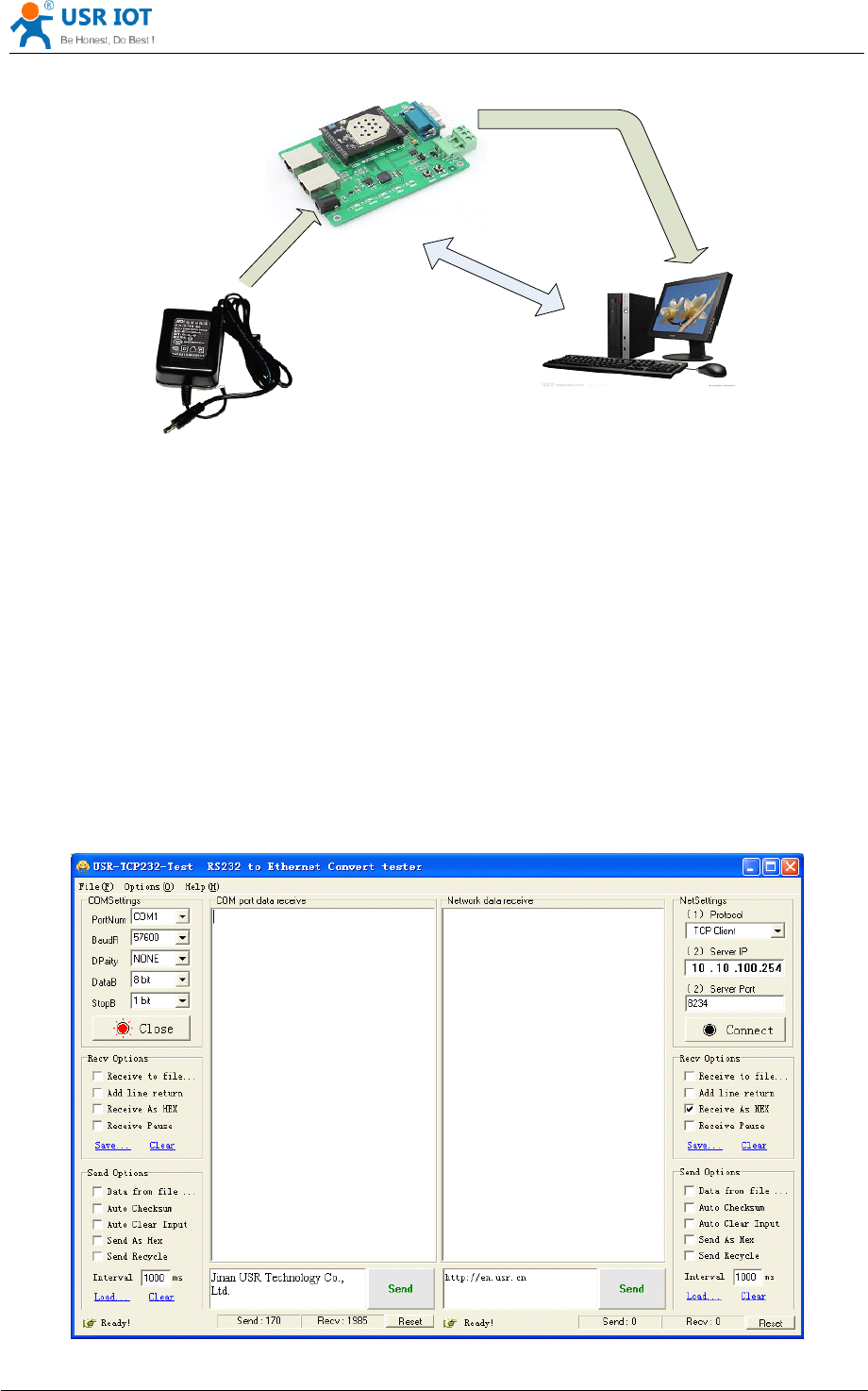
USR-WIFI232- D2 User Manual www.usr iot .com
Jinan USR IOT Technology Limited Page 62 of 78 tec@usr.cn
D
C
5
-
1
8
V
P
O
W
E
R
WIFI or
Ethernet
R
S
2
3
2
Figure 45 Connection
Connection
Connection
Connection diagram
diagram
diagram
diagram
On the serial connection, module pin leads to 3.3V TTL level, not directly connected with the computer,
need to bring the bottom or users are TTL to RS232 connecting line connected to the computer, in
order to facilitate the user to test the use of, we provide a variety of floor for the user to choose, here in
the case of USR-WIFI232-2 .
Hardware connectivity, for module power supply, the red power indicator light, wait about 6 seconds
( internal system boot ), Ready lights, said system startup complete, can operate, entering the next
step.
6.1.3 Debug
As shown above, opened in PC program, set the COM export and open the serial port connection

USR-WIFI232- D2 User Manual www.usr iot .com
Jinan USR IOT Technology Limited Page 63 of 78 tec@usr.cn
Figure 46 “
“
“
“ CommTools
CommTools
CommTools
CommTools ”
”
”
” Serial
Serial
Serial
Serial Debug
Debug
Debug
Debug Tools
Tools
Tools
Tools
Open test software USR-TCP232-Test.exe, selection of hardware attached to the computer's serial
number, this is COM 1 , choose 57600 baud rate, such as the WIFI module serial default baud rate,
open the serial port.
Network settings in TCP client mode, the server IP address input 10.10.100.254, this is WIFI module
default IP address, server port number 8899, this module default monitor TCP port number, click the
link to establish TCP connection ,Then click the create connection.
Figure 47 “
“
“
“ TCP
TCP
TCP
TCP UDP
UDP
UDP
UDP Dbg
Dbg
Dbg
Dbg ”
”
”
” Tools
Tools
Tools
Tools Create
Create
Create
Create Connection
Connection
Connection
Connection
Because of the USR-WIFI232-D2 module default support for transparent transmission mode, so now
you can debug tools two-way data, all data will be wholly intact transmission to the other side of
display. The testing process can be seen in module TXD and RXD indicator lights in the data through
the flashing.

USR-WIFI232- D2 User Manual www.usr iot .com
Jinan USR IOT Technology Limited Page 64 of 78 tec@usr.cn
Figure 48 The
The
The
The test
test
test
test results
results
results
results show
show
show
show that
that
that
that the
the
the
the network
network
network
network and
and
and
and serial
serial
serial
serial port
port
port
port
Note
Note
Note
Note : because of the RTS/CTS pin processing difference, currently available on the part of the
serial debugging software for the module of the system is not available, please be sure to want to
use USR-TCP232-Test we provide testing, or just RXD TXD GND connected the three line to the
computer, please notice .
6.2
6.2
6.2
6.2 Use
Use
Use
Use Cases
Cases
Cases
Cases
6.2.1 Wireless Control Application
USR
-
WIFI
232
-D2
User Device
AP SSID
:
USR
-
WIFI
232
-
AP
_
xxxx
UART
Figure 49 Wireless
Wireless
Wireless
Wireless Control
Control
Control
Control Application
Application
Application
Application
For this wireless control application, USR-WIFI232-D2 works as AP mode. Module ’ s serial port
connects to user device. So, control agent (Smart phone for this example) can manage and control the
user device through the wireless connection with USR-WIFI232-D2 module.
6.2.2 Remote Management Application
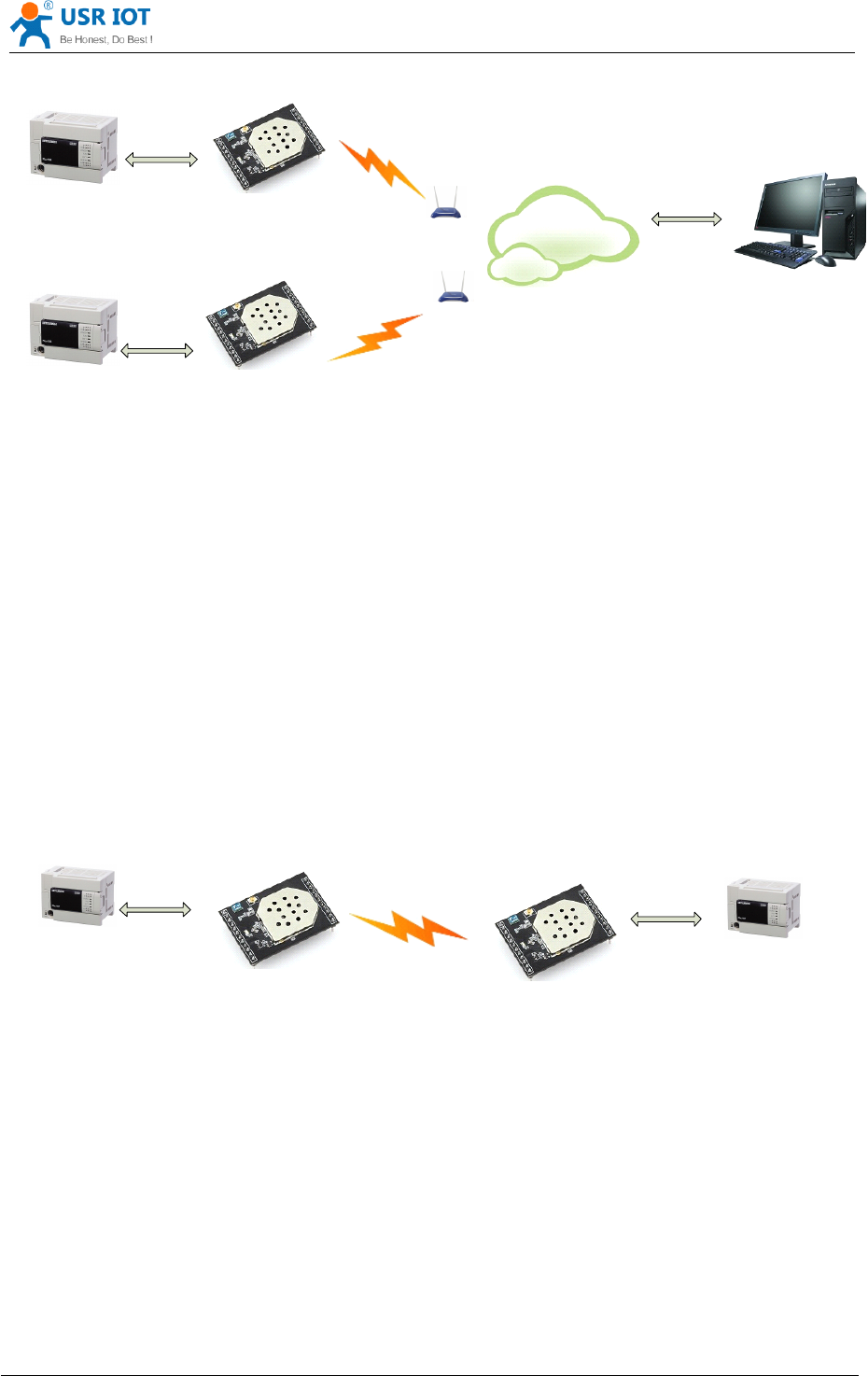
USR-WIFI232- D2 User Manual www.usr iot .com
Jinan USR IOT Technology Limited Page 65 of 78 tec@usr.cn
USR
-
WIFI
232
-
D 2
STA
UART
USR
-
WIFI
232
-
D 2
STA
UART
Internet
User
Device
User
Device
Figure 50 Remote
Remote
Remote
Remote Management
Management
Management
Management Application
Application
Application
Application
For this remote management application, USR-WIFI232-D2 works as STA mode and connects to
Internet through wireless
AP.
Module configured as TCP Client and communicates with remote TCP
server at Internet. Module ’ s serial port connects to user device.
So, user device ’ s data or sampling information can send to remote TCP server for storage or
processing. Also remote TCP server can send command to control and manage the user device
through the wireless network.
6.2.3 Transparent Serial Port Application
For this transparent serial port application, two USR-WIFI232-D2 modules connect as below figures to
build up a transparent serial port connection.
USR
-
WIFI
232
-
D 2
User
Device
UART
USR
-
WIFI
232
-
D 2
UART
AP SSID
:
USR
-
WIFI
232
-
AP
_
xxxx
LAN IP
:
10
.
10
.
100
.
254
Net Prot
:
Tcp Server
Protocol Port
:
8899
STA SSID
:
USR
-
WIFI
232
-
AP
_
xxxx
WAN IP
:
DHCP
Net Prot
:
Tcp client
10
.
10
.
100
.
254
:
8899
LAN IP
:
10
.
10
.
99
.
254
1 #
2 #
User
Device
Figure 51 Transparent
Transparent
Transparent
Transparent Serial
Serial
Serial
Serial Port
Port
Port
Port Application
Application
Application
Application
For left side USR-WIFI232-D2 module, configured as AP mode and use default SSID and IP address,
network protocol configured as TCP/Server mode, and protocol port ID: 8899.

USR-WIFI232- D2 User Manual www.usr iot .com
Jinan USR IOT Technology Limited Page 66 of 78 tec@usr.cn
For right side USR-WIFI232-D2 module, configured as STA mode and setting the same SSID (” USR-
WIFI232-AP_xxxx ” for this example )with left side USR-WIFI232-D2 module, enable DHCP network
and network protocol configured as TCP/Client mode, protocol port ID: 8899. Target IP address part
setting the same IP address with left side USR-WIFI232-D2 module ( “ 10.10.100.254 ” for this example).
When right side USR-WIFI232-D2 boot up, it will find wireless AP (SSID :USR-WIFI232-AP_xxxx for
this example) and open TCP/Client network protocol to connect with left side module ’ s TCP/Server. All
these operation will be automatic and after finished, the two user devices connected to USR-WIFI232-
D2 module through serial port can communicate each other and think the connection between them is
fully transparent.
Note:
Note:
Note:
Note: LAN
LAN
LAN
LAN IP
IP
IP
IP address
address
address
address and
and
and
and WAN
WAN
WAN
WAN port
port
port
port should
should
should
should in
in
in
in different
different
different
different segment,
segment,
segment,
segment, as
as
as
as picture
picture
picture
picture shown,
shown,
shown,
shown, we
we
we
we change
change
change
change
to
to
to
to 10.10.99.254
10.10.99.254
10.10.99.254
10.10.99.254 (the
(the
(the
(the address
address
address
address get
get
get
get from
from
from
from left
left
left
left module
module
module
module WAN
WAN
WAN
WAN port
port
port
port DHCP
DHCP
DHCP
DHCP is
is
is
is 10.10.100.xxx)
10.10.100.xxx)
10.10.100.xxx)
10.10.100.xxx)
6.2.4 Wireless Data Acquisition Card Application
For this wireless data acquisition card application, one PC works as data server and every data
acquisition card connects with a USR-WIFI232-D2 module to support wireless connection function.
USR
-
WIFI
232
-
D 2
User
Device
UART
UART
USR
-
WIFI
232
-
D 2
UART
IP
:
10
.
10
.
100
.
100
Net Prot
:
tcp
server
,
8899
STA SSID
:
USR
-
WIFI
232
-
AP
_
xxxx
LAN IP
:
10
.
10
.
99
.
254
WAN IP
:
10
.
10
.
100
.
101
Net Prot
:
tcp client
,
10
.
10
.
100
.
100
:
8899
STA SSID
:
USR
-
WIFI
232
-
AP
_
xxxx
LAN IP
:
10
.
10
.
98
.
254
WAN IP
:
10
.
10
.
100
.
102
Net Prot
:
tcp client
,
10
.
10
.
100
.
100
:
8899
AP SSID
:
USR
-
WIFI
232
-
AP
_
xxxx
LAN IP
:
10
.
10
.
100
.
254
Net Prot
:
tcp client
,
10
.
10
.
100
.
100
:
8899
User
Device
User
Device
Figure 52 Wireless
Wireless
Wireless
Wireless Data
Data
Data
Data Acquisition
Acquisition
Acquisition
Acquisition Card
Card
Card
Card Application
Application
Application
Application

USR-WIFI232- D2 User Manual www.usr iot .com
Jinan USR IOT Technology Limited Page 67 of 78 tec@usr.cn
As above figure, one USR-WIFI232-D2 configured as AP mode and all others configured as STA mode.
All USR-WIFI232-D2 which configured as
STA
and data server PC wireless connected to USR-
WIFI232-D2 which configured as AP to make up a wires network.
Data server PC open TCP/Server protocol and all USR-WIFI232-D2 modules open TCP/Client
protocol. All data acquisition cards
’
data and sampling information can be transmitted to data server
PC for operation.
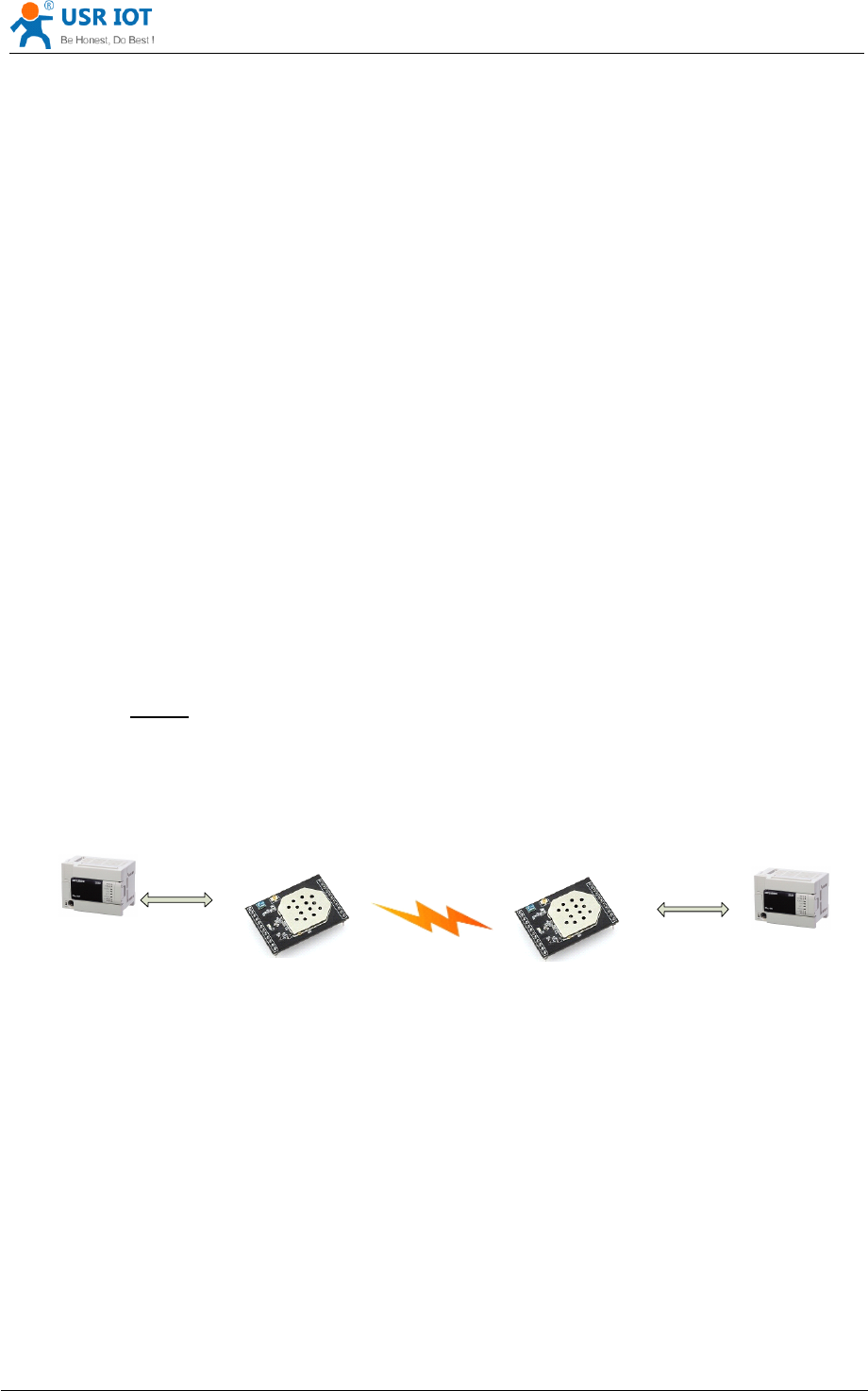
USR-WIFI232- D2 User Manual www.usr iot .com
Jinan USR IOT Technology Limited Page 68 of 78 tec@usr.cn
Appendix
Appendix
Appendix
Appendix A
A
A
A :
:
:
: Questions
Questions
Questions
Questions and
and
and
and Answers
Answers
Answers
Answers
Q1:
Q1:
Q1:
Q1: How
How
How
How to
to
to
to configure
configure
configure
configure transparent
transparent
transparent
transparent serial
serial
serial
serial port
port
port
port application
application
application
application (TCP
(TCP
(TCP
(TCP
protocol)
protocol)
protocol)
protocol) with
with
with
with two
two
two
two WIFI
WIFI
WIFI
WIFI modules?
modules?
modules?
modules?
Network structure as below figure:
Module 1# Setting:
Works as AP mode;
--See “ Mode Selection Page
”
LAN IP address: 10.10.100.254;
--See “ AP Interface Setting Page
”
Network Protocal:TCP/Server, Port ID: 8899;
-- See “ Application Setting Page
”
(Module default setting);
Module 2# Setting:
Works as STA mode; --See “ Mode Selection Page ”
WAN connection type: DHCP or Static IP (For this example:10.10.100.100)
--See “ STA Interface Setting Page
”
Network Protocal:TCP/Client, Port ID: 8899; Application IP address: Module 1#
’
s LAN
IP address (10.10.100.254);
-- See “ Application Setting Page
”
Notes:
Notes:
Notes:
Notes: When module 2# works as
STA
mode, module ’ s WiFi interface works as WAN
port. Module ’ s WAN IP address and LAN IP address shall be setting different segment.
So, module 2# ’ s LAN IP address must change to other segment; (For this sample, we
change to 10.10.99.254);
--See “ AP Interface Setting Page
”
USR
-
WIFI
232
-
D 2
User
Device
UART
USR
-
WIFI
232
-
D 2
UART
AP SSID
:
USR
-
WIFI
232
-
AP
_
xxxx
LAN IP
:
10
.
10
.
100
.
254
Net Prot
:
Tcp Server
Protocol Port
:
8899
STA SSID
:
USR
-
WIFI
232
-
AP
_
xxxx
WAN IP
:
DHCP
Net Prot
:
Tcp client
10
.
10
.
100
.
254
:
8899
LAN IP
:
10
.
10
.
99
.
254
1 #
2 #
User
Device
Figure 53 Configure
Configure
Configure
Configure Transparent
Transparent
Transparent
Transparent Serial
Serial
Serial
Serial Port
Port
Port
Port Connection
Connection
Connection
Connection (TCP)
(TCP)
(TCP)
(TCP)
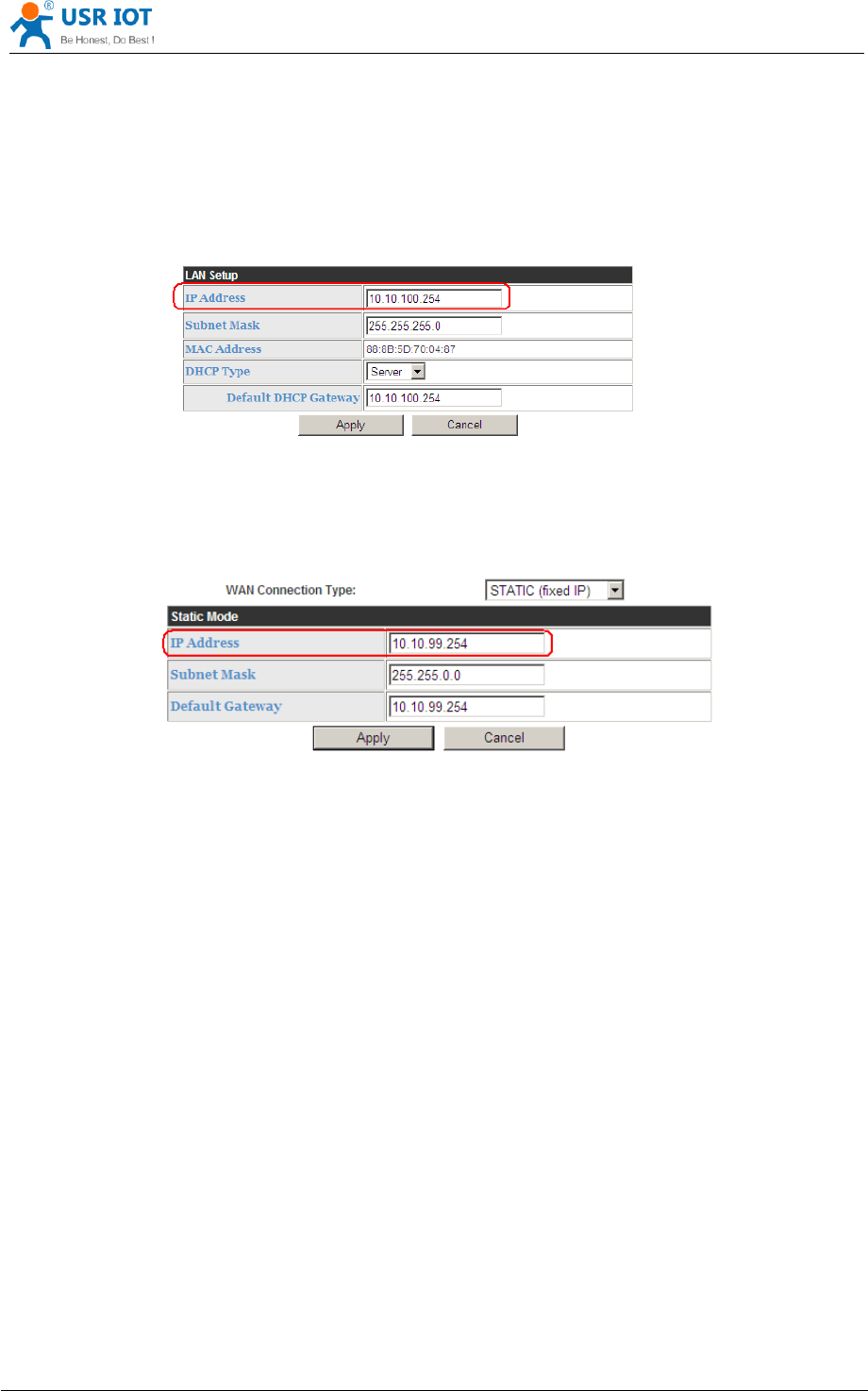
USR-WIFI232- D2 User Manual www.usr iot .com
Jinan USR IOT Technology Limited Page 69 of 78 tec@usr.cn
Q2:
Q2:
Q2:
Q2: Where
Where
Where
Where to
to
to
to Set
Set
Set
Set WIFI
WIFI
WIFI
WIFI Module
Module
Module
Module LAN
LAN
LAN
LAN IP
IP
IP
IP and
and
and
and WAN
WAN
WAN
WAN IP
IP
IP
IP through
through
through
through Web
Web
Web
Web
Page
Page
Page
Page ?
USR-WIFI232-D2 Wireless LAN IP address setting see “ AP Interface Setting Page ” as below
Figure,
Figure 54 Module
Module
Module
Module LAN
LAN
LAN
LAN IP
IP
IP
IP Setting
Setting
Setting
Setting
USR-WIFI232-D2 Wireless WAN IP address setting see “
STA
Interface Setting Page ” as below
Figure, User can set WAN connection type to DHCP and STATIC
IP.
Figure 55 Module
Module
Module
Module WAN
WAN
WAN
WAN IP
IP
IP
IP Setting
Setting
Setting
Setting
Q3:
Q3:
Q3:
Q3: How
How
How
How to
to
to
to configure
configure
configure
configure transparent
transparent
transparent
transparent serial
serial
serial
serial port
port
port
port application
application
application
application (UDP
(UDP
(UDP
(UDP
protocol)
protocol)
protocol)
protocol) with
with
with
with two
two
two
two WIFI
WIFI
WIFI
WIFI modules?
modules?
modules?
modules?
Network structure as below figure:
Module 1# Setting:
Works as AP mode;
--See “ Mode Selection Page
”
LAN IP address: 10.10.100.254;
--See “ AP Interface Setting Page
”
Network Protocal:UDP, Port ID: 8899; Application IP address:10.10.100.100;
-- See “ Application Setting Page
”
Module 2# Setting:
Works as STA mode; --See “ Mode Selection Page ”
WAN connection type: Static IP (10.10.100.100)
--See “ STA Interface Setting Page
”
Network Protocal:UDP, Port ID: 8899; Application IP address: Module 1# ’ s LAN IP
address (10.10.100.254);
-- See “ Application Setting Page
”
LAN IP address: 10.10.99.254 (Different net segment with WAN port)
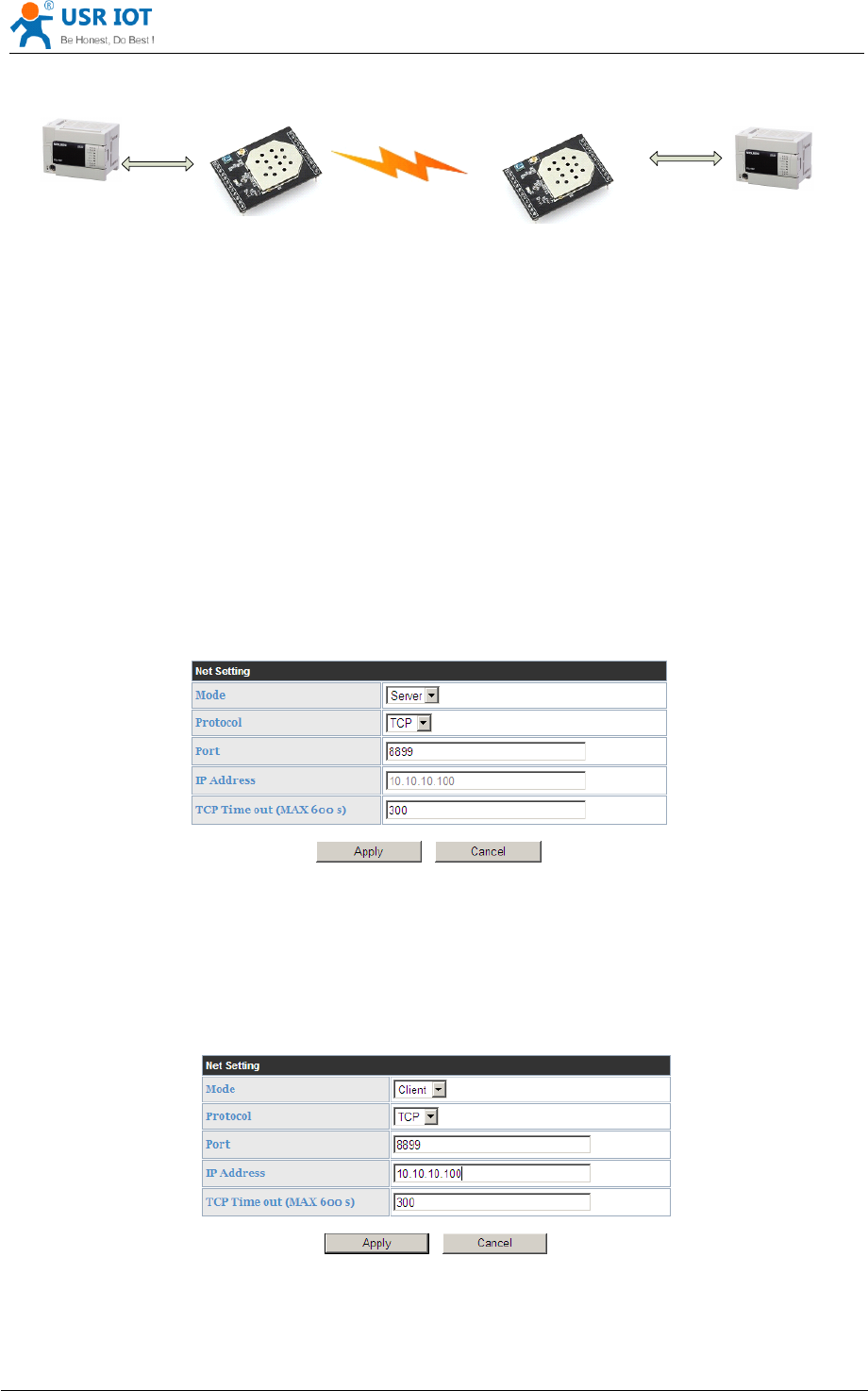
USR-WIFI232- D2 User Manual www.usr iot .com
Jinan USR IOT Technology Limited Page 70 of 78 tec@usr.cn
--See “ AP Interface Setting Page
”
USR
-
WIFI
232
- D 2
User
Device
UART
USR
-
WIFI
232
-D2
UART
AP SSID
:
USR
-
WIFI
232
-
AP
_
xxxx
LAN IP
:
10
.
10
.
100
.
254
Net Prot
:
UDP
10
.
10
.
100
.
100
:
8899
STA SSID
:
USR
-
WIFI
232
-
AP
_
xxxx
WAN IP
:
DHCP
Net Prot
:
UDP
10
.
10
.
100
.
254
:
8899
LAN IP
:
10
.
10
.
99
.
254
1 #
2 #
User
Device
Figure 56 Configure
Configure
Configure
Configure Transparent
Transparent
Transparent
Transparent Serial
Serial
Serial
Serial Port
Port
Port
Port Connection
Connection
Connection
Connection (UDP)
(UDP)
(UDP)
(UDP)
Q4:
Q4:
Q4:
Q4: Where
Where
Where
Where to
to
to
to set
set
set
set USR-WIFI232-D2
USR-WIFI232-D2
USR-WIFI232-D2
USR-WIFI232-D2 module
module
module
module network
network
network
network protocol
protocol
protocol
protocol (TCP/UDP)?
(TCP/UDP)?
(TCP/UDP)?
(TCP/UDP)?
USR-WIFI232-D2 network protocol setting see “ Application Setting Page ” as below Figure,
Protocol: TCP Server
Only Port ID required: 8899 (Default)
Figure 57 Module
Module
Module
Module Network
Network
Network
Network Protocols:
Protocols:
Protocols:
Protocols: TCP/Server
TCP/Server
TCP/Server
TCP/Server
Protocol: TCP Client
Application IP address required: it ’ s target TCP server ‘ s IP address;
Port ID required: 8899 (Default)
Figure 58 Module
Module
Module
Module Network
Network
Network
Network Protocol:
Protocol:
Protocol:
Protocol: TCP/Client
TCP/Client
TCP/Client
TCP/Client
Protocol: UDP
No Server/Client selection required;
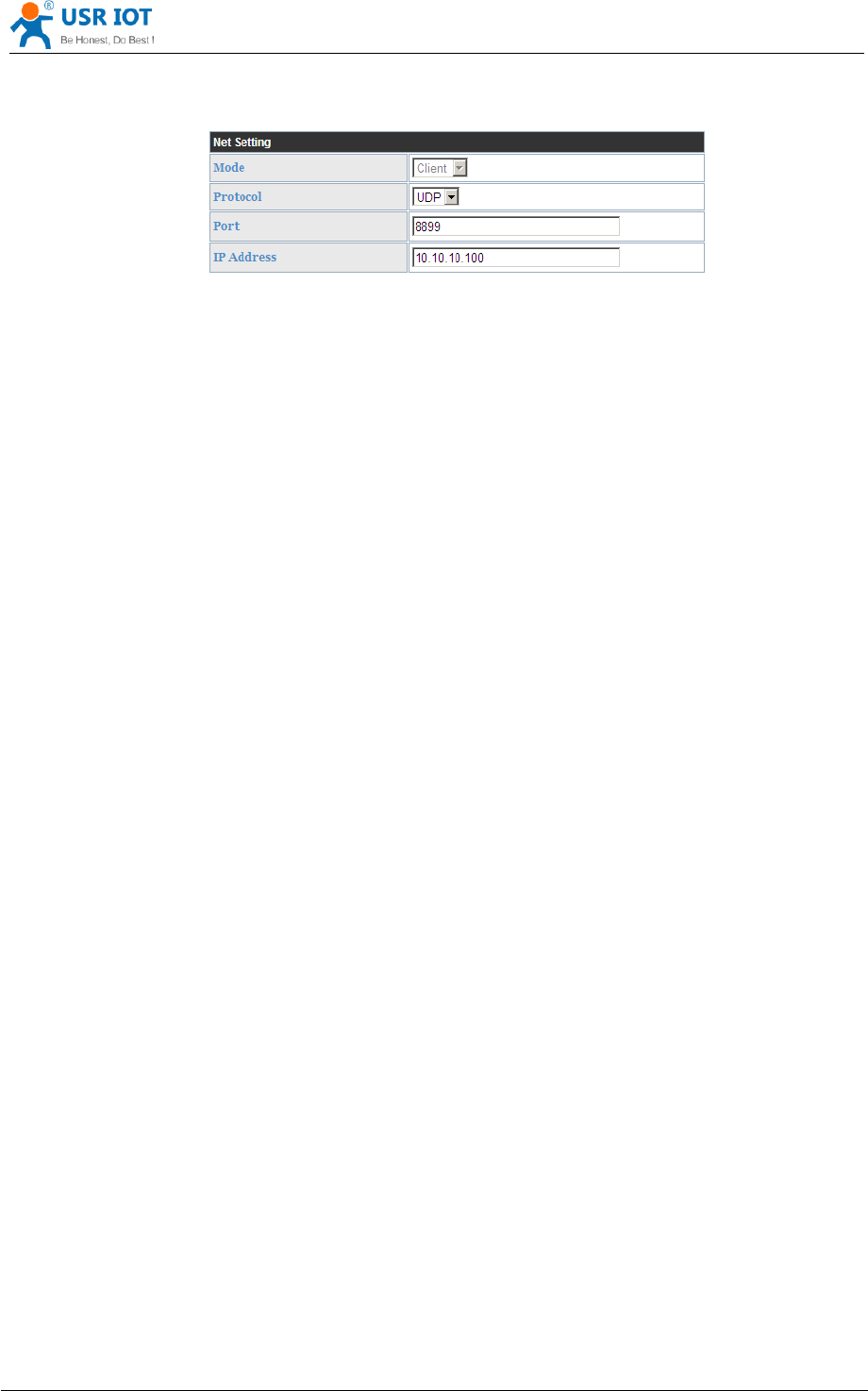
USR-WIFI232- D2 User Manual www.usr iot .com
Jinan USR IOT Technology Limited Page 71 of 78 tec@usr.cn
Application IP address required: it ’ s target device ‘ s IP address;
Port ID required: 8899 (Default)
Figure 59 Module
Module
Module
Module Network
Network
Network
Network Protocol:
Protocol:
Protocol:
Protocol: UDP
UDP
UDP
UDP
Q5:
Q5:
Q5:
Q5: How
How
How
How to
to
to
to configure
configure
configure
configure transparent
transparent
transparent
transparent serial
serial
serial
serial port
port
port
port application:
application:
application:
application: Two
Two
Two
Two WIFI
WIFI
WIFI
WIFI
modules
modules
modules
modules all
all
all
all configured
configured
configured
configured as
as
as
as
STA
STA
STA
STA
and
and
and
and connection
connection
connection
connection through
through
through
through AP?
AP?
AP?
AP?
Network structure as below figure:
Module 1# Setting: ( We use USR-WIFI232-D2 as AP for this example)
Works as AP mode and all default setting;
Module 2# Setting:
Works as STA mode; --See “ Mode Selection Page ”
WAN connection type: Static IP: 10.10.100.100;
--See “ STA Interface Setting Page
”
Network Protocal:TCP/Server, Port ID: 8899;
-- See “ Application Setting Page
”
LAN IP address: 10.10.99.254 (Different net segment with WAN port);
--See “ AP Interface Setting Page
”
Module 3# Setting:
Works as STA mode; --See “ Mode Selection Page ”
WAN connection type: Static IP: 10.10.100.101;
--See “ STA Interface Setting Page
”
Network Protocal:TCP/Client, Port ID: 8899; Application IP address: Module 2#
’
s WAN
IP address (10.10.100.100);
-- See “ Application Setting Page
”
LAN IP address: 10.10.98.254 (Different net segment with WAN port);
--See “ AP Interface Setting Page
”
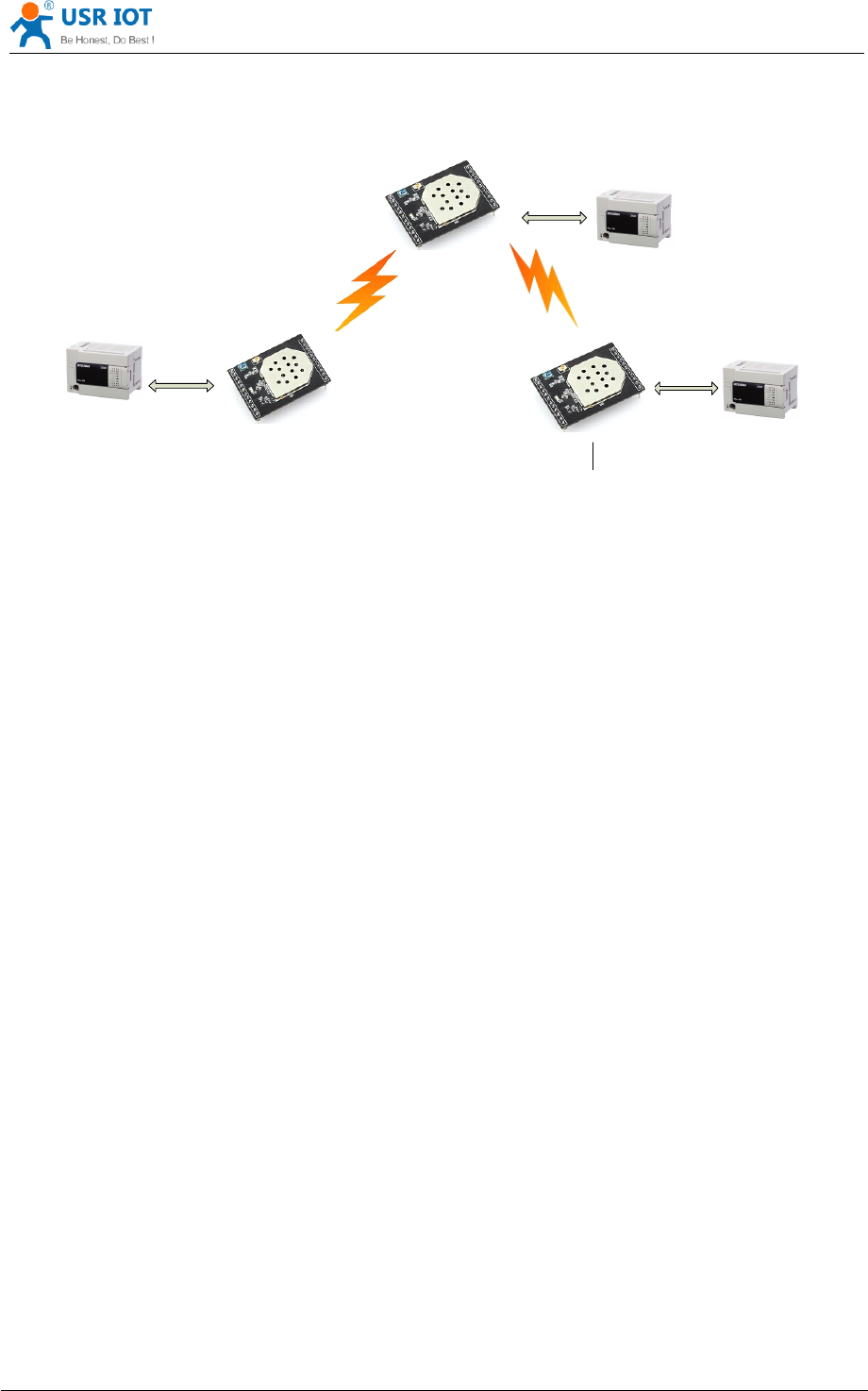
USR-WIFI232- D2 User Manual www.usr iot .com
Jinan USR IOT Technology Limited Page 72 of 78 tec@usr.cn
USR
-
WIFI
232
-D2
User
Device
UART
USR
-
WIFI
232
-
D 2
UART
USR
-
WIFI
232
- D 2
UART
STA SSID
:
USR
-
WIFI
232
- A
LAN IP
:
10
.
10
.
99
.
254
WAN IP
:
10
.
10
.
100
.
100
Net Prot
:
Tcp Server
Protocol Port
:
8899
STA SSID
:
USR
-
WIFI
232
- A
WAN IP
:
10
.
10
.
100
.
101
Net Prot
:
Tcp client
10
.
10
.
100
.
100
:
8899
LAN IP
:
10
.
10
.
98
.
254
AP SSID
:
USR
-
WIFI
232
- A
LAN IP
:
10
.
10
.
100
.
254
Net Prot
:
Tcp Server
Protocol Port
:
8899
User
Device
User
Device
Figure 60 Two
Two
Two
Two USR-WIFI232-D2
USR-WIFI232-D2
USR-WIFI232-D2
USR-WIFI232-D2 Modules
Modules
Modules
Modules Connection
Connection
Connection
Connection Through
Through
Through
Through AP
AP
AP
AP
Q6:
Q6:
Q6:
Q6: How
How
How
How to
to
to
to avoid
avoid
avoid
avoid IP
IP
IP
IP address
address
address
address confliction
confliction
confliction
confliction when
when
when
when apply
apply
apply
apply USR-WIFI232-D2
USR-WIFI232-D2
USR-WIFI232-D2
USR-WIFI232-D2
module?
module?
module?
module?
The following address allocation method can avoid the IP address confliction for dynamic and
static IP address mixed application.
M odule dynamic
IP
address range from 100 to 200 for last
IP
address segment.
Such as default IP: 10.10.100.254. When module works as
AP,
the IP address module
can allocate to STA is from 10.10.100.100 to 10.10.100.200;
So, if user needs to set static IP for dedicated
STA
internal network, the available IP
address range can start from 10.10.100.1 to 10.10.100.99.
Q7:
Q7:
Q7:
Q7: PC
PC
PC
PC works
works
works
works as
as
as
as server,
server,
server,
server, all
all
all
all WIFI
WIFI
WIFI
WIFI modules
modules
modules
modules works
works
works
works as
as
as
as data
data
data
data acquisition
acquisition
acquisition
acquisition
card
card
card
card and
and
and
and connect
connect
connect
connect with
with
with
with PC,
PC,
PC,
PC, how
how
how
how to
to
to
to configure
configure
configure
configure this
this
this
this application?
application?
application?
application?
Network structure as below figure: Three USR-WIFI232-D2 module setup 3 TCP links with PC
server. Module 1# works as AP and all devices connect to module 1# through WiFi interface;
PC Setting:
IP address: 10.10.100.100;
Network Protocal:TCP/Server, Port ID: 8899;
Module 1# Setting:
Works as AP mode;
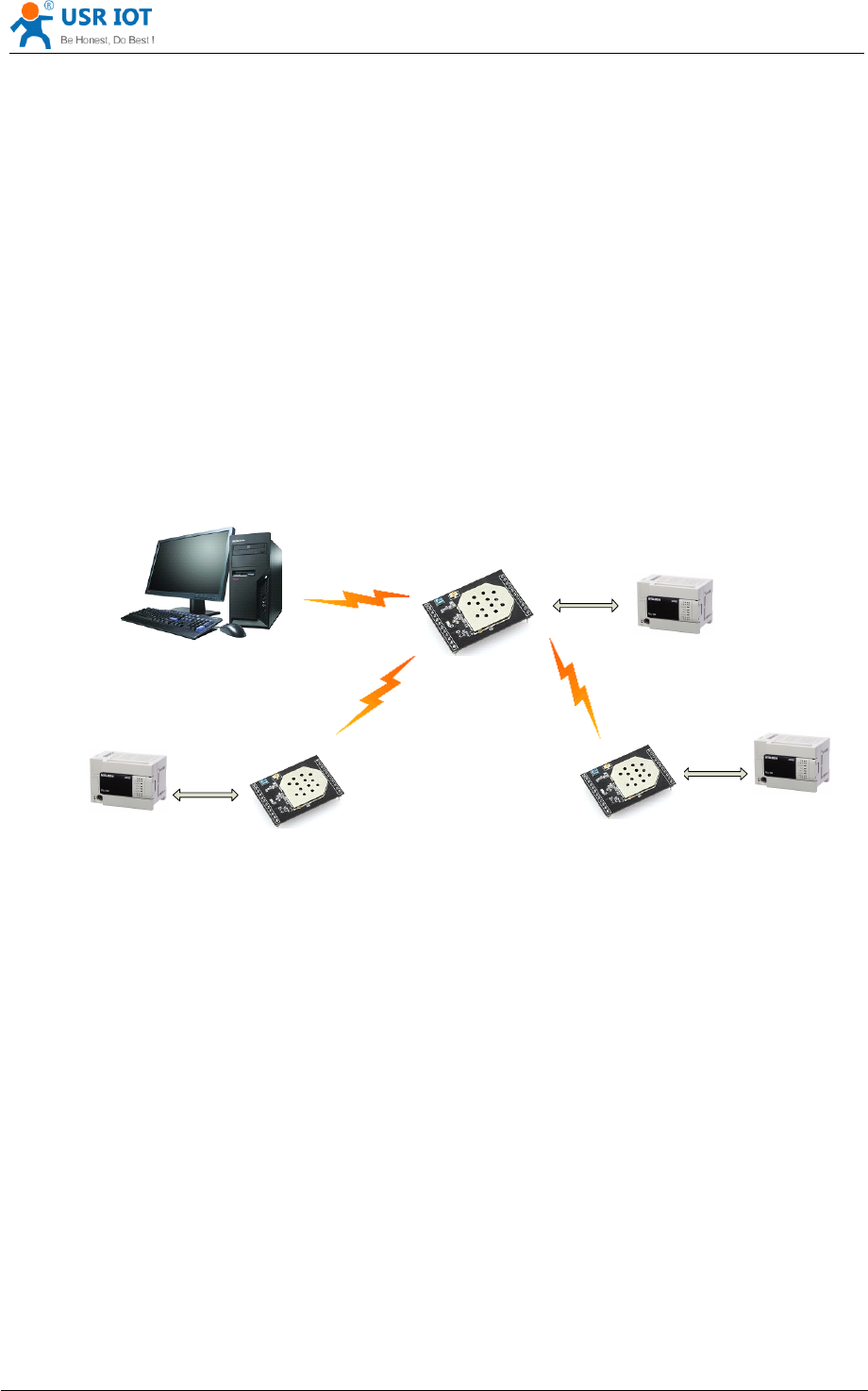
USR-WIFI232- D2 User Manual www.usr iot .com
Jinan USR IOT Technology Limited Page 73 of 78 tec@usr.cn
LAN IP address: 10.10.100.254;
Network Protocal:TCP/Client, Port ID: 8899; Application IP address:10.10.100.100;
Module 2# Setting:
Works as STA mode;
WAN connection type: Static IP: 10.10.100.101;
Network Protocal:TCP/Client, Port ID: 8899; Application IP address:10.10.100.100;
LAN IP address: 10.10.99.254 (Different net segment with WAN port);
Module 3# Setting:
Works as STA mode;
WAN connection type: Static IP: 10.10.100.102;
Network Protocal:TCP/Client, Port ID: 8899; Application IP address:10.10.100.100;
LAN IP address: 10.10.98.254 (Different net segment with WAN port);
USR
-
WIFI
232
-
D 2
UART
USR
-
WIFI
232
-
D 2
UART
UART
IP
:
10
.
10
.
100
.
100
Net Prot
:
tcp
server
,
8899
STA SSID
:
USR
-
WIFI
232
-
AP
_
xxxx
LAN IP
:
10
.
10
.
99
.
254
WAN IP
:
10
.
10
.
100
.
101
Net Prot
:
tcp client
,
10
.
10
.
100
.
100
:
8899
STA SSID
:
USR
-
WIFI
232
-
AP
_
xxxx
LAN IP
:
10
.
10
.
98
.
254
WAN IP
:
10
.
10
.
100
.
102
Net Prot
:
tcp client
,
10
.
10
.
100
.
100
:
8899
AP SSID
:
USR
-
WIFI
232
-
AP
_
xxxx
LAN IP
:
10
.
10
.
100
.
254
Net Prot
:
tcp client
,
10
.
10
.
100
.
100
:
8899
User
Device
User
Device
User
Device
USR
-
WIFI
232
-
D 2
Figure 61 Wireless
Wireless
Wireless
Wireless Data
Data
Data
Data Acquisition
Acquisition
Acquisition
Acquisition Card
Card
Card
Card Setting
Setting
Setting
Setting
Q8:
Q8:
Q8:
Q8: WIFI
WIFI
WIFI
WIFI module
module
module
module support
support
support
support UDP
UDP
UDP
UDP multicast?
multicast?
multicast?
multicast?
At present, all the WIFI module does not support UDP multicast function,IP multicast address
range is " 224.0.0.0 ~ 239.255.255.255 ” , When setting module, please don't set this IP section, if
set, may cause the module can't normal start.

USR-WIFI232- D2 User Manual www.usr iot .com
Jinan USR IOT Technology Limited Page 74 of 78 tec@usr.cn
Q9:WIFI
Q9:WIFI
Q9:WIFI
Q9:WIFI module
module
module
module operates
operates
operates
operates in
in
in
in
STA
STA
STA
STA
mode,
mode,
mode,
mode, the
the
the
the PC
PC
PC
PC how
how
how
how to
to
to
to get
get
get
get the
the
the
the IP
IP
IP
IP
module?
module?
module?
module?
All wifi module supports UDP search ,they will return to their respective
IP,
MAC, MID, detailed
search process is as follows:
1. PC via UDP broadcast (broadcast address: xx.xx.xx.255, Port: 48899) sent a password, the
default password is: "HF-A11ASSISTHREAD", the password can be used
AT
commands (AT
+ FASWD) set up,it's Up to 100 bytes.
2. After the module receives a password, if the password is correct, to the address (Unicast,
Port: 48899) sends local IP address and MAC address and name of the module.
(IP,
MAC,
MID as 10.10.100.254,888 B5D0000E2, guxin).
S o you can get to the
IP
address of the module.
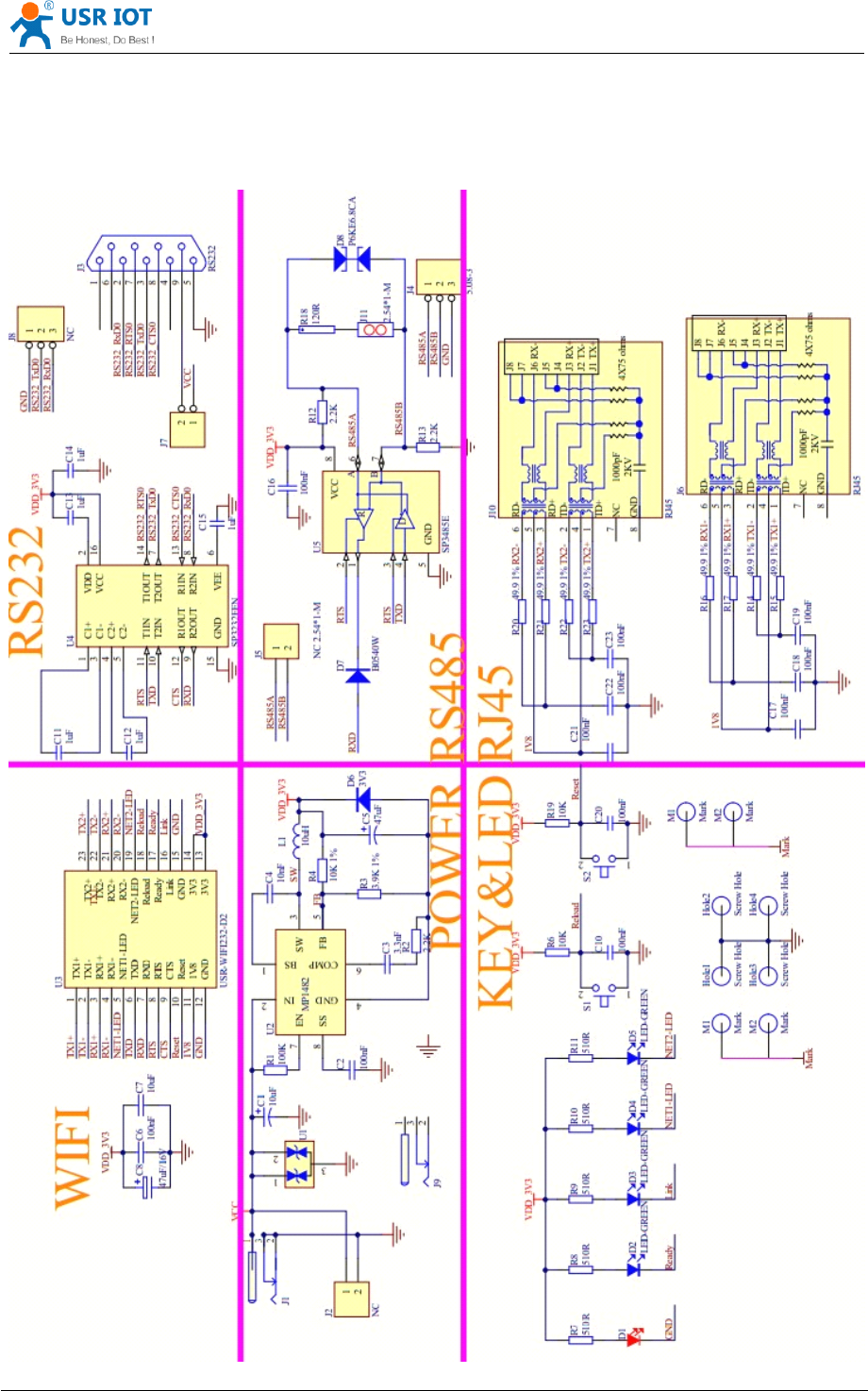

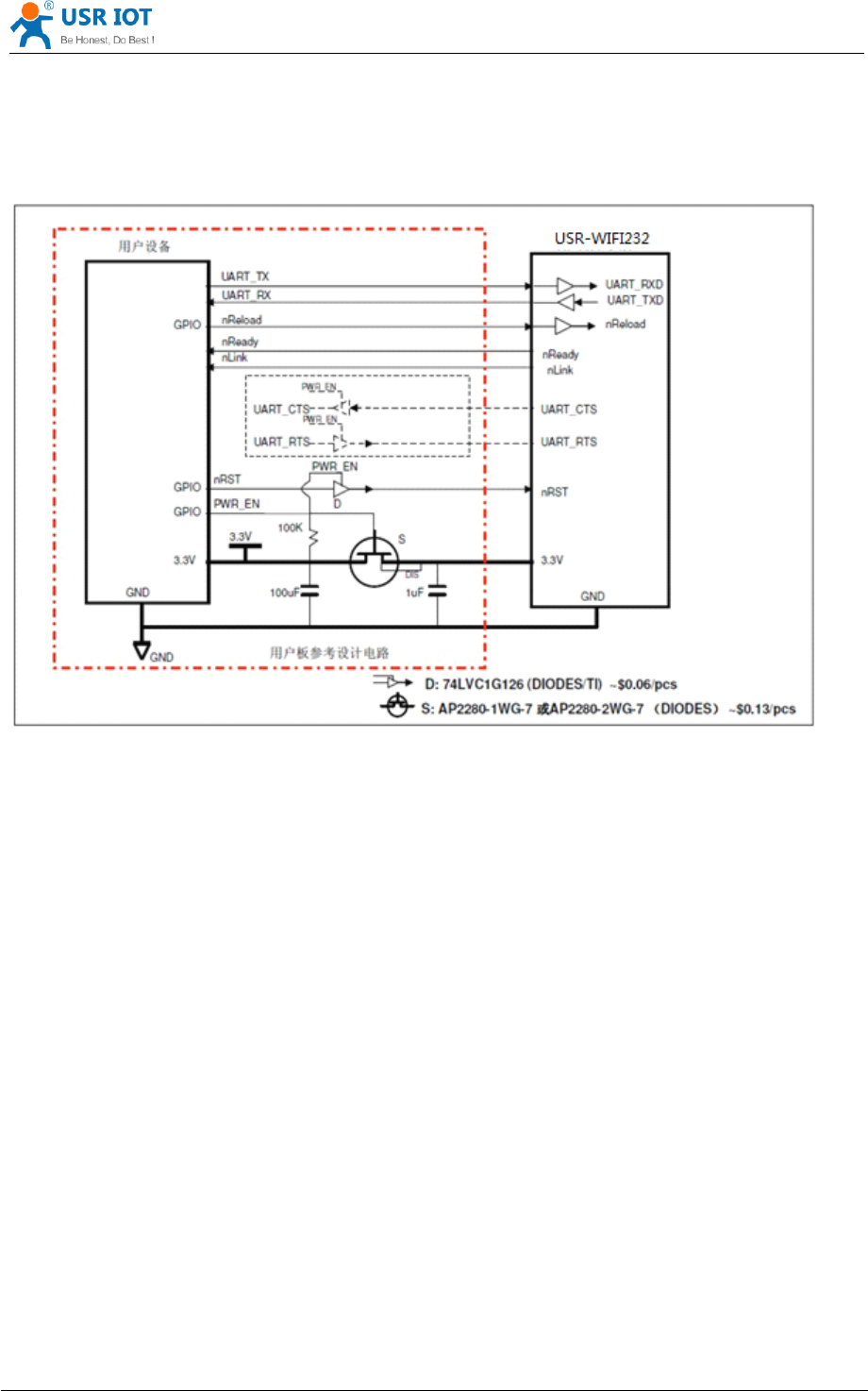
USR-WIFI232- D2 User Manual www.usr iot .com
Jinan USR IOT Technology Limited Page 76 of 78 tec@usr.cn
Appendix
Appendix
Appendix
Appendix c
c
c
c :
:
:
: external
external
external
external power
power
power
power shutdown
shutdown
shutdown
shutdown mode
mode
mode
mode
reference
reference
reference
reference design
design
design
design
Appendix
Appendix
Appendix
Appendix c:
c:
c:
c: The
The
The
The FCC
FCC
FCC
FCC statement
statement
statement
statement
FCC
FCC
FCC
FCC STATEMENT
STATEMENT
STATEMENT
STATEMENT
1. This device complies with Part 15 of the FCC Rules. Operation is subject to the following two
conditions:
(1) This device may not cause harmful interference.
(2) This device must accept any interference received, including interference that may cause
undesired operation.
2. Changes or modifications not expressly approved by the party responsible for compliance
could
void the user's authority to operate the equipment.
NOTE: This equipment has been tested and found to comply with the limits for a Class B digital
device, pursuant to Part 15 of the FCC Rules. These limits are designed to provide reasonable
protection against harmful interference in a residential installation.
This equipment generates uses and can radiate radio frequency energy and, if not installed and
used in accordance with the instructions, may cause harmful interference to radio
communications.
However, there is no guarantee that interference will not occur in a particular installation. If this

USR-WIFI232- D2 User Manual www.usr iot .com
Jinan USR IOT Technology Limited Page 77 of 78 tec@usr.cn
equipment does cause harmful interference to radio or wifi , which can be
determined by turning the equipment off and on, the user is encouraged to try to correct the
interference by one or more of the following measures:
Reorient or relocate the receiving antenna.
Increase the separation between the equipment and receiver.
Connect the equipment into an outlet on a circui t different from that to which the receiver is
connected.
Consult the dealer for help.
FCC
FCC
FCC
FCC Radiation
Radiation
Radiation
Radiation Exposure
Exposure
Exposure
Exposure Statement
Statement
Statement
Statement
This equipment complies with FCC radiation exposure limits set forth for an uncontrolled
environment. This equipment should be installed and operated with minimum distance 20cm
between the radiator & your body .

USR-WIFI232- D2 User Manual www.usr iot .com
Jinan USR IOT Technology Limited Page 78 of 78 tec@usr.cn
Appendix
Appendix
Appendix
Appendix e:
e:
e:
e: Contact
Contact
Contact
Contact Information
Information
Information
Information
------------------------------------------------------------------------------------------------------------
------------------------------------------------------------------------------------------------------------
------------------------------------------------------------------------------------------------------------
------------------------------------------------------------------------------------------------------------
Contact
Contact
Contact
Contact us:
us:
us:
us:
Company: Jinan USR IOT Technology Limited
Address: 1-728, Huizhan Guoji Cheng, Gaoxin Qu, Jinan, Shandong, China
Tel:
86-531-55507297, 86-531-88826739
Web: www.usr iot . com
Email: sales@usr.cn, order@usr.cn
-----------------------------------------------------------------------------------------------------------
-----------------------------------------------------------------------------------------------------------
-----------------------------------------------------------------------------------------------------------
-----------------------------------------------------------------------------------------------------------
Appendix
Appendix
Appendix
Appendix f
f
f
f :
:
:
: Disclaimer
Disclaimer
Disclaimer
Disclaimer
This
This
This
This document
document
document
document provides
provides
provides
provides information
information
information
information about
about
about
about USR-WIFI232-D2
USR-WIFI232-D2
USR-WIFI232-D2
USR-WIFI232-D2 modules,
modules,
modules,
modules, this
this
this
this document
document
document
document does
does
does
does
not
not
not
not grant
grant
grant
grant any
any
any
any license
license
license
license to
to
to
to intellectual
intellectual
intellectual
intellectual property
property
property
property rights.
rights.
rights.
rights. Except
Except
Except
Except the
the
the
the responsibility
responsibility
responsibility
responsibility declared
declared
declared
declared in
in
in
in
the
the
the
the product
product
product
product sale
sale
sale
sale clause,
clause,
clause,
clause, USR
USR
USR
USR does
does
does
does not
not
not
not assume
assume
assume
assume any
any
any
any other
other
other
other responsibilities.
responsibilities.
responsibilities.
responsibilities. In
In
In
In addition,
addition,
addition,
addition, USR
USR
USR
USR
does
does
does
does not
not
not
not make
make
make
make any
any
any
any warranties
warranties
warranties
warranties for
for
for
for the
the
the
the sale
sale
sale
sale and
and
and
and use
use
use
use of
of
of
of this
this
this
this product,
product,
product,
product, including
including
including
including the
the
the
the suitability
suitability
suitability
suitability
of
of
of
of the
the
the
the product
product
product
product for
for
for
for a
a
a
a particular
particular
particular
particular purpose,
purpose,
purpose,
purpose, merchantability
merchantability
merchantability
merchantability or
or
or
or fitness
fitness
fitness
fitness for
for
for
for any
any
any
any patent,
patent,
patent,
patent, copyright
copyright
copyright
copyright
or
or
or
or other
other
other
other intellectual
intellectual
intellectual
intellectual property
property
property
property infringement,
infringement,
infringement,
infringement, etc.
etc.
etc.
etc. USR
USR
USR
USR may
may
may
may make
make
make
make changes
changes
changes
changes to
to
to
to specifications
specifications
specifications
specifications
and
and
and
and product
product
product
product descriptions
descriptions
descriptions
descriptions without
without
without
without notice.
notice.
notice.
notice.
Appendix
Appendix
Appendix
Appendix g
g
g
g :
:
:
: History
History
History
History
Ed.V 1.0.0 Created on 7 -
11
-201 4 .
END
END
END
END OF
OF
OF
OF DOCUMENT
DOCUMENT
DOCUMENT
DOCUMENT