Johnson Outdoors IPREM20 i-Pilot Link System User Manual 5

Johnson Outdoors, Inc. i-Pilot Link System 5

User Manual 5

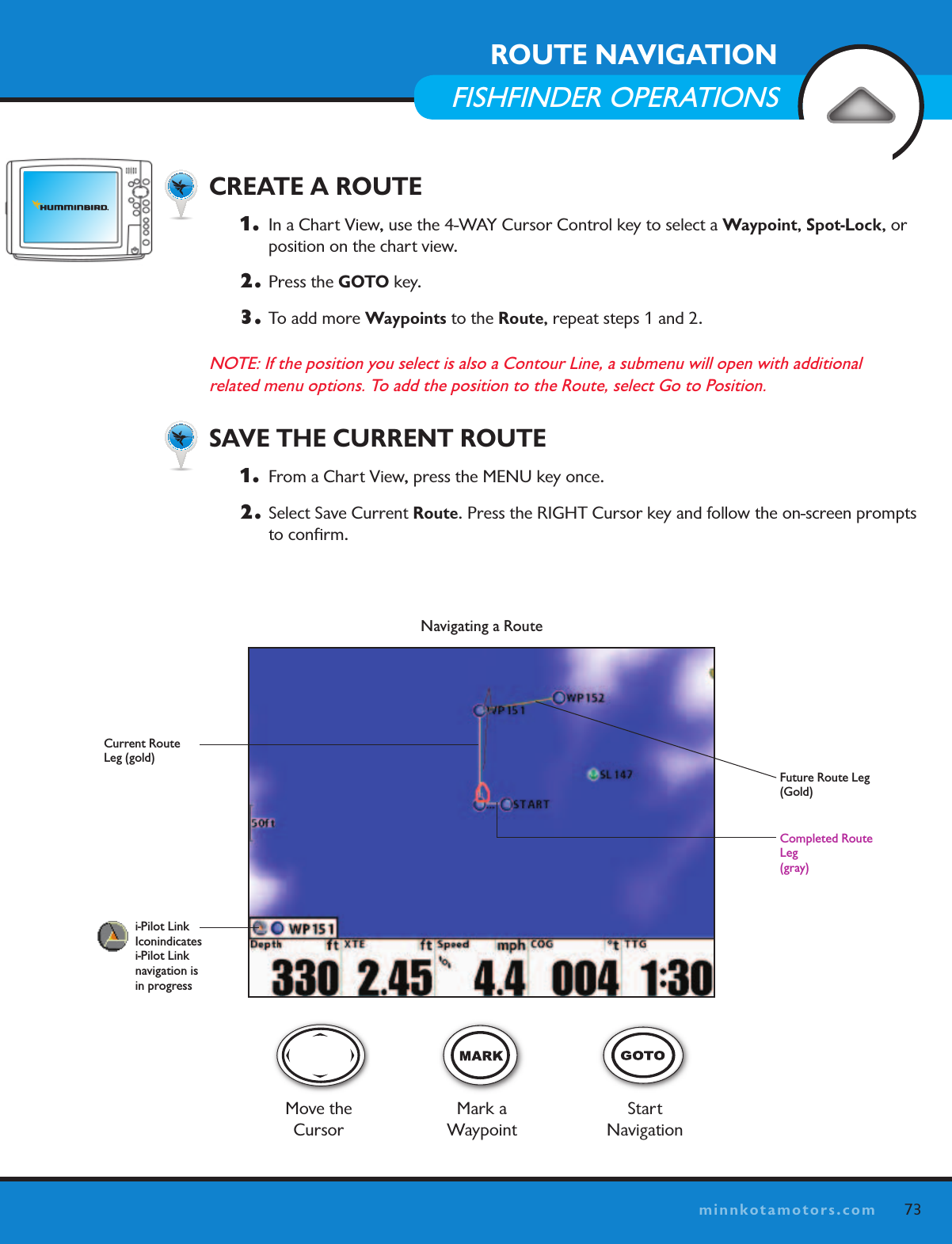
73minnkotamotors.comNavigating a RouteFuture Route Leg (Gold) Move the CursorMark a  WaypointStart NavigationCompleted Route Leg (gray)i-Pilot Link  Iconindicates  i-Pilot Link  navigation is  in progressCurrent Route Leg (gold)  CREATE A ROUTE1.   In a Chart View, use the 4-WAY Cursor Control key to select a Waypoint, Spot-Lock, or position on the chart view. 2.  Press the GOTO key. 3.  To add more Waypoints to the Route, repeat steps 1 and 2. NOTE: If the position you select is also a Contour Line, a submenu will open with additional  related menu options. To add the position to the Route, select Go to Position.  SAVE THE CURRENT ROUTE1.   From a Chart View, press the MENU key once. 2.  Select Save Current Route. Press the RIGHT Cursor key and follow the on-screen prompts to confirm.ROUTE NAVIGATIONFISHFINDER OPERATIONS
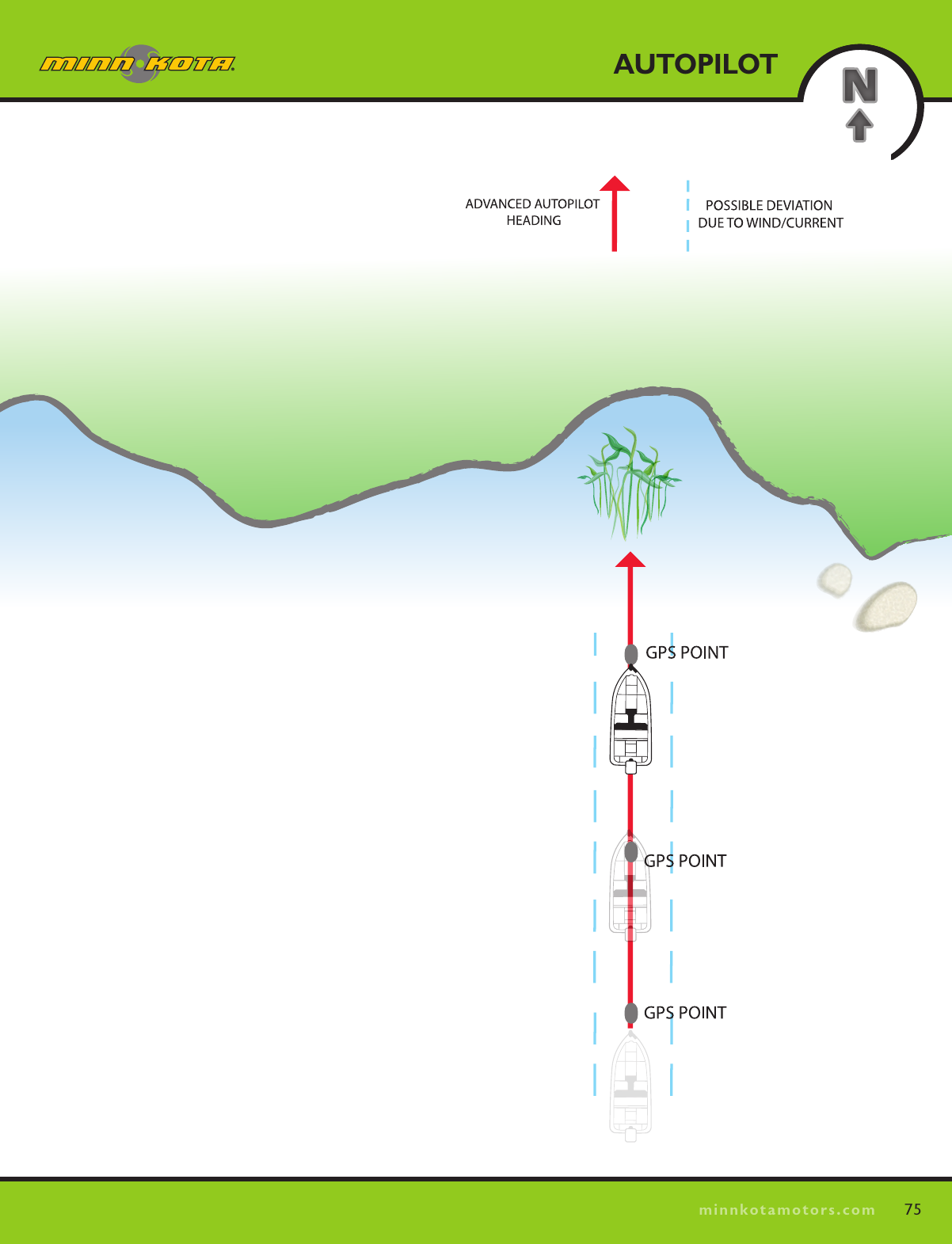
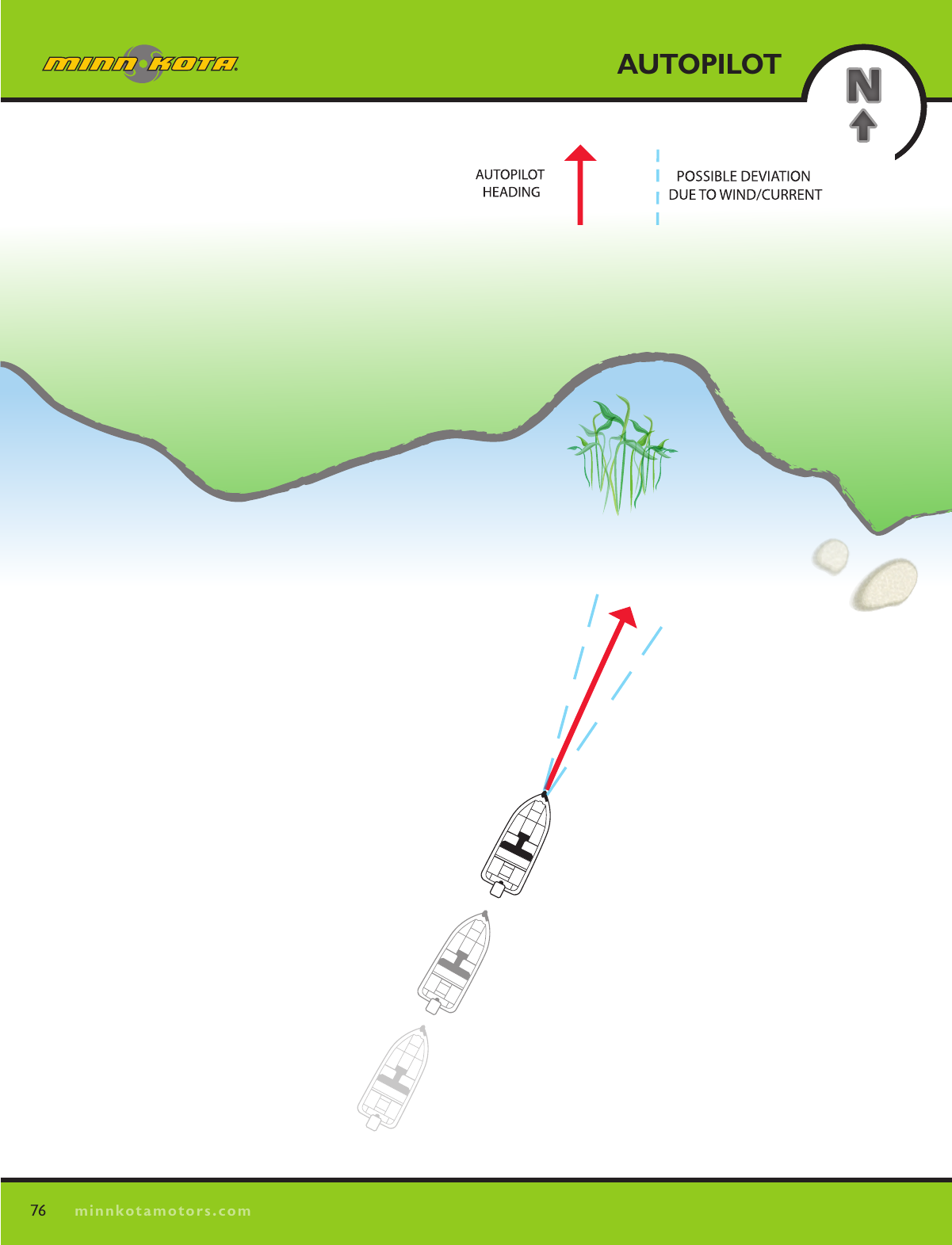
74minnkotamotors.comAUTOPILOTHOW AUTOPILOT WORKSTwo different versions of AutoPilot are available Advanced AutoPilot and Legacy AutoPilot.  There are distinct differences between the two AutoPilots and how they control your boat.Advanced AutoPilot Advanced AutoPilot not only uses compass heading but also GPS signal data to correct for cross winds, current and other external forces to keep the boat on a straight line.  When Advanced AutoPilot is turned on, it generates a set of GPS points in a straight track line in the heading direction.  i-Pilot Link now navigates to each individual point on this track line.  When the user steers to a new heading, a new track line of GPS points are laid down in the new heading direction.  AutoPilotLegacy AutoPilot uses an internal compass to provide heading lock. When Legacy AutoPilot is on, it keeps the motor pointed in the same compass direction. If a manual steering correction is made, Legacy AutoPilot locks onto the new compass heading to which the boat was steered. This method of heading tracking does not take into account external forces such as a side wind or currents, which can allow side drift.Which AutoPilot Do I Use and When?With all the external variables, this question can be difficult to answer.  Both AutoPilots have their  benefits based on the type of fishing and bait presentation desired.  Advanced AutoPilot will keep the boat on a true straight path in most conditions.  When very extreme conditions exists such as very strong winds or current, the trolling motor may not have enough power to control the boat smoothly.  In these extreme cases it may be best to use Legacy AutoPilot and let the boat move with the wind or current if the motor is not powerful enough to overcome it.Legacy AutoPilot helps you maintain a constant heading but does not compensate for wind or currents.Both Advanced AutoPilot and Legacy AutoPilot are valuable tools the fisherman can use for accurate and precise bait presentation. We highly recommend getting on the water and trying both Advanced AutoPilot and Legacy AutoPilot in various fishing situations and applications.  With experimentation and time you will find which AutoPilot works best for you in a given situation. Using AutoPilot with Other i-Pilot Link FunctionsAutoPilot can be used in combination with Cruise Control and while recording an iTrack.  If another  mode of navigation that controls steering is enabled while AutoPilot is enabled, AutoPilot will  disable automatically.
75minnkotamotors.comAUTOPILOT
76minnkotamotors.comAUTOPILOT
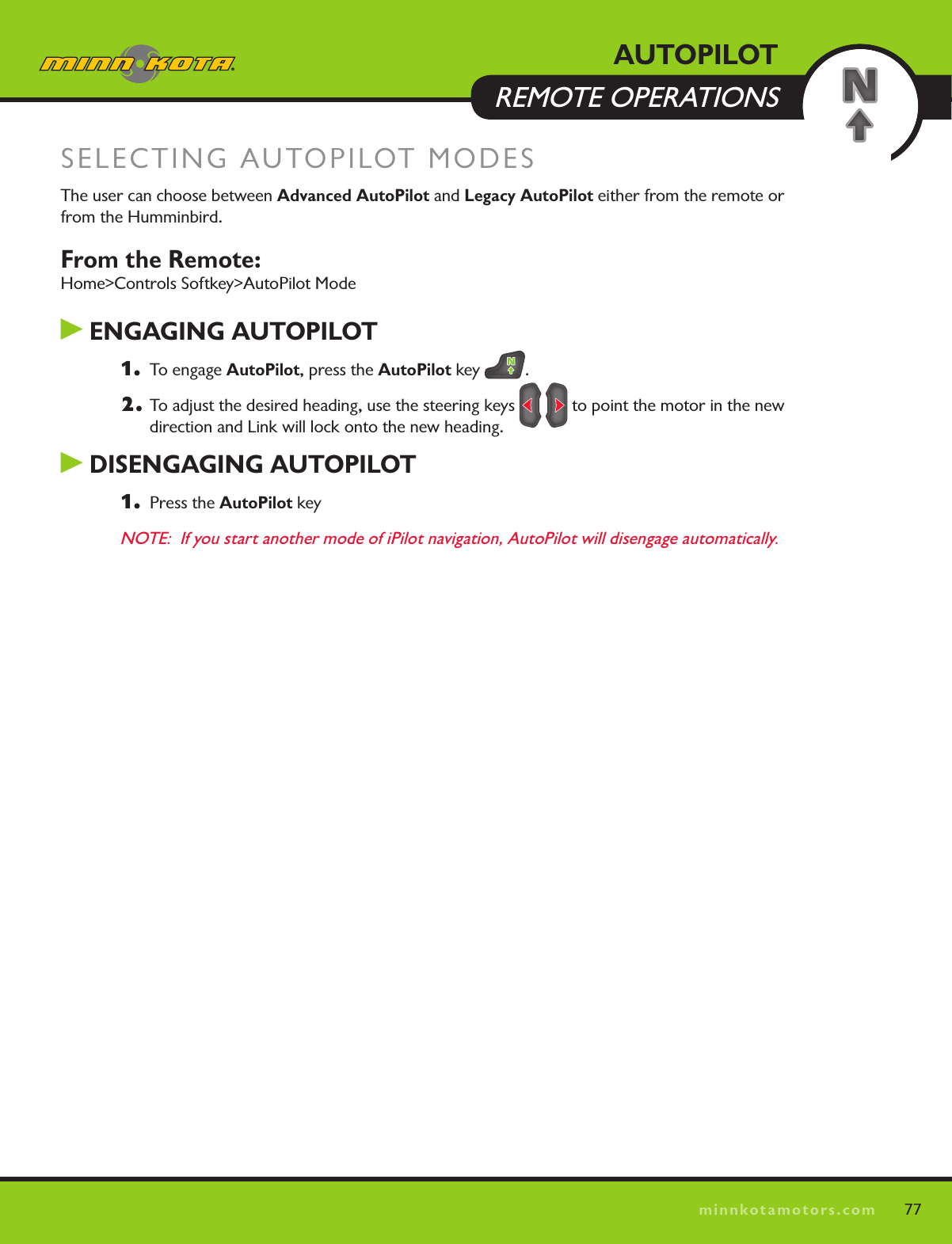
77minnkotamotors.comSELECTING AUTOPILOT MODESThe user can choose between Advanced AutoPilot and Legacy AutoPilot either from the remote or from the Humminbird.From the Remote:  Home>Controls Softkey>AutoPilot Mode ENGAGING AUTOPILOT1.   To engage AutoPilot, press the AutoPilot key  .2. To adjust the desired heading, use the steering keys     to point the motor in the new  direction and Link will lock onto the new heading. DISENGAGING AUTOPILOT1.   Press the AutoPilot keyNOTE:  If you start another mode of iPilot navigation, AutoPilot will disengage automatically.AUTOPILOTREMOTE OPERATIONS
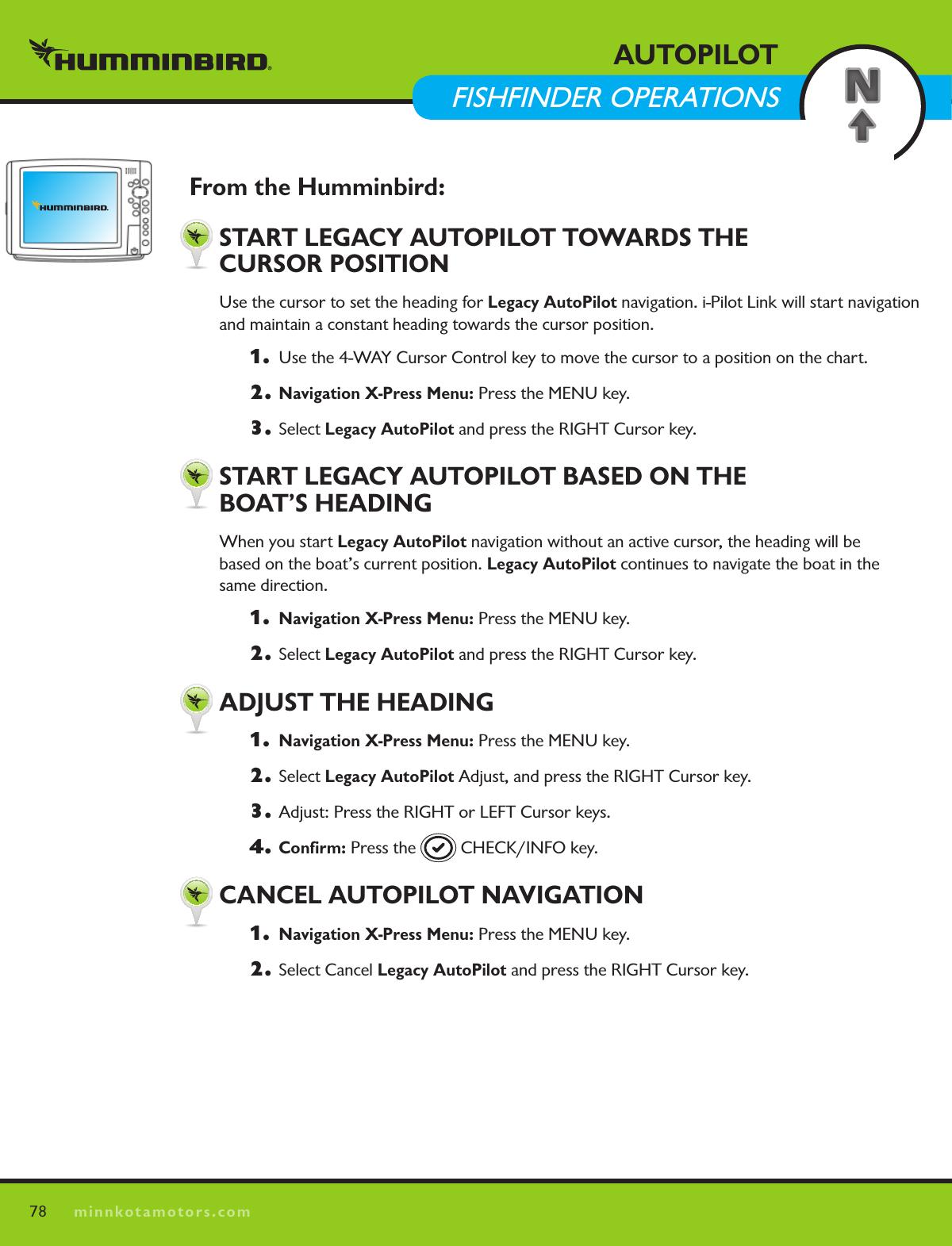
78minnkotamotors.comAUTOPILOT  FISHFINDER OPERATIONSFrom the Humminbird:  START LEGACY AUTOPILOT TOWARDS THE    CURSOR POSITIONUse the cursor to set the heading for Legacy AutoPilot navigation. i-Pilot Link will start navigation and maintain a constant heading towards the cursor position.  1.   Use the 4-WAY Cursor Control key to move the cursor to a position on the chart.2. Navigation X-Press Menu: Press the MENU key. 3. Select Legacy AutoPilot and press the RIGHT Cursor key.  START LEGACY AUTOPILOT BASED ON THE    BOAT’S HEADINGWhen you start Legacy AutoPilot navigation without an active cursor, the heading will be  based on the boat’s current position. Legacy AutoPilot continues to navigate the boat in the  same direction. 1.  Navigation X-Press Menu: Press the MENU key. 2. Select Legacy AutoPilot and press the RIGHT Cursor key.  ADjUST THE HEADING1.  Navigation X-Press Menu: Press the MENU key. 2. Select Legacy AutoPilot Adjust, and press the RIGHT Cursor key.3.  Adjust: Press the RIGHT or LEFT Cursor keys.4.  Confirm: Press the   CHECK/INFO key.  CANCEL AUTOPILOT NAVIGATION1.  Navigation X-Press Menu: Press the MENU key. 2.  Select Cancel Legacy AutoPilot and press the RIGHT Cursor key.
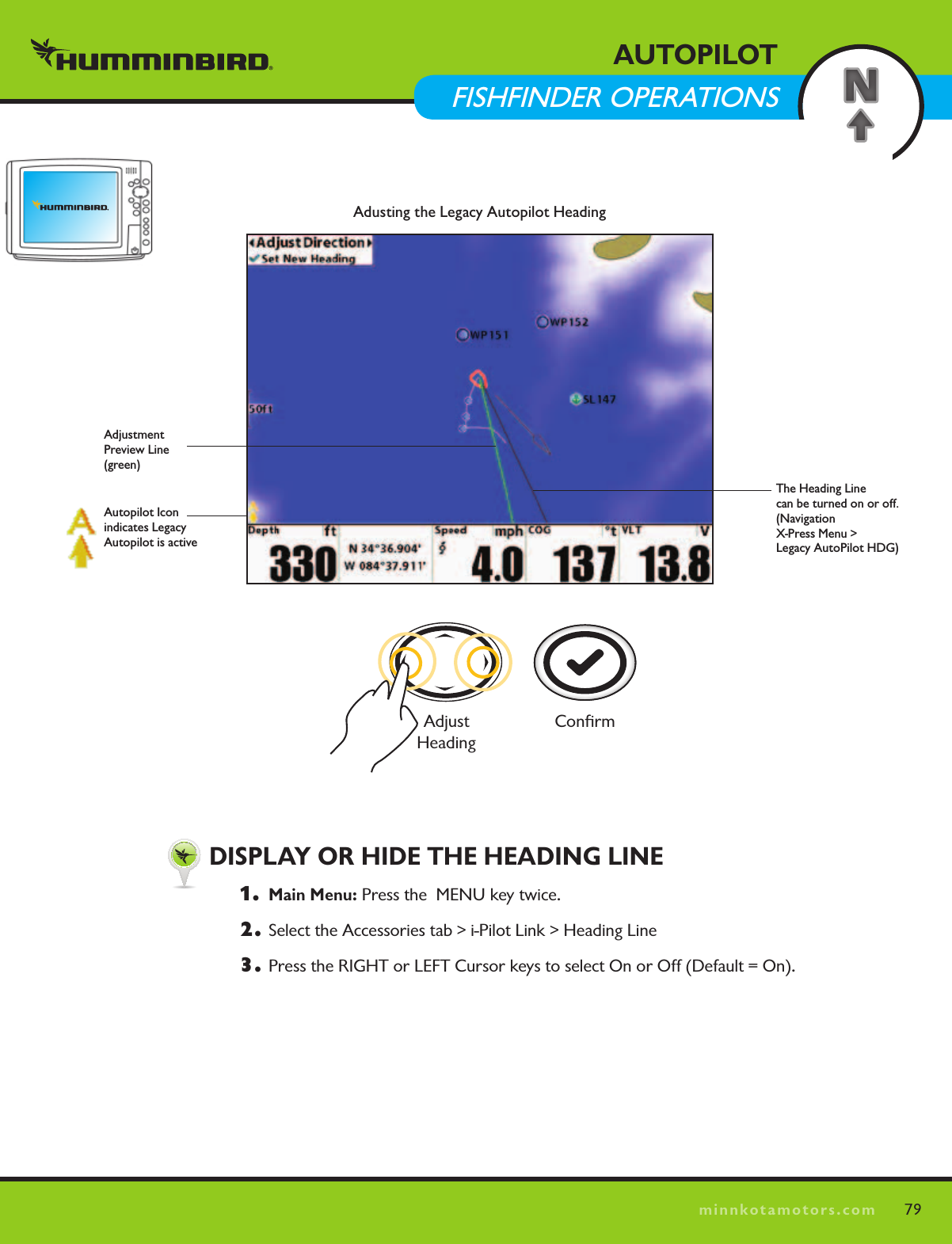
79minnkotamotors.comAUTOPILOTFISHFINDER OPERATIONS  DISPLAY OR HIDE THE HEADING LINE1.  Main Menu: Press the  MENU key twice.  2.  Select the Accessories tab > i-Pilot Link > Heading Line3.  Press the RIGHT or LEFT Cursor keys to select On or Off (Default = On).Adusting the Legacy Autopilot HeadingThe Heading Line  can be turned on or off. (Navigation  X-Press Menu >  Legacy AutoPilot HDG)Adjustment  Preview Line (green)Autopilot Icon indicates Legacy Autopilot is activeConfirmAdjust  Heading
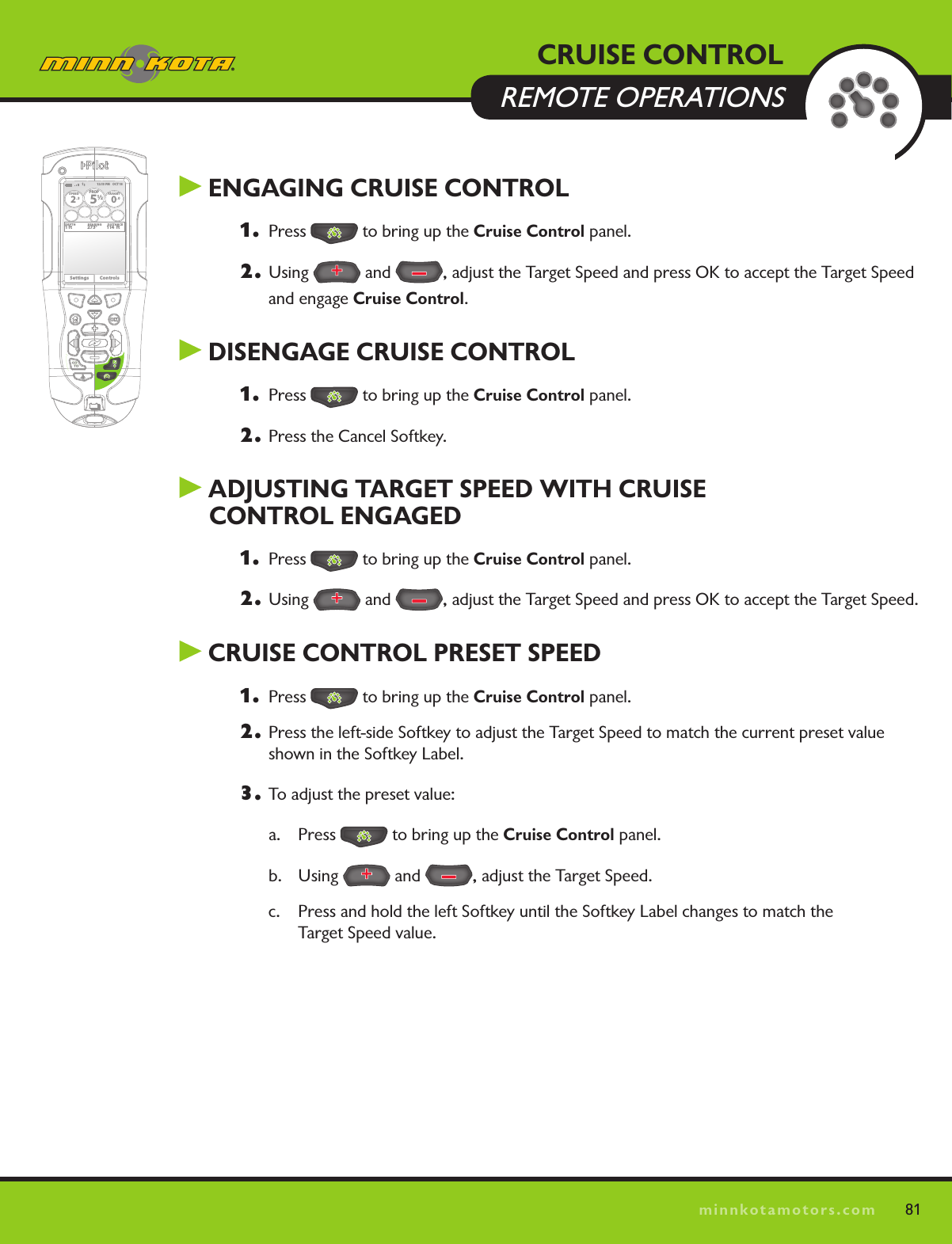
80minnkotamotors.comCRUISE CONTROLHOW CRUISE CONTROL WORKS 80i-Pilot Link’s Cruise Control automatically sets the prop speed to maintain constant GPS speed.  Because this controls only the prop speed, Cruise Control can be used in conjunction AutoPilot and iTrack Record as well as with navigating iTracks, LakeMaster contour lines, routes and Waypoints.   Cruise Control is interfaced only through the remote.Caution:  When Cruise Control is engaged, the prop will automatically be enabled if it is not already enabled.
81minnkotamotors.com81 ENGAGING CRUISE CONTROL1.  Press   to bring up the Cruise Control panel.2. Using   and  , adjust the Target Speed and press OK to accept the Target Speed and engage Cruise Control. DISENGAGE CRUISE CONTROL1.  Press   to bring up the Cruise Control panel.2.  Press the Cancel Softkey. ADjUSTING TARGET SPEED WITH CRUISE  CONTROL ENGAGED1.  Press   to bring up the Cruise Control panel.2. Using   and  , adjust the Target Speed and press OK to accept the Target Speed. CRUISE CONTROL PRESET SPEED1.  Press   to bring up the Cruise Control panel.2.  Press the left-side Softkey to adjust the Target Speed to match the current preset value shown in the Softkey Label.3.  To adjust the preset value:a. Press   to bring up the Cruise Control panel.b. Using   and  , adjust the Target Speed. c.  Press and hold the left Softkey until the Softkey Label changes to match the  Target Speed value. CRUISE CONTROL  REMOTE OPERATIONS12:13 PM    OCT 18SPEED2.3PROP12/5TARGET0.0DEPTH1 ft 273° 114  ftBEARING DISTANCESettings Controls
82minnkotamotors.comFREQUENTLY ASKED QUESTIONSQ.  Does i-Pilot Link record the speed I am traveling when recording a iTrack?A.  No.  i-Pilot Link only records its location during track record. It is up to the user to set the desired speed manually or with Cruise Control.Q.  Why doesn’t my GPS Signal Strength icon always show all four bars?  A.   GPS signal strength is impacted by many influences including:  i-Pilot Link controller having a clear  view of the sky (especially to the southern sky), boat being located alongside a high bank and your geographic location.Q.  Is i-Pilot Link compatible with CoPilot? A.   No.  None of the components between the two systems are compatible with each other.Q.  Does the remote float?A.   Yes. Q.  How long of an iTrack can I record?A.   Each individual can be up to two miles in length.Q.  Can I use multiple remotes with my i-Pilot Link?A.   Yes, you can use up to four remotes simultaneously.  Remember to learn each new remote to the  i-Pilot Link controller. Q.  Why does the LCD screen of the remote have dark blotches on it when I wear my sunglasses?A.  Polarized sunglasses can dramatically affect the way an LCD looks to the human eye.  Q.  Where can I purchase additional remotes?A.  Your local Minn Kota retailer should carry additional remotes.Q.  If I turn off the remote, will i-Pilot Link continue to operate?A.  Yes.  The i-Pilot Link Controller will continue in its current state of operation until the user makes a change either with the remote, Humminbird or foot pedal (Terrova only).
83minnkotamotors.comQ.  Does i-Pilot Link help to keep the coil cord from wrapping around the motor shaft?A.  Yes and no.  When in Spot-Lock, i-Pilot Link keeps track of how far it has rotated in either direction.  If a new correction will cause the coil cord to wrap, it will rotate in the opposite direction in order to prevent the wrapping.  In all other modes, it is up to the user to monitor the coil cord and to rotate the motor accordingly to avoid wrapping.  Q.  Does my i-Pilot remote work with i-Pilot Link?A. NoQ.  Will i-Pilot Link control my motor without the Humminbird connected?A.  Yes. However, your storage for iTracks and Spot-Locks will be limited to what can be stored in the Link controller.Q.  When in Follow the Contour mode, my Humminbird stops recording the Current Track.   Why is that?A.   This is to protect the proprietary mapping data contained in the LakeMaster chip.Q.   Where is the navigational data such as iTracks, Spot-Locks, Waypoints and routes stored?  A.   When connected to the Humminbird, this data is stored on the Humminbird.  When not connected, newly created iTracks and Spot-Locks are stored in the Link controller.
84minnkotamotors.comTROUBLESHOOTING General TroubleshootingProblem:    The motor is making erratic steering corrections while in AutoPilot, Spot-Lock or Track to Start/End.Solution:   Be sure to keep all ferrous metallic objects away from the i-Pilot Link controller as they will have an impact on the built-in compass.  Such objects include: anchors, metal framework, etc. Problem:   When a key on the remote is pressed the motor doesn’t always respond.  Solutions:   Check the status of the battery charge icon on the remote.  If low, connect the charger to the remote.   Check for large obstructions between the remote and the motor.Solution:  If the Lock icon is present on the content area of the LCD,  the keypad is locked.  Press and hold one of the Softkeys to unlock the keypad.Problem:    i-Pilot Link won’t let me turn on certain features like: Advanced AutoPilot, Record, Track to Start/End or Spot-Lock.Solution:    Verify that the GPS Signal Strength icon on the LCD shows at least one bar.  If there are no bars, i-Pilot Link will not allow these GPS-based features to be enabled.  Problem:  There is a message on the remote screen showing “Motor not Found”.  Also, the keys on the remote are not controlling the motor.Solution:    This message is due to the remote not having wireless communications with the Link controller.  This could be due to the motor not being powered up or the remote not being learned to the controller.Problem:    There is  a message on the remote screen showing “Motor Error”. Also, the keys on the remote are not controlling the motor.Solution:    This error is generated when the Link controller loses communications with the Terrova (or ST) motor  controller.  This error will occur any time the software on the Link controller is updated.  To clear the  error, cycle power to the motor.RemoteProblem:    I’m having a hard time seeing the content on the LCD screen.Solution:    With the type of LCD used on the remote, it is able to utilize ambient light to enhance the visibility of the  screen content.  However, when in indirect or low light conditions, the backlight may be needed.  Through the Backlight Settings Menu, you can adjust the intensity of the backlight along with the amount of time it stays on after a button press.  Problem:    I connected the charging cable but the charging indicator does not come on.Solution:    Ensure the power (USB) end is receiving power from the AC adapter or the alternate power source you may be using such as the vehicle power port.Solution:    Look inside the charging port on the bottom end of the remote. You should clearly see two metallic  contacts.  Use an appropriate tool to clean out any debris that may have accumulated in the charging port.Solution:    The end of the remote that plugs into the remote includes two spring pins.  Ensure the pins are clean and that when pushed in, they spring back out.
85minnkotamotors.comSpot-LockProblem:   The boat doesn’t seem to keep close enough to the recorded Spot-Lock location.Solution:   Verify the trolling motor batteries are sufficiently chargedSolution:   Check for weeds on the prop.Solution:   In more extreme wind and current conditions, the boat will tend to stabilize a little ways down wind from the intended location.  Relock the location the same distance upwind and expect that the boat will drift some in the downwind direction.  Cruise ControlProblem:    The GPS speed displayed on the remote is different than what my other GPS system shows.Solution:    If you are using Cruise Control with Advanced AutoPilot or iTrack Navigation, i-Pilot Link calculates the actual speed in the intended direction of travel which may differ from your GPS reported speed.  Problem:    Cruise Control isn’t holding the target speed close enough. Solution:    Verify the trolling motor batteries are sufficiently charged. AutoPilotProblem:    When in Advanced AutoPilot in strong winds, there is quite a bit of back and forth movement in the boat.  Solution:   While Advanced AutoPilot will keep your boat on a true heading, it may be at the expense of the boat having to continuously move to get back on the correct course.  In these extreme conditions you may be better off using AutoPilot and correcting for the wind manually.Problem:  Under AutoPilot Mode, I have Advanced selected as the default mode.  However, when I engage AutoPilot, it goes into Legacy AutoPilot instead of Advanced.Solution:  If the GPS signal strength icon shown no bars, then Link will automatically engage Legacy AutoPilot regardless of the Mode selected.  Wait for your GPS signal strength to reach at least one bar, then  re-engage AutoPilot.  Track Record and PlaybackProblem:   While Navigation an iTrack the propeller suddenly stopped.  Solution:    Verify you did not accidentally enable another automatic feature such as AutoPilot or Spot-Lock.  Solution:    You may have the Arrival Mode set to OFF. Problem:    While recording an iTrack, the recording suddenly stopped.Solution:    You may have reached the two mile limit for recording an iTrack.PowerDrive V2 /Riptide SP:  Problem:   Steering does not work properly or at all.  Solution:   Verify that the steering wires from the i-Pilot Link cable are properly connected directly to the two-wire cable coming from the steering housing.
86minnkotamotors.comGLOSSARY  Accessory Connector:  The accessory connector is a small sealed connector used on the Terrova and Riptide  ST family of motors.  This connector allows for easy waterproof installation of any Minn Kota Terrova and  Riptide ST accessories.Center Housing:  A plastic center housing exists in the center of the trolling motor mount.  This center housing covers and protects mechanical and electrical components from the environment.  The center housing is temporarily removed from PowerDrive V2 and Riptide SP motors during i-Pilot Link installation.CoPilot: Co-Pilot a wireless motor control accessory from Minn Kota available for all Terrova, PowerDrive V2, Riptide ST and Riptide SP lines of motors.  The accessory allows for wireless adjustment of all basic motor control functions.  The Co-Pilot accessory must be removed from a PowerDrive V2 and Riptide SP motor upon i-Pilot Link installation.  Any Co-Pilot accessory installed on a Terrova or Riptide ST motor is electrically disabled once i-Pilot Link is installed.Control Box Cover:  The control box cover is a plastic cover installed on the top head of the motor.  The cover protects the inner wiring and electronics from the environment.  This part is replaced by the i-Pilot Link controller.GPS: GPS is an acronym for Global Positioning System.  GPS provides accurate position (latitude, longitude, altitude) information virtually anywhere on the earth through satellite technology and personal receivers on the ground.  A series of geosynchronous satellites broadcast a unique signal toward the earth once per second.  A GPS receiver, which is used in i-Pilot Link, receives the signals from these satellites and is able to determine position based on very slight differences in the time each signal is received and the receiver’s knowledge of the location of each of the satellites.  GPS Speed: The speed calculated by measuring the boat’s change in geographical location over a given time using GPS data.i-Pilot Link Controller:  The i-Pilot Link controller is part of the i-Pilot Link system. The controller contains a GPS receiver, compass and electronics to automatically navigate the trolling motor.  The controller resembles a motor control box cover and is completely sealed and waterproof.  The controller replaces the existing control box cover and AutoPilot controller if one is present.PowerDrive V2: The PowerDrive V2 is in the latest family of bow-mount, electric-steer trolling motors from  Minn Kota.  The motor can be identified by the PowerDrive V2 name on the side of the trolling motor mount.Prop Speed: The speed that the prop is rotating from 0 to 10, which is adjustable in ½ increments.Riptide SP:  The Riptide SP is in the latest family of saltwater bow-mount, electric-steer trolling motors from  Minn Kota.  The motor can be identified by the Riptide SP name on the side of the trolling motor mount.Riptide ST:  The Riptide ST is in the latest family of saltwater bow-mount, electric-steer trolling motors from  Minn Kota.  The motor can be identified by the Riptide ST name on the side of the trolling motor mount.Side Plates:  Side plates exists on each side of the trolling motor mount.  These side plates cover and protect mechanical and electrical components from the environment.  The side plates are temporarily removed from  PowerDrive V2 and Riptide SP motors during i-Pilot Link installation.Terrova: The Terrova is in the latest family of bow-mount, electric-steer trolling motors from Minn Kota.   The motor can be identified by the Terrova name on the side of the trolling motor mount.Track End: The last point on a recorded iTrack, which is made when Track Recording was ended. Track Start: The first point on a recorded iTrack, which is made when the Track Record key is pressed to start  a recording.86minnkotamotors.com
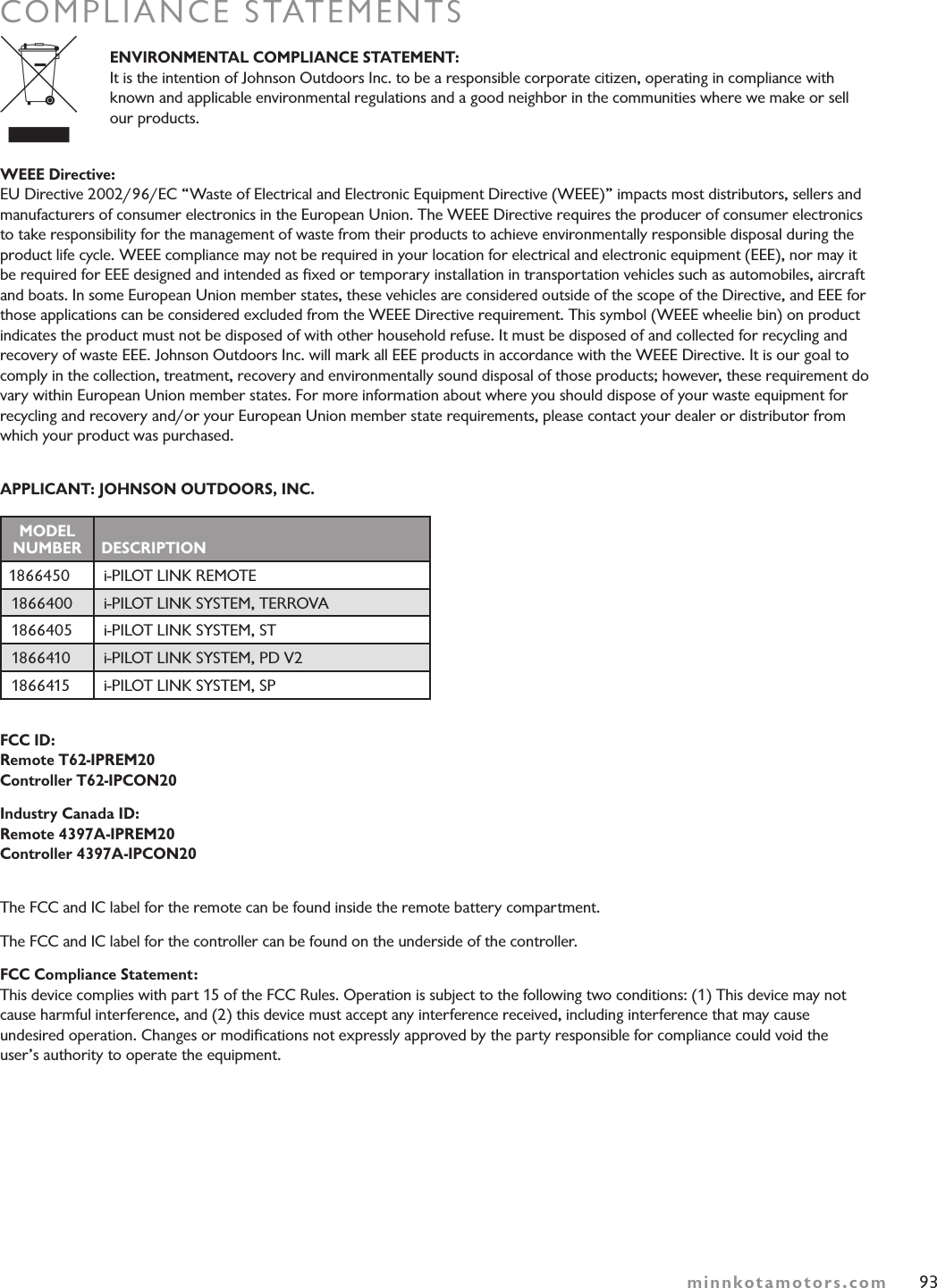
93minnkotamotors.comCOMPLIANCE STATEMENTS  ENVIRONMENTAL COMPLIANCE STATEMENT: It is the intention of Johnson Outdoors Inc. to be a responsible corporate citizen, operating in compliance with known and applicable environmental regulations and a good neighbor in the communities where we make or sell  our products. WEEE Directive: EU Directive 2002/96/EC “Waste of Electrical and Electronic Equipment Directive (WEEE)” impacts most distributors, sellers and manufacturers of consumer electronics in the European Union. The WEEE Directive requires the producer of consumer electronics to take responsibility for the management of waste from their products to achieve environmentally responsible disposal during the product life cycle. WEEE compliance may not be required in your location for electrical and electronic equipment (EEE), nor may it be required for EEE designed and intended as fixed or temporary installation in transportation vehicles such as automobiles, aircraft and boats. In some European Union member states, these vehicles are considered outside of the scope of the Directive, and EEE for those applications can be considered excluded from the WEEE Directive requirement. This symbol (WEEE wheelie bin) on product indicates the product must not be disposed of with other household refuse. It must be disposed of and collected for recycling and recovery of waste EEE. Johnson Outdoors Inc. will mark all EEE products in accordance with the WEEE Directive. It is our goal to comply in the collection, treatment, recovery and environmentally sound disposal of those products; however, these requirement do vary within European Union member states. For more information about where you should dispose of your waste equipment for recycling and recovery and/or your European Union member state requirements, please contact your dealer or distributor from which your product was purchased.APPLICANT: JOHNSON OUTDOORS, INC.MODEL  NUMBER DESCRIPTION1866450 i-PILOT LINK REMOTE1866400 i-PILOT LINK SYSTEM, TERROVA1866405 i-PILOT LINK SYSTEM, ST1866410 i-PILOT LINK SYSTEM, PD V21866415 i-PILOT LINK SYSTEM, SPFCC ID: Remote T62-IPREM20 Controller T62-IPCON20Industry Canada ID: Remote 4397A-IPREM20 Controller 4397A-IPCON20The FCC and IC label for the remote can be found inside the remote battery compartment.  The FCC and IC label for the controller can be found on the underside of the controller.FCC Compliance Statement: This device complies with part 15 of the FCC Rules. Operation is subject to the following two conditions: (1) This device may not cause harmful interference, and (2) this device must accept any interference received, including interference that may cause  undesired operation. Changes or modifications not expressly approved by the party responsible for compliance could void the  user’s authority to operate the equipment.
88NOTESminnkotamotors.comThe i-Pilot installation will require permanently removing the motor control box cover.  This cover includes information about your motor  that may be needed for future service work or when ordering replacement parts.  Please note the information from your motor  in the space provided below.Motor model (circle one) Terrova, ST, PowerDrive V2 or SPAuto Pilot (Yes or No) ____________________________________Motor thust (55lb, 70lb, etc) _______________________________
NOTES89minnkotamotors.com
minnkotamotors.comMINN KOTA CONSUMER  & TECHNICAL SERVICEP.O. Box 8129  Mankato, MN 56002121 Power Drive  Mankato, MN 56001  Phone (800) 227-6433 Fax (800) 527-4464Minn Kota and i-Pilot Link are registered trademarks of  Johnson Outdoors Marine Electronics, Inc.

Navigation menu