K Best Technology 5111R E1 Spread Spectrum Radios User Manual 2 of 4

K-Best Technology Inc. E1 Spread Spectrum Radios 2 of 4

Contents

User Manual 2

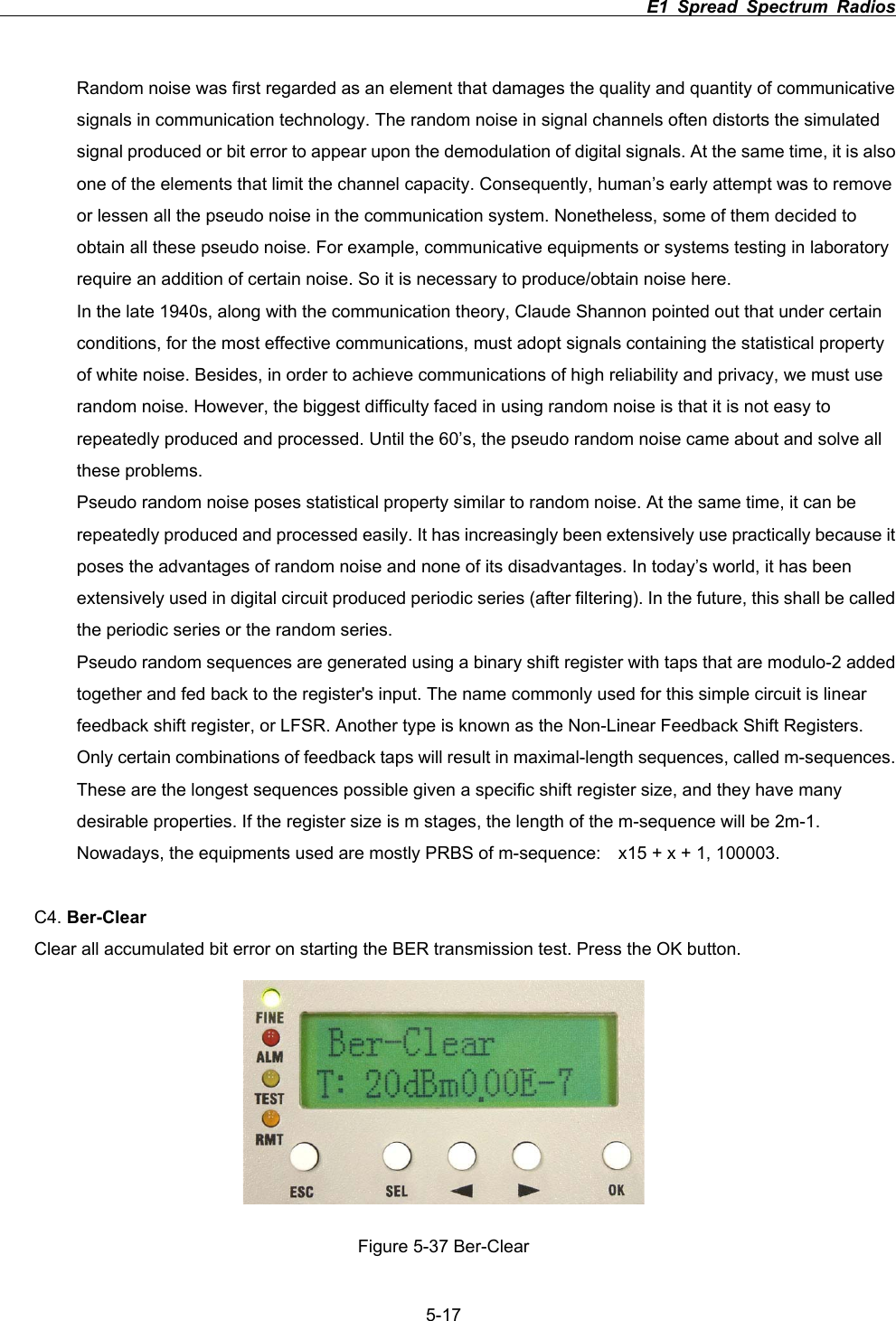
                                                                         E1 Spread Spectrum Radios             5-17Random noise was first regarded as an element that damages the quality and quantity of communicative signals in communication technology. The random noise in signal channels often distorts the simulated signal produced or bit error to appear upon the demodulation of digital signals. At the same time, it is also one of the elements that limit the channel capacity. Consequently, human’s early attempt was to remove or lessen all the pseudo noise in the communication system. Nonetheless, some of them decided to obtain all these pseudo noise. For example, communicative equipments or systems testing in laboratory require an addition of certain noise. So it is necessary to produce/obtain noise here. In the late 1940s, along with the communication theory, Claude Shannon pointed out that under certain conditions, for the most effective communications, must adopt signals containing the statistical property of white noise. Besides, in order to achieve communications of high reliability and privacy, we must use random noise. However, the biggest difficulty faced in using random noise is that it is not easy to repeatedly produced and processed. Until the 60’s, the pseudo random noise came about and solve all these problems. Pseudo random noise poses statistical property similar to random noise. At the same time, it can be repeatedly produced and processed easily. It has increasingly been extensively use practically because it poses the advantages of random noise and none of its disadvantages. In today’s world, it has been extensively used in digital circuit produced periodic series (after filtering). In the future, this shall be called the periodic series or the random series. Pseudo random sequences are generated using a binary shift register with taps that are modulo-2 added together and fed back to the register's input. The name commonly used for this simple circuit is linear feedback shift register, or LFSR. Another type is known as the Non-Linear Feedback Shift Registers. Only certain combinations of feedback taps will result in maximal-length sequences, called m-sequences. These are the longest sequences possible given a specific shift register size, and they have many desirable properties. If the register size is m stages, the length of the m-sequence will be 2m-1. Nowadays, the equipments used are mostly PRBS of m-sequence:    x15 + x + 1, 100003. C4. Ber-ClearClear all accumulated bit error on starting the BER transmission test. Press the OK button.   Figure 5-37 Ber-Clear
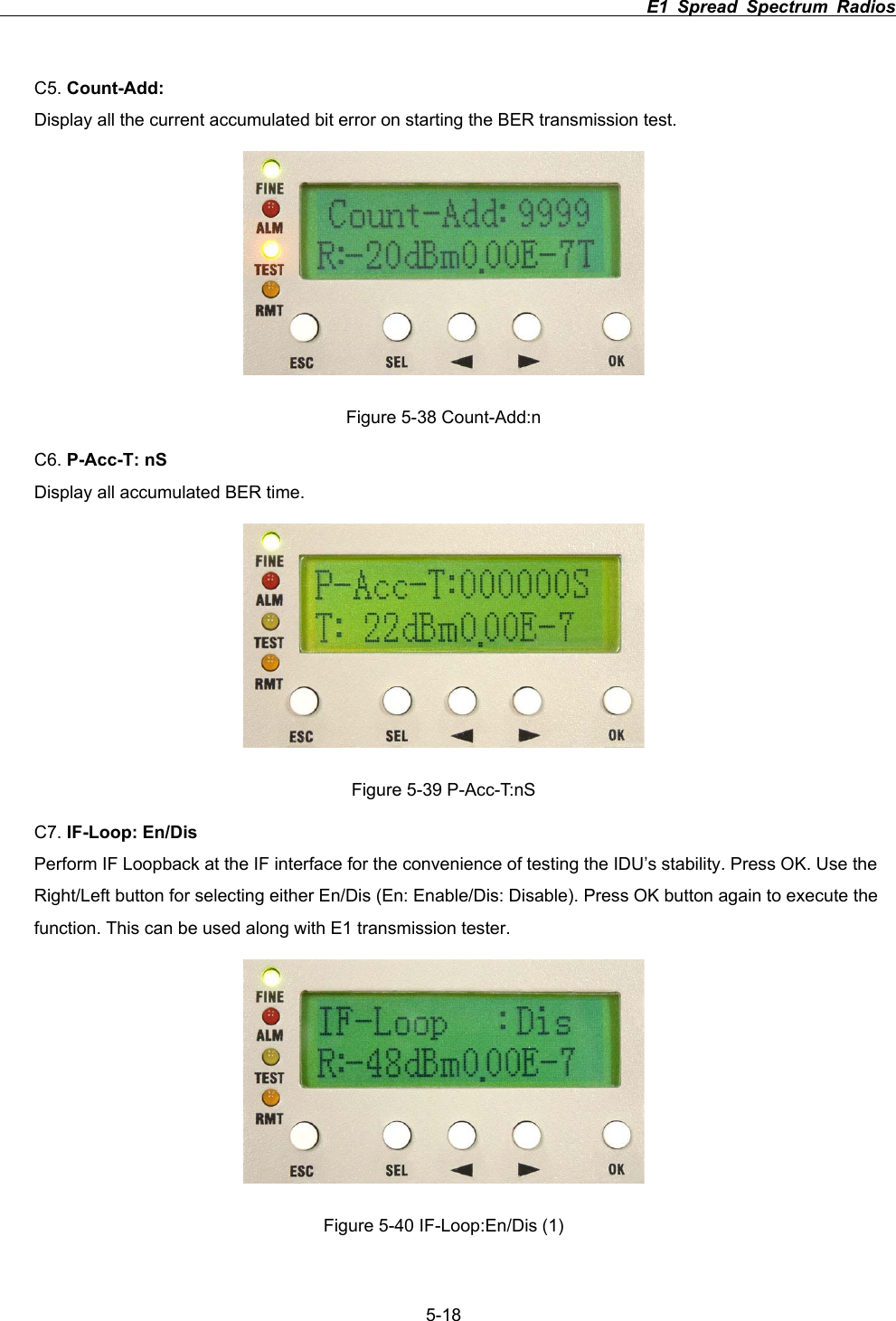
                                                                         E1 Spread Spectrum Radios             5-18C5. Count-Add:Display all the current accumulated bit error on starting the BER transmission test.   Figure 5-38 Count-Add:n C6. P-Acc-T: nSDisplay all accumulated BER time. Figure 5-39 P-Acc-T:nS C7. IF-Loop: En/DisPerform IF Loopback at the IF interface for the convenience of testing the IDU’s stability. Press OK. Use the Right/Left button for selecting either En/Dis (En: Enable/Dis: Disable). Press OK button again to execute the function. This can be used along with E1 transmission tester.   Figure 5-40 IF-Loop:En/Dis (1)
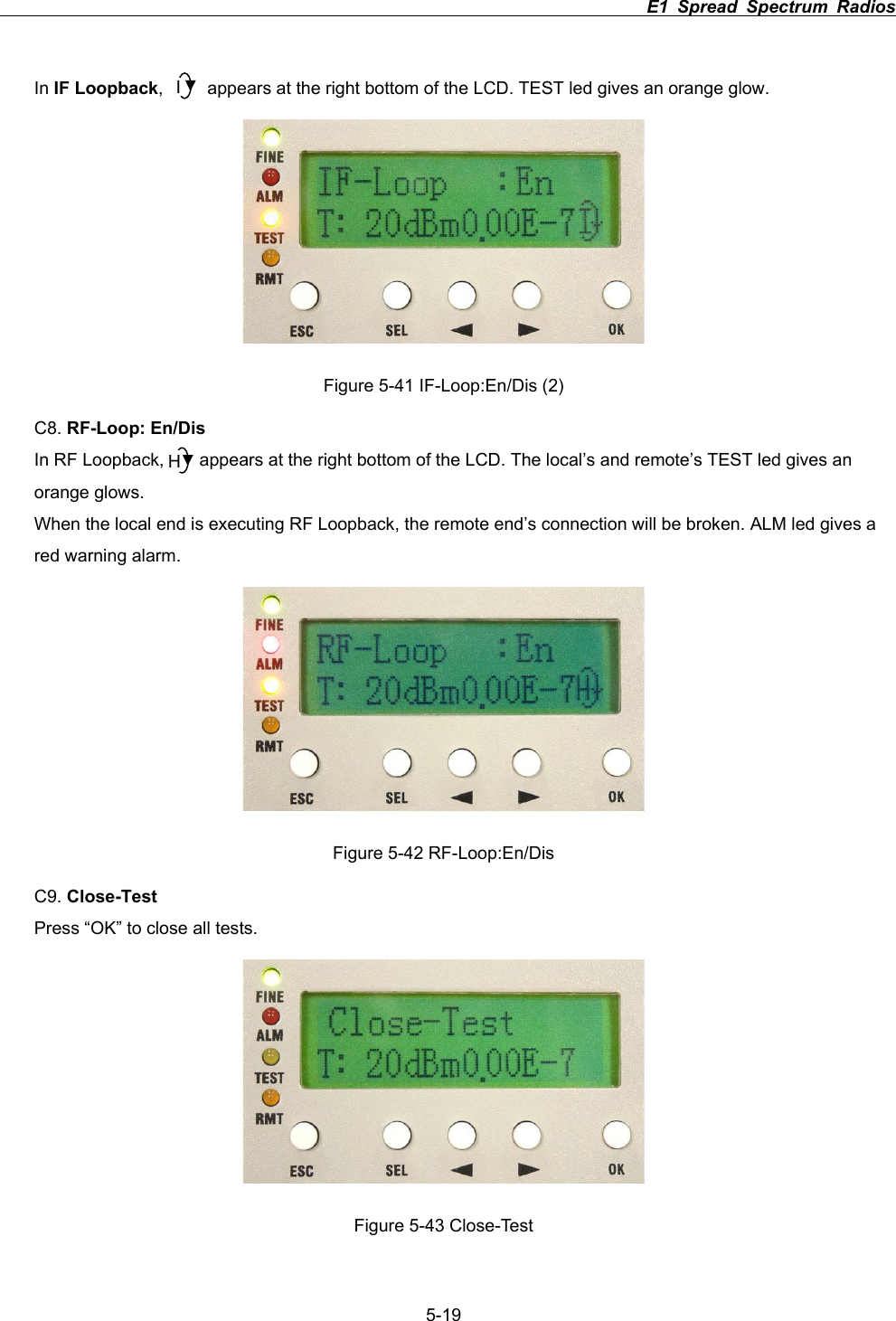
                                                                         E1 Spread Spectrum Radios             5-19In IF Loopback,          appears at the right bottom of the LCD. TEST led gives an orange glow. Figure 5-41 IF-Loop:En/Dis (2) C8. RF-Loop: En/DisIn RF Loopback,        appears at the right bottom of the LCD. The local’s and remote’s TEST led gives an orange glows. When the local end is executing RF Loopback, the remote end’s connection will be broken. ALM led gives a red warning alarm.   Figure 5-42 RF-Loop:En/Dis C9. Close-TestPress “OK” to close all tests. Figure 5-43 Close-Test IH
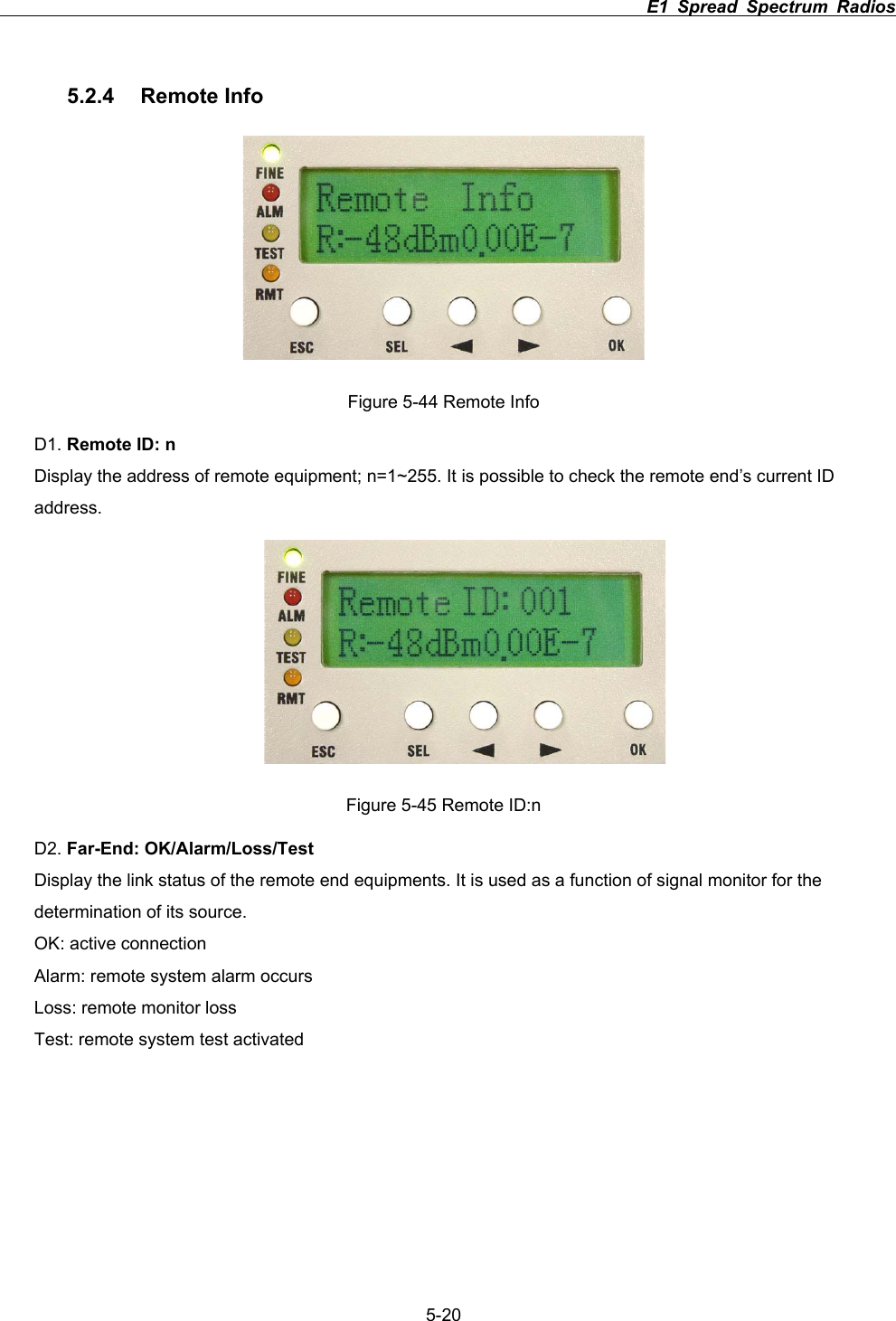
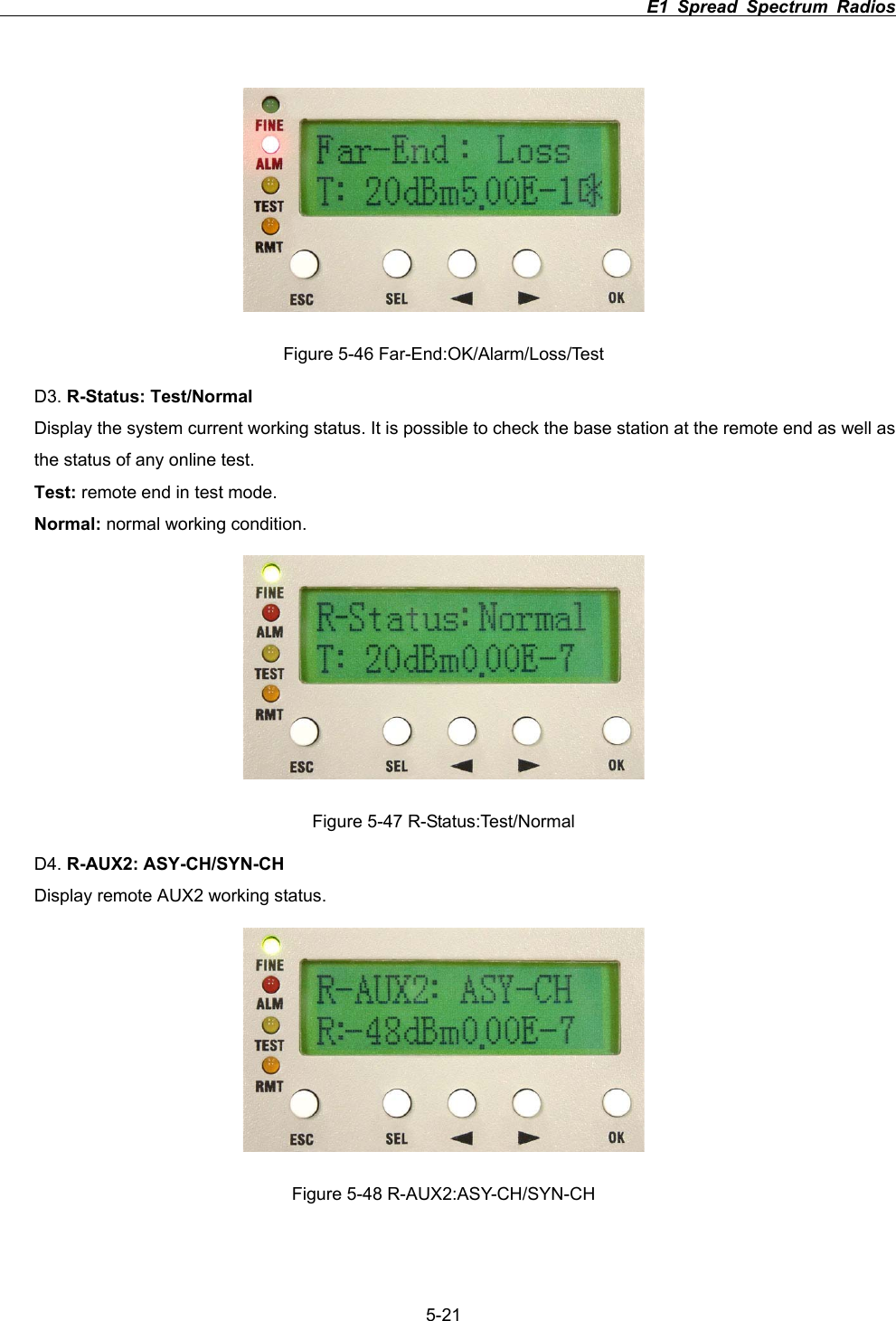
                                                                         E1 Spread Spectrum Radios             5-205.2.4 Remote Info Figure 5-44 Remote Info D1. Remote ID: nDisplay the address of remote equipment; n=1~255. It is possible to check the remote end’s current ID address.Figure 5-45 Remote ID:n D2. Far-End: OK/Alarm/Loss/TestDisplay the link status of the remote end equipments. It is used as a function of signal monitor for the determination of its source.   OK: active connection Alarm: remote system alarm occurs   Loss: remote monitor loss Test: remote system test activated
                                                                         E1 Spread Spectrum Radios             5-21Figure 5-46 Far-End:OK/Alarm/Loss/Test D3. R-Status: Test/NormalDisplay the system current working status. It is possible to check the base station at the remote end as well as the status of any online test. Test: remote end in test mode. Normal: normal working condition.   Figure 5-47 R-Status:Test/Normal D4. R-AUX2: ASY-CH/SYN-CHDisplay remote AUX2 working status.   Figure 5-48 R-AUX2:ASY-CH/SYN-CH
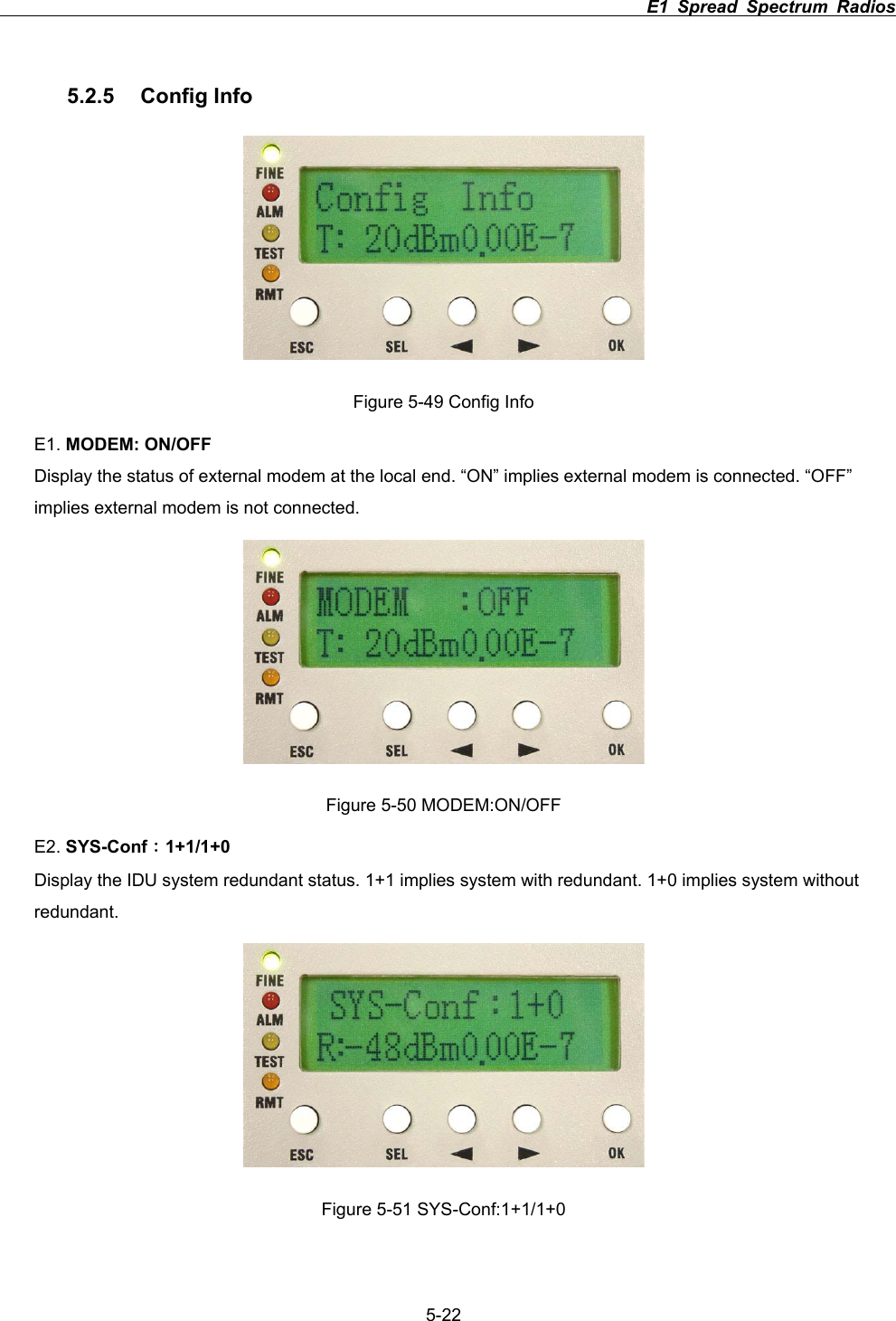
                                                                         E1 Spread Spectrum Radios             5-225.2.5 Config Info Figure 5-49 Config Info E1. MODEM: ON/OFFDisplay the status of external modem at the local end. “ON” implies external modem is connected. “OFF” implies external modem is not connected. Figure 5-50 MODEM:ON/OFF E2. SYS-ConfΚ1+1/1+0Display the IDU system redundant status. 1+1 implies system with redundant. 1+0 implies system without redundant. Figure 5-51 SYS-Conf:1+1/1+0
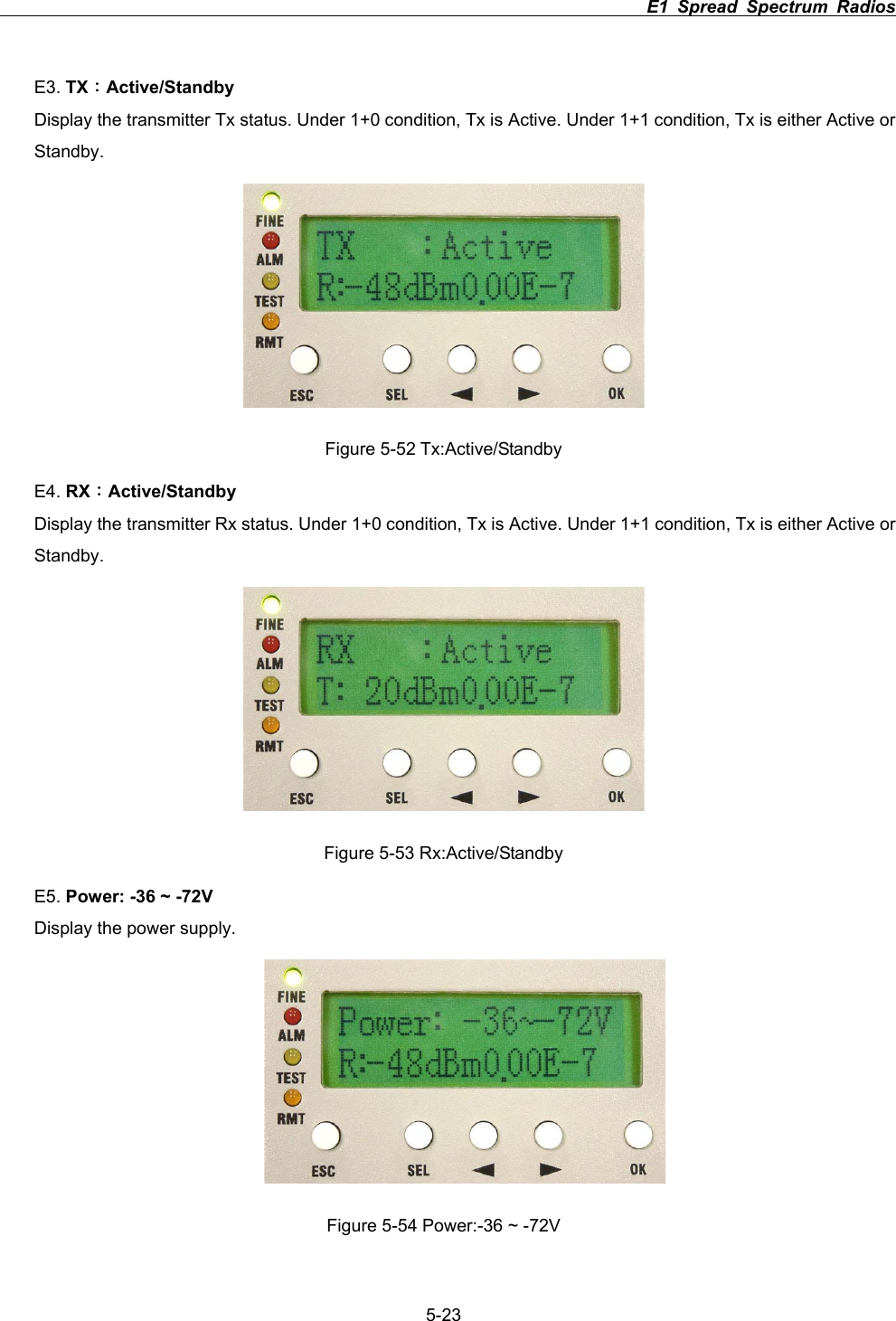
                                                                         E1 Spread Spectrum Radios             5-23E3. TXΚActive/StandbyDisplay the transmitter Tx status. Under 1+0 condition, Tx is Active. Under 1+1 condition, Tx is either Active or Standby.Figure 5-52 Tx:Active/Standby E4. RXΚActive/StandbyDisplay the transmitter Rx status. Under 1+0 condition, Tx is Active. Under 1+1 condition, Tx is either Active or Standby.Figure 5-53 Rx:Active/Standby E5. Power: -36 ~ -72VDisplay the power supply. Figure 5-54 Power:-36 ~ -72V
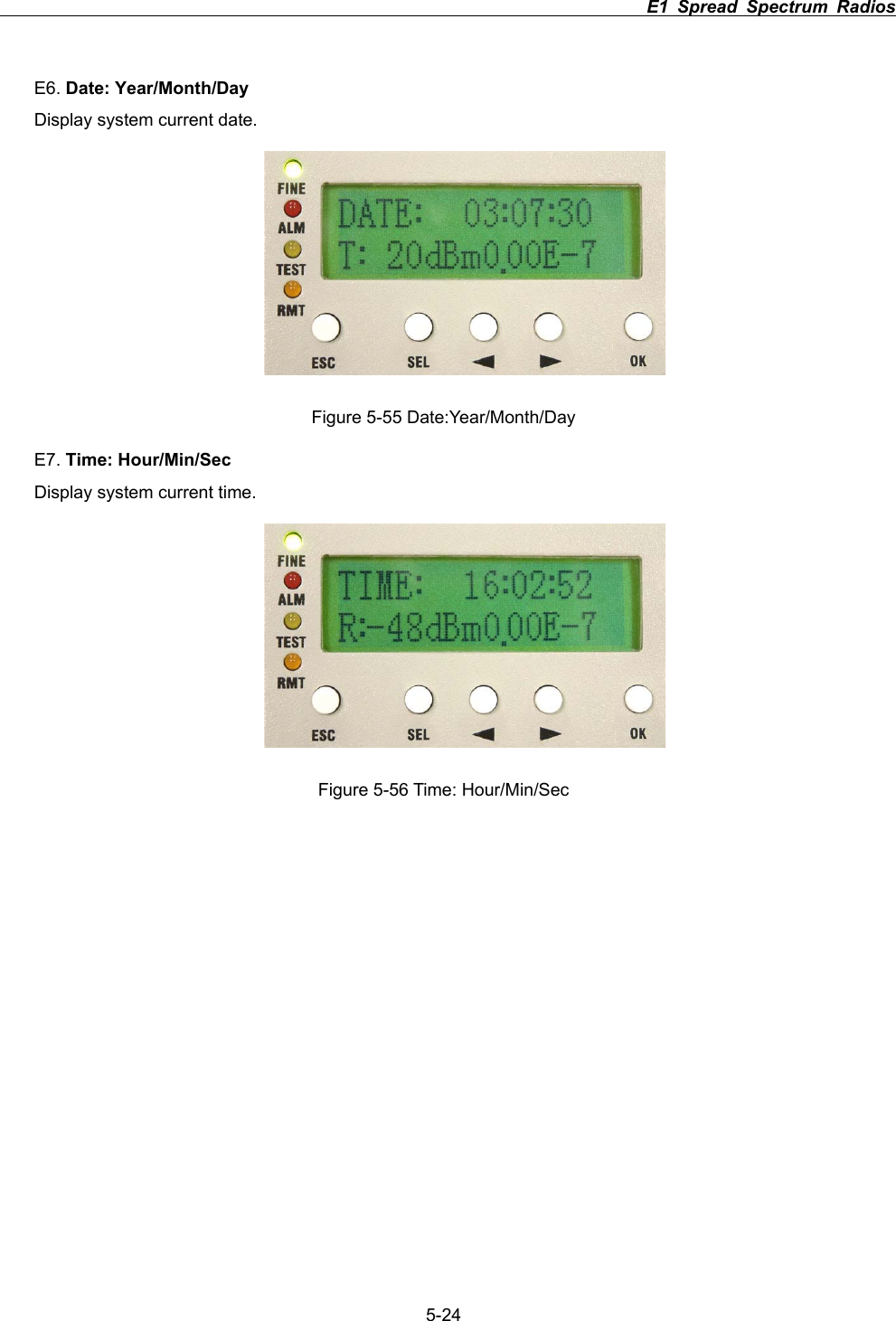
                                                                         E1 Spread Spectrum Radios             5-24E6. Date: Year/Month/DayDisplay system current date. Figure 5-55 Date:Year/Month/Day E7. Time: Hour/Min/SecDisplay system current time. Figure 5-56 Time: Hour/Min/Sec
                                                                         E1 Spread Spectrum Radios      6-16 Environmental Condition 6.1 Cable IF Cable: RG-6  100m; RG-8  200m RF Cable: Insertion Loss  1dB 6.2  Operating Temperature Range IDU: -5к ~ +55кODU: -30к ~ +60к6.3  DC Input Voltage DC Input Voltage: -36 ~ -72VDC 6.4 Power Consumption Power Consumption: <45W 6.5 Humidity Relative humidity as follows:   IDU: 10иa 95и, non-condensed. ODU: 0иa 100иODU equipment is water-resistant.
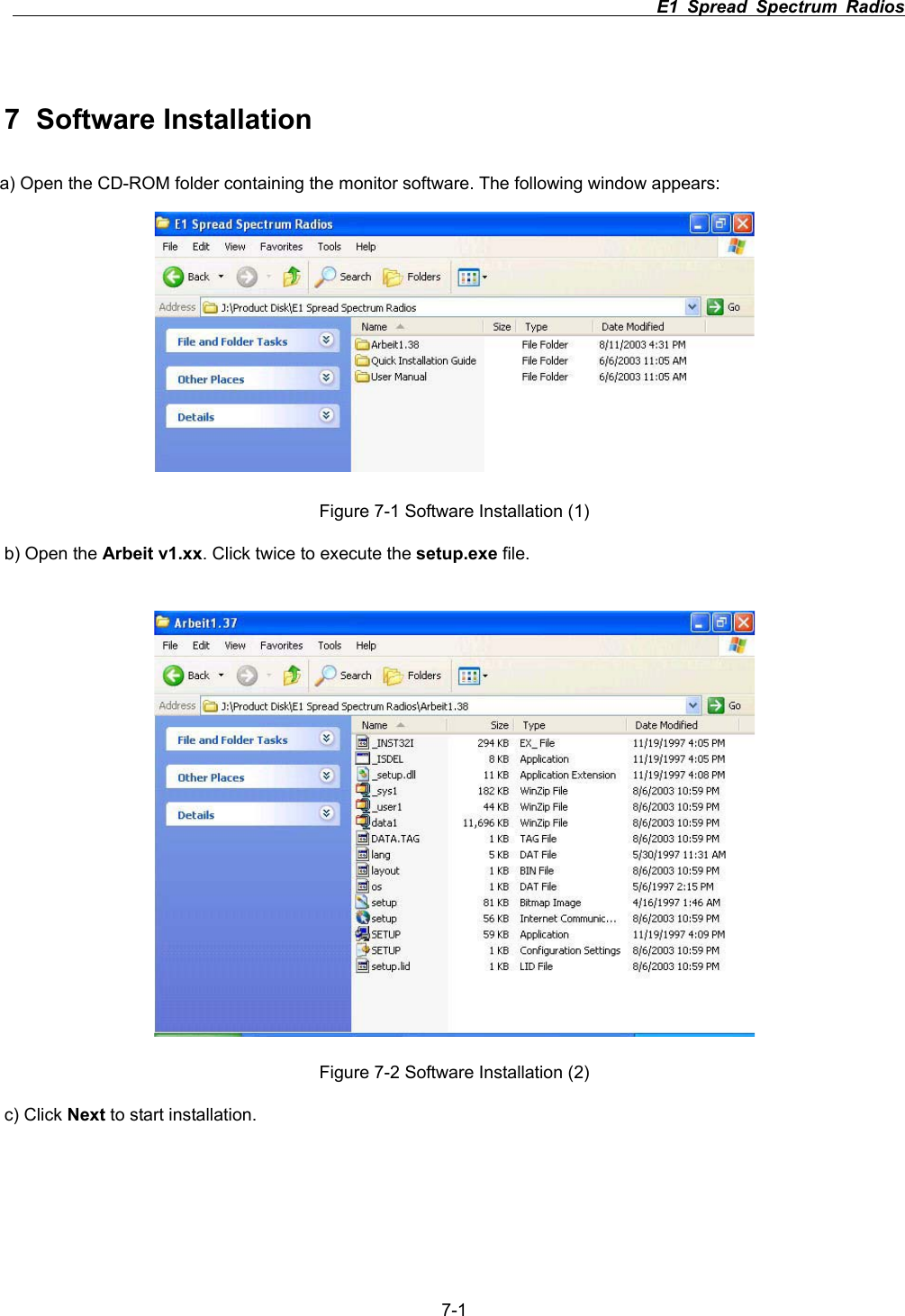
                                                                         E1 Spread Spectrum Radios      7-17 Software Installation a) Open the CD-ROM folder containing the monitor software. The following window appears: Figure 7-1 Software Installation (1) b) Open the Arbeit v1.xx. Click twice to execute the setup.exe file. Figure 7-2 Software Installation (2) c) Click Next to start installation.
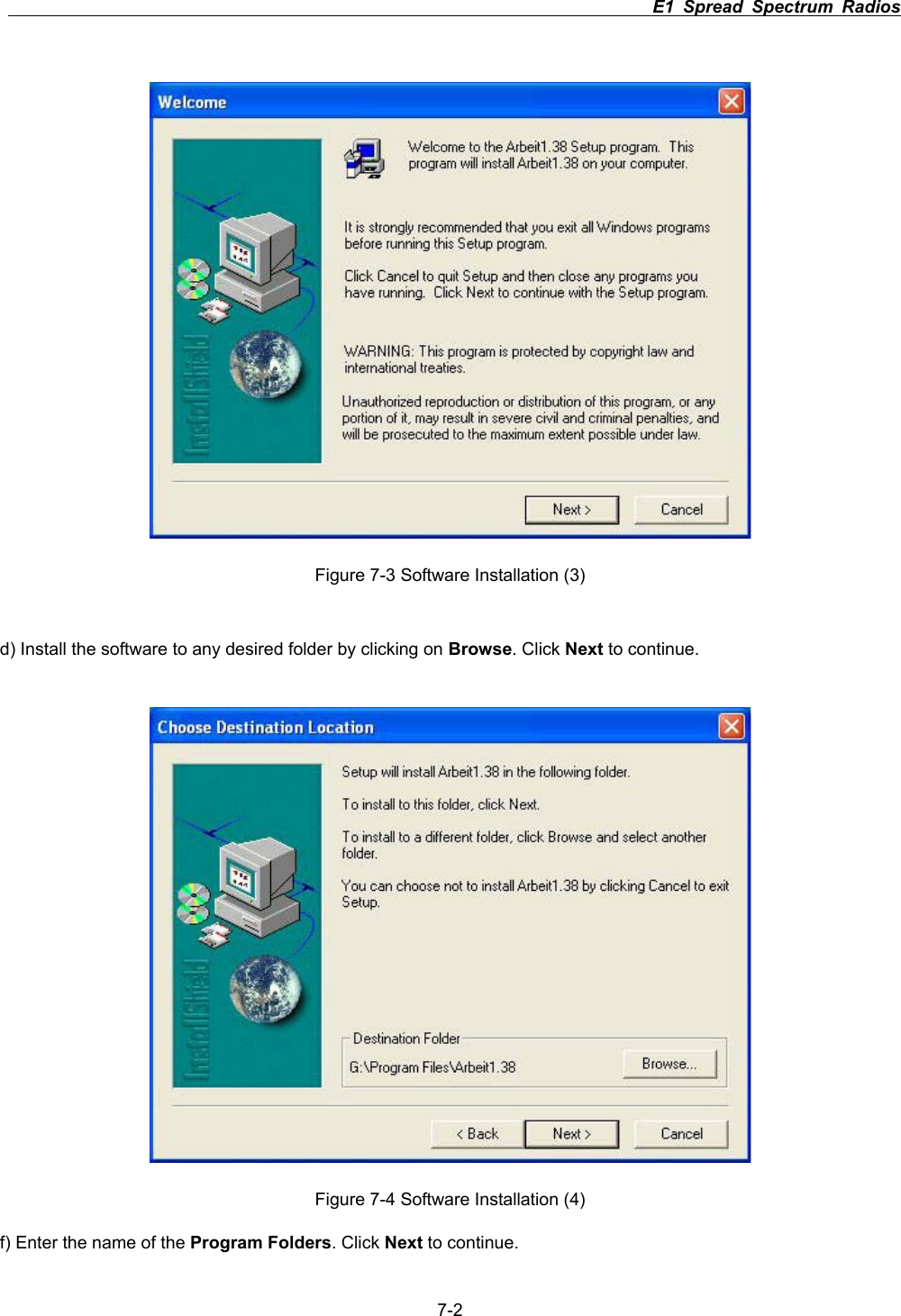
                                                                         E1 Spread Spectrum Radios      7-2Figure 7-3 Software Installation (3) d) Install the software to any desired folder by clicking on Browse. Click Next to continue. Figure 7-4 Software Installation (4) f) Enter the name of the Program Folders. Click Next to continue.
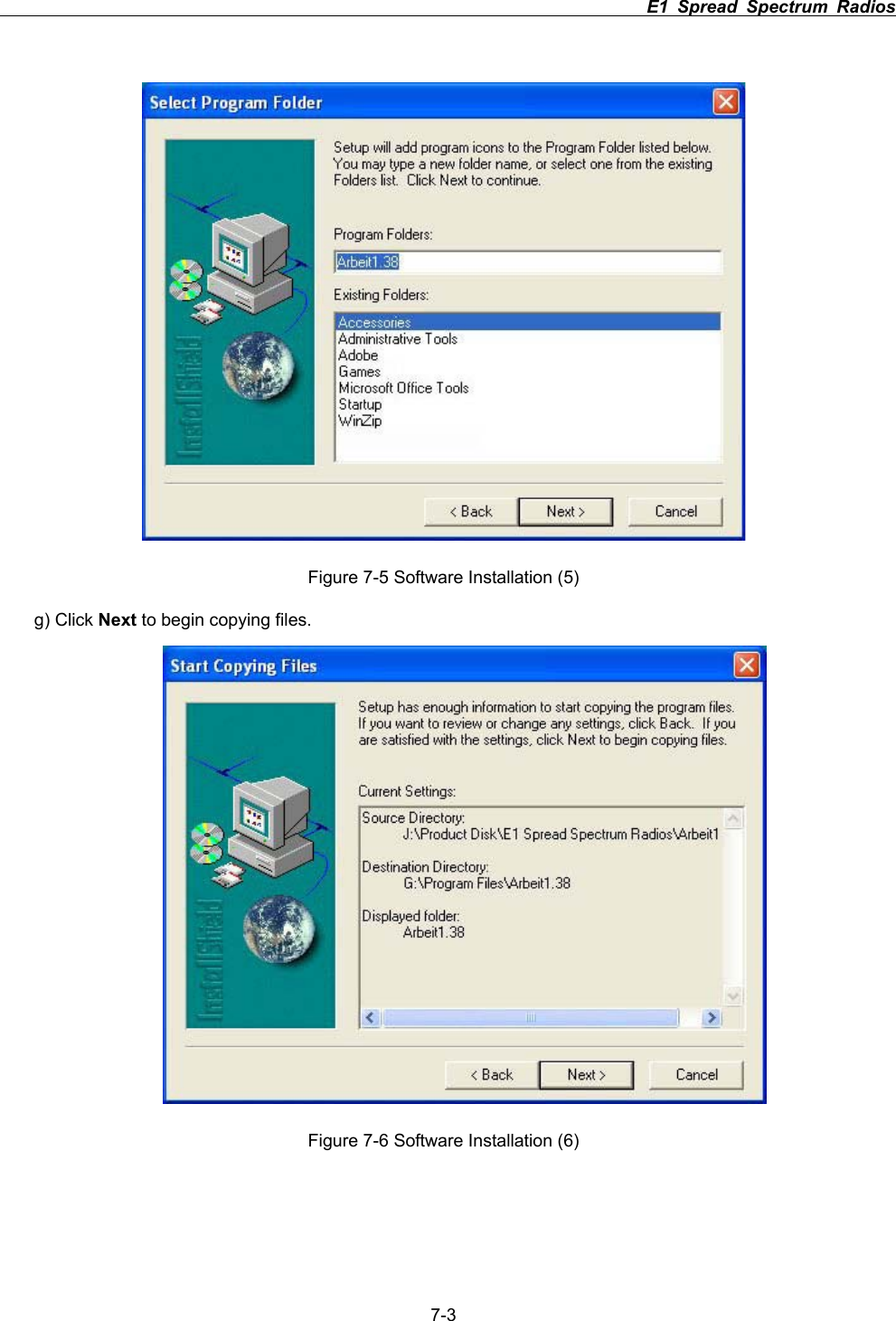
                                                                         E1 Spread Spectrum Radios      7-3Figure 7-5 Software Installation (5) g) Click Next to begin copying files.   Figure 7-6 Software Installation (6)
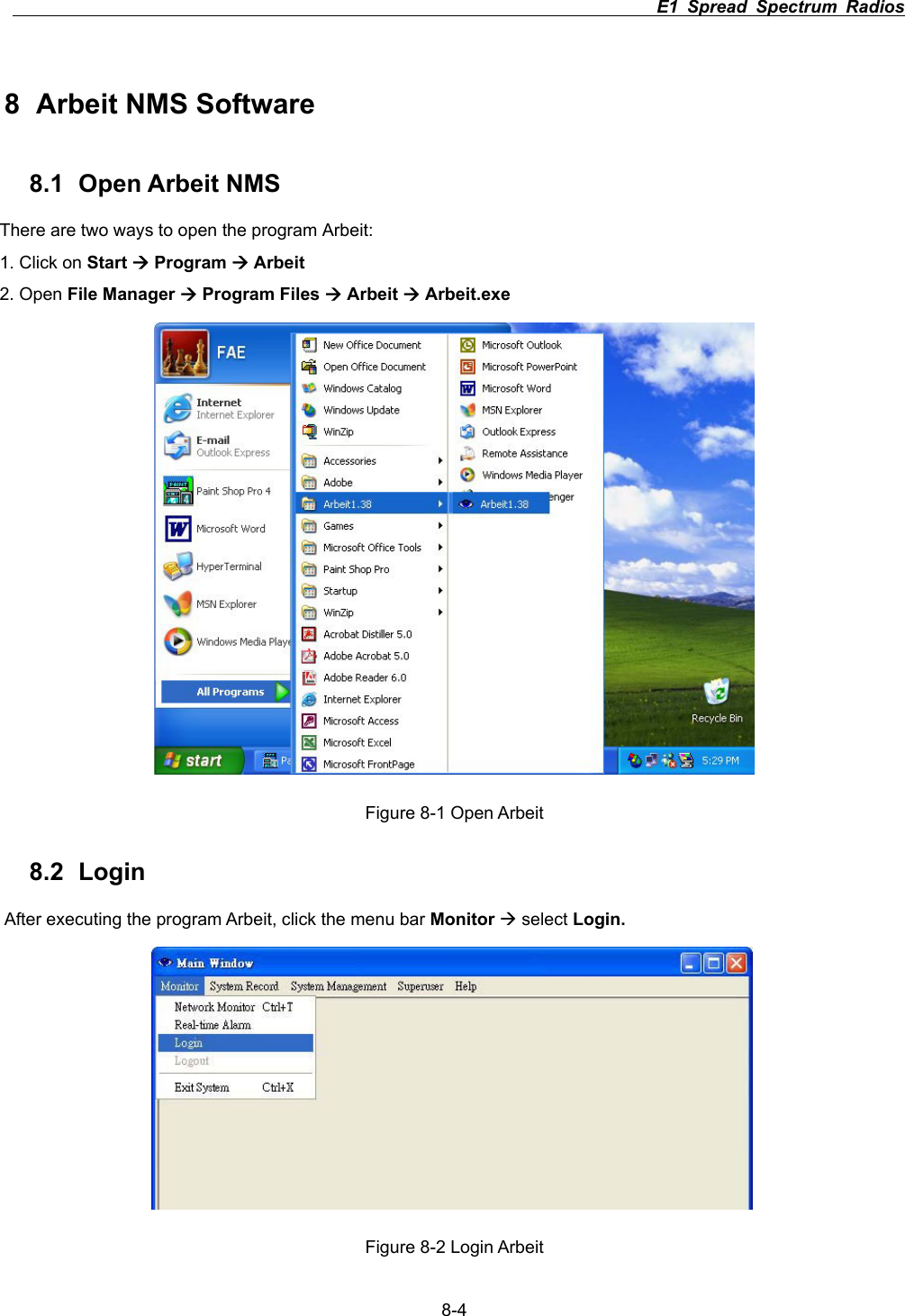
                                                                         E1 Spread Spectrum Radios      8-48 Arbeit NMS Software 8.1 Open Arbeit NMS There are two ways to open the program Arbeit: 1. Click on Start Æ Program Æ Arbeit2. Open File Manager Æ Program Files Æ Arbeit Æ Arbeit.exeFigure 8-1 Open Arbeit 8.2 Login After executing the program Arbeit, click the menu bar Monitor Æ select Login.Figure 8-2 Login Arbeit
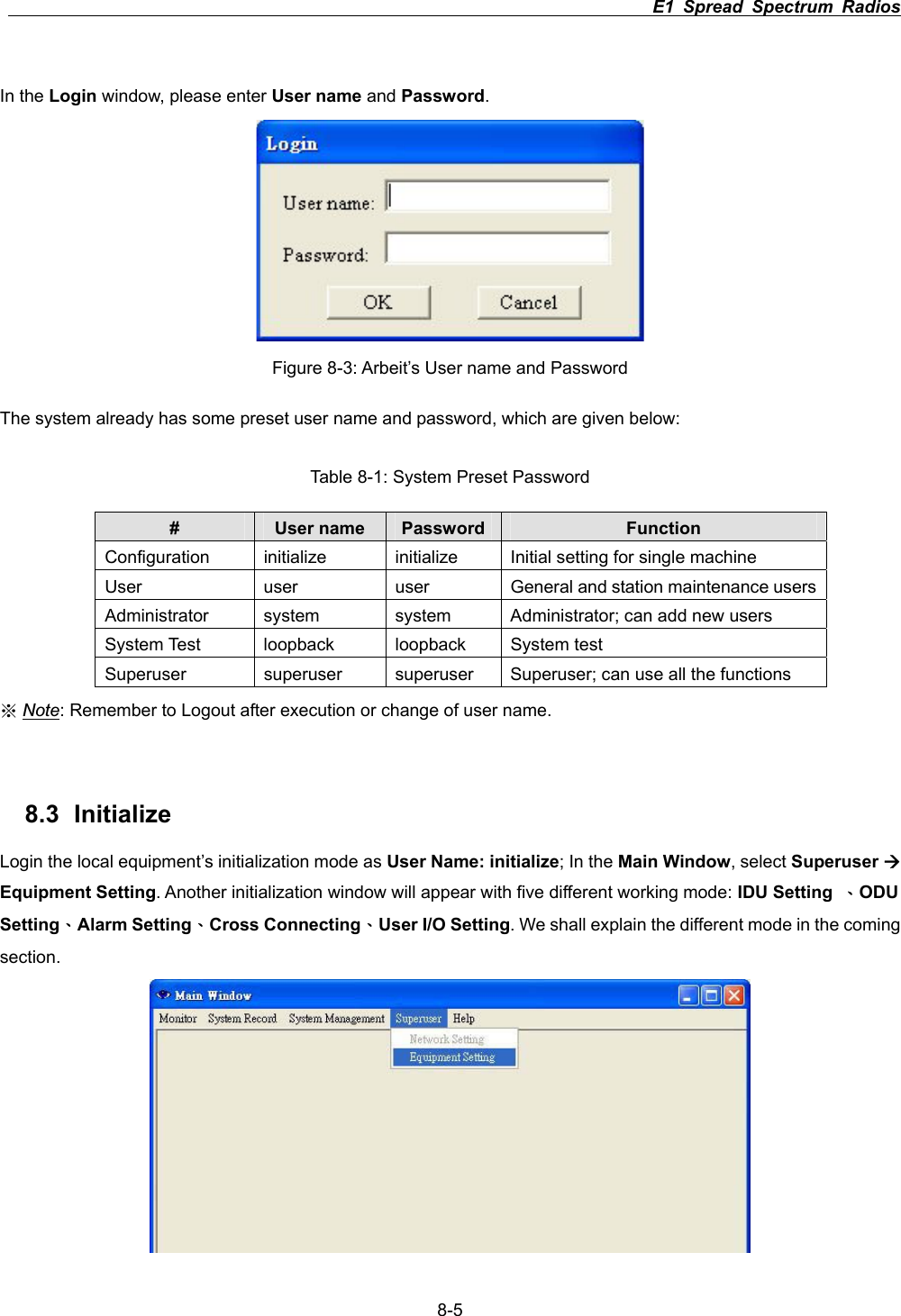
                                                                         E1 Spread Spectrum Radios      8-5In the Login window, please enter User name and Password.Figure 8-3: Arbeit’s User name and Password The system already has some preset user name and password, which are given below: Table 8-1: System Preset Password #User name  Password Function Configuration    initialize  initialize  Initial setting for single machine User  user  user  General and station maintenance usersAdministrator  system  system  Administrator; can add new users System Test  loopback  loopback  System test Superuser  superuser  superuser  Superuser; can use all the functions ϡNote: Remember to Logout after execution or change of user name.   8.3 Initialize Login the local equipment’s initialization mode as User Name: initialize; In the Main Window, select Superuser ÆEquipment Setting. Another initialization window will appear with five different working mode: IDU Setting  ΕODUSettingΕAlarm SettingΕCross ConnectingΕUser I/O Setting. We shall explain the different mode in the coming section.
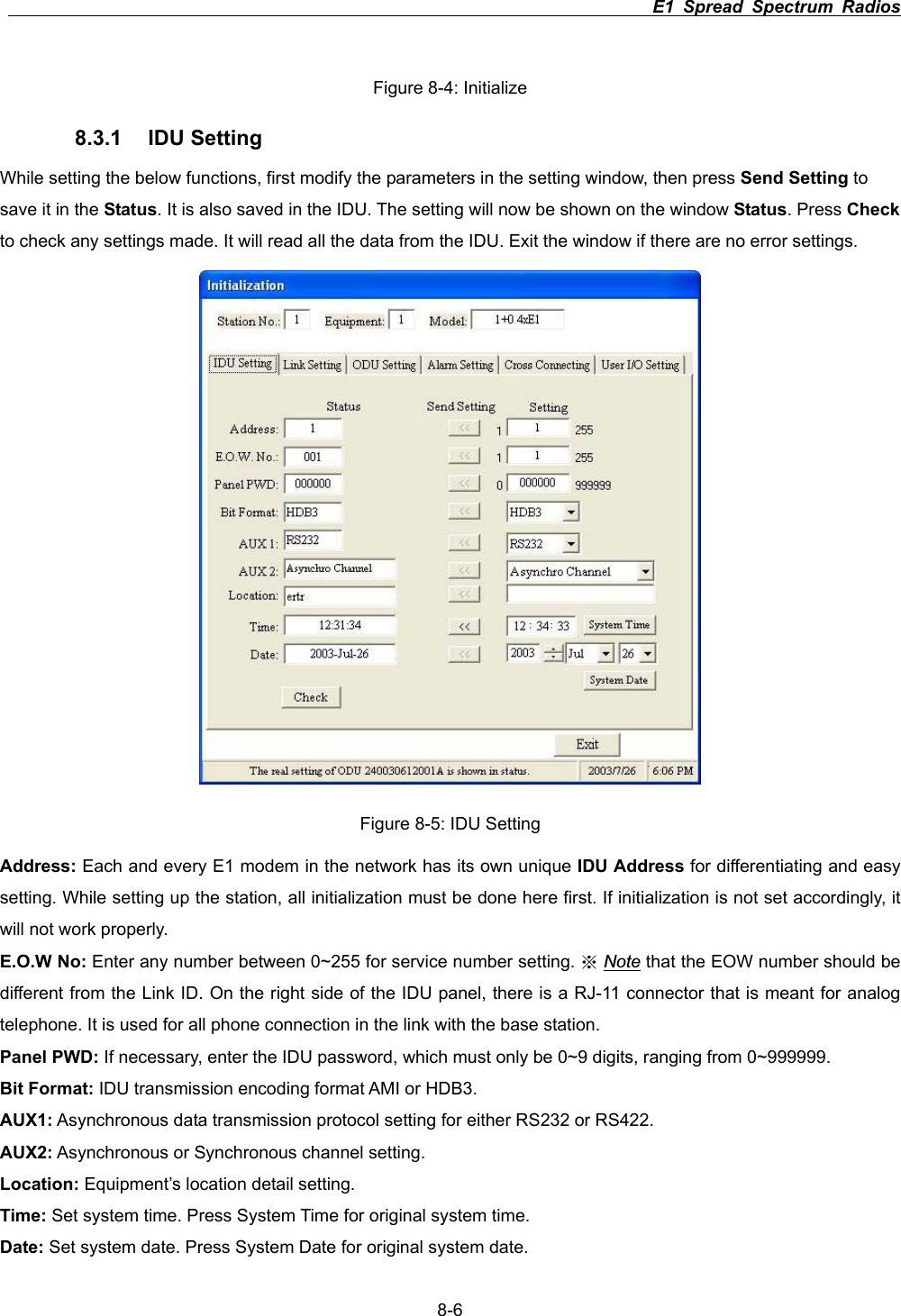
                                                                         E1 Spread Spectrum Radios      8-6Figure 8-4: Initialize 8.3.1 IDU Setting While setting the below functions, first modify the parameters in the setting window, then press Send Setting to save it in the Status. It is also saved in the IDU. The setting will now be shown on the window Status. Press Checkto check any settings made. It will read all the data from the IDU. Exit the window if there are no error settings.   Figure 8-5: IDU Setting Address: Each and every E1 modem in the network has its own unique IDU Address for differentiating and easy setting. While setting up the station, all initialization must be done here first. If initialization is not set accordingly, itwill not work properly.   E.O.W No: Enter any number between 0~255 for service number setting.   ϡNote that the EOW number should be different from the Link ID. On the right side of the IDU panel, there is a RJ-11 connector that is meant for analog telephone. It is used for all phone connection in the link with the base station. Panel PWD: If necessary, enter the IDU password, which must only be 0~9 digits, ranging from 0~999999. Bit Format: IDU transmission encoding format AMI or HDB3.   AUX1: Asynchronous data transmission protocol setting for either RS232 or RS422. AUX2: Asynchronous or Synchronous channel setting. Location: Equipment’s location detail setting. Time: Set system time. Press System Time for original system time. Date: Set system date. Press System Date for original system date.
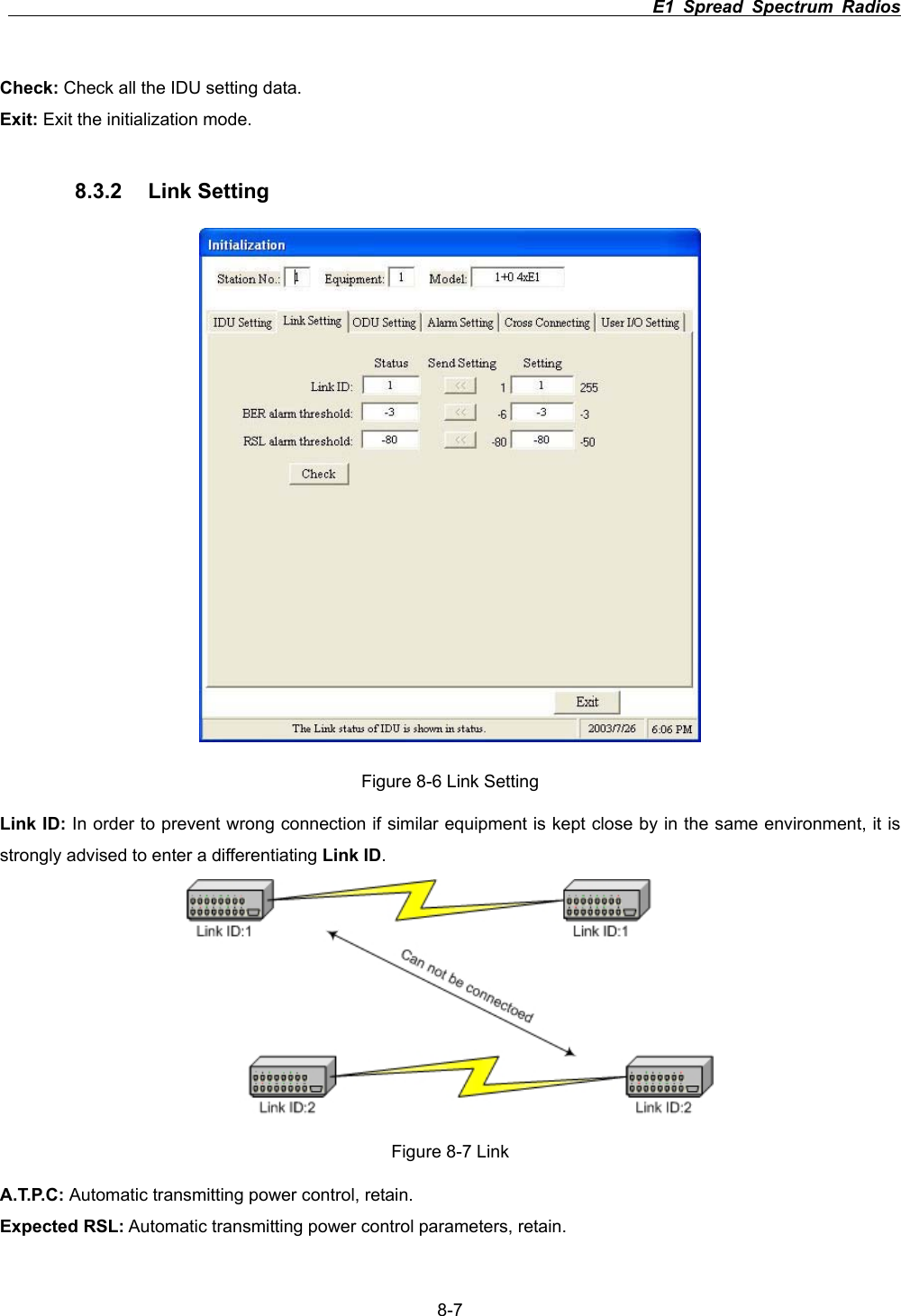
                                                                         E1 Spread Spectrum Radios      8-7Check: Check all the IDU setting data.Exit: Exit the initialization mode. 8.3.2 Link Setting Figure 8-6 Link Setting Link ID: In order to prevent wrong connection if similar equipment is kept close by in the same environment, it is strongly advised to enter a differentiating Link ID.Figure 8-7 Link A.T.P.C: Automatic transmitting power control, retain. Expected RSL: Automatic transmitting power control parameters, retain.
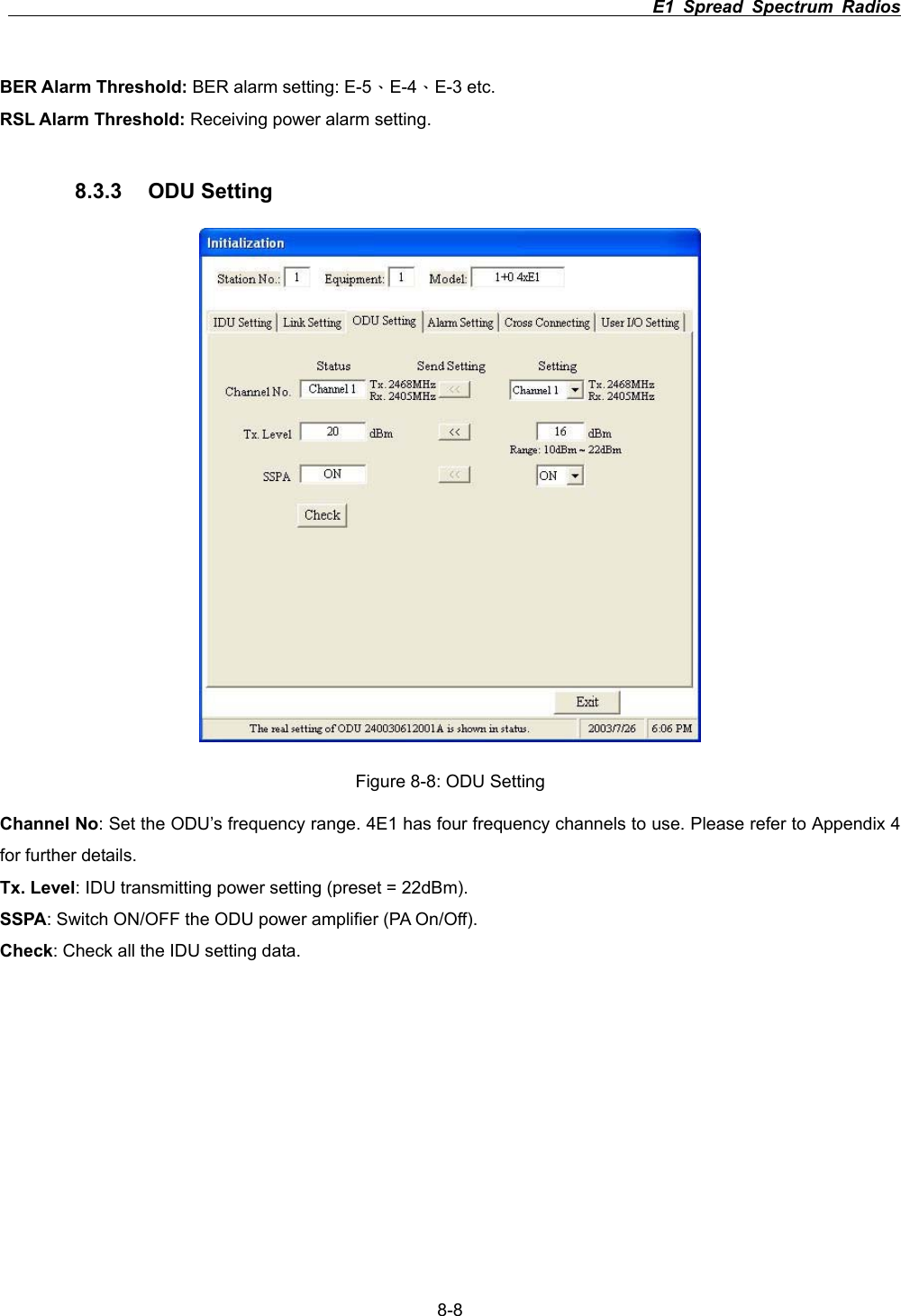
                                                                         E1 Spread Spectrum Radios      8-8BER Alarm Threshold: BER alarm setting: E-5ΕE-4ΕE-3 etc. RSL Alarm Threshold: Receiving power alarm setting. 8.3.3 ODU Setting  Figure 8-8: ODU Setting Channel No: Set the ODU’s frequency range. 4E1 has four frequency channels to use. Please refer to Appendix 4 for further details. Tx. Level: IDU transmitting power setting (preset = 22dBm). SSPA: Switch ON/OFF the ODU power amplifier (PA On/Off). Check: Check all the IDU setting data.
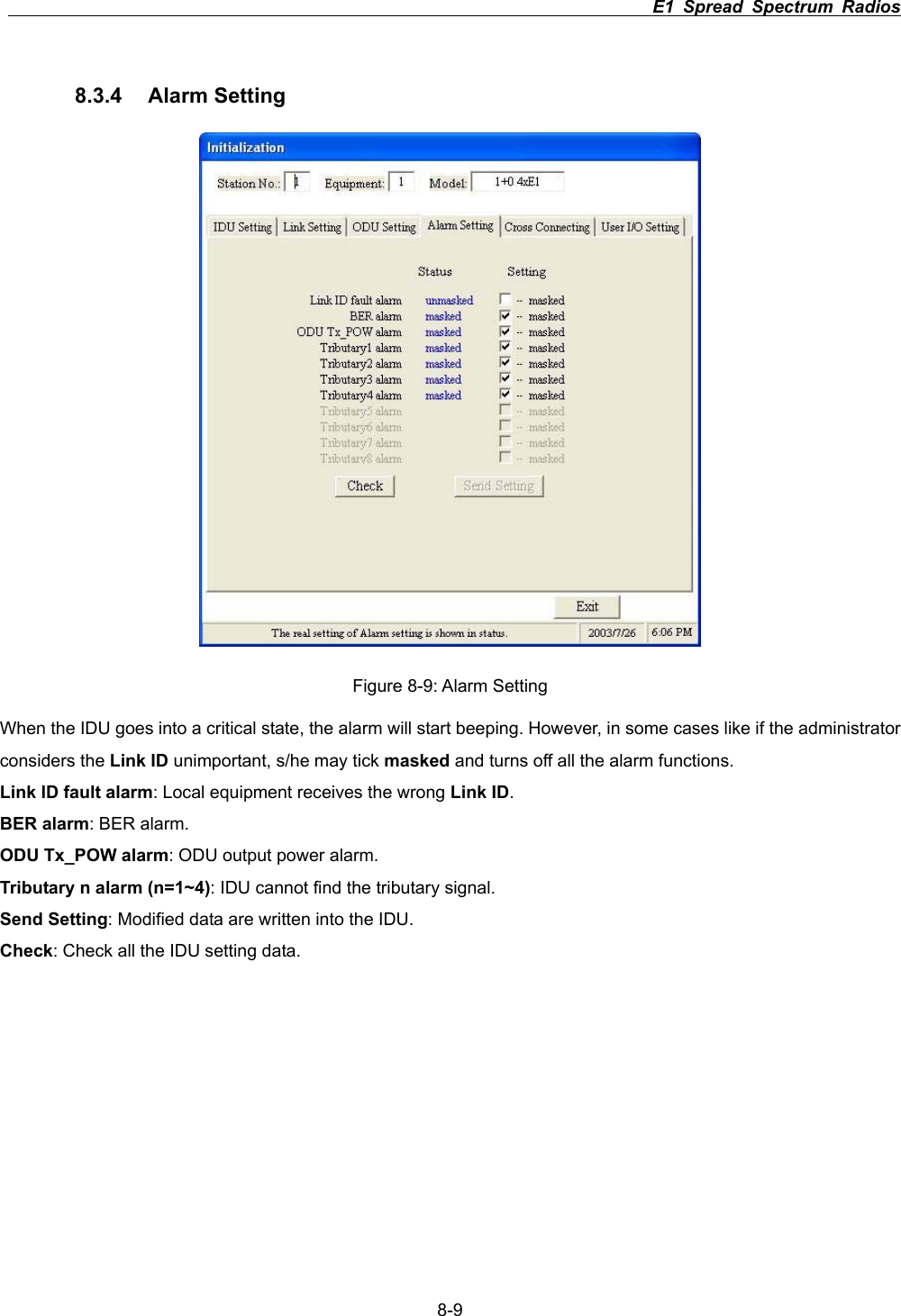
                                                                         E1 Spread Spectrum Radios      8-98.3.4 Alarm Setting  Figure 8-9: Alarm Setting When the IDU goes into a critical state, the alarm will start beeping. However, in some cases like if the administrator considers the Link ID unimportant, s/he may tick masked and turns off all the alarm functions. Link ID fault alarm: Local equipment receives the wrong Link ID.BER alarm: BER alarm. ODU Tx_POW alarm: ODU output power alarm. Tributary n alarm (n=1~4): IDU cannot find the tributary signal. Send Setting: Modified data are written into the IDU. Check: Check all the IDU setting data.
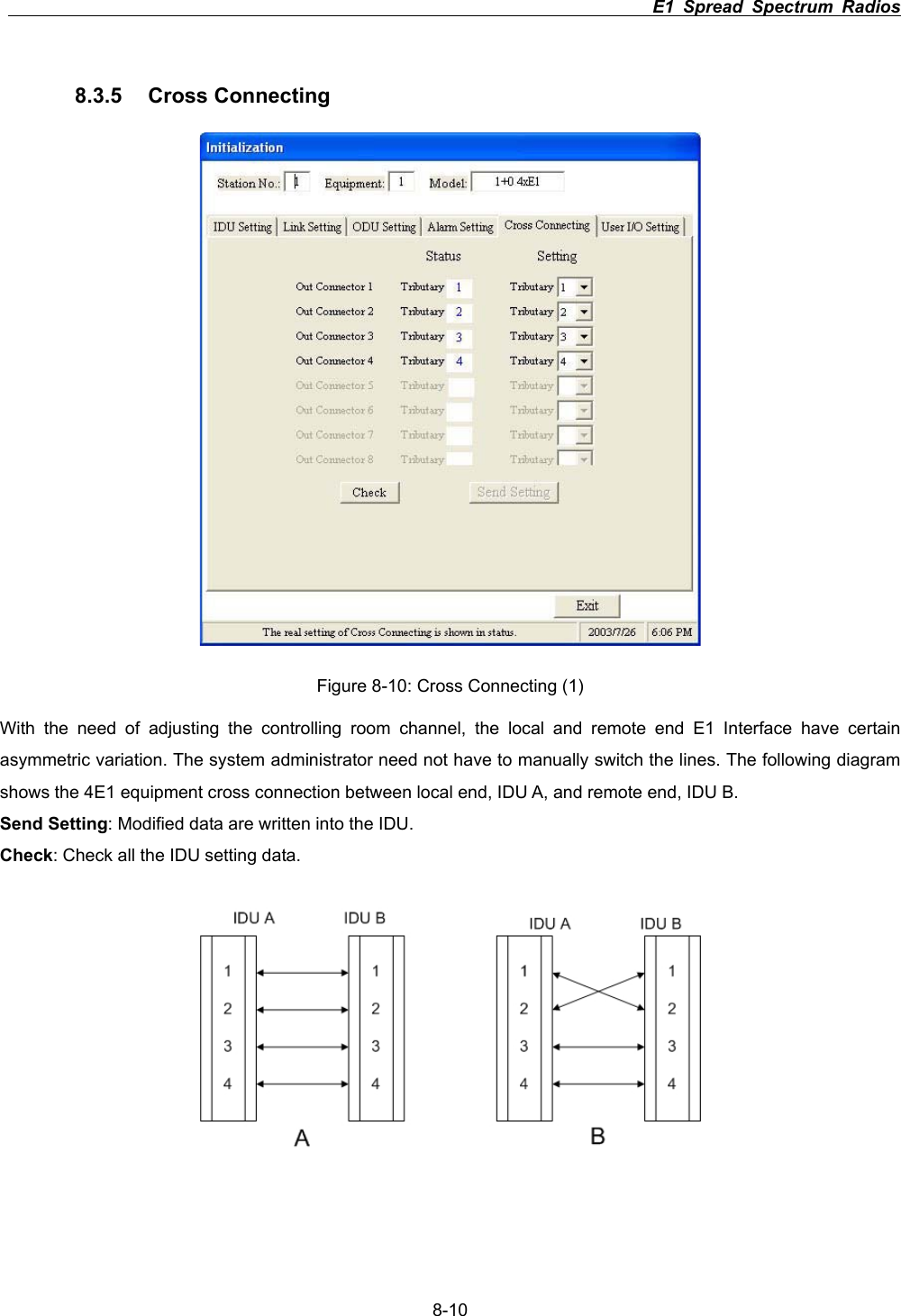
                                                                         E1 Spread Spectrum Radios      8-108.3.5 Cross Connecting  Figure 8-10: Cross Connecting (1) With the need of adjusting the controlling room channel, the local and remote end E1 Interface have certain asymmetric variation. The system administrator need not have to manually switch the lines. The following diagram shows the 4E1 equipment cross connection between local end, IDU A, and remote end, IDU B. Send Setting: Modified data are written into the IDU. Check: Check all the IDU setting data.
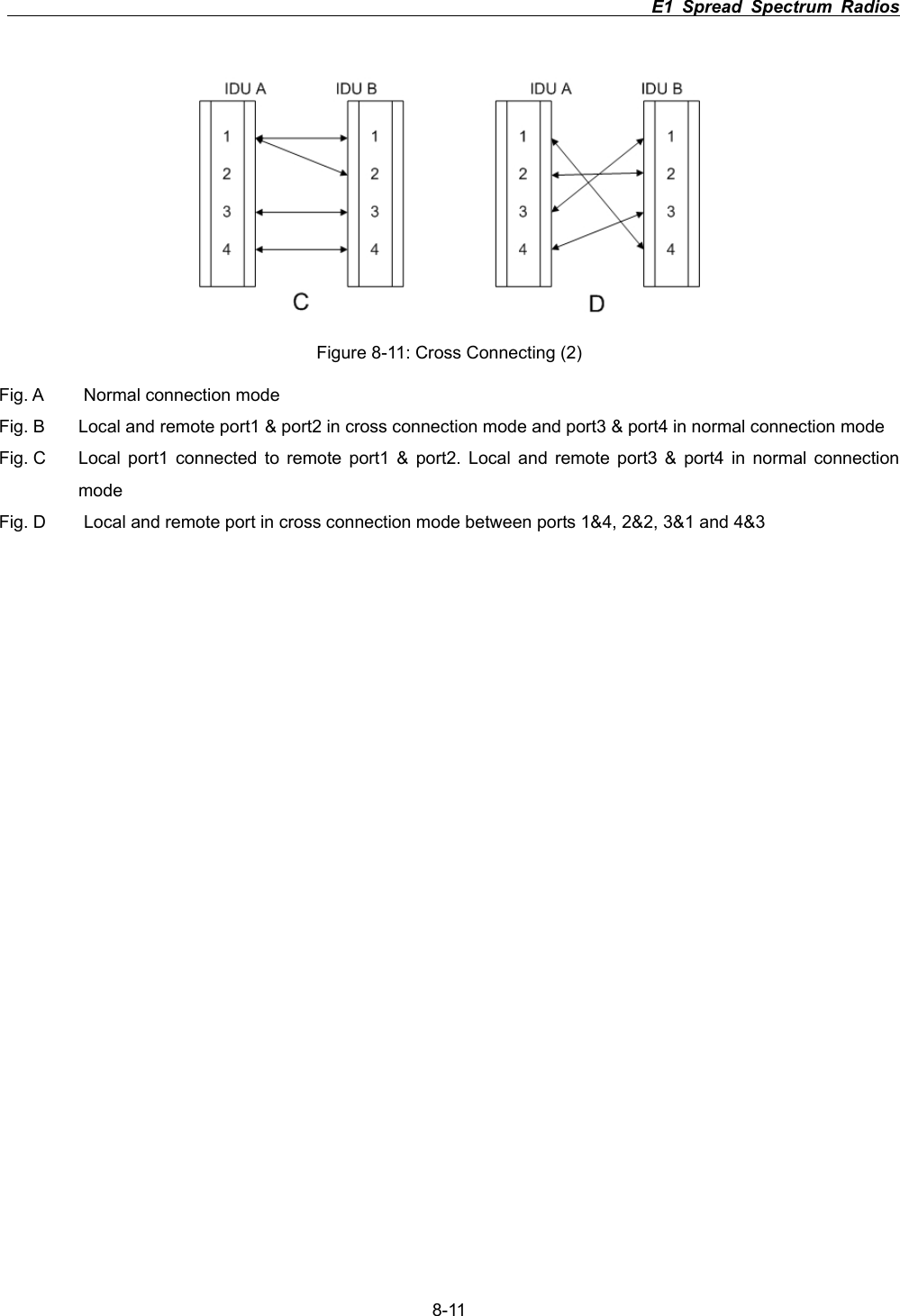
                                                                         E1 Spread Spectrum Radios      8-11 Figure 8-11: Cross Connecting (2) Fig. A  Normal connection mode Fig. B  Local and remote port1 & port2 in cross connection mode and port3 & port4 in normal connection mode Fig. C  Local port1 connected to remote port1 & port2. Local and remote port3 & port4 in normal connection modeFig. D  Local and remote port in cross connection mode between ports 1&4, 2&2, 3&1 and 4&3
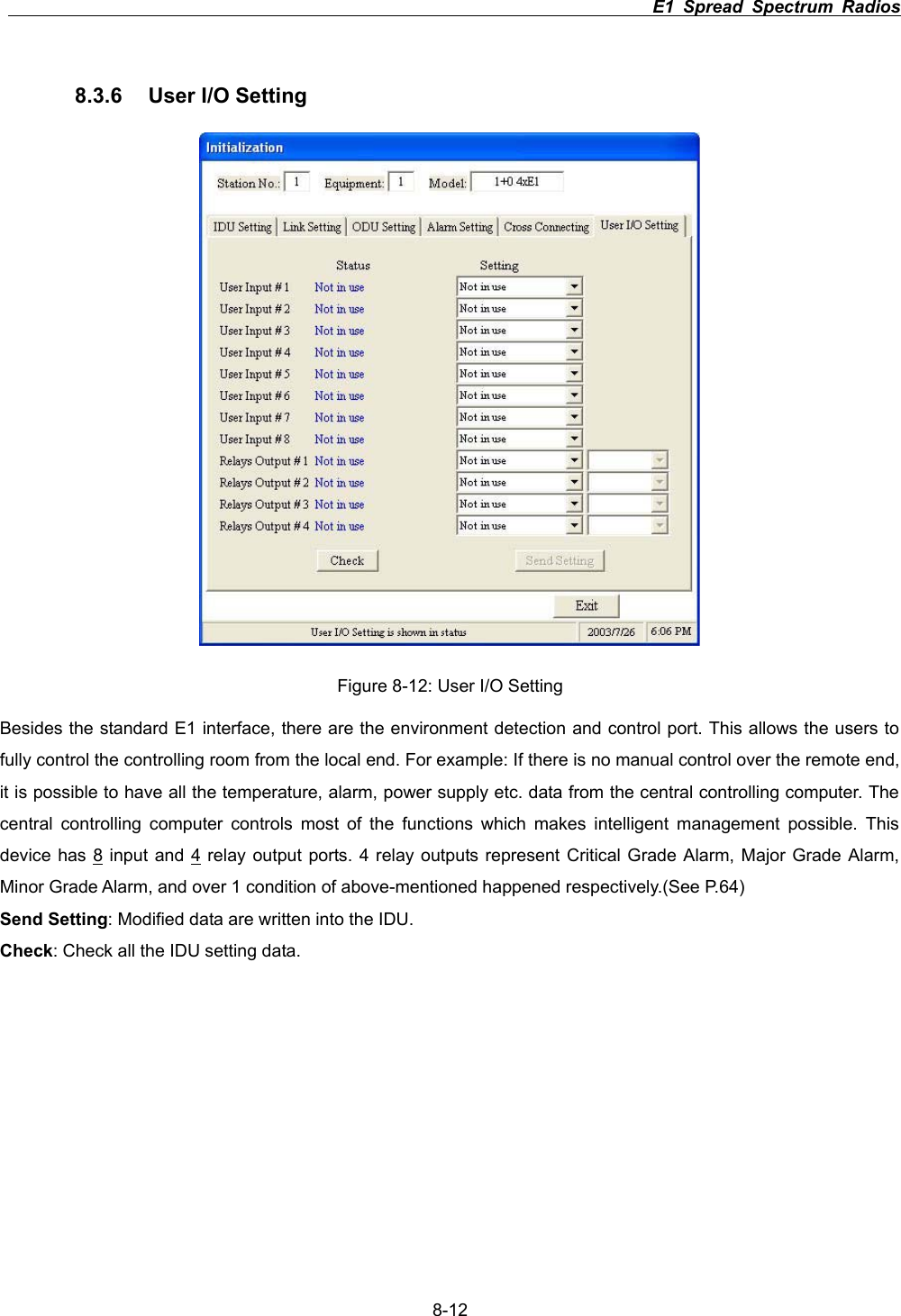
                                                                         E1 Spread Spectrum Radios      8-128.3.6  User I/O Setting Figure 8-12: User I/O Setting Besides the standard E1 interface, there are the environment detection and control port. This allows the users to fully control the controlling room from the local end. For example: If there is no manual control over the remote end, it is possible to have all the temperature, alarm, power supply etc. data from the central controlling computer. The central controlling computer controls most of the functions which makes intelligent management possible. This device has 8 input and 4 relay output ports. 4 relay outputs represent Critical Grade Alarm, Major Grade Alarm, Minor Grade Alarm, and over 1 condition of above-mentioned happened respectively.(See P.64) Send Setting: Modified data are written into the IDU. Check: Check all the IDU setting data.
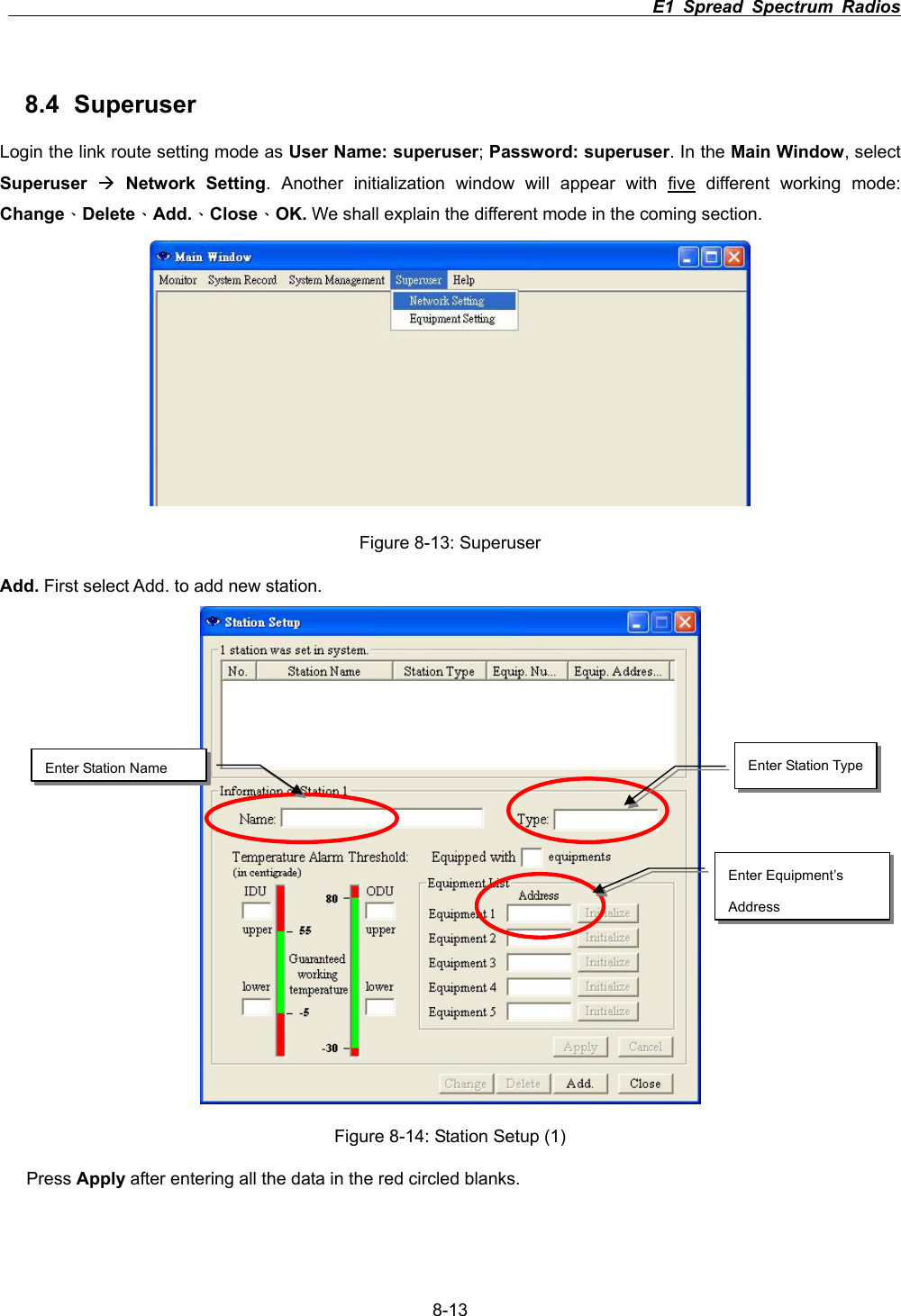
                                                                         E1 Spread Spectrum Radios      8-138.4 Superuser Login the link route setting mode as User Name: superuser;Password: superuser. In the Main Window, select Superuser ÆNetwork Setting. Another initialization window will appear with five different working mode: ChangeΕDeleteΕAdd.ΕCloseΕOK. We shall explain the different mode in the coming section.   Figure 8-13: Superuser Add. First select Add. to add new station. Figure 8-14: Station Setup (1) Press Apply after entering all the data in the red circled blanks. Enter Equipment’s AddressEnter Station Name  Enter Station Type
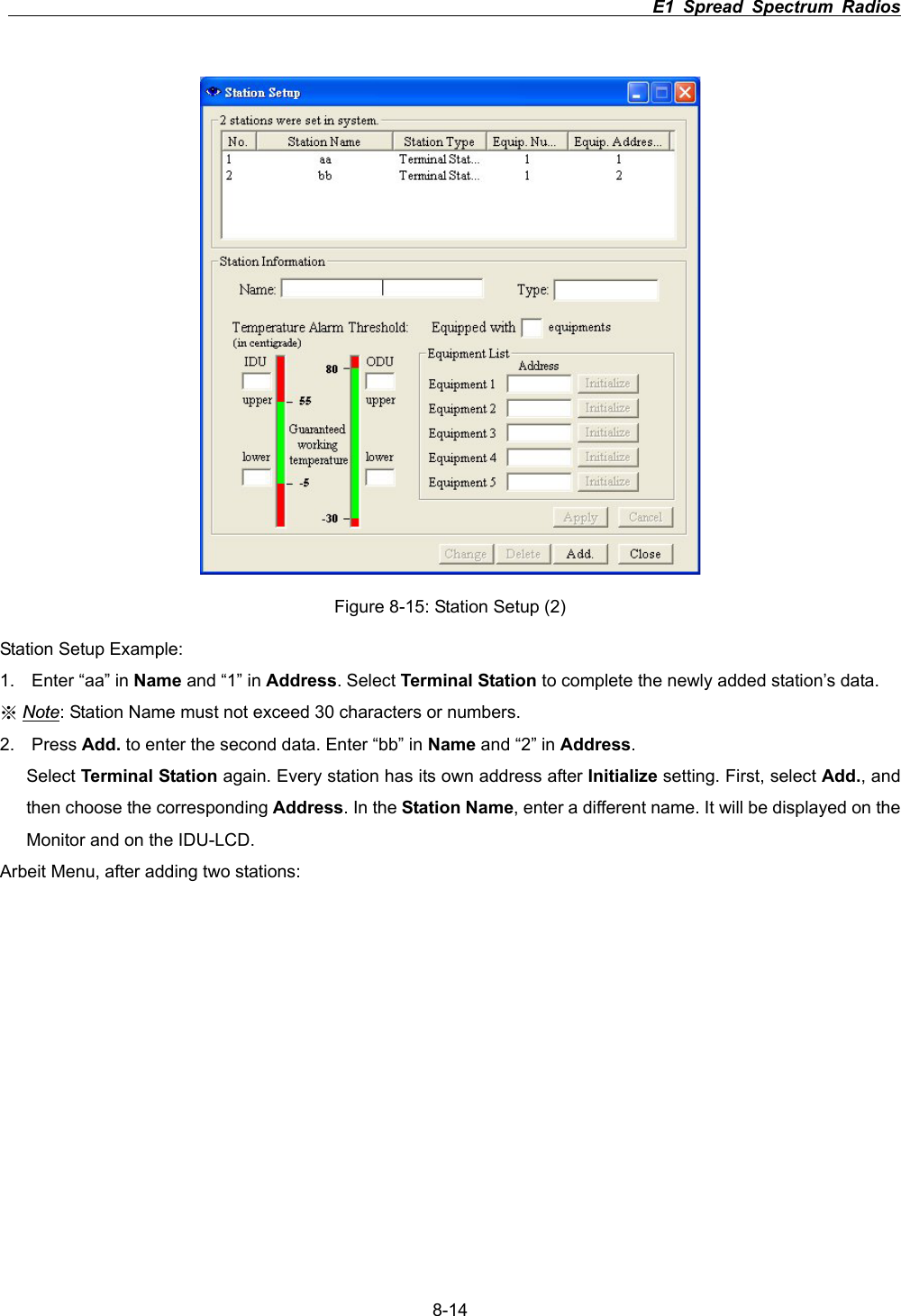
                                                                         E1 Spread Spectrum Radios      8-14Figure 8-15: Station Setup (2) Station Setup Example: 1.  Enter “aa” in Name and “1” in Address. Select Terminal Station to complete the newly added station’s data. ϡNote: Station Name must not exceed 30 characters or numbers. 2. Press Add. to enter the second data. Enter “bb” in Name and “2” in Address.Select Terminal Station again. Every station has its own address after Initialize setting. First, select Add., and then choose the corresponding Address. In the Station Name, enter a different name. It will be displayed on the Monitor and on the IDU-LCD. Arbeit Menu, after adding two stations:
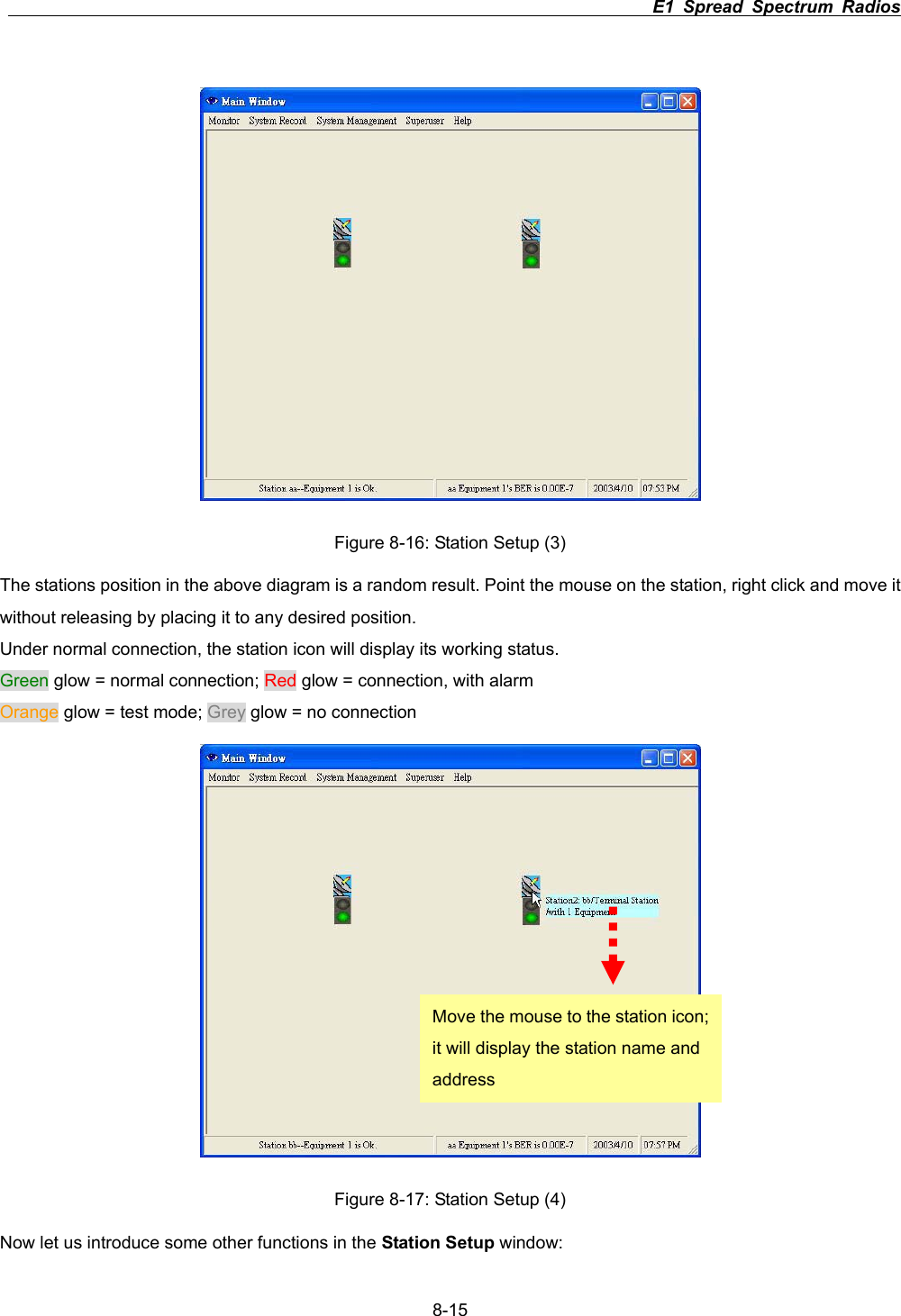
                                                                         E1 Spread Spectrum Radios      8-15Figure 8-16: Station Setup (3) The stations position in the above diagram is a random result. Point the mouse on the station, right click and move it without releasing by placing it to any desired position.   Under normal connection, the station icon will display its working status. Green glow = normal connection; Red glow = connection, with alarm Orange glow = test mode; Grey glow = no connection   Figure 8-17: Station Setup (4) Now let us introduce some other functions in the Station Setup window: Move the mouse to the station icon; it will display the station name and address
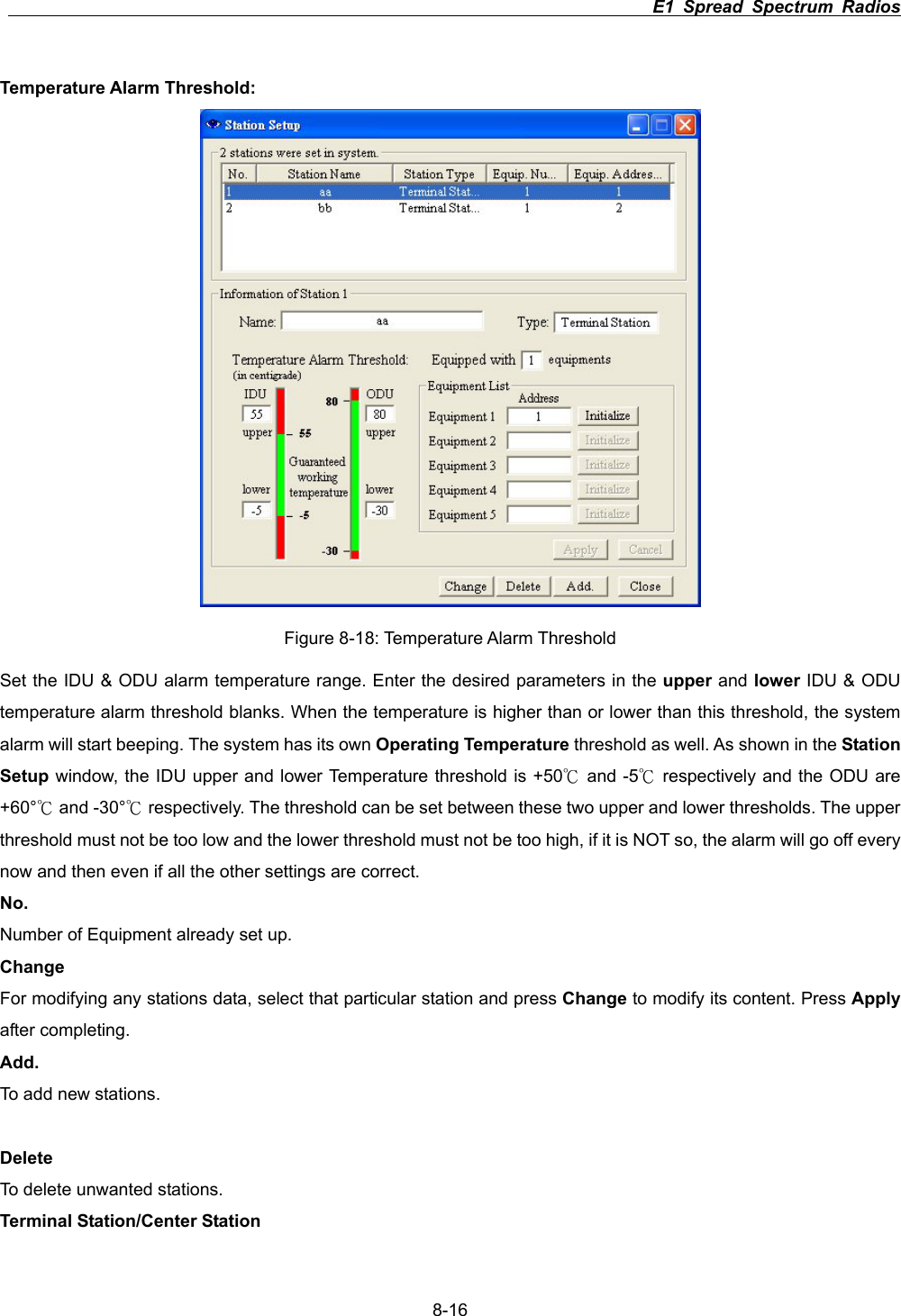
                                                                         E1 Spread Spectrum Radios      8-16Temperature Alarm Threshold: Figure 8-18: Temperature Alarm Threshold Set the IDU & ODU alarm temperature range. Enter the desired parameters in the upper and lower IDU & ODU temperature alarm threshold blanks. When the temperature is higher than or lower than this threshold, the system alarm will start beeping. The system has its own Operating Temperature threshold as well. As shown in the Station Setup window, the IDU upper and lower Temperature threshold is +50  and к-5  respectively and the ODU are к+60°  and к-30°  respectively. The threshold can be set between these two upper and lower thresholds. The upper кthreshold must not be too low and the lower threshold must not be too high, if it is NOT so, the alarm will go off every now and then even if all the other settings are correct. No.Number of Equipment already set up. Change For modifying any stations data, select that particular station and press Change to modify its content. Press Applyafter completing.   Add.To add new stations. Delete To delete unwanted stations. Terminal Station/Center Station
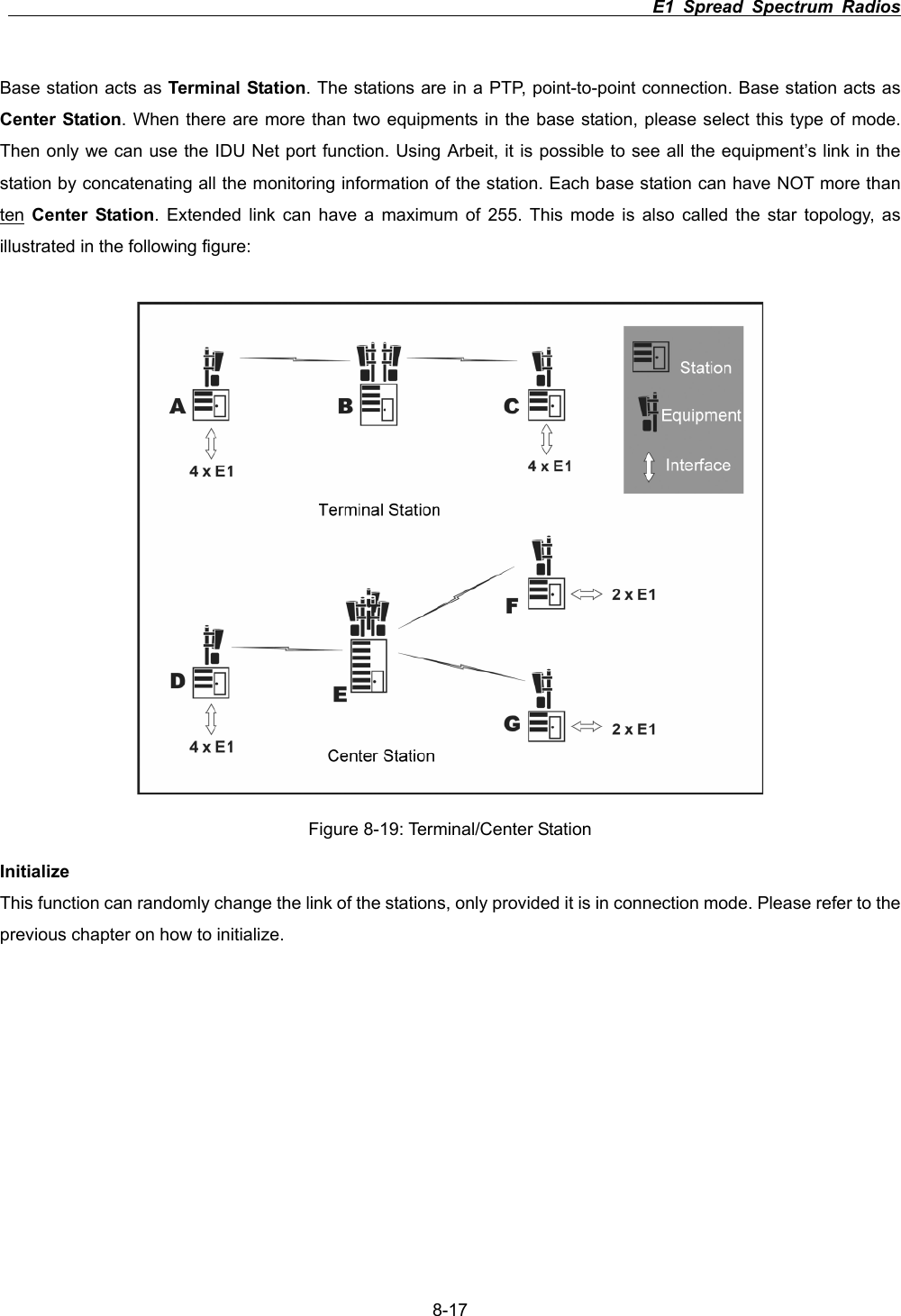
                                                                         E1 Spread Spectrum Radios      8-17Base station acts as Terminal Station. The stations are in a PTP, point-to-point connection. Base station acts as Center Station. When there are more than two equipments in the base station, please select this type of mode. Then only we can use the IDU Net port function. Using Arbeit, it is possible to see all the equipment’s link in the station by concatenating all the monitoring information of the station. Each base station can have NOT more than ten Center Station. Extended link can have a maximum of 255. This mode is also called the star topology, as illustrated in the following figure: Figure 8-19: Terminal/Center Station Initialize This function can randomly change the link of the stations, only provided it is in connection mode. Please refer to the previous chapter on how to initialize.
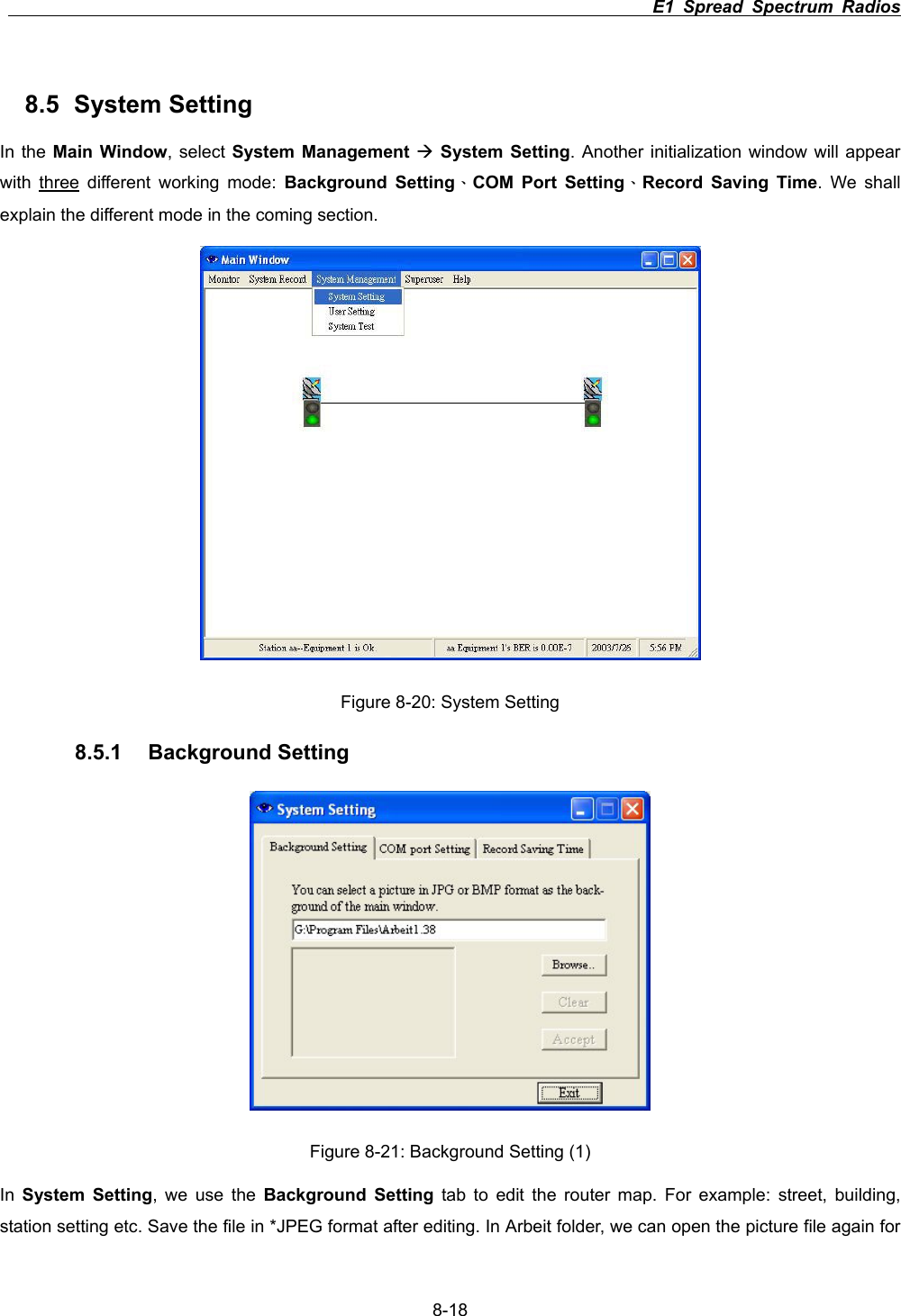
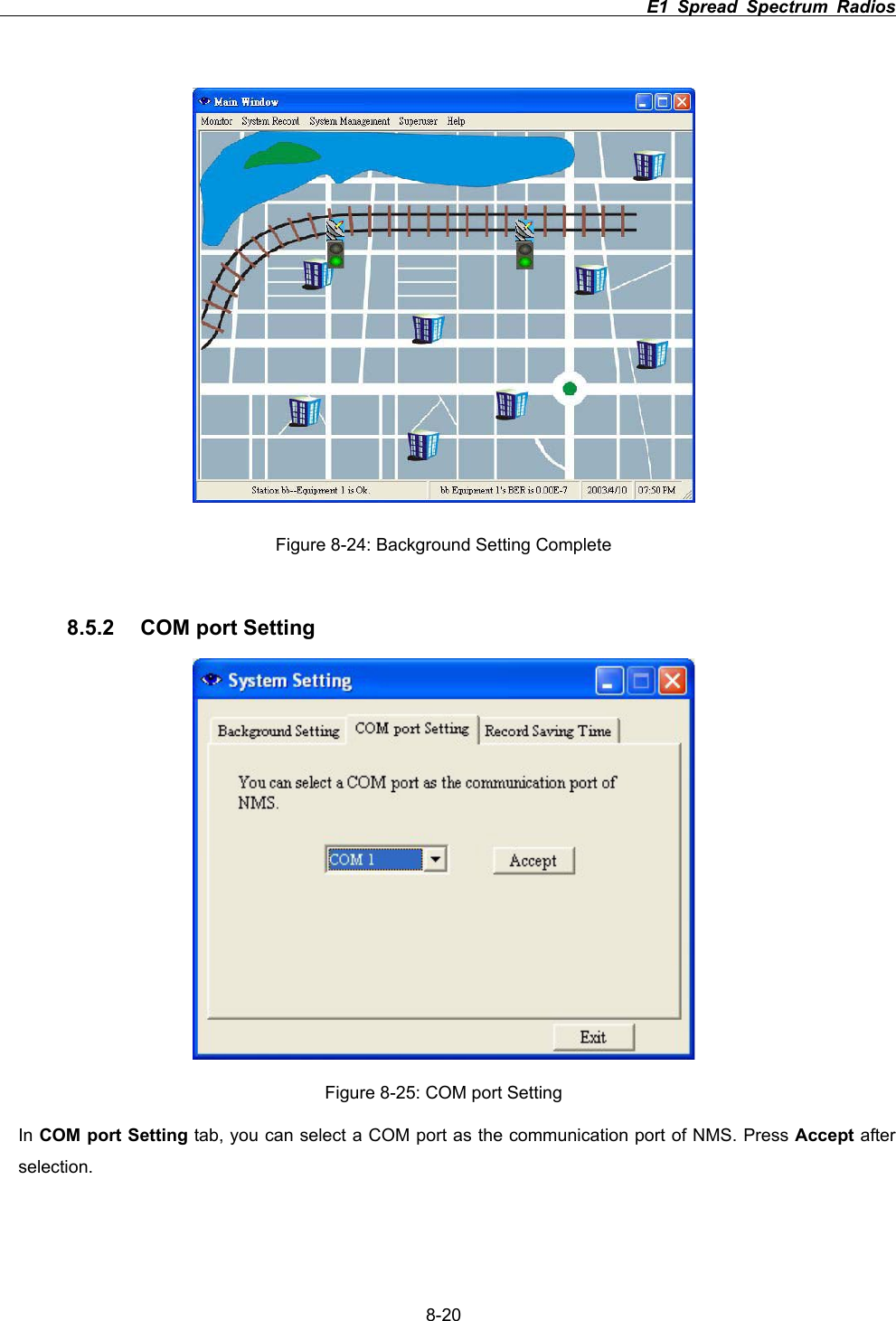
                                                                         E1 Spread Spectrum Radios      8-188.5 System Setting In the Main Window, select System Management ÆSystem Setting. Another initialization window will appear with three different working mode: Background SettingΕCOM Port SettingΕRecord Saving Time. We shall explain the different mode in the coming section.   Figure 8-20: System Setting8.5.1 Background Setting Figure 8-21: Background Setting (1) In System Setting, we use the Background Setting tab to edit the router map. For example: street, building, station setting etc. Save the file in *JPEG format after editing. In Arbeit folder, we can open the picture file again for
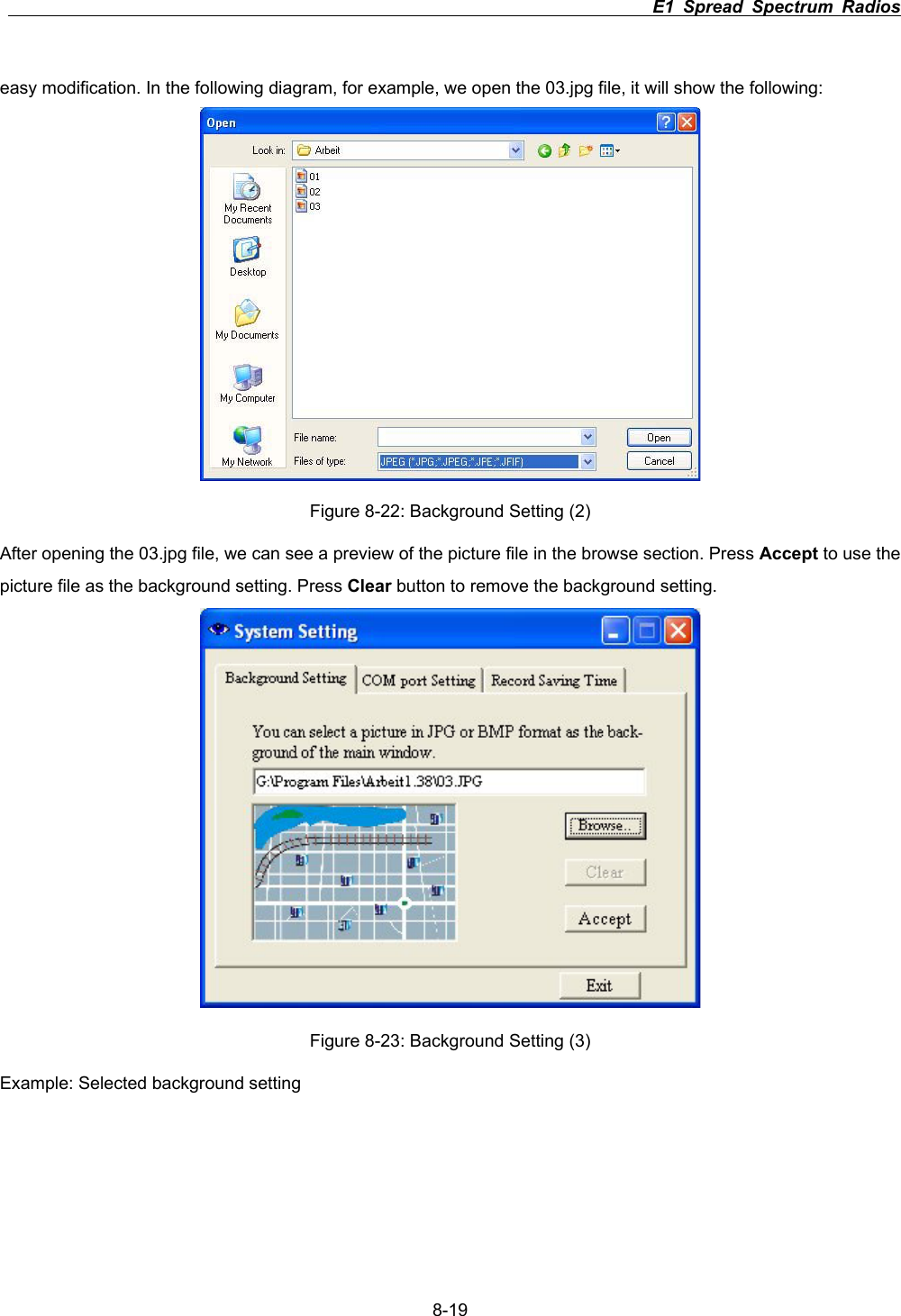
                                                                         E1 Spread Spectrum Radios      8-19easy modification. In the following diagram, for example, we open the 03.jpg file, it will show the following: Figure 8-22: Background Setting (2) After opening the 03.jpg file, we can see a preview of the picture file in the browse section. Press Accept to use the picture file as the background setting. Press Clear button to remove the background setting.   Figure 8-23: Background Setting (3) Example: Selected background setting
                                                                         E1 Spread Spectrum Radios      8-20Figure 8-24: Background Setting Complete 8.5.2 COM port Setting Figure 8-25: COM port Setting In COM port Setting tab, you can select a COM port as the communication port of NMS. Press Accept after selection.
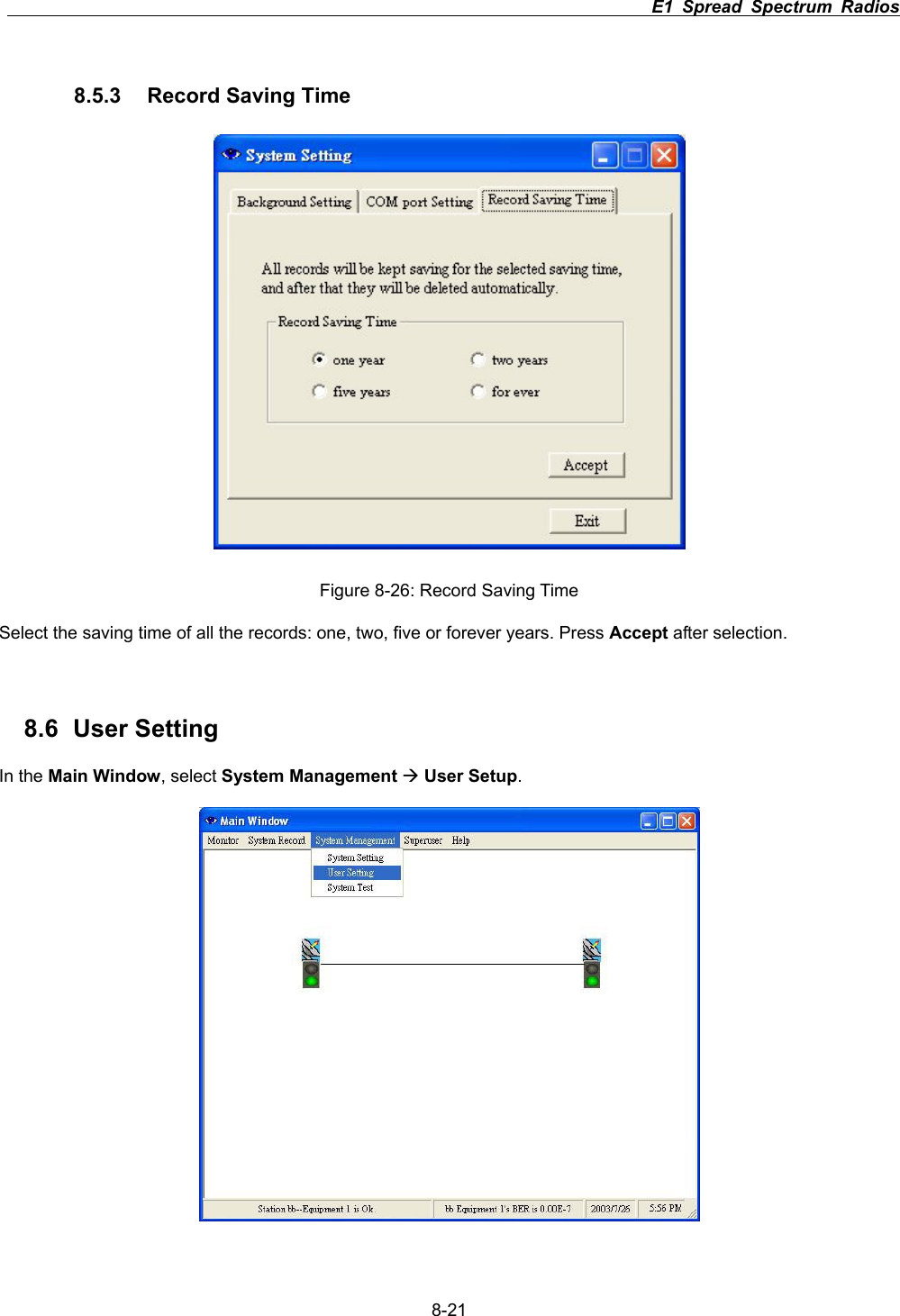
                                                                         E1 Spread Spectrum Radios      8-218.5.3  Record Saving Time Figure 8-26: Record Saving Time Select the saving time of all the records: one, two, five or forever years. Press Accept after selection.8.6 User Setting In the Main Window, select System Management ÆUser Setup.
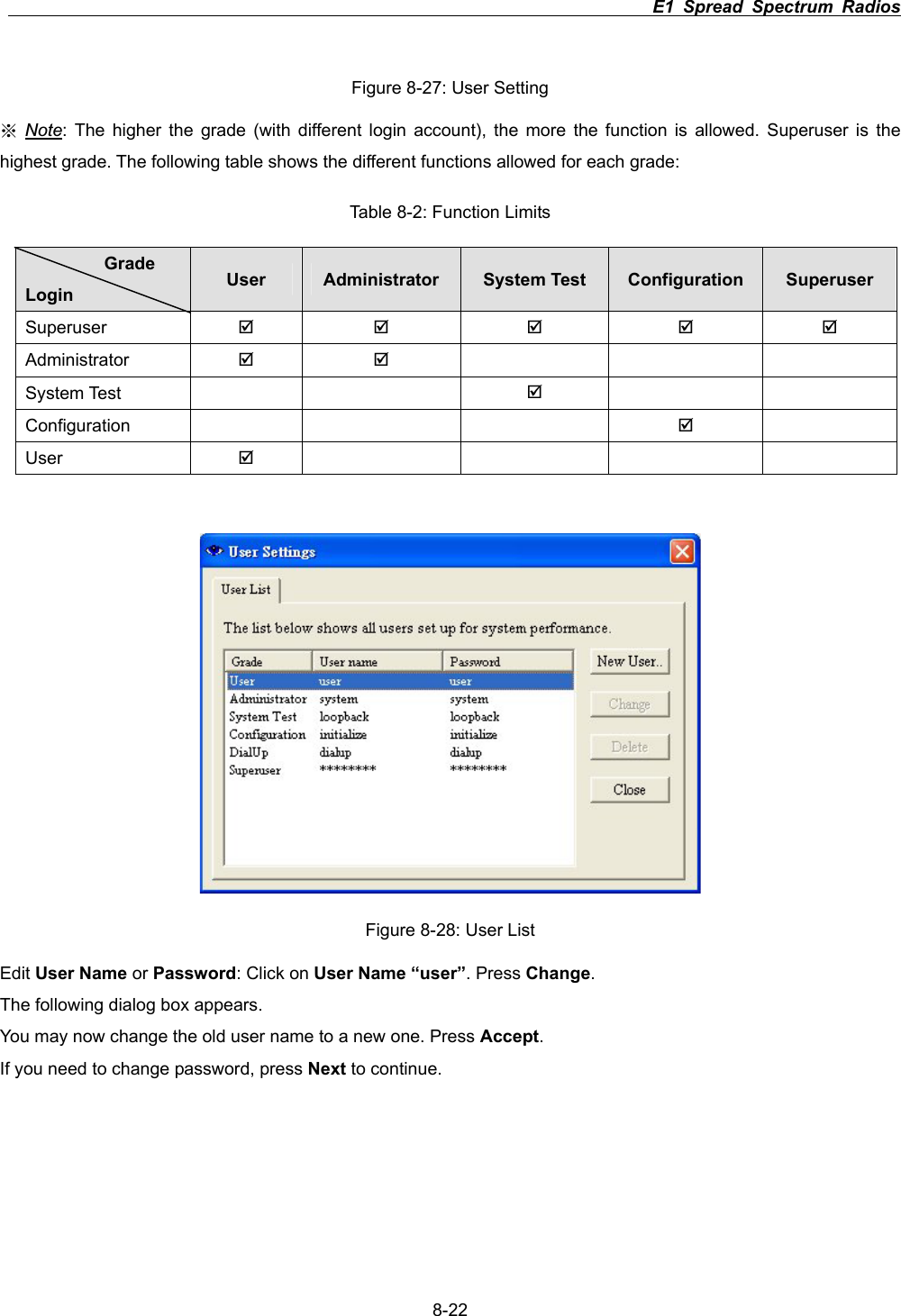
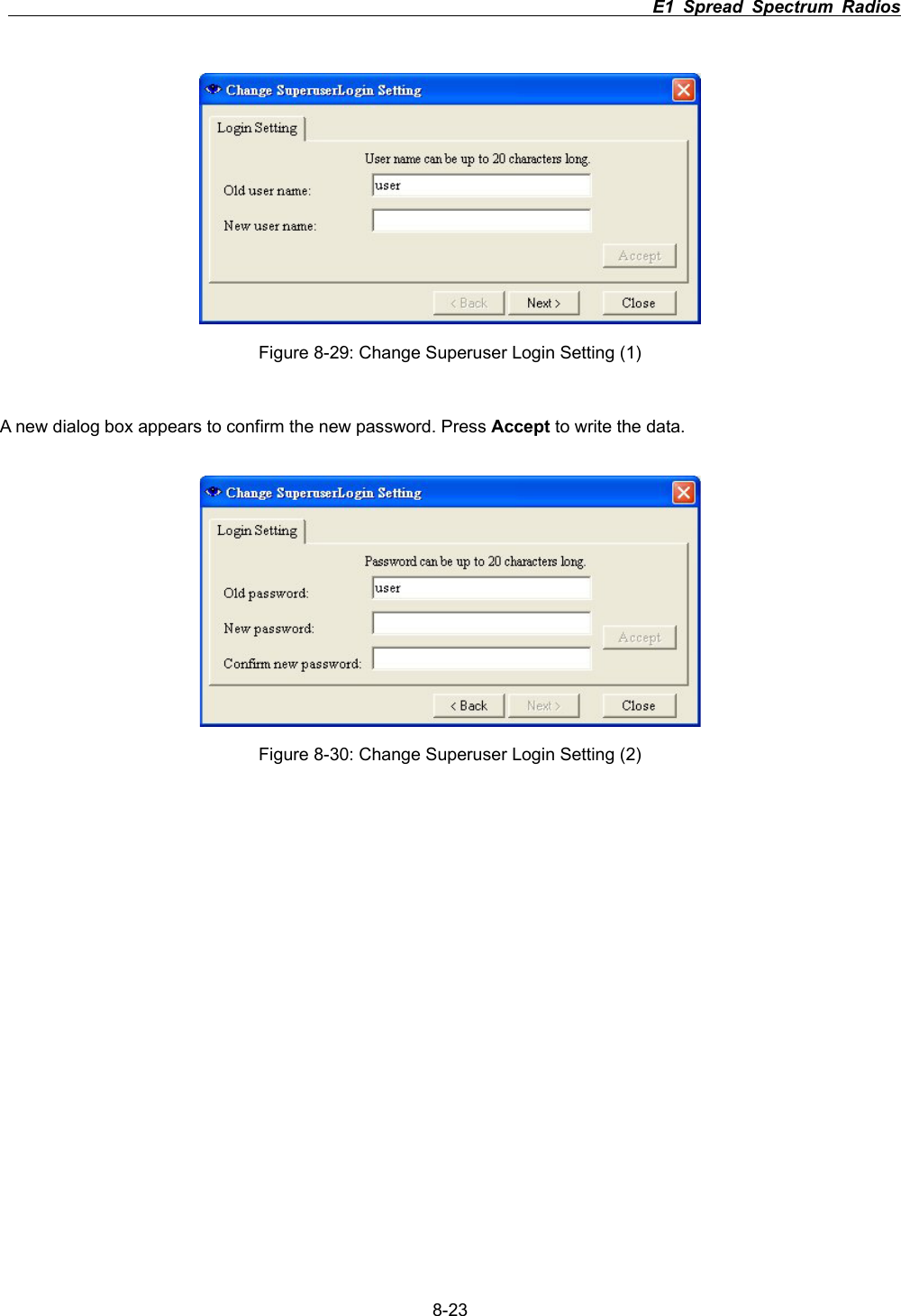
                                                                         E1 Spread Spectrum Radios      8-22Figure 8-27: User Setting ϡNote: The higher the grade (with different login account), the more the function is allowed. Superuser is the highest grade. The following table shows the different functions allowed for each grade:   Table 8-2: Function Limits GradeLogin User Administrator  System Test  Configuration  Superuser Superuser ;; ; ; ;Administrator  ;;    System Test      ;Configuration       ;User  ;    Figure 8-28: User List Edit User Name or Password: Click on User Name “user”. Press Change.The following dialog box appears.   You may now change the old user name to a new one. Press Accept.If you need to change password, press Next to continue.
                                                                         E1 Spread Spectrum Radios      8-23Figure 8-29: Change Superuser Login Setting (1) A new dialog box appears to confirm the new password. Press Accept to write the data. Figure 8-30: Change Superuser Login Setting (2)
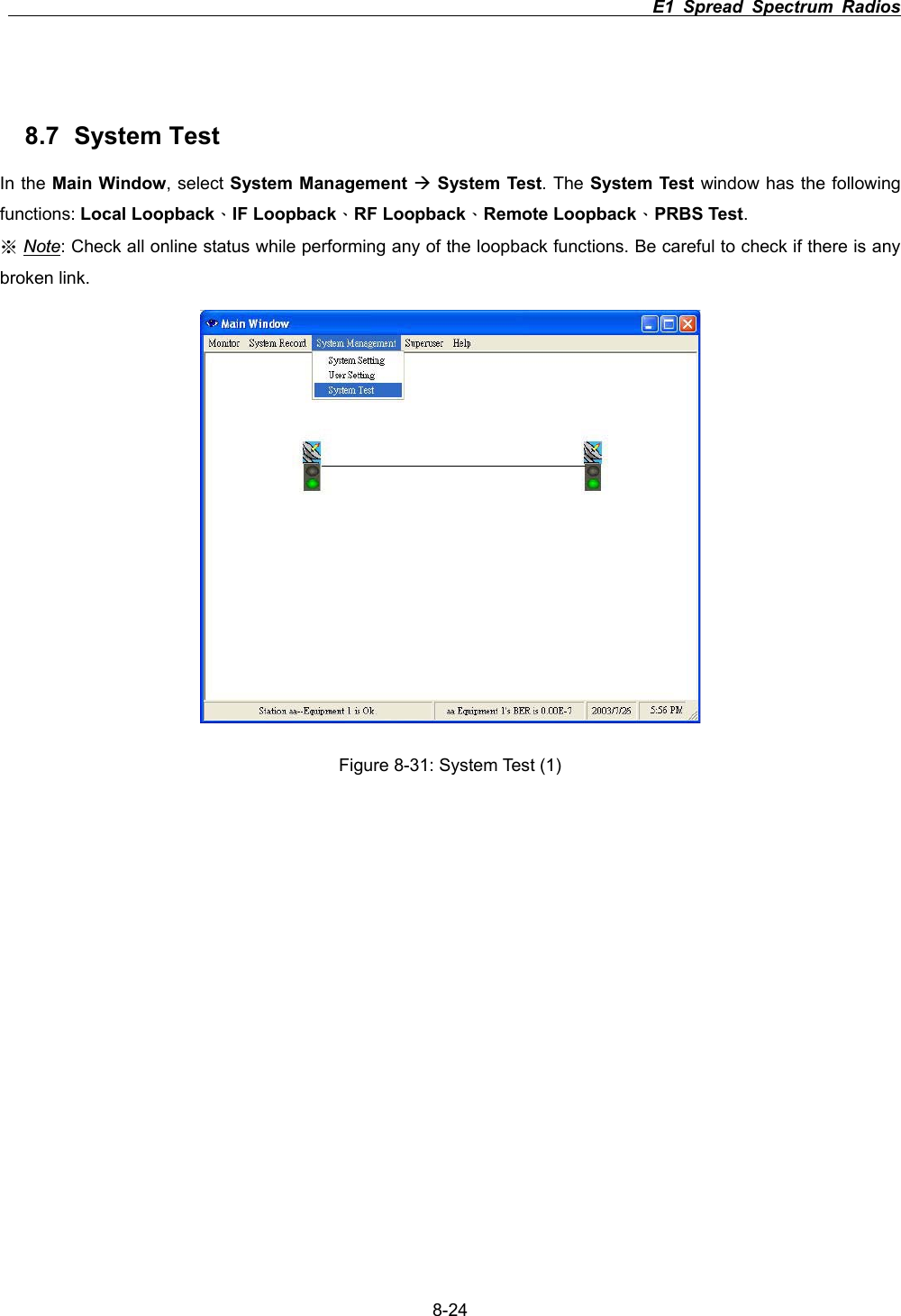
                                                                         E1 Spread Spectrum Radios      8-248.7 System Test In the Main Window, select System Management ÆSystem Test. The System Test window has the following functions: Local LoopbackΕIF LoopbackΕRF LoopbackΕRemote LoopbackΕPRBS Test.ϡNote: Check all online status while performing any of the loopback functions. Be careful to check if there is any broken link.   Figure 8-31: System Test (1)
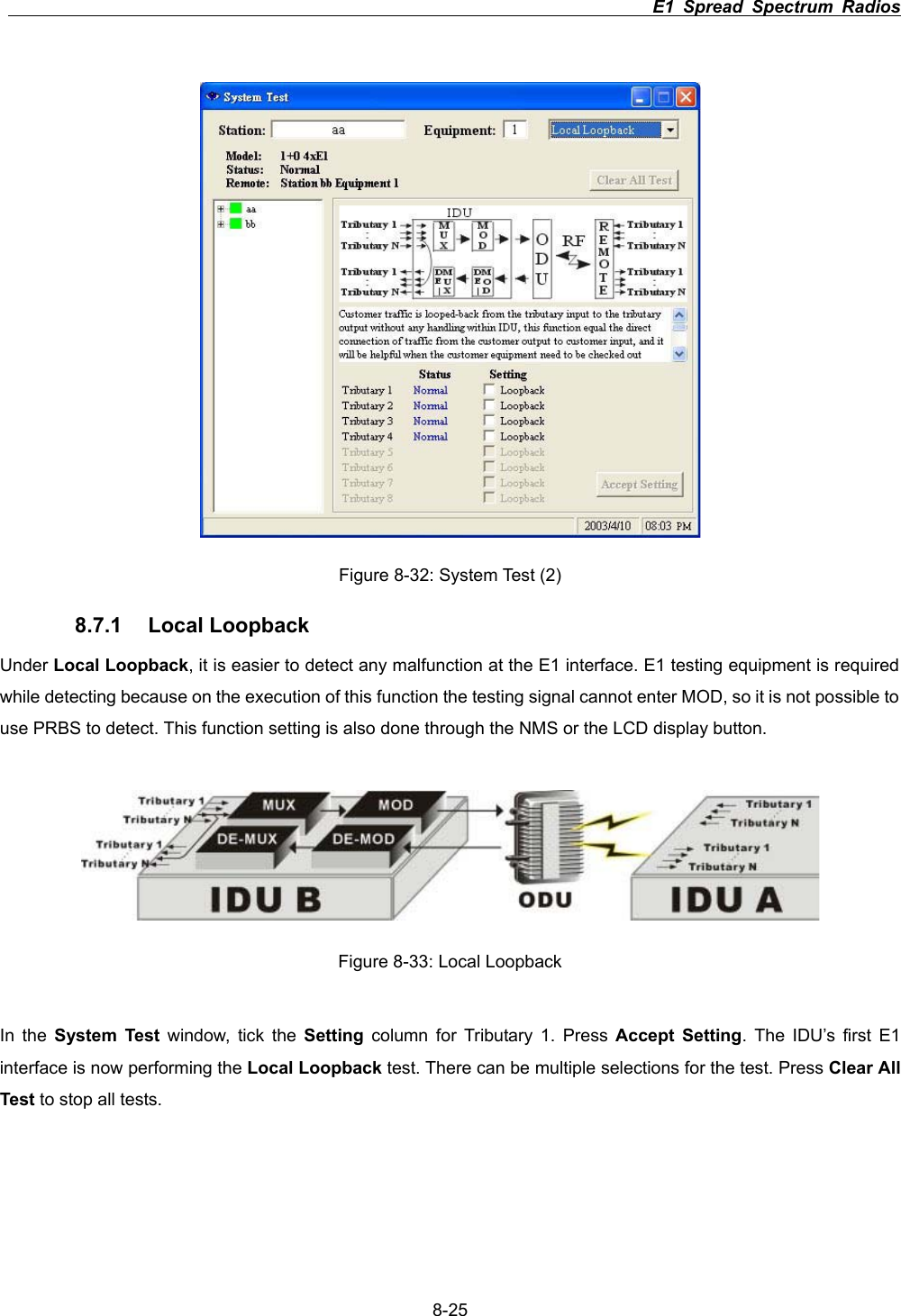
                                                                         E1 Spread Spectrum Radios      8-25Figure 8-32: System Test (2) 8.7.1 Local Loopback Under Local Loopback, it is easier to detect any malfunction at the E1 interface. E1 testing equipment is required while detecting because on the execution of this function the testing signal cannot enter MOD, so it is not possible to use PRBS to detect. This function setting is also done through the NMS or the LCD display button.   Figure 8-33: Local Loopback In the System Test window, tick the Setting column for Tributary 1. Press Accept Setting. The IDU’s first E1 interface is now performing the Local Loopback test. There can be multiple selections for the test. Press Clear All Test to stop all tests.
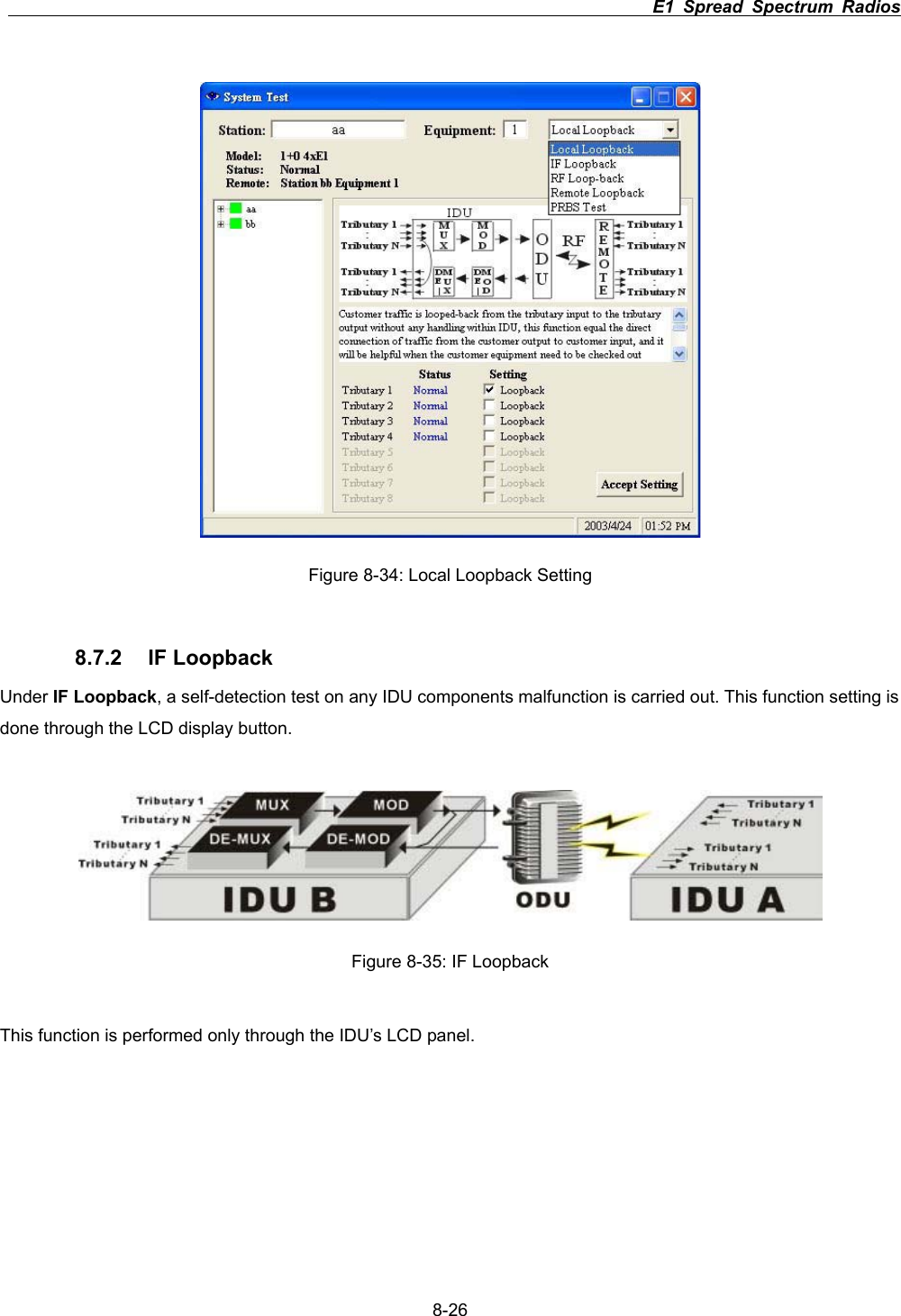
                                                                         E1 Spread Spectrum Radios      8-26Figure 8-34: Local Loopback Setting 8.7.2 IF Loopback Under IF Loopback, a self-detection test on any IDU components malfunction is carried out. This function setting is done through the LCD display button. Figure 8-35: IF Loopback This function is performed only through the IDU’s LCD panel.
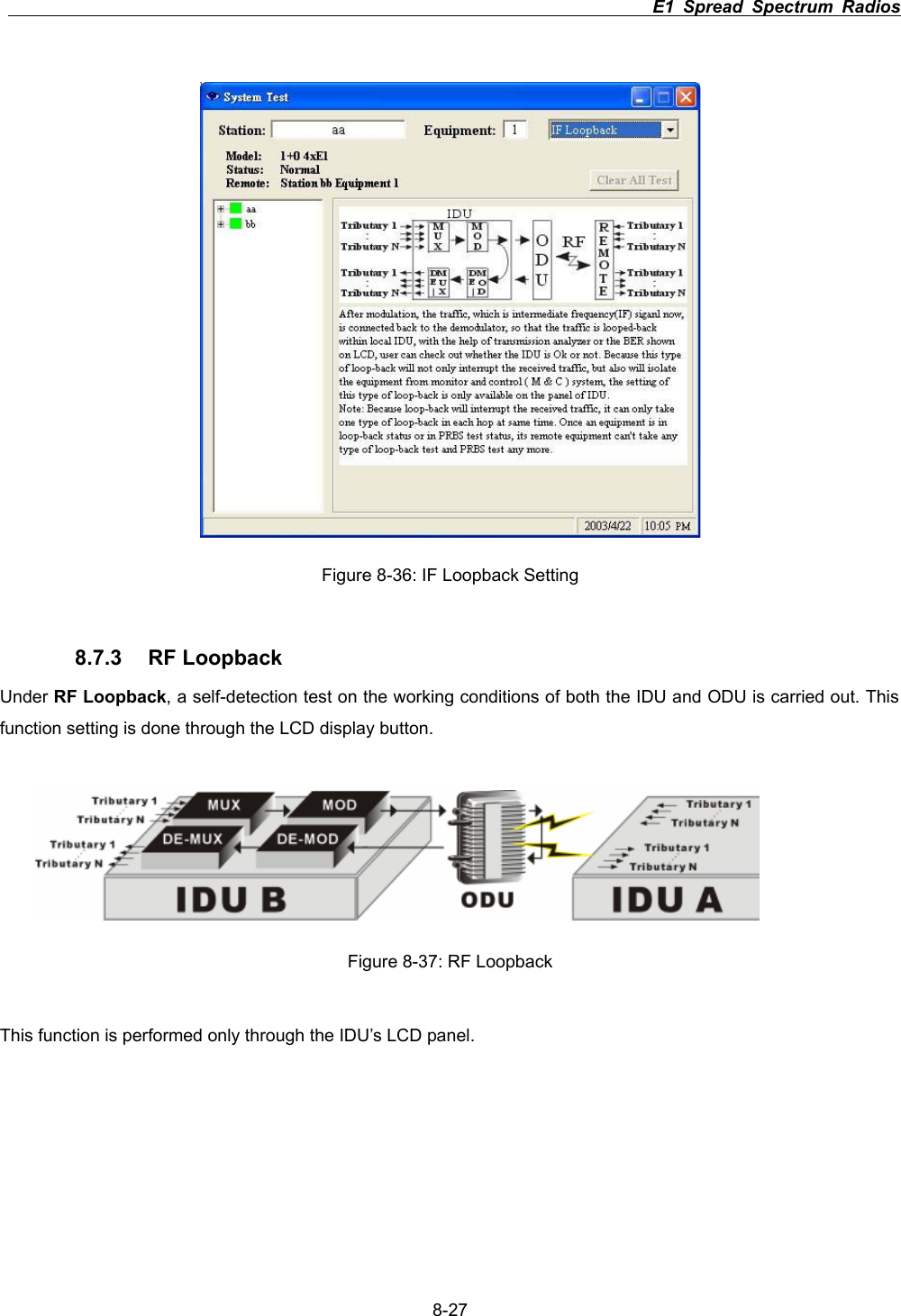
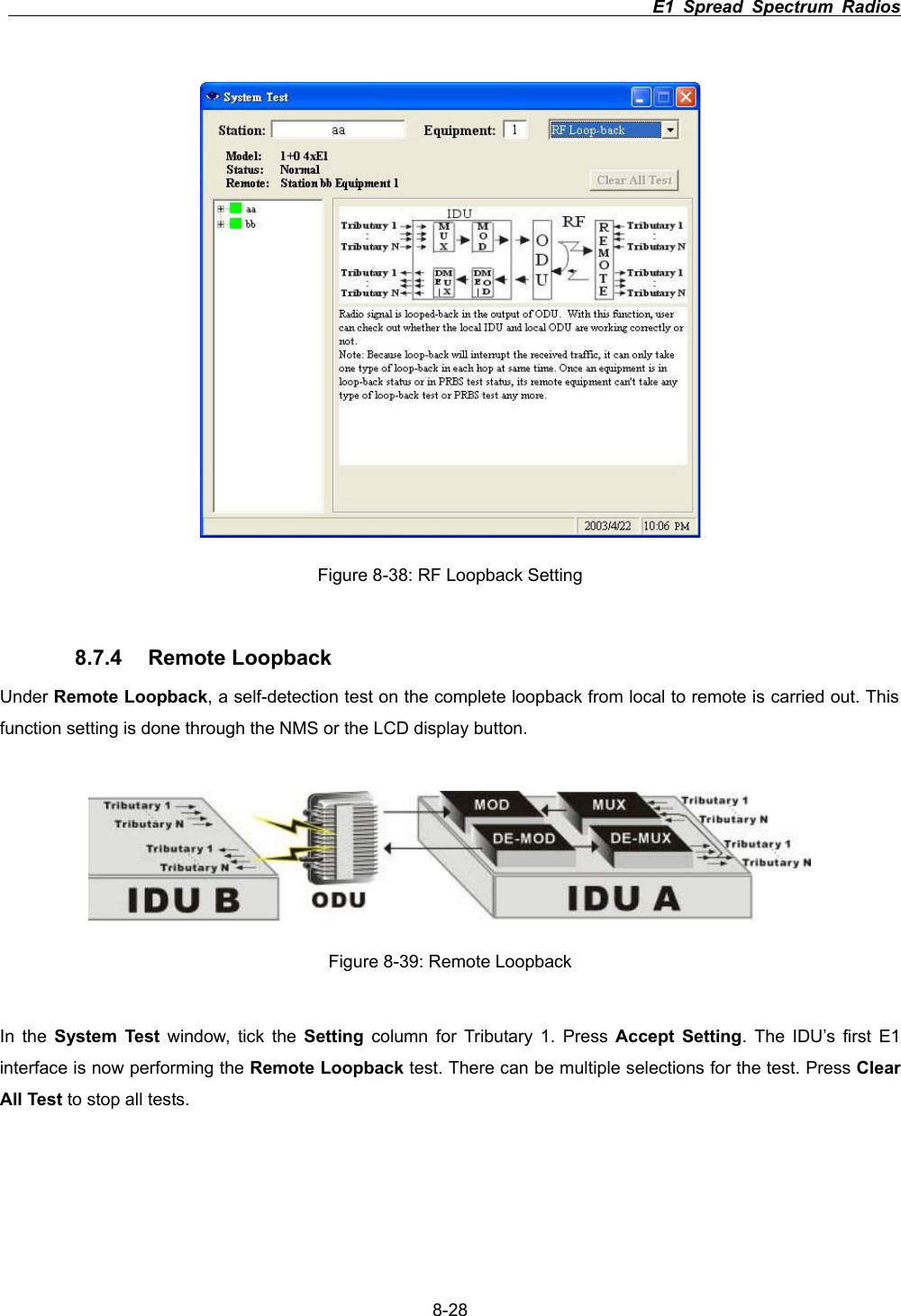
                                                                         E1 Spread Spectrum Radios      8-27Figure 8-36: IF Loopback Setting 8.7.3 RF Loopback Under RF Loopback, a self-detection test on the working conditions of both the IDU and ODU is carried out. This function setting is done through the LCD display button.   Figure 8-37: RF Loopback This function is performed only through the IDU’s LCD panel.
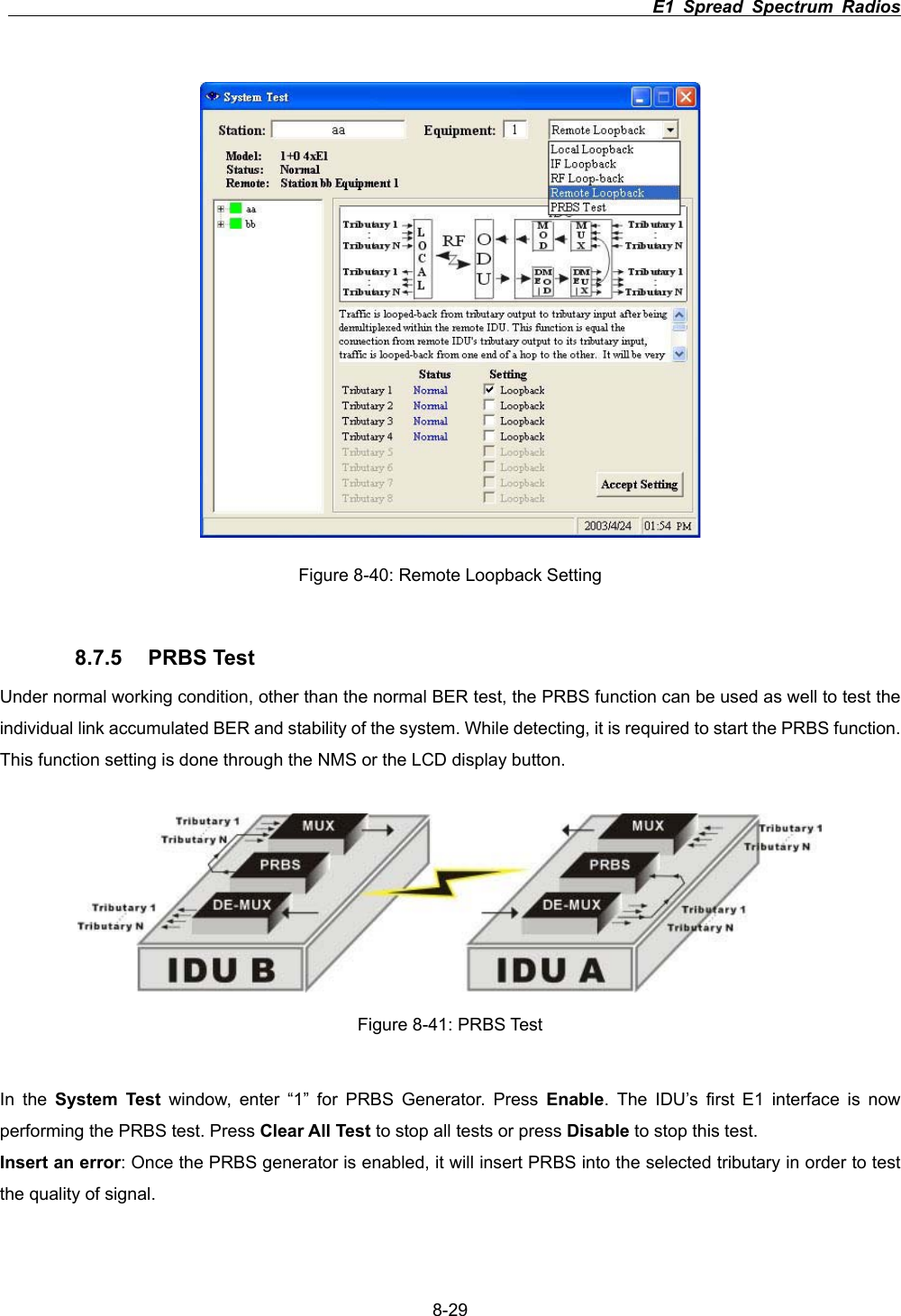
                                                                         E1 Spread Spectrum Radios      8-28Figure 8-38: RF Loopback Setting 8.7.4 Remote Loopback Under Remote Loopback, a self-detection test on the complete loopback from local to remote is carried out. This function setting is done through the NMS or the LCD display button.   Figure 8-39: Remote Loopback In the System Test window, tick the Setting column for Tributary 1. Press Accept Setting. The IDU’s first E1 interface is now performing the Remote Loopback test. There can be multiple selections for the test. Press Clear All Test to stop all tests.
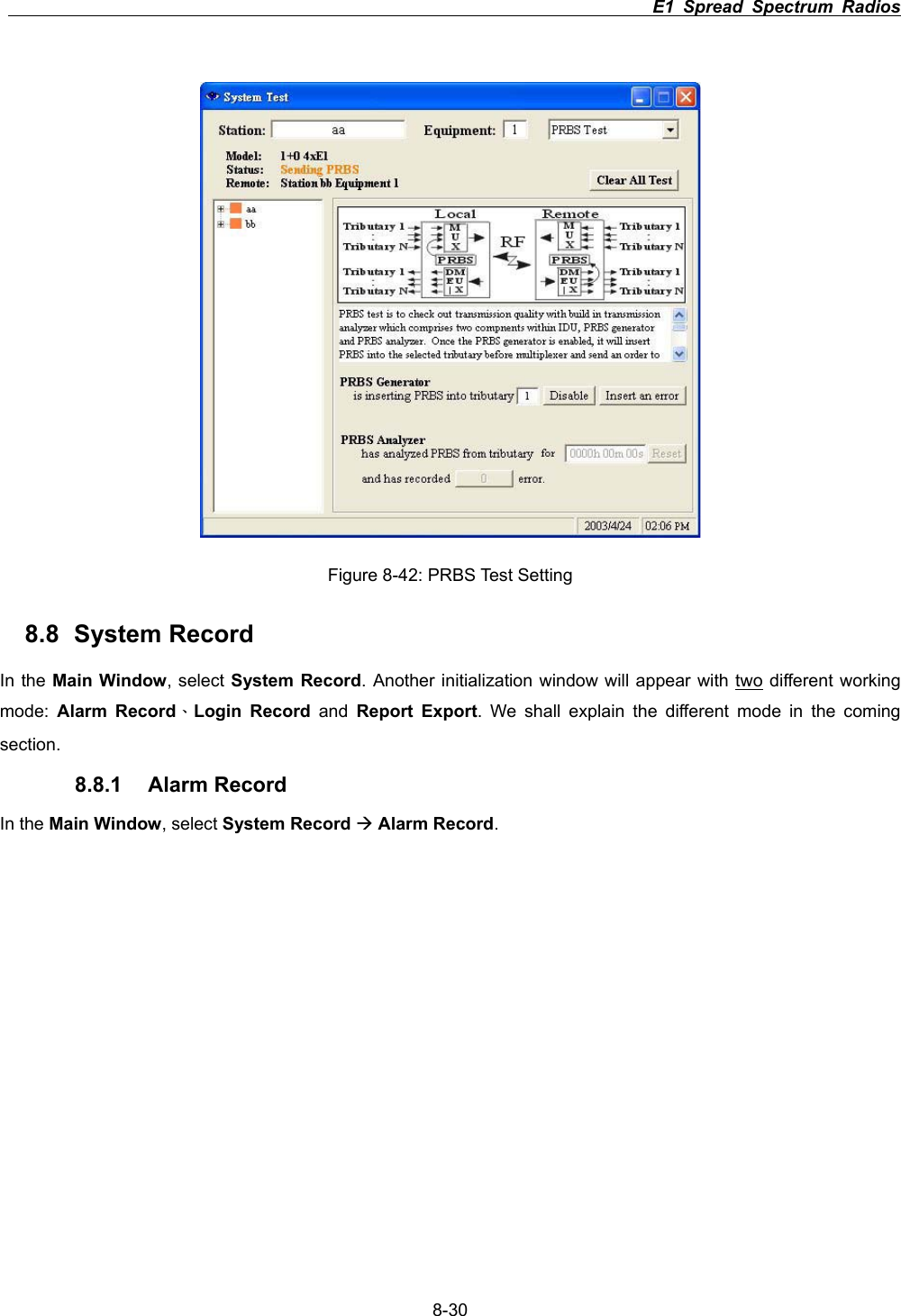
                                                                         E1 Spread Spectrum Radios      8-29Figure 8-40: Remote Loopback Setting 8.7.5 PRBS Test Under normal working condition, other than the normal BER test, the PRBS function can be used as well to test the individual link accumulated BER and stability of the system. While detecting, it is required to start the PRBS function. This function setting is done through the NMS or the LCD display button. Figure 8-41: PRBS Test In the System Test window, enter “1” for PRBS Generator. Press Enable. The IDU’s first E1 interface is now performing the PRBS test. Press Clear All Test to stop all tests or press Disable to stop this test. Insert an error: Once the PRBS generator is enabled, it will insert PRBS into the selected tributary in order to test the quality of signal.
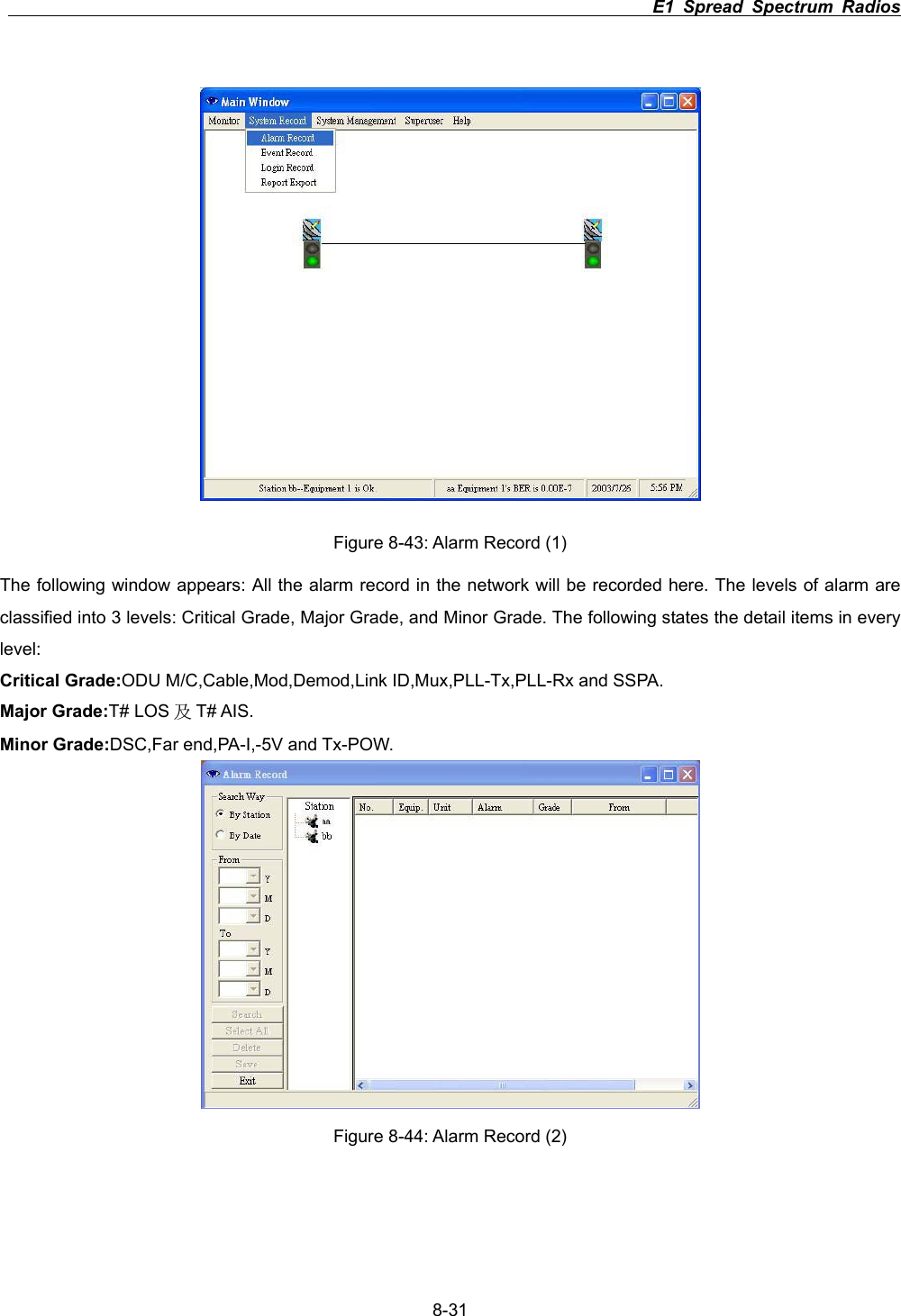
                                                                         E1 Spread Spectrum Radios      8-30Figure 8-42: PRBS Test Setting 8.8 System Record In the Main Window, select System Record. Another initialization window will appear with two different working mode: Alarm RecordΕLogin Record and Report Export. We shall explain the different mode in the coming section. 8.8.1 Alarm Record In the Main Window, select System Record ÆAlarm Record.
                                                                         E1 Spread Spectrum Radios      8-31Figure 8-43: Alarm Record (1) The following window appears: All the alarm record in the network will be recorded here. The levels of alarm are classified into 3 levels: Critical Grade, Major Grade, and Minor Grade. The following states the detail items in every level:Critical Grade:ODU M/C,Cable,Mod,Demod,Link ID,Mux,PLL-Tx,PLL-Rx and SSPA. Major Grade:T# LOS ֗T# AIS. Minor Grade:DSC,Far end,PA-I,-5V and Tx-POW. Figure 8-44: Alarm Record (2)

Navigation menu