KEEBOX W150NR WIRELESS N 150 HOME ROUTER User Manual ug w150nr v1 100702

KEEBOX,Inc. WIRELESS N 150 HOME ROUTER ug w150nr v1 100702

Contents

Users Manual 2

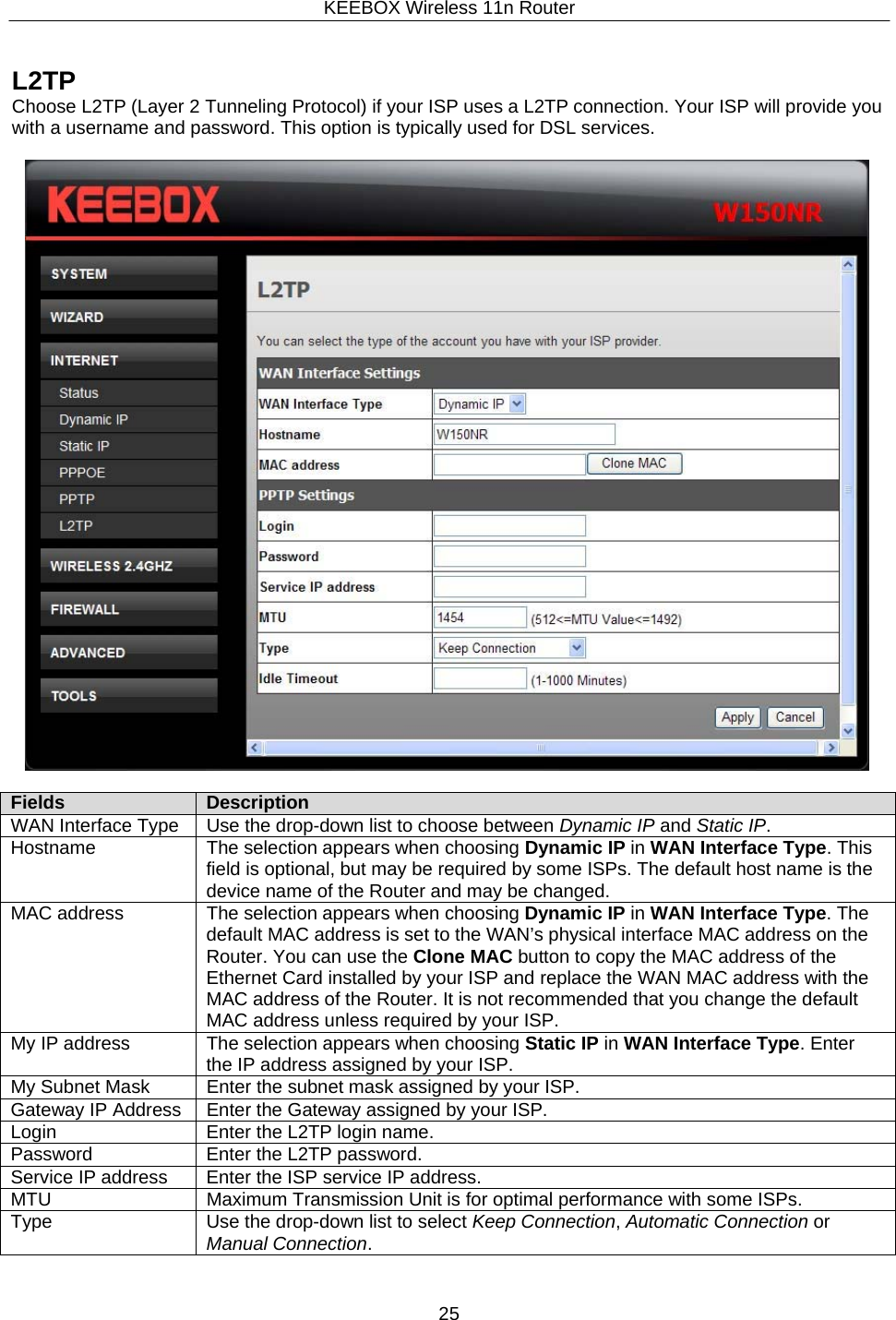
KEEBOX Wireless 11n Router25     L2TP Choose L2TP (Layer 2 Tunneling Protocol) if your ISP uses a L2TP connection. Your ISP will provide you with a username and password. This option is typically used for DSL services.    Fields Description WAN Interface Type Use the drop-down list to choose between Dynamic IP and Static IP. Hostname The selection appears when choosing Dynamic IP in WAN Interface Type. This field is optional, but may be required by some ISPs. The default host name is the device name of the Router and may be changed. MAC address The selection appears when choosing Dynamic IP in WAN Interface Type. The default MAC address is set to the WAN’s physical interface MAC address on the Router. You can use the Clone MAC button to copy the MAC address of the Ethernet Card installed by your ISP and replace the WAN MAC address with the MAC address of the Router. It is not recommended that you change the default MAC address unless required by your ISP. My IP address The selection appears when choosing Static IP in WAN Interface Type. Enter the IP address assigned by your ISP. My Subnet Mask Enter the subnet mask assigned by your ISP. Gateway IP Address Enter the Gateway assigned by your ISP. Login Enter the L2TP login name. Password Enter the L2TP password. Service IP address Enter the ISP service IP address. MTU Maximum Transmission Unit is for optimal performance with some ISPs. Type Use the drop-down list to select Keep Connection, Automatic Connection or Manual Connection.
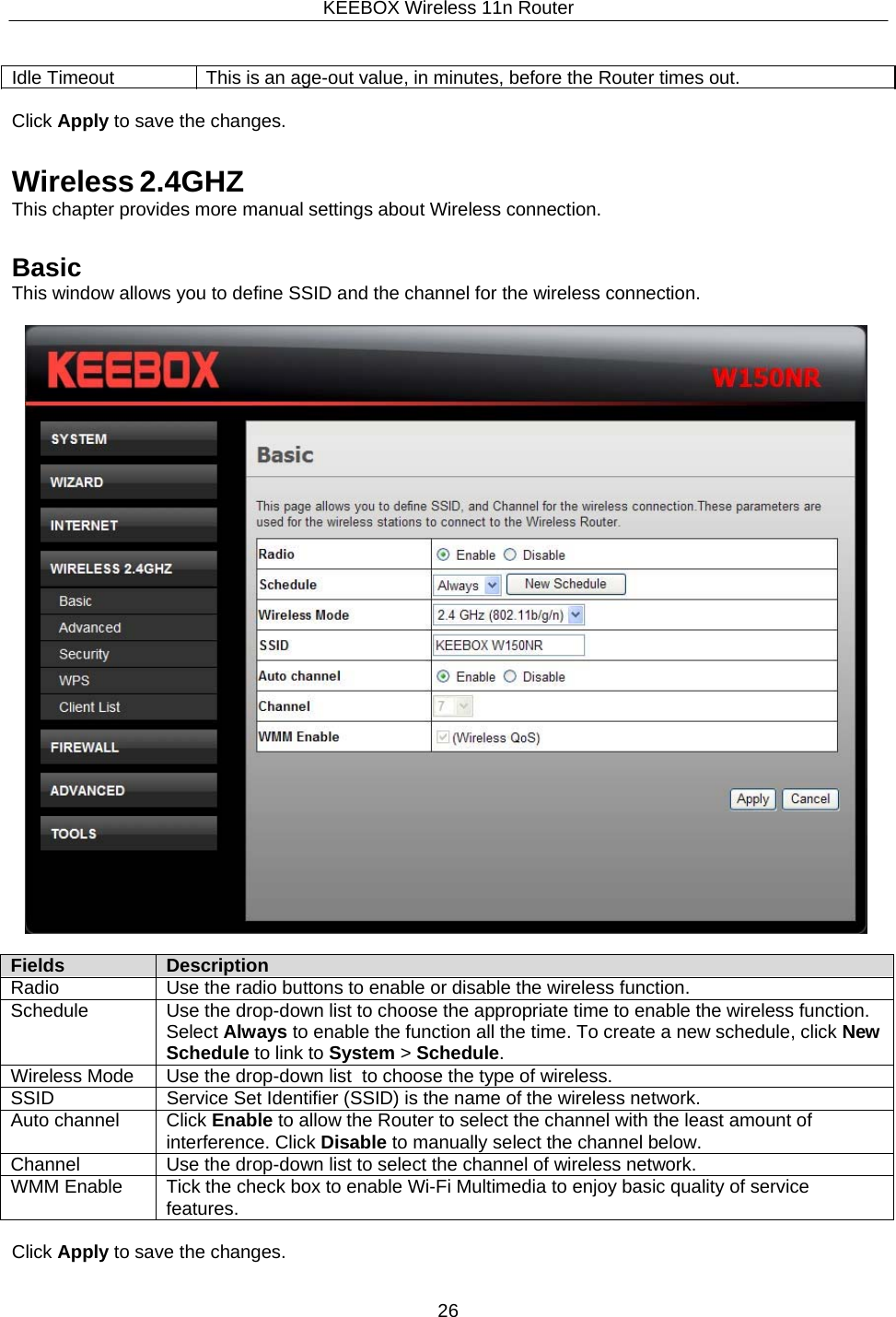
KEEBOX Wireless 11n Router26     Idle Timeout  This is an age-out value, in minutes, before the Router times out.  Click Apply to save the changes.   Wireless 2.4GHZ This chapter provides more manual settings about Wireless connection.   Basic This window allows you to define SSID and the channel for the wireless connection.    Fields Description Radio Use the radio buttons to enable or disable the wireless function. Schedule Use the drop-down list to choose the appropriate time to enable the wireless function. Select Always to enable the function all the time. To create a new schedule, click NewSchedule to link to System > Schedule. Wireless Mode Use the drop-down list  to choose the type of wireless. SSID Service Set Identifier (SSID) is the name of the wireless network. Auto channel Click Enable to allow the Router to select the channel with the least amount of interference. Click Disable to manually select the channel below. Channel Use the drop-down list to select the channel of wireless network. WMM Enable Tick the check box to enable Wi-Fi Multimedia to enjoy basic quality of service features.  Click Apply to save the changes.
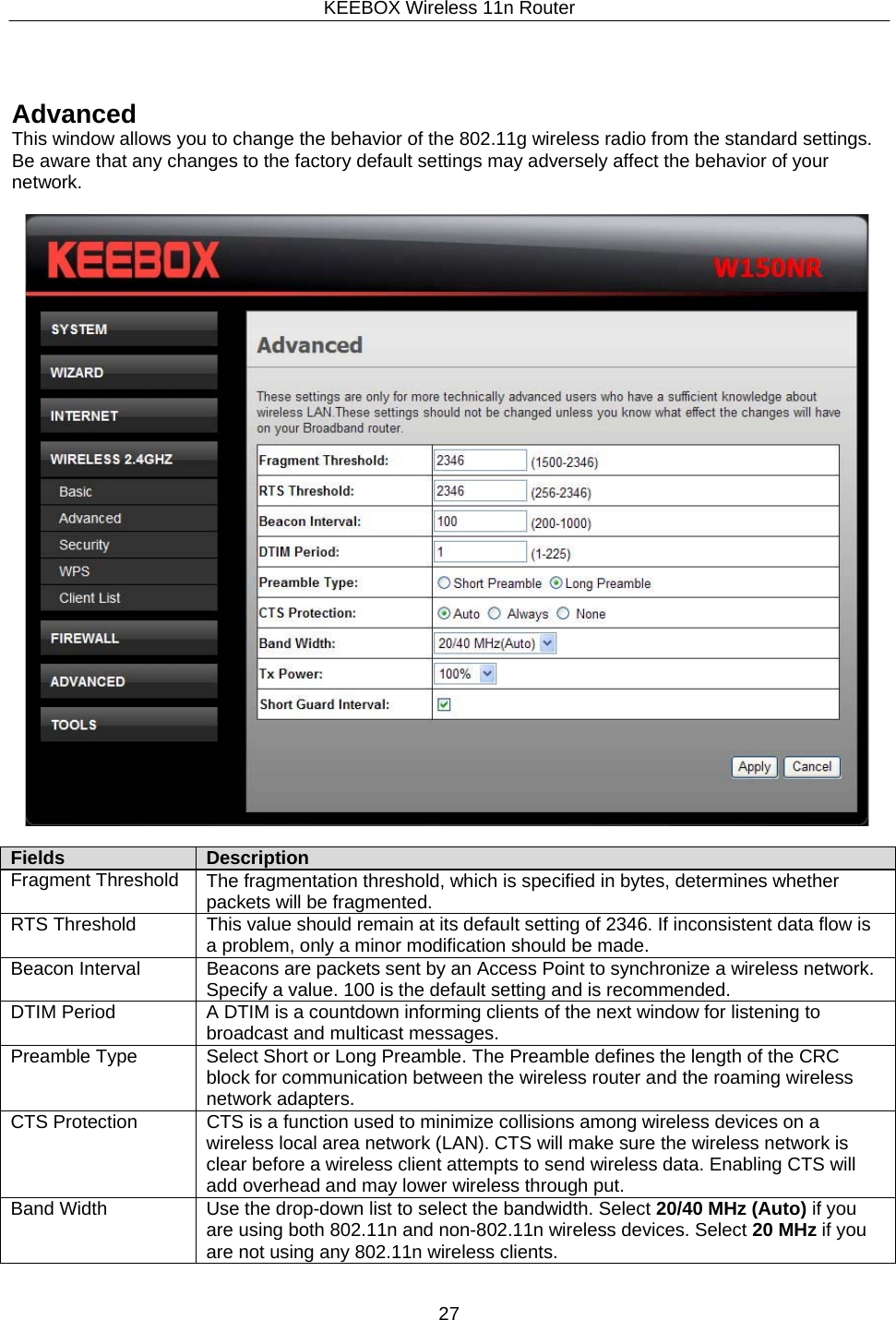
KEEBOX Wireless 11n Router27       Advanced This window allows you to change the behavior of the 802.11g wireless radio from the standard settings. Be aware that any changes to the factory default settings may adversely affect the behavior of your network.    Fields Description Fragment Threshold The fragmentation threshold, which is specified in bytes, determines whether packets will be fragmented.RTS Threshold This value should remain at its default setting of 2346. If inconsistent data flow is a problem, only a minor modification should be made. Beacon Interval Beacons are packets sent by an Access Point to synchronize a wireless network. Specify a value. 100 is the default setting and is recommended. DTIM Period A DTIM is a countdown informing clients of the next window for listening to broadcast and multicast messages. Preamble Type Select Short or Long Preamble. The Preamble defines the length of the CRC block for communication between the wireless router and the roaming wireless network adapters. CTS Protection CTS is a function used to minimize collisions among wireless devices on a wireless local area network (LAN). CTS will make sure the wireless network is clear before a wireless client attempts to send wireless data. Enabling CTS will add overhead and may lower wireless through put. Band Width Use the drop-down list to select the bandwidth. Select 20/40 MHz (Auto) if you are using both 802.11n and non-802.11n wireless devices. Select 20 MHz if you are not using any 802.11n wireless clients.
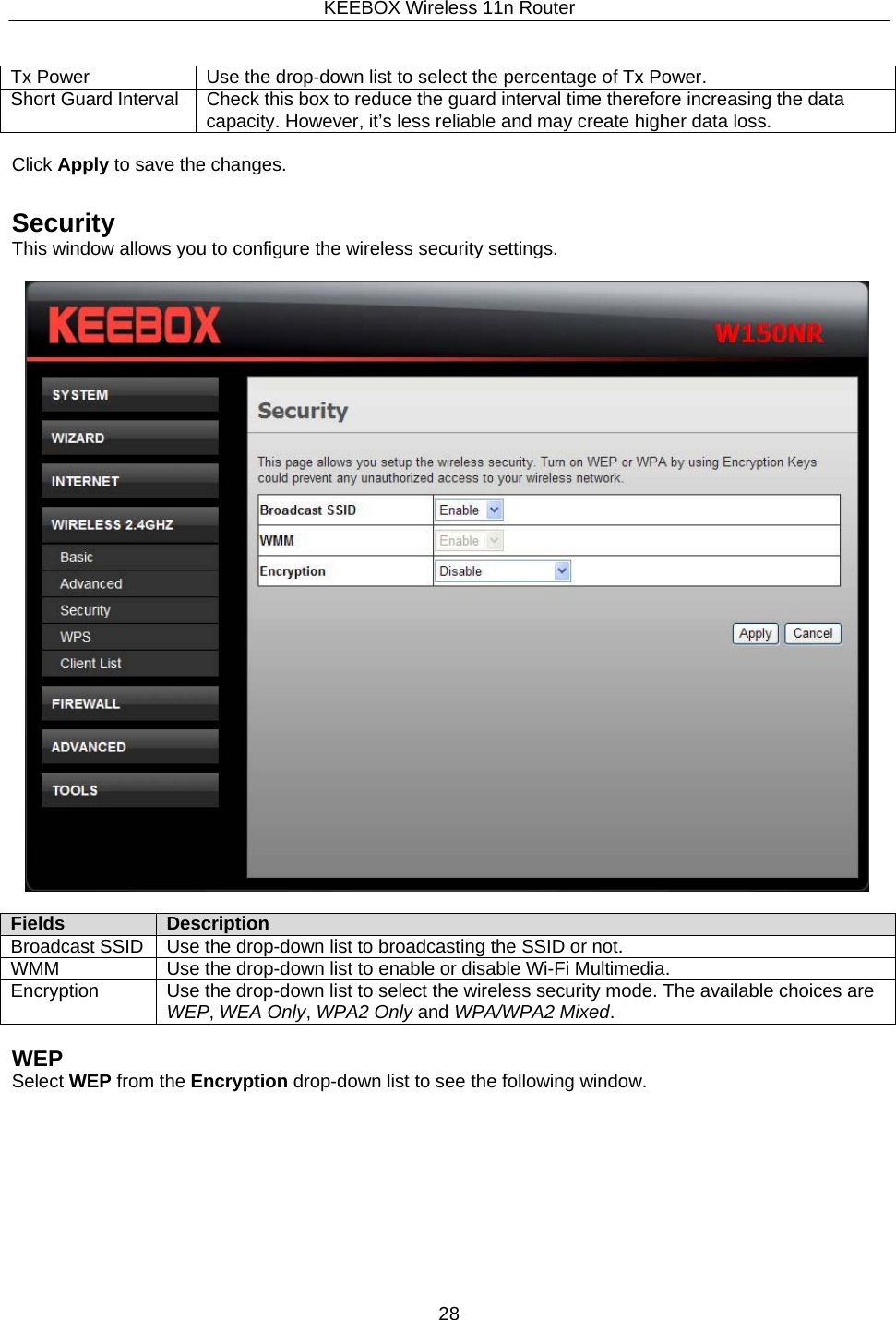
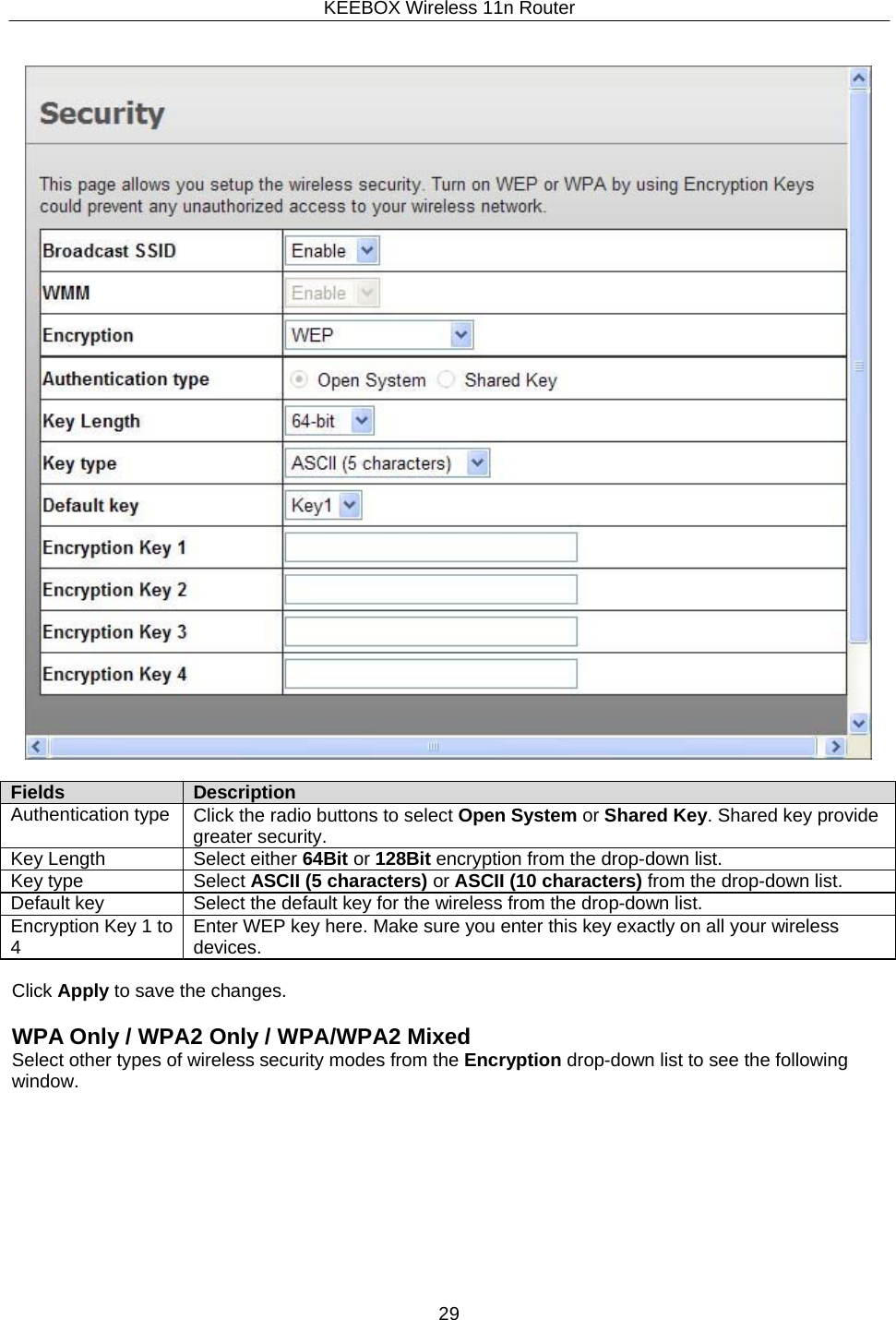
KEEBOX Wireless 11n Router28     Tx Power Use the drop-down list to select the percentage of Tx Power. Short Guard Interval Check this box to reduce the guard interval time therefore increasing the data capacity. However, it’s less reliable and may create higher data loss.  Click Apply to save the changes.   Security This window allows you to configure the wireless security settings.    Fields Description Broadcast SSID Use the drop-down list to broadcasting the SSID or not. WMM Use the drop-down list to enable or disable Wi-Fi Multimedia. Encryption Use the drop-down list to select the wireless security mode. The available choices are WEP, WEA Only, WPA2 Only and WPA/WPA2 Mixed.  WEP Select WEP from the Encryption drop-down list to see the following window.
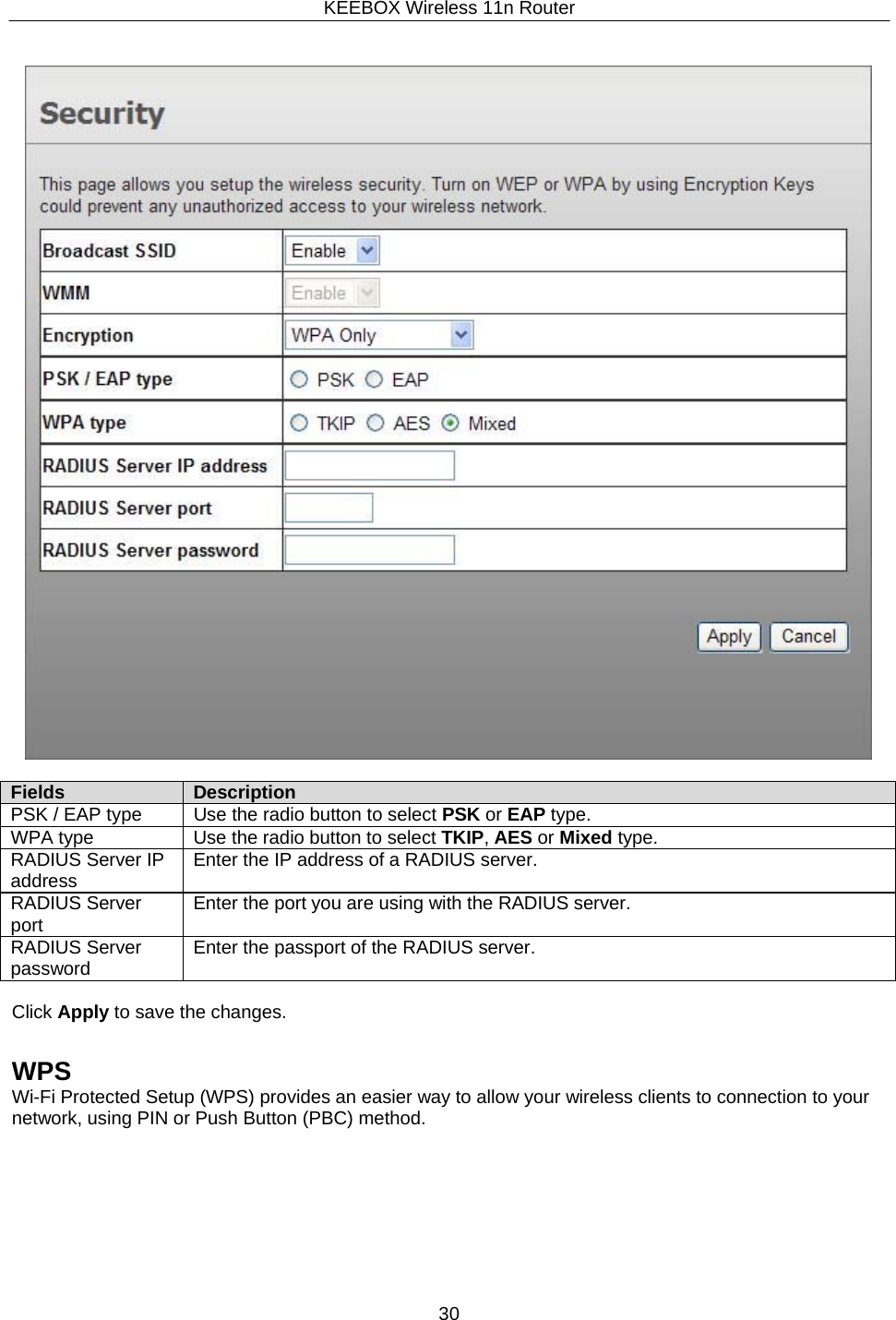
KEEBOX Wireless 11n Router29       Fields Description Authentication type Click the radio buttons to select Open System or Shared Key. Shared key provide greater security. Key Length Select either 64Bit or 128Bit encryption from the drop-down list. Key type Select ASCII (5 characters) or ASCII (10 characters) from the drop-down list. Default key Select the default key for the wireless from the drop-down list. Encryption Key 1 to 4 Enter WEP key here. Make sure you enter this key exactly on all your wireless devices.  Click Apply to save the changes.  WPA Only / WPA2 Only / WPA/WPA2 Mixed Select other types of wireless security modes from the Encryption drop-down list to see the following window.
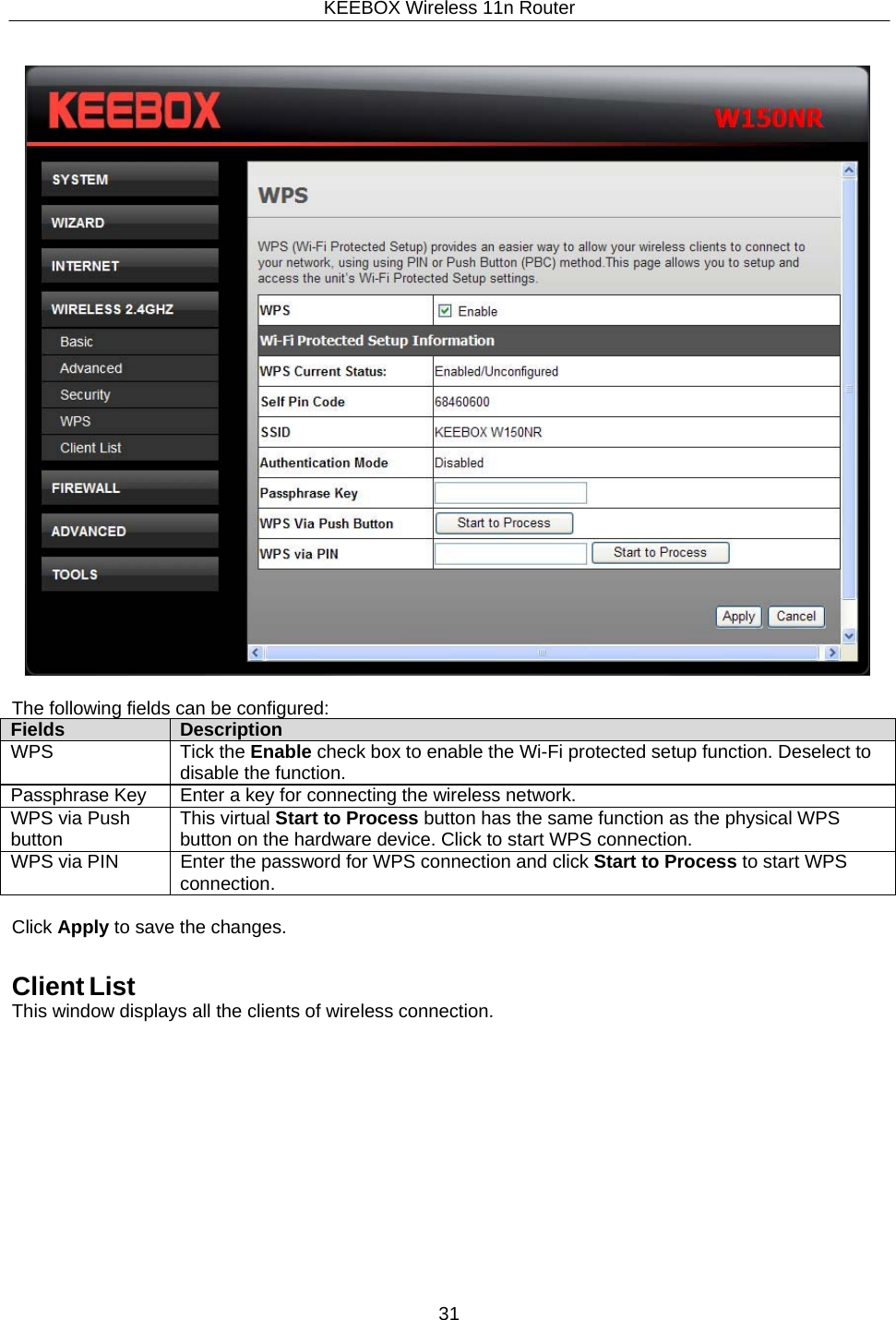
KEEBOX Wireless 11n Router30       Fields Description PSK / EAP type Use the radio button to select PSK or EAP type. WPA type Use the radio button to select TKIP, AES or Mixed type. RADIUS Server IP address Enter the IP address of a RADIUS server. RADIUS Server port Enter the port you are using with the RADIUS server. RADIUS Server password Enter the passport of the RADIUS server.  Click Apply to save the changes.   WPS Wi-Fi Protected Setup (WPS) provides an easier way to allow your wireless clients to connection to your network, using PIN or Push Button (PBC) method.
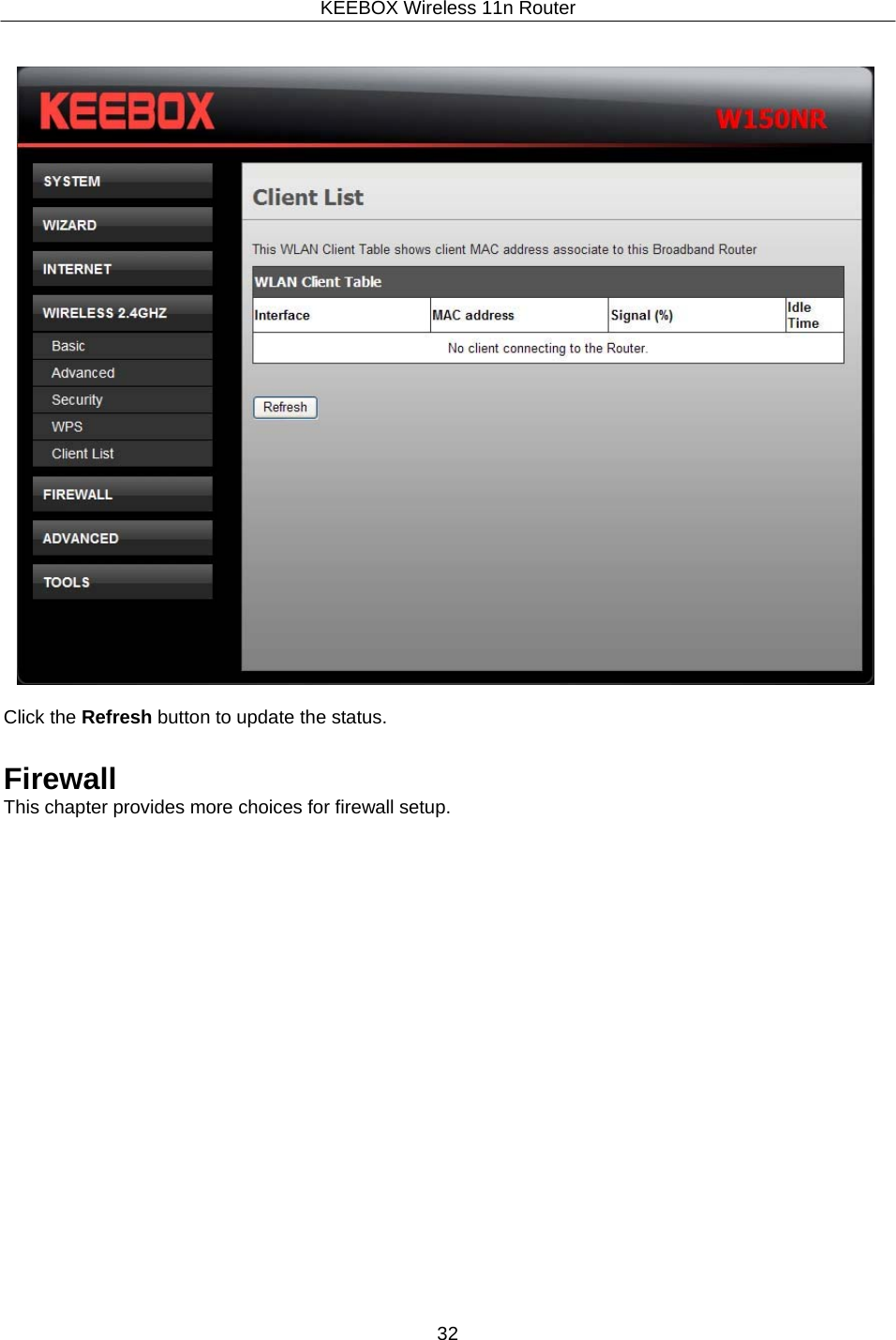
KEEBOX Wireless 11n Router31       The following fields can be configured: Fields Description WPS Tick the Enable check box to enable the Wi-Fi protected setup function. Deselect to disable the function. Passphrase Key Enter a key for connecting the wireless network. WPS via Push button This virtual Start to Process button has the same function as the physical WPS button on the hardware device. Click to start WPS connection. WPS via PIN Enter the password for WPS connection and click Start to Process to start WPS connection.  Click Apply to save the changes.   Client List This window displays all the clients of wireless connection.
KEEBOX Wireless 11n Router32       Click the Refresh button to update the status.   Firewall This chapter provides more choices for firewall setup.
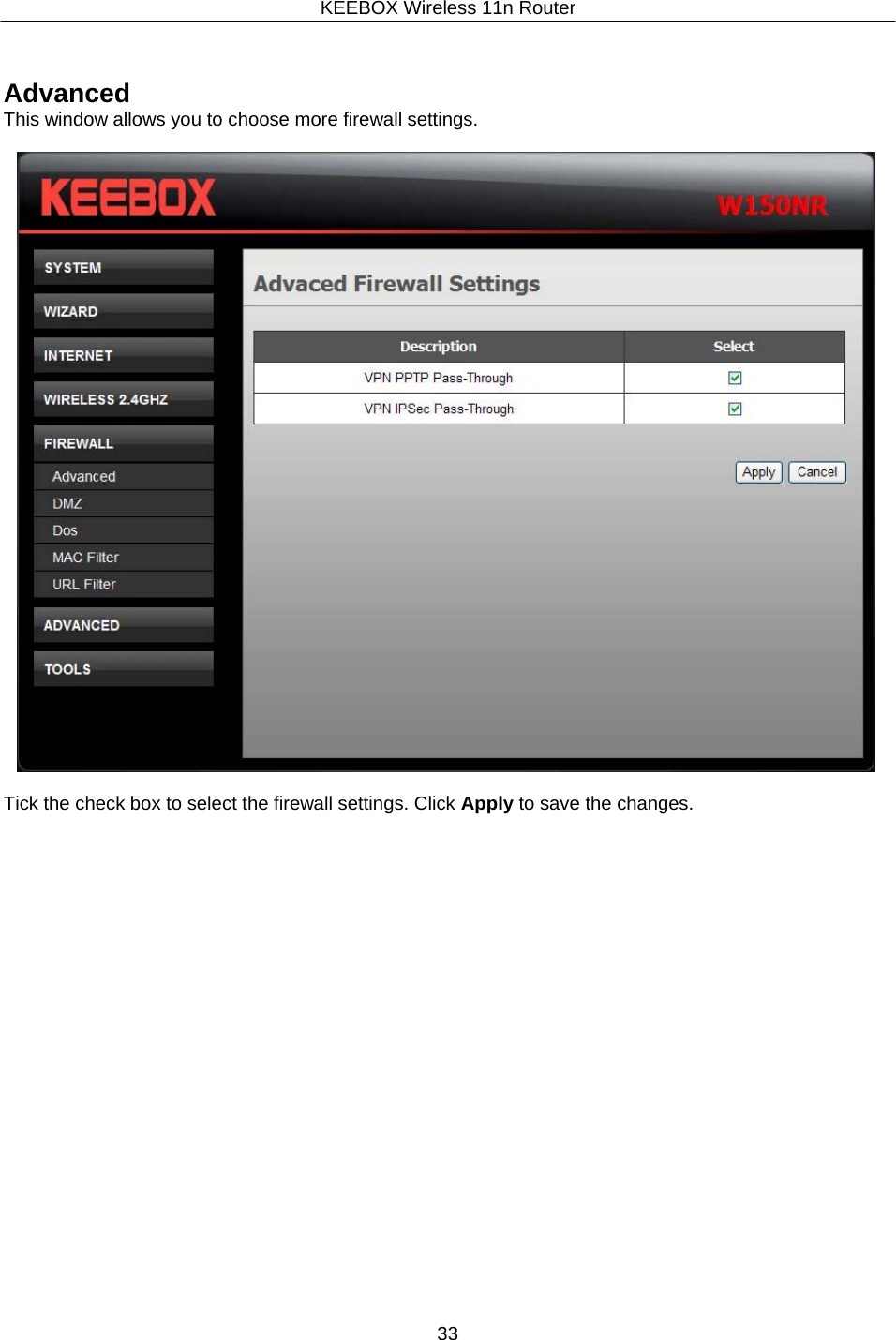
KEEBOX Wireless 11n Router33      Advanced This window allows you to choose more firewall settings.    Tick the check box to select the firewall settings. Click Apply to save the changes.
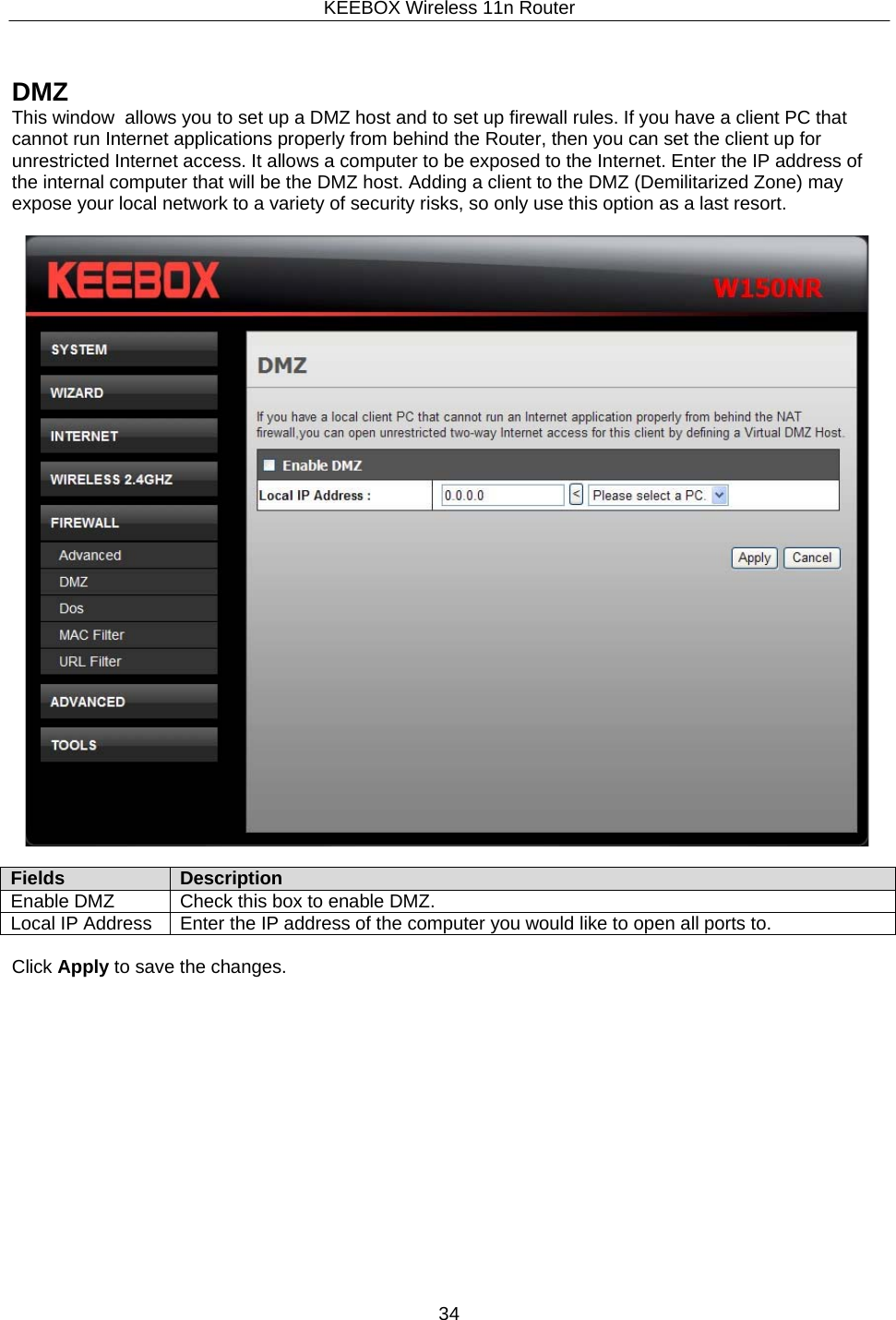
KEEBOX Wireless 11n Router34      DMZ This window  allows you to set up a DMZ host and to set up firewall rules. If you have a client PC that cannot run Internet applications properly from behind the Router, then you can set the client up for unrestricted Internet access. It allows a computer to be exposed to the Internet. Enter the IP address of the internal computer that will be the DMZ host. Adding a client to the DMZ (Demilitarized Zone) may expose your local network to a variety of security risks, so only use this option as a last resort.    Fields Description Enable DMZ Check this box to enable DMZ. Local IP Address Enter the IP address of the computer you would like to open all ports to.  Click Apply to save the changes.
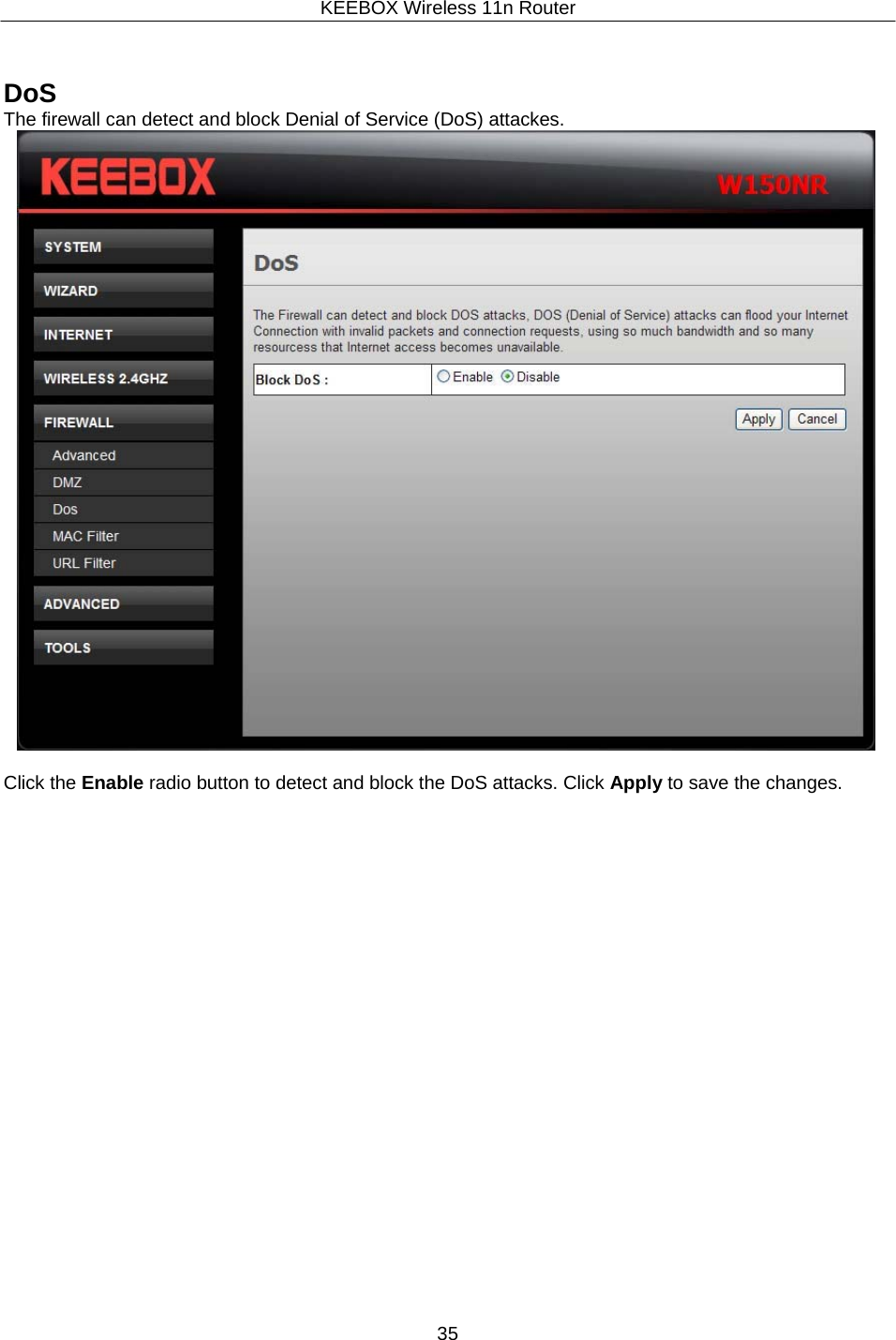
KEEBOX Wireless 11n Router35      DoS The firewall can detect and block Denial of Service (DoS) attackes.   Click the Enable radio button to detect and block the DoS attacks. Click Apply to save the changes.
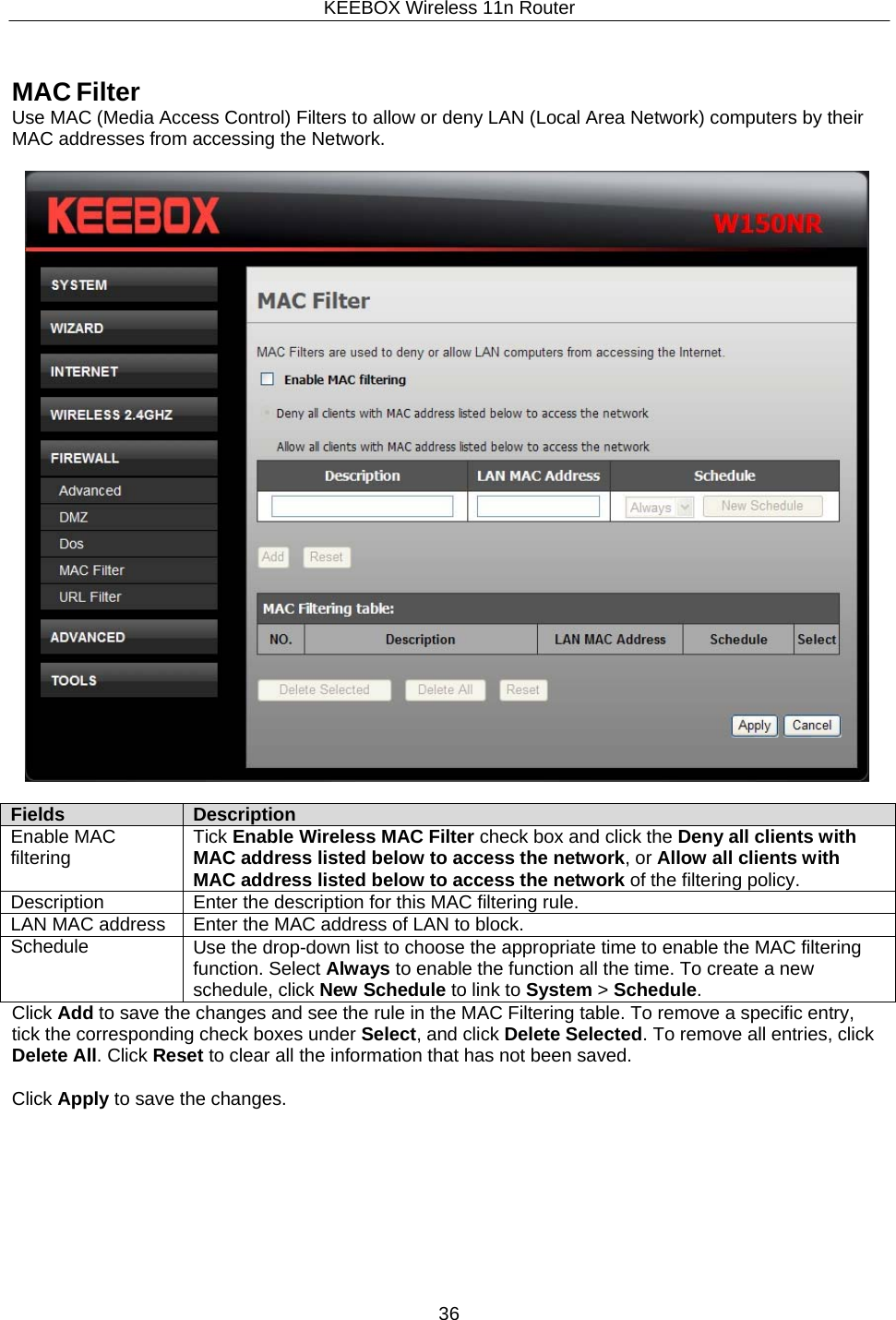
KEEBOX Wireless 11n Router36  Fields Description Enable MAC filtering Tick Enable Wireless MAC Filter check box and click the Deny all clients with MAC address listed below to access the network, or Allow all clients with MAC address listed below to access the network of the filtering policy. Description Enter the description for this MAC filtering rule. LAN MAC address Enter the MAC address of LAN to block. Schedule Use the drop-down list to choose the appropriate time to enable the MAC filtering function. Select Always to enable the function all the time. To create a new schedule, click New Schedule to link to System > Schedule.     MAC Filter Use MAC (Media Access Control) Filters to allow or deny LAN (Local Area Network) computers by their MAC addresses from accessing the Network.               Click Add to save the changes and see the rule in the MAC Filtering table. To remove a specific entry, tick the corresponding check boxes under Select, and click Delete Selected. To remove all entries, click Delete All. Click Reset to clear all the information that has not been saved.  Click Apply to save the changes.
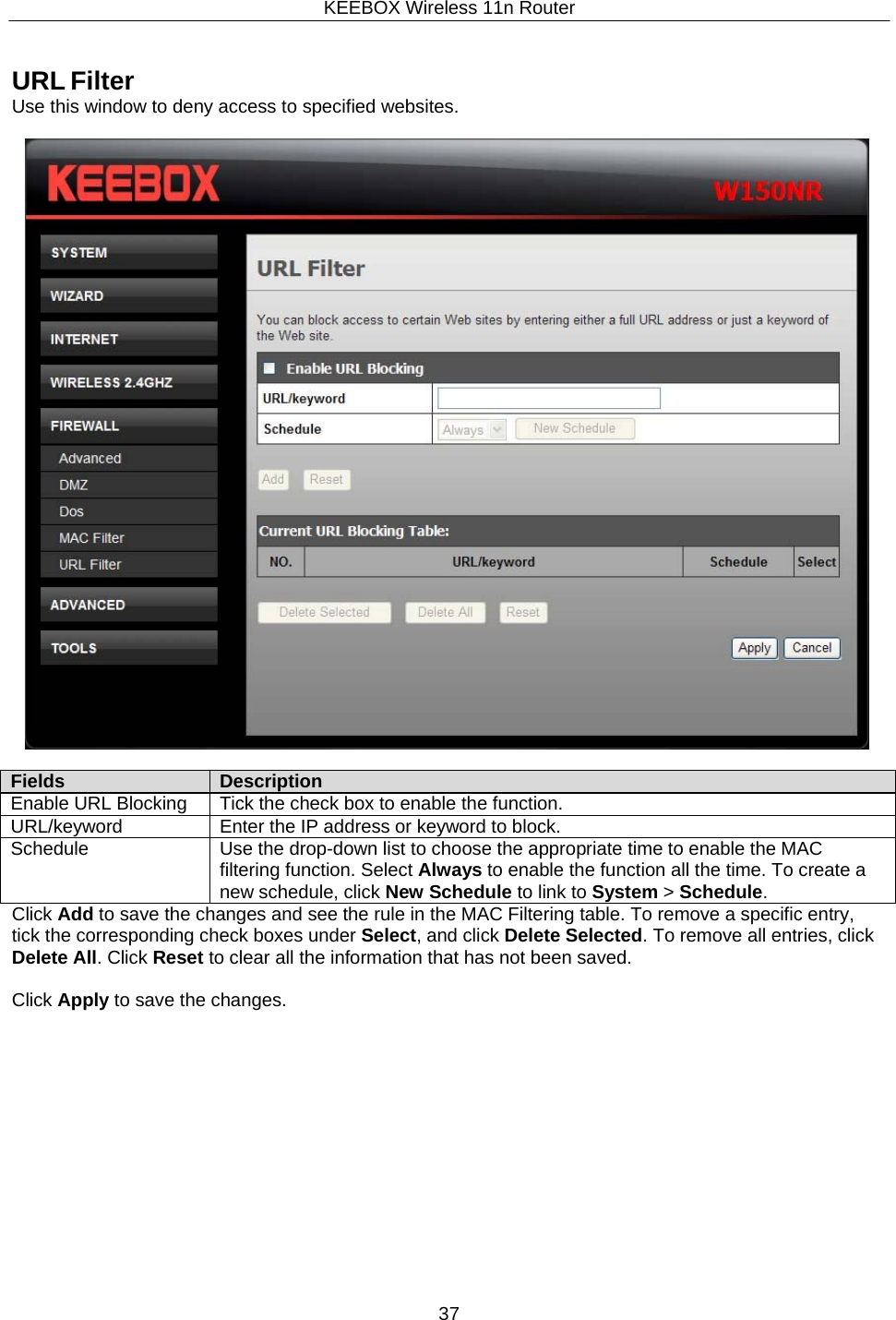
KEEBOX Wireless 11n Router37  Fields Description Enable URL Blocking Tick the check box to enable the function. URL/keyword Enter the IP address or keyword to block. Schedule Use the drop-down list to choose the appropriate time to enable the MAC filtering function. Select Always to enable the function all the time. To create a new schedule, click New Schedule to link to System > Schedule.    URL Filter Use this window to deny access to specified websites.           Click Add to save the changes and see the rule in the MAC Filtering table. To remove a specific entry, tick the corresponding check boxes under Select, and click Delete Selected. To remove all entries, click Delete All. Click Reset to clear all the information that has not been saved.  Click Apply to save the changes.
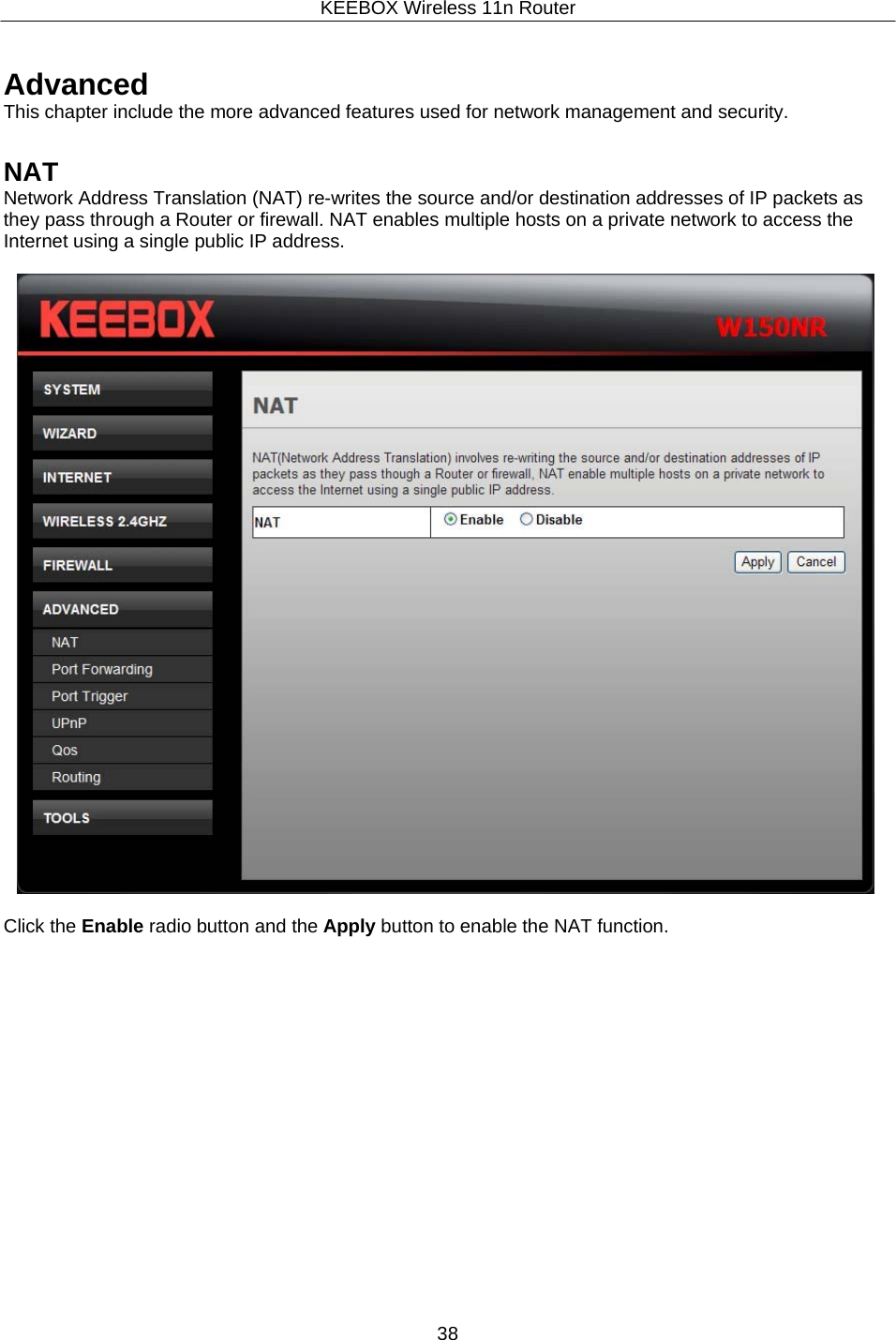
KEEBOX Wireless 11n Router38     Advanced This chapter include the more advanced features used for network management and security.   NAT Network Address Translation (NAT) re-writes the source and/or destination addresses of IP packets as they pass through a Router or firewall. NAT enables multiple hosts on a private network to access the Internet using a single public IP address.    Click the Enable radio button and the Apply button to enable the NAT function.
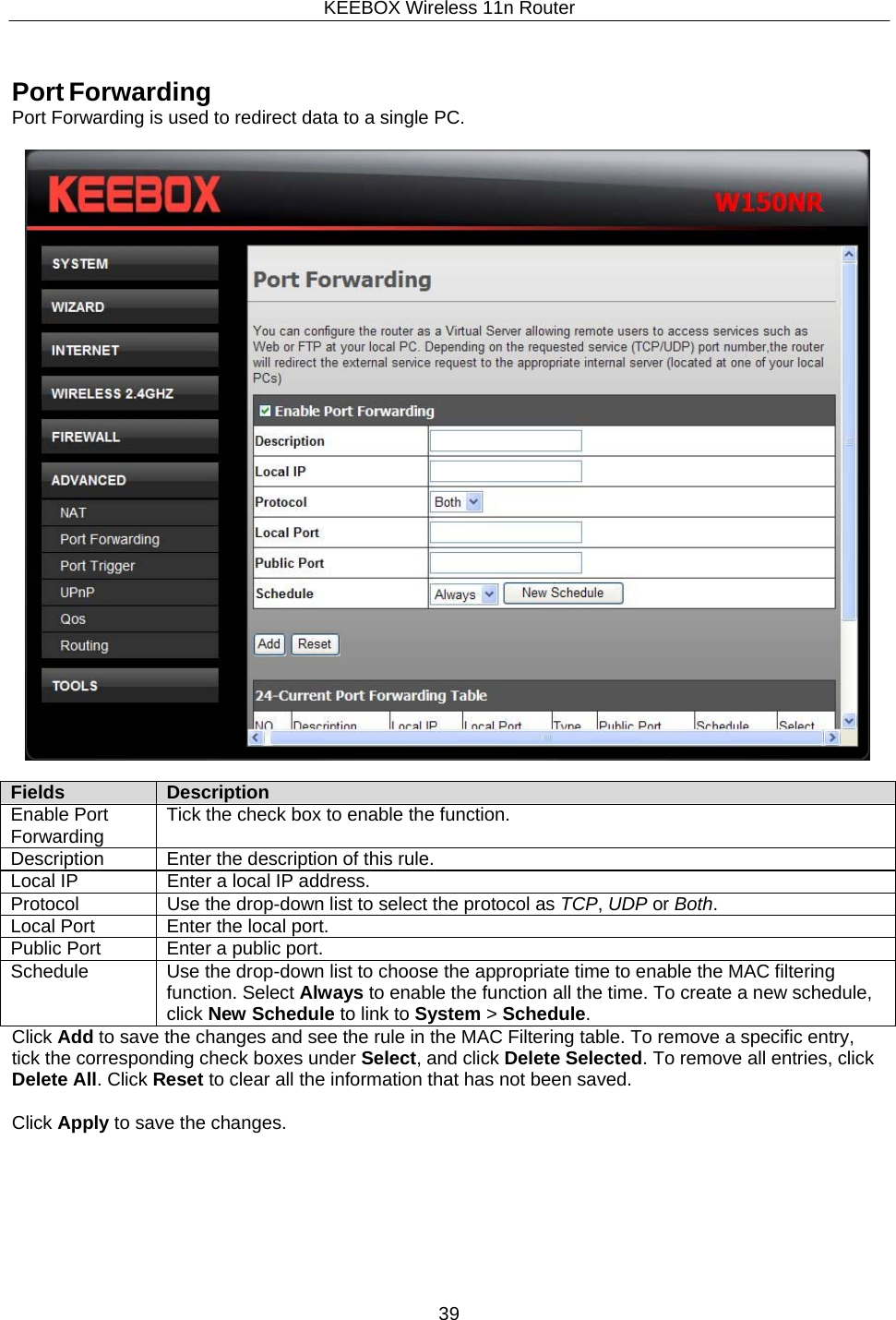
KEEBOX Wireless 11n Router39  Fields Description Enable Port Forwarding Tick the check box to enable the function. Description Enter the description of this rule. Local IP Enter a local IP address. Protocol Use the drop-down list to select the protocol as TCP, UDP or Both. Local Port Enter the local port. Public Port Enter a public port. Schedule Use the drop-down list to choose the appropriate time to enable the MAC filtering function. Select Always to enable the function all the time. To create a new schedule, click New Schedule to link to System > Schedule.     Port Forwarding Port Forwarding is used to redirect data to a single PC.                 Click Add to save the changes and see the rule in the MAC Filtering table. To remove a specific entry, tick the corresponding check boxes under Select, and click Delete Selected. To remove all entries, click Delete All. Click Reset to clear all the information that has not been saved.  Click Apply to save the changes.
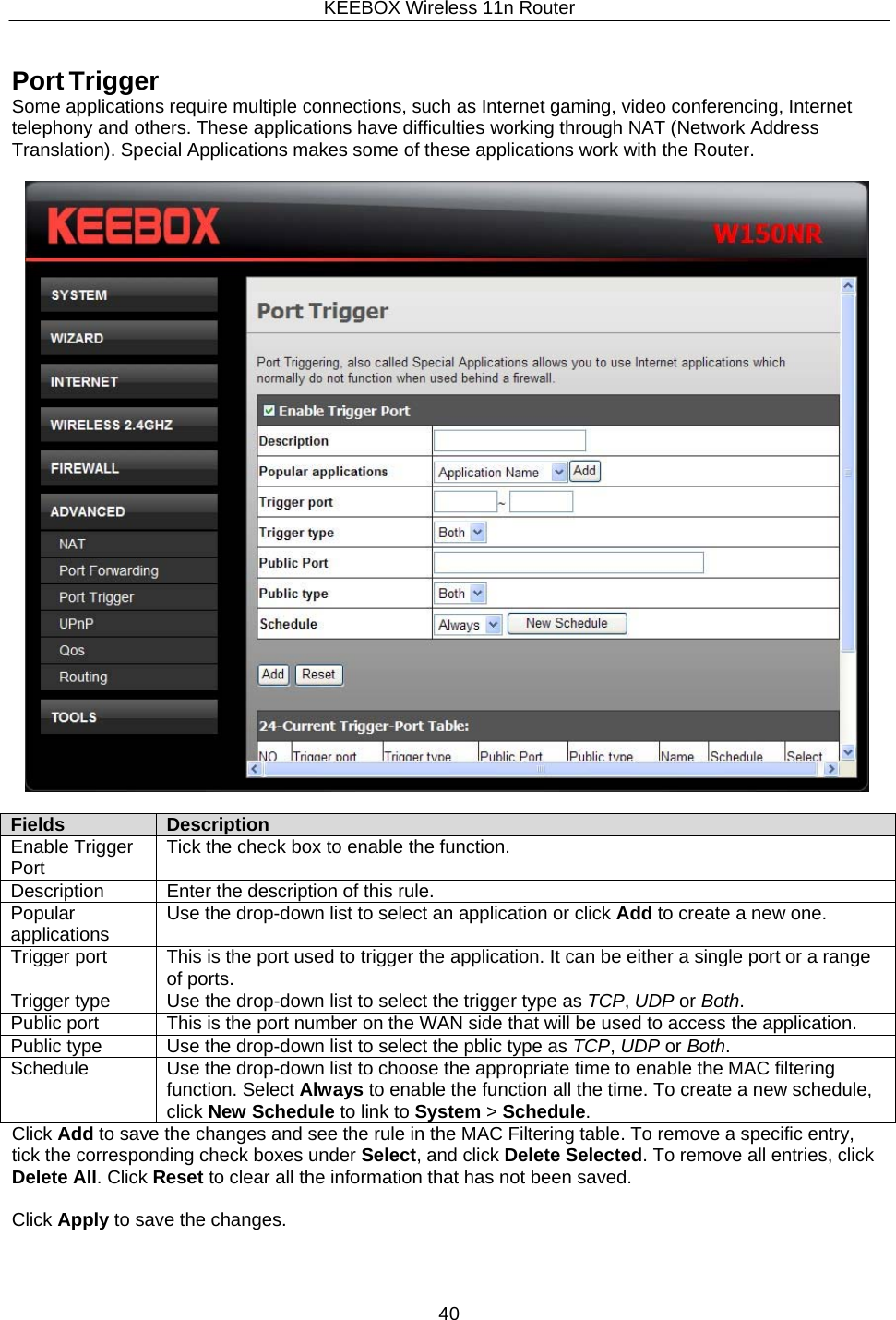
KEEBOX Wireless 11n Router40  Fields Description Enable Trigger Port Tick the check box to enable the function. Description Enter the description of this rule. Popular applications Use the drop-down list to select an application or click Add to create a new one. Trigger port This is the port used to trigger the application. It can be either a single port or a range of ports. Trigger type Use the drop-down list to select the trigger type as TCP, UDP or Both. Public port This is the port number on the WAN side that will be used to access the application. Public type Use the drop-down list to select the pblic type as TCP, UDP or Both. Schedule Use the drop-down list to choose the appropriate time to enable the MAC filtering function. Select Always to enable the function all the time. To create a new schedule, click New Schedule to link to System > Schedule.    Port Trigger Some applications require multiple connections, such as Internet gaming, video conferencing, Internet telephony and others. These applications have difficulties working through NAT (Network Address Translation). Special Applications makes some of these applications work with the Router.                     Click Add to save the changes and see the rule in the MAC Filtering table. To remove a specific entry, tick the corresponding check boxes under Select, and click Delete Selected. To remove all entries, click Delete All. Click Reset to clear all the information that has not been saved.  Click Apply to save the changes.
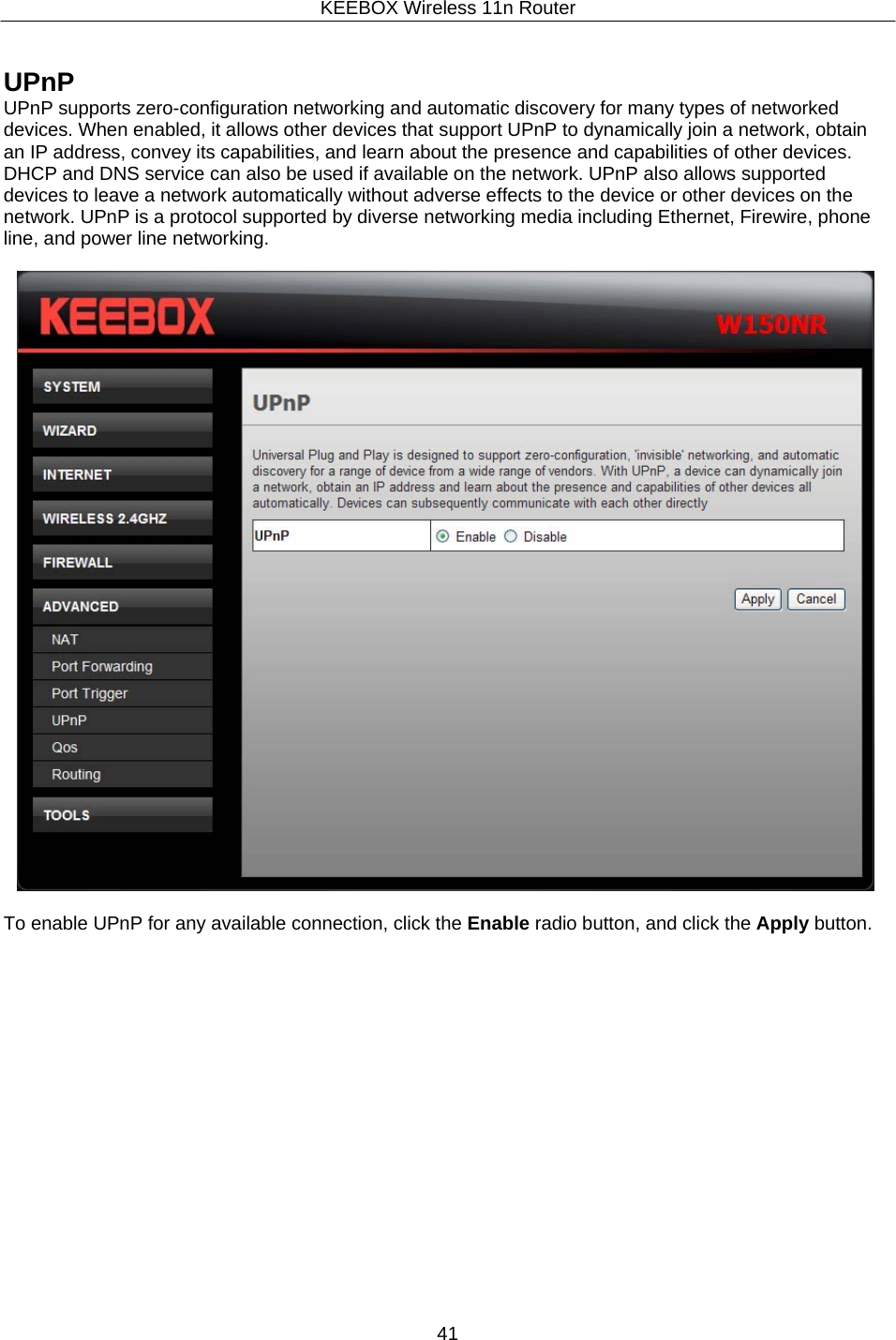
KEEBOX Wireless 11n Router41     UPnP UPnP supports zero-configuration networking and automatic discovery for many types of networked devices. When enabled, it allows other devices that support UPnP to dynamically join a network, obtain an IP address, convey its capabilities, and learn about the presence and capabilities of other devices. DHCP and DNS service can also be used if available on the network. UPnP also allows supported devices to leave a network automatically without adverse effects to the device or other devices on the network. UPnP is a protocol supported by diverse networking media including Ethernet, Firewire, phone line, and power line networking.    To enable UPnP for any available connection, click the Enable radio button, and click the Apply button.
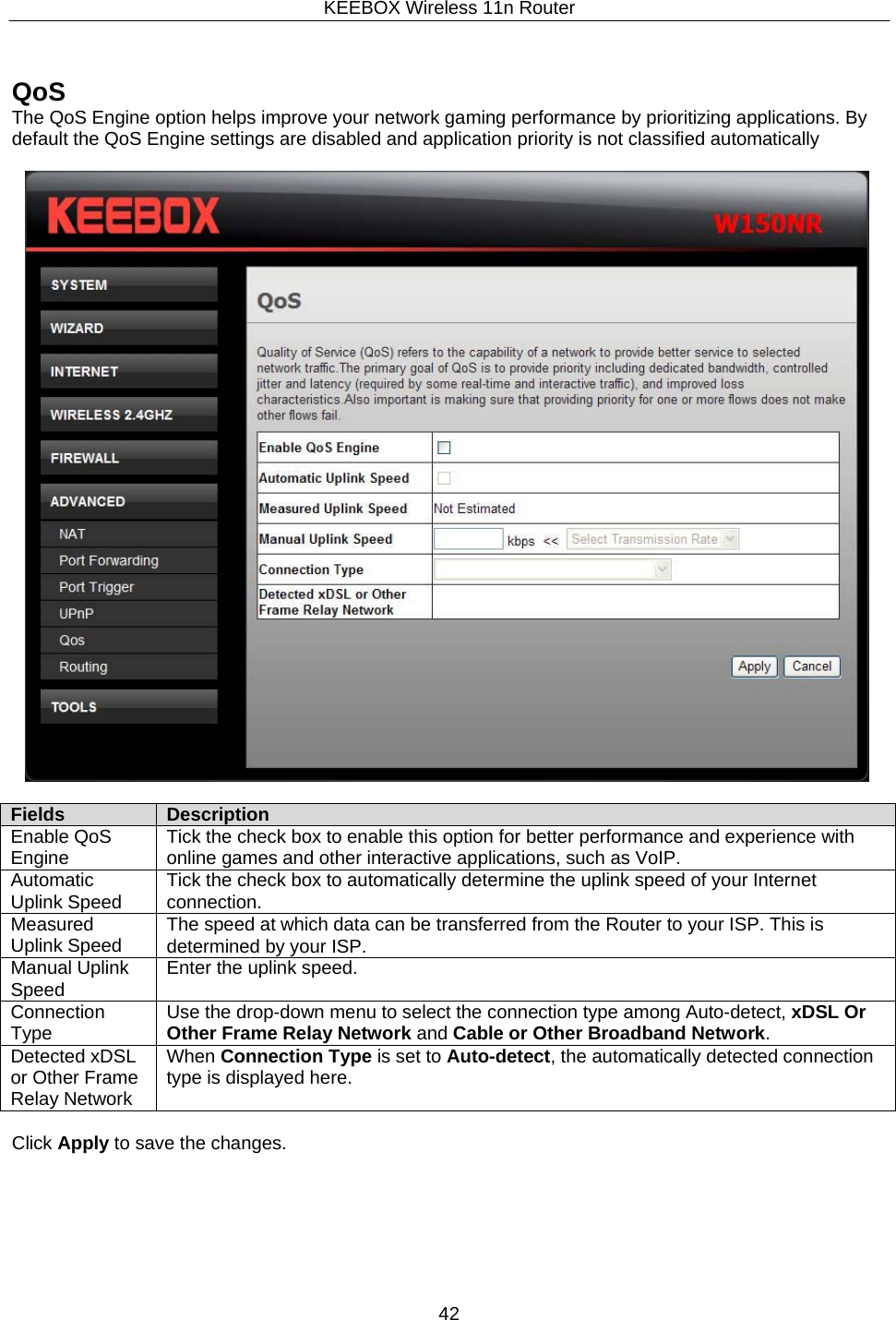
KEEBOX Wireless 11n Router42      QoS The QoS Engine option helps improve your network gaming performance by prioritizing applications. By default the QoS Engine settings are disabled and application priority is not classified automatically    Fields Description Enable QoS Engine Tick the check box to enable this option for better performance and experience with online games and other interactive applications, such as VoIP. Automatic Uplink Speed Tick the check box to automatically determine the uplink speed of your Internet connection. Measured Uplink Speed The speed at which data can be transferred from the Router to your ISP. This is determined by your ISP.Manual Uplink Speed Enter the uplink speed. Connection Type Use the drop-down menu to select the connection type among Auto-detect, xDSL Or Other Frame Relay Network and Cable or Other Broadband Network. Detected xDSL or Other Frame Relay Network When Connection Type is set to Auto-detect, the automatically detected connection type is displayed here.  Click Apply to save the changes.
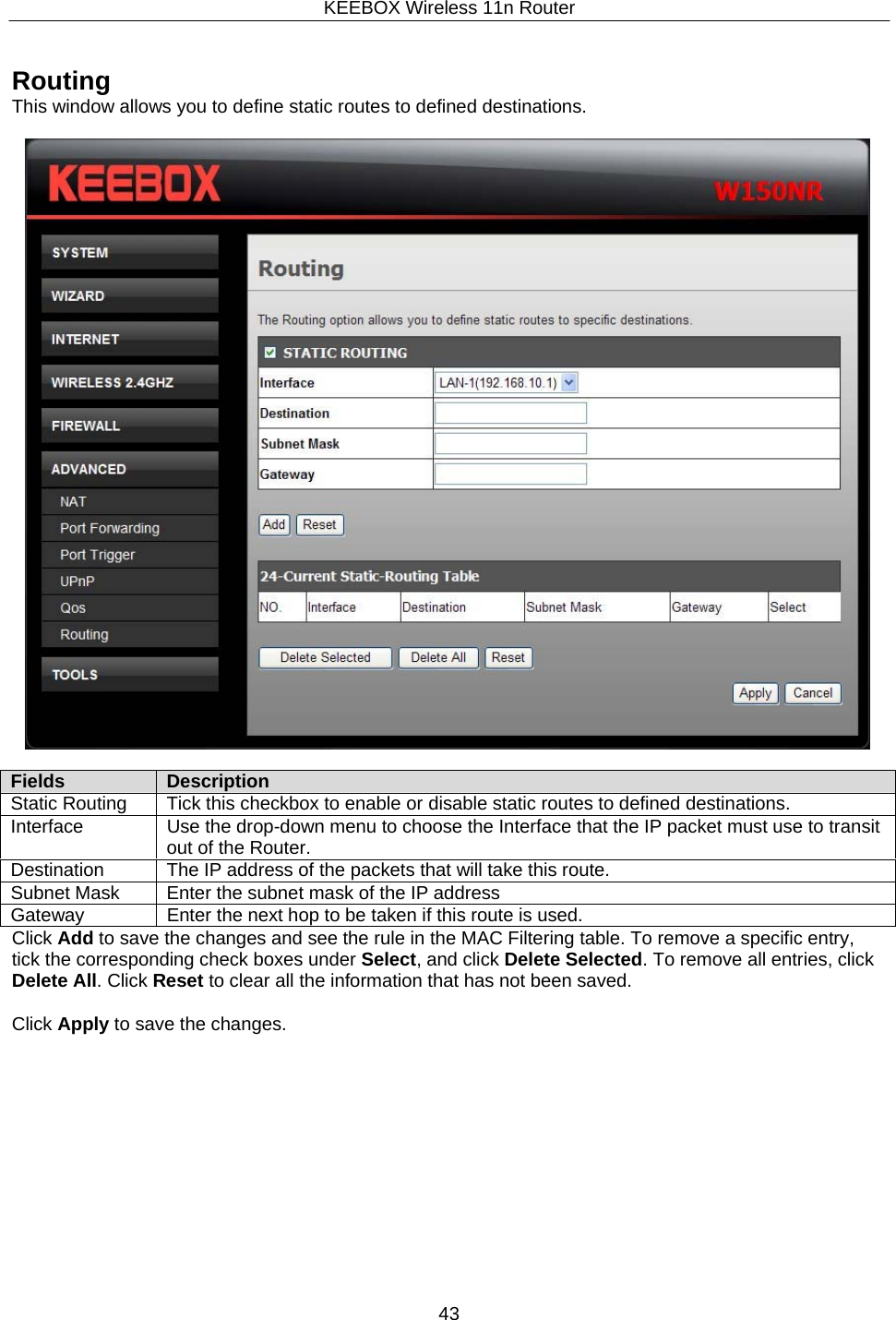
KEEBOX Wireless 11n Router43  Fields Description Static Routing Tick this checkbox to enable or disable static routes to defined destinations. Interface Use the drop-down menu to choose the Interface that the IP packet must use to transitout of the Router. Destination The IP address of the packets that will take this route. Subnet Mask Enter the subnet mask of the IP address Gateway Enter the next hop to be taken if this route is used.    Routing This window allows you to define static routes to defined destinations.             Click Add to save the changes and see the rule in the MAC Filtering table. To remove a specific entry, tick the corresponding check boxes under Select, and click Delete Selected. To remove all entries, click Delete All. Click Reset to clear all the information that has not been saved.  Click Apply to save the changes.
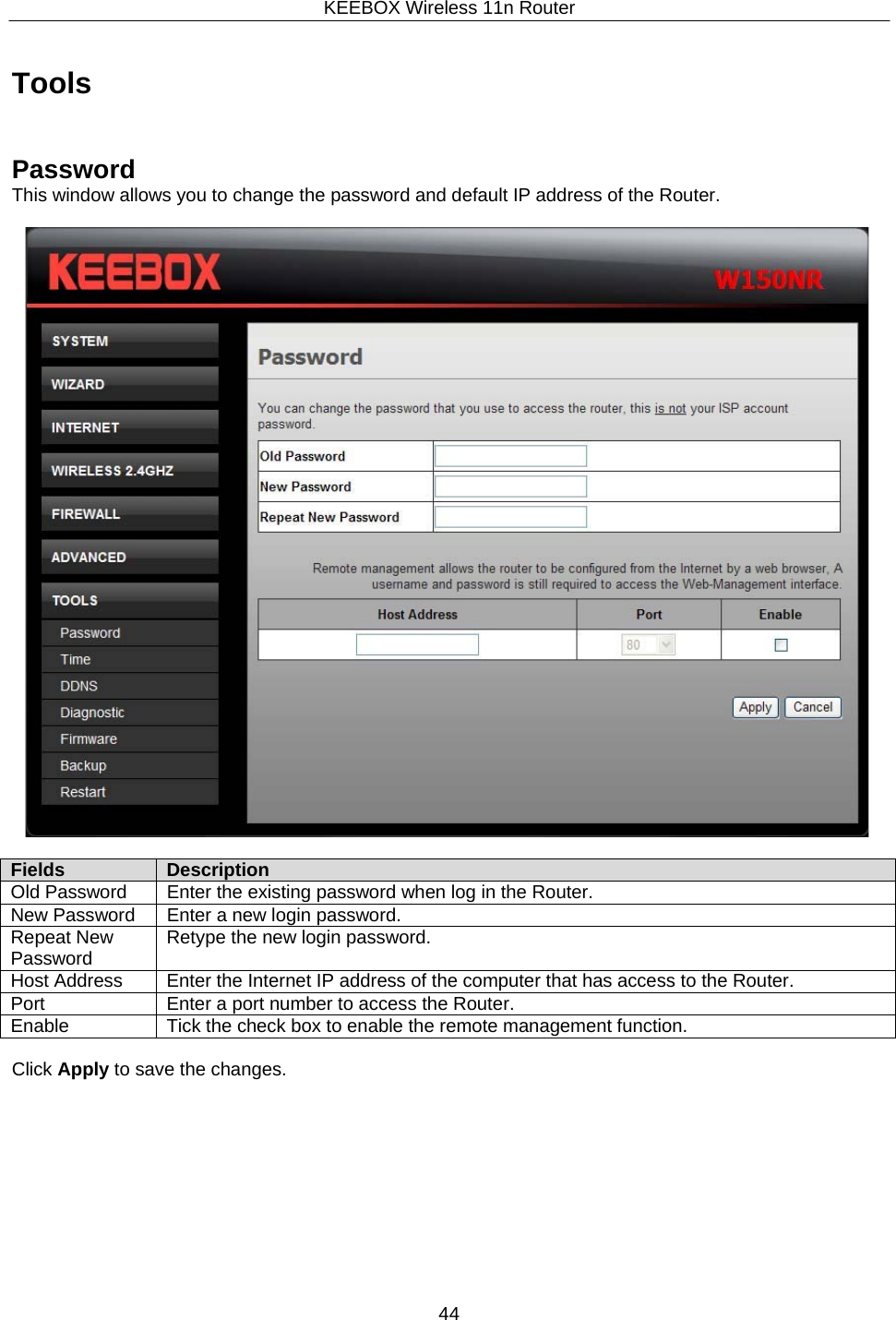
KEEBOX Wireless 11n Router44     Tools    Password This window allows you to change the password and default IP address of the Router.    Fields Description Old Password Enter the existing password when log in the Router. New Password Enter a new login password. Repeat New Password Retype the new login password. Host Address Enter the Internet IP address of the computer that has access to the Router. Port Enter a port number to access the Router. Enable Tick the check box to enable the remote management function.  Click Apply to save the changes.
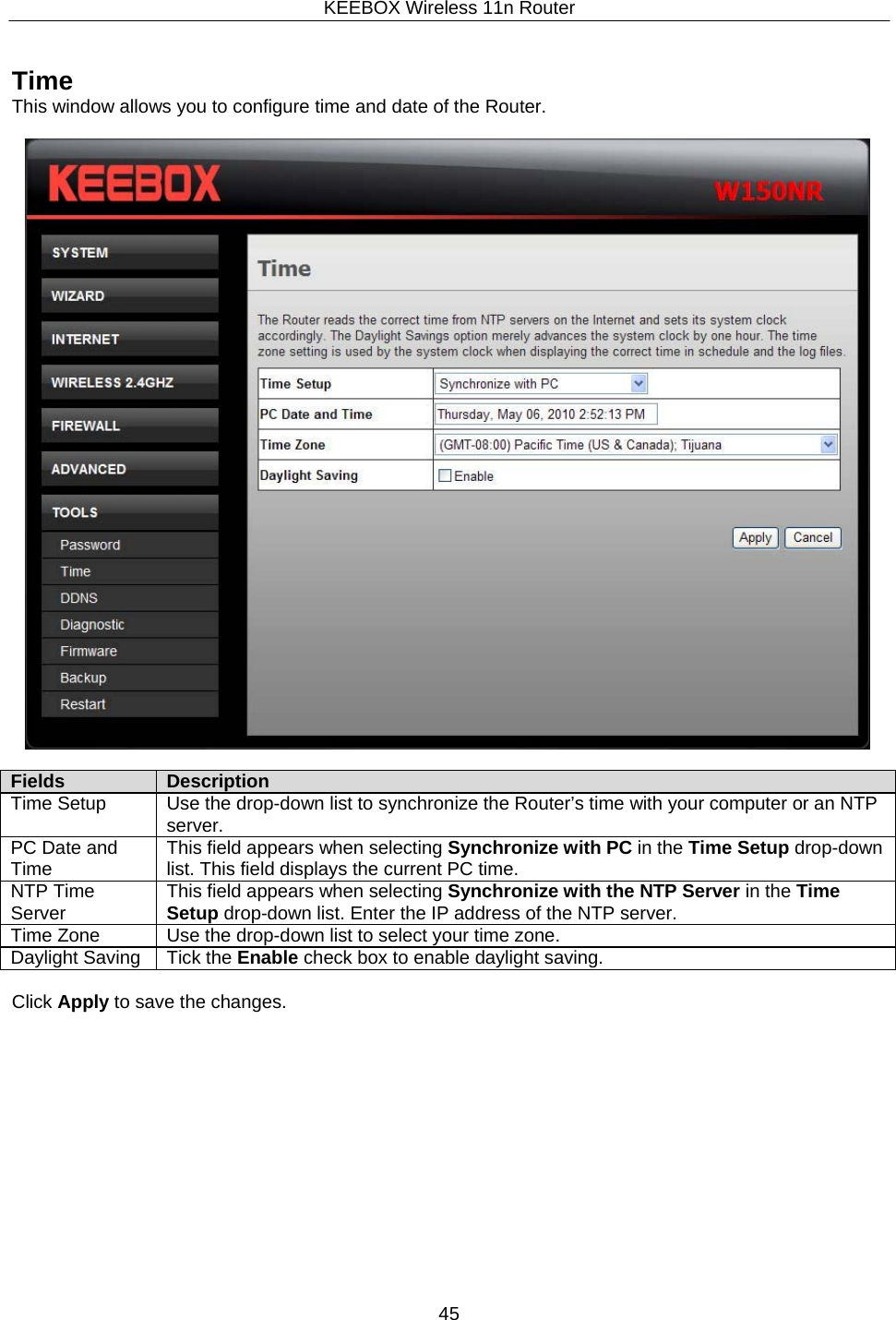
KEEBOX Wireless 11n Router45     Time This window allows you to configure time and date of the Router.    Fields Description Time Setup Use the drop-down list to synchronize the Router’s time with your computer or an NTP server. PC Date and Time This field appears when selecting Synchronize with PC in the Time Setup drop-down list. This field displays the current PC time.NTP Time Server This field appears when selecting Synchronize with the NTP Server in the Time Setup drop-down list. Enter the IP address of the NTP server. Time Zone Use the drop-down list to select your time zone. Daylight Saving Tick the Enable check box to enable daylight saving.  Click Apply to save the changes.
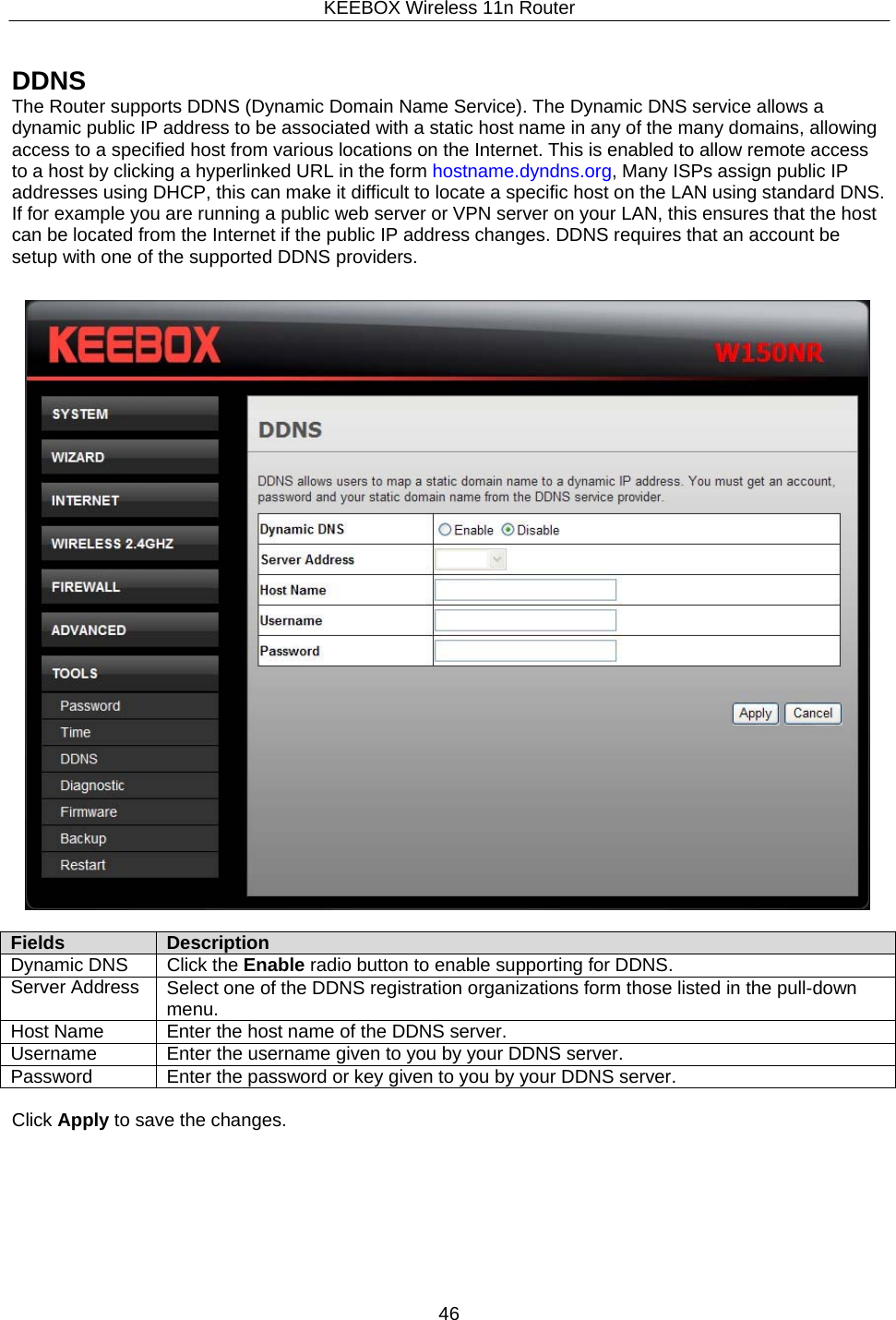
KEEBOX Wireless 11n Router46     DDNS The Router supports DDNS (Dynamic Domain Name Service). The Dynamic DNS service allows a dynamic public IP address to be associated with a static host name in any of the many domains, allowing access to a specified host from various locations on the Internet. This is enabled to allow remote access to a host by clicking a hyperlinked URL in the form hostname.dyndns.org, Many ISPs assign public IP addresses using DHCP, this can make it difficult to locate a specific host on the LAN using standard DNS. If for example you are running a public web server or VPN server on your LAN, this ensures that the host can be located from the Internet if the public IP address changes. DDNS requires that an account be setup with one of the supported DDNS providers.     Fields Description Dynamic DNS Click the Enable radio button to enable supporting for DDNS. Server Address Select one of the DDNS registration organizations form those listed in the pull-down menu.Host Name Enter the host name of the DDNS server. Username Enter the username given to you by your DDNS server. Password Enter the password or key given to you by your DDNS server.  Click Apply to save the changes.
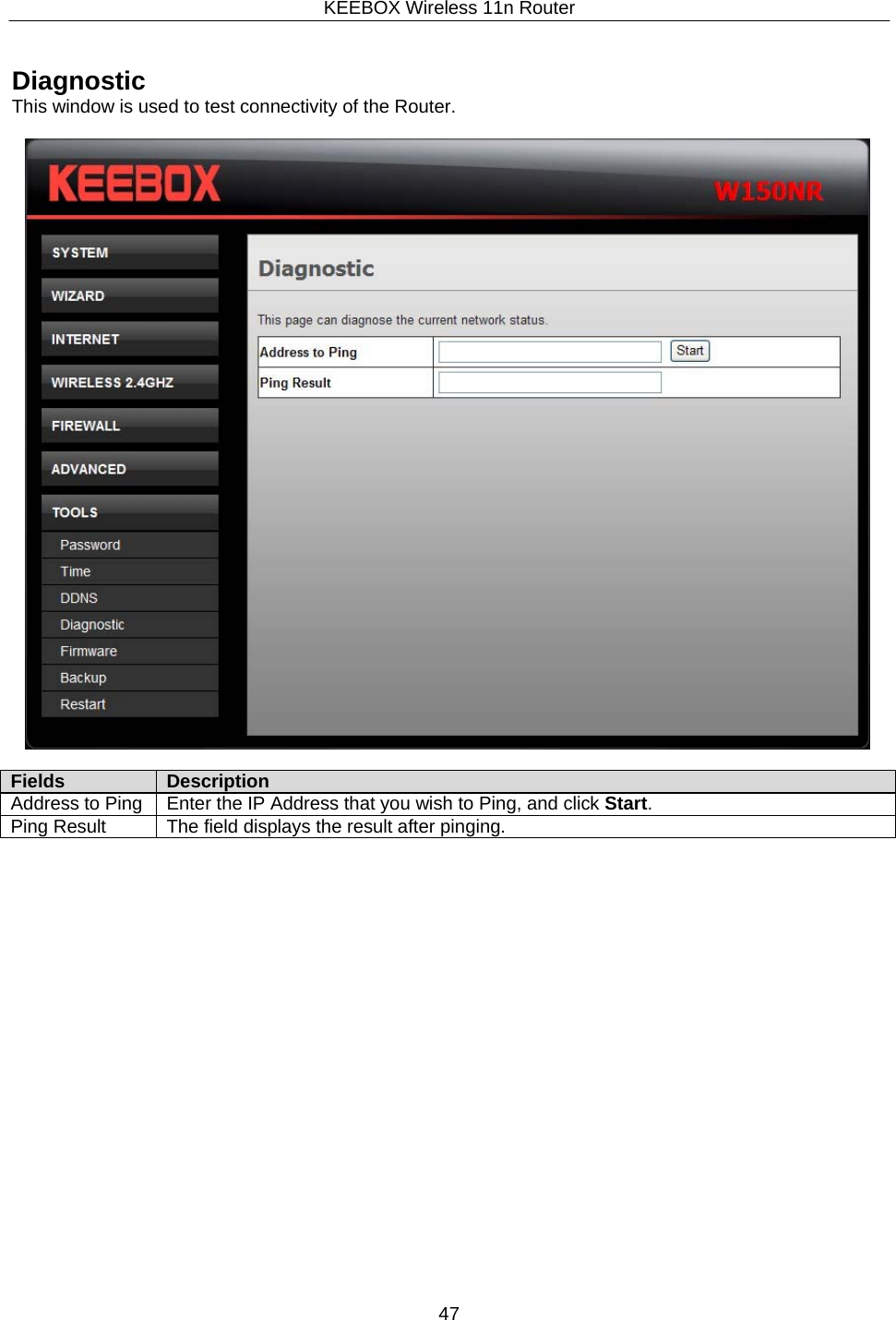
KEEBOX Wireless 11n Router47     Diagnostic This window is used to test connectivity of the Router.    Fields Description Address to Ping Enter the IP Address that you wish to Ping, and click Start. Ping Result The field displays the result after pinging.
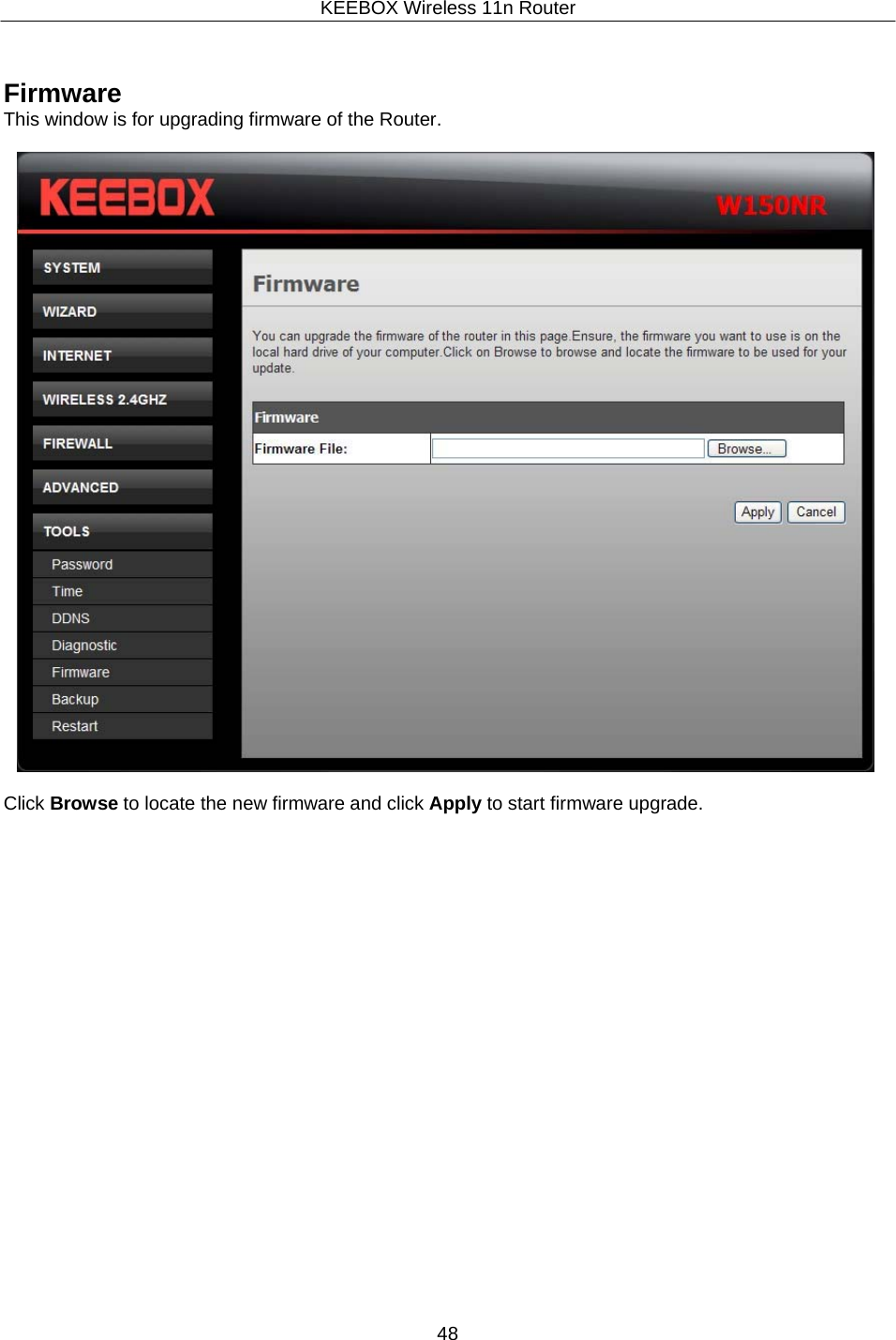
KEEBOX Wireless 11n Router48      Firmware This window is for upgrading firmware of the Router.    Click Browse to locate the new firmware and click Apply to start firmware upgrade.
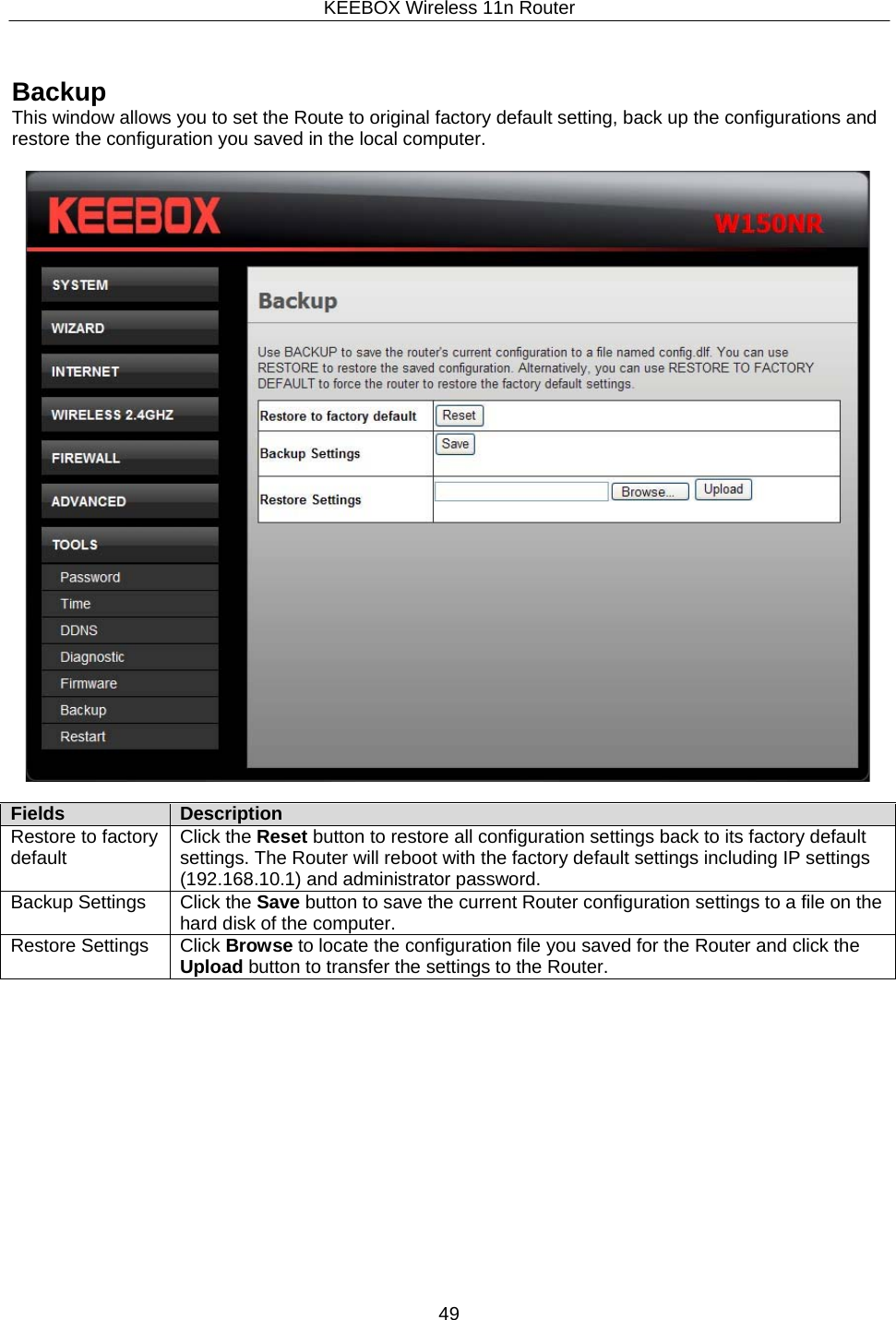
KEEBOX Wireless 11n Router49      Backup This window allows you to set the Route to original factory default setting, back up the configurations and restore the configuration you saved in the local computer.    Fields Description Restore to factory default Click the Reset button to restore all configuration settings back to its factory default settings. The Router will reboot with the factory default settings including IP settings (192.168.10.1) and administrator password. Backup Settings Click the Save button to save the current Router configuration settings to a file on thehard disk of the computer. Restore Settings Click Browse to locate the configuration file you saved for the Router and click the Upload button to transfer the settings to the Router.
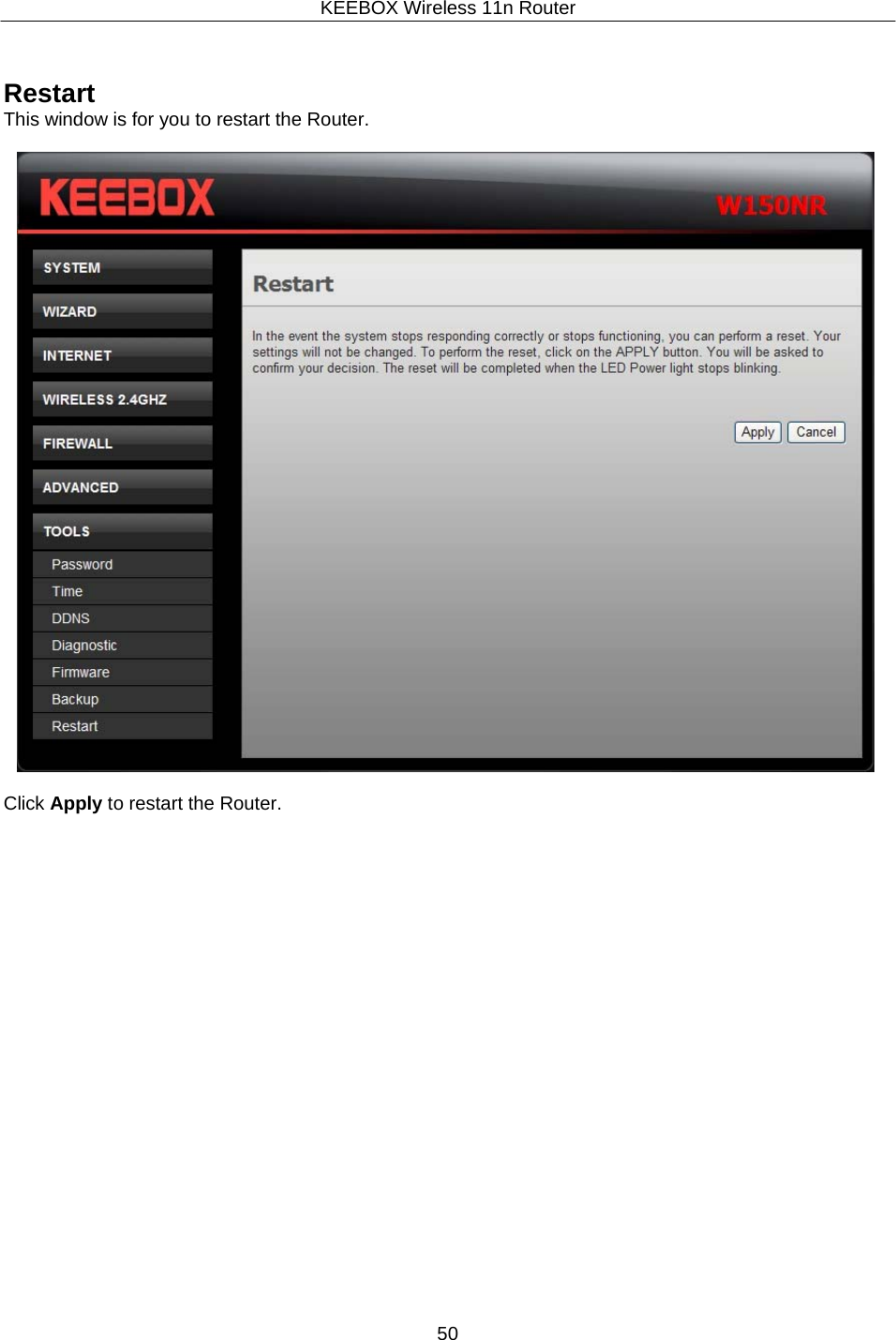
KEEBOX Wireless 11n Router50      Restart This window is for you to restart the Router.    Click Apply to restart the Router.
KEEBOX Wireless 11n Router51       Limited Warranty  KEEBOX warrants its products against defects in material and workmanship, under normal use and service, for the following lengths of time from the date of purchase.  W150NR – 1 Year Warranty AC/DC Power Adapter, Cooling Fan, and Power Supply carry 1 year warranty.   If a product does not operate as warranted during the applicable warranty period, KEEBOX shall reserve the right, at its expense, to repair or replace the defective product or part and deliver an equivalent product or part to the customer. The repair/replacement unit’s warranty continues from the original date of purchase. All products that are replaced become the property of KEEBOX. Replacement products may be new or reconditioned. KEEBOX does not issue refunds or credit. Please contact the point-of-purchase for their return policies.  KEEBOX shall not be responsible for any software, firmware, information, or memory data of customer contained in, stored on, or integrated with any products returned to KEEBOX pursuant to any warranty.  There are no user serviceable parts inside the product.  Do not remove or attempt to service the product by any unauthorized service center.  This warranty is voided if (i) the product has been modified or repaired by any unauthorized service center, (ii) the product was subject to accident, abuse, or improper use (iii) the product was subject to conditions more severe than those specified in the manual.  Warranty service may be obtained by contacting KEEBOX within the applicable warranty period and providing a copy of the dated proof of the purchase. Upon proper submission of required documentation a Return Material Authorization (RMA) number will be issued. An RMA number is required in order to initiate warranty service support for all KEEBOX products. Products that are sent to KEEBOX for RMA service must have the RMA number marked on the outside of return packages and sent to KEEBOX prepaid, insured and packaged appropriately for safe shipment. Customers shipping from outside of the USA and Canada are responsible for return shipping fees. Customers shipping from outside of the USA are responsible for custom charges, including but not limited to, duty, tax, and other fees.  WARRANTIES EXCLUSIVE: IF THE KEEBOX PRODUCT DOES NOT OPERATE AS WARRANTED ABOVE, THE CUSTOMER’S SOLE REMEDY SHALL BE, AT KEEBOX’S OPTION, REPAIR OR REPLACE. THE FOREGOING WARRANTIES AND REMEDIES ARE EXCLUSIVE AND ARE IN LIEU OF ALL OTHER WARRANTIES, EXPRESSED OR IMPLIED, EITHER IN FACT OR BY OPERATION OF LAW, STATUTORY OR OTHERWISE, INCLUDING WARRANTIES OF MERCHANTABILITY AND FITNESS FOR A PARTICULAR PURPOSE. KEEBOX NEITHER ASSUMES NOR AUTHORIZES ANY OTHER PERSON TO ASSUME FOR IT ANY OTHER LIABILITY IN CONNECTION WITH THE SALE, INSTALLATION MAINTENANCE OR USE OF KEEBOX’S PRODUCTS.  KEEBOX SHALL NOT BE LIABLE UNDER THIS WARRANTY IF ITS TESTING AND EXAMINATION DISCLOSE THAT THE ALLEGED DEFECT IN THE PRODUCT DOES NOT EXIST OR WAS CAUSED BY CUSTOMER’S OR ANY THIRD PERSON’S MISUSE, NEGLECT, IMPROPER INSTALLATION OR TESTING, UNAUTHORIZED ATTEMPTS TO REPAIR OR MODIFY, OR ANY OTHER CAUSE BEYOND THE RANGE OF THE INTENDED USE, OR BY ACCIDENT, FIRE, LIGHTNING, OR OTHER HAZARD.  LIMITATION OF LIABILITY: TO THE FULL EXTENT ALLOWED BY LAW KEEBOX ALSO EXCLUDES FOR ITSELF AND ITS SUPPLIERS ANY LIABILITY, WHETHER BASED IN CONTRACT OR TORT (INCLUDING NEGLIGENCE), FOR INCIDENTAL, CONSEQUENTIAL, INDIRECT, SPECIAL, OR PUNITIVE DAMAGES OF ANY KIND, OR FOR LOSS OF REVENUE OR PROFITS, LOSS OF BUSINESS, LOSS OF INFORMATION OR DATE, OR OTHER FINANCIAL LOSS ARISING OUT OF OR IN CONNECTION WITH THE SALE, INSTALLATION, MAINTENANCE, USE, PERFORMANCE,
KEEBOX Wireless 11n Router52     FAILURE, OR INTERRUPTION OF THE POSSIBILITY OF SUCH DAMAGES, AND LIMITS ITS LIABILITY TO REPAIR, REPLACEMENT, OR REFUND OF THE PURCHASE PRICE PAID, AT KEEBOX’S OPTION. THIS DISCLAIMER OF LIABILITY FOR DAMAGES WILL NOT BE AFFECTED IF ANY REMEDY PROVIDED HEREIN SHALL FAIL OF ITS ESSENTIAL PURPOSE.  Governing Law: This Limited Warranty shall be governed by the laws of the state of California.   Some KEEBOX products include software code written by third party developers. These codes are subject to the GNU General Public License ("GPL") or GNU Lesser General Public License ("LGPL").  Go to http://www.KEEBOX.com/gpl or http://www.KEEBOX.com Download section and look for the desired KEEBOX product to access to the GPL Code or LGPL Code. These codes are distributed WITHOUT WARRANTY and are subject to the copyrights of the developers. KEEBOX does not provide technical support for these codes. Please go to  http://www.gnu.org/licenses/gpl.txt or http://www.gnu.org/licenses/lgpl.txt for specific terms of each license.
KEEBOX Wireless 11n Router _______________________________________________________________  KEEBOX  W150NR                    53     This device complies with Part 15 of the FCC Rules. Operation is subject to the following two conditions: (1) this device may not cause harmful interference, and (2) this device must accept any interference received, including interference that may cause undesired operation.   This equipment has been tested and found to comply with the limits for a Class B digital   device, pursuant to part 15 of the FCC Rules. These limits are designed to provide reasonable protection against harmful interference in a residential installation. This equipment generates, uses and can radiate radio frequency energy and, if not installed and used in accordance with the instructions, may cause harmful interference to radio communications. However, there is no guarantee that interference will not occur in a particular installation. If this equipment does cause harmful interference to radio or television reception, which can be determined by turning the equipment off and on, the user is encouraged to try to correct the interference by one or more of the following measures: -Reorient or relocate the receiving antenna. -Increase the separation between the equipment and receiver. -Connect the equipment into an outlet on a circuit different from that to which the receiver is connected. -Consult the dealer or an experienced radio/ TV technician for help.  Prohibition of Co-location This device and its antenna(s) must not be co-located or operating in conjunction with any other antenna or transmitter.  CAUTION: Any changes or modifications not expressly approved by the grantee of this device could void the user's authority to operate the equipment.   This equipment must be installed and operated in accordance with provided instructions and the antenna(s) used for this transmitter must be installed to provide a separation distance of at least 20 cm from all persons and must not be co-located or operating in conjunction with any other antenna or transmitter. End-users and installers must be provide with antenna installation instructions and transmitter operating conditions for satisfying RF exposure compliance.
      KEEBOX Wireless 11n Router                                                                      53

Navigation menu