KEEN HIGH HOLDING HHK13C TABLET User Manual BirchQS SL
KEEN HIGH HOLDING(HK) LIMITED TABLET BirchQS SL
Contents
- 1. Product notice
- 2. User Manual
User Manual

Quick Start
BirchQS_SL.book Page 1 Monday, August 5, 2013 8:58 AM
BirchQS_SL.book Page 2 Monday, August 5, 2013 8:58 AM
1
Setting up your tablet
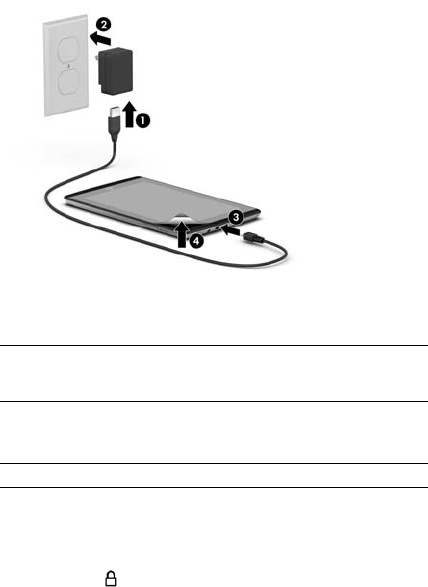
After charging the battery, and while the battery image is displayed
on the screen, press and hold the power button about 5 seconds
until the HP logo is displayed.
Follow the on-screen instructions to select a language, a wireless
network, and a Google™ account.
Lock and unlock
Lock—Press the power button.
Unlock—Press the power button to turn on the tablet, then place your
finger on the lock icon and slide your finger to the unlock position.
IMPORTANT: If the battery image is not displayed on the screen, press the
power button briefly to display the image, and then press and hold the power
button until the HP logo is displayed.
NOTE: If you do not have a Google account, you can create one now.
1
2
3
BirchQS_SL.book Page 1 Monday, August 5, 2013 8:58 AM
2
Turn off the tablet
Press and hold the power button, touch Power off, and then touch OK. If
your tablet becomes unresponsive, press and hold the power button for
several seconds to turn off the tablet.
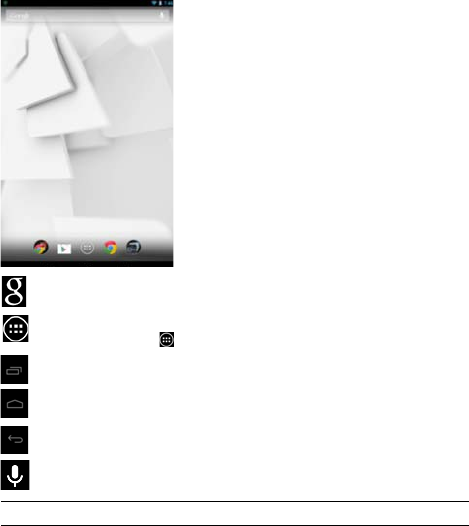
Using the Home screen
Search—Type one or more keywords to search with Google.
All apps—Displays a list of all apps installed. To configure your
preferences, touch , and then tap the Settings icon.
Recent apps—Opens a list of apps used recently.
Home—Opens the Home screen.
Back—Opens the previous screen.
Voice search—Speak one or more keywords to search with Google.
NOTE: The appearance of the Home screen may vary.
BirchQS_SL.book Page 2 Monday, August 5, 2013 8:58 AM
3
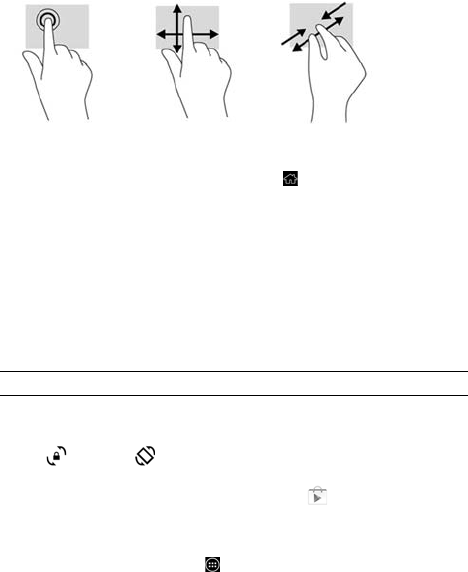
Use gestures
Return to the Home screen
To quickly return to the Home screen, touch .
Use the on-screen keyboard
Touch a text field to open the on-screen keyboard. Some apps may open
the keyboard automatically.
Change your tablet’s view
The Auto-rotate feature allows you to change your tablet’s view. For
landscape view, hold the tablet horizontally. For portrait view, hold the
tablet vertically.
To change the Auto-rotate setting, swipe down from the top of the
screen to display notifications, and then touch the Screen rotation icon
to lock or unlock the screen rotation.
Download apps from the Google Play™ Store
You must be connected to a wireless network and signed into Google
account before you can access the Play Store to download apps.
1. On the Home screen, touch , and then touch the Play Store app.
NOTE: Some apps do not rotate automatically.
BirchQS_SL.book Page 3 Monday, August 5, 2013 8:58 AM

4
2. To search for an app, touch the Search icon, and then type a
keyword, or touch a category.
3. Scroll down to see the available apps, and then touch an app to
select it.
4. Touch Install, and the app begins to download and install.
View photos
To view the photos in your Gallery, touch the All apps icon, and then
touch the Gallery app.
Display apps, widgets, and notification
Apps—Touch , and then touch the Apps tab to see a list of all apps.
Widgets—Touch , and then touch the Widgets tab to see a list of all
widgets.
Notification—Swipe down from the top of the screen to see your
notifications.
Organize the Home screen
To add an app or a widget to the Home screen, touch the Apps tab or
the Widgets tab, and then tap and hold an app or widget until it is
added to the Home screen.
To remove an app or widget from the Home screen, drag it to the X
at the top of the screen.
BirchQS_SL.book Page 4 Monday, August 5, 2013 8:58 AM
5
More HP resources
Software terms
By installing, copying, downloading, or otherwise using any software product preinstalled on this
computer, you agree to be bound by the terms of the HP End User License Agreement (EULA). If
you do not accept these license terms, your sole remedy is to return the entire unused product
(hardware and software) within 14 days for a full refund subject to the refund policy of your seller.
For any further information or to request a full refund of the purchase price of the tablet, please
contact your seller.
Specification
The tablet operates on DC power, which can be supplied by an AC or a DC power source. The AC
power source must be rated at 100—240 V, 50—60 Hz.
Temperature—Operating: Metric, 0°C to 40°C; U.S., 32°F to 104°F
Relative humidity—(noncondensing) Operating: 10% to 90%
Regulatory information
Regulatory markings for your country or region may be located on the back of the tablet or may
be displayed electronically. If the markings for your country are not on the back of the tablet,
please check the electronic labeling. To display the regulatory e-labels:
1. Touch All apps, touch Settings, and then touch About tablet.
2. Touch Regulatory Information, and then the label icons are displayed.
Depending on your tablet model, the Product Notices document is located in the box or accessible
from the HP doc app on the Home screen.
For regulatory identification purposes, your product is assigned a Regulatory Model Identification
Number. The Regulatory Model Identification Number for your product is HSTNH-K13C. This
regulatory number should not be confused with the marketing name (if any, etc.) or product
numbers (HP P/N, etc.).
Resource Contents
HP support:
For U.S.support, go to
http://www.hp.com/go/contactHP.
For worldwide support, go to
http://welcome.hp.com/country/us/en/wwcontact_us.html.
Online chat with an HP technician.
Email support.
Find telephone numbers.
Locate HP service center locations.
Access User Guide.
Serial number, product number, and model number Back of tablet
Google
For Google support, go to
http://www.google.com/mobile/android.
Access Google online help and
support.
Limited Warranty
Depending on your tablet model, the warranty is located in
the box or accessible from the HP doc app on the Home
screen. You can also go to
http://www.hp.com/go/orderdocuments.
Warranty information about this
tablet.
NOTE: The tablet can operate on DC power using an industry-standard micro-A or micro-B USB cable. The HP 5V 2A
adapter included with your tablet is recommended for charging the tablet.
BirchQS_SL.book Page 5 Monday, August 5, 2013 8:58 AM

6
© Copyright 2013 Hewlett-Packard Development Company, L.P. Google, Android, and
Google Play are trademarks of Google Inc. The information contained herein is subject to
change without notice. The only warranties for HP products and services are set forth in
the express warranty statements accompanying such products and services. Nothing
herein should be construed as constituting an additional warranty. HP shall not be liable
for technical and editorial errors or omissions contained herein.
First Edition: August 2013.
743473-001
*743473-001*
Replace this box with PI statement as per spec.
Replace this box with PI statement as per spec.
Replace this box with PI statement as per spec.
Replace this box with PI statement as per spec.
Replace this box with PI statement as per spec.
Replace this box with PI statement as per spec.
BirchQS_SL.book Page 6 Monday, August 5, 2013 8:58 AM