KTV Global LCM15AA 15" LCD CCTV Monitor User Manual

KTV Global Corporation 15" LCD CCTV Monitor Users Manual

Users Manual

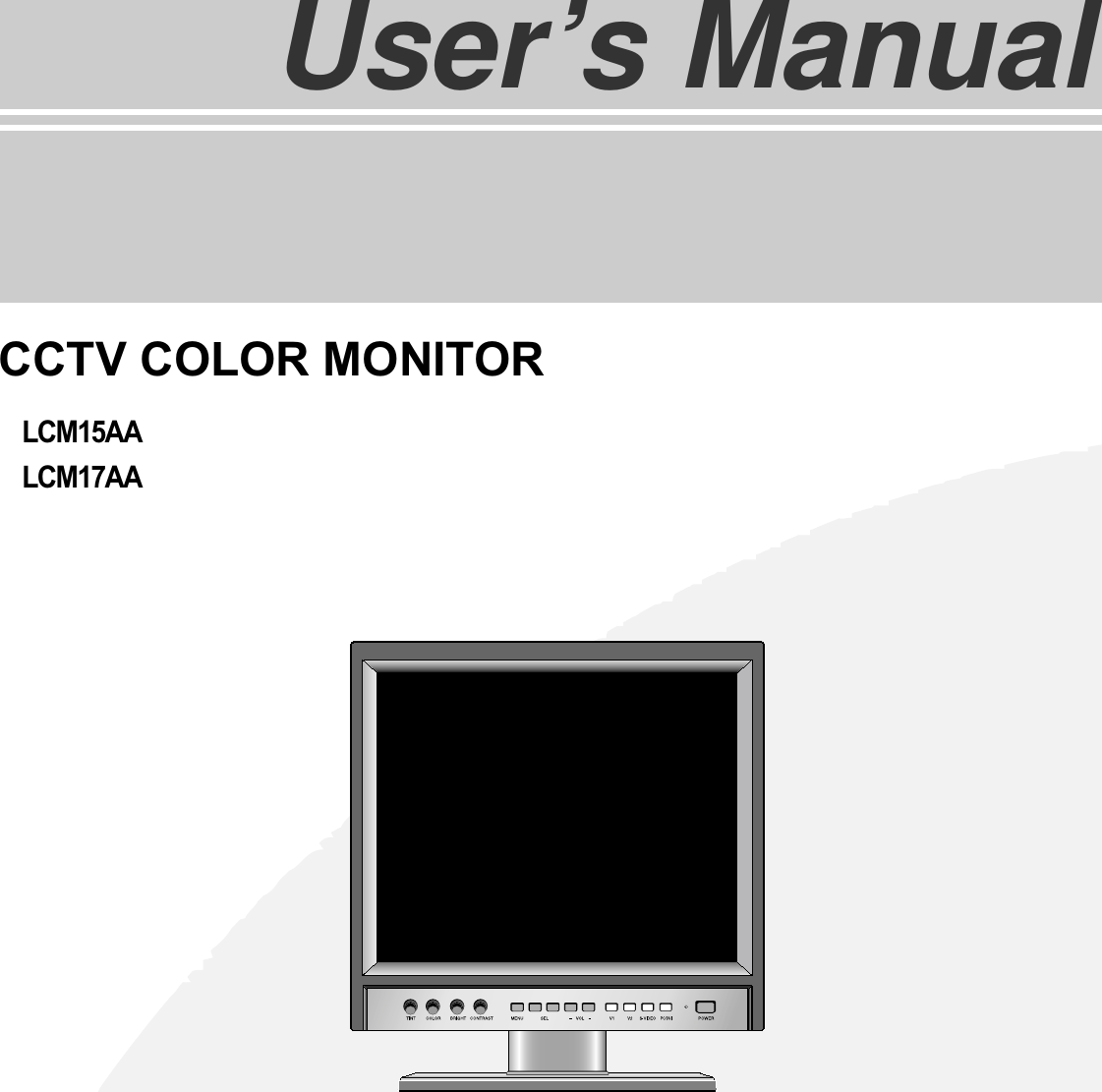
TFT LCD TVUser’s ManualLCM15AALCM17AACCTV COLOR MONITOR
LCD Monitor User’s ManualInstallation and cautions during the use . . . . . . . . . . . . . . . . . . . . . . 2Location controls . . . . . . . . . . . . . . . . . . . . . . . . . . . . . . . . . . . . . . . . . . . . . . . . . . . . . . . . . . 4Functions and control methods . . . . . . . . . . . . . . . . . . . . . . . . . . . . . . . . . . . . . 5To connect the power . . . . . . . . . . . . . . . . . . . . . . . . . . . . . . . . . . . . . . . . . . . . . . . . . . . . . 8Possible connections . . . . . . . . . . . . . . . . . . . . . . . . . . . . . . . . . . . . . . . . . . . . . . . . . . . . . . 9Checklists  . . . . . . . . . . . . . . . . . . . . . . . . . . . . . . . . . . . . . . . . . . . . . . . . . . . . . . . . . . . . . . . . . . . . . . . 10Specifications . . . . . . . . . . . . . . . . . . . . . . . . . . . . . . . . . . . . . . . . . . . . . . . . . . . . . . . . . . . . . . . . . 11
LCD Monitor User’s ManualSAFETY NOTESTThhaannkk yyoouu ffoorr ppuurrcchhaassiinngg oouurr pprroodduuccttBBeeffoorree uussiinngg iitt pplleeaassee rreeaadd tthhiiss uusseerr''ss mmaannuuaall ccaarreeffuullllyy aanndd aappppllyy iitt ccoorrrreeccttllyy aanndd ssaaffeellyyPPlleeaassee kkeeeepp tthhiiss mmaannuuaall cclloossee ttoo yyoouu ssoo yyoouu ccaann rreeffeerr ttoo iitt aannyyttiimmee aafftteerr rreeaaddiinngg iittAAllssoo ffoorr tthhee ttrraannssppoorrttaattiioonn ooff tthhee pprroodduucctt pplleeaassee aattttaacchh tthhiiss mmaannuuaall wwiitthhoouutt ffaaiillPPlleeaassee oobbsseerrvvee tthhee nnootteess bbeellooww1. Use at the rated power voltageUse of nonrated voltage may cause fire electric shock and breakdown2. Do not open the cabinet and external coverThe high voltage inside of this product may cause the electric shock3. Do not remodel or disassemble this product  Remodeling or disassembling in wrong method may cause fire electric shock or breakdown4. Do not insert or drop any foreign substance such as metals or flammable object inside from the air holeIt may cause fire electric shock or breakdownIf any foreign substance is inserted inside of this product turn off the power pull the plug out of the socket and contact thesales department  Do not use the product with the foreign substance in5. Do not place any vase potted plant cup medicine and any container with water on this productIf the liquid is spilt it may cause the fire electric shock or breakdown6. Do not place this product with water nor moisten itIf water flows in it it may cause the fire electric shock or breakdownIf there is water inside of the product turn off the power immediately pull the plug out of the socket and contact the salesdepartmentDo not use the product with water in it7. Never touch the antenna lie or power plug if it stars to thunderIt may cause the electric shock8. If any impact is applied the parts inside of the product may be fallen out or broken to be the cause of fire electric shock orbreakdown9. Clean the dust on the power plug periodicallyThe dusty power plug may cause the poor insulation due to the moisture to be the reason of fire10. Do not destroy process make closer to heating device bend or twist forcibly place any heavy object on nor bind the powercord or power plug  If it is used in the broken condition it may cause fire or electric shock11. Do not touch the power plug with wet handsIf you pull in or out the power plug with wet hands it may cause electric shocks12. Put the power plug in firmlyPutting the plug incompletely may cause the electric shock or fire by the generation of heat 13. Do not use any nonrated power socket with numerous devices jointed on one power socket or cable deviceThe wire of nondesignated capacity may cause the fire due to the generation of heat14. In case of malfunction turn off the power switch immediately and pull out the power plugIf this product is used in the abnormal condition such as damage to it foreign substance inside of the product generation ofjoints smelling smoking overheating and non production of signal it may cause fire electric shock or breakdownTurn off the power switch immediately pull the power plug out of the socket and contact to the sales store15. Leave space  cm or more from the wall for the installation of the deviceDo not install it close to the wall nor block the ventilation of the airInsufficient ventilation or accumulated heat inside of the product may cause the fire16. Do not install it at the unstable location such as on the bouncing prop or tilted placeIt may be tipped over as it loses balance or damaged as it is fallen down
SAFETY NOTESLCD Monitor User’s Manual17. Do not install at the place with moisture or dustIt may cause the fire or the electric shock18. Do not install it at the place with poisonous gasIt may cause the fire19. Do not install it at the location with continuous vibrationIt may be tipped over as it loses balance or damaged as it is fallen down20. Do not install it at the place on the strong magnetic field or current fieldIt may cause fire electric shock or break downThis equipment may be observed deterioration of the picture by electromagnetic radiation in electromagnetic environment 21. Fasten the wheel of the product or shelf with wheels when installing this productIf it moves or is tipped over it may be damaged22. Do not leave it in the car under the burning sun for a long timeThe high temperature may distort the cabinet or the parts inside may be broken down or heatedIf you use this product in this condition it may cause the fire electric shock or breakdown due to the short circuit or poor insulation23. Do not place any fire source such as candlelight close to this product or place it on this productIf it is tipped over or fallen down it may cause damage or fire24. Do not sprinkle water drops or water on this productIt may cause the fire the electric shock or breakdown25. Do not place heavy objects on this productIt may be tipped over as it loses balance or damaged as it is fallen down26. Do not transport it with the power cord or the connection cable connectedIf you move this product with the power cord or the connection cable connected the damaged power cord connection cableor connection terminal may cause the fire the electric shock or breakdown27. Pull the power cord out while holding the plug portionIf you pull the power cord out by force the cord may the fire or the electric shock28. Do not use it outdoorDust or rainstorm may cause the fire electric shock or breakdown29. Do not climb on this productIf you climb on it it may damage  or hurt it30.  persons or more shall transport the device which is heavier than  kgIf you drop or tip over the device it may damage itThe weight is indicated on the user's manual31. Use the attached power cord and connection cable or those which are indicated on the user's manualIf you do not use the designated power cord and connection cable it may cause the electric shock or breakdown32. Turn off the power switch when connecting the power cord or connection cableIf you not turn off when connecting it it may cause the electric shock or breakdown33. Do not use any chemical such as the paint thinner or benzine to clean the cabinetIt may scratch the surface or disappear the indication to cause wrong operation whch can be the reason for disorder34. Clean the cabinet with  time diluted neutral detergent water on smooth cloth as stirring to remove the contaminationAfter that clean it with dry cloth to remove any stain
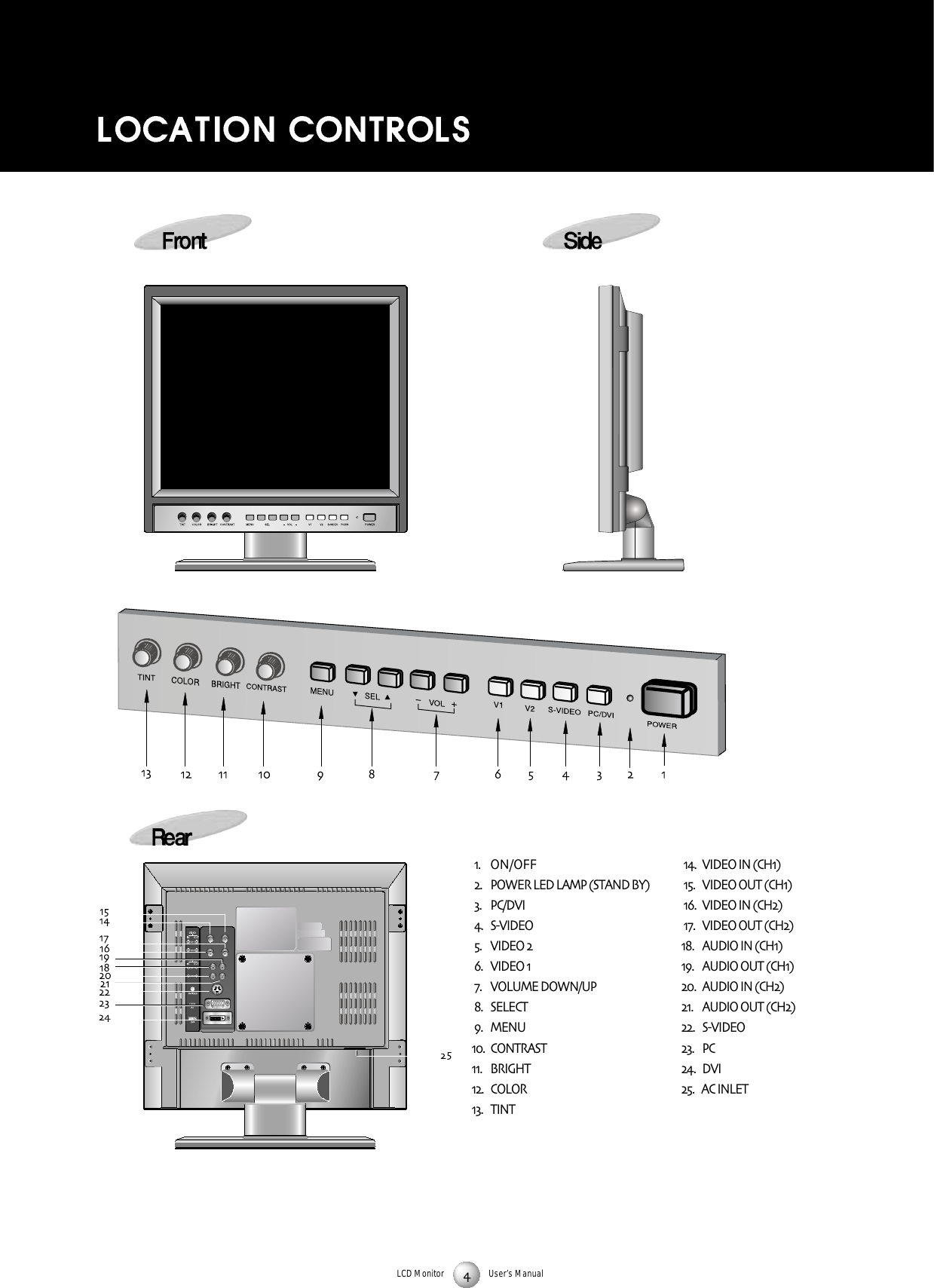
LCD Monitor User’s Manual ON/OFF  POWER LED LAMP (STAND BY) PC/DVI SVIDEO  VIDEO   VIDEO   VOLUME DOWN/UP  SELECT   MENU  CONTRAST   BRIGHT  COLOR  TINT  VIDEO IN (CH)   VIDEO OUT (CH)  VIDEO IN (CH)   VIDEO OUT (CH)   AUDIO IN (CH)   AUDIO OUT (CH)  AUDIO IN (CH)  AUDIO OUT (CH)  SVIDEO PC DVI   AC INLET
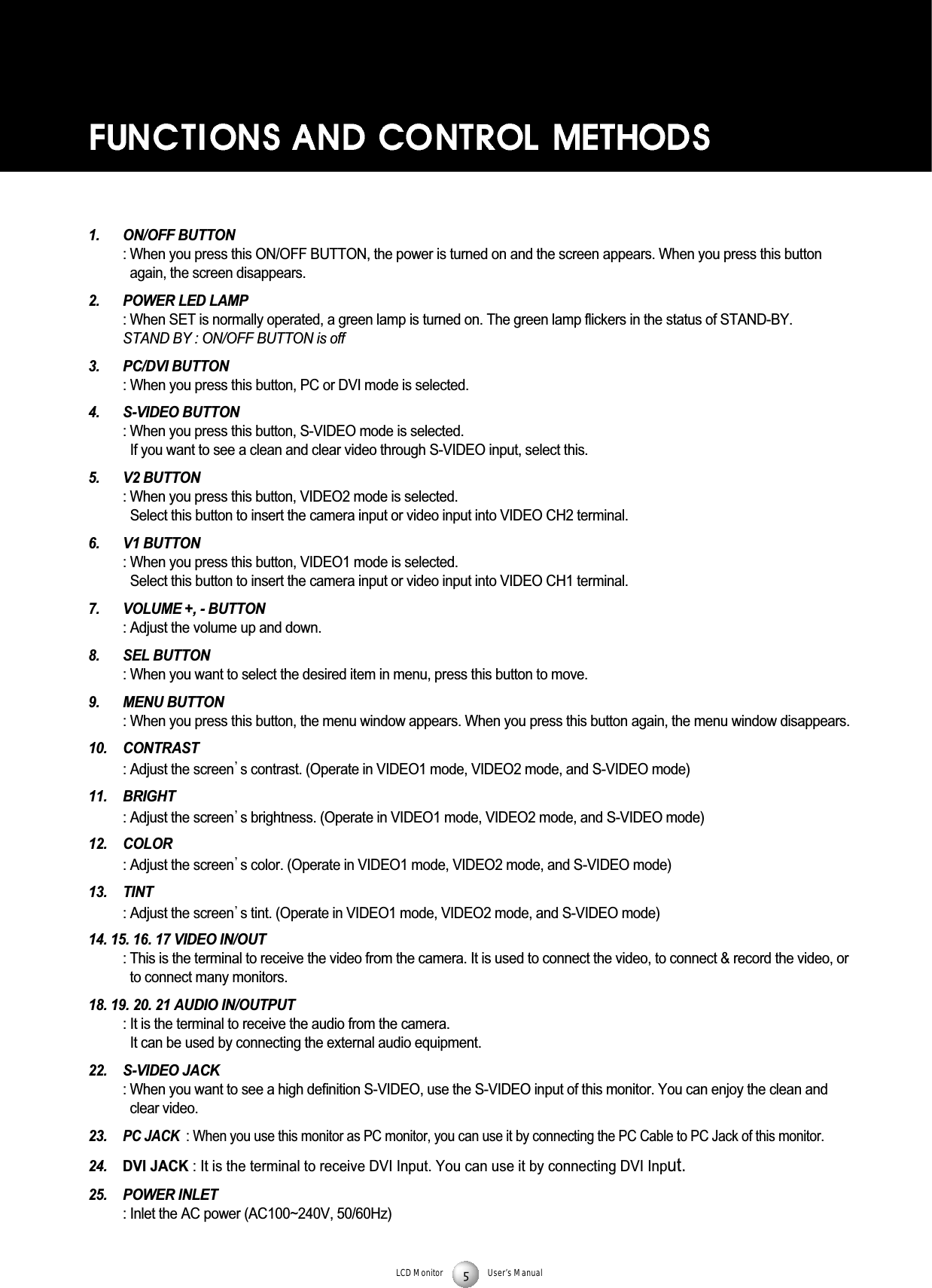
LCD Monitor User’s Manual1. ON/OFF BUTTON : When you press this ON/OFF BUTTON, the power is turned on and the screen appears. When you press this buttonagain, the screen disappears. 2. POWER LED LAMP : When SET is normally operated, a green lamp is turned on. The green lamp flickers in the status of STAND-BY. STAND BY : ON/OFF BUTTON is off3. PC/DVI BUTTON : When you press this button, PC or DVI mode is selected.4. S-VIDEO BUTTON: When you press this button, S-VIDEO mode is selected.If you want to see a clean and clear video through S-VIDEO input, select this. 5. V2 BUTTON : When you press this button, VIDEO2 mode is selected.Select this button to insert the camera input or video input into VIDEO CH2 terminal.6. V1 BUTTON: When you press this button, VIDEO1 mode is selected. Select this button to insert the camera input or video input into VIDEO CH1 terminal.7. VOLUME +, - BUTTON : Adjust the volume up and down. 8. SEL BUTTON: When you want to select the desired item in menu, press this button to move. 9. MENU BUTTON: When you press this button, the menu window appears. When you press this button again, the menu window disappears. 10. CONTRAST : Adjust the screen s contrast. (Operate in VIDEO1 mode, VIDEO2 mode, and S-VIDEO mode)11. BRIGHT: Adjust the screen s brightness. (Operate in VIDEO1 mode, VIDEO2 mode, and S-VIDEO mode)12. COLOR: Adjust the screen s color. (Operate in VIDEO1 mode, VIDEO2 mode, and S-VIDEO mode)13. TINT : Adjust the screen s tint. (Operate in VIDEO1 mode, VIDEO2 mode, and S-VIDEO mode)14. 15. 16. 17 VIDEO IN/OUT : This is the terminal to receive the video from the camera. It is used to connect the video, to connect & record the video, orto connect many monitors.18. 19. 20. 21 AUDIO IN/OUTPUT : It is the terminal to receive the audio from the camera. It can be used by connecting the external audio equipment.22. S-VIDEO JACK : When you want to see a high definition S-VIDEO, use the S-VIDEO input of this monitor. You can enjoy the clean andclear video.23.PC JACK : When you use this monitor as PC monitor, you can use it by connecting the PC Cable to PC Jack of this monitor. 24. DVI JACK : It is the terminal to receive DVI Input. You can use it by connecting DVI Input.25. POWER INLET: Inlet the AC power (AC100~240V, 50/60Hz)
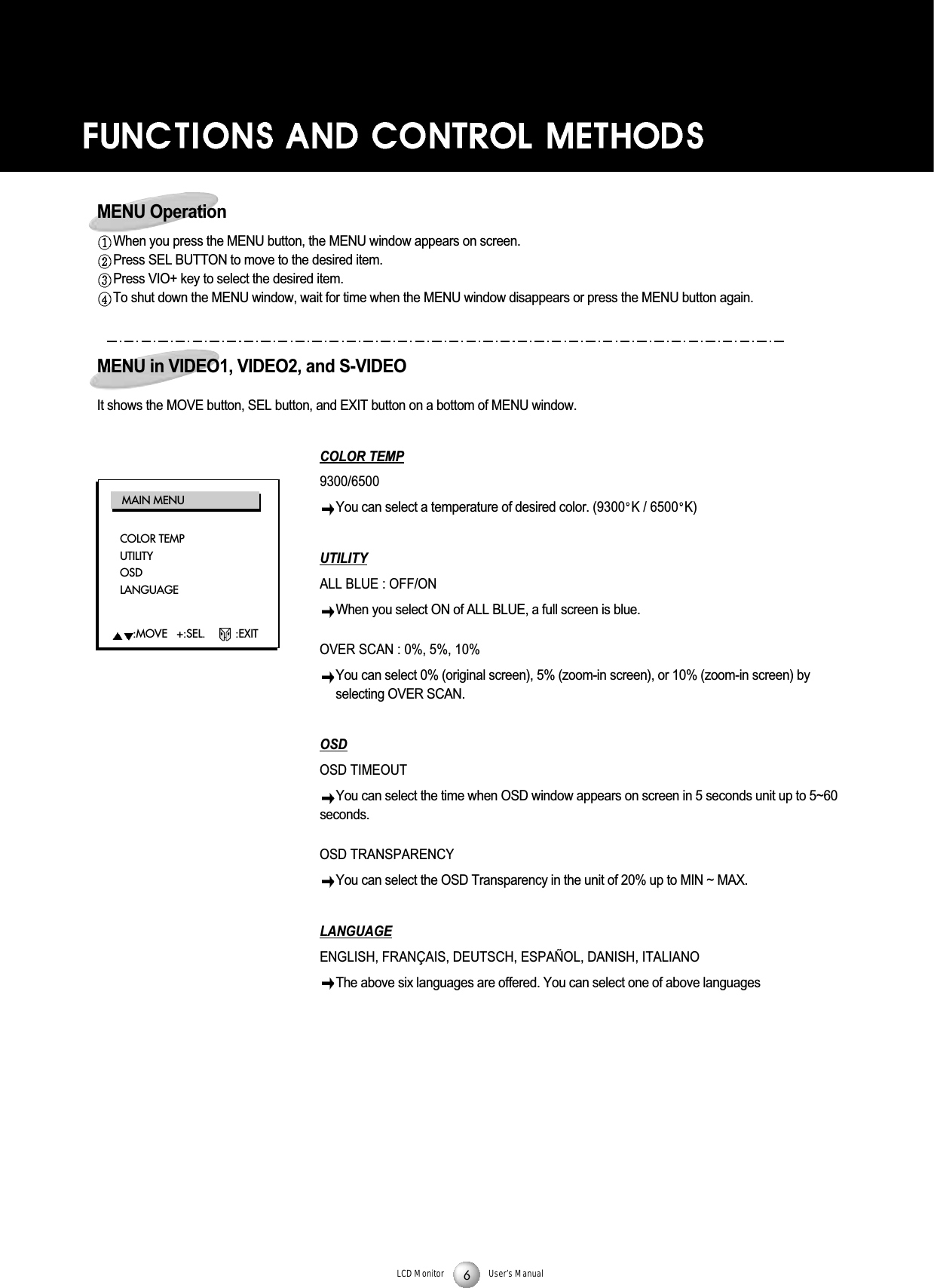
MENU OperationWhen you press the MENU button, the MENU window appears on screen.Press SEL BUTTON to move to the desired item.Press VIO+ key to select the desired item.To shut down the MENU window, wait for time when the MENU window disappears or press the MENU button again.MENU in VIDEO1, VIDEO2, and S-VIDEOIt shows the MOVE button, SEL button, and EXIT button on a bottom of MENU window.COLOR TEMP9300/6500 You can select a temperature of desired color. (9300 K / 6500 K)UTILITYALL BLUE : OFF/ON When you select ON of ALL BLUE, a full screen is blue.OVER SCAN : 0%, 5%, 10% You can select 0% (original screen), 5% (zoom-in screen), or 10% (zoom-in screen) byselecting OVER SCAN. OSDOSD TIMEOUT You can select the time when OSD window appears on screen in 5 seconds unit up to 5~60seconds.OSD TRANSPARENCY You can select the OSD Transparency in the unit of 20% up to MIN ~ MAX.LANGUAGEENGLISH, FRANÇAIS, DEUTSCH, ESPAÑOL, DANISH, ITALIANOThe above six languages are offered. You can select one of above languages LCD Monitor User’s ManualCOLOR TEMPUTILITYOSDLANGUAGE:MOVE   +:SEL.    :EXITMAIN MENU
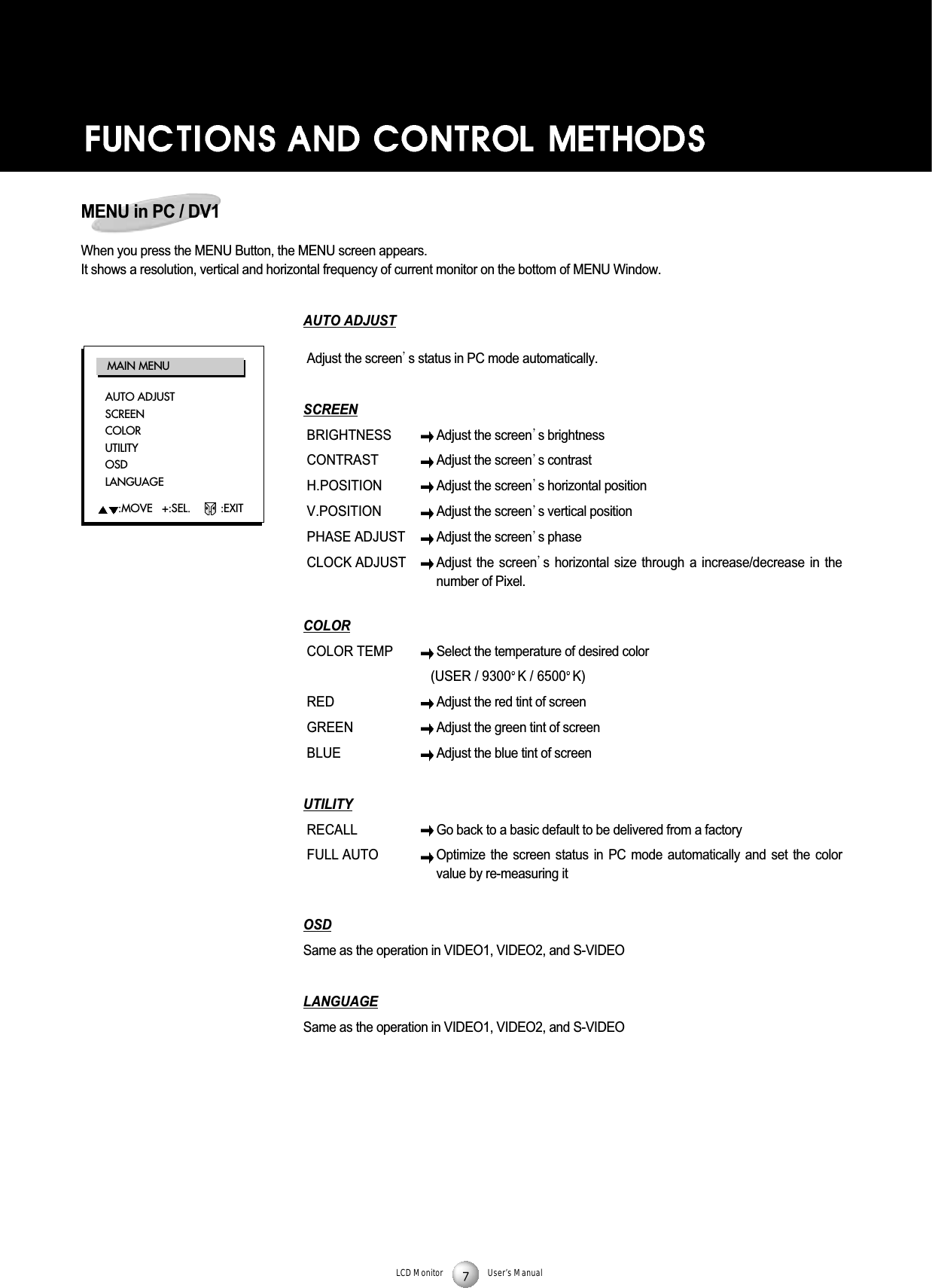
LCD Monitor User’s ManualMENU in PC / DV1When you press the MENU Button, the MENU screen appears. It shows a resolution, vertical and horizontal frequency of current monitor on the bottom of MENU Window.AUTO ADJUSTAdjust the screen s status in PC mode automatically. SCREENBRIGHTNESS Adjust the screen s brightnessCONTRASTAdjust the screen s contrastH.POSITIONAdjust the screen s horizontal positionV.POSITIONAdjust the screen s vertical positionPHASE ADJUSTAdjust the screen s phaseCLOCK ADJUSTAdjust the  screen s horizontal  size through  a increase/decrease  in thenumber of Pixel.COLORCOLOR TEMP Select the temperature of desired color(USER / 9300 K / 6500 K)RED Adjust the red tint of screenGREENAdjust the green tint of screenBLUE Adjust the blue tint of screenUTILITYRECALL Go back to a basic default to be delivered from a factory FULL AUTO Optimize  the  screen  status  in  PC  mode automatically  and  set the  colorvalue by re-measuring itOSDSame as the operation in VIDEO1, VIDEO2, and S-VIDEOLANGUAGESame as the operation in VIDEO1, VIDEO2, and S-VIDEOAUTO ADJUSTSCREENCOLORUTILITYOSDLANGUAGE:MOVE   +:SEL.    :EXITMAIN MENU
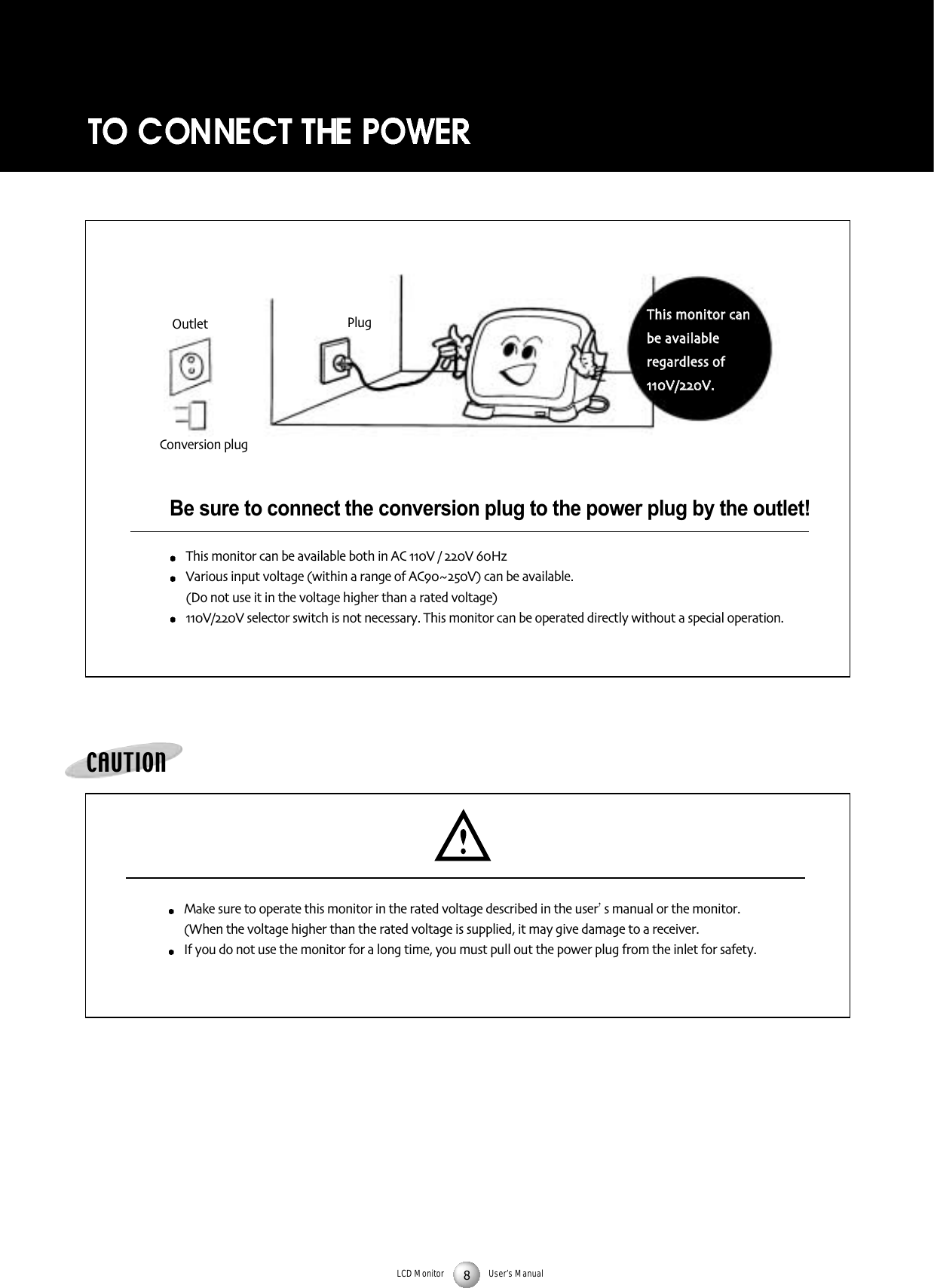
LCD Monitor User’s ManualBe sure to connect the conversion plug to the power plug by the outlet!This monitor can be available both in AC V / V HzVarious input voltage (within a range of ACV) can be available (Do not use it in the voltage higher than a rated voltage) V/V selector switch is not necessary This monitor can be operated directly without a special operationCAUTIONMake sure to operate this monitor in the rated voltage described in the user s manual or the monitor(When the voltage higher than the rated voltage is supplied it may give damage to a receiverIf you do not use the monitor for a long time you must pull out the power plug from the inlet for safetyTThhiiss mmoonniittoorr ccaannbbee aavvaaiillaabblleerreeggaarrddlleessss ooffVV//VVPlugOutletConversion plug
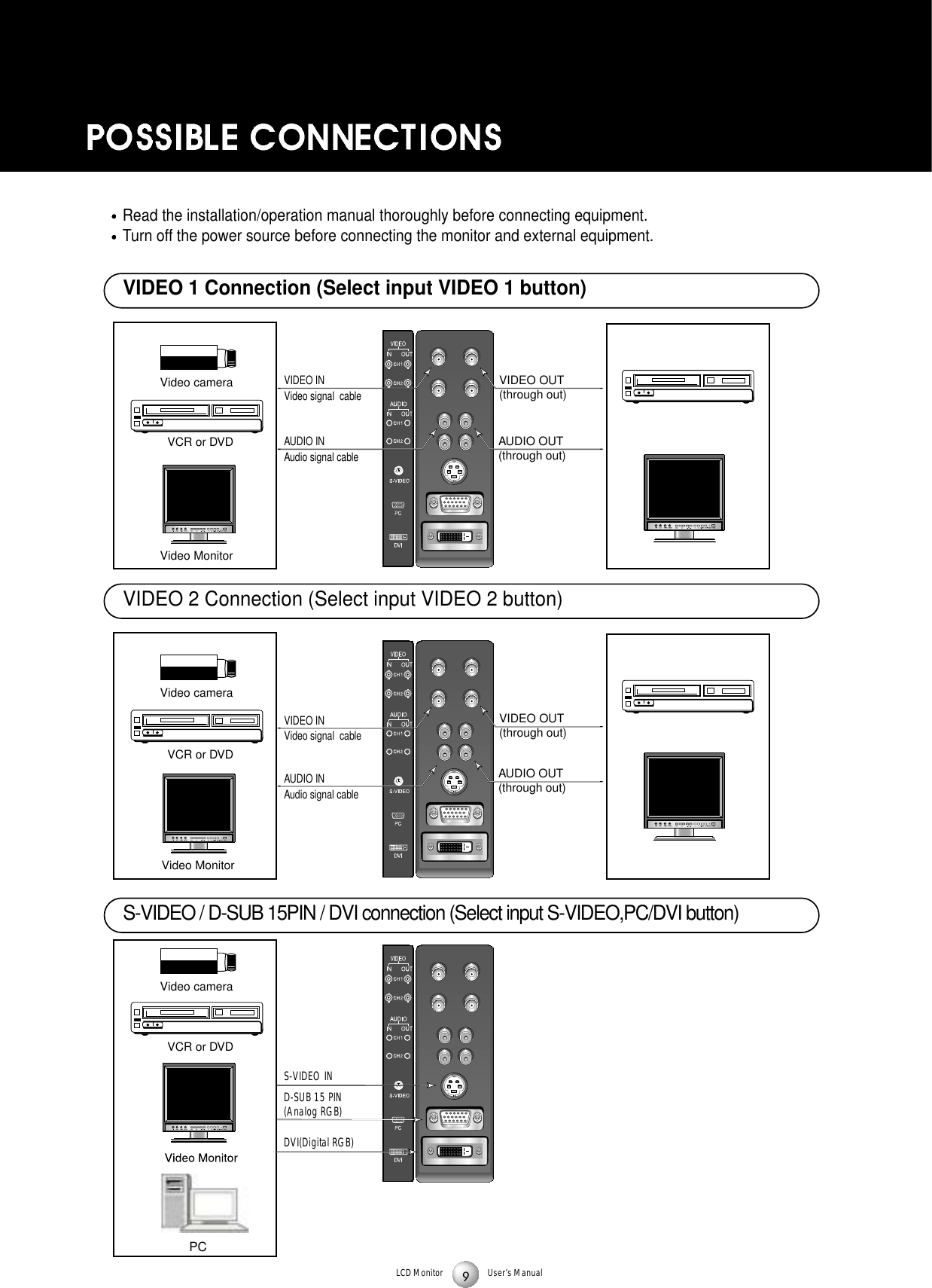
LCD Monitor User’s ManualVideo cameraVideo MonitorAUDIO INAudio signal cableVIDEO INAUDIO OUT(through out)VIDEO OUT(through out)Video signal  cableVideo cameraVideo MonitorVideo cameraVCR or DVD VCR or DVD VCR or DVD S-VIDEO IND-SUB 15 PIN (Analog RGB)DVI(Digital RGB)AUDIO OUT(through out)VIDEO OUT(through out)AUDIO INAudio signal cableVIDEO INVideo signal  cablePCS-VIDEO / D-SUB 15PIN / DVI connection (Select input S-VIDEO,PC/DVI button)Read the installation/operation manual thoroughly before connecting equipment.Turn off the power source before connecting the monitor and external equipment.VIDEO 1 Connection (Select input VIDEO 1 button)VIDEO 2 Connection (Select input VIDEO 2 button)
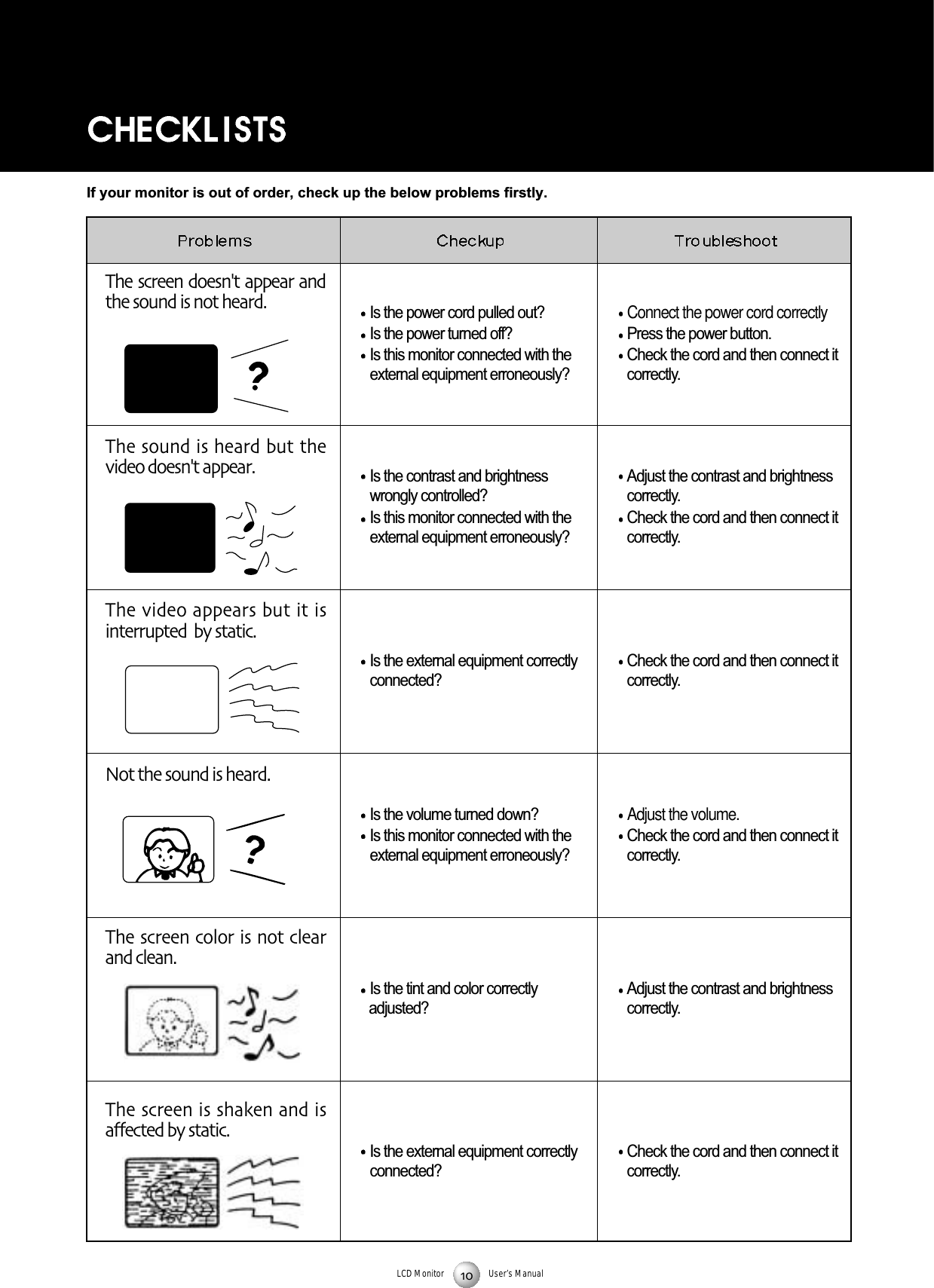
LCD Monitor User’s ManualThe screen doesn't appear andthe sound is not heard Is the power cord pulled out? Is the power turned off?Is this monitor connected with theexternal equipment erroneously?Is the contrast and brightnesswrongly controlled?Is this monitor connected with theexternal equipment erroneously?Is the external equipment correctlyconnected?Is the volume turned down?Is this monitor connected with theexternal equipment erroneously?Is the tint and color correctly adjusted?Is the external equipment correctlyconnected?Connect the power cord correctlyPress the power button.Check the cord and then connect itcorrectly.Adjust the contrast and brightnesscorrectly.Check the cord and then connect itcorrectly.Check the cord and then connect itcorrectly.Adjust the volume.Check the cord and then connect itcorrectly.Adjust the contrast and brightnesscorrectly.Check the cord and then connect itcorrectly.The sound is heard but thevideo doesn't appearThe video appears but it isinterrupted  by staticNot the sound is heardThe screen color is not clearand cleanThe screen is shaken and isaffected by staticIf your monitor is out of order, check up the below problems firstly.
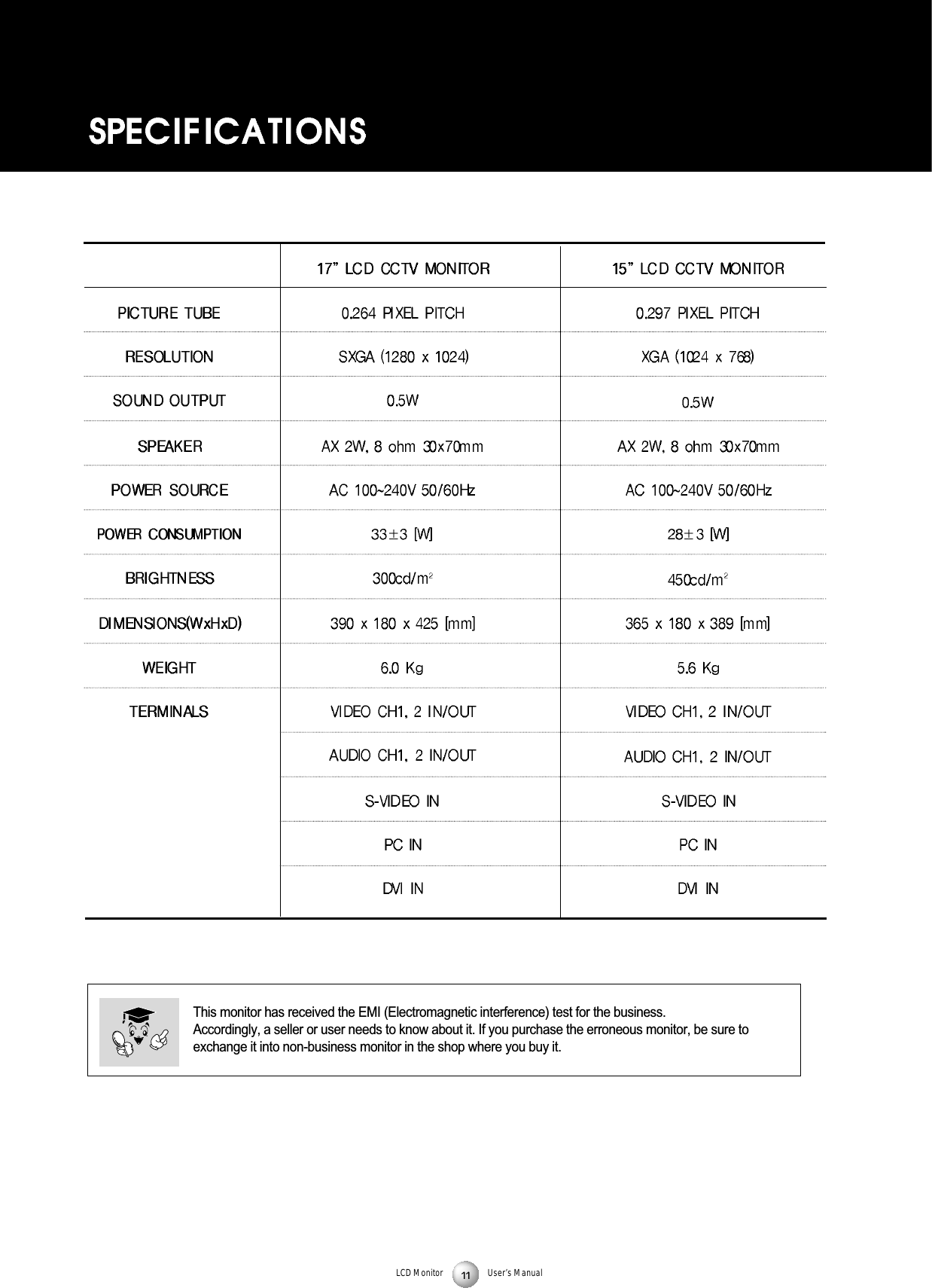
LCD Monitor User’s ManualThis monitor has received the EMI (Electromagnetic interference) test for the business. Accordingly, a seller or user needs to know about it. If you purchase the erroneous monitor, be sure toexchange it into non-business monitor in the shop where you buy it.

Navigation menu