KTV Global LCM17BB 17" TFT LCD CCTV MONITOR User Manual User s Manual H ok

KTV Global Corporation 17" TFT LCD CCTV MONITOR User s Manual H ok

USERS MANUAL

   EUT Type: 17” TFT LCD CCTV Monitor FCC ID: BRFLCM17BB Test Report No.: GETEC-E3-06-075 FCC Class B Certification   APPENDIX H : USER’S MANUAL
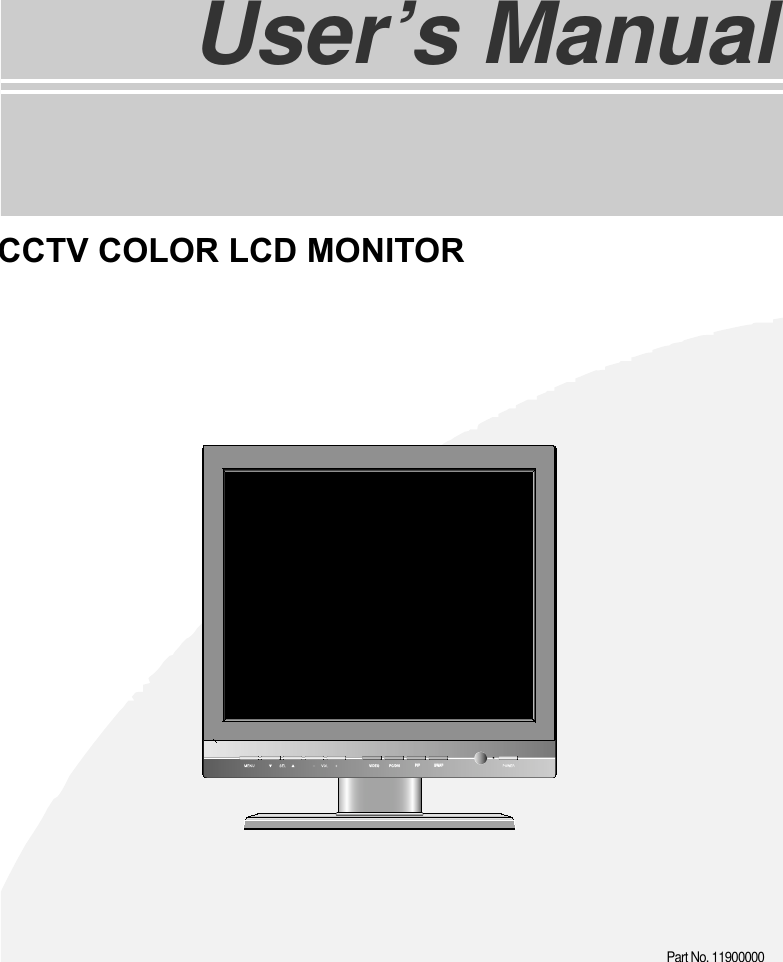
TFT LCD TVUser’s ManualVIDEOVIDEOPC/DVIPC/DVIPIPPIPSWAPSWAPCCTV COLOR LCD MONITORPart No. 11900000
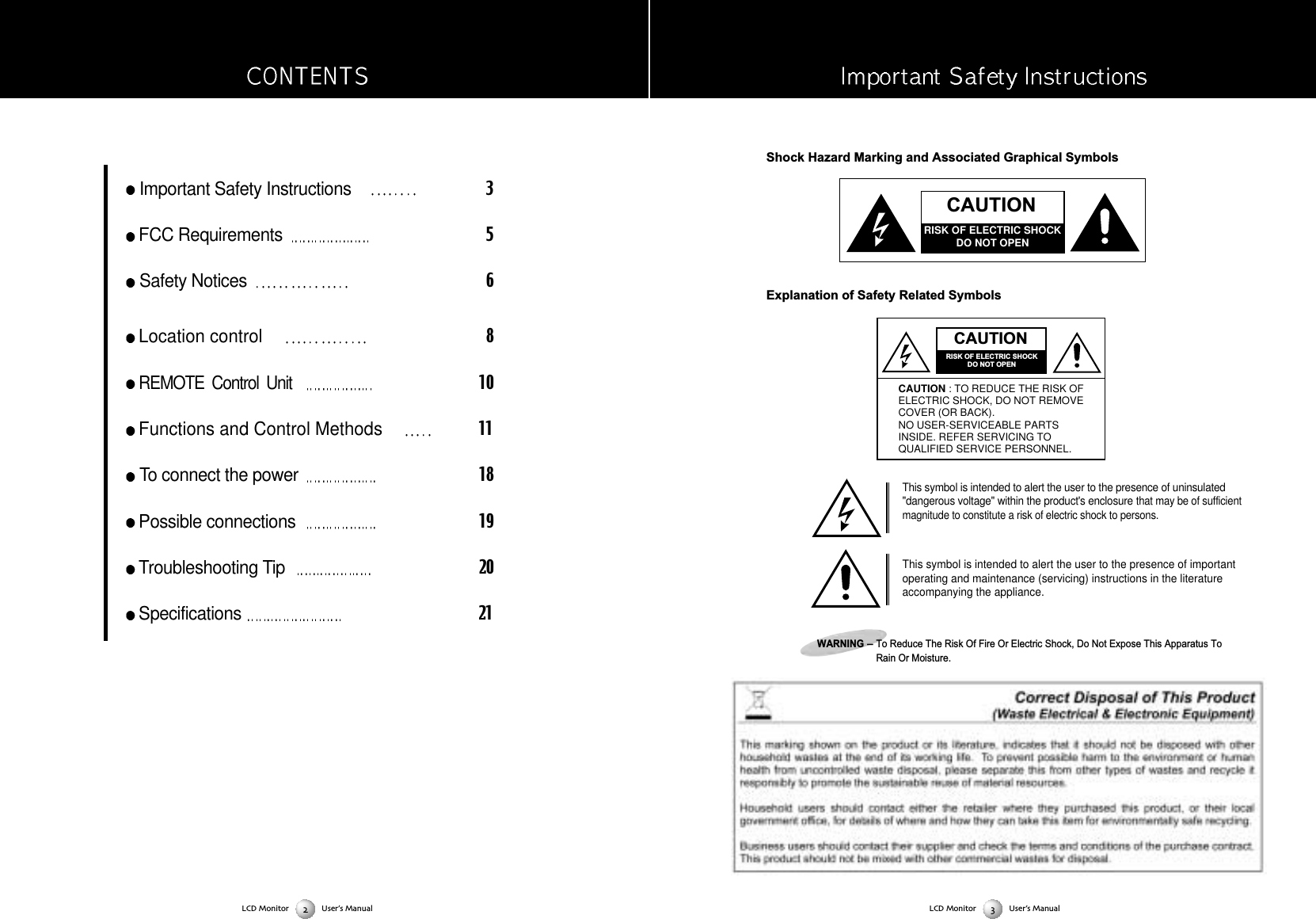
Shock Hazard Marking and Associated Graphical SymbolsExplanation of Safety Related SymbolsThis symbol is intended to alert the user to the presence of uninsulated"dangerous voltage" within the product's enclosure that may be of sufficientmagnitude to constitute a risk of electric shock to persons. This symbol is intended to alert the user to the presence of importantoperating and maintenance (servicing) instructions in the literatureaccompanying the appliance. WARNING-To Reduce The Risk Of Fire Or Electric Shock, Do Not Expose This Apparatus ToRain Or Moisture. Important Safety Instructions3FCC Requirements5Safety Notices6Location control8REMOTE  Control  Unit  10Functions and Control Methods11 To connect the power18Possible connections19Troubleshooting Tip20Specifications21CAUTIONRISK OF ELECTRIC SHOCKDO NOT OPENCAUTIONRISK OF ELECTRIC SHOCKDO NOT OPENCAUTION : TO REDUCE THE RISK OFELECTRIC SHOCK, DO NOT REMOVECOVER (OR BACK).NO USER-SERVICEABLE PARTSINSIDE. REFER SERVICING TOQUALIFIED SERVICE PERSONNEL.LCD Monitor User’s ManualLCD Monitor User’s Manual
This device complies with Part 15 of the FCC Rules and Regulations. Operation is subject to the following twoconditions: (1) This device may not cause harmful interference, and (2) this device must tolerate any interfer-ence encountered, including interference that may cause improper operation. The equipment has been tested and found to comply with the requirements stipulated in Part 15 of FCC regula-tions for a Class B digital device. These requirements are designed to provide reasonable protection againstharmful interference in a residential installation. This equipment generates, uses and can radiate radio frequency energy and, if not installed and used in strictcompliance with the instructions, may disrupt radio communications. However, there is no guarantee that inter-ference will not occur in a particular installation. If this equipment does cause detrimental interference with radioor television reception, which can be determined by turning the equipment off and on, the user is encouraged totry to correct the interference by taking one or more of the following measures: Reorienting or relocating the receiving antenna. Increasing the separation between the equipment and the receiver. Connecting the equipment into an outlet on a circuit different from that to which the receiver is connected. Consulting the dealer or an experienced radio/TV technician for help. Shielded interconnected cables and shielded power cords must be used with this equipment to ensure compli-ance with the pertinent RFD emission limits governing this device. Changes or modifications not expressly approved by the manufacturer could void the user's right to operate theequipment. Notice of Compliance with Canadian Interference-causing Equipment Regulations.This Class B digital apparatus meets all requirements of the Canadian Interference-Causing EquipmentRegulations. Cet appareil numerique de classe B satisfait toutes les exigences des reglementations canadiennes inherentesaux equipements generant des interferences. Before connecting the AC power cord to the DC adapter outlet, make sure the voltage designation ofthe DC adapter corresponds to the local electrical supply.Never insert anything metallic into the cabinet openings of the Liquid Crystal Display LCD Monitor:doing so may create the danger of electric shock.To avoid electric shock, never touch the inside of the LCD Monitor. Only a qualified technician shouldopen the case of the LCD Monitor.Never use your LCD Monitor if the power cord has been damaged. Do not allow anything to rest n thepower cord, and keep the cord away from areas wherepeople can trip over it.Be sure to hold the plug, not the cord, when disconnecting the LCD Monitor from an electric socket.Openings in the LCD Monitor cabinet are provided for ventilation. To prevent overheating, these open-ings should not be blocked or covered. Also, avoid using the LCD Monitor on a bed, sofa, rug, or othersoft surface. Doing so may block the ventilation openings in the bottom of the cabinet.If you put the LCD Monitor in a bookcase or some other enclosed space, be sure to provide adequateventilation. Put your LCD Monitor in a location with low humidity and a minimum of dust.Do not expose the LCD Monitor to rain or use it near water.(in kitchen, near swimming pool, etc.). If the LCD Monitor accidentally gets wet, unplug it and contactan authorized dealer immediately. You can clean the LCD Monitor with a damp cloth when necessary,but be sure to unplug the LCD Monitor first.Place the LCD Monitor on a solid surface and treat it carefully.The screen is made of thin glass with a plastic front surface and be damaged if dropped, hit orscratched.Do not clean the front panel with keton-type materials (e.g., acetone), ethyl alcohol, toluene, ethylacid,methyl, or chloride - these may damage the panel.Locate your LCD Monitor near an easily accessible AC outlet.CAUTIONRISK OF ELECTRIC SHOCKDO NOT OPENCAUTION : TO REDUCE THE RISK OFELECTRIC SHOCK, DO NOT REMOVECOVER (OR BACK).NO USER-SERVICEABLE PARTSINSIDE. REFER SERVICING TOQUALIFIED SERVICE PERSONNEL.LCD Monitor User’s ManualLCD Monitor User’s Manual
SAFETY NOTES17. Do not install at the place with moisture or dustIt may cause the fire or the electric shock18. Do not install it at the place with poisonous gasIt may cause the fire19. Do not install it at the location with continuous vibrationIt may be tipped over as it loses balance or damaged as it is fallen down20. Do not install it at the place on the strong magnetic field or current fieldIt may cause fire electric shock or break downThis equipment may be observed deterioration of the picture by electromagnetic radiation in electromagnetic environment 21. Fasten the wheel of the product or shelf with wheels when installing this productIf it moves or is tipped over it may be damaged22. Do not leave it in the car under the burning sun for a long timeThe high temperature may distort the cabinet or the parts inside may be broken down or heatedIf you use this product in this condition it may cause the fire electric shock or breakdown due to the short circuit or poor insulation23. Do not place any fire source such as candlelight close to this product or place it on this productIf it is tipped over or fallen down it may cause damage or fire24. Do not sprinkle water drops or water on this productIt may cause the fire the electric shock or breakdown25. Do not place heavy objects on this productIt may be tipped over as it loses balance or damaged as it is fallen down26. Do not transport it with the power cord or the connection cable connectedIf you move this product with the power cord or the connection cable connected the damaged power cord connection cableor connection terminal may cause the fire the electric shock or breakdown27. Pull the power cord out while holding the plug portionIf you pull the power cord out by force the cord may the fire or the electric shock28. Do not use it outdoorDust or rainstorm may cause the fire electric shock or breakdown29. Do not climb on this productIf you climb on it it may damage  or hurt it30.  persons or more shall transport the device which is heavier than  kgIf you drop or tip over the device it may damage itThe weight is indicated on the user's manual31. Use the this unit shall be connected to a mains socket outlet with a protective earthing connectionAnd connection cable or those which are indicated on the user's manualIf you do not use the designated power cord and connection cable it may cause the electric shock or breakdown32. Turn off the power switch when connecting the power cord or connection cableIf you not turn off when connecting it it may cause the electric shock or breakdown33. Do not use any chemical such as the paint thinner or benzine to clean the cabinetIt may scratch the surface or disappear the indication to cause wrong operation whch can be the reason for disorder34. Clean the cabinet with  time diluted neutral detergent water on smooth cloth as stirring to remove the contaminationAfter that clean it with dry cloth to remove any stainSAFETY NOTESTThhaannkk yyoouu ffoorr ppuurrcchhaassiinngg oouurr pprroodduuccttBBeeffoorree uussiinngg iitt pplleeaassee rreeaadd tthhiiss uusseerr''ss mmaannuuaall ccaarreeffuullllyy aanndd aappppllyy iitt ccoorrrreeccttllyy aanndd ssaaffeellyyPPlleeaassee kkeeeepp tthhiiss mmaannuuaall cclloossee ttoo yyoouu ssoo yyoouu ccaann rreeffeerr ttoo iitt aannyyttiimmee aafftteerr rreeaaddiinngg iittAAllssoo ffoorr tthhee ttrraannssppoorrttaattiioonn ooff tthhee pprroodduucctt pplleeaassee aattttaacchh tthhiiss mmaannuuaall wwiitthhoouutt ffaaiillPPlleeaassee oobbsseerrvvee tthhee nnootteess bbeellooww1. Use at the rated power voltageUse of nonrated voltage may cause fire electric shock and breakdown2. Do not open the cabinet and external coverThe high voltage inside of this product may cause the electric shock3. Do not remodel or disassemble this product  Remodeling or disassembling in wrong method may cause fire electric shock or breakdown4. Do not insert or drop any foreign substance such as metals or flammable object inside from the air holeIt may cause fire electric shock or breakdownIf any foreign substance is inserted inside of this product turn off the power pull the plug out of the socket and contact thesales department  Do not use the product with the foreign substance in5. Do not place any vase potted plant cup medicine and any container with water on this productIf the liquid is spilt it may cause the fire electric shock or breakdown6. Do not place this product with water nor moisten itIf water flows in it it may cause the fire electric shock or breakdownIf there is water inside of the product turn off the power immediately pull the plug out of the socket and contact the salesdepartmentDo not use the product with water in it7. Never touch the antenna lie or power plug if it stars to thunderIt may cause the electric shock8. If any impact is applied the parts inside of the product may be fallen out or broken to be the cause of fire electric shock orbreakdown9. Clean the dust on the power plug periodicallyThe dusty power plug may cause the poor insulation due to the moisture to be the reason of fire10. Do not destroy process make closer to heating device bend or twist forcibly place any heavy object on nor bind the powercord or power plug  If it is used in the broken condition it may cause fire or electric shock11. Do not touch the power plug with wet handsIf you pull in or out the power plug with wet hands it may cause electric shocks12. Put the power plug in firmlyPutting the plug incompletely may cause the electric shock or fire by the generation of heat 13. Do not use any nonrated power socket with numerous devices jointed on one power socket or cable deviceThe wire of nondesignated capacity may cause the fire due to the generation of heat14. In case of malfunction turn off the power switch immediately and pull out the power plugIf this product is used in the abnormal condition such as damage to it foreign substance inside of the product generation ofjoints smelling smoking overheating and non production of signal it may cause fire electric shock or breakdownTurn off the power switch immediately pull the power plug out of the socket and contact to the sales store15. Leave space  cm or more from the wall for the installation of the deviceDo not install it close to the wall nor block the ventilation of the airInsufficient ventilation or accumulated heat inside of the product may cause the fire16. Do not install it at the unstable location such as on the bouncing prop or tilted placeIt may be tipped over as it loses balance or damaged as it is fallen downLCD Monitor User’s ManualLCD Monitor User’s Manual
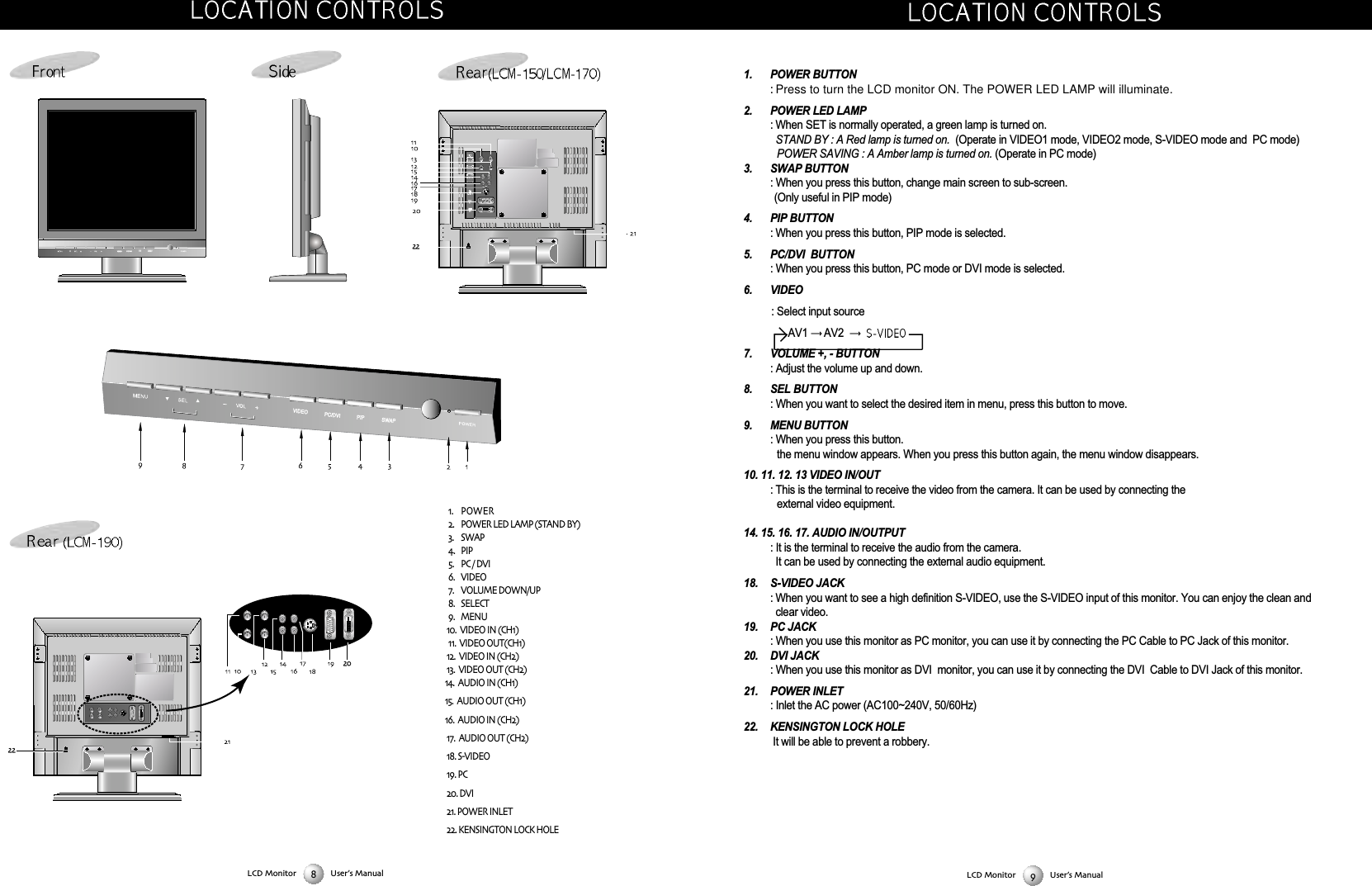
1. POWER BUTTON : Press to turn the LCD monitor ON. The POWER LED LAMP will illuminate.2. POWER LED LAMP : When SET is normally operated, a green lamp is turned on. STAND BY : A Red lamp is turned on.  (Operate in VIDEO1 mode, VIDEO2 mode, S-VIDEO mode and  PC mode)POWER SAVING : A Amber lamp is turned on. (Operate in PC mode)3. SWAP BUTTON: When you press this button, change main screen to sub-screen.(Only useful in PIP mode)4. PIP BUTTON : When you press this button, PIP mode is selected.5. PC/DVI  BUTTON : When you press this button, PC mode or DVI mode is selected.6. VIDEO : Select input sourceAV1  AV2  7. VOLUME +, - BUTTON : Adjust the volume up and down. 8. SEL BUTTON: When you want to select the desired item in menu, press this button to move. 9. MENU BUTTON: When you press this button. the menu window appears. When you press this button again, the menu window disappears. 10. 11. 12. 13 VIDEO IN/OUT : This is the terminal to receive the video from the camera. It can be used by connecting the external video equipment.14. 15. 16. 17. AUDIO IN/OUTPUT : It is the terminal to receive the audio from the camera. It can be used by connecting the external audio equipment.18. S-VIDEO JACK : When you want to see a high definition S-VIDEO, use the S-VIDEO input of this monitor. You can enjoy the clean andclear video.19. PC JACK: When you use this monitor as PC monitor, you can use it by connecting the PC Cable to PC Jack of this monitor.20. DVI JACK: When you use this monitor as DVI  monitor, you can use it by connecting the DVI  Cable to DVI Jack of this monitor.21. POWER INLET: Inlet the AC power (AC100~240V, 50/60Hz)22. KENSINGTON LOCK HOLEIt will be able to prevent a robbery.LCD Monitor User’s ManualVIDEOVIDEO PC/DVIPC/DVI PIPPIP SWAPSWAPDVI POWER  POWER LED LAMP (STAND BY) SWAP PIP  PC / DVI  VIDEO  VOLUME DOWN/UP  SELECT   MENU  VIDEO IN (CH)  VIDEO OUT(CH)  VIDEO IN (CH)  VIDEO OUT (CH)  AUDIO IN (CH)  AUDIO OUT (CH)  AUDIO IN (CH)  AUDIO OUT (CH) SVIDEO PC DVI POWER INLET KENSINGTON LOCK HOLEDVIDVIVIDEO PC/DVI PIP SWAPDVIVIDEO PC/DVI PIP SWAPDVIDVIVIDEO PC/DVI PIP SWAPDVILCD Monitor User’s Manual
MENU OperationWhen you press the MENU button, the MENU window appears on screen.Press SEL BUTTON to move to the desired item.Press VOL+/ VOL - key to select the desired item.To shut down the MENU window, wait for time when the MENU window disappears or press the MENU button again.MENU in AV1, AV2, and S-VIDEOIt shows the MOVE button, SEL button, and EXIT button on a bottom of MENU window.LCD Monitor User’s Manual1.   Press the MENU button.Result :    The PICTURE menu is display.2.    Press the [ ] button menu.3.  Use the [ ] or [ ] button to select setting.Result :   The color of characters are changing to yellow.4. Adjust to satisfy your preference by pressing the [ ] or [ ]  button.5. When you are satisfied with the settings, press the MENU button repeat-edly to return to normal view-ing.COLOR TEMP9300/6500: You can select  temperature of desired color.(9300 K/ 6500 K)CONTRAST : Adjust the screen s contrast. (Operate in AV1 mode, AV2 mode, and S-VIDEO mode)BRIGHTNESS: Adjust the screen s brightness. (Operate in AV1 mode, AV2 mode, and S-VIDEO mode)COLOR : Adjust the screen s color. (Operate in AV1 mode,  AV2 mode, and S-VIDEO mode)SHARPNESS: Adjust the screen s sharpness.(Operate in  A V1 mode,  AV2 mode, and S-VIDEO mode)TINT: Adjust the screen s tint(Operate in  A V1 mode,  AV2 mode, and S-VIDEO mode)(Only use for NTSC system)PICTURE SettingLCD Monitor User’s ManualBATTERY INSTALLATIONReplace two batteries in the battery compartment at the same time.lnsert "AAA" batteries, observing the polarity ( or  ) marked on the unit.Batteries should last about a year under normal use. lf the operation is unstable(either chan-nel or volume does not change), replace the batteries. When the hand unit is not used for along, or when the batteries are used up, take out the batteries to prevent possible leakage.To avoid any malfunction of the remote control, press only one button at a time.
LCD Monitor User’s Manual1.Press the [] or [ ]buttons to select  “PIP SIZE"2. It will able to select PIP SIZE by using the[] or [ ]buttons.1.Press the [ ] or [ ] button to select "PIP POSITION".2. It will able to select PIP POSITION by using the[] or [ ]buttons.LCD Monitor User’s ManualSizePosition. Press the Menu button.2.. Press the [ ] or [ ] button to select "PIP".1. It will able to select want PIP input MODE by using the[] or [ ]buttons.1. Press the [ ] or [ ] button to select "SOURCE".2. It will able to select want signal by using the[] or [ ]buttons.LCD Monitor User’s ManualPIP SettingModeoff  PIP  DW1  DW2 Source
MENU in PCWhen you press the MENU Button, the MENU screen appears. LCD Monitor User’s Manual1.   Press the MENU button.Result :    The PICTURE menu is display.2.    Press the [ ] button menu.3.  Use the [ ] or [ ] button to select setting.Result :   The color of characters are changing to yellow.4. Adjust to satisfy your preference by pressing the [ ] or [ ]  button.5. When you are satisfied with the settings, press the MENU button repeat-edly to return to normal view-ing.COLORTEMPCOLOR TEMP Select the temperature of desired color( 6500 K /  9300 K/  USER )RED Adjust the red tint of screenGREENAdjust the green tint of screenBLUE Adjust the blue tint of screenCONTRAST Adjust the screen s contrast.  BRIGHTNESSAdjust the screen s brightness. 1 Press the Menu button.2. Press the [ ] button to select "FUNCTION"3.Press the [] or [ ]button.4.Result:   The "LANGUAGE" menu is displayed.5.Press the[] or [ ] button to select which you want language.English  Francais  Deutsch  Espanol  Portugues  ItalianoLCD Monitor User’s ManualLanguageKey Lock1.Press the [ ] or [ ] button to select "Key Lock".2. It will able to select On/Off  by using the [] or [ ]buttons.Scan Mode1.Press the [ ] or [ ] button to select "Scan Mode".2. It will able to select scan mode  by using the [] or [ ]buttons.Normal  Full  UnderPicture Reset1.Press the [ ] or [ ] button to select "Picture Reset".2. It will able to select standard state  by using the [] or [ ]buttons.
LCD Monitor User’s Manual1 Press the Menu button.2.Press the [] or [ ] buttons to select "FUNCTION"3. Press the [ ] button.4.Result:   The "LANGUAGE" menu is displayed.5.Press the[] or [ ] button to select which you want language.LanguageEnglish  Francais  Deutsch  Espanol  Portugues Key Lock1.Press the [ ] or [ ] button to select "Key Lock".2. It will able to select On/Off  by using the [] or [ ]buttons.ResetLCD Monitor User’s Manual1.Press the [ ] or [ ] button to select  "Reset".2. It will able to select standard state  by using the [] or [ ] buttons.When the screen is unstable in PC settings, or to make your PC stable by adjusting the Clock and Phase, set the PC in thefollowing sequence:1. Press the MENU button.2. Press the [] or [ ] button to select "ADJUSTMENT” and press the [ ]but-ton.3. Press the [] or [ ] button to select frequency.4. H Position  [] or [ ] button.V Position  [] or [ ] button.Clock [] or [ ] button.Phase [] or [ ] button.5.When you are satisfied with the settings, press the MENU button repeatedly toreturn to normal viewing.Auto Adjust:Adjusts the screen’s status in PC mode automatically.H - Position/V Position:Adjusts the screen’s horizontal position.V - Position/V Position:Adjusts the screen’s vertical position.Clock:Adjusts the screen’s horizontal size through a increase/decrease inthe number of Pixel.Phase:Adjusts the screen’s phase480P MODE:It will able to select that input signil type is interlace or progressiveat 640 X 480 mode48LCD Monitor User’s ManualAJUSTMENT Setting
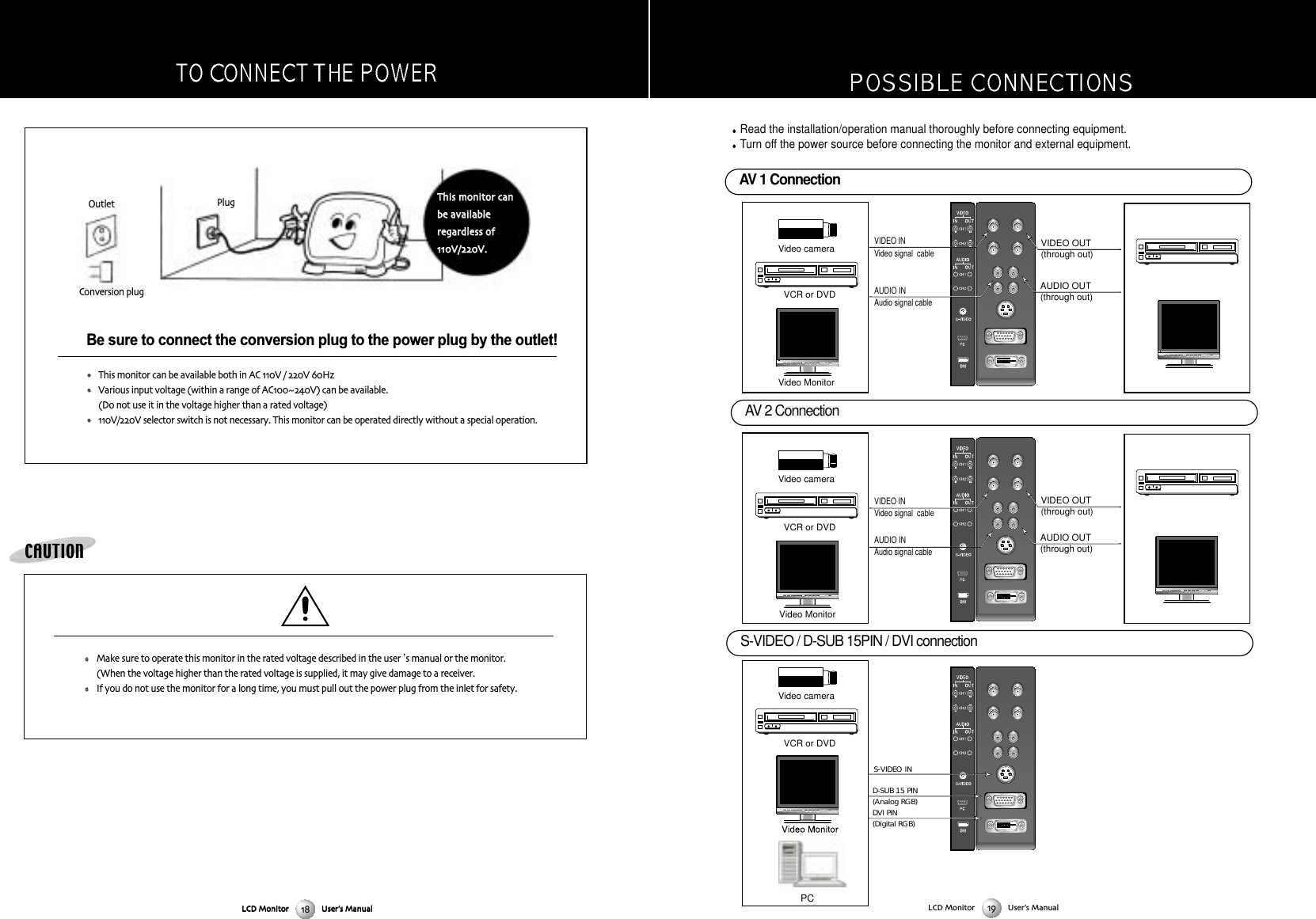
LCD Monitor User’s ManualDVIDVIDVIDVIDVIDVIVideo cameraVideo MonitorAUDIO INAudio signal cableVIDEO INAUDIO OUT(through out)VIDEO OUT(through out)Video signal  cableVideo cameraVideo MonitorVideo cameraVCR or DVD VCR or DVD VCR or DVD S-VIDEO IND-SUB 15 PIN (Analog RGB)DVI PIN(Digital RGB)AUDIO OUT(through out)VIDEO OUT(through out)AUDIO INAudio signal cableVIDEO INVideo signal  cablePCVIDEOVIDEO PC/DVIPC/DVI PIPPIP SWSWAPAPVIDEOVIDEO PC/DVIPC/DVI PIPPIP SWSWAPAPVIDEOVIDEO PC/DVIPC/DVI PIPPIP SWSWAPAPVIDEOVIDEO PC/DVIPC/DVI PIPPIP SWSWAPAPVIDEOVIDEO PC/DVIPC/DVI PIPPIP SWSWAPAPS-VIDEO / D-SUB 15PIN / DVI connection Read the installation/operation manual thoroughly before connecting equipment.Turn off the power source before connecting the monitor and external equipment.AV 1 ConnectionAV 2 ConnectionLCD Monitor User’s ManualBe sure to connect the conversion plug to the power plug by the outlet!This monitor can be available both in AC V / V HzVarious input voltage (within a range of ACV) can be available (Do not use it in the voltage higher than a rated voltage) V/V selector switch is not necessary This monitor can be operated directly without a special operationTThhiiss mmoonniittoorr ccaannbbee aavvaaiillaabblleerreeggaarrddlleessss ooffVV//VVPlugOutletConversion plugCAUTIONMake sure to operate this monitor in the rated voltage described in the user s manual or the monitor(When the voltage higher than the rated voltage is supplied it may give damage to a receiverIf you do not use the monitor for a long time you must pull out the power plug from the inlet for safetyLCD Monitor User’s Manual
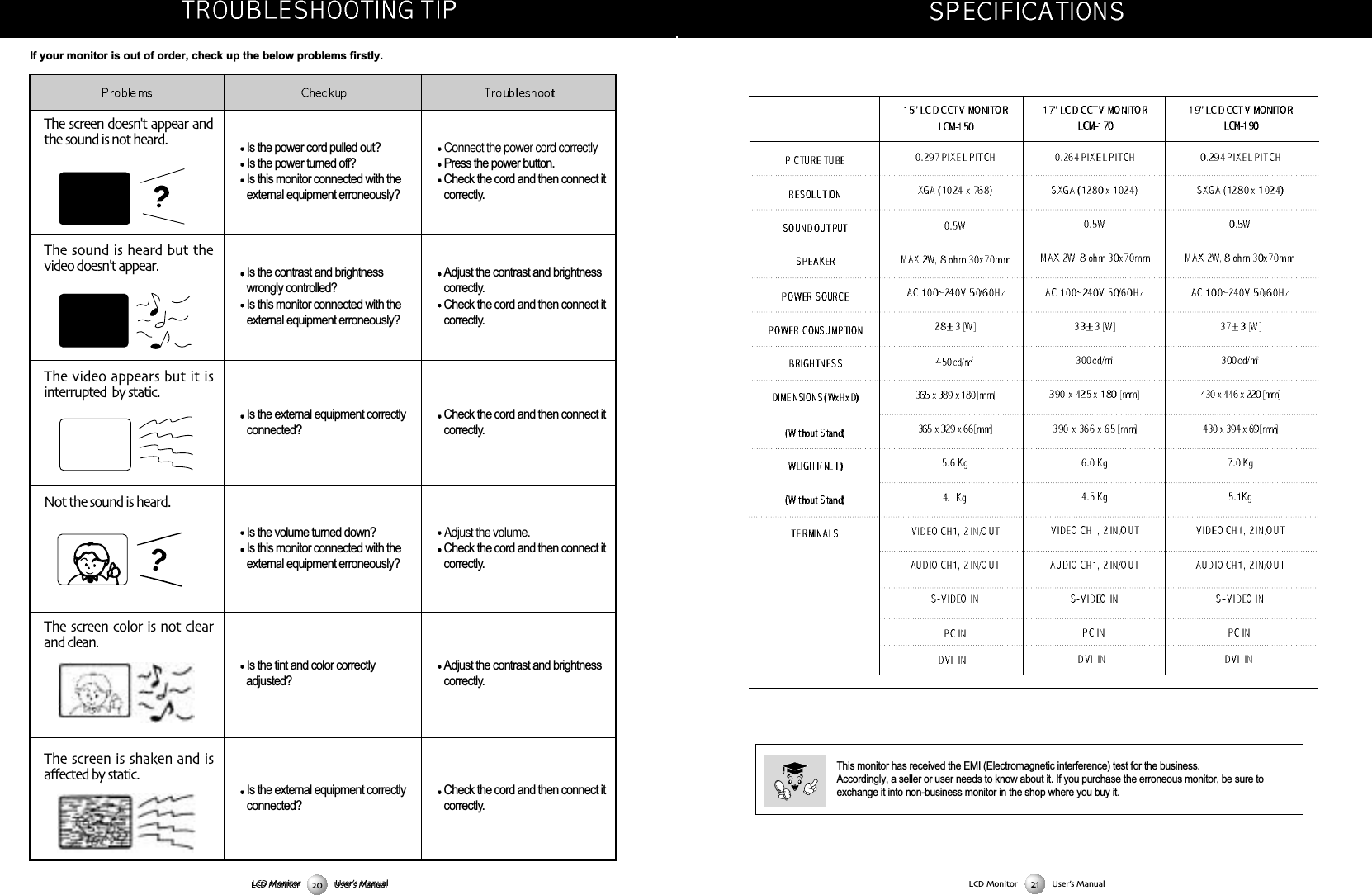
LCD Monitor User’s ManualLCD Monitor User’s ManualThis monitor has received the EMI (Electromagnetic interference) test for the business. Accordingly, a seller or user needs to know about it. If you purchase the erroneous monitor, be sure toexchange it into non-business monitor in the shop where you buy it.The screen doesn't appear andthe sound is not heard Is the power cord pulled out? Is the power turned off?Is this monitor connected with theexternal equipment erroneously?Is the contrast and brightnesswrongly controlled?Is this monitor connected with theexternal equipment erroneously?Is the external equipment correctlyconnected?Is the volume turned down?Is this monitor connected with theexternal equipment erroneously?Is the tint and color correctly adjusted?Is the external equipment correctlyconnected?Connect the power cord correctlyPress the power button.Check the cord and then connect itcorrectly.Adjust the contrast and brightnesscorrectly.Check the cord and then connect itcorrectly.Check the cord and then connect itcorrectly.Adjust the volume.Check the cord and then connect itcorrectly.Adjust the contrast and brightnesscorrectly.Check the cord and then connect itcorrectly.The sound is heard but thevideo doesn't appearThe video appears but it isinterrupted  by staticNot the sound is heardThe screen color is not clearand cleanThe screen is shaken and isaffected by staticIf your monitor is out of order, check up the below problems firstly. LCD Monitor User’s Manual
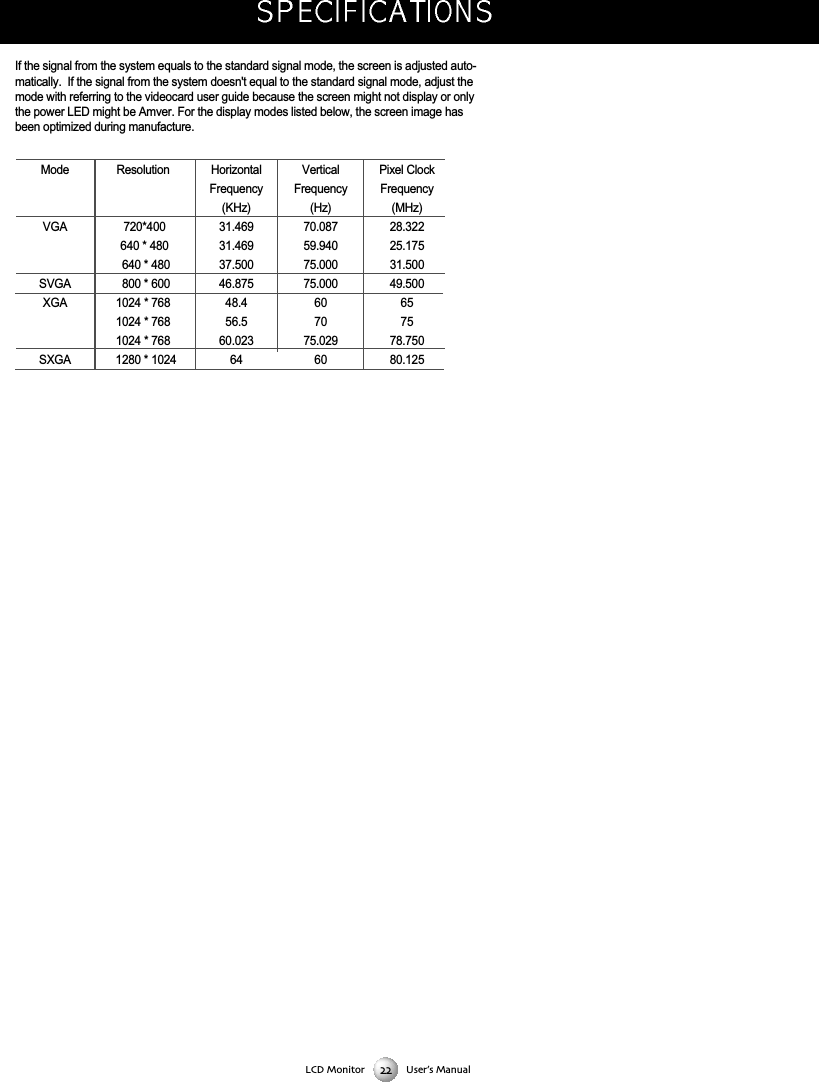
If the signal from the system equals to the standard signal mode, the screen is adjusted auto-matically.  If the signal from the system doesn't equal to the standard signal mode, adjust themode with referring to the videocard user guide because the screen might not display or onlythe power LED might be Amver. For the display modes listed below, the screen image hasbeen optimized during manufacture.ModeVGASVGAXGASXGAResolution720*400640 * 480640 * 480800 * 6001024 * 7681024 * 7681024 * 7681280 * 1024HorizontalFrequency(KHz)31.46931.46937.50046.87548.456.560.02364VerticalFrequency(Hz)70.08759.94075.00075.000607075.029 60Pixel ClockFrequency(MHz)28.32225.17531.50049.500657578.75080.125LCD Monitor User’s Manual

Navigation menu