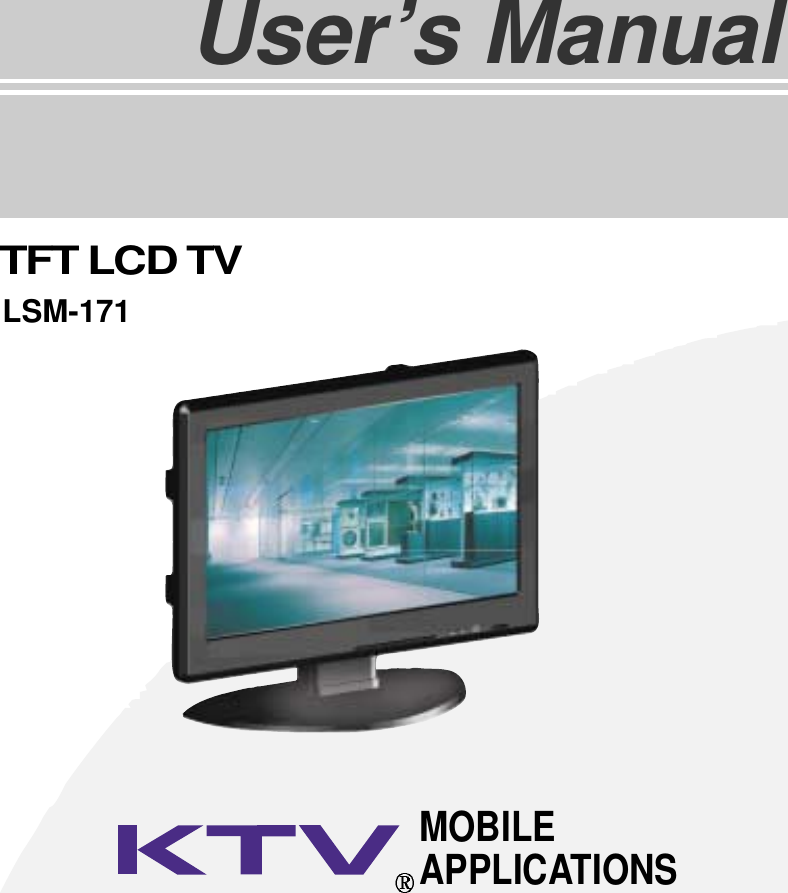
KTV Global LTM17AA 17" LCD TV/MONITOR User Manual User s Manual H

KTV Global Corporation 17" LCD TV/MONITOR User s Manual H

USERS MANUAL

   EUT Type: 17” LCD Monitor FCC ID : BRFLTM17AA Test Report No.: GETEC-E3-05-018 FCC Class B Certification   APPENDIX H : USER’S MANUAL
TFT LCD TVUser’s ManualMOBILEAPPLICATIONSLSM-171
2
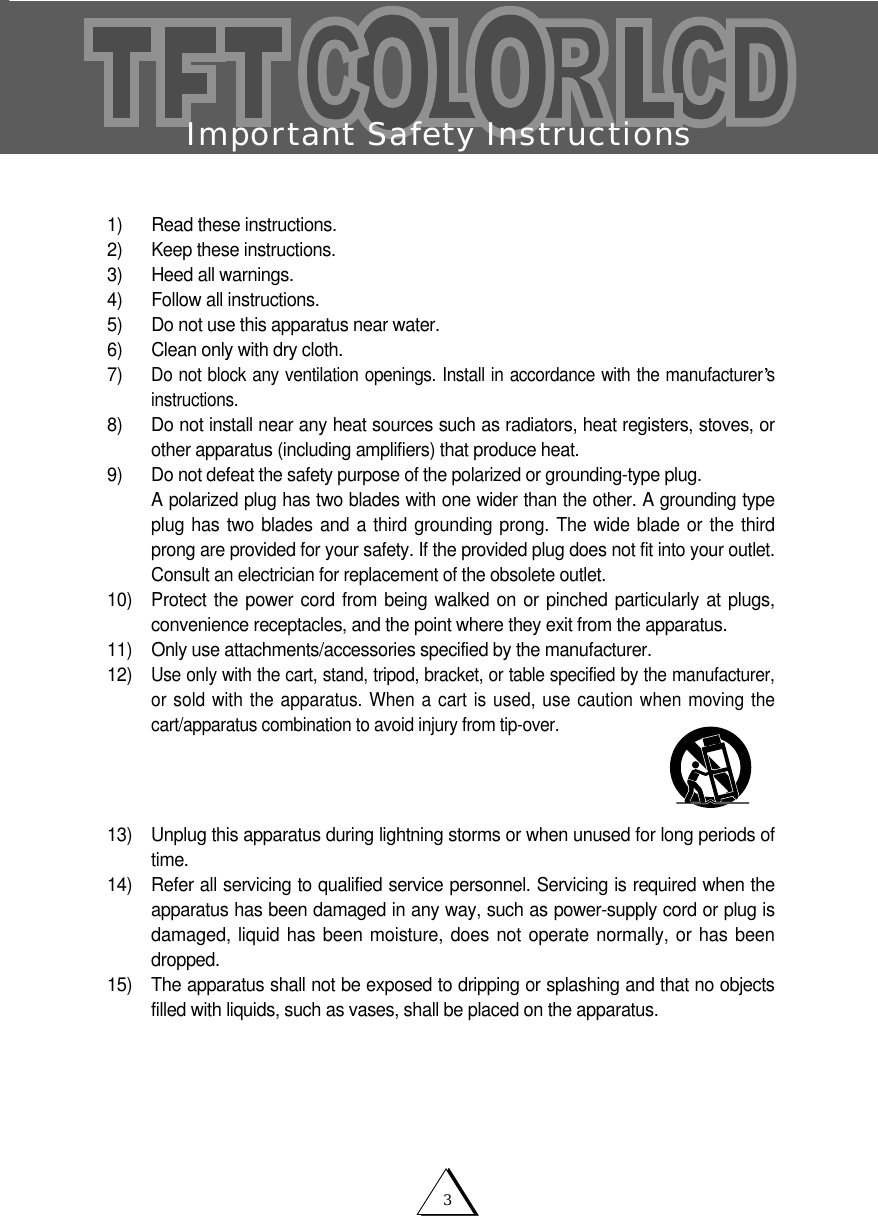
Important Safety Instructions31)  Read these instructions.2)  Keep these instructions.3)  Heed all warnings.4)  Follow all instructions.5)  Do not use this apparatus near water.6)  Clean only with dry cloth.7) Do not block any ventilation openings. Install in accordance with the manufacturer sinstructions.8)  Do not install near any heat sources such as radiators, heat registers, stoves, orother apparatus (including amplifiers) that produce heat.9) Do not defeat the safety purpose of the polarized or grounding-type plug. A polarized plug has two blades with one wider than the other. A grounding typeplug has two blades and a third grounding prong. The wide blade or the thirdprong are provided for your safety. If the provided plug does not fit into your outlet.Consult an electrician for replacement of the obsolete outlet.10) Protect the power cord from being walked on or pinched particularly at plugs,convenience receptacles, and the point where they exit from the apparatus.11)   Only use attachments/accessories specified by the manufacturer.12)  Use only with the cart, stand, tripod, bracket, or table specified by the manufacturer,or sold with the apparatus. When a cart is used, use caution when moving thecart/apparatus combination to avoid injury from tip-over.13) Unplug this apparatus during lightning storms or when unused for long periods oftime.14) Refer all servicing to qualified service personnel. Servicing is required when theapparatus has been damaged in any way, such as power-supply cord or plug isdamaged, liquid has been moisture, does not operate normally, or has beendropped.15) The apparatus shall not be exposed to dripping or splashing and that no objectsfilled with liquids, such as vases, shall be placed on the apparatus.
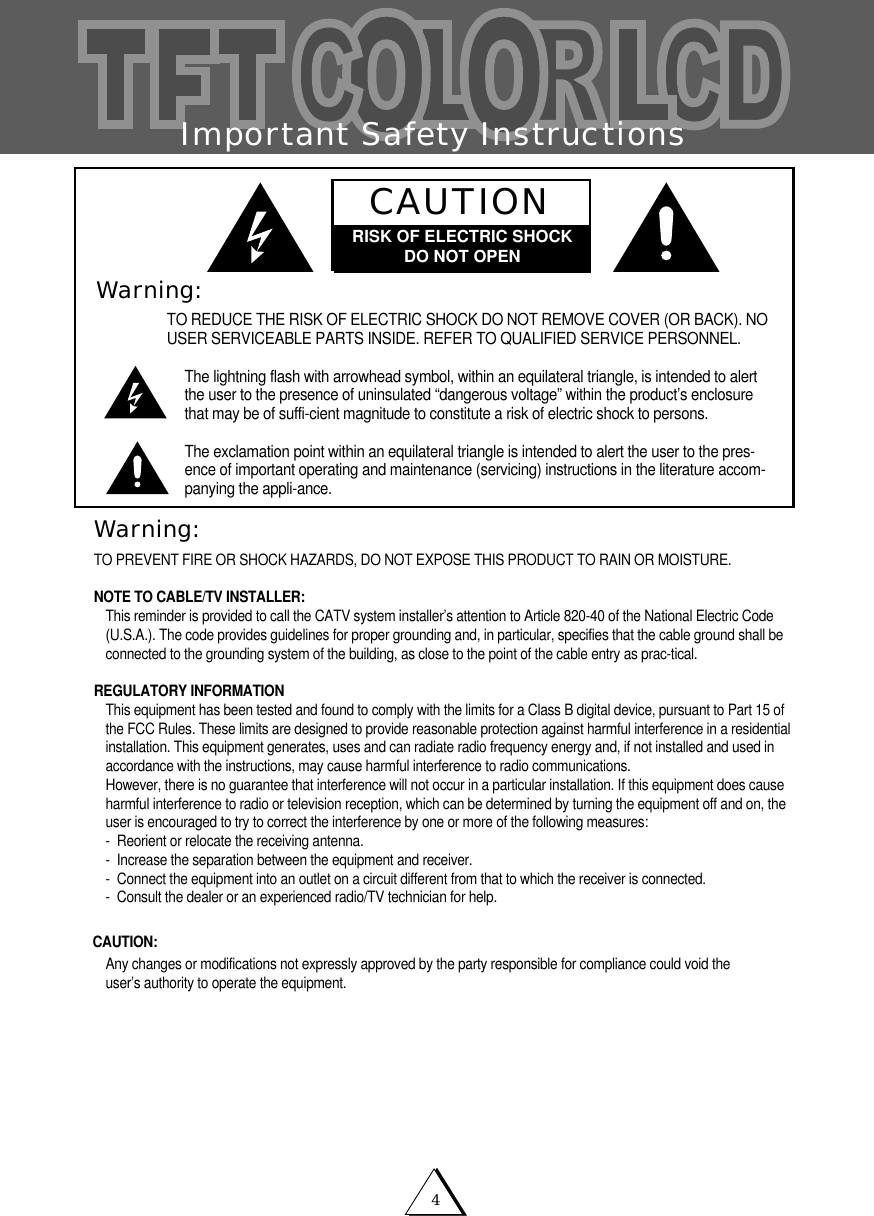
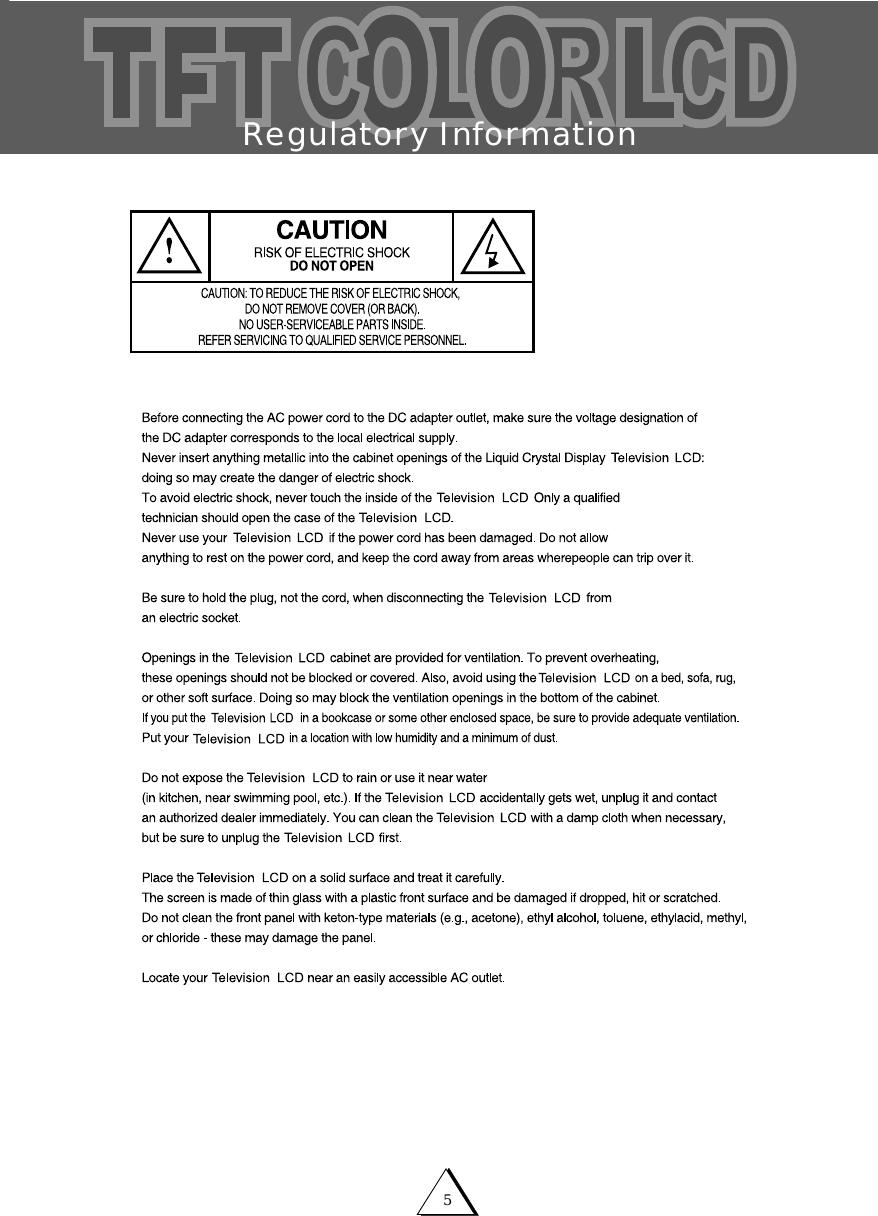
Important Safety Instructions4Warning:TO PREVENT FIRE OR SHOCK HAZARDS, DO NOT EXPOSE THIS PRODUCT TO RAIN OR MOISTURE.NOTE TO CABLE/TV INSTALLER:This reminder is provided to call the CATV system installer’s attention to Article 820-40 of the National Electric Code(U.S.A.). The code provides guidelines for proper grounding and, in particular, specifies that the cable ground shall beconnected to the grounding system of the building, as close to the point of the cable entry as prac-tical.REGULATORY INFORMATIONThis equipment has been tested and found to comply with the limits for a Class B digital device, pursuant to Part 15 ofthe FCC Rules. These limits are designed to provide reasonable protection against harmful interference in a residentialinstallation. This equipment generates, uses and can radiate radio frequency energy and, if not installed and used inaccordance with the instructions, may cause harmful interference to radio communications.However, there is no guarantee that interference will not occur in a particular installation. If this equipment does causeharmful interference to radio or television reception, which can be determined by turning the equipment off and on, theuser is encouraged to try to correct the interference by one or more of the following measures:-  Reorient or relocate the receiving antenna.-  Increase the separation between the equipment and receiver.-  Connect the equipment into an outlet on a circuit different from that to which the receiver is connected.-  Consult the dealer or an experienced radio/TV technician for help. Any changes or modifications not expressly approved by the party responsible for compliance could void theuser’s authority to operate the equipment.CAUTION:Warning:TO REDUCE THE RISK OF ELECTRIC SHOCK DO NOT REMOVE COVER (OR BACK). NOUSER SERVICEABLE PARTS INSIDE. REFER TO QUALIFIED SERVICE PERSONNEL.The lightning flash with arrowhead symbol, within an equilateral triangle, is intended to alertthe user to the presence of uninsulated “dangerous voltage” within the product’s enclosurethat may be of suffi-cient magnitude to constitute a risk of electric shock to persons.The exclamation point within an equilateral triangle is intended to alert the user to the pres-ence of important operating and maintenance (servicing) instructions in the literature accom-panying the appli-ance.CAUTIONRISK OF ELECTRIC SHOCKDO NOT OPEN
 Regulatory Information5
General safety precautions6Thank you for purchasing our product.Before using it, please read this user's manual carefully and apply it correctly and safely.Please keep this manual close to you so you can refer to it anytime after reading it.Also, for the transportation of the product, please attach this manual without fail.Please observe the notes below.1. Use at the rated power voltage.Use of non-rated voltage may cause fire, electric shock and breakdown.2.  Do not open the cabinet and external cover.The high voltage inside of this product may cause the electric shock.3. Do not remodel or disassemble this product.  Remodeling or disassembling in wrong method may cause fire, electric shock or breakdown.4. Do not insert or drop any foreign substance such as metals or flammable object inside from the air hole.It may cause fire, electric shock or breakdown.If any foreign substance is inserted inside of this product, turn off the power, pull the plug out of the socket and contactthe sales department.  Do not use the product with the foreign substance in.5.   Do not place any vase, potted plant, cup, medicine and any container with water on this product.If the liquid is spilt, it may cause the fire, electric shock or breakdown.6. Do not place this product with water nor moisten it.If water flows in it, it may cause the fire, electric shock or breakdown.If there is water inside of the product, turn off the power immediately, pull the plug out of the socket and contact thesales department.Do not use the product with water in it.7. Never touch the antenna lie or power plug if it stars to thunder.It may cause the electric shock.8. If any impact is applied, the parts inside of the product may be fallen out or broken to be the cause of fire, electric shock orbreakdown.9. Clean the dust on the power plug periodically.The dusty power plug may cause the poor insulation due to the moisture to be the reason of fire.10. Do not destroy, process, make closer to heating device, bend or twist forcibly, place any heavy object on nor bind thepower cord or power plug.  If it is used in the broken condition, it may cause fire or electric shock.11. Do not touch the power plug with wet hands.If you pull in or out the power plug with wet hands, it may cause electric shocks.12. Put the power plug in firmly.Putting the plug incompletely may cause the electric shock or fire by the generation of heat. 13. Do not use any non-rated power socket with numerous devices jointed on one power socket or cable device.The wire of non-designated capacity may cause the fire due to the generation of heat.14. In case of malfunction, turn off the power switch immediately and pull out the power plug.If this product is used in the abnormal condition such as damage to it, foreign substance inside of the product, genera-tion of joints, smelling, smoking, overheating and non production of signal, it may cause fire, electric shock or break-down.Turn off the power switch immediately, pull the power plug out of the socket and contact to the sales store..15. Leave space 10 cm or more from the wall for the installation of the device.Do not install it close to the wall nor block the ventilation of the air.Insufficient ventilation or accumulated heat inside of the product may cause the fire.16. Do not install it at the unstable location such as on the bouncing prop or tilted place.It may be tipped over as it loses balance or damaged as it is fallen down.
General safety precautions717. Do not install at the place with moisture or dust.It may cause the fire or the electric shock18. Do not install it at the place with poisonous gas.It may cause the fire.19. Do not install it at the location with continuous vibration.It may be tipped over as it loses balance or damaged as it is fallen down.20. Do not install it at the place on the strong magnetic field or current field.It may cause fire, electric shock or break down.This equipment may be observed deterioration of the picture by electromagnetic radiation in electromagneticenvironment. 21. Fasten the wheel of the product or shelf with wheels when installing this product.If it moves or is tipped over, it may be damaged.22. Do not leave it in the car under the burning sun for a long time.The high temperature may distort the cabinet or the parts inside may be broken down or heated.If you use this product in this condition, it may cause the fire, electric shock or breakdown due to the short circuitor poor insulation.23. Do not place any fire source such as candlelight close to this product or place it on this product.If it is tipped over or fallen down, it may cause damage or fire.24. Do not sprinkle water drops or water on this product.It may cause the fire, the electric shock or breakdown.25. Do not place heavy objects on this product.It may be tipped over as it loses balance or damaged as it is fallen down.26. Do not transport it with the power cord or the connection cable connected.If you move this product with the power cord or the connection cable connected, the damaged power cord,connection cable or connection terminal may cause the fire, the electric shock or breakdown.27. Pull the power cord out while holding the plug portion.If you pull the power cord out by force, the cord may the fire or the electric shock.28. Do not use it outdoor.Dust or rainstorm may cause the fire, electric shock or breakdown.29. Do not climb on this product.If you climb on it, it may damage  or hurt it.30. 2 persons or more shall transport the device, which is heavier than 18 kg.If you drop or tip over the device, it may damage it.The weight is indicated on the user's manual.31. Use the attached power cord and connection cable, or those, which are indicated on the user's manual.If you do not use the designated power cord and connection cable, it may cause the electric shock or breakdown.32. Turn off the power switch when connecting the power cord or connection cable.If you not turn off when connecting it, it may cause the electric shock or breakdown.33. Do not use any chemical such as the paint thinner or benzine to clean the cabinet.It may scratch the surface or disappear the indication to cause wrong operation, whch can be the reason for disorder.34. Clean the cabinet with 5~6 time diluted neutral detergent water on smooth cloth as stirring to remove thecontamination.After that, clean it with dry cloth to remove any stain.
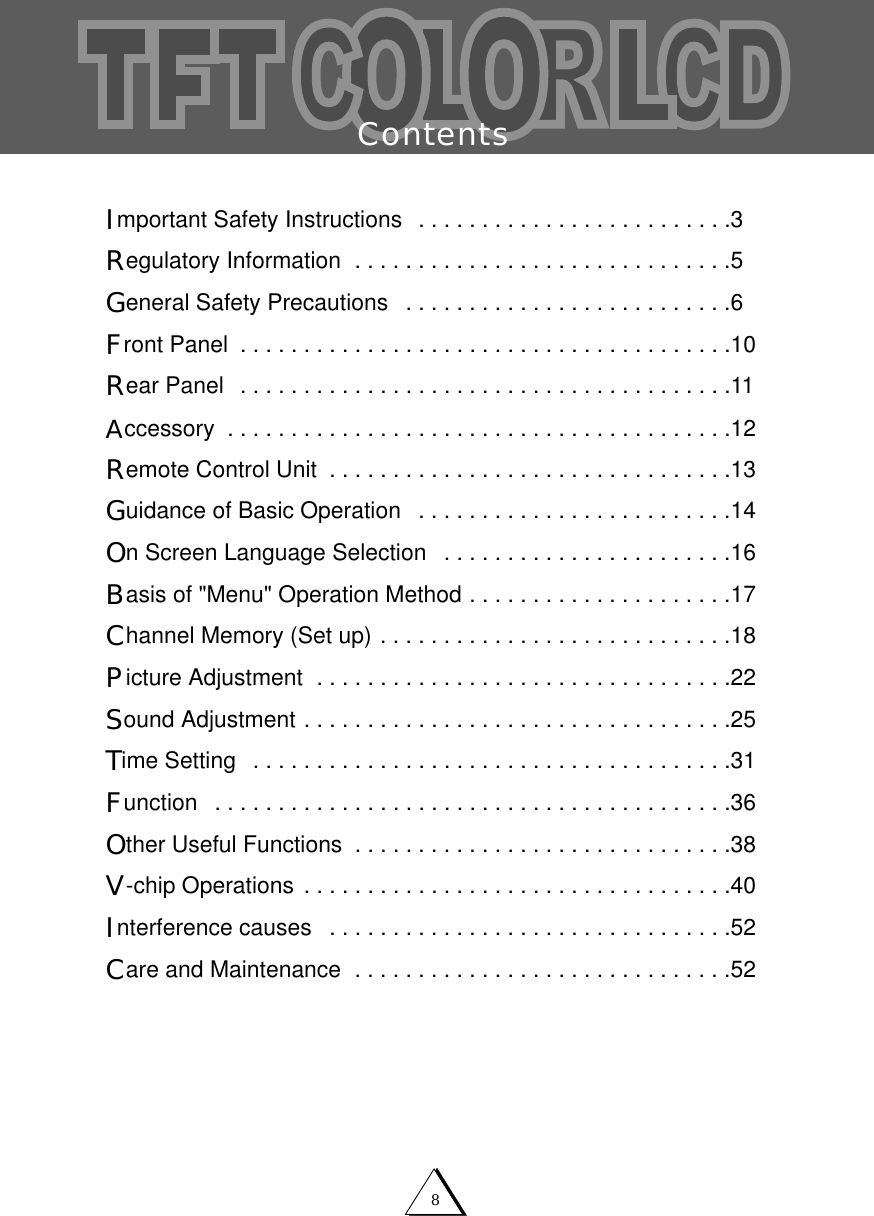
8ContentsImportant Safety Instructions  . . . . . . . . . . . . . . . . . . . . . . . . .3Regulatory Information  . . . . . . . . . . . . . . . . . . . . . . . . . . . . . .5General Safety Precautions  . . . . . . . . . . . . . . . . . . . . . . . . . .6Front Panel  . . . . . . . . . . . . . . . . . . . . . . . . . . . . . . . . . . . . . . .10Rear Panel  . . . . . . . . . . . . . . . . . . . . . . . . . . . . . . . . . . . . . . .11Accessory  . . . . . . . . . . . . . . . . . . . . . . . . . . . . . . . . . . . . . . . .12Remote Control Unit  . . . . . . . . . . . . . . . . . . . . . . . . . . . . . . . .13Guidance of Basic Operation  . . . . . . . . . . . . . . . . . . . . . . . . .14On Screen Language Selection  . . . . . . . . . . . . . . . . . . . . . . .16Basis of "Menu" Operation Method . . . . . . . . . . . . . . . . . . . . .17Channel Memory (Set up) . . . . . . . . . . . . . . . . . . . . . . . . . . . .18Picture Adjustment  . . . . . . . . . . . . . . . . . . . . . . . . . . . . . . . . .22Sound Adjustment . . . . . . . . . . . . . . . . . . . . . . . . . . . . . . . . . .25Time Setting  . . . . . . . . . . . . . . . . . . . . . . . . . . . . . . . . . . . . . .31Function  . . . . . . . . . . . . . . . . . . . . . . . . . . . . . . . . . . . . . . . . .36Other Useful Functions  . . . . . . . . . . . . . . . . . . . . . . . . . . . . . .38V-chip Operations . . . . . . . . . . . . . . . . . . . . . . . . . . . . . . . . . .40Interference causes  . . . . . . . . . . . . . . . . . . . . . . . . . . . . . . . .52Care and Maintenance  . . . . . . . . . . . . . . . . . . . . . . . . . . . . . .52
9ContentsConnecting a PC . . . . . . . . . . . . . . . . . . . . . . . . . . . . . . . . . . .53Initial set PC mode  . . . . . . . . . . . . . . . . . . . . . . . . . . . . . . . . .53Auto Adjust  . . . . . . . . . . . . . . . . . . . . . . . . . . . . . . . . . . . . . . .54Picture . . . . . . . . . . . . . . . . . . . . . . . . . . . . . . . . . . . . . . . . . . .54Basis of Menu Operation Method In PC Mode  . . . . . . . . . . . .55Pc Stable Adjustment  . . . . . . . . . . . . . . . . . . . . . . . . . . . . . . .56When using as desk-top type . . . . . . . . . . . . . . . . . . . . . . . . .57When using VESA standard wall-mounting devices  . . . . . . .58Appendix A: Display modes  . . . . . . . . . . . . . . . . . . . . . . . . . .59Appendix B: Troubleshooting  . . . . . . . . . . . . . . . . . . . . . . . . .60Appendix C: Specification . . . . . . . . . . . . . . . . . . . . . . . . . . . .62
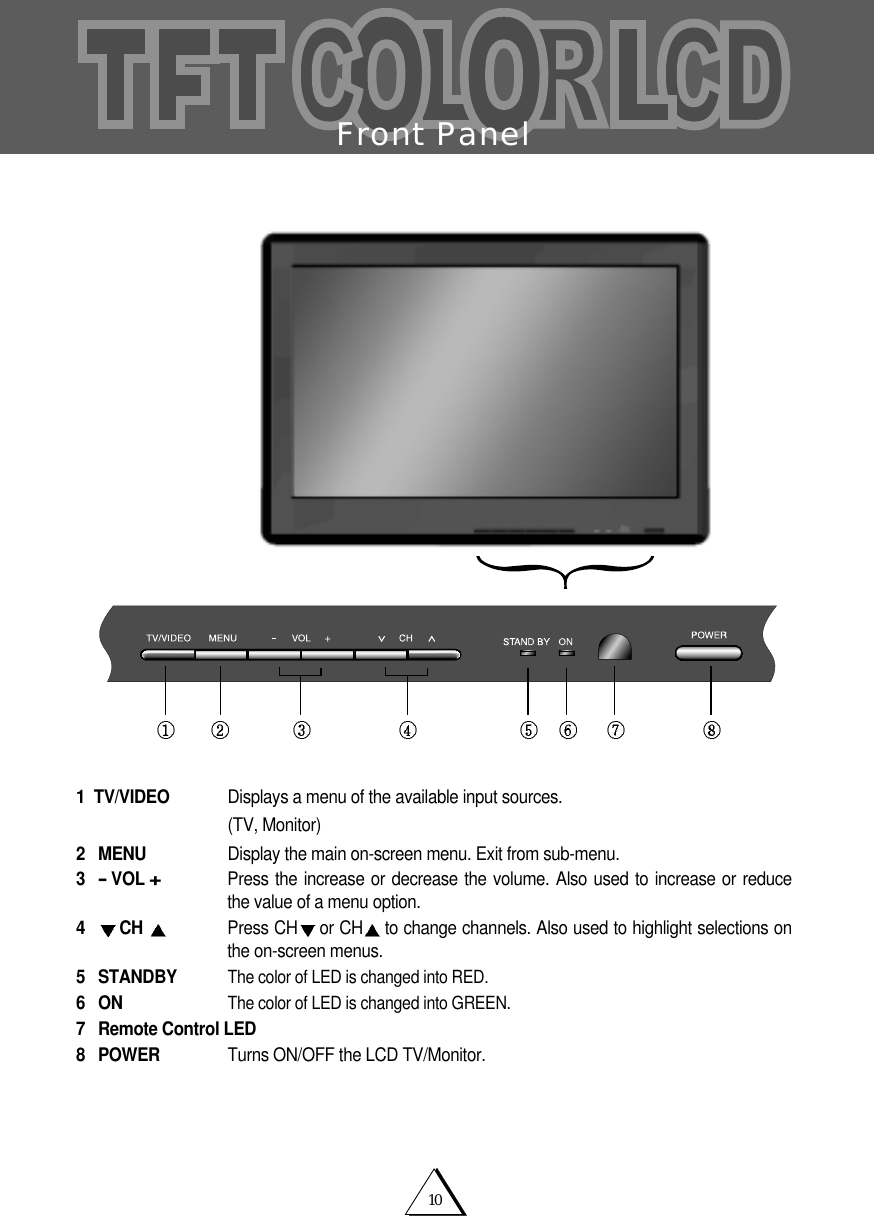
10Front Panel1 TV/VIDEO  Displays a menu of the available input sources.(TV, Monitor)2 MENU Display the main on-screen menu. Exit from sub-menu.3-VOL +Press the increase or decrease the volume. Also used to increase or reducethe value of a menu option.4CH  Press CH or CH to change channels. Also used to highlight selections onthe on-screen menus.5 STANDBYThe color of LED is changed into RED.6ONThe color of LED is changed into GREEN.7 Remote Control LED8 POWER Turns ON/OFF the LCD TV/Monitor.
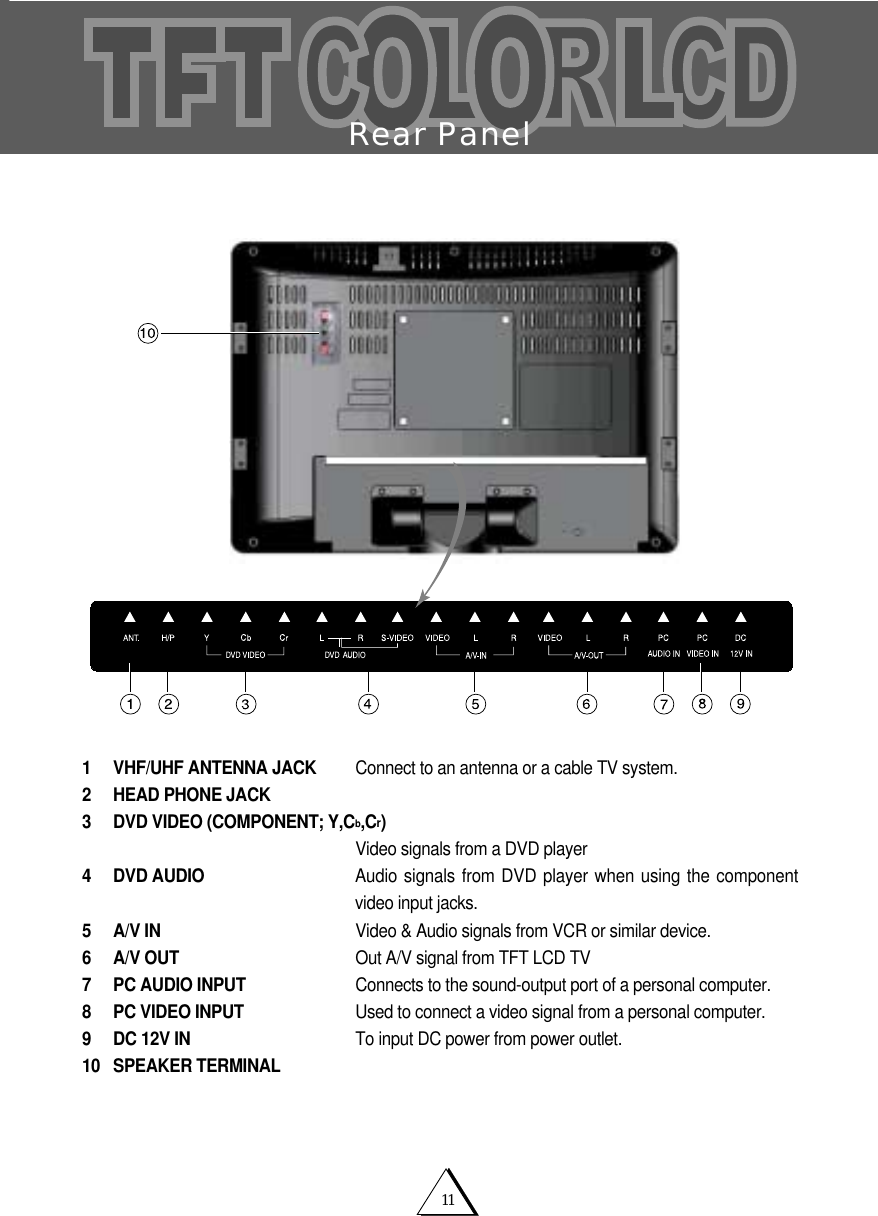
11Rear Panel1 VHF/UHF ANTENNA JACK Connect to an antenna or a cable TV system.2 HEAD PHONE JACK3 DVD VIDEO (COMPONENT; Y,Cb,Cr)Video signals from a DVD player4 DVD AUDIO Audio signals from DVD player when using the componentvideo input jacks.5 A/V IN Video & Audio signals from VCR or similar device.6 A/V OUT Out A/V signal from TFT LCD TV7 PC AUDIO INPUT Connects to the sound-output port of a personal computer.8 PC VIDEO INPUT Used to connect a video signal from a personal computer.9  DC 12V IN To input DC power from power outlet. 10 SPEAKER TERMINAL
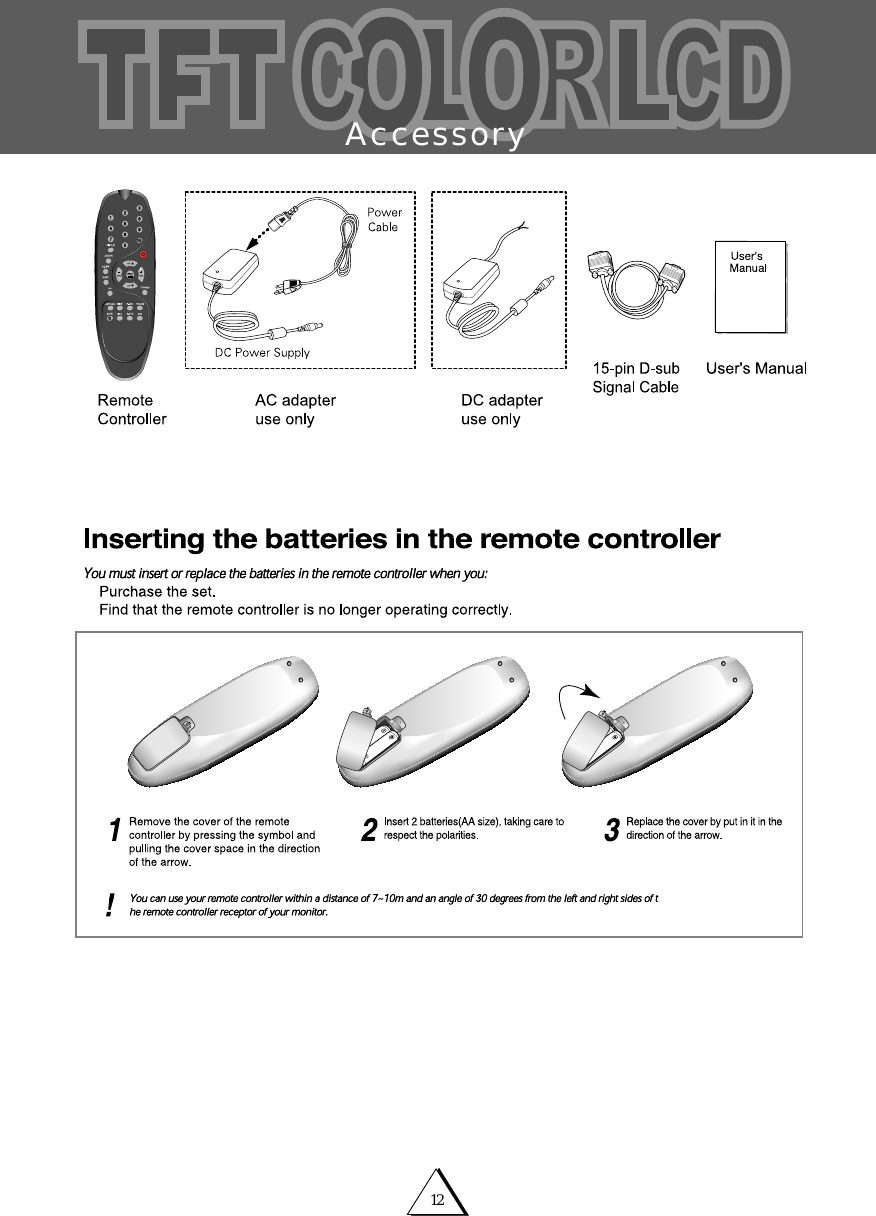
12                                                                                 Accessory
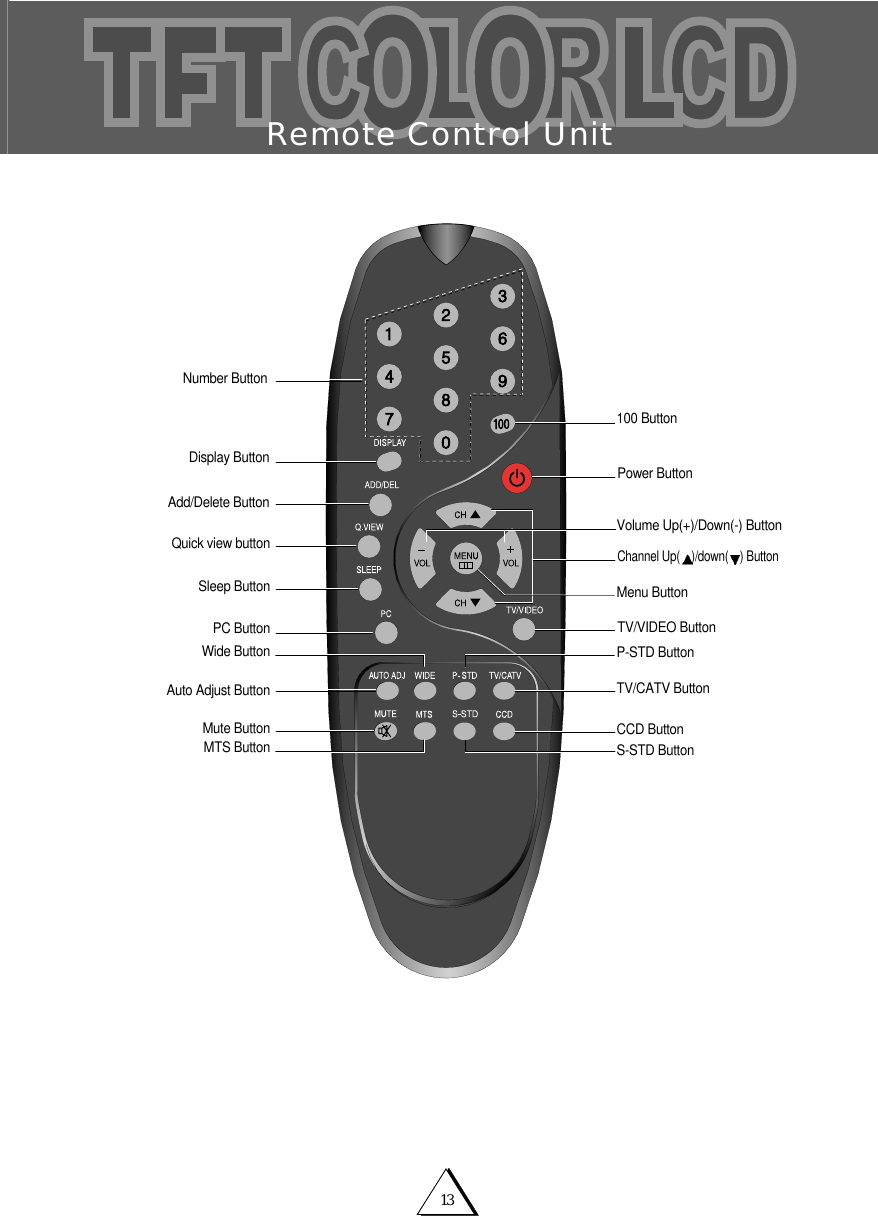
13Remote Control UnitNumber Button100 ButtonSleep ButtonVolume Up(+)/Down(-) ButtonMenu ButtonWide Button P-STD ButtonPower ButtonQuick view buttonDisplay ButtonChannel Up( )/down( ) ButtonAdd/Delete ButtonTV/VIDEO ButtonMTS Button CCD ButtonAuto Adjust ButtonPC ButtonTV/CATV ButtonS-STD Button                                                              Mute Button
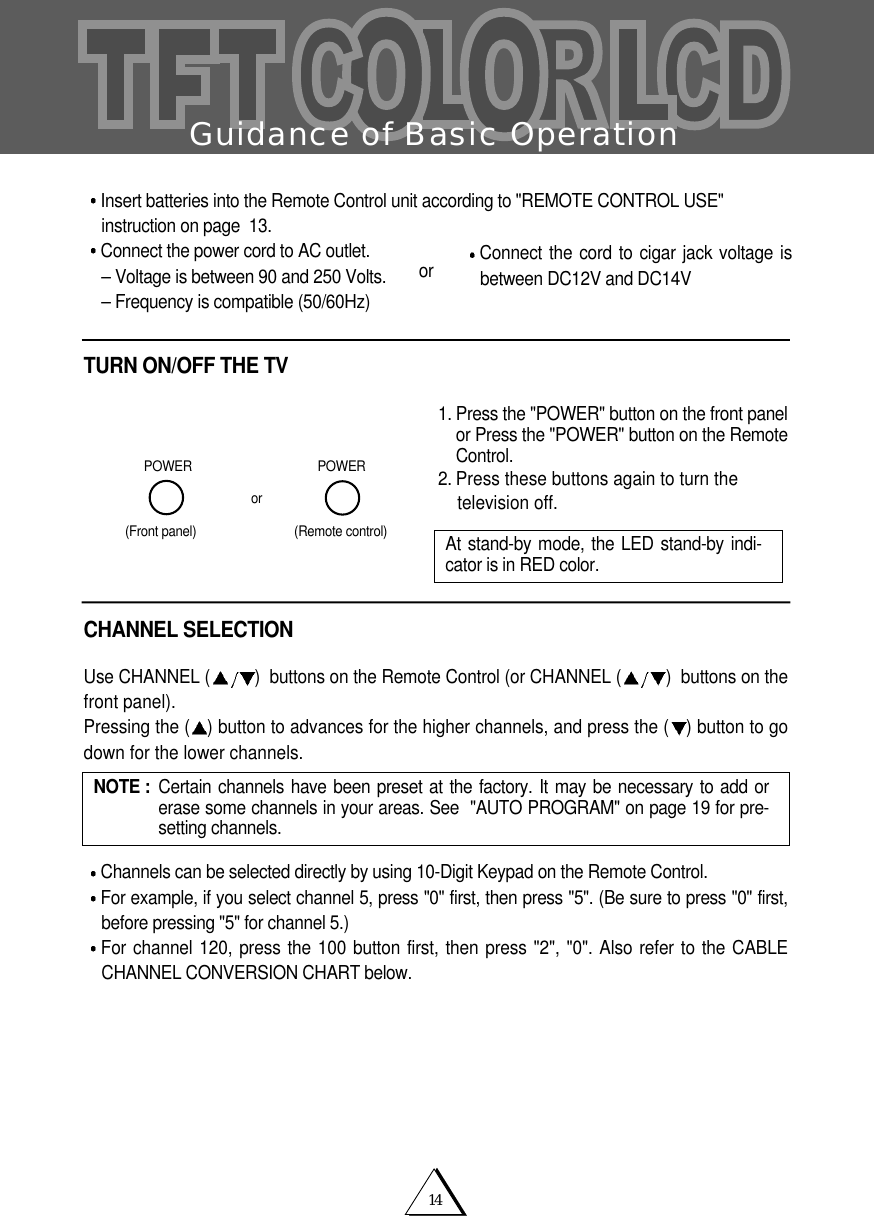
14Guidance of Basic OperationInsert batteries into the Remote Control unit according to "REMOTE CONTROL USE"instruction on page  13.Connect the power cord to AC outlet.– Voltage is between 90 and 250 Volts.– Frequency is compatible (50/60Hz)TURN ON/OFF THE TV1. Press the "POWER" button on the front panelor Press the "POWER" button on the RemoteControl.2. Press these buttons again to turn the television off.CHANNEL SELECTIONUse CHANNEL ( )  buttons on the Remote Control (or CHANNEL ( )  buttons on thefront panel).Pressing the ( ) button to advances for the higher channels, and press the ( ) button to godown for the lower channels.Channels can be selected directly by using 10-Digit Keypad on the Remote Control.For example, if you select channel 5, press "0" first, then press "5". (Be sure to press "0" first,before pressing "5" for channel 5.)For channel 120, press the 100 button first, then press "2", "0". Also refer to the CABLECHANNEL CONVERSION CHART below.or(Front panel)POWERPOWER(Remote control)NOTE :  Certain channels have been preset at the factory. It may be necessary to add orerase some channels in your areas. See  "AUTO PROGRAM" on page 19 for pre-setting channels.At stand-by mode, the LED stand-by indi-cator is in RED color. Connect the cord to cigar jack voltage isbetween DC12V and DC14Vor
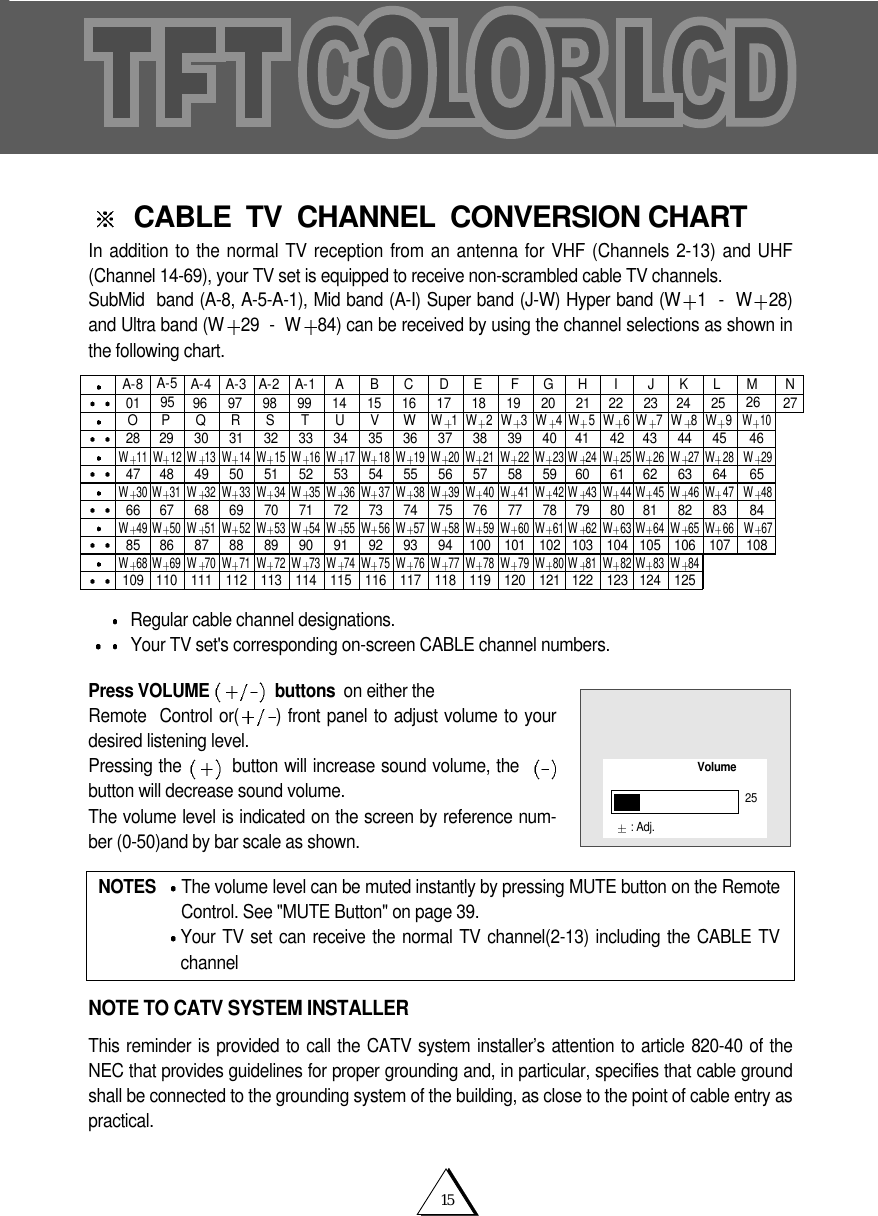
15CABLE  TV  CHANNEL  CONVERSION CHARTIn addition to the normal TV reception from an antenna for VHF (Channels 2-13) and UHF(Channel 14-69), your TV set is equipped to receive non-scrambled cable TV channels.SubMid  band (A-8, A-5-A-1), Mid band (A-I) Super band (J-W) Hyper band (W 1  -  W 28)and Ultra band (W 29  -  W 84) can be received by using the channel selections as shown inthe following chart.Regular cable channel designations.Your TV set's corresponding on-screen CABLE channel numbers.Press VOLUME  buttons on either the Remote  Control or( ) front panel to adjust volume to yourdesired listening level.Pressing the  button will increase sound volume, the  button will decrease sound volume.  The volume level is indicated on the screen by reference num-ber (0-50)and by bar scale as shown.NOTE TO CATV SYSTEM INSTALLERThis reminder is provided to call the CATV system installer’s attention to article 820-40 of theNEC that provides guidelines for proper grounding and, in particular, specifies that cable groundshall be connected to the grounding system of the building, as close to the point of cable entry aspractical.NOTES  The volume level can be muted instantly by pressing MUTE button on the RemoteControl. See "MUTE Button" on page 39.Your TV set can receive the normal TV channel(2-13) including the CABLE TVchannelA-8 A-4012847 48 49 50 51 52 53 54 55 56 57 58 59 60 61 62 63 64 6566 67 68 69 70 71 72 73 74 75 76 77 78 79 80 81 82 83 8429 30 31 32 33 34 35 36 37 38 39 40 41 42 43 44 45 4696 97 98 99 14 15 16 17 18 19 20 21 22 23 24 25 26 27A-3 A-2 A-1 A B COP QR S T U VWW1W2W11 W 12 W 13 W 14 W 15 W 16 W 17 W 18 W 19 W 20 W 21 W 22 W 23 W 24 W 25 W 26 W 27 W 28 W 29W30 W 31 W 32 W 33 W 34 W 35 W 36 W 37 W 38 W 39 W 40 W 41 W 42 W 43 W 44 W 45 W 46 W 47 W 4885 86 87 88 89 90 91 92 93 94 100 101 102 103 104 105 106 107 108W49 W 50 W 51 W 52 W 53 W 54 W 55 W 56 W 57 W 58 W 59 W 60 W 61 W 62 W 63 W 64 W 65 W 66 W 67109 110 111 112 113 114 115 116 117 118 119 120 121 122 123 124 125W68 W 69 W 70 W 71 W 72 W 73 W 74 W 75 W 76 W 77 W 78 W 79 W 80 W 81 W 82 W 83 W 84W3W4W 5W6W 7W8W9W10DE FGHI JKLM NA-595Volume25: Adj.
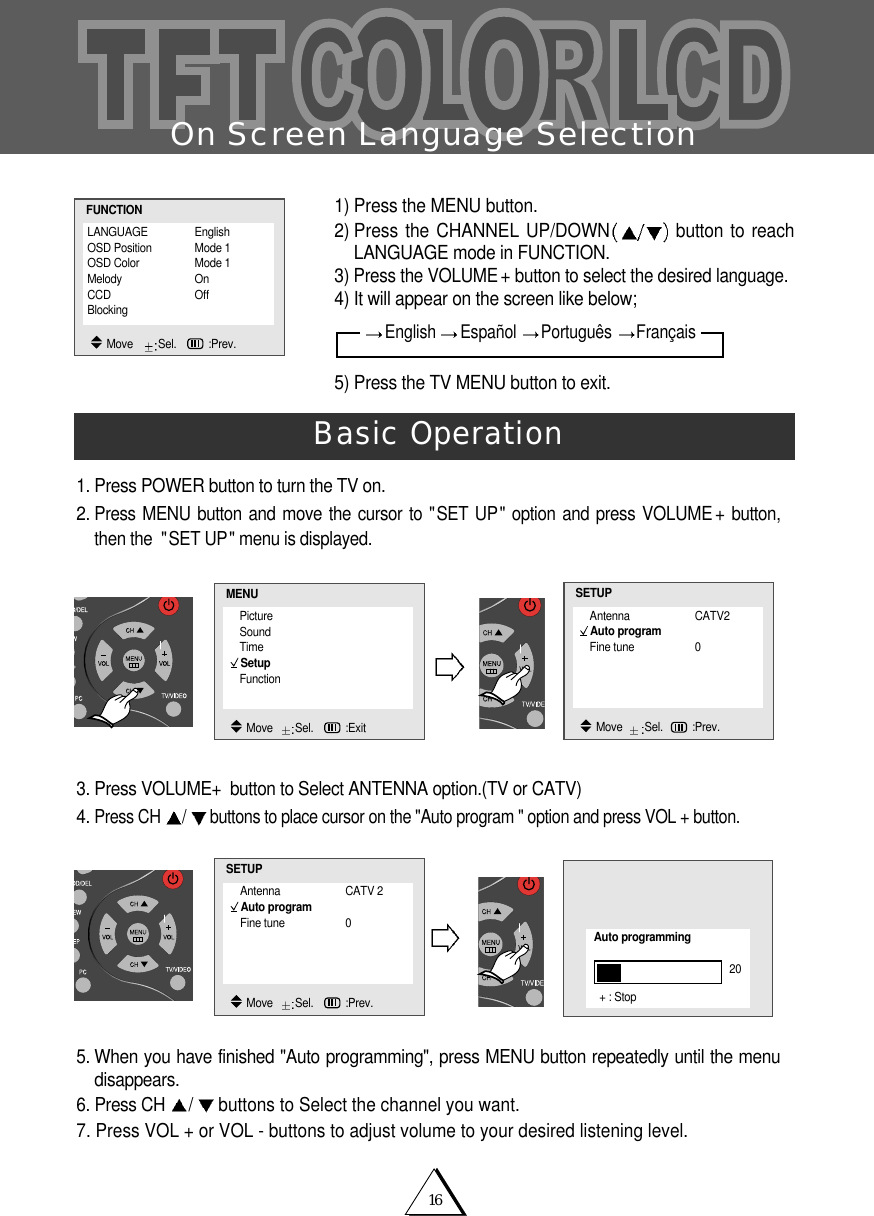
16On Screen Language Selection1. Press POWER button to turn the TV on.2.Press MENU button and move the cursor to "SET UP" option and press VOLUME +button,then the  "SET UP" menu is displayed.3. Press VOLUME+button to Select ANTENNA option.(TV or CATV)4. Press CH  /buttons to place cursor on the "Auto program " option and press VOL + button.5. When you have finished "Auto programming", press MENU button repeatedly until the menudisappears. 6. Press CH  /buttons to Select the channel you want.7. Press VOL + or VOL - buttons to adjust volume to your desired listening level.Basic Operation1) Press the MENU button.2) Press the CHANNEL UP/DOWN button to reachLANGUAGE mode in FUNCTION. 3) Press the VOLUME + button to select the desired language. 4) It will appear on the screen like below;5) Press the TV MENU button to exit. LANGUAGE EnglishOSD Position Mode 1OSD Color Mode 1Melody OnCCD OffBlocking  FUNCTIONMove    Sel.   :Prev.PictureSoundTimeSetupFunctionMENUMove   Sel.   :ExitAntenna CATV2Auto programFine tune 0SETUPMove   Sel. :Prev.Antenna CATV 2Auto programFine tune 0SETUPMove   Sel.   :Prev.Auto programming20+ : StopEnglish  Español  Português  Français
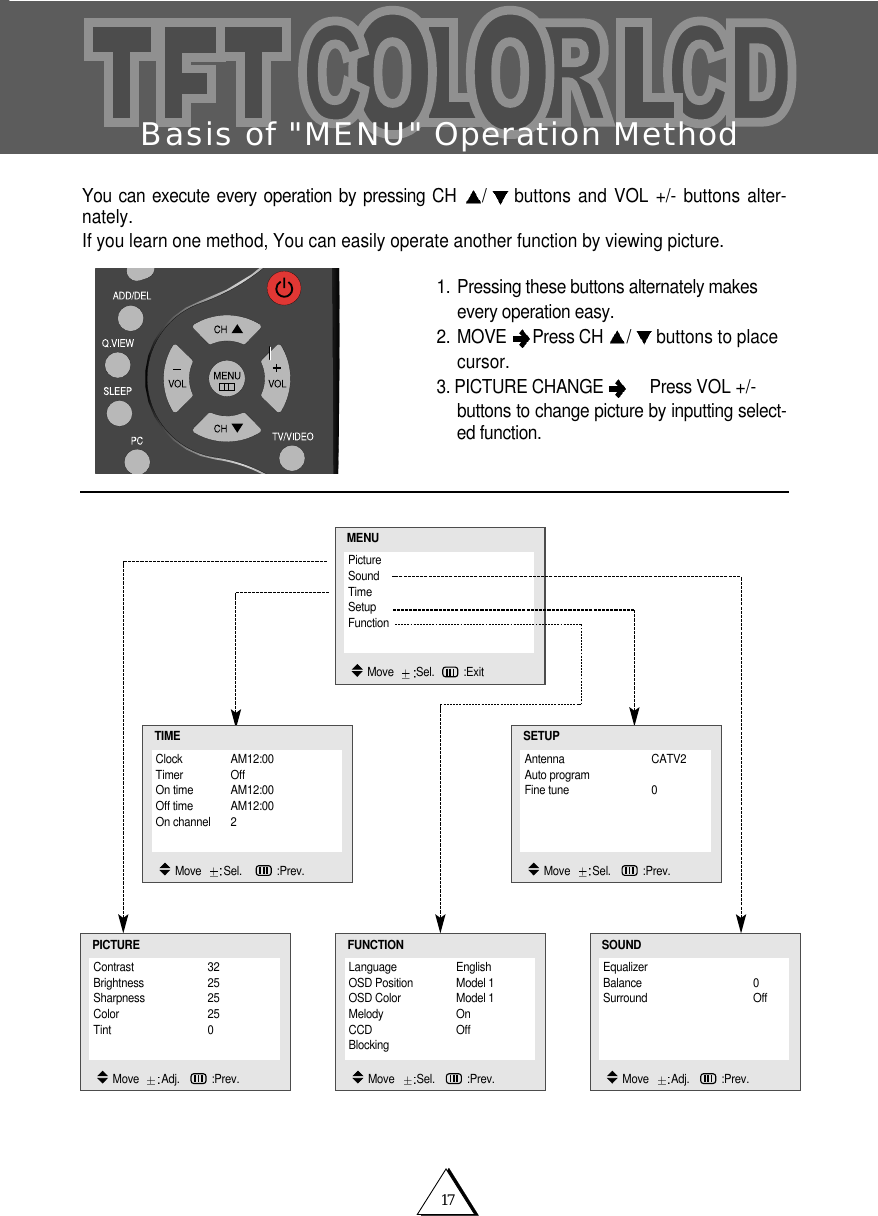
17Basis of "MENU" Operation MethodYou can execute every operation by pressing CH  /buttons and VOL +/- buttons alter-nately.If you learn one method, You can easily operate another function by viewing picture.1. Pressing these buttons alternately makes every operation easy.2. MOVE  Press CH  /buttons to place cursor.3. PICTURE CHANGE  Press VOL +/- buttons to change picture by inputting select-ed function.Contrast 32Brightness 25Sharpness 25Color 25Tint 0PICTUREMove   Adj.   :Prev.EqualizerBalance 0Surround OffSOUNDMove   Adj.   :Prev.Clock AM12:00Timer OffOn time AM12:00Off time AM12:00On channel 2TIMEMove   Sel.    :Prev.Antenna CATV2Auto programFine tune 0SETUPMove   Sel.   :Prev.PictureSoundTimeSetupFunctionMENUMove   Sel. :ExitLanguage EnglishOSD Position Model 1OSD Color Model 1Melody OnCCD OffBlocking FUNCTIONMove   Sel.   :Prev.
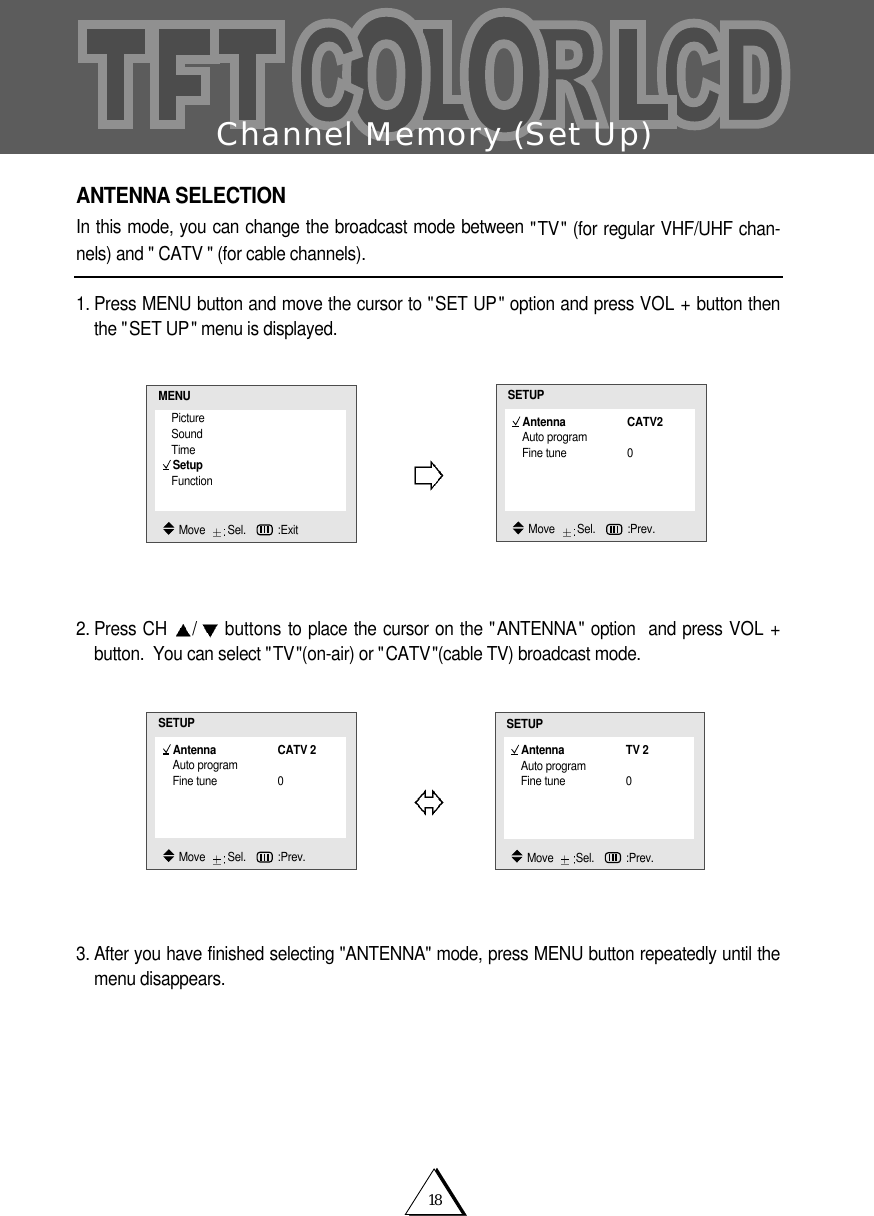
18Channel Memory (Set Up)ANTENNA SELECTIONIn this mode, you can change the broadcast mode between "TV" (for regular VHF/UHF chan-nels) and " CATV " (for cable channels).1. Press MENU button and move the cursor to "SET UP" option and press VOL + button thenthe "SET UP" menu is displayed.  2. Press CH  /buttons to place the cursor on the "ANTENNA" option  and press VOL +button.  You can select "TV"(on-air) or "CATV"(cable TV) broadcast mode. 3. After you have finished selecting "ANTENNA" mode, press MENU button repeatedly until themenu disappears.PictureSoundTimeSetupFunctionMENUMove   Sel.   :ExitAntenna CATV2Auto programFine tune 0SETUPMove   Sel.   :Prev.Antenna CATV 2Auto programFine tune 0SETUPMove   Sel.   :Prev.Antenna TV 2Auto programFine tune 0SETUPMove   Sel.   :Prev.
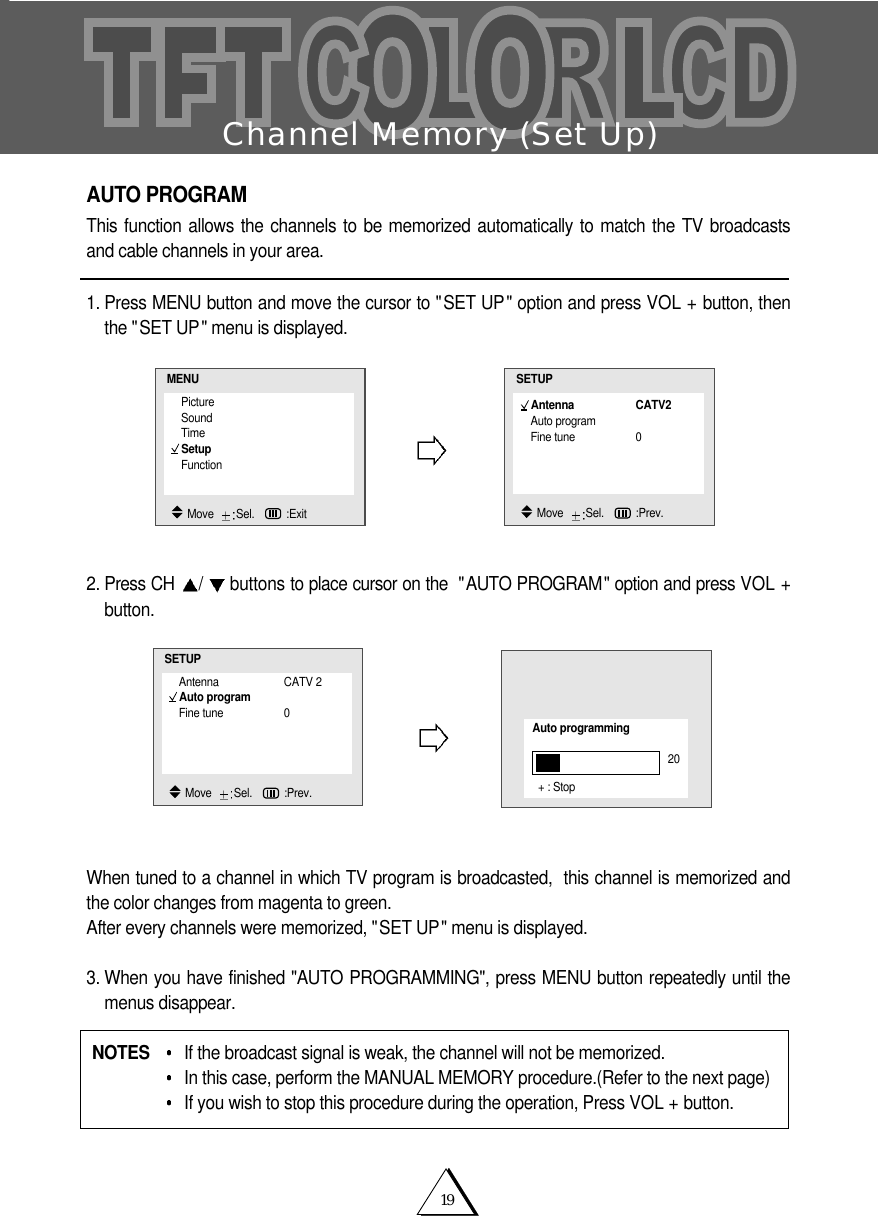
19Channel Memory (Set Up)AUTO PROGRAMThis function allows the channels to be memorized automatically to match the TV broadcastsand cable channels in your area.1. Press MENU button and move the cursor to "SET UP" option and press VOL + button, thenthe "SET UP" menu is displayed.  2. Press CH  /buttons to place cursor on the  "AUTO PROGRAM" option and press VOL +button. When tuned to a channel in which TV program is broadcasted,  this channel is memorized andthe color changes from magenta to green. After every channels were memorized, "SET UP" menu is displayed.3. When you have finished "AUTO PROGRAMMING", press MENU button repeatedly until themenus disappear.NOTES  If the broadcast signal is weak, the channel will not be memorized.  In this case, perform the MANUAL MEMORY procedure.(Refer to the next page)If you wish to stop this procedure during the operation, Press VOL + button. PictureSoundTimeSetupFunctionMENUMove   Sel.   :ExitAntenna CATV2Auto programFine tune 0SETUPMove   Sel.   :Prev.Antenna CATV 2Auto programFine tune 0SETUPMove   Sel.   :Prev.Auto programming20+ : Stop
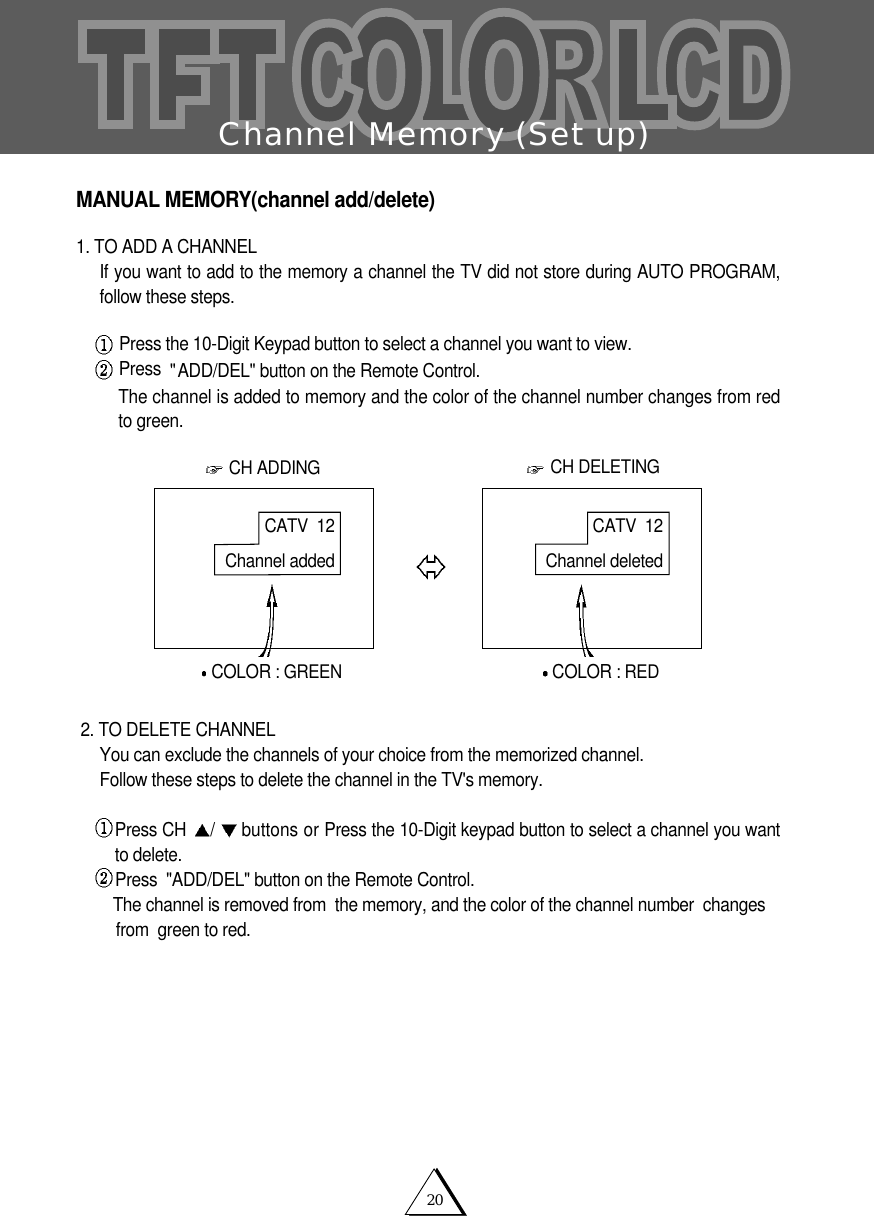
20Channel Memory (Set up)MANUAL MEMORY(channel add/delete)1. TO ADD A CHANNELIf you want to add to the memory a channel the TV did not store during AUTO PROGRAM,follow these steps.  Press the 10-Digit Keypad button to select a channel you want to view.Press  "ADD/DEL" button on the Remote Control.The channel is added to memory and the color of the channel number changes from redto green.2. TO DELETE CHANNELYou can exclude the channels of your choice from the memorized channel.Follow these steps to delete the channel in the TV's memory.Press CH  /buttons or Press the 10-Digit keypad button to select a channel you wantto delete.Press  "ADD/DEL" button on the Remote Control.The channel is removed from  the memory, and the color of the channel number  changes   from  green to red.CATV  12Channel deletedCATV  12Channel addedCH ADDING CH DELETINGCOLOR: GREENCOLOR: RED
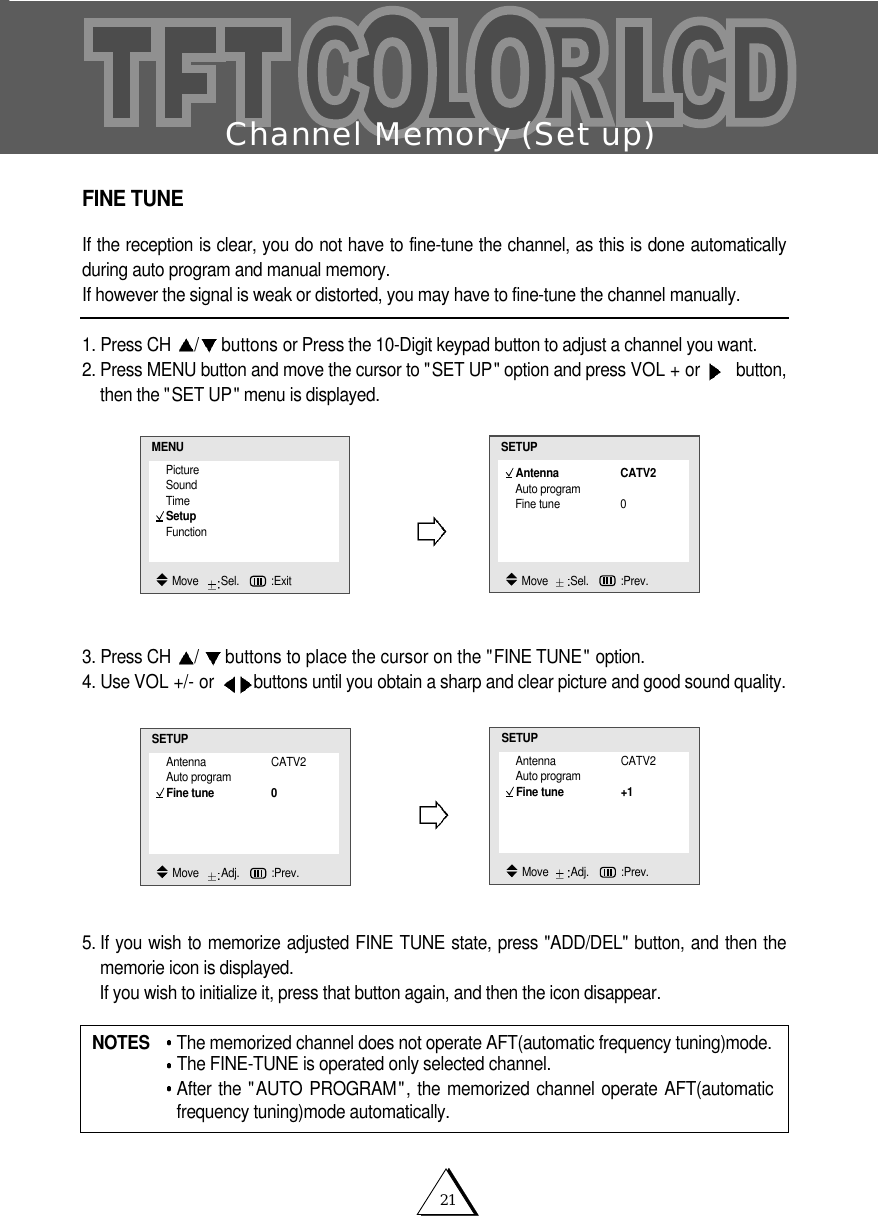
21Channel Memory (Set up)FINE TUNEIf the reception is clear, you do not have to fine-tune the channel, as this is done automaticallyduring auto program and manual memory.If however the signal is weak or distorted, you may have to fine-tune the channel manually.1. Press CH  /buttons or Press the 10-Digit keypad button to adjust a channel you want.2. Press MENU button and move the cursor to "SET UP" option and press VOL + or  button,then the "SET UP" menu is displayed.3. Press CH  /buttons to place the cursor on the "FINE TUNE" option.4. Use VOL +/- or  buttons until you obtain a sharp and clear picture and good sound quality.5. If you wish to memorize adjusted FINE TUNE state, press "ADD/DEL" button, and then thememorie icon is displayed.  If you wish to initialize it, press that button again, and then the icon disappear.NOTES  The memorized channel does not operate AFT(automatic frequency tuning)mode.The FINE-TUNE is operated only selected channel.After the "AUTO PROGRAM", the memorized channel operate AFT(automaticfrequency tuning)mode automatically.PictureSoundTimeSetupFunctionMENUMove   Sel.   :ExitAntenna CATV2Auto programFine tune 0SETUPMove   Sel.   :Prev.Antenna CATV2Auto programFine tune 0SETUPMove   Adj.   :Prev.Antenna CATV2Auto programFine tune +1SETUPMove   Adj.   :Prev.
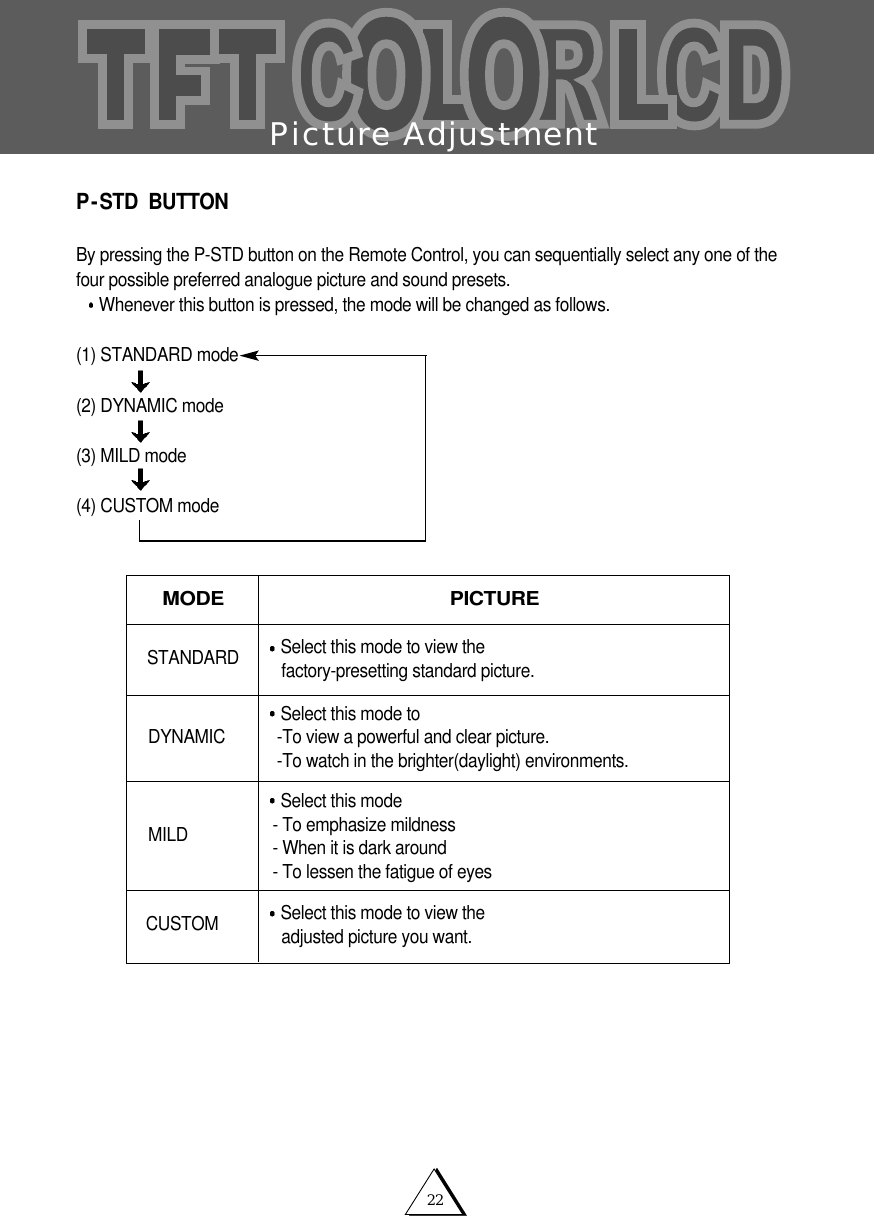
22Picture AdjustmentP-STD  BUTTONBy pressing the P-STD button on the Remote Control, you can sequentially select any one of thefour possible preferred analogue picture and sound presets.Whenever this button is pressed, the mode will be changed as follows.(1) STANDARD mode(2) DYNAMIC mode                                 (3) MILD mode(4) CUSTOM modeMODE PICTURECUSTOM Select this mode to view the adjusted picture you want.Select this mode to view the factory-presetting standard picture.Select this mode to -To view a powerful and clear picture.-To watch in the brighter(daylight) environments.Select this mode - To emphasize mildness- When it is dark around- To lessen the fatigue of eyesSTANDARDDYNAMICMILD
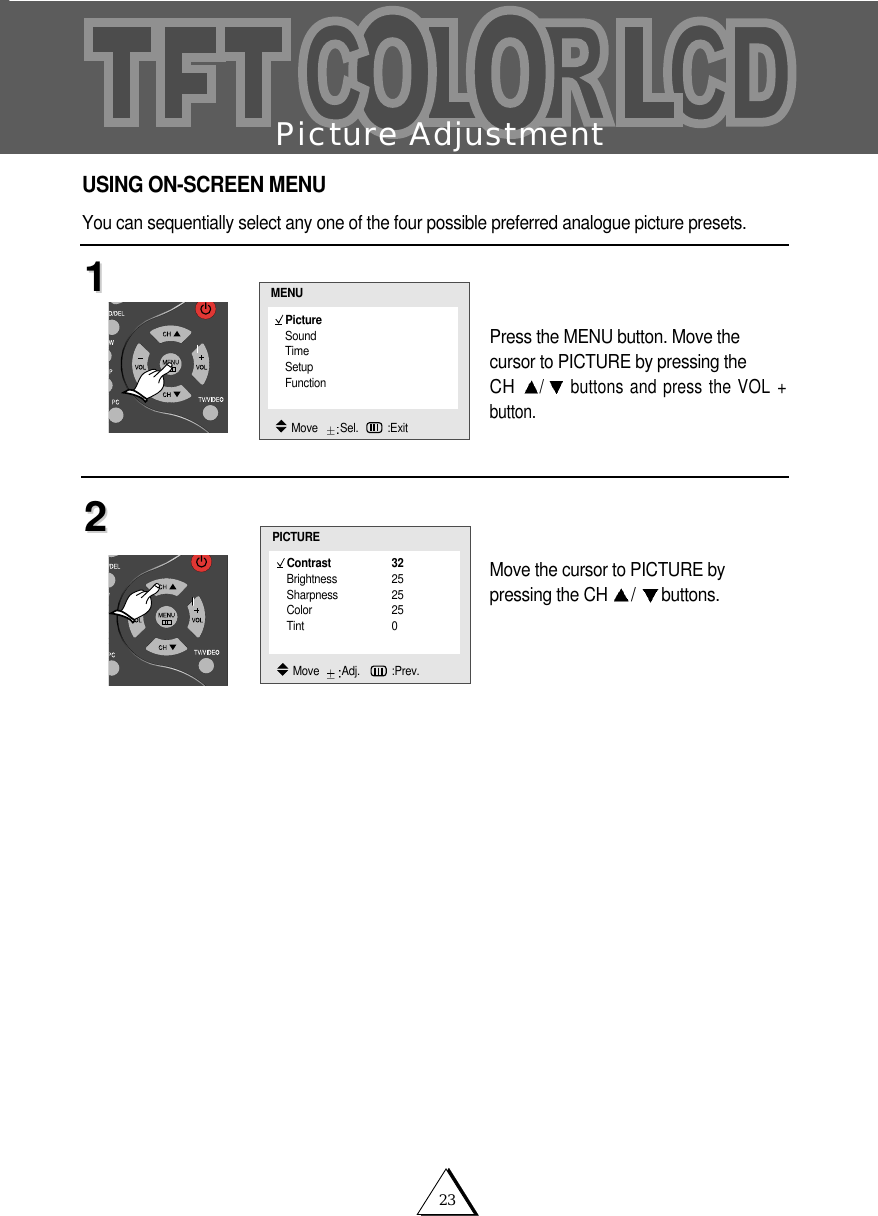
23Picture AdjustmentPress the MENU button. Move the cursor to PICTURE by pressing the CH /buttons and press the VOL +button.Move the cursor to PICTURE by pressing the CH  /buttons.1122USING ON-SCREEN MENUYou can sequentially select any one of the four possible preferred analogue picture presets. Contrast 32Brightness 25Sharpness 25Color 25Tint 0PICTUREMove   Adj.   :Prev.PictureSoundTimeSetupFunctionMENUMove   Sel. :Exit
24Picture AdjustmentYou can sequentially select and adjust one of five picture levels. Contrast, Brightness, Color, Sharpness or Tint  e.g.  :  Contrast Adjustment.Press the MENU button. Move thecursor to PICTURE by pressing theCH  /buttons and press theVOL + button.Move the cursor to CONTRAST bypressing the CH  /buttons andpress the VOL +/- buttons.Adjust "CONTRAST" by VOL +/-buttons.When you have finished contrastadjustment, press MENU repeatedlyuntil the menu disappears.11223344PictureSoundTimeSetupFunctionMENUMove   Sel. :ExitContrast 32Brightness 25Sharpness 25Color 25Tint 0PICTUREMove   Adj. :Prev.Contrast32Adj.   :Prev.
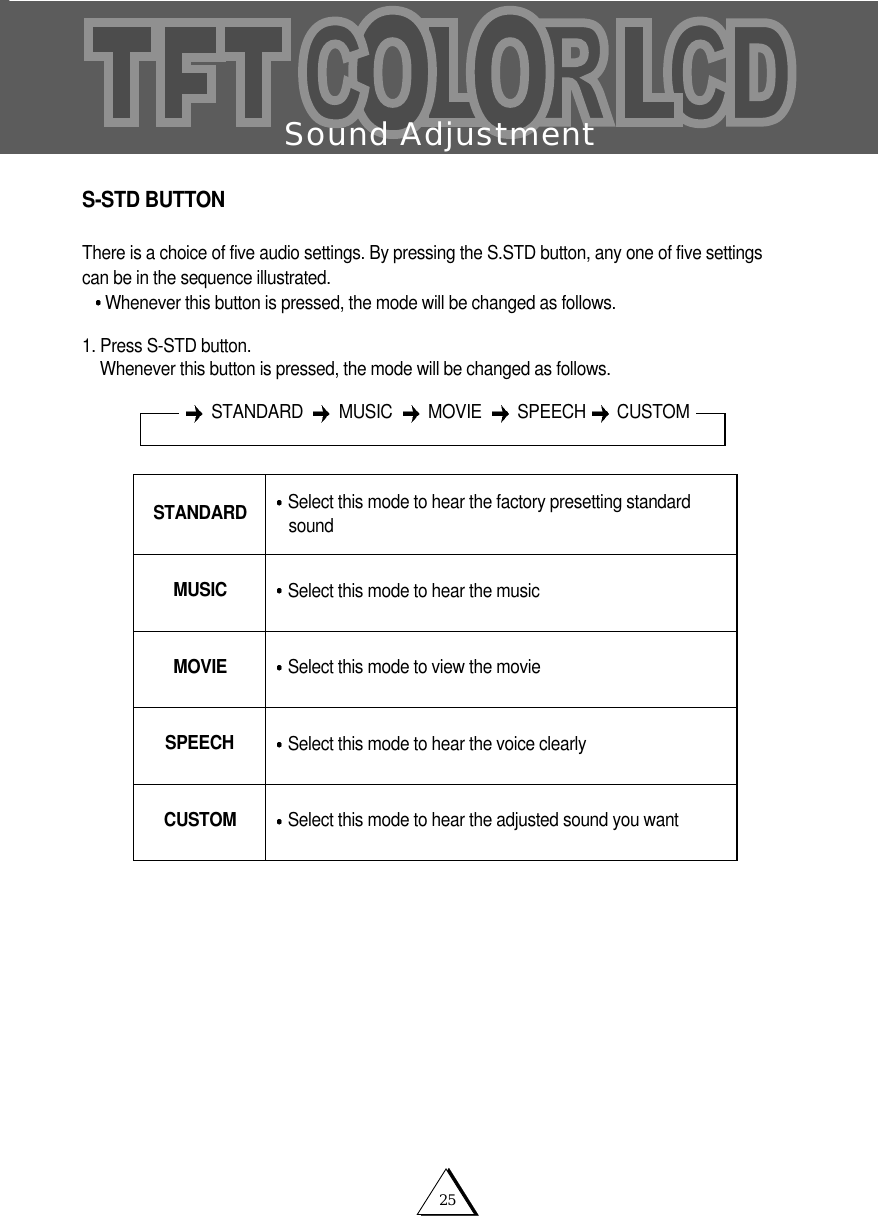
25Sound AdjustmentS-STD BUTTONThere is a choice of five audio settings. By pressing the S.STD button, any one of five settingscan be in the sequence illustrated.Whenever this button is pressed, the mode will be changed as follows.1. Press S-STD button.Whenever this button is pressed, the mode will be changed as follows.Select this mode to hear the adjusted sound you wantCUSTOMSelect this mode to hear the factory presetting standardsoundSTANDARDSelect this mode to hear the musicMUSICSelect this mode to view the movie  MOVIESelect this mode to hear the voice clearlySPEECHSTANDARD MUSIC MOVIE SPEECH CUSTOM
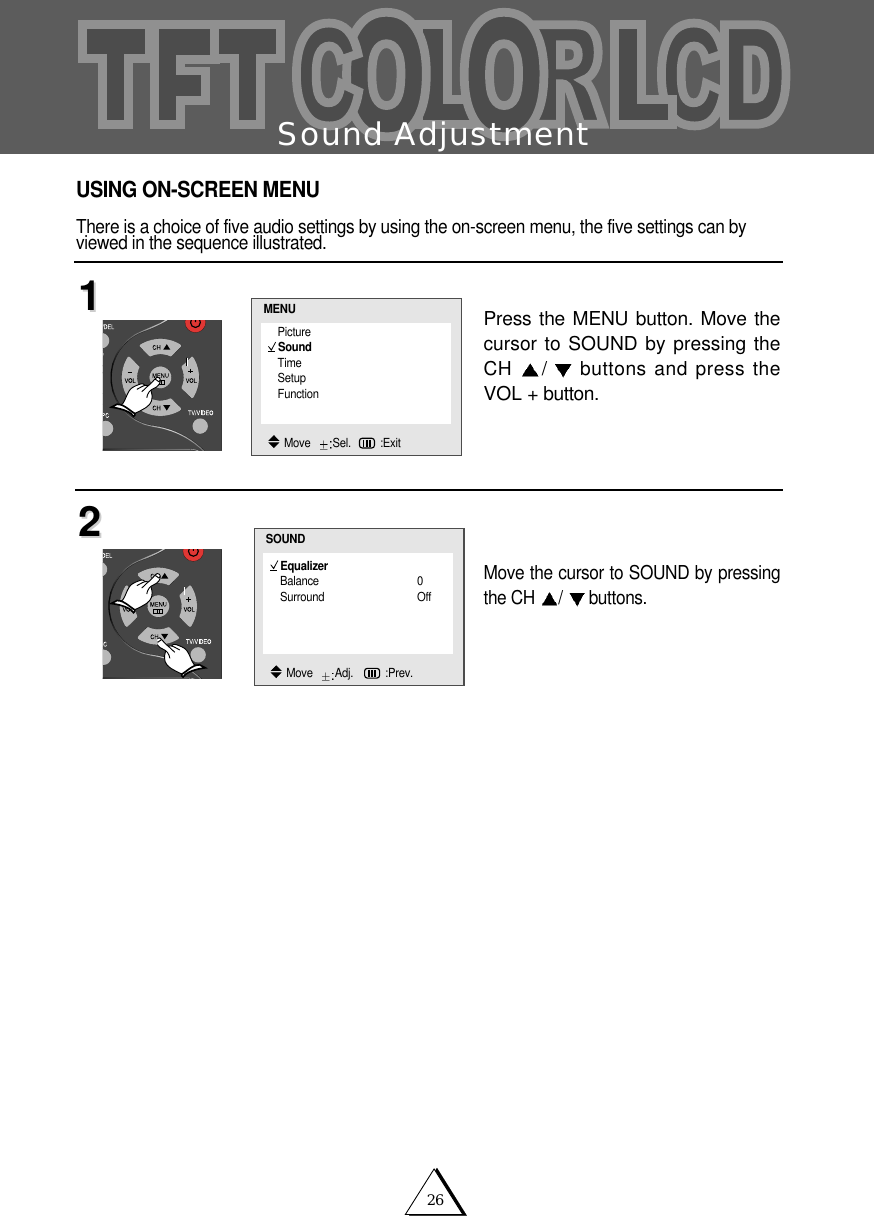
26Sound AdjustmentPress the MENU button. Move thecursor to SOUND by pressing theCH  /buttons and press theVOL + button.Move the cursor to SOUND by pressingthe CH  /buttons.1122USING ON-SCREEN MENUThere is a choice of five audio settings by using the on-screen menu, the five settings can byviewed in the sequence illustrated.EqualizerBalance 0Surround OffSOUNDMove   Adj.   :Prev.PictureSoundTimeSetupFunctionMENUMove   Sel. :Exit
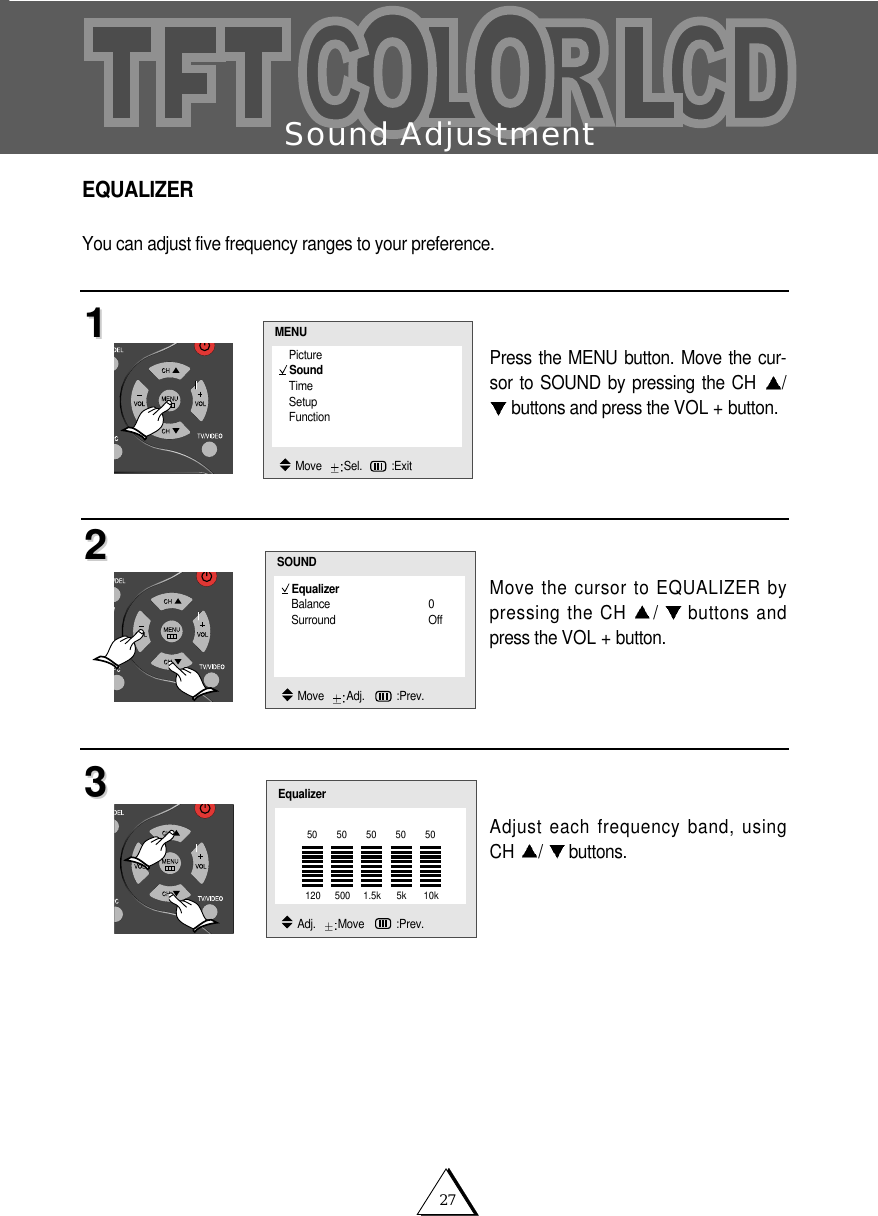
27Sound AdjustmentEQUALIZERYou can adjust five frequency ranges to your preference. Press the MENU button. Move the cur-sor to SOUND by pressing the CH  /buttons and press the VOL + button.Move the cursor to EQUALIZER bypressing the CH  /buttons andpress the VOL + button.Adjust each frequency band, usingCH  /buttons.112233EqualizerBalance 0Surround OffSOUNDMove   Adj.   :Prev.PictureSoundTimeSetupFunctionMENUMove   Sel. :ExitEqualizerAdj.   Move   :Prev.120 500 1.5k 5k 10k50 50 50 50 50
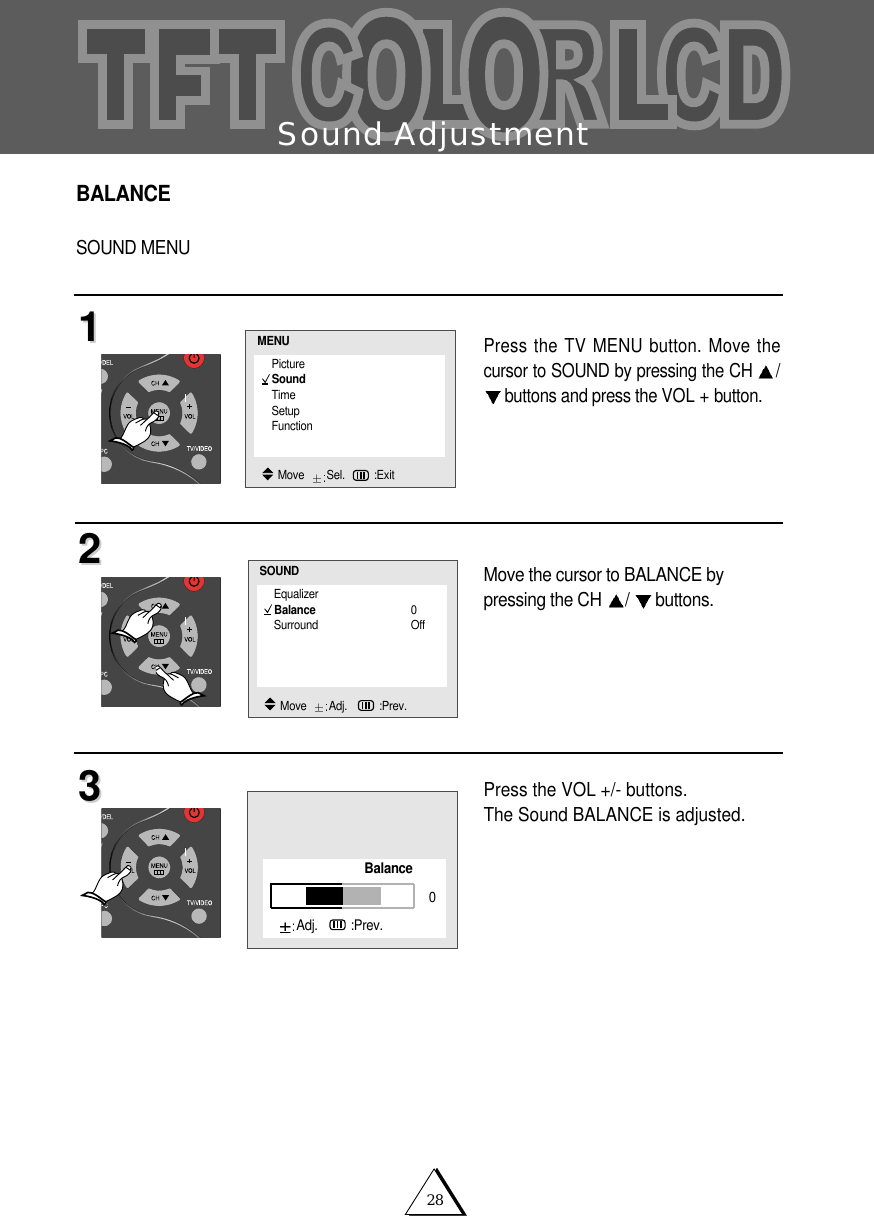
28Sound AdjustmentBALANCESOUND MENUPress the TV MENU button. Move thecursor to SOUND by pressing the CH /buttons and press the VOL + button.Move the cursor to BALANCE by pressing the CH  /buttons.Press the VOL +/- buttons.The Sound BALANCE is adjusted. 112233EqualizerBalance 0Surround OffSOUNDMove   Adj.   :Prev.PictureSoundTimeSetupFunctionMENUMove   Sel. :ExitBalanceAdj.   :Prev.0
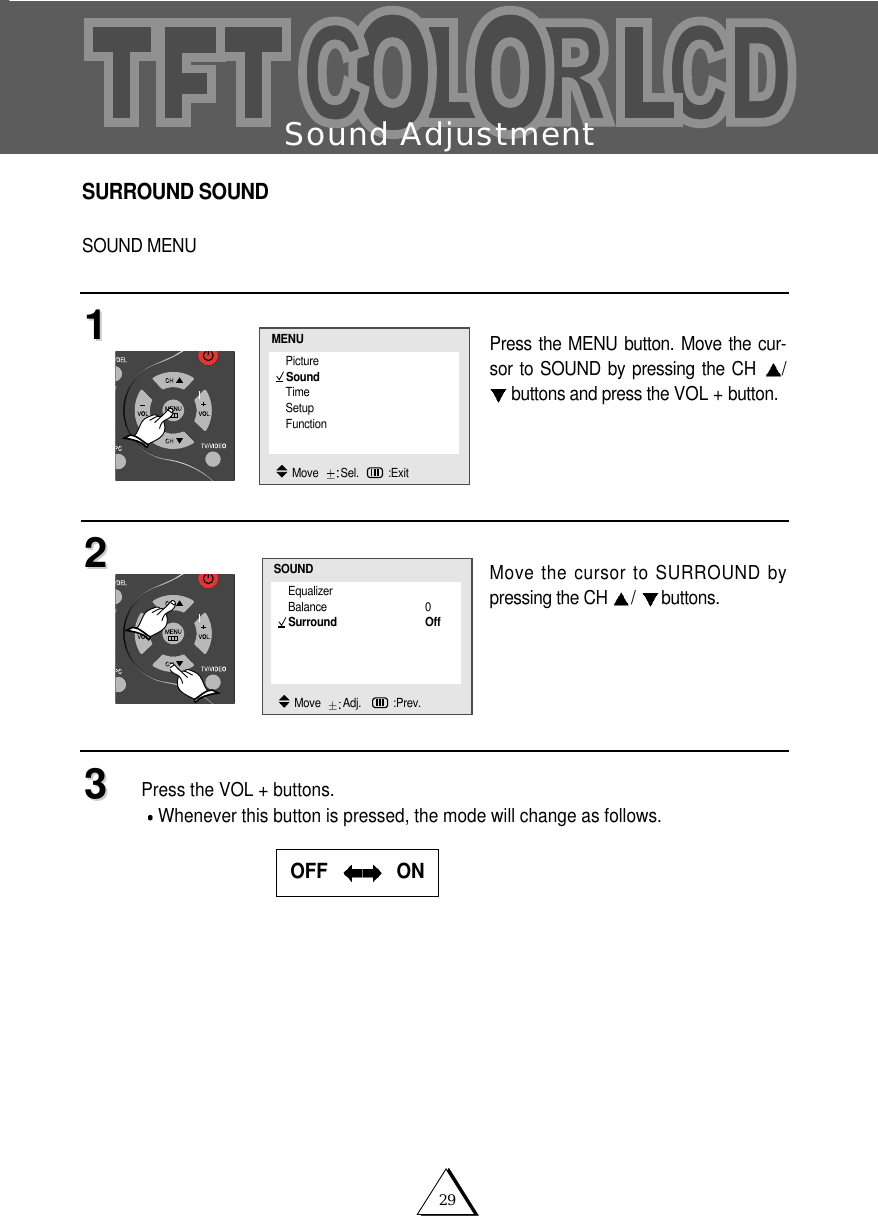
29Sound AdjustmentSURROUND SOUNDSOUND MENUPress the MENU button. Move the cur-sor to SOUND by pressing the CH  /buttons and press the VOL + button.Move the cursor to SURROUND bypressing the CH  /buttons.Press the VOL + buttons.Whenever this button is pressed, the mode will change as follows. 112233OFF    ONEqualizerBalance 0Surround OffSOUNDMove   Adj.   :Prev.PictureSoundTimeSetupFunctionMENUMove   Sel. :Exit
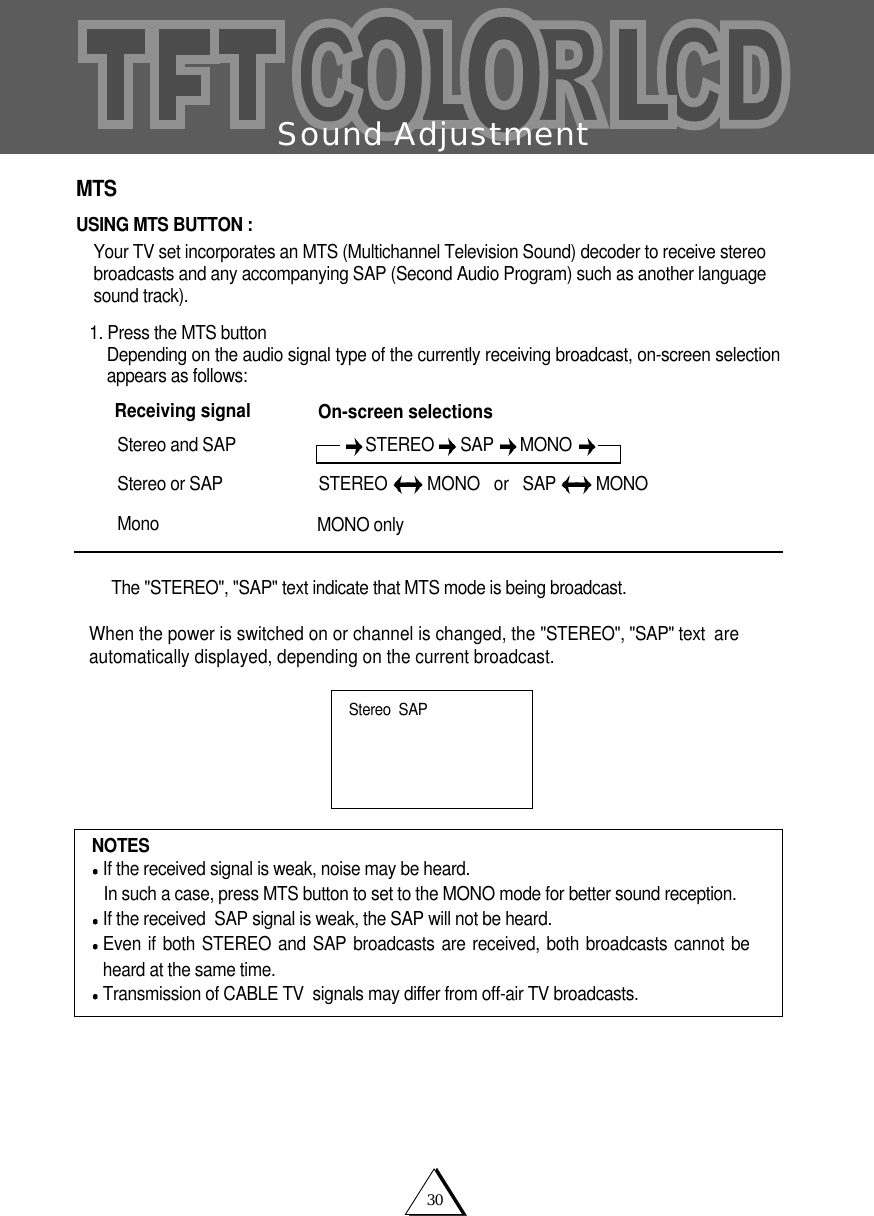
30Sound AdjustmentMTSUSING MTS BUTTON :  Your TV set incorporates an MTS (Multichannel Television Sound) decoder to receive stereobroadcasts and any accompanying SAP (Second Audio Program) such as another languagesound track). 1. Press the MTS buttonDepending on the audio signal type of the currently receiving broadcast, on-screen selectionappears as follows:The "STEREO", "SAP" text indicate that MTS mode is being broadcast.When the power is switched on or channel is changed, the "STEREO", "SAP" text  areautomatically displayed, depending on the current broadcast.NOTES If the received signal is weak, noise may be heard.In such a case, press MTS button to set to the MONO mode for better sound reception.If the received  SAP signal is weak, the SAP will not be heard.Even if both STEREO and SAP broadcasts are received, both broadcasts cannot beheard at the same time.Transmission of CABLE TV  signals may differ from off-air TV broadcasts. Stereo  SAPSTEREO  SAP  MONO Stereo and SAP  Stereo or SAP MonoSTEREO  MONO   or   SAP  MONOReceiving signal On-screen selectionsMONO only
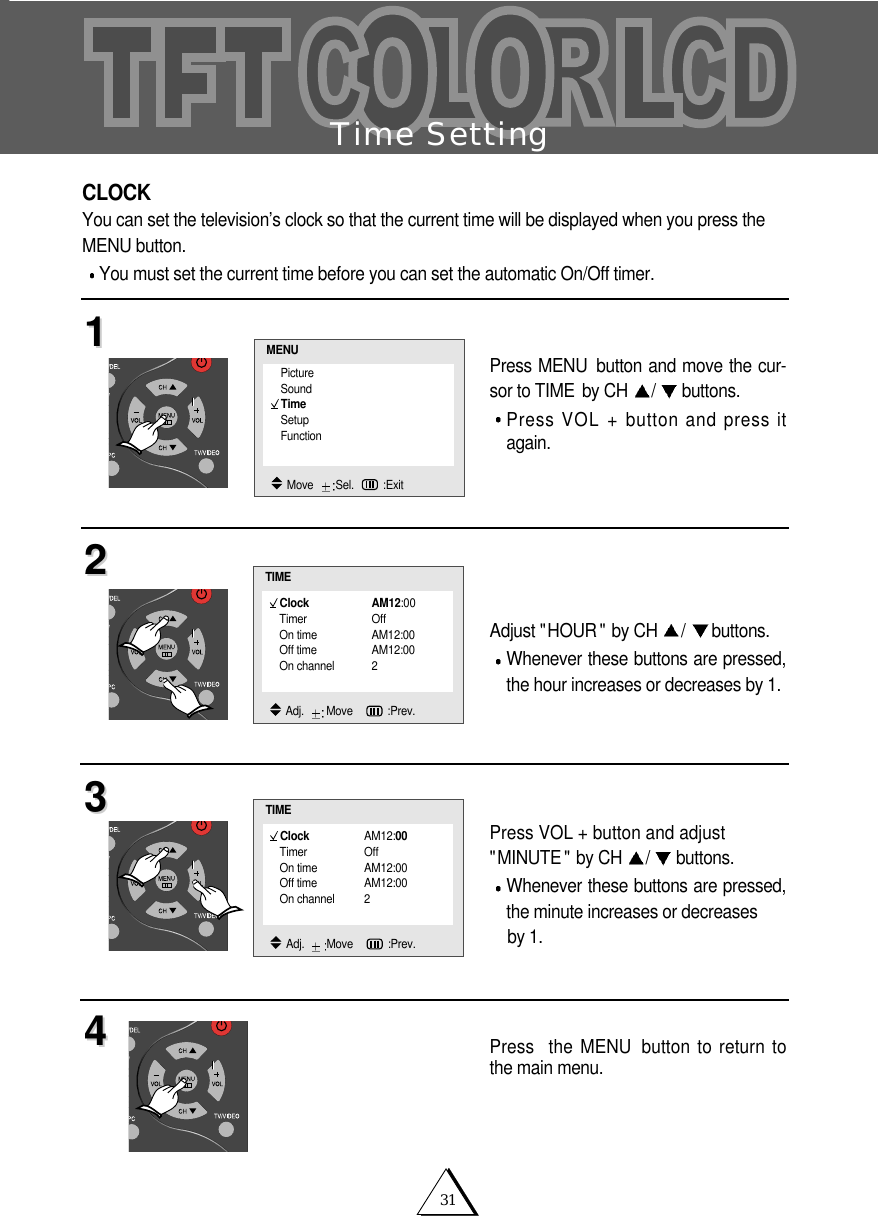
31Time SettingCLOCKYou can set the television’s clock so that the current time will be displayed when you press theMENU button.You must set the current time before you can set the automatic On/Off timer.Press MENU button and move the cur-sor to TIME by CH  /buttons.Press VOL + button and press itagain.Adjust "HOUR " by CH  /buttons.Whenever these buttons are pressed,the hour increases or decreases by 1.Press VOL + button and adjust"MINUTE " by CH  /buttons.Whenever these buttons are pressed,the minute increases or decreases by 1.Press  the MENU button to return tothe main menu.11223344Clock AM12:00Timer OffOn time AM12:00Off time AM12:00On channel 2TIMEAdj.   Move    :Prev.PictureSoundTimeSetupFunctionMENUMove   Sel. :ExitClock AM12:00Timer OffOn time AM12:00Off time AM12:00On channel 2TIMEAdj.   Move    :Prev.
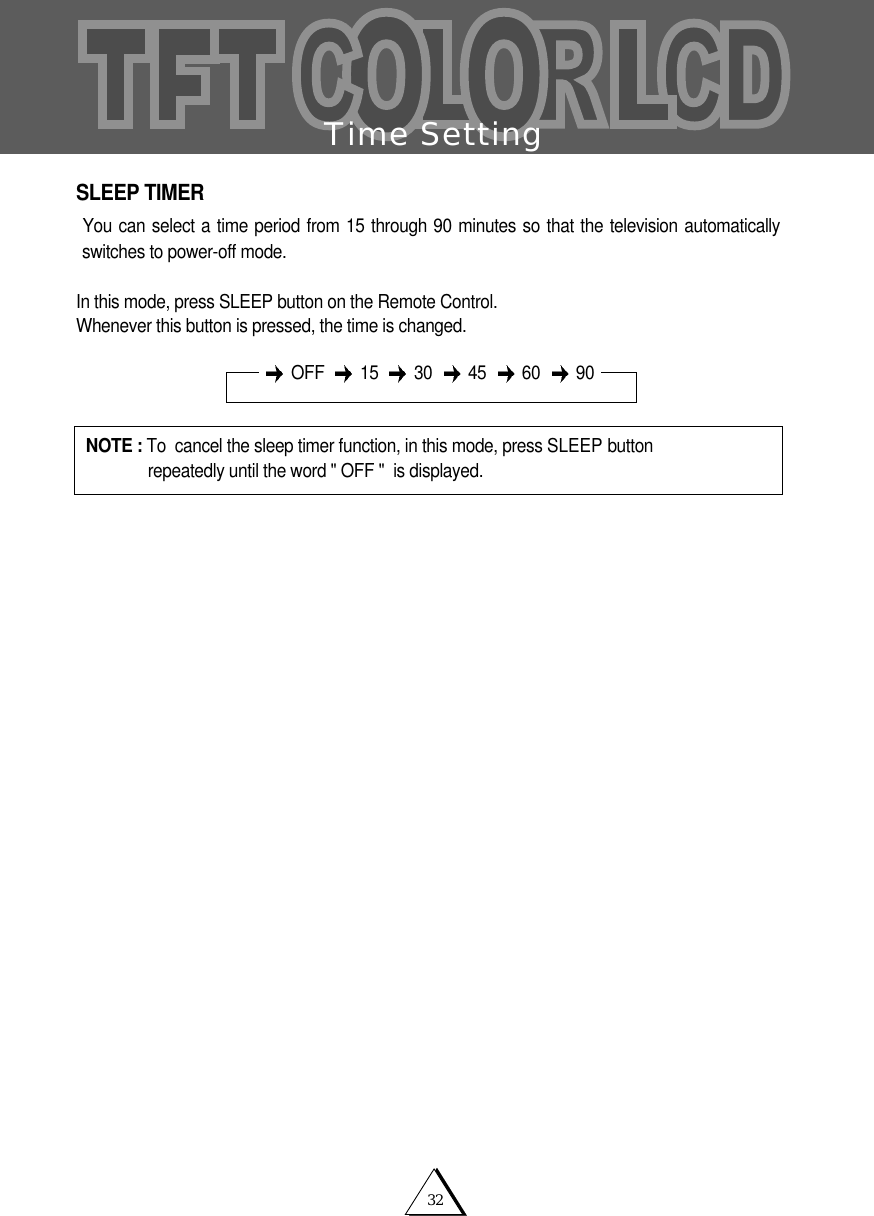
32Time SettingSLEEP TIMERYou can select a time period from 15 through 90 minutes so that the television automaticallyswitches to power-off mode.In this mode, press SLEEP button on the Remote Control.Whenever this button is pressed, the time is changed.NOTE : To  cancel the sleep timer function, in this mode, press SLEEP button   repeatedly until the word " OFF "  is displayed.OFF 15 30 45 60 90
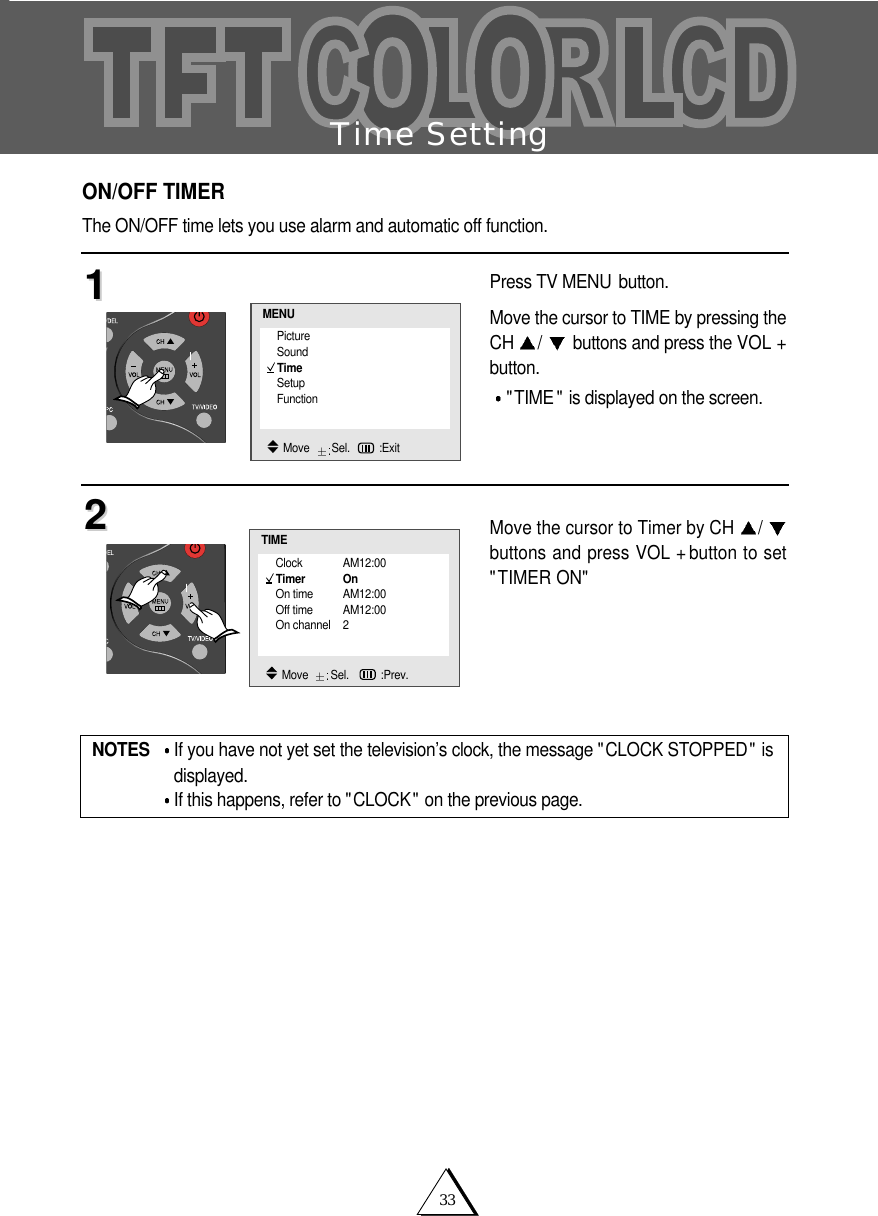
33Time SettingON/OFF TIMERThe ON/OFF time lets you use alarm and automatic off function.Press TV MENU button.Move the cursor to TIME by pressing theCH  /buttons and press the VOL +button."TIME " is displayed on the screen.Move the cursor to Timer by CH  /buttons and press VOL + button to set"TIMER ON"1122NOTES If you have not yet set the television’s clock, the message "CLOCK STOPPED" isdisplayed.If this happens, refer to "CLOCK" on the previous page.Clock AM12:00Timer OnOn time AM12:00Off time AM12:00On channel 2TIMEMove   Sel.   :Prev.PictureSoundTimeSetupFunctionMENUMove   Sel. :Exit
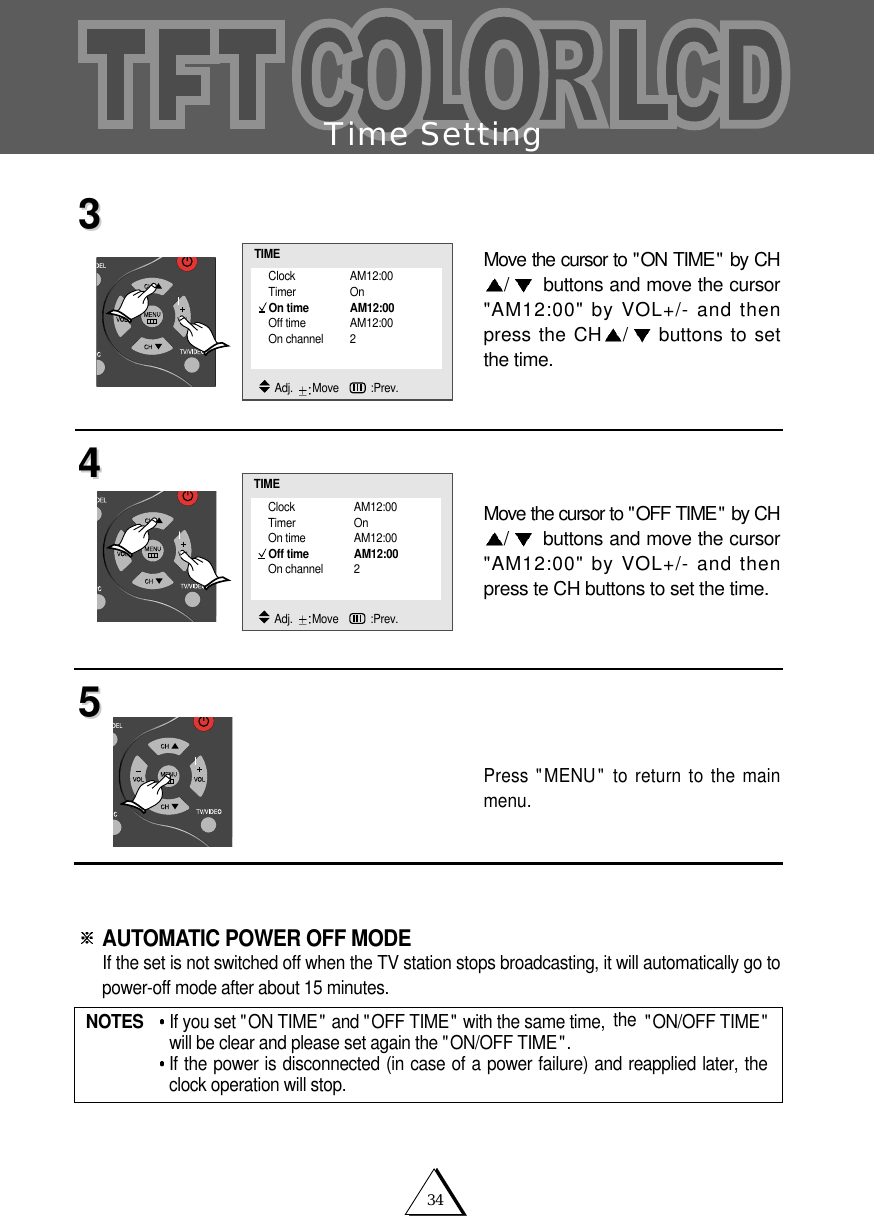
34Time SettingMove the cursor to "ON TIME" by CH/buttons and move the cursor"AM12:00" by VOL+/- and thenpress the CH /buttons to setthe time.Move the cursor to "OFF TIME" by CH/buttons and move the cursor"AM12:00" by VOL+/- and thenpress te CH buttons to set the time. Press "MENU" to return to the mainmenu.AUTOMATIC POWER OFF MODE If the set is not switched off when the TV station stops broadcasting, it will automatically go topower-off mode after about 15 minutes.334455NOTES   If you set "ON TIME" and "OFF TIME" with the same time, the "ON/OFF TIME"will be clear and please set again the "ON/OFF TIME".If the power is disconnected (in case of a power failure) and reapplied later, theclock operation will stop.Clock AM12:00Timer OnOn time AM12:00Off time AM12:00On channel 2TIMEAdj.  Move   :Prev.Clock AM12:00Timer OnOn time AM12:00Off time AM12:00On channel 2TIMEAdj.  Move   :Prev.
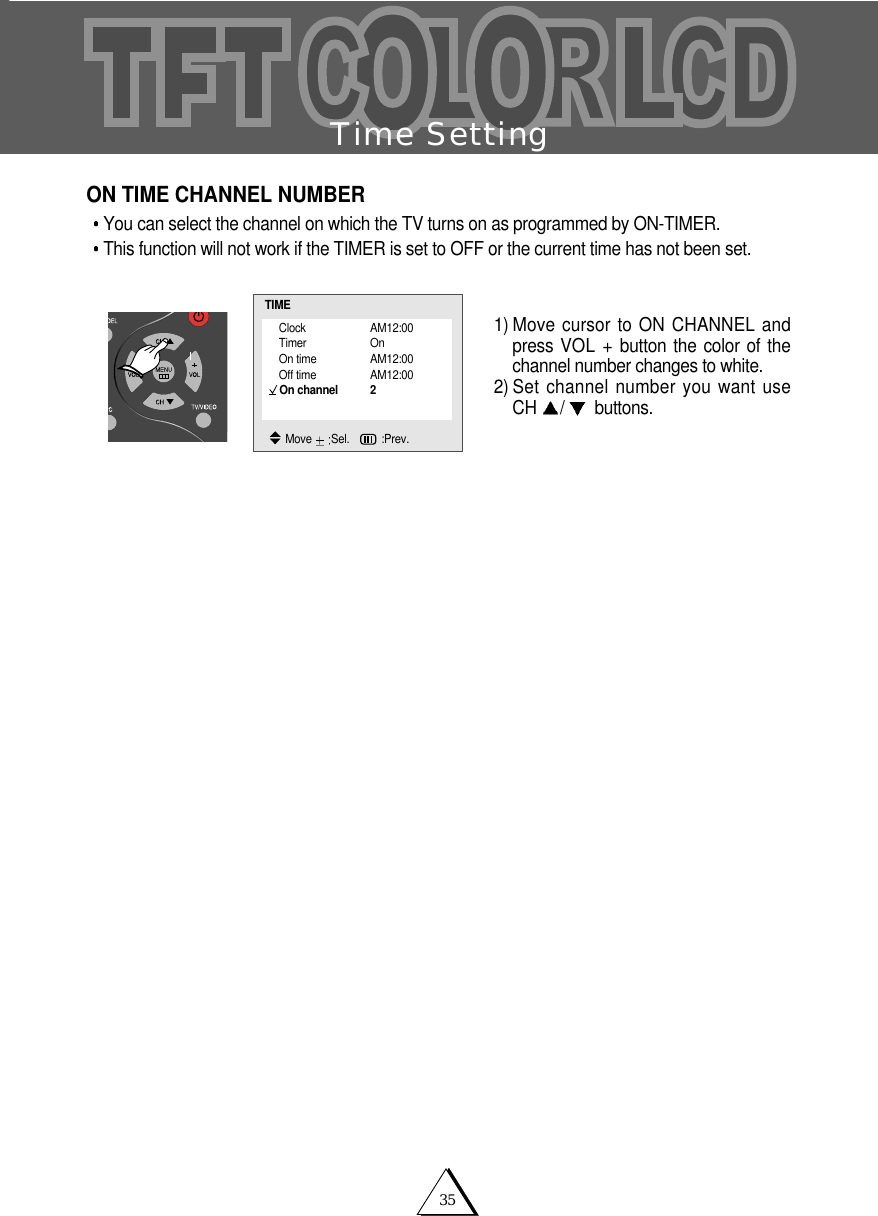
35Time SettingON TIME CHANNEL NUMBERYou can select the channel on which the TV turns on as programmed by ON-TIMER.This function will not work if the TIMER is set to OFF or the current time has not been set.  1) Move cursor to ON CHANNEL andpress VOL + button the color of thechannel number changes to white. 2) Set channel number you want useCH  /buttons.Clock AM12:00Timer OnOn time AM12:00Off time AM12:00On channel 2TIMEMove  Sel.   :Prev.
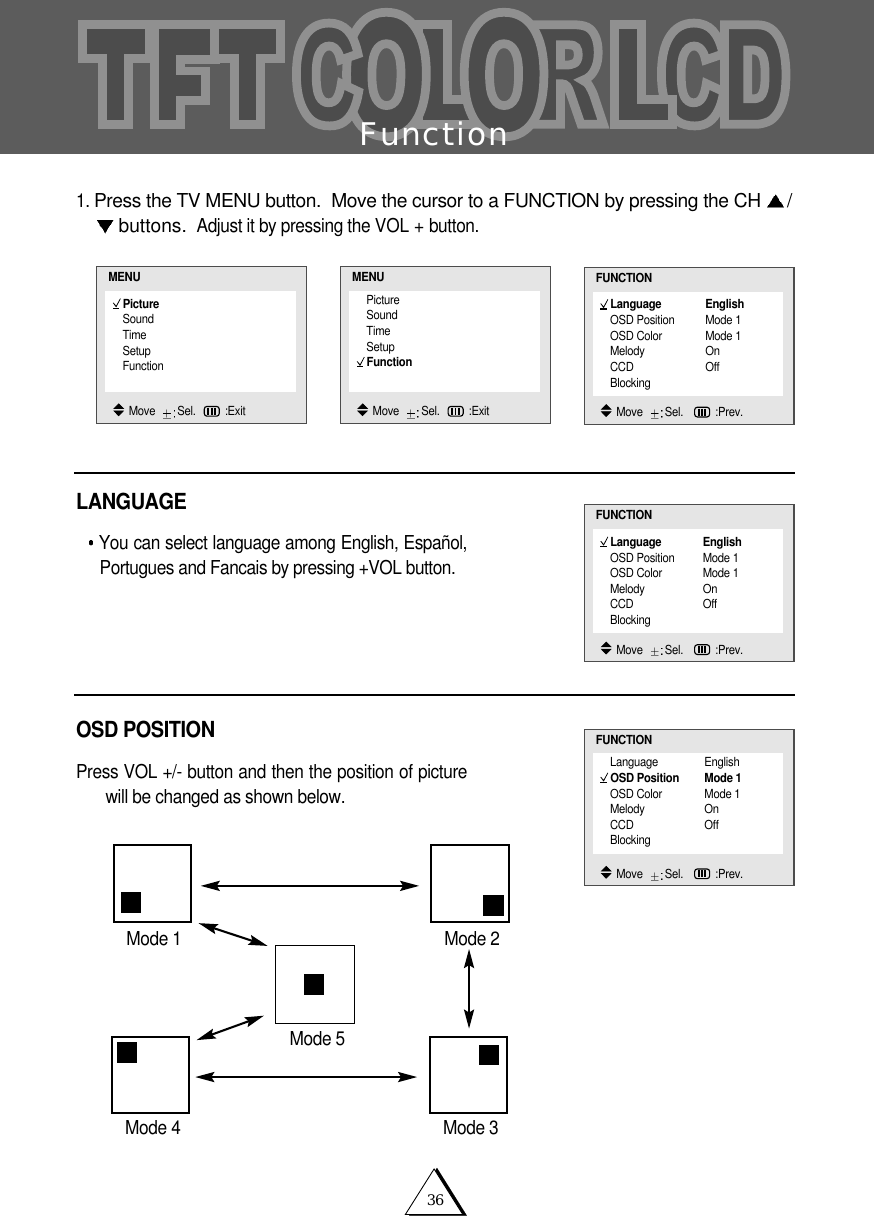
36Function1. Press the TV MENU button.  Move the cursor to a FUNCTION by pressing the CH  /buttons. Adjust it by pressing the VOL + button.LANGUAGEYou can select language among English, Español,Portugues and Fancais by pressing +VOL button. OSD POSITIONPress VOL +/- button and then the position of picturewill be changed as shown below.PictureSoundTimeSetupFunctionMENUMove   Sel. :ExitLanguage EnglishOSD Position Mode 1OSD Color Mode 1Melody OnCCD OffBlockingFUNCTIONMove   Sel.   :Prev.PictureSoundTimeSetupFunctionMENUMove   Sel. :ExitLanguage EnglishOSD Position Mode 1OSD Color Mode 1Melody OnCCD OffBlockingFUNCTIONMove   Sel.   :Prev.Language EnglishOSD Position Mode 1OSD Color Mode 1Melody OnCCD OffBlockingFUNCTIONMove   Sel.   :Prev.Mode 4 Mode 3Mode 1 Mode 2Mode 5
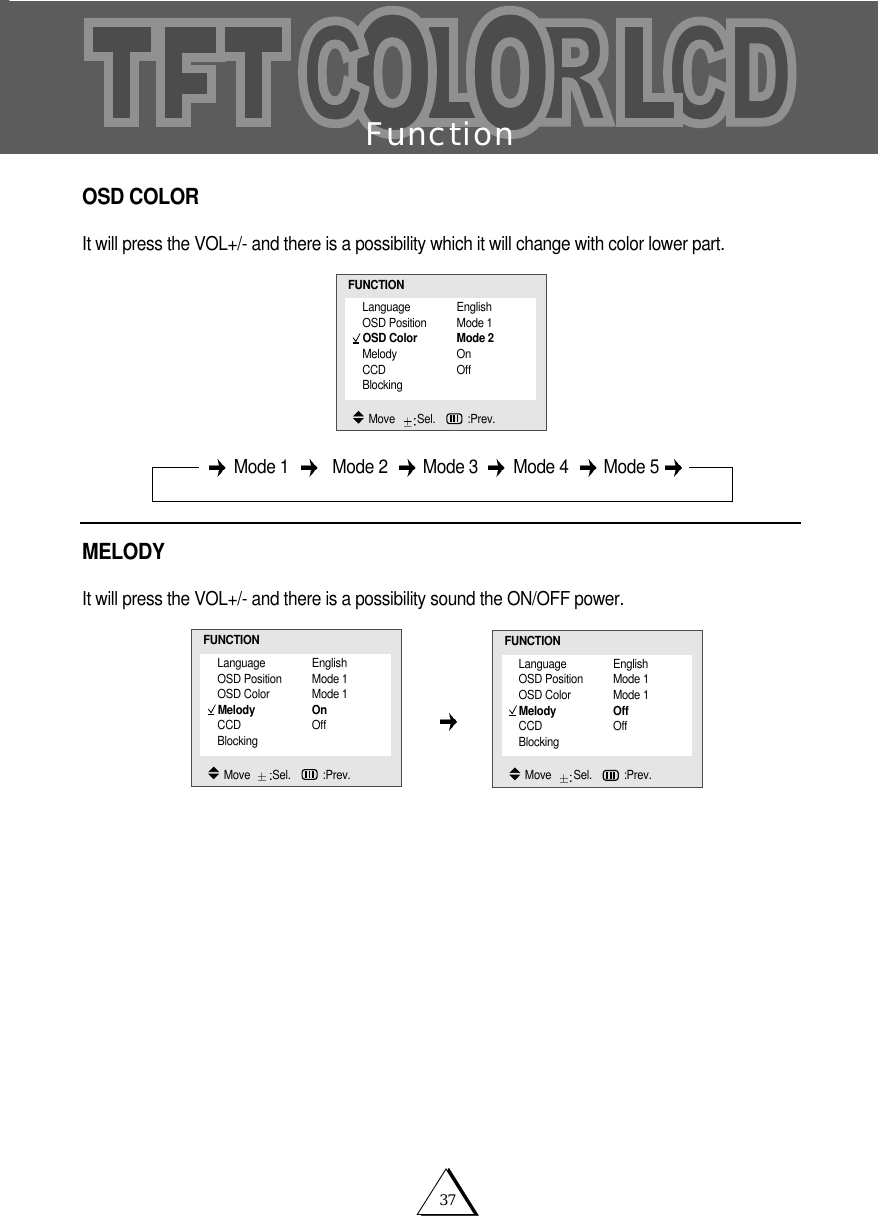
37FunctionOSD COLORIt will press the VOL+/- and there is a possibility which it will change with color lower part. MELODY It will press the VOL+/- and there is a possibility sound the ON/OFF power. Mode 1 Mode 2   Mode 3   Mode 4   Mode 5 Language EnglishOSD Position Mode 1OSD Color Mode 2Melody OnCCD OffBlockingFUNCTIONMove   Sel.   :Prev.Language EnglishOSD Position Mode 1OSD Color Mode 1Melody OnCCD OffBlockingFUNCTIONMove   Sel.   :Prev.Language EnglishOSD Position Mode 1OSD Color Mode 1Melody OffCCD OffBlockingFUNCTIONMove   Sel.   :Prev.
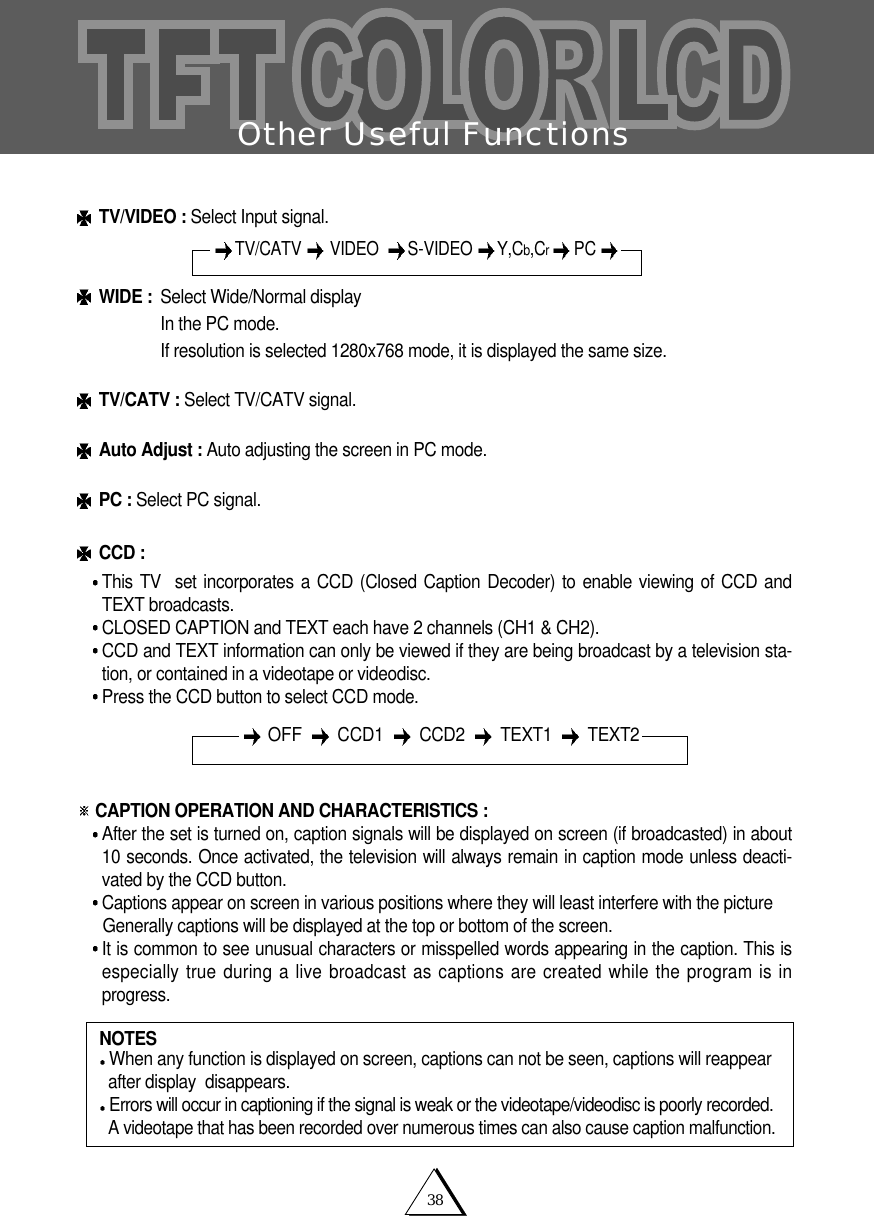
Other Useful Functions38TV/VIDEO : Select Input signal.WIDE :  Select Wide/Normal displayIn the PC mode.If resolution is selected 1280x768 mode, it is displayed the same size.TV/CATV : Select TV/CATV signal.Auto Adjust : Auto adjusting the screen in PC mode.PC : Select PC signal.CCD :This TV  set incorporates a CCD (Closed Caption Decoder) to enable viewing of CCD andTEXT broadcasts.CLOSED CAPTION and TEXT each have 2 channels (CH1 & CH2).   CCD and TEXT information can only be viewed if they are being broadcast by a television sta-tion, or contained in a videotape or videodisc.Press the CCD button to select CCD mode.CAPTION OPERATION AND CHARACTERISTICS : After the set is turned on, caption signals will be displayed on screen (if broadcasted) in about10 seconds. Once activated, the television will always remain in caption mode unless deacti-vated by the CCD button.Captions appear on screen in various positions where they will least interfere with the pictureGenerally captions will be displayed at the top or bottom of the screen.It is common to see unusual characters or misspelled words appearing in the caption. This isespecially true during a live broadcast as captions are created while the program is inprogress.TV/CATV VIDEO   S-VIDEO  Y,Cb,CrPC OFF   CCD1   CCD2 TEXT1 TEXT2NOTESWhen any function is displayed on screen, captions can not be seen, captions will reappear  after display  disappears.Errors will occur in captioning if the signal is weak or the videotape/videodisc is poorly recorded.A videotape that has been recorded over numerous times can also cause caption malfunction.
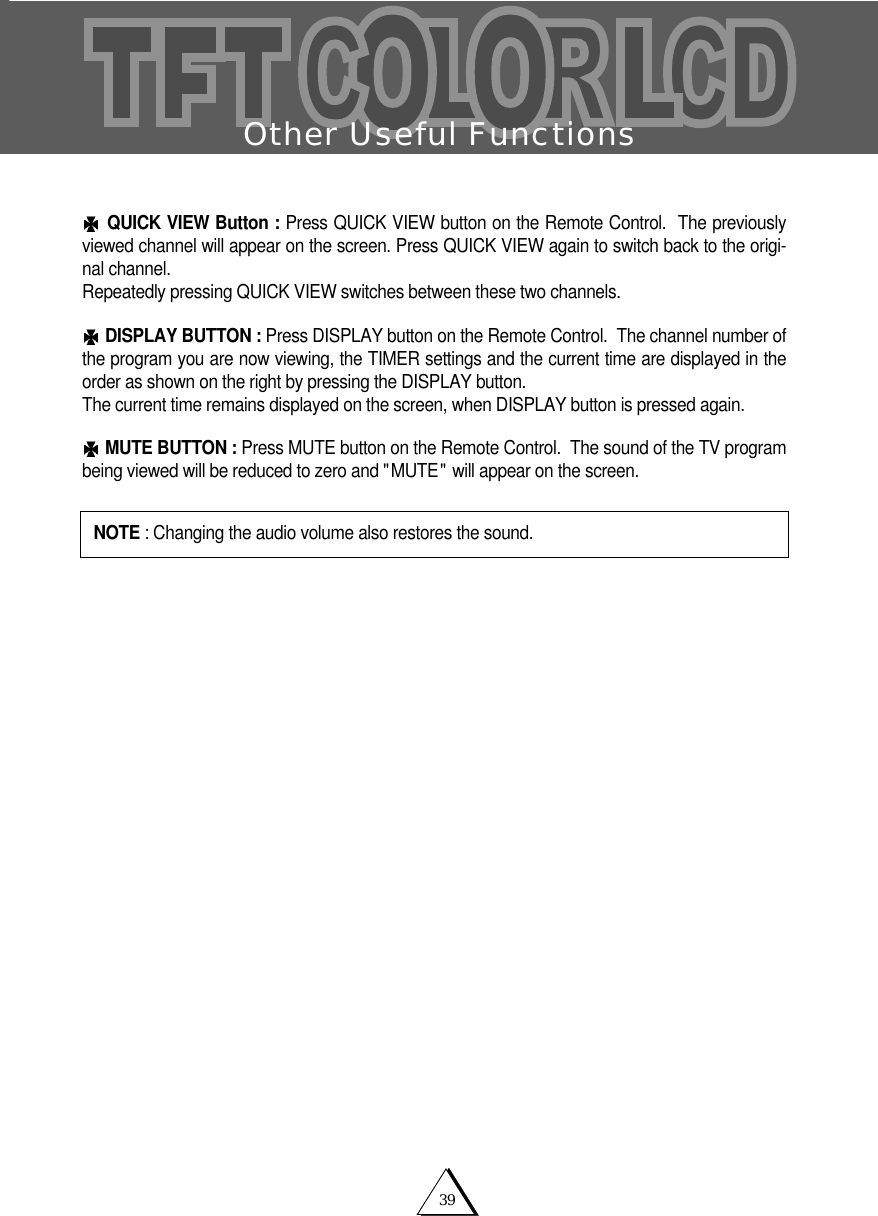
39Other Useful FunctionsQUICK VIEW Button : Press QUICK VIEW button on the Remote Control.  The previouslyviewed channel will appear on the screen. Press QUICK VIEW again to switch back to the origi-nal channel.  Repeatedly pressing QUICK VIEW switches between these two channels. DISPLAY BUTTON : Press DISPLAY button on the Remote Control.  The channel number ofthe program you are now viewing, the TIMER settings and the current time are displayed in theorder as shown on the right by pressing the DISPLAY button.  The current time remains displayed on the screen, when DISPLAY button is pressed again.MUTE BUTTON : Press MUTE button on the Remote Control.  The sound of the TV programbeing viewed will be reduced to zero and "MUTE" will appear on the screen.NOTE : Changing the audio volume also restores the sound.
V-CHIP Operation40WHAT IS THE V-CHIP?The V-CHIP is a microprocessor control circuit which recognizes TV and Motion Picture Ratings.These ratings are contained in a special electronic identification signal that is part of many televisionprograms and recorded videotapes.An on-screen menu allows the parent to set a secret 4-key combination ACCESS CODE and choosewhich programs are suitable for viewing, and which programs should be blocked.(Please note that we have set an initial ACCESS CODE at the factory. This initial code is VOL +, VOL+, VOL + VOL +).Once set, the television will only display those programs whose ratings fall within the standards theparent has chosen. Programs which do not fall within the standards the parent has chosen will not bedisplayed unless the access code is entered.Some TV programs and movies may not be compatible with V-chip ratings. GENERAL PROCEDUREAs shipped from the factory, the V-CHIP is not operational until you perform these procedures :Enter your 4-key ACCESS CODE to bring up the BLOCKING MENUFor initial setup, we strongly recommend that you use the factory preset ACCESS CODE of VOL +, VOL +, VOL + VOL +. Instructions on changing the ACCESS CODE are at the end of thissection.  Enable Motion Picture rating and choose the Motion Picture Ratings which you wish to block.Enable TV Parental Guide Ratings and choose the TV Parental Guide Ratings which you wish toblock.      IMPORTANT NOTICE - READ BEFORE PROCEEDING FURTHERWe urge you to read the entire V-CHIP section of this manual and make sure you understand itthroughly before proceeding further.Once chosen and enabled, programs whose ratings have been blocked CANNOT be viewedunless you enter the 4 button key combination ACCESS CODE.If you forget the Access Code, the only way that you can clear the settings is by bringing the tele-vision to an Authorized Service Center. This is NOT covered under the warranty. PLEASE NOTE THAT THE INITIAL V-CHIP ACCESS CODE AS SHIPPED FROM OUR FAC-TORY IS VOL +, VOL +, VOL +, VOL + (Press the VOL + button 4 times).
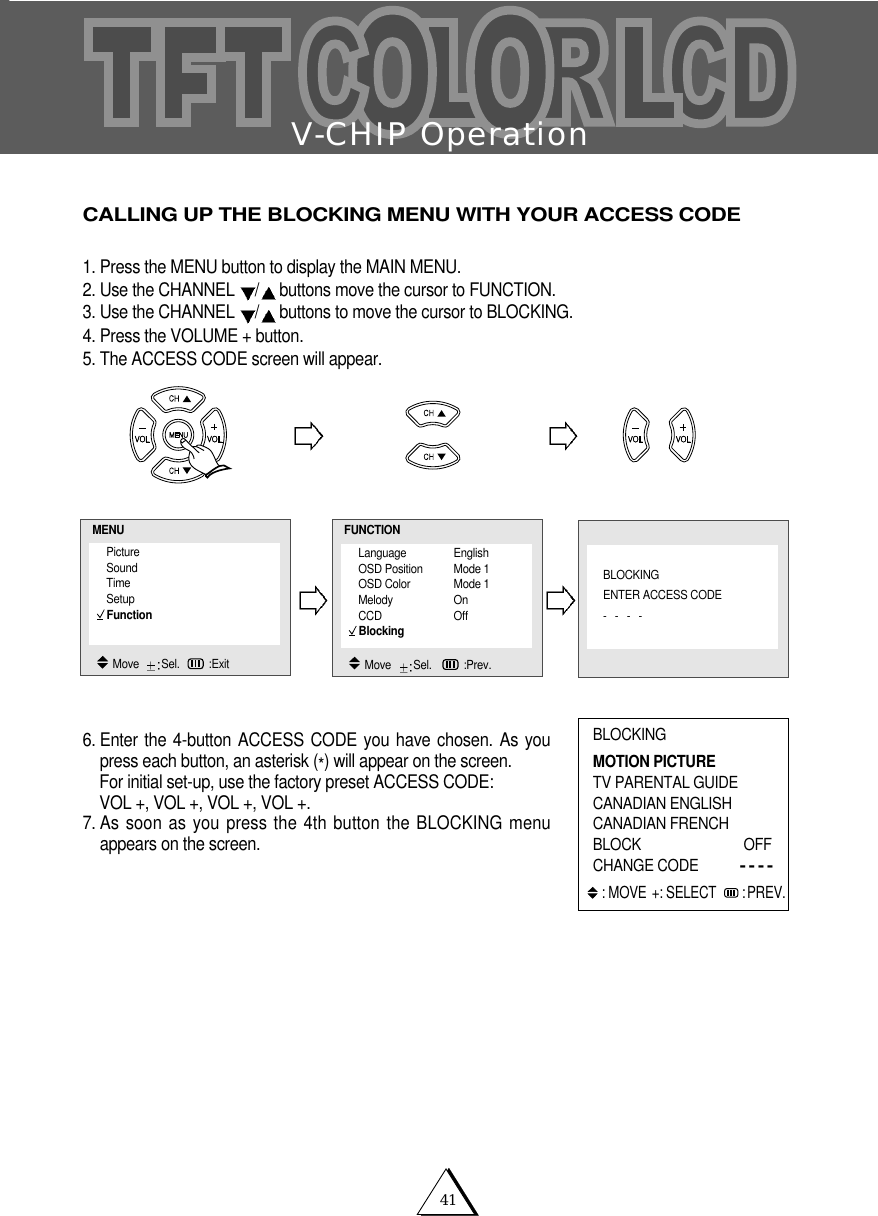
V-CHIP Operation41CALLING UP THE BLOCKING MENU WITH YOUR ACCESS CODE1. Press the MENU button to display the MAIN MENU.2. Use the CHANNEL  /buttons move the cursor to FUNCTION.3. Use the CHANNEL  /buttons to move the cursor to BLOCKING.4. Press the VOLUME + button.5. The ACCESS CODE screen will appear.6. Enter the 4-button ACCESS CODE you have chosen. As youpress each button, an asterisk (*) will appear on the screen.For initial set-up, use the factory preset ACCESS CODE: VOL +, VOL +, VOL +, VOL +.7. As soon as you press the 4th button the BLOCKING menuappears on the screen.BLOCKINGMOTION PICTURETV PARENTAL GUIDECANADIAN ENGLISHCANADIAN FRENCHBLOCK OFF CHANGE CODE----: MOVE +: SELECT  :PREV.Language EnglishOSD Position Mode 1OSD Color Mode 1Melody OnCCD OffBlockingFUNCTIONMove   Sel.   :Prev.PictureSoundTimeSetupFunctionMENUMove   Sel. :ExitBLOCKINGENTER ACCESS CODE----
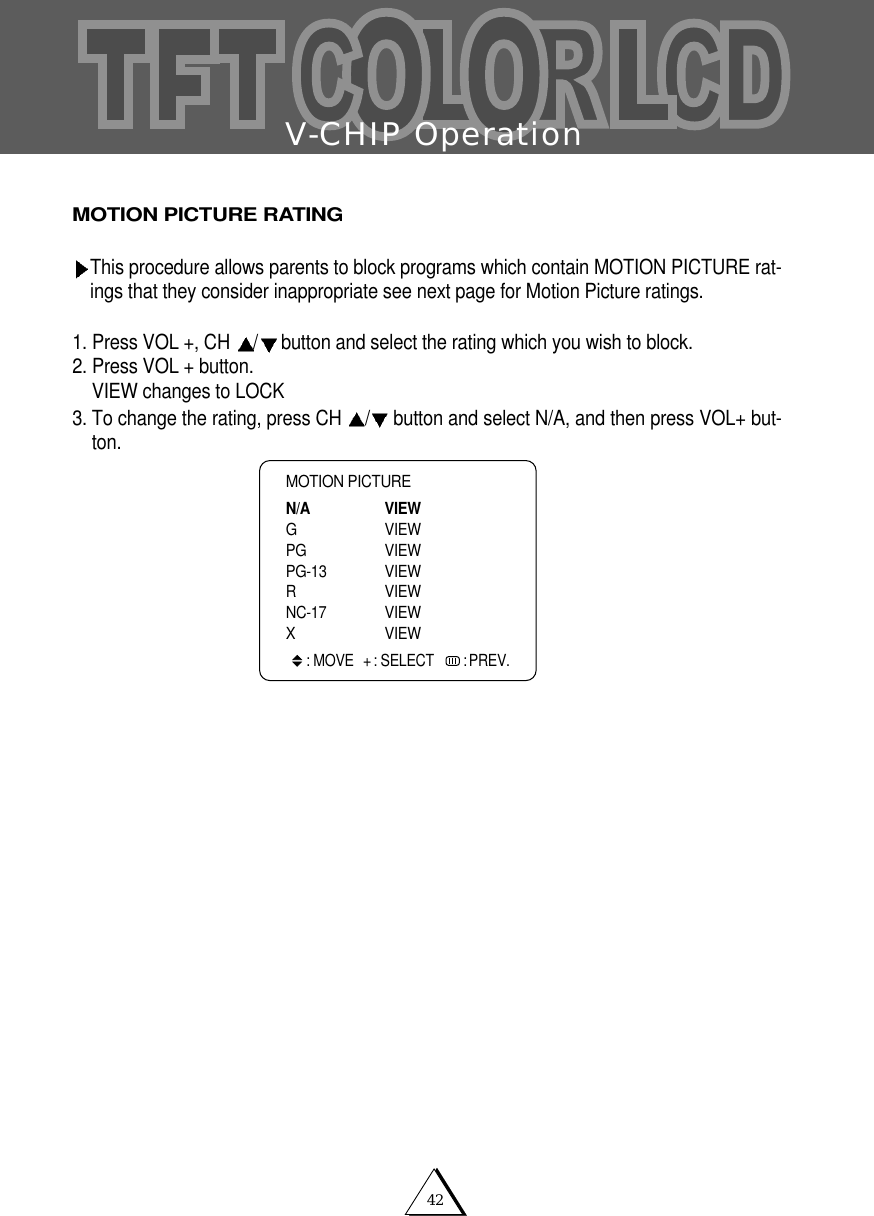
V-CHIP Operation42MOTION PICTURE RATINGThis procedure allows parents to block programs which contain MOTION PICTURE rat-ings that they consider inappropriate see next page for Motion Picture ratings. 1. Press VOL +, CH  /button and select the rating which you wish to block. 2. Press VOL + button.VIEW changes to LOCK 3. To change the rating, press CH  /button and select N/A, and then press VOL+ but-ton. MOTION PICTUREN/A VIEWG VIEWPG VIEWPG-13 VIEW R VIEWNC-17 VIEWX VIEW: MOVE + : SELECT   : PREV.
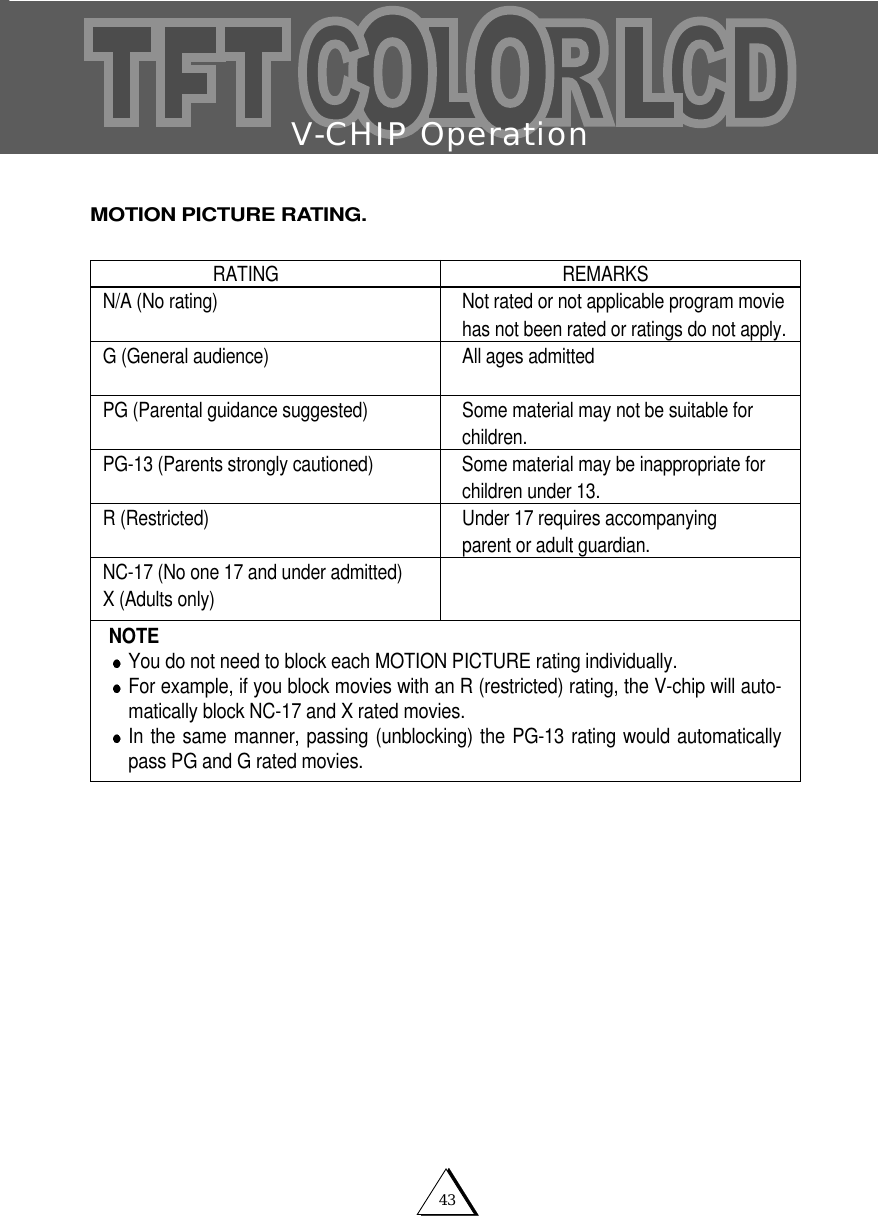
V-CHIP Operation43MOTION PICTURE RATING.RATING                                                            REMARKSN/A (No rating) Not rated or not applicable program movie has not been rated or ratings do not apply.G (General audience) All ages admittedPG (Parental guidance suggested) Some material may not be suitable for children.PG-13 (Parents strongly cautioned) Some material may be inappropriate for children under 13.R (Restricted) Under 17 requires accompanyingparent or adult guardian.NC-17 (No one 17 and under admitted)X (Adults only)NOTEYou do not need to block each MOTION PICTURE rating individually.For example, if you block movies with an R (restricted) rating, the V-chip will auto-matically block NC-17 and X rated movies.In the same manner, passing (unblocking) the PG-13 rating would automaticallypass PG and G rated movies.
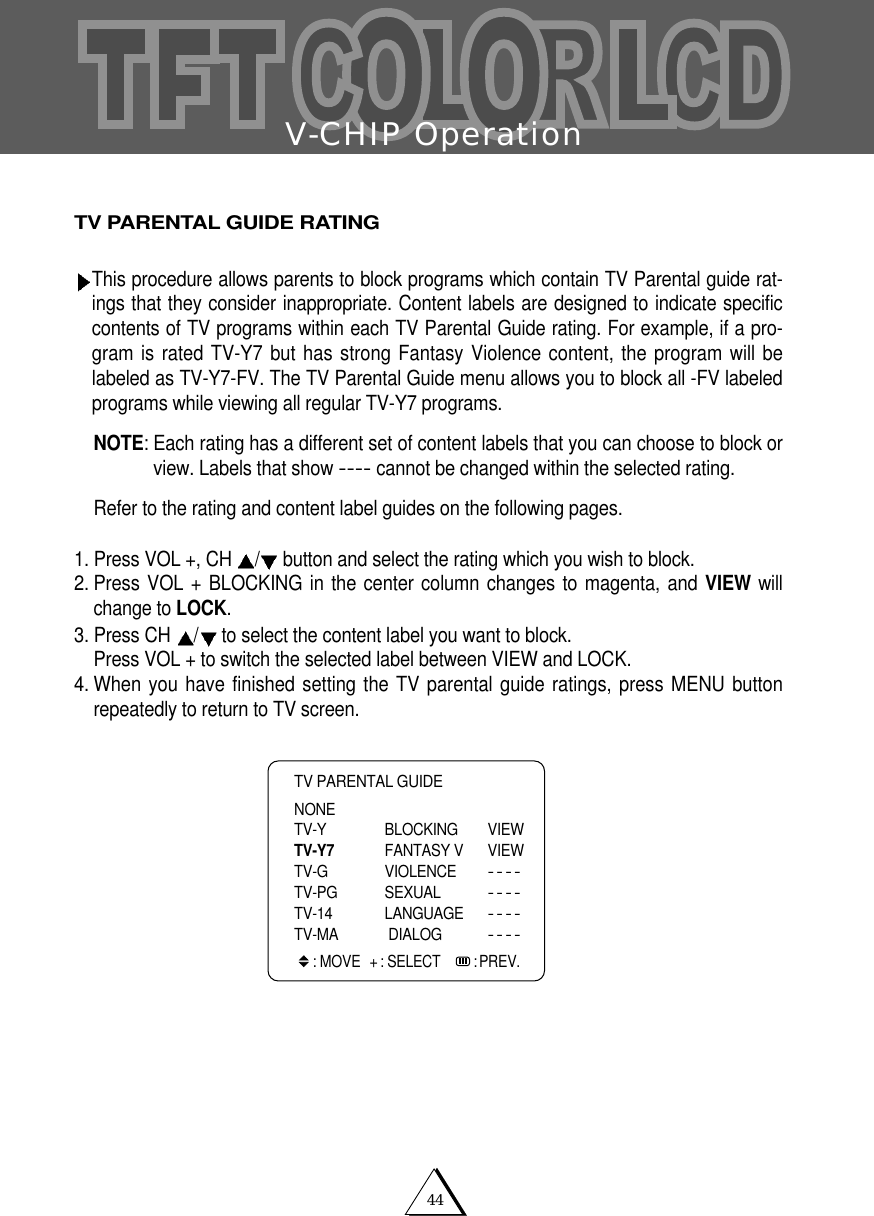
V-CHIP Operation44TV PARENTAL GUIDE RATING This procedure allows parents to block programs which contain TV Parental guide rat-ings that they consider inappropriate. Content labels are designed to indicate specificcontents of TV programs within each TV Parental Guide rating. For example, if a pro-gram is rated TV-Y7 but has strong Fantasy Violence content, the program will belabeled as TV-Y7-FV. The TV Parental Guide menu allows you to block all -FV labeledprograms while viewing all regular TV-Y7 programs.NOTE: Each rating has a different set of content labels that you can choose to block orview. Labels that show ----cannot be changed within the selected rating. Refer to the rating and content label guides on the following pages.1. Press VOL +, CH  /button and select the rating which you wish to block.2. Press VOL + BLOCKING in the center column changes to magenta, and VIEW willchange to LOCK.3. Press CH  /to select the content label you want to block. Press VOL + to switch the selected label between VIEW and LOCK.4. When you have finished setting the TV parental guide ratings, press MENU buttonrepeatedly to return to TV screen.TV PARENTAL GUIDENONETV-Y BLOCKING VIEWTV-Y7 FANTASY V  VIEWTV-G VIOLENCE----TV-PG SEXUAL----TV-14 LANGUAGE----TV-MA DIALOG----: MOVE + : SELECT    : PREV.
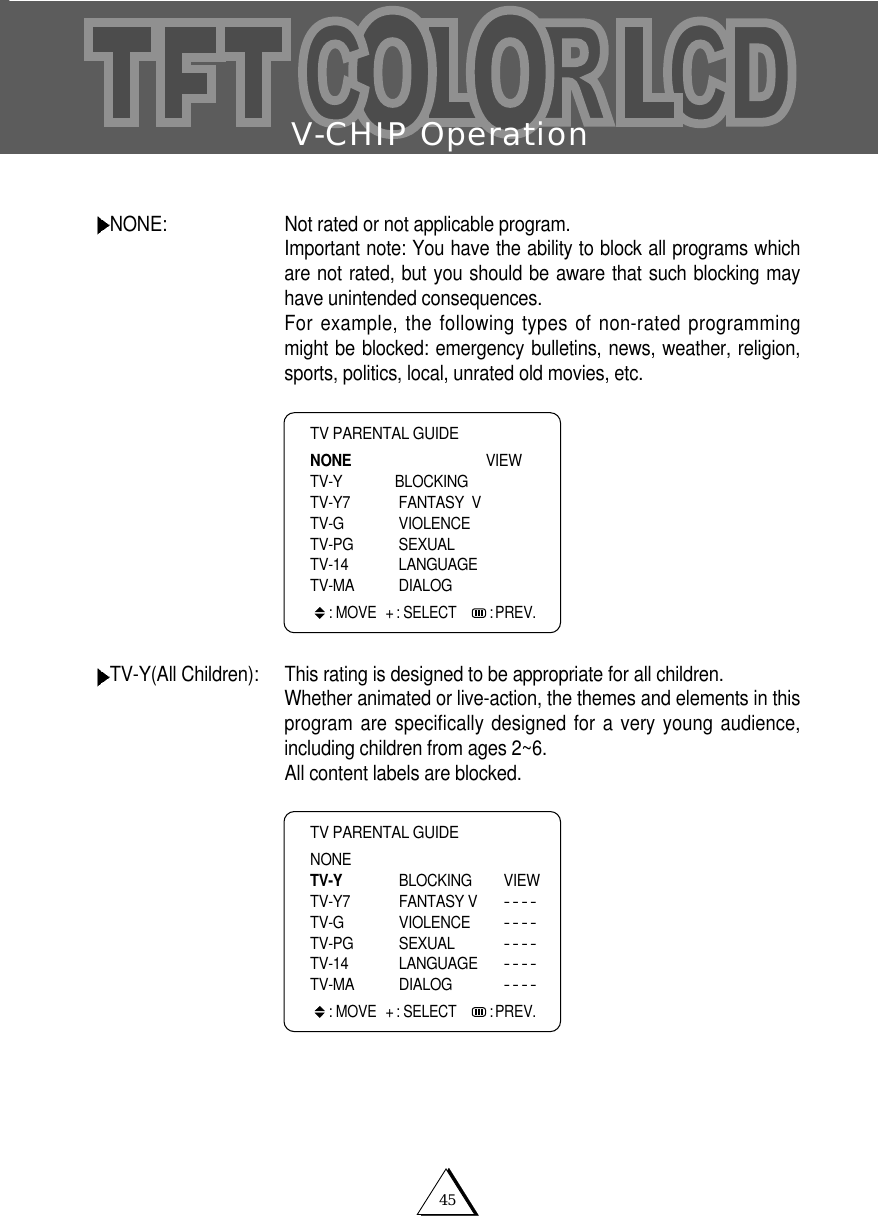
V-CHIP Operation45NONE:  Not rated or not applicable program.Important note: You have the ability to block all programs whichare not rated, but you should be aware that such blocking mayhave unintended consequences.For example, the following types of non-rated programmingmight be blocked: emergency bulletins, news, weather, religion,sports, politics, local, unrated old movies, etc.TV-Y(All Children): This rating is designed to be appropriate for all children.Whether animated or live-action, the themes and elements in thisprogram are specifically designed for a very young audience,including children from ages 2~6. All content labels are blocked. TV PARENTAL GUIDENONE VIEWTV-Y BLOCKING TV-Y7 FANTASY  VTV-G VIOLENCETV-PG SEXUALTV-14 LANGUAGETV-MA DIALOG: MOVE + : SELECT    : PREV.TV PARENTAL GUIDENONETV-Y BLOCKING VIEWTV-Y7 FANTASY V----TV-G VIOLENCE----TV-PG SEXUAL----TV-14 LANGUAGE----TV-MA DIALOG----: MOVE + : SELECT    : PREV.
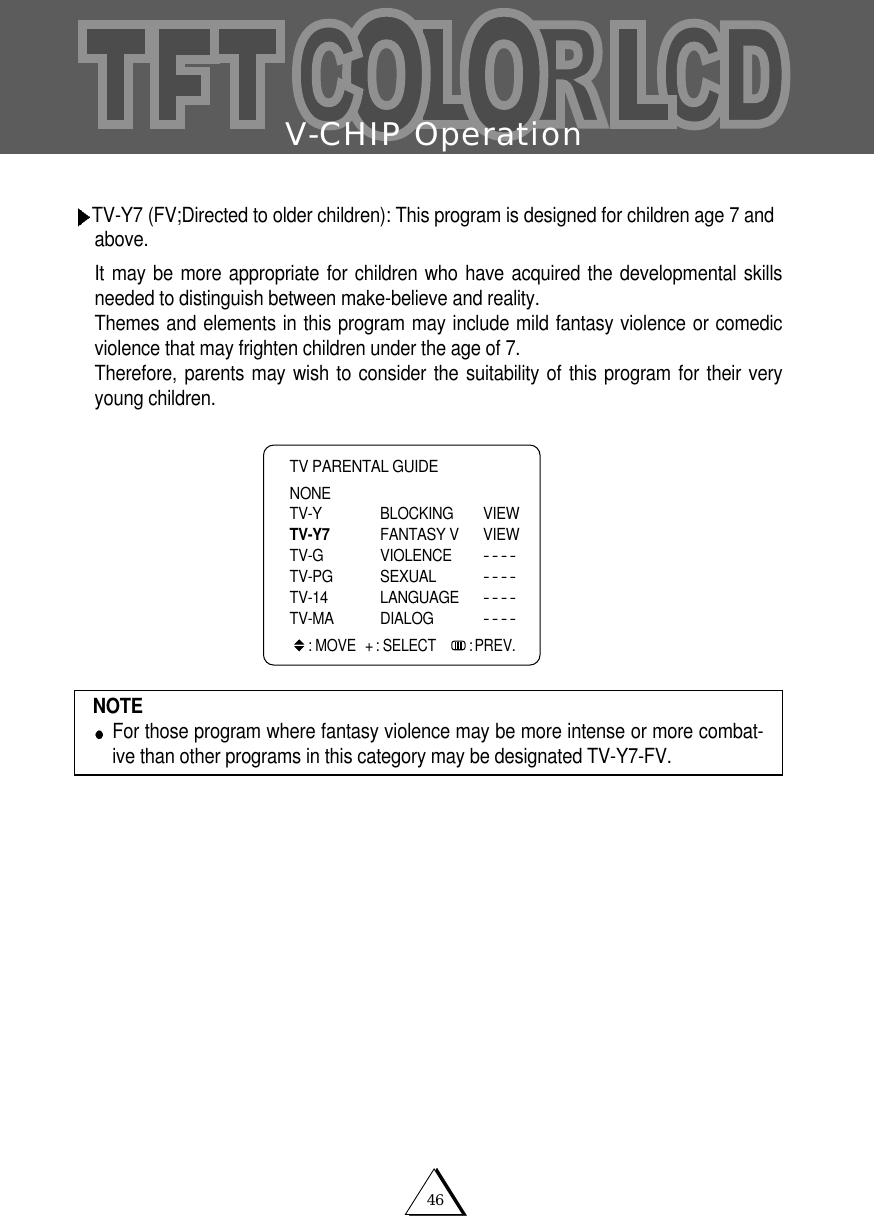
V-CHIP Operation46TV-Y7 (FV;Directed to older children): This program is designed for children age 7 and above.It may be more appropriate for children who have acquired the developmental skillsneeded to distinguish between make-believe and reality.Themes and elements in this program may include mild fantasy violence or comedicviolence that may frighten children under the age of 7.Therefore, parents may wish to consider the suitability of this program for their veryyoung children.NOTEFor those program where fantasy violence may be more intense or more combat-ive than other programs in this category may be designated TV-Y7-FV.TV PARENTAL GUIDENONETV-Y BLOCKING VIEWTV-Y7 FANTASY V  VIEWTV-G VIOLENCE----TV-PG SEXUAL----TV-14 LANGUAGE----TV-MA DIALOG----: MOVE + : SELECT    : PREV.
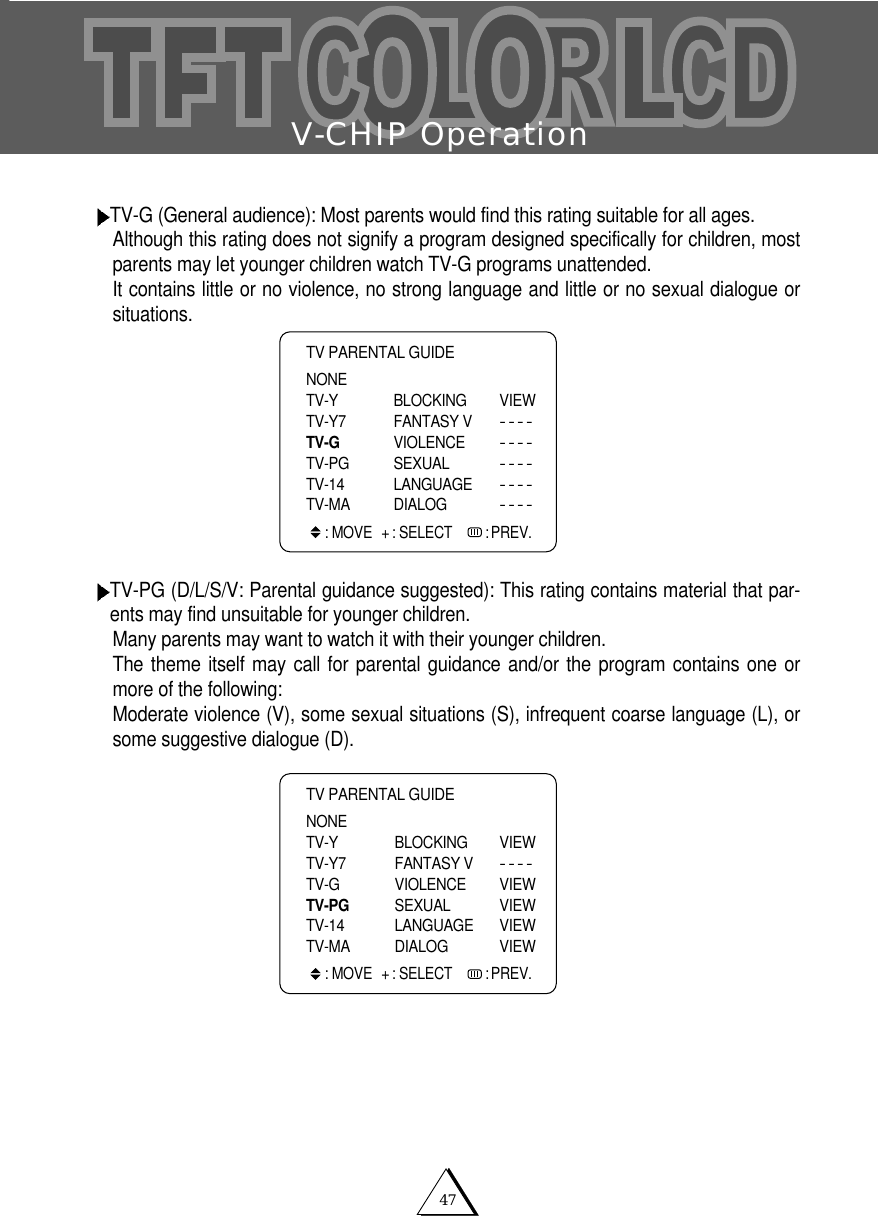
V-CHIP Operation47TV-G (General audience): Most parents would find this rating suitable for all ages.Although this rating does not signify a program designed specifically for children, mostparents may let younger children watch TV-G programs unattended. It contains little or no violence, no strong language and little or no sexual dialogue orsituations.TV-PG (D/L/S/V: Parental guidance suggested): This rating contains material that par-ents may find unsuitable for younger children.Many parents may want to watch it with their younger children.The theme itself may call for parental guidance and/or the program contains one ormore of the following:Moderate violence (V), some sexual situations (S), infrequent coarse language (L), orsome suggestive dialogue (D).TV PARENTAL GUIDENONETV-Y BLOCKING VIEWTV-Y7 FANTASY V----TV-G VIOLENCE----TV-PG SEXUAL----TV-14 LANGUAGE----TV-MA DIALOG----: MOVE + : SELECT    : PREV.TV PARENTAL GUIDENONETV-Y BLOCKING VIEWTV-Y7 FANTASY V----TV-G VIOLENCE VIEWTV-PG SEXUAL VIEWTV-14 LANGUAGE VIEWTV-MA DIALOG VIEW : MOVE + : SELECT    : PREV.
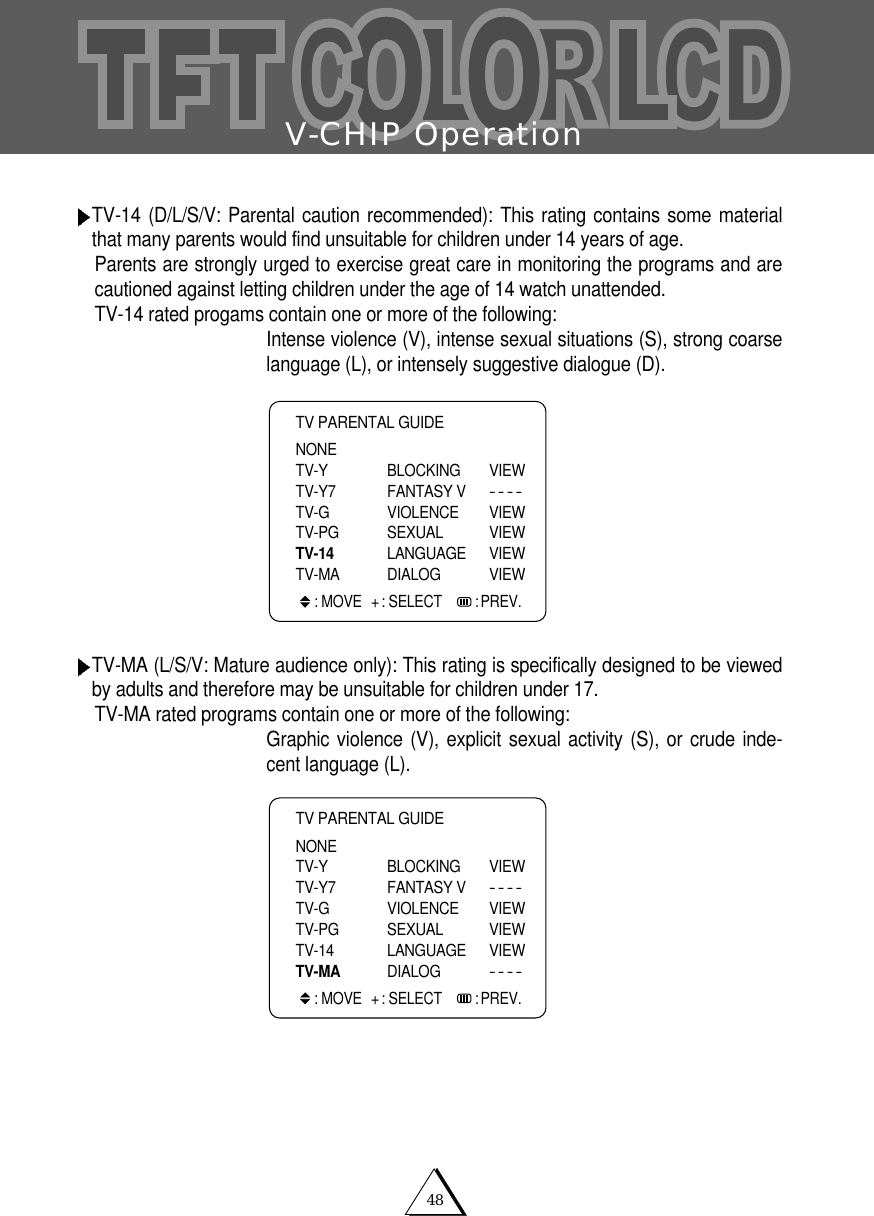
V-CHIP Operation48TV-14 (D/L/S/V: Parental caution recommended): This rating contains some materialthat many parents would find unsuitable for children under 14 years of age.Parents are strongly urged to exercise great care in monitoring the programs and arecautioned against letting children under the age of 14 watch unattended.TV-14 rated progams contain one or more of the following:Intense violence (V), intense sexual situations (S), strong coarselanguage (L), or intensely suggestive dialogue (D).TV-MA (L/S/V: Mature audience only): This rating is specifically designed to be viewedby adults and therefore may be unsuitable for children under 17.TV-MA rated programs contain one or more of the following:Graphic violence (V), explicit sexual activity (S), or crude inde-cent language (L).TV PARENTAL GUIDENONETV-Y BLOCKING VIEWTV-Y7 FANTASY V----TV-G VIOLENCE VIEWTV-PG SEXUAL VIEWTV-14 LANGUAGE VIEWTV-MA DIALOG VIEW : MOVE + : SELECT    : PREV.TV PARENTAL GUIDENONETV-Y BLOCKING VIEWTV-Y7 FANTASY V----TV-G VIOLENCE VIEWTV-PG SEXUAL VIEWTV-14 LANGUAGE VIEWTV-MA DIALOG----: MOVE + : SELECT    : PREV.
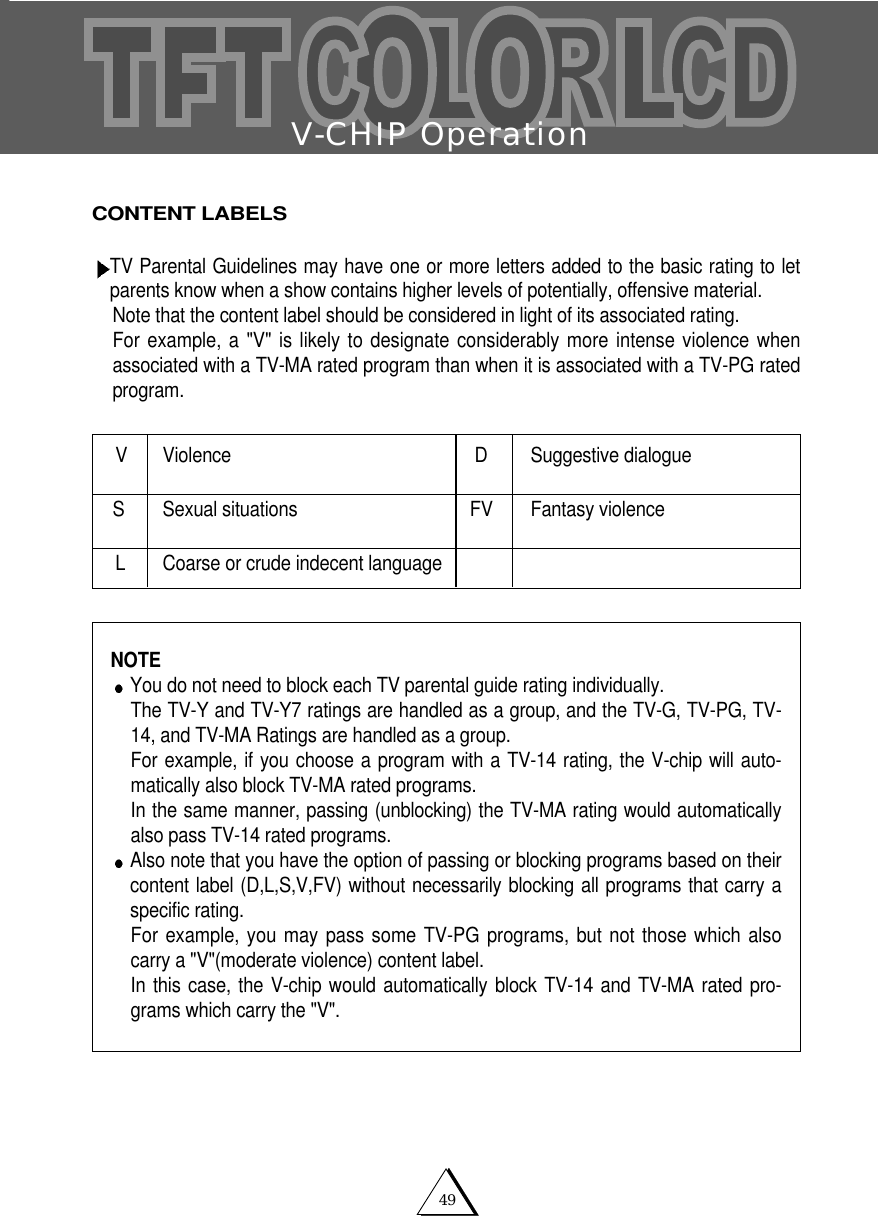
V-CHIP Operation49CONTENT LABELSTV Parental Guidelines may have one or more letters added to the basic rating to letparents know when a show contains higher levels of potentially, offensive material. Note that the content label should be considered in light of its associated rating. For example, a "V" is likely to designate considerably more intense violence whenassociated with a TV-MA rated program than when it is associated with a TV-PG ratedprogram.V Violence D Suggestive dialogueS Sexual situations FV Fantasy violenceL Coarse or crude indecent languageNOTEYou do not need to block each TV parental guide rating individually. The TV-Y and TV-Y7 ratings are handled as a group, and the TV-G, TV-PG, TV-14, and TV-MA Ratings are handled as a group. For example, if you choose a program with a TV-14 rating, the V-chip will auto-matically also block TV-MA rated programs.In the same manner, passing (unblocking) the TV-MA rating would automaticallyalso pass TV-14 rated programs.Also note that you have the option of passing or blocking programs based on theircontent label (D,L,S,V,FV) without necessarily blocking all programs that carry aspecific rating. For example, you may pass some TV-PG programs, but not those which alsocarry a "V"(moderate violence) content label. In this case, the V-chip would automatically block TV-14 and TV-MA rated pro-grams which carry the "V".
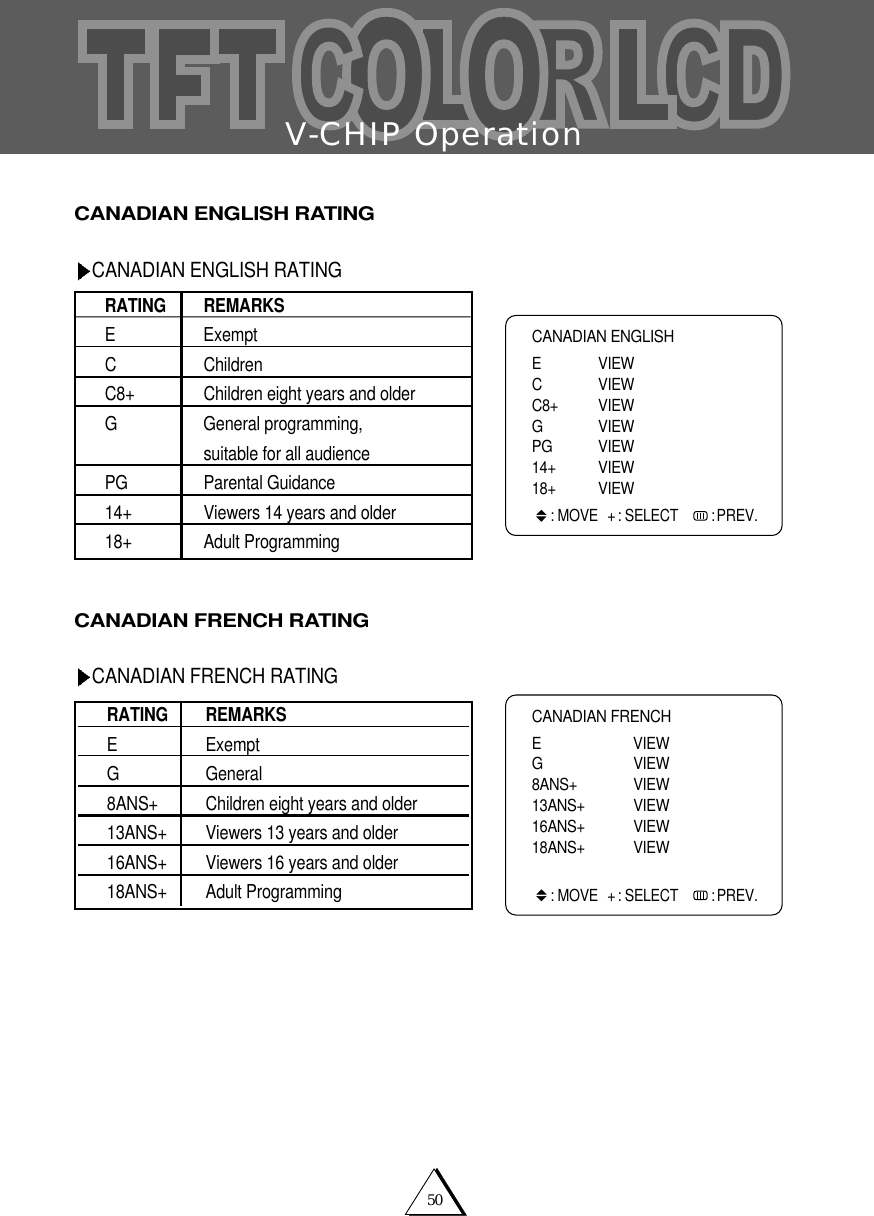
V-CHIP Operation50CANADIAN ENGLISH RATINGCANADIAN ENGLISH RATINGCANADIAN FRENCH RATINGCANADIAN FRENCH RATINGCANADIAN ENGLISH  E VIEW C VIEWC8+ VIEWG VIEWPG VIEW14+ VIEW18+ VIEW: MOVE + : SELECT    : PREV.RATING REMARKSE ExemptC ChildrenC8+ Children eight years and olderG General programming, suitable for all audiencePG Parental Guidance14+ Viewers 14 years and older18+ Adult ProgrammingRATING REMARKSE ExemptG General8ANS+ Children eight years and older13ANS+ Viewers 13 years and older16ANS+ Viewers 16 years and older18ANS+ Adult ProgrammingCANADIAN FRENCH  E VIEW G VIEW8ANS+ VIEW13ANS+ VIEW16ANS+ VIEW18ANS+ VIEW: MOVE + : SELECT    : PREV.
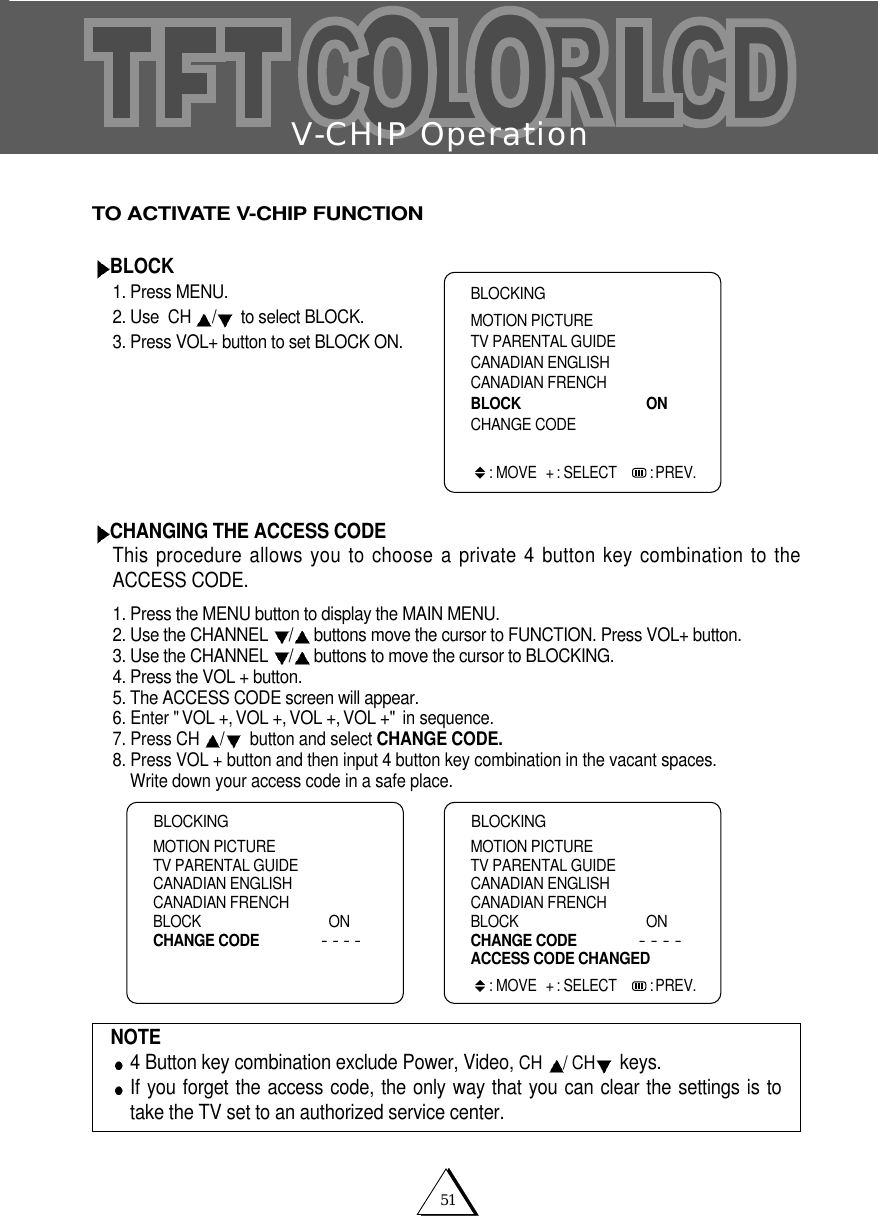
V-CHIP Operation51TO ACTIVATE V-CHIP FUNCTIONBLOCK1. Press MENU.2. Use CH  /to select BLOCK.3. Press VOL+ button to set BLOCK ON.CHANGING THE ACCESS CODEThis procedure allows you to choose a private 4 button key combination to theACCESS CODE. 1. Press the MENU button to display the MAIN MENU.2. Use the CHANNEL  /buttons move the cursor to FUNCTION. Press VOL+ button.3. Use the CHANNEL  /buttons to move the cursor to BLOCKING.4. Press the VOL + button.5. The ACCESS CODE screen will appear.6. Enter "VOL +,VOL +,VOL +,VOL +" in sequence.7. Press CH  /button and select CHANGE CODE.8. Press VOL + button and then input 4 button key combination in the vacant spaces. Write down your access code in a safe place.NOTE4 Button key combination exclude Power, Video, CH  / CH keys.If you forget the access code, the only way that you can clear the settings is totake the TV set to an authorized service center. BLOCKINGMOTION PICTURETV PARENTAL GUIDECANADIAN ENGLISHCANADIAN FRENCHBLOCK ONCHANGE CODE: MOVE + : SELECT    : PREV.BLOCKINGMOTION PICTURETV PARENTAL GUIDECANADIAN ENGLISHCANADIAN FRENCHBLOCK ONCHANGE CODE----BLOCKINGMOTION PICTURETV PARENTAL GUIDECANADIAN ENGLISHCANADIAN FRENCHBLOCK ONCHANGE CODE----ACCESS CODE CHANGED: MOVE + : SELECT    : PREV.
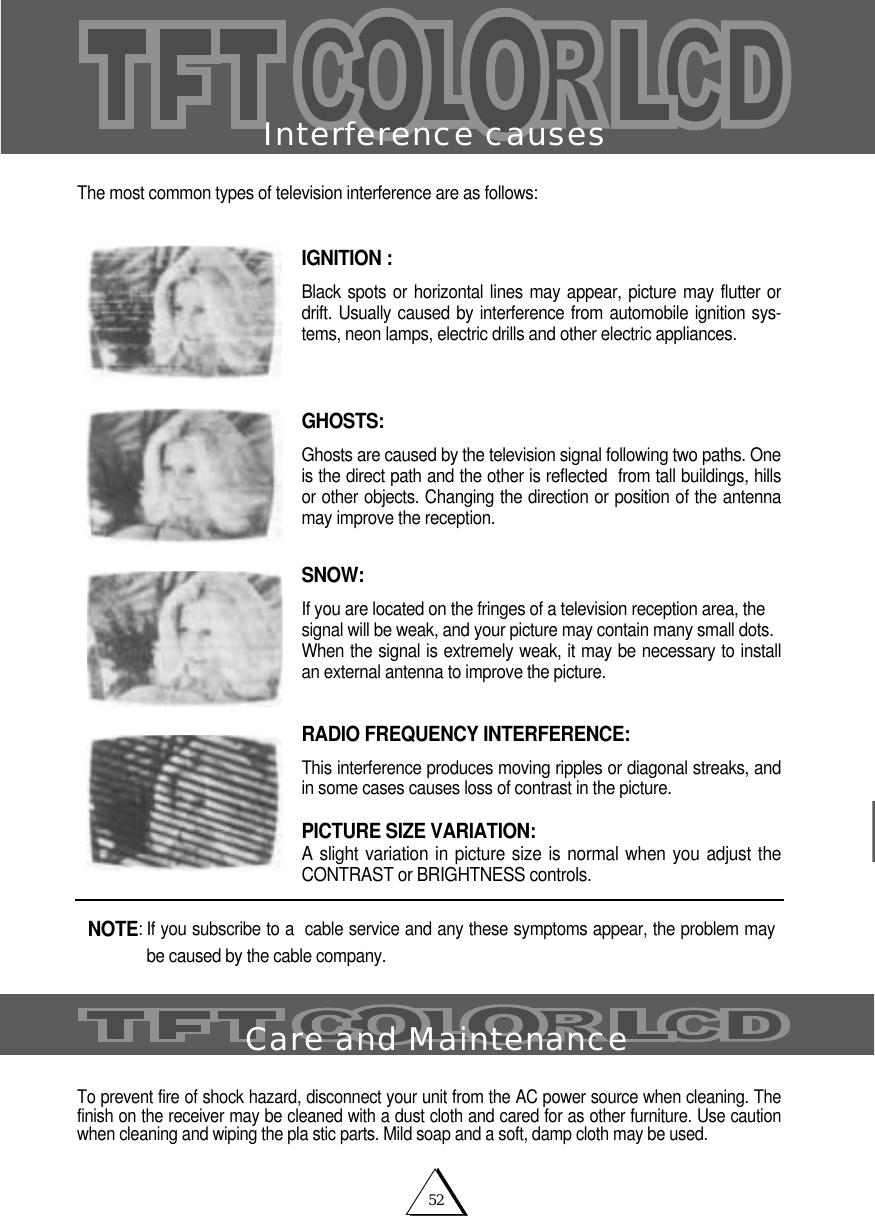
52Interference causesThe most common types of television interference are as follows:IGNITION :Black spots or horizontal lines may appear, picture may flutter ordrift. Usually caused by interference from automobile ignition sys-tems, neon lamps, electric drills and other electric appliances.GHOSTS: Ghosts are caused by the television signal following two paths. One is the direct path and the other is reflected  from tall buildings, hillsor other objects. Changing the direction or position of the antennamay improve the reception.SNOW:If you are located on the fringes of a television reception area, thesignal will be weak, and your picture may contain many small dots.When the signal is extremely weak, it may be necessary to installan external antenna to improve the picture.RADIO FREQUENCY INTERFERENCE: This interference produces moving ripples or diagonal streaks, andin some cases causes loss of contrast in the picture.PICTURE SIZE VARIATION:A slight variation in picture size is normal when you adjust theCONTRAST or BRIGHTNESS controls.To prevent fire of shock hazard, disconnect your unit from the AC power source when cleaning. Thefinish on the receiver may be cleaned with a dust cloth and cared for as other furniture. Use cautionwhen cleaning and wiping the pla stic parts. Mild soap and a soft, damp cloth may be used.NOTE: If you subscribe to a  cable service and any these symptoms appear, the problem maybe caused by the cable company. Care and Maintenance
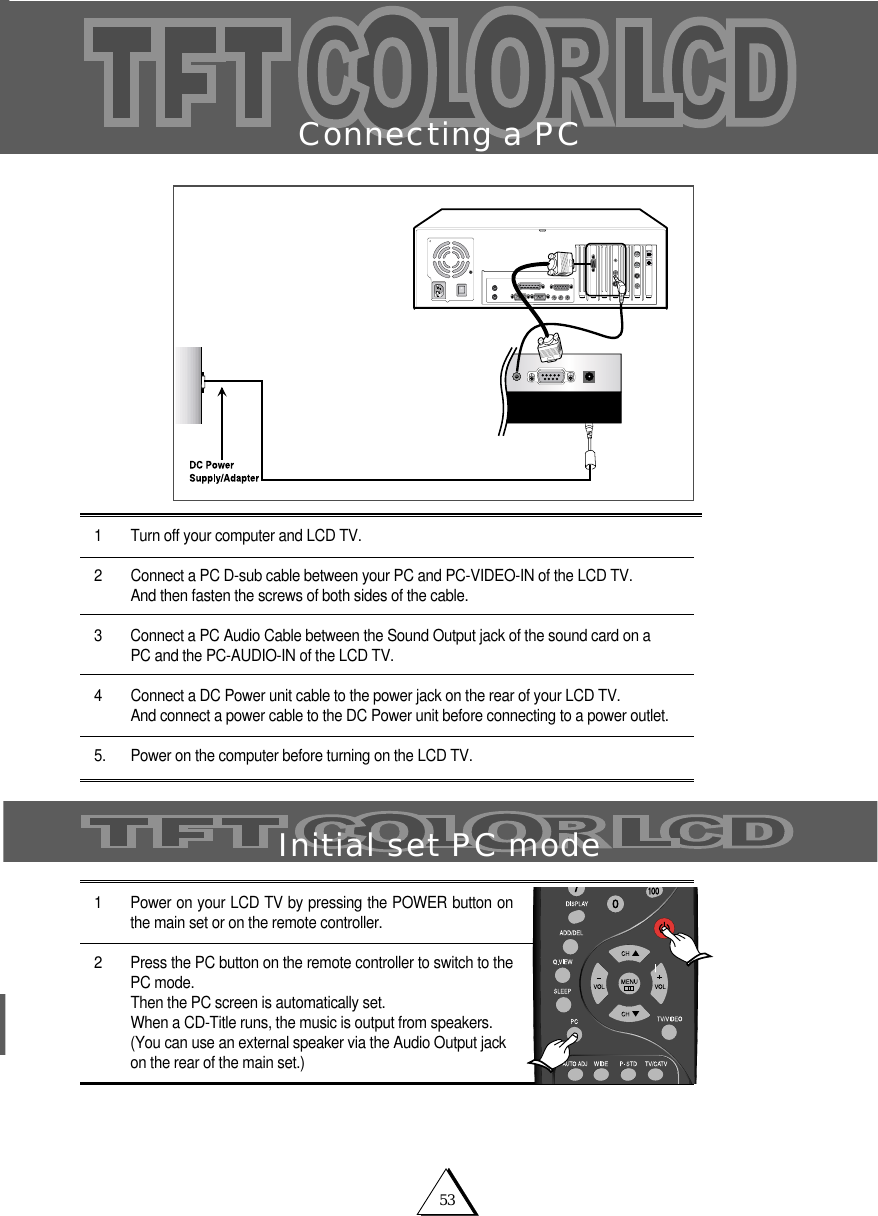
53Connecting a PC1 Turn off your computer and LCD TV.2 Connect a PC D-sub cable between your PC and PC-VIDEO-IN of the LCD TV.And then fasten the screws of both sides of the cable. 3 Connect a PC Audio Cable between the Sound Output jack of the sound card on a PC and the PC-AUDIO-IN of the LCD TV. 4 Connect a DC Power unit cable to the power jack on the rear of your LCD TV.And connect a power cable to the DC Power unit before connecting to a power outlet.5. Power on the computer before turning on the LCD TV.1 Power on your LCD TV by pressing the POWER button onthe main set or on the remote controller.2 Press the PC button on the remote controller to switch to thePC mode.Then the PC screen is automatically set. When a CD-Title runs, the music is output from speakers.(You can use an external speaker via the Audio Output jackon the rear of the main set.)Initial set PC mode
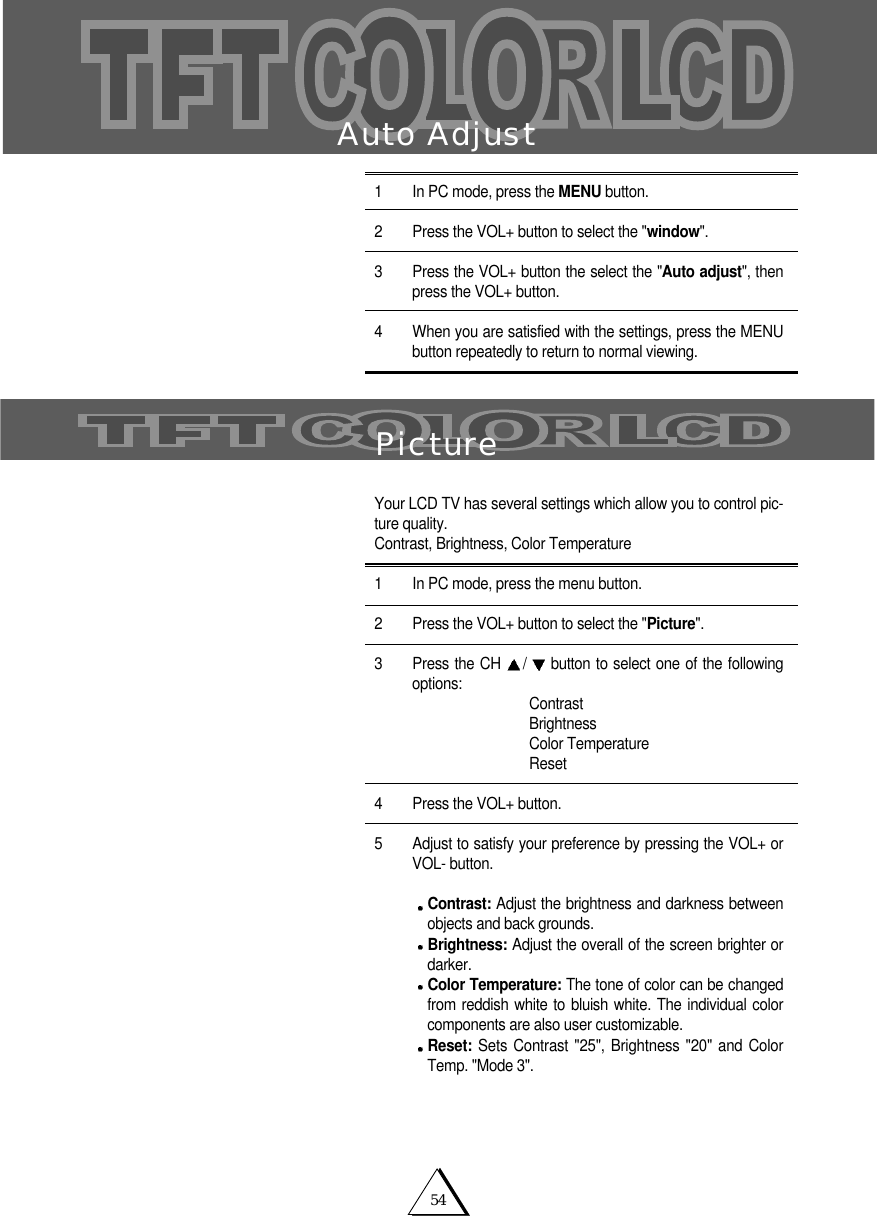
54Auto Adjust1 In PC mode, press the MENU button. 2 Press the VOL+ button to select the "window".3   Press the VOL+ button the select the "Auto adjust", thenpress the VOL+ button. 4 When you are satisfied with the settings, press the MENUbutton repeatedly to return to normal viewing. PictureYour LCD TV has several settings which allow you to control pic-ture quality.Contrast, Brightness, Color Temperature1 In PC mode, press the menu button.2 Press the VOL+ button to select the "Picture".3 Press the CH  /button to select one of the followingoptions: ContrastBrightnessColor TemperatureReset4 Press the VOL+ button.5 Adjust to satisfy your preference by pressing the VOL+ orVOL- button.Contrast: Adjust the brightness and darkness betweenobjects and back grounds. Brightness: Adjust the overall of the screen brighter ordarker.Color Temperature: The tone of color can be changedfrom reddish white to bluish white. The individual colorcomponents are also user customizable.Reset: Sets Contrast "25", Brightness "20" and ColorTemp. "Mode 3".
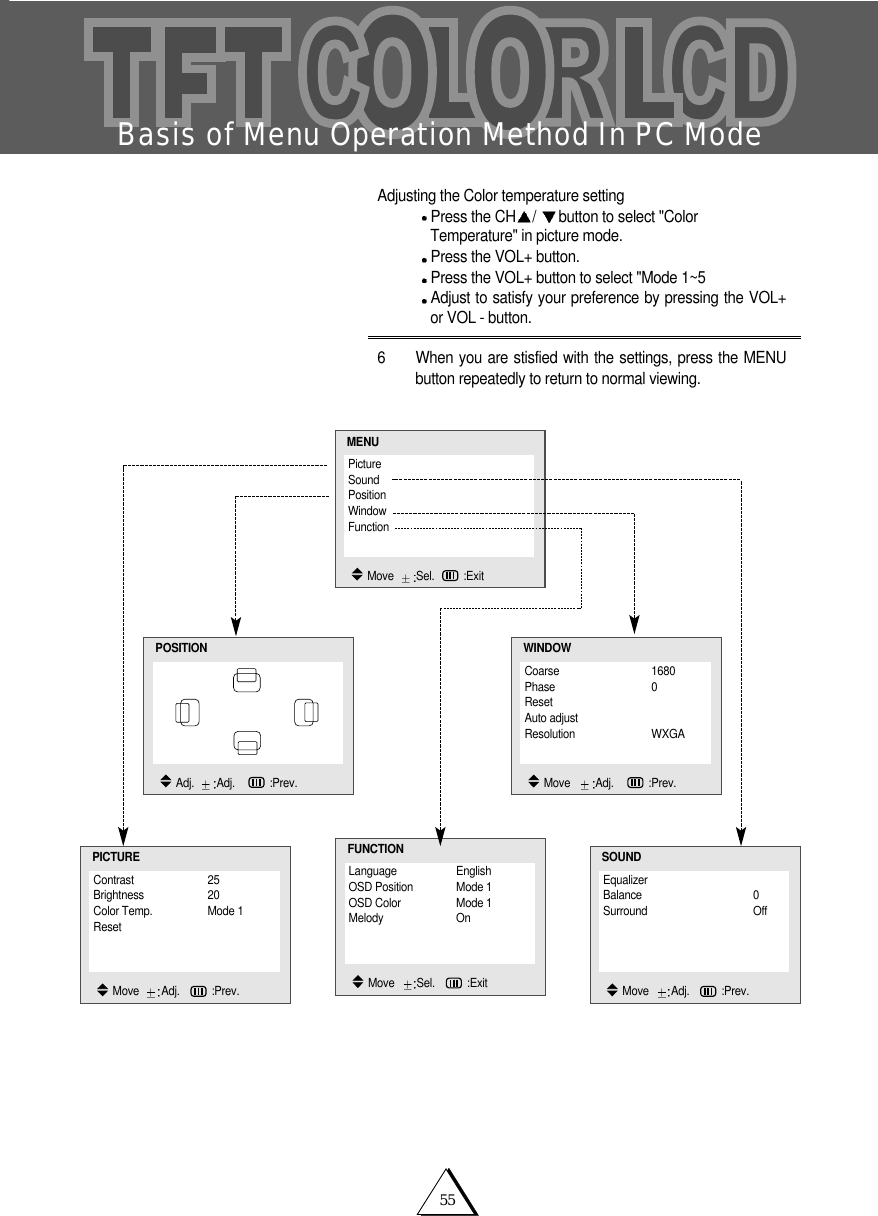
55Basis of Menu Operation Method In PC ModeContrast 25Brightness 20Color Temp. Mode 1ResetPICTUREMove   Adj.   :Prev.EqualizerBalance 0Surround OffSOUNDMove   Adj.   :Prev.Coarse 1680Phase 0ResetAuto adjust Resolution WXGAWINDOWMove    Adj.    :Prev.PictureSoundPositionWindowFunctionMENUMove   Sel. :ExitLanguage EnglishOSD Position Mode 1OSD Color Mode 1Melody OnFUNCTIONMove   Sel.   :ExitPOSITIONAdj.   Adj.    :Prev.Adjusting the Color temperature settingPress the CH /button to select "ColorTemperature" in picture mode. Press the VOL+ button.Press the VOL+ button to select "Mode 1~5Adjust to satisfy your preference by pressing the VOL+or VOL - button.6 When you are stisfied with the settings, press the MENUbutton repeatedly to return to normal viewing.
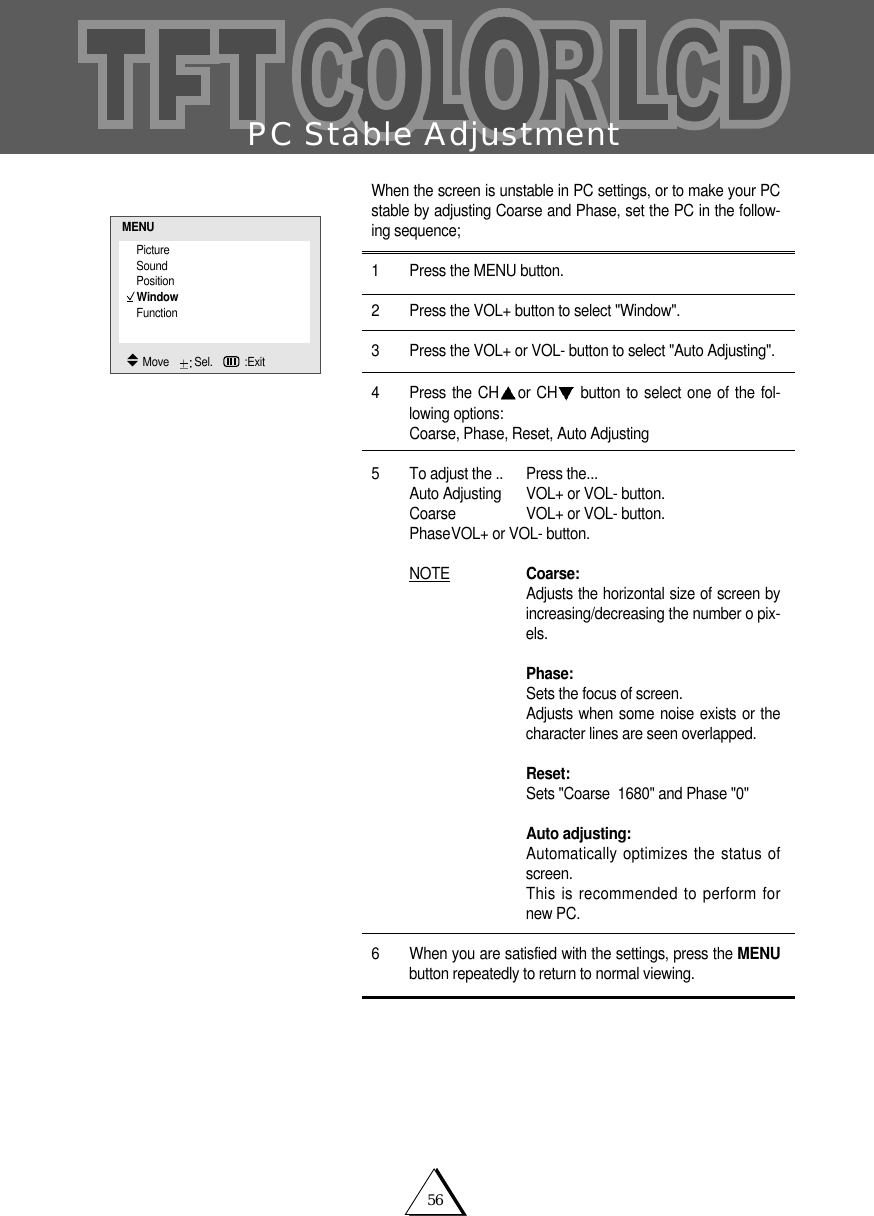
56PC Stable AdjustmentWhen the screen is unstable in PC settings, or to make your PCstable by adjusting Coarse and Phase, set the PC in the follow-ing sequence;1 Press the MENU button. 2 Press the VOL+ button to select "Window".3 Press the VOL+ or VOL- button to select "Auto Adjusting".4 Press the CH or CH button to select one of the fol-lowing options:Coarse, Phase, Reset, Auto Adjusting5 To adjust the .. Press the...Auto Adjusting VOL+ or VOL- button.Coarse VOL+ or VOL- button.PhaseVOL+ or VOL- button.NOTE Coarse:Adjusts the horizontal size of screen byincreasing/decreasing the number o pix-els.Phase:Sets the focus of screen.Adjusts when some noise exists or thecharacter lines are seen overlapped.Reset:Sets "Coarse  1680" and Phase "0"Auto adjusting:Automatically optimizes the status ofscreen.This is recommended to perform fornew PC.6 When you are satisfied with the settings, press the MENUbutton repeatedly to return to normal viewing.PictureSoundPositionWindowFunctionMENUMove    Sel.   :Exit
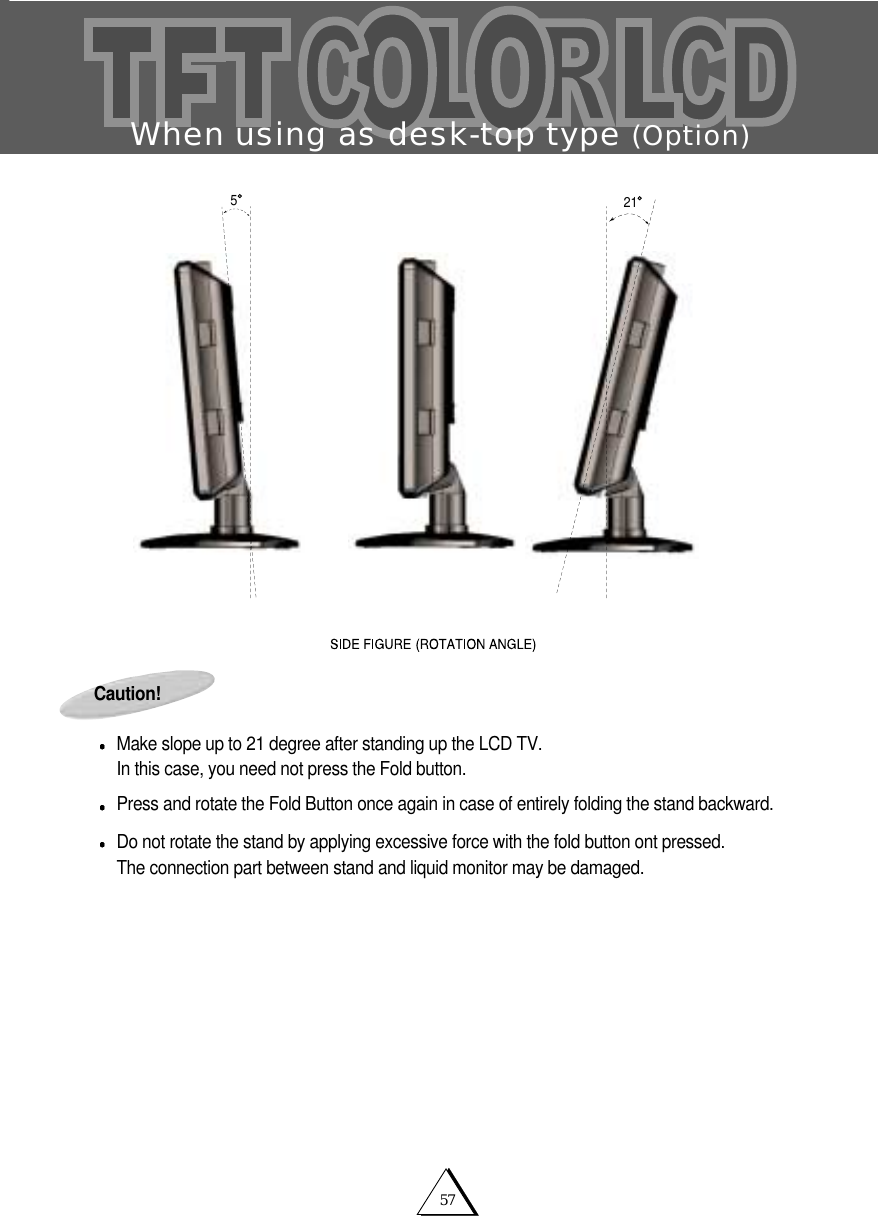
57When using as desk-top type (Option)Caution!Make slope up to 21 degree after standing up the LCD TV. In this case, you need not press the Fold button.Press and rotate the Fold Button once again in case of entirely folding the stand backward.Do not rotate the stand by applying excessive force with the fold button ont pressed.The connection part between stand and liquid monitor may be damaged. 215
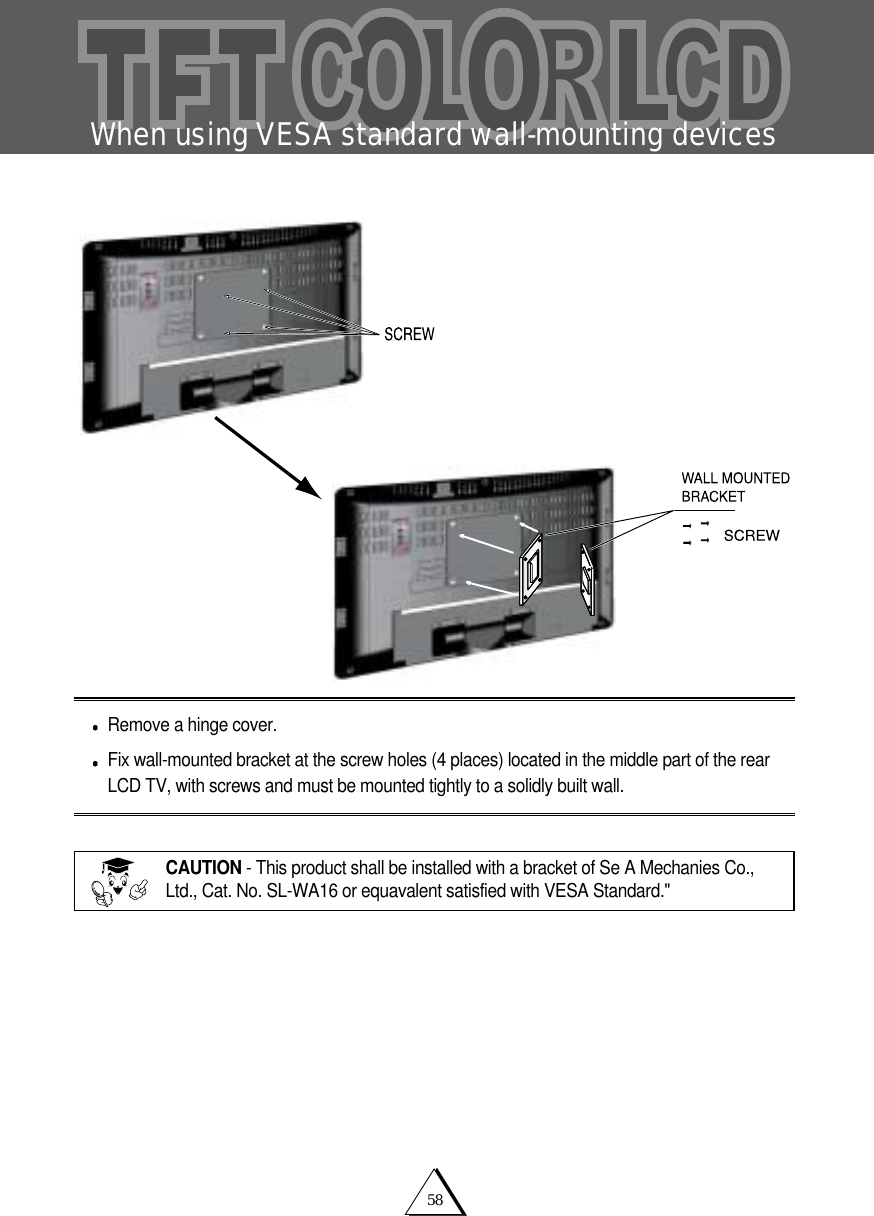
58When using VESA standard wall-mounting devicesRemove a hinge cover.Fix wall-mounted bracket at the screw holes (4 places) located in the middle part of the rearLCD TV, with screws and must be mounted tightly to a solidly built wall.CAUTION - This product shall be installed with a bracket of Se A Mechanies Co.,Ltd., Cat. No. SL-WA16 or equavalent satisfied with VESA Standard."
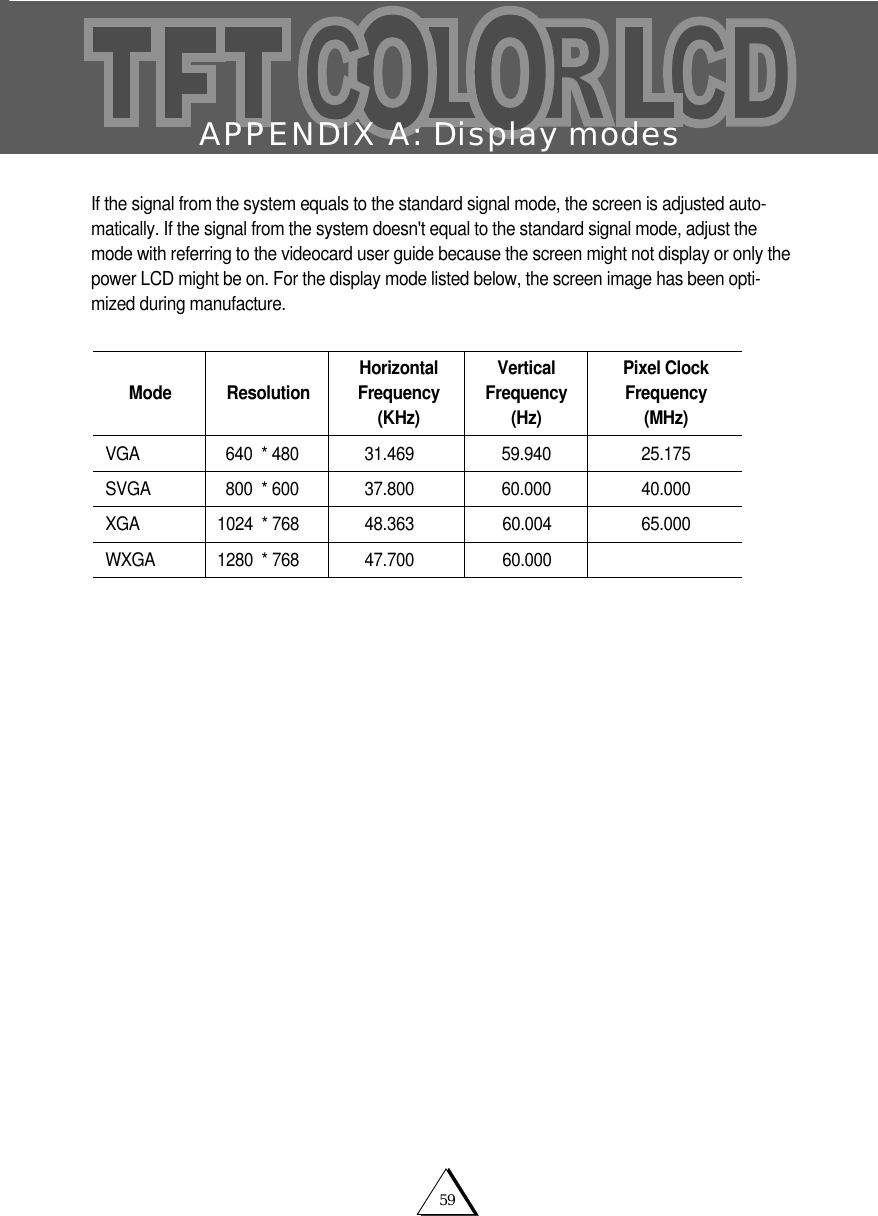
59APPENDIX A: Display modesIf the signal from the system equals to the standard signal mode, the screen is adjusted auto-matically. If the signal from the system doesn't equal to the standard signal mode, adjust themode with referring to the videocard user guide because the screen might not display or only thepower LCD might be on. For the display mode listed below, the screen image has been opti-mized during manufacture. ModeVGASVGAXGAWXGAResolution640  * 480800  * 6001024  * 7681280  * 768HorizontalFrequency(KHz)31.46937.80048.36347.700VerticalFrequency(Hz)59.94060.00060.00460.000Pixel ClockFrequency(MHz)25.17540.00065.000
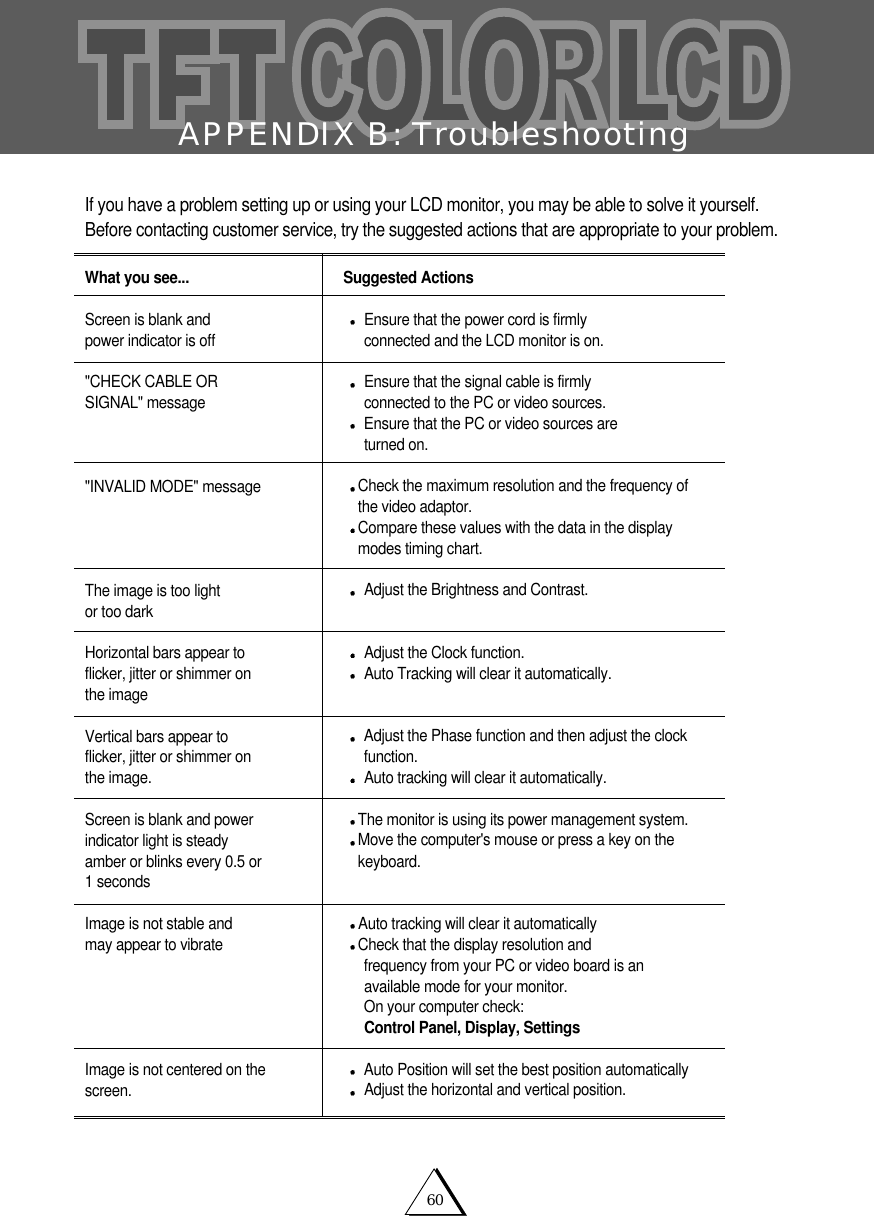
60APPENDIX B: TroubleshootingIf you have a problem setting up or using your LCD monitor, you may be able to solve it yourself.Before contacting customer service, try the suggested actions that are appropriate to your problem. What you see...Screen is blank and power indicator is off"CHECK CABLE OR SIGNAL" message"INVALID MODE" messageThe image is too light or too darkHorizontal bars appear toflicker, jitter or shimmer onthe imageVertical bars appear to flicker, jitter or shimmer onthe image.Screen is blank and power indicator light is steadyamber or blinks every 0.5 or1 secondsImage is not stable and may appear to vibrateImage is not centered on the screen.Suggested ActionsEnsure that the power cord is firmly connected and the LCD monitor is on.Ensure that the signal cable is firmly connected to the PC or video sources.Ensure that the PC or video sources areturned on.Check the maximum resolution and the frequency ofthe video adaptor.Compare these values with the data in the displaymodes timing chart.Adjust the Brightness and Contrast.Adjust the Clock function.Auto Tracking will clear it automatically.Adjust the Phase function and then adjust the clockfunction.Auto tracking will clear it automatically.The monitor is using its power management system.Move the computer's mouse or press a key on thekeyboard.Auto tracking will clear it automaticallyCheck that the display resolution and frequency from your PC or video board is an available mode for your monitor.On your computer check:Control Panel, Display, SettingsAuto Position will set the best position automaticallyAdjust the horizontal and vertical position.
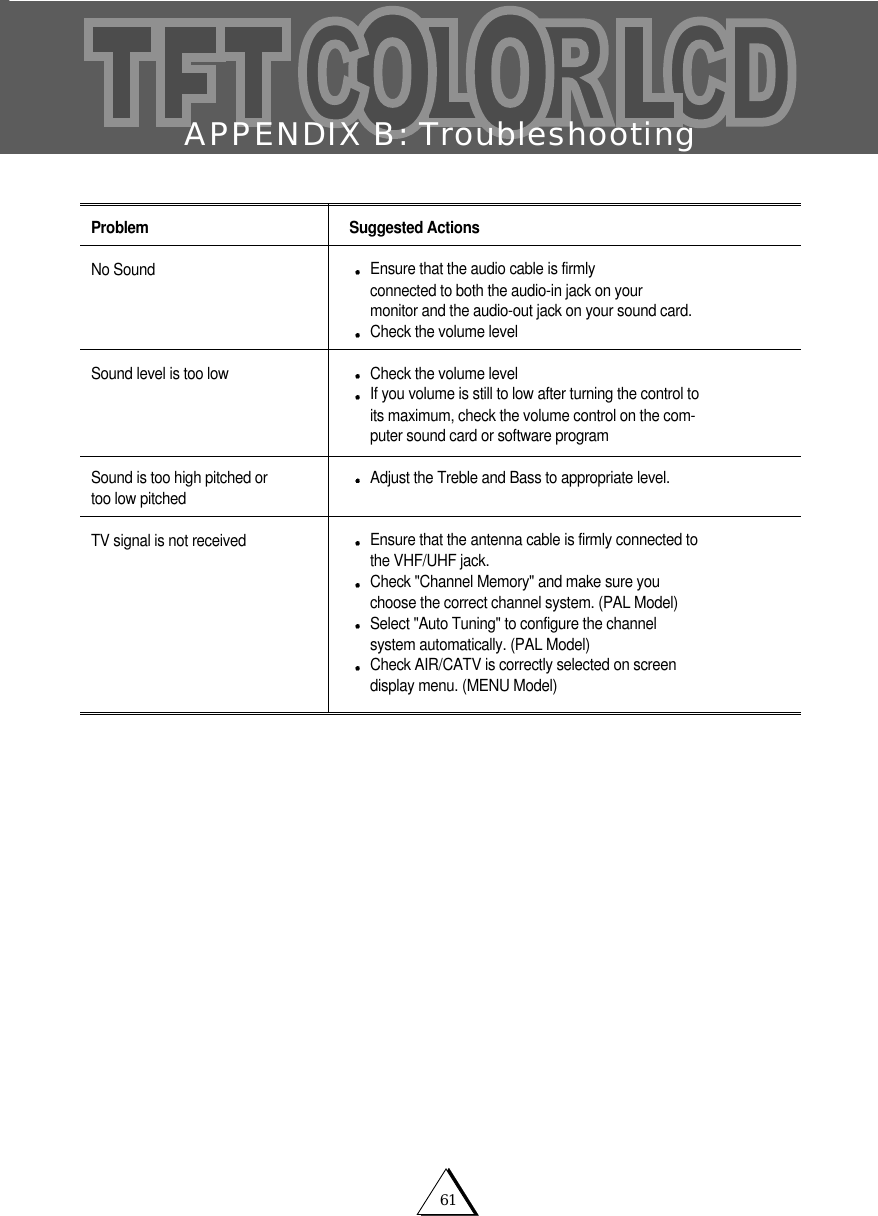
61APPENDIX B: TroubleshootingProblemNo SoundSound level is too lowSound is too high pitched ortoo low pitchedTV signal is not receivedSuggested ActionsEnsure that the audio cable is firmlyconnected to both the audio-in jack on yourmonitor and the audio-out jack on your sound card.Check the volume levelCheck the volume levelIf you volume is still to low after turning the control toits maximum, check the volume control on the com-puter sound card or software programAdjust the Treble and Bass to appropriate level.Ensure that the antenna cable is firmly connected tothe VHF/UHF jack.Check "Channel Memory" and make sure youchoose the correct channel system. (PAL Model)Select "Auto Tuning" to configure the channel system automatically. (PAL Model)Check AIR/CATV is correctly selected on screen display menu. (MENU Model)
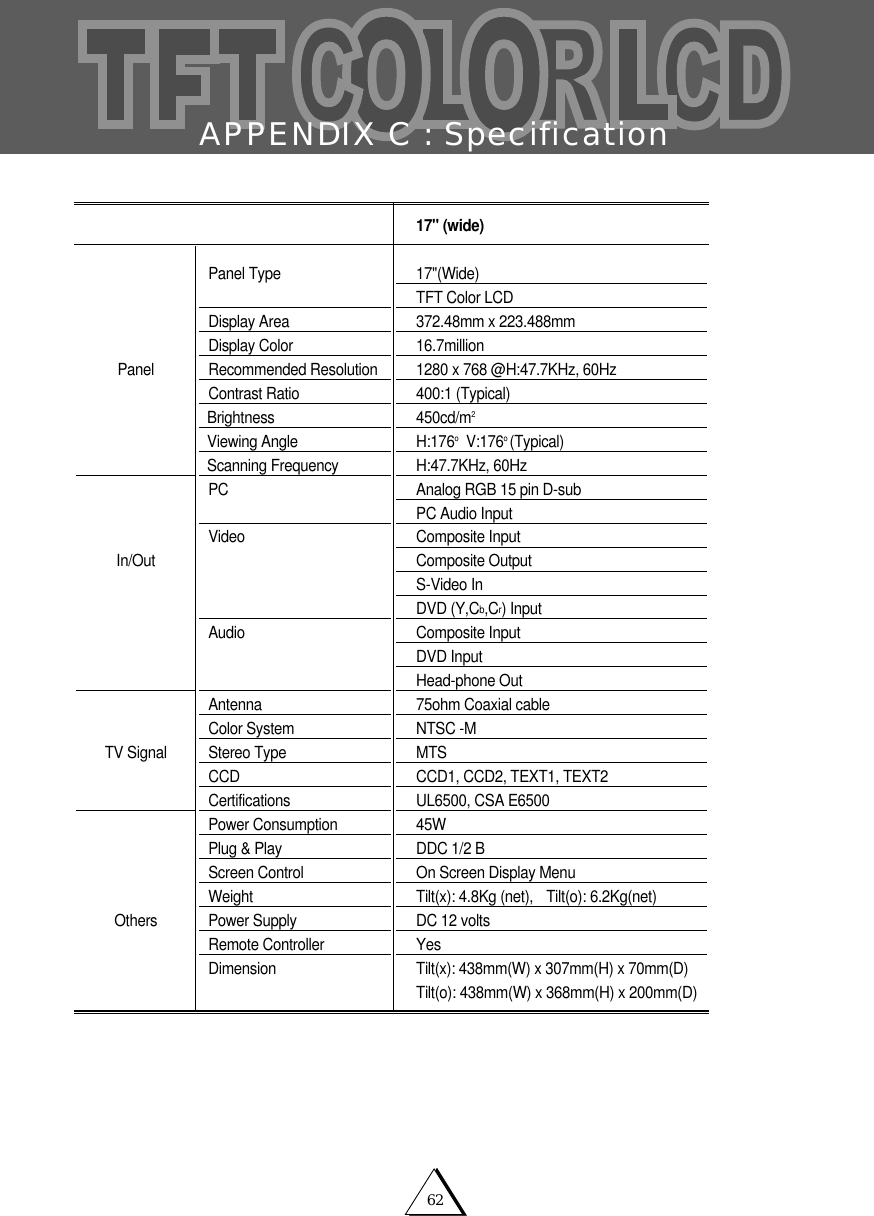
62APPENDIX C : SpecificationPanelIn/OutTV SignalOthers17" (wide)17"(Wide)TFT Color LCD372.48mm x 223.488mm16.7million1280 x 768 @H:47.7KHz, 60Hz400:1 (Typical)450cd/m2H:176oV:176o (Typical)H:47.7KHz, 60HzAnalog RGB 15 pin D-subPC Audio InputComposite InputComposite OutputS-Video InDVD (Y,Cb,Cr) InputComposite InputDVD InputHead-phone Out75ohm Coaxial cableNTSC -MMTSCCD1, CCD2, TEXT1, TEXT2UL6500, CSA E650045WDDC 1/2 BOn Screen Display MenuTilt(x): 4.8Kg (net),  Tilt(o): 6.2Kg(net)DC 12 voltsYesTilt(x): 438mm(W) x 307mm(H) x 70mm(D)Tilt(o): 438mm(W) x 368mm(H) x 200mm(D)Panel TypeDisplay AreaDisplay ColorRecommended ResolutionContrast RatioBrightnessViewing AngleScanning FrequencyPCVideoAudioAntennaColor SystemStereo TypeCCDCertificationsPower ConsumptionPlug & PlayScreen ControlWeightPower SupplyRemote ControllerDimension
63

Navigation menu