King Sound Electronic and Technology KSE-008 bluetooth headsets User Manual MI
King-Sound Electronic & Technology Co., Ltd bluetooth headsets MI
User Manual
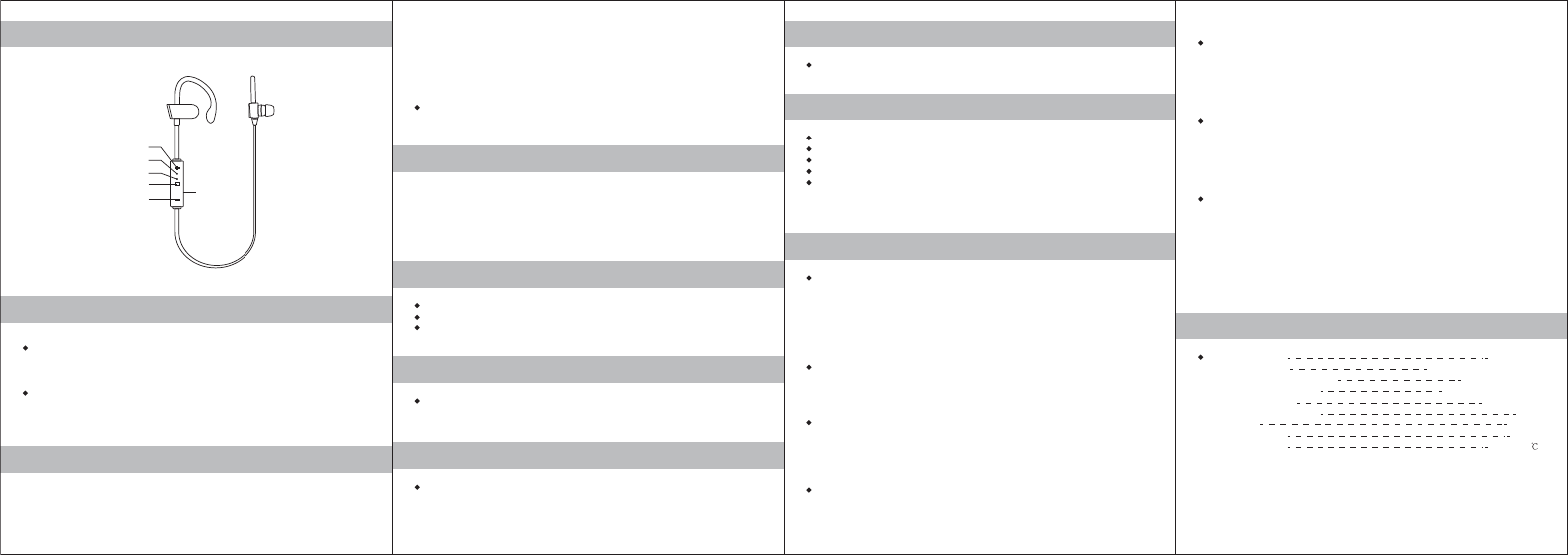
Headset Overview
Power On/Off
Pair the headset with your mobile phone
Vol+/Next Track
Vol-/Last Track
Multi-Function Button
LED indicator
Microphone
Charging socket
Power on
Press the Multi-Function Button(MFB) and hold it for 3 seconds, only when you
see the blue LED lights up can you release the MFB, the headset is on.
Power off
Press the Multi-Function Button(MFB) and hold it for 4 seconds, only when you
see the blue LED lights off can you release the MFB, the headset is off.
1. Power on the headset and LED blinking between blue and red.
2. Keep the distance between the headset and your mobile phone (or other device)
within 1 meter, the closer the better.
Reconnect the paired headset to your mobile phone
3. Make the headset enter pairing mode.
4. Switch on the Bluetooth of your mobile phone, add/search devices.
5. When the headset ID appears, select it. (if asked for a pass code, enter “0000”)
6. The LED blinks in blue when pair successfully.
Attention: If the pairing is not successful within 120 seconds, the headset will out of
pairing mode and power off, please repeat the pairing procedure to try again.
Way 1: Power off the headset;
Way 2: Switch off the bluetooth of your mobile phone;
Way 3: Leave the headset 60ft away from your mobile phone or farther.
1. Keep the distance between the headset and your mobile phone within 1 meter,
the closer the better.
2. Simply power on the headset, no other operation needed, when you see the blue
LED blinks, the headset is in reconnecting mode and connect with the mobile
automatically.
Disconnect the headset with your mobile phone
When there is a call, to answer it, press the MFB down then release(no need to
hold), or use your mobile to answer it.
Answer a call
When you are on call, to end it, press the MFB down then release(no need to
hold), or use your mobile phone to end it.
End a call
Press the MFB twice continuously.
Redial the last number
Bluetooth version: V2.1+EDR
Supported profiles: A2DP, AVRCP, HSP, HFP
Transmission frequency range: 2.4GHz-2.48GHz
Bluetooth operating range: upto 32ft (free space)
Frequency response: 20Hz-20KHz
Bluetooth music / talk time: 5hrs
Stanby time: 120hrs
Fully charged time: 1.5hrs
Operating environment: -10 to 50
Technical specification
Pause / play track: press the MFB down then release(no need to hold).
Skip to previous track: press the “+” button and hold it.
Skip to next track: press the “-” button and hold it.
Turn up the headset volume: press the “+” button down then release(no need to hold).
Turn down the headset volume: press the “-” button down then release(no need to
hold).
Control track / Adjust volume
Headphone can not pair with mobile phone
Solution: Please check whether your headphone is in pairing mode or reconnection
mode, check whether bluetooth search function of your mobile phone has been
opened; thus, check your mobile device’s bluetooth menu and delete/forget the
headphone, reconnect the headphone follow instructions of user manual.
Headphone can not be switch on
Solution: Please check the battery status of your headphone.
Can I change battery for the headphone?
Solution: No, this headphone use a built-in non-detachable battery, it can not
be removed.
Can I use headphone while driving?
Solution: For safety reason, we strongly recommend not to use over-ear
headphone to avoid distraction while driving.
FAQ
Cannot hearing a sound from your computer or mobile phone
Solution: Please check whether the output channel of your computer is bluetooth
audio device and bluetooth function of your computer support A2DP profile, and
please check volume of your headphone and computer / mobile phone.
Cannot use the headphone to control volume or select track of APP of your
mobile phone
Solution: Software settings of APP maybe varied led to some functions of the
APP may not control by the headphone.
Cannot charge the headphone
Solution: Make sure both ends of the USB cable are securely connected. If you
use a power outlet, ensure that the power supply is connected securely and the
outlet works. If you use a computer, make sure it is connected and the USB port
is powered. Turn on the headset and then turn them off. Disconnect and reconnect
the USB charging cable.
FCC Caution: Anychanges ormodifications not expressly approved bythe partyresponsible
forcompliancecouldvoidthe user's authoritytooperate this equipment.
This devicecomplieswithPart15 of theFCC Rules.Operationissubject tothefollowingtwo
conditions:(1)This devicemaynotcause harmfulinterference,and(2)thisdevicemust accept
anyinterferencereceived,includinginterference thatmaycauseundesiredoperation.
NOTE:This equipment has been testedandfound to complywith thelimitsfor a ClassB
digitaldevice,pursuant toPart15 of theFCC Rules.
Theselimits are designedto providereasonable protectionagainstharmfulinterferencein a
residentialinstallation.This equipment generates, uses and canradiateradiofrequency
energyand,if notinstalledandusedin accordancewith theinstructions,maycause harmful
interferencetoradiocommunications.
However,thereis noguaranteethatinterferencewillnot occurin a particularinstallation.
Ifthisequipmentdoescauseharmfulinterferencetoradioortelevisionreception,whichcanbe
determinedbyturningthe equipment off and on, the useris encouraged to trytocorrect the
interference byone ormore of the followingmeasures:
FCC RF RadiationExposureStatement:
This equipmentcomplieswithFCCradiationexposurelimitssetforthfor an uncontrolled
environmentEndusersmustfollowthespecific operatinginstructionsforsatisfying RF
exposurecompliance.This transmittermust not be collocatedor operatinginconjunctionwith
anyother antenna or transmitter.
The devicehas beenevaluatedtomeet general RF exposurerequirement.Thedevicecanbe
usedinportableexposureconditionwithoutrestriction.