Kontron America CVX-SERVER CVX Server with Wireless LAN User Manual EnVoy II Solution

Kontron America Inc. CVX Server with Wireless LAN EnVoy II Solution

Manual

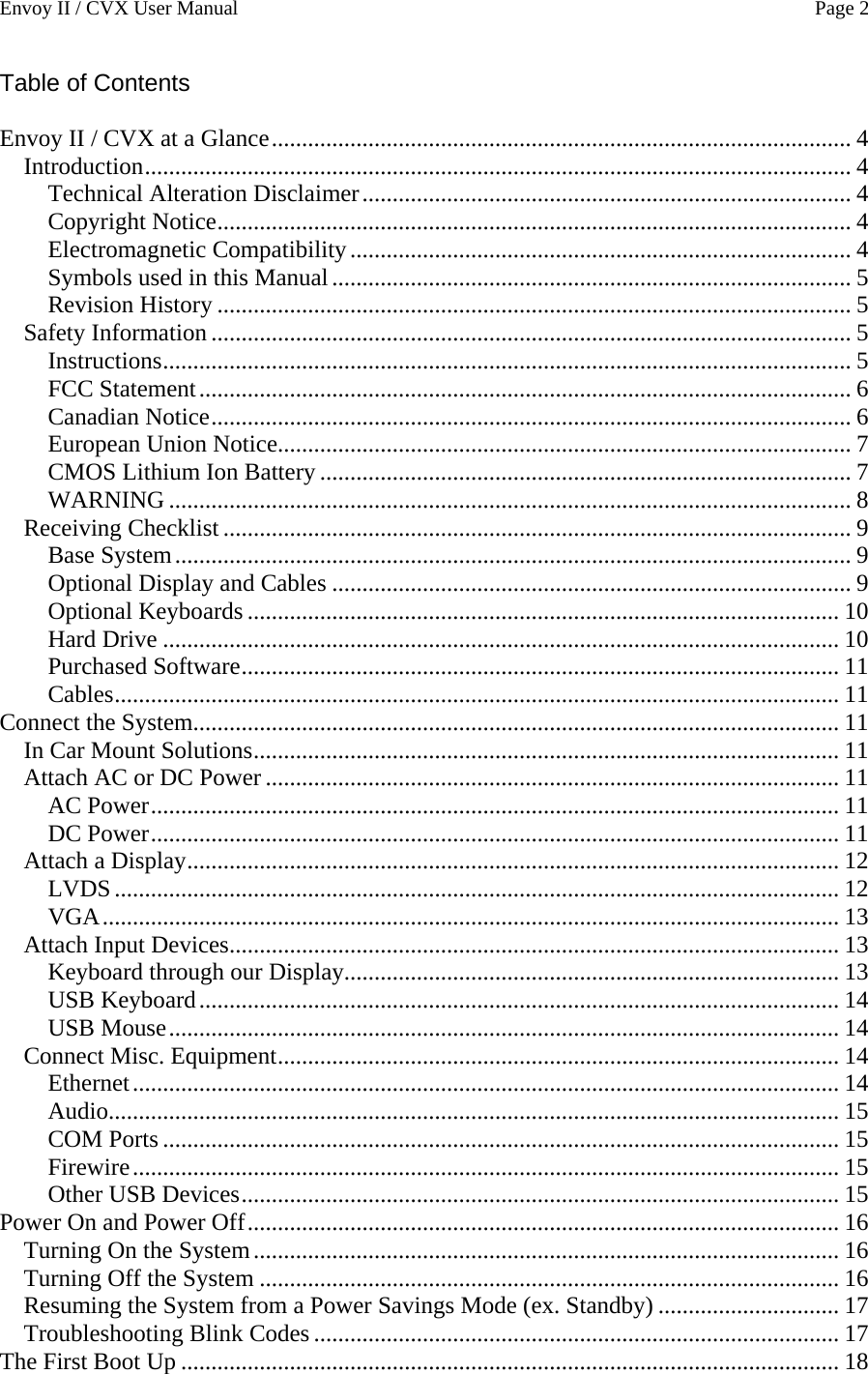
Envoy II / CVX User Manual    Page 1   EEnnvvooyy  IIII  SSoolluuttiioonn  //  CCVVXX  SSeerrvveerr      Date Published:  5/1/2005 Part Number:  220-0136  Revision:   B
Envoy II / CVX User Manual    Page 2 Table of Contents  Envoy II / CVX at a Glance................................................................................................ 4 Introduction..................................................................................................................... 4 Technical Alteration Disclaimer................................................................................. 4 Copyright Notice......................................................................................................... 4 Electromagnetic Compatibility................................................................................... 4 Symbols used in this Manual...................................................................................... 5 Revision History ......................................................................................................... 5 Safety Information.......................................................................................................... 5 Instructions.................................................................................................................. 5 FCC Statement............................................................................................................ 6 Canadian Notice.......................................................................................................... 6 European Union Notice............................................................................................... 7 CMOS Lithium Ion Battery ........................................................................................ 7 WARNING ................................................................................................................. 8 Receiving Checklist ........................................................................................................ 9 Base System................................................................................................................ 9 Optional Display and Cables ...................................................................................... 9 Optional Keyboards .................................................................................................. 10 Hard Drive ................................................................................................................ 10 Purchased Software................................................................................................... 11 Cables........................................................................................................................ 11 Connect the System........................................................................................................... 11 In Car Mount Solutions................................................................................................. 11 Attach AC or DC Power ............................................................................................... 11 AC Power.................................................................................................................. 11 DC Power.................................................................................................................. 11 Attach a Display............................................................................................................ 12 LVDS........................................................................................................................ 12 VGA.......................................................................................................................... 13 Attach Input Devices..................................................................................................... 13 Keyboard through our Display.................................................................................. 13 USB Keyboard.......................................................................................................... 14 USB Mouse............................................................................................................... 14 Connect Misc. Equipment............................................................................................. 14 Ethernet..................................................................................................................... 14 Audio......................................................................................................................... 15 COM Ports ................................................................................................................ 15 Firewire..................................................................................................................... 15 Other USB Devices................................................................................................... 15 Power On and Power Off.................................................................................................. 16 Turning On the System................................................................................................. 16 Turning Off the System ................................................................................................ 16 Resuming the System from a Power Savings Mode (ex. Standby) .............................. 17 Troubleshooting Blink Codes ....................................................................................... 17 The First Boot Up ............................................................................................................. 18
Envoy II / CVX User Manual    Page 3 Windows Out of Box Experience ................................................................................. 18 Hardware Instructions....................................................................................................... 19 Fuses ............................................................................................................................. 19 Hard Drive .................................................................................................................... 19 Remove the Hard Drive ............................................................................................ 19 Add the Hard Drive................................................................................................... 20 PCI ................................................................................................................................ 20 PCMCIA ....................................................................................................................... 21 Compact Flash .............................................................................................................. 22 Hardware Specifications................................................................................................... 23 Temperature and Power Management Systems................................................................ 24 Software............................................................................................................................ 26 Installing an Operating System..................................................................................... 26 Windows 2000 .......................................................................................................... 26 Windows XP............................................................................................................. 27 Configuring your System.............................................................................................. 28 Installing Drivers ...................................................................................................... 28 Video......................................................................................................................... 29 Touch Screen Calibration ......................................................................................... 30 Power Management and Intel Speed Step Support in XP......................................... 32 Removing the Preinstall user account....................................................................... 32 Maintaining Your Purchase .......................................................................................... 33 Clean the System....................................................................................................... 33 Clean the Display...................................................................................................... 33 Optimize your Hard Drive ........................................................................................ 33 Introduction to the AMI BIOS.......................................................................................... 35 The Menu System ......................................................................................................... 35 Universal Menu Keys: .............................................................................................. 35 Changing Selected Options:...................................................................................... 36 Main.............................................................................................................................. 37 Advanced ...................................................................................................................... 37 CPU Configuration ................................................................................................... 38 IDE Configuration .................................................................................................... 39 Super IO Configuration............................................................................................. 39 ACPI Configuration.................................................................................................. 40 USB Configuration ................................................................................................... 41 Platform Configuration............................................................................................. 41 PCIPnP.......................................................................................................................... 42 Boot............................................................................................................................... 42 Boot Settings Configuration ..................................................................................... 42 Boot Device Priority ................................................................................................. 43 Hard Disk Drives ...................................................................................................... 43 Removable Drives..................................................................................................... 43 Security ......................................................................................................................... 43 Chipset .......................................................................................................................... 43 Exit................................................................................................................................ 45 Technical Support......................................................................................................... 46
Envoy II / CVX User Manual    Page 4 Envoy II / CVX at a Glance  Introduction Technical Alteration Disclaimer The information contained in this manual may be subject to technical alteration, as a result of the continual upgrading of our products. The attached documentation does not guarantee the technical processes or product characteristics described in the manual.   Kontron does not accept any liability for printing errors or other inaccuracies in this manual. This manual only contains a general description of technical processes and instructions that may not be applicable in every case. If in doubt, please contact your nearest Kontron mobile computing representative or the office listed in the “Technical Support” section of this manual. Copyright Notice This manual is protected by copyright. All rights reserved by Kontron America, Mobile Computing Division. Copies of all or part of this manual or translations into different languages may only be made with the prior written consent of Kontron America. You may print this manual from the PDF for your own personal use.  This manual only reflects the technical status of the CVX Server product at the time of printing.  ©2005 Kontron America, Mobile Computing Division  Reprinting and duplication, even of sections, is permissible only with the written approval of:  Kontron America Mobile Computing Division 7610 Executive Drive Eden Prairie, MN  55344-3677 Electromagnetic Compatibility This product has been designed for industrial, commercial, mobile, and office use.  If the user modifies and/or adds to the equipment (e.g. installation of add-on cards), the prerequisites for the CE conformity declaration (safety requirements) may no longer apply.
Envoy II / CVX User Manual    Page 5 Symbols used in this Manual  Symbol Meaning   This symbol indicates the danger of injury to the user or the risk of damage to the product if the corresponding warning notices are not observed.    This symbol indicates that the product or parts may be damaged if the corresponding warning notices are not observed.     ®  Windows, Windows XP Professional, Windows 2000 Professional and MS-DOS, are registered trademarks of the Microsoft Corporation. ®  IBM, PC-AT, OS/2 and PS/2 are registered trademarks of the International Business Machines Corporation. ®  Intel and Pentium are registered trademarks of Intel Corporation. ®  LINUX is a registered trademark and exclusively licensed by Linus Torvald  Other product names cited in this manual may also be trademarks and are used here solely for identification purposes.   Revision History Revision  Date  Changes due to last revision 1.0  5/1/2005  New Format / Initial Release  Safety Information    Instructions Please read this section carefully and observe the following instructions. This information is for your own safety, and to ensure correct use of the CVX Server.  Kontron built and tested the CVX Server in accordance with EN60950. In order to maintain this condition and ensure safe operation, you must observe the instructions and warnings contained here and elsewhere in this manual.
Envoy II / CVX User Manual    Page 6  Do not operate CVX Server with wireless capability in areas sensitive to radio interference, such as airplanes and hospitals without turning these devices off using Windows OS functions.  For operating systems other than Windows, turn the system off to stop transmitting.   Operate the CVX Server in accordance with the instructions for use. θ θ θ θ θ θ θ θ θ θ θ θ θ Make sure electrical receptacles match the regulations in your area. Place cables, especially the power cable, out of traffic areas where people could trip over them. Do not put an AC power connection in sockets shared by a number of other power users.  Do not use an extension cable. Plug the power cable into a nearby socket to prevent an accidental disconnection. Use only the cables supplied by Kontron. Do not place the CVX Server in the proximity of heat sources or in a damp location. Make sure it has adequate ventilation to keep the temperature within the specifications for this product. Connect to CVX Server interfaces only devices and components that meet the requirements of a SELV circuit (security low voltage output) in accordance with EN60950.  Lock or screw down all plugs on the connection cables to the housing. You may not safely operate the CVX Server if:  – it has visible damage or – it no longer functions. Shut down the computer and secure it against unintentional operation.  Only authorized Kontron technical repair personnel may perform assembly, or repairs while under warranty. Only use original accessories approved by Kontron.  FCC Statement Class A Device Statement: (Section 15.105(a) of the FCC Rules)  Note: This equipment has been tested and found to comply with the limits for a Class A digital device, pursuant to part 15 of the FCC Rules. These limits are designed to provide reasonable protection against harmful interference when the
Envoy II / CVX User Manual    Page 7 equipment is operated in a commercial environment. This equipment generates, uses, and can radiate radio frequency energy and, if not installed and used in accordance with the instruction manual, may cause harmful interference to radio communications. Operation of this equipment in a residential area is likely to cause harmful interference in which case the user will be required to correct the interference at his own expense. Class B Device Statement: (Section 15.105 (b) of the FCC Rules) Note: This equipment has been tested and found to comply with the limits for a Class B digital device, pursuant to part 15 of the FCC Rules. These limits are designed to provide reasonable protection against harmful interference in a residential installation. This equipment generates, uses, and can radiate radio frequency energy and, if not installed and used in accordance with the instructions may cause harmful interference to radio communications. However, there is no guarantee that interference will not occur in a particular installation. If this equipment does cause harmful interference to radio or television reception, which can be determined by turning the equipment off and on, the user is encouraged to try to correct the interference by one or more of the following measures: - Reorient or relocate the receiving antenna. - Increase the separation between the equipment and receiver. Connect the equipment into an outlet on a circuit different from that to which the receiver is connected. Consult the dealer or an experienced radio/TV technician for help. Canadian Notice This digital apparatus does not exceed the Class A limits for radio noise for digital apparatus set out in the Radio Interference Regulations of the Canadian Department of Communications. European Union Notice Warning: This is a Class A product. In a domestic environment this product may cause radio interference in which case the user may be required to take adequate measures to mitigate such interference. CMOS Lithium Ion Battery The CPU board is equipped with an internal, CMOS lithium battery. Please refer to the “Technical Data” section for information about battery type. Please read the critical information regarding the battery type, and proper handling described in the User Manual. θ This battery is not user-replaceable.
Envoy II / CVX User Manual    Page 8 Only batteries supplied by Kontron with the cited nominal values (3.3V) may be used.  θ θ Kontron shall not assume any warranty obligation if any attempt is made to replace the battery by individuals other than those at Kontron repair facilities.   Please observe local regulations for the disposal of the battery and the disposal information of the battery-manufacturers.  WARNING Only authorized service personnel should attempt to repair this equipment. Improper repairs can create a safety hazard.
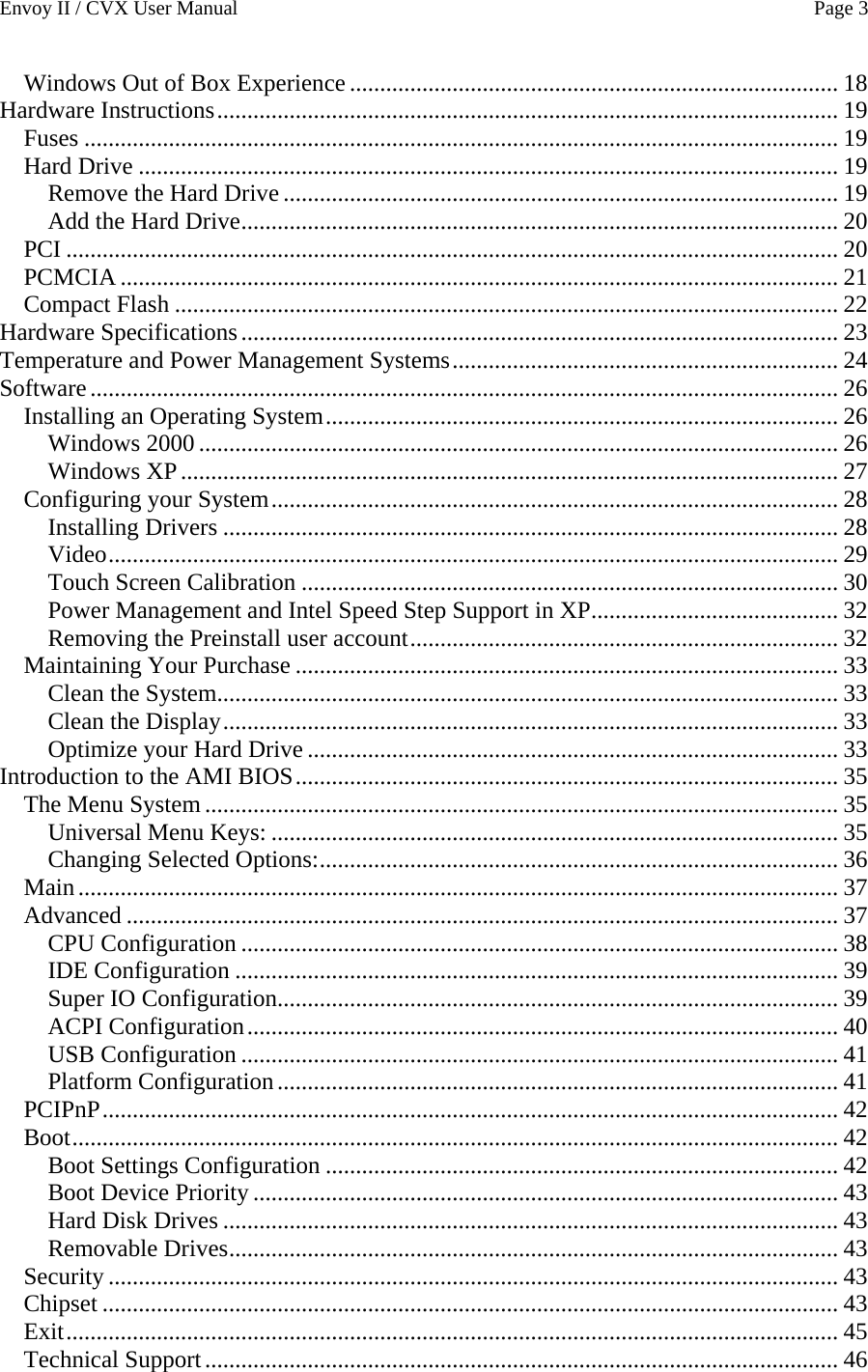
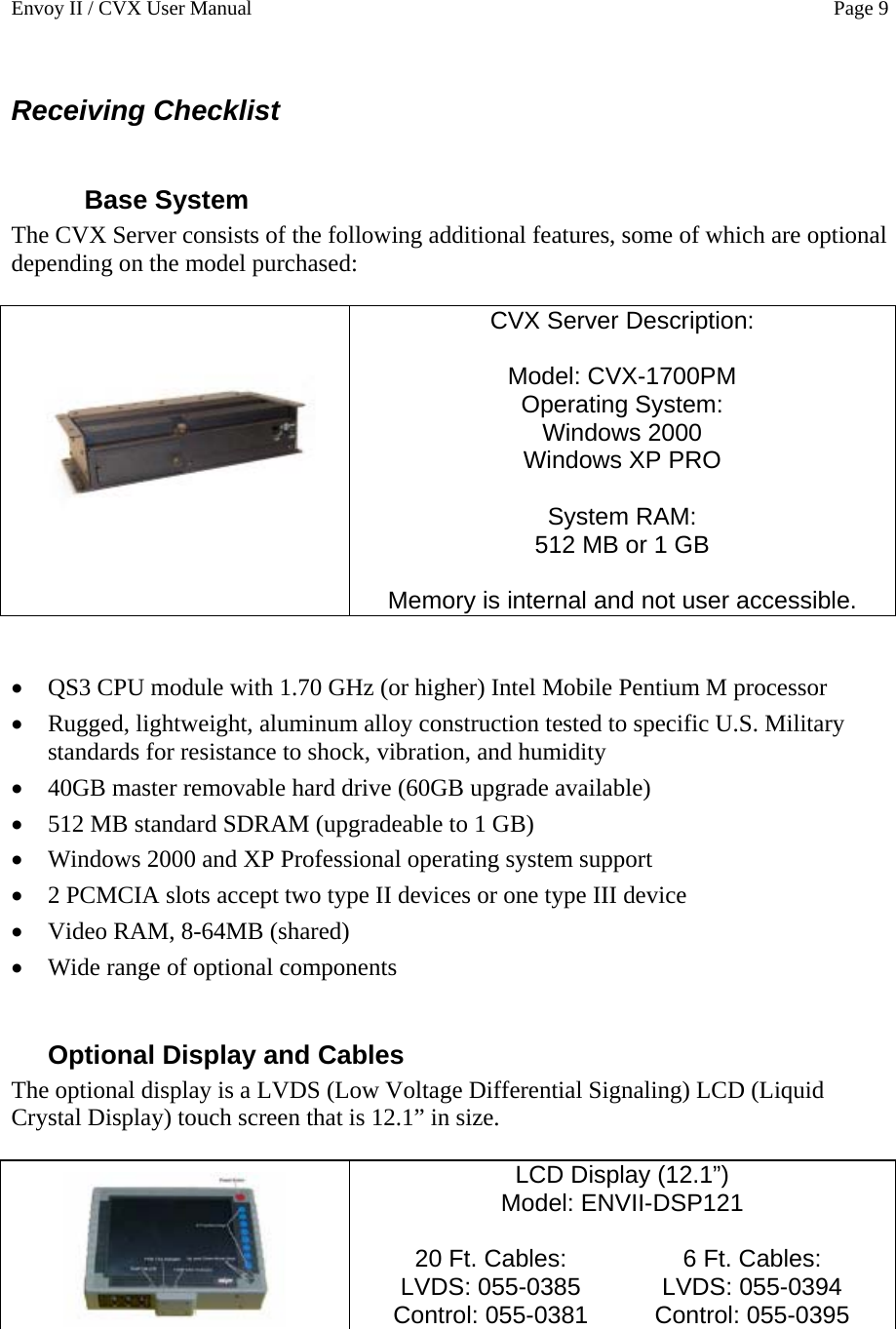
Envoy II / CVX User Manual    Page 9 Receiving Checklist  Base System The CVX Server consists of the following additional features, some of which are optional depending on the model purchased:     CVX Server Description:  Model: CVX-1700PM Operating System: Windows 2000  Windows XP PRO  System RAM: 512 MB or 1 GB  Memory is internal and not user accessible.    • QS3 CPU module with 1.70 GHz (or higher) Intel Mobile Pentium M processor • Rugged, lightweight, aluminum alloy construction tested to specific U.S. Military standards for resistance to shock, vibration, and humidity • 40GB master removable hard drive (60GB upgrade available) • 512 MB standard SDRAM (upgradeable to 1 GB) • Windows 2000 and XP Professional operating system support • 2 PCMCIA slots accept two type II devices or one type III device • Video RAM, 8-64MB (shared) • Wide range of optional components  Optional Display and Cables The optional display is a LVDS (Low Voltage Differential Signaling) LCD (Liquid Crystal Display) touch screen that is 12.1” in size.   LCD Display (12.1”)  Model: ENVII-DSP121  20 Ft. Cables: LVDS: 055-0385 Control: 055-0381 6 Ft. Cables: LVDS: 055-0394 Control: 055-0395
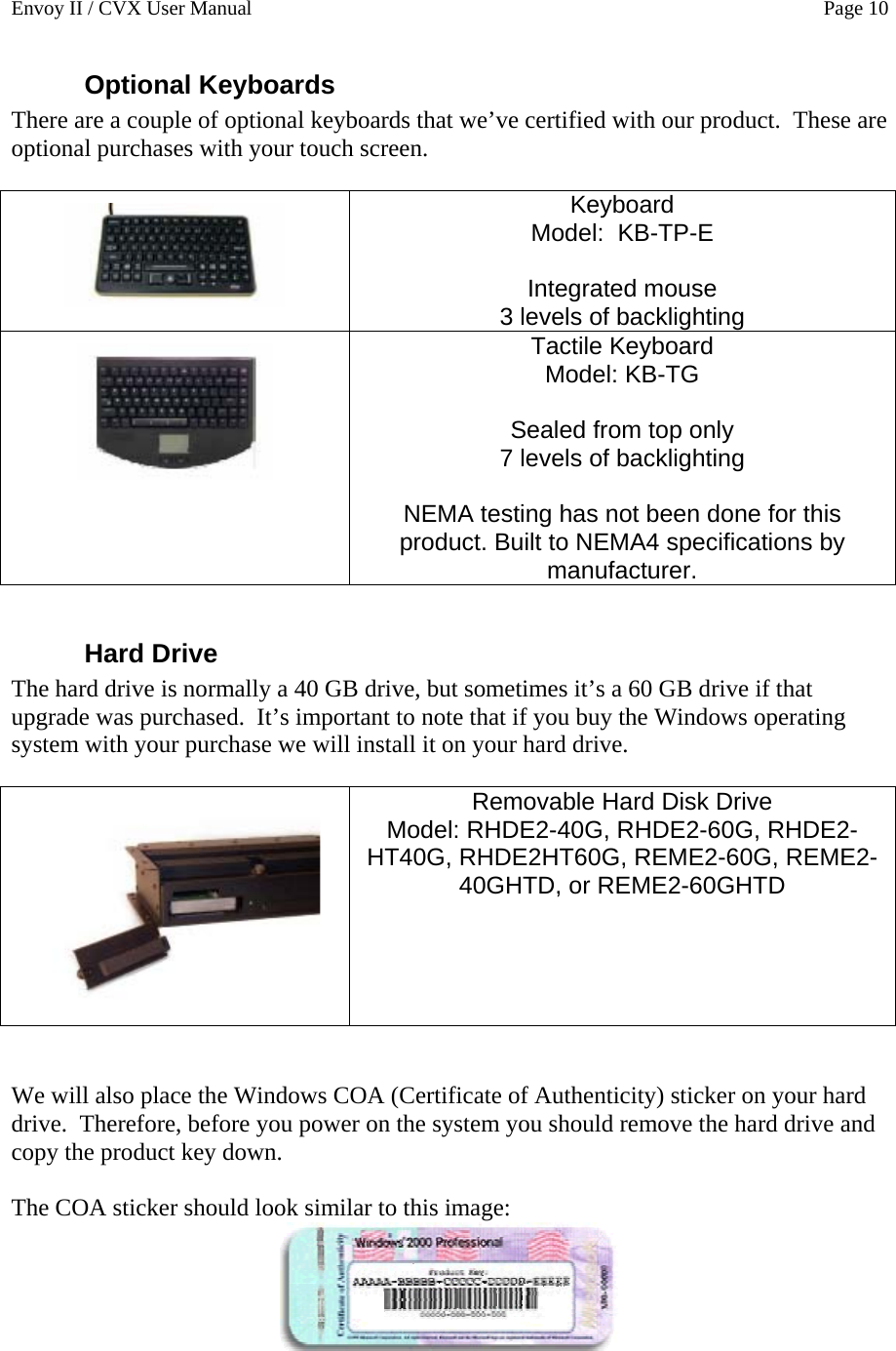
Envoy II / CVX User Manual    Page 10 Optional Keyboards There are a couple of optional keyboards that we’ve certified with our product.  These are optional purchases with your touch screen.   Keyboard  Model:  KB-TP-E  Integrated mouse  3 levels of backlighting  Tactile Keyboard Model: KB-TG  Sealed from top only  7 levels of backlighting  NEMA testing has not been done for this product. Built to NEMA4 specifications by manufacturer.  Hard Drive The hard drive is normally a 40 GB drive, but sometimes it’s a 60 GB drive if that upgrade was purchased.  It’s important to note that if you buy the Windows operating system with your purchase we will install it on your hard drive.     Removable Hard Disk Drive Model: RHDE2-40G, RHDE2-60G, RHDE2-HT40G, RHDE2HT60G, REME2-60G, REME2-40GHTD, or REME2-60GHTD    We will also place the Windows COA (Certificate of Authenticity) sticker on your hard drive.  Therefore, before you power on the system you should remove the hard drive and copy the product key down.  The COA sticker should look similar to this image:
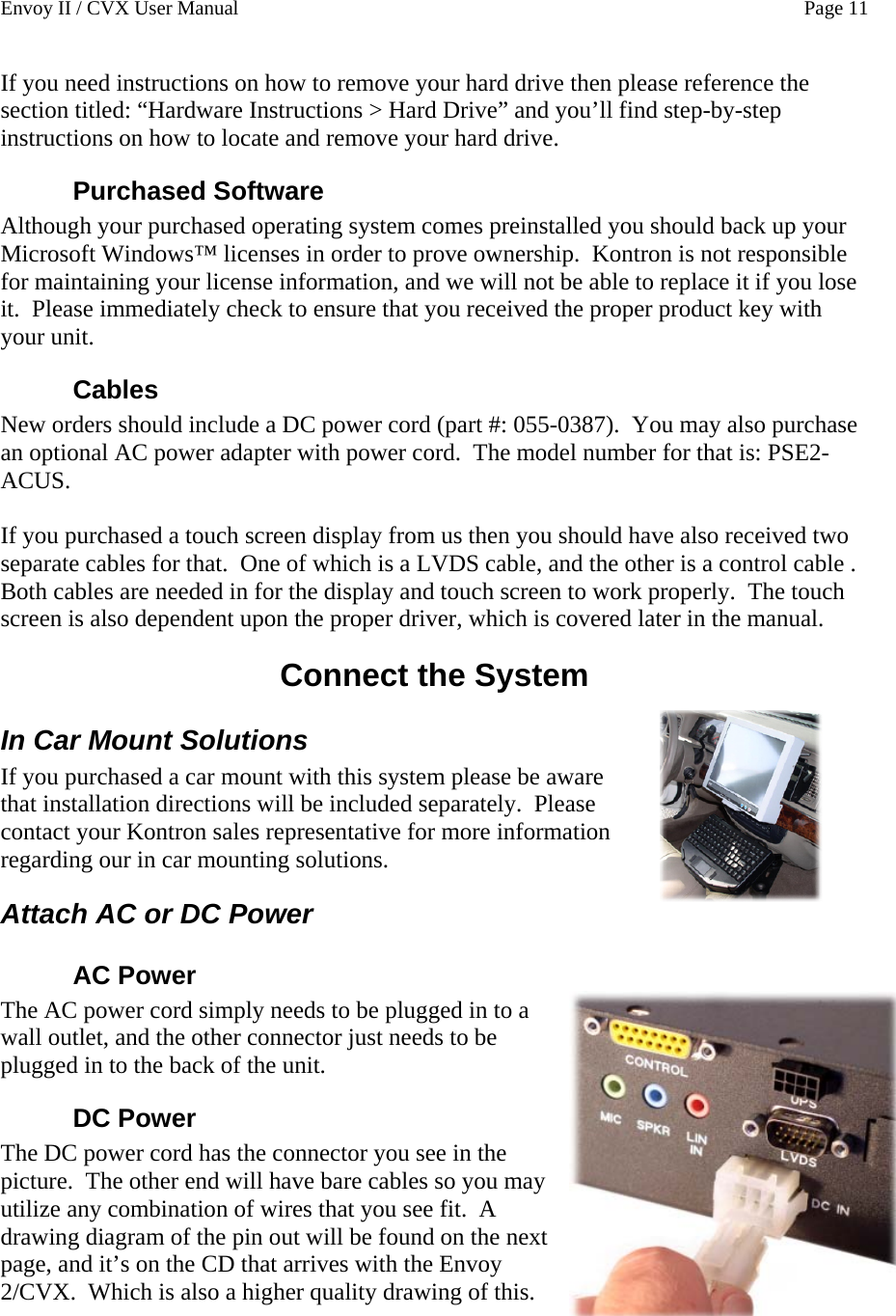
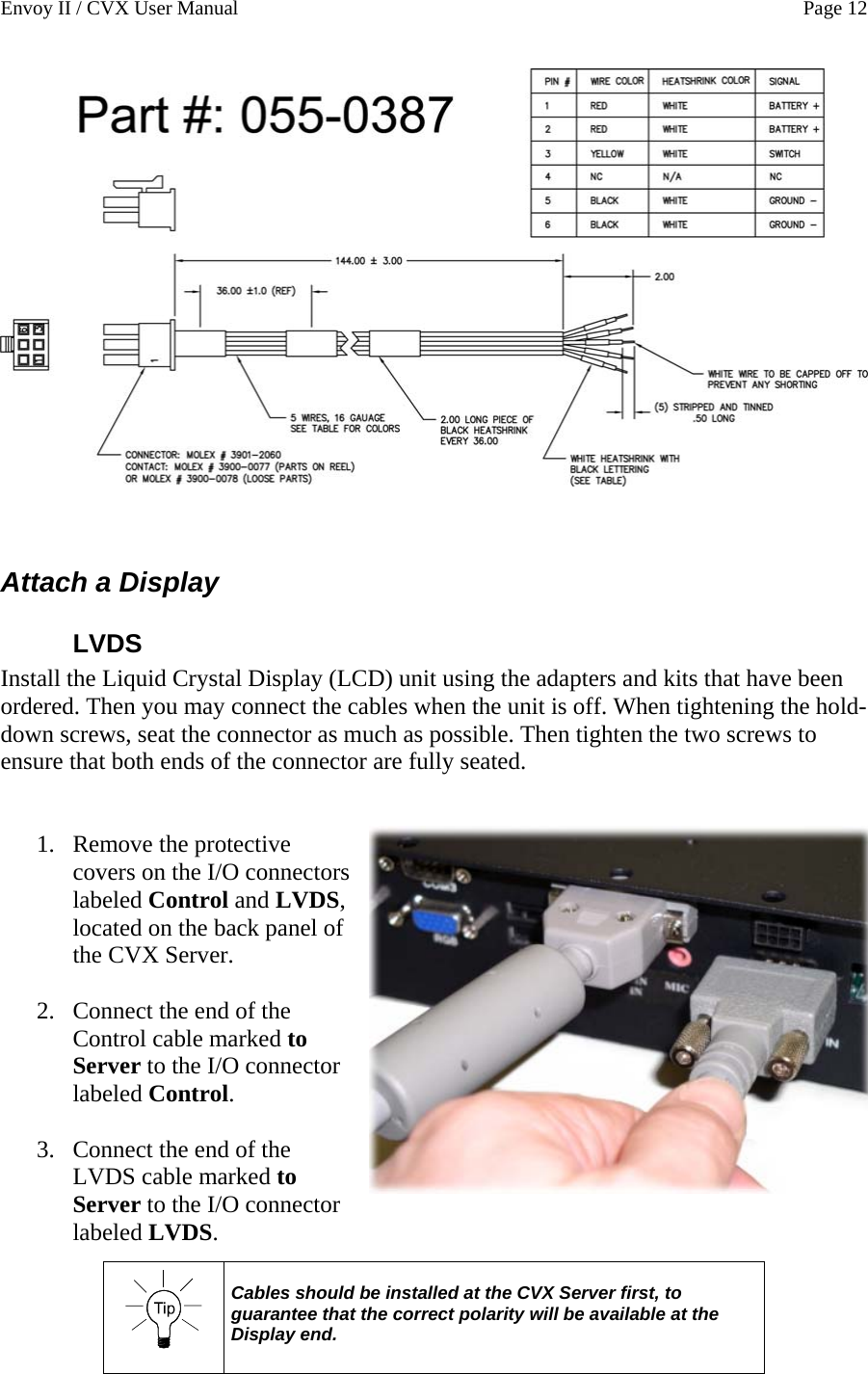
Envoy II / CVX User Manual    Page 11 If you need instructions on how to remove your hard drive then please reference the section titled: “Hardware Instructions > Hard Drive” and you’ll find step-by-step instructions on how to locate and remove your hard drive. Purchased Software Although your purchased operating system comes preinstalled you should back up your Microsoft Windows™ licenses in order to prove ownership.  Kontron is not responsible for maintaining your license information, and we will not be able to replace it if you lose it.  Please immediately check to ensure that you received the proper product key with your unit. Cables New orders should include a DC power cord (part #: 055-0387).  You may also purchase an optional AC power adapter with power cord.  The model number for that is: PSE2-ACUS.  If you purchased a touch screen display from us then you should have also received two separate cables for that.  One of which is a LVDS cable, and the other is a control cable .  Both cables are needed in for the display and touch screen to work properly.  The touch screen is also dependent upon the proper driver, which is covered later in the manual. Connect the System In Car Mount Solutions If you purchased a car mount with this system please be aware that installation directions will be included separately.  Please contact your Kontron sales representative for more information regarding our in car mounting solutions. Attach AC or DC Power AC Power   The AC power cord simply needs to be plugged in to a wall outlet, and the other connector just needs to be plugged in to the back of the unit. DC Power The DC power cord has the connector you see in the picture.  The other end will have bare cables so you may utilize any combination of wires that you see fit.  A drawing diagram of the pin out will be found on the next page, and it’s on the CD that arrives with the Envoy 2/CVX.  Which is also a higher quality drawing of this.
Envoy II / CVX User Manual    Page 12    Attach a Display LVDS Install the Liquid Crystal Display (LCD) unit using the adapters and kits that have been ordered. Then you may connect the cables when the unit is off. When tightening the hold-down screws, seat the connector as much as possible. Then tighten the two screws to ensure that both ends of the connector are fully seated.   1. Remove the protective covers on the I/O connectors labeled Control and LVDS, located on the back panel of the CVX Server.  2. Connect the end of the Control cable marked to Server to the I/O connector labeled Control.  3. Connect the end of the LVDS cable marked to Server to the I/O connector labeled LVDS.    Cables should be installed at the CVX Server first, to guarantee that the correct polarity will be available at the Display end.
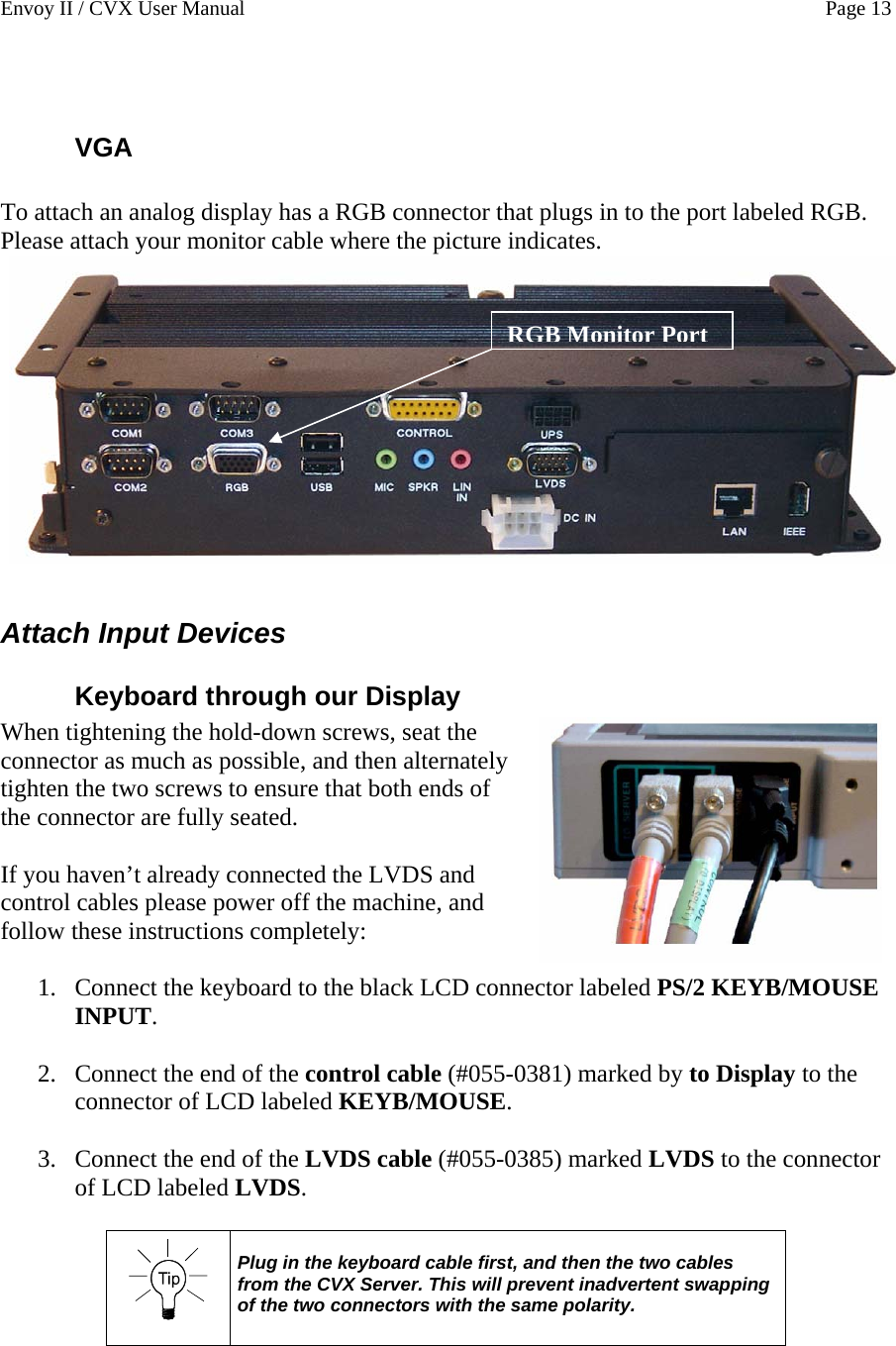
Envoy II / CVX User Manual    Page 13  VGA  To attach an analog display has a RGB connector that plugs in to the port labeled RGB.  Please attach your monitor cable where the picture indicates. RGB Monitor Port RGB Monitor Port Attach Input Devices Keyboard through our Display When tightening the hold-down screws, seat the connector as much as possible, and then alternately tighten the two screws to ensure that both ends of the connector are fully seated.  If you haven’t already connected the LVDS and control cables please power off the machine, and follow these instructions completely:  1. Connect the keyboard to the black LCD connector labeled PS/2 KEYB/MOUSE INPUT.  2. Connect the end of the control cable (#055-0381) marked by to Display to the connector of LCD labeled KEYB/MOUSE.  3. Connect the end of the LVDS cable (#055-0385) marked LVDS to the connector of LCD labeled LVDS.    Plug in the keyboard cable first, and then the two cables from the CVX Server. This will prevent inadvertent swapping of the two connectors with the same polarity.
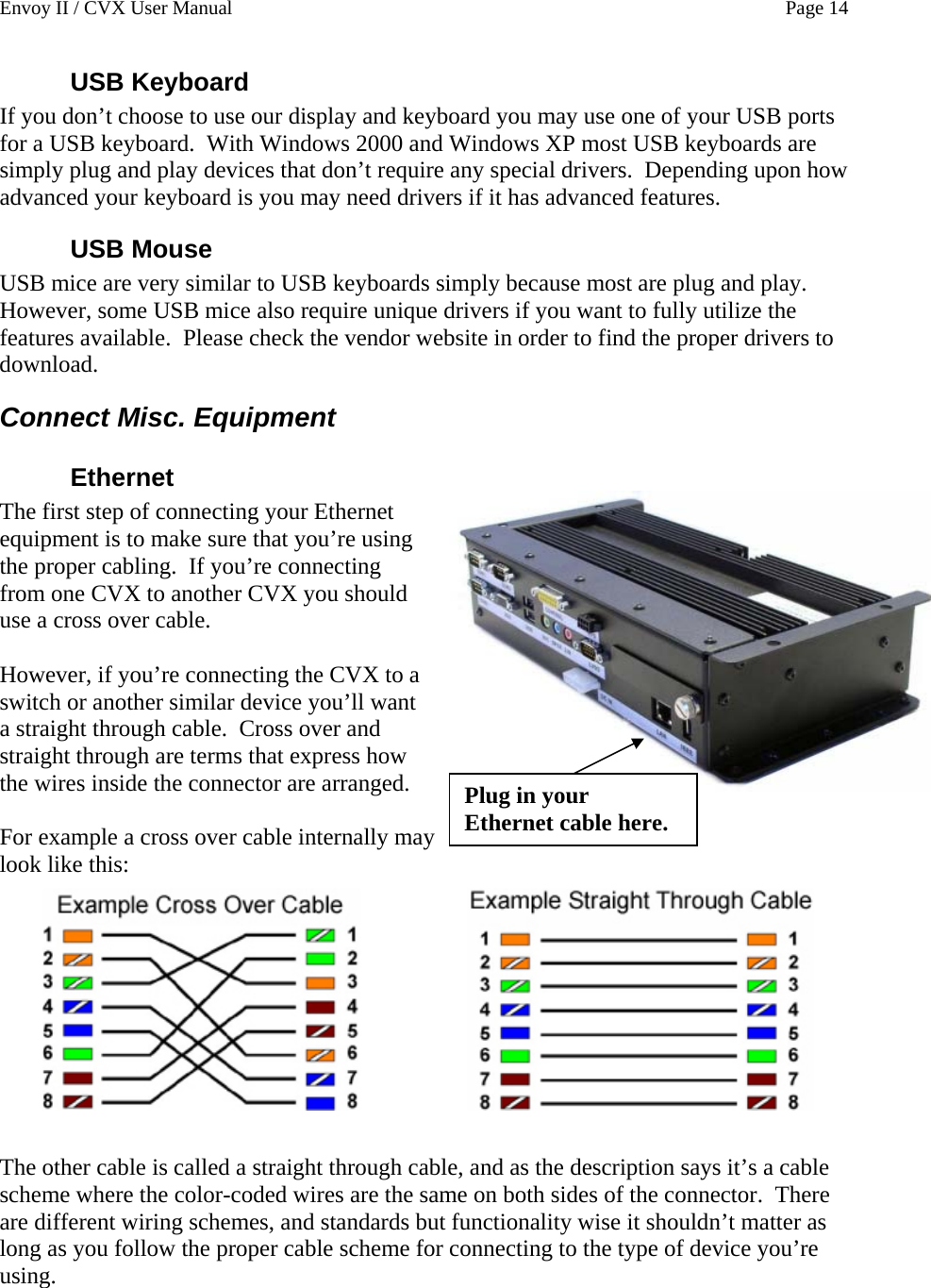
Envoy II / CVX User Manual    Page 14 USB Keyboard If you don’t choose to use our display and keyboard you may use one of your USB ports for a USB keyboard.  With Windows 2000 and Windows XP most USB keyboards are simply plug and play devices that don’t require any special drivers.  Depending upon how advanced your keyboard is you may need drivers if it has advanced features. USB Mouse USB mice are very similar to USB keyboards simply because most are plug and play.  However, some USB mice also require unique drivers if you want to fully utilize the features available.  Please check the vendor website in order to find the proper drivers to download. Connect Misc. Equipment Ethernet Plug in your Ethernet cable here. The first step of connecting your Ethernet equipment is to make sure that you’re using the proper cabling.  If you’re connecting from one CVX to another CVX you should use a cross over cable.    However, if you’re connecting the CVX to a switch or another similar device you’ll want a straight through cable.  Cross over and straight through are terms that express how the wires inside the connector are arranged.  For example a cross over cable internally may look like this:          The other cable is called a straight through cable, and as the description says it’s a cable scheme where the color-coded wires are the same on both sides of the connector.  There are different wiring schemes, and standards but functionality wise it shouldn’t matter as long as you follow the proper cable scheme for connecting to the type of device you’re using.
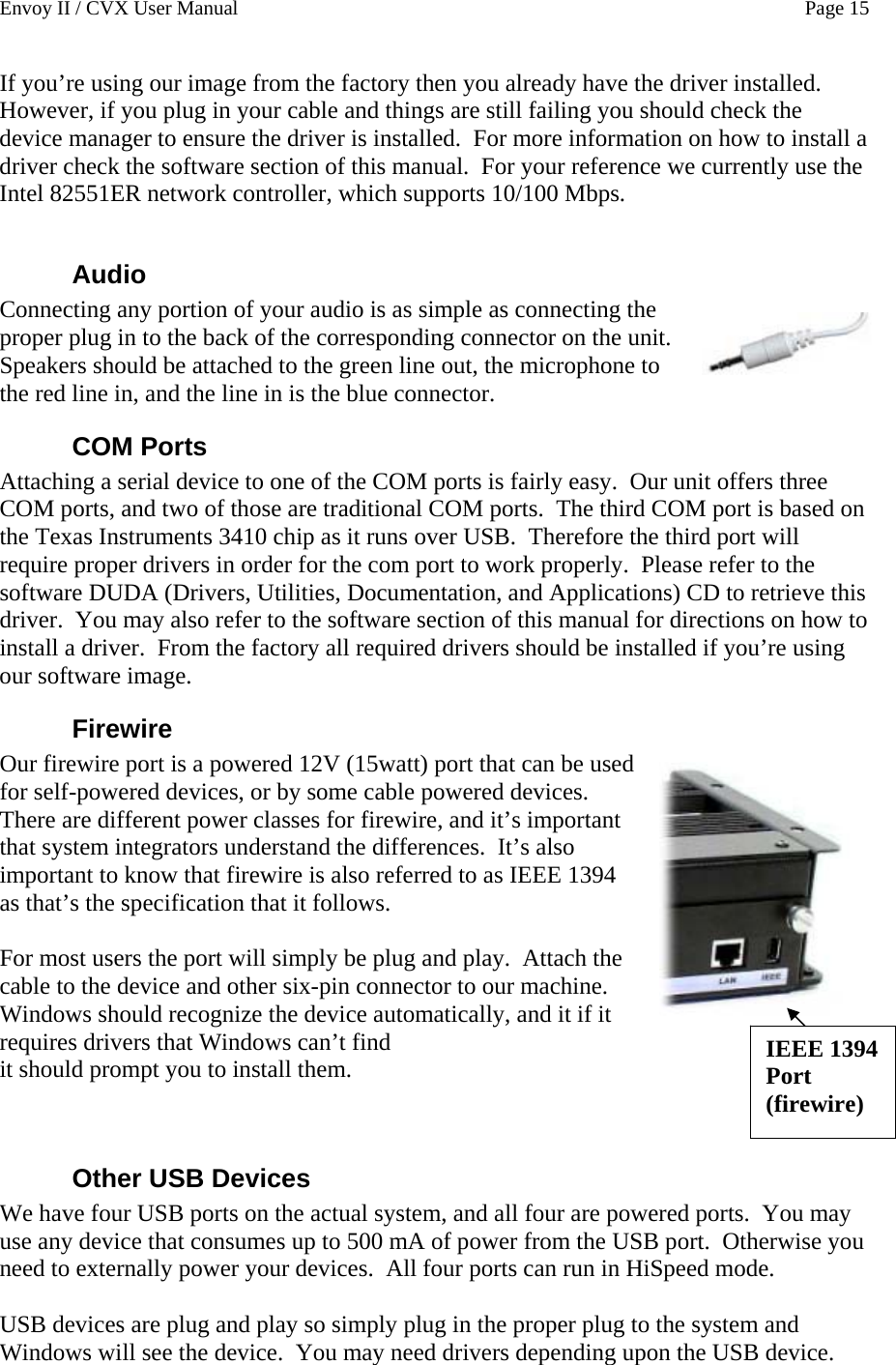
Envoy II / CVX User Manual    Page 15 If you’re using our image from the factory then you already have the driver installed.  However, if you plug in your cable and things are still failing you should check the device manager to ensure the driver is installed.  For more information on how to install a driver check the software section of this manual.  For your reference we currently use the Intel 82551ER network controller, which supports 10/100 Mbps.  Audio Connecting any portion of your audio is as simple as connecting the proper plug in to the back of the corresponding connector on the unit.  Speakers should be attached to the green line out, the microphone to the red line in, and the line in is the blue connector. COM Ports Attaching a serial device to one of the COM ports is fairly easy.  Our unit offers three COM ports, and two of those are traditional COM ports.  The third COM port is based on the Texas Instruments 3410 chip as it runs over USB.  Therefore the third port will require proper drivers in order for the com port to work properly.  Please refer to the software DUDA (Drivers, Utilities, Documentation, and Applications) CD to retrieve this driver.  You may also refer to the software section of this manual for directions on how to install a driver.  From the factory all required drivers should be installed if you’re using our software image. Firewire Our firewire port is a powered 12V (15watt) port that can be used for self-powered devices, or by some cable powered devices.  There are different power classes for firewire, and it’s important that system integrators understand the differences.  It’s also important to know that firewire is also referred to as IEEE 1394 as that’s the specification that it follows.   IEEE 1394 Port (firewire)  For most users the port will simply be plug and play.  Attach the cable to the device and other six-pin connector to our machine.  Windows should recognize the device automatically, and it if it requires drivers that Windows can’t find  it should prompt you to install them.   Other USB Devices We have four USB ports on the actual system, and all four are powered ports.  You may use any device that consumes up to 500 mA of power from the USB port.  Otherwise you need to externally power your devices.  All four ports can run in HiSpeed mode.  USB devices are plug and play so simply plug in the proper plug to the system and Windows will see the device.  You may need drivers depending upon the USB device.
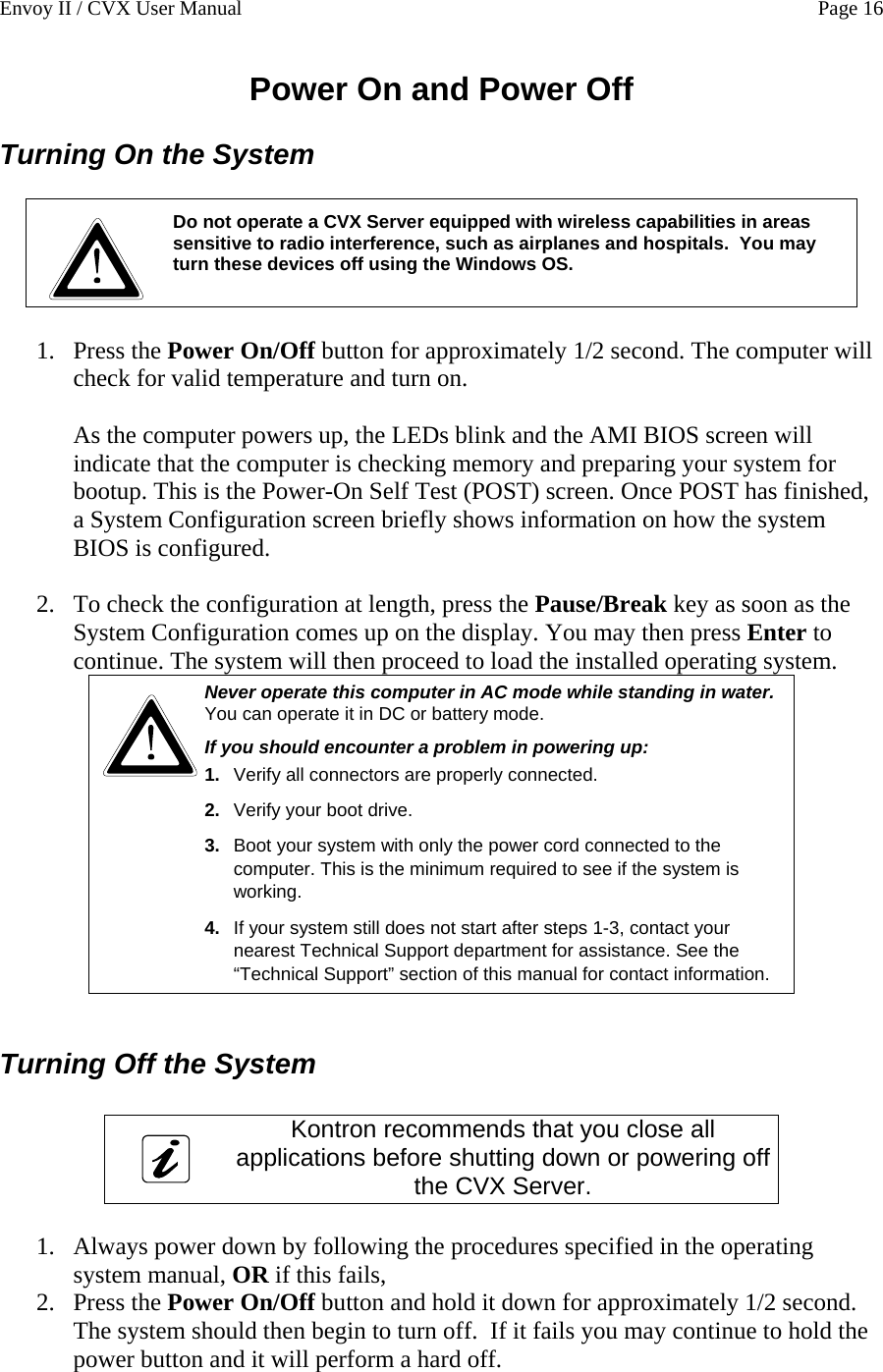
Envoy II / CVX User Manual    Page 16 Power On and Power Off Turning On the System   Do not operate a CVX Server equipped with wireless capabilities in areas sensitive to radio interference, such as airplanes and hospitals.  You may turn these devices off using the Windows OS.    1. Press the Power On/Off button for approximately 1/2 second. The computer will check for valid temperature and turn on.  As the computer powers up, the LEDs blink and the AMI BIOS screen will indicate that the computer is checking memory and preparing your system for bootup. This is the Power-On Self Test (POST) screen. Once POST has finished, a System Configuration screen briefly shows information on how the system BIOS is configured.   2. To check the configuration at length, press the Pause/Break key as soon as the System Configuration comes up on the display. You may then press Enter to continue. The system will then proceed to load the installed operating system.  Never operate this computer in AC mode while standing in water. You can operate it in DC or battery mode. If you should encounter a problem in powering up:  1.  Verify all connectors are properly connected. 2.  Verify your boot drive. 3.  Boot your system with only the power cord connected to the computer. This is the minimum required to see if the system is working. 4.  If your system still does not start after steps 1-3, contact your nearest Technical Support department for assistance. See the “Technical Support” section of this manual for contact information.  Turning Off the System   Kontron recommends that you close all applications before shutting down or powering off the CVX Server.  1. Always power down by following the procedures specified in the operating system manual, OR if this fails,  2. Press the Power On/Off button and hold it down for approximately 1/2 second.  The system should then begin to turn off.  If it fails you may continue to hold the power button and it will perform a hard off.
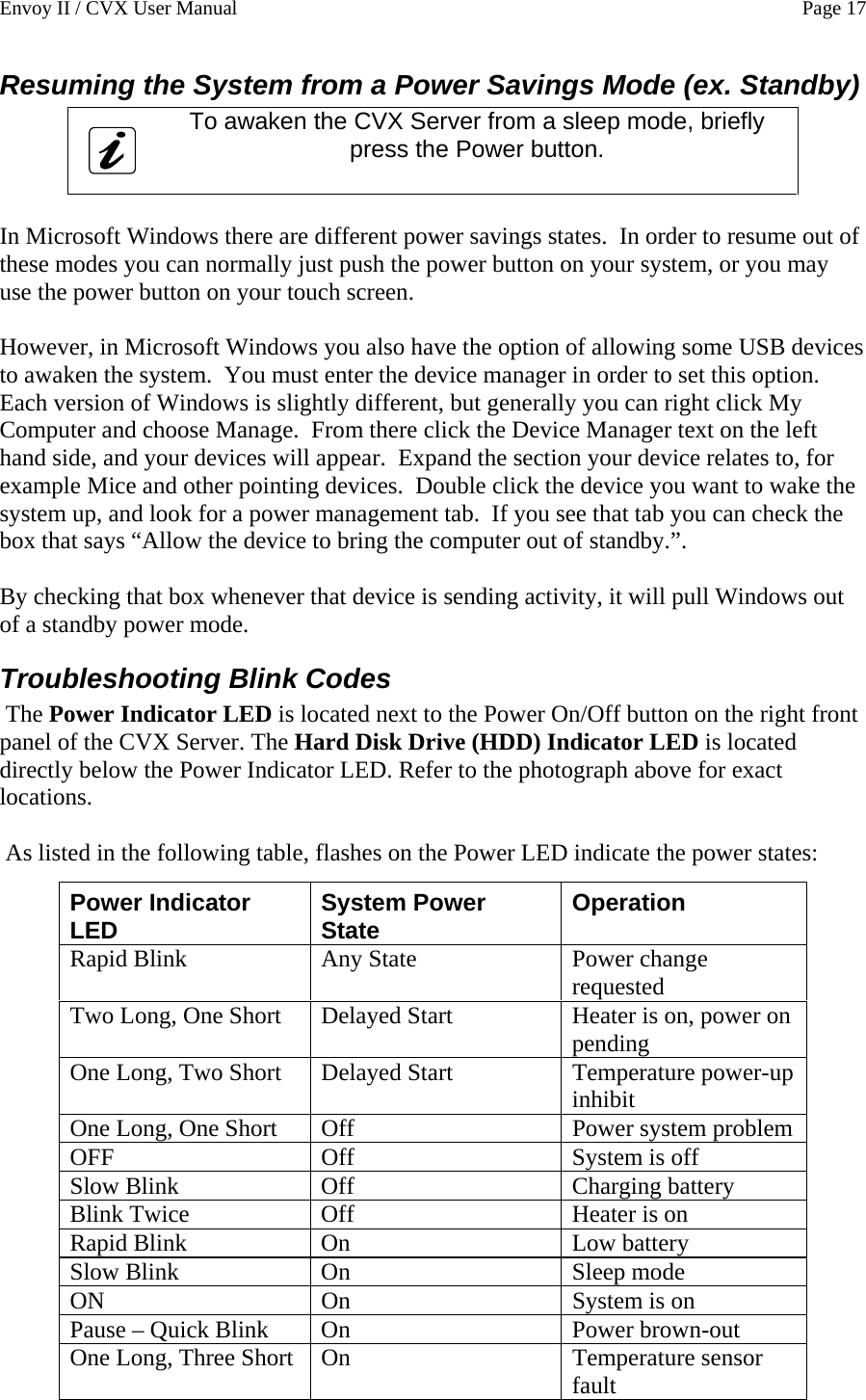
Envoy II / CVX User Manual    Page 17 Resuming the System from a Power Savings Mode (ex. Standby)  To awaken the CVX Server from a sleep mode, briefly press the Power button.    In Microsoft Windows there are different power savings states.  In order to resume out of these modes you can normally just push the power button on your system, or you may use the power button on your touch screen.  However, in Microsoft Windows you also have the option of allowing some USB devices to awaken the system.  You must enter the device manager in order to set this option.  Each version of Windows is slightly different, but generally you can right click My Computer and choose Manage.  From there click the Device Manager text on the left hand side, and your devices will appear.  Expand the section your device relates to, for example Mice and other pointing devices.  Double click the device you want to wake the system up, and look for a power management tab.  If you see that tab you can check the box that says “Allow the device to bring the computer out of standby.”.  By checking that box whenever that device is sending activity, it will pull Windows out of a standby power mode. Troubleshooting Blink Codes  The Power Indicator LED is located next to the Power On/Off button on the right front panel of the CVX Server. The Hard Disk Drive (HDD) Indicator LED is located directly below the Power Indicator LED. Refer to the photograph above for exact locations.    As listed in the following table, flashes on the Power LED indicate the power states:    Power Indicator LED  System Power State  Operation Rapid Blink  Any State  Power change requested Two Long, One Short  Delayed Start  Heater is on, power on pending One Long, Two Short  Delayed Start  Temperature power-up inhibit One Long, One Short  Off  Power system problem OFF  Off  System is off Slow Blink  Off  Charging battery Blink Twice  Off  Heater is on Rapid Blink  On  Low battery Slow Blink  On  Sleep mode ON  On  System is on Pause – Quick Blink  On  Power brown-out One Long, Three Short  On  Temperature sensor fault
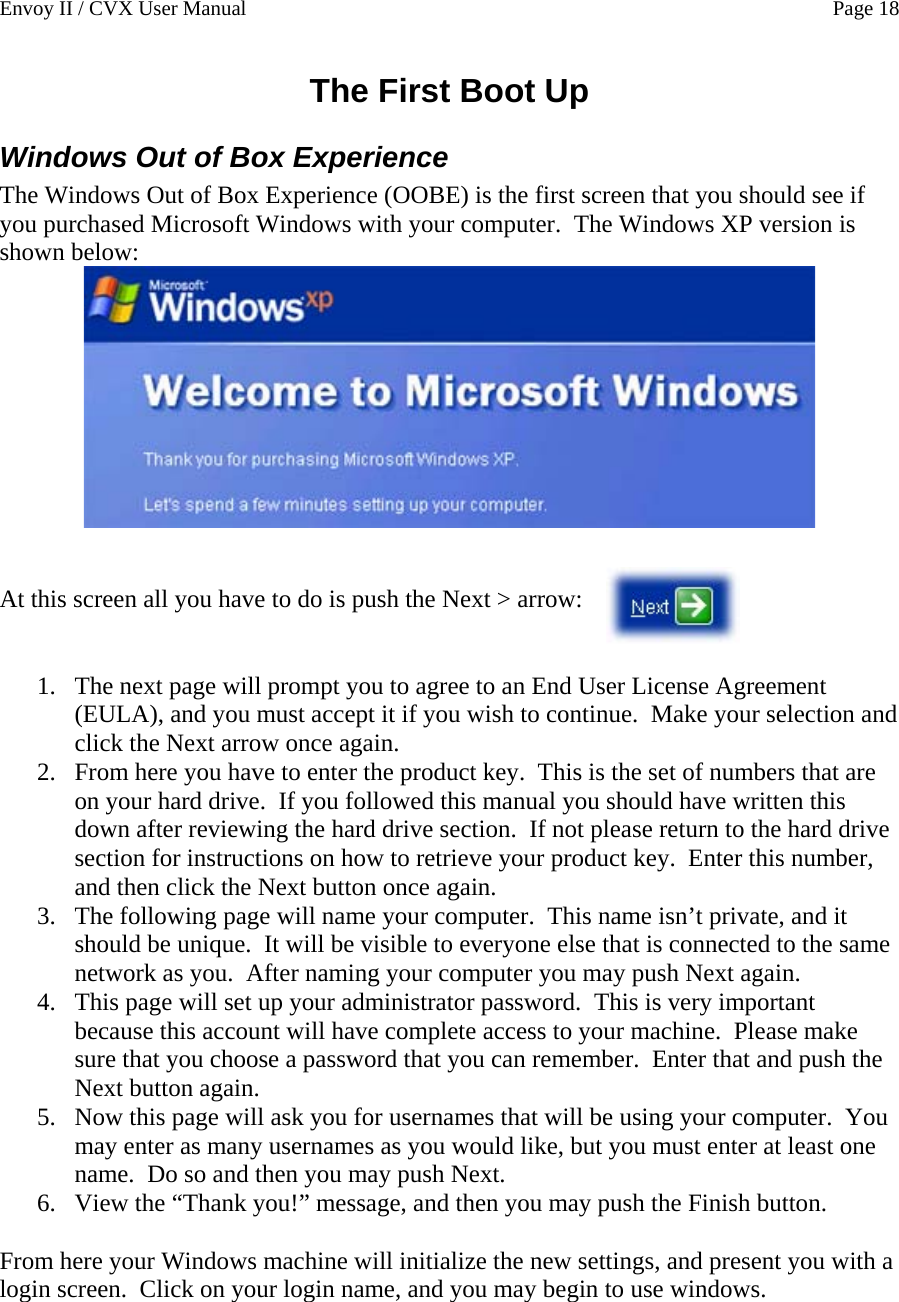
Envoy II / CVX User Manual    Page 18 The First Boot Up Windows Out of Box Experience The Windows Out of Box Experience (OOBE) is the first screen that you should see if you purchased Microsoft Windows with your computer.  The Windows XP version is shown below:    At this screen all you have to do is push the Next > arrow:    1. The next page will prompt you to agree to an End User License Agreement (EULA), and you must accept it if you wish to continue.  Make your selection and click the Next arrow once again.   2. From here you have to enter the product key.  This is the set of numbers that are on your hard drive.  If you followed this manual you should have written this down after reviewing the hard drive section.  If not please return to the hard drive section for instructions on how to retrieve your product key.  Enter this number, and then click the Next button once again.   3. The following page will name your computer.  This name isn’t private, and it should be unique.  It will be visible to everyone else that is connected to the same network as you.  After naming your computer you may push Next again. 4. This page will set up your administrator password.  This is very important because this account will have complete access to your machine.  Please make sure that you choose a password that you can remember.  Enter that and push the Next button again. 5. Now this page will ask you for usernames that will be using your computer.  You may enter as many usernames as you would like, but you must enter at least one name.  Do so and then you may push Next. 6. View the “Thank you!” message, and then you may push the Finish button.  From here your Windows machine will initialize the new settings, and present you with a login screen.  Click on your login name, and you may begin to use windows.
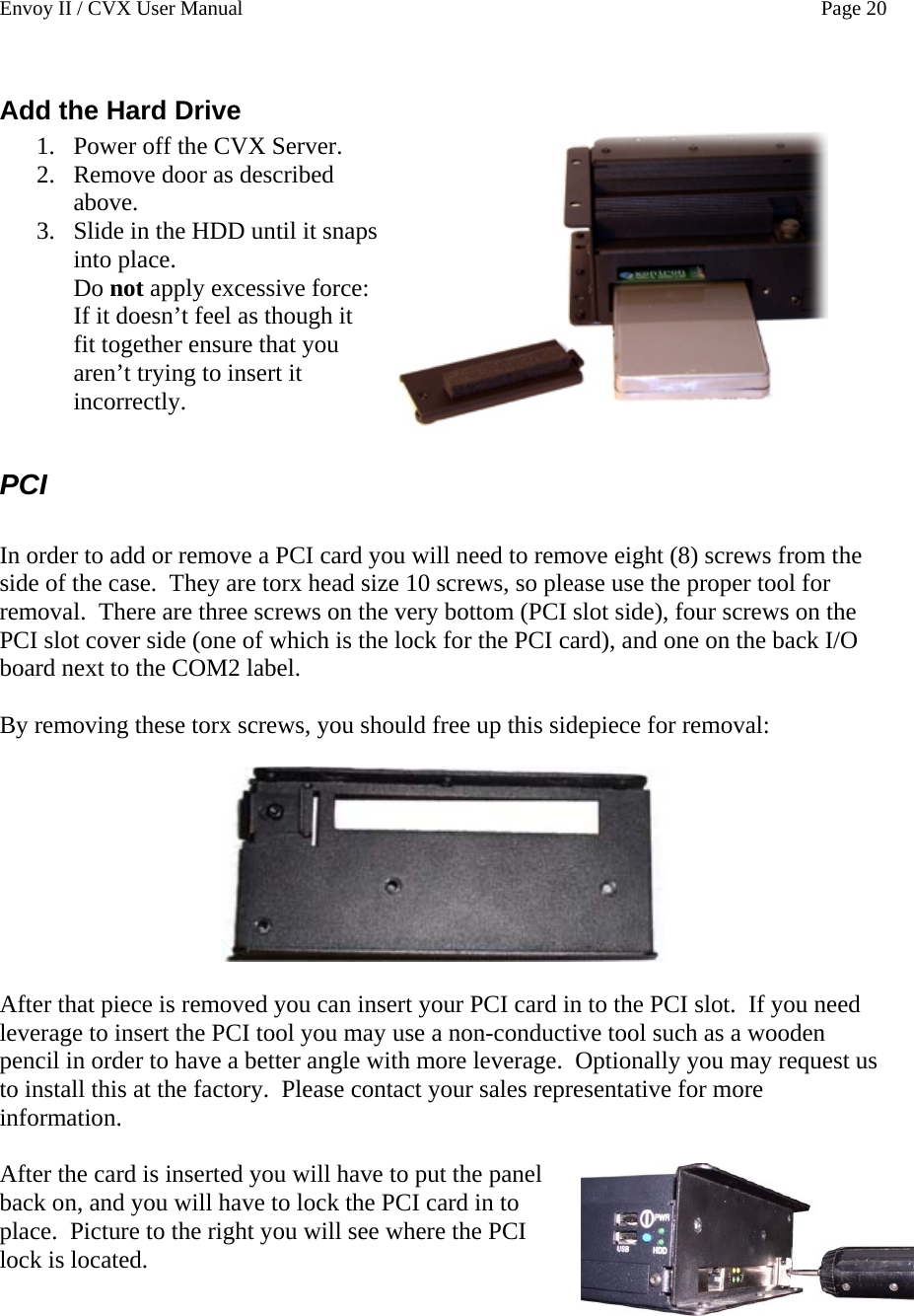
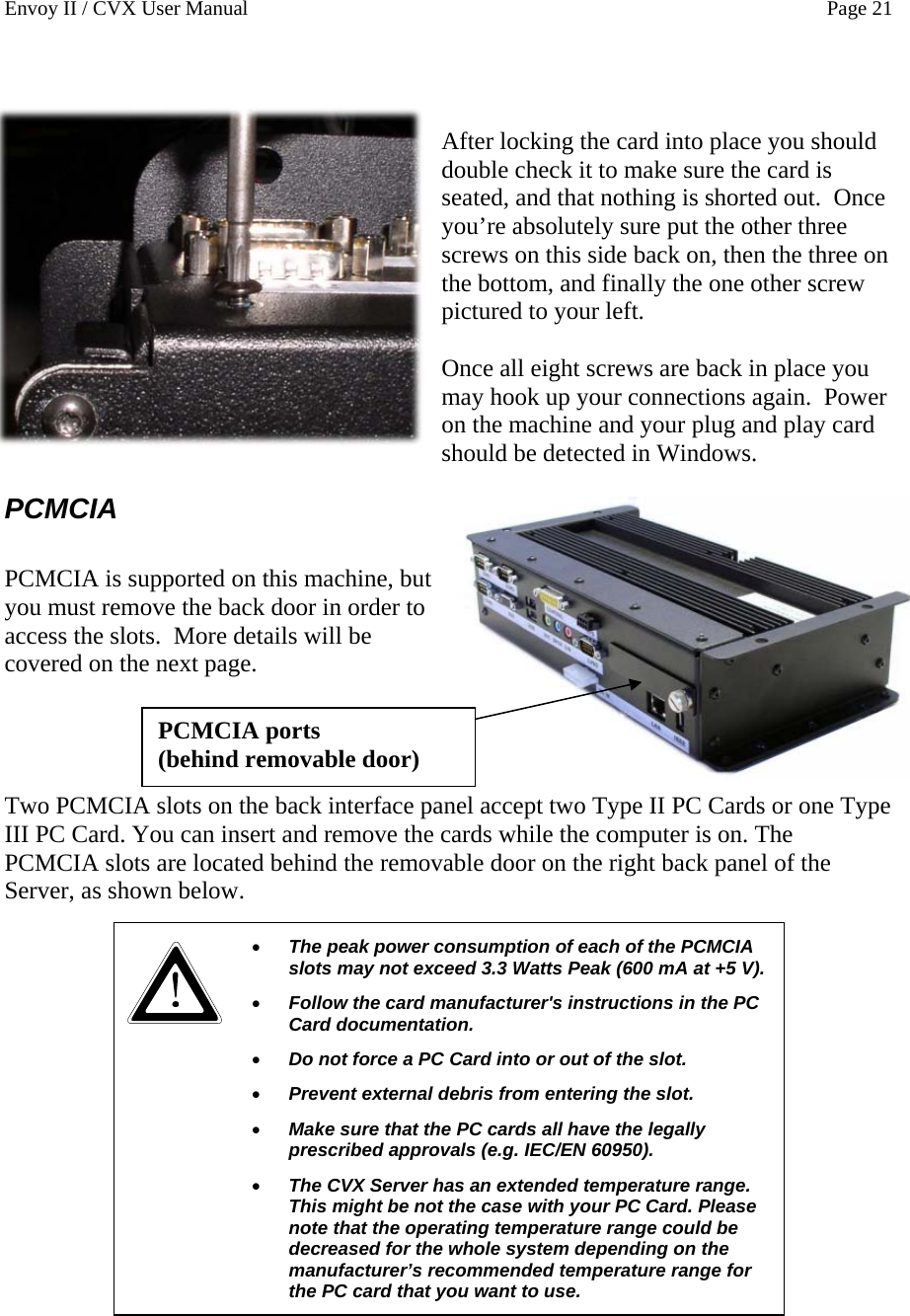
Envoy II / CVX User Manual    Page 19 No Operating System Installed  If you order the units with hard drives, but without an image when you first turn on your system you’ll see an error message.  The error message will say: “Reboot and Select proper Boot device or Insert Boot Media in selected Boot device and press a key”  You should use a USB CD-ROM or a USB Floppy Drive to install an operating system image on to your system.  You may also enter the BIOS in order to see all available boot devices.  For more instructions on the BIOS please refer to its section in this manual.  Hardware Instructions Fuses  There are fuses located under a panel at the top of the unit.  The arrow here points to the screw that must be loosened in order to access them.  We currently use two 10 amp fuses.  Fuse (2x) (under removable door) Hard Drive Remove the Hard Drive 1. Power off the CVX Server.  2. Locate the large thumbscrew on the front left-side door. 3. Loosen the large slotted screw. 4. Remove door and set aside. 5. Using the tab attached to the HDD case, pull out and remove HDD.
Envoy II / CVX User Manual    Page 20 Add the Hard Drive 1. Power off the CVX Server.  2. Remove door as described above. 3. Slide in the HDD until it snaps into place.   Do not apply excessive force: If it doesn’t feel as though it fit together ensure that you aren’t trying to insert it incorrectly.   PCI  In order to add or remove a PCI card you will need to remove eight (8) screws from the side of the case.  They are torx head size 10 screws, so please use the proper tool for removal.  There are three screws on the very bottom (PCI slot side), four screws on the PCI slot cover side (one of which is the lock for the PCI card), and one on the back I/O board next to the COM2 label.  By removing these torx screws, you should free up this sidepiece for removal:    After that piece is removed you can insert your PCI card in to the PCI slot.  If you need leverage to insert the PCI tool you may use a non-conductive tool such as a wooden pencil in order to have a better angle with more leverage.  Optionally you may request us to install this at the factory.  Please contact your sales representative for more information.  After the card is inserted you will have to put the panel back on, and you will have to lock the PCI card in to place.  Picture to the right you will see where the PCI lock is located.
Envoy II / CVX User Manual    Page 21   After locking the card into place you should double check it to make sure the card is seated, and that nothing is shorted out.  Once you’re absolutely sure put the other three screws on this side back on, then the three on the bottom, and finally the one other screw pictured to your left.  Once all eight screws are back in place you may hook up your connections again.  Power on the machine and your plug and play card should be detected in Windows. PCMCIA  PCMCIA is supported on this machine, but you must remove the back door in order to access the slots.  More details will be covered on the next page. PCMCIA ports  (behind removable door)     Two PCMCIA slots on the back interface panel accept two Type II PC Cards or one Type III PC Card. You can insert and remove the cards while the computer is on. The PCMCIA slots are located behind the removable door on the right back panel of the Server, as shown below.   • The peak power consumption of each of the PCMCIA slots may not exceed 3.3 Watts Peak (600 mA at +5 V). • Follow the card manufacturer's instructions in the PC Card documentation. • Do not force a PC Card into or out of the slot. • Prevent external debris from entering the slot.  • Make sure that the PC cards all have the legally prescribed approvals (e.g. IEC/EN 60950).  • The CVX Server has an extended temperature range. This might be not the case with your PC Card. Please note that the operating temperature range could be decreased for the whole system depending on the manufacturer’s recommended temperature range for the PC card that you want to use.
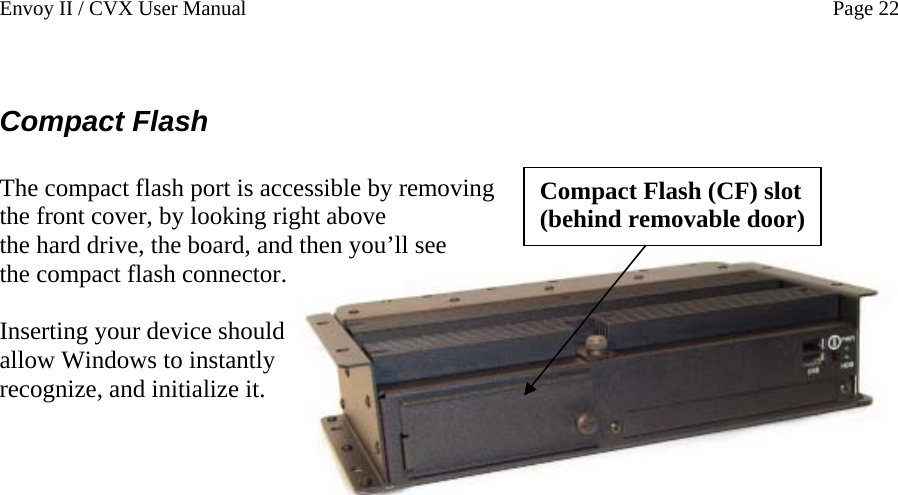
Envoy II / CVX User Manual    Page 22  Compact Flash  Compact Flash (CF) slot (behind removable door) The compact flash port is accessible by removing the front cover, by looking right above the hard drive, the board, and then you’ll see the compact flash connector.  Inserting your device should allow Windows to instantly recognize, and initialize it.
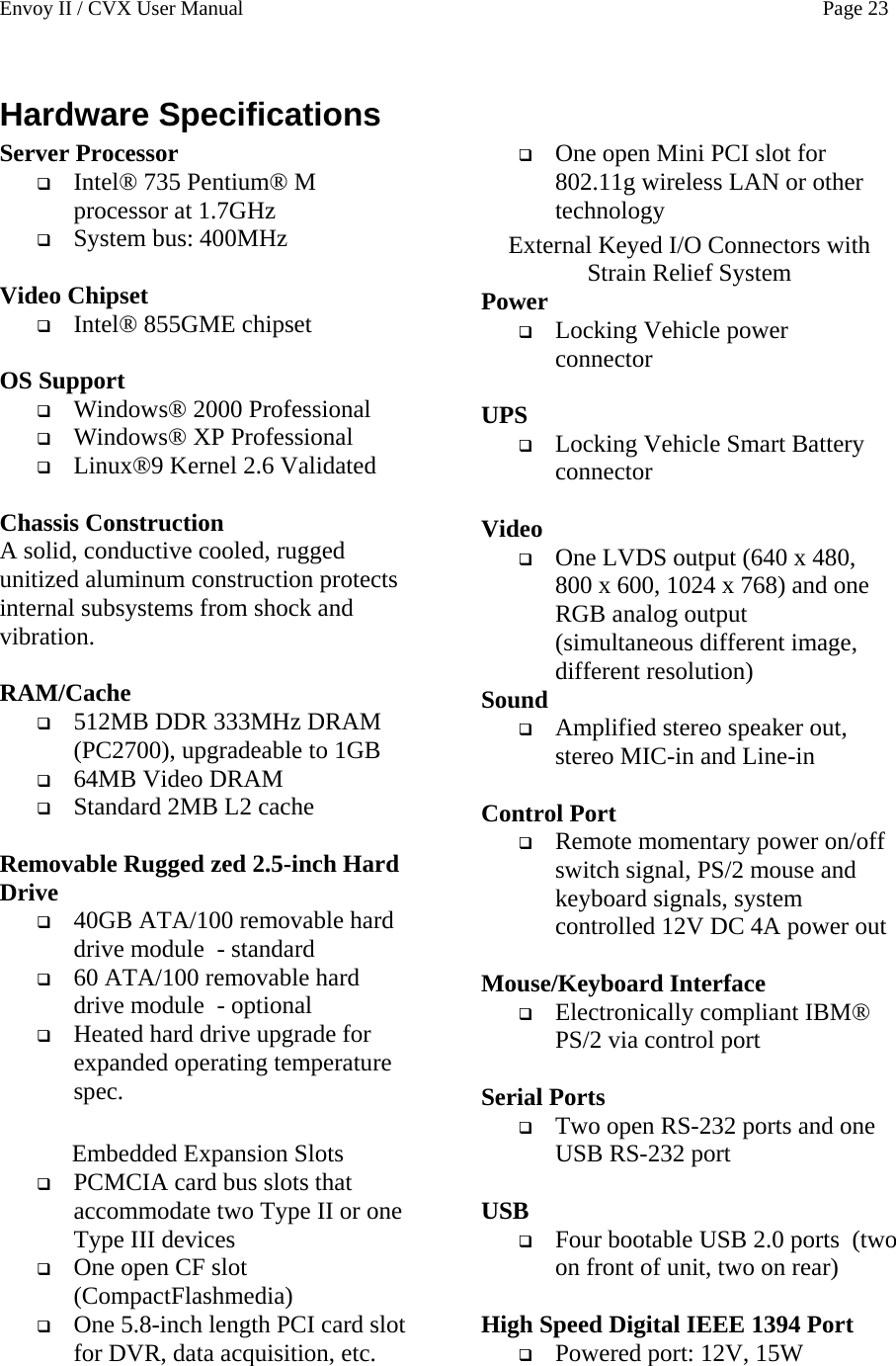
Envoy II / CVX User Manual    Page 23 Hardware Specifications Server Processor  Intel® 735 Pentium® M processor at 1.7GHz  System bus: 400MHz  Video Chipset  Intel® 855GME chipset  OS Support  Windows® 2000 Professional  Windows® XP Professional  Linux®9 Kernel 2.6 Validated  Chassis Construction A solid, conductive cooled, rugged unitized aluminum construction protects internal subsystems from shock and vibration.  RAM/Cache  512MB DDR 333MHz DRAM (PC2700), upgradeable to 1GB  64MB Video DRAM  Standard 2MB L2 cache  Removable Rugged zed 2.5-inch Hard Drive  40GB ATA/100 removable hard drive module  - standard  60 ATA/100 removable hard drive module  - optional  Heated hard drive upgrade for expanded operating temperature spec.  Embedded Expansion Slots  PCMCIA card bus slots that accommodate two Type II or one Type III devices  One open CF slot (CompactFlashmedia)  One 5.8-inch length PCI card slot for DVR, data acquisition, etc.  One open Mini PCI slot for 802.11g wireless LAN or other technology External Keyed I/O Connectors with Strain Relief System Power  Locking Vehicle power    connector  UPS  Locking Vehicle Smart Battery connector  Video  One LVDS output (640 x 480, 800 x 600, 1024 x 768) and one RGB analog output  (simultaneous different image, different resolution) Sound  Amplified stereo speaker out, stereo MIC-in and Line-in  Control Port  Remote momentary power on/off switch signal, PS/2 mouse and keyboard signals, system controlled 12V DC 4A power out  Mouse/Keyboard Interface  Electronically compliant IBM® PS/2 via control port  Serial Ports  Two open RS-232 ports and one USB RS-232 port  USB  Four bootable USB 2.0 ports  (two on front of unit, two on rear)  High Speed Digital IEEE 1394 Port  Powered port: 12V, 15W
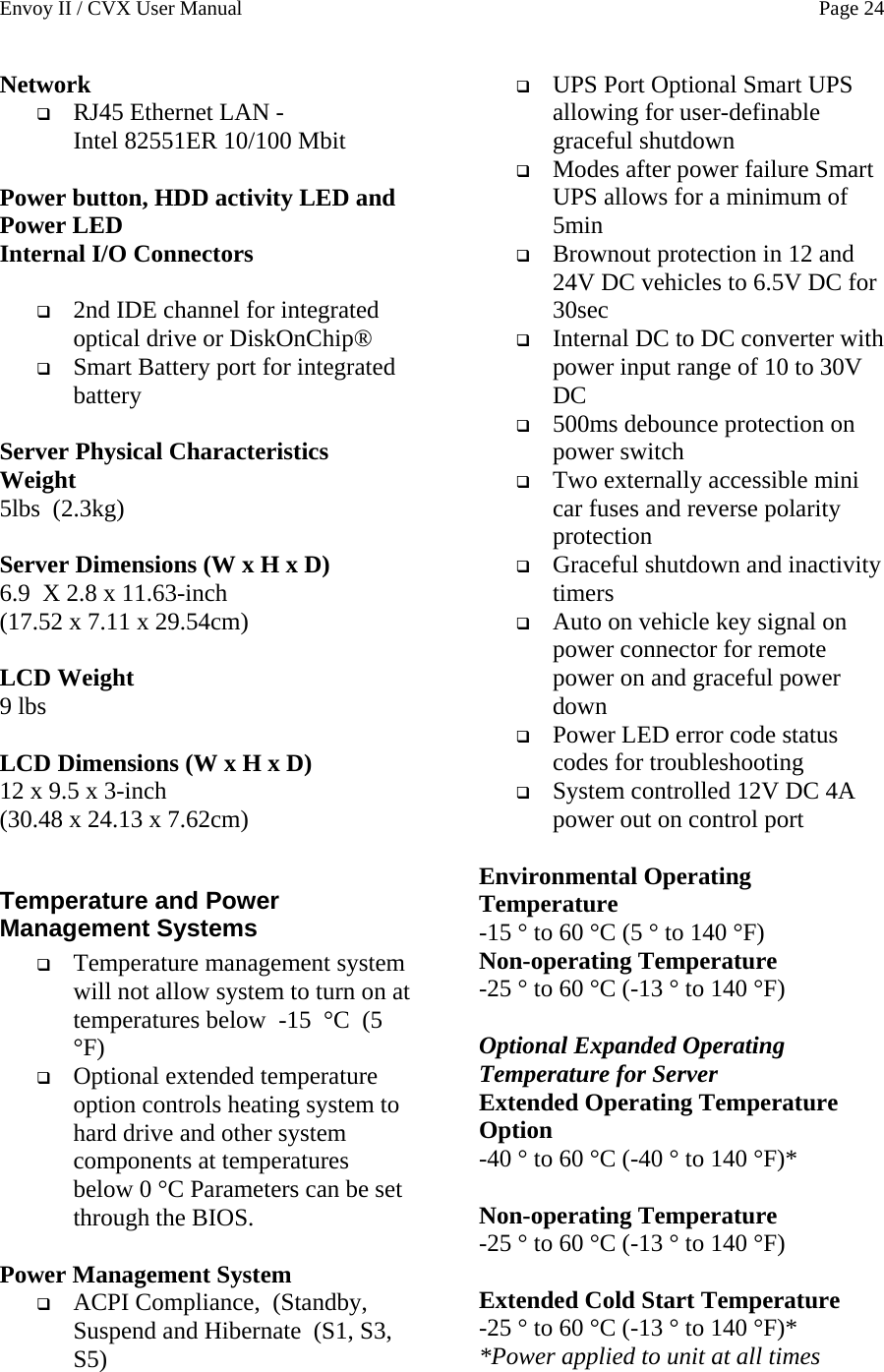
Envoy II / CVX User Manual    Page 24 Network  RJ45 Ethernet LAN -  Intel 82551ER 10/100 Mbit  Power button, HDD activity LED and Power LED Internal I/O Connectors   2nd IDE channel for integrated optical drive or DiskOnChip®  Smart Battery port for integrated battery  Server Physical Characteristics Weight 5lbs  (2.3kg)  Server Dimensions (W x H x D) 6.9 X 2.8 x 11.63-inch  (17.52 x 7.11 x 29.54cm)   LCD Weight 9 lbs   LCD Dimensions (W x H x D) 12 x 9.5 x 3-inch  (30.48 x 24.13 x 7.62cm)  Temperature and Power Management Systems  Temperature management system will not allow system to turn on at temperatures below  -15  °C  (5  °F)   Optional extended temperature option controls heating system to hard drive and other system components at temperatures below 0 °C Parameters can be set through the BIOS.  Power Management System  ACPI Compliance,  (Standby, Suspend and Hibernate  (S1, S3, S5)  UPS Port Optional Smart UPS allowing for user-definable graceful shutdown  Modes after power failure Smart UPS allows for a minimum of 5min  Brownout protection in 12 and 24V DC vehicles to 6.5V DC for 30sec  Internal DC to DC converter with power input range of 10 to 30V DC  500ms debounce protection on power switch  Two externally accessible mini car fuses and reverse polarity protection  Graceful shutdown and inactivity timers  Auto on vehicle key signal on power connector for remote power on and graceful power down  Power LED error code status codes for troubleshooting  System controlled 12V DC 4A power out on control port  Environmental Operating Temperature -15 ° to 60 °C (5 ° to 140 °F) Non-operating Temperature -25 ° to 60 °C (-13 ° to 140 °F)  Optional Expanded Operating Temperature for Server Extended Operating Temperature Option -40 ° to 60 °C (-40 ° to 140 °F)*  Non-operating Temperature -25 ° to 60 °C (-13 ° to 140 °F)  Extended Cold Start Temperature -25 ° to 60 °C (-13 ° to 140 °F)* *Power applied to unit at all times
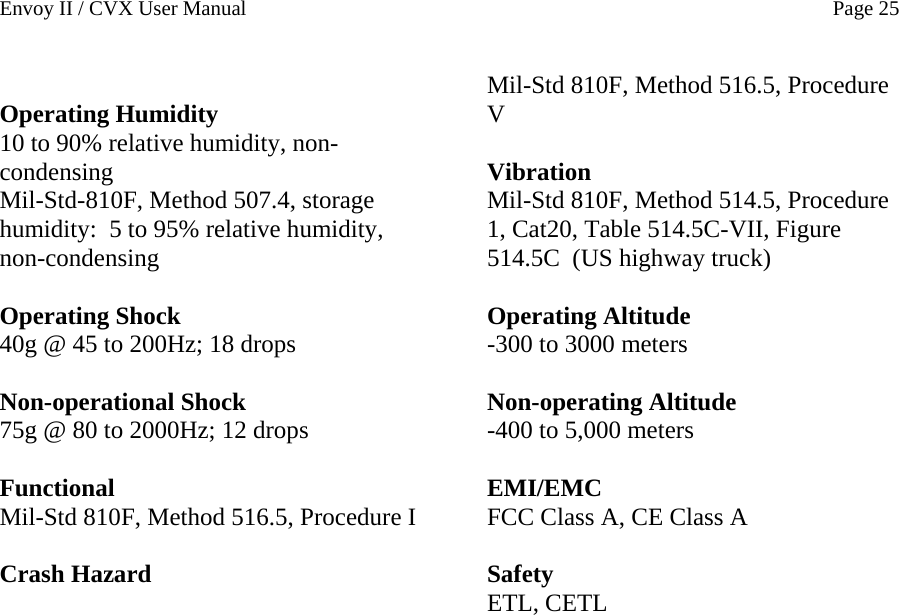
Envoy II / CVX User Manual    Page 25  Operating Humidity 10 to 90% relative humidity, non-condensing Mil-Std-810F, Method 507.4, storage humidity:  5 to 95% relative humidity, non-condensing  Operating Shock 40g @ 45 to 200Hz; 18 drops  Non-operational Shock 75g @ 80 to 2000Hz; 12 drops  Functional Mil-Std 810F, Method 516.5, Procedure I  Crash Hazard Mil-Std 810F, Method 516.5, Procedure V  Vibration Mil-Std 810F, Method 514.5, Procedure 1, Cat20, Table 514.5C-VII, Figure 514.5C  (US highway truck)  Operating Altitude -300 to 3000 meters  Non-operating Altitude -400 to 5,000 meters  EMI/EMC FCC Class A, CE Class A  Safety ETL, CETL
Envoy II / CVX User Manual    Page 26 Software Installing an Operating System Windows 2000 Installation of Windows XP will require a USB based CD-ROM drive, and your Windows product key.  In our testing we primarily used the ASUS 5232A CD-RW.  Make sure you power the device on because all CDROM drives require more power than the USB cable can provide.  At this point turn on the CVX, and while it’s at the POST screen push the F11 key for the boot menu.  Select your USB CD-ROM from the list, and then Windows should prompt you to push any key to boot from the device.  Push any key, let setup continue to load, and when it prompts you to push Enter to setup Windows 2000 now.  From there the process should look like this:    Push F8 to accept the license  Select the partition that you wish to install Windows on, and if none exist push C to create one.  Format the partition in NTFS.  This will erase all data that is currently on that partition.  Back up any data on the machine before you proceed with this step.  The installer should restart and present a graphical interface where you select your keyboard layout or location settings.  Select the proper information and click Next.  Type in your name and your organizations name.  Click Next to proceed.  At this point you have to enter your product key.  If you haven’t already documented this key it can be found on your removable hard drive.  Please refer to the hard drive section of this manual for instructions on how to safely remove your hard drive.  Enter a computer name, and an administrator password.  The computer name will be visible on the network so ensure that it adequately describes the machine.  Set the current date, time, and time zone.  Choose Typical Settings unless you are familiar with network configuration, and then click Next.  Set your computers workgroup to the same workgroup ID that your others computers use.  If you’re using this in a corporate environment then you should contact your IT department to determine if you need to configure the machine in a domain (active directory) environment.  Setup will copy all of the files to your system, and then click the Finish button to restart the machine in Windows.
Envoy II / CVX User Manual    Page 27  At this point Windows will prompt you for any necessary information, and it will boot you in to the Windows operating system.  Use the CD we include with our systems to reinstall the drivers, and your machine should now run properly.  For driver installation instructions please read the driver portion of this manual.  Windows XP  In our testing we primarily used the ASUS 5232A CD-RW.  Make sure you power the device on because all CDROM drives require more power than the USB cable can provide.  At this point turn on the CVX, and while it’s at the POST screen push the F11 key for the boot menu.  Select your USB CD-ROM from the list, and then Windows should prompt you to push any key to boot from the device.  Push any key, let setup continue to load, and when it prompts you to push Enter to setup Windows XP now.  From there the process should look like this:   Push F8 to accept the license  Select the partition that you wish to install Windows on, and if none exist push C to create one.  Format the partition in NTFS.  This will erase all data that is currently on that partition.  Back up any data on the machine before you proceed with this step.  Windows will begin to copy all of its data files on to the machine.  Set the regional and language options, and then press next.  Then set your name and the organization, and then press next.  Enter your windows product key in the five blanks provided.  If you don’t have this information review the section of the manual titled: “Receiving Checklist > Hard Drive” After entering this information you should press next.  At this step choose typical network settings unless your IT department instructs you to do otherwise.  These options can be changed later in Windows.  Click Next once you are ready to do so.  You will see a message box saying that to improve the appearance of your visual elements, Windows will automatically adjust your screen resolution.  Press OK, and then press OK again.  The Welcome to Microsoft Windows screen comes up.  At this point please refer to the Windows Out of Box Experience section in this manual to continue setting up your system.
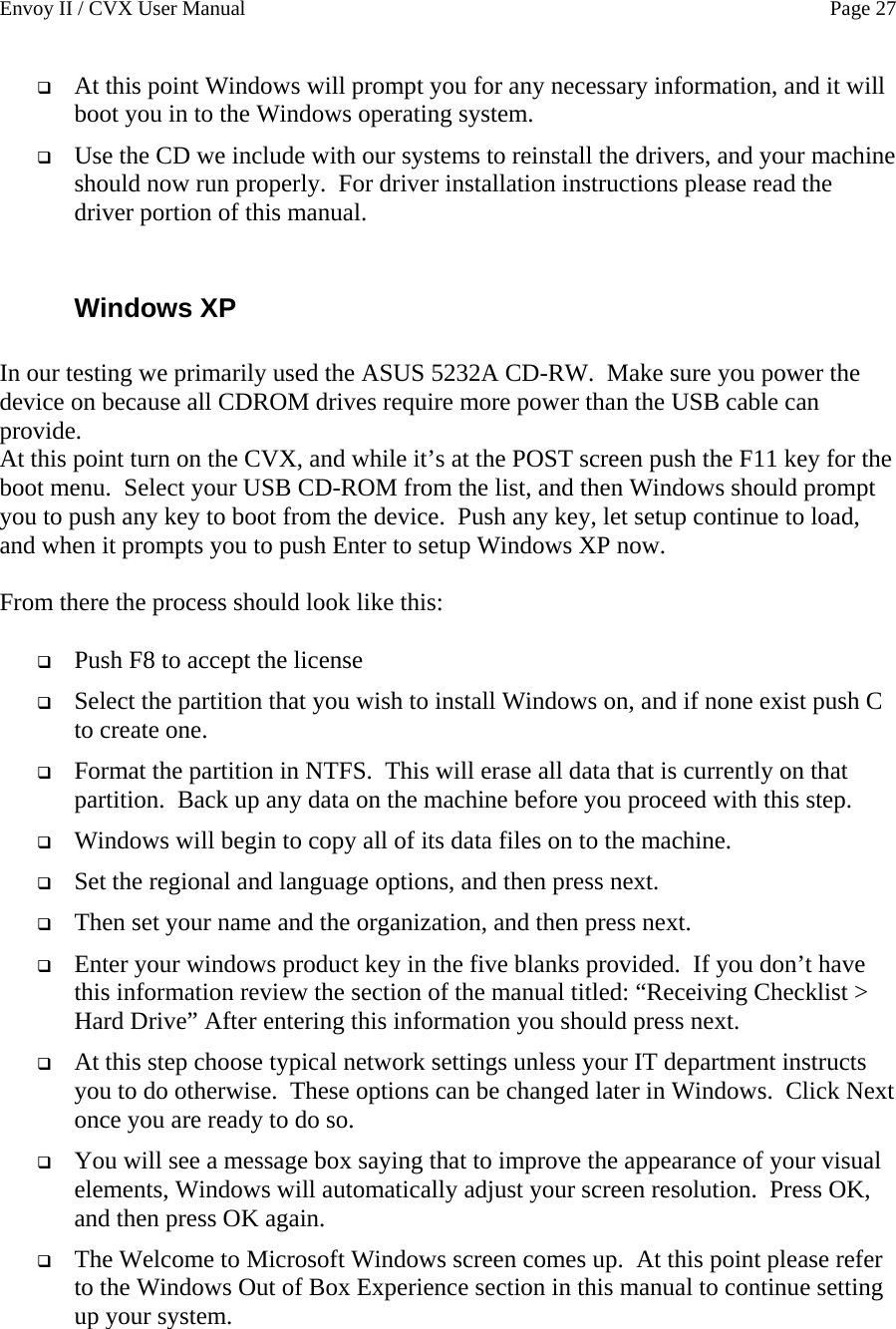
Envoy II / CVX User Manual    Page 28  Configuring your System Installing Drivers On occasion when you hook up a new device or when you re-install the operating system you will have to reinstall drivers.  All devices require drivers in order for the operating system to know how to use that device.  The best way to determine the current status of your drivers is to open the device manager.  You can do that by right clicking my computer and choosing properties. After doing so you should see the Windows Device Manager window:  If all your devices are working properly it should look like the image to the left.  If there are any yellow exclamation marks or question marks in front of your devices then there is an issue that needs your attention.  Normally both errors are due to drivers not being installed or the improper driver being installed.  Double click the device with the problem, click the Driver tab, and then click update driver.  Now insert your driver disk in to an external USB drive and click next.  After scanning the CD the driver should automatically be matched up with the proper files.  If it doesn’t find a match then you may either have the wrong CD in or the driver files may be in a compressed format.  Some times installers store the drivers inside of a compressed .EXE file, and you have to run their setup in order to install the drivers.  Please refer to your devices documentation in order to learn how to install that specific driver.  All of our drivers are found on the companion CD that ships with the unit.
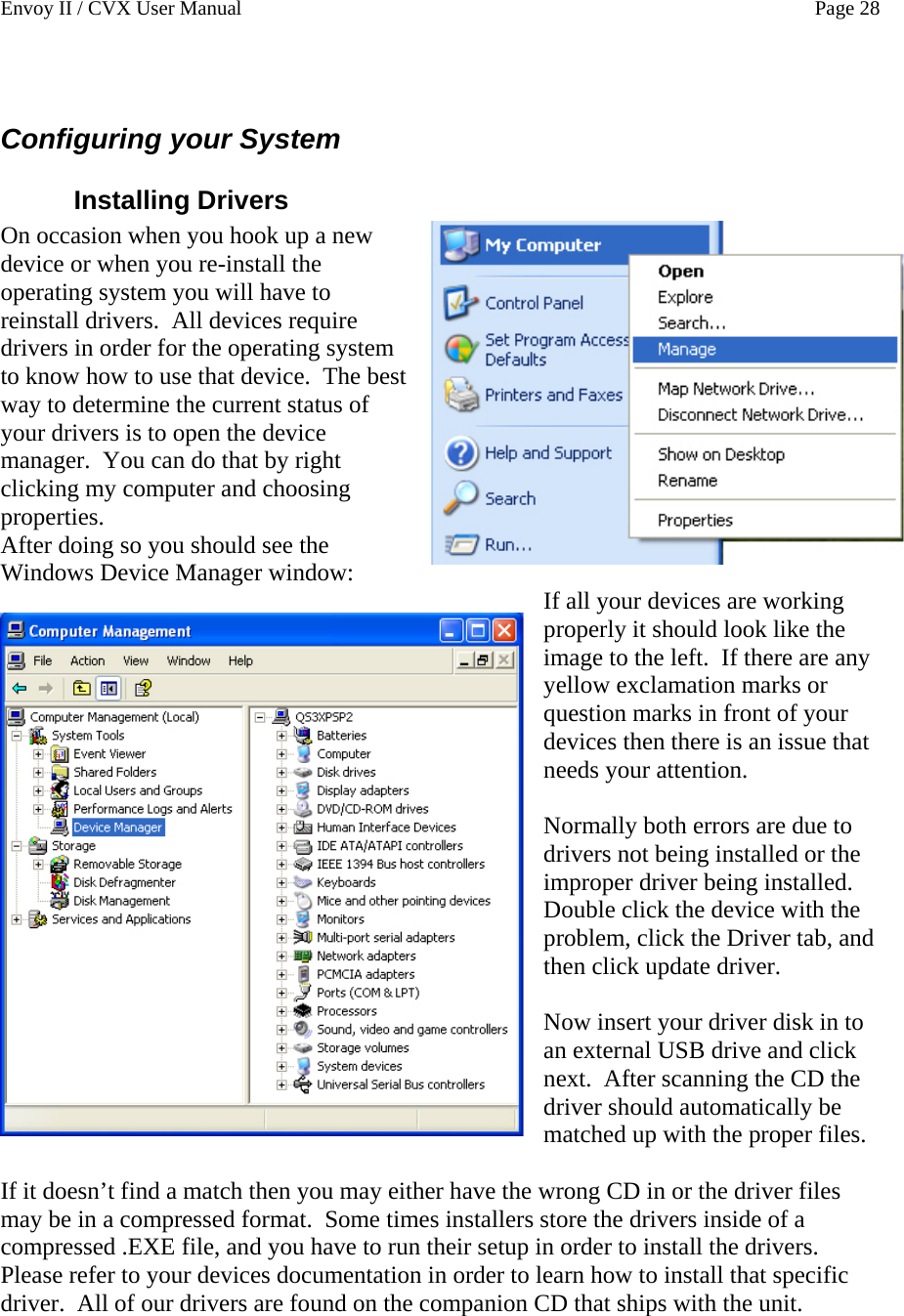
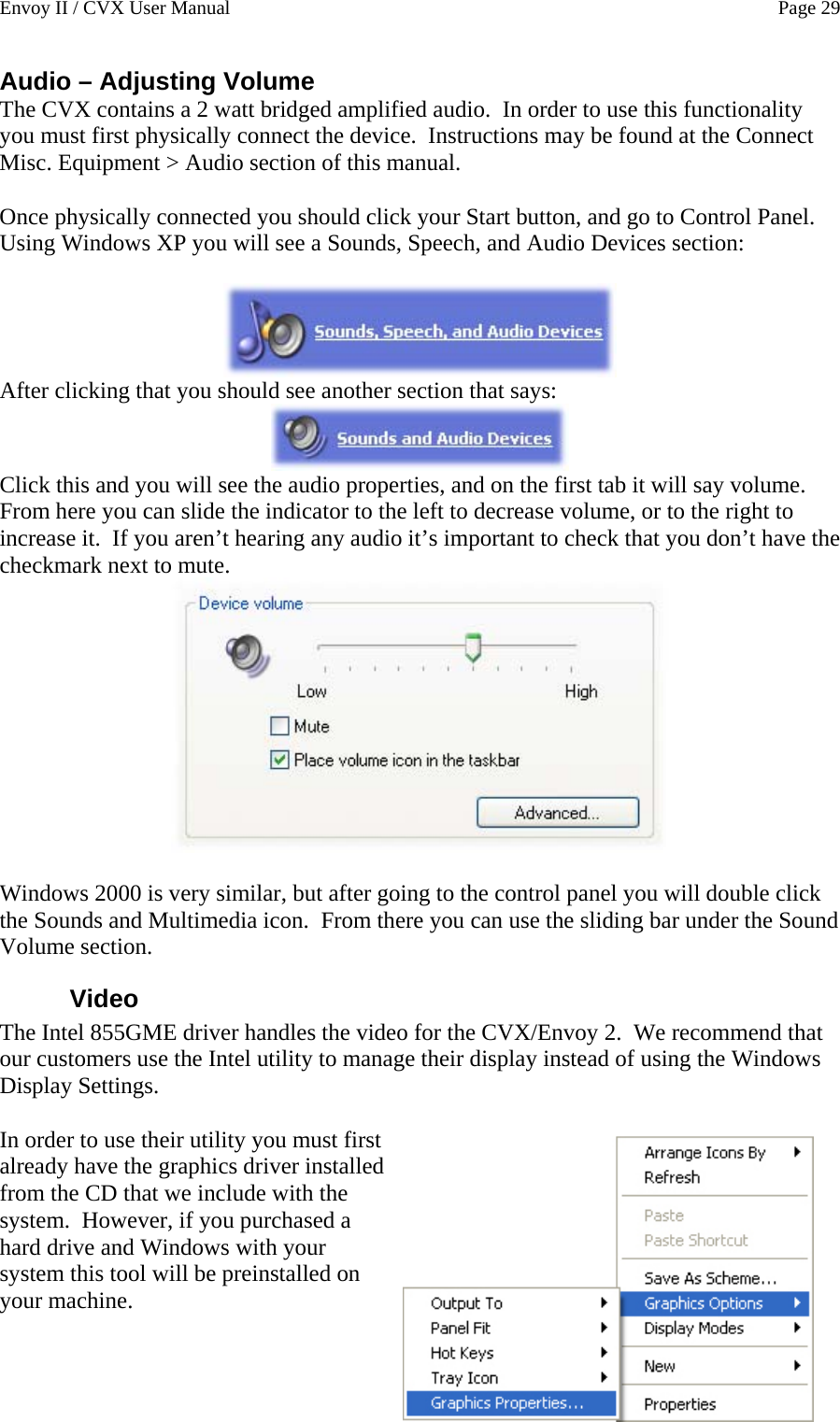
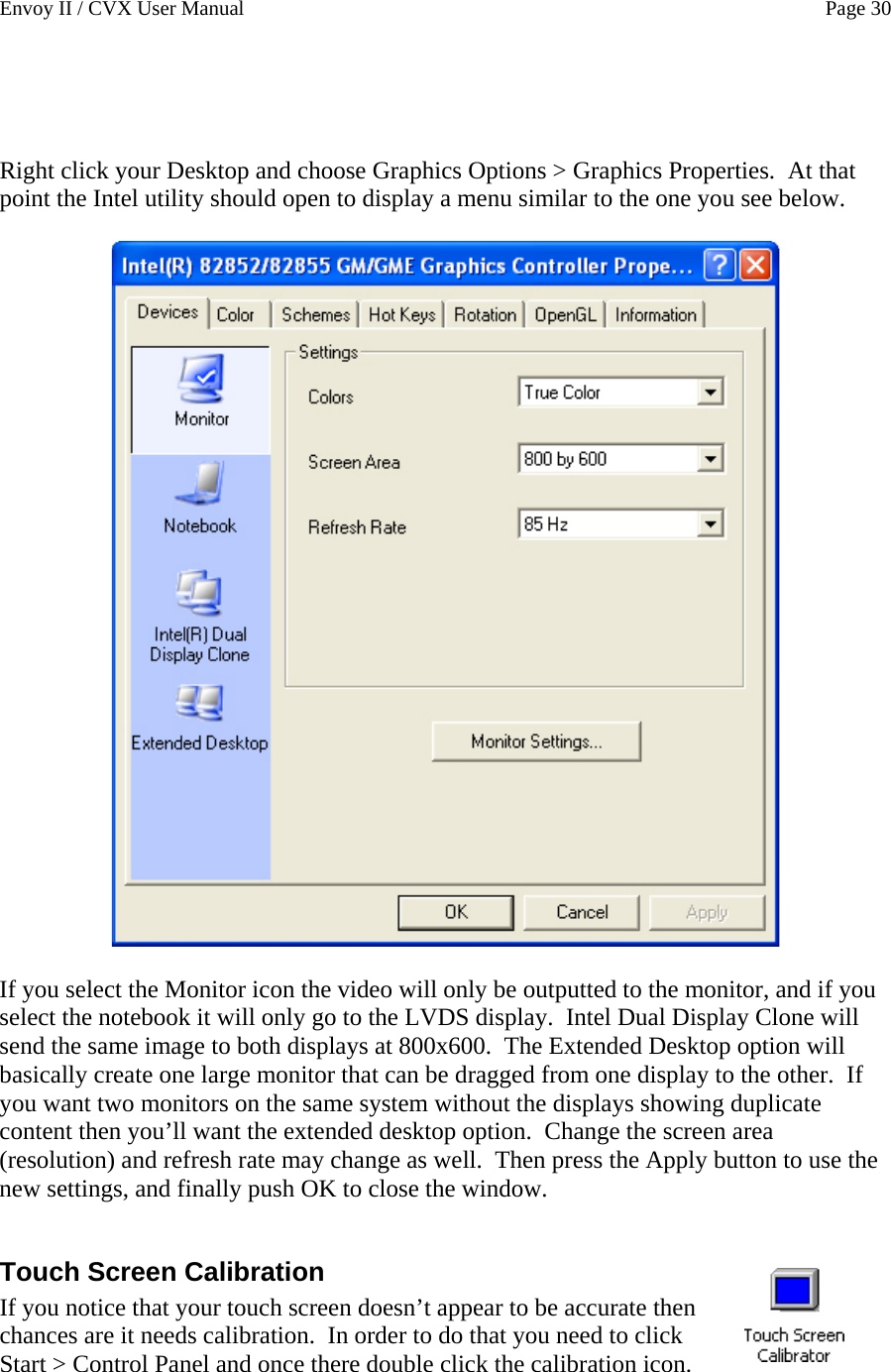
Envoy II / CVX User Manual    Page 29 Audio – Adjusting Volume The CVX contains a 2 watt bridged amplified audio.  In order to use this functionality you must first physically connect the device.  Instructions may be found at the Connect Misc. Equipment > Audio section of this manual.  Once physically connected you should click your Start button, and go to Control Panel.  Using Windows XP you will see a Sounds, Speech, and Audio Devices section:   After clicking that you should see another section that says:  Click this and you will see the audio properties, and on the first tab it will say volume.  From here you can slide the indicator to the left to decrease volume, or to the right to increase it.  If you aren’t hearing any audio it’s important to check that you don’t have the checkmark next to mute.   Windows 2000 is very similar, but after going to the control panel you will double click the Sounds and Multimedia icon.  From there you can use the sliding bar under the Sound Volume section. Video  The Intel 855GME driver handles the video for the CVX/Envoy 2.  We recommend that our customers use the Intel utility to manage their display instead of using the Windows Display Settings.  In order to use their utility you must first already have the graphics driver installed from the CD that we include with the system.  However, if you purchased a hard drive and Windows with your system this tool will be preinstalled on your machine.
Envoy II / CVX User Manual    Page 30    Right click your Desktop and choose Graphics Options > Graphics Properties.  At that point the Intel utility should open to display a menu similar to the one you see below.    If you select the Monitor icon the video will only be outputted to the monitor, and if you select the notebook it will only go to the LVDS display.  Intel Dual Display Clone will send the same image to both displays at 800x600.  The Extended Desktop option will basically create one large monitor that can be dragged from one display to the other.  If you want two monitors on the same system without the displays showing duplicate content then you’ll want the extended desktop option.  Change the screen area (resolution) and refresh rate may change as well.  Then press the Apply button to use the new settings, and finally push OK to close the window.  Touch Screen Calibration If you notice that your touch screen doesn’t appear to be accurate then chances are it needs calibration.  In order to do that you need to click Start > Control Panel and once there double click the calibration icon.
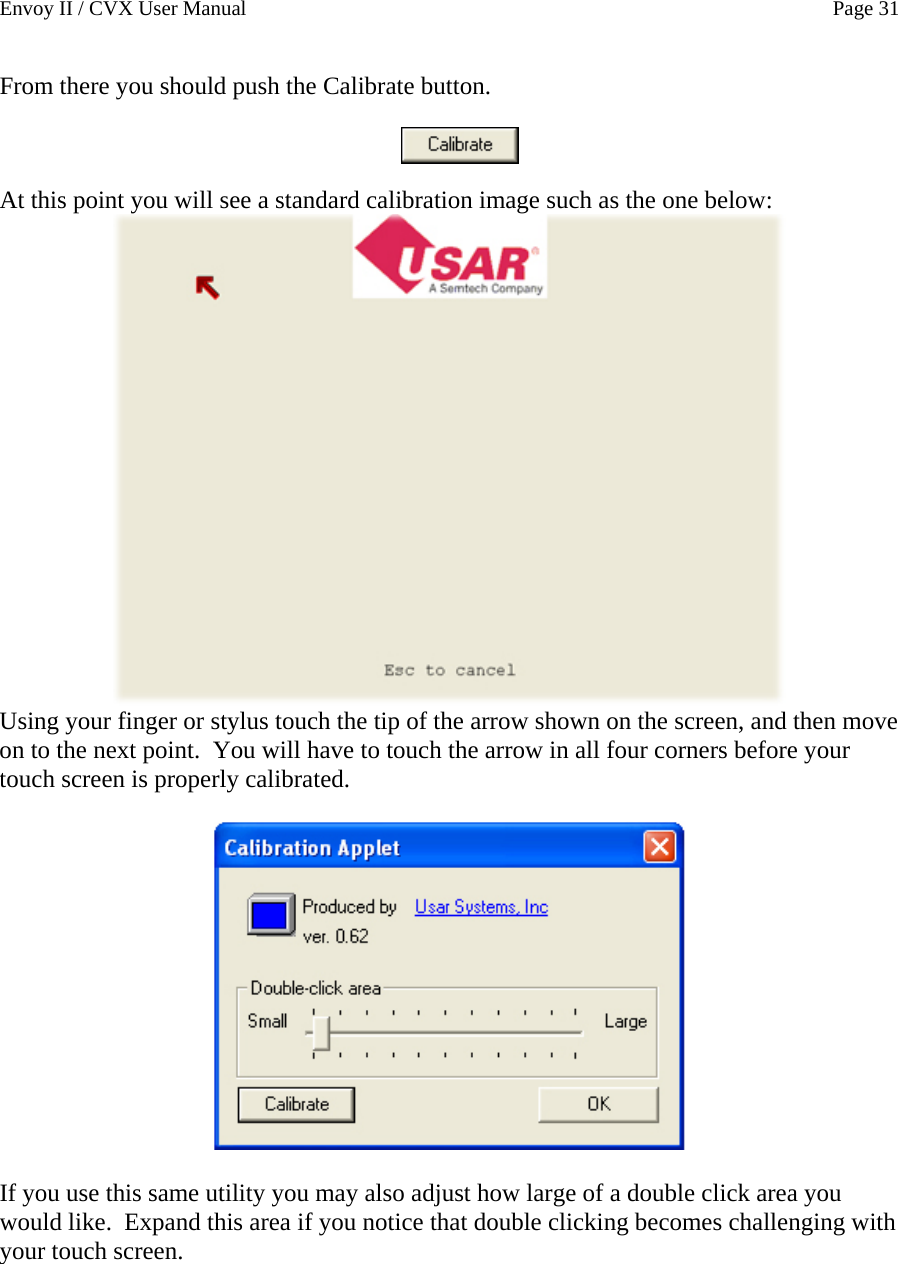
Envoy II / CVX User Manual    Page 31 From there you should push the Calibrate button.      At this point you will see a standard calibration image such as the one below:  Using your finger or stylus touch the tip of the arrow shown on the screen, and then move on to the next point.  You will have to touch the arrow in all four corners before your touch screen is properly calibrated.    If you use this same utility you may also adjust how large of a double click area you would like.  Expand this area if you notice that double clicking becomes challenging with your touch screen.
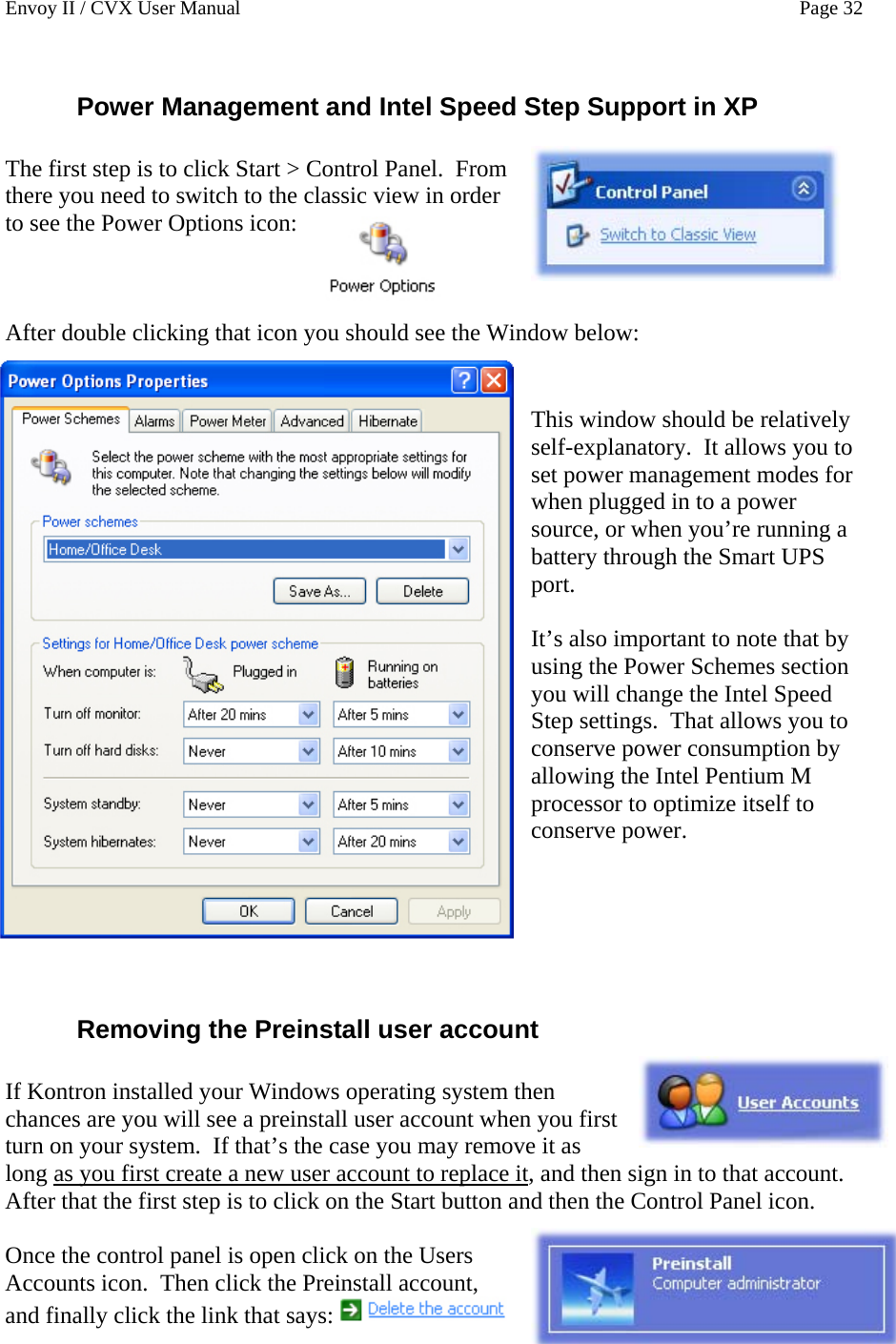
Envoy II / CVX User Manual    Page 32 Power Management and Intel Speed Step Support in XP  The first step is to click Start > Control Panel.  From there you need to switch to the classic view in order to see the Power Options icon:     After double clicking that icon you should see the Window below:  This window should be relatively self-explanatory.  It allows you to set power management modes for when plugged in to a power source, or when you’re running a battery through the Smart UPS port.  It’s also important to note that by using the Power Schemes section you will change the Intel Speed Step settings.  That allows you to conserve power consumption by allowing the Intel Pentium M processor to optimize itself to conserve power.    Removing the Preinstall user account  If Kontron installed your Windows operating system then chances are you will see a preinstall user account when you first turn on your system.  If that’s the case you may remove it as long as you first create a new user account to replace it, and then sign in to that account.  After that the first step is to click on the Start button and then the Control Panel icon.   Once the control panel is open click on the Users Accounts icon.  Then click the Preinstall account, and finally click the link that says:
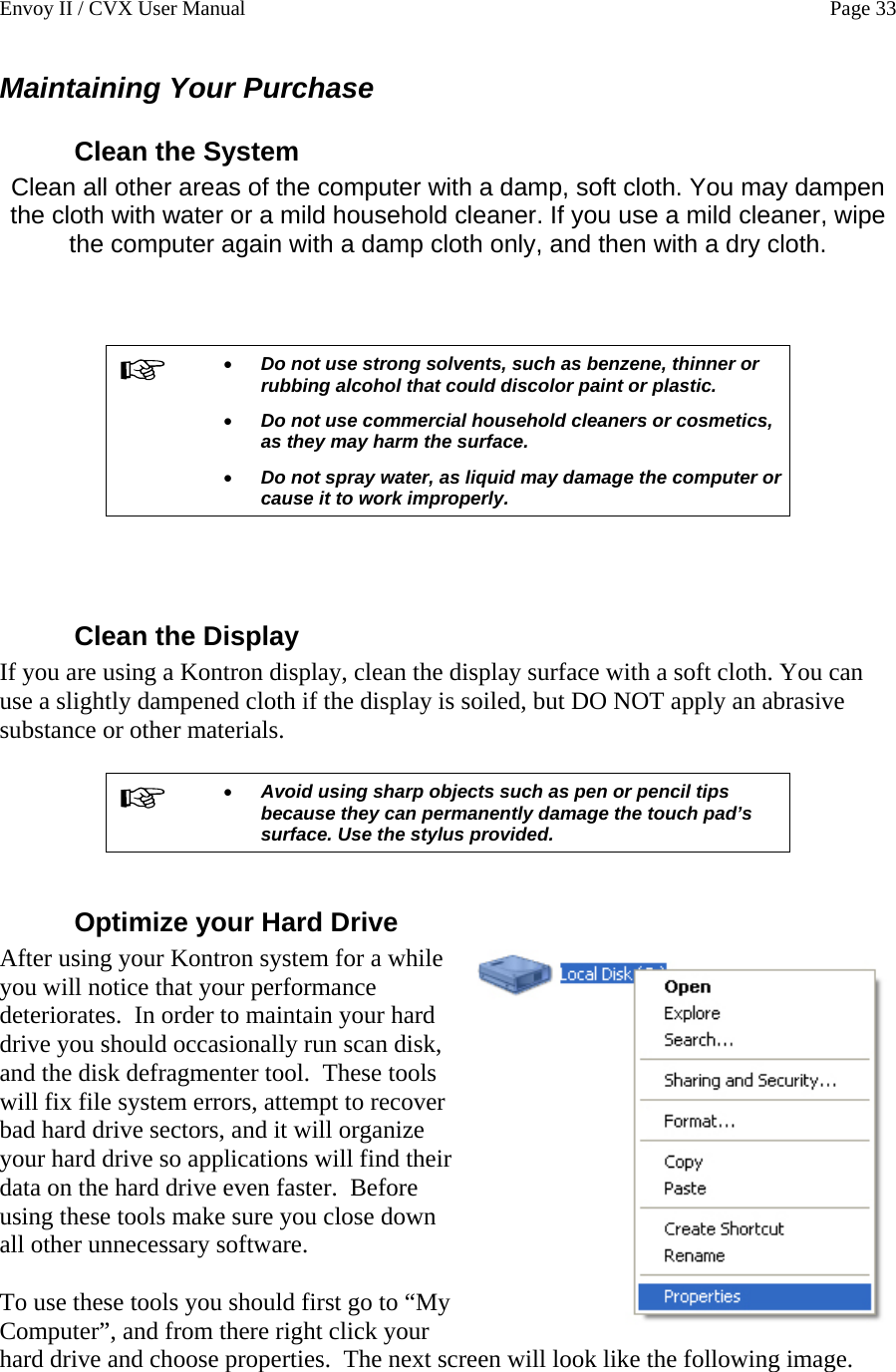
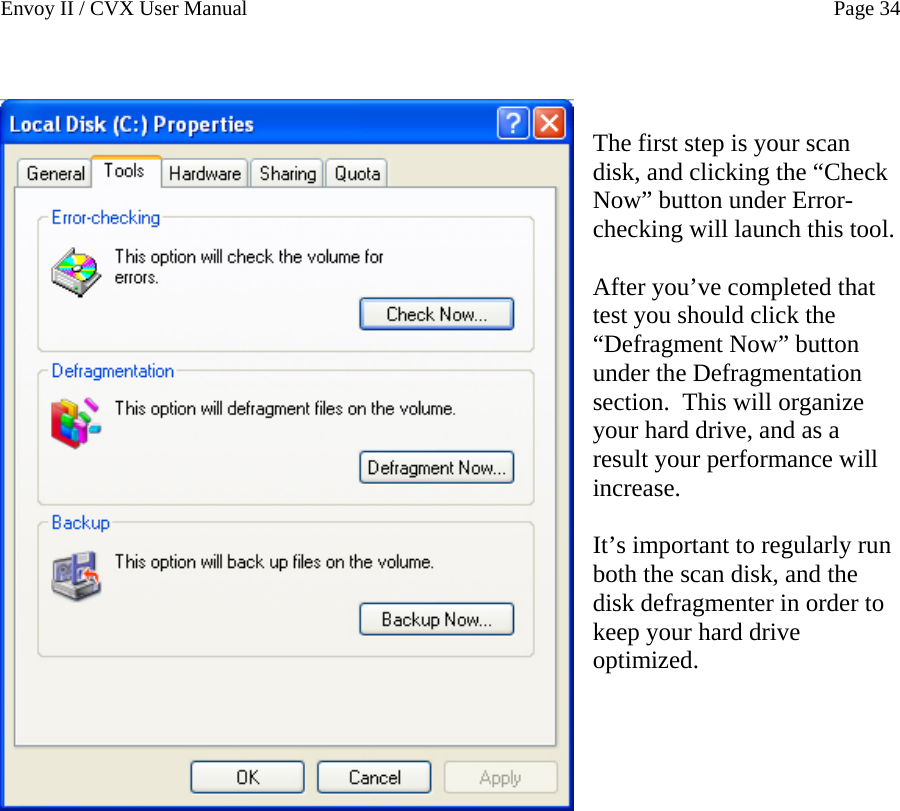
Envoy II / CVX User Manual    Page 33 Maintaining Your Purchase Clean the System Clean all other areas of the computer with a damp, soft cloth. You may dampen the cloth with water or a mild household cleaner. If you use a mild cleaner, wipe the computer again with a damp cloth only, and then with a dry cloth.     • Do not use strong solvents, such as benzene, thinner or rubbing alcohol that could discolor paint or plastic.  • Do not use commercial household cleaners or cosmetics, as they may harm the surface. • Do not spray water, as liquid may damage the computer or cause it to work improperly.    Clean the Display If you are using a Kontron display, clean the display surface with a soft cloth. You can use a slightly dampened cloth if the display is soiled, but DO NOT apply an abrasive substance or other materials.   • Avoid using sharp objects such as pen or pencil tips because they can permanently damage the touch pad’s surface. Use the stylus provided.  Optimize your Hard Drive After using your Kontron system for a while you will notice that your performance deteriorates.  In order to maintain your hard drive you should occasionally run scan disk, and the disk defragmenter tool.  These tools will fix file system errors, attempt to recover bad hard drive sectors, and it will organize your hard drive so applications will find their data on the hard drive even faster.  Before using these tools make sure you close down all other unnecessary software.  To use these tools you should first go to “My Computer”, and from there right click your hard drive and choose properties.  The next screen will look like the following image.
Envoy II / CVX User Manual    Page 34   The first step is your scan disk, and clicking the “Check Now” button under Error-checking will launch this tool.  After you’ve completed that test you should click the “Defragment Now” button under the Defragmentation section.  This will organize your hard drive, and as a result your performance will increase.  It’s important to regularly run both the scan disk, and the disk defragmenter in order to keep your hard drive optimized.
Envoy II / CVX User Manual    Page 35 Introduction to the AMI BIOS  The BIOS user manual covers the AMI BIOS version 8.  It mentions the features offered and it describes the functionality of each feature.  This manual was created and distributed by Kontron America, the Mobile Computing Division.  Various features will look and perform differently from the documentation.  BIOS changes will impact how accurate this manual is and it’s important to take this in to consideration.  If you are not familiar with the BIOS settings then please leave these alone unless you are instructed to change them by an authorized Kontron representative.  The AMI BIOS was chosen for features such as:   Fast POST times  Booting from different devices in your predetermined order  ACPI Support  BIOS Recovery Options  Resource Management  Power Management  … and for many other reasons.  In order to enter the BIOS you must hit your DEL (Delete) key during bootup.  It will prompt you to push this key to enter the BIOS.  If you received a BIOS error it will ask you to push F1 to enter the BIOS to fix the problem.  You must enter the BIOS to see any of the menus that we mention in this documentation. The Menu System  The BIOS is completely keyboard driven, and as a result you have to use the arrow keys to navigate around.  Certain keys will universally work under any BIOS menu, as long as you aren’t being prompted to change a setting.  These universal keys are listed below.  Universal Menu Keys:  θ θ θ θ F1 – Help Menu system  F2 or F3 – This will toggle between different color choices for your personal preference.  Some options have higher contrast and may be easier for you to read. F7 – Discard Changes, but don’t leave the BIOS. F8 – Load Failsafe Defaults, but don’t leave the BIOS.
Envoy II / CVX User Manual    Page 36 θ θ θ θ θ θ θ θ θ Main θ Advanced θ PCIPnP θ Boot θ Security θ θ Exit F9 – Load Optimized Defaults, but don’t leave the BIOS. F10 – Save the current configuration and exit the BIOS.  This will cause a reboot. Home key– This instantly takes you to the top of the screen. End key – This instantly takes you to the bottom of the screen. Page Up– This will scroll down the page for quicker browsing. Page Down – This will scroll up the page for quicker browsing.  Changing Selected Options: The Plus key – This combination will select the plus sign (+) and that will toggle your options. The minus key (-) – This will toggle options in the opposite direction of the plus sign.  Once you learn basic navigation you’ll have a number of menu choices to choose from: Chipset  Use the left and right arrow keys in order to change between the menus.  The choices listed above are in order, if you’re browsing horizontally.  Each menu will be covered in more detail on the following pages.
Envoy II / CVX User Manual    Page 37 Main  The main menu is the first menu that appears after you enter the BIOS menu.  It will give you a brief system overview that covers information such as: θ θ θ θ θ θ Speed θ θ θ θ θ θ θ θ θ The BIOS Name The Version The Build Date and ID The Embedded Controller version number Processor Type Count – The number of processors System Memory – The size of the currently installed memory  Below this information you will have two menu choices for the system time and the system date.  These are self-explanatory, and changing these settings is quite easy. Use the up and down arrow keys to highlight the time or date field and then use  + or –  keys to change the options.  For more assistance with this please refer to the previous section under “Changing Selected Options”. After you change that number then you may hit Enter to select the next field to the right.  Repeat that until you’re happy with the setting and then you may use the arrow keys for further navigation.  Advanced This displays the advanced settings options for components such as: CPU Configuration IDE Configuration SuperIO Configuration ACPI Configuration Event Log Configuration USB Configuration Platform Configuration
Envoy II / CVX User Manual    Page 38 CPU Configuration  The Advanced CPU Configuration menu shows you a lot of information about your processor such as: θ θ θ θ θ θ θ θ θ θ θ Manufacturer – We currently use Intel processors for our notebooks. Brand String – This identifies the CPU such as the Pentium m and the speed in MHz. Frequency – The number of hertz used in a specified interval. FSB Speed – This stands for the Front Side Bus, think of it as the speed between the processor and other components on the motherboard. Cache L1, L2, and L3 (L3 is Unused/Disabled) Ratio Status and Value  There are also a few options listed below that.  Those are covered below. The first of which is the L3 Cache option.  L3 cache is memory built in on the motherboard that’s inbetween the CPU and system memory.  However, with our notebooks there is no need for the L3 cache, and therefore this option should remain disabled. The option below that is for Hyper Threading function and should be disabled for our systems.  At the current time we don’t use the Pentium IV processors for the mobile environment, and therefore hyperthreading isn’t offered on our systems. The next option is for Intel Speed Step™ Technology, and this will change the systems performance based on your selection.  You have the options below: Maximum Performance – Always run at the fastest speed. Battery Optimized – Run at a slower speed, but receive longer battery life. Reversed – Runs the fastest on the battery, but with poor battery performance.  It will run slower when it’s on AC power, but it will consume less power. Automatic – Maximum performance on AC power, but battery optimized when you’re using only the battery. Disabled – No SpeedStep support, always-high performance, unavailable system management.
Envoy II / CVX User Manual    Page 39 IDE Configuration  This menu allows you to work with your IDE devices in order to configure them and to gather information about them.  θ θ θ θ θ θ θ θ θ θ OnBoard PCI IDE Controller – Disabled turns off the controller and Primary enables the controller. Primary IDE Master –This shows your detected device, most likely the hard drive.  Choosing this and hitting enter will take you to a sub menu with options for that device. Primary IDE Slave – If your device is detected it will appear here, and you will be able to configure it further by hitting enter. Hard Disk Write Protect – This will prevent data from being written to the hard drive as long as it’s access through the BIOS with this setting. IDE Detect Time Out (sec) – The number of seconds to wait while attempting to detect devices connected through an IDE connection. ATA(PI) 80Pin Cable Detection – 80 pin IDE cables are less likely to experience interference and therefore it allows you to have faster data communication between devices.  This will notify the host and device that such a cable is being used. Super IO Configuration This section handles the input and output of devices, such as serial ports and any parallel ports.  It also handles the onboard floppy controller.  Individual options on this menu will appear below. OnBoard Floppy Controller – Enables or disabled the floppy drive controller. Serial Port 1 Address – Sets the device address or allows you to disable it. Serial Port 2 Address – Sets the device address or allows you to disable it. Parallel Port Address – Sets the device address or allows you to disable it.
Envoy II / CVX User Manual    Page 40 ACPI Configuration  ACPI stands for Advanced Configuration and Power Interface.  It allows the operating system to take over device configuration and power management.  This is normally set to Yes, as long as your operating system supports it.  Windows 98, 2000 and XP support ACPI, but Windows NT does not.  General ACPI Configuration and Advanced ACPI Configuration are the menu options.   General ACPI Configuration θ θ θ θ θ θ θ θ θ Supend Mode – S1 (POS) only or S1 & S3 (STR) S1 – Suspend Mode, turn hard drives off S3 – Suspend Mode, suspends the system to memory, everything else is turned off Repost Video on S3 Resume – Starts VGA BIOS on S3 Resume S4BIOS Support – Enable this if Hibernation (Suspend to Disk) isn’t supported by your OS.  Advanced ACPI Configuration ACPI 2.0 Features – Enables advanced ACPI functionality for better operability. ACPI APIC Support –  This is the advanced programmable interrupt controller, it handles interrupts and timing. AMI OEMB table – This is used for debugging purposes, please use the default setting.  Headless mode – Operation without a display or input devices such as a mouse or keyboard.
Envoy II / CVX User Manual    Page 41 Event Log Configuration  θ θ θ θ θ θ θ θ θ View Event Log – The time and date stamp along with any CMOS/BIOS errors should be visible here. Mark all events as read – This marks any unread messages as read so they won’t appear when you choose to view the event log. Clear Event Log – Erases everything in the error log to free up the space Event Log Statistics – Shows the total size, the free size, and the number of unread events. PCI Error Logging – This toggles between enabling and disabling all logging activity for PCI devices.  USB Configuration  This section will show you the module version for USB support and the USB devices that are currently enabled. It also has a number of menu choices to choose from: Legacy USB Support – Enabled supports old USB devices, Disabled doesn’t, and Automatic is enabled only when a legacy USB device requires it. USB 2.0 Controller Mode – HiSpeed is 480 Mbps and FullSpeed is 12 Mbps USB Mass Storage Device Configuration – Has a timeout value specified in seconds to wait on USB devices to start after POST sends the message.  Platform Configuration  If your system supports outside control for factors such as thermal protection then they will be listed under this menu.  Thermal Control – No Heater will disable the heater but leave thermal protection on, System On will turn on the heater when the system is on, Always will leave it on at all times, and Disabled stops the heater and disables thermal protection.
Envoy II / CVX User Manual    Page 42 PCIPnP PCIPnP is a section to configure PCI (Peripheral Component Interconnect) and PnP (Plug and Play) settings. θ θ θ θ θ θ θ θ θ θ θ Plug & Play O/S – Selecting yes allows Windows to manage your devices.  If you set it to No then the BIOS will configure all devices that can be used by your system. PCI Latency Timer – This is a fixed value that specifies clock latency.  It’s probably only needed by those developing PCI configuration software. Allocate IRQ to PCI VGA – This will give a PCI based graphics card an IRQ if it requests one.  For our products it’s unlikely that you would use this option. Boot The boot menu handles the startup of your computer.  We’ll cover each sub-menu below.  Boot Settings Configuration Quick Boot – If enabled this allows the system to skip some initial bootup tests in order to load faster. Quiet Boot – If enabled it shows a logo instead of the POST messages. AddOn ROM Display Mode – Force BIOS will show a logo before the AddOn ROM section, Keep current won’t show this. Bootup Num-Lock – If turned on your numbers lock will automatically be on when the system boots. PS/2 Mouse Support – Automatic will enable it if there’s a PS/2 device, Enabled always has it on, and Disabled turns off this functionality. Wait for ’F1’ If Error – If enabled the user must push the F1 key to get past a BIOS error Hit ’DEL’ Message Display – If enabled it will prompt the user to push DEL to run setup, this message is shown in POST. Interrupt 19 Capture – Allows ROM’s to trap interrupt 19 (Such as Network Controllers).
Envoy II / CVX User Manual    Page 43 Boot Device Priority This screen allows you to use the plus and minus signs on your keyboard to shuffle the boot order of devices on your computer.  For example placing a floppy drive or CD-ROM before the hard drive so that you may boot from that media before Windows loads.  Hard Disk Drives Specifies the boot sequence of all installed hard drives.  This is useful with dual hard drives to ensure the system attempts to boot off the proper equipment.  Removable Drives This shows available removable drives that the system may be booted from.  They can be disabled, and their order can be changed.  Security  The security option of the BIOS allows you to specify a supervisor password and a user password.  The supervisor has access to change options, and the user option has the option of booting the machine past the BIOS.  If a password is specified it will change the status to show “Installed” at the top of this screen.  θ θ θ θ θ Change Supervisor Password – This will create or change the current supervisor password. Change User Password – This will create or change the current user password. Clear User Password – This will clear the user password. Boot Sector Virus Protection – This will monitor the master boot record for changes.  If you install a new operating system it will update this section.  However, if it warns you that the MRB has been changed and it asks you to approve of the change.   Primary Master HDD User Password – This locks the hard drive with a password so only the intended user has access to it. Chipset The chipset menu allows you to change settings for Intel’s north and south bridges.  Those bridges handle communication between different portions of the motherboard, and they’re critical for proper system operability.
Envoy II / CVX User Manual    Page 44 Intel Montara-GML NorthBridge Configuration θ θ θ θ θ θ θ θ θ θ θ θ θ θ θ Init Graphic Adapter Priority – Internal, External PCI, External AGP, or Auto.  Auto should remain selected. Graphics Mode Select – This sets the amount of system memory that the onboard graphics controller uses. IGD – Device 2, Function 1 – This will enable or disable the integrated graphics device. Boot Type – This allows you to select the type of output device for the bootup.  VBIOS should remain the default. Flat Panel Type – This is the resolution that your display is designed to run at.  (Ex. 1024x768 LVDS)  The video output won’t look proper if this is set incorrectly. TV Standard – Based on your country you have different TV standards.  NTSC is used in the USA, Europe largely uses PAL, but sometimes SECAM is also used there.  NTSC Minor Standards PAL Minor Standards SECAM Minor Standards Flat Panel Scaling – Auto is the default setting, but you may disable scaling, or force it. Intel ICH4 SouthBridge Configuration  IDE – Enable or Disable the IDE controller SMBUS – Enable or Disable the SMBUS Controller (System Bus) AC ’97 Audio – Enable or Disable the audio controller USB – Enables or Disables the USB host controllers EHCI – Enables or Disables EHCP (Enhanced Host Controller Interface)
Envoy II / CVX User Manual    Page 45 Exit The exit menu gives you options to leave the BIOS menu or it lets you restore BIOS defaults. θ θ θ θ θ  Save Changes and Exit – This will save your current settings and reboot the system. Discard Changes and Exit – This will allow you to discard the settings you changed and to reboot the system. Discard Changes – This will reset the changes you’ve made to the way the BIOS was when you entered, but it won’t reboot the system.  You will remain in the BIOS setup utility. Load Optimal Defaults – This will load the most optimal BIOS settings for your machine. Load Failsafe Defaults – This will load safer default BIOS choices that are useful when troubleshooting problems.
Envoy II / CVX User Manual    Page 46  Technical Support If you should encounter difficulties with your application or this product, or need guidance on setting up your system, we are ready to assist you. Please contact our Technical Support department at the following locations:  All returned merchandise must receive a valid RMA number from our technical support department prior to the return.  Once you have a valid RMA you may return the equipment to the address that technical support provides.   USA:  Technical Support Central Time Zone hours are: 8:00AM to 5:00PM – Monday – Friday  TEL:  (888) 343-5396 (Toll free in US and Canada)  (952) 974-7200   FAX:   (952) 949-2791 E-mail:    support@kontronmobile.com  When you call, be sure to have the following information on hand:   Unit part number (P/No #)  Serial number (S/No #) of the defective unit (found on the back of the unit).  The address you would like the unit returned to.  Then, explain the nature of your problem to the service technician. If you have any questions about our company, the products, or the services we offer then you may reach us at the aforementioned telephone numbers, by e-mail, or by writing to:  Kontron America Mobile Computing Division 7610 Executive Drive Eden Prairie, MN  55344-3677 USA

Navigation menu