Kontron America KM2M800 Smart Services Developer Kit User Manual KM2M800 XX v0 1x

Kontron America Inc. Smart Services Developer Kit KM2M800 XX v0 1x

Users manual

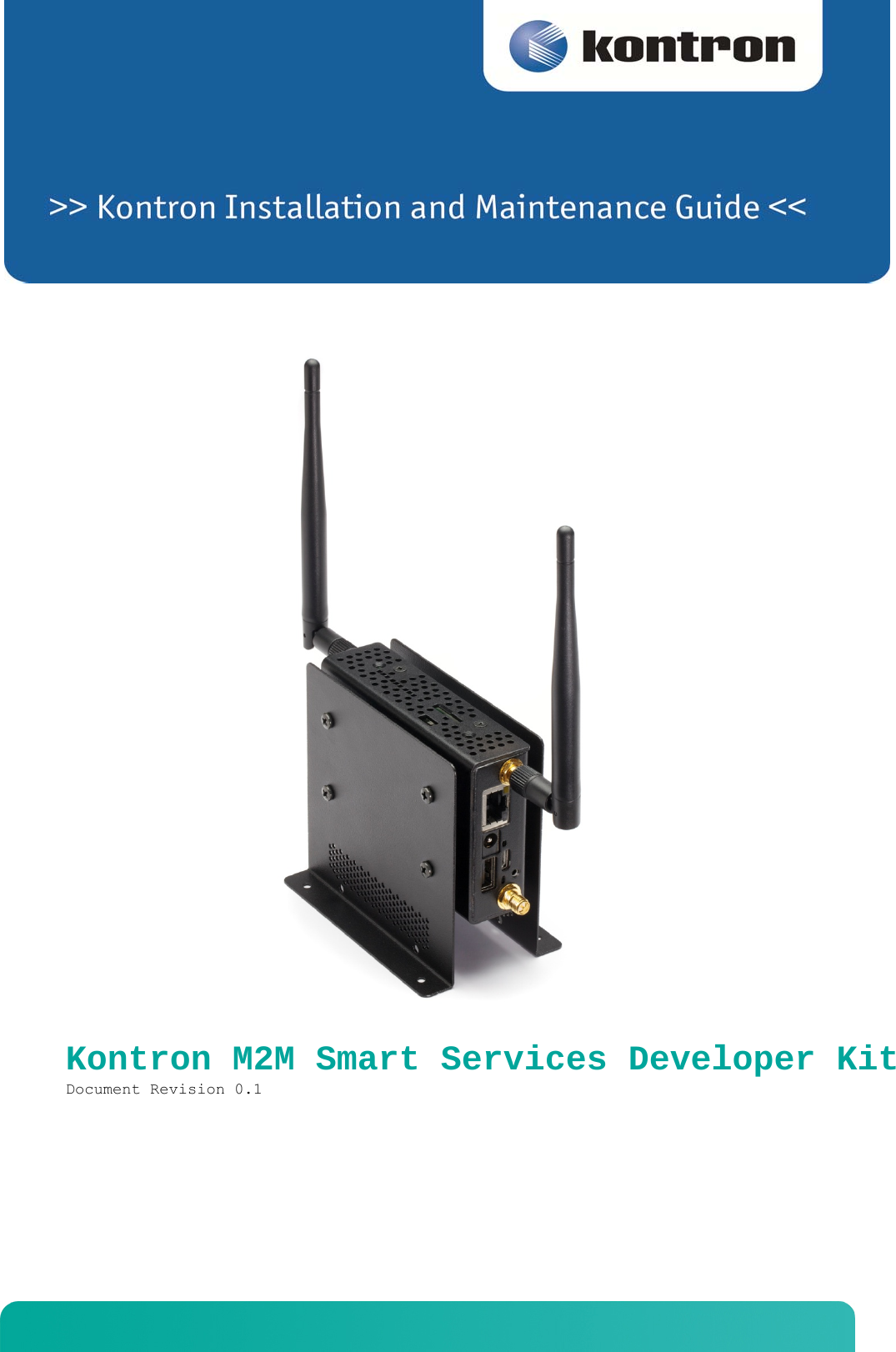
   Kontron M2M Smart Services Developer Kit Document Revision 0.1
   www.kontron.com   www.kontron.com   » Table of Contents « 1Introduction ..................................... 41.1About this Manual ............................................................ 41.2Manual Organization .......................................................... 41.3What Your Kontron M2M Smart Service Developer Kit Includes ................... 41.4Additional Information and Software .......................................... 72Features ......................................... 82.1Kontron M2M Smart Service Developer Kit Components ........................... 82.2Kontron M2M Smart Service Developer Kit Top Panel ........................... 142.3Power Supply ................................................................ 192.4System Cooling .............................................................. 202.5Processors and Memory ....................................................... 20Processors ............................................................... 20Memory ................................................................... 203Drop-In PCI Express Mini Card Module Addition/Replacement ............................ 21Before You Begin ................................................................. 21Tools and Supplies Needed ................................................ 21System References ........................................................ 213.1General Installation Procedures ............................................. 21Removing the Chassis Covers (work on this section – insert photos for step by step) ....................................................... 21Re-installing the Chassis Covers ......................................... 22Removing the PCI Express Module .......................................... 22Installing or Re-Installing the PCI Express Module ....................... 234Component Installations ......................... 244.1Before You Begin ............................................................ 24Tools and Supplies Needed ................................................ 24System References ........................................................ 244.2Installing 802.11/802.11.15.4 Antennas ...................................... 244.3Installing 3G Antennas(only comes with 3G installed SKUs) ................... 254.4Installing your SIM ......................................................... 264.5Installing the LiveUSB Drive ................................................ 264.6Installing the power supply (needs new copy) ................................ 265Operating Guide ................................. 27
   www.kontron.com   www.kontron.com   5.1Turning on the M2M System ................................................... 275.2Turning Off the M2M System .................................................. 275.3Using the BIOS Setup Utility ................................................ 27Using BIOS Setup ......................................................... 27Starting Setup ........................................................... 27If You Cannot Access Setup ............................................... 27Setup Menus .............................................................. 275.4Upgrading the BIOS .......................................................... 29Preparing for the Upgrade ................................................ 29Updating the BIOS ........................................................ 295.5Restoring BIOS Default Settings ............................................. 305.6Clearing the Password ....................................................... 305.7BMC Force Update Procedure .................................................. 316Troubleshooting ................................. 326.1Resetting the System ........................................................ 326.2Problems Following Initial System Installation .............................. 32First Steps Checklist .................................................... 326.3Hardware Diagnostic Testing ................................................. 33Verifying Proper Operation of Key System Lights .......................... 33Confirming the Operating System Load ..................................... 346.4Specific Problems and Corrective Actions .................................... 34Power Light does not Light ............................................... 34No Characters Appear on Screen ........................................... 34Characters are Distorted or Incorrect .................................... 34System Cooling Fans do not Rotate Properly ............................... 35Cannot Connect to a Kontron M2M Smart Service Developer Kit .............. 35Diagnostics Pass but the Connection Fails ................................ 35The Controller Stopped Working When an Add-in Adapter was Installed ...... 35The Add-in Adapter Stopped Working without Apparent Cause ................ 36System Boots When Installing a PCI Card .................................. 36Problems with Newly Installed Application Software ....................... 36Problems with Application Software that Ran Correctly Earlier ............ 36Devices are not Recognized under Device Manager (Windows*OS) ............. 37Hard Drive(s) are not Recognized ......................................... 376.5LED Information ............................................................. 377Warranty ........................................ 388Appendix A: Safety Information .................. 398.1Emissions Disclaimer ........................................................ 39
   www.kontron.com   www.kontron.com   8.2Intended Uses ............................................................... 39If AC power supplies are installed: ...................................... 39If DC power supplies are installed: ...................................... 40Temperature and Ventilation .............................................. 418.3Safety Cautions ............................................................. 41Wichtige Sicherheitshinweise ............................................. 43Consignes de sécurité .................................................... 44Instrucciones de seguridad importantes ................................... 469Appendix B: Regulatory and Certification Information (update for product) ................ 519.1Product Regulatory Compliance (testing pending) ............................. 51Product Safety Compliance ................................................ 51Product EMC Compliance - Class B Compliance .............................. 51Certifications/Registrations/Declarations ................................ 519.2Electromagnetic Compatibility Notices ....................................... 51FCC (USA) ................................................................ 51Industry Canada (ICES-003) ............................................... 52Europe (CE Declaration of Conformity) .................................... 53Regulated Specified Components ........................................... 5310Appendix C: Getting Help ........................ 5410.1World Wide Web .............................................................. 5410.2Telephone ................................................................... 5410.3Email ....................................................................... 54
        4  1 Introduction 1.1 About this Manual Thank you for purchasing and using the Kontron M2M Smart Service Developer Kit. This manual is for smart services developers who are responsible for using the developer kit. This document provides a brief overview of the features of the system followed by a list of accessories or other components you may need or want to purchase, instructions for how to add or replace components in the M2M System and troubleshooting information. NOTE: Always be sure to search for M2M System on the Support website at http://us.kontron.com/support/for the latest version of this manual with possible updates since this version was published. 1.2 Manual Organization Chapter 2 Features provides a brief overview of the Kontron M2M Smart Service Developer Kit.In this chapte, you will find a list of the features, illustrations of the product, and product diagrams to help you identify components and their locations Chapter Error! Reference source not found. Drop-In PCI Express Mini Card Module Addition/Replacement provides instructions for adding and replacing or adding components such as the 3G module. Use this chapter for step-by-step instructions and diagrams for installing or replacing components. Chapter Error! Reference source not found. Error! Reference source not found. provides instructions for adding components such as antennas and the USBLive drive. Use this chapter for step-by-step instructions and diagrams for installing components. Chapter 5 Operating Guide provides instructions for using the M2M System for software development. Utilities that are shipped with the system or that may be required to update the system are covered. This includes how to navigate through the BIOS (Basic Input/Output System) setup screens, how to perform a BIOS update.  Chapter 6 Troubleshooting provides troubleshooting information. You will also find suggestions for performing troubleshooting activities to identify the source of a problem. Chapter 7 Warranty provides the warranty information Appendix A: Safety Information provides the emissions disclaimer, power supply information, temperature and ventilation guidelines, and safety cautions in multiple languages. Appendix B: Regulatory and Certification Information presents the regulatory and safety compliances and electromagnetic compatibility notices Appendix C: Getting Help 1.3 What Your Kontron M2M Smart Service Developer Kit Includes Your Kontron M2M Smart Service Developer Kit includes the following components:
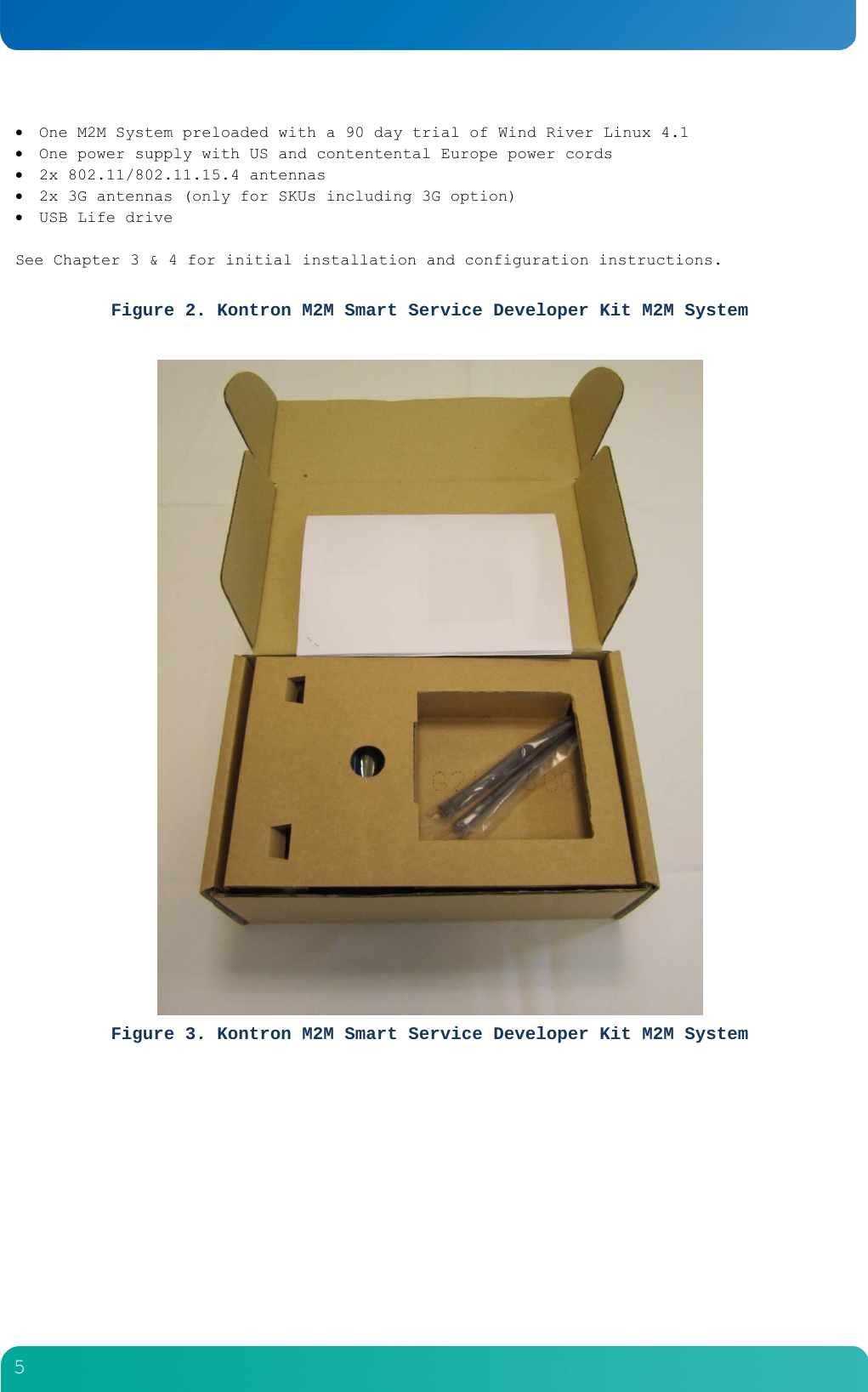
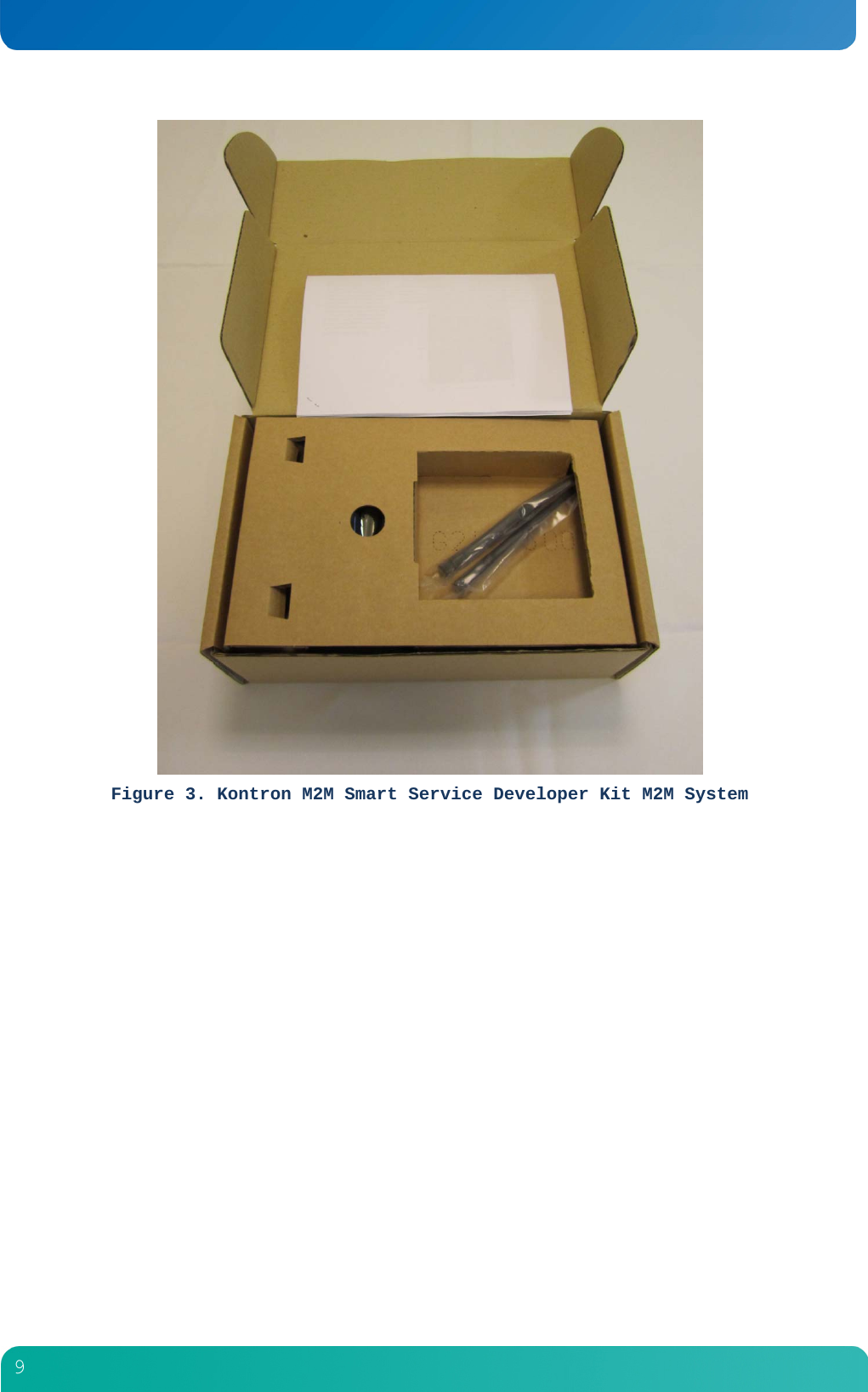
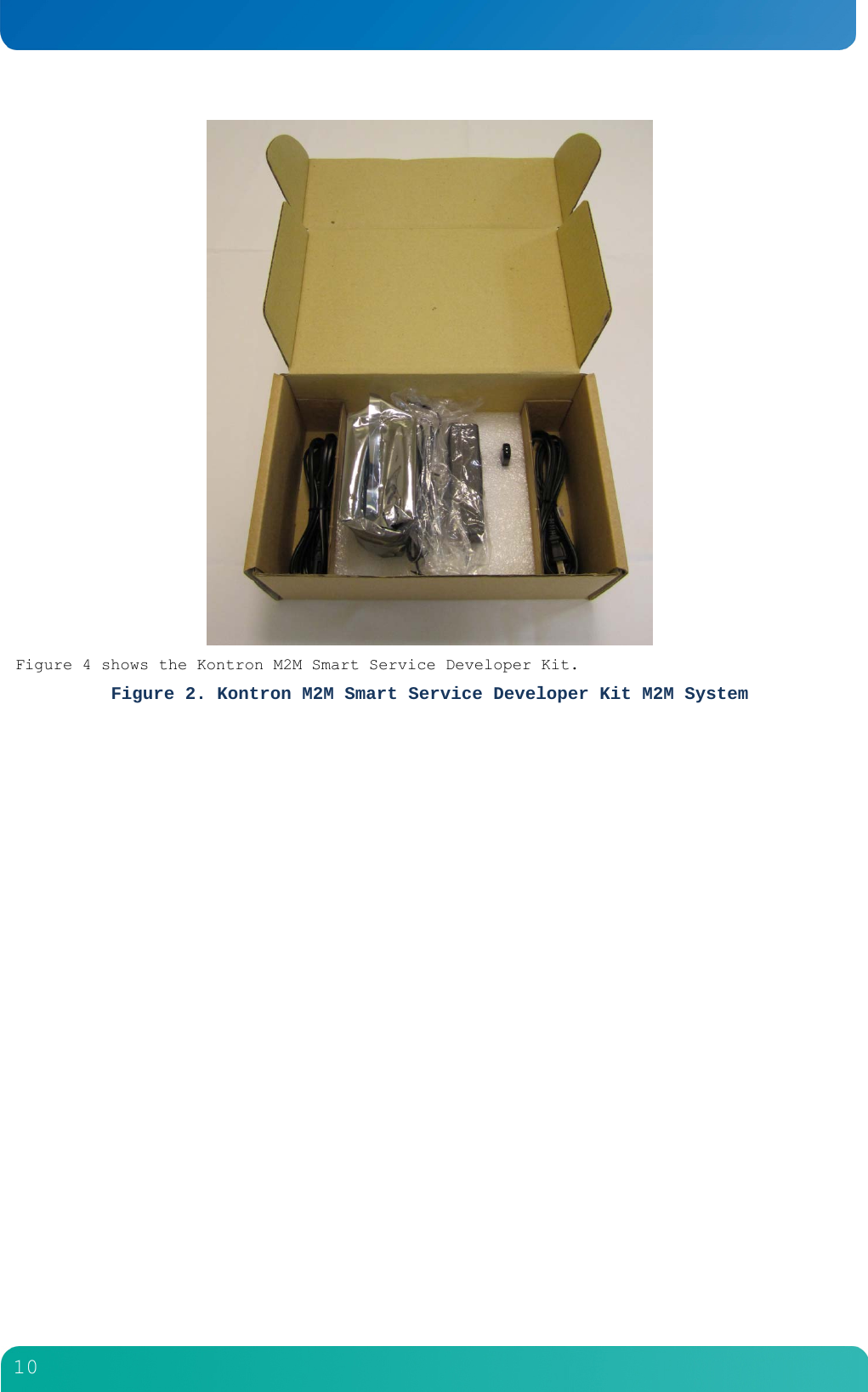
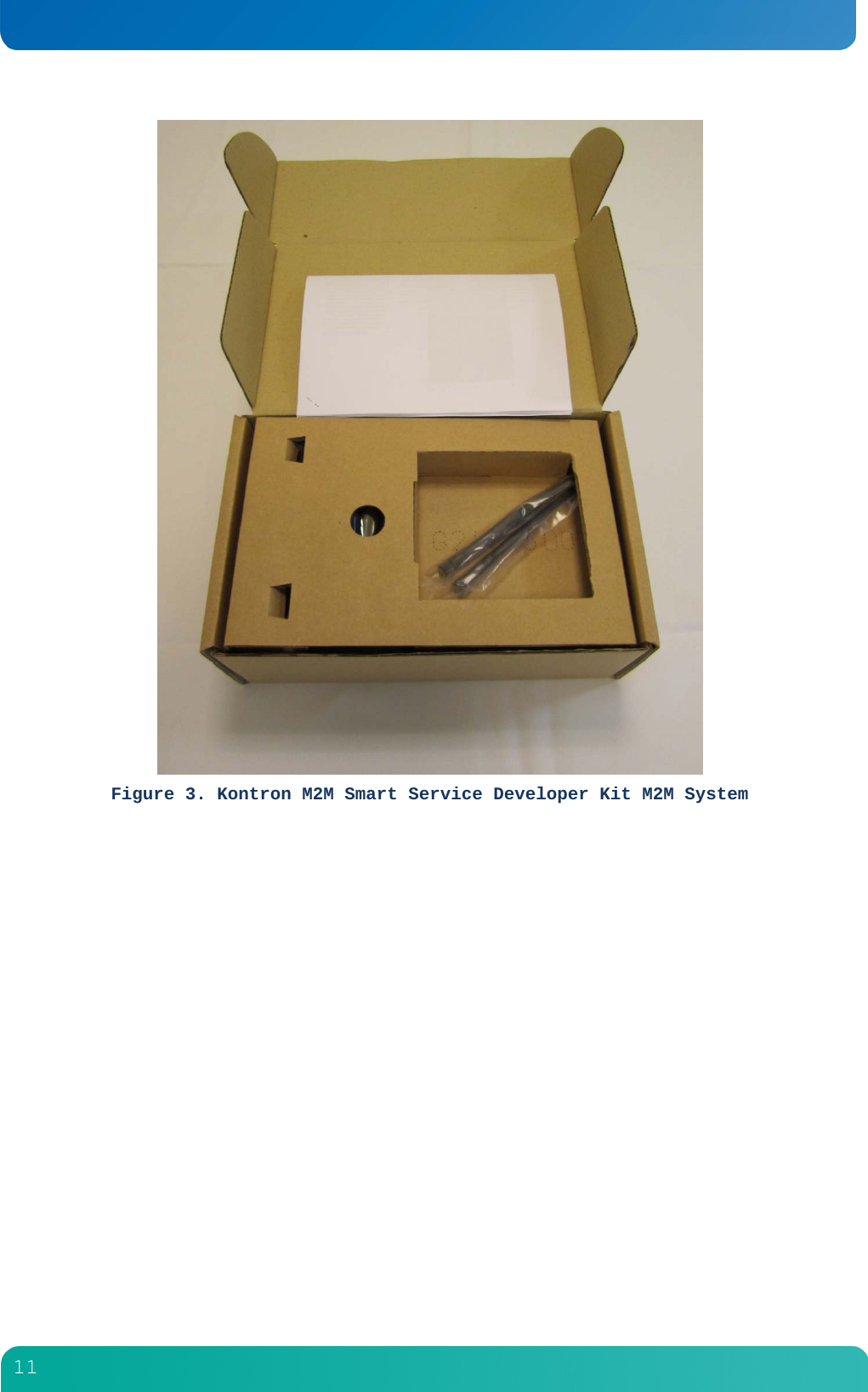
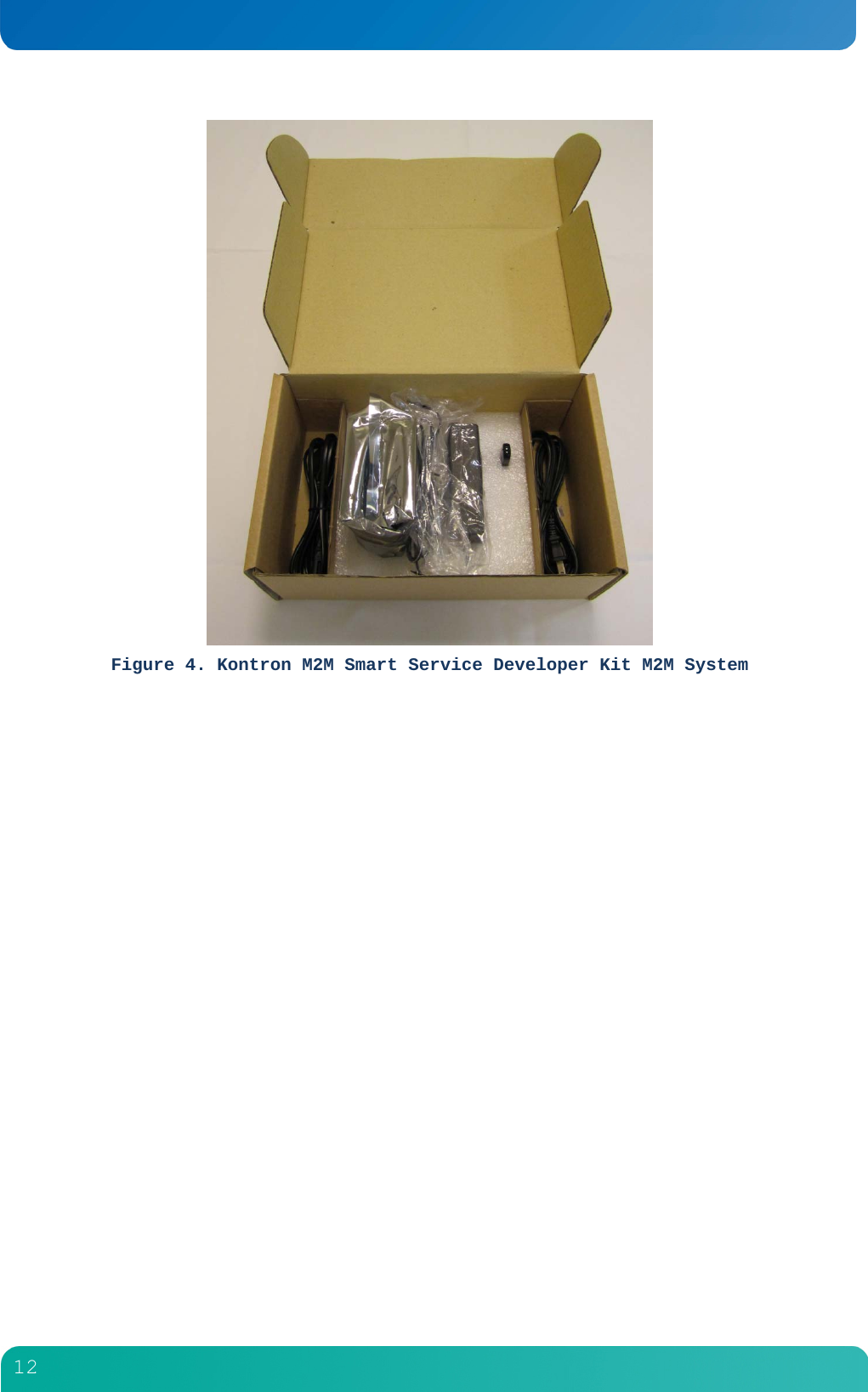
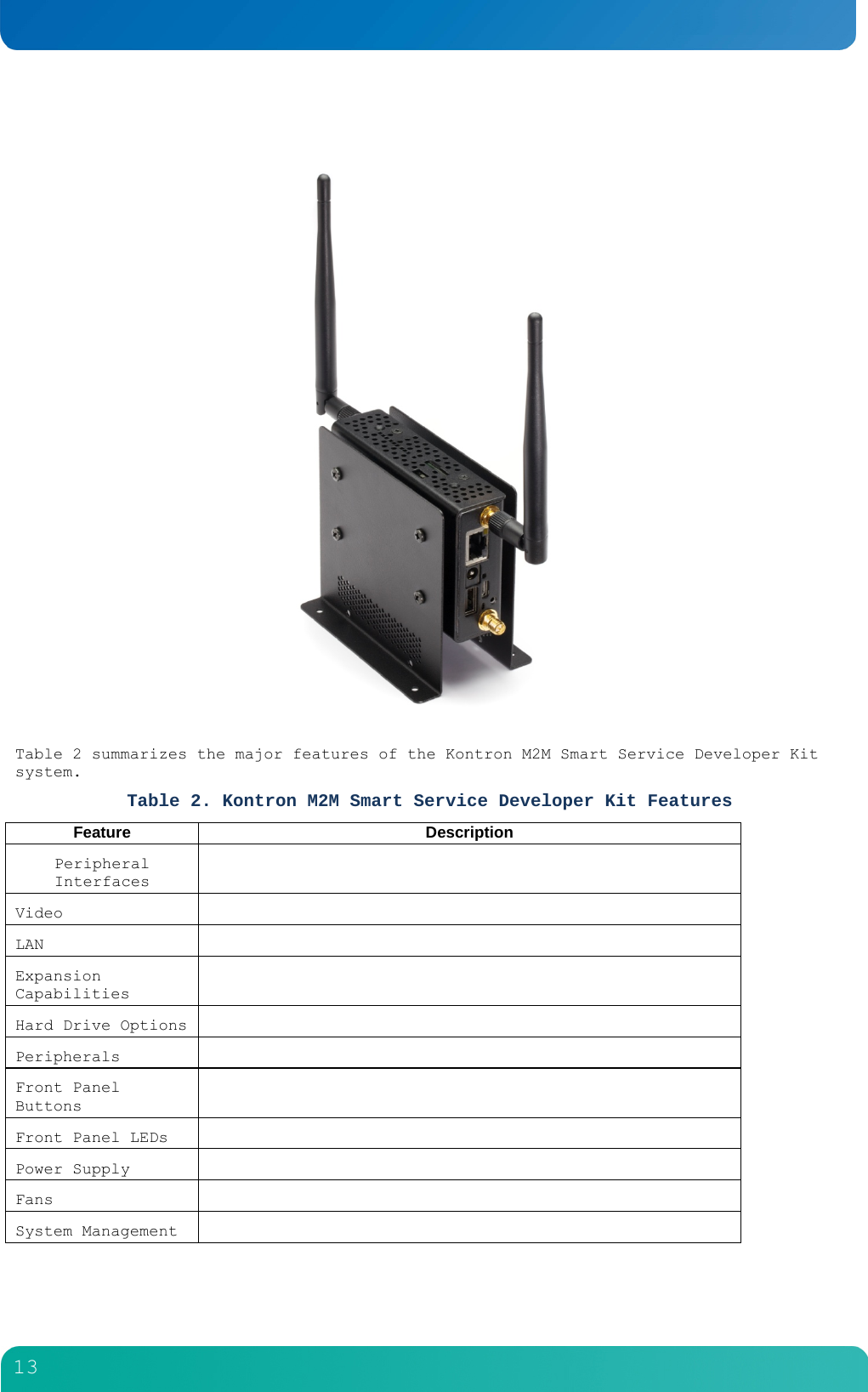
        5   One M2M System preloaded with a 90 day trial of Wind River Linux 4.1  One power supply with US and contentental Europe power cords  2x 802.11/802.11.15.4 antennas  2x 3G antennas (only for SKUs including 3G option)  USB Life drive  See Chapter 3 & 4 for initial installation and configuration instructions.   Figure 2. Kontron M2M Smart Service Developer Kit M2M System   Figure 3. Kontron M2M Smart Service Developer Kit M2M System
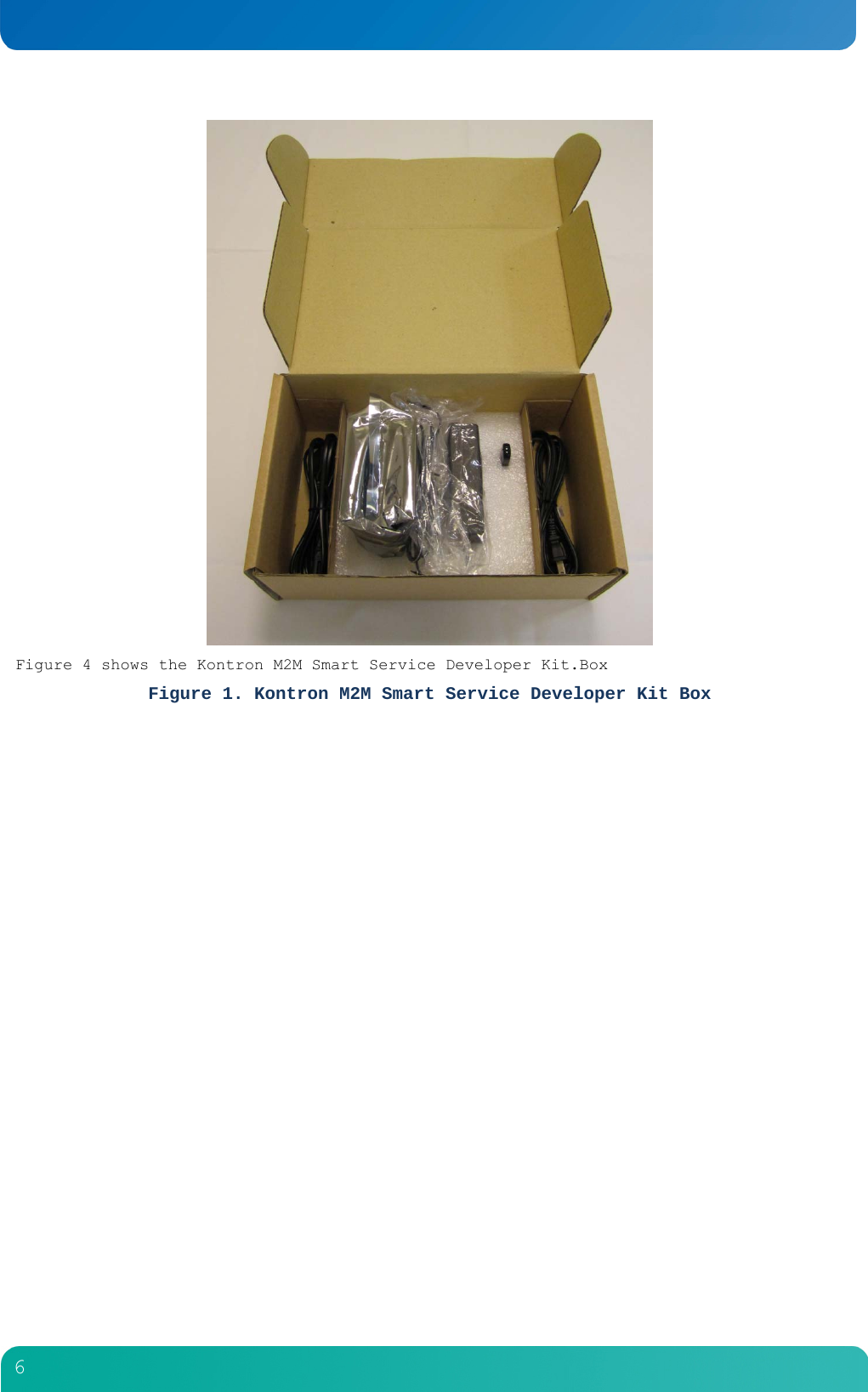
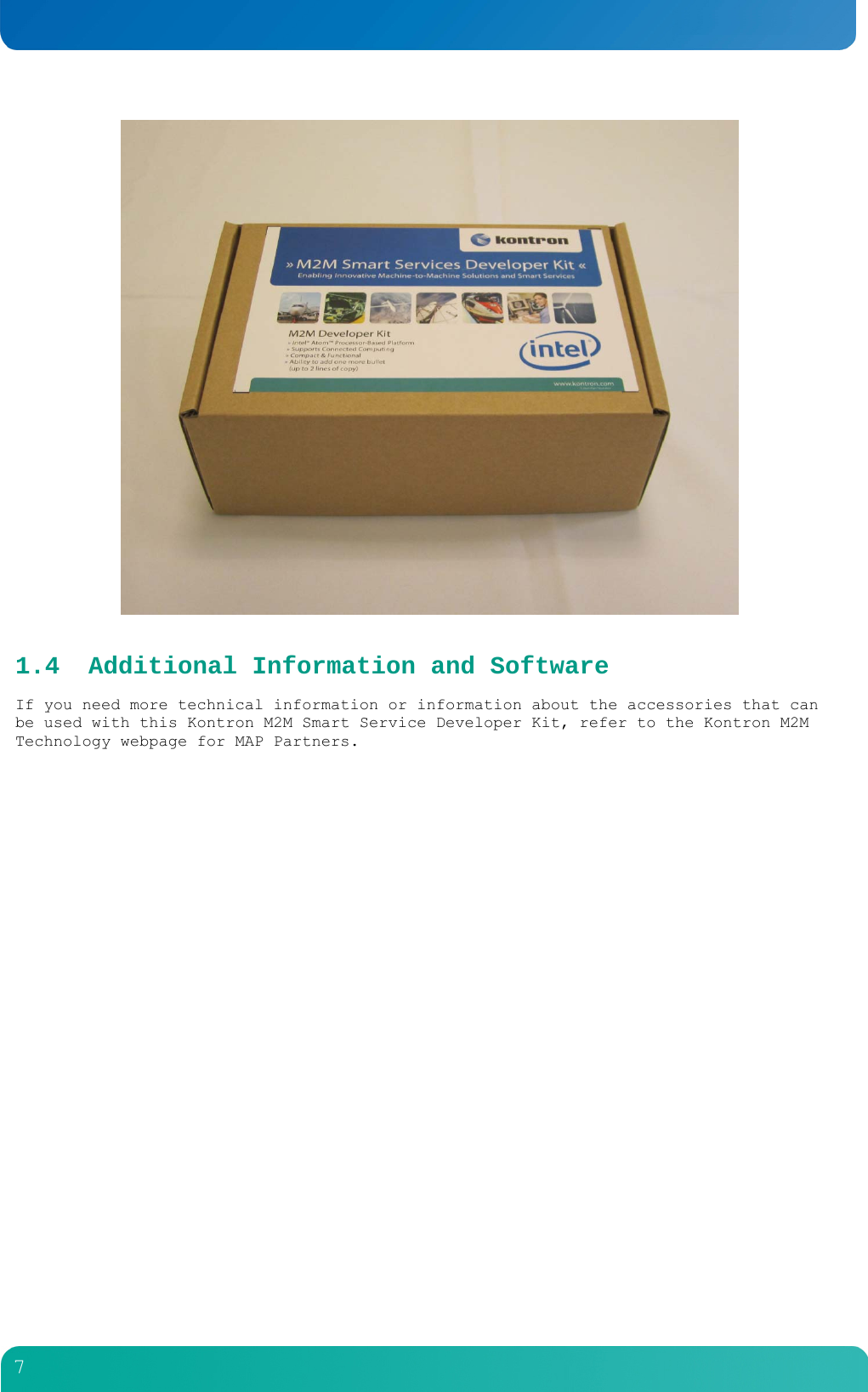
        6   Figure 4 shows the Kontron M2M Smart Service Developer Kit.Box Figure 1. Kontron M2M Smart Service Developer Kit Box
        7   1.4 Additional Information and Software If you need more technical information or information about the accessories that can be used with this Kontron M2M Smart Service Developer Kit, refer to the Kontron M2M Technology webpage for MAP Partners.
        8  2 Features This chapter briefly describes the main features of the Kontron M2M Smart Service Developer Kit. It provides a diagram of the product, a list of the Kontron M2M Smart Service Developer Kit features, and a diagram showing the location of important components and connections on the Kontron M2M Smart Service Developer Kit M2M system. 2.1 Kontron M2M Smart Service Developer Kit Components Error! Reference source not found. shows the KONTRON Kontron M2M Smart Service Developer Kit with top covers and front bezel removed to show the internal components. Table 1. Kontron M2M Smart Service Developer Kit Components Item Description  Item Description A  M2M System  E  802.11 antenna B  Power Supply  F  802.11 antenna C  Continental power cord  G  Live USB drive D  US power cord  H  In-box literature  Figure 2. Kontron M2M Smart Service Developer Kit M2M System
        9   Figure 3. Kontron M2M Smart Service Developer Kit M2M System
        10   Figure 4 shows the Kontron M2M Smart Service Developer Kit. Figure 2. Kontron M2M Smart Service Developer Kit M2M System
        11   Figure 3. Kontron M2M Smart Service Developer Kit M2M System
        12   Figure 4. Kontron M2M Smart Service Developer Kit M2M System
        13   Table 2 summarizes the major features of the Kontron M2M Smart Service Developer Kit system. Table 2. Kontron M2M Smart Service Developer Kit Features Feature DescriptionPeripheral Interfaces   Video  LAN  Expansion Capabilities   Hard Drive Options   Peripherals  Front Panel Buttons   Front Panel LEDs    Power Supply   Fans  System Management
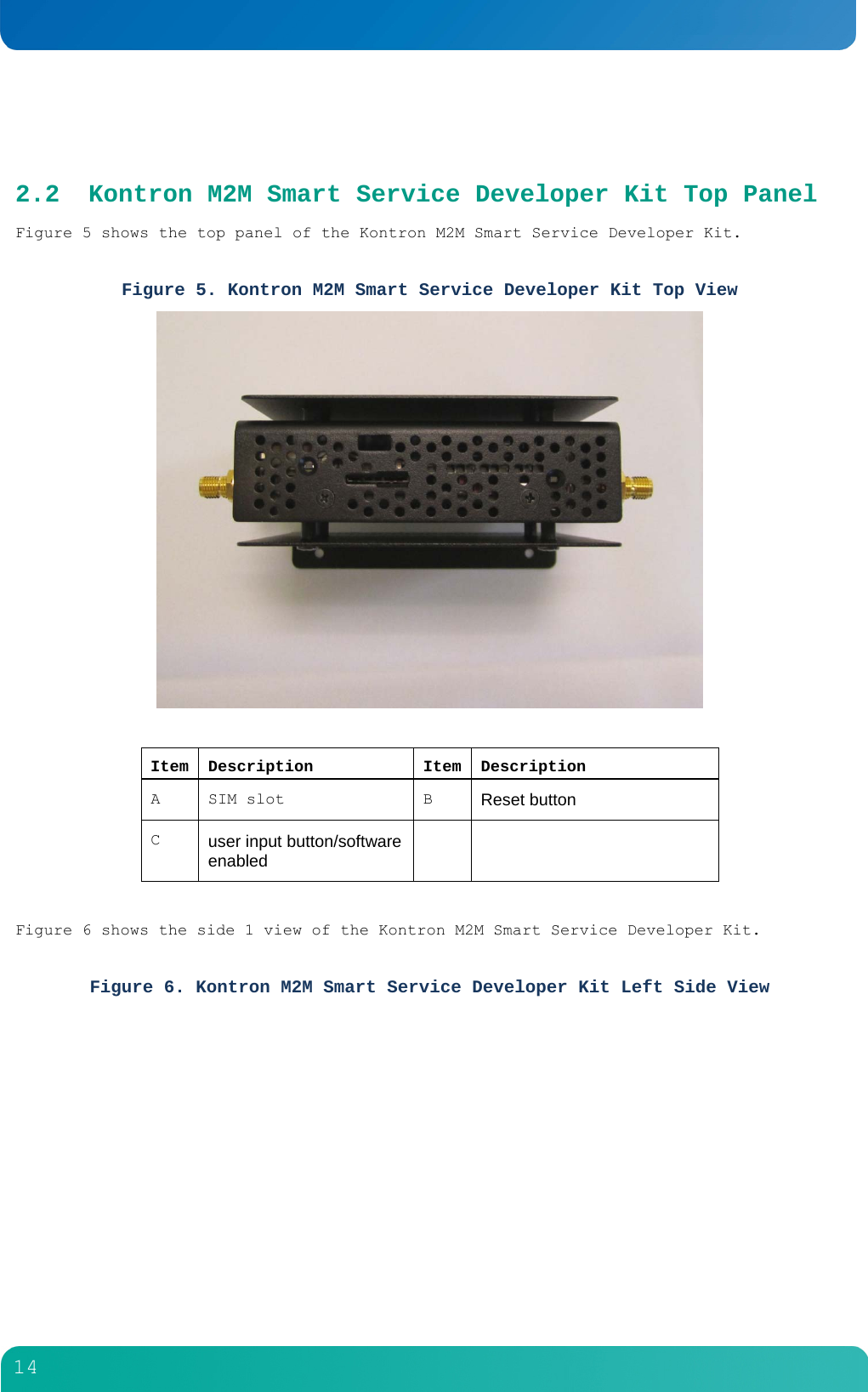
        14   2.2 Kontron M2M Smart Service Developer Kit Top Panel Figure 5 shows the top panel of the Kontron M2M Smart Service Developer Kit.  Figure 5. Kontron M2M Smart Service Developer Kit Top View    Item Description  Item Description A SIM slot  B Reset button  C  user input button/software enabled    Figure 6 shows the side 1 view of the Kontron M2M Smart Service Developer Kit.  Figure 6. Kontron M2M Smart Service Developer Kit Left Side View
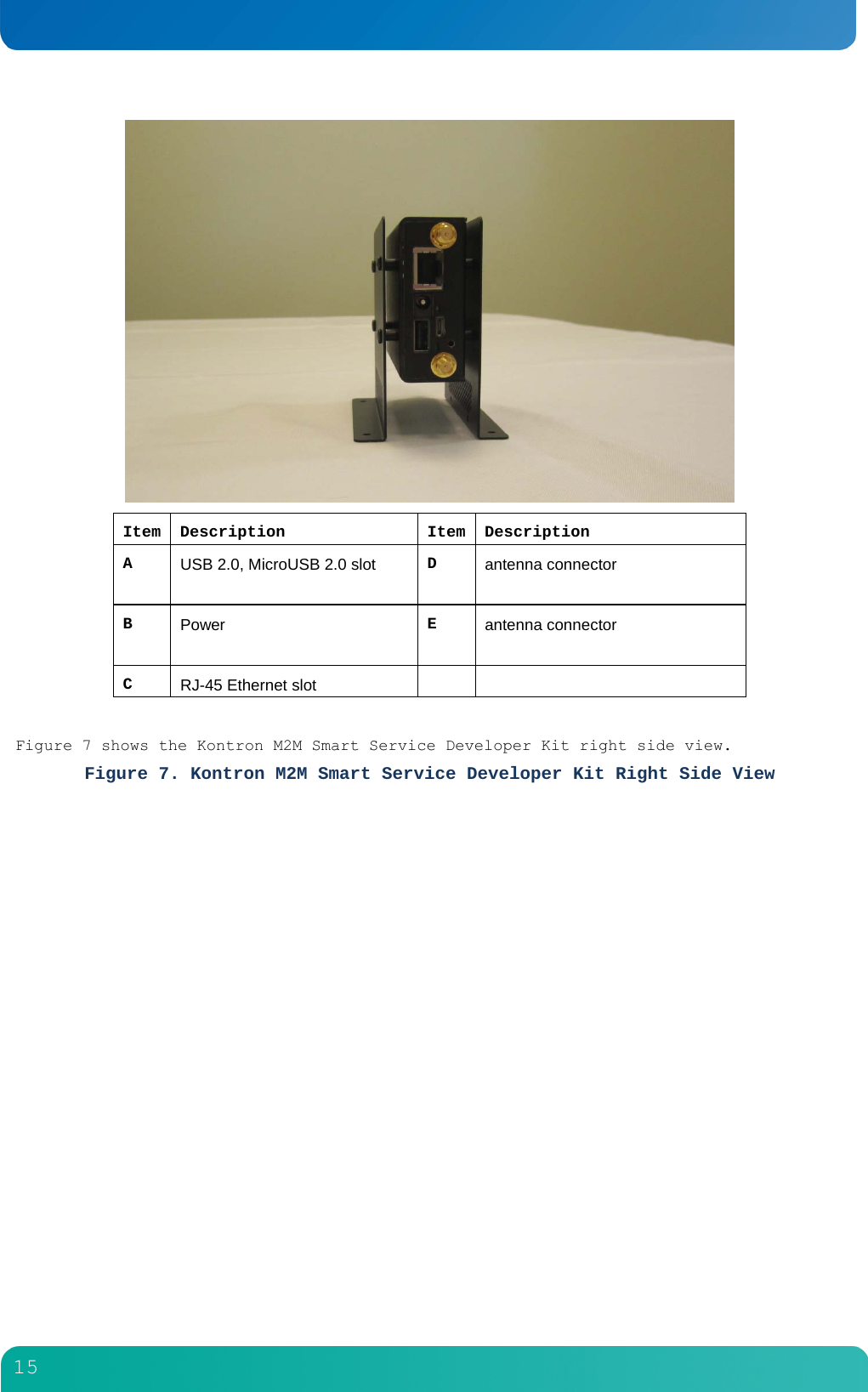
        15   Item Description Item Description A  USB 2.0, MicroUSB 2.0 slot D  antenna connector  B  Power E  antenna connector  C  RJ-45 Ethernet slot    Figure 7 shows the Kontron M2M Smart Service Developer Kit right side view. Figure 7. Kontron M2M Smart Service Developer Kit Right Side View
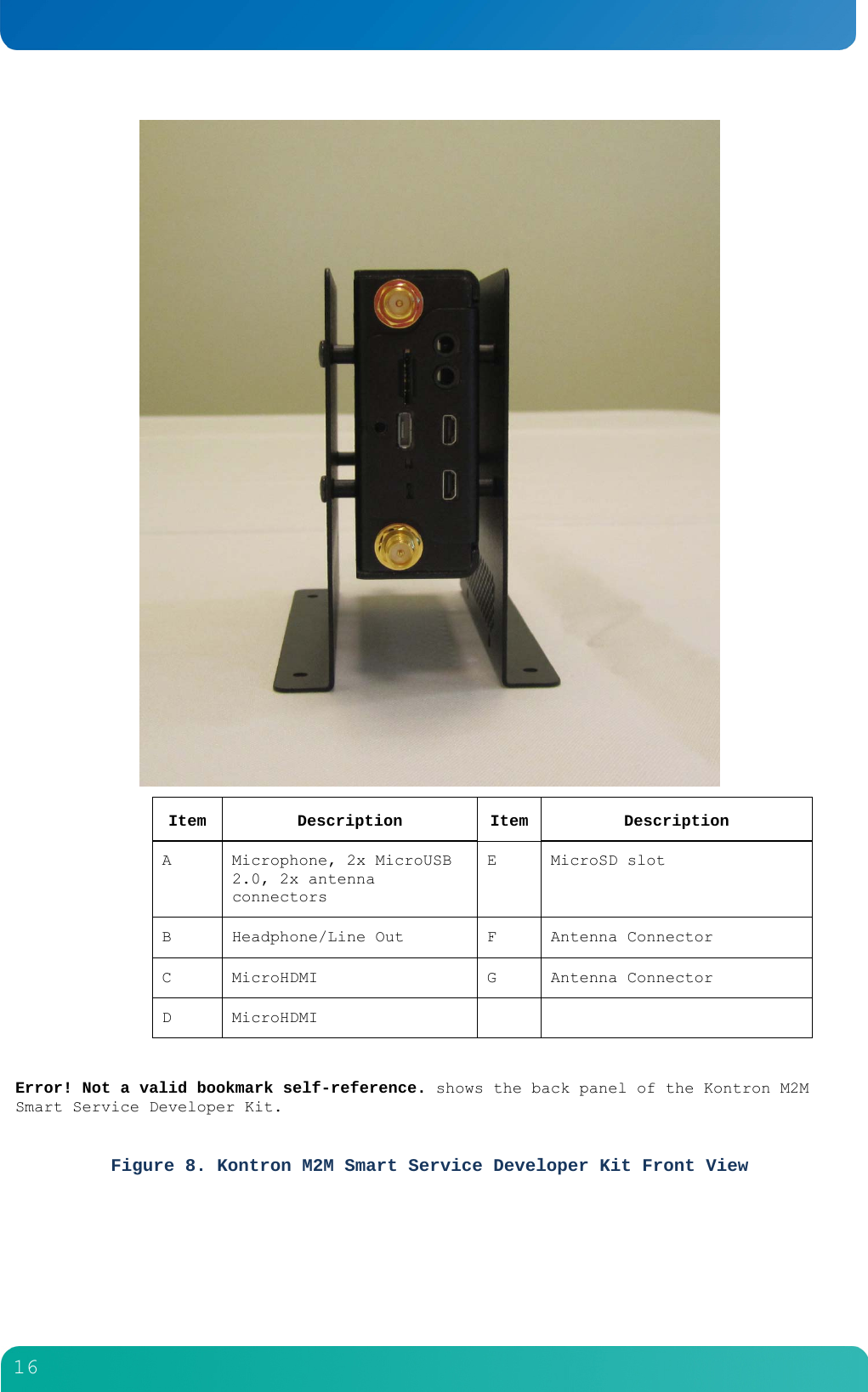
        16   Item Description Item  Description A  Microphone, 2x MicroUSB 2.0, 2x antenna connectors E MicroSD slot B  Headphone/Line Out  F  Antenna Connector C MicroHDMI  G Antenna Connector D MicroHDMI      Error! Not a valid bookmark self-reference. shows the back panel of the Kontron M2M Smart Service Developer Kit.  Figure 8. Kontron M2M Smart Service Developer Kit Front View
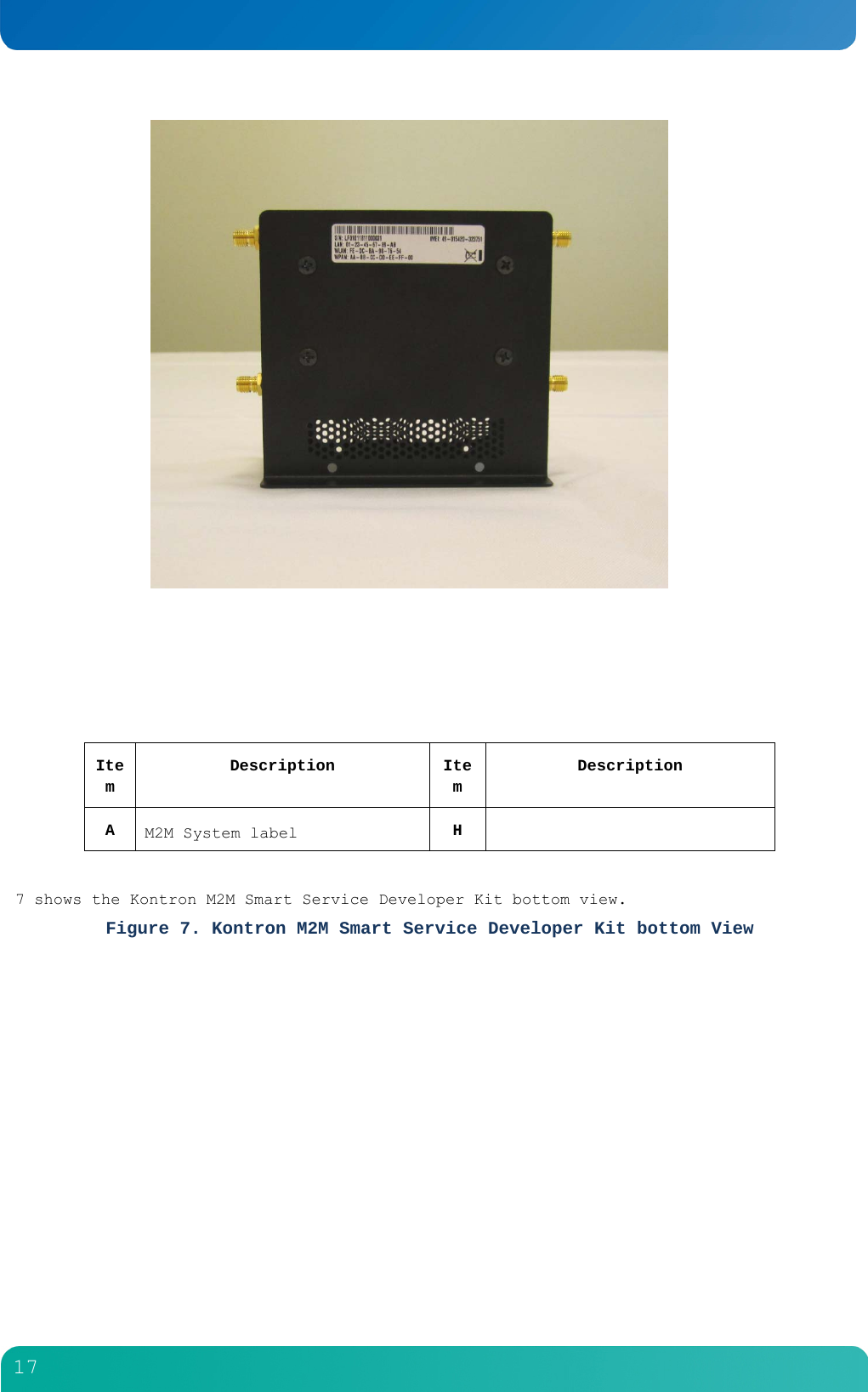
        17        Item Description Item Description A  M2M System label  H    7 shows the Kontron M2M Smart Service Developer Kit bottom view. Figure 7. Kontron M2M Smart Service Developer Kit bottom View
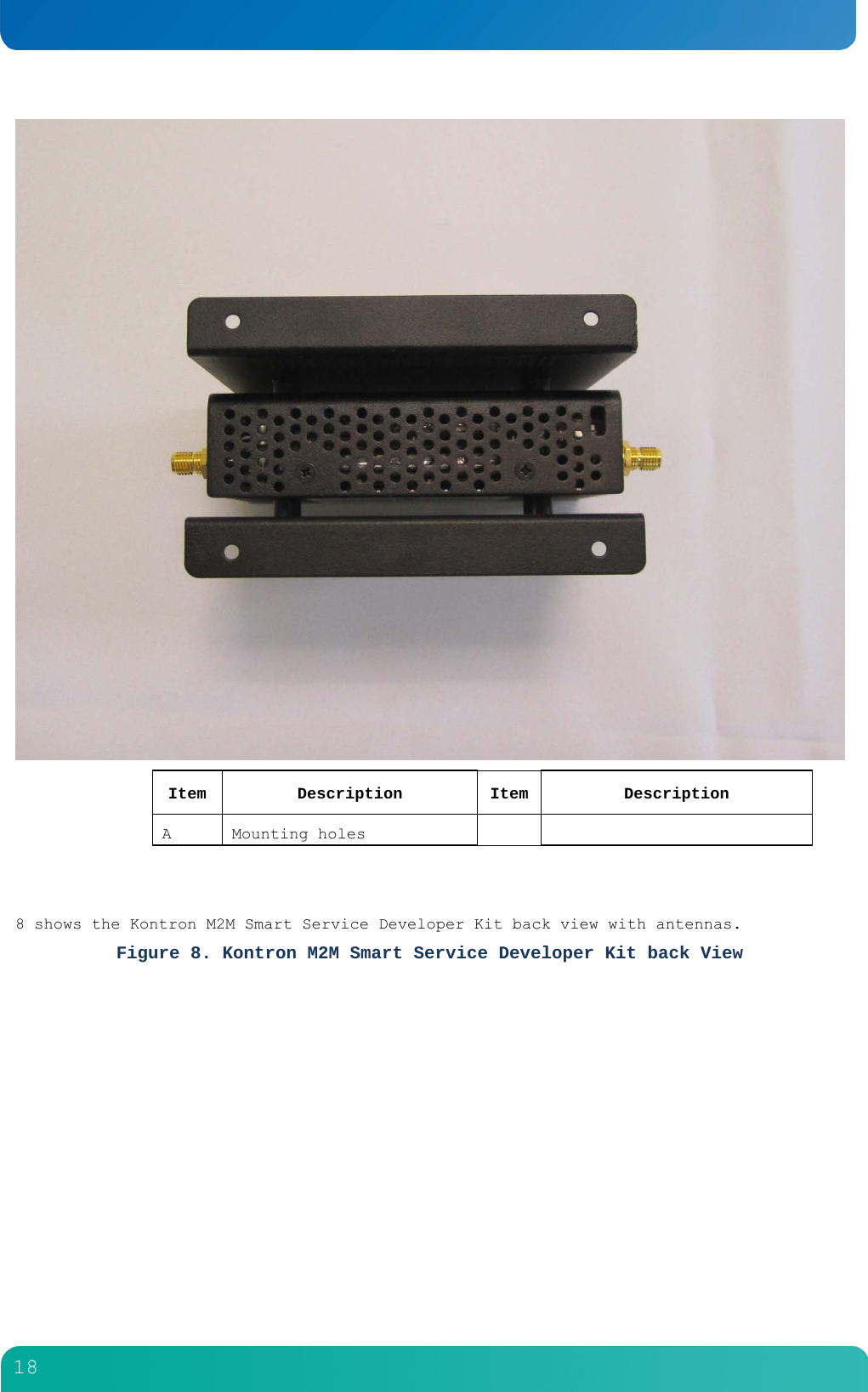
        18   Item Description Item  Description A Mounting holes       8 shows the Kontron M2M Smart Service Developer Kit back view with antennas. Figure 8. Kontron M2M Smart Service Developer Kit back View
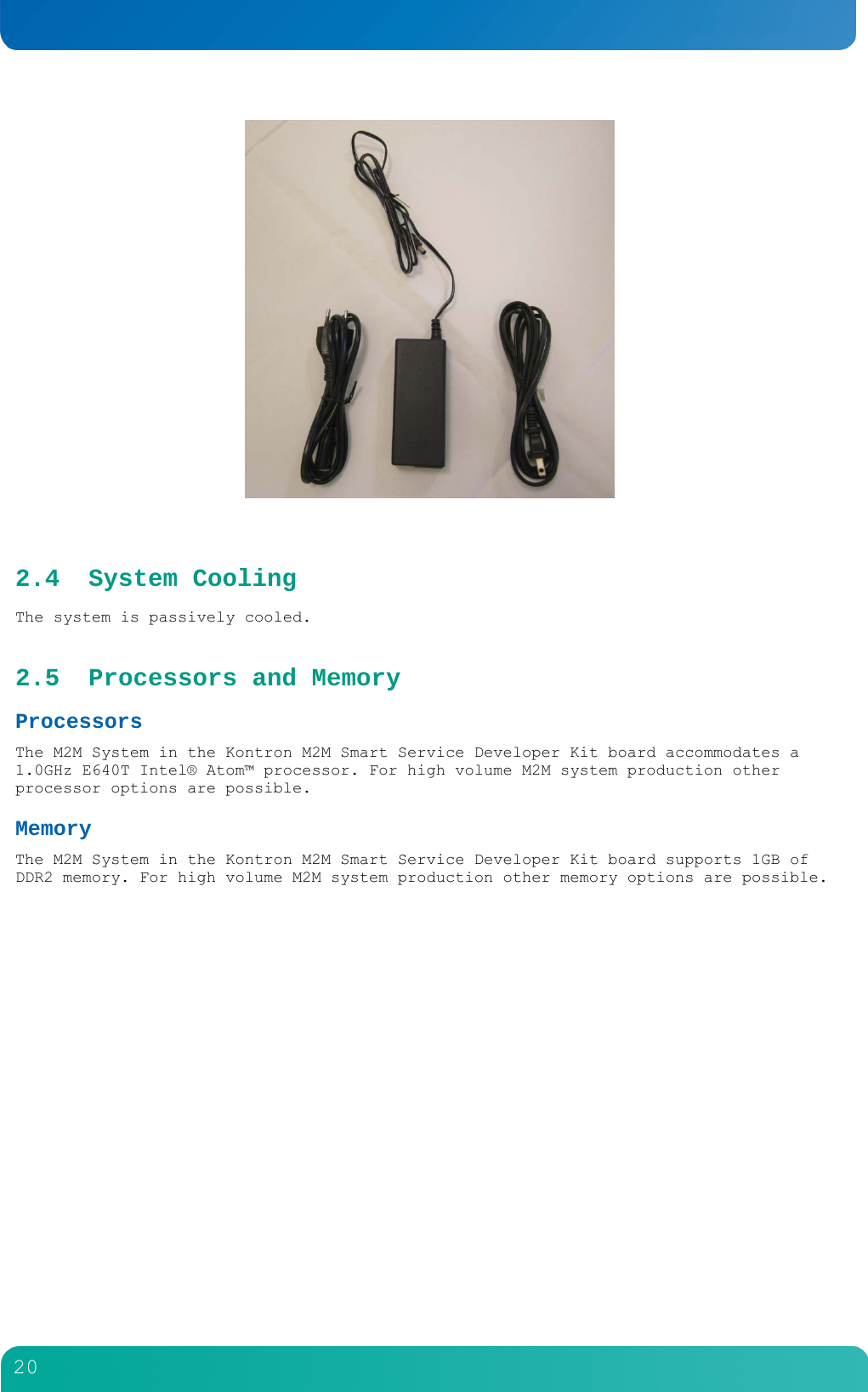
        19      2.3 Power Supply The power supply included with the Kontron M2M Smart Service Developer Kit is 100-240 Vac, 50/60 Hz input, 12 VDC, 2A output. If the power supply needs replacement, replace with Delta power AC adapter model EADP-24MB A.
        20    2.4 System Cooling The system is passively cooled. 2.5 Processors and Memory  Processors The M2M System in the Kontron M2M Smart Service Developer Kit board accommodates a 1.0GHz E640T Intel® Atom™ processor. For high volume M2M system production other processor options are possible.  Memory The M2M System in the Kontron M2M Smart Service Developer Kit board supports 1GB of DDR2 memory. For high volume M2M system production other memory options are possible.
        21  3 Drop-In PCI Express Mini Card Module Addition/Replacement  Before You Begin Before working with your Kontron M2M Smart Service Developer Kit product, pay close attention to the safety instructions provided in this manual. See Appendix A, “Appendix A: Safety Information” Warning: Electrostatic discharge (ESD) and ESD protection: ESD can damage disk drives, boards, and other parts. We recommend that you perform all procedures in this chapter only at an ESD workstation. If one is not available, provide some ESD protection by wearing an antistatic wrist strap attached to chassis ground (any unpainted metal surface) on your Kontron M2M Smart Service Developer Kit when handling parts. Tools and Supplies Needed   #1 and #2 Phillips (cross-point) screwdrivers (or interchangeable tip screwdriver with #1 and #2 Phillips bits)  Torque screwdriver  Personal grounding device such as an anti-static wrist strap and a grounded conductive pad System References All references to left, right, front, rear, top, and bottom assume that you are facing the front of the Kontron M2M Smart Service Developer Kit, as it would be positioned for normal operation. 3.1 General Installation Procedures The following sections present general installation and removal procedures that are required before removing or installing internal components that are not hot-swappable from the front or rear panels.  Removing the Chassis Covers (work on this section – insert photos for step by step) The Kontron M2M Smart Service Developer Kit must be operated with the front cover in place to ensure proper cooling. You will need to remove the front cover to add or replace components inside the chassis.   CAUTION: The system should be disconnected from the power supply when adding components. Before removing either the mounting bracket or front cover, power down the Kontron M2M System. . A non-skid surface or a stop behind the Kontron M2M Smart Service Developer Kit may be needed to prevent the Kontron M2M Smart Service Developer Kit from sliding on your work surface. 1. Observe the safety and ESD precautions in Appendix A, “Appendix A: Safety Information”. 2. Turn off all peripheral devices connected to the Kontron M2M Smart Service Developer Kit.  Turn off the Kontron M2M System.
        22  3. Disconnect the power cord(s). Error! Reference source not found. shows the front covers and how they are removed. Removing the Front Cover 1. Remove the shipping screw on the left side edge of the cover, if it is still attached, and save it for future use. (Error! Reference source not found., “A”) 2. While holding the blue button at the top right of the front cover (Error! Reference source not found., “B”), slide the cover forward until it stops. 3. Lift the cover straight up to remove it from the chassis.   Re-installing the Chassis Covers When you are finished working inside the chassis, you must put the cover(s) back on before turning the Kontron M2M Smart Service Developer Kit back on. This step is required to ensure proper cooling. If you are reinstalling both covers, start with the back cover and then install the front cover. Re-Installing the Front Cover 1. Place the front cover over the chassis with the side edges of the cover outside the chassis walls. 2. Slide the front cover toward the back cover until the tabs fit together and the front cover is firmly in place. 3. Install the shipping screw if tooled entry is required or if the unit will be shipped. 4. Reconnect all peripheral devices and the power cord(s). CAUTION: This unit must have both covers installed when it is running to ensure proper cooling. Removing the PCI Express Module  The riser card assembly cage has to be removed from the chassis to perform tasks such as:  Installing or replacing the riser card and any PCI add-in card(s)  Working with any components on the Kontron M2M Smart Service Developer Kit board that are near the riser card assembly   Removing the air duct to install or replace processors or memory DIMMs  Removing the bridge board  Removing the Kontron M2M Smart Service Developer Kit board To remove the riser card assembly: 1. Power down the Kontron M2M Smart Service Developer Kit and remove all peripheral devices and the power cord(s) 2. Remove the back chassis cover. For instructions, see “Removing the Chassis Covers” in Section 3.1. 3. Loosen the blue captive thumb screw (Figure 9, “B”) at the rear of the chassis. Notice the guide pins that will be used to re-install the riser assembly into the chassis. (“A”) 4. Lift the riser card assembly out of the chassis.
        23  5. If there is a riser card in the assembly, rest the assembly upside-down with the sheet metal cover on the bottom so the assembly is not resting on the card edge. Figure 9. Riser Card Assembly Retention Screw  Installing or Re-Installing the PCI Express Module  To re-install the riser card assembly: 1. Position the riser front tab guide hole over the guide pin on the Kontron M2M Smart Service Developer Kit board. See Error! Reference source not found., (“C”). 2. Make sure the forks on the back of the assembly rest securely on the guide pins on the rear of the chassis (“B”).  3. Using the blue touch points on the top of the assembly (A), press down to mate the riser card with the header on the Kontron M2M Smart Service Developer Kit board. NOTE: To avoid damaging the card edge, be sure that the card is lined up straight with the header, not on an angle. 4. Tighten the blue retention screw on the rear of the chassis. See Figure 9. 5. Replace the chassis back cover. For instructions see “Error! Reference source not found.” in Section 3.1.
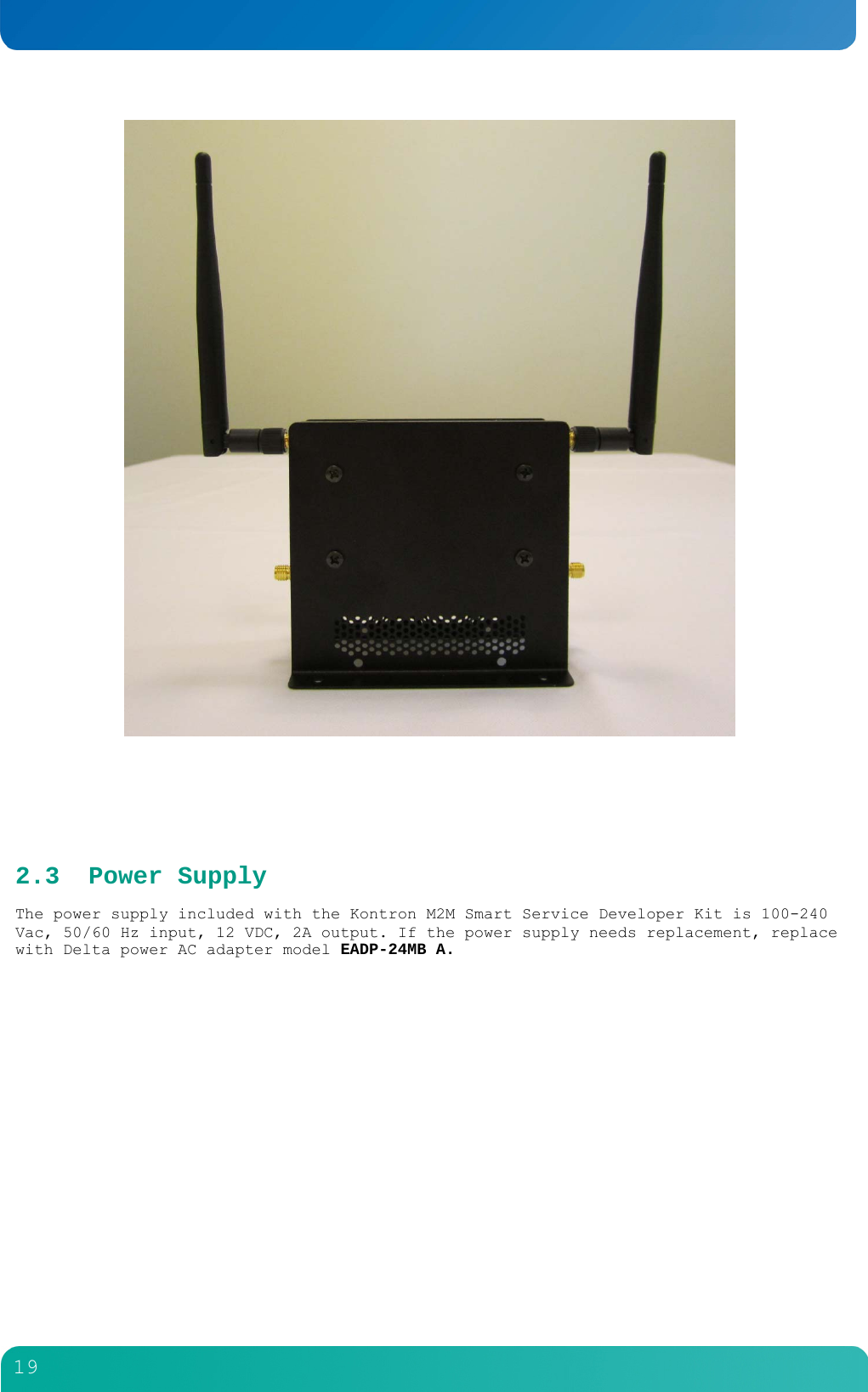
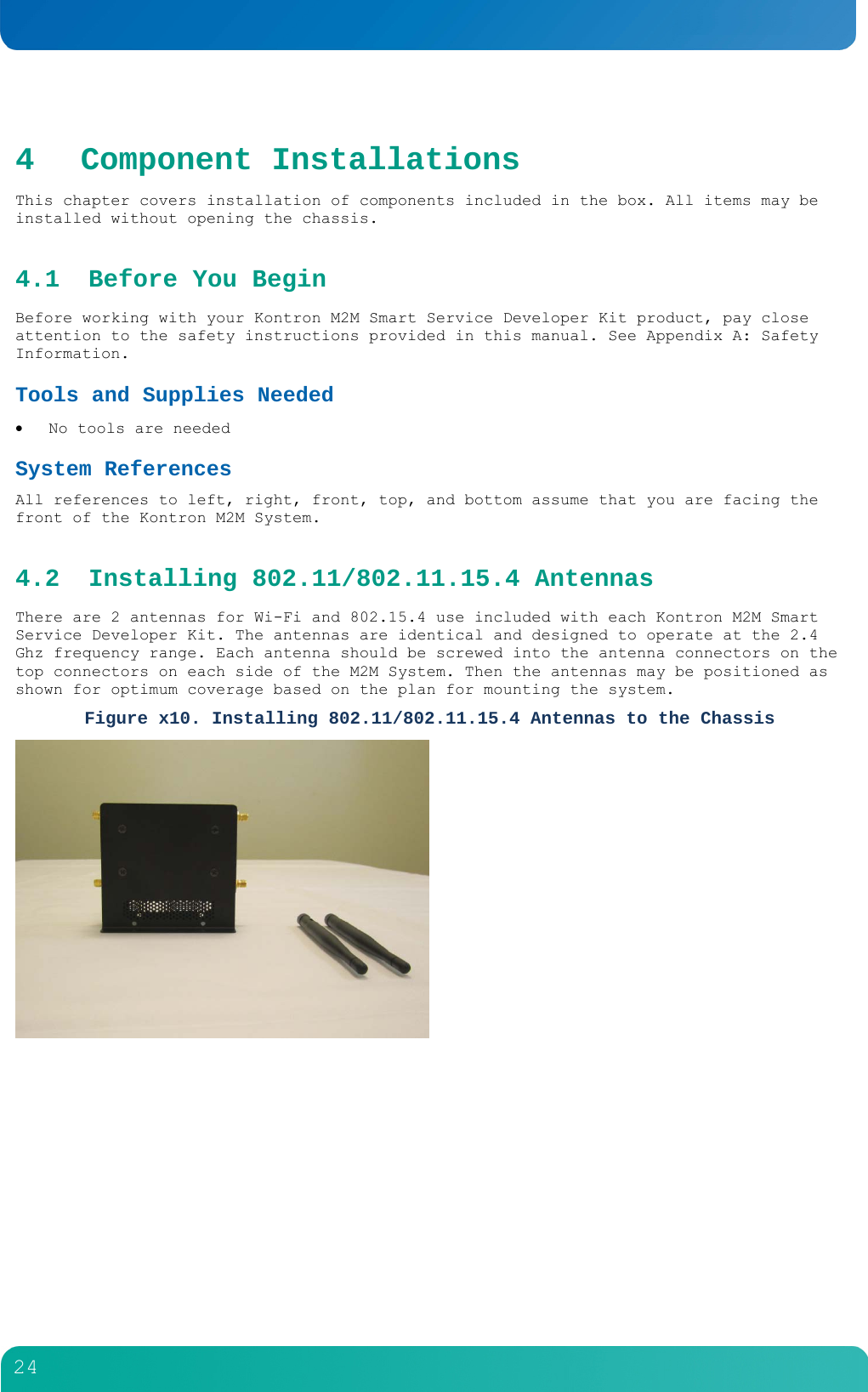
        24  4 Component Installations This chapter covers installation of components included in the box. All items may be installed without opening the chassis. 4.1 Before You Begin Before working with your Kontron M2M Smart Service Developer Kit product, pay close attention to the safety instructions provided in this manual. See Appendix A: Safety Information. Tools and Supplies Needed   No tools are needed System References All references to left, right, front, top, and bottom assume that you are facing the front of the Kontron M2M System.  4.2 Installing 802.11/802.11.15.4 Antennas There are 2 antennas for Wi-Fi and 802.15.4 use included with each Kontron M2M Smart Service Developer Kit. The antennas are identical and designed to operate at the 2.4 Ghz frequency range. Each antenna should be screwed into the antenna connectors on the top connectors on each side of the M2M System. Then the antennas may be positioned as shown for optimum coverage based on the plan for mounting the system. Figure x10. Installing 802.11/802.11.15.4 Antennas to the Chassis
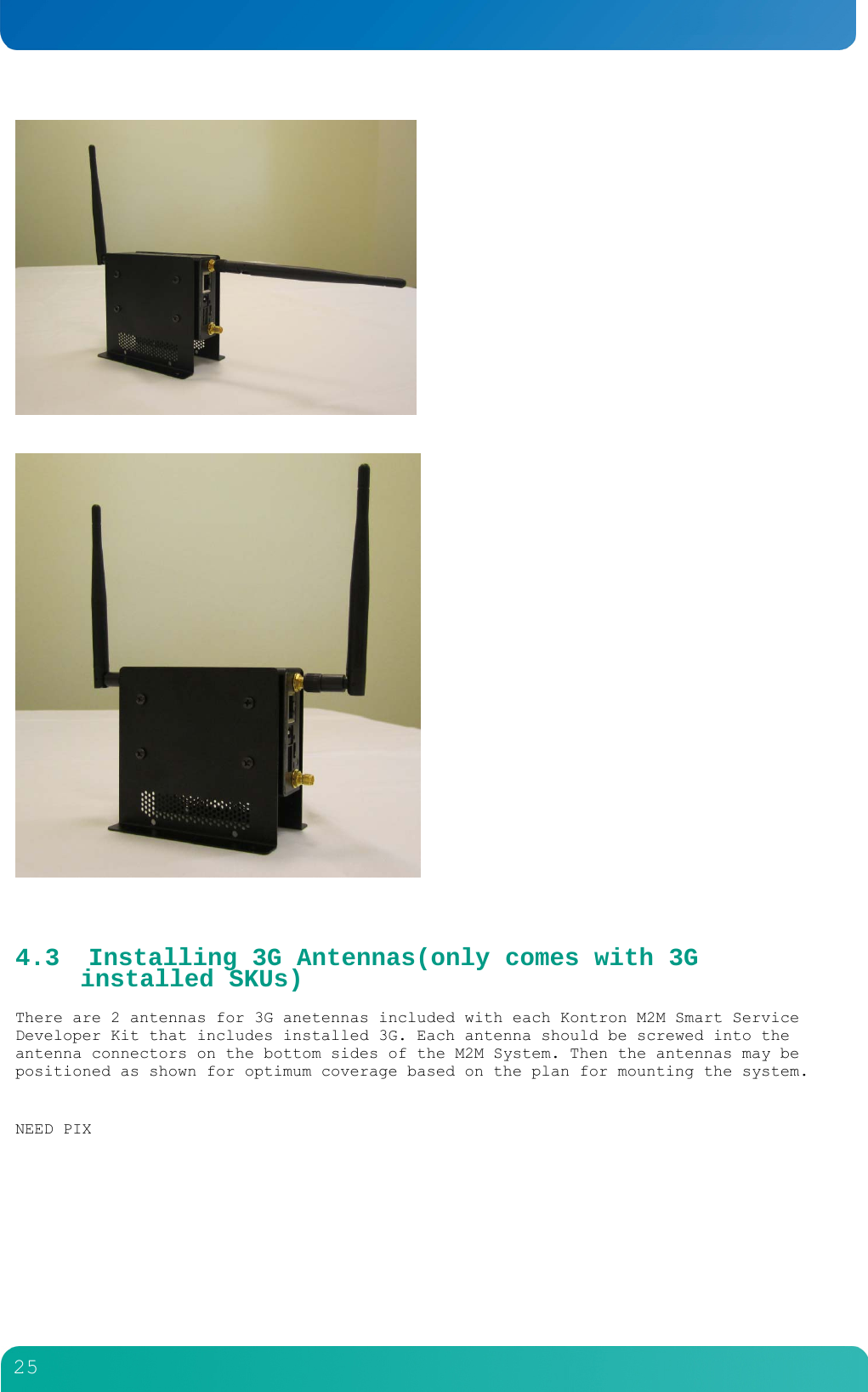
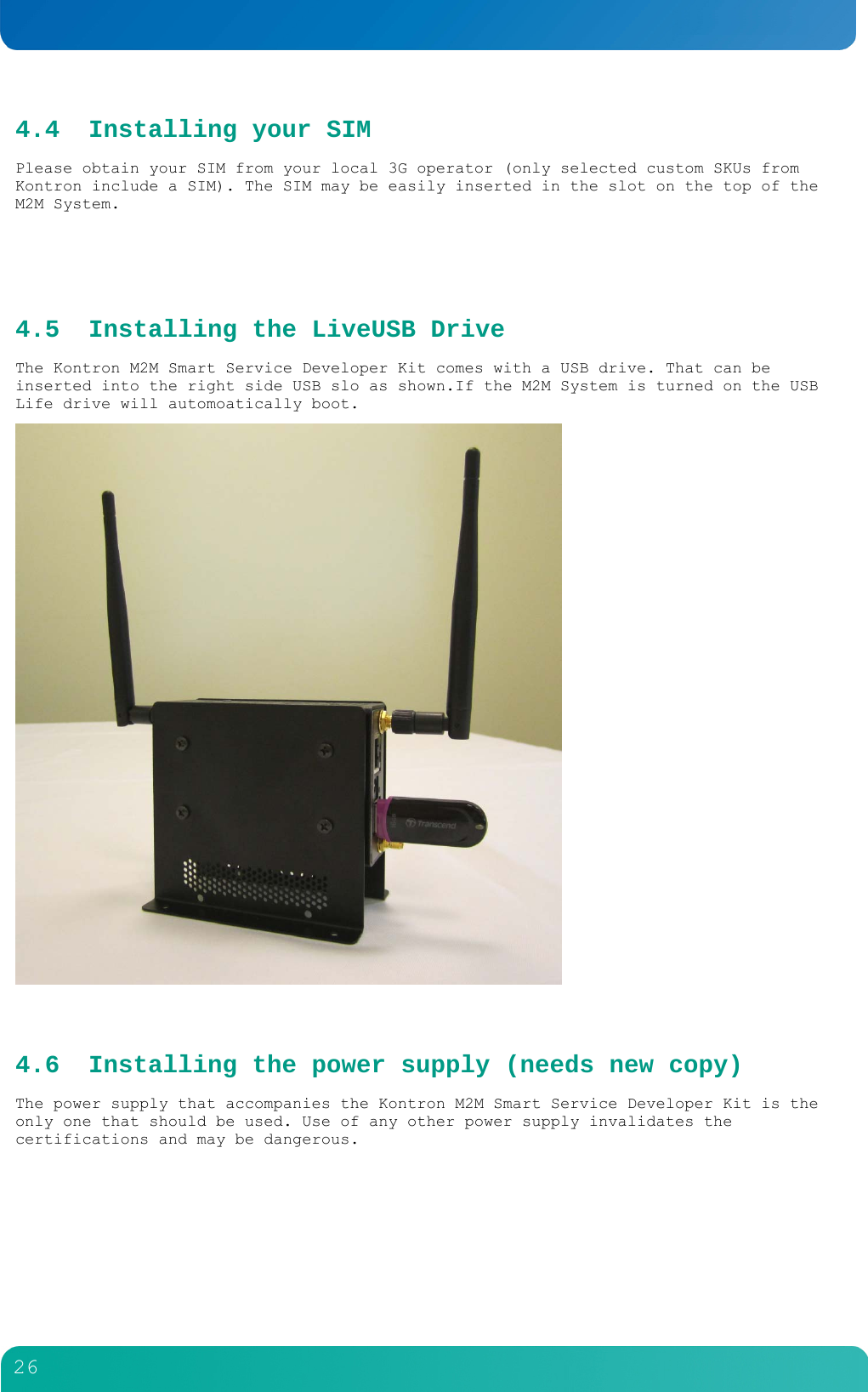
        25      4.3 Installing 3G Antennas(only comes with 3G installed SKUs) There are 2 antennas for 3G anetennas included with each Kontron M2M Smart Service Developer Kit that includes installed 3G. Each antenna should be screwed into the antenna connectors on the bottom sides of the M2M System. Then the antennas may be positioned as shown for optimum coverage based on the plan for mounting the system.  NEED PIX
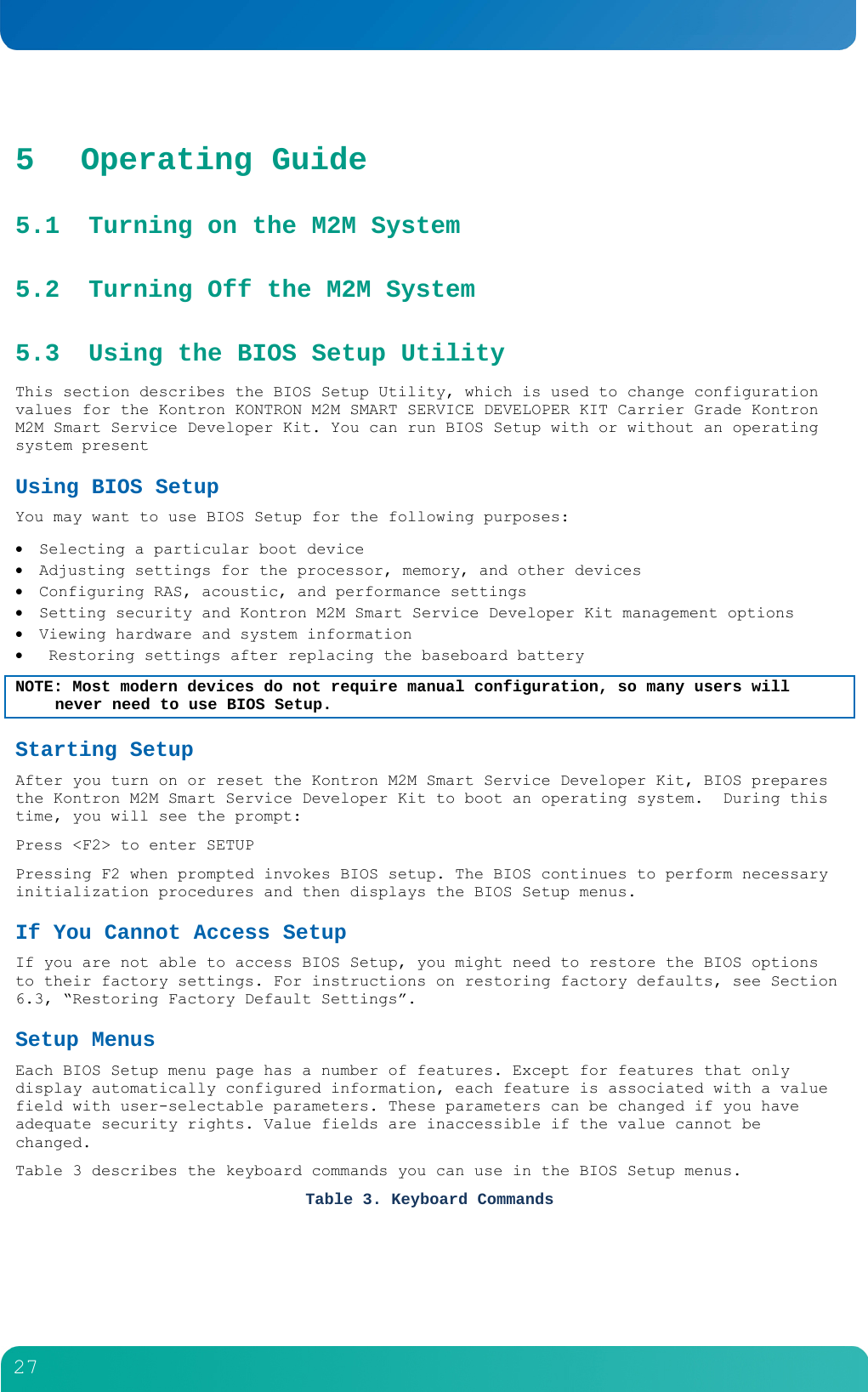
        26  4.4 Installing your SIM Please obtain your SIM from your local 3G operator (only selected custom SKUs from Kontron include a SIM). The SIM may be easily inserted in the slot on the top of the M2M System.  4.5 Installing the LiveUSB Drive The Kontron M2M Smart Service Developer Kit comes with a USB drive. That can be inserted into the right side USB slo as shown.If the M2M System is turned on the USB Life drive will automoatically boot.   4.6 Installing the power supply (needs new copy) The power supply that accompanies the Kontron M2M Smart Service Developer Kit is the only one that should be used. Use of any other power supply invalidates the certifications and may be dangerous.
        27  5 Operating Guide 5.1 Turning on the M2M System 5.2 Turning Off the M2M System 5.3 Using the BIOS Setup Utility This section describes the BIOS Setup Utility, which is used to change configuration values for the Kontron KONTRON M2M SMART SERVICE DEVELOPER KIT Carrier Grade Kontron M2M Smart Service Developer Kit. You can run BIOS Setup with or without an operating system present Using BIOS Setup You may want to use BIOS Setup for the following purposes:  Selecting a particular boot device  Adjusting settings for the processor, memory, and other devices  Configuring RAS, acoustic, and performance settings  Setting security and Kontron M2M Smart Service Developer Kit management options  Viewing hardware and system information   Restoring settings after replacing the baseboard battery NOTE: Most modern devices do not require manual configuration, so many users will never need to use BIOS Setup. Starting Setup After you turn on or reset the Kontron M2M Smart Service Developer Kit, BIOS prepares the Kontron M2M Smart Service Developer Kit to boot an operating system.  During this time, you will see the prompt: Press <F2> to enter SETUP Pressing F2 when prompted invokes BIOS setup. The BIOS continues to perform necessary initialization procedures and then displays the BIOS Setup menus. If You Cannot Access Setup If you are not able to access BIOS Setup, you might need to restore the BIOS options to their factory settings. For instructions on restoring factory defaults, see Section 6.3, “Restoring Factory Default Settings”.  Setup Menus Each BIOS Setup menu page has a number of features. Except for features that only display automatically configured information, each feature is associated with a value field with user-selectable parameters. These parameters can be changed if you have adequate security rights. Value fields are inaccessible if the value cannot be changed. Table 3 describes the keyboard commands you can use in the BIOS Setup menus. Table 3. Keyboard Commands
        28  Key Description <F1>  Help - Pressing F1 on any menu invokes the general Help window. ← → The left and right arrow keys are used to move between the major menu pages. The keys have no effect if a submenu or pick list is displayed. ↑ Select Item up - The up arrow is used to select the previous value in a menu item’s option list, or a value field pick list. Pressing the Enter key activates the selected item. ↓ Select Item down - The down arrow is used to select the next value in a menu item’s option list, or a value field pick list. Pressing the Enter key activates the selected item. F5/-  Change Value - The minus key or the F5 function key is used to change the value of the current item to the previous value. This key scrolls through the values in the associated pick list without displaying the full list. F6/+  Change Value - The plus key or the F6 function key is used to change the value of the current menu item to the next value. This key scrolls through the values in the associated pick list without displaying the full list. On 106-key Japanese keyboards, the plus key has a different scan code than the plus key on the other keyboard, but it has the same effect. <Enter>  Execute Command - The Enter key is used to activate submenus when the selected feature is a submenu, or to display a pick list if a selected feature has a value field, or to select a sub-field for multi-valued features like time and date. If a pick list is displayed, the Enter key undoes the pick list and allows another selection in the parent menu. <Esc>  Exit - The ESC key provides a mechanism for backing out of any field. This key undoes pressing the Enter key. When the ESC key is pressed while editing a field or selecting menu features, the parent menu is re-entered. When the ESC key is pressed in any submenu, the parent menu is re-entered. When the ESC key is pressed in any major menu, the exit confirmation window is displayed and the user is asked whether changes can be discarded. <F9>  Setup Defaults - Pressing F9 causes the following message to appear: Setup Confirmation Load default configuration now? [Yes] [No] If Yes is selected and the Enter key is pressed, all Setup fields are set to their default values. If No is selected and the Enter key is pressed, or if the ESC key is pressed, you are returned to where you were before F9 was pressed without affecting any existing field values.
        29  Key Description <F10>  Save and Exit - Pressing F10 causes the following message to appear: Setup Confirmation Save Configuration changes and exit now? [Yes] [No] If Yes is selected and the Enter key is pressed, all changes are saved and Setup is exited. If No is selected and the Enter key is pressed, or the ESC key is pressed, you are returned to where you were before F10 was pressed without affecting any existing values.  5.4 Upgrading the BIOS The upgrade utility lets you upgrade the BIOS in flash memory. The code and data in the upgrade file include the following:  On-board system BIOS, including the recovery code  BIOS Setup Utility and strings.  On-board video BIOS, SCSI BIOS, and other option ROMs for devices embedded on the Kontron M2M Smart Service Developer Kit board.  OEM binary area  Microcode  Splash Screen Preparing for the Upgrade The steps below explain how to prepare to upgrade the BIOS, including how to record the current BIOS settings and how to obtain the upgrade utility. NOTE: In the unlikely event that a BIOS error occurs during the BIOS update process, a recovery process may need to be followed to return the system to service. See Section 1.4, “Additional Information and Software” for additional information. Obtaining the Upgrade Download the BIOS image file to a temporary folder on your hard drive. See Section 1.4, “Additional Information and Software” for more information. Note: Review the instructions and release notes that are provided in the readme file distributed with the BIOS image file before attempting a BIOS upgrade. The release notes contain critical information regarding jumper settings, specific fixes, or other information to complete the upgrade. Updating the BIOS Follow the instructions in the readme file that came with the BIOS upgrade. When the update completes, remove the bootable media from which you performed the upgrade. Note: Do not power down the system during the BIOS update process!
        30  5.5 Restoring BIOS Default Settings If you are not able to access the BIOS setup screens, you may need to restore the BIOS settings to their factory defaults.  This procedure requires physical access to the inside of the Kontron M2M Smart Service Developer Kit. 1. Power down the system but do not disconnect the power cord. 2. Open the Kontron M2M Smart Service Developer Kit. See ”Removing the Chassis Covers”, in Section 3.1 for instructions. 3. Locate the “Restore Defaults” jumper (J1E7) as shown in Error! Reference source not found.. 4. Move jumper (J1E7) from the normal position (pins 1-2) to the restore position (2-3) and wait five seconds. 5. Move the jumper (J1E7) back to the normal position (pins 1-2). 6. Close the Kontron M2M Smart Service Developer Kit chassis. See” Re-installing the Chassis Covers” in Section 3.1 for instructions. 7. Power up the system. 5.6 Clearing the Password If the user or administrator password(s) is lost or forgotten, moving the password clear jumper (J1E8) into the “clear” position clears both passwords. The password clear jumper must be restored to its original position before a new password(s) can be set. The password clear jumper is shown in Error! Reference source not found.. 1. Power down the system and disconnect the power cord(s). 2. Open the Kontron M2M Smart Service Developer Kit chassis. See ”Removing the Chassis Covers”, in Section 3.1 for instructions.
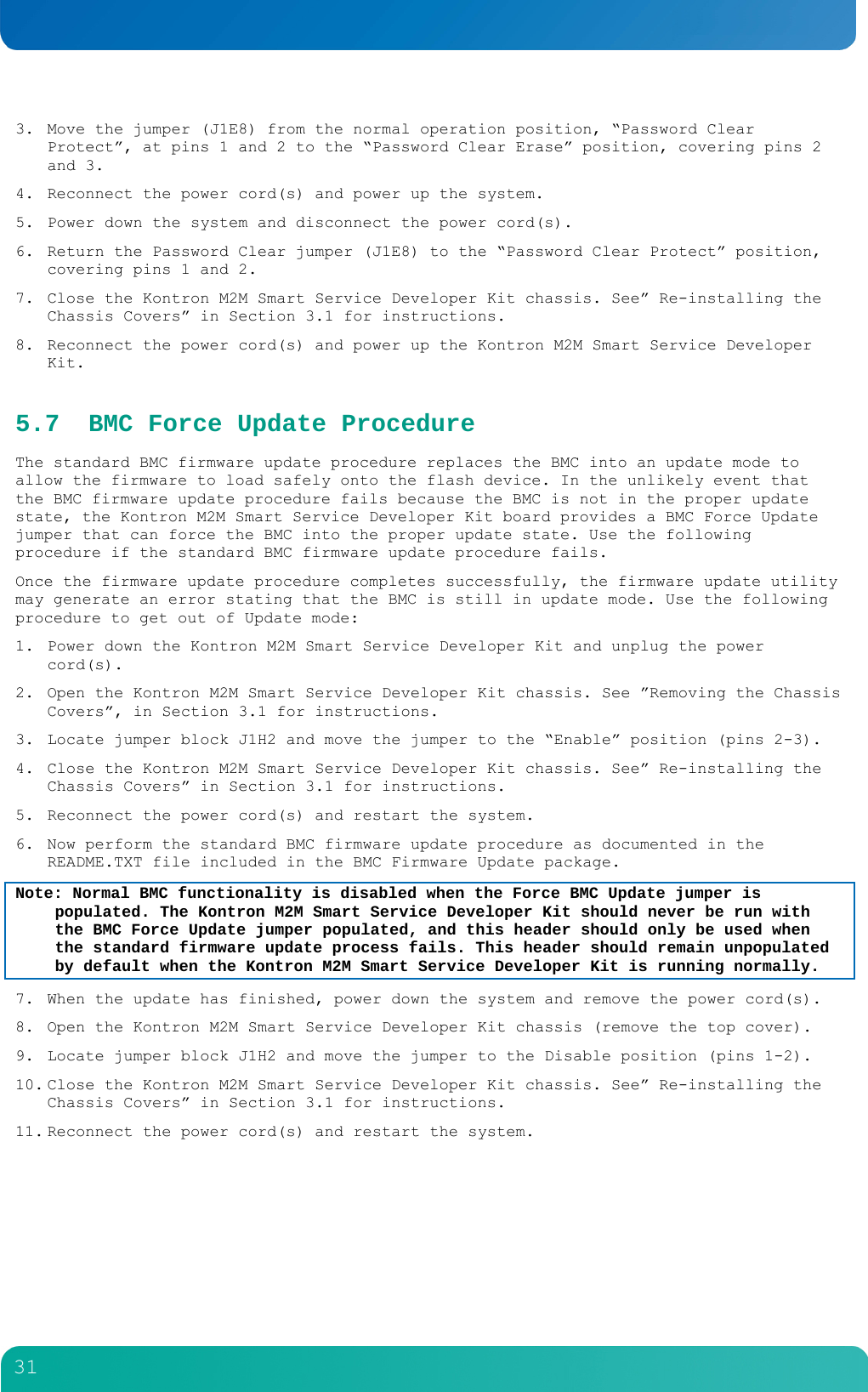
        31  3. Move the jumper (J1E8) from the normal operation position, “Password Clear Protect”, at pins 1 and 2 to the “Password Clear Erase” position, covering pins 2 and 3. 4. Reconnect the power cord(s) and power up the system. 5. Power down the system and disconnect the power cord(s). 6. Return the Password Clear jumper (J1E8) to the “Password Clear Protect” position, covering pins 1 and 2. 7. Close the Kontron M2M Smart Service Developer Kit chassis. See” Re-installing the Chassis Covers” in Section 3.1 for instructions. 8. Reconnect the power cord(s) and power up the Kontron M2M Smart Service Developer Kit. 5.7 BMC Force Update Procedure The standard BMC firmware update procedure replaces the BMC into an update mode to allow the firmware to load safely onto the flash device. In the unlikely event that the BMC firmware update procedure fails because the BMC is not in the proper update state, the Kontron M2M Smart Service Developer Kit board provides a BMC Force Update jumper that can force the BMC into the proper update state. Use the following procedure if the standard BMC firmware update procedure fails. Once the firmware update procedure completes successfully, the firmware update utility may generate an error stating that the BMC is still in update mode. Use the following procedure to get out of Update mode: 1. Power down the Kontron M2M Smart Service Developer Kit and unplug the power cord(s). 2. Open the Kontron M2M Smart Service Developer Kit chassis. See ”Removing the Chassis Covers”, in Section 3.1 for instructions. 3. Locate jumper block J1H2 and move the jumper to the “Enable” position (pins 2-3). 4. Close the Kontron M2M Smart Service Developer Kit chassis. See” Re-installing the Chassis Covers” in Section 3.1 for instructions. 5. Reconnect the power cord(s) and restart the system. 6. Now perform the standard BMC firmware update procedure as documented in the README.TXT file included in the BMC Firmware Update package. Note: Normal BMC functionality is disabled when the Force BMC Update jumper is populated. The Kontron M2M Smart Service Developer Kit should never be run with the BMC Force Update jumper populated, and this header should only be used when the standard firmware update process fails. This header should remain unpopulated by default when the Kontron M2M Smart Service Developer Kit is running normally. 7. When the update has finished, power down the system and remove the power cord(s). 8. Open the Kontron M2M Smart Service Developer Kit chassis (remove the top cover). 9. Locate jumper block J1H2 and move the jumper to the Disable position (pins 1-2). 10. Close the Kontron M2M Smart Service Developer Kit chassis. See” Re-installing the Chassis Covers” in Section 3.1 for instructions. 11. Reconnect the power cord(s) and restart the system.
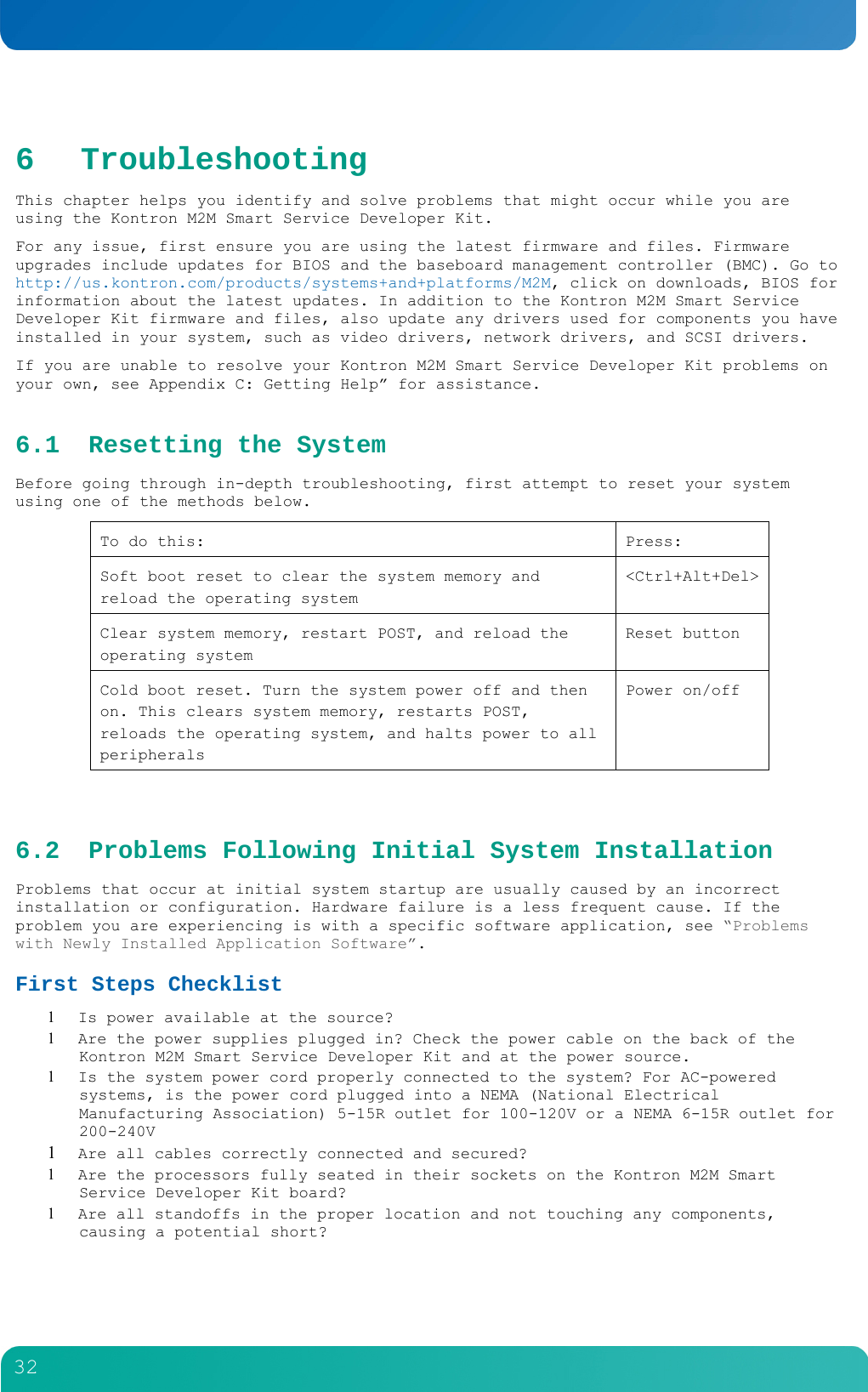
        32  6 Troubleshooting This chapter helps you identify and solve problems that might occur while you are using the Kontron M2M Smart Service Developer Kit. For any issue, first ensure you are using the latest firmware and files. Firmware upgrades include updates for BIOS and the baseboard management controller (BMC). Go to http://us.kontron.com/products/systems+and+platforms/M2M, click on downloads, BIOS for information about the latest updates. In addition to the Kontron M2M Smart Service Developer Kit firmware and files, also update any drivers used for components you have installed in your system, such as video drivers, network drivers, and SCSI drivers. If you are unable to resolve your Kontron M2M Smart Service Developer Kit problems on your own, see Appendix C: Getting Help” for assistance. 6.1 Resetting the System Before going through in-depth troubleshooting, first attempt to reset your system using one of the methods below. To do this:  Press: Soft boot reset to clear the system memory and reload the operating system <Ctrl+Alt+Del>Clear system memory, restart POST, and reload the operating system Reset button Cold boot reset. Turn the system power off and then on. This clears system memory, restarts POST, reloads the operating system, and halts power to all peripherals Power on/off  6.2 Problems Following Initial System Installation Problems that occur at initial system startup are usually caused by an incorrect installation or configuration. Hardware failure is a less frequent cause. If the problem you are experiencing is with a specific software application, see “Problems with Newly Installed Application Software”. First Steps Checklist  Is power available at the source?  Are the power supplies plugged in? Check the power cable on the back of the Kontron M2M Smart Service Developer Kit and at the power source.  Is the system power cord properly connected to the system? For AC-powered systems, is the power cord plugged into a NEMA (National Electrical Manufacturing Association) 5-15R outlet for 100-120V or a NEMA 6-15R outlet for 200-240V  Are all cables correctly connected and secured?  Are the processors fully seated in their sockets on the Kontron M2M Smart Service Developer Kit board?  Are all standoffs in the proper location and not touching any components, causing a potential short?
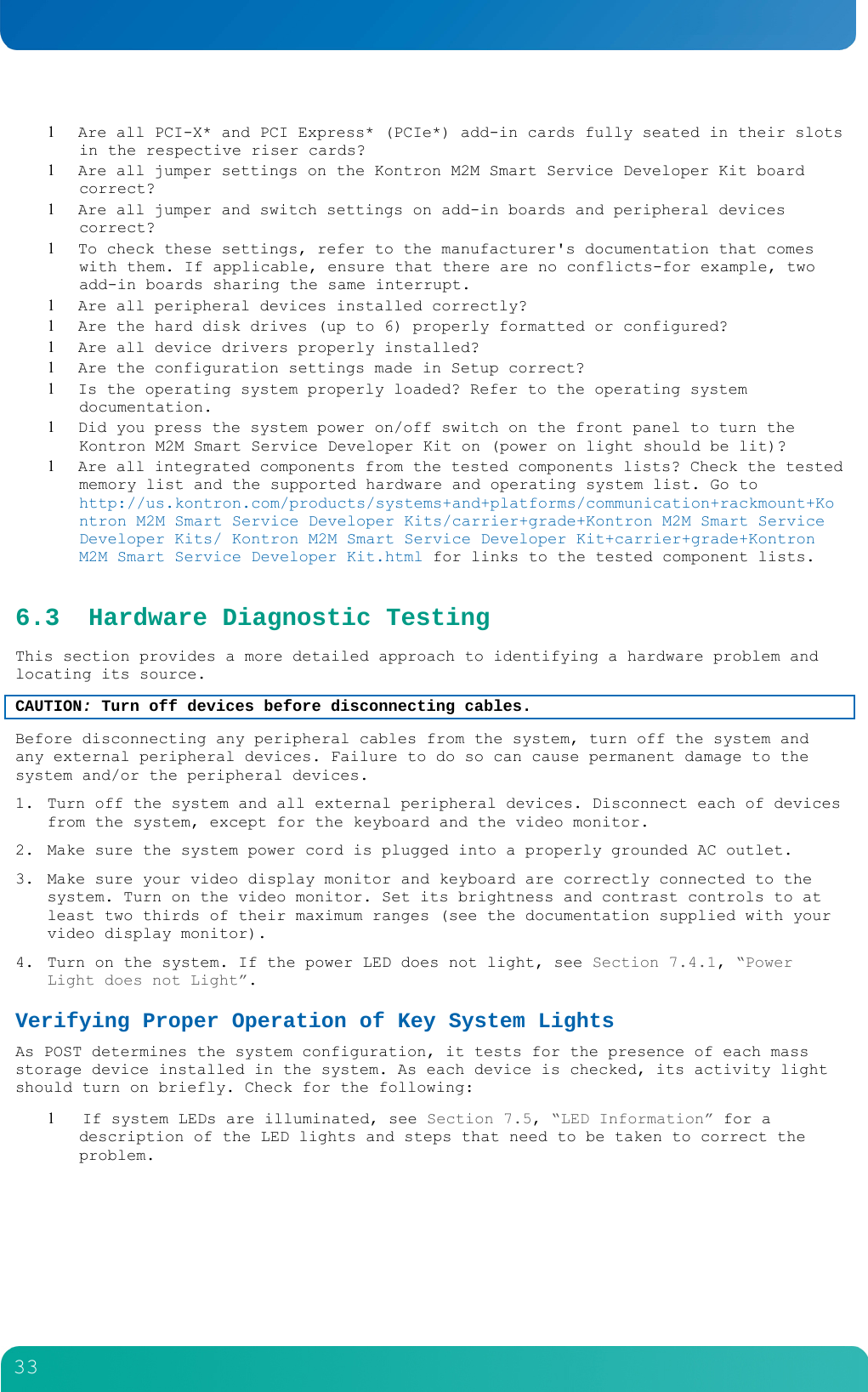
        33   Are all PCI-X* and PCI Express* (PCIe*) add-in cards fully seated in their slots in the respective riser cards?  Are all jumper settings on the Kontron M2M Smart Service Developer Kit board correct?  Are all jumper and switch settings on add-in boards and peripheral devices correct?  To check these settings, refer to the manufacturer's documentation that comes with them. If applicable, ensure that there are no conflicts-for example, two add-in boards sharing the same interrupt.  Are all peripheral devices installed correctly?  Are the hard disk drives (up to 6) properly formatted or configured?  Are all device drivers properly installed?  Are the configuration settings made in Setup correct?  Is the operating system properly loaded? Refer to the operating system documentation.  Did you press the system power on/off switch on the front panel to turn the Kontron M2M Smart Service Developer Kit on (power on light should be lit)?  Are all integrated components from the tested components lists? Check the tested memory list and the supported hardware and operating system list. Go to http://us.kontron.com/products/systems+and+platforms/communication+rackmount+Kontron M2M Smart Service Developer Kits/carrier+grade+Kontron M2M Smart Service Developer Kits/ Kontron M2M Smart Service Developer Kit+carrier+grade+Kontron M2M Smart Service Developer Kit.html for links to the tested component lists. 6.3 Hardware Diagnostic Testing This section provides a more detailed approach to identifying a hardware problem and locating its source. CAUTION: Turn off devices before disconnecting cables.  Before disconnecting any peripheral cables from the system, turn off the system and any external peripheral devices. Failure to do so can cause permanent damage to the system and/or the peripheral devices. 1. Turn off the system and all external peripheral devices. Disconnect each of devices from the system, except for the keyboard and the video monitor. 2. Make sure the system power cord is plugged into a properly grounded AC outlet. 3. Make sure your video display monitor and keyboard are correctly connected to the system. Turn on the video monitor. Set its brightness and contrast controls to at least two thirds of their maximum ranges (see the documentation supplied with your video display monitor). 4. Turn on the system. If the power LED does not light, see Section 7.4.1, “Power Light does not Light”. Verifying Proper Operation of Key System Lights As POST determines the system configuration, it tests for the presence of each mass storage device installed in the system. As each device is checked, its activity light should turn on briefly. Check for the following:   If system LEDs are illuminated, see Section 7.5, “LED Information” for a description of the LED lights and steps that need to be taken to correct the problem.
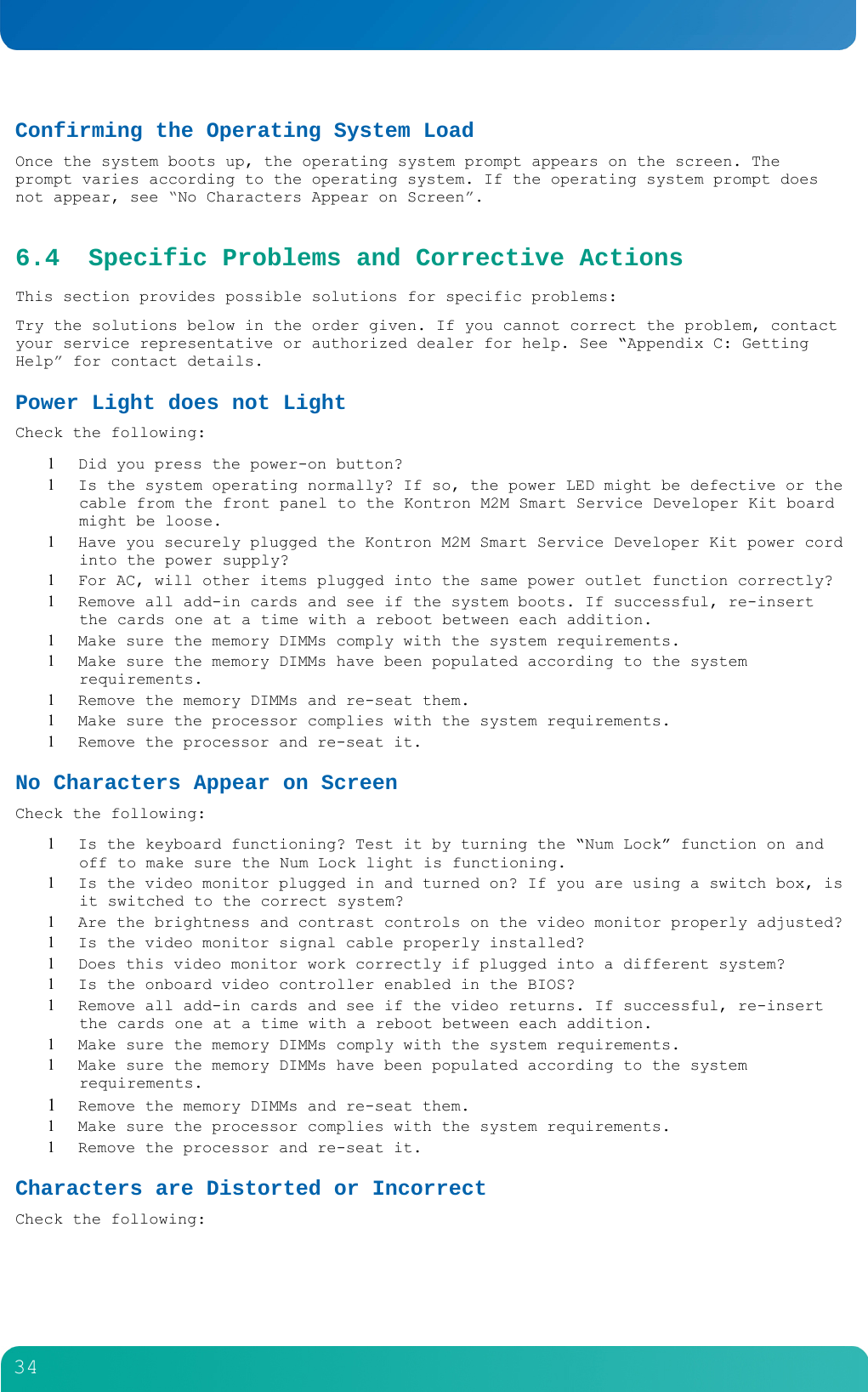
        34  Confirming the Operating System Load Once the system boots up, the operating system prompt appears on the screen. The prompt varies according to the operating system. If the operating system prompt does not appear, see “No Characters Appear on Screen”. 6.4 Specific Problems and Corrective Actions This section provides possible solutions for specific problems: Try the solutions below in the order given. If you cannot correct the problem, contact your service representative or authorized dealer for help. See “Appendix C: Getting Help” for contact details. Power Light does not Light Check the following:  Did you press the power-on button?  Is the system operating normally? If so, the power LED might be defective or the cable from the front panel to the Kontron M2M Smart Service Developer Kit board might be loose.  Have you securely plugged the Kontron M2M Smart Service Developer Kit power cord into the power supply?  For AC, will other items plugged into the same power outlet function correctly?  Remove all add-in cards and see if the system boots. If successful, re-insert the cards one at a time with a reboot between each addition.  Make sure the memory DIMMs comply with the system requirements.  Make sure the memory DIMMs have been populated according to the system requirements.  Remove the memory DIMMs and re-seat them.  Make sure the processor complies with the system requirements.  Remove the processor and re-seat it. No Characters Appear on Screen Check the following:  Is the keyboard functioning? Test it by turning the “Num Lock” function on and off to make sure the Num Lock light is functioning.  Is the video monitor plugged in and turned on? If you are using a switch box, is it switched to the correct system?  Are the brightness and contrast controls on the video monitor properly adjusted?  Is the video monitor signal cable properly installed?  Does this video monitor work correctly if plugged into a different system?  Is the onboard video controller enabled in the BIOS?  Remove all add-in cards and see if the video returns. If successful, re-insert the cards one at a time with a reboot between each addition.  Make sure the memory DIMMs comply with the system requirements.  Make sure the memory DIMMs have been populated according to the system requirements.  Remove the memory DIMMs and re-seat them.  Make sure the processor complies with the system requirements.  Remove the processor and re-seat it. Characters are Distorted or Incorrect Check the following:
        35   Are the brightness and contrast controls properly adjusted on the video monitor?  See the manufacturer’s documentation.  Are the video monitor’s signal and power cables properly installed?  Does this video monitor work correctly if plugged into a different system? System Cooling Fans do not Rotate Properly If the system cooling fans are not operating properly, it is an indication of possible system component failure. Check the following:  Is the power-on light lit? If not, see Section 7.4.1, “Power Light does not Light”.  Are any other front panel LEDs lit?  Have any of the fan motors stopped? Use the Kontron M2M Smart Service Developer Kit management subsystem to check the fan status.  Have the fans sped up in response to an overheating situation?  Have the fans sped up in response to a fan that has failed?  Are the fan power connectors properly connected to the front panel (FP) board?  Is the cable from the front panel board connected to the both the front panel board and to the Kontron M2M Smart Service Developer Kit board?  Are the power supply cables properly connected to the FP board?  Are there any shorted wires caused by pinched-cables or have power connector plugs been forced into power connector sockets the wrong way? Cannot Connect to a Kontron M2M Smart Service Developer Kit  Make sure the network cable is securely attached to the correct connector at the system back panel.  Try a different network cable.  Make sure you are using the correct and the current drivers. Go to http://us.kontron.com/products/systems+and+platforms/communication+rackmount+Kontron M2M Smart Service Developer Kits/carrier+grade+Kontron M2M Smart Service Developer Kits/Kontron M2M Smart Service Developer Kit+carrier+grade+Kontron M2M Smart Service Developer Kit.html for a link to the drivers.  Make sure the driver is loaded and the protocols are bound.  Make sure the hub port is configured for the same duplex mode as the network controller.  Make sure the correct networking software is installed.  If you are directly connecting two Kontron M2M Smart Service Developer Kits (without a hub), you will need a crossover cable. Diagnostics Pass but the Connection Fails  Make sure the network cable is securely attached.  Make sure you specify the correct frame type in your NET.CFG file. The Controller Stopped Working When an Add-in Adapter was Installed  Make sure the cable is connected to the port from the onboard network controller.  Make sure your BIOS is current. Go to http://us.kontron.com/products/systems+and+platforms/communication+rackmount+Kontron M2M Smart Service Developer Kits/carrier+grade+Kontron M2M Smart Service Developer Kits/Kontron M2M Smart Service Developer Kit+carrier+grade+Kontron M2M Smart Service Developer Kit.html for a link to the current version.  Try reseating the add-in adapter.
        36  The Add-in Adapter Stopped Working without Apparent Cause  Try reseating the adapter first; then try a different slot if necessary.  The network driver files may be corrupt or deleted. Delete and then reinstall the drivers.  Run the diagnostics. System Boots When Installing a PCI Card System Kontron M2M Smart Service Developer Kit Management features require full-time “standby” power. This means some parts of the system have power going to them whenever the power cord is plugged in, even if you have turned the system power off with the power button on the front panel. If you install a PCI card with the power cord plugged in, a signal may be sent to command the system to boot. Before installing a PCI card, you should always: 1. Turn off the Kontron M2M Smart Service Developer Kit power by using the power button on the front of the system. 2. Unplug the power cord from the Kontron M2M Smart Service Developer Kit. Problems with Newly Installed Application Software Problems that occur when you run new application software are usually related to the software, not the Kontron M2M Smart Service Developer Kit hardware. Faulty equipment is unlikely, especially if other software runs correctly. Check the following:  Make sure the system meets the minimum hardware requirements for the software. See the software documentation.  Make sure the software is properly installed and configured for the system. See the software documentation.  Use only an authorized copy. Unauthorized copies often do not work.  Make sure the correct device drivers installed. If the problems persist, contact the software vendor’s customer service representative. Problems with Application Software that Ran Correctly Earlier Problems that occur after the system hardware and software have been running correctly sometimes indicate equipment failure. However, they can also be caused by file corruption or changes to the software configuration. Check the following:  Uninstall and reinstall the software. Make sure all necessary files are installed.  If the problems are intermittent, there may be a loose cable, dirt in the keyboard (if keyboard input is incorrect), a marginal power supply, or other random component failures.  If you suspect that a transient voltage spike, power outage, or brownout might have occurred, reload the software and try running it again. Symptoms of voltage spikes include a flickering video display, unexpected system reboots, and the system not responding to user commands. NOTE: For AC power, if you are getting random errors in your data files, they may be getting corrupted by voltage spikes on your power line. If you are experiencing any of the above symptoms that might indicate voltage spikes on the power line, you may want to install a surge suppressor between the power outlet and the system power cord.
        37  Devices are not Recognized under Device Manager (Windows*OS) The Windows* operating systems do not include all of the drivers for the Intel® chipsets, onboard NICs, and other components. Check the Kontron Deployment CD that came with your Kontron M2M Smart Service Developer Kit or go to http://us.kontron.com/products/systems+and+platforms/communication+rackmount+Kontron M2M Smart Service Developer Kits/carrier+grade+Kontron M2M Smart Service Developer Kits/Kontron M2M Smart Service Developer Kit+carrier+grade+Kontron M2M Smart Service Developer Kit.html  for a link to the current drivers and chipset files. Hard Drive(s) are not Recognized Check the following:  Make sure the drive is not disabled in BIOS Setup.  Make sure the drive is compatible. Go to http://us.kontron.com/products/systems+and+platforms/communication+rackmount+Kontron M2M Smart Service Developer Kits/carrier+grade+Kontron M2M Smart Service Developer Kits/ KONTRON M2M SMART SERVICE DEVELOPER KIT+carrier+grade+Kontron M2M Smart Service Developer Kit.html for a link to the list tested drives.  Make sure you have not exceeded the power budget for the Kontron M2M Smart Service Developer Kit. Go to http://us.kontron.com/products/systems+and+platforms/communication+rackmount+Kontron M2M Smart Service Developer Kits/carrier+grade+Kontron M2M Smart Service Developer Kits/Kontron M2M Smart Service Developer Kit+carrier+grade+Kontron M2M Smart Service Developer Kit.html for a link to software to check your power budget. 6.5 LED Information The Intel® Kontron M2M System (add copy).
        38  7 Warranty This Kontron product is warranted against defects in material and workmanship for the warranty period from the date of shipment. During the warranty period, Kontron will at its discretion decide to repair or replace defective products.  Within the warranty period, the repair of products is free of charge as long as warranty conditions are observed.  The warranty does not apply to defects resulting from improper or inadequate maintenance or handling by the buyer, unauthorized modification or misuse, operation outside of the product’s environmental specifications or improper installation or maintenance.  Kontron will not be responsible for any defects or damages to other products not supplied by Kontron that are caused by a faulty Kontron product.
        39  8 Appendix A: Safety Information Warning: Although you may be using this guide or another resource as a reference, before working with your Kontron M2M Smart Service Developer Kit product pay close attention to these safety instructions. You must adhere to the assembly instructions in this guide to ensure and maintain compliance with existing product certifications and approvals. Use only the described, regulated components specified in this guide. Use of other products / components will void the UL listing and other regulatory approvals of the product and will most likely result in non-compliance with product regulations in the region(s) in which the product is sold. 8.1 Emissions Disclaimer To ensure EMC (Electromagnetic Compatibility) compliance with your local regional rules and regulations, the final configuration of your end system product may require additional EMC compliance testing. For more information, please contact your local Kontron Representative. See Appendix B, “Regulatory and Certification Information” for product Safety and EMC regulatory compliance information. This is an FCC (Federal Communications Commission) Class B device. 8.2 Intended Uses This product was evaluated as Information Technology Equipment (ITE), which may be installed in Central Offices, Telecommunication Centers, offices, schools, computer rooms, and similar commercial type locations. The suitability of this product for other product categories and environments (medical, industrial, telecommunications, residential, alarm systems, test equipment, etc.), other than an ITE application, may require further evaluation. WARNING: Anchor the equipment rack: The equipment rack must be anchored to an unmovable support to prevent it from falling over when one or more Kontron M2M Smart Service Developer Kits are extended in front of the rack on slides. You must also consider the weight of any other device installed in the rack. A crush hazard exists should the rack tilt forward which could cause serious injury. If AC power supplies are installed: Mains AC power disconnect: The AC power cord(s) is considered the mains disconnect for the Kontron M2M Smart Service Developer Kit and must be readily accessible when installed. If the individual Kontron M2M Smart Service Developer Kit power cord(s) will not be readily accessible for disconnection then you must install an AC power disconnect for the entire rack unit. This main disconnect must be readily accessible, and it must be labeled as controlling power to the entire rack, not just to the Kontron M2M Smart Service Developer Kit(s). Grounding the rack installation: To avoid the potential for an electrical shock hazard, you must include a third wire safety ground conductor with the rack installation. If the Kontron M2M Smart Service Developer Kit power cord is plugged into an AC outlet that is part of the rack, then you must provide proper grounding for the rack itself. If the Kontron M2M Smart Service Developer Kit power cord is plugged wall AC outlet, the safety ground conductor in the power cord provides proper grounding only for the Kontron M2M Smart Service Developer Kit. You must provide additional, proper grounding for the rack and other devices installed in it. Overcurrent protection: The Kontron M2M Smart Service Developer Kit is designed for an AC line voltage source with up to 20 amperes of overcurrent protection per cord feed. If the power system for the equipment rack is installed on a branch circuit with more
        40  than 20 amperes of protection, you must provide supplemental protection for the Kontron M2M Smart Service Developer Kit. The overall current rating of a configured Kontron M2M Smart Service Developer Kit is less than 6 amperes.  WARNING: Do not attempt to modify or use an AC power cord set that is not the exact type required. You must use a power cord set that meets the following criteria:  Rating: In the U.S. and Canada, cords must be UL (Underwriters Laboratories, Inc.) Listed/CSA (Canadian Standards Organization) Certified type SJT, 18-3 AWG (American Wire Gauge). Outside of the U.S. and Canada, cords must be flexible harmonized (<HAR>) or VDE (Verbena Deutscher Electrotechniker, German Institute of Electrical Engineers) certified cord with 3x 0.75 mm conductors rated 250 VAC.  Connector, wall outlet end: Cords must be terminated in grounding-type male plug designed for use in your region. The connector must have certification marks showing certification by an agency acceptable in your region and for U.S. must be listed and rated for 125% of the overall current rating of the Kontron M2M Smart Service Developer Kit.  Connector, Kontron M2M Smart Service Developer Kit end: The connectors that plug into the AC receptacle on the Kontron M2M Smart Service Developer Kit must be an approved IEC (International Electrotechnical Commission) 320, sheet C13, type female connector.  Cord length and flexibility: Cords must be less than 4.5 meters (14.8 feet) long. If DC power supplies are installed: Connection with a DC (Direct Current) source should only be performed by trained service personnel. The Kontron M2M Smart Service Developer Kit with DC input is to be installed in a Restricted Access Location in accordance with articles 110-26 and 110-27 of the National Electric Code, ANSI/NFPA 70. The DC source must be electrically isolated from any hazardous AC source by double or reinforced insulation. The DC source must be capable of providing up to 300 watts of continuous power per feed pair.  Mains DC power disconnect: You are responsible for installing a properly rated DC power disconnect for the Kontron M2M Smart Service Developer Kit system. This mains disconnect must be readily accessible, and it must be labeled as controlling power to the Kontron M2M Smart Service Developer Kit. The UL listed circuit breaker of a centralized DC power system may be used as a disconnect device when easily accessible and should be rated no more than 10 amps. Grounding the Kontron M2M Smart Service Developer Kit: This Kontron M2M Smart Service Developer Kit is intended for installation with an isolated DC return (DC-I per NEBS GR-1089, Issue 3). To avoid the potential for an electrical shock hazard, you must reliably connect an earth grounding conductor to the Kontron M2M Smart Service Developer Kit. The earth grounding conductor must be a minimum 14 AWG connected to the earth ground stud(s) on the rear of the Kontron M2M Smart Service Developer Kit. The safety ground conductor should be connected to the chassis stud with a Listed closed two-hole crimp terminal having 5/8-inch pitch. The nuts on the chassis earth ground studs should be installed with a 10 in-lbs of torque. The safety ground conductor provides proper grounding only for the Kontron M2M Smart Service Developer Kit. You must provide additional, proper grounding for the rack and other devices installed in it. Overcurrent protection: Overcurrent protection UL Listed circuit breakers must be provided as part of each host equipment rack and must be incorporated in the field wiring between the DC source and the Kontron M2M Smart Service Developer Kit. The branch circuit protection shall be rated minimum 75 VDC, 10A maximum per feed pair. If the DC power system for the equipment rack is installed with more than 10 amperes of protection, you must provide supplemental protection for the Kontron M2M Smart Service Developer Kit. The overall current rating of a maximum configured Kontron M2M Smart Service Developer Kit is 8 amperes.
        41  Temperature and Ventilation CAUTION: Temperature -- The temperature, in which the Kontron M2M Smart Service Developer Kit operates when installed in an equipment rack, must not go below 5°C (41°F) or rise above 35°C (95°F). Extreme fluctuations in temperature can cause a variety of problems in your Kontron M2M Smart Service Developer Kit. CAUTION: Ventilation -- The equipment rack must provide sufficient airflow to the front of the Kontron M2M Smart Service Developer Kit to maintain proper cooling. The rack must also include ventilation sufficient to exhaust a maximum of 1023 BTUs (British Thermal Units) per hour for the Kontron M2M Smart Service Developer Kit. The rack selected and the ventilation provided must be suitable to the environment in which the Kontron M2M Smart Service Developer Kit will be used. 8.3 Safety Cautions Read all caution and safety statements in this document before performing any of the instructions.    The power supply in this product contains no user-serviceable parts. There may be more than one supply in this product. Refer servicing only to qualified personnel.  Do not attempt to modify or use the supplied AC power cord if it is not the exact type required. A product with more than one power supply will have a separate AC power cord for each supply.  The power button on the system does not turn off system AC power. To remove AC power from the system, you must unplug each AC power cord from the wall outlet or power supply. The power cord(s) is considered the disconnect device to the main (AC) power. The socket outlet that the system plugs into must be installed near the equipment and must be easily accessible.        SAFETY STEPS: Whenever you remove the chassis covers to access the inside of the system, follow these steps: 1. Turn off all peripheral devices connected to the system. 2. Turn off the system by pressing the power button. 3. Unplug all AC power cords from the system or from wall outlets. 4. Label and disconnect all cables connected to I/O connectors or ports on the back of the system. 5. Provide electrostatic discharge (ESD) protection by wearing an antistatic wrist strap attached to chassis ground of the system—any unpainted metal surface—when handling components.  After you have completed the six SAFETY STEPS above, you can remove the system covers. To do this:
        42   1. Unlock and remove the padlock from the back of the system if a padlock has been installed. 2. Remove and save all screws from the covers. 3. Remove the covers. 4. Do not operate the system with the chassis covers removed.    For proper cooling and airflow, always reinstall the chassis covers before turning on the system. Operating the system without the covers in place can damage system parts. To install the covers: 1. Check first to make sure you have not left loose tools or parts inside the system. 2. Check that cables, add-in boards, and other components are properly installed. 3. Attach the covers to the chassis with the screws removed earlier, and tighten them firmly. 4. Insert and lock the padlock to the system to prevent unauthorized access inside the system. 5. Connect all external cables and the AC power cord(s) to the system.  A microprocessor and heat sink may be hot if the system has been running. Also, there may be sharp pins and edges on some board and chassis parts. Contact should be made with care. Consider wearing protective gloves.  Danger of explosion if the battery is incorrectly replaced. Replace only with the same or equivalent type recommended by the equipment manufacturer. Dispose of used batteries according to manufacturer’s instructions.  The system is designed to operate in a typical office environment. Choose a site that is: • Clean and free of airborne particles (other than normal room dust). • Well ventilated and away from sources of heat including direct sunlight. • Away from sources of vibration or physical shock. • Isolated from strong electromagnetic fields produced by electrical devices. • In regions that are susceptible to electrical storms, we recommend you plug your system into a surge suppressor and disconnect telecommunication lines to your modem during an electrical storm. • Provided with a properly grounded wall outlet. • Provided with sufficient space to access the power supply cord(s), because they serve as the product’s main power disconnect.
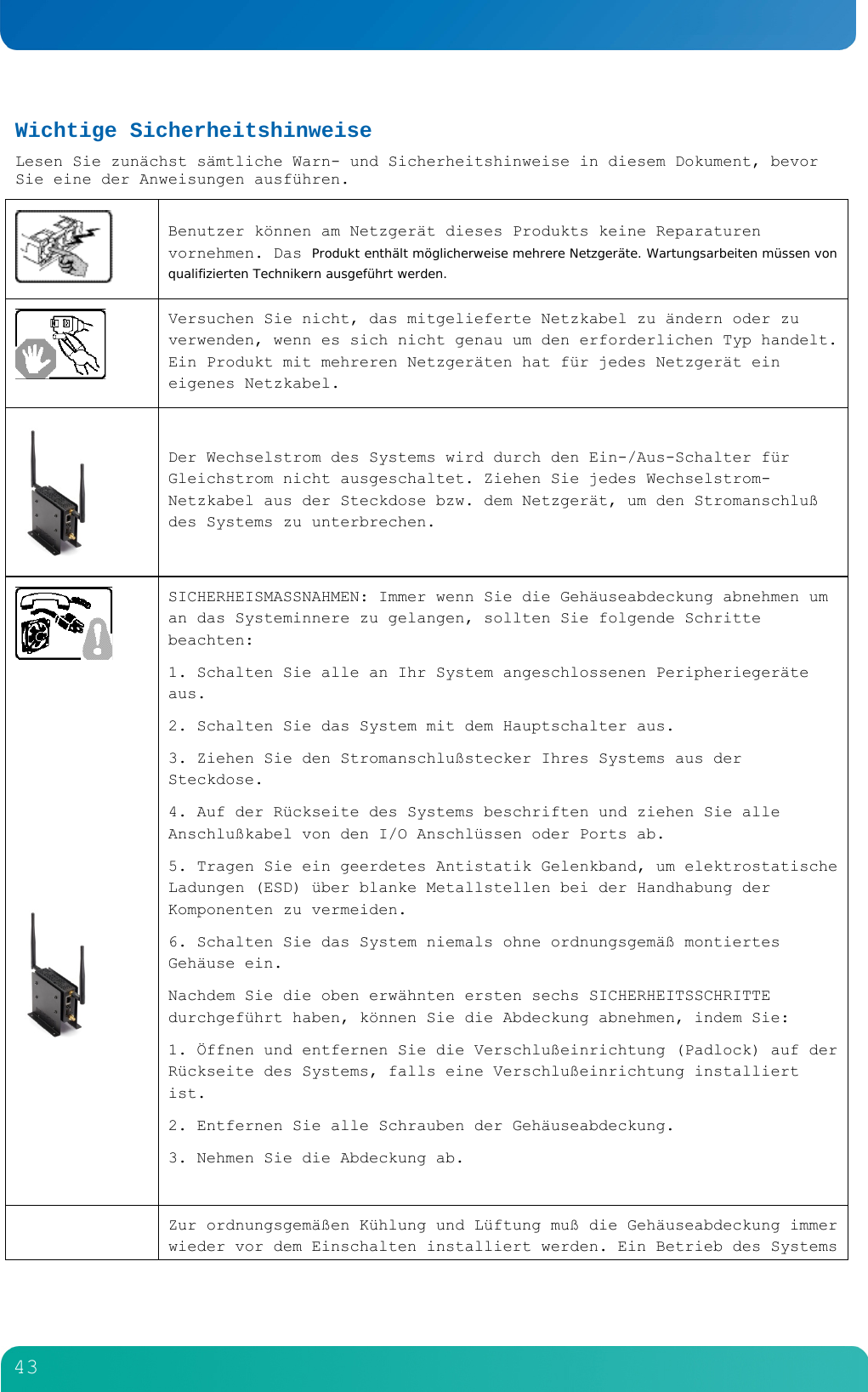
        43  Wichtige Sicherheitshinweise Lesen Sie zunächst sämtliche Warn- und Sicherheitshinweise in diesem Dokument, bevor Sie eine der Anweisungen ausführen.   Benutzer können am Netzgerät dieses Produkts keine Reparaturen vornehmen. Das Produkt enthält möglicherweise mehrere Netzgeräte. Wartungsarbeiten müssen von qualifizierten Technikern ausgeführt werden.  Versuchen Sie nicht, das mitgelieferte Netzkabel zu ändern oder zu verwenden, wenn es sich nicht genau um den erforderlichen Typ handelt. Ein Produkt mit mehreren Netzgeräten hat für jedes Netzgerät ein eigenes Netzkabel.  Der Wechselstrom des Systems wird durch den Ein-/Aus-Schalter für Gleichstrom nicht ausgeschaltet. Ziehen Sie jedes Wechselstrom-Netzkabel aus der Steckdose bzw. dem Netzgerät, um den Stromanschluß des Systems zu unterbrechen.          SICHERHEISMASSNAHMEN: Immer wenn Sie die Gehäuseabdeckung abnehmen um an das Systeminnere zu gelangen, sollten Sie folgende Schritte beachten: 1. Schalten Sie alle an Ihr System angeschlossenen Peripheriegeräte aus. 2. Schalten Sie das System mit dem Hauptschalter aus. 3. Ziehen Sie den Stromanschlußstecker Ihres Systems aus der Steckdose. 4. Auf der Rückseite des Systems beschriften und ziehen Sie alle Anschlußkabel von den I/O Anschlüssen oder Ports ab. 5. Tragen Sie ein geerdetes Antistatik Gelenkband, um elektrostatische Ladungen (ESD) über blanke Metallstellen bei der Handhabung der Komponenten zu vermeiden. 6. Schalten Sie das System niemals ohne ordnungsgemäß montiertes Gehäuse ein. Nachdem Sie die oben erwähnten ersten sechs SICHERHEITSSCHRITTE durchgeführt haben, können Sie die Abdeckung abnehmen, indem Sie: 1. Öffnen und entfernen Sie die Verschlußeinrichtung (Padlock) auf der Rückseite des Systems, falls eine Verschlußeinrichtung installiert ist. 2. Entfernen Sie alle Schrauben der Gehäuseabdeckung. 3. Nehmen Sie die Abdeckung ab.   Zur ordnungsgemäßen Kühlung und Lüftung muß die Gehäuseabdeckung immer wieder vor dem Einschalten installiert werden. Ein Betrieb des Systems
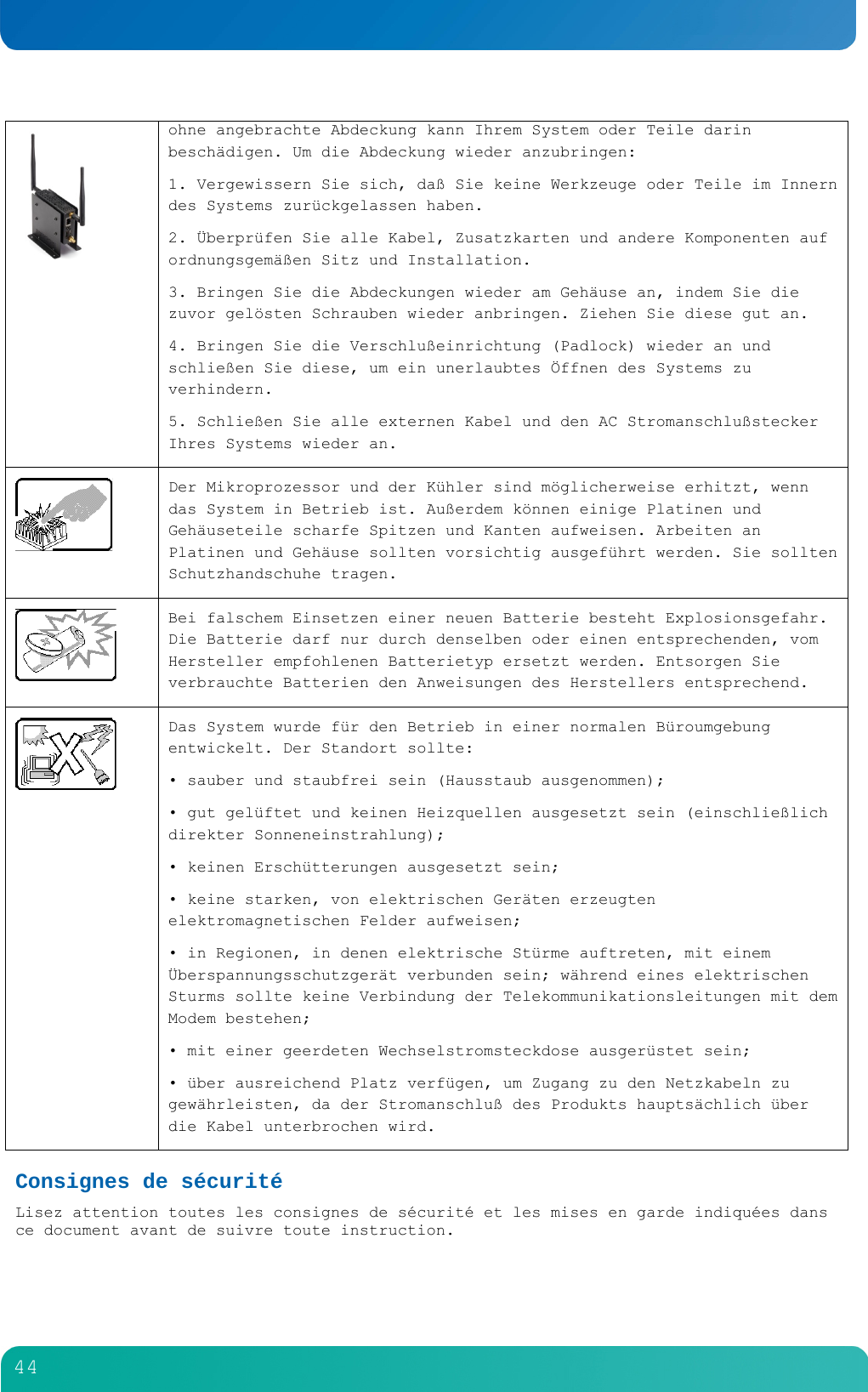
        44   ohne angebrachte Abdeckung kann Ihrem System oder Teile darin beschädigen. Um die Abdeckung wieder anzubringen: 1. Vergewissern Sie sich, daß Sie keine Werkzeuge oder Teile im Innern des Systems zurückgelassen haben. 2. Überprüfen Sie alle Kabel, Zusatzkarten und andere Komponenten auf ordnungsgemäßen Sitz und Installation. 3. Bringen Sie die Abdeckungen wieder am Gehäuse an, indem Sie die zuvor gelösten Schrauben wieder anbringen. Ziehen Sie diese gut an. 4. Bringen Sie die Verschlußeinrichtung (Padlock) wieder an und schließen Sie diese, um ein unerlaubtes Öffnen des Systems zu verhindern. 5. Schließen Sie alle externen Kabel und den AC Stromanschlußstecker Ihres Systems wieder an.   Der Mikroprozessor und der Kühler sind möglicherweise erhitzt, wenn das System in Betrieb ist. Außerdem können einige Platinen und Gehäuseteile scharfe Spitzen und Kanten aufweisen. Arbeiten an Platinen und Gehäuse sollten vorsichtig ausgeführt werden. Sie sollten Schutzhandschuhe tragen.  Bei falschem Einsetzen einer neuen Batterie besteht Explosionsgefahr. Die Batterie darf nur durch denselben oder einen entsprechenden, vom Hersteller empfohlenen Batterietyp ersetzt werden. Entsorgen Sie verbrauchte Batterien den Anweisungen des Herstellers entsprechend.  Das System wurde für den Betrieb in einer normalen Büroumgebung entwickelt. Der Standort sollte: • sauber und staubfrei sein (Hausstaub ausgenommen); • gut gelüftet und keinen Heizquellen ausgesetzt sein (einschließlich direkter Sonneneinstrahlung); • keinen Erschütterungen ausgesetzt sein; • keine starken, von elektrischen Geräten erzeugten elektromagnetischen Felder aufweisen; • in Regionen, in denen elektrische Stürme auftreten, mit einem Überspannungsschutzgerät verbunden sein; während eines elektrischen Sturms sollte keine Verbindung der Telekommunikationsleitungen mit dem Modem bestehen; • mit einer geerdeten Wechselstromsteckdose ausgerüstet sein; • über ausreichend Platz verfügen, um Zugang zu den Netzkabeln zu gewährleisten, da der Stromanschluß des Produkts hauptsächlich über die Kabel unterbrochen wird. Consignes de sécurité Lisez attention toutes les consignes de sécurité et les mises en garde indiquées dans ce document avant de suivre toute instruction.
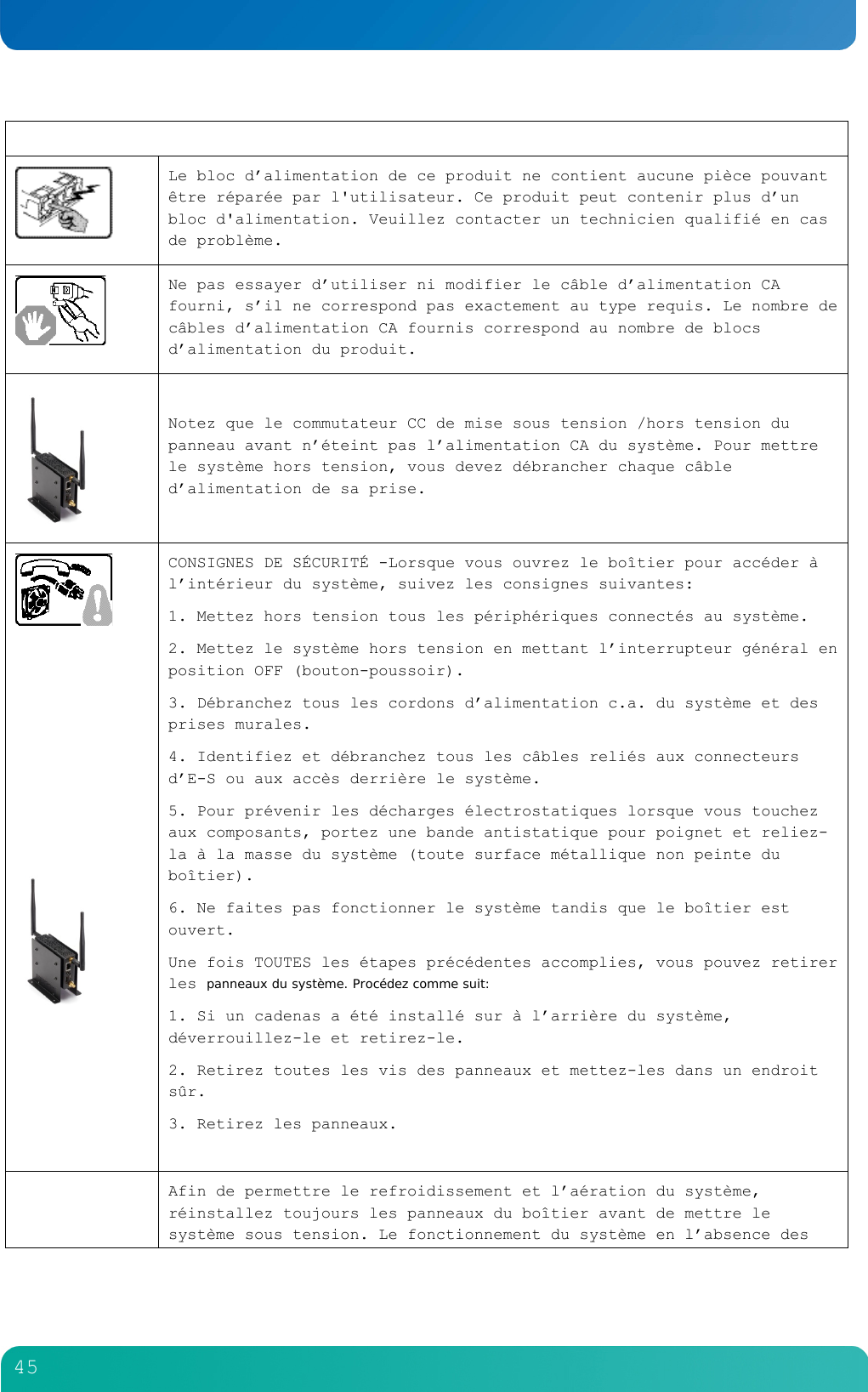
        45    Le bloc d’alimentation de ce produit ne contient aucune pièce pouvant être réparée par l'utilisateur. Ce produit peut contenir plus d’un bloc d'alimentation. Veuillez contacter un technicien qualifié en cas de problème.   Ne pas essayer d’utiliser ni modifier le câble d’alimentation CA fourni, s’il ne correspond pas exactement au type requis. Le nombre de câbles d’alimentation CA fournis correspond au nombre de blocs d’alimentation du produit.   Notez que le commutateur CC de mise sous tension /hors tension du panneau avant n’éteint pas l’alimentation CA du système. Pour mettre le système hors tension, vous devez débrancher chaque câble d’alimentation de sa prise.           CONSIGNES DE SÉCURITÉ -Lorsque vous ouvrez le boîtier pour accéder à l’intérieur du système, suivez les consignes suivantes: 1. Mettez hors tension tous les périphériques connectés au système. 2. Mettez le système hors tension en mettant l’interrupteur général en position OFF (bouton-poussoir). 3. Débranchez tous les cordons d’alimentation c.a. du système et des prises murales. 4. Identifiez et débranchez tous les câbles reliés aux connecteurs d’E-S ou aux accès derrière le système. 5. Pour prévenir les décharges électrostatiques lorsque vous touchez aux composants, portez une bande antistatique pour poignet et reliez-la à la masse du système (toute surface métallique non peinte du boîtier). 6. Ne faites pas fonctionner le système tandis que le boîtier est ouvert. Une fois TOUTES les étapes précédentes accomplies, vous pouvez retirer les panneaux du système. Procédez comme suit: 1. Si un cadenas a été installé sur à l’arrière du système, déverrouillez-le et retirez-le. 2. Retirez toutes les vis des panneaux et mettez-les dans un endroit sûr. 3. Retirez les panneaux.   Afin de permettre le refroidissement et l’aération du système, réinstallez toujours les panneaux du boîtier avant de mettre le système sous tension. Le fonctionnement du système en l’absence des
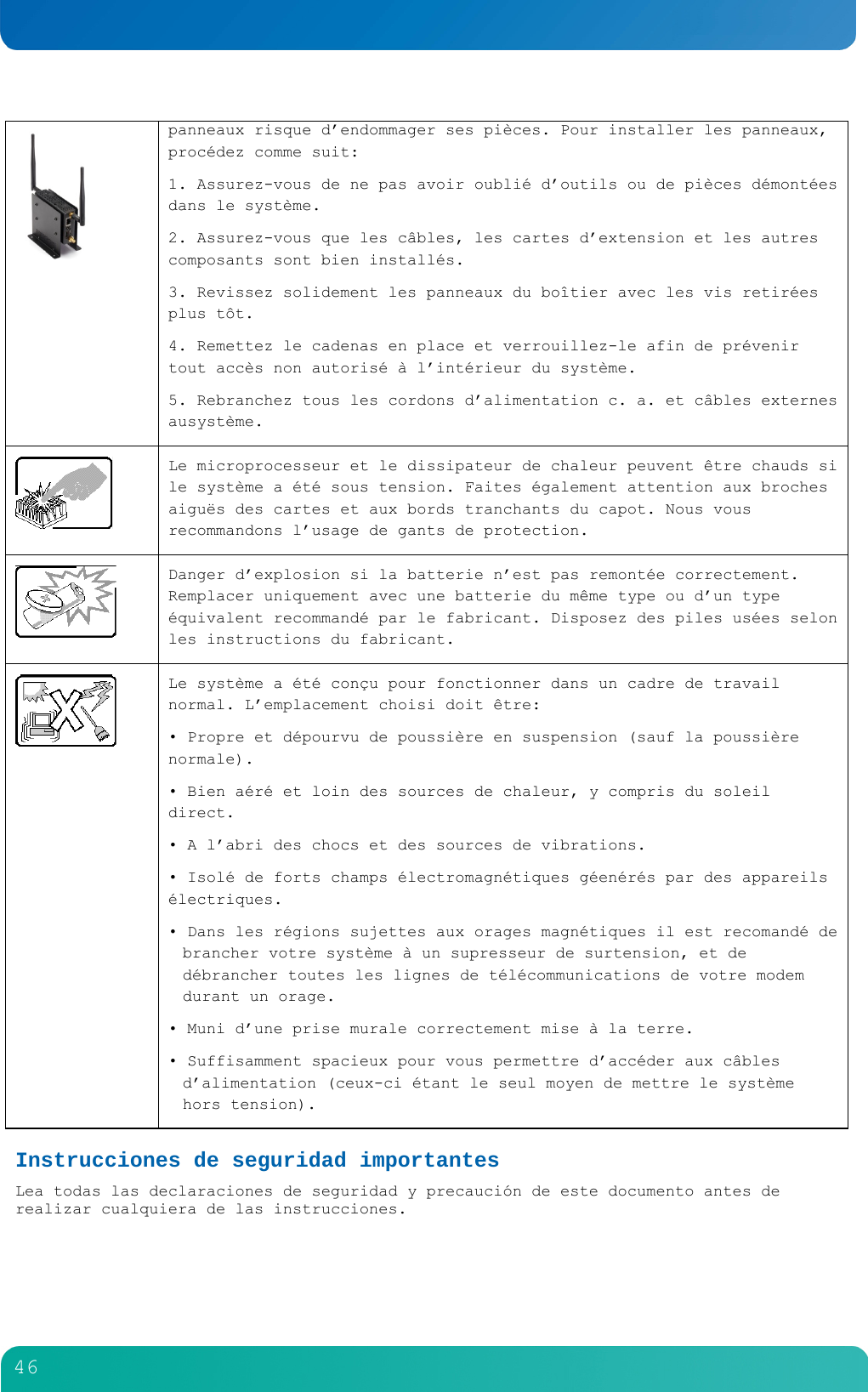
        46   panneaux risque d’endommager ses pièces. Pour installer les panneaux, procédez comme suit: 1. Assurez-vous de ne pas avoir oublié d’outils ou de pièces démontées dans le système. 2. Assurez-vous que les câbles, les cartes d’extension et les autres composants sont bien installés. 3. Revissez solidement les panneaux du boîtier avec les vis retirées plus tôt. 4. Remettez le cadenas en place et verrouillez-le afin de prévenir tout accès non autorisé à l’intérieur du système. 5. Rebranchez tous les cordons d’alimentation c. a. et câbles externes ausystème.   Le microprocesseur et le dissipateur de chaleur peuvent être chauds si le système a été sous tension. Faites également attention aux broches aiguës des cartes et aux bords tranchants du capot. Nous vous recommandons l’usage de gants de protection.  Danger d’explosion si la batterie n’est pas remontée correctement. Remplacer uniquement avec une batterie du même type ou d’un type équivalent recommandé par le fabricant. Disposez des piles usées selon les instructions du fabricant.   Le système a été conçu pour fonctionner dans un cadre de travail normal. L’emplacement choisi doit être: • Propre et dépourvu de poussière en suspension (sauf la poussière normale). • Bien aéré et loin des sources de chaleur, y compris du soleil direct. • A l’abri des chocs et des sources de vibrations. • Isolé de forts champs électromagnétiques géenérés par des appareils électriques. • Dans les régions sujettes aux orages magnétiques il est recomandé de brancher votre système à un supresseur de surtension, et de débrancher toutes les lignes de télécommunications de votre modem durant un orage. • Muni d’une prise murale correctement mise à la terre. • Suffisamment spacieux pour vous permettre d’accéder aux câbles d’alimentation (ceux-ci étant le seul moyen de mettre le système hors tension). Instrucciones de seguridad importantes Lea todas las declaraciones de seguridad y precaución de este documento antes de realizar cualquiera de las instrucciones.
        47    El usuario debe abstenerse de manipular los componentes de la fuente de alimentación de este producto, cuya reparación debe dejarse exclusivamente en manos de personal técnico especializado. Puede que este producto disponga de más de una fuente de alimentación.   No intente modificar ni usar el cable de alimentación de corriente alterna, si no corresponde exactamente con el tipo requerido. El número de cables suministrados se corresponden con el número de fuentes de alimentación de corriente alterna que tenga el producto.   Nótese que el interruptor activado/desactivado en el panel frontal no desconecta la corriente alterna del sistema. Para desconectarla, deberá desenchufar todos los cables de corriente alterna de la pared o desconectar la fuente de alimentación.           INSTRUCCIONES DE SEGURIDAD: Cuando extraiga la tapa del chasis para acceder al interior del sistema, siga las siguientes instrucciones: 1. Apague todos los dispositivos periféricos conectados al sistema. 2. Apague el sistema presionando el interruptor encendido/apagado. 3. Desconecte todos los cables de alimentación CA del sistema o de las tomas de corriente alterna. 4. Identifique y desconecte todos los cables enchufados a los conectores E/S o a los puertos situados en la parte posterior del sistema. 5. Cuando manipule los componentes, es importante protegerse contra la descarga electrostática (ESD). Puede hacerlo si utiliza una muñequera antiestática sujetada a la toma de tierra del chasis - o a cualquier tipo de superficie de metal sin pintar. 6. No ponga en marcha el sistema si se han extraído las tapas del chasis. Después de completar las seis instrucciones de SEGURIDAD mencionadas, ya puede extraer las tapas del sistema. Para ello: 1. Desbloquee y extraiga el bloqueo de seguridad de la parte posterior del sistema, si se ha instalado uno. 2. Extraiga y guarde todos los tornillos de las tapas. 3. Extraiga las tapas.  Para obtener un enfriamiento y un flujo de aire adecuados, reinstale siempre las tapas del chasis antes de poner en marcha el sistema. Si pone en funcionamiento el sistema sin las tapas bien colocadas puede dañar los componentes del sistema. Para instalar las tapas: 1. Asegúrese primero de no haber dejado herramientas o componentes
        48   sueltos dentro del sistema. 2. Compruebe que los cables, las placas adicionales y otros componentes se hayan instalado correctamente. 3. Incorpore las tapas al chasis mediante los tornillos extraídos anteriormente, tensándolos firmemente. 4. Inserte el bloqueo de seguridad en el sistema y bloquéelo para impedir que pueda accederse al mismo sin autorización. 5. Conecte todos los cables externos y los cables de alimentación CA al sistema.   Si el sistema ha estado en funcionamiento, el microprocesador y el disipador de calor pueden estar aún calientes. También conviene tener en cuenta que en el chasis o en el tablero puede haber piezas cortantes o punzantes. Por ello, se recomienda precaución y el uso de guantes protectores.   Existe peligro de explosión si la pila no se cambia de forma adecuada. Utilice solamente pilas iguales o del mismo tipo que las recomendadas por el fabricante del equipo. Para deshacerse de las pilas usadas, siga igualmente las instrucciones del fabricante.  El sistema está diseñado para funcionar en un entorno de trabajo normal. Escoja un lugar: • Limpio y libre de partículas en suspensión (salvo el polvo normal). • Bien ventilado y alejado de fuentes de calor, incluida la luz solar directa. • Alejado de fuentes de vibración. • Aislado de campos electromagnéticos fuertes producidos por dispositivos eléctricos. • En regiones con frecuentes tormentas eléctricas, se recomienda conectar su sistema a un eliminador de sobrevoltage y desconectar el módem de las líneas de telecomunicación durante las tormentas. • Provisto de una toma de tierra correctamente instalada. • Provisto de espacio suficiente como para acceder a los cables de alimentación, ya que éstos hacen de medio principal de desconexión del sistema.  Informazioni di Sicurezza importanti
        49    Rivolgersi ad un tecnico specializzato per la riparazione dei component dell’alimentazione di questo prodotto. È possibile che il prodotto disponga di più fonti di alimentazione.  Non modificare o utilizzare il cavo di alimentazione in c.a. fornito dal produttore, se non corrisponde esattamente al tipo richiesto. Ad ogni fonte di alimentazione corrisponde un cavo di alimentazione in c.a. separato.   L’interruttore attivato/disattivato nel pannello anteriore non interrompe l’alimentazione in c.a. del sistema. Per interromperla, è necessario scollegare tutti I cavi di alimentazione in c.a. dalle prese a muro o dall’alimentazione di corrente.           PASSI DI SICUREZZA: Qualora si rimuovano le coperture del telaio per accedere all’interno del sistema, seguire i seguenti passi: 1. Spegnere tutti i dispositivi periferici collegati al sistema. 2. Spegnere il sistema, usando il pulsante spento/acceso dell’interruttore del sistema. 3. Togliere tutte le spine dei cavi del sistema dalle prese elettriche. 4. Identificare e sconnettere tutti i cavi attaccati ai collegamenti I/O od alle prese installate sul retro del sistema. 5. Qualora si tocchino i componenti, proteggersi dallo scarico elettrostatico (SES), portando un cinghia anti-statica da polso che è attaccata alla presa a terra del telaio del sistema - qualsiasi superficie non dipinta - . 6. Non far operare il sistema quando il telaio è senza le coperture. Dopo aver seguito i sei passi di SICUREZZA sopracitati, togliere le coperture del telaio del sistema come seque: 1. Aprire e rimuovere il lucchetto dal retro del sistema qualora ve ne fosse uno installato. 2. Togliere e mettere in un posto sicuro tutte le viti delle coperture. 3. Togliere le coperture.   Per il giusto flusso dell’aria e raffreddamento del sistema, rimettere sempre le coperture del telaio prima di riaccendere il sistema. Operare il sistema senza le coperture al loro proprio posto potrebbe danneggiare i componenti del sistema. Per rimettere le coperture del telaio: 1. Controllare prima che non si siano lasciati degli attrezzi o dei component dentro il sistema. 2. Controllare che i cavi, dei supporti aggiuntivi ed altri componenti
        50  siano stati installati appropriatamente. 3. Attaccare le coperture al telaio con le viti tolte in precedenza e avvitarle strettamente. 4. Inserire e chiudere a chiave il lucchetto sul retro del sistema per impedire l’accesso non autorizzato al sistema. 5. Ricollegare tutti i cavi esterni e le prolunghe AC del sistema.   Se il sistema è stato a lungo in funzione, il microprocessore e il dissipatore di calore potrebbero essere surriscaldati. Fare attenzione alla presenza di piedini appuntiti e parti taglienti sulle schede e sul telaio. È consigliabile l’uso di guanti di protezione.   Esiste il pericolo di un esplosione se la pila non viene sostituita in modo corretto. Utilizzare solo pile uguali o di tipo equivalente a quelle consigliate dal produttore. Per disfarsi delle pile usate, seguire le istruzioni del produttore.   Il sistema è progettato per funzionare in un ambiente di lavoro tipo. Scegliere una postazione che sia: • Pulita e libera da particelle in sospensione (a parte la normale polvere presente nell’ambiente). • Ben ventilata e lontana da fonti di calore, compresa la luce solare diretta. • Al riparo da urti e lontana da fonti di vibrazione. • Isolata dai forti campi magnetici prodotti da dispositivi elettrici. • In aree soggette a temporali, è consigliabile collegare il sistema ad un limitatore di corrente. In caso di temporali, scollegare le linee di comunicazione dal modem. • Dotata di una presa a muro correttamente installata. • Dotata di spazio sufficiente ad accedere ai cavi di alimentazione, i quail rappresentano il mezzo principale di scollegamento del sistema.
        51  9 Appendix B: Regulatory and Certification Information (update for product)  9.1 Product Regulatory Compliance (testing pending) Product Safety Compliance  The Carrier Grade Kontron M2M Smart Service Developer Kit complies with the following safety requirements:  60950-1 Nemko NRTL  EN60950-1 (Europe)  IEC60950-1 (International), CB Certificate & Report including all international deviations  CE - Low Voltage Directive 73/23/EEE (Europe) Product EMC Compliance - Class B Compliance  The Carrier Grade Kontron M2M Smart Service Developer Kit has been has been tested and verified to comply with the following electromagnetic compatibility (EMC) regulations.  FCC /ICES-003 - Emissions (USA/Canada)  CISPR 22 - Emissions (International)  EN55022 - Emissions (Europe)  EN55024 - Immunity (Europe)  EN61000-3-2 - Harmonics (Europe)  EN61000-3-3 - Voltage Flicker (Europe)  CE- EMC Directive 89/336/EEC (Europe)  AS/NZS: CISPR 22 Emissions (Australia / New Zealand) Certifications/Registrations/Declarations   UL Listing (US/Canada)  CE Declaration of Conformity (Europe)   FCC/ICES-003 Class B Verification Report (USA/Canada) 9.2 Electromagnetic Compatibility Notices FCC (USA) This device complies with Part 15 of the FCC Rules. Operation is subject to the following two conditions: (1) this device may not cause harmful interference, and (2) this device must accept any interference received, including interference that may cause undesired operation. For questions related to the EMC performance of this product, contact: Kontron America, Inc.
        52  14118 Stowe Drive Poway, CA 92064-7147 (888) 294-4558 This equipment has been tested and found to comply with the limits for a Class B digital device, pursuant to Part 15 of the FCC Rules. These limits are designed to provide reasonable protection against harmful interference in a residential installation. This equipment generates, uses, and can radiate radio frequency energy and, if not installed and used in accordance with the instructions, may cause harmful interference to radio communications. However, there is no guarantee that interference will not occur in a particular installation. If this equipment does cause harmful interference to radio or television reception, which can be determined by turning the equipment off and on, the user is encouraged to try to correct the interference by one or more of the following measures:  Reorient or relocate the receiving antenna.  Increase the separation between the equipment and the receiver.  Connect the equipment to an outlet on a circuit other than the one to which the receiver is connected.  Consult the dealer or an experienced radio/TV technician for help. Any changes or modifications not expressly approved by the grantee of this device could void the user's authority to operate the equipment. The customer is responsible for ensuring compliance of the modified product. Only peripherals (computer input/output devices, terminals, printers, etc.) that comply with FCC Class A or B limits may be attached to this computer product. Operation with noncompliant peripherals is likely to result in interference to radio and TV reception. All cables used to connect to peripherals must be shielded and grounded. Operation with cables connected to peripherals that are not shielded and grounded may result in interference to radio and TV reception. Industry Canada (ICES-003) This radio transmitter has been approved by Industry Canada to operate with the antenna types listed below with the maximum permissible gain and required antenna impedance for each antenna type indicated. Antenna types not included in this list, having a gain greater than the maximum gain indicated for that type, are strictly prohibited for use with this device.   Le présent émetteur radio a été approuvé par Industrie Canada pour fonctionner avec les types d'antenne énumérés ci-dessous et ayant un gain admissible maximal et l'impédance requise pour chaque type d'antenne. Les types d'antenne non inclus dans cette liste, ou dont le gain est supérieur au gain maximal indiqué, sont strictement interdits pour l'exploitation de l'émetteur.  DIPOLE 2.4&5GHz w/RP-SMA Antenna 4.0 dBi gain   This device complies with Industry Canada licence-exempt RSS standard(s). Operation is subject to the following two conditions: (1) this device may not cause interference, and (2) this device must accept any interference, including interference that may cause undesired operation of the device.   Le présent appareil est conforme aux CNR d'Industrie Canada applicables aux appareils radio exempts de licence. L'exploitation est autorisée aux deux conditions suivantes : (1) l'appareil ne doit pas produire de brouillage, et (2) l'utilisateur de l'appareil doit accepter tout brouillage radioélectrique subi, même si le brouillage est susceptible d'en compromettre le fonctionnement.  DIPOLE 2.4&5GHz w/RP-SMA Antenna 4.0 dBi gain
        53  Cet appareil numérique respecte les limites bruits radioélectriques applicables aux appareils numériques de Classe B prescrites dans la norme sur le matériel brouilleur: “Appareils Numériques”, NMB-003 édictée par le Ministre Canadian des Communications. English translation of the notice above: This digital apparatus does not exceed the Class B limits for radio noise emissions from digital apparatus set out in the interference-causing equipment standard entitled “Digital Apparatus”, ICES-003 of the Canadian Department of Communications. Europe (CE Declaration of Conformity) This product has been tested in accordance to, and complies with, the Low Voltage Directive (73/23/EEC) and EMC Directive (2004/108/EC). The product has been marked with the CE Mark to illustrate its compliance. Install and use the equipment according to the instruction manual. The BSMI Certification Marking and EMC warning is located on the outside rear area of the product. Regulated Specified Components To maintain compliance to other regulatory certifications and/or declarations, the following conditions must be adhered to and the following regulated components must be used. Interchanging or using other components will void the UL listing and other product certifications and approvals. 1. Add-in boards must have a printed wiring board flammability rating of minimum UL94V-1. Add-in boards containing external power connectors and/or lithium batteries must be UL recognized or UL listed. Any add-in board containing modem telecommunication circuitry must be UL listed. In addition, the modem must have the appropriate telecommunications, safety, and EMC approvals for the region in which it is sold. 2. Peripheral Storage Devices must be a UL recognized or UL listed accessory and TUV or VDE licensed. Maximum power rating of any one device is 19 watts. Total Kontron M2M Smart Service Developer Kit configuration is not to exceed the maximum loading conditions of the power supply.
        54  10 Appendix C: Getting Help 10.1 World Wide Web Technicians and engineers from Kontron and/or its subsidiaries are available for technical support. We are committed to making our product easy to use and will help you use our products in your systems.  Please consult our Web site at http://us.kontron.com/support for the latest product documentation, utilities, drivers and support contacts.  10.2 Telephone (800) 480-0044 10.3 Email  support@us.kontron.com
        55                           Corporate Offices  Europe, Middle East & Africa  Oskar-von-Miller-Str. 1 85386 Eching/Munich Germany Tel.: +49 (0)8165/ 77 777 Fax: +49 (0)8165/ 77 219 info@kontron.com   North America  14118 Stowe Drive Poway, CA 92064-7147 USA Tel.: +1 888 294 4558 Fax: +1 858 677 0898 info@us.kontron.com  Asia Pacific  17 Building, Block #1, ABP. 188 Southern West 4th Ring Road Beijing 100070, P.R.China Tel.: + 86 10 63751188 Fax: + 86 10 83682438 info@kontron.cn

Navigation menu