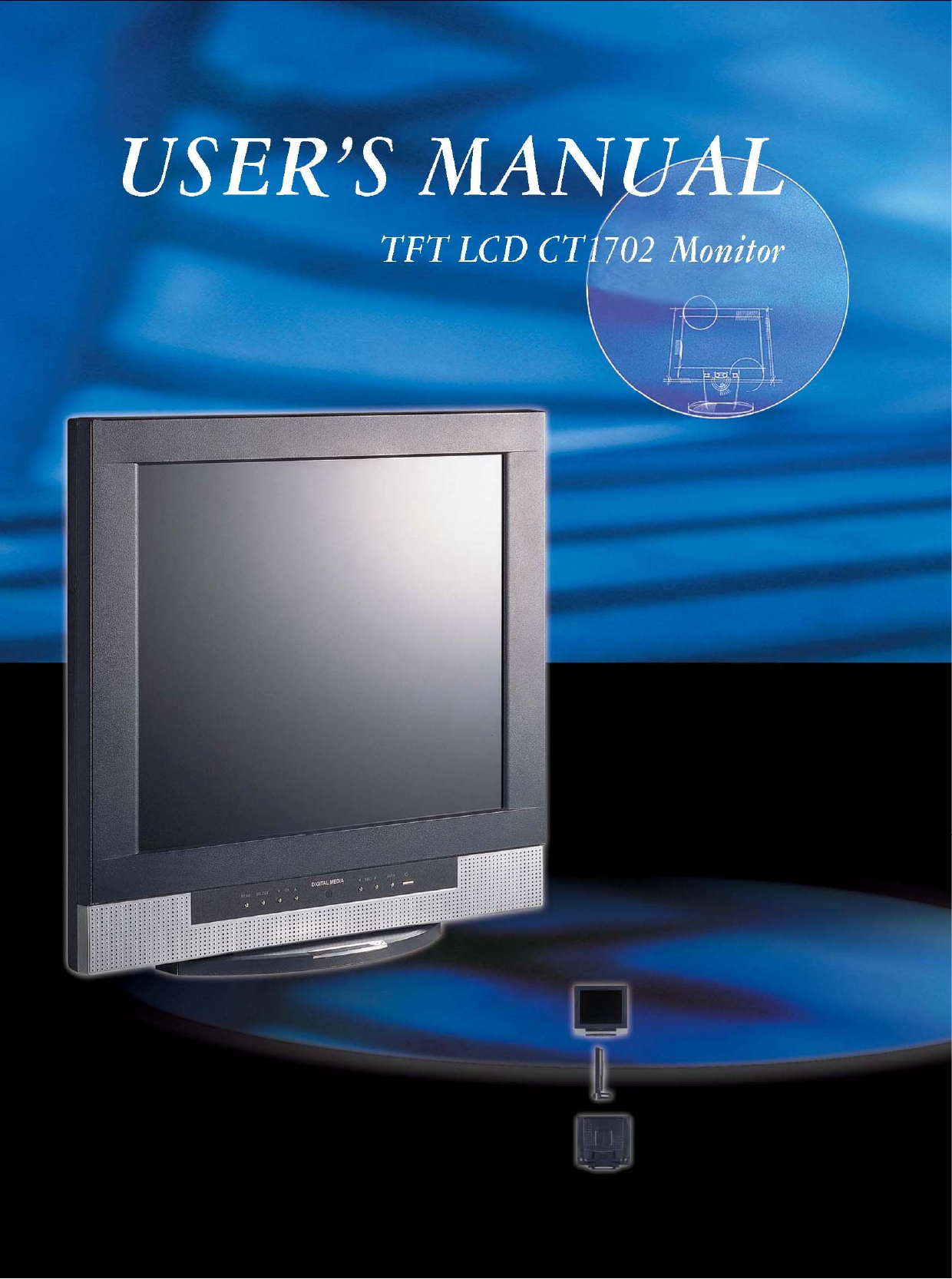
Korea Data Systems Co CT1702 17” LCD TV Monitor User Manual 1 intro1 1904

Korea Data Systems Co Ltd 17” LCD TV Monitor 1 intro1 1904

Contents

Users manual1

   Congratulations!  Congratulations on your purchase of a state-of-the-art TFT-LCD monitor by Korea Data Systems Co., Ltd. (KDS)  We know you will be pleased with your investment and will enjoy the dynamic viewing experience — You will never look at digital images the same again!    Our monitor is easy to set up. Just follow these simple instructions and you will be viewing a “new digital world” in no time:  • Connect the monitor to your PC. • Configure the monitor • Adjust the display • Enjoy!   Copyright© 2003 by Korea Data Systems Co., Ltd..  All rights reserved. No part of this manual may be reproduced, stored in retrieval system or transmitted in any form or by any means electronic, mechanical or otherwise, without the prior written permission of Korea Data Systems Co., Ltd. Korea Data System Co., Ltd. is under no obligation to hold any submitted material of information confidential unless prior arrangements are made pursuant to Korea Data System Co., Ltd.’s receipt of said information. Although every effort has been made to ensure that this manual provides up-to-date information, please note that KDS monitor specifications are subject to change without notice.   Part Number: 8007000007
   Table of Contents  General Information Safety Symbols    . . . . . . . . . . . . . . . . . . . . . . . . . . . . . . . . . . . . . . . .    2 Warning    . . . . . . . . . . . . . . . . . . . . . . . . . . . . . . . . . . . . . . . . . . . . .    3 Caution    . . . . . . . . . . . . . . . . . . . . . . . . . . . . . . . . . . . . . . . . . . . . .    6 LCD Panel    . . . . . . . . . . . . . . . . . . . . . . . . . . . . . . . . . . . . . . . . . .    7 Unpacking Your Monitor and Taking Inventory of the Parts  . . . . . .    8  Component Information The Front of the Monitor    . . . . . . . . . . . . . . . . . . . . .. . ... . . . . . . . .   10 The Back of the Monitor (Connection Locations)  . . . . .. . . . . . .. . ...  11 Adjust the Tilt / Viewing Angle    . . . . . . . . . . . . . . . . . . . .. . . . . . .  12 Power Management Function    . . . . . . . . . . . . . . . . . . . . . .. . . . . . .  13  Connecting Connect Your Monitor to Your Computer   . . . . . . . . . . . . . . . . . . . . .   14 Connect Your Monitor to a Tuner    . . . . . . . . . . . . . . . . . . . . .   17 Other External A/V Devices to Your Monitor  . . . . . . . . . . . . . . . . .   20 Function of the Remote controller    . . . . . . . . . . . . . . . . . . .. . . . . . .  23  Configuring/Adjusting Configuring and Adjusting the Display/ PC Mode    . . . . . . . . .. . . . . .   24 Configuring and Adjusting the Display/ Video Mode . . . . . . . . . . . . . .   32 Configuring and Adjusting the Display/ TV Mode      . . . . . . . . . . .   35 V-Chip Setting     . . . . . . . . . . . . . . . . . . . . . . . . . . . . . . . . . . . . . . . . .   40  Troubleshooting How to Resolve to Potential Problems    . . . . . . . . . . . . . . . . . . . .  42  Appendix  CT1702 Analog Display Modes      . . . . . . . . . . . . . . . . . . . . .   44 CT1702 Specifications    . . . . . . . . . . . . . . . . . . . . . . . . . . . . . . . . .  45 Regulatory Compliance . . . . . . . . . . . . . . . . . . . . . . . . . . . . . . . . 48
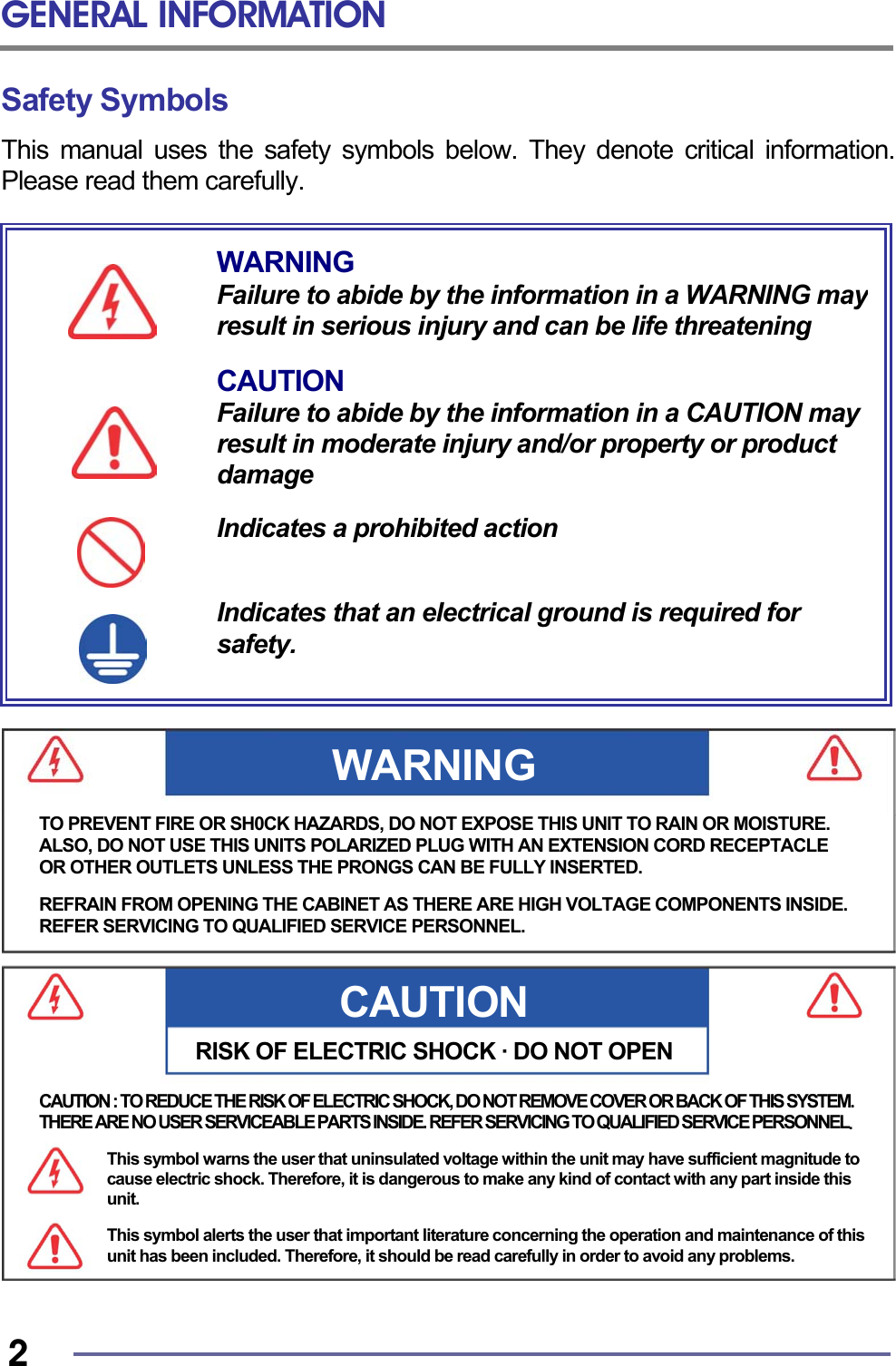
GENERAL INFORMATION   2 Safety Symbols This manual uses the safety symbols below. They denote critical information. Please read them carefully.                                     WARNING Failure to abide by the information in a WARNING mayresult in serious injury and can be life threatening  CAUTION Failure to abide by the information in a CAUTION may result in moderate injury and/or property or product damage  Indicates a prohibited action   Indicates that an electrical ground is required for safety. CAUTIONRISK OF ELECTRIC SHOCK · DO NOT OPENWARNING TO PREVENT FIRE OR SH0CK HAZARDS, DO NOT EXPOSE THIS UNIT TO RAIN OR MOISTURE. ALSO, DO NOT USE THIS UNITS POLARIZED PLUG WITH AN EXTENSION CORD RECEPTACLE OR OTHER OUTLETS UNLESS THE PRONGS CAN BE FULLY INSERTED.  REFRAIN FROM OPENING THE CABINET AS THERE ARE HIGH VOLTAGE COMPONENTS INSIDE.REFER SERVICING TO QUALIFIED SERVICE PERSONNEL. CAUTION : TO REDUCE THE RISK OF ELECTRIC SHOCK, DO NOT REMOVE COVER OR BACK OF THIS SYSTEM. THERE ARE NO USER SERVICEABLE PARTS INSIDE. REFER SERVICING TO QUALIFIED SERVICE PERSONNEL.  This symbol warns the user that uninsulated voltage within the unit may have sufficient magnitude to cause electric shock. Therefore, it is dangerous to make any kind of contact with any part inside this unit.  This symbol alerts the user that important literature concerning the operation and maintenance of this unit has been included. Therefore, it should be read carefully in order to avoid any problems.
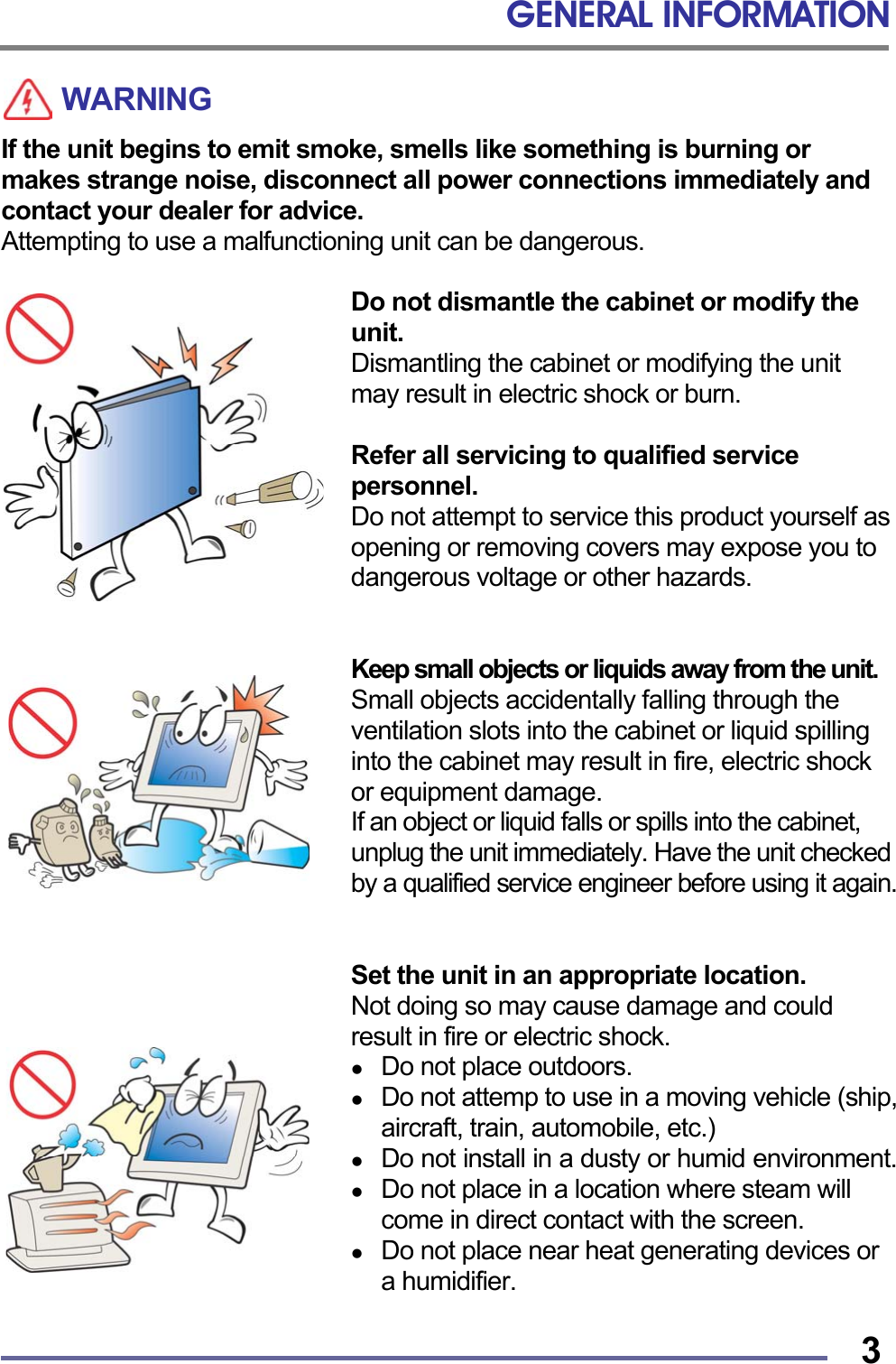
GENERAL INFORMATION   3WARNING If the unit begins to emit smoke, smells like something is burning or makes strange noise, disconnect all power connections immediately and contact your dealer for advice. Attempting to use a malfunctioning unit can be dangerous.  Do not dismantle the cabinet or modify the unit. Dismantling the cabinet or modifying the unit may result in electric shock or burn.  Refer all servicing to qualified service personnel. Do not attempt to service this product yourself as opening or removing covers may expose you to dangerous voltage or other hazards.   Keep small objects or liquids away from the unit. Small objects accidentally falling through the ventilation slots into the cabinet or liquid spilling into the cabinet may result in fire, electric shock or equipment damage. If an object or liquid falls or spills into the cabinet, unplug the unit immediately. Have the unit checked by a qualified service engineer before using it again.   Set the unit in an appropriate location. Not doing so may cause damage and could result in fire or electric shock.   Do not place outdoors.   Do not attemp to use in a moving vehicle (ship, aircraft, train, automobile, etc.)   Do not install in a dusty or humid environment.   Do not place in a location where steam will come in direct contact with the screen.   Do not place near heat generating devices or a humidifier.
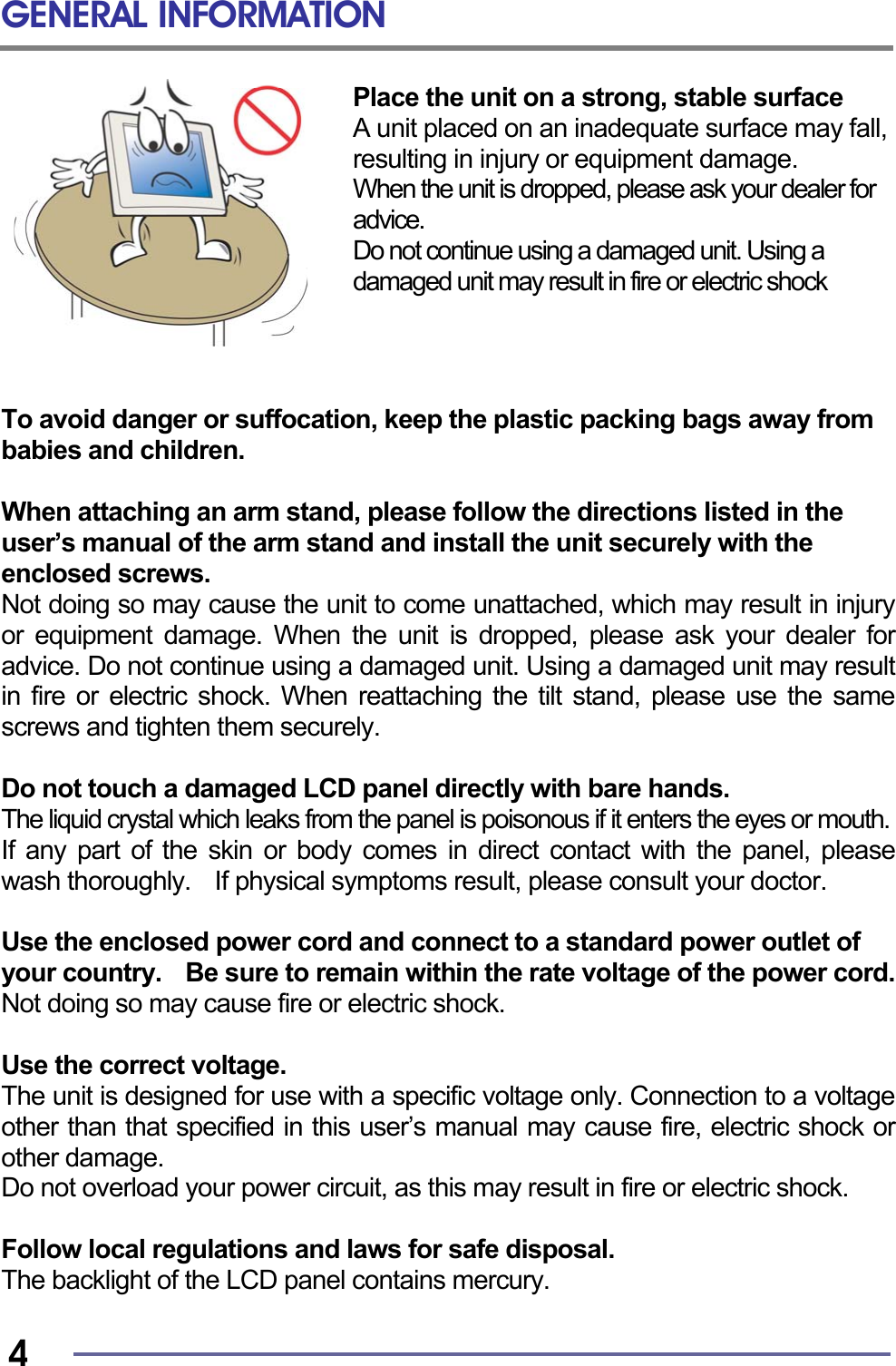
GENERAL INFORMATION   4 Place the unit on a strong, stable surface A unit placed on an inadequate surface may fall, resulting in injury or equipment damage. When the unit is dropped, please ask your dealer for advice.   Do not continue using a damaged unit. Using a damaged unit may result in fire or electric shock     To avoid danger or suffocation, keep the plastic packing bags away from babies and children.  When attaching an arm stand, please follow the directions listed in the   user’s manual of the arm stand and install the unit securely with the enclosed screws. Not doing so may cause the unit to come unattached, which may result in injury or equipment damage. When the unit is dropped, please ask your dealer for advice. Do not continue using a damaged unit. Using a damaged unit may result in fire or electric shock. When reattaching the tilt stand, please use the same screws and tighten them securely.  Do not touch a damaged LCD panel directly with bare hands. The liquid crystal which leaks from the panel is poisonous if it enters the eyes or mouth.  If any part of the skin or body comes in direct contact with the panel, please wash thoroughly.    If physical symptoms result, please consult your doctor.  Use the enclosed power cord and connect to a standard power outlet of your country.    Be sure to remain within the rate voltage of the power cord. Not doing so may cause fire or electric shock.  Use the correct voltage. The unit is designed for use with a specific voltage only. Connection to a voltage other than that specified in this user’s manual may cause fire, electric shock or other damage. Do not overload your power circuit, as this may result in fire or electric shock.  Follow local regulations and laws for safe disposal. The backlight of the LCD panel contains mercury.
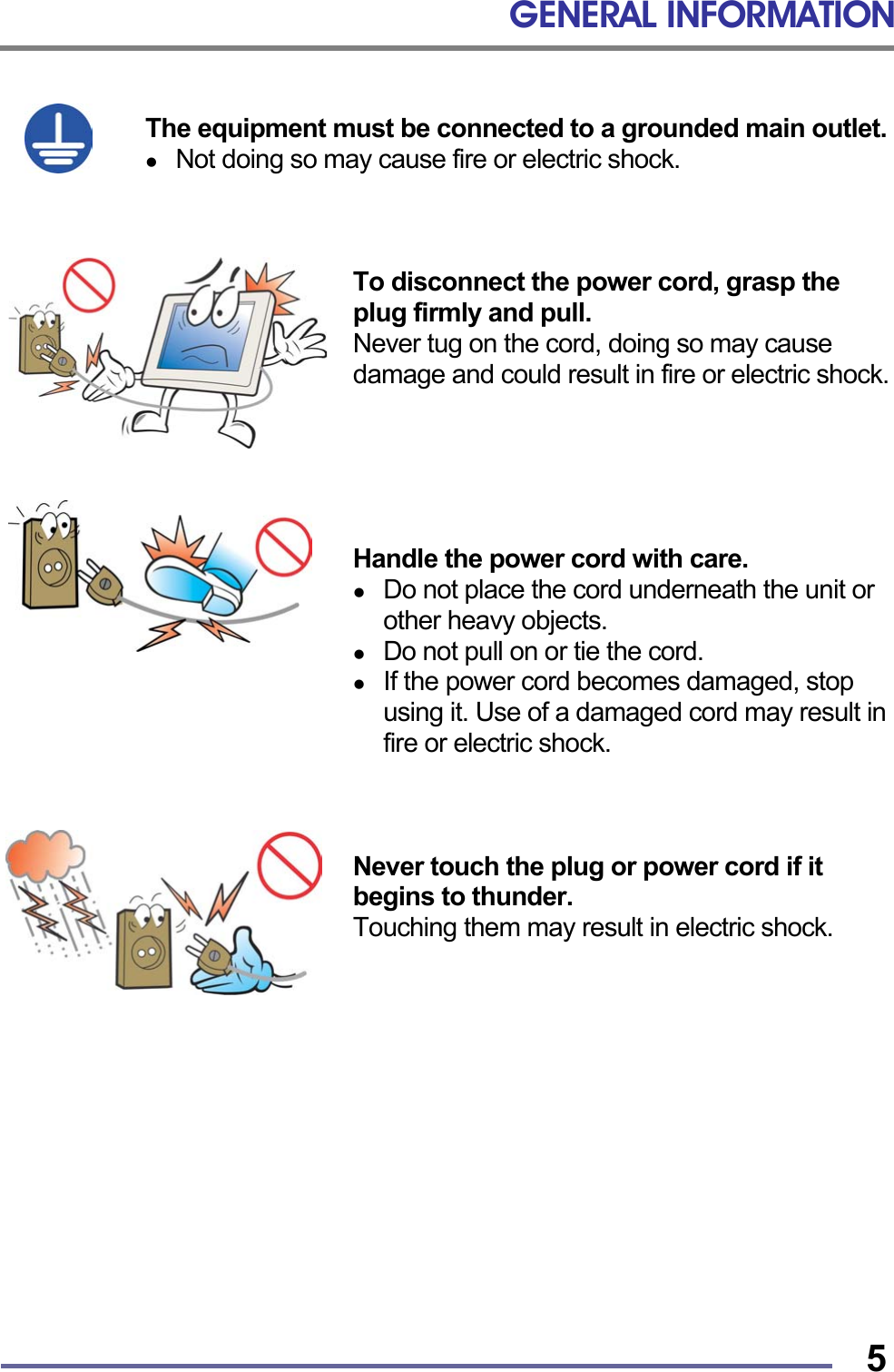
GENERAL INFORMATION   5 The equipment must be connected to a grounded main outlet.   Not doing so may cause fire or electric shock.    To disconnect the power cord, grasp the plug firmly and pull. Never tug on the cord, doing so may cause damage and could result in fire or electric shock.      Handle the power cord with care.   Do not place the cord underneath the unit or other heavy objects.   Do not pull on or tie the cord.   If the power cord becomes damaged, stop using it. Use of a damaged cord may result in fire or electric shock.    Never touch the plug or power cord if it begins to thunder. Touching them may result in electric shock.
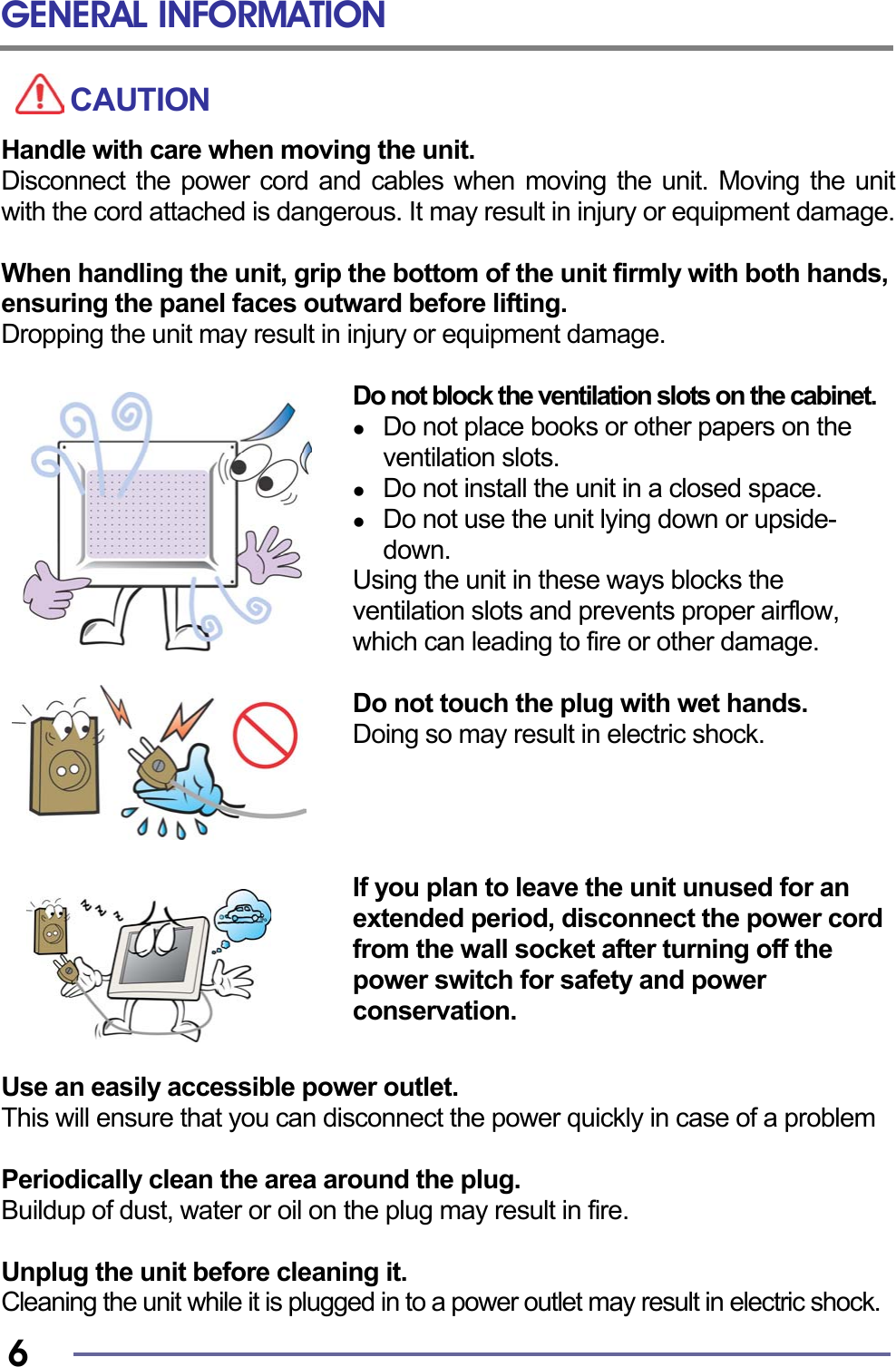
GENERAL INFORMATION   6 CAUTION Handle with care when moving the unit. Disconnect the power cord and cables when moving the unit. Moving the unit with the cord attached is dangerous. It may result in injury or equipment damage.  When handling the unit, grip the bottom of the unit firmly with both hands, ensuring the panel faces outward before lifting. Dropping the unit may result in injury or equipment damage.  Do not block the ventilation slots on the cabinet.   Do not place books or other papers on the ventilation slots.   Do not install the unit in a closed space.   Do not use the unit lying down or upside-down. Using the unit in these ways blocks the ventilation slots and prevents proper airflow, which can leading to fire or other damage.  Do not touch the plug with wet hands. Doing so may result in electric shock.     If you plan to leave the unit unused for an extended period, disconnect the power cord from the wall socket after turning off the power switch for safety and power conservation.   Use an easily accessible power outlet. This will ensure that you can disconnect the power quickly in case of a problem  Periodically clean the area around the plug. Buildup of dust, water or oil on the plug may result in fire.  Unplug the unit before cleaning it. Cleaning the unit while it is plugged in to a power outlet may result in electric shock.
GENERAL INFORMATION   7LCD Panel The screen may have defective pixels. These pixels may appear as slightly light or dark areas on the screen. This is due to the characteristics of the panel itself and not the product.  The backlight of the LCD panel has a fixed life span.    When the screen becomes dark or begins to flicker, please contact your dealer.  Do not press on the panel or edge of the frame strongly, as this will result in damage to the screen.    There will be prints left on the screen if the image on the screen when pressed is dark or black. If pressure is repeatedly applied to the screen, it may deteriorate or damage your LCD panel. To decrease the possibility of prints, try to keep the images on the screen as light as possible.  Do not scratch or press on the panel with any sharp objects, such as a pencil or pen as this may result in damage to the panel.    Do not attempt to wipe with tissues as this may scratch the LCD panel.
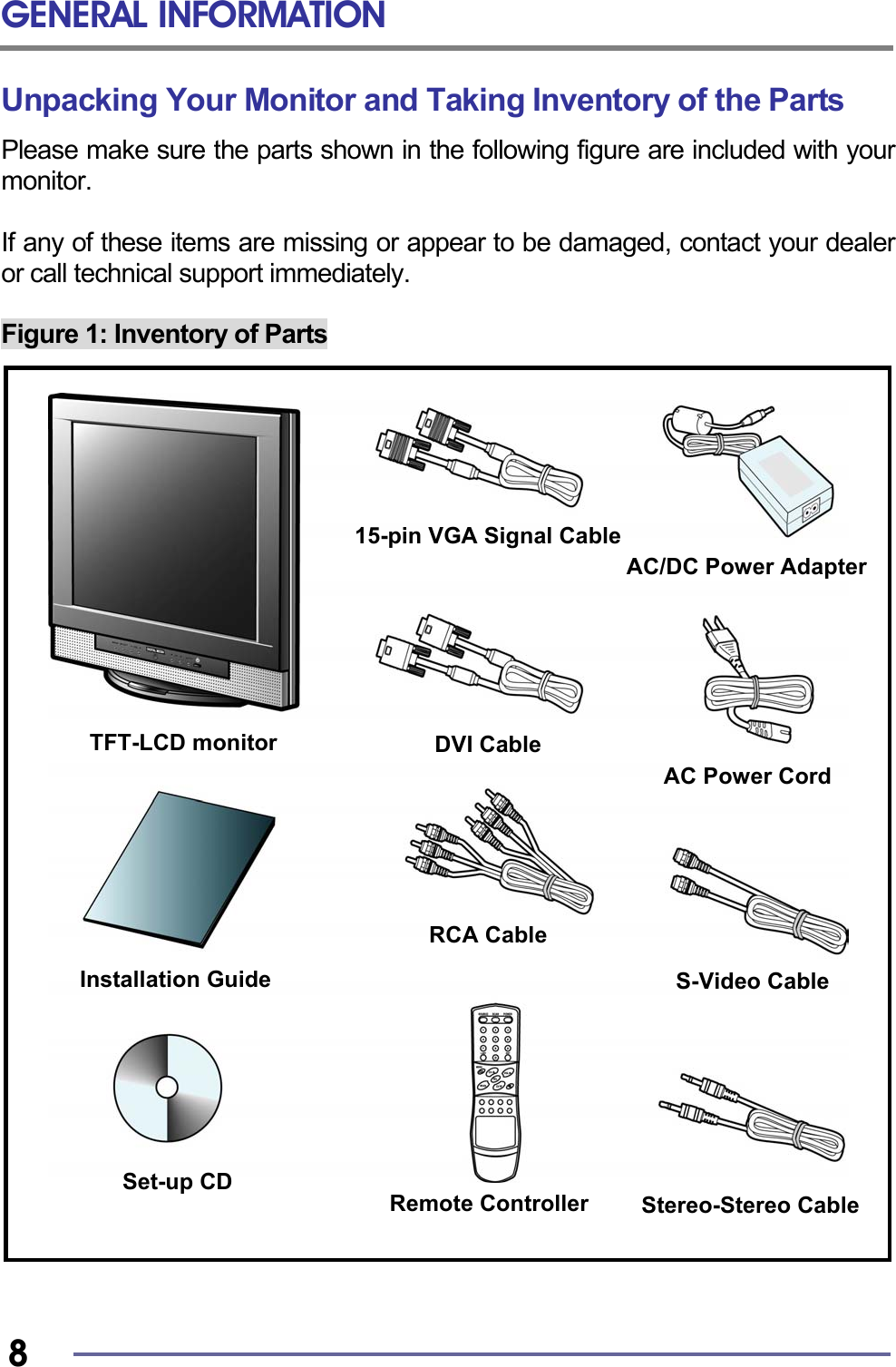
GENERAL INFORMATION   8 Unpacking Your Monitor and Taking Inventory of the Parts Please make sure the parts shown in the following figure are included with your monitor.  If any of these items are missing or appear to be damaged, contact your dealer or call technical support immediately.  Figure 1: Inventory of Parts                                 TFT-LCD monitor Installation Guide AC Power CordAC/DC Power AdapterSet-up CD 15-pin VGA Signal CableStereo-Stereo CableRCA Cable Remote ControllerS-Video Cable DVI Cable
GENERAL INFORMATION   9        When unpacking the monitor and its components:  • Carefully open the box. • Lay the box flat on a table and carefully slide the contents out of the box. • Do not “dump” the contents out of the box.  When inspecting the monitor and its components:  • Verify all the components are present, according to the previous figure. • Verify the parts are not damaged.     TIP: Save the box and other packing material in case the Monitor needs to be returned. NOTE: Depending on the voltage requirements for your area, the power cord may be different than what is indicatedin the figure.
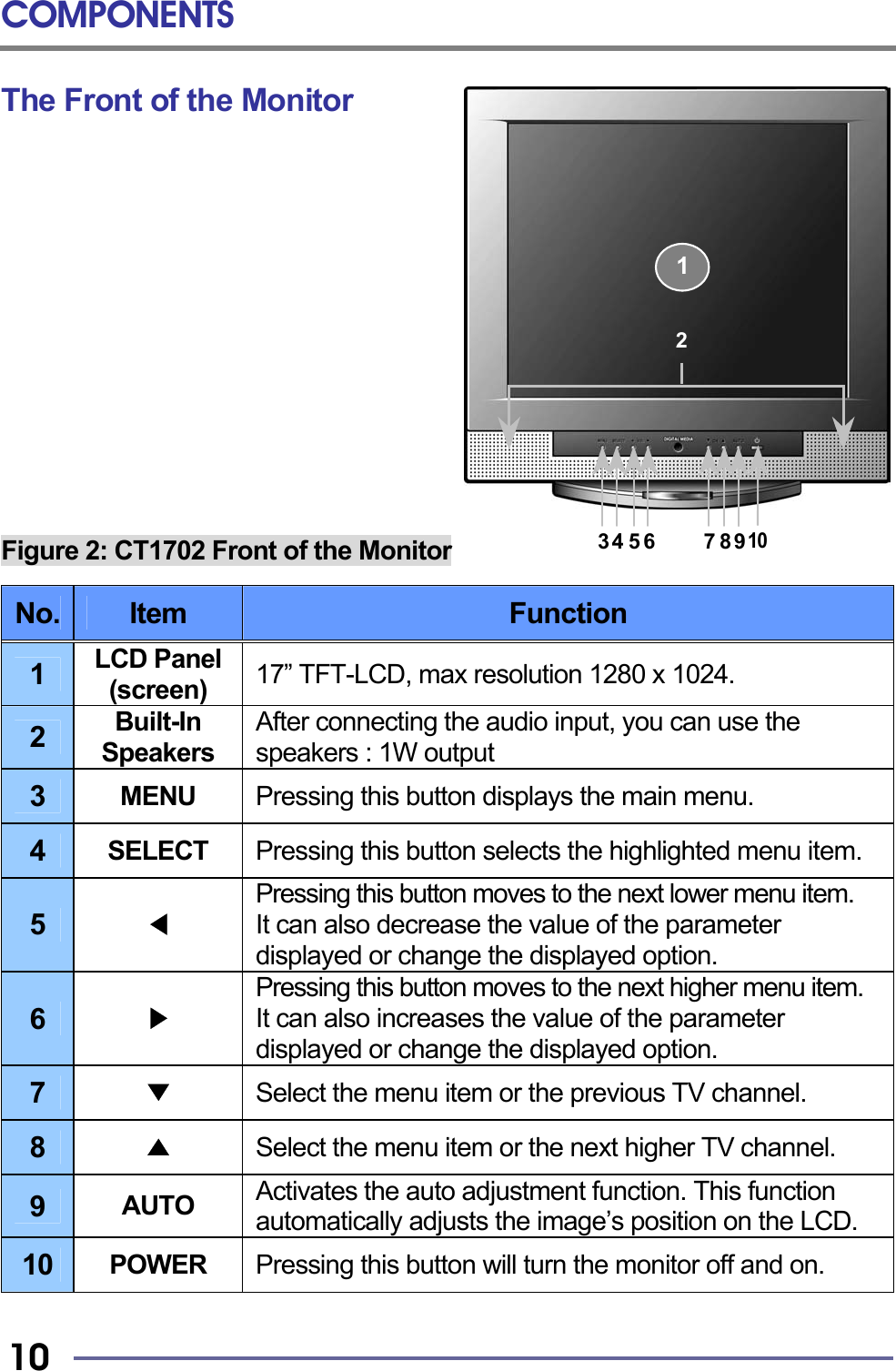
COMPONENTS   10 The Front of the Monitor              Figure 2: CT1702 Front of the Monitor  No.  Item  Function 1  LCD Panel (screen)  17” TFT-LCD, max resolution 1280 x 1024. 2  Built-In Speakers After connecting the audio input, you can use the speakers : 1W output 3  MENU  Pressing this button displays the main menu. 4  SELECT  Pressing this button selects the highlighted menu item. 5  ◀ Pressing this button moves to the next lower menu item. It can also decrease the value of the parameter displayed or change the displayed option. 6  ▶ Pressing this button moves to the next higher menu item. It can also increases the value of the parameter displayed or change the displayed option.   7  ▼ Select the menu item or the previous TV channel. 8  ▲ Select the menu item or the next higher TV channel. 9  AUTO  Activates the auto adjustment function. This function automatically adjusts the image’s position on the LCD. 10  POWER  Pressing this button will turn the monitor off and on. 1 2 35467 8 9 10
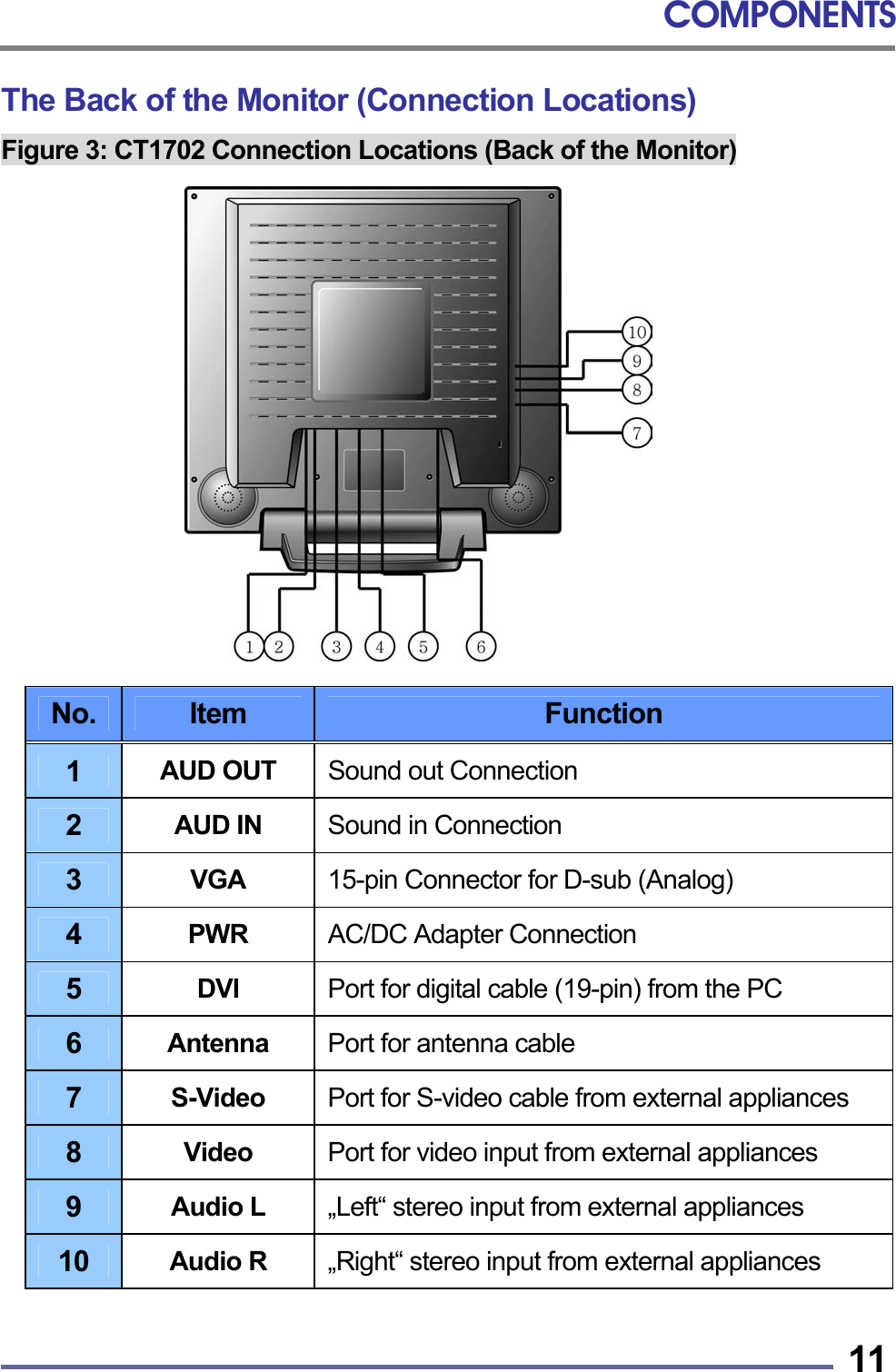
COMPONENTS   11The Back of the Monitor (Connection Locations) Figure 3: CT1702 Connection Locations (Back of the Monitor)                 No.  Item  Function 1  AUD OUT  Sound out Connection 2  AUD IN  Sound in Connection 3  VGA  15-pin Connector for D-sub (Analog) 4  PWR  AC/DC Adapter Connection 5  DVI  Port for digital cable (19-pin) from the PC 6  Antenna  Port for antenna cable 7  S-Video  Port for S-video cable from external appliances 8  Video  Port for video input from external appliances 9  Audio L  „Left“ stereo input from external appliances 10  Audio R  „Right“ stereo input from external appliances
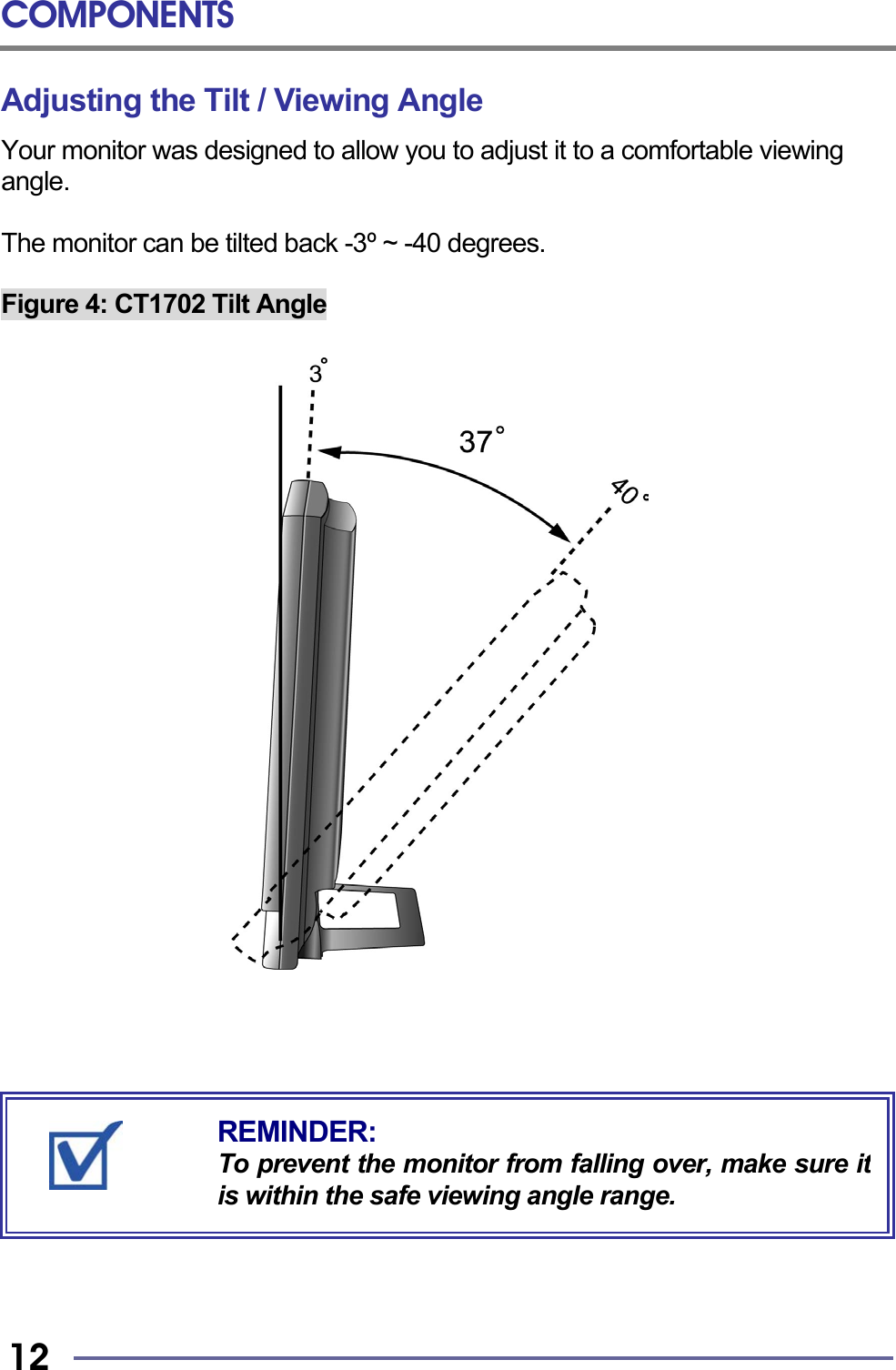
COMPONENTS   12 Adjusting the Tilt / Viewing Angle Your monitor was designed to allow you to adjust it to a comfortable viewing angle.  The monitor can be tilted back -3º ~ -40 degrees.  Figure 4: CT1702 Tilt Angle                                        REMINDER: To prevent the monitor from falling over, make sure itis within the safe viewing angle range.
COMPONENTS   13Power Management Function This monitor is equipped with a Display Power Management Signaling(DPMS) function that automatically cuts the power dissipation down to less than 5Watt when the computer is left unattended.          Power Light Status  Description Green  Power on. Amber/ Blink  Power saving mode enabled.                TIP: Although the monitor can be left in power-savingmode for longer periods, we recommend that you turnit off after your daily work is through.
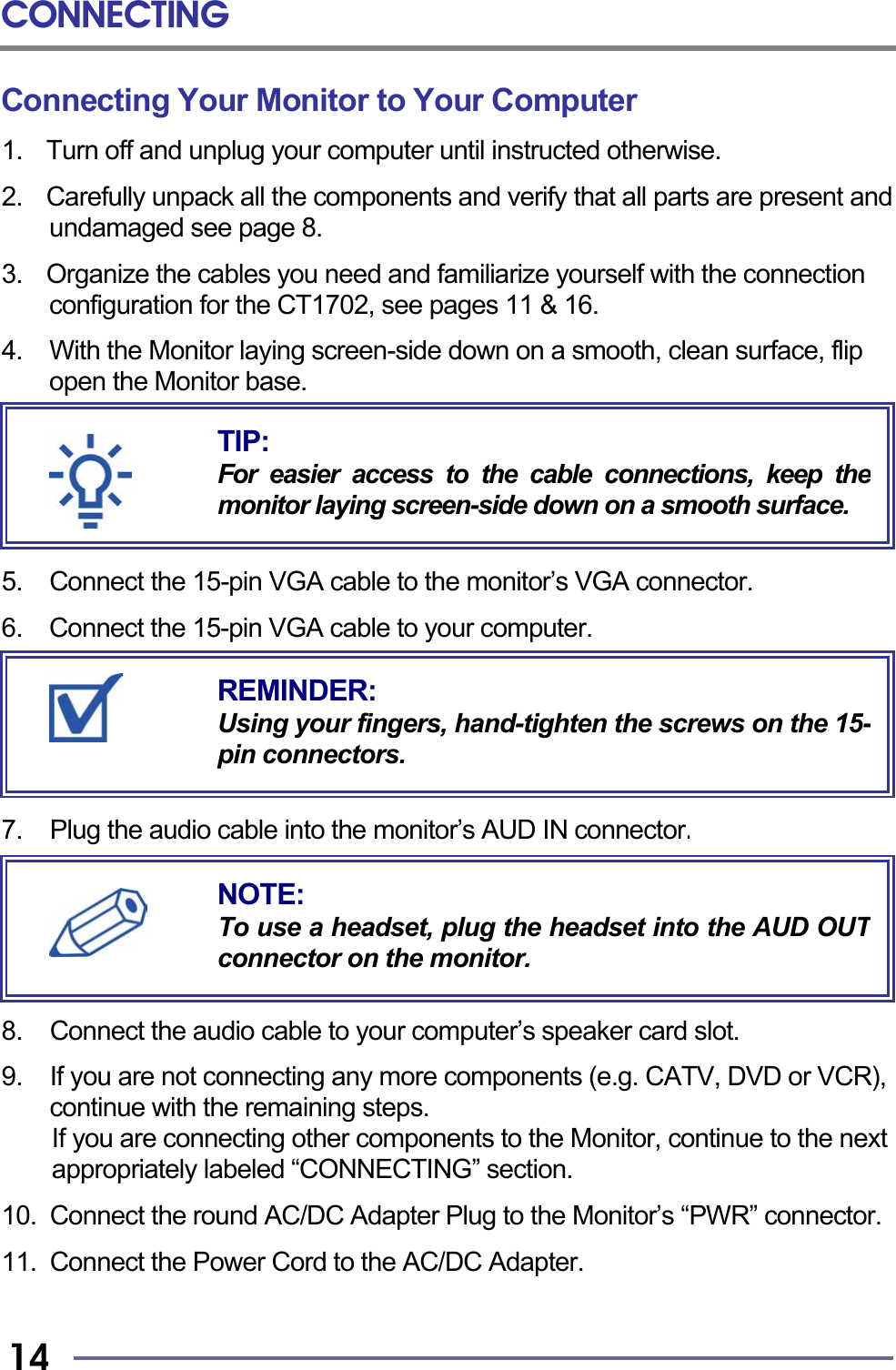
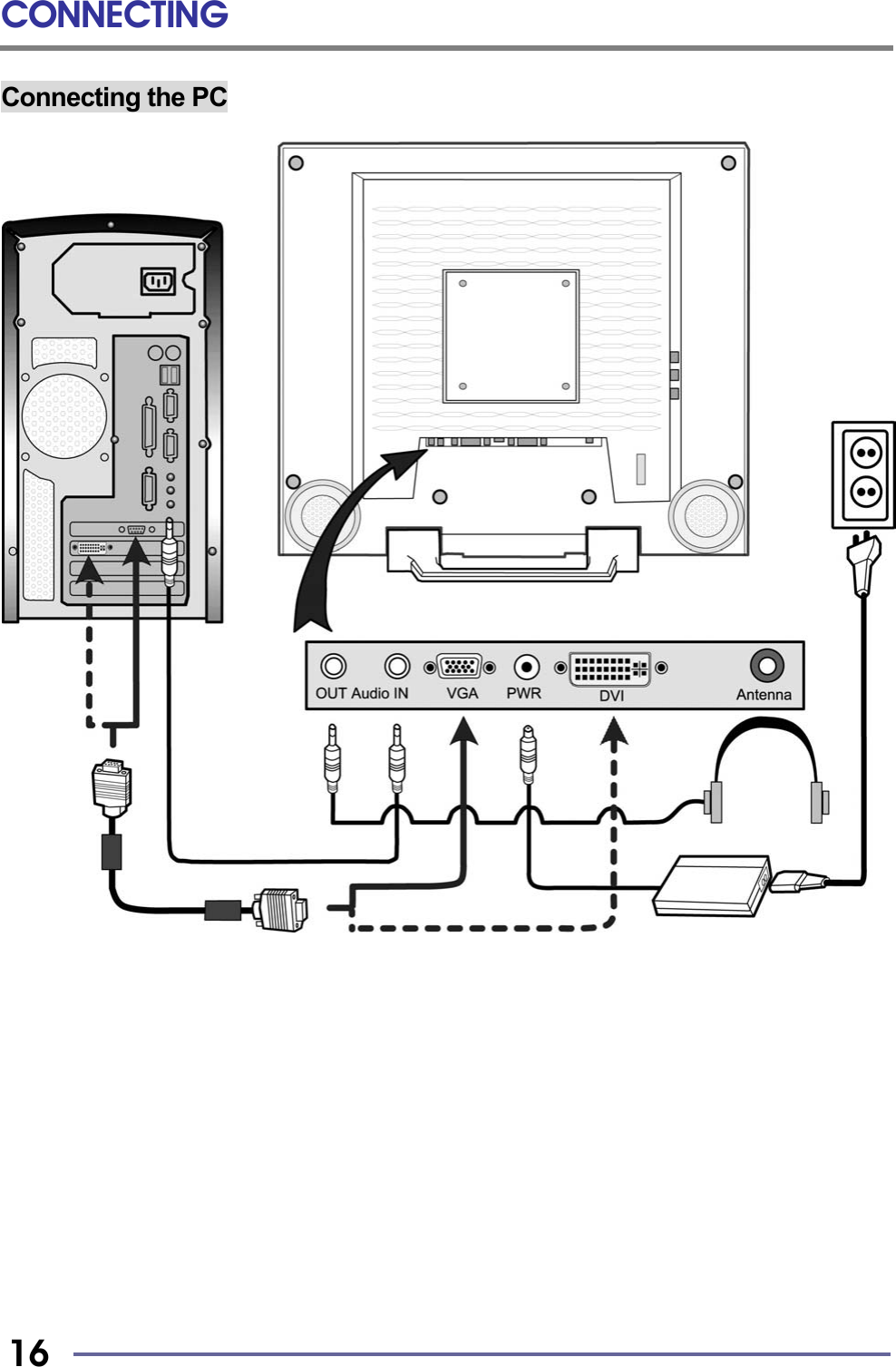
CONNECTING   14 Connecting Your Monitor to Your Computer 1.  Turn off and unplug your computer until instructed otherwise.  2.    Carefully unpack all the components and verify that all parts are present and undamaged see page 8.  3.    Organize the cables you need and familiarize yourself with the connection configuration for the CT1702, see pages 11 & 16.  4.    With the Monitor laying screen-side down on a smooth, clean surface, flip open the Monitor base.       5. Connect the 15-pin VGA cable to the monitor’s VGA connector.  6.  Connect the 15-pin VGA cable to your computer.        7.  Plug the audio cable into the monitor’s AUD IN connector.        8.  Connect the audio cable to your computer’s speaker card slot.  9.  If you are not connecting any more components (e.g. CATV, DVD or VCR), continue with the remaining steps.   If you are connecting other components to the Monitor, continue to the next appropriately labeled “CONNECTING” section.  10.  Connect the round AC/DC Adapter Plug to the Monitor’s “PWR” connector.  11.  Connect the Power Cord to the AC/DC Adapter.   REMINDER: Using your fingers, hand-tighten the screws on the 15-pin connectors. NOTE: To use a headset, plug the headset into the AUD OUTconnector on the monitor. TIP: For easier access to the cable connections, keep themonitor laying screen-side down on a smooth surface.
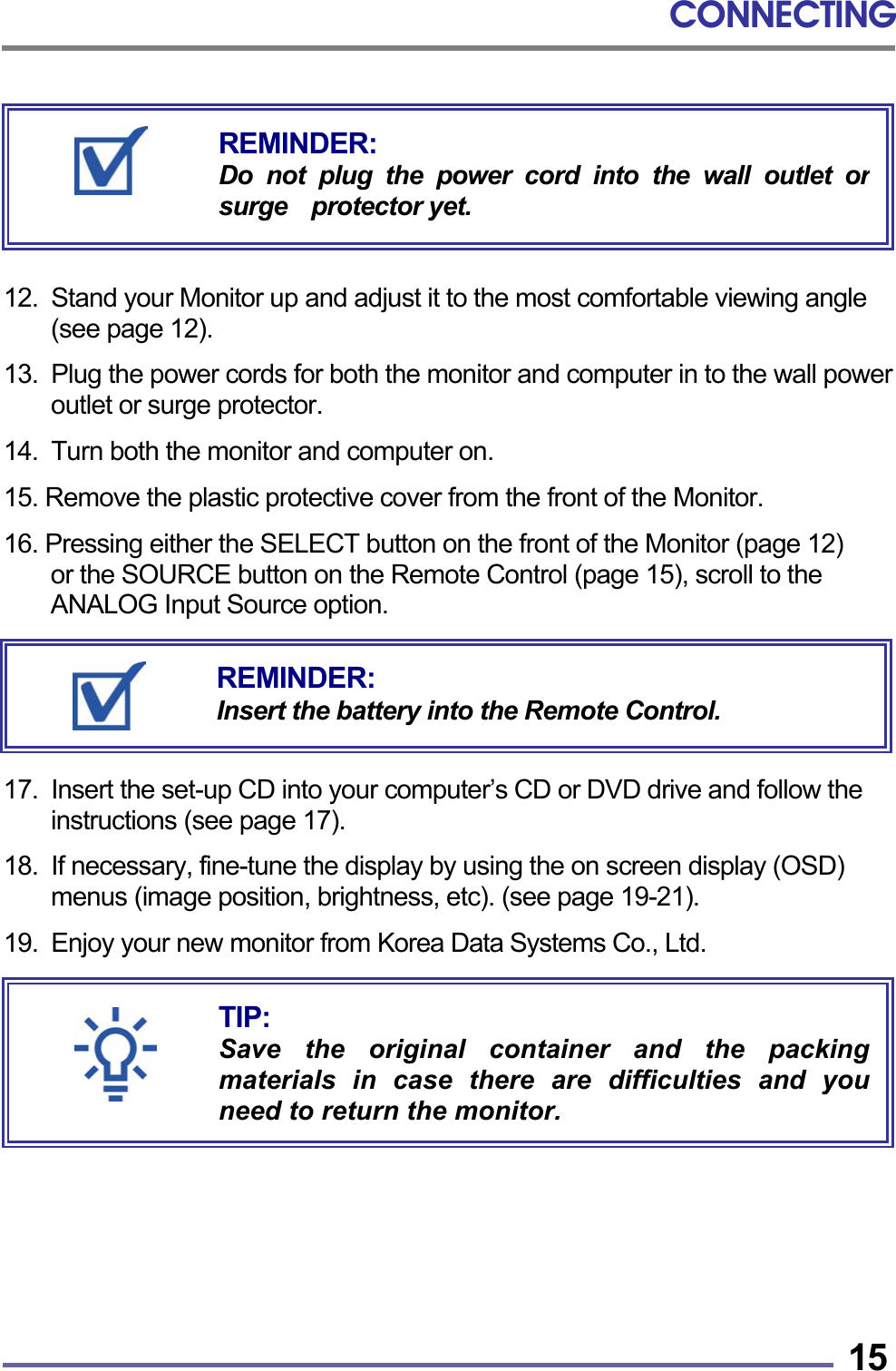
CONNECTING   15       12.  Stand your Monitor up and adjust it to the most comfortable viewing angle (see page 12).  13.  Plug the power cords for both the monitor and computer in to the wall power outlet or surge protector.  14.  Turn both the monitor and computer on.  15. Remove the plastic protective cover from the front of the Monitor.  16. Pressing either the SELECT button on the front of the Monitor (page 12)   or the SOURCE button on the Remote Control (page 15), scroll to the ANALOG Input Source option.       17.  Insert the set-up CD into your computer’s CD or DVD drive and follow the instructions (see page 17).  18.  If necessary, fine-tune the display by using the on screen display (OSD) menus (image position, brightness, etc). (see page 19-21).  19. Enjoy your new monitor from Korea Data Systems Co., Ltd.             TIP: Save the original container and the packingmaterials in case there are difficulties and youneed to return the monitor. REMINDER: Do not plug the power cord into the wall outlet orsurge  protector yet. REMINDER: Insert the battery into the Remote Control.
CONNECTING   16 Connecting the PC
CONNECTING   17Connecting Your Monitor to a Tuner (TV/CATV) 1.    Carefully unpack all the components and verify all the parts are present and undamaged. (See page 8.)  2.    Organize the cables you need and familiarize yourself with the connection configuration for the CT1702, see pages 11 & 16.  3.    With the Monitor laying screen-side down on a smooth, clean surface, flip open the Monitor base.       4.  Connect the Antenna (from your Cable TV or external/internal antenna) into the Monitor’s “ANTENNA” connector.       5.   Connect the round AC/DC Adapter Plug to the Monitor’s “PWR” connector.  6.  Connect the Power Cord to the AC/DC Adapter.        7.  If you are not connecting any more components (e.g. DVD or VCR), continue with the remaining steps.     If you are connecting other components to the Monitor, continue to the next appropriately labeled “CONNECTING” section.  8.  Stand up your Monitor and adjust it for proper viewing. (See page 14.)  9.  Plug the power cords for both the monitor and computer in to the wall power outlet or surge protector.  10.  Turn ON the monitor.  REMINDER: Do not plug the power cord into the wall outlet orsurge  protector yet. REMINDER: The Antenna connection should be hand-tight. TIP: For easier access to the cable connections, keep themonitor laying screen-side down on a smooth surface.
CONNECTING   18 11. Remove the plastic protective cover from the front of the Monitor.  12. Pressing either the SELECT button on the front of the Monitor (page 12)   or the SOURCE button on the Remote Control (page 15), scroll to the TUNER Input Source option.       13.  Using the On Screen Display (OSD) menus, select the appropriate antenna type. (See page 35.)  14.  If necessary, onfigure the Tuner to automatically search for the channels. (See page 31.)    15. If necessary, fine-tune the display by using the OSD menus (image position, brightness, and other items). (See pages 35–37.)  16. Enjoy your new monitor from Korea  Data Systems Co., Ltd.                       TIP: Save the original container and the packingmaterials in case there are difficulties and youneed to return the monitor. REMINDER: Insert the battery into the Remote Control.
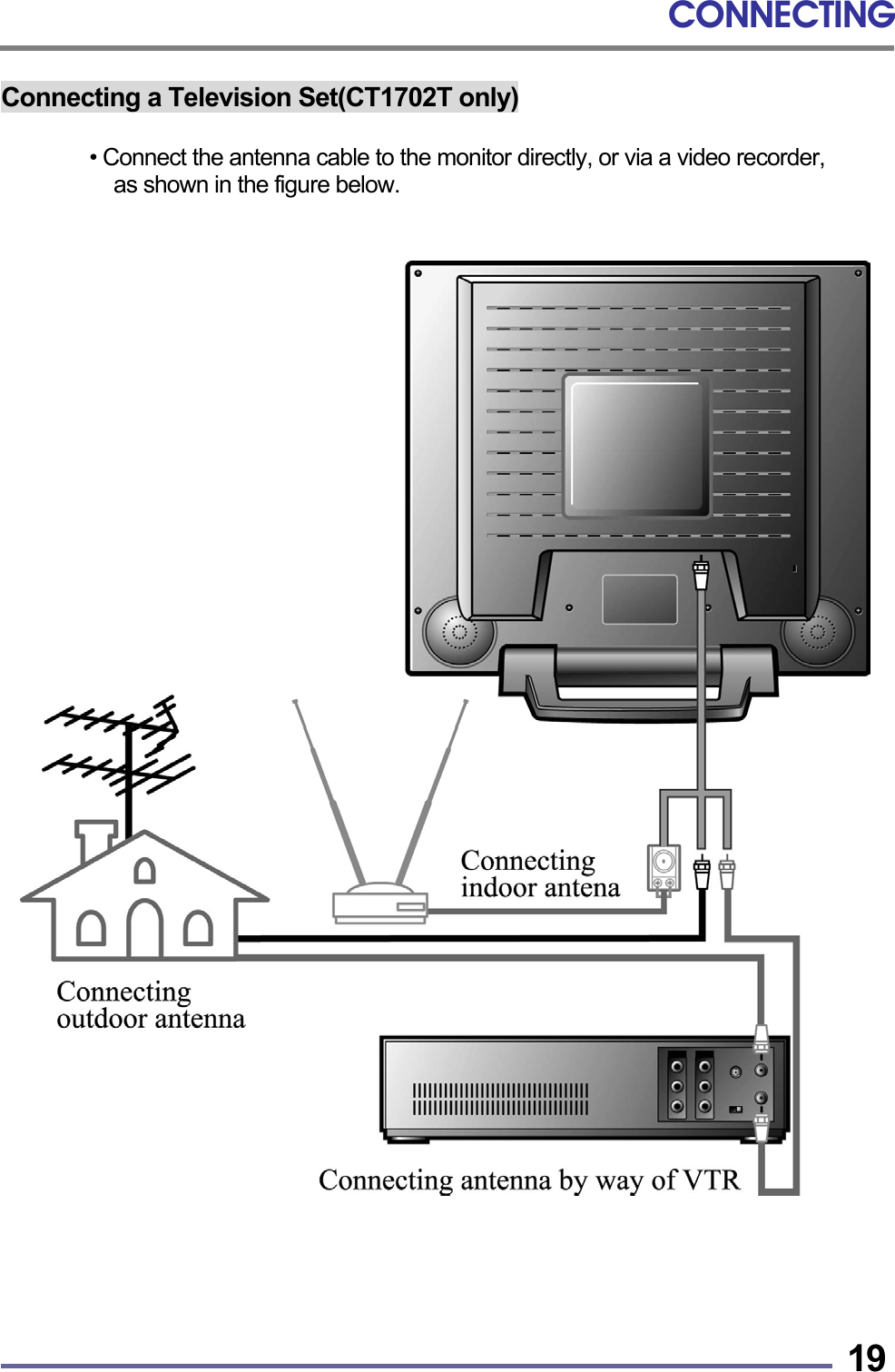
CONNECTING   19Connecting a Television Set(CT1702T only)  • Connect the antenna cable to the monitor directly, or via a video recorder,   as shown in the figure below.
CONNECTING   20 Other External A/V Devices to Your Monitor 1. Carefully unpack all the components and verify all the parts are present and undamaged. (See page 8.)  2.    Organize the cables you need and familiarize yourself with the connection configuration for the CT1702, see pages 11 & 16.  3.    With the Monitor laying screen-side down on a smooth, clean surface, flip open the Monitor base.       4.  At the side of the Monitor, connect the RCA Cable and/or the S-Video Cable, to the “AUD L”, “AUD R”, “VIDEO” and “S-VIDEO” locations, as appropriate.  5.  Connect the round AC/DC Adapter Plug to the Monitor’s “PWR” connector.  6.  Connect the Power Cord to the AC/DC Adapter.        7.     If you are not connecting any more components (e.g. Tuner/Antenna),       continue with the remaining steps.   If you are connecting other components to the Monitor, continue to the next appropriately labeled “CONNECTING” section.  8.     On the external A/V device(s), if not done already, connect the RCA Cable     and/or the S-Video Cable, to the corresponding OUT “AUD L”,  “AUD R”,   “VIDEO” and “S-VIDEO” locations, as appropriate.  9.  Stand up your Monitor and adjust it for proper viewing. (See page 14.)  10.  Plug in the Power Cord for the Monitor and other A/V devices to the wall power outlet or surge protector.  11.  Turn ON the Monitor and other A/V devices, as appropriate.  REMINDER: Do not plug the Power Cord into the wall outlet/surgeprotector yet. TIP: For easier access to the cable connections, keep themonitor laying screen-side down on a smooth surface.
CONNECTING   2112.  Remove the plastic protective cover from the front of the Monitor.  13.  Pressing either the SELECT button on the front of the Monitor (page 12) or the SOURCE button on the Remote Control (page 15), scroll to the S-VIDEO or COMPOSITE Input Source option, whichever is appropriate for your system.       14.  If necessary, fine-tune the display by using the On Screen Display (OSD) menus (image position, brightness, and other items).    (see page 39).  15. Enjoy your new monitor from Korea Data Systems Co., Ltd.                           TIP: Save the original container and the packingmaterials in case there are difficulties and youneed to return the monitor. REMINDER: Insert the battery into the Remote Control.
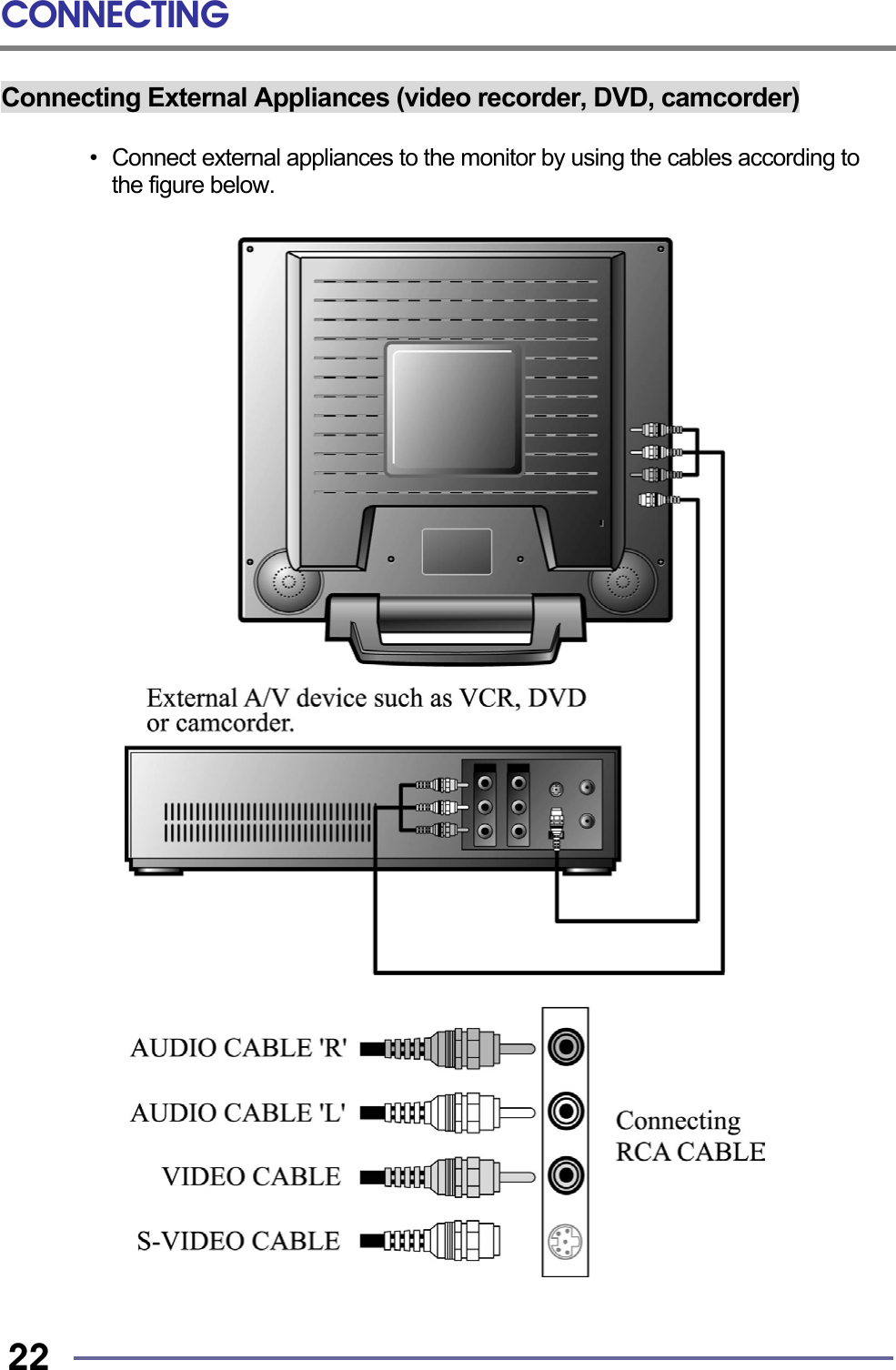
CONNECTING   22 Connecting External Appliances (video recorder, DVD, camcorder)  •  Connect external appliances to the monitor by using the cables according to the figure below.
CONNECTING   23Function of the Remote controller           No  Key  Description 1  Power Key Turns on/off the monitor. 2  Menu Key Press the MENU to display the menu screen 3  Channel Up Key a. Moves to higher menu items or sub-menu items in the menu screen. (All mode) b. Selects next higher channel. (Only TV[Tuner] Mode) 4  Channel Down Keya. Moves to lower menu items or sub-menu items in the menu screen. (All mode) b. Selects next lower channel. (Only TV[Tuner] Mode) 5  Volume Up Key a. Press the VOL  ▶  to increase sound volume. b. Increases the value of the parameter in the menu screen 6  Volume Down Keya. Press the VOL  ◀  to decrease sound volume. b. Decreases the value of the parameter in the menu screen. 7  Mute Key  Eliminate sound. 8  Source Key The screen display ANALOG(PC), DIGITAL, COMPOSITE, S-VIDEO and TUNER(TV) mode at the upper right corner each time source is pressed.    9  Select Key Press the SEL to selects the main menu items and sub-menu items. 10  SCAN Key Display saved channels at regular interval (2 or 3 second). If you want to select current displayed channel, Press ‘ENT’ or ‘SEL’ key. 11  LAST Key Selects last channel. 12  ENT and Numeric keyENT and Numeric key : Selects channel by pressing channel number.  Digital  Composite S-Video  Tuner(TV)Analog(PC)

Navigation menu