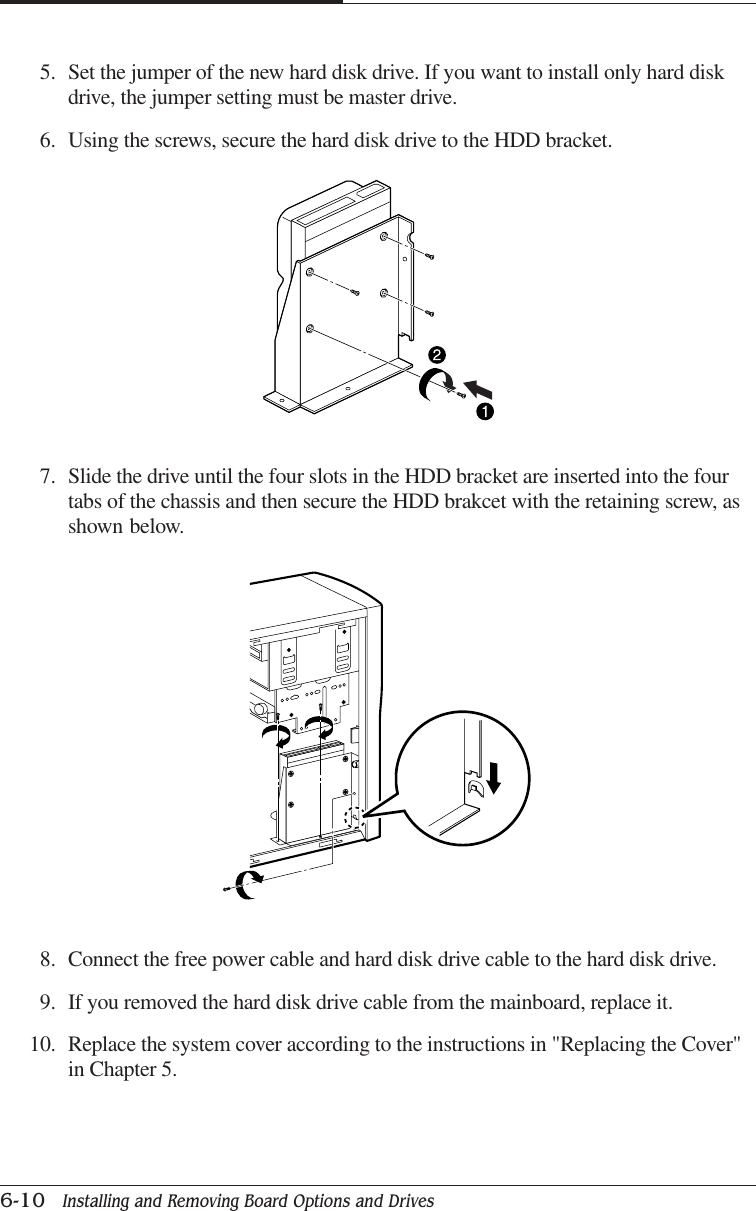
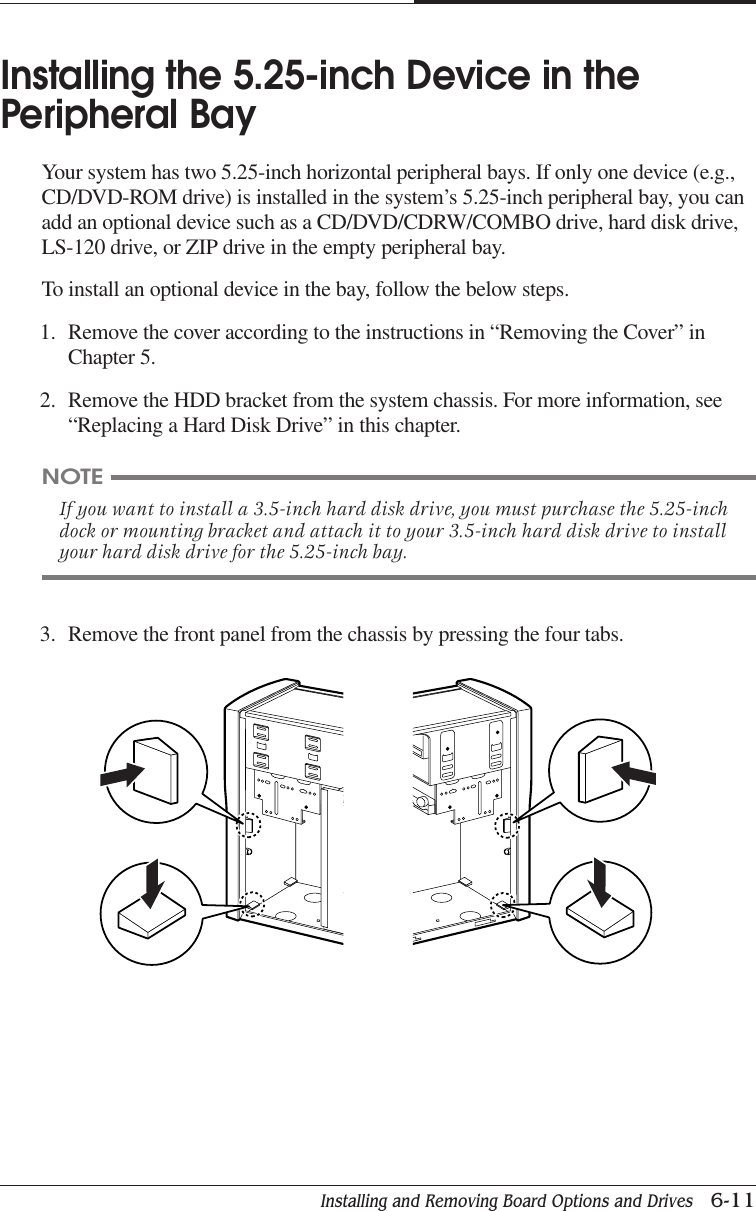
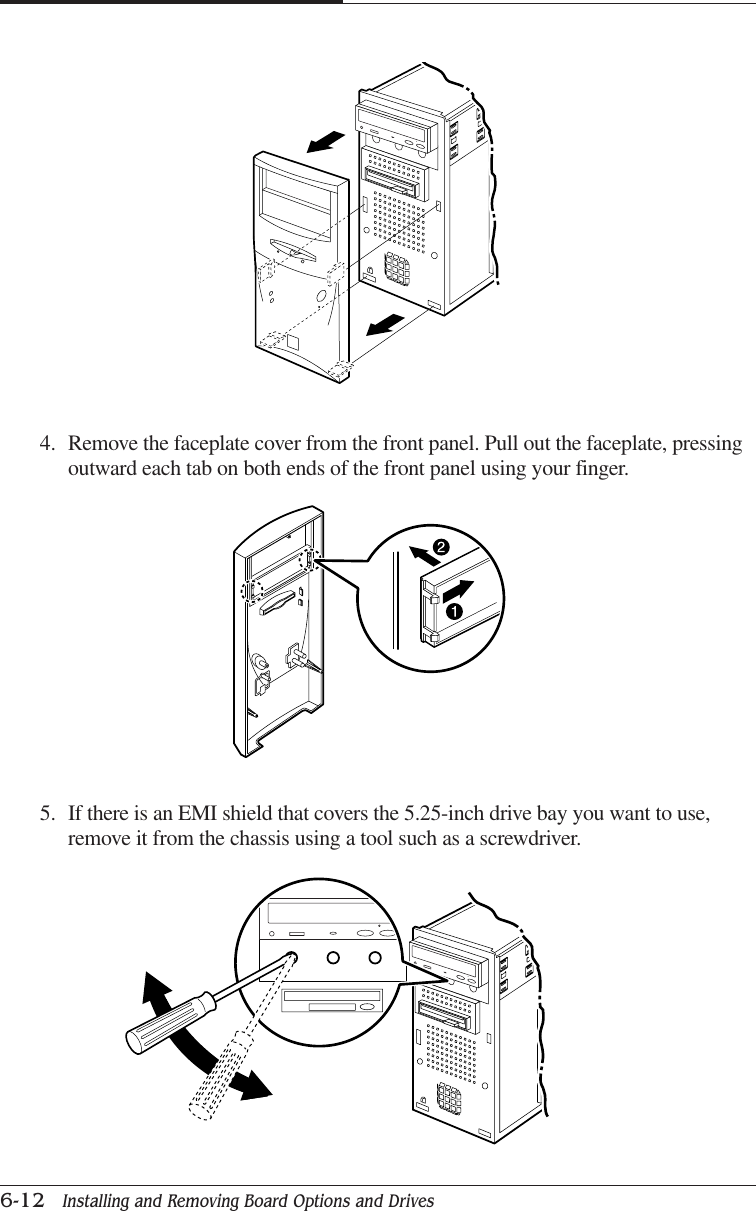
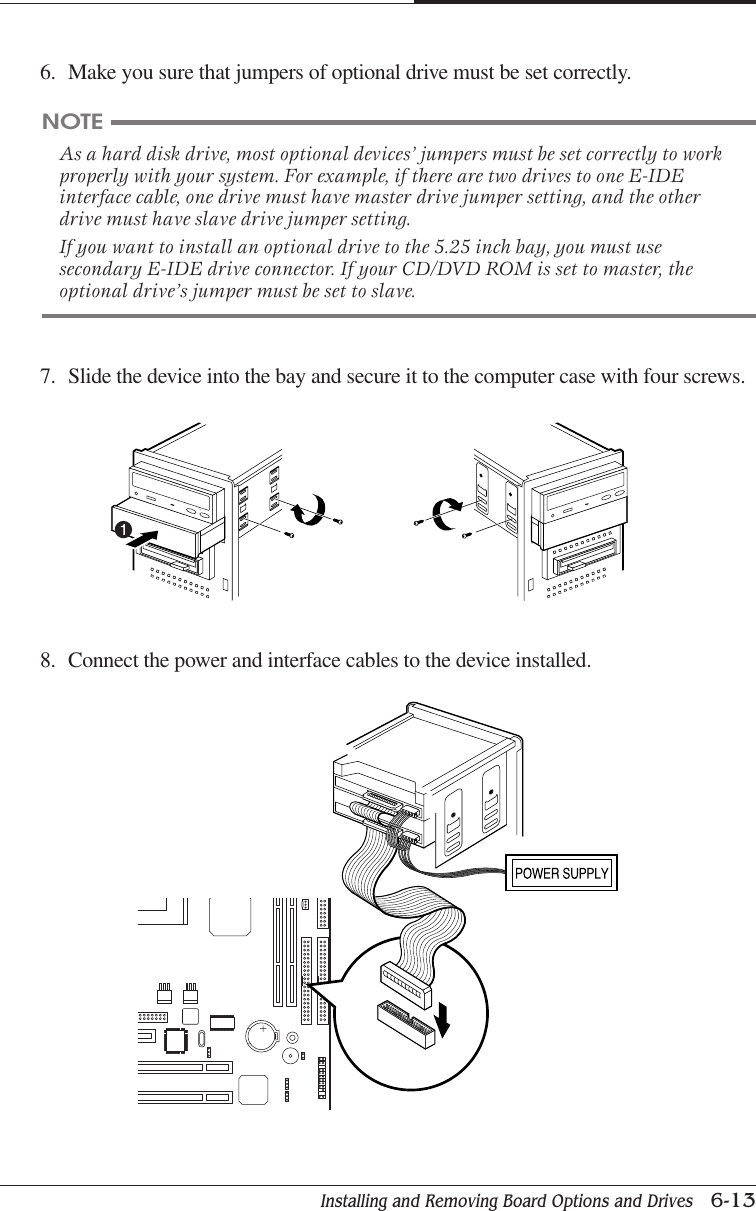
Korea Data Systems Co KDT-3861 Personal Computer User Manual G P cont p65

Korea Data Systems Co Ltd Personal Computer G P cont p65

users manual

   iImportant Safety InstructionsThe following instructions pertain to the risk of fire, electric shock or bodily injury. Pleaseread all of these instructions carefully.1Save these instructions for later use.2Follow all of the instructions and warnings marked on this product or included in thismanual.3Do not use this computer on an unstable cart, stand or table. The product may fall,causing serious damage to the product. Don't use this product on a bed, sofa, rug or othersimilar surface.4Slots and openings in the cabinet and the back have been provided for ventilation toensure reliable operation of your computer, and to protect it from overheating. Theseopenings must not be blocked or covered.  This product should never be placed near orover a radiator or heat register. This product should not be placed in a built-in installationunless proper ventilation is provided.5Never push objects of any kind into the computer through the cabinet openings. Objectsmay touch dangerous voltage points or short out parts that could result in a fire orelectrical shock. Never spill liquid of any kind on the product.6This computer should only be connected to the AC power source indicated on yourcomputer system's information label. If you are not sure of the type of AC poweravailable, consult your dealer or local power company. Only connect this computer to apower outlet that matches the power requirements of this computer.7Do not allow anything to rest on the power cord. Do not locate this product where peoplewill walk on the cord.8If you have to use an extension cord with this computer, make sure that the totalamperage rating of all equipment plugged into it does not exceed the amperage rating ofthe extension cord. Also, make sure that the total of all products plugged into the mainAC power outlet does not exceed 15 amps.9Unplug your computer from the main electrical power outlet before cleaning. Do not useliquid cleaners or aerosol cleaners. Use a damp cloth for cleaning.10 Do not use this computer near water.11 This product is equipped with a 3-wire grounding type plug, a plug having a third(grounding) pin. This plug will only fit into a grounding-type power outlet. This is asafety feature. If you are unable to insert or replace your obsolete outlet, contact yourelectrician to replace your obsolete outlet. Do not defeat the purpose of the grounding-type plug.
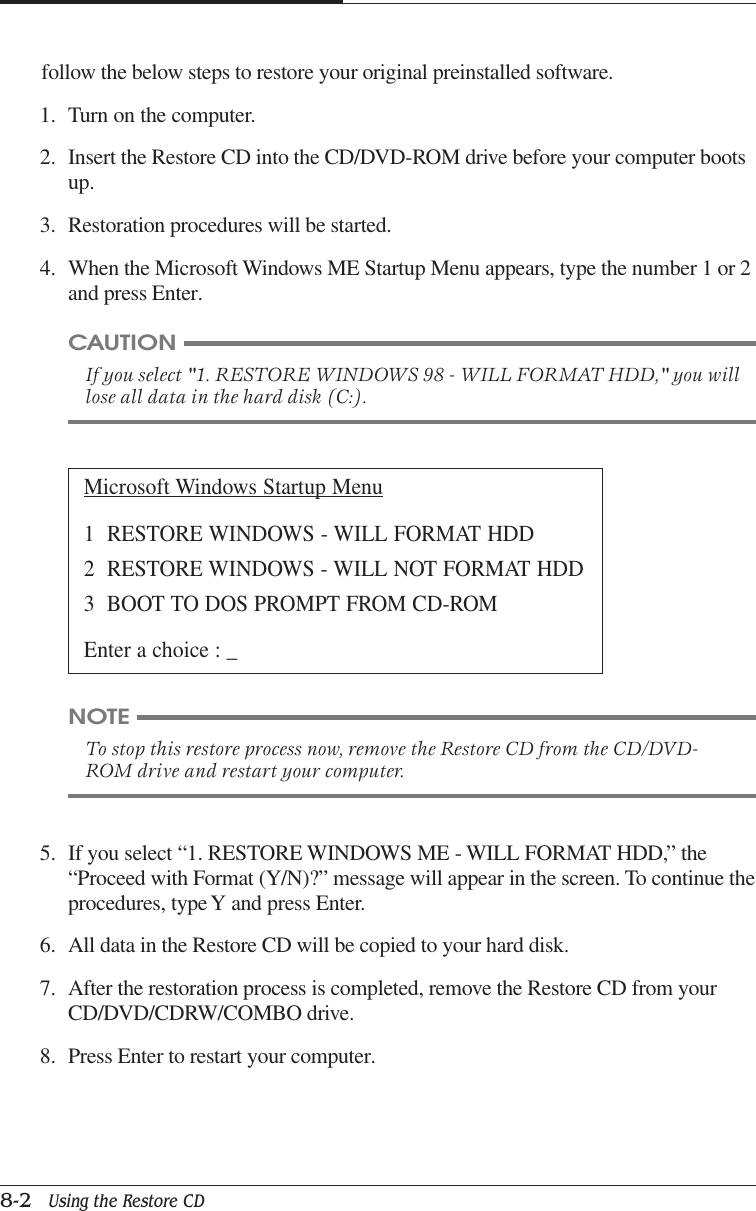
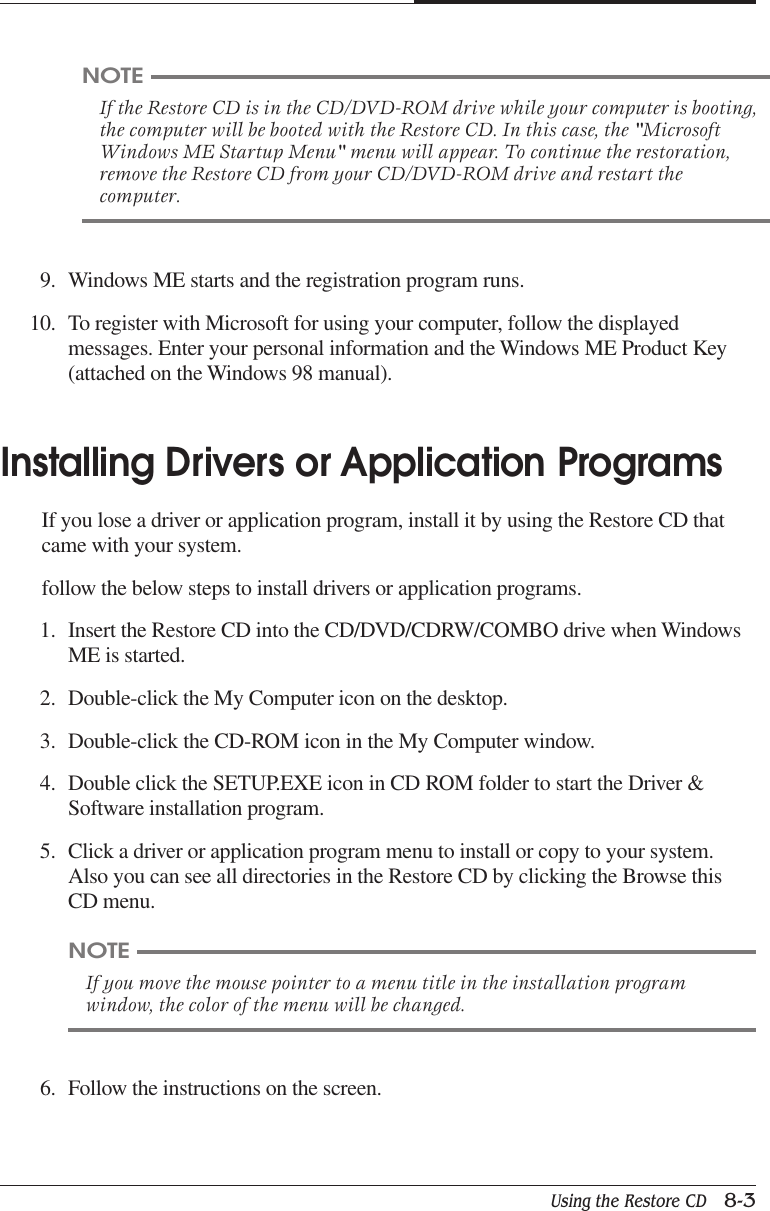
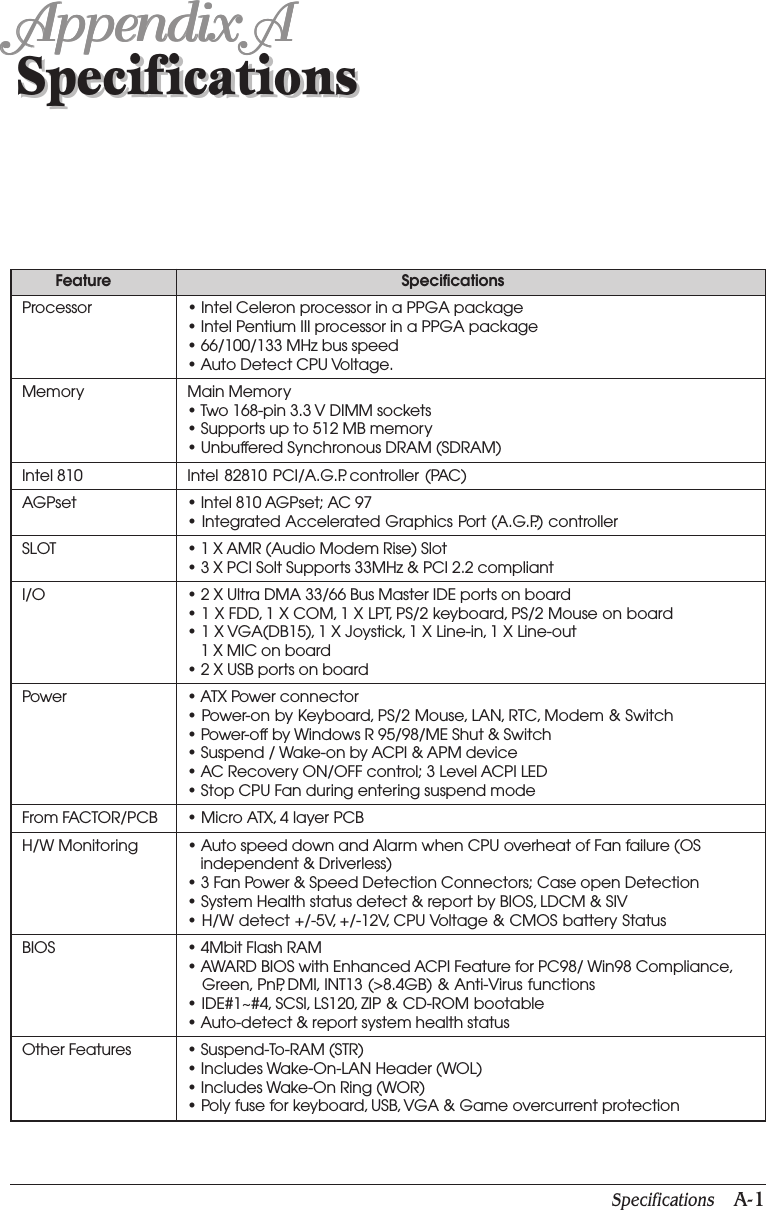
iiMaintenanceIf the product does not operate normally, adjust only those controls that are covered by theoperating instructions. Improper adjustment of other controls may result in damage and mayrequire extensive repair work to restore to normal operation.Unplug this product from the main power outlet and call for service under any of thefollowing conditions:1If the power cord or plug is damaged or frayed.2If liquid has been spilled into the product.3If the product has been exposed to rain or water.4If the product has been dropped or the cabinet has been damaged.5If the product exhibits a distinct change in performance indicating a need for service.StopIf you ever have to remove the main system unit cover, observe the following precautions:1The power supply cord must be unplugged before the main system unit cover is removed.(Separe le cordon d'alimentation et puis enleve le couvercle.)2Once removed, the cover must be replaced and screwed in position before the powersupply cord is plugged back in. (Apres le couvercle a enleve, visse le couvercle en placeet remettre le cordon d'alimentation.)
   iiiWichtige Sicherheitsvorschriften UnbedingtBeachtenAllgemeine SicherheitDie nachfolgenden Anweisungen betreffen die Gefahr von Verletzungen durch elektrischeSpannung, Feuer und mechanische Einwirkung. Bitte lesen Sie diese Anweisungen sorgfältig.1Beachten Sie alle Hinweise, die am Gerät selbst angebracht oder in den zugehörigenHandbuchrn vermerkt sind.2Stellen Sie das Gerät an einem sicheren, stabilen Arbeitsplatz auf.3Am Gerät angebrachte Öffnungen (Schlitze und sonstige Öffnungen) dienen derBelüftung des Gerätes. Um ein zuverlässiges Arbeiten des Geräts zu gewährleisten undum Überhitzung zu vermeiden, müssen diese Öffnungen unbedingt freigehalten werden.Betreiben Sie das Gerät nie auf Betten, Sofas oder anderen, weichen Unterlagen.4Stecken keine Gegegenstände (Schraubenzieher, Büsroklamern etc.) in dieÖffnungen. Sie wurden damit Kurzschlüsse herbeiführen die zur Zer störung des Gerätsführen, sich der Gefahr eines Stromschlages aussetzen oder das Gerät in Brand setzen.5Das Gerät darf nur an vorschriftmäßige Steckdosen mit der auf dem Gerät angegebenenNetzspannung angeschlossen werden. Wenn Sie nicht sicher sind, welche Netzspannungrichtig ist, wenden Sie sich an den Lieferanten des Gerätes oder an das zuständigeElektriziträtswerk. Bitten nur an Genügend stark abgesicherte Steckdosen anschließen,die der Leis tungsaufnahme des Gerätes entsprechen.6Auf das Netzanschlußkabel dürfen keine Gegenstände gestellt werden. Legen sie dasNetzkabel so, daßniemand darauftreten oder darüber stolpern kann.7Wenn Sie Verlängerungskabel benutzen, müssen Sie sicher sein, daß die gesamteLeistungsaufnahme nicht größer ist als das Verlängerungskabel zulaßt. Der gesamteStromverbrauch aller angeschlossenen Geräte darf nicht mehr als 15 A betragen.8Wenn Sie das Gerät reinigen, muß das Netzkabel aus der Steckdose gezogen werden.9Das Gerät dürfen Sie nicht in der Näh von Wasserleitungen benutzen.
ivWartung Des ComputersWenn der Computer nicht ordnungsgemäß arbeitet, dürfen Sie nur die Einstellungenvornehmen, die im Handbuch genannt werden. Andere Einstellungen oder Verän derungenkönnen den Computer beschädigen oder zerstören. Umfangreiche und kostspieligeReparaturen würden notwendig werden, um das Gerät wieder betriebsfähig zu machen.Ziehen Sie den Netzstecker aus der Steckdose und verständigen Sie den zuständigenKundendienst bei folgenden Storungen:ANetzkabel ist defekt oder strak abgenutzt.BFlüssigkeit ist in das Gerät geschüttet worden.CDas Gerät war Regen oder Leitungswasser aus-gesetzt.DDas Gerät ist heruntergefallen oder das Gehäuse ist beschädigt.EDas Gerät arbeitet nicht mehr richtig.AchtungWenn Sie das Gerät Öffnen müssen (Abnahme der verschraubten Haube), ist unbedingtfolgendes zu beachten:ADas Netzkabel muß aus der Steckdose gezogen werden und zwar bevor Sie das GerätÖffnen.BDie Haube muß wieder monitiert und verschraubt werden. Erst dann darf das Netzkabelwieder eingesteckt werden.Safety InstructionEnsure that the appropriate power cord is supplied with personal computer. If the power cordis not supplied with personal computer, use the correct listed cord sets as below:Rating125V, 10A Min.18AWG/3250V, 6A Min.18AWG/3TypeSVTMAX. 4.5mlongSVTMax. 4.5mlongOne end terminated with molded on cordconnector body.Attachment plug cap with a nama 5-15P.One end terminated with molded on cordconnector body.]Attachment plug cap with a nama 6-15P.Note
   vBefore You ReadingThe information in this user’s guide is subject to change without notice.eMachines shall not be liable for technical or editorial errors or omissions contained herein;nor for incidental or consequential damages resulting from the furnishing, performance, oruse of this material.NOTEDepending on the model, your computer’s components may vary and look slightlydifferent than those pictured.
viBlank
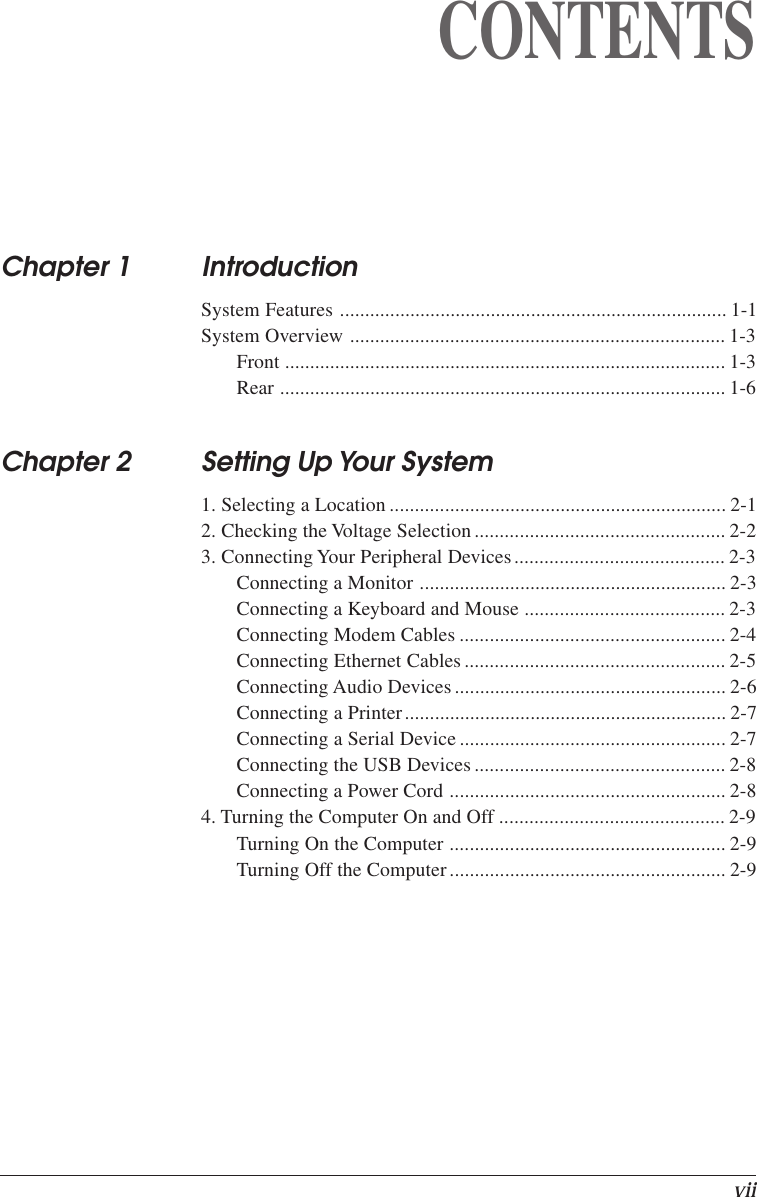
viiCONTENTSChapter 1 IntroductionSystem Features ............................................................................. 1-1System Overview ........................................................................... 1-3Front ........................................................................................ 1-3Rear ......................................................................................... 1-6Chapter 2 Setting Up Your System1. Selecting a Location ................................................................... 2-12. Checking the Voltage Selection.................................................. 2-23. Connecting Your Peripheral Devices.......................................... 2-3Connecting a Monitor ............................................................. 2-3Connecting a Keyboard and Mouse ........................................ 2-3Connecting Modem Cables ..................................................... 2-4Connecting Ethernet Cables .................................................... 2-5Connecting Audio Devices...................................................... 2-6Connecting a Printer................................................................ 2-7Connecting a Serial Device ..................................................... 2-7Connecting the USB Devices.................................................. 2-8Connecting a Power Cord ....................................................... 2-84. Turning the Computer On and Off ............................................. 2-9Turning On the Computer ....................................................... 2-9Turning Off the Computer....................................................... 2-9
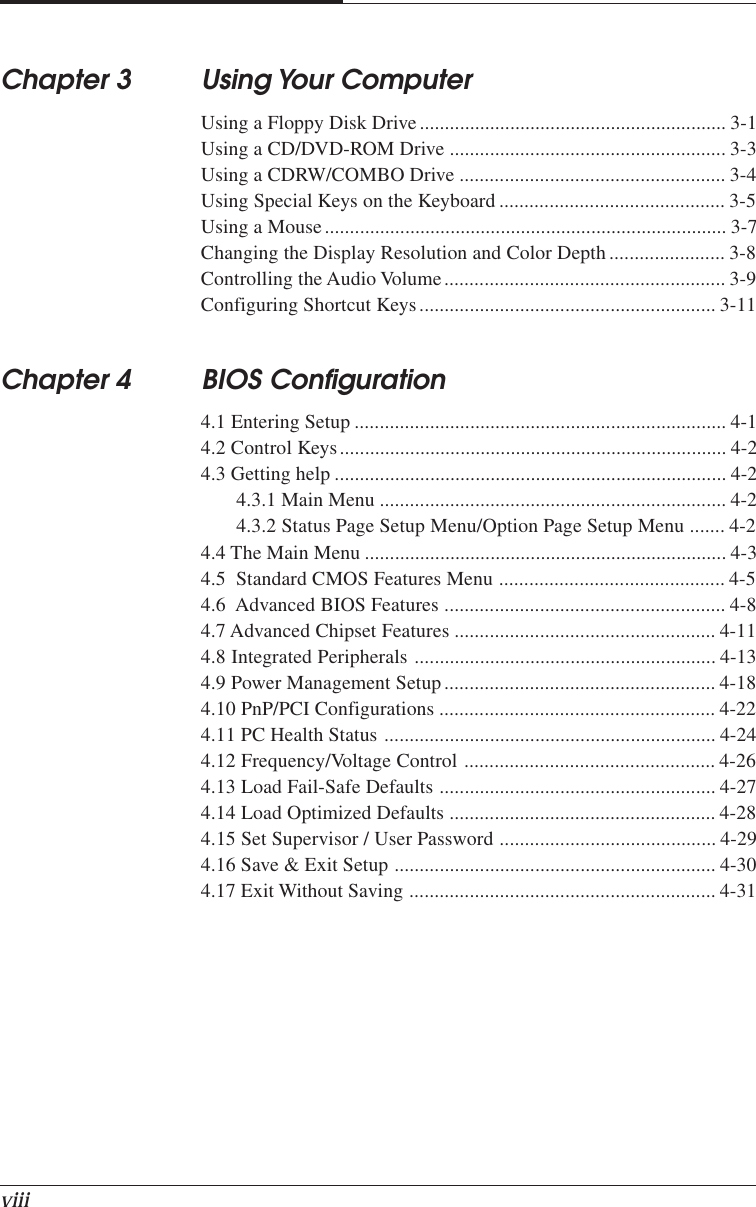
viiiChapter 3 Using Your ComputerUsing a Floppy Disk Drive ............................................................. 3-1Using a CD/DVD-ROM Drive ....................................................... 3-3Using a CDRW/COMBO Drive ..................................................... 3-4Using Special Keys on the Keyboard ............................................. 3-5Using a Mouse................................................................................ 3-7Changing the Display Resolution and Color Depth ....................... 3-8Controlling the Audio Volume........................................................ 3-9Configuring Shortcut Keys........................................................... 3-11Chapter 4 BIOS Configuration4.1 Entering Setup .......................................................................... 4-14.2 Control Keys............................................................................. 4-24.3 Getting help .............................................................................. 4-24.3.1 Main Menu ..................................................................... 4-24.3.2 Status Page Setup Menu/Option Page Setup Menu ....... 4-24.4 The Main Menu ........................................................................ 4-34.5  Standard CMOS Features Menu ............................................. 4-54.6  Advanced BIOS Features ........................................................ 4-84.7 Advanced Chipset Features .................................................... 4-114.8 Integrated Peripherals ............................................................ 4-134.9 Power Management Setup...................................................... 4-184.10 PnP/PCI Configurations ....................................................... 4-224.11 PC Health Status .................................................................. 4-244.12 Frequency/Voltage Control .................................................. 4-264.13 Load Fail-Safe Defaults ....................................................... 4-274.14 Load Optimized Defaults ..................................................... 4-284.15 Set Supervisor / User Password ........................................... 4-294.16 Save & Exit Setup ................................................................ 4-304.17 Exit Without Saving ............................................................. 4-31
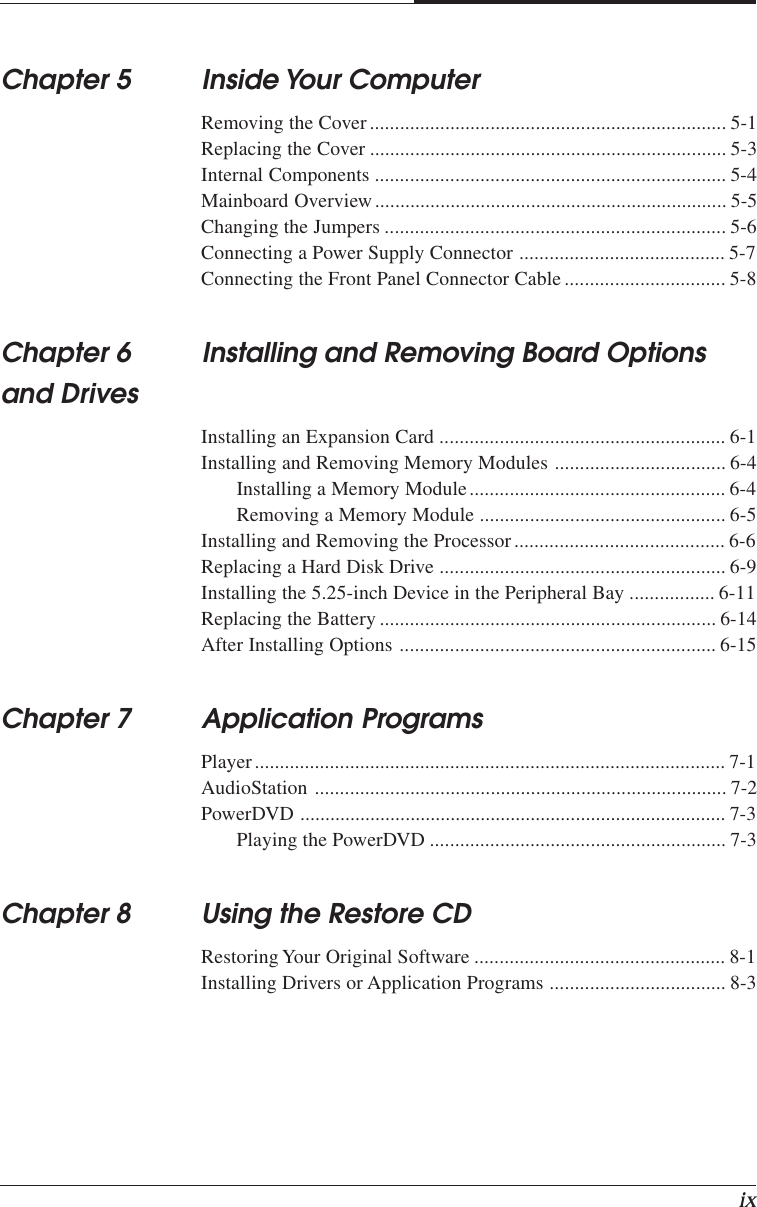
ixChapter 5 Inside Your ComputerRemoving the Cover....................................................................... 5-1Replacing the Cover ....................................................................... 5-3Internal Components ...................................................................... 5-4Mainboard Overview ...................................................................... 5-5Changing the Jumpers .................................................................... 5-6Connecting a Power Supply Connector ......................................... 5-7Connecting the Front Panel Connector Cable................................ 5-8Chapter 6 Installing and Removing Board Optionsand DrivesInstalling an Expansion Card ......................................................... 6-1Installing and Removing Memory Modules .................................. 6-4Installing a Memory Module................................................... 6-4Removing a Memory Module ................................................. 6-5Installing and Removing the Processor.......................................... 6-6Replacing a Hard Disk Drive ......................................................... 6-9Installing the 5.25-inch Device in the Peripheral Bay ................. 6-11Replacing the Battery ................................................................... 6-14After Installing Options ............................................................... 6-15Chapter 7 Application ProgramsPlayer.............................................................................................. 7-1AudioStation .................................................................................. 7-2PowerDVD ..................................................................................... 7-3Playing the PowerDVD ........................................................... 7-3Chapter 8 Using the Restore CDRestoring Your Original Software .................................................. 8-1Installing Drivers or Application Programs ................................... 8-3
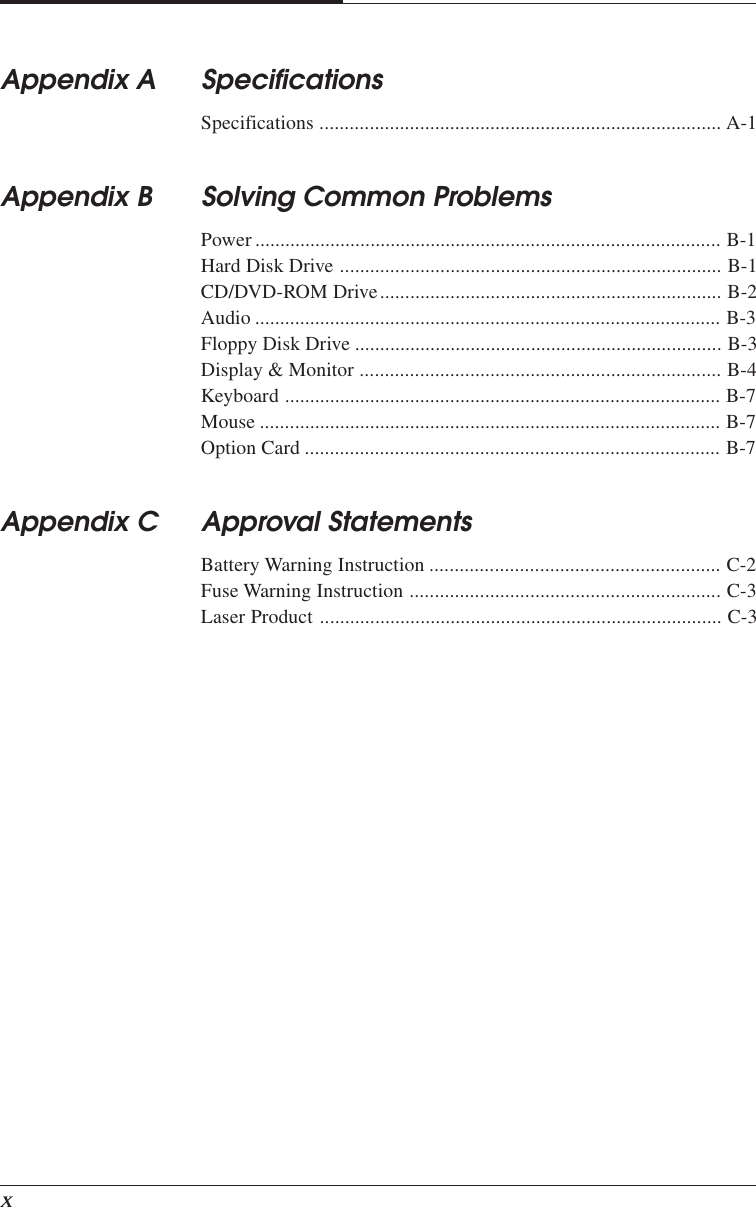
xAppendix A SpecificationsSpecifications ................................................................................ A-1Appendix B Solving Common ProblemsPower ............................................................................................. B-1Hard Disk Drive ............................................................................ B-1CD/DVD-ROM Drive.................................................................... B-2Audio ............................................................................................. B-3Floppy Disk Drive ......................................................................... B-3Display & Monitor ........................................................................ B-4Keyboard ....................................................................................... B-7Mouse ............................................................................................ B-7Option Card ................................................................................... B-7Appendix C Approval StatementsBattery Warning Instruction .......................................................... C-2Fuse Warning Instruction .............................................................. C-3Laser Product ................................................................................ C-3
Introduction   1-1IntroductionChapter 1Chapter 1Chapter 1Chapter 1Chapter 1IntroductionThis chapter describes the major features of your computer.System FeaturesYour personal computer is a powerful, versatile, and high performance system thatoffers exceptional speed and convenience in a compact design.Your computer offers the following features:1. Micro ATX form factor2. Socket 370 Processor based PC/AT compatible mainboard3. Socket 370 Pins ZIF white socket on board4. Intel Celeron 66MHz processor in a PPGA package5. Intel Pentium III 100/133MHz in a PPGA package6. 2 Banks 168 pins DIMM sockets, expandable up to 512MB using SDRAMmodules7. Math coprocessor built in the microprocessor chip8. Supports external Modem Ring-On on COM A &  COM B and internal ModemRing-On9. Supports Wake-up on LAN10. Supports AMR Interface11. Supports feature connector for TV-Out or  DFP (Digital Flat Panel)12. Support 2 channels Ultra ATA 66/DMA 33 IDE ports for 4 IDE Devices
CHAPTER 11-2   Introduction13. Built-in AGP video controller14. Built-in AC 97-Link software audio15. Supports 1 x Line in, 1 x Line out, 1 x Mic in, 1 x CD Line in, 1 x GAME Port16. Supports 2 x COM (16550), 1 x LPT (EPP/ECP/SPP). 1 x 1.44MB Floppy Port17. Intel 82810 core and ICH 82801 super I/O controller18. Advanced Power Management (APM) and Advanced Configuration and PowerInterface (ACPI)19. 3 PCI expansion card connectors20. System BIOS and video BIOS shadow RAM21. Password function by using BIOS22. Support Two USB ports23. One built-in serial port and one built-in parallel port24. A built-in PS/2 style keyboard port25. A built-in PS/2 compatible mouse port26. Three audio jacks and one MIDI/Game port connector27. Licensed AWARD BIOS, Flash ROM28. Plug-and-Play (PnP) BIOS feature
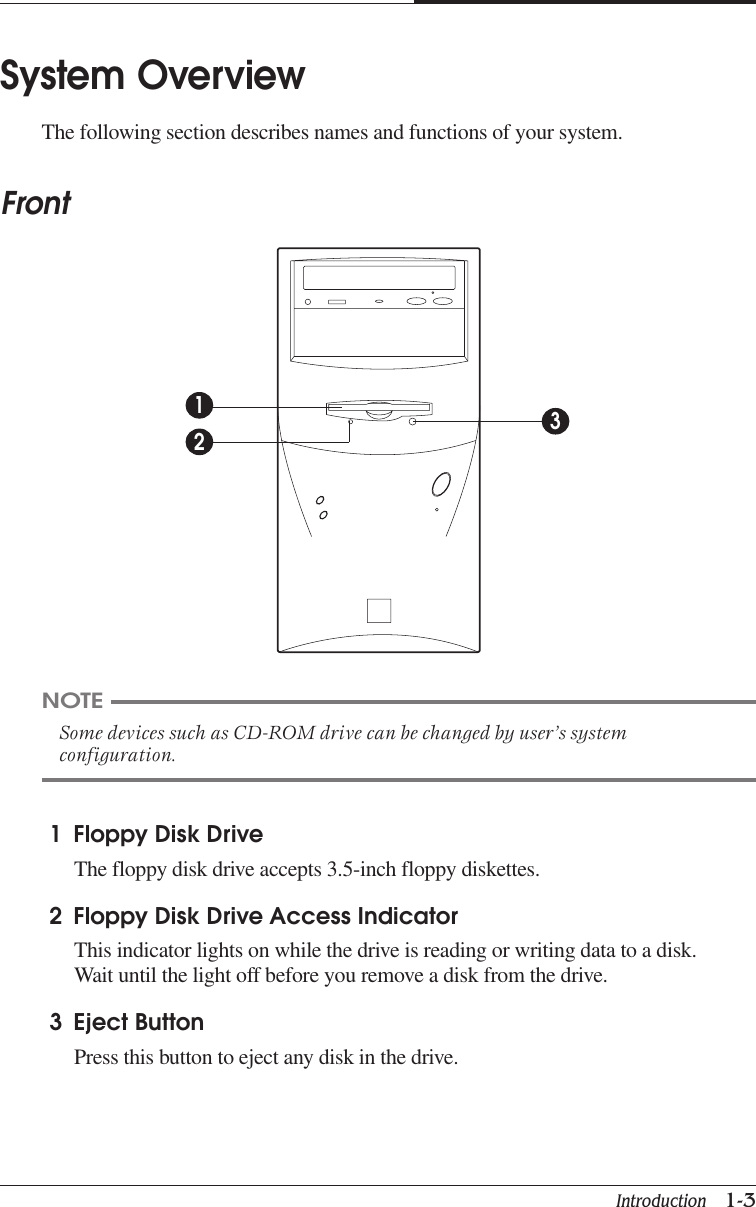
Introduction   1-3CHAPTER 1System OverviewThe following section describes names and functions of your system.FrontNOTESome devices such as CD-ROM drive can be changed by user’s systemconfiguration.1 Floppy Disk DriveThe floppy disk drive accepts 3.5-inch floppy diskettes.2 Floppy Disk Drive Access IndicatorThis indicator lights on while the drive is reading or writing data to a disk.Wait until the light off before you remove a disk from the drive.3 Eject ButtonPress this button to eject any disk in the drive.123
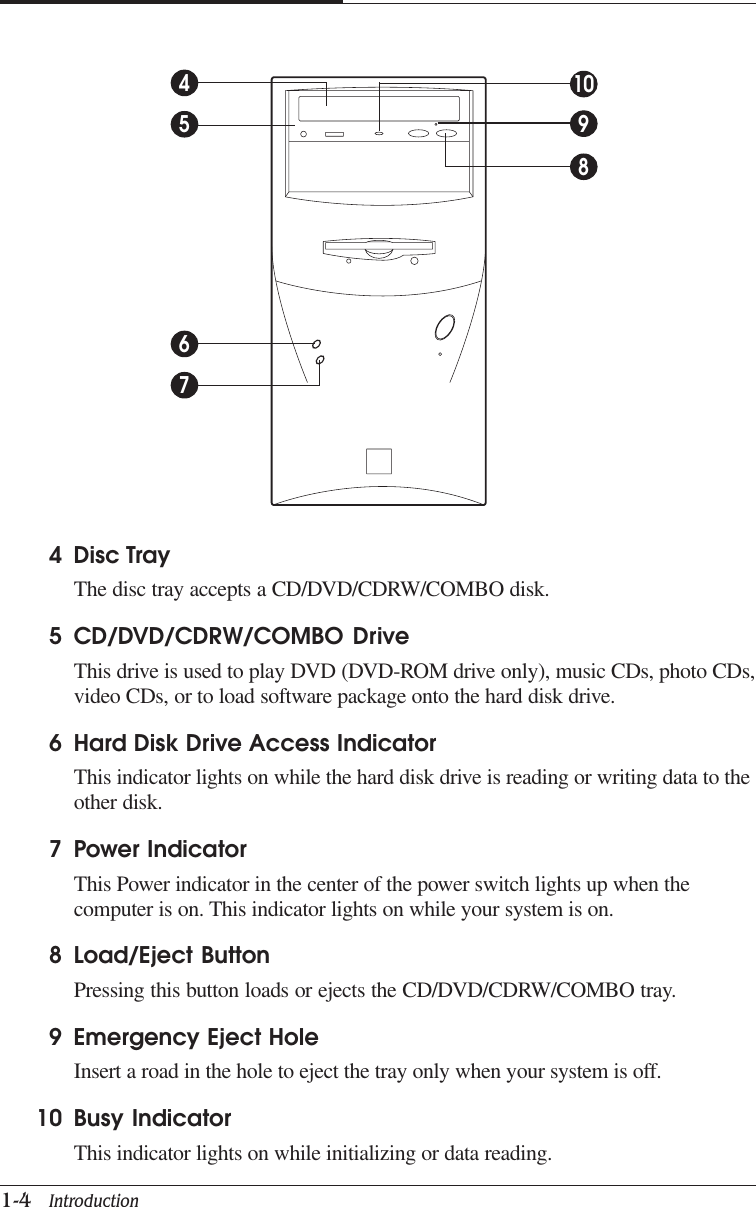
CHAPTER 11-4   Introduction4 Disc TrayThe disc tray accepts a CD/DVD/CDRW/COMBO disk.5 CD/DVD/CDRW/COMBO DriveThis drive is used to play DVD (DVD-ROM drive only), music CDs, photo CDs,video CDs, or to load software package onto the hard disk drive.6 Hard Disk Drive Access IndicatorThis indicator lights on while the hard disk drive is reading or writing data to theother disk.7 Power IndicatorThis Power indicator in the center of the power switch lights up when thecomputer is on. This indicator lights on while your system is on.8 Load/Eject ButtonPressing this button loads or ejects the CD/DVD/CDRW/COMBO tray.9 Emergency Eject HoleInsert a road in the hole to eject the tray only when your system is off.10 Busy IndicatorThis indicator lights on while initializing or data reading.45689107
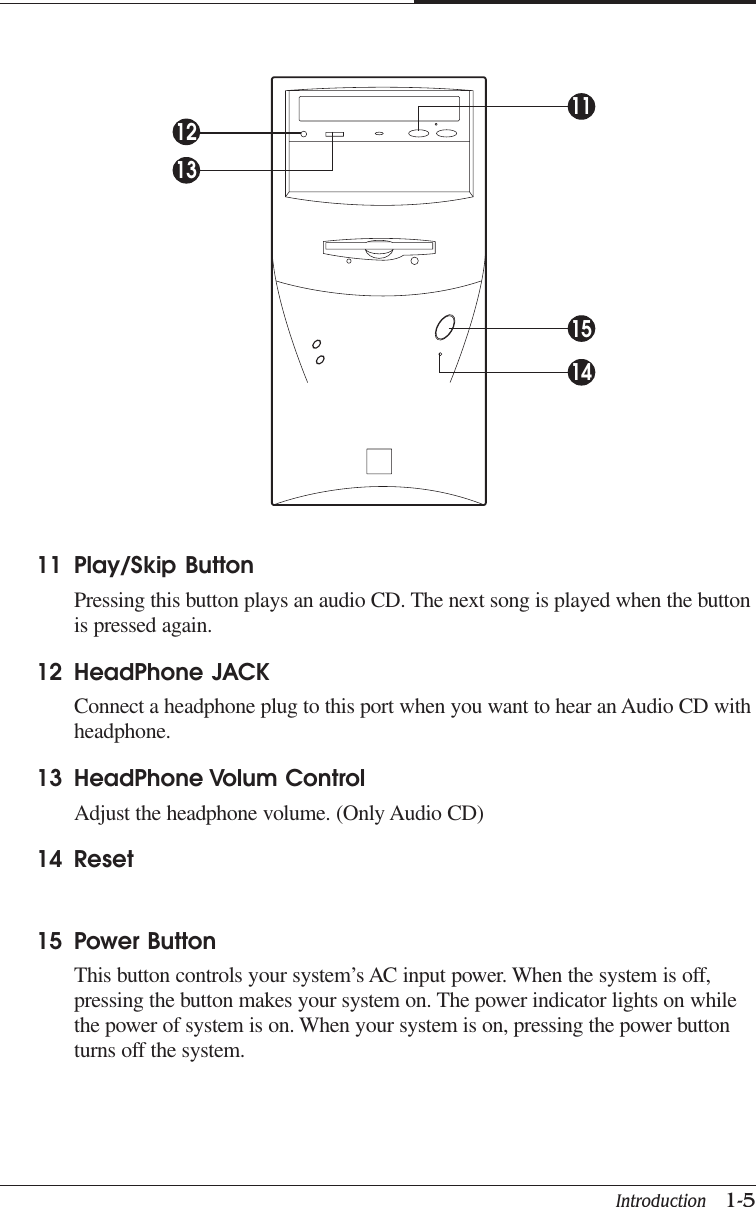
Introduction   1-5CHAPTER 111 Play/Skip ButtonPressing this button plays an audio CD. The next song is played when the buttonis pressed again.12 HeadPhone JACKConnect a headphone plug to this port when you want to hear an Audio CD withheadphone.13 HeadPhone Volum ControlAdjust the headphone volume. (Only Audio CD)14 Reset15 Power ButtonThis button controls your system’s AC input power. When the system is off,pressing the button makes your system on. The power indicator lights on whilethe power of system is on. When your system is on, pressing the power buttonturns off the system.1213151411
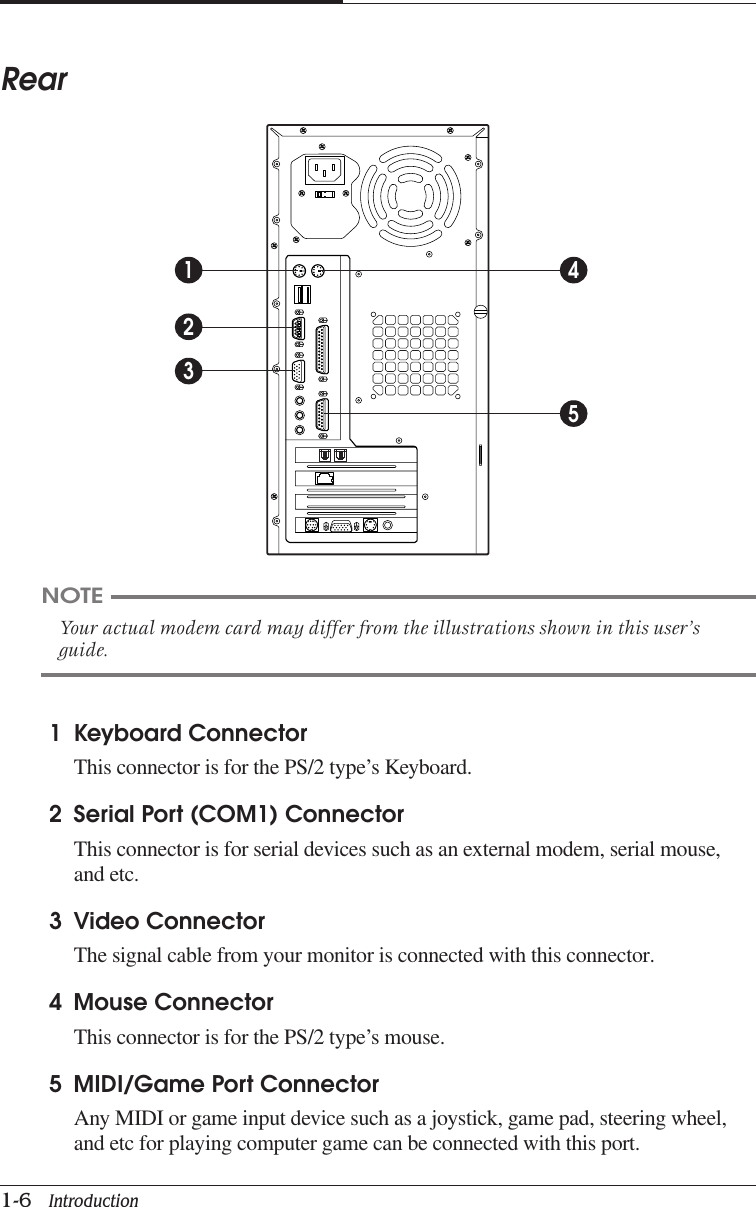
CHAPTER 11-6   IntroductionRear1 Keyboard ConnectorThis connector is for the PS/2 type’s Keyboard.2 Serial Port (COM1) ConnectorThis connector is for serial devices such as an external modem, serial mouse,and etc.3 Video ConnectorThe signal cable from your monitor is connected with this connector.4 Mouse ConnectorThis connector is for the PS/2 type’s mouse.5 MIDI/Game Port ConnectorAny MIDI or game input device such as a joystick, game pad, steering wheel,and etc for playing computer game can be connected with this port.NOTEYour actual modem card may differ from the illustrations shown in this user’sguide.12345
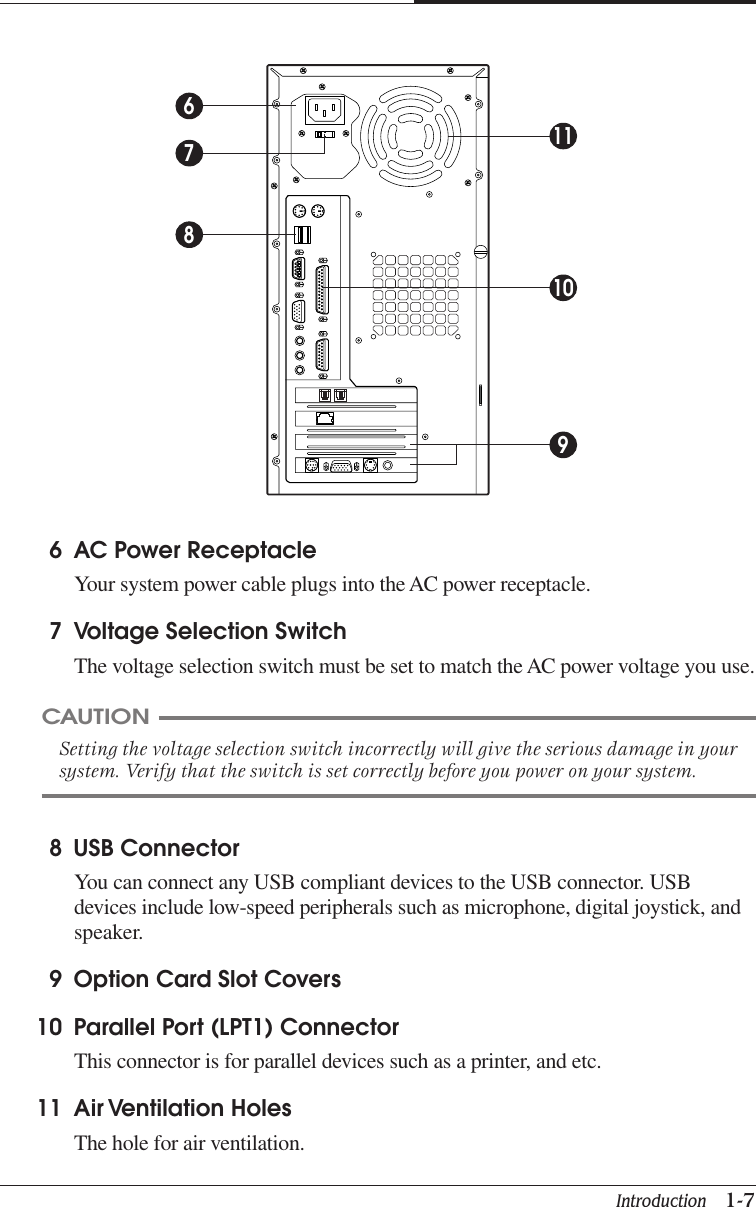
Introduction   1-7CHAPTER 18 USB ConnectorYou can connect any USB compliant devices to the USB connector. USBdevices include low-speed peripherals such as microphone, digital joystick, andspeaker.9 Option Card Slot Covers10 Parallel Port (LPT1) ConnectorThis connector is for parallel devices such as a printer, and etc.11 Air Ventilation  HolesThe hole for air ventilation.6 AC Power ReceptacleYour system power cable plugs into the AC power receptacle.7 Voltage Selection SwitchThe voltage selection switch must be set to match the AC power voltage you use.CAUTIONSetting the voltage selection switch incorrectly will give the serious damage in yoursystem. Verify that the switch is set correctly before you power on your system.67811109
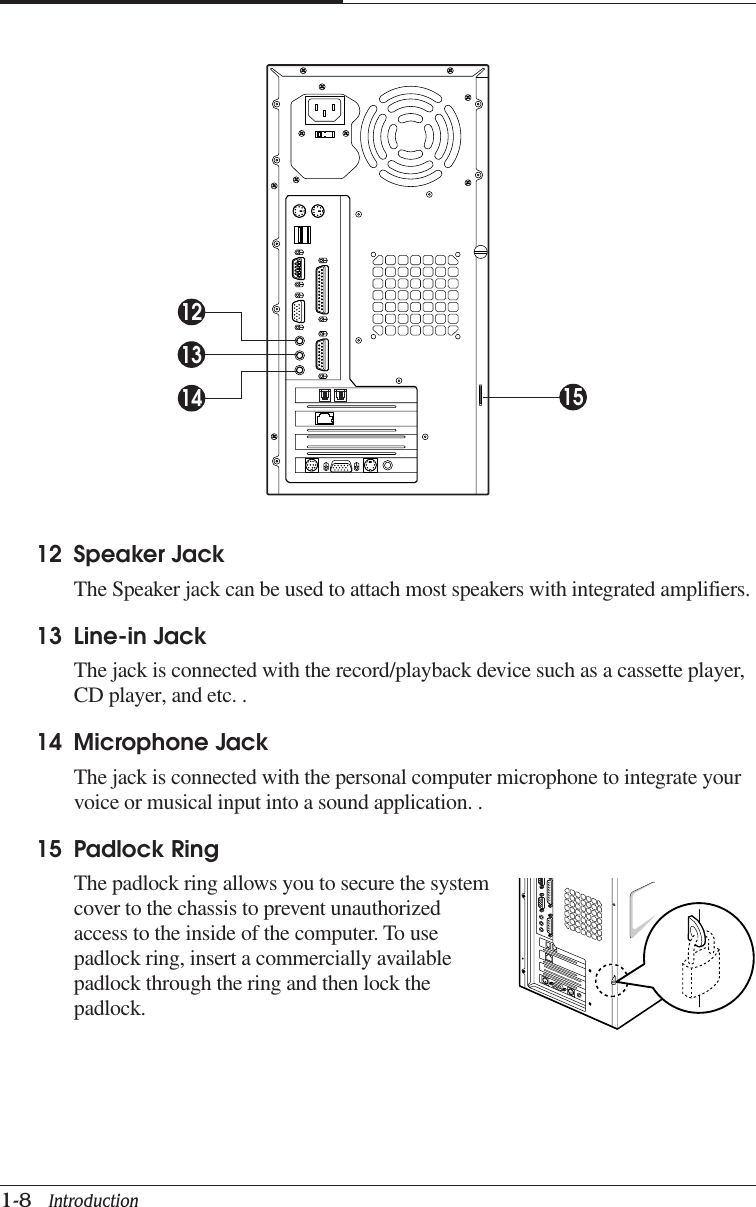
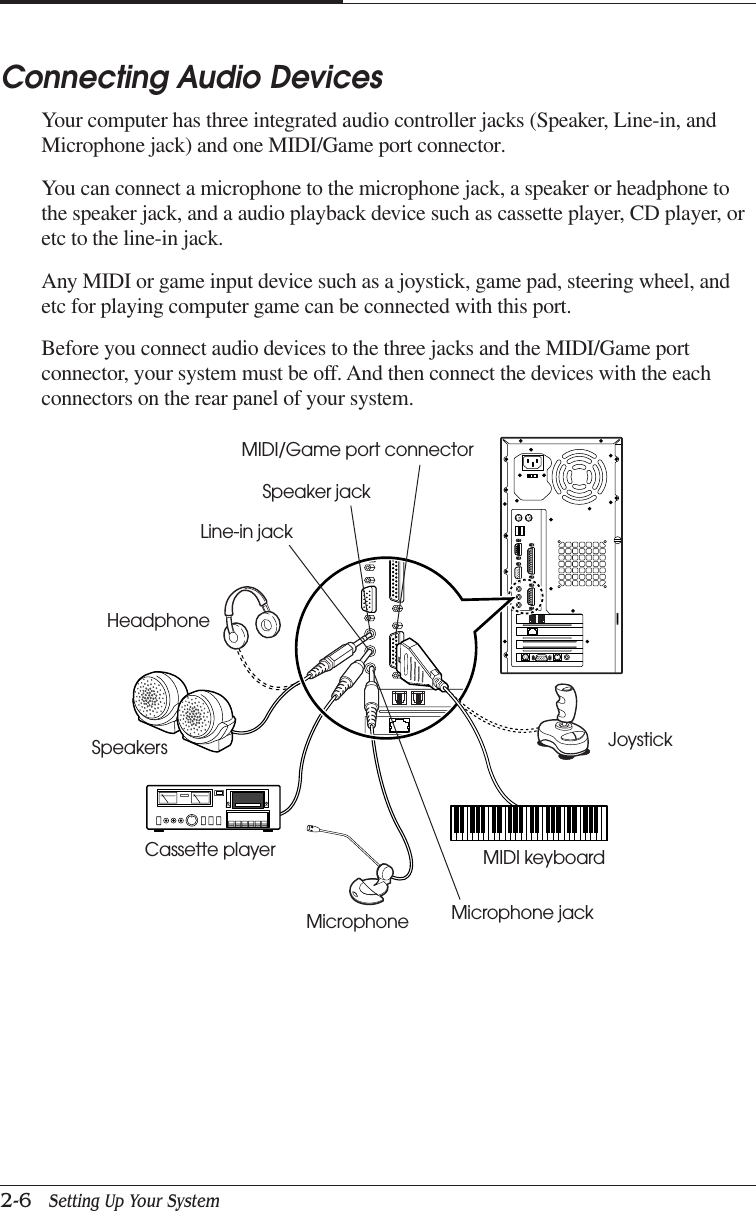
CHAPTER 11-8   Introduction12 Speaker JackThe Speaker jack can be used to attach most speakers with integrated amplifiers.13 Line-in JackThe jack is connected with the record/playback device such as a cassette player,CD player, and etc. .14 Microphone JackThe jack is connected with the personal computer microphone to integrate yourvoice or musical input into a sound application. .15 Padlock RingThe padlock ring allows you to secure the systemcover to the chassis to prevent unauthorizedaccess to the inside of the computer. To usepadlock ring, insert a commercially availablepadlock through the ring and then lock thepadlock.131214 15
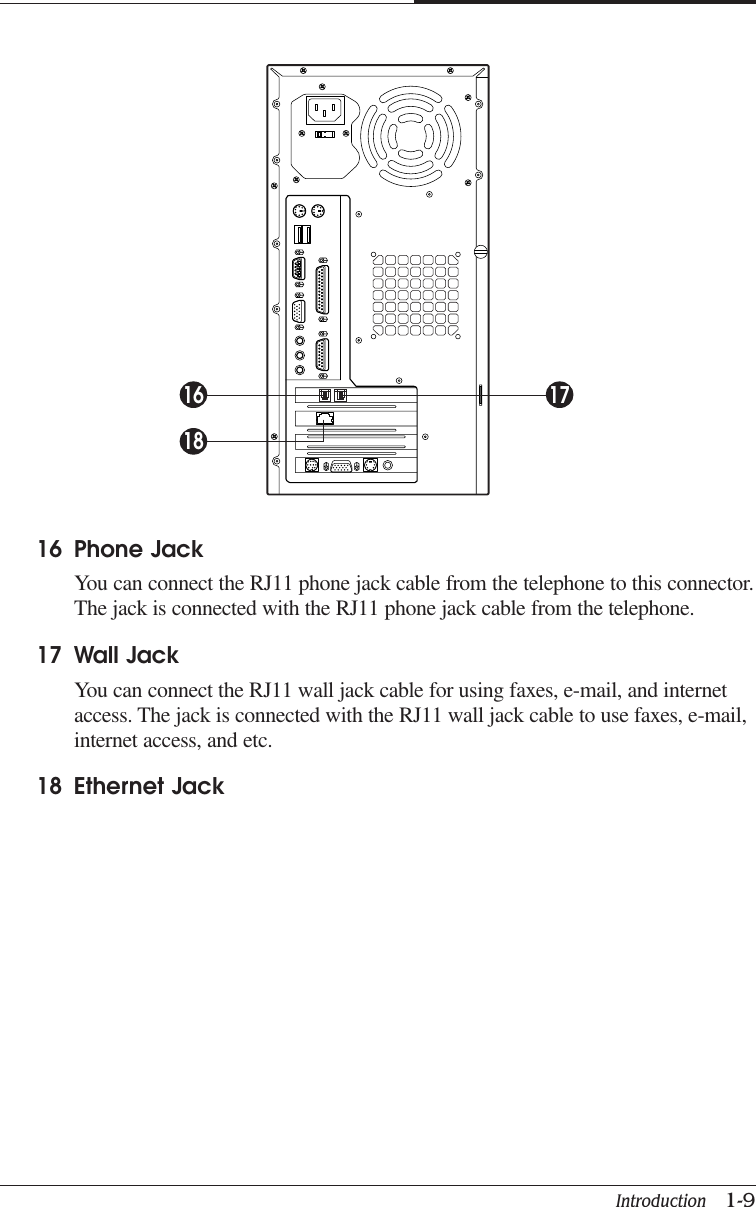
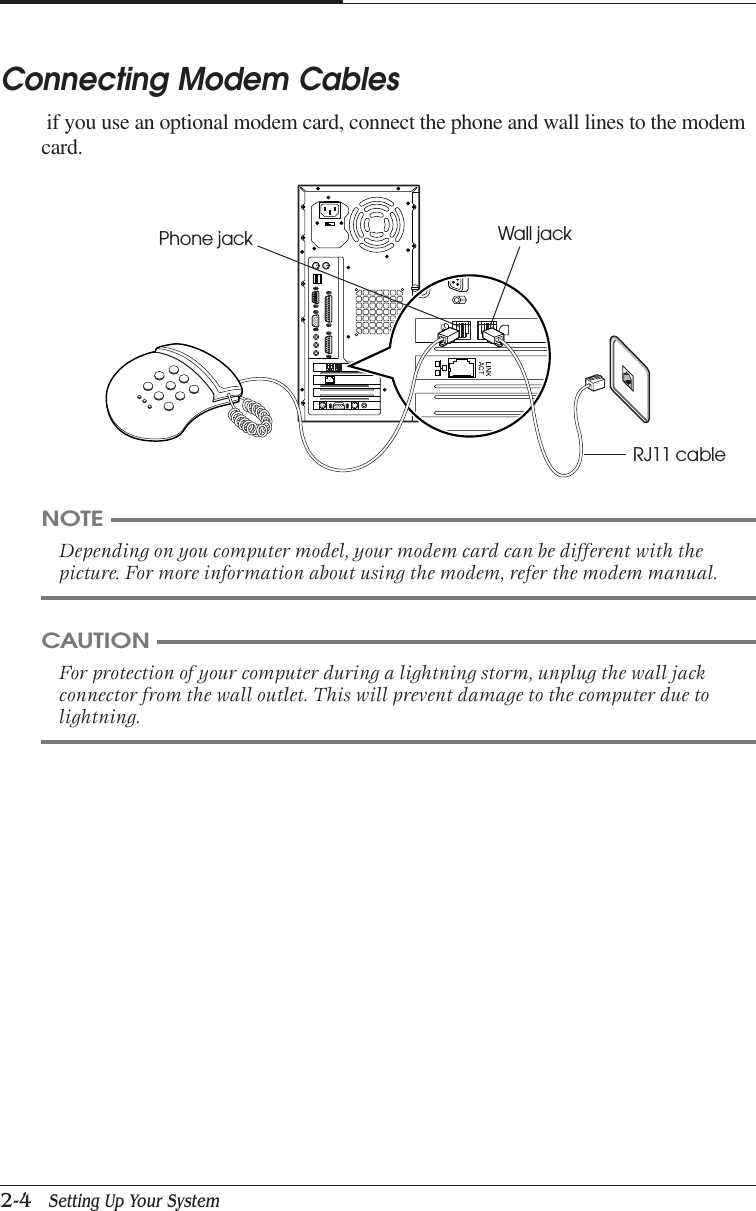
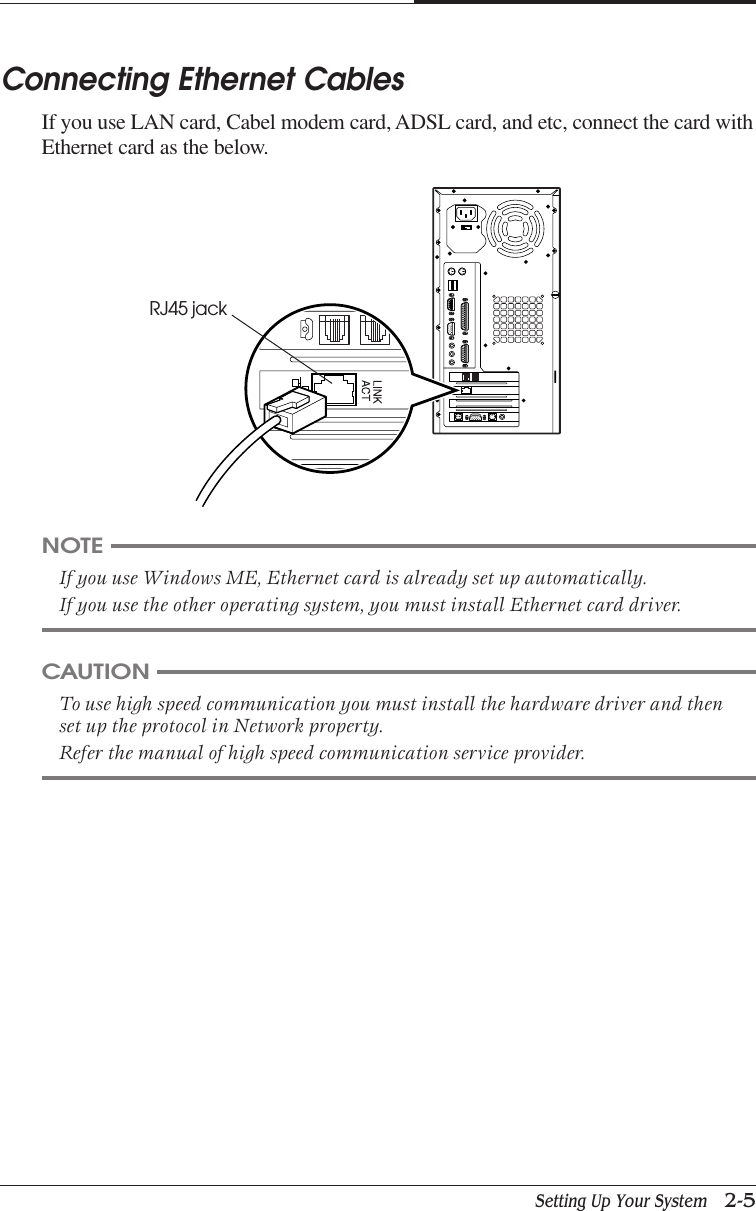
Introduction   1-9CHAPTER 116 Phone JackYou can connect the RJ11 phone jack cable from the telephone to this connector.The jack is connected with the RJ11 phone jack cable from the telephone.17 Wall JackYou can connect the RJ11 wall jack cable for using faxes, e-mail, and internetaccess. The jack is connected with the RJ11 wall jack cable to use faxes, e-mail,internet access, and etc.18 Ethernet Jack16 1718
CHAPTER 11-10   IntroductionBlank
Setting Up Your System   2-1Setting Up Your SystemChapter 2Chapter 2Chapter 2Chapter 2Chapter 2Setting Up Your SystemThis chapter describes how to set up and turn on/off your system. Just follow thesteps in this chapter.1. Selecting a LocationBefore you set up your computer, it is important to choose a safe and convenientlocation that provides the following:●A large, sturdy desk or table strong enough to support the weight of your systemand all of its components.●A flat and hard surface. Soft surfaces like beds and carpeted floors attract staticelectricity, which can erase data on your disks, damage the computer’s circuitry,and prevent proper ventilation.●Good air circulation. Leave several inches of space around the computer so aircan move freely.●Moderate environment conditions. Select a cool, dry area and protect yourcomputer from extremes in temperature, humidity, dust, and smoke. Avoid directsunlight or any other source of heat.●Appropriate power sources. To prevent static charges, connect all your equipmentto three-hole, grounded outlets. You need one outlet for the computer, one for themonitor, and an additional outlet for a printer and any other peripheral devices.●No electromagnetic interference. Do not place your system too close to anyelectrical device, such as a telephone, which generates an electromagnetic field.
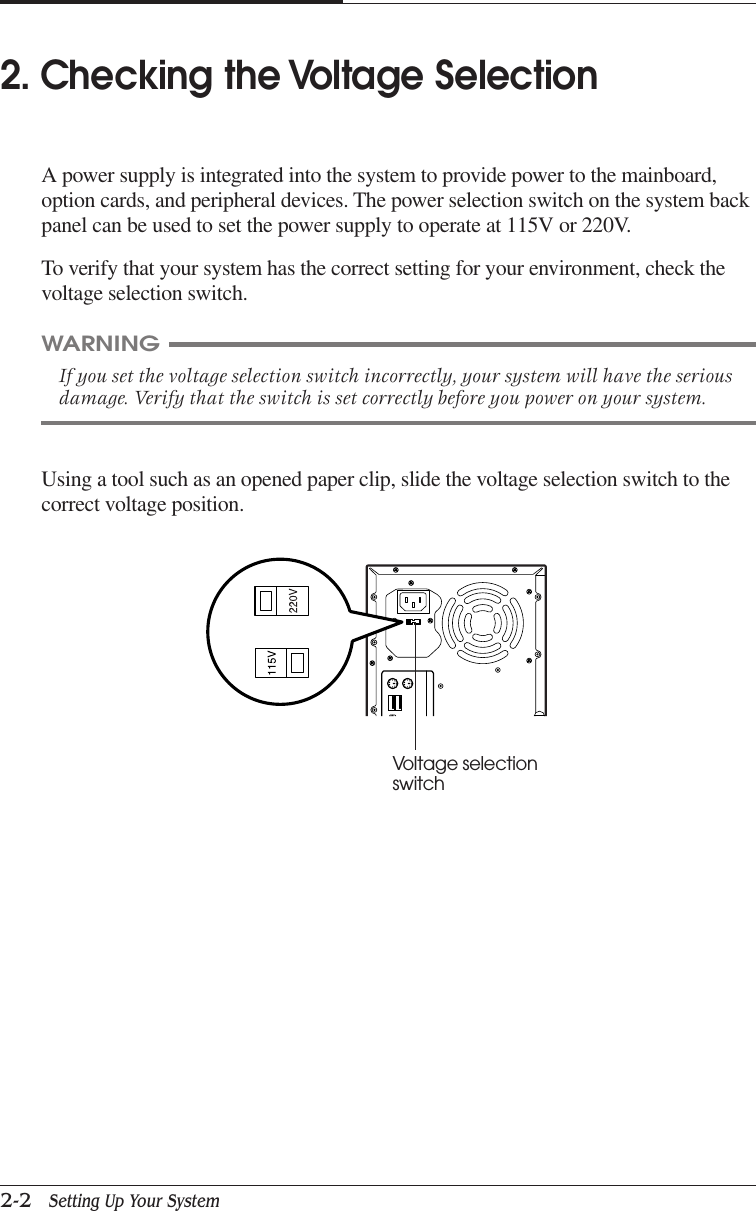
CHAPTER 22-2   Setting Up Your SystemUsing a tool such as an opened paper clip, slide the voltage selection switch to thecorrect voltage position.WARNINGIf you set the voltage selection switch incorrectly, your system will have the seriousdamage. Verify that the switch is set correctly before you power on your system.2. Checking the Voltage SelectionA power supply is integrated into the system to provide power to the mainboard,option cards, and peripheral devices. The power selection switch on the system backpanel can be used to set the power supply to operate at 115V or 220V.To verify that your system has the correct setting for your environment, check thevoltage selection switch.Voltage selectionswitch
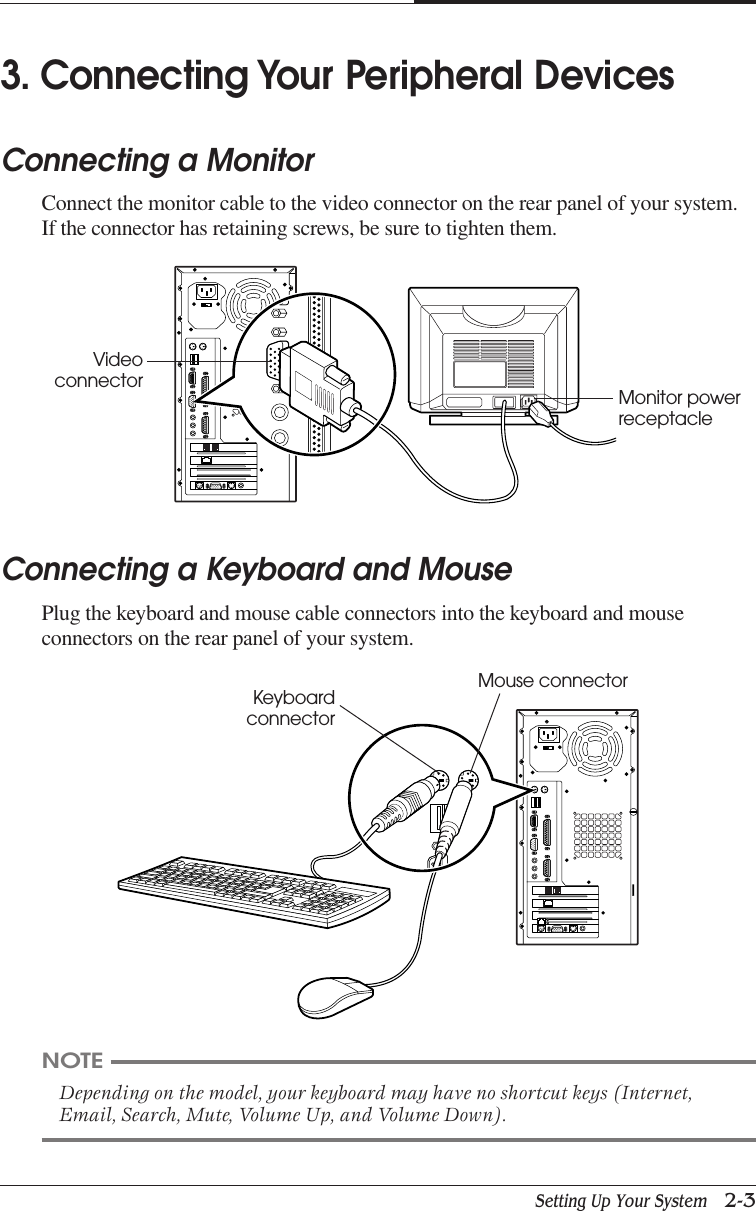
Setting Up Your System   2-3CHAPTER 23. Connecting Your Peripheral DevicesConnecting a MonitorConnect the monitor cable to the video connector on the rear panel of your system.If the connector has retaining screws, be sure to tighten them.Connecting a Keyboard and MousePlug the keyboard and mouse cable connectors into the keyboard and mouseconnectors on the rear panel of your system.NOTEDepending on the model, your keyboard may have no shortcut keys (Internet,Email, Search, Mute, Volume Up, and Volume Down).Videoconnector Monitor powerreceptacleKeyboardconnectorMouse connector
CHAPTER 22-4   Setting Up Your SystemConnecting Modem Cables if you use an optional modem card, connect the phone and wall lines to the modemcard.NOTEDepending on you computer model, your modem card can be different with thepicture. For more information about using the modem, refer the modem manual.CAUTIONFor protection of your computer during a lightning storm, unplug the wall jackconnector from the wall outlet. This will prevent damage to the computer due tolightning.Phone jack Wall jackRJ11 cable
Setting Up Your System   2-5CHAPTER 2Connecting Ethernet CablesIf you use LAN card, Cabel modem card, ADSL card, and etc, connect the card withEthernet card as the below.NOTEIf you use Windows ME, Ethernet card is already set up automatically.If you use the other operating system, you must install Ethernet card driver.CAUTIONTo use high speed communication you must install the hardware driver and thenset up the protocol in Network property.Refer the manual of high speed communication service provider.RJ45 jack
CHAPTER 22-6   Setting Up Your SystemConnecting Audio DevicesYour computer has three integrated audio controller jacks (Speaker, Line-in, andMicrophone jack) and one MIDI/Game port connector.You can connect a microphone to the microphone jack, a speaker or headphone tothe speaker jack, and a audio playback device such as cassette player, CD player, oretc to the line-in jack.Any MIDI or game input device such as a joystick, game pad, steering wheel, andetc for playing computer game can be connected with this port.Before you connect audio devices to the three jacks and the MIDI/Game portconnector, your system must be off. And then connect the devices with the eachconnectors on the rear panel of your system.Line-in jackSpeaker jackMIDI/Game port connectorHeadphoneSpeakersCassette playerMicrophoneMIDI keyboardJoystickMicrophone jack
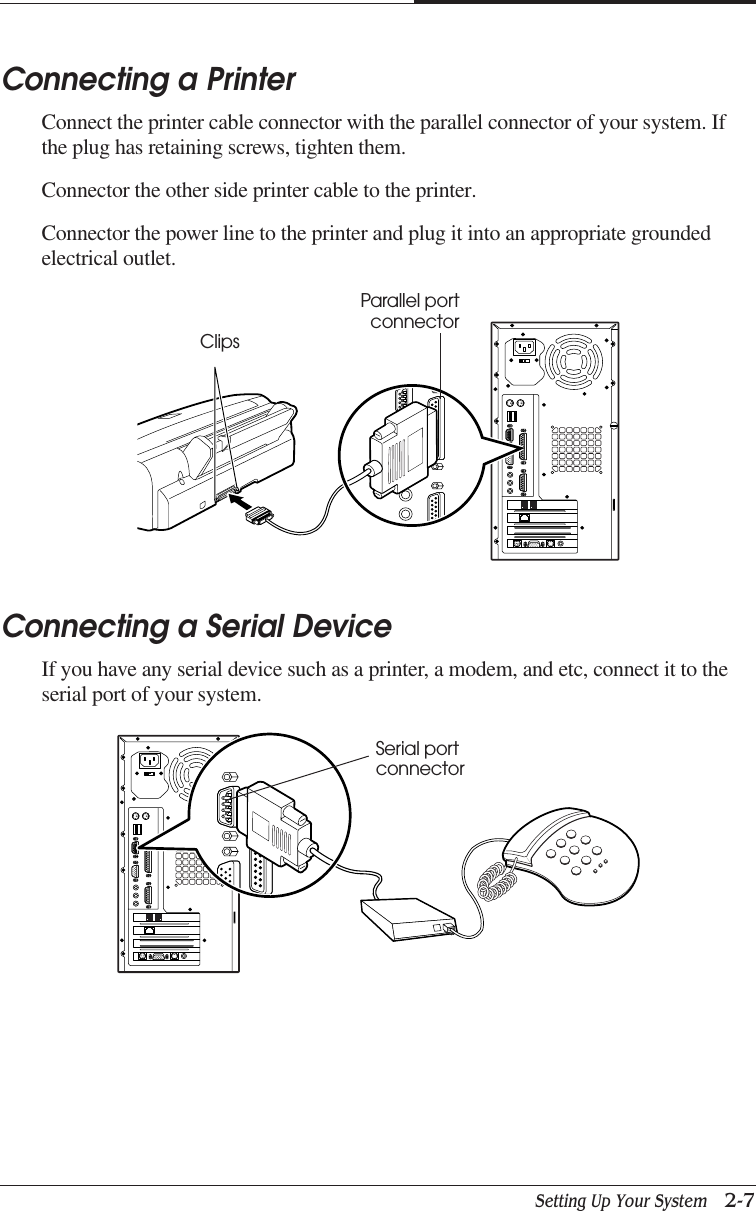
Setting Up Your System   2-7CHAPTER 2Connecting a PrinterConnect the printer cable connector with the parallel connector of your system. Ifthe plug has retaining screws, tighten them.Connector the other side printer cable to the printer.Connector the power line to the printer and plug it into an appropriate groundedelectrical outlet.Connecting a Serial DeviceIf you have any serial device such as a printer, a modem, and etc, connect it to theserial port of your system.ClipsParallel portconnectorSerial portconnector
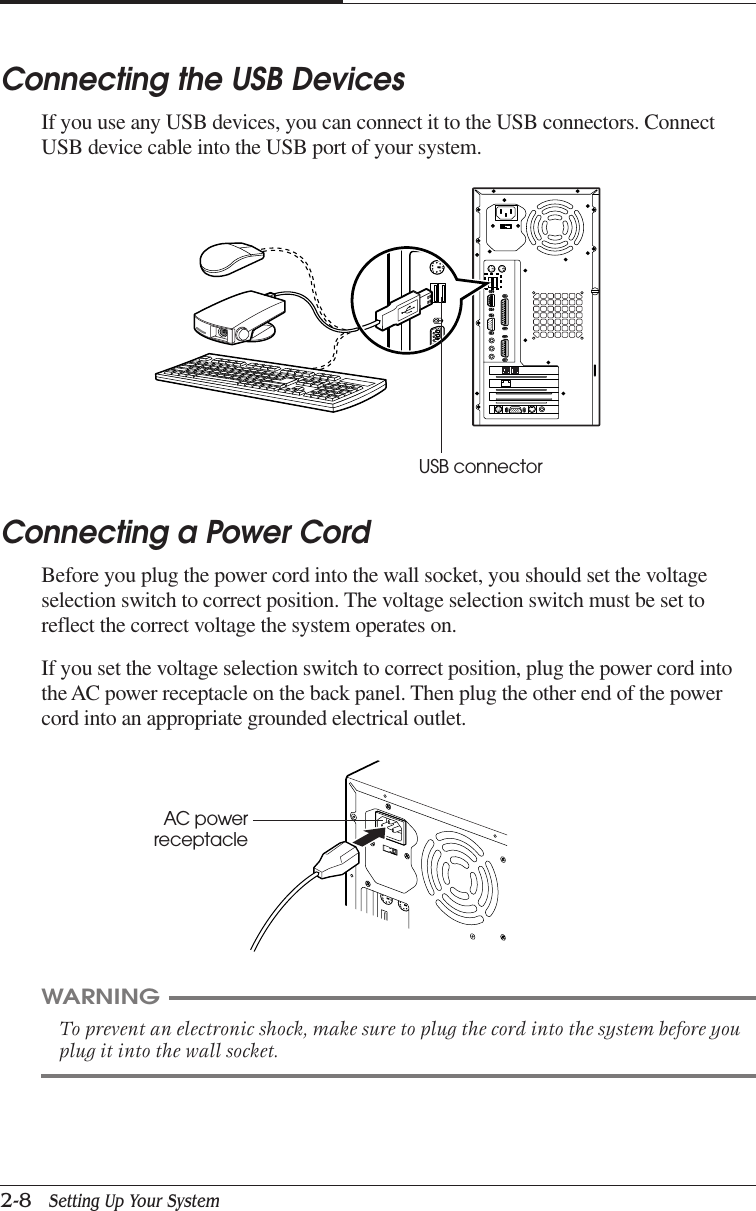
CHAPTER 22-8   Setting Up Your SystemConnecting a Power CordBefore you plug the power cord into the wall socket, you should set the voltageselection switch to correct position. The voltage selection switch must be set toreflect the correct voltage the system operates on.If you set the voltage selection switch to correct position, plug the power cord intothe AC power receptacle on the back panel. Then plug the other end of the powercord into an appropriate grounded electrical outlet.Connecting the USB DevicesIf you use any USB devices, you can connect it to the USB connectors. ConnectUSB device cable into the USB port of your system.WARNINGTo prevent an electronic shock, make sure to plug the cord into the system before youplug it into the wall socket.USB connectorAC powerreceptacle
Setting Up Your System   2-9CHAPTER 2CAUTIONFor protection of your computer and other devices during a lightning storm, orwhen it is left unattended and unused for long periods of time, unplug the computerand other devices from the wall outlet and disconnect the antenna or cable system.This will prevent damage to the computer and other devices due to lighting andpower line surges.4. Turning the Computer On and OffFollow the instructions below to turn on the computer or to turn it off.Turning On the ComputerTo turn on your computer, follow the below steps.1. Turn on the monitor and other devices connected to your system.2. Press the power button on the front panel of your computer.3. The system will load Windows ME.Turning Off the ComputerTo turn on your computer, follow the below steps.1. Before you turn off computer, save all the data and then close all the applicationprograms you use.2. Click the Start button, and then click Shut Down.3. Select Shut down in the dialog box, and then click OK button.4. Turn off the monitor and any other peripheral devices.
CHAPTER 22-10   Setting Up Your SystemBlank
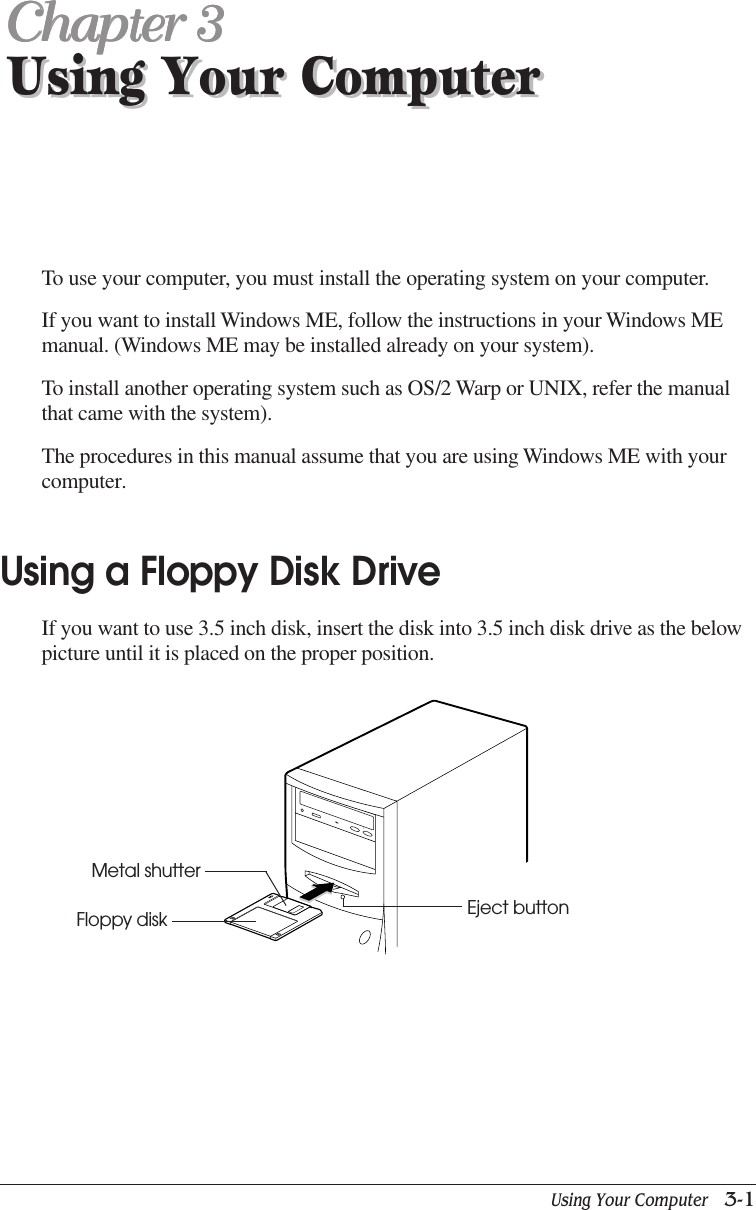
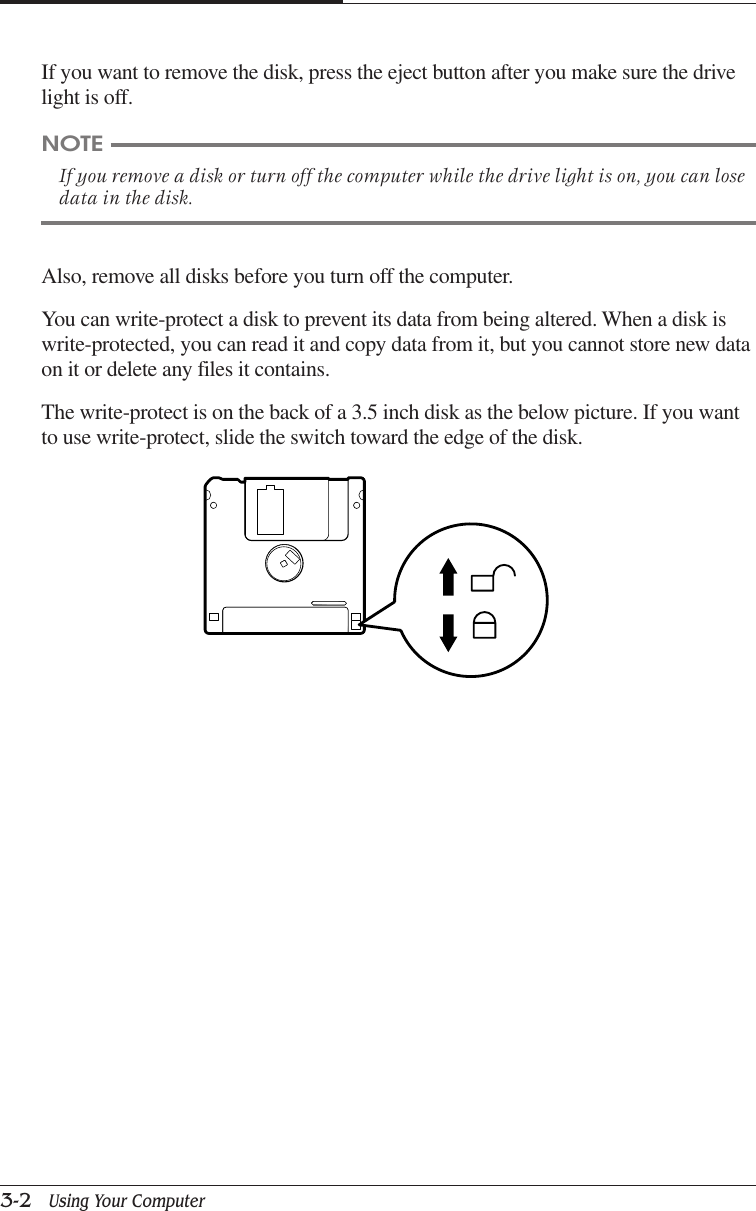
Using Your Computer   3-1Using Your ComputerChapter 3Chapter 3Chapter 3Chapter 3Chapter 3Using Your ComputerTo use your computer, you must install the operating system on your computer.If you want to install Windows ME, follow the instructions in your Windows MEmanual. (Windows ME may be installed already on your system).To install another operating system such as OS/2 Warp or UNIX, refer the manualthat came with the system).The procedures in this manual assume that you are using Windows ME with yourcomputer.Using a Floppy Disk DriveIf you want to use 3.5 inch disk, insert the disk into 3.5 inch disk drive as the belowpicture until it is placed on the proper position.Eject buttonFloppy diskMetal shutter
CHAPTER 33-2   Using Your ComputerIf you want to remove the disk, press the eject button after you make sure the drivelight is off.NOTEIf you remove a disk or turn off the computer while the drive light is on, you can losedata in the disk.Also, remove all disks before you turn off the computer.You can write-protect a disk to prevent its data from being altered. When a disk iswrite-protected, you can read it and copy data from it, but you cannot store new dataon it or delete any files it contains.The write-protect is on the back of a 3.5 inch disk as the below picture. If you wantto use write-protect, slide the switch toward the edge of the disk.
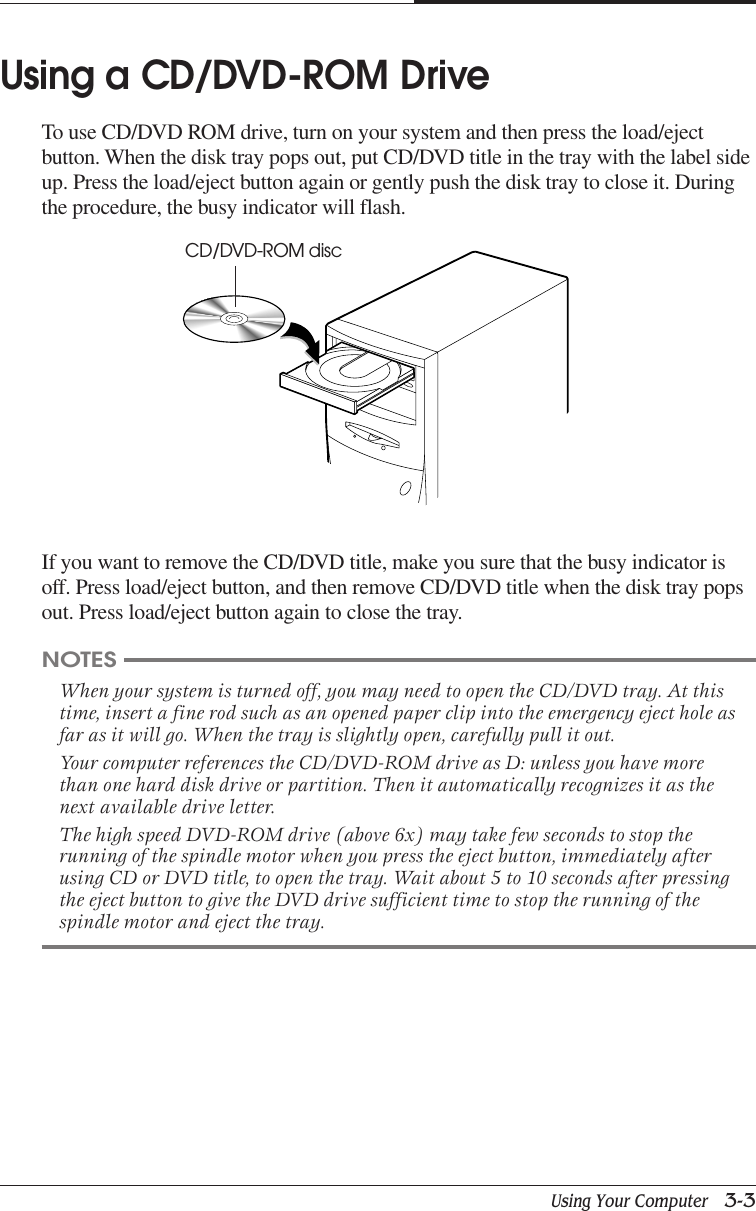
Using Your Computer   3-3CHAPTER 3Using a CD/DVD-ROM DriveTo use CD/DVD ROM drive, turn on your system and then press the load/ejectbutton. When the disk tray pops out, put CD/DVD title in the tray with the label sideup. Press the load/eject button again or gently push the disk tray to close it. Duringthe procedure, the busy indicator will flash.If you want to remove the CD/DVD title, make you sure that the busy indicator isoff. Press load/eject button, and then remove CD/DVD title when the disk tray popsout. Press load/eject button again to close the tray.NOTESWhen your system is turned off, you may need to open the CD/DVD tray. At thistime, insert a fine rod such as an opened paper clip into the emergency eject hole asfar as it will go. When the tray is slightly open, carefully pull it out.Your computer references the CD/DVD-ROM drive as D: unless you have morethan one hard disk drive or partition. Then it automatically recognizes it as thenext available drive letter.The high speed DVD-ROM drive (above 6x) may take few seconds to stop therunning of the spindle motor when you press the eject button, immediately afterusing CD or DVD title, to open the tray. Wait about 5 to 10 seconds after pressingthe eject button to give the DVD drive sufficient time to stop the running of thespindle motor and eject the tray.CD/DVD-ROM disc
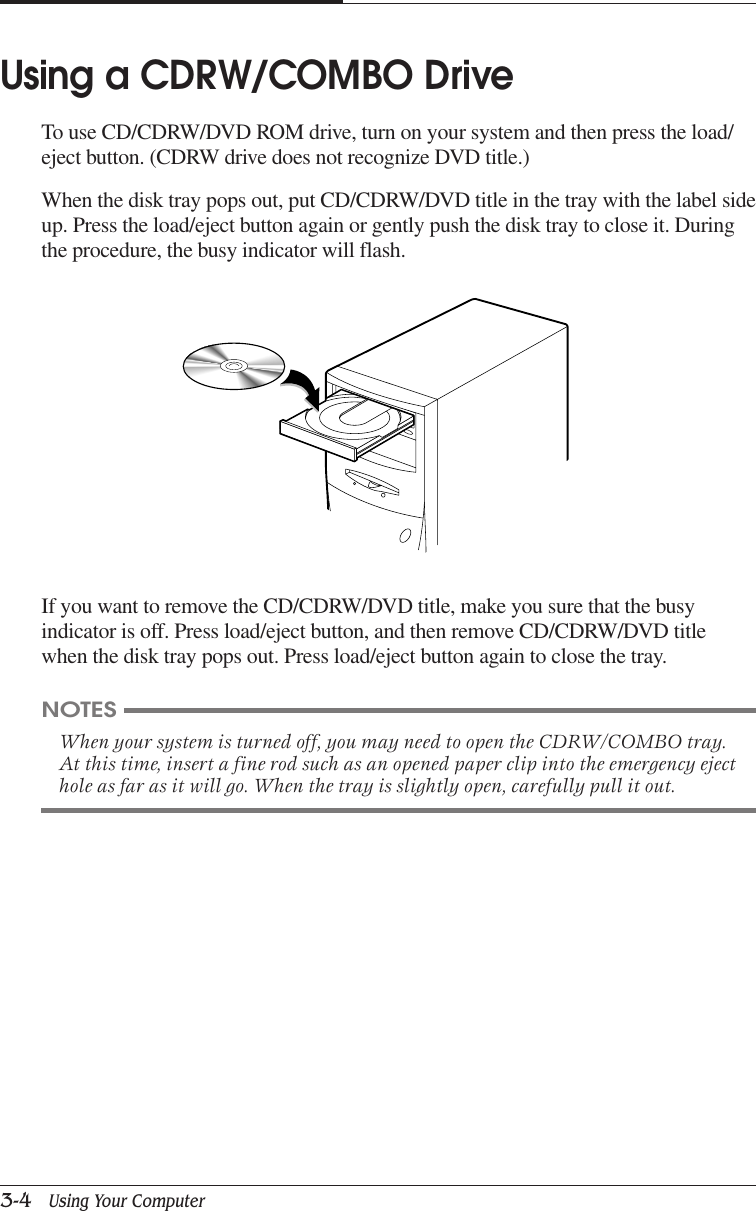
CHAPTER 33-4   Using Your ComputerIf you want to remove the CD/CDRW/DVD title, make you sure that the busyindicator is off. Press load/eject button, and then remove CD/CDRW/DVD titlewhen the disk tray pops out. Press load/eject button again to close the tray.Using a CDRW/COMBO DriveTo use CD/CDRW/DVD ROM drive, turn on your system and then press the load/eject button. (CDRW drive does not recognize DVD title.)When the disk tray pops out, put CD/CDRW/DVD title in the tray with the label sideup. Press the load/eject button again or gently push the disk tray to close it. Duringthe procedure, the busy indicator will flash.NOTESWhen your system is turned off, you may need to open the CDRW/COMBO tray.At this time, insert a fine rod such as an opened paper clip into the emergency ejecthole as far as it will go. When the tray is slightly open, carefully pull it out.
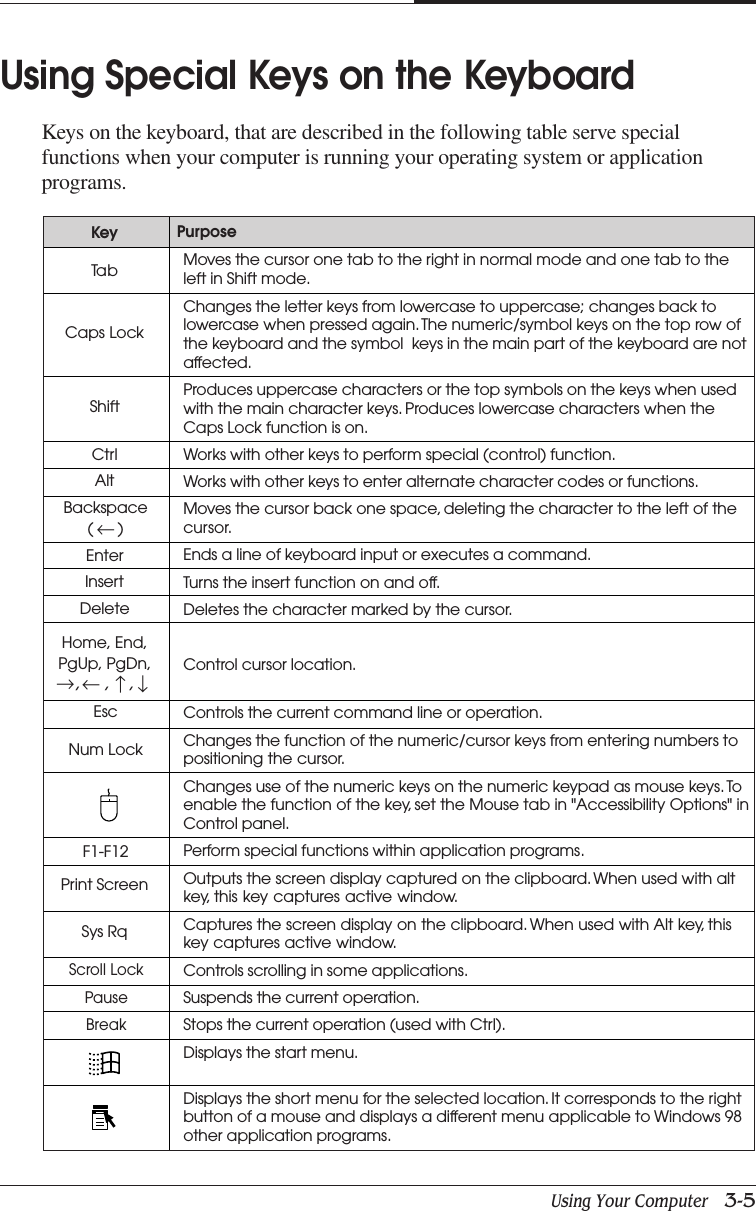
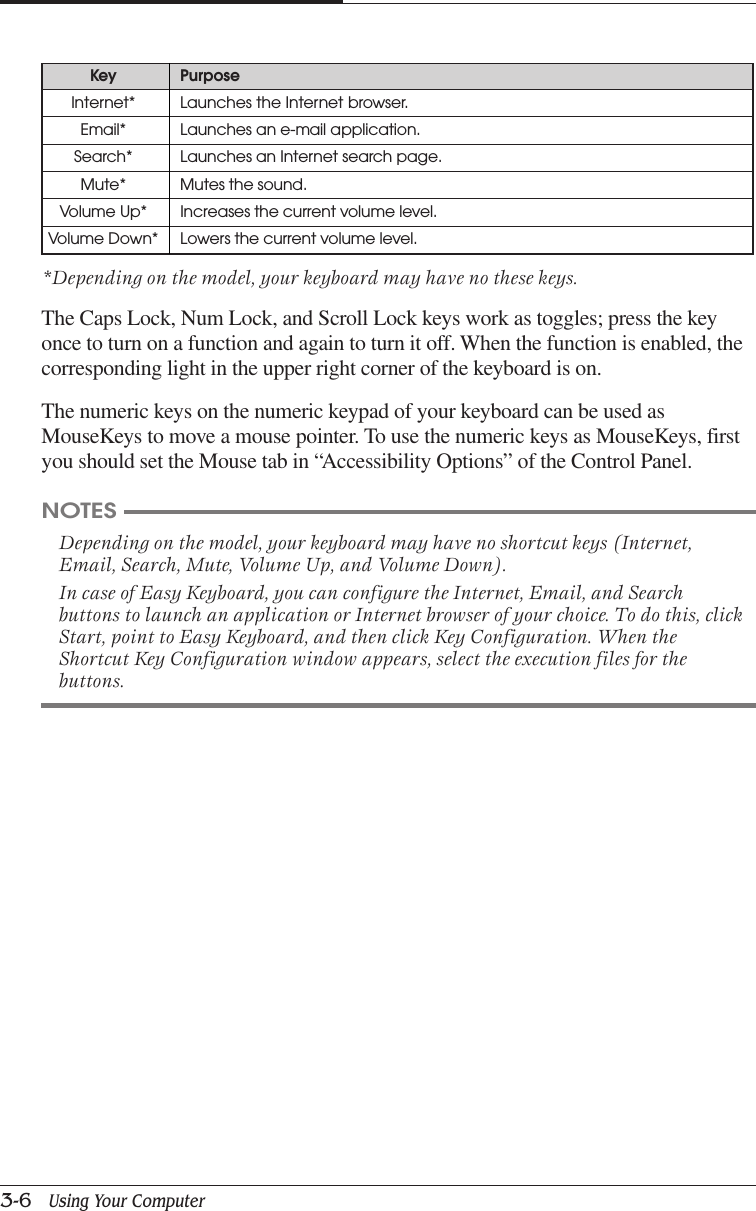
Using Your Computer   3-5CHAPTER 3Using Special Keys on the KeyboardKeys on the keyboard, that are described in the following table serve specialfunctions when your computer is running your operating system or applicationprograms.PurposeNum LockTa bCaps LockKeyShiftCtrlAltBackspace(      )EnterInsertDeleteEscF1-F12Print ScreenSys RqMoves the cursor one tab to the right in normal mode and one tab to theleft in Shift mode.Changes the letter keys from lowercase to uppercase; changes back tolowercase when pressed again. The numeric/symbol keys on the top row ofthe keyboard and the symbol  keys in the main part of the keyboard are notaffected.Produces uppercase characters or the top symbols on the keys when usedwith the main character keys. Produces lowercase characters when theCaps Lock function is on.Works with other keys to perform special (control) function.Works with other keys to enter alternate character codes or functions.Moves the cursor back one space, deleting the character to the left of thecursor.Ends a line of keyboard input or executes a command.Turns the insert function on and off.Deletes the character marked by the cursor.Control cursor location.Controls the current command line or operation.Changes the function of the numeric/cursor keys from entering numbers topositioning the cursor.Changes use of the numeric keys on the numeric keypad as mouse keys. Toenable the function of the key, set the Mouse tab in "Accessibility Options" inControl panel.Perform special functions within application programs.Outputs the screen display captured on the clipboard. When used with altkey, this key captures active window.Captures the screen display on the clipboard. When used with Alt key, thiskey captures active window.Controls scrolling in some applications.Suspends the current operation.Stops the current operation (used with Ctrl).Displays the start menu.Displays the short menu for the selected location. It corresponds to the rightbutton of a mouse and displays a different menu applicable to Windows 98other application programs.↓↓↓↓,     ,    ,Home, End,PgUp, PgDn,Scroll LockPause↓Break
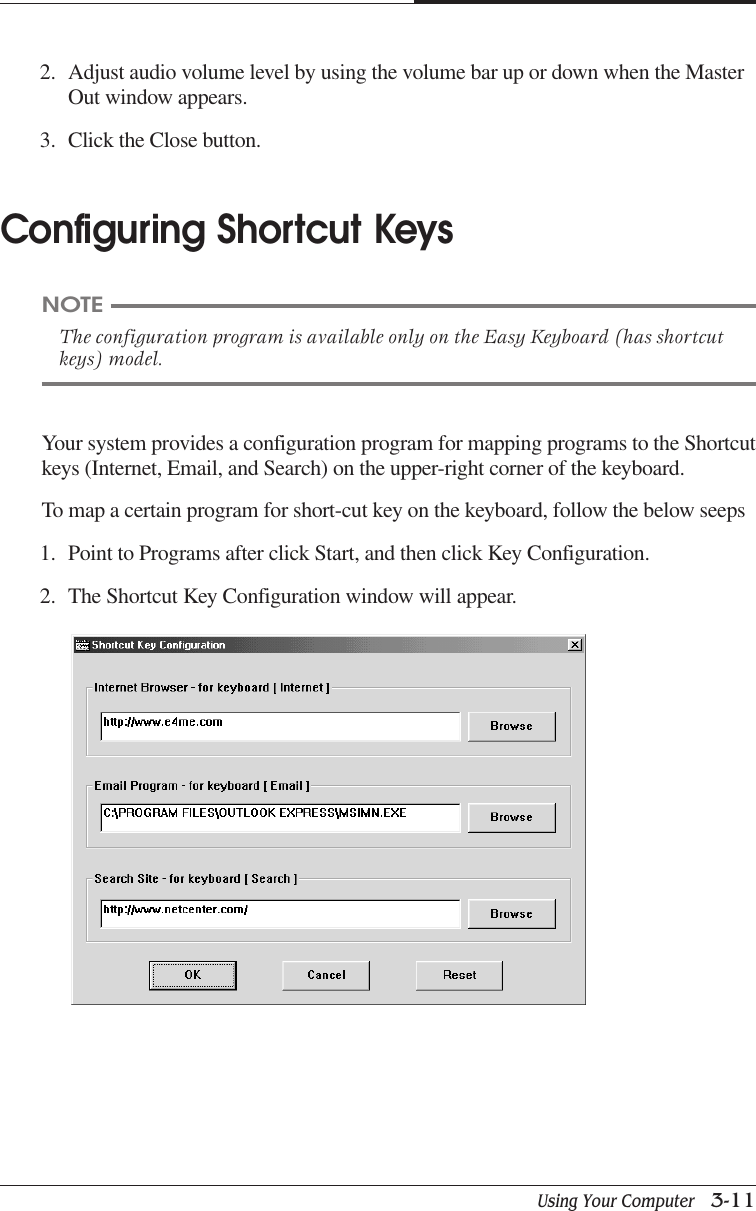
CHAPTER 33-6   Using Your ComputerKey PurposeInternet* Launches the Internet browser.Email* Launches an e-mail application.Search* Launches an Internet search page.Mute* Mutes the sound.Volume Up* Increases the current volume level.Volume Down* Lowers the current volume level.*Depending on the model, your keyboard may have no these keys.The Caps Lock, Num Lock, and Scroll Lock keys work as toggles; press the keyonce to turn on a function and again to turn it off. When the function is enabled, thecorresponding light in the upper right corner of the keyboard is on.The numeric keys on the numeric keypad of your keyboard can be used asMouseKeys to move a mouse pointer. To use the numeric keys as MouseKeys, firstyou should set the Mouse tab in “Accessibility Options” of the Control Panel.NOTESDepending on the model, your keyboard may have no shortcut keys (Internet,Email, Search, Mute, Volume Up, and Volume Down).In case of Easy Keyboard, you can configure the Internet, Email, and Searchbuttons to launch an application or Internet browser of your choice. To do this, clickStart, point to Easy Keyboard, and then click Key Configuration. When theShortcut Key Configuration window appears, select the execution files for thebuttons.
Using Your Computer   3-7CHAPTER 3Using a MouseGenerally a mouse functions as follows:●Click ( ) : Press and release the left mouse button once.●Double click ( ) : Quickly press and release the left mouse button twice.●Click with the right mouse button ( ) : Press and release the right mousebutton once.●Drag ( ) : While pressing and holding down the left or right mousebutton, move it to another location and then release the mouse button.When using Windows ME, you can change mouse button configurations in theMouse section of the Control Panel. If you are left-handed, you can changeconfiguration from right-handed to left-handed.See “mouse, reversing buttons” in the Help index for more information.
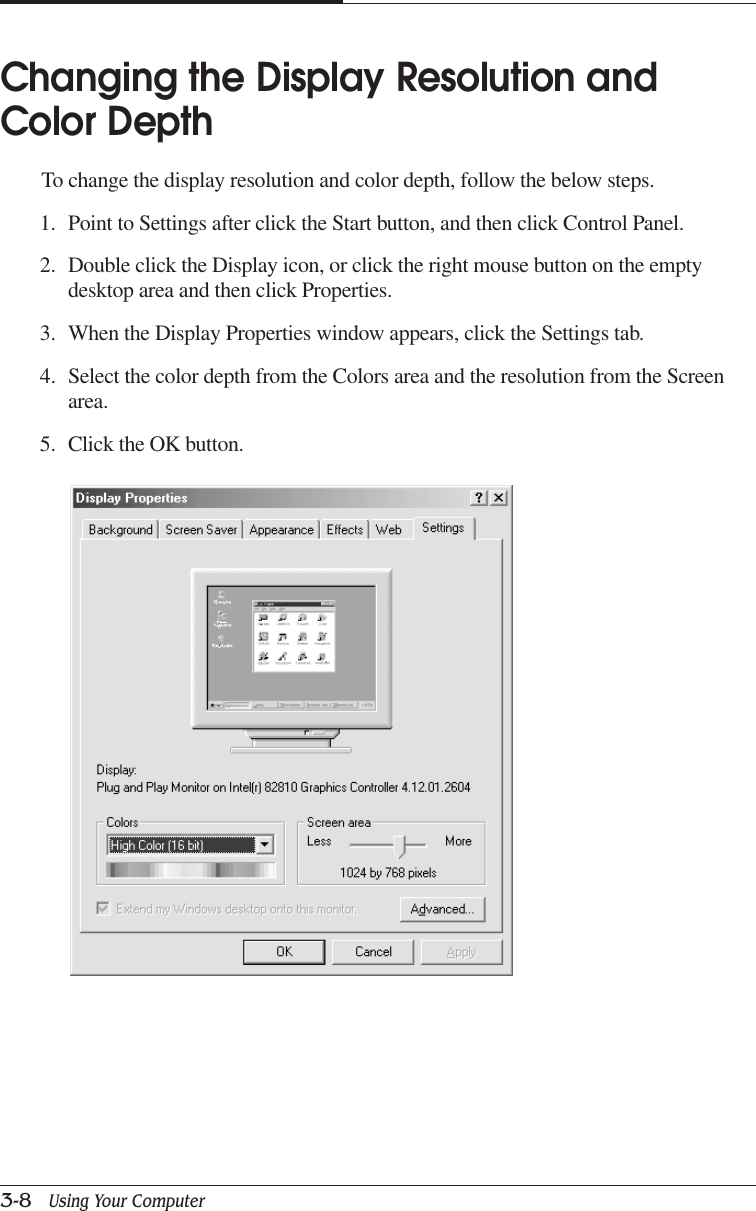
CHAPTER 33-8   Using Your ComputerChanging the Display Resolution andColor DepthTo change the display resolution and color depth, follow the below steps.1. Point to Settings after click the Start button, and then click Control Panel.2. Double click the Display icon, or click the right mouse button on the emptydesktop area and then click Properties.3. When the Display Properties window appears, click the Settings tab.4. Select the color depth from the Colors area and the resolution from the Screenarea.5. Click the OK button.
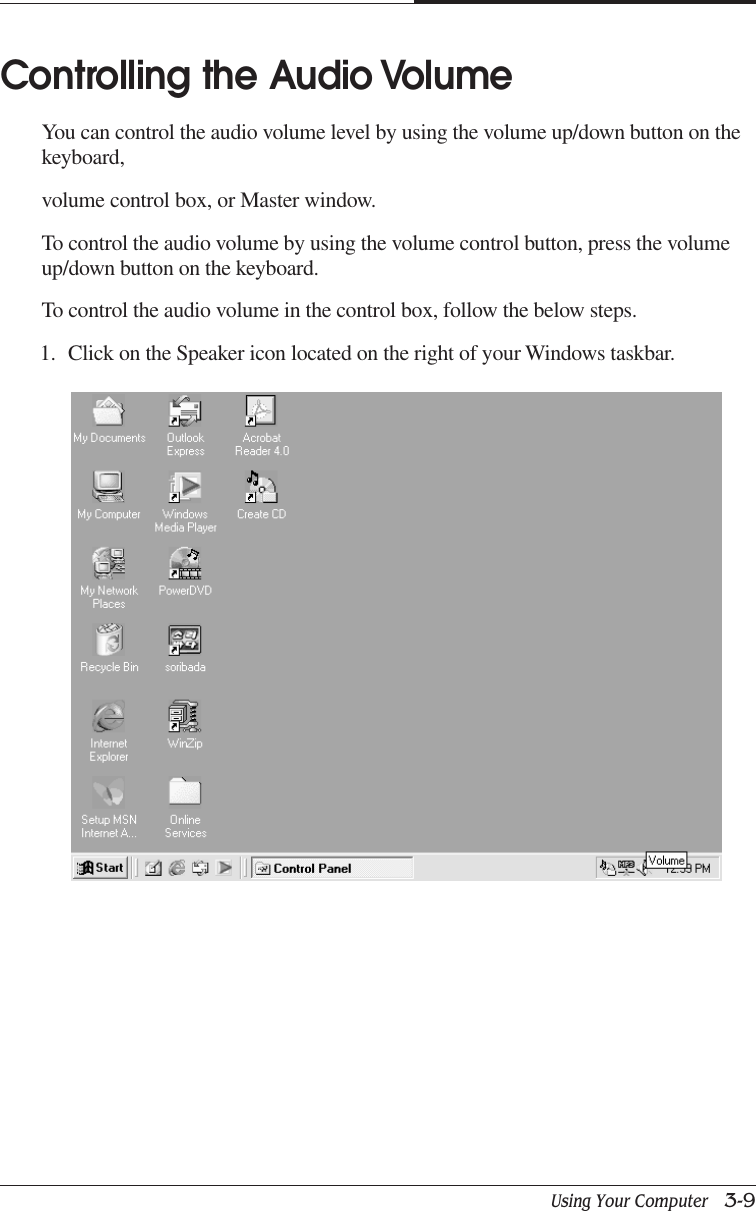
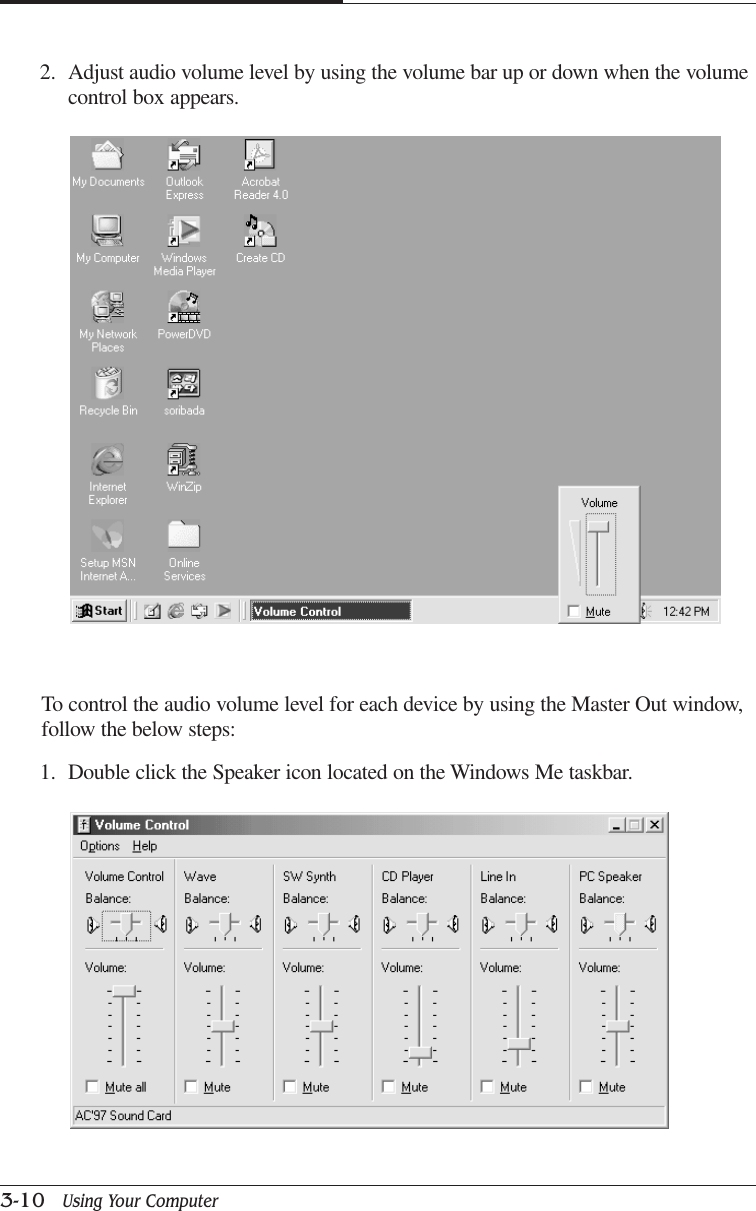
Using Your Computer   3-9CHAPTER 3Controlling the Audio VolumeYou can control the audio volume level by using the volume up/down button on thekeyboard,volume control box, or Master window.To control the audio volume by using the volume control button, press the volumeup/down button on the keyboard.To control the audio volume in the control box, follow the below steps.1. Click on the Speaker icon located on the right of your Windows taskbar.
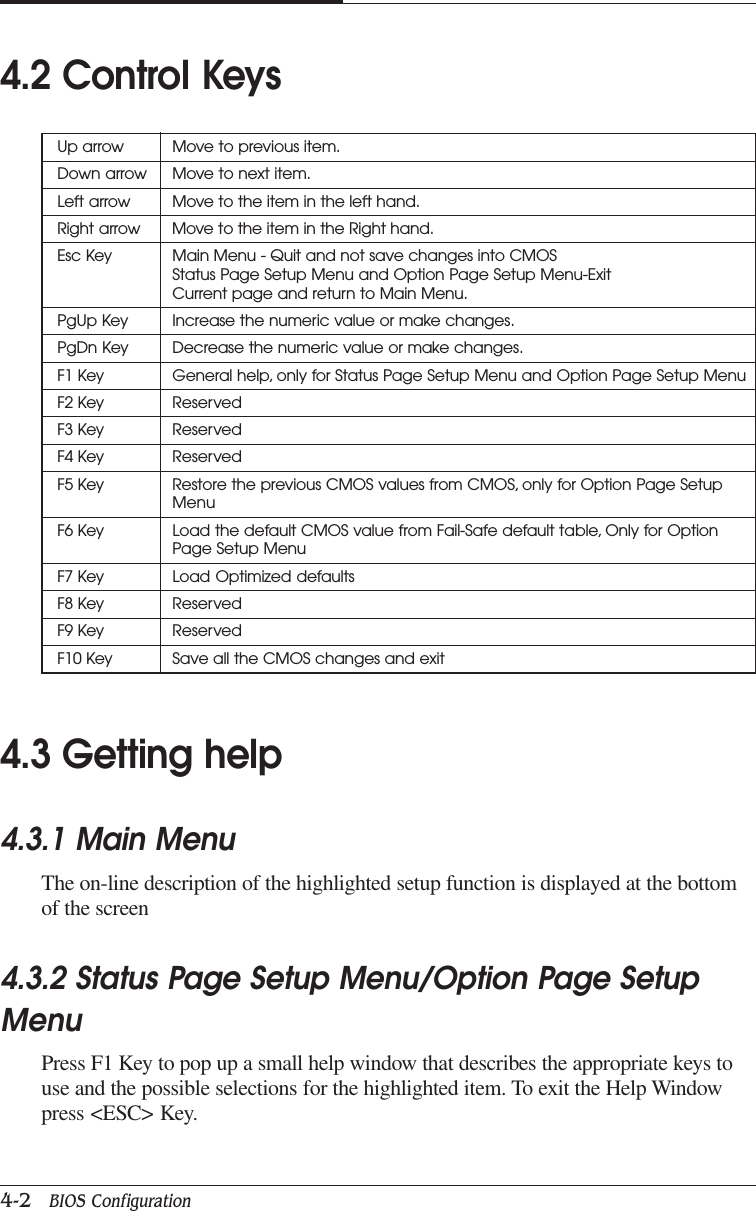
CHAPTER 33-10   Using Your ComputerTo control the audio volume level for each device by using the Master Out window,follow the below steps:1. Double click the Speaker icon located on the Windows Me taskbar.2. Adjust audio volume level by using the volume bar up or down when the volumecontrol box appears.
Using Your Computer   3-11CHAPTER 3Your system provides a configuration program for mapping programs to the Shortcutkeys (Internet, Email, and Search) on the upper-right corner of the keyboard.To map a certain program for short-cut key on the keyboard, follow the below seeps1. Point to Programs after click Start, and then click Key Configuration.2. The Shortcut Key Configuration window will appear.2. Adjust audio volume level by using the volume bar up or down when the MasterOut window appears.3. Click the Close button.Configuring Shortcut KeysNOTEThe configuration program is available only on the Easy Keyboard (has shortcutkeys) model.
CHAPTER 33-12   Using Your Computer3. Click the Browse button.4. Select a program file for the shortcut key  when the Open window appears.5. Click the Open button.6. In the Shortcut Key Configuration window, click OK.Click OK in the Shortcut Key Configuration window.
BIOS Configuration   4-1BIOS ConfigurationChapter 4Chapter 4Chapter 4Chapter 4Chapter 4BIOS ConfigurationAward’s BIOS ROM has a built -in Setup Program that allows users to modify thebasic system configuration. This type of information is stored in battery-backedCMOS RAM so that it retains the Setup information when the power is turned off4.1 Entering SetupPower On the Computer, and then pressing <Del> key immediately will allow youto enter Setup.If the message disappears before you respond and you still wish to enter Setup,restart the system to try again by turning it OFF then ON or pressing the "RESET"bottom on the system case. You may also restart by simultaneously press <Ctrl>,<Alt>, and <Del> keys.
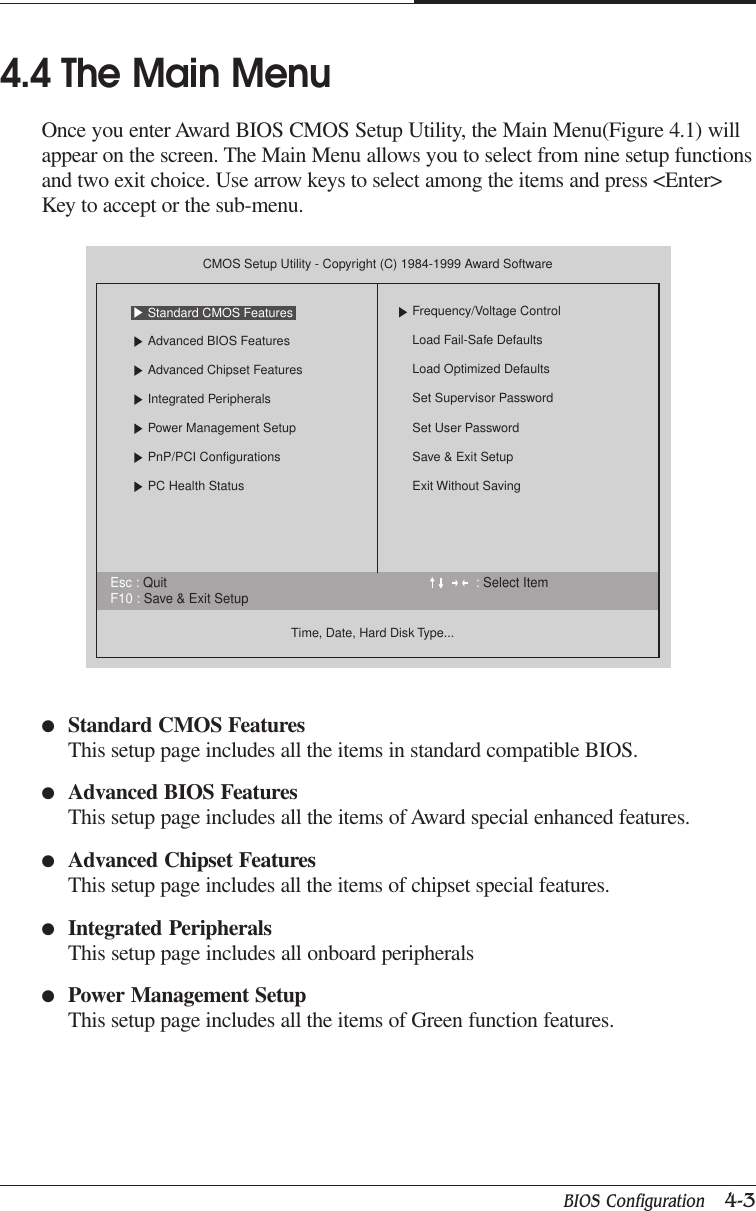
CHAPTER 44-2   BIOS Configuration4.2 Control KeysUp arrow Move to previous item.Down arrow Move to next item.Left arrow Move to the item in the left hand.Right arrow Move to the item in the Right hand.Esc Key Main Menu - Quit and not save changes into CMOSStatus Page Setup Menu and Option Page Setup Menu-ExitCurrent page and return to Main Menu.PgUp Key Increase the numeric value or make changes.PgDn Key Decrease the numeric value or make changes.F1 Key General help, only for Status Page Setup Menu and Option Page Setup MenuF2 Key ReservedF3 Key ReservedF4 Key ReservedF5 Key Restore the previous CMOS values from CMOS, only for Option Page SetupMenuF6 Key Load the default CMOS value from Fail-Safe default table, Only for OptionPage Setup MenuF7 Key Load Optimized defaultsF8 Key ReservedF9 Key ReservedF10 Key Save all the CMOS changes and exit4.3 Getting help4.3.1 Main MenuThe on-line description of the highlighted setup function is displayed at the bottomof the screen4.3.2 Status Page Setup Menu/Option Page SetupMenuPress F1 Key to pop up a small help window that describes the appropriate keys touse and the possible selections for the highlighted item. To exit the Help Windowpress <ESC> Key.
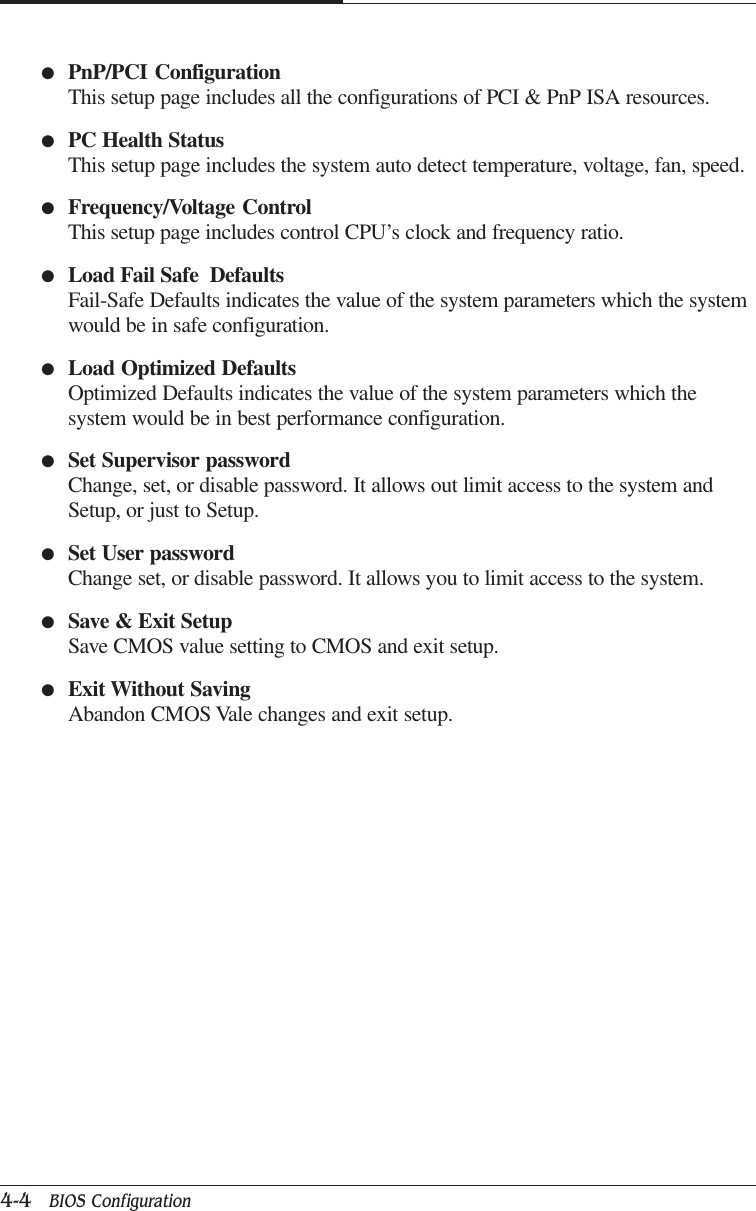
BIOS Configuration   4-3CHAPTER 44.4 The Main MenuOnce you enter Award BIOS CMOS Setup Utility, the Main Menu(Figure 4.1) willappear on the screen. The Main Menu allows you to select from nine setup functionsand two exit choice. Use arrow keys to select among the items and press <Enter>Key to accept or the sub-menu.●Standard CMOS FeaturesThis setup page includes all the items in standard compatible BIOS.●Advanced BIOS FeaturesThis setup page includes all the items of Award special enhanced features.●Advanced Chipset FeaturesThis setup page includes all the items of chipset special features.●Integrated PeripheralsThis setup page includes all onboard peripherals●Power Management SetupThis setup page includes all the items of Green function features.Esc : Quit : Select ItemF10 : Save & Exit SetupCMOS Setup Utility - Copyright (C) 1984-1999 Award SoftwareAdvanced BIOS FeaturesAdvanced Chipset FeaturesIntegrated PeripheralsPower Management SetupPnP/PCI ConfigurationsPC Health StatusTime, Date, Hard Disk Type...Frequency/Voltage ControlLoad Fail-Safe DefaultsLoad Optimized DefaultsSet Supervisor PasswordSet User PasswordSave & Exit SetupExit Without SavingStandard CMOS Features
CHAPTER 44-4   BIOS Configuration●PnP/PCI ConfigurationThis setup page includes all the configurations of PCI & PnP ISA resources.●PC Health StatusThis setup page includes the system auto detect temperature, voltage, fan, speed.●Frequency/Voltage ControlThis setup page includes control CPU’s clock and frequency ratio.●Load Fail Safe  DefaultsFail-Safe Defaults indicates the value of the system parameters which the systemwould be in safe configuration.●Load Optimized DefaultsOptimized Defaults indicates the value of the system parameters which thesystem would be in best performance configuration.●Set Supervisor passwordChange, set, or disable password. It allows out limit access to the system andSetup, or just to Setup.●Set User passwordChange set, or disable password. It allows you to limit access to the system.●Save & Exit SetupSave CMOS value setting to CMOS and exit setup.●Exit Without SavingAbandon CMOS Vale changes and exit setup.
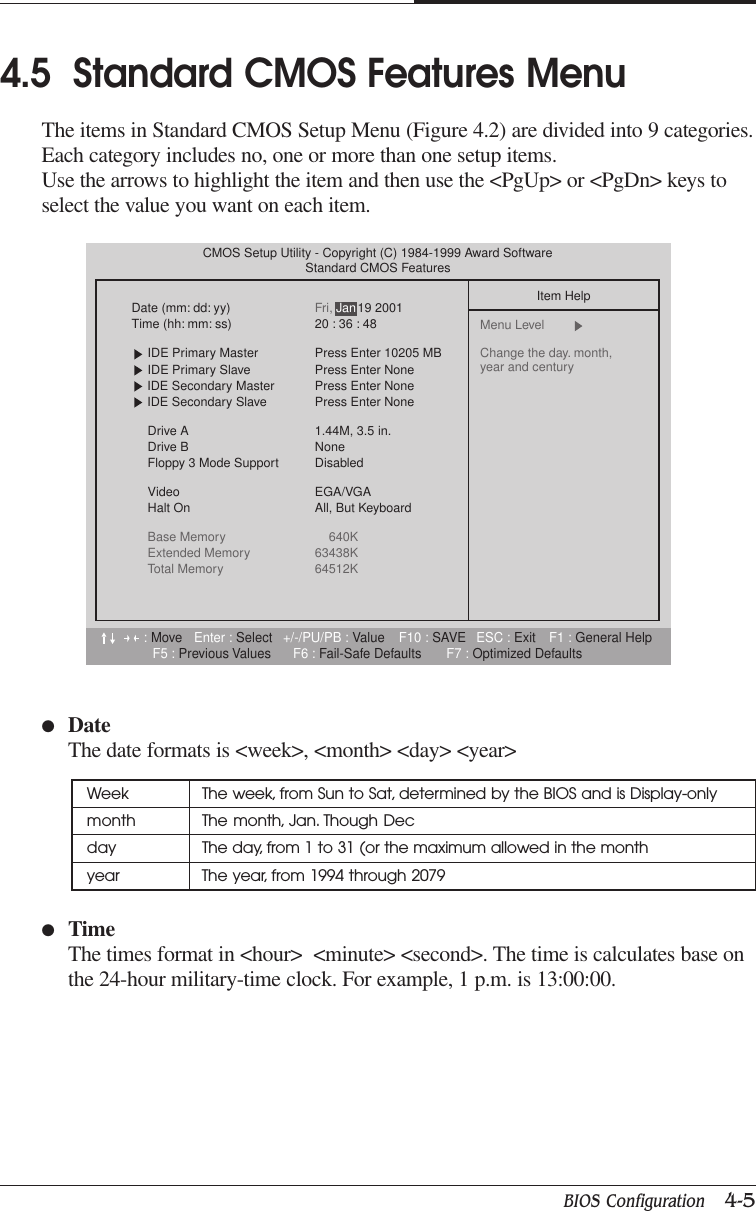
BIOS Configuration   4-5CHAPTER 44.5  Standard CMOS Features MenuThe items in Standard CMOS Setup Menu (Figure 4.2) are divided into 9 categories.Each category includes no, one or more than one setup items.Use the arrows to highlight the item and then use the <PgUp> or <PgDn> keys toselect the value you want on each item.●DateThe date formats is <week>, <month> <day> <year>Week The week, from Sun to Sat, determined by the BIOS and is Display-onlymonth The month, Jan. Though Decday The day, from 1 to 31 (or the maximum allowed in the monthyear The year, from 1994 through 2079●TimeThe times format in <hour>  <minute> <second>. The time is calculates base onthe 24-hour military-time clock. For example, 1 p.m. is 13:00:00.:Move Enter : Select +/-/PU/PB : Value F10 : SAVE ESC : Exit F1 : General HelpF5 : Previous Values F6 : Fail-Safe Defaults F7 : Optimized DefaultsCMOS Setup Utility - Copyright (C) 1984-1999 Award SoftwareStandard CMOS FeaturesDate (mm: dd: yy) Fri, 19 2001Time (hh: mm: ss) 20 : 36 : 48IDE Primary Master Press Enter 10205 MBIDE Primary Slave Press Enter NoneIDE Secondary Master Press Enter NoneIDE Secondary Slave Press Enter NoneDrive A 1.44M, 3.5 in.Drive B NoneFloppy 3 Mode Support DisabledVideo EGA/VGAHalt On All, But KeyboardBase Memory 640KExtended Memory 63438KTotal Memory 64512KItem HelpMenu Level  Change the day. month, year and centuryJan
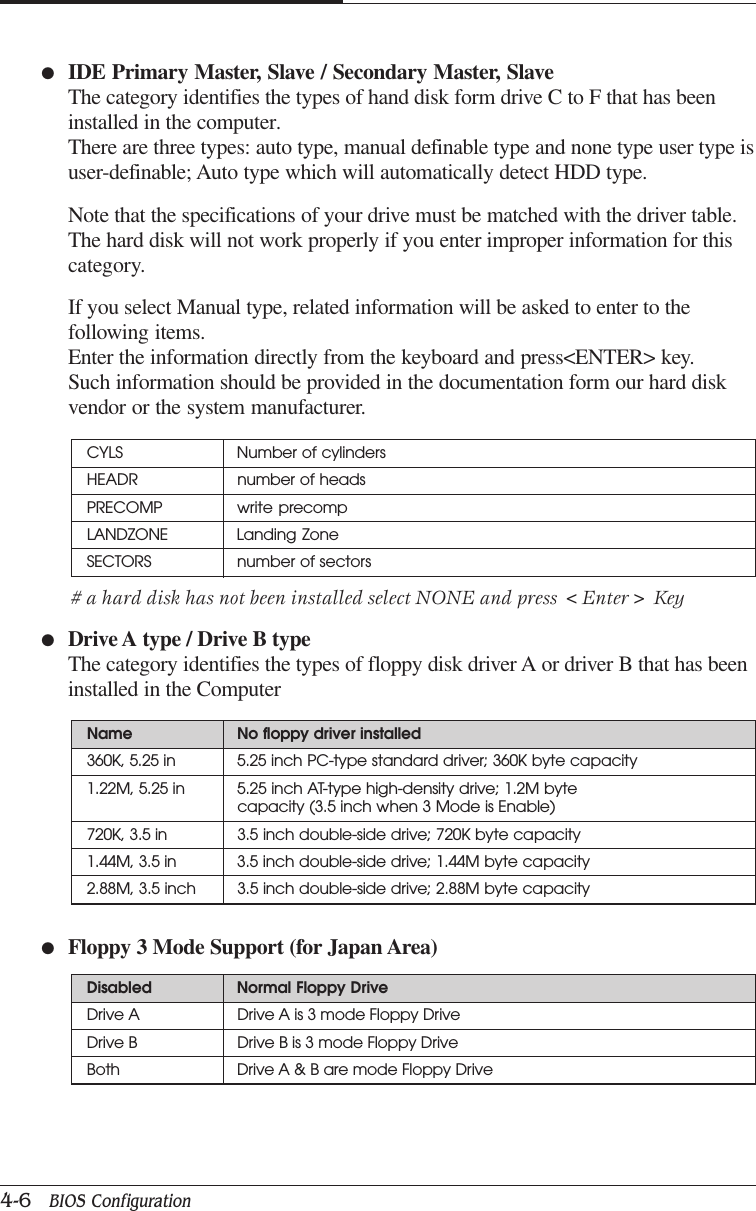
CHAPTER 44-6   BIOS Configuration●IDE Primary Master, Slave / Secondary Master, SlaveThe category identifies the types of hand disk form drive C to F that has beeninstalled in the computer.There are three types: auto type, manual definable type and none type user type isuser-definable; Auto type which will automatically detect HDD type.Note that the specifications of your drive must be matched with the driver table.The hard disk will not work properly if you enter improper information for thiscategory.If you select Manual type, related information will be asked to enter to thefollowing items.Enter the information directly from the keyboard and press<ENTER> key.Such information should be provided in the documentation form our hard diskvendor or the system manufacturer.# a hard disk has not been installed select NONE and press <Enter> Key●Drive A type / Drive B typeThe category identifies the types of floppy disk driver A or driver B that has beeninstalled in the ComputerName No floppy driver installed360K, 5.25 in 5.25 inch PC-type standard driver; 360K byte capacity1.22M, 5.25 in 5.25 inch AT-type high-density drive; 1.2M bytecapacity (3.5 inch when 3 Mode is Enable)720K, 3.5 in 3.5 inch double-side drive; 720K byte capacity1.44M, 3.5 in 3.5 inch double-side drive; 1.44M byte capacity2.88M, 3.5 inch 3.5 inch double-side drive; 2.88M byte capacityCYLS Number of cylindersHEADR number of headsPRECOMP write precompLANDZONE Landing ZoneSECTORS number of sectorsDisabled Normal Floppy DriveDrive A Drive A is 3 mode Floppy DriveDrive B Drive B is 3 mode Floppy DriveBoth Drive A & B are mode Floppy Drive●Floppy 3 Mode Support (for Japan Area)
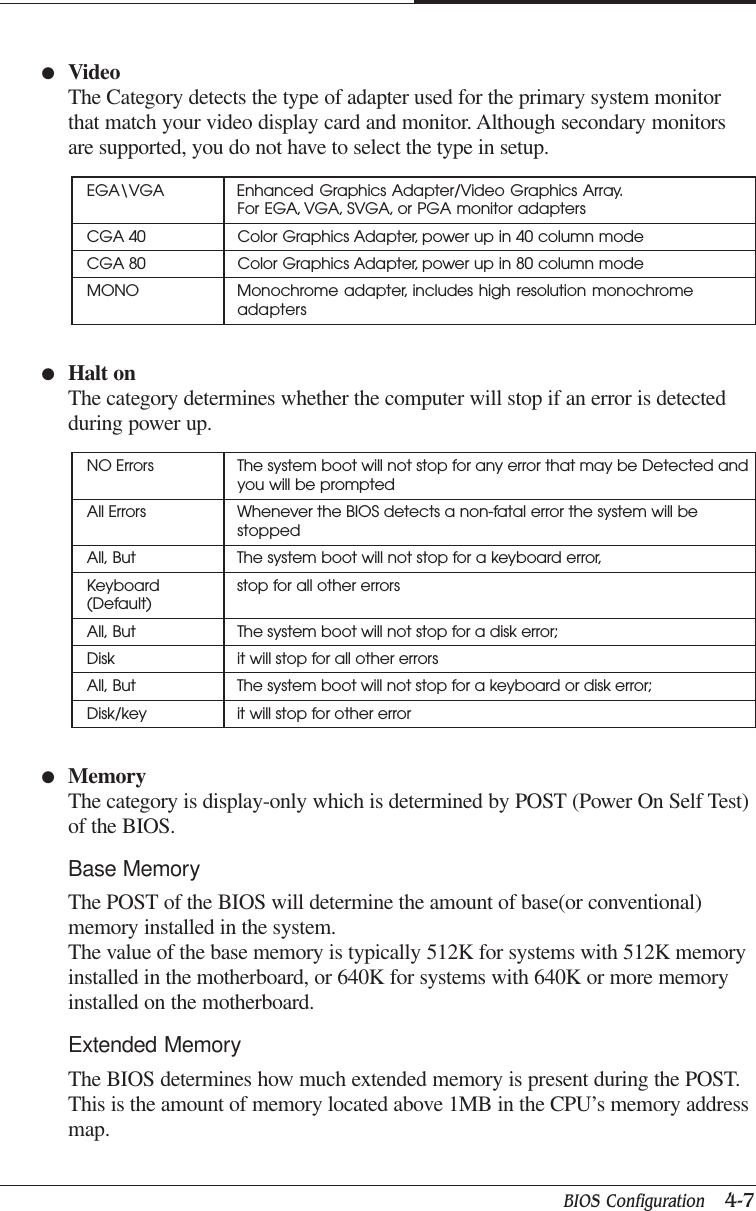
BIOS Configuration   4-7CHAPTER 4●VideoThe Category detects the type of adapter used for the primary system monitorthat match your video display card and monitor. Although secondary monitorsare supported, you do not have to select the type in setup.EGA\VGA Enhanced Graphics Adapter/Video Graphics Array.For EGA, VGA, SVGA, or PGA monitor adaptersCGA 40 Color Graphics Adapter, power up in 40 column modeCGA 80 Color Graphics Adapter, power up in 80 column modeMONO Monochrome adapter, includes high resolution monochromeadapters●Halt onThe category determines whether the computer will stop if an error is detectedduring power up.NO Errors The system boot will not stop for any error that may be Detected andyou will be promptedAll Errors Whenever the BIOS detects a non-fatal error the system will bestoppedAll, But The system boot will not stop for a keyboard error,Keyboard stop for all other errors(Default)All, But The system boot will not stop for a disk error;Disk it will stop for all other errorsAll, But The system boot will not stop for a keyboard or disk error;Disk/key it will stop for other error●MemoryThe category is display-only which is determined by POST (Power On Self Test)of the BIOS.Base MemoryThe POST of the BIOS will determine the amount of base(or conventional)memory installed in the system.The value of the base memory is typically 512K for systems with 512K memoryinstalled in the motherboard, or 640K for systems with 640K or more memoryinstalled on the motherboard.Extended MemoryThe BIOS determines how much extended memory is present during the POST.This is the amount of memory located above 1MB in the CPU’s memory addressmap.
CHAPTER 44-8   BIOS Configuration●Virus WarningIf it is set to enable, the category will flash on the screen when there is anyattempt to write to the boot Sector or partition table of the hard disk driver.The system will halt and the following error message will appear in the meantime.You can run anti-virus program to locate the problem.4.6  Advanced BIOS FeaturesEnable Activate automatically when the system boots up causing a Warningmessage to appear when anything attempts to Access the boot sectoror hard disk partition tableDisable No warning message to appear when anything attempts to Access theboot sector or hard disk partition table:Move Enter : Select +/-/PU/PB : Value F10 : SAVE ESC : Exit F1 : General HelpF5 : Previous Values F6 : Fail-Safe Defaults F7 : Optimized DefaultsCMOS Setup Utility - Copyright (C) 1984-1999 Award SoftwareAdvanced BIOS FeaturesVirus WarningFirst Boot Device CDROMSecond Boot Device FloppyThird Boot Device HDD-0Boot Up Floppy Seek EnabledBoot Up NumLock Status OnTypematic Rate Setting DisabledTypematic Rate [Chars/Sec] 6Typematic Delay [Msec] 250Security Option SetupHDD S.M.A.R.T. Capabillity DisabledReport No FDD For WIN 95 NoItem HelpMenu Level  Allows you to choosethe VIRUS warningfeature for IDE Hard Disk boot sectorprotection. If thisfunction is emabledand someone attempt towrite date into thisarea, BIOS will show awarning message onscreen and alarm beepDisabled
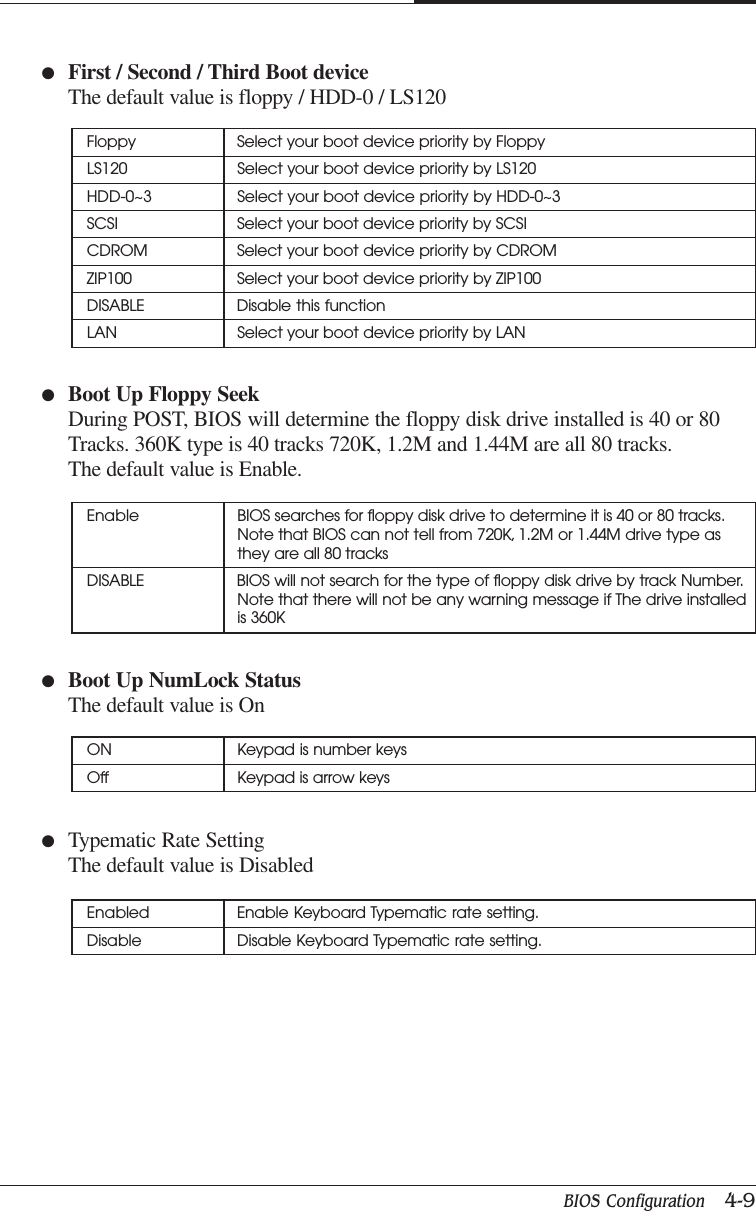
BIOS Configuration   4-9CHAPTER 4●Boot Up Floppy SeekDuring POST, BIOS will determine the floppy disk drive installed is 40 or 80Tracks. 360K type is 40 tracks 720K, 1.2M and 1.44M are all 80 tracks.The default value is Enable.Floppy Select your boot device priority by FloppyLS120 Select your boot device priority by LS120HDD-0~3 Select your boot device priority by HDD-0~3SCSI Select your boot device priority by SCSICDROM Select your boot device priority by CDROMZIP100 Select your boot device priority by ZIP100DISABLE Disable this functionLAN Select your boot device priority by LAN●First / Second / Third Boot deviceThe default value is floppy / HDD-0 / LS120Enable BIOS searches for floppy disk drive to determine it is 40 or 80 tracks.Note that BIOS can not tell from 720K, 1.2M or 1.44M drive type asthey are all 80 tracksDISABLE BIOS will not search for the type of floppy disk drive by track Number.Note that there will not be any warning message if The drive installedis 360K●Boot Up NumLock StatusThe default value is OnON Keypad is number keysOff Keypad is arrow keys●Typematic Rate SettingThe default value is DisabledEnabled Enable Keyboard Typematic rate setting.Disable Disable Keyboard Typematic rate setting.
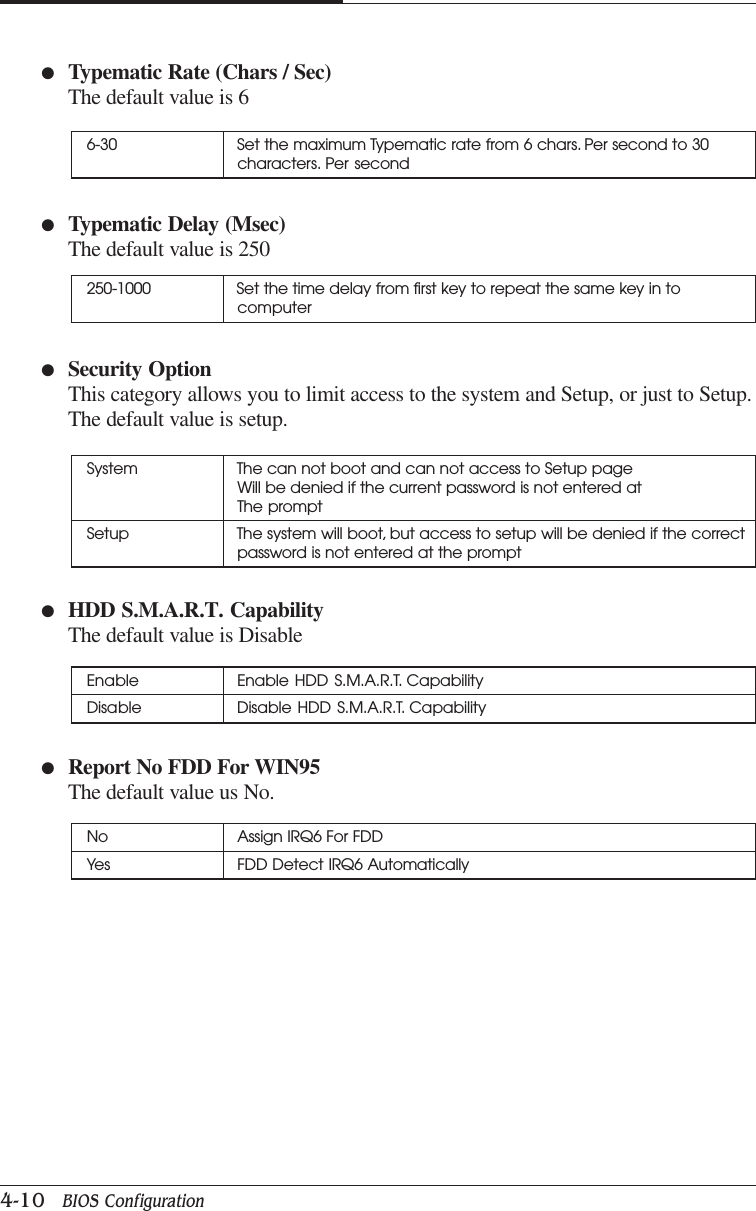
CHAPTER 44-10   BIOS Configuration●Typematic Delay (Msec)The default value is 250System The can not boot and can not access to Setup pageWill be denied if the current password is not entered atThe promptSetup The system will boot, but access to setup will be denied if the correctpassword is not entered at the prompt6-30 Set the maximum Typematic rate from 6 chars. Per second to 30characters. Per second●Typematic Rate (Chars / Sec)The default value is 6250-1000 Set the time delay from first key to repeat the same key in tocomputer●Security OptionThis category allows you to limit access to the system and Setup, or just to Setup.The default value is setup.●HDD S.M.A.R.T. CapabilityThe default value is DisableEnable Enable HDD S.M.A.R.T. CapabilityDisable Disable HDD S.M.A.R.T. Capability●Report No FDD For WIN95The default value us No.No Assign IRQ6 For FDDYes FDD Detect IRQ6 Automatically
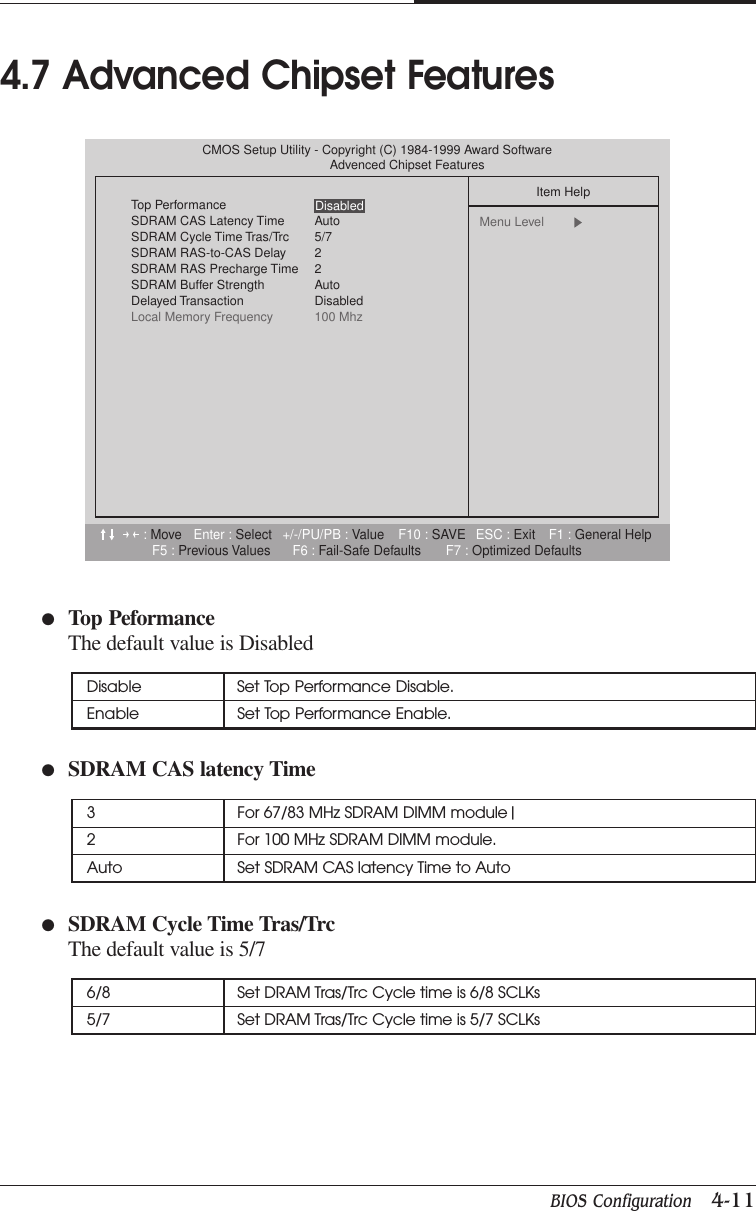
BIOS Configuration   4-11CHAPTER 44.7 Advanced Chipset Features●Top PeformanceThe default value is DisabledDisable Set Top Performance Disable.Enable Set Top Performance Enable.●SDRAM CAS latency Time3 For 67/83 MHz SDRAM DIMM module|2 For 100 MHz SDRAM DIMM module.Auto Set SDRAM CAS latency Time to Auto●SDRAM Cycle Time Tras/TrcThe default value is 5/76/8 Set DRAM Tras/Trc Cycle time is 6/8 SCLKs5/7 Set DRAM Tras/Trc Cycle time is 5/7 SCLKs:Move Enter : Select +/-/PU/PB : Value F10 : SAVE ESC : Exit F1 : General HelpF5 : Previous Values F6 : Fail-Safe Defaults F7 : Optimized DefaultsCMOS Setup Utility - Copyright (C) 1984-1999 Award SoftwareAdvenced Chipset FeaturesTop PerformanceSDRAM CAS Latency Time AutoSDRAM Cycle Time Tras/Trc 5/7SDRAM RAS-to-CAS Delay 2SDRAM RAS Precharge Time 2SDRAM Buffer Strength AutoDelayed Transaction DisabledLocal Memory Frequency 100 MhzItem HelpMenu Level  Disabled
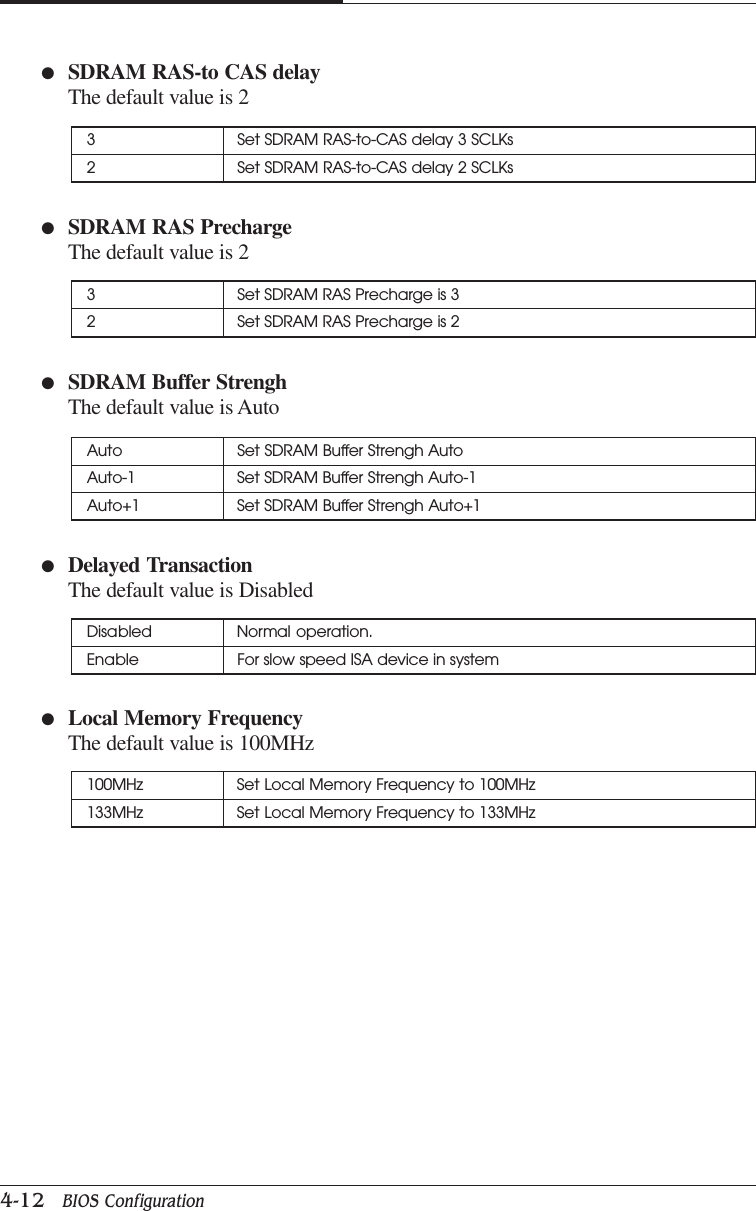
CHAPTER 44-12   BIOS Configuration●Delayed TransactionThe default value is Disabled●Local Memory FrequencyThe default value is 100MHz3 Set SDRAM RAS-to-CAS delay 3 SCLKs2 Set SDRAM RAS-to-CAS delay 2 SCLKsAuto Set SDRAM Buffer Strengh AutoAuto-1 Set SDRAM Buffer Strengh Auto-1Auto+1 Set SDRAM Buffer Strengh Auto+1●SDRAM RAS-to CAS delayThe default value is 23 Set SDRAM RAS Precharge is 32 Set SDRAM RAS Precharge is 2●SDRAM RAS PrechargeThe default value is 2●SDRAM Buffer StrenghThe default value is AutoDisabled Normal operation.Enable For slow speed ISA device in system100MHz Set Local Memory Frequency to 100MHz133MHz Set Local Memory Frequency to 133MHz
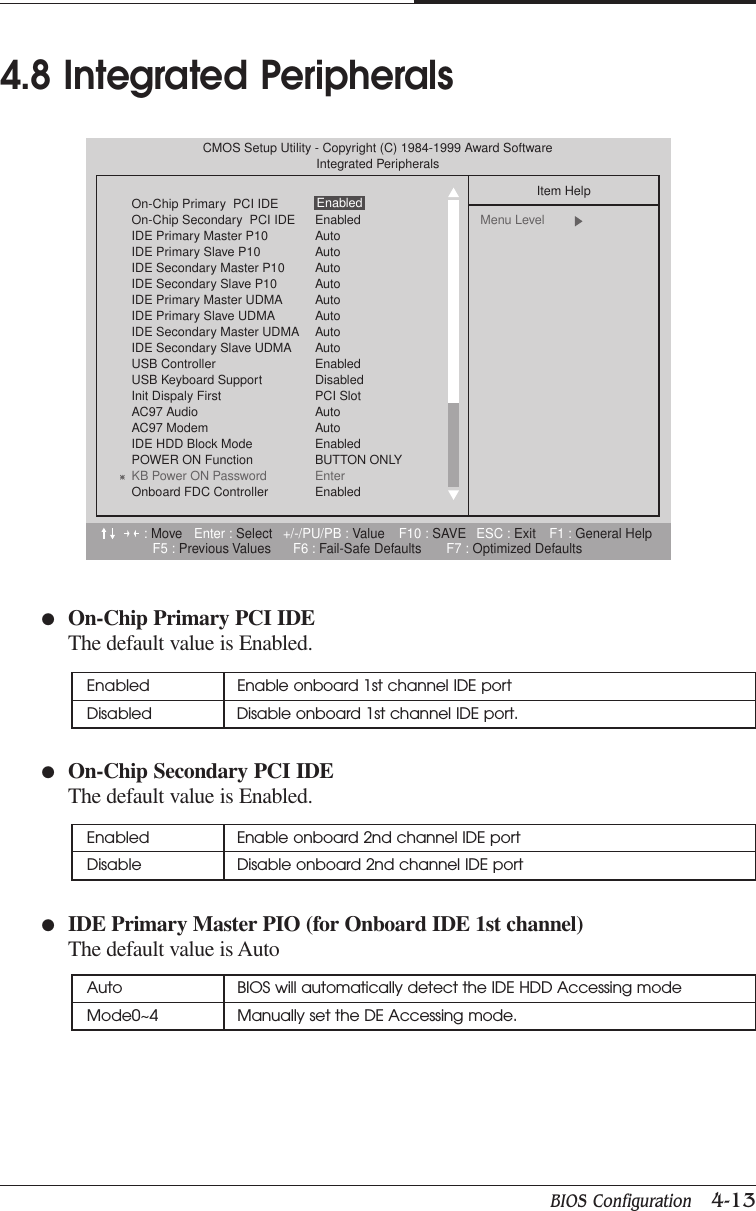
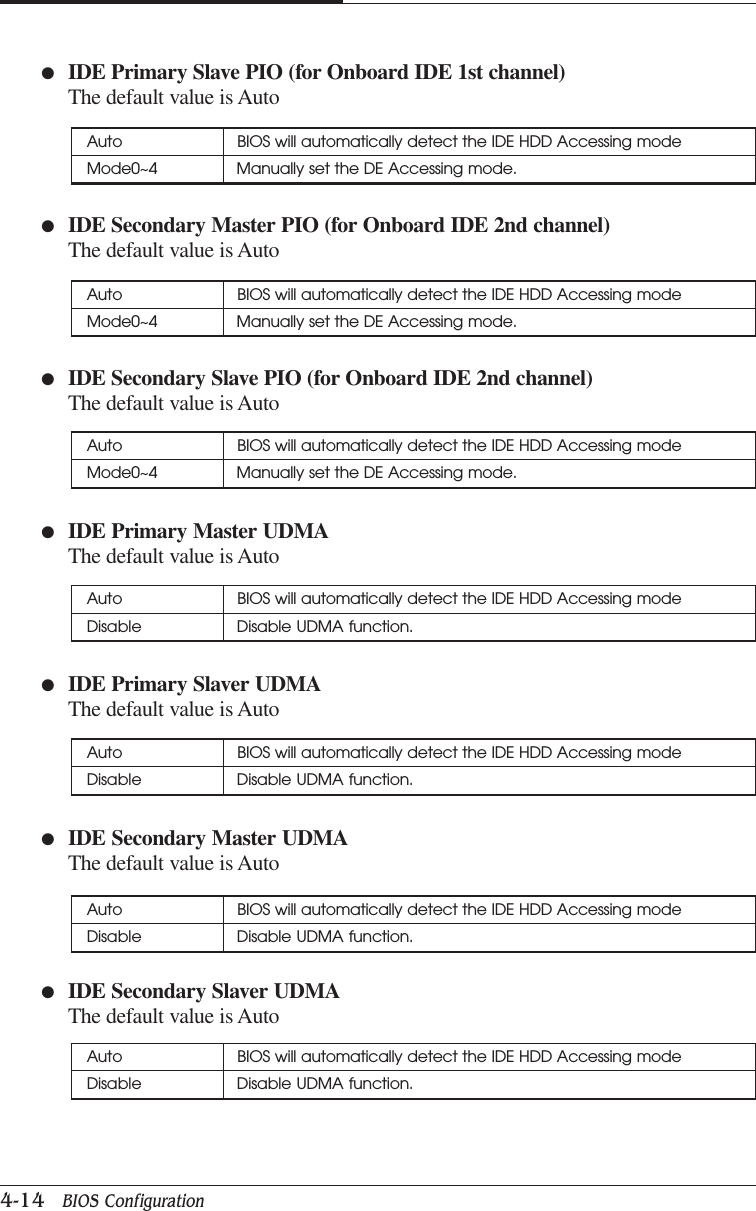
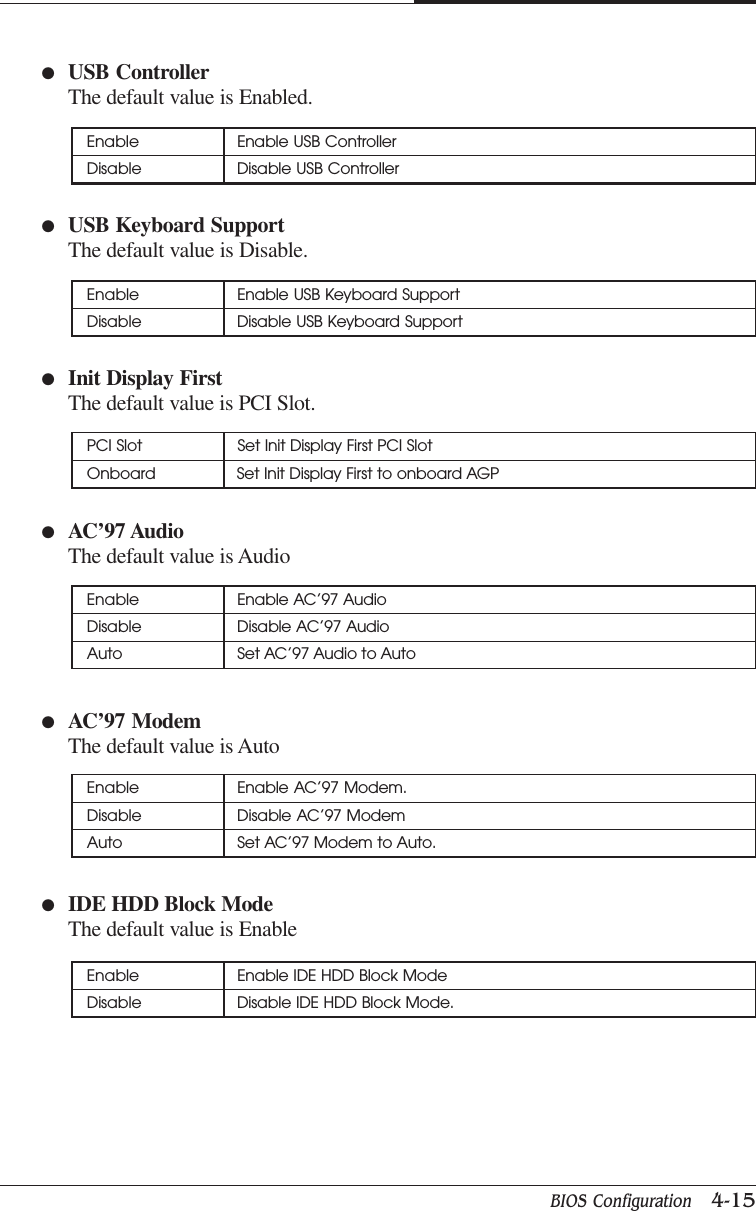
BIOS Configuration   4-13CHAPTER 4●On-Chip Primary PCI IDEThe default value is Enabled.●On-Chip Secondary PCI IDEThe default value is Enabled.●IDE Primary Master PIO (for Onboard IDE 1st channel)The default value is Auto4.8 Integrated PeripheralsEnabled Enable onboard 1st channel IDE portDisabled Disable onboard 1st channel IDE port.Enabled Enable onboard 2nd channel IDE portDisable Disable onboard 2nd channel IDE portAuto BIOS will automatically detect the IDE HDD Accessing modeMode0~4 Manually set the DE Accessing mode.:Move Enter : Select +/-/PU/PB : Value F10 : SAVE ESC : Exit F1 : General HelpF5 : Previous Values F6 : Fail-Safe Defaults F7 : Optimized DefaultsCMOS Setup Utility - Copyright (C) 1984-1999 Award SoftwareIntegrated PeripheralsOn-Chip Primary  PCI IDEOn-Chip Secondary  PCI IDE EnabledIDE Primary Master P10 AutoIDE Primary Slave P10 AutoIDE Secondary Master P10 AutoIDE Secondary Slave P10 AutoIDE Primary Master UDMA AutoIDE Primary Slave UDMA AutoIDE Secondary Master UDMA AutoIDE Secondary Slave UDMA AutoUSB Controller EnabledUSB Keyboard Support  DisabledInit Dispaly First PCI SlotAC97 Audio AutoAC97 Modem AutoIDE HDD Block Mode EnabledPOWER ON Function BUTTON ONLYKB Power ON Password EnterOnboard FDC Controller  EnabledItem HelpMenu Level  Enabled
CHAPTER 44-14   BIOS Configuration●IDE Primary Slave PIO (for Onboard IDE 1st channel)The default value is Auto●IDE Secondary Master PIO (for Onboard IDE 2nd channel)The default value is Auto●IDE Secondary Slave PIO (for Onboard IDE 2nd channel)The default value is Auto●IDE Primary Master UDMAThe default value is Auto●IDE Primary Slaver UDMAThe default value is Auto●IDE Secondary Master UDMAThe default value is Auto●IDE Secondary Slaver UDMAThe default value is AutoAuto BIOS will automatically detect the IDE HDD Accessing modeMode0~4 Manually set the DE Accessing mode.Auto BIOS will automatically detect the IDE HDD Accessing modeMode0~4 Manually set the DE Accessing mode.Auto BIOS will automatically detect the IDE HDD Accessing modeMode0~4 Manually set the DE Accessing mode.Auto BIOS will automatically detect the IDE HDD Accessing modeDisable Disable UDMA function.Auto BIOS will automatically detect the IDE HDD Accessing modeDisable Disable UDMA function.Auto BIOS will automatically detect the IDE HDD Accessing modeDisable Disable UDMA function.Auto BIOS will automatically detect the IDE HDD Accessing modeDisable Disable UDMA function.
BIOS Configuration   4-15CHAPTER 4●USB ControllerThe default value is Enabled.●USB Keyboard SupportThe default value is Disable.●Init Display FirstThe default value is PCI Slot.●AC’97 AudioThe default value is Audio●AC’97 ModemThe default value is Auto●IDE HDD Block ModeThe default value is EnableEnable Enable USB ControllerDisable Disable USB ControllerEnable Enable USB Keyboard SupportDisable Disable USB Keyboard SupportPCI Slot Set Init Display First PCI SlotOnboard Set Init Display First to onboard AGPEnable Enable AC’97 AudioDisable Disable AC’97 AudioAuto Set AC’97 Audio to AutoEnable Enable AC’97 Modem.Disable Disable AC’97 ModemAuto Set AC’97 Modem to Auto.Enable Enable IDE HDD Block ModeDisable Disable IDE HDD Block Mode.
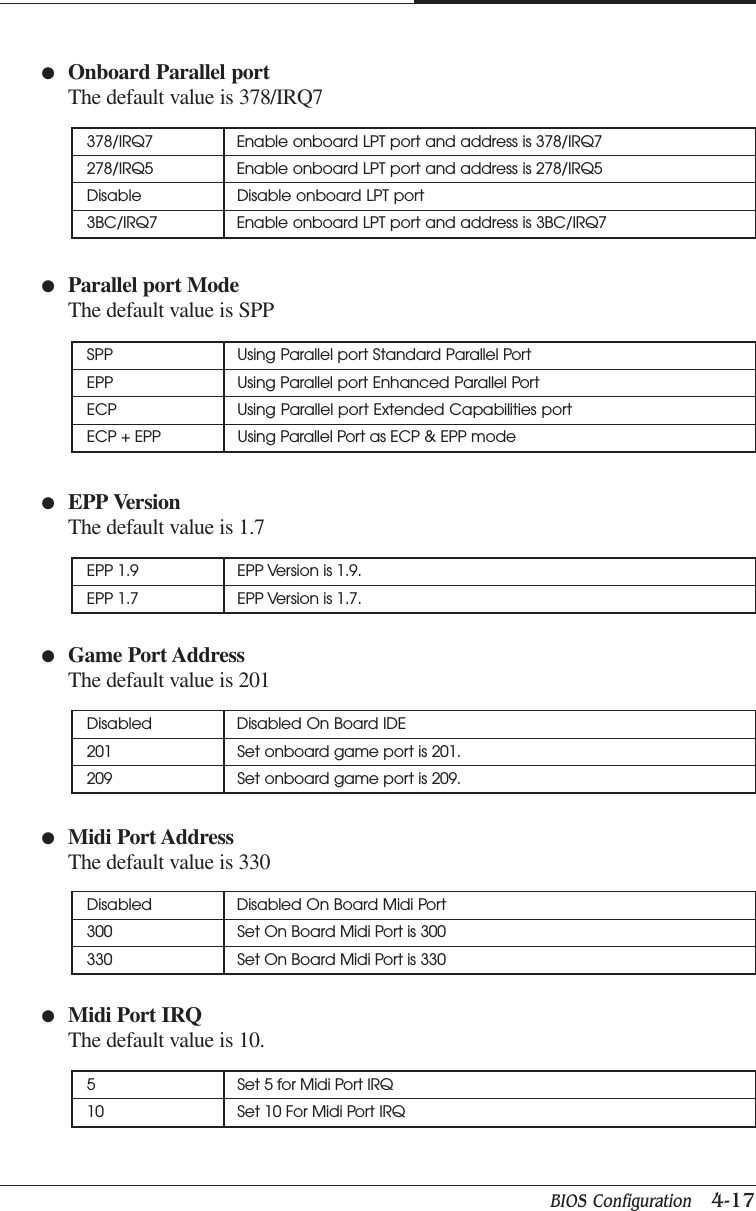
CHAPTER 44-16   BIOS Configuration●Onboard FDC ControllerThe default value is Enable●Onboard Serial Port 1The default value is AutoEnable Enable onboard FDC portDisable Disable onboard FDC portAuto BIOS will automatically setup the port 2 address3F8/IRQ4 Enable onboard Serial port 2 and address is 3F82F8/IRQ3 Enable onboard Serial port 2 and address is 2F83E8/IRQ4 Enable onboard Serial port 2 and address is 3E82E8/IRQ3 Enable onboard Serial port 2 and address is 2E8Disabled Disable onboard Serial port 2●UART Mode Select(This item allow you to determine which infra Red(IR) function of Onboard I/Ochip)The default value is Normal●RxD, TxD ActiveThe default value is Hi,LoASKIR Onboard I/O chip supports ASKIRIrDA Onboard I/O chip supports IrDANormal Onboard I/O chip supports NormalHi, Hi RxD set Hi, TxD set HiHi, Lo RxD set Hi TxD set LoLo, Hi RxD set Lo, TxD set HiLo, Lo Rxd set Lo, TxD set Lo●IR Transmission delayThe default value is Enabled.Enabled Set IR Transmission delay EnabledDisable Set IR Transmission delay Disable
BIOS Configuration   4-17CHAPTER 4●Parallel port ModeThe default value is SPP378/IRQ7 Enable onboard LPT port and address is 378/IRQ7278/IRQ5 Enable onboard LPT port and address is 278/IRQ5Disable Disable onboard LPT port3BC/IRQ7 Enable onboard LPT port and address is 3BC/IRQ7●Onboard Parallel portThe default value is 378/IRQ7SPP Using Parallel port Standard Parallel PortEPP Using Parallel port Enhanced Parallel PortECP Using Parallel port Extended Capabilities portECP + EPP Using Parallel Port as ECP & EPP mode●EPP VersionThe default value is 1.7●Game Port AddressThe default value is 201EPP 1.9 EPP Version is 1.9.EPP 1.7 EPP Version is 1.7.Disabled Disabled On Board IDE201 Set onboard game port is 201.209 Set onboard game port is 209.●Midi Port AddressThe default value is 330Disabled Disabled On Board Midi Port300 Set On Board Midi Port is 300330 Set On Board Midi Port is 330●Midi Port IRQThe default value is 10.5 Set 5 for Midi Port IRQ10 Set 10 For Midi Port IRQ
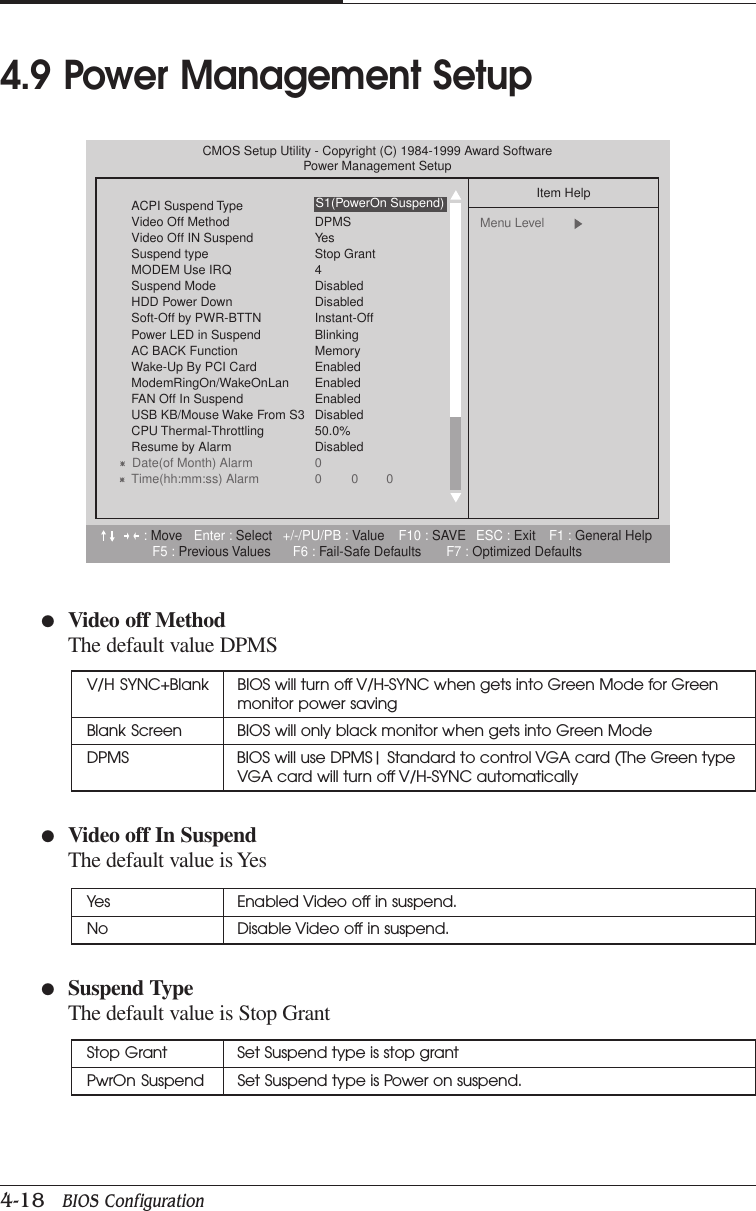
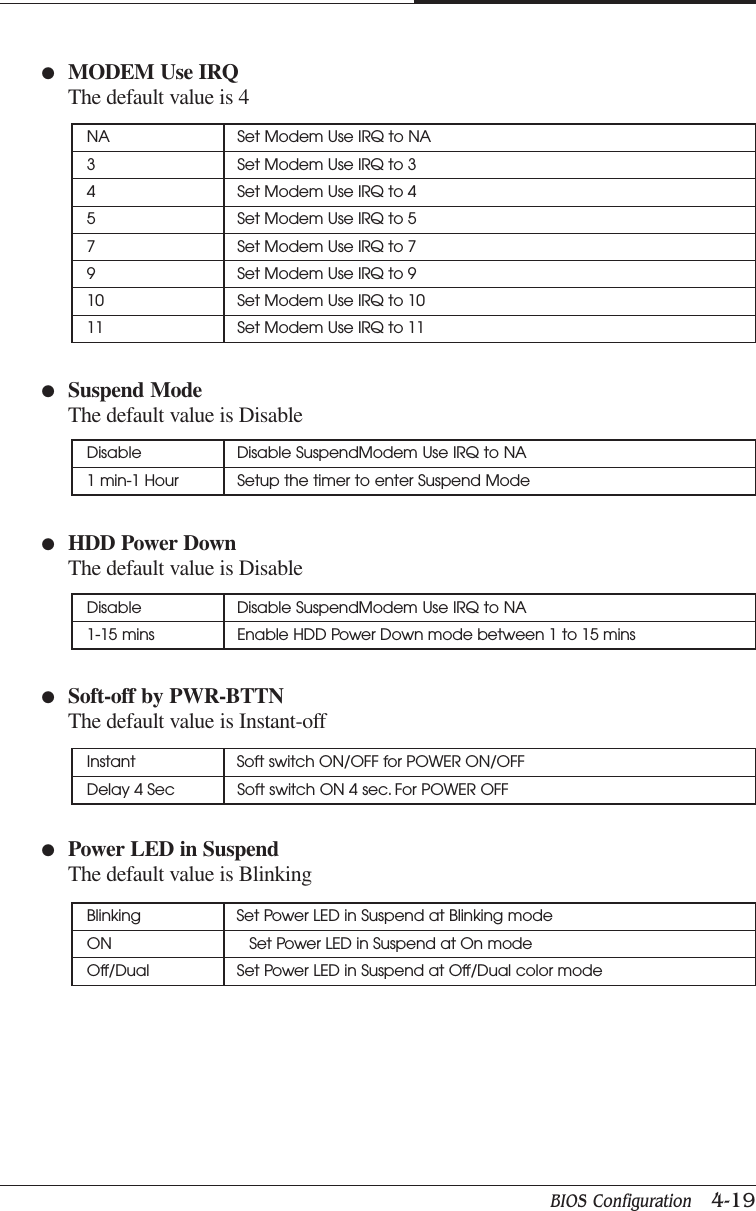
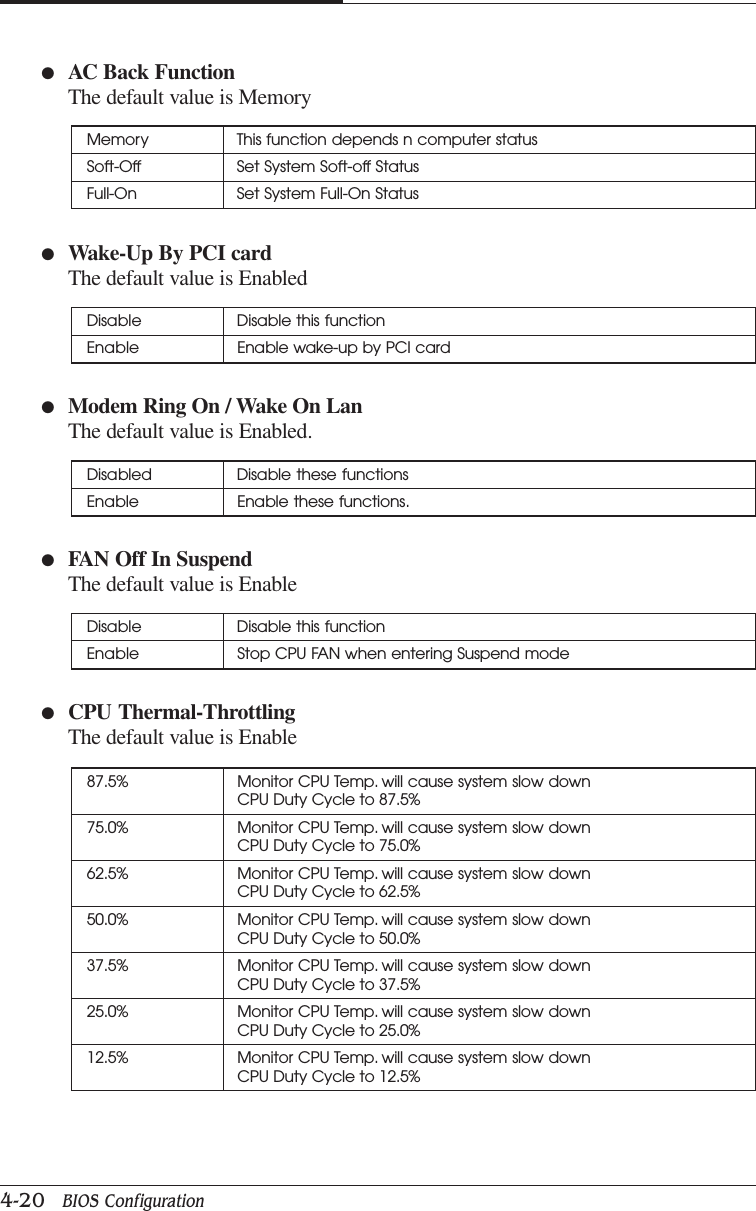
CHAPTER 44-18   BIOS Configuration●Video off MethodThe default value DPMS4.9 Power Management SetupV/H SYNC+Blank BIOS will turn off V/H-SYNC when gets into Green Mode for Greenmonitor power savingBlank Screen BIOS will only black monitor when gets into Green ModeDPMS BIOS will use DPMS| Standard to control VGA card (The Green typeVGA card will turn off V/H-SYNC automatically●Video off In SuspendThe default value is Yes●Suspend TypeThe default value is Stop GrantYes Enabled Video off in suspend.No Disable Video off in suspend.Stop Grant Set Suspend type is stop grantPwrOn Suspend Set Suspend type is Power on suspend.:Move Enter : Select +/-/PU/PB : Value F10 : SAVE ESC : Exit F1 : General HelpF5 : Previous Values F6 : Fail-Safe Defaults F7 : Optimized DefaultsCMOS Setup Utility - Copyright (C) 1984-1999 Award SoftwarePower Management SetupACPI Suspend TypeVideo Off Method DPMSVideo Off IN Suspend YesSuspend type Stop GrantMODEM Use IRQ 4Suspend Mode DisabledHDD Power Down DisabledSoft-Off by PWR-BTTN Instant-OffPower LED in Suspend BlinkingAC BACK Function MemoryWake-Up By PCI Card  EnabledModemRingOn/WakeOnLan EnabledFAN Off In Suspend EnabledUSB KB/Mouse Wake From S3 DisabledCPU Thermal-Throttling 50.0%Resume by Alarm DisabledDate(of Month) Alarm 0Time(hh:mm:ss) Alarm 0 0 0Item HelpMenu Level  S1(PowerOn Suspend)
BIOS Configuration   4-19CHAPTER 4●Suspend ModeThe default value is Disable●HDD Power DownThe default value is Disable●Soft-off by PWR-BTTNThe default value is Instant-off●Power LED in SuspendThe default value is BlinkingNA Set Modem Use IRQ to NA3 Set Modem Use IRQ to 34 Set Modem Use IRQ to 45 Set Modem Use IRQ to 57 Set Modem Use IRQ to 79 Set Modem Use IRQ to 910 Set Modem Use IRQ to 1011 Set Modem Use IRQ to 11●MODEM Use IRQThe default value is 4Disable Disable SuspendModem Use IRQ to NA1 min-1 Hour Setup the timer to enter Suspend ModeDisable Disable SuspendModem Use IRQ to NA1-15 mins Enable HDD Power Down mode between 1 to 15 minsInstant Soft switch ON/OFF for POWER ON/OFFDelay 4 Sec Soft switch ON 4 sec. For POWER OFFBlinking Set Power LED in Suspend at Blinking modeON Set Power LED in Suspend at On modeOff/Dual Set Power LED in Suspend at Off/Dual color mode
CHAPTER 44-20   BIOS Configuration●Wake-Up By PCI cardThe default value is Enabled●Modem Ring On / Wake On LanThe default value is Enabled.●FAN Off In SuspendThe default value is Enable●CPU Thermal-ThrottlingThe default value is EnableMemory This function depends n computer statusSoft-Off Set System Soft-off StatusFull-On Set System Full-On StatusDisable Disable this functionEnable Enable wake-up by PCI card●AC Back FunctionThe default value is MemoryDisabled Disable these functionsEnable Enable these functions.Disable Disable this functionEnable Stop CPU FAN when entering Suspend mode87.5% Monitor CPU Temp. will cause system slow downCPU Duty Cycle to 87.5%75.0% Monitor CPU Temp. will cause system slow downCPU Duty Cycle to 75.0%62.5% Monitor CPU Temp. will cause system slow downCPU Duty Cycle to 62.5%50.0% Monitor CPU Temp. will cause system slow downCPU Duty Cycle to 50.0%37.5% Monitor CPU Temp. will cause system slow downCPU Duty Cycle to 37.5%25.0% Monitor CPU Temp. will cause system slow downCPU Duty Cycle to 25.0%12.5% Monitor CPU Temp. will cause system slow downCPU Duty Cycle to 12.5%
BIOS Configuration   4-21CHAPTER 4●Resume by AlarmThe default value is DisabledIF the default value is Enabled●  Primary IDE 0/1    The default value is Disabled●  Secondary IDE 0/1    The default value is Disabled●  FDC/COM/LPT Port    The default value is Enabled●  PCI RIRQ [A-D] #    The default value is EnabledDisable Disable this functionEnabled Enable alarm function to POWER ON systemData (of Month) Alarm 0-31Time (hh:mm:ss) Alarm (0-23) : (0-59) : (0-59)Disable Disable this functionEnabled Enable monitor Primary IDE 0/1 for Green event.Disable Disable this functionEnabled Enable monitor Secondary IDE 0/1 for Green event.Disable Disable this functionEnabled Enable monitor FDC/COM/LPT for Green event.Disable Monitor PCI PIRQ [A-D] IRQ ActiveEnabled Ignore PCI PIRT [A-D] IRQ Active
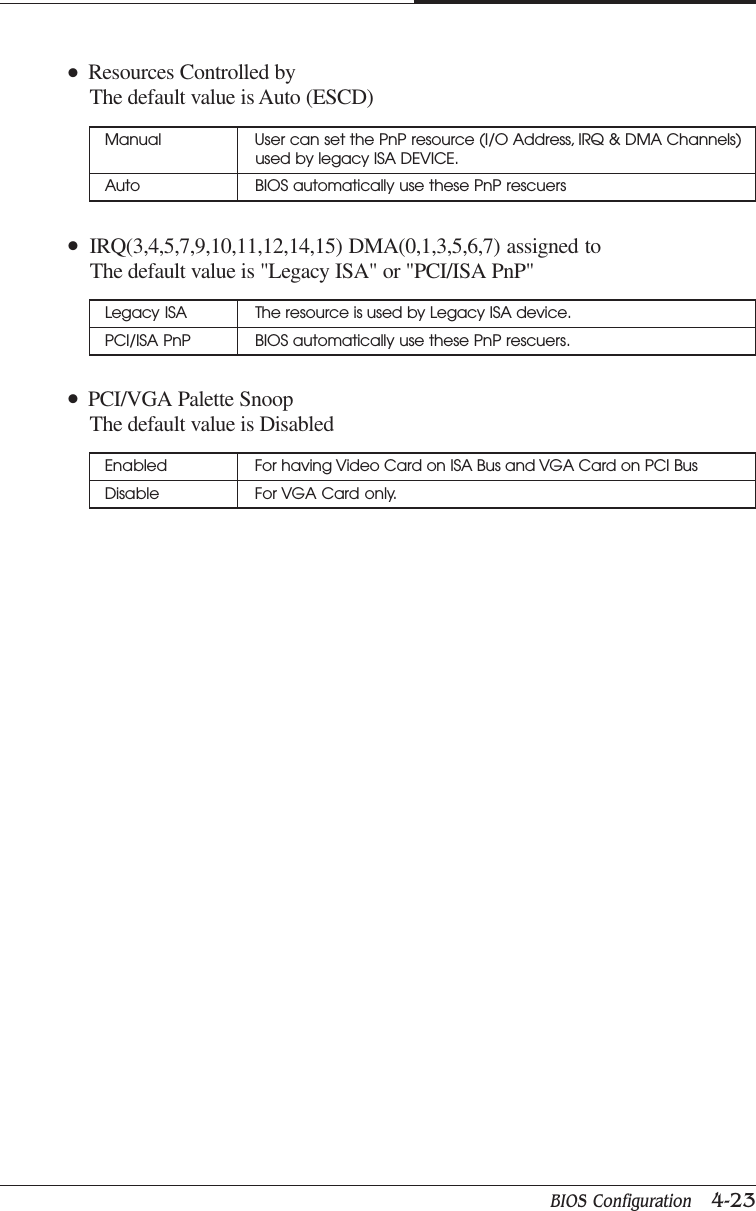
CHAPTER 44-22   BIOS Configuration●  PNP OS Installed    The default value is No●  Reset Configuration Data    The default value is Disable4.10 PnP/PCI ConfigurationsYes Enable PNP OS Installed functionNo Disable PNP OS Installed functionDisable Disable this functionESCD Enable clear PNP information in ESCDDMI Reset Configuration Data in DMIBOTH Reset Configuration Data DMI & ESCD:Move Enter : Select +/-/PU/PB : Value F10 : SAVE ESC : Exit F1 : General HelpF5 : Previous Values F6 : Fail-Safe Defaults F7 : Optimized DefaultsCMOS Setup Utility - Copyright (C) 1984-1999 Award SoftwarePnP/PCI ConfigurationsPNP OS InstalledReset Configuration Data DisabledResources Controlled By Auto [ESCD]IRQ Resoarces Press EnterDMA Resoarces Press EnterPCI/VGA Palette Snoop DisabledItem HelpMenu Level  Select yes if you are using a plug and playcapable operatingsystem Select Mo ifyou need the BIOS to configure non-bootdevicesNo
BIOS Configuration   4-23CHAPTER 4●  IRQ(3,4,5,7,9,10,11,12,14,15) DMA(0,1,3,5,6,7) assigned to    The default value is "Legacy ISA" or "PCI/ISA PnP"●  PCI/VGA Palette Snoop    The default value is DisabledManual User can set the PnP resource (I/O Address, IRQ & DMA Channels)used by legacy ISA DEVICE.Auto BIOS automatically use these PnP rescuers●  Resources Controlled by    The default value is Auto (ESCD)Legacy ISA The resource is used by Legacy ISA device.PCI/ISA PnP BIOS automatically use these PnP rescuers.Enabled For having Video Card on ISA Bus and VGA Card on PCI BusDisable For VGA Card only.
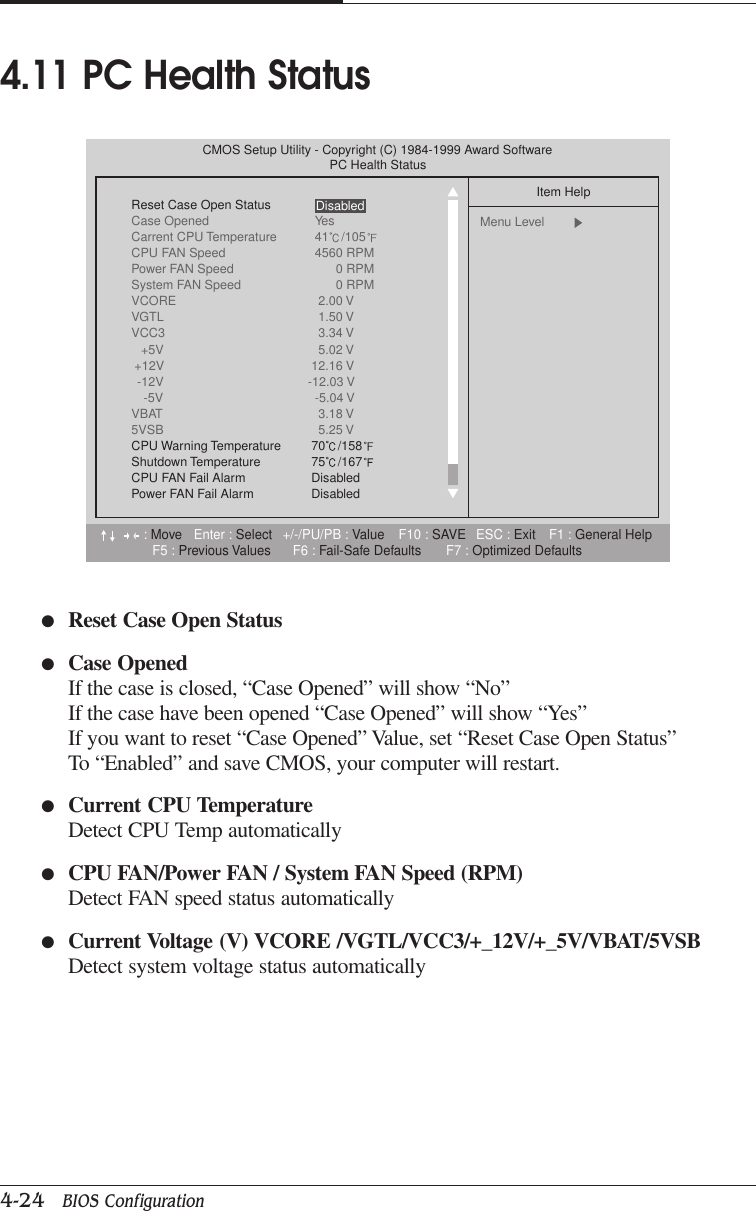
CHAPTER 44-24   BIOS Configuration●Reset Case Open Status●Case OpenedIf the case is closed, “Case Opened” will show “No”If the case have been opened “Case Opened” will show “Yes”If you want to reset “Case Opened” Value, set “Reset Case Open Status”To “Enabled” and save CMOS, your computer will restart.●Current CPU TemperatureDetect CPU Temp automatically●CPU FAN/Power FAN / System FAN Speed (RPM)Detect FAN speed status automatically●Current Voltage (V) VCORE /VGTL/VCC3/+_12V/+_5V/VBAT/5VSBDetect system voltage status automatically4.11 PC Health Status:Move Enter : Select +/-/PU/PB : Value F10 : SAVE ESC : Exit F1 : General HelpF5 : Previous Values F6 : Fail-Safe Defaults F7 : Optimized DefaultsCMOS Setup Utility - Copyright (C) 1984-1999 Award SoftwarePC Health StatusReset Case Open StatusCase Opened YesCarrent CPU Temperature 41 /105CPU FAN Speed 4560 RPMPower FAN Speed 0 RPMSystem FAN Speed 0 RPMVCORE 2.00 VVGTL 1.50 VVCC3 3.34 V+5V 5.02 V+12V 12.16 V-12V -12.03 V-5V -5.04 VVBAT 3.18 V5VSB 5.25 VCPU Warning Temperature 70 /158Shutdown Temperature 75 /167CPU FAN Fail Alarm DisabledPower FAN Fail Alarm DisabledItem HelpMenu Level  Disabled
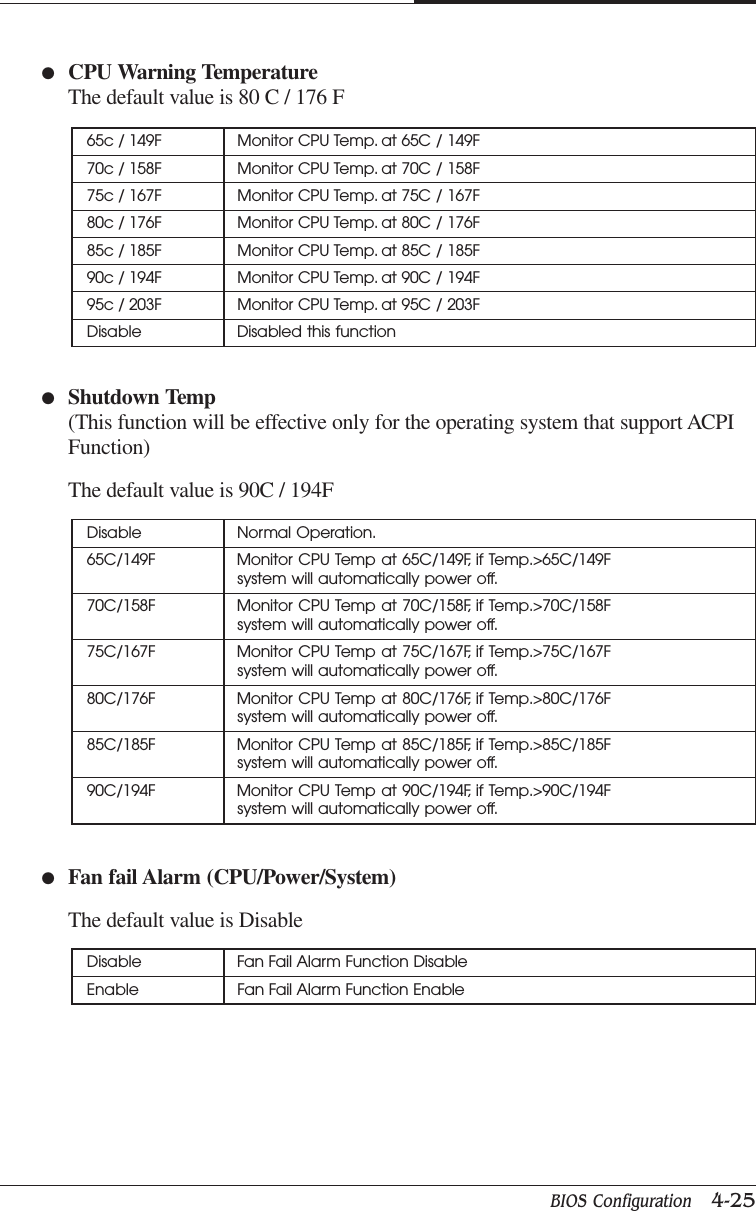
BIOS Configuration   4-25CHAPTER 4●Shutdown Temp(This function will be effective only for the operating system that support ACPIFunction)The default value is 90C / 194F65c / 149F Monitor CPU Temp. at 65C / 149F70c / 158F Monitor CPU Temp. at 70C / 158F75c / 167F Monitor CPU Temp. at 75C / 167F80c / 176F Monitor CPU Temp. at 80C / 176F85c / 185F Monitor CPU Temp. at 85C / 185F90c / 194F Monitor CPU Temp. at 90C / 194F95c / 203F Monitor CPU Temp. at 95C / 203FDisable Disabled this function●CPU Warning TemperatureThe default value is 80 C / 176 FDisable Normal Operation.65C/149F Monitor CPU Temp at 65C/149F, if Temp.>65C/149Fsystem will automatically power off.70C/158F Monitor CPU Temp at 70C/158F, if Temp.>70C/158Fsystem will automatically power off.75C/167F Monitor CPU Temp at 75C/167F, if Temp.>75C/167Fsystem will automatically power off.80C/176F Monitor CPU Temp at 80C/176F, if Temp.>80C/176Fsystem will automatically power off.85C/185F Monitor CPU Temp at 85C/185F, if Temp.>85C/185Fsystem will automatically power off.90C/194F Monitor CPU Temp at 90C/194F, if Temp.>90C/194Fsystem will automatically power off.●Fan fail Alarm (CPU/Power/System)The default value is DisableDisable Fan Fail Alarm Function DisableEnable Fan Fail Alarm Function Enable
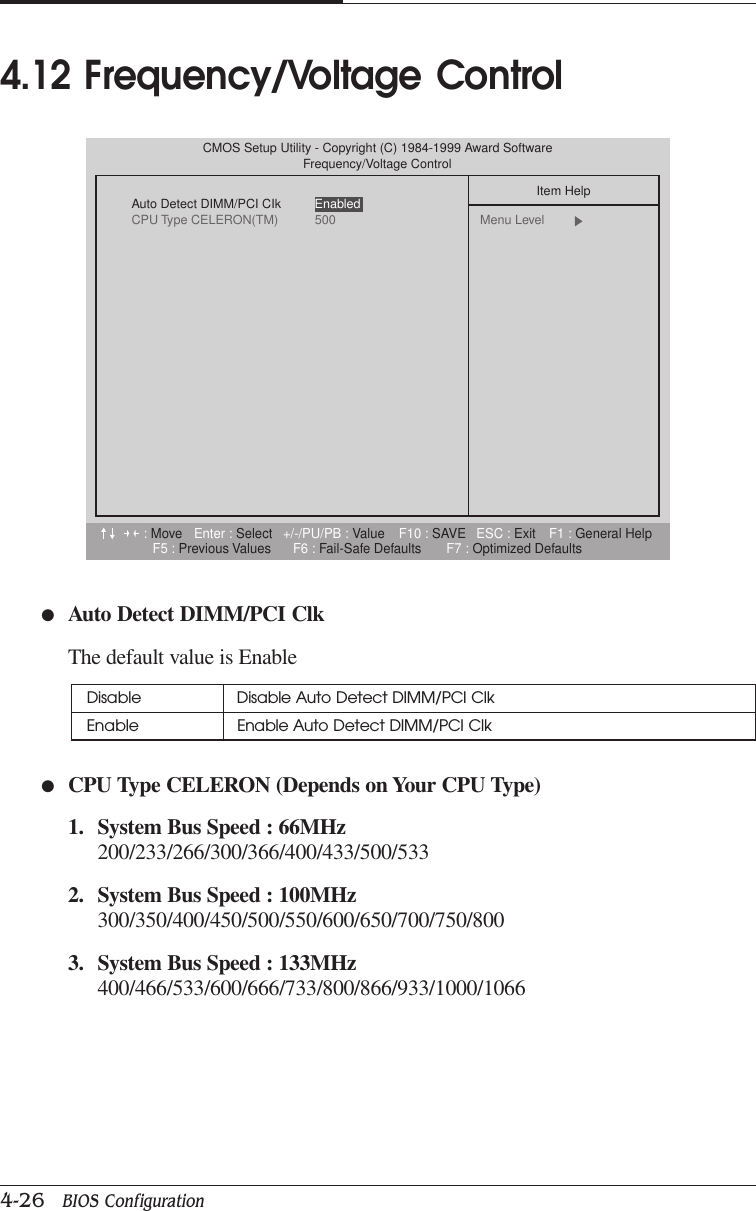
CHAPTER 44-26   BIOS Configuration●Auto Detect DIMM/PCI ClkThe default value is Enable●CPU Type CELERON (Depends on Your CPU Type)1. System Bus Speed : 66MHz200/233/266/300/366/400/433/500/5332. System Bus Speed : 100MHz300/350/400/450/500/550/600/650/700/750/8003. System Bus Speed : 133MHz400/466/533/600/666/733/800/866/933/1000/10664.12 Frequency/Voltage ControlDisable Disable Auto Detect DIMM/PCI ClkEnable Enable Auto Detect DIMM/PCI Clk:Move Enter : Select +/-/PU/PB : Value F10 : SAVE ESC : Exit F1 : General HelpF5 : Previous Values F6 : Fail-Safe Defaults F7 : Optimized DefaultsCMOS Setup Utility - Copyright (C) 1984-1999 Award SoftwareFrequency/Voltage ControlAuto Detect DIMM/PCI CIkCPU Type CELERON(TM) 500Item HelpMenu Level  Enabled
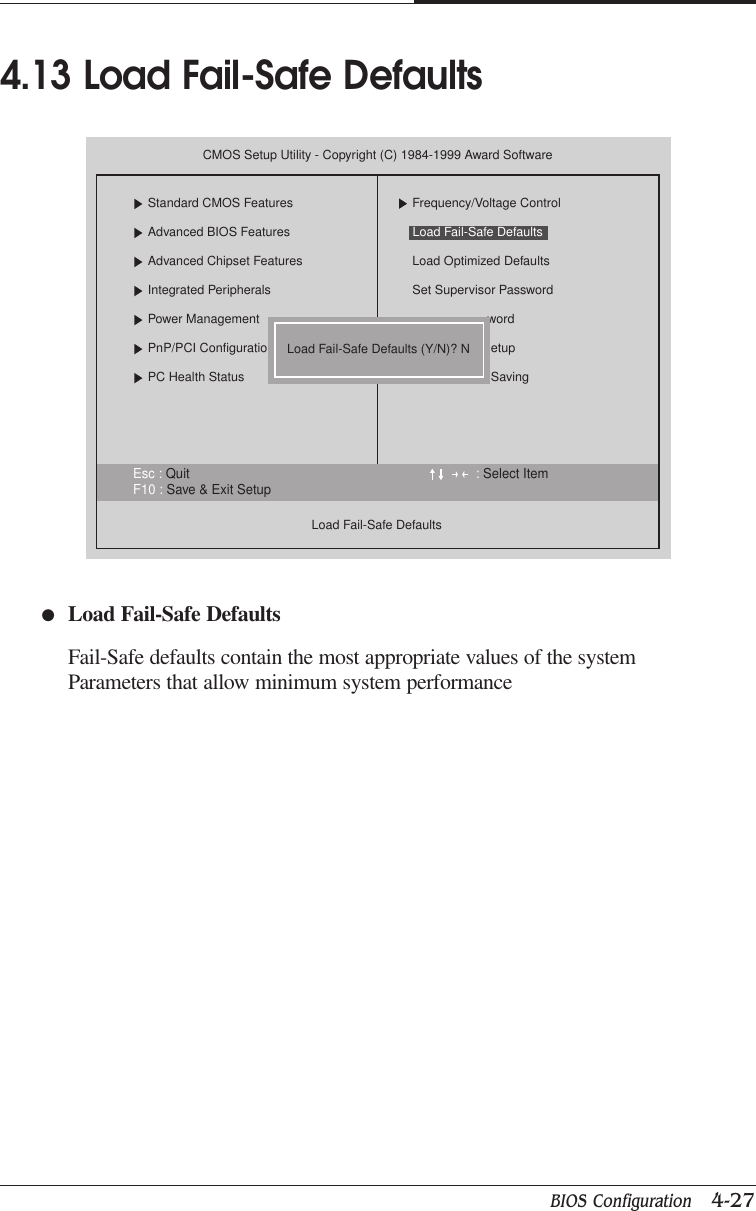
BIOS Configuration   4-27CHAPTER 4●Load Fail-Safe DefaultsFail-Safe defaults contain the most appropriate values of the systemParameters that allow minimum system performance4.13 Load Fail-Safe DefaultsEsc : Quit : Select ItemF10 : Save & Exit SetupCMOS Setup Utility - Copyright (C) 1984-1999 Award SoftwareStandard CMOS FeaturesAdvanced BIOS FeaturesAdvanced Chipset FeaturesIntegrated PeripheralsPower ManagementPnP/PCI ConfigurationPC Health StatusLoad Fail-Safe DefaultsFrequency/Voltage ControlLoad Optimized DefaultsSet Supervisor PasswordwordetupSavingLoad Fail-Safe Defaults (Y/N)? NLoad Fail-Safe Defaults
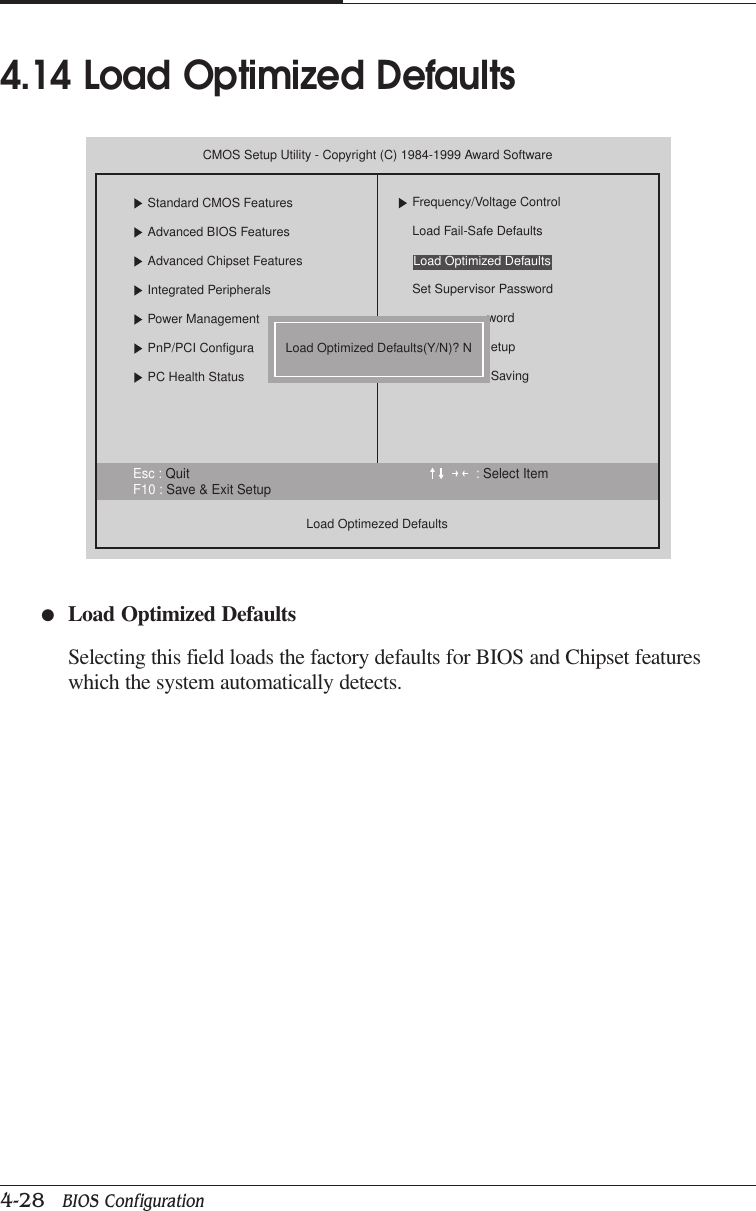
CHAPTER 44-28   BIOS Configuration●Load Optimized DefaultsSelecting this field loads the factory defaults for BIOS and Chipset featureswhich the system automatically detects.4.14 Load Optimized DefaultsEsc : Quit : Select ItemF10 : Save & Exit SetupCMOS Setup Utility - Copyright (C) 1984-1999 Award SoftwareStandard CMOS FeaturesAdvanced BIOS FeaturesAdvanced Chipset FeaturesIntegrated PeripheralsPower ManagementPnP/PCI ConfiguraPC Health StatusLoad Optimezed DefaultsFrequency/Voltage ControlLoad Fail-Safe DefaultsSet Supervisor PasswordwordetupSavingLoad Optimized Defaults(Y/N)? NLoad Optimized Defaults
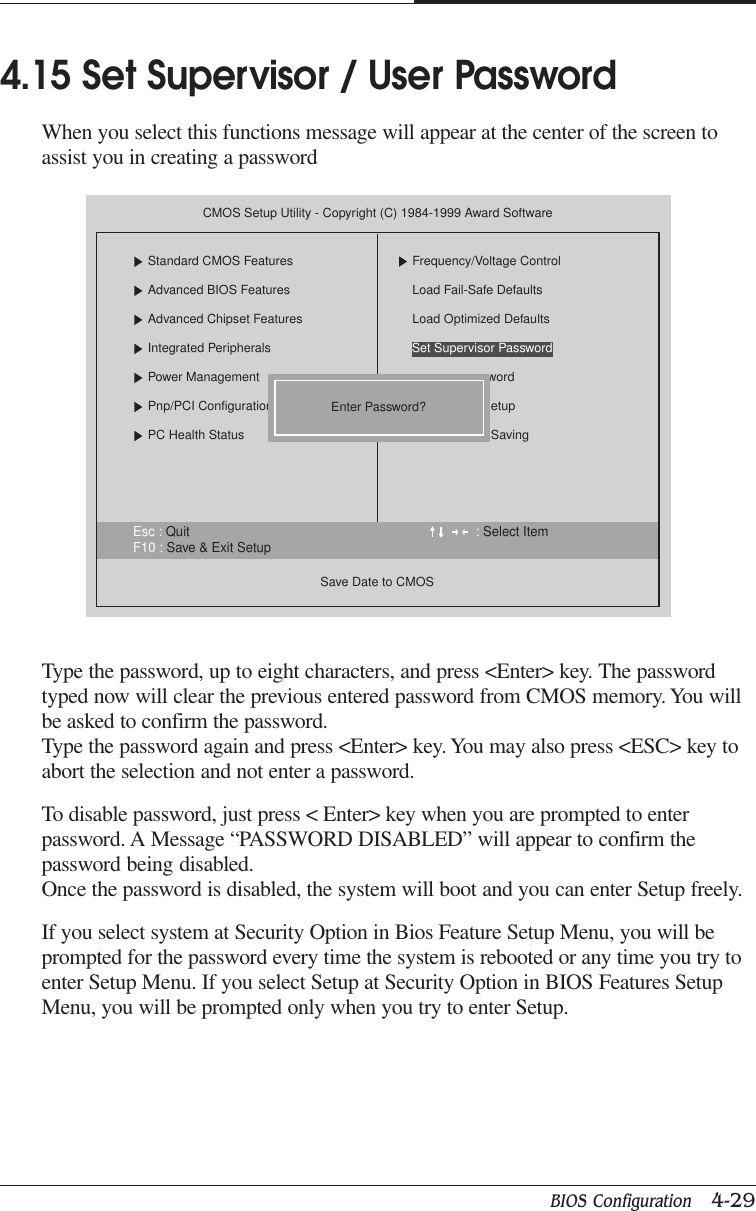
BIOS Configuration   4-29CHAPTER 4Type the password, up to eight characters, and press <Enter> key. The passwordtyped now will clear the previous entered password from CMOS memory. You willbe asked to confirm the password.Type the password again and press <Enter> key. You may also press <ESC> key toabort the selection and not enter a password.To disable password, just press < Enter> key when you are prompted to enterpassword. A Message “PASSWORD DISABLED” will appear to confirm thepassword being disabled.Once the password is disabled, the system will boot and you can enter Setup freely.If you select system at Security Option in Bios Feature Setup Menu, you will beprompted for the password every time the system is rebooted or any time you try toenter Setup Menu. If you select Setup at Security Option in BIOS Features SetupMenu, you will be prompted only when you try to enter Setup.4.15 Set Supervisor / User PasswordWhen you select this functions message will appear at the center of the screen toassist you in creating a passwordEsc : Quit : Select ItemF10 : Save & Exit SetupCMOS Setup Utility - Copyright (C) 1984-1999 Award SoftwareStandard CMOS FeaturesAdvanced BIOS FeaturesAdvanced Chipset FeaturesIntegrated PeripheralsPower ManagementPnp/PCI ConfigurationsPC Health StatusSave Date to CMOSFrequency/Voltage ControlLoad Fail-Safe DefaultsLoad Optimized DefaultswordetupSavingEnter Password?Set Supervisor Password
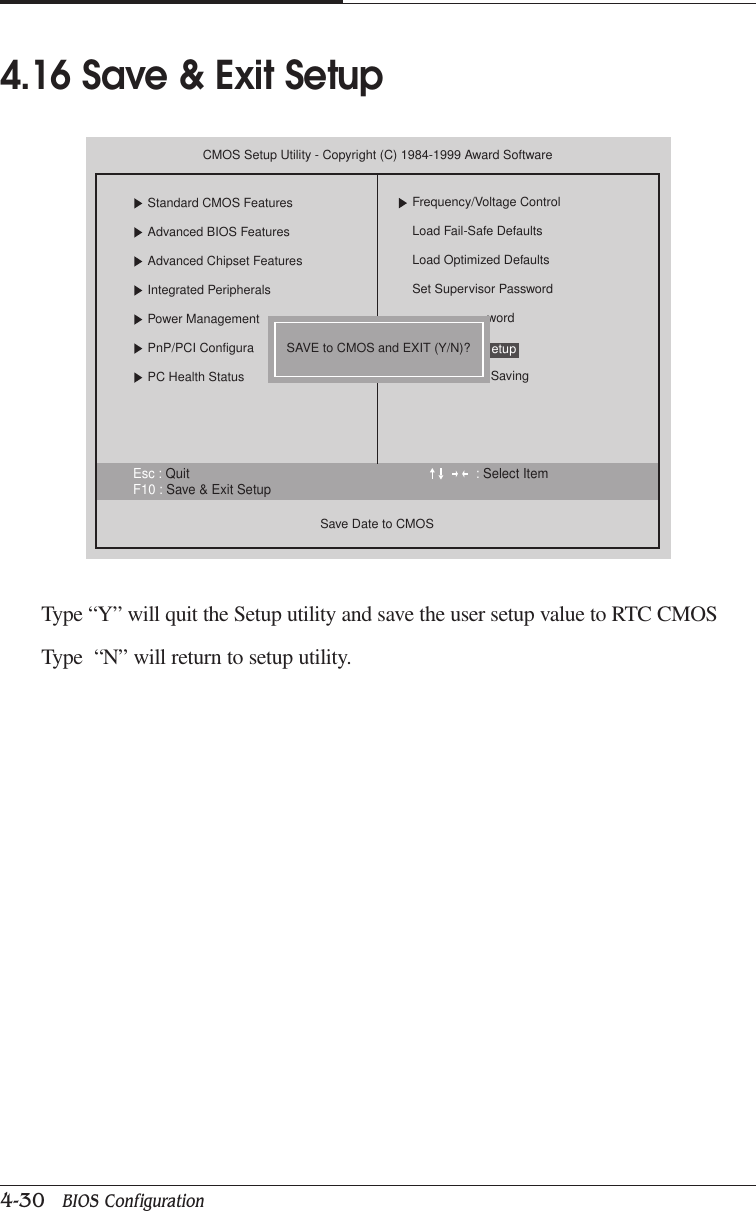
CHAPTER 44-30   BIOS ConfigurationType “Y” will quit the Setup utility and save the user setup value to RTC CMOSType  “N” will return to setup utility.4.16 Save & Exit SetupEsc : Quit : Select ItemF10 : Save & Exit SetupCMOS Setup Utility - Copyright (C) 1984-1999 Award SoftwareStandard CMOS FeaturesAdvanced BIOS FeaturesAdvanced Chipset FeaturesIntegrated PeripheralsPower ManagementPnP/PCI ConfiguraPC Health StatusSave Date to CMOSFrequency/Voltage ControlLoad Fail-Safe DefaultsLoad Optimized DefaultsSet Supervisor PasswordwordSavingetupSAVE to CMOS and EXIT (Y/N)?
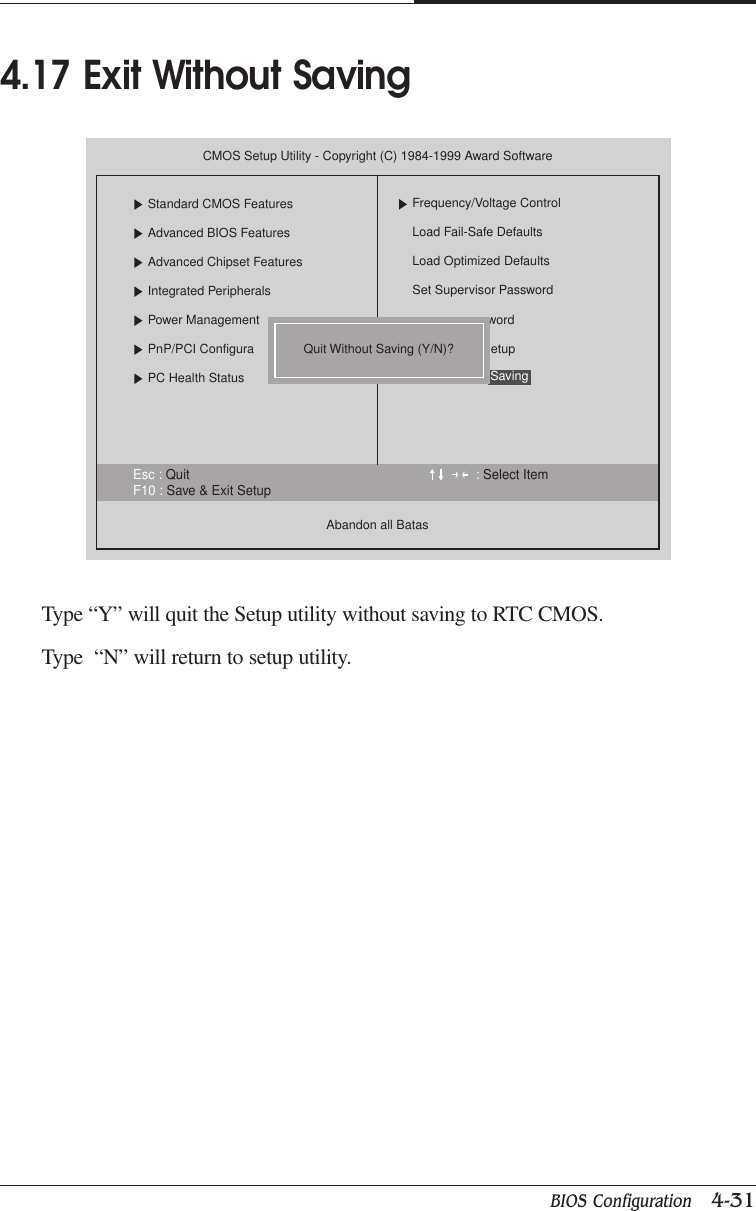
BIOS Configuration   4-31CHAPTER 4Type “Y” will quit the Setup utility without saving to RTC CMOS.Type  “N” will return to setup utility.4.17 Exit Without SavingEsc : Quit : Select ItemF10 : Save & Exit SetupCMOS Setup Utility - Copyright (C) 1984-1999 Award SoftwareStandard CMOS FeaturesAdvanced BIOS FeaturesAdvanced Chipset FeaturesIntegrated PeripheralsPower ManagementPnP/PCI ConfiguraPC Health StatusAbandon all BatasFrequency/Voltage ControlLoad Fail-Safe DefaultsLoad Optimized DefaultsSet Supervisor PasswordwordetupSavingQuit Without Saving (Y/N)?
CHAPTER 44-32   BIOS ConfigurationBlank
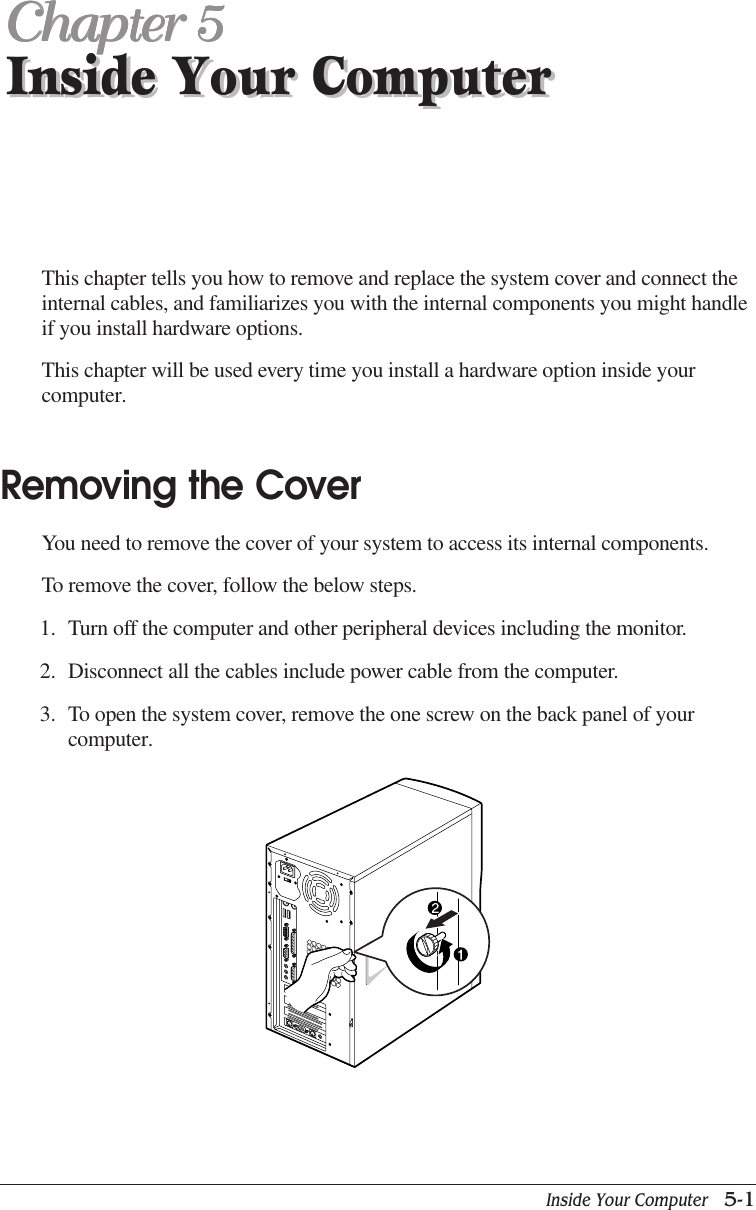
Inside Your Computer   5-1Inside Your ComputerChapter 5Chapter 5Chapter 5Chapter 5Chapter 5Inside Your ComputerThis chapter tells you how to remove and replace the system cover and connect theinternal cables, and familiarizes you with the internal components you might handleif you install hardware options.This chapter will be used every time you install a hardware option inside yourcomputer.Removing the CoverYou need to remove the cover of your system to access its internal components.To remove the cover, follow the below steps.1. Turn off the computer and other peripheral devices including the monitor.2. Disconnect all the cables include power cable from the computer.3. To open the system cover, remove the one screw on the back panel of yourcomputer.
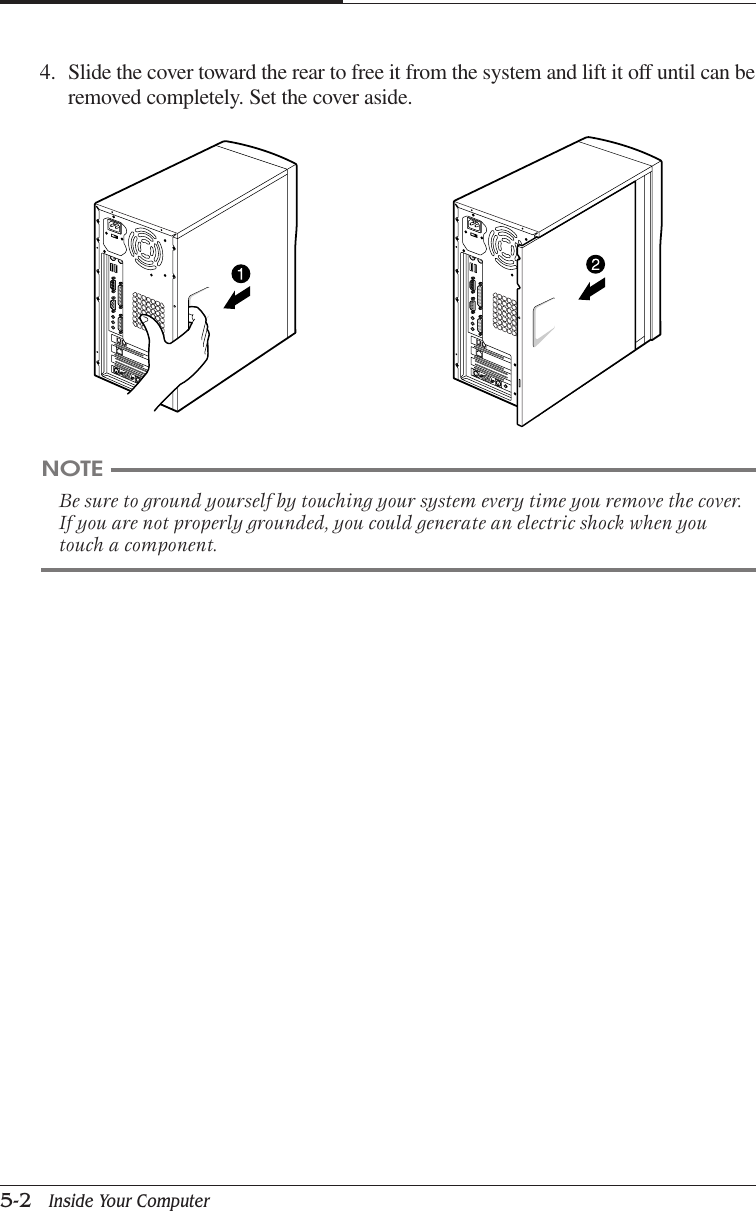
CHAPTER 55-2   Inside Your Computer4. Slide the cover toward the rear to free it from the system and lift it off until can beremoved completely. Set the cover aside.NOTEBe sure to ground yourself by touching your system every time you remove the cover.If you are not properly grounded, you could generate an electric shock when youtouch a component.
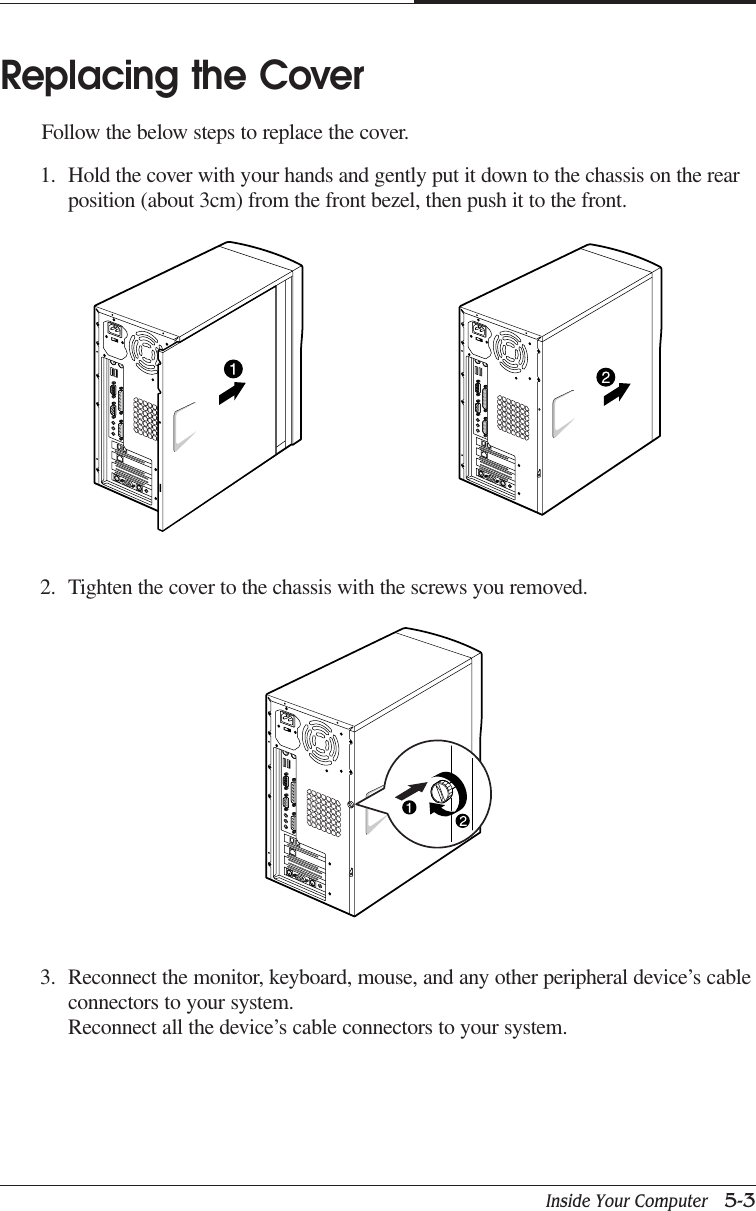
Inside Your Computer   5-3CHAPTER 5Replacing the CoverFollow the below steps to replace the cover.1. Hold the cover with your hands and gently put it down to the chassis on the rearposition (about 3cm) from the front bezel, then push it to the front.2. Tighten the cover to the chassis with the screws you removed.3. Reconnect the monitor, keyboard, mouse, and any other peripheral device’s cableconnectors to your system.Reconnect all the device’s cable connectors to your system.
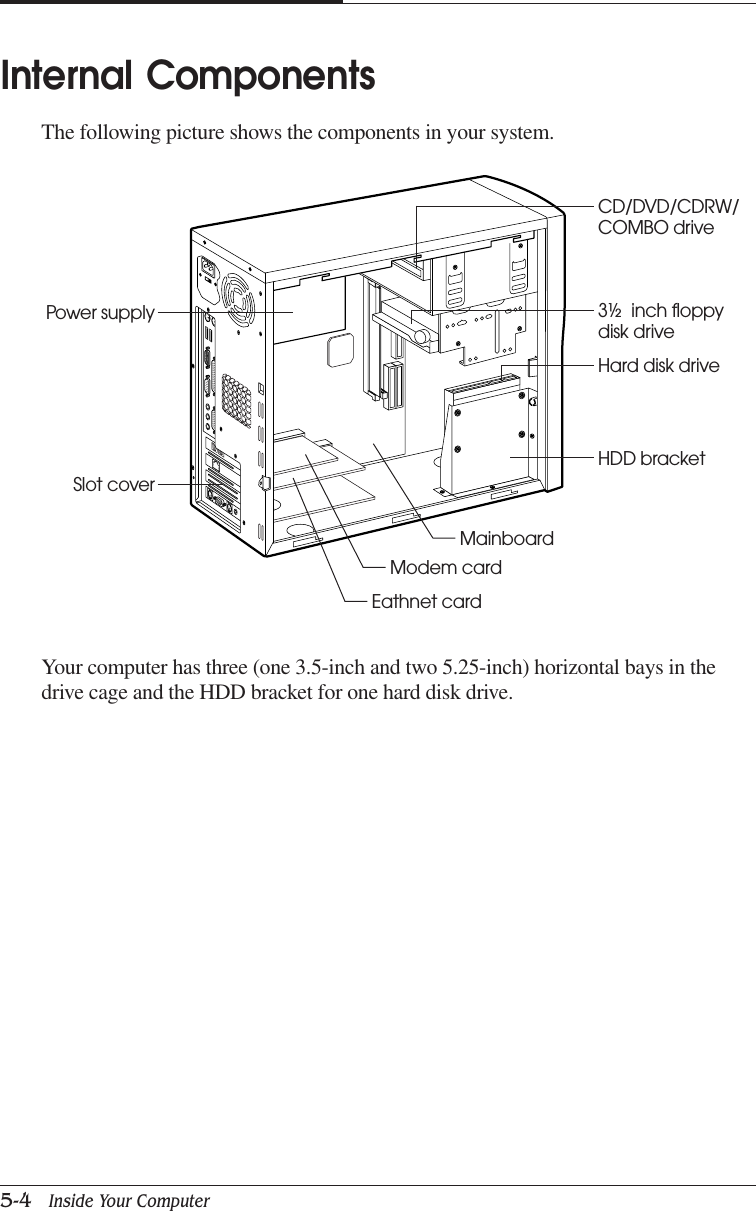
CHAPTER 55-4   Inside Your ComputerInternal ComponentsThe following picture shows the components in your system.Your computer has three (one 3.5-inch and two 5.25-inch) horizontal bays in thedrive cage and the HDD bracket for one hard disk drive.Eathnet cardPower supplySlot coverModem cardMainboardHDD bracketHard disk drive3½  inch floppydisk driveCD/DVD/CDRW/COMBO drive
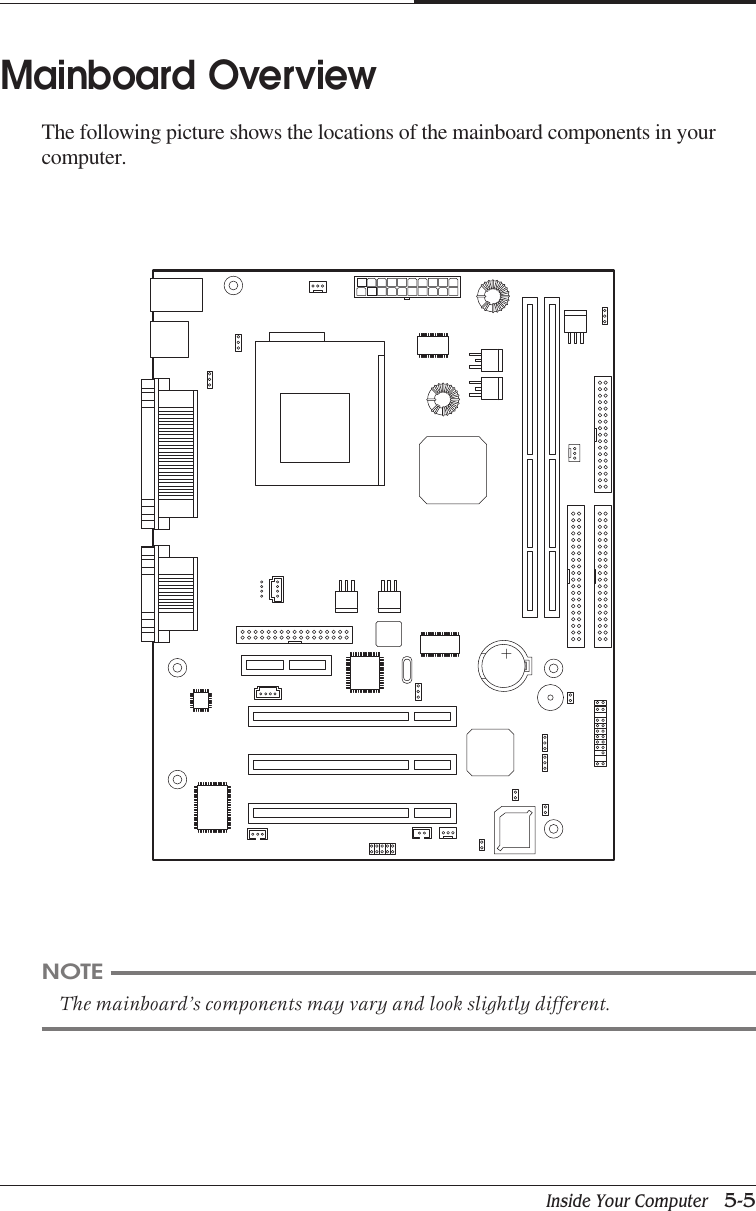
Inside Your Computer   5-5CHAPTER 5Mainboard OverviewThe following picture shows the locations of the mainboard components in yourcomputer.NOTEThe mainboard’s components may vary and look slightly different.
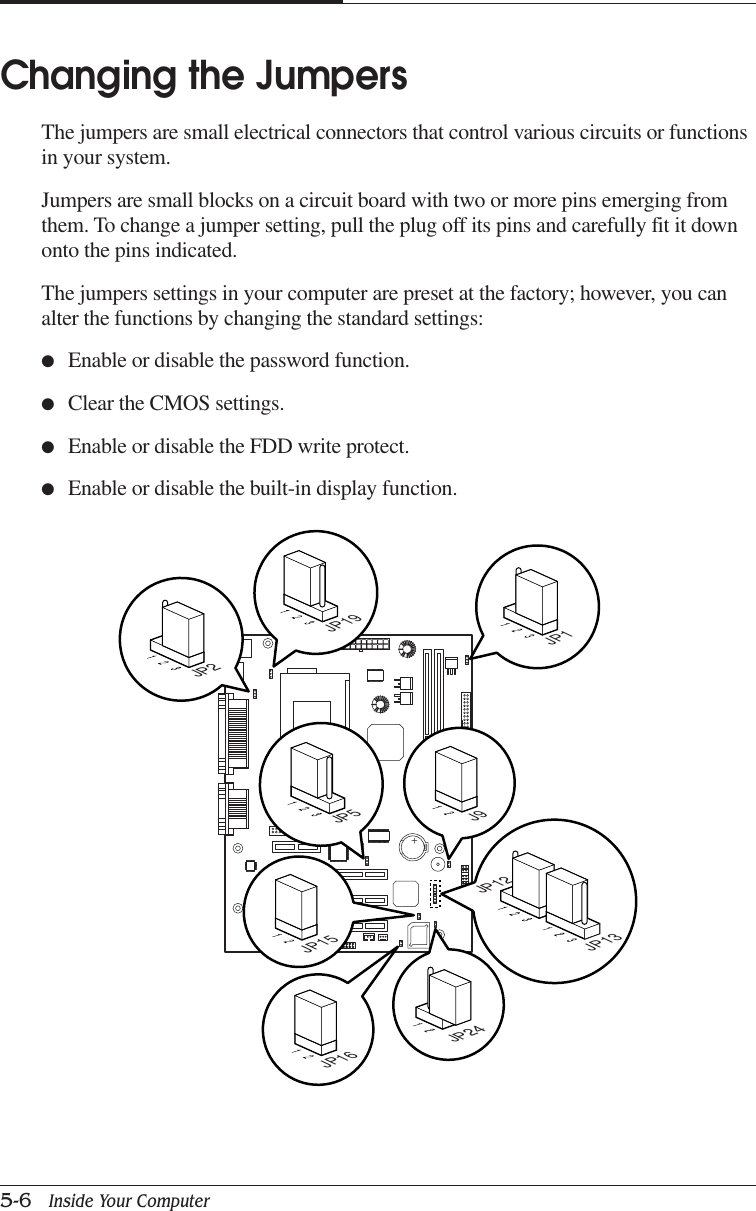
CHAPTER 55-6   Inside Your ComputerChanging the JumpersThe jumpers are small electrical connectors that control various circuits or functionsin your system.Jumpers are small blocks on a circuit board with two or more pins emerging fromthem. To change a jumper setting, pull the plug off its pins and carefully fit it downonto the pins indicated.The jumpers settings in your computer are preset at the factory; however, you canalter the functions by changing the standard settings:●Enable or disable the password function.●Clear the CMOS settings.●Enable or disable the FDD write protect.●Enable or disable the built-in display function.JP1J9JP15JP16JP24JP2 JP19JP5JP13JP12
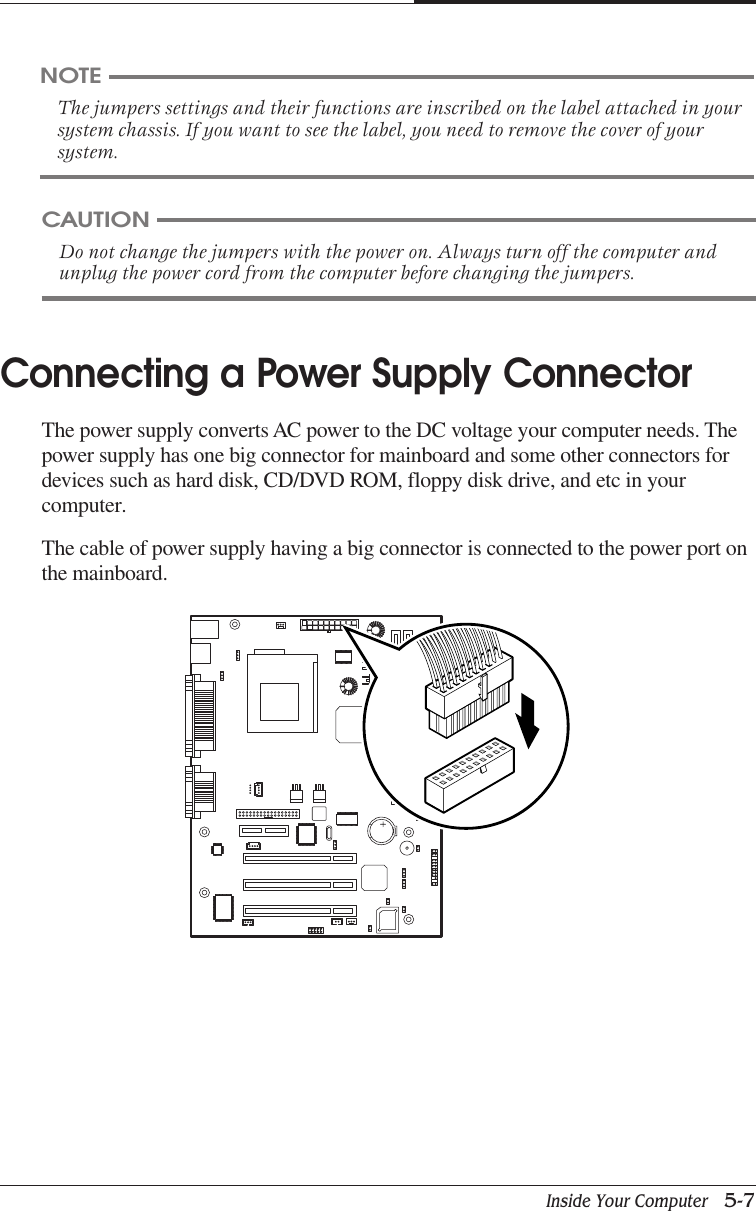
Inside Your Computer   5-7CHAPTER 5Connecting a Power Supply ConnectorThe power supply converts AC power to the DC voltage your computer needs. Thepower supply has one big connector for mainboard and some other connectors fordevices such as hard disk, CD/DVD ROM, floppy disk drive, and etc in yourcomputer.The cable of power supply having a big connector is connected to the power port onthe mainboard.NOTEThe jumpers settings and their functions are inscribed on the label attached in yoursystem chassis. If you want to see the label, you need to remove the cover of yoursystem.CAUTIONDo not change the jumpers with the power on. Always turn off the computer andunplug the power cord from the computer before changing the jumpers.
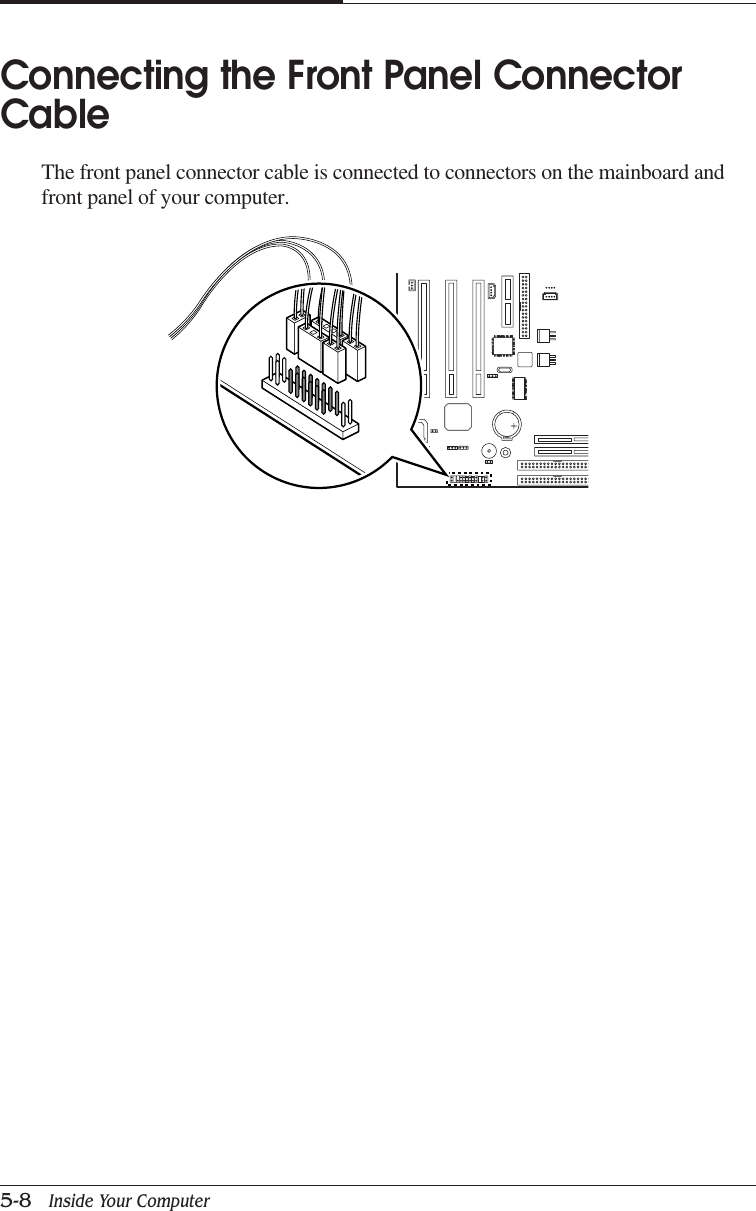
CHAPTER 55-8   Inside Your ComputerConnecting the Front Panel ConnectorCableThe front panel connector cable is connected to connectors on the mainboard andfront panel of your computer.
Installing and Removing Board Options and Drives   6-1Installing and RemovingBoard Options and DrivesChapter 6Chapter 6Chapter 6Chapter 6Chapter 6Installing and RemovingBoard Options and DrivesThis chapter describes how to install and remove optional drives and board optionsin your computer. You can use these instructions to install and remove a variety ofdevices and board options. Although your board options and drives may look a bitdifferent from the ones illustrated here, you can install and remove it the same way.See Chapter 5 for removing and replacing the cover.NOTETurn off the computer. Then disconnect the computer from its power source andfrom any telecommunications links, networks, or modems before performing any ofthe procedures described in this chapter.Installing an Expansion CardThis section explains how to install an expansion card in your computer. Yourcomputer has three 32-bit PCI and one AMR connectors.Follow the below steps to install an expansion card.1. Remove the system cover according to the instructions in "Removing the Cover"in Chapter 5.2. Insert a flat blade screwdriver into a hole of the slot cover you wish to remove.
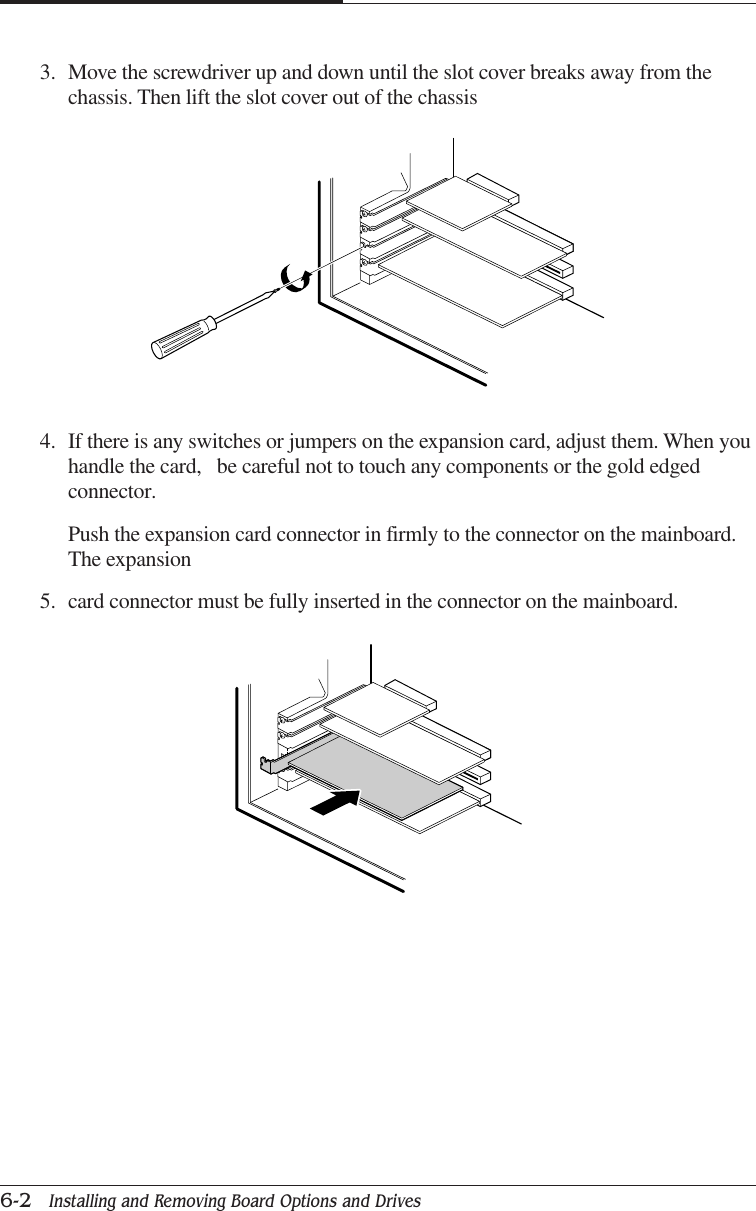
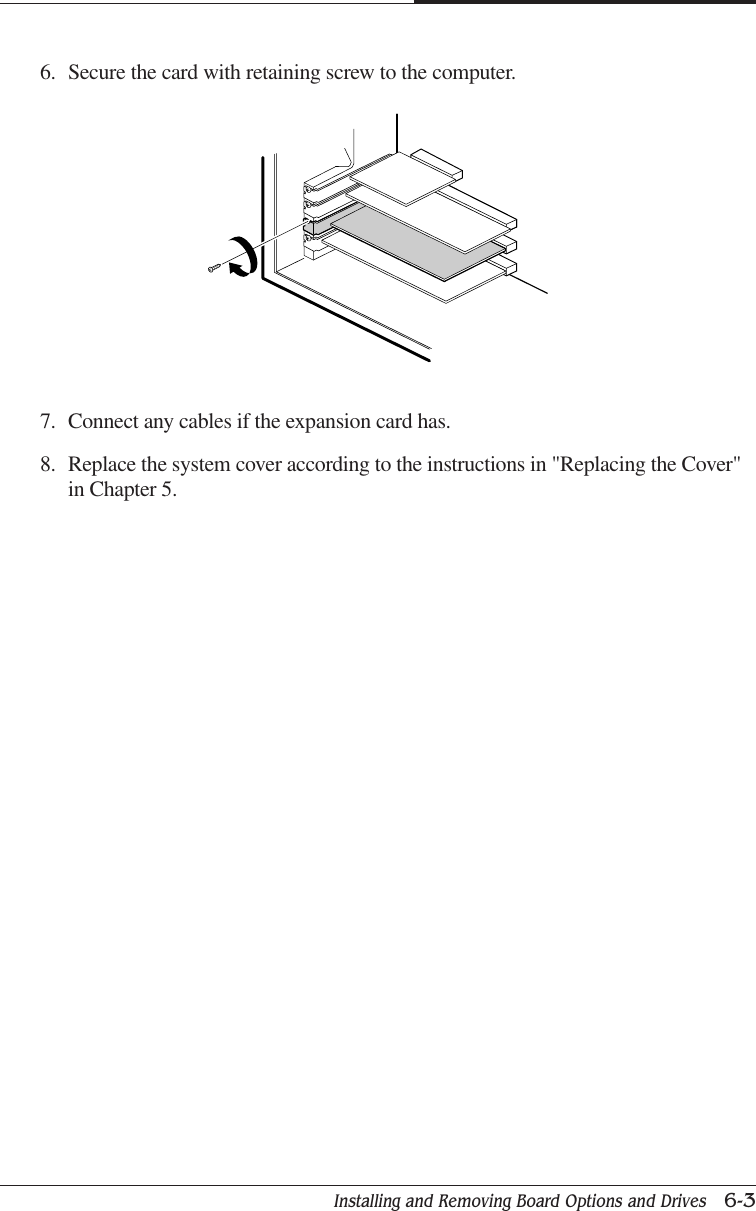
CHAPTER 66-2   Installing and Removing Board Options and Drives4. If there is any switches or jumpers on the expansion card, adjust them. When youhandle the card,   be careful not to touch any components or the gold edgedconnector.Push the expansion card connector in firmly to the connector on the mainboard.The expansion5. card connector must be fully inserted in the connector on the mainboard.3. Move the screwdriver up and down until the slot cover breaks away from thechassis. Then lift the slot cover out of the chassis
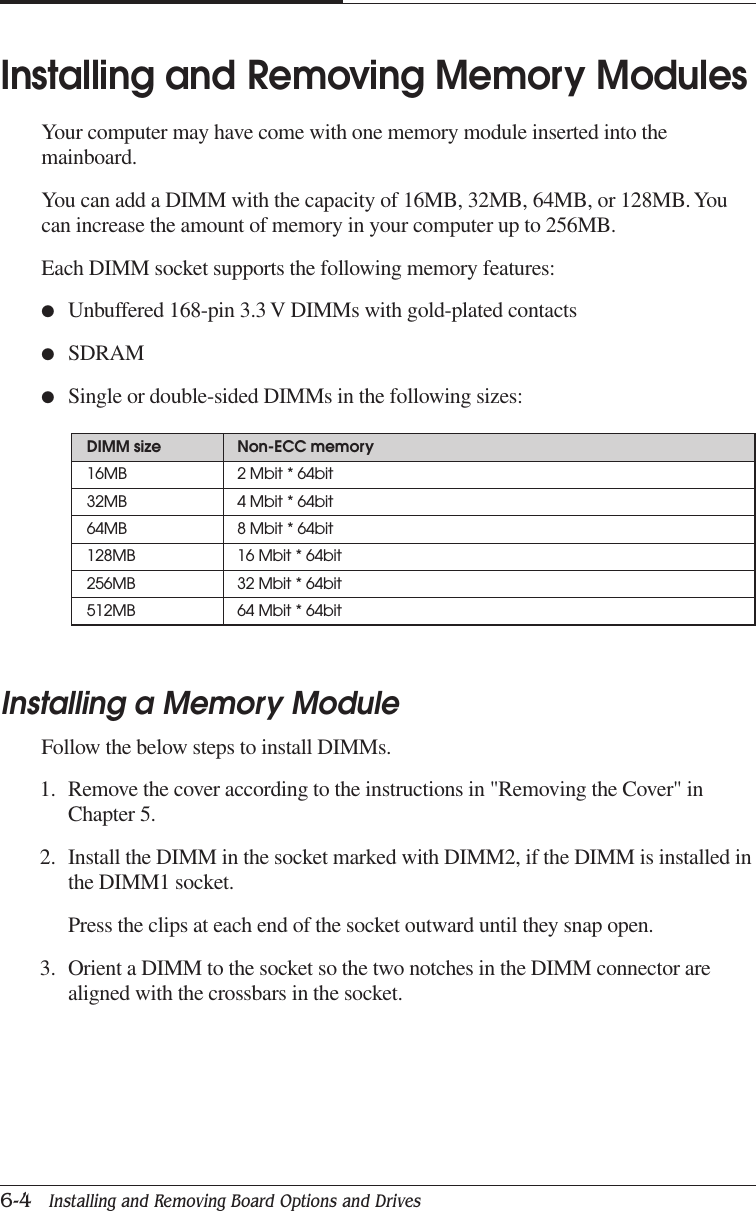
Installing and Removing Board Options and Drives   6-3CHAPTER 67. Connect any cables if the expansion card has.8. Replace the system cover according to the instructions in "Replacing the Cover"in Chapter 5.6. Secure the card with retaining screw to the computer.
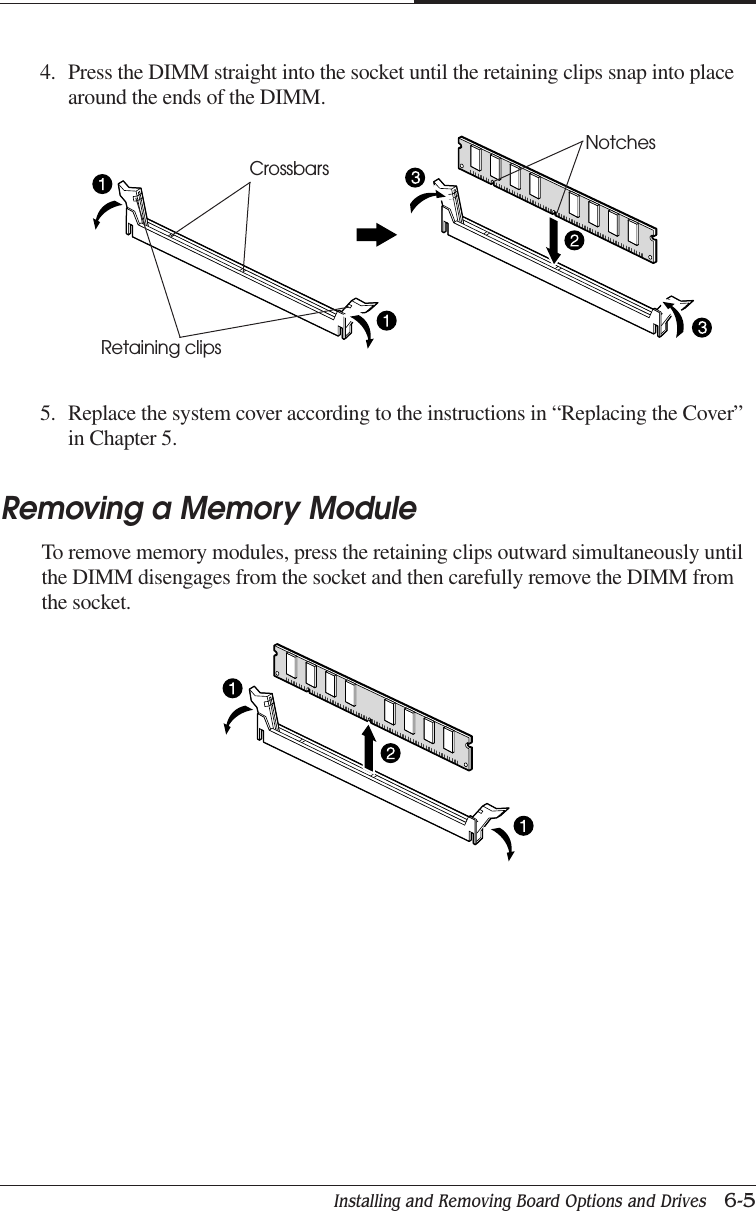
CHAPTER 66-4   Installing and Removing Board Options and DrivesInstalling and Removing Memory ModulesYour computer may have come with one memory module inserted into themainboard.You can add a DIMM with the capacity of 16MB, 32MB, 64MB, or 128MB. Youcan increase the amount of memory in your computer up to 256MB.Each DIMM socket supports the following memory features:●Unbuffered 168-pin 3.3 V DIMMs with gold-plated contacts●SDRAM●Single or double-sided DIMMs in the following sizes:Installing a Memory ModuleFollow the below steps to install DIMMs.1. Remove the cover according to the instructions in "Removing the Cover" inChapter 5.2. Install the DIMM in the socket marked with DIMM2, if the DIMM is installed inthe DIMM1 socket.Press the clips at each end of the socket outward until they snap open.3. Orient a DIMM to the socket so the two notches in the DIMM connector arealigned with the crossbars in the socket.DIMM size Non-ECC memory16MB 2 Mbit * 64bit32MB 4 Mbit * 64bit64MB 8 Mbit * 64bit128MB 16 Mbit * 64bit256MB 32 Mbit * 64bit512MB 64 Mbit * 64bit
Installing and Removing Board Options and Drives   6-5CHAPTER 64. Press the DIMM straight into the socket until the retaining clips snap into placearound the ends of the DIMM.5. Replace the system cover according to the instructions in “Replacing the Cover”in Chapter 5.Removing a Memory ModuleTo remove memory modules, press the retaining clips outward simultaneously untilthe DIMM disengages from the socket and then carefully remove the DIMM fromthe socket.NotchesCrossbarsRetaining clips
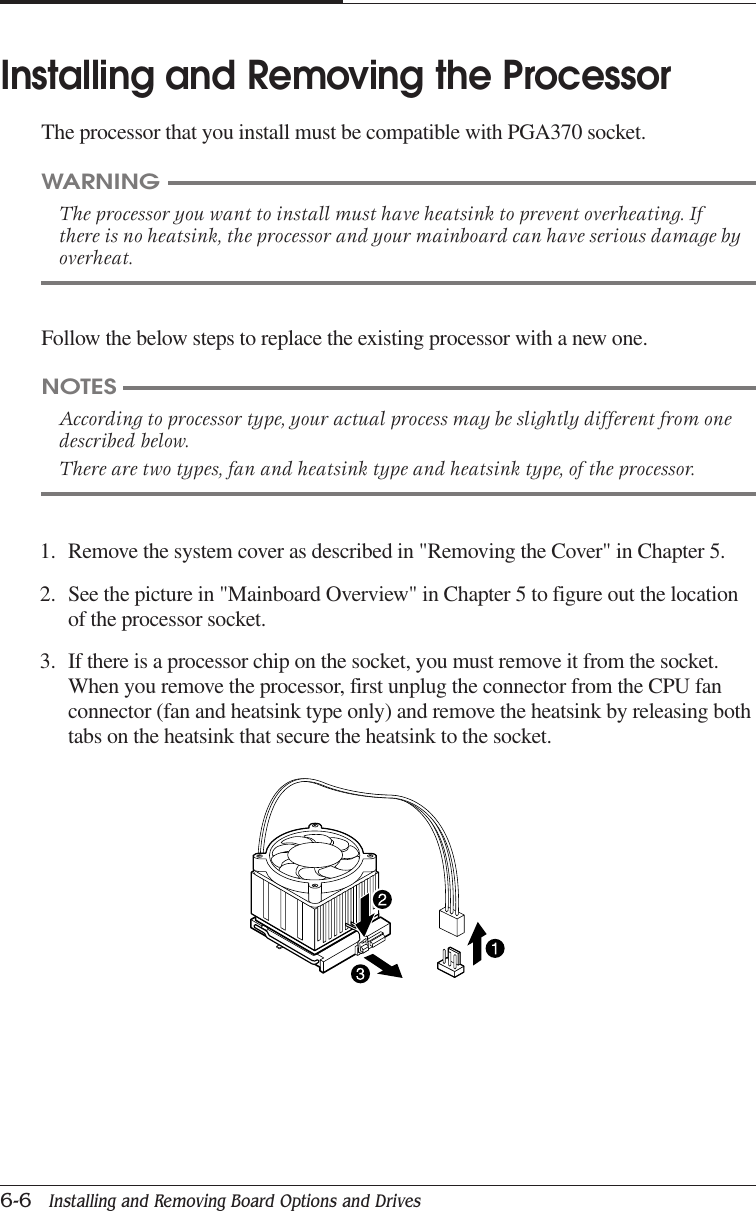
CHAPTER 66-6   Installing and Removing Board Options and DrivesFollow the below steps to replace the existing processor with a new one.WARNINGThe processor you want to install must have heatsink to prevent overheating. Ifthere is no heatsink, the processor and your mainboard can have serious damage byoverheat.Installing and Removing the ProcessorThe processor that you install must be compatible with PGA370 socket.NOTESAccording to processor type, your actual process may be slightly different from onedescribed below.There are two types, fan and heatsink type and heatsink type, of the processor.1. Remove the system cover as described in "Removing the Cover" in Chapter 5.2. See the picture in "Mainboard Overview" in Chapter 5 to figure out the locationof the processor socket.3. If there is a processor chip on the socket, you must remove it from the socket.When you remove the processor, first unplug the connector from the CPU fanconnector (fan and heatsink type only) and remove the heatsink by releasing bothtabs on the heatsink that secure the heatsink to the socket.
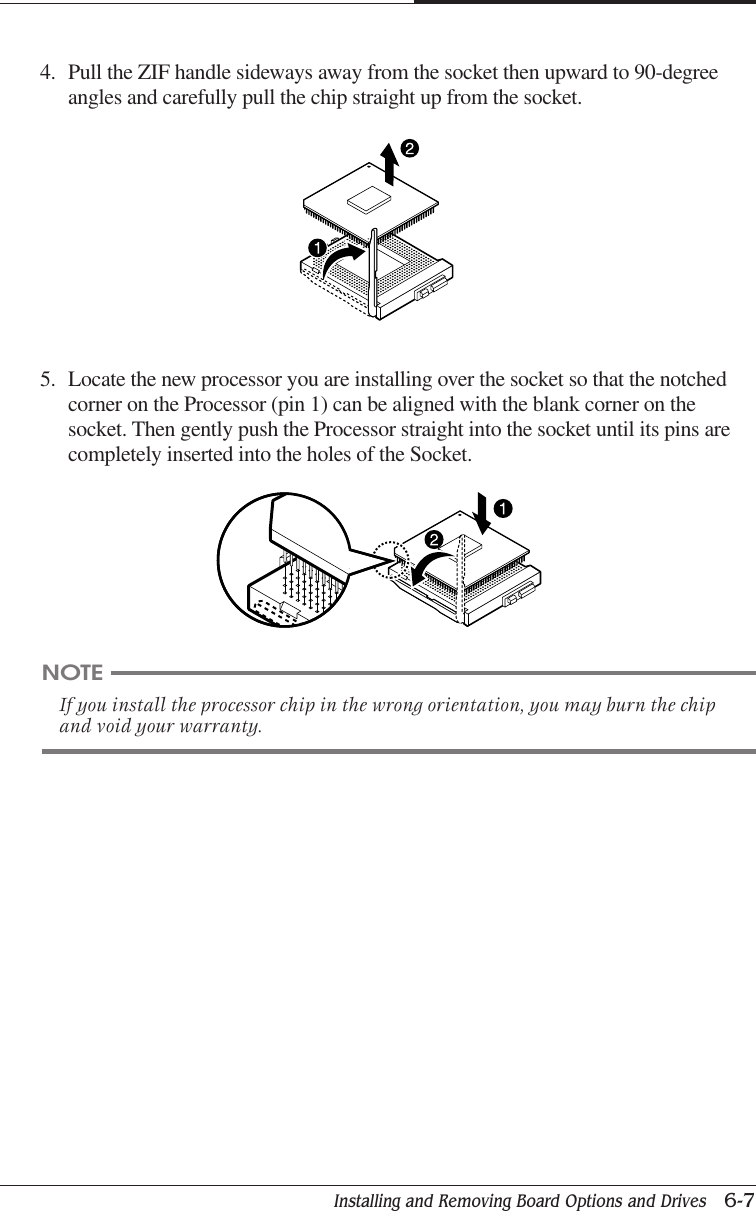
Installing and Removing Board Options and Drives   6-7CHAPTER 65. Locate the new processor you are installing over the socket so that the notchedcorner on the Processor (pin 1) can be aligned with the blank corner on thesocket. Then gently push the Processor straight into the socket until its pins arecompletely inserted into the holes of the Socket.4. Pull the ZIF handle sideways away from the socket then upward to 90-degreeangles and carefully pull the chip straight up from the socket.NOTEIf you install the processor chip in the wrong orientation, you may burn the chipand void your warranty.
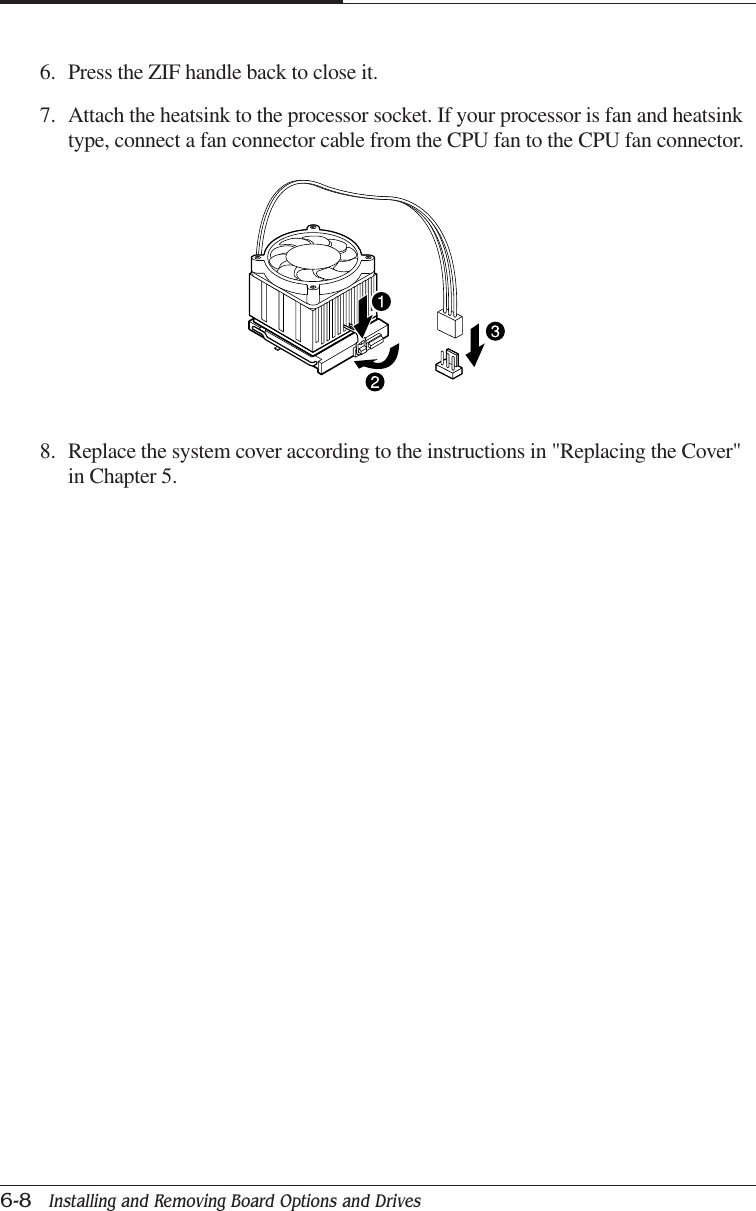
CHAPTER 66-8   Installing and Removing Board Options and Drives8. Replace the system cover according to the instructions in "Replacing the Cover"in Chapter 5.6. Press the ZIF handle back to close it.7. Attach the heatsink to the processor socket. If your processor is fan and heatsinktype, connect a fan connector cable from the CPU fan to the CPU fan connector.
Installing and Removing Board Options and Drives   6-9CHAPTER 6Replacing a Hard Disk DriveYour hard disk drive is installed in the HDD bracket attached on the chassis. You caninstall one hard disk drive in the HDD bracket.Follow the below steps to replace the hard disk drive.1. Remove the system cover according to the instructions in "Removing the Cover"in Chapter 5.2. Detach all cables from the hard disk drive.3. Remove the screw securing the HDD bracket to the computer. And then slide theHDD bracket, as shown below.4. Remove the screws from the HDD bracket.
CHAPTER 66-10   Installing and Removing Board Options and Drives7. Slide the drive until the four slots in the HDD bracket are inserted into the fourtabs of the chassis and then secure the HDD brakcet with the retaining screw, asshown below.5. Set the jumper of the new hard disk drive. If you want to install only hard diskdrive, the jumper setting must be master drive.6. Using the screws, secure the hard disk drive to the HDD bracket.8. Connect the free power cable and hard disk drive cable to the hard disk drive.9. If you removed the hard disk drive cable from the mainboard, replace it.10. Replace the system cover according to the instructions in "Replacing the Cover"in Chapter 5.
Installing and Removing Board Options and Drives   6-11CHAPTER 6Installing the 5.25-inch Device in thePeripheral BayYour system has two 5.25-inch horizontal peripheral bays. If only one device (e.g.,CD/DVD-ROM drive) is installed in the system’s 5.25-inch peripheral bay, you canadd an optional device such as a CD/DVD/CDRW/COMBO drive, hard disk drive,LS-120 drive, or ZIP drive in the empty peripheral bay.To install an optional device in the bay, follow the below steps.1. Remove the cover according to the instructions in “Removing the Cover” inChapter 5.2. Remove the HDD bracket from the system chassis. For more information, see“Replacing a Hard Disk Drive” in this chapter.3. Remove the front panel from the chassis by pressing the four tabs.NOTEIf you want to install a 3.5-inch hard disk drive, you must purchase the 5.25-inchdock or mounting bracket and attach it to your 3.5-inch hard disk drive to installyour hard disk drive for the 5.25-inch bay.
CHAPTER 66-12   Installing and Removing Board Options and Drives4. Remove the faceplate cover from the front panel. Pull out the faceplate, pressingoutward each tab on both ends of the front panel using your finger.5. If there is an EMI shield that covers the 5.25-inch drive bay you want to use,remove it from the chassis using a tool such as a screwdriver.
Installing and Removing Board Options and Drives   6-13CHAPTER 66. Make you sure that jumpers of optional drive must be set correctly.NOTEAs a hard disk drive, most optional devices’ jumpers must be set correctly to workproperly with your system. For example, if there are two drives to one E-IDEinterface cable, one drive must have master drive jumper setting, and the otherdrive must have slave drive jumper setting.If you want to install an optional drive to the 5.25 inch bay, you must usesecondary E-IDE drive connector. If your CD/DVD ROM is set to master, theoptional drive’s jumper must be set to slave.7. Slide the device into the bay and secure it to the computer case with four screws.8. Connect the power and interface cables to the device installed.
CHAPTER 66-14   Installing and Removing Board Options and Drives9. To reassemble the front panel to the system, press the front panel toward thesystem until the tabs on the front panel click into place.10. Hook the front panel connector cable and replace the HDD bracket to the chassis.11. Replace the system cover according to the instructions in "Replacing the Cover"in Chapter 5.Replacing the BatteryThe 3 V, coin-cell CR2032-type battery on the mainboard provides power to thereal-time clock and CMOS RAM.The battery approximately has three years lifetime when the system is off.To replace the battery, follow the below steps.1. Enter the Setup program and make a printed copy of the Setup screens.2. Turn off your system and devices connected to the system.3. Remove the system cover.4. Take the battery out from the socket.
Installing and Removing Board Options and Drives   6-15CHAPTER 66. Replace the system cover.7. Turn on your system, run the Setup program, and set the date and time again.Restore any system configuration information that was lost while replacing thebattery according to the copy made in step 1.After Installing OptionsAfter you install or remove drives, if necessary, be sure to run Setup program toupdate the configuration of your system. See Chapter 4 for detail information.If you installed a hard disk drive on which you want to install an operating system,install the operating system, drivers, and application programs on the hard disk driveusing the Restore CD after running FDISK. Follow the instructions in Chapter 8.If you installed a hard disk drive on which you want to install an operating system,install the operating system on the hard disk drive. See "Using the Restore CD" inChapter 8.If you installed new optional equipment and Windows ME is already installed inyour system, you need to have Windows ME detect it. See Windows ME manual andthe manual that came with your optional equipment for detail information.5. Insert the new battery with the "+" side facing up into the battery socket.
CHAPTER 66-16   Installing and Removing Board Options and DrivesBlank
Application Programs   7-1Application ProgramsChapter 7Chapter 7Chapter 7Chapter 7Chapter 7Application ProgramsPlayerThe Mpeg Player is the software application designed to work with your displayadapter.The Mpeg Player supports full motion and full screen software MPEG videoplayback with excellent video quality.NOTEThe Player is available only on the CD-ROM drive model.
CHAPTER 77-2   Application ProgramsAudioStationAudioStation is a component audio system that can play or record audio CDs, digitalaudio files (WAV or VOC), or MIDI files (MID, RMI or ORC). This consists ofAudio Mixer, CD Player, Digital Audio Player, and MIDI Player.Audio Mixer lets you adjust the volumes of the various audio components and setrecording levels for digital audio. You can play audio CDs with the CD Player. Youcan play digital audio (WAV) files with the Digital Audio Player and edit digitalaudio files using WinDAT displayed by pressing the Edit button. With the MIDIPlayer, you can play MIDI files. You can audition CD, WAV and MIDI files andcreate custom playlists.To run AudioStation program, point to program Voyetra after click the Start button,and then click AudioStation.NOTEFor more information, refer to on-line help. To see on-line help, click the icon on theAudioStation screen.
Application Programs   7-3CHAPTER 7PowerDVDDigital Versatile Disc (DVD) is a high-density storage device.A standard DVD title can hold 4.7 gigabytes of data - a seven times the data capacityof a current CD title.Dual-layer DVD title can hold more than twelve times the information of a CD titleon a single side.So you can enjoy higher-resolution pictures, more channels of digital sound, richergraphics, and far more multimedia.Playing the PowerDVDIf your DVD disc is auto-run, the PowerDVD will automatically start when youinsert the disc in the DVD-ROM drive.For the DVD disc does not automatically start when you insert the disc, play thePwerDVD as follows:Double-click the PowerDVD icon on the desktop and press the play button on thePowerDVD.NOTEThe PowerDvD is available only on the DVD,COMBO drive model.
CHAPTER 77-4   Application ProgramsThe Main ControlsThe Display AreaCtel-N Minimizes user interfaceCtrl-X Exits PowerDVDZ Zooms to full screen and to windows modesO Denotes file mode, Press to switch modesCtrl-E Ejects discs from CD/DVD-ROM driveF1 Accesses online help+ Increases volume- Mutes volumeQ Decreases volume/ Menu pad used to navigate between DVD title menu selections/ Number pad for entering numerical file or audio CD selectionsN/A Click anywhere along the slider to navigate tithing a given chapter,VCD, CD or fileDVD video is the current mediaDigital files are the current mediaVCD is the current mediaAudio CD is the current mediaStereo is the current audio modeDolby os the current audio mode4-speaker is the current audio mode6-speaker is the current audio modeSPDIF is the current audio modeDenotes current driveDenotes current subtitleDenotes current audio streamDenotes current regionDenotes current angleDenotes current parental control
Application Programs   7-5CHAPTER 7The Control Wheel1. 8X Reverse (                    )2. 4X Reverse (                    )3. 2X Reverse (                    )4. 1X Reverse (                    )5. Pause (                    )6. 1X Forward (                    )7. 2X Forward (                    )8. 4X Forward (                    )9. 8X Forward (                    )The Control PanelNOTEThe green point roughly marks the shuttling above.Forward speeds of 1/2X, 1.5X, 3Xand 6X and 1/2X rewinding speed are notpictured Above but are sequentially located between their respective locations above.Enter Play DVD, VCD, CD or filesSpace Bar Pauses playbackS Stops playbackN Jumps to next chapterP Returns to previous chapterCtrl-B Steps backward one frameT Steps forward one frame
CHAPTER 77-6   Application ProgramsHidden Control PanelDisc Mode
Application Programs   7-7CHAPTER 7<Region Code for Area>File ModeK Switches among karaoke modeC Captures video content as bitmap image fileA Switches among available anglesR Goes ip to previous section when navigationDVD title menu selectionsX Sets A and B Points to repeat specific user-definedScenes during playbackH Switches among available audio streamsCtrl+R Repeats titles, chapters or screensU Switches among available subtitle during playbackL Accesses all available menusCtrl+F2 Bookmarks specific scenes in DVDF2 Directly goes to bookmarked scenesF3 I-Power takes you to the Internet directlyCtrl-C Configuration setting is all located hereU shuffles playlist in File modeNOTEYour PowerDVD application is already set to Region 1, so you can play the DVDdisc that contains no region code or a Region 1 code.Region No. AreaRegion 1 The United States, U.S. Territories and Canada.Region 2 Europe, The Middle East, Japan and South Africa.Region 3 Asia Pacific.Region 4 South America and Australasia.Region 5 Russia, Eastern Europe, Central Asia and Africa.Region 6 China.
CHAPTER 77-8   Application ProgramsBlank
Using the Restore CD   8-1Using the Restore CDChapter 8Chapter 8Chapter 8Chapter 8Chapter 8Using the Restore CDUse the Restore CD for the following:●To restore all software including Windows ME.●To restore lost or destroyed drivers or application programs.Restoring Your Original SoftwareThe Restore CD contains a copy of all software (e.g., Windows ME, drivers, andapplication programs) originally preinstalled on your hard disk. (This process maytake about 20 minutes.)There are two ways to restore the software:●You can restore the software that came with your system without formatting thehard disk.WARNINGYou must reinstall any software not originally installed on your hard disk drive.WARNINGIf you format your hard disk, you lose all data that added files, programs, or otherdata on your hard disk since you purchased your system. If you must reinstall anysoftware not originally installed on your hard disk and don’t want to lose yourpersonal data on your hard disk, copy it to diskettes before formatting.● You can format the hard disk and then restore all original software.
CHAPTER 88-2   Using the Restore CDfollow the below steps to restore your original preinstalled software.1. Turn on the computer.2. Insert the Restore CD into the CD/DVD-ROM drive before your computer bootsup.3. Restoration procedures will be started.4. When the Microsoft Windows ME Startup Menu appears, type the number 1 or 2and press Enter.Microsoft Windows Startup Menu1  RESTORE WINDOWS - WILL FORMAT HDD2  RESTORE WINDOWS - WILL NOT FORMAT HDD3  BOOT TO DOS PROMPT FROM CD-ROMEnter a choice : _5. If you select “1. RESTORE WINDOWS ME - WILL FORMAT HDD,” the“Proceed with Format (Y/N)?” message will appear in the screen. To continue theprocedures, type Y and press Enter.6. All data in the Restore CD will be copied to your hard disk.7. After the restoration process is completed, remove the Restore CD from yourCD/DVD/CDRW/COMBO drive.8. Press Enter to restart your computer.CAUTIONIf you select "1. RESTORE WINDOWS 98 - WILL FORMAT HDD," you willlose all data in the hard disk (C:).NOTETo stop this restore process now, remove the Restore CD from the CD/DVD-ROM drive and restart your computer.
Using the Restore CD   8-3CHAPTER 89. Windows ME starts and the registration program runs.10. To register with Microsoft for using your computer, follow the displayedmessages. Enter your personal information and the Windows ME Product Key(attached on the Windows 98 manual).Installing Drivers or Application ProgramsIf you lose a driver or application program, install it by using the Restore CD thatcame with your system.follow the below steps to install drivers or application programs.1. Insert the Restore CD into the CD/DVD/CDRW/COMBO drive when WindowsME is started.2. Double-click the My Computer icon on the desktop.3. Double-click the CD-ROM icon in the My Computer window.4. Double click the SETUP.EXE icon in CD ROM folder to start the Driver &Software installation program.5. Click a driver or application program menu to install or copy to your system.Also you can see all directories in the Restore CD by clicking the Browse thisCD menu.NOTEIf the Restore CD is in the CD/DVD-ROM drive while your computer is booting,the computer will be booted with the Restore CD. In this case, the "MicrosoftWindows ME Startup Menu" menu will appear. To continue the restoration,remove the Restore CD from your CD/DVD-ROM drive and restart thecomputer.NOTEIf you move the mouse pointer to a menu title in the installation programwindow, the color of the menu will be changed.6. Follow the instructions on the screen.
CHAPTER 88-4   Using the Restore CDBlank
Specifications   A-1SpecificationsAppendix AAppendix AAppendix AAppendix AAppendix ASpecificationsFeature SpecificationsProcessor • Intel Celeron processor in a PPGA package• Intel Pentium III processor in a PPGA package• 66/100/133 MHz bus speed• Auto Detect CPU Voltage.Memory Main Memory• Two 168-pin 3.3 V DIMM sockets• Supports up to 512 MB memory• Unbuffered Synchronous DRAM (SDRAM)Intel 810 Intel 82810 PCI/A.G.P. controller (PAC)AGPset • Intel 810 AGPset; AC 97• Integrated Accelerated Graphics Port (A.G.P.) controllerSLOT • 1 X AMR (Audio Modem Rise) Slot• 3 X PCI Solt Supports 33MHz & PCI 2.2 compliantI/O • 2 X Ultra DMA 33/66 Bus Master IDE ports on board• 1 X FDD, 1 X COM, 1 X LPT, PS/2 keyboard, PS/2 Mouse on board• 1 X VGA(DB15), 1 X Joystick, 1 X Line-in, 1 X Line-out? 1 X MIC on board• 2 X USB ports on boardPower • ATX Power connector• Power-on by Keyboard, PS/2 Mouse, LAN, RTC, Modem & Switch• Power-off by Windows R 95/98/ME Shut & Switch• Suspend / Wake-on by ACPI & APM device• AC Recovery ON/OFF control; 3 Level ACPI LED• Stop CPU Fan during entering suspend modeFrom FACTOR/PCB • Micro ATX, 4 layer PCBH/W Monitoring • Auto speed down and Alarm when CPU overheat of Fan failure (OS? independent & Driverless)• 3 Fan Power & Speed Detection Connectors; Case open Detection• System Health status detect & report by BIOS, LDCM & SIV• H/W detect +/-5V, +/-12V, CPU Voltage & CMOS battery StatusBIOS • 4Mbit Flash RAM• AWARD BIOS with Enhanced ACPI Feature for PC98/ Win98 Compliance,? Green, PnP, DMI, INT13 (>8.4GB) & Anti-Virus functions• IDE#1~#4, SCSI, LS120, ZIP & CD-ROM bootable• Auto-detect & report system health statusOther Features • Suspend-To-RAM (STR)• Includes Wake-On-LAN Header (WOL)• Includes Wake-On Ring (WOR)• Poly fuse for keyboard, USB, VGA & Game overcurrent protection
APPENDIX AA-2   SpecificationsBlank
Solving Common Problems   B-1Solving Common ProblemsAppendix BAppendix BAppendix BAppendix BAppendix BSolving Common ProblemsThis chapter instructs you how to deal with the problems you might experiencewhen using your computer. The problem is listed first, followed by the solution.Read it before calling a technician if a problem occurs.PowerHard Disk DriveCause SolutionMy computer Computer is not properly connected to a grounded wall outlet.doesn’t work Make sure the power cord is firmly plugged into the wall outlet and intothe Wall outlet is not working.To check to see whether the wall outlet works, plug other device (suchas a lamp) into the wall outlet. If it is not working, use other wall outlet.When the computer turned down by sudden power failure, it will notoperate if you press the power button. To turn on the computer, refer tothe followings:Unplug the power cord to turn off your computer and wait about 10seconds for complete discharge and re-plug the power cord. Thenpress the power button.Cause SolutionHard disk drive The files stored on your hard disk may be fragmented.operation seems Check for lost allocation units by running Disk Defragmenter. (For slowmore information, refer to the Windows 98 manual that came with yourcomputer.)Hard disk drive The files stored on your hard disk may be corrupted.access indicator Check for lost allocation units by running Disk Defragmenter. (For morelight stays on information, refer to the Windows 98 manual that came with yourcomputer.)
APPENDIX BB-2   Solving Common ProblemsCause SolutionThe CD/DVD-ROM CD/DVD is not properly seated in the CD/DVD-ROM drive.drive cannot read Eject the CD/DVD, gently but firmly press down on the CD/DVD to seatCD/DVD it in the drive, then reload.Your CD/DVD-ROM drive is not recognized.Turn off the computer, wait at least 30 seconds, and then turn on thecomputer.CD/DVD has been inserted upside down.Eject the CD/DVD, turn it over, then reload. (The label on the CD/DVDshould be facing up.)CD/DVD is dirty.Clean the CD/DVD with a CD/DVD cleaning kit (available in computerstores).CD/DVD is defected.Try another CD/DVD. If it operates well, the CD/DVD is defected.How to use the CD/DVD-ROM drive in Real MS-DOS mode?If you reboot your computer by selecting “Restart in MS-DOS mode”option in “Shut Down Windows,” you can use the CD/DVD-ROM drive.However, to use the CD/DVD-ROM drive in real MS-DOS mode, manuallydelete the “REM” of the line “REM Mscdex /d:gem001” in theAUTOEXEC.BAT file.<AUTOEXEC.BAT>...REM [CD-ROM DRIVE]Mscdex /d:gem001...The DVD-ROM drive The high speed DVD-ROM drive takes few seconds to stop the runningtakes about 5 to 10 of the spindle motor when you press the eject button, immediately afterseconds to open using CD or DVD, to open the tray.the tray when I press Wait about 5 to 10 seconds after pressing the eject button to give thethe eject button DVD sufficient time to stop the running of the spindle motor and ejectthe tray.CD/DVD-ROM Drive
Solving Common Problems   B-3APPENDIX BAudioFloppy Disk DriveCause SolutionHow do I control To control the audio volume level, use the volume control box.the audio volume Click on the Speaker icon located on the right of your Windows taskbar.When the level? volume control box appears, drag the volume bar up or down to adjustthe audio volume level.To control the audio volume level for each device, use the Master Outwindow.Double-click the Speaker icon located on the right of your Windowstaskbar. When the Master Out window appears, in the each devicearea, drag the volume bar up or down to adjust the audio volume level.Computer doesn’t Audio has been muted.make any sound Click on the Speaker icon located on the right of your Windows taskbar.When the volume control box appears, verify that the Mute optioncheck box is empty.Volume is turned down.The volume level may be too low. Click on the Speaker icon located onthe right of your Windows taskbar. When the volume control boxappears, drag the volume bar upward.The speakers are not properly connected.Make sure that the speakers are properly connected to the computer.Cause SolutionFloppy disk drive Disk is incorrectly inserted.light stays on Remove the disk and reinsert it.Disk is damaged.Use another disk or check the disk by running ScanDisk. (For detailinformation, refer to your Windows 98 manual.)Floppy disk drive Disk is unformatted.can’t write to a Format the disk (Refer to your Windows Help in Windows 98. To opendisk Windows Help, click the Start button, and then click Help.)Disk is write-protected.Remove the write-protection or use another disk that is notwrite-protected. To remove write-protection from a disk, slide the smallblack tab on the back of the disk to cover the hole.Floppy disk drive Disk is unformatted.can’t read the Format the disk. (Refer to your Windows Help in Windows 98. To opendiskeete Windows Help,click the Start button, and then click Help.)
APPENDIX BB-4   Solving Common ProblemsDisplay & MonitorCause SolutionThe monitor doesn’t The brightness and contrast controls aren’t set properlywork Adjust the brightness and contrast controls on the monitor.The cable connecting the monitor to your computer isn’t connectedproperly.Make sure that the monitor connector is properly and securelyconnected to the video connector of your computer.Monitor is not properly connected to a grounded wall outlet.Make sure the power cord is firmly plugged into the wall outlet and intothe monitor.You have a screen blanking utility installed or your computer enteredpower management mode.Press any key or move your mouse. Your current screen will reappear.How do I change To change the display resolution or color depth, use the Displaythe display Properties window.resolution or color To change the display resolution and color depth, follow these steps:depth? 1. Click the Start button, point to Settings, click Control Panel, and thendouble click the Display icon. Or click the right mouse button on theempty desktop area and click Properties.2. When the Display Properties window appears, click the Settings tab.3. Select the color depth from the Colors area and the resolution fromthe Screen area. Click OK.4. If you changed color depth, the system would reboot. If youchanged resolution only, the screen will be changed to the newsettings.How do I use the old (existing) monitor that doesn’t supportthe factory default display setting (SVGA mode, 800*600)?To use the old (existing) monitor, you must start Windows in safe mode, and then setthe resolution and color depth as follows:1. Press the power button to start your system.2. Press and hold the F8 key until the Microsoft Windows 98 Startup Menu appears.
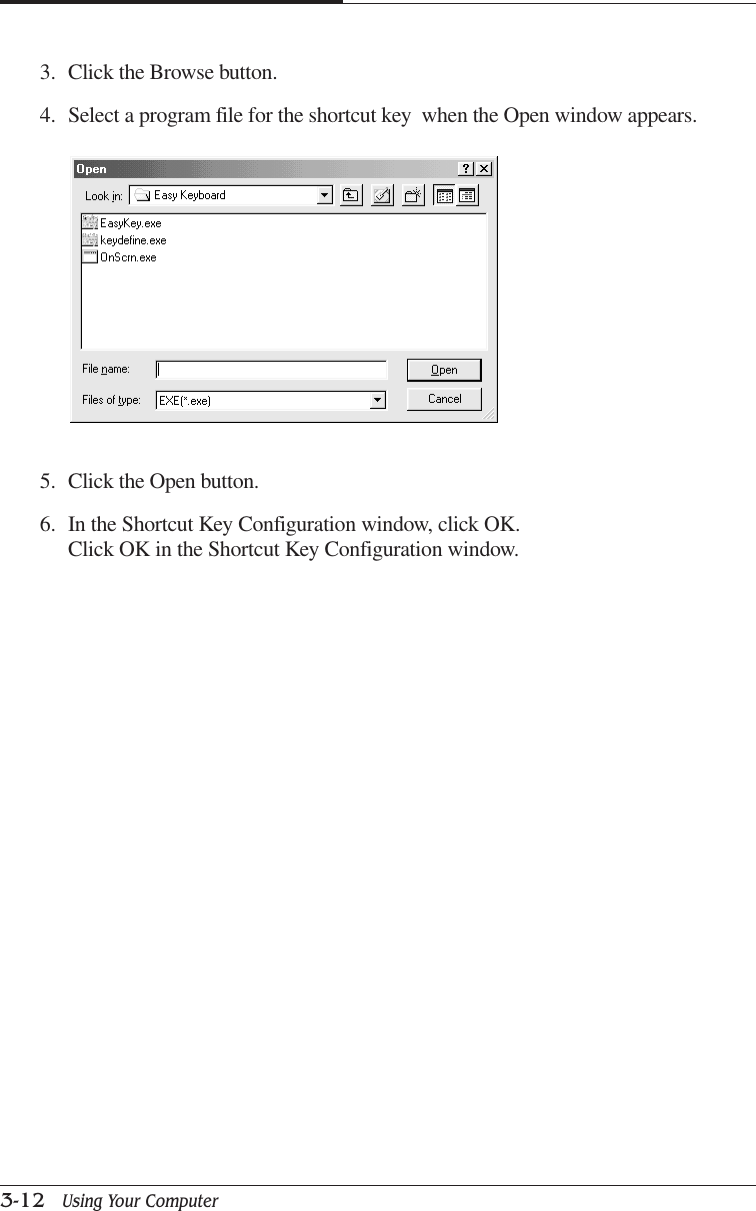
Solving Common Problems   B-5APPENDIX B3. Enter the number for Safe mode, and then press ENTER.Microsoft Windows Startup Menu1.  Normal2.  Logged (\BOOTLOG.TXT)3.  Safe mode4.  Step-by-step confirmation5.  Command prompt only6.  Safe mode command prompt onlyEnter a choice : 34. Click OK in the Desktop window.5. In the Windows desktop, click the Start button, point to Settings, click ControlPanel, and then double-click the Display icon. Or click the right mouse button onthe empty desktop area and click Properties.6. When the Display Properties window appears, click the Settings tab.7. Click OK.
APPENDIX BB-6   Solving Common Problems10. If the Windows screen doesn’t appear on the monitor after restarting, turn off thecomputer and follow these steps.11. Repeat the steps from 1 to 6.12. Click Advanced.13. Click the Adapter tab.14. Click Change.15. When the Update Device Driver Wizard window appears, click Next.16. Check the "Display a list of all the drivers in a specific location, so you can selectthe driver you want." option and click Next.17. Select the Display adapters item in the list box and click Next.18. Select the "Standard display types" menu in the Manufacturers list box and selectthe model for your system in the Models list box. Then click Next.19. Click Yes.20. Click Next.21. Click Finish.22. Click Close.23. Click Close in the Display Properties window.24. Click Yes to continue.25. Click Yes to restart your computer.8. Click Yes to continue.9. Click Yes to restart your computer.NOTEIn case your existing monitor supports higher resolutions or color depths than640*480 and 16 Colors, change the resolution and color depth after restarting.
Solving Common Problems   B-7APPENDIX BKeyboardMouseCause SolutionKeyboard doesn’t Keyboard isn’t firmly or securely connected to the keyboard connector.work Check that the keyboard is connected to the keyboard connector onthe back of your computer, not the mouse connector.Option CardCause SolutionMouse doesn’t work Mouse isn’t firmly or securely connected to the mouse connector.Check that the mouse is connected to the mouse connector on theback of your computer, not the keyboard connector.Mouse needs cleaning.To clean the mouse ball, remove the mouse ball by unscrewing thebottom of the mouse. Then clean the mouse ball with a damp clothand replace the mouse ball.Cause SolutionAfter you add a PCI Your computer can’t recognize the option card.option card in the To recognize the option card, follow these steps:empty slot or 1. Click the Start button, and then point to Settings.change the slot 2. Click Control Panel.location of your PCI 3. Double-click the System icon.option card, your 4. Click the Device Manager tab in the System Properties window.computer isn’t 5. Click the Refresh button. This option updates the hardware list. Thisworking properly process may take a few minutes.
APPENDIX BB-8   Solving Common ProblemsBlank
Approval Statements   C-1Approval StatementsAppendix CAppendix CAppendix CAppendix CAppendix CApproval StatementsFCC Compliance StatementThis equipment has been tested and found to comply with the limits for a class Bdigital device, pursuant to Part 15 of the FCC Rules. These limits are designed toprovide reasonable protection against harmful interference in a residentialinstallation. This equipment generates, uses, and can radiate radio frequency energyand, if not installed and used in accordance with the instructions, may cause harmfulinterference to radio and television reception. However, there is no guarantee thatinterference will not occur in a particular installation. If this equipment does causeinterference to radio and television reception, which can be determined by turningthe equipment off and on, the user is encouraged to try to correct the interference byone or more of the following measures:●Reorient or relocate the receiving antenna.●Increase the separation between the equipment and receiver.●Connect the equipment into an outlet on a circuit different from that to which thereceiver is connected.●Consult the dealer or an experienced radio/TV technician for help.WarningThe connection of a non-shielded equipment interface cable to this equipment willinvalidate the FCC Certification of this device and may cause interference levels thatexceed the limits established by the FCC for this equipment. It is the responsibilityof the user to obtain and use a shielded equipment interface cable with this device. Ifthis equipment has more than one interface connector, do not leave cables connectedto unused interfaces.Changes or modifications not expressly approved by the manufacturer could void theuser’s authority to operate the equipment.
APPENDIX CC-2   Approval StatementsFor Canadian UsersThis digital apparatus does not exceed the Class B limits for radio noise emissionsfrom digital apparatus as set out in the radio interference regulations of the CanadianDepartment of Communications.Le présent appareil numérique n’émet pas de bruits radio électriques dépassant leslimites applicables aux appareils numériques de Class B prescrites dans le règlementsur le brouillage radio électrique édicté par le Ministère des Communications duCanada.Battery Warning InstructionCautionIf battery is incorrectly replaced there poses a danger of explosion. Replace batteryonly with the same or equivalent type recommended by the manufacturer. Discardused batteries according to the manufacturer’s instructions.AttentionIl y a danger d’explosion s’il y a remplacement incorrect de la batterie. Remplaceruniquement avec une batterie du méme type ou d’un type recommandé par leconstructeur. Mettre au rébut les batteries usagées conformément aux instructions dufabricant.VorsichtExplosionsgefahr bei unsachgemäß em Austausch der Batterie. Ersatz nur durchdenselben oder einen vom Hersteller empfohlenen ähnlichen Typ. Entsorgunggebraushter Batterien nach Angaben des Herstellers.
Approval Statements   C-3APPENDIX CFuse Warning InstructionCautionFor continued protection against risk of fire, replace only with same type and ratingof fuse.Disconnect input power before servicing. Only connect this equipment to an earthedsocket outlet.VorsichtVor jeder service-arbeit netzstecker ziehen! Apparatet ma kun tilkobles jordetstikkontakt.AttentionDebrancher avant d’ouvrir. Apparaten skall anslutas till jordat nätuttag.AtencionDesconecte fuerza electrica antes del servicio. Laite on liitettäväsuojakosketinistoraasian.Laser ProductClass 1 Laser ProductThis equipment complies with European Standard EN60825 [harmonized withInternational Electrotechnical Commission (IEC) Publication 825].This equipment is classified as a Class 1 LASER product and there is no hazardousLASER radiation with the safety protection.

APPENDIX CC-4   Approval StatementsCautionThe laser used in the CD-ROM drive can damage your eyes. Do not attempt to openthe cover.To reduce the risk of electric shock, do not remove cover (or back).No user-serviceable parts inside.Refer servicing to qualified service personnel.Use of controls or adjustments or performance of procedures other than thosespecified herein may result in hazardous radiation exposure.Do not open the top cover of the drive and never touch the internal parts in order toavoid EXPOSURE TO INVISIBLE LASER RADIATION.When the power switch is On, do not place your eyes close to the font panel openingdoor and other openings to look into the inside of the drive.AchtungUm die Gefahr eines elektrischen Schlages zu Vermindem, Entfernen Sie nicht dasGehäuse.Keine durch den Anwender zu reparierende Teile im innern.Überlassen Sie den Service qualifiziertem Service-Personal.Da der im CD-ROM Laufwerk benutzte Laser gefährlich für die Augen ist, solltenSie kenieswegs versuchen das Gehäuse zu Öffnen.Lassen Sie den Service nur durch qualifizierte Servicestellen durchfuhern.AttentionPour reduire les risques de decharges, ne demontez pas le capot (ou le panneauarriere) du lecteur.Aucune des pieces internes ne doit etre manipulee par l’utilisateur.Toute interventien doit etre effectuee par un personnel qualifie.Le rayon laser utilisé dans le lecteur CD-ROM est invisible à l’ceil nu. N’essayezdonc pas de démonter le boiter. Pour toute intervention, adressez-vous à unpersonnel qualifié.WarningTo reduce the risk of fire or electric shock, do not expose this appliance to rain ormoisture.AvertissementPour réduire les risques d’incendie ou de choc électrique, n’exposez pas cet appareilà la pluie ou à l’humidité.
Approval Statements   C-5APPENDIX CWanungUm die Gefahr eines Feuers oder eines elektrischen Schlages zu vermeiden, setzensie dieses Gerät niemals Regen oder Feuchtigkeit aus.Use of controls or performance of procedures other than those specified herein mayresult in hazardous radiation exposure.

Navigation menu