Kramer Electronics KT-107 Touch panel communication module User Manual KT 107 KT 107RB

Kramer Electronics Ltd. Touch panel communication module KT 107 KT 107RB

User Manual

 KT-107/KT-107RB Quick Start (P/N: 2900-300786QS REV 4) P/N: 2 9 0 0 - 3 0 0 7 8 6 QS Rev: 4    Scan for full manual KT-107/KT-107RB Quick Start Guide This guide helps you install and use your KT-107/KT-107RB for the first time.  Go to www.kramerav.com/downloads/KT-107 to download the latest user manual and check if firmware upgrades are available.  Step 1:  Check what’s in the box  KT-107/KT-107RB Touch Panel  Tabletop mount  On-wall mount unit  1 Quick start guide  AC/DC adapter  Installation screws  Panel mount plate  1 right-angle OTG USB cable  Step 2:  Get to know your KT-107/KT-107RB  # Feature  Function 1 Hidden Reset Button Located on top-side. Insert a pin and hold for a few seconds to reset  KT-107/KT-107RB 2 Light Sensor Automatically adjusts the screen brightness according to the room lighting conditions 3 Activity RGB LED Lights green when powered, flashes green when charging the battery, lights red when camera on 4 Camera For remote room viewing or video conferencing 5 Microphone For audio communication, recording or conferencing 6 Speakers To output the sound 7 Control Button Touch the Kramer logo area lightly to set the screen to sleep mode or turn it back on.  Press and hold (for 1 to 2 seconds) to open the pop-up menu which lets you power down the unit, reboot it or return to the Home-page.  Press twice to activate the camera  8 Tabletop Mount Connector For connecting to the tabletop mount 9 Cover Covers the wall mount connections and power button 10 Power Button Press to power on the KT-107/KT-107RB. When powered, press briefly to open the pop-up menu and power down the device, reboot it or return to the Home-page.  Press and hold to power down the device immediately. This button is also used for firmware upgrade
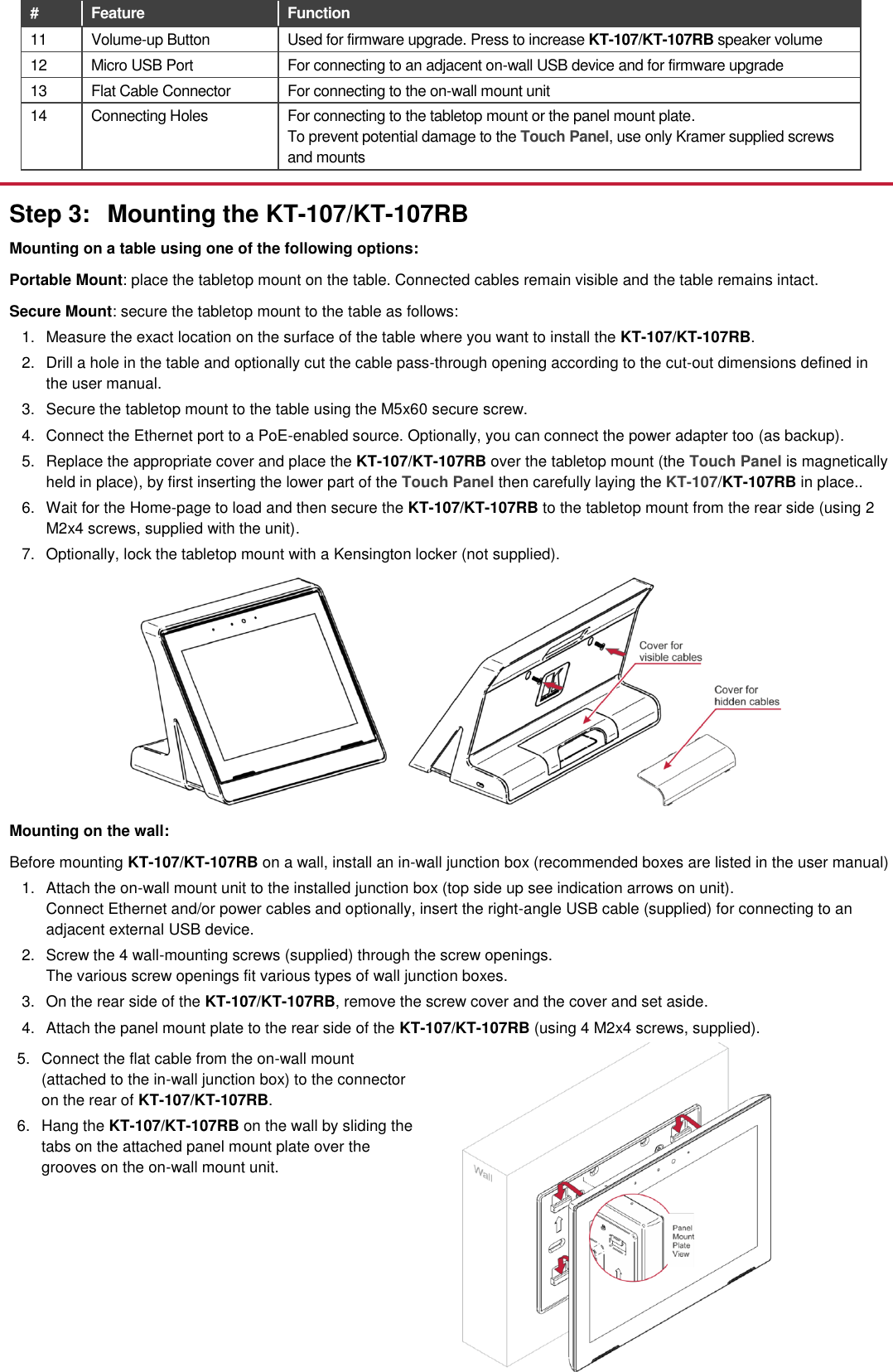
# Feature  Function 11 Volume-up Button Used for firmware upgrade. Press to increase KT-107/KT-107RB speaker volume 12 Micro USB Port For connecting to an adjacent on-wall USB device and for firmware upgrade 13 Flat Cable Connector For connecting to the on-wall mount unit 14 Connecting Holes For connecting to the tabletop mount or the panel mount plate. To prevent potential damage to the Touch Panel, use only Kramer supplied screws and mounts  Step 3:  Mounting the KT-107/KT-107RB Mounting on a table using one of the following options: Portable Mount: place the tabletop mount on the table. Connected cables remain visible and the table remains intact. Secure Mount: secure the tabletop mount to the table as follows: 1.  Measure the exact location on the surface of the table where you want to install the KT-107/KT-107RB. 2.  Drill a hole in the table and optionally cut the cable pass-through opening according to the cut-out dimensions defined in the user manual. 3.  Secure the tabletop mount to the table using the M5x60 secure screw. 4.  Connect the Ethernet port to a PoE-enabled source. Optionally, you can connect the power adapter too (as backup). 5.  Replace the appropriate cover and place the KT-107/KT-107RB over the tabletop mount (the Touch Panel is magnetically held in place), by first inserting the lower part of the Touch Panel then carefully laying the KT-107/KT-107RB in place.. 6.  Wait for the Home-page to load and then secure the KT-107/KT-107RB to the tabletop mount from the rear side (using 2 M2x4 screws, supplied with the unit).  7.  Optionally, lock the tabletop mount with a Kensington locker (not supplied).  Mounting on the wall: Before mounting KT-107/KT-107RB on a wall, install an in-wall junction box (recommended boxes are listed in the user manual) 1.  Attach the on-wall mount unit to the installed junction box (top side up see indication arrows on unit). Connect Ethernet and/or power cables and optionally, insert the right-angle USB cable (supplied) for connecting to an adjacent external USB device. 2.  Screw the 4 wall-mounting screws (supplied) through the screw openings. The various screw openings fit various types of wall junction boxes. 3.  On the rear side of the KT-107/KT-107RB, remove the screw cover and the cover and set aside. 4.  Attach the panel mount plate to the rear side of the KT-107/KT-107RB (using 4 M2x4 screws, supplied). 5.  Connect the flat cable from the on-wall mount (attached to the in-wall junction box) to the connector on the rear of KT-107/KT-107RB. 6.  Hang the KT-107/KT-107RB on the wall by sliding the tabs on the attached panel mount plate over the grooves on the on-wall mount unit.
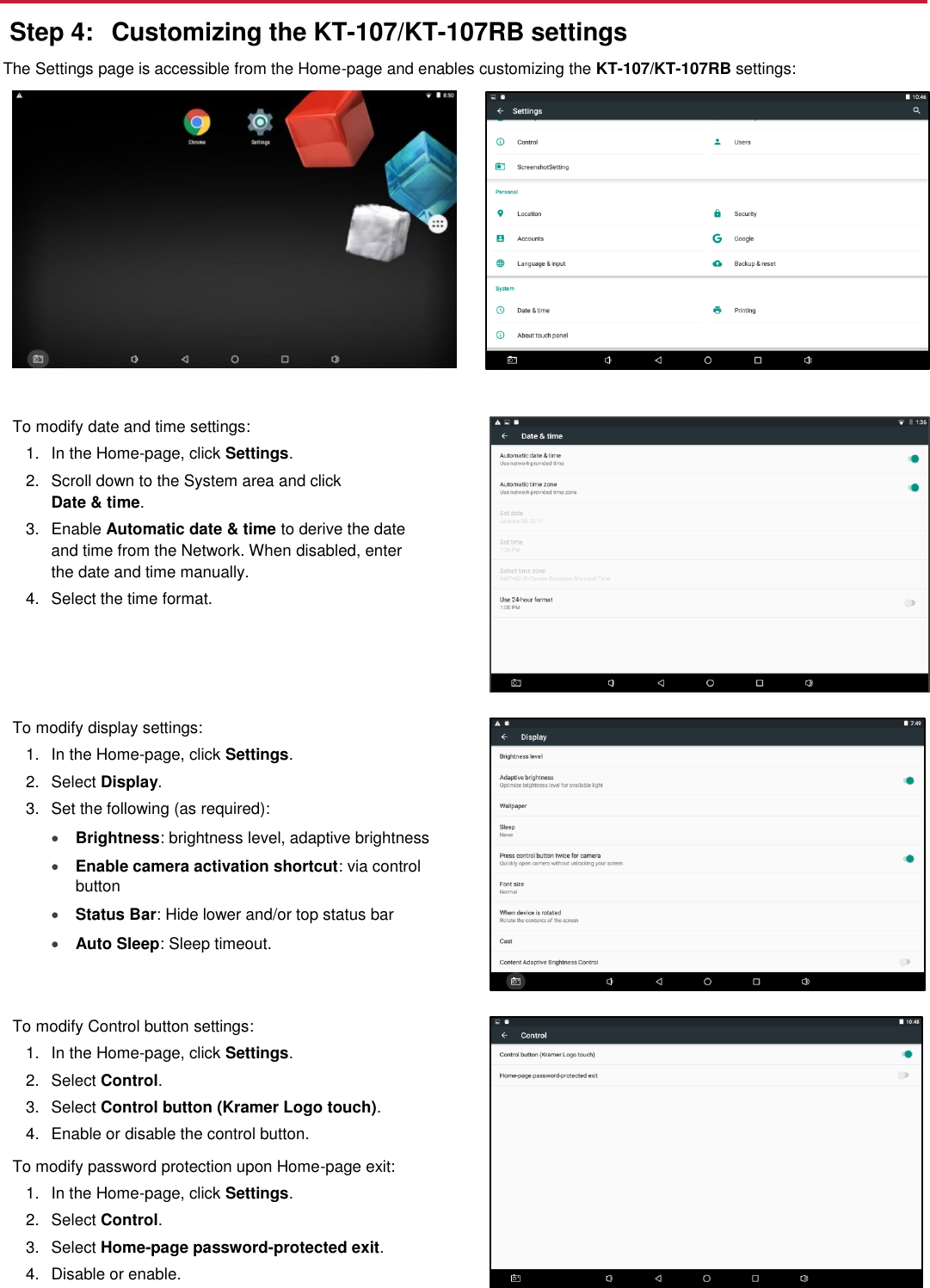
 Step 4:  Customizing the KT-107/KT-107RB settings The Settings page is accessible from the Home-page and enables customizing the KT-107/KT-107RB settings:    To modify date and time settings: 1.  In the Home-page, click Settings. 2.  Scroll down to the System area and click  Date & time.  3.  Enable Automatic date & time to derive the date and time from the Network. When disabled, enter the date and time manually. 4.  Select the time format.  To modify display settings: 1.  In the Home-page, click Settings. 2.  Select Display. 3.  Set the following (as required):   Brightness: brightness level, adaptive brightness  Enable camera activation shortcut: via control button  Status Bar: Hide lower and/or top status bar   Auto Sleep: Sleep timeout.  To modify Control button settings: 1.  In the Home-page, click Settings. 2.  Select Control. 3.  Select Control button (Kramer Logo touch). 4.  Enable or disable the control button. To modify password protection upon Home-page exit: 1.  In the Home-page, click Settings. 2.  Select Control. 3.  Select Home-page password-protected exit. 4.  Disable or enable.
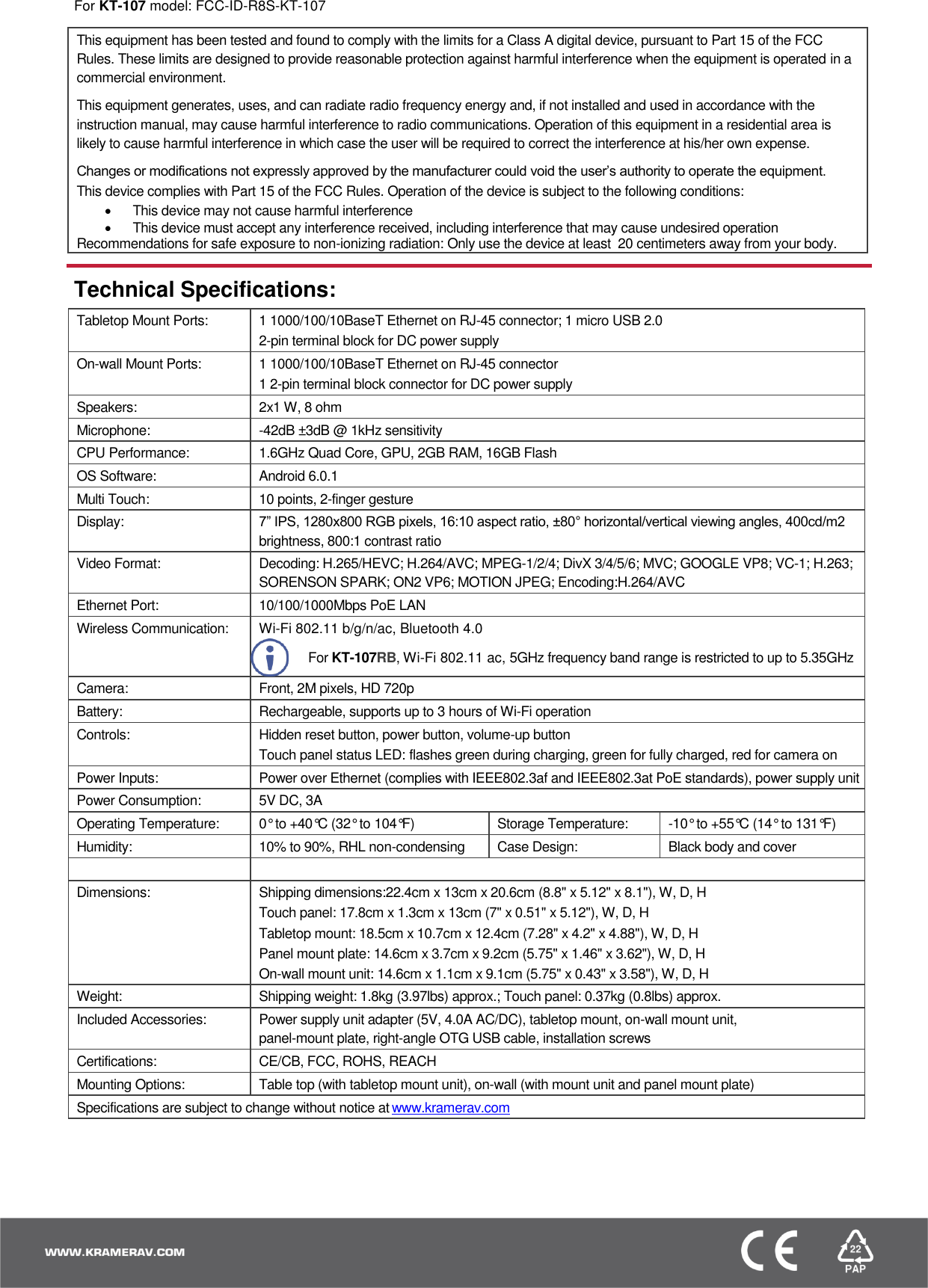
 For KT-107 model: FCC-ID-R8S-KT-107  This equipment has been tested and found to comply with the limits for a Class A digital device, pursuant to Part 15 of the FCC Rules. These limits are designed to provide reasonable protection against harmful interference when the equipment is operated in a commercial environment. This equipment generates, uses, and can radiate radio frequency energy and, if not installed and used in accordance with the instruction manual, may cause harmful interference to radio communications. Operation of this equipment in a residential area is likely to cause harmful interference in which case the user will be required to correct the interference at his/her own expense.  Changes or modifications not expressly approved by the manufacturer could void the user’s authority to operate the equipment. This device complies with Part 15 of the FCC Rules. Operation of the device is subject to the following conditions:   This device may not cause harmful interference   This device must accept any interference received, including interference that may cause undesired operation Recommendations for safe exposure to non-ionizing radiation: Only use the device at least  20 centimeters away from your body.  Technical Specifications: Tabletop Mount Ports: 1 1000/100/10BaseT Ethernet on RJ-45 connector; 1 micro USB 2.0 2-pin terminal block for DC power supply On-wall Mount Ports: 1 1000/100/10BaseT Ethernet on RJ-45 connector 1 2-pin terminal block connector for DC power supply Speakers: 2x1 W, 8 ohm  Microphone: -42dB ±3dB @ 1kHz sensitivity CPU Performance: 1.6GHz Quad Core, GPU, 2GB RAM, 16GB Flash OS Software: Android 6.0.1 Multi Touch: 10 points, 2-finger gesture Display: 7” IPS, 1280x800 RGB pixels, 16:10 aspect ratio, ±80° horizontal/vertical viewing angles, 400cd/m2 brightness, 800:1 contrast ratio Video Format: Decoding: H.265/HEVC; H.264/AVC; MPEG-1/2/4; DivX 3/4/5/6; MVC; GOOGLE VP8; VC-1; H.263; SORENSON SPARK; ON2 VP6; MOTION JPEG; Encoding:H.264/AVC Ethernet Port: 10/100/1000Mbps PoE LAN  Wireless Communication: Wi-Fi 802.11 b/g/n/ac, Bluetooth 4.0   For KT-107RB, Wi-Fi 802.11 ac, 5GHz frequency band range is restricted to up to 5.35GHz Camera: Front, 2M pixels, HD 720p Battery: Rechargeable, supports up to 3 hours of Wi-Fi operation  Controls: Hidden reset button, power button, volume-up button Touch panel status LED: flashes green during charging, green for fully charged, red for camera on Power Inputs: Power over Ethernet (complies with IEEE802.3af and IEEE802.3at PoE standards), power supply unit Power Consumption: 5V DC, 3A Operating Temperature: 0° to +40°C (32° to 104°F) Storage Temperature: -10° to +55°C (14° to 131°F)  Humidity: 10% to 90%, RHL non-condensing Case Design: Black body and cover   Dimensions: Shipping dimensions:22.4cm x 13cm x 20.6cm (8.8" x 5.12" x 8.1"), W, D, H Touch panel: 17.8cm x 1.3cm x 13cm (7" x 0.51" x 5.12"), W, D, H Tabletop mount: 18.5cm x 10.7cm x 12.4cm (7.28" x 4.2" x 4.88"), W, D, H Panel mount plate: 14.6cm x 3.7cm x 9.2cm (5.75" x 1.46" x 3.62"), W, D, H On-wall mount unit: 14.6cm x 1.1cm x 9.1cm (5.75" x 0.43" x 3.58"), W, D, H Weight: Shipping weight: 1.8kg (3.97lbs) approx.; Touch panel: 0.37kg (0.8lbs) approx. Included Accessories: Power supply unit adapter (5V, 4.0A AC/DC), tabletop mount, on-wall mount unit,  panel-mount plate, right-angle OTG USB cable, installation screws Certifications: CE/CB, FCC, ROHS, REACH Mounting Options: Table top (with tabletop mount unit), on-wall (with mount unit and panel mount plate) Specifications are subject to change without notice at www.kramerav.com

Navigation menu