LG MP500 ADBB User Manual Owner's ENG;
2018-04-02
User Manual: LG MP500-ADBB Owner's Manual Most comprehensive of product setup and usage. (English)
Open the PDF directly: View PDF  .
.
Page Count: 44
- Licenses
- MP500-A*** / MP500-B***
- MP500-F***

DIGITAL
SIGNAGE
MEDIA
PLAYER
(Hardware)
OWNER’S MANUAL
Please read this manual carefully before operating
the product and retain it for future reference.
http://partner.lge.com
www.lg.com
MP500-A***
MP500-B***
MP500-F***

2
TABLE OF CONTENTS
Licenses .....................................................................................4
Replacing Flash Memory Battery ...............................................4
MP500-A*** / MP500-B***
Specications .............................................................................5
General Specifications .................................................................................................. 5
Multi I/O Port ................................................................................................................. 5
Operational Specifications ............................................................................................ 6
Included in the Box .....................................................................7
Basic Components ........................................................................................................ 7
Optional Items ............................................................................................................... 7
Connections ...............................................................................8
Front Panel .................................................................................................................... 8
Back Panel .................................................................................................................... 8
How to Install on Monitor ............................................................9
**WS50, **LT55A Models .............................................................................................. 9
**WX50MF Model ........................................................................................................ 10
How to Install the Guide Bracket ..............................................11
In/Out Cable Connection ..........................................................13
Connecting a Monitor with an HDMI Cable ................................................................. 14
Connecting/Disconnecting HDMI Audio Device in Windows ....................................... 16
Connecting a Monitor with DP Cable .......................................................................... 17
Connection to Multiple Monitors .................................................................................. 20

3
MP500-F***
Specications ...........................................................................22
General Specifications ................................................................................................ 22
Multi I/O Port ............................................................................................................... 22
Operational Specifications .......................................................................................... 23
Included in the Box ...................................................................24
Basic Components ...................................................................................................... 24
Optional Items ............................................................................................................. 25
Connections .............................................................................26
Front Panel .................................................................................................................. 26
Back Panel .................................................................................................................. 26
How to Install on Monitor ..........................................................27
**WS50, **LT55A Models ............................................................................................ 27
**WX50MF Model ........................................................................................................ 28
How to Install the Guide Bracket ..............................................29
In/Out Cable Connection ..........................................................31
Connecting a Monitor with DP Cable .......................................................................... 32
Connecting a Monitor with DP to HDMI Adapter ......................................................... 35
Connecting/Disconnecting DP Audio Device in Windows ........................................... 38
Connection to Multiple Monitors .................................................................................. 39
Limitations of Microsoft Windows Embedded Standard ...........41
Frequently Asked Questions (FAQs) ........................................41
Unied Codecs .........................................................................42
Network Setting ........................................................................42
Attention
● LG Electronics does not guarantee the service of the OS not included in the purchase of the product.
4
Licenses
Supported licenses may differ by model. For more information of the licenses,
visit
www.lg.com
.
HDMI, the HDMI logo and High-Definition Multimedia
Interface are trademarks or registered trademarks of HDMI
Licensing LLC.
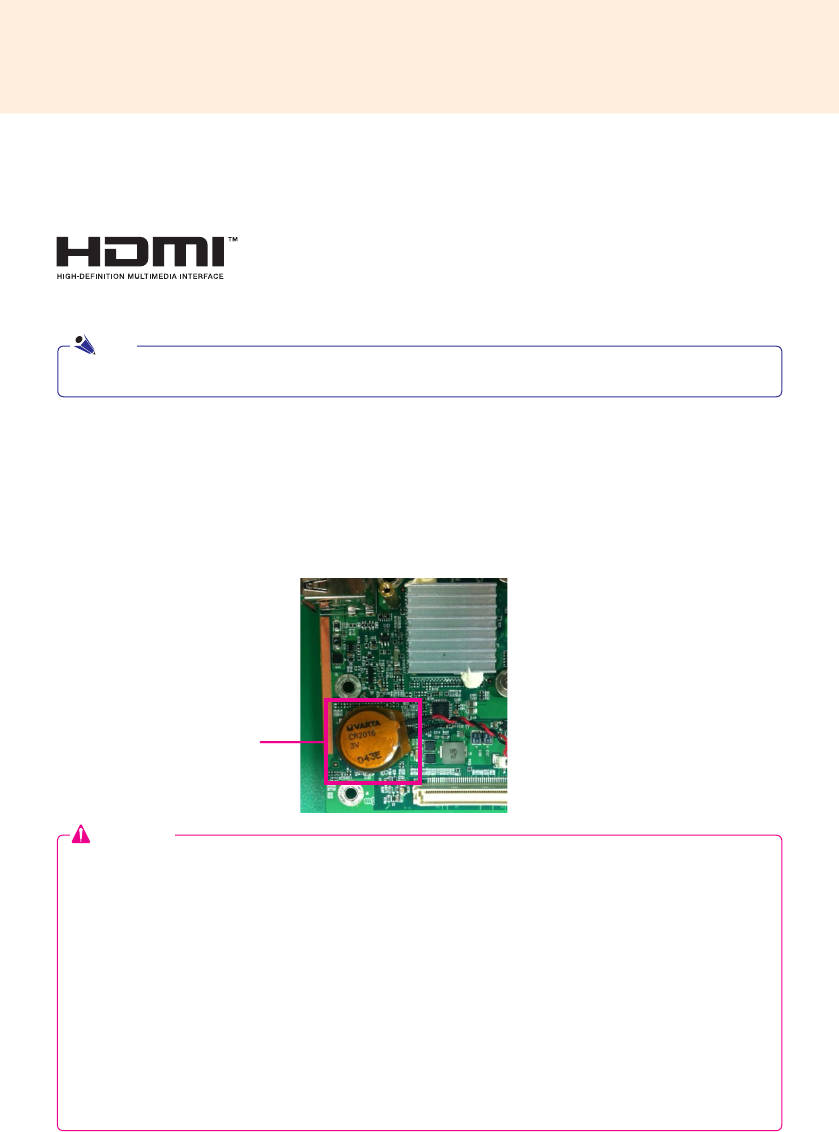
● When you change the flash memory battery, it is recommended that you seek assistance from the LG
Electronics Service Center.
● Using a non-standard battery may cause a malfunction.
● If a malfunction is caused by trying to replace a part on your own, servicing will be charged.
● If the product is not connected to the AC power for an extended period of time, the flash memory battery
may be discharged. In this case, servicing will be charged.
● When the battery is discharged, the message below will appear on the boot screen. In this case, you should
replace the battery.
=> ERROR
0271: Check data and time settings
WARNING
0251: System CMOS checksum bad - Default configuration used
Press <F1> to resume, <F2> to Setup
Attention
Replacing Flash Memory Battery
The ash memory battery helps maintain the system (BIOS) settings when the computer is powered off.
The ash memory battery is a consumable part.
● It may differ depending on the product.
Note
Flash Memory Battery
5
Attention
● Product specifications may change without prior notice to improve performance.
Specications
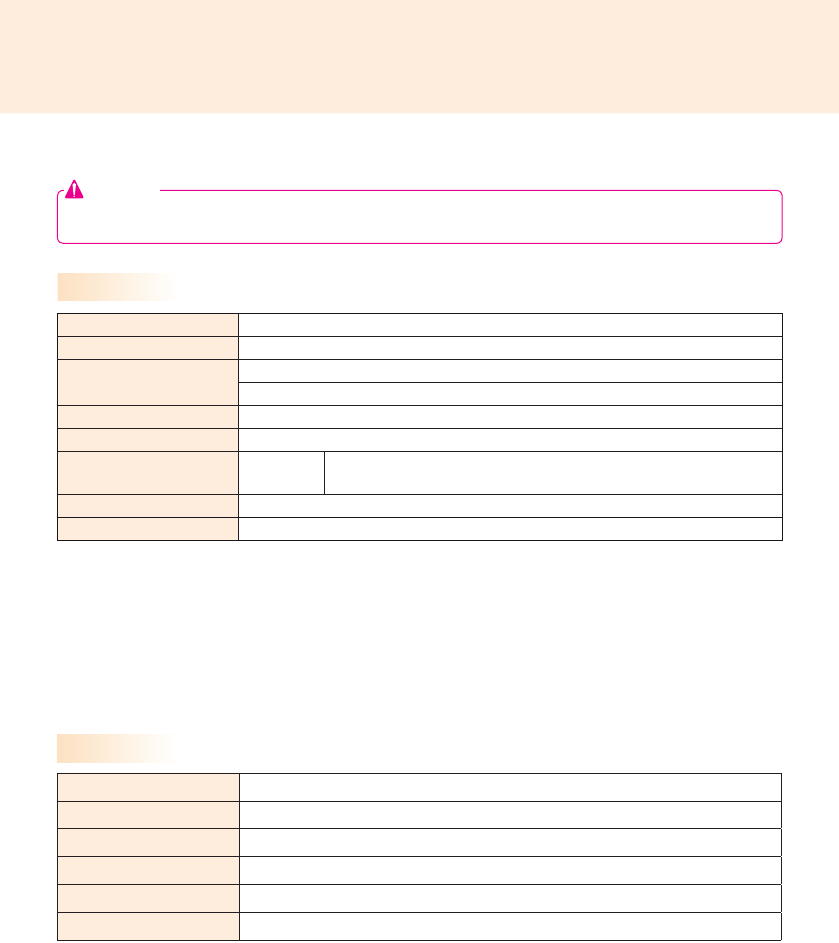
Dimensions 260 mm (W) x 40.1 mm (H) x 275.9 mm (D) (only Set)
Weight 2.08 Kg (only Set)
CPU Intel® Celeron™ Processor P4500 (2M Cache, 1.86 GHz)
Intel® Core™ i5-520M Processor (3M Cache, 2.40 GHz)
Chip Set Mobile Intel® QM57 Express Chipset
Main Memory DDR3 SODIMM type 2 GB
Secondary Storage
Device SSD 64 GB, 128 GB
O/S
Microsoft
®
Windows
®
Embedded Standard 7 P
Embedded battery Applied
General Specifications
Multi I/O Port
Serial Port One external RS-232C Serial port
USB Port Hi-Speed USB 2.0 port 480 Mbps rate (x4)
LAN Port Intel® 82577 Gigabit Ethernet PHY
HDMI / DP Intel® HD Graphics Controller
Mini PCIe Supported
LINE OUT Supported
MP500-A*** / MP500-B***
6
Operational Specifications
● The resolution which is supported may differ depending on the monitors.
● Booting the Media Player using a device connected via a USB port may not work properly, depending on the
device.
Note
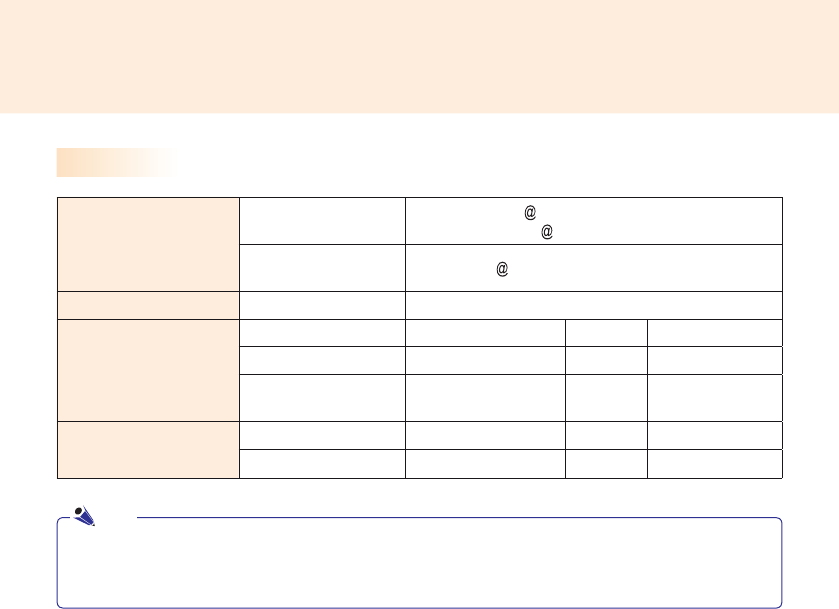
Resolution
Maximum Resolution DP: 2560 x 1600 60 Hz
HDMI: 1920 x 1200 60 Hz
Recommended
Resolution 1920 x 1080 60 Hz
Power Power Rating 100-240 V~ 50/60 Hz 1.3 A
Operating Condition
Video LED Sync (H/V)
Max Mode Active On ≤ 50 W
Deep Sleep Mode
(Set = Off) Off Off ≤ 1 W
Environmental Conditions Operating Conditions 5
°c
to 40
°c
Humidity 10 % to 80 %
Storage Conditions -20
°c
to 60
°c
Humidity 5 % to 85 %
7
Included in the Box
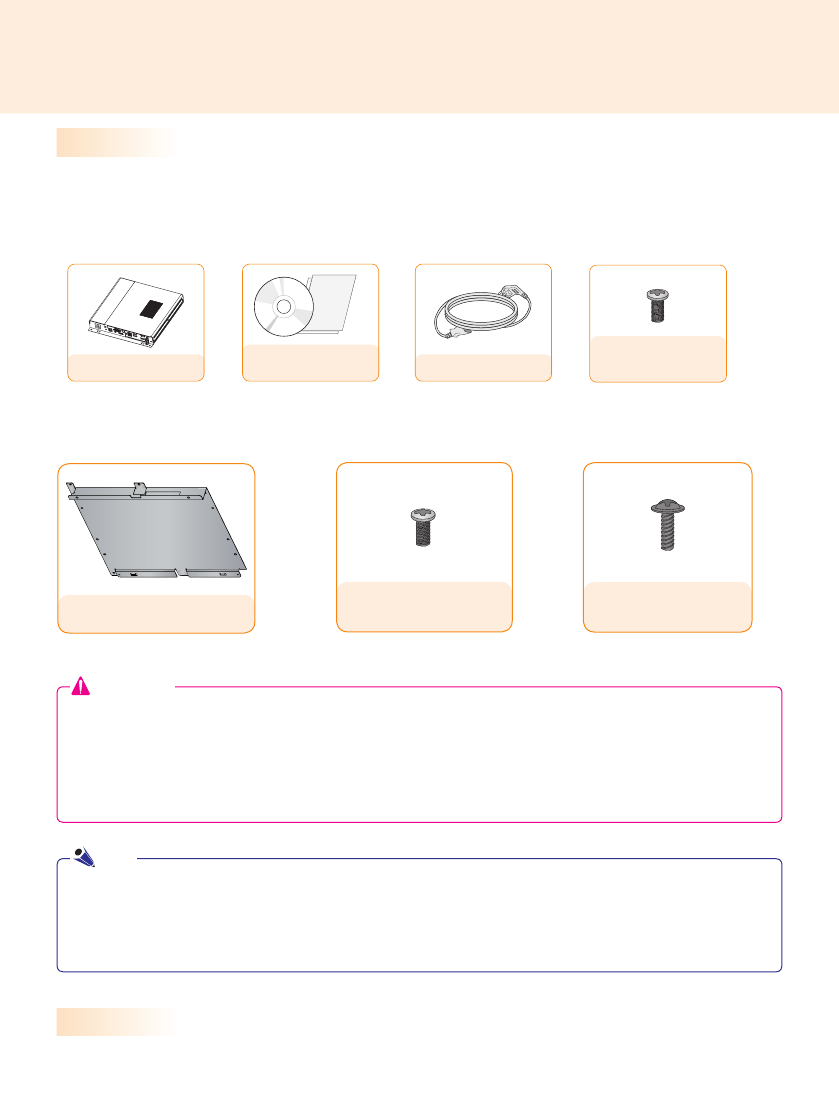
The MP500 with the following components. Please check that these components have been included prior
to installation.
The following items are supported by the MP500, but are not provided with the product.
Please purchase optional items as needed.
● HDMI cable, DP cable, LINE-OUT cable, LAN cable, mouse, keyboard.
Basic Components
Optional Items
● SuperSign software and manual.
- Downloading from the LG Electronics website.
- Visit the LG Electronics website (http://partner.lge.com) and download the latest software for your model.
(Depending on the model, this feature may not be supported.)
Note
MP500
Owner's Manual
/ Cards Power Cable
< Basic Components >
< Optional Components >
Φ3 L12 x 4 EA (Fixing
screws for plastic back cover)
M3 L8 x 4 EA (Fixing screws
for metal back cover)
Guide Bracket
● These illustrations may differ from your product and are subject to change.
● In some countries, a Y-type cable may be provided instead of the power cord.
● Always use genuine components to ensure safety and product life. Any damages or injuries by misuse or
using an improper accessory are not covered by the warranty.
● The guide bracket may not be provided depending on your region or model.
Attention
M3 L6 x 4 EA
(Fixing screws)
8
Connections
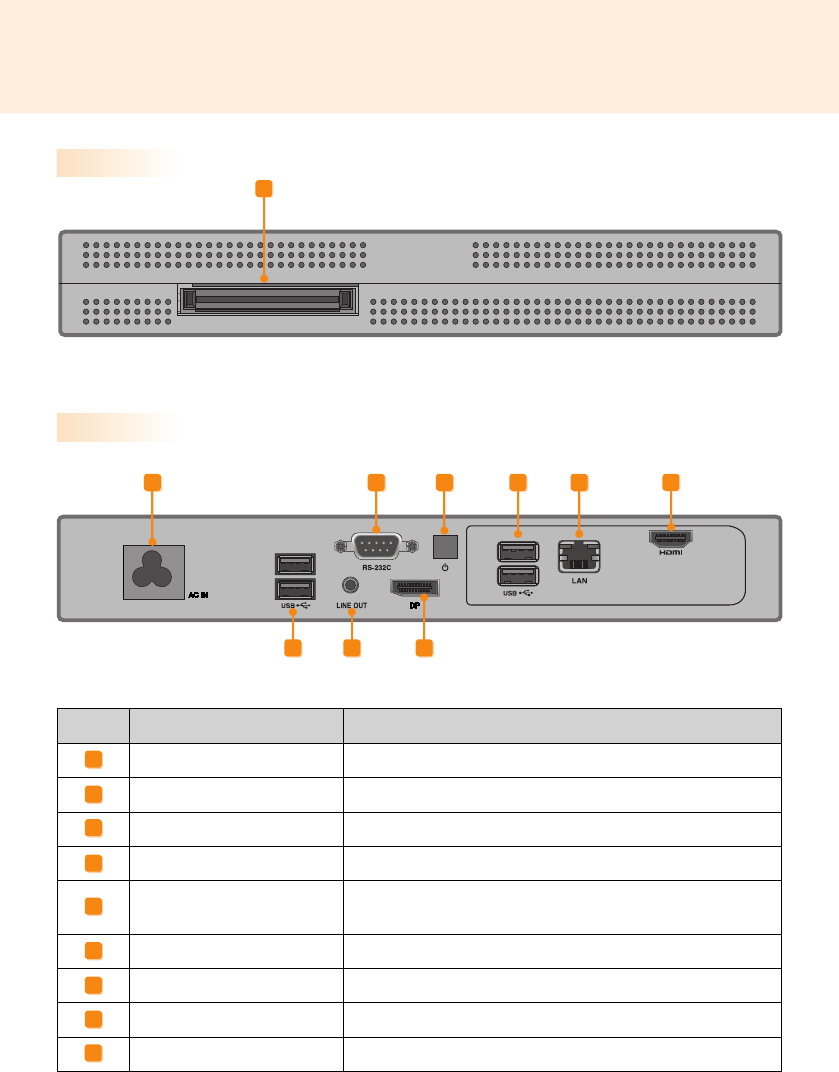
Back Panel
ABCGE F
H
ED
Number Connection Description
Power Cable In For the power cable.
RS-232C Out For the RS-232C cable.
Power Button Turns MP500 on.
LINE-OUT Connector For a LINE-OUT cable for analog audio transfer.
USB In For USB-type devices, including memory, hard disk, CD-ROM, key-
board, and mouse.
HDMI Out For an HDMI-compatible monitor.
LAN Connector For a LAN cable.
DP Output Port Connects the cable to the DP-supporting monitor.
Monitor Docking Port Connects the MP500 to a monitor.
A
B
C
D
E
F
G
H
I
Front Panel
I
9
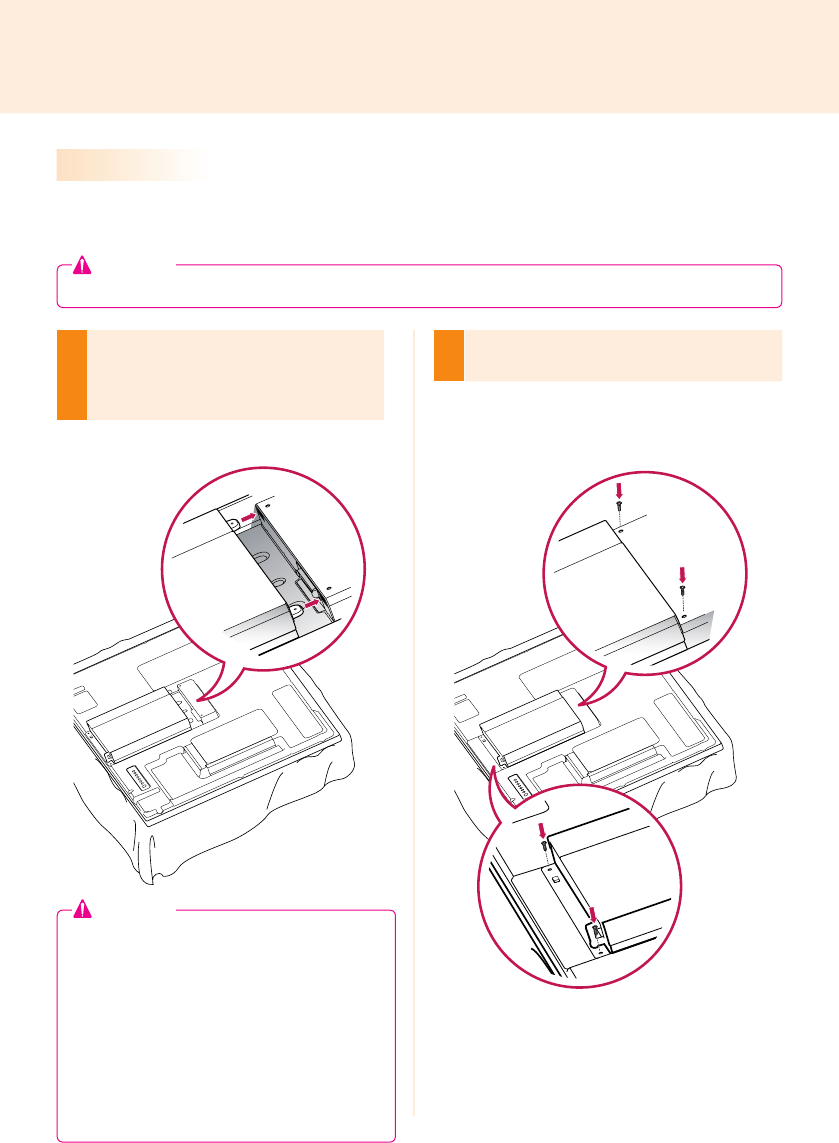
We recommend you to use the items provided with your MP500 and follow our instructions for integrating
the product with your monitor in order to ensure the correct results.
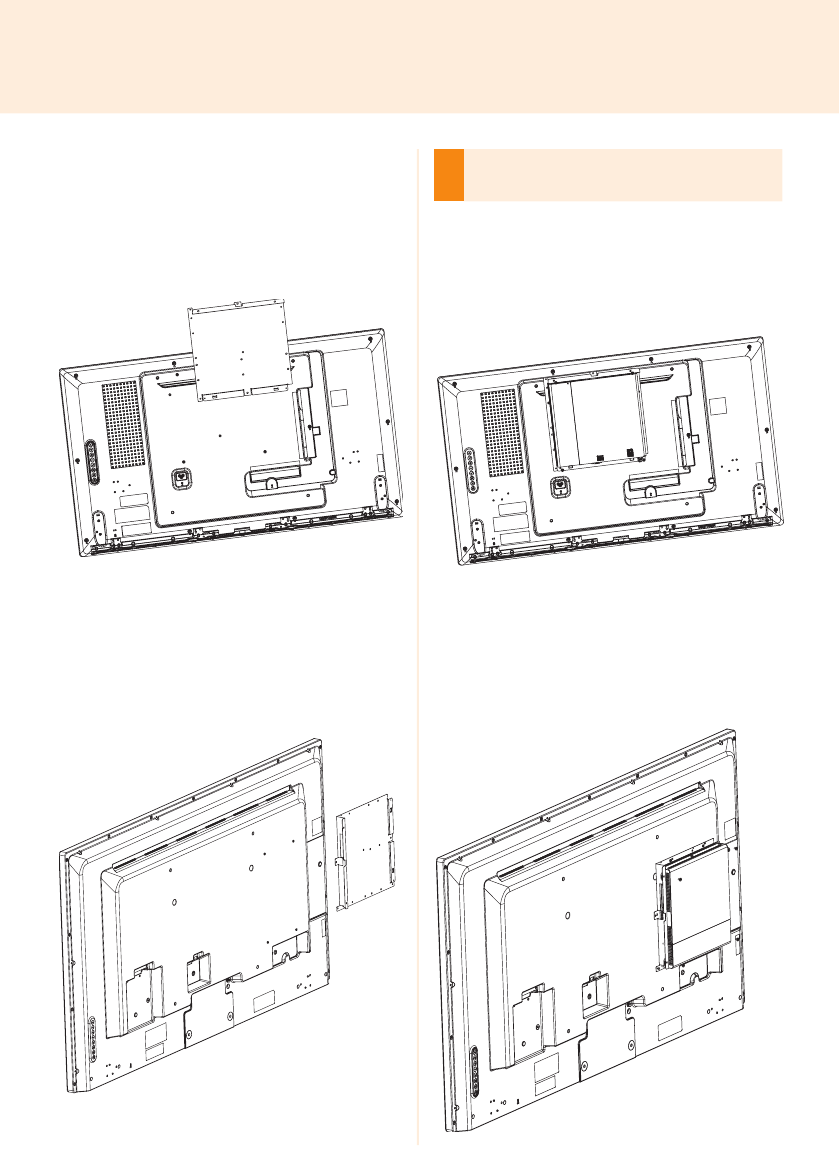
1
Place a soft cloth on the table and put the
product with the screen facing downward.
Push the MP500 into the compartment to
mount it.
2
Attach the MP500 on the set using the four
screws provided.
How to Install on Monitor
**WS50, **LT55A Models
● Be careful of sharp edges on the rail and the
handle.
● Fixing the product with non-standard screws
may cause damage or the product to fall down.
LG Electronics is not liable for any accidents
relating to the use of non-standard screws.
● Do not over tighten the screws as this may
cause damage to the product and void your
warranty.
Attention
● The illustrations shown are to guide your integration and may differ from your product.
Attention
10
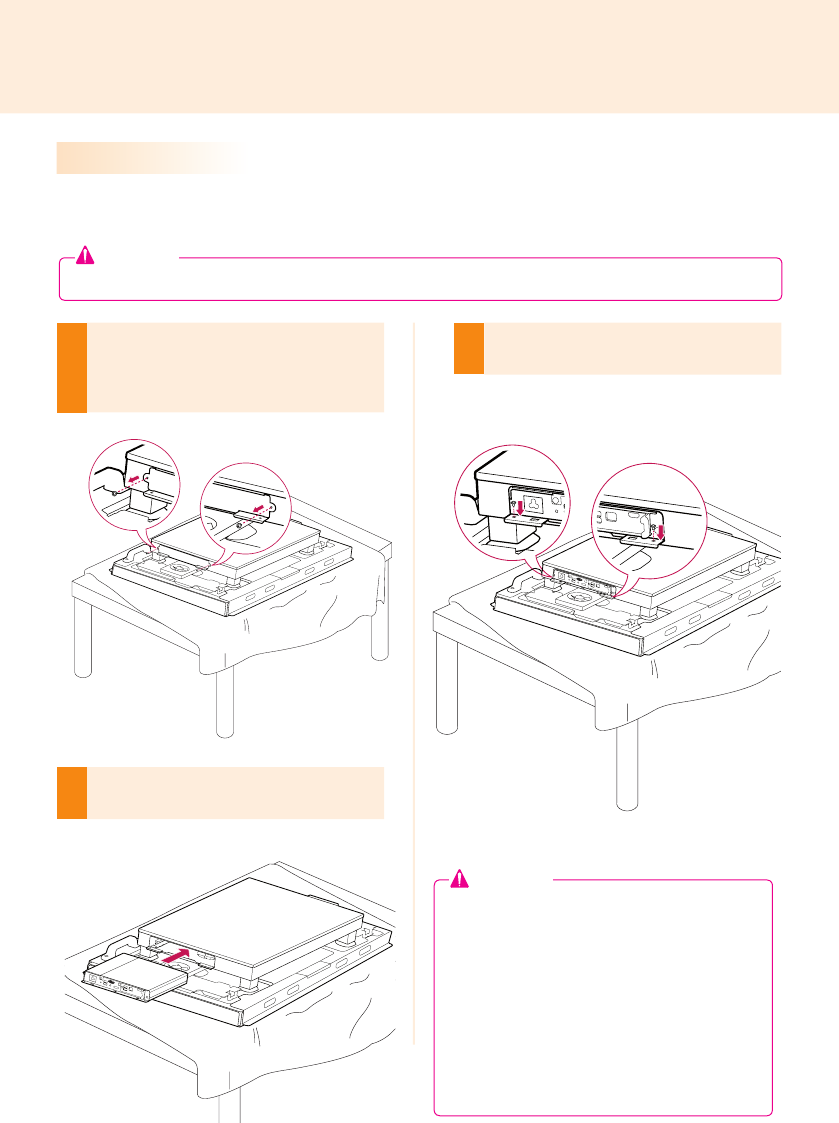
For proper use, it is recommended to use the basic components provided with the MP500 to attach it to a
monitor.
1
Place a soft cloth on the table and put the
product with the screen facing downward.
Remove the opening cover by unfastening two
screws as shown in the picture.
2
Push the MP500 into the compartment to
mount it.
3
Attach the MP500 on the product using the
two screws provided.
**WX50MF Model
● The illustrations shown are to guide your integration and may differ from your product.
Attention
● Be careful of sharp edges on the rail and the
handle.
● Attaching the product with non-standard
screws may cause damage or the product to
fall down. LG Electronics is not liable for any
accidents relating to the use of non-standard
screws.
● Do not over tighten the screws as this may
cause damage to the product and void your
warranty.
Attention
11
How to Install the Guide Bracket
1
2
1
2
1
2
1
2
1
2
1
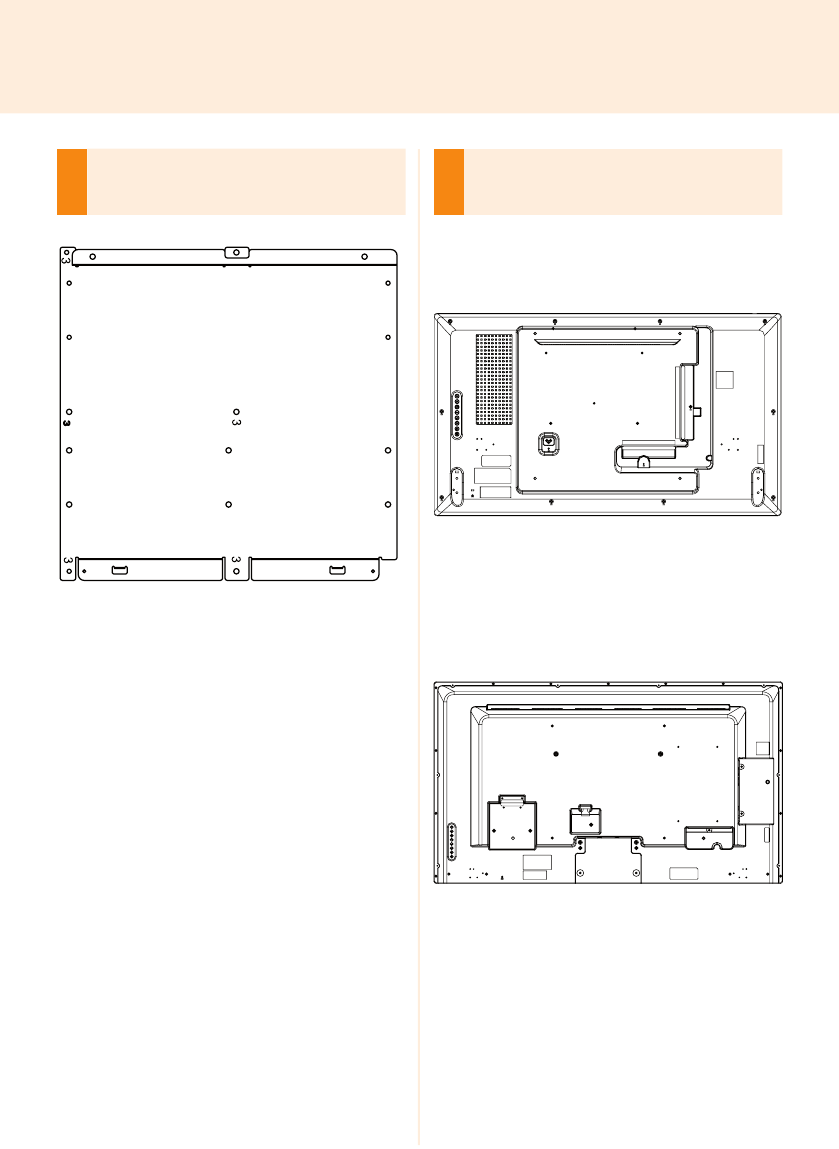
Make sure to match the numbers carved on the
guide bracket and the numbers on the back cover
when assembling the guide bracket.
2
Attach the guide bracket to the back of your moni-
tor. (3 or 4 screws are required depending on the
model.)
<Model that requires 3 xing screws for assembling
the guide bracket>
<Model that requires 4 xing screws for assembling
the guide bracket>
12
<Model that requires 3 xing screws for assembling
the guide bracket>
<Model that requires 4 xing screws for assembling
the guide bracket>
3
Assemble the MP500-A/B*** to the guide bracket
with the xing screws.
<Model that requires 3 xing screws for assembling
the guide bracket>
Attach the MP500-A/B*** to the guide bracket with 3
xing screws.
<Model that requires 4 xing screws for assembling
the guide bracket>
Attach the MP500-A/B*** to the guide bracket with 4
xing screws.
13
In/Out Cable Connection
To view images on the monitor that is not connected to the monitor docking port of MP500, you need to con-
nect the MP500 to the monitor via an HDMI or DP cable.
● HDMI, DP, LINE-OUT, and LAN cables are not included in the basic components. You need to purchase a
cable separately as it is not provided as an accessory.
● After cabling is complete, assign the SET ID of the monitor to be connected to MP500.
● To configure the SET ID, please refer to the owner’s manual for your monitor.
Attention
When using the SuperSign Manager software:
● The monitor's SET ID is a unique number used to identify the monitor. You can choose a number from 1
to 25. The SET ID allows the SuperSign Manager software to identify the monitor.
● In order to directly connect the monitor to the MP500, its SET ID must be set to 1.
● To use SuperSign Manager, the monitor that will be connected to a MP500 must support the LG RS-232C
protocol. A monitor supporting the LG RS-232C protocol can be controlled the monitor functions, such as
brightness and sound, using SuperSign Manager.
Note
14
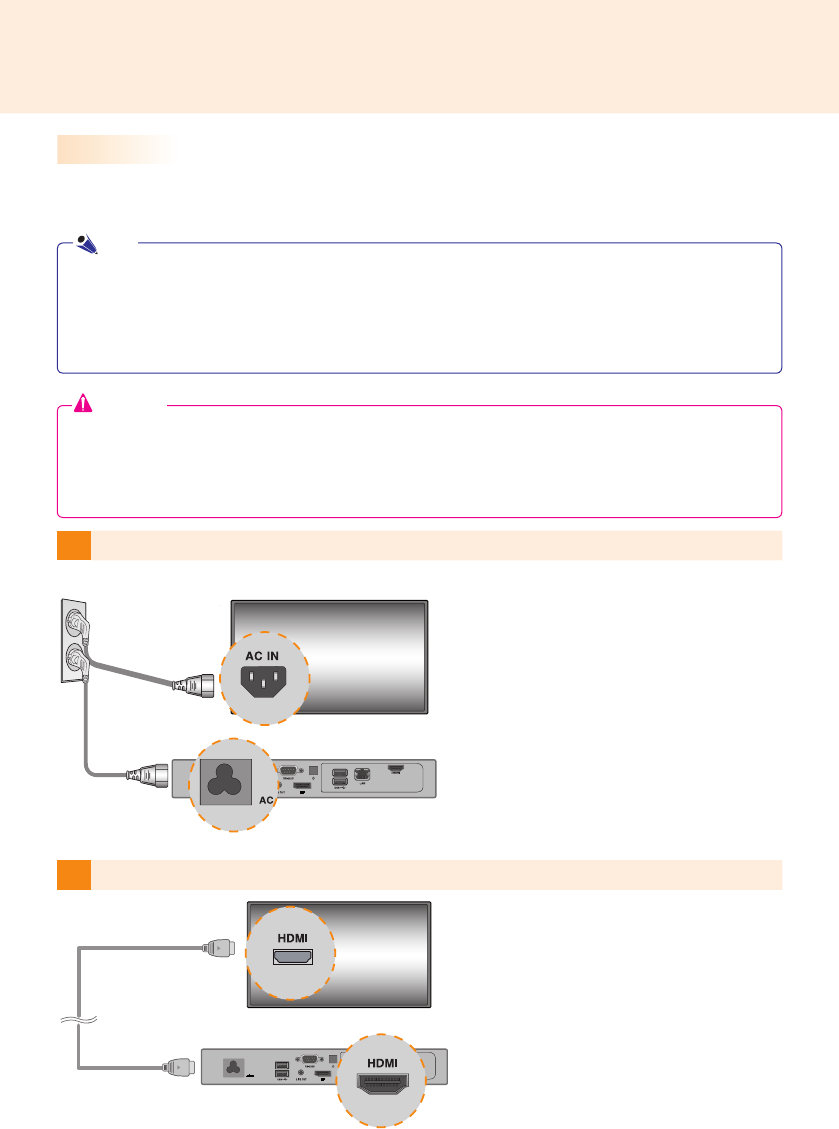
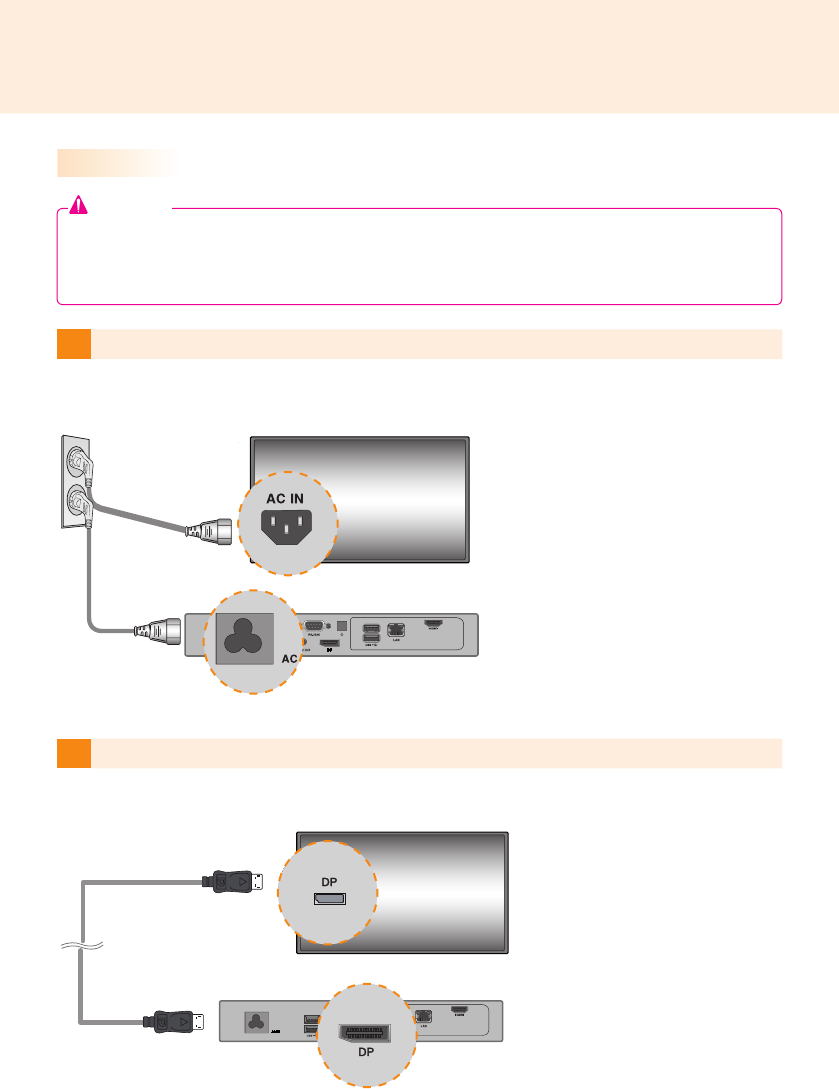
2Connect MP500 to a monitor with an HDMI cable.
1
Connect the appropriate power cables to a monitor and MP500 respectively.
Connecting a Monitor with an HDMI Cable
HDMI connections allow digital video and audio signals to be transferred with one cable.
HDMI cable connections do not require an additional audio in cable.
● The monitor to connect with MP500 should have the HDMI in for the HDMI connection.
● To use an HDMI device, connection should be done on the Windows, the operating system of MP500. To
connect and disconnect the HDMI audio device, see the Connecting/Disconnecting HDMI Audio Device in
Windows section of this document.
Attention
Note
●
Use a certied cable with the HDMI logo attached. If you do not use a certied HDMI cable, the screen
may not display or a connection error may occur.
●
Recommended HDMI cable types
-High-Speed HDMI®/™ Cable
-High-Speed HDMI®/™ Cable with Ethernet
15
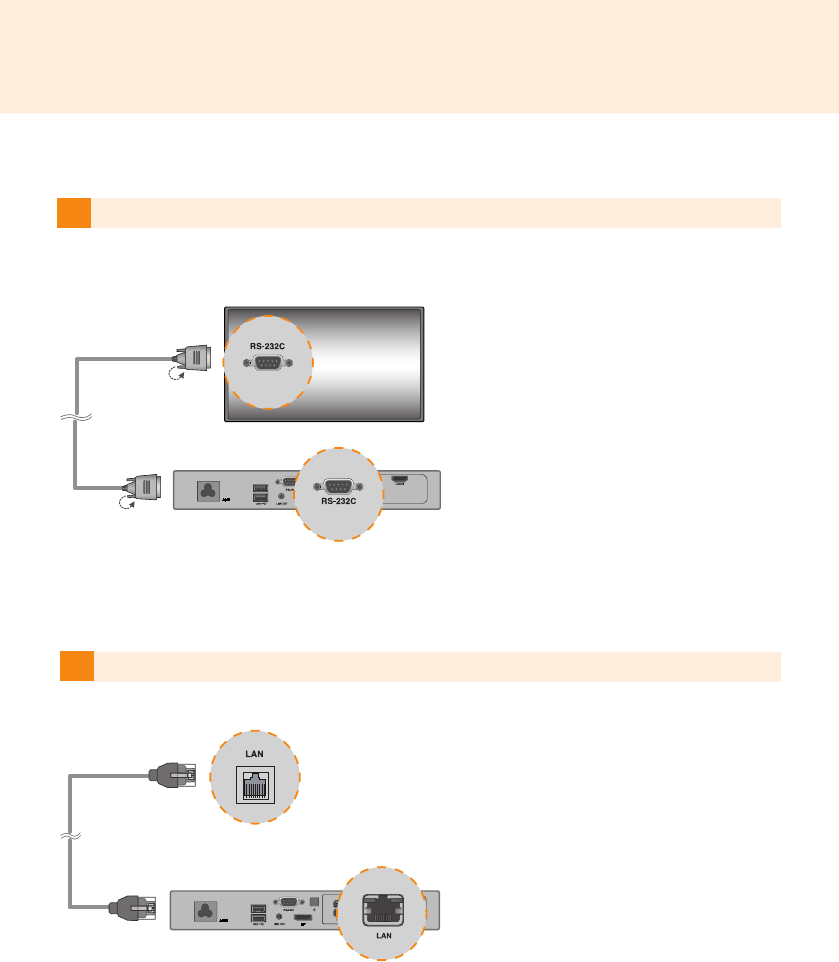
4Connect a LAN cable to MP500.
3Connect MP500 (OUT) to the monitor (IN) with an RS-232C cable.
16
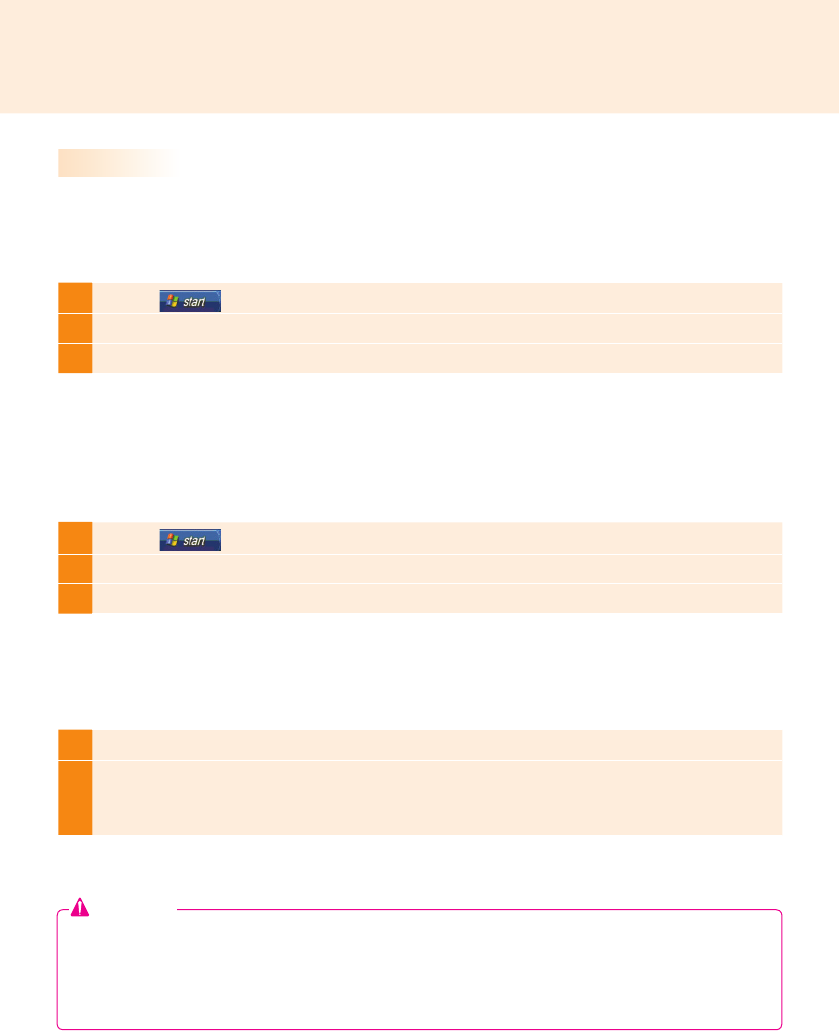
1Click the button in the lower left of the screen.
2Select Start > Control Panel > Sounds and Audio Devices > Audio.
3Select Play Sounds > Intel(R) Display Audio Output 1 from the list and click OK.
1Click the button in the lower left of the screen.
2Select Start > Control Panel > Sounds and Audio Devices > Audio.
3Select Play Sounds > Realtek HD Audio output from the list and click OK.
1Select Start > Control Panel > Hardware and Sound > Sound.
2
Click the Play tap rst. Right-click on the HDMI device or speakers you want and select Set as Default
Device then click OK to connect the HDMI audio device or select Disabl
e to disconnect it.
※ In order to change the audio devices, you may restart the computer.
Connecting/Disconnecting HDMI Audio Device in Windows
Connecting HDMI Audio Device
Disconnecting HDMI Audio Device
Connecting/Disconnecting HDMI Audio Device in Windows Embedded Standard 7 P
Move to the desktop of the monitor connected to the MP500.
Move to the desktop of the monitor connected to the MP500.
Attention
● If an audio device is connected or removed while media content is played, you need to stop the content
and play again.
● If an HDMI cable is removed from the MP500, sound does not play. In addition, when the cable is
reconnected, it may take time before sound plays again.
17
Connecting a Monitor with DP Cable
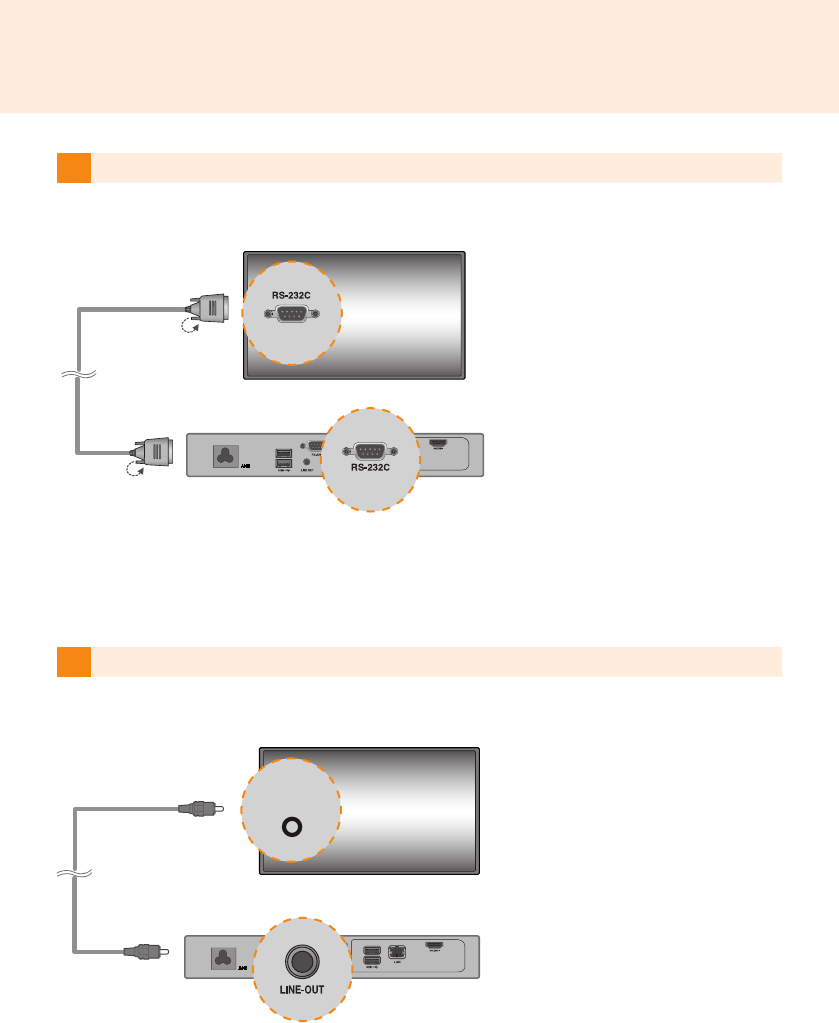
2Connect
MP500
to the monitor via a DP cable.
1
Connect the appropriate power cables to a monitor and MP500 respectively.
● To enable DP connection, the monitor that will be connected to MP500 must support the DP input port.
● When connecting the DP (DisplayPort) cable, use the standard cable. Using a non-standard cable may
cause a malfunction.
Attention
18
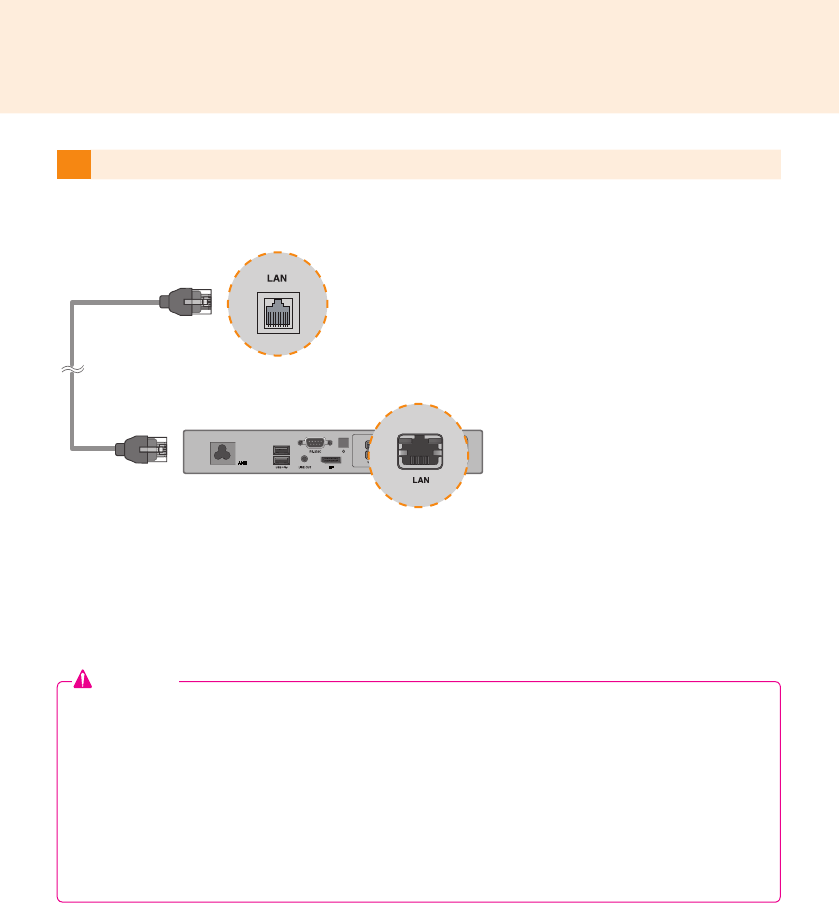
4Connect the
MP500
to the monitor with a LINE-OUT cable.
3Connect
MP500
to the monitor (IN) with an RS-232C cable.
AUDIO
IN
AUDIO
IN
AUDIO
IN
19
5Connect a LAN cable to
MP500.
Attention
● MP500 prioritizes video output in the following order: DP → HDMI. If you connect multiple cables
simultaneously and turn the product on, video output is prioritized accordingly.
● When the product is turned on after cable connection or the operating system is completely
booted, DP and HDMI video output start operating.
● The product does not support a dual mode where DP can be switched either to HDMI or DVI.
It is only for DP output.
● The DisplayPort (DP) of the MP500 does not support digital audio output. It is recommended to use
it with a line-out cable for analog audio output.
20
Connection to Multiple Monitors
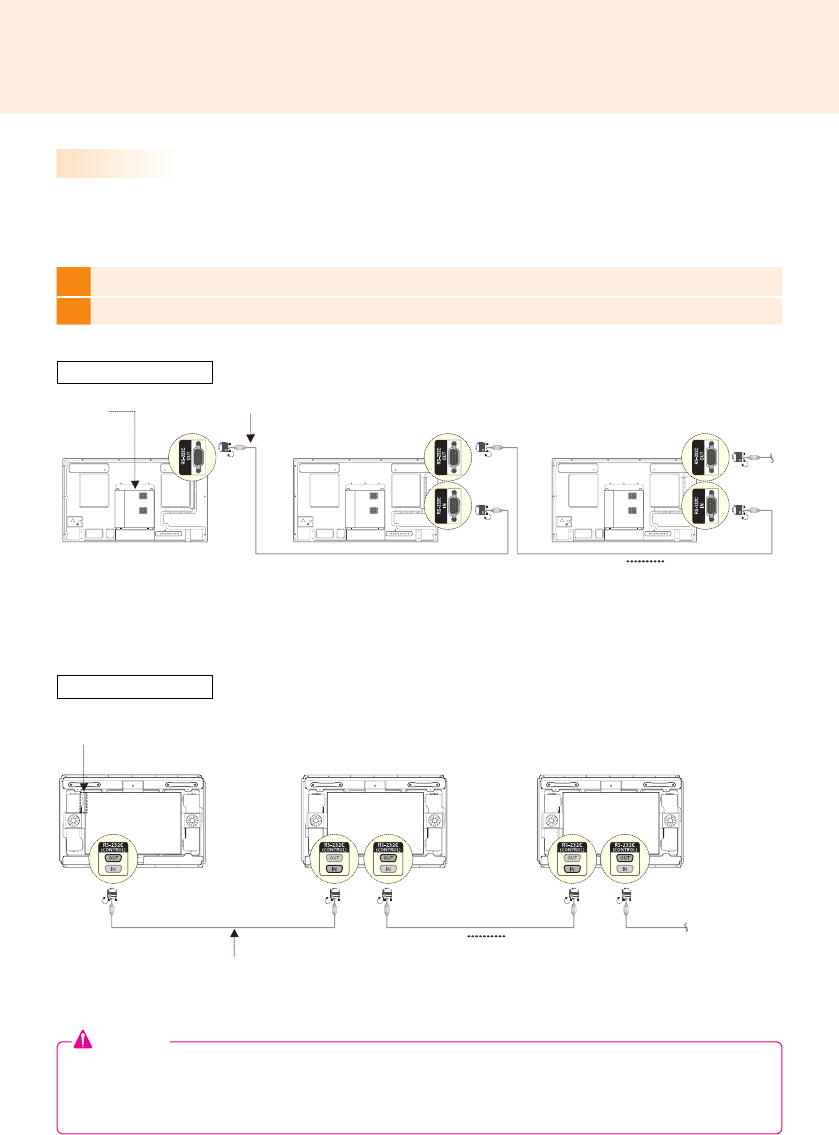
1Connect the RS-232C Out port of the MP500 to the RS-232C In port of the rst monitor (SET ID 1).
2Connect rest of the monitors using a RS-232C cable. (Be careful about input and output ports.)
Multiple monitors can be connected to a single MP500. (The maximum number of monitors connected varies
depending on the monitor type.) You can set the tile mode by connecting multiple monitors.
Attention
● You may want to purchase additional RS-232C cables to use several monitors together.
● You cannot connect multiple monitors using an HDMI cable or DP cable.
● Refer to the owner's manual of the monitor for the SET ID Max. value.
MP500 RS-232C Cable
( SET ID Max )
MP500
RS-232C Cable
( SET ID Max )
**WS50, **LT55A
**WX50MF
RS-232C Cable
RS-232C Cable

21
● Shut down the system properly using the Windows Start menu. Otherwise, this may cause errors
such as data loss, which will lead damage to the product.
● Keep the air inlet/outlet at the top of the product from getting clogged by dust or foreign matter and
prevent debris from attaching to the fan. Otherwise, this may cause malfunction.
● Avoid using the product in a closed environment which could prevent the flow of the air. Otherwise,
this may increase the product temperature, which will prevent it from operating normally and affect
the product life.
● Using converting devices, such as DP to HDMI adapter and HDMI to DVI cable, may cause
compatibility issues.
●
When connecting the MP500 into **WS50, **LT55A or **WX50MF through the monitor docking port,
set the monitor input to SuperSign.
● When connecting/removing the MP500 into/from the monitor through the monitor docking port, make
sure to unplug the power cord connected to monitor and MP500 respectively.
● The following monitors support the connection through the monitor docking port.
**WS50, **LT55A (LG Electronics)
**WX50MF (LG Electronics)
● Disconnect the power cord first before moving or installing the product. Otherwise, this may result in
electric shock.
● Make sure to reboot the MP500, when connecting the MP500 through the monitor docking port and
using the Factory Reset function.
● Do not touch the air inlet/outlet while it is operating. It may cause burns.
● Using wireless devices may cause a malfunction.
Attention
22
Attention
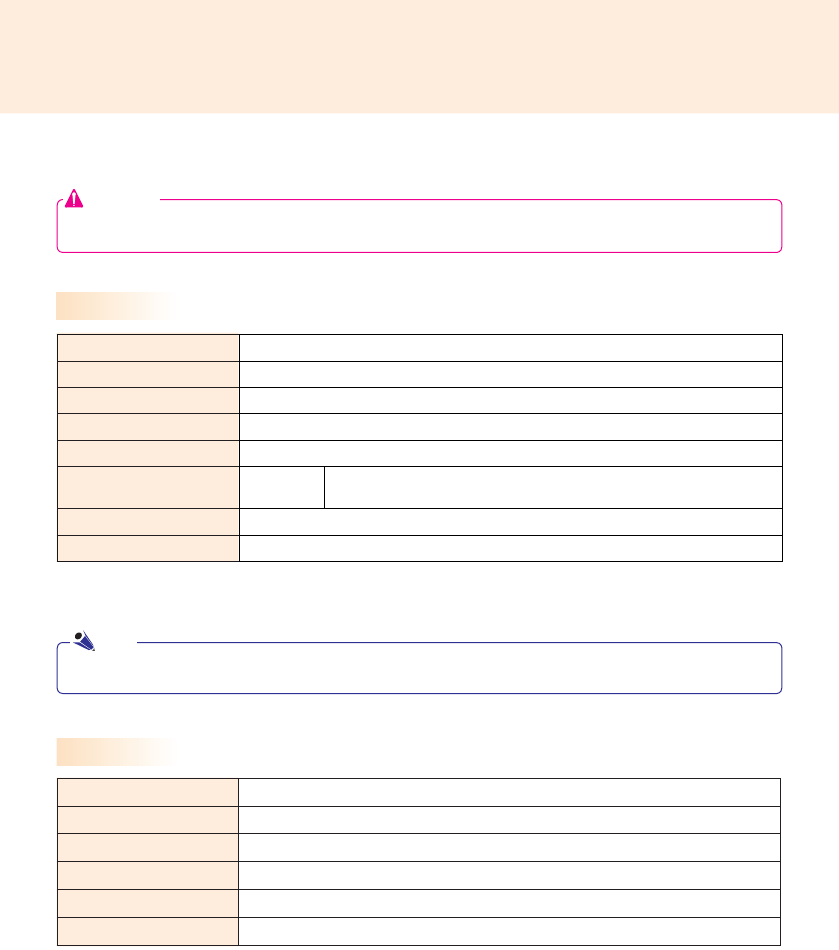
● Product specifications may change without prior notice to improve performance.
Specications
Dimensions
260 mm (W) x 40.1 mm (H) x 276.75 mm (D) (only Set)
Weight
2.0 Kg (only Set)
CPU
Intel
®
Celeron™ N2930 Processor (2M Cache, 1.83/2.16 GHz)
Chip Set
Intel
®
Bay Trail-M Chipset
Main Memory
DDR3L 2048MB SO-DIMM type
Secondary Storage
Device
SSD 64 GB, 128 GB
O/S
Windows
®
Embedded Standard 7 P
Embedded battery
Applied
General Specifications
Multi I/O Port
Serial Port One external RS-232C Serial port
USB Port USB Port x 4
LAN Port Gigabit Ethernet PHY
DP Intel
®
HD Graphics Controller
Mini PCIe Supported
LINE OUT Supported
● The OS may not be provided, depending on the product.
Note
MP500-F***
23
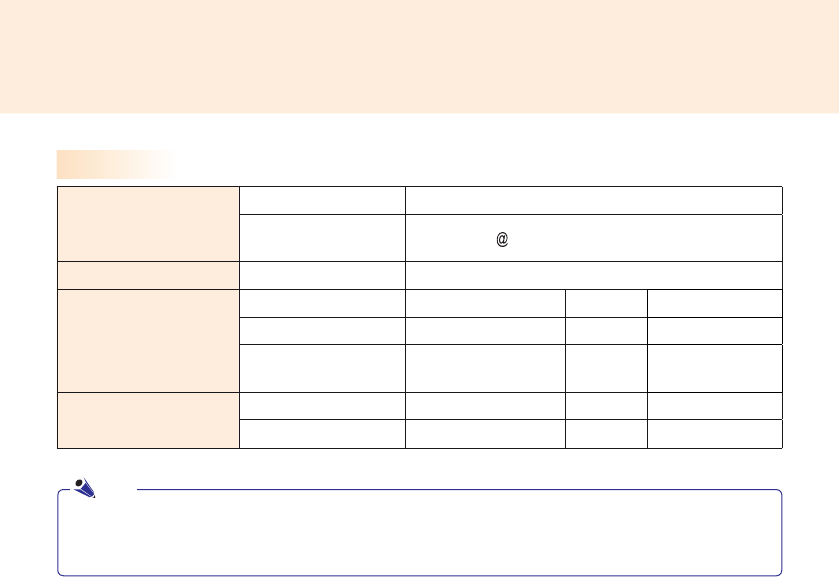
Resolution
Maximum Resolution DP: 1920 x 1080 @ 60 Hz
Recommended
Resolution 1920 x 1080 60 Hz
Power Power Rating 100-240 V~ 50/60 Hz 1.3 A
Operating Condition
Video LED
Wattage
Max Mode
Active On
≤15W
Deep Sleep Mode
(Set = Off)
Off Off
≤1W
Environmental Conditions Operating Conditions
5 °c to 40 °c Humidity 10 % to 80 %
Storage Conditions
-20 °c to 60 °c Humidity 5 % to 85 %
Operational Specifications
● The resolution which is supported may differ depending on the monitors.
● Booting the Media Player using a device connected via a USB port may not work properly, depending on the
device.
Note
24
Included in the Box
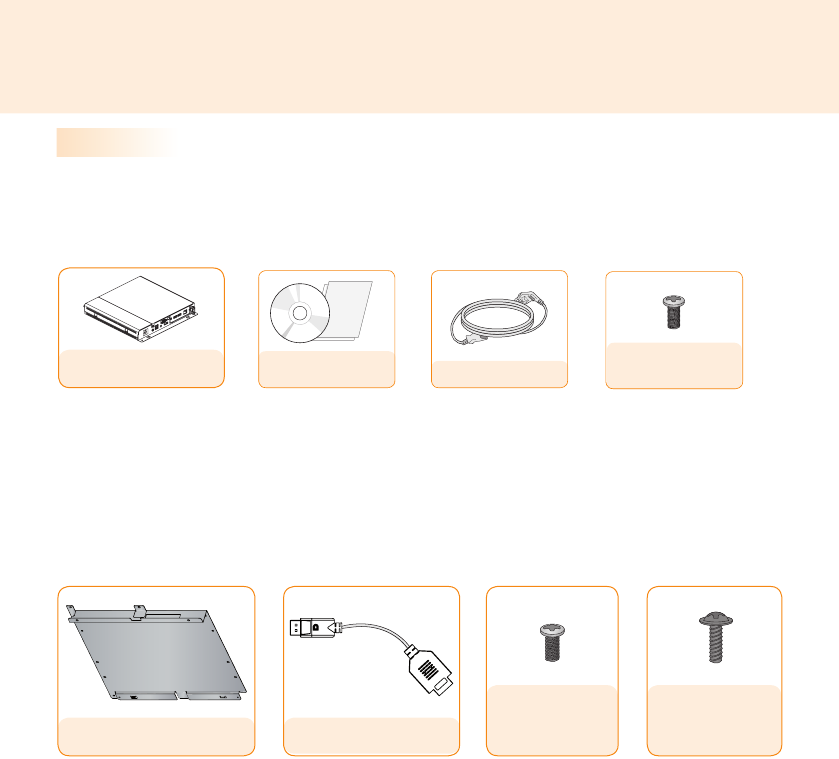
The MP500-F*** with the following components. Please check that these components have been included
prior to installation.
Basic Components
MP500-F***
< Basic Components >
< Optional Components >
Owner's Manual
/ Cards Power Cable
Φ3 L6 x 4 EA
(xing screws)
Φ3 L12 x 4 EA
(xing screws for
plastic back cover)
Φ3 L8 x 4 EA
(xing screws for
metal back cover)
Guide Bracket DP to HDMI Adapter
25
● These illustrations may differ from your product and are subject to change.
● In some countries, a Y-type cable may be provided instead of the power cord.
● Always use genuine components to ensure safety and product life. Any damages or injuries by misuse or
using an improper accessory are not covered by the warranty.
● The guide bracket and The DP to HDMI adapter may not be provided depending on your region or model.
● The DP to HDMI adapter may not be compatible with products other than MP500-F***.
● The DP to HDMI adapter does not provide the function of converting HDMI to DP.
Attention
The following items are supported by the MP500-F***, but are not provided with the product.
Please purchase optional items as needed.
● HDMI kit, HDMI cable, DP cable, LINE-OUT cable, LAN cable, mouse, keyboard.
Optional Items
● SuperSign software and manual.
- Downloading from the LG Electronics website.
- Visit the LG Electronics website (http://partner.lge.com) and download the latest software for your model.
(Depending on the model, this feature may not be supported.)
Note
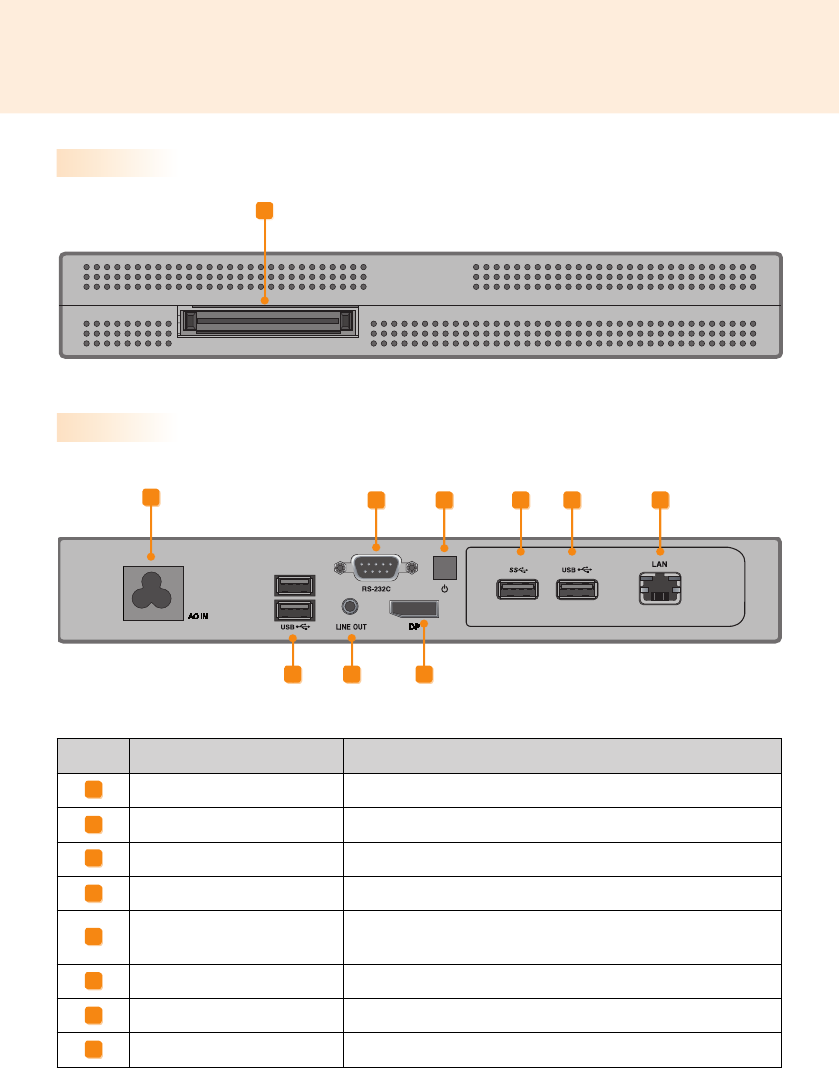
26
Connections
Back Panel
Number Connection Description
Power Cable In For the power cable.
RS-232C Out For the RS-232C cable.
Power Button Turns MP500-F*** on.
LINE-OUT Connector For a LINE-OUT cable for analog audio transfer.
USB In For USB-type devices, including memory, hard disk, CD-ROM,
keyboard, and mouse.
LAN Connector For a LAN cable.
DP Output Port Connects the cable to the DP-supporting monitor.
Monitor Docking Port Connects the MP500-F*** to a monitor.
A
B
C
D
E
F
G
H
Front Panel
H
ABCE FE
G
ED
27
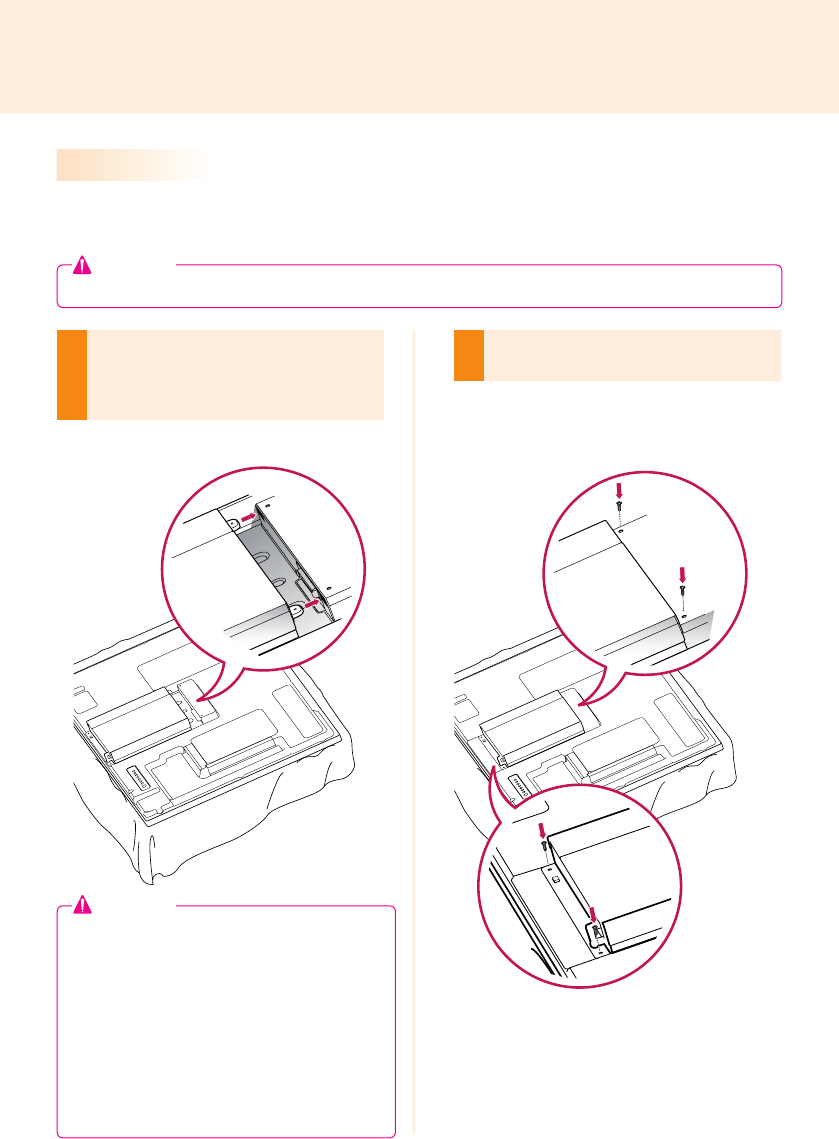
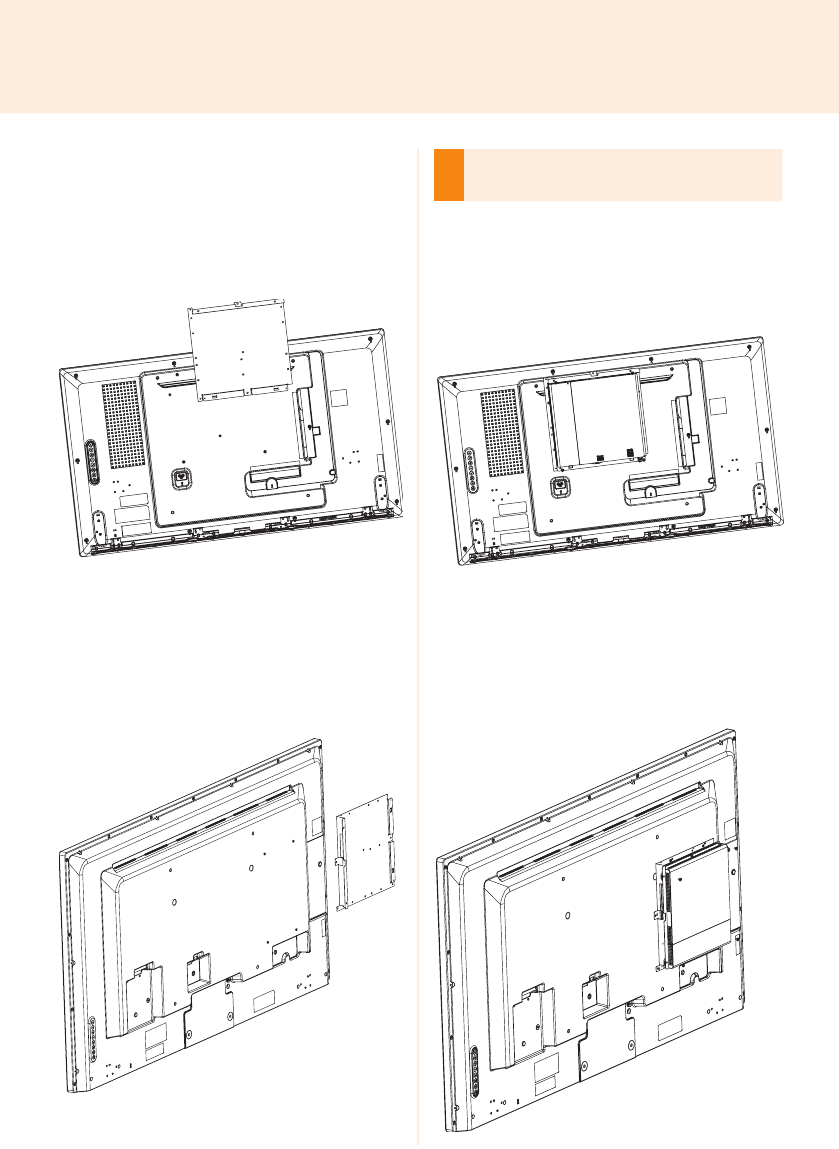
We recommend you to use the items provided with your MP500-F*** and follow our instructions for inte-
grating the product with your monitor in order to ensure the correct results.
1
Place a soft cloth on the table and put the
product with the screen facing downward.
Push the MP500-F*** into the compartment
to mount it.
2
Attach the MP500-F*** on the set using the
four screws provided.
How to Install on Monitor
**WS50, **LT55A Models
● Be careful of sharp edges on the rail and the
handle.
● Fixing the product with non-standard screws
may cause damage or the product to fall down.
LG Electronics is not liable for any accidents
relating to the use of non-standard screws.
● Do not over tighten the screws as this may
cause damage to the product and void your
warranty.
Attention
● The illustrations shown are to guide your integration and may differ from your product.
Attention
28
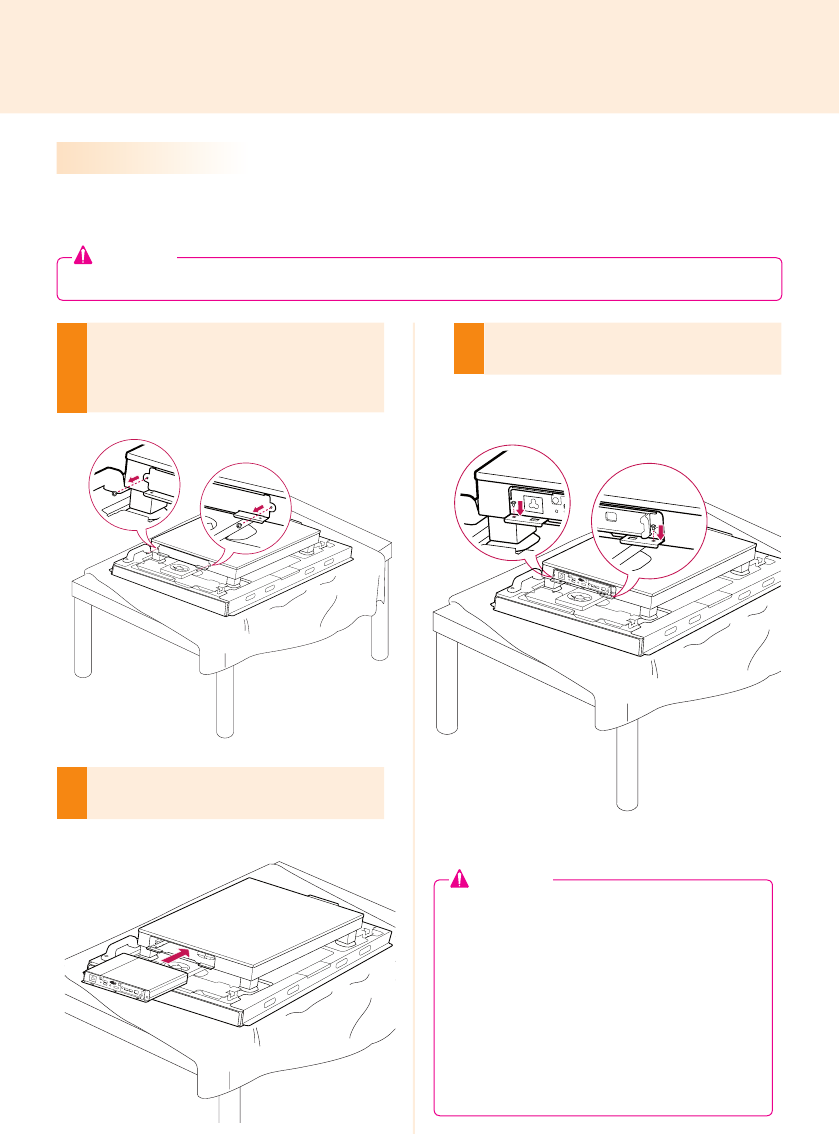
For proper use, it is recommended to use the basic components provided with the MP500-F*** to attach it
to a monitor.
1
Place a soft cloth on the table and put the
product with the screen facing downward.
Remove the opening cover by unfastening two
screws as shown in the picture.
2
Push the MP500-F*** into the compartment
to mount it.
3
Attach the MP500-F*** on the product using
the two screws provided.
**WX50MF Model
● The illustrations shown are to guide your integration and may differ from your product.
Attention
● Be careful of sharp edges on the rail and the
handle.
● Attaching the product with non-standard
screws may cause damage or the product to
fall down. LG Electronics is not liable for any
accidents relating to the use of non-standard
screws.
● Do not over tighten the screws as this may
cause damage to the product and void your
warranty.
Attention
29
How to Install the Guide Bracket
1
2
1
2
1
2
1
2
1
2
1
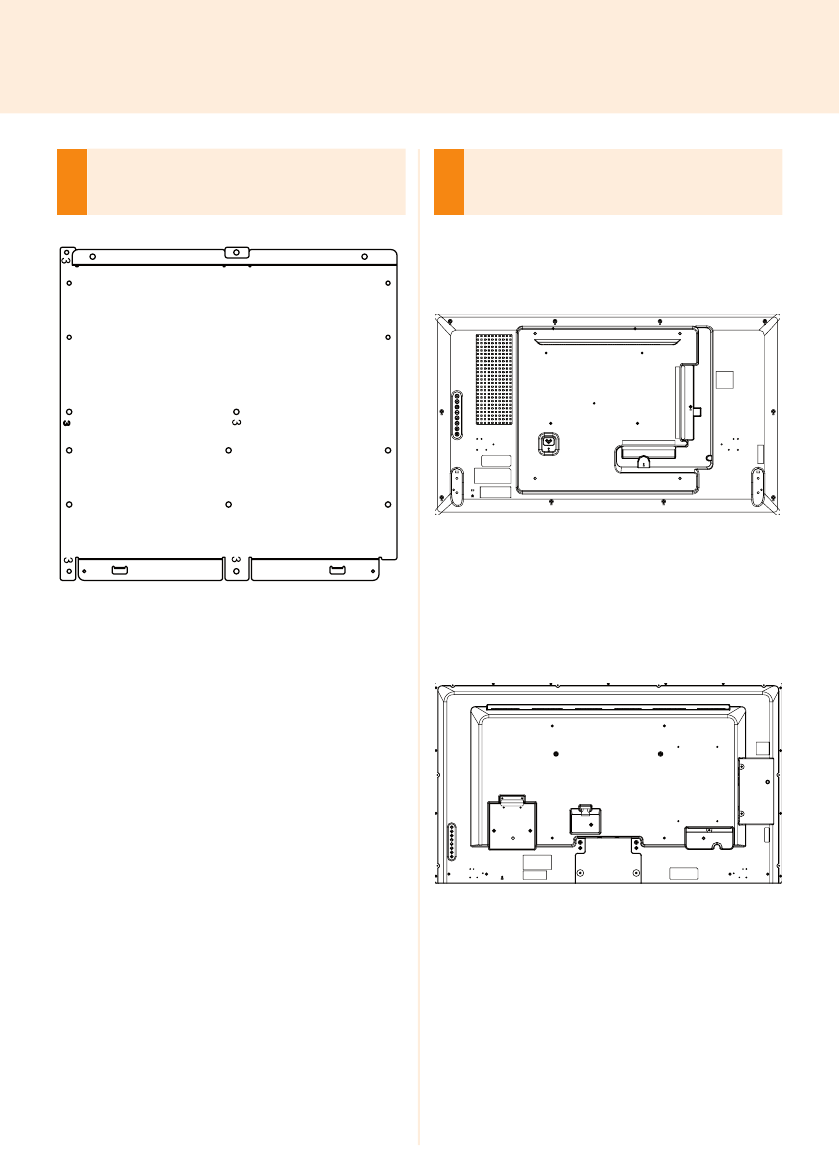
Make sure to match the numbers carved on the
guide bracket and the numbers on the back cover
when assembling the guide bracket.
2
Attach the guide bracket to the back of your moni-
tor. (3 or 4 screws are required depending on the
model.)
<Model that requires 3 xing screws for assembling
the guide bracket>
<Model that requires 4 xing screws for assembling
the guide bracket>
30
<Model that requires 3 xing screws for assembling
the guide bracket>
<Model that requires 4 xing screws for assembling
the guide bracket>
3
Assemble the MP500-F*** to the guide bracket
with the xing screws.
<Model that requires 3 xing screws for assembling
the guide bracket>
Attach the MP500-F*** to the guide bracket with 3
xing screws.
<Model that requires 4 xing screws for assembling
the guide bracket>
Attach the MP500-F*** to the guide bracket with 4
xing screws.
31
In/Out Cable Connection
To view images on the monitor that is not connected to the monitor docking port of MP500-F***, you need to
connect the MP500-F*** to the monitor via a DP cable.
● HDMI kit, HDMI, DP, LINE-OUT, and LAN cables are not included in the basic components. You need to
purchase a cable separately as it is not provided as an accessory.
● After cabling is complete, assign the SET ID of the monitor to be connected to MP500-F***.
● To configure the SET ID, please refer to the owner’s manual for your monitor.
Attention
When using the SuperSign Manager software:
● The monitor's SET ID is a unique number used to identify the monitor. You can choose a number from 1
to 25. The SET ID allows the SuperSign Manager software to identify the monitor.
● In order to directly connect the monitor to the MP500-F***, its SET ID must be set to 1.
● To use SuperSign Manager, the monitor that will be connected to a MP500-F*** must support the LG
RS-232C protocol. A monitor supporting the LG RS-232C protocol can be controlled the monitor func-
tions, such as brightness and sound, using SuperSign Manager.
Note
32
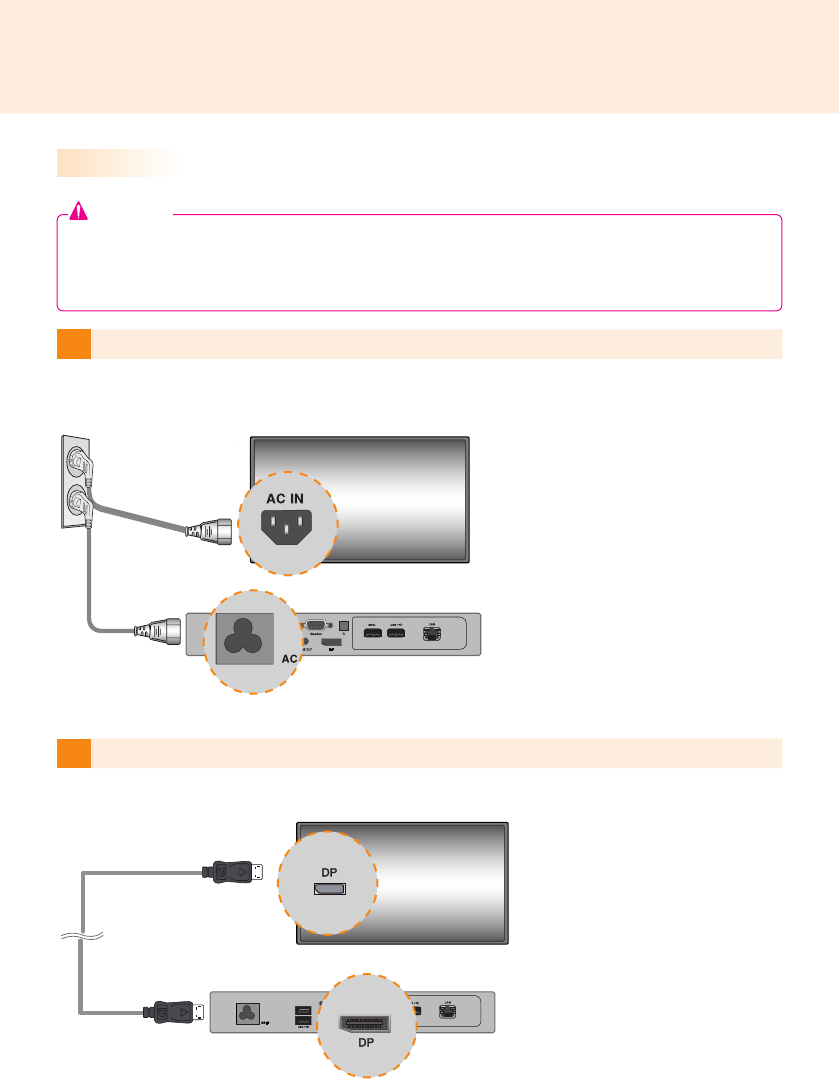
Connecting a Monitor with DP Cable
2Connect
MP500-F***
to the monitor via a DP cable.
1
Connect the appropriate power cables to a monitor and MP500-F*** respectively.
● To enable DP connection, the monitor that will be connected to MP500-F*** must support the DP input port.
● When connecting the DP (DisplayPort) cable, use the standard cable. Using a non-standard cable may
cause a malfunction.
Attention
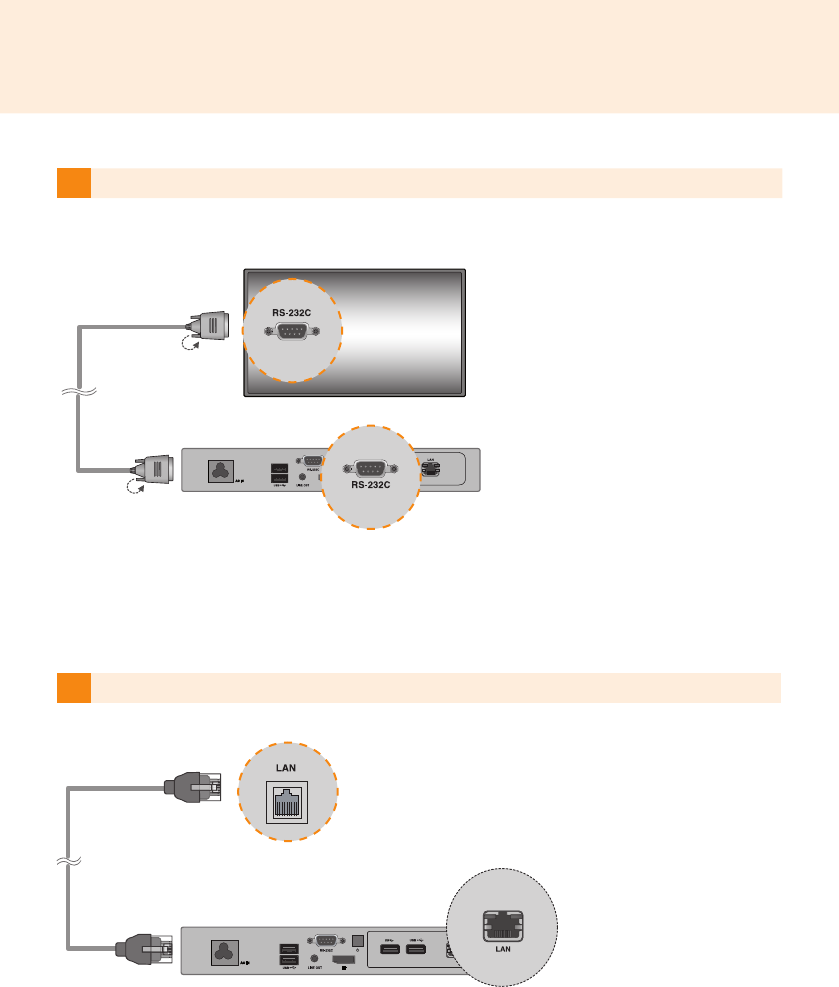
33
3Connect MP500-F*** (OUT) to the monitor (IN) with an RS-232C cable.
4Connect a LAN cable to
MP500-F***.
34
Attention
● When the product is turned on after cable connection or the operating system is completely booted,
DP video output starts operating.
● The product does not support a dual mode where DP can be switched either to HDMI or DVI. It is only
for DP output.
35
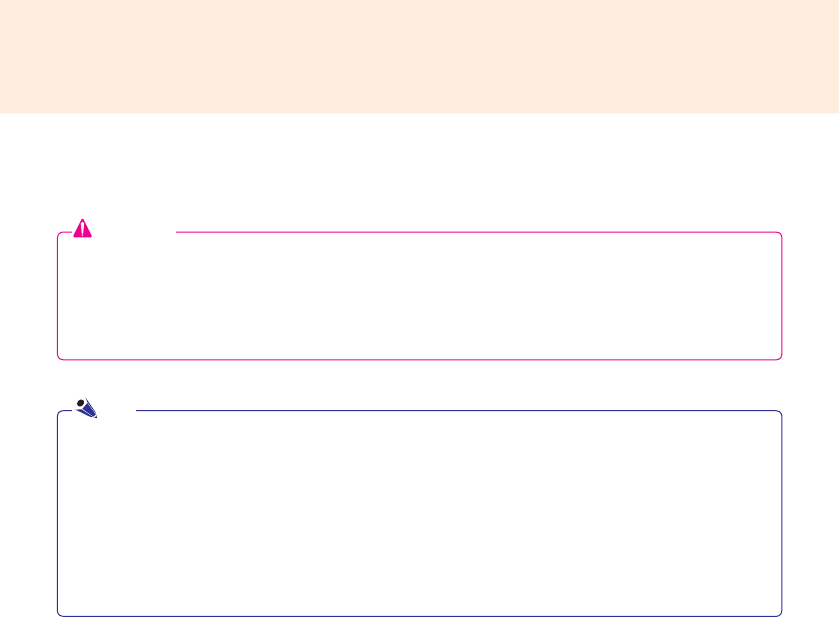
Note
●
Use a certied cable with the HDMI logo attached. If you do not use a certied HDMI cable, the screen
may not display or a connection error may occur.
●
Recommended HDMI cable types
-High-Speed HDMI®/™ Cable
-High-Speed HDMI®/™ Cable with Ethernet
Attention
● To enable DP to HDMI Adapter connection, the monitor that will be connected to MP500-F*** must support
the DP input port.
● When connecting the DP (DisplayPort) to HDMI Adapter cable, use the standard cable. Using a non-stand-
ard cable may cause a malfunction.
Connecting a Monitor with DP to HDMI Adapter
1Connect the power cables to the monitor and to the MP500-F***.
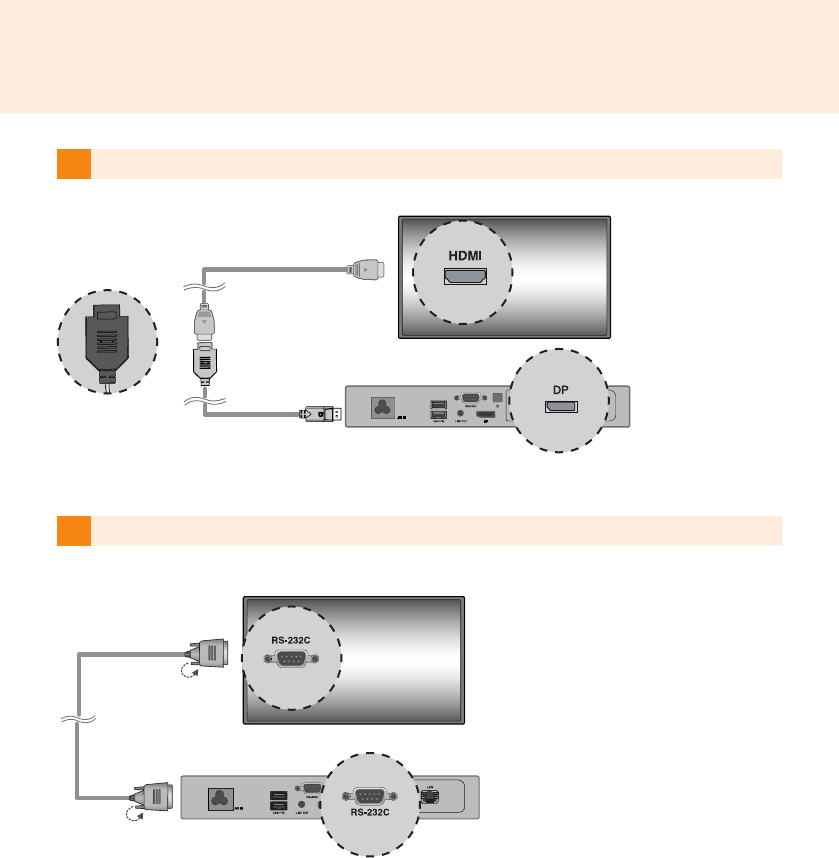
36
2Connect the MP500-F*** to the monitor using the DP to HDMI adapter and the HDMI cable.
3Connect MP500-F*** (OUT) to the monitor (IN) with an RS-232C cable.
37
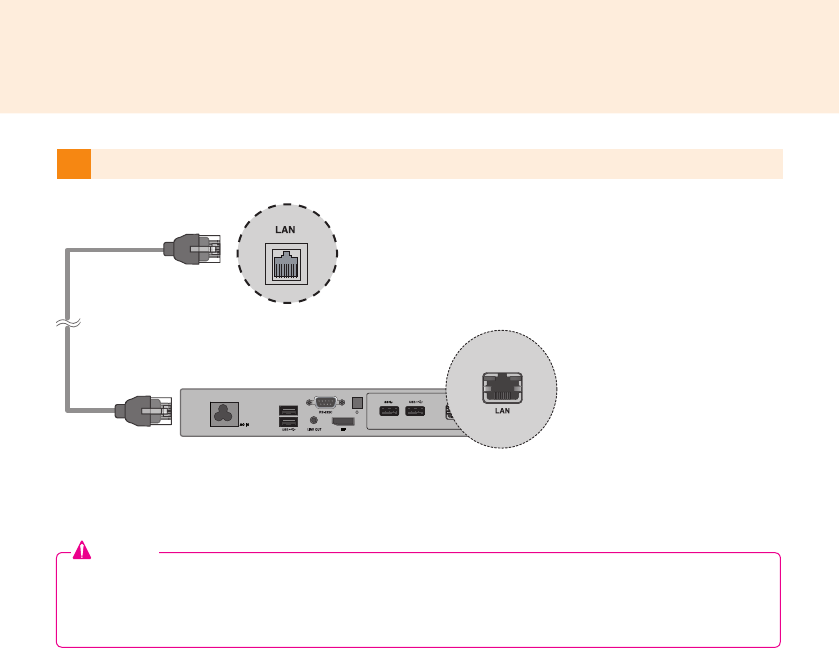
4Connect a LAN cable to MP500-F***.
Attention
●
The DP to HDMI adapter must be connected before the product is turned on or after the operat-
ing system has completely loaded.
38
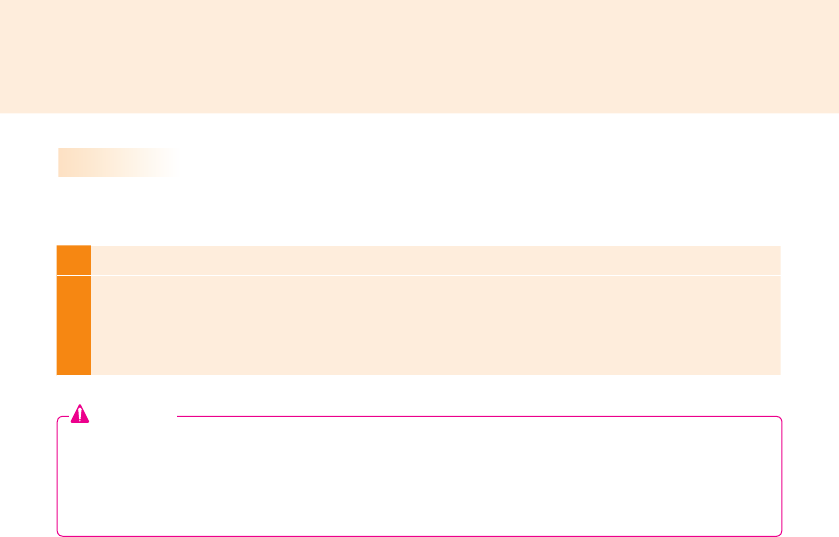
1
Select Start > Control Panel > Hardware and Sound > Sound.
2
Click the Play tap rst. Right-click on the Intel
®
Display Audio or 2 - Realtek High Denition
Audio and select Set as Default Device, then click OK to connect the DP audio device or select
Disable to disconnect it.
※ In order to change the audio devices, you may restart the computer.
Connecting/Disconnecting DP Audio Device in Windows
Connecting/Disconnecting DP Audio Device in Windows Embedded Standard 7 P
Attention
● If an audio device is connected or removed while media content is played, you need to stop the content
and play again.
● If a DP cable is removed from the MP500-F***, sound does not play. In addition, when the cable is
reconnected, it may take time before sound plays again.
39
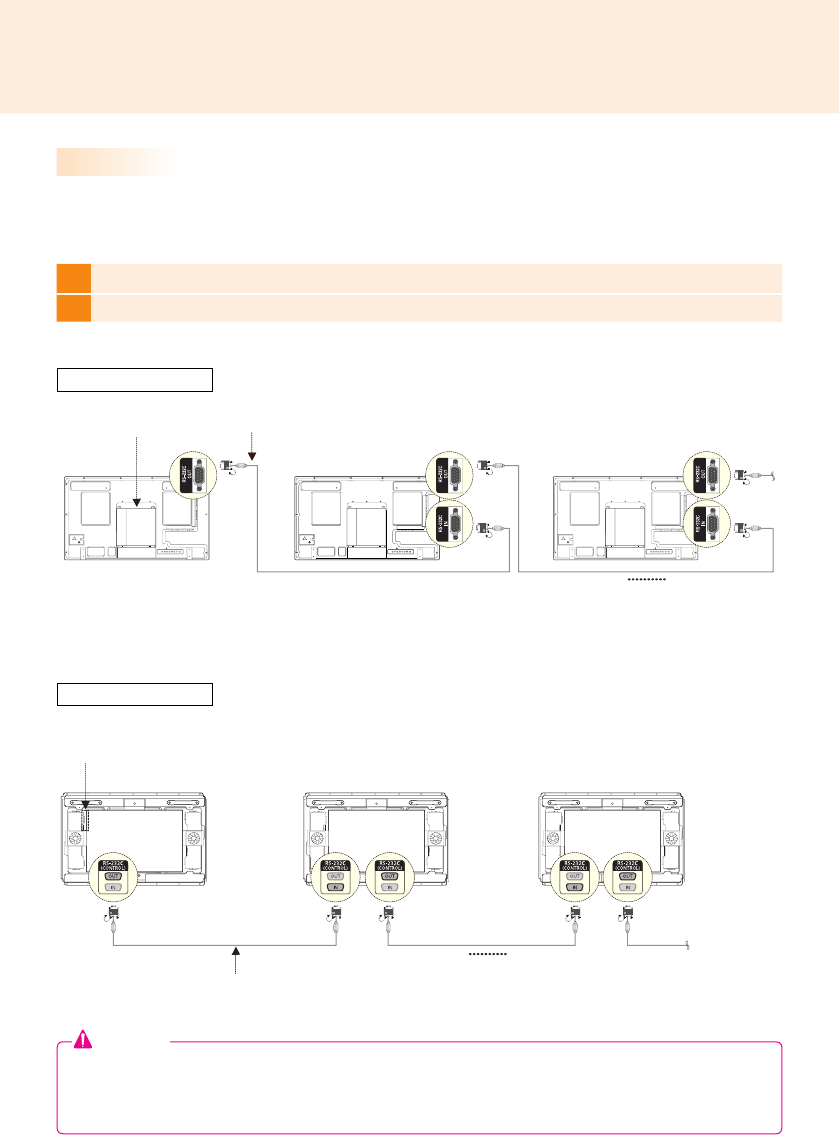
Connection to Multiple Monitors
1Connect the RS-232C Out port of the MP500-F*** to the RS-232C In port of the rst monitor (SET ID 1).
2Connect rest of the monitors using a RS-232C cable. (Be careful about input and output ports.)
Multiple monitors can be connected to a single MP500-F***. (The maximum number of monitors connected varies
depending on the monitor type.) You can set the tile mode by connecting multiple monitors.
Attention
● You may want to purchase additional RS-232C cables to use several monitors together.
● You cannot connect multiple monitors using a DP cable.
● Refer to the owner's manual of the monitor for the SET ID Max. value.
MP500-F*** RS-232C Cable
( SET ID Max )
RS-232C Cable
( SET ID Max )
MP500-F***
**WS50, **LT55A
**WX50MF
RS-232C Cable
RS-232C Cable
40
● Shut down the system properly using the Windows Start menu. Otherwise, this may cause errors
such as data loss, which will lead damage to the product.
● Avoid using the product in a closed environment which could prevent the flow of the air. Otherwise,
this may increase the product temperature, which will prevent it from operating normally and affect
the product life.
● Using converting devices, such as DP to HDMI adapter and HDMI to DVI cable, may cause
compatibility issues.
●
When connecting the MP500-F*** into **WS50, **LT55A or **WX50MF through the monitor docking
port, set the monitor input to SuperSign.
● When connecting/removing the MP500-F*** into/from the monitor through the monitor docking port,
make sure to unplug the power cord connected to monitor and MP500-F*** respectively.
● The following monitors support the connection through the monitor docking port.
**WS50, **LT55A (LG Electronics)
**WX50MF (LG Electronics)
● Disconnect the power cord first before moving or installing the product. Otherwise, this may result in
electric shock.
● Make sure to reboot the MP500-F***, when connecting the MP500-F*** through the monitor docking
port and using the Factory Reset function.
● Using wireless devices may cause a malfunction.
Attention
41
Limitations of Microsoft Windows Embedded Standard
The following are potential errors that may occur due to internal limitations of Microsoft Windows Embedded
Standard, which is the OS of Media Player.
● If you press Alt + Enter on the DOS window, text other than English may be shown corrupted.
● If you use Save As function in the Print window, the menu window name will be displayed in English.
● When you move to submenu items (such as in the Control Panel), some may appear in English. (e.g., HyperTer-
minal, Regional and Language Options, Device Manager)
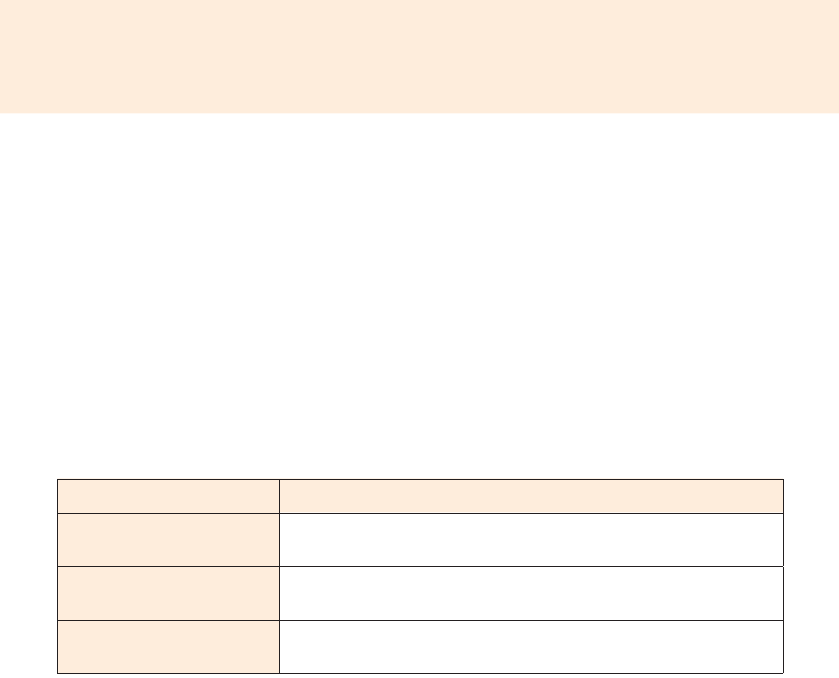
Question Answer
Where can I get a vaccine
program?
This media player comes packaged with the Windows program only. Please pur-
chase a vaccine program separately for use.
The screen resolution is not
adequate.
Check whether the screen resolution of Windows is set properly.
The edges of the image are
cropped off.
For some models, you need to set the monitor input to PC mode. For more infor-
mation, please refer to the owner's manual of your monitor.
Frequently Asked Questions (FAQs)
42
Unied Codecs
You need to install codecs required to play videos. Video les may require different codecs for playing. Web-
sites to download unied codecs are listed below:
·http://www.codecguide.com
·http://shark007.net
·http://www.free-codecs.com
● The websites above are not related to LG Electronics, and are subject to change.
● Visit their websites for details about the codec license.
● Make sure that a codec required to play the content you require is included in the download package
before you install it.
● Avoid duplicate installations of a codec package.
● If you want to install a different code package, uninstall the previous codec first.
Note
Network Setting
As there are various network connection methods, please follow the specications of your carrier or those of your
Internet service provider.
1. If you cannot connect to the network, check the following.
a. Check whether the network connection tray icon is displayed as shown below.
If it is not displayed as above, it indicates that the network cable is not connected correctly or that there is a
problem with your network system. In this case, check the network cable connection or contact your network
system administrator.
b. If you cannot connect to the network even though the tray icon is correctly displayed, make sure that the IP is
set correctly by following the procedure below.
● Click the Start button Control Panel Network and Internet Network and Sharing Center and then on
the left menu, click "Change adapter settings".
43
Attention
● Use a standard LAN cable (CAT5 or higher with a RJ45 connector).
● LG Electronics is not responsible for the Internet disconnection due to problems with or malfunctions of other
connected devices. LG Electronics is not liable for any problems related to the Internet connection.
● Right-click the Local Area Connection icon to open a pop-up menu and go to the "Properties" menu.
● In the Properties pop-up, select "Internet Protocol Version 4 (TCP/IPv4)" and double-click it.
● Check that the IP is set to "Fixed IP" in the IP settings window.
● If IP is set to "Fixed IP", change it to the DHCP setting (Automatic) and re-check the network connection.
Attention
● If you have to use a fixed IP due to your network environment, change the settings according to the
instructions below and then check the network connection.
a. As per the procedure described in the item 1 above, set the IP to DHCP in the Internet Protocol Properties
window.
b. Click the Start button and click through All Programs Accessories Command Prompt to open the DOS
window.
c. In the DOS window, type "ipconfig" to check your current IP.
d. Open the Internet Protocol Properties window again, and type in the IP address received from the ipconfig
command or an IP address of the same bandwidth.
2. The hub (router/switch) connection may be configured as described below.
a. Turn the router power on.
b. Connect the router port (excluding the WAN port) and the network port of the MP500 using a network cable.
c. As in step "a" of item 1, check if the tray icon is displayed correctly. If it is not displayed correctly, go through the
whole procedure in item 1 to check your network settings.
d. If you wish to connect to an external network, connect the external network cable to the WAN port.
Make sure to read the Important Precautions
before using the product.
Keep the User’s Guide(CD) in an accessible
place for furture reference.
The model and serial number of the SET is
located on the back and one side of the SET.
Record it below should you ever need service.
WARNING - This is a class A product. In
a domestic environment this product may
cause radio interference in which case the
user may be required to take adequate
measures.
MODEL
SERIAL
Temporary noise is normal when powering
ON or OFF this device.
