LUMI LEGEND ELECTRICAL SW5231 This product is a WiFi socket for 2.4GHz User Manual SW5231 manual 20170921
LUMI LEGEND ELECTRICAL CO.,LTD This product is a WiFi socket for 2.4GHz SW5231 manual 20170921
SW5231 SW5232 manual 20180125
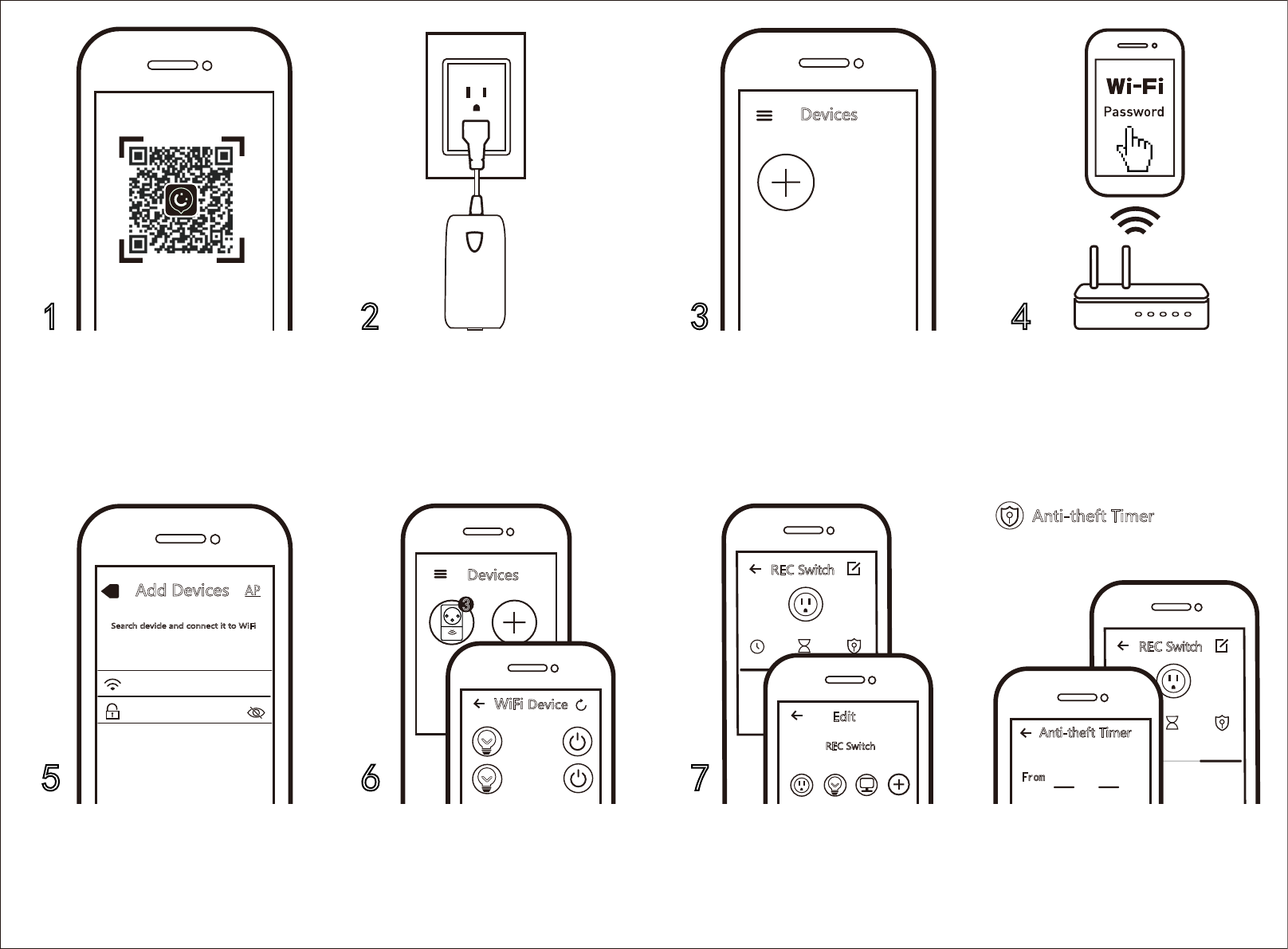
Scan the QR code to download REC App.
You can also search keyword “ANKUOO” at
App Store or Google Play to download REC
App. Then register your account and log in.
Press the on/o button for more than 5 sec-
onds until the Wi-Fi indicator starts to ash
quickly. Wi-Fi Switch is now ready for syn-
chronization.
Connect your smart phone to Wi-Fi net-
work and launch REC App. Click on the
device menu to " Add Device".
Make sure your smart phone and Wi-Fi
switch are in the same Wi-Fi network. The
connecting process takes about 30-120 sec-
onds, depending on your network condi-
tion and the length of Wi-Fi password.
If congure failed, please click AP at the
right corner. Connect REC_AP_xxxxxx rst,
then connect the wi router. Please visit
www.ankuoo.com/support for more details.
When conguration is done,the Wi-Fi
switch will be shown on the REC App. You
can change the ON/OFF state at the homep-
age.
Select the edit icon in the upper right
corner. Then you can rename the device
and choose an icon, or you can take a
photo for your device icon.
Guard your house by randomly turning
on/o the lamp plugged into Wi-Fi Switch.
You choose the time frame and number of
slots in certain time period.
Anti-theft Timer
1
5 6 7
2 3 4
Scan the QR
Devices
Add Device
Devices
Add DeviceSocket
3
Add Devices
AP
WiFi SSID:
Password:
Not Found
Search devide and connect it to WiFi
Search devide and connect it to WiFi.(Note:
Only 2.4G WiFi is supported)
WiFi
Device
REC Lamp
Evg
REC Switch
REC Switch
Schedule
CountDown Anti- theft
Timer
Edit
REC Switch
Name
Icon
RECSwitch
Sche dule
CountDown A nti-the ft
Timer
RECSwitch
定时 倒计时 防盗
REC Switch
Schedule
CountDown Anti- theft
Timer
Anti-theft Timer
From
To
:
09 16
10 17
11 18
:
09 16
10 17
11 18
Repeat
To
:
10 16
11 17
12 18
ON/OFF
Remote control Countdown Timer THINGS TO KNOW
BEFORE USING Wi-Fi SWITCH
Work with Alexa:
QUICK INSTALLATION GUIDE
AND FUNCTION INTRODUCTION
Wi-Fi Switch
Schedule Timer
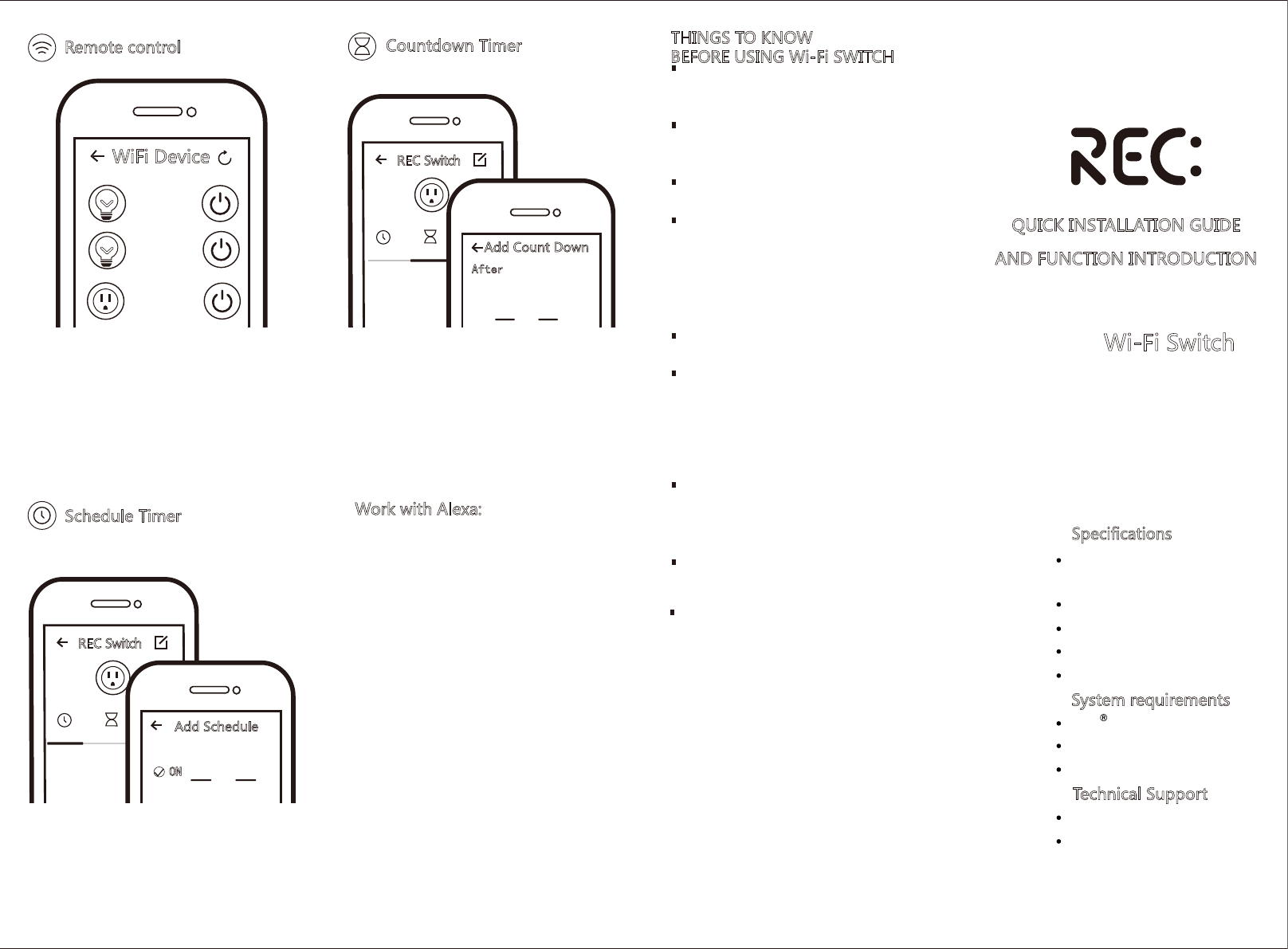
Turn on/o your electrical appliances from
anywhere.
Turn on/o device plugged into Wi-Fi
Switch by the time assigned.
Perform the same routine operation at the
same time in a week for your home appli-
ances.
1. Download Alexa app, and log in with your
Alexa account ;
2. Click the left corner and open the menu,-
click “skills” ;
3. Type in “REC” in the search box ;
4. Click “Ankuoo REC” in the search results,
Enable the skill ;
5. Next page is the Ankuoo’ s login page,
please use the account you have created in
REC app to login ;
6. Click “Discover Devices” ; Alexa will search
for all your REC devices now (make sure your
phone is connected to the same Wi-Fi as REC;
Note: Before discover devices, you must
change the switch name in REC app, such as
kitchen,oce..) ;
7. Now you can control your REC devices
using Alexa.
WiFi Device
REC Lamp
Evg
REC Switch
REC Switch
Schedule
CountDown Anti- theft
Timer
Add Count Down
Power
After
Hour Minute
23 09
01 11
5min 10min 15min
30min 1h 2h
00 10
REC Switch
Schedule
CountDown Anti- theft
Timer
Add Schedule
OFF
ON
:
09 16
10 17
11 18
:
10 16
11 17
12 18
Make sure your router is congured to 2.4G,
and your smartphone is connected to this
2.4G network.
Make sure the electronic device shown on
your iOS/Android REC App is the one
plugged into the Wi-Fi Switch.
Make sure you have a strong Wi-Fi signal at
the Wi-Fi Switch.
Make sure there are not too many devices
connected to your router at the same time.
You may temporarily turn o some other
devices connected to the router and turn
them back on again after the conguration is
complete.
Make sure the "AP isolation" function is deac-
tivated on your router.
Make sure no extra log in page is required on
browser after your device is connected to
Wi-Fi.
The sync and all operations of Wi-Fi Switch are only possi-
ble via a Wi-Fi network connected to the internet.
Wi-Fi Switch needs to be setup again when the SSID or
password is changed.
No need to setup the Wi-Fi Switch again when you turn it
o or unplug it from one socket and plug it into another
socket.
Hard Reset: Press ON/OFF button for 5 seconds and
release it. The Wi-Fi indicator light will ash quickly. Wi-Fi
Switch is now ready for synchronization.
Specifications
System requirements
Technical Support
Electrical Rating:
15A 125V~60HZ
Wi-Fi:2.4GHz 802.11b/g/n
For lndoor Dry Location Use Only
Working Temperature:0-40℃
Working Humidity:≤80%
Wi-Fi router
iPhone,iPad (IOS 7.0 or higher)
Android 4.0 or higher
Support@ankuoo.us
By Ankuoo Electronics Inc.,
a division of Lumitek Group.
This equipment has been tested and found to comply with the limits for a Class B
digital device, pursuant to Part 15 of the FCC Rules. These limits are designed to
provide reasonable protection against harmful interference in a residential
installation. This equipment generates, uses and can radiate radio frequency
energy and, if not installed and used in accordance with the instructions, may
cause harmful interference to radio communications.
However, there is no guarantee that interference will not occur in a particular installation.
·If this equipment does cause harmful interference to radio or television reception,
which can be determined by turning the equipment off and on, the user is encouraged
to try to correct the interference by one or more of the following measures:
—Reorient or relocate the receiving antenna.
—Increase the separation between the equipment and receiver.
—Connect the equipment into an outlet on a circuit different from that to which the
receiver is connected.
—Consult the dealer or an experienced radio/TV technician for help.
This equipment complies with FCC radiation exposure limits set forth for an uncontrolled
environment.
This equipment must be installed and operated in accordance with provided instructions
and the antenna(s) used for this transmitter must be installed to provide a separation distance
of at least 20 cm from all persons and must not be co-located or operating in conjunction with
any other antenna or transmitter.
Lumi Legend Electrical has not approved any changes or modifications to this device
by the user. Any changes or modifications could void the user’s authority to operate
the equipment.