Labway C031H9 MODEM/AUDIO COMBO CARD User Manual MANUAL

Labway Corporation MODEM/AUDIO COMBO CARD MANUAL

MANUAL

USER MANUALESS AUDIO/MODEM COMBO CARDNovember 1998ReferenceVersion 1.0
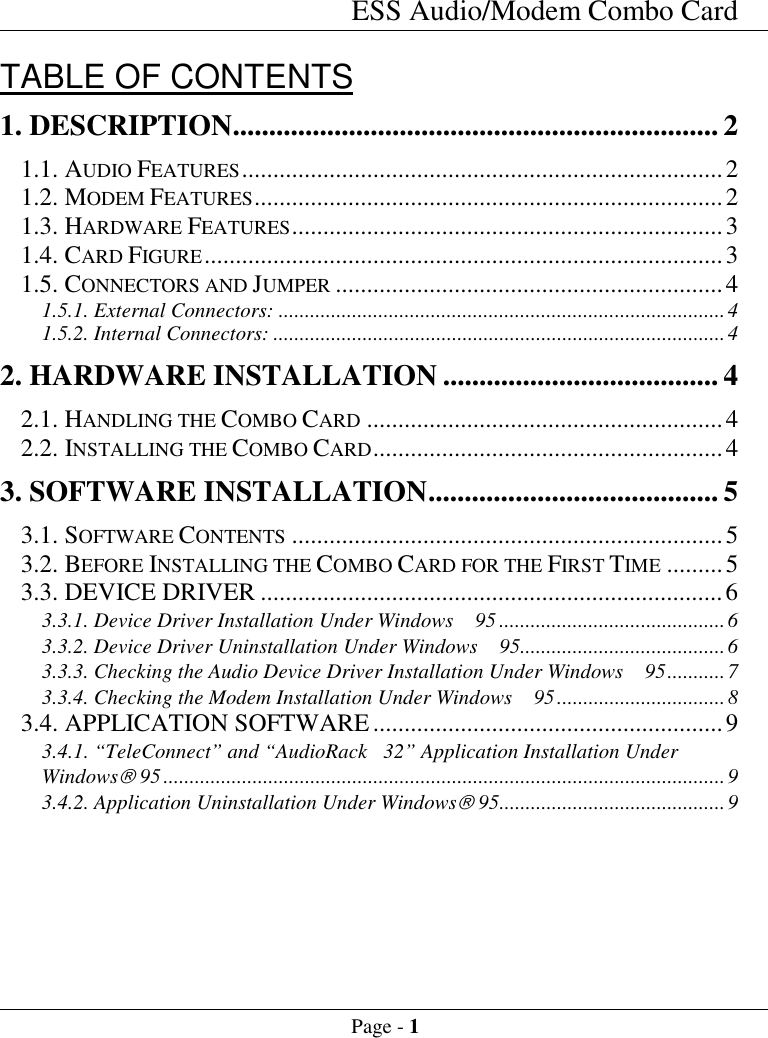
ESS Audio/Modem Combo CardPage - 1TABLE OF CONTENTS1. DESCRIPTION................................................................... 21.1. AUDIO FEATURES.............................................................................21.2. MODEM FEATURES...........................................................................21.3. HARDWARE FEATURES.....................................................................31.4. CARD FIGURE...................................................................................31.5. CONNECTORS AND JUMPER ..............................................................41.5.1. External Connectors: .....................................................................................41.5.2. Internal Connectors: ......................................................................................42. HARDWARE INSTALLATION ...................................... 42.1. HANDLING THE COMBO CARD .........................................................42.2. INSTALLING THE COMBO CARD........................................................43. SOFTWARE INSTALLATION........................................ 53.1. SOFTWARE CONTENTS .....................................................................53.2. BEFORE INSTALLING THE COMBO CARD FOR THE FIRST TIME .........53.3. DEVICE DRIVER ..........................................................................63.3.1. Device Driver Installation Under Windows  95 ...........................................63.3.2. Device Driver Uninstallation Under Windows  95.......................................63.3.3. Checking the Audio Device Driver Installation Under Windows  95...........73.3.4. Checking the Modem Installation Under Windows  95................................83.4. APPLICATION SOFTWARE........................................................93.4.1. “TeleConnect” and “AudioRack 32” Application Installation UnderWindowsâ 95...........................................................................................................93.4.2. Application Uninstallation Under Windowsâ 95...........................................9
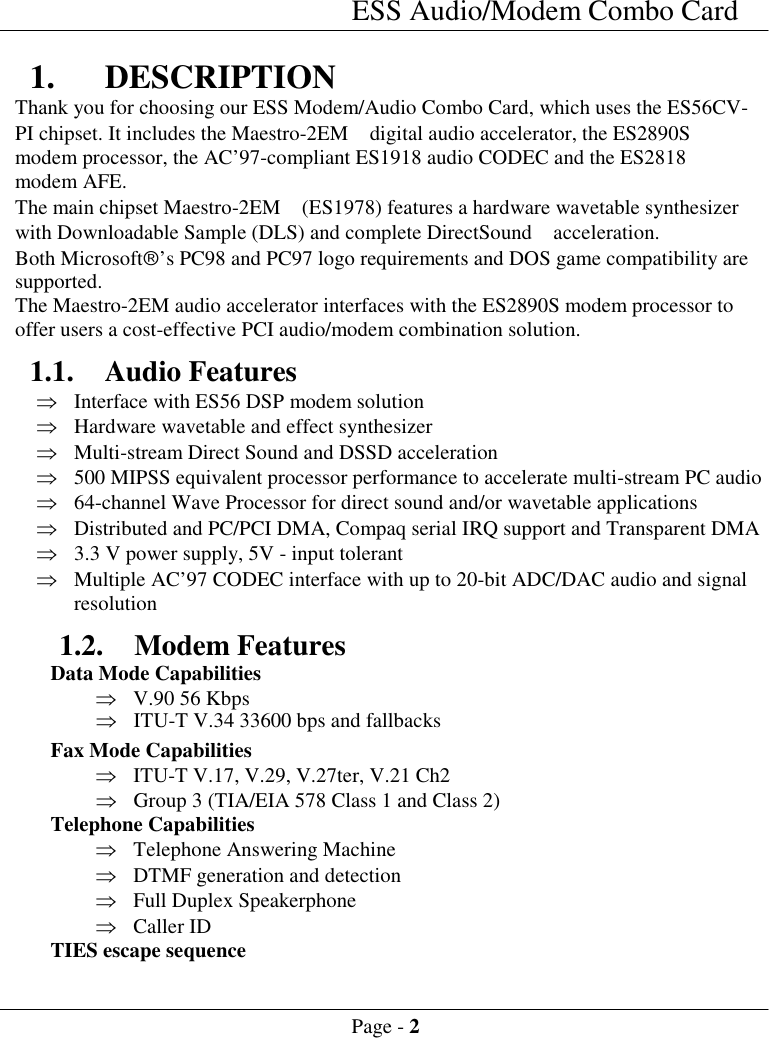
ESS Audio/Modem Combo CardPage - 21. DESCRIPTIONThank you for choosing our ESS Modem/Audio Combo Card, which uses the ES56CV-PI chipset. It includes the Maestro-2EM  digital audio accelerator, the ES2890Smodem processor, the AC’97-compliant ES1918 audio CODEC and the ES2818modem AFE.The main chipset Maestro-2EM  (ES1978) features a hardware wavetable synthesizerwith Downloadable Sample (DLS) and complete DirectSound  acceleration.Both Microsoftâ’s PC98 and PC97 logo requirements and DOS game compatibility aresupported.The Maestro-2EM audio accelerator interfaces with the ES2890S modem processor tooffer users a cost-effective PCI audio/modem combination solution.1.1. Audio FeaturesÞ Interface with ES56 DSP modem solutionÞ Hardware wavetable and effect synthesizerÞ Multi-stream Direct Sound and DSSD accelerationÞ 500 MIPSS equivalent processor performance to accelerate multi-stream PC audioÞ 64-channel Wave Processor for direct sound and/or wavetable applicationsÞ Distributed and PC/PCI DMA, Compaq serial IRQ support and Transparent DMAÞ 3.3 V power supply, 5V - input tolerantÞ Multiple AC’97 CODEC interface with up to 20-bit ADC/DAC audio and signalresolution1.2. Modem Features Data Mode CapabilitiesÞ V.90 56 KbpsÞ ITU-T V.34 33600 bps and fallbacks Fax Mode CapabilitiesÞ ITU-T V.17, V.29, V.27ter, V.21 Ch2Þ Group 3 (TIA/EIA 578 Class 1 and Class 2) Telephone CapabilitiesÞ Telephone Answering MachineÞ DTMF generation and detectionÞ Full Duplex SpeakerphoneÞ Caller ID TIES escape sequence
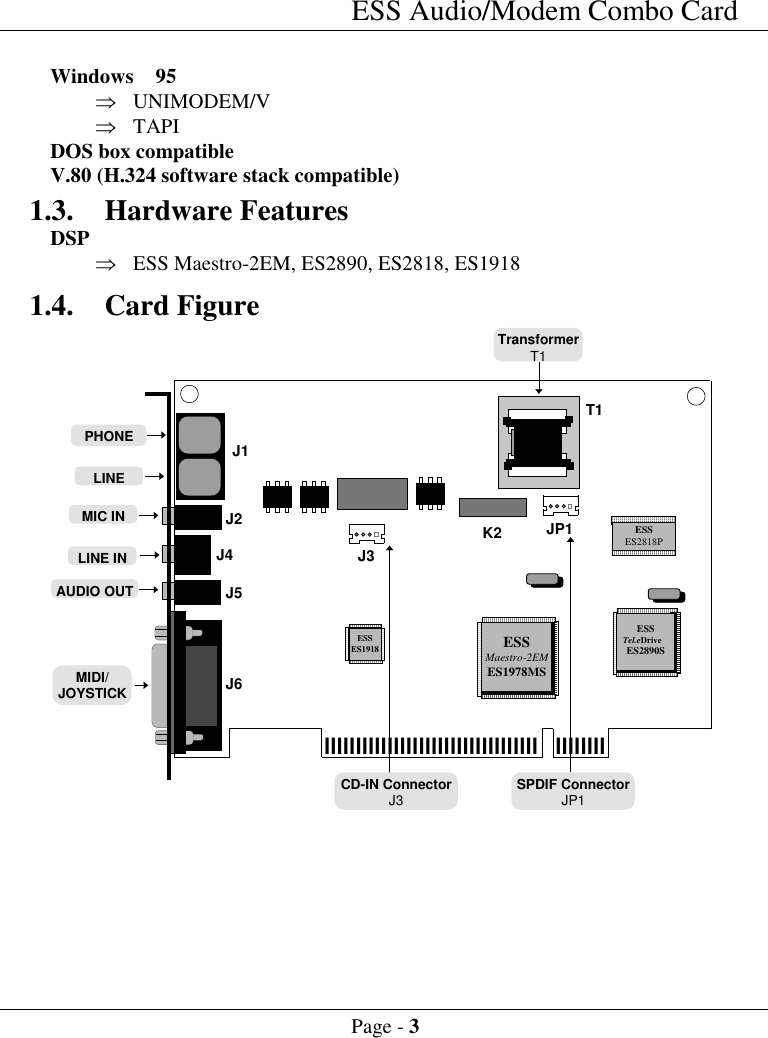
ESS Audio/Modem Combo CardPage - 3  Windows  95Þ UNIMODEM/VÞ TAPI DOS box compatible V.80 (H.324 software stack compatible)1.3. Hardware Features DSPÞ ESS Maestro-2EM, ES2890, ES2818, ES19181.4. Card FigureJ6llllllllllllllllllllllllllllllllllllllllllTransformerT1PHONELINELINE INAUDIO OUTMIC INMIDI/JOYSTICKSPDIF ConnectorJP1ESSTel.eDriveES2890SESSES1918 ESSMaestro-2EMES1978MSESSES2818PJ5J2J1J3K2 JP1T1J4CD-IN ConnectorJ3
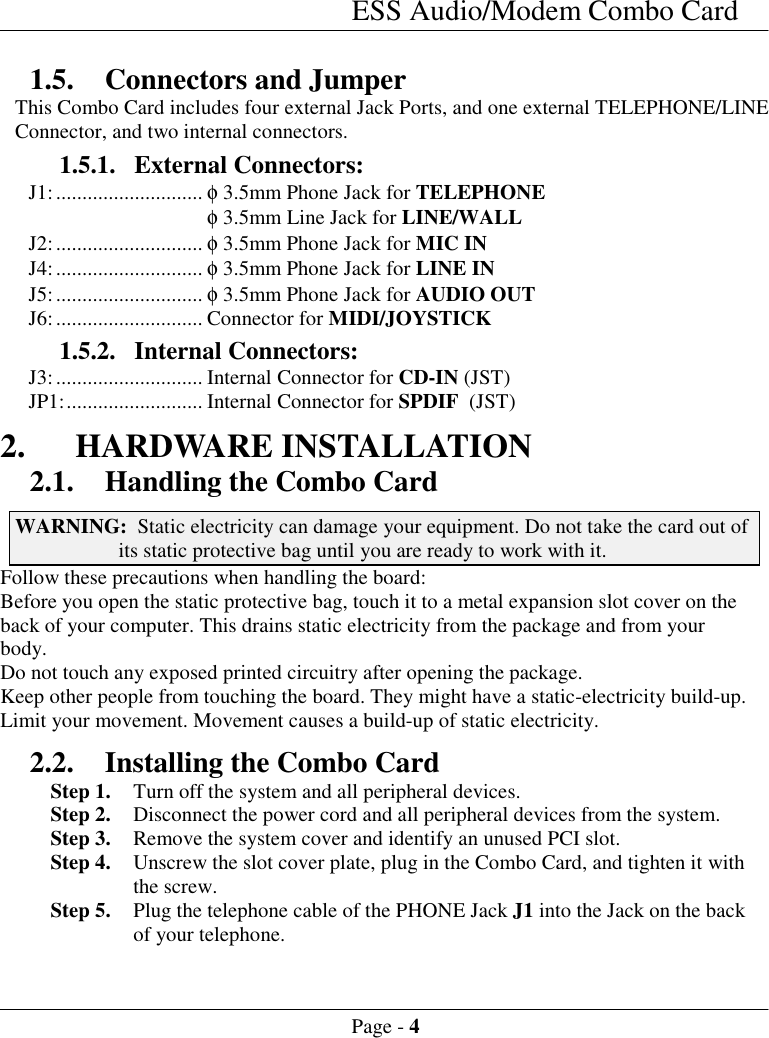
ESS Audio/Modem Combo CardPage - 41.5. Connectors and JumperThis Combo Card includes four external Jack Ports, and one external TELEPHONE/LINEConnector, and two internal connectors.1.5.1. External Connectors:J1:............................ φ 3.5mm Phone Jack for TELEPHONEφ 3.5mm Line Jack for LINE/WALLJ2:............................ φ 3.5mm Phone Jack for MIC INJ4:............................ φ 3.5mm Phone Jack for LINE INJ5:............................ φ 3.5mm Phone Jack for AUDIO OUTJ6:............................ Connector for MIDI/JOYSTICK1.5.2. Internal Connectors:J3:............................ Internal Connector for CD-IN (JST)JP1:.......................... Internal Connector for SPDIF  (JST)2. HARDWARE INSTALLATION2.1. Handling the Combo CardWARNING:  Static electricity can damage your equipment. Do not take the card out ofits static protective bag until you are ready to work with it.Follow these precautions when handling the board:Before you open the static protective bag, touch it to a metal expansion slot cover on theback of your computer. This drains static electricity from the package and from yourbody.Do not touch any exposed printed circuitry after opening the package.Keep other people from touching the board. They might have a static-electricity build-up.Limit your movement. Movement causes a build-up of static electricity.2.2. Installing the Combo CardStep 1. Turn off the system and all peripheral devices.Step 2. Disconnect the power cord and all peripheral devices from the system.Step 3. Remove the system cover and identify an unused PCI slot.Step 4. Unscrew the slot cover plate, plug in the Combo Card, and tighten it withthe screw.Step 5. Plug the telephone cable of the PHONE Jack J1 into the Jack on the backof your telephone.
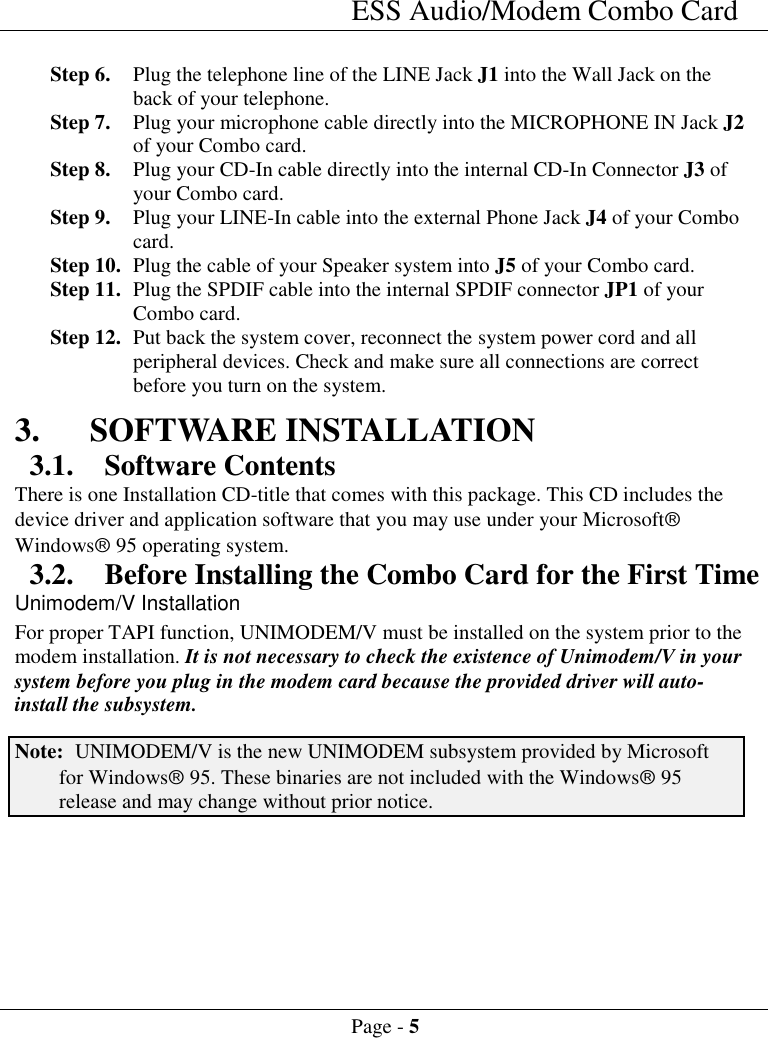
ESS Audio/Modem Combo CardPage - 5Step 6. Plug the telephone line of the LINE Jack J1 into the Wall Jack on theback of your telephone.Step 7. Plug your microphone cable directly into the MICROPHONE IN Jack J2of your Combo card.Step 8. Plug your CD-In cable directly into the internal CD-In Connector J3 ofyour Combo card.Step 9. Plug your LINE-In cable into the external Phone Jack J4 of your Combocard.Step 10. Plug the cable of your Speaker system into J5 of your Combo card.Step 11. Plug the SPDIF cable into the internal SPDIF connector JP1 of yourCombo card.Step 12. Put back the system cover, reconnect the system power cord and allperipheral devices. Check and make sure all connections are correctbefore you turn on the system.3. SOFTWARE INSTALLATION3.1. Software ContentsThere is one Installation CD-title that comes with this package. This CD includes thedevice driver and application software that you may use under your MicrosoftâWindowsâ 95 operating system.3.2. Before Installing the Combo Card for the First TimeUnimodem/V InstallationFor proper TAPI function, UNIMODEM/V must be installed on the system prior to themodem installation. It is not necessary to check the existence of Unimodem/V in yoursystem before you plug in the modem card because the provided driver will auto-install the subsystem.Note: UNIMODEM/V is the new UNIMODEM subsystem provided by Microsoftfor Windowsâ 95. These binaries are not included with the Windowsâ 95release and may change without prior notice.
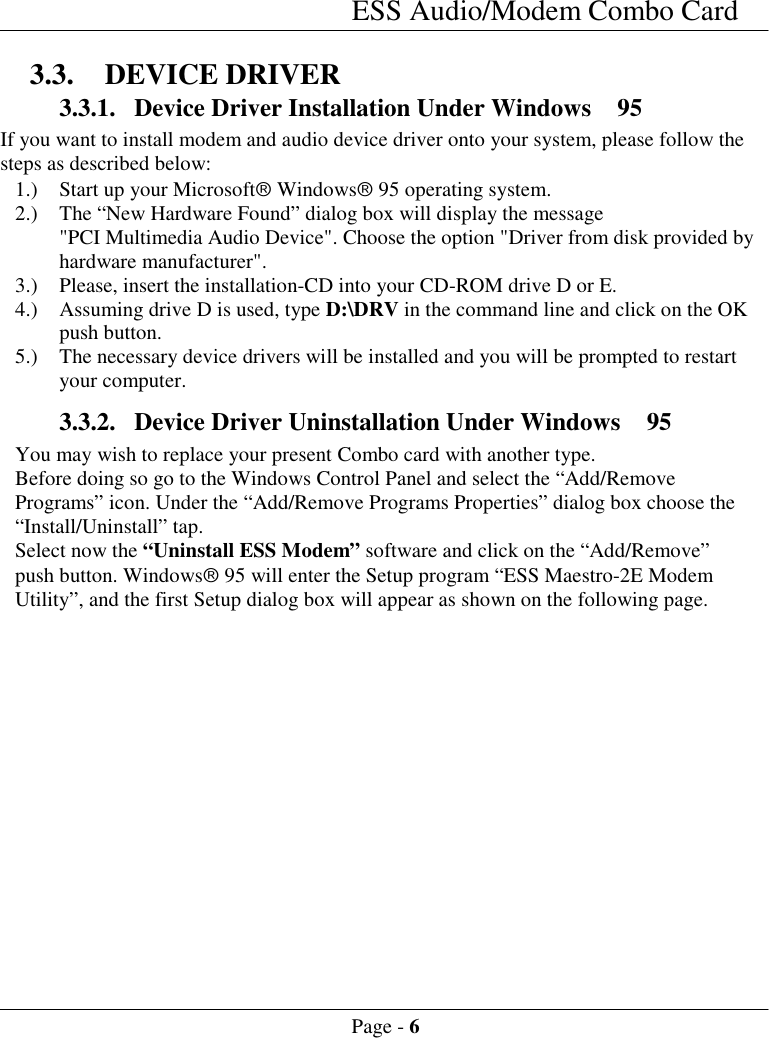
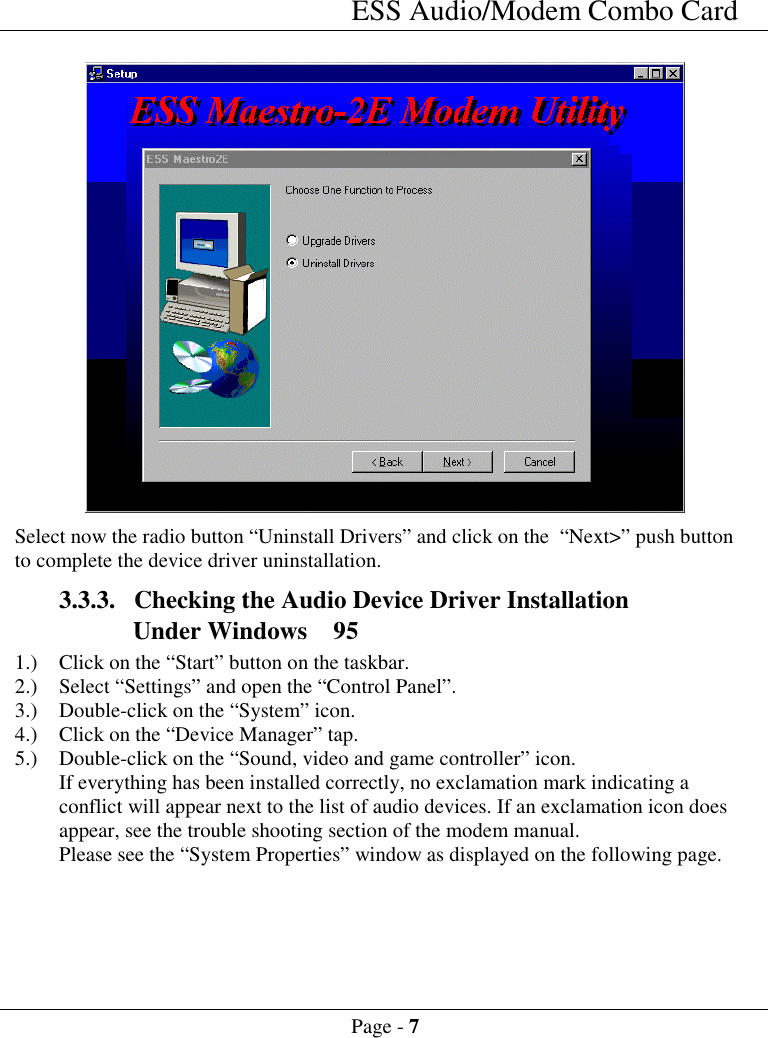
ESS Audio/Modem Combo CardPage - 63.3. DEVICE DRIVER3.3.1. Device Driver Installation Under Windows  95If you want to install modem and audio device driver onto your system, please follow thesteps as described below:1.) Start up your Microsoftâ Windowsâ 95 operating system.2.) The “New Hardware Found” dialog box will display the message"PCI Multimedia Audio Device". Choose the option "Driver from disk provided byhardware manufacturer".3.) Please, insert the installation-CD into your CD-ROM drive D or E.4.) Assuming drive D is used, type D:\DRV in the command line and click on the OKpush button.5.) The necessary device drivers will be installed and you will be prompted to restartyour computer.3.3.2. Device Driver Uninstallation Under Windows  95You may wish to replace your present Combo card with another type.Before doing so go to the Windows Control Panel and select the “Add/RemovePrograms” icon. Under the “Add/Remove Programs Properties” dialog box choose the“Install/Uninstall” tap.Select now the “Uninstall ESS Modem” software and click on the “Add/Remove”push button. Windowsâ 95 will enter the Setup program “ESS Maestro-2E ModemUtility”, and the first Setup dialog box will appear as shown on the following page.
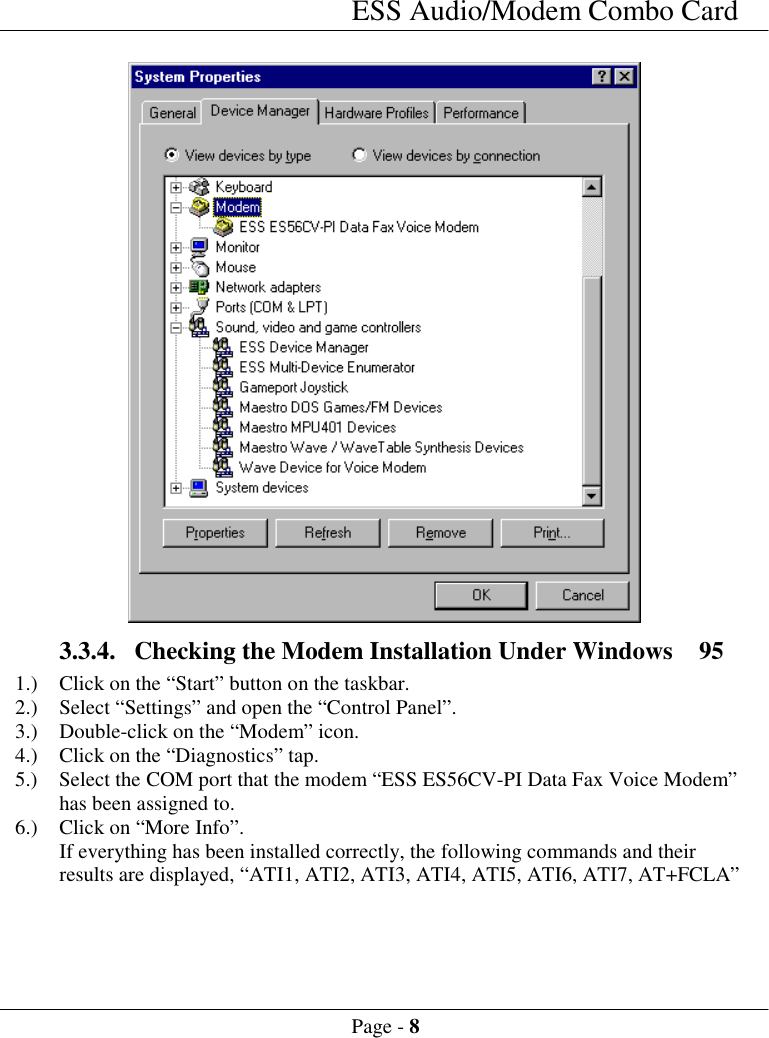
ESS Audio/Modem Combo CardPage - 7Select now the radio button “Uninstall Drivers” and click on the  “Next>” push buttonto complete the device driver uninstallation.3.3.3. Checking the Audio Device Driver InstallationUnder Windows  951.) Click on the “Start” button on the taskbar.2.) Select “Settings” and open the “Control Panel”.3.) Double-click on the “System” icon.4.) Click on the “Device Manager” tap.5.) Double-click on the “Sound, video and game controller” icon.If everything has been installed correctly, no exclamation mark indicating aconflict will appear next to the list of audio devices. If an exclamation icon doesappear, see the trouble shooting section of the modem manual.Please see the “System Properties” window as displayed on the following page.
ESS Audio/Modem Combo CardPage - 83.3.4. Checking the Modem Installation Under Windows  951.) Click on the “Start” button on the taskbar.2.) Select “Settings” and open the “Control Panel”.3.) Double-click on the “Modem” icon.4.) Click on the “Diagnostics” tap.5.) Select the COM port that the modem “ESS ES56CV-PI Data Fax Voice Modem”has been assigned to.6.) Click on “More Info”.If everything has been installed correctly, the following commands and theirresults are displayed, “ATI1, ATI2, ATI3, ATI4, ATI5, ATI6, ATI7, AT+FCLA”
ESS Audio/Modem Combo CardPage - 93.4. APPLICATION SOFTWAREThe bundled software package “TeleConnect” (modem application) and “AudioRack 32”(audio application) might be installed together or separately.3.4.1. “TeleConnect” and “AudioRack 32” ApplicationInstallation Under Windowsââââ 95If you want to install the application software onto your system please follow the steps asdescribed below.1.) After you have started up your Microsoftâ Windowsâ 95 operating system click onthe START button and choose the RUN item.2.) Please insert the installation CD-title into your CD-ROM drive D or E.3.) Assuming your CD-ROM drive is D, type in the command line of the RUN dialogbox D:\SETUP.EXE and click on the OK push button.4.) The necessary application software will be installed onto your system and you willbe asked whether or not you want to continue installing the audio applicationsoftware “AudioRack 32” . Choose the YES push button to proceed with theinstallation.NOTE: For installing the audio application software at a later time, please type thecommand D:\AudioRac\SETUP.EXE in the command line of the RUN dialogbox and click on the OK push button. Follow the on-screen instructions.3.4.2. Application Uninstallation Under Windowsââââ 95You may wish to remove your application software.Before doing so go to the Windows Control Panel and select the “Add/RemovePrograms” icon. Under the “Add/Remove Programs Properties” dialog box choose the“Install/Uninstall” tap.Select now:AudioRack p3.03 to remove the Audio application softwareTeleConnect 1.22 to remove the Modem application softwareClick on the “Add/Remove” push button. Windowsâ 95 will remove the applicationsoftware from your system. ReferenceVersion 1.0

Navigation menu