Lexmark Optra 4069 Xxx Users Manual _mr.bk
2015-01-23
: Lexmark Lexmark-Optra-4069-Xxx-Users-Manual-269106 lexmark-optra-4069-xxx-users-manual-269106 lexmark pdf
Open the PDF directly: View PDF  .
.
Page Count: 376 [warning: Documents this large are best viewed by clicking the View PDF Link!]
- Notices and Safety Information
- Preface
- 1. General Information
- 2. Diagnostic Information
- Start
- Service Checks
- Charge Roll Service Check
- Cover Open Switch/Cable Service Check
- Dead Machine Service Check
- Duplex Option Service Check
- Envelope Feeder Option Service Check
- Erase Lamp Service Check (010/212/414/616)
- Fan Service Check
- Fuser Service Check
- Fuser Solenoid Service Check
- Input Sensor Service Check
- Input Tray(s) Option Service Check
- High Capacity Feeder Input Tray Service Check
- Main Drive Service Check
- Operator Panel Service Check
- Options Service Check
- Output Bin Sensor Standard Tray Service Check
- Output Expander Service Check
- High-Capacity Output Stacker Service Check
- 5-Bin Mailbox Service Check
- Paper Feed Service Check
- Parallel Port Service Check
- Printhead Service Check
- Print Quality Service Check
- Smart Cartridge Service Check
- Serial Port Service Check
- Toner Sensor Service Check
- Transfer Roll Service Check
- 3. Diagnostic Aids
- 4. Repair Information
- Handling ESD-Sensitive Parts
- Adjustment Procedures
- Screw Identification Table
- Removal Procedures
- Covers
- Center Pan Assembly
- Controller Board
- Developer Drive Assembly
- Duplex Board
- Duplex Front Cover Assembly
- Duplex Front Cover Door
- Duplex Motor
- EMC Shields
- Engine Board
- Fans
- Frames
- Fuser
- Fuser Board
- Fuser Cover
- Fuser Detack Fingers
- Fuser Detack Housing Assembly
- Fuser Transfer Plate
- Fuser Envelope Conditioner Solenoid
- Fuser Narrow Media Sensor/Flag Assembly
- Fuser Exit Sensor Flag Assembly
- Fuser Lamp
- Fuser Lower Exit Guide Assembly
- High Voltage Power Supply
- Integrated Tray Compensator Assembly
- Integrated Tray Compensator Pick Roll Assembly
- Interconnect Board Assembly
- Low Voltage Power Supply
- Main Drive Assembly
- Main Drive Motor
- Multipurpose Tray/Lower Deflector Assembly
- Operator Panel Assembly
- Operator Panel Cable/Cover Open Switch Assembly
- Optional 250/500 Paper Tray Assembly
- Paper Alignment Assembly
- Paper Deflectors
- Paper Input Sensor
- Paper Size Sensing Board
- Pick Roll
- Printhead
- Redrive Assembly
- Smart Cartridge Contacts
- Toner Sensor
- Transfer Roll Assembly
- Upper Paper Deflector Assembly
- Upper Front Cover Hinge Assembly
- Upper Front Cover Interlock Switch Assembly
- 5. Connector Locations
- 6. Preventive Maintenance
- 7. Parts Catalog
- How To Use This Parts Catalog
- Printer Serial Label
- Assembly 1: Covers
- Assembly 2: Frame
- Assembly 3: Printhead
- Assembly 4: Paper Feed (Autocompensator)
- Assembly 5: Paper Feed - Multipurpose Unit
- Assembly 6: Paper Feed - Alignment
- Assembly 7: Paper Feed - Output
- Assembly 8: Integrated Paper Tray - 250 Sheet
- Assembly 9: Integrated Paper Tray - 500 Sheet
- Assembly 10: Main Drive
- Assembly 11: Developer Drive
- Assembly 12: Hot Roll Fuser
- Assembly 13: Transfer
- Assembly 14: Charging
- Assembly 15: Electronics
- Assembly 16: 250 Sheet Tray
- Assembly 17: 500 Sheet Tray
- Assembly 18: Duplex
- Assembly 19: Output Expander
- Assembly 20: Envelope Feeder
- Assembly 21: High Capacity Feeder
- Assembly 22: Kiosk - Vertical Paper Adapter
- Assembly 23: Kiosk - Horizontal Paper Adapter
- Assembly 24: High-Capacity Output Stacker
- Assembly 25: 5-Bin Mailbox
- Assembly 26: Options
- Assembly 27: Miscellaneous
- Index
- How To Use This Parts Catalog
- Index

Edition: March 2001
The following paragraph does not apply to any country where such provisions are
inconsistent with local law: LEXMARK INTERNATIONAL, INC. PROVIDES THIS
PUBLICATION “AS IS” WITHOUT WARRANTY OF ANY KIND, EITHER EXPRESS OR
IMPLIED, INCLUDING, BUT NOT LIMITED TO, THE IMPLIED WARRANTIES OF
MERCHANTABILITY OR FITNESS FOR A PARTICULAR PURPOSE. Some states do
not allow disclaimer of express or implied warranties in certain transactions; therefore,
this statement may not apply to you.
This publication could include technical inaccuracies or typographical errors. Changes
are periodically made to the information herein; these changes will be incorporated in
later editions. Improvements or changes in the products or the programs described may
be made at any time.
Comments may be addressed to Lexmark International, Inc., Department D22A/032-2,
740 West New Circle Road, Lexington, Kentucky 40550, U.S.A or e-mail at
ServiceInfoAndTraining@Lexmark.com. Lexmark may use or distribute any of the
information you supply in any way it believes appropriate without incurring any obligation
to you. You can purchase additional copies of publications related to this product by
calling 1-800-553-9727. In other countries, contact your point of purchase.
Lexmark and Optra are trademarks of Lexmark International, Inc., registered in the United
States and/or other countries.
Other trademarks are the property of their respective owners.
© Copyright Lexmark International, Inc. 1999, 2001.
All rights reserved.
UNITED STATES GOVERNMENT RESTRICTED RIGHTS
This software and documentation are provided with RESTRICTED RIGHTS. Use,
duplication or disclosure by the Government is subject to restrictions as set forth in
subparagraph (c)(1)(ii) of the Rights in Technical Data and Computer Software clause at
DFARS 252.227-7013 and in applicable FAR provisions: Lexmark International, Inc.,
Lexington, KY 40550.
4069-XXX
P/N: 12G3794

Contents iii
4069-XXX
Contents
Notices and Safety Information. . . . . . . . . . . . . . . . . . . . . . .ix
Laser Notices. . . . . . . . . . . . . . . . . . . . . . . . . . . . . . . . . . . . . . . ix
Safety Information . . . . . . . . . . . . . . . . . . . . . . . . . . . . . . . . . . xvii
Preface. . . . . . . . . . . . . . . . . . . . . . . . . . . . . . . . . . . . . . . . . . . . . xxii
General Information . . . . . . . . . . . . . . . . . . . . . . . . . . . . . . . . . . . 1-1
Options . . . . . . . . . . . . . . . . . . . . . . . . . . . . . . . . . . . . . . . . . . 1-3
Maintenance Approach . . . . . . . . . . . . . . . . . . . . . . . . . . . . . . 1-4
Tools Required For Service. . . . . . . . . . . . . . . . . . . . . . . . . . . 1-4
Acronyms. . . . . . . . . . . . . . . . . . . . . . . . . . . . . . . . . . . . . . . . . 1-5
Diagnostic Information . . . . . . . . . . . . . . . . . . . . . . . . . . . . . . . . . 2-1
Start . . . . . . . . . . . . . . . . . . . . . . . . . . . . . . . . . . . . . . . . . . . . . 2-1
Service Error Codes . . . . . . . . . . . . . . . . . . . . . . . . . . . . . . 2-2
User Status Messages . . . . . . . . . . . . . . . . . . . . . . . . . . 2-12
User Error Messages . . . . . . . . . . . . . . . . . . . . . . . . . . . . 2-16
Power-On Self Test (POST). . . . . . . . . . . . . . . . . . . . . . . 2-24
Symptom Tables. . . . . . . . . . . . . . . . . . . . . . . . . . . . . . . . 2-25
Service Checks . . . . . . . . . . . . . . . . . . . . . . . . . . . . . . . . . . . 2-28
Charge Roll Service Check . . . . . . . . . . . . . . . . . . . . . . . 2-29
Cover Open Switch/Cable Service Check . . . . . . . . . . . . 2-31
Dead Machine Service Check . . . . . . . . . . . . . . . . . . . . . 2-32
Duplex Option Service Check. . . . . . . . . . . . . . . . . . . . . . 2-35
Envelope Feeder Option Service Check . . . . . . . . . . . . . 2-38
Erase Lamp Service Check (010/212/414/616) . . . . . . . . 2-45
Fan Service Check . . . . . . . . . . . . . . . . . . . . . . . . . . . . . . 2-46
Fuser Service Check . . . . . . . . . . . . . . . . . . . . . . . . . . . . 2-47
Fuser Solenoid Service Check . . . . . . . . . . . . . . . . . . . . . 2-50
Input Sensor Service Check. . . . . . . . . . . . . . . . . . . . . . . 2-51
Input Tray(s) Option Service Check . . . . . . . . . . . . . . . . . 2-51
High Capacity Feeder Input Tray Service Check . . . . . . . 2-55
Main Drive Service Check . . . . . . . . . . . . . . . . . . . . . . . . 2-68
Operator Panel Service Check. . . . . . . . . . . . . . . . . . . . . 2-69
Options Service Check. . . . . . . . . . . . . . . . . . . . . . . . . . . 2-71
Output Bin Sensor Standard Tray Service Check . . . . . . 2-73
Output Expander Service Check . . . . . . . . . . . . . . . . . . . 2-74
High-Capacity Output Stacker Service Check . . . . . . . . . 2-79
5-Bin Mailbox Service Check . . . . . . . . . . . . . . . . . . . . . . 2-82
Paper Feed Service Check. . . . . . . . . . . . . . . . . . . . . . . . 2-88
Parallel Port Service Check . . . . . . . . . . . . . . . . . . . . . . . 2-90

iv Service Manual
4069-XXX
Printhead Service Check . . . . . . . . . . . . . . . . . . . . . . . . . 2-91
Print Quality Service Check . . . . . . . . . . . . . . . . . . . . . . . 2-92
Smart Cartridge Service Check . . . . . . . . . . . . . . . . . . . 2-105
Serial Port Service Check . . . . . . . . . . . . . . . . . . . . . . . 2-106
Toner Sensor Service Check. . . . . . . . . . . . . . . . . . . . . 2-106
Transfer Roll Service Check . . . . . . . . . . . . . . . . . . . . . 2-107
Diagnostic Aids . . . . . . . . . . . . . . . . . . . . . . . . . . . . . . . . . . . . . . 3-1
Diagnostic Mode . . . . . . . . . . . . . . . . . . . . . . . . . . . . . . . . . . . 3-1
Device Tests . . . . . . . . . . . . . . . . . . . . . . . . . . . . . . . . . . . . . . 3-2
Quick Disk Test . . . . . . . . . . . . . . . . . . . . . . . . . . . . . . . . . 3-2
Disk Test/Clean . . . . . . . . . . . . . . . . . . . . . . . . . . . . . . . . . 3-2
Flash Test . . . . . . . . . . . . . . . . . . . . . . . . . . . . . . . . . . . . . 3-3
Disabling Download Emulations . . . . . . . . . . . . . . . . . . . . 3-3
Duplex Tests. . . . . . . . . . . . . . . . . . . . . . . . . . . . . . . . . . . . . . 3-4
Duplex Quick Test . . . . . . . . . . . . . . . . . . . . . . . . . . . . . . . 3-4
Duplex Sensor Test . . . . . . . . . . . . . . . . . . . . . . . . . . . . . . 3-5
Duplex Motor Test . . . . . . . . . . . . . . . . . . . . . . . . . . . . . . . 3-5
Duplex Feed 1 Test . . . . . . . . . . . . . . . . . . . . . . . . . . . . . . 3-7
Duplex Feed 2 Test . . . . . . . . . . . . . . . . . . . . . . . . . . . . . . 3-7
Error Log. . . . . . . . . . . . . . . . . . . . . . . . . . . . . . . . . . . . . . . . . 3-8
Viewing the Error Log . . . . . . . . . . . . . . . . . . . . . . . . . . . . 3-8
Clearing the Error Log . . . . . . . . . . . . . . . . . . . . . . . . . . . . 3-8
Hardware Tests. . . . . . . . . . . . . . . . . . . . . . . . . . . . . . . . . . . . 3-9
LCD Test . . . . . . . . . . . . . . . . . . . . . . . . . . . . . . . . . . . . . . 3-9
Button Test . . . . . . . . . . . . . . . . . . . . . . . . . . . . . . . . . . . . 3-9
SDRAM Memory Test . . . . . . . . . . . . . . . . . . . . . . . . . . . 3-10
ROM Memory Test . . . . . . . . . . . . . . . . . . . . . . . . . . . . . 3-10
Parallel Wrap Test . . . . . . . . . . . . . . . . . . . . . . . . . . . . . . 3-11
Serial Wrap Test . . . . . . . . . . . . . . . . . . . . . . . . . . . . . . . 3-12
Input Tray Tests . . . . . . . . . . . . . . . . . . . . . . . . . . . . . . . . . . 3-14
Input Tray Feed Test . . . . . . . . . . . . . . . . . . . . . . . . . . . . 3-14
Input Tray Sensor Test . . . . . . . . . . . . . . . . . . . . . . . . . . 3-14
Output Bin Test - Standard Bin . . . . . . . . . . . . . . . . . . . . 3-15
Output Bin Feed Test. . . . . . . . . . . . . . . . . . . . . . . . . . . . 3-15
Output Bin Sensor Test . . . . . . . . . . . . . . . . . . . . . . . . . . 3-16
Output Bin X Sensor Test . . . . . . . . . . . . . . . . . . . . . . . . 3-16
Base Sensor Test . . . . . . . . . . . . . . . . . . . . . . . . . . . . . . 3-17
5-Bin Mailbox Diverter Test . . . . . . . . . . . . . . . . . . . . . . . 3-18
Print Registration . . . . . . . . . . . . . . . . . . . . . . . . . . . . . . . . . 3-19
Printer Setup. . . . . . . . . . . . . . . . . . . . . . . . . . . . . . . . . . . . . 3-20
Setting the Page Count . . . . . . . . . . . . . . . . . . . . . . . . . . 3-20
Viewing the Permanent Page Count . . . . . . . . . . . . . . . . 3-20

Contents v
4069-XXX
Maintenance Page Count. . . . . . . . . . . . . . . . . . . . . . . . . 3-21
Setting Configuration ID . . . . . . . . . . . . . . . . . . . . . . . . . . 3-21
Restore EP Factory Defaults . . . . . . . . . . . . . . . . . . . . . . 3-22
Print Tests . . . . . . . . . . . . . . . . . . . . . . . . . . . . . . . . . . . . . . . 3-23
Print Quality Test Pages. . . . . . . . . . . . . . . . . . . . . . . . . . 3-24
Print Test with RIP (Controller Board) Removed . . . . . . . 3-25
Printing Menu Settings Page . . . . . . . . . . . . . . . . . . . . . . 3-26
Autocompensator Operation . . . . . . . . . . . . . . . . . . . . . . . . . 3-26
Autoconnect System, Paper Tray Options, Envelope Feeder and
Output Expander Operations. . . . . . . . . . . . . . . . . . . . . . . . . 3-27
Fuser Operation. . . . . . . . . . . . . . . . . . . . . . . . . . . . . . . . . . . 3-29
Paper Feed Jams . . . . . . . . . . . . . . . . . . . . . . . . . . . . . . . . . 3-30
Repair Information . . . . . . . . . . . . . . . . . . . . . . . . . . . . . . . . . . . . 4-1
Handling ESD-Sensitive Parts. . . . . . . . . . . . . . . . . . . . . . . . . 4-1
Adjustment Procedures . . . . . . . . . . . . . . . . . . . . . . . . . . . . . . 4-2
Duplex Motor Drive Belts . . . . . . . . . . . . . . . . . . . . . . . . . . 4-2
Fuser Solenoid Adjustment . . . . . . . . . . . . . . . . . . . . . . . . 4-3
Gap Adjustment . . . . . . . . . . . . . . . . . . . . . . . . . . . . . . . . . 4-3
Printhead Assembly Adjustment. . . . . . . . . . . . . . . . . . . . . 4-4
Paper Alignment Assembly Adjustment . . . . . . . . . . . . . . . 4-5
Screw Identification Table . . . . . . . . . . . . . . . . . . . . . . . . . . . . 4-7
Removal Procedures . . . . . . . . . . . . . . . . . . . . . . . . . . . . . . . 4-12
Covers . . . . . . . . . . . . . . . . . . . . . . . . . . . . . . . . . . . . . . . 4-12
Center Pan Assembly. . . . . . . . . . . . . . . . . . . . . . . . . . . . 4-16
Controller Board . . . . . . . . . . . . . . . . . . . . . . . . . . . . . . . . 4-17
Developer Drive Assembly . . . . . . . . . . . . . . . . . . . . . . . . 4-18
Duplex Board . . . . . . . . . . . . . . . . . . . . . . . . . . . . . . . . . . 4-19
Duplex Front Cover Assembly . . . . . . . . . . . . . . . . . . . . . 4-19
Duplex Front Cover Door . . . . . . . . . . . . . . . . . . . . . . . . . 4-19
Duplex Motor . . . . . . . . . . . . . . . . . . . . . . . . . . . . . . . . . . 4-20
EMC Shields. . . . . . . . . . . . . . . . . . . . . . . . . . . . . . . . . . . 4-21
Engine Board . . . . . . . . . . . . . . . . . . . . . . . . . . . . . . . . . . 4-23
Fans . . . . . . . . . . . . . . . . . . . . . . . . . . . . . . . . . . . . . . . . . 4-24
Frames . . . . . . . . . . . . . . . . . . . . . . . . . . . . . . . . . . . . . . . 4-26
Fuser . . . . . . . . . . . . . . . . . . . . . . . . . . . . . . . . . . . . . . . . 4-29
Fuser Board . . . . . . . . . . . . . . . . . . . . . . . . . . . . . . . . . . . 4-30
Fuser Cover . . . . . . . . . . . . . . . . . . . . . . . . . . . . . . . . . . . 4-31
Fuser Detack Fingers . . . . . . . . . . . . . . . . . . . . . . . . . . . . 4-31
Fuser Detack Housing Assembly . . . . . . . . . . . . . . . . . . . 4-32
Fuser Transfer Plate. . . . . . . . . . . . . . . . . . . . . . . . . . . . . 4-33
Fuser Envelope Conditioner Solenoid . . . . . . . . . . . . . . . 4-34
Fuser Narrow Media Sensor/Flag Assembly . . . . . . . . . . 4-35

vi Service Manual
4069-XXX
Fuser Exit Sensor Flag Assembly . . . . . . . . . . . . . . . . . . 4-35
Fuser Lamp . . . . . . . . . . . . . . . . . . . . . . . . . . . . . . . . . . . 4-35
Fuser Lower Exit Guide Assembly. . . . . . . . . . . . . . . . . . 4-36
High Voltage Power Supply . . . . . . . . . . . . . . . . . . . . . . . 4-37
Integrated Tray Compensator Assembly . . . . . . . . . . . . . 4-38
Integrated Tray Compensator Pick Roll Assembly . . . . . 4-39
Interconnect Board Assembly . . . . . . . . . . . . . . . . . . . . . 4-40
Low Voltage Power Supply . . . . . . . . . . . . . . . . . . . . . . . 4-42
Main Drive Assembly. . . . . . . . . . . . . . . . . . . . . . . . . . . . 4-43
Main Drive Motor . . . . . . . . . . . . . . . . . . . . . . . . . . . . . . . 4-45
Multipurpose Tray/Lower Deflector Assembly . . . . . . . . . 4-46
Operator Panel Assembly . . . . . . . . . . . . . . . . . . . . . . . . 4-48
Operator Panel Cable/Cover Open Switch Assembly . . . 4-49
Optional 250/500 Paper Tray Assembly . . . . . . . . . . . . . 4-50
Paper Alignment Assembly . . . . . . . . . . . . . . . . . . . . . . . 4-51
Paper Deflectors . . . . . . . . . . . . . . . . . . . . . . . . . . . . . . . 4-53
Paper Input Sensor . . . . . . . . . . . . . . . . . . . . . . . . . . . . . 4-54
Paper Size Sensing Board. . . . . . . . . . . . . . . . . . . . . . . . 4-54
Pick Roll. . . . . . . . . . . . . . . . . . . . . . . . . . . . . . . . . . . . . . 4-55
Printhead . . . . . . . . . . . . . . . . . . . . . . . . . . . . . . . . . . . . . 4-56
Redrive Assembly . . . . . . . . . . . . . . . . . . . . . . . . . . . . . . 4-57
Smart Cartridge Contacts . . . . . . . . . . . . . . . . . . . . . . . . 4-58
Toner Sensor. . . . . . . . . . . . . . . . . . . . . . . . . . . . . . . . . . 4-59
Transfer Roll Assembly . . . . . . . . . . . . . . . . . . . . . . . . . . 4-60
Upper Paper Deflector Assembly . . . . . . . . . . . . . . . . . . 4-60
Upper Front Cover Hinge Assembly . . . . . . . . . . . . . . . . 4-61
Upper Front Cover Interlock Switch Assembly . . . . . . . . 4-62
Connector Locations . . . . . . . . . . . . . . . . . . . . . . . . . . . . . . . . . . 5-1
Low Voltage Power Supply . . . . . . . . . . . . . . . . . . . . . . . . 5-1
High Voltage Power Supply. . . . . . . . . . . . . . . . . . . . . . . . 5-3
Engine Board. . . . . . . . . . . . . . . . . . . . . . . . . . . . . . . . . . . 5-4
Fuser Board. . . . . . . . . . . . . . . . . . . . . . . . . . . . . . . . . . . 5-11
Interconnect Board . . . . . . . . . . . . . . . . . . . . . . . . . . . . . 5-12
Envelope Option Board . . . . . . . . . . . . . . . . . . . . . . . . . . 5-15
Duplex Option Board . . . . . . . . . . . . . . . . . . . . . . . . . . . . 5-17
Autoconnect - Top . . . . . . . . . . . . . . . . . . . . . . . . . . . . . . 5-19
Output Expander Control Board . . . . . . . . . . . . . . . . . . . 5-20
High-Capacity Output Stacker Board. . . . . . . . . . . . . . . . 5-22
Preventive Maintenance. . . . . . . . . . . . . . . . . . . . . . . . . . . . . . . . 6-1
Safety Inspection Guide . . . . . . . . . . . . . . . . . . . . . . . . . . . . . 6-1
Lubrication Specifications . . . . . . . . . . . . . . . . . . . . . . . . . . . . 6-1
Scheduled Maintenance . . . . . . . . . . . . . . . . . . . . . . . . . . . . 6-2

Contents vii
4069-XXX
Parts Catalog . . . . . . . . . . . . . . . . . . . . . . . . . . . . . . . . . . . . . . . . . 7-1
How To Use This Parts Catalog . . . . . . . . . . . . . . . . . . . . . . . 7-1
Printer Serial Label. . . . . . . . . . . . . . . . . . . . . . . . . . . . . . . 7-2
Assembly 1: Covers . . . . . . . . . . . . . . . . . . . . . . . . . . . . . . 7-4
Assembly 2: Frame. . . . . . . . . . . . . . . . . . . . . . . . . . . . . . . 7-8
Assembly 3: Printhead . . . . . . . . . . . . . . . . . . . . . . . . . . . 7-12
Assembly 4: Paper Feed (Autocompensator). . . . . . . . . . 7-14
Assembly 5: Paper Feed - Multipurpose Unit. . . . . . . . . . 7-16
Assembly 6: Paper Feed - Alignment. . . . . . . . . . . . . . . . 7-18
Assembly 7: Paper Feed - Output . . . . . . . . . . . . . . . . . . 7-20
Assembly 8: Integrated Paper Tray - 250 Sheet . . . . . . . 7-22
Assembly 9: Integrated Paper Tray - 500 Sheet . . . . . . . 7-24
Assembly 10: Main Drive . . . . . . . . . . . . . . . . . . . . . . . . . 7-26
Assembly 11: Developer Drive . . . . . . . . . . . . . . . . . . . . . 7-28
Assembly 12: Hot Roll Fuser . . . . . . . . . . . . . . . . . . . . . . 7-30
Assembly 13: Transfer . . . . . . . . . . . . . . . . . . . . . . . . . . . 7-34
Assembly 14: Charging . . . . . . . . . . . . . . . . . . . . . . . . . . 7-36
Assembly 15: Electronics . . . . . . . . . . . . . . . . . . . . . . . . . 7-38
Assembly 16: 250 Sheet Tray . . . . . . . . . . . . . . . . . . . . . 7-52
Assembly 17: 500 Sheet Tray . . . . . . . . . . . . . . . . . . . . . 7-58
Assembly 18: Duplex . . . . . . . . . . . . . . . . . . . . . . . . . . . . 7-62
Assembly 19: Output Expander . . . . . . . . . . . . . . . . . . . . 7-68
Assembly 20: Envelope Feeder . . . . . . . . . . . . . . . . . . . . 7-72
Assembly 21: High Capacity Feeder . . . . . . . . . . . . . . . . 7-76
Assembly 22: Kiosk - Vertical Paper Adapter. . . . . . . . . . 7-90
Assembly 23: Kiosk - Horizontal Paper Adapter. . . . . . . . 7-92
Assembly 24: High-Capacity Output Stacker . . . . . . . . . . 7-94
Assembly 25: 5-Bin Mailbox . . . . . . . . . . . . . . . . . . . . . . 7-100
Assembly 26: Options . . . . . . . . . . . . . . . . . . . . . . . . . . 7-104
Assembly 27: Miscellaneous . . . . . . . . . . . . . . . . . . . . . 7-106
Index. . . . . . . . . . . . . . . . . . . . . . . . . . . . . . . . . . . . . . . . . . . . . . . . I-1

viii Service Manual
4069-XXX
Notices and Safety Information ix
4069-XXX
Notices and Safety Information
Laser Notices
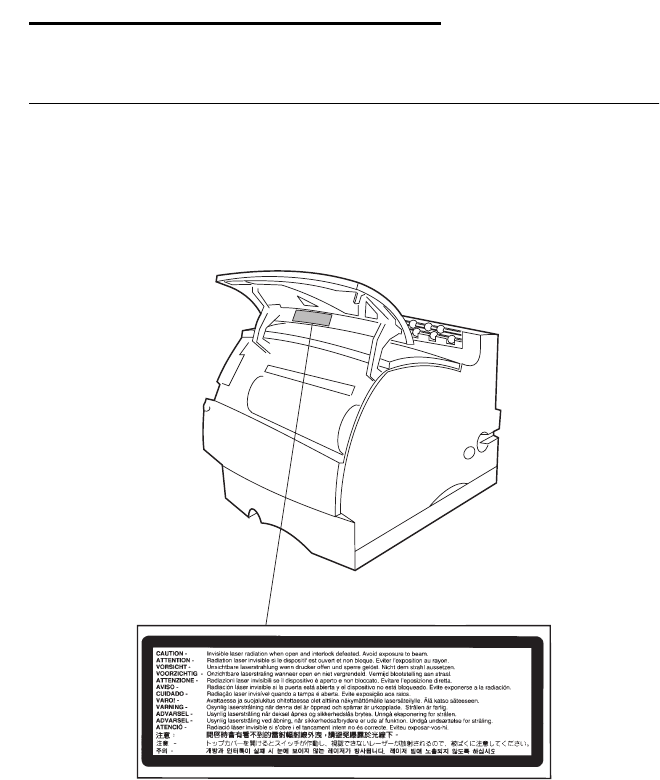
The following laser notice labels may be affixed to this printer as
shown:
Laser Advisory Label
xService Manual
4069-XXX
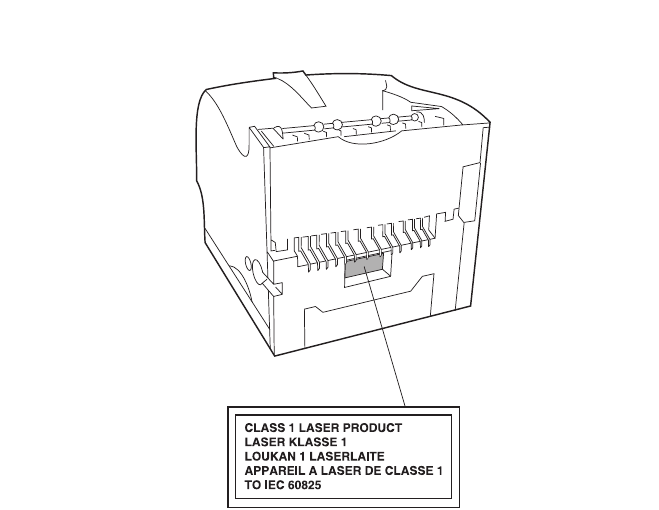
Class 1 Laser Statement Label

Notices and Safety Information xi
4069-XXX
Laser Notice
The printer is certified in the U.S. to conform to the requirements of
DHHS 21 CFR Subchapter J for Class I (1) laser products, and
elsewhere is certified as a Class I laser product conforming to the
requirements of IEC 60825.
Class I laser products are not considered to be hazardous. The
printer contains internally a Class IIIb (3b) laser that is nominally a 5
milliwatt gallium arsenide laser operating in the wavelength region of
770-795 nanometers. The laser system and printer are designed so
there is never any human access to laser radiation above a Class I
level during normal operation, user maintenance, or prescribed
service condition.
Laser
Der Drucker erfüllt gemäß amtlicher Bestätigung der USA die
Anforderungen der Bestimmung DHHS (Department of Health and
Human Services) 21 CFR Teil J für Laserprodukte der Klasse I (1).
In anderen Ländern gilt der Drucker als Laserprodukt der Klasse I,
der die Anforderungen der IEC (International Electrotechnical
Commission) 60825 gemäß amtlicher Bestätigung erfüllt.
Laserprodukte der Klasse I gelten als unschädlich. Im Inneren des
Druckers befindet sich ein Laser der Klasse IIIb (3b), bei dem es
sich um einen Galliumarsenlaser mit 5 Milliwatt handelt, der Wellen
der Länge 770-795 Nanometer ausstrahlt. Das Lasersystem und der
Drucker sind so konzipiert, daß im Normalbetrieb, bei der Wartung
durch den Benutzer oder bei ordnungsgemäßer Wartung durch den
Kundendienst Laserbestrahlung, die die Klasse I übersteigen würde,
Menschen keinesfalls erreicht.
Avis relatif à l’utilisation de laser
Pour les Etats-Unis : cette imprimante est certifiée conforme aux
provisions DHHS 21 CFR alinéa J concernant les produits laser de
Classe I (1). Pour les autres pays : cette imprimante répond aux
normes IEC 60825 relatives aux produits laser de Classe I.

xii Service Manual
4069-XXX
Les produits laser de Classe I sont considérés comme des produits
non dangereux. Cette imprimante est équipée d’un laser de Classe
IIIb (3b) (arséniure de gallium d’une puissance nominale de 5
milliwatts) émettant sur des longueurs d’onde comprises entre 770
et 795 nanomètres. L’imprimante et son système laser sont conçus
pour impossible, dans des conditions normales d’utilisation,
d’entretien par l’utilisateur ou de révision, l’exposition à des
rayonnements laser supérieurs à des rayonnements de Classe I .
Avvertenze sui prodotti laser
Questa stampante è certificata negli Stati Uniti per essere conforme
ai requisiti del DHHS 21 CFR Sottocapitolo J per i prodotti laser di
classe 1 ed è certificata negli altri Paesi come prodotto laser di
classe 1 conforme ai requisiti della norma CEI 60825.
I prodotti laser di classe non sono considerati pericolosi. La
stampante contiene al suo interno un laser di classe IIIb (3b)
all’arseniuro di gallio della potenza di 5mW che opera sulla
lunghezza d’onda compresa tra 770 e 795 nanometri. Il sistema
laser e la stampante sono stati progettati in modo tale che le
persone a contatto con la stampante, durante il normale
funzionamento, le operazioni di servizio o quelle di assistenza
tecnica, non ricevano radiazioni laser superiori al livello della classe
1.
Avisos sobre el láser
Se certifica que, en los EE.UU., esta impresora cumple los
requisitos para los productos láser de Clase I (1) establecidos en el
subcapítulo J de la norma CFR 21 del DHHS (Departamento de
Sanidad y Servicios) y, en los demás países, reúne todas las
condiciones expuestas en la norma IEC 60825 para productos láser
de Clase I (1).
Los productos láser de Clase I no se consideran peligrosos. La
impresora contiene en su interior un láser de Clase IIIb (3b) de
arseniuro de galio de funcionamiento nominal a 5 milivatios en una
longitud de onda de 770 a 795 nanómetros. El sistema láser y la
impresora están diseñados de forma que ninguna persona pueda
verse afectada por ningún tipo de radiación láser superior al nivel de

Notices and Safety Information xiii
4069-XXX
la Clase I durante su uso normal, el mantenimiento realizado por el
usuario o cualquier otra situación de servicio técnico.
Declaração sobre Laser
A impressora está certificada nos E.U.A. em conformidade com os
requisitos da regulamentação DHHS 21 CFR Subcapítulo J para a
Classe I (1) de produtos laser. Em outros locais, está certificada
como um produto laser da Classe I, em conformidade com os
requisitos da norma IEC 60825.
Os produtos laser da Classe I não são considerados perigosos.
Internamente, a impressora contém um produto laser da Classe IIIb
(3b), designado laser de arseneto de potássio, de 5 milliwatts
,operando numa faixa de comprimento de onda entre 770 e 795
nanómetros. O sistema e a impressora laser foram concebidos de
forma a nunca existir qualquer possiblidade de acesso humano a
radiação laser superior a um nível de Classe I durante a operação
normal, a manutenção feita pelo utilizador ou condições de
assistência prescritas.
Laserinformatie
De printer voldoet aan de eisen die gesteld worden aan een
laserprodukt van klasse I. Voor de Verenigde Staten zijn deze eisen
vastgelegd in DHHS 21 CFR Subchapter J, voor andere landen in
IEC 60825.
Laserprodukten van klasse I worden niet als ongevaarlijk
aangemerkt. De printer is voorzien van een laser van klasse IIIb
(3b), dat wil zeggen een gallium arsenide-laser van 5 milliwatt met
een golflengte van 770-795 nanometer. Het lasergedeelte en de
printer zijn zo ontworpen dat bij normaal gebruik, bij onderhoud of
reparatie conform de voorschriften, nooit blootstelling mogelijk is
aan laserstraling boven een niveau zoals voorgeschreven is voor
klasse 1.

xiv Service Manual
4069-XXX
Lasermeddelelse
Printeren er godkendt som et Klasse I-laserprodukt, i
overenstemmelse med kravene i IEC 60825.
Klasse I-laserprodukter betragtes ikke som farlige. Printeren
indeholder internt en Klasse IIIB (3b)-laser, der nominelt er en 5
milliwatt galliumarsenid laser, som arbejder på bølgelængdeområdet
770-795 nanometer. Lasersystemet og printeren er udformet
således, at mennesker aldrig udsættes for en laserstråling over
Klasse I-niveau ved normal drift, brugervedligeholdelse eller
obligatoriske servicebetingelser.
Huomautus laserlaitteesta
Tämä kirjoitin on Yhdysvalloissa luokan I (1) laserlaitteiden DHHS
21 CFR Subchapter J -määrityksen mukainen ja muualla luokan I
laserlaitteiden IEC 60825 -määrityksen mukainen.
Luokan I laserlaitteiden ei katsota olevan vaarallisia käyttäjälle.
Kirjoittimessa on sisäinen luokan IIIb (3b) 5 milliwatin
galliumarsenidilaser, joka toimii aaltoalueella 770 - 795 nanometriä.
Laserjärjestelmä ja kirjoitin on suunniteltu siten, että käyttäjä ei
altistu luokan I määrityksiä voimakkaammalle säteilylle kirjoittimen
normaalin toiminnan, käyttäjän tekemien huoltotoimien tai muiden
huoltotoimien yhteydessä.
VARO! Avattaessa ja suojalukitus ohitettaessa olet alttiina
näkymättömälle lasersäteilylle. Älä katso säteeseen.
VARNING! Osynlig laserstrålning när denna del är öppnad och
spärren är urkopplad. Betrakta ej strålen.
Laser-notis
Denna skrivare är i USA certifierad att motsvara kraven i DHHS 21
CFR, underparagraf J för laserprodukter av Klass I (1). I andra
länder uppfyller skrivaren kraven för laserprodukter av Klass I enligt
kraven i IEC 60825.

Notices and Safety Information xv
4069-XXX
Laserprodukter i Klass I anses ej hälsovådliga. Skrivaren har en
inbyggd laser av Klass IIIb (3b) som består av en laserenhet av
gallium-arsenid på 5 milliwatt som arbetar i våglängdsområdet 770-
795 nanometer. Lasersystemet och skrivaren är utformade så att det
aldrig finns risk för att någon person utsätts för laserstrålning över
Klass I-nivå vid normal användning, underhåll som utförs av
användaren eller annan föreskriven serviceåtgärd.
Laser-melding
Skriveren er godkjent i USA etter kravene i DHHS 21 CFR,
underkapittel J, for klasse I (1) laserprodukter, og er i andre land
godkjent som et Klasse I-laserprodukt i samsvar med kravene i IEC
60825.
Klasse I-laserprodukter er ikke å betrakte som farlige. Skriveren
inneholder internt en klasse IIIb (3b)-laser, som består av en
gallium-arsenlaserenhet som avgir stråling i bølgelengdeområdet
770-795 nanometer. Lasersystemet og skriveren er utformet slik at
personer aldri utsettes for laserstråling ut over klasse I-nivå under
vanlig bruk, vedlikehold som utføres av brukeren, eller foreskrevne
serviceoperasjoner.
Avís sobre el Làser
Segons ha estat certificat als Estats Units, aquesta impressora
compleix els requisits de DHHS 21 CFR, apartat J, pels productes
làser de classe I (1), i segons ha estat certificat en altres llocs, és un
producte làser de classe I que compleix els requisits d’IEC 60825.
Els productes làser de classe I no es consideren perillosos. Aquesta
impressora conté un làser de classe IIIb (3b) d’arseniür de gal.li,
nominalment de 5 mil.liwats, i funciona a la regió de longitud d’ona
de 770-795 nanòmetres. El sistema làser i la impressora han sigut
concebuts de manera que mai hi hagi exposició a la radiació làser
per sobre d’un nivell de classe I durant una operació normal, durant
les tasques de manteniment d’usuari ni durant els serveis que
satisfacin les condicions prescrites.
xvi Service Manual
4069-XXX
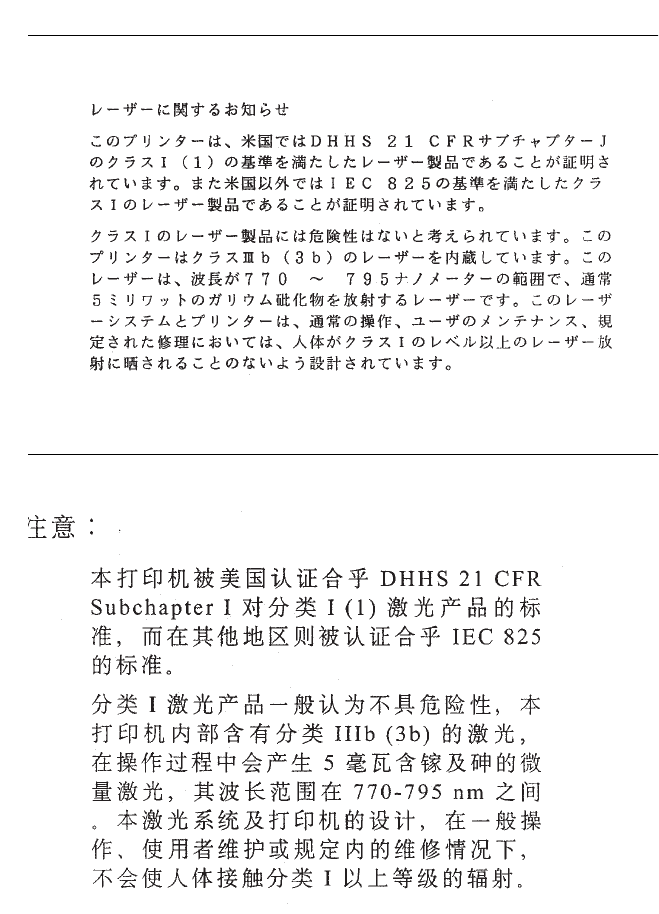
Japanese Laser Notice
Chinese Laser Notice
Notices and Safety Information xvii
4069-XXX
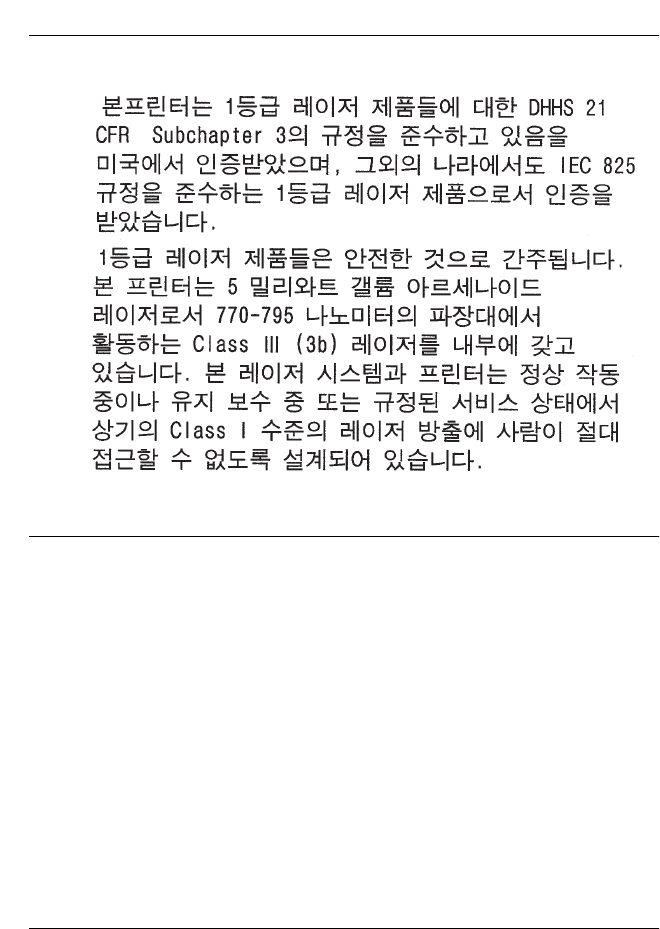
Korean Laser Notice
Safety Information
•This product is designed, tested and approved to meet strict
global safety standards with the use of specific Lexmark
components. The safety features of some parts may not always
be obvious. Lexmark is not responsible for the use of other
replacement parts.
•The maintenance information for this product has been
prepared for use by a professional service person and is not
intended to be used by others.
•There may be an increased risk of electric shock and personal
injury during disassembly and servicing of this product.
Professional service personnel should understand this and take
necessary precautions.
Consignes de Sécurité
•Ce produit a été conçu, testé et approuvé pour respecter les
normes strictes de sécurité globale lors de l'utilisation de
composants Lexmark spécifiques. Les caractéristiques de

xviii Service Manual
4069-XXX
sécurité de certains éléments ne sont pas toujours évidentes.
Lexmark ne peut être tenu responsable de l'utilisation d'autres
pièces de rechange.
•Les consignes d'entretien et de réparation de ce produit
s'adressent uniquement à un personnel de maintenance
qualifié.
•Le démontage et l'entretien de ce produit pouvant présenter
certains risques électriques, le personnel d'entretien qualifié
devra prendre toutes les précautions nécessaires.
Norme di sicurezza
•Il prodotto è stato progettato, testato e approvato in conformità a
severi standard di sicurezza e per l’utilizzo con componenti
Lexmark specifici. Le caratteristiche di sicurezza di alcune parti
non sempre sono di immediata comprensione. Lexmark non è
responsabile per l’utilizzo di parti di ricambio di altri produttori.
•Le informazioni riguardanti la manutenzione di questo prodotto
sono indirizzate soltanto al personale di assistenza autorizzato.
•Durante lo smontaggio e la manutenzione di questo prodotto, il
rischio di subire scosse elettriche e danni alla persona è più
elevato. Il personale di assistenza autorizzato, deve, quindi,
adottare le precauzioni necessarie.
Sicherheitshinweise
•Dieses Produkt und die zugehörigen Komponenten wurden
entworfen und getestet, um beim Einsatz die weltweit gültigen
Sicherheitsanforderungen zu erfüllen. Die sicherheitsrelevanten
Funktionen der Bauteile und Optionen sind nicht immer
offensichtlich. Sofern Teile eingesetzt werden, die nicht von
Lexmark sind, wird von Lexmark keinerlei Verantwortung oder
Haftung für dieses Produkt übernommen.
•Die Wartungsinformationen für dieses Produkt sind
ausschließlich für die Verwendung durch einen
Wartungsfachmann bestimmt.
•Während des Auseinandernehmens und der Wartung des
Geräts besteht ein zusätzliches Risiko eines elektrischen
Schlags und körperlicher Verletzung. Das zuständige

Notices and Safety Information xix
4069-XXX
Fachpersonal sollte entsprechende Vorsichtsmaßnahmen
treffen.
Pautas de Seguridad
•Este producto se ha diseñado, verificado y aprobado para
cumplir los más estrictos estándares de seguridad global
usando los componentes específicos de Lexmark. Puede que
las características de seguridad de algunas piezas no sean
siempre evidentes. Lexmark no se hace responsable del uso de
otras piezas de recambio.
•La información sobre el mantenimiento de este producto está
dirigida exclusivamente al personal cualificado de
mantenimiento.
•Existe mayor riesgo de descarga eléctrica y de daños
personales durante el desmontaje y la reparación de la
máquina. El personal cualificado debe ser consciente de este
peligro y tomar las precauciones necesarias.
Informações de Segurança
•Este produto foi concebido, testado e aprovado para satisfazer
os padrões globais de segurança na utilização de componentes
específicos da Lexmark. As funções de segurança de alguns
dos componentes podem não ser sempre óbvias. A Lexmark
não é responsável pela utilização de outros componentes de
substituição.
•As informações de segurança relativas a este produto
destinam-se a profissionais destes serviços e não devem ser
utilizadas por outras pessoas.
•Risco de choques eléctricos e ferimentos graves durante a
desmontagem e manutenção deste produto. Os profissionais
destes serviços devem estar avisados deste facto e tomar os
cuidados necessários.

xx Service Manual
4069-XXX
Informació de Seguretat
•Aquest producte està dissenyat, comprovat i aprovat per tal
d'acomplir les estrictes normes de seguretat globals amb la
utililització de components específics de Lexmark. Les
característiques de seguretat d'algunes peces pot ser que no
sempre siguin òbvies. Lexmark no es responsabilitza de l'us
d'altres peces de recanvi.
•La informació pel manteniment d’aquest producte està
orientada exclusivament a professionals i no està destinada a
ningú que no ho sigui.
•El risc de xoc elèctric i de danys personals pot augmentar
durant el procés de desmuntatge i de servei d’aquest producte.
El personal professional ha d’estar-ne assabentat i prendre les
mesures convenients.
Notices and Safety Information xxi
4069-XXX
Chinese Safety Information
Korean Safety Information
Ozone Information
This product does not produce measurable amounts of ozone gas.

xxii Service Manual
4069-XXX
Preface
This manual is divided into the following chapters:
•“General Information” contains a general description of the
printer, options, and the maintenance approach used to repair it.
General environmental and safety instructions as well as
special tools and test equipment are listed in this chapter.
•“Diagnostic Information” contains a service error code table,
user status message table, user error message table, symptom
table, and service checks used to isolate failing field replaceable
units (FRUs).
•“Diagnostic Aids” contains tests and checks used to locate or
repeat symptoms of printer problems. Printer operation
information is provided to enhance the tests and checks.
•“Repair Information” provides instructions for making printer
adjustments and removing and installing FRUs.
•“Connector Locations” uses illustrations to identify the major
components and test points on the printer.
•“Preventive Maintenance” contains safety inspection guidelines,
lubrication specifications, and maintenance information to
prevent problems and maintain performance.
•“Parts Catalog” contains illustrations and part numbers for
individual FRUs.

General Information 1-1
4069-XXX
1. General Information
The Optra™ T laser printers are letter quality page printers designed
to attach to IBM-compatible PC’s and to most computer networks.
The Optra T laser printer is available in the following models.
Model Name Type
Optra T 610 4069-010
Optra T 610n 4069-01n
Optra T 612 4069-212
Optra T 612n 4069-21n
Optra T 614 4069-414
Optra T 614 4069-41b
Optra T 614n 4069-41e
Optra T 614nl 4069-41l
Optra T 614n 4069-41n
Optra T 616 4069-616
Optra T 616n 4069-61n
Optra T 23v 4069-23v
Optra T 23e 4069-23e
1-2 Service Manual
4069-XXX
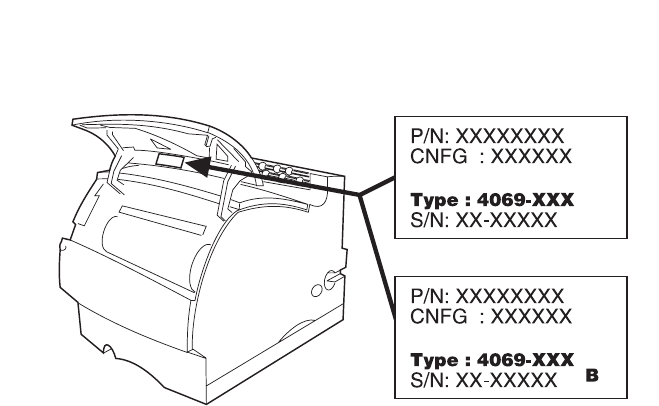
Look at the printer serial label to identify the printer you are working
on. There are two service levels of Optra T printers. Some printers
are at a service level B as indicated by the B on the label.

General Information 1-3
4069-XXX
Options
The following options are available. Some options are not available
in every country. Contact your point of purchase for options available
in your country.
Memory options of 4MB, 8MB, 16MB, 32MB, 64MB and 128MB
SDRAM DIMM
Flash memory options of 2MB, 4MB, 8MB and 16MB DIMM
Integrated network options
Token-Ring
Ethernet
Tri-Port Adapter
IR Adapter
IPDS SIMM
Prescribe SIMM
TIFF SIMM
Barcode SIMM
Parallel Interface Card
SCS
USB/Parallel Port
Marknet Print Servers
250 and 500-sheet paper trays of A5, letter, and legal size.
250 Sheet Special Media Tray Assembly
500 Sheet Special Media Tray
2000 Sheet High Capacity Feeder
Envelope feeder
Duplex option - 250 Sheet
Duplex option - 500 Sheet
Hard Disk - 2.1 GB
Forms Hard Disk - 2.1 GB
Vertical Kiosk Presenter
Horizontal Kiosk Presenter
Output Expander
5-Bin Mailbox
High Capacity Output Stacker

1-4 Service Manual
4069-XXX
Maintenance Approach
The diagnostic information in this manual leads you to the correct
field replaceable unit (FRU) or part. Use the service error codes,
user status messages, user error messages, service checks, and
diagnostic aids to determine the printer problem and repair the
failure. After you complete the repair, perform tests as needed to
verify the repair.
Tools Required For Service
Flat-blade screwdriver
#1 Phillips screwdriver
#2 Phillips screwdriver
T10 Torx Screwdriver
7.0 mm nut driver
5.5 mm wrench
Needlenose pliers
Diagonal pliers
Spring hook
Feeler gauges
Analog or digital multimeter
Parallel wrap plug 1319128
Serial wrap plug 1329048
Twinax/serial debug cable 1381963
Coax/serial debug cable 1381964

General Information 1-5
4069-XXX
Acronyms
CSU Customer Setup
DIMM Dual In-Line Memory Module
DRAM Dynamic Random Access Memory
EDO Enhanced Data Out
EP Electrophotographic Process
EPROM Erasable, Programmable Read-Only
Memory
ESD Electrostatic Discharge
FRU Field Replaceable Unit
GB Gigabyte
HVPS High Voltage Power Supply
LASER Light Amplification by Stimulated Emission
of Radiation
LCD Liquid Crystal Display
LED Light-Emitting Diode
LVPS Low Voltage Power Supply
MROM Masked Read Only Memory
NVRAM Nonvolatile Random Access Memory
OEM Original Equipment Manufacturer
PC Photoconductor
POR Power-On Reset
POST Power-On Self Test
RIP Raster Imaging Processor
ROM Read Only Memory
SIMM Single In-Line Memory Module
SDRAM Synchronous Dual Random Access
Memory
SRAM Static Random Access Memory
UPR Used Parts Return
V ac Volts alternating current
V dc Volts direct current

1-6 Service Manual
4069-XXX

Diagnostic Information 2-1
4069-XXX
2. Diagnostic Information
Start
CAUTION: Remove the power cord from the printer or wall outlet
before you connect or disconnect any cable or electronic board or
assembly for personal safety and to prevent damage to the printer.
Use the handholds on the side of the printer. Make sure your fingers
are not under the printer when you lift or set the printer down.
Use the service error code, user status message, user error
message, symptom table, service checks, and diagnostic aids in this
chapter to determine the corrective action necessary to repair a
malfunctioning printer.
Service error codes are indicated by a three-digit error code. If a
service error code is displayed, go to the “Service Error Codes” on
page 2-2.
User status messages provide the user with information on the
current status of the printer. Ready is displayed on the first line of the
display unless Power Saver is invoked, and then Power Saver is
displayed. If a user status message is displayed, go to the “User
Status Messages” on page 2-12.
User error messages are indicated by a two or three-digit error code
that provides the user with information that explains a problem with a
print cartridge, paper jam, option, port, and so on. If a user error
message is displayed, go to the “User Error Messages” on page 2-16.
If your machine completes the “Power-On Self Test (POST)” on
page 2-24 without an error, and you have a symptom, go to the
“Symptom Tables” on page 2-25. Locate your symptom and take the
appropriate action.
If a service error code appears while you are working on the
machine, go to the “Service Error Codes” on page 2-2 and take the
indicated action for that error.

2-2 Service Manual
4069-XXX
Service Error Codes
Service Error Codes are generally non-recoverable except in an
intermittent condition when you can POR the printer to temporarily
recover from the error condition.
Error Code Action
900 RIP Software Contact the next support level or call Lexmark.
901 Engine Flash Indicates that the flash which the engine board code is
programmed into is bad. Replace the engine board.
902 General
Engine Software These errors indicate an unrecoverable engine software
error. Replace the engine board.
Check for correct location of the jumpers on the
interconnect board for the model/type printer you are
servicing. Incorrect jumper settings can cause a 902
service error. If jumpers are set correctly, replace the
engine board.
903 Paperport
Link Driver Error
904 Interface
Violation by the
controller
software
905 Interface
Violation by
Paperport Device
906 Controller-
Engine Link
Driver Error
910 DC Pick
Motor DC Pick
Motor Stall
Error Codes 910,911,912,913 and 914 are indications
that a Tray 1 paper feed problem has been detected. Go
to the “Input Tray(s) Option Service Check” on
page 2-51.
911 DC Pick
Motor Excessive
PWM
912 DC pick
motor below
speed
913 DC pick
motor over speed

Diagnostic Information 2-3
4069-XXX
914 DC pick
motor: No
encoder feedback
Check the integrated paper tray (tray 1) for correct paper
loading. Reload the paper and POR the printer. If the
error continues, go to the “Input Tray(s) Option Service
Check” on page 2-51.
917 Transfer Roll Indicates a problem in the transfer roll area. Go to the
“Transfer Roll Service Check” on page 2-107.
Note: This error also displays if an incorrect level HVPS
assembly is installed in a printer that has the erase lamp
assembly installed. Check to make sure the correct
HVPS assembly is installed.
920 Fuser Error Indicates that the fuser is below temperature when
printing. Go to the “Fuser Service Check” on page 2-47. .
921 Fuser Error Indicates that the fuser is below standby temperature
when the printer is idle. Go to the “Fuser Service Check”
on page 2-47.
922 Fuser Error Fuser failed to reach standby temperature. Go to the
“Fuser Service Check” on page 2-47.
923 Fuser Error Fuser is too hot during printing or when printer is idle. Go
to the “Fuser Service Check” on page 2-47.
924 Fuser Error An open circuit has been detected in the Fuser
Thermistor Circuit. Go to the “Fuser Service Check” on
page 2-47.
925 Fuser Error Wrong fuser lamp installed. Check the fuser lamp for the
correct type of lamp that should be installed.
If the correct lamp has been installed and you still have a
925 error, the following may be the cause:
1. The fuser may have reached standby temperature too
quickly.
2. Check too make sure the correct hot roll has been
installed.
3. Check the line voltage to make sure it is not above the
maximum rating for the printer.
927 Fan Stalled Indicates a printer fan stalled. Go to the “Fan Service
Check” on page 2-46.
Error Code Action

2-4 Service Manual
4069-XXX
928 Erase Lamps Models 010/212/414/616
Indicates that the engine has detected that either the
erase lamp assembly is missing or disconnected. Go to
the “Erase Lamp Service Check (010/212/414/616)” on
page 2-45.
Models 41b/41e/41l and models 010/212/414/616 at
service level B do not have erase lamps installed. Go to
“Printer Serial Label” on page 7-2 to identify the printer
service level. Check to make sure the correct HVPS is
installed if this error displays on these models.
929 Toner Sensor The toner sensor is not operating properly, the developer
drive assembly is not operating properly or the print
cartridge is defective. Go to the “Toner Sensor Service
Check” on page 2-106.
930 Printhead
Error The wrong printhead is installed. Replace with the
correct printhead.
931-935
Printhead Error These errors represent a problem with the printhead. Go
to the “Printhead Service Check” on page 2-91.
932 - Printhead:
Lost Hsync
933 - Mirror Motor
Locks/Lost Hsync
934 - Mirror Motor
Lost Lock
935 - Mirror Motor
unable to reach
operating speed.
936-937
Transport Motor Indicates a problem with the main drive motor. Go to the
“Main Drive Service Check” on page 2-68.
936 - Main Drive
Motor initial lock
failure
937 - Main Drive
Motor lost lock
Error Code Action

Diagnostic Information 2-5
4069-XXX
939 Controller -
Engine
Communications
Error
The controller board and the engine board cannot
communicate with one another. The controller board,
engine board or interconnect board is defective. Check
each board for correct installation and secure ground. If
no problem is found, replace the FRUs in the following
order:
controller board
engine board
interconnect board
Note: The controller software also can cause a 939 error
code. Contact your next level for software support.
940 Service LV
Power Supply The low voltage power supply zero crossover test failed.
•Check the LVPS for correct installation. Ensure that
the connector on the LVPS assembly is firmly seated
with the connector on the interconnect card connector.
•This error can be caused by a noisy AC input power
source.
•Check to make sure the correct LVPS has been
installed.
•If all the above are correct, replace the LVPS
assembly.
941 Controller
Code CRC A 941 error can be created by a defective code overlay
SIMM, a code upgrade, a defective IPDS or a prescribe
SIMM. These should be checked before replacing the
controller board.
941 Controller
Font CRC Replace the controller board.
943 Controller
Font Version Indicates that the controller code and FONT ROM are
incompatible.
944 Controller
Board Failure Replace the controller board.
945 Controller
Board Failure -
ASIC Failure
Replace the controller board.
946 Controller
Board Failure -
SRAM Failure
Replace the controller board.
Error Code Action

2-6 Service Manual
4069-XXX
947 Engine
Board Replace the engine board.
948 PEL Clock
Error Indicates the PEL clock check failed, replace the
controller board.
949 Delay Line
Calibration
Failure
Indicates a delay line calibration failure. Replace the
controller board.
953 NVRAM
Failure Indicates the NVRAM chip on the engine board has
failed. Replace the engine board.
954 NVRAM
Failure Indicates the NVRAM experienced a CRC failure.
Replace the engine board.
956 Configuration
ID Indicates a problem with the Configuration ID. This error
occurs because the engine received a configuration ID
from the controller software which is not valid for the
level of engine code existing in the printer. Setting the
configuration ID correctly should fix this error. The ID can
be set via the NPA data stream or operator panel.
Note: This error is not generated at POR to allow the
servicer a method of resetting the configuration ID.
However, setting the configuration ID is the only
operation that the servicer can perform. See “Setting
Configuration ID” on page 3-21.
960 RAM
Memory Error Indicates a DRAM Memory Error on the controller board.
Replace the controller board.
961 RAM in Slot
1 is Bad. Replace the DIMM in Slot 1. If this does not fix the
problem, replace the controller board.
962 RAM in Slot
2 is Bad. Replace the DIMM in Slot 2. If this does not fix the
problem, replace the controller board.
963 RAM in slot 3
is Bad. Replace the DIMM in slot 3. If this does not fix the
problem, replace the controller board.
964 Emulation
Error Indicates a failure within the Download Emulation which
is programmed into the code overlay SIMM. The specific
error is as follows:
964 - Download Emulation CRC Failure. Checksum
Failure.
965 - Download Emulation Outdated, The Download
Emulation and the controller code are incompatible. Go
to “Disabling Download Emulations” on page 3-3.
965 Emulation
Error
Error Code Action

Diagnostic Information 2-7
4069-XXX
975 - 979
Network Card X The following errors indicate a failure with the network
card in the specified slot. X=any card installed in slots
1,2 or 3. 975 - Unrecognizable Network Card x. Replace
Network Card x.
976 - Unrecoverable software error in Network Card x.
977 - Controller software detects that a Network Card is
installed in slot x but cannot establish communications
with it.
978 - Bad checksum while programming Network Card
x. Replace Network Card x.
979 - Flash parts failed while programming Network
Card x.
If the printer is a network model, replace the controller
board.
980 <device>
Comm The engine is experiencing unreliable communications
to the specified device.
981 <device> The engine protocol violation detected by the specified
device.
982 <device>
Comm Communications error detected by the specified device.
983 <device> Invalid command received by the specified device.
984 <device> Invalid command parameter received by the specified
device.
Note: Service Errors 980 thru 984 <device> can be one
of the following: engine board, duplex, tray x (1,2,3,4 or
5), envelope feeder or output bin x (1,2 or 3).
990 <device> Indicates an equipment check condition has occurred in
the specified device, but the device is unable to identify
the exact component failure.
Note: <device> can be one of the following: duplex, tray
x (1,2,3,4 or 5), envelope feeder or output bin x(1,2 or 3).
991 <device>
Card The specified device has detected an equipment check
in its system card.
Note: <device> can be one of the following: duplex, tray
x(1,2,3,4 or 5), envelope feeder or output bin x (1,2 or 3).
Error Code Action

2-8 Service Manual
4069-XXX
Sub Error Codes For 9XX and 2XX Error Codes
The sub error codes are helpful troubleshooting a paper path
problem, especially paper jams in the base printer, envelope feeder
and duplex unit.
When a 9XX or 2XX error displays:
Press and hold return and press select to enter for sub error codes.
The following is an example of how the printer displays a duplex unit
sub error code.
Base Printer Sub Error Codes
Each status byte has a different level of troubleshooting value for
each area of the printer. The following table displays status bytes 1,
2 and 3. This set of status bytes is designed to help isolate paper
jams and paper feed problems in the base printer.
DU
DU
Byte 1
XX
XX
Byte 5
Byte 2
XX
XX
Byte 6
Byte 3
XX
XX
Byte 7
Byte 4
XX
XX
Byte 8
Status
Bytes 1, 2,3 Explanation
84 xx 00 The input sensor is still covered by the first sheet of paper
through the printer and the second sheet is ready to arrive at
the sensor.
84 xx 01 Video information has not started on the page at the input
sensor within two inches after activating the input sensor flag.
84 xx 02 The media takes too long to complete a pass through the
input sensor.
84 xx 04 This can occur when a sheet of paper is in the machine
during POST and the input sensor flag has tripped the input
sensor.

Diagnostic Information 2-9
4069-XXX
84 xx 05 This error is generated whenever media is seen at the input
sensor before the sensor flag activates the input sensor.
84 xx 06 A paper jam is detected by the tray you are trying to feed
from.
84 xx 07 A paper jam is detected by a smart option and an error
message displays.
84 xx 08 Paper Tray 5 pass thru sensor is not activated by a sheet of
paper.
84 xx 09 Paper Tray 4 pass thru sensor is not activated by a sheet of
paper.
84 xx 0A Paper Tray 3 pass thru sensor is not activated by a sheet of
paper.
84 xx 0B Paper Tray 2 pass thru sensor is not activated by a sheet of
paper.
84 xx 0C Paper Tray 5 pass thru sensor is not activated and never
deactivated. A sheet of paper may still be over the sensor or
the flag is still activated.
84 xx 0D Paper Tray 4 pass thru sensor is not activated and never
deactivated. A sheet of paper may still be over the sensor or
the flag is still activated.
84 xx 0E Paper Tray 3 pass thru sensor is not activated and never
deactivated. A sheet of paper may still be over the sensor or
the flag is still activated.
84 xx 0F Paper Tray 2 pass thru sensor is not activated and never
deactivated. A sheet of paper may still be over the sensor.
84 xx 10 The main motor is stalled or the incorrect main motor is
installed in the printer.
84 xx 11 The paper activated the input sensor too soon.
84 xx 13 The paper activated the input sensor too soon.
84 xx 1D The envelope feeder pass thru sensor is activated and never
deactivated.
84 xx 1E The envelope feeder pass thru sensor is not activated.
Status
Bytes 1, 2,3 Explanation
2-10 Service Manual
4069-XXX
Envelope Feeder Sub Error Codes
Status byte 1 contains the most valuable information to help isolate a
feed problem with the envelope feeder and is the only byte contained
in the following table.
84 xx 1F The paper fed too early from Tray 1.
84 xx 21 The smart option did not pick the paper.
84 xx 22 The smart option did not pick the paper.
8E xx 02 The input sensor is not activated even though the paper is
picked from the source.
8E xx 0B The autocompensator DC motor stalls when attempting to
pick a sheet of paper.
8E xx 11 The autocompensator DC motor takes too long to ramp up.
Status
Byte 1 Explanation
00 There was no envelope feeder error reported.
10 Printer failed POST - Homing of Envelope feeder
11 Printer failed POST - Halted Envelope Feeder
21 The envelope feeder failed to feed, envelope jam.
30 The D.C. motor failed to reach operating speed.
32 The motor stalled.
36 The motor failed to stop.
Status
Bytes 1, 2,3 Explanation

Diagnostic Information 2-11
4069-XXX
Duplex Unit Sub Error Codes
Status byte 4 contains the most valuable information to help isolate a
failing part or assembly in the duplex option and is the only byte
contained in the following table.
Status
Byte 4 Explanation
00 No duplex error. No problem was reported to the engine by the
duplex system card.
01 The leading edge of the sheet of paper never arrived at the input
sensor.
02 The duplex option system board never received media notification
from the printer.
03 The trailing edge of the sheet of paper never cleared the input
sensor.
04 The leading edge of the sheet of paper never arrived at the exit
sensor.
Note: This error is the most common due to the long length of the
paper path between the input sensor and the exit sensor.
05 The duplex logic thinks a sheet of paper is feeding to the duplex
unit due to a sensor malfunction in the paper path when in fact the
printer has not sent a command to send a sheet of paper to the
duplex unit.
06 The exit sensor detected a sheet of paper too early.
07 The sheet of paper’s trailing edge did not clear the exit sensor in
the desired length of time.
08 The feed motor experienced a complete motor stall.
0E The D.C. motor is under speed. The motor never reached the
correct operating speed.
13 There is paper left in the duplex option. Paper was sensed during
the homing operation during POST.
15 There is paper left in the duplex option. Paper was sensed during
the DC motor diagnostic test during POST.
18 The D.C. motor experienced an acceleration error.
3D There is paper left in the duplex option. Paper was sensed during
IR clear during POST.

2-12 Service Manual
4069-XXX
User Status Messages
User Status Message Status Action
Ready The printer is ready to
receive and process
data.
Press Menu> or
<Menu to take the
printer out of Ready
and enter all the
Menus except the
TESTS MENU (Busy
State).
Ready/Hex The printer is ready and
HEX Trace is active,
which is known as HEX
Trace Ready.
Press Menu> or
<Menu to take the
printer out of Ready
and enter the TESTS
MENU (Busy State).
Press Select for the
values. Press Menu>
until Reset Printer is
on the second line of
the display. Press
Select to Reset the
printer.
Busy The printer is busy
receiving or processing
data, or printing data.
Note: The printer
indicator light blinks
while the printer is
processing data.
Press Stop to take the
printer out of Busy.
The Not Ready
message is displayed.
No more data is
processed, but the
printer processes all
paper currently in the
printer paper path.
Press Go to return to
Ready.
Flushing Buffer The printer is flushing
corrupted print data and
the current print job is
being discarded.
No button actions are
possible while this
message is displayed.

Diagnostic Information 2-13
4069-XXX
Printing Menu Settings The printer is processing
or printing a list of
current settings menus
because Print Menu
Settings is selected from
the menu.
Press Stop to take the
printer out of Ready.
The Not Ready
message is displayed.
No more data is
processed, but the
printer processes all
paper currently in the
printer paper path.
Press Go to return to
Ready after the page
prints. Press Menu>
or <Menu to take the
printer out of Ready
and enter the TESTS
MENU (Busy State).
Press Select for the
values. Press Menu>
until Reset Printer is
on the second line of
the display. Press
Select to reset the
printer.
Printing Directory List A directory of the flash
and disk contents is
processing or printing
because Print Directory
is selected from the
menu.
Press Stop to take the
printer out of Ready.
The Not Ready
message is displayed.
No more data is
processed, but the
printer processes all
paper currently in the
paper path. Press Go
to return to Ready
after the page prints.
Press Menu> or
<Menu to take the
printer out of Ready
and enter the TESTS
MENU (Busy Stat).
Press Select for the
values. Press Menu>
until Reset Printer is
on the second line of
the display. Press
Select to reset the
printer.
User Status Message Status Action

2-14 Service Manual
4069-XXX
Restoring Factory
Defaults The printer is restoring
factory defaults. No button actions are
possible while this
message is displayed.
Performing Self Tests The printer is running
the normal series of
start-up tests after it is
powered On. When the
tests are complete, the
printer returns to Ready.
No button actions are
possible while this
message is displayed.
Not Ready
(Press Go) The printer is in the Not
Ready state, which
means it is not ready to
receive or process data.
This message displays
when Menu> or <Menu
is pressed during a print
job.
Press Go to take the
printer out of the Not
Ready state. Press
Menu> or <Menu to
take the printer out of
Ready and enter the
TESTS MENU (Busy
state). Press Menu>
until Reset Printer is
on the second line of
the display. Press
Select to reset the
printer.
Resetting Printer The printer is deleting
any print jobs in process
and restoring all settings
to user defaults.
No button actions are
possible while this
message is displayed.
Formatting Flash
(Do Not Power Off) The flash memory is
being formatted. No button actions are
possible while this
message is displayed.
Program Flash
(Do Not Power Off) The flash memory is
being programmed,
which means fonts or
macros are being written
to flash memory.
Do not perform any
button actions while
this message is
displayed.
Formatting Disk The disk is being
formatted. No button actions are
possible while this
message is displayed.
User Status Message Status Action

Diagnostic Information 2-15
4069-XXX
Programming Disk
(Do Not Power Off) The disk is being
programmed, which
means fonts or macros
are being written to disk.
No button actions are
possible while this
message is displayed.
Note: If information is
written to flash
memory and to disk at
the same time, the
Program Flash
message is displayed.
Menus Disabled The printer menus have
been disabled. This
occurs when Menu> or
<Menu is pressed while
the printer is Ready and
Menu Lockout is active.
The printer display
shows this message for
one second and then
returns to the Ready
message.
No button actions are
possible while this
message is displayed.
Activating Menu
Changes The printer is reset to
activate a printer setting
changed in the menus.
No button actions are
possible while this
message is displayed.
User Status Message Status Action

2-16 Service Manual
4069-XXX
User Error Messages
User Error Message Explanation
200 Paper Jam
Remove Cartridge Paper is jammed at the printer Input Sensor.
Open the printer’s upper front door and remove
the print cartridge to access the paper jam area.
201 Paper Jam
Remove Cartridge Paper is jammed between the printer’s input and
exit sensors. Open the printer’s upper front door
and remove the print cartridge to access the jam
area.
202 Paper Jam
Open Rear Door Paper is jammed at the printer exit sensor. Open
the printer rear door to access the jam area.
230 Paper Jam
Check Duplex The paper is most likely jammed in the Duplex
Unit. Remove the duplex front cover to access the
jam area. If the paper is jammed in the rear of the
duplex, then replace the duplex front cover and
open the duplex rear door. If the paper is not
jammed in the duplex unit, then it may be jammed
in the rear of the printer. Open the printer rear
door to access the jam.
24X Paper Jam
Check Tray X Paper is jammed around Tray X (X=tray 1 thru 5).
Try opening Tray X. If the tray is difficult to
remove, then you may have to remove the tray
above or below tray X to remove the jammed
pages.
250 Paper Jam
Check MP Feeder Paper is jammed in the multipurpose feeder.
260 Paper Jam
Check Envelope Feeder Paper is jammed in the envelope feeder.
27X Paper Jam
Check Output Bin X Paper is jammed in output bin X (X=1 thru 3).
Open the rear door of Output Bin X to access the
jammed pages.
Insert Cartridge or Close
Door This message displays when the printer’s front
door is open or the print cartridge is missing.
If this message cannot be cleared go to “Cover
Open Switch/Cable Service Check” on page 2-31.

Diagnostic Information 2-17
4069-XXX
31 Defective Print
Cartridge Error code 31 is displayed when the top front
cover is closed and a defective print cartridge is
detected. It may take the printer 10-20 seconds to
determine if the print cartridge is defective.
Depending on the setting of the Machine Class ID
the printer may be allowed to print pages during
this 10-20 second interval. If pages are allowed to
print, they are not reprinted once a good print
cartridge is inserted.
Note: This error indicates the printer was able to
read the cartridge ID, but the ID did not pass the
verification test. To pass the verification test, the
ID read from the print cartridge must match the ID
from the last “good” print cartridge or the same ID
must be read from the print cartridge twice. The
last “good” print cartridge ID is stored in NVRAM.
32 Unsupported Print
Cartridge Error 32 is displayed when the top cover is closed
and an unsupported print cartridge is detected. It
may take the printer 10-20 seconds to determine
if the print cartridge is supported. Depending on
the setting of the Machine Class ID the printer
may be allowed to print pages during this 10-20
second interval. If pages are allowed to print, then
they are not reprinted once a good print cartridge
is inserted. If this does not fix the problem, go to
“Smart Cartridge Service Check” on page 2-105.
34 Short Paper The printer determines the paper length is too
short to print the formatted data. This occurs
when the printer does not know the actual paper
size loaded in the tray. For auto-size sensing
trays, this error occurs if the paper stop is in the
incorrect position. Make sure the Paper Size
setting is correct for the size paper that is being
used.
36 Resolution Reduced The resolution of the page has been reduced from
600 dpi to 300 dpi in order to prevent a Memory
Full error. This message can only occur if the
Resolution Reduction setting is turned on.
Note: 1200 dpi pages are not resolution reduced.
If a 1200 dpi job runs out of memory, a Memory
Full error is displayed.
User Error Message Explanation

2-18 Service Manual
4069-XXX
37 Insufficient Collation
Memory This message is displayed when the printer
memory used to store pages is too full to collate
the print job.
38 Memory Full This message is displayed when the printer
memory used to store pages is full.
39 Complex Page This message is displayed when the page is too
complex to print.
51 Defective Flash This message is displayed when the printer
detects a defective flash. This error may occur at
power on, or during flash format and write
operations. Press Go to clear the message. The
flash is marked as bad and normal operation
continues. Flash operations are not allowed until
the problem is resolved.
52 Flash Full This message is displayed when there is not
enough free space in the flash memory to hold
the resources that have been requested to be
written to flash.
53 Unformatted Flash This message is displayed when the printer
detects an unformatted flash at power on. Press
Go to clear the message. The flash is marked as
bad and normal operation continues. Flash
operations are not allowed until the flash is
formatted.
54 Standard Serial Error This error is displayed when a serial error
(framing or parity) is detected on the standard
serial port. This usually indicates the serial port is
not set up correctly.
54 Serial Option X Error This error is displayed when a serial error
(framing or parity) is detected on the optional
serial port. This usually indicates the optional
serial port is not set up correctly.
56 Standard Serial
Disabled This error is displayed when data is sent to the
printer across the standard serial port, but the
port has been disabled.
User Error Message Explanation

Diagnostic Information 2-19
4069-XXX
56 Parallel Port Disabled This error is displayed when data is sent to the
printer across the parallel port, but the parallel
port has been disabled. Once this message is
displayed, reporting of further errors is
suppressed until the menus are entered, or the
printer is reset.
58 Too Many Trays
Attached This error code is displayed when too many input
trays are attached to the printer.
58 Too Many Bins
Attached This error code is displayed when too many
optional output bins are attached to the printer.
58 Too Many Disks
Installed This error is displayed when too many disks are
attached to the printer.
61 Defective Disk This error code is displayed when the printer
detects a defective disk. This error may occur at
power on or during disk format and write
operations. The following actions may be taken
while this message is displayed: Press Go to
clear the message. The disk is marked defective
and normal printer operations continue. Disk
operations are not allowed with a defective disk.
The Format Disk menu is not shown.
62 Disk Full This error code is displayed when there is not
enough free space on the disk to hold the
resources that have been requested to be written
to the disk. This message displays for both
resource and PostScript Disk operators when the
disk is full.
63 Unformatted Disk This error code displays when the printer detects
an unformatted disk at power on. Press Go to
clear the message. The disk is marked as bad
and normal operation continues. Disk operations
are not allowed until the disk is formatted.
80 Scheduled
Maintenance The operator panel displays this message at each
300K page count interval. It is necessary to
replace the fuser assembly, transfer roller, and
charge roll at this interval to maintain the print
quality and reliability of the printer. The parts are
available as a maintenance kit. For more
information, go to “Scheduled Maintenance” on
page 6-2.
User Error Message Explanation

2-20 Service Manual
4069-XXX
User Line 2 Messages
If none of the conditions exist that are listed in the following table,
line 2 is blank. If any of the messages in the table are displayed the
following actions can be taken:
Press Menu> or <Menu to take the printer offline and access the
Ready Menu group.
Note: The Menu buttons are not active if Menu Lockout is turned
on.
Press Stop to take the printer offline. The Not Ready message is
displayed. No more data is processed from the host computer. Press
the Go button to return the printer to the Ready state.
81 Engine Code CRC
Failure This error displays when the microcode to be
programmed in the engine flash code module has
failed a CRC check. Press Go to clear the
message. The microcode data is discarded and
must be re-transmitted from the host computer.
88 Toner Low This message displays when toner low occurs
and the toner low alarm is activated. Press Go to
clear this message.
User Message Explanation
Toner Low If the toner cartridge is low, then “Toner Low”
displays. The Toner Low condition clears
whenever the upper front door is opened, and
Toner Low displays again if the condition exists
after the upper front door is closed.
Tray X Missing If any of the input trays are missing, then “Tray X
Missing” displays (where X designates which Tray
(1 through 5) is missing. If multiple trays are
missing, they are prioritized in this order: Tray 1,
2..., then tray 5. Tray X Missing status clears
whenever Tray X is reinserted.
User Error Message Explanation

Diagnostic Information 2-21
4069-XXX
User Line 2 Link Messages
If the printer is locked on a particular link, the link indication displays.
If the printer is ready to process any link, no messages display. The
link messages are listed in the following table.
Tray X Empty If any of the input trays are empty, then “Tray X
Empty” displays where X designates which tray
(Tray 1 through 5) is empty. If multiple trays are
empty, then they are prioritized in this order: Tray
5, Tray 4,...Tray 1.
Note: Tray X Empty status clears whenever Tray
X is removed. When Tray X is reinserted, it is
examined and the appropriate status, if any,
displays. Also note that Empty status is not
displayed for the Envelope Feeder or
Multipurpose Feeder.
Tray X Low If any of the input trays are low, then “Tray X Low”
displays where X designates which tray (1
through 5) displays. If multiple trays are low, they
are prioritized in the following order: Tray
5,4,3,2,1.
Note: Tray X Low clears whenever Tray X goes
empty, or Tray X is removed. When Tray X is
reinserted, it is examined and the appropriate
status, if any, displays.
Note: The printer cannot detect when the
envelope feeder or multipurpose feeder are low.
User Message Explanation
Parallel Standard Parallel Port, if available.
Serial Standard Serial Port, if available.
Serial X Serial Port, where X=1,2,3, is attached to PCI
connector X.
Network X Network card X, X=1,2,3, is attached to PCI
connector X.
User Message Explanation

2-22 Service Manual
4069-XXX
Check Device Connection Messages
The messages in the following table display when the printer looses
communications with one of the following devices.
LocalTalk X LocalTalk Card X,X=1,2,3, is attached to PCI
connector X.
Infrared Standard Infrared port, if available.
Infrared X Infrared Port X, X=1,2,3, is attached to PCI
connector X.
User Status Message Explanation
Check Output Bin X
Connection Check Output Bin X (X=1,2,or 3).
Check Env Feeder
Connection Check Envelope Feeder Option Connection.
Check Tray X
Connection Check Tray X (X=1,2,3,4 or 5).
Check Duplex
Connection Check Duplex Option Connection.
User Message Explanation

Diagnostic Information 2-23
4069-XXX
The messages in the following table can occur in two ways. The
specified device could have been removed from the printer, for
instance to clear a paper jam. Otherwise, the device can still be
attached to the printer, but is experiencing a communications
problem, not fully connected, or having a hardware failure.
•If the device is temporarily removed or not connected properly,
then reattach it. When the option is recognized, the printer
automatically clears the error and continues.
•If the option is experiencing a hardware problem, turn the printer
off and back on. If the error occurs again, turn the printer off,
remove the option and call for service.
User Status Message Explanation
Turn Printer OFF to
Enable Option This message displays when a printer option,
Input Tray, Output Bin or Envelope Feeder, has
been attached while the printer is powered On. In
order to use the option, the printer must first be
powered off and back on again. Data loss results
if print jobs are active when the printer is power
cycled. If a print job is active, then remove the
option and finish the job. The printer automatically
clears the message once the option is removed.
Once the job is complete, turn off the printer and
attach the option again.
Insert Duplex Front
Cover This message displays when the duplex front
access cover is not installed.
Close Duplex Rear Door This message displays when the duplex rear door
is open.

2-24 Service Manual
4069-XXX
Power-On Self Test (POST)
When you turn the printer On, it performs a Power-On Self Test.
Check for correct POST functioning of the base printer by observing
the following:
1. The LED comes on.
2. The operator panel displays one and a half row of pels, and then
clears.
3. Diamonds scroll across the display, and then clear.
4. The operator panel displays one and a half row of pels, and then
clears.
5. The top line of the operator panel displays one square block of
pels that turn on one at a time until all sixteen blocks display and
then they all turn off.
6. “Performing Self Test” appears on the display.
–The 2000 sheet high capacity option elevator tray moves to
the uppermost position if installed.
–The duplex option is checked if installed.
–The output expander option exit rollers turn if installed.
7. “Busy” appears on the display.
8. The fuser lamp turns on. The fuser takes longer to warm up
from a cold start than a warm start.
9. The main fan turns on.
10.The main drive motor turns on.
11.The developer drive assembly drives the developer shaft in the
toner cartridge.
12. The exit rollers turn.
13. The operator panel LED starts blinking.
14. Models 414 and 616 only - The auxiliary fan turns on and
continues to run until the printer is powered off.
15. “Ready” appears on the display.

Diagnostic Information 2-25
4069-XXX
Symptom Tables
Symptom Table - Base Printer
Symptom Action
Auxiliary Fan (414/616) fails to run
or is noisy. Go to the “Auxiliary Fan Service
Check” on page 2-46.
Dead Machine Go to the “Dead Machine Service
Check” on page 2-32.
Operator Panel - One or more
buttons do not work. Go to the “Operator Panel Buttons
Service Check” on page 2-69.
Operator Panel - Display is blank.
Printer sounds 5 beeps. Go to the “Operator Panel Service
Check” on page 2-69.
Operator Panel - Display is blank.
Printer does not sound 5 beeps. Replace the operator panel
assembly.
Operator Panel continuously
displays all diamonds, sounds 5
beeps and does not complete
POST.
Go to the “Operator Panel Service
Check” on page 2-69.
Paperfeed problems - Base
printer or Integrated 250 Paper
Tr ay
Go to the “Paper Feed Service
Check” on page 2-88.
Paper jams at exit of Redrive
Assembly - No Duplex Option
installed.
Go to the “Paper Feed Service
Check” on page 2-88.
Paper jams at exit of Redrive
Assembly - Duplex Option
installed
Go to the “Duplex Option Service
Check” on page 2-35.
Fuser Solenoid fails to operate. Go to the “Fuser Solenoid Service
Check” on page 2-50.
Print quality - Black page Go to “Print Quality - All Black Page”
on page 2-93.
Print quality - Blank page Go to “Print Quality - Blank Page” on
page 2-93.
Print quality - Light print Go to “Print Quality - Light Print” on
page 2-103.

2-26 Service Manual
4069-XXX
Symptom Table - High Capacity Feeder Option (2000 Sheet)
Print quality - Background Go to “Print Quality - Background”
on page 2-97.
Print quality - Residual image Go to “Print Quality - Residual
Image” on page 2-102.
Print quality - Skew Go to the “Paper Feed Service
Check” on page 2-88.
Print quality - Banding Go to “Print Quality - Banding” on
page 2-100.
Print quality - Random marks Go to “Print Quality - Random
Marks” on page 2-95.
Print quality - Toner on backside
of printed page Go to “Print Quality - Toner on
backside of printed page” on
page 2-104.
Print quality - Vertical black bands
on edge of copy Go to “Print Quality - Black bands on
outer edges of the page” on
page 2-100.
Unable to clear a
“32-Unsupported Print Cartridge”
User Error Message
Go to “Smart Cartridge Service
Check” on page 2-105
Symptom Action
The printer does not recognize
the high capacity feeder option
installed.
Go to the “High Capacity Feeder
Input Tray Service Check” on
page 2-55.
Paper feed problem with the high
capacity feeder option. Go to the“High Capacity Feeder
Input Tray Service Check” on
page 2-55.
Symptom Action

Diagnostic Information 2-27
4069-XXX
Symptom Table: Paper Tray Options
Symptom Table - Duplex
Symptom Table - Envelope Feeder Option
Symptom Action
Paper feed problem with 250
Sheet Paper Tray Option. Go to the “Input Tray(s) Option
Service Check” on page 2-51.
Paper feed problem with 500
Sheet Paper Tray Option. Go to the “Input Tray(s) Option
Service Check” on page 2-51.
Media fails to pass thru from the
lower attached Paper Tray option
to the next higher mounted option.
Go to the “Input Tray(s) Option
Service Check” on page 2-51.
Symptom Action
Paper feed problem with Duplex Go to the “Duplex Option Service
Check” on page 2-35.
Paper jams at Paper Removal
Tray Go to the “Duplex Option Service
Check” on page 2-35.
Paper skews in the Duplex Option Go to the “Duplex Option Service
Check” on page 2-35.
Paper fails to pass from lower
option thru the Duplex Option. Go to the “Duplex Option Service
Check” on page 2-35.
Symptom Action
Envelopes do not feed from the
envelope feeder. Go to the “Envelope Feeder Option
Service Check” on page 2-38.
Envelopes do not feed properly
into base printer. Go to the “Envelope Feeder Option
Service Check” on page 2-38.

2-28 Service Manual
4069-XXX
Symptom Table - Output Expander
Service Checks
Note: Anytime the engine board is replaced, the Configuration ID
must be reset in NVRAM on the new engine board. Go to “Setting
Configuration ID” on page 3-21.
Review the following information before performing any service
checks.
•Paperfeed Problems (especially paper jams): Go to “Viewing the
Error Log” on page 3-8 and check the printer error log for
indications of repetitive entries that help to isolate a problem to
a particular area of the printer or option.
•Paperfeed Problems with error message: Use the “Sub Error
Codes For 9XX and 2XX Error Codes” on page 2-8 to help diagnose
the problem.
•Print Quality Problems: Go to “Print Quality Test Pages” on
page 3-24 and print a test page to help diagnose problems
before changing any settings or working on the printer.
•Use the resident diagnostics test provided to help isolate a
problem before taking the machine apart or removing any
options.
Symptom Action
Printer does not display Output
Bin Full Go to the “Output Bin Sensor
Standard Tray Service Check” on
page 2-73.
Paper does not feed all the way
into the output tray. Go to the “Output Expander Service
Check” on page 2-74

Diagnostic Information 2-29
4069-XXX
Charge Roll Service Check
Service Tip: Close and evenly spaced repetitive marks 47.19 mm
(1.86 inch) apart or spots on the page can be caused by a damaged
or contaminated charge roll.
Service Tip: Check to make sure the right charge roll arm bushing is
correctly installed and operates correctly.
To remove the charge roll:
1. Wrap a piece of plain white paper around the charge roll to
prevent contamination or damage.
2. Carefully remove the roll by pressing outward and to the right on
the charge roll link arm and remove the charge roll from the right
side charge roll bearing.
3. Remove the charge roll from the left side charge roll bearing
and remove the roll from the printer. Leave the paper wrapped
around the charge roll until it is reinstalled.
FRU Action
1 Charge Roll Assembly Check the charge roll for correct
installation, toner buildup, marks,
cuts or other signs of contamination
or damage. Replace as necessary.
2 Left Side Charge Roll Link Check the left side charge roll link
assembly for correct assembly
operation. Check for damage to the
arm or bearing assembly.

2-30 Service Manual
4069-XXX
3 Right Side Charge Roll Link
Right Charge Roll Bushing Check the right side charge roll link
assembly for correct assembly
operation. If incorrect, replace the
charge roll link assembly with the
charge roll link assembly kit. If
correct, check the right charge roll
link assembly bearing for signs of
wear or contamination. Excessive
contamination could cause
intermittent charging of the charge
roll. If incorrect, replace the link
assembly. Check for continuity of the
right link assembly from the bearing
to the charge roll high voltage
contact on the right side frame. If
incorrect, replace the link assembly.
Make sure the charge roll bushing is
installed and operating correctly.
Note: The screw that attaches the
charge roll lead to the contact must
be secure.
FRU Action

Diagnostic Information 2-31
4069-XXX
Cover Open Switch/Cable Service Check
FRU Action
1 Toner Cartridge Check the toner cartridge to make
sure it is correctly installed and that
the right and left cartridge tracks are
not loose or broken. Check to make
sure the cover open switch activation
tab on the toner cartridge is not
broken and that the tab correctly
activates the cover open switch
spring.
2 Cover Open Switch/Cable
Assembly Check the cover open switch for
proper mechanical operation. If
incorrect, repair as necessary.
Disconnect the cover open switch
cable from J4 at the engine board
and measure the voltage at J4-3. It
measures approximately +5 V dc. If
the voltage is incorrect, replace the
engine board. If the voltage is
correct, check the voltage at J4-1. If
the voltage measures greater than
+1.0 V dc, replace the engine board.
If the voltage is correct, check the
continuity between J4-1 and J4-3 on
the cable. If no change in continuity
occurs as the switch is activated,
replace the cover open switch/cable
assembly. If the continuity changes
as the switch is activated, replace
the engine board.
Note: It is easier to check the
voltages on J4 with the controller
board removed.

2-32 Service Manual
4069-XXX
Dead Machine Service Check
Note: If a high capacity input tray is installed, remove the option and
check the base printer for correct operation. If the base printer
operates correctly, go to “High Capacity Feeder Input Tray Service
Check” on page 2-55. If the base printer continues to not operate
correctly, remove any other attached paper handling options.
Observe all necessary ESD precautions when removing and
handling the controller board, engine board or any of the installed
option cards or assemblies.
Service Tip: When removing the LVPS from the printer observe the
following:
1. The LVPS uses a self docking connector that mates with
another connector mounted on the left side frame assembly.
Some force may be required to pull the LVPS loose from the
connector.
2. Gently remove the LVPS supply using caution not to damage
the printed circuit board. Pull the LVPS out far enough to reach
the fuser lamp cable.
3. The fuser lamp cable uses a locking type of connector system.
Unlock the fuser lamp cable connector, disconnect the cable
and remove the LVPS from the printer.
Note: If the LVPS is blowing fuses, remove the LVPS from the
printer. Check the metal LVPS shield for signs of damage that
causes the shield to touch components on the LVPS board
assembly.
FRU Action
1 Line Voltage Check the AC line voltage. If the line
voltage is incorrect, inform the
customer.
2 AC Line Cord Check the line cord for any signs of
damage. If correct, check the
continuity of the line cord and
replace if necessary.

Diagnostic Information 2-33
4069-XXX
3 +5 V dc at any Option
Connector Check for +5 V dc on any of the
option connectors. The easiest to
access is the envelope feeder
connector located behind the lower
front door. If +5 V dc is present at
any of the connectors, go to step 9. If
+5 V dc is not present, go to step 4.
4 +5 V dc at the controller
board test point Check for +5 V dc at the +5 V dc test
pad located on the controller board.
If correct, go to step 9.
5 +5 V dc at the engine board
Test Po int Check for +5 V dc at the +5 V dc test
point on the engine board. If correct,
replace the engine board. If
incorrect, go to step 6.
6 LVPS Fuse F1 Remove the LVPS from the printer
and check fuse F1. Replace the fuse
if the fuse is blown.
7 LVPS Fuse F1 - Continues
to blow after LVPS installed
in the printer.
Replace fuse F1 if necessary. Turn
the LVPS on/off switch Off and
connect the AC line cord and turn
the LVPS On.
CAUTION: Before checking fuse F1
turn the LVPS Off and disconnect
the AC line cord. Check fuse F1. If
the fuse is blown, replace the LVPS.
8 LVPS Remove the LVPS from the machine.
CAUTION: Before making any
measurements on the LVPS output
connector, observe all necessary
safety precautions before applying
AC power. Measure the voltage on
LVPS output connector CN3. The
voltage measures +5 V dc. If
incorrect, replace the LVPS.
FRU Action

2-34 Service Manual
4069-XXX
9 Engine Board Turn the printer off and disconnect
all the cables from the engine board.
Check for +5 V dc at the engine
board test point. If incorrect, replace
the FRUs in the following order:
engine board
interconnect board
If correct, turn the printer off and
reconnect one cable at a time until
you find the defective assembly.
Service Tip: A short or low
resistance load that is attached to
the engine board can cause the
LVPS to overcurrent and shut the
+5 V dc supply down to 0 V dc.
Service Tip: Check the engine board
for burn marks or other damage,
especially R20,R21, R22 and R23
located next to the upper left engine
board mounting screw. If this screw
is overtightened it might deform the
engine board shield and cause it to
short out these resistors.
FRU Action

Diagnostic Information 2-35
4069-XXX
Duplex Option Service Check
The printer does not recognize the Duplex Option is attached. The
printer does not recognize tray options below the duplex option
are installed.
FRU Action
1 Fuse F1 on Duplex Option
System Board If fuse F1 is blown, replace the fuse.
If fuse F1 continues to blow, check
the stepper motor for a short
between the motor case and pins
J3-1 through J3-4. If no problem is
found, check the D.C. servo motor
pins J1-1 and J1-2 to the motor
housing for a short. If a short is
found, replace the motor assembly. If
no short is found, replace the system
board.
2 Autoconnect Cables/
Connectors Check the autoconnect cables for
damage to the cables or the pins in
the connectors. If damaged, replace
the cable(s). If no damage is found,
check to make sure the cables are
connected to J9, J10, J11 and J12
on the duplex system board. If no
problem is found, replace the duplex
system board.

2-36 Service Manual
4069-XXX
POST fails, 230 Paper Jam, Check Duplex message displays.
FRU Action
1 Duplex D.C. Servo Drive
Motor Check the D.C. servo motor cables
for signs of cuts or other damage.
Check the D.C. servo motor sensor
cable connector for pin damage. If
no problem is found, replace the
FRUs in the following order:
D.C. motor assembly
duplex option system board
2 Input Sensor, Input Sensor
Flag Run the Duplex Sensor Test from the
diagnostics menu. If the test fails,
check the input sensor cable at J5
on the system board for correct
installation. If no problem is found,
replace the FRUs in the following
order:
input sensor assembly
duplex option system board
3 Paper Exit Sensor and Flag Check the duplex exit sensor for
correct installation and free
movement of the sensor flag. Check
to make sure the sensor cable is
connected to J8 on the system
board. If no problem is found,
replace the FRUs in the following
order:
exit sensor assembly
duplex option system board

Diagnostic Information 2-37
4069-XXX
230 Paper Jam - Check Duplex message displays. The page is not
duplexed and only exits half way out of the redrive.
FRU Action
1 Duplex Stepper Motor Check the stepper motor cable for
cuts or pinched wiring. Check the
routing of the motor leads along the
left side of the bottom tray. Check for
correct installation of the motor cable
connector at J3 on the system
board. Check for any shorts between
each pin of the motor cable and the
motor housing. If shorts are found,
replace the motor. Check the
resistance of the stepper motor
between J3-1 (Stpmtr A-) to J3-2
(Stpmtr A+). The resistance
measures approximately 10 ohms.
The resistance between J3-3
(Stpmtr B-) to J3-4 (Stpmtr B+)
measures approximately 10 ohms. If
the resistance is incorrect, replace
the stepper motor. Check for shorts
between windings on pins J3-1 to
J3-2 and pins J3-3 to J3-4. If a short
is found, replace the stepper motor
assembly. If no short is found,
replace the duplex system board.

2-38 Service Manual
4069-XXX
Envelope Feeder Option Service Check
Service Tip: Check the envelope feeder paper path for any debris,
pieces of envelope and so on. If any other options are installed make
sure they are operating normally. If only the envelope feeder is failing
to operate correctly, continue with this service check, otherwise go to
the Interconnect Card Service Check.
Service Tip: The envelope feeder option receives its +5 V dc
operating voltage from the +24 V dc bulk at J1-7. If +24 V dc is not
present at J1-7, tray 1 is the only tray option that is recognized.
Note: If a 260 Paper Jam Check Envelope message displays, check
the “Sub Error Codes For 9XX and 2XX Error Codes” on page 2-8.
Printer does not recognize the envelope feeder as an attached
input option.
FRU Action
1 Envelope Feeder Check to make sure the envelope
feeder is correctly installed and
mated to the autoconnect at the front
of the printer.
2 Front Autoconnect on
Printer Check the connector for signs of
damage to the connector or
contacts. If you find damage, replace
the damaged cable/connector
assembly. Remove the envelope
feeder option and check the voltages
at the autoconnect on the front of the
printer. If incorrect, check the
interconnect board. If correct,
reinstall the envelope option and
continue with step 3.

Diagnostic Information 2-39
4069-XXX
3 Autoconnect on the
Envelope Option Check the connector for any signs of
damage to the connector or
contacts. If you find damage, replace
the damaged cable/connector
assembly. Disconnect the
autoconnect cable at J1 on the
envelope system board and
measure the following voltages:
J1-3 measures +5 V dc
J1-5 measures +5 V dc
J1-7 measures +24 V dc
If any of the voltages are incorrect,
replace the autoconnect
cable/connector. If the voltages are
correct, replace the envelope system
board.
FRU Action

2-40 Service Manual
4069-XXX
Operator panel displays 260 Paper Jam immediately when
envelope feed is requested - POST incomplete.
FRU Action
1 Pass through Sensor Check for any debris, pieces of
envelope and so on over the pass
thru sensor. Check for correct
installation of the pass thru sensor
flag. Make sure the sensor cable is
attached to the envelope system
board. Perform an envelope feeder
sensor test to check both the sensor
and sensor flag.
Note: It may be necessary to use a
small tool to actuate the sensor flag
because it is located under the front
cover. Be careful not to damage the
flag.
If the test fails, check the flag for any
signs of damage or binds. If
incorrect, replace the flag. If the flag
is operating correctly, check the
voltage at J3-3. The voltage
measures approximately +5 V dc. If
incorrect, replace the envelope
system board. If correct, check the
voltage at J3-2. The voltage changes
from 0 to +5 V dc when the flag is
moved in and out of the sensor. If
incorrect, replace the sensor
assembly. If this does not fix the
problem, replace the envelope
system board.

Diagnostic Information 2-41
4069-XXX
Operator panel displays 260 Paper Jam after attempted feed but
before envelopes are put in the hopper OR the operator panel
continues to display "Load Envelopes" after envelopes are placed
in the hopper.
Service Tip: The kick rolls rotate during the attempted feed cycles.
FRU Action
1 Envelope Out Hopper
Sensor Flag Check the envelope out sensor flag
for damage, correct installation and
operation. If incorrect, repair or
replace the flag.
2 Envelope Out Hopper Input
Sensor Check the sensor to make sure it is
installed correctly and the sensor
cable is properly connected to the
envelope system board. If correct,
perform the Envelope Feed Sensor
Test to check both the sensor and
flag. If the test fails, remove any
envelopes in the hopper, turn the
printer off and disconnect J3 from
the system board. Turn the printer on
and check the voltage at J3-3 on the
system board. The voltage
measures approximately +5 V dc. If
incorrect, replace the envelope
system board. If correct, replace the
input sensor assembly.

2-42 Service Manual
4069-XXX
990 Service Error, Envelopes fail to feed from the hopper.
260 Paper Jam displays, unable to clear and envelopes fail to feed
from the hopper. Kick rolls ARE NOT rotating.
FRU Action
1 D.C. Feed Motor Assembly Check the motor and motor cable for
any signs of loose wires or poor
connections. Check to make sure
the motor cable is connected to the
envelope system board.
2 Envelope Feeder System
Board Check the voltage on J4-1. The
voltage measures approximately
+24 V dc. If incorrect, replace the
envelope system board, if correct,
measure the voltage at J4-6. The
voltage measures approximately
+5 V dc. If incorrect, disconnect J4
and measure the voltage again. If
incorrect, replace the envelope
feeder system board. If correct,
replace the D.C. motor assembly.
FRU Action
1 Main Drive Belt Check the belt for correct installation
and for signs of damage. Replace as
necessary.
2 Gears Check all the gears for correct
installation and for signs of damage.
Repair or replace parts as
necessary.
3 Clutch Latch Assembly Check the clutch latch assembly to
make sure it moves freely.
4 Master Cam Gear Master/
Kick Gear Check the master cam gear and
master/kick gear to make sure they
rotate together. If not, then the
tenons on the master kick gear may
be sheared off. If incorrect, replace
the master kick gear.

Diagnostic Information 2-43
4069-XXX
260 Paper Jam displays, unable to clear and envelopes fail to feed
from the hopper. Kick rolls ARE rotating.
Check the deflector gap adjustment before continuing this service
check.
FRU Action
1 Deflector Gap Adjustment Check the deflector gap adjustment.
The adjustment may be too narrow.
2 Weight Assembly Check the weight assembly to make
sure it moves up and down freely
without any binds. Also check to
make sure the weight assembly
rests on all the rear kick rollers when
the hopper is empty. Replace the
weight assembly if it is damaged or
does not operate properly.
3 Envelope Edge Guide Check the envelope edge guide to
make sure it is not warped or set too
close to the envelopes in the hopper.
Replace the edge guide if it is
damaged or does not operate
properly.
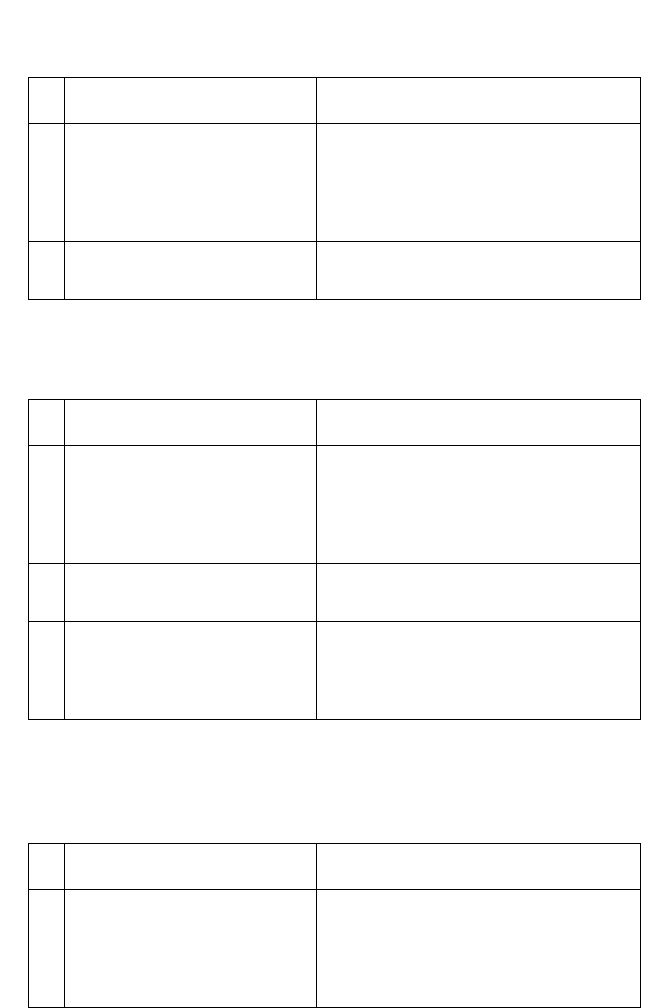
2-44 Service Manual
4069-XXX
260 Paper Jam displays, envelope stops in feeder paper path.
Envelope Feeder multifeeds or may not display a 260 Paper Jam
message.
260 Paper Jam displays. An envelope stopped in the paper path of
the feeder and an envelope also stopped in the base printer paper
path.
FRU Action
1 Kick Rolls/Feed Rolls/Drive
Rolls Check all the rolls for any signs of oil,
grease or other contamination. If you
find a problem, clean the rolls. If this
does not correct the problem,
replace the envelope feeder option.
2 Deflector Gap Adjustment Check the deflector gap adjustment.
The adjustment may be too narrow.
FRU Action
1 Envelopes Check the envelopes being used in
the feeder. Check for signs of the
envelopes being stuck together or
signs of glue. Check to make sure
the flaps are not interleaved.
2 Deflector Check the deflector gap adjustment.
The adjustment may be too wide.
3 Restraint Roll Bias Spring Check for a missing, broken or
incorrectly installed restraint roll bias
spring. If incorrect, reinstall or
replace the spring.
FRU Action
1 Latch Lever Check to make sure the tip of the
latch lever is centered in the opening
in the floor of the paper path. The
latch lever may not be detented on
the latch.

Diagnostic Information 2-45
4069-XXX
Erase Lamp Service Check (010/212/414/616)
Error code 928 may be displayed when the printer detects that the
erase lamp assembly, cable or engine board is defective.
Note: If the erase lamp assembly is defective, both the erase lamp
and lens are replaced as a kit. Models 41b/41e/41l and any model at
service level B do not have erase lamps installed. Go to “Printer Serial
Label” on page 7-2 to identify the printer service level.
Make the following checks when a 928 service error displays.
FRU Action
1 Cable, Front Harness Check the connection of the front
harness to connector J10 on the
engine board for correct installation.
If incorrect, repair as necessary.
Check the front harness to erase
lamp assembly for correct
installation. If incorrect, repair as
necessary.
2 Engine Board Remove the controller board and
toner cartridge from the machine.
Ground pin J10-15. The erase lamps
turn on. The lamps can be observed
through the front of the machine with
the cover open and print cartridge
removed. If the lamps do not turn on,
measure the voltage on J10-14. The
voltage reads approximately
+24 V dc. If incorrect, replace the
engine board. If correct, check the
voltage at J10-15. The voltage reads
between +15 V dc to +20 V dc. If
incorrect, check the continuity of the
erase lamp lines in the main
harness. If incorrect, replace the
cable harness. If correct, replace the
erase lamp assembly.

2-46 Service Manual
4069-XXX
Fan Service Check
Auxiliary Fan Service Check
The auxiliary fan is in models 414 and 616.
Fan does not run or is noisy.
Main Fan Service Check
Check the cable connections at J1 on the engine board and at the
main fan assembly. The main fan runs continuously when the printer
is powered on unless the printer is in the Power Saver mode.
FRU Action
1 Fan Assembly Check the fan for proper installation
and for excessive noise. If incorrect,
replace the fan and cable assembly.
2 Engine Board Check to make sure the auxiliary fan
cable is seated on connector J7 on
the engine board. If correct, check
for +24 V dc on J7-1 on the engine
board. If incorrect, replace the
engine board. If correct, replace the
fan assembly.
Note: When the printer is in warm-
up the voltage at J7-1 measures
approximately +12 V dc. When the
printer is running, the voltage
measures approximately +24 V dc.
FRU Action
1 Main Fan Manually spin the fan and check that
it rotates freely. Check the cable
connection to the engine board, J1
for correct installation.
2 Main Fan to Engine Board
Cable Check the continuity of the cable. If
incorrect, replace the cable.

Diagnostic Information 2-47
4069-XXX
Fuser Service Check
Hot Roll Fuser
Cold Fuser Service Check
Error codes 920, 921, and 922 may display for a cold fuser failure. A
920 error caused by low line voltage can sometimes be cleared by
turning the machine off and then on again. A 925 service error
indicates the wrong fuser lamp is installed in the printer and does not
match the one stored in the printer code.
Note: Make sure the fuser is correctly installed before proceeding
with this service check. The fuser must be firmly seated in the two
rear connectors. Both the right and left lock down screws must be
tight.
Service Tip: Set the Fuser Temperature to NORMAL before starting
this service check.
3 Error Code 927 (Fan runs) Check the voltage at J1-1 on the
engine board. The voltage measures
+5 V dc (static) 0 V dc (fan running).
If incorrect, replace the main fan. If
this does not fix the problem, replace
the engine board.
4 Error Code 927
(Fan not running) Check the voltage at J1-3 on the
engine board. The voltages are as
follows:
+22 V dc to +24 V dc
(printer and fan running)
+12 V dc to +15 V dc
(printer not running - fan running
about half speed).
If incorrect, replace the engine
board. If this does not fix the
problem, replace the main fan.
FRU Action

2-48 Service Manual
4069-XXX
FRU Action
1 Fuser Lamp (Incorrect
Lamp/925 Service Error) Install the correct voltage and
wattage lamp or fuser assembly.
2 Fuser Lamp Remove the controller board. Run
the Diagnostic Print Test and
observe the lamp through the left
side frame. If the lamp doesn’t come
on, unplug the printer and check the
continuity between the two pins on
the fuser lamp cable going to the
fuser assembly. If you do not
measure continuity, remove the fuser
assembly and check the continuity of
the lamp. If incorrect, replace the
lamp. If correct, replace the fuser
cover assembly.
3 LVPS
LVPS to Fuser Auto
Docking Connector
Fuser AC Cable
Turn the printer off. Remove the
fuser assembly. Turn the printer
power on. Measure across the AC
fuser cable pins for line voltage with
the cable connected. If incorrect,
turn the printer off and disconnect
the power cord. Check the continuity
of the LVPS to fuser AC cable. If
incorrect, replace the cable. If
correct, replace the LVPS.
4 Fuser Top Cover Assembly
(Thermal Fuse/Thermistor
Assembly)
Disconnect the thermistor cable from
the fuser board at J2. The resistance
is as follows:
HOT - J2-1 - J2-2 = 2.5K ohms
COLD = 150K ohms to 260K ohms

Diagnostic Information 2-49
4069-XXX
Hot Fuser Service Check
Error codes 923 and 924 may display for a hot fuser failure.
CAUTION: The fuser may be hot, use caution before removing or
servicing.
FRU Action
1 Fuser Cover Assembly
(Assembly includes
Thermistor and Thermal
Fuses.)
Check for damage to the thermistor
assembly. Check the resistance of
the thermistor:
HOT - J2-1 to J2-2 = 2.5K ohms
COLD =150K ohms to 260K ohms
Check the continuity from each pin
of J2 to ground. If there is continuity,
replace the fuser cover assembly
2 Engine Board Error code 924 indicates the engine
board detects an open circuit in the
thermistor circuit for the fuser
assembly. The voltage on J2-6 on
the engine board measures
approximately +5 V dc. If incorrect,
replace the engine board. If correct,
check the continuity of the DC fuser
cable (fuser board to auto docking
connector) in the fuser assembly and
the DC fuser cable (engine board to
auto docking connector) in the
printer. If there is no continuity,
replace the cable. If there is
continuity, check the voltage on J2-2
on the fuser control board. It
measures approximately +5 V dc. If
incorrect, replace the fuser control
board.
3 Fuser Hot Roll
Backup Roll Bearings Examine the fuser assembly for
signs of overheating or damage.
Check the hot roll and backup roll for
signs of excessive toner, label glue,
labels or other contaminants. If any
are found, repair as necessary or
replace the fuser assembly.

2-50 Service Manual
4069-XXX
Fuser Solenoid Service Check
Service Tip: Try changing the envelope enhance level setting. A
different setting may correct the problem.
Note: Check the fuser envelope conditioner solenoid adjustment as
described in the adjustment section “Fuser Solenoid Adjustment” on
page 4-3.
FRU Action
1 Fuser Envelope Conditioner
Solenoid The operation of the fuser solenoid
can be observed by removing the
redrive assembly. Check for proper
mechanical operation of the solenoid
and associated hardware, link and so
on. If correct, check the resistance of
the solenoid between J4-1 and J4-2.
The resistance measures between 5
ohms and 10 ohms. If incorrect,
replace the solenoid assembly.
2 Fuser Control Board The solenoid receives power from the
engine board. The fuser control board
receives +42Vdc from the LVPS via
the interconnect board. Check for
approximately +42 V dc at the
+42 V dc test point on the fuser control
board. If the voltage is correct, replace
the fuser control board.
3 LVPS
Interconnect Board If the +42 V dc test point does not
measure approximately +42 V dc,
check the voltage at CN3-18 on the
LVPS. The voltage measures
approximately
+42 V dc. If the voltage is correct,
replace the interconnect board
assembly. If the voltage is incorrect,
replace the LVPS.
4 Fuser DC Cable (Engine
Board to Fuser Board Cable)
Engine Board
Check for continuity of the DC fuser
cable that is attached between J2 on
the engine board and J1 on the fuser
control board. If the cable does not
measure continuity, replace the cable.
If the cable measures continuity,
replace the engine board.

Diagnostic Information 2-51
4069-XXX
Input Sensor Service Check
Service Tip: Run the Base Sensor Test. Check the input sensor for
proper operation. The display changes from open to closed as the
sensor flag is manually moved in and out of the sensor.
Service Tip: Run a Diagnostic Print Test in the continuous mode with
the controller board removed. A defective input sensor or circuit
causes the first copy to exit only partially through the fuser assembly.
Input Tray(s) Option Service Check
250 Sheet and 500 Sheet Trays
Service Tip: Try all the other input paper sources to make sure they
are properly feeding paper.
For 990 Error Code- Service Tray X, X= displays the number of the
tray that has a problem or needs service.
FRU Action
1 Input Sensor Flag Check the input sensor flag for
damage and proper operation. If a
problem is found, repair as
necessary.
2 Engine Board Check for approximately +5 V dc at
J10-10 on the engine board. If
incorrect, replace the engine board.
3 Input Sensor Cable Check the continuity of the input
sensor cable section of the front
wiring harness. If incorrect, replace
the harness. If correct, replace the
input sensor assembly.

2-52 Service Manual
4069-XXX
FRU Action
1 Tray X option System Board
or Compensator Assembly
or Autoconnect Cable
Check the autoconect cables and
connectors for any signs of damage.
Replace if necessary. Check the
cables for continuity. If incorrect,
replace the compensator assembly
cable. If the cables, connectors and
connections are good, replace the
FRUs in the following order:
autocompensator assembly option
system board

Diagnostic Information 2-53
4069-XXX
24X Paper Jam message displays, Paper jammed over the Pass
Thru Sensor. (The printer displays the value of X for the paper tray
where the error occurs. Example: 241 is a Paper Jam Tray 1)
FRU Action
1 Pass Thru Sensor and Flag
Assembly The tray x option system board did
not detect a piece of paper actuating
the pass thru sensor. Remove any
jammed sheets of paper from the
printer and check the pass thru
sensor and flag for proper operation
by running the appropriate Tray
Sensor Test from the diagnostics
menu. If the test fails, check the
sensor for correct installation and the
flag for proper operation. Also check
the sensor cable to make sure it is
correctly connected to the option
system board. If incorrect, replace
the tray x option pass thru sensor
assembly.
2 Power Takeoff Shaft and
Spring, Bevel Gear,
Feedroll Gear, Drive Roll
Assembly, Wear Plate,
Drive Shaft Bearings and
Skewed Backup Roller
Check these parts for signs of
broken or damaged parts,
contamination on the drive rollers or
wear plate and wear or damage to
the drive shaft bearings. Check the
drive roll assembly and skewed
backup roller for signs of wear, slick
spots, material buildup, and oil or
grease on the rollers. Also check for
proper operation of the paper
aligning assembly. Repair or replace
parts as necessary.

2-54 Service Manual
4069-XXX
Tray X Low message displays when Tray X is full or has adequate
paper in the tray.
Tray X Empty message displays when Tray X has paper in the tray.
FRU Action
1 Paper Low Sensor
Assembly
Paper Low Sensor Flag
Tray X Option System
Board
Run the Tray X Sensor Test and
check the sensor for proper
operation. If incorrect, check the
following:
Paper low sensor flag for smooth
and correct operation.
Paper low sensor for correct
installation on the autocompensator
housing.
Paper low sensor cable for signs of
cuts, pinched wiring or other
damage especially at connector J5
on the system board.
If no problem is found, replace the
paper low sensor assembly. If this
does not correct the problem,
replace the option system board.
FRU Action
1 Paper Out Sensor Flag Check the paper out sensor flag for
correct operation and installation. If
correct, replace the option system
board. (The paper out sensor is
mounted on the system board).
2 Paper Out Sensor (On
Option System Board)

Diagnostic Information 2-55
4069-XXX
Printer does not recognize Tray X is installed.
Paper from Tray X does not reach the Pass Thru Sensor.
Service Tip: Check the media in tray x to make sure it is within
specifications. Some types of labels, foil material and slick papers
can cause misfeeds and slippage of the rollers.
High Capacity Feeder Input Tray Service Check
Note: Voltage measurements in the high capacity feeder input tray
service checks must be made with the high capacity feeder attached
to the base printer to obtain accurate results.
Service Tip: Be sure the paper size switch is set to the correct paper
size setting and the rear paper guides are in the correct locations for
the size of paper installed in the high capacity feeder tray.
Service Tip: Check the other paper sources to be sure they are
operating correctly.
FRU Action
1 Autoconect Cables
Tray X System Board Check the autoconnect from the
printer or option above tray x. Check
for signs of cuts, pinched wiring or
damage to the contacts in the
connector. Check the autoconnect
cable(s) for correct installation at the
tray x system board. If correct, check
the continuity of the autoconnect
cable(s). If correct, replace the tray x
system board. If incorrect, replace
the cable.
FRU Action
1 Autocompensator
Assembly Check the autocompensator pick
arm rollers for any sign of glazing,
toner or other buildup. Clean or
replace as necessary.

2-56 Service Manual
4069-XXX
The base printer indicates a dead machine condition when the
high capacity input tray is installed.
FRU Action
1 AC Line Cord
AC Jumper (HCIT to
Printer)
AC input and Output
Receptacles
AC Wiring Harness
If the base printer works normally
using the AC line cord from the AC
wall outlet and does not work when
using the AC jumper from the HCIT,
check the AC jumper cord. If
defective, replace the cord. If not
defective, check the AC input and
output receptacles and wiring
harness in the HCIT. Repair or
replace the receptacles or AC wiring
harness as required.
NOTE: Make sure the ground wire is
installed correctly from the AC wiring
harness to the frame of the HCIT
and the nut and lockwasher are
tightened down.

Diagnostic Information 2-57
4069-XXX
The base printer does not recognize that the high capacity input
tray is installed.
FRU Action
1 High Capacity Feeder
Autoconnect Mechanical
Check
Check the high capacity feeder input
tray to make sure it is mounted
correctly and is not pushed down
into the frame assembly or
damaged. Be sure the high capacity
feeder input tray autoconnect is
properly connected to the high
capacity feeder tray option board
assembly.
2 Base Printer or option
mounted above Check the option or base printer
autoconnect for signs of damage.
Repair the high capacity option
autoconnect as necessary.
3 LVPS
Option System Board Check the voltages at J11-2 and
J11-4. The voltage measures
+24 V dc, If the voltage is correct,
replace the high capacity system
board assembly. If the voltage is
incorrect, check the continuity of the
AC input cable to the LVPS. If
correct, replace the LVPS assembly.
If incorrect, replace the AC cable to
the input of the LVPS.

2-58 Service Manual
4069-XXX
4 High Capacity Feeder
Option Control Board Check the voltage on J8-1 (green).
The voltage measures +24 V dc. If
incorrect, check the autoconnect
system for any problems. +24 V dc
must come from the base printer
through the autoconnect system to
the high capacity input for the high
capacity feeder to be recognized. If
the voltage is correct, check the
voltages at J11-3(red) and J11-
4(red). The voltages measure +24 V
dc. If correct, replace the high
capacity feeder option system board.
If incorrect, disconnect J8 from the
system board and measure the
voltages again. If incorrect, check
the LVPS cable and the A.C. internal
wiring from the input appliance
receptacle. If incorrect, replace as
necessary. If correct, replace the
LVPS. If the voltages are correct,
check the stepper motor for shorts
from the motor housing to each pin
on the motor connector. If you find a
short between any pin and the motor
housing, replace the motor
assembly. If no shorts are found,
replace the high capacity feeder
option control board.
Check the voltage at J9-1 (light
blue). The voltage measures
approximately +24 V dc. If incorrect,
disconnect the cable at J9 and check
the voltage again. If the voltage
continues to be incorrect, replace
the high capacity feeder option
system board. If the voltage
measures correctly, check the cable.
If the cable is damaged, replace as
necessary. If no problem is found
with the cable, replace the high
capacity feeder option control board.
FRU Action

Diagnostic Information 2-59
4069-XXX
24X Paper Jam message displays, Paper jammed over the Pass
Thru Sensor. (X=The printer displays the value of X for the paper
tray where the error occurs. Example: 242 is a Paper Jam Tray 2)
FRU Action
1 Pass Thru Sensor and Flag
Assembly The tray x option system board did
not detect a piece of paper actuating
the pass thru sensor. Remove any
jammed sheets of paper from the
printer and check the pass thru
sensor and flag for proper operation
by running the appropriate Tray
Sensor Test from the diagnostics
menu. If the test fails, check the
sensor for correct installation and the
flag for proper operation. Also check
the sensor cable to make sure it is
correctly connected to the option
system board. If incorrect, replace
the tray x option pass thru sensor
assembly.
2 Power Takeoff Shaft and
Spring, Bevel Gear,
Feedroll Gear, Drive Roll
Assembly, Wear Plate,
Drive Shaft Bearings and
Skewed Backup Roller
Check these parts for signs of
broken or damaged parts,
contamination on the drive rollers or
wear plate and wear or damage to
the drive shaft bearings. Check the
drive roll assembly and skewed
backup roller for signs of wear, slick
spots, material buildup, and oil or
grease on the rollers. Also check for
proper operation of the paper
aligning assembly. Repair or replace
parts as necessary.

2-60 Service Manual
4069-XXX
Tray X Paper Low Message displays when Tray X is full or has
adequate Paper in the tray.
Tray X empty message displays when there is paper in the high
capacity feeder input tray.
FRU Action
1 Paper Low Switch
Paper Low Switch Cable
High Capacity Feeder Input
System Board
Run the sensor diagnostics for tray X
(X=the number that represents the
high capacity input tray). If the test
fails, disconnect the paper low switch
cable from J3 on the high capacity
system board. Short pins 1 and 2
together while observing the sensor
test on the display. If the display
does not change, replace the high
capacity feeder system board. If the
display changes check the continuity
of the switch. If incorrect, replace the
switch. If correct, replace the switch
cable.
FRU Action
1 Paper Out Sensor Flag Check the paper out sensor flag for
correct operation and installation. If
correct, replace the high capacity
feeder system board. (The paper out
sensor is mounted on the high
capacity feeder system board).
2 Paper Out Sensor
(On Option System Board)

Diagnostic Information 2-61
4069-XXX
The elevator tray fails to stop at the correct position and continues
to drive into the bottom frame.
The elevator tray down button does not operate. The tray moves to
the upper position.
Service Tip: Open the high capacity feeder option front door and
check the black rubber bumper attached to the door switch spring.
Be sure the rubber button is centered and not touching the sides of
the hole or the switch will not function properly.
FRU Action
1 Lower Limit Switch
Lower Limit Switch Cable Check continuity of the lower limit
switch. If incorrect, replace the
switch. If correct, check the switch
cable. If incorrect, replace the cable.
If correct, replace the high capacity
feeder option control board.
2 High Capacity Feeder
Control Board Disconnect the lower limit switch
cable and check the voltage at J2-1
(orange). The voltage measures
approximately +5 V dc. If incorrect,
replace the high capacity feeder
option control board.
FRU Action
1 Lower Limit Switch
Lower Limit Switch Cable
High Capacity Feeder
Control Board
Check the lower limit switch to make
sure it is not closed (normally open).
If incorrect, replace the switch.
Check the lower limit switch cable for
a short between pins 1 and 2. If
incorrect, replace the cable. If
correct, replace the high capacity
feeder option control board.

2-62 Service Manual
4069-XXX
Paper from the high capacity feeder input tray does not reach the
pass thru sensor.
Service Tip: Check to be sure the paper in tray is within
specifications.
FRU Action
1 Autocompensator
Assembly Check the autocompensator pick
arm rollers for sign of glazing, toner
or other buildup. Replace as
necessary.
2 Wear Strips Check the wear strips for glazing or
contamination. Replace as required.
It is advisable to replace all four wear
strips at the same time.

Diagnostic Information 2-63
4069-XXX
The elevator tray does not move up or down. The printer
recognizes that the option is installed.
FRU Action
1 DC Drive Motor High
Capacity Feeder Option
System Board
Be sure the motor cable is correctly
installed at J1 on the board. Check
the cables, damaged or loose wires.
Disconnect the motor. Check for a
short between each pin and the
motor housing. If a problem is found,
replace the motor assembly. If no
problem is found, measure the
resistance between the following
pins on the motor cable connector:
Pins 1 (brown) and pin 2 (Yellow)
The resistance measures between
approximately 7.5 and 10.5 ohms. If
incorrect, replace the motor
assembly. If correct, replace the high
capacity feeder option system board.

2-64 Service Manual
4069-XXX
The elevator moves in one direction only.
FRU Action
1 DC Drive Motor
Assembly High
Capacity Feeder
System Board
Check the voltages at J1 on the high
capacity system board. The voltages
measure as follows:
Static (Motor Not Running)
J1-1 (Brown): approximately 0 V dc
J1-2 (yellow): approximately 0V dc
Motor Running Forward
J1-1 (Brown): Approximately 0 V dc
J1-2 (Yellow): Approximately +24V dc
Motor Running Reverse
J1-1 (Brown): Approximately +24 V dc
J1-2 (Yellow): Approximately 0 V dc
If any of the voltages are incorrect,
disconnect the motor and measure the
resistance between J-1 and J-2. The
resistance measures between 7.5 and 10.5
ohms. If incorrect replace the motor. If
correct, replace the system board.

Diagnostic Information 2-65
4069-XXX
Paper size switch not selecting paper size that is selected.
24X Paper Jam Check Tray X Message displays when Tray X is
empty. No Tray X Message displays.
FRU Action
1 Paper Size Switch
High Capacity Feeder
Option Control Board
Check for continuity between the
common pin (J5-1) and the pin of the
paper size selected.
J5-1 (Black): Common Lead
J5-2 (Blue)B5
J5-3 (Green) Executive
J5-4 (Yellow) A4
J5-5 (Orange) Letter
J5-6 (Red) Legal
J5-7 (Brown) A5
If any position does not measure
continuity when selected, replace
the paper size switch assembly. If
the switch assembly is operating
correctly, replace the high capacity
feeder option control board.
FRU Action
1 High Capacity Feeder
Option Control Board Check the voltages on the board at
J4-1(red) and J4-3 (blue). The
voltages measure approximately
+5 V dc. If incorrect, disconnect J4
from the board and measure the
voltages again. If incorrect, replace
the high capacity feeder option
control board.
2 Elevator Top Optical
Sensor Cable
Elevator Top Optical
Sensor
Check the continuity of the sensor
cable. If incorrect, replace the cable.
If correct, replace the top optical
sensor assembly.

2-66 Service Manual
4069-XXX
Tray X Empty message displays. Tray does not respond to loading
paper. No response from the front door switch.
Tray X Paper Low Message displays when the high capacity feeder
input tray is full or has adequate paper in the tray.
FRU Action
1 High Capacity Feeder
Option Control Board Check the voltage on the board at
J4-2 (green). The voltage measures
approximately +5 V dc. If incorrect,
disconnect the cable at J4 and check
the voltage again. If incorrect,
replace the high capacity feeder
option control board.
2 Elevator Top Optical
Sensor Cable
Elevator Top Optical
Sensor
Check the continuity of the sensor
cable. If incorrect, replace the cable.
If correct, replace the top optical
sensor assembly.
FRU Action
1 Paper Low Switch
Paper Low Switch Cable
High Capacity Feeder
Option Control Board
Run the sensor diagnostics for tray X
(X=the number that represents the
high capacity input tray). If the test
fails, check the voltage at J3-1
(grey). The voltage measures
approximately +24 V dc. If incorrect,
disconnect the paper low switch
cable from J3 and measure the
voltage again on J3-1. If incorrect,
replace the high capacity feeder
option control board. If correct,
check the cable for a short between
pins 1 and 2 on the cable. If
incorrect, replace the cable. If
correct, check the switch for a bent
or deformed actuator lever or
defective switch. If incorrect, replace
the switch.

Diagnostic Information 2-67
4069-XXX
Excessive Noise or Vibration
FRU Action
1 DC Motor Assembly Check to make sure all the motor
plate mounting screws are tight.
2Idler Pulley
DC Motor Assembly Check to make sure the idler pulley
is not binding on the pulley shaft.
Check the pulley for any signs of
wear. Check the idler pulley shaft on
the motor mounting plate for any
signs of damage or contamination.
3 Drive Pulley Check the drive pulley for any signs
of wear, binds or damage to the
pulley or pulley shaft. Make sure the
pulley turns freely on the pulley
shaft.
4 Motor Drive Belt
Tray Drive Be lt Check the DC motor drive belt for
any signs of damage. Check to make
sure the belt is tracking correctly on
the drive pulley, idler pulley and
motor pulley. Check the tray drive
belt for any signs of damage. Check
to make sure the belt is tracking
correctly on the lower section of the
drive pulley and lead screw pulleys.

2-68 Service Manual
4069-XXX
Main Drive Service Check
Service Tip: Excessive gear or main drive assembly noise is usually
caused by a defective motor assembly or engine board.
Service Tip: If there are equally spaced horizontal lines across the
page, go to “Print Quality - Evenly spaced horizontal lines or marks” on
page 2-96.
WARNING: Whenever the gearbox assembly is removed from the
machine it must be handled very carefully. Do not allow any of the
gears to come in contact with any metal or other hard surface to
avoid gear damage. It is also very important not to let any dirt, paper,
staples or other material come intact with the grease in the gearbox
assembly.
FRU Action
1 Main Drive Assembly
(Excessive noise or
vibration)
Remove the controller board and run
a Diagnostic Print Test in the
continuous mode. Check the main
drive assembly for any excessive
noise or vibration. Determine if the
noise is in the main drive, toner
cartridge, fuser or main drive
gearbox. Look for any loose or worn
parts in the developer drive
assembly, main drive gearbox or
fuser. Repair as necessary.
2 Main Drive Motor Assembly
(Excessive noise, gears
ratcheting and so on)
A service error code 936 - Transport
Motor may be displayed. Check the
voltage at J12-6 on the engine
board. It measures approximately
+5 V dc when the motor is not
running and goes to 0 V dc when the
motor is running. If incorrect, replace
the engine board. If this does not fix
the problem, replace the main drive
motor.
3 Main Drive Motor Cable Check the continuity of the main
drive motor cable. If incorrect,
replace the cable.

Diagnostic Information 2-69
4069-XXX
Operator Panel Service Check
Operator Panel Buttons Service Check
Note: Before continuing with this service check do the “Button Test”
on page 3-9 in the diagnostic aids chapter.
4 Motor does not turn, no
gear error code 936 or User
message 201 Paper Jam
displays.
Check the voltages at J12 on the
engine board.
Pin number and voltage:
J12-1 = +24 V dc
J12-4 = +5 V dc (static) 0 V dc
(when main drive motor running)
J12-5 = + 5 V dc (static) 0 V dc
(when main drive motor running)
J12-6 = +5 V dc (static) +2.5 V dc
(when main drive motor running)
J12-7 = +5 V dc (static) 0 V dc
(when main drive motor running)
J12-8 = +5 V dc (static) +5 V dc
(when main drive motor running)
J12-11 = + 5 V dc (static) 0 V dc
(when main drive motor running)
If the voltage is incorrect, replace the
FRUs in the following order:
main drive motor assembly
engine board
FRU Action
1 Operator Panel Assembly If any button fails the Button Test,
replace the operator panel assembly.
FRU Action

2-70 Service Manual
4069-XXX
Operator Panel Display Service Check
SERVICE TIP: The printer has detected a problem with the engine
board, operator panel cable or operator panel assembly if POST
does not complete and the printer emits 5 beeps and stops in a
continuous pattern until the printer is turned off. The operator panel
cable is an individual cable on some printers and a combination
cable assembly with the cover switch cable on later models.
Note: If the operator panel is operating properly except for a PEL or
a few PELS missing or broken, run the “LCD Test” on page 3-9 from
the hardware tests before continuing with this diagnostic service
check.
2 Engine Board
(No buttons work) Check the voltage at J11-5. The
voltage measures approximately
+5 V dc with the controller board
removed. If incorrect, replace the
engine board. If correct, check the
continuity of the operator panel
cable. If incorrect, replace the cable.
If correct, replace the operator panel
assembly.
FRU Action
1 Operator Panel Cable Check for proper installation of the
cable at the engine board (J11) and
at the operator panel. Check the
continuity of the operator panel
cable. If incorrect, replace the cable.
2 Operator Panel Display
blank, 5 beeps, LED Off Check the voltage at J11-2 on the
engine board. It measures
approximately +5 V dc. If incorrect,
replace the engine board. If correct,
replace the operator panel assembly.
3 Operator Panel Display
blank, 5 beeps, LED On Check for ground between J13-4 and
ground. If correct, replace the
operator panel assembly. If incorrect,
replace the engine board.
FRU Action

Diagnostic Information 2-71
4069-XXX
Options Service Check
Service Tip: When you have a problem with any of the options
installed in the options slots on the interconnect board on a 212/414/
616 (the 010 and 010 at service level B have only one slot), switch
the non operating option to one of the other option slots to isolate the
failure.
Flash Memory Option(s)
Run a copy of the test page and check to see if the option you are
checking is listed. The printer does not recognize the option being
installed if the option is not listed. Check to make sure that the
Memory DIMM is installed correctly and is not broken or damaged. If
the Memory DIMM is correctly installed not broken or damaged then
run the “Flash Test” on page 3-3. If the test fails, replace the FLASH
DIMM. If the problem continues, replace the controller board.
DRAM Memory Option(s)
This service check is the same as the flash memory option service
check with the following exception:
Run the “SDRAM Memory Test” on page 3-10 from the menu if the
SDRAM Memory DIMM is correctly installed and not broken or
damaged. If the test fails, replace the SDRAM DIMM. If the problem
continues, replace the controller board.
4 Operator Panel all
diamonds, No Beeps Check to make sure a SIMM is not
plugged in backward. This condition
causes the printer to fail POST
displaying all diamonds on the
operator panel with no beeps.
5 Operator Panel all
diamonds, 5 Beeps Check the voltage at Pin J11-1 and
J11-3. The voltage measures
approximately +5 V dc. If incorrect,
replace the FRUs in the following
order:
operator panel assembly
engine board
FRU Action

2-72 Service Manual
4069-XXX
Hard Disk Option
Service Tip: The Optra T printers support one hard disk option.
Check to make sure only one hard disk option is installed.
•2.1 GB or larger
Check to make sure the fixed disk and the fixed disk board are
correctly installed. Run the “Quick Disk Test” on page 3-2 from the
Device Test on the Diagnostic Menu when a problem is suspected
either with the hard disk system board or with the hard disk.
Note: The Quick Disk Test is a non-destructive test and indicates
Pass or Fail. If the test fails, replace the hard disk. If a problem still
exists, replace the hard disk board.
The “Disk Test/Clean” on page 3-2 is used to help restore the disk if the
disk contains bad data and is unusable. This test is divided into a
cleaning and a verifying or testing section.
WARNING: This can be a very lengthy test depending on the disk
size. This test leaves the hard disk unformatted. The servicer or user
must reformat the disk using the Format Disk Menu operation. This
is a destructive type of test. All the data on the disk is destroyed and
should not be performed on a known good disk.
Network Card Option
Note: The network is installed on the controller board on network
model printers.
Error Code 976 - Network Card X (X=Network card 1, 2, or 3)
A 976 error code indicates an unrecoverable software error in
network card x. Verify that network card x is correctly installed in the
socket on the interconnect board and is properly grounded. If you
find no problem, contact your next level of support before replacing
the network card.
Error Code 977 - Network Card X
A 977 error displays when the RIP software detects that a network
card is installed in slot x on the interconnect board but cannot
establish communications with the network card.

Diagnostic Information 2-73
4069-XXX
Output Bin Sensor Standard Tray Service Check
Service Tip: If the output bin standard tray fills up and the bin full
sensor fails to post the message "Remove Paper Standard Bin",
enter the Diagnostic Mode, select Output Bin Tests, select Sensor
Tests and select Standard Bin. Check the sensor and flag for proper
operation. If you find no problem with the sensor and flag, continue
with the service check.
Service Tip: Check to make sure the correct flag is installed. The
Output Bin Sensor is a normally closed sensor with the sensor flag
down. Therefore, unless the flag is in the up position or out of the
sensor slot, a Remove Paper Standard Bin message is not
displayed.
FRU Action
1 Engine Board
Printer fails to display
Remove Paper Standard
Bin message. Output Bin
Sensor Test fails
Check the voltage at J6-3. It
measures +5 V dc when the flag is in
the sensor and 0 V dc when the flag
is out of the sensor. If the voltage
does not change, replace the sensor
cable assembly. If this does not fix
the problem, replace the engine
board.
2 Output Bin Sensor Flag Check to make sure the correct flag
is installed. Check the flag for
damage or improper operation. If
incorrect, replace the flag.
Note: A broken or improper
operating sensor flag causes a
Remove Paper Standard Bin
message to display before POST
completes and cannot be cleared.

2-74 Service Manual
4069-XXX
Output Expander Service Check
Service Tip: The majority of the mechanical components can be
observed during operation by removing the left, right and system
board covers. The output expander functions without the covers
installed.
Note: Make sure the option is correctly installed before attempting
to service the unit. No jumpers should be installed at connector J6
on the output expander board.
Problems with excessive static electricity buildup.
Printer does not recognize one or more output expander options
as being installed.
Service Tip: If more than a single output expander option is installed,
check each one to see if the printer recognizes any single option as
being installed. If the printer recognizes any of the output expander
options then the base printer autoconnect system is operating
correctly and the problem is in the unrecognized expander option.
FRU Action
1 Output Expander Control
Board Cover Check the output expander control
board cover to make sure the ESD
brush ground lead is firmly attached
to the output expander frame. Also
check to make sure the ESD brush is
not loose.

Diagnostic Information 2-75
4069-XXX
FRU Action
1 Output Expander Option Make sure the output expander
option is the only option that is not
recognized by the base printer. If the
output expander is the only option
not recognized by the printer,
continue with step 2. If not, check the
autoconnects of the options not
recognized and the interconnect
board and cable connections.
2 Output Expander Assembly
Mechanical Linkage Check the autoconnects for damage,
especially the connector pins.
Remove the left and right side
covers. Remove the front control
board cover. Check the cables at
J1A, J1B, J2A and J2B on the
control board to make sure they are
attached securely and correctly.
Remove the output expander and
check the voltages on the output bin
autoconnect located on the top left
rear of the printer. Go to
“Autoconnect - Top” on page 5-19. If
the voltages are correct, reinstall the
output expander unit and check the
voltages at J1A and J1B on the
connector. If correct, replace the
output expander control board. If
incorrect, replace the output
expander assembly mechanical
linkage.

2-76 Service Manual
4069-XXX
202 Paper Jam Open Rear Door Message displays. A sheet of
paper is jammed prior to the pass through sensor flag.
202 Paper Jam Open Rear Door Message displays. A sheet of
paper feeds out to the standard bin even though bin x is selected.
Paper exits half way out of the redrive.
Service Tip: For this type of problem check the sub error codes.
They can help isolate the problem. 202 Paper Jam messages can
also occur prior to the output expander pass thru sensor.
FRU Action
1 Output Expander Drive Belt
Drive Pulley Drive Belt
Idler Pulley Belt Tension
Spring
Check to ensure the output
expander drive belt is correctly
installed on the drive pulley and belt
idler pulley. Check the belt tension
spring to make sure it is not loose or
broken. Repair as necessary.
2 Mechanical Linkage
DC Motor Assembly If the DC motor is functioning
properly check the gears, clutch and
other linkage parts for correct
operation and any signs of wear,
broken gear teeth or damaged parts.
If incorrect, replace the mechanical
linkage/DC motor assembly.

Diagnostic Information 2-77
4069-XXX
Remove Paper - Output Bin X is displayed, POST Incomplete,
Unable to clear the message.
271 Paper Jam - Check Bin X. POST Incomplete
271 Paper Jam - Check Bin X, POST Complete, First Sheet of paper
feeds into Output Bin X.
Note: Before performing the following checks run the Output Bin X
Sensor Test and check for the failing sensor.
Sensor Test: NF = Near Full (Upper part of sensor assembly)
F = Full (Lower Part of sensor assembly)
P = Pass Thru Sensor
FRU Action
1 Dual Output Bin Sensor Flag Check the flag for correct
operation, binding, broken parts or
interference from the sensor
cable, If incorrect, repair as
necessary.
FRU Action
1 Pass Thru Sensor and Flag
Assembly
Control Board
Check the sensor flag for proper
operation. If correct, check to
make sure the pass thru sensor
cable is correctly connected to J3
on the control board. Disconnect
the pass thru sensor cable from J3
on the control board and check
the voltage at J3-3. The voltage
measures approximately +5 V dc.
If incorrect, replace the control
board. If correct, check the voltage
at J3-2. The voltage measures
approximately 0 V dc. If incorrect,
replace the sensor assembly. If
this does not fix the problem,
replace the control board.

2-78 Service Manual
4069-XXX
990 Service - BIN X
FRU Action
1 D.C. Motor
Mechanical Linkage
Assembly
Check the DC motor cable
connector to be sure it is correctly
installed at J4 on the output
expander option board. If correct,
disconnect J4 from the option
board and check the resistance of
the motor on the cable connector:
J4-1 to J4-2: measures between
115 and 135 ohms. Also check J4-
1 and J4-2 to the motor case for
shorts. If either the resistance is
incorrect or a short is found,
replace the motor/mechanical
linkage assembly.
Note: If the DC motor is shorted, it
may also be necessary to replace
the control board.
2 Output Expander Control
Board Disconnect the motor cable J4
and check the voltages at J4 on
the board.
Note: Use caution not to short to
adjacent pins on the connector.
J4-1 (Motor Idle) +24 V dc
J4-2 (Motor Idle) +24 V dc
J4-5 (Motor Idle) +5 V dc
J4-6 (Motor Idle) +5 V dc
If any of the voltages are incorrect,
replace the control board. If the
voltages are correct, replace the
DC motor/mechanical linkage
assembly.

Diagnostic Information 2-79
4069-XXX
No indication that Bin X is Full OR No indication that Bin X is Near
Full
High-Capacity Output Stacker Service Check
Service Tip: The majority of the mechanical components can be
observed during operation by removing the left, right and front
covers. The high capacity output stacker option functions without the
covers installed.
Models 010 and 010n do not support this output option.
Determine which paper path stacker assembly is not functioning
properly.
Make sure the option(s) are installed correctly and the machine is
configured correctly before attempting to service the high-capacity
output stacker option.
Go to “High-Capacity Output Stacker Board” on page 5-22 to identify the
correct jumper location at J6 for the upper and lower units.
FRU Action
1 Dual Output Bin X Sensor
Assembly
Control Board
Check for correct installation of
the sensor cable at J5 on the
control board. If either the Bin Full
(F) or Bin Near Full (NF) fail the
sensor test then check the voltage
at J5-3 and J5-4. The voltage
measures approximately +5 V dc.
If the voltage is incorrect, replace
the control board. If correct,
replace the sensor assembly.

2-80 Service Manual
4069-XXX
Problems with excessive static electricity buildup
The printer does not recognize one or more output options as
installed
Service Tip: If more than a single output option is installed, check
each one to see if the printer recognizes any single option as
installed. If the printer recognizes any of the output options, the base
printer autoconnect system is operating correctly. The problem is in
the unrecognized option. Continue with this service check or go to
the service check for the failing output option.
FRU Action
1 Front Cover Assembly Check the front cover assembly to
make sure the ESD brush ground lead
is firmly attached to the high capacity
option. Also check to make sure the
ESD brush is not loose or damaged.
FRU Action
1 High Capacity Stacker
Option Check the autoconnects, cables and
connectors of the option for any signs
of loose or damaged parts.
2 High-Capacity Output
Stacker/Mechanical Linkage
Assembly
Remove the left and right side covers
and check all four autoconnects for
damage, especially the connector
pins. Remove the output option and
check the voltages on the standard
output bin autoconnect located on the
top left rear of the printer. Go to
“Autoconnect - Top” on page 5-19. If
the voltages are correct, reinstall the
output option and note the positions of
the torroids on the autoconnect cables
on the upper and lower assemblies,
and check the voltages on the
autoconnects. If all voltages are
correct and the lower assembly is
failing, replace the lower control
board. If the upper assembly is failing,
replace the upper control board. If the
voltages are incorrect, replace the
upper or lower failing mechanical
linkage assembly.

Diagnostic Information 2-81
4069-XXX
202 Paper Jam Open Rear Door Message displays and a sheet of
paper is jammed prior to the pass through sensor flag or 202
Paper Jam Open Rear Door Message displays, a sheet of paper
feeds out to the standard bin even though bin X is selected and
paper exits half way out of the redrive assembly.
Service Tip: For this type of problem check the “Base Printer Sub Error
Codes” on page 2-8. They can help isolate the problem. A 202 paper
jam message can also occur prior to the high-capacity output
stacker pass through sensors.
FRU Action
1 Lower Pass Thru Sensor/
Flag Assembly Check the flag for correct operation,
binding, broken parts or interference
from the sensor cable. If incorrect,
repair as necessary. If correct, check
to make sure the lower pass thru
sensor is correctly connected to J3 on
the lower control board. Disconnect
the pass thru sensor cable and check
the voltage at J3-3. The voltage
measures approximately +5V dc. If
incorrect, check the voltage at J3-2.
The voltage measures approximately
0V dc. If incorrect, replace the sensor
assembly. If this does not fix the
problem, replace the lower control
board.
2 High-Capacity Output
Stacker Drive belt(s), Drive
Pulleys, Belt Idlers, and Belt
Tension Springs
Check to ensure the output stacker
drive belt or the failing assembly is
correctly installed on the drive pulley
and belt idler pulley. Check the belt
tension spring to make sure it is not
loose or broken. Repair as necessary.
3 Mechanical Linkage/Motor
Assembly (Upper or Lower) If the DC motor is functioning properly
check the gears, clutch and other
linkage parts for correct operation and
any signs of wear, broken gear teeth
or damaged parts. If incorrect, replace
the mechanical linkage assembly/DC
Motor Assembly.

2-82 Service Manual
4069-XXX
Remove Paper - Output Bin X Full displays. You may not be able to
clear the message.
271 Paper Jam - Check Bin X. POST Incomplete
5-Bin Mailbox Service Check
Service Tip: The majority of the mechanical components can be
observed during operation by removing the left, right side covers.
Models 010/010n and 010/01n at service level B do not support this
output option.
Make sure the option(s) are correctly installed before attempting to
service the unit. Be sure the option is correctly installed and the
machine is configured correctly before attempting to service the unit.
FRU Action
1 Dual Output Bin Sensor Flag
(Upper Assembly) Check the flag for correct operation,
binding, broken parts or interference
from the sensor cable. If incorrect,
repair as necessary.
FRU Action
1 Upper Pass Thru Sensor
Flag Assembly Upper
Control Board
Check the flag for correct operation,
binding, broken parts or interference
from the sensor cable. If incorrect,
repair as necessary. If correct, check
to make sure the lower pass thru
sensor is correctly connected to J3 on
the lower control board. Disconnect
the pass thru sensor cable and check
the voltage at J3-3. The voltage
measures approximately +5V dc. If
incorrect, check the voltage at J3-2.
The voltage measures approximately
0V dc. If incorrect, replace the sensor
assembly. If this does not fix the
problem, replace the lower control
board.

Diagnostic Information 2-83
4069-XXX
Problems with excessive static electricity buildup
The printer does not recognize one or more output options as
installed.
Service Tip: If more than a single output option is installed, check
each one to see if the printer recognizes any single option as being
installed. If the printer recognizes any of the output options then the
base printer autoconnect system is operating correctly and the
problem is in the unrecognized option. Continue with this service
check or go to the service check for the failing output option.
FRU Action
1 Front Cover Assembly Check the front cover assembly to
make sure the ESD brush ground lead
is firmly attached to the 5-Bin Mailbox
frame. Also check to make sure the
ESD brush is not loose or damaged.
FRU Action
1 5-Bin Mailbox Option Check the autoconnects, cables and
connectors of the option for any signs
of loose or damaged parts.
2 Mechanical Linkage
Assembly Remove the left and right side covers
and check the two autoconnects for
damage especially the connector pins.
Remove the output option and check
the voltages on the standard output
bin autoconnect located on the top left
rear of the printer. Go to “Autoconnect
- Top” on page 5-19. If the voltages
are correct, reinstall the output option
noting the position of the torroid on the
autoconnect cable of the lower
autoconnect. Check the voltages on
each of the autoconnects. If the torroid
was moved make sure to move it back
to its original position on the cable. If
the voltages are correct, replace the
control board. If the voltages are
incorrect, replace the failing
autoconnect assembly.

2-84 Service Manual
4069-XXX
271 Paper Jam - Check Bin 1 displays
274 Paper Jam - Check Bin 4 Displays
Service Tip: When a 274 Paper Jam Check Bin 4 message displays,
a problem exists with the top pass thru sensor assembly or the
control board.
FRU Action
1 Bottom Pass Thru Sensor
Flag Assembly
Control Board
Check the flag for correct operation,
binding, broken parts or interference
from the sensor cable. If incorrect,
repair as necessary. If correct, check
to make sure the bottom pass thru
sensor is correctly connected to J5 on
the control board. Disconnect the pass
thru sensor cable and check the
voltage at J5-3. The voltage measures
approximately +5V dc. If incorrect,
check the voltage at J5-2. The voltage
measures approximately 0V dc. If
incorrect, replace the sensor
assembly. If this does not fix the
problem, replace the control board.
FRU Action
1 Top Pass Thru Sensor
Flag Assembly
Control Board
Check the flag for correct operation,
binding, broken parts or interference
from the sensor cable. If incorrect,
repair as necessary. If correct check to
make sure the top pass thru sensor is
correctly connected to J11 on the
control board. Disconnect the pass
thru sensor cable and check the
voltage at J11-3 The voltage
measures approximately +5V dc. If
incorrect, check the voltage at J11-2.
The voltage measures approximately
0V dc. If incorrect, replace the sensor
assembly. If this does not fix the
problem, replace the lower control
board.

Diagnostic Information 2-85
4069-XXX
Ready Bin X Full message displays - May be able to clear message
and will feed paper into Bin selected.
Bin X is full - No message that Bin X is full displays
Ready - Bin X Full displays and paper feeds into Bin X
FRU Action
1 Bin X Sensor
Bin X Sensor Cable
Bin X Sensor Flag
Control Board
Check the sensor and sensor cable for
the bin that is displaying the message
to make sure the sensor is seated
correctly in the side of the tray and the
cable is connected to the sensor and
the control board. Check the flag for
binding and proper operation. If
correct, replace the Bin X sensor. If
this does not fix the problem, replace
the control board.
Note: This sensor is in a normally
open position with the flag out of the
sensor slot.
FRU Action
1 Bin X Sensor
Bin X Sensor Cable
Bin X Sensor Flag
Bin X Sensor Flag
Control Board
Check the sensor flag for binds,
broken or missing parts. If correct,
check the bin sensor for correct
installation in the side of the tray. If the
bin sensor is installed correctly, check
the sensor cable for correct installation
to the sensor and control board. If
correct, replace the Bin X sensor. If
this does not fix the problem, replace
the control board.
FRU Action
1 Bin X Sensor
Bin X Sensor Control Board Check the sensor flag for binds. Make
sure the sensor flag is not in an up
position. If the sensor flag is operating
correctly, replace the bin X sensor. If
this does not fix the problem, replace
the control board.

2-86 Service Manual
4069-XXX
Paper does not feed into the bin selected. 271 Paper Jam - Check
Bin 1 displays
FRU Action
1 Deflector
Deflector Spring
Deflector Cover
Deflector Cover Spring
Shaft assemblies
Check all the bin parts for signs of
missing or loose springs, binds in the
deflector or deflector cover, broken or
binding shaft assemblies or broken
gear teeth. If incorrect, repair as
necessary.
2 Bin X Solenoid Assembly
Control Board Check the solenoid for any binds.
Make sure the solenoid is contacting
the latch correctly. If incorrect, repair
as necessary. If the solenoid appears
to be operating mechanically, check
the resistance of the solenoid. It
measures between 30 and 50 ohms. If
incorrect, replace the failing solenoid
assembly. If correct, replace the
control board.
3 Mechanical Linkage
Motor Assembly If the DC motor is functioning properly,
check the gears, clutch and other
linkage parts for correct operation and
any signs of wear, broken gear teeth
or damaged parts. If incorrect, replace
the mechanical linkage assembly/DC
motor assembly.

Diagnostic Information 2-87
4069-XXX
990 Service Error displays
FRU Action
1 Mechanical Linkage
DC Motor Assembly Check the DC motor cable connector
to be sure it is correctly installed at J2
on the control board. If correct,
disconnect J2 from the control board
and check the resistance of the motor
on the cable connector. J2-1 to J2-2
measures between 115 and 135
ohms. Also check J2-1 and J2-4 to the
motor case for shorts. If either the
resistance is incorrect or a short if
found, replace the mechanical linkage/
DC motor assembly.
Note: If the DC motor is shorted, it
may also be necessary to replace the
control board.
2 Control Board Disconnect the motor cable J2 from
the control board and check the
voltages at J2 on the board.
Note: Use caution not to short
adjacent pins on the connector as
damage to the board could result.
J2-1 (motor idle) +24V dc
J2-2 (Motor Idle) +24V dc
J2-5 (motor idle) +5V dc
J2-6 (motor idle) +5V dc
If any of the voltages are incorrect,
replace the control board. If correct,
replace the mechanical linkage/ DC
motor assembly.

2-88 Service Manual
4069-XXX
Paper Feed Service Check
If you have a 936 Transport Motor Error go to the “Main Drive Service
Check” on page 2-68.
Autocompensator fails to feed paper. Failures occur randomly
throughout the stack of paper.
FRU Action
1 Alignment Assembly Check to ensure the alignment
assembly is correctly attached to the
left side frame and the mounting
screws are tight. Check the
alignment assembly for any signs of
worn rollers, contaminated rollers or
binds. Replace the alignment
assembly if any problem is found.
2 Inner Deflector Check the inner paper deflector for
correct installation. If the deflector is
bowed or not fitting correctly, replace
the deflector.
FRU Action
1 Pass Through Sensor Check the pass through sensor for
correct installation and operation.
2 Autocompensator
Assembly The autocompensator pick roll shaft
assembly is not providing enough
torque if the pick rollers are not
picking the paper correctly. Replace
the autocompensator assembly.
3 Wear Strips in Tray X
problem is found. Check the wear strips for excessive
wear, scratches or rough spots.
Replace the wear strips if a problem
is found.

Diagnostic Information 2-89
4069-XXX
Paper feed failures occur only near the top of the stack of paper.
The most common cause of this problem is paper curl. Remove the
paper from tray x and check for the natural curvature in the paper.
Reinstall the paper in the correct manner. If the problem persists, it
may be necessary to reduce the stack height. Replace both pick
rolls if the paper appears to be flat in the tray but there is still a
problem.
Failures occur mainly near the bottom of the stack of paper.
The autocompensator pick arm may not be coming down far enough
to allow the pick rolls to properly contact the paper. Also the
autocompensator motor may be failing. If this problems continues,
replace the autocompensator assembly.
Double Feeding Paper
Note: If double feeding paper occurs mostly from the bottom of the
stack, check for missing or damaged restraint pads in the tray.
FRU Action
1 Paper Paper is usually the primary cause of
a double feeding paper problem.
Flex the paper before placing the
paper in the tray. Edge-welded paper
is the most common cause of double
feeding. Loading the paper in the
tray in different locations and
directions and using rough paper
and short grain paper also causes
double feeding.
2 Autocompensator Make sure the counterbalance
spring is not missing, loose or
broken at the top of the
autocompensator arm assembly. If
you find a problem, replace the
autocompensator assembly.

2-90 Service Manual
4069-XXX
Multipurpose Tray
Paper fails to feed from the multipurpose tray.
The pick roll should make one complete revolution and stop with the
flat side down. If the pick roll turns but does not pick paper, check the
roll for signs of wear, oil or grease on the surface of the pick roll or
slick spots. If you find a problem, replace the pick roll assembly.
Check to ensure the media that is being fed through the
multipurpose tray assembly meets recommended paper
specifications.
Parallel Port Service Check
Run the “Parallel Wrap Test” on page 3-11.
Note: The Parallel Wrap Test is designed to check the parallel port
hardware by using a wrap plug (P/N 1319128) and invoking the
Parallel Diagnostic Test. This test helps isolate the printer from the
parallel cable and host. The test provides failure information on the
display for approximately three seconds. If the test indicates that a
problem is detected, replace the controller board.

Diagnostic Information 2-91
4069-XXX
Printhead Service Check
The printhead assembly does not contain any service replaceable
parts or components. If service error code 930 displays, the wrong
printhead is installed in the printer.
Note: A 201 paper jam may also indicate a failing printhead. The
paper may have jammed prior to or at the input sensor. Print the
error log and see if 201 or 931 errors are logged.
Service Error Code Explanation
1 Error Code 931
No first HYSNC Signal
Error Code 932
Lost HYSNC
These errors usually indicate a
failure in the HYSNC signal to the
printhead. Check the continuity of
the cables connected to J3 and J8
on the engine board. If incorrect,
replace the defective cable. The
voltage at J8-4 measures
approximately +5 V dc. If incorrect,
replace the engine board. The
voltage at J3-7 measures
approximately +24 V dc. If incorrect,
replace the engine board. If correct,
replace the printhead assembly.
2 Error Code 934
Mirror Motor Lost Lock
Error Code 935
Mirror Motor unable to
reach operating speed
These error codes indicate a
problem with the mirror motor circuit
in the printhead assembly or the
mirror motor cable to the engine
board cable or engine board
assembly. Check the continuity of
the mirror motor cable connected to
J3 on the engine board. If incorrect,
replace the cable. The voltage at
J3-7 measures approximately
+24 V dc. If incorrect, replace the
engine board. If correct, replace the
FRUs in the following order:
engine board
printhead assembly

2-92 Service Manual
4069-XXX
Print Quality Service Check
Service Tip: Before troubleshooting any print quality problems do the
following:
•Install another print cartridge if available before proceeding with
the service checks.
•Use Tray 1 to test for print quality of the base printer.
•Replace the charge roll if it is damaged or contaminated.
•Replace the transfer roll if it is damaged or contaminated.
•Make sure the fuser assembly is installed correctly.
•Verify proper paper type, texture and weight settings for the
media being used.
•Test the printer using plain paper (20lb).
Select the following menu settings as indicated. Be sure and note
the original settings so you can return the printer to the original
customer printer setup.
•Print Resolution: Set to 300 dpi (print quality problems should
be checked at different resolution settings).
•Print Darkness: Set to NORMAL.
•Toner Saver: Set to OFF.
•PQET: Set to OFF.
•Fuser Temperature: Set to NORMAL.
•Test the printer using plain paper (20 lb)
An incorrect printer driver for the installed software can cause
problems. Incorrect characters could print and the copy may not fit
the page correctly.
Measure all voltages from the connector to printer ground. All
voltages measured during the print cycle are measured with the
controller board removed while running the print test.

Diagnostic Information 2-93
4069-XXX
Print Quality - All Black Page
Service Tip: An all black page is generally caused by a problem in
the high voltage system or an incorrect high voltage in the printing
process resulting in toner development on the entire photoconductor
drum.
Print Quality - Blank Page
FRU Action
1 High Voltage Contacts Check the high voltage contacts on
the right side frame to ensure they fit
securely and are not pitted,
contaminated or damaged. If
incorrect, replace the contact with
one from the HV contact kit.
Screws are included to attach the
contacts to the right side frame in the
HV contact kit.
3 Charge Roll Conductive
Bushing Check to make sure the charge roll
bushing is correctly installed in the
right charge roll arm.
2 HVPS Check the voltages on J10-1 thru
J10-8. If incorrect, replace the
engine board.
3 HVPS Cable
(Part of Front
Harness Cable)
Engine Board
Check the continuity of the HVPS
cable. If incorrect, replace the cable
assembly. If correct, replace the
engine board.
FRU Action
1 Print Cartridge Check the print cartridge for any
signs of damage, especially the PC
drum contact on the cartridge.

2-94 Service Manual
4069-XXX
2 High Voltage Contact Check the PC drum contact on the
right side frame for damage, PC
drum contact wear or contamination.
If the contact is bent or damaged,
replace the contact.
Note: Inspect the HVPS PC drum
contact on the board for any signs of
damage or contamination.
3 HVPS Check the fuse on the HVPS. If
open, replace the HVPS. Check the
voltages at J10 on the engine board.
Measure the following voltages from
connector J10 to printer ground:
Printer Idle
J10-5 measures +24 V dc
Printer Printing
J10-5 measures +24 V dc
In the voltages at J10-5 are
incorrect, replace the engine board.
4 Front Cable Harness
HVPS Section Check the front cable harness at J10
on the engine board and at CN1 on
the HVPS to make sure the harness
is connected properly. If connected
properly, check the continuity of the
cable harness. If there is no
continuity, replace the front cable
harness.
5 Printhead Assembly Generally a 93x service error is
posted if the printhead assembly
fails and the printer does not give a
blank copy symptom.
The printhead used in the printer
does not have a mechanical shutter
as previous laser printers. The
printer is interlocked through the
front top cover interlock switch.
FRU Action

Diagnostic Information 2-95
4069-XXX
Print Quality - Random Marks
Service Tip: The primary cause of random marks is due to loose
material moving around inside the printer and attaching to the
photoconductor, charge roll or transfer roll.
Print Quality - Blurred or Fuzzy Print
Blurred of fuzzy print is usually caused by a problem in the main
drive gearbox assembly, alignment assembly, any feed roller or in
the transfer roll bearings or transfer roll. Check the gearbox
assembly for correct operation. Check the transfer roll for binds or a
contaminated shaft or bearings.
Blurred print can also be caused by incorrect feeding from one of the
input paper sources, paper trays, duplex or envelope feeder.
Check the high voltage contacts to ensure they are not bent,
corroded or damaged. Replace as necessary.
Symptom Action
1 Random Marks Check the print cartridge for any
signs of loose or foreign material that
might be on the photoconductor.
Check the transfer roll and charge
roll for any pieces of material that are
stuck to the rolls.

2-96 Service Manual
4069-XXX
Print Quality - Evenly spaced horizontal lines or marks
FRU Action
1 Lines spaced 3.19 mm
(.126 inch) apart This can be caused by the motor
pinion gear on the main drive motor.
Replace the main drive motor.
2 Lines spaced 22.32 mm
(.882 inch) apart
Lines spaced 28.7 mm
(1.130 inch) apart
Lines spaced 47.83 mm
(1.883 inch) apart
Lines spaced 63.77 mm
(2.511 inch) apart
This can be caused by a defective
gear in the main drive gearbox
assembly. Replace the main drive
gearbox assembly.
3 Lines spaced 38.26 mm
(1.506 inch) apart This can be caused by defective
gear(s) in the main drive gearbox.
Replace the FRUs in the following
order:
main drive gearbox
reference edge
4 Lines spaced 44.64 mm
(1.757 inch) apart Replace the FRUs in the following
order:
developer drive assembly
main drive gearbox assembly
5 Lines spaced 47.19 mm
(1.858 inch) apart Replace the FRUs in the following
order:
toner cartridge
charge roll
developer drive assembly
6 Lines spaced 49.16 mm
(1.935 inch) apart Replace the toner cartridge.

Diagnostic Information 2-97
4069-XXX
Print Quality - Background
Service Tip: Some background problems can be caused by rough
papers, non-Lexmark toner cartridges or if the media texture is set to
the rough setting.
Some slick or coated papers may also cause background. Some
problems occur with printers that run a large amount of graphics in a
humid environment. The customer may try to improve the print
quality by increasing the transfer setting.
Check the charge roll to make sure it is not at the end of life.
7 Lines spaced 49.74 mm
(1.958 inch) apart Replace the FRUs in the following
order:
redrive assembly
fuser assembly
8 Lines spaced 51.02 mm
(2.009 inch) apart Replace the transfer roll.
9 Lines spaced 52.23 mm
(2.056 inch) apart Replace the redrive assembly.
10 Lines spaced 76.53 mm
(3.013 inch) apart Replace the FRUs in the following
order:
alignment assembly
main drive gearbox assembly
11 Lines spaced 95.66 mm
(3.766 inch) apart Replace the FRUs in the following
order:
toner cartridge
main drive gearbox assembly
12 Lines spaced 99.49 mm
(3.917 inch) apart Replace the redrive assembly.
13 Lines spaced 114.79 mm
(4.519 inch) apart Replace the alignment assembly.
FRU Action

2-98 Service Manual
4069-XXX
FRU Action
1 Erase Lamp/Lens
Assembly (models 010/
212/414/616)
Check the erase lamp lens for any
signs of toner, paper dust or other
types of contamination. Clean the
lens with a soft dry cloth if
necessary. If unable to clean the
contamination off the lens, replace
the lens and lamp assembly. Check
the erase lamp assembly. Use the
same procedure as outlined in the
“Erase Lamp Service Check (010/
212/414/616)” on page 2-45.
2 Printhead The printhead on the Optra T
printers cannot be cleaned. Try
another printhead if all other
attempts fail to correct a background
problem.
3 Transfer Roll Assembly Check the high voltage contact from
the HVPS to the transfer roll. Check
the transfer arm assembly right side
bearing for any signs of
contamination, pitting or a loose
cable to the bearing. If any problems
are found, replace the defective part.
Check the transfer roll shaft for any
signs of contamination, wear or
pitting on the ends of the shaft that
go into the bearings. If a problem is
found, clean the ends of the shaft or
replace the transfer roll assembly.
4 High Voltage Contacts Check the high voltage contacts on
the right side frame to ensure they
are clean and not bent, deformed, or
pitted. If incorrect, replace the
contact.

Diagnostic Information 2-99
4069-XXX
5 Engine Board HVPS
Connector Check the following voltages at J10
on the engine board. Measure the
voltages from J10 to printer ground.
Printer Idle
J10-1 approximately 0 V dc
J10-2 approximately 4 V dc
J10-4 approximately 0 V dc
Printer Printing
J10-1 varies 0 V dc to +5 V dc
J10-2 varies 0 V dc to +4 V dc
J10-4 varies 0 V dc to +1.9 V dc
If J10-1 voltage is incorrect, check
the continuity of the front harness
cable (J10-1 line). If there is no
continuity, replace the harness
cable. If there is continuity, replace
the HVPS. If this does not correct the
problem, replace the engine board.
If J10-2 voltage is incorrect or if the
voltage remains at 0 V dc, check the
continuity of the front harness cable
(J10-2 line). If there is no continuity,
replace the harness cable. If there is
continuity, replace the HVPS. If this
does not correct the problem,
replace the engine board.
If J10-4 voltage is incorrect, check
the front harness cable (J10-3 line).
If there is not continuity, replace the
harness cable. If correct, replace the
engine board. if this does not correct
the problem, replace the HVPS.
FRU Action

2-100 Service Manual
4069-XXX
Print Quality - Banding
Service Tip: Banding is difficult to detect except on a page with a
uniform gray or a large amount of graphics printed on the page.
Banding is primarily due to a variation in the speed of the paper as it
feeds thru the printer, especially in the development and transfer
process. Inspect the alignment assembly, main drive assembly and
all other paper feed components for signs of wear, dirt, binds, or
damage, especially the drive gears. Banding appears as light or dark
horizontal lines on a uniformly gray page.
Banding can also be caused by a defective charge roll brush contact
or HVPS. Check the charge roll contact for any signs of damage and
for proper connection to the HVPS and print cartridge.
Print Quality - Black bands on outer edges of the page
This print quality problem appears as vertical black bands on one or
both sides of the copy and can be wide, narrow, light or dark.
FRU Action
1Charge Roll
Counterbalance Springs If the problem is just on one side of
the page, check the charge roll
counterbalance spring on that side.
You can check to see if enough force
is being applied to the charge roll by
applying a slight downward pressure
with your finger to the charge roll link
arm that the spring is attached to
while you run a print test sample.
See if the problem changes or goes
away. If this fixes or changes the
problem, then check the springs and
charge roll link arm assemblies for
binds or defective parts. Replace as
necessary.

Diagnostic Information 2-101
4069-XXX
2 Charge Roll Assembly
Charge Roll Link Arm Check the charge roll for any signs
of toner buildup or other
contamination on the outer edges
that correspond to the bands on the
page. Check the charge links and
arms for proper operation, binds or
incorrectly mounted counterbalance
springs. Repair or replace as
necessary.
3 HVPS Check the following voltages at
J10-8 on the engine board:
Printer Idle
J10-8 measures 0 V dc
Printer Printing Test Page
J10-8 voltage changes from 0 V dc
to +4 V dc
If the voltage does not vary, check
the continuity of line J10-8 in the
front cable harness. If there is no
continuity, replace the cable
harness. If there is continuity,
replace the HVPS. If this does not
correct the problem, replace the
engine board.
Turn the printer Off and check the
resistance between J10-7 and
printer ground. The resistance
measures approximately 0 ohms. If
incorrect, make sure the engine
board is mounted correctly and
securely grounded. If correct,
replace the engine board.
FRU Action

2-102 Service Manual
4069-XXX
Print Quality - Residual Image
Service Tip: Install a new print cartridge if available before doing this
service check. Residual image can be caused by the
photoconductor, cleaning blade and other parts inside the print
cartridge.
FRU Action
1Erase Lamp Assembly
(models 010/212/414/616/) Check the erase lamp lens assembly
for any signs of paper dust, toner
buildup or any other contamination.
Clean with a soft cloth or replace the
lens and lamp assembly which are
provided together in a kit. If the lens
is clean then check the erase lamp
assembly for failed erase lamps. If
defective, replace the erase lamp
assembly.
2 Hot Roll Fuser Assembly Check the fuser assembly for signs
of toner contamination. The hot roll
especially might cause toner to be
retained and deposited on the page.

Diagnostic Information 2-103
4069-XXX
Print Quality - Light Print
Service Tip: Check the toner saver and print darkness settings first if
the print is light.
FRU Action
1 Transfer Roll Check the right end of the transfer
roll shaft for signs of wear or
contamination. If incorrect, replace
the transfer roll.
2 Right Side Transfer Roll
Arm Assembly Check the right side transfer roll arm
assembly bearing for any signs of
wear or contamination. Also check to
ensure the transfer cable is firmly
attached to the bearing. If incorrect,
replace the right side transfer arm
assembly. Check the connection of
the transfer roll assembly cable to
the transformer on the HVPS board.
Check the continuity of the cable
from the bearing to the spade
terminal on the cable. If incorrect,
replace the right side transfer arm
assembly. If correct, replace the
HVPS.

2-104 Service Manual
4069-XXX
Print Quality - Toner on backside of printed page
Service Tip: This is generally caused by loose toner in the machine
in the paper path being carried through the printer on the backside of
the paper.
FRU Action
1 Hot Roll Fuser Assembly Toner is being carried out on the
backside of the media. This problem
is generally caused by a toner
buildup on the fuser hotroll or backup
roll. Check the fuser hotroll and
backup roll for any noticeable
buildup of toner. Repair as
necessary.
2 Transfer Roll Transfer Plate
Assembly Check the transfer roll for any signs
of toner buildup or loose toner
around the area of the transfer plate
assembly. Clean the area and run
another copy. If the problem
continues, replace the FRUs in the
following order:
HVPS
engine board

Diagnostic Information 2-105
4069-XXX
Smart Cartridge Service Check
Note: If you are unable to clear a “32-Unsupported Cartridge” User
Error Message, make sure an Optra T print cartridge is correctly
installed in the printer. The cartridge is easily identified by the smart
chip located on the top right side of the cartridge. Install another
print cartridge before attempting to troubleshoot the printer. Check to
make sure the smart cable is properly connected to J21 on the
engine board. Check the print cartridge for any signs of damage or
improper installation of the smart chip. Also check to make sure
there is proper contact between the smart chip and the smart
cartridge contacts.
Service Tip: An intermittent “32-Unsupported Cartridge” User Error
Message can be caused by poor contact between the smart
cartridge contacts in the upper front cover and the smart chip. Also
check for proper seating of the smart cartridge cable to the engine
board.
FRU Action
1 Smart Cartridge Contact
Smart Cartridge Ground
Contact
Check both contacts to make sure
they are properly installed and the
two contacts are not touching each
other. Check both contacts for any
signs of being bent, worn or broken.
If incorrect replace both contacts.
2 Smart Cartridge Cover Check to make sure that the smart
cartridge cover is properly snapped
into place and is not damaged or
broken. Replace as necessary.
3 Smart Cartridge Plunger Check the plunger for correct
installation and any signs of being
damaged or broken. Correct any
problem found or replace the plunger
as necessary.

2-106 Service Manual
4069-XXX
Serial Port Service Check
Run the “Serial Wrap Test” on page 3-12.
Note: The Serial Wrap Test is designed to check the serial port
hardware by using a wrap plug (P/N 1329048) and invoking the
Serial Post Diagnostic Test. The test helps isolate the printer from
the serial cable and host. The test provides failure information on the
display for approximately three seconds. If the test indicates a
problem, replace the controller board.
Toner Sensor Service Check
Service Tip: Check the print darkness MENU setting before
checking the toner sensor.
This service check is intended to be used when a 929 Service Error
displays.
4 Smart Cartridge Cable
Engine Board Check the voltage on the smart
cartridge contact. The voltage
measures approximately +5 V dc
when not writing data to the engine
board. If data is being written, the
voltage measures approximately
+12 V dc. If incorrect, disconnect the
cable from J21 on the engine board
and check the voltage on J21-1. The
voltage measures approximately
+5 V dc. If incorrect, replace the
engine board. If correct, replace the
smart cartridge cable.
FRU Action
1 Developer Drive Assembly Incorrect operation of the developer
drive assembly can cause the printer
to display a 929 error code (Toner
Sensor). Check the developer drive
assembly for correct installation, any
sign of worn, loose or broken parts.
FRU Action

Diagnostic Information 2-107
4069-XXX
Transfer Roll Service Check
Service Tip: The transfer roll is 51.02 mm (2.009 inch) diameter. Any
print quality problems such as lines that are spaced 51.02 mm apart
indicate you should check the transfer roll for damage, toner or
foreign material buildup.
Service Tip: The transfer roll assembly is part of the Maintenance Kit
and is replaced when a '80 Scheduled Maintenance” message
displays. Ask the customer if they have replaced the transfer roll
recently.
CAUTION: Make sure the printer is powered Off before making any
checks on the transfer roll or associated parts for personal safety
and to prevent damage to the printer.
Note: Error Code 917
A 917 transfer roll error code on all models at service level B may
display if an incorrect level HVPS is installed in a printer that has the
2 Front Harness Cable Check the toner sensor portion of
the front harness cable to make sure
it is properly seated into the toner
sensor. If correct at both the sensor
and engine board (J10), check the
continuity of the cable. If incorrect,
replace the cable.
3 Toner Sensor The toner sensor cable is part of the
front harness and part of connector
J10 on the engine board. Check the
voltage at J1-011. It reads
approximately +5 V dc. If incorrect,
replace the engine board. If correct,
check the voltage at J10-12. It reads
approximately +5 V dc with the
controller board removed from the
printer. If incorrect, replace the
engine board. If correct, replace the
toner sensor assembly. A bad
ground connection between J10-13
on the engine board and pin 3 on the
toner sensor results in a 929 service
error.
FRU Action

2-108 Service Manual
4069-XXX
erase lamp assembly installed. Check to make sure the correct level
HVPS is installed. Go to “Printer Serial Label” on page 7-2 to identify
the printer service level.
FRU Action
1 Transfer Roll Assembly Check the transfer roll for any signs
of toner buildup, surface damage to
the roll, oil or other contaminants on
the surface of the roll. Replace the
transfer roll as necessary.
2 Left Transfer Arm Assembly Check the left transfer roll arm
assembly to make sure it is fastened
and locked in the down position. If
the arm is not locked down, check to
ensure the arm is not broken and will
lock into the EP frame correctly.
Check the left transfer arm assembly
spring for proper operation.
3 Right Transfer Arm
Assembly Check the right transfer arm
assembly to make sure it is fastened
and locked in the down position. If
the arm is not locked down, check to
make sure the arm is not broken and
will lock into the EP frame correctly.
Check the right transfer arm
assembly spring for proper
operation. For any background
problems, check to ensure the
contact to the HVPS board is correct
and that there is approximately 0
ohms resistance between the
transfer roll shaft and the HVPS
contact. If correct, go to “Print
Quality - Background” on page 2-97.

Diagnostic Information 2-109
4069-XXX
4 HVPS - 917 Error Code Check the voltage at J10-3. The
voltage changes from +24 V dc with
the printer idle to 0 V dc when the
printer runs the print test. If the
voltage is incorrect, check the
continuity of line J10-3 in the front
cable harness to the HVPS. If there
is no continuity, replace the cable
harness. If there is continuity,
replace the HVPS. If the problem
continues, replace the engine board.
Note: This error displays if the
incorrect level HVPS is installed.
FRU Action

2-110 Service Manual
4069-XXX

Diagnostic Aids 3-1
4069-XXX
3. Diagnostic Aids
This chapter explains the tests and procedures to identify printer
failures and verify repairs have corrected the problem.
To run the printer diagnostic tests described in this chapter, you
must put the printer in Diagnostic Mode.
Diagnostic Mode
To enter the Diagnostic Mode:
1. Turn the printer off.
2. Press and hold the Go and Return buttons.
3. Turn the printer on.
4. Release the buttons when "Performing Self Test" displays on
the operator panel.
The tests display on the operator panel in the order shown:
•Print Registration
•Print Tests
•Hardware Tests
•Duplex Tests (If installed)
•Input Tray Tests
•Output Bin Tests
•Five Bin Mailbox Test
•Base Sensor Test
•Printer Setup
•Error Log
•EP Factory Defaults
Exiting the Diagnostics Mode
Select Exit Diagnostics to exit the Diagnostics Mode and return to
normal mode.

3-2 Service Manual
4069-XXX
Device Tests
Quick Disk Test
This test performs a non-destructive read/write on one block per
track on the disk. The test reads one block on each track, saves the
data, and proceeds to write and read four test patterns to the bytes
in the block. If the block is good, the saved data is written back to the
disk.
To run the Quick Disk Test:
1. Select the Quick Disk Test from the Device Tests menu.
–The power indicator blinks while the test is in progress.
–“Quick Disk Test/Test Passed” message displays if the test
passes and the power indicator turns on solid.
–“Quick Disk Test/Test Failed” message displays if the test
failed and the power indicator turns on solid.
2. Press Go, Return, or Stop to return to the Device Tests menu.
Disk Test/Clean
WARNING: This test destroys all data on the disk and should not be
attempted on a good disk. Also note that this test may run
approximately 1 1/2 hours depending on the disk size.
To run the Disk Test/Clean Test:
1. Select Disk Test/Clean from the Device Tests menu.
–"Files will be lost/Go or Stop?" message displays to warn the
user that all contents on the disk will be lost.
2. To exit the test immediately and return to the Device Tests
menu, press Return/Stop. To continue with the test, press Go.
–If go is selected, "Disk Test/Clean/BAD:000000 00%"
message displays. The screen updates periodically
indicating the percentage of test completed and the number
of bad blocks found.
3. The power indicator blinks during the test. The test can be
canceled anytime during the test by pressing Return/Stop.
–Once the test is complete, the power indicator turns on solid
and a message displays.

Diagnostic Aids 3-3
4069-XXX
–“xxxx Bad Blocks/yyyyyy Usable” message displays if fewer
than 2000 bad blocks are detected. xxxx indicates the
number of bad blocks and yyyyyy indicates the number of
usable blocks.
–“xxxx Bad Blocks/Replace Disk” message displays if more
than 2000 bad blocks are detected. The disk cannot be
recovered because too many bad blocks exist on the disk.
4. Press Go or Return/Stop to return to the Device Tests menu.
Flash Test
This test causes the file system to write and read data on the flash to
test the flash.
WARNING: This test destroys all data on the flash because the
flash is reformatted at the end of the test.
To run the Flash Test:
1. Select Flash Test from the Device Tests menu.
–The power indicator blinks while the test is running.
–“Flash Test/Test Passed” message displays if the test passes
and the power indicator turns on solid.
–“Flash Test/Test Failed” message displays if the test fails and
the power indicator turns on solid.
2. Press Go or Return/Stop to return to the Device Tests menu.
Disabling Download Emulations
Error Code 964: Download Emulation CRC Failure. Checksum
failure detected in the emulation header or emulation file.
Error Code 965: Download Emulation Outdated. Time stamps
indicate the download emulation and RIP code are incompatible.
To help resolve Download Emulation problems the following steps
are necessary to instruct the printer to POR without activating any
download emulations.
To Disable the Download Emulation:
1. Turn the printer off.
2. Press and hold the Go and Menu buttons.

3-4 Service Manual
4069-XXX
3. Turn the printer On and release the buttons once “Performing
Self Test” displays.
–Once the printer is idle, the emulation can be downloaded
again.
4. Program the download emulation into the code overlay SIMM
again.
5. If these steps do not resolve the problem, replace the code
overlay SIMM and download the emulation again.
Duplex Tests
Duplex Quick Test
This test is used to verify that the Duplex Option Top Margin is set
correctly. This test prints a duplexed version of the Quick Test Page
that can be used to adjust the Top Margin for the backside of the
duplexed page. You can run one duplexed page (Single) or continue
printing duplexed pages (Continues) until Return/Stop is pressed.
The paper you choose to print the page on should be either Letter or
A4.
To run the Duplex Quick Test:
1. Select Duplex Quick Test from the menu.
2. Select Single or Continuous.
–The single Duplex Quick test cannot be canceled.
The printer attempts to print the Quick Test Page from the default
paper source. If the default paper source only supports envelopes,
then the page is printed from Tray 1.
Check the Quick Test Page for the correct offset between the
placement of the first scan line on the front and back side of a
duplexed sheet.
If adjustment is necessary the Top Margin Offset must be adjusted
first. The range of the adjustment is -25 to +25. The Duplex Top
Margin Offset range is -20 to +20.
Adjustment of this setting lets you shift up or down the position of the
Top Margin. Changing this parameter by 1 unit moves the margin

Diagnostic Aids 3-5
4069-XXX
1/100 inch. A positive offset moves the text down the page and
widens the top margin while a negative offset moves the text up the
page and narrows the top margin.
3. Press Return/Stop to exit the test.
Check the Top Margin Offset of the base printer.
Duplex Sensor Test
This test is used to determine whether or not the Duplex sensors
and switches are working correctly.
Select Sensor Test from the Duplex Tests menu.
Manually actuate each of the duplex sensors. When the sensor/
switch is closed, CL (closed) displays, when the sensor/switch is
open, OP (Open) displays.
Duplex input sensor
Duplex exit sensor
Press Return/Stop to exit the test.
Duplex Motor Test
This test lets you test the duplex unit’s paper feed drive system, and
verify that the power and velocity values are acceptable.
To run the Duplex Motor Test:
1. Select Motor Test from the Duplex Tests menu. The duplex
motor test continues to run until the printer is powered off.
–The power indicator blinks while the test is running.
–The duplexer runs the motor at a high speed and then a low
speed and takes an average of the power required for each
speed.
–After all the information is computed, the motor turns off.

3-6 Service Manual
4069-XXX
The following appears on the printer display:
DUPLEX MOTOR AA
BB CC DD EE FF
To pass the test the following results must display:
AA = 00
BB = in the range of 20 through 3F inclusively (hex)
CC = in the range of 3A through 5D inclusively (hex)
DD = in the range of 11 through 1F inclusively (hex)
Ignore bytes EE and FF.
If the test fails, remove the drive belt from the duplex D.C. motor and
run the motor test again. For the duplex D.C. motor to pass the test
the following results must display:
AA = 00
BB = in the range of 29 through 3E inclusively (hex)
CC = in the range of 35 through 51 inclusively (hex)
DD = in the range of 0C through 13 inclusively (hex)
For the duplex drive system to pass the test the following results
must display:
AA = 00
BB = in the range of 29 through 3F inclusively (hex)
CC = in the range of 3A through 5D inclusively (hex)
DD = in the range of 11 through 1F inclusively (hex)
2. Press Return/Stop to exit the test.

Diagnostic Aids 3-7
4069-XXX
Duplex Feed 1 Test
This test feeds a blank sheet of paper to the duplex paper stop
position 1.
To run the Duplex Feed 1 Test:
1. Select Duplex Feed 1 from the Duplex Test menu.
–The power indicator blinks while the paper is feeding.
–"Duplex Feed 1/Feeding" message displays while the paper
is feeding through the printer.
–“Duplex Feed 1/Clear Paper” message displays when the
paper reaches paper stop position 1 and the power indicator
turns on solid.
Duplex Feed 2 Test
This test feeds a blank sheet of paper to the duplex paper stop
position 2.
To run the Duplex Feed 2 Test:
1. Select Duplex Feed 2 from the Duplex Test menu.
–The power indicator blinks while the paper is feeding.
–"Duplex Feed 2/Feeding" message displays while the paper
is feeding through the printer.
–“Duplex Feed 2/Clear Paper” message displays when the
paper reaches the duplex paper stop position 2 and the
power indicator turns on solid.

3-8 Service Manual
4069-XXX
Error Log
Viewing the Error Log
The error log is helpful to the servicer by providing a history of
printer errors. The error log contains the 12 most recent errors that
have occurred on the printer. The most recent error displays in
position 1 and the oldest error displays in position 12 (if 12 errors
have occurred). If an error occurs after the log is full, the oldest error
is discarded. Identical errors in consecutive positions in the log are
entered. All 2xx and 9xx error messages are stored in the error log.
To view the Error Log:
1. Select Display Log from the Error Log menu.
–The Error log displays on three screens as only four entries
display at a time.
2. To move to the next screen press Menu> to move forward or
<Menu to move backward.
3. Press Return/Stop to exit the Error Log.
Clearing the Error Log
To clear the Error Log:
1. Select Clear Log from the Error Log menu.
2. Select "YES" to clear the Error Log or "NO" to exit the Clear Log
menu.
–If "YES" is selected, the Empty Error Log displays on the
screen.
3. Press Return/Stop to exit the Clear Log menu.

Diagnostic Aids 3-9
4069-XXX
Hardware Tests
The following Hardware Tests can be selected from this menu:
LCD Test
Button Test
DRAM Memory Test
ROM Memory Test
Parallel Wrap (if available)
Serial Wrap (if available)
Serial 1 Wrap (if available)
Serial 3 Wrap (if available)
LCD Test
To run the LCD Test:
1. Select LCD Test from the Diagnostic menu.
–The LCD test continually executes the LCD display test.
2. Press Return/Stop to cancel the test.
Button Test
To run the Button Test:
1. Select Button Test from the Diagnostic menu.
–With no buttons pressed, several OP (Open) appear on the
display.
2. Press each button one at a time and a CL (Closed) displays in
place of an OP. The proper operation of each button can be
checked.
3. Press Return/Stop to cancel the test.

3-10 Service Manual
4069-XXX
SDRAM Memory Test
The purpose of this test is to check the validity of SDRAM, both
standard and optional. The test writes patterns of data to SDRAM to
verify that each bit in memory can be set and read correctly.
To run the SDRAM Memory Test:
1. Select SDRAM Memory Test from the menu.
–The power indicator blinks indicating the test is in progress.
2. Press Return/Stop to exit the test.
P:###### represents the number of times the memory test has
passed and finished successfully. Initially 000000 displays with the
maximum pass count being 999,999.
F:##### represents the of time the memory test has failed and
finished with errors. Initially 00000 displays with the maximum fail
count being 99,999.
Once the maximum pass count or fail count is reached, the test is
stopped, the power indicator is turned on solid, and the final results
display. If the test fails, the message SDRAM Error, displays for
approximately three seconds and the failure count increases by 1.
ROM Memory Test
The ROM Memory Test is used to check the validity of the controller
board code and fonts.
To run the ROM Memory Test:
1. Select ROM Memory Test from the menu. P and F represent the
same numbers for DRAM.
–The power indicator blinks indicating the test is in process.
The test runs continuously.
2. Press Return/Stop to exit the test.

Diagnostic Aids 3-11
4069-XXX
Each time the test finishes, the screen updates with the result. If the
test passes, the Pass Count increases by 1, however if the test fails,
one of the following messages displays for approximately three
seconds:
ROM Checksum Error
ROM Burst Read Error
Once the maximum pass count or fail count is reached, the test
stops with the power indicator on solid. The final results display on
the screen.
Parallel Wrap Test
This test is used with a wrap plug to check operation of the parallel
port hardware. Each parallel signal is tested.
To run the Parallel Wrap Test:
1. Disconnect the parallel interface cable and install the wrap plug
(P/N 1319128).
2. Select the Parallel Wrap Test from the menu.
–The power indicator blinks indicating the test is in progress.
The test runs continuously until canceled.
Each time the test finishes, the screen updates. If the test passes,
the Pass Count increases by 1, however if the test fails, one of the
following messages displays for approximately three seconds:
Sync Busy Error
Byte Interrupt Request Error
Strobe Interrupt Request Error
Init Fail Error
Init Busy Error
Init Rise Error
Host Busy Error
RAM Data FF Error
RAM Data AA Error
RAM Data 00 Error
RAM Data 55 Error
DMA Count Error

3-12 Service Manual
4069-XXX
DMA Address Error
DMA Interrupt Error
DMA Memory Error
DMA Background Error
Clear Init Rise Error
False Init Rise Error
Autofeed Rising Interrupt Error
Clear Autofeed Rise Error
False Autofeed Rise Error
Autofeed Falling Interrupt Error
Clear Autofeed Fall Error
Once the maximum count is reached the test stops. The power
indicator goes on solid and the final results display.
Press Return/Stop to exit the test.
Serial Wrap Test
This test is used to check the operation of the Serial Port Hardware
using a wrap plug. Each signal is tested.
To run the Serial Wrap Test:
1. Disconnect the serial interface cable and install the wrap plug.
2. Select the appropriate Serial Wrap Test from the menu: Serial
Wrap, Serial 1 Wrap, Serial 2 Wrap or Serial 3 Wrap. P and F
represent the same numbers for DRAM.
–The power indicator blinks indicating the test is running.
3. This test runs continuously unless canceled by pressing Return/
Stop.

Diagnostic Aids 3-13
4069-XXX
Each time the test finishes, the screen updates with the result. If the
test passes, the Pass Count increases by 1, however if the test fails,
one of the following failure messages displays for approximately
three seconds and the Fail Count increases by 1:
Receive Status Interrupt Error
Status Error
Receive Data Interrupt Error
Transmit Data Interrupt Error
Transmit Empty Error
Threshold Error
Receive Data Ready Error
Break Interrupt Error
Framing Error
Parity Error
Overrun Error
Data Error
Data 232 Error
Data 422 Error
FIFO Error
DSR Error
DSR PIO Error
DSR Interrupt Error
CTS Error
CTS PIO Error
CTS Interrupt Error
Once the maximum count is reached the test stops. The power
indicator goes on solid and the final results display.
Press Return/Stop to exit the test.

3-14 Service Manual
4069-XXX
Input Tray Tests
Input Tray Feed Test
This test lets the servicer observe the paper path as media is
feeding through the printer. A blank sheet of paper feeds through the
printer as the laser turns off during this test. The only way to observe
the paper path is to open the lower front door that is used to access
the envelope or multipurpose feeder. The paper is placed in the
output bin.
To run the Input Tray Feed Test:
1. Select Input Tray Feed Test from the menu.
2. Select the input source from the sources displayed on the Feed
Test menu. All installed sources are listed.
3. Select either Single (feeds one sheet of media from the selected
source) or Continuous (continues feeding media from the
selected source until Return/Stop is pressed).
4. Press Return/Stop to exit test.
Input Tray Sensor Test
This test is used to determine if the input tray sensors are working
correctly.
To run the Input Tray Sensor Test:
1. Select the Sensor Test from the Input Tray Test menu.
–"Input Tray/Empty=OP/Pass=OP" message displays.
–EM = Input Tray Empty Sensor
–LO = Input Tray Paper Low Sensor
–P = Input Tray Pass Thru Sensor
2. Once this message displays, the servicer can manually actuate
each sensor. The tray empty sensor can be actuated by hand,
however a sheet of paper can be used to cover the pass
through sensor. When the sensor is closed, CL displays, when
the sensor is open, OP displays.
3. Press Return/Stop to exit the test.

Diagnostic Aids 3-15
4069-XXX
The multipurpose tray and the envelope feeder do not have a paper
low sensor. The multipurpose tray does not have a pass through
sensor.
Output Bin Test - Standard Bin
This test is used to verify if the standard bin sensor is working
correctly.
To run the Standard Bin Sensor Test:
1. Select Output Bin Tests from the Diagnostic Menu.
2. Select Output Bin Tests - Sensor Tests.
3. Select Sensor Tests - Standard Bin.
–“Standard Bin/Full=CL” message displays.
Manually actuate the bin sensor by moving the flag in and out of the
sensor. The display indicates OP (open) when the flag is out of the
sensor and CL (closed) when the flag is in the sensor.
4. Press Return/Stop to exit the test.
Output Bin Feed Test
Note: If the “Configure Bins” printer setting is link rather than
mailbox, the printer selects its own internal bin linking regardless of
which output bin is selected for the feed test
This test is to verify that media can be fed to a specific output bin. No
information is printed on the media because the printhead is not
turned on during this test.
To run the Output Bin Feed Test:
1. Select Feed Test from the Output Bin Test menu.
2. Select the output bin you want the paper to exit into. All output
bins installed on the printer are shown on the feed test menu.
3. Select either Single (one sheet of media feeds to the selected
output bin) or Continuous (media continues feeding to the
selected output bin) until Return/Stop is pressed.
4. Press Return/Stop to exit the test.

3-16 Service Manual
4069-XXX
Output Bin Sensor Test
This test is used to verify if the output bin sensors are working
correctly.
To run the Output Bin Sensor Test:
1. Select Sensor Test from the Output Bin Test menu.
–"Output Bin/Full=OP/Input=OP" message displays.
–Full = Output Bins Full Sensor
–Pass = Output Bins Pass Thru Sensor
2. Once the message displays, the servicer can manually actuate
each of the output bin sensors. The bin full sensor can be
actuated by hand, however a sheet of paper can be used to
cover the bin's pass thru sensor. When the sensor is closed CL
displays, and when the sensor is open OP displays.
3. Press Return/Stop to exit the test.
Output Bin X Sensor Test
Output Expander or High Capacity Output Stacker
To run the Output Bin X Sensor tests:
1. Select Output Bin tests from the menu.
2. Select Output Bin tests - Sensor Tests.
3. Select Sensor Tests - Output Bin X.
4. Press Return/Stop to exit the test.
The following is displayed:
Output Bin X
P=OP F=OP NF=CL
P = Pass Thru Sensor
F = BIN FULL Sensor (lower part of dual sensor)
NF = Near Full Sensor (upper part of dual sensor)
Once the message displays, you can manually actuate each of the
output bin sensors. For all the sensors except the output level
sensor, when the sensor is closed CL displays and when the sensor
is open OP displays.

Diagnostic Aids 3-17
4069-XXX
If the high capacity output stacker is selected then the following is
displayed:
HC BIN 1
TP=OP, P=OP, F=OP, NF=OP
IP = high capacity output stacker top position sensor
P = high capacity output stacker passthru sensor
F = high capacity output stacker full sensor
NF = high capacity output stacker near full sensor
If the 5-bin mailbox is selected the following is displayed:
<output bin> (output bin displayed on line 1 = output bin 1,
output bin2, output bin3, output bin4 or output bin 5 for the bin
selector)
P1 = 5-bin mailbox first passthru sensor
P2 = 5-bin mailbox second passthru sensor
L = EM, indicates 5-bin x empty
L = NL, bin contains media but the bin is not near full on full
L = NF, indicates bin is near full
L = FL, indicates bin is full
Base Sensor Test
This test is used to determine if the sensors located inside the
printer are working correctly.
The following sensors can be checked:
Toner Optical Sensor
Input Sensor
Output Sensor (Fuser Exit)
Narrow Media Sensor
Front Door Sensor (Upper Front Cover)
To run the Base Sensor Test:
1. Select the Base Sensor Test.
–The operator panel displays OP for open and CL for closed.
2. Manually toggle the sensors by hand to verify that each sensor
switches from open to closed.

3-18 Service Manual
4069-XXX
5-Bin Mailbox Diverter Test
Note: This test checks the operation of each mailbox output
diverter. Also if more than one 5-bin mailbox option is installed, the
test checks all of the diverters installed on the printer.
When the test is selected from the diagnostic menu the following is
displayed:
Diverter Test Running
This is a single test. The test terminates upon completion.

Diagnostic Aids 3-19
4069-XXX
Print Registration
The print registration range is as follows:
Bottom Margin: -20 to +20 Each increment causes
approximately.55 mm shift in the bottom margin.
Top Margin: -25 to +25
Left Margin: -25 to +25
Right Margin: -10 to +10
To set Print Registration:
1. Select Registration from the Diagnostic menu.
2. The Top margin sign/value pair blinks. This indicates it is the
margin value being changed.
3. To select the margin value to be changed press Select until the
margin value pair you want to change is blinking.
4. To change the margin value press either Menu> or <Menu.
When the value you want is displayed, press Select to save the
value.
5. To exit the Registration menu, press Return.
To verify the margin values are correct you must print the "Quick Test
Page" from the registration screen. Press Go to print the test page.
While printing the Quick Test Page the “Quick Test Printing”
message displays. Once the Quick Test Page completes printing,
the Registration screen displays again.
The "Quick Test Page" should be printed on letter or A4 paper.

3-20 Service Manual
4069-XXX
Printer Setup
Setting the Page Count
This lets the servicer change the page count from the diagnostic
menu. This is used whenever the engine board is replaced because
this board contains the printer's NVRAM Memory where the page
count is stored.
To set the Page Count:
1. Select Page Count from the Diagnostic menu.
–The current page count displays.
–The leftmost digit blinks, indicating it is the first digit to be
changed.
2. Press either Menu> or <Menu until the value you want displays.
3. Press Select to move to the next digit, press Menu> or <Menu
until the value you want displays. Continue with each digit until
you set the page count. You can skip any digit by pressing
Select.
4. Press Select to save the new page count in NVRAM.
5. Press Return/Stop to exit the Diagnostic menu.
Viewing the Permanent Page Count
The Permanent Page Count can only be viewed and cannot be
changed.
To view the Permanent Page Count:
1. Select Permanent Page Count from the menu.
2. Press Return/Stop to exit the Diagnostic menu.

Diagnostic Aids 3-21
4069-XXX
Maintenance Page Count
This counter is reset by the servicer after a “80 Scheduled
Maintenance” message displays (300K copies) and a maintenance
kit is installed.
To view the Maintenance Page Count:
1. Select Maintenance Count Value from the diagnostic menu.
2. Press Return to go to the previous menu.
To reset the Maintenance Page Count to zero:
1. Select Reset Maintenance Count. Pressing Select causes the
maintenance page counter to reset to zero.
–Reset Maintenance Count Saved displays momentarily.
When the reset operation is complete, the menu returns to
the Printer Setup Reset Maintenance Count screen.
Setting Configuration ID
The configuration ID is used to communicate information about
certain areas of the printer that cannot be determined using
hardware sensors. The Configuration ID is originally set at the
factory when the printer is manufactured, however it requires
resetting whenever you replace the engine board and can be set on
the operator panel. However the Configuration ID is the only
diagnostic function displayed until a valid ID is entered.
To set the Configuration ID:
1. Enter the Diagnostic Mode.
2. Select Configuration ID from the Printer Setup menu.
–The current ID displays on the screen. The Configuration ID
is on a label located inside the printer. The label is attached
to the top front cover hinge assembly and is visible when the
top front cover is open.
–The leftmost digit blinks indicating that it is the first digit to be
changed.
3. To change the value, press either Menu> or <Menu until the
value you want is reached. Press Select to move to the next
digit, or press Select again to skip a digit. Change each digit as
required. When the last digit is changed, press Select to

3-22 Service Manual
4069-XXX
validate the Configuration ID. If the ID is invalid then "INVALID
ID" message displays on Line 2 before the ID redisplays. You
have to reenter the Configuration ID until a valid ID is verified. If
the ID is valid then the ID is saved in NVRAM and the printer
automatically PORs to activate the new setting.
Note: When the printer PORs it does so in the normal mode.
Restore EP Factory Defaults
To restore each of the printer settings contained in the EP Setup
menu to their factory default value select Restore from the menu. To
exit the menu without restoring the settings to the factory default
values, select Do Not Restore. Sometimes this is used to help
correct print quality problems.
Fuser Temperature
This adjustment can be used to help solve some customer problems
with paper curl on low grade papers and or problems with letter
heads on some types of media.
The fuser temperature can be adjusted as follows:
•NORMAL
•LOWER
•LOWEST
Warm Up Time
You can change the amount of time the printer warms up before
allowing pages to print by changing this setting from 0 to 5. The
factory sets the warm up at 0 or no warm up time. This time period
allows the backup roll to heat up and helps reduce curl in some
environments.
Transfer
The transfer can be adjusted as follows:
•LOW
•MEDIUM
•HIGH

Diagnostic Aids 3-23
4069-XXX
Print Contrast
The print contrast setting controls the developer voltage offset.
The print contrast can be adjusted as follows:
•LOW
•MEDIUM
•HIGH
Charge Roll
The charge roll can be adjusted as follows:
•LOW
•MEDIUM
•HIGH
Print Tests
The purpose of the diagnostic Print Tests is to verify that the printer
can print on media from each of the installed input options. Each of
the installed options is listed in the following order in the menu:
Tray 1
Tray 2 (if installed)
Tray 3 (if installed)
Tray 4 (if installed)
Tray 5 (if installed)
Multipurpose Feeder (if installed)
Envelope Feeder (if installed)
For each input source selected you have the following choice:
•Single (prints the Print Test Page once)
•Continuous (continue printing the Print Test Page until Return or
Stop is pressed).

3-24 Service Manual
4069-XXX
The contents of the Print Test Page varies depending on the media
installed in the selected input source.
Note: The Print Test Page always prints on one side of the paper,
regardless of the duplex setting or the presence of a duplex option.
If a source is selected that contains envelopes, an envelope test
pattern is printed. If continuous is selected, the test pattern is printed
only on the first envelope.
To run the Print Test Page:
1. Select Print Tests from the Diagnostic menu.
2. Select the media source.
3. Select Single or Continuous.
–If single is selected no buttons are active during printing.
–If continuous is selected, Return or Stop can be selected to
cancel the test.
Check each Test Page from each source to assist in Print Quality
and Paper Feed problems.
Print Quality Test Pages
The purpose of this diagnostic function is to allow printing of the print
quality test pages with the toner cartridge lockout function disabled.
The print quality test consists of three pages. Page one contains a
mixture of graphics and text. Pages two and three only contain
graphics. If duplex is turned On, the pages are duplexed, otherwise
the pages are printed on one side. The Print Quality Test pages are
printed in English and must always be printed on letter, legal or A4
paper.
Note: The print quality test pages can also be printed from the
configuration menu, however a cartridge must be installed with a
machine class ID matching the machine class ID stored in NVRAM.
Some diagnostic information may be printed on the pages when
printing from this menu.

Diagnostic Aids 3-25
4069-XXX
To run the Print Quality Test Pages:
1. Turn the printer off.
2. Press and hold Select and Return.
3. Turn on the printer.
4. Release the buttons once Performing the Self Test displays.
5. The printer performs its normal POR cycle then print one copy
of the Print Quality Test pages. If you want more than one copy,
perform these steps again.
The following is printed on page 1.
•Diagnostic EP Setup:
–fuser temperature, warm up time, transfer, print contrast and
charge roll settings.
•Contents of the Diagnostic Error Log.
•Printer configuration information:
–printer serial number, controller code level, engine code
level, operator panel code level, smart option code levels,
font versions, and so on.
•Values for the Quality Menu settings used to print the pages.
Print Test with RIP (Controller Board) Removed
This service mode allows you to test and/or service the printer
without the controller board installed. You can verify that the motors,
sensors, printhead and EP process are working correctly. You can
also make meter measurements on the engine board connectors
with the controller board removed.
The test page consists of horizontal lines spaced approximately one
inch apart down the page.
To run the test:
1. Turn the printer off.
2. Remove the controller board and inner shield.
3. Turn the printer on.
4. Press Select to start the test after Start Print Test displays. The
test is continuous.
5. Press Select once again to stop the test.

3-26 Service Manual
4069-XXX
Printing Menu Settings Page
Note: This test page must be printed on letter, legal or A4 paper.
To print the Menu Settings Page:
1. Select the TESTS MENU.
2. Select Print Menus from the TESTS MENU.
The page contains the following information:
•A list of all the printer settings contained in the control panel
menus and their values.
•A list of the installed options and features such as RAM memory
SIMMs, optional input paper trays, envelope feeder, duplexer,
output bins, flash or disk.
•Printer information such as serial number, page count, installed
RAM, engine code level, RIP code level, envelope feeder code
level, tray 1-5 code levels, output bin 1-3 code levels, control
panel code levels, font ROM version and SRAM availability.
Autocompensator Operation
The autocompensator is a paper pick device that generates its own
normal force. This force generation is inherent in the fundamental
design of the pick arm. If light media is used, it picks very gently. If a
heavy media is used, it picks very aggressively. No customer
adjustments are necessary, therefore no special trays are needed for
card stock or labels.
The gearing in the arm is designed so the input torque from the
motor produces a movement about the pivot of the arm. This
movement produces a downward force at the pick rolls. The friction
between the pick roll and the paper produces a frictional locking
condition. If the paper is physically held and not allowed to feed, then
the motor stalls. Slippage between the roll and the paper is
theoretically impossible. When the motor is energized the pick rolls
are driven down into the stack increasing the normal force and drive
force until the bending strength of the paper is overcome and the
paper bends and moves up the dam. Once this critical threshold is
achieved the normal force remains at a level just high enough to
reliably feed the paper. Rather than having a fixed spring force for

Diagnostic Aids 3-27
4069-XXX
feeding all weights of paper like the D-roll, this device has its own
mechanical logic for producing only enough pick energy to feed a
single sheet of paper regardless of its stiffness.
High normal force is one of the most significant contributors to
double feeding paper. The pick arm is counter balanced by an
extension spring located on the pick arm to reduce weight in the rest
state. This spring is factory set to exert no more than ten to fifteen
grams on the stack. This is as light as can be realistically set and
always guarantee there is some force to start the autocompensating
phenomena. This spring is not to be considered an adjustment for
feeding problems unless it is obvious that the pick arm cannot fall all
the way down to the bottom of the tray or has come loose.
Poor gear efficiency can cause the arm to generate higher normal
forces. If the pick assembly is noisy, replacement may be required.
The arm must pivot freely through its full range of motion. On 500
sheet trays there are wrap springs located on the pivot arbors of the
arm. These springs aid to prevent the arm from bouncing. If the arm
appears to be binding or sticky near the bottom of the tray these
springs may be the problem. Reducing the tension on the
counterbalance spring may be used as a temporary fix to get
additional weight at bottom, until the pick assembly can be replaced.
However, the counterbalance spring is not to be considered an
adjustment for feeding problems.
Autoconnect System, Paper Tray Options,
Envelope Feeder and Output Expander
Operations
Electrical
Autoconnect Cabling and Connectors
The printer options make electrical connection automatically or
autoconnects requiring no external cables when the option is
mechanically installed under the printer. Communication between
the option and the base printer stops when you remove an option
located above or below the printer. The printer no longer recognizes
the option and deletes associated messages. Each installed option
below the base printer provides an electrical autoconnect to the

3-28 Service Manual
4069-XXX
option attached below it. The output expander option attached above
the base printer provides power to the option above it. We do not
recommend to attach or “Hot Plug” any options with the base printer
power turned On.
Duplex Option
The duplex option interface is a six pin autoconnector that provides a
+24 V dc, +24 V dc return, serial interface transmit signal, serial
interface receive signal and two ground pins. The duplex option
receives the +24 V dc from the base printer for the duplex motors
and also converts the voltage to +5 V dc for duplex electronics.
Duplex chassis grounding is provided from the printer to the duplex
option through a ground spring attached to the frame and base of
the printer. The ground connection is automatically made when the
option is installed below the printer.
The paper input sensor is located in the rear of the duplex unit under
the input paper guide. The rear cover open switch is located on the
rear cover assembly. The paper exit sensor is located on the left
frame assembly. The jam removal tray open switch is located at the
end of the left frame assembly. There are no switches in the level 2
duplex option.
Option Microcode
The options are “Smart Options” or options that have a system
board. The option system board has a microprocessor that controls
the option mechanism. A software architecture is provided that
controls the option and communicates information such as paper
path status, sensor or switch status, motor status and so on to the
base printer.

Diagnostic Aids 3-29
4069-XXX
Fuser Operation
Hot Roll Fuser
The hot roll fuser in the Optra T printer is made up of two primary
assemblies. The first assembly is the top fuser cover which contains
the thermistor/cable, thermal fuse, cable assembly, left and right
lamp brackets and cover. This is a complete assembly and the parts
cannot be individually replaced as in previous Lexmark laser
printers.
The thermal fuse (two fuses in series) protects the fuser assembly
and surrounding parts from ignition in the event of a failure in the
fuser control circuitry by opening the AC circuit to the lamp. The
thermistor assembly is designed to keep the temperature of the
fuser hot roll within a predetermined temperature by being in contact
with the fuser hot roll and changes resistance as the temperature of
the hot roll increases. The thermistor resistance changes from
approximately 150K ohms to approximately 260K ohms as the
temperature of the fuser hot roll increases. The thermistor is
connected to the fuser control board connector J2-1 and J2-2 and
from J2 to J1-2 and J1-3 on the fuser control board to J2-6 and J2-7
on the engine board. J2-6 (TEMPIN+) and J2-7 (TEMPIN-) are
connected to module PLCC U9. U9 monitors the change in
thermistor resistance and sends a signal (HEATON) from J20-A25
through the interconnect board to CN3-9 on the LVPS to signal the
triac to turn the fuser lamp On or Off to maintain the correct fuser
temperature.
The voltage drop across the thermistor is proportional to the fuser
temperature and varies from approximately 2.0 V dc (cold) to 2.3 V
dc (warm during idle) to approximately 2.7 V dc during continuous
printing. These voltages are assuming the fuser temperature is set
to normal. The HEATON signal from CN3-9 varies from 0 V dc (lamp
On) to +5 V dc (lamp Off) and is connected to the cathode of an
Opto triac to control the fuser lamp. The second part of the assembly
is the fuser frame which contains the hot roll, backup roll, and
associated parts as well as the paper exit guide assembly, narrow
media sensor, fuser control board (which has the exit sensor
mounted on the board) and the envelope conditioner solenoid.

3-30 Service Manual
4069-XXX
Paper Feed Jams
Paper Jams - Base Printer
Error Message 200 - Paper Jam - Remove Cartridge
This message indicates that paper is jammed at the printer input
sensor. This condition can be caused by the paper jamming prior to
activating the input sensor flag, the sensor not detecting paper over
the sensor or paper arriving at the sensor too late.
Note: A defective engine board or printhead can also cause a 200-
Paper Jam message to occur prior to the paper reaching the input
sensor flag. This error can display due to a problem with the HSYSC
signal to or in the printhead. Use the sub error code table to assist in
isolating a 200 paper jam message.
Error Message 201 - Paper Jam - Remove Cartridge
This message indicates the paper is jammed between the printer’s
input and exit sensors. This condition can be caused by the paper
exiting the input sensor too late or jamming in the fuser assembly
prior to activating the exit sensor flag in time or not at all.
Error Message 202 - Paper Jam - Open Rear Door
This message indicates the paper is jammed at the printer exit
sensor. This can be caused by the paper arriving at the sensor too
late, the paper is jammed in the fuser assembly or is jammed exiting
the fuser assembly in the redrive assembly or the exit sensor flag is
not operating correctly.
Paper Jams - Options
Error Message 230 Paper Jam - Check Duplex
The paper is most likely jammed in the duplex unit, however the
paper can also be jammed in the redrive at the input to the duplex
option. The redrive assembly may not be correctly installed or locked
in position or the duplex link is bent and not aligned properly to allow
paper to feed correctly into the duplex option.

Diagnostic Aids 3-31
4069-XXX
Error Message 24x (x=Tray 1 through 5) Paper Jam Check Tray x.
The paper has not cleared the pass through sensor or reached the
pass through sensor of the option above tray x.
Error Message 250 - Paper Jam - Check MP Feeder
The paper is jammed in the multipurpose feeder and has not
reached the base machine input sensor or has not reached the input
sensor in time.
Error Message 260 Paper Jam - Check Envelope Feeder
An envelope is jammed in the envelope feeder or has not reached
the base machine input sensor.
Error Message 27x Paper Jam - Check Bin x.
Paper is jammed in output bin x (X=bin 1 thru 3). Generally this
message appears when the paper has not cleared the exit sensor in
time, has jammed in the redrive assembly or has not fed into the
output bin selected.

3-32 Service Manual
4069-XXX

Repair Information 4-1
4069-XXX
4. Repair Information
WARNING: Read the following before handling electronic parts.
Handling ESD-Sensitive Parts
Many electronic products use parts that are known to be sensitive to
electrostatic discharge (ESD). To prevent damage to ESD-sensitive
parts, follow the instructions below in addition to all the usual
precautions, such as turning off power before removing logic boards:
•Keep the ESD-sensitive part in its original shipping container (a
special “ESD bag”) until you are ready to install the part into the
machine.
•Make the least-possible movements with your body to prevent
an increase of static electricity from clothing fibers, carpets, and
furniture.
•Put the ESD wrist strap on your wrist. Connect the wrist band to
the system ground point. This discharges any static electricity in
your body to the machine.
•Hold the ESD-sensitive part by its edge connector shroud
(cover); do not touch its pins. If you are removing a pluggable
module, use the correct tool.
•Do not place the ESD-sensitive part on the machine cover or on
a metal table; if you need to put down the ESD-sensitive part for
any reason, first put it into its special bag.
•Machine covers and metal tables are electrical grounds. They
increase the risk of damage because they make a discharge
path from your body through the ESD-sensitive part. (Large
metal objects can be discharge paths without being grounded.)
•Prevent ESD-sensitive parts from being accidentally touched by
other personnel. Install machine covers when you are not
working on the machine, and do not put unprotected ESD-
sensitive parts on a table.
•If possible, keep all ESD-sensitive parts in a grounded metal
cabinet (case).
•Be extra careful in working with ESD-sensitive parts when cold-
weather heating is used because low humidity increases static
electricity.

4-2 Service Manual
4069-XXX
Adjustment Procedures
Duplex Motor Drive Belts
Do the duplex motor belt and drive belt adjustment whenever you
remove or replace the duplex motor or loosen the motor or drive belt
idler pulley.
Service Tip: Excessive belt tension can result in stalling the duplex
motor. Too little belt tension can result in belt slippage.
To do the duplex drive belt adjustment:
1. Do the removal procedure “Duplex Front Cover Door” on
page 4-19 to access the drive belt idler pulley.
2. Loosen the idler pulley mounting screw and position the idler to
provide 3 mm (±.5 mm) drive belt deflection.
3. Tighten the idler pulley mounting screw being careful to
maintain the adjustment.
4. Reassemble the duplex unit.
To do the duplex motor belt adjustment:
1. Do the removal procedure “Duplex Motor” on page 4-20 to
access the motor mounting screws but do not remove the motor.
2. Loosen the screw in the elongated adjustment slot and position
the motor to provide 3 mm (±.5 mm) motor belt deflection.
3. Tighten both mounting screws being careful to maintain the
adjustment.
4. Reassemble the duplex unit.

Repair Information 4-3
4069-XXX
Fuser Solenoid Adjustment
Perform the fuser solenoid adjustment whenever you replace the
fuser solenoid. Adjust the fuser solenoid while installed in the printer.
Adjust the screw on the eccentric mounted on the solenoid housing
to provide an air gap between the rear of the solenoid stator and the
solenoid armature.
Gap Adjustment
The gap adjustment allows you to increase the minimum gap
between sheets of paper as they are fed through the printer. This
adjustment does not reduce the printer's overall performance such
as pages per minute but can help in reducing the amount of curl of
some printed media thus improving media stacking in the output bin.
1. Enter the Diagnostic Mode
2. Select EP SETUP from the Diagnostic Menu.
3. Select GAP ADJUST
4. The range of the GAP adjustment is 0 to 255. Adjust the gap
setting by using the Menu < > button to select the value. If
GAP=0 displays, it indicates a factory setting to minimum gap.
Select a value and run several copies of the media that displays
a curl problem. It may take several tries before improvement is
noticed.
Note: This setting has no effect when printing in duplex mode.
Printer Models Solenoid Air Gap
010/212 4.0 mm
414/616 4.5 mm

4-4 Service Manual
4069-XXX
Printhead Assembly Adjustment
Do the printhead assembly adjustment whenever you remove or
replace the printhead assembly or loosen the mounting screws.
Install the new printhead with the three mounting screws centered in
the slots in the printhead frame assembly. Leave the screws loose
enough to allow the printhead assembly to move from side to side
within the slots. It is necessary to perform a registration adjustment
before locking down the three printhead mounting screws.
To perform the registration adjustment:
1. Turn the printer off.
2. Press and hold: Return and Go.
3. Turn the printer On and release the buttons when “Performing
Self Test" displays.
4. Select Registration from the menu.
5. Select Quick Test Page. The test page should only be printed
on letter or A4 paper from Tray 1. The Quick Test Page consists
of alignment diamonds, horizontal lines that can be used for
skew adjustment, page count setting, printer serial number
code levels and print registration settings.
6. Check the Quick Test Page for any sign of skew by checking the
diamonds at the top left and top right of the test page for equal
distance from the top of the page. If any adjustment is
necessary, adjust the left or right printhead mounting screws
and check the skew again by running another Quick Test Page.
This procedure may take two or three attempts before you get
satisfactory results.
7. When you have the correct adjustment, gently tighten the
printhead mounting screws being careful not to move the
printhead assembly.

Repair Information 4-5
4069-XXX
Paper Alignment Assembly Adjustment
Do the alignment assembly adjustment whenever you replace the
alignment assembly. Always print a copy of the Quick Test Page
before making any adjustments to the alignment assembly reference
adjustment screw. When replacing the alignment assembly, it is
necessary to back the reference adjustment screw out far enough to
remove the old assembly and install the new one.
If you are replacing the alignment assembly go to step a. If you are
only adjusting the reference adjustment screw go to step b.
a. Print a copy of the Quick Test Page and check the margin
adjustments printed on the test page. These settings should
be within the range specified in “Print Registration” on
page 3-19.
Do the reference adjustment if you are sure the margins are set
correctly.
1. Loosen the locknut on the inside rear of the alignment
assembly.
2. Remove the two screws holding the alignment assembly to the
left side frame.
3. Back the reference adjustment screw out far enough to allow
the alignment assembly to be removed from the printer. It is not
necessary to completely remove the screw.
4. Install the new alignment assembly. Turn the reference screw
clockwise with a 7 mm nut driver until it touches the back of the
reference plate and tighten the nut with a 5.5 mm wrench.
The reference adjustment screw can be adjusted without loosening
the nut. Turn the screw clockwise a few turns and print a copy of the
Quick Test Page as you check the diamonds on the left margin.
Continue adjusting the screw as you check the results of each
adjustment on a new test page until you obtain the results you want.
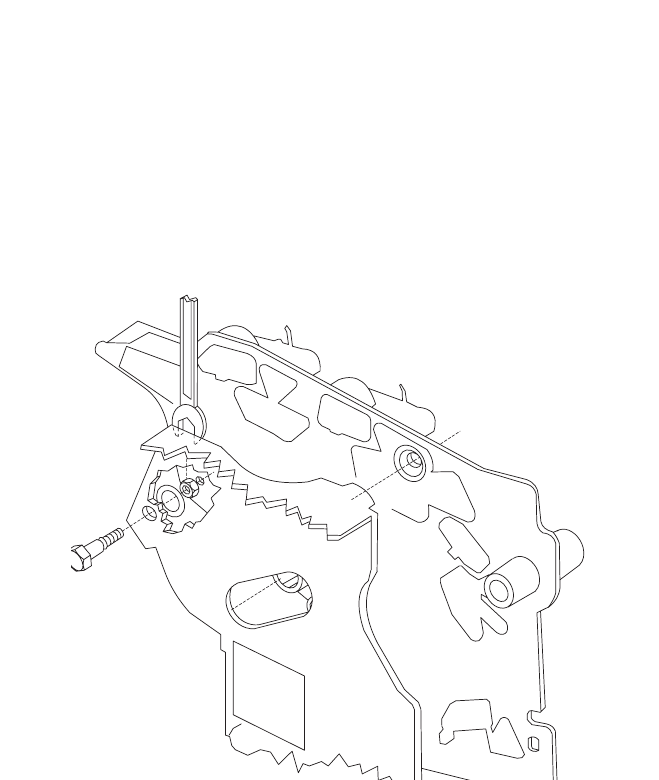
4-6 Service Manual
4069-XXX
b. Print a copy of the Quick Test Page and check the margin
adjustments printed on the test page. These settings should
be within the range specified in “Print Registration” on
page 3-19. The reference screw can be adjusted without
loosening the locknut. Turn the screw a few turns and print a
copy of the Quick Test Page as you check the diamonds on
the left margin. Continue adjusting the screw as you check
the results of each adjustment on a new test page until you
obtain the results you want.
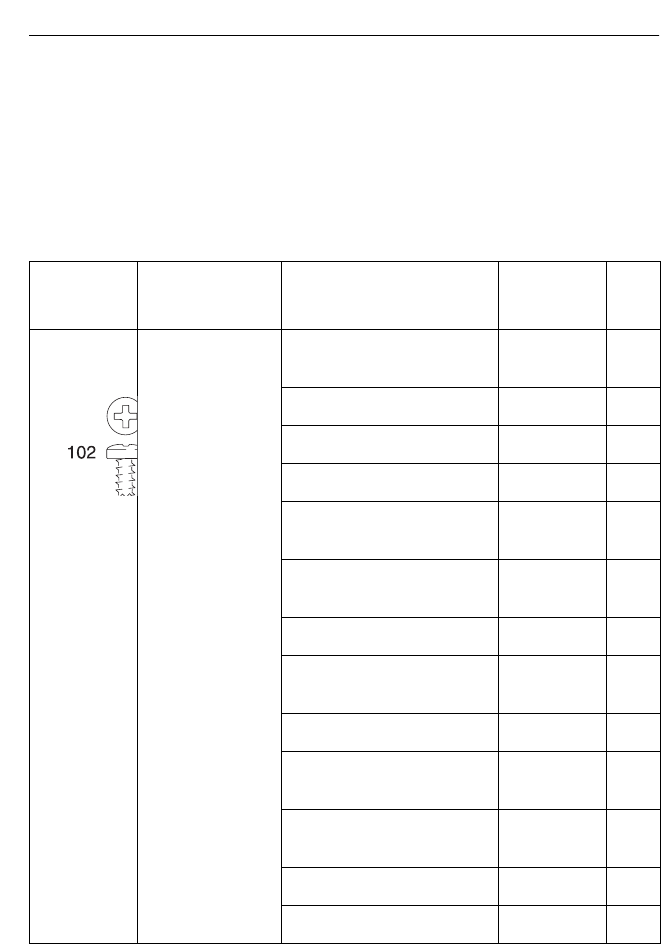
Repair Information 4-7
4069-XXX
Screw Identification Table
The following table contains screw types, locations, and quantities
necessary to service the printer. Each screw callout in the removal
procedure graphic displays the screw reference number listed in the
table. Pay careful attention to each screw type location when doing
removals. You must install the correct screw type in each location
during reassembly.
Reference
Number Screw Type Location Purpose Qty
M3.5x8 mm
Thread Cutting right side frame to
center pan attach 1
toner level sensor mounting 1
charge roll mounting 1
main drive gearbox mounting 3
EP module to left and
right side frame attach 9
developer drive
assembly mounting 2
stacker duct to frame mounting 2
cartridge hold down
assembly mounting 2
MPT deflector mounting 2
interconnect board
shield ground attach 2
engine board shield to
frame attach 1
laser cover mounting 4
deflector mounting 2
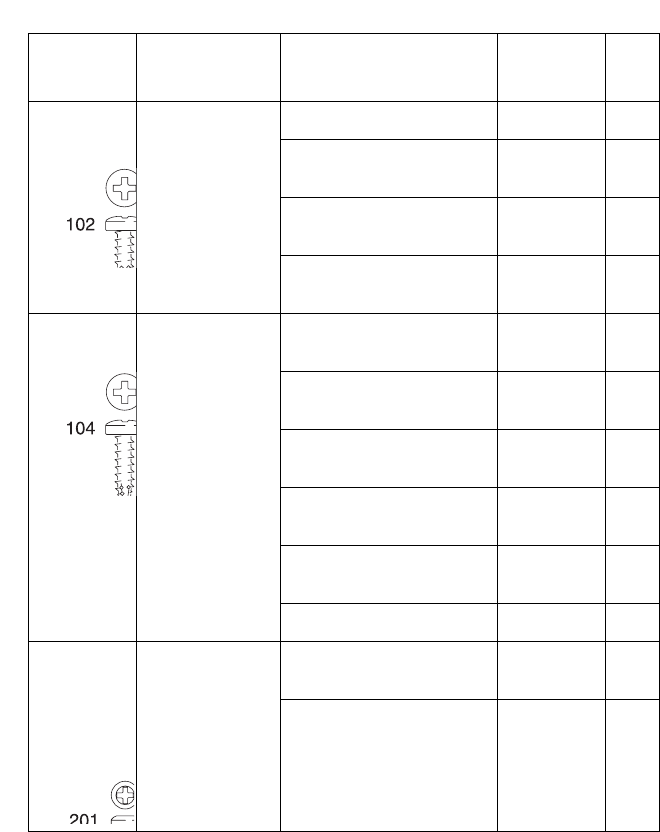
4-8 Service Manual
4069-XXX
M3.5x8 mm
Thread Cutting spring mounting 1
controller board mounting
(front) 2
integrated tray ITC
board mounting 2
stacker support to right
side frame attach 2
M3.5x12 mm
Thread Cutting engine board shield to
left frame attach 1
paper alignment
assembly mounting 2
toner cartridge guide
track mounting 2
left side frame to center
pan attach 3
right side frame to
center pan attach 2
deflector mounting 2
M3x5 mm
Taptite INA cover
(2 screws per cover) attach 6
interconnect board mounting 5
Reference
Number Screw Type Location Purpose Qty
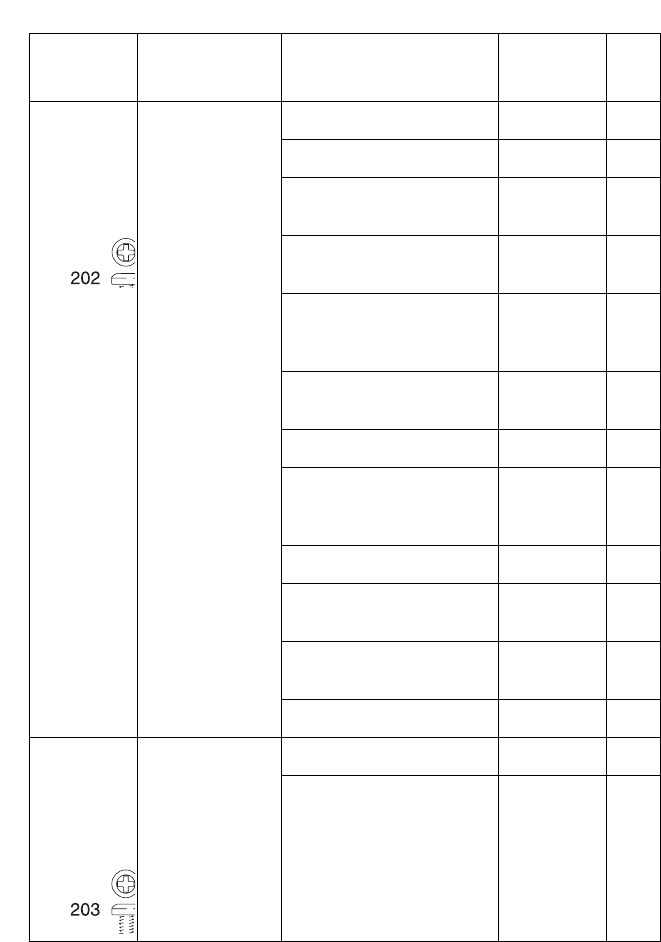
Repair Information 4-9
4069-XXX
M3x6 mm
Taptite outer shield mounting 6
inner redrive deflector mounting 2
interconnect board to
center pan mounting 2
engine board
(bottom holes) mounting 2
controller board to
interconnect board
ground
attach 2
controller board to inner
shield mounting 2
controller board (back) mounting 2
engine board to
interconnect shield
ground
attach 1
lower stacker duct mounting 1
ground cables to ground
(center pan - front) attach 1
cable clip (main drive
gearbox, BTM) mounting 2
fuser screw mounting 7
M3x8 mm
Taptite LVPS mounting 2
auto compensator
hanger bracket mounting 1
Reference
Number Screw Type Location Purpose Qty
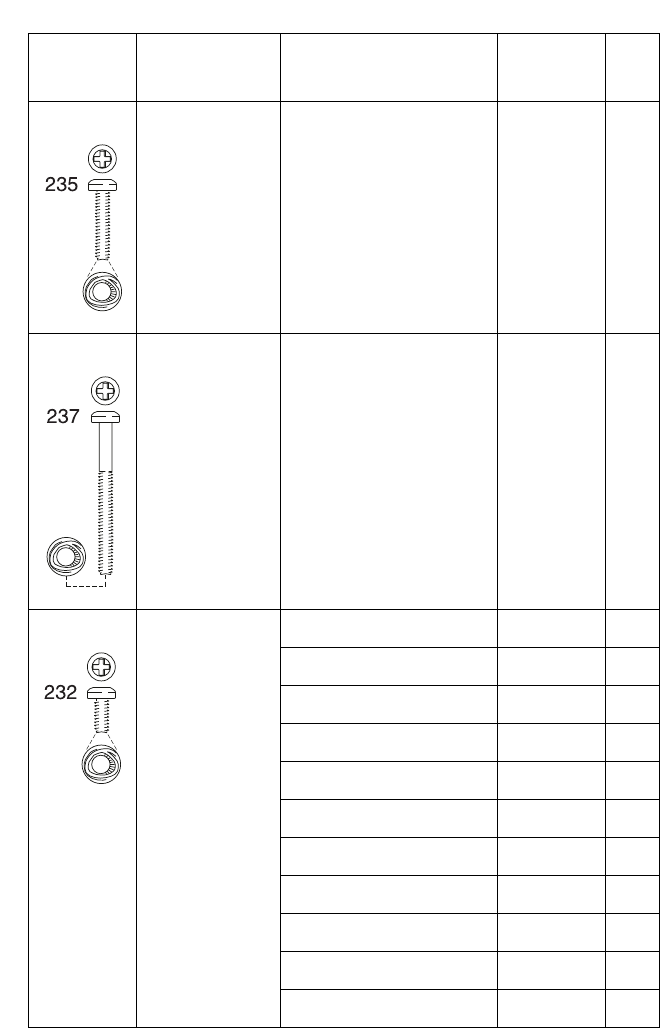
4-10 Service Manual
4069-XXX
M3x12 mm
Taptite
Panhead
HVPS board mounting 1
M3x28 mm
Taptite
Panhead
developer drive ground
(bottom hole) attach 1
M3x6 mm
Taptite
Panhead
stacker duct mounting 1
engine board mounting 2
controller to shield mounting 2
controller board mounting 2
in pan mounting 2
shield ground attach 1
LVPS mounting 2
fuser cover mounting 2
cable clip mounting 2
outer shield mounting 6
ina cover mounting 4
Reference
Number Screw Type Location Purpose Qty
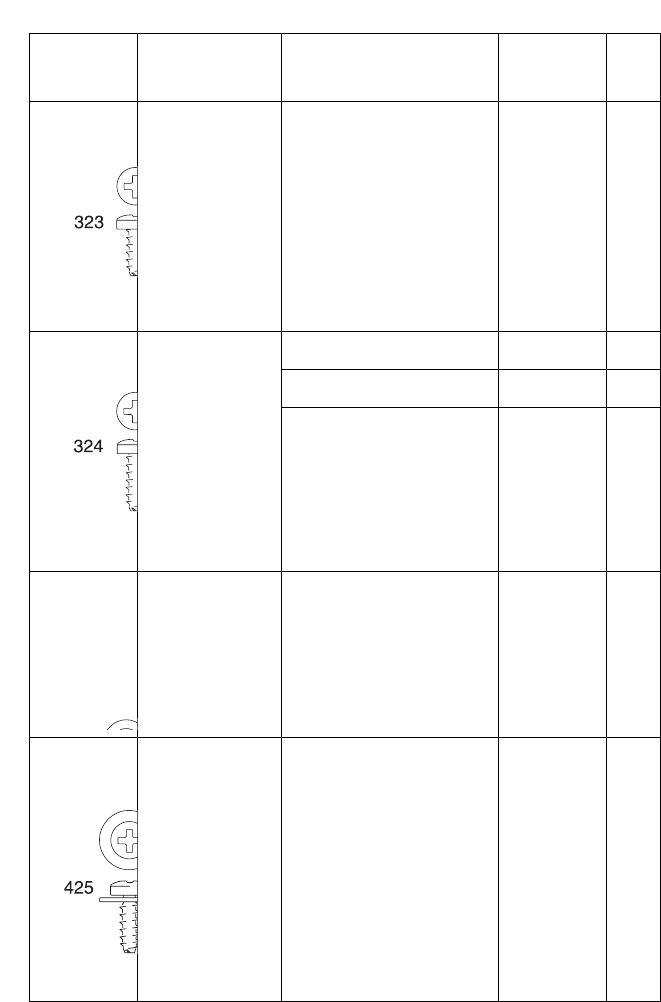
Repair Information 4-11
4069-XXX
M3.5x8 mm
Plastite Thread
Forming
autocompensator mounting 3
M3.5x10 mm
Plastite Thread
Forming
right side cover mounting 1
right side frame to pan attach 3
left side frame to pan attach 1
M3x6 mm
SEMS Machine
Screw with
washer
fuser board mounting 1
M3.5x12 mm
Plastite Thread
Forming with
washer
printhead to EP frame mounting 3
Reference
Number Screw Type Location Purpose Qty
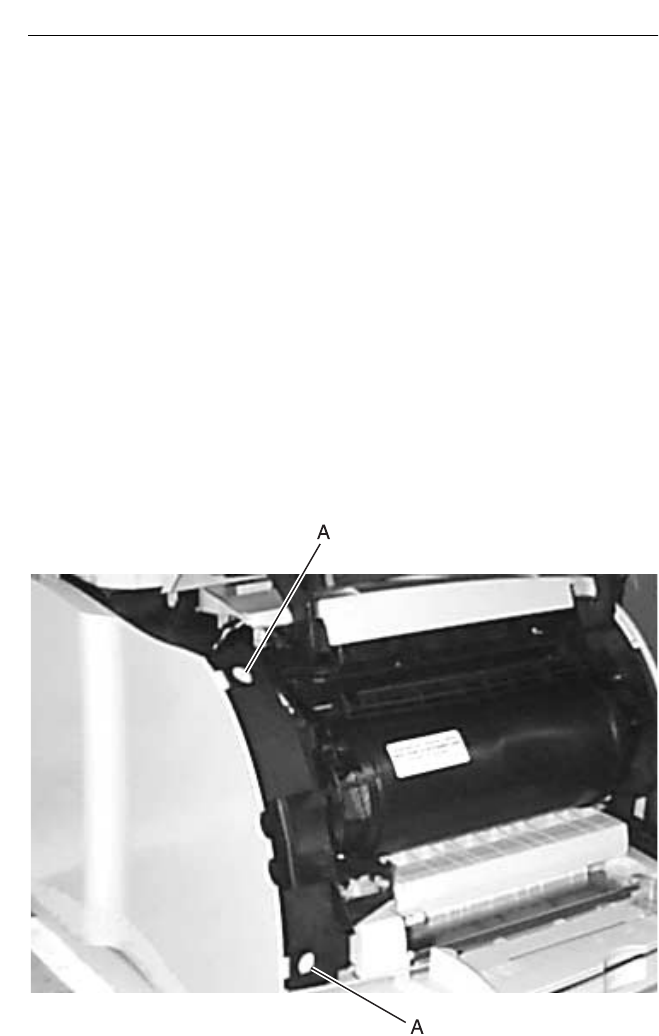
4-12 Service Manual
4069-XXX
Removal Procedures
CAUTION: Remove the power cord from the printer or wall outlet
before you connect or disconnect any cable or electronic board or
assembly for personal safety and to prevent damage to the printer.
Use the hand grips on the side of the printer. Make sure your fingers
are not under the printer when you lift or set the printer down.
Note: Some removal procedures require removing cable ties. You
must replace cable ties during reassembly to avoid pinching wires,
obstructing the paper path, or restricting mechanical movement.
Covers
Left Door
1. Open the upper and bottom front covers.
1. Press the two left door latch buttons (A) and open the left door.
2. Release the left door from the rear hinges and remove the door.
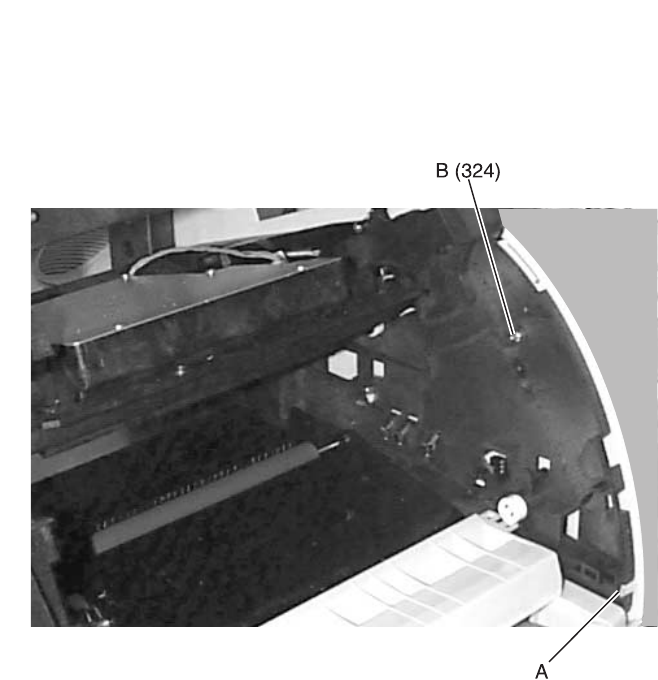
Repair Information 4-13
4069-XXX
Right Cover
1. Open the upper and bottom front covers.
2. Release the cover latch (A) and remove the right cover
mounting screw (B).
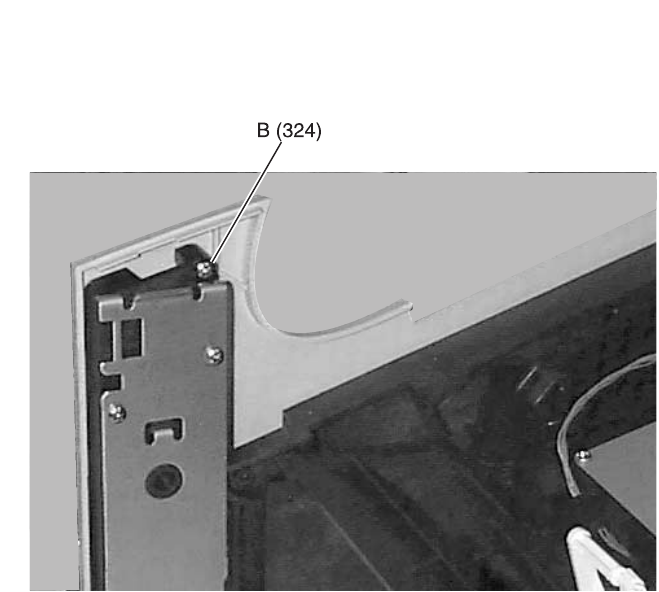
4-14 Service Manual
4069-XXX
3. Remove the redrive assembly.
4. Remove the right side cover mounting screw (B).
5. Remove the right side cover.
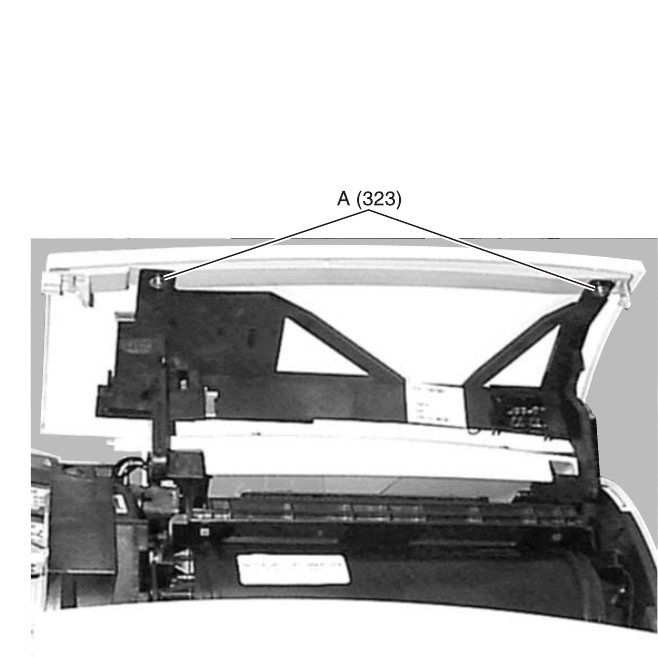
Repair Information 4-15
4069-XXX
Upper Front Cover
1. Raise the upper front cover.
2. Remove the upper front cover mounting screws (A).
3. Rotate the cover upward to allow the rear cover hinges to clear
the mounting slots and remove the cover.
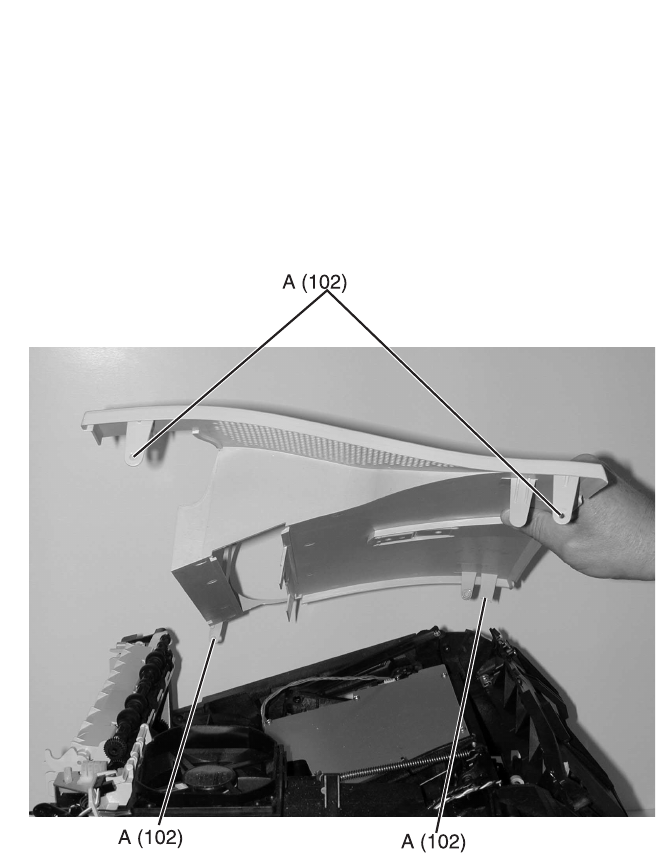
4-16 Service Manual
4069-XXX
Laser Assembly Cover
1. Remove the left door.
2. Remove the right cover.
3. Remove the rear paper deflector.
4. Press the fuser wiper cover latch and remove the cover.
5. Remove the paper full sensor flag assembly from the mounting
bracket.
6. Remove the mounting screws (A) and remove the cover.
Center Pan Assembly
1. Remove the left and right side frames.
2. Remove the pan assembly.
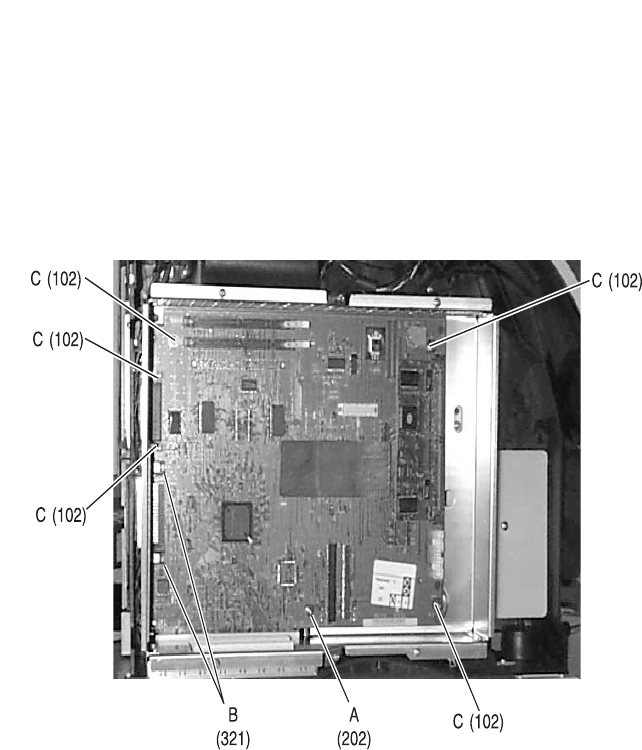
Repair Information 4-17
4069-XXX
Controller Board
1. Remove the inner EMC shield.
2. Remove the controller board mounting screw (A).
3. Remove the controller board mounting screws (C).
4. Remove the controller board parallel port mounting screws (B).
5. Remove the serial port mounting screws if present.
6. Remove the controller board.
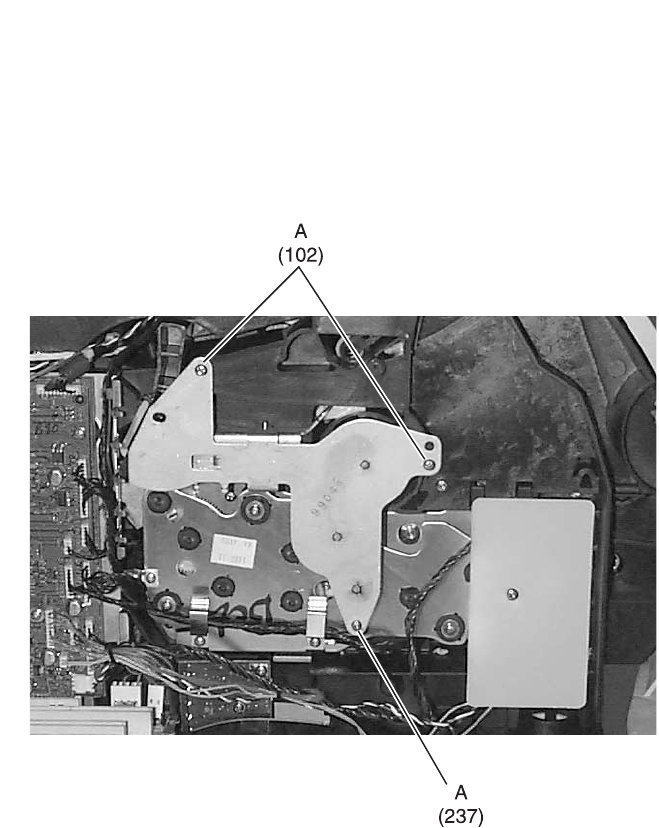
4-18 Service Manual
4069-XXX
Developer Drive Assembly
1. Remove the inner EMC shield.
2. Remove the developer drive assembly mounting screws (A).
3. Remove the developer drive assembly.
Note: Be sure the developer drive assembly wheel aligns with the
hub on the main drive assembly when reinstalling the assembly.

Repair Information 4-19
4069-XXX
Duplex Board
1. Lift the base printer from the duplex assembly.
2. Remove the four duplex board cover mounting screws.
3. Gently disconnect the cables from the duplex board. Use
caution to avoid damage to the cables and connectors.
4. Remove the two duplex board mounting screws and remove the
duplex board.
Duplex Front Cover Assembly
1. Lift the base printer from the duplex assembly.
2. Remove the four duplex board cover mounting screws and
disconnect the duplex cover door switch cable at connector J6.
3. Position the duplex assembly on its side.
4. Gently release the three front cover assembly latches from the
bottom of the duplex assembly.
5. Remove the duplex front cover assembly.
Duplex Front Cover Door
1. Remove the duplex front cover assembly.
2. Holding the front of the assembly away from you, open the
cover door and gently pry the left side door pivot from the
mounting.
3. Move the cover door to the left to clear the right door pivot from
the mounting and remove the duplex front cover door.

4-20 Service Manual
4069-XXX
Duplex Motor
1. Remove the duplex front cover door.
2. Gently disconnect the cables from the duplex board. Use
caution to avoid damage to the cables and connectors.
3. Remove the four mounting screws from the left and right return
guides and remove the guides.
4. Remove the four mounting screws on the right side of the
duplex frame assembly.
5. Position the duplex assembly on its side.
6. Gently release the center drive deflector assembly latch from
the bottom front left side of the duplex assembly.
7. Remove the center drive deflector assembly and the frame
assembly from the duplexer.
8. Remove the two duplex motor mounting screws and remove the
motor.
Note: Pay attention to cable routing to avoid pinching or cutting
wires during reassembly. Ensure cables are securely placed into the
cable retaining tabs. Do the adjustment “Duplex Motor Drive Belts”
on page 4-2 whenever you remove or replace the duplex motor.
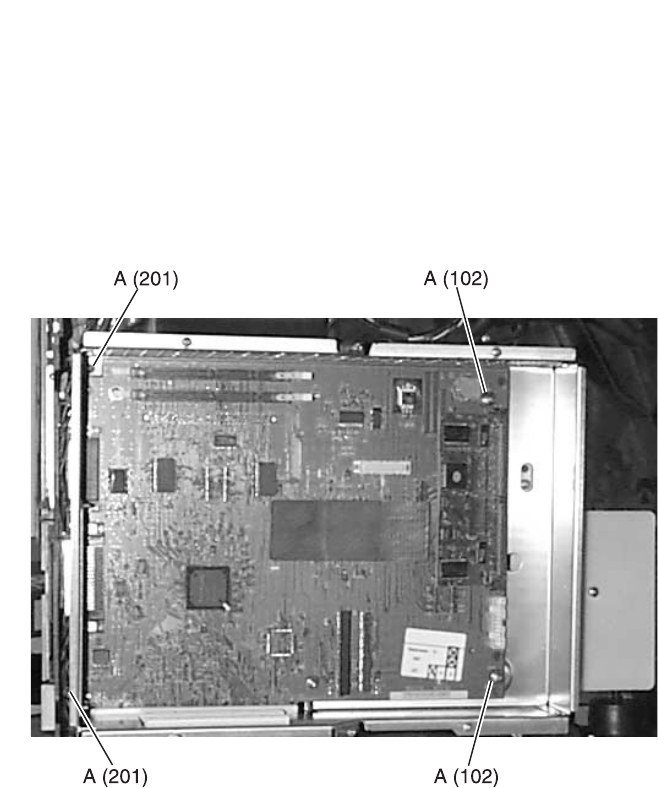
Repair Information 4-21
4069-XXX
EMC Shields
Inner EMC Shield
1. Remove the left door.
2. Remove the outer EMC shield.
3. Remove all option boards from the connector board slots.
4. Remove the inner EMC shield mounting screws (A).
5. Remove the inner EMC shield.
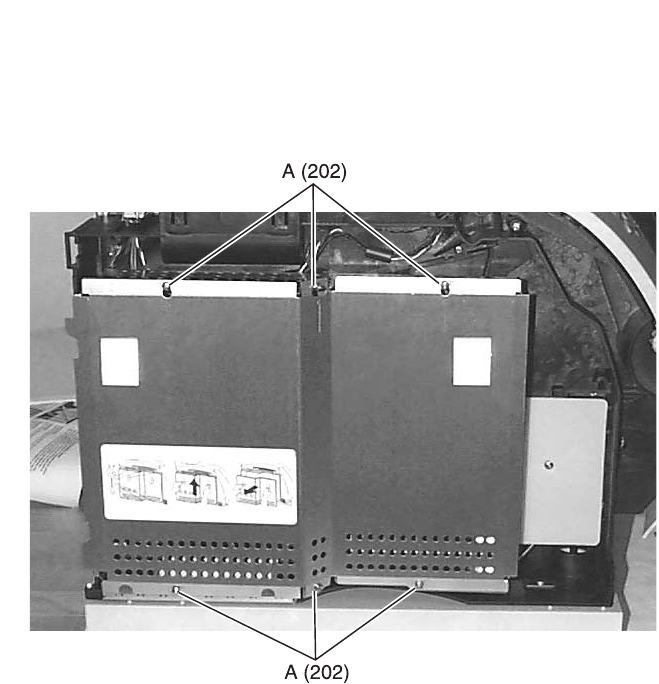
4-22 Service Manual
4069-XXX
Outer EMC Shield
1. Remove the left door.
2. Loosen the outer EMC shield mounting screws (A) and remove
the shield.
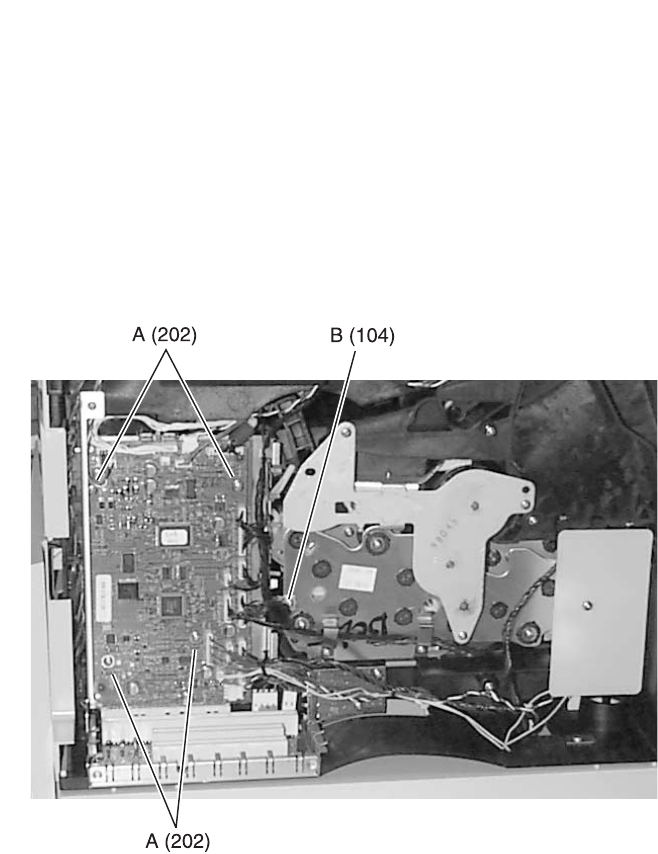
Repair Information 4-23
4069-XXX
Engine Board
1. Remove the inner EMC shield.
2. Disconnect all cables from the engine board.
3. Remove the engine board mounting screws (A).
4. Remove the engine board cage mounting screw (B) from the
main drive motor assembly.
5. Remove the engine board.
Note: Anytime the engine board is replaced, the Configuration ID
must be reset in NVRAM on the new engine board. Go to “Setting
Configuration ID” on page 3-21.
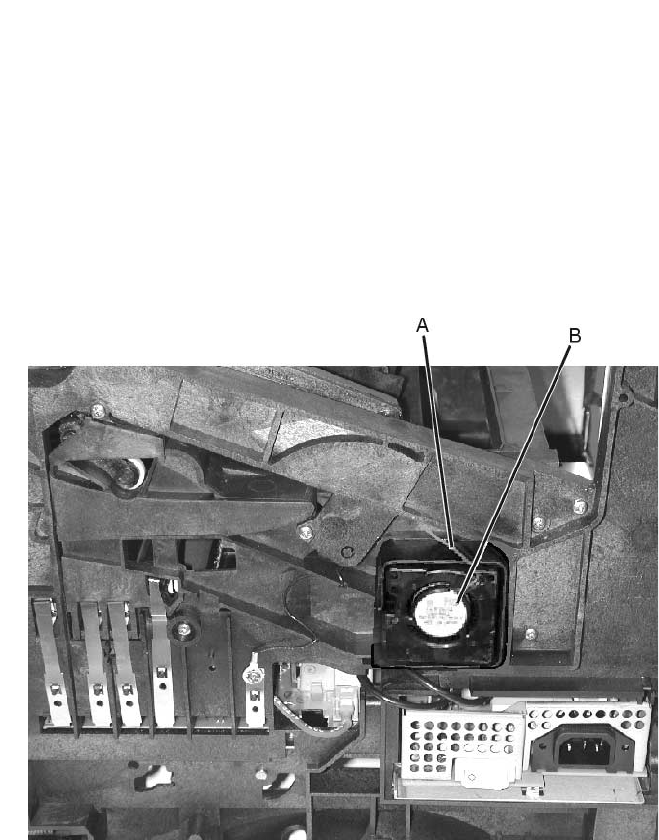
4-24 Service Manual
4069-XXX
Fans
Auxiliary Fan (Models 614/616)
1. Remove the right cover.
2. Remove the inner EMC shield.
3. Remove the fuser wiper cover.
4. Disconnect the auxiliary fan cable from the engine board at
connector J7.
5. Note the routing of the auxiliary fan cable (A) and remove the
fan (B).
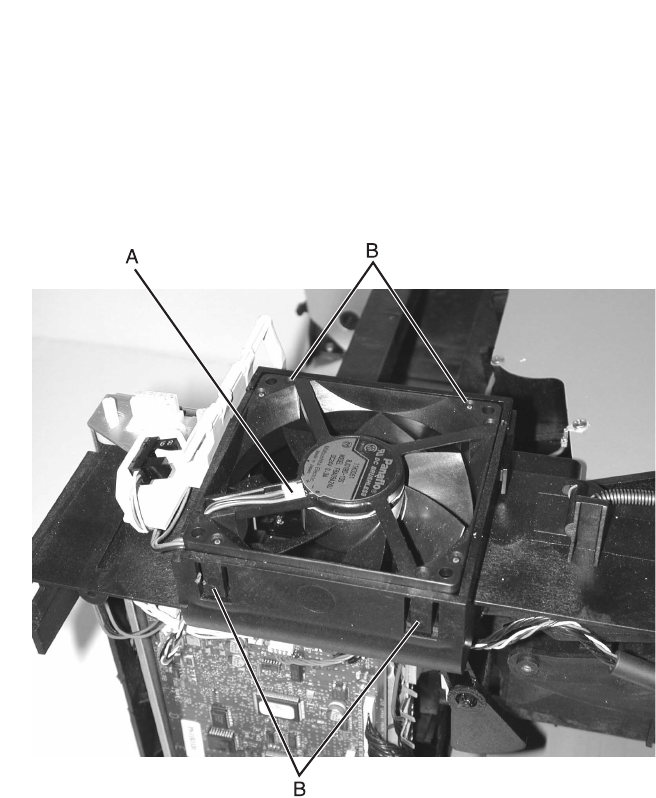
Repair Information 4-25
4069-XXX
Main Fan
1. Remove the top rear cover.
2. Remove the inner EMC shield.
3. Note the routing of the main fan cable (A) and disconnect the
cable from the engine board at connector J1.
4. Release the four latches (B) and remove the fan from the left
side frame.
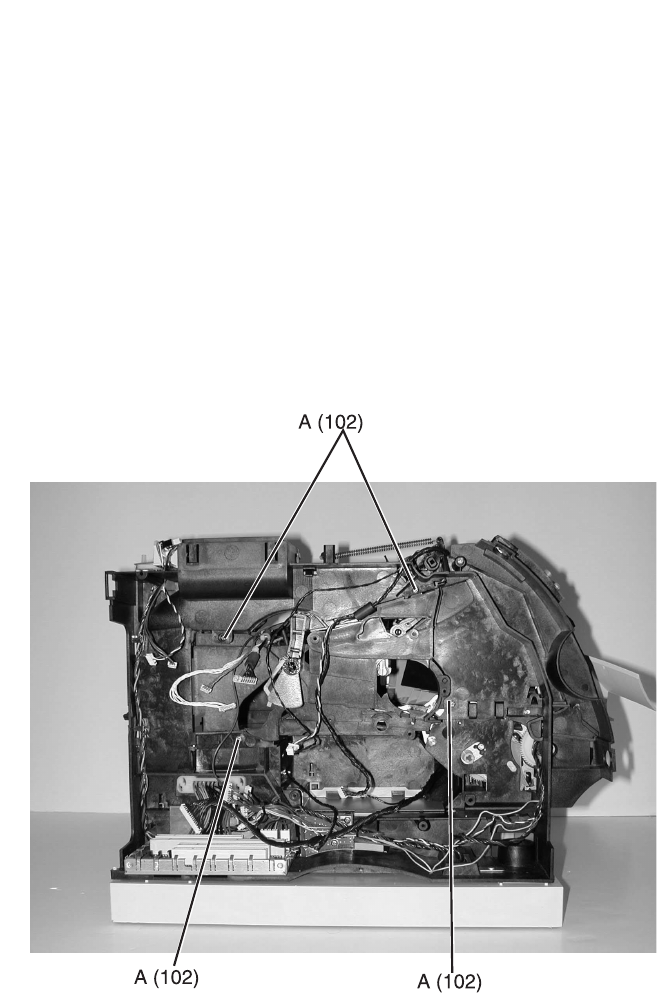
4-26 Service Manual
4069-XXX
Frames
EP Frame Assembly
1. Remove the left and right side frames.
2. Remove the EP frame assembly.
Left Side Frame
1. Remove the engine board.
2. Remove the main drive assembly.
3. Remove the upper front cover hinge assembly.
4. Remove the mulitpurpose tray/lower deflector assembly.
5. Remove the paper alignment assembly.
6. Remove the left side frame mounting screws (A).
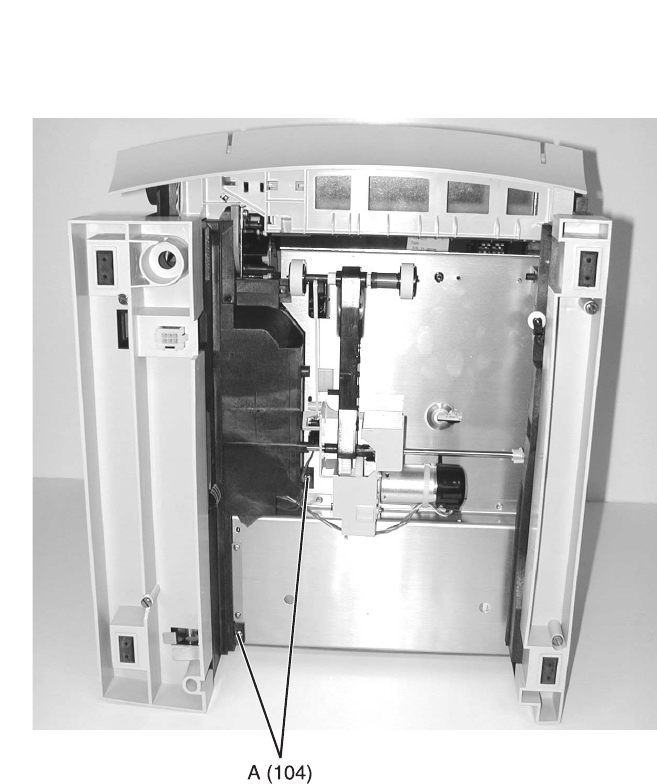
Repair Information 4-27
4069-XXX
7. Place the printer on its back and remove the left side frame
mounting screws (A).
8. Remove the left side frame.
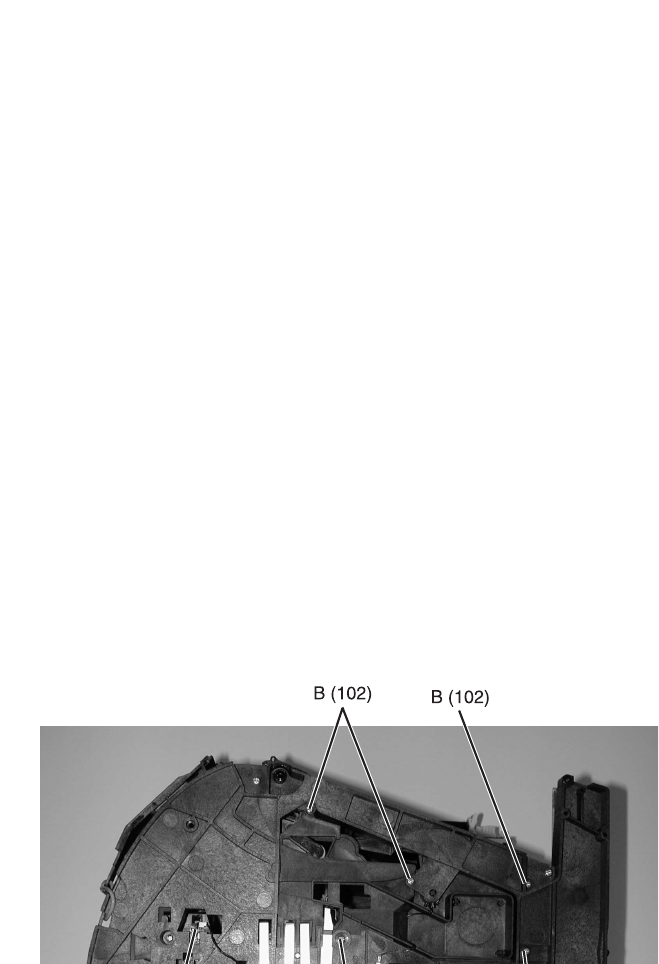
4-28 Service Manual
4069-XXX
Right Side Frame
1. Remove the right side cover.
2. Remove the LVPS.
3. Remove the multipurpose tray assembly.
4. Remove the auxiliary fan assembly.
5. Disconnect the auto compensator arm bias spring from the right
side frame.
6. Remove the toner sensor mounting screw (A), disconnect the
sensor cable and remove the toner sensor.
7. Remove the right side frame mounting screws (B) and remove
the right side frame.
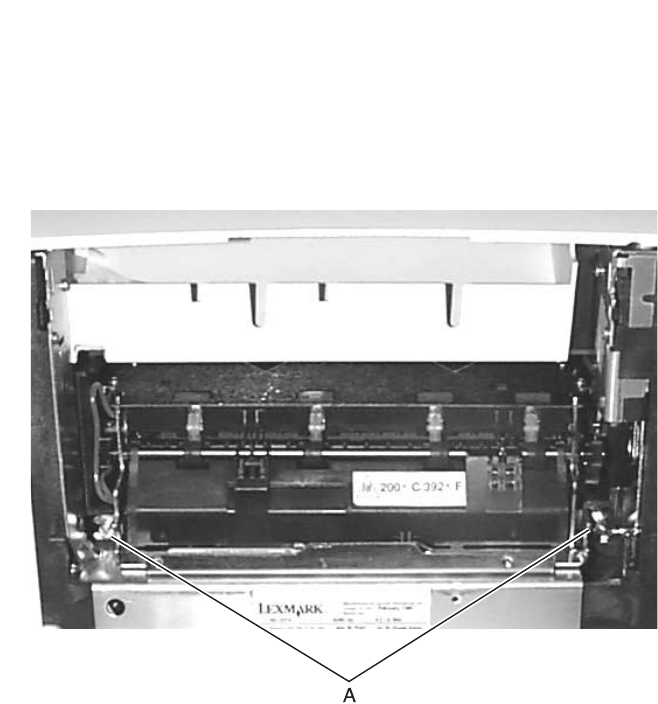
Repair Information 4-29
4069-XXX
Caution: Be sure the fuser assembly has cooled before working
on any of the fuser FRUs.
Fuser
1. Remove the redrive assembly.
2. Loosen the fuser mounting screws and remove the fuser.
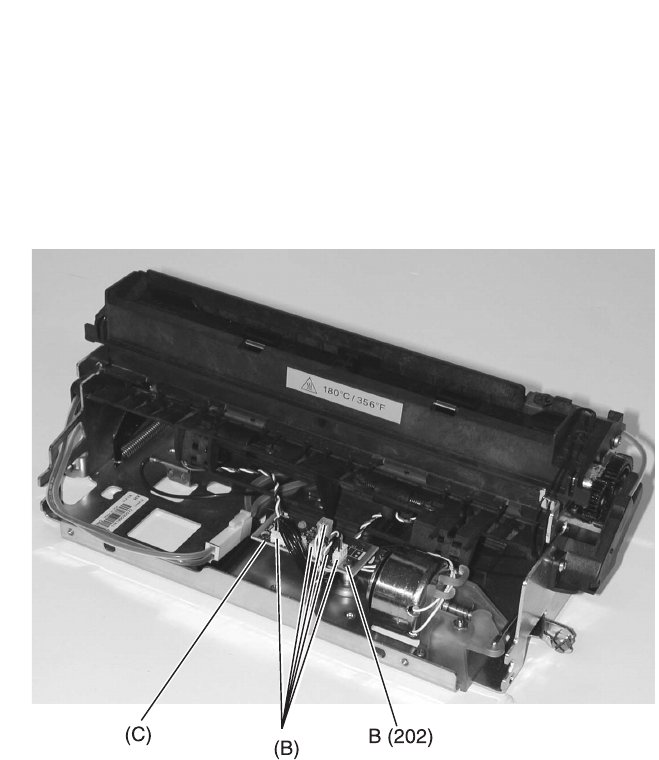
4-30 Service Manual
4069-XXX
Fuser Board
1. Remove the fuser assembly.
2. Remove the fuser board cover.
3. Disconnect the cables from the fuser board.
4. Remove the fuser board mounting screw.
5. Release the fuser board from the standoff tab and lift the fuser
board from the fuser assembly.
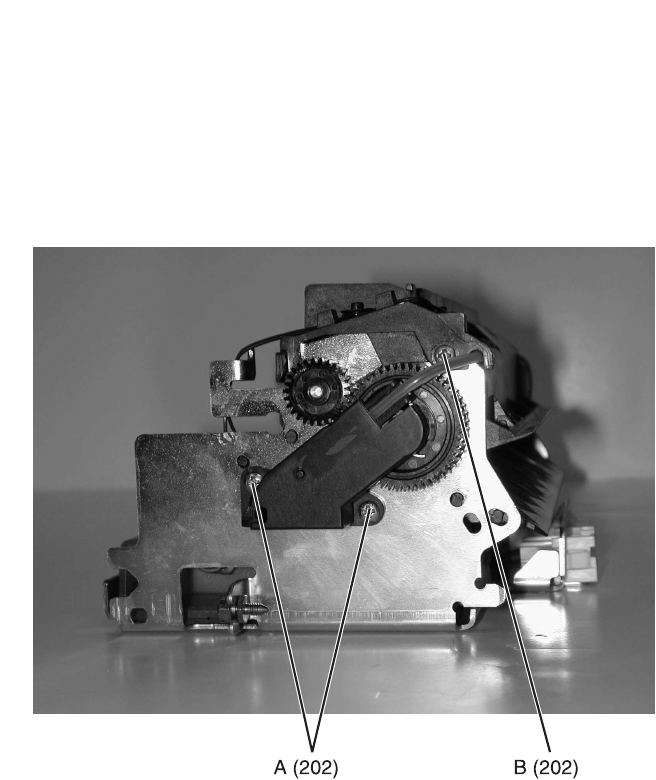
Repair Information 4-31
4069-XXX
Fuser Cover
1. Remove the fuser assembly.
2. Note the thermistor cable routing and disconnect the cable from
the fuser board.
3. Remove the left and right lamp bracket mounting screws (A).
4. Remove the left and right fuser cover mounting screws (B) and
lift the cover from the fuser assembly.
Fuser Detack Fingers
1. Remove the fuser assembly.
2. Remove the fuser cover assembly.
3. Remove the fuser detack housing assembly.
4. Gently pry the detack finger and spring from the housing
assembly.
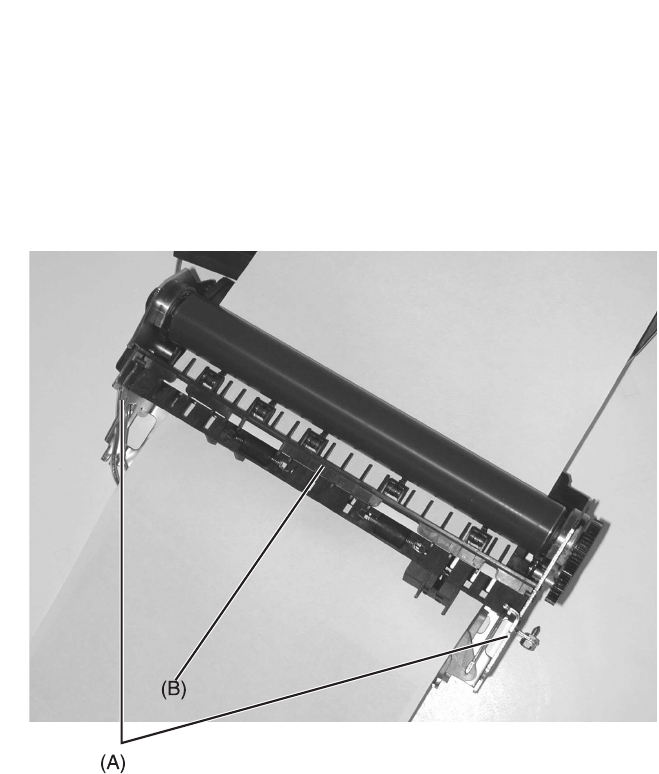
4-32 Service Manual
4069-XXX
Fuser Detack Housing Assembly
1. Remove the fuser assembly.
2. Remove the fuser cover assembly.
3. Remove the fuser lamp. Use care when handling the lamp.
4. Disengage the hotroll bearing clips to free the fuser frame walls.
5. Gently apply outward pressure on the left and right fuser side
frames (A) to release the detack housing assembly (B).
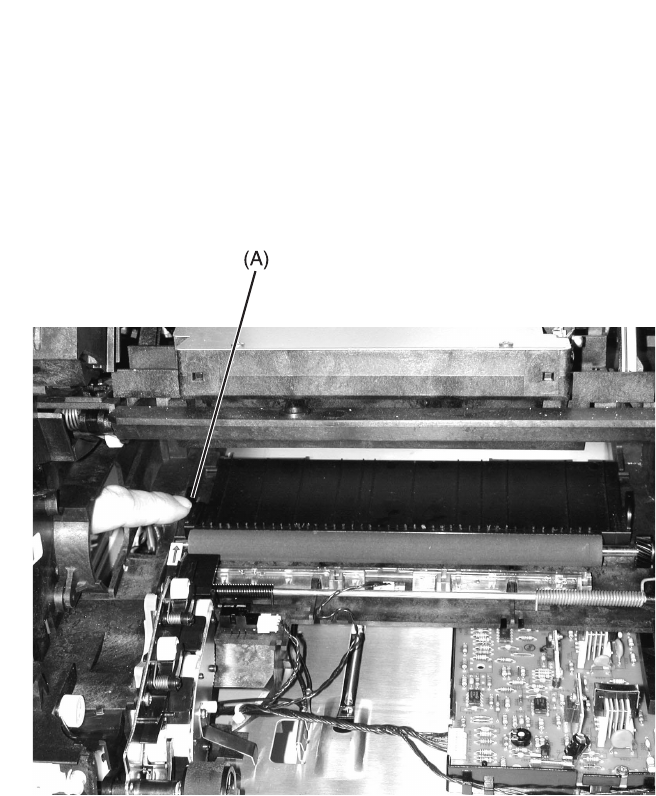
Repair Information 4-33
4069-XXX
Fuser Transfer Plate
1. Remove the upper paper deflector.
2. Remove the fuser transfer roll.
3. Remove the inner paper deflector.
4. Lift the left side of the fuser transfer plate (A) and move the
plate to the left to clear the right side from its mounting.
5. Remove the fuser transfer plate.
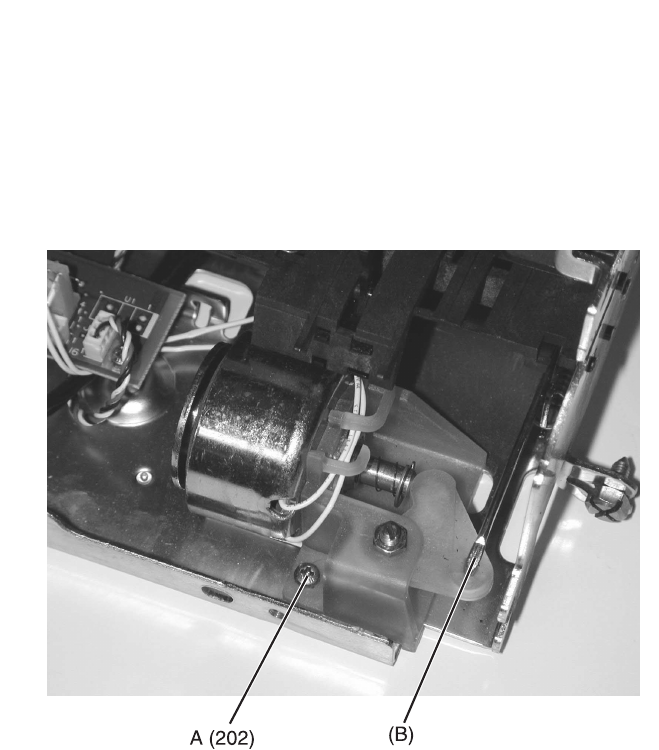
4-34 Service Manual
4069-XXX
Fuser Envelope Conditioner Solenoid
1. Remove the fuser assembly.
2. Remove the solenoid mounting screw (A).
3. Disconnect the solenoid link (B).
4. Remove the solenoid from the fuser assembly.
Note: Do the “Fuser Solenoid Adjustment” on page 4-3 whenever
you replace the fuser solenoid.

Repair Information 4-35
4069-XXX
Fuser Narrow Media Sensor/Flag Assembly
1. Remove the fuser assembly.
2. Remove the exit roll assembly.
3. Remove the fuser board cover.
4. Disconnect the sensors from the fuser board.
5. Remove the lower exit guide assembly
6. Remove the sensor/flag assembly from the lower exit guide
assembly
Fuser Exit Sensor Flag Assembly
1. Remove the fuser board cover
2. Disconnect the exit sensor from the fuser board.
3. Remove the exit sensor flag assembly.
Note: The exit sensor assembly can be removed without removing
the lower exit guide assembly. Make sure the marrow media sensor
flag is correctly positioned before snapping the sensor in place.
Fuser Lamp
1. Remove the fuser assembly.
2. Warning: Hold the left lamp bracket and carefully remove the
two mounting screws. There is pressure against the other end
of the lamp therefore care must be used when removing the
lamp from the fuser. Grip the lamp by the ceramic end piece
and remove it from the fuser assembly. Be careful not to touch
the glass as skin oils and acids can reduce the life of the lamp.
3. Remove the fuser lamp.

4-36 Service Manual
4069-XXX
The fuser lamp FRU is color coded. The left and right fuser lamp
bracket access holes let you view the end of the lamp. Use the
following table to identify and install the correct lamp.
Fuser Lower Exit Guide Assembly
1. Remove the fuser assembly.
2. Remove the fuser cover assembly.
3. Remove the fuser detack housing assembly.
4. Disconnect the sensors from the fuser board.
5. Gently apply outward pressure on the left and right fuser side
frames to release the lower exit guide assembly.
Description Color Code
Fuser Lamp 115V 550W Green
Fuser Lamp 115V 875W Gold
Fuser Lamp 220V 550W Brown
Fuser Lamp 220V 875W Silver
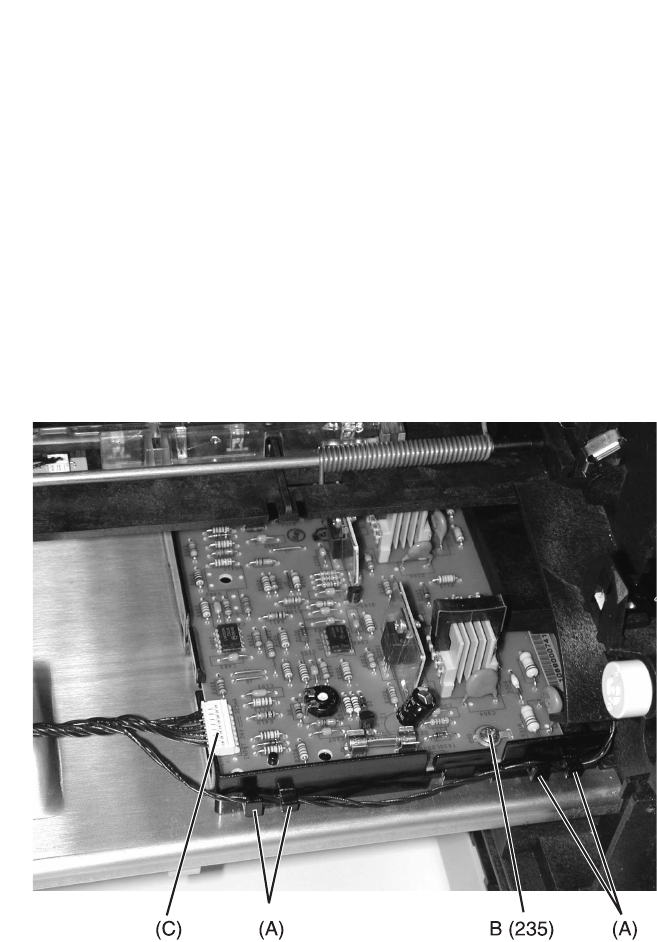
Repair Information 4-37
4069-XXX
High Voltage Power Supply
1. Remove the inner paper deflector.
2. Remove the toner sensor cable from the retainer (A) on the
front of the HVPS.
3. Remove the right side cover.
4. Disconnect the HVPS cable from the HVPS at connector (C).
5. Disconnect the transfer roll cable from the HVPS board.
Note: Use caution when disconnecting the cable from the
transformer on the HVPS. The cable and connector can be
easily damaged.
6. Remove the HVPS mounting screw (B).
7. Slide the HVPS to the left to release the mounting tab from the
center pan and remove the HVPS.
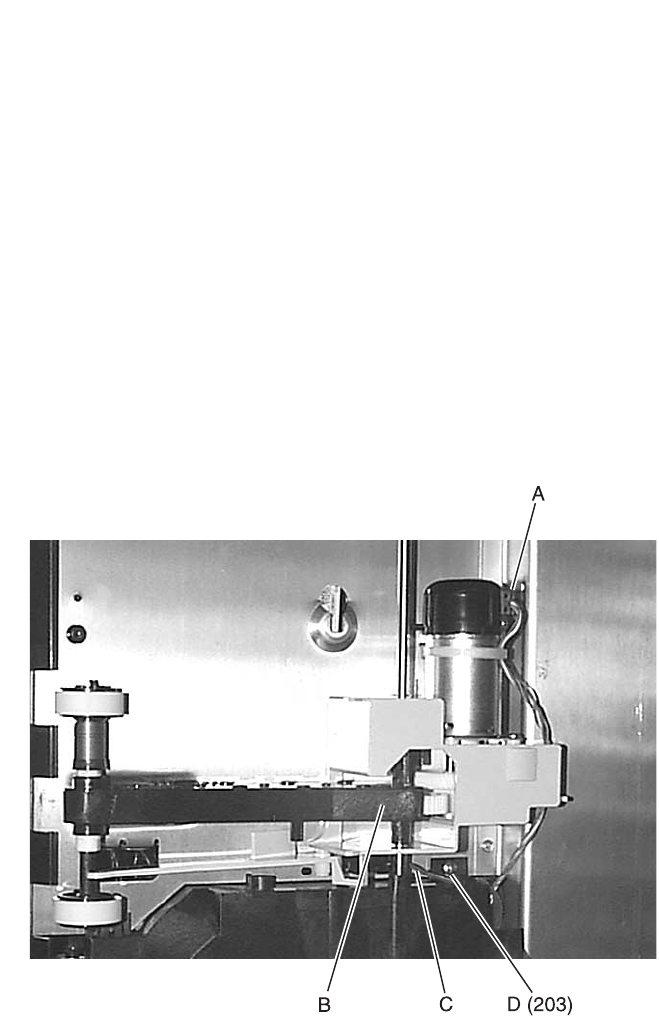
4-38 Service Manual
4069-XXX
Integrated Tray Compensator Assembly
1. Remove the paper tray.
2. Remove the left door.
3. Remove the inner EMC shield.
4. Disconnect the compensator motor cable (A) from the engine
board.
5. Place the printer on its side.
6. Locate the integrated tray compensator assembly (B) on the
bottom of the printer and disconnect the compensator arm bias
spring from the frame.
7. Remove the c-clip that rests against the right sideframe from
the autocompensator pivot shaft.
8. Disconnect the compensator sensor cable (C) from the
assembly.
9. Remove the compensator assembly mounting screw (D).
10.Remove the integrated tray compensator assembly.
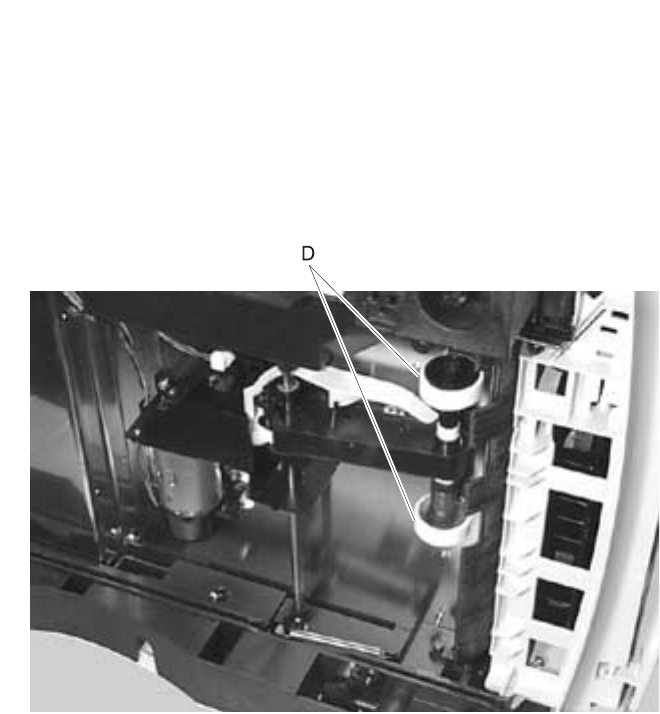
Repair Information 4-39
4069-XXX
Integrated Tray Compensator Pick Roll Assembly
1. Remove the paper tray.
2. Place the printer on its side.
3. Locate the compensator assembly on the bottom of the printer
and pull the compensator arm away from the printer.
4. Unsnap the pick roll assembly (D) from its mounting and
remove.
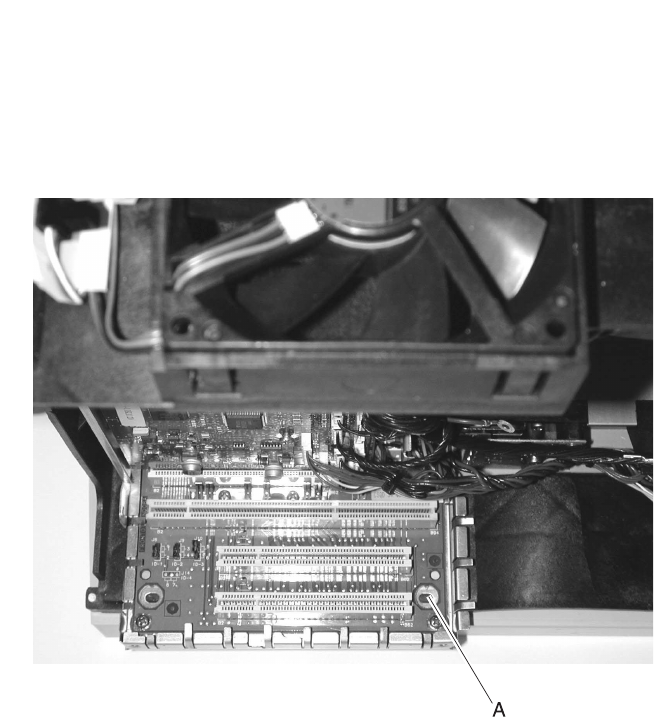
4-40 Service Manual
4069-XXX
Interconnect Board Assembly
1. Remove the inner EMC shield.
2. Remove the engine board and shield.
3. Remove the LVPS.
4. Disconnect all cables from the interconnect board.
5. Place the printer on its back and remove the mounting screws
(A).
Note: Go to “Interconnect Board” on page 5-12 to identify the
correct jumper locations for your printer.
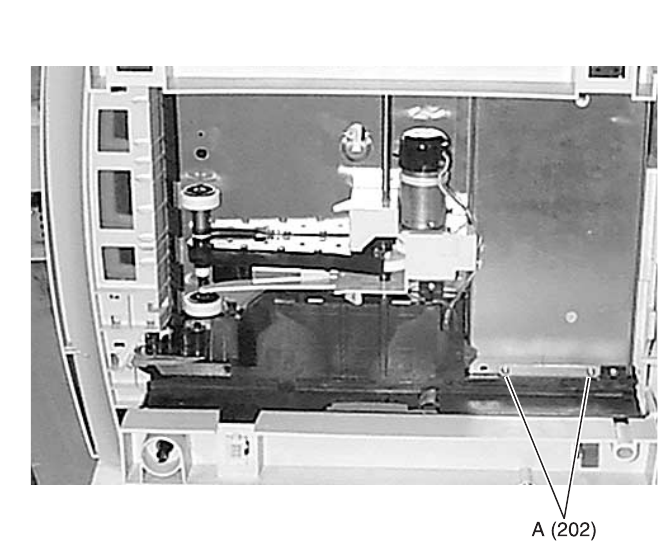
Repair Information 4-41
4069-XXX
6. Remove the interconnect board assembly.
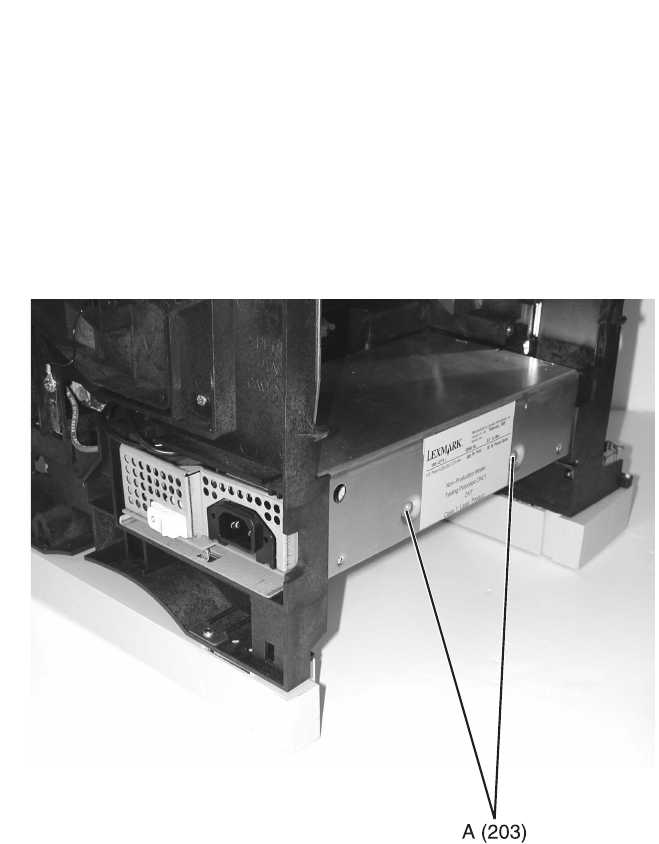
4-42 Service Manual
4069-XXX
Low Voltage Power Supply
1. Remove the right cover.
2. Remove the LVPS mounting screws (A) from the rear of the
bottom pan.
3. Pull the LVPS assembly from the right side of the printer. Initial
resistance is felt as the automate plug disconnects.
4. Press the release latch on the fuser lamp cable connector and
disconnect from the LVPS.
5. Remove the LVPS.

Repair Information 4-43
4069-XXX
Main Drive Assembly
1. Remove the inner EMC shield.
2. Remove the gear guard.
3. Remove the developer drive assembly.
4. Remove the transfer shaft (A) through the bottom of the printer.
5. Remove all cables from the cable clamps (B) on the main drive
assembly.
6. Remove the ground cables (F). Be sure to reinstall the ground
cables to the same location.
7. Remove the main drive assembly mounting screws (C).
8. Remove the link (D) from the rear of the main drive assembly.
9. Disconnect the cable from the main drive motor.
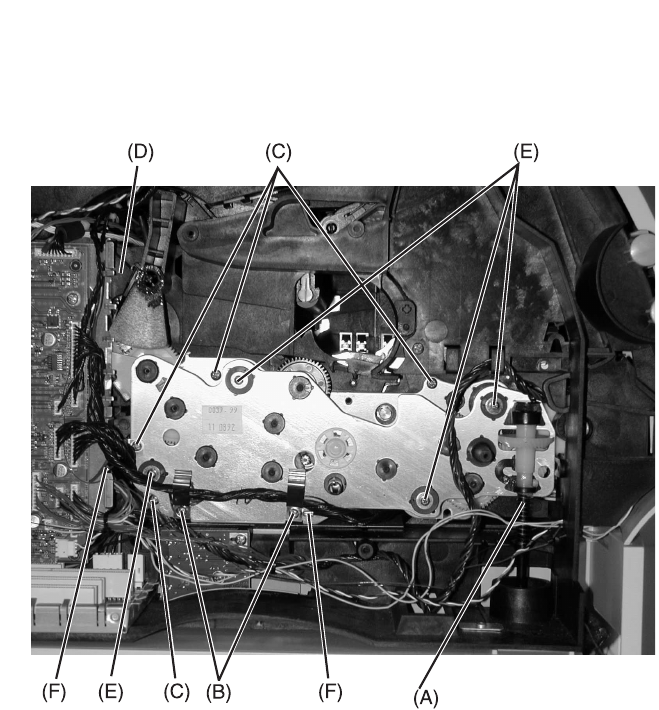
4-44 Service Manual
4069-XXX
10. Remove the main drive assembly.
Note: Do not remove the screws (E) on the main drive assembly.
Be sure the main drive assembly gear shaft aligns with the hub on
the left side frame when reinstalling the main drive assembly.
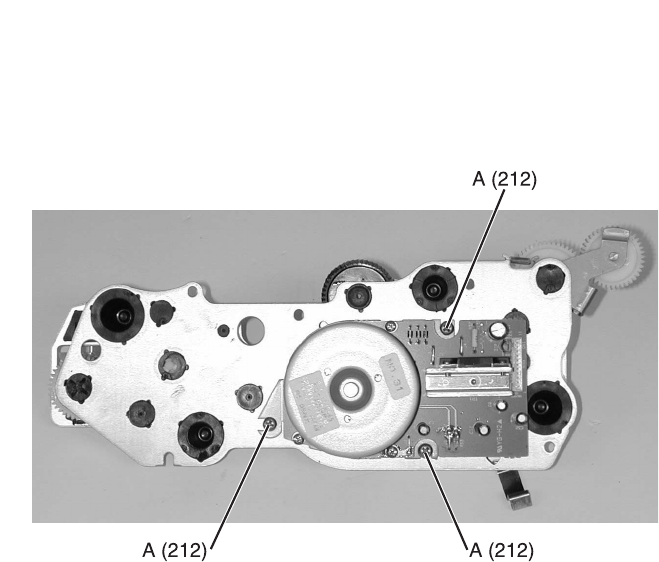
Repair Information 4-45
4069-XXX
Main Drive Motor
1. Remove the main drive assembly.
2. Remove the main drive motor mounting screws (A).
3. Remove the main drive motor.
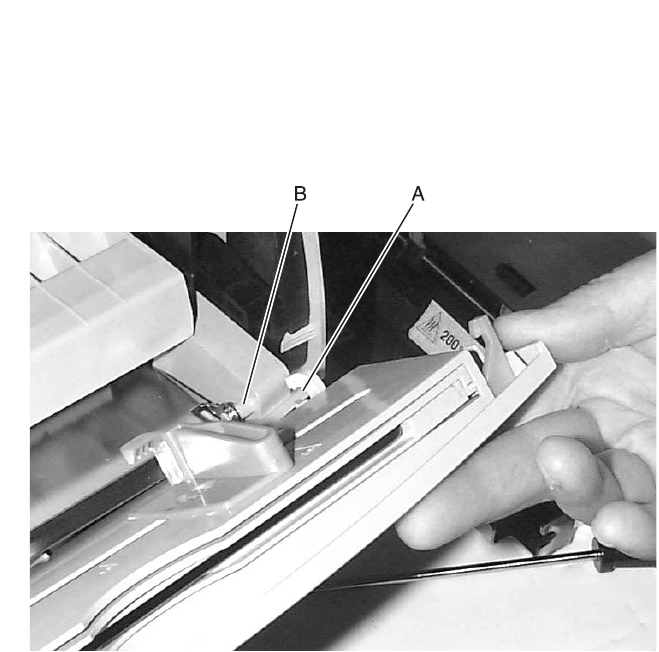
4-46 Service Manual
4069-XXX
Multipurpose Tray/Lower Deflector Assembly
1. Open the multipurpose tray to a position that allows the left and
right tray hinge slots (A) to align with the rectangular mounting
posts (B). Pull upward on each tray hinge to remove the tray
from the two mounting posts. Be careful not to break the hinges.
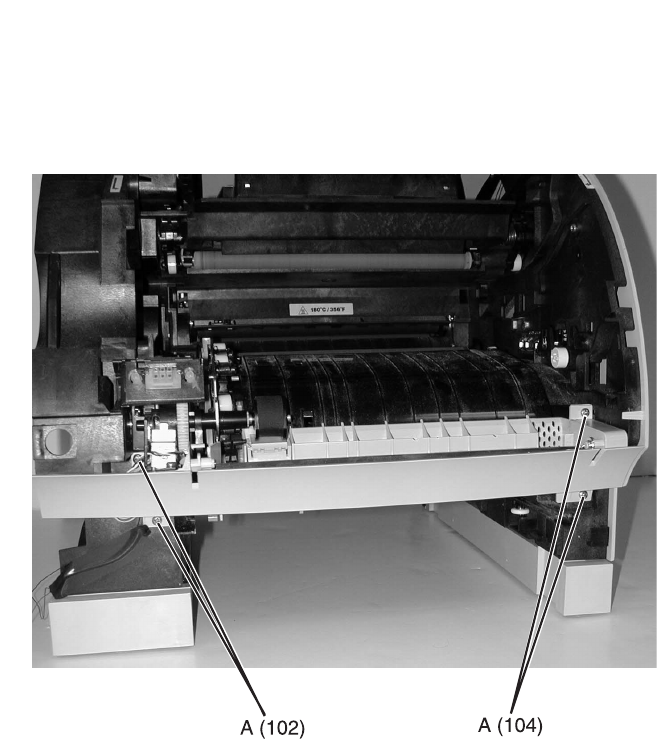
Repair Information 4-47
4069-XXX
2. Remove the upper deflector.
3. Remove the solenoid mounting screw.
4. Remove the screws (A) mounting the multipurpose tray/lower
deflector assembly.
5. Remove the multipurpose tray/lower deflector assembly.
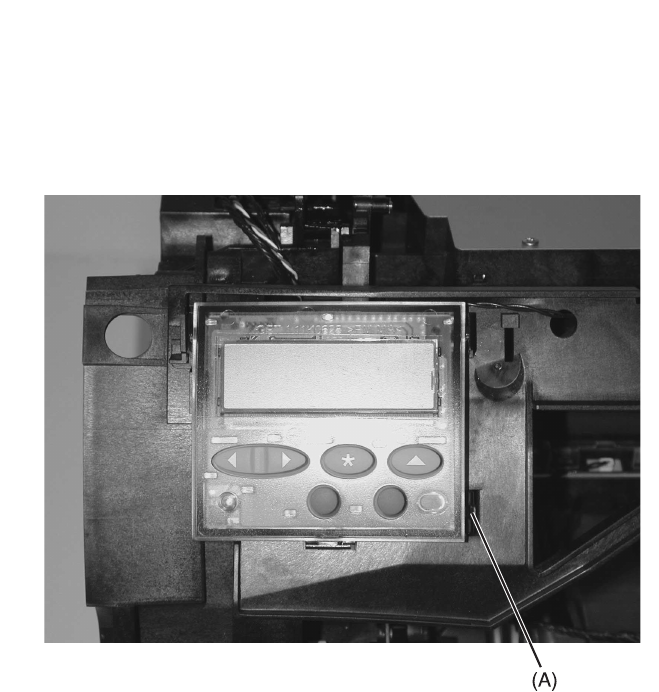
4-48 Service Manual
4069-XXX
Operator Panel Assembly
1. Remove the upper front cover.
2. Disconnect the operator panel cable.
3. Gently press the operator panel lens tab (A) and remove the
operator panel.

Repair Information 4-49
4069-XXX
Operator Panel Cable/Cover Open Switch Assembly
Note: Pay careful attention to the cable routing through the printer
before you remove the operator panel cable/cover open switch
assembly.
1. Remove the left door, left cover, upper front cover, outer EMC
shield and inner EMC shield.
2. Disconnect the operator panel/cover open switch cable from the
engine board.
3. Remove the operator panel. Pull the cables through the
rectangular hole in the hinge pivot arm.
4. Plug the new operator panel cable into the operator panel and
snap the new cover open switch cable into the bracket
assembly.
5. Route the cables and torroid through the rectangular window in
the cover hinge pivot arm.
6. Snap the operator panel into the upper front cover.
7. Be sure the torroid is on the opposite end of the cables near the
engine board connectors.
8. Route the cables through the printer and down the inside of the
engine board shield.
9. Plug the cables into the engine board connectors.

4-50 Service Manual
4069-XXX
Optional 250/500 Paper Tray Assembly
Note: Remove the printer and other paper feed options to access
the failing optional paper tray assembly.
Paper Tray Compensator Assembly
1. Remove the printer and other paper feed options.
2. Disconnect the compensator assembly bias spring from the tray
frame.
3. Disconnect the compensator assembly motor cable.
4. Remove the three compensator assembly mounting screws and
remove the compensator assembly.
Paper Tray Frame Assembly
1. Remove the compensator assembly.
2. Release the paper pass through sensor from its retaining tabs.
3. Release the frame assembly from the front and rear retaining
tabs and remove the paper tray frame assembly.
Paper Tray Board
1. Remove the paper tray frame assembly.
2. Disconnect all cables from the paper tray board.
3. Remove the three paper tray board mounting screws and
remove the board.
Note: Reinstall with the paper out sensor flag positioned in the
sensor slot on the paper tray board.
Paper Tray Paper Out Sensor Flag
1. Remove the paper tray frame assembly.
2. Remove the paper tray board.
3. Remove the paper out sensor flag.
Paper Size Spring Comb
1. Remove the paper tray board.
2. Remove the paper size spring comb mounting screw and
remove the spring comb.
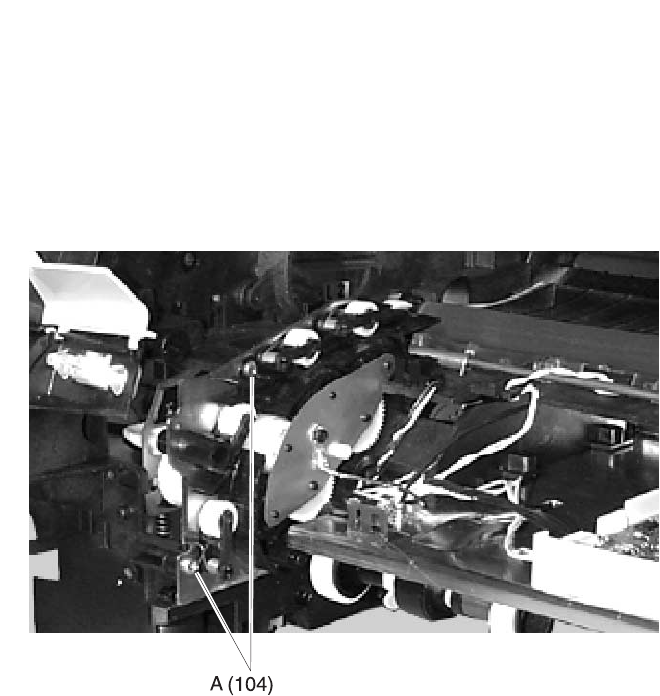
Repair Information 4-51
4069-XXX
Paper Alignment Assembly
1. Remove the upper paper deflector assembly.
2. Remove the inner paper deflector assembly.
3. Release the input paper sensor from its mounting and remove.
4. Remove the left door.
5. Remove the paper alignment assembly mounting screws (A)
located inside the printer.
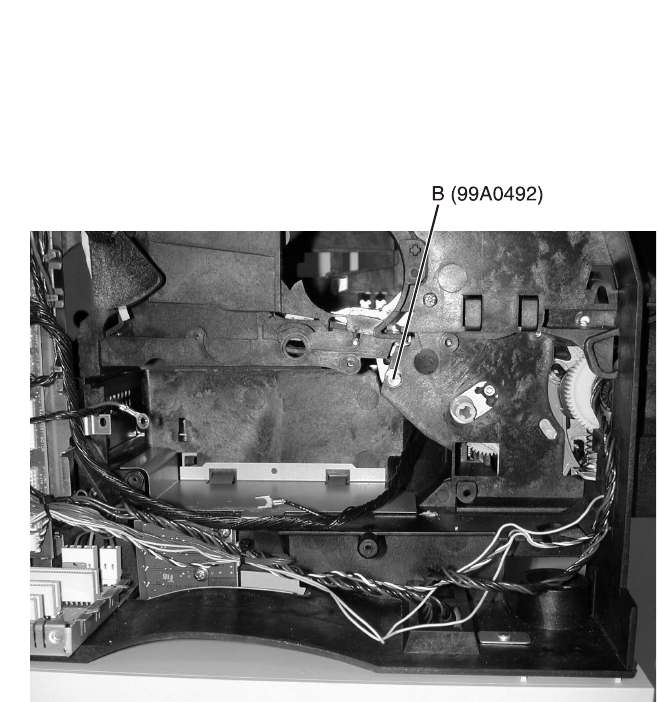
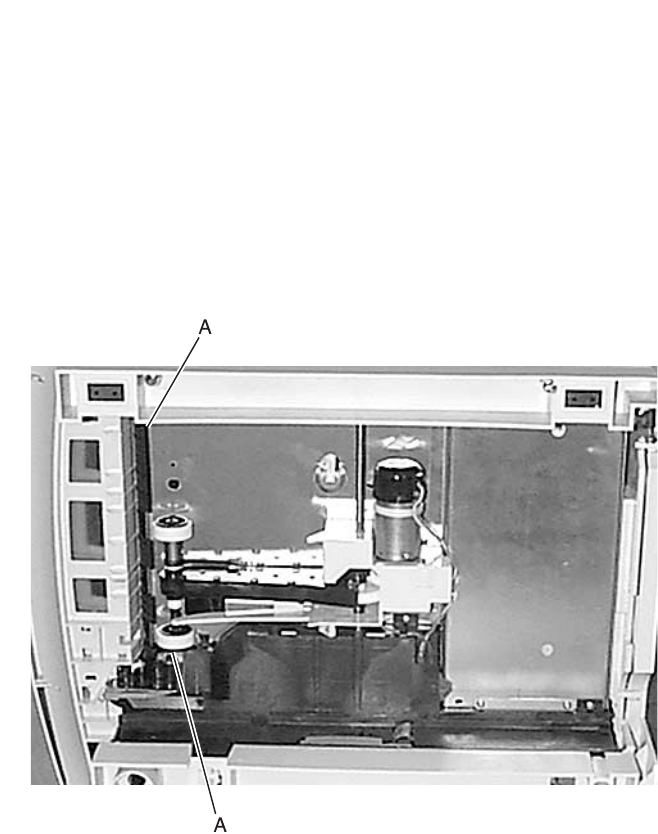
Repair Information 4-53
4069-XXX
Paper Deflectors
Inner Paper Deflector Assembly
1. Remove the paper tray.
2. Remove the upper deflector assembly.
3. Place the printer on its side.
4. Remove the lower deflector assembly.
5. Gently pry the inner paper deflector from the left and right
mounting posts (A) located on the bottom of the printer and
remove the deflector.
Upper Paper Deflector Assembly
1. Open the multipurpose tray and remove the tray from the two
mounting posts.
2. Gently release the upper deflector assembly latch from its
mounting on the right side frame and slide to the right.
3. Remove the upper deflector assembly.
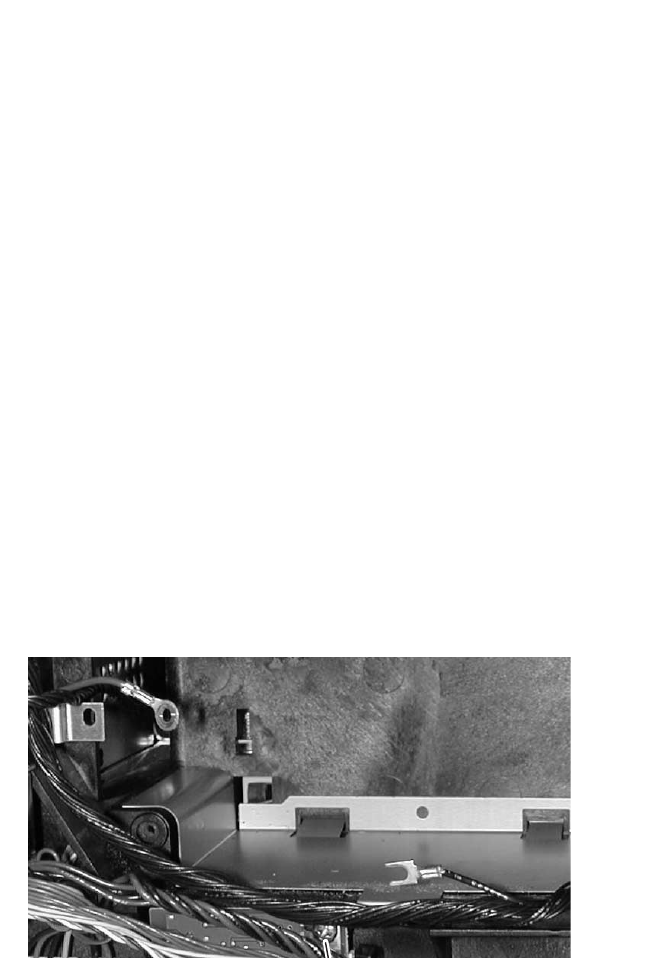
4-54 Service Manual
4069-XXX
Paper Input Sensor
1. Remove the inner paper deflector assembly.
2. Disconnect the paper input sensor cable from the input sensor.
3. Release the input paper sensor from its mounting and remove.
Paper Size Sensing Board
1. Disconnect the paper size sensing board cable from the board.
2. Remove the two paper size sensing board mounting screws (A).
3. Remove the paper size sensing board.

Repair Information 4-55
4069-XXX
Pick Roll
1. Remove the upper paper deflector.
2. Release the pick roll retaining tab and slide the pick roll off the
shaft.
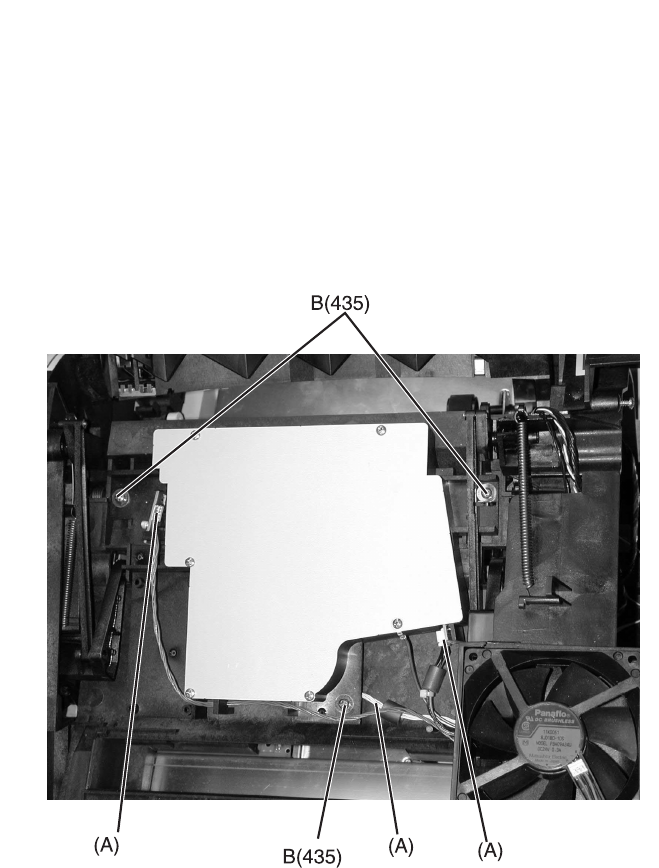
4-56 Service Manual
4069-XXX
Printhead
1. Remove the laser assembly cover.
2. Disconnect the printhead cables (A) from the printhead
assembly.
3. Remove the printhead mounting screws (B) and remove the
printhead.
Note: Do the “Printhead Assembly Adjustment” on page 4-4
whenever you remove or replace the printhead assembly or loosen
the mounting screws.
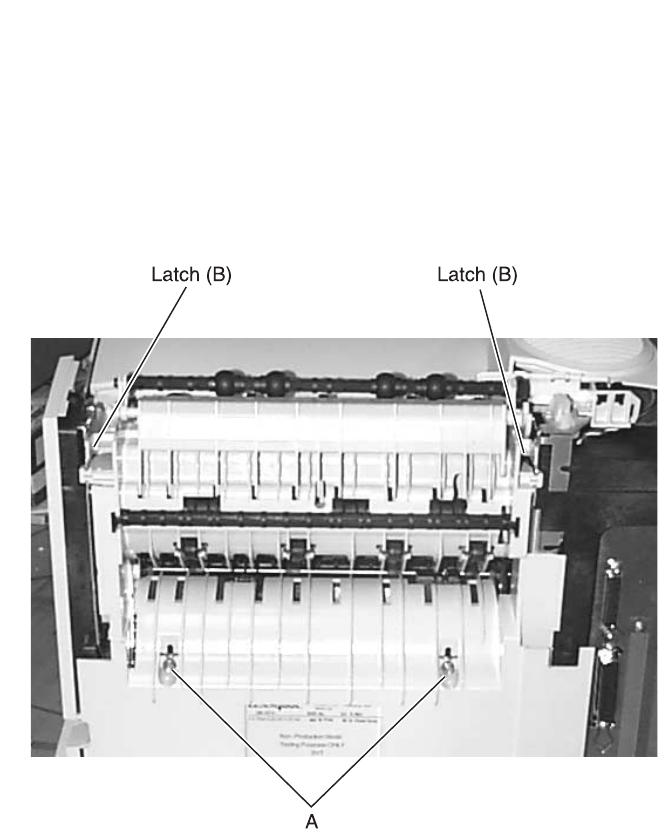
Repair Information 4-57
4069-XXX
Redrive Assembly
1. Remove the redrive door assembly.
2. Remove the redrive exit cover.
3. Remove the redrive assembly mounting screws (A).
4. Release the redrive assembly mounting latches (B) and remove
the redrive assembly.
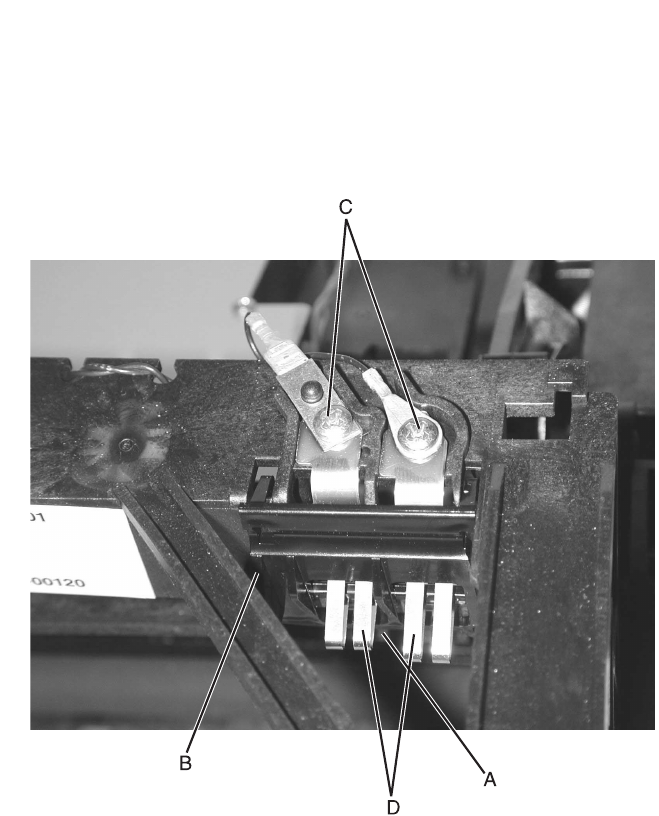
4-58 Service Manual
4069-XXX
Smart Cartridge Contacts
1. Remove the upper front cover.
2. Release tab (A) and remove the contact cover.
3. Remove the contact plunger (B).
4. Remove the screws (C) and remove the contacts (D).
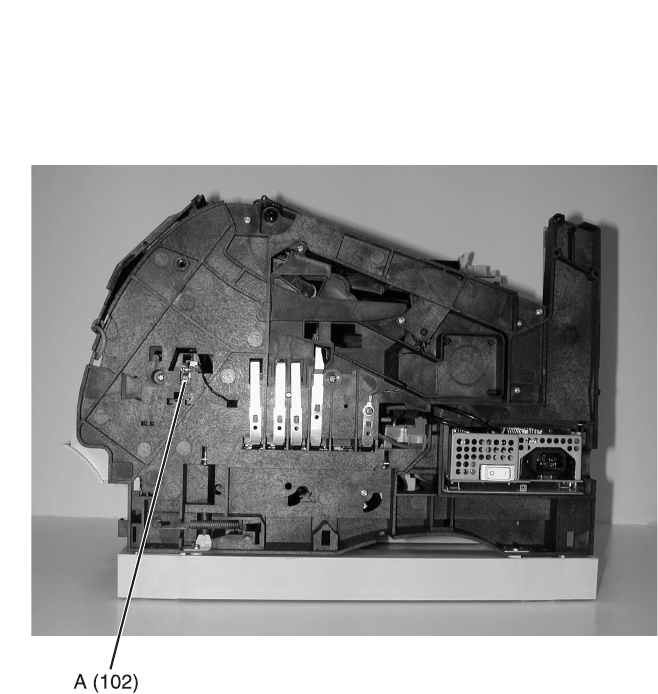
Repair Information 4-59
4069-XXX
Toner Sensor
1. Remove the right side cover.
2. Remove the toner sensor mounting screw (A). Disconnect the
toner sensor cable and remove the toner sensor.

4-60 Service Manual
4069-XXX
Transfer Roll Assembly
1. Open the upper front cover and remove the print cartridge.
2. Unsnap the transfer roll assembly from the left pivot arm.
3. Lift the transfer roller assembly toward the left and remove the
transfer roller assembly from the printer.
Upper Paper Deflector Assembly
1. Open the multipurpose tray and remove the tray from the two
mounting posts.
2. Gently release the upper deflector assembly latch from its
mounting on the right side frame and slide to the right.
3. Remove the upper deflector assembly.
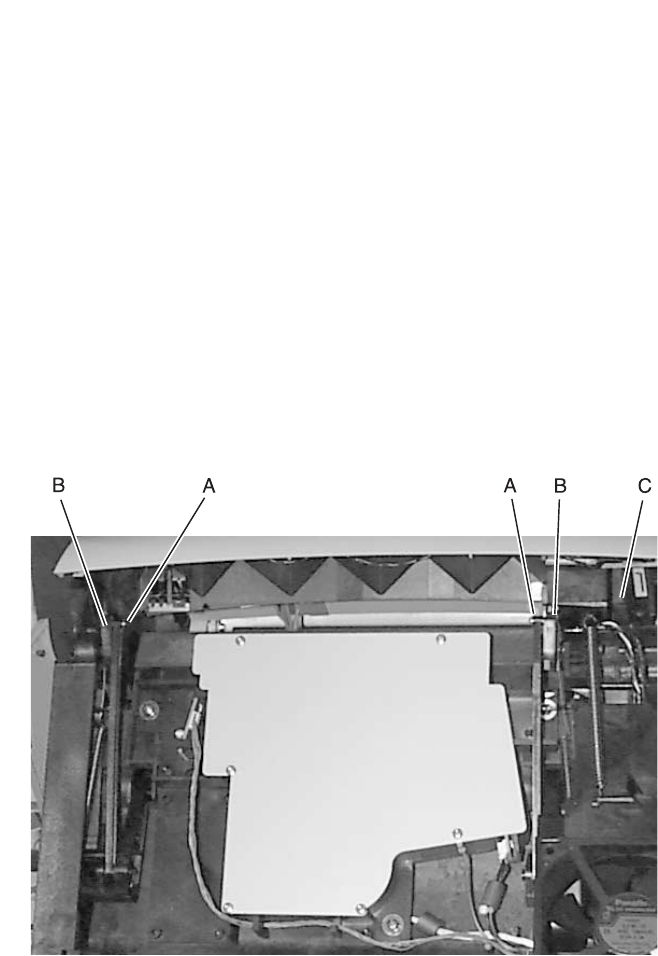
Repair Information 4-61
4069-XXX
Upper Front Cover Hinge Assembly
1. Remove the upper front cover.
2. Remove the laser assembly cover.
3. Remove the C-clips (A) from the upper front cover hinge
assembly left and right hinge pins and remove the pins. Note
the pin orientation and the C-clip location on the inside of each
hinge.
4. Detach the two springs (B) from the upper front cover hinges.
5. Disconnect the operator panel cable from the operator panel
assembly.
6. Raise the upper front cover hinge assembly to a position that
lets you lift the left pivot arm from the mounting bracket (C).
7. Lift the left pivot arm from the bracket and move the upper cover
hinge assembly toward the left to clear the right upper cover
pivot arm from the mounting bracket.
8. Remove the upper front cover hinge assembly.
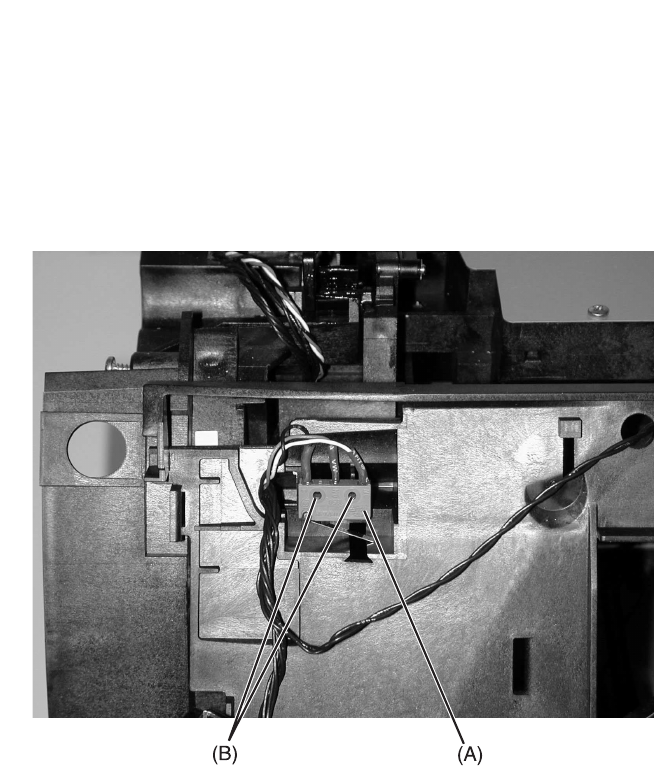
4-62 Service Manual
4069-XXX
Upper Front Cover Interlock Switch Assembly
1. Remove the upper front cover.
2. Remove the operator panel.
3. Remove the inner EMC shield.
4. Pull up on the switch (A) to remove from the mounting posts (B).
5. Note the routing of the interlock switch assembly cable and
disconnect the cable on the engine board.
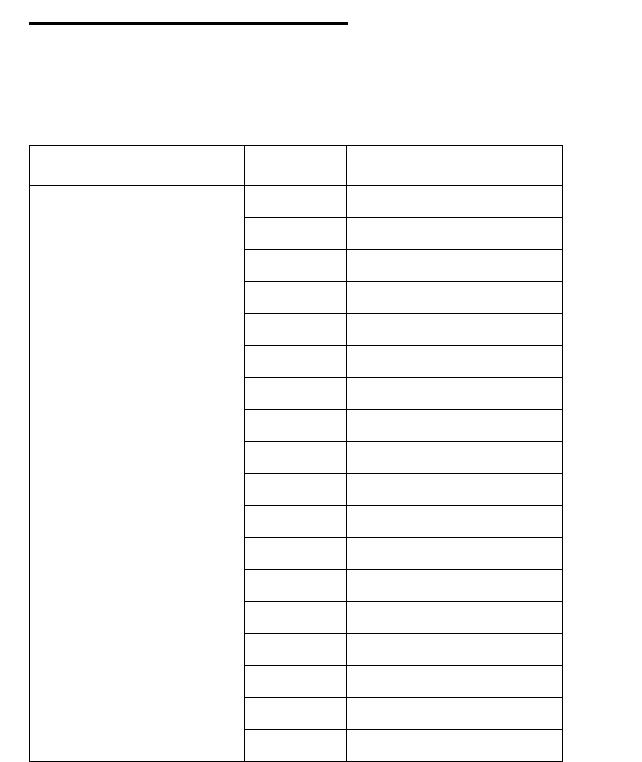
Connector Locations 5-1
4069-XXX
5. Connector Locations
Low Voltage Power Supply
Connector Pin No. Signal
CN3 Interconnect
Board 1 +5 V dc
2 +5 V dc
3 Ground
4 Ground
5 Ground
6 Ground
7 +24 V dc
8 +24 V dc
9Heat on
10 +5 V dc
11 +5 V dc
12 Ground
13 Ground
14 Ground
15 Ground
16 +24 V dc
17 ZC Out*
18 +42 V dc
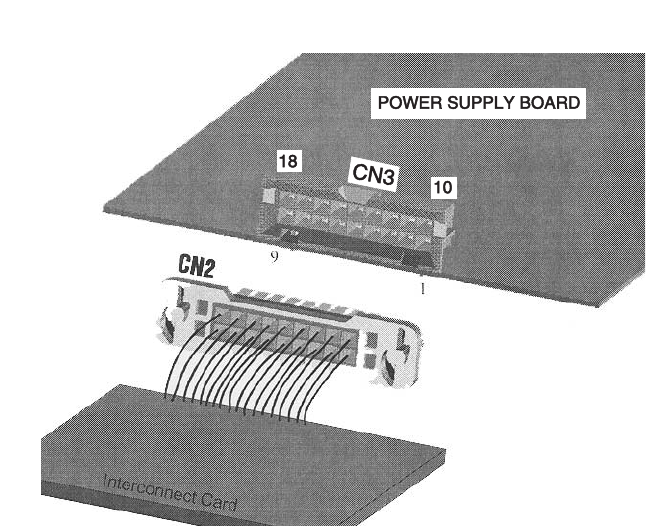
5-2 Service Manual
4069-XXX
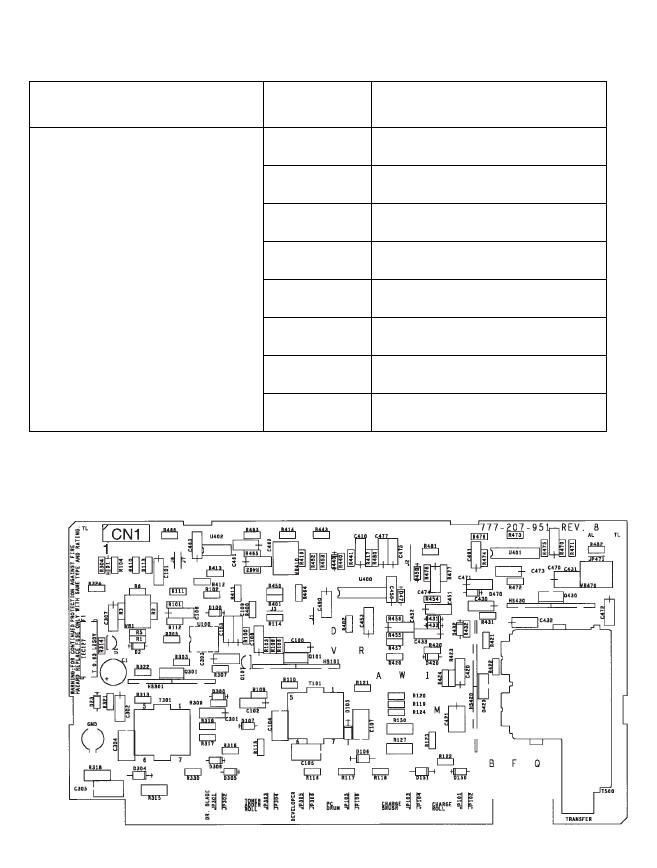
Connector Locations 5-3
4069-XXX
High Voltage Power Supply
Connector Pin No. Signal
CN1 Engine Board 1 Developer PWM
2 +24 V dc Return
3 Charge PWM
4 +24 V dc IN
5 TX PWM
6 TX Enable
7 TX CUR PWM
8 SVRO OUT
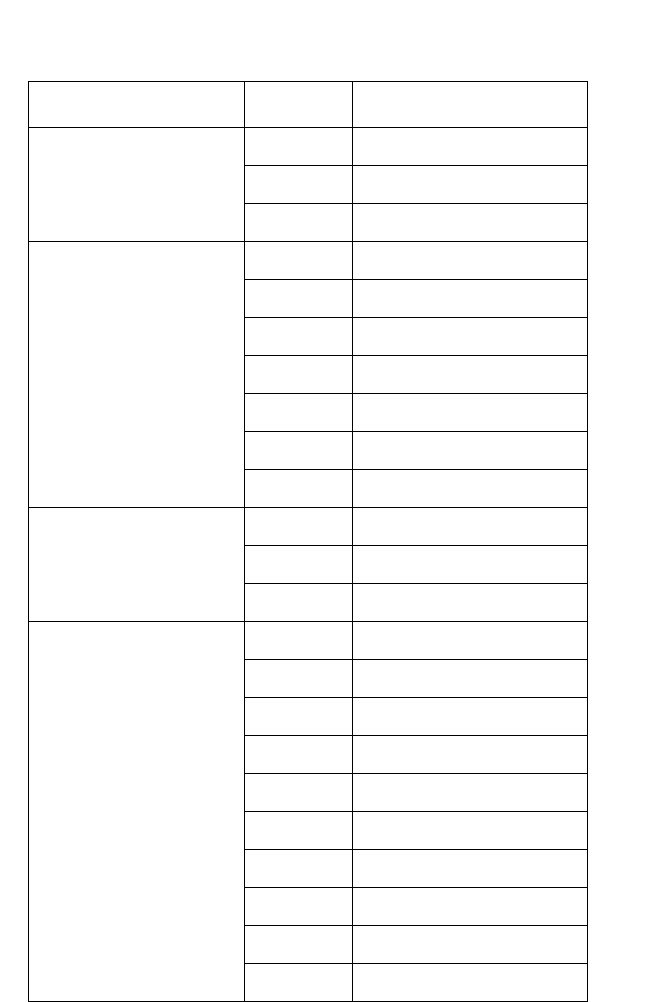
5-4 Service Manual
4069-XXX
Engine Board
Connector Pin No. Signal
J1 Main Fan 1 Fan Stall
2 Ground
3Main Fan
J3 Printhead (Mirror
Motor) 1 +24 V dc Return
2 +24 V dc Return
3ReFREQ
4LOCKn
5Start*
6 +24 V dc Return
7 +24 V dc
J4 Cover Closed Switch 1 Cover Closed
2 Ground
3 +5 V dc
J5 Printhead 1 LENA*
2 Ground
3LAOJ*
4 Ground
5 LASERPWM
6 +5 V dc
7 Ground
8Video*
9 Ground
10 Ground

Connector Locations 5-5
4069-XXX
J6 Output Level Sensor 1 Ground
2 Ground
3Opt2
4 Ground
5+5 V dc
J7 Auxiliary Fan
414/616 1 Cartfan
2 Ground
J8 Printhead HYSNC 1 Ground
2 HSYNC*
3 Ground
4+5 V dc
Connector Pin No. Signal
5-6 Service Manual
4069-XXX
J10 Erase/Cartridge/
Sensor/Input Sensor/
HVPS
1 AT Servo (HVPS)
2 Servo OutT (HVPS)
3 TXENABLE (HVPS)
4 Transfer (HVPS)
5 +24 V dc (HVPS)
6 Charge (HVPS)
7 Ground (HVPS)
8 Developer (HVPS)
9 Ground (In Sens)
10 In Sns* (In Sens)
11 +5 V dc (C-Sens)
12 CTSENSE* (C-Sens)
13 Ground (C-Sens)
14 +24 V dc (Erase L)
15 ERASEPWM* (Erase L)
J11 Operator Panel 1 I2CDATA
2 +5 V dc
3 I2CCLK
4 Ground
5FPIRQ
Connector Pin No. Signal
Connector Locations 5-7
4069-XXX
J12 Transport Motor 1 +24 V dc
2 +24 V dc Return
3 +24 V dc Return
4 Motor3
5 Motor4
6Dir
7 Motor1
8+5 V dc
9 Motor2
10 Ground
11 Motor0
J13 Autoconnect
(Options) 1RXDIN
2 Ground
3+5 V dc
4 Ground
5 Ground
J14 Autoconnect
(Options) 1RXDIN
2 Ground
3+5 V dc
4 Ground
5 Ground
Connector Pin No. Signal
5-8 Service Manual
4069-XXX
J15 Integrated Paper
Tray - Paper Size Sensor 1 +5 V dc
2 PSIZE2
3 Ground
4 PSIZE1
5 +24 V dc
6 Ground
7POUT
8 +5 V dc
9 Paper Low
10 +5 V dc
J16 Fuser 1 Exit Sensor
2Thumpret
3 +5 V dc
4Thumpleft
5 Ground
6Therm
7Thermgnd
8 Narmedia
J17 MPT Pick 1 MPT Pick
2 +24 V dc
Connector Pin No. Signal

Connector Locations 5-9
4069-XXX
J18 Auto Compensator 1 +24 V dc
2N/A
3 Ground
4 Ground
5N/A
6+5 V dc
J19 MPT Paper Out 1 Ground
2 POSENSE
3+5 V dc
J20 Interconnect Board N/A N/A
J21 Smart Cartridge 1 Scart
2 Scart Ground
3 Ground
Connector Pin No. Signal
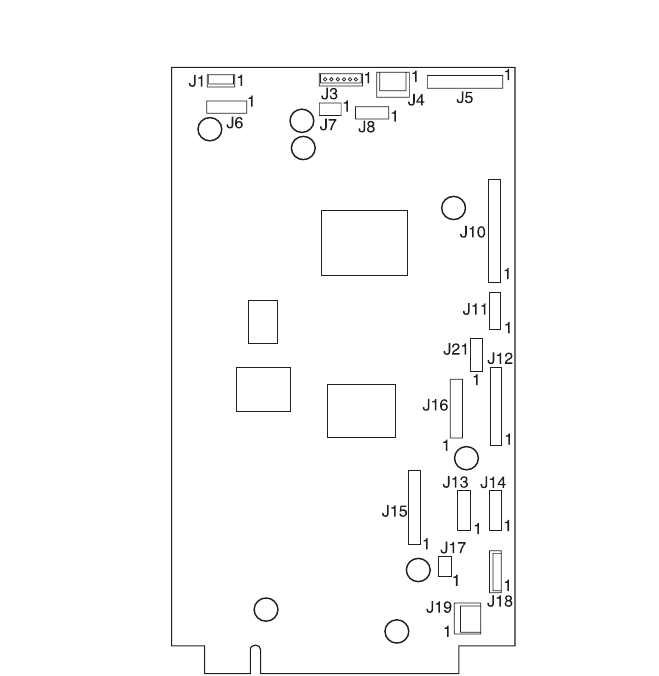
5-10 Service Manual
4069-XXX
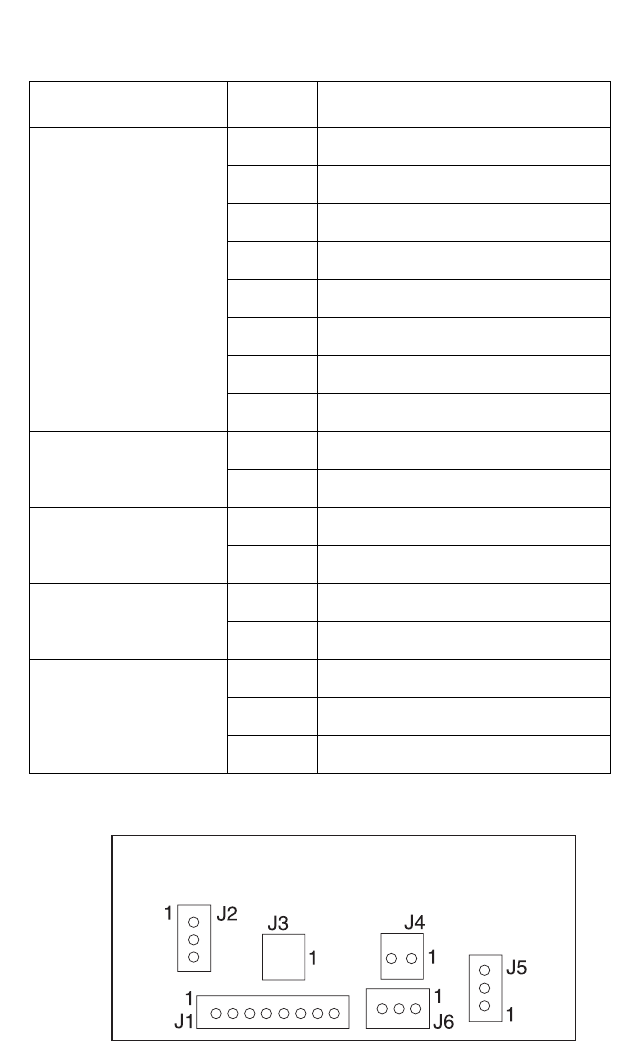
Connector Locations 5-11
4069-XXX
Fuser Board
Connector Pin No. Signal
J1 Engine Board 1 NarMedia
2ThermGnd
3HRTherm
4Ground
5ThumpA
6 +5 V dc
7ThumpB
8ExitSns*
J2 Thermistor 1 ThermGnd
2HRTherm
J3 Thumper 1 Ground
2 +42V dc
J4 Thumper Solenoid 1 ThumpB
2ThumpA
J5 Narrow Media
Sensor 1 +5 V dc
2Nar Media
3Ground
5-12 Service Manual
4069-XXX
Interconnect Board
Connector Pin No. Signal
J1 Fuser Solenoid 1 +42 V dc
2 Ground
J2 LVPS 1 +42 V dc
2Heaton
3Xeroxing
4 +24 V dc
5 +24 V dc
6 +24 V dc
7 Ground
8 Ground
9 Ground
10 Ground
J3 LVPS 1 Ground
2 Ground
3 Ground
4 Ground
5+5 V dc
6+5 V dc
7+5 V dc
8+5 V dc
J4 Autoconnect Top 1 +24 V dc
2 Ground
3+5 V dc Fused
4 Ground
Connector Locations 5-13
4069-XXX
Note: A 902 service error may display if the jumpers are not
correctly installed.
•Models 010 and 01n have a jumper on J10 between the center
pin and pin 5.
•Models 212 and 21n have a jumper between the center pin and
pin2 of J8, a jumper between the center pin and pin 4 on J9 and
a jumper between the center pin and pin 5 of J10.
•Models 414, 41b, 41L and 41n have a jumper between the
center pin and pin 2 of J8 and a jumper between the center pin
and pin 3 of J9.
J5 Autoconnect
BTM/FNT 1+24 V dc
2 Ground
J6 Engine Board 1 N/A
J7 Controller Board 1 N/A
J11 INA 1 1 N/A
J12 INA 2 1 N/A
Connector Jumper
Position Signal
J8 ID-1 1 0 V dc (Gnd) center pin
to top pin of J8
2 + 5 V dc center pin to
bottom pin of J9
J9 ID-2 3 0 V dc (Gnd) center pin
to top pin of J9
4 +5 V dc center pin to bot-
tom pin of J9
J10 ID-3 5 0 V dc (Gnd) center pin
to top pin of J10
6 +5 V dc center pin to bot-
tom pin of J10
Connector Pin No. Signal
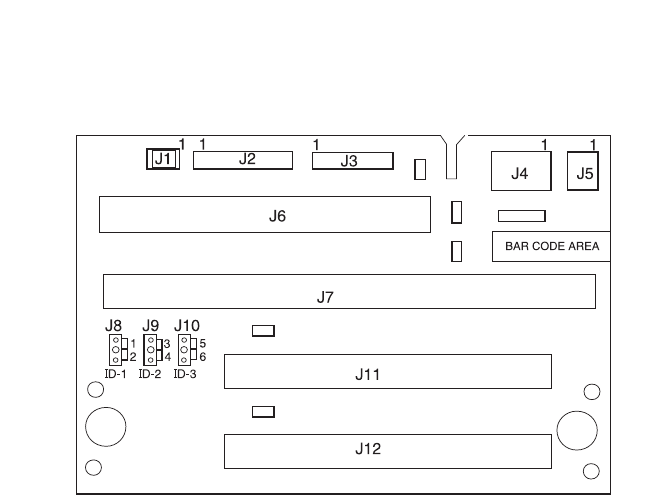
5-14 Service Manual
4069-XXX
•Models 616 and 61n have a jumper between the center pin and
pin1 of J8 and a jumper between the center pin and pin 3 of J9.
Connector Locations 5-15
4069-XXX
Envelope Option Board
Connector Pin No. Signal
J1 1 N/A
2 Ground
3Tx (EOC)
4 Ground
5Rx (EOC)
6 +24 V dc Return
7+24 V dc
J2 1 Ground
2 Paper Present
3 +5 V dc
J3 1 Ground
2 Paper Present
3 +5 V dc
J4 1 Motor - Phase B-
2 Motor - Phase A-
3 Motor - Phase B+
4 Motor - Phase A+
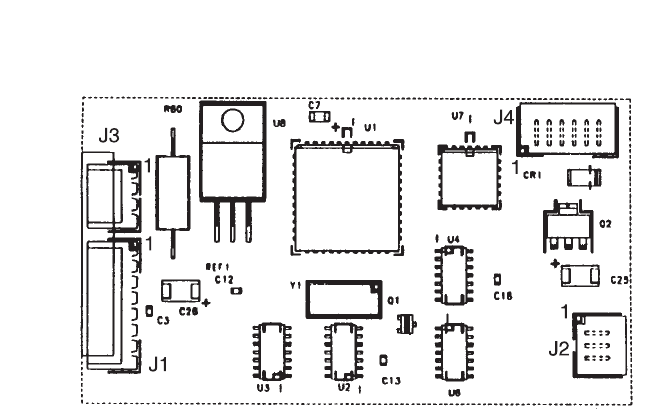
5-16 Service Manual
4069-XXX
Connector Locations 5-17
4069-XXX
Duplex Option Board
Note: Duplex connectors J10 and J11 are interchangeable. No
problem results if the connectors are switched.
Connector Pin No. Signal
J1 Motor 1 Motor -
2Motor +
J2 DC Motor
Sensor/Encoder Board 1 +5 V dc Sensor
2 Tach +
3 Ground
J3 Stepper Motor 1 STPMOTA -
2STPMOTA +
3STPMOTB -
4STPMOTB +
J4 Fan 1 +24 V dc
2 Fan On -
J5 Paper Input Sensor 1 +5 V dc Sensor
2 Input +
3 Ground
J6 Rear Cover
Open Switch 1Top Cover Open +
2 Ground
J7 Jam Removal Tray
Open Switch 1 Front Drawer Open +
2 Ground
J8 Paper Exit Sensor 1 +5 V dc Sensor
2Exit +
3 Ground

5-18 Service Manual
4069-XXX
J9 Autoconnect,
Option Below 1 Ground
2 PrtxDout
3 Ground
4PrtRxd
J10 Autoconnect,
Option Below 1 +24 V dc
2 Ground
J11 Printer
Autoconnect 1 +24 V dc
2 Ground
J12 Printer
Autoconnect 1N/A
2 Ground
3PrtxDin
4 Ground
5PrtRxD
Connector Pin No. Signal
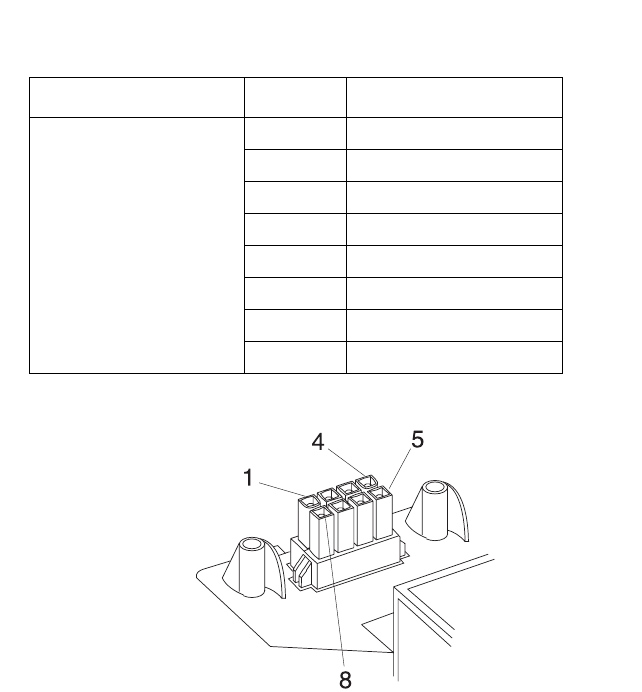
Connector Locations 5-19
4069-XXX
Autoconnect - Top
Connector Pin No. Signal
Top Autoconnect 1 0 V dc
2 +5 V dc
30 V dc
40 V dc
50 V dc
6 +5 V dc
70 V dc
8 +24 V dc
5-20 Service Manual
4069-XXX
Output Expander Control Board
Connector Pin No. Signal
J1A Autoconnect 1 +24 V dc
2 Ground
3 +5 V dc
J1B 1 Prtxdin
2 Ground
3prtrxd
4 Ground
5N/C
J2A Autoconnect 1 +24 V dc
2 Ground
3 +5 V dc
J2B 1 prtxdout
2 Ground
3prtrxd
4 Ground
J3 Pass Thru Sensor 1 Ground
2 Paper Present
3RVsnsr
J4 DC Motor 1 mtrout1
2 mtrout2
3 Ground
4 Ground
5 tach +
6 +5 V dc
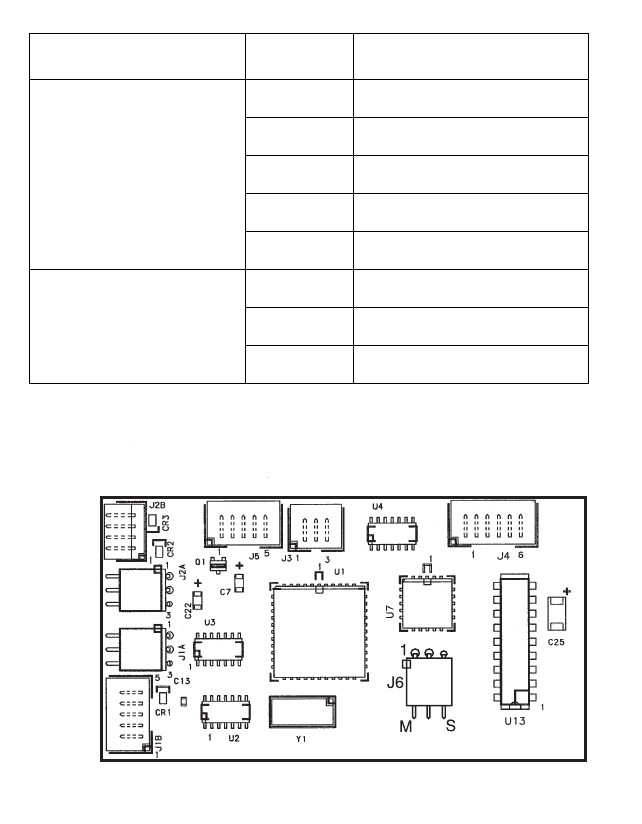
Connector Locations 5-21
4069-XXX
J5 Bin Full/Near Full
Dual Sensor 1 Ground
2 Ground
3binful
4binful
5RVsnsr
J6 Jumper Connector 1 Not Used
2Not Used
3Not Used
Connector Pin No. Signal
5-22 Service Manual
4069-XXX
High-Capacity Output Stacker Board
Connector Pin No. Signal
J1A Autoconnect 1 +24 V dc
2 Ground
3 +5 V dc
J1B 1 Prtxdin
2 Ground
3prtrxd
4 Ground
5N/C
J2A Autoconnect 1 +24 V dc
2 Ground
3 +5 V dc
J2B 1 prtxdout
2 Ground
3prtrxd
4 Ground
J3 Pass Thru Sensor 1 Ground
2 Paper Present
3RVsnsr
J4 DC Motor 1 mtrout1
2 mtrout2
3 Ground
4 Ground
5 tach +
6 +5 V dc
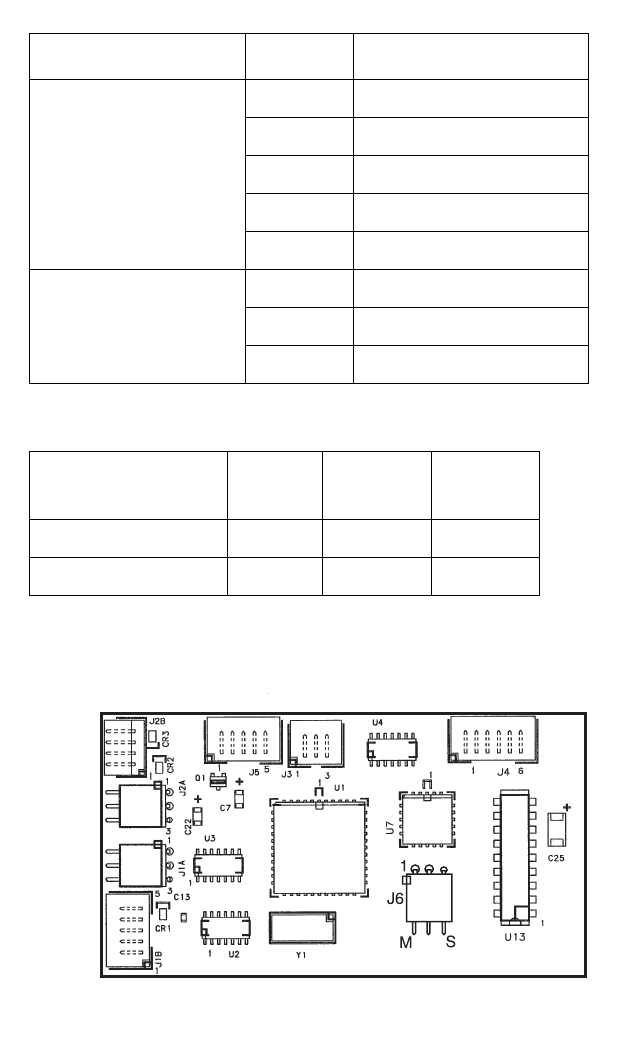
Connector Locations 5-23
4069-XXX
J6 Connector Jumper Locations
J5 Bin Full/Near Full
Dual Sensor 1 Ground
2 Ground
3binful
4binful
5RVsnsr
J6 Jumper Connector 1 Upper Unit
2 Upper/Lower Unit
3 Lower Unit
High-Capacity
Stacker Board Pin 1 Pin 2 Pin 3
Upper Unit Board X X Not Used
Lower Unit Board Not Used X X
Connector Pin No. Signal

5-24 Service Manual
4069-XXX

Preventive Maintenance 6-1
4069-XXX
6. Preventive Maintenance
This chapter describes procedures for printer preventive mainte-
nance. Following these recommendations can help prevent prob-
lems and maintain optimum performance.
Safety Inspection Guide
The purpose of this inspection guide is to aid you in identifying
unsafe conditions.
If any unsafe conditions exist, find out how serious the hazard could
be and if you can continue before you correct the hazard.
Check the following items:
•Damaged, missing, or altered parts, especially in the area of the
On/Off switch and the power supply
•Damaged, missing, or altered covers, especially in the area of
the top cover and the power supply cover
•Possible safety exposure from any non-Lexmark attachments
Lubrication Specifications
Lubricate only when parts are replaced or as needed, not on a
scheduled basis. Use of lubricants other than those specified can
cause premature failure. Some unauthorized lubricants may
chemically attack polycarbonate parts. Use IBM no. 10 oil,
P/N 1280443 (Approved equivalents: Mobil DTE27, Shell Tellus 100,
Fuchs Renolin MR30), IBM no. 23 grease (Approved equivalent
Shell Darina 1), and grease, P/N 99A0394 to lubricate appropriate
areas of the machine.

6-2 Service Manual
4069-XXX
Scheduled Maintenance
The operator panel displays the message “80 Scheduled
Maintenance” at each 300K page count interval. It is necessary to
replace the fuser assembly, transfer roller and charge roll at this
interval to maintain the print quality and reliability of the printer. The
parts are available as a maintenance kit with the following part
numbers:
99A1762 - 115V 875W Models 414/616/41b/41l/41e/41n/61n
99A1763 - 220V 875W Models 414/616/41b/41l/41e/41n/61n
99A1764 - 115V 550W Models 010/01n/212/21n
99A1765 - 220V 550W Models 010/01n/212/21n
After replacing the kit, the maintenance count must be reset to zero
to clear the “80 Scheduled Maintenance” message. Refer to
“Maintenance Page Count” on page 3-21.

Parts Catalog 7-1
4069-XXX
7. Parts Catalog
How To Use This Parts Catalog
•SIMILAR ASSEMBLIES: If two assemblies contain a majority of
identical parts, they are shown on the same list. Common parts
are shown by one index number. Parts peculiar to one or the
other of the assemblies are listed separately and identified by
description.
•AR: (As Required) in the Units column indicates that the
quantity is not the same for all machines.
•CC: (Color Code) in the Description column indicates the part is
identified by a color marking on the part.
•NS: (Not Shown) in the Asm-Index column indicates that the
part is procurable but is not pictured in the illustration.
•PP: (Parts Packet) in the Description column indicates the part
is contained in a parts packet.
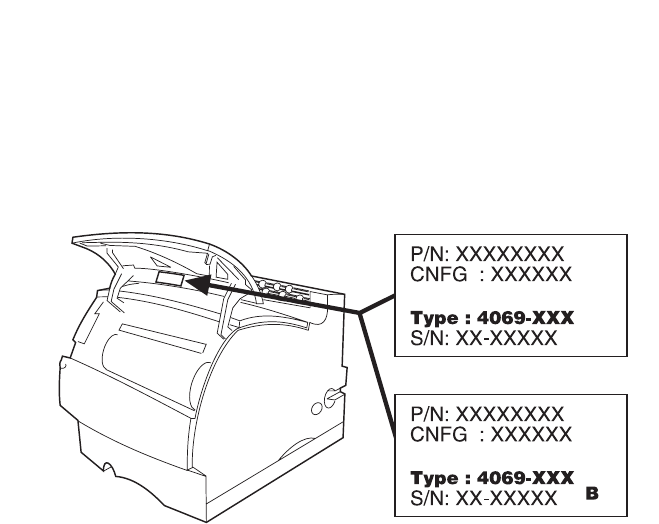
7-2 Service Manual
4069-XXX
Printer Serial Label
Look at the printer serial label to identify the printer you are working
on. There are two service levels of Optra T printers. Some printers
are at a service level B as indicated by the B on the label.

Parts Catalog 7-3
4069-XXX
Use the Model Name/Type table to identify model specific
replacement FRUs. The parts catalog uses the Type last three digits
to identify model specific FRUs.
Model Name Type
Optra T 610 4069-010
Optra T 610n 4069-01n
Optra T 612 4069-212
Optra T 612n 4069-21n
Optra T 614 4069-414
Optra T 614 4069-41b
Optra T 614n 4069-41e
Optra T 614nl 4069-41l
Optra T 614n 4069-41n
Optra T 616 4069-616
Optra T 616n 4069-61n
Optra T 23v 4069-23v
Optra T 23e 4069-23e
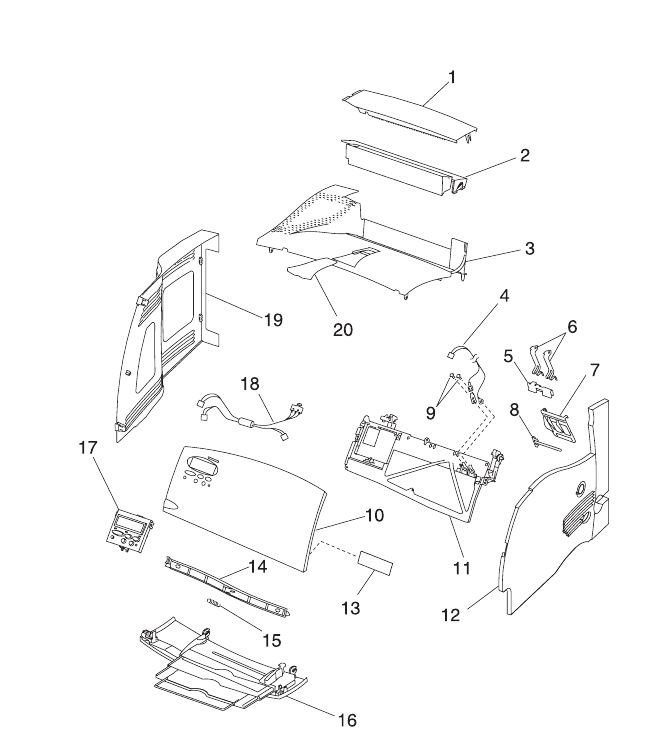
7-4 Service Manual
4069-XXX
Assembly 1: Covers

Parts Catalog 7-5
4069-XXX
Asm-
Index Part
Number Units Description
1-1 99A1512 1 Cover Assembly, Redrive Cap
1-2 99A1508 1 Cover, Fuser Wick Assembly
1-3 99A1506 1 Cover Asm, Laser Assembly 010/212/23v/
23e
1-3 99A1507 1 Cover Asm, Laser 500 Output 414/616/41b/
41e/41l
NS 6 Screw, Laser Cover PP 99A0263
1-4 99A1593 1 Cable, Smart Cartridge
1-5 99A0816 1 Contact, Smart Cartridge Ground
1-6 99A0815 2 Contact, Smart Cartridge
1-7 99A1595 1 Cover, Smart Cartridge Contact
1-8 99A0834 1 Plunger, Overstress Smart Cartridge
1-9 2 Screws, Contact Mounting PP 99A0263
1-10 99A1775 1 Kit, Upper Front Cover with Labels
NS 5 Screw, Upper Front Cvr Mtg PP 99A0263
1-11 99A1503 1 Hinge, Upper Front Cover
1-12 99A1504 1 Cover, RIght Side 010/212/23v/23e
1-12 99A1505 1 Cover, Right Side 414/616/41b/41e/41l
NS 3 Screw, Right Side Cvr Mtg PP 99A0263
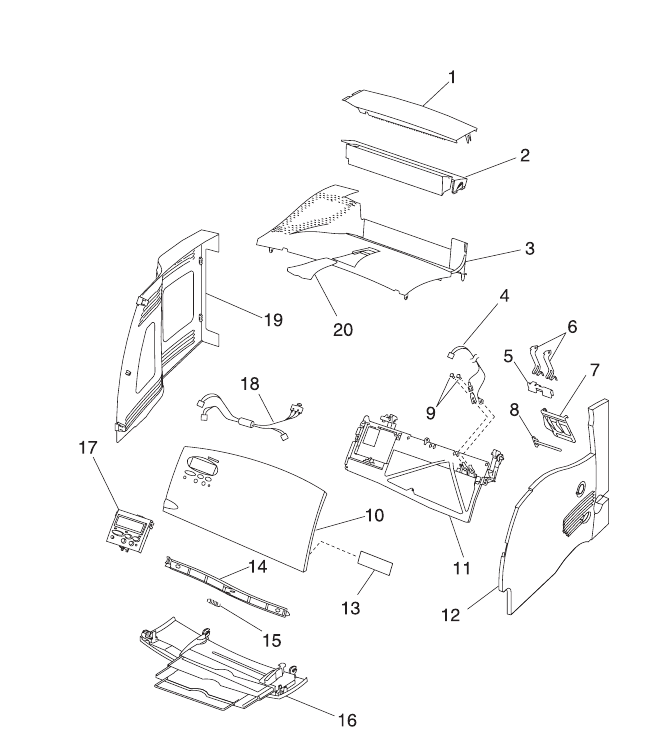
7-6 Service Manual
4069-XXX
Assembly 1: Covers (continued)

Parts Catalog 7-7
4069-XXX
Asm-
Index Part
Number Units Description
1-13 99A0007 1 Label, TLI/ID/Serial No. - Blank
1-14 99A1502 1 Latch, Upper Cover
1-15 99A0004 1 Spring, Latch
1-16 99A1511 1 Cover Assembly, Lower Front
1-17 99A1501 1 Operator Panel Assembly
1-18 99A1577 1 Switch, Cover Open w/Operator Panel
Cable Assembly
NS 5 Screw, Left Side Cvr Mtg PP 99A0263
1-19 99A1509 1 Cover, Left Door 010/23v/23e
1-19 99A1510 1 Cover, Left Door 414/616/212/41b/41e/41l
1-20 99A1587 1 Support, Paper
NS 99A0577 1 Cable Tie
NS 99A1594 1 Retainer, Cable
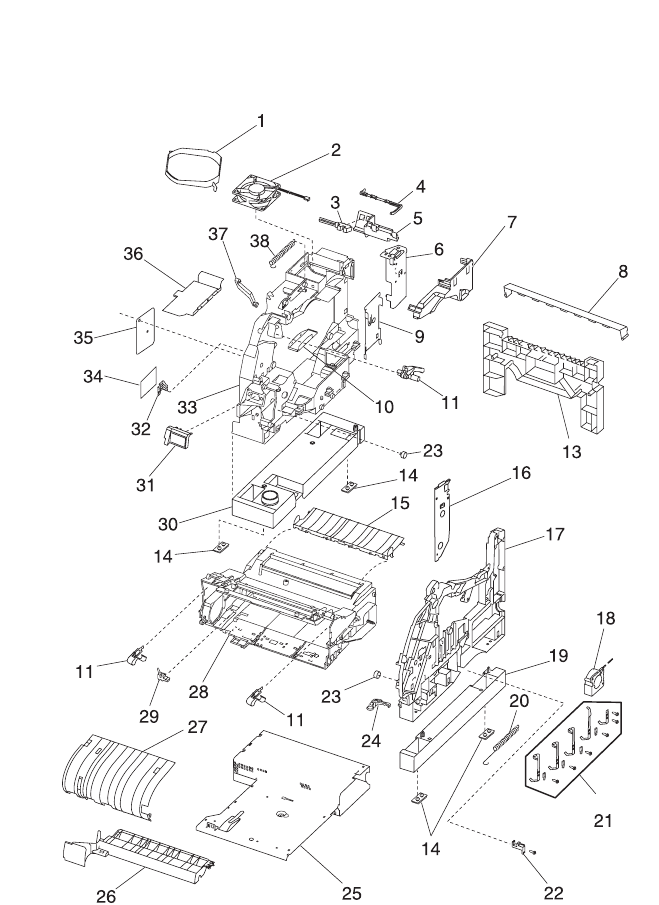
7-8 Service Manual
4069-XXX
Assembly 2: Frame

Parts Catalog 7-9
4069-XXX
Asm-
Index Part
Number Units Description
2-1 99A1643 1 Shroud, Fan 250 010/01n/23v/23e
2-1 99A1592 1 Shroud, Fan 500 212/414/616/41b/41e/41l/
21n/61n
2-2 99A0803 1 Fan, Main
2-3 99A0138 1 Sensor, Standard Bin Level 212/414/616/41b/
41e/41l/21n/61n/23v/23e
2-4 99A1580 1 Flag, Output Paper Level 414/616/41b/41e/
41l/61n
2-4 99A1613 1 Flag, Output Paper Level 212/21n/23v/23e
2-5 99A1879 1 Bracket, Level Sensor 212/414/616/21n/41b/
41e/41l/61n
2-6 99A1515 1 Duct, 250 Left Stacker 010/212/01n/21n/23v/
23e
2-6 99A1516 1 Duct, 500 Left Stacker 414/616/41b/41e/41l/
61n
2-7 99A0867 1 Duct, Main Body
2-8 99A1832 1 Guide, Extension 500 Input 212/414/616/41b/
41e/41l
2-9 99A1662 1 Support, Left Lower Stacker
2-10 99A0113 1 Pan, Drip ITC
2-11 99A1924 2 Spring, Cartridge Hold Down
2-13 99A1519 1 Extension, 500 Input 212/414/616/41b/41l/
41e/21n/61n
2-14 99A0058 4 Pad, Machine Mounting
2-15 99A1588 1 Transfer Plate Assembly
2-16 99A1663 1 Support, Right Stacker Plate 0ln/0l0/212/2ln
2-16 99A1968 1 Support, Right Stacker Plate 4l4/4lb/4lc/4lL/
6l6/6ln
2-17 99A1535 1 Right Sideframe
2-18 99A0049 1 Fan, Auxiliary 616/61n
2-19 99A1518 1 Frame Extension, Right 500 Internal
212/414/61621n/61n/41b/41e/41l
2-20 99A0028 1 Spring, Tray Bias
2-21 1 Contact Kit PP 99A0585
3 o Contact, Doctor Blade/TAR/Developer Roll
1 o Contact, PC Drum
1 o Contact, Charge Roll
4 o Block, Contact Mounting
5 o Screw, Contact Mounting
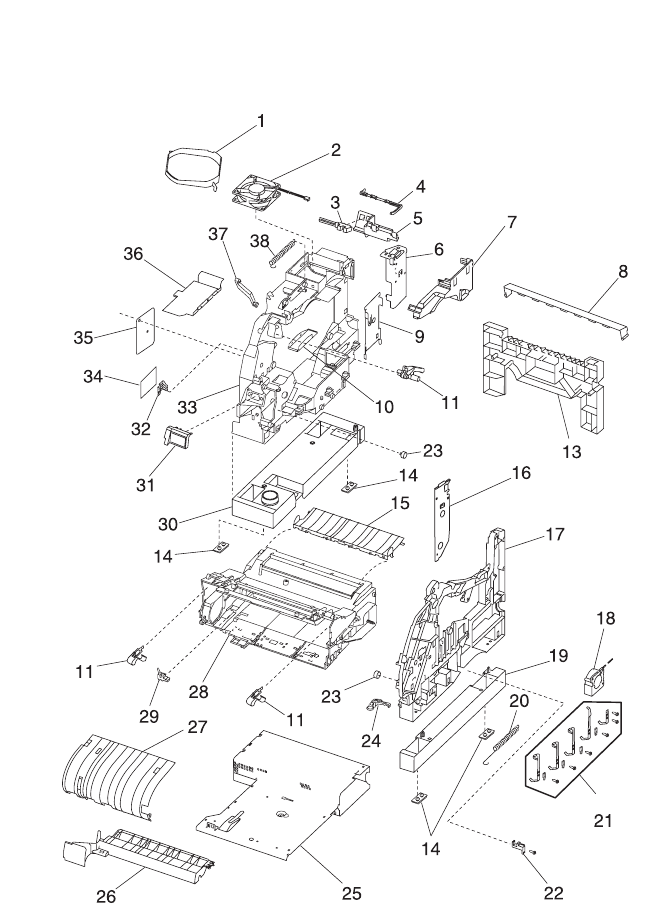
7-10 Service Manual
4069-XXX
Assembly 2: Frame (continued)

Parts Catalog 7-11
4069-XXX
Asm-
Index Part
Number Units Description
2-22 99A0466 1 Sensor, Toner Cartridge Level
2-23 99A0039 2 Roller, Developer Support
2-24 99A0026 1 Tray Bias Arm Assembly
2-25 99A1522 1 Pan, Center Assembly
2-26 99A1525 1 Deflector, Upper PF
2-27 99A1850 1 Deflector, Inner 2l2/4l4/6l6/2ln/6ln/4lb/4le/4lL
2-27 99A0055 1 Deflector, Inner 0l0/0ln/23v/23e
2-28 99A1897 1 Frame, EP Module service level B
2-28 99A1833 1 Frame, EP Module 010/212/414/616/01n/21n/
61n
2-29 99A0053 1 Sensor, Input
2-30 99A1517 1 Frame Extension, Left 500 Internal
212/414/616/21n/61n/41b/41e/41l
2-31 99A0549 1 Shield, ESD Assembly with label
2-32 99A0063 1 Spring, PA Switch Activate
2-33 99A1514 1 Left Side Frame
2-34 99A0128 1 Board, Input Tray (ITC)
2-35 99A1896 1 Guard, Gear
2-36 99A0899 1 Pan, Motor Drip
2-37 99A0567 1 Link, Gear Release 010/212/414/616/01n/
21n/61n/41b/41e/41l
2-38 99A0556 1 Spring, Counterbalance
NS 17 Screw PP 99A0263
NS 99A1524 1 Spring, Cartridge Load
NS 99A1546 1 Shield, Gear
NS 99A1596 1 Contact, LSF Ground
NS 99A1538 1 Contact, RSF Ground
NS 99A1540 4 Nutplate, Frame 212/414/616/21n/41b/41e/
41l/61n
NS 99A1541 1 Spring, Duplex Ground 212/414/616/21n/41b/
41e/41l/61n/23v/23e
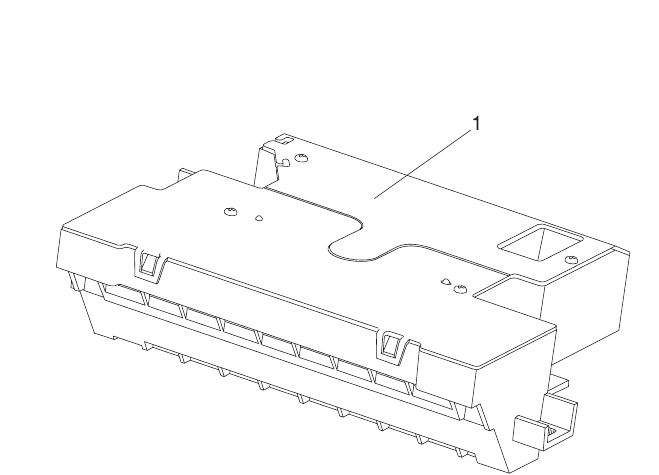
7-12 Service Manual
4069-XXX
Assembly 3: Printhead

Parts Catalog 7-13
4069-XXX
Asm-
Index Part
Number Units Description
3-1 99A1526 1 Printhead Assembly, 010/01n
3-1 99A1527 1 Printhead Assembly, 212/21n/23v/23e
3-1 99A1528 1 Printhead Assembly, 414
3-1 99A1867 1 Printhead Assembly, 41b/41e/41l
3-1 99A1873 1 Printhead Assembly, 616/61n
NS 3 Screw, Printhead Mounting PP 99A0263
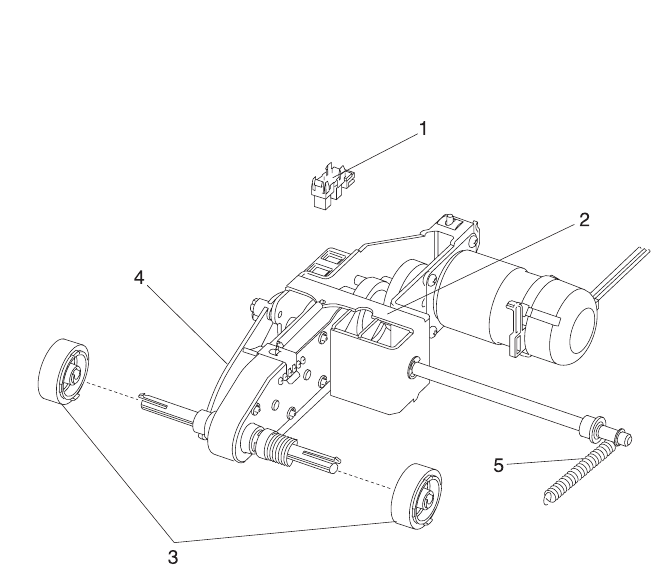
7-14 Service Manual
4069-XXX
Assembly 4: Paper Feed (Autocompensator)

Parts Catalog 7-15
4069-XXX
Asm-
Index Part
Number Units Description
4-1 99A0060 1 Sensor, Paper Out Internal Tray
4-2 99A1056 1 Pick Arm Assembly (250) 010/01n/23v/23e
4-2 99A1530 1 Pick Arm Assembly (500) 212/414/616/21n/
41b/41l/41e/61n
4-3 99A0070 2 Pick Rolls
NS 1 Screw, Hanger PP 99A0263
4-4 99A1616 1 Flag, Paper Out 500 Tray 212/414/616/21n/
41b/41l/41e/61n
4-4 99A1609 1 Flag, Paper Out 250 Internal Tray 010/01n/
23v/23e
4-5 99A1927 1 Spring, Bellcrank Internal 250 010/01n/23v/
23e
4-5 99A1930 1 Spring, Bellcranck Internal 500 212/414/616/
41b/41l/41e/61n
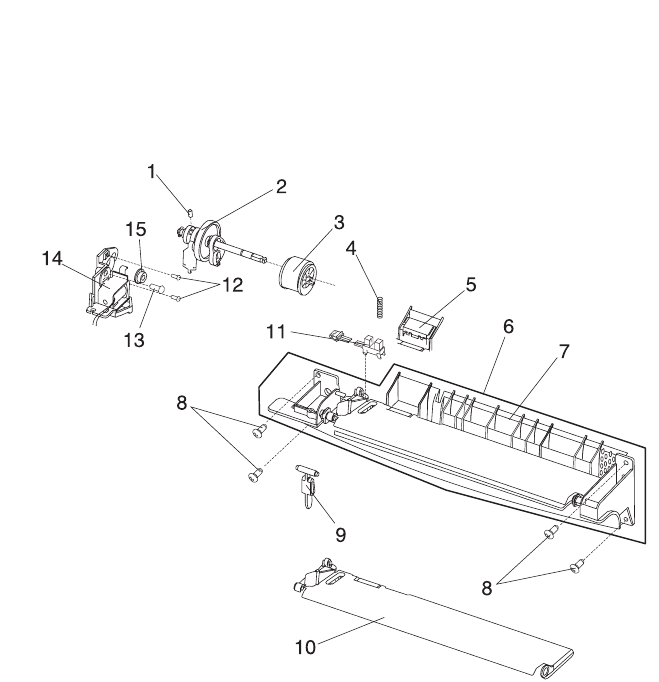
7-16 Service Manual
4069-XXX
Assembly 5: Paper Feed - Multipurpose Unit

Parts Catalog 7-17
4069-XXX
Asm-
Index Part
Number Units Description
5-1 99A0075 1 Screw, Socket Set M4X5 mm
5-2 99A0071 1 Arm Assembly, MPT
5-3 99A0076 1 Pick Roll Assembly
5-4 99A0081 1 Spring Assembly, Separator
5-5 99A0083 1 MPT Pad Assembly Kit
o Restraint Pad
o MPT Pad Assembly
5-6 99A1608 1 Deflector Assembly, MPT
5-7 99A1531 1 Deflector, Lower
5-8 2 Screw, Lower Deflector Mounting 8 mm
PP 99A0263
5-8 2 Screw, Lower Deflector Mounting 12mm
PP 99A0263
5-9 99A0084 1 Flag, MPT Paper Out
5-10 99A0082 1 Plate Assembly, MPT
5-11 99A0078 1 Sensor, MPT Paper Out
5-12 99A0073 2 Screw, Damper
5-13 1 Screw, Frame Mounting
PP 99A0263
NS 2 Clip, Pick Roll Shaft PP 99A0267
5-14 99A0072 1 Solenoid, MPT
5-15 99A0074 2 Bushing, Pick Roll Shaft
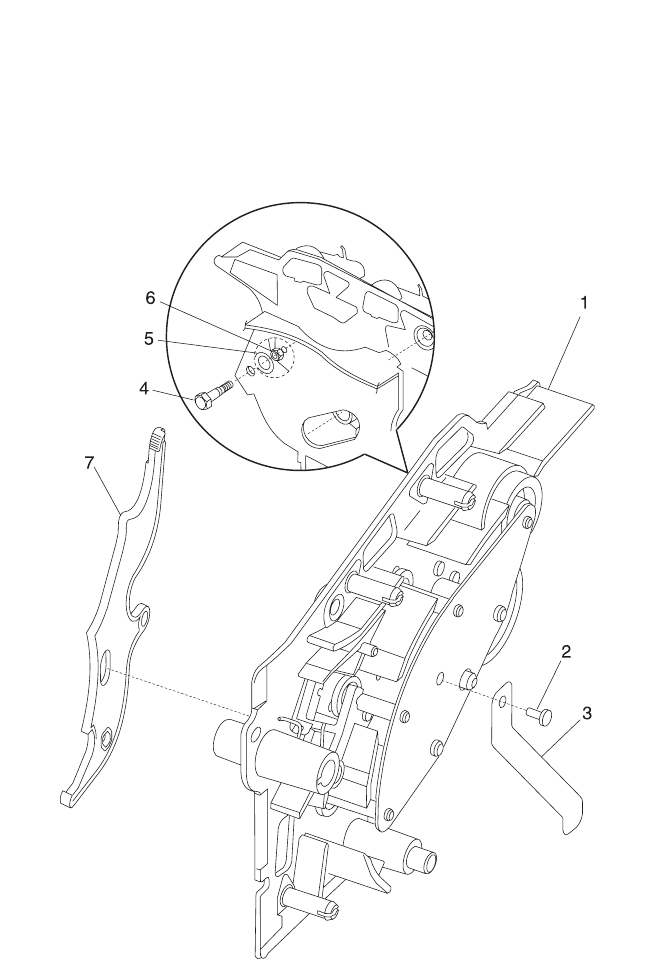
7-18 Service Manual
4069-XXX
Assembly 6: Paper Feed - Alignment

Parts Catalog 7-19
4069-XXX
Asm-
Index Part
Number Units Description
6-1 99A0089 1 Alignment Assembly Paper Feed
6-2 99A1953 1 Screw, Reference Ground Clip
6-3 99A0490 1 Clip, Reference Ground
6-4 99A0492 1 Screw, Paper Reference Adjustment
6-5 99A0565 1 Washer, Reference Adjustment
6-6 99A0566 1 Nut, Paper Reference Adjustment
6-7 99A0559 1 Lever, Bellcrank Release
NS 2 Screw, Alignment Asm Mtg PP 99A0263
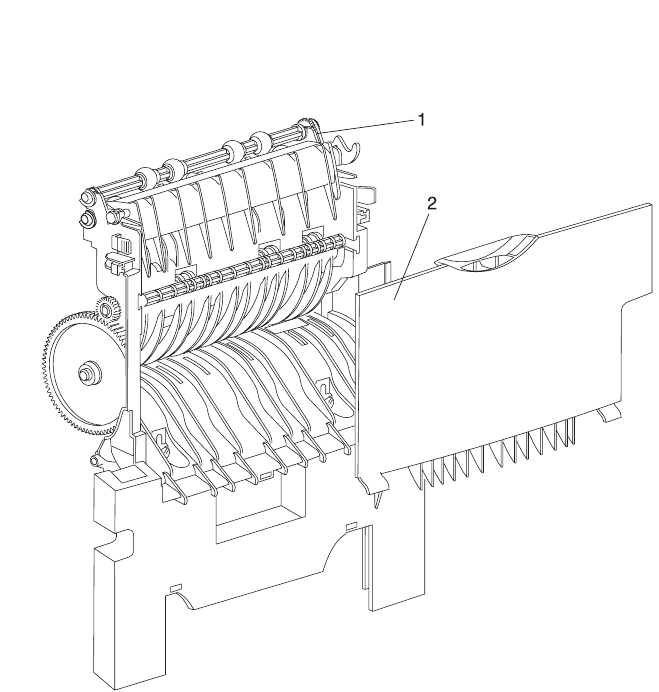
7-20 Service Manual
4069-XXX
Assembly 7: Paper Feed - Output

Parts Catalog 7-21
4069-XXX
Asm-
Index Part
Number Units Description
7-1 99A1586 1 Redrive Assembly, Inner 250 010/01n/23v/
23e
7-1 99A1604 1 Redrive Assembly, 212
7-1 99A1533 1 Redrive Assembly, Inner 500 414/616/61n/
41b/41l/41e/21n
7-2 99A1644 1 Door Assembly, Redrive 250 010/212/21n/
23v/23e
7-2 99A1534 1 Door Assembly, Redrive 500 414/616/41b/
41l/41e/61n
NS 99A0104 1 Spring, Upper Diverter
NS 99A1857 1 Deflector, Upper Redrive
NS 2 Screw, SEMS-Duplex Path PP 99A0263
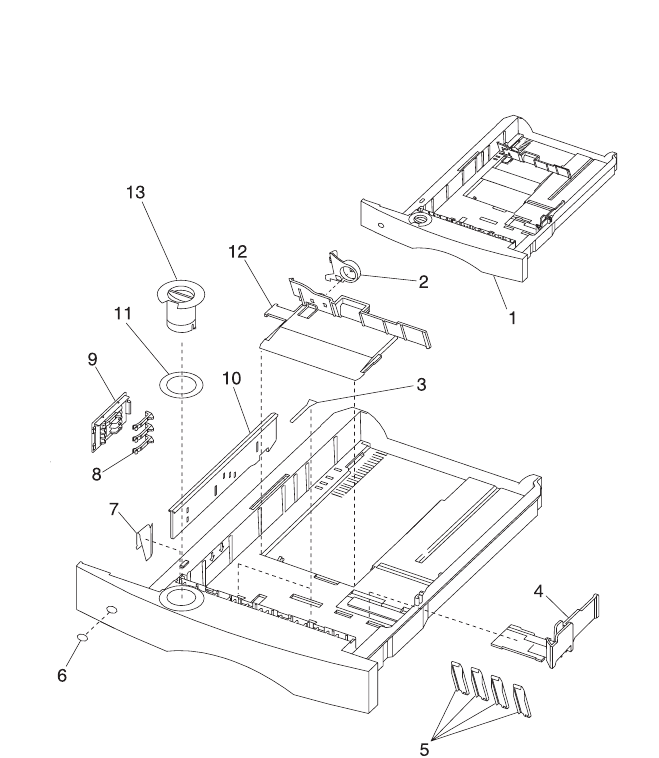
7-22 Service Manual
4069-XXX
Assembly 8: Integrated Paper Tray - 250 Sheet

Parts Catalog 7-23
4069-XXX
Asm-
Index Part
Number Units Description
8-1 99A1536 1 Tray, Integrated 250 Sheet 010/01n/23v/23e
8-2 99A1601 1 Latch, Back Restraint
8-3 99A0120 2 Restraint Pad
8-4 99A1894 1 Restraint, Side 250 Sheet Tray
8-5 99A0119 4 Wear Strips
8-6 99A1812 1 Label, Tray Option Number
8-7 99A0121 1 Clip, 250 Tray Wear
8-8 99A0126 4 Finger, Autosize
8-9 99A0124 1 Plate, Snap-In
8-10 99A0127 1 Slider, Autosize 250
8-11 99A1952 1 Label, Paper Size
8-12 99A0893 1 Restraint, Back 250 Sheet Tray
8-13 99A1537 1 Knob, Paper Size
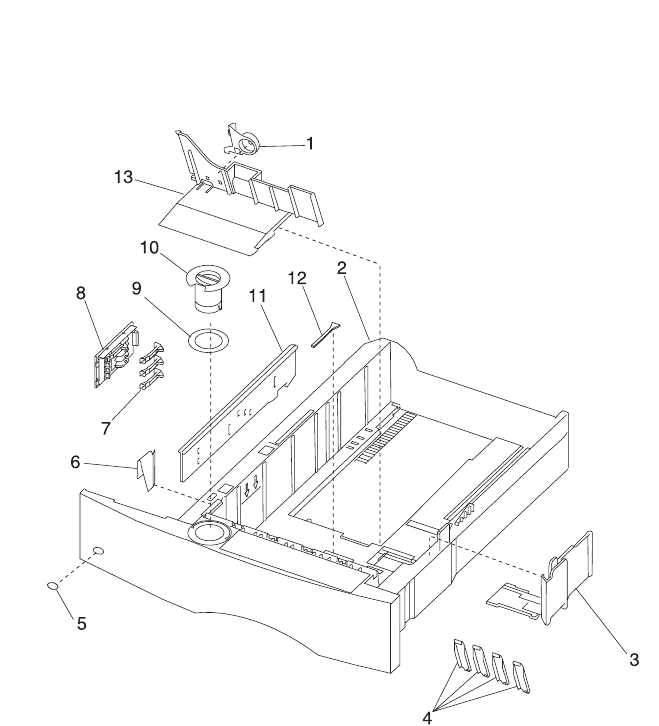
7-24 Service Manual
4069-XXX
Assembly 9: Integrated Paper Tray - 500 Sheet

Parts Catalog 7-25
4069-XXX
Asm-
Index Part
Number Units Description
9-1 99A1601 1 Latch, Back Restraint
9-2 99A1576 1 Tray Assembly 500 Sheet 212/414/616/21n/
41b/41l/41e/61n
9-3 99A1895 1 Restraint, Side
9-4 99A0292 4 Strip, Wear
9-5 99A1812 1 Label, Tray Option Number
9-6 99A1750 1 Plate, 500 Tray Wear
9-7 99A0126 3 Finger, Autosize
9-8 99A0124 1 Plate, Snap-in
9-9 99A1952 1 Label, Paper Size
9-10 99A1537 1 Knob, Paper Size
9-11 99A1582 1 Slider, Autosize 500
9-12 99A0120 2 Pad, Restraint
9-13 99A1602 1 Restraint, Back
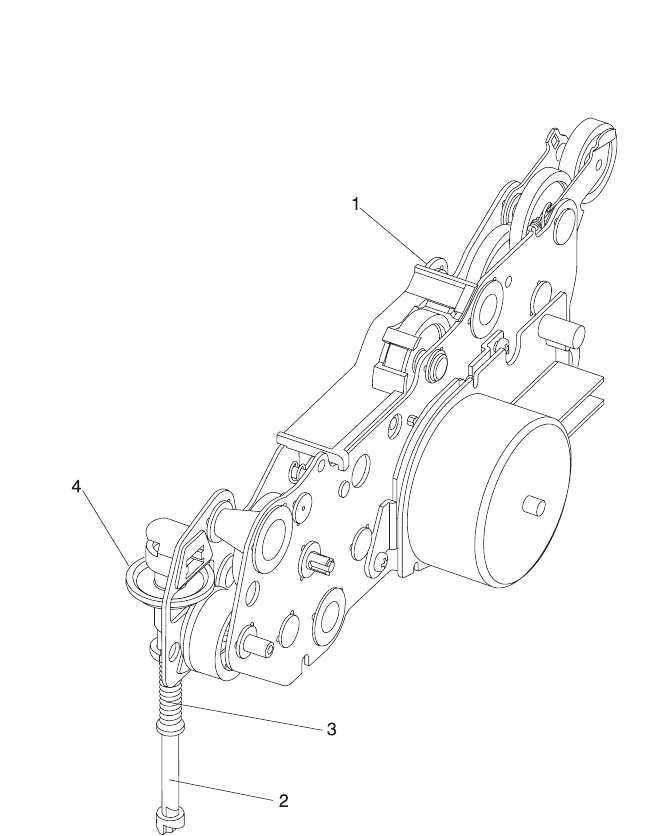
7-26 Service Manual
4069-XXX
Assembly 10: Main Drive

Parts Catalog 7-27
4069-XXX
Asm-
Index Part
Number Units Description
10-1 99A1543 1 Gearbox, w/Motor 010/212/01n/21n/23v/23e
10-1 99A0129 1 Gearbox, w/Motor 414/41b/41l/41e
10-1 99A0801 1 Gearbox, w/Motor 616/61n
10-2 99A0134 1 Shaft, Power Take Off 010/01n/23v/23e
10-2 99A1569 1 Shaft, Power Take Off 500 212/414/616/21n/
41b/41l/41e/61n
10-3 99A0275 1 Spring, Power Takeoff Shaft
10-4 99A0954 1 Gear, Bevel with Grease Packet
NS 4 Screw, Gearbox Mounting PP 99A0263
NS 3 Screw, Motor Mounting PP 99A0263
NS 99A0260 2 Clip, Cable
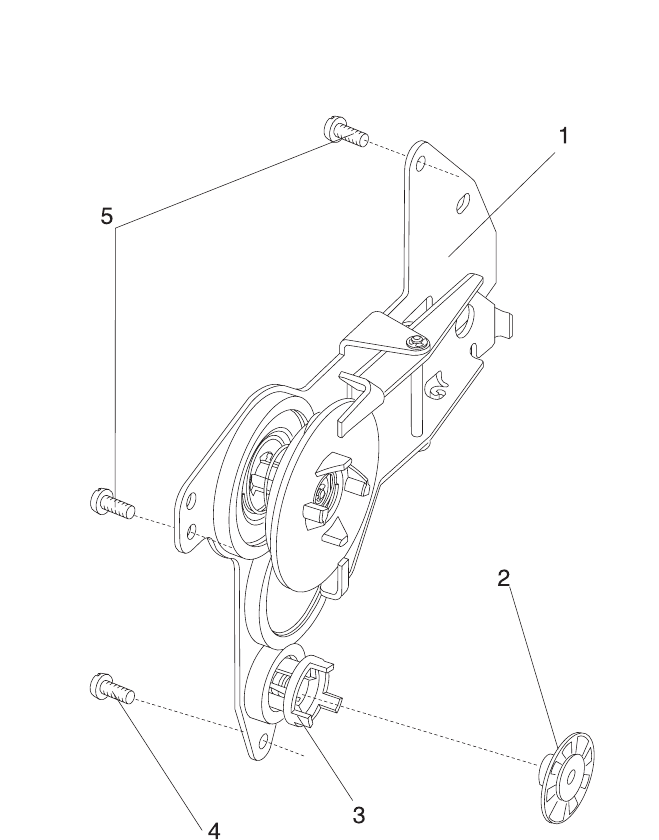
7-28 Service Manual
4069-XXX
Assembly 11: Developer Drive

Parts Catalog 7-29
4069-XXX
Asm-
Index Part
Number Units Description
11-1 99A1544 1 Developer Drive Assembly
11-2 99A0136 1 Shaft, Developer Drive
11-3 99A0564 1 Coupler, Gear #55
11-4 1 Screw, Developer Drive Ground PP 99A0263
11-5 2 Screw, Developer Drive Mtg PP 99A0263
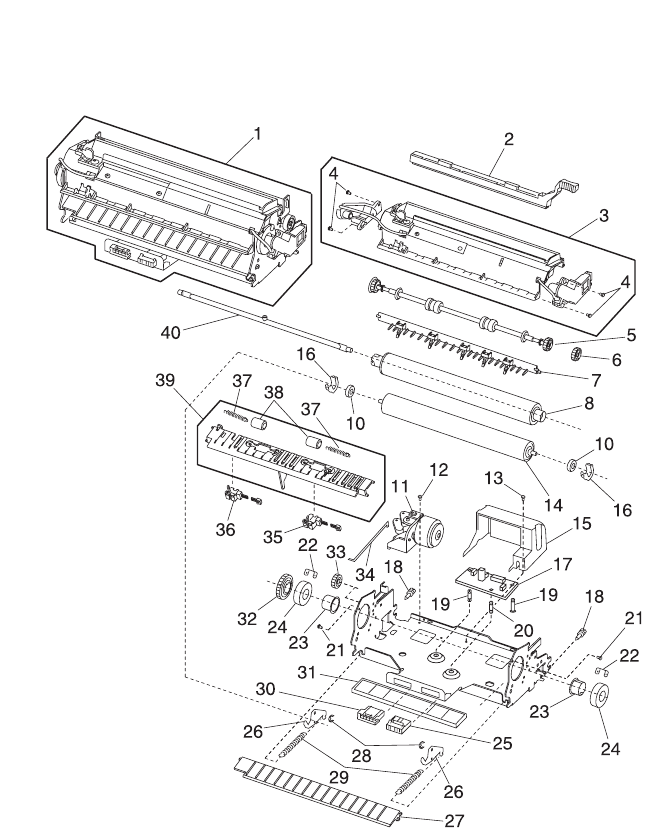
7-30 Service Manual
4069-XXX
Assembly 12: Hot Roll Fuser

Parts Catalog 7-31
4069-XXX
Asm-
Index Part
Number Units Description
12-1 99A1584 1 Fuser Assembly w/115V 875W Lamp 414/
616/41b/41l/41n/61n
12-1 99A1585 1 Fuser Assembly w/220V 875W Lamp 414/
616/41b/41l/41n/61n
12-1 99A1660 1 Fuser Assembly w115V 550W Lamp 010/212/
01n/21n/23v/23e
12-1 99A1661 1 Fuser Assembly w220V 550W Lamp 010/212/
01n/21n
12-2 99A0725 1 Wiper Assembly, Wet
12-3 99A1603 1 Cover, Fuser Assembly with Thermistor,
Thermal Fuse, and LH & RH Fuser Lamp
Contact Assemblies
12-4 4 Screw, Contact Assembly PP 99A0263
12-5 99A1631 1 Exit Roll Assembly
12-6 99A1520 1 Gear, Upper Redrive
12-7 99A0833 1 Detack Assembly
12-8 99A1521 1 Hot Roll, 010/212/41b/41e/41l/21n/01n/23v/
23e
12-8 99A1549 1 Hot Roll, 414/616/61n
12-9 99A0159 2 Spacer, BUR 010/212/01n/21n/23v/23e
12-10 99A1621 2 Bearing, BUR
12-11 99A0173 1 Solenoid Assembly, Envelope Conditioner
12-12 1 Screw, Solenoid Mounting PP 99A0263
12-13 1 Screw, Board Cover Mounting PP 99A0263
12-14 99A0160 1 Backup Roll, 22 mm 010/212/41b/41e/41l/
01n/21n/23v/23e
12-14 99A0158 1 Backup Roll, CBM 28 mm 414/616/61n
12-15 99A1598 1 Shield, Fuser Board
12-16 99A0144 2 Retainer, Backup Roll Bearing
12-17 99A1553 1 Board Assembly, Fuser 010/212/414/616/
01n/21n/61n/23v/23e
12-17 99A1868 1 Board Assembly, Fuser 41b/41e/41l
12-18 99A1649 2 Screw, Fuser Mounting
12-19 99A1902 2 Standoff, Fuser Control Board
12-20 99A0919 1 Standoff, Fuser Control Board
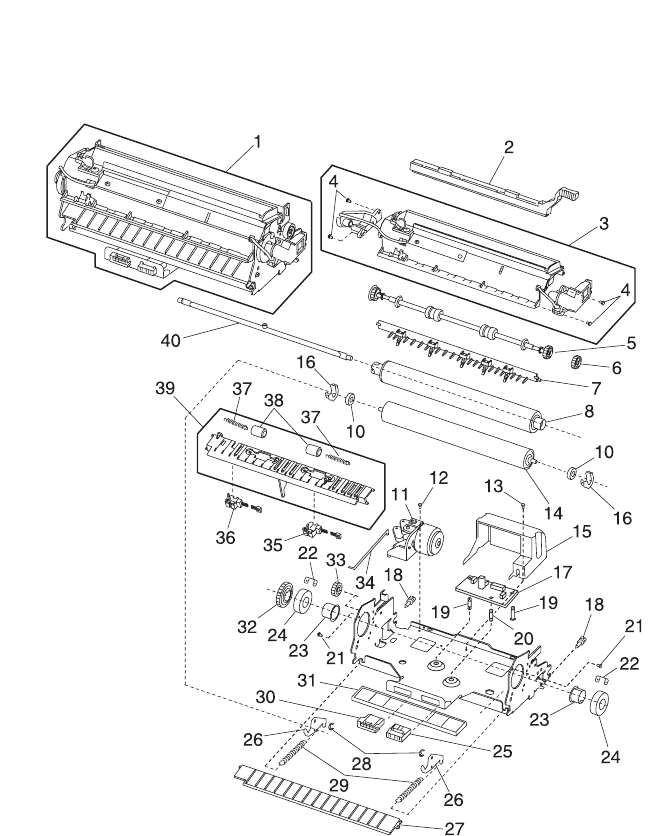
7-32 Service Manual
4069-XXX
Assembly 12: Hot Roll Fuser (continued)

Parts Catalog 7-33
4069-XXX
Asm-
Index Part
Number Units Description
12-21 2 Screw, Fuser Cover Assembly PP 99A0263
12-22 99A0142 2 Retainer, Hot Roll Bearing
12-23 99A0150 2 Bushing, Hot Roll
12-24 99A0143 2 Bearing, Hot Roll
12-25 99A1554 1 Fuser Cable, AC
12-26 99A1600 2 Bellcrank, Backup Roll 414/616/61n
12-26 99A1659 2 Bellcrank, Backup Roll 010/212/41b/41e/41l/
21n/01n/23v/23e
12-27 99A1591 1 Guide, Fuser Entry
12-28 2 Retainer, Backup Roll Bellcrank PP 99A0267
12-29 99A0410 2 Spring, Backup Roll Bellcrank
12-30 99A1648 1 Fuser Cable, DC
12-31 99A1597 1 Clamp, Fuser Cable AC/DC
12-32 99A0157 1 Gear, Hot Roll
12-33 99A0148 1 Gear, Idler
12-34 99A0297 1 Link, Solenoid
12-35 99A1651 1 Sensor, Narrow Media
12-36 99A1551 1 Sensor, Exit
12-37 99A0897 2 Spring, Redrive Idler
12-38 99A0167 2 Roller, Redrive Idler
12-39 99A1550 1 Guide Assembly, Lower Exit
12-40 99A1547 1 Lamp, 115V 875W CC Gold
12-40 99A1639 1 Lamp, 115V 550W CC Green
12-40 99A1548 1 Lamp, 220V 875W CC Silver
12-40 99A1642 1 Lamp, 220V 550W CC Brown
NS 99A1658 1 Cover, Fuser Wiper Cavity
NS 7 Screw, Hanger PP 99A0263
NS 99A0145 3 Clip, Fuse Mounting
NS 99A1599 1 Tray, Fuser AC Connector
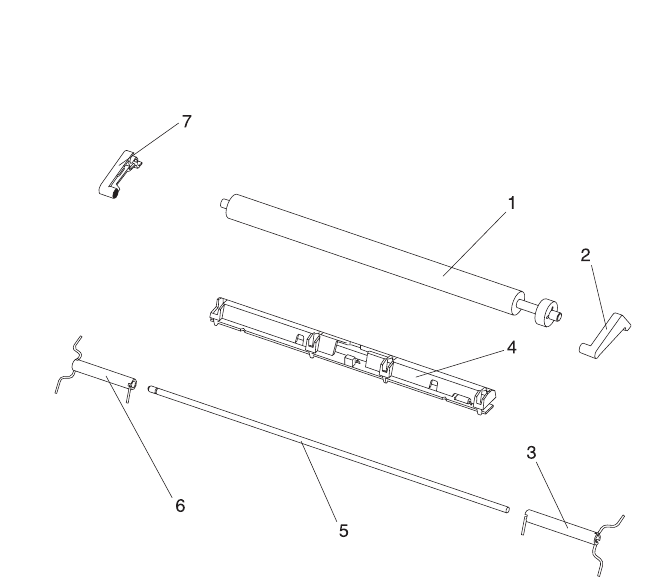
7-34 Service Manual
4069-XXX
Assembly 13: Transfer

Parts Catalog 7-35
4069-XXX
Asm-
Index Part
Number Units Description
13-1 99A1015 1 Transfer Roll Assembly
13-2 99A0349 1 Arm, Transfer Roll Assembly Right
13-3 99A0184 1 Spring, Transfer Roll Right
13-4 99A0186 1 Erase Lamp Assembly Kit 010/212/414/616/
01n/21n/61n
o Lamp, Erase Assembly
o Lens, Erase Lamp
13-5 99A0185 1 Shaft, Transfer Pivot
13-6 99A0181 1 Spring, Transfer Roll Left
13-7 99A1578 1 Arm, Transfer Roll Left
NS 1 Retainer, Pivot Shaft PP 99A0267
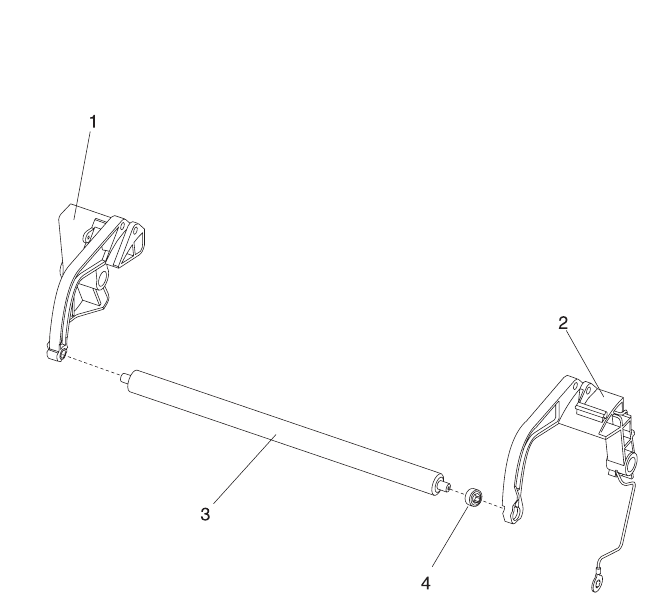
7-36 Service Manual
4069-XXX
Assembly 14: Charging

Parts Catalog 7-37
4069-XXX
Asm-
Index Part
Number Units Description
14-1 99A0512 1 Link Assembly, Charge Left Kit
14-2 99A0513 1 Link Assembly, Charge Right Kit
14-3 99A1017 1 Roll Assembly, Charge
14-4 99A1555 1 Bushing, Charge Roll
NS 1 Screw, Charge Roll PP 99A0263
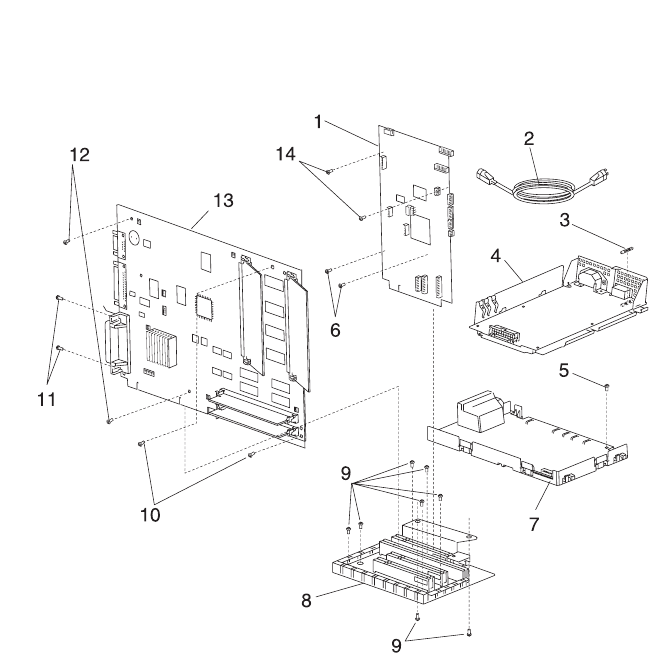
7-38 Service Manual
4069-XXX
Assembly 15: Electronics

Parts Catalog 7-39
4069-XXX
Asm-
Index Part
Number Units Description
15-1 99A1869 1 Engine Board Assembly 010/01n
15-1 99A1871 1 Engine Board Assembly 212/21n/23v/23e
15-1 99A1923 1 Engine Board Assembly 414/41b/41e/41l
15-1 99A1878 1 Engine Board Assembly 616/61n
15-2 1342514 1 Power Cord Set, 8 ft. - U.S., Canada (LV),
Nicaragua, Venezuela, Peru (LV),
Bolivia (HV), Colombia, Costa Rica, Ecuador,
El Salvador, Guatemala, Honduras, Mexico,
Panama
15-2 43H5248 1 Power Cord Set, 8 ft. - U.S., Canada (LV),
Nicaragua, Venezuela, Peru (LV), Bolivia,
Colombia, Costa Rica, Ecuador, El Salvador,
Guatemala, Honduras, Mexico, Panama
414/41n/616/61n
15-2 1339538 1 Europe, 6 ft. Paraguay, Uruguay
15-2 1342536 1 Power Cord Set, 6 ft. - APG (LV)
15-2 1339537 1 Power Cord Set, 8 ft. - U.K., Ireland
15-2 1339539 1 Power Cord Set, 6 ft. - Israel
15-2 1339540 1 Power Cord Set, 6 ft. - Switzerland
15-2 1339541 1 Power Cord Set, 6 ft. - South Africa
15-2 1339546 1 Power Cord Set, 6 ft. - Two-Prong
Argentina (HV)
15-2 1342534 1 Power Cord Set, 8 ft. - Chile (HV)
15-2 1339543 1 Power Cord Set, 8 ft. - Denmark
15-2 1339542 1 Power Cord Set, 6 ft. - Italy
15-2 1374067 1 Power Cord Set, 8 ft. - Peru (HV)
15-2 1339544 1 Power Cord Set, 8 ft. - Straight
Argentina (HV)
15-2 1339545 1 Power Cord Set, 8 ft. - Right Angle
Argentina (HV)
15-2 1342530 1 Power Cord Set - Brazil
15-3 99A0215 1 Fuse, 110 V ac LVPS
15-3 99A0205 1 Fuse, 220 V ac
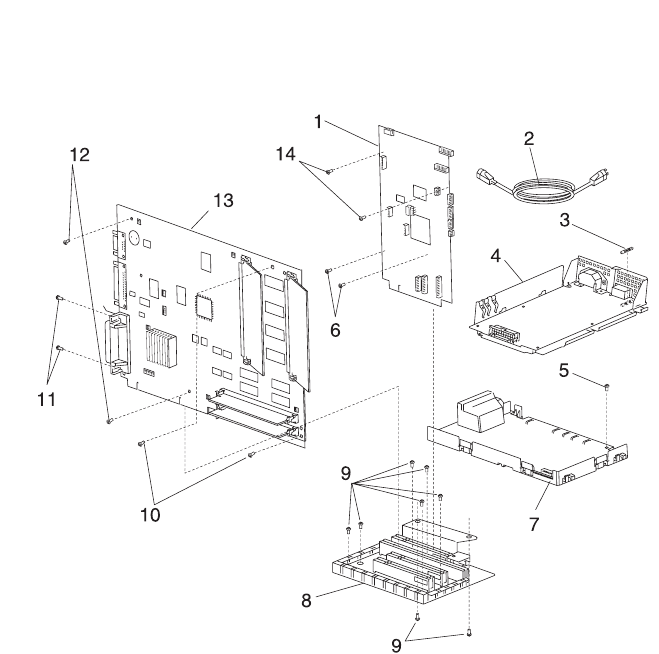
7-40 Service Manual
4069-XXX
Assembly 15: Electronics (continued)

Parts Catalog 7-41
4069-XXX
Asm-
Index Part
Number Units Description
15-4 99A1822 1 LVPS, 110 V ac 010/212/01n/21n/23v/23e
15-4 99A0214 1 LVPS, 110 V ac 616/61n
15-4 99A1640 1 LVPS, 220 V ac 010/212/01n/21n/23v/23e
15-4 99A1944 1 LVPS, 220 V ac 616/61n
15-4 99A1875 1 LVPS, 110 V ac 41l/41b/41e/414
15-4 99A1943 1 LVPS, 220 V ac 41l/41b/41e/414
15-5 1 Screw, HVPS Mounting PP 99A0263
15-6 1 Screw, Engine Bd Mounting Top PP 99A0263
15-7 Note: Be sure and check the printer service level before replacing
the HVPS. Go to “Printer Serial Label” on page 7-2 to identify the
correct replacement FRU.
99A1823 High Voltage Power Supply 010/212/414/616/01n/21n/61n
99A1863 High Voltage Power Supply (all service level B printers)/
23v/23e
15-8 99A1617 1 Interconnect Board Assembly
212/414/616/41b/41l/41n/21n/61n
o 2 Slot with shield
15-8 99A1581 1 Interconnect Board Assembly
o 1 Slot with shield/23v/23e
15-8 99A1607 1 Interconnect Board Assembly 010/01n
o 1 Slot with shield
15-9 2 Screw, Int Board Mounting PP 99A0263
15-9 1 Screw, Int Board Shield Ground PP 99A0263
15-9 2 Screw, Int Shield Mounting PP 99A0263
15-9 3 Screw, Int Shield Mounting PP 99A0263
15-10 2 Screw, Controller Bd Mounting Front
PP 99A0263
15-11 99A0426 2 Screw, Parallel Connector Mounting
15-12 2 Screw, Controller Bd Mounting Back
PP 99A0263
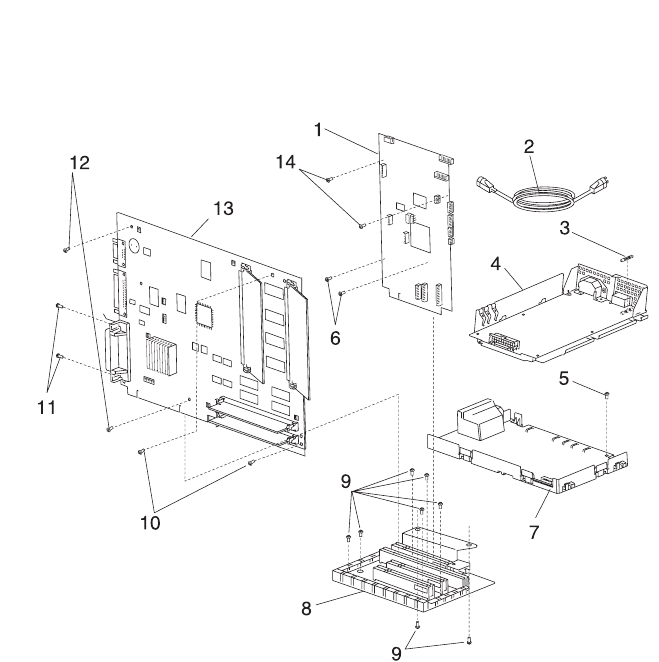
7-42 Service Manual
4069-XXX
Assembly 15: Electronics (continued)

Parts Catalog 7-43
4069-XXX
Asm-
Index Part
Number Units Description
15-13 99A1954 1 Controller Board Assembly 010
15-13 99A1955 1 Controller Board Assembly 212/23v
15-13 99A1956 1 Controller Board Assembly 414/41b
15-13 99A1957 1 Controller Board Assembly 616
15-13 99A1958 1 Controller Board Assembly 01n
15-13 99A1959 1 Controller Board Assembly 23e/21n
15-13 99A1960 1 Controller Board Assembly 41n/41l/41e/61n
15-14 2 Screw, Engine Bd Mtg Bottom PP 99A0263
15-14 2 Screw, Engine Bd Mtg Front PP 99A0263
15-14 2 Screw, Engine Bd Mtg Top PP 99A0263
NS 99A1612 1 Cable, Deflector
NS 99A0346 1 Clip, EMC Six Finger
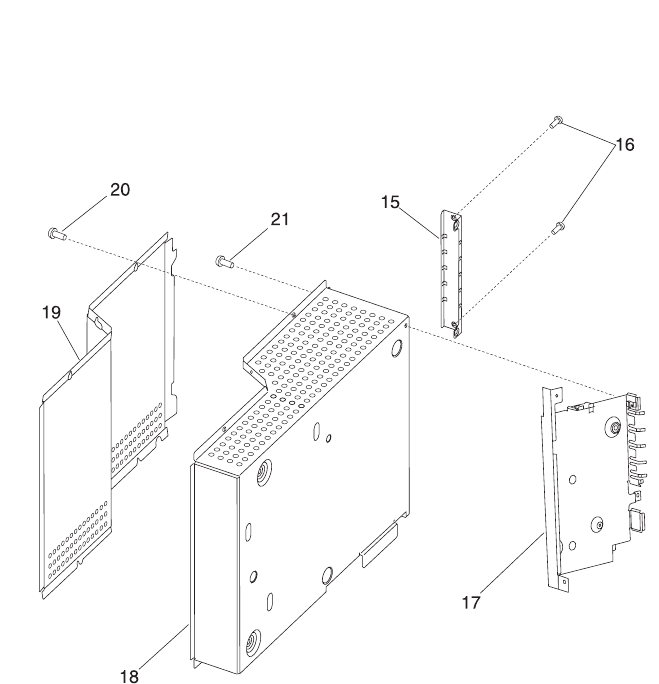
7-44 Service Manual
4069-XXX
Assembly 15: Electronics (continued)

Parts Catalog 7-45
4069-XXX
Asm-
Index Part
Number Units Description
15-15 99A0408 1 Cover, INA Flat (Blank)
15-16 6 Screw, INA Cover Mounting
PP 99A0263
15-16 4 Screw, INA Cover Mounting PP 99A0263
15-16 2 Screw, INA Cover Mounting PP 99A0263
15-17 99A1566 1 Engine Board Shield Assembly
15-18 99A1570 1 Shield, Inner Assembly, 1 slot 010/01n/23v/
23e
1 o Cover, INA Blank
15-18 99A1571 1 Shield, Inner Assembly, 2 slot 212/414/616/
21n/41b/41l/41e/61n
2 o Cover, INA Blank
15-19 99A0207 1 Shield, Outer 1 slot 010/01n/23v/23e
15-19 99A0206 1 Shield, Outer 2 slot 212/414/616/21n/41b/41l/
41e/61n
15-20 4 Screw, Outer Shield Mounting PP 99A0263
15-20 6 Screw, Outer Shield Mounting
PP 99A0263
15-21 1 Screw, Eng/Controller Mtg Ground
PP 99A0263
NS 1 Screw, Eng/Int Shield Ground PP 99A0263
NS 2 Screw, Controller/Int Ground PP 99A0263
NS 2 Screw, Int/Pan Mounting PP 99A0263
NS 1 Screw, Eng/Int Ground PP 99A0263
NS 99A0260 1 Clip, Cable
NS 2 Screw, Cable Clip PP 99A0263
NS 99A1611 1 Shield, Ethernet Blank
NS 99A1610 1 Shield, Serial Blank
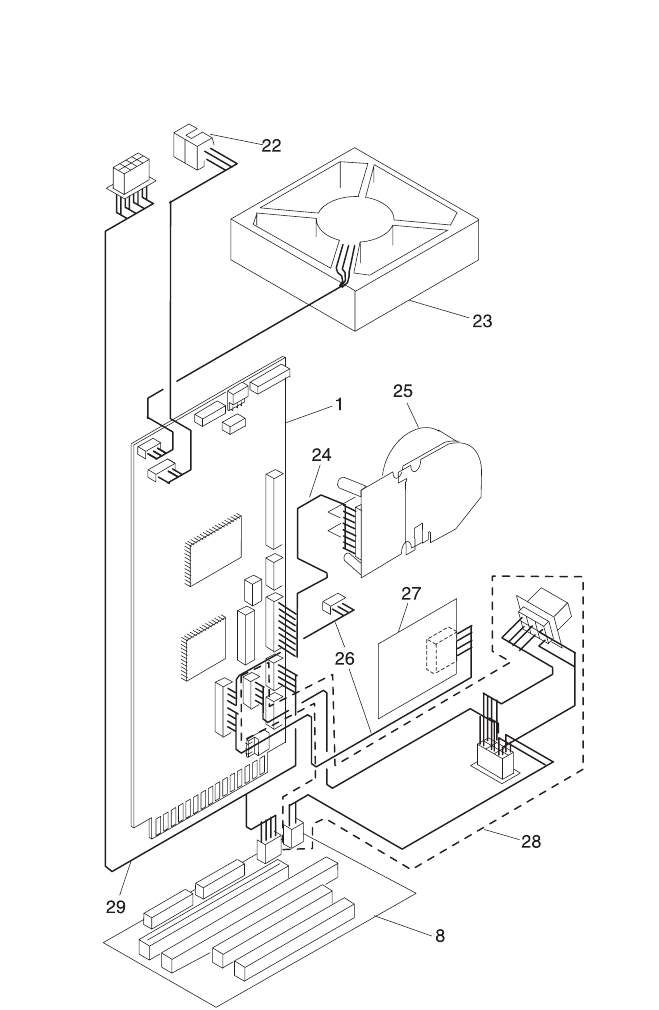
7-46 Service Manual
4069-XXX
Assembly 15: Electronics (continued)

Parts Catalog 7-47
4069-XXX
Asm-
Index Part
Number Units Description
15-22 99A0138 1 Sensor, Standard Bin Level
15-23 99A0803 1 Fan, Main
15-24 99A0255 1 Cable, Main Drive Motor
15-25 99A1543 1 Gearbox, w/Motor 010/212/01n/21n/23v/23e
15-25 99A0129 1 Gearbox, w/Motor 414/41b/41l/41n
15-25 99A0801 1 Gearbox, w/Motor 616/61n
15-26 99A0256 1 Cable, Integrated Tray
15-27 99A0128 1 Board, Input Tray (ITC)
15-28 99A1632 1 Cable, Auto Connect Bottom
15-29 99A0257 1 Cable, Auto Connect Top 212/414/616/21n/
41b/41l/41e/61n/23v/23e
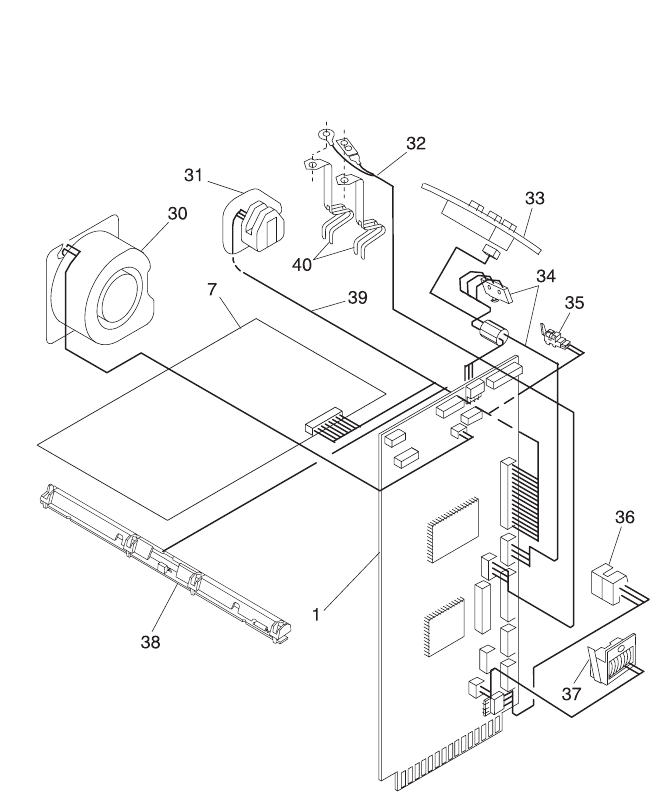
7-48 Service Manual
4069-XXX
Assembly 15: Electronics (continued)

Parts Catalog 7-49
4069-XXX
Asm-
Index Part
Number Units Description
15-30 99A0049 1 Fan, Auxiliary 414/616
15-31 99A0466 1 Sensor, Toner Cartridge Level
15-32 99A1593 1 Cable, Smart Cartridge
15-33 99A1501 1 Operator Panel Assembly
15-34 99A1577 1 Switch, Cover Open w/Operator Panel
Cable Assembly
15-35 99A0053 1 Sensor, Input
15-36 99A0078 1 Sensor, MPT Paper Out
15-37 99A0072 1 MPT Solenoid
15-38 99A0186 1 Erase Lamp Assembly
010/212/414/616/0ln/6ln
15-39 99A0576 1 Cable, Front Harness
15-40 99A0815 2 Contacts, Smart Cartridge
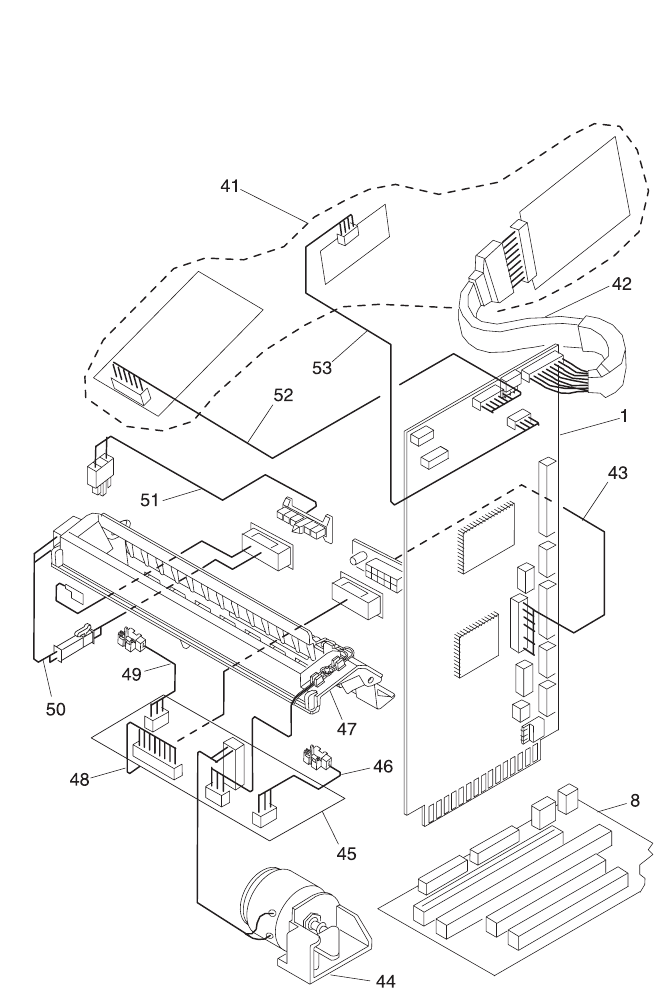
7-50 Service Manual
4069-XXX
Assembly 15: Electronics (continued)

Parts Catalog 7-51
4069-XXX
Asm-
Index Part
Number Units Description
15-41 99A1526 1 Printhead Assembly 010/01n
15-41 99A1527 1 Printhead Assembly 212/21n
15-41 99A1528 1 Printhead Assembly 414
15-41 99A1873 1 Printhead Assembly, 616/61n
15-41 99A1867 1 Printhead Assembly, 41b/41e/41l
15-42 99A0889 1 Cable, Laser
15-43 99A1573 1 Cable, Fuser DC EP Autoconnect to Engine
Board
15-44 99A0173 1 Solenoid Assembly, Envelope Conditioner
15-45 99A1553 1 Board Assembly
15-46 99A1551 1 Sensor, Exit
15-47 99A1603 1 Cover, Fuser Assembly with Thermistor,
Thermal Fuse and RH Fuser Lamp Contact
Assembly
15-48 99A1648 1 Cable, DC EP Autoconnect to Fuser Board
15-49 99A1651 1 Sensor, Narrow Media
15-50 99A1554 1 Cable, AC EP Autoconnect to Fuser Cover
15-51 99A1575 1 Cable, Fuser AC EP Autoconnect to LVPS
15-52 99A0247 1 Cable, Hysnc
15-53 99A0250 1 Cable, Mirror Motor
NS 99A1612 1 Cable, Deflector
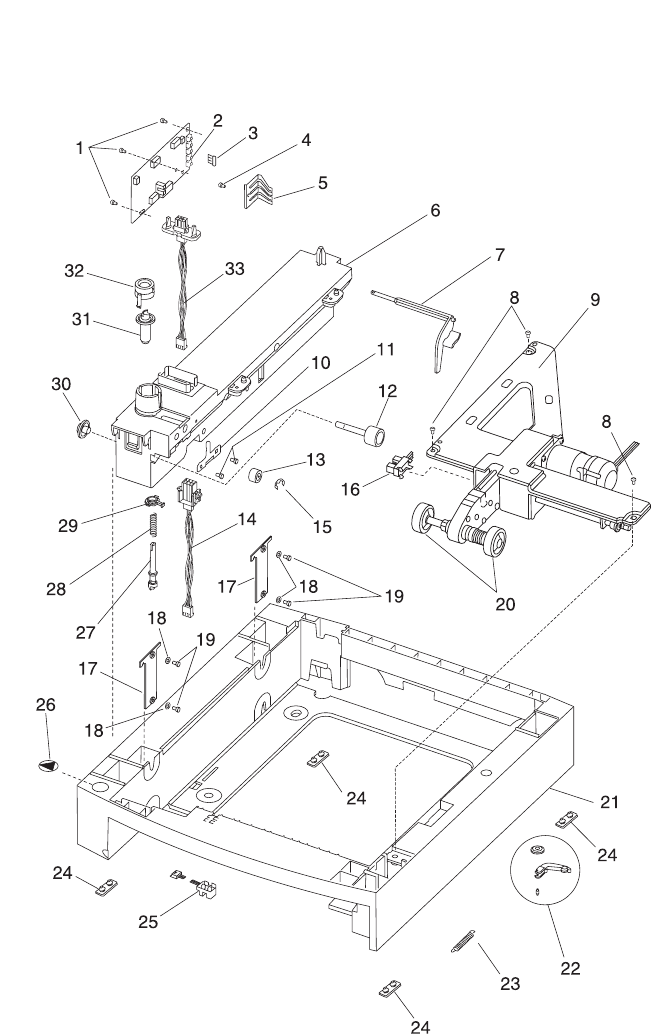
7-52 Service Manual
4069-XXX
Assembly 16: 250 Sheet Tray

Parts Catalog 7-53
4069-XXX
Asm-
Index Part
Number Units Description
16-1 3 Screw, Option Board Mounting
PP 99A0263
16-2 99A1967 1 Board, Option Tray
16-3 99A0627 1 Jumper, 2-pin
16-4 1 Screw, Switch Activate Spring Mounting
PP 99A0263
16-5 99A0063 1 Spring, Switch Activate
16-6 99A0445 1 Stud Assembly, 250 Frame
16-7 99A0448 1 Arm, Paper Out 250
16-8 3 Screw, Auto Comp Mounting PP 99A0263
16-9 99A1054 1 Pick Arm Assembly
16-10 99A0277 1 Wear Plate, Pass Thru 250 Tray
16-11 2 Screw, Wear Plate Mounting PP 99A0263
16-12 99A0276 1 Roll Assembly, Drive 500 Dual
16-13 99A0451 1 Roller, Skewed Backup
16-14 99A0282 1 Cable, 250 Tray Option
16-15 99A0450 1 Retainer, Roller
16-16 99A0350 1 Sensor, Paper Low
16-17 99A0679 2 Bracket, 250 Frame Retention
16-18 4 Washer, Bracket 250 Frame Retention
Mounting PP 99A0677
16-19 4 Screw, Bracket 250 Frame Retention
Mounting PP 99A0263
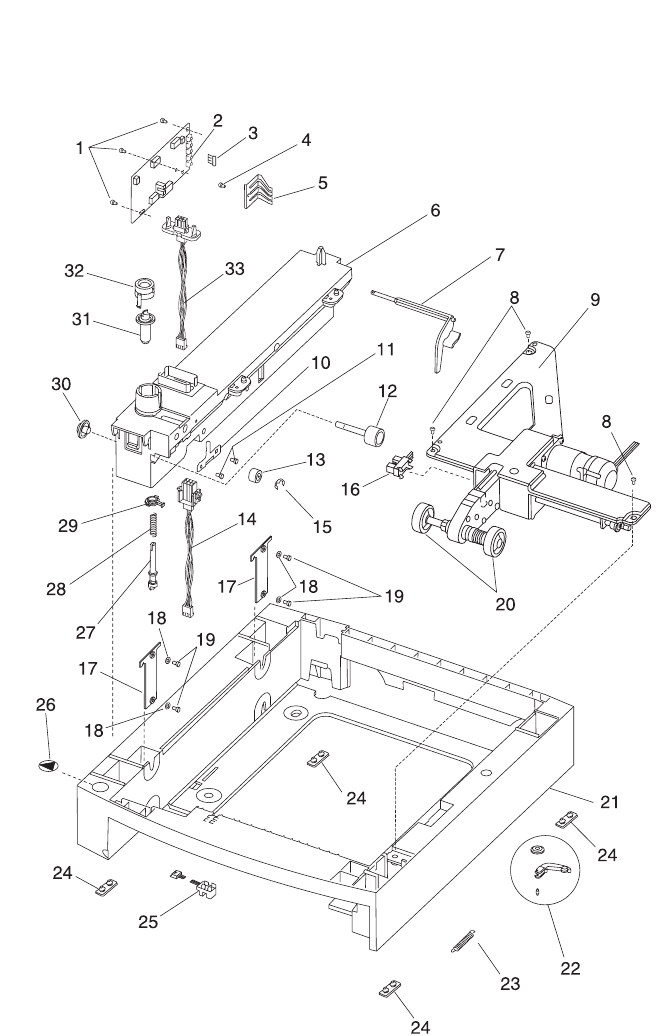
7-54 Service Manual
4069-XXX
Assembly 16: 250 Sheet Tray (continued)

Parts Catalog 7-55
4069-XXX
Asm-
Index Part
Number Units Description
16-20 99A0070 2 Roll Assembly, Pick
NS 99A0438 2 Bushing, Drive Roll
16-21 99A1638 1 Base, 250 Option
16-22 99A0026 1 Tray Bias Arm Assembly
16-23 99A0419 1 Spring, Tray Bias
16-24 99A0058 4 Pad, Machine Mounting
16-25 99A0288 1 Sensor, Option Pass Thru
16-26 99A1666 1 Label, Options
16-27 99A0272 1 Shaft, 250 Drive
16-28 99A0275 1 Spring, Power Takeoff
NS 99A0278 1 Bellcrank, Roller Release
16-29 99A0280 1 Bushing, Drive Shaft Low
16-30 99A0274 1 Gear, Feed Roll
16-31 99A0273 1 Gear, Bevel
16-32 99A0279 1 Bearing, Drive Shaft
16-33 99A0281 1 Cable, 250 Auto Connect Option
NS 99A1929 1 Spring, Bellcrank 250 Tray Option
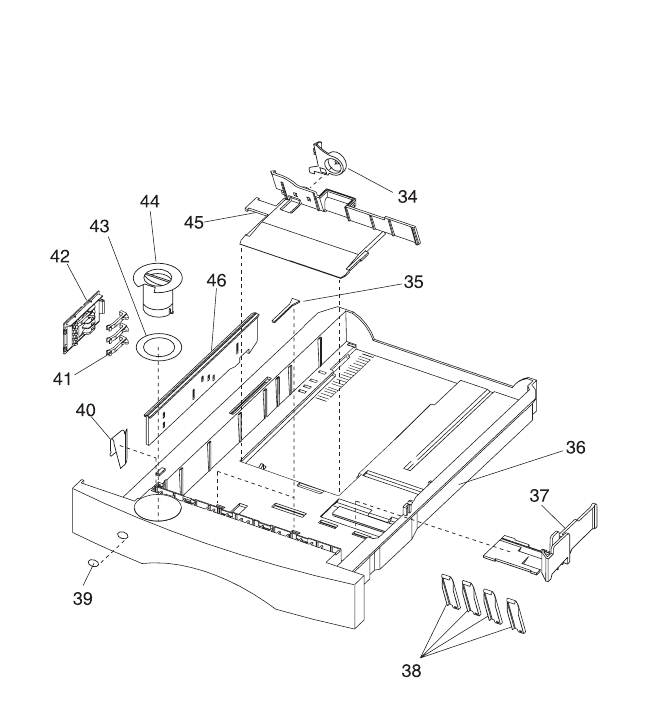
7-56 Service Manual
4069-XXX
Assembly 16: 250 Sheet Tray (continued)

Parts Catalog 7-57
4069-XXX
Asm-
Index Part
Number Units Description
16-34 99A1601 1 Latch, Back Restraint
16-35 99A0120 2 Restraint Pad
16-36 99A1536 1 Tray Assembly, 250 Sheet Option
16-37 99A1894 1 Restraint, Side 250 Sheet Tray
16-38 99A0119 4 Wear Strips
16-39 99A1637 1 Label, Tray Option Number
16-40 99A0121 1 Clip, 250 Tray Wear
16-41 99A0126 4 Finger, Autosize
16-42 99A0124 1 Plate, Snap-In
16-43 99A1952 1 Label, Paper Size
16-44 99A1537 1 Knob, Paper Size
16-45 99A0893 1 Restraint, Back 250 Sheet Tray
16-46 99A0127 1 Slider, Autosize 250
NS 99A0286 1 Spring, Backup Roller
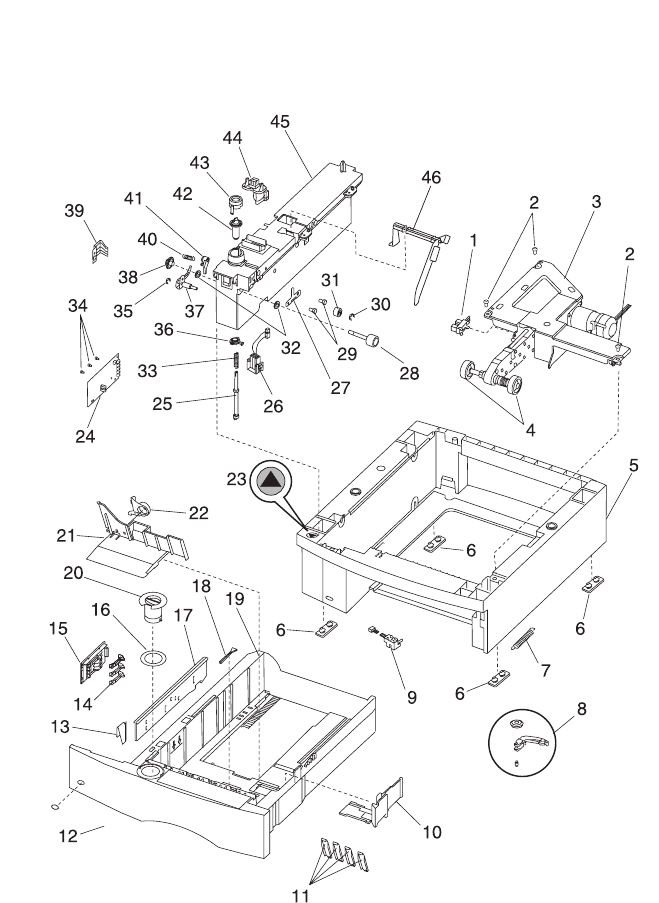
7-58 Service Manual
4069-XXX
Assembly 17: 500 Sheet Tray

Parts Catalog 7-59
4069-XXX
Asm-
Index Part
Number Units Description
17-1 99A0350 1 Sensor, Paper Low
17-2 3 Screw, Auto Comp Mounting PP 99A0263
17-3 99A0405 1 Pick Arm Assembly
17-4 99A0070 2 Pick Roll Assembly
17-5 99A1636 1 Base, 500 Tray
17-6 99A0058 4 Pad, Base 500
17-7 99A0419 1 Spring, Tray Bias
17-8 99A0026 1 Tray Bias Arm Assembly
16-9 99A0288 1 Sensor, Option Pass Thru
17-10 99A1895 1 Restraint, Side 500 Sheet Tray
17-11 99A0292 4 Wear Strips
17-12 99A1829 1 Label, Tray Option Number
17-13 99A1583 1 Plate, 500 Tray Wear
17-14 99A0126 4 Finger, Autosize
17-15 99A0124 1 Plate, Snap-In
17-16 99A1952 1 Label, Paper Size
17-17 99A1582 1 Slider, Autosize 500
17-18 99A0120 2 Restraint Pad
17-19 99A1576 1 Tray Assembly, 500 Sheet
17-20 99A1537 1 Knob, Paper Size
17-21 99A1602 1 Restraint, Back 500 Sheet Tray
17-22 99A1601 1 Latch, Back Restraint
17-23 99A1666 1 Label, Options
17-24 99A1967 1 Board, Tray
17-25 99A0447 1 Shaft, 500 Drive
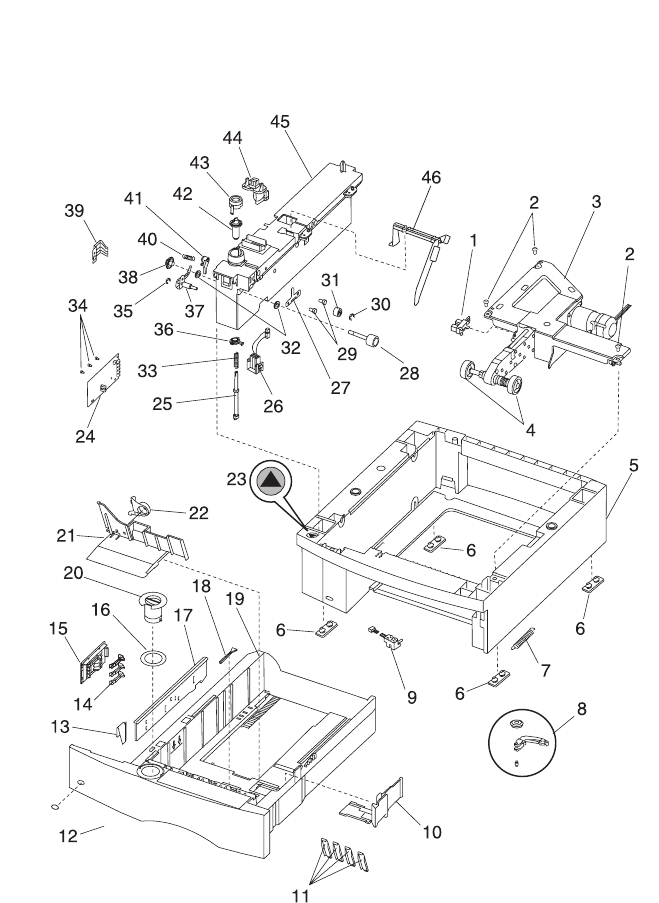
7-60 Service Manual
4069-XXX
Assembly 17: 500 Sheet Tray (continued)

Parts Catalog 7-61
4069-XXX
Asm-
Index Part
Number Units Description
17-26 99A0282 1 Cable, 500 Auto Connect Bottom
17-27 99A1750 1 Wear Plate, Pass Thru
17-28 99A0276 1 Roll Assembly, Drive 500
17-29 2 Screw, Wear Plate Mounting PP 99A0263
17-30 99A0450 1 Retainer, Roller
17-31 99A0451 1 Roller, Skewed Backup
17-32 99A0438 2 Bearing, Drive Roll
17-33 99A0275 1 Spring, Power Takeoff
17-34 3 Screw, Board Mounting PP 99A0263
17-35 1 Retainer, Aligner Assembly PP 99A0267
17-36 99A0280 1 Bearing, Drive Shaft Low
17-37 99A0446 1 Aligner Assembly, Paper
17-38 99A0274 1 Gear, Feed Roll
17-39 99A0063 1 Spring, Switch Activate
17-40 99A0286 1 Spring, Backup Roller
17-41 99A1664 1 Bellcrank, Roller Release
17-42 99A0273 1 Gear, Bevel
17-43 99A0279 1 Bearing, Drive Shaft
17-44 99A0281 1 Cable, 500 Auto Connect Top
17-45 99A1702 1 Stud Assembly, 500 Frame
17-46 99A1645 1 Arm, Paper Out 500
NS 99A0452 4 Washer, Frame Mounting
NS 99A1665 1 Deflector, Base 500
NS 99A1667 2 Bracket, 500 Tray Retention
NS 99A1928 1 Spring, Bellcrank 500 Option Tray
NS 99A1950 1 Tray Feature, Photo Bag Tray Assembly
NS 99A1951 1 Sprint, Photo Bag Transfer
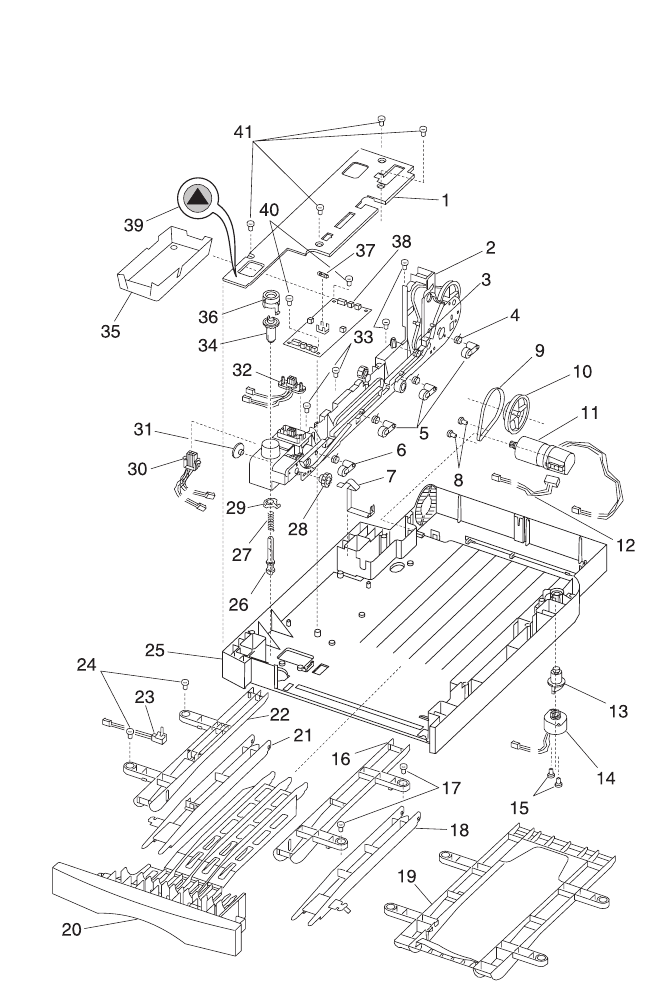
7-62 Service Manual
4069-XXX
Assembly 18: Duplex

Parts Catalog 7-63
4069-XXX
Asm-
Index Part
Number Units Description
18-1 99A1674 1 Cover, System Board
18-2 99A0322 1 Main Frame Assembly 250 Duplex
18-2 99A1693 1 Main Frame Assembly 500 Duplex
18-3 99A0324 1 Idler Assembly, Belt Tension
18-4 99A0326 3 Spring, Aligner
18-5 99A0323 3 Guide Assembly, Paper
18-6 99A1675 1 Guide Assembly, Paper
18-7 99A1904 2 Spring, Chassis Ground
18-8 2 Screw, Motor Mount 3 mm PP 99A0413
18-9 99A0328 1 Belt, Motor 114 Gear
18-10 99A0329 1 Pulley, Main Drive 96/54 Gear
18-11 99A0321 1 Motor Assembly, DC Drive
18-12 99A1673 1 Cable, D.C. Motor Tach 250 Duplex
18-13 1 Cam Follower Assembly Kit PP 99A0299
18-14 99A0312 1 Actuator Assembly, Deflector
18-15 2 Screw, Actuator Assembly Mounting
PP 99A0413
18-16 99A1130 1 Guide, Return RH Upper 250 Duplex
18-17 2 Screw, Upper Return Guide Mounting
PP 99A0413
18-18 99A0340 1 Guide, Return RH Lower 250 Duplex
18-18 99A1680 1 Guide, Return RH Lower 500 Duplex
18-19 99A1579 1 Guide, Upper 500 Duplex
18-20 99A1133 1 Tray Assembly, Jam Removal 250 Duplex
18-20 99A1134 1 Tray Assembly, Jam Removal 500 Duplex
NS 2 Retainer 6 mm - Backup Roll PP 99A0404
NS 2 Screw, M3x6L:G Supradrive PP 99A0413
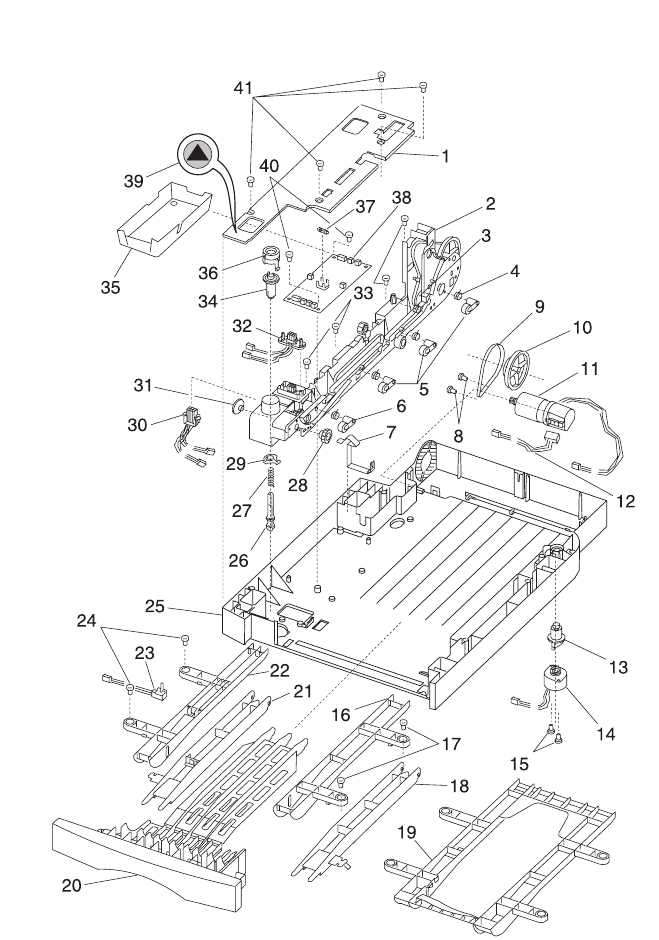
7-64 Service Manual
4069-XXX
Assembly 18: Duplex (continued)

Parts Catalog 7-65
4069-XXX
Asm-
Index Part
Number Units Description
18-21 99A0342 1 Guide, LH Lower Return 250 Duplex
18-21 99A1682 1 Guide, LH Lower Return 500 Duplex
18-22 99A1131 1 Guide, Return LH Upper 250 Duplex
18-23 99A0341 1 Sensor, Exit - Optical
18-24 2 Screw, LH Upper Return Guide Mounting
PP 99A0413
18-25 99A1668 1 Base Assembly, w/Tray Bias 250 Duplex
18-25 99A1677 1 Base Assembly, w/Tray Bias 500 Duplex
18-26 99A0316 1 Shaft, Duplex Drive
18-27 99A0315 1 Spring, Duplex Shaft
18-28 99A0325 1 Gear, Pass Thru Idler
18-29 99A0280 1 Bearing, Drive Shaft Low
18-30 99A0311 1 Cable, Auto Connect Bottom
18-31 99A0274 1 Gear, Pass Thru Drive Roll
18-32 99A0310 1 Cable, Auto Connect Top
18-33 4 Screw, Main Frame Assembly Mounting
PP 99A0413
18-34 99A0317 1 Gear, Duplex Bevel
18-35 99A0434 1 Pan, System Board Drip
18-36 99A0279 1 Bearing, Drive Shaft
18-37 99A0191 1 Fuse, .8A SB
18-38 99A1669 1 Board, System with Jumper 250/500 Duplex
NS 99A0627 1 Jumper, System Board 250 Duplex
18-39 99A1666 1 Label, Options
18-40 2 Screw, System Board Mounting PP 99A0413
18-41 4 Screw, System Board Cover PP 99A0413
NS 99A1129 1 Roller, Duplex Pass Thru
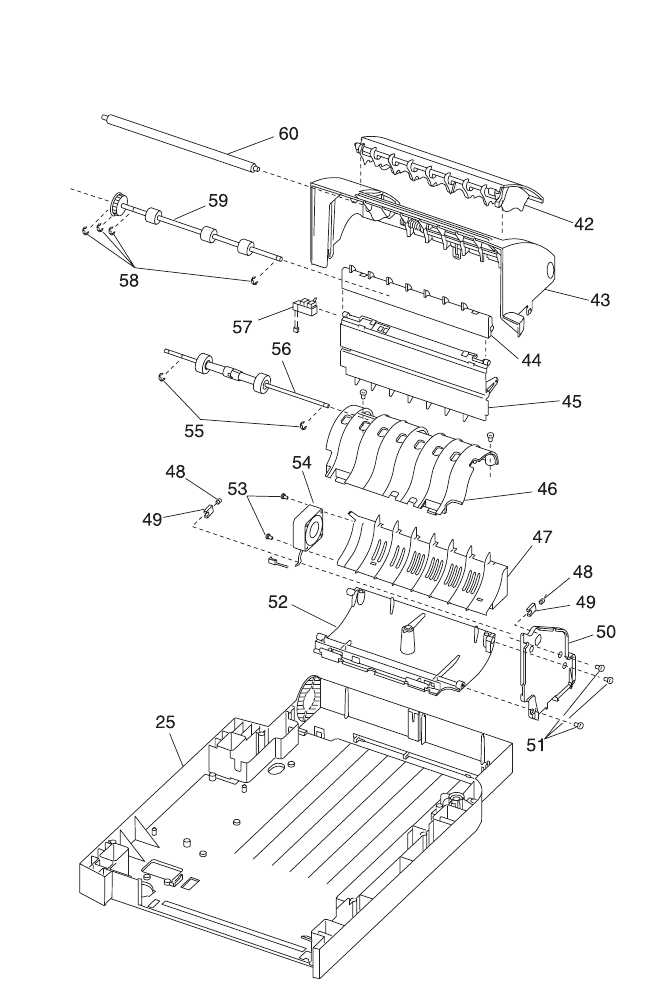
7-66 Service Manual
4069-XXX
Assembly 18: Duplex (continued)

Parts Catalog 7-67
4069-XXX
Asm-
Index Part
Number Units Description
18-42 99A1290 1 Top Cover Assembly, Movable 250 Duplex
18-42 99A1280 1 Top Cover Assembly, Movable 500 Duplex
18-43 99A1634 1 Top Cover Assembly, Fixed 250 Duplex
18-43 99A1679 1 Top Cover Assembly, Fixed 500 Duplex
NS 1 Retainer, 6 mm Top Cover PP 99A0404
18-44 99A0435 1 Guide, Lower Entry 250 Duplex
18-44 99A1691 1 Guide, Lower Entry 500 Duplex
18-45 99A1672 1 Guide Assembly, Paper Decurl
18-46 99A0332 1 Guide, Center Drive Upper
18-47 99A0307 1 Air Plenum
18-48 99A0335 2 Spring, Decurl Shaft
18-49 99A0334 2 Bushing, Decurl Shaft
18-50 99A0952 1 Frame Assembly, 250 Duplex
18-51 3 Screw, Outer Frame PP 99A0413
18-52 99A0330 1 Guide Assembly, Center Drive
18-53 1 Fan Mounting Kit PP 99A0269
2 o Screw, Fan Mounting M4x30
2 o Washer, Fan - M4
2o Nut, Fan - M4
18-54 99A0308 1 Fan, Cooling Duplex
18-55 2 Retainer, 5 mm Main Drive PP 99A0404
18-56 99A0337 1 Main Drive Assembly
18-57 99A0319 1 Sensor, Input Optical 250 Duplex
18-57 99A1676 1 Sensor, Input Optical 500 Duplex
18-58 4 Retainer, 6 mm Drive Roll PP 99A0404
18-59 99A0336 1 Shaft Assembly, Drive 250 Duplex
18-59 99A1692 1 Shaft Assembly, Drive 3 Roll 500 Duplex
NS 99A1695 1 Shaft Assembly, Drive 2 Roll 500 Duplex
18-60 99A1059 1 Shaft Assembly, Decurl
NS 1 Screw, Tensioner PP 99A0413
NS 2 Retainer, 6 mm Clutch Roll PP 99A0404
NS 99A0058 4 Feet, Duplex Base
NS 99A1164 1 Guide, Debuckle
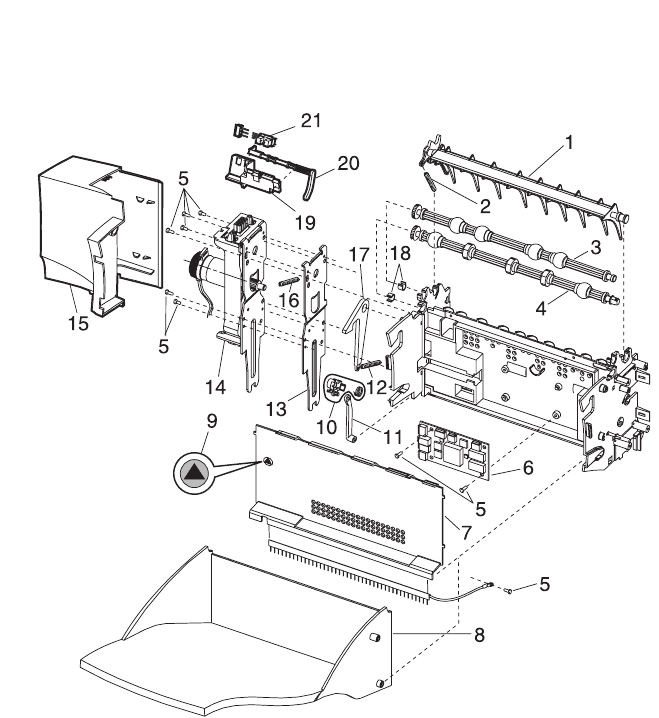
7-68 Service Manual
4069-XXX
Assembly 19: Output Expander

Parts Catalog 7-69
4069-XXX
Asm-
Index Part
Number Units Description
19-1 99A1857 1 Deflector, Upper Redrive
Also order 99A0104
19-2 99A0104 1 Spring, Upper Diverter
19-3 99A0369 1 Shaft Assembly, Exit
Also order PP 99A0572
19-4 99A0052 1 Shaft Assembly, Lower Exit
Also order PP 99A0572
19-5 11 Screw, PP 99A0263
19-6 99A0915 1 Board, Output Expander DC motor
19-7 99A0571 1 Cover, Front Control Board with ESD Brush
19-8 99A1817 1 Tray, Output Expander
19-9 99A1666 1 Label, Options
19-10 99A1689 1 Spring Clutch Assembly
19-11 99A1688 1 Diverter Arm
19-12 99A0482 1 Spring, Output Tray
19-13 99A1784 2 Bracket, Attach
19-14 99A0914 1 Output Expander Assembly, Mechanical
Linkage
19-15 99A0372 1 Cover, Left Side
19-16 99A0415 2 Spring, Swing Arm
19-17 99A0481 1 Latch, Output Tray
19-18 2 Shaft Bearing PP 99A0572
19-19 99A0409 1 Level Sensor Bracket
19-20 99A1580 1 Flag, Output Paper Level
19-21 99A0414 1 Sensor, Dual Bin Full
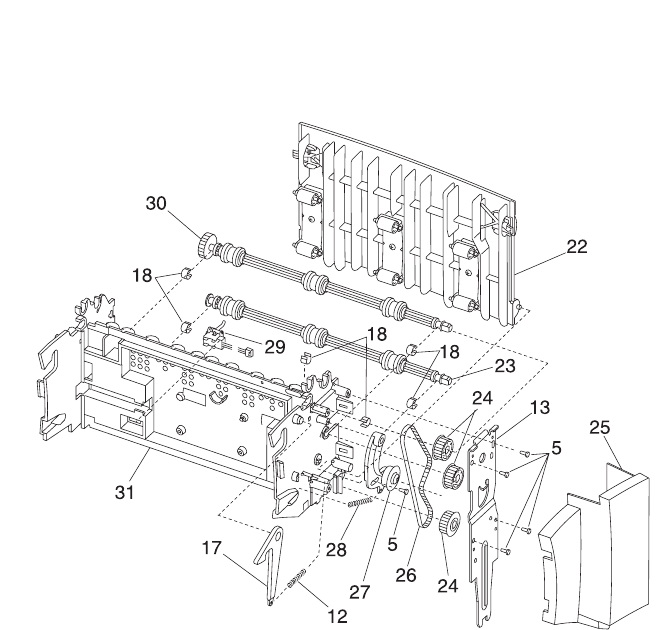
7-70 Service Manual
4069-XXX
Assembly 19: Output Expander (continued)

Parts Catalog 7-71
4069-XXX
Asm-
Index Part
Number Units Description
19-22 99A1748 1 Door Assembly, Rear Access
19-23 99A0368 1 Shaft Assembly, Lower
Also order PP 99A0572
19-24 99A0363 3 Pulley, Drive
19-25 99A0371 1 Cover, Right Side
19-26 99A0361 1 Belt, 160 Gear
19-27 99A0362 1 Arm Assembly, Belt Idler
19-28 99A0364 1 Spring, Belt Tensioner
19-29 99A0351 1 Sensor, Output Expander Pass Thru
19-30 99A0913 1 Shaft Assembly, Middle 40T
Also order PP 99A0572
19-31 99A0912 1 Frame Assembly
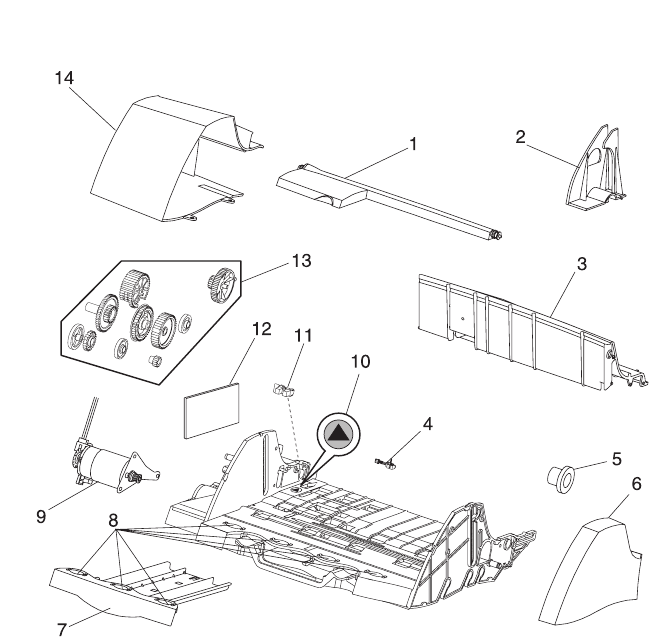
7-72 Service Manual
4069-XXX
Assembly 20: Envelope Feeder

Parts Catalog 7-73
4069-XXX
Asm-
Index Part
Number Units Description
20-1 99A0389 1 Paper Weight Assembly
20-2 99A1694 1 Guide, Edge
20-3 99A1696 1 Cover, Top
20-4 99A0485 1 Sensor, Envelope Pass Thru
20-5 99A0393 1 Clutch, Restraint/Gear
20-6 99A1697 1 Cover, Right Side
20-7 99A0390 1 Support, Slide Out
20-8 99A0488 7 Roller, Support
20-9 99A0382 1 Motor, Stepper D.C.
20-10 99A1666 1 Label, Options
20-11 99A0388 1 Switch, Envelope Out
20-12 99A1700 1 Board Assembly, Electronic Control
NS 6 Screw, Top/Motor/Board
NS 99A0484 1 Belt, Gear Drive
NS 99A0491 1 Bracket, Stack Limiter
NS 99A0400 1 Spring, Restraint Roll Shaft
NS 99A0489 1 Spring, Latch Return
NS 99A0487 1 Flag, Envelope Out Sensor
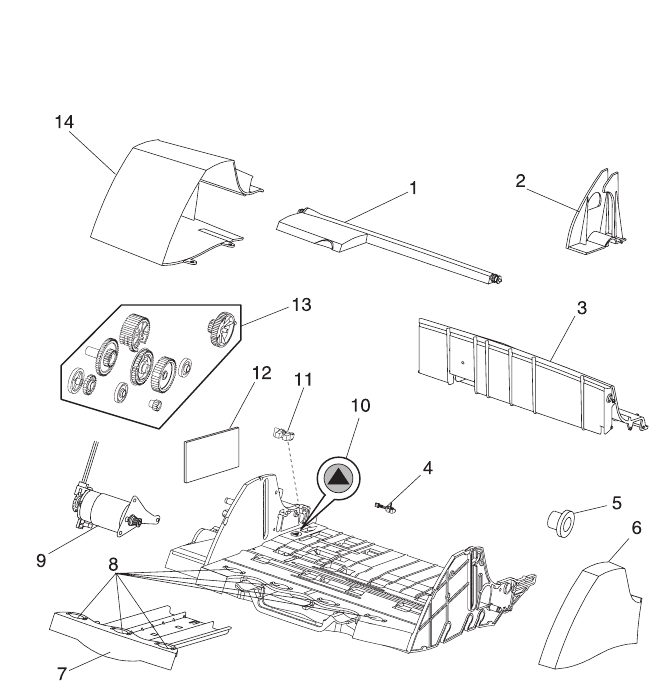
7-74 Service Manual
4069-XXX
Assembly 20: Envelope Feeder (continued)

Parts Catalog 7-75
4069-XXX
Asm-
Index Part
Number Units Description
20-13 1 Gear Kit, PP 99A0271
1o Gear, Feed
1o Gear, Master Cam
1 o Gear, Drive Roll Shaft
3 o Gear, Master/Feed Kick
2 o Gear, Drive Idler
1 o Gear, Comp Drive/Clutch
1 o Gear, Kick Roll Connect
1 o Gear, Kick CNCT Idler
1 o Gear, Feed Shaft Right
1 o Gear, Drive Idler Rear
20-14 99A1698 1 Cover, Left Side
NS 1 Retainer, 4 mm PP 99A0404
NS 3 Retainer, Clip 5 mm Shaft PP 99A0404
NS 2 Retainer, 6 mm PP 99A0404
NS 3 Retainer, 7 mm Shaft PP 99A0404
NS 99A0384 1 Shaft, Drive Pressure Roller
NS 99A0385 1 Cable, Auto Connect Front
NS 99A0494 1 Spring, Cam Clutch
NS 99A0427 1 Label, Envelope Orientation Icon
NS 99A0469 1 Deflector Guide
NS 99A1699 1 Guard, Pass Through Sensor
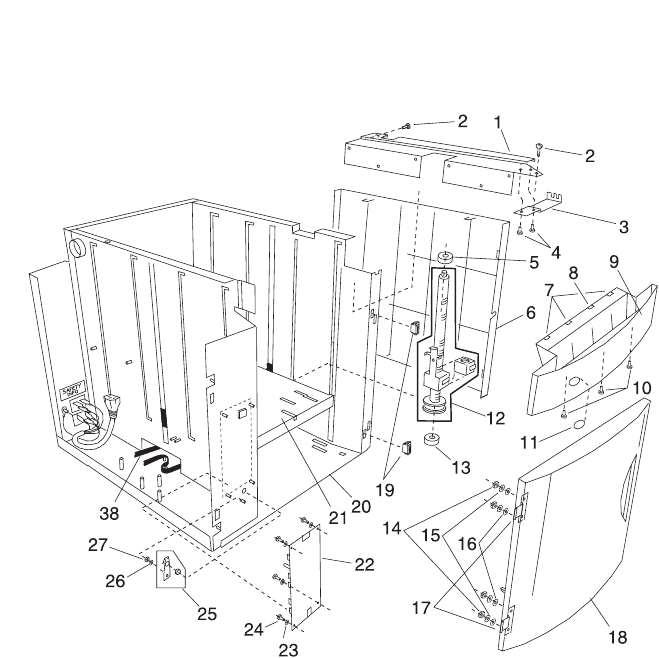
7-76 Service Manual
4069-XXX
Assembly 21: High Capacity Feeder

Parts Catalog 7-77
4069-XXX
Asm-
Index Part
Number Units Description
21-1 99A0660 1 Frame, Printer Support Frame 2
21-2 3 Screw, Printer Support 2 Frame Mounting
PP 99A0675
21-3 99A0698 2 Clamp, Feed Frame
21-4 4 Screws, Feed Frame Clamp PP 99A0675
21-5 99A0691 2 Bearing, Nyliner Leadscrew Top
21-6 99A0656 1 Cover, Side
21-9 99A1809 1 Deflector Assembly Front
21-7 99A0681 3 Strip, Wear
21-8 99A1818 1 Strip, Wear Dimple
21-10 3 Screw, Deflector Mounting 8-18 x 7/8 inch
PP 99A0675
21-11 99A1829 1 Label, Tray Option Number
21-12 99A0662 2 Transfer Lead Screw Assembly
21-13 99A0716 1 Bearing, Leadscrew Bottom
NS 6 Washer, Printer Support Frame 2 Star
PP 99A0677
NS 6 Nut, Printer Support Frame 2, 8-32 Hex
PP 99A0676
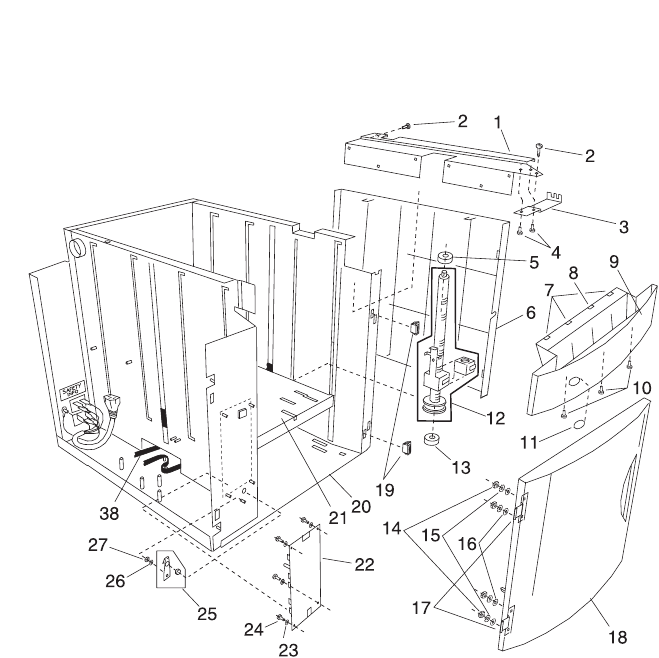
7-78 Service Manual
4069-XXX
Assembly 21: High Capacity Feeder (continued)

Parts Catalog 7-79
4069-XXX
Asm-
Index Part
Number Units Description
21-14 4 Nut, 6-32 Hinge Mounting PP 99A0676
21-15 4 Washer, Hinge Mounting Flat PP 99A0677
21-16 4 Washer, Hinge Mounting Star PP 99A0677
21-17 99A0657 2 Hinge, Door
21-18 99A0655 1 Door Assembly, Front
21-19 99A0658 2 Magnet, Door
21-20 99A0650 1 Frame Assembly
21-21 99A0661 1 Tray Assembly, Elevator
21-22 99A1806 1 Card Assembly, 2000 Option Control
21-23 4 Washer, Card Assembly Mounting PP
99A0677
21-24 4 Screw, Card Assembly Mounting PP 99A0675
21-25 99A0392 1 Kit, Door Switch Spring and Bumper
21-26 1 Washer, Door Switch Spring Mounting
PP 99A0677
21-27 1 Nut, Door Switch Spring Mounting
PP 99A0676
NS 99A0690 1 Cable, Optical Sensor
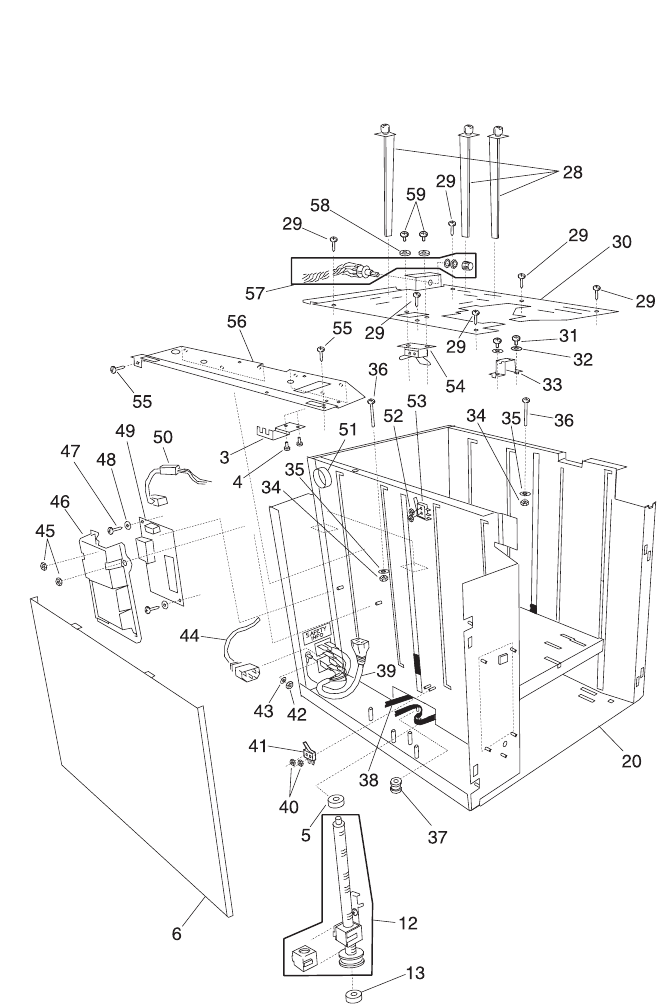
7-80 Service Manual
4069-XXX
Assembly 21: High Capacity Feeder (continued)

Parts Catalog 7-81
4069-XXX
Asm-
Index Part
Number Units Description
21-28 99A0188 3 Guide, Rear Paper with retainer arm
Use with 99A0219
21-29 6 Screw, Top Frame Mounting PP 99A0675
21-30 99A0219 1 Frame Assembly, Top with labels
21-31 2 Screw, Top Frame Clamp Mounting
PP 99A0675
21-32 2 Washer, Top Frame Clamp PP 99A0677
21-33 99A0719 1 Clamp, Top Frame Mounting
21-34 2 Nut, Base Mounting PP 99A0676
21-35 2 Washer, Base Mounting PP 99A0677
21-36 2 Screw, Base Mounting PP 99A0675
21-37 99A0663 1 Pulley, Idler
21-38 99A0664 1 Belt, Drive
21-39 99A1807 1 Cable, AC Internal Wiring
21-40 2 Nut, 2-56 Lower Limit Switch Mounting
PP 99A0676
21-41 99A0653 1 Switch, Lower Limit Microswitch
21-42 2 Nut, Power Supply Ground PP 99A0676
21-43 4 Washer, Motor Plate Mounting PP 99A0677
21-44 99A1808 1 Cord, AC External Jumper
21-45 2 Nut, Power Supply Cover PP 99A0676
21-46 99A0714 1 Cover, Power Supply
21-47 2 Screw, Power Supply Board Mounting
PP 99A0675
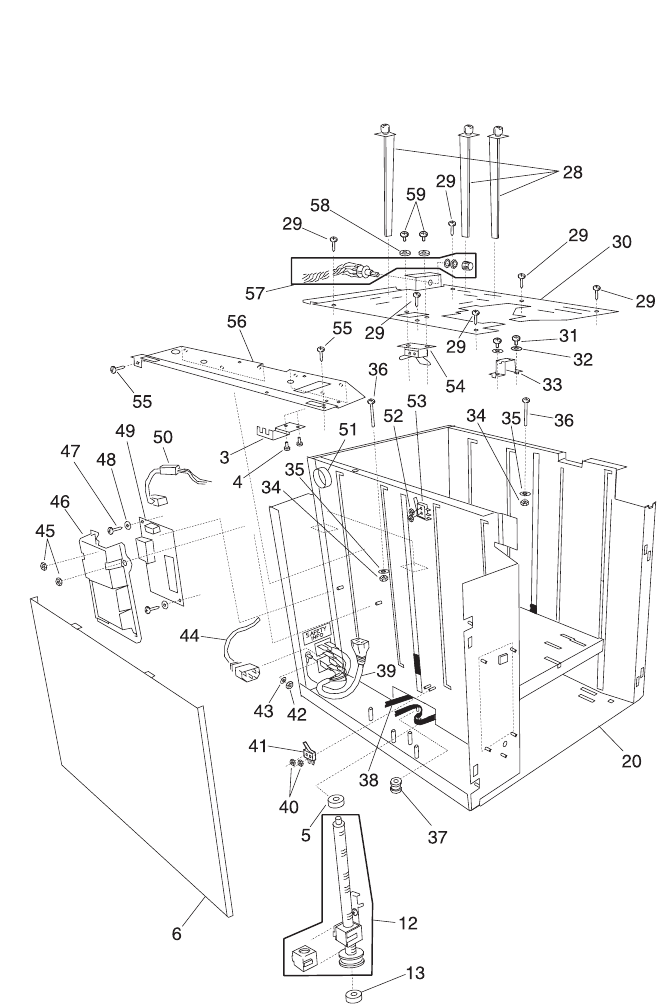
7-82 Service Manual
4069-XXX
Assembly 21: High Capacity Feeder (continued)

Parts Catalog 7-83
4069-XXX
Asm-
Index Part
Number Units Description
21-48 2 Washer, Power Supply Board PP 99A0677
21-49 99A0667 1 Power Supply Board
21-50 99A0715 1 Cable, Low Voltage Power Supply
NS 99A0684 1 Cable, HCIT-14Pin Flex
21-51 99A0685 1 Bushing
21-52 2 Nut, 2-56 Paper Low Switch Mounting
PP 99A0676
21-53 99A0654 1 Switch, Paper Low
21-54 99A0651 1 Sensor Assembly, Paper Out/Upper Limit
21-55 3 Screw, Printer Support 1 Frame Mounting
PP 99A0675
NS 6 Washer, Printer Support Frame 1 Star
PP 99A0677
NS 6 Nut, Printer Support Frame 1 8-32 Hex
PP 99A0676
NS 10 Screw, Door to Door Frame Mounting
PP 99A0675
21-56 99A0659 1 Frame, Printer Support 1
21-57 99A0695 1 Parts Kit, Paper Size Switch Assembly
including cable, switch, lock washer, nut and
knob
21-58 2 Washer, Sensor Bracket Mounting
PP 99A0677
21-59 2 Screw, Sensor Bracket Mounting PP
99A0675
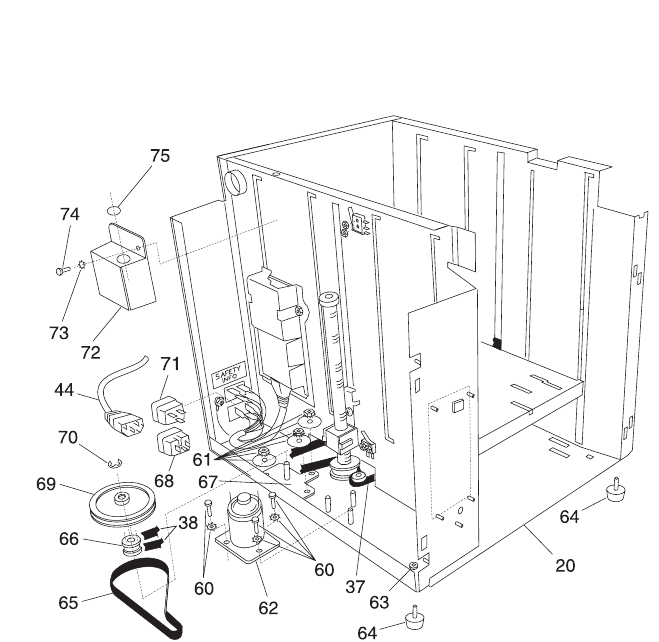
7-84 Service Manual
4069-XXX
Assembly 21: High Capacity Feeder (continued)

Parts Catalog 7-85
4069-XXX
Asm-
Index Part
Number Units Description
21-60 3 Screw w/washer, Motor Mounting
PP 99A1793
21-61 3 Nut w/lockwasher, Drive Pulley Plate
PP 99A1794
21-62 99A1795 1 Motor Assembly, DC
21-63 4 Foot, Stabilizer PP 99A0672
21-64 4 Mounting Feet PP 99A0687
21-65 99A1796 1 Belt, DC Motor Drive
21-66 99A1797 1 Idler Pulley, Belt Tension
21-67 99A1798 1 Plate, Drive Pulley
21-68 99A1799 1 AC Receptacle, Lower AC
21-69 99A1800 1 Pulley, Drive
21-70 99A1801 1 Retainer, C-Clip
21-71 99A1802 1 AC Receptacle, Upper AC
21-72 99A1803 1 Cover, Top LVPS
21-73 99A1804 3 Nut w/lockwasher, Top LVPS Cover Mounting
21-74 99A1804 1 Nut w/lockwasher, Top LVPS Cover Mounting
21-75 99A1805 1 Grommet, Top LVPS Cover
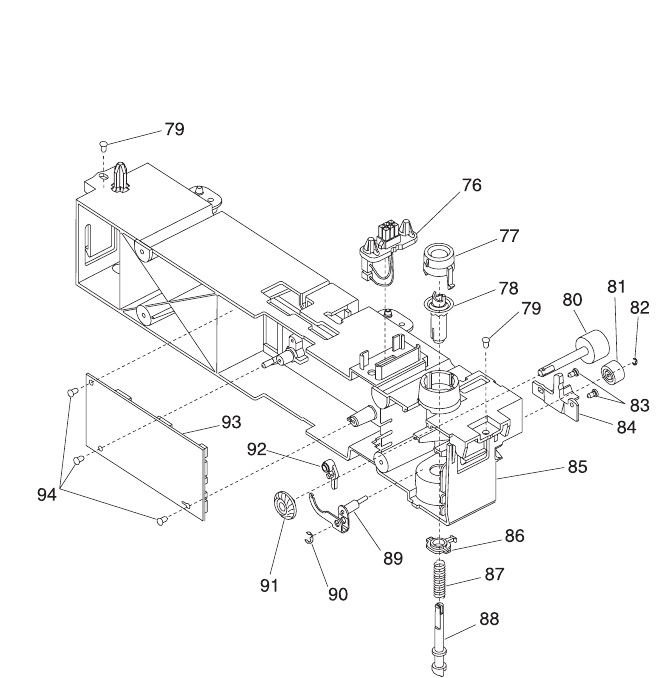
7-86 Service Manual
4069-XXX
Assembly 21: High Capacity Feeder (continued)

Parts Catalog 7-87
4069-XXX
Asm-
Index Part
Number Units Description
21-76 99A0281 1 Cable, 250 Auto Connect
21-77 99A0279 1 Bearing, Drive Shaft
21-78 99A0273 1 Gear, Bevel
21-79 2 Screw, Frame Mounting PP 99A0263
21-80 99A0276 1 Roll Assembly, Drive 250 Option
21-81 99A0451 1 Roll, Skew Backup
21-82 1 Retainer, Roller PP 99A0267
21-83 2 Screw, Wear Plate Mounting PP 99A0675
21-84 99A0277 1 Plate Wear, Pass Thru
NS 99A0286 1 Spring, Backup Roller
21-85 99A0445 1 Stud Assembly, 250 Frame
21-86 99A0280 1 Bearing, Drive Shaft Low
21-87 99A0275 1 Spring, Power Takeoff
21-88 99A0272 1 Shaft, 250 Drive
21-89 99A0446 1 Aligner Assembly, Paper
21-90 1 Retainer, Aligner Assembly PP 99A0267
21-91 99A0274 1 Gear, Feed Roll
21-92 99A0278 1 Bellcrank, Roller Release
21-93 99A1967 1 Card Assembly, 2000 Tray Option
21-94 3 Screw, 2000 Tray Option Card Mounting
PP 99A0263
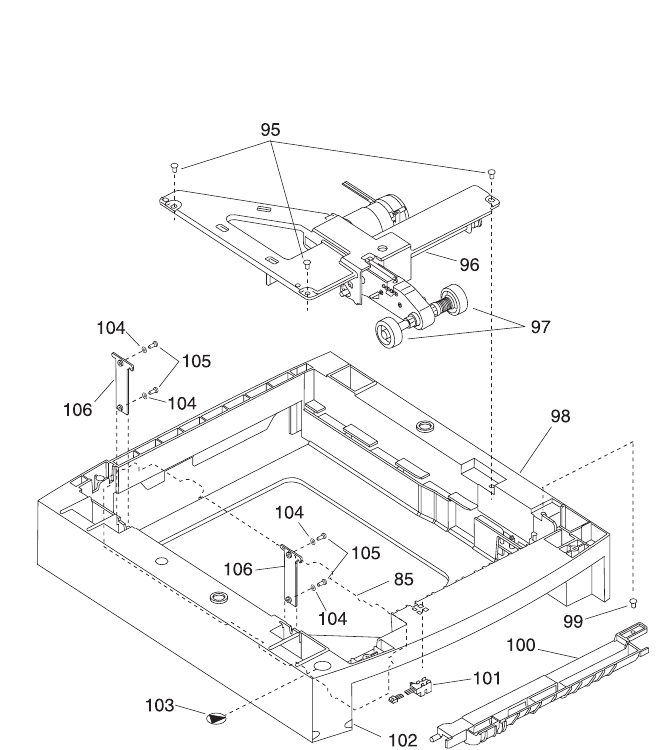
7-88 Service Manual
4069-XXX
Assembly 21: High Capacity Feeder (continued)

Parts Catalog 7-89
4069-XXX
Asm-
Index Part
Number Units Description
21-95 3 Screw, Auto Comp Assembly Mounting
PP 99A0263
21-96 99A1055 1 Arm Assembly, Pick 2000
21-97 99A0070 2 Roll Assembly, Pick
21-98 99A0692 1 Base, 2000 Option
21-99 1 Screw, Deflector Mounting PP 99A0263
21-100 99A0678 1 Deflector, Base
21-101 99A0288 1 Sensor, Pass Thru
21-102 99A1812 1 Label, Tray Option Number
21-103 99A1666 1 Label, Options
21-104 4 Washer, Bracket 250 Frame Retention
Mounting PP 99A0677
21-105 4 Screw, Bracket 250 Frame Retention
Mounting PP 99A0263
21-106 99A0679 2 Bracket, 250 Frame Retention
NS 99A0717 1 Cable, Paper Low Switch
NS 99A0720 1 Cable, Lower Limit Switch
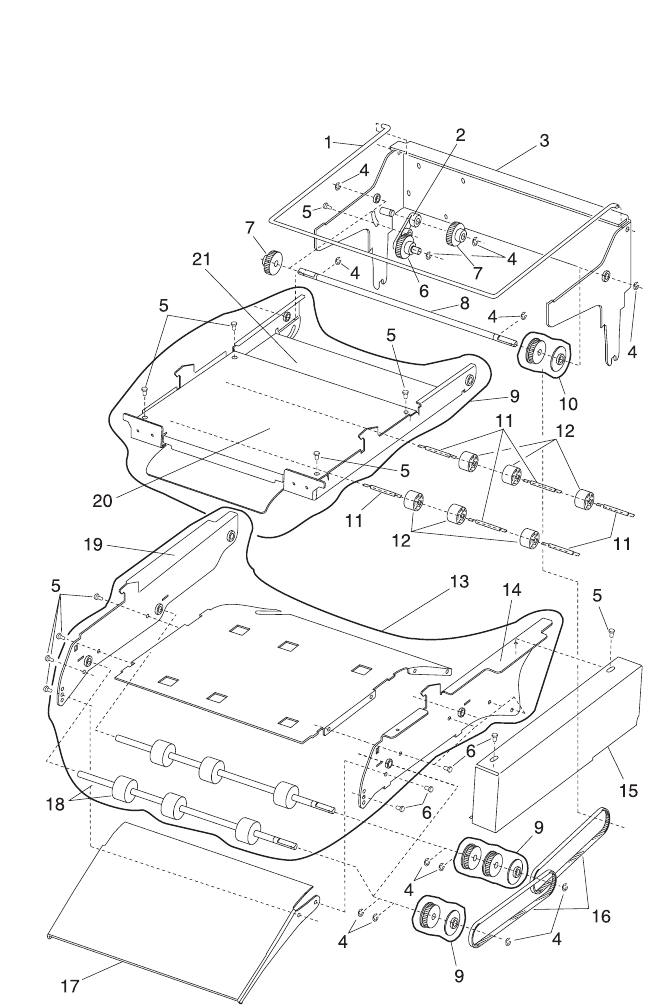
7-90 Service Manual
4069-XXX
Assembly 22: Kiosk - Vertical Paper Adapter

Parts Catalog 7-91
4069-XXX
Asm-
Index Part
Number Units Description
22-1 99A0231 1 Bail, Support
22-2 99A1646 1 Arm Assembly, Pivot
22-3 99A1819 1 Mounting, Frame Assembly
22-4 12 Retainer PP 99A0240
22-5 16 Screws PP 99A0234
22-6 99A1705 1 Gear, Idler
22-7 99A1704 2 Gear, Idler
22-8 99A0197 1 Shaft, Drive Rear
22-9 99A0079 1 Tray Assembly, Backup Roller
22-10 3 Parts, Pulley PP 99A0208
22-11 99A0087 6 Spring, Backup Roller
22-12 99A0086 6 Roller, Backup
22-13 99A1706 1 Tray Assembly, Drive Roller
22-14 99A0125 1 Frame Assembly, Right Side
22-15 99A0232 1 Cover, Right
22-16 99A1820 2 Belt, 185G
22-17 99A0226 1 Guide, Paper Exit
22-18 99A0122 2 Shaft Assembly, Drive Roller
22-19 99A0137 1 Frame Assembly, Left Side
22-20 99A0088 1 Cover, Backup Tray
22-21 99A0085 1 Tray, Backup Roller
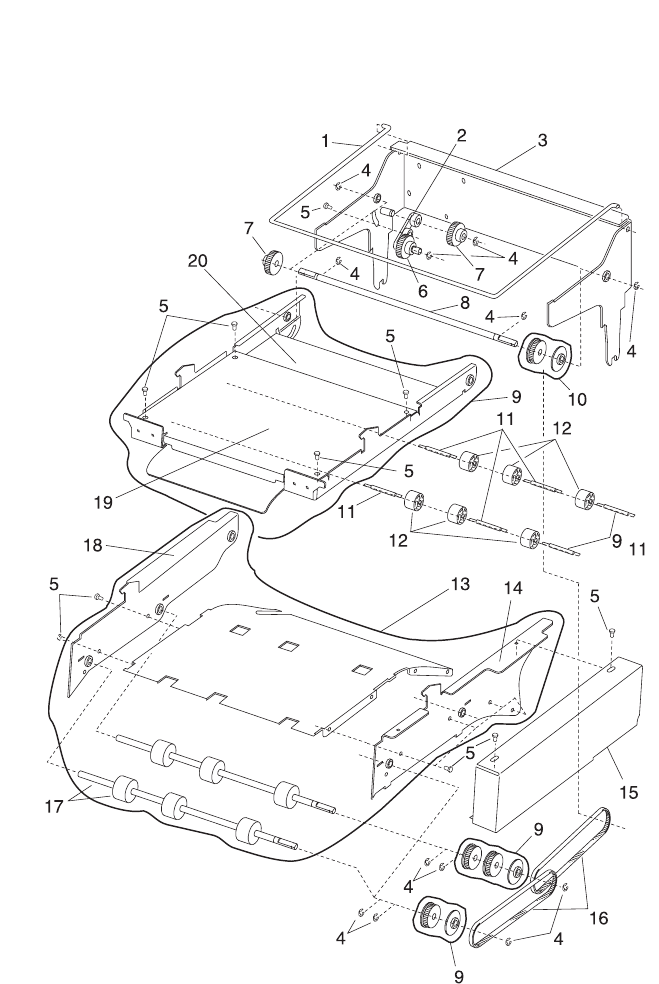
7-92 Service Manual
4069-XXX
Assembly 23: Kiosk - Horizontal Paper Adapter

Parts Catalog 7-93
4069-XXX
Asm-
Index Part
Number Units Description
23-1 99A0231 1 Bail, Support
23-2 99A1646 1 Arm Assembly, Pivot
23-3 99A1819 1 Mounting, Frame Assembly
23-4 12 Retainer PP 99A0240
23-5 15 Screws PP 99A0234
23-6 99A1705 1 Gear, Idler
23-7 99A1704 2 Gear, Idler
23-8 99A0197 1 Shaft, Drive Rear
23-9 99A0079 1 Tray Assembly, Backup Roller
23-10 3 Parts, Pulley PP 99A0208
23-11 99A0087 6 Spring, Backup Roller
23-12 99A0086 6 Roller, Backup
23-13 99A1707 1 Tray Assembly, Drive Roller
23-14 99A0907 1 Frame Assembly, Right Side
23-15 99A0232 1 Cover, Right
23-16 99A1820 2 Belt, 185G
23-17 99A0122 2 Shaft Assembly, Drive Roller
23-18 99A0906 1 Frame Assembly, Left Side
23-19 99A0088 1 Cover, Backup Tray
23-20 99A0085 1 Tray, Backup Roller
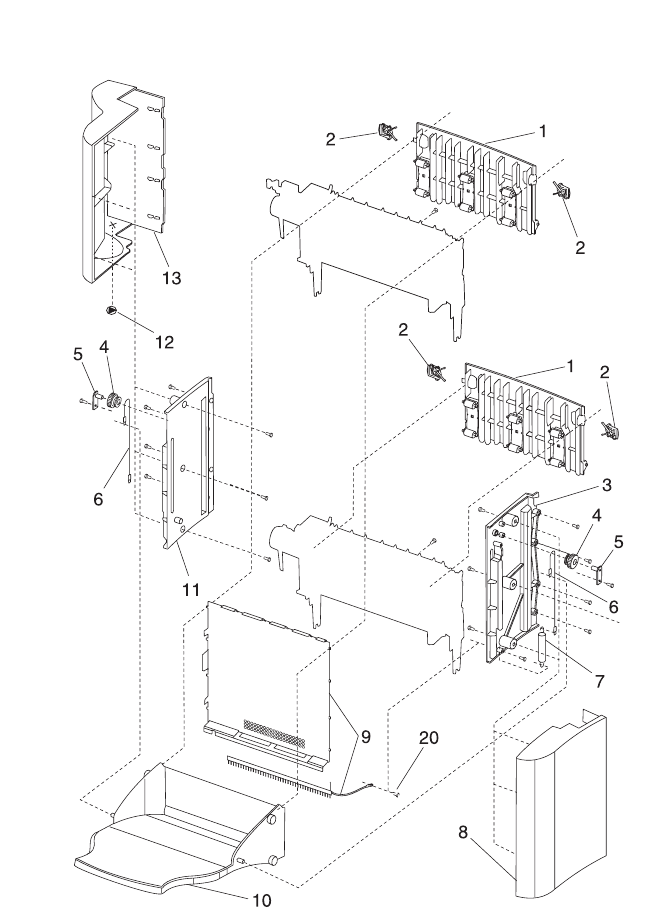
7-94 Service Manual
4069-XXX
Assembly 24: High-Capacity Output Stacker

Parts Catalog 7-95
4069-XXX
Asm-
Index Part
Number Units Description
24-1 99A1748 2 Door Asm, Rear Access
24-2 99A1785 4 Latch, Rear Door
24-3 99A1783 1 Frame, Right
24-4 99A1778 2 Pulley, Output Tray
24-5 99A1782 2 Shaft, Pulley
24-6 99A1790 2 Guide, Output Tray
24-7 99A1779 2 Spring, Output Tray
24-8 99A1746 1 Cover, Right
24-9 99A1747 1 Cover, Front
24-10 99A1701 1 Tray Asm, Output
24-11 99A1781 1 Frame, Left
24-12 99A1666 1 Label, Options
24-13 99A1745 1 Cover, Left
24-NS 99A1751 1 Switch Asm, Tray Sensing
24-NS 99A1777 1 Flag, Tray Sensing Switch
24-NS 99A1780 2 Gear, Damping
24-NS 99A1744 2 Kit, High-Capacity Output Stacker
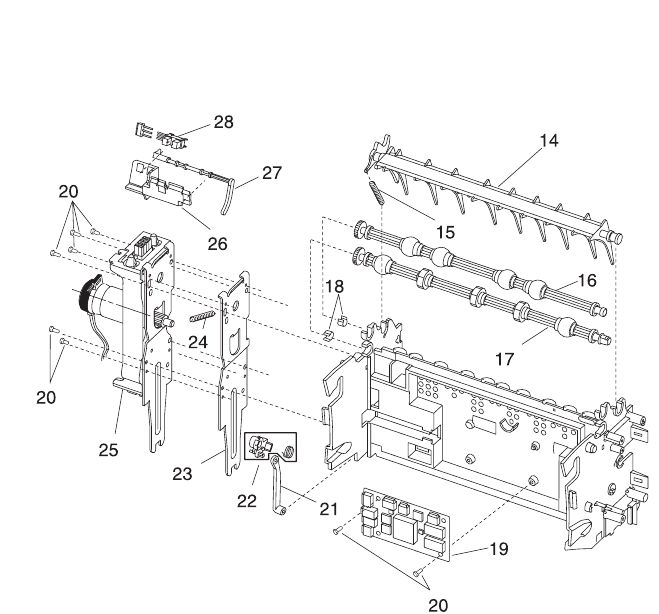
7-96 Service Manual
4069-XXX
Assembly 24: High-Capacity Output Stacker (cont’d)

Parts Catalog 7-97
4069-XXX
Asm-
Index Part
Number Units Description
24-14 99A0107 2 Deflector, Upper
Also order 99A0104
24-15 99A0104 2 Spring, Upper Diverter
24-16 99A0369 1 Shaft Asm, Exit Upper Stacker Asm
24-17 99A0052 1 Shaft Asm, Stacker Lower Exit Upper
Stacker Asm
24-18 12 Bearings, Shaft PP 99A0572
24-19 99A1749 2 Board Asm, High-Capacity Output Stacker
24-20 31 Screws, PP 99A0263
24-21 99A1688 1 Arm, Diverter
24-22 99A1689 1 Clutch Asm, Output Stacker
24-23 99A1784 2 Bracket, Attach
24-24 99A0415 2 Spring, Swing Arm
24-25 99A0914 2 Drive Asm, Output Stacker DC Motor
24-26 99A0409 1 Bracket, Dual Sensor Mounting Upper
Stacker Asm
24-27 99A1613 1 Flag, Bin Full Dual Sensor Upper Stacker
Asm
24-28 99A0414 1 Sensor Asm, Bin Full Dual Upper Stacker
Asm
24-NS 99A1690 1 Belt, 95G Lower Stacker Asm
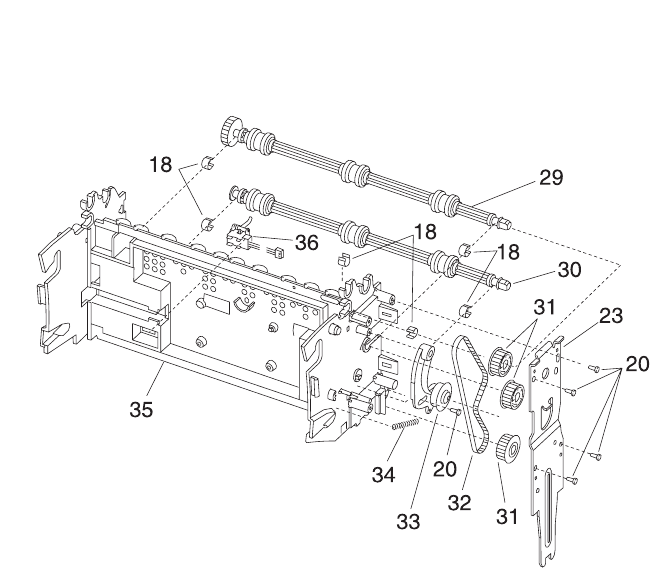
7-98 Service Manual
4069-XXX
Assembly 24: High-Capacity Output Stacker (cont’d)

Parts Catalog 7-99
4069-XXX
Asm-
Index Part
Number Units Description
24-29 99A0913 2 Shaft, 40T Middle Output Stacker
24-30 99A0368 2 Shaft Asm Lower
24-31 99A0363 6 Pulley, Drive
24-32 99A0361 1 Belt, 160G Upper Stacker Asm
24-33 99A0362 1 Arm Asm, Belt Idler
24-34 99A0364 2 Spring, Belt Tensioner
24-35 99A1791 1 Stacker Asm, Paper Path Lower
24-35 99A1792 1 Stacker, Asm Paper Path Upper
24-36 99A0351 2 Sensor, Stacker Passthru
24-NS 99A1751 1 Switch Asm
24-NS 99A0462 1 Packet Grease, IBM #23
24-NS 99A0627 1 Jumper, 2 pin
(Use with 99A1749)
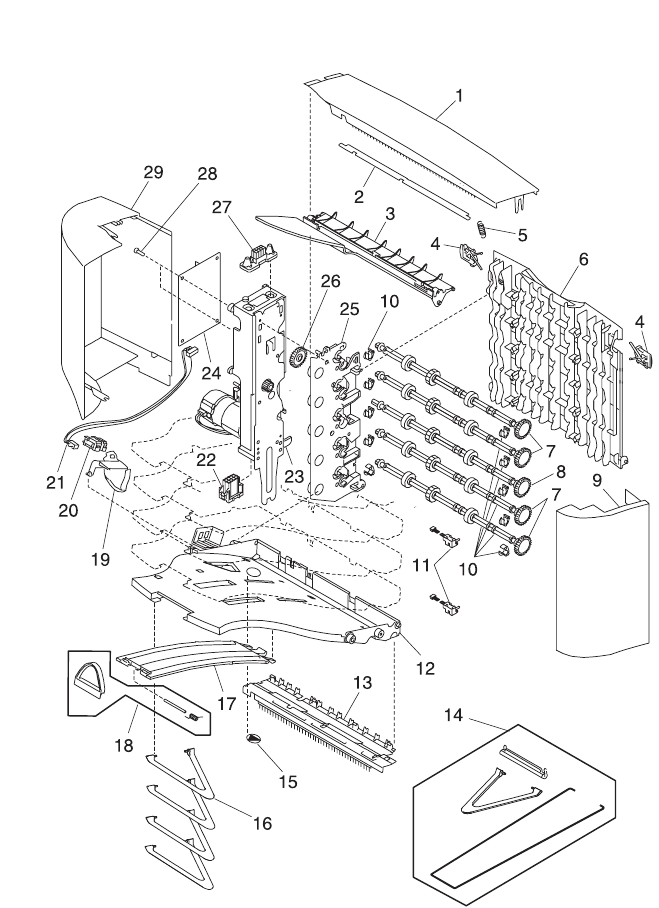
7-100 Service Manual
4069-XXX
Assembly 25: 5-Bin Mailbox

Parts Catalog 7-101
4069-XXX
Asm-
Index Part
Number Units Description
25-1 99A1512 1 Cover, Redrive Cap
25-2 99A1710 1 Cover, Wire
25-3 99A1711 1 Cover, Top Bin
25-4 99A1785 2 Latch, Rear Access Door
25-5 99A0104 1 Spring, Upper Diverter
25-6 99A1714 1 Door, Rear Access
25-7 99A1723 4 Shaft Asm, Drive
25-8 99A1724 1 Shaft Asm, Drive W/Gear
25-9 99A1708 1 Cover, Right Side
25-10 99A1725 1 Packet, Drive Shaft Bushing
25-11 99A1742 2 Sensor, 5-Bin Mailbox Passthru
25-12 99A1712 5 Tray, Paper Cap
25-13 99A1739 1 Bracket Asm, Bail Attach w/Brush
25-14 99A1743 1 Kit, 5-Bin Mailbox Asm
25-15 99A1666 1 Label, Options
25-16 1 Bail, order 99A1743, 5-Bin Mailbox Asm Kit
25-17 99A1713 5 Support, Paper Tray
25-18 99A1687 5 Stop Asm, Paper Tray
25-19 99A1735 5 Flag, Bin Full
25-20 99A1737 5 Sensor, Dual Paper Height
25-21 99A1736 5 Cable, Dual Sensor
25-22 99A1718 1 Cable Asm, Lower Auto Connect
25-23 99A1716 1 Drive Asm, Main DC Drive
25-24 99A1740 1 Board Asm, 5-Bin Mailbox System
25-25 99A1726 1 Frame Asm, Left w/Clutch Asm
25-26 99A1786 1 Gear, Drive
25-27 99A1719 1 Cable Asm, Upper Auto Connect
25-28 12 Screw, Board Mounting PP 99A0263
25-29 99A1709 1 Cover, Left Side
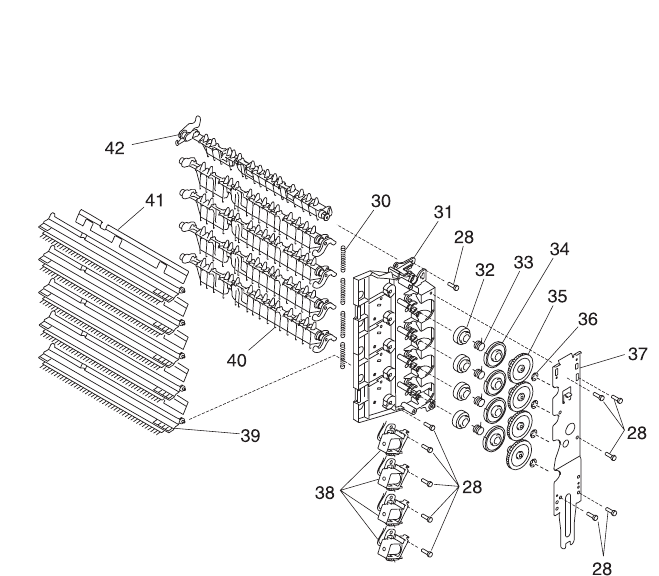
7-102 Service Manual
4069-XXX
Assembly 25: 5-Bin Mailbox (continued)

Parts Catalog 7-103
4069-XXX
Asm-
Index Part
Number Units Description
25-30 99A1741 4 Spring, Diverter
25-31 99A1727 1 Frame Asm, Right Side
25-32 99A1728 4 Cam, Diverter Actuator
25-33 99A1731 4 Spring, Diverter Actuator
25-34 99A1729 4 Latch, Diverter Actuator
25-35 99A1730 4 Arbor, Diverter Actuator
25-36 99A1789 4 C-Clip
25-37 99A1720 1 Bracket, Attach
25-38 99A1732 4 Solenoid, Diverter
25-39 99A1738 5 Deflector, Paper Exit w/Brush
25-40 99A1722 4 Deflector, Paper
25-41 99A1787 4 Deflector
25-42 99A1721 1 Deflector, Paper Top Bin
25-NS 99A1734 1 Spring, Static Ground
25-NS 99A0462 1 Grease Packet, IBM #23
25-NS 99A1715 1 Roller Asm, Rear Access Door
25-NS 99A1717 1 Gear, Drive
25-NS 99A1788 1 Retainer, R-Ring

7-104 Service Manual
4069-XXX
Assembly 26: Options
Asm-
Index Part
Number Units Description
26 99A1752 1 4MB SDRAM DIMM
26 99A1753 1 8MB SDRAM DIMM
26 99A1754 1 16MB SDRAM DIMM
26 99A1755 1 32MB SDRAM DIMM
26 99A1756 1 64MB SDRAM DIMM
26 99A1773 1 128MB SDRAM DIMM
26 99A1757 1 2MB Flash DIMM
26 99A1758 1 4MB Flash DIMM
26 99A1759 1 8MB Flash DIMM
26 99A1774 1 16MB Flash DIMM
26 99A1886 1 DIMM, Font Traditional Chinese
26 99A1887 1 DIMM, Font Simplified Chinese
26 99A1885 1 DIMM, COS (supports Chinese fonts)
26 99A1126 1 SIMM, Bar Code
26 99A1089 1 SIMM, Prescribe 5/4/2 Flash
26 99A1884 1 SIMM for IPDS and SCS/Tne
26 99A0459 1 Hard Disk, with Control Board 2.1GB
26 99A1084 1 SIMM, IPDS 5/4/2 Flash
26 99A0629 1 Adapter Card, SES for SCS
26 13A0296 1 Cable, Twinax
26 13A0297 1 Cable, Coax
26 99A0545 1 Adapter, Serial
26 13A0298 1 Cable, Serial
26 99A0467 1 Board, Parallel Port Adapter
26 99A0923 1 Board, USB/Parallel Port
26 99A1859 1 SIMM, Image Quick Tiff
26 99A1031 1 SIMM, Image Quick Web

Parts Catalog 7-105
4069-XXX
Assembly 26: Options (continued)
Asm-
Index Part
Number Units Description
26 99A1890 1 Tray Assembly, 250 Special Media
010/212/414/616/41b/41l/23v/23e
26 99A1647 1 Rib Assembly, 250 Special Media Tray
010/212/414/616/41b/41l/23v/23e
26 99A1654 1 Tray, Universal Adjustable 250 Sheet
26 99A0910 1 Cartridge, Empty Shipping (2)
26 99A0909 1 Cartridge, Empty Shipping (1)
26 99A0863 1 Stacking Device, Integrated Label/Letter
26 99A0864 1 Stacking Device, Integrated Label/Letter
26 99A0865 1 Stacking Device, Legal Label
26 99A0799 1 Drive, Forms HD 2.1GB or larger
26 99A1605 1 Kit, Cap/Stack Bails 500
26 99A0945 1 Kit, Paper Stacking Arm
26 99A1830 1 Marknet N2001e 10/100 ethernet
26 12G1696 1 Marknet N2002e 10base2/10baseT
26 12G1697 1 Marknet N2000t 4/16
26 99A0560 1 Adapter, Omnibus INA Card
26 99A1889 1 Paper Presentator, Front 010/212/23v/23e/
41e/0ln/2ln
26 99A1950 1 Tray Feature, Photo Gab Tray Assembly
25v/25e
26 99A1951 1 Spring, Photo Bag Transfer 25v/25e

7-106 Service Manual
4069-XXX
Assembly 27: Miscellaneous
Asm-
Index Part
Number Units Description
27 99A1633 1 Parts Packet, Screws
27 99A0585 1 Parts Packet, Contact Kit
27 99A0267 1 Parts Packet, Retainers
27 99A0268 1 Parts Packet, Springs Paper Feed
27 99A0269 1 Parts Packet, Duplex Option Fan Mounting
27 99A0299 1 Parts Packet, Duplex Option Cam Follower
Assembly
27 99A0271 1 Parts Packet, Envelope Option Gears
27 99A0404 1 Parts Packet, Retainers Envelope Option
27 99A0413 1 Parts Packet, Screws Duplex
27 99A0572 1 Parts Packet, 500 Sheet Feeder Option Shaft
Bearings
27 99A0577 1 Parts Packet, Cable Ties (10 each)
27 99A0675 1 Parts Packet, Screws High Capacity Feeder
27 99A0676 1 Parts Packet, Nuts High Capacity Feeder
27 99A0677 1 Parts Packet, Washers High Capacity Feeder
27 99A0083 1 Parts Kit, Multipurpose Tray
27 99A0512 1 Parts Kit, Charge Roll Link Asm, Left Side
27 99A0513 1 Parts Kit, Charge Roll Link Asm, Right Side
27 99A0186 1 Parts Kit, Erase Lamp/Lens
27 99A0702 2 Printer Stand Caster, Non Locking
27 99A0703 2 Printer Stand Caster, Locking
27 99A0704 1 Printer Stand Grommet, Wire
27 99A0705 2 Printer Stand Lock, Cam
27 99A0706 1 Printer Stand Storage Shelf
27 99A0707 1 Printer Stand Door Assembly, Cabinet
27 99A0710 1 Printer Stand Filler, Rear Top Piece
27 99A0711 1 Printer Stand Table Assembly, Large
27 99A0712 1 Printer Stand Table Assembly, Small

Parts Catalog 7-107
4069-XXX
Assembly 27:Miscellaneous (continued)
Asm-
Index Part
Number Units Description
27 99A0208 1 Parts Packet, Pulley - Kiosk
27 99A0234 1 Parts Packet, Screws - Kiosk
27 99A0394 1 Grease Packet, Nyogel 744
27 99A0462 1 Grease Packet, IBM 23
27 99A1852 1 Packaging, 4069 250/250 printer
27 99A1853 1 Packaging, 4069 500/250 printer
27 99A1854 1 Packaging, 4069 500/500 printer
27 99A1855 1 Packaging, 4069 500/500 plus 500 printer
27 99A0240 1 Parts Packet, Retainer

7-108 Service Manual
4069-XXX

Index I-1
4069-XXX
Index
A
Acronyms 1-5
Adjustment Procedures 4-2
Duplex Motor Drive Belts 4-2
Fuser Solenoid (HBR) 4-3
Gap Adjustment 4-3
Paper Alignment Assembly 4-5
Printhead Assembly 4-4
Autoconnect 5-19
B
Base Sensor Test 3-17
Button Test 3-9
C
Connector Locations
Autoconnect 5-19
Duplex Option Board 5-17
Engine Board 5-4
Envelope Option Board 5-15
Fuser Board 5-11
High Voltage Power Supply 5-3
High-Capacity Output Stacker Board
5-22
Interconnect Board 5-12
LVPS 5-1
Output Expander Control Board
5-20
D
Diagnostic Aids 3-1
Device Tests 3-2
Disk Test/Clean 3-2
Flash Test 3-3
Quick Disk Test 3-2
Diagnostic Mode 3-1
Duplex Tests 3-4
Duplex Feed 1 Test 3-7
Duplex Feed 2 Test 3-7
Duplex Motor Test 3-5
Duplex Quick Test 3-4
Duplex Sensor Test 3-5
Error Log 3-8
Clearing the Error Log 3-8
Viewing the Error Log 3-8
Hardware Tests 3-9
Button Test 3-9
LCD Test 3-9
Parallel Wrap Test 3-11
ROM Memory Test 3-10
SDRAM Memory Test 3-10
Serial Wrap Test 3-12
Input Tray Tests 3-14
Input Tray Feed Test 3-14
Paper Feed Tests
Base Sensor Test 3-17
Input Tray Sensor Test 3-14
Output Bin Feed Test 3-15
Output Bin Sensor Test 3-16
Output Bin Test - Standard Bin
3-15
Output Bin X Sensor Test 3-16
5-Bin Mailbox Diverter Test 3-18
Print Registration 3-19
Print Tests 3-23
Printer Setup 3-20
Maintenance Page Count 3-21
Restore EP Factory Defaults
3-22
Setting Configuration ID 3-21
Setting the Page Count 3-20
Viewing the Permanent Page
Count 3-20
Diagnostic Mode 3-1
Disabling Download Emulations 3-3
Disk Test/Clean 3-2
Duplex Option Board Connectors
5-17
Duplex Tests 3-4
E
Engine Board Connectors 5-4
Envelope Option Board Connectors
5-15
Error Codes

I-2 Service Manual
4069-XXX
Service Error Codes 2-2
User Error Messages 2-16
Error Log 3-8
ESD-Sensitive Parts 4-1
F
Flash Test 3-3
Fuser Board 5-11
G
Gap Adjustment 4-3
H
Hardware Tests 3-9
High-Capacity Output Stacker Board
5-22
HVPS Connectors 5-3
I
Input Tray Feed Test 3-14
Input Tray Sensor Test 3-14
Interconnect Board Connectors 5-12
L
Laser Notices ix
LCD Test 3-9
Lubrication Specifications 6-1
LVPS Connectors 5-1
M
Maintenance Approach 1-4
Maintenance Page Count 3-21
Maintenance, Preventive 6-1
Maintenance, Scheduled 6-2
Messages
Check Device Connection Messages
2-22
Service Error Codes 2-2
User Error Messages 2-16
User Line 2 Link Messages 2-21
User Line 2 Messages 2-20
User Status Messages 2-12
O
Output Bin Feed Test 3-15
Output Bin Sensor Test 3-16
Output Bin Test - Standard Bin 3-15
Output Bin X Sensor Test 3-16
Output Expander Control Board 5-20
P
Parallel Wrap Test 3-11
Parts Catalog 7-1
Charging 7-36
Covers 7-4
Developer Drive 7-28
Duplex 7-62
Electronics 7-38
Envelope Feeder 7-72
Frame 7-8
High Capacity Feeder 7-76
High-Capacity Output Stacker 7-94
Hot Roll Fuser 7-30
Integrated Paper Tray - 250 Sheet
7-22
Integrated Paper Tray - 500 Sheet
7-24
Kiosk - Horizontal Paper Adapter
7-92
Kiosk - Vertical Paper Adapter 7-90
Main Drive 7-26
Miscellaneous 7-106
Options 7-104
Output Expander 7-68
Paper Feed
Alignment 7-18
Autocompensator 7-14
Multipurpose Unit 7-16
Output 7-20
Printhead 7-12
Transfer 7-34
250 Sheet Tray 7-52
5-Bin Mailbox 7-100
500 Sheet Tray 7-58
Power-On Self Test (POST) 2-24
Preventive Maintenance 6-1
Q
Quick Disk Test 3-2

Index I-3
4069-XXX
R
Removal Procedures 4-12
Removals
Center Pan Assembly 4-16
Controller Board 4-17
Covers 4-12
Developer Drive Assembly 4-18
Duplex Board 4-19
Duplex Front Cover Assembly 4-19
Duplex Front Cover Door 4-19
Duplex Motor 4-20
EMC Shields 4-21
Inner EMC Shield 4-21
Outer EMC Shield 4-22
Engine Board 4-23
Fans 4-24
Frames 4-26
EP Frame Assembly 4-26
Left Side Frame 4-26
Right Side Frame 4-28
Fuser 4-29
Fuser Board 4-30
Fuser Cover 4-31
Fuser Detack Fingers 4-31
Fuser Detack Housing Assembly
4-32
Fuser Envelope Solenoid 4-34
Fuser Exit Sensor Flag Assembly
4-35
Fuser Lamp 4-35
Fuser Lower Exit Guide Assembly
4-36
Fuser Narrow Media Sensor/Flag
Assembly 4-35
Fuser Transfer Plate 4-33
HVPS 4-37
Integrated Tray Compensator
Assembly 4-38
Integrated Tray Compensator Pick
Roll Assembly 4-39
Interconnect Board Assembly 4-40
LVPS 4-42
Main Drive Assembly 4-43
Main Drive Motor 4-45
Multipurpose Tray/Lower Deflector
Assembly 4-46
Operator Panel 4-48
Operator Panel Cable/Cover Open
Switch Assembly 4-49
Optional Paper Tray Assembly 4-50
Paper Alignment Assembly 4-51
Paper Deflectors 4-53
Inner Paper Deflector Assembly
4-53
Upper Paper Deflector Assembly
4-53
Paper Input Sensor 4-54
Paper Size Sensing Board 4-54
Pick Roll 4-55
Printhead 4-56
Redrive Assembly 4-57
Smart Cartridge Contacts 4-58
Toner Sensor 4-59
Transfer Roll Assembly 4-60
Upper Front Cover Hinge Assembly
4-61
Upper Front Cover Interlock Switch
Assembly 4-62
Restore EP Factory Defaults 3-22
ROM Memory Test 3-10
S
Safety Information xvii
Safety Inspection Guide 6-1
Scheduled Maintenance 6-2
Screw Identification Table 4-7
SDRAM Memory Test 3-10
Serial Wrap Test 3-12
Service Checks
Charge Roll 2-29
Cover Open Switch/Cable 2-31
Dead Machine 2-32
Duplex Option 2-35
Envelope Feeder Option 2-38
Erase Lamp 2-45
Fan 2-46
Fuser 2-47
Hot Roll Fuser 2-47
Fuser Solenoid 2-50
High Capacity Feeder Input Tray
2-55
High-Capacity Output Stacker 2-79

I-4 Service Manual
4069-XXX
Input Sensor 2-51
Input Tray(s) Option 2-51
Main Drive 2-68
Operator Panel 2-69
Options 2-71
Output Bin Sensor 2-73
Output Expander 2-74
Paper Feed 2-88
Parallel Port 2-90
Print Quality 2-92
Printhead 2-91
Serial Port 2-106
Smart Cartridge 2-105
Toner Sensor 2-106
Transfer Roll 2-107
5-Bin Mailbox 2-82
Setting Configuration ID 3-21
Setting the Page Count 3-20
Status Messages 2-12
Symptom Tables 2-25
Base Printer 2-25
Duplex 2-27
Envelope Feeder Option 2-27
High Capacity Feeder Option 2-26
Output Expander Option 2-28
Paper Tray Options 2-27
U
Unique Tools 1-4
User Line 2 Link Messages 2-21
User Line 2 Messages 2-20
User Status Messages 2-12
V
Viewing the Permanent Page Count
3-20
Part Numbers
12G1696 7-105
12G1697 7-105
13A0296 7-104
13A0297 7-104
13A0298 7-104
1339537 7-39
1339538 7-39
1339539 7-39
1339540 7-39
1339541 7-39
1339542 7-39
1339543 7-39
1339544 7-39
1339545 7-39
1339546 7-39
1342514 7-39
1342530 7-39
1342534 7-39
1342536 7-39
1374067 7-39
43H5248 7-39
99A0004 7-7
99A0007 7-7
99A0026 7-11, 7-55, 7-59
99A0028 7-9
99A0039 7-11
99A0049 7-9, 7-49
99A0052 7-69, 7-97
99A0053 7-11, 7-49
99A0055 7-11
99A0058 7-9, 7-55, 7-59, 7-67
99A0060 7-15
99A0063 7-11, 7-53, 7-61
99A0070 7-15, 7-55, 7-59, 7-89
99A0071 7-17
99A0072 7-17, 7-49
99A0073 7-17
99A0074 7-17
99A0075 7-17
99A0076 7-17
99A0078 7-17, 7-49
99A0079 7-91, 7-93
99A0081 7-17
99A0082 7-17
99A0083 7-17, 7-106
99A0084 7-17
99A0085 7-91, 7-93
99A0086 7-91, 7-93
99A0087 7-91, 7-93
99A0088 7-91, 7-93
99A0089 7-19
99A0104 7-21, 7-69, 7-97, 7-101
99A0107 7-97
99A0113 7-9
99A0119 7-23, 7-57

Index I-5
4069-XXX
99A0120 7-23, 7-25, 7-57, 7-59
99A0121 7-23, 7-57
99A0122 7-91, 7-93
99A0124 7-23, 7-25, 7-57, 7-59
99A0125 7-91
99A0126 7-23, 7-25, 7-57, 7-59
99A0127 7-23, 7-57
99A0128 7-11, 7-47
99A0129 7-27, 7-47
99A0134 7-27
99A0136 7-29
99A0137 7-91
99A0138 7-9, 7-47
99A0142 7-33
99A0143 7-33
99A0144 7-31
99A0145 7-33
99A0148 7-33
99A0150 7-33
99A0157 7-33
99A0158 7-31
99A0159 7-31
99A0160 7-31
99A0167 7-33
99A0173 7-31, 7-51
99A0181 7-35
99A0184 7-35
99A0185 7-35
99A0186 7-35, 7-49, 7-106
99A0188 7-81
99A0191 7-65
99A0197 7-91, 7-93
99A0205 7-39
99A0206 7-45
99A0207 7-45
99A0208 7-107
99A0214 7-41
99A0215 7-39
99A0219 7-81
99A0226 7-91
99A0231 7-91, 7-93
99A0232 7-91, 7-93
99A0234 7-107
99A0240 7-107
99A0247 7-51
99A0250 7-51
99A0255 7-47
99A0256 7-47
99A0257 7-47
99A0260 7-27, 7-45
99A0267 7-106
99A0268 7-106
99A0269 7-106
99A0271 7-106
99A0272 7-55, 7-87
99A0273 7-55, 7-61, 7-87
99A0274 7-55, 7-61, 7-65, 7-87
99A0275 7-27, 7-55, 7-61, 7-87
99A0276 7-53, 7-61, 7-87
99A0277 7-53, 7-87
99A0278 7-55, 7-87
99A0279 7-55, 7-61, 7-65, 7-87
99A0280 7-55, 7-61, 7-65, 7-87
99A0281 7-55, 7-61, 7-87
99A0282 7-53, 7-61
99A0286 7-57, 7-61, 7-87
99A0288 7-55, 7-59, 7-89
99A0292 7-25, 7-59
99A0297 7-33
99A0299 7-106
99A0307 7-67
99A0308 7-67
99A0310 7-65
99A0311 7-65
99A0312 7-63
99A0315 7-65
99A0316 7-65
99A0317 7-65
99A0319 7-67
99A0321 7-63
99A0322 7-63
99A0323 7-63
99A0324 7-63
99A0325 7-65
99A0326 7-63
99A0328 7-63
99A0329 7-63
99A0330 7-67
99A0332 7-67
99A0334 7-67
99A0335 7-67
99A0336 7-67
99A0337 7-67
99A0340 7-63

I-6 Service Manual
4069-XXX
99A0341 7-65
99A0342 7-65
99A0346 7-43
99A0349 7-35
99A0350 7-53, 7-59
99A0351 7-71, 7-99
99A0361 7-71, 7-99
99A0362 7-71, 7-99
99A0363 7-71, 7-99
99A0364 7-71, 7-99
99A0368 7-71, 7-99
99A0369 7-69, 7-97
99A0371 7-71
99A0372 7-69
99A0382 7-73
99A0384 7-75
99A0385 7-75
99A0388 7-73
99A0389 7-73
99A0390 7-73
99A0392 7-79
99A0393 7-73
99A0394 7-107
99A0400 7-73
99A0404 7-106
99A0405 7-59
99A0408 7-45
99A0409 7-69, 7-97
99A0410 7-33
99A0413 7-106
99A0414 7-69, 7-97
99A0415 7-69, 7-97
99A0419 7-55, 7-59
99A0426 7-41
99A0427 7-75
99A0434 7-65
99A0435 7-67
99A0438 7-55, 7-61
99A0445 7-53, 7-87
99A0446 7-61, 7-87
99A0447 7-59
99A0448 7-53
99A0450 7-53, 7-61
99A0451 7-53, 7-61, 7-87
99A0452 7-61
99A0459 7-104
99A0462 7-99, 7-103, 7-107
99A0466 7-11, 7-49
99A0467 7-104
99A0469 7-75
99A0481 7-69
99A0482 7-69
99A0484 7-73
99A0485 7-73
99A0487 7-73
99A0488 7-73
99A0489 7-73
99A0490 7-19
99A0491 7-73
99A0492 7-19
99A0494 7-75
99A0512 7-37, 7-106
99A0513 7-37, 7-106
99A0545 7-104
99A0549 7-11
99A0556 7-11
99A0559 7-19
99A0560 7-105
99A0564 7-29
99A0565 7-19
99A0566 7-19
99A0567 7-11
99A0571 7-69
99A0572 7-106
99A0576 7-49
99A0577 7-7, 7-106
99A0585 7-106
99A0627 7-53, 7-65, 7-99
99A0629 7-104
99A0650 7-79
99A0651 7-83
99A0653 7-81
99A0654 7-83
99A0655 7-79
99A0656 7-77
99A0657 7-79
99A0658 7-79
99A0659 7-83
99A0660 7-77
99A0661 7-79
99A0662 7-77
99A0663 7-81
99A0664 7-81
99A0667 7-83

Index I-7
4069-XXX
99A0675 7-106
99A0676 7-106
99A0677 7-106
99A0678 7-89
99A0679 7-53, 7-89
99A0681 7-77
99A0684 7-83
99A0685 7-83
99A0690 7-79
99A0691 7-77
99A0692 7-89
99A0695 7-83
99A0698 7-77
99A0702 7-106
99A0703 7-106
99A0704 7-106
99A0705 7-106
99A0706 7-106
99A0707 7-106
99A0710 7-106
99A0711 7-106
99A0712 7-106
99A0714 7-81
99A0715 7-83
99A0716 7-77
99A0717 7-89
99A0719 7-81
99A0720 7-89
99A0725 7-31
99A0799 7-105
99A0801 7-27, 7-47
99A0803 7-9, 7-47
99A0815 7-5, 7-49
99A0816 7-5
99A0833 7-31
99A0834 7-5
99A0863 7-105
99A0864 7-105
99A0865 7-105
99A0867 7-9
99A0889 7-51
99A0893 7-23, 7-57
99A0897 7-33
99A0899 7-11
99A0904 7-9
99A0906 7-93
99A0907 7-93
99A0909 7-105
99A0910 7-105
99A0912 7-71
99A0913 7-71, 7-99
99A0914 7-69, 7-97
99A0915 7-69
99A0919 7-31
99A0923 7-104
99A0945 7-105
99A0952 7-67
99A0954 7-27
99A1015 7-35
99A1017 7-37
99A1031 7-104
99A1054 7-53
99A1055 7-89
99A1056 7-15
99A1059 7-67
99A1084 7-104
99A1089 7-104
99A1126 7-104
99A1130 7-63
99A1131 7-65
99A1133 7-63
99A1134 7-63
99A1164 7-67
99A1280 7-67
99A1290 7-67
99A1501 7-7, 7-49
99A1502 7-7
99A1503 7-5
99A1504 7-5
99A1505 7-5
99A1506 7-5
99A1507 7-5
99A1509 7-7
99A1510 7-7
99A1511 7-7
99A1512 7-5, 7-101
99A1514 7-11
99A1515 7-9
99A1516 7-9
99A1517 7-11
99A1518 7-9
99A1519 7-9
99A1520 7-31
99A1521 7-31

I-8 Service Manual
4069-XXX
99A1522 7-11
99A1524 7-11
99A1525 7-11
99A1526 7-13, 7-51
99A1527 7-13, 7-51
99A1528 7-13, 7-51
99A1530 7-15
99A1531 7-17
99A1533 7-21
99A1534 7-21
99A1535 7-9
99A1536 7-23, 7-57
99A1537 7-23, 7-25, 7-57, 7-59
99A1538 7-11
99A1540 7-11
99A1541 7-11
99A1543 7-27, 7-47
99A1544 7-29
99A1546 7-11
99A1547 7-33
99A1548 7-33
99A1549 7-31
99A1550 7-33
99A1551 7-33, 7-51
99A1553 7-31, 7-51
99A1554 7-33, 7-51
99A1555 7-37
99A1566 7-45
99A1569 7-27
99A1570 7-45
99A1571 7-45
99A1573 7-51
99A1575 7-51
99A1576 7-25, 7-59
99A1577 7-7, 7-49
99A1578 7-35
99A1579 7-63
99A1580 7-9
99a1580 7-69
99A1581 7-41
99A1582 7-25, 7-59
99A1583 7-59
99A1584 7-31
99A1585 7-31
99A1586 7-21
99A1587 7-7
99A1588 7-9
99A1591 7-33
99A1592 7-9
99A1593 7-5, 7-49
99A1594 7-7
99A1595 7-5
99A1596 7-11
99A1597 7-33
99A1598 7-31
99A1599 7-33
99A1600 7-33
99A1601 7-23, 7-25, 7-57, 7-59
99A1602 7-25, 7-59
99A1603 7-31, 7-51
99A1604 7-21
99A1605 7-105
99A1607 7-41
99A1608 7-17
99A1609 7-15
99A1610 7-45
99A1611 7-45
99A1612 7-43, 7-51
99A1613 7-9, 7-97
99A1616 7-15
99A1617 7-41
99A1621 7-31
99A1631 7-31
99A1632 7-47
99A1633 7-106
99A1634 7-67
99A1636 7-59
99A1637 7-57
99A1638 7-55
99A1639 7-33
99A1640 7-41
99A1642 7-33
99A1643 7-9
99A1644 7-21
99A1645 7-61
99A1646 7-91, 7-93
99A1647 7-105
99A1648 7-33, 7-51
99A1649 7-31
99A1651 7-33, 7-51
99A1654 7-105
99A1658 7-33
99A1659 7-33
99A1660 7-31

Index I-9
4069-XXX
99A1661 7-31
99A1662 7-9
99A1664 7-61
99A1665 7-61
99A1666 7-55, 7-59, 7-65, 7-69,
7-73, 7-89, 7-95, 7-101
99A1667 7-61
99A1668 7-65
99A1669 7-65
99A1672 7-67
99A1673 7-63
99A1674 7-63
99A1675 7-63
99A1676 7-67
99A1677 7-65
99A1679 7-67
99A1680 7-63
99A1682 7-65
99A1687 7-101
99A1688 7-69, 7-97
99A1689 7-69, 7-97
99A1690 7-97
99A1691 7-67
99A1692 7-67
99A1693 7-63
99A1694 7-73
99A1695 7-67
99A1696 7-73
99A1697 7-73
99A1698 7-75
99A1699 7-75
99A1700 7-73
99A1701 7-95
99A1702 7-61
99A1704 7-91, 7-93
99A1705 7-91, 7-93
99A1706 7-91
99A1707 7-93
99A1708 7-101
99A1709 7-101
99A1710 7-101
99A1711 7-101
99A1712 7-101
99A1713 7-101
99A1714 7-101
99A1715 7-103
99A1716 7-101
99A1717 7-103
99A1718 7-101
99A1719 7-101
99A1720 7-103
99A1721 7-103
99A1722 7-103
99A1723 7-101
99A1724 7-101
99A1725 7-101
99A1726 7-101
99A1727 7-103
99A1728 7-103
99A1729 7-103
99A1730 7-103
99A1731 7-103
99A1732 7-103
99A1734 7-103
99A1735 7-101
99A1736 7-101
99A1737 7-101
99A1738 7-103
99A1739 7-101
99A1740 7-101
99A1741 7-103
99A1742 7-101
99A1743 7-101
99A1744 7-95
99A1745 7-95
99A1746 7-95
99A1747 7-95
99A1748 7-71, 7-95
99A1749 7-97
99A1750 7-25, 7-61
99A1751 7-95, 7-99
99A1752 7-104
99A1753 7-104
99A1754 7-104
99A1755 7-104
99A1756 7-104
99A1757 7-104
99A1758 7-104
99A1759 7-104
99A1773 7-104
99A1774 7-104
99A1775 7-5
99A1777 7-95
99A1778 7-95

I-10 Service Manual
4069-XXX
99A1779 7-95
99A1780 7-95
99A1781 7-95
99A1782 7-95
99A1783 7-95
99A1784 7-23, 7-69
99A1785 7-95, 7-101
99A1786 7-101
99A1787 7-103
99A1788 7-103
99A1789 7-103
99A1790 7-95
99A1791 7-99
99A1792 7-99
99A1795 7-85
99A1796 7-85
99A1797 7-85
99A1798 7-85
99A1799 7-85
99A1800 7-85
99A1801 7-85
99A1802 7-85
99A1803 7-85
99A1804 7-85
99A1805 7-85
99A1806 7-79
99A1807 7-81
99A1808 7-81
99A1809 7-77
99A1812 7-23, 7-25, 7-89
99A1817 7-69
99A1818 7-77
99A1819 7-91, 7-93
99A1820 7-91, 7-93
99A1822 7-41
99A1823 7-41
99A1829 7-59, 7-77
99A1830 7-105
99A1832 7-9
99A1833 7-11
99A1850 7-11
99A1852 7-107
99A1853 7-107
99A1854 7-107
99A1855 7-107
99A1857 7-21, 7-69
99A1859 7-104
99A1863 7-41
99A1867 7-13, 7-51
99A1869 7-39
99A1871 7-39
99A1873 7-13, 7-51
99A1875 7-41
99A1878 7-39
99A1879 7-9
99A1884 7-104
99A1885 7-104
99A1886 7-104
99A1887 7-104
99A1889 7-105
99A1890 7-105
99A1894 7-57
99A1895 7-25, 7-59
99A1896 7-11
99A1897 7-11
99A1902 7-31
99A1904 7-63
99A1923 7-39
99A1924 7-9
99A1927 7-15
99A1928 7-61
99A1929 7-55
99A1930 7-15
99A1943 7-41
99A1944 7-41
99A1950 7-61, 7-105
99A1951 7-61, 7-105
99A1952 7-23, 7-25, 7-57, 7-59
99A1953 7-19
99A1954 7-43
99A1955 7-43
99A1956 7-43
99A1957 7-43
99A1958 7-43
99A1959 7-43
99A1960 7-43
99A1967 7-53, 7-59, 7-87
99A1968 7-9
