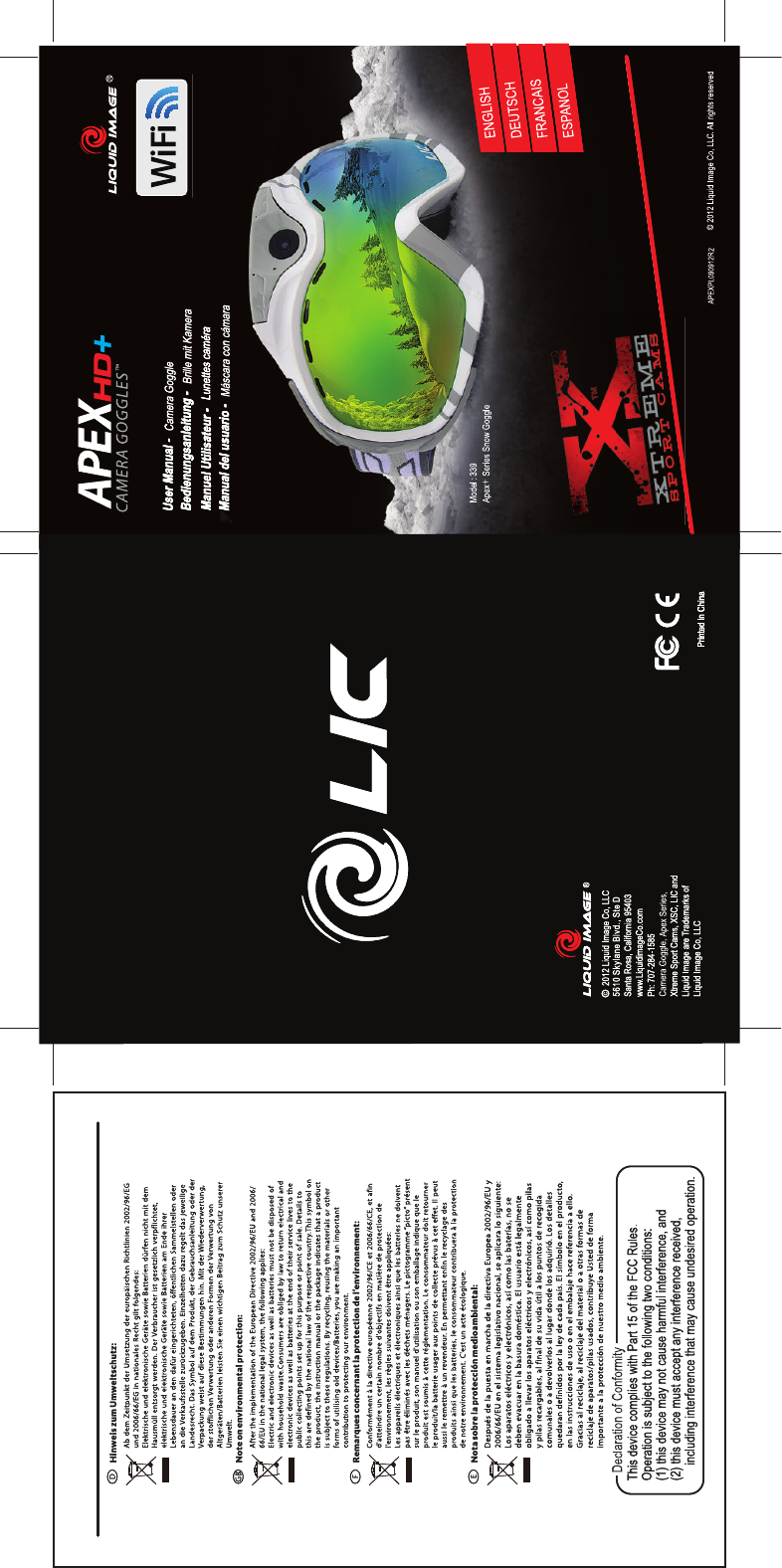
Liquid Image XSC-339 Apex+ Series Snow Goggle 339 User Manual 339

Liquid Image Co. LLC Apex+ Series Snow Goggle 339 339

Contents

339 User Manual -- page 1-4

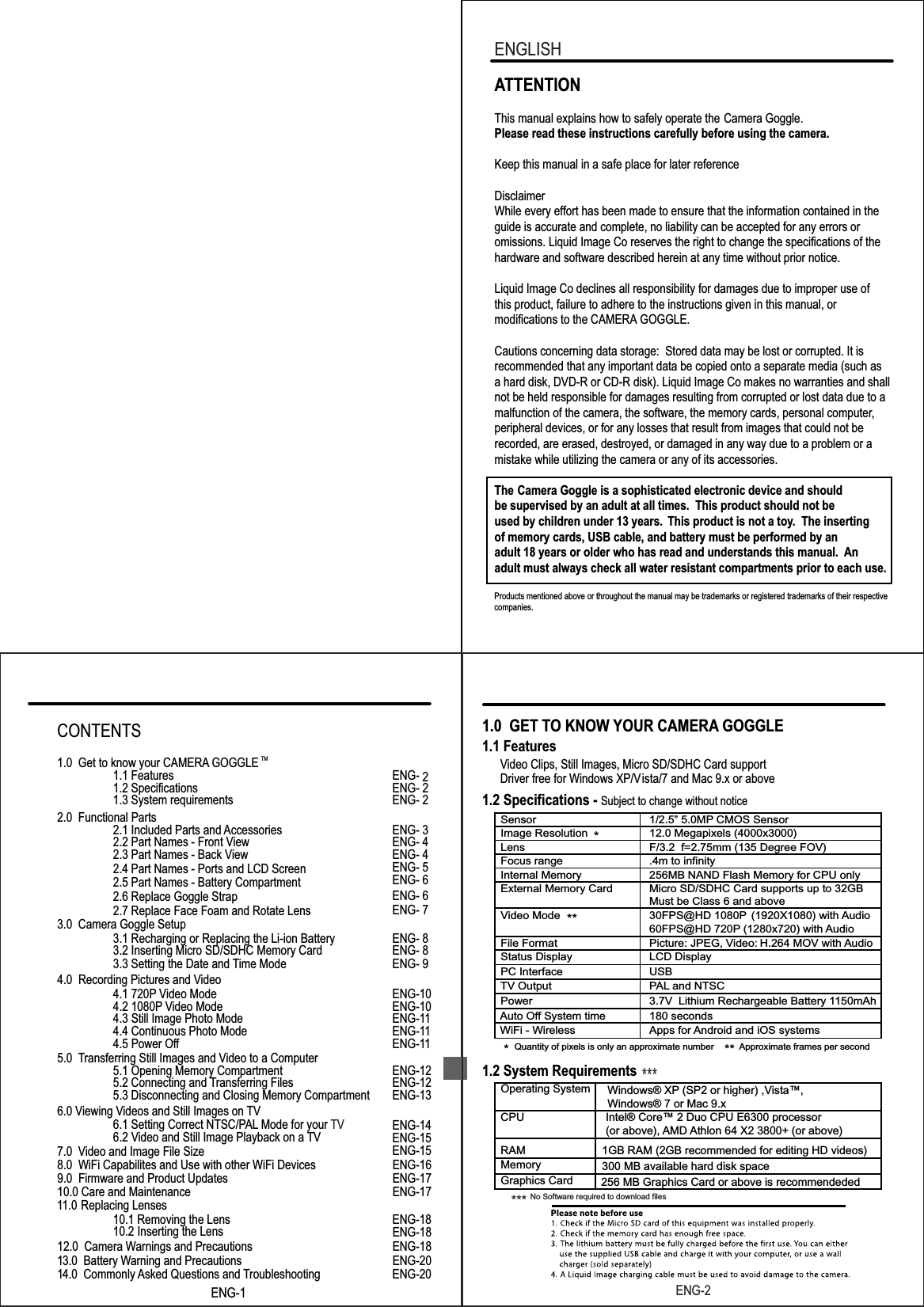
Products mentioned above or throughout the manual may be trademarks or registered trademarks of their respective companies.ATTENTIONThis manual explains how to safely operate the Camera Goggle.Please read these instructions carefully before using the camera. Keep this manual in a safe place for later referenceDisclaimerWhile every effort has been made to ensure that the information contained in the guide is accurate and complete, no liability can be accepted for any errors or omissions. Liquid Image Co reserves the right to change the specifications of thehardware and software described herein at any time without prior notice.Liquid Image Co declines all responsibility for damages due to improper use ofthis product, failure to adhere to the instructions given in this manual, or modifications to the CAMERA GOGGLE.Cautions concerning data storage:  Stored data may be lost or corrupted. It is recommended that any important data be copied onto a separate media (such as a hard disk, DVD-R or CD-R disk). Liquid Image Co makes no warranties and shall not be held responsible for damages resulting from corrupted or lost data due to a malfunction of the camera, the software, the memory cards, personal computer,peripheral devices, or for any losses that result from images that could not be recorded, are erased, destroyed, or damaged in any way due to a problem or amistake while utilizing the camera or any of its accessories.The   Camera Goggle is a sophisticated electronic device and should be supervised by an adult at all times.  This product should not be used by children under 13 years.  This product is not a toy.  The inserting of memory cards, USB cable, and battery must be performed by an adult 18 years or older who has read and understands this manual. Anadult must always check all water resistant compartments prior to each use. ENGLISHENG-21.0  GET TO KNOW YOUR CAMERA GOGGLE 1.1 Features      Video Clips, Still Images, Micro SD/SDHC Card support                  Driver free for Windows XP/Vista/7 and Mac 9.x or above1.2 Specifications - 1.2 System RequirementsSubject to change without notice       Sensor 1/2.5” 5.0MP CMOS Sensor        Image Resolution  12.0 Megapixels (4000x3000)        Lens  F/3.2  f=2.75mm (135 Degree FOV)        Focus range .4m to infinity        Internal Memory 256MB NAND Flash Memory for CPU only        External Memory Card  Micro SD/SDHC Card supports up to 32GBMust be Class 6 and above        Video Mode  30FPS@HD 1080P60FPS@HD 720P (1280x720) with Audio(1920X1080) with  Audio        File Format  Picture: JPEG, Video: H.264 MOV with  Audio        Status Display  LCD Display        PC Interface  USB        Power 3.7V  Lithium Rechargeable Battery 1150mAhAuto OfWiFi - Wirelessf System time  180 secondsApps for Android and iOS systems        Operating System        CPU Intel® Core™ 2 Duo CPU E6300 processor (or above), AMD Athlon 64 X2 3800+ (or above)        RAM 1GB RAM (2GB recommended for editing HD videos)300 MB available hard disk space        Memory        Graphics Card 256 MB Graphics Card or above is recommendeded         TV Output  PAL and NTSCQuantity of pixels is only an approximate number Approximate frames per second** *******  ***  No Software required to download filesWindows® XP (SP2 or higher) ,Vista™,Windows® 7 or Mac 9.xENG-1ENG-1TM4.0  Recording Pictures and Video4.1 720P Video Mode ENG-104.2 1080P Video Mode ENG-104.3 Still Image Photo Mode ENG-114.4 Continuous Photo Mode ENG-114.5 Power Off  ENG-115.0 Transferring Still Images and Video to a Computer5.1 Opening Memory Compartment ENG-125.2 Connecting and Transferring Files ENG-12ENG-14ENG-155.3 Disconnecting and Closing Memory Compartment ENG-137.0  Video and Image File Size   ENG-156.0 Viewing Videos and Still Images on TV6.1 Setting Correct NTSC/PAL Mode for your TV6.2 Video and Still Image Playback on a TV ENG-18ENG-1811.0   Replacing Lenses  10.1 Removing the Lens10.2 Inserting the Lens10.0 Care and Maintenance ENG-178.0  WiFi Capabilites and Use with other WiFi Devices ENG-169.0  Firmware and Product Updates ENG-1712.0  Camera Warnings and Precautions ENG-1813.0  Battery Warning and Precautions ENG-2014.0  Commonly Asked Questions and Troubleshooting ENG-20CONTENTS1.0  Get to know your CAMERA GOGGLE 1.1 Features ENG- 21.2 Specifications ENG- 21.3 System requirements ENG- 22.0  Functional Parts2.1 Included Parts and Accessories ENG- 32.2 Part Names - Front View ENG- 42.3 Part Names - Back View ENG- 42.4 Part Names - Ports and LCD Screen2.5 Part Names - Battery CompartmentENG- 5ENG- 62.6 Replace Goggle Strap ENG- 62.7 Replace Face Foam and Rotate Lens ENG- 73.0  Camera Goggle Setup3.1 Recharging or Replacing the Li-ion Battery ENG- 83.2 Inserting Micro SD/SDHC Memory Card ENG- 83.3 Setting the Date and Time Mode ENG- 9
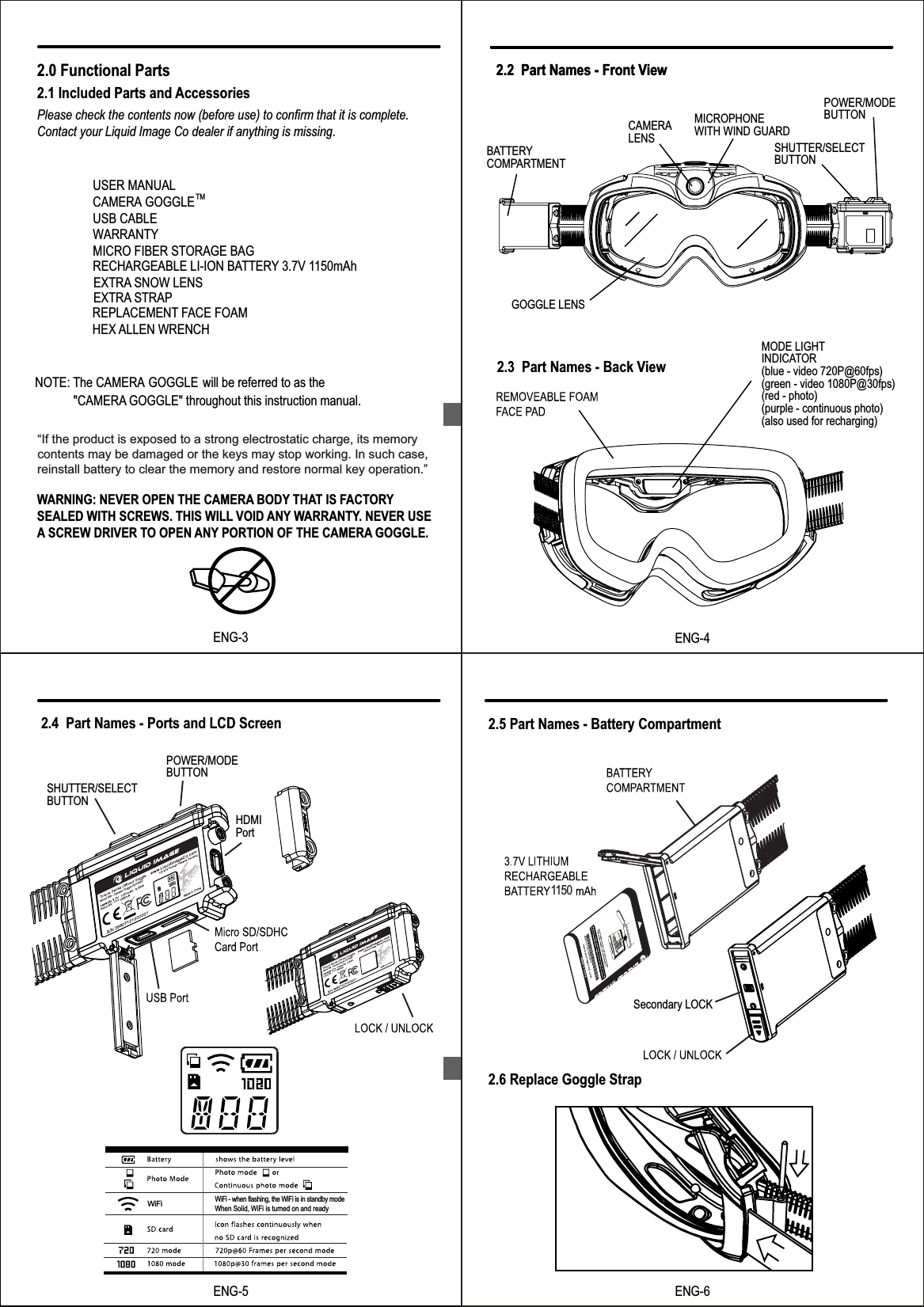
ENG-3TM2.0 Functional Parts2.1 Included Parts and AccessoriesPlease check the contents now (before use) to confirm that it is complete. Contact your Liquid Image Co dealer if anything is missing.USER MANUALCAMERA GOGGLEUSB CABLEWARRANTYMICRO FIBER STORAGE BAGRECHARGEABLE LI-ION BATTERY 3.7V 1150mAh   EXTRA SNOW LENS EXTRA STRAPNOTE: The CAMERA GOGGLE will be referred to as the "CAMERA GOGGLE" throughout this instruction manual.WARNING: NEVER OPEN THE CAMERA BODY THAT IS FACTORYSEALED WITH SCREWS. THIS WILL VOID ANY WARRANTY. NEVER USE A SCREW DRIVER TO OPEN ANY PORTION OF THE CAMERA GOGGLE.TM“If the product is exposed to a strong electrostatic charge, its memory contents may be damaged or the keys may stop working. In such case, reinstall battery to clear the memory and restore normal key operation.” REPLACEMENT FACE FOAMHEX ALLEN WRENCHENG-32.2  Part Names - Front View2.3  Part Names - Back ViewCAMERALENSPOWER/MODEBUTTONSHUTTER/SELECTBUTTONBATTERYCOMPARTMENTGOGGLE LENS2.2  Part Names - Front ViewMICROPHONEWITH WIND GUARDENG-4MODE LIGHT INDICATOR(blue - video 720P@60fps)(green - video 1080P@30fps)(red - photo)(purple - continuous photo)(also used for recharging)2.4  Part Names - Ports and LCD ScreenENG-5POWER/MODEBUTTONSHUTTER/SELECTBUTTONHDMI Port Secondary LOCK 2.5 Part Names - Battery Compartment2.6 Replace Goggle Strap1150ENG-6WiFi - when flashing, the WiFi is in standby modeWhen Solid, WiFi is turned on and readyWiFi
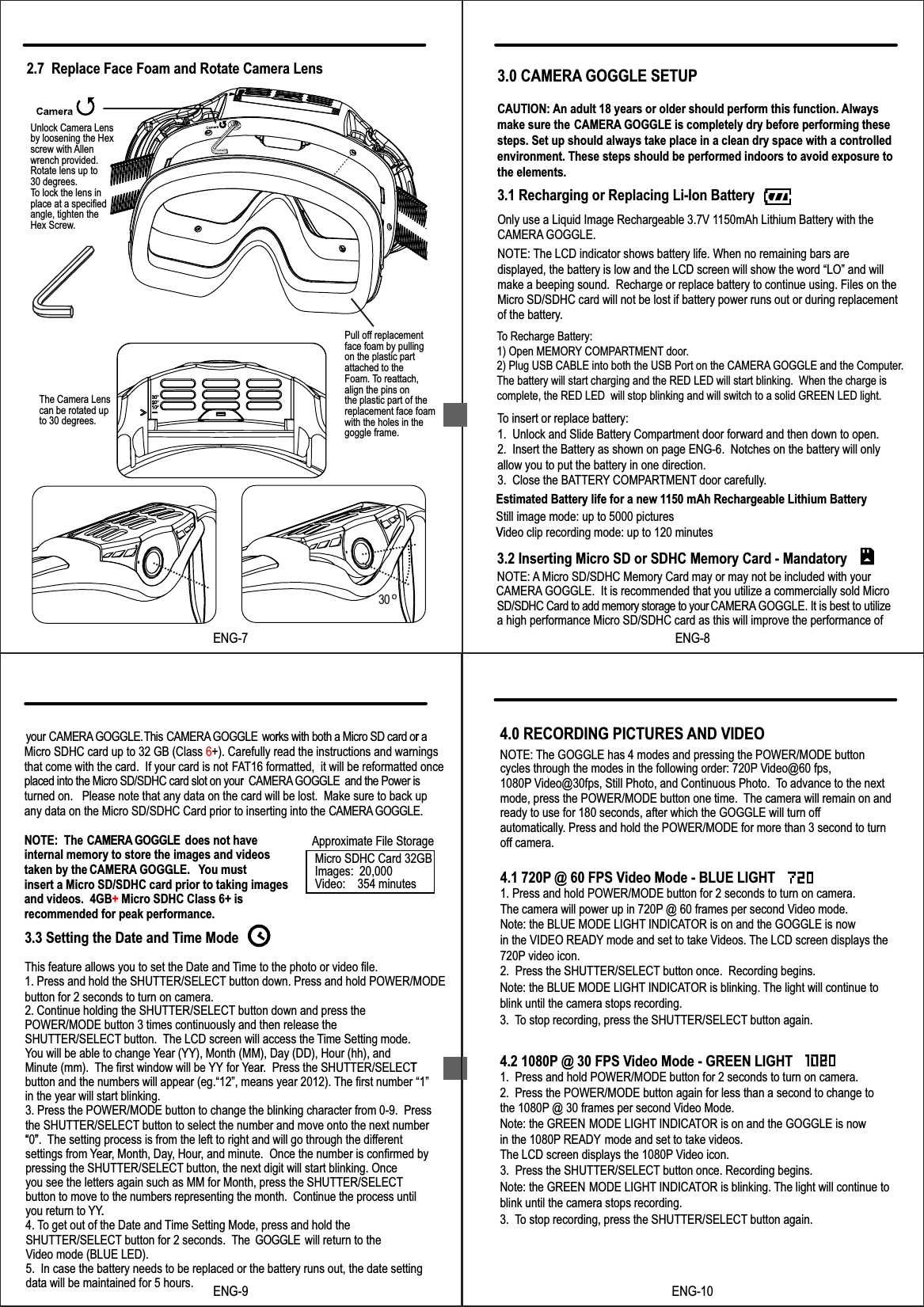
3.0 CAMERA GOGGLE SETUPCAUTION: An adult 18 years or older should perform this function. Alwaysmake sure the  CAMERA GOGGLE is completely dry before performing these steps. Set up should always take place in a clean dry space with a controlled environment. These steps should be performed indoors to avoid exposure to the elements.3.1 Recharging or Replacing Li-Ion BatteryNOTE:Only use a Liquid Image Rechargeable 3.7V 1150mAh Lithium Battery with theCAMERA GOGGLE. The LCD indicator shows battery life. When no remaining bars are displayed, the battery is low and the LCD screen will show the word “LO” and will make a beeping sound.  Recharge or replace battery to continue using. Files on theMicro SD/SDHC card will not be lost if battery power runs out or during replacementof the battery.To insert or replace battery:1.  Unlock and Slide Battery Compartment door forward and then down to open.2.  Insert the Battery as shown on page ENG-6.  Notches on the battery will onlyallow you to put the battery in one direction.3.  Close the BATTERY COMPARTMENT door carefully.3.2 Inserting Micro SD or SDHC Memory Card - MandatoryNOTE: A Micro SD/SDHC Memory Card may or may not be included with your CAMERA GOGGLE.  It is recommended that you utilize a commercially sold Micro SD/SDHC Card to add memory storage to yourCAMERA GOGGLE. It is best to utilize a high performance Micro SD/SDHC card as this will improve the performance of Estimated Battery life for a new 1150 mAh Rechargeable Lithium BatteryStill image mode: up to 5000 picturesVideo clip recording mode: up to 120 minutesTo Recharge Battery:1) Open MEMORY COMPARTMENT door.2) Plug USB CABLE into both the USB Port on the CAMERA GOGGLE and the Computer.The battery will start charging and the RED LED will start blinking.  When the charge is complete, the RED LED  will stop blinking and will switch to a solid GREEN LED light.  VENG-8your CAMERA GOGGLE.This CAMERA GOGGLECAMERA GOGGLE works with both a Micro SD card or aMicro SDHC card up to 32 GB (Class 6+). Carefully read the instructions and warningsthat come with the card.  If your card is not FAT16 formatted,  it will be reformatted once placed into the Micro SD/SDHC card slot on your   and the Power is turned on.   Please note that any data on the card will be lost.  Make sure to back up any data on the Micro SD/SDHC Card prior to inserting into the CAMERA GOGGLE.NOTE:  The CAMERA GOGGLE does not haveinternal memory to store the images and videos taken by the  . ou must insert a Micro SD/SDHC card prior to taking images and videos.  4GB+ Micro SDHC Class 6+ is recommended for peak performance. 3.3 Setting the Date and Time ModeThis feature allows you to set the Date and Time to the photo or video file.1. Press and hold the SHUTTER/SELECT button down. Press and hold POWER/MODE button for 2 seconds to turn on camera.2. Continue holding the SHUTTER/SELECT button down and press the POWER/MODE button 3 times continuously and then release the SHUTTER/SELECT button.  The LCD screen will access the Time Setting mode.You will be able to change Year (YY), Month (MM), Day (DD), Hour (hh), and Minute (mm).  The first window will be YY for Year.  Press the SHUTTER/SELECTbutton and the numbers will appear (eg.“12”, means year 2012). The first number “1” in the year will start blinking. 3. Press the POWER/MODE button to change the blinking character from 0-9.  Press the SHUTTER/SELECT button to select the number and move onto the next number “0”. The setting process is from the left to right and will go through the differentsettings from Year, Month, Day, Hour, and minute.  Once the number is confirmed by pressing the SHUTTER/SELECT button, the next digit will start blinking. Once you see the letters again such as MM for Month, press the SHUTTER/SELECTbutton to move to the numbers representing the month.  Continue the process until you return to YY.4. To get out of the Date and Time Setting Mode, press and hold the SHUTTER/SELECT button for 2 seconds.  The GOGGLE  will return to the Video mode (BLUE LED).5.  In case the battery needs to be replaced or the battery runs out, the date setting data will be maintained for 5 hours.     r r r   CAMERA GOGGLE. Yr T  “ ”r.ENG-9Approximate File Storage Micro SDHC Card 32GBImages:  20,000Video:    354 minutesENG-10Note: the BLUE MODE LIGHT INDICATOR is blinking. The light will continue to blink until the camera stops recording.3. To stop recording, press the SHUTTER/SELECT button again. Note: the GREEN MODE LIGHT INDICATOR is blinking. The light will continue to blink until the camera stops recording.3. To stop recording, press the SHUTTER/SELECT button again.         cycles through the modes in the following order: 720P Video@60 fps, 1080P Video@30fps, Still Photo, and Continuous Photo.  To advance to the next  mode, press the POWER/MODE button one time.  The camera will remain on andready to use for 180 seconds, after which the GOGGLE will turn off automatically. Press and hold the POWER/MODE for more than 3 second to turn off camera.4.1 720P @ 60 FPS Video Mode - BLUE LIGHT1. Press and hold POWER/MODE button for 2 seconds to turn on camera. The camera will power up in 720P @ 60 frames per second Video mode. Note: the BLUE MODE LIGHT INDICATOR is on and the GOGGLE is now in the VIDEO READY mode and set to take Videos. The LCD screen displays the  720P video icon.2.  Press the SHUTTER/SELECT button once.  Recording begins.4.2 1080P @ 30 FPS Video Mode - GREEN LIGHT1.  Press and hold POWER/MODE button for 2 seconds to turn on camera.2.  Press the POWER/MODE button again for less than a second to change to the 1080P @ 30 frames per second Video Mode. Note: the GREEN  MODE LIGHT INDICATOR is on and the GOGGLE is nowin the 1080P READY mode and set to take videos.   The LCD screen displays the 1080P Video icon.4.0 RECORDING PICTURES AND VIDEONOTE: The GOGGLE has 4 modes and pressing the POWER/MODE button3.  Press the SHUTTER/SELECT button once. Recording begins.2.7  Replace Face Foam and Rotate Camera LensENG-7Unlock Camera Lensby loosening the Hex screw with Allen wrench provided.Rotate lens up to30 degrees.  To lock the lens in place at a specified angle, tighten the Hex Screw.Pull off replacementface foam by pullingon the plastic partattached to the Foam. To reattach,align the pins on the plastic part of thereplacement face foamwith the holes in thegoggle frame.The Camera Lenscan be rotated up to 30 degrees.30 o

Navigation menu