Liquid Image XSC-339 Apex+ Series Snow Goggle 339 User Manual 339

Liquid Image Co. LLC Apex+ Series Snow Goggle 339 339

Contents

339 User Manual--Page 5-8

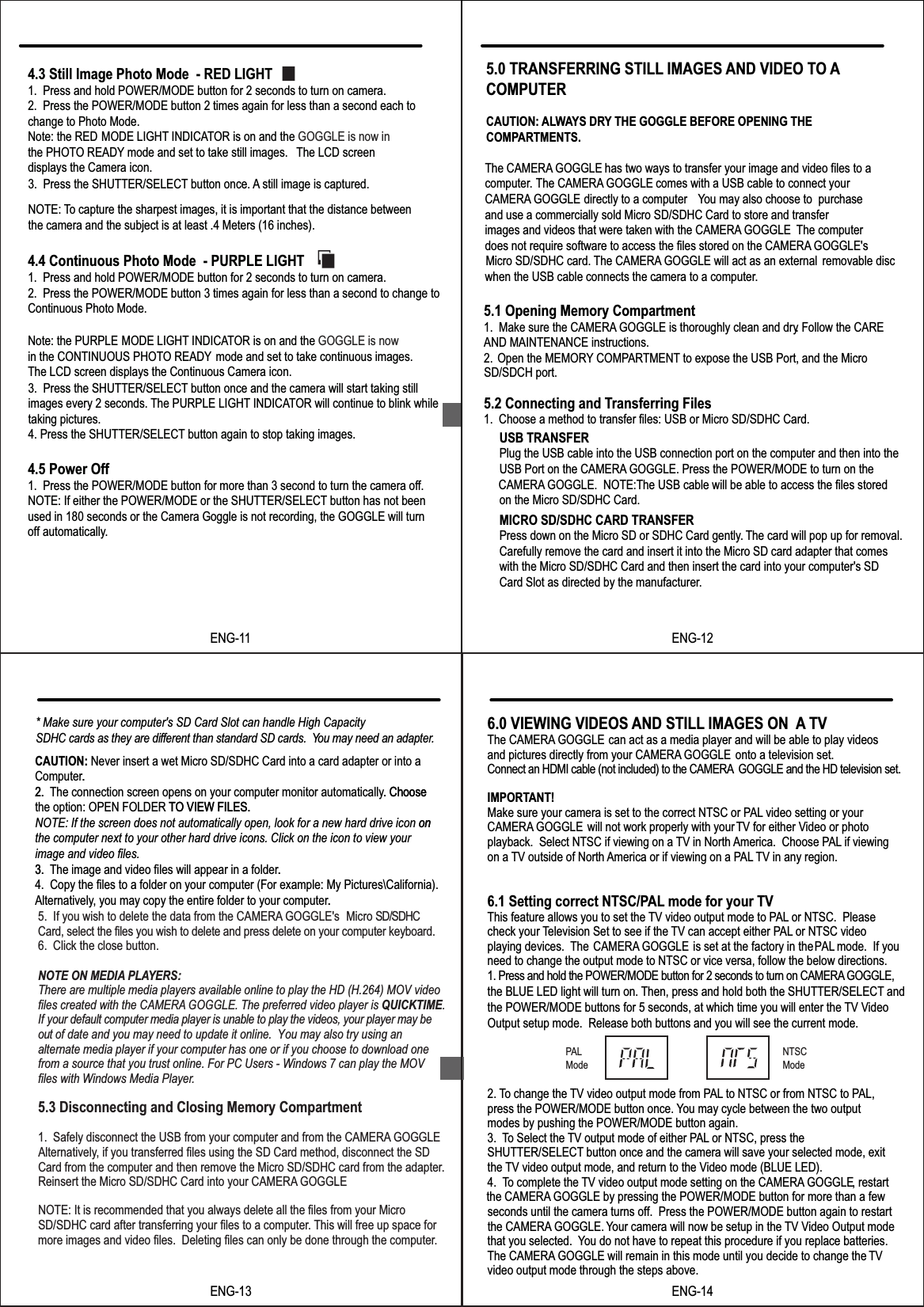
ENG-114.5 Power Off1.  Press the POWER/MODE button for more than 3 second to turn the camera off.NOTE: If either the POWER/MODE or the SHUTTER/SELECT button has not been used in 180 seconds or the Camera Goggle is not recording, the GOGGLE will turn NOTE: To capture the sharpest images, it is important that the distance betweenthe camera and the subject is at least .4 Meters (16 inches).4.3 Still Image Photo Mode  - RED LIGHT1.  Press and hold POWER/MODE button for 2 seconds to turn on camera.2.  Press the POWER/MODE button 2 times again for less than a second each to   change to Photo Mode.  Note: the RED  MODE LIGHT INDICATOR is on and the GOGGLE is now inthe PHOTO READY mode and set to take still images.  The LCD screen displays the Camera icon.3.  Press the SHUTTER/SELECT button once. A still image is captured. 4.4 Continuous Photo Mode  - PURPLE LIGHT1.  Press and hold POWER/MODE button for 2 seconds to turn on camera.2.  Press the POWER/MODE button 3 times again for less than a second to change to Continuous Photo Mode. Note: the PURPLE  MODE LIGHT INDICATOR is on and the GOGGLE is nowin the CONTINUOUS PHOTO READY mode and set to take continuous images. The LCD screen displays the Continuous Camera icon.3.  Press the SHUTTER/SELECT button once and the camera will start taking still images every 2 seconds. The PURPLE LIGHT INDICATOR will continue to blink while taking pictures.4. Press the SHUTTER/SELECT button again to stop taking images. off automatically.The CAMERA GOGGLE has two ways to transfer your image and video files to acomputer The CAMERA GOGGLE comes with a USB cable to connect your.CAMERA GOGGLE directly to a computer. You may also choose to  purchase and use a commercially sold Micro SD/SDHC Card to store and transferimages and videos that were taken with the CAMERA GOGGLE. The computerdoes not require software to access the files stored on the CAMERA GOGGLE'sMicro SD/SDHC card. The CAMERA GOGGLE will act as an external  removable disc when the USB cable connects the camera to a computer..5.0 TRANSFERRING STILL IMAGES AND VIDEO TO ACOMPUTERCAUTION: ALWAYS DRY THE GOGGLE BEFORE OPENING THECOMPARTMENTS.5.1 Opening Memory Compartment1.  Make sure the CAMERA GOGGLE is thoroughly clean and dry. Follow the CAREAND MAINTENANCE instructions.2. Open the MEMORY COMPARTMENT to expose the USB Port, and the Micro  5.2 Connecting and Transferring Files1.  Choose a method to transfer files: USB or Micro SD/SDHC Card.USB TRANSFERPlug the USB cable into the USB connection port on the computer and then into theUSB Port on the CAMERA GOGGLE. Press the POWER/MODE to turn on the CAMERA GOGGLE.  NOTE:The USB cable will be able to access the files storedon the Micro SD/SDHC Card. MICRO SD/SDHC CARD TRANSFERPress down on the Micro SD or SDHC Card gently.. The card will pop up for removal. Carefully remove the card and insert it into the Micro SD card adapter that comeswith the Micro SD/SDHC Card and then insert the card into your computer's SD Card Slot as directed by the manufacturer.SD/SDCH port.ENG-12CAUTION: Never insert a wet Micro SD/SDHC Card into a card adapter or into a Computer.2. The connection screen opens on your computer monitor automatically. Choose the option: OPEN FOLDER TO VIEW FILES. NOTE: If the screen does not automatically open, look for a new hard drive icon onthe computer next to your other hard drive icons. Click on the icon to view yourimage and video files.3. The image and video files will appear in a folder.4.  Copy the files to a folder on your computer (For example: My Pictures\California).Alternatively, you may copy the entire folder to your computer.5.  If you wish to delete the data from the CAMERA GOGGLE's  Micro SD/SDHC Card, select the files you wish to delete and press delete on your computer keyboard. 6.  Click the close button.5.3 Disconnecting and Closing Memory Compartment1.  Safely disconnect the USB from your computer and from the CAMERA GOGGLE.Alternatively, if you transferred files using the SD Card method, disconnect the SD Card from the computer and then remove the Micro SD/SDHC card from the adapter.Reinsert the Micro SD/SDHC Card into your CAMERA GOGGLE.NOTE: It is recommended that you always delete all the files from your Micro SD/SDHC card after transferring your files to a computer. This will free up space for more images and video files.  Deleting files can only be done through the computer.* Make sure your computer's SD Card Slot can handle High Capacity SDHC cards as they are different than standard SD cards. You may need an adapter..2. . Choose TO VIEW FILES. on3. ..ENG-13NOTE ON MEDIA PLAYERS:There are multiple media players available online to play the HD (H.264) MOV video files created with the CAMERA GOGGLE. The preferred video player is QUICKTIME. If your default computer media player is unable to play the videos, your player may be out of date and you may need to update it online.  You may also try using an alternate media player if your computer has one or if you choose to download one from a source that you trust online. For PC Users - Windows 7 can play the MOVfiles with Windows Media Player.  6.0 VIEWING VIDEOS AND STILL IMAGES ON  A TVThe CAMERA GOGGLE can act as a media player and will be able to play videos and pictures directly from your CAMERA GOGGLE  onto a television set.Connect an HDMI cable (not included) to the CAMERA  GOGGLE and the HD television set.IMPORTANT!Make sure your camera is set to the correct NTSC or PAL video setting or your CAMERA GOGGLE        will not work properly with yourTV for either Video or photo playback.  Select NTSC if viewing on a TV in North America.  Choose PAL if viewing on a TV outside of North America or if viewing on a PAL TV in any region.6.1 Setting correct NTSC/PAL mode for your TV This feature allows you to set the TV video output mode to PAL or NTSC.  Please check your Television Set to see if the TV can accept either PAL or NTSC video playing devices.  The CAMERA GOGGLE is set at the factory in the PAL mode.  If you need to change the output mode to NTSC or vice versa, follow the below directions.1. Press and hold the POWER/MODE button for 2 seconds to turn on CAMERA GOGGLE, the BLUE LED light will turn on. Then, press and hold both the SHUTTER/SELECT and the POWER/MODE buttons for 5 seconds, at which time you will enter the TV Video Output setup mode.  Release both buttons and you will see the current mode.2. To change the TV video output mode from PAL to NTSC or from NTSC to PAL,press the POWER/MODE button once. You may cycle between the two output modes by pushing the POWER/MODE button again.3. To Select the TV output mode of either PAL or NTSC, press the SHUTTER/SELECT button once and the camera will save your selected mode, exit the TV video output mode, and return to the Video mode (BLUE LED).4. To complete the TV video output mode setting on the CAMERA GOGGLE, restart the CAMERA GOGGLE by pressing the POWER/MODE button for more than a few seconds until the camera turns off.  Press the POWER/MODE button again to restart the CAMERA GOGGLE. Your camera will now be setup in the TV Video Output mode that you selected.  You do not have to repeat this procedure if you replace batteries.The CAMERA GOGGLE will remain in this mode until you decide to change the TVvideo output mode through the steps above.PALModeNTSCModeENG-14
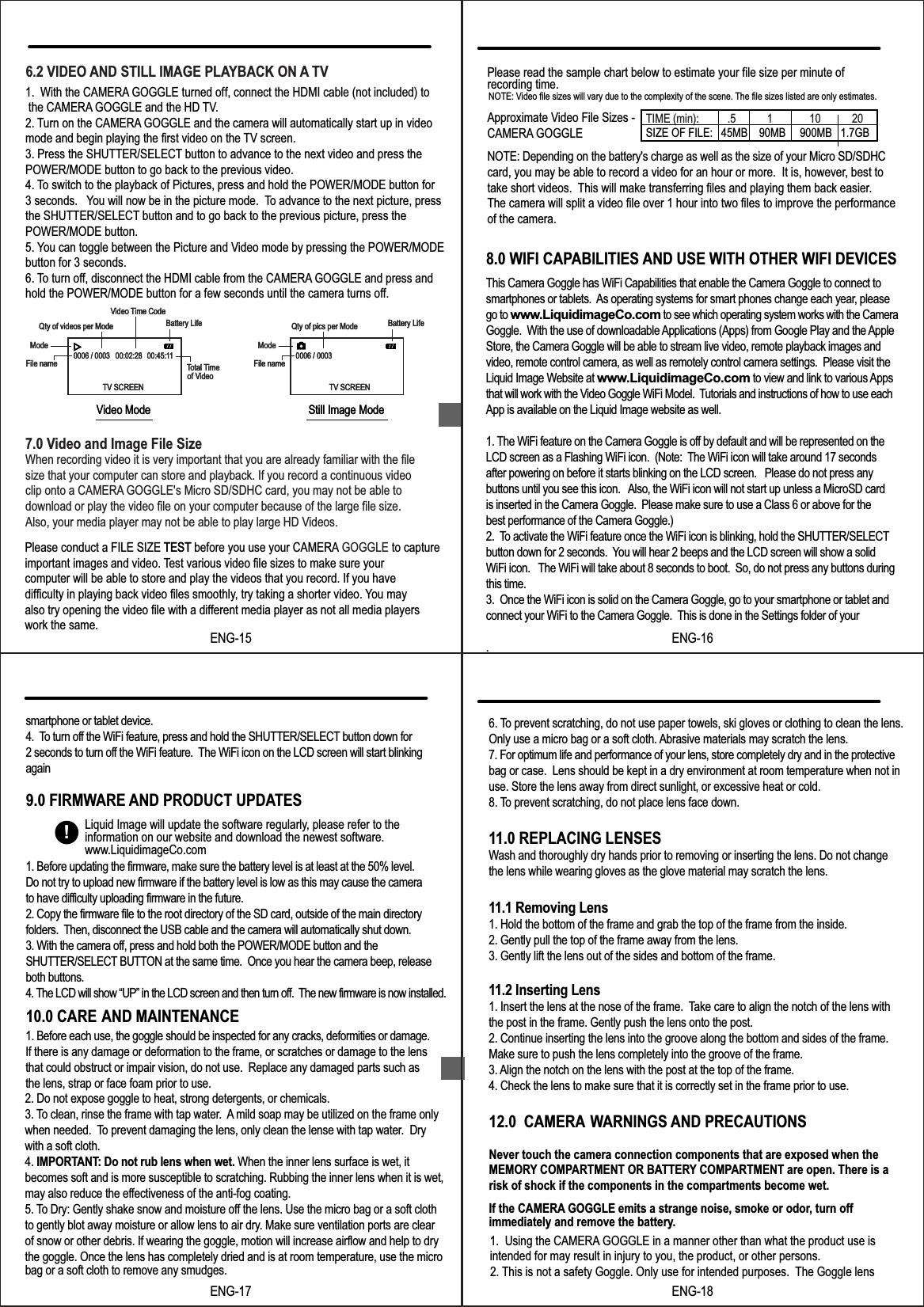
7.0 Video and Image File SizeWhen recording video it is very important that you are already familiar with the file size that your computer can store and playback. If you record a continuous videoclip onto a CAMERA GOGGLE's Micro SD/SDHC card, you may not be able todownload or play the video file on your computer because of the large file size.Also, your media player may not be able to play large HD Videos.6.2 VIDEO AND STILL IMAGE PLAYBACK ON A TV1.  With the CAMERA GOGGLE turned off, connect the HDMI cable (not included) to the CAMERA GOGGLE and the HD TV. .2. Turn on the CAMERA GOGGLE and the camera will automatically start up in video mode and begin playing the first video on the TV screen.3. Press the SHUTTER/SELECT button to advance to the next video and press thePOWER/MODE button to go back to the previous video.4. To switch to the playback of Pictures, press and hold the POWER/MODE button for3 seconds. You will now be in the picture mode. To advance to the next picture, pressthe SHUTTER/SELECT button and to go back to the previous picture, press thePOWER/MODE button.5. You can toggle between the Picture and Video mode by pressing the POWER/MODEbutton for 3 seconds.6. To turn off, disconnect the HDMI cable from the CAMERA GOGGLE and press and hold the POWER/MODE button for a few seconds until the camera turns off.0006 / 0003 00:45:1100:02:28File nameQty of videos per ModeModeVideo Time CodeBattery LifeTotal TimeTV SCREENVideo Mode0006 / 0003File nameQty of pics per ModeModeBattery LifeTV SCREENStill Image Modeof Video0006 / 0003 00:45:1100:02:28File nameQty of videos per ModeModeVideo Time CodeBattery LifeTotal TimeTV SCREENVideo Mode0006 / 0003File nameQty of pics per ModeModeBattery LifeTV SCREENStill Image Modeof VideoENG-1510.0 CARE AND MAINTENANCE9.0 FIRMWARE AND PRODUCT UPDATES8.0 WIFI CAPABILITIES AND USE WITH OTHER WIFI DEVICESPlease read the sample chart below to estimate your file size per minute of recording time.Approximate Video File Sizes - CAMERA GOGGLENOTE: Depending on the battery's charge as well as the size of your Micro SD/SDHC card, you may be able to record a video for an hour or more.  It is, however, best totake short videos. This will make transferring files and playing them back easier.The camera will split a video file over 1 hour into two files to improve the performanceof the camera.NOTE: Video file sizes will vary due to the complexity of the scene. The file sizes listed are only estimates.TIME (min):          .5           1             10           20SIZE OF FILE:   45MB    90MB     900MB   1.7GB1. Before each use, the goggle should be inspected for any cracks, deformities or damage. If there is any damage or deformation to the frame, or scratches or damage to the lensthat could obstruct or impair vision, do not use.  Replace any damaged parts such as the lens, strap or face foam prior to use.ENG-16!Liquid Image will update the software regularly, please refer to the information on our website and download the newest software.www.LiquidimageCo.com2. Do not expose goggle to heat, strong detergents, or chemicals.3. To clean, rinse the frame with tap water.  A mild soap may be utilized on the frame only when needed.  To prevent damaging the lens, only clean the lense with tap water.  Dry with a soft cloth.   4. IMPORTANT: Do not rub lens when wet. When the inner lens surface is wet, it  becomes soft and is more susceptible to scratching. Rubbing the inner lens when it is wet, may also reduce the effectiveness of the anti-fog coating.  5. To Dry: Gently shake snow and moisture off the lens. Use the micro bag or a soft cloth to gently blot away moisture or allow lens to air dry. Make sure ventilation ports are clear of snow or other debris. If wearing the goggle, motion will increase airflow and help to dry the goggle. Once the lens has completely dried and is at room temperature, use the micro bag or a soft cloth to remove any smudges.ENG-1712.0  CAMERA WARNINGS AND PRECAUTIONSNever touch the camera connection components that are exposed when the MEMORY COMPARTMENT OR BATTERY COMPARTMENT are open. There is a risk of shock if the components in the compartments become wet.If the CAMERA GOGGLE emits a strange noise, smoke or odor, turn off immediately and remove the battery.1.  Using the CAMERA GOGGLE in a manner other than what the product use is intended for may result in injury to you, the product, or other persons. ENG-181. Before updating the firmware, make sure the battery level is at least at the 50% level. Do not try to upload new firmware if the battery level is low as this may cause the camerato have difficulty uploading firmware in the future.2. Copy the firmware file to the root directory of the SD card, outside of the main directoryfolders.  Then, disconnect the USB cable and the camera will automatically shut down.  3. With the camera off, press and hold both the POWER/MODE button and the SHUTTER/SELECT BUTTON at the same time.  Once you hear the camera beep, releaseboth buttons.4. The LCD will show “UP” in the LCD screen and then turn off.  The new firmware is now installed. Please conduct a FILE SIZE TEST before you use your CAMERA GOGGLE to captureimportant images and video. Test various video file sizes to make sure your computer will be able to store and play the videos that you record. If you have difficulty in playing back video files smoothly, try taking a shorter video. You may also try opening the video file with a different media player as not all media playerswork the same.TESTThis Camera Goggle has WiFi Capabilities that enable the Camera Goggle to connect tosmartphones or tablets.  As operating systems for smart phones change each year, pleasego to www.LiquidimageCo.com to see which operating system works with the CameraGoggle.  With the use of downloadable Applications (Apps) from Google Play and the Apple Store, the Camera Goggle will be able to stream live video, remote playback images and video, remote control camera, as well as remotely control camera settings.  Please visit the Liquid Image Website at www.LiquidimageCo.com to view and link to various Appsthat will work with the Video Goggle WiFi Model.  Tutorials and instructions of how to use eachApp is available on the Liquid Image website as well.1. The WiFi feature on the Camera Goggle is off by default and will be represented on the LCD screen as a Flashing WiFi icon.  (Note:  The WiFi icon will take around 17 secondsafter powering on before it starts blinking on the LCD screen.   Please do not press anybuttons until you see this icon.   Also, the WiFi icon will not start up unless a MicroSD cardis inserted in the Camera Goggle.  Please make sure to use a Class 6 or above for thebest performance of the Camera Goggle.)2.  To activate the WiFi feature once the WiFi icon is blinking, hold the SHUTTER/SELECTbutton down for 2 seconds.  You will hear 2 beeps and the LCD screen will show a solidWiFi icon.   The WiFi will take about 8 seconds to boot.  So, do not press any buttons duringthis time.3.  Once the WiFi icon is solid on the Camera Goggle, go to your smartphone or tablet and connect your WiFi to the Camera Goggle.  This is done in the Settings folder of your.  smartphone or tablet device.4.  To turn off the WiFi feature, press and hold the SHUTTER/SELECT button down for 2 seconds to turn off the WiFi feature.  The WiFi icon on the LCD screen will start blinking again6. To prevent scratching, do not use paper towels, ski gloves or clothing to clean the lens. Only use a micro bag or a soft cloth. Abrasive materials may scratch the lens. 7. For optimum life and performance of your lens, store completely dry and in the protective bag or case.  Lens should be kept in a dry environment at room temperature when not in use. Store the lens away from direct sunlight, or excessive heat or cold.8. To prevent scratching, do not place lens face down.11.0 REPLACING LENSESWash and thoroughly dry hands prior to removing or inserting the lens. Do not change the lens while wearing gloves as the glove material may scratch the lens.11.1 Removing Lens1. Hold the bottom of the frame and grab the top of the frame from the inside. 2. Gently pull the top of the frame away from the lens. 3. Gently lift the lens out of the sides and bottom of the frame.11.2 Inserting Lens1. Insert the lens at the nose of the frame.  Take care to align the notch of the lens with the post in the frame. Gently push the lens onto the post. 2. Continue inserting the lens into the groove along the bottom and sides of the frame. Make sure to push the lens completely into the groove of the frame. 3. Align the notch on the lens with the post at the top of the frame.4. Check the lens to make sure that it is correctly set in the frame prior to use.2. This is not a safety Goggle. Only use for intended purposes.  The Goggle lens
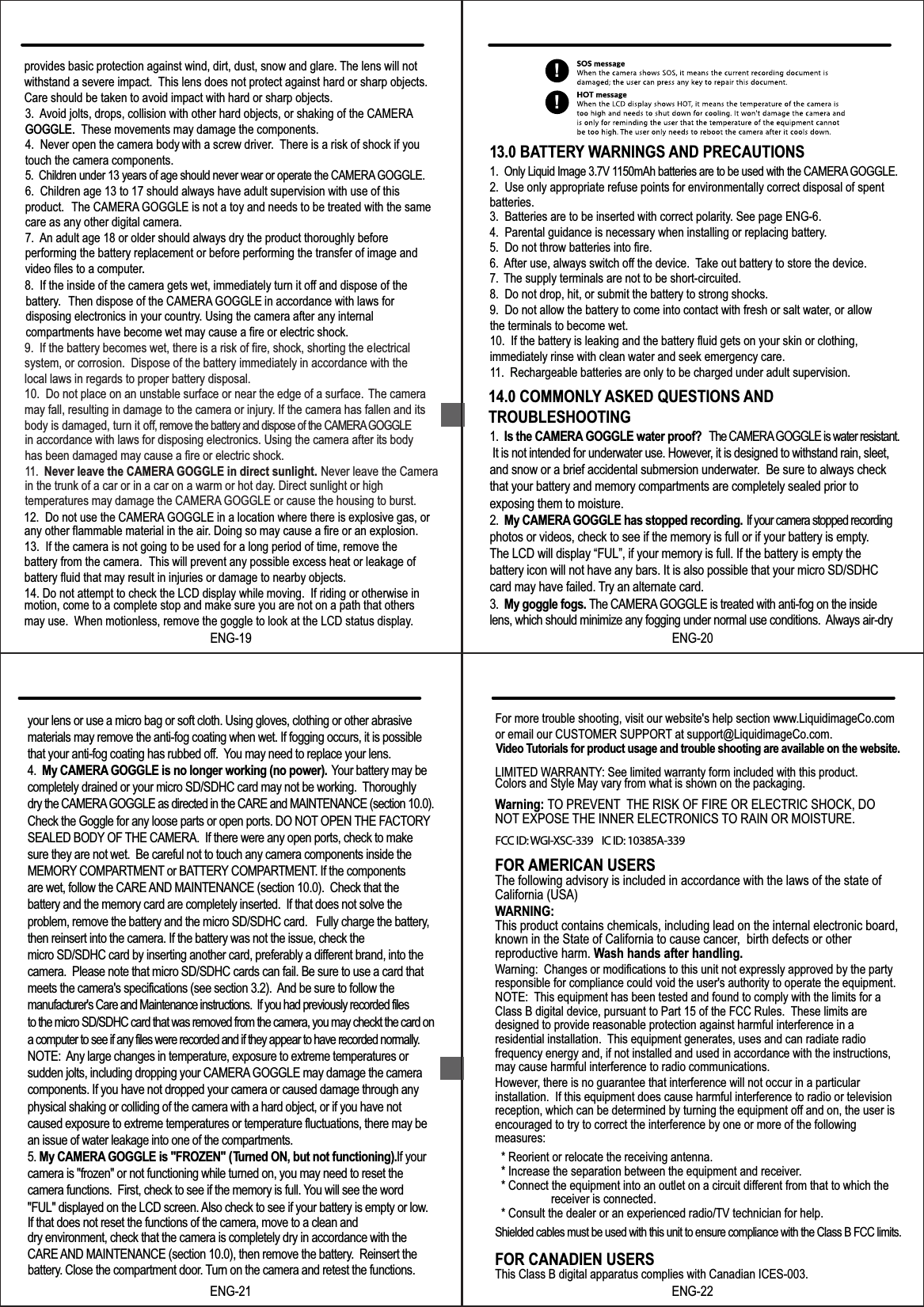
9.  If the battery becomes wet, there is a risk of fire, shock, shorting the electricalsystem, or corrosion.  Dispose of the battery immediately in accordance with thelocal laws in regards to proper battery disposal. 10.  Do not place on an unstable surface or near the edge of a surface. The camera may fall, resulting in damage to the camera or injury. If the camera has fallen and its body is damaged, turn it off, remove the battery and dispose of the CAMERA GOGGLEin accordance with laws for disposing electronics. Using the camera after its body has been damaged may cause a fire or electric shock. 11.  Never leave the CAMERA GOGGLE in direct sunlight. Never leave the Camera in the trunk of a car or in a car on a warm or hot day. Direct sunlight or high temperatures may damage the CAMERA GOGGLE or cause the housing to burst. 12.  Do not use the CAMERA GOGGLE in a location where there is explosive gas, or any other flammable material in the air. Doing so may cause a fire or an explosion.13.  If the camera is not going to be used for a long period of time, remove thebattery from the camera.  This will prevent any possible excess heat or leakage of battery fluid that may result in injuries or damage to nearby objects.14. Do not attempt to check the LCD display while moving.  If riding or otherwise in motion, come to a complete stop and make sure you are not on a path that others may use.  When motionless, remove the goggle to look at the LCD status display.13.0 BATTERY WARNINGS AND PRECAUTIONS2.  Use only appropriate refuse points for environmentally correct disposal of spentbatteries.3.  Batteries are to be inserted with correct polarity. See page ENG-6.4.  Parental guidance is necessary when installing or replacing battery.5.  Do not throw batteries into fire.6. After use, always switch off the device. Take out battery to store the device.7. The supply terminals are not to be short-circuited.8.  Do not drop, hit, or submit the battery to strong shocks.9.  Do not allow the battery to come into contact with fresh or salt water, or allowthe terminals to become wet.10.  If the battery is leaking and the battery fluid gets on your skin or clothing, immediately rinse with clean water and seek emergency care.11.  Rechargeable batteries are only to be charged under adult supervision.1.  Only Liquid Image 3.7V 1150mAh batteries are to be used with the CAMERA GOGGLE.ENG-1914.0 COMMONLY ASKED QUESTIONS ANDTROUBLESHOOTING1.  Is the CAMERA GOGGLE water proof?   The CAMERA GOGGLE is water resistant. It is not intended for underwater use. However, it is designed to withstand rain, sleet, and snow or a brief accidental submersion underwater.  Be sure to always check that your battery and memory compartments are completely sealed prior to exposing them to moisture.2.  My CAMERA GOGGLE has stopped recording.  If your camera stopped recording photos or videos, check to see if the memory is full or if your battery is empty.The LCD will display “FUL”, if your memory is full. If the battery is empty the battery icon will not have any bars. It is also possible that your micro SD/SDHC card may have failed. Try an alternate card.3.  My goggle fogs. The CAMERA GOGGLE is treated with anti-fog on the inside lens, which should minimize any fogging under normal use conditions.  Always air-dry ENG-20to the micro SD/SDHC card that was removed from the camera, you may checkt the card on  a computer to see if any files were recorded and if they appear to have recorded normally.  NOTE:  Any large changes in temperature, exposure to extreme temperatures or sudden jolts, including dropping your CAMERA GOGGLE may damage the camera components. If you have not dropped your camera or caused damage through any physical shaking or colliding of the camera with a hard object, or if you have not caused exposure to extreme temperatures or temperature fluctuations, there may be an issue of water leakage into one of the compartments.5. My CAMERA GOGGLE is "FROZEN" (Turned ON, but not functioning). If your camera is "frozen" or not functioning while turned on, you may need to reset the camera functions.  First, check to see if the memory is full. You will see the word "FUL" displayed on the LCD screen. Also check to see if your battery is empty or low.If that does not reset the functions of the camera, move to a clean and dry environment, check that the camera is completely dry in accordance with the CARE AND MAINTENANCE (section 10.0), then remove the battery.  Reinsert the ENG-21Warning: TO PREVENT THE RISK OF FIRE OR ELECTRIC SHOCK, DO NOT EXPOSE THE INNER ELECTRONICS TO RAIN OR MOISTURE.FOR AMERICAN USERSThe following advisory is included in accordance with the laws of the state of California (USA)WARNING:This product contains chemicals, including lead on the internal electronic board,known in the State of California to cause cancer,  birth defects or other reproductive harm. Wash hands after handling.Warning:  Changes or modifications to this unit not expressly approved by the partyresponsible for compliance could void the user's authority to operate the equipment.NOTE: This equipment has been tested and found to comply with the limits for a Class B digital device, pursuant to Part 15 of the FCC Rules.  These limits are designed to provide reasonable protection against harmful interference in a residential installation.  This equipment generates, uses and can radiate radio frequency energy and, if not installed and used in accordance with the instructions,may cause harmful interference to radio communications.However, there is no guarantee that interference will not occur in a particular installation.  If this equipment does cause harmful interference to radio or televisionreception, which can be determined by turning the equipment off and on, the user is encouraged to try to correct the interference by one or more of the following measures:  * Reorient or relocate the receiving antenna.  * Increase the separation between the equipment and receiver.  * Connect the equipment into an outlet on a circuit different from that to which thereceiver is connected.  * Consult the dealer or an experienced radio/TV technician for help.Shielded cables must be used with this unit to ensure compliance with the Class B FCC limits. FOR CANADIEN USERSThis Class B digital apparatus complies with Canadian ICES-003.ENG-228.  If the inside of the camera gets wet, immediately turn it off and dispose of the battery. Then dispose of the CAMERA GOGGLE in accordance with laws for disposing electronics in your country. Using the camera after any internal compartments have become wet may cause a fire or electric shock.3. Avoid jolts, drops, collision with other hard objects, or shaking of the CAMERAGOGGLE. These movements may damage the components.4.  Never open the camera body with a screw driver. There is a risk of shock if you touch the camera components.5.  Children under 13 years of age should never wear or operate the CAMERA GOGGLE.6.  Children age 13 to 17 should always have adult supervision with use of this product. The CAMERA GOGGLE is not a toy and needs to be treated with the same care as any other digital camera.7. An adult age 18 or older should always dry the product thoroughly before performing the battery replacement or before performing the transfer of image and video files to a computer.provides basic protection against wind, dirt, dust, snow and glare. The lens will not withstand a severe impact.  This lens does not protect against hard or sharp objects. Care should be taken to avoid impact with hard or sharp objects.GOGGLE..!!your lens or use a micro bag or soft cloth. Using gloves, clothing or other abrasive materials may remove the anti-fog coating when wet. If fogging occurs, it is possible that your anti-fog coating has rubbed off.  You may need to replace your lens. 4.  My CAMERA GOGGLE is no longer working (no power).   Your battery may be completely drained or your micro SD/SDHC card may not be working.  Thoroughly dry the CAMERA GOGGLE as directed in the CARE and MAINTENANCE (section 10.0).  Check the Goggle for any loose parts or open ports. DO NOT OPEN THE FACTORY SEALED BODY OF THE CAMERA.  If there were any open ports, check to make sure they are not wet.  Be careful not to touch any camera components inside the MEMORY COMPARTMENT or BATTERY COMPARTMENT. If the components are wet, follow the CARE AND MAINTENANCE (section 10.0).  Check that the battery and the memory card are completely inserted.  If that does not solve the problem, remove the battery and the micro SD/SDHC card.   Fully charge the battery, then reinsert into the camera. If the battery was not the issue, check the micro SD/SDHC card by inserting another card, preferably a different brand, into the camera.  Please note that micro SD/SDHC cards can fail. Be sure to use a card that meets the camera's specifications (see section 3.2).  And be sure to follow the manufacturer's Care and Maintenance instructions.  If you had previously recorded files For more trouble shooting, visit our website's help section www.LiquidimageCo.comor email our CUSTOMER SUPPORT at support@LiquidimageCo.com.    LIMITED WARRANTY: See limited warranty form included with this product.battery. Close the compartment door. Turn on the camera and retest the functions.   Video Tutorials for product usage and trouble shooting are available on the website.Colors and Style May vary from what is shown on the packaging.FCC ID: WGI-XSC-339    IC ID: 10385A-339

Navigation menu