Lisheng DMR89 Digital DMR TWO WAY RADIO / TRANSCEIVER with Analogue function User Manual DM R89

Lisheng (Fujian) Communications Co., Ltd. Digital DMR TWO WAY RADIO / TRANSCEIVER with Analogue function DM R89

User Manual

Foreword Thank you for purchasing our Professional DMR Digital Two Way Radio. This easy to use radio will always offer you reliable, clear and high efficiency communication services.  Please read this manual carefully before using this radio, the information presented herein will help you to find the maximum performance, operating method and maintenance of your radio.  Contents Safety Information---------------------------------------------------------------------------------------------------------- Product Check-------------------------------------------------------------------------------------------------------------- Preparing Your Radio for Use-------------------------------------------------------------------------------------------   Charging the Battery---------------------------------------------------------------------------------------------------   Attaching the Battery---------------------------------------------------------------------------------------------------   Attaching the Antenna------------------------------------------------------------------------------------------------- Attaching the Belt Clip------------------------------------------------------------------------------------------------- Powering Up the Radio----------------------------------------------------------------------------------------------- Adjusting the Volume-------------------------------------------------------------------------------------------------- Select a Channel------------------------------------------------------------------------------------------------------- Transmit/Receive------------------------------------------------------------------------------------------------------- Radio Overview----------------------------------------------------------------------------------------------------------- Side Button PF1/PF2------------------------------------------------------------------------------------------------- LCD Display Icon------------------------------------------------------------------------------------------------------ LED Indicator---------------------------------------------------------------------------------------------------------- Keypad----------------------------------------------------------------------------------------------------------------- Functions Operation Instruction----------------------------------------------------------------------------------- Making and Receiving Calls---------------------------------------------------------------------------------------- PTT Key------------------------------------------------------------------------------------------------------------------ Select a Zone---------------------------------------------------------------------------------------------------------- Select the channels-----------------------------------------------------------------------------------------------     Receive and Response a call.---------------------------------------------------------------------------------------     Receive and Response a Zone Call------------------------------------------------------------------------------     Receive and Response Private Call------------------------------------------------------------------------------   Receive All call. ----------------------------------------------------------------------------------------------------- Making a Radio Call-----------------------------------------------------------------------------------------------------     Making a Call with the Channel Selector Knob-----------------------------------------------------------------   Making a Group Call-----------------------------------------------------------------------------------------------------    Making an All Call-----------------------------------------------------------------------------------------------------       Making a Group Call or Private Call with the One Touch Access Button---------------------------- Talkaround----------------------------------------------------------------------------------------------------- Radio Check-----------------------------------------------------------------------------------------------------   Sending a Radio Check-----------------------------------------------------------------------------------------------------   Remote Monitor-----------------------------------------------------------------------------------------------------   Initiating Remote Monitor-----------------------------------------------------------------------------------------------------
Scan Lists-----------------------------------------------------------------------------------------------------     Viewing an Entry in the Scan List------------------------------------------------------------------   Responding to a Transmission During a Scan------------------------------------------------------------------ Contacts Settings------------------------------------------------------------------     Making a Private Call from Contacts------------------------------------------------------------------   Call Indicator Settings------------------------------------------------------------------   Viewing Recent Calls------------------------------------------------------------------   Storing Answered/Un-answered Call------------------------------------------------------------------     Deleting a Call from a Call List------------------------------------------------------------------   Viewing un-answered calls------------------------------------------------------------------ Emergency Operation------------------------------------------------------------------   Text Message Features------------------------------------------------------------------     Editing and sending a message------------------------------------------------------------------   Sending a Quick Text Message------------------------------------------------------------------   Sending a Quick Text Message with the One Touch Access Button----------------- Forwarding a Text Message-----------------------------------------------------------------   Managing Sent Text Messages----------------------------------------------------------------- Viewing a Sent Text Message----------------------------------------------------------------- Sending a Sent Text Message-----------------------------------------------------------------     Deleting All Sent Text Messages from Sent Items----------------------------------------------------------------- Receiving a Text Message----------------------------------------------------------------- Managing Received Text Messages----------------------------------------------------------------- Viewing a Text Message from the Inbox-----------------------------------------------------------------     Viewing a Telemetry Status Text Message from the Inbox------------------------------     Deleting a Text Message from the Inbox----------------------------------------------------------------- Deleting All Text Messages from the Inbox----------------------------------------------------------------- Privacy----------------------------------------------------------------- Security----------------------------------------------------------------- Radio Disable----------------------------------------------------------------- Radio Enable----------------------------------------------------------------- Utilities-----------------------------------------------------------------     Lock keyboard or unlock keyboard----------------------------------------------------------------- Turning the Radio Tones/Alerts On or Off-----------------------------------------------------------------     Setting the Squelch Level----------------------------------------------------------------- Setting the Power Level----------------------------------------------------------------- Turning the LED indicator On or Off-----------------------------------------------------------------     Turning the Intro Screen On or Off-----------------------------------------------------------------     Turning the VOX On or Off----------------------------------------------------------------- Language-----------------------------------------------------------------     Turning the Password and Lock On or Off----------------------------------------------------------------- Changing the Password----------------------------------------------------------------- Accessing General Radio Information-----------------------------------------------------------------   Checking the Radio Alias and ID----------------------------------------------------------------- Checking the Firmware Version----------------------------------------------------------------- Checking the CPU Version-----------------------------------------------------------------
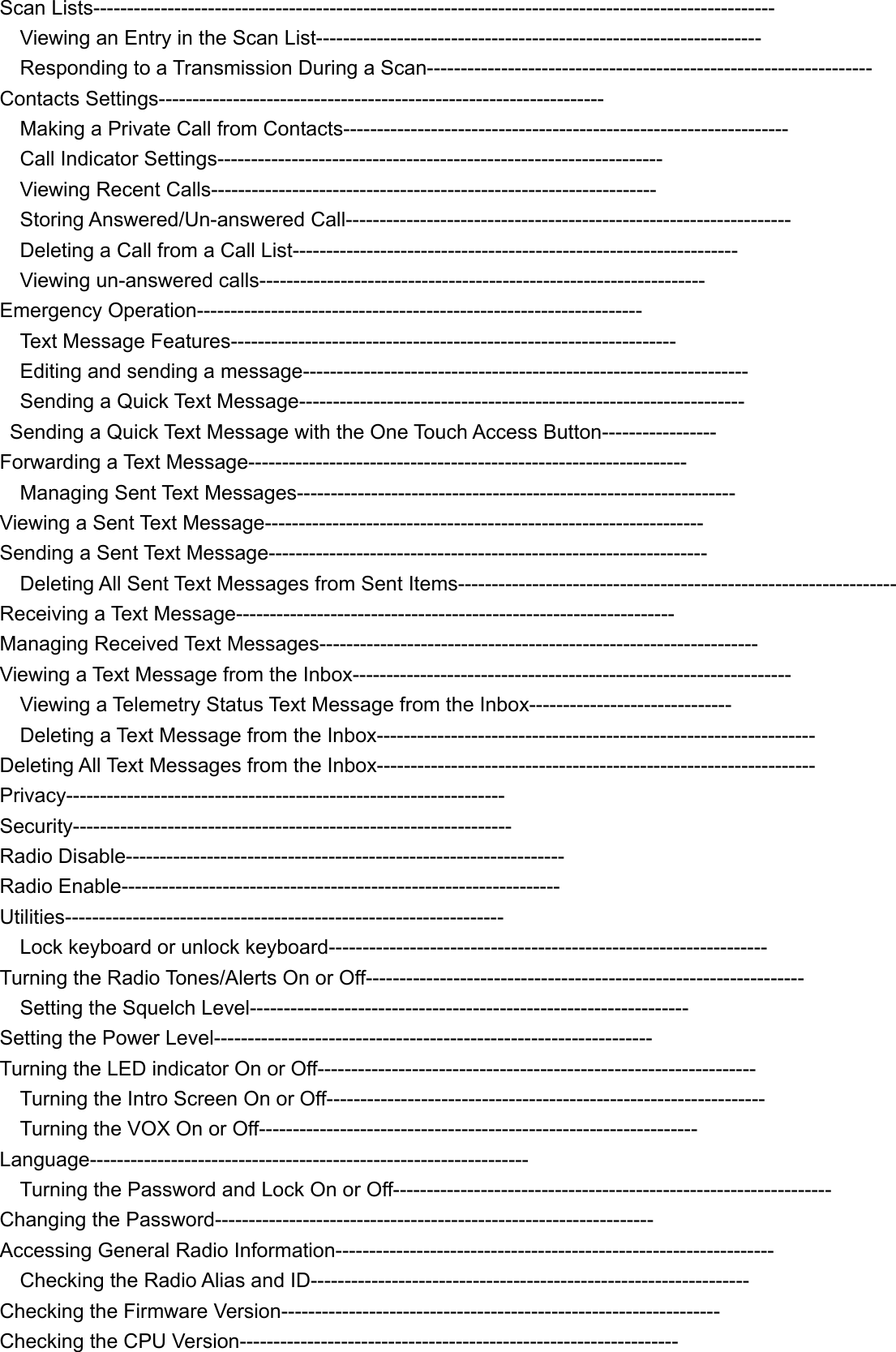
Safety Information z Please read the following safety information in order to offer you security and high efficiency during operation.  z Please turn off the radio before entering an inflammable and explosive area.     z Do not replace the battery or charging when you are in an inflammable and explosive area.   z Please turn off the radio when you are close to the blast area or detonator zone. z Do not use any radio which has a damaged antenna. It may cause a minor burn when the damaged antenna touches your skins.   z Do not attempt to dismantle the radio unless professional technical person.   z To avoid the problems which caused by EMI and EMC, turn off your radios in any places where posted notices “Please turn off your radios”. For example, the hospital or other health care places. z Turn off your radio before boarding an aircraft. Any use of the radio must be in accordance with airline regulations or flight crew’s instructions.   z If the vehicles have carried with an air bag, do not put your radios within the air bag expand coverage. z Do not expose the radio to direct sunlight over a long time, nor place it close to the heating equipment.   z Do not place the radio in any excessively dusty, humid or wet place, nor an unstable surface.   z When the portable radio is transmitting, please hold the radio in a vertical position and speak to the Microphone.  z If you carry a radio on your body, please keep the antenna away from your body 2.5cm at least when the radio is transmitting.  Product Check We suggest you to check the packing box first before using it. Please carefully unpack the box and check if all the items which listed in following table are received. If you find any loss or damage, please contact your dealer immediately.    Radio       Antenna     Battery    Adaptor      Charger     Belt Clip    Screws     User Manual  Hand Strap
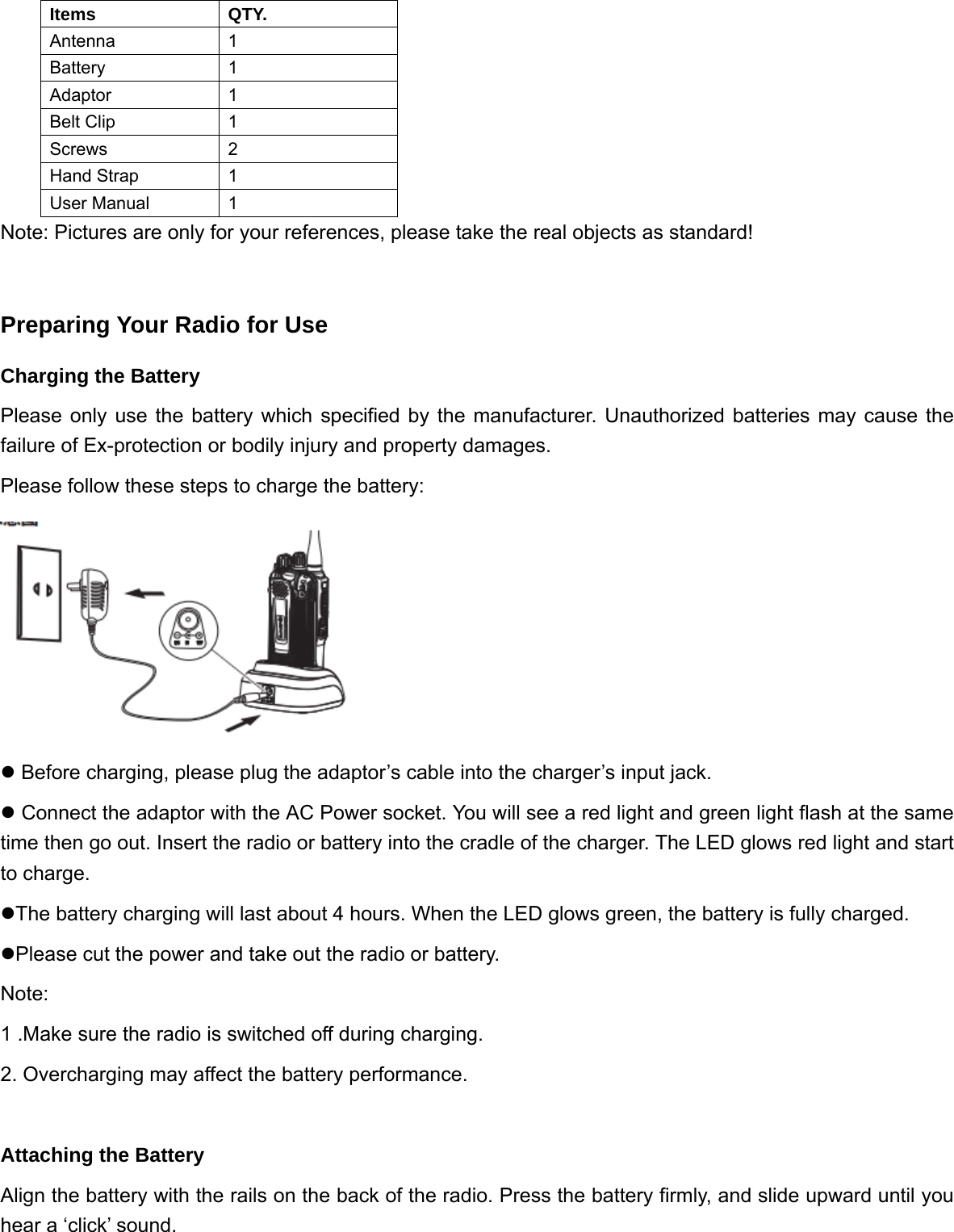
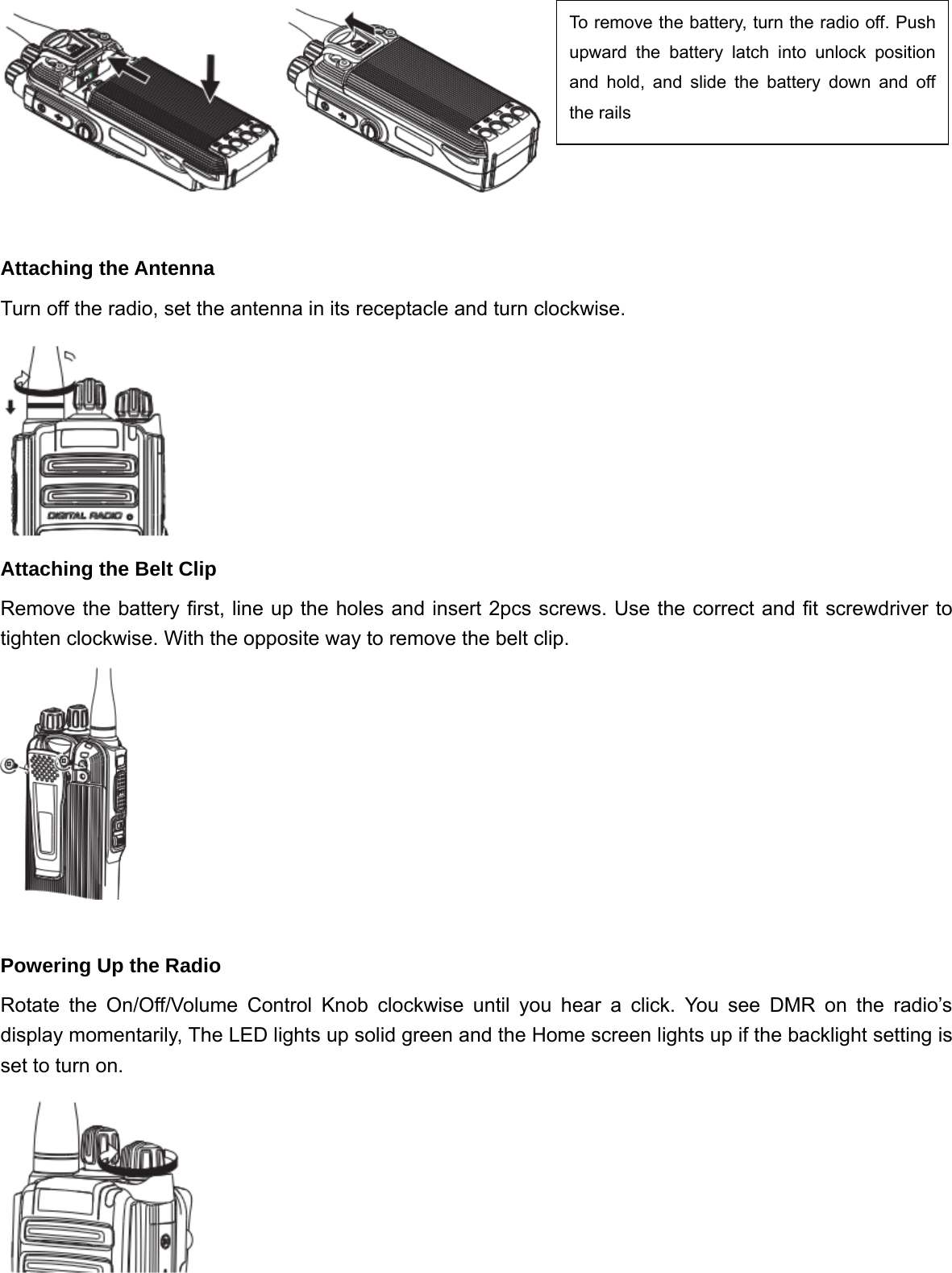
Items QTY. Antenna 1 Battery 1 Adaptor 1 Belt Clip  1 Screws 2 Hand Strap  1 User Manual  1 Note: Pictures are only for your references, please take the real objects as standard!  Preparing Your Radio for Use Charging the Battery Please only use the battery which specified by the manufacturer. Unauthorized batteries may cause the failure of Ex-protection or bodily injury and property damages.   Please follow these steps to charge the battery:  z Before charging, please plug the adaptor’s cable into the charger’s input jack. z Connect the adaptor with the AC Power socket. You will see a red light and green light flash at the same time then go out. Insert the radio or battery into the cradle of the charger. The LED glows red light and start to charge.   zThe battery charging will last about 4 hours. When the LED glows green, the battery is fully charged.   zPlease cut the power and take out the radio or battery.   Note: 1 .Make sure the radio is switched off during charging. 2. Overcharging may affect the battery performance.  Attaching the Battery Align the battery with the rails on the back of the radio. Press the battery firmly, and slide upward until you hear a ‘click’ sound.
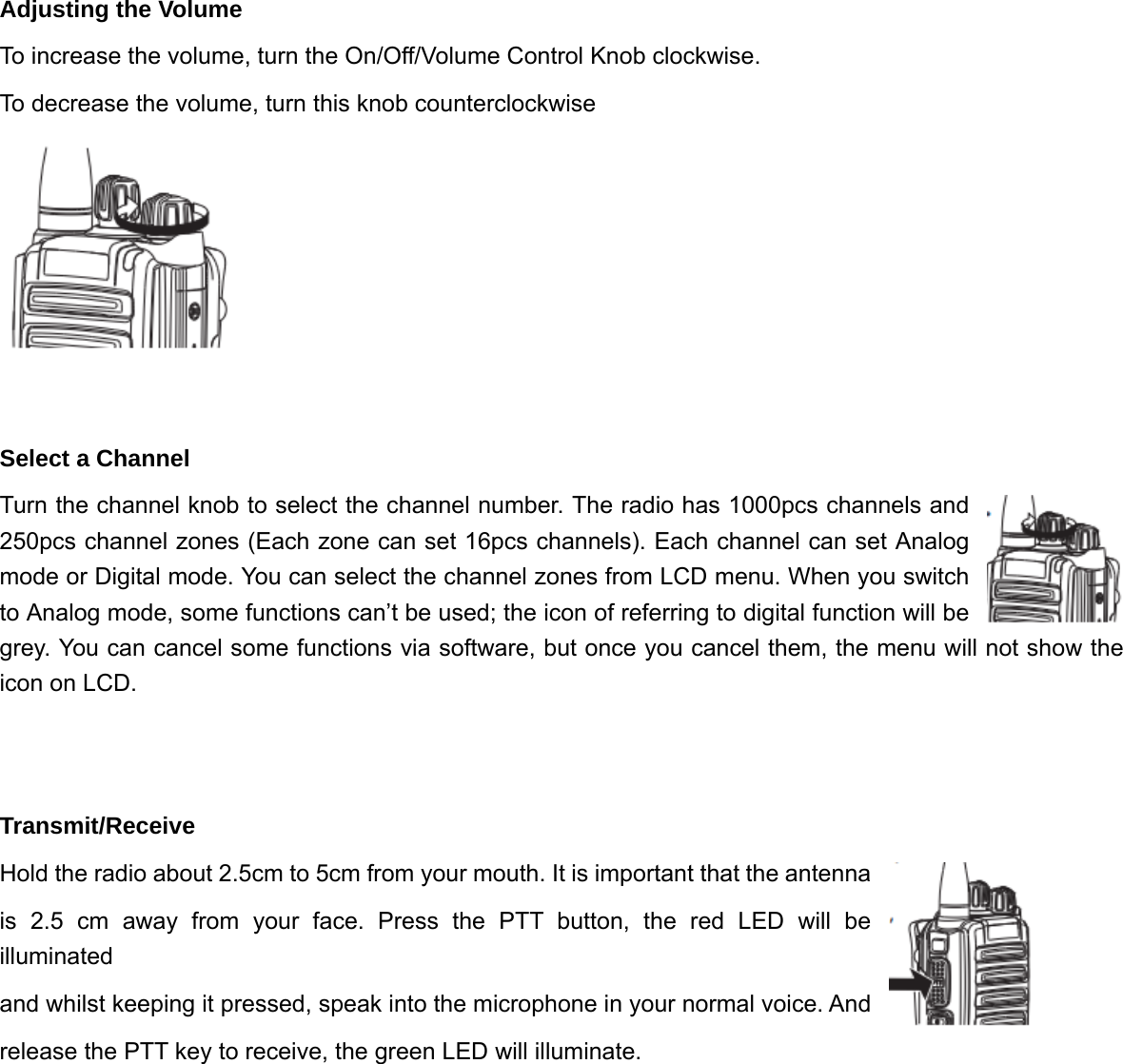
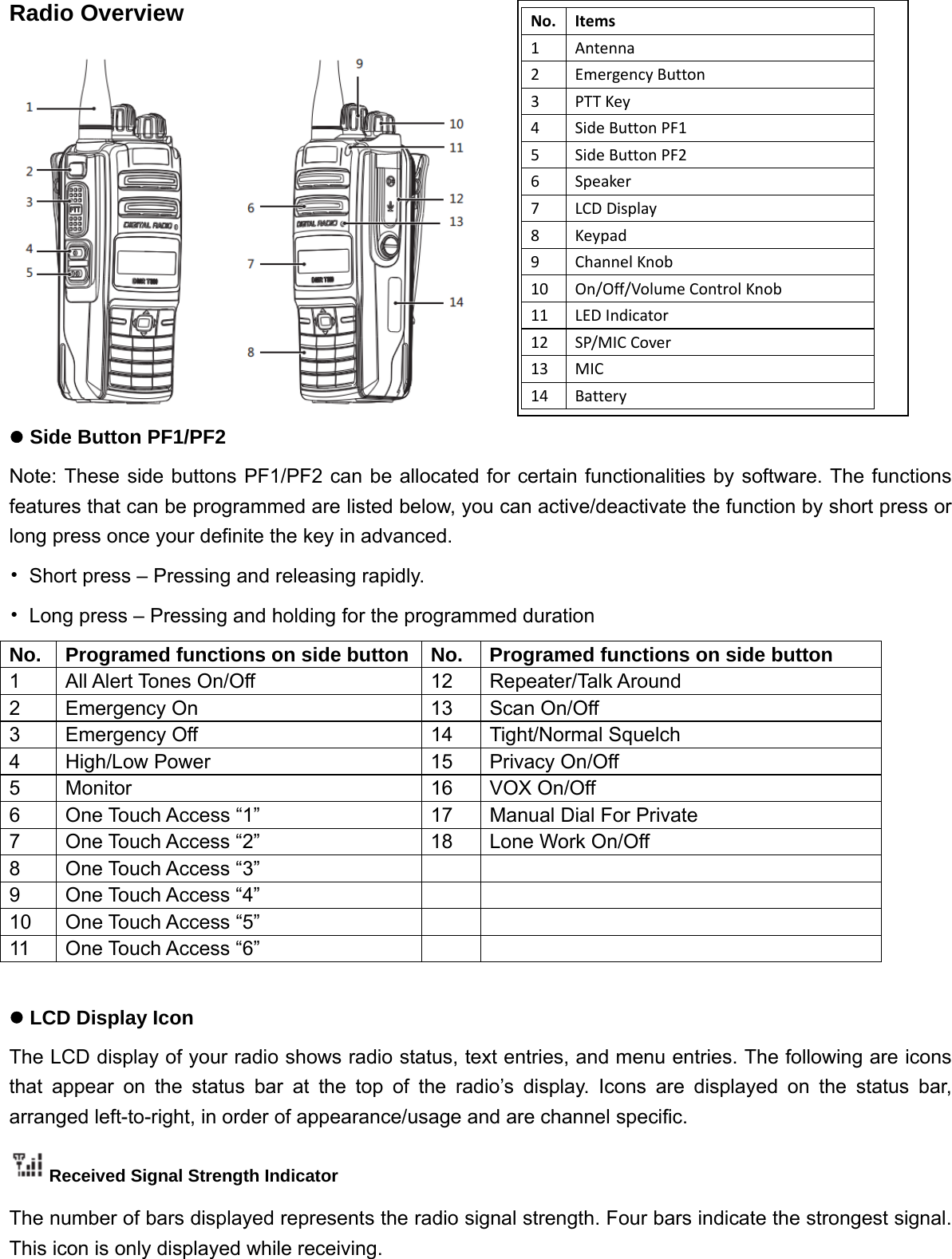
  Attaching the Antenna Turn off the radio, set the antenna in its receptacle and turn clockwise.  Attaching the Belt Clip Remove the battery first, line up the holes and insert 2pcs screws. Use the correct and fit screwdriver to tighten clockwise. With the opposite way to remove the belt clip.   Powering Up the Radio Rotate the On/Off/Volume Control Knob clockwise until you hear a click. You see DMR on the radio’s display momentarily, The LED lights up solid green and the Home screen lights up if the backlight setting is set to turn on.   To remove the battery, turn the radio off. Push upward the battery latch into unlock position and hold, and slide the battery down and off the rails
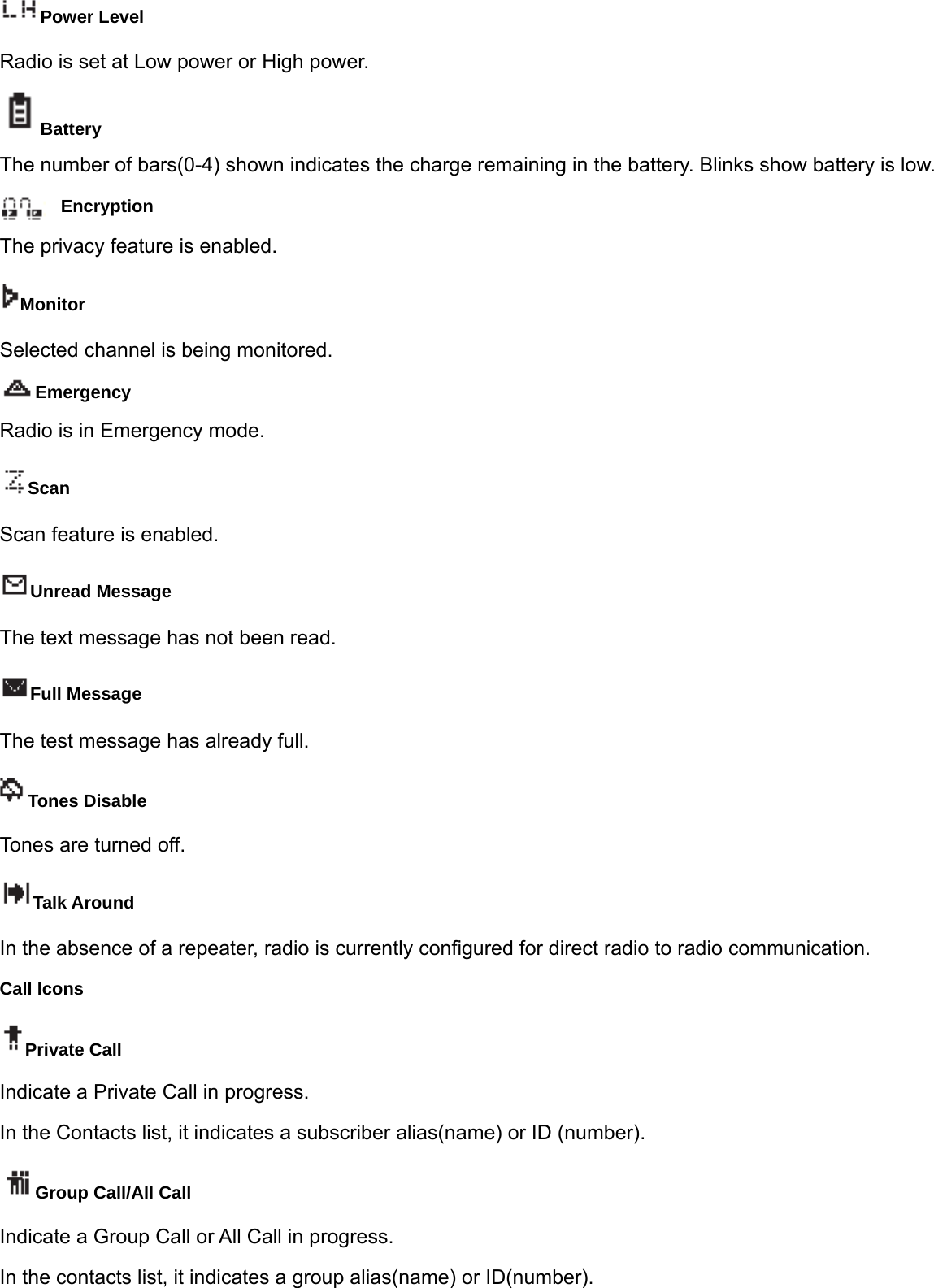
Adjusting the Volume To increase the volume, turn the On/Off/Volume Control Knob clockwise. To decrease the volume, turn this knob counterclockwise   Select a Channel   Turn the channel knob to select the channel number. The radio has 1000pcs channels and 250pcs channel zones (Each zone can set 16pcs channels). Each channel can set Analog mode or Digital mode. You can select the channel zones from LCD menu. When you switch to Analog mode, some functions can’t be used; the icon of referring to digital function will be grey. You can cancel some functions via software, but once you cancel them, the menu will not show the icon on LCD.   Transmit/Receive Hold the radio about 2.5cm to 5cm from your mouth. It is important that the antenna   is 2.5 cm away from your face. Press the PTT button, the red LED will be illuminated  and whilst keeping it pressed, speak into the microphone in your normal voice. And   release the PTT key to receive, the green LED will illuminate.
Radio Overview  z Side Button PF1/PF2 Note: These side buttons PF1/PF2 can be allocated for certain functionalities by software. The functions features that can be programmed are listed below, you can active/deactivate the function by short press or long press once your definite the key in advanced. •  Short press – Pressing and releasing rapidly. •  Long press – Pressing and holding for the programmed duration No.  Programed functions on side button No.  Programed functions on side button 1  All Alert Tones On/Off  12  Repeater/Talk Around 2  Emergency On  13  Scan On/Off 3  Emergency Off  14  Tight/Normal Squelch 4  High/Low Power  15  Privacy On/Off 5 Monitor  16 VOX On/Off 6  One Touch Access “1”  17  Manual Dial For Private 7  One Touch Access “2”  18  Lone Work On/Off 8 One Touch Access “3”     9 One Touch Access “4”      10 One Touch Access “5”      11 One Touch Access “6”       z LCD Display Icon The LCD display of your radio shows radio status, text entries, and menu entries. The following are icons that appear on the status bar at the top of the radio’s display. Icons are displayed on the status bar, arranged left-to-right, in order of appearance/usage and are channel specific. Received Signal Strength Indicator The number of bars displayed represents the radio signal strength. Four bars indicate the strongest signal. This icon is only displayed while receiving.  No. Items1Antenna2EmergencyButton3PTTKey4SideButtonPF15SideButtonPF26Speaker7LCDDisplay8Keypad9ChannelKnob10On/Off/VolumeControlKnob11LEDIndicator12SP/MICCover13MIC14Battery
Power Level Radio is set at Low power or High power. Battery The number of bars(0-4) shown indicates the charge remaining in the battery. Blinks show battery is low. Encryption  The privacy feature is enabled. Monitor Selected channel is being monitored. Emergency Radio is in Emergency mode. Scan Scan feature is enabled. Unread Message The text message has not been read. Full Message The test message has already full. Tones Disable Tones are turned off. Talk Around In the absence of a repeater, radio is currently configured for direct radio to radio communication. Call Icons Private Call Indicate a Private Call in progress. In the Contacts list, it indicates a subscriber alias(name) or ID (number). Group Call/All Call Indicate a Group Call or All Call in progress.   In the contacts list, it indicates a group alias(name) or ID(number).
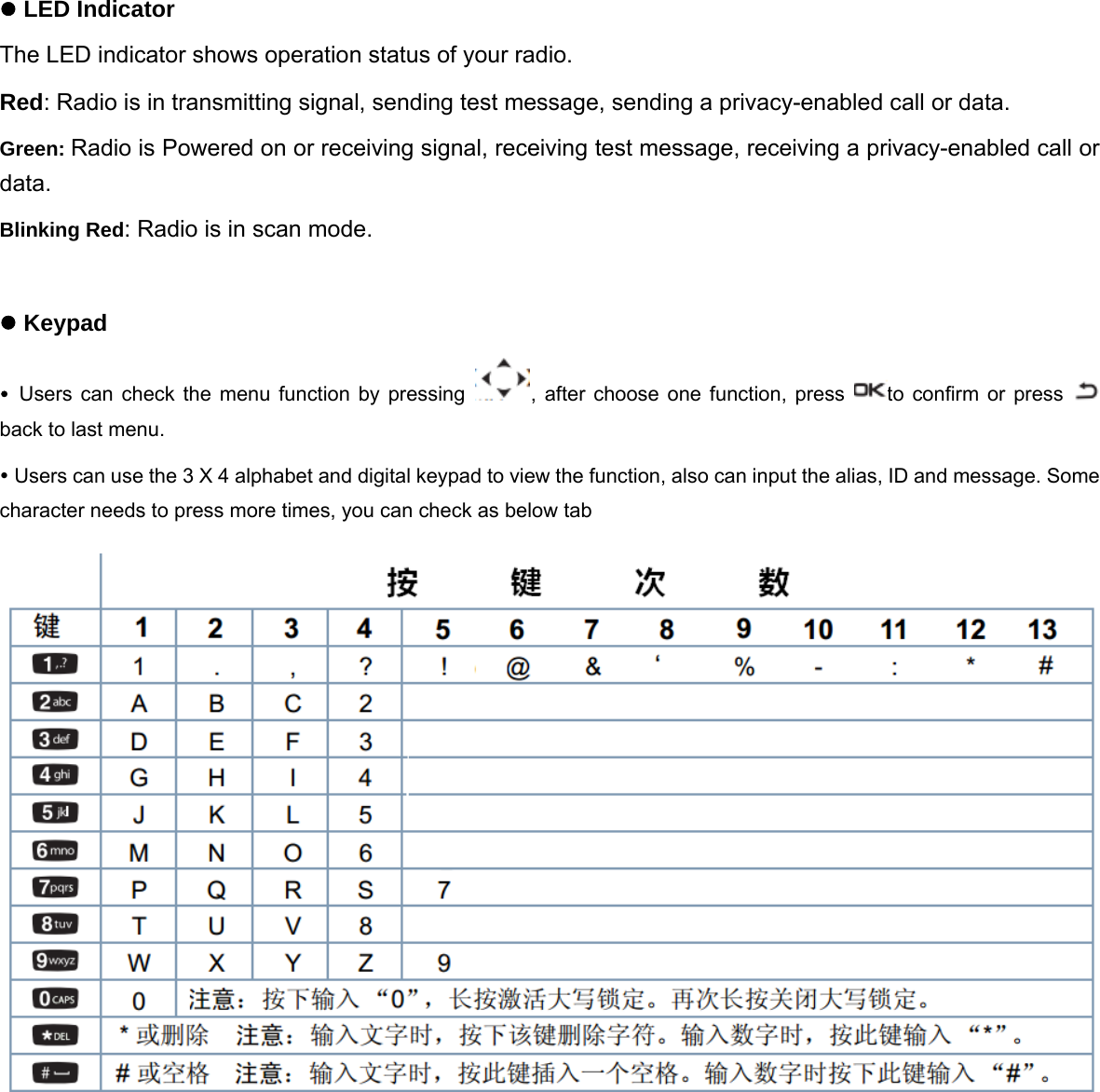
z LED Indicator The LED indicator shows operation status of your radio. Red: Radio is in transmitting signal, sending test message, sending a privacy-enabled call or data. Green: Radio is Powered on or receiving signal, receiving test message, receiving a privacy-enabled call or data. Blinking Red: Radio is in scan mode.  z Keypad y Users can check the menu function by pressing  , after choose one function, press  to confirm or press   back to last menu. y Users can use the 3 X 4 alphabet and digital keypad to view the function, also can input the alias, ID and message. Some character needs to press more times, you can check as below tab
Functions Operation Instruction 1.  Making and Receiving Calls PTT Key Each channel can be set for Analog mode or digital mode. Procedure below: 1. Press PTT to send the signal, release the PTT to receive. 2. If you active the talk permit tone, until you hear a warning, you can talk again. 3. If you open the function of “Channel free warning”, the other radios when release PTT key, you can hear a warning. It means this channel is free, wait for your answer. 4. If your call is stopped, you still can hear a warning. If you don’t want to hear the warning, you can close all beep and warning function.    5. Tune the channel knob to select the channel. Select a Zone A Zone is a channel zone. This radio can support max 250 channel zones. Each zone supports 16 channels. Follow below procedure to select a channel zone. 1. Press  key to access menu. 2. Press  to select the “Zone”. Then press key to confirm. 3.The LCD will show  √  icon to indicate the current channel Zone. 4. Press key to select the Zones which you want. Then press key to confirm. 5. The LCD will display “Zone X”, then return to standby.  Select the channels After you confirm the channel zone, turn the channel knob to select the channels. Receive and Response a call. When the LED is green, the radio is receiving. When the LED is red, the radio is transmitting.  Receive and Response a Zone Call Your radio should be within this zone. When you radio is receiving a zone call. Procedure below: 1 The LED will be green. 2. The first line of LCD will display the signal bar and alias of call party. The second line of LCD will show the alias of zone and icon of a zone call (only available under the digital mode.) 3. Press PTT key to response the call. The LED will be red. 4. Speak to microphone. 5. Release the PTT to receive.
Receive and Response Private Call. Single call is one radio to call other radio between two radios. Total two types single call. One is, before call to check if the signal is existed. Other type is to call directly.   When you are receiving the single call, procedure below: 1. LED will be green. 2. The first line of LCD will show signal ICON and call ID. The second line will show single call and ICON. 3. Press PTT to talk radio. If the radio active the “channel free indicator” function, when you release the PTT key, you will hear a short warning. It means this channel is free now. 4. Press PTT key to reply the call. LED will be red. 5. Waiting for the talk permit tone(if active) is over, talk to microphone. 6. Release PTT key to receive. 7. If not any signal is received during setting time, the call will be over. 8. You will hear a short warning, and the LCD will show the call is over.  Receive All call. All call is one radio to call all radio on one channel. You can send some important information to other radios on channel. When you receive the all call, procedure below: 1. LED will be green. 2. The first line of LCD will show signal icon and call alias. The second line will show all call and icon. 3. When the all call is over, radio will return to standby. If you active “channel free indictor” function, when others radio release the PTT, you will hear a short warning. It means this channel is free now.   4. You can’t rely any all call. Note: When you are receiving the all call, if you turn to other channels, the radio will stop to receive the all call. During the all call, you can’t use any pre-programmed key, until the all call is over.  Making a Radio Call After selecting your channel, you can select a subscriber alias or ID, or group alias or ID by using: •  The Channel Selector Knob •  A programmed One Touch Access button   •  The Contacts list   •  Manually dial(by contact lists) Note: If radio doesn’t active the “Privacy” function, it can’t send the encryption codes. Only with same encryption codes between two radios, them can decode and talk each other.
Making a Call with the Channel Selector Knob Making a Group Call To make a call to a group of users, your radio must be configured as part of that group. Procedure bellow: 1.  Select the channel with the active group alias or ID. Press the programmed One Touch Access button. 2.  Hold the radio vertically 1 to 2 inches(2.5 to 5.0cm) from your mouth. 3.  Press the PTT button to make the call. The LED lights up solid red. The LCD display the group alias or ID. 4.  Wait for the Talk Permit Tone to finish (if enabled) and speak clearly into the microphone. 5.  Release the PTT button to listen, and when the target radio responds, the LED blinks green. You see the Group Call icon, the group alias or ID, and transmitting radio alias or ID on your display. 6.  If the Channel Free Indication feature is enabled, you hear a short alert tone the moment the target radio releases the PTT button, indicating the channel is free for you to respond. Press the PTT button to respond or If there is no voice activity for a predetermined period of time, the call ends. 7.  Radio returns to the screen you were on prior to initiating the call. You can also make a Group Call via Contacts list.  Making an All Call This feature allows you to transmit to all users on the channel. Your radio must be programmed to allow you to use this feature. Procedure below: 1.  Using the channel knob to select the channel with the active group alias or ID. 2.  Hold the radio vertically 1 to 2 inches (2.5 to 5.0 cm) from your mouth. 3.  Press the PTT button to make the call. The LED lights up solid green. The Group Call icon appears in the display. 4.  Wait for the Talk Permit Tone to finish (if enabled) and speak clearly into the microphone. Note:Users on the channel cannot respond to an All Call. Making a Group Call or Private Call with the One Touch Access Button The One Touch Access feature allows you to make a Group or Private Call to a predefined alias or ID easily. This feature can be assigned to a short or long programmable button press, or to a long numeric button press. You can ONLY have one alias or ID assigned to a One Touch Access button. Your radio can have multiple One Touch Access buttons programmed. 1.  Press the programmed One Touch Access button to make a Group or Private Call to the predefined alias or ID. 2.  Hold the radio vertically 1 to 2 inches (2.5 to 5.0 cm) from your mouth. 3.  Press the PTT button to make the call. The LED lights up solid red. The caller alias/Group/Private Call icon appears in the display.   4.  Wait for the Talk Permit Tone to finish (if enabled) and speak clearly into the microphone. 5.  Release the PTT button to listen. When the target radio responds, the LED blinks green 6.  If the Channel Free Indication feature is enabled, you hear a short alert tone the moment the target radio releases the   PTT button, indicating the channel is free for you to respond. Press the PTT button to respond. Or if there is no voice activity for a predetermined period of time, the call ends. 7.  Radio returns to the screen you were on prior to initiating the call. Note: For a Private Call, you hear a short tone when the call ends. Talkaround You can continue to communicate when your repeater is not operating, or when your radio is out of the repeater’s range but within talking range of other radios. This is called “talkaround”. Procedure below:
Press the programmed Repeater/Talkaround button to toggle between talkaround and repeater modes. Or follow the procedure below: 1.  Press    to access the menu, press  to select. 2.  Press    to ‘Utilities’ and press    to select. 3.  Press    to ‘Talkaround’ and press    to confirm. 4.  If radio now in ‘Repeater’ mode, then you will see ‘Repeater’. But if radio now in ‘Talkaround’, then you will see ‘Talkaround’. 5.  Press    to select, the display show ‘Talkaround’ or ‘Repeater’. 6.  The screen automatically returns to the previous menu. Note: The Talkaround setting is retained even after powering down.  Monitor Feature (Only available in Analog mode) Use the Monitor feature to make sure a channel is clear before transmitting. 1.  Press and hold the programmed Monitor button and listen for activity.The monitor icon appears on the status bar and the LED lights up green 2.  Press again the programmed Monitor button to exit Monitor status. The radio will alert a tone, LED turns off and the monitor icon disappears on the status bar. . Radio Check If enabled, this feature allows you to determine if another radio is active in a system without disturbing the user of that radio. No audible or visual notification is shown on the target radio. This feature is only applicable for subscriber aliases or IDs Sending a Radio Check Procedure below: 1.  Press to access the menu to ‘Contacts’, press to select. 2.  Press  to the required ‘subscriber alias or ID’ and press  to confirm. Select or manual dial, then press   to confirm, display show ‘manual dial Radio Number’, press    again to confirm. 3.  Press    to ‘Radio Check’, and then press  to select. 4.  The display shows Radio Check, ‘subscriber alias or ID’, which indicates the requirement is in progress, LED lights up solid Red light. 5.  Wait for acknowledgement. 6.  If successful, a positive indicator tone sounds and the display shows positive mini notice. OR If unsuccessful, a negative indicator tone sounds and the display shows negative mini notice. 7.  Radio returns to the subscriber alias or ID screen. Note: f the button is pressed when the radio is waiting for acknowledgement, a tone sounds, and the radio terminates all retries and exits Radio Check mode.
Remote Monitor Use the Remote Monitor feature to turn on the microphone of a target radio (subscriber alias or IDs only). No audible or visual indication is given to the target radio. You can use this feature to monitor, remotely, any audible activity surrounding the target radio. Your radio must be programmed to allow you to use this feature Initiating Remote Monitor Procedure below: 1.  Press to access the menu to ‘Contacts’, press  to select. 2.  Press  to the required ‘subscriber alias or ID’ and press  to confirm. Select or manual dial, then press   to confirm, display show manual dial Radio Number, press    again to confirm. 3.  Press  to ‘Remote Monitor’, and press    select. 4.  The display shows ‘Radio Check’, ‘subscriber alias or ID’, which indicates the requirement is in progress, LED lights up solid Red light. 5.  The radio alert a beep tone, LED lights up solid red light. 6.  Wait for acknowledgement. 7.  If successful, your radio starts playing audio from the monitored radio for a programmed duration and display shows Rem. Monitor. Once the timer expires, the radio sounds an alert tone and the LED turns off. 8.  If unsuccessful, radio returns to screen.  Scan Lists Scan lists are created and assigned to individual channels/groups. Your radio scans for voice activity by cycling through the channel/group sequence specified in the scan list for the current channel/group. Your radio can support up to 250 scan lists, with a maximum of 31 members in a list. Each scan list supports a mixture of both analog and digital entries. You can add, delete, or prioritize channels by editing a scan list. You can attach a new scan list to your radio via Front Panel Viewing an Entry in the Scan List 1.  Press  to access the menu to ‘Contacts’, press to select. 2.  Press    to ‘Scan List’, press to select. 3.  Press    view each member on the list. The priority   icon appears left of the member’s alias, if set, to indicate whether the member is on a Priority 1 or Priority 2 channel list. You cannot have multiple Priority 1 or Priority 2 channels in a scan list. There is no priority icon if priority is set to None. Editing the Scan List If you want to set up priority channels, or add/delete channel in scan list, you need program and operate them via software. Scan When you start a scan, your radio cycles through the programmed scan list for the current channel looking for voice activity. The LED blinks red and the scan icon appears on the status bar. During a dual mode scan, if you are on a digital channel, and your radio locks onto an analog channel, it automatically switches from digital mode to analog mode for the duration of the call. This is also true for the reverse.
There are two ways of initiating scan:   •  Main Channel Scan (Manual): Your radio scans all the channels/groups in your scan list. On entering scan, your radio may – depending on the settings – automatically start on the last scanned “active” channel/group or on the channel where scan was initiated. •  Auto Scan (Automatic): Your radio automatically starts scanning when you select a channel/group that has Auto Scan enabled. Starting and Stopping Scan Press the programmed Scan button to start or stop Scan. OR Follow the procedure below. 1.  Use the Channel Selector Knob to select a channel programmed with a scan list. 2.  Press  to access the menu, press to select. 3.  Press    to ‘Scan State’ and press    to select. 4.  Press    to required scan state and press  to select 5.  The display shows Scan On when scan is enabled. The LED blinks red and the scan icon appears. OR The display shows Scan Off if scan is disabled. The LED turns off and the scan icon disappears.    Responding to a Transmission During a Scan During scanning, your radio stops on a channel/group where activity is detected. The radio stays on that channel for a programmed time period known as “hang time”. Procedure below; 1.  Hold the radio vertically 1 to 2 inches (2.5 to 5.0 cm) from your mouth. If the Channel Free Indication feature is enabled, you hear a short alert tone the moment the transmitting radio releases the PTT button, indicating the channel is free for you to respond. 2.  Press the PTT button during hang time. The LED lights up solid red. 3.  Wait for the Talk Permit Tone to finish (if enabled) and speak clearly into the microphone. OR Wait for the PTT Side tone to finish (if enabled) and speak clearly into the microphone. 4. Release the PTT button to listen. 5 If you do not respond within the hang time, the radio returns to scanning other channels/groups Contacts Settings Contacts provide “address-book” capabilities on your radio. Each entry corresponds to an alias or ID that you use to initiate a call. Each entry, depending on context, associates with one of five types of calls: Group Call, Private Call, All Call, PC Call or Dispatch Call. PC Call and Dispatch Call are data-related. They are only available with the applications. Refer to the data applications documentation for more information. Note: If the Privacy feature is enabled on a channel, you can make privacy-enabled Group Call, Private Call, and All Call on that channel. Only target radios with the same Privacy Key OR the same Key Value and Key ID as your radio are able to unscramble the transmission. Your radio supports digital Contacts lists with a maximum of 1000 members. Each entry within Contacts displays the following information: • Call Type • Call Alias • Call ID
Note:You can add, or edit subscriber IDs for the Digital Contacts list. Deleting subscriber IDs can only be performed by your dealer. Making a Private Call from Contacts Procedure below; 1.  Press  to access the menu, press to select. 2.  Press  to ‘Contacts’ and press  to select; Or input a radio ID number to keypad, the radio display call ID and press    to confirm. 3.  Press PTT to start a call, LED will be red. The LCD will show ‘Channel alias or ID’ and single call icon. The target radio LED will be red. Then LCD will show ‘Channel alias or ID’ and single call icon. 4.  Wait for the Talk Permit Tone to finish (if enabled) and speak clearly into the microphone. 5.  Release the PTT to receive. The LED will be green. And the LCD will show the user ID from target radio. 6.  If you active “Channel Free Indictor” function, when target radio release the PTT, you will hear a short warning. It means this channel is free now. 7.  If haven’t any call within pre-programmed time, the call will be finished. The radio will sent out a warning.   Call Indicator Settings You can select, or turn on or off ringing tones for a received Call Alert, procedure below: 1.  Press  to access the menu, press to select. 2.  Press  to ‘Radio Settings’, press  to select. 3. Press  to ‘Tones/Alerts’, press  to select. 4.  Display show on, press  to active. Or display shows off, press    to call record function to record Radio can record your call log. You can check the ‘Missed/ Outgoing / Answered’ record from your radio. You also can operate as below: •  Store the ID to contact list from call log. •  Delete the call log. Viewing Recent Calls The lists are Missed, Answered, and Outgoing. Procedure below: 1.  Press  to access the menu to Call Log, press to select. 2.  Press  to required list and press    to select. 3.  The display shows the most recent entry at the top of the list 4.  Press  to view the list. Storing Answered/Un-answered Call   The lists are Answered/Un-answered Call, Procedure below: 1.  Press  to access the menu to Call Log, press to select.
2.  Press  to Call Alias/ID to choose storing menu and press    to select. 3.  The display blink and input the name and ID, press    to confirm. Deleting a Call from a Call List 1.  Press  to access the menu.to Call Log 2.  Press  to the required list and press  to select. 3.  Press  to the required alias or ID and press    to select. 4.  Press  to Delete and press  to select. 6 Press  to select yes to delete the entry. The display shows positive mini notice. OR press    to No to return to the previous screen Viewing un-answered calls No matter when missed the calls, radio will always display an un-answered call.   You could select to check immediately or check later. 1.  The display show un-answered calls, and the call ID and check? 2.  Press    to view call list, press    to select. 3.  Press    to un-answered call, and then press    to select. 4.  Press    to un-answered ID, the list show on the screen.  Emergency Operation An Emergency Alarm is used to indicate a critical situation. You are able to initiate an Emergency at any time on any screen display even when there is activity on the current channel Your radio supports three Emergency Alarms: •  Regular – Radio transmits an alarm signal and shows audio indicators. •  Silent – Radio transmits an alarm signal without any audio indicators.   •  Silent with Voice –Radio transmits an alarm signal without any audio indicators, but allow incoming calls to sound through the radio’s speaker Note: Only ONE of the Emergency Alarms above can be assigned to the programmed Emergency button. Text Message Features Editing and sending a message Your radio supports message character maximum is 144.characters. 1. Press  to access menu mode to “Messages” item. Press    to enter 2. Press    to select the “Write” item, press    to enter.
3. Editing the messages by keypad, press    leftward/right forward one position, , # key is blank, * key cancel one character. 4. After editing, press    to confirm.   5. Press   to “Send” item, Press    to confirm. Then press    to select one ID to send the message. Or you can select the “Manual Dial” item to input a ID. Press    to confirm and send the message. 6. The LCD display show “Sending to ID/ alias”. 7. If sending message is successful, radio will send out a warning, and the LCD show “Message Send”. If sending message is failure, you radio will send out a warning and LCD will show “Fail to Send”. Sending a Quick Text Message Your radio supports a maximum of 50 Quick Text messages as programmed by your dealer.   While Quick Text messages are predefined, you can edit each message before sending it. Your radio supports message character maximum is 144.characters. 1.  Press   to access the menu, press    to confirm 2.  Press  to’ Messages’ and press    to confirm 3.  Press  to ‘Quick Text’ and press    to confirm 4. Pressto the required Quick Text and press  to select. or press  to the required alias or ID and press    to confirm The display shows transitional mini notice, confirming your message is being sent. 5 If the message is sent, a tone sounds and the display shows positive mini notice. OR If the message is not sent, a low tone sounds and the display shows negative mini notice.   Sending a Quick Text Message with the One Touch Access Button 1.  Press the programmed One Touch Access button to send a predefined Quick Text message to a predefined alias or ID. 2.  The display shows transitional mini notice, confirming your message is being sent. If the message is sent, a tone sounds and the display shows   Forwarding a Text Message 1.  Press   to access the menu to inbox to select a Message, press to resend , press    to confirm 2.  Press  to requirement alias or ID, and press    to confirm.   Or press   to manual dial, press    to confirm. Input user ID and press    to confirm. 3.  Your LCD display ‘subscriber/group alias or ID’, show message is in sending. 4.  If the message is sent, a tone sounds and the display shows positive mini notice. OR If the message is not sent, a low tone sounds and the display shows negative mini notice. Managing Sent Text Messages Once a message is sent to another radio, it is saved in Sent Items. The most recent sent text message is always added to the top of the Sent Items list. The Sent Items folder is capable of storing a maximum of fifty (50) last sent messages. When
the folder is full, the next sent text message automatically replaces the oldest text message in the folder. Viewing a Sent Text Message 1.  Press   to access menu to Message item, press    to confirm. 2.  Press   to sent items, press    to confirm. 3.  Press  to the required message and press    to confirm. Sending a Sent Text Message You can select one of the following options while viewing a sent message: y Resend – Select resend, will resend the selected message to target group alias or ID. y Forward – Select forward, will forward the selected message to target group alias or ID. y Edit – Select Edit, will edit the message before sending. y Delete – Delete message Note1: If you exit the message sending screen while the message is being sent, the radio updates the status of the message in the Sent Items folder without providing any indication in the display or via sound. Note 2: If the radio changes mode or powers down before the status of the message in Sent Items is updated, the radio cannot complete any In-Progress messages and automatically marks it with a Send Failed icon Note 3: The radio supports a maximum of five (5) In-Progress messages at one time. During this period, the radio cannot send any new message and automatically marks it with a Send Failed icon. Deleting All Sent Text Messages from Sent Items 1.  Press   to access menu to Message item, press    to confirm. 2.  Press   to sent items, press    to confirm. 3.  Press    to delete all, press    to confirm. 4.  Press  to Yes and press    to select. The display shows positive mini notice OR press  to No and press    to return to the previous screen. Receiving a Text Message When your radio receives a message, the display shows the Notification List with the alias or ID of the sender and the message icon. You can select one of the following options when receiving a text message: y Read y Read Later y Delete Note: The radio exits the Text Message alert screen and sets up a Private or Group Call to the sender of the message if the PTT button is pressed when the radio is displaying the alert screen. Managing Received Text Messages
Use the Inbox to manage your text messages. The inbox is capable of storing a maximum of 30 messages. Your radio supports the following options for text messages: • Reply • Forward • Delete • Delete All Note: Text messages in the Inbox are sorted according to the most recently received.  Viewing a Text Message from the Inbox 1.  Press   to access menu to Message item, press    to confirm. 2.  Press   to Inbox, press    to confirm. 3. Press  view message 4.  Press  to select the current message, and press   again to reply, forward, or delete that message. Uncheck message will show in the first line with an exclamation mark !.  Viewing a Telemetry Status Text Message from the Inbox 1.  Press   to access menu 2.  Press    to message item, press    to select 3.  Press    to inbox, press    to select 4.  Press    to the required message, press    to select, press again to enter sub-menu. 5.  Press    to reply, press    to select 6.  Press   to edit message, press   to select. Your LCD display will show blink cursor. You can edit message by keypad or send predefined Quick Text message,   7.  After editing a message, press    to select 8.  You radio show ‘subscriber/group alias or ID’, which confirm now is sending message. 9.  If message send successfully, radio will show a positive voice and display show message sent. Otherwise display will show message failure to send.  Deleting a Text Message from the Inbox 1.  Press    to access menu. 2.  Press    to message item, press    to select 3.  Press    to inbox, press    to select
4.  Press    to the required message, press    to select, press again to enter sub-menu. 5. Press   to delete, press    to select 6.  Your display will show or Yes and press    to select. 7.  The display shows positive mini notice 8.  The screen returns to the Inbox.  Deleting All Text Messages from the Inbox 1.  Press    to access menu. 2.  Press    to message item, press    to select 3.  Press    to inbox, press    to select 4. Press   to Delete All, press    to select 5.  Your display will show or Yes and press    to select. 6.  The display shows positive mini notice 7.  The screen returns to the Inbox. Note: When you select the Inbox and it contains no text messages, the display shows List Empty Privacy If enabled, this feature helps to prevent eavesdropping by unauthorized users on a channel by the use of a software based scrambling solution. The signaling and user identification portions of a transmission are not scrambled. Your radio must have privacy enabled on the channel to send a privacy-enabled transmission, although this is not a necessary requirement for receiving a transmission. While on privacy enabled channel, the radio is still able to receive clear (unscrambled) transmissions.   Your radio supports Enhanced Privacy. To unscramble a privacy-enabled call or data transmission, your radio must be programmed to have the same Key Value and Key ID as the transmitting radio If your radio receives a scrambled call that is of a different Key Value and Key ID, you will hear nothing at all. Security You can enable or disable any radio in the system. For example, you might want to disable a stolen radio, to prevent the thief from using it, and enable that radio, when it is recovered. Radio Disable 1.  Press    to access menu.to ‘contacts’, press    to select   2.  press    to the required alias or ID, Press    to select 3.  Press   to ‘Disable’,   to select 4.  The display shows transitional mini notice, indicating the request is in progress. The LED blinks green. 5.  If successful, a positive indicator tone sounds and the display shows positive mini notice. Or if unsuccessful, a negative indicator tone sounds and the display shows negative mini notice Radio Enable
1.  Press    to access menu.to ‘contacts’, press    to select   2.  press    to the required alias or ID, Press    to select 3.  Press   to ‘Enable’,   to select 4.  The display shows Radio Enable and the subscriber alias or ID. The LED lights up solid red. 5.    If successful, the radio sounds a positive indicator tone and the display shows positive mini notice. OR If unsuccessful, the radio sounds a negative indicator tone and the display shows negative mini notice Utilities Lock keyboard or unlock keyboard You can lock the keyboard to prevent un-attention input. Procedure below: 1.  Press    to access menu, press    to select 2. Press   to ‘Utilities’, press    to select 3.  Press    to ‘Radio Settings’’, press    to select 4. Press   to ‘Keyboard Lock’, press    to select 5.  The display show Keyboard Locked, and return to main screen. 6.  If want to unlock the keyboard, press    to select, and then press   7.  The display show keyboard unlocked, and return to main screen.  Turning the Radio Tones/Alerts On or Off You can enable and disable all radio tones and alerts if needed. 1.  Press    to access menu 2. Press   to ‘Utilities’, press    to select 3.  Press    to ‘Radio Settings’’, press    to select 4. Press   to ‘Radio Tones/Alerts’’, press    to select 5.  Press    to enable all tones. The display shows  √beside Enabled. OR Press    to disable all tones. The  √ disappears from beside Enabled. Setting the Squelch Level You can adjust your radio's squelch level to filter out unwanted calls with low signal strength or channels that have a higher than normal background noise Settings: ‘Normal’ is the default. ‘Tight’ filters out (unwanted) calls and/or background noise.   However, calls from remote locations may also be filtered out. Procedure below: 1.  Press    to access menu
2. Press   to ‘Utilities’, press    to select 3.  Press    to ‘Radio Settings’’, press    to select 4. Press   to ‘Squelch’’, press    to select 5.  The display shows ‘Tight and Normal’. Press    to the required setting and press to enable.   The  √appears besides selected setting 6.  Screen returns to the previous menu. Setting the Power Level You can customize your radio’s power setting to high or low for each channel. Settings: ‘High’ enables communication with radios located at a considerable distance from you.   ‘Low’ enables communication with radios in closer proximity. Procedure below: 1.  Press    to access menu 2. Press   to ‘Utilities’, press    to select 3.  Press    to ‘Radio Settings’’, press    to select 4.  Press   to ‘Power’’, press   to select the required setting and press    to select.  √appears beside selected setting. 5.  Screen returns to the previous menu.  Turning the LED indicator On or Off You can enable and disable the LED indicator if needed. 1.  Press    to access menu 2. Press   to ‘Utilities’, press    to select 3.  Press    to ‘Radio Settings’’, press    to select 4.  Press    to ‘LED Indicator’’, press    to select the required setting and press    to select.  √appears beside selected setting. 5.  Screen returns to the previous menu.  Turning the Intro Screen On or Off You can enable and disable Intro Screen if needed. 1.  Press    to access menu 2. Press   to ‘Utilities’, press    to select 3.  Press    to ‘Radio Settings’’, press    to select
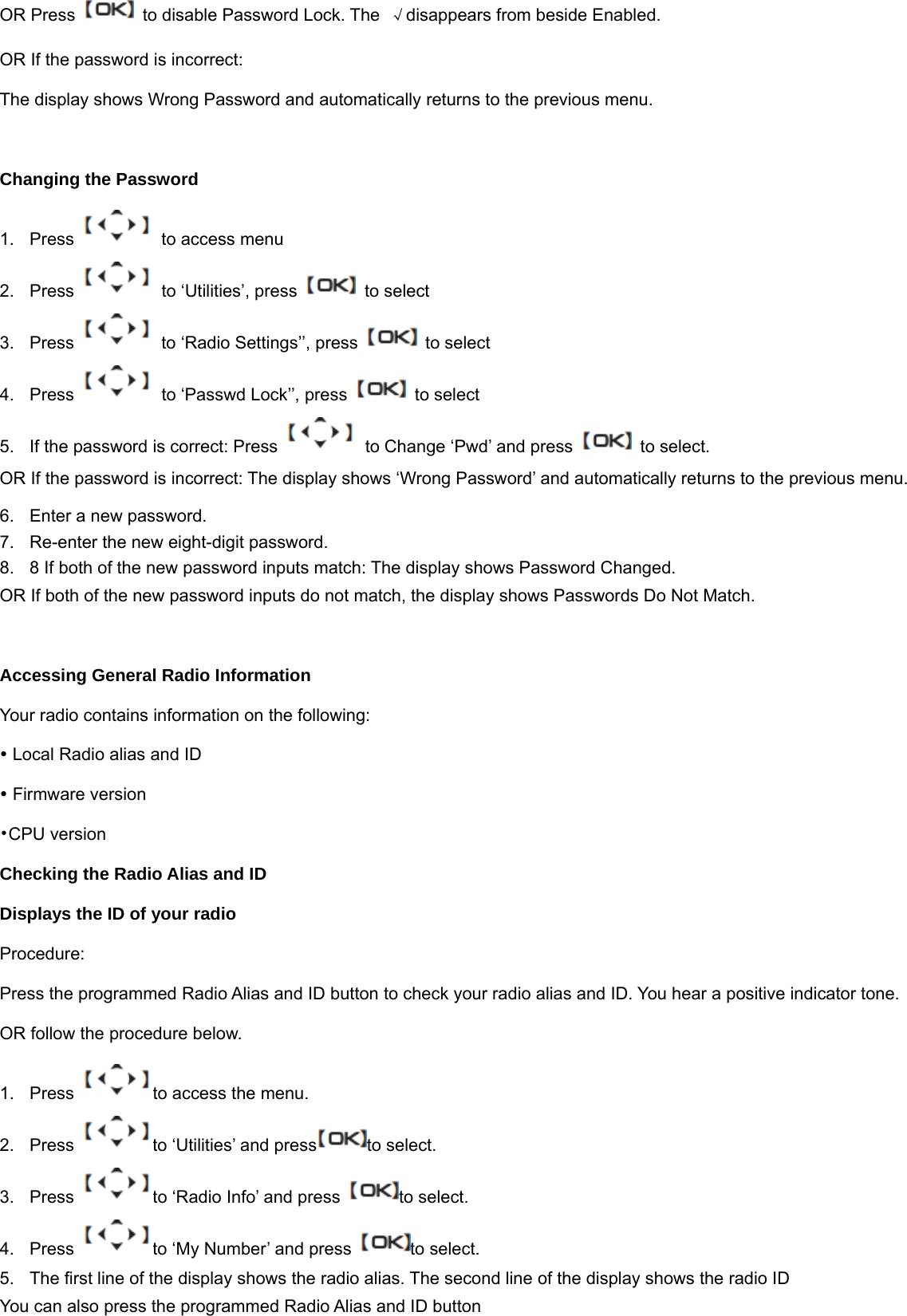
4.  Press    to ‘Intro Screen’’, press    to select the required setting and press    to select.  √appears beside selected setting. 5.  Screen returns to the previous menu.   Turning the VOX On or Off You can enable and disable VOX if needed. 1.  Press    to access menu 2. Press   to ‘Utilities’, press    to select 3.  Press    to ‘Radio Settings’’, press    to select 4.  Press    to ‘VOX’’, press    to select the required setting and press    to select.  √appears beside selected setting. 5.  Screen returns to the previous menu.    Language You can freely select the Chinese/English if needed. 1.  Press    to access menu 2. Press   to ‘Utilities’, press    to select 3.  Press    to ‘Radio Settings’’, press    to select 4.  Press   to ‘Language’’, press   to select the required setting and press   to select. √appears beside selected setting. 5.  Screen returns to the previous menu.  Turning the Password and Lock On or Off You can enable and disable Password and Lock if needed. 1.  Press    to access menu 2. Press   to ‘Utilities’, press    to select 3.  Press    to ‘Radio Settings’’, press    to select 4.  Press    to ‘Password Lock’’, press    to select. Enter your current password. 5.  If the password is correct: Press    to enable Password Lock. The display shows√beside Enabled.
OR Press    to disable Password Lock. The  √disappears from beside Enabled. OR If the password is incorrect: The display shows Wrong Password and automatically returns to the previous menu.  Changing the Password 1.  Press    to access menu 2. Press   to ‘Utilities’, press    to select 3.  Press    to ‘Radio Settings’’, press    to select 4.  Press    to ‘Passwd Lock’’, press    to select   5.  If the password is correct: Press    to Change ‘Pwd’ and press    to select. OR If the password is incorrect: The display shows ‘Wrong Password’ and automatically returns to the previous menu. 6.  Enter a new password.   7.  Re-enter the new eight-digit password.   8.  8 If both of the new password inputs match: The display shows Password Changed. OR If both of the new password inputs do not match, the display shows Passwords Do Not Match.  Accessing General Radio Information Your radio contains information on the following: y Local Radio alias and ID y Firmware version •CPU version Checking the Radio Alias and ID Displays the ID of your radio Procedure:  Press the programmed Radio Alias and ID button to check your radio alias and ID. You hear a positive indicator tone. OR follow the procedure below. 1.  Press  to access the menu. 2.  Press  to ‘Utilities’ and press to select. 3.  Press  to ‘Radio Info’ and press  to select. 4.  Press  to ‘My Number’ and press  to select. 5.  The first line of the display shows the radio alias. The second line of the display shows the radio ID You can also press the programmed Radio Alias and ID button
6.  press  to return to the previous screen  Checking the Firmware Version Display the firmware and codeplug versions on your radio. Procedure below:  1.  Press  to access the menu. 2.  Press  to ‘Utilities’ and press to select. 3.  Press  to ‘Radio Info’ and press  to select. 4.  Press  to ‘Versions’ and press  to select. 5.  The display shows the current firmware and codeplug versions.  Checking the CPU Version 1.  Press  to access the menu. 2.  Press  to ‘Utilities’ and press to select. 3.  Press  to ‘Radio Info’ and press  to select. 4.  Press  to ‘CP Ver.’ and press  to select. 5.  The display shows the current CPU version.  SPECIFICATION General Frequency Range                                                                 400-470 MHzChannel Capacity  1000 Channel Spacing                                                                   Digital:12.5kHz Working Voltage  7.4V Rated   Frequency Stability  ±1.5 ppm   Antenna Impedance  50Ω Dimension (H*W*D)  137 x 61 x 40mm Weight  About 260g (with battery, antenna, belt clip) Transmitter Power Output    4W/0.5W
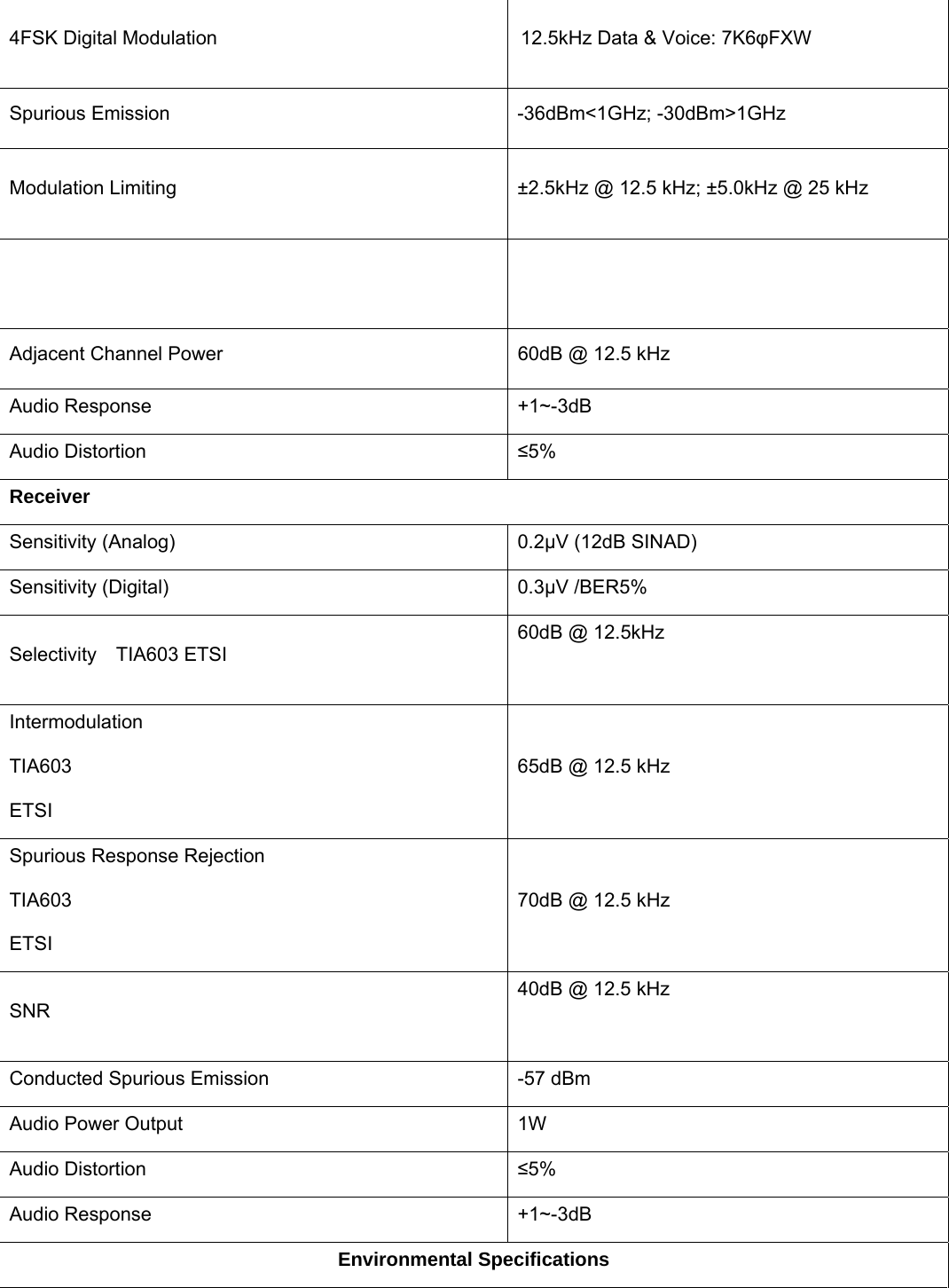
4FSK Digital Modulation                                                        12.5kHz Data & Voice: 7K6φFXW Spurious Emission  -36dBm<1GHz; -30dBm>1GHz Modulation Limiting  ±2.5kHz @ 12.5 kHz; ±5.0kHz @ 25 kHz  Adjacent Channel Power  60dB @ 12.5 kHzAudio Response  +1~-3dB Audio Distortion  ≤5% Receiver Sensitivity (Analog)  0.2μV (12dB SINAD) Sensitivity (Digital)    0.3μV /BER5% Selectivity  TIA603 ETSI 60dB @ 12.5kHz  Intermodulation TIA603 ETSI 65dB @ 12.5 kHz Spurious Response Rejection TIA603 ETSI 70dB @ 12.5 kHz SNR 40dB @ 12.5 kHz Conducted Spurious Emission  -57 dBm Audio Power Output  1W Audio Distortion  ≤5% Audio Response  +1~-3dB Environmental Specifications
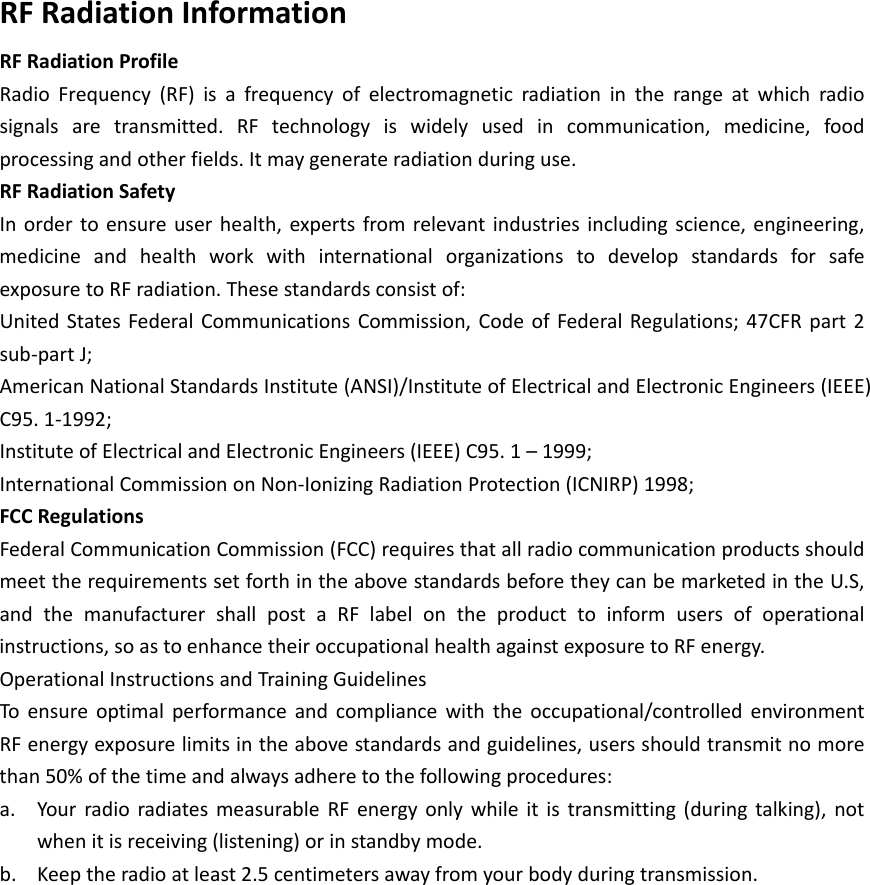
RFRadiationInformationRFRadiationProfileRadioFrequency(RF)isafrequencyofelectromagneticradiationintherangeatwhichradiosignalsaretransmitted.RFtechnologyiswidelyusedincommunication,medicine,foodprocessingandotherfields.Itmaygenerateradiationduringuse.RFRadiationSafetyInordertoensureuserhealth,expertsfromrelevantindustriesincludingscience,engineering,medicineandhealthworkwithinternationalorganizationstodevelopstandardsforsafeexposuretoRFradiation.Thesestandardsconsistof:UnitedStatesFederalCommunicationsCommission,CodeofFederalRegulations;47CFRpart2sub‐partJ;AmericanNationalStandardsInstitute(ANSI)/InstituteofElectricalandElectronicEngineers(IEEE)C95.1‐1992;InstituteofElectricalandElectronicEngineers(IEEE)C95.1–1999;InternationalCommissiononNon‐IonizingRadiationProtection(ICNIRP)1998;FCCRegulationsFederalCommunicationCommission(FCC)requiresthatallradiocommunicationproductsshouldmeettherequirementssetforthintheabovestandardsbeforetheycanbemarketedintheU.S,andthemanufacturershallpostaRFlabelontheproducttoinformusersofoperationalinstructions,soastoenhancetheiroccupationalhealthagainstexposuretoRFenergy.OperationalInstructionsandTrainingGuidelinesToensureoptimalperformanceandcompliancewiththeoccupational/controlledenvironmentRFenergyexposurelimitsintheabovestandardsandguidelines,usersshouldtransmitnomorethan50%ofthetimeandalwaysadheretothefollowingprocedures:a. YourradioradiatesmeasurableRFenergyonlywhileitistransmitting(duringtalking),notwhenitisreceiving(listening)orinstandbymode.b. Keeptheradioatleast2.5centimetersawayfromyourbodyduringtransmission.
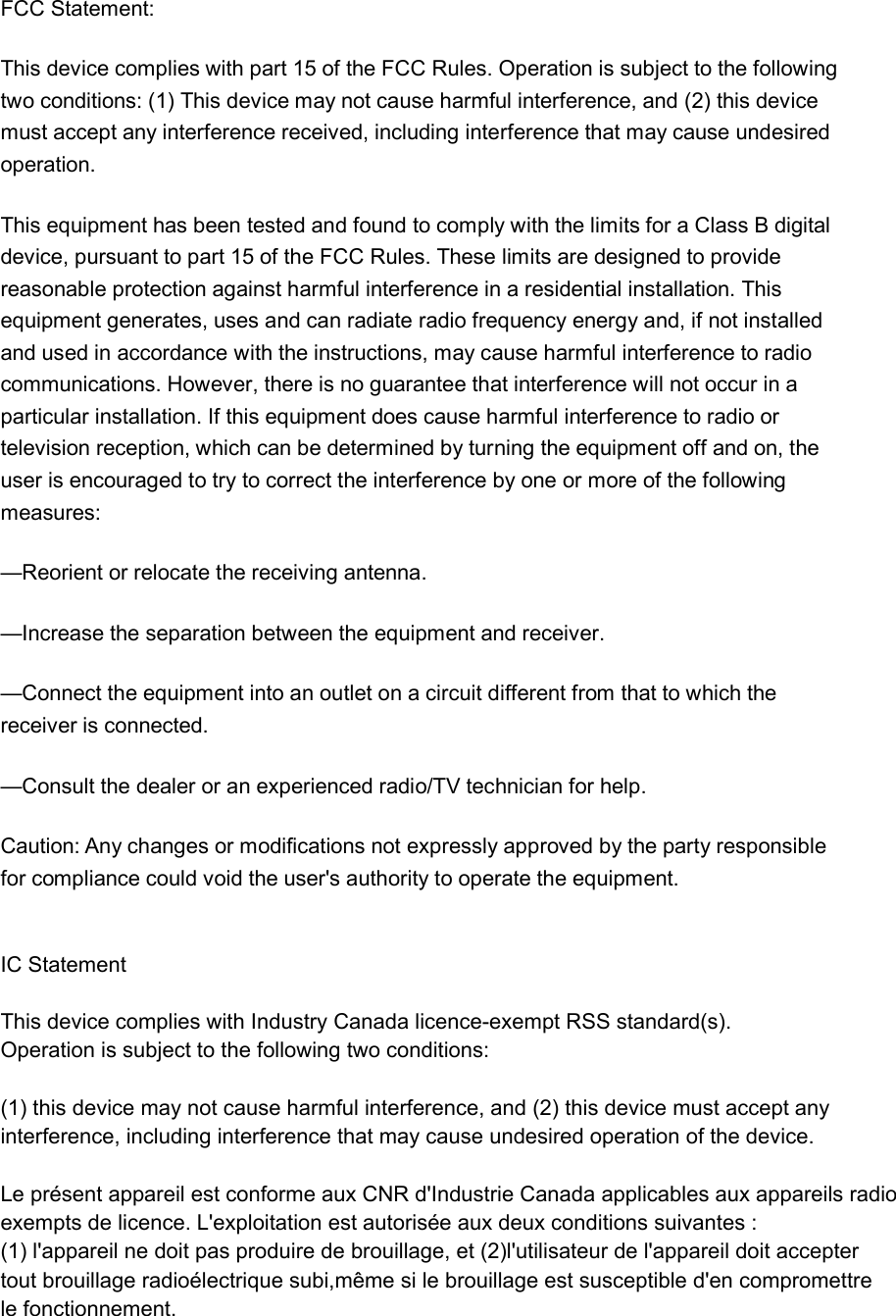
FCC Statement: This device complies with part 15 of the FCC Rules. Operation is subject to the following two conditions: (1) This device may not cause harmful interference, and (2) this device must accept any interference received, including interference that may cause undesired operation. This equipment has been tested and found to comply with the limits for a Class B digital device, pursuant to part 15 of the FCC Rules. These limits are designed to provide reasonable protection against harmful interference in a residential installation. This equipment generates, uses and can radiate radio frequency energy and, if not installed and used in accordance with the instructions, may cause harmful interference to radio communications. However, there is no guarantee that interference will not occur in a particular installation. If this equipment does cause harmful interference to radio or television reception, which can be determined by turning the equipment off and on, the user is encouraged to try to correct the interference by one or more of the following measures: —Reorient or relocate the receiving antenna. —Increase the separation between the equipment and receiver. —Connect the equipment into an outlet on a circuit different from that to which the receiver is connected. —Consult the dealer or an experienced radio/TV technician for help. Caution: Any changes or modifications not expressly approved by the party responsible for compliance could void the user's authority to operate the equipment.   IC Statement This device complies with Industry Canada licence-exempt RSS standard(s).Operation is subject to the following two conditions: (1) this device may not cause harmful interference, and (2) this device must accept anyinterference, including interference that may cause undesired operation of the device. Le présent appareil est conforme aux CNR d'Industrie Canada applicables aux appareils radioexempts de licence. L'exploitation est autorisée aux deux conditions suivantes :(1) l'appareil ne doit pas produire de brouillage, et (2)l'utilisateur de l'appareil doit acceptertout brouillage radioélectrique subi,même si le brouillage est susceptible d'en compromettrele fonctionnement.
SAFETYTRAININGINFORMATIONLisheng (Fujian) Communications Co., Ltd.     radio  generators RF electromagnetic energy during transmit mode. This radio is designed for and classified as “Occupational Use Only”, meaning it must be used only during the course of employment by individuals aware of the hazards, and the ways to minimize such hazards. This radio is NOT intended for use by the “General Population” in an uncontrolled environment.  This radio has been tested and complies with the FCC RF exposure limits for “Occupational Use Only”. In addition,  Lisheng (Fujian) Communications Co., Ltd. complies with the following Standards and Guidelines with regard to RF energy and electromagnetic energy levels and evaluation of such levels for exposure to humans:     FCC OET Bulletin 65 Edition 97-01 Supplement C, Evaluating Compliance with FCC Guidelines for Human Exposure to     Radio Frequency Electromagnetic Fields.       American National Standards Institute (C95.1-1992), IEEE Standard for Safety Levels with Respect to Human Exposure     to Radio Frequency Electromagnetic Fields, 3 kHz to 300 GHz.      American National Standards Institute (C95.3-1992), IEEE Recommended Practice for the Measurement of Potentially     Hazardous Electromagnetic Fields– RF and Microwave.      The following accessories are authorized for use with this product. Use of accessories other than those (listed in the     instruction) specified may result in RF exposure levels exceed the FCC requirements for wireless RF exposure.   ToensurethatyourexposetoRFelectromagneticenergyiswithintheFCCallowablelimitsforoccupationaluse,alwaysadheretothefollowingguidelines:    DO NOT operate the radio without a proper antenna attached, as this may damaged the radio and may also cause you     to exceed FCC RF exposure limits. A proper antenna is the antenna supplied with this radio by the manufacturer or     antenna specifically authorized by the manufacturer for use with this radio.      DO NOT transmits for more than 50% of total radio use time (“50%duty cycle”). Transmitting more than 50% of the time     can cause FCC RF exposure compliance requirements to be exceeded. The radio is transmitting when the “TX indicator”     lights red. You can cause the radio to transmit by pressing the “PTT” switch.      ALWAYS keep the antenna at least 2.5 cm (1 inch) away from the body when transmitting and only use the  belt-clip     which is listed in instructions when attaching the radio to your belt, etc., to ensure FCC RF exposure compliance     requirements are not exceeded. To provide the recipients of your transmission the best sound quality, hold the antenna     at least 5 cm (2 inches) from your mouth, and slightly off to one side.   TheinformationlistedaboveprovidestheuserwiththeinformationneededtomakehimorherawareofRFexposure,andwhattodotoas‐surethatthisradiooperateswiththeFCCRFexposurelimitsofthisradio.ElectromagneticInterference/CompatibilityDuring transmissions, Lisheng (Fujian) Communications Co., Ltd. generates RF energy that can possibly cause interference with other devices or systems. To avoid such interference, turn off the radio in areas where signs are posted to do so. DO NOT operate the transmitter in areas that are sensitive to electromagnetic radiation such as hospitals, aircraft, and blasting sites.Occupational/ControlledUseTheradiotransmitterisusedinsituationsinwhichpersonsareexposedasconsequenceoftheiremploymentprovidedthosepersonsarefullyawareofthepotentialforexposureandcanexercisecontrolovertheirexposure.

Navigation menu