LucidSound 06302 2.4G Wireless HEADSET User Manual

LucidSound, Inc. 2.4G Wireless HEADSET Users Manual

Users Manual

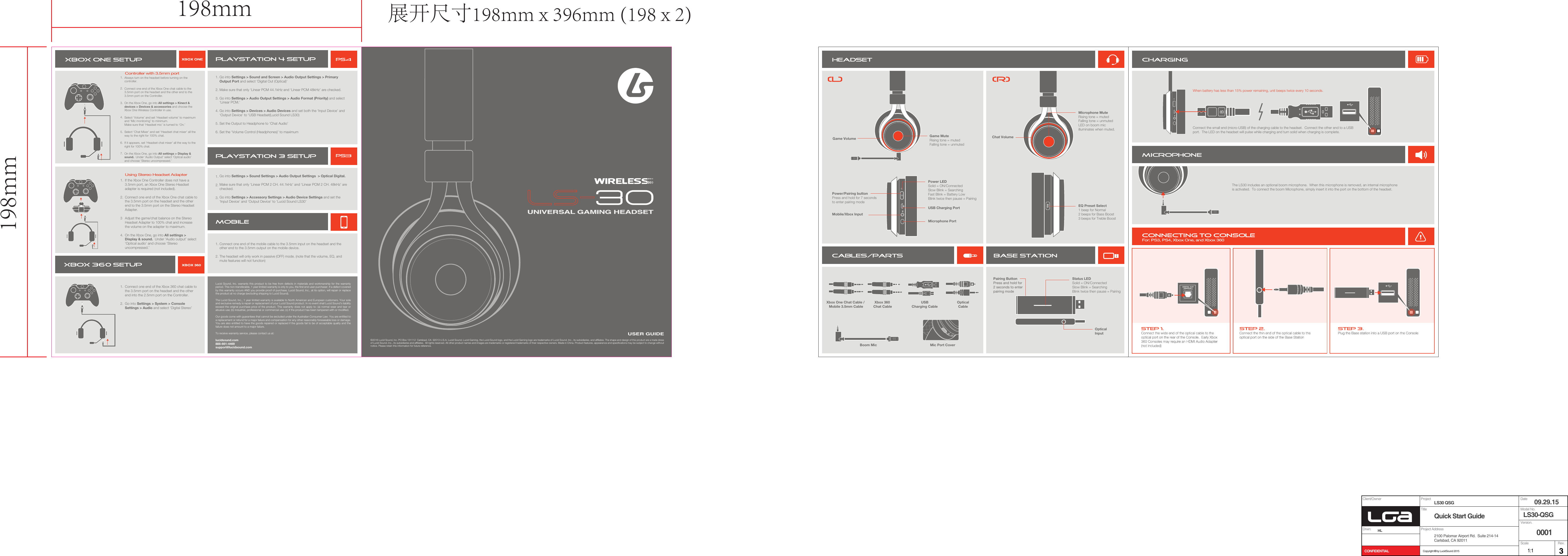
Lucid Sound, Inc. warrants this product to be free from defects in materials and workmanship for the warranty period. This non-transferable, 1 year limited warranty is only to you, the first end-user purchaser. If a defect covered by this warranty occurs AND you provide proof of purchase, Lucid Sound, Inc., at its option, will repair or replace the product at no charge (excluding shipping to Lucid Sound).The Lucid Sound, Inc., 1 year limited warranty is available to North American and European customers. Your sole and exclusive remedy is repair or replacement of your Lucid Sound product. In no event shall Lucid Sound’s liability exceed the original purchase price of the product. This warranty does not apply to: (a) normal wear and tear or abusive use; (b) industrial, professional or commercial use; (c) if the product has been tampered with or modified. Our goods come with guarantees that cannot be excluded under the Australian Consumer Law. You are entitled to a replacement or refund for a major failure and compensation for any other reasonably foreseeable loss or damage. You are also entitled to have the goods repaired or replaced if the goods fail to be of acceptable quality and the failure does not amount to a major failure.To receive warranty service, please contact us at:lucidsound.com888-661-4469support@lucidsound.com©2016 Lucid Sound, Inc. PO Box 131112  Carlsbad, CA  92013 U.S.A. Lucid Sound, Lucid Gaming, the Lucid Sound logo, and the Lucid Gaming logo are trademarks of Lucid Sound, Inc., its subsidiaries, and affiliates. The shape and design of this product are a trade dress of Lucid Sound, Inc., its subsidiaries and affiliates.  All rights reserved. All other product names and images are trademarks or registered trademarks of their respective owners. Made in China. Product features, appearance and specifications may be subject to change without notice. Please retain this information for future reference. IN5VIN5VIN5VEQUSER GUIDEXbox 360 Chat CableXbox One Chat Cable / Mobile 3.5mm CablePairing ButtonPress and hold for 2 seconds to enterpairing modeOpticalInputUSBCharging CableOpticalCableBoom Mic Mic Port CoverStatus LEDSolid = ON/ConnectedSlow Blink = SearchingBlink twice then pause = PairingEQ Preset Select1 beep for Normal2 beeps for Bass Boost3 beeps for Treble BoostMobile/Xbox InputPower LED Solid = ON/Connected Slow Blink = SearchingFast Blink = Battery LowBlink twice then pause = PairingUSB Charging PortMicrophone PortConnect the small end (micro-USB) of the charging cable to the headset.  Connect the other end to a USB port.  The LED on the headset will pulse while charging and turn solid when charging is complete.When battery has less than 15% power remaining, unit beeps twice every 10 seconds.The LS30 includes an optional boom microphone.  When this microphone is removed, an internal microphone is activated.  To connect the boom Microphone, simply insert it into the port on the bottom of the headset.Always turn on the headset before turning on the controller. Connect one end of the Xbox One chat cable to the 3.5mm port on the headset and the other end to the 3.5mm port on the Controller.  On the Xbox One, go into All settings > Kinect & devices > Devices & accessories and choose the Xbox One Wireless Controller in use.Select ‘Volume’ and set ‘Headset volume’ to maximum and ‘Mic monitoring’ to minimum.Make sure that ‘Headset mic’ is turned to ‘On.’Select ‘Chat Mixer’ and set ‘Headset chat mixer’ all the way to the right for 100% chat.If it appears, set ‘Headset chat mixer’ all the way to the right for 100% chat.On the Xbox One, go into All settings > Display & sound.  Under ‘Audio Output’ select ‘Optical audio’ and choose ‘Stereo uncompressed.’1.2.3.4.5.6.7.If the Xbox One Controller does not have a 3.5mm port, an Xbox One Stereo Headset adapter is required (not included).  Connect one end of the Xbox One chat cable to the 3.5mm port on the headset and the other end to the 3.5mm port on the Stereo Headset Adapter.Adjust the game/chat balance on the Stereo Headset Adapter to 100% chat and increase the volume on the adapter to maximum. On the Xbox One, go into All settings > Display & sound.  Under ‘Audio output’ select ‘Optical audio’ and choose ‘Stereo uncompressed.’1.2.34.Go into Settings > Sound and Screen > Audio Output Settings > Primary Output Port and select ‘Digital Out (Optical)’Make sure that only ‘Linear PCM 44.1kHz and ‘Linear PCM 48kHz’ are checked.Go into Settings > Audio Output Settings > Audio Format (Priority) and select ‘Linear PCM.’Go into Settings > Devices > Audio Devices and set both the ‘Input Device’ and ‘Output Device’ to ‘USB Headset(Lucid Sound LS30)Set the Output to Headphone to ‘Chat Audio’Set the ‘Volume Control (Headphones)’ to maximum1.2.3.4.5.6.Game Volume Game MuteRising tone = mutedFalling tone = unmutedController with 3.5mm portUsing Stereo Headset Adapter!Go into Settings > Sound Settings > Audio Output Settings  > Optical Digital.Make sure that only ‘Linear PCM 2 CH. 44.1kHz’ and ‘Linear PCM 2 CH. 48kHz’ are checked.Go into Settings > Accessory Settings > Audio Device Settings and set the ‘Input Device’ and ‘Output Device’ to ‘Lucid Sound LS30’1.2.3.Connect one end of the mobile cable to the 3.5mm input on the headset and the other end to the 3.5mm output on the mobile device.  The headset will only work in passive (OFF) mode. (note that the volume, EQ, and mute features will not function)1.2.Connect one end of the Xbox 360 chat cable to the 3.5mm port on the headset and the other end into the 2.5mm port on the Controller.  Go into Settings > System > Console Settings > Audio and select ‘Digital Stereo’1.2.Power/Pairing button Press and hold for 7 seconds to enter pairing mode Chat VolumeMicrophone MuteRising tone = mutedFalling tone = unmutedLED on boom mic illuminates when muted.Project Client/OwnerTitleDrwn: HL Project AddressVersion.ScaleCONFIDENTIALRev.Model No.DateLS30 QSG2100 Palomar Airport Rd.  Suite 214-14Carlsbad, CA 92011Quick Start Guide  LS30-QSG09.29.15000131:1Copyright © by LucidSound 2015198mm198mm 展开尺寸198mm x 396mm (198 x 2)

Navigation menu