Lume Cube LC11 Lume cube User Manual lume cube qsg

Lume Cube LLC Lume cube lume cube qsg

User Manual

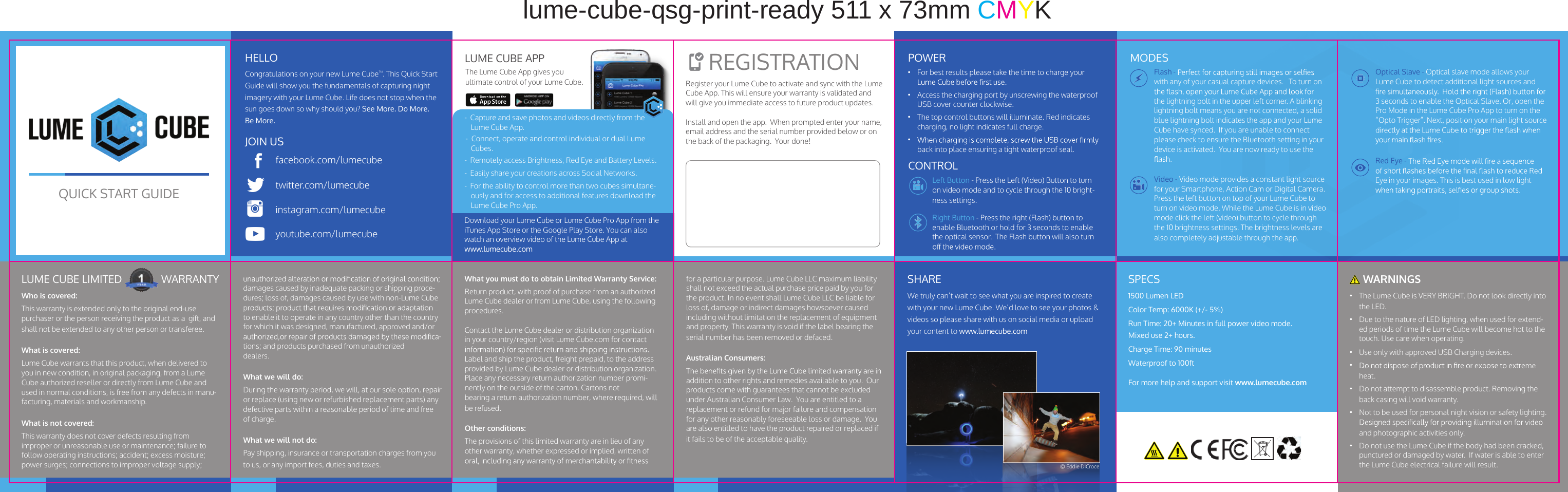
QUICK START GUIDEDownload your Lume Cube or Lume Cube Pro App from the iTunes App Store or the Google Play Store. You can also watch an overview video of the Lume Cube App at  www.lumecube.com-  Capture and save photos and videos directly from the Lume Cube App.-  Connect, operate and control individual or dual Lume Cubes.-  Remotely access Brightness, Red Eye and Battery Levels. -  Easily share your creations across Social Networks. -  For the ability to control more than two cubes simultane-ously and for access to additional features download the Lume Cube Pro App.The Lume Cube App gives you ultimate control of your Lume Cube.LUME CUBE APPHELLOJOIN USRegister your Lume Cube to activate and sync with the Lume Cube App. This will ensure your warranty is validated and will give you immediate access to future product updates.  Install and open the app.  When prompted enter your name, email address and the serial number provided below or on the back of the packaging.  Your done!•  For best results please take the time to charge your  •  Access the charging port by unscrewing the waterproof USB cover counter clockwise. •  The top control buttons will illuminate. Red indicates charging, no light indicates full charge. • back into place ensuring a tight waterproof seal.POWERCONTROLLeft Button - Press the Left (Video) Button to turn on video mode and to cycle through the 10 bright-ness settings.  Right Button - Press the right (Flash) button to enable Bluetooth or hold for 3 seconds to enable the optical sensor.  The Flash button will also turn Congratulations on your new Lume Cube™. This Quick Start Guide will show you the fundamentals of capturing night imagery with your Lume Cube. Life does not stop when the sun goes down so why should you? See More. Do More. Be More.MODESfacebook.com/lumecubetwitter.com/lumecubeinstagram.com/lumecubeyoutube.com/lumecube  REGISTRATION Optical Slave - Optical slave mode allows your Lume Cube to detect additional light sources and 3 seconds to enable the Optical Slave. Or, open the Pro Mode in the Lume Cube Pro App to turn on the “Opto Trigger”. Next, position your main light source  Red Eye - Eye in your images. This is best used in low light Flash - with any of your casual capture devices.   To turn on the lightning bolt in the upper left corner. A blinking lightning bolt means you are not connected, a solid blue lightning bolt indicates the app and your Lume Cube have synced.  If you are unable to connect please check to ensure the Bluetooth setting in your device is activated.  You are now ready to use the  Video - Video mode provides a constant light source for your Smartphone, Action Cam or Digital Camera. Press the left button on top of your Lume Cube to turn on video mode. While the Lume Cube is in video mode click the left (video) button to cycle through the 10 brightness settings. The brightness levels are also completely adjustable through the app. Who is covered:  This warranty is extended only to the original end-use purchaser or the person receiving the product as a  gift, and shall not be extended to any other person or transferee.What is covered:  Lume Cube warrants that this product, when delivered to you in new condition, in original packaging, from a Lume Cube authorized reseller or directly from Lume Cube and used in normal conditions, is free from any defects in manu-facturing, materials and workmanship.What is not covered: This warranty does not cover defects resulting from improper or unreasonable use or maintenance; failure to follow operating instructions; accident; excess moisture; power surges; connections to improper voltage supply; damages caused by inadequate packing or shipping proce-dures; loss of, damages caused by use with non-Lume Cube to enable it to operate in any country other than the country for which it was designed, manufactured, approved and/or -tions; and products purchased from unauthorizeddealers.What we will do: During the warranty period, we will, at our sole option, repair or replace (using new or refurbished replacement parts) any defective parts within a reasonable period of time and free of charge. What we will not do:  Pay shipping, insurance or transportation charges from you to us, or any import fees, duties and taxes.What you must do to obtain Limited Warranty Service:  Return product, with proof of purchase from an authorized Lume Cube dealer or from Lume Cube, using the following procedures.Contact the Lume Cube dealer or distribution organization in your country/region (visit Lume Cube.com for contact Label and ship the product, freight prepaid, to the address provided by Lume Cube dealer or distribution organization.Place any necessary return authorization number promi-nently on the outside of the carton. Cartons notbearing a return authorization number, where required, will be refused.Other conditions:The provisions of this limited warranty are in lieu of any other warranty, whether expressed or implied, written of for a particular purpose. Lume Cube LLC maximum liability shall not exceed the actual purchase price paid by you for the product. In no event shall Lume Cube LLC be liable for loss of, damage or indirect damages howsoever caused including without limitation the replacement of equipment and property. This warranty is void if the label bearing the serial number has been removed or defaced.Australian Consumers:addition to other rights and remedies available to you.  Our products come with guarantees that cannot be excluded under Australian Consumer Law.  You are entitled to a replacement or refund for major failure and compensation for any other reasonably foreseeable loss or damage.  You are also entitled to have the product repaired or replaced if it fails to be of the acceptable quality.LUME CUBE LIMITED   WARRANTY•  The Lume Cube is VERY BRIGHT. Do not look directly into the LED. •  Due to the nature of LED lighting, when used for extend-ed periods of time the Lume Cube will become hot to the touch. Use care when operating. •  Use only with approved USB Charging devices. • heat. •  Do not attempt to disassemble product. Removing the back casing will void warranty. •  Not to be used for personal night vision or safety lighting. and photographic activities only. •  Do not use the Lume Cube if the body had been cracked, punctured or damaged by water.  If water is able to enter the Lume Cube electrical failure will result.1500 Lumen LEDColor Temp: 6000K (+/- 5%)Run Time: 20+ Minutes in full power video mode. Mixed use 2+ hours.Charge Time: 90 minutesWaterproof to 100ftFor more help and support visit www.lumecube.comWe truly can’t wait to see what you are inspired to create with your new Lume Cube. We’d love to see your photos & videos so please share with us on social media or upload your content to www.lumecube.comSHARE SPECS  WARNINGS© Eddie DiCrocelume-cube-qsg-print-ready 511 x 73mm CMYK
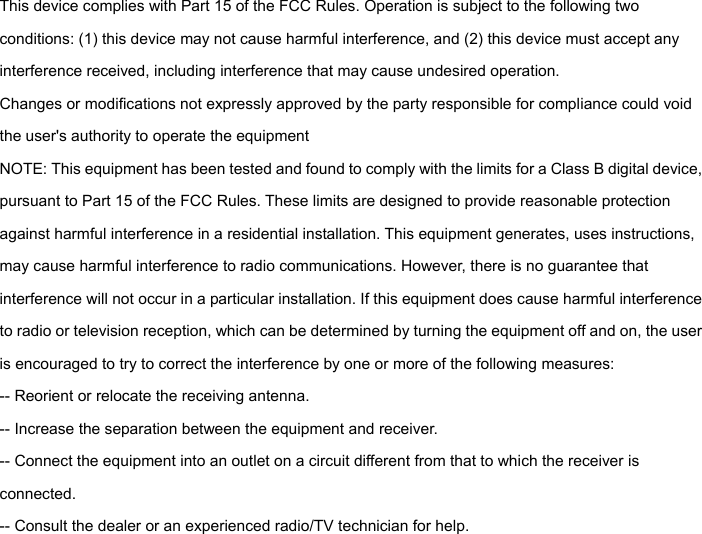
 This device complies with Part 15 of the FCC Rules. Operation is subject to the following two conditions: (1) this device may not cause harmful interference, and (2) this device must accept any interference received, including interference that may cause undesired operation.   Changes or modifications not expressly approved by the party responsible for compliance could void the user's authority to operate the equipment NOTE: This equipment has been tested and found to comply with the limits for a Class B digital device, pursuant to Part 15 of the FCC Rules. These limits are designed to provide reasonable protection against harmful interference in a residential installation. This equipment generates, uses instructions, may cause harmful interference to radio communications. However, there is no guarantee that interference will not occur in a particular installation. If this equipment does cause harmful interference to radio or television reception, which can be determined by turning the equipment off and on, the user is encouraged to try to correct the interference by one or more of the following measures: -- Reorient or relocate the receiving antenna.   -- Increase the separation between the equipment and receiver.   -- Connect the equipment into an outlet on a circuit different from that to which the receiver is connected.  -- Consult the dealer or an experienced radio/TV technician for help.

Navigation menu