MOBOTIX PROX Box with Radar User Manual manual part 1

MOBOTIX AG Box with Radar manual part 1

Contents

manual_part_1

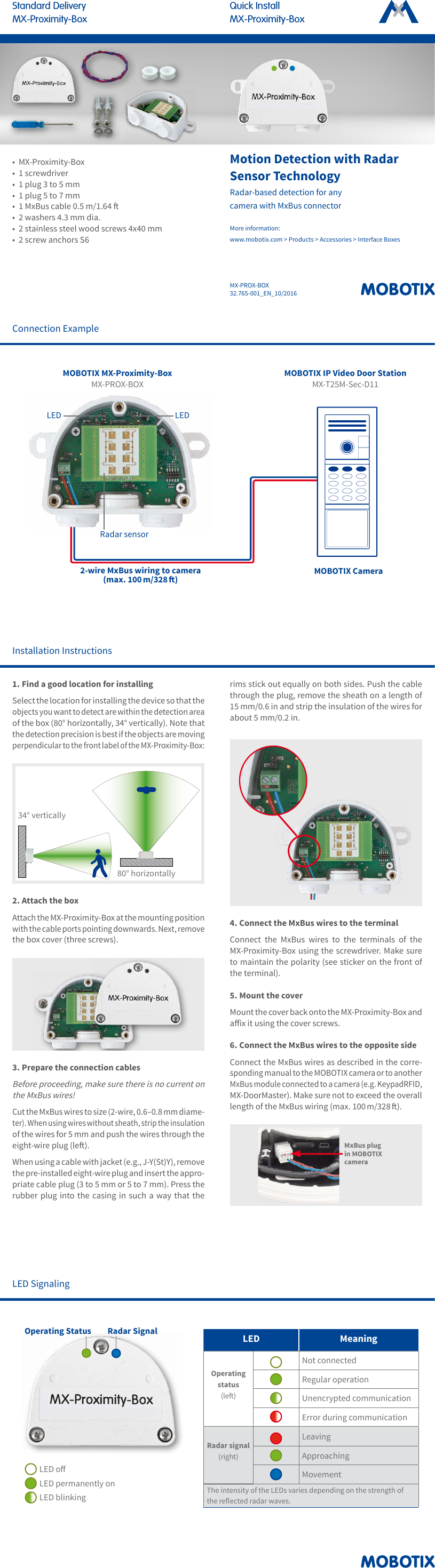
MX-PROX-BOX32.765-001_EN_10/2016Quick InstallMX-Proximity-BoxStandard DeliveryMX-Proximity-BoxMotion Detection with Radar Sensor TechnologyRadar-based detection for any camera with MxBus connector More information:  www.mobotix.com > Products > Accessories > Interface Boxes•  MX-Proximity-Box•  1 screwdriver•  1 plug 3 to 5 mm•  1 plug 5 to 7 mm•  1 MxBus cable 0.5 m/1.64 •  2 washers 4.3 mm dia.•  2 stainless steel wood screws 4x40 mm•  2 screw anchors S6Installation Instructions1. Find a good location for installingSelect the location for installing the device so that the objects you want to detect are within the detection area of the box (80° horizontally, 34° vertically). Note that the detection precision is best if the objects are moving perpendicular to the front label of the MX-Proximity-Box:80° horizontally34° vertically2. Attach the boxAttach the MX-Proximity-Box at the mounting position with the cable ports pointing downwards. Next, remove the box cover (three screws).3. Prepare the connection cablesBefore proceeding, make sure there is no current on the MxBus wires!Cut the MxBus wires to size (2-wire, 0.6–0.8 mm diame-ter). When using wires without sheath, strip the insulation of the wires for 5 mm and push the wires through the eight-wire plug (le). When using a cable with jacket (e.g., J-Y(St)Y), remove the pre-installed eight-wire plug and insert the appro-priate cable plug (3 to 5 mm or 5 to 7 mm). Press the rubber plug into the casing in such a way that the rims stick out equally on both sides. Push the cable through the plug, remove the sheath on a length of 15 mm/0.6 in and strip the insulation of the wires for about 5 mm/0.2 in.4. Connect the MxBus wires to the terminalConnect the MxBus wires to the terminals of the MX-Proximity-Box using the screwdriver. Make sure to maintain the polarity (see sticker on the front of the terminal). 5. Mount the coverMount the cover back onto the MX-Proximity-Box and aix it using the cover screws.6. Connect the MxBus wires to the opposite sideConnect the MxBus wires as described in the corre-sponding manual to the MOBOTIX camera or to another MxBus module connected to a camera (e.g. KeypadRFID, MX-DoorMaster). Make sure not to exceed the overall length of the MxBus wiring (max. 100 m/328 ).MxBus plug in MOBOTIX cameraConnection ExampleMOBOTIX Camera2-wire MxBus wiring to camera (max. 100 m/328 )MOBOTIX IP Video Door Station MX-T25M-Sec-D11MOBOTIX MX-Proximity-Box MX-PROX-BOXLEDLEDRadar sensorLED SignalingLED MeaningOperating status (le)Not connectedRegular operationUnencrypted communicationError during communicationRadar signal (right)LeavingApproachingMovementThe intensity of the LEDs varies depending on the strength of the reected radar waves.Operating Status Radar SignalLED oLED permanently onLED blinking
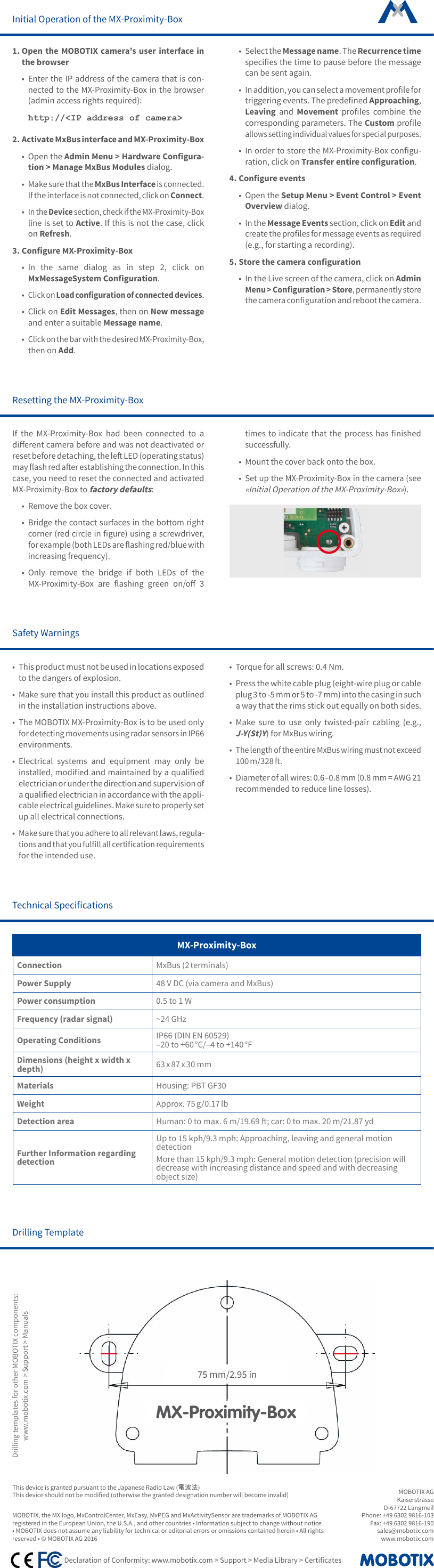
MOBOTIX AGKaiserstrasseD-67722 LangmeilPhone: +49 6302 9816-103 Fax: +49 6302 9816-190 sales@mobotix.comwww.mobotix.com    Declaration of Conformity: www.mobotix.com > Support > Media Library > CerticatesMOBOTIX, the MX logo, MxControlCenter, MxEasy, MxPEG and MxActivitySensor are trademarks of MOBOTIX AG registered in the European Union, the U.S.A., and other countries • Information subject to change without notice • MOBOTIX does not assume any liability for technical or editorial errors or omissions contained herein • All rights reserved • © MOBOTIX AG 2016Initial Operation of the MX-Proximity-Box1. Open the MOBOTIX camera's user interface in the browser•  Enter the IP address of the camera that is con-nected to the MX-Proximity-Box in the browser (admin access rights required):http://<IP address of camera>2. Activate MxBus interface and MX-Proximity-Box•  Open the Admin Menu > Hardware Congura-tion > Manage MxBus Modules dialog.• Make sure that the MxBus Interface is connected. If the interface is not connected, click on Connect.• In the Device section, check if the MX-Proximity-Box line is set to Active. If this is not the case, click on Refresh.3. Congure MX-Proximity-Box•  In the same dialog as in step 2, click on MxMessageSystem Conguration.• Click on Load conguration of connected devices.•  Click on Edit Messages, then on New message and enter a suitable Message name. • Click on the bar with the desired MX-Proximity-Box, then on Add.•  Select the Message name. The Recurrence time species the time to pause before the message can be sent again.• In addition, you can select a movement prole for triggering events. The predened Approaching, Leaving and Movement  proles  combine  the corresponding parameters. The Custom prole allows setting individual values for special purposes.•  In order to store the MX-Proximity-Box congu-ration, click on Transfer entire conguration. 4. Congure events•  Open the Setup Menu > Event Control > Event Overview dialog.•  In the Message Events section, click on Edit and create the proles for message events as required (e.g., for starting a recording).5. Store the camera conguration•  In the Live screen of the camera, click on Admin Menu > Conguration > Store, permanently store the camera conguration and reboot the camera.Safety Warnings• This product must not be used in locations exposed to the dangers of explosion.•  Make sure that you install this product as outlined in the installation instructions above.•  The MOBOTIX MX-Proximity-Box is to be used only for detecting movements using radar sensors in IP66 environments. •  Electrical systems and equipment may only be installed, modied and maintained by a qualied electrician or under the direction and supervision of a qualied electrician in accordance with the appli-cable electrical guidelines. Make sure to properly set up all electrical connections.• Make sure that you adhere to all relevant laws, regula-tions and that you fulll all certication requirements for the intended use.•  Torque for all screws: 0.4 Nm.•  Press the white cable plug (eight-wire plug or cable plug 3 to -5 mm or 5 to -7 mm) into the casing in such a way that the rims stick out equally on both sides.•  Make sure to use only twisted-pair cabling (e.g., J-Y(St)Y) for MxBus wiring.• The length of the entire MxBus wiring must not exceed 100 m/328 .•  Diameter of all wires: 0.6–0.8 mm (0.8 mm = AWG 21 recommended to reduce line losses).Technical SpecicationsMX-Proximity-BoxConnection MxBus (2 terminals)Power Supply 48 V DC (via camera and MxBus)Power consumption 0.5 to 1 WFrequency (radar signal) ~24 GHzOperating Conditions IP66 (DIN EN 60529) –20 to +60 °C/–4 to +140 °F Dimensions (height x width x depth) 63 x 87 x 30 mmMaterials Housing: PBT GF30Weight Approx. 75 g/0.17 lbDetection area Human: 0 to max. 6 m/19.69 ; car: 0 to max. 20 m/21.87 ydFurther Information regarding detectionUp to 15 kph/9.3 mph: Approaching, leaving and general motion detectionMore than 15 kph/9.3 mph: General motion detection (precision will decrease with increasing distance and speed and with decreasing object size)Drilling Template75 mm/2.95 inMX-Proximity-BoxDrilling templates for other MOBOTIX components:www.mobotix.com > Support > ManualsResetting the MX-Proximity-BoxIf the MX-Proximity-Box had been connected to a dierent camera before and was not deactivated or reset before detaching, the le LED (operating status) may ash red aer establishing the connection. In this case, you need to reset the connected and activated MX-Proximity-Box to factory defaults:•  Remove the box cover.•  Bridge the contact surfaces in the bottom right corner (red circle in gure) using a screwdriver, for example (both LEDs are ashing red/blue with increasing frequency).•  Only remove the bridge if both LEDs of the MX-Proximity-Box  are  ashing  green  on/o  3 times  to indicate that  the  process has  nished successfully.•  Mount the cover back onto the box.•  Set up the MX-Proximity-Box in the camera (see «Initial Operation of the MX-Proximity-Box»).This device is granted pursuant to the Japanese Radio Law (電波法)This device should not be modied (otherwise the granted designation number will become invalid)

Navigation menu