Monday FM2000M COMMERCIAL User Manual 203192000Manualx

MONDAY COMMERCIAL 203192000Manualx

User Manual

1/13              (Model:FM2000M)
2/13    Contents  1. Direction before Use     1.1. Direction for safety usage   1.2. Product packing and contents 1.3. Parts name and function   1.4. Fingerprint identification process  2. Product Specifications and Function 2.1. Specification 2.2. Function Buttons   2.3. Voice Work  3. Manager Registeration and Change 3.1. Master Fingerprint Regiateration 3.2. Master Card Registeration 3.3. Chaing Master Fingerprint 3.4. Chaing Master Card  4. User Management 4.1. User Registeration 4.2. User Deletion 4.3. All User Deletion  5. Entrance/Exit Setup 5.1. Access Mode 5.2. Set how to recognize  6. Product initialization and Reset 6.1. Product initialization 6.2. Product resetting  7. Product installation  8. Others 8.1. Checking matters before request for A/S   8.2. Terminology explanation
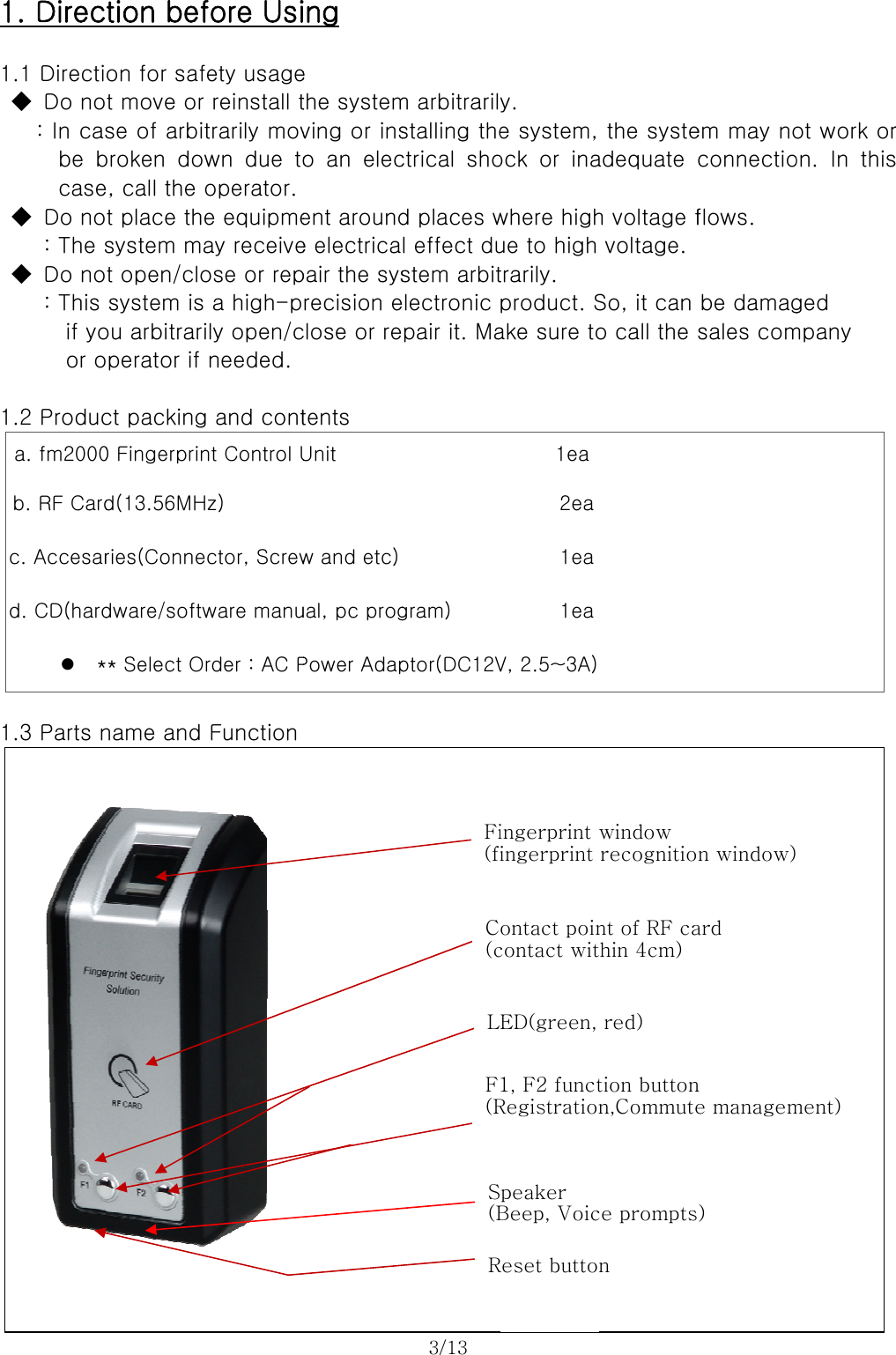
  1 1  1 1          1. Direc.1 Directi◆  Do no: In casbe bcase◆  Do no   : The s◆  Do no: This if yoor o.2 Produca. fm2000b. RF Cardc. Accesard. CD(hardz *.3 Parts n          tion befon for saft move or se of arbibroken  dowe, call the t place thsystem mat open/closystem isou arbitrariperator if ct packing0 Fingerprind(13.56MHries(Connedware/softw* Select Oname and           fore Usifety usagereinstall ttrarily movwn  due  tooperator. e equipmeay receiveose or rep a high-pily open/cneeded. g and contnt Control UHz) ector, Screwware manurder : AC PFunction          ing e the systemving or inso an elecent arounde electricapair the sysrecision eclose or retents   Unit   w and etc)ual, pc progPower Adap 3/13           m arbitrarilystalling thectrical  shod places wl effect dustem arbitelectronic pair it. Magram) ptor(DC12V Fi(fiC(cLF(RS(BR          y.   e system, ock  or  inawhere highue to high trarily. product. Sake sure to1ea 2ea 1ea 1eaV, 2.5~3A)ingerprint ingerprint ontact poincontact witED(green, 1, F2 functRegistrationpeaker Beep, VoicReset butto          the systeadequate h voltage fvoltage. So, it can o call the window recognitiont of RF cathin 4cm)   red) tion buttonn,Commutece promptsn        em may noconnectioflows. be damagsales comn window)ard n e managem) ot work oron.  In  thisged   mpany    ment) r s
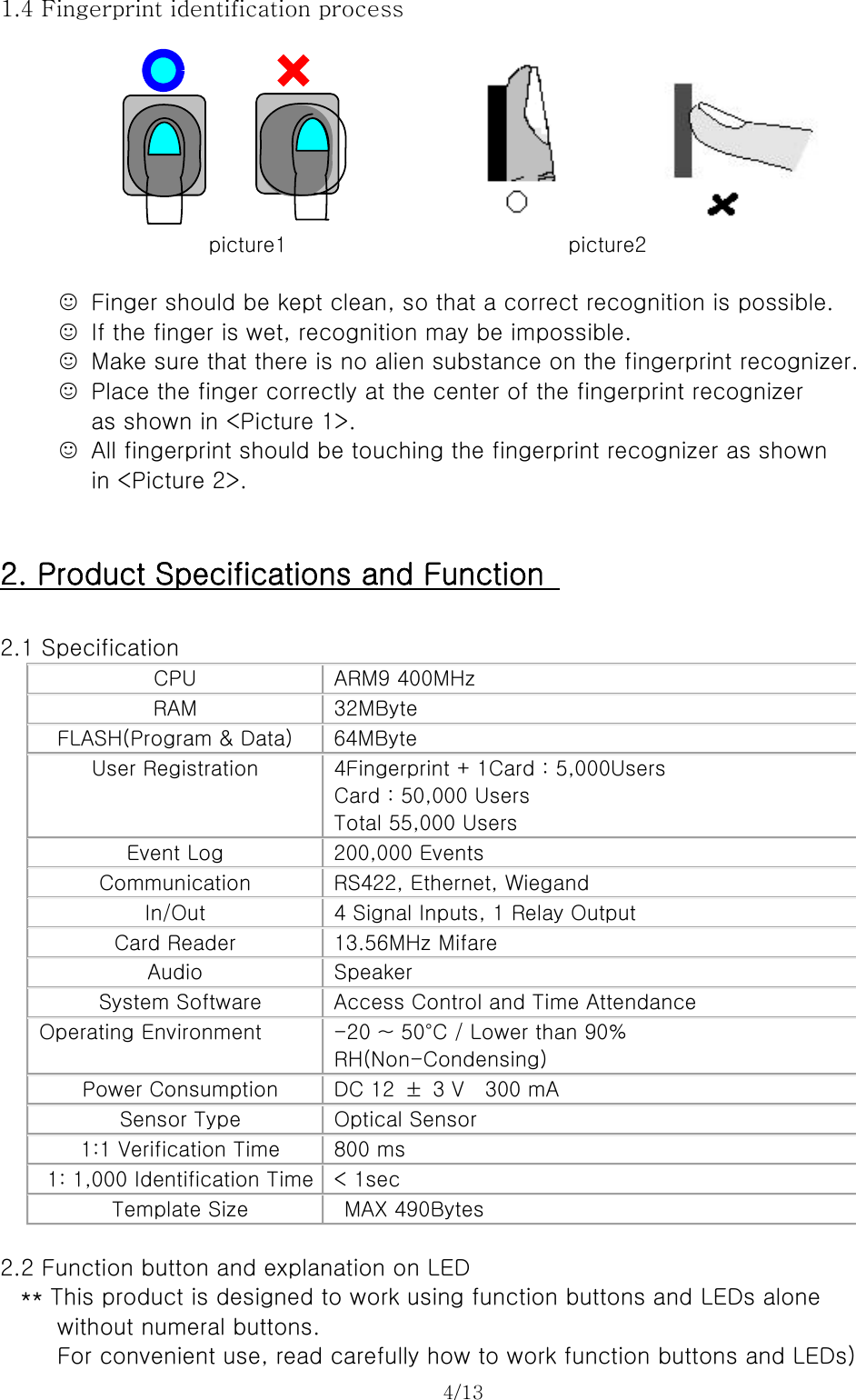
4/13   1.4 Fingerprint identification process        picture1                           picture2  ☺  Finger should be kept clean, so that a correct recognition is possible. ☺  If the finger is wet, recognition may be impossible. ☺  Make sure that there is no alien substance on the fingerprint recognizer. ☺  Place the finger correctly at the center of the fingerprint recognizer   as shown in <Picture 1>. ☺  All fingerprint should be touching the fingerprint recognizer as shown   in <Picture 2>.   2. Product Specifications and Function    2.1 Specification CPU  ARM9 400MHz RAM  32MByte FLASH(Program & Data)  64MByte User Registration  4Fingerprint + 1Card : 5,000Users Card : 50,000 Users Total 55,000 Users Event Log  200,000 Events Communication  RS422, Ethernet, Wiegand In/Out  4 Signal Inputs, 1 Relay Output Card Reader  13.56MHz Mifare Audio  Speaker System Software  Access Control and Time Attendance Operating Environment  -20 ~ 50°C / Lower than 90%   RH(Non-Condensing) Power Consumption  DC 12  ±  3 V    300 mA Sensor Type  Optical Sensor 1:1 Verification Time  800 ms 1: 1,000 Identification Time  < 1sec Template Size    MAX 490Bytes  2.2 Function button and explanation on LED ** This product is designed to work using function buttons and LEDs alone     without numeral buttons.   For convenient use, read carefully how to work function buttons and LEDs)
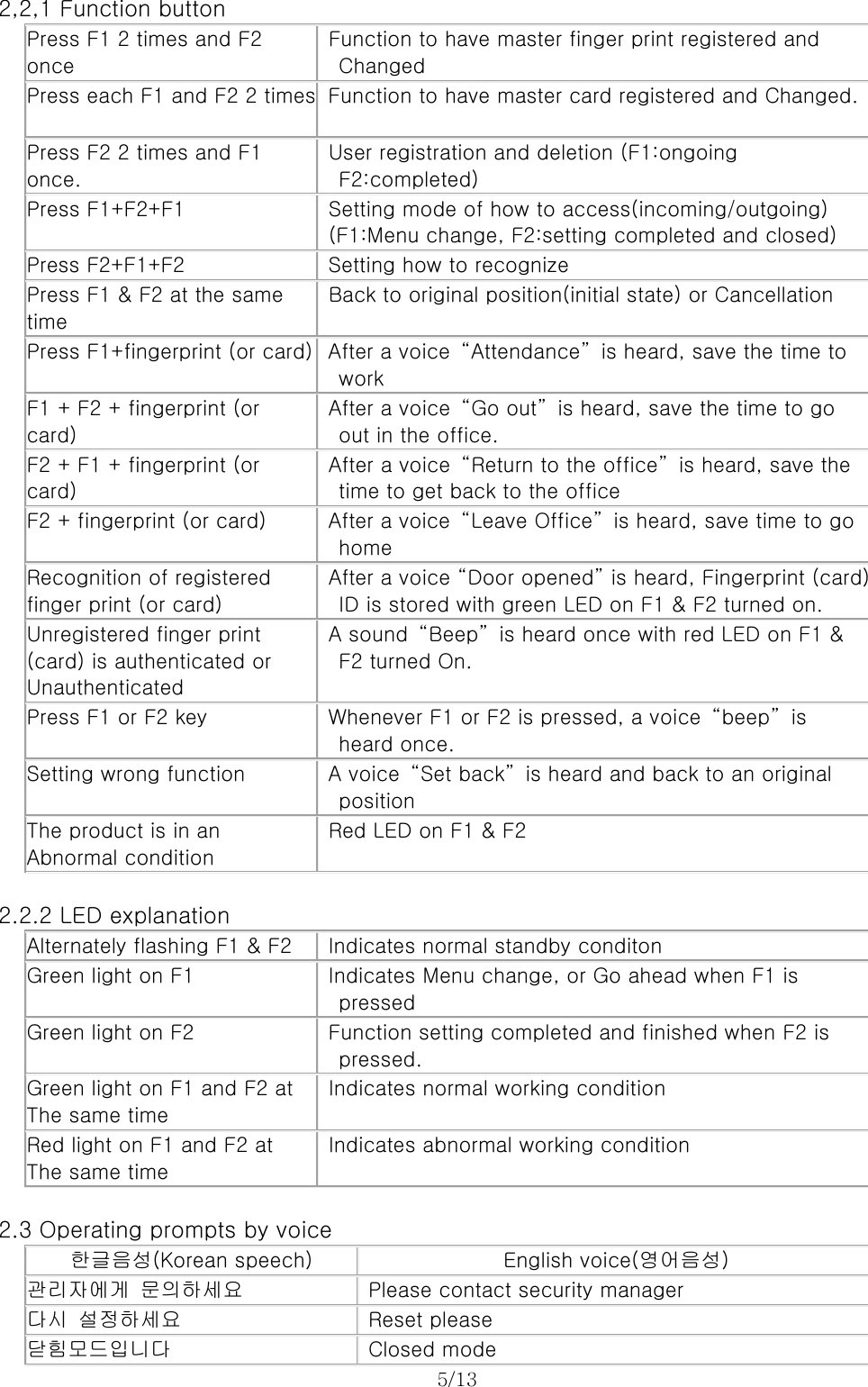
5/13   2,2,1 Function button Press F1 2 times and F2 once Function to have master finger print registered and Changed Press each F1 and F2 2 times  Function to have master card registered and Changed.  Press F2 2 times and F1 once. User registration and deletion (F1:ongoing  F2:completed) Press F1+F2+F1  Setting mode of how to access(incoming/outgoing) (F1:Menu change, F2:setting completed and closed) Press F2+F1+F2  Setting how to recognize Press F1 & F2 at the same time Back to original position(initial state) or Cancellation Press F1+fingerprint (or card)  After a voice  “Attendance”  is heard, save the time to  work F1 + F2 + fingerprint (or card) After a voice  “Go out”  is heard, save the time to go   out in the office. F2 + F1 + fingerprint (or card) After a voice  “Return to the office”  is heard, save the   time to get back to the office F2 + fingerprint (or card)  After a voice  “Leave Office”  is heard, save time to go  home Recognition of registered finger print (or card) After a voice “Door opened” is heard, Fingerprint (card)   ID is stored with green LED on F1 & F2 turned on. Unregistered finger print   (card) is authenticated or   Unauthenticated A sound  “Beep”  is heard once with red LED on F1 &   F2 turned On. Press F1 or F2 key  Whenever F1 or F2 is pressed, a voice  “beep”  is   heard once. Setting wrong function  A voice  “Set back”  is heard and back to an original   position The product is in an Abnormal condition Red LED on F1 & F2  2.2.2 LED explanation Alternately flashing F1 & F2  Indicates normal standby conditon Green light on F1  Indicates Menu change, or Go ahead when F1 is pressed Green light on F2  Function setting completed and finished when F2 is   pressed. Green light on F1 and F2 at   The same time Indicates normal working condition Red light on F1 and F2 at   The same time Indicates abnormal working condition  2.3 Operating prompts by voice 한글음성(Korean speech)  English voice(영어음성) 관리자에게  문의하세요  Please contact security manager 다시  설정하세요  Reset please 닫힘모드입니다  Closed mode
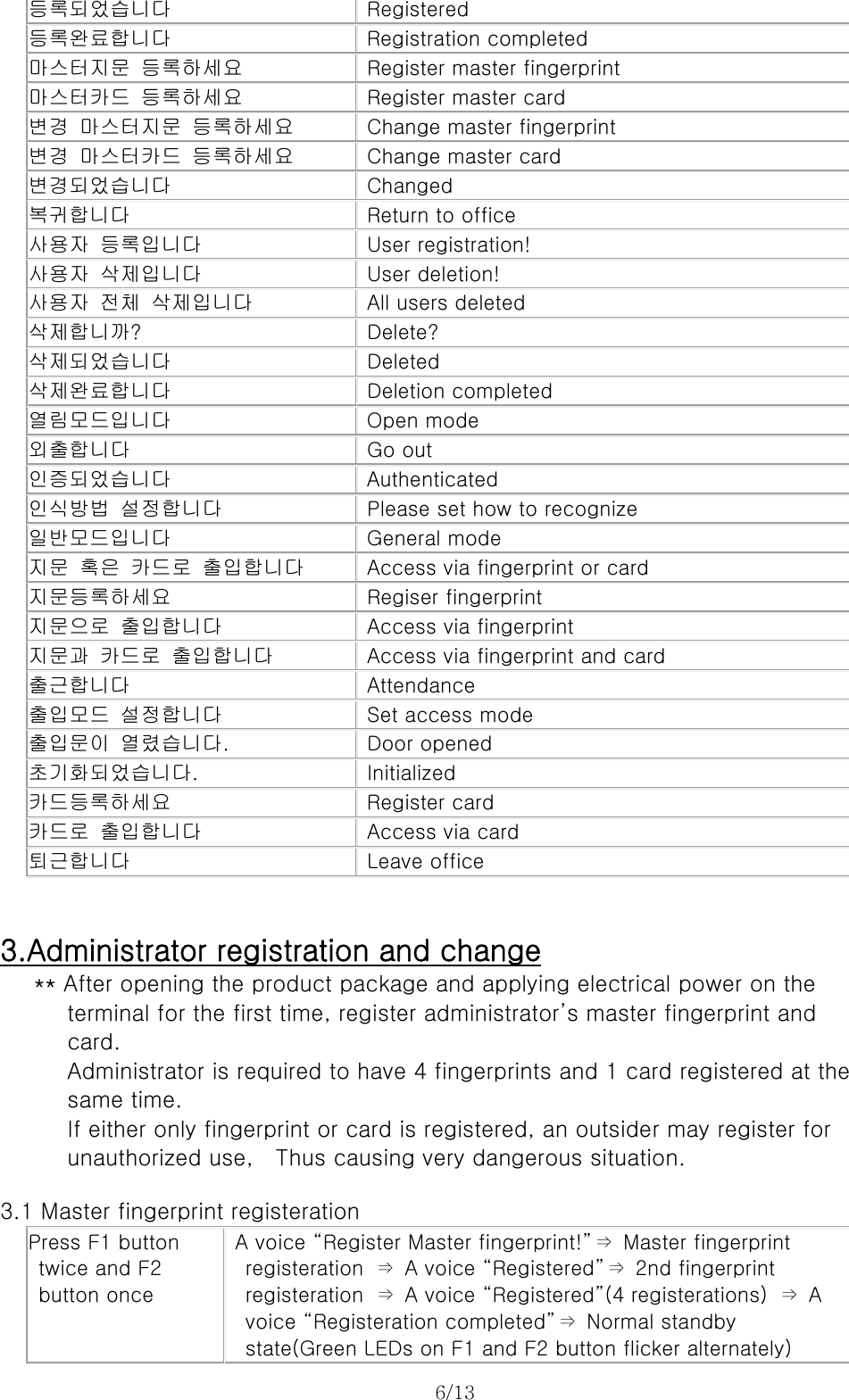
6/13  등록되었습니다  Registered 등록완료합니다  Registration completed 마스터지문  등록하세요  Register master fingerprint 마스터카드  등록하세요  Register master card 변경  마스터지문  등록하세요  Change master fingerprint 변경  마스터카드  등록하세요  Change master card 변경되었습니다  Changed 복귀합니다  Return to office 사용자  등록입니다  User registration! 사용자  삭제입니다  User deletion! 사용자  전체  삭제입니다  All users deleted 삭제합니까?  Delete? 삭제되었습니다  Deleted 삭제완료합니다  Deletion completed 열림모드입니다  Open mode 외출합니다  Go out 인증되었습니다  Authenticated 인식방법  설정합니다  Please set how to recognize 일반모드입니다  General mode 지문  혹은  카드로  출입합니다  Access via fingerprint or card 지문등록하세요  Regiser fingerprint 지문으로  출입합니다  Access via fingerprint 지문과  카드로  출입합니다  Access via fingerprint and card 출근합니다  Attendance 출입모드  설정합니다  Set access mode 출입문이  열렸습니다.  Door opened 초기화되었습니다.  Initialized 카드등록하세요  Register card 카드로  출입합니다  Access via card 퇴근합니다  Leave office   3.Administrator registration and change ** After opening the product package and applying electrical power on the   terminal for the first time, register administrator’s master fingerprint and   card.       Administrator is required to have 4 fingerprints and 1 card registered at the   same time.    If either only fingerprint or card is registered, an outsider may register for   unauthorized use,    Thus causing very dangerous situation.       3.1 Master fingerprint registeration Press F1 button twice and F2   button once A voice “Register Master fingerprint!”⇒  Master fingerprint   registeration  ⇒  A voice “Registered”⇒  2nd fingerprint registeration  ⇒  A voice “Registered”(4 registerations)  ⇒  A   voice “Registeration completed”⇒  Normal standby   state(Green LEDs on F1 and F2 button flicker alternately)
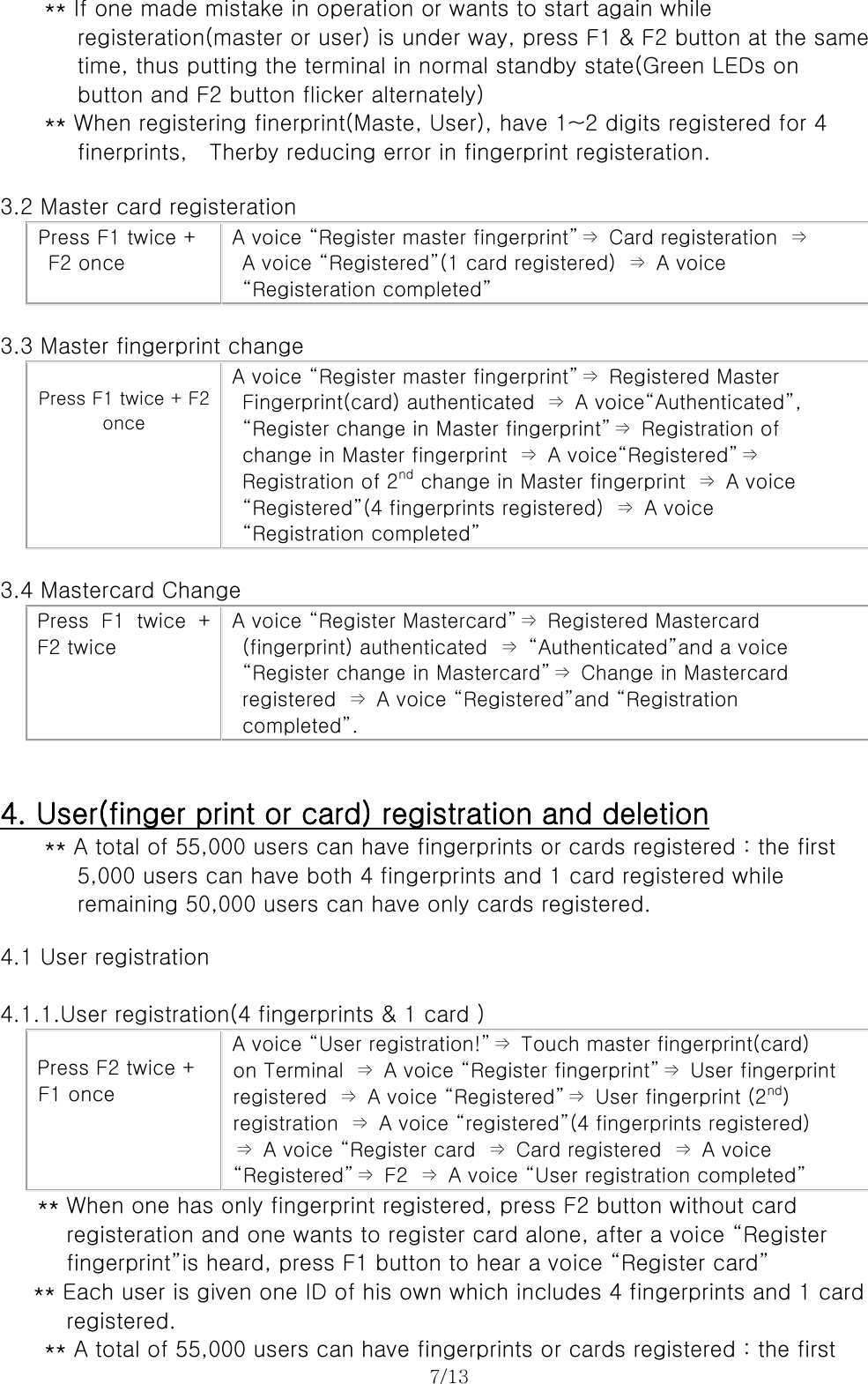
7/13  ** If one made mistake in operation or wants to start again while   registeration(master or user) is under way, press F1 & F2 button at the same   time, thus putting the terminal in normal standby state(Green LEDs on   button and F2 button flicker alternately) ** When registering finerprint(Maste, User), have 1~2 digits registered for 4    finerprints,  Therby reducing error in fingerprint registeration.  3.2 Master card registeration Press F1 twice + F2 once A voice “Register master fingerprint”⇒  Card registeration  ⇒   A voice “Registered”(1 card registered)  ⇒  A voice “Registeration completed”  3.3 Master fingerprint change  Press F1 twice + F2 once A voice “Register master fingerprint”⇒  Registered Master   Fingerprint(card) authenticated  ⇒  A voice“Authenticated”, “Register change in Master fingerprint”⇒  Registration of change in Master fingerprint  ⇒  A voice“Registered”⇒ Registration of 2nd change in Master fingerprint  ⇒  A voice “Registered”(4 fingerprints registered)  ⇒  A voice “Registration completed”  3.4 Mastercard Change Press  F1  twice  + F2 twice A voice “Register Mastercard”⇒  Registered Mastercard   (fingerprint) authenticated  ⇒  “Authenticated”and a voice   “Register change in Mastercard”⇒  Change in Mastercard   registered  ⇒  A voice “Registered”and “Registration   completed”.   4. User(finger print or card) registration and deletion ** A total of 55,000 users can have fingerprints or cards registered : the first    5,000 users can have both 4 fingerprints and 1 card registered while   remaining 50,000 users can have only cards registered.  4.1 User registration  4.1.1.User registration(4 fingerprints & 1 card )   Press F2 twice +  F1 once  A voice “User registration!”⇒  Touch master fingerprint(card)   on Terminal  ⇒  A voice “Register fingerprint”⇒  User fingerprint registered  ⇒  A voice “Registered”⇒  User fingerprint (2nd) registration  ⇒  A voice “registered”(4 fingerprints registered) ⇒  A voice “Register card  ⇒  Card registered  ⇒  A voice “Registered”⇒  F2  ⇒  A voice “User registration completed”   ** When one has only fingerprint registered, press F2 button without card   registeration and one wants to register card alone, after a voice “Register   fingerprint”is heard, press F1 button to hear a voice “Register card”       ** Each user is given one ID of his own which includes 4 fingerprints and 1 card   registered.     ** A total of 55,000 users can have fingerprints or cards registered : the first
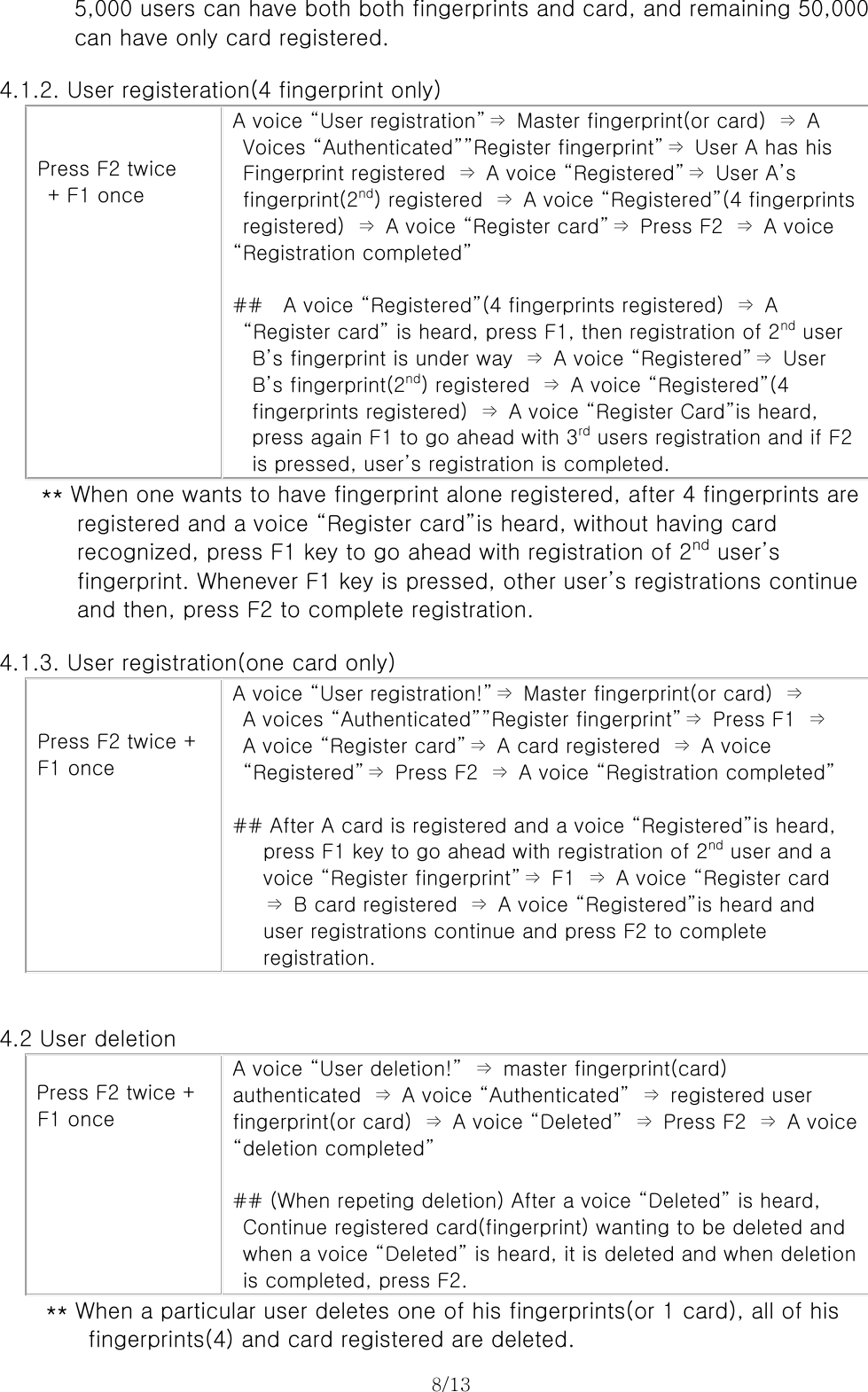
8/13               5,000 users can have both both fingerprints and card, and remaining 50,000              can have only card registered.  4.1.2. User registeration(4 fingerprint only)   Press F2 twice  + F1 once A voice “User registration”⇒  Master fingerprint(or card)  ⇒  A   Voices “Authenticated””Register fingerprint”⇒  User A has his   Fingerprint registered  ⇒  A voice “Registered”⇒  User A’s   fingerprint(2nd) registered  ⇒  A voice “Registered”(4 fingerprints   registered)  ⇒  A voice “Register card”⇒  Press F2  ⇒  A voice “Registration completed”  ##    A voice “Registered”(4 fingerprints registered)  ⇒  A   “Register card” is heard, press F1, then registration of 2nd user B’s fingerprint is under way  ⇒  A voice “Registered”⇒  User B’s fingerprint(2nd) registered  ⇒  A voice “Registered”(4 fingerprints registered)  ⇒  A voice “Register Card”is heard, press again F1 to go ahead with 3rd users registration and if F2 is pressed, user’s registration is completed.              ** When one wants to have fingerprint alone registered, after 4 fingerprints are   registered and a voice “Register card”is heard, without having card   recognized, press F1 key to go ahead with registration of 2nd user’s fingerprint. Whenever F1 key is pressed, other user’s registrations continue   and then, press F2 to complete registration.  4.1.3. User registration(one card only)   Press F2 twice + F1 once A voice “User registration!”⇒  Master fingerprint(or card)  ⇒   A voices “Authenticated””Register fingerprint”⇒  Press F1  ⇒   A voice “Register card”⇒  A card registered  ⇒  A voice   “Registered”⇒  Press F2  ⇒  A voice “Registration completed”  ## After A card is registered and a voice “Registered”is heard,    press F1 key to go ahead with registration of 2nd user and a    voice “Register fingerprint”⇒ F1 ⇒ A voice “Register card    ⇒ B card registered ⇒ A voice “Registered”is heard and    user registrations continue and press F2 to complete registration.   4.2 User deletion   Press F2 twice +  F1 once A voice “User deletion!”  ⇒  master fingerprint(card) authenticated  ⇒  A voice “Authenticated”  ⇒  registered user fingerprint(or card)  ⇒  A voice “Deleted”  ⇒  Press F2  ⇒  A voice “deletion completed”    ## (When repeting deletion) After a voice “Deleted” is heard,   Continue registered card(fingerprint) wanting to be deleted and   when a voice “Deleted” is heard, it is deleted and when deletion   is completed, press F2.    ** When a particular user deletes one of his fingerprints(or 1 card), all of his   fingerprints(4) and card registered are deleted.
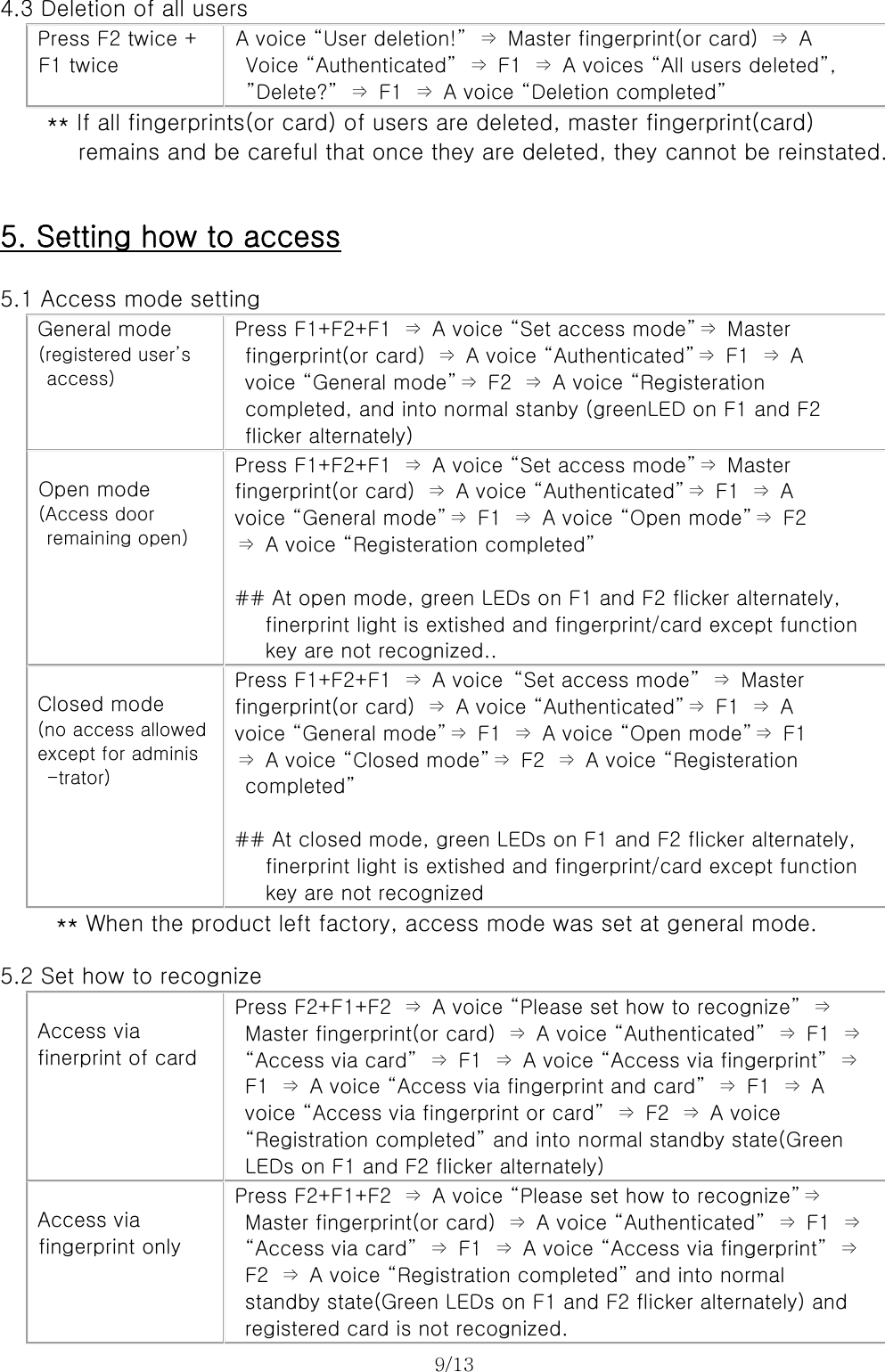
9/13   4.3 Deletion of all users  Press F2 twice +   F1 twice A voice “User deletion!”  ⇒  Master fingerprint(or card)  ⇒  A   Voice “Authenticated”  ⇒  F1  ⇒  A voices “All users deleted”,  ”Delete?” ⇒ F1 ⇒ A voice “Deletion completed”      ** If all fingerprints(or card) of users are deleted, master fingerprint(card)        remains and be careful that once they are deleted, they cannot be reinstated.   5. Setting how to access  5.1 Access mode setting  General mode  (registered user’s     access) Press F1+F2+F1  ⇒  A voice “Set access mode”⇒  Master   fingerprint(or card)  ⇒  A voice “Authenticated”⇒  F1  ⇒  A   voice “General mode”⇒  F2  ⇒  A voice “Registeration   completed, and into normal stanby (greenLED on F1 and F2   flicker alternately)   Open mode  (Access door     remaining open) Press F1+F2+F1  ⇒  A voice “Set access mode”⇒  Master   fingerprint(or card)  ⇒  A voice “Authenticated”⇒  F1  ⇒  A voice “General mode”⇒  F1  ⇒  A voice “Open mode”⇒  F2 ⇒  A voice “Registeration completed”  ## At open mode, green LEDs on F1 and F2 flicker alternately,   finerprint light is extished and fingerprint/card except function key are not recognized..  Closed mode (no access allowed   except for adminis  -trator) Press F1+F2+F1  ⇒  A voice  “Set access mode”  ⇒  Master fingerprint(or card)  ⇒  A voice “Authenticated”⇒  F1  ⇒  A voice “General mode”⇒  F1  ⇒  A voice “Open mode”⇒  F1 ⇒  A voice “Closed mode”⇒  F2  ⇒  A voice “Registeration   completed”  ## At closed mode, green LEDs on F1 and F2 flicker alternately,    finerprint light is extished and fingerprint/card except function    key are not recognized      ** When the product left factory, access mode was set at general mode.  5.2 Set how to recognize  Access via   finerprint of card Press F2+F1+F2  ⇒  A voice “Please set how to recognize”  ⇒   Master fingerprint(or card)  ⇒  A voice “Authenticated”  ⇒  F1  ⇒   “Access via card”  ⇒  F1  ⇒  A voice “Access via fingerprint”  ⇒   F1  ⇒  A voice “Access via fingerprint and card”  ⇒  F1  ⇒  A   voice “Access via fingerprint or card”  ⇒  F2  ⇒  A voice “Registration completed” and into normal standby state(Green LEDs on F1 and F2 flicker alternately)   Access via fingerprint only Press F2+F1+F2  ⇒  A voice “Please set how to recognize”⇒   Master fingerprint(or card)  ⇒  A voice “Authenticated”  ⇒  F1  ⇒   “Access via card”  ⇒  F1  ⇒  A voice “Access via fingerprint”  ⇒   F2  ⇒  A voice “Registration completed” and into normal   standby state(Green LEDs on F1 and F2 flicker alternately) and   registered card is not recognized.
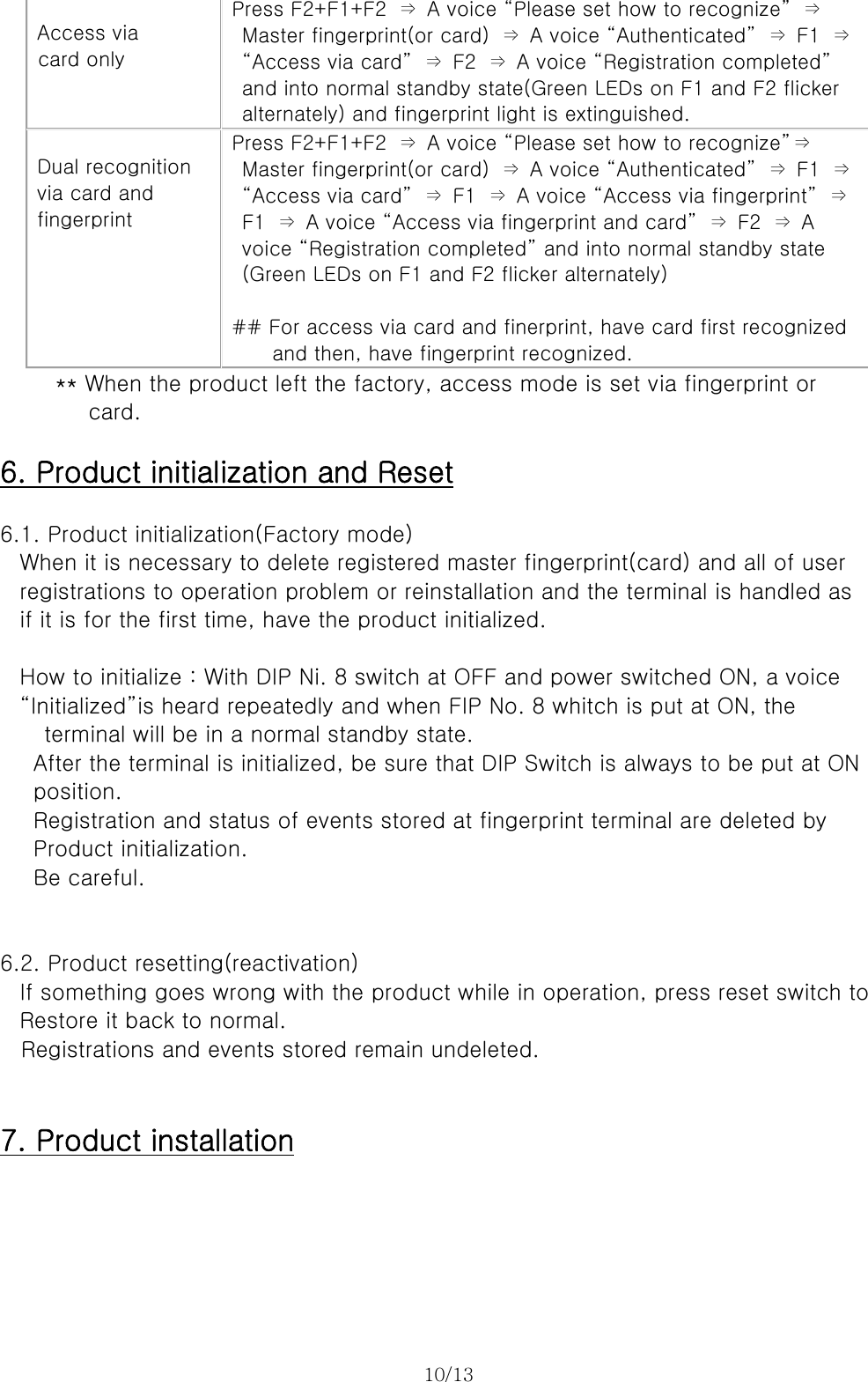
10/13    Access via card only  Press F2+F1+F2  ⇒  A voice “Please set how to recognize”  ⇒   Master fingerprint(or card)  ⇒  A voice “Authenticated”  ⇒  F1  ⇒   “Access via card”  ⇒  F2  ⇒  A voice “Registration completed”   and into normal standby state(Green LEDs on F1 and F2 flicker   alternately) and fingerprint light is extinguished.  Dual recognition via card and fingerprint Press F2+F1+F2  ⇒  A voice “Please set how to recognize”⇒   Master fingerprint(or card)  ⇒  A voice “Authenticated”  ⇒  F1  ⇒   “Access via card”  ⇒  F1  ⇒  A voice “Access via fingerprint”  ⇒   F1  ⇒  A voice “Access via fingerprint and card”  ⇒  F2  ⇒  A   voice “Registration completed” and into normal standby state   (Green LEDs on F1 and F2 flicker alternately)  ## For access via card and finerprint, have card first recognized     and then, have fingerprint recognized.      ** When the product left the factory, access mode is set via fingerprint or   card.  6. Product initialization and Reset  6.1. Product initialization(Factory mode) When it is necessary to delete registered master fingerprint(card) and all of user registrations to operation problem or reinstallation and the terminal is handled as   if it is for the first time, have the product initialized.  How to initialize : With DIP Ni. 8 switch at OFF and power switched ON, a voice   “Initialized”is heard repeatedly and when FIP No. 8 whitch is put at ON, the   terminal will be in a normal standby state. After the terminal is initialized, be sure that DIP Switch is always to be put at ON   position.   Registration and status of events stored at fingerprint terminal are deleted by Product initialization.   Be careful.   6.2. Product resetting(reactivation) If something goes wrong with the product while in operation, press reset switch to Restore it back to normal.   Registrations and events stored remain undeleted.   7. Product installation
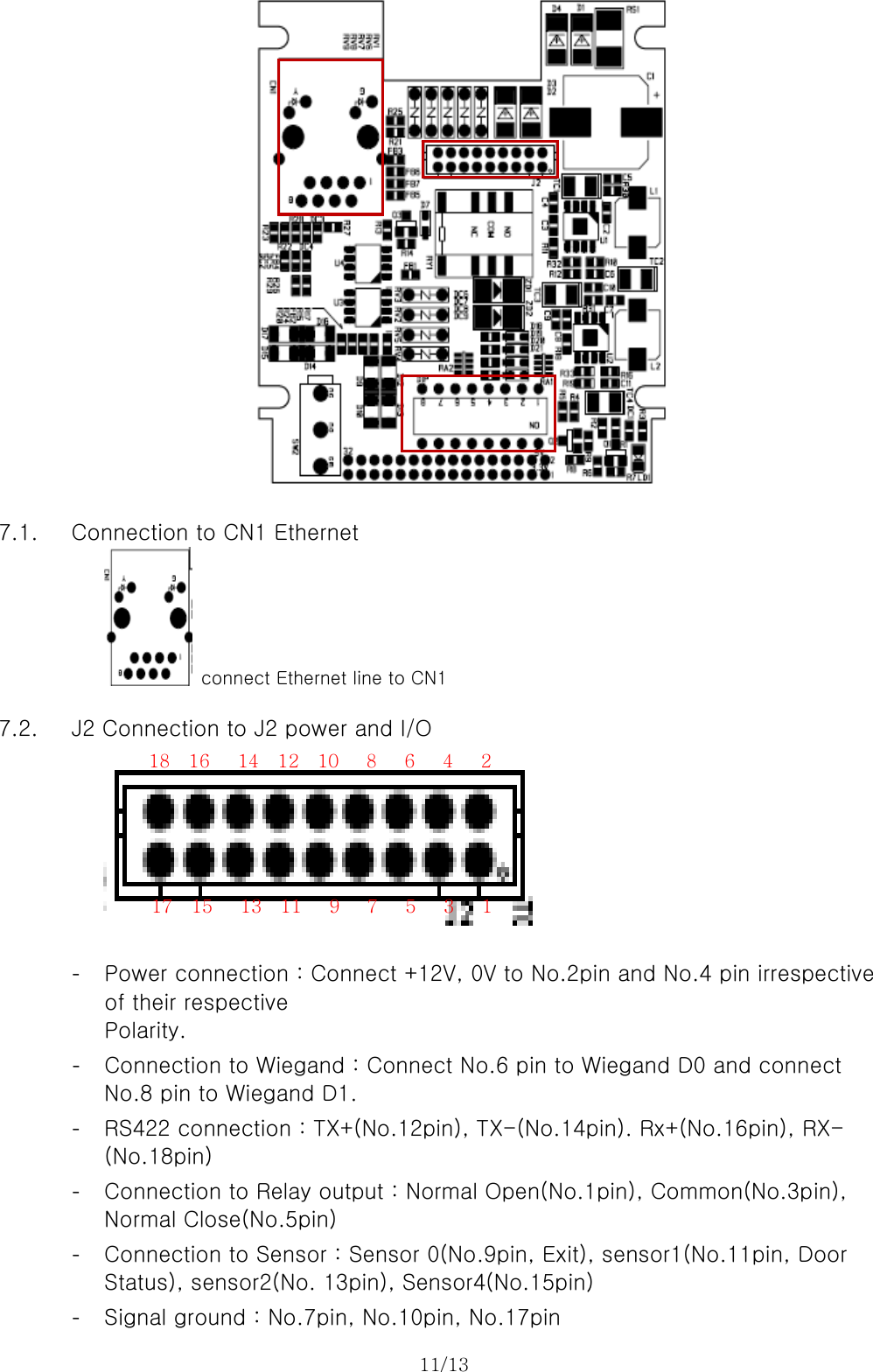
11/13    7.1. Connection to CN1 Ethernet     connect Ethernet line to CN1  7.2. J2 Connection to J2 power and I/O    - Power connection : Connect +12V, 0V to No.2pin and No.4 pin irrespective of their respective   Polarity. - Connection to Wiegand : Connect No.6 pin to Wiegand D0 and connect No.8 pin to Wiegand D1. - RS422 connection : TX+(No.12pin), TX-(No.14pin). Rx+(No.16pin), RX-(No.18pin) - Connection to Relay output : Normal Open(No.1pin), Common(No.3pin), Normal Close(No.5pin) - Connection to Sensor : Sensor 0(No.9pin, Exit), sensor1(No.11pin, Door Status), sensor2(No. 13pin), Sensor4(No.15pin) - Signal ground : No.7pin, No.10pin, No.17pin 18  16   14  12  10   8   6   4   2 17  15   13  11   9   7   5   3   1
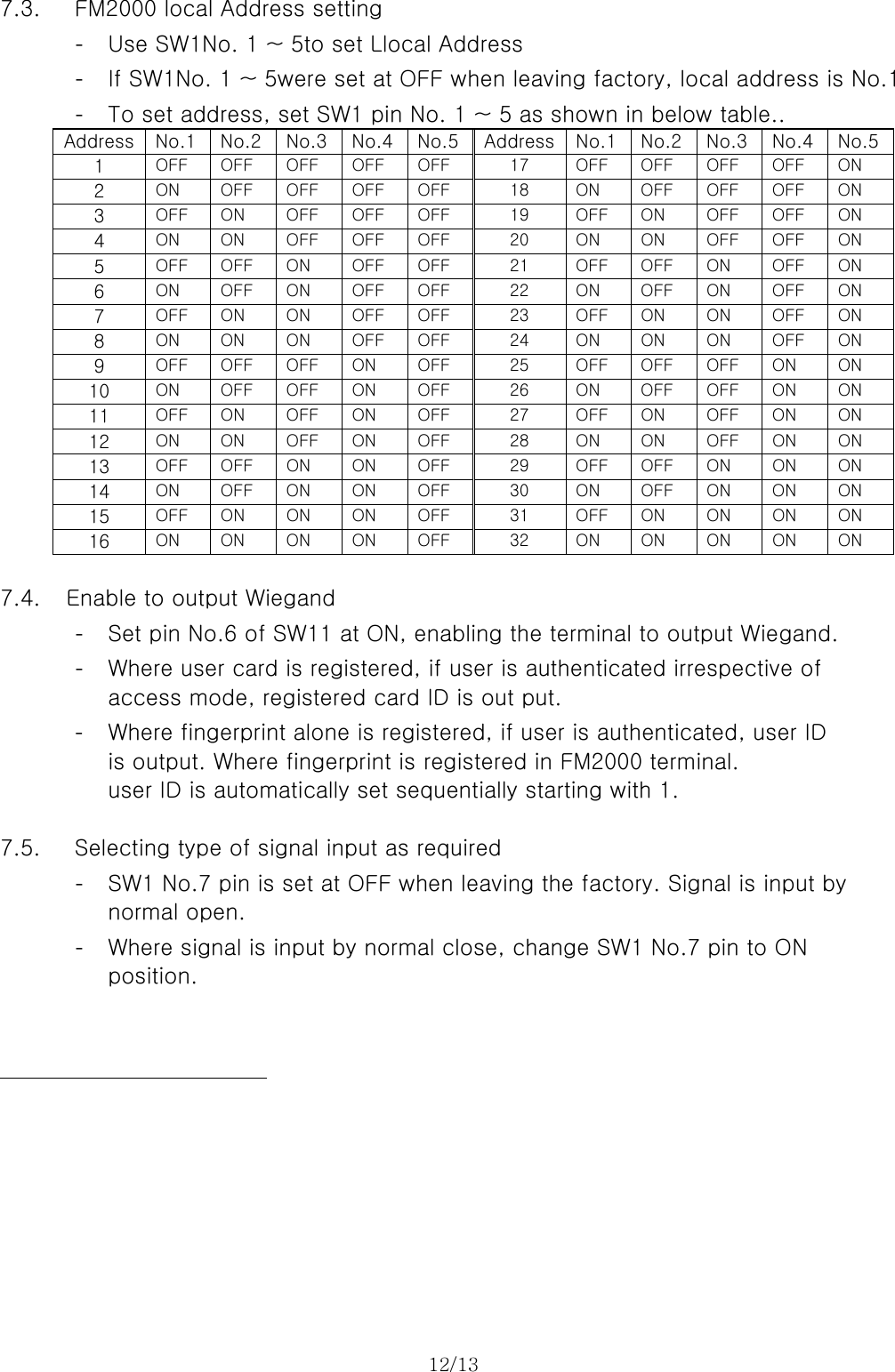
12/13   7.3. FM2000 local Address setting - Use SW1No. 1 ~ 5to set Llocal Address - If SW1No. 1 ~ 5were set at OFF when leaving factory, local address is No.1 - To set address, set SW1 pin No. 1 ~ 5 as shown in below table.. Address  No.1  No.2  No.3  No.4 No.5 Address No.1 No.2 No.3  No.4  No.51  OFF  OFF  OFF  OFF  OFF  17  OFF  OFF  OFF  OFF  ON 2  ON  OFF  OFF  OFF  OFF  18  ON  OFF  OFF  OFF  ON 3  OFF  ON  OFF  OFF  OFF  19  OFF  ON  OFF  OFF  ON 4  ON  ON  OFF  OFF  OFF  20  ON  ON  OFF  OFF  ON 5  OFF  OFF  ON  OFF  OFF  21  OFF  OFF  ON  OFF  ON 6  ON  OFF  ON  OFF  OFF  22  ON  OFF  ON  OFF  ON 7  OFF  ON  ON  OFF  OFF  23  OFF  ON  ON  OFF  ON 8  ON  ON  ON  OFF  OFF  24  ON  ON  ON  OFF  ON 9  OFF  OFF  OFF  ON  OFF  25  OFF  OFF  OFF  ON  ON 10  ON  OFF  OFF  ON  OFF  26  ON  OFF  OFF  ON  ON 11  OFF  ON  OFF  ON  OFF  27  OFF  ON  OFF  ON  ON 12  ON  ON  OFF  ON  OFF  28  ON  ON  OFF  ON  ON 13  OFF  OFF  ON  ON  OFF  29  OFF  OFF  ON  ON  ON 14  ON  OFF  ON  ON  OFF  30  ON  OFF  ON  ON  ON 15  OFF  ON  ON  ON  OFF  31  OFF  ON  ON  ON  ON 16  ON  ON  ON  ON  OFF  32  ON  ON  ON  ON  ON  7.4. Enable to output Wiegand - Set pin No.6 of SW11 at ON, enabling the terminal to output Wiegand. - Where user card is registered, if user is authenticated irrespective of   access mode, registered card ID is out put. - Where fingerprint alone is registered, if user is authenticated, user ID is output. Where fingerprint is registered in FM2000 terminal.   user ID is automatically set sequentially starting with 1.  7.5. Selecting type of signal input as required - SW1 No.7 pin is set at OFF when leaving the factory. Signal is input by normal open. - Where signal is input by normal close, change SW1 No.7 pin to ON   position.
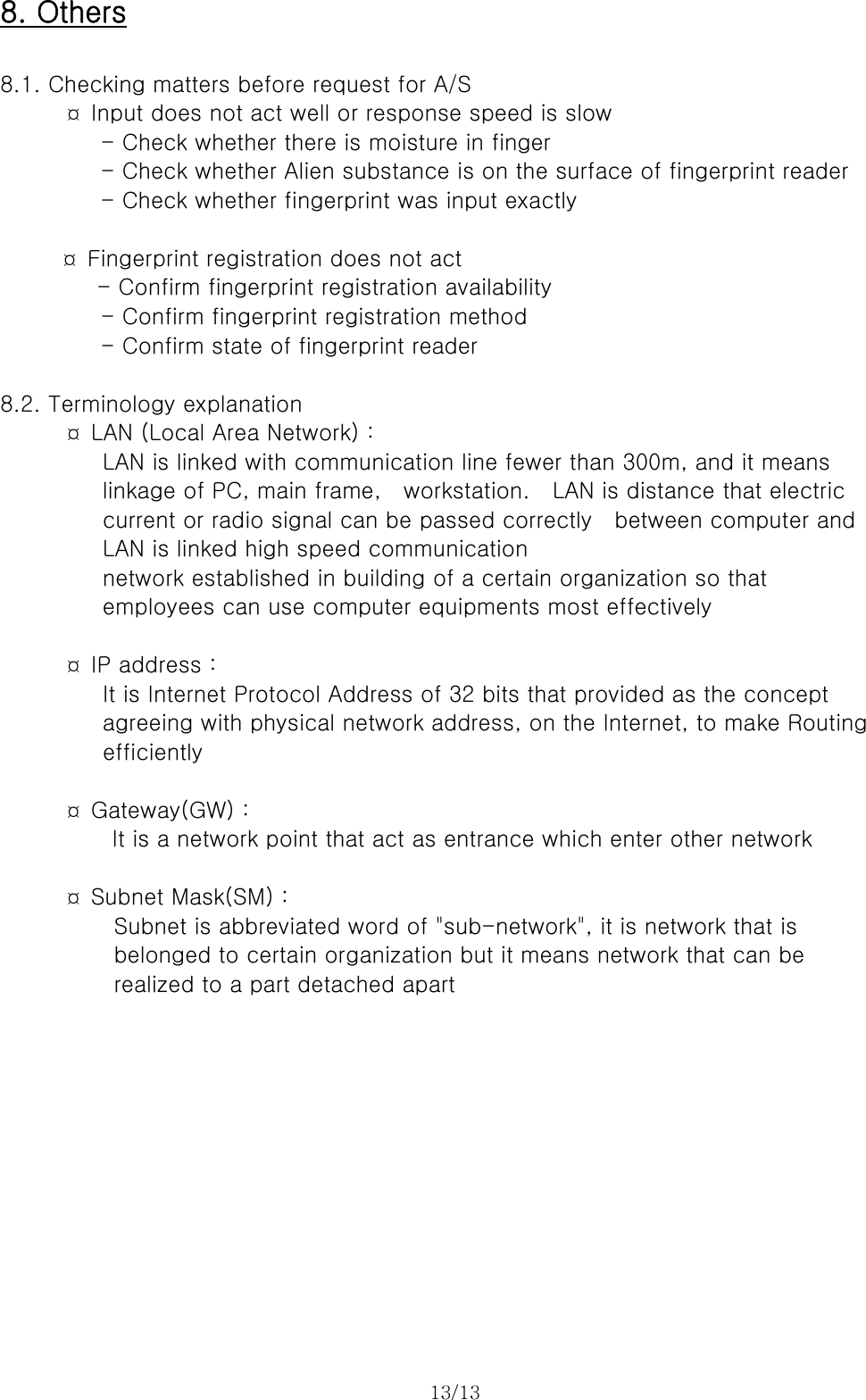
13/13  8. Others  8.1. Checking matters before request for A/S     ¤ Input does not act well or response speed is slow          - Check whether there is moisture in finger - Check whether Alien substance is on the surface of fingerprint reader - Check whether fingerprint was input exactly  ¤  Fingerprint registration does not act    - Confirm fingerprint registration availability         - Confirm fingerprint registration method          - Confirm state of fingerprint reader   8.2. Terminology explanation ¤  LAN (Local Area Network) :        LAN is linked with communication line fewer than 300m, and it means      linkage of PC, main frame,  workstation.  LAN is distance that electric current or radio signal can be passed correctly    between computer and LAN is linked high speed communication   network established in building of a certain organization so that   employees can use computer equipments most effectively          ¤ IP address :       It is Internet Protocol Address of 32 bits that provided as the concept   agreeing with physical network address, on the Internet, to make Routing   efficiently          ¤ Gateway(GW) :     It is a network point that act as entrance which enter other network        ¤ Subnet Mask(SM) :   Subnet is abbreviated word of "sub-network", it is network that is belonged to certain organization but it means network that can be   realized to a part detached apart
                            14/13
  15/13

Navigation menu