Macro Image Technology MDP-100 HDTV Receiving PC Card User Manual MDP100 manual
Macro Image Technology, Inc HDTV Receiving PC Card MDP100 manual
users manual

i
MyHD
MDP-100
User’s Guide
version 0.9
May, 2001
HDTV PC Card
Enjoy digital life with your PC

ii
FCC INFORMATION TO THE USER
This equipment has been tested and found to comply with the limits for a Class B digital
device, pursuant to part 15 of the FCC Rules. These limits are designed to provide reasonable
protection against harmful interference in a residential installation. This equipment generates,
uses and can radiate radio frequency energy and, if not installed and used in accordance with
the instructions, may cause harmful interference to radio communications. However, there is
no guarantee that interference will not occur in a particular installation. If this equipment does
cause harmful interference to radio or television reception, which can be determined by
turning the equipment off and on, the user is encouraged to try to correct the interference by
one more of the following measures:
-. Reorient or relocate the receiving antenna.
-. Increase the separation between the equipment and receiver.
-. Connect the equipment into an outlet on a circuit different from that to which the receiver is
connected.
-. Consult the dealer or an experienced radio/TV technician for help.
WARNING
Changes or modifications not expressly approved by the manufacturer could void the user’s
authority to operate the equipment.

iii
Contents
1.System Requirements ------------------------------------------------------- 1
1.1 PC Platform Requirements ------------------------------------------------ 1
2. Hardware Installation --------------------------------------------------------- 1
2.1 Installation overview --------------------------------------------------------- 1
2.2 Install MyHD card ------------------------------------------------------------- 2
2.3 Connect the Cables ---------------------------------------------------------- 3
2.4 Connecting the MyHD board to a Sound Card ---------------------- 4
2.5 Install the MyHD driver for Windows ------------------------------------- 5
3. Quick Troubleshooting Guide --------------------------------------------- 7
4. MyHD Application ---------------------------------------------------------------- 8
4.1 Application Installation ----------------------------------------------------- 8
4.2 Check lists before running the MyHD --------------------------------- 8
4.3 User Interface Description ------------------------------------------------- 9
4.4 Remote Controller ------------------------------------------------------ 11
4.5 Channel Property Set ------------------------------------------------ 12
4.5.1 Auto Channel Scan ----------------------------------------------------- 12
4.5.2 Change Channel Configure ----------------------------------------- 12

iv
4.5.3 Add/Remove Favorite Channel ------------------------------------- 13
4.5 MyHD Envrionment Configuration -------------------------------------- 14
4.5.1 AV Setup Tab ------------------------------------------------------- 14
4.5.2 VGA Setup Options ---------------------------------------------------- 16
4.7 Pop-up Controls ------------------------------------------------------------ 17
4.8 Keyboard Shortcuts ---------------------------------------------------------- 17

v
[blank]

MyHD Enjoy digital life with your PC
- 1 - Macro Image Technology,Inc.
1. SYSTEM REQUIREMENTS
To achieve optimum performance of the MyHD Board, your PC requires a minimum
configuration.
This chapter provides the system requirements. This chapter contains the following sections:
1.1 PC Platform Requirements
The minimum requirements for you PC platform are listed below:
CPU : Pentium-II 333MHz or faster
DRAM : 64 Megabytes or Higher
System Bus : PCI
Operating System : Windows 98 Second Edition. , ME
Other Software : DirectX Media 6.0 Runtime
VGA : DirectX compatibility VGA card
(8 MB memory or higher recommended)
2. HARDWARE INSTALLATION
The MyHD boards are Plug-and-Play devices designed for Window 98SE and ME.
Plug-and-Play simplifies the installation and hardware setup of MyHD by having hardware
settings assigned by Windows, instead of needing to set jumpers. This chapter describes how to
install these boards and how the automated Plug-and-Play installation procedure works .
2.1 Installation overview
To install MyHD under Windows 98SE or ME, you will follow these steps:
l Install the MyHD board in your PC
l After booting Windows, you will install MyHD’s Windows device driver from the
MyHD Installation CD-ROM
l After the Windows driver is installed, you will then install the MyHD application
software from the MyHD Installation CD-ROM
MyHD Enjoy digital life with your PC
- 2 - Macro Image Technology,Inc.
l Finally, if necessary, an updated Windows Direct X Driver can be installed from the
MyHD Installation CD-ROM
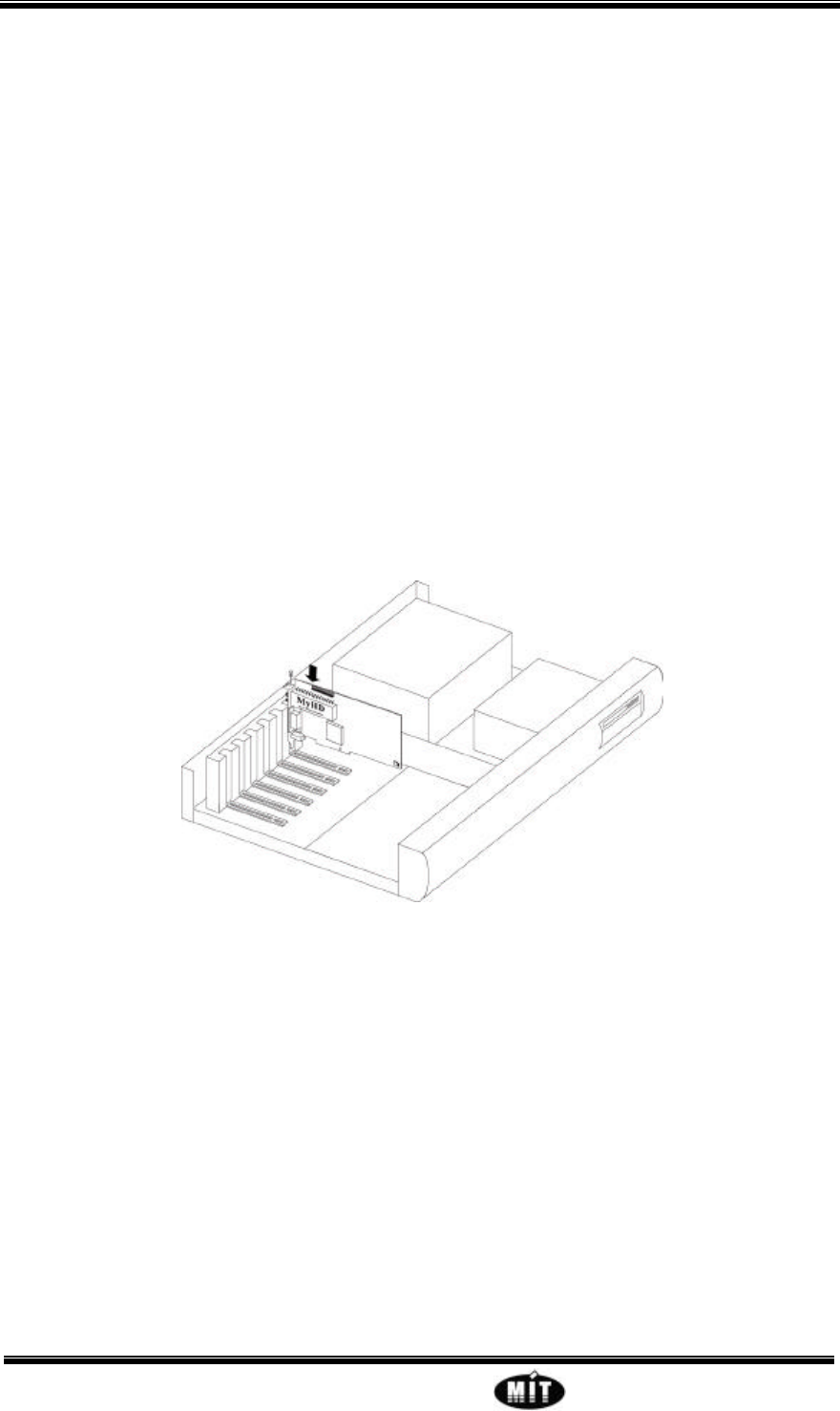
2.2 Install MyHD card
To install MyHD card, follow the steps listed below:
1. With the power off, remove yo
2. ur computer cover and locate an available PCI slot.
3. Remove the screw attached to the bracket cover and remove the bracket plate.
4. Before handling the MyHD DTVPC card, ground yourself by touching the power supply
box inside your computer.
5. Position your card directly above the PCI slot and insert the card firmly into the slot. Care
should be taken to press it evenly and snugly into its slot.
6. Once your MyHD DTVPC card is installed properly in its slot, secure it to the computer
frame with the screw you removed in step 2.
Warning - Static Sensitive Components
To avoid possible damage to MyHD DTVPC card and/or other system components from static
discharge always discharge your body’s static electricity prior to handling MyHD DTVPC
card or other system components.
Discharging can be done either by using a properly grounded anti-static wrist strap or by
simply touching the chassis of a grounded (plugged-in) computer. In addition, always handle
the card by its edges whenever possible, to avoid mechanical damage to delicate components on
the board.
MyHD Enjoy digital life with your PC
- 3 - Macro Image Technology,Inc.
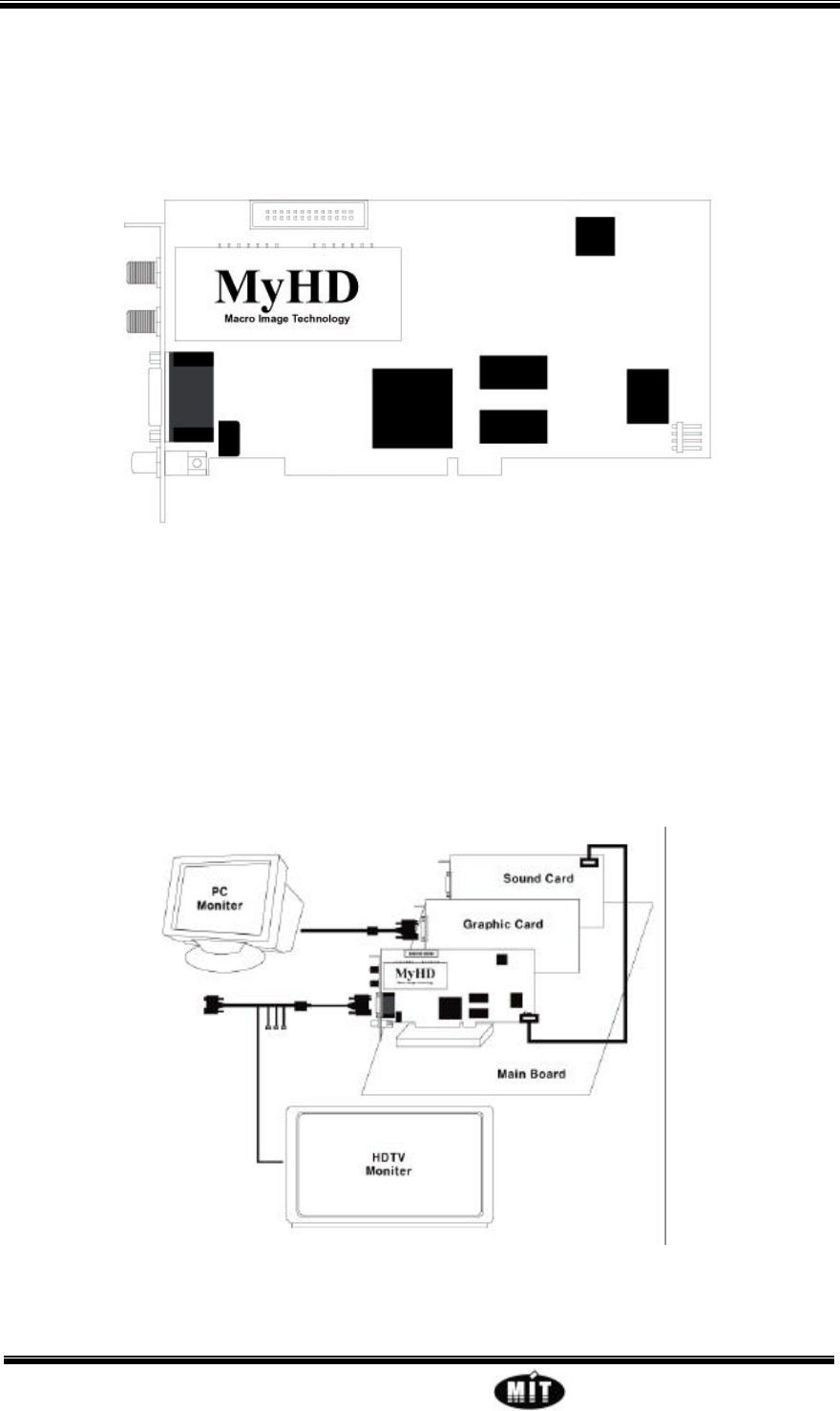
The following diagram shows the main functions and connectors of the MyHD board. Since
there are several different models with different features and functions, your board may not
have all of the components installed.
<Figure 2.1>
2.3 Connect the Cables
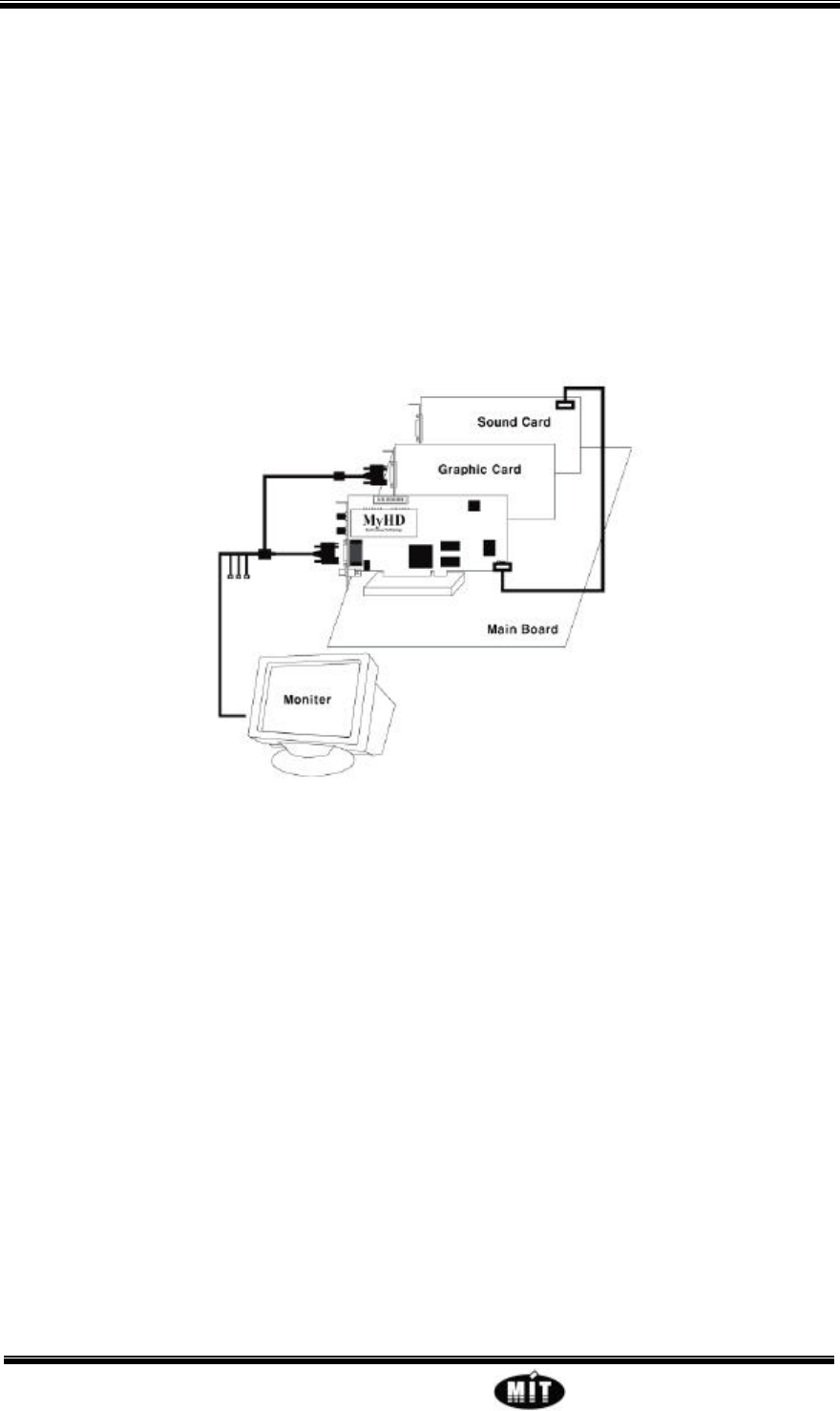
There are three basic cable configurations for MyHD : Dual Monitor, Single Monitor. The
following subsections describe each operating configuration and their cabling connections.
Please refer to A if you have two monitors, otherwise refer to B.
A. Dual Monitor Configuration
<Figure 2.2>
MyHD Enjoy digital life with your PC
- 4 - Macro Image Technology,Inc.
Figure2.2 shows the dual-monitor configuration. Video output from the MyHD board is
displayed on a separate HDTV or VGA monitor, without being mixed with VGA graphics. The
HDTV display monitor used should be capable of receiving RGB(HV separate sync) type or
YPbPr(sync on Y) type with support of following horizontal frequency: 33.7kHz(1920x1080
interlaced), 44.9kHz(1280x720 progressive), 31.5kHz(720x480 progressive),
48.3kHz(1024x768 progressive), 15.75kHz(720x480 interlaced).
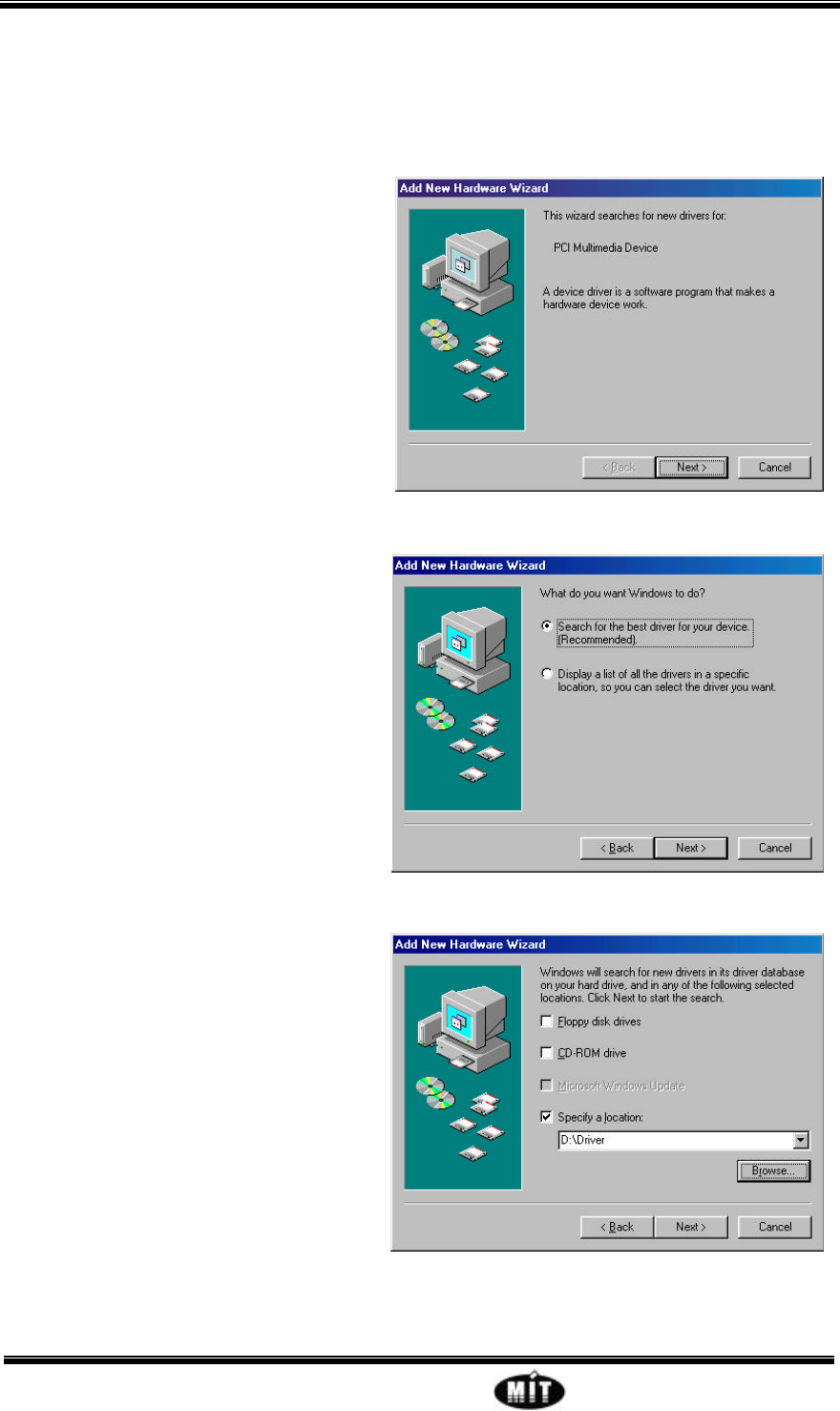
B. Single Monitor Configuration
<Figure 2.3>
This configuration allows you to share a single monitor to display either VGA graphics or RGB
video output by means of an analog switch. Figure 2.3 illustrates the cable connections used in
this configuration. The VGA card display output is looped back into MyHD Board via its VGA
loop-back input. An analog switch on the MyHD Board switches between the VGA loop-back
input (default) and the MyHD HD video output.
2.4 Connecting the MyHD board to a Sound Card
The MyHD board's audio output should be connected to a sound card using the supplied Audio Cable,
refer to the figure 2.2 or 2.3
l Plug the other end of the Audio Cable into the LineIn port of your sound card.
MyHD Enjoy digital life with your PC
- 5 - Macro Image Technology,Inc.
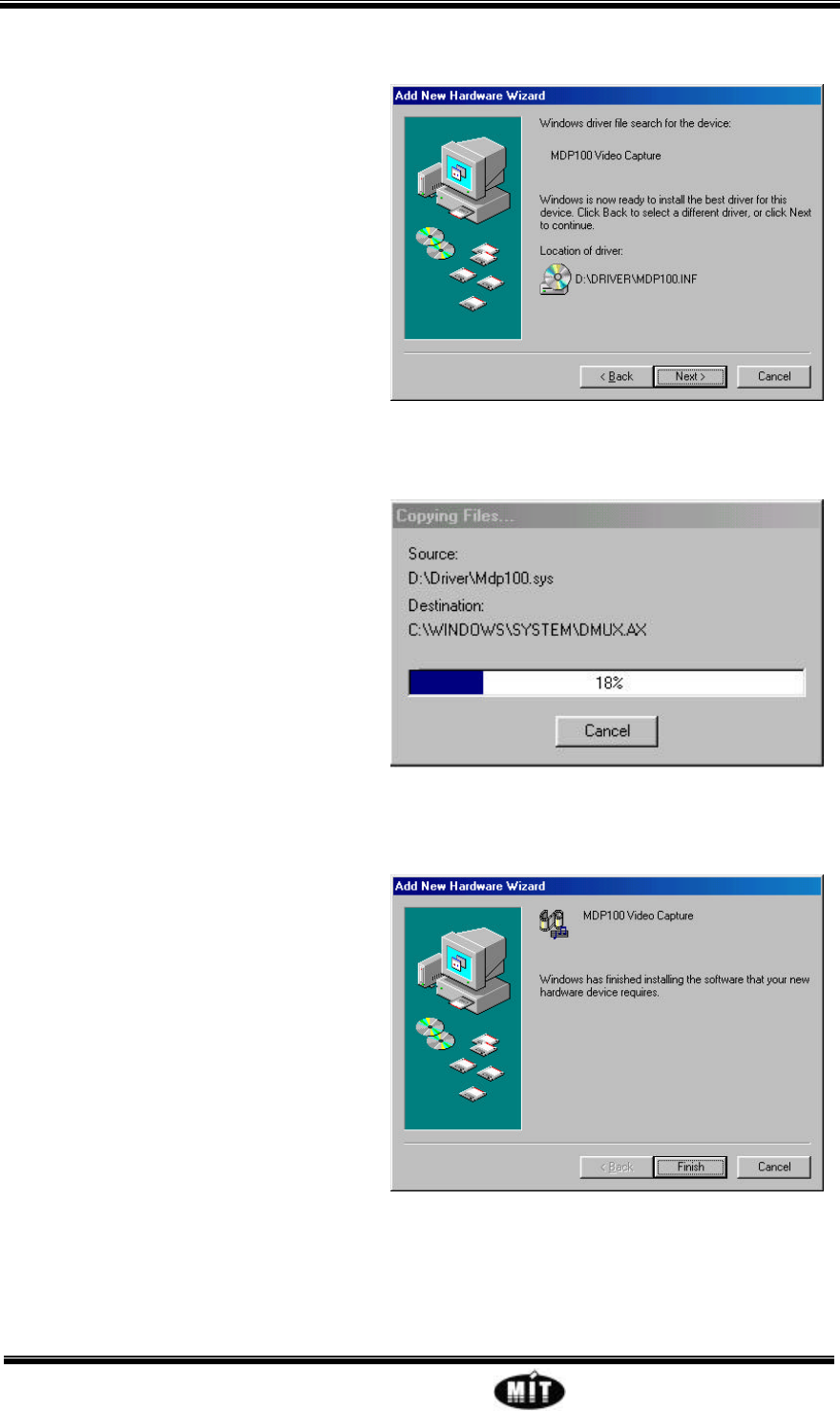
2.5 Install the MyHD driver for Windows
.
1. When re-starting Windows for the first
time after the MyHD board has been
installed, the Add New Hardware
Wizard will appear.
Click NEXT..
2. Select Search for the best driver for
your device (Recommended).
Click NEXT.
3. When you see this dialog box, insert the
MyHD Windows Installation CD-
ROM into your CD-ROM drive.
Select “Specify a location” and type
“D:\Driver” or Browse the Driver
irectory in your CD-ROM (Where “D”
is the etter of your CD-ROM driver.)
click NEXT.
MyHD Enjoy digital life with your PC
- 6 - Macro Image Technology,Inc.
4. Once the MyHD video driver has been
detected.
click NEXT
Note: If a message stating “Windows
was unable to locate a driver for this
device”, you did not wait long enough
for the MyHD Installation CD-ROM
to be read. Click Back and then click
Next again for the CD to be recognized.
5. You will see a number of files being
copied to your hard disk drive. If you
receive an error message saying a file
can not be found, browse to the Driver
directory on the MyHD Windows
Installation CD-ROM or Windows CD-
ROM for these files.
6. Click Finish and Restart your computer.

MyHD Enjoy digital life with your PC
- 7 - Macro Image Technology,Inc.
3. QUICK TROUBLESHOOTING GUIDE
l Incompatible motherboards
We recommend the use of a motherboard with an Intel chipset because some other
motherboards do not fully support the MyHD.
l System lockups or error messages when running MyHD
Some PCI cards may have interrupt conflicts with MyHD. To solve the problem, try with
another PCI slot.
l Poor TV reception
Poor TV reception is generally the result of a weak TV signal. When using a roof-top
antenna, an aerial booster may be required.
MyHD Enjoy digital life with your PC
- 8 - Macro Image Technology,Inc.
4. MYHD APPLICATION
4.1 Application Installation
To install the MyHD application software on your system, run the “setup.exe” program in the
App subdirectory of your MyHD install CD. If you have copied the contents of this directory to
hard disk, then install from there. During the software installation, you will be asked several
questions. Answer “Yes” to all of these.
4.2 Check lists before running the MyHD
Please check the following steps for running the application of the MyHD
1. select “Control Panel”
select “Display” then select “Screen Saver”
click “None”
select “settings” under “Energy saving features of monitor”
select “Always on(default)” in “Power Schemes”
select “Settings for Always On power scheme” and click “Never’ for all of three
categories
2. select “Control Panel”
select “Display/Settings”
click “Advanced” then If you use loopback Cable, choose “Monitor” and confirm you do
not check “Automatically detect Plug & Play monitor”
3. Please do not change “Colors” and “Screen area” in the “Display/Settings” menu while
you are running the MyHD.
It effects the application may not work properly.
MyHD Enjoy digital life with your PC
- 9 - Macro Image Technology,Inc.
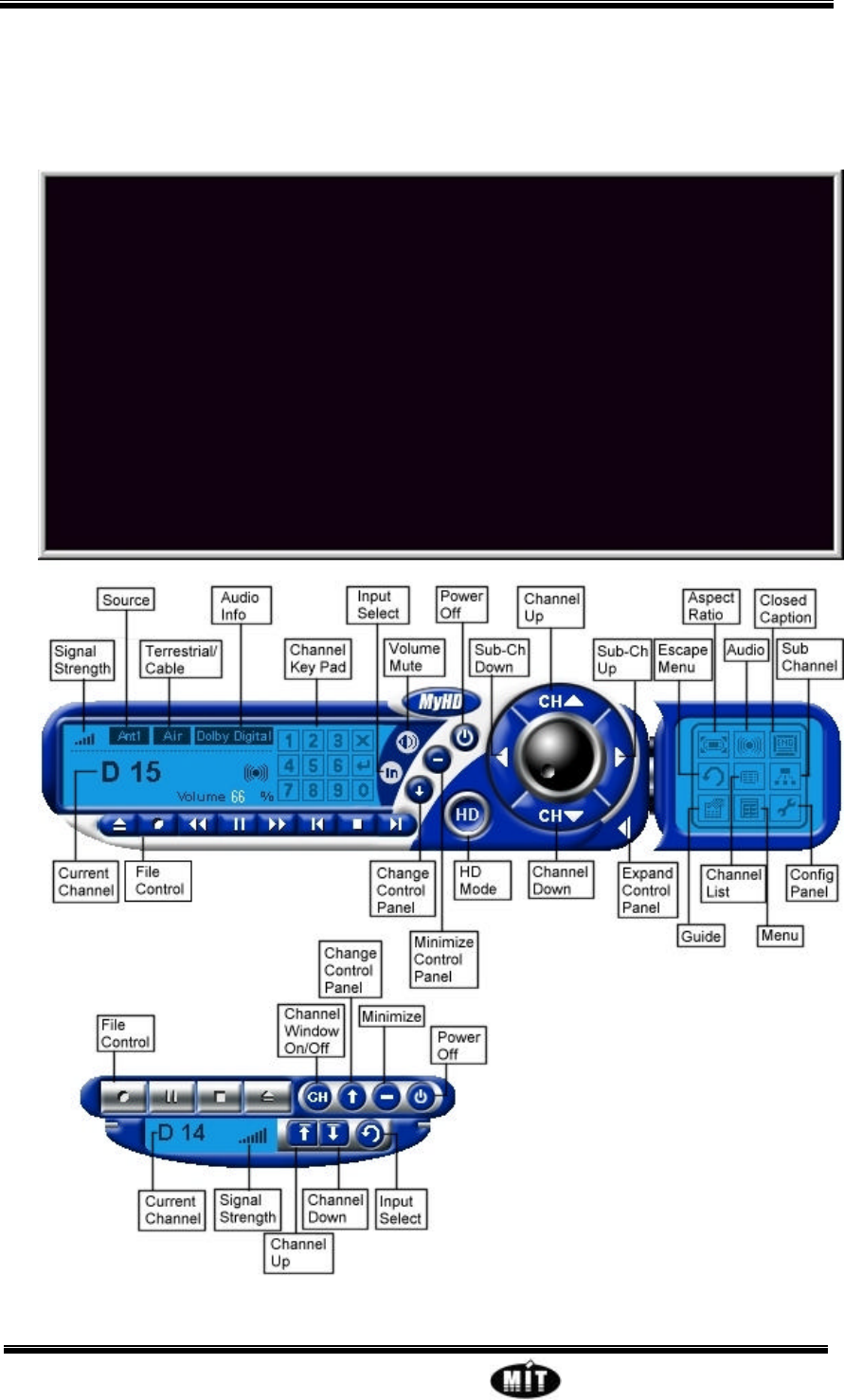
4.3 User Interface Description

MyHD Enjoy digital life with your PC
- 10 - Macro Image Technology,Inc.
Freeze/Play : Toggles between Freeze and Play mode
Window Size Fit to Resolution : Sets window size to overlay resolution
Current Channel: Shows current channel information
Signal Strength : Shows current Antenna Signal Strength
Terrestrial/Cable : Shows current Broad Casting is terrestrial or Cable.
Audio Info : Shows current audio information
Input Select : Select source to Antenna1, Antenna2, External A/V In or File play.
HD Mode : Toggles between Video Overlay and HD modes (requires a VGA loopback
connector). Pressing any key or mouse button while in HD mode reverse to VGA Overlay
mode;
Channel Up : Each click jumps to the next higher channel in the active channel list
Channel Down : Each click jumps to the next lower channel in the active channel list
Vlolume Control : Control volume level
Volume Mute : Toggles between volume mute and volume enable
Channel Key Pad : Selects the Channel number. Press the enter key to activate the Selected
Channel.
Expand Control Panel : Expand Control Panel.
Aspect Ratio : Change Aspect Ratio 16:9 or 4:3
Audio : Change Analog Audio between Stereo and Mono when Stereo audio is in, or Language
A and Language B when Bilingual audio is in.
Closed Caption : Shows/Hides Closed Caption. This function will be served the next version.
Channel List : Setting Channel Configuration.
Config Panel : Set MyHD Configuration.
MyHD Enjoy digital life with your PC
- 11 - Macro Image Technology,Inc.
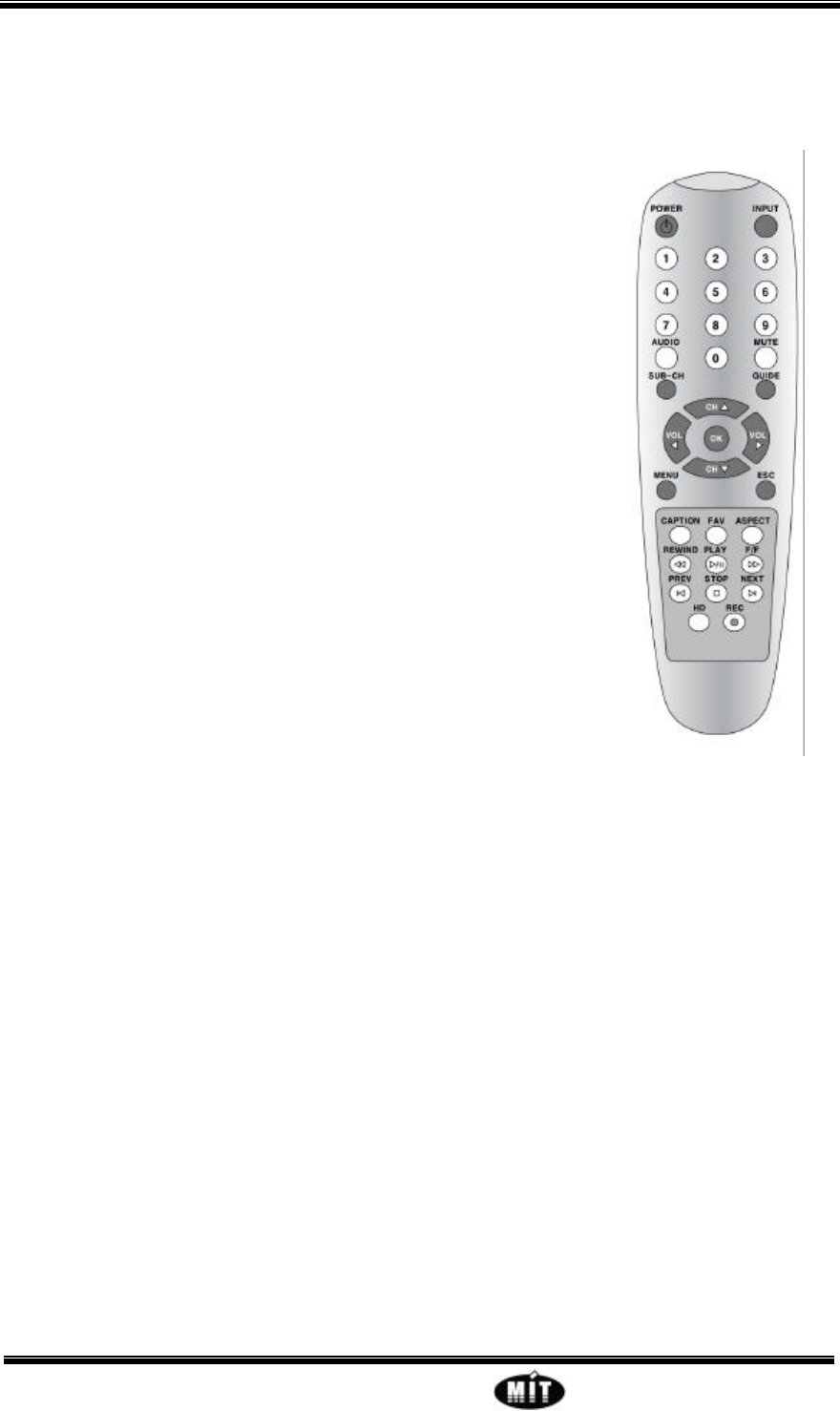
4.4 Remote Controller
1.POWER
Execute and Exit MyHD Program.
2.INPUT
Change The input antenna 1, antenna 2, file play and external a/v input.
3. Numeric key (0 ~ 9)
Change the channel
4. AUDIO
Change audio mode STEREO, Mono, Language A, Language B . This
function will be served next version.
5. SUB-CH
If Digital TV Channel has sub-channel. Select that channel.
6. GUIDE
In Digital TV, Information such as program guide is displayed.
This function will be served next version.
5. MUTE
Mute Audio Volume .
6. CH^ , CHv
Change the scaned channel. if favorite channel mode is set., next
favorite channel is selected.
7. OK
Display current status.
8. CAPTION
Display closed caption. This function will be served next version.
9. FAV
Set or release favorite channel mode.
10. ASPECT
Change aspect ratio 16:9 or 4:3.
11. HD
Toggles between Video Overlay and HD modes (requires a VGA loopback connector).
MyHD Enjoy digital life with your PC
- 12 - Macro Image Technology,Inc.
4.5 Channel Property Set
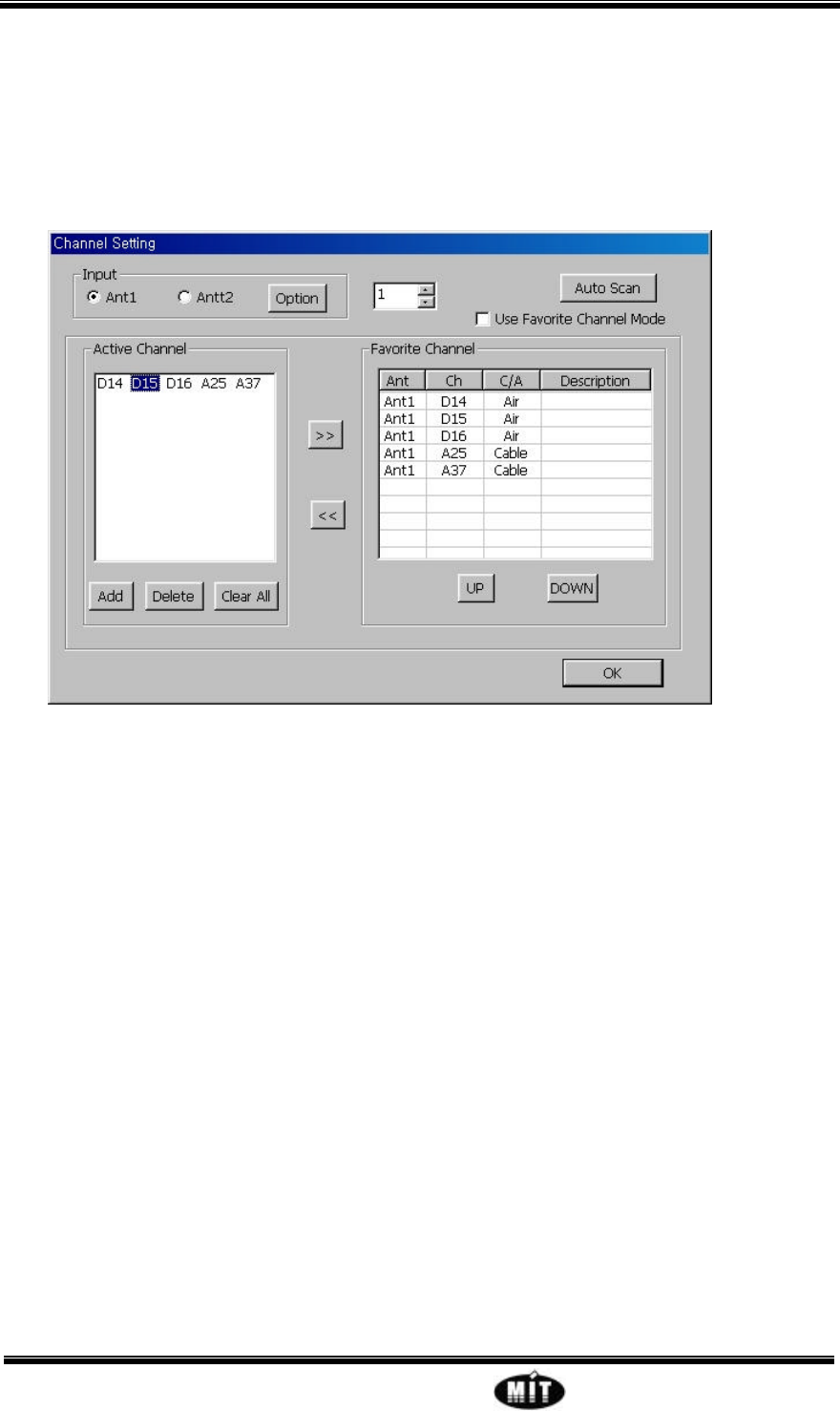
When press Channel List in pop-up menu, or in expansion control panel, this window will be
showed. We can set channel configuration in this window.
4.5.1 AUTO CHANNEL SCAN
Check Ant1 or Ant2 in Input area, and click option button.
And select Terrestrial or cable you want. If you don’t know the input is whether terrestrial or
not, choose auto. If set auto, It will detect the input port automatically.
And, click button auto scan. It will detect analog broadcasting and digital broadcasting channel,
and will add active channel. After the auto scan is complete, you will have a list of TV channels
which are active in your area.
4.5.2 CHANGE CHANNEL CONFIG
If you want add channel, choose the channel number in the box beside auto scan button. And
click add button below active channel window. It will detect that channel is now broadcasting
and add active channel window.
If you want remove channel, select that channel in active channel window you want. And click
delete button.

MyHD Enjoy digital life with your PC
- 13 - Macro Image Technology,Inc.
4.5.3 ADD/REMOVE FAVORITE CHANNEL
You want set favorite channel in scanned channel, select scanned channel in Active channel
window, and click button >>. At same matter, you can delete favorite channel after selecting
favorite channel in favorite channel window and click <<. It will be removed.
MyHD Enjoy digital life with your PC
- 14 - Macro Image Technology,Inc.
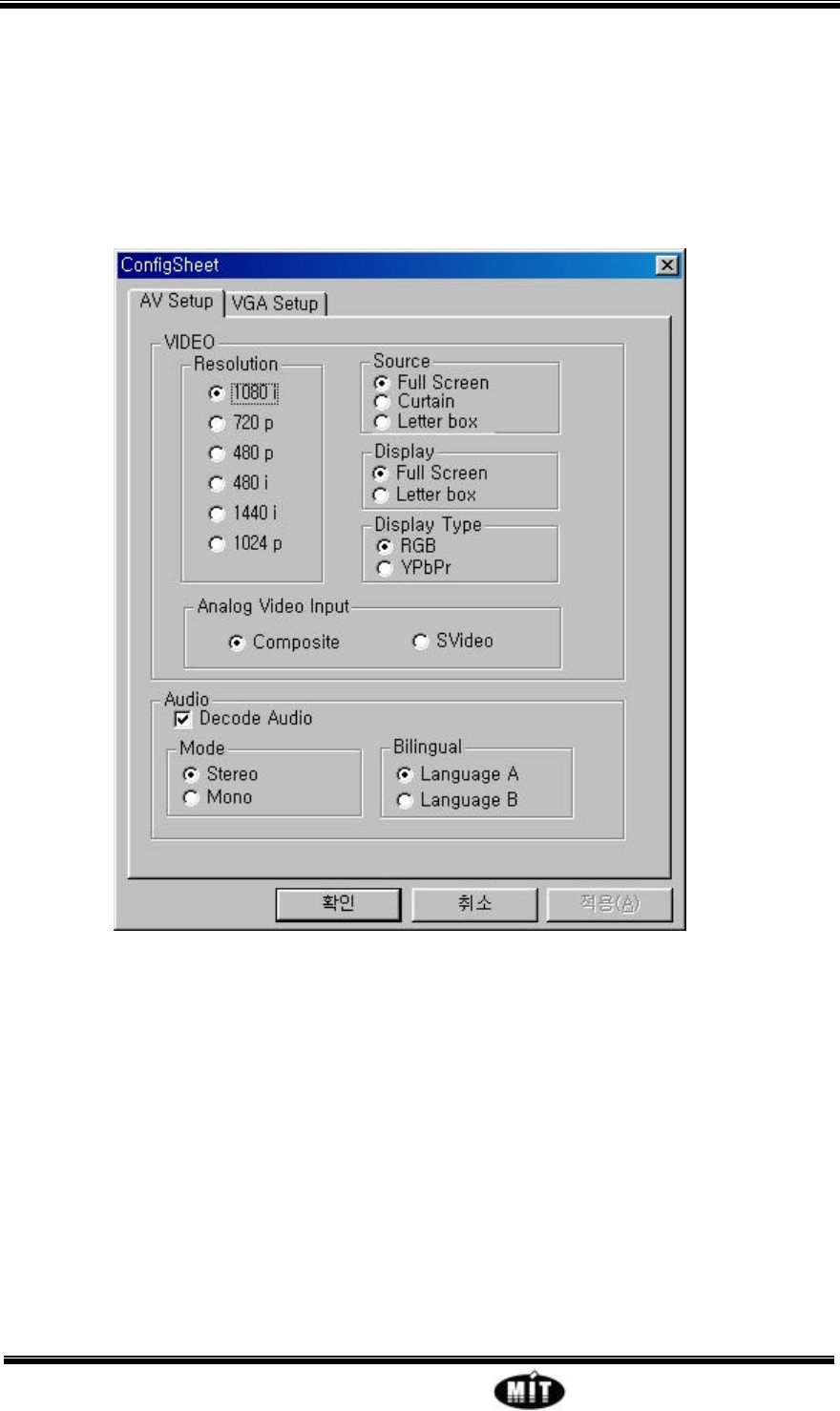
4.6 MyHD Environment Configuration
You can configure MyHD by selecting Config in expansion menu or pop-up menu. This
window has two tabs, AV Setup and VGA Setup.
4.6.1 AV SETUP TABS
Setting MyHD’s Audio and Video environment.
A. Resolution
Selects the output display resolution of the MyHD board’s primary video output port: either
1920x1080 interlaced, 1280x720 progressive, 720x480 progressive, 720x480 interlaced,
1440x1080 interlaced or 1024x768 progressive.
Set Video format in HD mode. If you using DTV ready High Definition monitor or PC monitor,
I recommand 1080i mode. Almost Digital TV using 1080i as High Definition. You have NTSC
TV, Use 480i format.

MyHD Enjoy digital life with your PC
- 15 - Macro Image Technology,Inc.
B. Set Display
If you have monitor with aspect ratio 4:3 – 480i, 480p, 1440i or 1024p -, and now broadcasting
video format is aspect ratio 16:9, you can choose two methods, full screen or letter box screen.
Full Screen displays all video in full screen. And, Letter box screen is displays video with black
bar in top and bottom screen to maintain aspect ratio. You can choose either of it.
C. Set Display type
MyHD has two video output format, RGB and YpbPr. Normally, most PC monitor use RGB
and HDTV component input is YpbPr. Select suitable format you want.
D. Set External Analoy A/V in
Determine the external video input is S-Video or Composite video.
E. Set Decode audio
Set to decoding digital audio or not.
F. Set Audio mode
In Analog Broadcasting, set the audio output is whether stereo audio or mono audio.
G. Set Bilingual
In Analog Broadcasting, and when Bilingual is on what language is to be output.
MyHD Enjoy digital life with your PC
- 16 - Macro Image Technology,Inc.
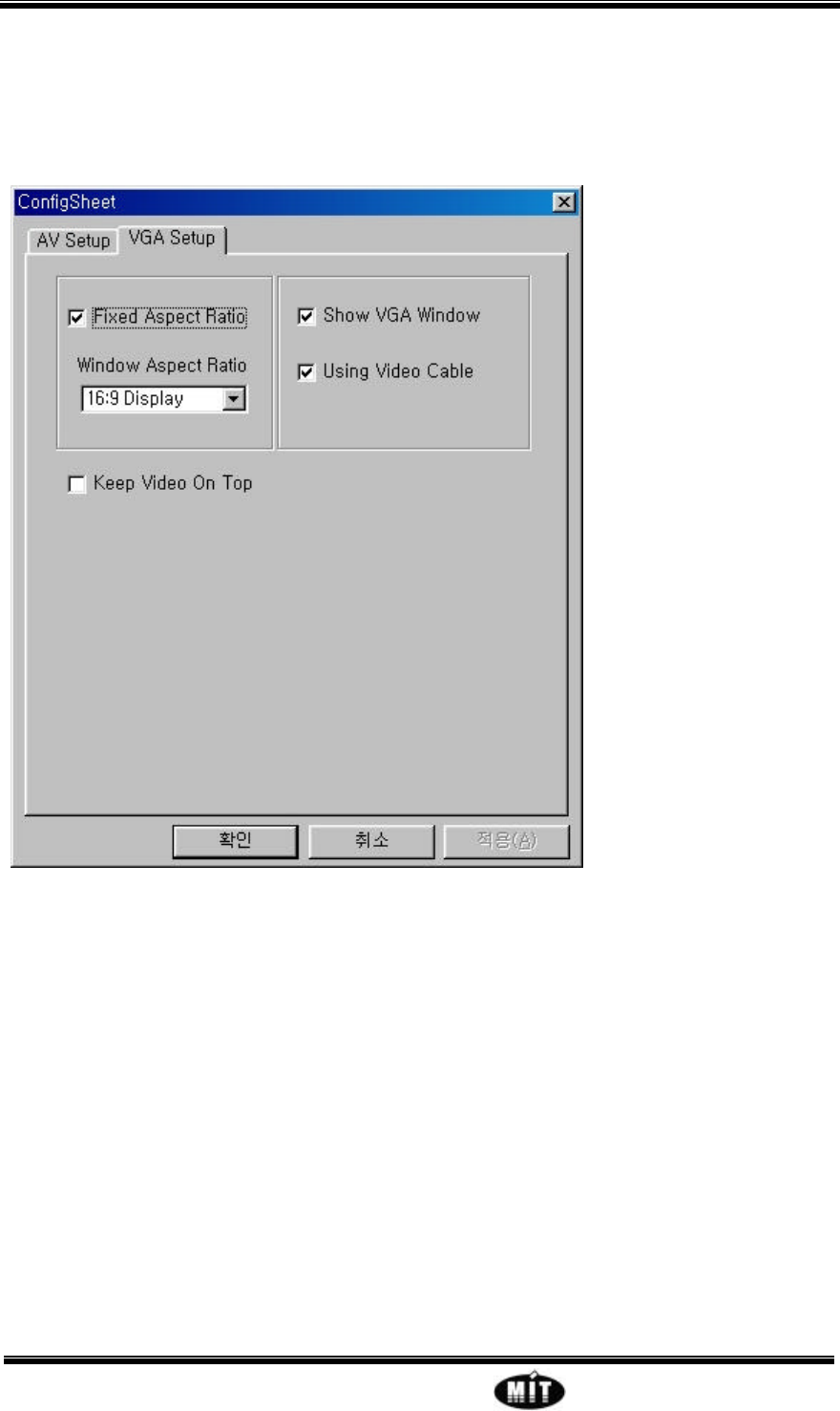
4.5.2 VGA SETUP TABS
A. Set Fixed Aspect Ratio
If you set Fixed Aspect Ratio, the windows overlay window maintains aspect ratio.
B. Show VGA Window
Determine whether windows overlay window is on or not.
C. Using Video Cable
You can use single monitor mode or dual monitor mode. If this item is set, it means you use
single monitor mode. If does not, you can use dual monitor mode.
D. Keep Video On top
If set, windows overlay window is always on top.
MyHD Enjoy digital life with your PC
- 17 - Macro Image Technology,Inc.
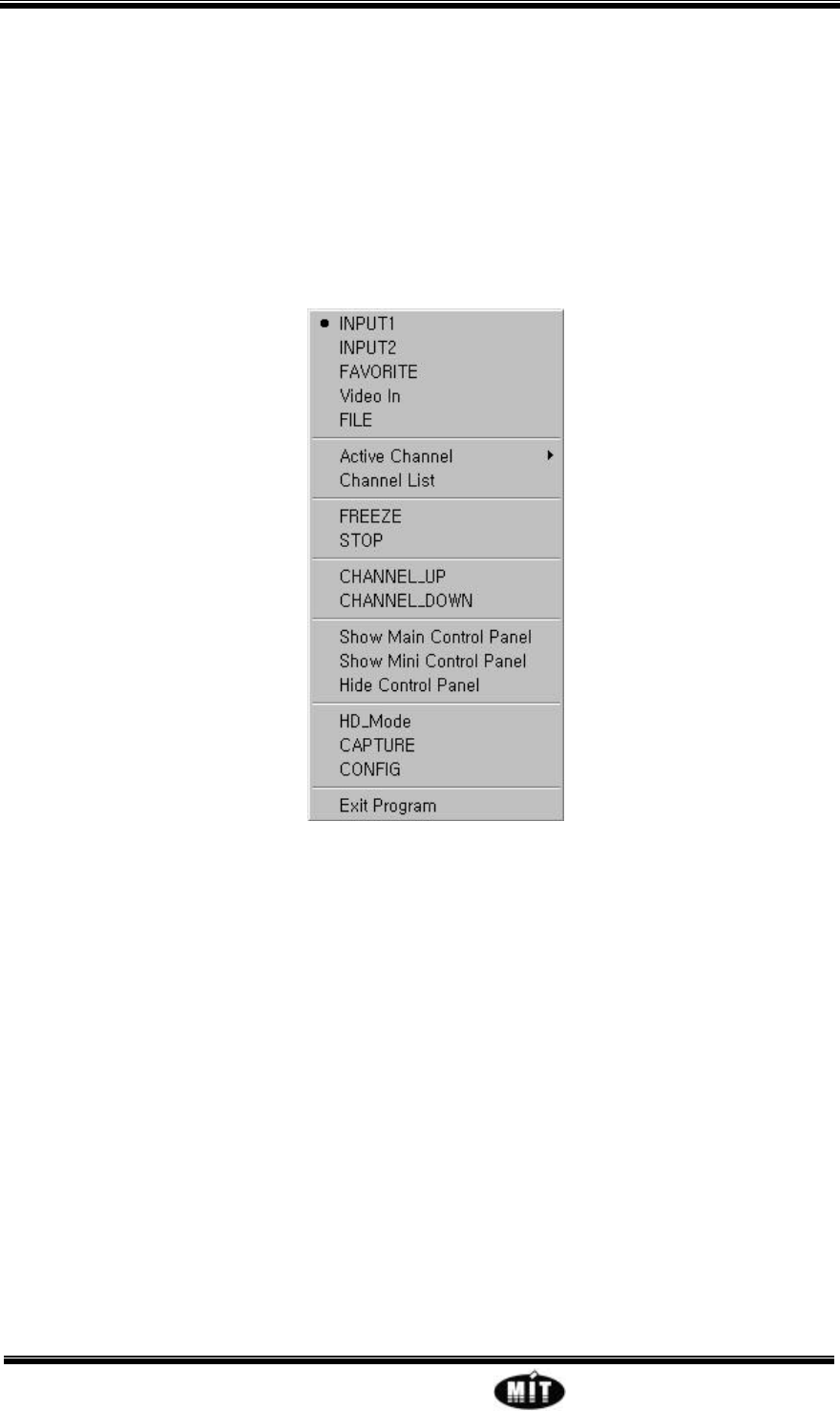
4.7 Pop-up Controls
An alternate “pop-up” control interface is available when playing video in a VGA window. The
pop-up controls are accessed by a right-click of the mouse when pointing inside the video
overlay window. The pop-up menu is illustrated in Figure below.
Refer to section 4.3 User Interface Description.
4.8 Keyboard Shortcuts
Right Arrow : Volume Up
Left Arrow : Volume Down
Up Arrow : Channel Up
Down Arrow : Channel Down
numeric keys : Selects the Channel number and then press the enter key to activate the Selected
Channel.
HD Mode : Double Click Left mouse button on overlay window.
Overlay Mode : Any key or Left mouse button while in HD mode.