Macro Image Technology MDP-110L HD-TV Reception PCI Card User Manual MyHD 20020529

Macro Image Technology, Inc HD-TV Reception PCI Card MyHD 20020529

User Manual

Macro Image TechnologyMyHDMacro Image TechnologyMyHDMyHDMacro Image Technology, Inc.HDTV PC Card UserHDTV PC Card User’’s Manuals ManualMacro Image TechnologyProduced by :6th Floor, East Bldg., IT Venture Tower, 78 Garakbon-Dong, Songpa-Gu, Seoul, Korea, 138-803TEL : 822-2142-4000 FAX : 822-2142-4099Website : www.DTVsolution.com E-mail : sales@mitinc.co.kr
Macro Image TechnologyMyHDMacro Image TechnologyMyHDCopyright 2002 Macro Image Technology, Inc. All rights reservedLicense Notice and Trademark:•Manufactured under license from Dolby Laboratories. “Dolby”and the double-D symbol are trademarks of Dolby Laboratories.•Windows 98 SE, Windows ME, Windows 2000 and Windows XP are trademarks of Microsoft Corporation.•Intel and Pentium are trademarks of Intel Corporation.FCC RFINTERFERENCE STATEMENTNOTE:This equipment has been tested and found to comply with the limits for a Class B digital device, pursuant to Part 15 of the FCC Rules.  These limits are designed to provide reasonable protection against harmful interference in a residential installation.This equipment generates, uses and can radiate radio frequency energy and, if not installed and used in accordance with the instructions, may cause harmful interference to radio communications.  However, there is no guarantee that interference will not occur in a particular installation.If this equipment does cause harmful interference to radio or television reception which can be determined by turning the equipment off and on, the user is encouraged to try to correct the interference by one or more of the following measures.-Reorient or relocate the receiving antenna.-Increase the separation between the equipment and receiver.-Connect the equipment into an outlet on a circuit different from that to which the receiver is connected.-Consult the dealer or an experienced radio, TV technical for help.-Only shielded interface cable should be used.Finally, any changes or modifications to the equipment by the user not expressly approved by the grantee or manufacturer could void the users authority to operate such equipment,
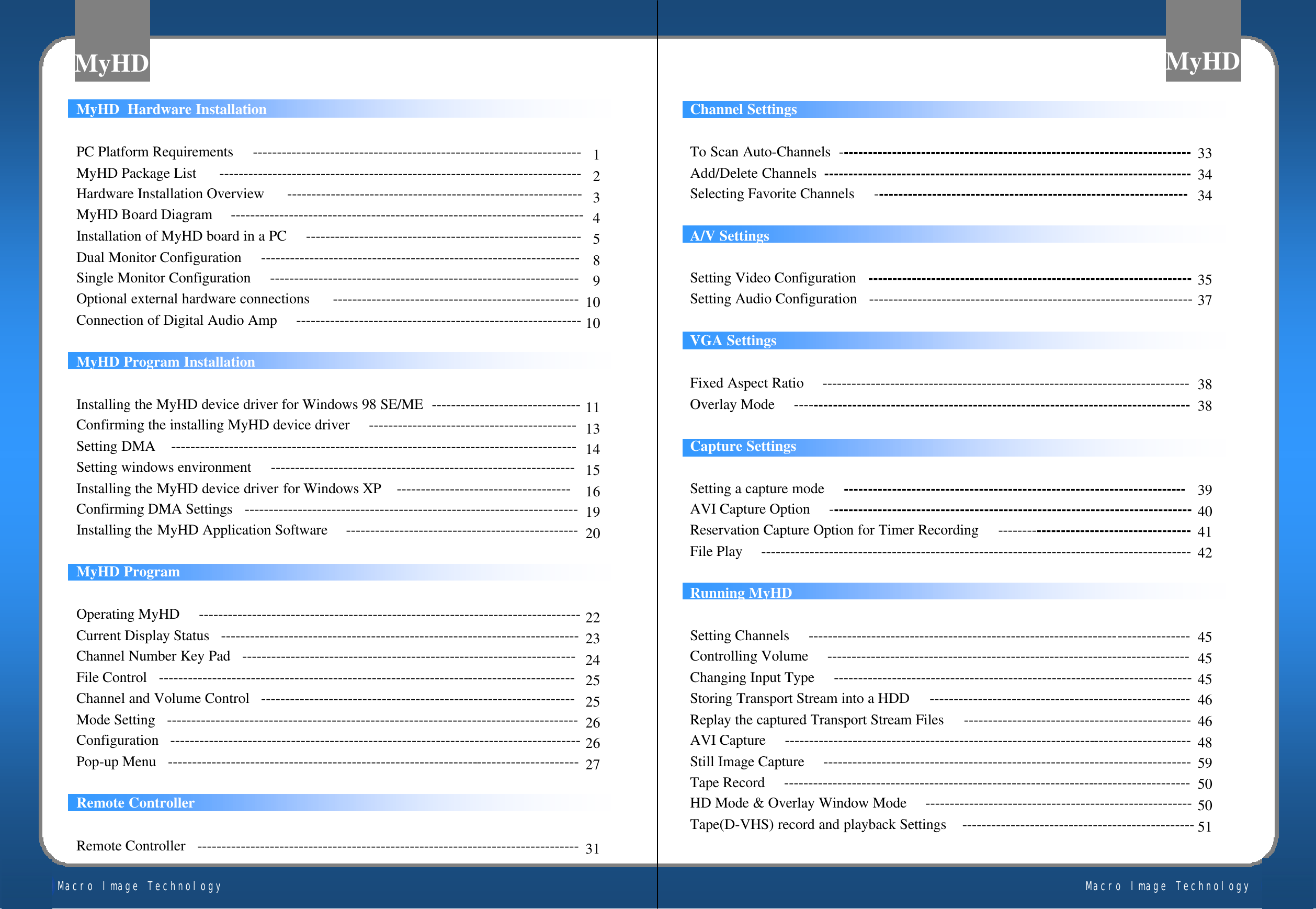
Macro Image TechnologyMyHDMacro Image TechnologyMyHDMyHD  Hardware InstallationPC Platform Requirements     --------------------------------------------------------------------MyHD Package List      ---------------------------------------------------------------------------Hardware Installation Overview      -------------------------------------------------------------MyHD Board Diagram     -------------------------------------------------------------------------Installation of MyHD board in a PC     ---------------------------------------------------------Dual Monitor Configuration     ------------------------------------------------------------------Single Monitor Configuration     ----------------------------------------------------------------Optional external hardware connections      ---------------------------------------------------Connection of Digital Audio Amp     -----------------------------------------------------------MyHD Program InstallationInstalling the MyHD device driver for Windows 98 SE/ME  -------------------------------Confirming the installing MyHD device driver     -------------------------------------------Setting DMA    ------------------------------------------------------------------------------------Setting windows environment     ---------------------------------------------------------------Installing the MyHD device driver for Windows XP    ------------------------------------Confirming DMA Settings   ---------------------------------------------------------------------Installing the MyHD Application Software     ------------------------------------------------MyHD ProgramOperating MyHD     -------------------------------------------------------------------------------Current Display Status   --------------------------------------------------------------------------Channel Number Key Pad   ---------------------------------------------------------------------File Control   --------------------------------------------------------------------------------------Channel and Volume Control   -----------------------------------------------------------------Mode Setting   -------------------------------------------------------------------------------------Configuration   -------------------------------------------------------------------------------------Pop-up Menu   -------------------------------------------------------------------------------------Remote ControllerRemote Controller   -------------------------------------------------------------------------------1234589101011131415161920222324252526262731Channel SettingsTo Scan Auto-Channels  -------------------------------------------------------------------------Add/Delete Channels ----------------------------------------------------------------------------Selecting Favorite Channels     -----------------------------------------------------------------A/V SettingsSetting Video Configuration  -------------------------------------------------------------------Setting Audio Configuration  -------------------------------------------------------------------VGA SettingsFixed Aspect Ratio     ----------------------------------------------------------------------------Overlay Mode     ----------------------------------------------------------------------------------Capture SettingsSetting a capture mode     -----------------------------------------------------------------------AVI Capture Option     ---------------------------------------------------------------------------Reservation Capture Option for Timer Recording     ----------------------------------------File Play     -----------------------------------------------------------------------------------------Running MyHDSetting Channels     -------------------------------------------------------------------------------Controlling Volume     ---------------------------------------------------------------------------Changing Input Type     --------------------------------------------------------------------------Storing Transport Stream into a HDD     ------------------------------------------------------Replay the captured Transport Stream Files     -----------------------------------------------AVI Capture     ------------------------------------------------------------------------------------Still Image Capture     ----------------------------------------------------------------------------Tape Record     ------------------------------------------------------------------------------------HD Mode & Overlay Window Mode     -------------------------------------------------------Tape(D-VHS) record and playback Settings    ------------------------------------------------333434353738383940414245454546464859505051
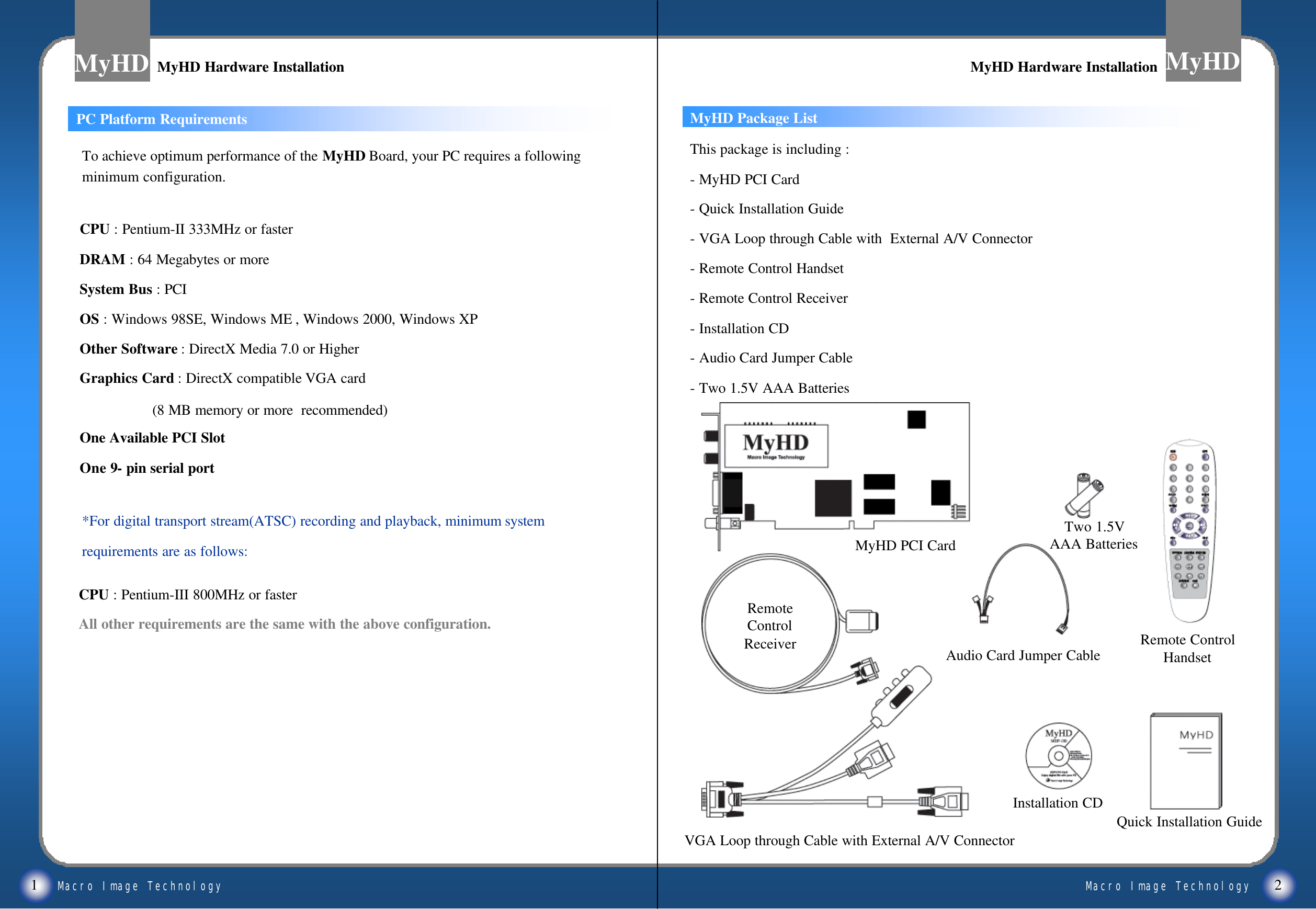
Macro Image TechnologyMyHDMacro Image TechnologyMyHDMyHD Package ListCPU : Pentium-III 800MHz or fasterAll other requirements are the same with the above configuration.1 2MyHD Hardware InstallationMyHD Hardware Installation MyHD Hardware InstallationMyHD Hardware InstallationThis package is including :-MyHD PCI Card-Quick Installation Guide-VGA Loop through Cable with  External A/V Connector-Remote Control Handset-Remote Control Receiver-Installation CD-Audio Card Jumper Cable-Two 1.5V AAA BatteriesTo achieve optimum performance of the MyHD Board, your PC requires a following minimum configuration.CPU : Pentium-II 333MHz or fasterDRAM : 64 Megabytes or moreSystem Bus : PCIOS : Windows 98SE, Windows ME , Windows 2000, Windows XPOther Software : DirectX Media 7.0 or HigherGraphics Card : DirectX compatible VGA card(8 MB memory or more  recommended)One Available PCI SlotOne 9-pin serial port*For digital transport stream(ATSC) recording and playback, minimum system requirements are as follows: MyHD PCI CardRemote ControlHandsetVGA Loop through Cable with External A/V ConnectorTwo 1.5VAAA BatteriesAudio Card Jumper CableRemoteControlReceiverQuick Installation GuideInstallation CDPC Platform Requirements
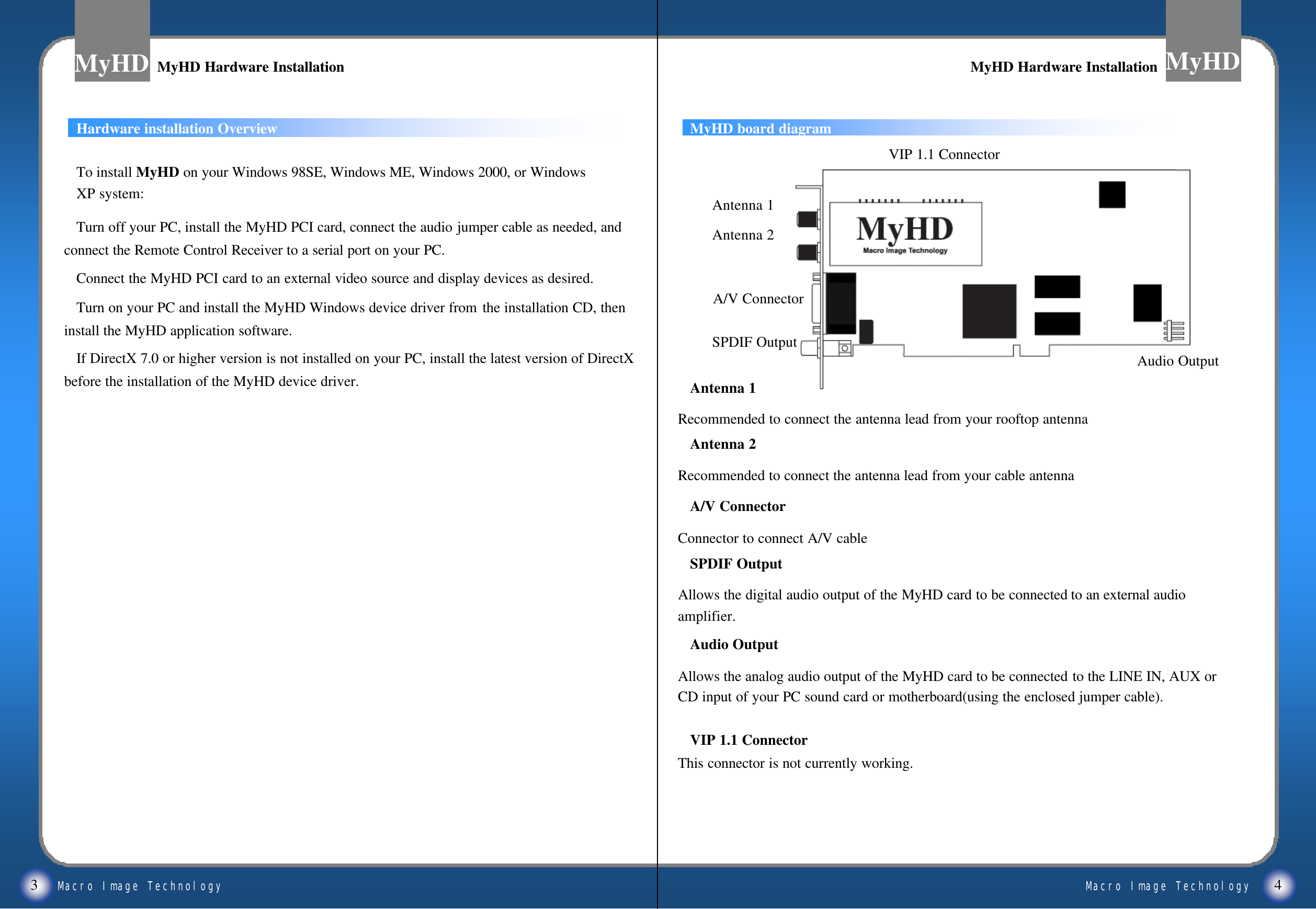
Macro Image TechnologyMyHDMacro Image TechnologyMyHDHardware installation OverviewTurn off your PC, install the MyHD PCI card, connect the audio jumper cable as needed, and connect the Remote Control Receiver to a serial port on your PC.Connect the MyHD PCI card to an external video source and display devices as desired.Turn on your PC and install the MyHD Windows device driver from the installation CD, then install the MyHD application software. If DirectX 7.0 or higher version is not installed on your PC, install the latest version of DirectX before the installation of the MyHD device driver.To install MyHD on your Windows 98SE, Windows ME, Windows 2000, or Windows XP system:3 4MyHD Hardware InstallationMyHD Hardware InstallationMyHD board diagramAntenna 1Antenna 2A/V ConnectorSPDIF OutputAudio OutputAntenna 1Recommended to connect the antenna lead from your rooftop antenna Antenna 2Recommended to connect the antenna lead from your cable antenna A/V ConnectorConnector to connect A/V cableSPDIF OutputAllows the digital audio output of the MyHD card to be connected to an external audio amplifier.Audio OutputAllows the analog audio output of the MyHD card to be connected to the LINE IN, AUX or CD input of your PC sound card or motherboard(using the enclosed jumper cable).MyHD Hardware InstallationMyHD Hardware InstallationVIP 1.1 ConnectorThis connector is not currently working.VIP 1.1 Connector
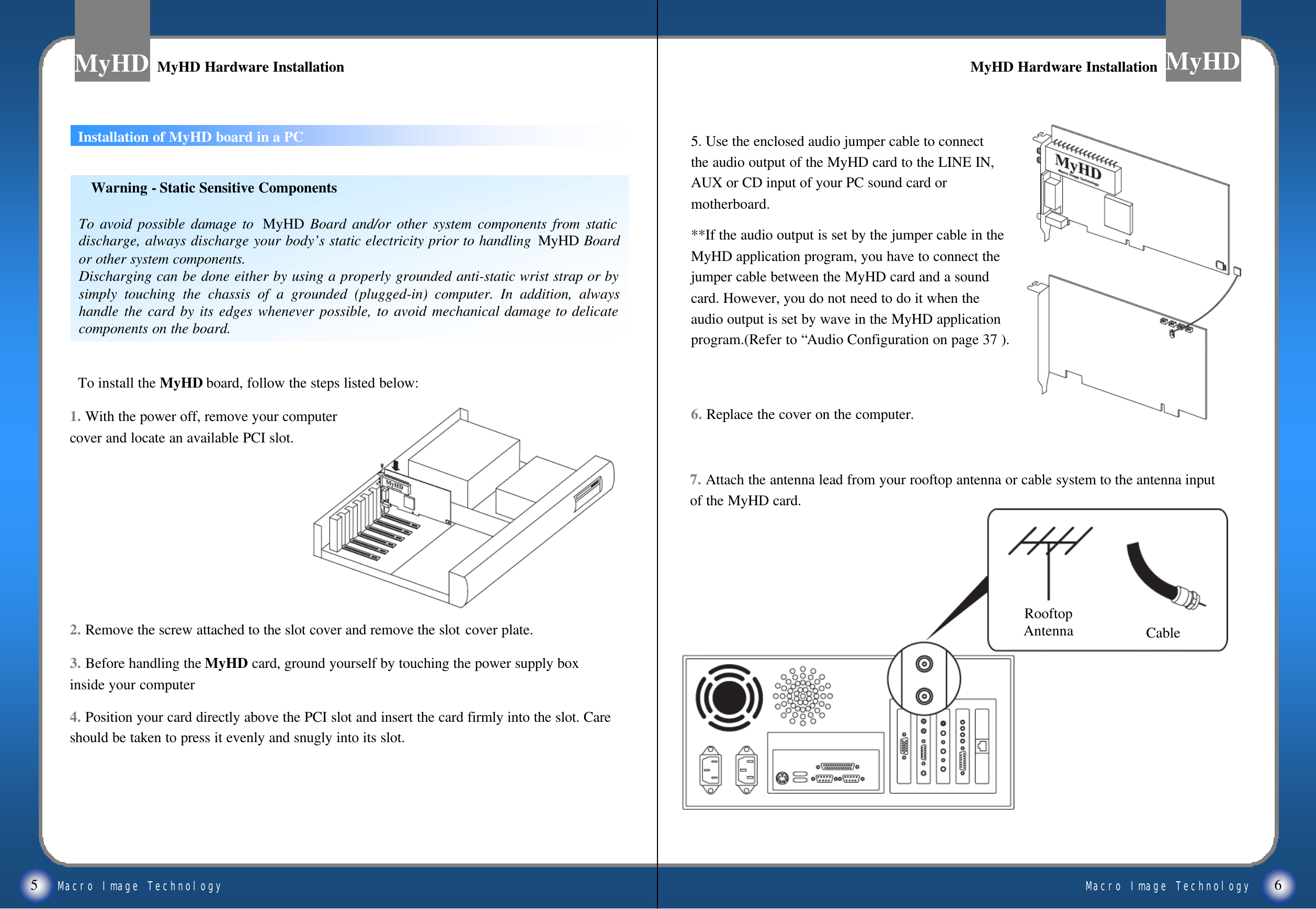
Macro Image TechnologyMyHDMacro Image TechnologyMyHDInstallation of MyHD board in a PC5 6MyHD Hardware InstallationMyHD Hardware Installation MyHD Hardware InstallationMyHD Hardware Installation1. With the power off, remove your computer cover and locate an available PCI slot.2. Remove the screw attached to the slot cover and remove the slot cover plate.3. Before handling the MyHD card, ground yourself by touching the power supply box inside your computer4. Position your card directly above the PCI slot and insert the card firmly into the slot. Care should be taken to press it evenly and snugly into its slot.To install the MyHD board, follow the steps listed below:Warning -Static Sensitive ComponentsTo avoid possible damage to  MyHD Board and/or other system components from static discharge, always discharge your body’s static electricity prior to handling  MyHD Board or other system components.Discharging can be done either by using a properly grounded anti-static wrist strap or by simply touching the chassis of a grounded (plugged-in) computer. In addition, always handle the card by its edges whenever possible, to avoid mechanical damage to delicate components on the board.5. Use the enclosed audio jumper cable to connect the audio output of the MyHD card to the LINE IN, AUX or CD input of your PC sound card or motherboard.**If the audio output is set by the jumper cable in the MyHD application program, you have to connect the jumper cable between the MyHD card and a sound card. However, you do not need to do it when the audio output is set by wave in the MyHD application program.(Refer to “Audio Configuration on page 37 ).6. Replace the cover on the computer.7. Attach the antenna lead from your rooftop antenna or cable system to the antenna input of the MyHD card.RooftopAntenna Cable
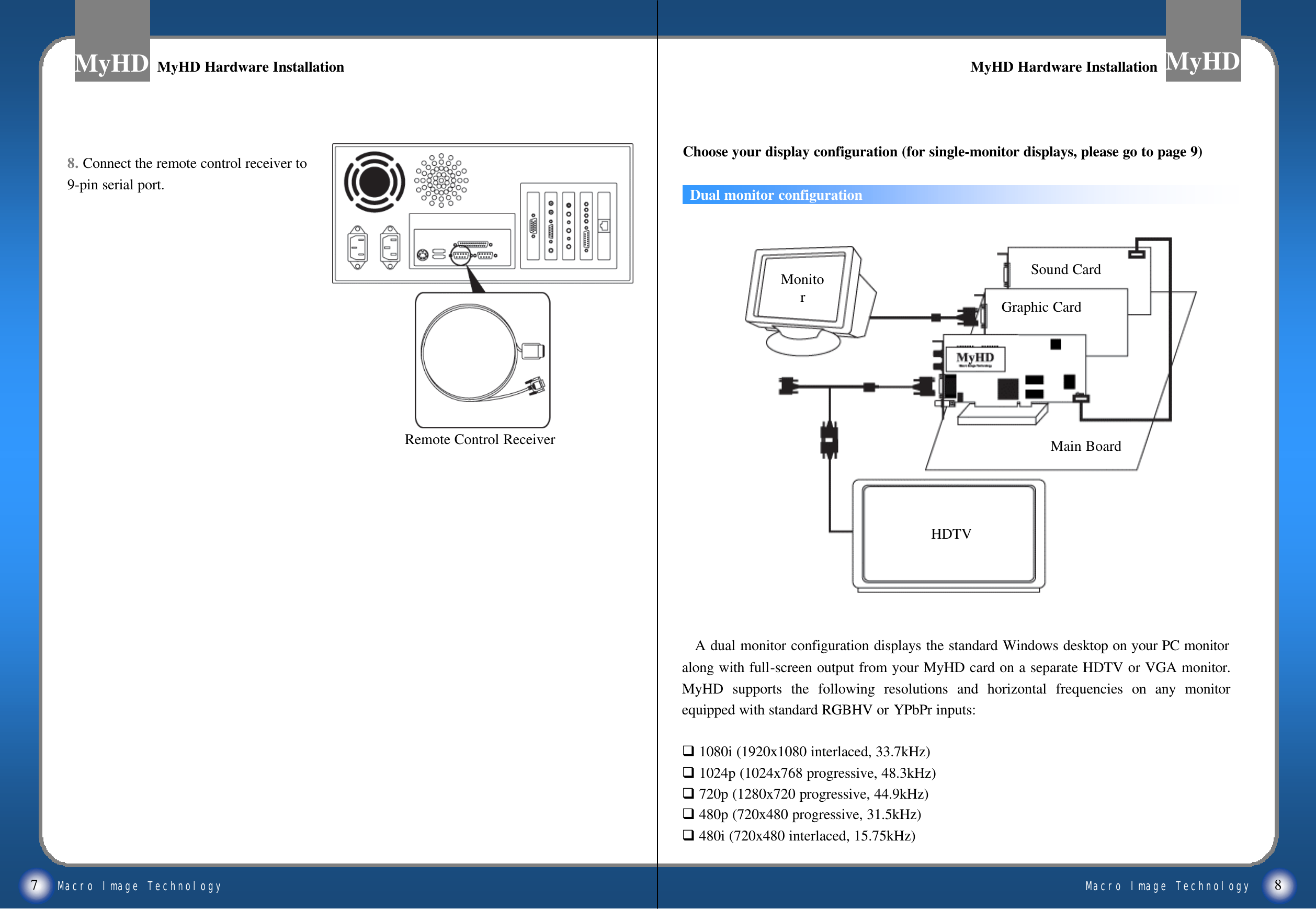
Macro Image TechnologyMyHDMacro Image TechnologyMyHDA dual monitor configuration displays the standard Windows desktop on your PC monitor along with full-screen output from your MyHD card on a separate HDTV or VGA monitor. MyHD supports the following resolutions and horizontal frequencies on any monitor equipped with standard RGBHV or YPbPr inputs:q1080i (1920x1080 interlaced, 33.7kHz)q1024p (1024x768 progressive, 48.3kHz)q720p (1280x720 progressive, 44.9kHz)q480p (720x480 progressive, 31.5kHz)q480i (720x480 interlaced, 15.75kHz)7 8MyHD Hardware InstallationMyHD Hardware Installation MyHD Hardware InstallationMyHD Hardware Installation8. Connect the remote control receiver to 9-pin serial port.MonitorMain BoardGraphic CardSound CardHDTVRemote Control ReceiverDual monitor configurationChoose your display configuration (for single-monitor displays, please go to page 9)
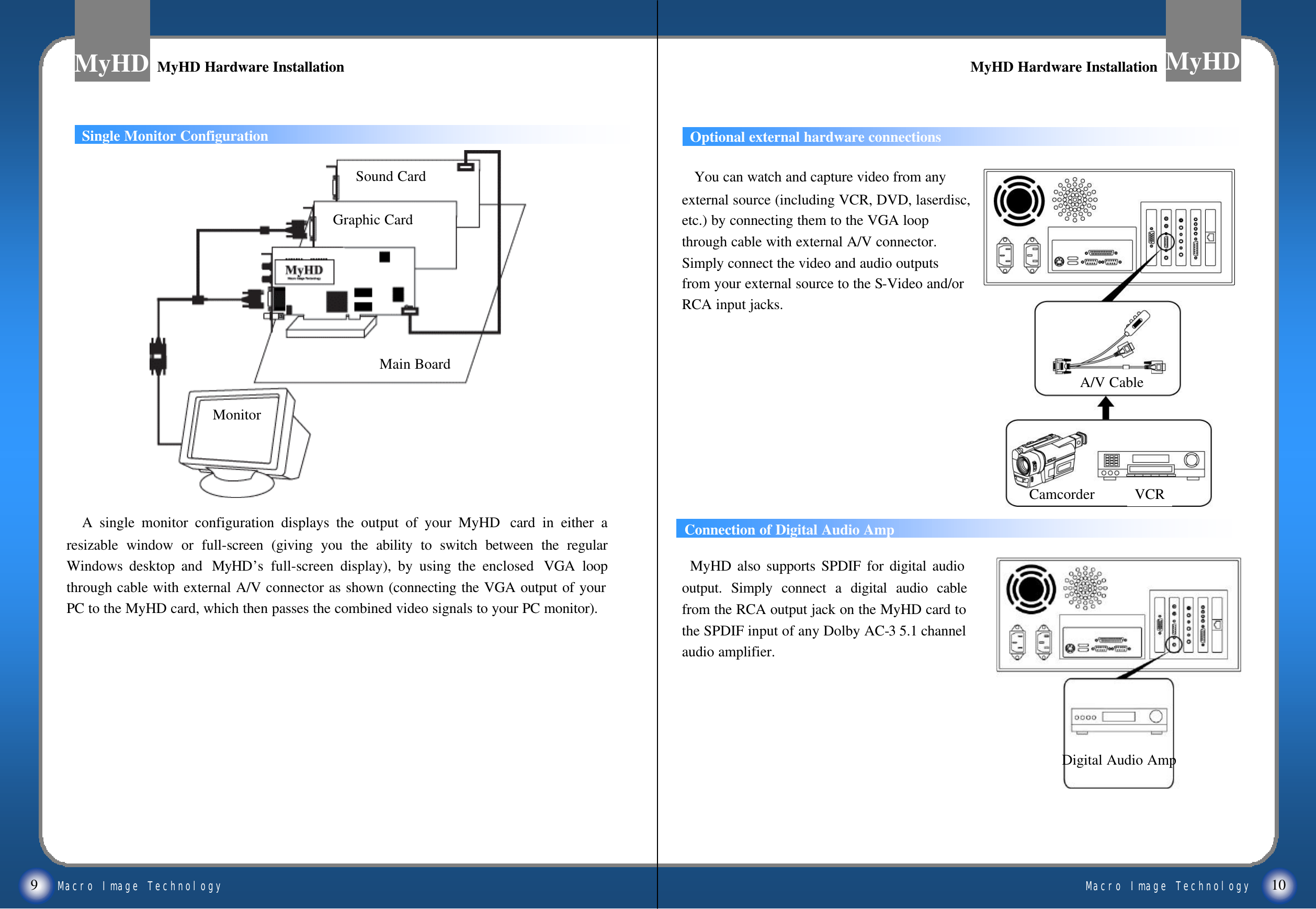
Macro Image TechnologyMyHDMacro Image TechnologyMyHDMonitorMain BoardGraphic CardSound CardSingle Monitor ConfigurationA single monitor configuration displays the output of your MyHD  card in either a resizable window or full-screen (giving you the ability to switch between the regular Windows desktop and  MyHD’s  full-screen display), by using the enclosed  VGA loop through cable with external A/V connector as shown (connecting the VGA output of your PC to the MyHD card, which then passes the combined video signals to your PC monitor).Optional external hardware connections Connection of Digital Audio AmpMyHD also supports SPDIF for digital audio output. Simply connect a digital audio cable from the RCA output jack on the MyHD card to the SPDIF input of any Dolby AC-3 5.1 channel audio amplifier.9 10MyHD Hardware InstallationMyHD Hardware Installation MyHD Hardware InstallationMyHD Hardware InstallationYou can watch and capture video from any external source (including VCR, DVD, laserdisc, etc.) by connecting them to the VGA loop through cable with external A/V connector. Simply connect the video and audio outputs from your external source to the S-Video and/or RCA input jacks.A/V CableCamcorder VCRDigital Audio Amp
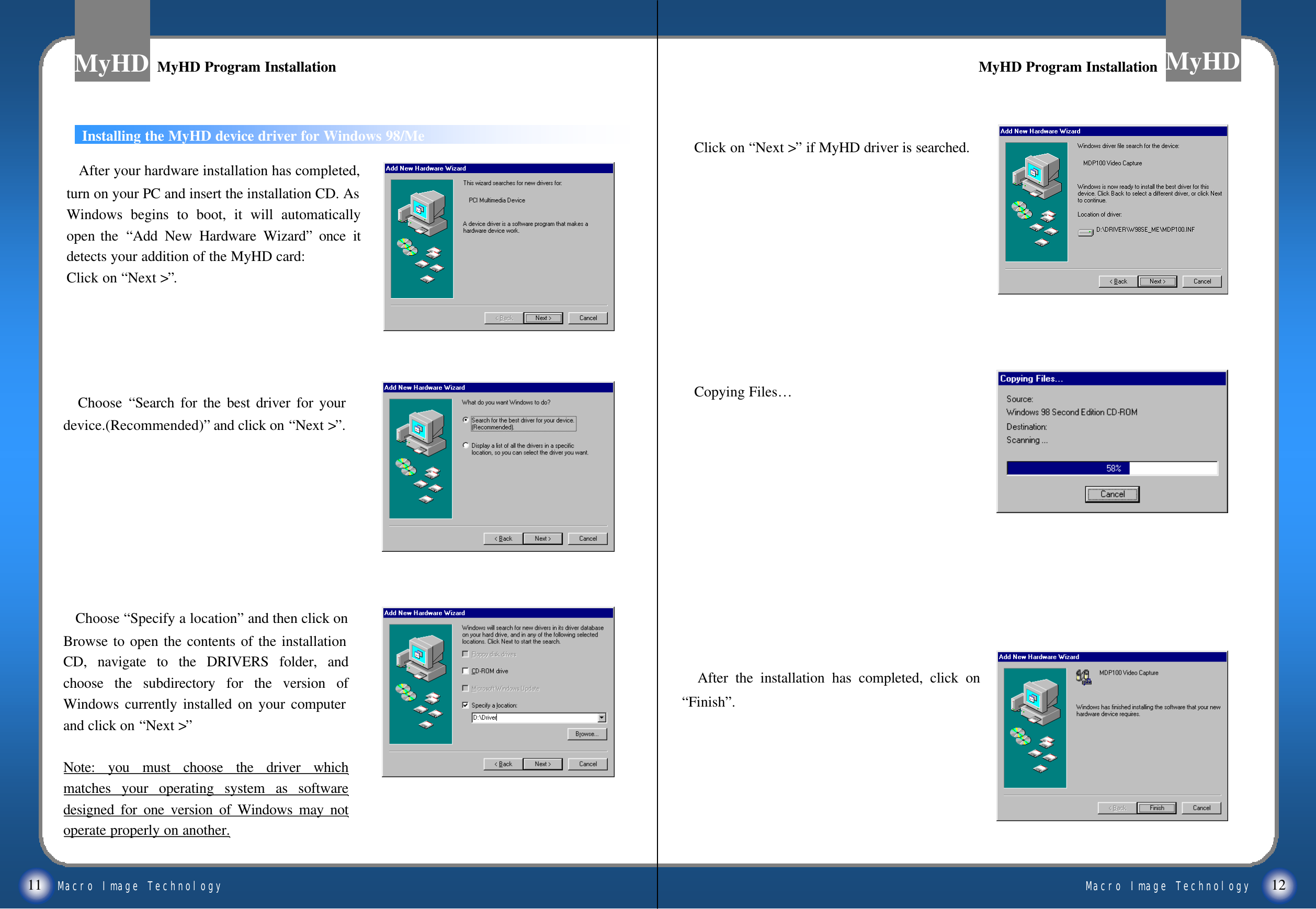
Macro Image TechnologyMyHDMacro Image TechnologyMyHDInstalling the MyHD device driver for Windows 98/Me11 12Choose  “Search for the best driver for your device.(Recommended)”and click on “Next >”.After your hardware installation has completed, turn on your PC and insert the installation CD. As Windows begins to boot, it will automatically open the  “Add New Hardware Wizard”once it detects your addition of the MyHD card:Click on “Next >”.Choose “Specify a location”and then click on Browse to open the contents of the installation CD, navigate to the DRIVERS folder, and choose the subdirectory for the version of Windows currently installed on your computer and click on “Next >”Note: you must choose the driver which matches your operating system as software designed for one version of Windows may not operate properly on another.Click on “Next >”if MyHD driver is searched.Copying Files…After the installation has completed, click on “Finish”.MyHD Program InstallationMyHD Program Installation MyHD Program InstallationMyHD Program Installation
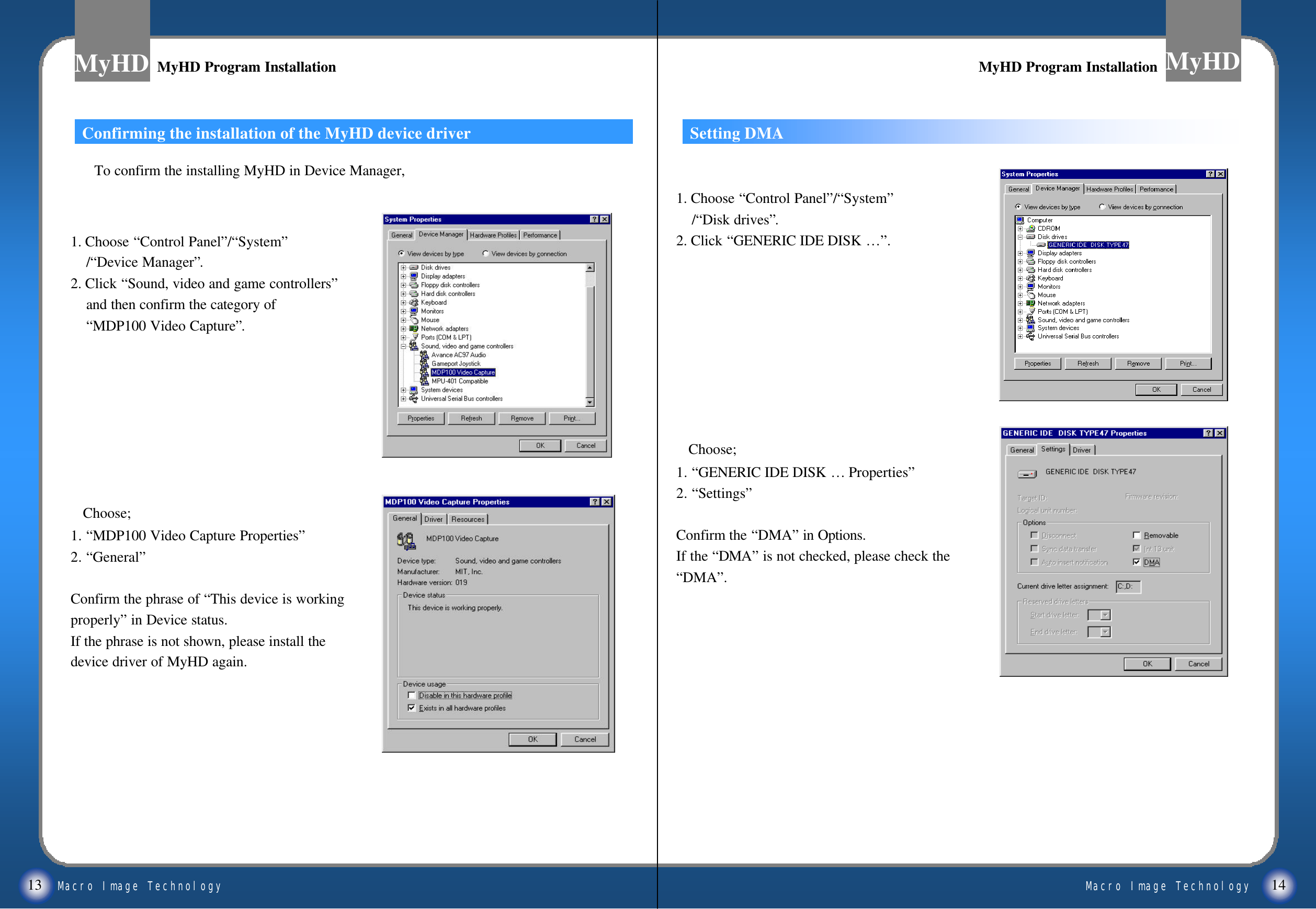
Macro Image TechnologyMyHDMacro Image TechnologyMyHD13 141. Choose “Control Panel”/“System”/“Device Manager”.2. Click “Sound, video and game controllers”and then confirm the category of “MDP100 Video Capture”.Choose; 1. “MDP100 Video Capture Properties”2. “General”Confirm the phrase of “This device is workingproperly”in Device status.If the phrase is not shown, please install the device driver of MyHD again.Confirming the installation of the MyHD device driver Setting DMA1. Choose “Control Panel”/“System”/“Disk drives”.2. Click “GENERIC IDE DISK …”.Choose; 1. “GENERIC IDE DISK … Properties”2. “Settings”Confirm the “DMA”in Options.If the “DMA”is not checked, please check the“DMA”.MyHD Program InstallationMyHD Program Installation MyHD Program InstallationMyHD Program InstallationTo confirm the installing MyHD in Device Manager,
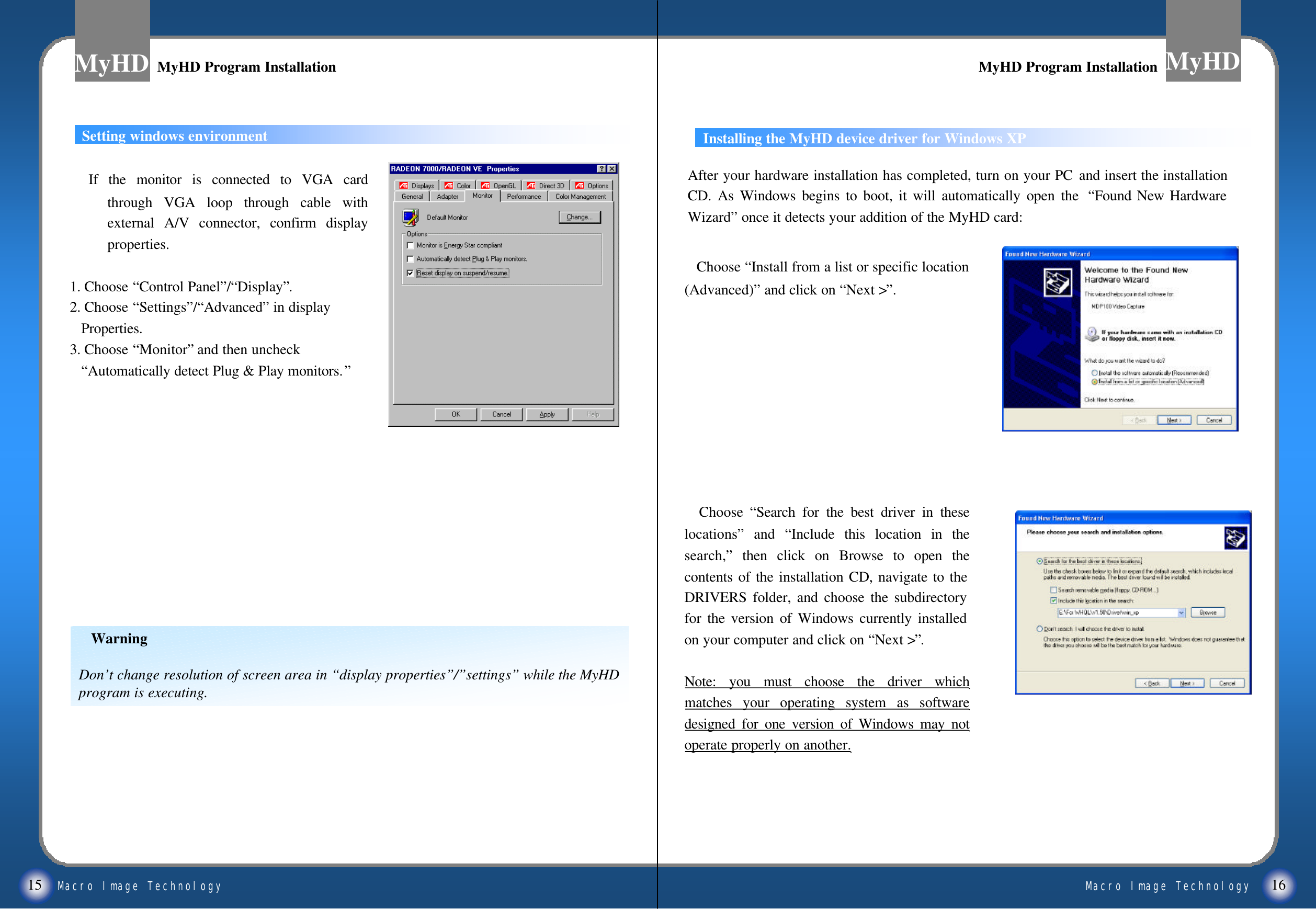
Macro Image TechnologyMyHDMacro Image TechnologyMyHDMyHD Program InstallationMyHD Program InstallationMyHD Program InstallationMyHD Program InstallationSetting windows environmentWarningDon’t change resolution of screen area in “display properties”/”settings”while the MyHD program is executing.If the monitor is connected to VGA card through VGA loop through cable with external A/V connector, confirm display properties.1. Choose “Control Panel”/“Display”.2. Choose “Settings”/“Advanced”in displayProperties.3. Choose “Monitor”and then uncheck“Automatically detect Plug & Play monitors.”15 16Installing the MyHD device driver for Windows XPAfter your hardware installation has completed, turn on your PC and insert the installation CD. As Windows begins to boot, it will automatically open the  “Found New Hardware Wizard”once it detects your addition of the MyHD card:Choose “Install from a list or specific location (Advanced)”and click on “Next >”.Choose  “Search for the best driver in these locations”and  “Include this location in the search,”then click on Browse to open the contents of the installation CD, navigate to the DRIVERS folder, and choose the subdirectory for the version of Windows currently installed on your computer and click on “Next >”.Note: you must choose the driver which matches your operating system as software designed for one version of Windows may not operate properly on another.
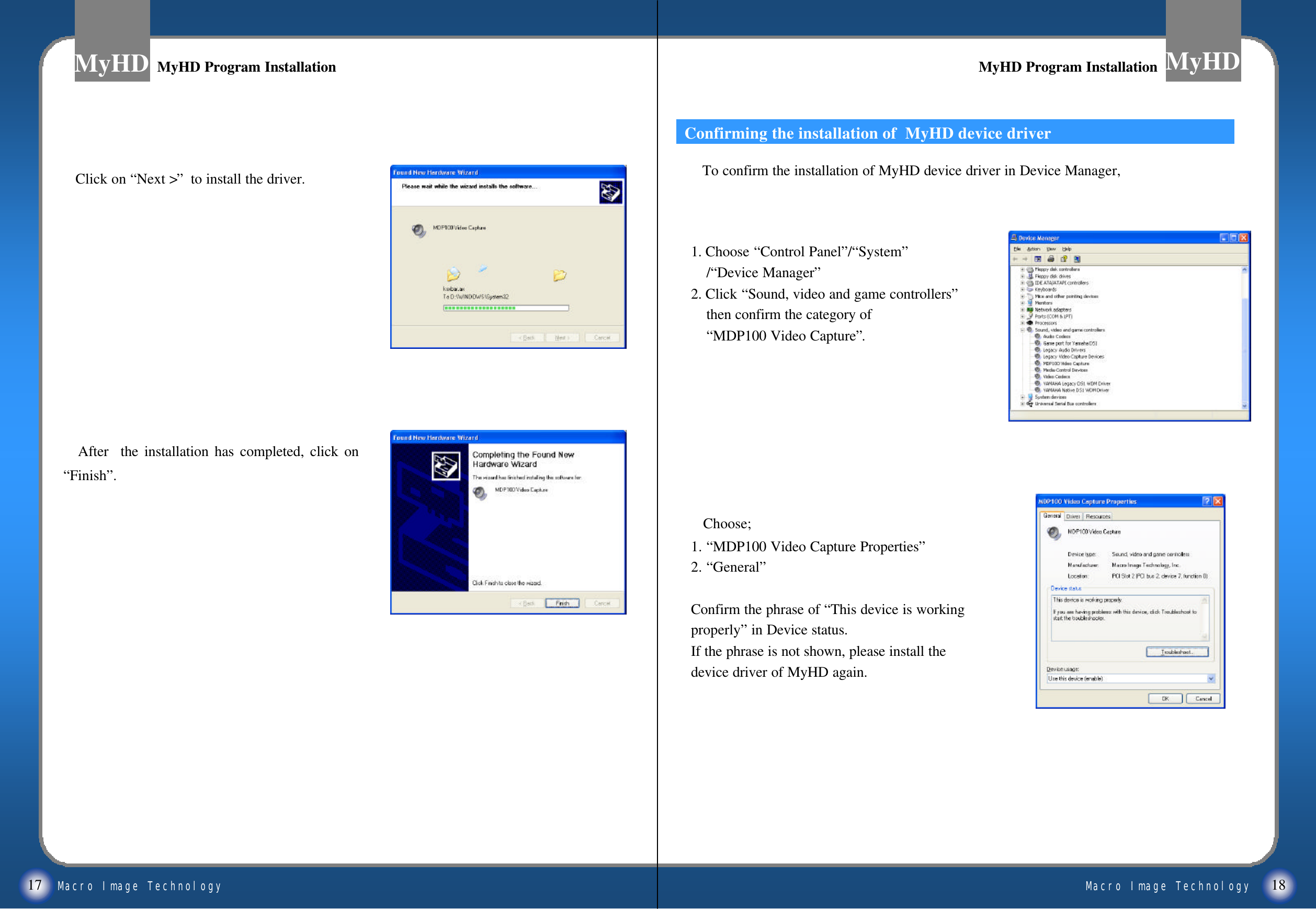
Macro Image TechnologyMyHDMacro Image TechnologyMyHD17 18MyHD Program InstallationMyHD Program Installation MyHD Program InstallationMyHD Program InstallationClick on “Next >”to install the driver. After  the installation has completed, click on “Finish”.1. Choose “Control Panel”/“System”/“Device Manager”2. Click “Sound, video and game controllers”then confirm the category of “MDP100 Video Capture”.Choose; 1. “MDP100 Video Capture Properties”2. “General”Confirm the phrase of “This device is workingproperly”in Device status.If the phrase is not shown, please install the device driver of MyHD again.Confirming the installation of  MyHD device driverTo confirm the installation of MyHD device driver in Device Manager,
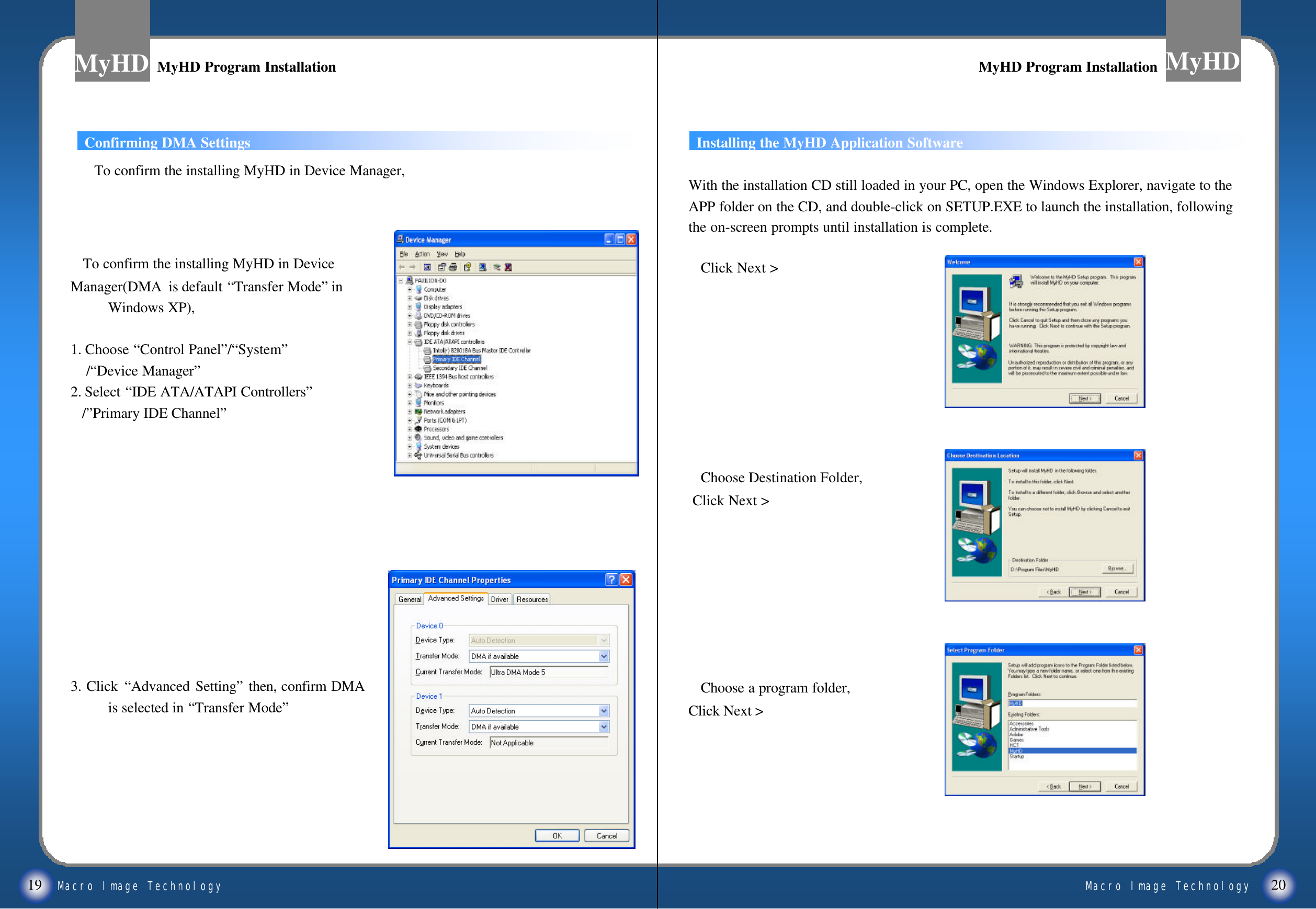
Macro Image TechnologyMyHDMacro Image TechnologyMyHD19 20MyHD Program InstallationMyHD Program Installation MyHD Program InstallationMyHD Program InstallationConfirming DMA SettingsTo confirm the installing MyHD in DeviceManager(DMA  is default “Transfer Mode”in Windows XP),1. Choose “Control Panel”/“System”/“Device Manager”2. Select “IDE ATA/ATAPI Controllers”/”Primary IDE Channel”3. Click “Advanced Setting”then, confirm DMA  is selected in “Transfer Mode”With the installation CD still loaded in your PC, open the Windows Explorer, navigate to the APP folder on the CD, and double-click on SETUP.EXE to launch the installation, following the on-screen prompts until installation is complete. Click Next >Choose Destination Folder,Click Next >Choose a program folder,Click Next > Installing the MyHD Application SoftwareTo confirm the installing MyHD in Device Manager,
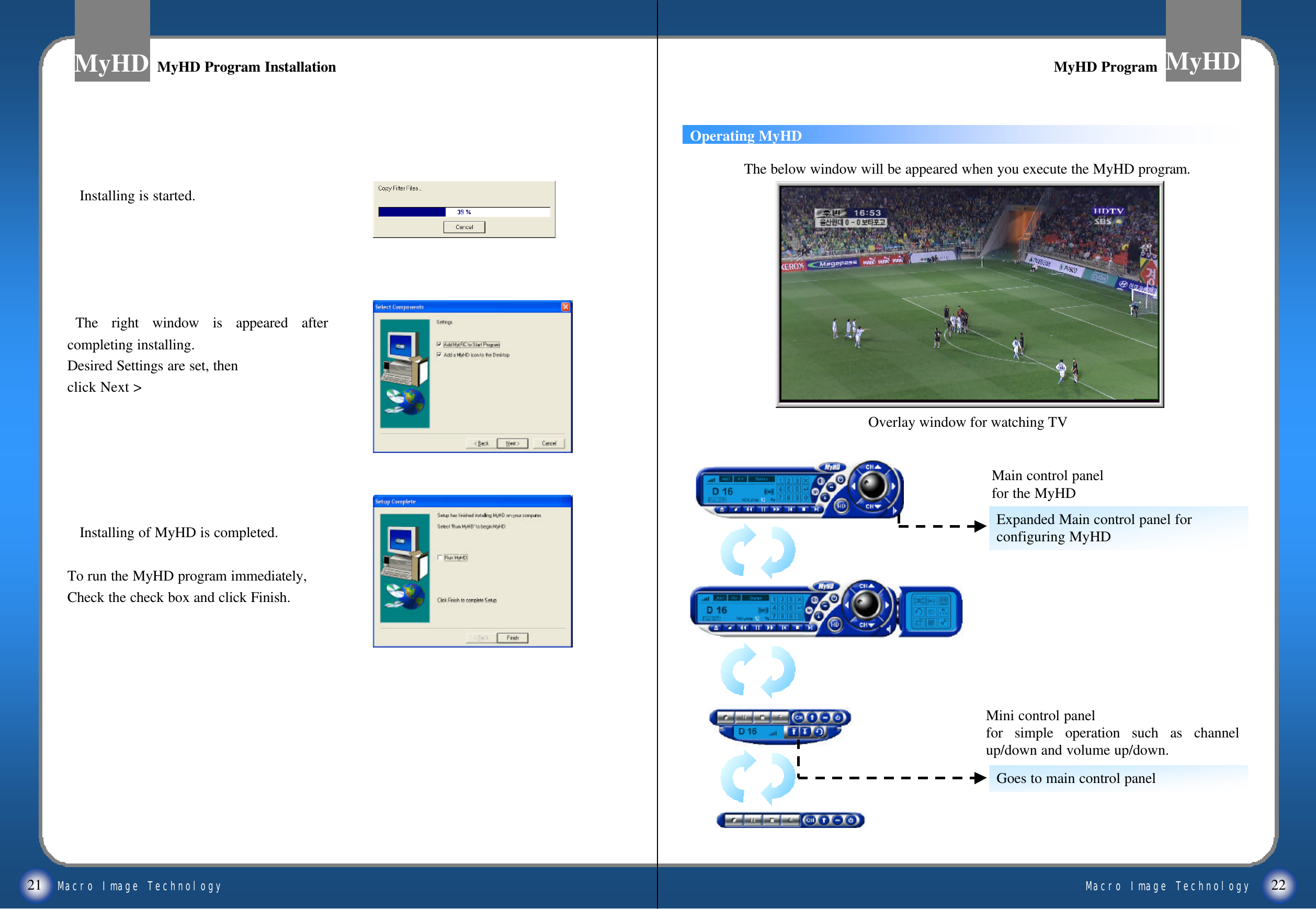
Macro Image TechnologyMyHDMacro Image TechnologyMyHD21 22MyHD Program InstallationMyHD Program InstallationInstalling is started.The right window is appeared after completing installing.Desired Settings are set, then click Next >Installing of MyHD is completed. To run the MyHD program immediately,Check the check box and click Finish.Mini control panelfor simple operation such as channel up/down and volume up/down.Overlay window for watching TVThe below window will be appeared when you execute the MyHD program.Expanded Main control panel forconfiguring MyHDGoes to main control panelMain control panelfor the MyHDOperating MyHDMyHD ProgramMyHD Program
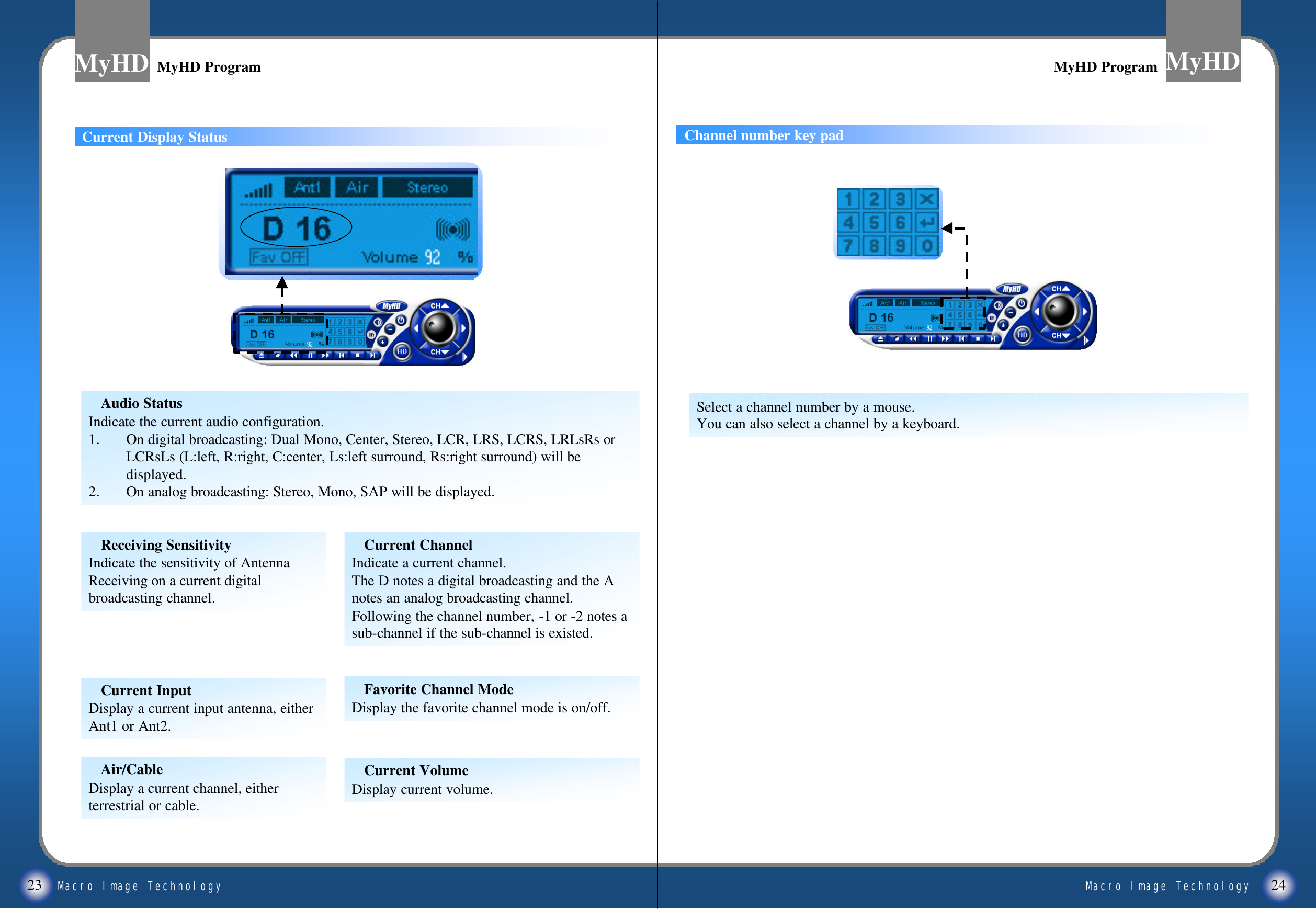
Macro Image TechnologyMyHDMacro Image TechnologyMyHD23 24MyHD ProgramMyHD Program MyHD ProgramMyHD ProgramChannel number key padSelect a channel number by a mouse. You can also select a channel by a keyboard.Current ChannelIndicate a current channel. The D notes a digital broadcasting and the A notes an analog broadcasting channel.Following the channel number, -1 or -2 notes a sub-channel if the sub-channel is existed.Current Display StatusAudio StatusIndicate the current audio configuration. 1. On digital broadcasting: Dual Mono, Center, Stereo, LCR, LRS, LCRS, LRLsRs or LCRsLs (L:left, R:right, C:center, Ls:left surround, Rs:right surround) will be displayed.  2. On analog broadcasting: Stereo, Mono, SAP will be displayed.Receiving SensitivityIndicate the sensitivity of Antenna Receiving on a current digital broadcasting channel.Current VolumeDisplay current volume.Favorite Channel ModeDisplay the favorite channel mode is on/off.Air/CableDisplay a current channel, either  terrestrial or cable.Current InputDisplay a current input antenna, either Ant1 or Ant2.    
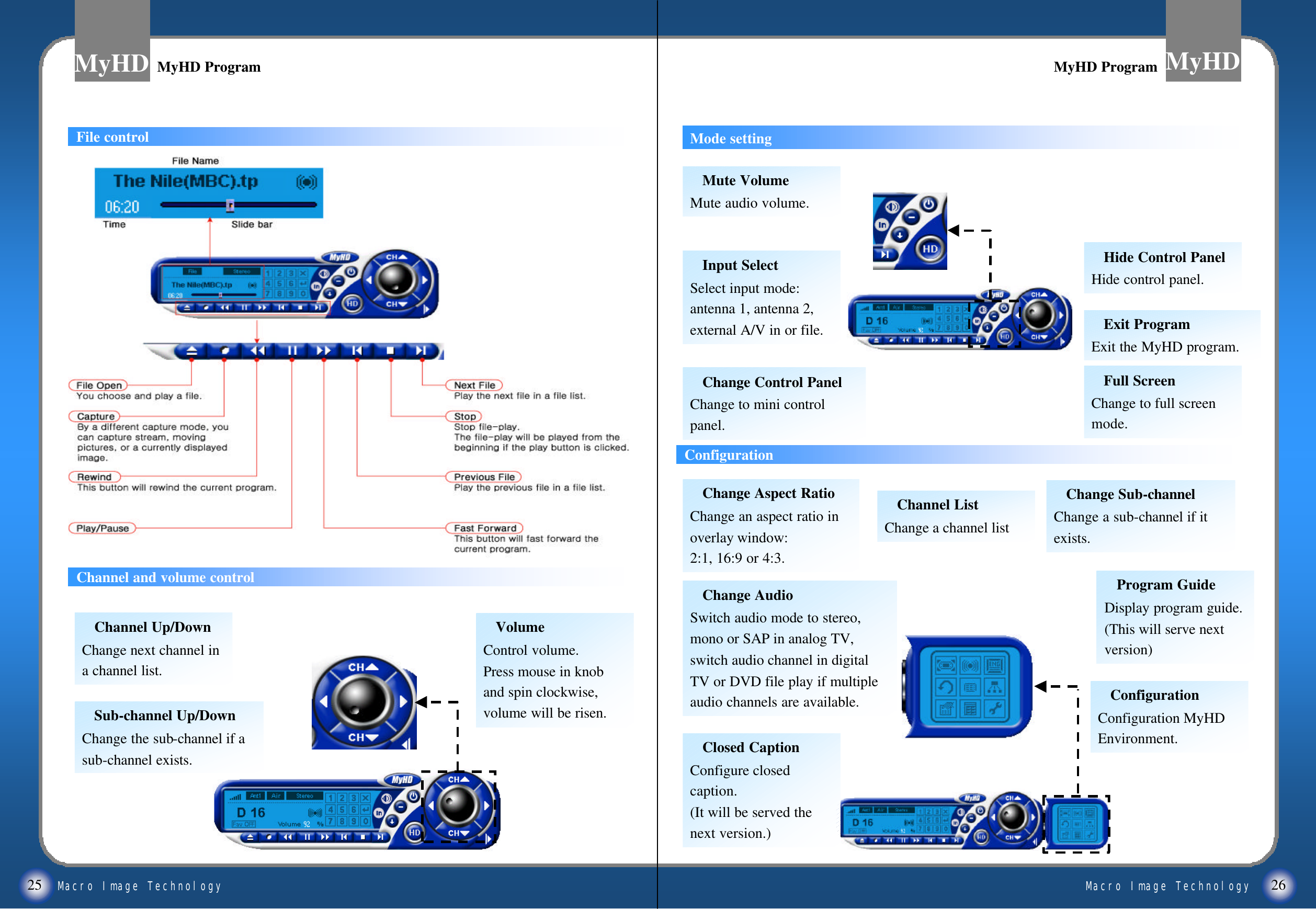
Macro Image TechnologyMyHDMacro Image TechnologyMyHD25 26Channel and volume controlConfigurationMode settingFile controlChannel Up/DownChange next channel in a channel list.Sub-channel Up/DownChange the sub-channel if a sub-channel exists.VolumeControl volume.Press mouse in knob and spin clockwise, volume will be risen.Exit ProgramExit the MyHD program.Hide Control PanelHide control panel.Change Control PanelChange to mini control panel.Input SelectSelect input mode: antenna 1, antenna 2, external A/V in or file.Mute VolumeMute audio volume.Full ScreenChange to full screen mode.Change Sub-channelChange a sub-channel if it  exists.Closed CaptionConfigure closed caption.(It will be served the next version.)Change AudioSwitch audio mode to stereo, mono or SAP in analog TV, switch audio channel in digital TV or DVD file play if multiple audio channels are available.Program GuideDisplay program guide.(This will serve next version)Channel ListChange a channel list Change Aspect RatioChange an aspect ratio in overlay window: 2:1, 16:9 or 4:3.ConfigurationConfiguration MyHD Environment.  MyHD ProgramMyHD Program MyHD ProgramMyHD Program
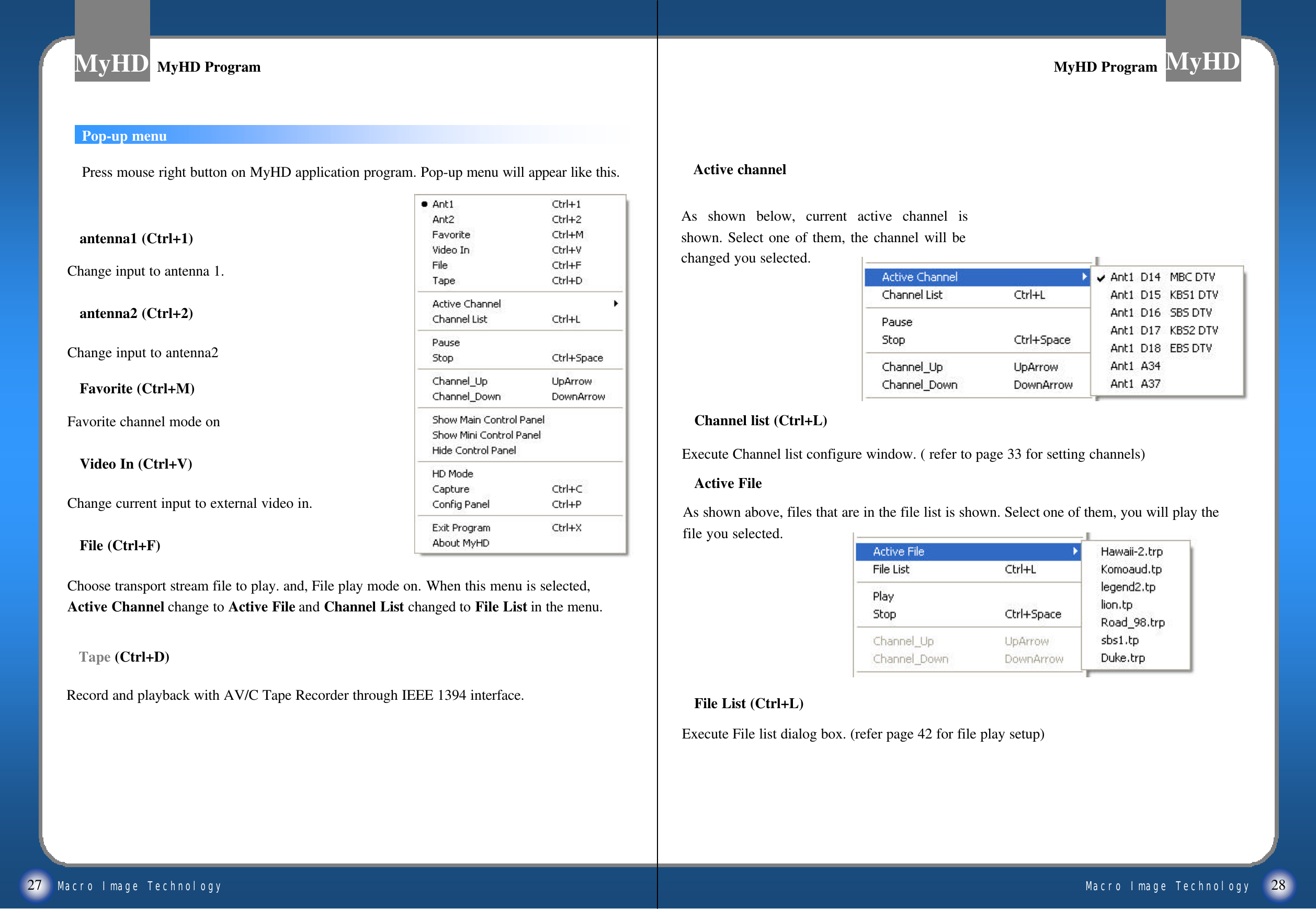
Macro Image TechnologyMyHDMacro Image TechnologyMyHD27 28Pop-up menuMyHD ProgramMyHD Program MyHD ProgramMyHD ProgramPress mouse right button on MyHD application program. Pop-up menu will appear like this.antenna1 (Ctrl+1)Change input to antenna 1.antenna2 (Ctrl+2)Change input to antenna2Favorite (Ctrl+M)Favorite channel mode onVideo In (Ctrl+V)Change current input to external video in.File (Ctrl+F)Choose transport stream file to play. and, File play mode on. When this menu is selected, Active Channel change to Active File and Channel List changed to File List in the menu.Channel list (Ctrl+L)Execute Channel list configure window. ( refer to page 33 for setting channels)Active FileAs shown above, files that are in the file list is shown. Select one of them, you will play the file you selected.File List (Ctrl+L)Execute File list dialog box. (refer page 42 for file play setup)Tape (Ctrl+D)Record and playback with AV/C Tape Recorder through IEEE 1394 interface.As shown below, current active channel is shown. Select one of them, the channel will be changed you selected.Active channel
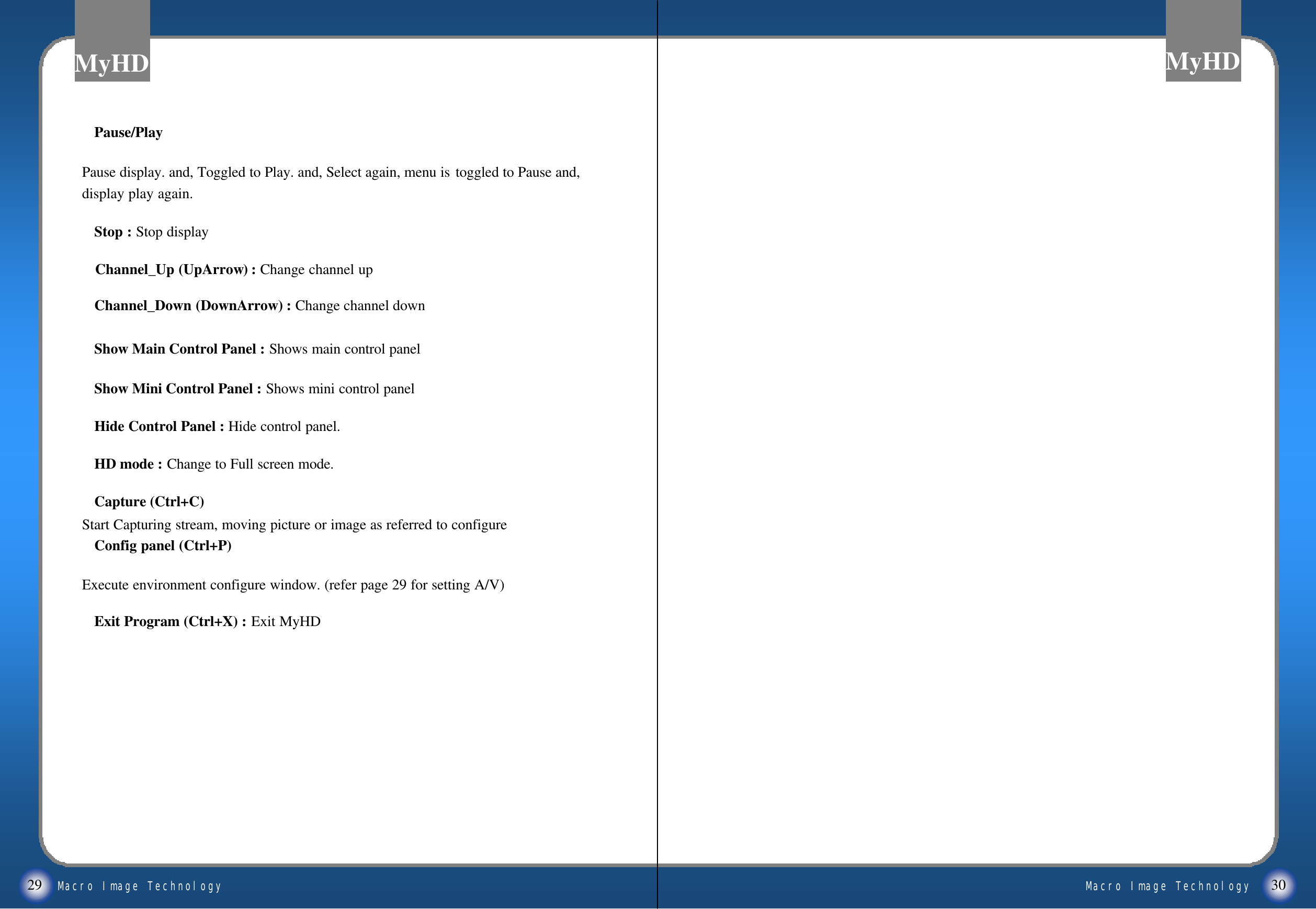
Macro Image TechnologyMyHDMacro Image TechnologyMyHDExit Program (Ctrl+X) : Exit MyHDPause/PlayPause display. and, Toggled to Play. and, Select again, menu is toggled to Pause and, display play again.Stop : Stop displayChannel_Up (UpArrow) : Change channel upChannel_Down (DownArrow) : Change channel downShow Main Control Panel : Shows main control panelShow Mini Control Panel : Shows mini control panelHide Control Panel : Hide control panel.HD mode : Change to Full screen mode.Capture (Ctrl+C) Start Capturing stream, moving picture or image as referred to configureConfig panel (Ctrl+P)Execute environment configure window. (refer page 29 for setting A/V)29 30
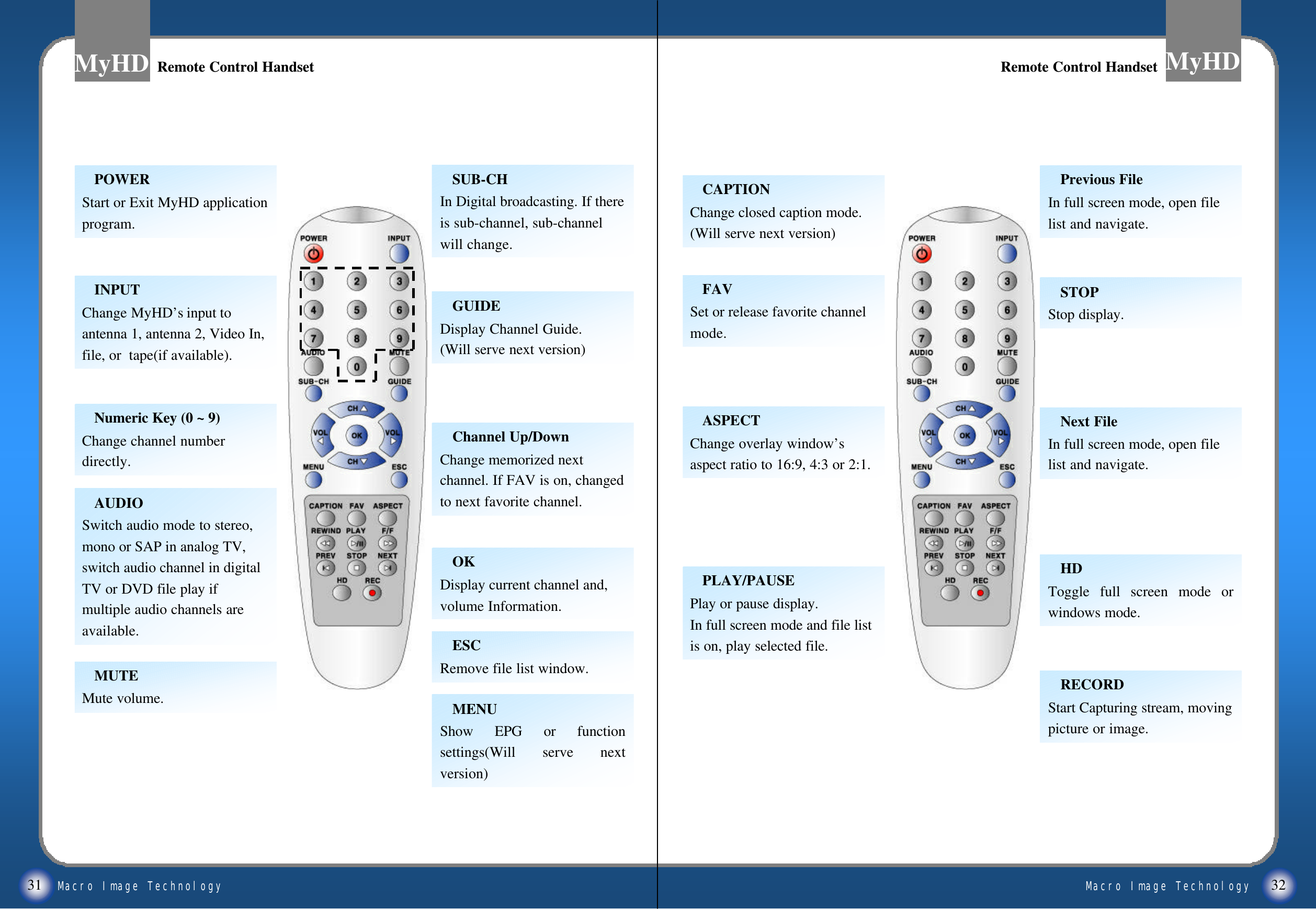
Macro Image TechnologyMyHDMacro Image TechnologyMyHD31 32ESCRemove file list window.OKDisplay current channel and, volume Information.Channel Up/DownChange memorized next channel. If FAV is on, changed to next favorite channel.SUB-CHIn Digital broadcasting. If there is sub-channel, sub-channel will change.AUDIOSwitch audio mode to stereo, mono or SAP in analog TV, switch audio channel in digital TV or DVD file play if multiple audio channels are available.POWERStart or Exit MyHD application program.GUIDEDisplay Channel Guide.(Will serve next version)MUTEMute volume.Numeric Key (0 ~ 9)Change channel number directly.INPUTChange MyHD’s input to antenna 1, antenna 2, Video In, file, or  tape(if available).HDToggle full screen mode or windows mode.Previous FileIn full screen mode, open file list and navigate.PLAY/PAUSEPlay or pause display.In full screen mode and file list is on, play selected file.CAPTIONChange closed caption mode. (Will serve next version)FAVSet or release favorite channel mode.ASPECTChange overlay window’s aspect ratio to 16:9, 4:3 or 2:1.STOPStop display.RECORDStart Capturing stream, moving picture or image.Next FileIn full screen mode, open file list and navigate.    Remote Control HandsetRemote Control Handset Remote Control HandsetRemote Control HandsetMENUShow EPG or function settings(Will serve next version)
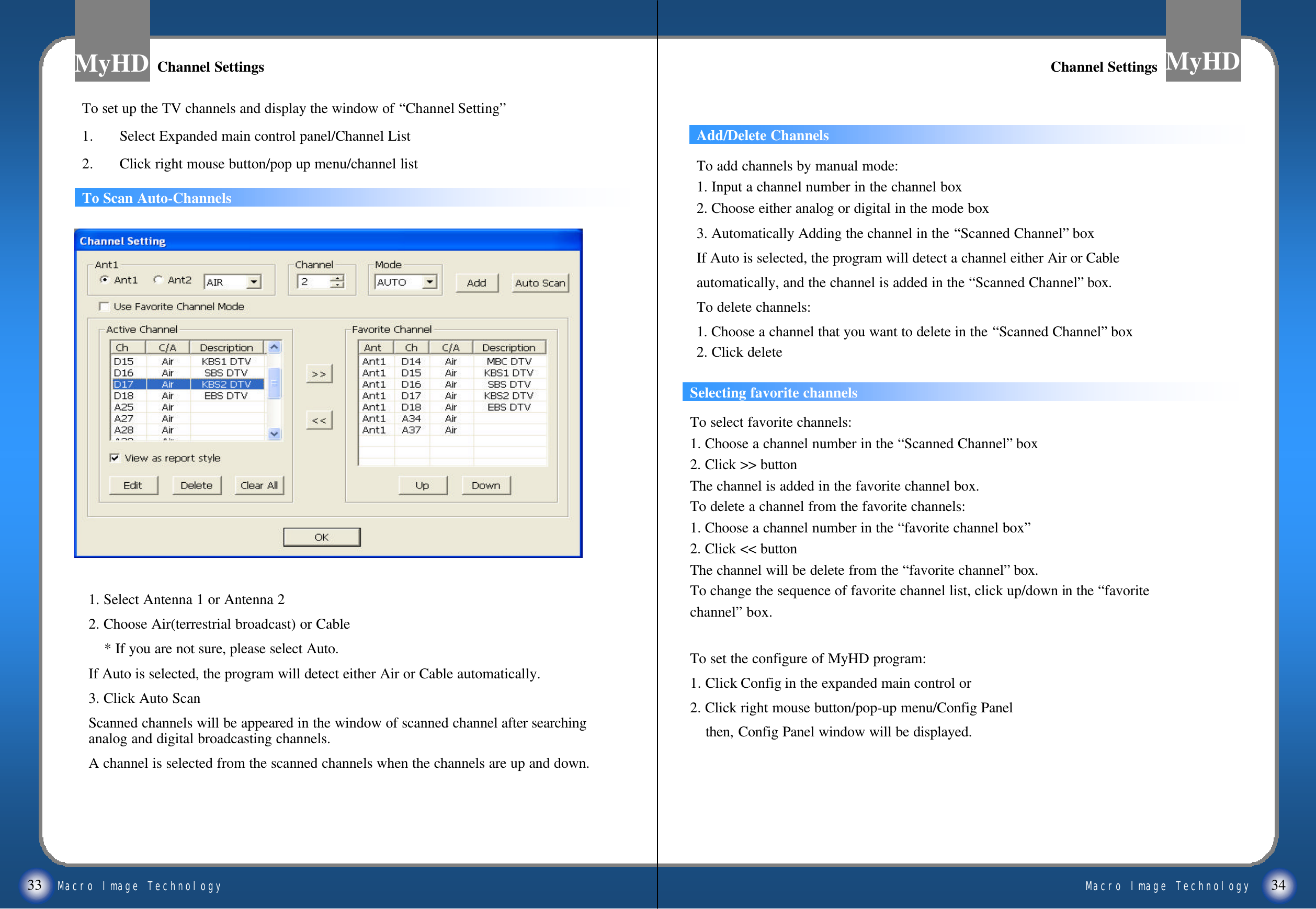
Macro Image TechnologyMyHDMacro Image TechnologyMyHD33 34Add/Delete ChannelsTo Scan Auto-ChannelsSelecting favorite channelsTo select favorite channels:1. Choose a channel number in the “Scanned Channel”box2. Click >> buttonThe channel is added in the favorite channel box.To delete a channel from the favorite channels:1. Choose a channel number in the “favorite channel box”2. Click << buttonThe channel will be delete from the “favorite channel”box.To change the sequence of favorite channel list, click up/down in the “favoritechannel”box.To set the configure of MyHD program:1. Click Config in the expanded main control or2. Click right mouse button/pop-up menu/Config Panel then, Config Panel window will be displayed.Channel SettingsChannel Settings Channel SettingsChannel SettingsTo set up the TV channels and display the window of “Channel Setting”1. Select Expanded main control panel/Channel List2. Click right mouse button/pop up menu/channel list1. Select Antenna 1 or Antenna 22. Choose Air(terrestrial broadcast) or Cable* If you are not sure, please select Auto.If Auto is selected, the program will detect either Air or Cable automatically.3. Click Auto ScanScanned channels will be appeared in the window of scanned channel after searching analog and digital broadcasting channels.A channel is selected from the scanned channels when the channels are up and down.To add channels by manual mode:1. Input a channel number in the channel box2. Choose either analog or digital in the mode box 3. Automatically Adding the channel in the “Scanned Channel”boxIf Auto is selected, the program will detect a channel either Air or Cable automatically, and the channel is added in the “Scanned Channel”box.To delete channels:1. Choose a channel that you want to delete in the “Scanned Channel”box2. Click delete
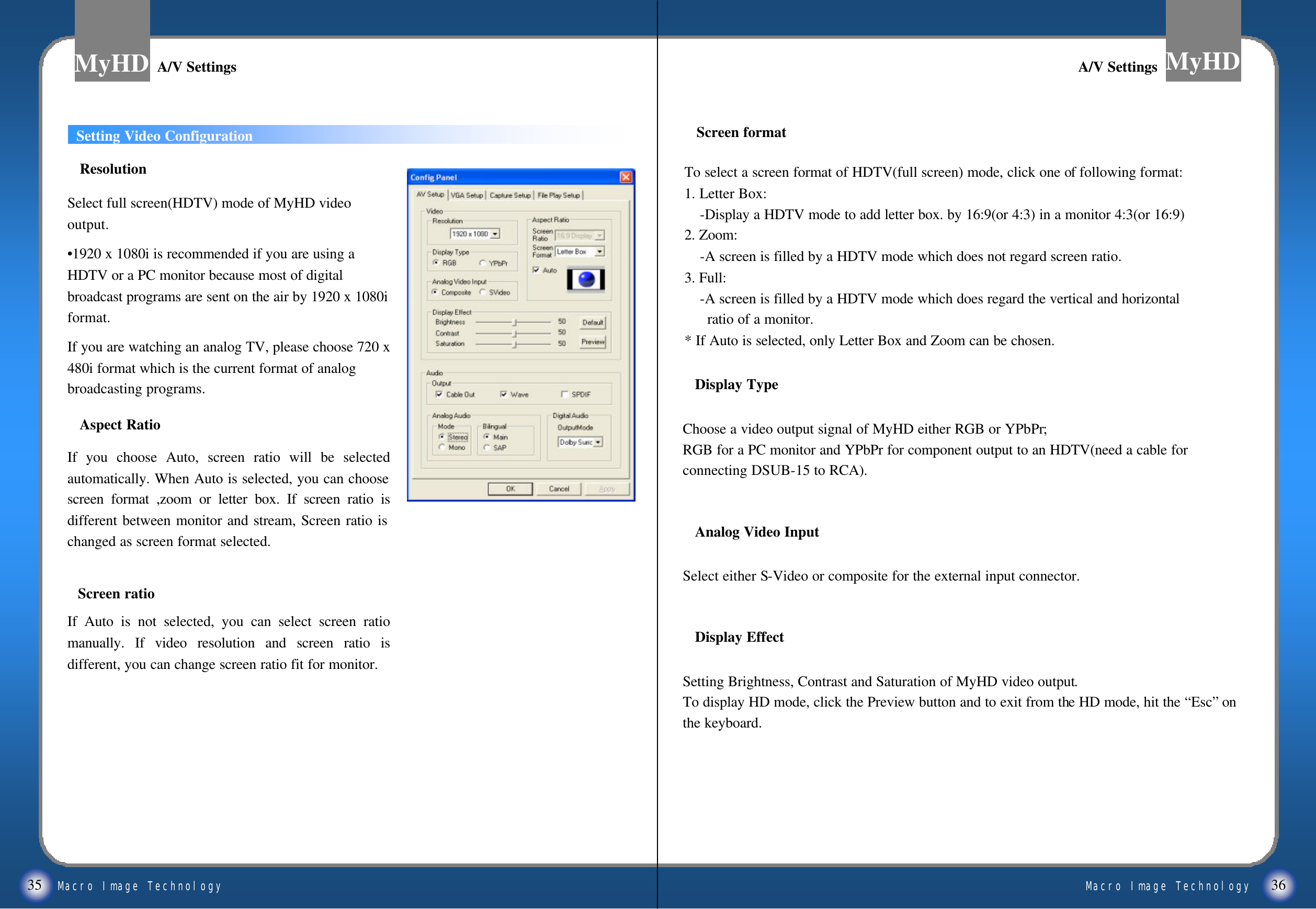
Macro Image TechnologyMyHDMacro Image TechnologyMyHD35 36Setting Video ConfigurationTo select a screen format of HDTV(full screen) mode, click one of following format:1. Letter Box:-Display a HDTV mode to add letter box. by 16:9(or 4:3) in a monitor 4:3(or 16:9)2. Zoom:-A screen is filled by a HDTV mode which does not regard screen ratio.3. Full:       -A screen is filled by a HDTV mode which does regard the vertical and horizontalratio of a monitor.* If Auto is selected, only Letter Box and Zoom can be chosen.ResolutionSelect full screen(HDTV) mode of MyHD video output. •1920 x 1080i is recommended if you are using a   HDTV or a PC monitor because most of digital broadcast programs are sent on the air by 1920 x 1080i format. If you are watching an analog TV, please choose 720 x 480i format which is the current format of analog broadcasting programs. Aspect RatioIf you choose Auto, screen ratio will be selected automatically. When Auto is selected, you can choose screen format ,zoom or letter box. If screen ratio is different between monitor and stream, Screen ratio is changed as screen format selected. Screen formatA/V SettingsA/V SettingsDisplay TypeChoose a video output signal of MyHD either RGB or YPbPr;RGB for a PC monitor and YPbPr for component output to an HDTV(need a cable for connecting DSUB-15 to RCA).Analog Video InputSelect either S-Video or composite for the external input connector.Display EffectSetting Brightness, Contrast and Saturation of MyHD video output. To display HD mode, click the Preview button and to exit from the HD mode, hit the “Esc”on the keyboard.A/V SettingsA/V SettingsScreen ratioIf Auto is not selected, you can select screen ratio manually. If video resolution and screen ratio is different, you can change screen ratio fit for monitor.
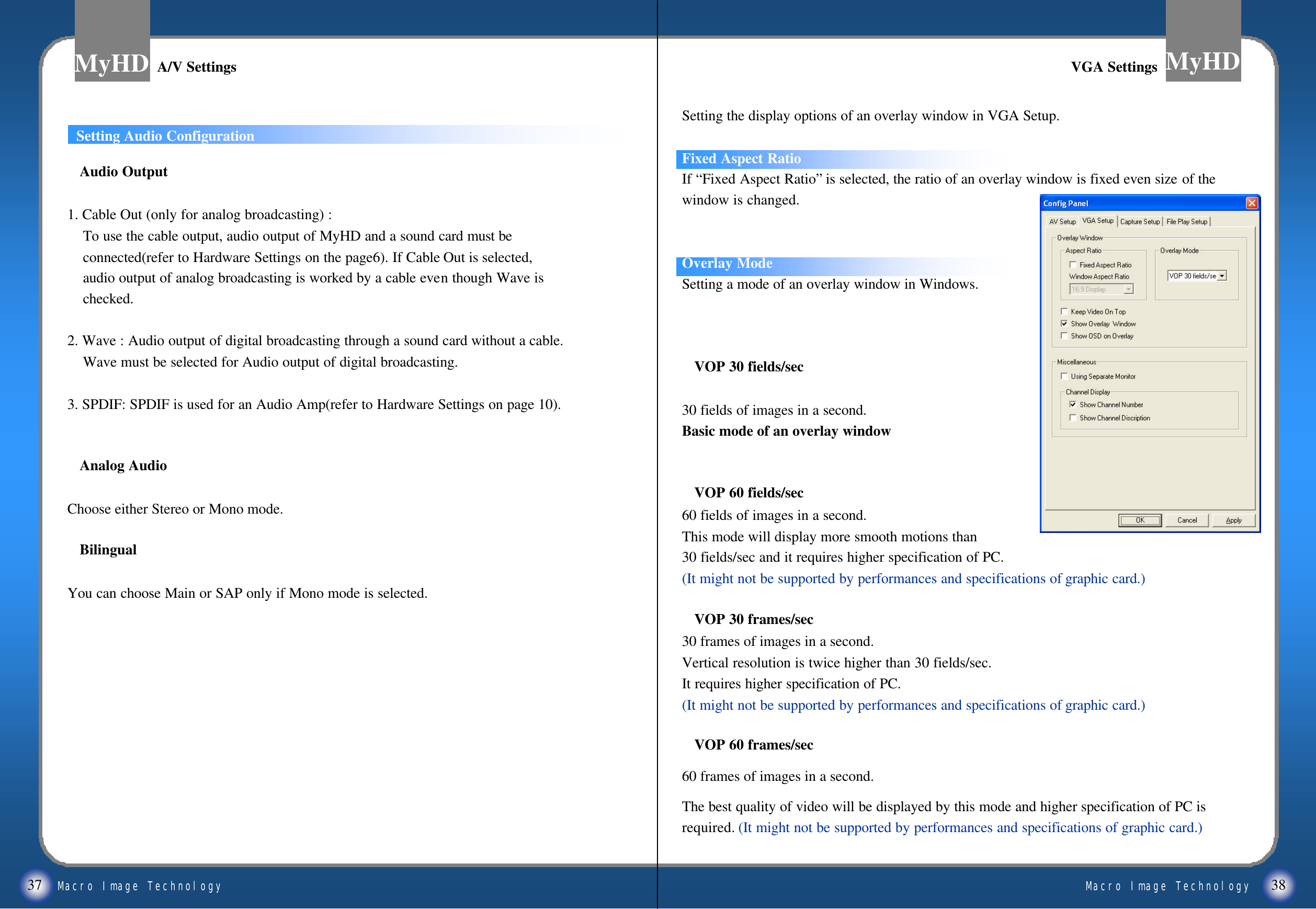
Macro Image TechnologyMyHDMacro Image TechnologyMyHD37 38Setting the display options of an overlay window in VGA Setup. Fixed Aspect RatioIf “Fixed Aspect Ratio”is selected, the ratio of an overlay window is fixed even size of the window is changed.Overlay ModeSetting a mode of an overlay window in Windows.VOP 30 fields/sec30 fields of images in a second.Basic mode of an overlay windowVOP 60 fields/sec60 fields of images in a second.This mode will display more smooth motions than 30 fields/sec and it requires higher specification of PC. (It might not be supported by performances and specifications of graphic card.)VOP 30 frames/sec30 frames of images in a second.Vertical resolution is twice higher than 30 fields/sec.It requires higher specification of PC.(It might not be supported by performances and specifications of graphic card.)VOP 60 frames/sec60 frames of images in a second.The best quality of video will be displayed by this mode and higher specification of PC is required. (It might not be supported by performances and specifications of graphic card.)To set Audio configurationAudio Output1. Cable Out (only for analog broadcasting) :To use the cable output, audio output of MyHD and a sound card must beconnected(refer to Hardware Settings on the page6). If Cable Out is selected,audio output of analog broadcasting is worked by a cable even though Wave ischecked.2. Wave : Audio output of digital broadcasting through a sound card without a cable.Wave must be selected for Audio output of digital broadcasting. 3. SPDIF: SPDIF is used for an Audio Amp(refer to Hardware Settings on page 10).Analog AudioChoose either Stereo or Mono mode. BilingualYou can choose Main or SAP only if Mono mode is selected.A/V SettingsA/V Settings VGA SettingsVGA SettingsSetting Audio Configuration
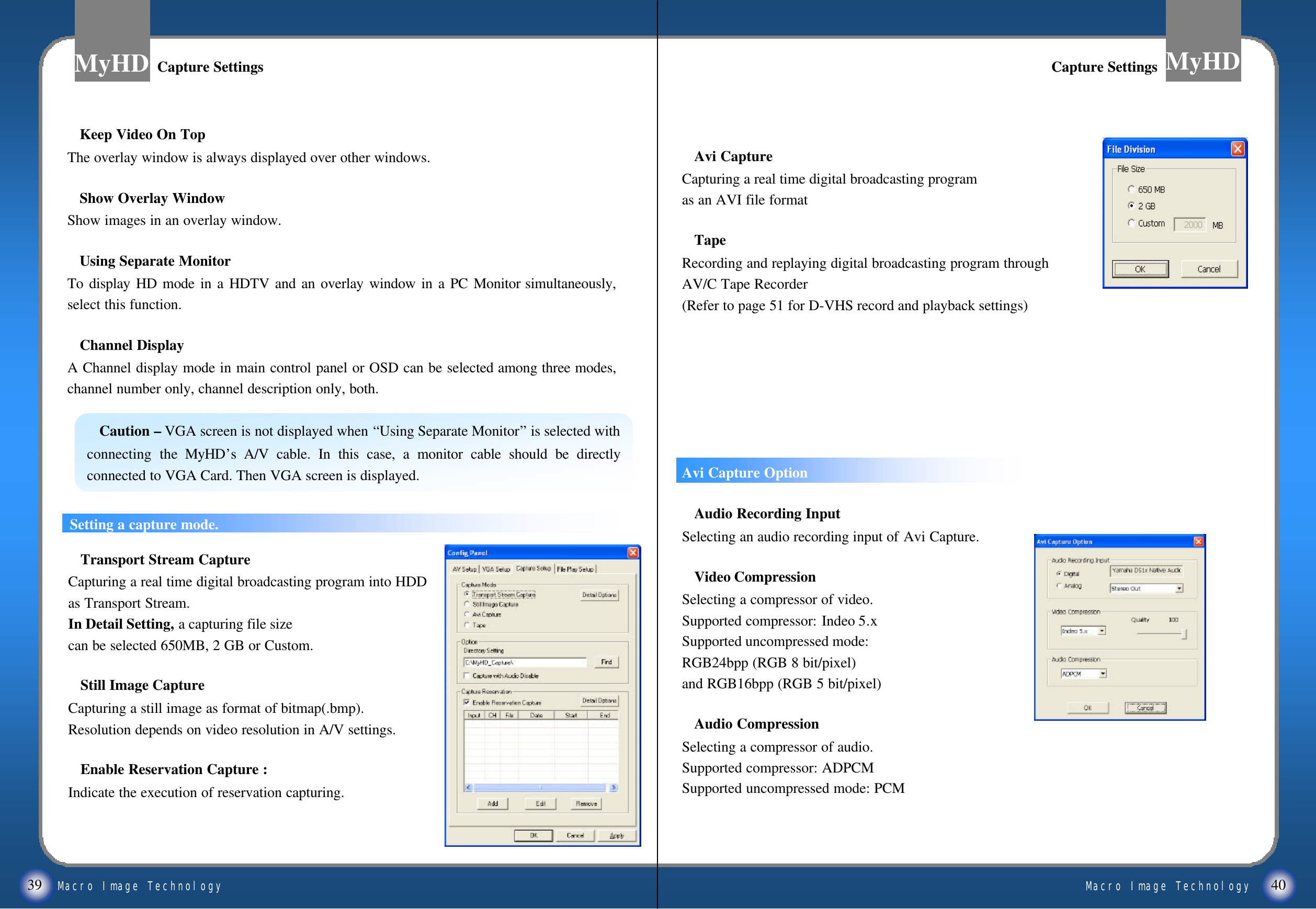
Macro Image TechnologyMyHDMacro Image TechnologyMyHD39 40Avi CaptureCapturing a real time digital broadcasting program as an AVI file formatTapeRecording and replaying digital broadcasting program through AV/C Tape Recorder(Refer to page 51 for D-VHS record and playback settings) ((ReferAvi Capture OptionAudio Recording InputSelecting an audio recording input of Avi Capture.Video Compression Selecting a compressor of video.Supported compressor: Indeo 5.xSupported uncompressed mode: RGB24bpp (RGB 8 bit/pixel)and RGB16bpp (RGB 5 bit/pixel)Audio CompressionSelecting a compressor of audio.Supported compressor: ADPCMSupported uncompressed mode: PCMKeep Video On TopThe overlay window is always displayed over other windows. Show Overlay WindowShow images in an overlay window.Using Separate MonitorTo display HD mode in a HDTV and an overlay window in a PC Monitor simultaneously, select this function.  Channel DisplayA Channel display mode in main control panel or OSD can be selected among three modes, channel number only, channel description only, both.Caution –VGA screen is not displayed when “Using Separate Monitor”is selected with connecting the MyHD’sA/V cable. In this case, a monitor cable should be directly connected to VGA Card. Then VGA screen is displayed.Capture SettingsCapture Settings Capture SettingsCapture SettingsSetting a capture mode.Transport Stream CaptureCapturing a real time digital broadcasting program into HDD as Transport Stream.In Detail Setting, a capturing file size can be selected 650MB, 2 GB or Custom. Still Image CaptureCapturing a still image as format of bitmap(.bmp). Resolution depends on video resolution in A/V settings.Enable Reservation Capture :Indicate the execution of reservation capturing.
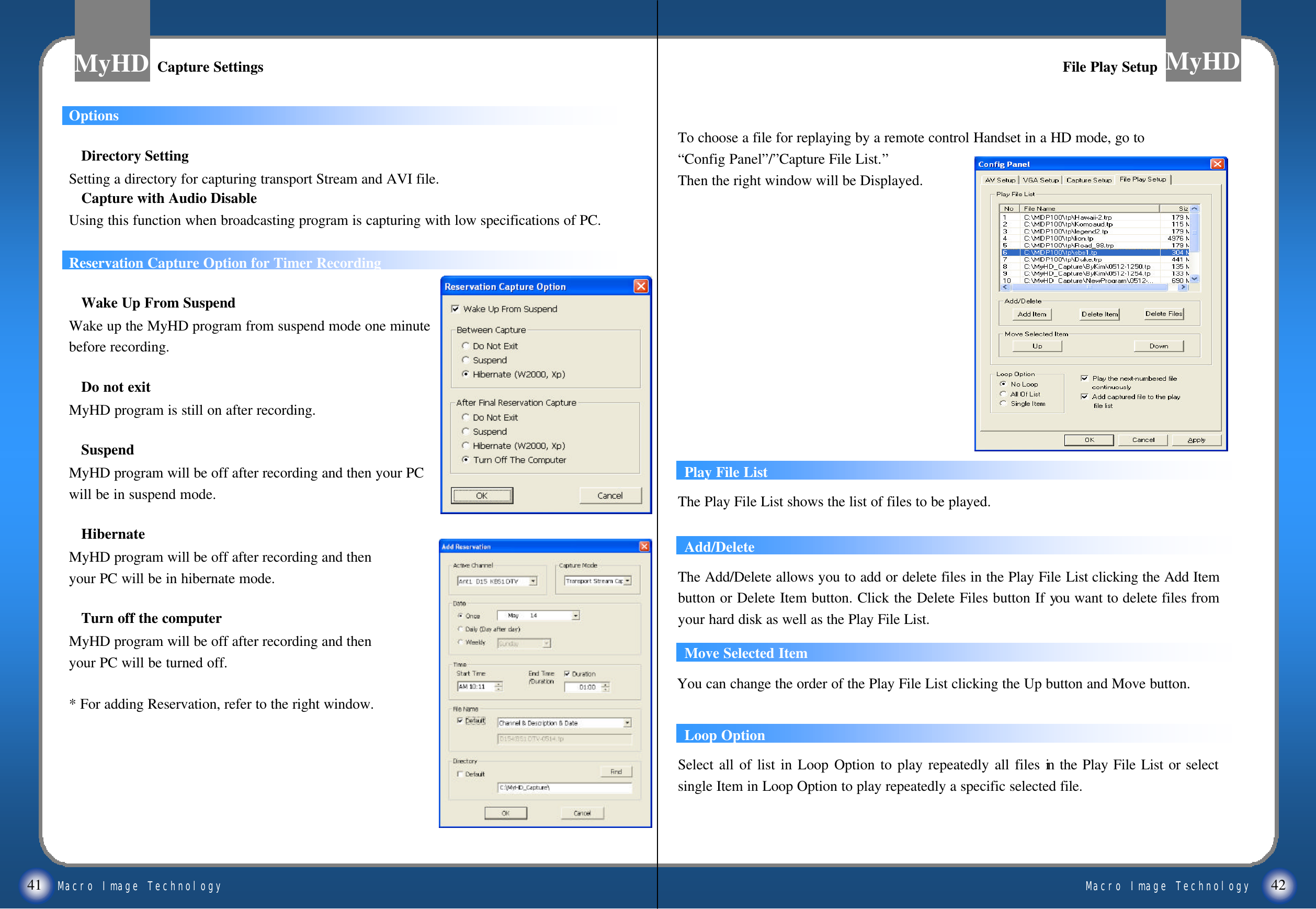
Macro Image TechnologyMyHDMacro Image TechnologyMyHD41 42OptionsDirectory Setting Setting a directory for capturing transport Stream and AVI file.Capture with Audio DisableUsing this function when broadcasting program is capturing with low specifications of PC.Reservation Capture Option for Timer RecordingWake Up From SuspendWake up the MyHD program from suspend mode one minutebefore recording.Do not exitMyHD program is still on after recording.SuspendMyHD program will be off after recording and then your PC will be in suspend mode.HibernateMyHD program will be off after recording and then your PC will be in hibernate mode.Turn off the computerMyHD program will be off after recording and then your PC will be turned off.* For adding Reservation, refer to the right window. Capture SettingsCapture Settings File Play SetupFile Play SetupPlay File ListThe Play File List shows the list of files to be played.Add/DeleteMove Selected ItemYou can change the order of the Play File List clicking the Up button and Move button.The Add/Delete allows you to add or delete files in the Play File List clicking the Add Item button or Delete Item button. Click the Delete Files button If you want to delete files from your hard disk as well as the Play File List.Loop OptionSelect all of list in Loop Option to play repeatedly all files in the Play File List or select single Item in Loop Option to play repeatedly a specific selected file.To choose a file for replaying by a remote control Handset in a HD mode, go to “Config Panel”/”Capture File List.”Then the right window will be Displayed.
Macro Image TechnologyMyHDMacro Image TechnologyMyHD43 44Play the next-numbered fileFile Play SetupFile Play SetupFile Play SetupFile Play SetupSelect this option to play automatically the divided files in the sequence according to the number of their file names. If a current file have a properly numbered file name, the next-numbered file in the same directory will be played automatically and sequentially. If a current file have no properly numbered file name, a file with a properly numbered name like "filename_01.tp"will be searched in the same directory. if such a file does exist the file will be played automatically and sequentially. Otherwise the next item in the Play File List will be played. this rule is identically applied to VOB Files. Add captured file to the play fileYou can select it to add the captured file to the Play File List.The files are played in order of the Play File List. To play a specific file, Select and Double Click the file. If a file is divided and captured (example : a.tp, a_01.tp, ...), it is only necessary to add the first divided and captured file to the Play File List. If you push the Previous/Next button of the remote control in the Full Screen Mode, the Play File List is displayed on the screen. And you can play the file you select using the Channel button in the Play File List on the screen.You can watch the DVD files(*.vob) in the HD Resolution Mode of the MyHD Card. To play sequentially several VOB files in the DVD, select the "Play the next-numbered files" option, add VTS_01_1.VOD file to Play File List and play it. Then, the next-numberd files will be played automatically and sequentially. (At present, the limited function is provided only to play the VOD files not copy protected because of the license of DVD with copy protection.)
Macro Image TechnologyMyHDMacro Image TechnologyMyHD45 46Setting ChannelsSelect channelsEntering numbers by keyboard or push numbers on the MyHD’s remote control Handset.Changing channelsTo change channels :1. Using channel buttons in the main control panel2. Using arrow keys in a keyboard 3. Using channel buttons of the remote controllerChanging Sub-channelsIf there are sub-channels in digital broadcasting, sub-channel can be selected by using sub-channel button in the main control panel or the remote controller.Favorite channel modeTo select favorite channels, using channel settings or a favorite channel button in the remote controller.Controlling VolumeTo control volume:1. dragging the knob in the main control panel2. using left/right arrow keys in a keyboard3. handling volume button in the remote controllerChanging Input TypeTo change the input Type;1. Using input button in the remote controller2. Click “In”key in the main control panel3. Click right side button of a mouseStoring Transport Stream into a HDDMyHD supports capturing Transport Stream and stores the stream into a HDD todisplay images any time.If audio is not working properly during capturing, DMA mode should be selected in aHDD.For the perfect capture, we recommend the PC system that is Pentium III 800MHz orhigher specifications. During capturing, the size of file is automatically divided into 650MB or 2GB, and filesare created continuously. For example, Capture.tp, Capture_01.tp, Capture_02.tp,and so on.The captured files will be played continuously by numbers when they are replayed. Replay the Captured Transport Stream filesFrom VGA mode1. Using file open in the main control panel2. Clicking the right side button of a mouse, and selecting “File”in the pop up menu3. Using Drag & Drop methodFrom HD modeUsing the remote controller to replay the files when HD mode is played. 1. Add files in “Play File List”from “Config Panel”/”Capture File List”2. Push the next file button or the previous file button in the remote controller3. Use the play button to replay.Using Esc button in the remote controller to exit or cancel.Running MyHDRunning MyHD Running MyHDRunning MyHD
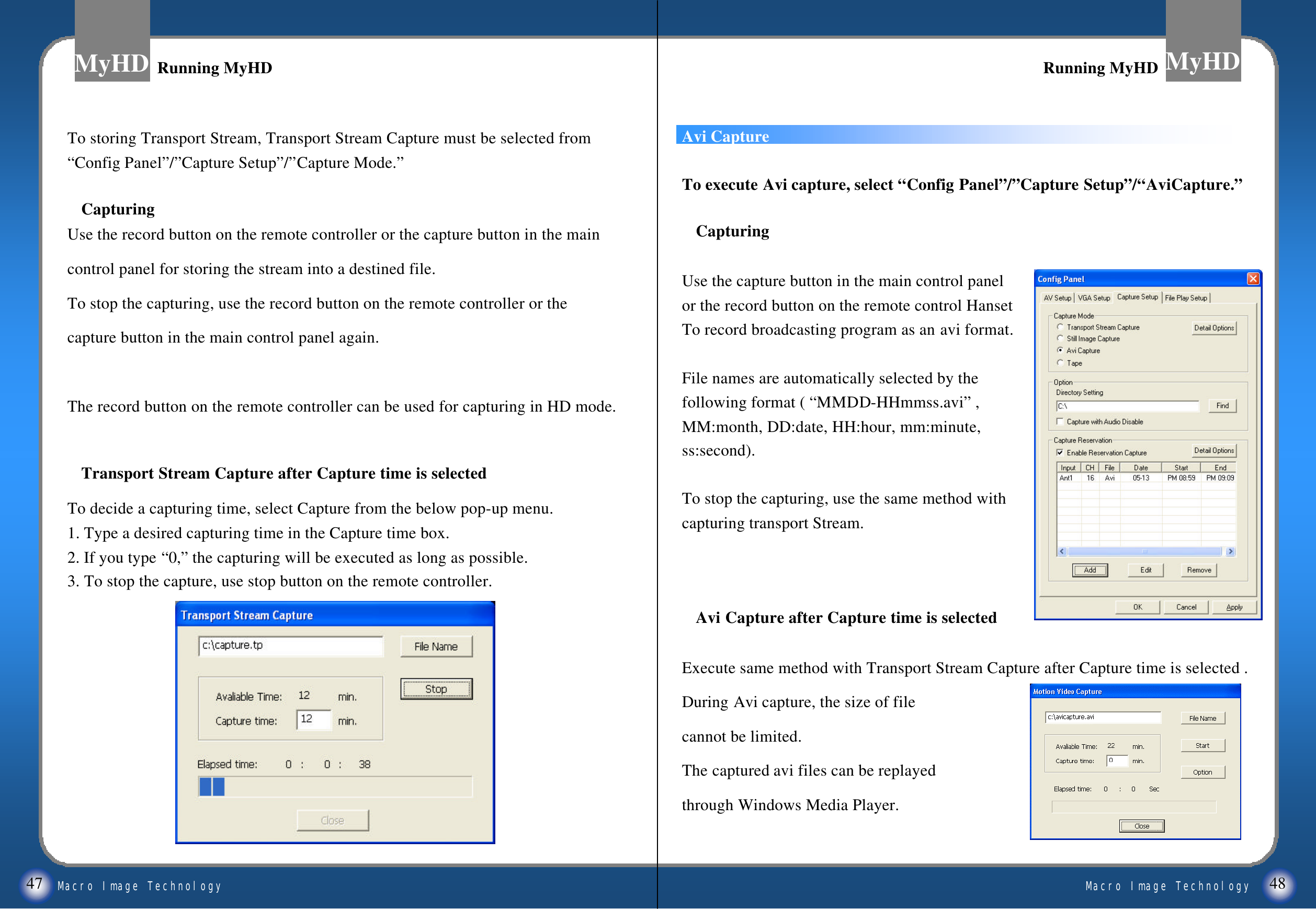
Macro Image TechnologyMyHDMacro Image TechnologyMyHD47 48Avi CaptureTo execute Avi capture, select “Config Panel”/”Capture Setup”/“AviCapture.”CapturingUse the capture button in the main control panel or the record button on the remote control Hanset To record broadcasting program as an avi format.File names are automatically selected by the following format ( “MMDD-HHmmss.avi”, MM:month, DD:date, HH:hour, mm:minute,ss:second).To stop the capturing, use the same method with capturing transport Stream.Avi Capture after Capture time is selectedExecute same method with Transport Stream Capture after Capture time is selected .During Avi capture, the size of file cannot be limited.The captured avi files can be replayed through Windows Media Player.To storing Transport Stream, Transport Stream Capture must be selected from“Config Panel”/”Capture Setup”/”Capture Mode.”CapturingUse the record button on the remote controller or the capture button in the maincontrol panel for storing the stream into a destined file.To stop the capturing, use the record button on the remote controller or thecapture button in the main control panel again. The record button on the remote controller can be used for capturing in HD mode. Transport Stream Capture after Capture time is selected To decide a capturing time, select Capture from the below pop-up menu. 1. Type a desired capturing time in the Capture time box.2. If you type “0,”the capturing will be executed as long as possible.3. To stop the capture, use stop button on the remote controller. Running MyHDRunning MyHD Running MyHDRunning MyHD
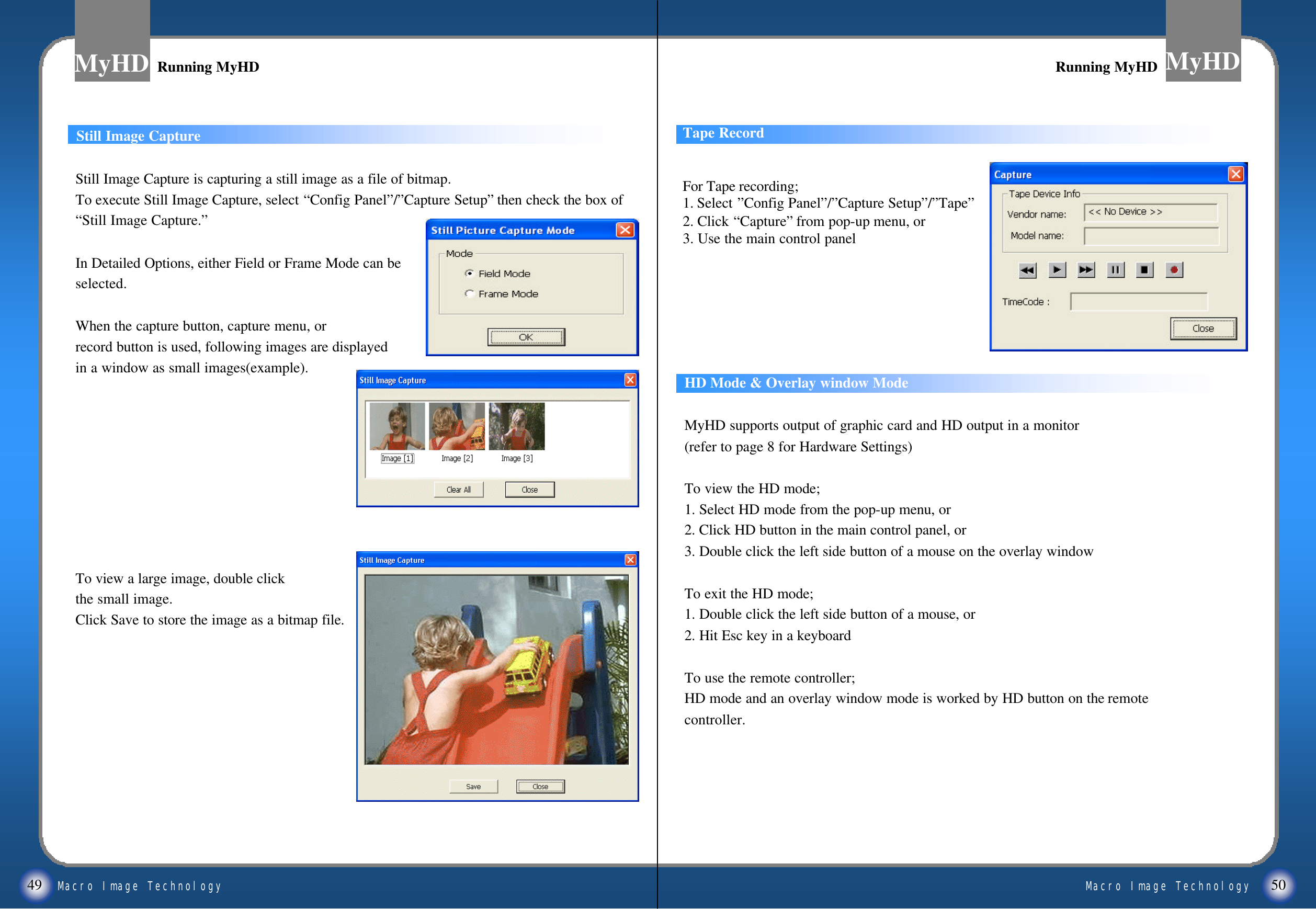
Macro Image TechnologyMyHDMacro Image TechnologyMyHD49Still Image Capture is capturing a still image as a file of bitmap.To execute Still Image Capture, select “Config Panel”/”Capture Setup”then check the box of “Still Image Capture.”In Detailed Options, either Field or Frame Mode can be selected.When the capture button, capture menu, or record button is used, following images are displayed in a window as small images(example).To view a large image, double click the small image.Click Save to store the image as a bitmap file.HD Mode & Overlay window ModeMyHD supports output of graphic card and HD output in a monitor(refer to page 8 for Hardware Settings)To view the HD mode;1. Select HD mode from the pop-up menu, or2. Click HD button in the main control panel, or3. Double click the left side button of a mouse on the overlay windowTo exit the HD mode;1. Double click the left side button of a mouse, or2. Hit Esc key in a keyboardTo use the remote controller;HD mode and an overlay window mode is worked by HD button on the remotecontroller.Running MyHDRunning MyHD Running MyHDRunning MyHD50Still Image Capture Tape RecordFor Tape recording; 1. Select ”Config Panel”/”Capture Setup”/”Tape”2. Click “Capture”from pop-up menu, or3. Use the main control panel
Macro Image TechnologyMyHDMacro Image TechnologyMyHD51Tape(D-VHS) record and playback Settings* It is working on Windows XP only.For settings of VCR driver1. Two new hardware found boxes will be displayed when a D-VHS is connected to your XP machine via firewire.2. Install software for "AV/C Tape Recorder>>Player." Do not install software for"AV/C Tuners."3. Choose "Install from a list or specific location(Advaced)."4. Click "Next>"5. Choose "Don't search, I will choose the driver to install."6. Click "Next>"7. Select "Sound, video and game controllers" option and click "Next."8. If you have a JVC Victor HM-DH30000, select "JVC" as the manufacturer and "JVC Tape Device" as the model and click "Next>."9. Click "Finish."10. JVC D-VHS tape deck is ready to use by DirectShow applications.For recording1. Excute MyHD program,then click right mouse button.2. Select "Config Panel>>Capture Setup>>Tape"3. Click "apply>>OK"Then choose either a or b method during broadcasting.a. Click "recording button" on the remote controller or main panel.b. Click right mouse button, then select "menu>>Capture(Ctrl+C)."Popup window will be appeared, then click "Recording" after searching a right position of recording tape by the button of "Rew/FF."For replaying1. Select "menu>>Tape(Ctrl+D)," then "Tape" will be displayed in the main control panel. 2. Use Play/FF/REW buttons for playback.-When video output does not work because programs or settings are changed during playing, Click "stop" then "play" button.-If record/playback excutes on MyHD program, the power of VCR will be "ON" even thoughit is "OFF."-"Time Record" is available even though the power of VCR is "OFF."52Tape record and playback SettingsTape record and playback Settings Tape record and playback SettingsTape record and playback Settings

Navigation menu