Fractal Audio Axe Fx Ii Owners Manual 304 User
2017-08-31
User Manual: Manual Fractal Audio Axe-Fx-Ii-Owners-Manual-304 Fractal_Audio_Axe-Fx-II-Owners-Manual-304 manuals AxeFx
Open the PDF directly: View PDF  .
.
Page Count: 184 [warning: Documents this large are best viewed by clicking the View PDF Link!]
- Foreword
- Table of Contents
- What’s New
- 1 Introduction
- 2 Overview
- 3 Connections
- 3.1 Setting Levels
- 3.2 The PEDAL Jack
- 3.3 System Parameters
- 3.4 Connection Diagrams
- 3.4.1 Axe-Fx II into Self-Powered Full-Range Speakers
- 3.4.2 Axe-Fx II into Studio Monitors
- 3.4.3 Axe-Fx II with Power Amp and Guitar Speakers
- 3.4.4 Axe-Fx II Effects Loop
- 3.4.5 Axe-Fx II Digital Audio Interconnection
- 3.4.6 Axe-Fx II Four Cable Method (“4CM”)
- 3.4.7 Direct to FOH plus Real Amps on Stage
- 3.4.8 Axe-Fx II as Effects Processor Only (with Guitar Amps)
- 3.4.9 Axe-Fx II as a Computer Audio Interface
- 3.4.10 Axe-Fx II and MFC-101
- 3.4.11 Axe-Fx II: One Possible “Big Rig”
- 4 Basic Operation and Editing
- 5 Effects Guide
- 5.1 Amplifier [AMP]
- 5.2 Cabinet [CAB]
- 5.3 Chorus [CHO]
- 5.4 Compressor [CMP]
- 5.5 Crossover [XVR]
- 5.6 Delay [DLY]
- 5.7 Drive [DRV]
- 5.8 Effects Loop [FXL]
- 5.9 Enhancer [ENH]
- 5.10 Feedback Send [SND] & Return [RTN]
- 5.11 Filter [FLT]
- 5.12 Flanger [FLG]
- 5.13 Formant [FRM]
- 5.14 Gate/Expander [GTE]
- 5.15 Graphic Equalizer [GEQ]
- 5.16 Looper [LPR]
- 5.17 Megatap Delay [MGT]
- 5.18 Mixer [MIX]
- 5.19 Multiband Compressor [MBC]
- 5.20 Multi Delay [MTD]
- 5.21 Tremolo/Panner [PAN]
- 5.22 Parametric EQ [PEQ]
- 5.23 Phaser [PHA]
- 5.24 Pitch Shifter [PIT]
- 5.25 Quad Chorus [QCH]
- 5.26 Resonator [RES]
- 5.27 Reverb [REV]
- 5.28 Ring Modulator [RNG]
- 5.29 Rotary Speaker [ROT]
- 5.30 Synth [SYN]
- 5.31 Vocoder [VOC]
- 5.32 Volume/Pan [VOL]
- 5.33 Wahwah [WAH]
- 5.34 Input Noise Gate
- 5.35 Output Mixer
- 5.36 Common Mix Parameters
- 6 Global Blocks
- 7 Modifiers & Controllers
- 8 Global Parameters
- 9 Input/Output Parameters
- 10 Utilities
- 11 Tuner
- 12 Tempo
- 13 Backing Up and Restoring
- 14 Firmware Updates
- 15 Troubleshooting
- 16 Appendix
- 16.1 Shortcuts Overview
- 16.2 60-Second Edit Guide
- 16.3 Understanding Preset Size Limits
- 16.4 Signal Flow, Global, and I/O Parameters
- 16.5 LFO Waveforms, Duty, and Phase
- 16.6 Tempo Cross Reference
- 16.7 Mono and Stereo
- 16.8 Mixology
- 16.9 Humbuster™ Technology
- 16.10 Setting up a Wah Pedal
- 16.11 Setting Up Spillover
- 16.12 Using Send and Return
- 16.13 Loading User Cab IRs
- 16.14 Glossary & Resources
- 16.15 Axe-Fx II Bank & Preset Numbers Table
- 16.16 Factory Default Settings
- 17 Specifications
- Warranty
Owner’s Manual
Doc v3.04 i Doc v3.04
Legal Notices
Fractal Audio Systems Axe-Fx II Owner’s Manual. Contents Copyright © 2011 All Rights Reserved.
No part of this publication may be reproduced in any form without the permission of Fractal Audio Systems.
Fractal Audio Systems, Axe-Fx, Axe-Fx II, G2 Modeling Technology , are
trademarks of Fractal Audio Systems. Manufacturer names and product names mentioned herein are trademarks
or registered trademarks of their respective owners, which are in no way associated with or affiliated with Fractal
Audio Systems. The names are used only to illustrate sonic and performance characteristics.
Important Safety Instructions
WARNING: To reduce the risk of fire or electric shock, do not expose
this appliance to rain or moisture.
CAUTION: To reduce the risk of fire or electric shock, do not remove
screws. There are no user serviceable parts inside. Refer servicing to
qualified service personnel.
1. Obey all warnings on the Axe-Fx II and in this User Guide.
2. Keep away from sources of heat such as heat ducts, registers or appliances which produce heat.
3. Connect only to a proper AC outlet of 100240V, 4763 Hz.
4. Keep the power cord in good condition. Do not kink, bend, or pinch. If the cord becomes
damaged, discard and replace it.
5. If not using your Axe-Fx II for extended periods of time, disconnect from AC mains.
6. Protect the unit from rain and excessive moisture.
7. Refer servicing to qualified personnel only.
8. Do not operate the unit and obtain service if:
a. Liquids or excessive moisture enter the unit.
b. The unit operates incorrectly or performance is inconsistent or erratic.
c. The unit has been dropped and/or the enclosure damaged.
9. Prolonged exposure to high volume levels can cause hearing damage and/or loss. The use of
hearing protection in high volume situations is recommended.
Doc v3.04

ii Doc v3.04
Certificate of Conformity
Fractal Audio Systems, USA, hereby declares on its own responsibility that the following product:
Axe-Fx II Digital Guitar Preamplifier and Effects Processor
- that is covered by this certificate and marked with CE label conforms to following standards:
EN60065
(IEC 60065)
Safety requirement for mains operated electronic and related apparatus for household and
similar use.
EN 55103-1
Product family standard for audio, video, audio-visual, and entertainment lighting control
apparatus for professional use. Part 1: Emission.
EN 55103-2
Product family standard for audio, video, audio-visual, and entertainment lighting control
apparatus for professional use. Part 2: Immunity.
with reference to regulations in following directives: 73/23/EEC, 89/336/EEC.
Issued in May 2011
Clifford Chase, President
Fractal Audio Systems
EMC / EMI
This equipment has been tested and found to comply with the limits for a Class B Digital device, pursuant to part 15 of the FCC
rules. These limits are designed to provide reasonable protection against harmful interference in residential installations. This
equipment generates, uses and can radiate radio frequency energy and, if not installed and used in accordance with the
instructions, may cause harmful interference to radio communications. There is no guarantee that interference will not occur in
a particular installation. If this equipment does cause harmful interference to radio or television reception, which can be
determined by turning the equipment off and on, the user is encouraged to try to correct the interference by one or more of
the following measures:
Reorient or relocate the receiving antenna.
Increase the separation between the equipment and receiver.
Connect the equipment to an outlet on a circuit different from that to which the receiver is connected.
Consult the dealer or an experienced radio/TV technician for help.
About the Author
Matt Picone is a music technology product specialist, sound designer, creative director, and musician with over 25 years of
experience spanning guitars, amps, effects, synthesizers, software, and beyond. He also works as a consultant to many greats
including Dweezil Zappa, Adrian Belew, Steve Vai, Dream Theater, the Edge, Peter Frampton, Neal Schon, , Scott
Appleton (Def Leppard/Rush/etc.) and more. This work is based extensively on the original Axe-Fx manual by Fractal Audio
founder and Axe-Fx creator Cliff Chase.
Many thanks to our team of awesome beta-testers, preset creators, copy-editors and proofreaders.
You may report manual corrections or suggestions in our forum at http://forum.fractalaudio.com

Doc v3.04 iii Doc v3.04
Foreword
Thank you for purchasing an Axe-Fx II, one of the most powerful musical instrument processors
ever produced. Please take the time to read through this manual to become acquainted with
the Axe-Fx II.
Thinking back to a date when the first Axe-Fx units rolled off the line back in 2006, it would
have been a challenge to predict that the product would be
such a worldwide success that we would have a hard time keeping it in stock; that musicians
would rally around the unit, from Axe-evangelists brated pro
players; a manual for the sequel: the Axe-Fx II.
Nevertheless, the Axe-Fx II is here. Advances in technology and knowledge, along with the
shared insights of our community, have allowed us to design and produce a next-generation
product that represents a giant step forward. If you owned a Standard or an Ultra, we think
Axe-Fx family, this is an incredible place to start.
It has been said that the Axe-Fx restored digital to its rightful place as the superior solution to
-Fx II has been designed to deliver the latest
word in this commentary. It has twice the power of the Axe-Fx Ultra (while even the older
tandard still has more horsepower under the hood than the closest competitor). For the
player, this means better sound, smarter features, and improved performance.
We think that a time traveler from that date back in 2006 would be quite impressed with how
things turned out. We are, and we hope you will be too. And now, on to the show
—Fractal Audio Systems, May 2011

TABLE OF CONTENTS
iv Doc v3.04
Table of Contents
Foreword .......................................................................................... iii
Table of Contents .............................................................................. iv
What’s New .......................................................................................1
1 Introduction ..................................................................................4
1.1 What is the Axe FX II? .............................................................................. 4
1.2 The Inventory/Grid Concept ..................................................................... 6
1.3 Connectivity and More ............................................................................. 7
.................................................................................................................................... 7 1.3.1
2 Overview ......................................................................................8
2.1 The Front Panel ........................................................................................ 8
2.2 The Rear Panel ....................................................................................... 10
2.3 Computer Integration ............................................................................ 12
Minimum Requirements ...................................................................................................................... 12 2.3.1
Software Installation ............................................................................................................................ 12 2.3.2
Capabilities ........................................................................................................................................... 13 2.3.3
3 Connections ................................................................................ 15
3.1 Setting Levels ......................................................................................... 15
3.2 The PEDAL Jack ...................................................................................... 16
3.3 System Parameters ................................................................................ 16
3.4 Connection Diagrams ............................................................................. 17
Axe-Fx II into Self-Powered Full-Range Speakers................................................................................. 18 3.4.1
Axe-Fx II into Studio Monitors ............................................................................................................. 18 3.4.2
Axe-Fx II with Power Amp and Guitar Speakers .................................................................................. 19 3.4.3
Axe-Fx II Effects Loop ........................................................................................................................... 20 3.4.4
Axe-Fx II Digital Audio Interconnection ............................................................................................... 20 3.4.5
Axe- ................................................................................................. 21 3.4.6
Direct to FOH plus Real Amps on Stage ............................................................................................... 22 3.4.7

TABLE OF CONTENTS
Doc v3.04 v Doc v3.04
Axe-Fx II as Effects Processor Only (with Guitar Amps) ....................................................................... 23 3.4.8
Axe-Fx II as a Computer Audio Interface ............................................................................................. 24 3.4.9
Axe-Fx II and MFC-101 ......................................................................................................................... 25 3.4.10
Axe- .......................................................................................................... 26 3.4.11
4 Basic Operation and Editing ......................................................... 27
4.1 Presets ................................................................................................... 27
4.2 The Grid ................................................................................................. 28
Inserting and Removing Blocks ............................................................................................................ 28 4.2.1
Shunts .................................................................................................................................................. 29 4.2.2
Connector Cables ................................................................................................................................. 30 4.2.3
Moving Blocks on the Grid ................................................................................................................... 32 4.2.4
Example Presets on the Grid ................................................................................................................ 33 4.2.5
4.3 Editing Sounds ....................................................................................... 35
Quick Control ....................................................................................................................................... 36 4.3.1
4.4 X/Y Switching ......................................................................................... 36
X/Y Quick Jump .................................................................................................................................... 37 4.4.1
4.5 Bypassing a Block ................................................................................... 37
4.6 Loading Effects from another Preset ...................................................... 37
4.7 Saving Changes ...................................................................................... 38
Swapping the Locations of Two Presets .............................................................................................. 38 4.7.1
5 Effects Guide ............................................................................... 39
5.1 Amplifier [AMP] ..................................................................................... 39
Basic Amp Parameters ......................................................................................................................... 41 5.1.1
Advanced Amp Parameters ................................................................................................................. 44 5.1.2
5.2 Cabinet [CAB] ......................................................................................... 47
5.3 Chorus [CHO] ......................................................................................... 50
5.4 Compressor [CMP] ................................................................................. 52
5.5 Crossover [XVR] ..................................................................................... 54
5.6 Delay [DLY] ............................................................................................ 55
Mono Delay .......................................................................................................................................... 56 5.6.1
Stereo Delay ......................................................................................................................................... 57 5.6.2

TABLE OF CONTENTS
vi Doc v3.04
Dual Delay ............................................................................................................................................ 58 5.6.3
Ping-Pong Delay ................................................................................................................................... 59 5.6.4
Sweep Delay......................................................................................................................................... 59 5.6.5
Reverse Delay ...................................................................................................................................... 59 5.6.6
Delay Common Parameters ................................................................................................................. 60 5.6.7
5.7 Drive [DRV] ............................................................................................ 62
5.8 Effects Loop [FXL] ................................................................................... 64
5.9 Enhancer [ENH] ...................................................................................... 65
5.10 Feedback Send [SND] & Return [RTN] .................................................. 65
5.11 Filter [FLT] ........................................................................................... 66
5.12 Flanger [FLG] ....................................................................................... 67
5.13 Formant [FRM] .................................................................................... 69
5.14 Gate/Expander [GTE]........................................................................... 70
5.15 Graphic Equalizer [GEQ] ...................................................................... 71
5.16 Looper [LPR] ........................................................................................ 71
5.17 Megatap Delay [MGT] ......................................................................... 72
5.18 Mixer [MIX] ......................................................................................... 73
5.19 Multiband Compressor [MBC] ............................................................. 74
5.20 Multi Delay [MTD] ............................................................................... 75
Quad Tap Delay .................................................................................................................................... 76 5.20.1
Plex Delay ............................................................................................................................................. 77 5.20.2
Plex Detune .......................................................................................................................................... 79 5.20.3
Plex Shift .............................................................................................................................................. 79 5.20.4
Band Delay ........................................................................................................................................... 79 5.20.5
Quad Series Delay ................................................................................................................................ 80 5.20.6
Ten-Tap Delay ...................................................................................................................................... 80 5.20.7
Rhythm Tap Delay ................................................................................................................................ 81 5.20.8
Diffusor ................................................................................................................................................ 82 5.20.9
5.21 Tremolo/Panner [PAN] ........................................................................ 83
5.22 Parametric EQ [PEQ] ............................................................................ 84
5.23 Phaser [PHA] ....................................................................................... 85

TABLE OF CONTENTS
Doc v3.04 vii Doc v3.04
5.24 Pitch Shifter [PIT] ................................................................................ 87
Detune ................................................................................................................................................. 89 5.24.1
Fixed Harmony ..................................................................................................................................... 90 5.24.2
Intelligent Harmony ............................................................................................................................. 90 5.24.3
Classic Whammy .................................................................................................................................. 93 5.24.4
Octave Divider ..................................................................................................................................... 93 5.24.5
Crystals ................................................................................................................................................. 94 5.24.6
Advanced Whammy ............................................................................................................................. 95 5.24.7
Arpeggiator .......................................................................................................................................... 96 5.24.8
Custom Shifter ..................................................................................................................................... 97 5.24.9
5.25 Quad Chorus [QCH] ............................................................................. 98
5.26 Resonator [RES] ................................................................................. 100
5.27 Reverb [REV] ..................................................................................... 101
5.28 Ring Modulator [RNG] ....................................................................... 104
5.29 Rotary Speaker [ROT] ........................................................................ 104
5.30 Synth [SYN] ....................................................................................... 105
5.31 Vocoder [VOC] ................................................................................... 107
5.32 Volume/Pan [VOL] ............................................................................ 108
5.33 Wahwah [WAH] ................................................................................ 109
5.34 Input Noise Gate ............................................................................... 110
Input Impedance ................................................................................................................................ 110 5.34.1
5.35 Output Mixer .................................................................................... 111
5.36 Common Mix Parameters .................................................................. 112
6 Global Blocks ............................................................................. 114
6.1 Introduction ......................................................................................... 114
6.2 Using Global Blocks .............................................................................. 114
Saving to a Global Block ..................................................................................................................... 115 6.2.1
Loading and Linking a Global Block .................................................................................................... 116 6.2.2
Loading Global Blocks without Linking .............................................................................................. 117 6.2.3
Unlinking Preset and Global Blocks ................................................................................................... 117 6.2.4
7 Modifiers & Controllers ............................................................. 119

TABLE OF CONTENTS
viii Doc v3.04
7.1 Introduction ......................................................................................... 119
7.2 Creating a Modifier .............................................................................. 119
Transformations ................................................................................................................................. 121 7.2.1
Damping ............................................................................................................................................. 122 7.2.2
Auto Engage ....................................................................................................................................... 123 7.2.3
Program Change Reset ...................................................................................................................... 123 7.2.4
7.3 Control Sources .................................................................................... 124
LFO1 & 2 ............................................................................................................................................ 124 7.3.1
ADSR 1 & 2 ......................................................................................................................................... 125 7.3.2
Sequencer .......................................................................................................................................... 125 7.3.3
Envelope Follower ............................................................................................................................. 126 7.3.4
Pitch Detector .................................................................................................................................... 126 7.3.5
Manual Knobs .................................................................................................................................... 126 7.3.6
External Controllers ........................................................................................................................... 127 7.3.7
Modifier Power! ................................................................................................................................. 127 7.3.8
8 Global Parameters ..................................................................... 128
8.1 Configuration Parameters .................................................................... 128
8.2 Output Parameters .............................................................................. 129
8.3 Custom Scales ...................................................................................... 129
9 Input/Output Parameters .......................................................... 130
9.1 Input Parameters ................................................................................. 130
9.2 Audio Parameters ................................................................................ 130
9.3 MIDI Parameters .................................................................................. 132
9.4 Control Parameters .............................................................................. 134
9.5 Pedal Parameters ................................................................................. 136
9.6 X/Y Quick-Jump Assign ......................................................................... 136
10 Utilities ................................................................................... 137
10.1 LCD Contrast ...................................................................................... 137
10.2 Preset Utilities ................................................................................... 137
10.3 Status Meters .................................................................................... 137

TABLE OF CONTENTS
Doc v3.04 ix Doc v3.04
10.4 Reset System ..................................................................................... 137
10.5 IR Capture ......................................................................................... 138
10.6 Firmware ........................................................................................... 139
11 Tuner ...................................................................................... 140
12 Tempo .................................................................................... 141
12.1 Setting the Tempo ............................................................................. 141
12.2 Synchronizing Sound Parameters ...................................................... 141
12.3 Tempo to Use .................................................................................... 142
12.4 Auto Delay ........................................................................................ 142
13 Backing Up and Restoring ........................................................ 143
13.1 MIDI/SysEx Backup and Restore ........................................................ 143
Dumping to a computer ..................................................................................................................... 143 13.1.1
Restoring from a Computer ............................................................................................................... 144 13.1.2
13.2 Onboard ROM Backup and Restore ................................................... 144
13.3 Machine-to-Machine Transfers .......................................................... 145
14 Firmware Updates................................................................... 146
14.1 Firmware ........................................................................................... 146
15 Troubleshooting ...................................................................... 147
16 Appendix ................................................................................ 149
16.1 Shortcuts Overview ........................................................................... 149
16.2 60-Second Edit Guide ........................................................................ 150
16.3 Understanding Preset Size Limits ....................................................... 151
16.4 Signal Flow, Global, and I/O Parameters ........................................... 151
16.5 LFO Waveforms, Duty, and Phase ...................................................... 152
LFO Phase ........................................................................................................................................... 152 16.5.1
16.6 Tempo Cross Reference ..................................................................... 153
16.7 Mono and Stereo............................................................................... 154

TABLE OF CONTENTS
x Doc v3.04
16.8 Mixology ........................................................................................... 155
16.9 Humbuster™ Technology ................................................................... 156
16.10 Setting up a Wah Pedal ................................................................... 157
Using the Onboard Pedal Jack ....................................................................................................... 157 16.10.1
Using an Expression Pedal on an MFC-101 .................................................................................... 158 16.10.2
16.11 Setting Up Spillover ........................................................................ 159
Within a Single Preset .................................................................................................................... 159 16.11.1
Across Different Presets................................................................................................................. 159 16.11.2
16.12 Using Send and Return ................................................................... 160
Creating Feedback Loops .............................................................................................................. 160 16.12.1
Extending the Length of Effect Chains ........................................................................................... 160 16.12.2
16.13 Loading User Cab IRs ....................................................................... 161
16.14 Glossary & Resources ..................................................................... 162
16.15 Axe-Fx II Bank & Preset Numbers Table .......................................... 165
16.16 Factory Default Settings .................................................................. 166
17 Specifications .......................................................................... 168
17.1 Midi Implementation Chart ............................................................... 169
Warranty ....................................................................................... 170

WHAT’S NEW
Doc v3.04 1
What’s New
Three years of R&D at Fractal Audio Systems have yielded our next-generation product, the Axe-Fx II. With twice
the power of our former flagship, the Ultra, the Axe-Fx II unveils new state-of-the-art algorithms and an innovative
array of great hardware and software features and improvements. This all-in-one preamp/effects processor
stunningly recreates great guitar signal chainsstompboxes, amps, cabs, mics, studio effects, and morewith
unprecedented power, flexibility, and control. As the successor to what many believe to be some of the best-
sounding processors ever created, our new arrival takes "real amp tone and feel" to the next level, offering the
latest word in our commentary on restoring digital to its rightful place as the superior solution for guitar
processing. Never willing to rest on our laurels, we are proud to present the Axe-Fx II.
Twice the Processing Power
Our philosophy is to never cut corners on processing power. Our new state-of-the-art algorithms required a
powerful platform on which to operate, so the Axe-Fx II features two (count 'em) 600 MHz dual-core Analog
modeling while the other handles effects processing and system tasks. An ultra-high-speed bus interconnects the
two processors, shuttling data back and forth. Mated to the processors is a high-speed, 64-bit external memory
bus and twice the RAM of previous Axe-Fx products. A 200K gate FPGA provides peripheral functionality and
system bus management.
The Axe-Fx II is by far the most powerful instrument processor ever created, with more raw, real-time audio
processing horsepower than anything available at any price. Yet, unlike power-hungry PCs, the Axe-Fx II consumes
less than 40W and is nearly silent in operation.
G2 Amp Modeling™ with Virtual Vacuum Tube™ Technology
All this power would be useless without algorithms to take advantage of it. Years of research have yielded what we
call G2 Amp Modeling Technology, comprising major breakthroughs in both preamp and power amp modeling.
First, we created our new Virtual Vacuum Tube technology, or VVT. VVT is a complete departure from the static
waveshaping technology used by other products. It is a digital replica of a vacuum tube, complete with time,
frequency, and level dependencies. Just like a real vacuum tube, our digital replica is truly dynamic and changes
with your playing. This creates a level of realism, complexity, and response that other products just can't match.
Next, we rewrote the book on power amp modeling. G2 models the entire power amp, including the phase
inverter, power tubes, output transformer, power transformer, choke, filter caps, and more. The results are
amazing: warm, yet tight bass, powerful midrange, and silky highs. In addition, the Amp block now includes an
integrated, 8-band graphic equalizer for additional tone-shaping without extra blocks.
The current lineup of Axe-Fx II amp models are the result of incredibly detailed analysis of the actual amps that
inspired them. We spent a small fortune searching out and purchasing vintage and modern amplifiers to add to our
reference collection.

WHAT’S NEW
2 Doc v3.04
Improved Speaker Simulation
The Axe-Fx II features new dynamic speaker modeling technology in the Amp block. This alone improves the way
amp and cab work together for realistic tone and feel. In addition, the Axe-Fx II features a new, higher resolution
(2048) convolution cabinet emulator with 70 factory Impulse Responses (IRs) and 50 "USER CAB" memory
locations. Factory IRs also include custom creations from the Redwirez and Ownhammer collections, plus
contributions from loudspeaker design engineer and Axe-Fx early adopter, Jay Mitchell.
Easier-to-Use Front Panel Features
A new, custom-designed 160x80 backlit LCD provides improved readability and more spacious screen layouts. In
addition to the main VALUE knob, new QUICK CONTROL knobs provide hands-on access to four additional on-
screen parameters. Ten block typesAmp, Cab, Chorus, Drive, Delay, Flanger, Phaser, Pitch, Reverb, and
Wahwahare now equipped with two fu.
feature allows one block to have all of its settings switched at the touch of a button (during editing) or via MIDI
remote control (during performance). The X and Y buttons also double as user-definable uick jump that
can be set up to open the EDIT menus of any two blocks without going through the grid. A built in FLASH ROM
enables onboard backups of preset banks and system settings.
Axe-Fx II/Computer Integration with Onboard USB
The nAudio Class 2.0 compliant USB interface provides a range of great capabilities for recording
and computer integration. You can record high quality 48k/24-bit audio from the Axe-Fx II directly to the
computer, play or process audio tracks from the computer through the Axe-Fx II, and use two-way high-speed MIDI
without a 3rd-party interface. On USB 2.0 or better systems, recording capabilities include not only the main
processed stereo outs but a pair of dry channels for easy re-amping.
New I/O Capabilities and Less Noise
All rear analog inputs are now balanced like the onboard XLR outputs. The ¼" unbalanced outputs feature our new
Humbuster which senses and subtracts the ground noise of equipment connected with a simple
stereo-to-mono cable. This can provide up to 20 dB reduction in ground noise without resorting to dangerous
"cheater plugs" or expensive isolation transformers.
We designed the Axe--se floor
even lower on Output 2, designed to be connected to the front of an amplifier.
The front panel input uses a proprietary circuit and dedicated A/D converter for astonishingly low noise. The
original Axe-Fx was hailed for its low-noise performance; the Axe-Fx II provides an almost 10 dB SNR improvement
with the same pristine quality. A high-quality headphone jack is also provided.
Designed for Unity Gain
The Axe-Fx II uses digitally controlled potentiometers to operate as a unity-gain device irrespective of the input
trim controls. Simply set the input trims with the LED input meters and you are done. Another benefit of this
technique is that Amp and Drive blocks are unaffected by trim settings.

WHAT’S NEW
Doc v3.04 3
Improved Digital I/O
In addition to its USB interface, the Axe-Fx II sports SPDIF and AES input and output connectors. 7-pin MIDI In and a
selectable MIDI Out/Thru jack are provided for interconnection with other MIDI-controllable equipment.
Built for MFC-101
The Axe-Fx II features an all-new dedicated control port for connecting an MFC-101 MIDI Foot Controller via that
unit's EXPANSION port. Readily available CAT5 (Ethernet) cable provides bi-directional communications over
lengths of 100 meters or more, PLUS phantom power from the built-in power supply of the Axe-Fx II. (Traditional 5
or 7-pin MIDI and power are still supported for Luddites and 3rd-party pedalboards.)
New FX Processing Features and Enhancements
The effect processing capabilities of the Axe-Fx II are also greatly enhanced.
First, we've made it -time favorites, and Phaser effects, with a
TYPE control that instantly makes all other required settings for great sound in seconds. These include tape delay
models, analog "bucket brigade" effectscript" and "block" logo phasers, 'vibe, and many more. The sound and
features of these effects have also been upgraded to provide extremely authentic representations of the specific
characteristics of classic originals.
Many of the effects and algorithms have also been updated and enhanced. A dedicated 60-second looper block is
now included. The Delay and Reverb blocks now feature many improvements including integrated parametric
equalizers. Chorus, Flanger, and Wahwah modeling has been improved and also now includes optional built-in
nonlinearity "circuit overdrive" functions. The Phaser has been expanded. Graphic Equalizers (including Global) are
10-band. There are many new modifier slots. Compressors now use millisecond values for attack and release
times. Tempo parameters now offer 64 different rhythmic values. Filters allow far greater resonance. There are
simply too many of such improvements to list!
Global Blocks Allow Shared Sound Settings Across Multiple Presets
previous Axe-Fx products will appreciate Global Blocks. The new system
has been improved and expanded to every block type in the inventory. Those new to Axe-Fx products will
appreciate how this feature allows centralized control of a preset collection. Sa
and independent global memory area then load this entry across multiple presets with a "link" to keep it instantly
and seamlessly synchronized to the master. You can update the master from any linked instance as desired. Should
you choose to remove a link, this leaves both the global and the normal entries fully intact and able to be edited
independently of one another again.
Improvements and Enhancements, plus More to Come...
Aside from the areas mentioned in this overview, there are many more exciting updates, enhancements,
improvements, and additions in the Axe-Fx II. And while the Axe-Fx Standard and Axe-Fx Ultra essentially reached
maturity in terms of their capacity for further development, the Axe-Fx II is well equipped for a future of free
upgrades and updates in the tradition that established our commitment to product evolution.

INTRODUCTION
4 Doc v3.04
1 Introduction
1.1 What is the Axe FX II?
The Axe-Fx II is an advanced digital preamp and effects processor for guitar, bass, and other musical instruments. It
is the highly anticipated sequel to the Axe-Fx Standard and Axe-Fx Ultra. It replaces amps, speakers, microphones,
stompboxes, studio processors, and more. It is an all-in-one, end-to-end great tone solution in a single black box.
Inside, dream rig. Choose from an inventory of hundreds of
classic and innovative components. S
signature sound using basic controls, or go deeper with
advanced parameters, then save presets for instant recall when playing, performing, or recording.
The sound is of uncompromising quality, due both to extremely high standards of hardware design and to our
advanced proprietary software algorithms. The Axe-Fx II, like its predecessors, asserts that digital has reclaimed its
birthright as the superior solution for musical instrument processing. Words fall short. You only need to plug in and
play
A Word on Modeling
You may have noticed that the Axe-Fx II is not typically described
heritage; on the contrary, thousands of hours of deep analysis of the greatest amps, cabs, and effects
of all time. In fact, amps and pedals, their vacuum tubes and other components, plus speaker cabs and many
effects, are painstakingly replicated to perform exactly like the originals. But while the unit includes emulations
based on specific product types, it goes well beyond simply presenting modelswith their limited controls,
features, and soundsto offer a do-it-yourself modeling platform. s models you want, we can give them to
you, but why stop there?
The Axe-Fx II removes limits instead of recreating them. Take our Wahwah effect, for example. You might just plug
in and start cryin, or you could tune the pedal sweep, tweak the resonance, overdrive the circuit, and tailor the
sound to your exact wishes. Try the Plexi. Dial it in just right. Then open it up and hear what happens when you
drop in the tonestack from a modern Rectifier (all it takes is one turn of a knob to make the change). There are
hundreds more ways that the sound can be customized. Rediscover your all-time favorites, or go crazy creating
sounds you only wished someone would put in a product. And you dengineer to do so, as the
unit is extremely user-friendly.
You are not alone in the quest for tone, either. The Fractal Audio online community has amassed a wealth of
knowledge and is ready to share expertise on every subject, from the deviling details of differently dated diodes in
dilapidated distortions to exact gear used in the exact order with the exact
settings for the first half of the second bridge of the third bonus track off the re-
In comparison to its predecessors, the Axe-Fx II in fact has more capabilities like those of a typical modeler. Just as
our previous products allowed you to select, for instance, Amp, Cab, or Drive, now the Chorus, Delay,
Flanger, Phaser and other effects include a control to automatically dial in all-time favoritessettings like
dimension chorus, tape delay, analog flanger, script 90 phaser, and many more. Once you make a

INTRODUCTION
Doc v3.04 5
selection, however, you can again go beyond the model. With deep recreations of the intricacies and interactions
behind great tone, we create not only a sample or profile but a multidimensional whole enchilada. Again, just plug
in and hear it for yourself.
To re-pose the original question then, what is the Axe-Fx II?
The Axe-Fx II is the new flagship processor from Fractal Audio, with far more power and many more capabilities
than the former heavyweight champion, Axe-Fx Ultratwice the DSP in fact, allowing it to deliver far more
detailed amp modeling, plus numerous other upgrades. It contains our best-ever guitar amplifier simulation and
effect technologystate-of-the-art algorithms designed to sound and feel like the real thing. It is a fully routable,
fully programmable, real-time controllable, multi-effects processor offering the utmost in sound quality, with
unrivaled flexibility and control options. It is a platform upon which you can create any number of incredible guitar
tones, and it is able to replace entire rigs of traditional gea
concepts a bit further:
Routable: Place effects freely in any order and layoutseries, parallel, or complex networks, including feedback
loops and external send and return, at any point in the signal chain.
Programmable: Every effect has a full complement of parameters offering desirable features and tremendous
range. Gone are the limits of processors with restrictive options or little-to-no depth.
Controllable: Many parametersincluding all the usual expression pedal suspects and every effect bypass
switchcan be operated remotely via MIDI, offering great real-time performance control capabilities. You can map
control curves, assign multiple parameters at once, tap powerful global controllers, and much more.
Multi-Fx: The Axe-
preset to use two or more of almost every effect block type, so you can build huge virtual rigs. In addition, many
effects now include X/Y states so you can instantly swap one set of settings for another without changing presets.
Almost all the effects in the Axe-Fx II process in full stereo.
Utmost Quality: Sound quality is our first-and-foremost criterion for the success of the Axe-Fx II. This shows in the
hardware design and in every detail of our proprietary natural processing software algorithms. Many of these
replicate patterns that occur in nature (thus our company name of Fractal Audio Systems). The amp simulations
use unique, dynamic, non-linearity generators that produce smooth, even-ordered harmonics, giving a depth to
the sound that other processors lack. Our effects have been vetted and champion
demanding and discriminating players.
Rig Replacer: Having everything in one box has some great advantages, especially when that box is as powerful
and versatile as the Axe-Fx II. In addition to being able to replace big rigs outright, this tightly integrated, unified
system offers certain fringe benefits. No longer does changing a drive pedal mean fighting with cables half-an-inch
or to ship or handle.
Gone are the headaches and hassles of systems of so many boxes strung together with so many wires, prone as
they are to failure small meteor hits the stage and obliterates your Axe-Fx II: you can
literally restore to a new unit during the intermission and be up and running again for the next set.
entire rig, the Axe-Fx II lets you continually re-invent it without ever touching
Velcro, rack screws, or your credit card.
INTRODUCTION
6 Doc v3.04
1.2 The Inventory/Grid Concept
In the real world, we are limited by the equipment we own and by the fact that building a rig requires making
commitments. On the Axe-Fx II, these limitations are lifted, with the ability to tap a vast inventory of virtual amps,
cabs, effects, mixers, and more. You have the freedom to set them up, dial them in, save them as presets, and then
do it all again, as often as you like.
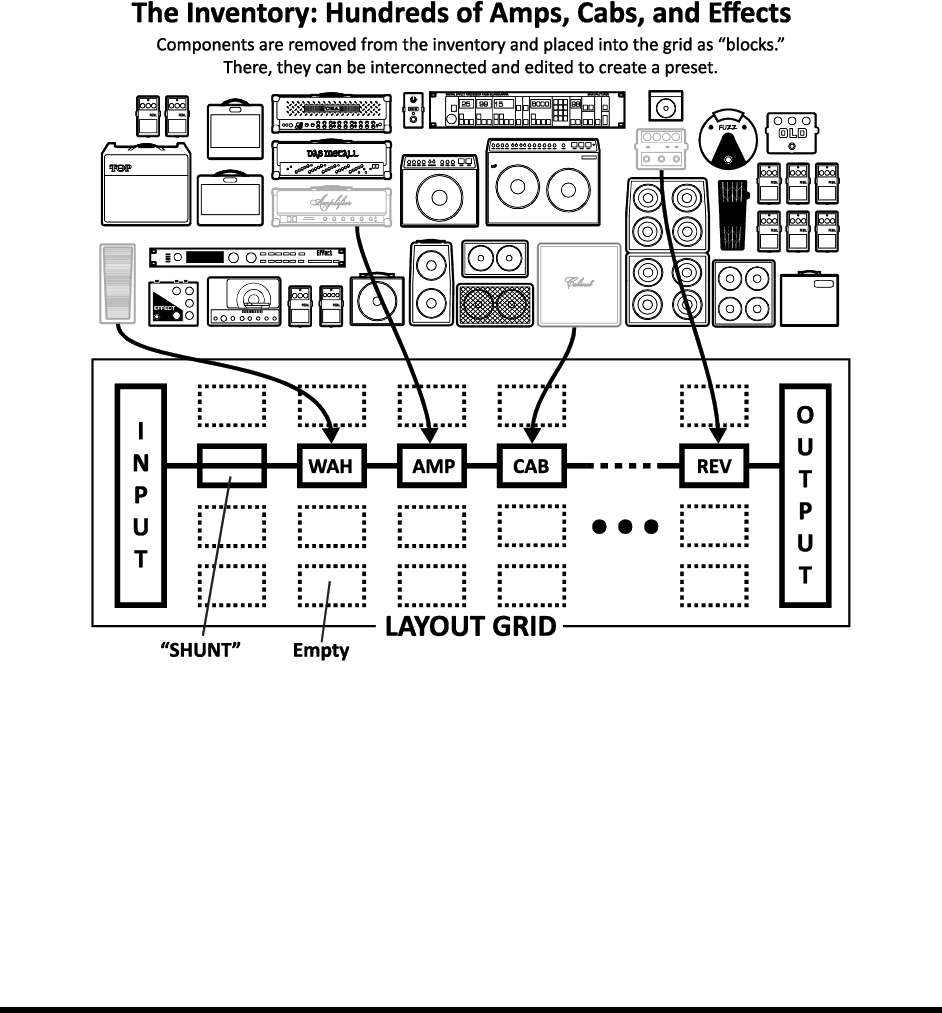
Axe-Fx II presets are created by selecting componentslike amps, cabs, or effectsfrom an inventory, and placing
them into the slots of grid.As with their real-world components, blocks must be connected
together using virtual ones in this case. Blocks in adjacent columns may be connected directly together,
with splits and merges as needed. Passive carry signal through otherwise empty grid spaces.
Figure 1-1 The Inventory/Grid Concept
(Note: Seven
The figure above presents a stylized example of an Axe-Fx II preset. The INPUT is routed through a SHUNT to feed a
. (The shunt has no effect on the sound and is shown only to introduce the concept of its use.) The
WAH block is connected to which in turn feeds
The size of a preset is limited only by the grid structure, block inventory, and total processing power .
that there is enough CPU power to allow large and complex creations.

INTRODUCTION
Doc v3.04 7
The subject of creating and modifying presets on the grid is covered in detail in section 4: Basic Operation and
Editing (p.27). The inventory of blocks available to every Axe-Fx II preset is listed below:
Amp (×2)
Filter (×4)
Mixer (×2)
Reverb (×2)
Cab (×2)
Feedback Return
Multiband Compressor (×2)
Ring Modulator
Chorus (×2)
Feedback Send
Multi Delay (×2)
Rotary (×2)
Compressor (×2)
Flanger (×2)
Tremolo/Panner (×2)
2-Voice Synth (×2)
Crossover (×2)
Formant
Parametric EQ (×4)
Vocoder
Delay (×2)
Gate/Expander (×2)
Phaser (×2)
Volume/Pan (×4)
Drive (×2)
Graphic EQ (×4)
Pitch Shifter (×2)
Wahwah (×2)
Effects Loop
Looper
Quad Chorus (×2)
Shunt (36)
Enhancer
Megatap Delay
Resonator (×2)
In addition to the blocks listed above, each preset also includes a programmable Input Noise Gate (p. 110) and an
Output Mixer (p. 111). Of course, having components on the grid is just the beginning. Every block can be edited,
with parameters representing all the basic knobs you would expect to find, and advanced menus for deep control.
See the Effects Guide (p. 39) for more detail on blocks and their parameters.
A powerful new feature of the Axe-Fx II allows you to maintain your own collection of Global Blocks (p.114) that
can be inserted and then kept synchronized across multiple presets.
Twenty-two different Modifiers & Controllers (p. 119) are provided to automate or remotely control various
parameters in any preset. These are LFO 1, LFO 2, ADSR 1, ADSR 2, Envelope, Pitch Detector, Sequencer, Manual
A/B/C/D, and External 112.
1.3 Connectivity and More
The grid and effects inventory may be the centerpiece of the Axe-Fx II, but it is the powerful connectivity and
companion features that allow the system to be so much to so many. The hardware itself is covered in Section 2:
Overview (p. 8), which also details the new USB features for Computer Integration (p. 12). Rig design is covered in
Section 3: Connections (p. 15), where many diagrams are included.
Configuration and connectivity on the Axe-Fx II are managed with a number of user-specifiable options, listed and
described in Section 8: Global Parameters (p. 128), and Section 9: Input/Output Parameters (p. 130). Meanwhile,
Section 10: Utilities (p. 137) can fill out your understanding of functions related to general use and maintenance.
Finally, Sections 11 through 14 cover the Tuner (p. 140) and Tempo (p.141) functions, plus the basics of Backing
Up and Restoring (p. 143) and Firmware Updates (p. 146).
My Head Hertz… 1.3.1
As even this brief introduction demonstrates, the Axe-Fx II contains an entire world of diverse possibilities. Only
the precise terminology of audio engineering allows comparably diverse communities of casual and professional
players, producers, engineers, and others to use and enjoy this powerful device. In case you want to familiarize
yourself with specific audio terms or come up to speed on other topics, the Appendix is filled with useful material,
including a Glossary (p. 161). It is followed by Specifications (p. 170) and your Warranty (p. 168).
OVERVIEW
8 Doc v3.04
2 Overview
The Axe-Fx II has a simple hardware interface with clearly labeled controls and jacks.
Review the following to familiarize yourself with the hardware features of the unit.
2.1 The Front Panel
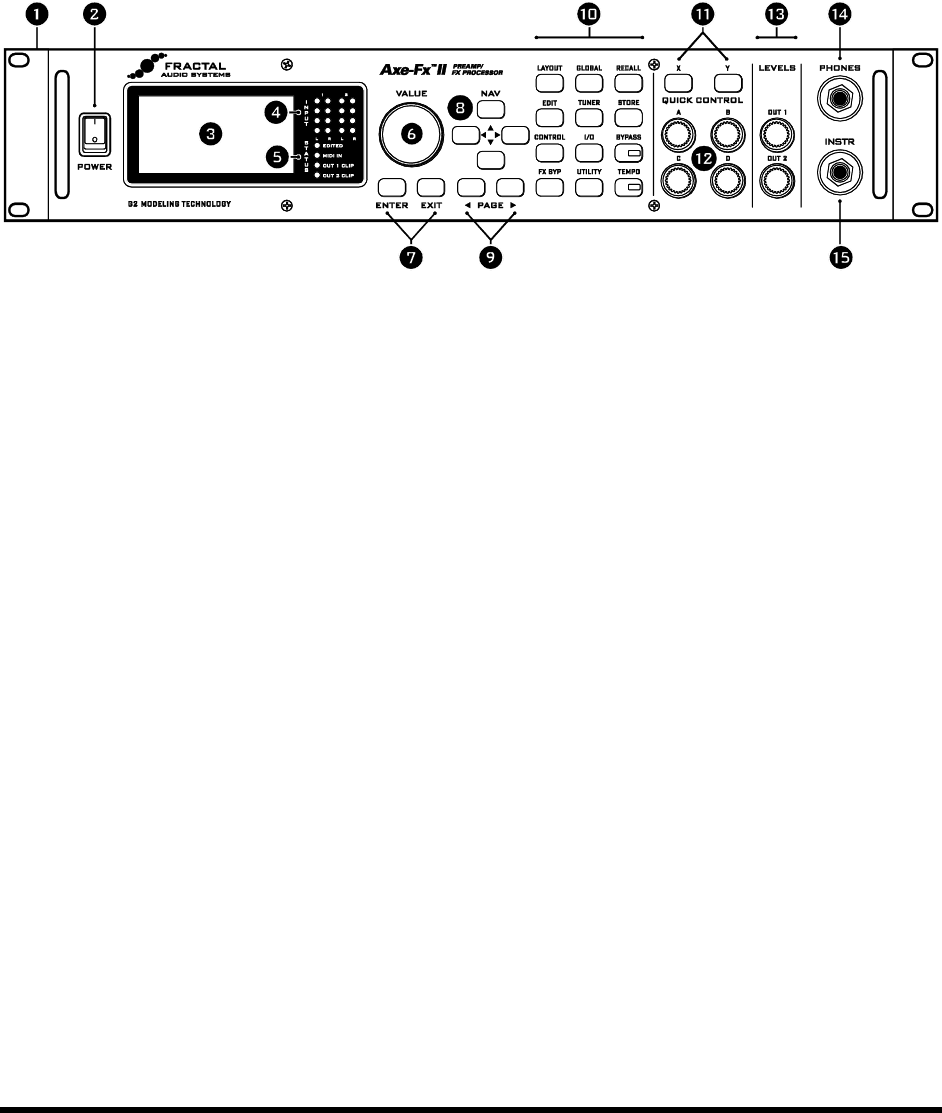
Figure 2-1
1. The Axe-Fx II is housed in a powder-coated steel enclosure with an anodized aluminum faceplate.
Dual front handles allow easy rack mounting and removal.
2. The POWER Switch turns the unit on or off.
3. The 160 × 80 pixel LCD is where all menu and function screens are displayed.
4. INPUT 1 and INPUT 2 LED meters display the levels of incoming signals. See p. 15 for more detail.
5. STATUS LEDs communicate important events:
EDITED This LED is lit when any change has been made to the current preset.
MIDI IN This LED is lit while data is received at the MIDI IN port.
CLIP 1, CLIP 2 These flash briefly whenever the signal level at the corresponding output
causes the D/A converter to clip. Section 3.1 on p. 15 has more information on Setting Levels.
6. In RECALL mode, the VALUE wheel selects and loads presets as it is turned.
In edit or menu screens, it changes the value of the selected parameter.
7. The ENTER button executes commands, commits changes, accesses sub-menus, and more.
EXIT works for cancel, escape, and various other functions.
8. In RECALL mode, the four NAV buttons select and load presets. Up = +1; Down = -1; Left=-10; Right =+10.
In edit or menu screens, these are used to select between on-screen parameters or options.
9. The PAGE buttons step through menu pages, shown as tabs at the top of the display.

OVERVIEW
Doc v3.04 9
10. The 12 main front panel menu/function buttons are listed below.
LAYOUT This menu contains four pages: EDIT, MOVE, GATE, and MIX.
EDIT contains the grid, where presets are created by inserting blocks and cables (p. 27).
MOVE has various utilities for moving preset components on the grid (p. 32).
INPUT/GTE contains parameters for the Noise Gate and Instrument input impedance (p. 110).
OUTPUT page contains a mixer for overall level control of a preset (p. 111).
EDIT Select any block on the layout grid and press this button to open its EDIT menu.
Press repeatedly to cycle through the EDIT menus of all blocks in the preset (top-to-bottom, left-to-right).
CONTROL This menu contains pages for seven of the internal controllers available to every preset,
plus a Modifiers overview screen. See Modifiers & Controllers on p. 119 for details.
FX BYPASS This button toggles the bypass state of the currently selected block (p. 37).
Double click BYPASS in any block EDIT menu to access the SAVE/LOAD GLOBAL BLOCKS screen (p. 114).
GLOBAL This menu contains four pages: CONFIG, OUT1, OUT2, and SCALES. See p. 128 for details.
CONFIG contains parameters that globally affect the sound of all presets.
OUT1 and OUT2 each hold a 10-band graphic EQ and master GAIN control for the given outputs.
SCALES allows the creation of custom harmonies for use with the pitch shifter block.
TUNER Engages the tuner (p. 140) and displays its menu. Press EXIT or RECALL to close.
I/O Contains five pages used to configure the various input and output options of the Axe-Fx II.
See p. 130 for details.
INPUT is used to set input levels for front and rear jacks.
AUDIO contains various settings and switches used to configure the signal path.
MIDI contains settings related to basic MIDI connectivity, preset changes, and SysEx.
CONTROL is where MIDI CC numbers or the pedal jack are assigned globally to various functions.
PEDAL allows you to configure the onboard pedal jack for various types of external hardware.
UTILITY This menu contains various utility functions. See p. 137 for details.
RECALL Enters RECALL mode, the main operating mode for use during musical performance.
The Axe-Fx II always defaults to RECALL mode when you power it on.
STORE Enters the STORE menu where you can save, rename, or swap presets. See p. 37 for details.
BYPASS Bypasses the Axe-Fx II, routing the output of the A/D directly to the input of the D/A
converters, defeating all processing functions and lighting the BYPASS LED. Press again to un-bypass.
Double-clicking the BYPASS button in any block EDIT menu initializes that block to default settings.
TEMPO Flashes the current tempo on its built-in LED. You can also tap this button once to enter the
TEMPO menu, or two or more times to set a new tempo. The tempo can also be entered using a remote
switch or set via MIDI. See p. 141 for more information about Axe-Fx II tempo control.
11. X/Y On the Axe-Fx II, many effects offer two sets of parameters, called X and Y. These buttons select
between them while editing. The X/Y state can be then switched remotely during performance for dual
function blocks (see p. 36). Outside of editing, X and Y can be individually set up to instantly display your
choice of EDIT menus for quick adjustment.
OVERVIEW
10 Doc v3.04
12. QUICK CONTROL The four knobs marked A, B, C, and D each serve two different functions.
While editing, they are used like the VALUE wheel to adjust parameters. Mapping is dynamic
and indicated by a small A,B,C, or D next to the onscreen parameter. See p. 36 for details.
In RECALL mode, these control of
assigned parameters right from the front panel. See p. 126.
13. OUTPUT LEVEL These controls set the output levels of See
section 3.1 on p. 15 for information on setting levels. OUTPUT 1 also controls headphone jack levels.
14. HEADPHONES Connect stereo headphones here to monitor OUTPUT 1 L+R.
15. INSTR Plug your instrument into this Instrument Input Jack, designed specifically for use with
electric, acoustic, and bass guitars. Plugging a line-level device into this input may cause clipping of the
input amplifier and is not recommended.
2.2 The Rear Panel
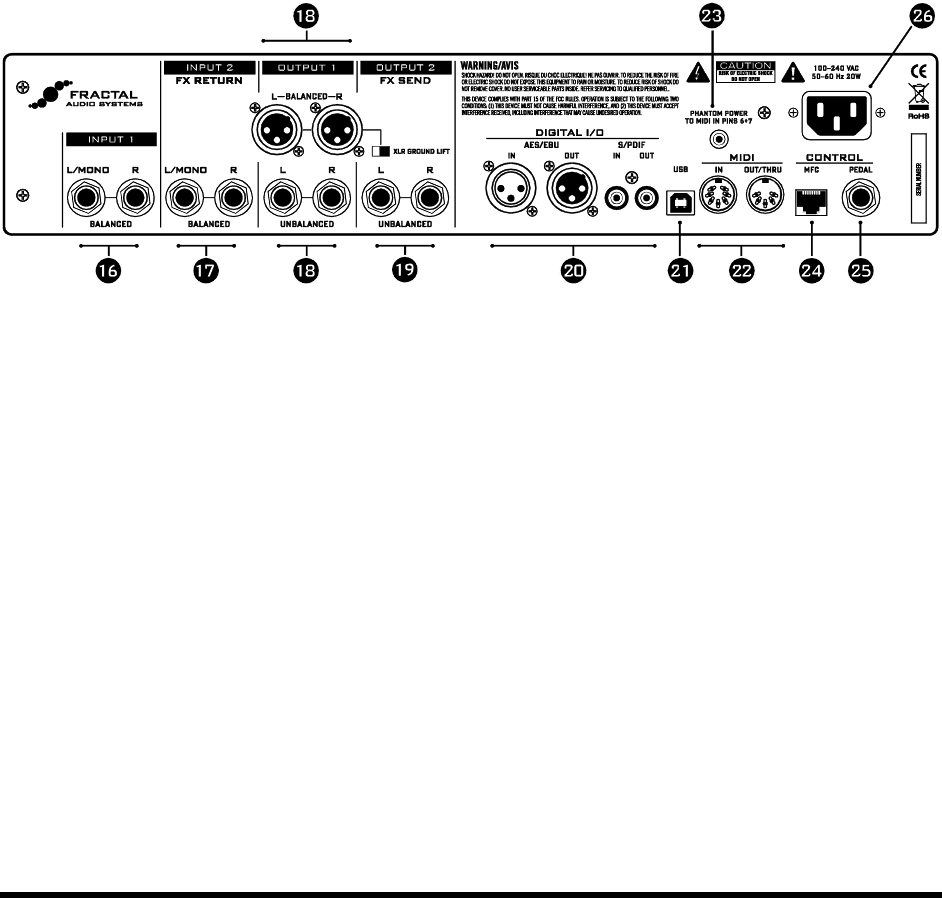
Figure 2-2
16. INPUT 1 Left/Mono and Right, Balanced (1/4” Tip-Ring-Sleeve) Jacks Connect line-level input
sources to these jacks, being sure to set the INPUT 1 LEFT SELECT to REAR in the I/O menu (p. 130)
17. INPUT 2 – Left/Mono and Right, Balanced (1/4” Tip-Ring-Sleeve) Jacks FX RETURN
Connect to the output(s) of outboard equipment when using the FX Loop block (p. 64). You can also use
this as an auxiliary input to any point in the signal chain of any preset using the FX Loop block.
18. OUTPUT 1 – This section includes the Left and Right Output 1 unbalanced (1/4”) Jacks, Balanced
(XLR) jacks, and XLR Ground Lift Switch. The main processed output of the Axe-Fx II appears at these
jacks. Use the XLR jacks to connect to balanced inputs, employing the provided ground lift switch if
necessary to reduce unwanted 60-cycle hum. Use the 1/4
inputs, such as those on some guitar power amps or other devices.
19. OUTPUT 2 – Left/Mono and Right, Unbalanced (1/4”) Jacks FX SEND The output from
Connect to the inputs(s) of outboard equipment when using the FX Loop block (p. 64). You can also use
this as an auxiliary output to tap any point of the signal chain for any preset using the FX Loop block.
New Humbusterfeatured on Left and Right Output 1 and Output 2 unbalanced (1/4”)
Jacks uses a simple TRS-to-TS cable to significantly reduce ground hum. See Section 16.9 on p. 156.

OVERVIEW
Doc v3.04 11
20. DIGITAL I/O This includes both S/PDIF and AES/EBU format Input and Output Jacks. Only one or
the other pair of jacks can be active at any time depending on the setting of the SPDIF/AES SELECT
parameter in the I/O:AUDIO menu (p. 130). These jacks transmit and receive at a fixed rate of 48k.
21. USB This provides the means to connect the Axe-Fx II to a PC or Mac, enabling a great range of two-
way audio and MIDI capabilities. See section 2.3 on p.12 for details. Like the digital jacks, USB Audio
operates at 48k.
22. MIDI IN and MIDI OUT/THRU jacks The Axe-Fx II has a MIDI IN port for connecting a legacy
MIDI Controller or Interface, plus a MIDI Out/Thru combo jack that transmits or forwards MIDI signals to
other devices.
23. MIDI PHANTOM POWER Jack When using the MFC-101 MIDI Foot Controller over a 7-pin MIDI
cable, connect the supplied AC Adapter to this jack to provide power to the floor unit via pins 6+7. Some
other MIDI controllers also support the use of phantom power on pins 6+7.
24. MFC Control Port This RJ-45 jack allows you to use a standard CAT5/Ethernet (non-crossover) cable to
connect the Axe-Fx II and a Fractal Audio Systems MFC-101 MIDI Foot Controller. The cable used to
connect the Axe-Fx II and MFC-101 carries two-way data communication and phantom power without
Warning! Connect the MFC jack only to the EXPANSION port of a Fractal Audio Systems
MFC-101. Do not connect to an Ethernet device such as a computer, hub, switch, or router, as
damage to one or both units could occur!
25. PEDAL Jack This jack is used to connect an external expression pedal or switch to control various
functions of the Axe-Fx II. See p. 16 for more information on this function.
26. Main Power Input Insert the supplied power cable and connect the other end to a grounded AC power
receptacle.
OVERVIEW
12 Doc v3.04
2.3 Computer Integration
USB provides the Axe-
Minimum Requirements 2.3.1
Windows Minimum Requirements:
OS: Windows XP SP3 (x86 or x64), Vista SP2 (x86 or x64), Windows 7 SP1 (x86 or x64).
CPU: Intel Core 2 @1.6 GHz or better, or AMD equivalent.
Memory: 1GB minimum.
USB 2.0 support required
Mac Minimum Requirements:
OS X: 10.5.7 or later
CPU: Intel Processor
Memory: 512MB minimum
USB 2.0 Support required
Software Installation 2.3.2
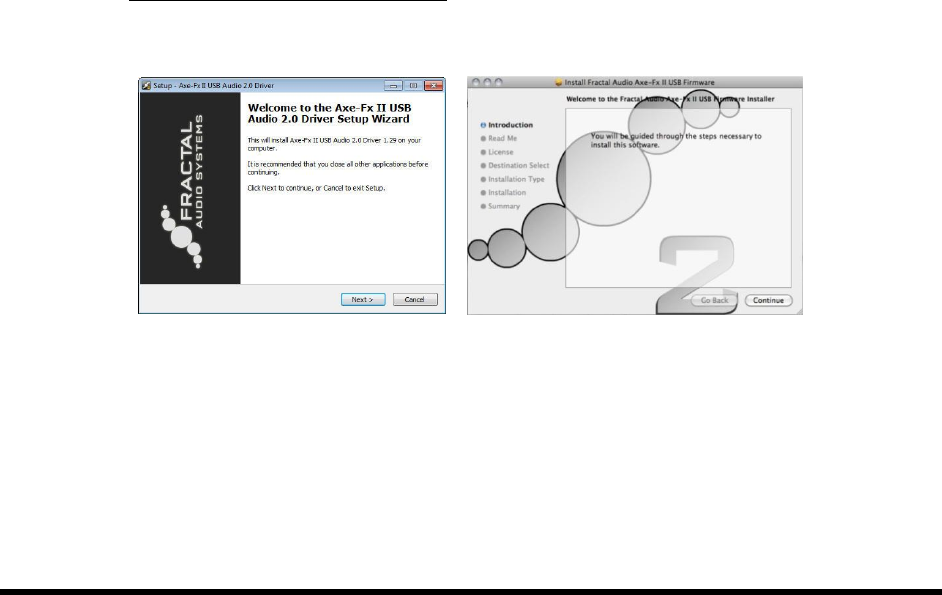
Although the Axe-Fx II drivers are fully class-compliant, software installation is still required on all platforms.
Step-by-step instructions are included with the installer. Both Mac and Windows versions can be downloaded from
our web site at http://www.fractalaudio.com/support.
Figure 2-3 Windows and Mac driver installers
OVERVIEW
Doc v3.04 13
Capabilities 2.3.3
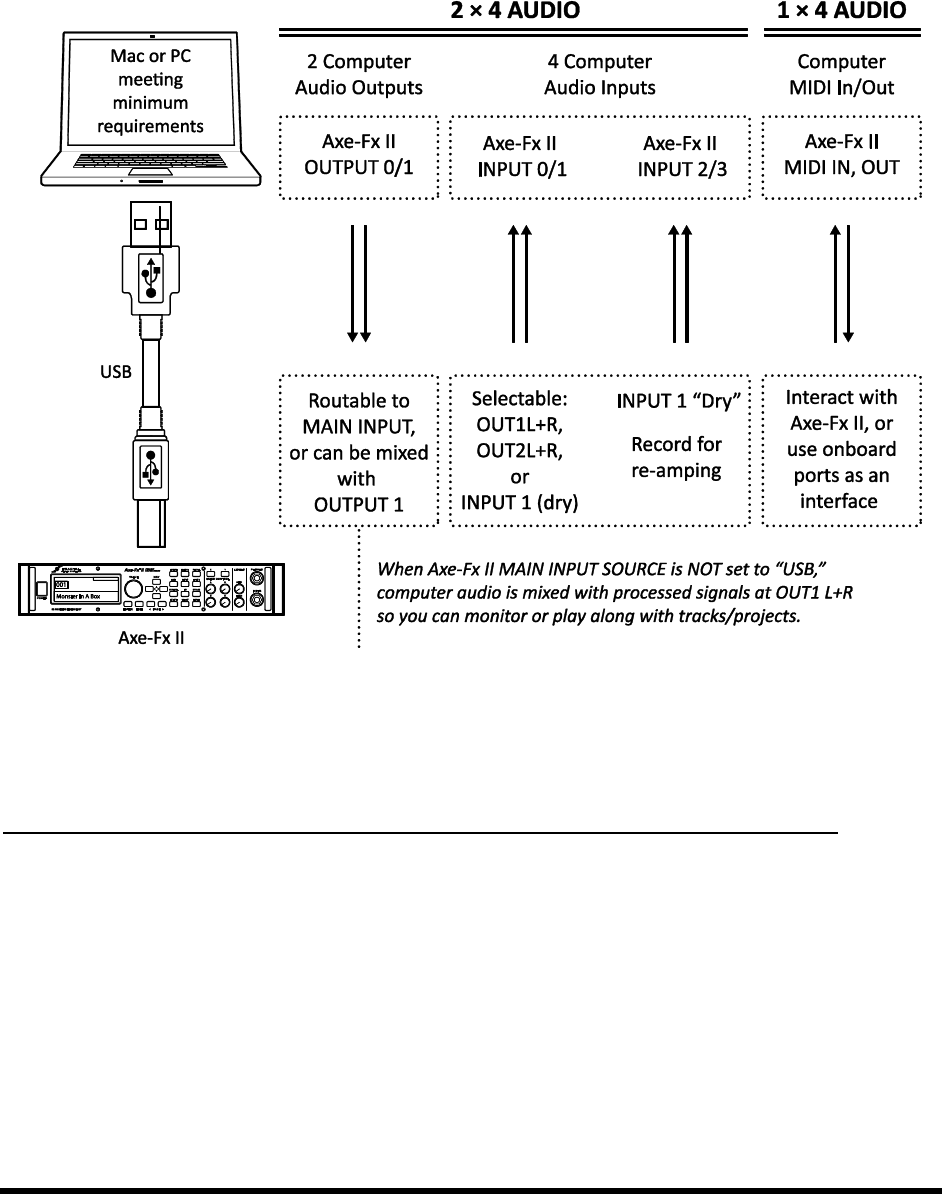
The USB 2.0 class-compliant driver provides two channels of 48k/24-bit audio from the computer to the Axe-Fx II,
up to four channels from the Axe-Fx II to the computer, and two-way MIDI-over-USB. All features can be used
simultaneously.
Figure 2-4 USB Features
Audio and MIDI ports (shown in the lower half of the dotted-outline box above) have different names on different
Two Simultaneous Channels of 48k/24-bit Audio from the Computer to the Axe-Fx II
Two outputs, typically called OUT 0 and OUT 1, allow audio to be sent from the computer to the Axe-Fx II where it
can be mixed with processed signal at the main outputs or routed through onboard effects.
To pass unprocessed computer audio through the Axe-Fx II, set the MAIN INPUT SELECT (p. 130) to
This allows you, for instance, to play along with backing tracks or use
the Axe-
To process computer audio with the onboard effects, set the MAIN INPUT SELECT to USB
arrive at the grid INPUT. This allows you, for instance, to re-amp a dry track, or use the Axe-Fx II to process other
audio or plugin tracks. It is possible to simultaneously record the processed output on the computer using the Axe-
Fx II audio inputs (0/1).

OVERVIEW
14 Doc v3.04
Four Simultaneous Channels of 48k/24-bit Audio from the Axe-Fx II to the Computer
Four outputs, typically called IN 0, IN 1, IN 2, and IN 3, allow audio to be routed from the Axe-Fx II to the computer,
recorded, processed, or monitored.
The signal source for the first pair of outputs is selectable. The USB/DIGI OUT SOURCE parameter of the I/O:AUDIO
menu (p. 130) determines what is sent to AXE-FX II ASIO DRIVER IN 0/1 inputs.
Selecting OUTPUT 1 L+R sends the main processed output of the Axe-Fx II to the computer.
The same signal is, of course, still routed normally to the rear XLR and unbalanced jacks.
Selecting OUTPUT 2 L+R sends the output of the FX loop block (p. 64) to the computer.
Selecting MAIN INPUT sends the source selected under MAIN INPUT SELECT (p. 130) to the computer.
The same result can be obtained by -29).
Switching INPUT 1 LEFT SELECT (p. 130line level outputs of a
microphone preamp, keyboard, or any other sound source via the rear INPUT 1 L/R jacks.
The second pair of channels, available only on systems supporting USB 2.0 (see Minimum Requirements above),
s the
unprocessed signal from the main input (i.e. the front INSTR jack or the rear INPUT1 L/MONO jack,
depending on both what is selected under INPUT 1 LEFT SELECT (p. 130)) and the rear INPUT1 R jack).
Warning: As with all input/output systems, certain routing configurations can result in audio feedback loops. Please exercise
care not to route active outputs to active inputs, or damage could occur to connected amps, speakers, or your hearing.
Two-way High-Speed MIDI Communication
MIDI enables the Axe-Fx II and the computer to communicate and synchronize, with capabilities for program
change, parameter automation, tempo sync, SysEx dump/receive, firmware update, and more. MIDI over USB is
1
, and allows two-way communication with the computer over a single
cable.
Axe-Edit, our free companion editor/librarian, can now be used without a 3rd-party MIDI Interface or drivers, a
cause of common problems.
1
The transfer rate for the new connection is roughly faster than standard MIDI. Keep in mind that new preset, bank, and firmware sizes have
also increased considerably. Despite this, there is a net increase in the speed of computer interaction when compared to previous products.
CONNECTIONS
Doc v3.04 15
3 Connections
Before making connections, be sure to turn down the volume of your amps and switch off all power. Take
extreme care NEVER to connect the SPEAKER outputs of an amplifier to any jack on the Axe-Fx II as this will
3.1 Setting Levels
For the Axe-Fx II to work properly, it is important that input and
output levels be configured correctly.
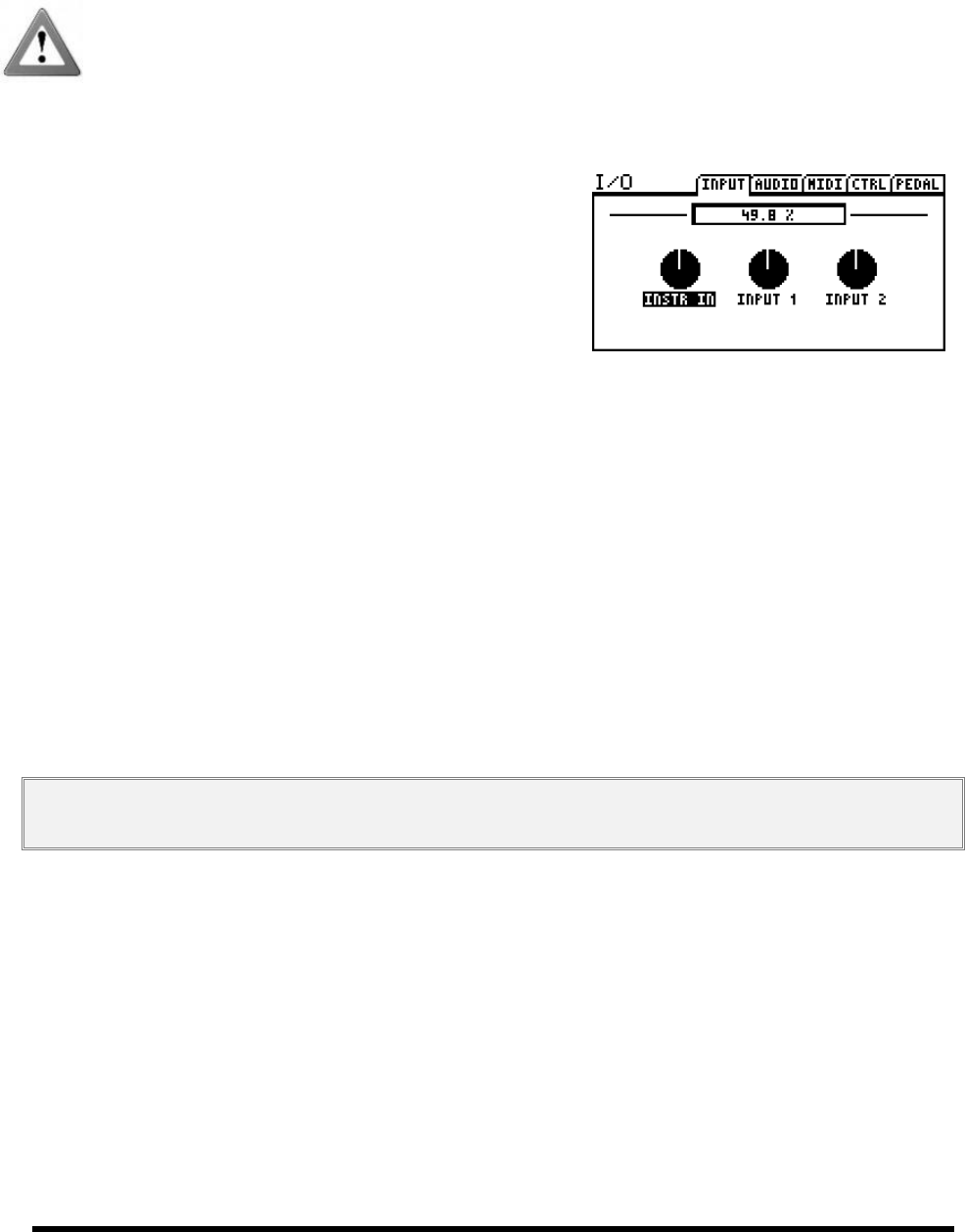
INPUT LEVELS -
I/O menu. Adjust according to the level of input source material
meters. The red LED lights at -6 dB (below clipping). Some sources
may not reach ideal levels but can still be used with no problems.
All inputs are normalized, allowing the Axe-Fx II to operate with unity gain irrespective of the trim settings. The
sole purpose of the input trims is to optimize A/D drive level for the best signal-to-noise ratio and distortion
performance. Each input has its own dedicated A/D. The INSTR input jack parallels the rear inputs for improved
signal-to-noise performance.
The front panel OUTPUT LEVEL1/2 knobs independently control the volumes at these rear panel jacks.
Output 1 also adjusts the headphones level. Optimal levels will depend on what the Axe-Fx II is connected to.
To operate with unity gain, simply set the Output Level knobs to maximum. If you then route shunts from the input
to the output you will get out exactly what you put in.
If levels result in clipping of attached equipment, turn down the front panel OUTPUT LEVEL1/2 knobs. At
the minimum setting, volume is reduced but not silent.
NOTE: The Axe-Fx II uses digital potentiometers to adjust the output levels. These actually contain hundreds of tiny resistors
and switches. As such, some noise may be generated while adjusting the knobs.
If the OUT1 or OUT2 CLIP LEDS light while you use the Axe-Fx II, the problem is not trim settings but levels
in the digital domain. Chances are the effects in your presetmany of which can increase gain significantlyare
simply too hot. Reduce the output of one or more blocks (the AMP or CAB might be a natural starting point) or
111).
When you need to adjust the level of all of your presets at once because some are clipping, you can also use the
GAIN slider on the OUT1 or OUT2 global graphic equalizer to make a global adjustment.
Clipping can also be caused if you have increased the BOOST/PAD setting for one of the converters and can be
reduced if you adjust this setting to be closer to 0 dB (see p. 130). Block or preset adjustment may still be required.

CONNECTIONS
16 Doc v3.04
3.2 The PEDAL Jack
The onboard PEDAL jack of the Axe-Fx II allows you to connect an expression pedal or footswitch for controlling
sound functions. To use a pedal or switch at this jack, you must first configure its TYPE and, for continuous-type
expression pedals, perform a simple calibration routine. See section 9.5 on p.136 for details on how to use the
PEDAL page of the I/O menu.
Any type of external switch can be used, as long as its contacts make and break the connection between tip and
sleeve on a regular 1/4 resistance taper and max resistance
between 10k and 100k, and must be used with Tip-Ring-Sleeve cables.
set up
a section 7: Modifiers & Controllers on p. 119, with a section specifically
about External Controllers on p. 127.
3.3 System Parameters
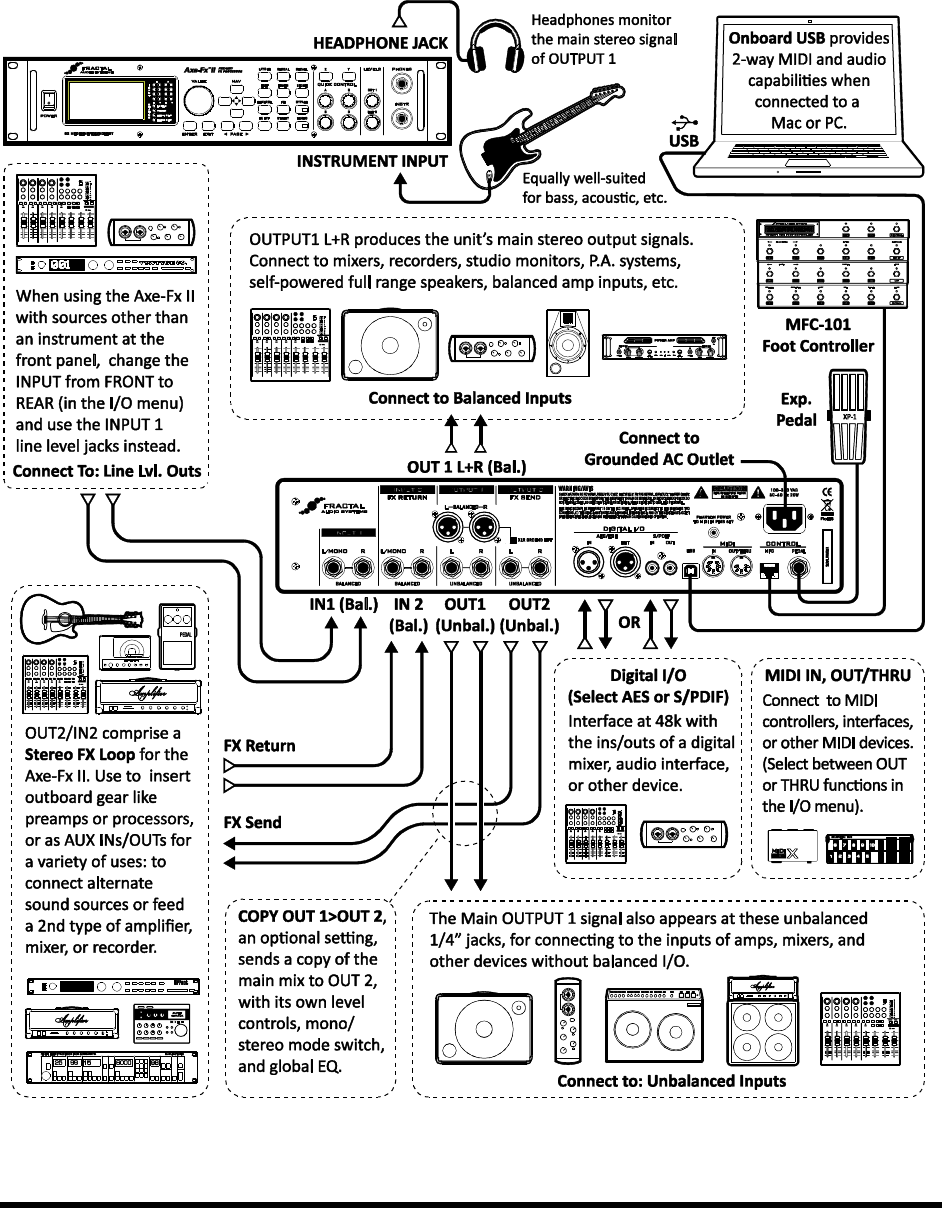
As you can see, the Axe-Fx II is equipped with a flexible array of input/output connector jacks. The diagrams above
cover the layout of the hardware, but seeing a few complete setups can also be helpful as you decide how to
connect other equipment. The following section illustrates some typical setups, some of which require that certain
real guitar cabs are used, the global
In addition to the short introductions provided with the diagrams below, system parameters are detailed in section
8: Global Parameters, and section 9: Input/Output Parameters. In the PDF version of this manual, available on our
, outputs, and the effects of system
parameters.
Many of the basic setups shown here can be easily combined or expanded. Mono setups might be made stereo or
vice versa. The MFC-101 MIDI Foot controller can be added for intelligent remote control. Computer connectivity,
for example, can be added to any other setup, enabling you to use Axe-Edit™, our free software Editor/Librarian
for the Axe-Fx II. Countless combinations are possible.
CONNECTIONS
18 Doc v3.04
Axe-Fx II into Self-Powered Full-Range Speakers 3.4.1
COMPONENTS:
Guitar
Axe-Fx II
Self-Powered Full Range
Speaker(s)
Headphones (opt.)
Global Settings: Default I/O Settings: Default
Notes: With its built-in amp and speaker simulations, the Axe-Fx II can be played directly into P.A. or other self-
amplified, full-range, flat-response (FRFR) speakers. Externally amplified (passive) FRFR speakers are equally well-
suited. This might just as easily be a Front-of-House system with floor or in-ear monitors. In this configuration, the
Axe-Fx II creates all aspects of the end-to-end guitar chain for the ultimate in tonal flexibilitystompboxes, amps,
cabs, post effects, and more. Optional headphones provide an alternate way to listen when cabs are not present or
are switched off. Balanced (XLR) or unbalanced (1/4can be used to connect the Axe-Fx II, with the
former providing the advantage that less noise will be picked up over longer cable runs. If only one speaker is used,
set OUT 1 MODE in the I/O menu (p.130) to one of the mono options.
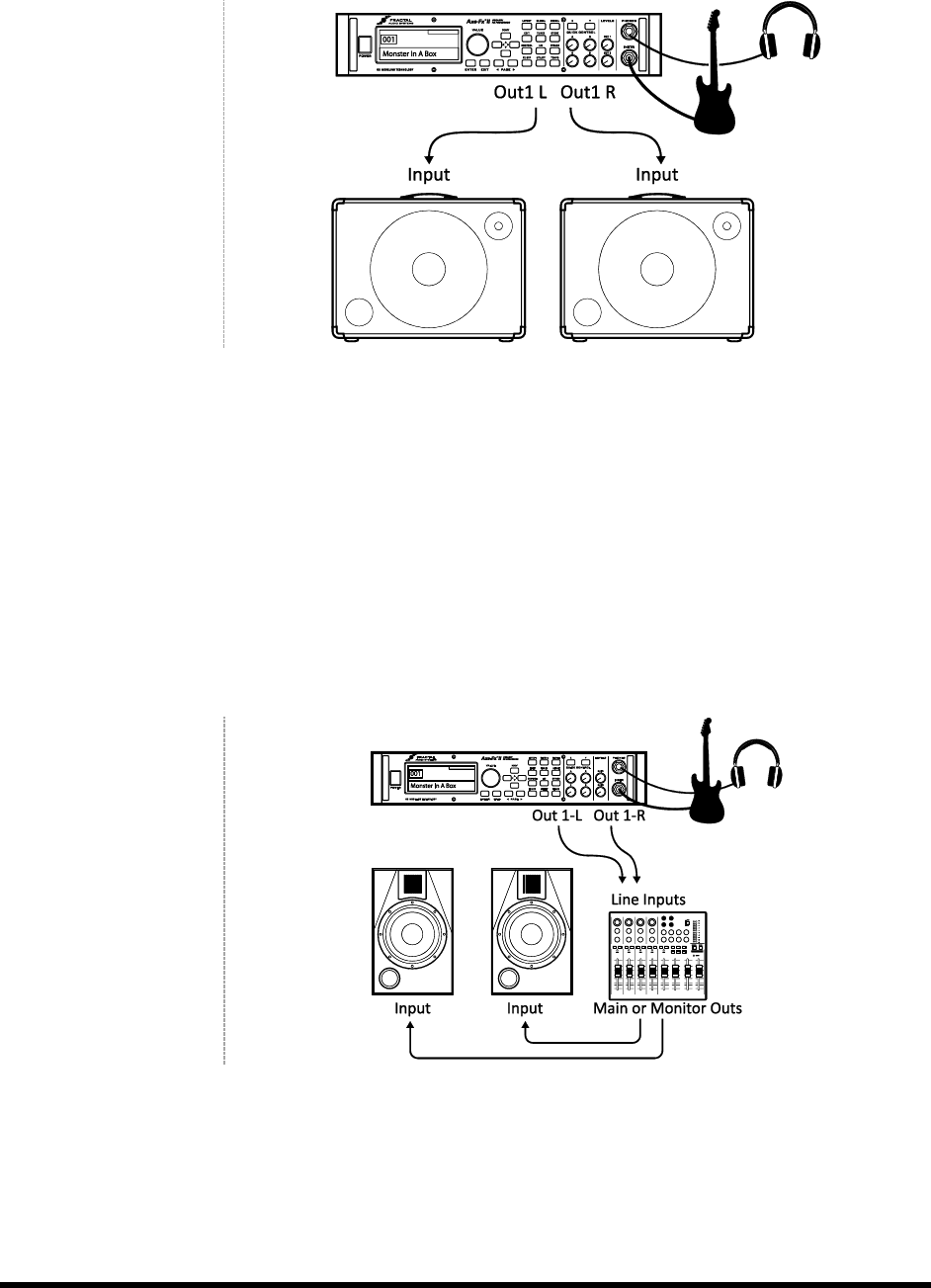
Axe-Fx II into Studio Monitors 3.4.2
COMPONENTS:
Guitar
Axe-Fx II
Mixer (opt.)
Studio Monitors
Headphones (opt.)
Global Settings: Default I/O Settings: Default
Notes: This is essentially identical to the diagram shown above for Self-Powered FRFR speakers. The point to take
away here is that any system intended for full-range monitoring or sound reinforcementfrom small computer
speakers to the P.A. at a huge arenarepresents a suitable counterpart to the capabilities of the Axe-Fx II.
CONNECTIONS
Doc v3.04 19
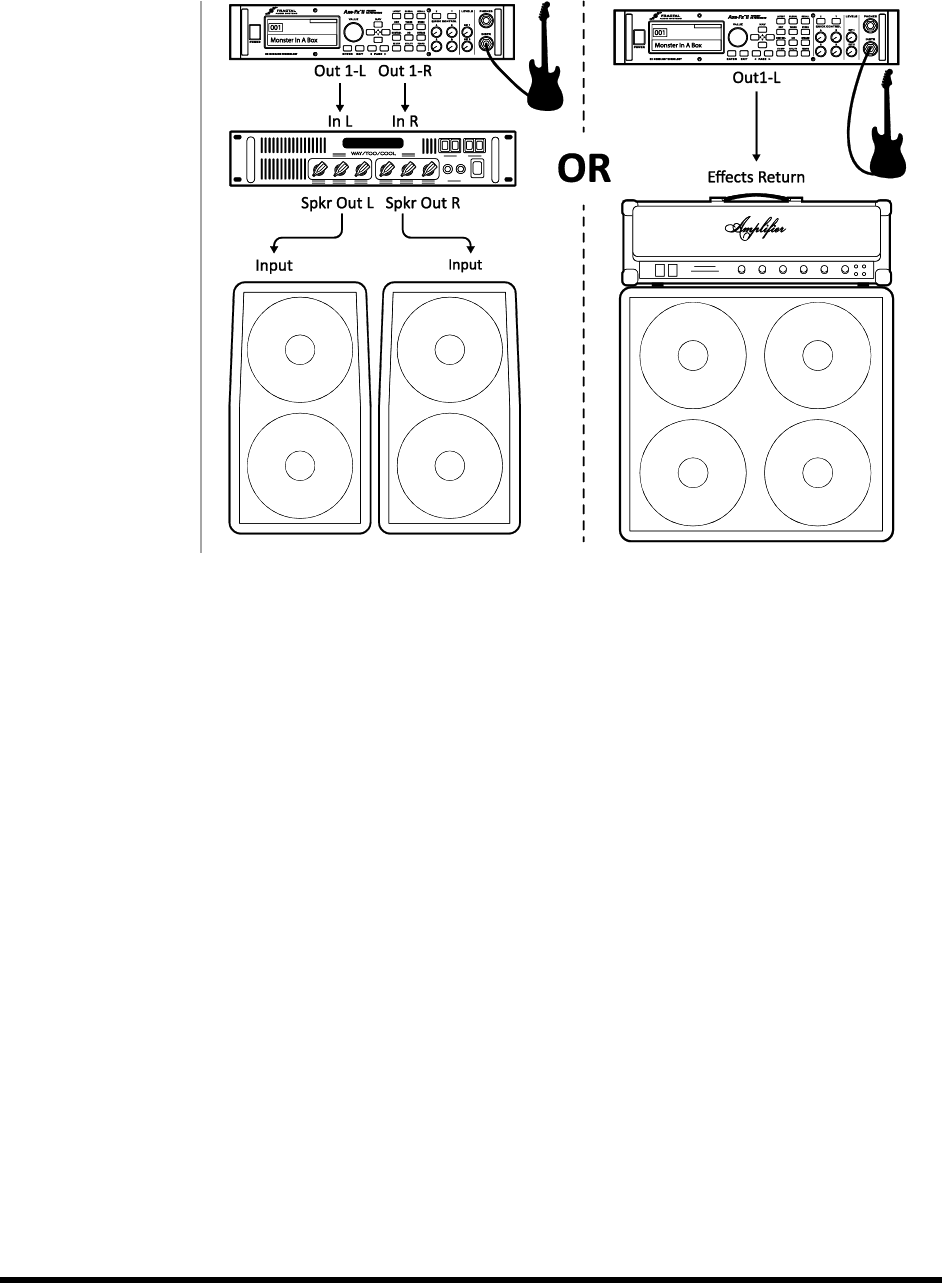
Axe-Fx II with Power Amp and Guitar Speakers 3.4.3
COMPONENTS:
Guitar
Axe-Fx II
Power Amp and
Guitar Speakers
-OR-
Amp Head/Combo
with FX RETURN jack
(power amp input)
and Guitar Speakers
`
Global Settings: Power Amp Simulation ON or OFF (see below), Speaker Cabinet Simulation OFF
I/O Settings: Set OUT1 MODE (p.130) as required for stereo or mono.
Notes: Depending on the character of the amplifier being used, Power Amp Simulations may need to be ON or OFF
for this type configuration.
Power Amp simulations should be turned ON when using a - power amp that does not
color the tone or create a pronounced effect on the feel or dynamics. Solid State amps typically fit this bill.
Power Amp simulations turned OFF when using the RETURN of the effects loop of a head or combo amplifier,
that adds noticeable sag/saturation/tonal color.
In either case, it is completely safe and reasonable to try both setting ways to see which you prefer.
Whenever you use the Axe-Fx II with traditional guitar speaker cabinets (whether open back or closed, small or
large, alone or in pairs) it is best to turn Speaker simulations OFF in the CONFIG page of the GLOBAL menu (p. 128).
Guitar speakers differ from full-range speakers in that they are voiced to focus on traditional electric guitar sounds:
mids tend to be prominent, highs rolled off, etc.
In any case, the settings required for this setup are not ideally suited for monitoring through the Axe-Fx II
headphone jack, as what you hear through headphones will not sound like what you will hear through the speakers.
Switching Power Amp and Speaker sims on and off, however, is a simple matter and can be done on an as-needed
basis.
CONNECTIONS
20 Doc v3.04
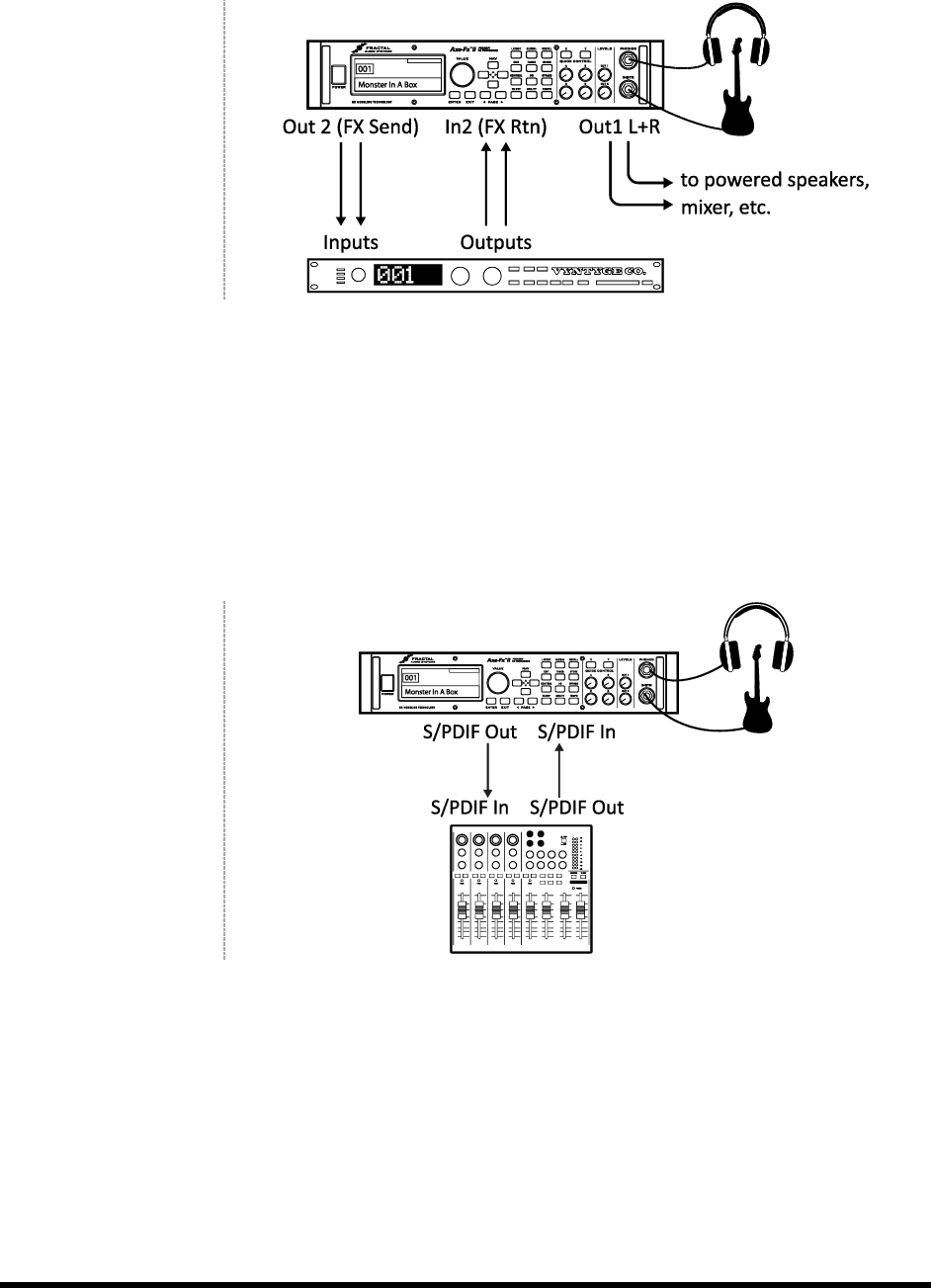
Axe-Fx II Effects Loop 3.4.4
COMPONENTS:
Guitar
Axe-Fx II, connected as
desired to
monitors/mixers/amps/
etc. (see other diagrams
for setup ideas)
Outboard Processor or
Preamp
Global Settings: See Below I/O Settings: See Below
Notes: The Axe-Fx II has a stereo FX Loop that allows you to insert outboard gear such as preamps or processors at
4, and the
Effects Loop block is detailed on page 64. For now, just be aware that custom presets are required for the Effects
Loop to be used. The Effects Loop configuration above is compatible with other setups that do not utilize INPUT2 or
OUTPUT2 for other purposes. Global and I/O options should be set accordingly.
Axe-Fx II Digital Audio Interconnection 3.4.5
COMPONENTS:
Guitar
Axe-Fx II
Mixer, recorder,
computer, etc. with
digital (S/PDIF or
AES/EBU) inputs and/or
outputs
Global Settings: Default I/O Settings: See below.
Notes: The digital connector jacks on the Axe-Fx II allow it to interface with a variety of devices with S/PDIF or
AES/EBU I/O. You can connect to the inputs of a digital mixer, for example, or process the signal from another unit
with a digital output, avoiding an unnecessary D/A:A/D roundtrip. The required clock rate for both input and output
signals is 48k. The onboard digital outs can monitor OUTPUT1, OUTPUT2, or the main INPUT, as specified in USB/DIGI
OUT SOURCE on the AUDIO page of the I/O menu (p. 130). The MAIN INPUT SOURCE must be set to SPDIF/AES for
digital inputs to be connected to the grid. A valid signal must be present at the selected digital input or the Axe-Fx II
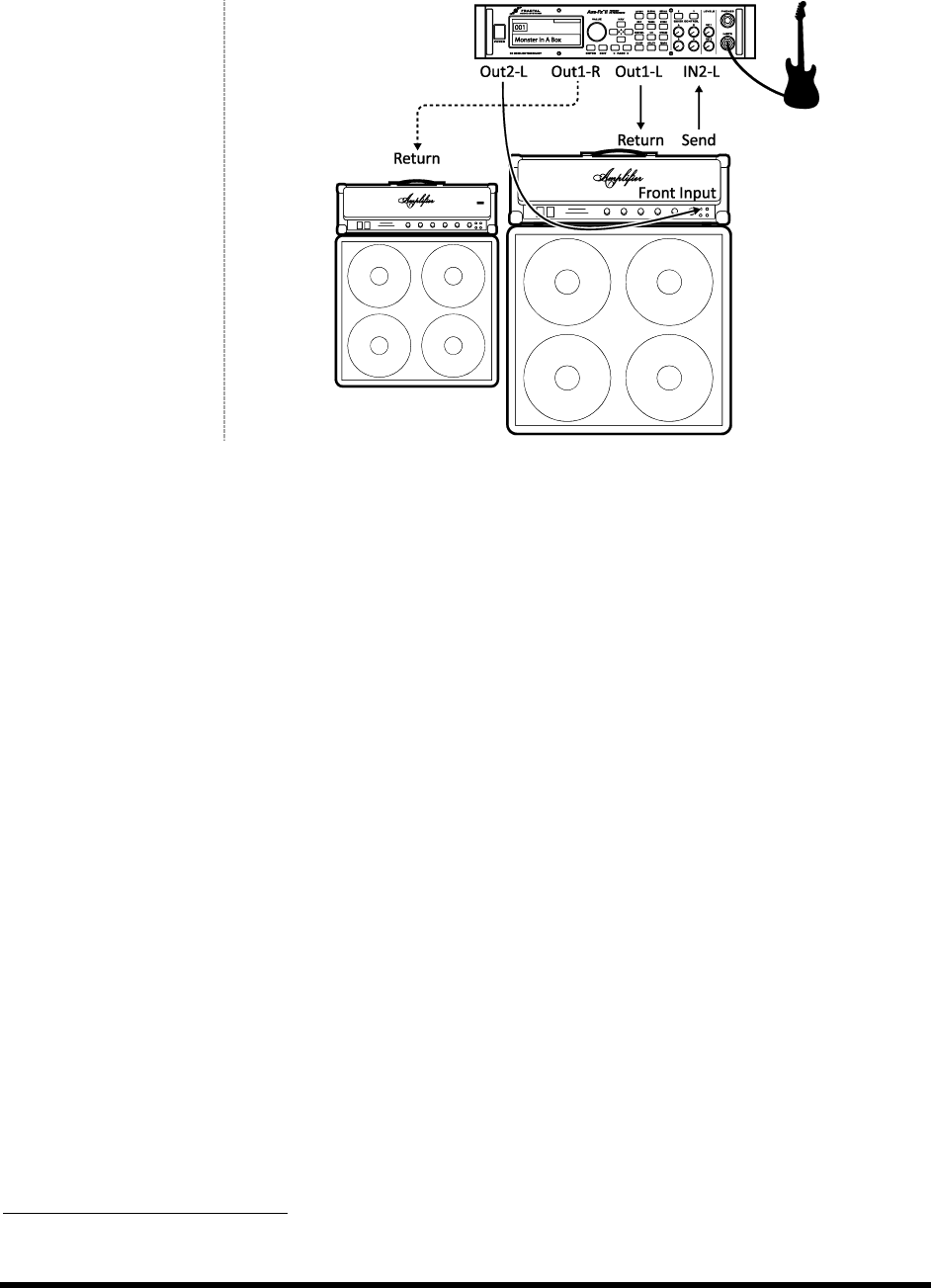
CONNECTIONS
Doc v3.04 21
Axe-Fx II Four Cable Method (“4CM”) 3.4.6
COMPONENTS:
Guitar
Axe-Fx II
Guitar Amp with a series
effects loop1 and built-in
or separate Guitar
Speaker(s).
Second Amp for Stereo
(opt.)
Global Settings: Defaults OK, since special 4CM presets should not have AMP or CAB blocks!
I/O Settings : Set OUT1 MODE as required for stereo or mono. Adjust the two OUTPUT BOOST PAD parameters to
lower the noise floor. See p.130 for details on these parameters. Otherwise, default settings.
Notes: This highly integrated setup places the Axe-
where it replaces traditional stompboxes, and inside its effects loop, where many effects work best. Although a
head and separate cab are shown, some combo amps also offer an onboard effects loop and can be used as well.
To use the 4CM, you will need to create special presets where AMP and CAB blocks are replaced by the FX LOOP
block (p. 64). Signal hits the Axe-Fx II first, into any effects that you want in front of the ampcompressor, drive,
wah, and the like. Then, the t
2 of the Axe-Fx II has an all-new, extremely low-noise design that is well-suited for feeding the front of an amplifier.
, and returns to the grid, where it is then processed by
additional blocksmaybe chorus, delay, reverb, pitch shifter, etc. The final routing is via Axe-Fx II OUT1/L to the
Return (Power Amp Input) of the amplifier and the cabs. To extend this configuration for optional stereo, connect
OUT1/R to the RETURN of a second amplifier, bypassing
The new Boost/Pad functions are designed to help run the OUT1 and OUT 2 D/A converters at optimum levels,
padding their outputs for even lower noise. To find the right setting, adjust either of these controls upwards until
yo
actually hear the noise floor drop as you make these adjustments.
156), featured on all 1/4" outputs of the Axe-Fx II, can also provide a significant
reduction of ground hum when simple stereo-to-mono cables are used to connect to an amp or other device.
The no-amp/no-cab presets required for this setup are not well-suited for headphone monitoring, as what you hear
in the headphones will not include any power amp or speaker simulations.
1
the chain of post-FX-loop blocks should output a wet-only signal.
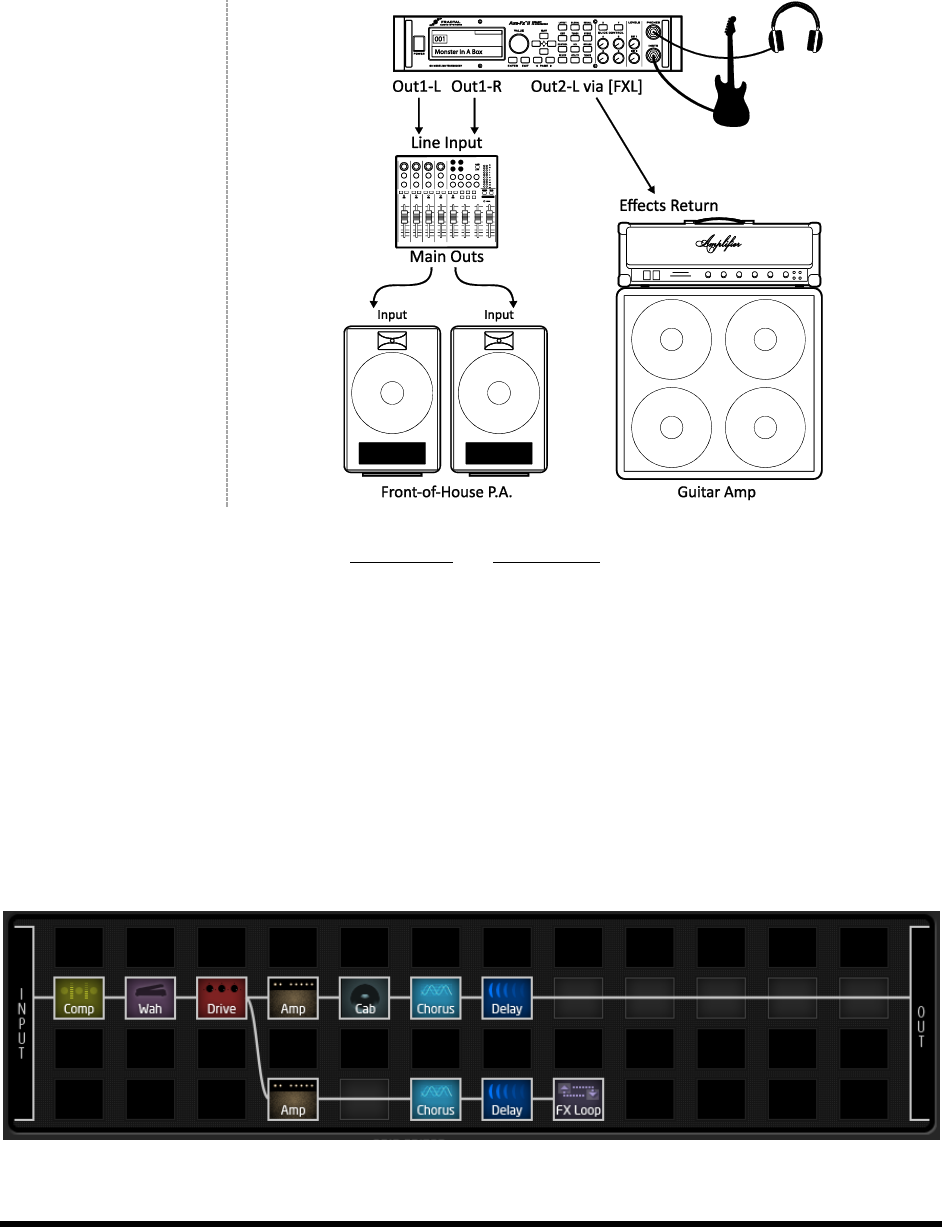
CONNECTIONS
22 Doc v3.04
Direct to FOH plus Real Amps on Stage 3.4.7
COMPONENTS:
Guitar
Axe-Fx II
Guitar Amp
with Guitar Speaker
Front-of-House P.A.
Global Settings: Default I/O Settings: Set OUT1 MODE and OUT 2 MODE as required for stereo or mono
Notes: This setup is similar to others in which the Axe-Fx II is used direct into full-range speakers. Here, however,
--
simulated signal path. The second chain shares some effects with the first (those in front of the amps) but diverges
from there.
differs from the direct chain in several ways. First, its Amp has the SAG parameter set to
to disable power amp simulation in that block only. Since real guitar speakers are being used, no CAB block is
inserted. Duplicates of effects which follow the amp in the direct chain follow. The chain ends in an FX LOOP block,
which is routed via OUTPUT 2 to the FX Return of a tube amp. If a solid state or very neutral tube amp were used,
the SAG of that second AMP block might be set higher for simulated tube power amp tone and dynamics.
An example of the type of preset used in this scenario appears below as it would appear in Axe-Edit.
Figure 3-2 A Dual Chain Preset
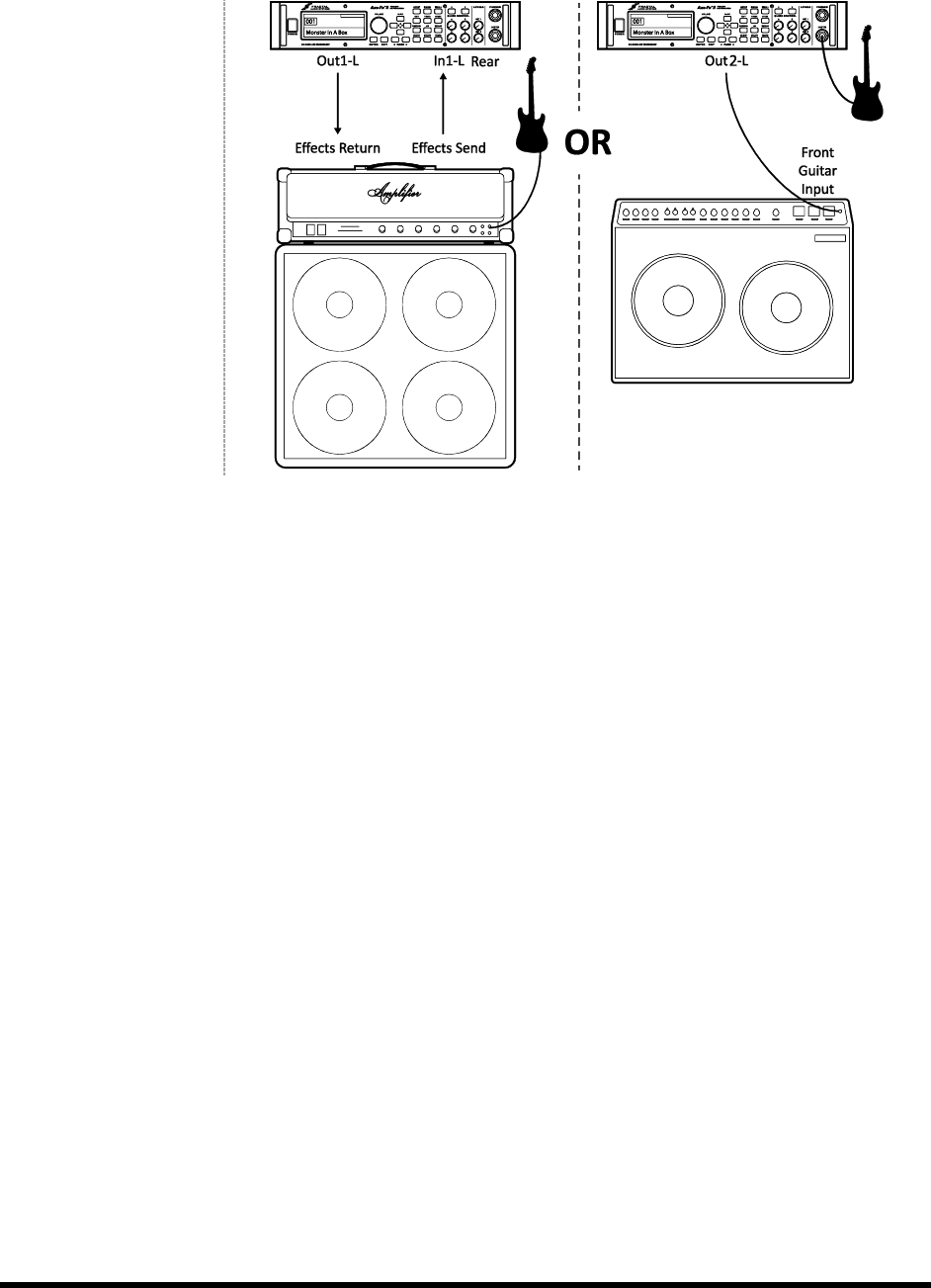
CONNECTIONS
Doc v3.04 23
Axe-Fx II as Effects Processor Only (with Guitar Amps) 3.4.8
COMPONENTS:
Guitar
Axe-Fx II
Guitar Amplifier with
built-in or separate
speaker cabinet
Global Settings: Defaults OK, since special presets required should not have AMP or CAB blocks!
I/O Settings: Change INPUT 1 LEFT SELECT REAR-Fx II in an effects loop as shown above, left.
-Fx II, as shown above, right.
Notes: Although it was designed for complete guitar signal path simulation, the Axe-Fx II can also be put to superb
use as a standalone FX processor. As such, it can be placed between guitar and amp to replace stompboxes or in an
effects loop where a rack processor would normally appear.
To use either setup, you will need to create custom presets without AMP or CAB blocks. For operation inside an
INPUT 1 LEFT SELECT (section 9.2) accordingly. Presets in this case
will likely contain only those effects that sound best after a preamp: chorus, EQs, delays, reverbs, certain types of
pitch shift and modulation, et al.
For the best-case scenario when running in front of an amp, recognize that Output 2 of the Axe-Fx II has an all-new,
extremely low-noise design that is well-suited for this purpose. Effects-only presets should terminate in an FX LOOP
block to route signal to OUTPUT2. (In this case, nothing would be connected to the FX RETURN of the Axe-Fx II.)
The new Boost/Pad functions are designed to help run the OUT1 and OUT 2 D/A converters at optimum levels,
padding their outputs for even lower noise. To find the right setting, adjust either of these controls upwards until
actually hear the noise floor drop as you make this adjustment. 156), featured on all
1/4" outputs of the Axe-Fx II, can also significantly reduce ground hum when simple stereo-to-mono cables are used
to connect to an amp or other device.
It is easy enough to extend each of the above configurations for use in stereo. With the Axe-Fx II in a loop, connect
within the loops of
two separate amps using IN1 L/R and OUT1 L/R. With the Axe-Fx II between guitar and amp, connect a second
amplifier to OUT2 R. The no-amp/no-cab presets required for the scenarios in this section are not well-suited for
headphone monitoring.
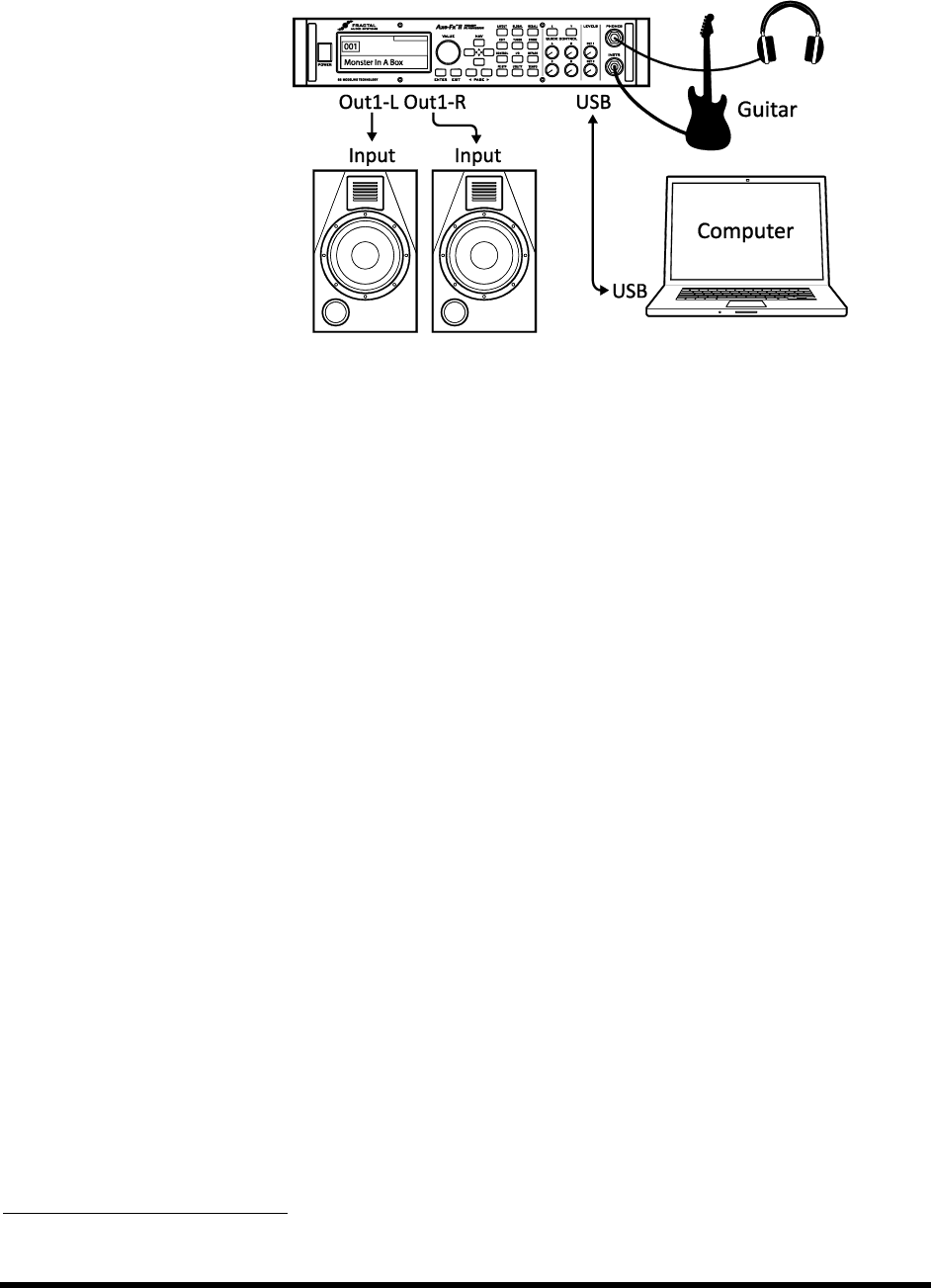
CONNECTIONS
24 Doc v3.04
Axe-Fx II as a Computer Audio Interface 3.4.9
COMPONENTS:
Guitar
Axe-Fx II
Computer meeting
minimum requirements
(p. 12)
Powered Monitors
Headphones (opt.)
Global Settings: Default I/O Settings: See below
Notes: The Axe-Fx II offers great features when connected via USB to a computer. Pair this system with
headphones, studio monitors, or any other full-range listening system.
Simultaneously record stereo processed guitar and dry tracks for reamping.2
Route stereo audio from the computer through the Axe-Fx II, simultaneously using all the regular
processing capabilities for your guitar so that you can play along with tracks.
Send audio from the computer to the Axe-Fx II for processing (and send it back to record the result).
Use the Axe-Fx II rear inputs to record other line-level audio sources, with or without Axe-Fx II processing.
Use two-way, high-speed MIDI over USB for control/automation or Axe-Edit, the companion Editor
Librarian for the Axe-Fx II.
See section 2.3 for full details on USB audio and MIDI capabilities.
The Axe-Fx II can also be used in conjunction with any 3rd-party audio/MIDI interfaces.
2
USB 2.0 required for more than two simultaneous channels from the Axe-Fx II to the computer.
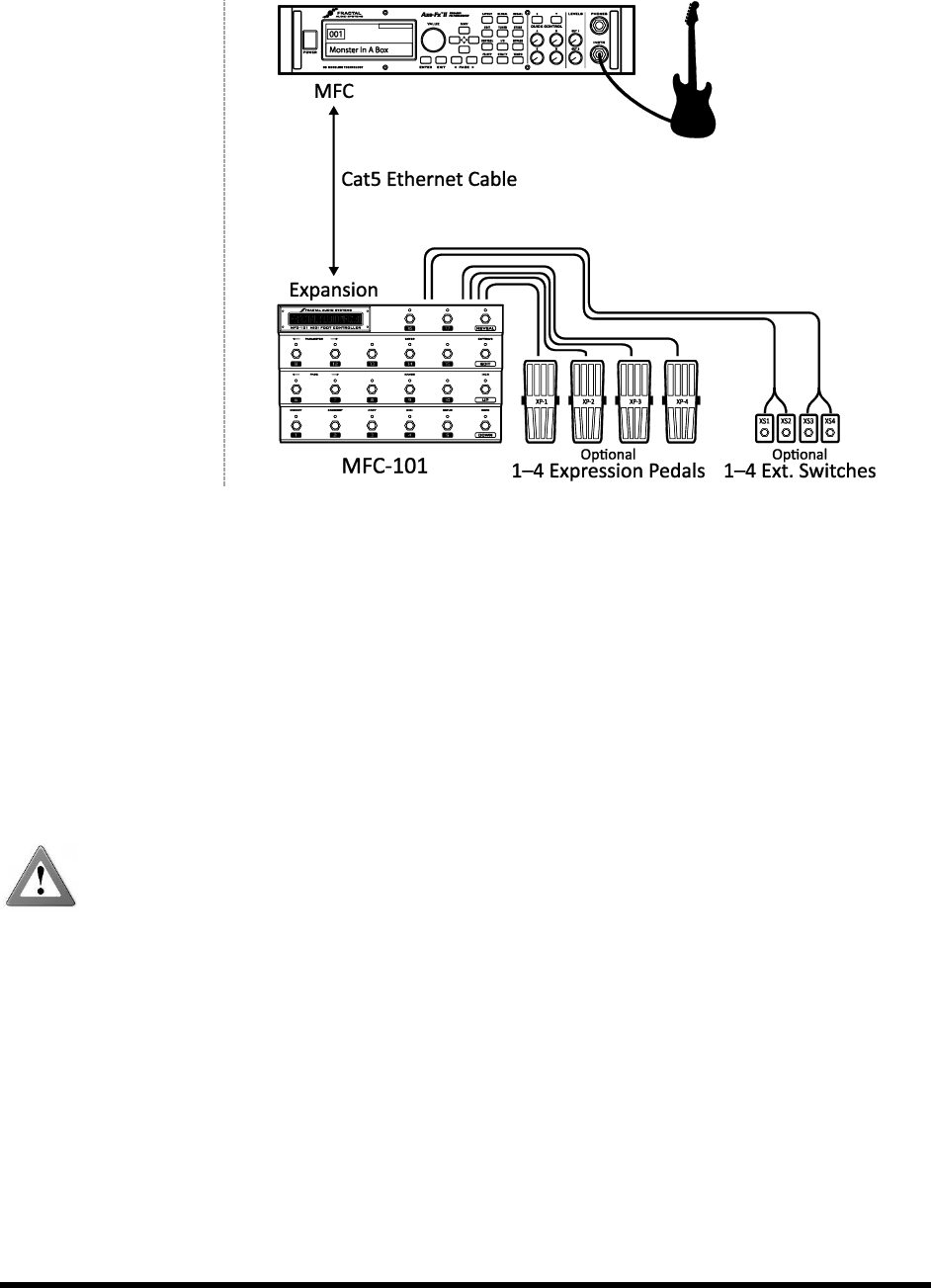
CONNECTIONS
Doc v3.04 25
Axe-Fx II and MFC-101 3.4.10
COMPONENTS:
Guitar
Axe-Fx II
Ethernet Cable (CAT5)
MFC-101 MIDI Foot
Controller
Global Settings: Determined by how the Axe-Fx II is to be used with other connected amps/speakers/etc.
I/O Settings: Determined by how the Axe-Fx II is to be used with other connected amps/speakers/etc.
Notes: The Axe-Fx II provides a significant advantage over its predecessors in that the Fractal Audio MFC-101 MIDI
foot controller can be connected to the new, dedicated rear-panel MFC control port. A single Ethernet (CAT5, non-
crossover) cable carries bidirectional communications to support the many powerful features of MFC--Fx
Mode,--state Instant Access
Switch LED support, and much more.
Although it utilizes innovative connectors, the MFC-101 still transmits/receives MIDI to/from the Axe-Fx II, which
can then forward messages to other devices via its MIDI THRU port. (Note: MIDI THRU is disabled by default. Turn it
ON in the I/O menu under MIDI.)
IMPORTANT: Do NOT connect the MFC-101 power adapter to the MFC-101 or to the Phantom Power
jack of the Axe-Fx II while using the MFC Control port connector to connect the two units. The Axe-Fx II
provides required power from its internal power supply and transmits it over the Ethernet cable.
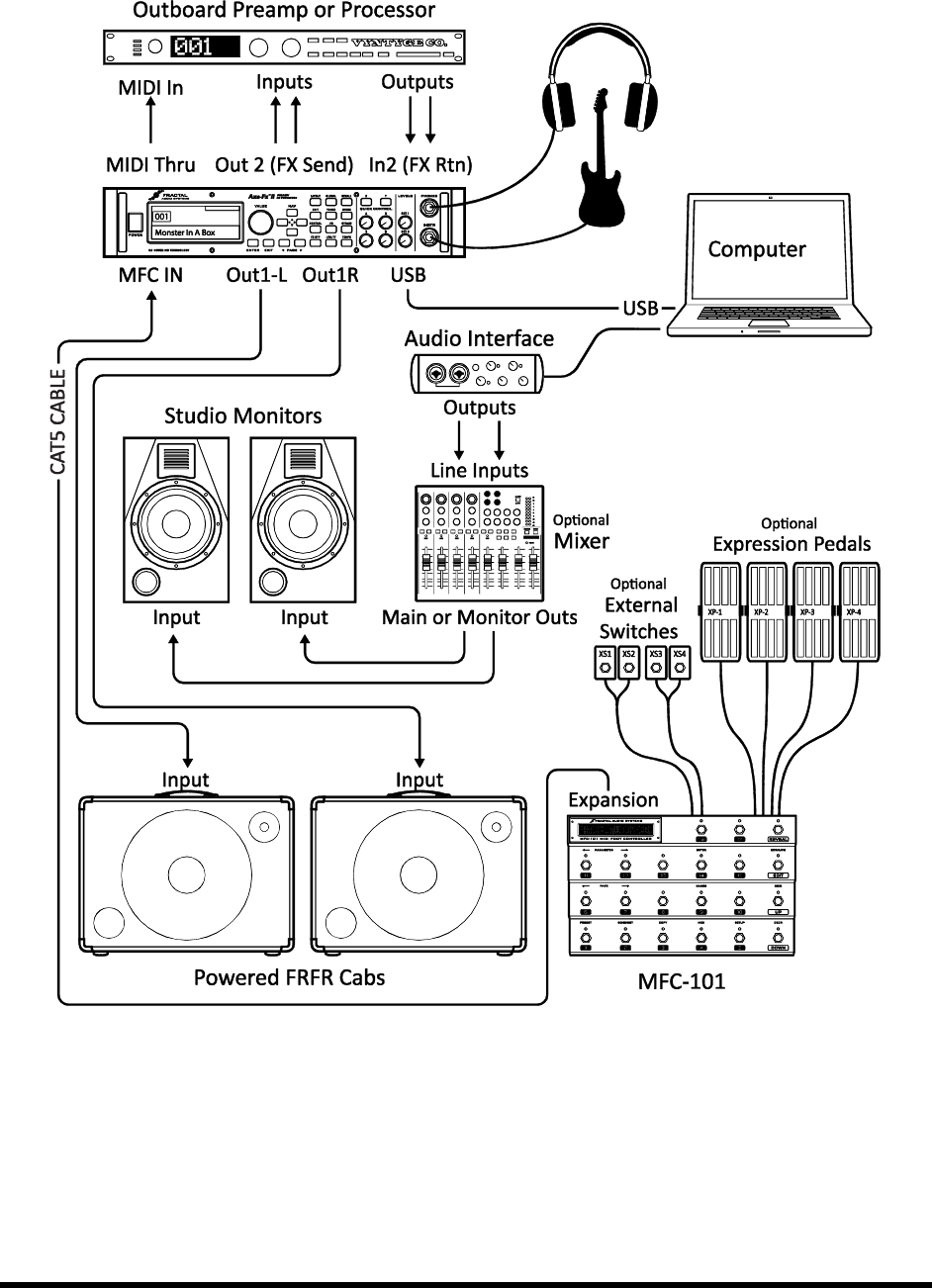
CONNECTIONS
26 Doc v3.04
Axe-Fx II: One Possible “Big Rig” 3.4.11
Here the Axe-F
above. The main outs feed a pair of powered FRFR cabs, so you can design and monitor sounds and play live with
the same sound. Meanwhile, USB provides all of the usual computer audio and MIDI integration features, with full-
range studio monitors connected to a 3rd-
outboard processor in the FX LOOP (so you can clone its settings and put it on eBay ;)
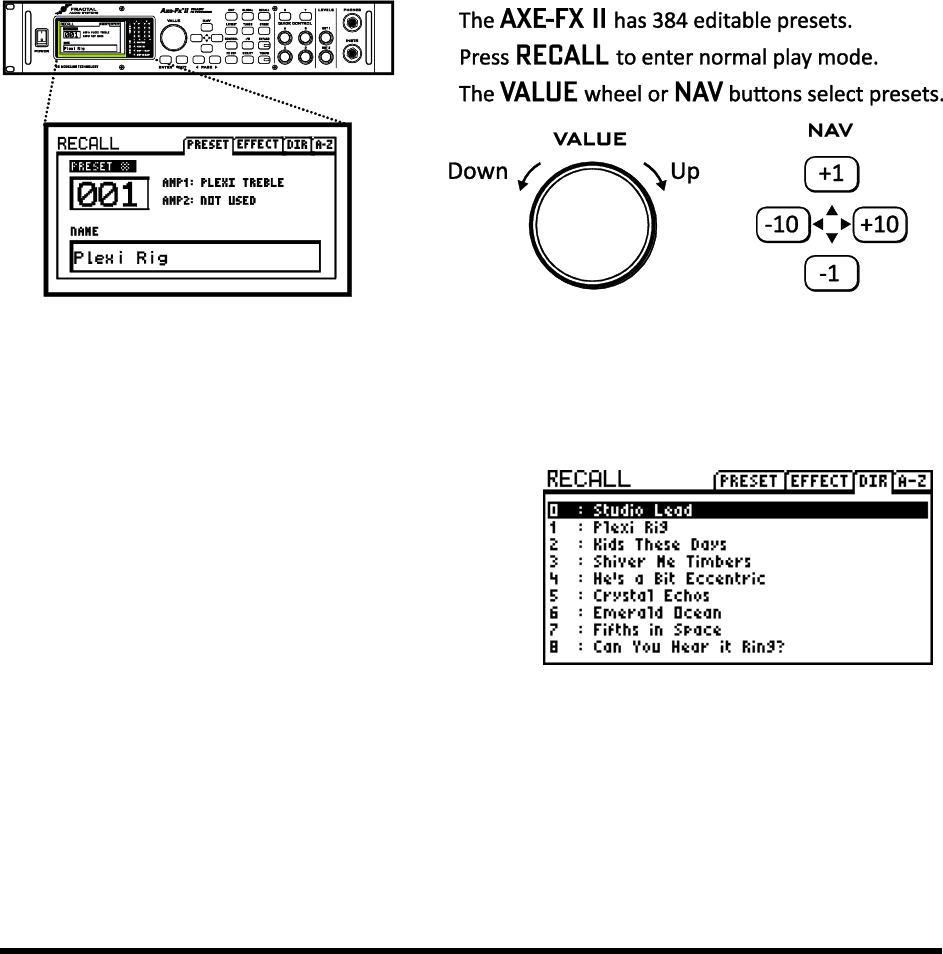
BASIC OPERATION AND EDITING
Doc v3.04 27
4 Basic Operation and Editing
Once you have set up your Axe-Fx II with speakers/amps/monitors or a pair of headphones, you can begin to
audition the factory preset sounds and learn to make changes by following this detailed guide to basic operation.
For a super-condensed version, see the 60-Second Edit Guide on p. 150 of the Appendix.
4.1 Presets
Each factory preset is a complete, pre-wired, pre--to-a guitar-in/stereo-
out path with amps, cabs, and effects
for automation or remote control. In the sections that
scratch. To be-Fx II.
Figure 4-1
As stated in the illustration, you can load presets sequentially with the VALUE wheel or use the NAV buttons.
The new PRESET DIRECTORIES allows direct access to all 384 presets in an ordered list. To open the directory,
press RECALL and use the PAGE DIRA-Z
To use the directory, just turn the VALUE wheel or use the
NAV buttons to select the desired preset and press ENTER
to load. You will be returned automatically to the main RECALL
PRESET screen.
Presets can also be loaded using MIDI program change
presets are organized into three banks. Bank A contains presets
0127, B contains 128255, and C contains 256383. MIDI Bank Select (CC#0) and Program Change commands
allow you to specify/load any of the onboard presets remotely. (The MFC-101 MIDI Foot Controller, in fact, comes
pre-programmed to select all 384 Axe-Fx II presets.) See p. 165 for a cross-reference on banks/program changes
and preset numbers.
Any preset can at how to make changes.
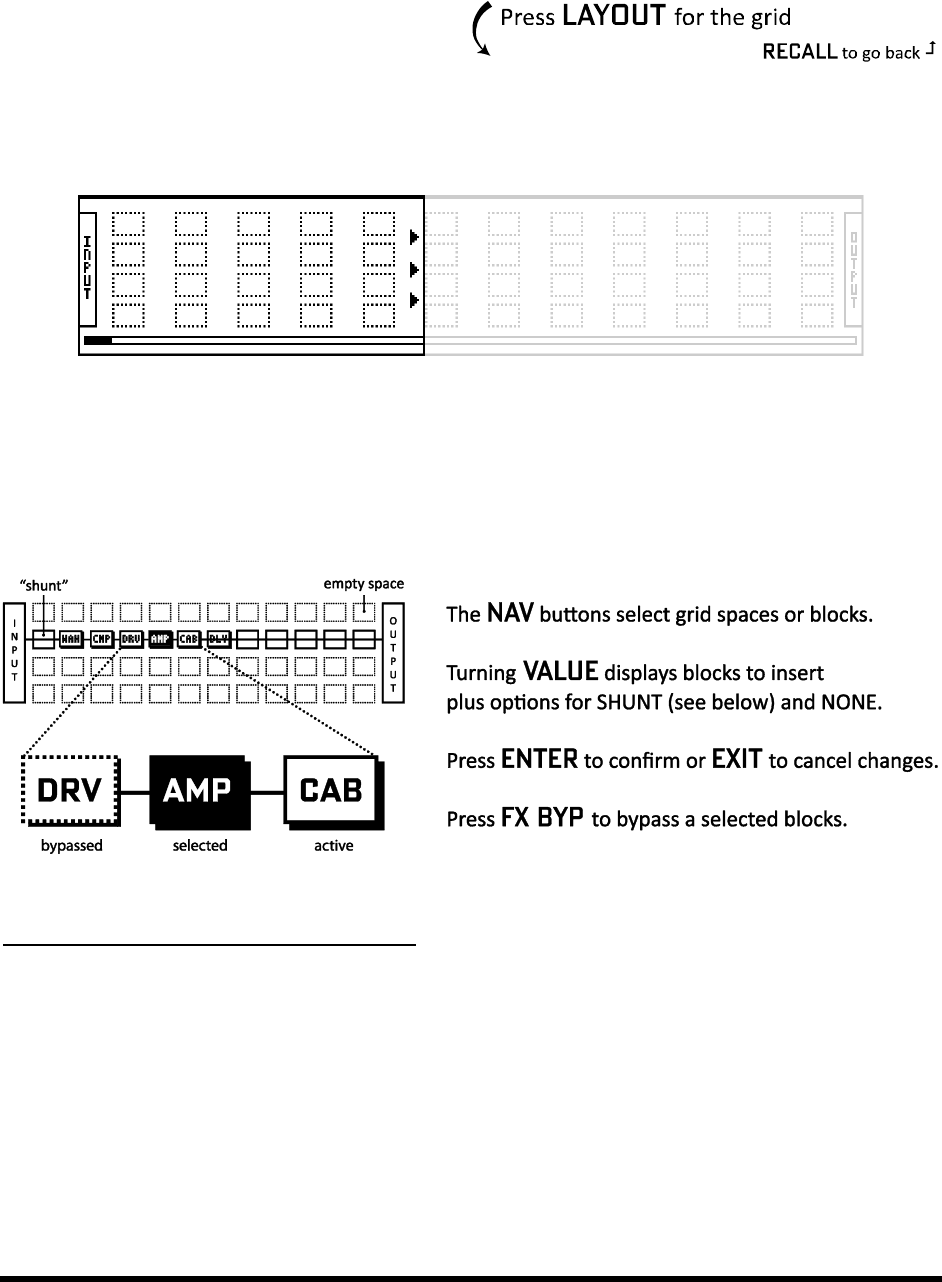
BASIC OPERATION AND EDITING
28 Doc v3.04
4.2 The Grid
The grid, located on the EDIT page of the LAYOUT
menu, is a 12 ×
can be inserted and then connected together to build
presets. The INPUT appears at the left, the OUTPUT at the right. The display can fit a 5 × 4 section of the 12 × 4 grid
at any one time, with the ability to scroll to off-screen areas using the NAV buttons. A bottom scrollbar indicates
where you are in the overall left-to-right layout.
Figure 4-2 In this image of an empty grid, off-screen areas are grayed.
Inserting and Removing Blocks 4.2.1
6, the Axe-Fx II grid must be populated with blockscomponents pulled
from a large inventory of amps, cabs, stompbox, studio effects, mixers, and more. The insertion, modification, or
removal of blocks happens at the grid cursor, a filled rectangle controlled with the NAV buttons.
Figure 4-3
To INSERT a BLOCK into an empty space…
Use the NAV buttons to select the desired empty grid location.
Turn the VALUE wheel. Available block names (AMP 1, CAB 1, etc.) will be displayed on the screen in
alphabetical order, and the selected block (if visible) will flash.
When the desired item is found, press ENTER to insert it into the grid. To cancel, press EXIT instead.
As detailed above in The Inventory/Grid Concept (p. 6), every preset draws from its own complete inventory of
available blocks. As you place them on to the grid, they are removed from the inventory.
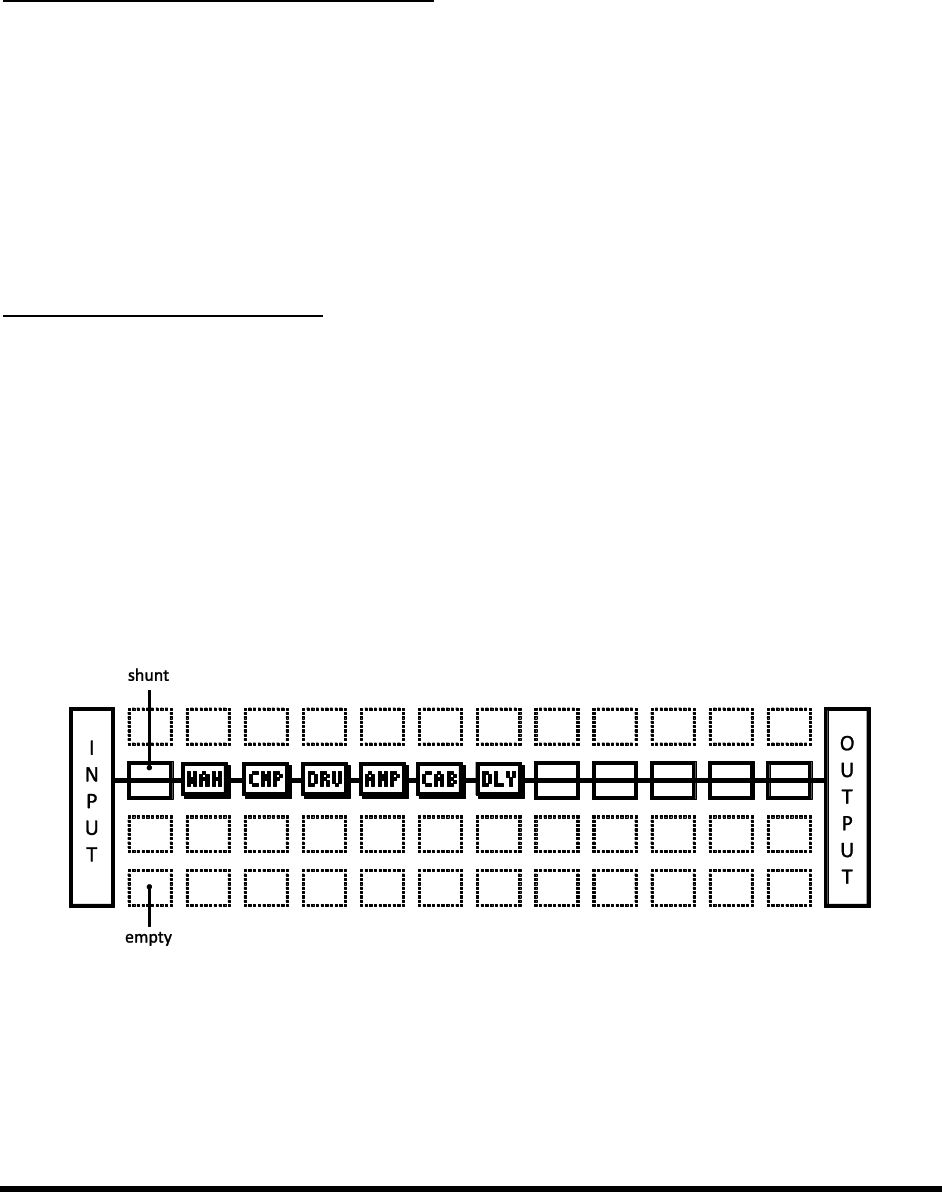
BASIC OPERATION AND EDITING
Doc v3.04 29
The total number of blocks you can insert in any one preset is dictated by the fact that CPU utilization must not
,the sum of all blocks reaches the limit, a warning message prevents
you from adding additional blocks. The Axe-Fx II is extremely powerful, and most presets do not come close to the
limit. See Understanding Preset Size Limits on p. 151 for more on this subject.
To CHANGE the type of an existing BLOCK…
Use the NAV buttons to select the desired block.
Turn the VALUE wheel. Available block names (AMP 1, CAB 1, etc.) will be displayed on the screen in
alphabetical order, and the selected block (if visible) will flash.
The Axe-Fx II offers multiple instances of most block types (ex: 2 Amps, 4 Graphic Equalizers, etc.)
To keep the list manageable, only the next-in-line instance is shown as you cycle through the
insertion menu, so AMP 2 is hidden until you have placed AMP 1.
When the desired block is shown, press ENTER. To cancel without making changes, press EXIT instead.
To REMOVE an existing BLOCK…
Use the NAV buttons to select the block you wish to remove.
Turn the VALUE wheel until NONE is displayed and press ENTER, or press EXIT to cancel.
Shortcut! To remove any block except a Shunt, select it and press EXIT, ENTER, EXIT, ENTER
Shunts 4.2.2
A shunt is a passive connectora utility block that carries signal through otherwise empty grid locations. Shunts
are required because, although you may only wish to have a few components in your chain, signal does NOT flow
through an Axe-Fx II preset unless you completely connect the INPUT to the OUTPUT. A single Axe-Fx II preset can
contain up to 36 shunts.
Figure 4-4 Shunts are used to span distances between INPUT, BLOCKS, and OUTPUT.
In the figure above, a shunt connects the Input to the WAH, and five shunts connect the Delay [DLY] to the Output.
Empty grid locations are indicated by dotted outlines and the absence of a three-letter abbreviation or thru-line.
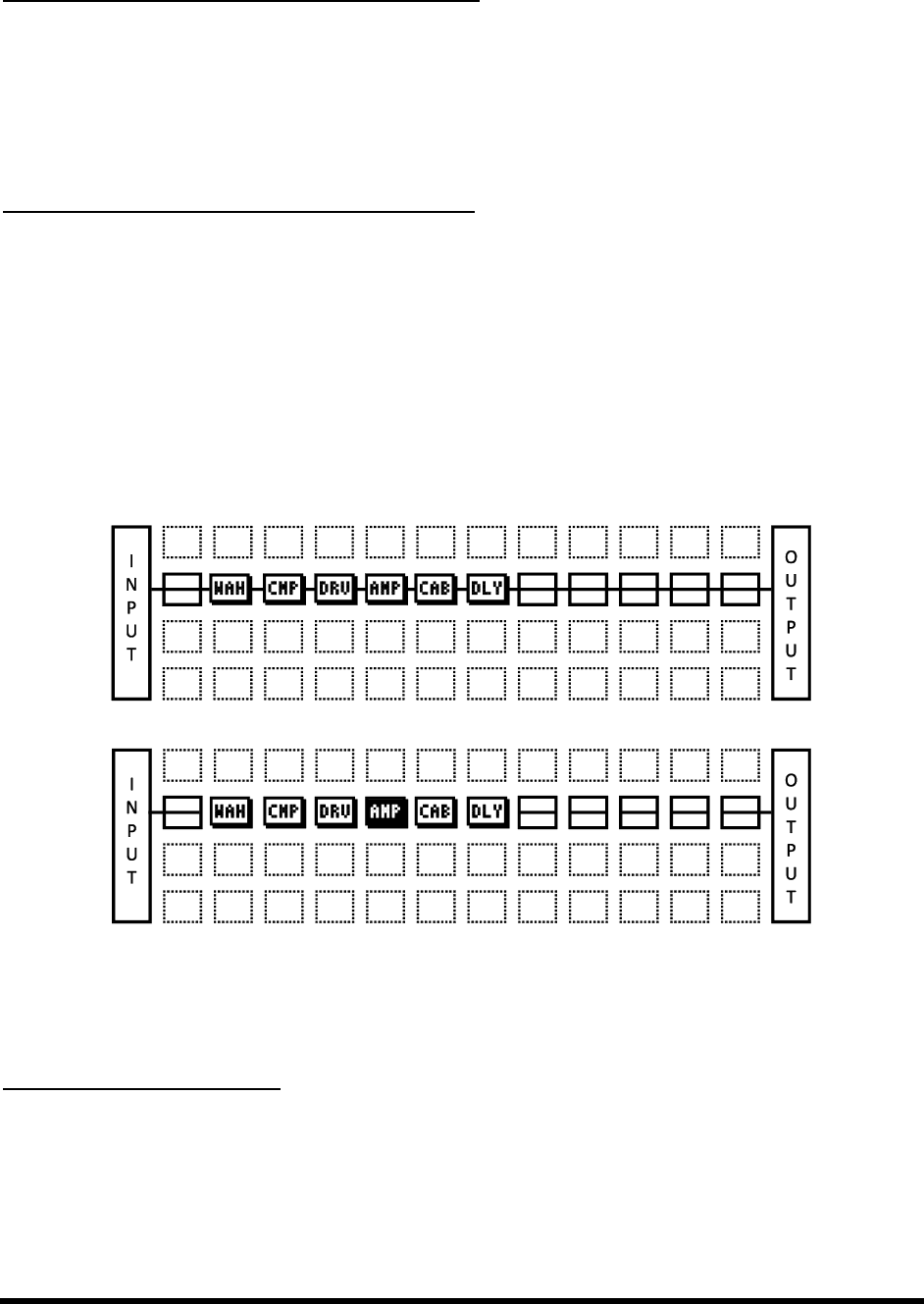
BASIC OPERATION AND EDITING
30 Doc v3.04
To INSERT a SHUNT into an empty grid location…
Use the NAV buttons to select the desired empty grid location.
Turn the VALUE , and the selected grid
space will flash if not hidden.
Press ENTER. To cancel without inserting, press EXIT instead.
To CHANGE any other block type into a SHUNT…
Select the desired block.
Press EXIT. “, and the selected space will flash if not hidden.
Press ENTER. To cancel without inserting, press EXIT instead.
Connector Cables 4.2.3
ut to produce any
sound. Blocks (including shunts) create the components of a chain, but these still need to be connected to one
Figure 4-5 Two otherwise identical presets shown WITH and WITHOUT connector cables between the blocks.
The second example above woul
If a preset is unexpectedly silent, inspect it carefully for one or more missing cables.
The Rules of Axe-Fx II Cables
No cables = No sound. Even one missing link will break the entire chain.
Signal flows from LEFT to RIGHT.
A cable MUST originate from a BLOCK or a SHUNT. Empty locations are not viable origins.
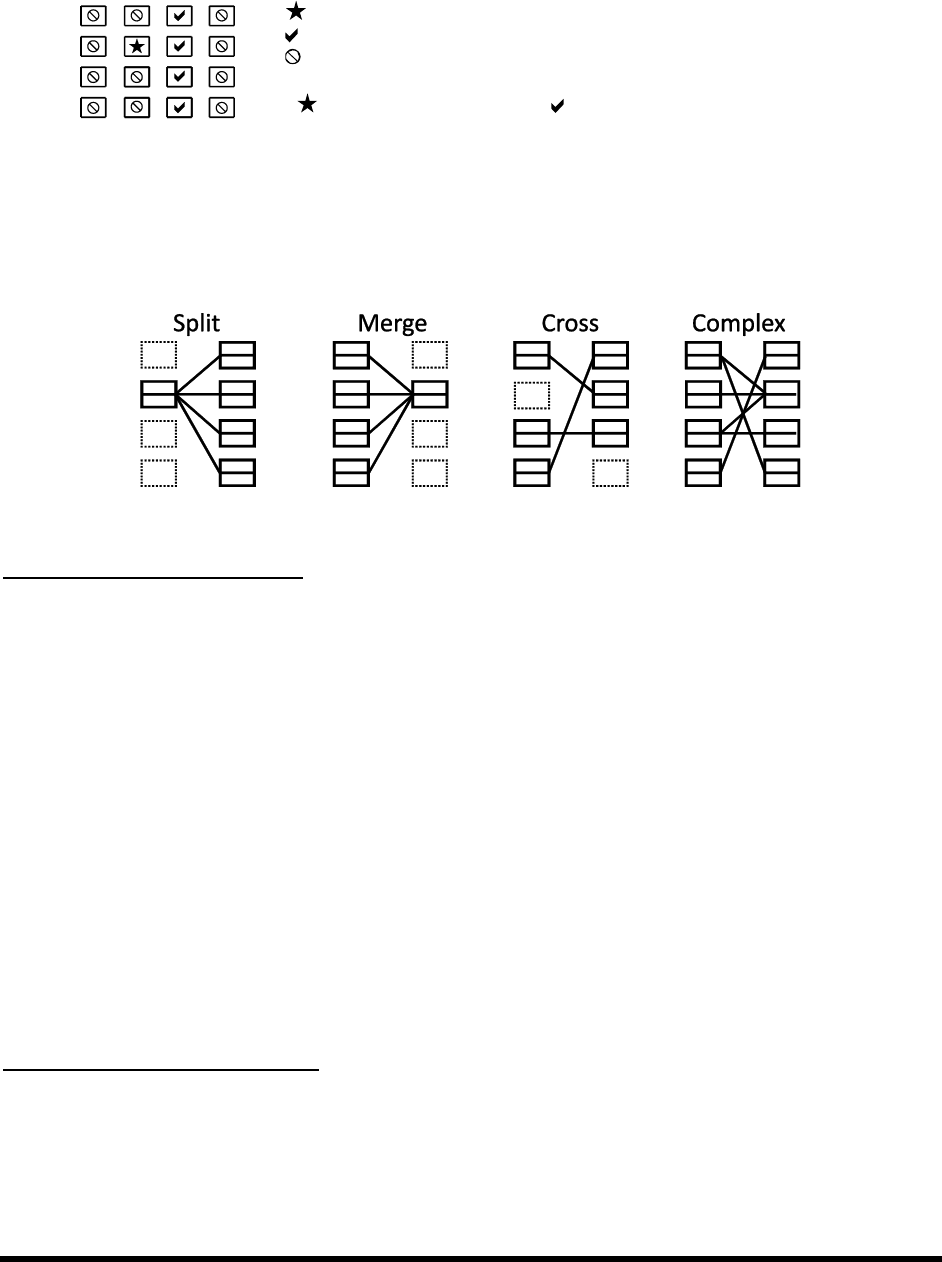
BASIC OPERATION AND EDITING
Doc v3.04 31
If you try to connect to an EMPTY location, a SHUNT will be created there.
You can ONLY connect to blocks in the next column to the right.
The represents the origin of a connector cable.
The shows valid possible destinations.
The symbol shows destinations that are illegal/unavailable.
Any columns farther left or right would also be illegal/unavailable.
If the were in a different ROW, every would still be in the same place.
Cables are created AUTOMATICALLY between the INPUT and any blocks in the first column.
Cables are created AUTOMATICALLY between the OUTPUT and any blocks in the last column.
You may freely SPLIT or MERGE the signal up to four ways at any point. This is sonically transparent and
there is zero risk of inherent phase or other problems in the split/merge itself. CROSSING is also possible.
Figure 4-6 Cables can CROSS one another without issue. Routings can be as COMPLEX as required.
To Create a Connector Cable…
Use the NAV buttons to select the block where you wish the cable to BEGIN.
The first and last grid columns are automatically connected to the INPUT and the OUTPUT.
Press ENTER
Use the UP or DOWN NAV buttons to select the desired destination block.
Remember that you will be prevented from trying to select blocks in other columns.
It is possible to select an empty location, but a shunt will be added automatically at the
destination if you complete the cable.
Be sure to select a destination that is not already connected to the origin block, or you will
REMOVE that cable (see below).
Press ENTER. To cancel without connecting, press EXIT instead.
To Remove a Cable Connector…
Cables are removed in much the same way as they are created.
Select the block where the cable begins.

BASIC OPERATION AND EDITING
32 Doc v3.04
Press ENTER
Use the UP or DOWN NAV
Press ENTER. To cancel without removing, press EXIT instead.
A Shortcut for Spanning Empty Spaces
This shortcut allows you to span multiple empty grid columns with a series of automatic shunts and cables. This
technique is especially useful when you have placed your last effect block and need to wire it to the output or if
you want to fill an empty row with shunts.
Select any block that is followed by a series of empty spaces.
PRESS and HOLD the ENTER button. The intervening spaces will be automatically filled with shunts and
connected with cables.
You can also use this shortcut for to connect any blocks with one or more columns of empty space
between them, but be careful: any existing cables encountered along the way will be REMOVED by the process!
A Word on Shunts and Cables
In the real world, cables and connectors can have an impact on the tone of a guitar rig. In the Axe-Fx II, nothing
could be further from the truth. Shunts and connectors, whether long, short, split, merged, or crisscrossed in a
huge mess, have absolutely no sonic properties whatsoever. They do not impart color, add latency, suck tone,
create load, invite hum, develop shorts, or get tangled up in the road case. A word of advice: merging identical
copies of a split signal will result in additive level increase and should be avoided in favor of simply increasing one
or another gain or level parameters.
Moving Blocks on the Grid 4.2.4
The LAYOUT menu also includes a MOVE page with tools to move individual blocks or entire rows or columns
UP, DOWN, LEFT, or RIGHT. When a block or a grid row/column is moved, it changes places with the item in the
space it is moved to. This can result in certain connector cables being modified or removed, so be sure to observe
how the elements of your preset are interconnected before proceeding with a MOVE operation.
Press LAYOUT.
Use the PAGE buttons to select the MOVE tab.
Select a function with the VALUE wheel:
EFFECT LEFT/RIGHT/UP/DOWN
COLUMN LEFT/RIGHT
ROW UP/DOWN
Use the NAV buttons to select the target effect block or row/column you wish to move. Look for the
SOLID square(s) in the grid representation on the screen.
Press ENTER to execute the move.
Repeat this step to move the same target again in the same direction.
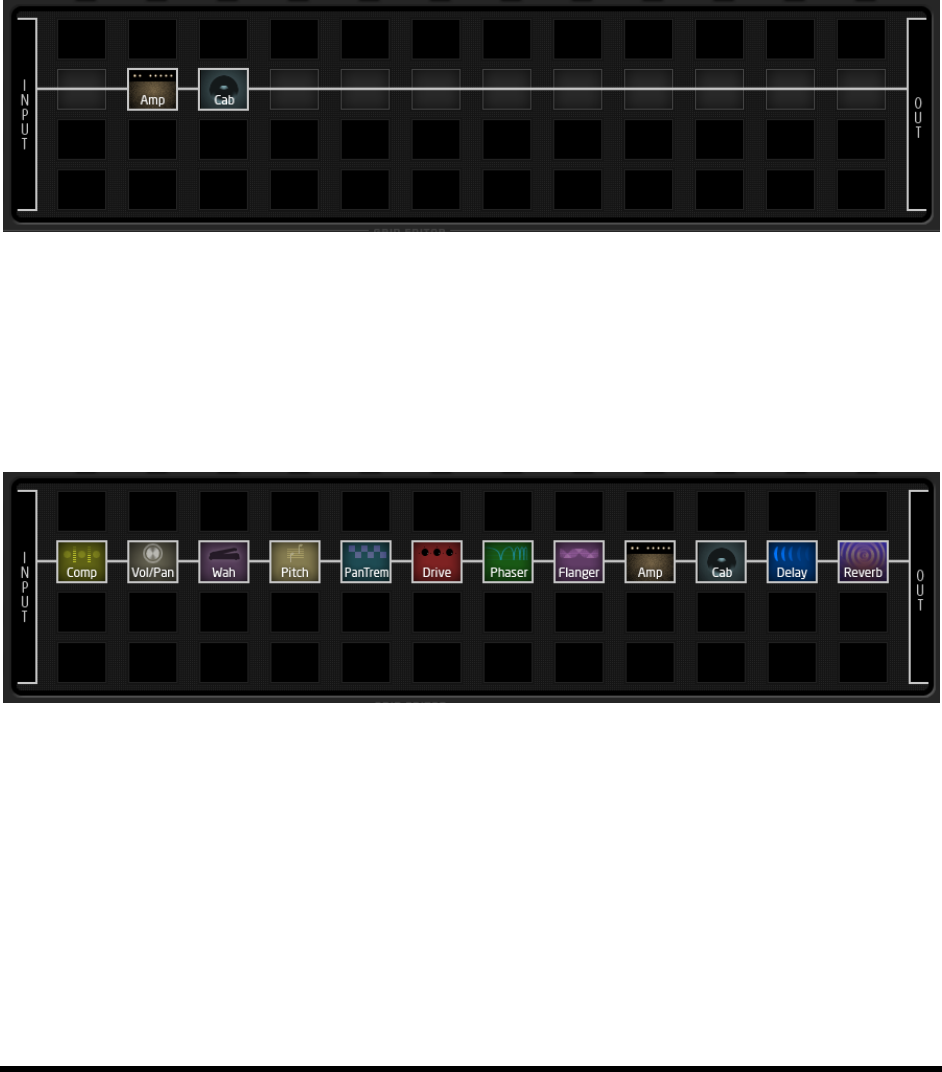
BASIC OPERATION AND EDITING
Doc v3.04 33
Example Presets on the Grid 4.2.5
Four sample presets are shown below as visualized in Axe-Edit, the companion software editor to the Axe-Fx II.
Review the diagrams to get a sense of how presets are constructed and how they appear on the grid.
EXAMPLE 1: Simple Amp Tone – In this extremely simple preset, an AMP and a CAB are combined for a straight-
ahead tone. Shunts and connectors (which appear in Axe-Edit almost as one continuous cable), connect the INPUT
to the AMP, the AMP to the CAB, and the CAB to the OUTPUT.
Figure 4-7 Amp/Cab Preset
EXAMPLE 2: Long Pedal Chain – Here, effects are strung together to create a giant virtual rig. Compressor, Volume,
Wahwah, Whammy, Tremolo, Overdrive, Phaser, and Flanger are all connected to an AMP/CAB combination,
followed by Delay and Reverb. As you can see, the Axe-Fx II supports a great number of simultaneous effects; this
Figure 4-8 A Pedal Chain
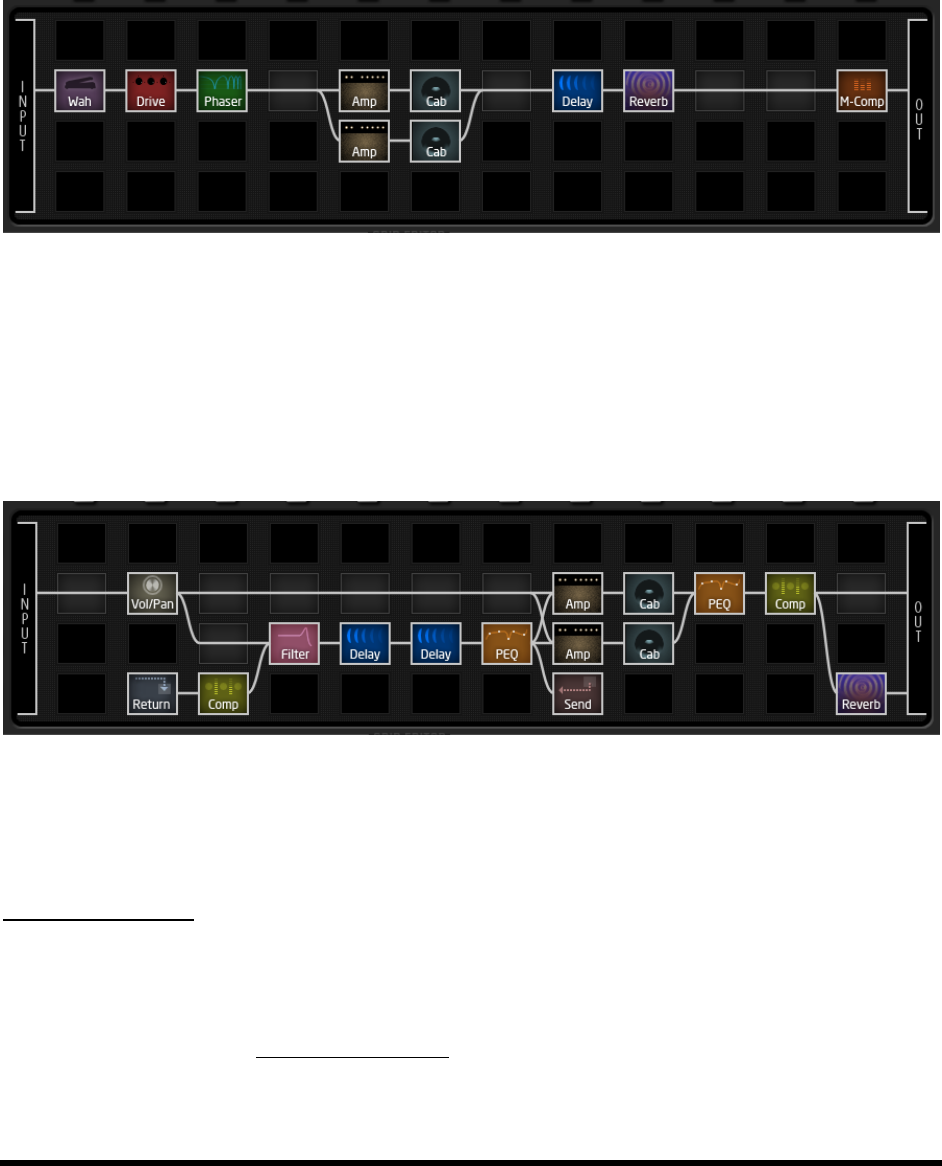
BASIC OPERATION AND EDITING
34 Doc v3.04
EXAMPLE 3: Dual Amp Preset – This preset shows a dual-amp rig. A series of effects (Wahwah, Drive, Phaser)
begins the chain, then the signal is split into two amps and two cabs. (Note: A single, stereo CAB block might also
have been used, as shown in Figure 5-4 on p. 48
BALANCE controls and then merged to feed
stereo post effects. A Multiband Compressor helps balance dynamics, while spaces in the chain leave plenty of
room for future expansion.
Figure 4-9 Dual Amp Preset
EXAMPLE 4: Complex Routing – The program below demonstrates a more intricate routing scenario. The signal is
split and merged at various points between the input and the output, with various effects appearing before and
after two independent amps. Notice the complex feedback-loop routing in par
the amps, and the reverb at the end of the chain running in parallel (its level controlled by an envelope for a
Figure 4-10 Complex Preset
MORE EXAMPLES…
The presets in this section represent only four examples of the nearly limitless possibilities that can be created
using the GRID, BLOCKS, and CONNECTORS of the Axe-Fx II. In addition to reviewing these diagrams, you can gain
valuable insight and ideas by exploring the factory presets or by discussing techniques with other members of the
Fractal Audio community. Visit forum.fractalaudio.com and join the discussion.
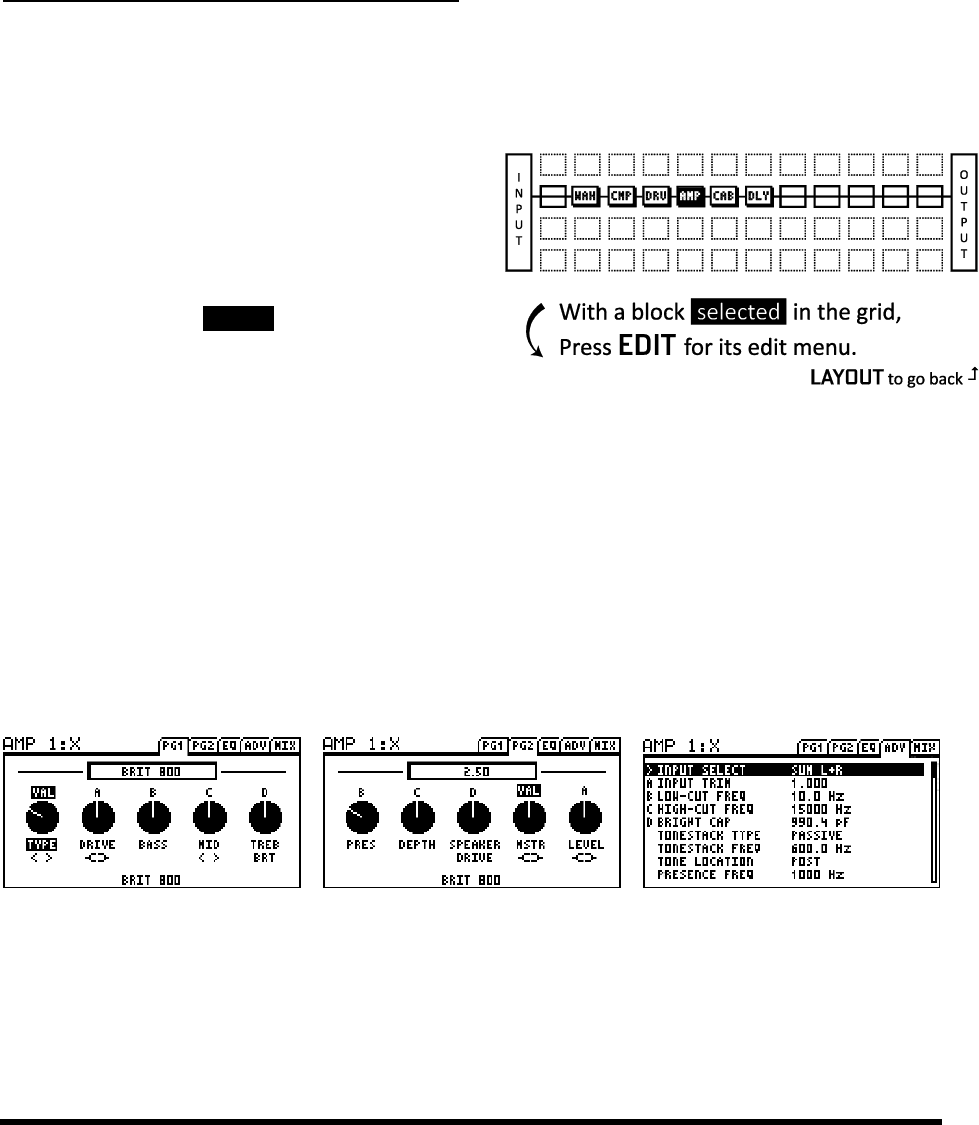
BASIC OPERATION AND EDITING
Doc v3.04 35
4.3 Editing Sounds
The blocks of the Axe-Fx II represent diverse types of real-world equipment. In the same way that such hardware
devices are equipped with different controls, blocks also typically have many adjustable settings called
parameters. Parameter settings determine precisely how an effect will sound. These are arranged on PAGES in the
display of the Axe-Fx II. The system of parameters and pages for any block is referred to as its EDIT menu.
To Open the EDIT Menu for Any Effect Block…
With a preset loaded in normal RECALL
Press LAYOUT to display the GRID.
If the GRID is not shown at first, press PAGE to reach the EDIT tab.
Use the NAV buttons to select the desired block.
Press EDIT to display the EDIT menu.
NAV buttons select parameters on the page.
The name of the selected parameter will be
displayed in .inverse. VAL
if it i>
menu pages.
In scrolling menu pages, the sidebar has an
indicator to show relative position.
The VALUE wheel changes the selected parameter.
Changes can be auditioned in real-time by playing while you edit.
For effect blocks with multi-page menus, the PAGE buttons select between them.
Press LAYOUT to return to the grid, or press RECALL to go back to play mode.
Pressing EDIT repeatedly will step through the EDIT menus for all blocks in a preset, sparing you a return trip to
the grid. You can also press EDIT without entering the grid to go directly to editing a selected block in any preset.
Figure 4-12 Three Typical EDIT menu pages:
The above figure shows three pages of typical EDIT menus (from the AMP block). Notice the tabbed labels near the
top: PG1, PG2, EQ, ADV, and MIX. Select between these using the PAGE buttons. The third example shows
a text-only menu. Some blocks, like the Graphic EQ (p. 70), Parametric EQ (p. 84), and others, have specialized
graphical displays designed to provide rich, intuitive editing experiences.
Figure 4-11: Press EDIT with any block selected on the Grid

BASIC OPERATION AND EDITING
36 Doc v3.04
Quick Control 4.3.1
The QUICK CONTROL A,B,C, and D knobs on the front panel are dynamically
mapped to four parameters in almost every block EDIT menu page
1
, whether knob or text-
based. The current mapping is indicated by the appearance of a small A,B,C, or D above or
to the left of the parameters on the screen. Assignments change dynamically as different
parameters are selected for use with the VALUE wheel. Turn the corresponding lettered
encoder knob to adjust a parameter.
The quick control knobs can also be used as Modifier SOURCES (see section 7 on p. 119). Their function in this
capacity is disabled while editing as it might otherwise compete with menu operations.
4.4 X/Y Switching
One of the new features of the Axe-Fx II is X/Y switching, available on 10 different effect block types: Amp, Cab,
Chorus, Delay, Drive, Flanger, Pitch Shifter, Phaser, Reverb, and Wahwah. Each instance of these blocks is
equipped with two fully independent sets of parameters, making it possible to have two completely
different settings for one block. X or Y can be recalled instantly and seamlessly at the touch of a front panel button
(while editing) or by using MIDI remote control (during performance). Each block with X/Y may be saved with
either state selected.
The benefits of X/Y Switching are considerable. You might simulate amp channel switching (X as an American Clean
and Y as a British Crunch). This won’t require the CPU overhead of two separate amp blocks! Another application is
mode switching effects. Instead of painstakingly tuning modifiers (p. 119), you can just dial in X, dial in the Y, and
switch between them at will. Imagine a delay that can be switched at will from pristine dotted-eighth-note echoes
with light feedback to one with saturated, modulated quarter-note echoes under heavy feedback.
It is important to understand that MODIFIERS (see p. 119) are SHARED between X and Y states.
To Use X-Y Switching
Open the desired block for editing.
All blocks default with the X state selected. Dial in all parameters for the X state.
Press Y and dial in all parameters for the Y state.
Save the preset (see below).
Each available X/Y switch has its own dedicated global MIDI CC# assignment for remote switching
2
. This option is
found in the I/O:CONTROL menu. See p. 134 for details.
X-Y / Y-X Copying
You can copy all of the settings from X to Y, or Y to X, by double tapping the button for the one you want to copy
to, and then pressing ENTER
EXIT to cancel. So, to copy X to Y, double-tap Y and then press ENTER.
1
Exceptions: Quick control functions work in PEQ blocks, but letters are not shown. Mixer type blocks do not support Quick Control.
2
-127) and Y is the OFF (0-63).
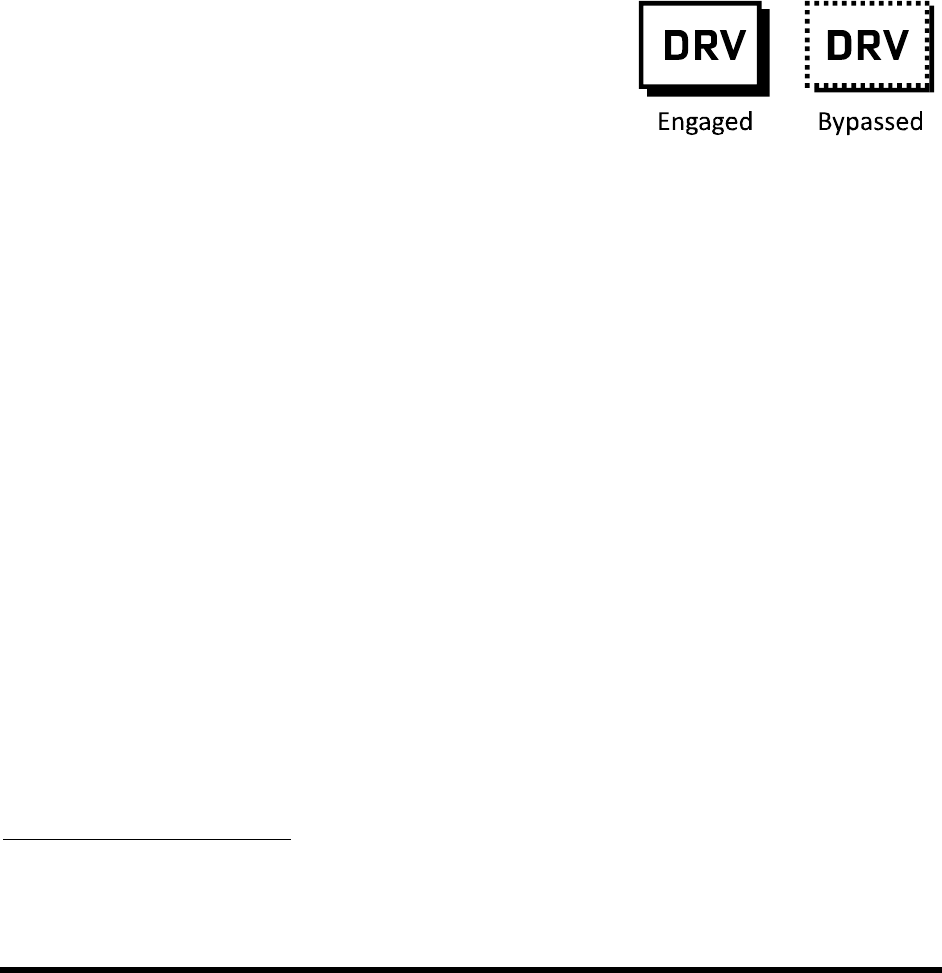
BASIC OPERATION AND EDITING
Doc v3.04 37
X/Y Quick Jump 4.4.1
The X and Y buttons also double as user-definable Quick-Jump keys. These allow quick access to the EDIT menus of
your two favorite blocks from almost any screen without grid.
You might, for instance, seAMP1PHASER1 menu.
Quick-Jump is disabled if you are already in the EDIT menu of another block (including Global Blocks or Modifier
sub menus), or if you are in the process of SAVING (where X and Y are used for quick character entry).
Quick Jump settings are assigned in the X/Y page of the I/O menu, detailed on p. 136.
4.5 Bypassing a Block
Can you imagine a stompbox
effect
3
on the Axe-Fx II can be bypassed (or engaged) in three different
ways:
1. Press the front panel FX BYP button while the block is either
selected in the grid or open to edit.
Note that accidentally double tapping or holding FX BYP will enter the Global Blocks menu instead
(see p. 114). Press EXIT and try again if this happens.
2. Use a MODIFIER (section 7BYPASS MODE parameter.
4
3. to any
MIDI CC# on the CTRL page of the I/O menu (p. 130)
A bypassed block is shown on the grid with a dotted outline.
When you bypass any block, one of several things can actually happen depending on how its BYPASS MODE
parameter is set. For more on this, see the section on Common Mix Parameters beginning on p.112.
4.6 Loading Effects from another Preset
The Recall Effect function makes it possible to load block settings directly from one preset to another. Select the
EFFECT tab of the RECALL menu using the PAGE buttons. Select the preset and block that you want to load from
and press ENTER be displayed,
3
The MIXER, FB SEND, and SHUNT blocks have no bypass functions.
4
The ENHANCER has no BYPASS MODE parameter.

BASIC OPERATION AND EDITING
38 Doc v3.04
4.7 Saving Changes
After making various changes, you will undoubtedly want to save the results of your edits.
To store a sound in place, without changing its name or location…
Press STORE to show the STORE screen.
Press ENTER to initiate the process, and ENTER again to confirm.
To store a sound to a new location or with a new name…
The Axe-Fx II has 384 numbered preset memory locations. It is possible at any time to save any preset into any
location. It is also possible to change the NAME of a preset before you store it.
Press STORE to show the STORE screen.
Use the NAV buttons to select between the two available functions:
The LOCATION parameter selects where the preset will be stored:
The VALUE wheel selects numbered memory locations. NAV left/right skip by 10.
The NAME parameter allows you to edit preset names before saving:
Turn the VALUE wheel to change characters.
Press X or Y to cycle through points along the series of letters/symbols (0, A, N, a, n).
Use NAV to move the cursor from one position to the next.
You can use up to 23 characters in a preset name.
Press ENTER to Store.
Press ENTER to Confirm.
completes.
Swapping the Locations of Two Presets 4.7.1
The Axe-Fx II has a new feature that allows you to SWAP the locations of two saved presets. This is useful, for
instance, if you want to re-order the factory presets without overwriting any of them, or if you need to move a
presets:
Press STORE and PAGE to the right to the SWAP page.
Use NAV keys and the VALUE wheel to select the two presets whose locations you want to switch.
Press ENTER to Store.
Press ENTER to Confirm appear when the operation completes.
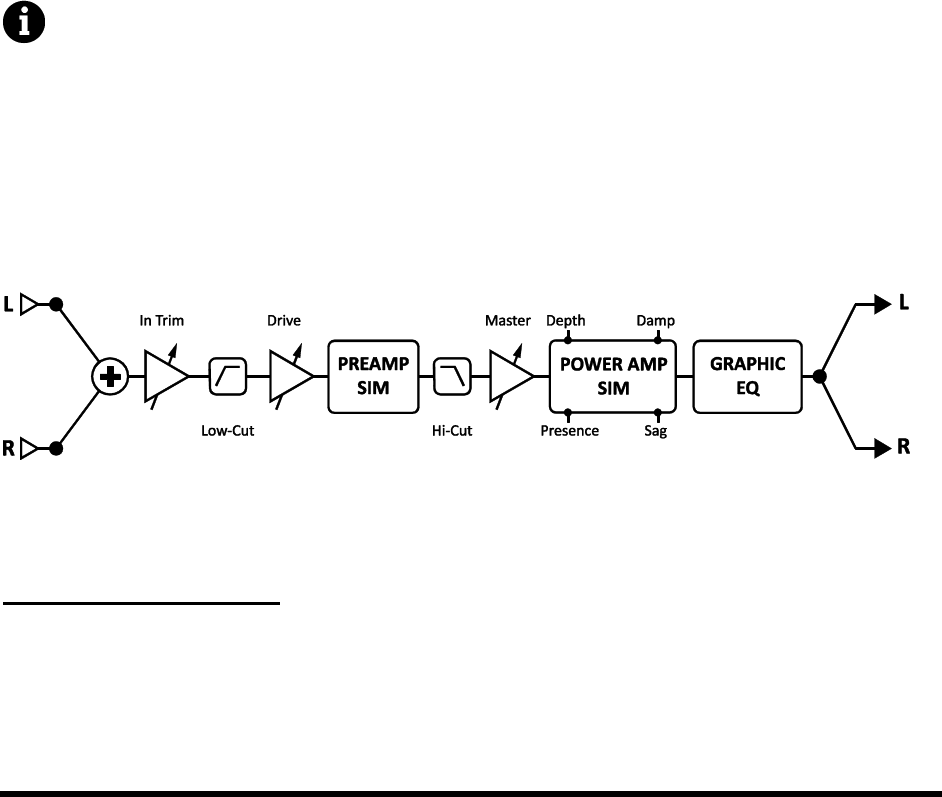
EFFECTS GUIDE
Doc v3.04 39
5 Effects Guide
The Axe-Fx II offers 33 different basic block types that can be combined freely up to the limit of available DSP
resources to create your own presets. An alphabetical listing of block types follows.
5.1 Amplifier [AMP]
The Amplifier block reproduces the sounds of an impressive array of vintage and modern guitar and bass
amplifiers, with 60+ different types based on stock, custom and hybrid models. In the same way you can operate
a real amp without understanding its advanced inner workings, so too can you get great amp sounds from the Axe-
Fx II using only the basic drive and tone controls on PG1 and PG2 of the amp edit menu. Advanced parameters
for all models by default. That said, a deeper understanding of the AMP block offers deeper control, putting more
tones at your fingers would require a seasoned tech in the real world. (Even he/she
would be unable to achieve many of the options possible with the virtual amps in the Axe-Fx II). It may be best if
you can listen to the effects of the various controls while you read this section. The right amp with the right
settings is the heart of the right tone.
Note: The Cab block (p. 47) is vital in creating an overall sound; i
expecting from an amp, try different cab settings.
The the amp is its capacity for ultra-realistic distortions, created using our proprietary dual-stage non-
linearity generators. The preamplifier stage emulates the type of distortion generated by classic tube
preamplifiers. The power amplifier stage emulates the type of distortion generated by a tube power amplifier and
uses our proprietary G2 Modeling Technology™. The Axe-Fx II Amp also integrates a new built-in, 8-band graphic
equalizer for additional tone control without extra blocks.
Each Axe-Fx II preset can use two fully independent Amplifier blocks.
Figure 5-1 A simplified diagram of the AMP block
The AMP block processes audio in mono. The INPUT SELECT and BALANCE parameters
(see below) allow flexibility when combining the AMP with stereo effects.
Amp X/Y Channel Switching
Each instance of the Amplifier block stores two fully independent sets of parameters called X and Y. Selecting
between these allows you to change all block settingsinstantlyat the touch of a switch or button (excluding
current Bypass State and any Modifier assignments). See X/Y Switching on p. 36 for more information.

EFFECTS GUIDE
40 Doc v3.04
Amp Types
The following table details the different AMP types of the Axe-Fx II.
Manufacturer names and product names mentioned below are trademarks or registered trademarks of their respective owners, which are in
no way associated with or affiliated with Fractal Audio Systems. The names are used only to illustrate sonic and performance characteristics
of the Fractal Amplifier TYPES, which have been created by incredibly detailed analysis of the actual amps that inspired them
AMP TYPE
BASED ON
NOTES
59 Bassguy
1959 Fender® Bassman®
A low-to-medium gain amp designed for bass but more widely adopted by guitarists.
65 Bassguy
1965 Fender® Bassman®
The blackface version with a different circuit design.
Vibrato Verb
Fender® Vibroverb®
Based on a 40W combo that's great for clear or grinding cleans and gutsy blues.
Deluxe Verb
Fender® Deluxe Reverb®
Great, chimey tone with nice power amp breakup when you push the MASTER.
Double Verb
Fender® Twin Reverb®
Based Vibratoand nice breakup.
Jr Blues
Fender Blues Jr.
A gutsy little classic with dual EL84s.
Class-A 15w TB
Vox® AC-15®
Class-A 30w
Vox® AC-30®
A combo that dominated the British Invasion. Gritty character, warm tone, great feel.
Class-A 30 TB
Vox® AC-30TBX®
CreMore Treble. Great highs + slightly reduced bass.
Brit JM45
Marshall® JTM45®
Made famous by Clapton and others; actually a modified Bassman® design.
Plexi Normal
Marshall® Super Lead 1959®
The classic amp head that gave rise to the stack Great for crunchy rhythm work.
Plexi Treble
1959® Treble Channel
1987x Normal
Marshall® 1987x Vintage Series
Features what manmod to the tonestack of this Plexi.
1987x Treble
1987x Treble Channel
The treble channel of the 1987x Vintage Series Plexi.
Brit 800
Marshall® JCM 800®
Based on the vaunted model 2204. Bring the Master up for true 80s tone.
Brit 800 Mod
Marshall® JCM 800®, modded
The 800 with a collection of the most popular mods to the amp.
Hipower Normal
Hiwatt® DR103 (Normal)®
Medium-gain, full sound amp with a unique tone-stack and a chimey, grinding tone.
Hipower Brillnt
Hiwatt® DR103 (Brilliant)®
A brighter model based o channel.
USA Clean 1
A somewhat neutral, clean- sounding model that can pushed into warm clipping.
USA Clean 2
)
Vintage Fat Rhythm (Mark I, Blackface)
USA Rhy 1
Based on THE California crunch rhythm sound. Rhythm Ch. 2 with F.
USA IIc+ Norm
(Normal)
Based on a US-made amp famous for its smooth overdrive sound.
This model has the pull bright OFF.
USA IIc+ Bright
(Bright)
Based on a US-made amp famous for its smooth overdrive sound.
This model has the pull bright ON.
USA Lead 1
This model has a tight, focused, hi-gain sound. Great for fusion and rock leads.
USA Lead 2
MKIV® (Lead + Treble Shift ON)
Treble Shift gives this amp a slightly different character with a little more cut.
Recto Orange
Rectifier® (Orange Ch.)
Based on the original Mesa Boogie 2-channel Dual Rectifier (Orange) Ch.
Recto Red
Rectifier® (Red Ch.)
Based on the Modern ( channel, this is a high- gain masterpiece with
crushing power and tightness.
Recto New
Ornge
-Ch. Dual
Rectifier® (Orange Ch.)
Based on the modern version of the Dual Rectifier amp. Circuit changes made this
version more aggressive.
Recto New Red
-Ch. Dual
Rectifier® (Red Ch.)
Red Channel version of the Dual Rectifier amp.
Euro Blue
Bogner® Ecstasy Blue Channel®
Based on the 20th Anniversary model. OD channel w/ BOOST + STRUCTURE OFF.
Euro Red
Bogner® Ecstasy Red Channel®
Same as above but with OD channel w/ BOOST + STRUCTURE ON.
Shiver Cln
Bogner® Shiva Clean Channel
Based on the 90W anniversary model. Powerful shimmering cleans.
Shiver Ld
Bogner® Shiva Lead Channel
Based on a sweet, rich- sounding amp with aggressive, English- style midrange punch.
Euro Uber
Bogner® Überschall
Based on channel of this 120W head. Heavy grinding lows and insane gain.
Solo 99 Cln
Soldano® X99® Preamp (Clean )
Based on the clean channel of a Soldano/Caswell midi-motorized preamp.
Solo 100 Rhy
SLO-100® (Normal Ch.)
Based on SLO-100®, noted for its hot-rod chrome chassis and aggressive rhythm tone.
Solo 100 Ld
SLO-100® (OD Ch.)
Based on the snarling lead channel of the above amp.
Friedman BE
Friedman Brown Eye
What many call the ultimate modded PlexiDave Friedman of Rack Systems.
Friedman HBE
Friedman Hairy Brown Eye
A killer hi-gain tone in your arsenal.
PVH 6160
Based on the high- input lead channel of an amp named after the criminally insane.
Mr Z 38 Sr
Dr. Z Maz 38 SR®
Based on an amp popular with country and roots players.
CA3+ Rhy
CAE 3+ SE® (Ch 2)
Based on Channel 2 (Rhythm) of a preamp designed by Custom Audio Electronics®.
CA3+ Ld
CAE 3+ SE®(Ch 3)
Channel 3, (Lead) of the same.
Wrecker 1
Based on the Trainwreck Expressdesigned and built by the late, great Ken Fischer.
Corncob M50
Cornford MK50II®
Based on a boutique British amp. Plexi-Meets-Modern tone with big cojones.
Carolann Od-2
CarolAnn OD2r®
The celebrated OD2r. Model fine-tuned by the highly respected Alan Phillips himself!
Fryette D60 L
Fryette D60®
Based on the Fryette Amplification mode.
Fryette D60 M
Fryette D60®
Based on the Fr mode.

EFFECTS GUIDE
Doc v3.04 41
Brown
A faithful recreation of the The m®.
Citrus RV50
Orange® Rockerverb®
Based on the dirty channel of the 50W head known for warmth and rich harmonics.
Jazz 120
Roland® JC-120®
The only solid-state-based model in our collection; a quintessential clean tone.
Energyball
ENGL Powerball®
Very high-gain German model. Lots of bass. Great for aggressive, drop-tuned riff work.
ODS-100 Clean
Dumble OD Special® (Clean)
Based on the Clean channel of a coveted but rare amp made famous by Robben Ford.
ODS-100 Lead
Dumble OD Special® (Drive Ch.)
The same amp. OD channel. Also played by the great Larry Carlton and many others!
FAS Rhythm
Created by Fractal Audio Systems
Combines the best features of the British and USA crunch models.
FAS Lead 1
Created by Fractal Audio Systems
Neutral high-gain lead with a tight midrange.
FAS Lead 2
Created by Fractal Audio Systems
Hot-rodded British lead sound with a tonestack by Custom Audio Electronics.
FAS Modern
Created by Fractal Audio Systems
A high-gain hybrid. Equally well-suited to modern rhythm and lead work.
Das Metall
Based on a high-gain, boutique amp famous for its powerful, heavy, aggressive sound.
Brit Pre
Marshall® JMP-1 Preamp®
Based on a rack-mount preamplifier version of the Brit 900. Crunchy tone.
Buttery
Budda® Twinmaster
Based loosely on a late 90s specimen. Relies mostly on power amp distortion.
Boutique 1
Matchless Chieftan®
A medium-gain amp: thick, yet crisp, with a fair amount of power amp breakup.
Boutique 2
Matchless Chieftan® + Boost
Based on the same amp but with a boost for more gain and high-frequency emphasis.
Cameron Med
Cameron CCV100
An amp its creator
Cameron High
Cameron CCV100
-
SV Bass
Ampeg SVT®
Based on a head used for decades by famous bassists the world over.
Tube Pre
Studio Tube Preamp
A completely neutral, low-
FAS Brown
The original BROWN model from the Axe-Fx Ultra.
Big Hair
FAS Original
Mids without mud. Revive the 80s metal scene. (Spandex not included.)
Solo 99 Lead
Soldano® X99® Preamp (Lead)
Based on the lead channel of a Soldano X99 preamp.
Recto Org Mdrn
Dual Rectifier®
Based on the Modern channel of a new Dual Rectifier with voicing set to Modern.
Tx Star Lead
This model is based on the lead channel of a Mesa Lonestar.
FAS Wreck
The original WRECKER 1 model from the Axe-Fx Ultra.
Prince Tone
Fender® Princeton®
Based on a single-ended Fender Princeton with a single-ended power section.
Brit JVM
Marshall® JVM 800®
Based on the JVM410, channel OD1, Orange mode.
New amp types will be added from time to time. Please check our web site for
Basic Amp Parameters 5.1.1
TYPE Selects the amplifier simulation. The simulations are, for the most part, based on classic and modern
amps, but they also include some hybrids and wholly original types that we created. For a complete list of
current amp types provided, see table above.
DRIVE Sets the preamp gain for more or less preamp distortion. Used in conjunction with the MASTER (see
below), the DRIVE control and the amp DRIVE determine whether the sound will be clean, slightly broken up,
moderately overdriven, or completely distorted.
The Axe-Fx II faithfully reproduces the sound of the treble peaker circuit on the DRIVE control found on many
amps. This can be heard when the low frequencies are attenuated more than the highs when the DRIVE is
turned down (and vice versa). To make the most of this capability, place a DRIVE block in front of the AMP.
Adjust the DRIVE control of the amp to achieve the desired amount of input treble peaking, and then adjust
the DRIVE and LEVEL of the block out front to achieve the desired effect.
BOOST Toggles the input boost for an additional 12 dB of input gain. Use this to add more gain to the amp
simulation. To turn the BOOST switch ON or OFF, use the NAV keys to select the TYPE knob while editing an
amp and press ENTER
The symbol < > appears when this setting is OFF. (See BRIGHT below for an illustrated example).
BASS, MID, TREBLE While many amp sims use simple filters to approximate amp tone controls, the Axe-
Fx II exactly replicates the frequency and phase response of a classic passive tonestack. Use your ears to set
each control to the desired position.
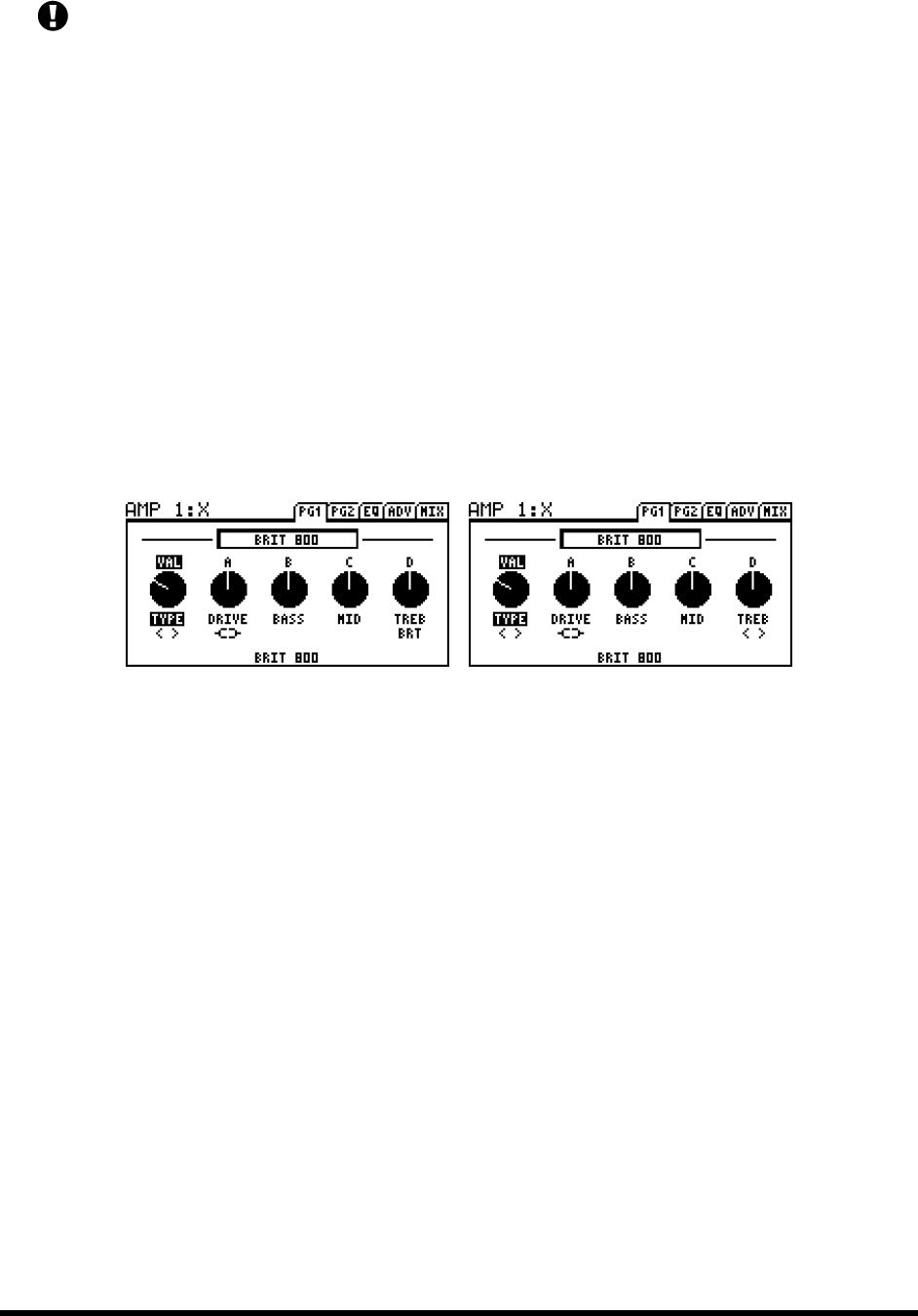
EFFECTS GUIDE
42 Doc v3.04
Some of the amps simulated on the Axe-Fx II do not have the full complement of tone controls. Some, for
example, have no mid control. To faithfully simulate the configuration of the original, set any superfluous
Of course, you may still
adjust to achieve tones the original amp does not have.
Extreme tone settings along and high gain can cause pickup squealing or excessive noise. This is especially true
with the TONESTACK TYPE (p. 54) ACTIVE.
BRIGHT Many amplifiers contain
included as a pull switch on the volume control or toggle switch. On others, the circuit is hard-wired.
Every amp TYPE on the Axe-Fx II includes a bright circuit. If the original amp has no bright circuit, the default
state is off but BRIGHT can be turned on to apply circuit values most suited to an amp of that general type. If
the amp has a hard-wired treble peaker, the default BRIGHT state is on. The effect may be subtle or quite
pronounced, depending on the amp selected, and is also affected by the BRIGHT CAP setting (p.54).
To turn the bright switch ON or OFF while editing an amp, use the NAV keys to select the TREBLE knob and
symbol < > appears when the bright switch is OFF.
BRIGHT switch ON (“TREB BRT”)
BRIGHT switch OFF (“TREB < >”)
POWER AMP VOICING Voices the amp to a variety of tonal styles, taking the guesswork out of mix
engineering by automatically adjusting the overall or hoose
one of the other voicings for a mix-ready tone.
PRESENCE/HI-CUT Boosts (or cuts) the upper frequencies from the power amp simulator by varying the
negative feedback frequency response. Increased presence can help a sound cut through a heavy mix.
Amps with no negative feedback circuits in their design cannot utilize a presence circuit. If DAMPING (which
determines the amount of negative feedback) is set to PRESENCE becomes a simple high-shelf
equalizer at the output of the power amp, and its label - This allows you to control the
high-frequency response of the power amp for models When changing
to a model with no negative feedback (i.e. Class-A, Mr.Z, Recto Red), be sure to check your presence settings
as settings higher than zero might darken the sound undesirably.
Note: Unlike previous Axe-Fx models, the virtual presence circuit on the Axe-Fx II now operates from 0-10
instead of +/-5. Set it as you would on a regular amp.
DEPTH Boosts low frequencies from the power amp simulation by varying the negative feedback frequency
response. The DEPTH control is set by default to an appropriate value when the amp TYPE is selected, but this
setting may be overridden.

EFFECTS GUIDE
Doc v3.04 43
SPEAKER DRIVE This parameter simulates distortion caused by pushing a speaker too far. It interacts with
the MASTER, which determines how hard the actual power amp is pushing.
MSTR The almighty Master Volume is a very important control. It determines the amount of distortion
contributed by the power amp simulator, and its setting is key to an amp sound. As the Master is turned up,
the entire character of the amp will change. The tone controls will have less influence on the sound, and the
sound will have more touch sensitivity.
With a little experimentation on your favorite Axe-Fx II amps, you will learn to appreciate the qualities of
different DRIVE and MASTER settings and how to find the great tones offered by different combinations.
egin with the Axe-Fx MASTER at or close to maximum when using
that TYPE
the MASTER and then slowly bring the drive up until
the desired tone is achieved. At high Master settings, less drive is usually required, especially for high-
results.
Amps designed for preamp distortion sounds will typically sound better with the MASTER set low to
prevent the tone becoming muddy or excessively noisy. This includes the USA Lead types, SOLO 100, and
others.
Amps with negative feedback (damping
distortion, which DAMPING
(see Advanced Parameters, below) and MASTER to achieve desired power amp distortion timbres.
Setting SAG (see below) to zero will disable Power Amp simulation, at which point the MASTER becomes a
simple level control with 40 dB of range.
LEVEL This is a copy of the LEVEL control on the MIX page for easy volume adjustment without page-
flipping. It has no effect on the inherent sound of an amp.
Amp Speaker Impedance Page
These parameters shape the virtual speaker impedance curve and the resulting resonances in the virtual power
amp. Amp- Speaker interaction causes an increase in power amplifier response at certain frequencies, affecting the
tone. Note that the power amp frequency response will not equal the speaker impedance if the DAMPING is
greater than 0. This is because negative feedback flattens the response curve.
LF RESONANCE, LF RES FREQ, LF RES Q Guitar loudspeakers have a low-frequency resonance,
typically about 100 Hz. This shifts up slightly when the speaker is mounted in an enclosure. This resonance
causes an increase in the power amplifier response due to the finite output impedance of the power amp.
MID RESONANCE, MID RES FREQ, MID RES Q third resonance,
this parameter allows you to fine-tune the edge-of-breakup profile for - For authentic
response, set MID RES flat (0.00).
HF RESONANCE, HF RES FREQ, HF RES Q A loudspeaker voice-coil presents an inductive load to the
power amp at high frequencies. This inductive load, in conjunction with the output transformer capacitance,
creates a high-frequency resonance.

EFFECTS GUIDE
44 Doc v3.04
Amp EQ Page
The amplifier includes a built-in, 8-band graphic equalizer, eliminating the need to follow the amp with a separate
EQ block for additional tone-shaping.
Advanced Amp Parameters 5.1.2
INPUT SELECT The AMP block processes audio in mono. This control determines how incoming stereo
signals will be processed. Options include inputting only LEFT or RIGHT channels or SUM L+R (the default
setting).
INPUT TRIM Allows you to adjust the relative gain of the preamp. Increasing the value will cause the amp
to have more gain than designed and vice versa. It is simply a linear gain applied at the input to the block. You
can use it to give a typically clean amp a bit more oomph or decrease the gain of a very high-gain amp. Note
that this is different than the Drive control because the Drive control interacts with the surrounding circuitry
and changes the frequency response as it is varied.
LOW-CUT FREQ This control allows you to reduce the amount of low-frequency content at the input to
the amp simulator. This parameter defaults to a value for each type but can be overridden if desired.
HIGH-CUT FREQ This control sets the cutoff frequency of a low-pass filter at the very end of the preamp
simulation. It defaults to a preset value for each amp type but can be overridden if desired. Experiment with
this to fine-tune your tone. For example, some of the higher-gain amp types are characterized by fairly heavy
filtering after the preamp stage. You can increase the high-cut frequency to achieve a brighter tone.
Conversely you can reduce this value to achieve a darker or less brittle tone.
BRIGHT CAP Sets the value of a virtual capacitor to determine the sonic effect of the BRIGHT switch
(above). Increasing this will make the preamp brighter and vice versa.
TONESTACK TYPE The BASS, MID and TREBLE controls operate by default
they simulate exactly the frequency and phase response of the classic passive tonestacks found in the original
amplifiers our simulations are based on. The TONESTACK TYPE control lets you change this behavior from
PASSIVE to ACTIVE, or to substitute the passive tonestack of another amp type.
Selecting the ACTIVE type gives each tone control +/- 12 dB boost/cut operation for up to twice the
range of a typical amplifier. Since the active tone controls are more sensitive, small adjustments have
bigger effects, and less extreme settings still achieve pretty extreme sounds. For example, full PASSIVE
treble for a high-gain British amp would be equivalent to only +5.0 dB ACTIVE, leaving 7 dB of additional
headroom! Active tone controls do not interact like those of a typical amplifier, so when you adjust the
treble, the mid and bass are not affected. This can make dialing in a certain tone easier and quicker than
it might be with a PASSIVE tonestack.
Selecting a SUBSTITUTE tonestack allows you to mix and match amps and tone stacks to create your own
hybrids. This allows you to use, for example, a Plexi-type tonestack on a Blackface amp model, or a
modern German tonestack in a British Preamp.
The default TONESTACK TYPE is governed by a global parameter (see section 8 on p. 128)

EFFECTS GUIDE
Doc v3.04 45
TONESTACK FREQ Sets the center frequency of the tone controls to determine their effect on the sound.
This control works whether you are using ACTIVE, PASSIVE, or substitute tone stacks.
This parameter defaults to an appropriate value whenever you change the amp TYPE, but it can then be
changed as desired. However, if you subsequently change the TONESTACK TYPE, the TONESTACK FREQUENCY will
not necessarily be correct anymore.
TONE LOCATION This control lets you change PRE
at the input to the preampPOST
between the last two triode stages, and ENDit after the power amp (which is physically impossible
with a real amplifier). This parameter defaults to an appropriate value whenever you change the amp TYPE,
but it can then be changed as desired.
PRESENCE FREQ Alters the center frequency of the PRESENCE control. This parameter defaults to
an appropriate value whenever you change the amp TYPE, but it can then be changed as desired.
DEPTH FREQ Alters the center frequency of the DEPTH control. This parameter defaults to an
appropriate value whenever you change the amp TYPE, but it can then be changed as desired.
POWER TUBE BIAS Sets the bias point of the virtual power amp. Lower values approach pure Class-B
operation. Higher values approach pure Class-A operation.
DAMPING This controls the amount of negative feedback, or damping, in the power amp simulation.
Higher values give a tighter and brighter sound but can sound harsh at very high master volume levels. Lower
values give a loose and gritty sound and feel. Like many other power amp parameters, DAMPING is set to an
appropriate value whenever you change the amp TYPE, but it can then be changed as desired. For example,
you might dial in some negative feedback on a Top Boost und
while still retaining the preamp voicing.
MAINS IMPEDANCE (SAG) This controls power amp dynamics. Higher settings simulate higher power
supply impedance, , for a more compressed feel. This control
interacts with the Master and will have little effect if the power amp is not being pushed. As the power amp is
pushed and draws more virtual current from its virtual power supply, the Sag control will have more effect.
IMPORTANT: Turning this control fully counterclockwise defeats power amp simulation for an individual
AMP block so you can use it as a PREAMP into an external tube power amp without globally disabling power
amp simulation (see section 8.1 on p. 128 22.
B+ TIME CONSTANT Controls the rate of change in the power tube plate supply. Lower values give a
bouncier feel, while higher values give a tighter feel.
TRIODE1 PLATE FREQ, TRIODE2 PLATE FREQ This parameter sets the cutoff frequency of the plate
impedance for the next-to-
resistor. This capacitor is used to smooth the response and reduce noise. You can adjust the amount of
capacitance, and the resulting frequency, using this parameter. The triode 2 plate capacitor is also exposed.
TRANSFORMER LF, TRANSFORMER HF These set the output transformer bandwidth.

EFFECTS GUIDE
46 Doc v3.04
TRANSFORMER DRIVE Controls how hard the virtual output transformer is driven. Higher values
simulate a smaller, more easily saturated transformer.
TRANSFORMER MATCH This is an extremely powerful parameter that sets the relative output
transformer primary impedance which in turn controls how easily the power tubes are driven into clipping.
The higher the Master Volume setting the more pronounced the effect of this parameter. Decreasing the
matching causes the power tubes to clip later and therefore the phase inverter and grid clipping becomes
more predominant. Increasing the matching causes the power tubes to clip sooner. At lower settings the
speaker resonance will be more pronounced, at higher settings the speaker resonance will be less
pronounced. For optimum results bring up the MASTER until the desired amount of power amp distortion is
achieved, then adjust matching until the character of the distortion is as desired. The various LF and HF
resonance parameters interact strongly with this parameter so be sure to experiment with those as well when
crafting a tone.
MV LOCATION Sets the location of the Master Volume. Most amps have the Master Volume before the
phase inverter . On some amps (like the AC types) the Master Volume is after the phase inverter
A third option, -is the default for amp types based on Hiwatt® models.
SAT SWITCH The Saturation Switch engages a popular mod between the preamp and the tonestack for
more aggressive distortion character.
PRESENCE/DEPTH TYPE Selecting models the typical passive circuit used in actual tube amps.
use an idealized circuit that may be less authentic but useful in some circumstances.
POWER TUBE HARDNESS This parameter controls how sharply the triodes enter saturation and can be
used to simulate softer or harder tubes. The default value is 5.0 and is set to this value whenever the type is
changed. The effect of this is subtle and most apparent at edge of breakup. Lower values give softer
saturation, higher values give a more aggressive breakup.
POWER AMP LO CUT, POWER AMP HI CUT These filters are provided for shaping the tonal color of
the virtual power amp. Note that in addition to applying a voicing filter, the POWER AMP VOICING parameter
(Basic Amp Parameters, beginning on p. 41) will also automatically set values for POWER AMP LO and HI CUT.
AMP Mix Page
The Amplifier block also has a MIX page with LEVEL, BALANCE, and BYPASS MODE parameters.
See Common Mix Parameters on p. 112 for more information.
AMP block Resolution
Presets which use a single amp block run in high-resolution mode, utilizing an entire processor. This provides
greater fidelity and resistance to aliasing. This mode is automatic and is selected whenever there is only amp block
in the layout grid. Adding a second amp block will revert both to normal resolution. Note that switching between
presets with differing numb
must be done whenever changing the resolution.
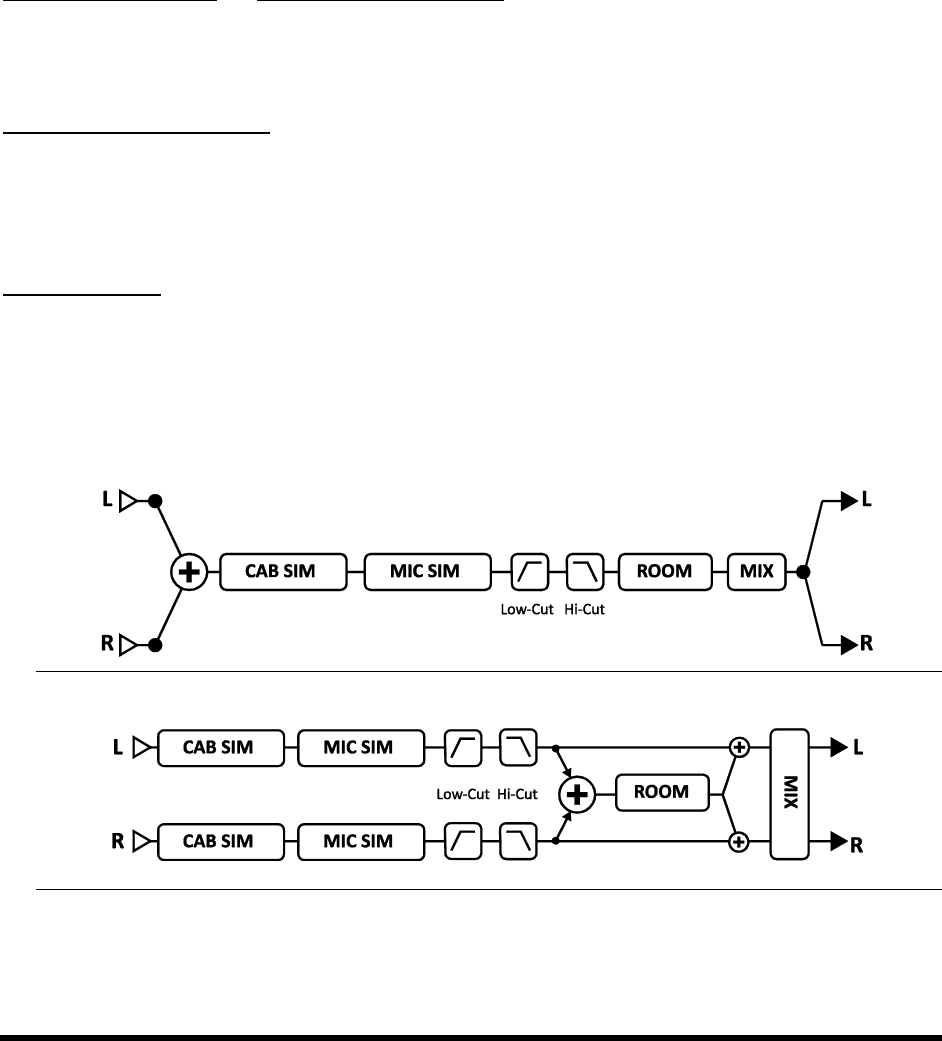
EFFECTS GUIDE
Doc v3.04 47
5.2 Cabinet [CAB]
The Speaker Cabinet Simulator recreates the tonal characteristics of a variety of speaker
and cabinet configurations. The Axe-Fx II contains 70 built-, plus 50 memory
locations into which a simple filter, the Cab
block actually recreates the subtle frequency response variations inherent in a real guitar speaker. It also offers the
ability to apply room and microphone simulations, plus tone-shaping of low and high frequencies.
Factory cabs include custom creations by Fractal Audio System, selections from 3rd-party libraries by RedWirez and
Ownhammer, and contributions from loudspeaker design engineer and Axe-Fx early adopter, Jay Mitchell. Visit
http://www.redwirez.com and http://www.ownhammer.com for more information or to purchase additional IRs
you can load into your Axe-Fx II.
Each Axe-Fx II preset can use two fully independent Cab blocks.
Cab X/Y Channel Switching
Each instance of the Cab block stores two fully independent sets of parameters called X and Y. Selecting between
these allows you to change all block settingsinstantlyat the touch of a switch or button (excluding current
Bypass State and any Modifier assignments). See X/Y Switching on p. 36 for more information.
Cab Parameters
MODE -RES,-RES,In MONO HI-RES mode,
the processing is monophonic, and resolution is at maximum (2048). In MONO LO-RES mode, processing is
monophonic, and resolution is halved (1024) to reduce CPU load. In STEREO mode, the processing is stereo,
and the resolution is lo-res (2 × 1024).
Figure 5-2 The Mono Cab Sim
Figure 5-3 The Stereo Cab Sim
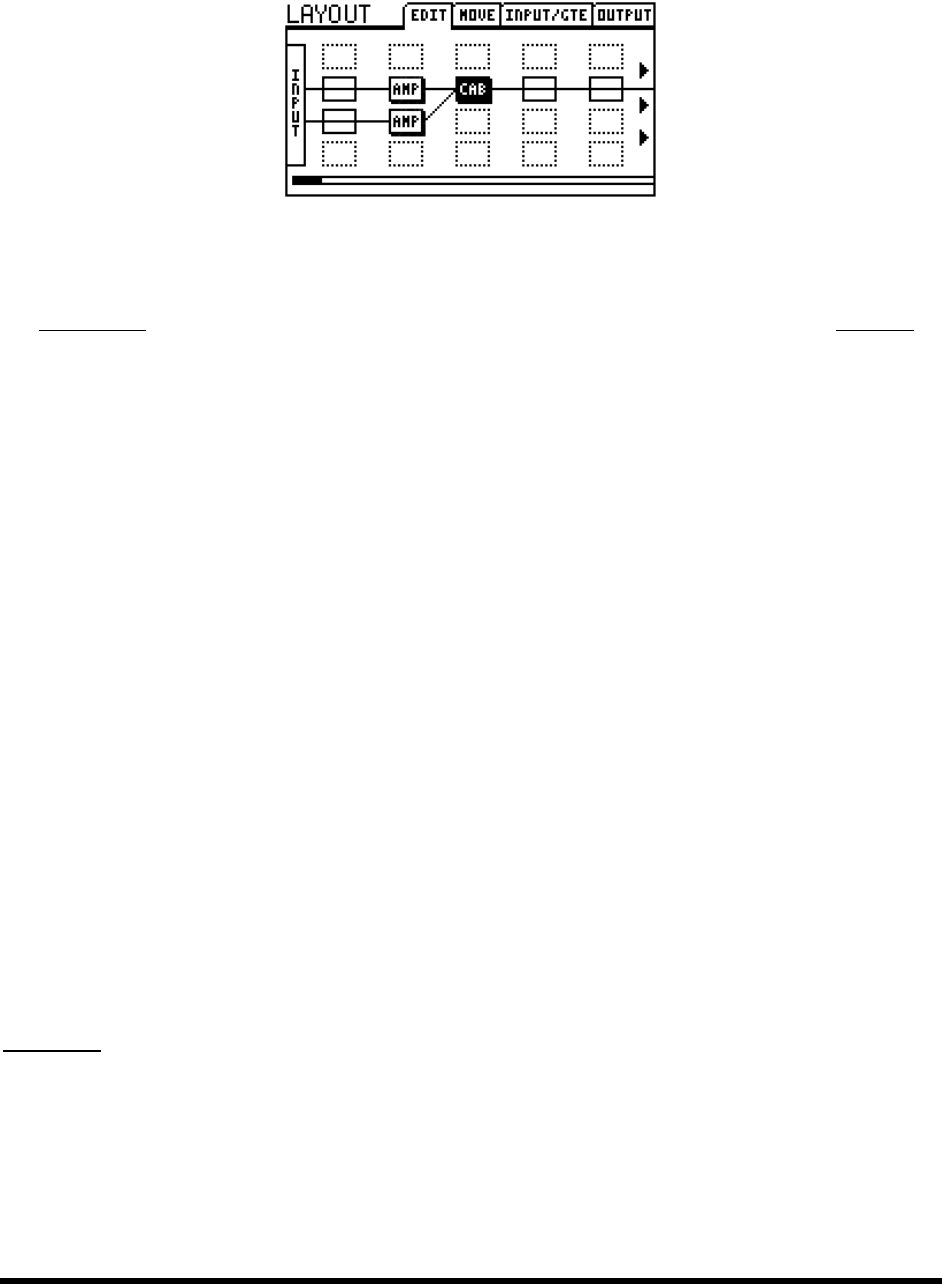
EFFECTS GUIDE
48 Doc v3.04
To use a stereo Cab block with two amps, set the balance control for AMP 1 fully left, the balance control for
AMP 2 fully right, and set the Cab block MODE set to STEREO.
Figure 5-4 Two amps into a CAB block set to STEREO mode
CAB (TYPE) Sets the cabinet type by selecting from 70 and 50 USER IRs. Cabinet types are
Ownhammer elections in the RedWirez
collection. Those marked (JM) were created by Jay Mitchell. Those not marked are creations of Fractal Audio
Systems.
1. 1×6 Oval
2. 1×8 Tweed
3. 1×10 Gold
4. 1×10 Blue
5. 1×12 Tweed
6. 1×12 Black
7. 1×12 Blue
8. 1×12 EVL (RW)
9. 1×12 Studio
10. 1×12 EMI Open Back (JM)
11. 1×12 Boogafunk Blue (OH)
12. 1×12 Boogafunk E12L (OH)
13. 1×12 Tweed Blue (RW)
14. 1×12 Tweed Deluxe (RW)
15. 1×12 Brit Blue (RW)
16. 1×12 Brit G12H30 (RW)
17. 1×15 Blues
18. 1×15 Thunderbolt
19. 2×12 Black
20. 2×12 Brit
21. 2×12 Doubleverb D120 (RW)
22. 2×12 Doubleverb C12N (RW)
23. 2×12 Blue
24. 2×12 Top Boost Blue (RW)
25. 2×12 Top Boost Silver (RW)
26. 2×12 Boutique (RW)
27. 2×12 Jazz (RW)
28. 2×12 Gold 30 Far-Field (JM)
29. 2×12 G12-65 Far-Field (JM)
30. 2×12 Boutique
31. 2×12 Doubleshow (JM)
32. 4×10 Tweed Bass
33. 4×10 Bassguy P10 (RW)
34. 4×12 Basketweave G12H30 (RW)
35. 4×12 Basketweave G12L (RW)
36. 4×12 Basketweave G12M20 (RW)
37. 4×12 Basketweave G12M25 (RW)
38. 4×12 1960A G12M (RW)
39. 4×12 1960B T75 (RW)
40. 4×12 1960B K120 (RW)
41. 4×12 1960B V30 (RW)
42. 4×12 Hi-Power (RW)
43. 4×12 Recto V30 (RW)
44. 4×12 Recto V30 (OH)
45. 4×12 Solo V12 (RW)
46. 4×12 Solo S12X (RW)
47. 4×12 German V30 (RW)
48. 4×12 German Boutique (RW)
49. 4×12 PVH 6160 (RW)
50. 4×12 Uber T75 (RW)
51. 4×12 Uber V30 (RW)
52. 4×12 Uber T75+V30 (RW)
53. 4×12 Citrus V30 (RW)
54. 4×12 Mill 12K (OH)
55. 4×12 SLM Blue (OH)
56. 4×12 SLM H65 (OH)
57. 4×12 SLM H75 (OH)
58. 4×12 SLM M75 (OH)
59. 4×12 SLM V30 (OH)
60. 4×12 20W
61. 4×12 25W
62. 4×12 V30
63. 4×12 German
64. 4×12 Metal
65. 4×12 Cali
66. 1×15 L.A. Bass
67. 4×10 Aluminum Bass
68. 8×10 SV Bass (RW)
69. reserved
70. reserved
When the MODE of the CAB block is set to STEREOCAB L and CAB R type parameters appear.
User Cabs
The Axe-Fx II allows you to load up to 50 cabinet IR files of your own choosing. A variety of 3rd-party libraries exist,
and it is possible (though not a trivial endeavor) to create your own. For step-by-step instructions on loading User
Cab IRs, see section 16.13 of the Appendix on p. 161.
You can also create your own User Cab IRs, using a built in utility. See IR Capture on p. 138 for details.

EFFECTS GUIDE
Doc v3.04
As you scroll through user cabs by their numbers in the Cab TYPE parameter, NAMES will appear in the bottom of
the display. These names come from within the data of the user cab SysEx file. Names can be changed before the
file is loaded into the Axe-Fx II (using Axe-Edit or a 3rd-party SysEx utility), but not after.
CAB SIZE This control
be used to shift w-1.1) will
sound most natural. When the MODE of the CAB block is set to STEREO, CAB SIZE is not offered.
MIC (TYPE) Selects the microphone simulation type used. There are eight different types based on classic
guitar cabinet microphones. When the MODE of the CAB block is set to STEREO, independent MIC L and MIC R
parameters appear.
Manufacturer and product names mentioned below are trademarks or registered trademarks of their respective owners,
which are in no way associated or affiliated with Fractal Audio Systems. The names are used only to illustrate sonic and
performance characteristics of the Axe-Fx II MIC TYPES.
57 DYN (based on the Shure® SM57®)
58 DYN (based on the Shure® SM58®)
421 DYN (based on the Sennheiser MD 421 II®)
87A COND (based on the Shure® Beta 87A®)
U87 COND (based on the Neumann® U87®)
E609 DYN (based on the Sennheiser® e609® Silver)
RE16 DYN (based on the Electro-Voice® RE16®)
R121 COND (based on the Royer Labs® R-121®)
D112 DYN (based on the AKG® D112®)
67 COND (based on the Neumann® U67®)
It is When the MODE of th
independent MIC L and MIC R type parameters appear.
PROXIMITY Available only when the Cab MODE is set to STEREO, simulates the classic proximity effect,
causing an increase in bass or low frequency response as proximity is increased.
LEVEL L, LEVEL R Allows independent control over left and right output channels. These parameters
appear only when the Cab MODE is set to STEREO.
PAN L, PAN R Allows independent control over left and right output pan. Adjust this control to obtain the
desired amount of stereo separation. These parameters appear only when the Cab MODE is set to STEREO.
LINK Available only when the Cab MODE is set to STEREO, LINK turns the LEFT channel parameters into
master controls, which set identical values for LEFT and RIGHT parameters. You can still override the right
channel parameters values if desired.
ROOM LEVEL, ROOM SIZE These controls determine the level and virtual size of a room reverb
simulation that is built into the cab simulator block. Increase to add room ambience to the sound.
MIC SPACING Increases delay times inside the room reverb simulation by simulating the distance of the
room microphone from the sound source.
LOW-CUT/HI-CUT Adjusts the cutoff points of first order high-pass and low-pass filters. Increase the low-
cut if the sound is too bassy -cut frequency for a darker cab tone.
Cab Mix Parameters
The Cab block also has a MIX page with LEVEL, BALANCE, and BYPASS MODE parameters.
See Common Mix Parameters on p.112 for more information.
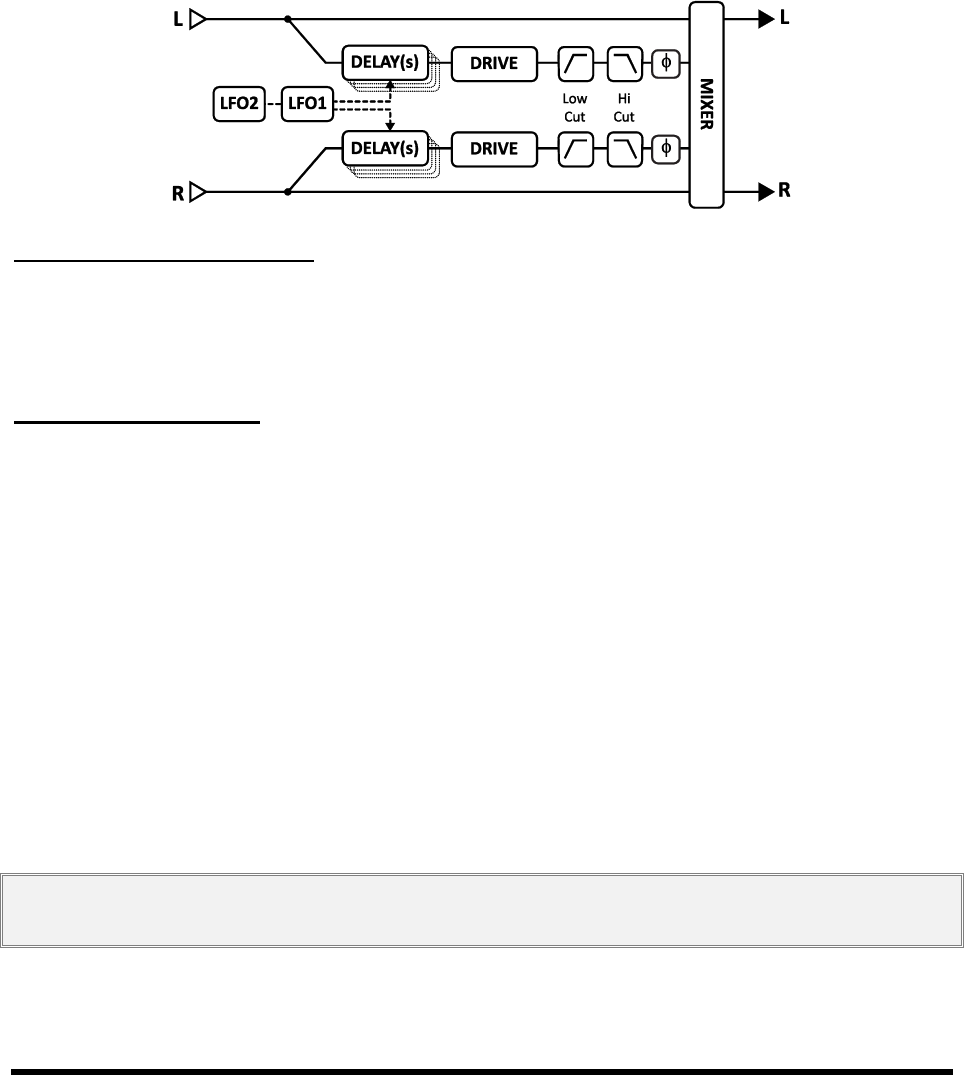
EFFECTS GUIDE
50 Doc v3.04
5.3 Chorus [CHO]
A chorus unit creates one or more delayed copies of the input signal and modulates each of these to create the
layered effect of different voices. Used subtly, the effect can be ambient and liquid, while more extreme settings
The Axe-Fx II offers a high-quality, multi-voice stereo chorus capable of
producing anything from exceptionally smooth ensemble effects to a wildly detuned warble.
Each Axe-Fx II preset can use two fully independent Chorus blocks.
Figure 5-5 The Chorus Block
Chorus X/Y Channel Switching
Each instance of the Chorus block stores two fully independent sets of parameters called X and Y. Selecting
between these allows you to change all block settingsinstantlyat the touch of a switch or button (excluding
current Bypass State and any Modifier assignments). See X/Y Switching on p. 36 for more information.
Basic Chorus Parameters
TYPE This control instantly sets other Chorus parameters for different useful sound settings. Types include:
DIGITAL MONO, DIGITAL STEREO, ANALOG MONO, ANALOG STEREO, JAPAN CE-
TRIANGLE CHORUS, and 8-VOICE STEREO. Rate, Depth, Level, Balance, Bypass Mode, and Global Mix are not
affected.
NUMBER OF VOICES Each stereo channel in the chorus can have from one to four voices. Increasing the
number of voices increases the fullness of the effect. Use two voices for a vintage chorus effect, or use up to
eight for a lush, multi-layered ensemble.
RATE This controls the speed at which the chorus oscillates. Use low settings with higher depths for slow-
moving sounds. Increase the rate and depth for vibrato effects. Set fully counterclockwise to sync the chorus
LFO to global LFO1. When RATE is shown in parenthesis, it is being set automatically by the TEMPO parameter
(see below). Set the TEMPO
DEPTH Sets the delay modulation, which determines the amount of detune heard from each voice.
Tip: Rate and depth are usually used inversely (high rate/low depth or low rate/high depth), but other settings can also
produce “interesting” effects. For precise control of depth, turn the AUTO DEPTH parameter on the ADVANCED page to OFF.

EFFECTS GUIDE
Doc v3.04 51
MIX Sets the ratio of wet and dry (duplicated from the MIX page). A setting of 50% produces the most
prominent effect. Try setting the mix to 100% for vibrato effects.
TEMPO Sets the chorus rate in rhythmic relation to the global tempo. For example, if the tempo is set to
1/4 and the global tempo is 120 BPM, the chorus modulation rate will automatically be set to 2 Hz (BPM/60
= Hz). To ignore the global tempo, set the tempo control to NONE.
Advanced Chorus Parameters
DELAY TIME Adjusts the minimum delay time from 1.020.0 ms. Lower values create a more unified
sound while higher values approach the feel of double tracking.
LOW CUT Adjusts the cutoff frequency of a high-pass filter at the output of the processed signal. This
control removes bass frequencies and can be useful to create chorus effects designed for bass guitar.
HIGH CUT Adjusts the cutoff frequency of a low-pass filter at the output of the processed signal.
Decreasing this value creates a darker chorus effect reminiscent of an age when typical effects were unable to
reproduce the full frequency spectrum. Some might say
LFO PHASE Adjusts the phase differential between left and right LFO waveforms, which creates a
noticeable effect on the stereo width of the chorus.
LFO TYPE SSine is the most commonly used waveform, but the
tSet the LFO
phase to 90 degrees to duplicate the sound of this particular unit.
Note: Whenever the number of voices is set to more than two, the LFO type will be changed automatically to
“SINE.” If the number of voices is greater than two and the LFO type is changed to something other than
“SINE,” the number of voices will be reset to two.
See section 16.5 on p.152 for more information on LFO waveform shapes and phase.
AUTO DEPTH Scales DEPTH to create a consistent sound at any RATE. This control simplifies dialing in
. For precise control or wild sounds, you may wish to turn it OFF.
PHASE REVERSE Allows Left, Right or both channels of the effect to be phase inverted.
DRIVE This control allows you to simulate the gentle distortion produced by overdriving an analog bucket
brigade delay chip of the type used in many
WIDTH Widens the sound, creating a difference between left and right delay times by scaling the right
downwards from the value set (see DELAY TIME, above) toward 1 ms as width goes from 0100%.
LFO2 RATE Adjusts the rate of the secondary LFO. This LFO modulates the primary LFO and can be used to
create more interesting effects.
LFO2 DEPTH Adjusts the depth of the secondary LFO.
STEREO SPREAD Controls stereo width by setting the pan position of the two delays from hard-panned
(100%) to dead center (0%).
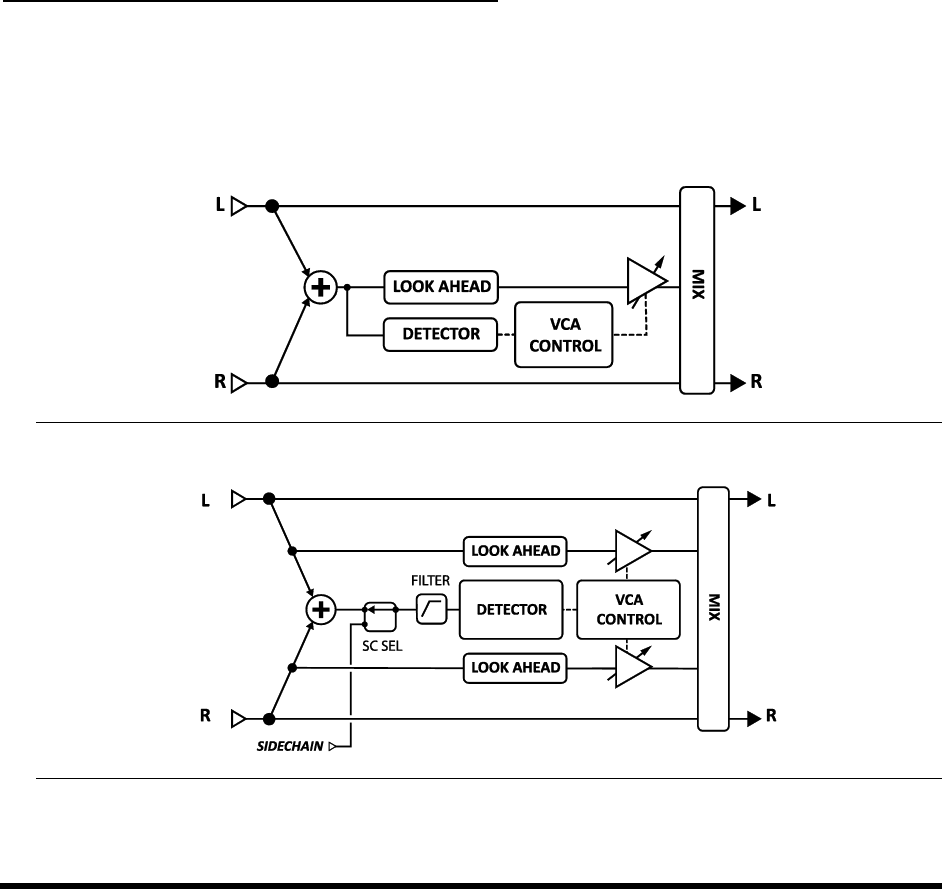
EFFECTS GUIDE
52 Doc v3.04
The Chorus block also has a MIX page with LEVEL, BALANCE, and BYPASS MODE parameters.
See Common Mix Parameters on p.112 for more information.
5.4 Compressor [CMP]
A compressor reduces the difference between loud and soft sounds by reducing the level ofor compressing
loud signals. The reduction is triggered when the input signal exceeds a set threshold. While a compressor reduces
the volume of loud sections, it can simultaneously boost overall level for greater perceived sustain.
In guitar pedalboards, a compressor is often placed at the start of an effects chain (though using the effect in front
of high-gain distortion can increase noise or squealing). In the recording studio, a Compressor is typically placed
towards the end of a signal chain to smooth irregular levels. The Axe-Fx II provides both pedal and studio-type
compressors (detailed below).
Each Axe-Fx II preset can use two fully independent Compressor blocks.
Pedal-Type and Common Compressor Parameters
TYPE The Axe-Fx II contains two different compressor types: STUDIO and PEDAL. The STUDIO type simulates
the behavior of popular high-mpressors. The PEDAL type simulates classic
stompbox
Figure 5-6 The Compressor Block's "Pedal" Type
Figure 5-7 The Compressor Block's "Studio" Type

EFFECTS GUIDE
Doc v3.04 53
AUTO Turns the Dynamic Attack filter on or off. Turning this switch ON automatically varies the ATTACK
rate according to the program material; the compressor will respond to faster transients with a faster attack.
LOOK AHEAD DespLook Ahead
detector, which is side-chained with no delay. Look ahead c
compression is used on very percussive sources.
MIX Sets the ratio of wet (compressed) and dry sounds. This should normally be set to 100%
THRSH (Threshold) Sets the level at which automatic volume reduction will occur. When input power
exceeds the threshold, the compressor reduces output volume as set by the RATIO. (When the TYPE is set to
PEDAL, the THRESHOLD is hidden and automatically set to minus infinity).
SUSTAIN/RATIO compression, SUSTAIN increases compression amount as the knob is
turned clockwise. compression, SUSTAIN is replaced by RATIO, which sets the input-to-output
ratio for signals above the THRESHOLD. A ratio of 2.00 (2:1) means that an input that is 10 dB over the
threshold will increase the output by only 5 dB. A ratio of 10.00 (10:1) means that an input that is 10 dB over
the threshold is reduced to a mere 1 dB above. Setting the RATIO
,any level above the threshold to -wall
above which nothing can rise.
ATT Attack rate sets how fast the Compressor reduces the volume once the threshold is exceeded. For
guitar, a fast attack rate often works best.
REL Release rate determines how quickly the output volume returns to normal once the input level falls
below . Fast release rates can produce a snappy attack, but a setting that is too fast
can cause distortion if used in conjunction with fast attack times and high compression ratios. Slow release
times can keep the entire signal quiet, reducing the gain of passages even though they are below the set
threshold.
In general the release rate should be set slightly faster than the natural release rate of the program material.
An easy way to set the release rate is to strum a chord, watch the gain reduction meter (on PG2 of the EDIT
menu) and set RELEASE rate so the decay observed is slightly faster than the natural decay of the instrument.
LEVEL Sets the output level of the compressor.
Studio Compressor Parameters
When TYPE is set to STUDIO, the following additional parameters appear:
KNEE introducing gain reduction
gradually as signals approach the threshold. With high compression ratios, a hard knee may produce abrupt
gain changes. A s
gradually.
MAKEUP Automatic Makeup gain, when turned ON, compensates the output level to maintain perceived
loudness at the current threshold and ratio. The LEVEL control can then be used for fine control.
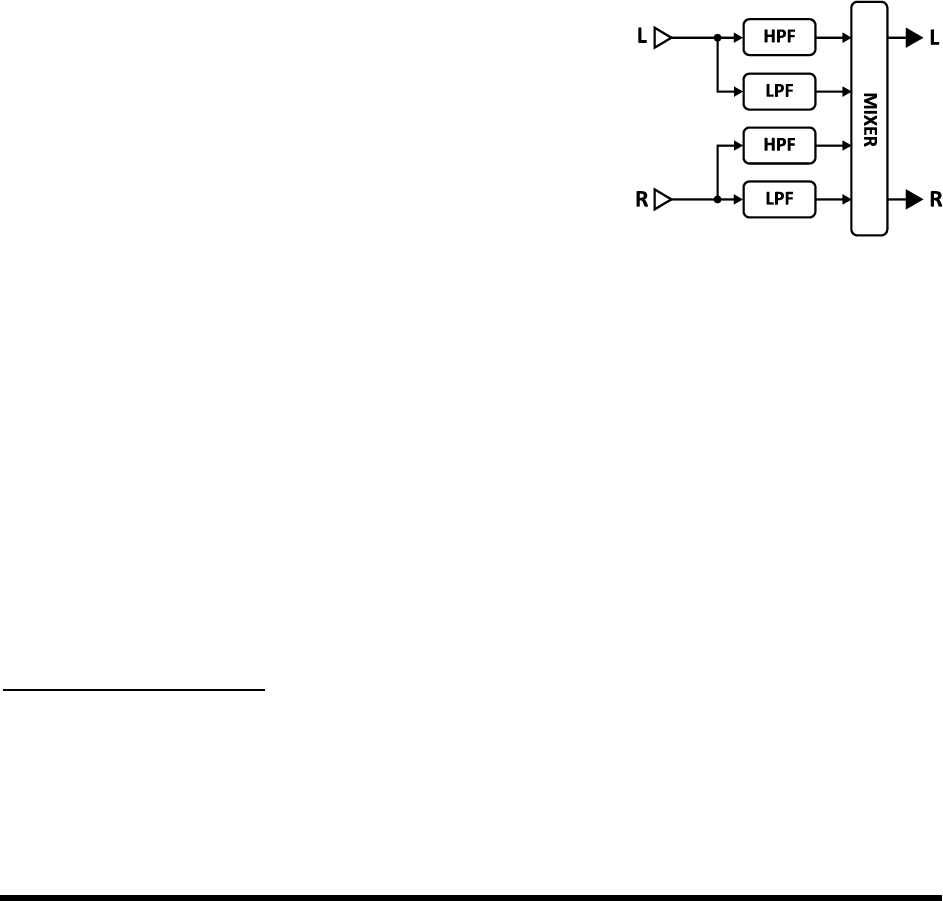
EFFECTS GUIDE
54 Doc v3.04
DETECT , or RMS + PEAK
detection. RMS detection is smoother and generally used to even out the level of the program material over a
long period of time. Peak detection, commonly used with guitar, is useful for fast limiting. RMS + Peak
combines the best attributes of both: the speed of a peak detector and the smoothness of an RMS detector.
FILTER Sets the frequency of a high-pass
filter frequency can help prevent low frequencies fro Does NOT affect the tone.
SCSEL
isolating a single
usual. You can also choose either of the main inputs as sidechain sources, i.e. INPUT 1 or INPUT 2. By using a
sidechain input you can create ducker or de-esser effects.
5.5 Crossover [XVR]
This two-way stereo crossover contains 4th-order Linkwitz-Reilly filters.
Each Axe-Fx II preset can use two crossover blocks. You can create a three-
way crossover by feeding one output of the first to the input of the second.
Each Axe-Fx II preset can use two fully independent Crossover blocks.
XOVER FREQ Sets the crossover frequency of the filters.
FREQ MULTIPLIER When set to ×10,the crossover frequency is
multiplied by ten.
LEFT LOW LEVEL Sets the level of the left input low-pass filter.
LEFT HI LEVEL Sets the output level of the left input high-pass filter.
RIGHT LOW LEVEL Sets the output level of the right input low-pass filter.
RIGHT HI LEVEL Sets the output level of the right input high-pass filter.
LEFT LOW PAN Sets the panning of the left input low-pass filter.
LEFT HI PAN Sets the panning of the left input high-pass filter.
RIGHT LOW PAN Sets the panning of the right input low-pass filter.
RIGHT HI PAN Sets the panning of the right input high-pass filter.
Crossover Mix Parameters
The Crossover block also has a MIX page with LEVEL, BALANCE, and BYPASS MODE parameters.
See Common Mix Parameters on p.112 for more information.
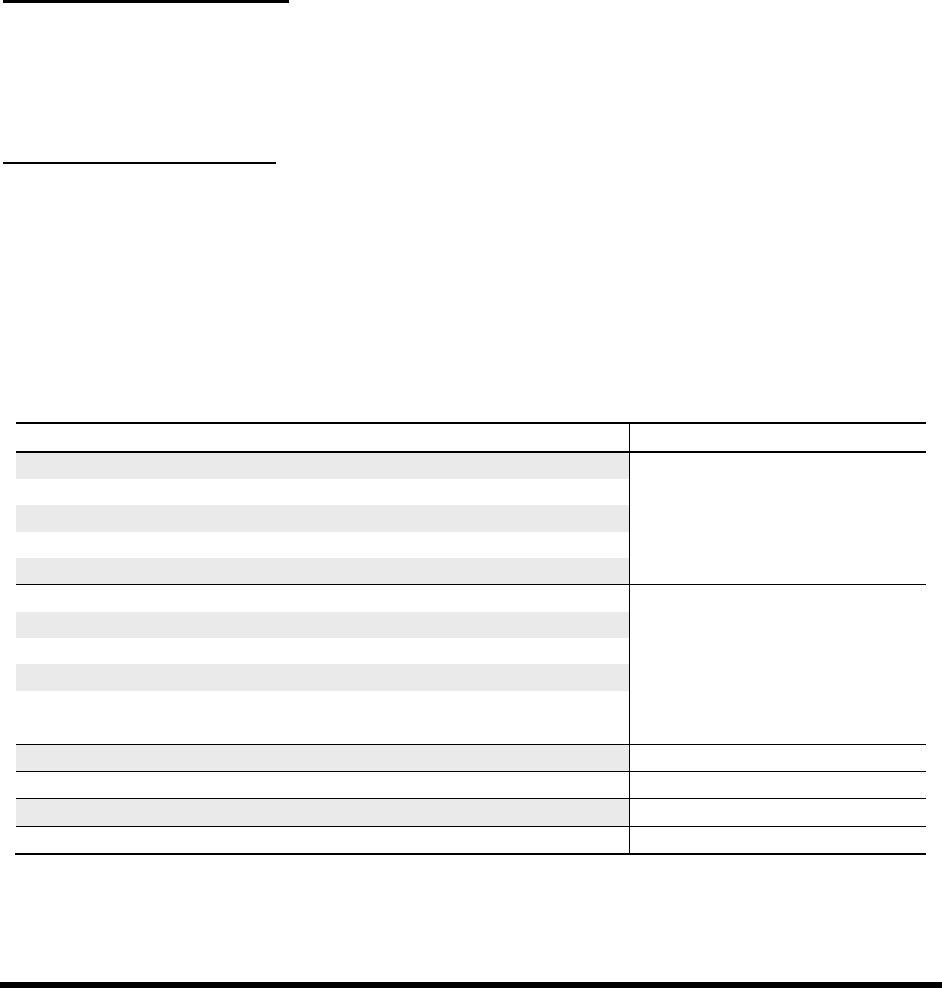
EFFECTS GUIDE
Doc v3.04 55
5.6 Delay [DLY]
The Axe-Fx II Delay block lets you create classic, modern,
e recorders were once
used for this purpose, but these had sound quality, noise, and reliability concerns. Solid-
provided an alternative to tape but had shortcomings of their own. The advent of digital technology paved the way
for delays with pristine sound, longer times, and superior flexibility, plus the ability to use additional processing to
, and even lo-fi digital predecessors.
Each Axe-Fx II preset can use two fully independent Delay blocks forget the additional two Multi Delay
blocks (p. 75), the one Megatap Delay block (p. 72), and the new Looper block (p. 71).
Delay X/Y Channel Switching
Each instance of the Delay block stores two fully independent sets of parameters called X and Y. Selecting between
these allows you to change all block settingsinstantlyat the touch of a switch or button (excluding current
Bypass State and any Modifier assignments). See X/Y Switching on p. 36 for more information.
Delay Common Parameters
TYPE The Delay TYPE control sets various parameters of the delay block to achieve popular delay effects
instantly. See the table below for a listing of DELAY block types.
CONFIG The delay configuration determines which one of several base delay algorithms is used. Depending
on the configuration you select on PG1 of the delay block, PG2 is configured with different parameters. The
purpose and parameters of each configuration are listed below.
Table 1: Delay Block Types and Configurations
TYPE
Configuration
Digital Mono
Full-range, a pristine modern delay (Default Mono).
MONO DELAY
Analog Mono
Frequency response and character of an analog delay.
Mono Tape
Frequency response and character of a tape delay.
Vintage Digital
Uses bit-depth reduction for a lo-fi vibe.
2290 w/ Mod
Based on a former industry-standard unit.
Digital Stereo
Full-range, a pristine modern delay (Default Stereo).
STEREO DELAY
Analog Stereo
Frequency response and character of an analog delay.
Stereo Tape
Frequency response and character of a tape delay.
Ambient Stereo
Ultra-wide echoes.
Ducking Delay
omatically lowers delay volume when you
Dual Delay
A default setting for the dual delay.
DUAL DELAY
Ping-Pong Delay
A default setting for the ping-pong delay.
PING PONG
Sweep Delay
A default setting for the sweep delay.
SWEEP
Reverse Delay
A default setting for the Reverse delay.
REVERSE
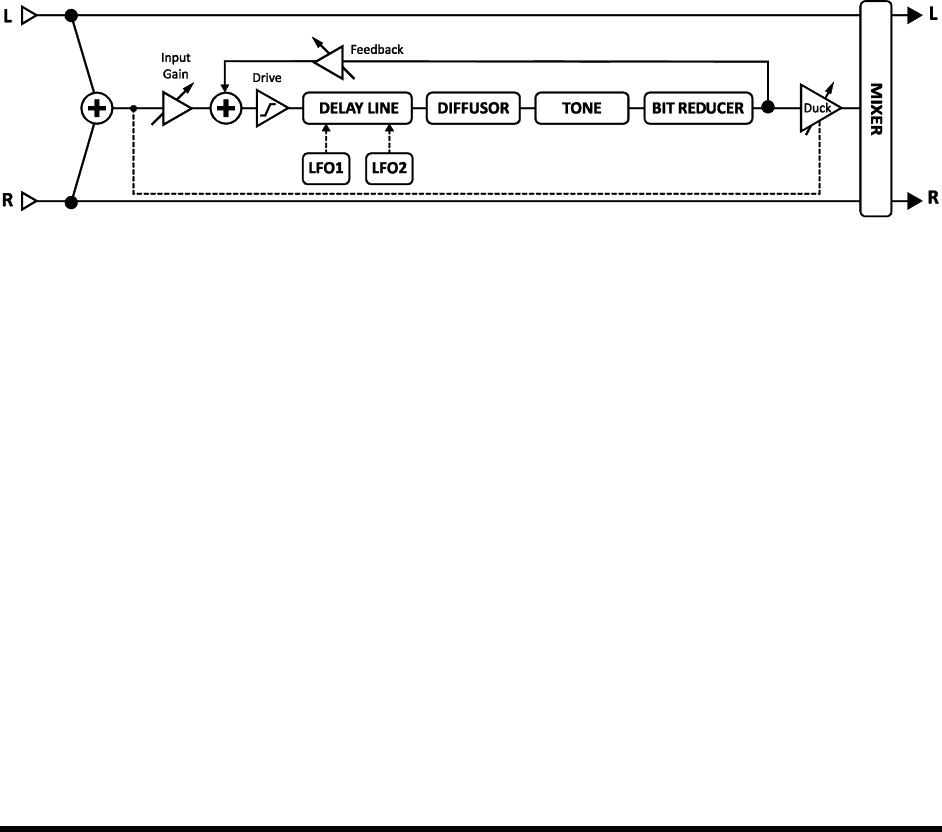
EFFECTS GUIDE
56 Doc v3.04
INPUT GAIN Sets the input level into the delay lines. This lets you to attach a controller (e.g. pedal) to the
delay level input level for operation similar to tha
set at 100%.
MSTR FDBK Master Feedback scales any and all feedback parameters on PG2 of the Delay. Note that the
range of this control is 0
MIX This is a copy of the LEVEL control on the MIX page, placed here for easy adjustment of the wet/dry
balance without page-flipping.
LEVEL This is a copy of the LEVEL control on the MIX page, placed here for easy adjustment of the overall
volume without page-flipping.
Mono Delay 5.6.1
The Mono Delay can be used for a variety of great sounding standard and exotic delays. This configuration sums
the inputs into a single delay line.
Figure 5-8 The Mono Delay Block
TIME Sets the time of the delay line (time between repeats). When TIME is shown in parenthesis, it is being
set automatically by the TEMPO parameter (see below). Set TEMPO
FEEDBK Sets the amount of delay feedback (a.k.a. regeneration) to determine the number of repeats.
ECHO PAN
different than the MIX page BALANCE control, which acts on the mix of both wet and dry.
REPEAT HOLD
which plays infinitely, as long as the REPEAT HOLD switch remains ON.
TEMPO Sets the TIME parameter in rhythmic relation to the global tempo. For example, if the global tempo
is 120 BPM, and TEMPO is set to (one echo per beat), time will be 500 ms. To ignore the global tempo,
set to NONE.
DRIVE Determines the amount of distortion created by a drive model in the delay path. Use this to simulate
the way cascading feedback overloads a tape or analog delay.
BIT REDUCTION This control makes it possible to create the lo-fi sounds of vintage digital delays. The
number shown is the number of bits to be subtracted from 24-bit full scale. To create a 16-bit delay, for
example, set BIT REDUCTION to 8 (24 8 = 16). Bit Reduction is often used with high-frequency rolloff.
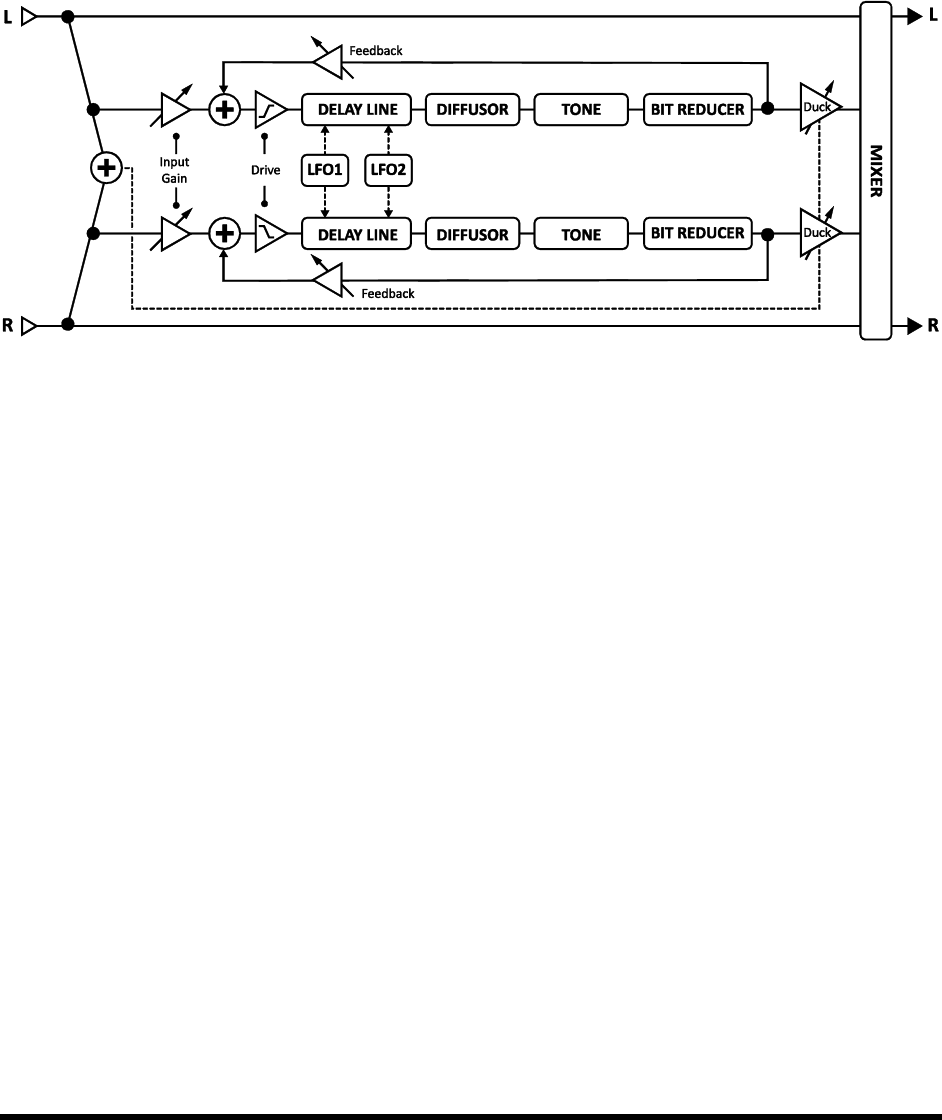
EFFECTS GUIDE
Doc v3.04 57
Please be aware that because the MONO delay contains only one delay line, the two LFO PHASE parameters on its
MOD page have no effect. Similarly, the LFO TARGET parameters must be set to LEFT or BOTH for modulation to
occur.
Stereo Delay 5.6.2
This stereo-in/stereo-out delay has the convenience of common controls for most L-R parameters.
Figure 5-9 The Stereo Delay Block
TIME Sets the left delay time in milliseconds (time between repeats). When TIME is shown in parenthesis, it
is being set automatically by the TEMPO parameter (see below). Set TEMPO l control.
RATIO Sets the right channel time as a percentage of the left. 100% results in both channels having equal
delay time. Settings close to 100% (e.g. 99.6%) will subtly widen the echo sound, while ratios corresponding to
whole number relationships like 7:8 (87
SPREAD Controls stereo width by setting the pan position of the two delays from hard panned (100%) to
dead center (0%) to swapped hard pan (-100%).
REPEAT HOLD Defeats the i
FEEDBACK L Sets the amount of feedback for the left channel to determine the number of repeats.
FEEDBACK R this
control will be adjusted automatically when RATIO is changed. You may override automatic settings by setting
a new value here manually.
TEMPO Locks the TIME parameter in rhythmic relation to the global tempo.
DRIVE Sets the amount of distortion in the delay path.
BIT REDUCTION Sets the number of bits to be subtracted (from 24 bits), enabling lo-fi effects.
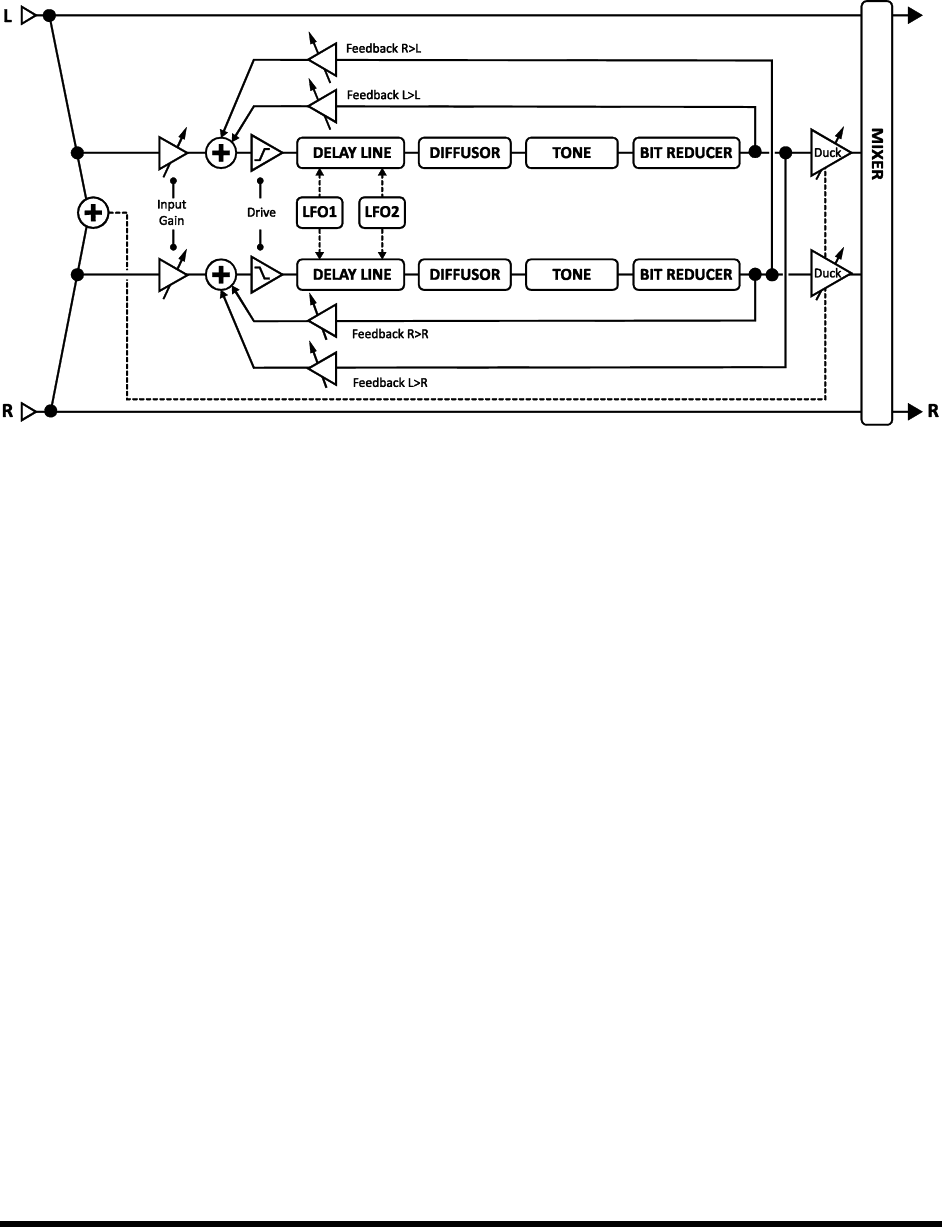
EFFECTS GUIDE
58 Doc v3.04
Dual Delay 5.6.3
This is a stereo-in/stereo-out delay with fully independent controls for most L-R parameters.
Figure 5-10 The Dual Delay Block
TIME L, TIME R Dual parameters to set the time of the left and right delay lines. When TIME is shown in
parenthesis, it is being set automatically by the TEMPO parameters (see below). Set TEMPO to
regain manual control.
LEVEL L, LEVEL R Dual parameters to independently set the volume levels of the dual delay lines.
MASTER PAN The panning of each voice is multiplied by this value. A value of 100% will result in each
voice being panned as set in the individual pan controls. A value of 0% will result in both voices being panned
to center. A value of -100% will reverse the position of the voices. You can use a modifier on this parameter to
move the voices around the stereo field in real time.
TEMPO L, TEMPO R Dual parameters to lock the independent TIME L and/or TIME R parameters in
rhythmic relation to the global tempo. See the TEMPO section under the MONO DELAY type (p.56) for more
about the relationship between BPM and delay time in milliseconds.
FEEDBK L->L, FEEDBK R->R Dual parameters to independently set the amount of feedback for the left
and right channels, determining the number of repeats heard.
FEEDBK L->R, FEEDBK R->L Dual parameters to independently set the amounts of cross feedback for
the delay lines. This controls how much of the left delay line is fed back into the right and vice versa.
PAN L, PAN R Dual parameters to independently set the pan positions of the dual delay lines.
DRIVE Sets the amount of distortion in the delay path.
BIT REDUCTION Sets the number of bits to be subtracted (from 24 bits), enabling lo-fi effects.

EFFECTS GUIDE
Doc v3.04 59
Ping-Pong Delay 5.6.4
The echoes of this easy-to-use Ping-Pong Delay alternate between left and right channels in stereo. The Ping-Pong
Delay uses the same algorithm as the Mono Delay (above, p. 66), except the ECHO PAN parameter is replaced by
SPREAD.
SPREAD Controls stereo width by setting the pan position of the delay outputs from hard pan (100%) to
mono (0%) to swapped hard pan (-100%).
Sweep Delay 5.6.5
The Sweep Delay uses the same algorithm as the Stereo Delay (above, p. 67), but adds an LFO-driven stereo
bandpass filter after the outputs of the delay.
START FREQ, STOP FREQ These controls set the range of the filter sweeps.
RESONANCE Sets the resonance of the filter. Some might describe this
SWEEP TYPE Sets the waveform of the LFO that controls the sweeps. See section 16.5 on p. 152 for more
information on LFO waveform shapes and phase.
SWEEP RATE Sets the speed of the sweeps.
SWEEP TEMPO Locks the SWEEP RATE parameter in rhythmic relation to the global tempo.
SWEEP PHASE Adjusts the phase differential between left and right sweep LFO waveforms.
Reverse Delay 5.6.6
The Reverse Delay simulates the impossibility of a performance from the future being heard backwards in the
present. It does so by using a delay line to first record for a set time period and then to play that recording
backwards. While the first recording plays, the next snippet is being recorded so that reverse playback appears to
continue seamlessly. If you can think of your performance as a train, this is like individually reversing each car in
place instead of flipping the whole thing from front-to-back.
To hear only the backwards sound, make sure MIX is set to 100%.
The Reverse Delay uses the same layout as the Mono Delay (5.6.1, above) except as noted below:
TIME Sets the length of time that When TIME is
shown in parenthesis, it is being set automatically by the TEMPO parameter (see below). Set TEMPO
for manual control.
FEEDBK Sets the amount of feedback to add additional repeats to the reversed snippets.
ECHO PAN Controls the placement of the wet (reverse playback) signal in the stereo field. Note that this is
different than the MIX page BALANCE control, which affects both wet and dry.

EFFECTS GUIDE
60 Doc v3.04
RUN When this is turned ON, the reverse playback process is active and can be heard. Turning RUN to OFF
will mute playback (though any samples in the buffer will still silently run out). This switch can be remotely
operated with a modifier (attached, for example, to a footswitch) to stop and start playback.
TRIG RESTART When this is set to ON the reverse playback restarts when triggered via the RUN control.
If set to OFF playback continues from the current position. The combination of RUN+TRIG RESTART can be
used to precisely align reversed passages to certain moments in a performance or to re-align tempo-based
reversing to the groove.
Tip: If you’re working with a sequencer, assign an EXTERNAL controller and re-trigger this every few bars to keep sync.
TEMPO Locks the TIME parameter in rhythmic relation to the global tempo. See the TEMPO section under
the MONO DELAY type (above) for more about the relationship between BPM and delay time in milliseconds.
XFADE TIME Sets the crossfade time between reverse audio snippets. When the playback position
approaches the delay time, a new snippet begins playback at time zero. The crossfade time controls how long
it takes for the old snippet to fade out and the new one to fade in. You can achieve interesting and rhythmic
variations by setting a long crossfade time. For classic reverse delay sounds, set this at or near its minimum
value.
Delay Common Parameters 5.6.7
Delay Modulation Parameters
Modulation systematically changes delay time, resulting in Doppler-like changes to the speed and pitch of the
,
LFO1 TYPE, LFO2 TYPE 16.5 on p. 152 for more
information on LFO waveform shapes. Remember that the shift in pitch is determined by the slope of the LFO,
so a TRIANGLE waveform actually creates a sound that you might expect from a SQUARE waveform.
LFO1 TARGET, LFO2 TARGET Sets whether the LEFT, RIGHT, or BOTH delay line(s) will be modulated.
(MONO, PINGPONG, and REVERSE configurations use only the LEFT delay line).
LFO1 RATE, LFO2 RATE Sets the delay time modulation speed. When any RATE is shown in parenthesis, it
is being set automatically by a TEMPO parameter (see below). Set the TEMPO
LFO1 TEMPO, LFO2 TEMPO Sets the LFO rate in rhythmic relation to the global tempo. For example, if
the tempo is set to 1/4 and the global tempo is 120 BPM, the LFO rate will automatically be set to 2 Hz
(BPM/60 = Hz). To ignore the global tempo, set these controls to NONE.
LFO1 DEPTH, LFO2 DEPTH Sets the depth of delay time modulation.
LFO1 DEPTH RANGE, LFO2 DEPTH RANGE Sets the range of delay time modulation to LOW or HIGH.
LFO1 PHASE, LFO2 PHASE Sets the LFO phase offset for the right delay line. See section 16.5 on p. 152
for more information on LFO phase.

EFFECTS GUIDE
Doc v3.04 61
when the level of your playing goes above a set threshold. Then, when you play more quietly or pause, the effect
volume increases so that the echoes fill the spaces.
DUCKER ATTEN Attenuation sets the amount by which the effect volume will duck (decrease). A setting
of 20 dB, for example, will decrease the echoes by 20 dB when the input level is above the threshold. Set to
0.0 to defeat the ducker.
DUCKER THRSHLD Sets the trigger level of the ducker. If the input signal exceeds this value, the delayed
signal will be reduced by the amount set with the ATTENUATION control.
DUCKER REL TIME Sets how long it takes for the delay signal to return to normal when the input goes
below the threshold. A short value here causes the ducked echoes to return to full volume the moment you
stop playing. Longer times cause the levels to swell back more gradually.
Final
DIFFUSION
smooth the sound.
DIFF TIME Sets the delay time for the diffuser.
PHASE REV Allows the Left, Right, or Both delay line outputs to be phase inverted.
Delay EQ Parameters
The delay features a powerful equalizer inside the feedback loop.
LOW CUT Sets the frequency of the low-cut filter. Increase for thinner sounds.
HIGH CUT Sets the frequency of the high-cut filter. Decrease for darker sounds.
SLOPE Sets the filter slopes, in dB per octave, of the high and low-cut filters.
Q Sets the resonance of the high and low-cut filters. High values create boosted peaks at the cutoff points.
FREQ 1, GAIN 1, Q 1 Controls for one of two peaking filters. Select the frequency to boost or cut, and set
Q to determine the width of the effect.
FREQ 2, GAIN 2, Q 2 Controls for the second peaking filter.
Delay Mix Parameters
The Delay block has a MIX page with LEVEL, BALANCE, and BYPASS MODE parameters.
See Common Mix Parameters on p.112 for more information.
A Word on “Spillover”
The Axe-Fx II Delay is capable over, that effect tails ring out when the effect is bypassed or
when you change presets. For more on this subject, please see Setting Up Spillover on p. 159.
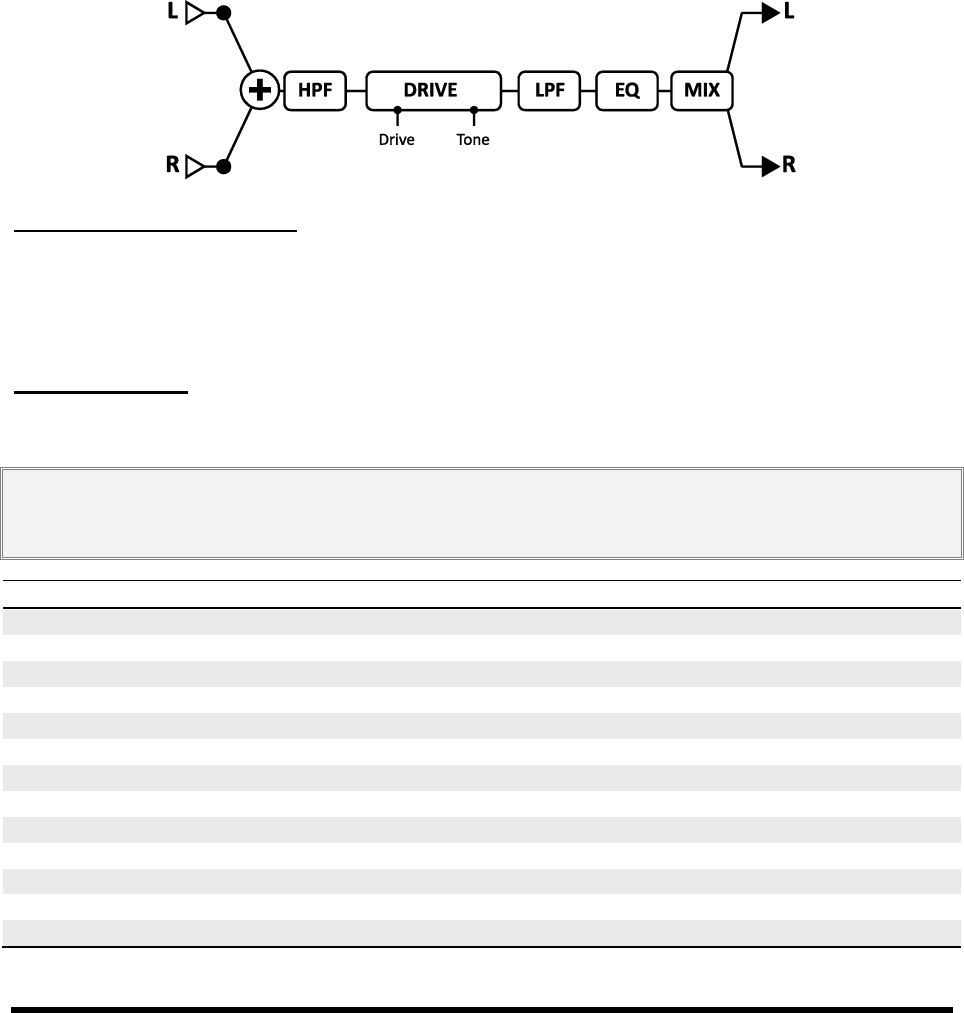
EFFECTS GUIDE
62 Doc v3.04
5.7 Drive [DRV]
The Drive block replicates 22 different, classic stompbox effects, ranging from sublime to intense. The overdrive
(OD or DRIVE) types are based on a cold-cathode tube model and give a warm, mellow overdrive tone. The
s the drive is set quite high. BOOST types are primarily tone-shaping devices
DIST) are based on a variety of tube and solid-state models and
give classic distortion tones. The fuzz (FUZZ) types are based on a hard-clipping distortion and give a raspy sound.
Drive effects include the basic controls you will find on their real world equivalents: tone, drive amount, and level,
plus advanced controls like SLEW, BIAS, CLIP TYPE, and more, enabling you to create drives with custom gain and
tone-shaping. Each Axe-Fx II preset can use two fully independent Drive blocks.
Figure 5-11 A stylized block diagram of the DRIVE block
Drive X/Y Channel Switching
Each instance of the Drive block stores two fully independent sets of parameters called X and Y. Selecting between
these allows you to change all block settingsinstantlyat the touch of a switch or button (excluding current
Bypass State and any Modifier assignments). See section 4.4 on p. 36 for more about X/Y switching.
Drive Parameters
TYPE Selects the type of drive pedal or effect. A complete list follows.
Manufacturer names and product names mentioned below are trademarks or registered trademarks of their respective owners, which are in
no way associated with or affiliated with Fractal Audio Systems. The names are used only to illustrate sonic and performance characteristics
of the Fractal Drive TYPES, which have been created by incredibly detailed analysis of the actual amps that inspired them.
TYPE
NOTES
Rat Dist
Based on .
PI Fuzz
Based on the Big Muff® Pi Fuzz.
Tube OD
that actually contained a 12AX7.
Super OD
.
Treb Boost
Based on a classic Treble Booster.
Mid Boost
A custom mid-boost overdrive.
T808 OD
Based on the -808® Tube Screamer.
Fat Rat
A modified version of the Rat Dist. A bit fuller and smoother.
T808 MOD
Captures the most popular 808 mods.
Octave Dist
An octave distortion based on the Tycobrahe® Octavia®.
Plus Dist
.
Hard Fuzz
A hard-clipping, 60s-style fuzz.
FET Boost
A gentle, smooth clipping booster with tone controls.

EFFECTS GUIDE
Doc v3.04 63
Tape Dist
Simulates the clipping of an overdriven reel-to-reel tape deck.
Full OD
.
Blues OD
.
Shred Dist
hredmaster®.
M-Zone Dist
Bender Fuzz
Based on the classic Tonebender circuit.
BB Pre
Based on the Xotic® Pedals BB Preamp®.
Face Fuzz
Based on Dallas Arbiter Fuzz Face®.
Master Fuzz
Based on the Maestro Fuzztone, aka Satisfaction fuzz.
Bit Crusher
Based on a black box we found lying in the trash outside Studio Harshclip.
DRIVE Sets the amount of gain/overdrive/distortion/fuzz/boost.
Note: A high-gain drive before a high-gain amp can cause noise and squealing to occur.
TONE Determines the high/low character of the drive simulation, just as the tone knob on a pedal would.
LEVEL Sets the output level. Even a clean-
MIX Controls the ratio of dry to wet. This should normally be set to 100%
BAL Sets the left/right output balance of the block.
LOW CUT Controls the frequency of the input high-pass filter. Increase to prevent "flubby" distortion.
HIGH CUT Controls the frequency of the output low-pass filter. Lower this for a darker sound.
CLIP TYPE Controls the type of clipping circuit used for the distortion generation.
SLEW LIMIT Limits the large-signal frequency response. Turning up this control simulates the limited high-
frequency response inherent in drive pedals using early op-amps. This parameter defaults to an appropriate
value when a type is selected.
BIAS Sets the bias point for the clipping circuit. Varying this setting controls the relative amount of even and
, as setting this too high
or too low with certain clipper types can render the block inaudible.
BIT REDUCE Creates digital distortion by reducing the resolution of the audio signal. The number shown is
the number of bits that will be subtracted from 24-bit full scale. To create 4-bit audio, for example, set BIT
REDUCE .ch is possible using
the HI CUT, LO CUT, and EQ parameters of the drive block. Tip: It is supposed to sound nasty!
INPUT SELECT The Drive block processes audio in mono. This control determines how incoming stereo
signals will be processed. Options include inputting only LEFT or RIGHT channels or SUM L+R (the default).
BYP MODE Sets the bypass mode of the block to MUTE or THRU. See Common Mix Parameters on p.112.
BASS/TREBLE These adjust the low-end and high-end of the built-in equalizer from +/- 12 dB.
MID, MID FREQ Sets mid-boost or cut (+/- 12 dB) and frequency for the built-in equalizer.
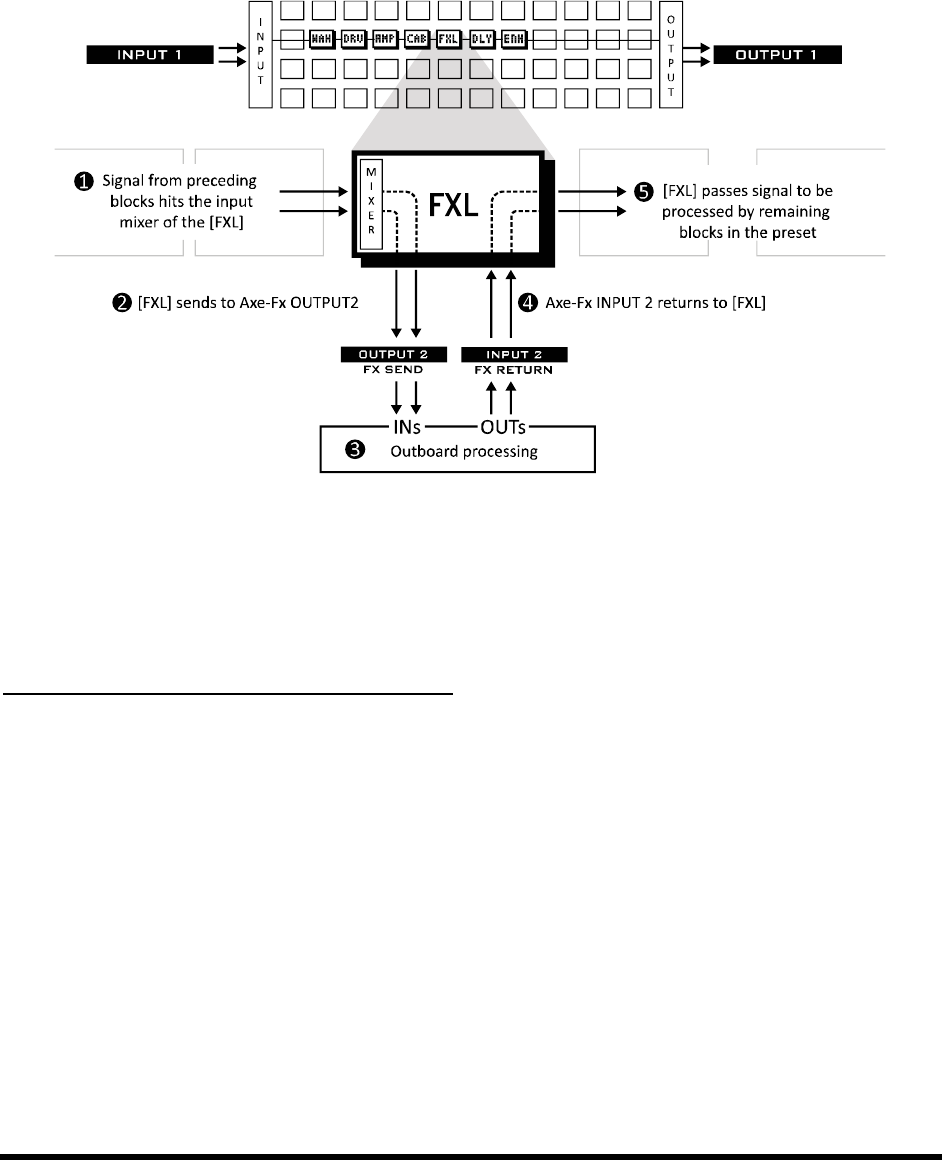
EFFECTS GUIDE
64 Doc v3.04
5.8 Effects Loop [FXL]
The Axe-Fx II has a full-stereo effects loop that can be used to insert outboard hardware anywhere in the signal
chain of a preset. Any signal at the input of the [FXL] block is passed to the
Axe-Fx II. Any signal received at the physical INPUT s of [FXL].
Figure 5-12 Effects Loop Routing
The Effects Loop block is frequently used to insert the preamp section of a head or combo. The main output of the
Axe-Fx is then routed to the effect loop input of the real amp. See the diagram on p. 21
-Fx II.
Alternate Use as an Auxiliary Output or Input
The FX Loop Block doubles as a means to provide an auxiliary output or Input. Feeding signal to the [FXL] block
routes signal directly to the OUTPUT 2 jacks. This is useful, for instance, to send a fully processed mix to the
front-of-house while simultaneously feeding a (real) onstage power amp and speaker cabs. See the example on p.
22 for more details.
Alternatively, you might use the INPUTS and not the OUTPUTS so the [FXL] block allows a second input signal to
enter the grid at any point. Instruments with more than 2 outputs (rare but not unheard of) can thus be utilized.
The FX Loop block has a MIX page with LEVEL, BALANCE, and BYPASS MODE parameters. See Common Mix
Parameters on p. 112 for more information.
Each Axe-Fx II preset can use one FX Loop block.
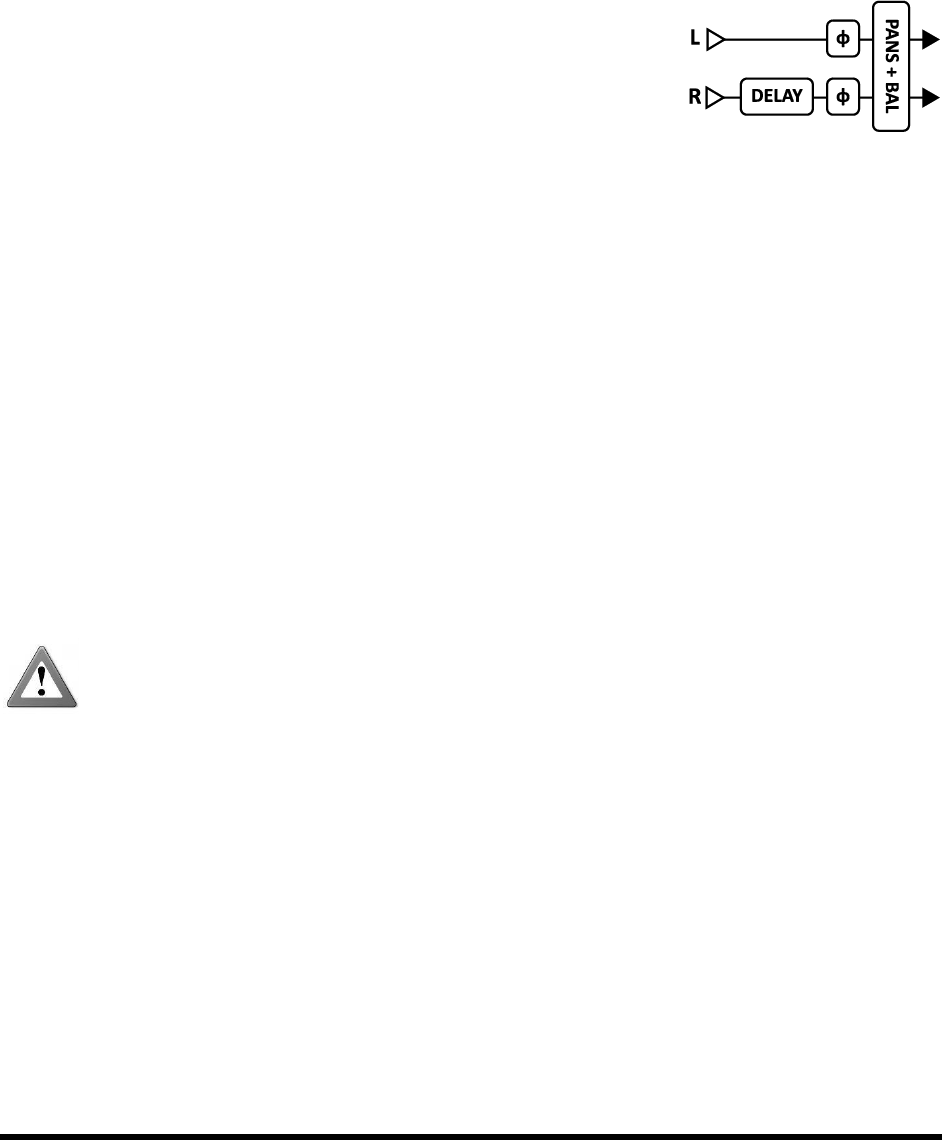
EFFECTS GUIDE
Doc v3.04 65
5.9 Enhancer [ENH]
The Enhancer delays the right channel by a very small amount to increase the apparent stereo separation between
the left and right channels. It also provides individual left and right phase and pan controls. You can use these with
or without WIDTH , or
perform other types of manipulation. Each Axe-Fx II preset can use one Enhancer block.
WIDTH Sets a delay for the right channel from 020 ms. Adjust until the
desired effect is achieved. Certain frequencies may cancel each other out at
various settings, and effects can vary based on the position of the listener.
INVERT Allows phase inversion of the left or right channel (or both). Use
in conjunction with the width control to adjust apparent widening.
PAN L, PAN R Independent parameters to control the pan positions of the left and right output signals.
BAL The Balance control changes the relative volumes of the left or right outputs. Sometimes the enhancer
effect will cause a shift in the apparent stereo placement of sound. The balance control may be used to
compensate for this.
The Enhancer has no mix parameters or bypass mode modifier switch.
5.10 Feedback Send [SND] & Return [RTN]
The Feedback Send and Feedback Return blocks allow you to route sound from any point in the preset routing to
any other point, bending the rule that signal may only flow from left to right. No connector will be visible between
the two blocks, but signal nonetheless flows from the output of the SEND to the input of the RETURN. Both blocks
must be used for either to function. The primary function of the Send and Return blocks is to allow effects to be
ly involving some type of delay. The MIX of the delay in the
loop is normally ,since direct signal recirculation results in instability and undesirable phase issues.
Warning: Use caution with the Feedback blocks, as you can easily program an unstable loop and cause
internal clipping and/or very high sound levels, which may damage your hearing. With the RETURN
block MIX at 100%, set its LEVEL control to minus 80 dB and bring it up slowly. If you start to hear
squealing or other signs of instability, return the LEVEL control to minimum and analyze your routing for possible
causes of instability.
See Using Send and Return on p. 160 for creative application ideas.
Each Axe-Fx II preset can use one FB Send and one FB Return block.
The Feedback Send block has SEND LEVEL and OUTPUT LEVEL controls. The latter controls the amount of signal that
passes through the block.
The Feedback Return block has MIX, LEVEL, BALANCE, and BYPASS MODE parameters. See Common Mix
Parameters on p. 112 for more on these.

EFFECTS GUIDE
66 Doc v3.04
5.11 Filter [FLT]
The stereo Filter block can be used for simple or spectacular sound shaping. It allows a variety of different effects
with real-TYPE to NULL or as a
treble (or mid) booster with greater programmability than the ones in the DRIVE block.
The Filter block is equipped with individual left and right pan controls. These allow you to adjust the placement of
the left and right output signals in the stereo field. You can use these controls to turn a stereo signal into two
mono outputs (set both to 0.0) or to reduce the stereo separation, or you can use them as general stereo
manipulation tools.
The filter is stereo-in/stereo-out.
Each Axe-Fx II preset can use four fully independent Filter blocks.
Parameters
TYPE Sets the type of filter. All the standard filter types are available. A NULL type has a flat frequency-
response characteristic and can be selected if you want to use the block as a simple gain element.
FREQ Sets the center frequency of the filter.
ORDER Selects different filter slopes. 2nd = 12 dB/ octave, 4th = 24 dB/ octave
Q Sets the Q of the filter. Higher values give sharper responses.
GAIN Sets the gain at the center frequency for the bandpass, notch, low-shelf, and high-shelf types. This
control has no effect with the other types.
LEVEL Sets the output volume level of the block.
BAL Sets the output balance of the block.
PAN L, PAN R These controls allow you to adjust the placement of the left and right output signals for
stereo width adjustment or stereo-to-mono conversion.
BYP Sets the bypass mode of the block. See Common Mix Parameters on p.112 for more information.
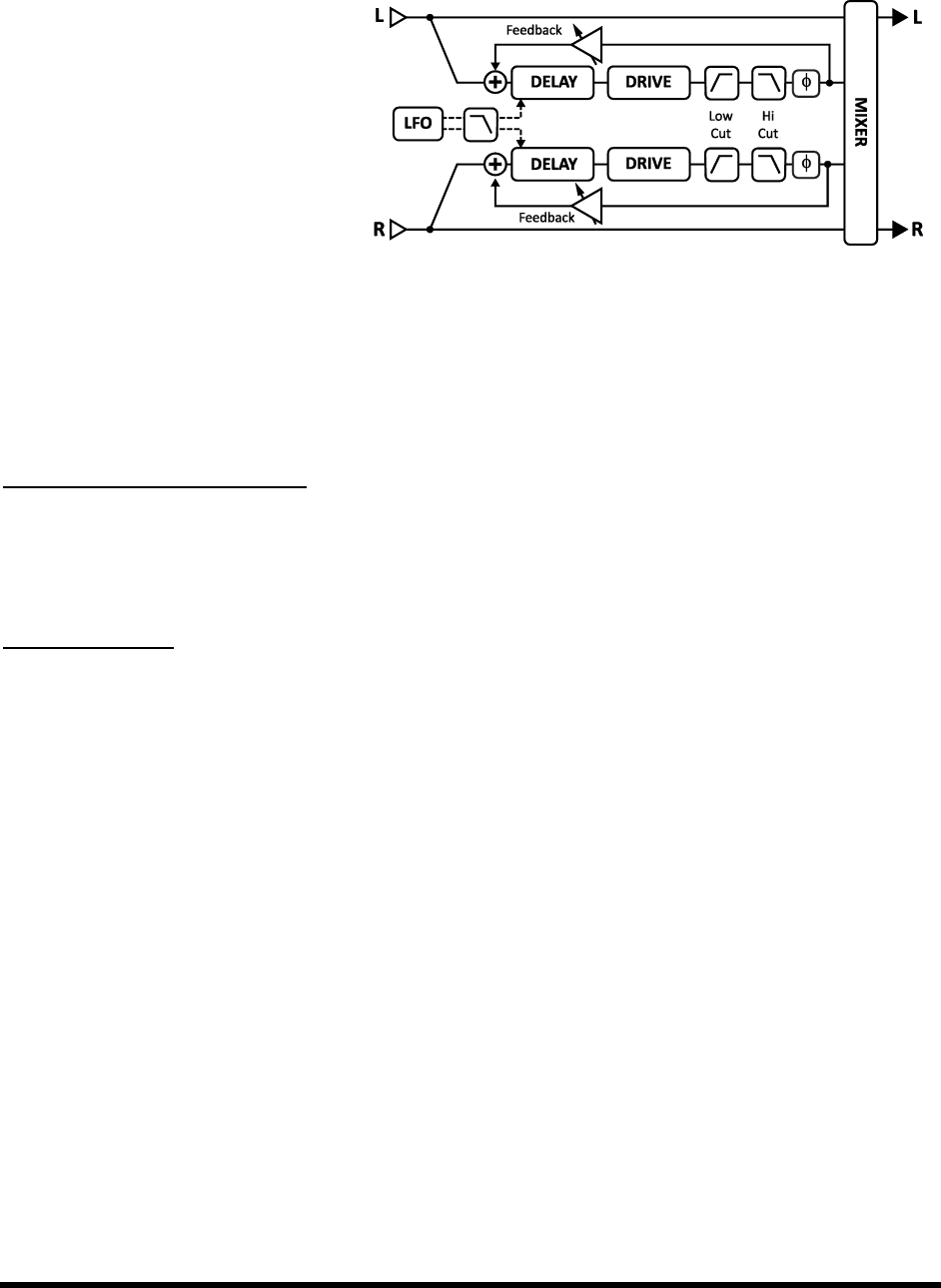
EFFECTS GUIDE
Doc v3.04 67
5.12 Flanger [FLG]
The sound of a Flanger can range from
subtle chorusing, to swooshing jet plane, to
robotic drainpipe. The effect was intended
to duplicate the sweeping comb-filter
sound created when one of two tape decks
playing synchronized material is shifted out
of the tape reel (hence the term). A great
example of tape flanging can be heard in
the bridge of the Doobie Brother's song
"Listen to the Music." The flanger effect has evolved through countless variants, but almost all of them have a
which returns some of the output signal to the
input and intensifies the characteristic sweep. A regenerative flanger is a real attention-getter.
Each Axe-Fx II preset can use two fully independent Flanger blocks.
Flanger X/Y Channel Switching
Each instance of the Flanger block stores two fully independent sets of parameters called X and Y. Selecting
between these allows you to change all block settingsinstantlyat the touch of a switch or button (excluding
current Bypass State and any Modifier assignments). See X/Y Switching on p. 36 for more information.
Basic Parameters
TYPE This control instantly sets other Flanger parameters for useful sound settings. Types include: DIGITAL
MONO, DIGITAL STEREO, ANALOG MONO, ANALOG STEREO, THRU-ZERO, and STEREO JET.
TIME Adjusts the nominal delay time of the delay line. This changes the character of the effect. Low values
give a phaser-like sound whereas high values are more metallic. Adjust to taste.
RATE Controls the frequency of the Low Frequency Oscillator, which varies delay time to create the sweep.
Use low settings rate with high depths for slow-moving sounds. Increase the rate for vibrato effects. Set fully
counterclockwise to sync the Flanger LFO to global LFO1. When RATE is shown in parenthesis, it is being set
automatically by the TEMPO parameter (see below). Set the TEMPO
DEPTH Sets the maximum delay variation. Higher depths increase the amount of detuning. Usually, the rate
and depth settings should be varied inversely, so an increase in rate warrants a decrease in depth. Unique
sounds can also be obtained by ignoring this convention and using other combinations of rate and depth.
FDBK Feedback sets the amount of wet signal fed back to the input. Extreme values give the flanger a more
intense quality as it produces sharp resonances in the frequency response. With negative FEEDBACK values, the
wet signals are out of phase with the dry, creating sounds with a different character than those created using
positive feedback.
Note that extreme feedback at minimum flanger DRIVE settings will cause a siren-like ringing oscillation.
Figure 5-13 - The Flanger Block

EFFECTS GUIDE
68 Doc v3.04
MIX Sets the ratio of wet and dry (duplicated from the MIX page).
TEMPO Locks the flanger rate in rhythmic relation to the global tempo. For example, if the tempo is set to
1/4 and the global tempo is 120 BPM, the rate will automatically be set to 2 Hz (BPM/60 = Hz). To ignore the
global tempo set the tempo control to NONE.
Advanced Parameters
THROUGH ZERO Setting this to ON adds a delay to the dry path equal to half the sweep depth. This can
emulate true tape-deck flanging, where one of the two tapes is first ahead of, and then behind, the other.
PHASE REVERSE Controls the phase of the wet output signal. Either or both channels can be inverted.
Use to increase the effect of through zero flanging.
HIGH CUT This filters the wet portion of the effect signal, gently rolling off treble at the set frequency with
a slope of 6db. Set to lower va
LOW CUT Adjusts the cutoff frequency of a high-pass
DRIVE This control allows you to simulate the gentle distortion produced by overdriving an analog bucket
brigade
LFO PHASE Adjusts the phase difference between the left and right LFO waveforms. For maximum stereo
spread, set this to 180 degrees. For mono flanging, set this to zero.
LFO TYPE
See section 16.5 on p.152 for more information on LFO phase and waveform types.
LFO HICUT Lowering this control filters the LFO waveform, rounding sharp turns in its shape. Certain
waveform types (saw, square, ,
their values jump from one extreme to another. Lowering the LFO HICUT frequency will mitigate this.
AUTO DEPTH Scales DEPTH to create a consistent sound at any RATE. This control simplifies dialing in
unds you may wish to turn it OFF.
STEREO SPREAD Controls stereo width by setting the pan position of the two delays from hard panned
(100%) to dead center (0%).
Flanger Mix Parameters
The Flanger block also has a MIX page with LEVEL, BALANCE, and BYPASS MODE parameters.
See Common Mix Parameters on p.112 for more information.
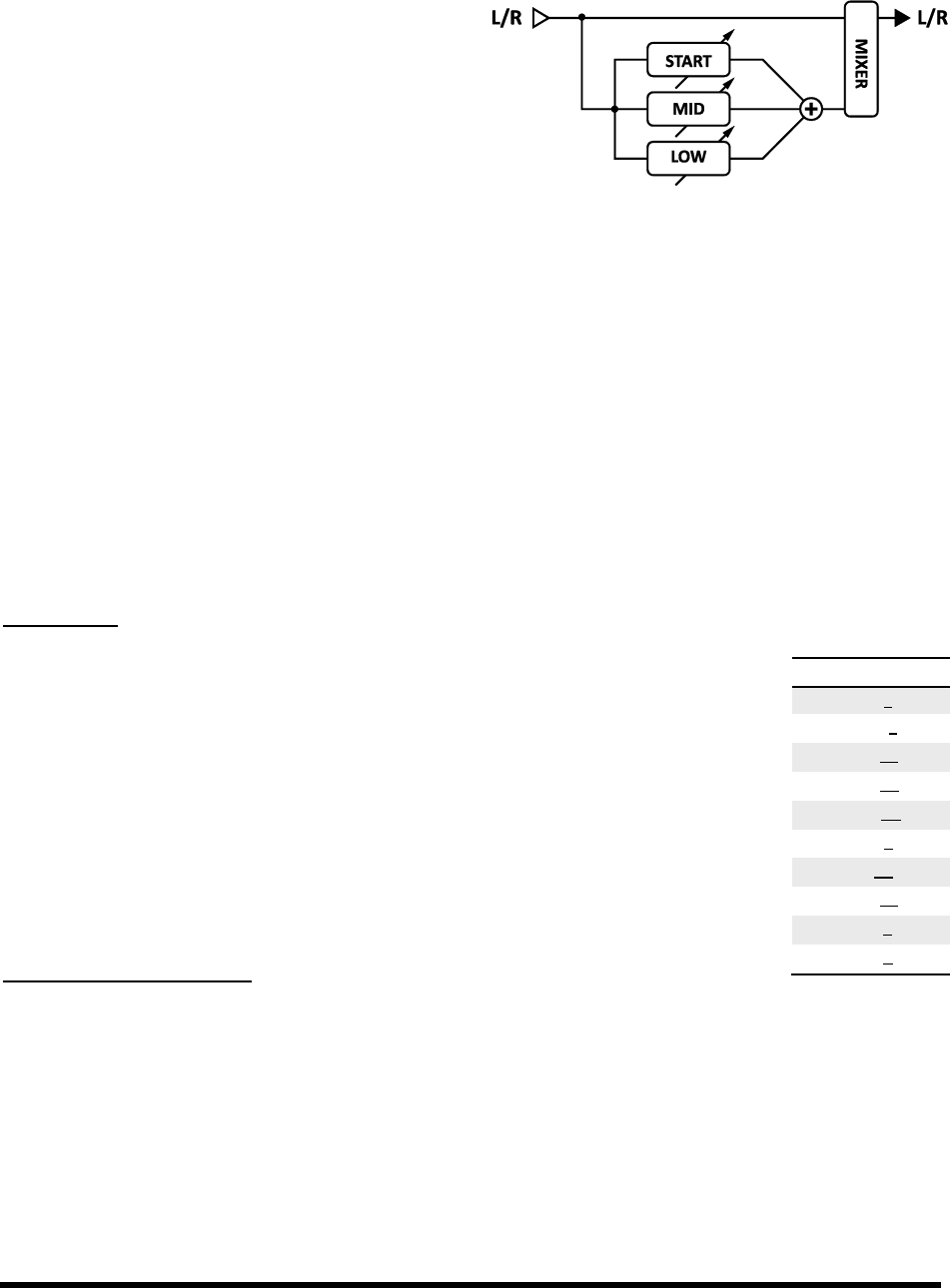
EFFECTS GUIDE
Doc v3.04 69
5.13 Formant [FRM]
Although the wah effect was originally intended to mimic
the sound of the human voice, it obviously falls a little
short in this regard. The talk-box, a system which plays
guitar sounds through a tube into a real human mouth,
comes far closer to the sound of actual speech, but is
considerably more unwieldy than a wah pedal. The Axe-
Fx II Formant Filter makes "talk-box" effects possible
without the fuss and muss.
A formant filter is an extension of the wah principle but operates with a far more vocal quality. Formants represent
particular resonances of instruments, or in this case, of the human vocal tract. The human vocal tract generates a
handful of formants to produce the vowel sounds we recognize. For example, the vowel sound "eee" can be
reproduced with a bank of narrow bandpass filters with various frequencies and amplitudes.
The Axe-Fx II Formant Filter can be set statically or blend dynamically between START, MID, and END vowels. The
CONTROL knob sweeps across this range, gradually changing from one vowel to the next between positions. For
example, we can program the Formant Filter to go "III AAA
The Formant Filter usually sounds best when placed after distortion, although there are no hard and fast rules.
Each Axe-Fx II preset can use one Formant block.
Parameters
START Sets the start vowel sound.
MID Sets the mid vowel sound.
END Sets the end vowel sound.
RES Sets the resonance of the filters. Higher resonance can yield a more dramatic
effect.
CTRL Controls morphing between vowel sounds. The start vowel is generated with the
at fully clockwise.
Formant Mix Parameters
The Formant block has a MIX page with MIX, LEVEL, BALANCE, BYPASS MODE, and GLOBAL MIX parameters.
See Common Mix Parameters on p.112 for more information.
Vowel
Example
AAA
bat
EEE
mate
III
feet
OHH
toe
OOO
soon
EHH
bet
AHH
pot
AWW
fault
UHH
gun
ERR
girl
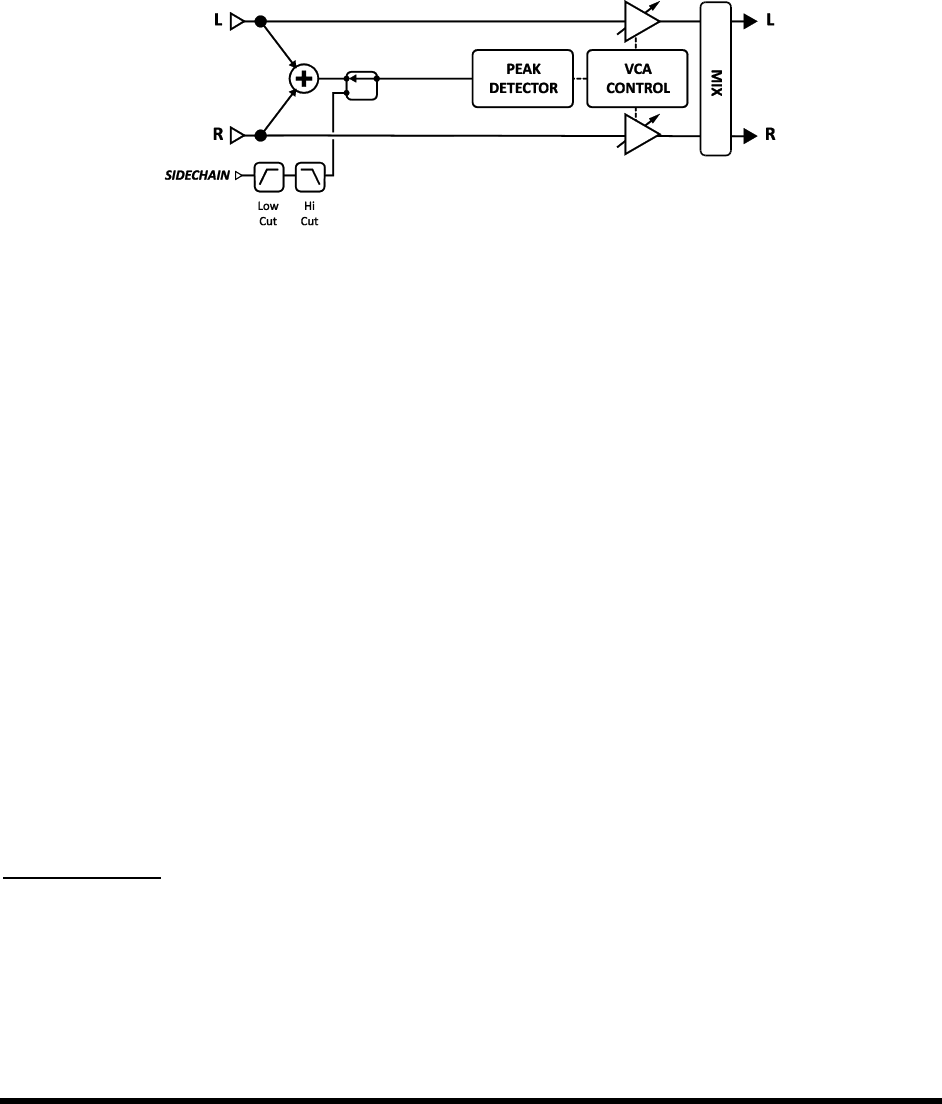
EFFECTS GUIDE
70 Doc v3.04
5.14 Gate/Expander [GTE]
The downward Expander module is sort othat increases the difference between loud
sounds and soft sounds by lowering the volume of soft sounds even further. When set up to completely silence
incoming signals below a certain threshold, the expander is called a gate.
Each Axe-Fx II preset can use two fully independent Gate/Expander blocks.
Figure 5-14 The Gate/Expander Block
THRSH (Threshold) Sets the level below which automatic volume reduction will occur. When input level is
lower than the threshold, the expander reduces output volume as set by the RATIO.
RATIO Sets the gain expansion ratio to determine how greatly signals below the threshold will be reduced.
For example, when a ratio of is chosen, for every dB the input signal falls below the threshold, the output
signal will drop by 2 dB.
ATT Attack time. Sets how quickly the Gate/Expander restores the gain once the threshold is exceeded.
REL Release time. Sets how quickly the Gate/Expander reduces the gain once the signal has fallen below the
threshold.
HOLD Sets how long the Gate/Expander holds the gate open once the threshold has been exceeded.
SCSEL Selects the sidechain input source. NONE is the normal setting and selects the block input (sum of
the rows feeding the block) as the sidechain source. The other settings allow isolating a single row or main
input as the sidechain input. The other rows are summed as usual. By using a row or main input as the
sidechain input, you can use the Gate/Expander as a ducker or de-esser. You can also choose either of the
main inputs as sidechain sources, i.e. Input 1 or Input 2.
LOWCUT/LOCUT These sets the frequency of low- and hi-pass filters on the sidechain input. The filters
only shape the signal which goes to the detector; they do not affect the tone of the signal at the outputs.
Mix Parameters
The Gate/Expander block has LEVEL, BALANCE, and BYPASS MODE parameters, detailed on p.112.

EFFECTS GUIDE
Doc v3.04 71
5.15 Graphic Equalizer [GEQ]
The Graphic Equalizer is a 10-band equalizer with band centers at 31, 63, 125, 250, 500, 1000, 2000, 4000, 8000,
and 16,000 Hz. Each band can boost or cut up to 12 dB. Simply select the desired band with the NAV buttons and
use VALUE to vary the gain.
Each Axe-Fx II preset can use four fully independent Graphic Equalizer blocks.
The AMP block (p.39) has a built-in, 8-band graphic equalizer at its output, making it unnecessary to follow it with a
separate GEQ. There is also a global, 10-band graphic equalizer on each output (p. 129), which can be used to
modify the sound of all presets at once.
The Graphic Equalizer is stereo-in/stereo-out. Its LEVEL, BALANCE, and BYPASS MODE parameters are covered in
additional detail on p.112.
5.16 Looper [LPR]
The Looper is a 60-second phrase sampler which allows you to create multi-layered performances in real time. To
operate the pushbutton controls of the Looper, select the desired function onscreen and press ENTER.
The main Looper controls may be given MIDI CC# assignments on the CONTROL page of the I/O menu (p. 134). This
allows remote operation with a foot controller or other MIDI device.
RECORD When RECORD is activated, the Looper records the audio input. Pressing record again stops
recording and immediately begins playback.
PLAY Toggles the playback state. Pressing play immediately stops recording and starts playback.
ONCE This control plays the phrase one time only and then stops. If the phrase is already playing, the
phrase continues playing until the end and then stops. If the playback is stopped, pressing this plays the
phrase one time. Pressing this again while the phrase is playing resets playback to the beginning allowing for
STACK Overdubs audio on the existing loop. Pressing it again stops the addition but playback continues.
The existing audio is faded every time through the loop.
REV Pressing this reverses the direction of the loop playback.
Each Axe-Fx II preset can use one Looper block.
Looper Mix Parameters
The Looper has a MIX page with LEVEL, BALANCE, and BYPASS MODE parameters.
See Common Mix Parameters on p. 112 for more information.
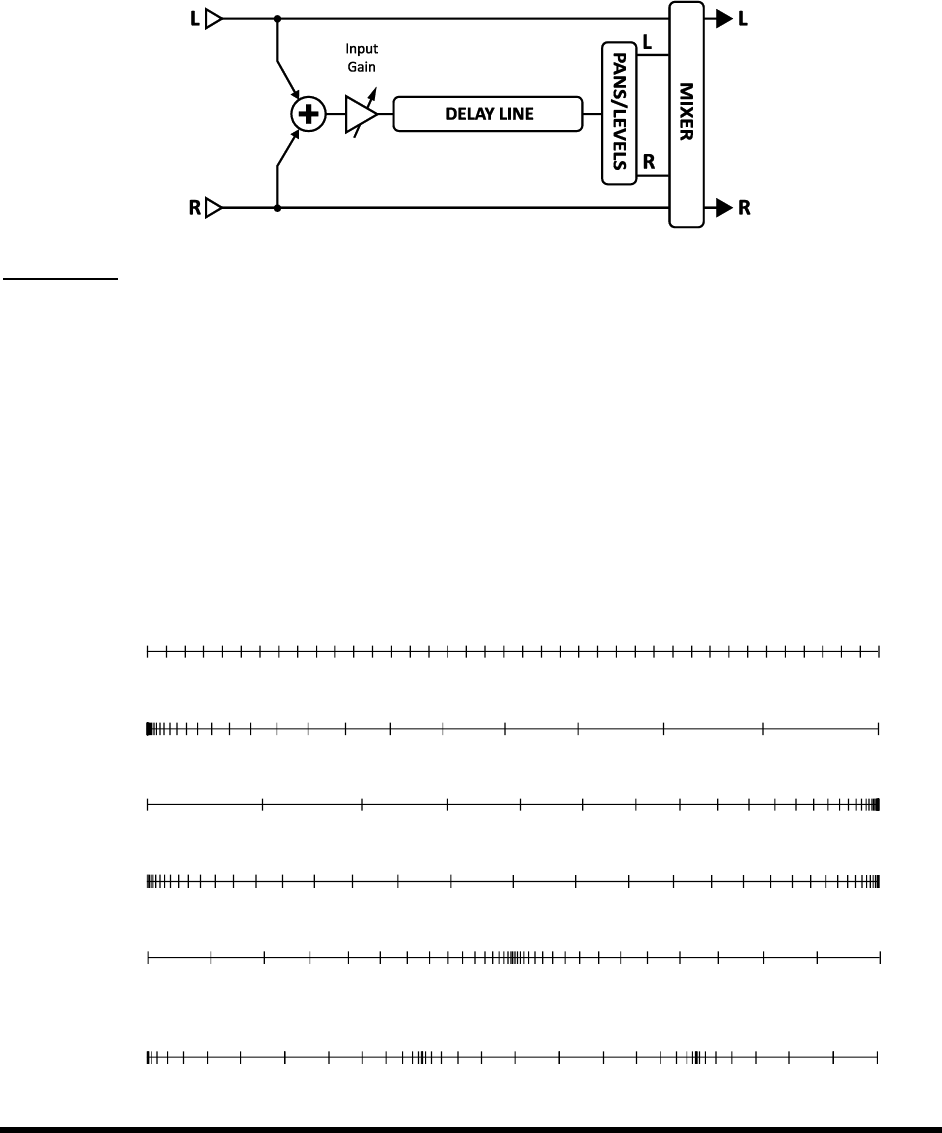
EFFECTS GUIDE
72 Doc v3.04
5.17 Megatap Delay [MGT]
The Megatap Delay is a 2.5 second, 40-tap delay line with parametric control of time, amplitude, and panning. This
berant effects.
Each Axe-Fx II preset can use one Megatap block.
Figure 5-15 The Megatap Delay Block
Parameters
INPUT GAIN Sets the input level to the effect. The primary purpose of this is to allow you to attach a
controller (e.g. pedal) to the delay level
situations, this control should be set at 100%.
MASTER LEVEL Controls the overall level of the delay.
TIME Sets the delay time of the last tap. The echoes will be distributed between zero and this time.
NUMBER OF TAPS Sets the number of taps (repeats) on the delay line.
TIME SHAPE Specifies how the time between taps changes as they progress.
CONSTANT The time between taps will not change, regardless of the TIME ALPHA setting.
INCREASING The time between taps will increase.
DECREASING The time between taps will decrease.
UP / DOWN The time between taps will increase and then decrease.
DOWN / UP The time between taps will decrease and then increase.
SINE The time between taps will decrease and then increase repeatedly in a sinusoidal
progression. Higher alpha increases the number of sine cycles.

EFFECTS GUIDE
Doc v3.04 73
TIME ALPHA Sets the acceleration of the rate of time change across the taps. A setting of 0% results in no
effect, while 100% results in an extreme effect.
Ex: Decreasing, Moderate Alpha
Ex: Decreasing, Higher Alpha
AMPLITUDE SHAPE This specifies how the volume increases or decreases from tap to tap.
AMPLITUDE ALPHA Sets the acceleration of the rate of volume change across the taps.
A setting of 0% results in no effect, while 100% results in an extreme effect.
PAN SHAPE This specifies how the pan changes from tap to tap as they progress.
PAN ALPHA Sets the acceleration of the rate of pan change across the taps.
A setting of 0% results in no effect, while 100% results in an extreme effect.
TIME RANDOMIZE Controls how much the tap spacing is randomized.
Megatap Mix Parameters
The Megatap block has a MIX page with MIX, LEVEL, BALANCE, BYPASS MODE, and GLOBAL MIX parameters.
See Common Mix Parameters on p. 112 for more information.
5.18 Mixer [MIX]
The Mixer block contains a simple, linear mixer able to combine up to four stereo signals into either one stereo mix
or one mono mix. The mixer lets you fine-tune level blends or use modifiers (p. 119) to crossfade between
different effects or chains. Each pair of gain and balance controls corresponds to a row in the grid. For a more
thorough description of how Axe-Fx II mixers work, see section 16.8, Mixology, on p. 155.
Page 1 Parameters
GAIN 1 Sets the level for the incoming signal from a block in row 1 of the column left of the mixer.
BAL 1 Sets the balance between left and right signals of the block in row 1 of the column left of the mixer.
GAIN/BAL 2, 3, 4 These pairs of controls respectively set the level and balance of incoming signals from
the blocks in rows 2, 3, and 4 of the column left of the mixer.
Page 2 Parameters
LEVEL Sets the level of the output mix.
OUTPUT MODE Specifies whether the outgoing mix should be stereo or summed to dual mono.
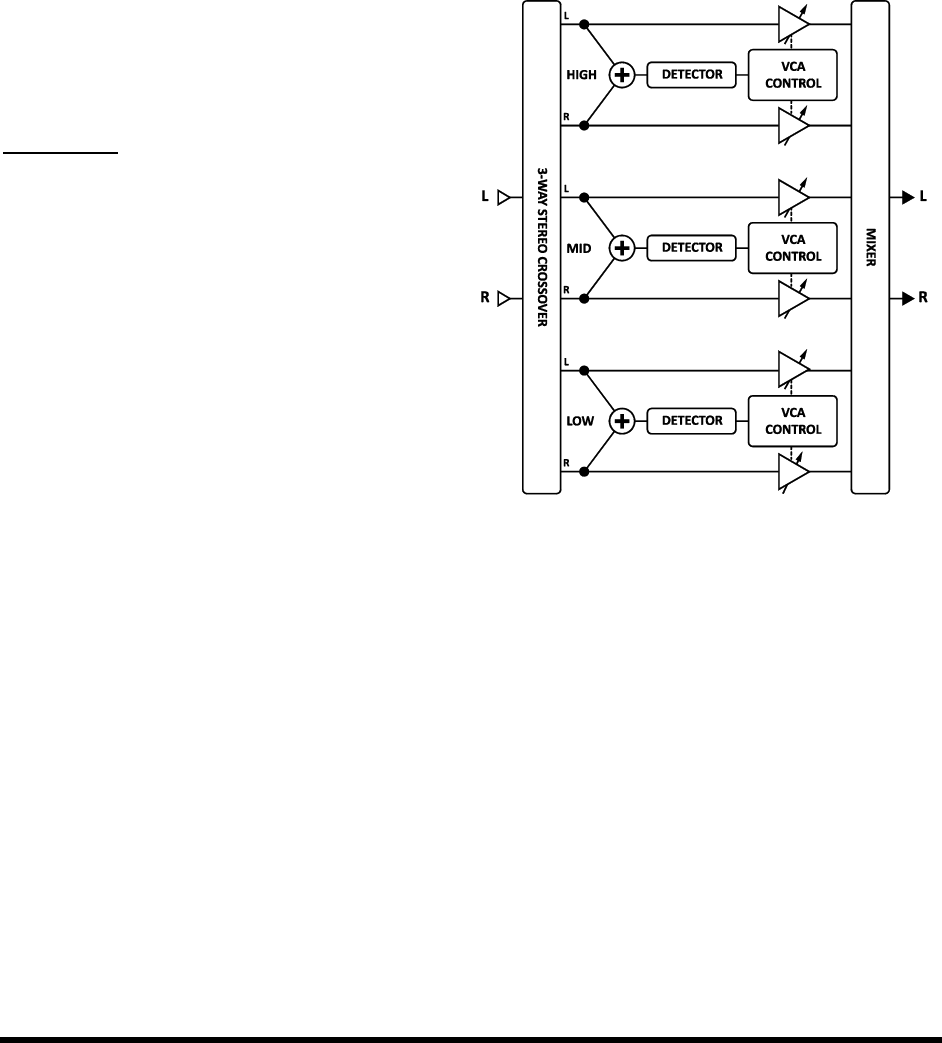
EFFECTS GUIDE
74 Doc v3.04
Each Axe-Fx II preset can use two fully independent Mixer blocks.
5.19 Multiband Compressor [MBC]
The Axe-Fx II contains a three-band compressor that is great for mastering or compressing a mix. It also works as a
tone-shaping tool, providing independent level and dynamics control over low, mid, and high frequencies.
The basic principle of the Multiband Compressor is that the input is divided into three component signals using a
crossover. Compression is applied to the bands individually before they are recombined. The MBC lets you isolate
frequency bands of the input material and apply different types or amounts of compression to each. Multiband
compression is a de-facto mastering tool and can greatly
improve a final mix or a complex guitar sound.
Each Axe-Fx II preset can use two fully independent
Multiband Compressor blocks.
Parameters
FREQ1 Sets the crossover frequency between
bands 1 and 2 from 50500 Hz.
FREQ2 Sets the crossover frequency between
bands 2 and 3 from 100010000 Hz.
Each compressor section has its own menu page with
the following parameters:
THRSH Sets the threshold above which output
compression starts to occur.
RATIO Sets the input-to-output ratio for signals
above the THRESHOLD. A ratio of 2.00 (2:1) means
an increase of 2 dB is needed at the input to produce an increase of 1 dB at the output.
ATT Attack rate. Sets how long it takes for compression to occur once the signal exceeds the threshold.
Slower values allow more of the loud signal to punch through before the compressor can reduce it.
REL Release rate. Sets how long it takes for the level to return to normal after the signal falls beneath the
ter a loud signal
has given way to a quieter section.
LEVEL Sets the output level of the selected band.
DET Determines , or RMS + PEAK
detection. RMS detection is smoother and is generally used to even out levels over a long period of time. Peak
detection, commonly used with guitar, is useful for fast limiting. RMS + Peak combines the best attributes of
both: the speed of a peak detector and the smoothness of an RMS detector.
Figure 5-16 Stylized view of the Multiband Compressor

EFFECTS GUIDE
Doc v3.04 75
MUTE Mutes the output of the band. By muting two bands, you can solo the third. By muting one band,
you can focus on its contribution to the overall mix.
5.20 Multi Delay [MTD]
The Multi Delay is a rhythmic multi-tap delay block. Each Axe-Fx II preset can use two fully independent Multi
Delay blocks, each of which may be set to any one of nine sub-algorithms: Quad Tap, Plex Delay, Plex Detune, Plex
Shift, Band Delay, Quad Series, Ten-Tap, Rhythm Tap, and Diffusor. These types are detailed below.
Multi Delay Common Parameters
Every Multi Delay TYPE shares a common set of PAGE 1 parameters. The TYPE control selects which of the above-
mentioned sub-algorithms to use, and INPUT GAIN determines the amount of signal fed to the effect.
Master Parameters
Most types have one or mor
every type; those that do are at the top of menu PAGE 2. MASTER parameters scale the effects of other controls
and can be controlled with a modifier for interesting real-time changes.
MASTER TIME Scales all the delay times in the block.
MASTER LEVEL Scales the output levels of all taps at once.
MASTER PAN Scales all tap pan amounts, essentially acting as a width or spread control. Negative values
will reverse pan placement in left and right channels.
MASTER FEEDBACK Scales the feedback amounts of all taps or diffusors.
MASTER FREQ Scales the frequency values for the filters of all four taps from 0.3163.162×. You can
create dynamic filter effects by using a modifier to change this parameter in real-time, but be sure not to set Q
values too high or too low, or the result will be difficult to hear.
MASTER PITCH Scales the values for all shift parameters in the block.
MASTER DETUNE Scales the values for all detune parameters in the block.
MASTER Q Scales the Q values of all four taps from 0.110.0×
MASTER RATE Scales the rate of all LFOs in the block.
MASTER DEPTH Scales all the depths of all LFOs in the block.
Mix Parameters
All Multi Delay types share a common MIX page with MIX, LEVEL, BALANCE, BYPASS MODE, and GLOBAL MIX
parameters. See Common Mix Parameters on p.112 for more information on these controls.
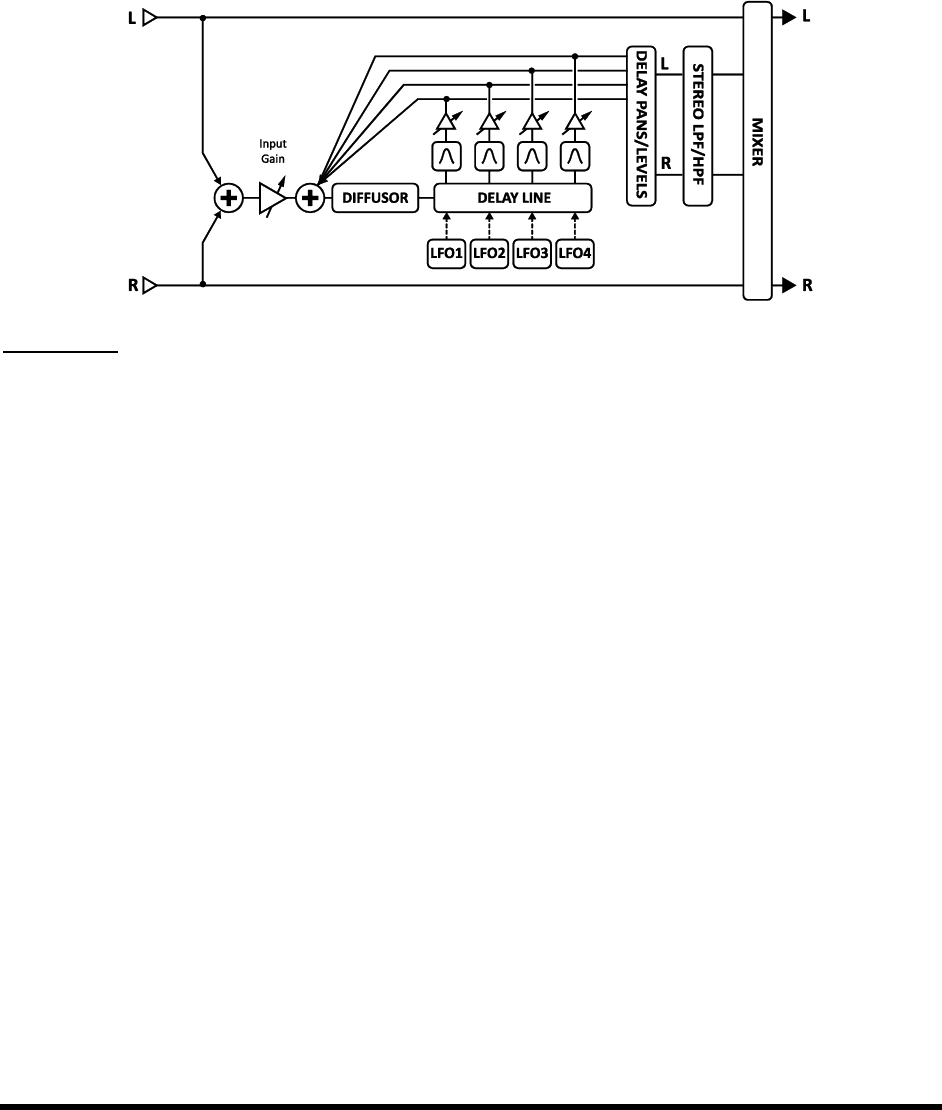
EFFECTS GUIDE
76 Doc v3.04
Quad Tap Delay 5.20.1
The Quad Tap Delay o,
for cool creative and rhythmic effects. Each tap has its own level and pan controls, plus a bandpass filter with
adjustable frequency and Q. Four feedback controls are provided, but the sum of the four feedbacks may not
exceed 100%. Notice that feedback from all four taps is summed at the input, so even if its output level is reduced
to 0%, a tap with any feedback value greater than zero will still be heard the next time another tap plays.
Figure 5-17 The Quad Tap Multi Delay Block
Parameters
TEMPO 1,2,3,4 Sets the corresponding TIME parameter in rhythmic relation to the global tempo. For
example, if the global tempo is 120 BPM, and TEMPO is set to (one echo per beat), time will be 500 ms.
To ignore the global tempo, set to NONE.
TIME 1,2,3,4 Sets the time when the selected tap will be heard, from 0-2000 ms. When any TIME is shown
in parenthesis, it is being set automatically by the corresponding TEMPO parameter (see below). Set TEMPO to
LEVEL 1,2,3,4 Sets the level at the output of the selected tap.
PAN 1,2,3,4 Sets the pan for the selected tap in the stereo mix.
FEEDBACK 1,2,3,4 Sets the level of the selected tap in the overall feedback blend. Note that the sum of
the four feedback values cannot exceed 100%.
FREQ 1,2,3,4 Sets the center frequency of the bandpass filter for the selected tap.
Q 1,2,3,4 Sets the width of the bandpass filter for the selected tap. Higher values result in a narrower
range of frequencies passing through.
DIFFUSION
transients and can be used as a type of reverb for creating interesting ambience effects.
DIFFUSION TIME Longer times will smear transients over a longer period.
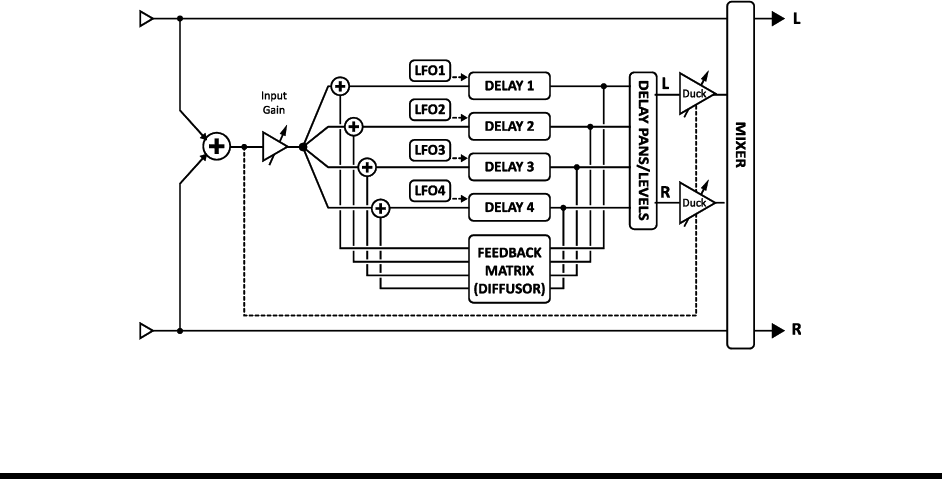
EFFECTS GUIDE
Doc v3.04 77
DUCKER ATTEN (Ducker Attenuation) Sets the amount by which the effect volume will duck (decrease). A
setting of 20 dB, for example, will decrease the echoes by 20 dB when the input level is above the threshold.
Set to 0.0 to defeat the ducker.
DUCKER THRSHLD (Ducker Threshold) Sets the trigger level of the ducker. If the input signal exceeds this
value, the delayed signal will be reduced by the amount set with the attenuation control.
DUCKER REL TIME Sets how long it takes for the delay signal to return to normal when the input drops
below the threshold. A short value here will cause the ducked echoes to pop back into the sonic forefront
the moment you stop playing. Longer times will cause the level to swell back in more gradually.
LFO 1 AS MASTER Locks the rates of the LFOs for taps 2, 3, and 4 to the settings for LFO1.
LFO 1,2,3,4 RATE Sets the rate of modulation for the selected tap. Remember that while LFO1 is set as
the master, the controls for 2, 3, and 4 will have no effect on the sound. When any RATE is shown in
parenthesis, it is being set automatically by the corresponding TEMPO parameter (see below). Set the TEMPO
LFO 1,2,3,4 TEMPO Synchronizes the rate of the LFO for the selected tap in relation to the global tempo.
For example, if the tempo is set to 1/4 and the global tempo is 120 BPM, the LFO rate will automatically be
set to 2 Hz (BPM/60 = Hz). To ignore the global tempo, set these controls to NONE.
LFO 1,2,3,4 DEPTH Sets the modulation depth for the selected tap. Remember that while LFO1 is set as
the master, the controls for 2, 3, and 4 will have no effect on the sound
Plex Delay 5.20.2
In terms of delay effects, a multiplexor, , is a feedback network through which each of several delay lines
is fed back to itself and all the others. The result is a very smooth, reverb-like effect. When combined with
modulation, the result is a huge and lush-sounding space effect that can have qualities of echo, reverb, and chorus
all at once. The Plex Delay uses four delay lines.
Figure 5-18 The Plex Delay Multi Delay Type

EFFECTS GUIDE
78 Doc v3.04
Parameters
DECAY TIME Sets the amount of time required for the echoes to fade by adjusting the coefficients of the
feedback matrix. Use caution, as high decay times can result in instability.
DIFFUSION Sets the amount of cross-coupling between delay lines. Higher values increase the density of
the echoes and result in a more reverb-like sound.
TEMPO 1,2,3,4 Sets the corresponding TIME parameter in rhythmic relation to the global tempo. For
example, if the global tempo is 120 BPM, and TEMPO is set to (one echo per beat), time will be 500 ms.
To ignore the global tempo, set to NONE.
TIME 1,2,3,4 Sets the time before the selected tap will be heard, from 0-2000 ms. Setting these values to
prime numbers will result in a dense array of repeats. When any TIME is shown in parenthesis, it is being set
automatically by the corresponding TEMPO parameter (see below). Set TEMPO
LEVEL 1,2,3,4 Sets the level at the output of the selected tap.
PAN 1,2,3,4 Sets the pan for the selected tap in the stereo mix.
FEEDBACK 1,2,3,4 Sets the level of the selected tap in the overall feedback blend. Note that the sum of
the four feedback values cannot exceed 100%.
FREQ 1,2,3,4 Sets the center frequency of the bandpass filter for the selected tap.
Q 1,2,3,4 Sets the width of the bandpass filter for the selected tap. Higher values result in a narrower
range of frequencies passing through.
LOW CUT, HIGH CUT Sets the cutoff frequency for gentle high and low-pass filters in the feedback loop
of the delays. These controls affect all four taps simultaneously.
DUCKER ATTEN (Ducker Attenuation) Sets how greatly the volume can be reduced by the ducker. A
setting of 20 dB, for example, will decrease the echoes by 20 dB when the input level is above the threshold.
Set to 0.0 to defeat the ducker.
DUCKER THRSHLD (Ducker Threshold) Sets the trigger level of the ducker. If the input signal exceeds this
value, the delayed signal will be reduced by the amount set with the attenuation control.
DUCKER REL TIME Sets how long it takes for the delay signal to return to normal when the input drops
below the threshold. A short value here will cause the ducked echoes to return to full volume the moment you
stop playing. Longer times will cause the level to swell back gradually.
LFO 1 RATE Sets the rate of modulation. When RATE is shown in parenthesis, it is being set automatically
by the TEMPO parameter (see below). Set the TEMPO
LFO 1 TEMPO Synchronizes the rate of the LFO in relation to the global tempo.
LFO 1 DEPTH Sets the modulation depth. Increasing modulation adds a chorus effect to the Plex Delay.
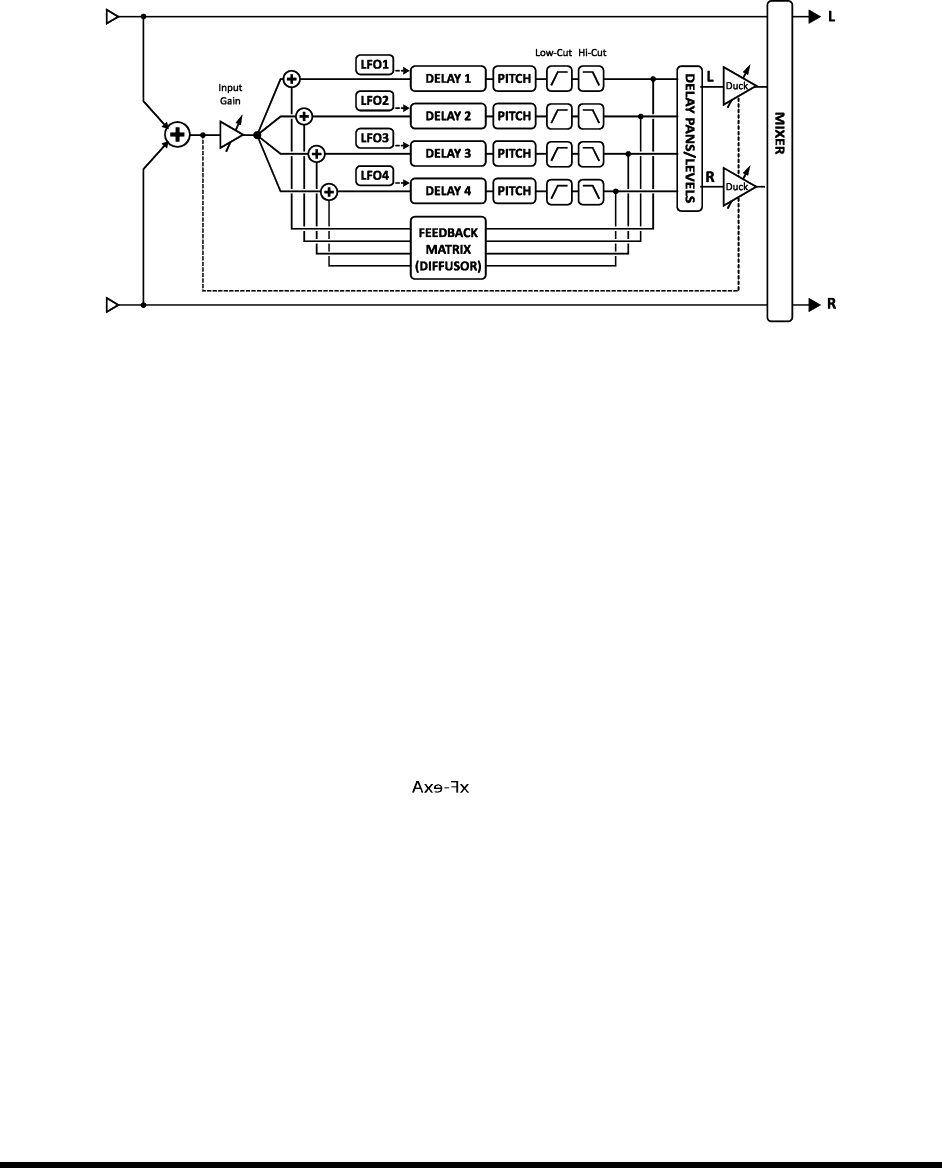
EFFECTS GUIDE
Doc v3.04 79
Plex Detune 5.20.3
The Plex Detune is based on the Plex Delay (5.20.2 above) but adds four high-quality pitch shifters with a range of
+/- 50 cents to the output of the delay taps. Like the LFOs of the Plex Delay, these shifters help create layered
effect tails rich with pitch variations. With the following exceptions, the Plex Detune is identical to the Plex Delay.
Figure 5-19 Plex Detune (and Plex Shift) Multi Delay Type
CROSSFADE Sets the amount of overlap used in the granules of the pitch shifters. Lower settings give a
sound, while higher values smooth the sound.
DETUNE 1,2,3,4 Sets the amount of detune within a range of +/- 50 cents. Small values create a subtle
shimmer; higher settings create descending or ascending cascades.
In comparison to the Plex Delay, the Plex Detune has no LFO or modulation parameters.
Plex Shift 5.20.4
The Plex Shift is nearly identical to the Plex Detune, which is itself very similar to the Plex Delay. Its pitch shifters,
however, are granted a two-octave range with SHIFT parameters. This sub-algorithm has the same parameters as
the Plex Detune (5.20.3, above) with two exceptions:
DIRECTION This determines whether small granules of audio in the pitch shifter are played back forward
or reversed. To understand how this works, imagine a word whose individual letters have been mirror-imaged
but are still in the correct left-to-
audio. These are reversed (and possibly pitch-shifted) but are played back in the order in which they were
recorded. The length of the snippets depends on the TIME setting of the tap.
SHIFT 1,2,3,4 This sets the amount of pitch shift applied at the output of each tap within a range of +/- 24
semitones.
Band Delay 5.20.5
Aside from the fact that its four delay lines are parallel to one another, and that it lacks a diffusor, the Band Delay
Multi Delay type is identical to the Quad Tap (5.20.1, above).
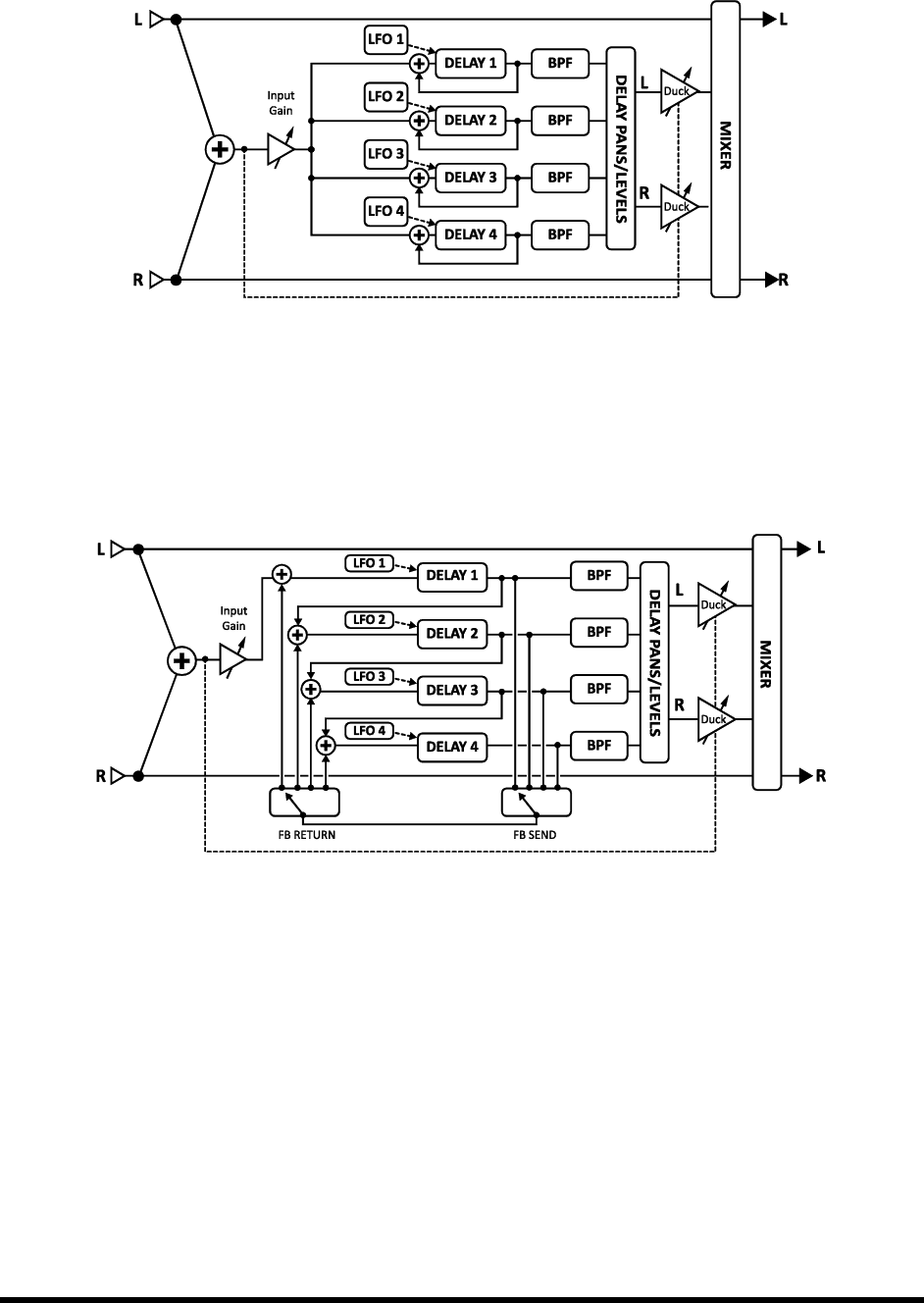
EFFECTS GUIDE
80 Doc v3.04
Figure 5-20 The Band Delay Multi Delay Type
Quad Series Delay 5.20.6
The delay lines of the Quad Series Delay are connected end-to-end so that their times are compounded as the
signal travels from one to the next. Each line has its own output tap, however, so the output of any line can also be
heard as it enters the next delay in the series. If you then set each delay time to 100 ms, you would hear echoes at
100, 200, 300, and 400 ms after the input.
Figure 5-21 The Quad Series Multi Delay Type
The parameters of the Quad Series Delay are identical to those of the Quad Tap delay (5.20.1 above), except for
the absence of the diffusor block controls, the FEEDBACK SEND and RETURN parameters, and the single FEEDBACK
control.
FDBK SEND Specifies which delay output (14) should be tapped to feedback to the input.
FDBK RET Specifies which delay input (14) the feedback tap should be returned to.
FEEDBACK Sets the amount of feedback from the send to the return.
Ten-Tap Delay 5.20.7
The Ten-Tap Delay provides a unique way to control the time, pan, and spacing of one to ten separate echoes.
Instead of feedback, it uses an innovative DECAY control to determine how the level of the ten taps changes over
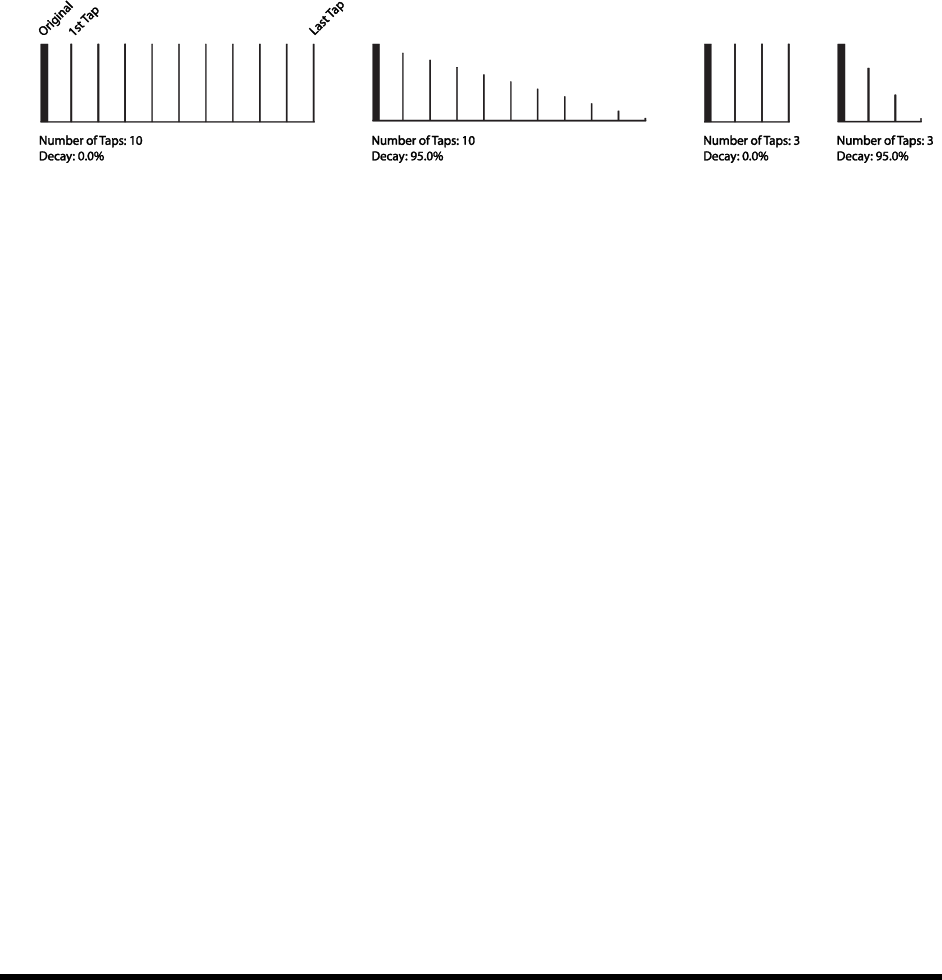
EFFECTS GUIDE
Doc v3.04 81
time. The levels of individual delay taps can also be adjusted from -80 to +20 dB. Pan is set as a SHAPE that can
change automatically as the taps progress.
MONO/STEREO Sets the mode of the Ten-Tap Delay. In mono mode, twice as much delay per tap is
possible.
DELAY TIME Sets the time between delay taps. When TIME is shown in parenthesis, it is being set
automatically by DELAY TEMPO (below). Set DELAY TEMPO
DELAY TEMPO Sets the DELAY TIME in rhythmic relation to the global tempo.
NUMBER OF TAPS Sets the exact number of repeats.
DECAY Sets how rapidly the volumes of the repeats decay over time.
SHUFFLE Sets the amount of time-offset for the odd taps to give a shuffle feel to the repeats.
SPREAD In stereo mode, this sets the spread of the repeats. At maximum, the left channel is panned full-
left and the right channel full-right.
RATIO Sets the ratio of the left-to-right delay time in stereo mode.
PAN SHAPE Controls the shape of the panning as a function of tap number. The repeats can move slowly
from one side to the other (increasingdecreasing), stay constant, or move back and forth (sine).
Dynamic pan effects are disabled if the Ten-Tap Delay is set to STEREO mode.
PAN ALPHA Controls how quickly the repeats move as a function of tap number and pan shape. Higher
values produce a more pronounced effect. To alternate left-to-right, set the PAN SHAPE to SINE and the PAN
ALPHA to maximum.
LOW CUT Sets the cutoff point of the high-pass filter. Higher values produce a thinner sound.
HIGH CUT Sets the cutoff point of the low-pass filter. Lower values produce a darker sound.
TAP LEVEL (1–10) Sets the relative level of the selected tap.
Rhythm Tap Delay 5.20.8
The Rhythm Tap Delay uses the same algorithm as the Ten-Tap Delay but allows you to create a custom rhythm of
repeats. You can enter the rhythm in three ways:
1. By specifying milliseconds between each tap and the previous.
2.
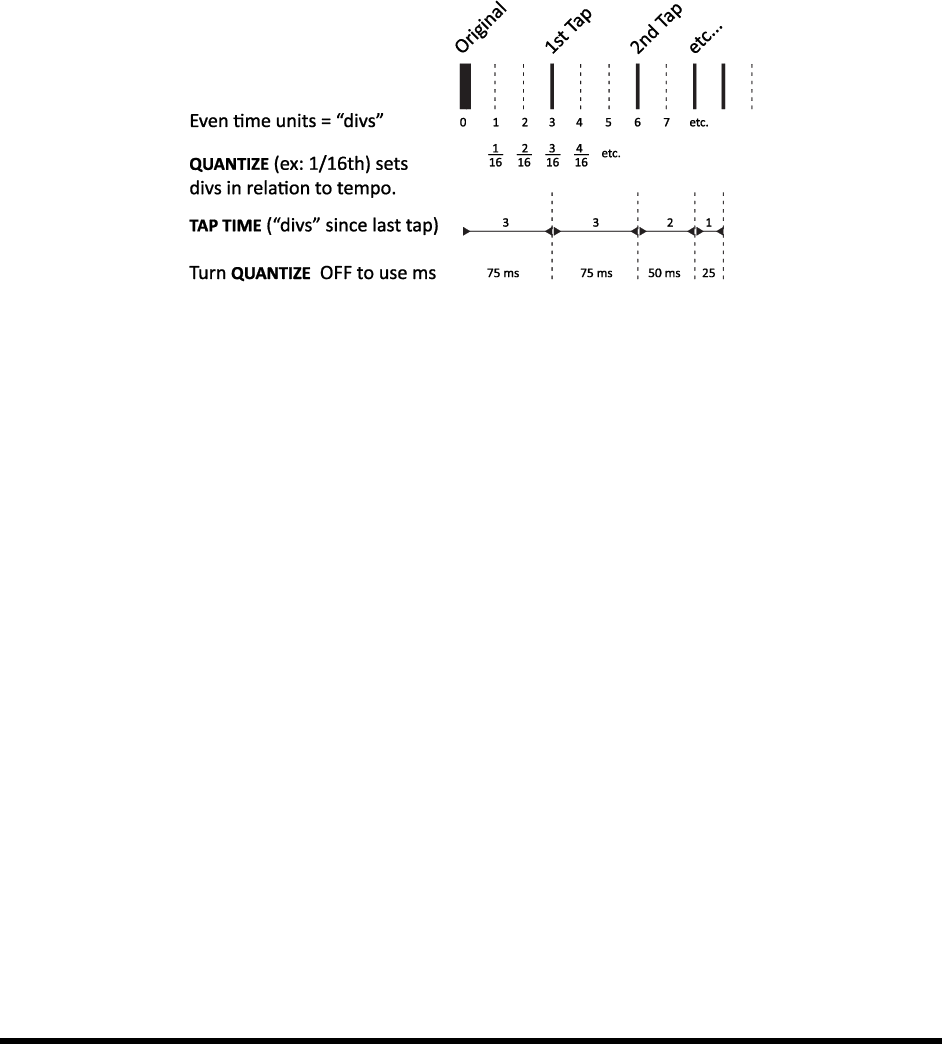
EFFECTS GUIDE
82 Doc v3.04
3. By tapping a rhythm with the ENTER button and the LEARN function.
The parameters for the Rhythm Tap Delay include those of the Ten-Tap Delay (5.20.7 above) plus the following:
FEEDBACK Sets the feedback level from the final repeat to the input of the delay line. You can use this in
conjunction with the decay to control the overall decay behavior. If you set decay to zero and feedback to a
moderate value, the pattern will repeat, getting quieter each time through.
QUANTIZE Quantizes the tap times to the entered note value. This can be used to aid in tapping in a
rhythm. The tap times will be rounded to the nearest multiple of the note duration. You can change this value
Figure 5-22 The concept of Rhythm Tap "divs"
LEARN Use this function to enter a rhythm by tapping. For LEARN to work, QUANTIZE must be turned OFF.
Use the NAV keys to select the LEARN Parameter
Turn the VALUE wheel cloc
Tap the rhythm you want using the ENTER button. Be sure to include a tap for the original (dry) signal.
When finished tapping, turn the VALUE .
TAP TIME 1–10 Sets the time of the tap (relative to
units with the QUANTIZE value length. For example, if QUANTIZE is set to 1/16, each div is 1/16th note, and all
tap times will sound some whole number of 16ths after the preceding tap. If QUANTIZE is OFF, you can enter
millisecond values directly or use the LEARN feature (above). Times that have been learned may be further
adjusted manually.
Diffusor 5.20.9
A diffuser reverb effects. At
certain time and feedback settings, taps can be heard individually, but the diffusor is typically used to create a lush
blanket of sound. This algorithm chains four diffusors in series and controls the matrix with a single feedback
parameter.
MASTER FEEDBACK Sets the feedback amount to determine density. Together with the individual delay
.
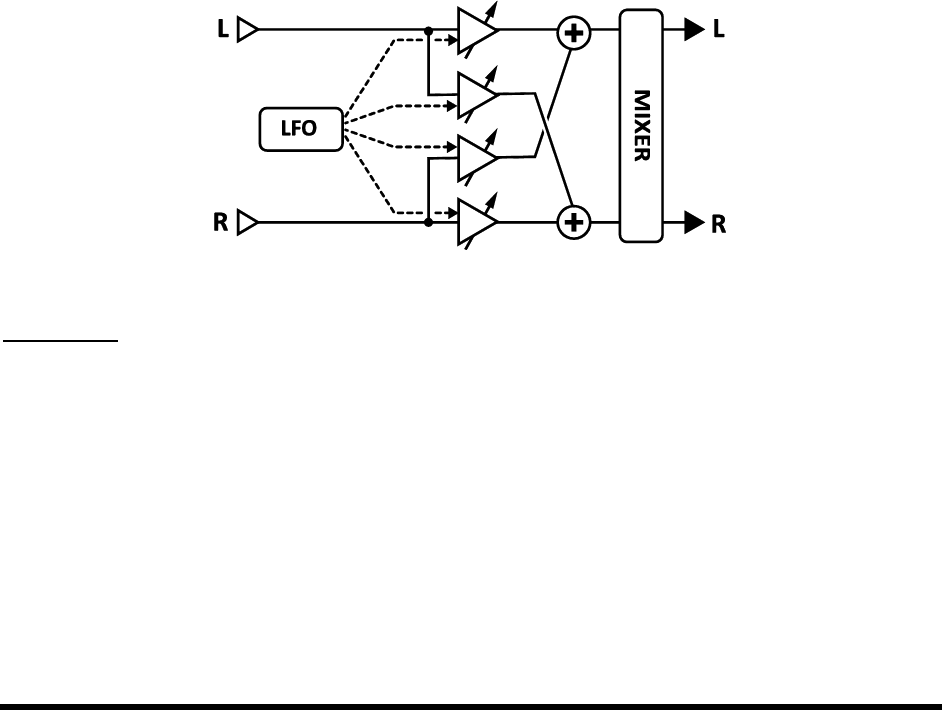
EFFECTS GUIDE
Doc v3.04 83
LFO 1 RATE Sets the rate of modulation to add a chorus-like sound to the tail of the effect.
LFO 1 TEMPO Synchronizes modulation to a rhythmic value in relation to the global tempo.
LFO 1 DEPTH Sets the modulation depth to determine the intensity of time variations/chorusing.
TEMPO 1,2,3,4 Sets the corresponding TIME parameter in rhythmic relation to the global tempo. For
example, if the global tempo is 120 BPM, and TEMPO is set to (one echo per beat), time will be 500 ms.
To ignore the global tempo, set to NONE.
TIME 1,2,3,4 Sets the time of each diffusor from 0-2000 ms. When any TIME is shown in parenthesis, it is
being set automatically by the corresponding TEMPO parameter (see below). Set TEMPO
control.
5.21 Tremolo/Panner [PAN]
The Tremolo/Panner block, as its name suggests, has two uses. Tremolo varies the volume of a signal in a pulsing
-
the illusion of motion in the stereo field. Tremolo can be used to get classic "surf" sounds (add some spring
swings to psychotic shudders.
Each Axe-Fx II preset can use two fully independent Tremolo/Panner blocks.
Figure 5-23 The Pan/Tremolo Block
Parameters
EFF TYPE Chooses between Tremolo and Panner.
RATE Controls the speed of the tremolo or panner effect. Set fully counterclockwise to sync the chorus LFO
to global LFO1. When RATE is shown in parenthesis, it is being set automatically by the TEMPO parameter (see
below). Set the TEMPO
DEPTH / WIDTH Sets the intensity of the modulation. When WIDTH is set to more than 100%, the Panner
uses psychoacoustic effects to pan beyond the boundaries of the normal stereo image.
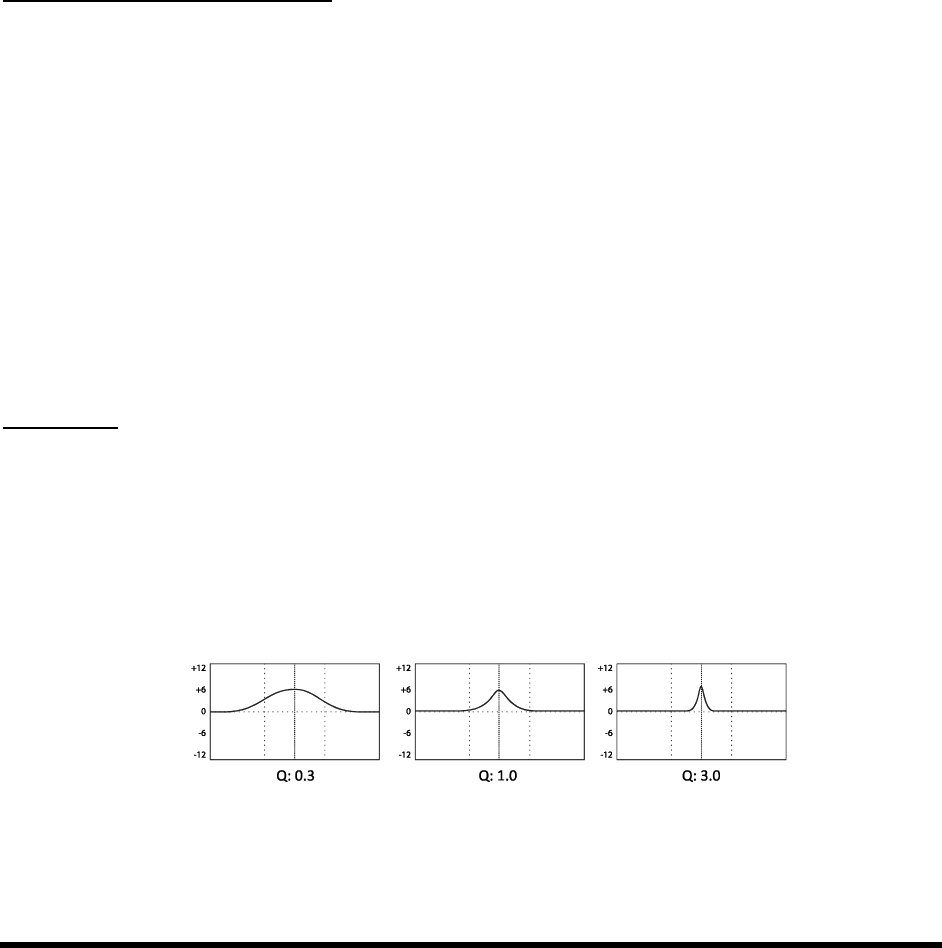
EFFECTS GUIDE
84 Doc v3.04
TEMPO Locks the rate to the global tempo. For example, if the global tempo is 120 BPM, and TEMPO is set
to a the LFO rate will be 2 Hz (120 BPM / 60 seconds = 2). To ignore the global tempo, set the tempo
control to NONE.
LFO TYPE Try experimenting with the Log or Exp waveforms.
DUTY This varies the duty cycleof the Triangle, Square, and Trapezoid waveforms.
LFO PHASE
into a Panner and the Panner turns into a Tremolo!
See section 16.5 on p. 152 for more information on LFO waveform shapes, duty, and phase.
PAN CENTER In panner mode, this shifts the apparent center of the stereo image.
Tremolo/Panner Mix Parameters
The Tremolo/Panner block has a MIX page with LEVEL, BALANCE, and BYPASS MODE parameters.
See Common Mix Parameters on p.112 for more information.
5.22 Parametric EQ [PEQ]
The 5-band Parametric Equalizer is one of the most precise and flexible tone-shaping tools in the Axe-Fx II. It lets
you select the exact frequencies you want to focus on, adjust how much you want to boost or cut, and specify how
the change should affect neighboring frequencies. The bands include a selectable-type low filter, three bell filters,
and a selectable-type high filter. Select the desired band using the PAGE buttons and adjust parameters as
required. A graphical display depicts the response, showing the effects of all five bands at once.
Each Axe-Fx II preset can use four Parametric EQ blocks.
Parameters
FREQ Sets the center or cutoff frequency for the selected band.
Q A measure of filter bandwidth around the center or cutoff frequency. Set a higher Q for narrower boosts
or cuts. Extreme Q-values may cause output clipping even though the apparent volume is low. Reduce the Q,
gain, or block output level if this occurs. Frequency and gain are kept constant as Q is adjusted in the three
examples below:
Figure 5-24 Effect of Q on bell/peaking filters
Q exerts a different effect for BLOCKING or SHELVING EQ types, selectable for bands 1 and 5.
GAIN Sets the strength of the filter through a range of +/- 12 dB.
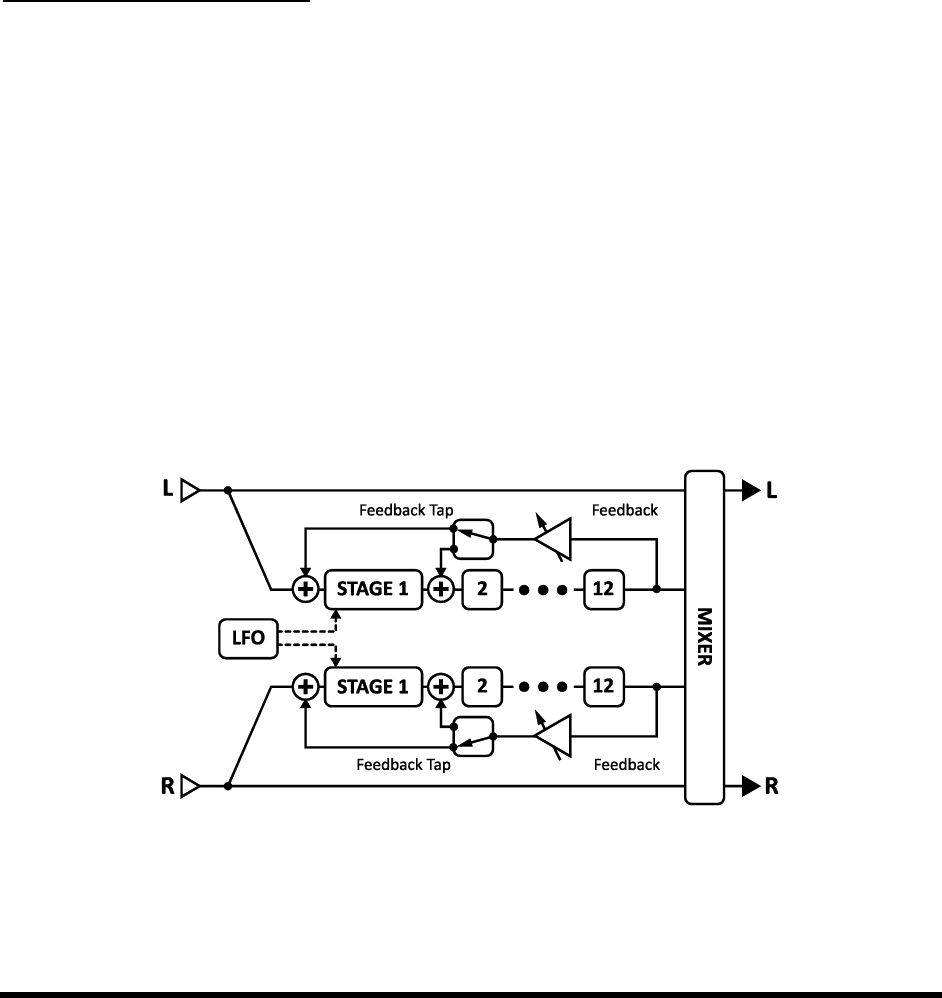
EFFECTS GUIDE
Doc v3.04 85
TYPE The first and last bands have a selectable filter type. This parameter selects between the three
available types.
Shelving This type equally boosts or cuts all frequencies above or below the specified frequency,
Peaking A peak filter cuts or boosts around a center frequency. When you boost or cut, neighboring
frequencies are also affected somewhat, depending on the bandwidth, or Q, of the band. Bands 2, 3, and
4 are always set to this type.
Blocking The blocking filter is so named because it only allows frequencies above or below the cutoff
frequency to pass through. Band 1 is selectable as a low-blocking type and Band 5 is selectable as a high-
blocking type.
Parametric EQ Mix Parameters
The Parametric EQ block has a MIX page with LEVEL, BALANCE, and BYPASS MODE parameters.
See Common Mix Parameters on p.112 for more information.
5.23 Phaser [PHA]
The Phase Shifter, or Phaser, works by cascading a series of all-pass filters and then mixing the processed signal
with the input. This causes certain frequencies to be canceled or reinforced, creating notches and peaks. When
phase is shifted using a low-frequency oscillator (LFO), these peaks and notches sweep up and down the frequency
range to create distinct, hollow, swooshing sound.
The phaser in the Axe-Fx II is extremely powerful. It allows two to 12 stages to be cascaded with positive or
negative feedback and a flexible, stereo LFO. It also offers a special mode to recreate the classic vibe effects with
astonishing accuracy.
Each Axe-Fx II preset can use two fully independent Phaser blocks.
Figure 5-25 The Phaser Block

EFFECTS GUIDE
86 Doc v3.04
Phaser X/Y Channel Switching
Each instance of the Phaser block stores two fully independent sets of parameters called X and Y. Selecting
between these allows you to change all block settingsinstantlyat the touch of a switch or button (excluding
current Bypass State and any Modifier assignments). See X/Y Switching on p. 36 for more information.
Basic Parameters
TYPE This control instantly sets other phaser parameters for different useful sound settings. Types include:
DIGITAL MONO, DIGITAL STEREO, SCRIPT 45, SCRIPT 90, BLOCK 90, CLASSIC VIBE, and STEREO 8-STAGE.
RATE Sets the frequency of the LFO that Set fully counterclockwise to sync to Global
LFO1 (p. 124). When RATE is shown in parenthesis, it is being set automatically by the TEMPO parameter (see
below). Set the TEMPO
DEPTH Sets the depth of the LFO that
FDBK Feedback, also known as ontrols how pronounced the peaks and
notches are. This is largely responsible for the iconic sound we associate with a phaser.
FREQ Sets the start frequency of the first stage filter. This, in combination with the depth control, controls
the sweep range of the notches.
TEMPO Synchronizes the rate of the Phaser LFO in rhythmic relation to the global tempo. For example, if
the global tempo is 120 BPM, and TEMPO is set to a , the LFO rate will be 2 Hz (120 BPM / 60 seconds =
2). To ignore the global tempo set the tempo control to NONE.
Advanced Parameters
(All BASIC controls of the Phaser except TYPE are duplicated on the ADVANCED page for convenience).
ORDER Sets the number of phase shifting circuitsstagesin increments of two. Different settings
have distinctly different sound qualities. For a more pronounced increase the order.
LFO TYPE Selects the LFO, determining how the sweep changes over time. SINE or
TRIANGLE shapes will emulate classic phaser sounds. SAW shapes provide rising or falling effects, and
Exponential/Logarithmic
LFO PHASE Sets the phase difference of the right waveform of the phaser LFO. Values greater than 0°
produce stereo phasing with 180°,
six stages per side in this mode.)
See section 16.5 on p.152 for more information on LFO waveform shapes and phase.
FREQ SPAN Sets the span of the filters. Higher values separate the resulting notches by greater amounts.
VIBE MODE Technically, this parameter sets the all-pass frequency spacing. But it would probably suffice
to say that if Jimi, Robin, and David had a favorite Axe-Fx II phaser setting, this would be it. The TYPE

EFFECTS GUIDE
Doc v3.04 87
parameter on the BASIC page can be used to gvibe sounds instantly, or you can manually turn
this switch ON to experiment with your own settings.
BULB BIAS
Varying this parameter controls -Fx II
range. This parameter has no effect if Vibe Mode is switched OFF.
FEEDBACK TAP Selects which phaser stage the feedback is returned to. Typically the feedback goes from
output to input, SCRIPT
from 0, so to return at the second stage, selecFEEDBACK TAP.)
Phaser Mix Parameters
The Phaser block has a MIX page with LEVEL, BALANCE and BYPASS MODE and GLOBAL MIX parameters.
See Common Mix Parameters on p. 112 for more details on these.
5.24 Pitch Shifter [PIT]
Pitch shift technology creates an incredible range of effects, from shimmering, detune-based chorus to one-guitar
orchestrations of complex harmony, to dive-bombing whammy pedals, and beyond. The Axe-Fx II Pitch Shifter
gives you all of these sounds and many more, with the following different modes of operation:
Detune Creates chorus sounds with up to two detuned copies of the original signal.
Fixed Harmony Shifts two voices by a constant amount.
Intelligent Harmony Shifts two voices to another note in the selected key/scale.
Octave Divider Simulates the octave down effects of classic analog stomp effects.
Classic Whammy Shifts note(s) up and/or down 1-2 octaves with a control that can be assigned to a
pedal or other controller.
Advanced Whammy Extends the Classic Whammy with custom range within +/- 2 octaves.
Crystals Creates exotic crystal shifting with long splice times and optional reverse.
Arpeggiator Shifts the pitch with a 32-step sequencer to create arpeggios or phrases from single notes.
Custom Shifter ser Scales for totally custom intelligent shifting.
Auto Pitch Turn your guitar or voice into Cher or T-removed the Axe-
Fx h-Fx II ;)
Each Axe-Fx II preset can use two fully independent Pitch Shifter blocks.
Pitch Shifter X/Y Channel Switching
Each instance of the Pitch block stores two fully independent sets of parameters called X and Y. Selecting between
these allows you to change all block settingsinstantlyat the touch of a switch or button (excluding current
Bypass State and any Modifier assignments). See X/Y Switching on p. 36 for more information.
Common Parameters
The first menu page has several common parameters for the pitch block.

EFFECTS GUIDE
88 Doc v3.04
TYPE Sets the sub-algorithm to use.
INGAIN Sets the input level to the block
LOCUT FREQ HICUT FREQ Sets the cutoff frequency of hi-and lowpass filters at the output of the pitch
shifter(s). Note that when the OCTAVE DIV type is selected, these controls have no effect.
PITCH SOURCE The Pitch Shifter allows you to select a source for the shifter to use when making pitch
calculations.
GLOBAL In this mode, the pitch information comes from the global pitch detector connected directly to
the main inputs (L+R summed). The signal into this detector is unaffected by other effects in the current
preset and is usually the best choice for single note usage.
LOCAL MONO In this mode the pitch information is detected and analyzed at the input of the pitch
LOCAL POLY ,the input of the
pitch block. In this mode however, the detector is optimized for polyphonic sources. The pitch tracking is
necessarily slower but is more stable when used with chords. Complex chord types can still cause
instability; simple combinations of two or three notes work best.
Both of the local modes allow the detector to track the pitch of a delay or effect tail eve
stopped playing. They also include the internal feedback of the Pitch Block when calculating pitch.
Master Parameters
Several of the Pitch Shift types include MASTER parameters, detailed below.
MASTER PITCH Scales the SHIFT setting for each of the voices. For example, with VOICE 1 SHIFT at +12,
VOICE 2 SHIFT set to -12, and MASTER PITCH set to 50%, the shifts will be heard as VOICE 1: +6, VOICE 2: -6.
MASTER DELAY Scales all delay times in the block.
MASTER FEEDBACK Scales all feedback controls in the block.
MASTER PAN The panning of each voice is multiplied by this value. A value of 100% will result in each
voice being panned as set in the individual pan controls. A value of 0% will result in both voices being panned
to center. A value of -100% will reverse the position of the voices. You can use a modifier on this parameter to
move the voices around the stereo field in real time.
MASTER LEVEL Multiplies the level values by this amount.
Pitch Source, Track, and Adjust
PITCH TRACK When set to ON, the Pitch Shifter will track the pitch of the incoming note and adjust
internal pitch shifting techniques accordingly for the best performance at any moment. Setting PITCH TRACK
to OFF ignores the pitch data and uses fixed shifting techniques. With pitch tracking OFF, the sound can waver
or flutter depending upon the note(s) played. With pitch tracking ON, the sound is typically smoother, but
complex chords may cause pitch instabilities.
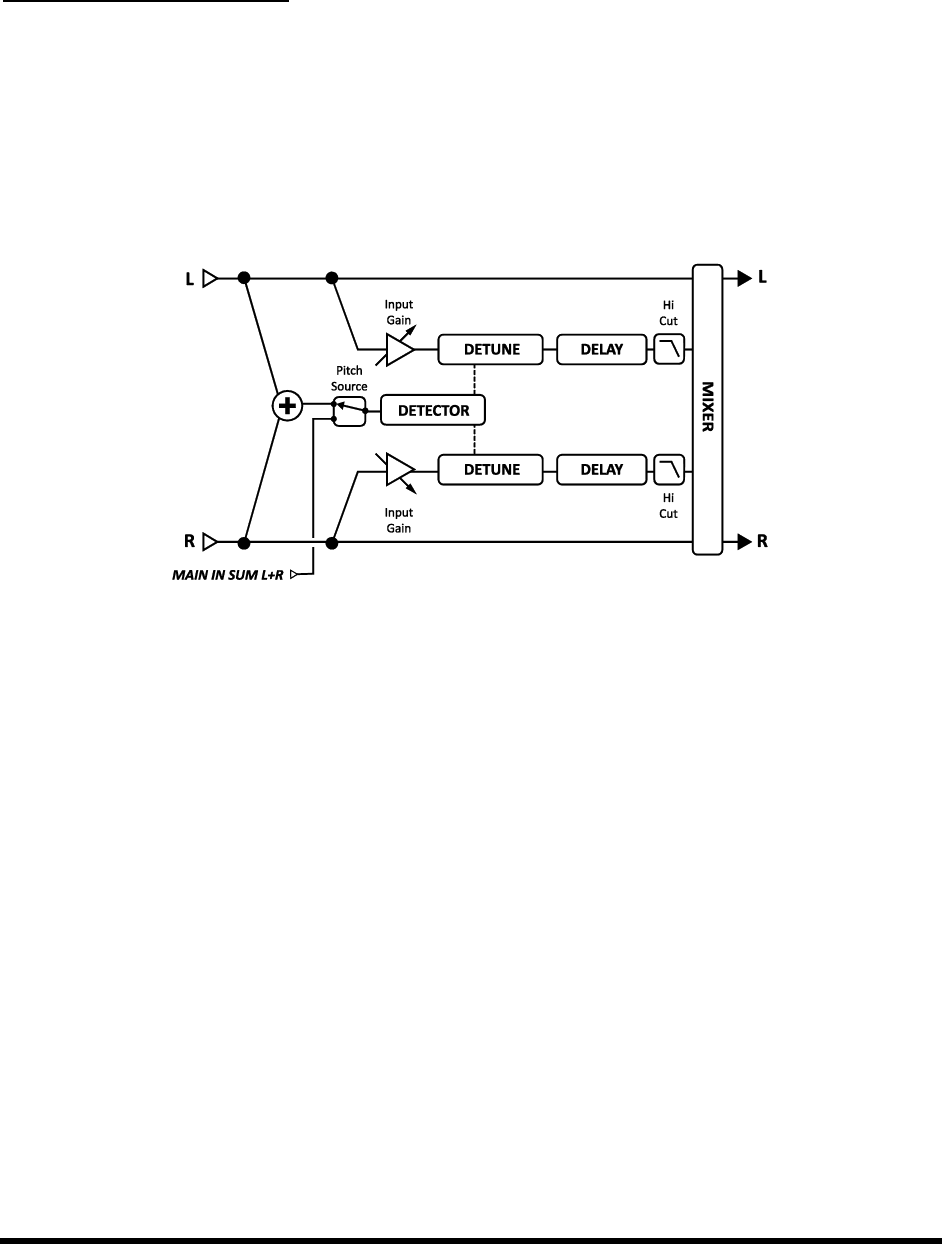
EFFECTS GUIDE
Doc v3.04 89
TRACK ADJ This control allows fine-tuning of , this control
can help improve the quality of the shifted note.
Pitch Shifter Mix Parameters
All Pitch Shifter types share a common MIX page with MIX, LEVEL, BALANCE, BYPASS MODE, and GLOBAL MIX
parameters. See Common Mix Parameters on p. 112 for more information on these controls.
Detune 5.24.1
The Detune sub-algorithm creates two voices that are detuned between -50 and +50 cents (one quarter step) from
the input. This mode is useful for creating double-tracked sounds or chorus-like effects.
Figure 5-26 The Detune Pitch Shifter Type
INPUT MODE Determines whether the inputs are stereo or summed.
VOICE 1 DETUNE, VOICE 2 DETUNE Sets the detune amount for each voice. Attach an LFO to create
modulating detune chorus effects.
VOICE 1 LEVEL, VOICE 2 LEVEL Sets the volume level of the selected voice.
VOICE 1 PAN, VOICE 2 PAN Sets the panning of the selected voice.
VOICE 1 DELAY, VOICE 2 DELAY Sets the delay time of the selected voice.
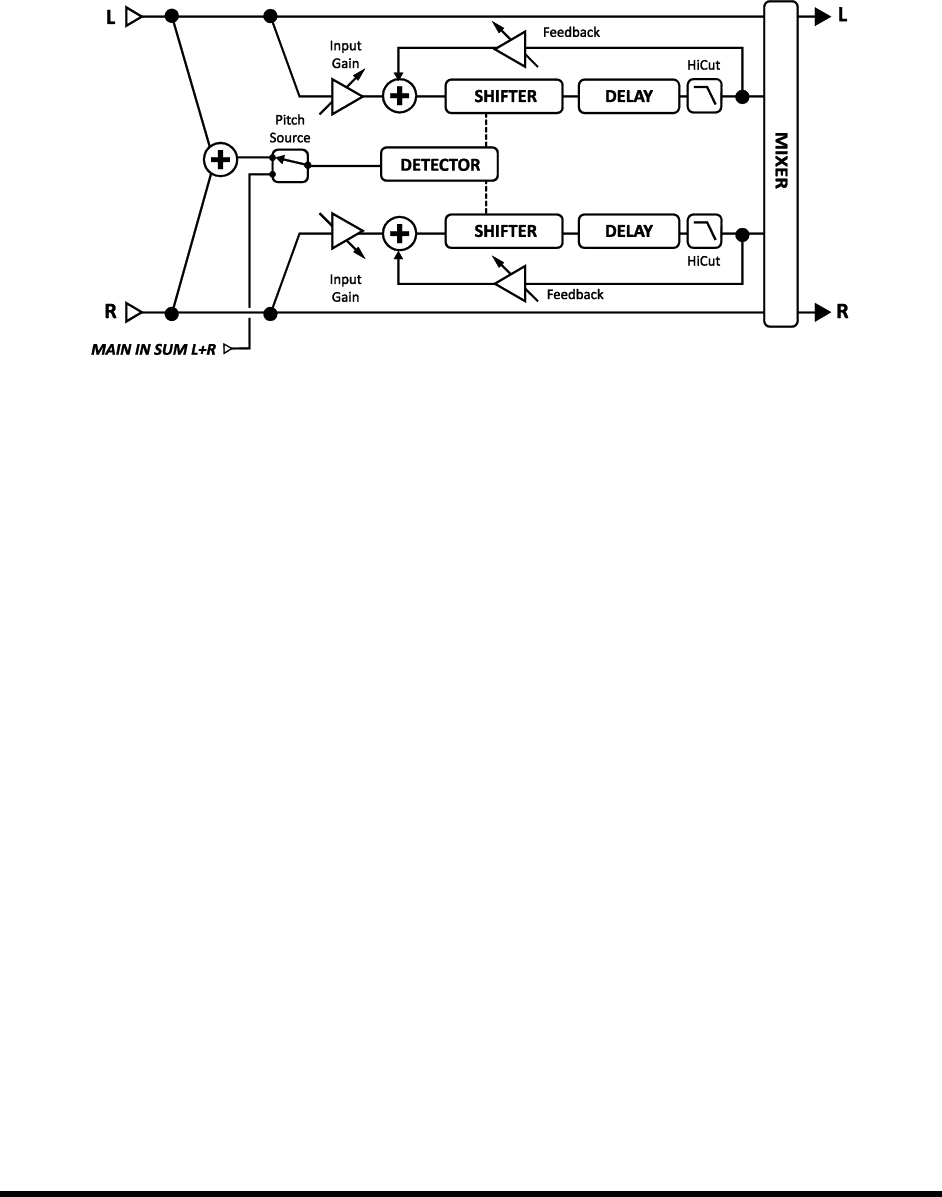
EFFECTS GUIDE
90 Doc v3.04
Fixed Harmony 5.24.2
The Fixed Harmony mode creates two voices at fixed intervals from the note played, with the possibility of using
feedback and/or delay to create cascades of upward/downward shifting.
Figure 5-27 The Fixed Harmony Pitch Shifter Type
INPUT MODE Specifies whether the incoming signal should be processed in stereo (as shown in the block
diagram above) or summed to mono and then sent to both voices.
VOICE1 DETUNE, VOICE 2 DETUNE Sets the detune amount of the voice in a range of +/- 50 cents.
VOICE1 SHIFT, VOICE2 SHIFT Sets the shift amount of the voice in a range of +/- 12 half-steps.
VOICE1 LEVEL, VOICE2 LEVEL Sets the volume level of the voice.
VOICE1 PAN, VOICE2 PAN Sets the panning of the voice.
VOICE1 DELAY, VOICE2 DELAY Sets the delay time of the voice. When a delay time is shown in
parenthesis, it is being set automatically by a TEMPO parameter (see below). Set the corresponding TEMPO to
VOICE1 DLYTEMPO, VOICE2 DLYTEMPO Locks the corresponding TIME parameter in rhythmic
relation to the global tempo. For example, if the global tempo is 120 BPM, and TEMPO is set to (one echo
per beat), time will be 500 ms. To ignore the global tempo, set to NONE.
VOICE1 FEEDBACK, VOICE 2 FEEDBACK Sets how much of the output signal is returned to the input
-upon-. Using both feedback and delay (above) results in cool-sounding cascades.
Intelligent Harmony 5.24.3
The Intelligent Harmony Pitch Shifter block type creates harmonies within a certain musical key and scale. The
SCALES parameter taps a small onboard database of music theory data to adjust shift amounts based on which note
you play. This makes it possible, for instance, to harmonize a melody around a key center without the shifter
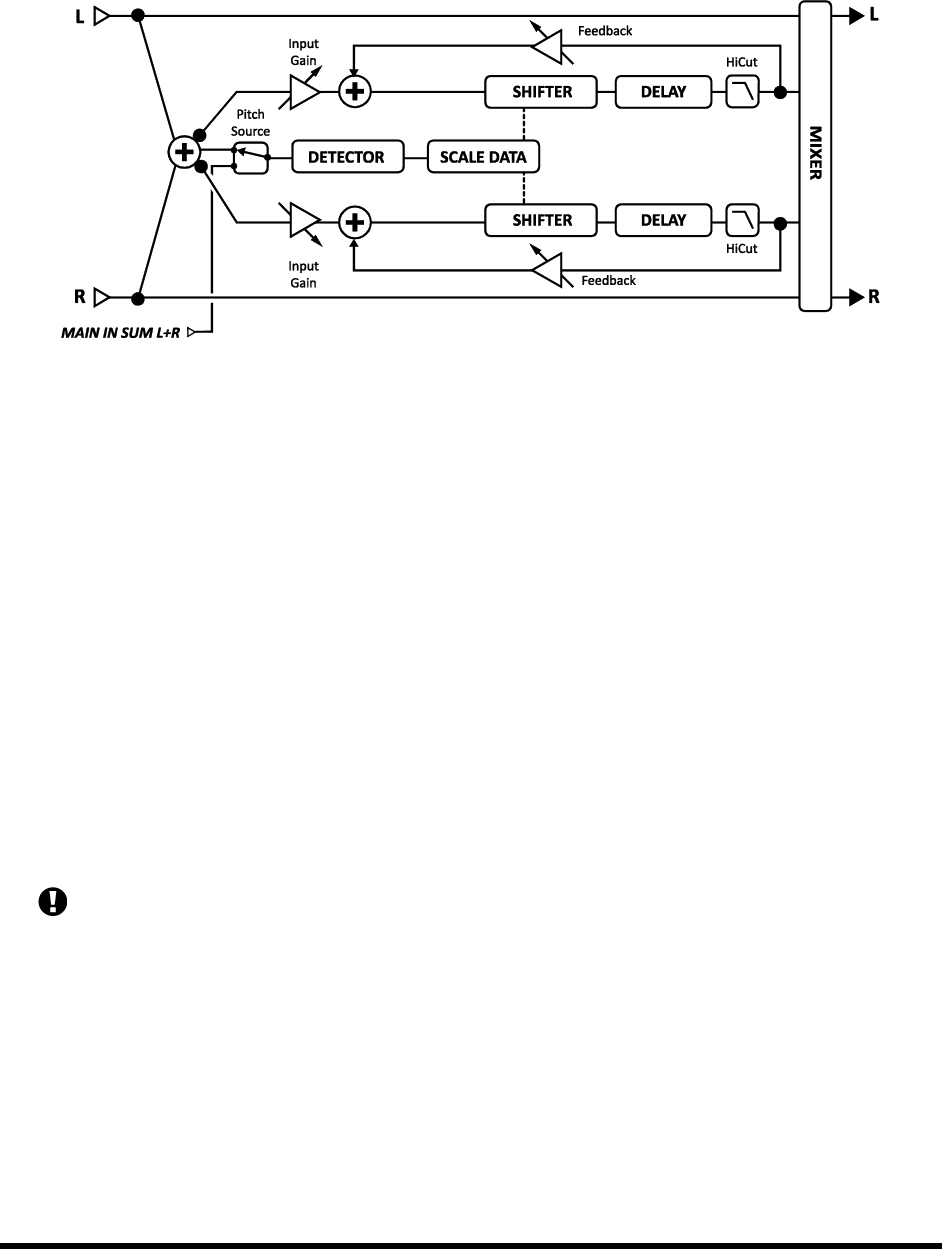
EFFECTS GUIDE
Doc v3.04 91
the actual note played and the two shifted voices, three-note chords can be formed. Crank out some Maiden,
Boston, or Thin Lizzy all by yourself!
Figure 5-28 The Intelligent Harmony Pitch Shifter Type
VOICE1 DETUNE, VOICE 2 DETUNE Sets the detune amount of each voice within +/- 50 cents.
KEY Sets the key that the harmony will be in.
LEARN While learn is ON, the KEY parameter will automatically change to whatever single note you play.
Assign to a footswitch for modulations right in the middle of a phrase! Turn this OFF again to return to normal
harmonizer function.
SCALE Sets the scale or mode into which notes will be shifted.
TRACK MODE Sets how the harmony will track the input. SMOOTH allows the shifted note to follow bends
and vibrato in the input. STEPPED locks the harmony to the nearest chromatic tone.
GLIDE TIME Sets the rate at which the harmony shifts from the one pitch to another as different notes are
played.
TRACKING Allows fine-shifts, this control can help
improve the quality of the shifted note. TRACKING is the same Shifter types.
VOICE1 HARMONY, VOICE 2 HARMONY Sets the scale degree that each voice will sound.
It is important to recognize that
and change the HARMONY value. Compare IONIAN (MAJ) to AEOLIAN (MIN)
If the current scale contains more or less than seven notes, not including the tonic, (diminished, whole tone,
custom, etc.), you may need to use your ears or do a bit of math to identify how its degrees play out over
multiple octaves.
VOICE1 DELAY, VOICE 2 DELAY Sets the delay time of the voice in milliseconds.
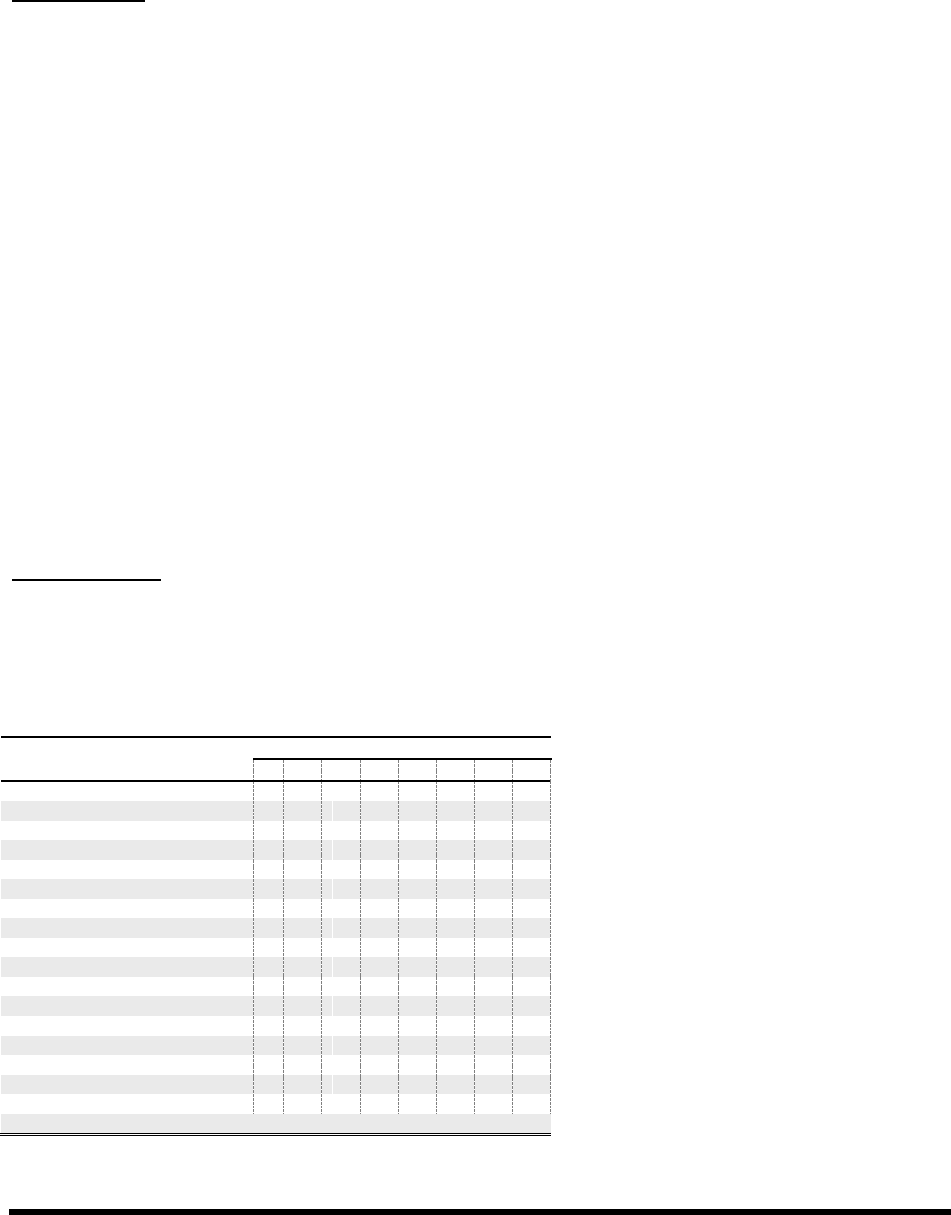
EFFECTS GUIDE
92 Doc v3.04
VOICE1 DLYTEMPO, VOICE 2 DLYTEMPO Locks the delay time to the global tempo. For example, if
the global tempo is 120 BPM, and TEMPO is set to a quarter note , then the delay time will be 500 ms. To
ignore the global tempo, set the tempo control to NONE.
Custom Scale
The Intelligent Harmonizer allows you to create a custom scale and save it with the preset. To use this feature,
set the SCALE parameter (above) to CUSTOM, set the number of CUSTOM NOTES, and set up your scales notes
in any key based on an arbitrary TONIC. As with other scales, the actual KEY setting (above) determines how
your custom scale will be transposed and compared to the note played for creating custom harmonies.
In comparison to the Custom Shifter (5.24.9, below), in which any input note of the chromatic scale can be
shifted +/- 24 semitones, the Intelligent Harmonizer requires that your creations contain from four to eight
notes (including the tonic), and each scale degree must be at least ½ step higher than the previous.
CUSTOM NOTES Sets the number of notes when using a custom scale. Custom scales can have between
four and eight notes.
TONIC This parameter has no effect on how the scale will sound in actual use but instead serves as an aid
so you can see an example of your custom scale transposed to any arbitrary key. Change this value and other
scale degrees will automatically update. It is the KEY parameter (above) which actually transposes your custom
scale for use during actual performance.
NOTE 1,2,3…8 These are the notes of your custom scale relative to the TONIC. Set these to define the
scale degrees.
Scale Formulas
Here is a set of scale fo
modes. If scale names look slightly different from
Satchmo, Pops, Satchel
Mouth, Dipper Mouth TWO right there!
SCALE TYPE
DEGREES/FORMULA
1
2
3
4
5
6
7
8
IONIAN (MAJOR)
1
2
3
4
5
6
7
DORIAN
1
2
b3
4
5
6
b7
PHRYGIAN
1
b2
b3
4
5
b6
b7
LYDIAN
1
2
3
#4
5
6
7
MIXOLYDIAN
1
2
3
4
5
6
b7
AEOLIAN (MINOR)
1
2
b3
4
5
b6
b7
LOCRIAN
1
b2
b3
4
b5
b6
b7
MELODIC MINOR
1
2
b3
4
5
6
7
HARMONIC MINOR
1
2
b3
4
5
b6
7
BLUES SCALE
1
b3
4
b5
5
b7
DIMINISHED (whole-half)
1
2
b3
4
b5
b6
6
7
WHOLE TONE
1
2
3
b5
#5
b7
DOMINANT 7 (aka dim half-whole)
1
b2
#2
3
#4
5
6
b7
DIMINISHED/WHOLETONE
1
b2
#2
3
#4
#5
b7
PENTATONIC MAJOR
1
2
3
5
6
PENTATONIC MINOR
1
b3
4
5
b7
BLUES
1
b3
4
b5
5
b7
CHROMATIC
All 12 tones
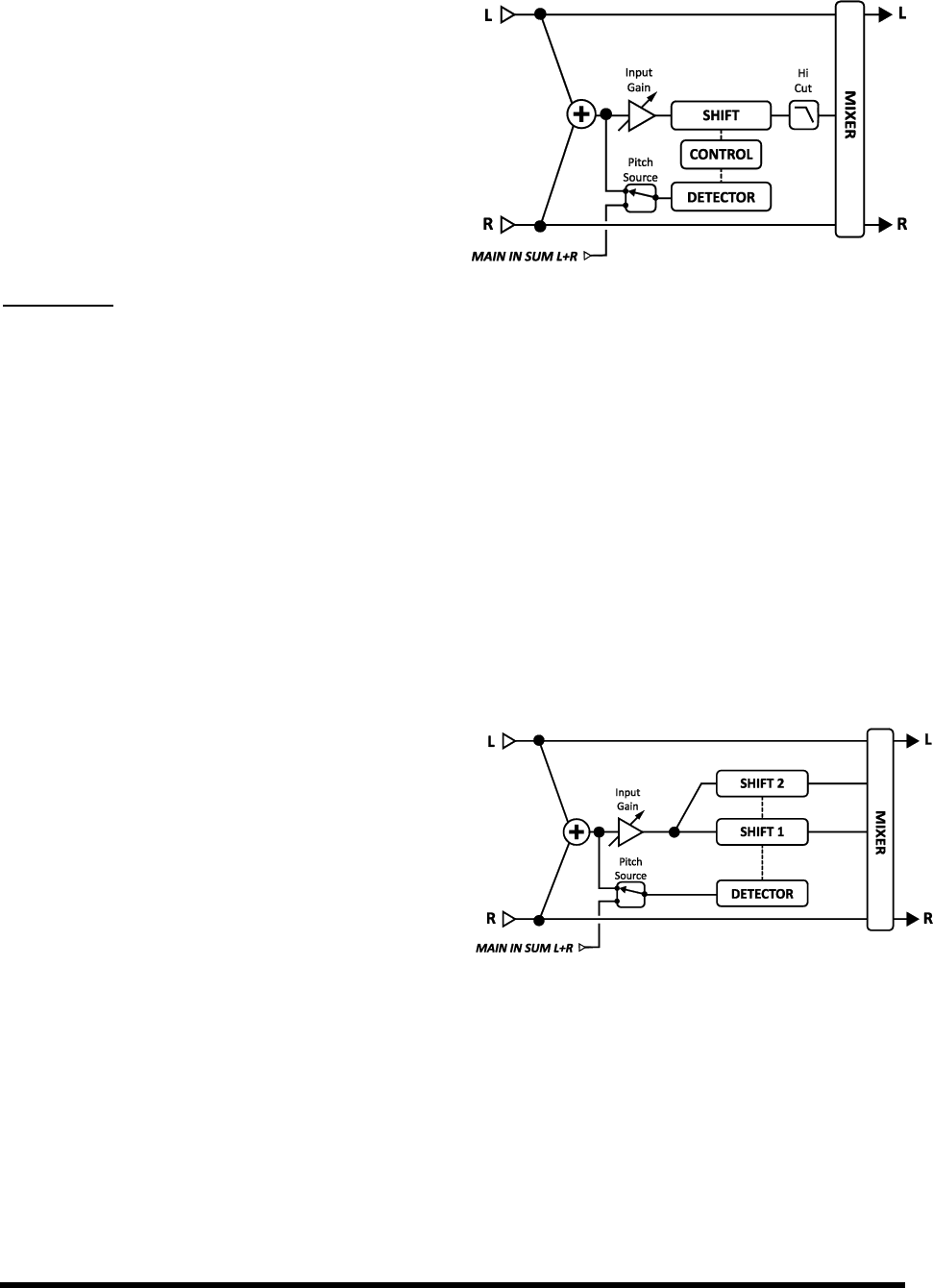
EFFECTS GUIDE
Doc v3.04 93
Classic Whammy 5.24.4
The whammy, first introduced in 1991, is a relative
newcomer to the field of guitar effects. The Classic
Whammy brings all of the expected sounds to the Axe-Fx
II. Its CONTROL parameter is designed to be operated
remotely using a modifier (p. 119), typically assigned to
some source controlled by a pedal. In comparison to the
Advanced Whammy (p. 95) this type has only a few
combinations of octave up/octave down.
Parameters
MODE Selects the Whammy mode:
UP 1 Octave
DOWN 1 octave
UP 2 Octaves
DOWN 2 octaves
UP/DOWN 1 Octaves
UP/DOWN 2 octaves
CONTROL Adjusts the output pitch. Attach to a controller for dynamic control of the pitch. See the Wah
pedal tutorial on p. 157 for more details on doing this.
The introduction to this section covers COMMON, MASTER, TRACKING, and MIX parameters.
Octave Divider 5.24.5
The Octave Divider simulates the classic analog effect and
works by actually turning the input into a square wave
and then dividing the signal by two using flip-flops. Like
the classic effect, this effect only works on single notes
and works best on notes above the fifth fret. Experiment
with pickup selection and effect placement to achieve the
best results. Shift 1 and Shift 2 are fixed at one and two
octaves down.
LVL1, LVL2 Sets the volume levels of the octaves.
PAN1, PAN2 Sets the panning of the octaves.
The introduction to this section covers COMMON, MASTER, TRACKING, and MIX parameters.
Figure 5-30 - The Octave Divider Pitch Shifter Type
Figure 5-29 - The Classic Whammy Pitch Shifter Type
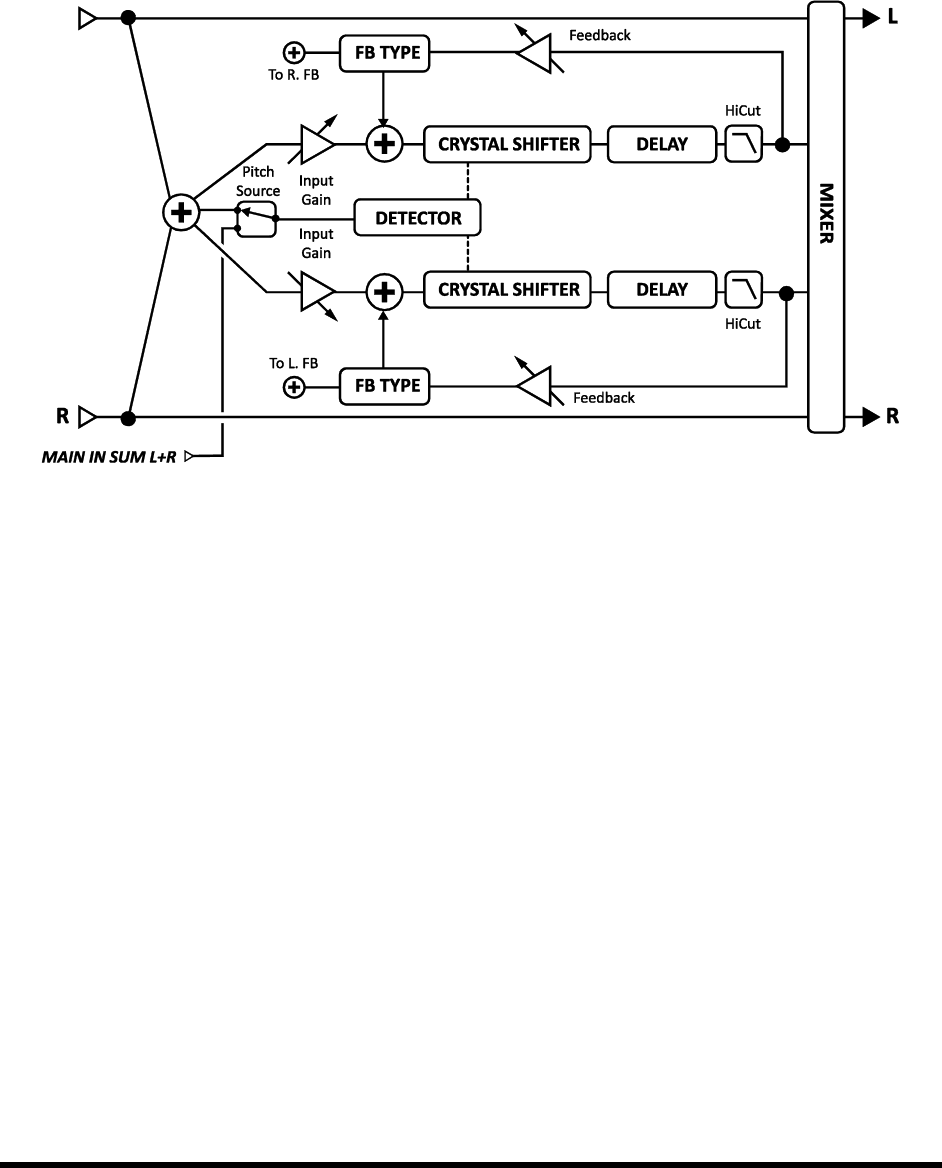
EFFECTS GUIDE
94 Doc v3.04
Crystals 5.24.6
The Crystals Pitch Shifter is similar to the Fixed Harmony mode (p. 90) but is designed for special effects. It
, and a flexible feedback
architecture.
Figure 5-31 The Crystals Pitch Shifter Type
VOICE1 DETUNE, VOICE 2 DETUNE Sets the detune amount of the voice in a range of +/- 50 cents.
VOICE1 SHIFT, VOICE2 SHIFT Sets the shift amount of the voice in a range of +/- 12 half-steps.
VOICE1 LEVEL, VOICE2 LEVEL Sets the volume level of the voice.
VOICE1 PAN, VOICE2 PAN Sets the panning of the voice.
VOICE1 DELAY, VOICE2 DELAY Sets the delay time of the voice. When a delay time is shown in
parenthesis, it is being set automatically by a TEMPO parameter (see below). Set the corresponding TEMPO to
VOICE1 DLYTEMPO, VOICE2 DLYTEMPO Locks the corresponding TIME parameter in rhythmic
relation to the global tempo.
VOICE1 FEEDBACK, VOICE 2 FEEDBACK Sets the feedback of the voice to the input. By delaying and
feeding a voice back, strange pitch effects can be created as the note is shifted again and again.
FEEDBACK TYPE Selects the type of feedback. DUAL sends the individual voices back to their respective
delay lines. BOTH mixes the voices and sends them back to both delay lines. PING-PONG sends each voice to
the opposite delay line.
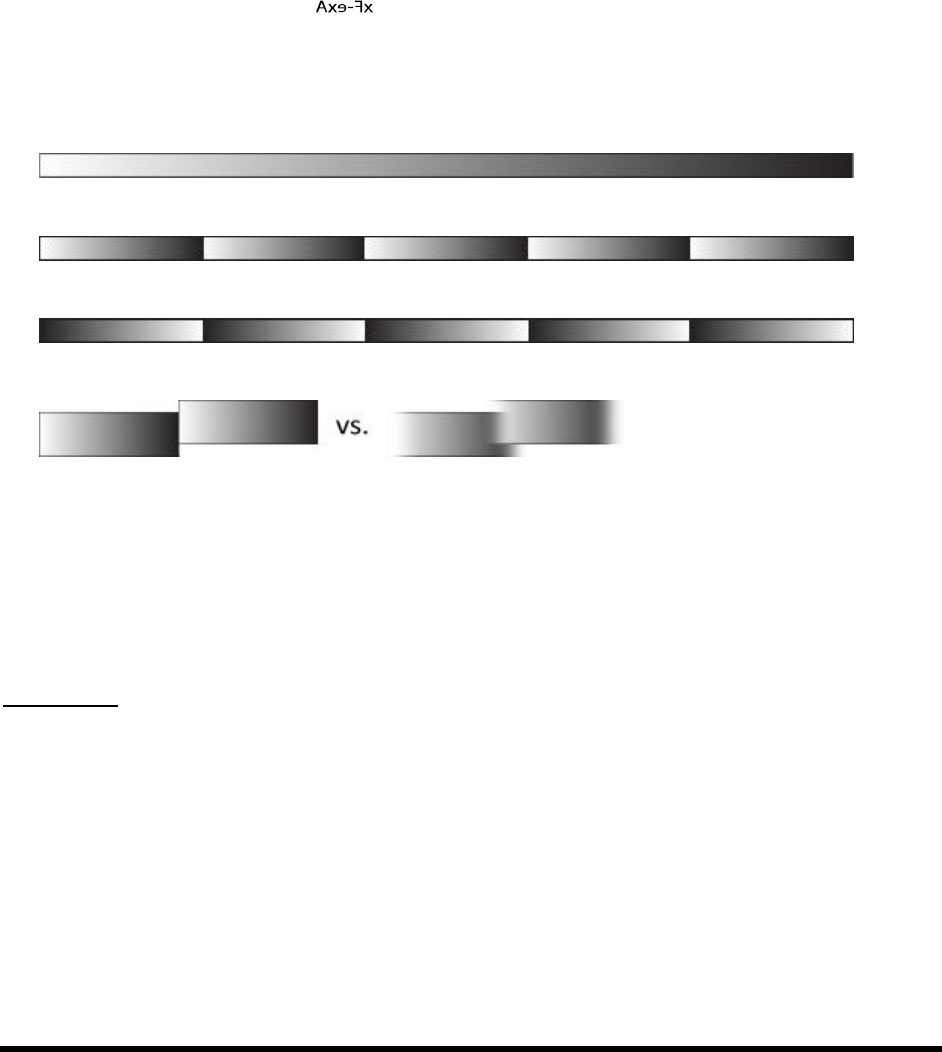
EFFECTS GUIDE
Doc v3.04 95
detailed below are not listed in the order in
which they appear on the display of the Axe-Fx II.
VOICE1 SPLICE, VOICE2 SPLICE
h of the granules in
milliseconds.
VOICE1 SPLTEMPO, VOICE1 SPLTEMPO Sets splice time in rhythmic relation to the global tempo.
DIRECTION Determines whether the processed granules are played back forwards or backwards. To
understand how reverse works, imagine a word whose individual letters have been mirror-imaged but are still
in the correct left-to- SPLICE settings (above).
CROSSFADE Sets the amount of overlap in the audio granules. A low setting will make the edges more
discrete, while a high setting will tend to blend splices together.
Example: Imagine that the shaded rectangle below represents an audio signal, like a piece of reel-to-reel tape.
The signal is divided into SPLICE-parameter-
Setting DIRECTION
CROSSFADE applies overlaps and tiny fade-ins/fade-outs to blend spliced edges:
Figure 5-32 Splicing
Advanced Whammy 5.24.7
The Advanced Whammy is identical to the Classic Whammy (p. 93) except that its shift range may be set to any
custom number of semitones within a range of +/- 24.
Parameters
The parameters for the Advanced Whammy are the same as the Classic with the following differences:
START Sets the start pitch shift amount in semitones. This is the amount of pitch shift applied when the
CTRL knob is in the minimum position.
STOP Sets the stop pitch shift amount in semitones. This is the amount of pitch shift applied when the CTRL
knob is in the maximum position.
The introduction to this section covers COMMON, MASTER, TRACKING, and MIX parameters.
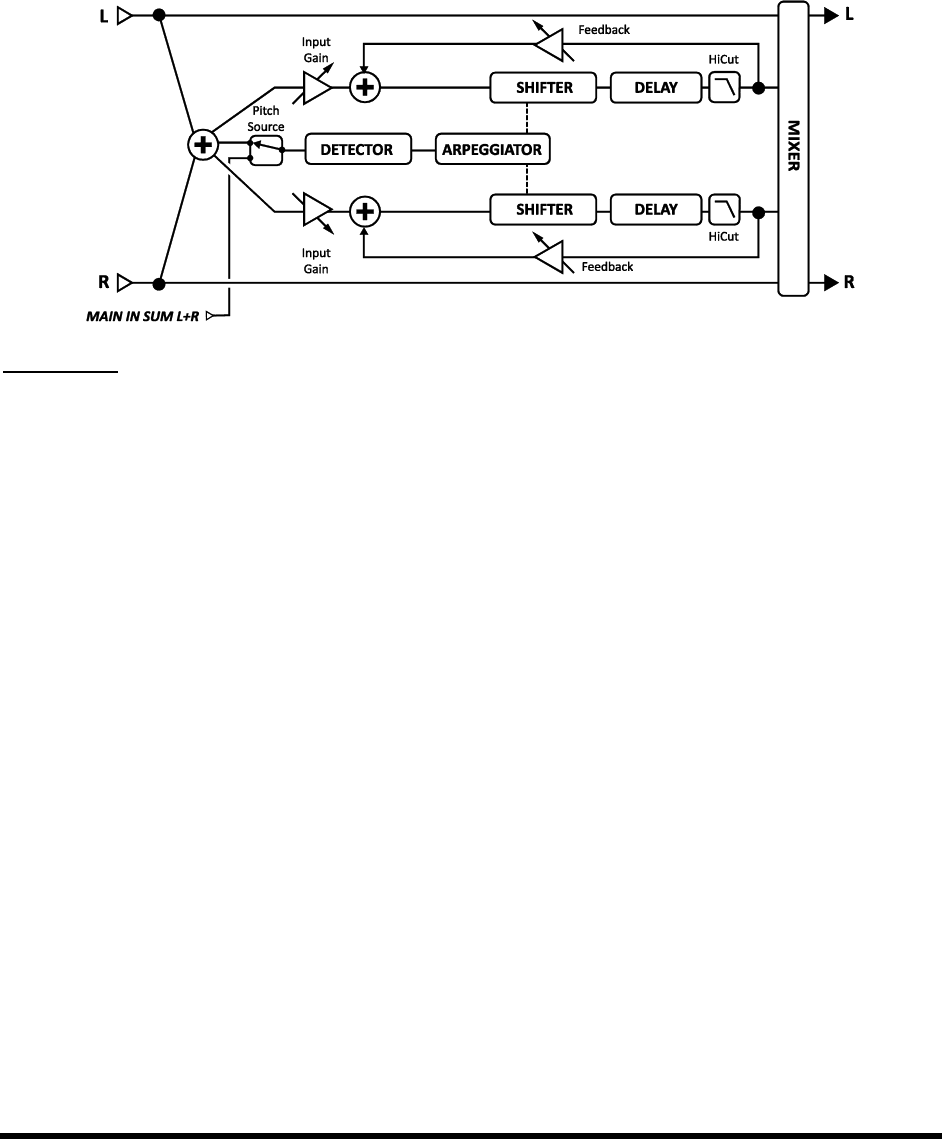
EFFECTS GUIDE
96 Doc v3.04
Arpeggiator 5.24.8
The Arpeggiator uses a 32-step sequencer to control the shift amount of a harmonizer so that complex arpeggio
patterns can be created from a single note. A
-E-G (C major),
but the note D natural will arpeggiate as D-F-A (d minor).
Figure 5-33 The Arpeggiator Pitch Shifter Type
Parameters
The Arpeggiator parameters are identical to those of the Intelligent Harmony shifter (p. 90) except as noted
below:
RUN When set to ON, the sequence starts. When set to OFF, the sequence stops and resets to the
beginning. Attach the Envelope Follower (p. 126) to re-trigger the sequence on each new note.
SCALE Sets the type of scale, or scale mode, that the notes of the arpeggio will be drawn from. Examples
are Ionian (major), Aeolian (minor), whole tone, etc. Set to CUSTOM to use custom scale tones (see Intelligent
Harmony above for details).
KEY Sets the key that the harmony will be in.
STAGES Sets the number of stages in the pitch sequencer.
REPEATS Sets the number of times the sequence will repeat once triggered. Set to INFINITE to loop
forever.
TEMPO Sets the duration of each sequencer step as a rhythmic value in relation to the global tempo.
GLIDE TIME Sets the rate at which the harmony shifts from one pitch to another as the arpeggio shifts.
AMPLITUDE SHAPE, PAN SHAPE Specifies how the volume or pan changes as the arpeggiator plays
through one cycle. See Megatap Delay (p. 72) for more detail on shapes and alpha.
AMPLITUDE ALPHA, PAN ALPHA Sets the acceleration of the rate of volume or pan change.
A setting of 0% results in no effect, while 100% results in an extreme effect.

EFFECTS GUIDE
Doc v3.04 97
STAGE 1,2,3…16 SHIFT Tricky but ideally implemented for maximum flexibility, this parameter sets the
number of scale degrees that each note of the arpeggiator will be shifted above or below the note played.
Letfour-stage arpeggio with values of 0, 2, 4, and
comfort, with a scale type of IONIAN (MAJOR). When we play a C, the arpeggio will be heard as C-E-G-C,
because:
C + 0 scale degrees
C + 2 scale degrees
C + 4 scale degrees =
C + 7 scale degrees =
Remember that the notes of the arpeggios and the steps required to arrive at them are drawn only
from the current key/scale. Scales with more or fewer than seven notes in one octave (diminished, whole
Tip: By choosing the CHROMATIC scale, you can create a pattern that ignores the notes you play and simply
shifts pitch by the specified number of semitones.
The introduction to this section covers COMMON, MASTER, TRACKING, and MIX parameters.
Custom Shifter 5.24.9
The Custom Shifter is identical to the Intelligent Harmony Pitch Shifter (p. 90) except that it uses the custom
scales tables stored in the global memory. See section 8.3 on p. 129 for more information on setting up global
scales.
VOICE 1 SCALE, VOICE 2 SCALE Selects the custom scale to use for each voice.
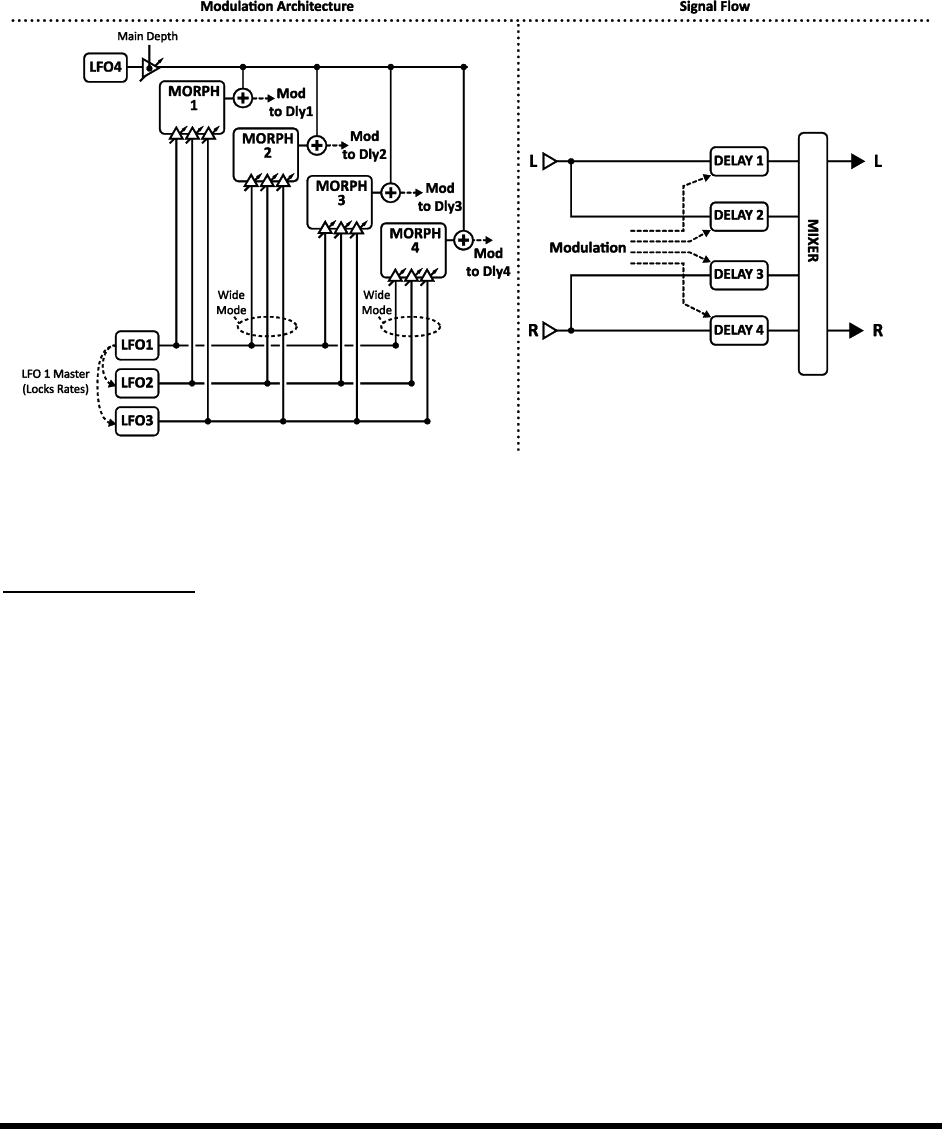
EFFECTS GUIDE
98 Doc v3.04
5.25 Quad Chorus [QCH]
The Quad Chorus was designed to enable sounds beyond those of -
80s session player clean sound. It takes time to set up, but your efforts will be rewarded with incredibly lush and
liquid chorus sounds. It is a four-voice chorus with a powerfully complex modulation generator.
Each Axe-Fx II preset can use two fully independent Quad Chorus blocks.
Figure 5-34 The Quad Chorus Block
The parameters of the Quad Chorus are divided across pages for Master, Chorus 1–4, Advanced, and Mix.
Master Parameters
TIME Scales the times set individually for each of the chorus voices.
RATE Sets the master rate against which the rates of LFOs 14 are set as multiples.
DEPTH Controls the depth of LFO4 for all chorus voices.
FDBK Feedback for all four voices is controlled solely by this parameter. Classic chorus would typically
require a setting of 0%, while flanging is possible with higher settings (though extreme settings can cause
runaway oscillation).
INPUT MODE The STEREO mode is shown above: left input feeds voices 1 and 2; right input feeds voices 3
and 4. In MONO mode, the two inputs are summed into all voices.
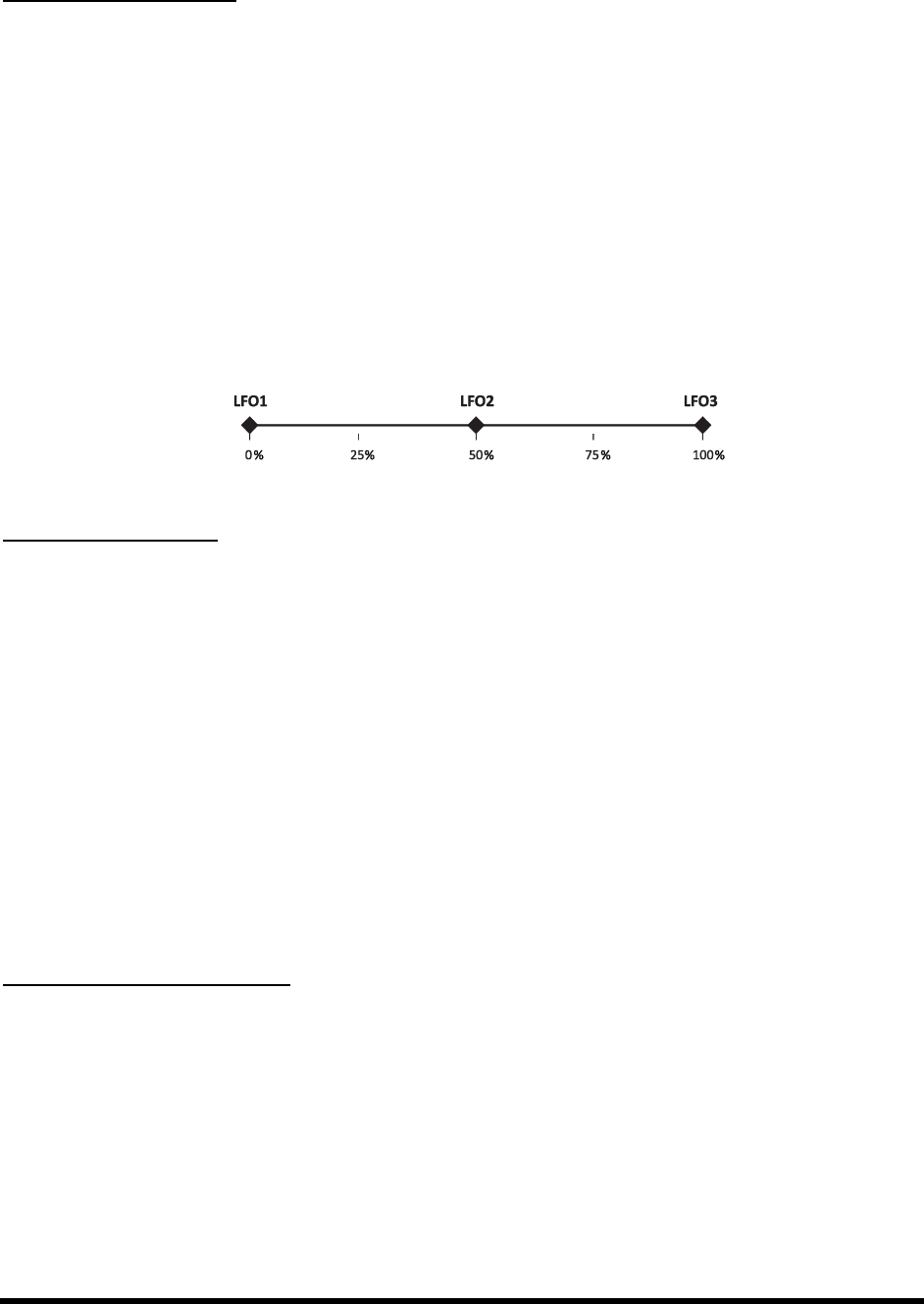
EFFECTS GUIDE
Doc v3.04 99
Chorus Unit Parameters
Each chorus unit has an identical set of parameters.
TIME Sets the minimum time delay of the selected chorus voice. All modulation is positive/unipolar.
LEVEL Sets the output level of the selected chorus voice.
PAN Sets the panning of the selected chorus voice in the stereo field.
DEPTH Sets the modulation depth for the selected chorus voiceMORPH blend of LFOs 1/2/3.
The depth of LFO 4 is set for all voices simultaneously via the MAIN DEPTH parameter on the advanced page.
LFO MORPH This parameter taps any one, or a blend of any two, of LFOs 1, 2, and 3 to use as a
modulation source for the current voice. The scale below shows how the percentage setting selects between
the LFOs. A value of 0% taps only LFO1, while 75% would be an even blend of LFO2 and LFO3.
Figure 5-35 Quad Chorus LFO Morph Scale
Advanced Parameters
ailed above).
WIDE MODE When this in set to ON, the modulation to voices 2 and 4 from their LFO MORPH outputs is
inverted to widen the stereo effect.
MAIN DEPTH Controls the depth of LFO4, which modulates all four chorus voices.
MAIN PHASE Sets the phase difference for the main LFO (LFO4) output to chorus voices 2 and 4.
LFO1 MASTER If this is set to ON, the controls for LFO 1 also control the rates.
LFO TYPE 1–4 Selects the type of LFO for each LFO.
LFO RATE MULT 1–4 Sets the rate of each LFO as a multiple of the MASTER RATE.
Note: MASTER RATE MASTER RATE on the ADVANCED page.
Quad Chorus Mix Parameters
The Quad Chorus block has a MIX page with MIX, LEVEL, BALANCE, BYPASS MODE, and GLOBAL MIX parameters.
See Common Mix Parameters on p. 112 for more details on these.
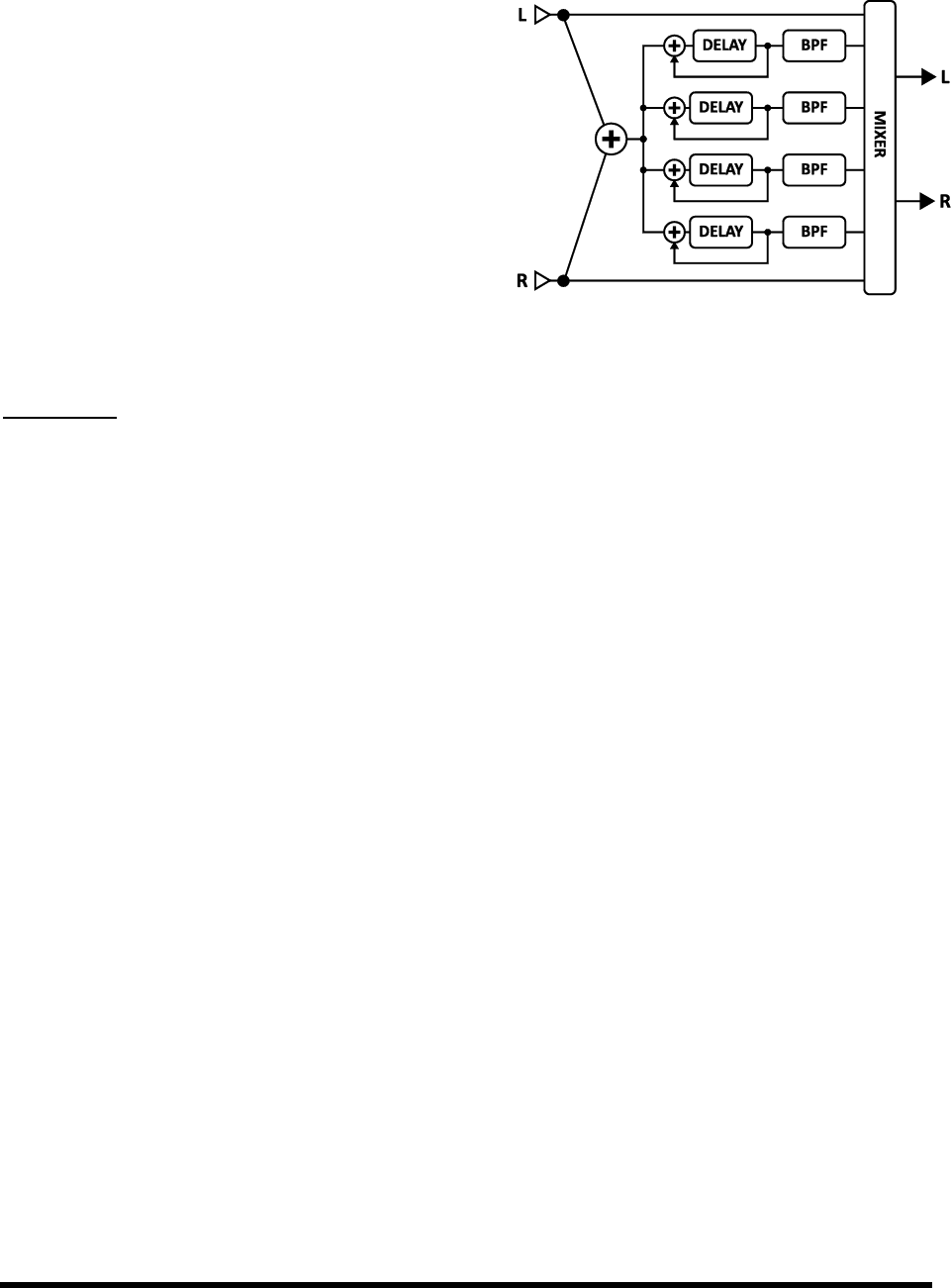
EFFECTS GUIDE
100 Doc v3.04
5.26 Resonator [RES]
The Resonator consists of four resonant comb filters in
parallel. By tuning the comb filters, a metallic or resonant
timbre can be achieved from normally non-musical signals.
The Resonator works best on transient signals like speech or
percussion but can also be used to add unique character to
musical inputs.
In series with each comb filter is a bandpass filter tuned to
the same frequency. These filters can be placed before or
after the comb filters. They are shown in the after position
in the diagram to the right.
Each Axe-Fx II preset can use two fully independent Resonator blocks.
Parameters
MODE The Resonator can operate in one of two modes.
MANUAL: Resonator/filter frequencies are set individually as desired from 10010,000 Hz.
CHORDAL: Resonator/filter frequencies are set automatically based on a setting for CHORD TYPE. A base
FREQUENCY scales all four voices to any pitch/key.
INGAIN At high feedback levels, overload can easily occur. This scales the level into the effect for control.
MASTER FREQ/FREQUENCY In MANUAL MODE, MASTER FREQUENCY scales the frequencies set
manually for the four resonators/filters. In CHORDAL MODE, this is replaced by FREQUENCY, which sets the
frequency for the chord root.
MASTER LEVEL Scales all the output levels.
MASTER PAN Scales all the output pans. Use negative values to reverse the stereo image.
MASTER FEEDBACK Scales the feedback of all four resonators.
MASTER Q Scales the Q of all four bandpass filters.
INPUT MODE Selects between MONO, where left and right input signals are summed to all four
resonators, and STEREO, in which the left input channel feeds resonators 1+2 and the right feeds 3+4.
FREQUENCY 1–4 Sets the resonant frequency of the selected filter.
FEEDBACK 1–4 Sets the resonance of the selected filter by varying the feedback.
FILTER LOC 1–4 Selects the position of the bandpass filter in relation to the resonator.
FILTER Q 1–4 Sets the Q of the selected bandpass filter.
LEVEL 1–4 Sets the output level of the selected filter.
Figure 5-36 - The Resonator Block,
Shown in its MONO INPUT MODE.
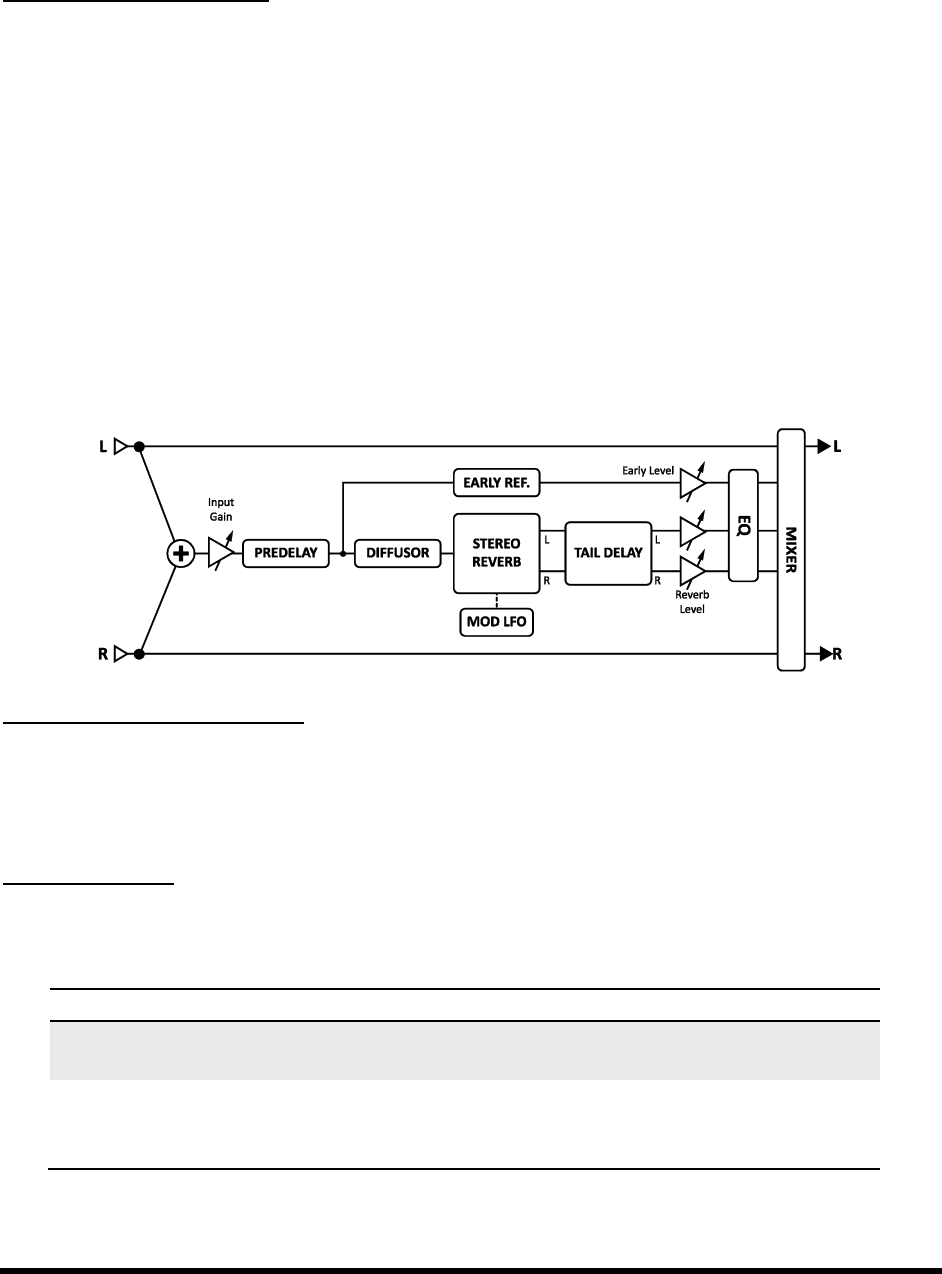
EFFECTS GUIDE
Doc v3.04 101
PAN 1–4 Sets the panning of the selected filter.
Resonator Mix Parameters
The Resonator block has a MIX page with MIX, LEVEL, BALANCE, BYPASS MODE, and GLOBAL MIX parameters.
See Common Mix Parameters on p. 112 for more details on these.
5.27 Reverb [REV]
Aside from distortion, no effect has been more important to the electric guitar than reverb. Since the dawn of
guitar amplification, guitarists in small spaces yearned for the sounds their amps made in a hall or large room.
Early simulators incorporated metal springs and plates, but as with delay processing, reverberation effects were
truly revolutionized by digital technology. The Axe-Fx II is one of the finest you are likely to have heard: realistic,
lush, and dense, with the ability to emulate real spaces, vintage springs, classic digital effects, and more.
Each Axe-Fx II preset can use two fully independent Reverb blocks.
Figure 5-37 The Reverb Block
Reverb X/Y Channel Switching
Each instance of the Reverb block stores two fully independent sets of parameters called X and Y. Selecting
between these allows you to change all block settingsinstantlyat the touch of a switch or button (excluding
current Bypass State and any Modifier assignments). See X/Y Switching on p. 36 for more information.
Basic Parameters
TYPE Selects the reverb type. There are seven basic types and several variations. Changing the TYPE will set
values for other reverb parameters as well, but these can then all be freely modified manually.
Type
Notes
Room
Simulates an actual room. This is the type to use when you want the most natural,
realistic reverb. Also great on vocals and percussion.
Hall
Similar to the Room reverb but simulates a concert hall. It is a little less smooth and
has some response peaks, lending it a unique character. Use this when you want
your sound to stand out a little.

EFFECTS GUIDE
102 Doc v3.04
Chamber
Simulates the sound of large, boxy chamber. Useful when you want a bright,
resonant reverb sound.
Plate
Simulates the sound of a vintage reverb plate characterized by smooth yet bright
sound that is especially popular for vocals. The Axe-Fx II Plate simulation captures
the "shiny" sound without all the complicated setup.
Cathedral
Surround your tone with heavenly reverb in this incredible simulation of a grand
space.
Spring
Simulates the classic electro-mechanical reverb effect that has traditionally been
placed inside guitar combo amps as well as standalone reverberators.
Cavern
Carlsbad has nothing on this monster. A vast, cavernous space.
TIME Sets the decay time. This is the amount of time it takes for the reverb to vanish beyond the point of
perception. This is also known as the t60 time, referring to the amount of time required for the reverb to
decay to 0.001 of its initial value (-60 dB).
INPUT GAIN Sets input level into the reverb. Primarily for use with a pedal or other control to set the
situations this
should normally be set to 100%
MIX and LEVEL are duplicated from the MIX page.
Advanced Parameters
TYPE, TIME Duplicated from the BASIC page (p.101).
SIZE Sets the size of the space or spring. This controls the length of time it takes for an echo to bounce
between virtual surfaces. Higher settings increase the echo time and the delay before the reverb starts.
Large values can make the reverb more grainy as the time between the individual repeats increases. Lower
settings smooth out the reverb, but very small values will create a metallic sound.
As the size is increased, the reverb will become somewhat darker as high frequencies are absorbed.
COLOR Adjusts the high-frequency absorption for a darker or brighter reverb tail.
INPUT DIFFUSION Controls the amount of diffusion applied to the signal before it hits the main reverb
the
DIFFUSION TIME Controls the length of the input diffusor. Lower values simulate a small diffusion space.
Higher values simulate a large space.
WALL DIFFUSION Controls how quickly the reverb tail density builds. Lower values cause discrete
echoes to be heard for a longer time. Higher values cause the echo density to build rapidly.
ECHO DENSITY Controls the initial density of the reverb tail. Higher values give a smoother sound. Lower
values allow the individual repeats to be more easily discerned. The overall smoothness of the reverb tail is a
function of this parameter along with the DIFFUSION and SIZE parameters. Large SIZE values will make the
individual echoes more apparent, as will lower values of DIFFUSION. For legato sounds, a low DENSITY value

EFFECTS GUIDE
Doc v3.04 103
may be more suitable. For short, percussive sounds, a higher value may be more desirable as the reverb tail
will be smoother. Adjust to taste based on the program material.
PRE DELAY Adds extra delay before the reverb starts. The SIZE control automatically imparts a certain
amount of delay before the reverb starts. Use this control to add more delay if desired. For example, if the SIZE
is low, the reverb will start almost immediately. You can use this control to add some delay before the reverb
starts but keep the small-sounding size.
TAIL DELAY This delays the reverb tail independently of the reverb
sound of spaces in which reflections from surfaces at different distances reach the listener at different times.
EARLY LEVEL Adjusts the relative volume level of the early reflections. This control has no effect for the
Spring Reverb type.
REVERB LEVEL Adjusts the relative volume level of the reverb tail.
MOD DEPTH This parameter controls the depth of modulation of the reverb tail. For a more musical
sound, experiment with this and the MOD RATE control. The reverb contains an LFO that modulates the delay
lines that make up the reverb. This modulation helps fill out the soundstage and makes the reverb sound
fuller. The modulation is best used on pitched instruments. For non-pitched instruments like drums, it may
sound better with the modulation off. Set the depth to zero to defeat the modulation. To hear the effect of
the modulation, turn the mix to max and adjust the depth and rate. Then set the mix to the desired amount.
MOD RATE Controls the rate of modulation of the reverb tail.
NUMBER SPRINGS When the TYPE is set to this sets the number of springs in the simulation.
SPRING TONE When the TYPE is set to this changes the character, emphasizing different tonal
aspects of the simulation. Lower values create a darker tone.
SPRING DRIVE This simulates overdriving the circuit of the reverb when the TYPE is set to SPRING.
Reverb EQ Parameters
The reverb features a powerful equalizer with high and low-pass, plus two peaking-type filters.
LOW CUT Sets the frequency of the low-cut filter. Increase for thinner sounds.
HIGH CUT Sets the frequency of the high-cut filter. Decrease for darker sounds.
FREQ 1, GAIN 1, Q 1 Controls the first peaking filter. Select the frequency and amount to boost or cut.
Set Q to determine the width of the effect.
FREQ 2, GAIN 2, Q 2 Controls for the second peaking filter.
The Reverb block has a MIX page with MIX, LEVEL, BALANCE, BYPASS MODE, and GLOBAL MIX parameters.
See Common Mix Parameters on p. 112 for more details on these.
A Word on “Spillover”
The Axe-Fx II Reverb is capable the effect is bypassed or
when you change presets. For more on this subject, please see Setting Up Spillover on p. 159.
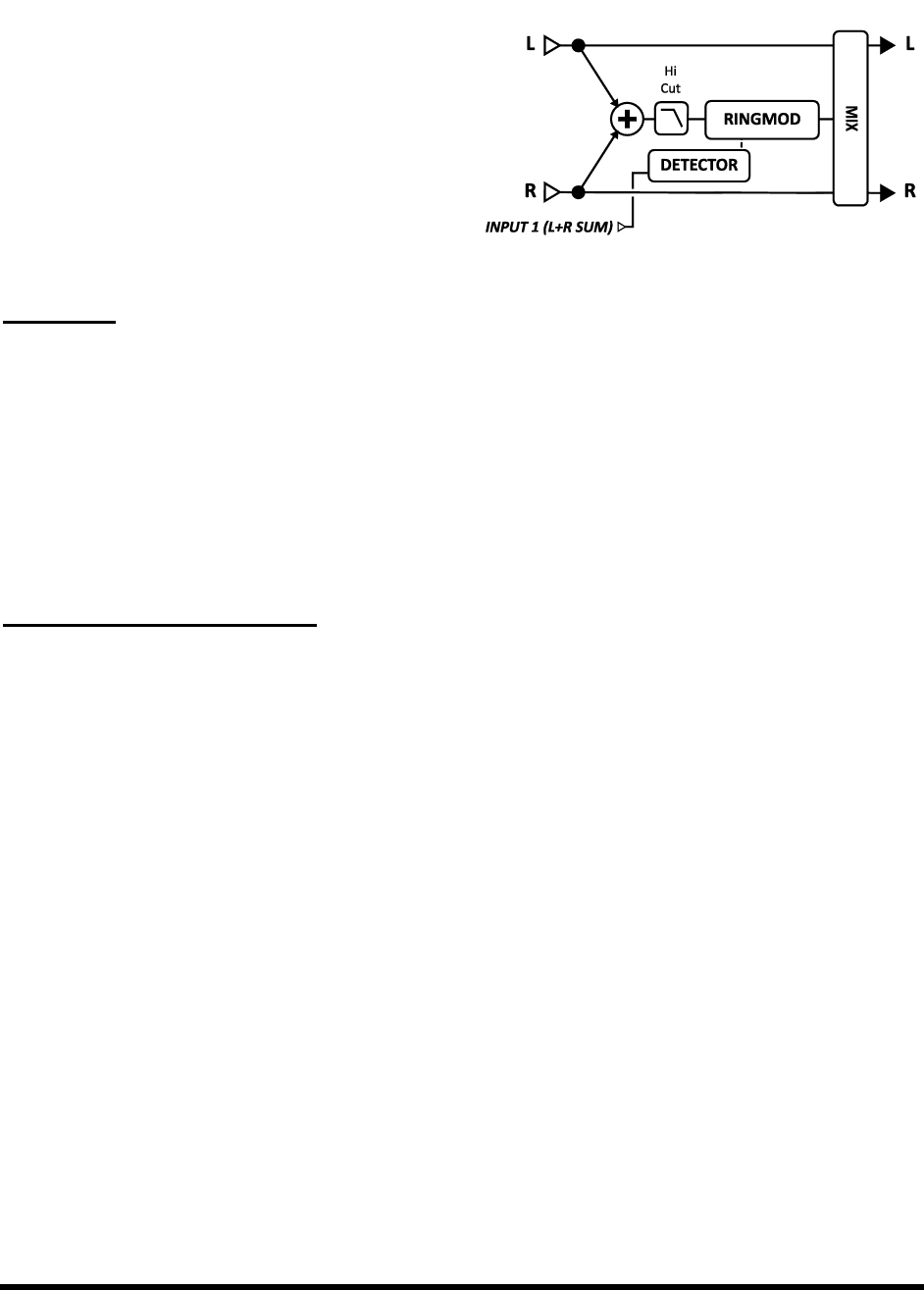
EFFECTS GUIDE
104 Doc v3.04
5.28 Ring Modulator [RNG]
Commonly used on synth and fusion electric piano sounds
(or to create Dalek/X-wing pilot voices), the Ring
Modulator uses fast changes in amplitude to create
subtones or supertones harmonically unrelated to the
input. The Axe-Fx II Ring Modulator goes beyond the
classic effect in that the modulation frequency can be
dynamically controlled by the pitch of the input.
Each Axe-Fx II preset can use two fully independent Ring Modulator blocks.
Parameters
FREQ Sets the frequency of the oscillator.
FMULT Sets the frequency multiplier for the oscillator. The actual oscillator frequency is the FREQ value
multiplied by the FMULT value.
TRACK When this is set to ON the frequency of the oscillator tracks the input pitch. The actual frequency
is then the pitch multiplied by the FMULT value.
HICUT Sets the cutoff frequency of a low-pass filter on the output.
Ring Modulator Mix Parameters
The Ring Modulator block has a MIX page with MIX, LEVEL, BALANCE, BYPASS MODE, and GLOBAL MIX parameters.
See Common Mix Parameters on p. 112 for more details on these.
5.29 Rotary Speaker [ROT]
A Hammond B3 Organ without a Leslie cabinet is like a BLT without the lettuce and tomato. Guitar players also
discovered the wonderful, spinning, 3D sound of the Leslie and its brethren. The classic unit contains a spinning
drum with a slot in it, and a rotating horn called a rotor. A low-frequency speaker is aimed into the drum while
high frequencies are sent to the spinning horn. The result is unmistakable: from schmaltzy hockey-game to
Steppenwolf, the Leslie sound is ubiquitous. Drum-only versions have been produced by other manufacturers;
Stevie Ray Vaughan's "Cold Shot" offers an example of the sound of this variant.
The Axe-Fx II Rotary Speaker simulator reproduces all these classic sounds and offers more control. Also, it doesn't
weigh 300 lbs. or require four guys to move it up a flight of stairs. Isn't technology great?
Each Axe-Fx II preset can use two fully independent Rotary Speaker blocks.
Figure 5-39 The Rotary Speaker Block
Figure 5-38 The Ring Modulator Block
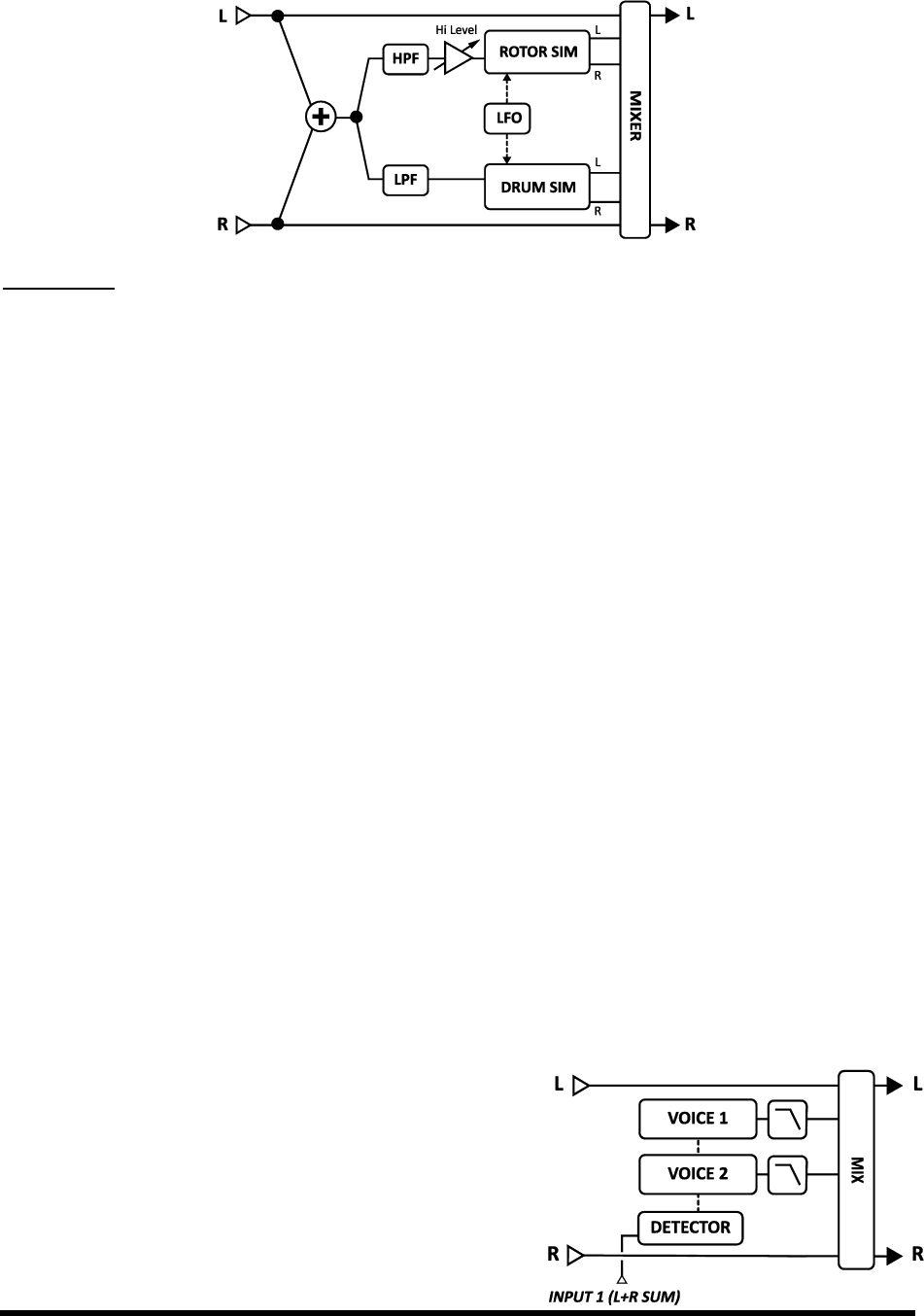
EFFECTS GUIDE
Doc v3.04 105
Parameters
RATE Controls the rate at which the "drum and rotor" spin. Connect this to a controller for real-time
control. When RATE is shown in parenthesis, it is being controlled by the tempo parameter (below). Set TEMPO
TEMPO Locks the rate to the global tempo. For example, if the global tempo is 120 BPM, and TEMPO is set
to a 1/4, the LFO rate will be 2 Hz (120 BPM / 60 seconds = 2). To ignore the global tempo set the tempo
control to NONE.
LOW DEPTH Sets the modulation depth of the drum. Higher settings provide a more pronounced throb.
HI DEPTH Sets the modulation depth of the rotor. To simulate a rotating drum-only cabinet, reduce this.
HI LEVEL Sets the output level of the rotor. Use this to balance the level between the drum and rotor.
ROTOR LENGTH This parameter adjusts the length of the virtual high-frequency horn. Larger values
increase the amount of Doppler shift and result in a more intense effect.
LOW RATE MULTIPLIER Adjusts the speed of drum rotation compared to the rotor (which always spins
at the value set for TEMPO, above).
LOW TIME CONSTANT, HI TIME CONSTANT Sets acceleration/deceleration rates of the drum/rotor.
MIC WIDTH Sets the placement of the (neutral-sounding) virtual mics, determining the stereo width of the
effect. Because the spinning is cool in stereo, you may be tempted to run full-wide, but believe it or not, the
great Leslie sounds are often recorded in mono!
The Rotary Speaker has MIX, LEVEL, BALANCE, and BYPASS MODE controls. See Common Mix Parameters on p. 112.
5.30 Synth [SYN]
The Axe-Fx II Synth block contains a dual-voice monophonic
synthesizer that can be used as a tone generator or to track the
pitch of your playing for synth leads with a guitar or other
instrument. Each voice has its own resonant filter and may be set

EFFECTS GUIDE
106 Doc v3.04
to produce any of seven different oscillator waveforms. The global ADSRs or LFOs may be used to modulate a
variety of functions.
Each Axe-Fx II preset can use two fully independent Synth blocks.
Parameters
Each synth has two voices with the following parameters:
TYPE Sets the waveform to Sine, Triangle, Square, Sawtooth, Random, White Noise, or Pink Noise.
TRACK Selects the type of input tracking.
OFF Allows the frequency and level to be set manually via the FREQ and LEVEL controls.
ENV ONLY Selects the level to be controlled by the envelope while frequency is set manually.
PITCH+ENV Selects the frequency and level to be controlled by the pitch and envelope of the input.
FREQ If input tracking is set to OFF or ENV ONLY this parameter sets the oscillator frequency.
SHIFT Shifts the frequency of the oscillator up or down in semitone steps.
TUNE Detunes the oscillator slightly. The oscillator can be detuned +/- 50 cents.
DUTY When using the TRIANGLE or SQUARE waveforms, this parameter controls the symmetry or pulse
width of the waveform.
LEVEL Controls the output level of the oscillator.
PAN Controls the panning of the oscillator.
FILTER Sets the cutoff frequency of a low-pass filter after the oscillator.
Q Sets the Q or resonance of the post-oscillator filter.
ATTACK Sets the attack time of the envelope follower on the input.
Synth Mix Parameters
The Synth block has a MIX page with MIX, LEVEL, BALANCE, BYPASS MODE, and GLOBAL MIX parameters.
See Common Mix Parameters on p. 112 for more details on these.
Figure 5-38 - The Synth Block
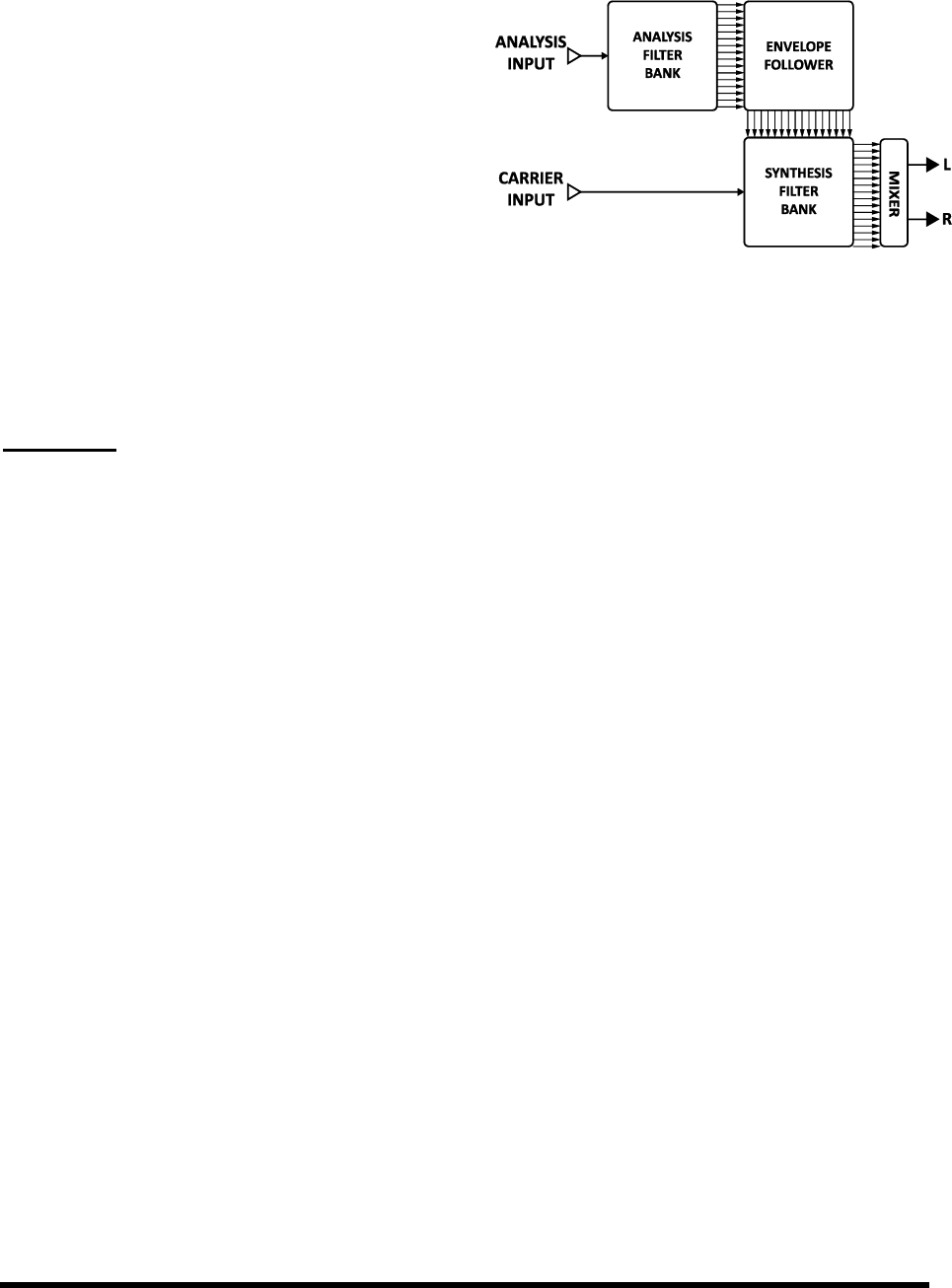
EFFECTS GUIDE
Doc v3.04 107
5.31 Vocoder [VOC]
The Axe-Fx II has a digital recreation of the classic analog
vocoder. The vocoder, created by Homer Dudley, was
originally designed as means of compressing human
speech for transmission over narrow-band carrier
channels. In the 1970s, Robert Moog and Wendy Carlos
pioneered the use of the Vocoder for musical applications.
The Axe-Fx II Vocoder block pays faithful homage to those
early analog Vocoders. Using a true constant-Q approach,
it can be used to make youto make your voice
sound like a robot [chicken]. When using the Vocoder with your guitar or other instrument as the carrier (synthesis
bank), resist the urge to sing along. Speaking in a monotone voice yields the best results.
Each Axe-Fx II preset can use one Vocoder block.
Parameters
INSEL Selects the input to use for the synthesis (carrier) channel. This is the input to use for your guitar or
other instrument. The other input is then the analysis channel and is typically used for vocal input.
BANDS Selects the number of bands to use in the analysis and synthesis filter banks.
MIN FREQ Sets the frequency of the lowest filter band.
MAX FREQ Sets the frequency of the highest filter band.
RES Sets the Q, or bandwidth, of the filters. Higher values yield narrower filters.
SHIFT Shifts the frequency of the synthesis bands relative to the analysis bands. This allows you to change
HPMIX Sets the amount of high-pass filtered signal to mix in with the synthesis output. This can be used to
increase the intelligibility of the vocoding by allowing certain consonants and air sounds to pass right through.
ATT Sets attack filter time for the envelope followers.
REL Sets release filter time for the envelope followers.
FREEZE Turning this to ON freezes the output of the envelope followers. This can be used to hold the vocal
formant.
MASTER LEVEL Sets the master level for all the synthesis filter outputs.
MASTER PAN Sets master panning for all the synthesis filter outputs. Individual control of the filter output
levels and panning is provided on dedicated menu pages. You can use these controls to fine-tune the filter
bank response and control the panning of the filter outputs.
Figure 5-39 - The Vocoder Block

EFFECTS GUIDE
108 Doc v3.04
LEVEL 1–16 These parameters appear as sliders across two pages. They set the out level for each of the 16
bands.
PAN 1–16 These parameters appear as sliders across two pages. They set the out pan for each of the 16
bands.
Vocoder Mix Parameters
The Vocoder block has a MIX page with MIX, LEVEL, BALANCE, BYPASS MODE, and GLOBAL MIX parameters.
See Common Mix Parameters on p. 112 for more details on these.
5.32 Volume/Pan [VOL]
The Volume/Pan block ,
dynamic control with an external expression pedal.
Each Axe-Fx II preset can use four fully independent Volume blocks.
VOLUME Scales the output level out of the block. Assign a modifier to create a volume pedal. See the Wah
pedal tutorial for more details on doing this (p. 157).
BALANCE Sets the balance (L/R) out of the block.
VOLUME TAPER LINEAR selects a linear taper. Log 30A, 15A,
and 10A select various tapers typically used for volume control.
INPUT SELECT This control determines how incoming stereo signals will be passed. Options include
STEREO, LEFT ONLY, or RIGHT ONLY.
PAN L, PAN R Controls the panning of the left and right output signals.
BYP MODE Sets the bypass mode of the block. See Common Mix Parameters on p. 112 for more
information.
LEVEL Sets the output level of the block independent of the setting for the VOLUME control.

EFFECTS GUIDE
Doc v3.04 109
5.33 Wahwah [WAH]
From Jimi Hendrix's Vood Voodoo Chile, the wah pedal holds a unique
place in the annals of rock history. The Axe-Fx II Wahwah is the embodiment of this legacy but with modern
reliability and control and a smooooth feel.
A wah is actually a very straightforward device. The signal is passed through a resonant filter whose frequency is
controlled by a pedal. The Wahwah may be placed before distortion for a subtler, classic sound or after distortion
for a more prominent and aggressive sound.
The wah is stereo-in/stereo-out.
Each Axe-Fx II preset can use two fully independent Wahwah blocks.
Wahwah X/Y Channel Switching
Each instance of the WAH block stores two fully independent sets of parameters called X and Y. Selecting between
these allows you to change all block settingsinstantlyat the touch of a switch or button (excluding current
Bypass State and any Modifier assignments). See X/Y Switching on p. 36 for more information.
Parameters
TYPE Selects between a low-pass, bandpass, or peaking filter. A bandpass filter gives a more dramatic
sound whereas the other filters are more subtle.
FMIN Sets the frequency of the filter when the frequency control is at its lowest value. This can be adjusted
to match the range of your instrument or preference.
FMAX Sets the frequency of the filter when the frequency control is at its highest value.
RES Sets the resonance Q of the filter. Higher values give a more pronounced response.
DRIVE This simulates overdriving the circuit of the wah pedal.
TRACK Sets the Q tracking of the filter. As the frequency is increased, the resonance will be decreased by
an amount proportional to this value. If this is zero, the resonance of the filter will be constant at all
frequencies. Classic wah pedals usually have a resonance that decreases with frequency due to design
limitations. This control can be used to mimic those pedals.
CONTROL Sets the position of the wah. Normally you would use a MODIFIER to assign this parameter for
real-time control, but simply dialing it in will give you a gwah sound.

EFFECTS GUIDE
110 Doc v3.04
5.34 Input Noise Gate
Every Axe--Noise Gate connected directly to the main inputs. To edit noise gate
parameters, press LAYOUT and turn to the INPUT/GTE page.
The Noise Gate is always active but can be defeated by turning the THRESH control fully counterclockwise.
The Noise Gate is a downward expander. Any signal below the threshold is reduced by the expansion ratio. This
provides smooth transitions rather than abrupt open/close-style gating.
Parameters
THRESH Threshold control. Sets the level at which the Noise Gate will start its downward expansion. If the
input signal drops below this level, it will be attenuated by an amount controlled by the ratio.
RATIO Sets the downward expansion ratio of the noise gate, thereby determining how much quieter the
signal will sound when the gate is closed. The ratio acts as a multiplier to further reduce signals below the
For example, with threshold is set to -50 and a ratio oinput signal at -60 dB (10 dB below the
threshold) will actually sound 20 dB below the threshold, (so, -80 dB).
ATTACK Attack time control. Sets the rate at which the Noise Gate opens the gate.
RELEASE Release time control. Sets the rate at which the Noise Gate attenuates the signal once the
threshold has been crossed. Higher values will make the signal gradually fade once it drops below the
threshold.
Input Impedance 5.34.1
The INPUT IMP parameter appears on the page with Noise Gate parameters, but is not part of the Noise Gate.
Instead, it changes the actual analog circuitry of the INSTR input jack to alter the way the Axe-Fx II interacts
with your guitar. This recreates the way that some classic effects (e.g. Vibe) load down the pickups, causing a
change in frequency response. The Axe-Fx II recreates this effect by switching various (real) resistors and a
capacitor in and out of the signal path.
In Auto mode, the impedance is automatically set based on the first active effect the input "sees."
Normally you will want to leave this on AUTO, but you may also select any of the following values manually. This
setting is saved with the preset.
1M+ Capacitor
230k
230 k + Capacitor
90 k
90 k + Capacitor
70 k
70 k + Capacitor
32 k
32 k + Capacitor
22 k
22 k + Capacitor
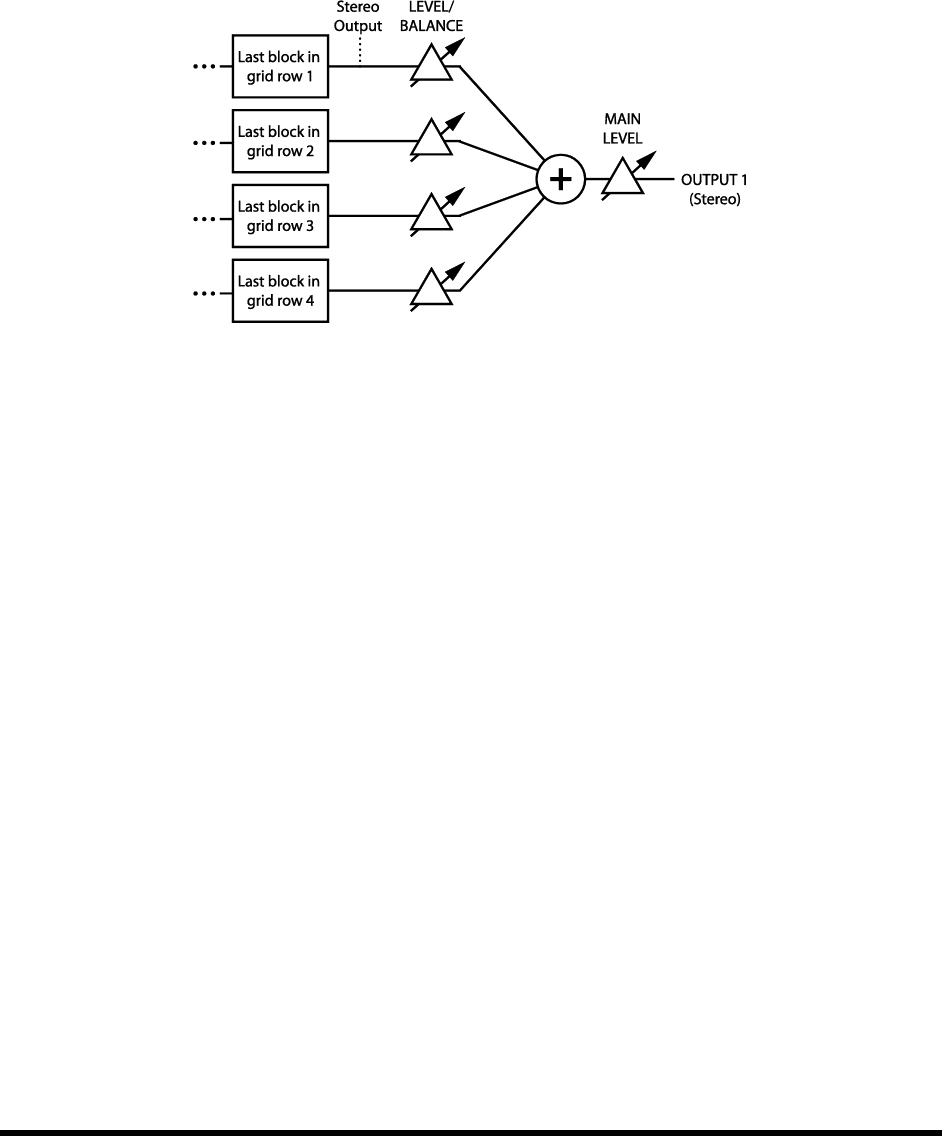
EFFECTS GUIDE
Doc v3.04 111
5.35 Output Mixer
Every preset includes a fully programmable output mixer, located on the OUTPUT tab of the LAYOUT menu.
This provides four pairs of controls for setting the output level, balance for each of the four grid rows, and a master
level adjustment control.
Figure 5-40 The Output Mixer
LEVEL 1–4 Think of these as input faders. Each is connected to one row of the grid as shown above.
BAL 1–4 Each of these is connected to one row of the grid as shown above and determines the left-right
balance for the incoming signals. See BALANCE under Common Mix Parameters (below) for more information.
MAIN Sets the overall level of the main mix for the selected preset. Use this control to adjust the relative levels
of different presets, but be careful not to clip the main outputs.
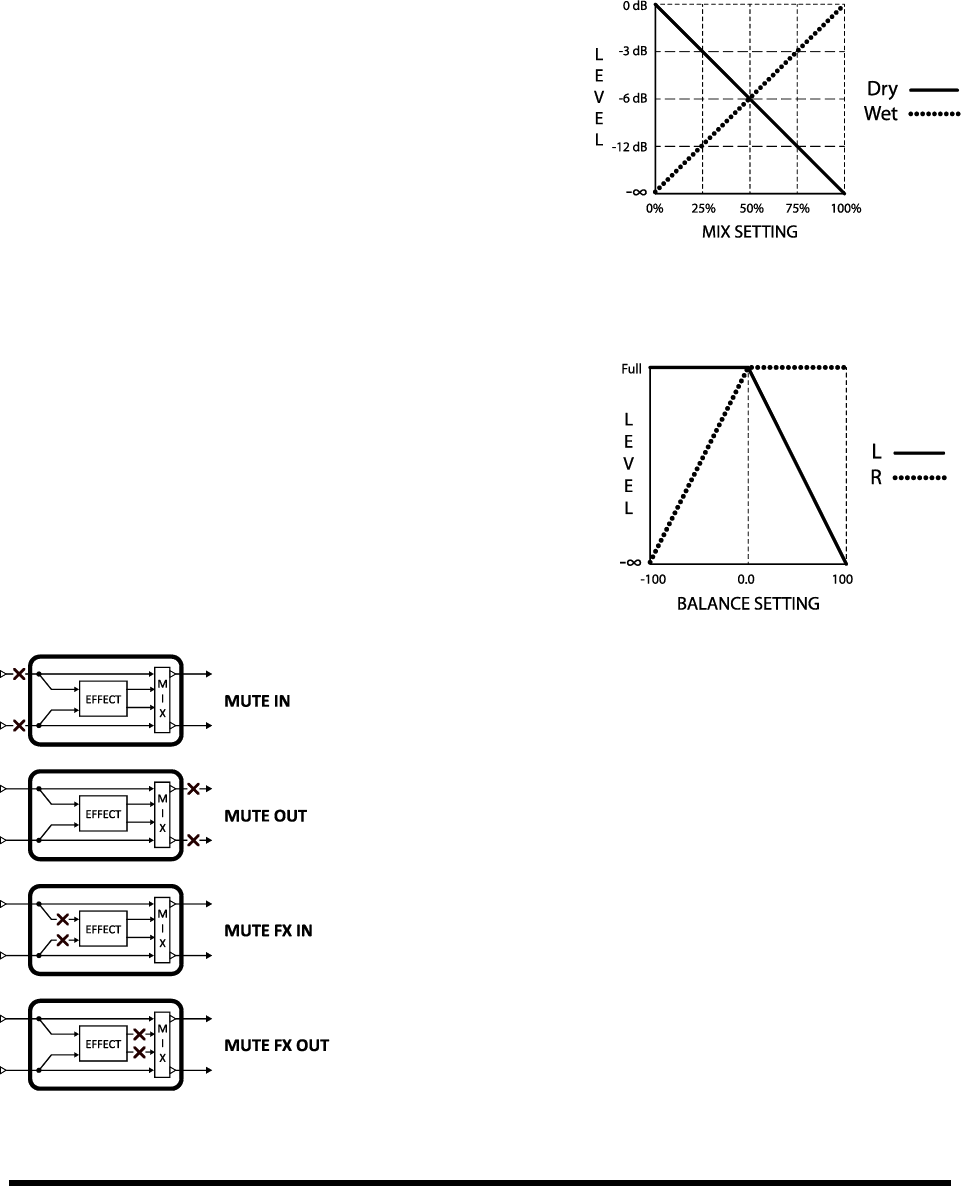
EFFECTS GUIDE
112 Doc v3.04
5.36 Common Mix Parameters
Almost every block in the Axe-Fx II has a MIX page with parameters to determine how the output of that block
contributes to the overall preset signal. On some blocks, these controls appear on other pages. Take a moment to
familiarize yourself with these important controls and the differences between their settings.
MIX Determines the balance of wet and dry signals produced
at the block output. For basic purposes, setting the mix by ear is
generally the best way to achieve a desired result. With the
exception of a few blocks that use a constant power algorithm,
MIX controls the dB levels of wet and dry signals in an inverse
linear relationship. A mix setting of 50% results in both the dry
and the wet being at equal levels of attenuation (-6 db) in
comparison to their maximum output levels, as shown at right.
LEVEL As you would expect, the LEVEL controls set the output level of a block. Almost all LEVEL controls have
a range from -80.00 to +20.00 dB. Exceptions include the Compressor and Filter (+/-20.00 dB) and the Drive,
which ranges from 0-10 dB.
BALANCE Determines how the mixed signal of a block will
appear at its two outputs. A centered BALANCE setting of 0.0 results
in both left and right signals being at full volume. As the control is
turned either way from the center position, the opposite channel
gets quieter. Both the wet and the dry are affected.
BYPASS MODE Determines exactly what happens when a block
is bypassed. The different options, not all of which are available for
every block, are detailed below.
MUTE IN When the block is bypassed, its inputs are disconnected,
silencing the dry immediately but allowing existing
New signals are prevented from entering the effect until it is re-engaged.
MUTE OUT – When the block is bypassed, its inputs remain connected,
but its outputs are muted. With this setting, effect tails are silenced when
the block is bypassed, but signals can still enter before it is switched on.
MUTE FX IN – When the block is bypassed, the inputs to its internal Effect
the dry unaffected when the block is bypassed. The Dry is completely
unchangedLEVEL and BALANCE settings remain in effect.
MUTE FX OUT – When the block is bypassed, the outputs of its internal
processor are pulled, but dry signal is totally unaffected. With this
setting, signals can enter a reverb or delay before it is engaged.
MUTE When the block is bypassed, wet and dry are totally silenced.

EFFECTS GUIDE
Doc v3.04 113
THRU When bypassed, the block is completely disengaged. None of its parameters have any effect on the
sound; it behaves exactly as a shunt would in its place.
With BYPASS MODE MUTE FX IN or MUTE FX OUT,LEVEL and BALANCE controls will still affect
the dry signal when a block is bypassed.
The MODIFIER slot of the BYPASS MODE parameter does not actually connect to the bypass mode parameter,
that the FX BYP button controls).
IMPORTANT: When a modifier is attached to this switch, it becomes the ONLY way that you can bypass
-bypass, check this setting.
INPUT GAIN This parameter, available on reverb, pitch shift, and all three types of delay blocks,
determines the amount of signal fed to the effect portion of the block. It has no effect on the dry signal.
Within the block, this simulates the way an would normally feed an effect routed in parallel.
GLOBAL MIX This switch determines whether or not the MIX setting of the selected effect will be subject
to an offset (+/- 50%) applied using the global EFFECTS MIX parameter (p. 128).
This feature is provided so you can design presets with the built-in ability for one-touch mix compensation in
playing environments that require more or less wet mix. It is offered on the following effect block types:
Delay
Chorus
Feedback Return
Flanger
Formant
Megatap Delay
Multi Delay
Phaser
Pitch
Quad Chorus
Resonator
Reverb
Ring Mod
Rotary
Synth
Vocoder
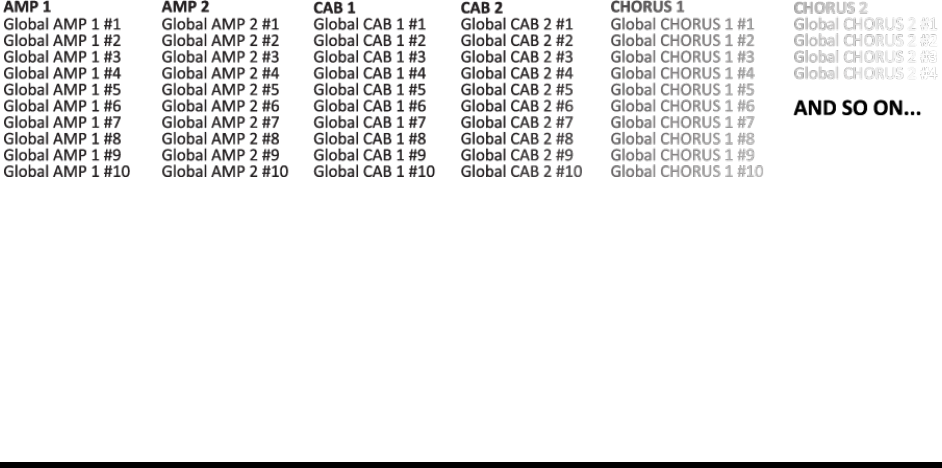
MODIFIERS & CONTROLLERS
114 Doc v3.04
6 Global Blocks
6.1 Introduction
The Global Blocks feature is completely new and exclusive to the Axe-Fx II. Those familiar with Global Amps from
previous Axe-Fx products will find this system greatly expanded and improved. Those new to the Axe-Fx will
appreciate how Global Blocks enable central control of blocks shared across multiple presets.
,
stored in a separate and independent memory area of the Axe-Fx II. Changes saved to a Global Block cause linked
blocks to update when the presets that contain them are recalled. Links to Global Blocks remain in place until you
manually remove themeven if you make and save other changes to the block or the preset!
This enables you to create a favorite sound setting and use it to create one or more global blocks. When you load
these into multiple presets, each with other different effects, mix levels, routingwhatever suits your needsthey
s evolve (as we
all know these things tend to do you no longer need to update all of the individual presets that rely on them.
You just save your tweaks into the Global Blocks, and the latest and greatest settings are automatically applied to
linked blocks as normal presets are recalled.
Any of the 60+ block type instances on the Axe-Fx II can become global blocks, with 10 global memories for each of
them. And, should you choose to REMOVE a link between a block and its global counterpart, this leaves both the
global and the normal blocks fully intact and able to be edited independently of one another again.
6.2 Using Global Blocks
The Global Blocks feature includes 10 global memories for each and every instance of every type of block. There
One important thing to note is that you can only save to, load from, or link with the Global Block that precisely
corresponds to the block instance you are using in a preset. Instance refers not only to the type, but to the possible
block number, as well. So for example, global Cabinet blocks
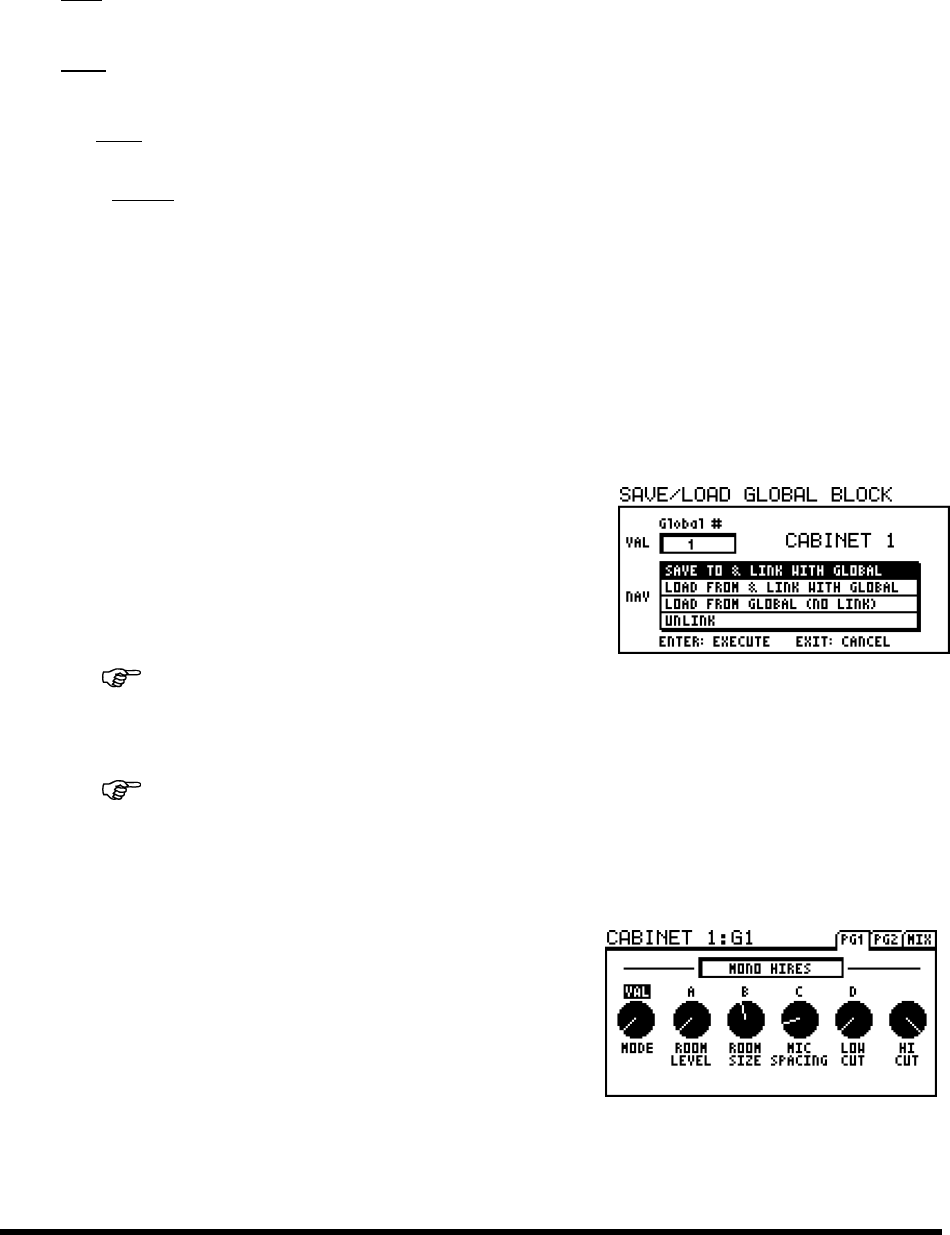
MODIFIERS & CONTROLLERS
Doc v3.04 115
To review, the Global Blocks feature allows you to:
SAVE
Global Block.
LOAD the settings from any Global Block into a corresponding normal block, with or without creating a link.
(Loading without linking simply applies the settings from a global onto a normal block).
Use LINKS to keep normal blocks in sync with Global Blocks. As a preset is loaded, any linked blocks are
seamlessly and instantly updated from their global masters, ensuring up-to-the-moment settings. You can
also UNLINK at any time, leaving both global and normal block settings intact.
Modifier settings are NOT saved with Global Blocks, but blocks that have an X/Y switch (p. 36) will have all
parameter settings for BOTH states saved in the Global Block.
Global Blocks are included in an Axe-Fx II SYSTEM backup or dump (p. 143).
Without fur-
Saving to a Global Block 6.2.1
block on the grid and adjusted its parameters to create a setting you
want to save as a Global Block.
Select a block on the grid and press EDIT to open its EDIT menu.
Double-click (or press and hold) the FX BYP button to open
the SAVE/LOAD GLOBAL BLOCK screen.
Make a mental note of the name (and if there is one, the number) of the block type you are
saving, shown in the upper right of the SAVE/LOAD screen (“CABINET 1” in the example above).
Turn the VALUE wheel to select the number of the Global Block you want to save to.
It might be good to keep a written log of your Global Blocks, e.g. “Global Amp1/#1: My Hot Plexi,”
“Global Delay1/#3: Super Spacey Echoes,” “Global Cab2/#4: Hi Res, 4×12 Recto (OH), panned left.”
GLOBALENTER to save.
A confirmation message will be displayed:
You will be returned to the EDIT menu of the block you began
with.
currently linked global preset in its title area. In the example at
rightCABINET 1:G1 (Global Block #1).
IMPORTANT! Once you have created (or updated) and linked to
a Global Block, you must ALSO store the preset for the Global Block changes and the link to be made
permanent.
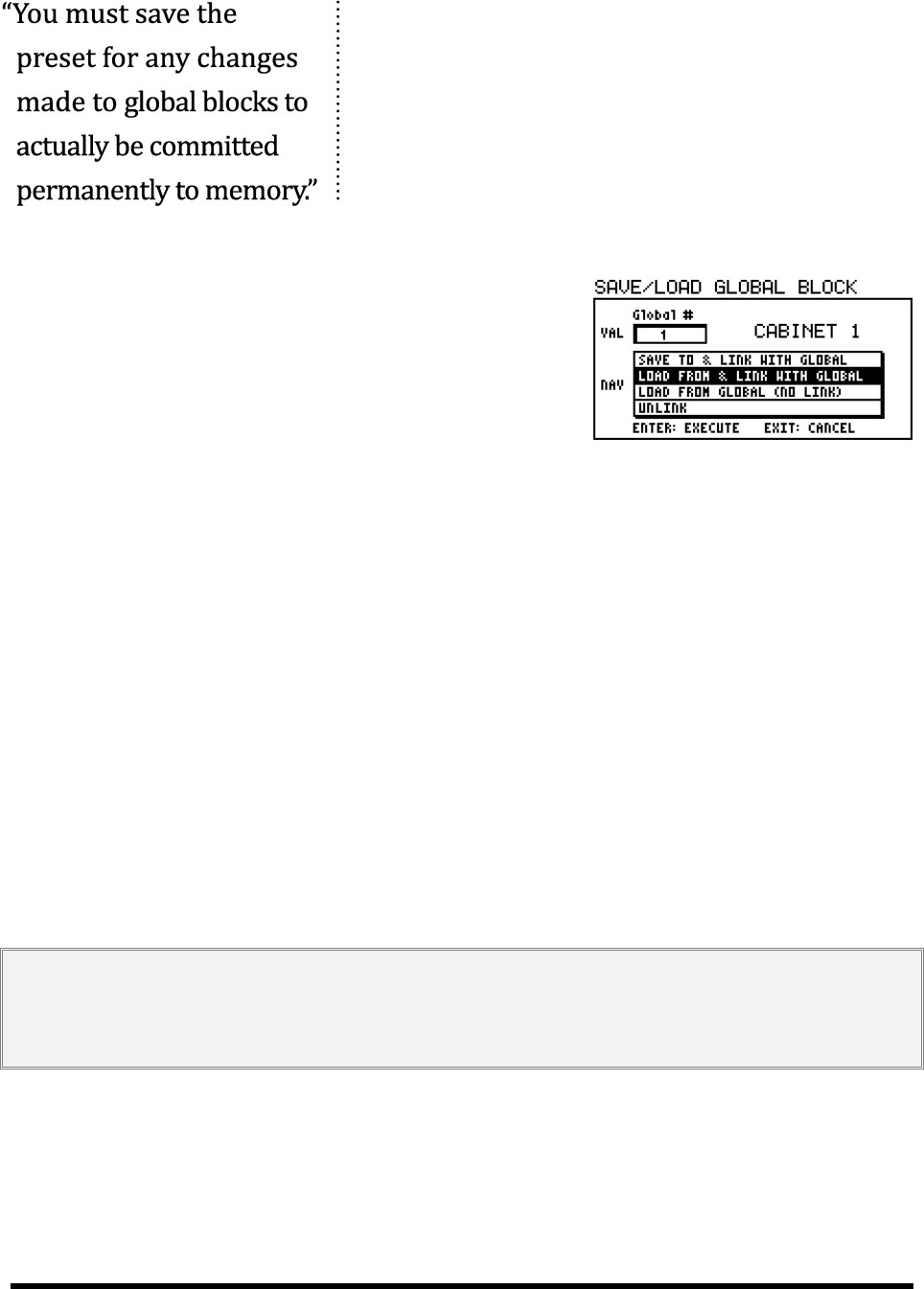
MODIFIERS & CONTROLLERS
116 Doc v3.04
To review:
1) Open the Global Blocks Screen. 2) Save the Global Block with a Link.
3) Save the Preset. If you miss that last step, your changes to the
Global Block will be lost the moment you recall a new preset.
To edit or update a Global Block: 1) open any linked instance; 2) make
desired changes; and 3) save using the same process outlined above,
remembering to also save the preset to commit changes.
Loading and Linking a Global Block 6.2.2
Global Block, it is a simple process to load it into
other presets and create the links that ensure different instances will
stay in sync. It is up to you to remember or document your Global
Blocks, but you can always RECALL one and inspect it if you lose track.
To LOAD a Global Block:
First insert or select a block of the appropriate type in the current preset. Remember that Global Blocks are
Block, for
instance, cannot be loaded into FILTER 1, FILTER 2 or FILTER 3.
With the desired block selected on the grid, press EDIT to open its EDIT menu.
Double-click (or press and hold) the FX BYP button to open the SAVE/LOAD GLOBAL BLOCK screen.
Turn the VALUE wheel to select the number of the Global Block you want to load from.
ENTER.
A confirmation message will be displayed:
You will be returned to the EDIT menu of the current block, which will now be linked to the Global Block as
indicated by its title area (see the second illustration of section 6.2.1).
In order for the loaded settings and the link to be retained, you need to STORE the current preset.
Once a link has been created, it will cause the block in the current preset to update from the current settings of the
linked Global Blockseamlessly and instantlyas its preset is recalled.
IMPORTANT: Presets shared between users will either need to be first stripped of their Global Block links or delivered with
an accompanying “System” dump containing the Global Block settings. Otherwise, the “local globals” on the new system will
overrun the settings of any linked blocks when the preset is first loaded. A future version of Axe-Edit should allow “one-stop”
global link removal.
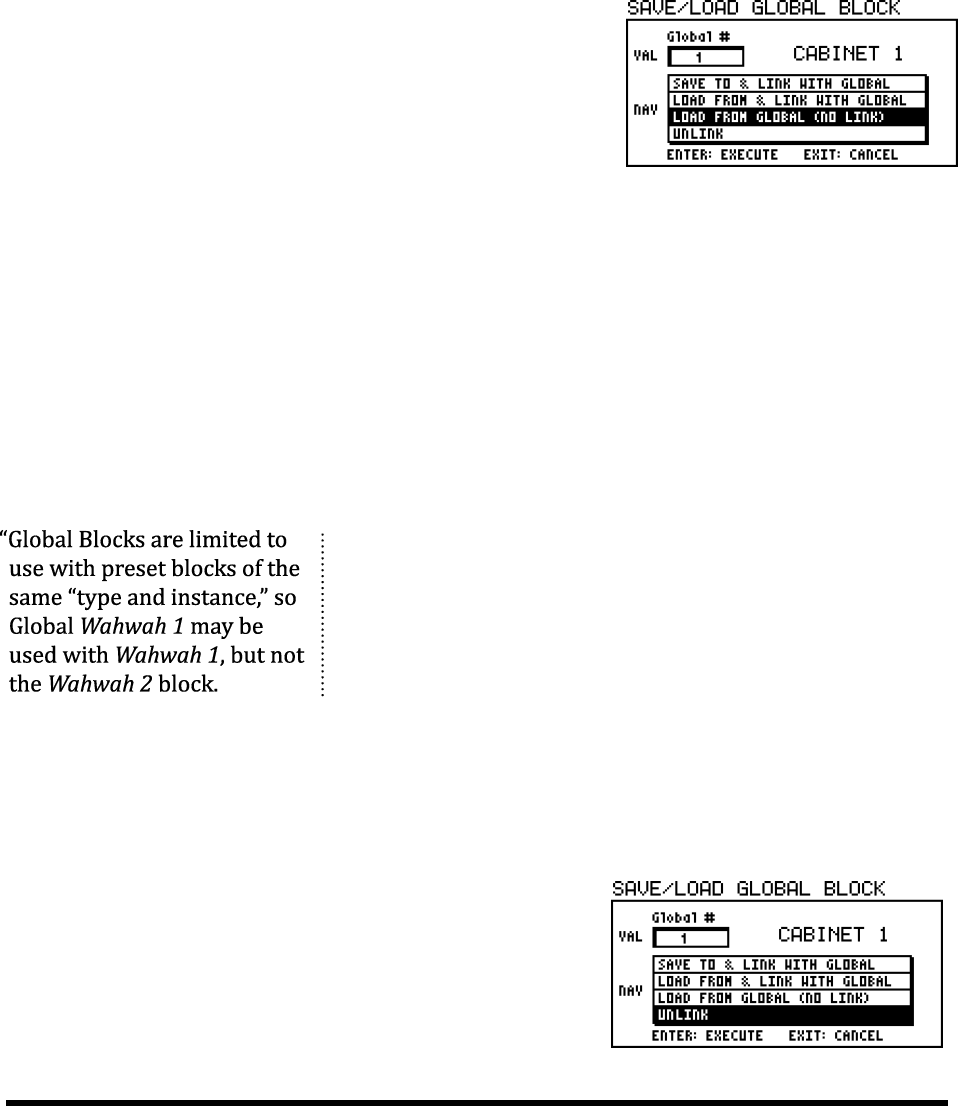
MODIFIERS & CONTROLLERS
Doc v3.04 117
Loading Global Blocks without Linking 6.2.3
It is also possible to load normal blocks from Global Block
settings into a preset without enabling the automatic synchronization that normally accompanies the use of Global
variant or if you want to share a preset with another Axe-Fx II owner who may not have the same Global Block
settings as you.
To load a Global Block without linking:
First select a block of the appropriate type to insert into the
current preset. As always, remember that Global Blocks pair
with
can
not into a block.
With the desired block selected on the grid, press EDIT to open
its EDIT menu.
Double-click (or press and hold) the FX BYP button to open the SAVE/LOAD GLOBAL BLOCK screen.
Turn the VALUE wheel to select the number of the Global Block you want to load from.
ENTER.
A confirmation message will be displayed: COMPLETE! YOU MUST SAVE PRESET TO COMMIT
You will be returned to the EDIT menu of the current block.
In order for the loaded settings to be retained, you must STORE the current preset.
To review:
1) Open the Global Blocks screen. 2) Load the Global Block without
linking. 3) Save the Preset. Your local block settings will now have all the
settings from the Global Block, but there will be no link between the two
entries.
Unlinking Preset and Global Blocks 6.2.4
You will sometimes want to remove the link between a normal block and its global master. Removing a link does
not change the settings of the local block or its global master.
With the desired block selected on the grid, press EDIT to
open its EDIT menu.
Double-click (or press and hold) the FX BYP button to open
the SAVE/LOAD GLOBAL BLOCK screen.
UNLINK

MODIFIERS & CONTROLLERS
118 Doc v3.04
ENTER. A confirmation message will be displayed:
You will be returned to the EDIT menu of the current block.
In order for the link to be removed permanently, you must STORE the current preset.
REMEMBER! Global links are not exported with individual presets, and presets in a bank will link to the local global settings
stored in the System area of the Axe-Fx II. To back up presets with Global Blocks, you must also back up the System.
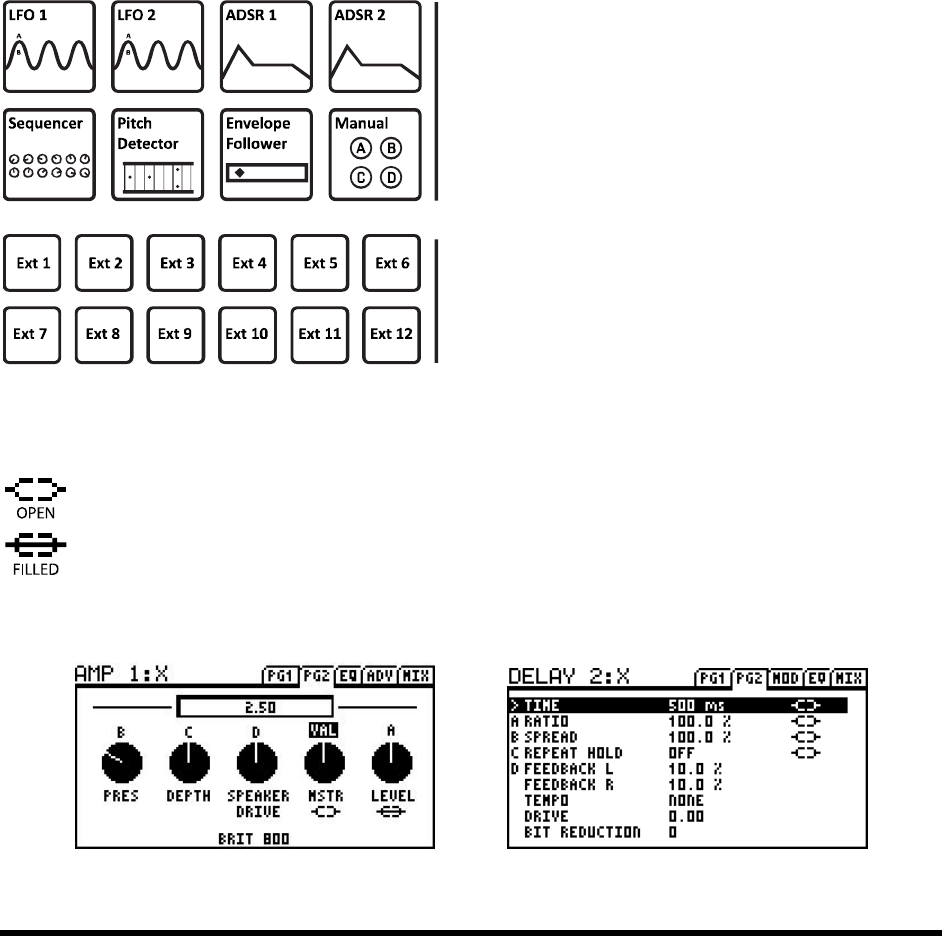
MODIFIERS & CONTROLLERS
Doc v3.04 119
7 Modifiers & Controllers
7.1 Introduction
Modifiers link parameters to controllers, allowing sound features to be automated or remotely controlled in real-
time. For example, the sweep of a WAH block to a pedal as it ordinarily is, but you could just
as easily assign an LFO for a little Auto--style action.
Besides Wahwah control, there are h-Fx II, with over 20
different controller sources to connect them to. Some, like the built-in LFOs and
to the Axe-Fx II, while others, like a connected expression pedal or a footswitch which sends a MIDI message, are
referred to as
Figure 7-1
INTERNAL CONTROLLERS
These are built in to the Axe-Fx II. Every preset can have its own
settings for 2 LFOs, 2 ADSRs, Envelope Follower, Sequencer, and
4 Manual knobs. These are accessed via the CONTROL
button on the front panel. See section 7.3 below for details on
each of these controllers.
Figure 7-2
EXTERNAL CONTROLLERS
Each one of the 12 External Controllers must be assigned either
to the onboard PEDAL jack, or a MIDI CC# (0127) in the
CTRL page of the I/O menu (p. 134). These assignments are
global, but you can use external controllers for different things in
different presets.
7.2 Creating a Modifier
The process of creating a modifier begins at the parameter you want to control. Parameters that can be
controlled are marked with a special symbol (left top). Look for it beneath a knob or to the right of
a text parameter. If a modifier is already present, the symbol will have a line through it (left bottom).
In the examples below, the MASTER and LEVEL (left), and TIME, RATIO, SPREAD, and REPEAT HOLD (right) may be
controlled with modifiers. LEVEL has one assigned already. Parameters without the symbol cannot be controlled.
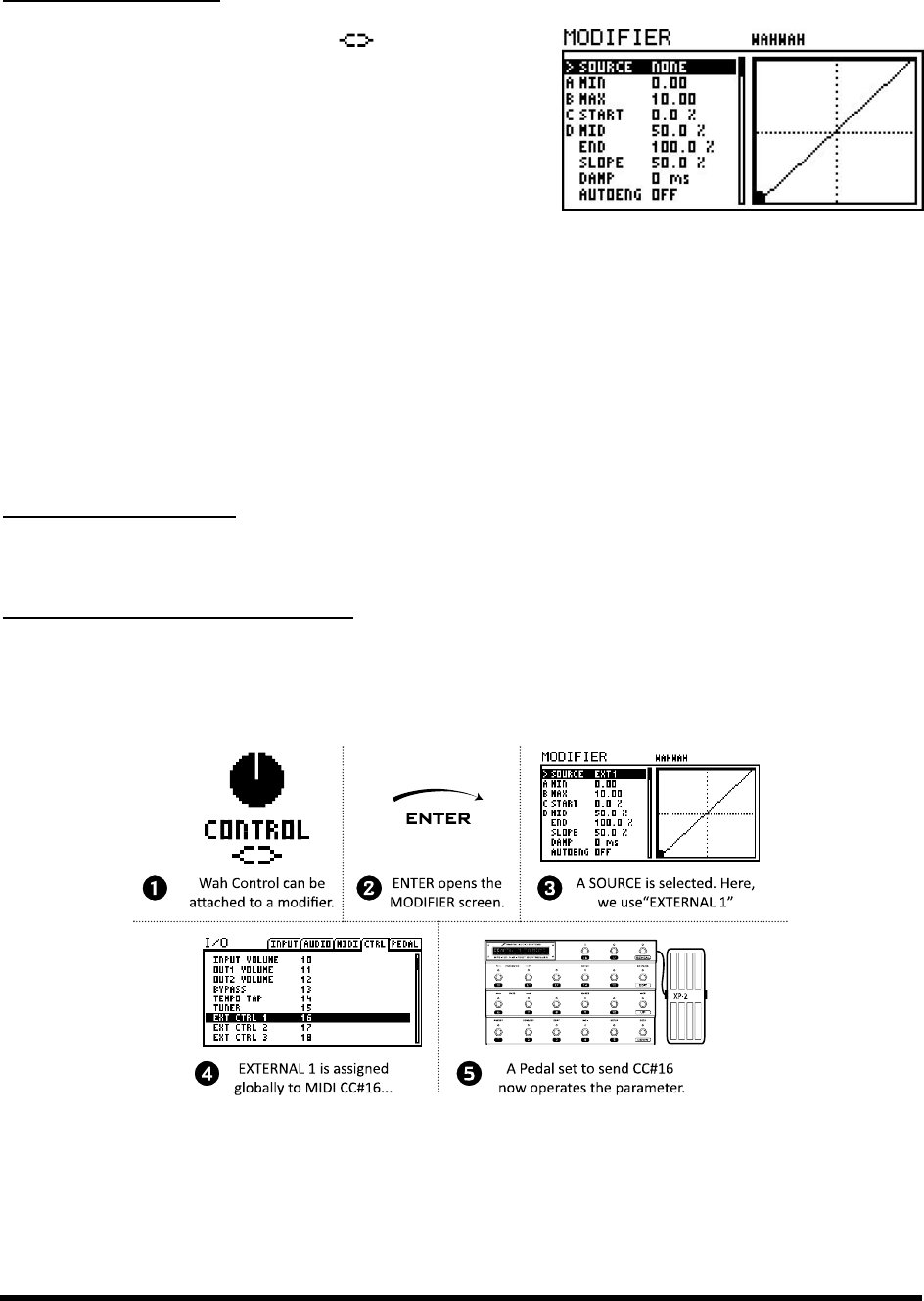
MODIFIERS & CONTROLLERS
120 Doc v3.04
To Create a Modifier…
Select any controllable parameter ( ) and press the
ENTER button to show the MODIFIER screen.
Select a SOURCE to assign to the current parameter or
choose NONE to remove an existing modifier.
The graph shows the relationship between the
control source (x-axis) and the sound parameter
(y-axis). s its value changes.
EDIT or EXIT.
Back in the EDIT menu, a modified Knob, Slider, or Graph parameter will be animated as the
source changes. Modified text parameters do not update in this fashion.
The text box above a knob shows the value that was set before the modifier was applied.
You must STORE the current preset to make the modifier setting permanent.
To Remove a Modifier…
To remove a modifier, just change its SOURCE parameter to NONE.
Modifier Example: Wahwah Control
Wahwah example from the introduction above.
Figure 7-3
MIDI
CC# 16 (its default setting), and that we have connected a MIDI foot controller with an expression pedal that is set
up to send this same message on the correct MIDI channel. (In fact, this is the default setting for the EXPRESSION
PEDAL 2 jack on the MFC-101).
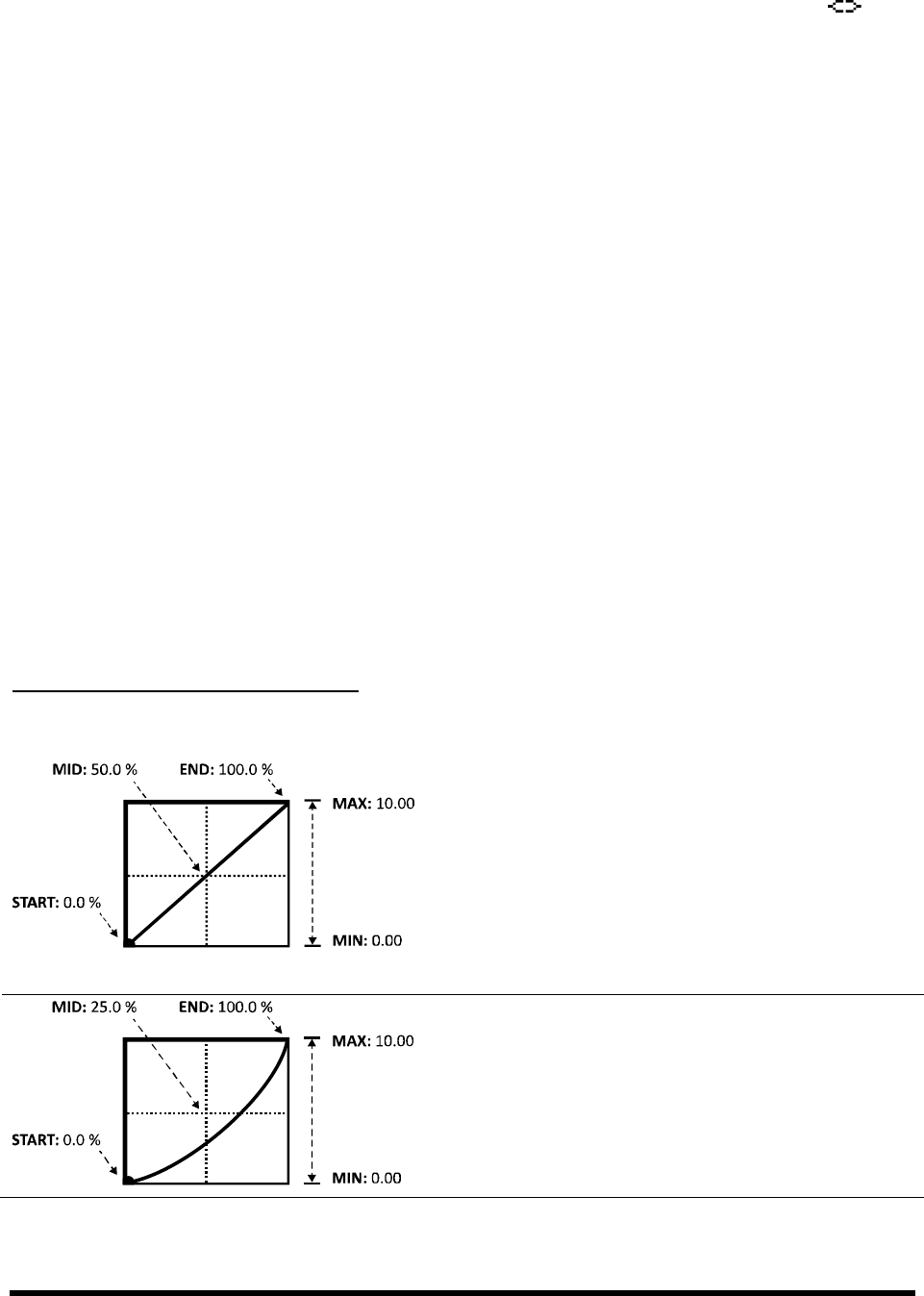
MODIFIERS & CONTROLLERS
Doc v3.04 121
To start, a WAH block is inserted on the grid. Pressing EDIT opens its EDIT menu. The modifier symbol
beneath the CONTROL knob indicates that a modifier can be added here. Selecting this parameter and then
pressing ENTER opens the MODIFIER screen. Selecting EXT1 for the SOURCE attaches this controller to our
motion of your foot on the pedal.
If we change the modifier SOURCE , our wah is disconnected from the pedal and becomes
controlled instead by the level of the input signal . Changing the source to one of the LFOs,
creates an -wah., and other sources are detailed below in section 7.3.
Transformations 7.2.1
The MODIFIER screen also contains several parameters that enable you to set up a custom relationship between
feel and sound of a dynamic effect. This can be especially important when one control source is attached to
multiple different parameters.
The START, MID, END, and SLOPE settings are used to re-map the ways in which parameters respond to changes in
the source.
The MIN and MAX parameters the 0-100% scale of a modifier to actual parameter values. MIN and MAX are
set using the same units as the parameter being modified. For example, the MIN to MAX range for a LEVEL
parameter might be set from -9 to +4 dB, while a delay TIME might be set for 200400 ms.
The following examples illustrate how START, MID, END, SLOPE, MIN, and MAX work together.
Example 1: Creating a Custom Curve
VOLUME parameter being controlled by a pedal (via EXT1/MIDI CC#16).
The default settings for START, MID, and END create a
perfectly linear relationship between the source and the
target. As the pedal is depressed, the volume increases in
direct proportion. MIN and MAX are set to their extreme
limits, so volume goes from 0.00-10.00 (OFF to FULL).
But linear response is generally unsatisfactory for volume
control because of the non-linear characteristics of our
As we lower the value of MID, the response starts to take on
a more comfortable curve, closer to the classic log or audio
taper typically used for volume control. MIN and MAX are
still set to 0 and 10 so that volume goes from off to
full, but the way it swells has changed.
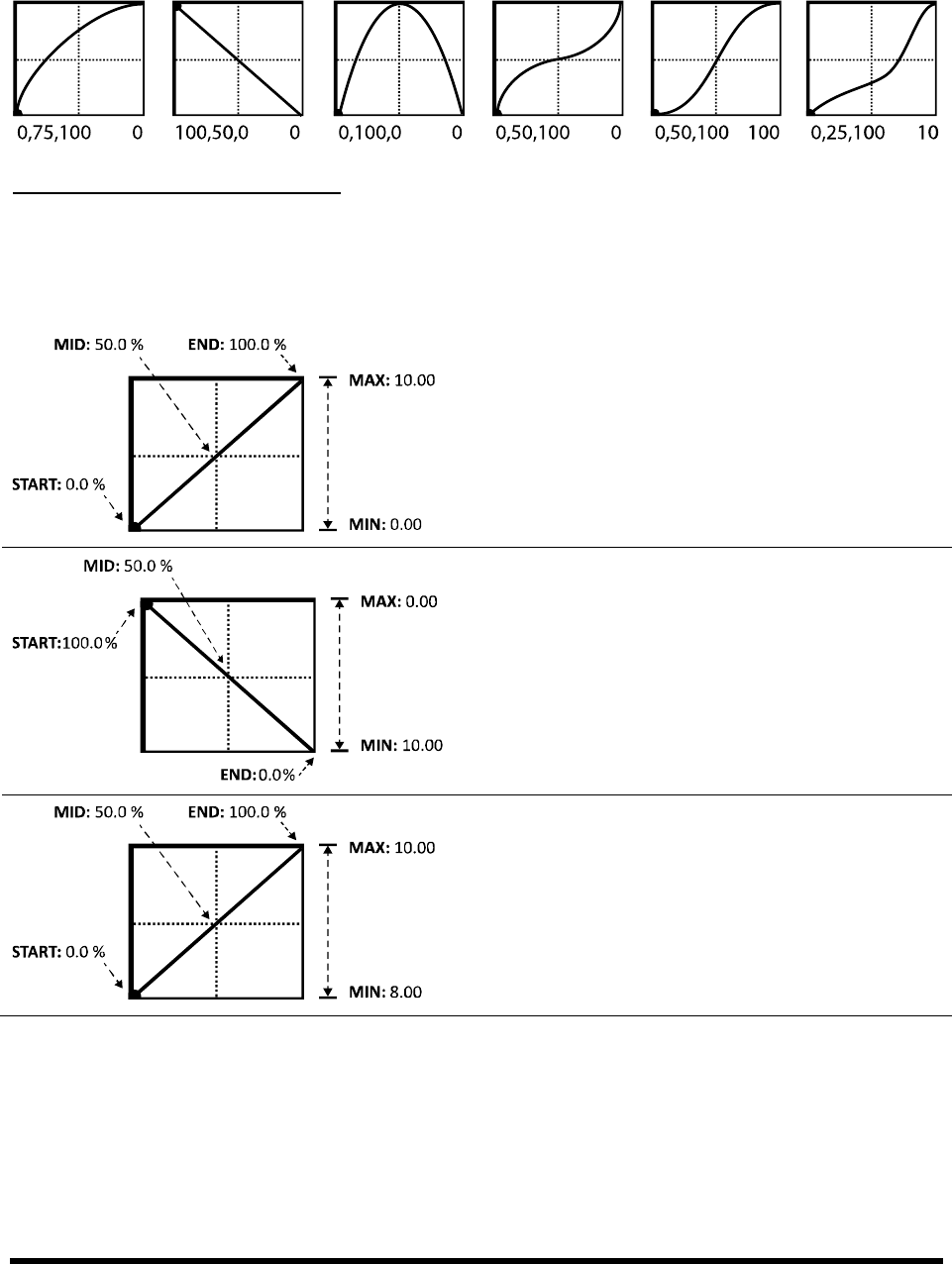
MODIFIERS & CONTROLLERS
122 Doc v3.04
Here are some more examples of the kinds of curves you can create by changing START, MID, END, and SLOPE. With
a bit of practice, you will learn to achieve desired modifier effects quickly.
Example 2: Setting MIN and MAX
MIN and MAX -axis scale of the modifier
graph using the same units as the parameter being modified. This ultimately determines the relationship between
the source and the target parameter. The following examples illustrate MIN and MAX in action.
A now-familiar example: the default modifier setting for a
VOLUME parameter, showing a linear sweep, with MIN and
MAX set to their extremes.
At first glance this seems to be a reversal of the example
above, where pushing the pedal forward decreases the
volume. But t MIN is set to
10 and MAX to 0 With both sets of values inverted,
this setup sounds and works exactly like the one above!
Unlike the preceding examples, this one does not show
MIN and MAX set to their extremes. Instead, the range
goes from 8.0 to 10.0, so our volume pedal will create only
a small swell as it is rocked from heel to toe. You might
use this to create a variable solo boost pedal.
Damping 7.2.2
If MODIFIERS add automation or remote-, damping allows these changes to happen in
. Normally, parameters change at the same rate as their modifier sources. Their values may be re-
mapped as we saw above, but changes are still essentially simultaneous; every little tremble of your foot is

MODIFIERS & CONTROLLERS
Doc v3.04 123
reflected by a little tremble in the sound. DAMPING allows you to increase the hysteresis in this system, adding a
At low settings, DAMPING adds a little smoothing. Try a setting of 412 to ease the edges
of a step-
tions are entirely
swallowed up, while a simple footswitch can be used to create a 1000-ms-long ramp of sound change. Used
appropriately, damping adds tremendous power to the MODIFIER system.
Auto Engage 7.2.3
Though it may sound like the precursor to an arranged marriage, AUTO ENGAGE is actually a powerful feature that
brings a block out of bypass when the SOURCE for a modifier on one of its parameters goes above a certain value.
The classic example is a Wah that turns on automatically when you rock the pedal and then turns off when you
return to the heel-down position. Another example might be a pedal that controls the speed of a Rotary Speaker
and then bypasses the effect when pulled all the way back.
To use Auto Engage, set the following two parameters, found toward the bottom of the MODIFIER screen:
OFF VAL Sets the threshold that the value of the current SOURCE must cross for auto-engage to occur.
When the value goes above this limit, the effect is engaged. Note that incoming MIDI CC values of 0127 are
scaled to 0100% for purposes of this determination.
AUTOENG Sets the time that the source must remain above or below the OFF VALUE for the bypass state
to toggle. Fast = 100 ms; Med = 333 ms; Slow = 1000 Auto Engage so your
Auto Engage.
Auto E
Program Change Reset 7.2.4
Normally, the last value of an external control source is retainedeven across preset changesuntil a new value is
received. -controlled Wah, for example, then change to a new preset with the same Wah
settings, the newly loaded preset will load with the Wah in the same parked position.
Program Change Reset (PC RST) allows you to override this behavior, causing a parameter to use a previously
stored setting when it loads, rather than referring to the retained source value. As soon as the external controller
is updatedthe pedal moved, a new MIDI message receivedthe attached parameter snaps back to track it again.
You can either set the stored value before turning PC RST to ON or change it afterwards. The parameter box above
display as you turn the value wheel.) Text-only parameter values remain directly editable for this purpose. When
BYPASS MODE is assigned a modifier, you cannot change the stored setting with the FX BYP button; this control is
disabled to ensure that a remote control and the actual bypass state remain in sync.
Internal controllers are not subject to PC RST because their values are updated immediately when a preset loads.
(This is true even for an LFO or Sequencer that that has not yet been triggered.)
MODIFIERS & CONTROLLERS
124 Doc v3.04
7.3 Control Sources
The Axe-Fx II provides 22 different control sources for use in Modifiers. These are detailed below.
LFO1 & 2 7.3.1
An LFO, or Low-Frequency Oscillator, generates control signals in the form of a variety of
familiar wave shapes or random signals. Familiar examples of LFOs in action include the
pulsing of a tremolo, the steady back and forth sweep of a phaser, or the modulation of a
chorus. The Axe-Fx II contains two global LFOs that can be individually programmed per-preset for use as modifier
sources to control various other parameters. Press the front panel CONTROL button to find the LFO1 and
LFO2 menu pages for the current preset.
Each of the two LFOs outputs two signals (A and B), so the list of modifier sources contains four entries: LFO 1A,
LFO 1B, LFO 2A, and LFO 2B. By default, A/B pairs are complementary, meaning that as A swings from 0100, B
swings from 1000, but the phase of output B is fully adjustable for in-phase or in-between settings.
Besides being available as a modifier source, LFO1 may also be used to SYNC the rates of the Chorus, Flanger,
Phaser, Tremolo, and Multi Delay blocks. This not only allows the sweeps of these effects to be aligned to each
TYPE This sets the waveform or shape of the selected LFO.
RUN Tucked into the MODIFIER slot beneath the TYPE control, this parameter starts and stops the LFO.
,hen using a MIDI CC via an
external controller to toggle RUN, a value of 70 or higher will START the LFO, and a value of 57 or lower will
STOP the LFO (assuming the modifier has default settings for MIN/MAX/START/MID/END/SLOPE).
Tip: An LFO that is locked to tempo can still “drift” from another system or device. To stay locked to “song position,” just stop
and restart periodically from your DAW/sequencer with a quick pair of OFF/ON messages sent at regular intervals.
RATE Sets the frequency of the LFO from 0.0530.0 Hz. When RATE is shown in parenthesis, it is being
controlled by the tempo parameter (below). Set TEMPO
DEPTH S-100%.
DUTY V,, and Trapezoid waveforms.
OUTB PHASE , the outputs are
phase-opposite, so while A swings from 0100%, B swings from 1000%. At 0°, A and B are in phase.
TEMPO Sets the LFO rate in rhythmic relation to the global tempo. For example, if the tempo is set to
1/8 the LFO will cycle twice per tempo beat (8x/measure). Tempo changes are reflected in real-time. To
ignore the global tempo, set the tempo control to NONE.
LFO1 and LFO2 are also subject to interesting interactive variations made possible by the modifier slots available
on their own parameters. See p. 152 of the Appendix for a guide to LFO Waveforms, Duty, and Phase.
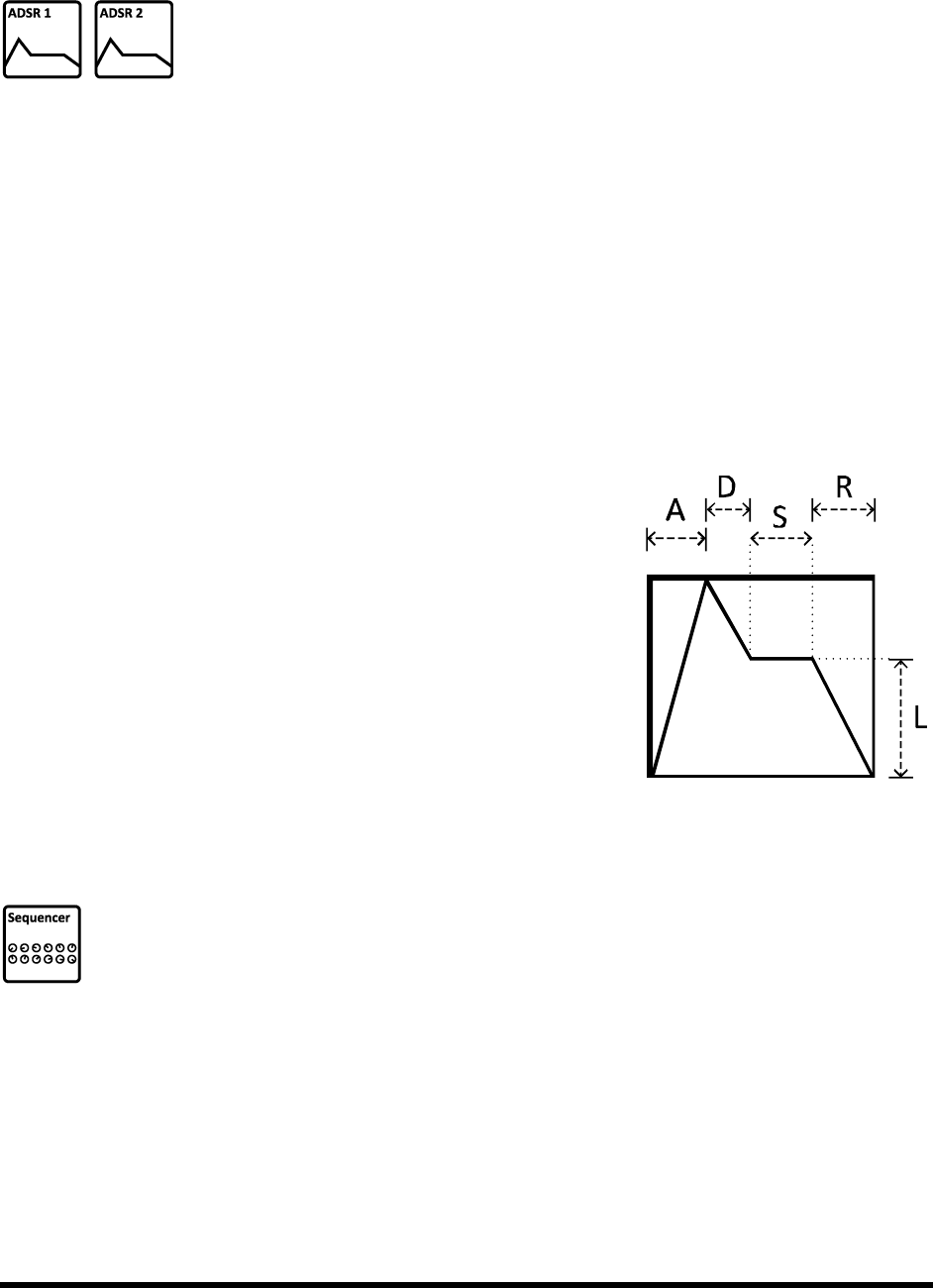
MODIFIERS & CONTROLLERS
Doc v3.04 125
ADSR 1 & 2 7.3.2
The Axe-Fx II contains two ADSR generators that can be used as control
the four time segments that
determine how long it takes for the entire envelope to run its course. The graph below
illustrates this concept. Press the front panel CONTROL button to find the ADSR1 and ADSR2 menu pages for
the current preset.
MODE The mode determines how the ADSR generator operates in response to signals above the threshold.
ONCE: The ADSR plays through when the threshold is exceeded.
LOOP: The ADSR loops as long as the signal is above the threshold.
SUSTAIN: The ADSR begins when the threshold is exceeded, but HOLDS at the sustain level until
the signal drops below the threshold, at which point the release phase occurs.
RETRIG When Retrigger is ON, the ADSR will reset to the beginning whenever the threshold is crossed from
below to above. If Retrigger is OFF, the ADSR must reach the end of its release phase before it can be
retriggered again.
ATTACK The envelope begins at zero and increases to 100% over the
duration of the attack time (A).
DECAY When the attack phase completes, the envelope descends for
the duration of the decay time (D) until it reaches the sustain level (L).
SUSTAIN, LEVEL After the decay, the envelope remains at the
sustain level (L) for the duration of the sustain time (S).
RELEASE At the end of the sustain phase, the envelope proceeds to
zero over the duration of the Release time (R).
THRESHOLD Sets the level at which the LFO will be triggered (or re-
triggered; see MODE above).
Sequencer 7.3.3
Like any step-sequencer, that of the Axe-Fx II generates repetitive control patterns by looping through
a series of specified value. The sequence can be run at a
specified rate or be synchronized to the global tempo. Press the front panel CONTROL button to
find the SEQUENCER page for the current preset.
RATE Sets the rate at which the sequence is stepped through. At 1 Hz, each step will last for 1 second.
When RATE is shown in parenthesis, it is being controlled by the tempo parameter (below). Set TEMPO to
TEMPO Sets the sequencer rate in rhythmic relation to the global tempo. For example, if the tempo is set
to 1/16the sequencer will play 16 steps per measure (4 beats). To ignore global tempo, set this to NONE
MODIFIERS & CONTROLLERS
126 Doc v3.04
RUN This parameter starts and stops the sequencer. When the sequencer is stopped, it remains at the value
set for STAGE 1 (see below). When using a MIDI CC via an external controller to toggle RUN, a value of 70 or
higher will START the LFO, and a value of 57 or lower will STOP the LFO (assuming default modifier settings for
IN/MAX/START/MID/END/SLOPE).
Tip: A Sequencer that is locked to tempo can still “drift” from another system or device. To stay locked to “song position,” just
stop and restart periodically from your DAW/sequencer with a quick pair of OFF/ON messages at regular intervals. Assign
the CC# to an External controller (p. 127) and assign this as the source of the modifier on the RUN parameter.
STAGES Sets the number of steps in the looped sequence from 132. For example, if STAGES is set to ,
the sequencer will play steps 1, 2,
STAGE # Each of the STAGE parameters sets the value for one step of the sequence. You can randomize the
values of ALL steps in the sequence by pressing ENTER with any STAGE (or the STAGES parameter) selected.
Envelope Follower 7.3.4
The Envelope Follower , the greater a
value it produces. The Envelope Follower -, and
Press the front panel CONTROL
button to find the ENVELOPE page for the current preset.
THRESH The threshold controls the sensitivity of the Envelope Follower by setting the level at which
tracking kicks in or out. When the input level is greater than the threshold, the follower tracks it at the attack
rate. When the signal drops below this level, the output of the follower will decay to zero at the release rate.
ATTACK The rate at which the follower output follows signals increasing in power.
RELEASE The rate at which the follower output follows signals decreasing in power.
GAIN The g
levels and outgoing control signals. By boosting the input of the envelope follower, GAIN allows a weaker
input signal to exert a greater effect.
Pitch Detector 7.3.5
The Pitch Detector has no menu page or parameters, but appears in all modifier screens as a source.
This module monitors the main input signal and analyzes its pitch, outputting a low value for low notes
and a high value for high notes.
Manual Knobs 7.3.6
New to the Axe-Fx II are four front panel Quick Control knobs, detailed in section 4.3.1 on p. 36. When
the unit is in EDIT mode, they function as hands-on controls to facilitate editing. When the unit is in
that can be used for
making sound adjustments without menu diving. Press the front panel CONTROL button to find
the MANUAL page for the current preset. The value of each knob is saved with each preset.
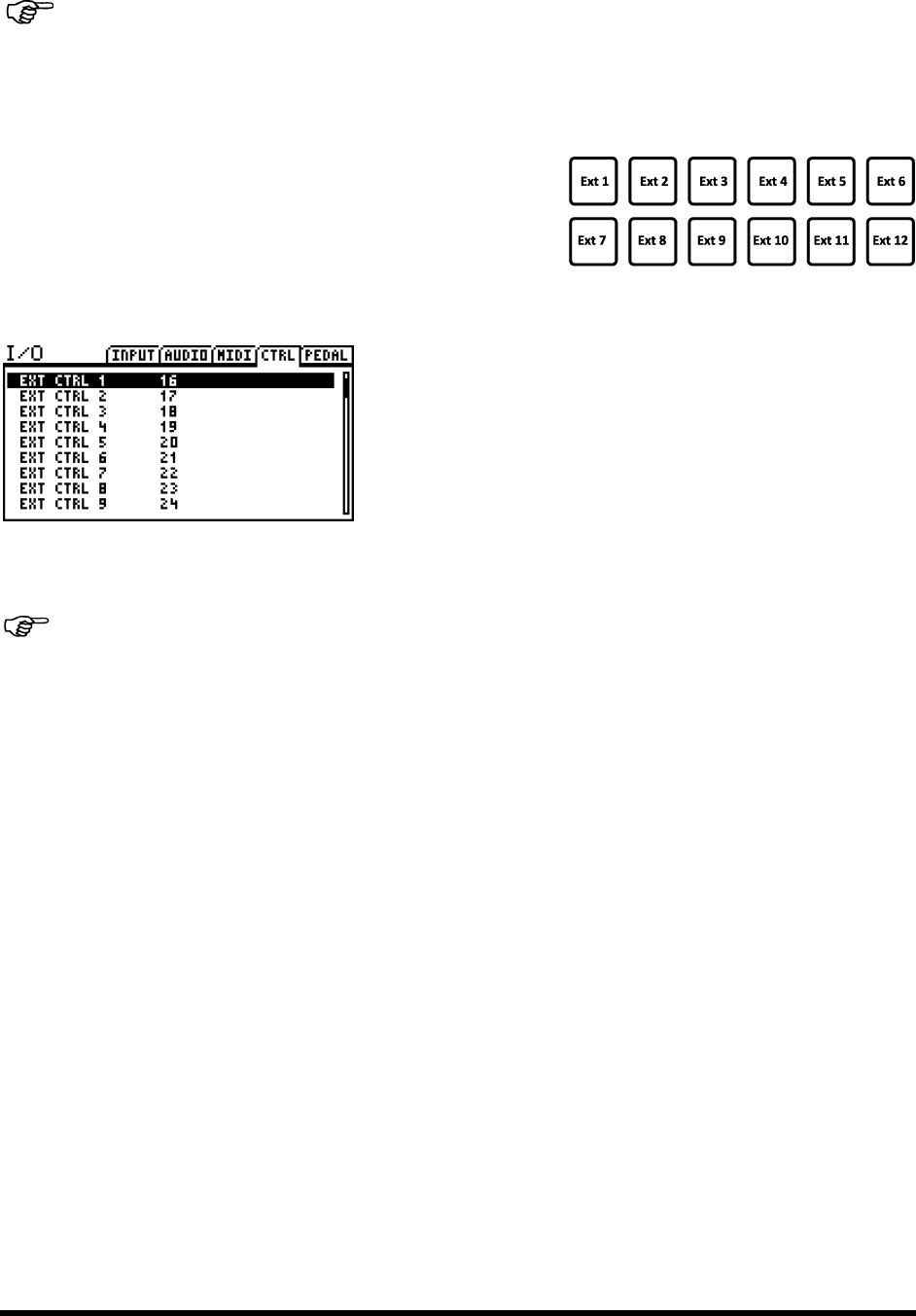
MODIFIERS & CONTROLLERS
Doc v3.04 127
Remember that while you are setting up a MODIFIER, the Manual knobs will be assigned to edit
parameters on the screen instead of operating a
menu (return to the grid or press RECALL).
External Controllers 7.3.7
The onboard PEDAL jack or any MIDI Control Change message
can be assigned as an External Controller to be used as modifier
source, as shown in the example in Figure 7-3. The Axe-Fx II allows
you to set up 12 global External Controller assignments, but
remember: you can use each of these to modify multiple parameters
per preset.
To set these EXTERNAL CONTROL assignments, use the CTRL page of
the I/O menu. Select the desired EXT CTRL entry and turn the value
wheel until PEDAL or the desired MIDI CC number is shown. Set an
External Control to NONE to disable remote control.
The Axe-Fx II also eature that allows it to detect
control sources automatically. Select the desired item, press ENTER,
and use the remote controller to send some data to the Axe-Fx II; the source will be set automatically. (This is also
a good way to ensure that remote devices are in fact set up and transmitting correctly.)
Remember that the channel of incoming CC# messages must match that of the Axe-Fx II under I/O:MIDI.
The Axe-Fx II uses a set of system parametersEXTERNAL CONTROLLER INITIAL VALUE 1–12, located on the MIDI page
of the I/O menu (p. 132)to determine what value should be used for each External Controller between the time
when the Axe-Fx II is booted up and when external data is first received. Options are 0% or 100%.
Modifier Power! 7.3.8
With the free space at the end of this section, here are some fun MODIFIER ideas.
1. RATE modification. Try an LFO or Envelope.
2. dal to feed the effects.
3. MASTER while compensating its LEVEL.
4. -
5. Create a Sample-and-Hold FILTER by assigning FREQUENCY to a RANDOM-
6. Ducking reverb! Run the effect 100% wet (parallel to the dry) then use ENVELOPE to lower its level.
7. Place a low-p.
8. Crossfade between two different signal paths by controlling different MIXER channels inversely.
9. Touch-Wahs are old news. Try an envelope-controlled FORMANT, PHASER, FLANGER, or RINGMOD.
10. Create a synth-like vibrato effect for guitar. Modify Global LFO1 DEPTH with a pedal (0-100%). Assign
LFO1 to the CONTROL parameter of an Advanced Whammy (Pitch Block) set to +/-3 semitones.
11. Bonus! . (Hi Dweezil!) Set it to a CC# and
assign this to an External Controller. Then assign this EXT source as needed to the bypass (mode)
modifiers of different effects or settings across different presets.
GLOBAL PARAMETERS
128 Doc v3.04
8 Global Parameters
The Global Parameters section, accessed by pressing the front panel GLOBAL button, contains four pages of
menus that control sound settings across all presets and modes. Changes made in this area take effect
immediately without needing to be STORED. The settings for all global parameters are included in a backup of the
Axe-Fx II SYSTEM (See p. 143). Default assignments for all system parameters are listed beginning on p. 166.
8.1 Configuration Parameters
that affect all presets at once.
PARAMETER
Description
POWER AMP
(OFF/ON)
This parameter enables or disables power amp simulation for all AMP blocks in all presets.
This capability is provided for cases when the Axe-Fx II is used with a guitar-oriented tube
power amp that contributes significantly to tone and dynamics. Having these characteristics
applied twice to the soundonce in the Axe-Fx II and once in the real power ampwould
result in an over-processed tone. Preamp (gain, tone, etc.), Graphic EQ, and Mixer (Level,
Balance, etc.) sections of the AMP block continue to affect the sound.
CABINET
(ACTIVE/BYPASSED)
This parameter enables or disables all CAB block processing in all presets. The CAB blocks
will not physically appear to be bypassed, but they will act exactly as if they have been
replaced by shunts. Use this when you are using the Axe-Fx II with an amp powering real
guitar speaker cabinets or the sound will be muffled, muddy, and boomy.
DELAY SPILL
(OFF/DELAY/
REVERB/BOTH)
Setting this to ON allows delays and reverbs tails to carry or ver across preset
changes. You can select whether DELAY, REVERB, or BOTH effects will spill over. Setting this
to OFF
nearly identical delay or reverb blocks in both the start and destination presets for spillover
to work correctly. See section 16.8 on p. 155 for a quick-start guide to setting up spillover.
AMP GAIN
(+/- 12 dB)
This control provides +/- 12 dB of relative gain for all amp blocks and can be used to adjust
the gain of all presets to compensate for the differences in output between guitars.
REV MIX
(+/- 50%)
This parameter allows you to boost or cut the MIX setting across all REVERB blocks in all
presets at once. Note that an offset applied here will NOT be reflected in the value shown in
the EDIT menu of the actual Reverb blocks. This capability is provided to compensate for the
e board.
FX MIX
(+/- 50%)
This parameter allows you to boost or cut the setting of the MIX parameter of all blocks for
which the GLOBAL MIX parameter is set to ON This switch must be enabled on a per-
block/per-preset basis and is available on the following block types:
Delay
Chorus
Feedback Return
Flanger
Formant
Megatap Delay
Multi Delay
Phaser
Pitch
Quad Chorus
Resonator
Reverb
Ring Mod
Rotary
Synth
Vocoder
This feature is provided so you can design presets with the built-in ability to compensate for
how different performance spaces may require more or less .

GLOBAL PARAMETERS
Doc v3.04 129
8.2 Output Parameters
The OUT1 and OUT2 pages of the GLOBAL menu provide tone and level control tools for the two main outputs.
PARAMETER
Description
BANDS 1–10
(+/- 12 dB)
Output 1 and Output 2 are individually equipped with 10-band graphic equalizers for
fine-tuning of the tone across all presets. This comes in handy when using the Axe-Fx
II in different environments, in which acoustics may vary, or when you change
amps/speakers with no opportunity to adjust your presets.
Output 1 settings apply to all instances of the Output 1 mix signal including the
Headphone jack, the OUT1 balanced jacks, the OUT1 unbalanced jacks, and signal
which may be routed to USB or DIGITAL OUTS.
One exception to note: when COPY OUT 1 TO OUT 2 is enabled in the I/O:AUDIO
menu, the global Graphic EQ setting for OUT1 is NOT copied to Output 2, which is
processed by its own global graphic equalizer in the usual way.
Output 2 settings apply to all instances of the Output 2 mix signal including the
Output 2 unbalanced jacks (FX send) and the Output 2 signal, which can be routed to
the DIGITAL OUTS. (See I/O:AUDIO on p. 130 for more on routing).
GAIN
(+/- 12 dB)
The GAIN slider to the right of the graphic equalizer can adjust the output signal at
the selected output by +/- 12 dB. This level adjustment happens in the digital domain,
and a boost can cause output clipping if not used judiciously. Conversely, a reduction
made here can provide a good temporary remedy until you have time to address a
multi-preset clipping problem.
8.3 Custom Scales
The Custom Scales is used to configure custom scales for the Custom Shifter
type found in the Pitch Shifter block.
PARAMETER
Description
Custom Scale Number
(132)
This selects from among the 32 global custom scales available to edit using the 12
parameters below.
Input Pitch/Output Shift
These 12 parameters are used to determine the relationship between notes played
and pitch shift applied. Each of the 12 steps of the chromatic scale can be individually
shifted within a range of +/- 24 semitones (two octaves). To set up a custom scale,
select its number in the field above and then set each of the 12 pitch values as
desired. Settings are applied immediately with no need to STORE.
INPUT/OUTPUT PARAMETERS
130 Doc v3.04
9 Input/Output Parameters
Parameters section, accessed by pressing the front panel I/O button, contains six pages
of menus used to configure audio, MIDI, and control settings for the Axe-Fx II. I/O settings are global, and changes
made in this area take effect immediately without needing to be STORED. The settings for all I/O parameters are
included in a backup of the Axe-SYSTEM (See p. 143). Default assignments for all system parameters are
listed beginning on p. 166 p. 160 of the Appendix.
9.1 Input Parameters
The INPUT page of the I/O menu contains parameters to manage input levels. For more on setting levels, see
section 3.1 on p. 15
PARAMETER
Description
INSTR IN
(0-100%)
This scales the level of signal at the front panel INSTR input jack, determining its level
at the input of the A/D converter.
INPUT 1
(0-100%)
This scales the level of signal at the rear balanced 1/4 INPUT 1 jacks, determining
their level at the input of the A/D converter.
INPUT 2
(0-100%)
This scales the level of signal at the rear balanced 1/4 INPUT
determining their level at the input of the A/D converter.
9.2 Audio Parameters
Routing and format parameters appear on the AUDIO page of the I/O menu.
PARAMETER
Description
MAIN INPUT SOURCE
(ANALOG (IN 1)/
USB/
SPDIF-AES)
This selects which one of several input sources should be routed to the Input of the
INSTR input jack or the rear INPUT 1 jacks,
based on the setting of INPUT 1 LEFT SELECT (below)-
Fx II will process signals sent from the AXE-FX II OUT 0 and AXE-FX II OUT 1 audio
of the Axe-Fx II will be used.
INPUT 1 LEFT SELECT
(REAR/FRONT)
whether the front INSTR input jack or the rear IN1 LEFT/MONO jack should be used as
the LEFT channel of the input signal. This option defeats the jack that is NOT selected.
INPUT 1 MODE
(LEFT ONLY/
L+R SUM/
STEREO)
This determines whether the signal received at INPUT 1 will be processed in stereo or
mono, and, if in
settings: MAIN INPUT SOURCE to ANALOG (IN1), INPUT 1 LEFT SELECT to FRONT, and
INPUT 1 MODE to LEFT ONLY.

INPUT/OUTPUT PARAMETERS
Doc v3.04 131
INPUT 2 MODE
(LEFT ONLY/
L+R SUM/
STEREO)
This determines how the Axe-Fx II handles signals received at the balanced INPUT 2
RETURN
and, if in mono, whether the or a sum of L+R channels should be used.
The outputs of the connected device and the nature of the source material will
determine which setting is best.
OUTPUT 1 MODE
(STEREO/
SUM L+R/
COPY L>R)
This determines how OUTPUT 1 signals will be processed after the output mixer of
the grid. This control makes it easy to use the same Axe-Fx II presets in a variety of
stereo and mono performance or recording environments. The decision to use SUM
L+R or COPY L>R should be based on the source material. See Mono and Stereo on p.
154 of the Appendix for more detail.
OUTPUT 1 BOOST/PAD
(0-18 dB)
Firstly, this is NOT a boost intended for use during musical performance, as you might
find on an amp or pedal. Rather, this parameter is designed to boost signals to the
OUT1 D/A converters so they can operate as close to full-scale as possible, while
simultaneously padding converter outputs to lower the noise floor. To set this
control, increase the boost/pad amount until hard playing on a loud preset causes the
front panel OUT1 CLIP LED to light. Then reduce the Boost/Pad setting a few dBs to
prevent further clipping. Note that the BOOST amount is also applied to outgoing
DIGITAL or USB signals.
OUTPUT 1 PHASE
(NORMAL/INVERT)
This determines whether signal at the OUTPUT 1 jacks will be normal or phase-
inverted relative to its state at the output of the grid. This lets you compensate for
inversions elsewhere in the signal chain. Note that this inverts BOTH channels of the
stereo pair.
OUTPUT 2 MODE
(LEFT ONLY/
L+R SUM/
STEREO)
This determines how signals will be processed after leaving the output mixer of the FX
LOOP block, or after being created as a COPY of OUT 1 (see below). This control
makes it possible to use the same FX-LOOP-block-based presets in either stereo or
mono conditions, or to use OUT 2 to create a mono copy of the stereo signal
appearing at OUT 1. See Mono and Stereo on p. 154 of the Appendix for more on
using the Axe-Fx II in mono.
OUTPUT 2 BOOST/PAD
(0-18 dB)
See OUTPUT 1 Boost/Pad, above.
OUTPUT 2 PHASE
(NORMAL/INVERT)
See OUTPUT 1 Phase, above.
COPY OUT 1 TO OUT 2
OFF/ON
This switch causes OUT 2 to be fed by a copy of OUT 1 instead of the signal from the
FX LOOP block. Its use is suited to a wide range of applications such as feeding amps
and a recorder at the same time, sending identical signals to Front of House and Stage
monitors while retaining separate front panel knob level control over each, using the
Axe-Fx II simultaneously with both Stereo and Mono systems (see OUTPUT 1/2 MODE
above), and more.
SPDIF/AES SELECT
SPDIF/AES
This switch selects whether the S/PDIF or AES digital inputs and outputs are active.
Only one may be active at any time.
USB/DIGI SOURCE
OUTPUT1/
OUTPUT2/
INPUT
This selects the signal that will feed both the digital outs AXE-FX II IN 0
AXE-FX II IN 1inputs of a computer connected via USB. A USB 2.0 compliant host
will also have a dry input pair, making it possible to record the MAIN INPUT signal of
the Axe-Fx II at the same time as the source selected here.

INPUT/OUTPUT PARAMETERS
132 Doc v3.04
9.3 MIDI Parameters
The MIDI page of the I/O menu contains parameters related to MIDI channel, thru, and program changes.
PARAMETER
Description
MIDI CHANNEL
116, OMNI
Sets the channel on which the Axe-Fx II will receive MIDI messages. OMNI causes the
unit to respond to incoming messages on ANY channel.
MIDI THRU
OFF/ON
Turning this ON will cause MIDI data received at the MIDI IN port to be forwarded to
the MIDI OUT port, where it is merged with regular outbound MIDISysEx dumps or
Realtime Tuner/Tempo Sysex for example.
PROG CHANGE
ON/OFF
This parameter determines whether the Axe-Fx II will process or ignore incoming
MIDI program change messages.
MAPPING MODE
NONE/CUSTOM
This determines whether the Axe-Fx II will respond explicitly to MIDI program change
messages received, or whether it will re-map incoming program change messages to
load user-specified presets. For example, an incoming program change message of 15
would normally recall preset 15 (or preset 16 if DISPLAY OFFSET is on; see below).
With Custom Mapping set up, program change message 15 might be set to recall
preset 100, or any other preset you choose.
MAP FROM/MAP TO
0127, 0383
These two parameters work in pairs to specify which preset will be loaded for each
incoming program change message when MAPPING MODE is set to CUSTOM. For
MAP FROM and then set a MAP TO ,
incoming Program Change #15 actually will load Axe-Fx II Preset 100 (or 101 if display
offset is on; see below).
SYSEX ID
This is 00 01 74 for the Axe-Fx II and cannot be modified.
DISPLAY OFFSET
0/1
Display Offset causes Axe-Fx II presets to appear to be numbered from 001 instead of
from 000. The offset does not change which preset is recalled by a given Program
Change message. Note: Display Offset requires a corresponding setting in a connected
MFC-101 MIDI Foot Controller.
IGNORE REDUNDANT PC
OFF/ON
This determines whether the Axe-Fx II should re-process or ignore a MIDI program
change command for the currently loaded preset. With this setting OFF, the current
preset will be reloaded (and changes discarded) if it is selected again via MIDI PC.
Turning this OFF allows you, for instance, to
or otherwise modify the sound, and then
stomp on the footswitch that originally selected the preset to have it revert to its
saved state. With this setting ON, redundant PC messages are ignored.
SEND REALTIME SYSEX
NONE/ALL/TUNER/TEMPO
Selectively determines whether real-time SysEx messages for TUNER and TEMPO will
appear at the MIDI OUT port. The default setting of ALL ensures that a connected
MFC-101 Midi Foot Controller will be able to show the Axe-Fx II Tuner on the floor,
and that its TEMPO LED will flash in time with the current Axe-Fx II system tempo.

INPUT/OUTPUT PARAMETERS
Doc v3.04 133
USB ADAPTER MODE
ON/OFF
This setting changes the way MIDI data is handled between the computer and the
physical MIDI IN/OUT and MFC ports of the Axe-Fx II.
When Set to OFF:
1. Inbound MIDI data at the MIDI IN or MFC ports is processed by the Axe-Fx II.
2. Inbound MIDI-over-USB data sent via the AXE-FX II MIDI OUT port of a
connected computer is processed by the Axe-Fx II.
When Set to ON:
1. Inbound MIDI data at the MIDI IN or MFC ports is processed by the Axe-Fx II
and also forwarded to the AXE-FX II MIDI OUT port of a connected computer.
a. Use this so your host sequencer/DAW can record the MIDI data
generated by an expression pedal connected to the MFC-101.
b. Use this to connect a MIDI keyboard or other device to the MIDI IN
port of the Axe-Fx II and play plugins or record performances in
your host sequencer/DAW.
2. Inbound MIDI-over-USB data sent via the AXE-FX II MIDI OUT port of a
connected computer is processed by the Axe-Fx II and also forwarded to the
MIDI OUT and MFC ports.
a. Use this so your host sequencer/DAW can also control devices
chained at the MIDI OUT/THRU port of the Axe-Fx II: synth
modules, 3rd-party processors, etc.
b. Use this to send SysEx backups or firmware updates to an MFC-101
connected at the MFC port.
Note that the USB ADAPTER MODE function is completely independent of the setting
for MIDI THRU (above). It is therefore possible, with both settings turned ON, for the
physical MIDI OUT/THRU port to sum/output four different sources simultaneously:
1) The Axe-Fx II regular MIDI out functions; 2) events received at the MIDI IN port; 3)
events received at the MFC port; and 4) events received via AXE-FX II MIDI OUT from
a connected computer.
MIDI PC OFFSET
0255
Adds the value specified to all incoming MIDI Program Change requests before they
are processed. This makes it possible, for instance, for the same foot controller
programs to access presets 0-127 for one gig, presets 128-255 for another, and
presets 256-383 for a third.
EXT CTRL # INIT VAL
0% OR 100%
This specifies an initial value to be used for each of the 12 External Controllers (p.
127) until remote data is received. This also applies when the controller is absent. For
example, if you normally use an expression pedal to control the VOLUME block in a
in a silent position. Setting an initial value of 100% for the EXTERNAL CONTROLLER
mapped to that pedal would ensure that when the pedal is not connected, the
volume will be all the way up instead of all the way off.
INPUT/OUTPUT PARAMETERS
134 Doc v3.04
9.4 Control Parameters
extensive MODIFIER capabilities (p. 119), the Axe-Fx II also has 100+ dedicated functions that can be assigned for
remote control via MIDI CC messages or the onboard PEDAL jack. These include global input and output volumes,
tap tempo, tuner, the bypass functions for every individual block in the inventory, the block X/Y switches, the
Looper controls, and more.
To assign a controller to a desired item, select it and turn the VALUE dial to select a MIDI CC number, or choose
. Set to NONE to disable remote control. The Axe-Fx II also
allows it to detect control sources automatically. Select the desired item, press ENTER, use the remote controller
to send some data, and the source will be set automatically. This is also a good way to ensure that remote devices
are in fact set up and transmitting correctly.
Unless otherwise noted, all functions interpret MIDI CC values of 0.
PARAMETER
Description
INPUT VOLUME
NONE/PEDAL/0-127
This controls the global input volume at the start of the preset chain and is useful to
assign when you want to emulate the behavior of a volume pedal between the guitar
and the amp. Changes in level equate to changes in distortion amount, and effect tails
ring out when volume is lowered.
OUT 1 VOLUME
NONE/PEDAL/0-127
This controls global OUTPUT
to assign when you want to control playback levels without changing any other aspect
of the sound. Amplifier input levels are unaffected for consistent distortion at any
level, and effect tail levels will be adjusted as well.
OUT 2 VOLUME
NONE/PEDAL/0-127
This controls global OUTPUT 2 volume (after the output the FX Block, or after it is
copied from OUT1, see section 9.2). This is useful when you want to control playback
levels for OUT1 and OUT2 independently, without changing any other aspect of the
sound, or if you want a pedal to control the SEND level to an outboard device in the
loop.
BYPASS
NONE/PEDAL/0-127
Operates the front panel BYPASS button (p. 8) remotely.
TEMPO TAP
NONE/PEDAL/0-127
Provides the ability to set the Global Tempo (see p. 141) through a remote switch.
IMPORTANT: Any data value (0-127) for the assigned CC# counts as a tap, so do not
use a momentary switch set up to send 127 for ON and 0 for OFF, or you will end up
with double-time!
TUNER
NONE/PEDAL/0-127
Provides a way to enter or exit the TUNER function remotely.
EXT CTRL 1–12
NONE/PEDAL/0-127
This is where you specify which incoming MIDI CC# should be assigned to each of the
12 External Controllers available as Modifier sources (p. 127).
LOOPER REC, PLAY,
ONCE, DUB, REV, BYPASS
Each of the controls of the Looper block (p. 71) may be remote controlled.
INPUT/OUTPUT PARAMETERS
Doc v3.04 135
GLOBAL BYPASS
NONE/PEDAL/0-127
Global Bypass is used to engage all bypassed blocks in the currently loaded preset. It
retains and can then re-bypass these same blocks when triggered a second time. This
lets you prepare a collection of dual-state presets without remembering which
individual switches are needed to toggle their blocks. In one song you might have a
Drive block for switching between rhythm and lead work. Another may require Echo
and Flanger to be switched on during the bridge. Global Bypass allows a single
footswitch on your pedalboard to perform all of these functions and more.
VOLUME INCR,
VOLUME DECR
NONE/PEDAL/0-127
These two options provide a convenient way to permanently increase or decrease
the MAIN output volume of the currently loaded preset. Each time VOL INCR is
triggered by ANY CC# data (0127), the master volume is increased by 1.0 dB and the
preset is saved. This is the same for VOLUME DECR, except it decreases volume. The
MAIN volume can be found on the OUTPUT page of the Layout menu.
IMPORTANT! Any other unsaved changes such as altered effect parameters or bypass
states will also be stored if either VOLUME INCR or VOLUME DECR is triggered.
WARNING! These functions are designed for use with momentary footswitches set up
NOTHING . Do not use an
expression pedal or you will change levels +/-20 dB with a single sweep!
AMP1 BYP
AMP 2 BYP
CAB 1 BYP
WAH 2 BYP
Every block instance in the inventory of the Axe-Fx II except FB SEND, FB RETURN,
MIXER, and SHUNT can be set up with a global, dedicated MIDI CC assignment to
control its bypass state. The complete list of default effect bypass assignments can be
found in the Factory Default Settings section of the Appendix.
AMP1 XY
AMP 2 XY
CHO1 XY
WAH 2 XY
The X/Y switching feature equips various Axe-Fx II blocks with dual independent sets
of parameters, making it possible to have two completely different switchable
settings for a single block. Data values from 063 will select the Y state, while values
from 64127 will select X. See section 4.4 on p. 36 for more on X/Y switching.

INPUT/OUTPUT PARAMETERS
136 Doc v3.04
9.5 Pedal Parameters
The PEDAL page of the I/O menu contains parameters to set up and use an expression pedal or switch through the
PEDAL jack on the rear panel of the Axe-Fx II. Simply connect the device, set its type, and perform a calibration
if using a continuous-type expression pedal. The PEDAL function may be assigned to any of the items listed in the
CONTROL page of the I/O menu (p. 134)
Any type of external switch may be used, as long as its contacts make and break the connection between tip and
sleeve on a regular 1/4
of 10k to 100k, and must be used with Tip-Ring-Sleeve (TRS) cables.
PARAMETER
Description
PEDAL TYPE
CONTINUOUS/
MOMENTARY/
LATCHING
Set this according to the physical type of the pedal or switch that is connected. Use
CONTINUOUS for expression pedals and MONETARY or LATCHING for switches.
PRESET INCR
OFF/ON
When this is turned ON, a connected at the PEDAL jack may be used to increment
presets.
PRESET START,
PRESET END
These set the start and endpoints for a cycle of presets that may be stepped through
by a connected footswitch or pedal when PRESET INCR is on. When the series reaches
the END preset, it starts from the beginning again.
PEDAL CAL
To calibrate an expression pedal connected to the onboard PEDAL jack, first select
this menu choice, then:
Press ENTER.
Move the pedal through its full range of motion several times.
Press ENTER again when finished.
Switches, unlike pedals, do not need to be calibrated.
9.6 X/Y Quick-Jump Assign
The QUICK-JUMP page of the I/O menu contains two parameters: X QUICK-JUMP ASSIGN and Y QUICK-JUMP ASSIGN.
In addition to their functions for X/Y Parameter switching (p. 36) the X and Y buttons are used for one-touch access
to two edit menus of your choice. The EDIT menus of the blocks specified here will be opened instantly when you
press X or Y in any screen of any menu except EDIT (including MODIFIER and SAVE/LOAD GLOBAL BLOCK) or
STORE.

UTILITIES
Doc v3.04 137
10 Utilities
The Utilities section, accessed by pressing the front panel UTILITY button, contains five pages of menus
containing settings and tools that do not affect the sound or routing of the Axe-Fx II.
10.1 LCD Contrast
The LCD page of the UTILITY menu contains a single adjustment slider, used to set the contrast of the built-in
display to ensure good readability in different viewing environments.
10.2 Preset Utilities
The PRESET page of the UTILITY menu contains dump and backup utilities. Each of the options listed is executed by
selecting it and pressing ENTER al device for
backup, editing, or other purposes. Be sure to note that dumps to MIDI and USB are initiated with separate menu
choices.
Backup and restore operations are detailed in Section 13 beginning on p. 143
10.3 Status Meters
The Status meter page of the UTILITY menu contains audio meters for Input 1 Left and Right (L1, R1), Input 2 Left
and Right (L2, R2), Output 1 Left and Right (L1, R1), and Output 2 Left and Right (L2, R2). The meter scale is -80 to 0
db.
The front panel also shows the levels for Input 1 L+R and Input 2 L+R on stereo LED meters.
To the right of the I/O section, CPU Utilization (CPU%) is shown on its own meter. The total CPU usage must not
exceed 98% or the entire system could destabilize. The Axe-Fx II works to prevent this condition from occurring.
See Understanding Preset Size Limits on p. 151 for more information on this subject.
10.4 Reset System
This menu page includes a single parameter that is used to restore the factory default settings to System
Parameters, specifically:
GLOBAL Configuration parameters, Global OUT1 and OUT2 settings.
IO Input, Audio, MIDI, Control and Pedal Parameters.
LCD Display Contrast.
The following areas are NOT affected by RESET SYSTEM PARAMS:
User scale settings are NOT modified.
User Cabs are NOT affected.
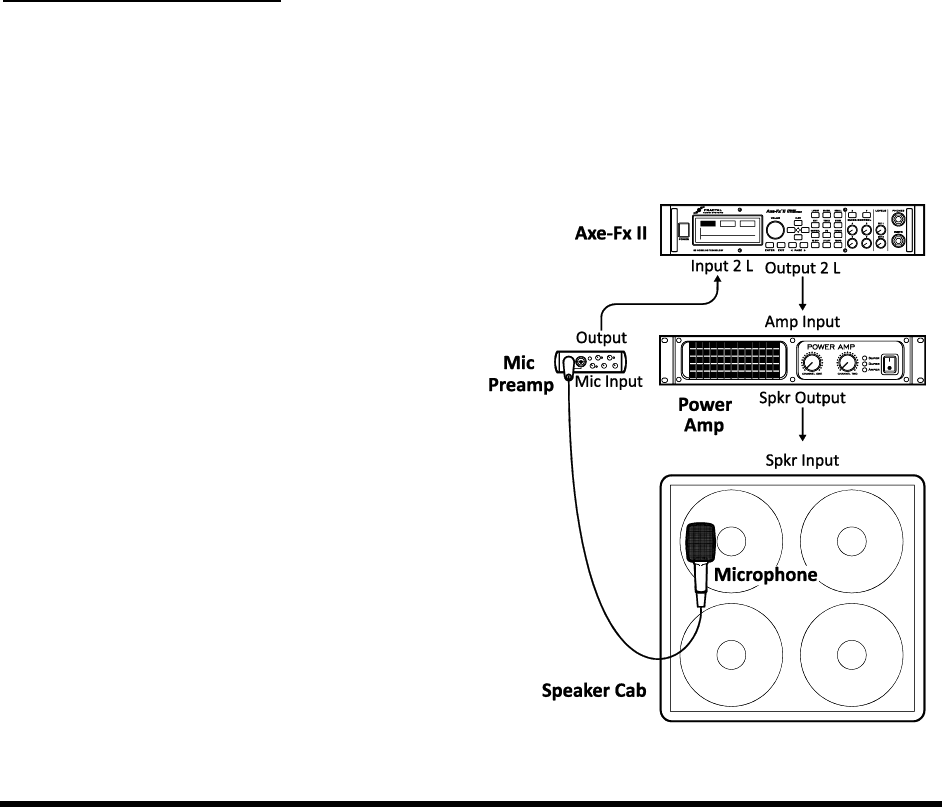
UTILITIES
138 Doc v3.04
Global Blocks are NOT affected.
Preset memories are NOT affected.
Firmware is NOT affected.
To Reset System Parameters, select this menu page, then press ENTER.
ENTER to execute the reset.
10.5 IR Capture
Impulse Responses allow the Axe-Fx to simulate the sonic properties of a real speaker system. The CAB block (p.
47) is pre-
impulses.
This utility allows you to measures the frequency response of a real guitar cab (or other speaker) and save the
result as a custom Impulse Responses (IR) for use in the CAB block. To use the utility, you must connect the Axe-Fx
II to a power amp and speaker so the test tones may be played, connect a mic and preamp to the input of the Axe-
Fx II so the resulting response may be captured, perform the test, name, and save the IR to a USER slot.
Components & Connections
To capture your own IRs with the Axe-Fx IIalso need several common pieces of pro audio equipment.
Remember that every component in the chain contributes to the sound: the amp, the cab, the mic, and the
preamp.
A sonically neutral solid-state power amp is best. High wattage is not important as an accurate impulse can be
captured at relatively low levels, but take care to match
the amp to the impedance of the connected cab.
Select a microphone suited for guitar cab recording and
position it according to your preference of tones. The
web is filled with excellent info on mic placement,
Remem
contributes significantly to an IR. As when recording,
cab in isolation will help produce desired results quickly.
Mic position and distance are also critical, and it may take
A preamp brings the signal of the mic up to line level for
processing. This also contributes to the tone, but even
the simple preamp in an inexpensive mixer can produce
excellent results. Do not apply dynamics processing (e.g.
compression) as this will misrepresent the response.
With an optional mixer, multiple microphones can be

UTILITIES
Doc v3.04 139
combined to produce a tone that blends their best characteristics. Note however that it is also possible to capture
mics individually a Leave your
guitar connected and monitors powered on so you can audition results when the capture is finished. Refer to the
diagram here and make connections as follows:
1.
2. Connect the mic to the preamp input and connect the preamp output to the INPUT 2 Left (FX
RETURN) of the Axe-Fx II.
3. Connect OUTPUT 2 Left (FX SEND) of the Axe-Fx II to the input of your power amp input.
4.
Capturing the Response
5. UTILITY on the Axe-Fx II anIR CAP
6. Press ENTER with the onscreen [TEST
The test signal should sound loud enough to measure the speaker without background noise interference,
but not loud enough to be uncomfortable or overdrive the power amp or speaker. The front panel
INPUT2 LED meters of the Axe-Fx II will indicate the level of the signal received. Adjust the levels of
the power amp and preamp until an optimal level is obtained (the red LED indicates a level of -6db and
peak levels). If signal is especially low, you may need to increase the
virtual input trim of the Axe-Fx II Input 2 (found under I/O: INPUT).
7. When levels are set correctly, navigate to the onscreen [CAPTURE] button and press ENTER.
8. Wait quietly for the capture to finish (~20 seconds), then use the NAV keys and VALUE wheel to
Save to #SAVE] button, and press
ENTER twice to store the impulse.
To audition your saved IR, change the CAB block of any preset to the USER cab number where you saved the
If you store the IR in
a user slot which is already in use in the currently loaded preset, you will be able to audition immediately upon
saving.
It is also possible to use this utility to capture the responses of systems other than a power amp/mic/preamp.
Possibilities might include the factory cabs of the Axe-Fx Ultra, a particular tape delay, or any other line-in/line-out
device.
The PRESET utilities (p. 137) allow dumping individual User Cab IRs to MIDI or USB for backup. Remember also that
all user cab IRs are included with a dump of the Axe-Fx II System (see chapter 13).
10.6 Firmware
The firmware page in the UTILITY menu utility shows you the VERSION of the currently loaded firmware, and
includes a function to place the unit into an UPDATE mode. To enter update mode, navigate to this menu and
press ENTER.
See Section 14 on p. 146 for details on how to update firmware.
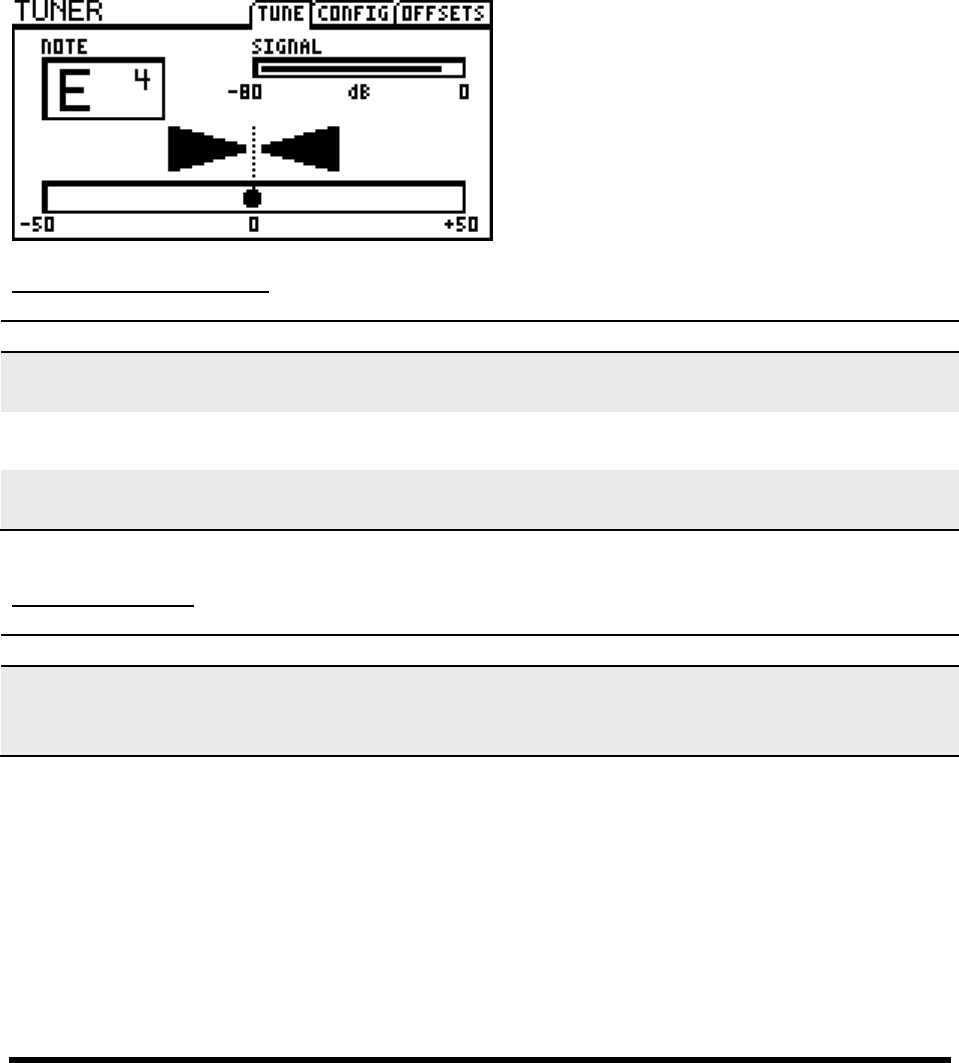
TUNER
140 Doc v3.04
11 Tuner
The Axe-Fx II includes a state-of-the art onboard TUNER, an essential tool for the performing or recording
musician. It is easy to operate and features high-resolution automatic pitch detection, a calibration control, offsets
for modified tuning schemes, and the option to mute audio while tuning. The TUNER button shows the tuner.
The PAGE buttons allow access to the tuner CONFIG and OFFSET pages. To exit the tuner screen, press EXIT
or RECALL. The tuner may be set up via the CONTROL page of the I/O menu (p. 134) to be remotely
engaged/disengaged using MIDI or the onboard Pedal Jack.
Configuration Parameters
PARAMETER
Description
CAL
430.0 450.0 Hz
This calibrates the tuner by setting the frequency of A4 (in the 8va above middle C).
MUTE
OFF/ON
This setting determines whether the main outputs will be MUTED when the tuner is
engaged.
USE OFFSETS
OFF/ON
Determines whether the settings on the OFFSET page (see below) are applied or
ignored.
Offset Parameters
PARAMETER
Description
E1, B2, G3,
D4, A5, E6
+/-12.7 Hz
Offsets allow the tuner to be calibrated so individual notes diverge from standard
concert tuning by a defined amount.

TEMPO
Doc v3.04 141
12 Tempo
Tempo is used in electronic music for synchronizing different rates and times, whether inside one machine or
across different devices. The Global Tempo of the Axe-Fx II allows for both internal and external synchronization,
providing effects with a central BPM clock that can run autonomously or march to the rhythm of an upstream
device outputting MIDI Beat Clock. The tempo is available to control a variety of rates and times in the Axe-Fx II.
12.1 Setting the Tempo
The Global Tempo may be set to any whole number value in the range 30 BPM (grave) to 250 BPM (prestissimo).
The current tempo is shown by a flashing LED inside the TEMPO button of the Axe-Fx II front panel, and it will
also flash on the tempo footswitch of a connected MFC-101 MIDI Foot Controller.
1
To set the tempo, tap two or more times on the front panel TEMPO button, or press the button once and adjust
the TEMPO knob that appears in the onscreen display.
The tap function can also be controlled remotely by assigning a MIDI CC# or a footswitch connected to the
onboard PEDAL jack to TAP TEMPO in the Control page of the I/O menu (p. 134).
The Global Tempo will automatically synchronize to MIDI Beat Clock if it is detected at the MIDI IN port or in
the incoming MIDI stream of the USB interface. The Axe-Fx II does not recognize MIDI Time Code or SMPTE, nor
does it transmit MIDI Beat Clock.
12.2 Synchronizing Sound Parameters
Rates and times in a preset can be made to sync rhythmically to the Global Tempo by setting their corresponding
TEMPO parameters. This is done by selecting from a list of rhythmic values, ranging from 1/64-note-triplets to
double whole notes, with 76+ options in all. For example, to set the TIME
note pulse of the tempo, find the TEMPO PG2) and set this value to
overridden and may not be changed manually (as indicated by its appearance in parentheses). To regain control of
an overridden parameter, set its corresponding TEMPO parameter back to NONE.
The following parameters may be synchronized to the Global Tempo:
Chorus, Flanger, Phaser and Tremolo Modulation Rates.
Delay: All Delay Times and Modulation Rates.
Multi Delay: All delay times, All Modulation rates, Rhythm Tap Quantization value.
Pitch: All delay times, Crystal Splice time, Arpeggiator tempo.
Controllers: Global LFO 1 and LFO 2 rate, Sequencer Rate.
1

TEMPO
142 Doc v3.04
Tempo-synchronized sound functions track changes to Global Tempo in real time, increasing or decreasing as it
speeds up or slows down.
12.3 Tempo to Use
Every preset contains two saved TEMPO settings: an actual TEMPO (BPM) value and a second setting called TEMPO
TO USE.
TEMPO TO USE Global Tempo will change to the saved BPM value
whenever that preset is loaded. Factory presets in the Axe-Fx II are saved with a tempo of 120 BPM and a TEMPO
TO USE
TEMPO TO USE ignored, and the
current Global Tempo will be used.
12.4 Auto Delay
When set to ON any delay blocks that are bypassed will become active whenever a tempo is tapped in. This
allows you to set the tempo and un-bypass your delay block(s) from a single footswitch.

BACKING UP AND RESTORING
Doc v3.04 143
13 Backing Up and Restoring
The Axe-Fx II can create external backups to a computer or other MIDI recorder, or onboard backups to its flash
ROM memory. Both methods are described below, as are details on how to restore each type of backup. It is a
wise practice to back up your Axe-Fx II regularly.
13.1 MIDI/SysEx Backup and Restore
IMPORTANT! If you have an MFC-101 connected to your Axe-Fx II, whether at the MIDI IN or MFC
Control port, power it OFF or DISCONNECT it prior to performing any dump. Failure to do so may
cause the MFC-101 to process incoming SysEx data resulting in unpredictable behavior.
Dumping to a computer 13.1.1
The PRESET page of the UTILITY menu contains various utilities for dumping the memory of the Axe-Fx II. Dumps
are transmitted as MIDI System Exclusive data, sharing, editing, or
other purposes.
Before executing a SysEx a dump, you must connect the Axe-Fx II to a computer. This might be via a legacy MIDI
interface or via USB. Some means of recording the dump must be provided, typically a 3rd party SysEx utility such
as MIDI Ox for PC (http://www.midiox.com) or Snoize SysEx Librarian for Mac
(http://www.snoize.com/SysExLibrarian). The details of configuring and operating these programs are beyond the
scope of this manual, but help can be obtained through their authors or at our forum
(http://forum.fractalaudio.com). Besides these options, Axe-Edit, our own MIDI Librarian/Editor, provides a range
of options. Axe-Edit is supported by its own documentation.
Once you have the computer connected and a SysEx utility ready to receive a dump, select the appropriate entry
on the UTILITY:PRESET page and press ENTER to begin transmission. There are options for dumping PRESET,
BANK, or SYSTEM to either MIDI (via the onboard MIDI OUT/THRU port) or USB (via the AXE-FX II MIDI IN port of a
connected computer). MIDI data appears at the MIDI OUT/THRU port regardless of the setting for MIDI THRU in the
MIDI page of the I/O menu (p. 132)
DUMP PRESET TO MIDI dumps the currently loaded preset, including any unsaved changes, to the MIDI
OUT port of the Axe-Fx II. There is no onscreen confirmation when a PRESET dump initiates or completes.
DUMP BANK (A, B, or C) TO MIDI dumps a batch of 128 presets to the MIDI OUT port of the Axe-Fx II. Bank
A contains presets 0-127, B contains 128-255, and C contains 256-383 (or 1-128, 129-256 and 257-384
when DISPLAY OFFSET (p. 132
the progress as a bank is transmitted.
NOTE: It takes approximately 9-10 minutes for a bank dump to complete via MIDI, so the meter moves very slowly.
DUMP SYSTEM TO MIDI dumps all of the system settings of the Axe-Fx II. A SYSTEM dump specifically
includes:
All GLOBAL and I/O parameter settings
BACKING UP AND RESTORING
144 Doc v3.04
All TUNER settings
All USER CAB IRs
All GLOBAL BLOCKS
progress as the SYSTEM is transmitted.
DUMP USER CAB TO MIDI dumps the currently loaded User Cab IR for backup. If
multiple CAB blocks are used in the current preset, the dump will be the IR of
Dumping to USB
DUMP… TO USB” options performs the same function as the corresponding DUMP…TO MIDI
choice, except that the SysEx data is transmitted to the AXE-FX II MIDI IN port that appears in your computer
when the Axe-Fx II is installed/connected via USB.
Restoring from a Computer 13.1.2
WARNING! When the Axe-Fx receives a BANK or SYSTEM SysEx file, it overwrites local data and settings
without warning. Be certain you are sending the correct files, and consider making a backup of current
settings before transmitting anything to your Axe-Fx II.
To restore a SysEx backup file with a 3rd party MIDI utility or sequencer:
Create the connection between the Axe-Fx II and computer. This might be via legacy MIDI interface or USB.
Transmit the desired SysEx file from the application to the Axe-Fx II. It is not necessary to ready the Axe-Fx
in any way.
When the Axe-Fx receives an individual preset, it does NOT store it. Rather, it loads it into the
37)
When the Axe-Fx receives a BANK or SYSTEM dump, it processes and stores the data
immediately, overwriting local presets and settings without warning.
Axe-Edit, mentioned above in the section on creating backups, can also open, inspect, modify and transmit SysEx
files. See our web site for more information about Axe-Edit. http://www.fractalaudio.com/products-axe-edit.html
13.2 Onboard ROM Backup and Restore
The Axe-Fx II contains an internal FLASH ROM where PRESET BANKS and SYSTEM SETTINGS may be stored for
speedy recovery without a computer. The contents of the FLASH ROM are not overwritten or modified during
firmware updates or when you restore presets, banks, or the system from SysEx backup files.
Select the appropriate entry on the UTILITY:PRESET page and press ENTER to begin the backup or restore.
Warning! Both BACKUP and RESTORE operations are permanent and cannot be UNDONE. When you
BACKUP to the onboard FLASH ROM, the old contents of the selected area will be irrevocably overwritten
by the new backup. When you RESTORE from the FLASH ROM, the selected Preset Memories or System
Settings of the Axe-Fx II will be overwritten by the restored data and cannot be recovered.

BACKING UP AND RESTORING
Doc v3.04 145
Warning! Never interrupt a FLASH ROM Backup or Restore operation in process, or data loss/corruption
could occur. Do not unplug or power off the unit during BACKUP or RESTORE.
BACKUP BANK A, B, or C copies a group of 128 presets to the onboard backup ROM. Bank A contains
presets 0-127, B contains 128-255, and C contains 256-383 (or 1-128, 129-256, and 257-384 when DISPLAY
OFFSET [p. 132] is turned ON). A meter indicates progress. It takes less than 10 seconds for a backup to
complete.
BACKUP SYSTEM copies all of the system settings of the Axe-Fx II to the onboard Backup. Specifically, this
includes:
All GLOBAL and I/O parameter settings
All TUNER settings
All USER CAB IRs
All GLOBAL BLOCKS
RESTORE USER BANK A, B, or C reads a group of 128 presets from the onboard backup ROM and writes
these into the onboard preset memories of the Axe-Fx II when you press ENTER to execute the
selected function. Bank A contains presets 0-127, B contains 128-255, and C contains 256-383 (or 1-128,
129-256, and 257-384 when DISPLAY OFFSET (p. 132) is turned ON.
RESTORE SYSTEM reads all of the non-preset settings of the Axe-Fx II from the onboard Backup ROM and
writes these into their respective areas when you press ENTER. This specifically includes
All GLOBAL and I/O parameter settings
All TUNER settings
All USER CAB IRs
All saved GLOBAL PRESET settings
RESTORE FACTORY BANK A,B, or C reads from a separate different ROM memory which always contains a
fresh copy of the factory preset banks regardless of what changes you save to the preset memories or
backup ROM. These otherwise operate the same as RESTORE USER BANKS, above.
13.3 Machine-to-Machine Transfers
Warning: When the Axe-Fx receives a machine-to-machine transfer, it overwrites local data and
settings without warning.
Preset, Bank or System data can be transferred directly from one Axe-Fx II to another. Connect the MIDI OUT of
the first Axe-Fx to the MIDI IN of the second and use any of the DUMP TO MIDI entries in the UTILITY menu.
When the 2nd Axe-
must then be saved using normal methods (p. 37).
When the 2nd Axe-Fx receives a BANK or SYSTEM dump, it processes and stores the data immediately, overwriting
local presets and settings without warning.
It is not possible to connect one Axe-Fx II to another via USB.

FIRMWARE UPDATES
146 Doc v3.04
14 Firmware Updates
14.1 Firmware
As detailed in the UTILITIES section (p. 138), firmware is the onboard software that gives the Axe-Fx all of its
features, functions and capabilities. Through its capability for firmware updates, the unit has great potential to
evolve, with additions, enhancements and the occasional bug fix.
The firmware page in the UTILITY menu utility shows you the Version of the currently loaded firmware and
includes a function to place the unit into an UPDATE mode. To enter update mode, navigate to this menu and
press ENTER.
With Axe-Edit
Axe-Edit, the companion editor/librarian for the Axe-Fx II, includes a firmware update utility with step-by-step
-Edit includes its
own support documentation.
With a 3rd Party MIDI Utility or Sequencer
Connect the Axe-Fx II and the computer. This will typically be done using USB but legacy MIDI also works.
Launch your MIDI Utility and ready it to send the firmware System Exclusive file.
On the Axe-Fx II, press UTILITY and select the FIRMWARE page. Press ENTER.
Transmit the file from the computer to the Axe-Fx II. A progress bar will appear on the Axe-Fx II while it
receives the firmware. It will take several minutes to transfer the file.
If all goes well, the Axe-Fx will di
If a firmware update fails, you may need to reboot the Axe-Fx II and try again after lowering the
rate at which your application sends SysEx data. This setting is typically called something like
If you accidentally enter firmware upgrade mode, press EXIT or reboot the Axe-Fx II.
New firmware updates are made available through our website http://www.fractalaudio.com/support.
Please always review the README file and instructions included with the download.

TROUBLESHOOTING
Doc v3.04 147
15 Troubleshooting
Fractal Audio Systems offers support through its web site at www.fractalaudio.com
You can also get answers to most questions in our online forum at forum.fractalaudio.com
The Axe-Fx Wiki at wiki.fractalaudio.com/axefx2 is also an excellent source of information.
Here are some frequently asked questions that might help you with very basic issues.
Q: How do I connect the Axe-Fx II to my computer?
A: Install the driver, available in the support section of our web site, and then connect the two devices together
with a standard USB cable. The Audio and MIDI input and output ports created will appear in your applications that
support these functions.
Q: Can I use the Axe-Fx II with MIDI controller “Brand X”?
A: deep integration features provided by -the MFC-101, nor
will you be able to connect via CAT5 Ethernet cable and without the need for a wall-wart AC adapter. But any
device that can send MIDI program and control change messages can interface with the Axe-Fx II.
Q: How do I set up a pedal to control the Wah?
A: See the tutorial on page 157.
Q: My Axe-Fx II is behaving erratically or “froze up” while I was using it. What should I do?
A: Reboot the unit. If the trouble persists across a reboot, try holding RECALL while you boot the unit to reset the
aved settings.
Q: One of my presets produces no sound.
A: This might be any one (or several) of a number of things:
Is everything still wired up correctly? Most of the time, the problem is a faulty or disconnected cable!
Have you double-checked to ensure that you have a complete path from the input to the output? See p. 30.
INSTRINPUT 1 LEFT SELECT
(See I/O : AUDIO on p. 130.)
Is there a MODIFIER assigned to a volume or level control while the pedal or external switch is not present?
Find and remove that modifier (p. 120) or change its EXT CTRL INIT VALUE from 0% to 100% (p. 132).
Q: The amps I’ve dialed in sound “wrong.”
A: The amp simulations of the Axe-Fx II are extremely accurate and should sound instantly familiar to those who
know , a few quick checks can confirm that
get typical MASTER. If the
original amp had no master, try a high setting (8+) and then dial in the amount of distortion you want using the
DRIVE parameter. Check the CONFIG page of the Global menu to make sure that power amp and cabinet
simulations are set correctly (see Chapter 3). Finally, consider trying default settings and the headphone jack for
reference.

TROUBLESHOOTING
148 Doc v3.04
Q: All my presets suddenly sound harsh and bright. What’s going on here?
A: Check the CONFIG page of the Global menu (p. 128) to ensure that the Global Power Amp and Cab Simulations
block(s) fully counterclockwise. The Global Graphic EQ (p. 129) may also have an unusual setting.
Q: Many of my presets suddenly sound hollow and thin. What could cause this?
A: These terms are sometimes used to describe the sound of phase problems caused when stereo sounds have
been summed to mono. Check the AUDIO page of the I/O menu to ensure that the OUTPUT1 MODE and OUTPUT 2
MODE are set correctly according to how you are listening to your Axe-Fx II. Listening with headphones while
making this change can also confirm or rule out this possible problem.
Q: The sound is distorted even on what should be “clean” presets.
A: Check the input and output levels of the Axe-Fx II and check the input levels of any downstream amps/monitors.
See p. 15 for more on how to set levels.
Q: The front panel CLIP LED is coming on. What does this mean?
A: The two CLIP LEDs indicate whether the D/A converters are being overdriven. Adjusting the output levels of
your presets, or reducing the global BOOST/PAD setting for the offending output, should help. See p. 15 for more
on how to set levels.
Q: My screen is blinking EXCESS CPU UTILIZATION! REDUCE LOAD.
A: First, try undoing the last change you made by turning the value wheel in the opposite direction. You can also
return to the grid, navigate around the message, and remove one or more blocks. You can also load a different
preset or reboot the unit.
Q: I am pressing FX BYP, but the state of the selected block will not toggle. What gives?
A: The BYPASS MODE parameter, available on almost all blocks, has a modifier slot to control bypass state. Once
to change the bypass state, or remove it.
Q: I loaded a preset from a backup and it sounds nothing like it did when I first saved it. What’s wrong?
A: The most likely scenario is that something else changed: the guitar, the amp, or perhaps the settings of remote-
controllers. It is also possible, however, that the preset in question uses Global Blocks that have changed.
Q: When I play audio from the computer through the Axe-Fx II, the sound is processed by the effects, and I can’t
hear the guitar. What’s wrong?
A: Change the MAIN INPUT SELECT from USB to ANALOG (IN 1). This will allow you to play along with audio from
the computer.
Q: Can I use the onboard MIDI ports to connect a keyboard/synthesizer/etc. to my computer?
A: Yes. Just remember to turn on USB ADAPTER MODE in the MIDI page of the I/O menu. See p. 132.

APPENDIX
Doc v3.04 149
16 Appendix
The following material is designed for reference and aims to maximize your enjoyment of the Axe-Fx II. Please also
visit our online forum at http://forum.fractalaudio.com for discussions on these and many other subjects.
16.1 Shortcuts Overview
The Axe-Fx II has several shortcuts and hidden features. These are summarized below.
IN THE AMP BLOCK
With the TREBLE knob selected, press ENTER to engage or disengage the BRIGHT switch.
With the DRIVE knob selected, press ENTER to engage or disengage the BOOST switch.
IN PRESET RECALL MODE
Press NAV UP or DOWN to load the next or previous preset.
Press NAV LEFT or RIGHT to load the 10th preset in either direction.
ON THE GRID:
With a non-shunt grid bl
With any block selected, PRESS AND HOLD ENTER to create a series of connectors and shunts to bridge
empty space to the right. This will also CLEAR existing connectors between a series of blocks.
IN THE EDIT MENU of ANY BLOCK
Press EDIT to skip to the EDIT menu of the next block.
Double-tap BYPASS to return the current block to defaults (also works for INPUT gate, OUTPUT mixer, all
internal CONTROLLERS, and both Global Graphic EQs).
Double-tap FX BYP to access the SAVE/LOAD GLOBAL BLOCKS screen.
IN THE I/O CONTROL MENU:
Press ENTER to start LEARNING MODE for any function on the page. Move the external controller or send
a MIDI CC# to the Axe-Fx II, and the selected function will learn the assignment.
IN THE SEQUENCER MENU
With any STAGE selected, press ENTER to randomize the values of all stages.
ANYWHERE EXCEPT IN AN “EDIT” or “STORE” MENU or SUBMENU:
Press X or Y to jump to the EDIT menu of either Quick Jump block (p. 136).
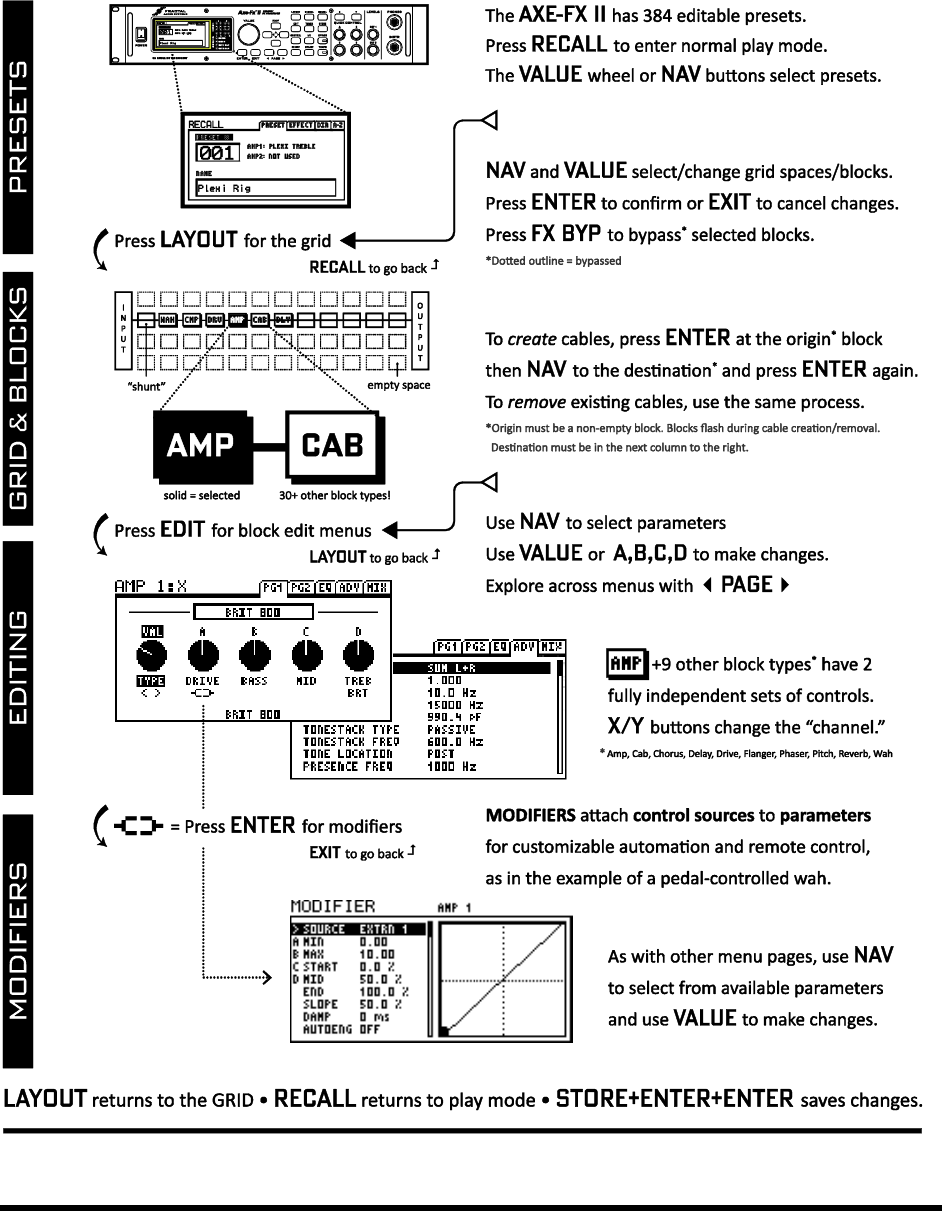

APPENDIX
Doc v3.04 151
16.3 Understanding Preset Size Limits
As a preset grows in size and complexity, load on the CPU increases. You can check the current load at any time by
pressing UTILITY and switching to the STATUS page. A thermometer-like meter on the right side of the screen
shows the CPU usage (and provides a specific numerical readout above).
If the total CPU load were to exceed 98%, the Axe-Fx II would become unable to do much of anything, so there are
safeguards that prevent this condition from occurring. First, you are stopped from inserting any block whose
potential CPU usage might cause an overload b-Fx II assumes that a
block will be used to its limits when making this determination).
If you are prevented from inserting an effect, you can make changes to reduce the current CPU utilization and try
again. One s
utilization, so these are prime candidates. Adjusting certain parameters can also help. Lowering the number of
voices in a chorus, for example, or switching the CAB TYPE from high to low-resolution might make the difference of
As a second safeguard, the Axe-Fx II will alert you if a parameter change pushes the
CPU too far. In this case, the preset will be muted, the CPU
get back below the limit. The most likely solution will be to change back whatever setting you had just made, but it
is also possible to enter the grid and remove or edit other blocks to address the issue.
These warnings happen very infrequently, even for power users. The CPU limit is generally not an issue when
creating musically viable settings. In the past, professional players have been able to replace entire rigs of gear
amps, pedals, and beyondwith a single Axe-Fx Ultra Preset. Although our G2 technology has resulted in amps,
cabs, and certain other blocks that require additional power per instance, the onboard CPU power is DOUBLE that
of the Ultra, so there is still a considerable net pickup.
The Axe-Fx II dedicates a small percentage of CPU resources to USB processing. Extremely large presets may run
fine while USB is disconnected, but need some economizing as described above to run while USB is connected.
16.4 Signal Flow, Global, and I/O Parameters
If you are viewing the electronic version of this manual, the final pages (unnumbered) show a stylized view of Axe-
Fx II signal and MIDI flow, with indications of the relative placement and functions of GLOBAL and I/O parameters.
These are not included in the hard copy version because of printing constraints.
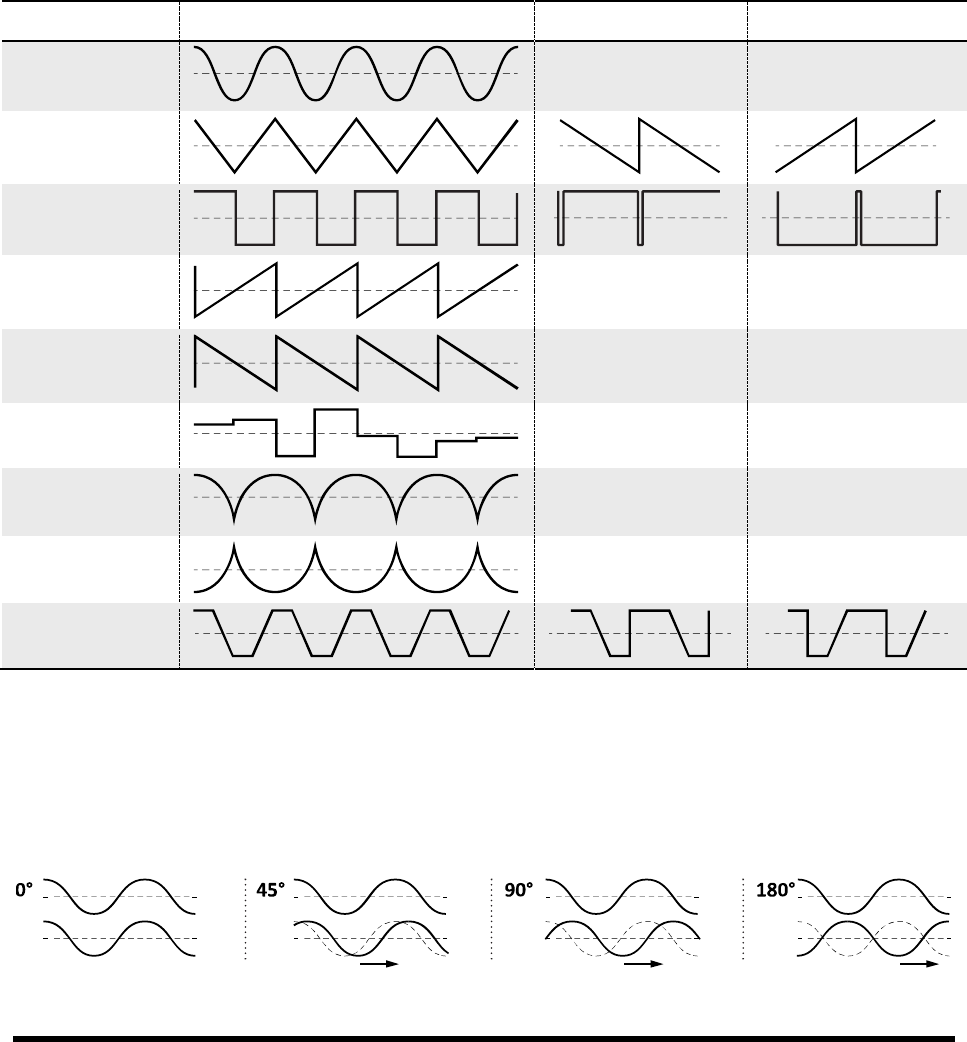
APPENDIX
152 Doc v3.04
16.5 LFO Waveforms, Duty, and Phase
All of the modulation effects in the Axe-Fx II (Chorus, Flanger, Delay, Phaser, Tremolo, etc.) and the two Global
LFOs share a common set of waveform types
represented below, together with an indication of how the DUTY parameter controls wave symmetry.
Remember that in cases where an LFO modulates the delay time (Chorus, Flanger, and any Delay blocks) it is the
slope
effective slope will
Type
50 % Duty Cycle (Normal)
0% Duty
100% Duty
SINE
NA
NA
TRIANGLE
SQUARE
SAW UP
NA
NA
SAW DOWN
NA
NA
RANDOM
NA
NA
LOG
NA
NA
EXPONENTIAL
(EXP)
NA
TRAPEZOID
LFO Phase 16.5.1
PHASE
are in phase; at 180° (below, far right), the two signals are phase-opposite, so while one is swinging from 0100,
the other is swinging from 1000 (and vice versa). Any interim setting is also allowed. Phase has no effect on the
Axe-Fx II RANDOM waveform.
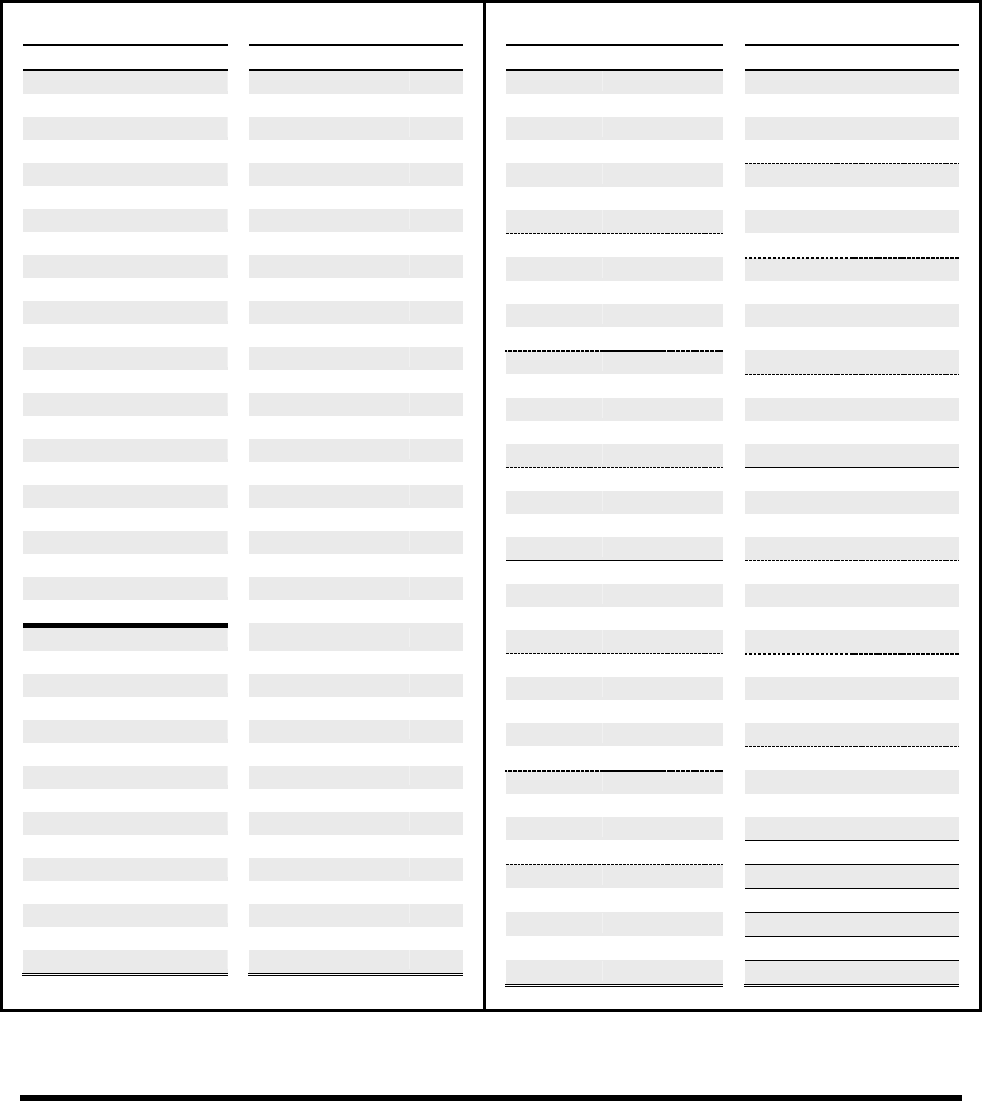
APPENDIX
Doc v3.04 153
16.6 Tempo Cross Reference
The tables below list the rhythmic values available in every tempo parameter on the Axe-Fx II. The first lists these
in the order they appear as you turn the VALUE wheel, with their equivalency in BEATS. The heavy border
shows a breaking point between common and uncommon tempos.
The second table (cross-referenced to the first by the INDEX values) lists time tempo time values sorted from
shortest to longest. Its cell borders show - - - 16th, - - - 8th, and quarter note boundaries.
Values in Actual Order, with Beat Equivalents
INDEX
VALUE
BEATS
INDEX
VALUE
BEATS
1
1/64th trip
0.042
40
22/64 (11/32)
1.375
2
1/64th
0.063
41
23/64
1.438
3
1/64th dot
0.094
42
25/64
1.563
4
1/32nd trip
0.083
43
26/64 (13/32)
1.625
5
1/32nd
0.125
44
27/64
1.688
6
1/32nd dot
0.188
45
28/64 (7/16)
1.75
7
1/16th trip
0.167
46
29/64
1.813
8
1/16th
0.25
47
30/64 (15/32)
1.875
9
1/16th dot
0.375
48
31/64
1.938
10
1/8th trip
0.333
49
33/64
2.063
11
1/8th
0.5
50
34/64 (17/32)
2.125
12
1/8th dot
0.75
51
35/64
2.188
13
1/4 trip
0.667
52
36/64 (9/16)
2.250
14
1/4
1
53
37/64
2.313
15
1/4 dot
1.5
54
38/64 (19/32)
2.375
16
1/2 trip
1.333
55
39/64
2.438
17
1/2
2
56
40/64 (5/8)
2.5
18
1/2 dot
3
57
41/64
2.563
19
1 trip
2.667
58
42/64 (21/32)
2.625
20
1
4
59
43/64
2.688
21
1 dot
6
60
44/64 (11/16)
2.75
22
2
8
61
45/64
2.813
23
3
12
62
46/64 (23/32)
2.875
24
4
16
63
47/64
2.938
25
4/3
5.333
64
49/64 (49/64)
3.063
26
5/4
5
65
50/64 (25/32)
3.125
27
5/64
0.313
66
51/64
3.188
28
7/64
0.438
67
52/64 (13/16)
3.25
29
9/64
0.563
68
53/64
3.313
30
10/64 (5/32)
0.625
69
54/64 (27/32)
3.375
31
11/64
0.688
70
55/64
3.438
32
13/64
0.813
71
56/64 (7/8)
3.5
33
14/64 (7/32)
0.875
72
57/64
3.563
34
15/64
0.938
73
58/64 (29/32)
3.625
35
17/64
1.063
74
59/64
3.688
36
18/64 (9/32)
1.125
75
60/64 (15/16)
3.75
37
19/64
1.188
76
61/64
3.813
38
20/64 (5/16)
1.25
77
62/64 (31/32)
3.875
39
21/64
1.313
78
63/64
3.938
Values from Shortest to Longest
VALUE
AKA
INDEX
VALUE
AKA
INDEX
1/64 trip
1/96th
1
33/64
49
1/64
2
34/64 (17/32)
50
1/32 trip
1/48th
4
35/64
51
1/64 dot
3
36/64 (9/16)
52
1/32
5
37/64
53
1/16 trip
1/24th
7
38/64 (19/32)
54
1/32 dot
3/64th
6
39/64
55
1/16
8
40/64 (5/8)
56
5/64
27
41/64
57
1/8 trip
1/12th
10
42/64 (21/32)
58
1/16 dot
3/32nd
9
1 trip
2/3
19
7/64
28
43/64
59
1/8th
11
44/64 (11/16)
60
9/64
29
45/64
61
10/64 (5/32)
30
46/64 (23/32)
62
1/4 trip
1/6th
13
47/64
63
11/64
31
1/2 dot
3/4
18
1/8 dot
3/16th
12
49/64 (49/64)
64
13/64
32
50/64 (25/32)
65
14/64 (7/32)
33
51/64
66
15/64
34
52/64 (13/16)
67
1/4
14
53/64
68
17/64
35
54/64 (27/32)
69
18/64 (9/32)
36
55/64
70
19/64
37
56/64 (7/8)
71
20/64 (5/16)
38
57/64
72
21/64
39
58/64 (29/32)
73
1/2 trip
1/3rd
16
59/64
74
22/64 (11/32)
40
60/64 (15/16)
75
23/64
41
61/64
76
1/4 dot
3/8th
15
62/64 (31/32)
77
25/64
42
63/64
78
26/64 (13/32)
43
1
whole
20
27/64
44
5/4
26
28/64 (7/16)
45
4/3
25
29/64
46
1 dot
3/2
21
30/64 (15/32)
47
2 2 bars
22
31/64
48
3 3 bars
23
1/2
17
4 4 bars
24
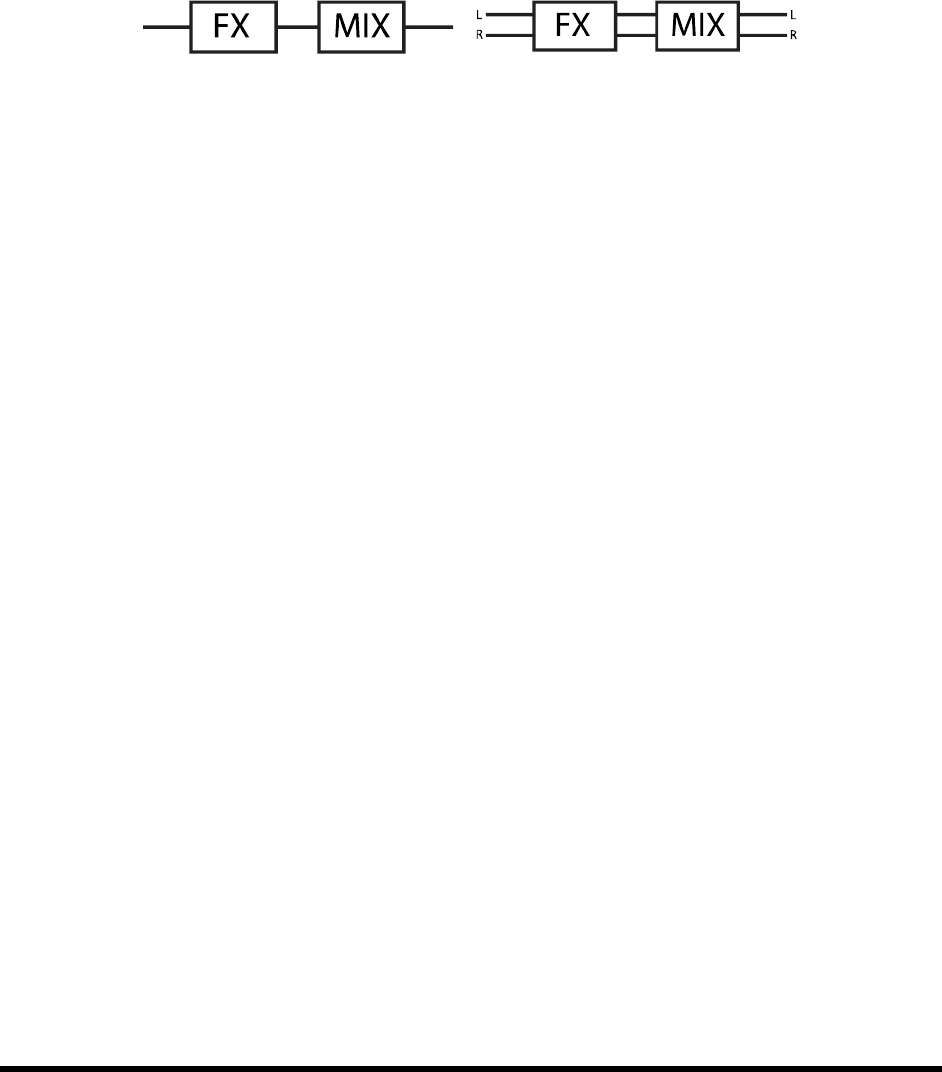
APPENDIX
154 Doc v3.04
16.7 Mono and Stereo
Here are some points about stereo and mono operation of the Axe-Fx II.
1. Each Grid row is Stereo – ze that a single path through the grid is
-stereo paths, then, from the
input to the output.
2. Different blocks process in different ways Some blocks (AMP, CAB, Drive, and the pedal compressor)
will sum the signal to mono at their inputs and process in mono, but the mono mix appears at both Left
and Right outputs for the block. Other blocksPing-Pong Delay or Reverb for instancesum the input to
mono but then process and output stereo signals. Other blocks, for example the chorus or wah, have
stereo inputs, stereo processing, and stereo outputs. The Effects Guide, beginning on p. 39, covers every
block and its processing in detail.
3. Mono Summing vs. Splitting When you need to run the Axe-Fx II in MONO, several options determine
how otherwise stereo signals will be processed:
a. Half-Stereo: By leaving the Axe-Fx II in stereo and connecting only the left main output to a
-
be heard! Panning will impart volume changes, and the Ping-Pong Delay and other wide effects
will need adjustment to be heard somewhat as intended. Tone may also change if panned cabs
or amps have been used.
b. Summed Mono 2, the two
channels are added together and the resulting signal produced at both LEFT and RIGHT jacks. This
has the advantage of including all sounds intended for both stereo channels, but short delay or
phase differences between channels can result in strange artifacts or even total cancellation. This
or tested, in a SUMMED MONO listening environment. The Enhancer block and other short
delays could be problematic (including very short reverbs or the room simulator in the CAB
block). PHASE REVERSE switches should also be set to OFF when using this setting.
c. Dual Mono: 1 or OUTPUT 2, you get a dual
mono signal. The sound will be identical to that of half-stereo, with the same limitations, except
it will be produced at both the left and right jacks. Use this setting when you want two mono
outputs without the problems typically caused by summing L+R.
4. Mono and Stereo at Once New for the Axe-Fx II is the ability to operate OUT2 as a summed MONO copy
of the stereo OUT1 signal (or vice versa). Select COPY OUT1>OUT2, then choose the output mode for each
pair of jacks that best suits your needs. See Mono Summing above for possible concerns.
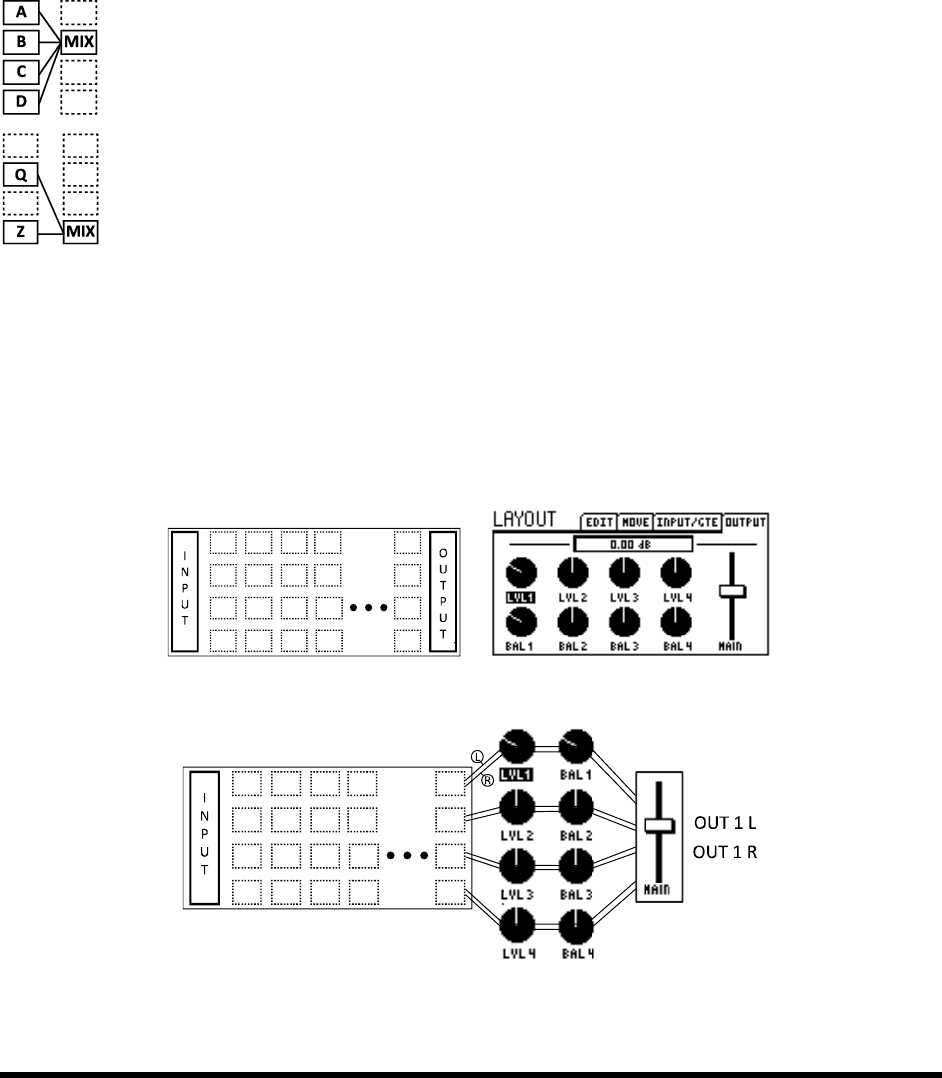
APPENDIX
Doc v3.04 155
5. The new Global Blocks feature (p. 114) allows the Enhancer and other width-sensitive delay effects to be
manipulated across multiple presets at once. It might be wise to employ this feature if you imagine
needing to use a number of presets in either stereo or mono situations.
16.8 Mixology
The MIXER and FX LOOP blocksall contain 4‐channel mixers. As on a real
mixer, the LEVEL/GAIN parameters on the input channels determine what comes into the mixer. The overall mix
may then be acted upon by master output GAIN or LEVEL, and, where applicable, master balance controls.
The four channels of an Axe-
the mixer. In the first example at left, the level of Effect A
CHANNEL 1 LEVEL/GAIN control, because A is on grid row 1. Effect B would be controlled by Channel
2, because B is on row 2, and so on.
In the second example, the level of Effect Q would be controlled by the
LEVEL/GAIN control, because Q is on row 2. Effect Z would be controlled by Channel 4, because Z is
on row 4. The location of the mixer never matters, only the location of blocks connected to its
inputs!
All mixer inputs are stereo. The BALANCE controls determine the left/right output balance of each channel. When
the balance for an input channel is set fully left, only the left channel of the block connected at that channel will be
d. Remember that every BLOCK in the Axe-Fx II has Left and
Right outs, even in cases where the signal is summed to dual mono (as is the case with the AMP, CAB, pedal type
Compressor, and, depending on their settings, certain other blocks as well).
Knowing what you now know about Axe-Fx II mixers, take a look at the Output mixer of a preset, located on the
MIX tab of its LAYOUT menu. On the surface, the output mixer looks like this:
But you can easily understand that these controls actually perform the functions illustrated below:
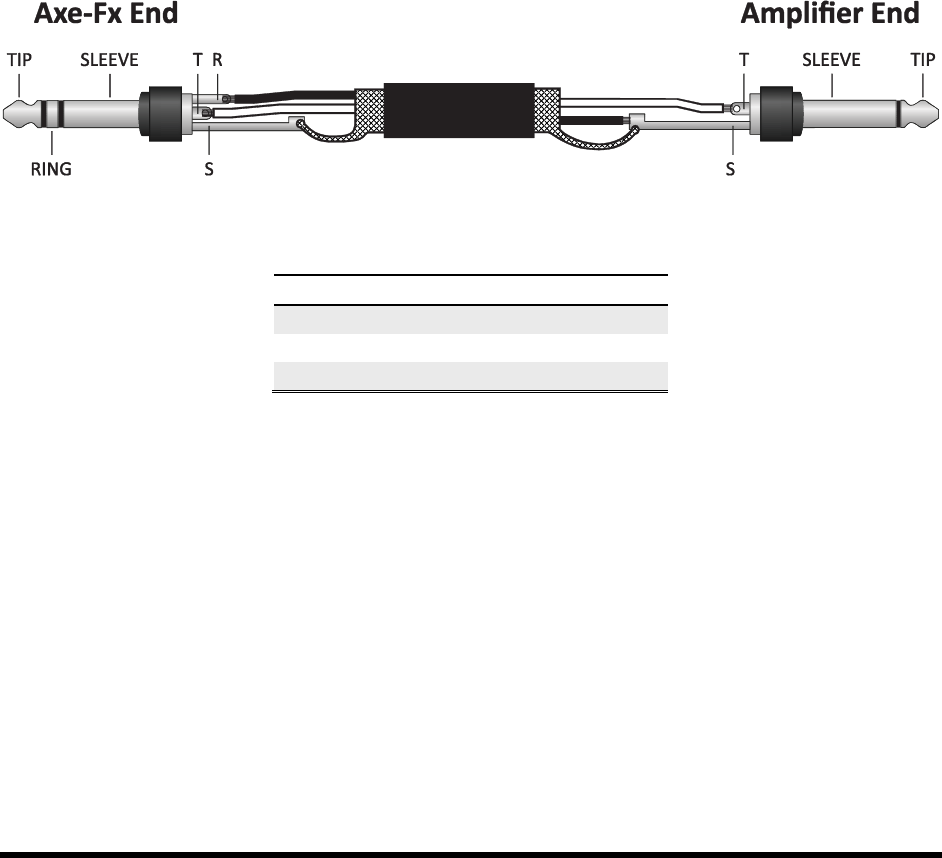
APPENDIX
156 Doc v3.04
To review: channels 1-4 of the OUTPUT mixer are fed respectively by the stereo outputs of rows 1-4 of the grid.
- 20dB) and a BALANCE control that
determines how the LEFT and RIGHT channels contribute to the final mix. A master GAIN slider offers +/-20 dB
control over the final mixed output.
16.9 Humbuster™ Technology
All 1/4" outputs of the Axe-Fx II feature our new Humbusterubtracts the ground
noise of connected equipment using a simple stereo-to-mono cable. This provides up to a 20 dB reduction in
ground noise without resorting to dangerous "cheater plugs," expensive isolation transformers, or other noise
reduction devices or methods. It is especially helpful when using the Axe-Fx II with a device like an amp head,
which can both add and amplify ground hum, but it provides similar benefits when connecting to the 1/4"
unbalanced inputs of any device: full-range cabs, mixers, and other processors or devices. Humbuster technology
causes no signal loss or degradation.
To take advantage of this feature, you must connect the 1/4" output(s) of the Axe-Fx II to unbalanced 1/4" input(s)
of another device using a special TRS-to-TS cable. The wiring requirements for this cable are shown below.
Figure 16-2 - Humbuster Cable
Axe-Fx Side
Cable
Remote Side
Tip
Wire 1 (hot)
Signal
Ring
Wire 2 (ground)
Ground
Sleeve
Shield
Ground
OUTPUT 1 L+R Unbalanced, and OUTPUT 2 L+R feature Humbuster noise reduction.
It is of course also possible to use these outputs with normal 1/4" cables.

APPENDIX
Doc v3.04 157
16.10 Setting up a Wah Pedal
Using the Onboard Pedal Jack 16.10.1
Setting up a pedal for use as a wah (or a whammy, or a volume, etc.) is a four-step process.
1. Connect the pedal.
2. Calibrate the pedal.
3. Assign the pedal to an External Controller.
4. Assign the External Controller to the Wah parameter.
Here are the steps in greater detail:
1) Connect an expression pedal to the onboard pedal jack of the Axe-Fx II. Expression pedals use Tip-Ring-
Sleeve cables and typically have a linear resistance taper.
2) Calibrate the pedal.
a. Press I/O
b. Change to the PEDAL page.
c. Select the PEDAL CAL parameter.
d. Press ENTER. Move the pedal through its full range of motion several times.
e. Press ENTER.
3) Assign the PEDAL jack to an External Controller.
a. Press I/O. Change to the CTRL page.
b. Select the EXT 1 parameter.
c.
4) Assign External 1 to control the Wah.
a. Press LAYOUT to view the grid.
b. Select or insert a WAH block.
c. Press EDIT to open its edit menu.
d. Find and select the CONTROL parameter.
e. Press ENTER to view the MODIFIER screen.
f. Change the SOURCE
move, check the above steps again, starting from #1, or try a different pedal/cable.
i. OPTIONAL: to change the FEEL of the Wah, try adjusting the value of MID.
ii. adjust DAMPING to a value from 120 ms.
iii. OPTIONAL: to set the Wah so it turns on and off automatically when you move the
pedal, scroll down on the MODIFIER SCREEN and change the value for AUTO ENG to
(See p. 123 for more details)
g. Press EXIT to return to the WAH edit menu. Make other adjustments as desired, such as
setting the range using the MIN/MAX FREQUENCY, or adjusting the RESONANCE and TRACKING.
h. STORE the preset to save the new wah and modifier settings.
Remember that MODIFIER assignments are not global. You must repeat Step 4 for every preset in which you want
the pedal to control the Wah. The advantage of this, however, is flexibility: you will be able to use the same pedal
to control multiple effects in multiple presets. See Modifiers & Controllers on p. 119 for more information.

APPENDIX
158 Doc v3.04
Using an Expression Pedal on an MFC-101 16.10.2
The process for using an expression pedal connected to a Fractal Audio Systems MFC-101 MIDI Foot controller is
almost the same as that required for the onboard PEDAL jack.
1. Connect the pedal to the MFC-101 PEDAL 2 jack.
2. Calibrate the pedal.
3. With default settings on both MFC-101 and Axe-Fx II, no custom I/O parameters are required.
4. Assign the External Controller to the Wah parameter.
Here are the steps in greater detail:
Please note that this section assumes your MFC-101 has factory default settings. To return an MFC-101
to factory default settings, press the #11 footswitch and reboot the unit by disconnecting it from and
reconnecting it to power. WARNING! THIS WILL ERASE ALL USER SETTINGS ON THE MFC-101!
1) Connect an expression pedal to the #2 onboard pedal jack of the MFC-101. (Pedal Jack #1 is pre-
configured at the factory to control OUT1 VOLUME on the Axe-Fx II.)
2) Calibrate the pedal according to the instructions on Section 7.1 (p. 26) of the MFC-
Be sure to change to “XP2” at Step 5!
3) Since Expression Pedal #2 on the MFC-101 is pre-configured to send MIDI CC# 16, and MIDI CC#16 is pre-
configured to control EXTERNAL 1 on the Axe-Fx II, no special settings are required in the I/O menu for
this tutorial.
If you were using a different MIDI controller, or if you had XP2 assigned to a different CC#, you would use
the CTRL page of the I/O menu to set the desired EXTERNAL CONTROLLER to the desired MIDI CC number.
4) Assign External 1 to control the Wah:
a. Press LAYOUT to view the grid.
b. Select or insert a WAH block.
c. Press EDIT to open its edit menu.
d. Find and select the CONTROL parameter.
e. Press ENTER to view the MODIFIER screen.
f. Change the SOURCE
move, check the above steps again, starting from #1, or try a different pedal/cable.
i. OPTIONAL: to change the FEEL of the Wah, try adjusting the value of MID.
ii. adjust DAMPING to a value from 120 ms.
iii. OPTIONAL: to set the Wah so it turns on and off automatically when you move the
pedal, scroll down on the MODIFIER SCREEN and change the value for AUTO ENG to
(See p. 123 for more details)
g. Press EXIT to return to the WAH edit menu. Make other adjustments as desired, such as
setting the range using the MIN/MAX FREQUENCY, or adjusting the RESONANCE and TRACKING.
h. STORE the preset to save the new wah and modifier settings.
Again, please recognize that MODIFIER assignments are not global. You must repeat Step 4 for every preset where
you want the pedal to control the Wah. The advantage of this, however, is that in another preset you will be able
to use the same pedal to control a Whammy, or the feedback of a delay, or any other parameter that allows the
use of a Modifier. See Modifiers & Controllers on p. 119 for more information.

APPENDIX
Doc v3.04 159
16.11 Setting Up Spillover
Spillover allows delay and reverb tails to ring out when an effect is bypassed or when you change presets.
Within a Single Preset 16.11.1
The first case is the easiest to set up and requires almost no special settings. To enable tails to ring when an
individual delay or reverb effect is bypassed (with a footswitch for instance), simply change its BYPASS MODE to
MUTE FX IN.” The explanation of Bypass Mode on p. 112 explains why and how this works.
Across Different Presets 16.11.2
Setting up spillover that works across different presets is a bit more involved. The first step is to set DELAY SPILL on
the CONFIG page of the GLOBAL menu (p. 128) according to whether you want Delays, Reverbs, or
Then, you need to ensure that the same delay or reverb blocks exist in both the preset you are changing from and
the preset you are changing to. These need to be not only the same block but the same INSTANCE (i.e. you must
use Delay 1 and Delay 1 vs. Delay 1 and Delay 2).
the tails. If you change from a preset where delay has a time of 500 ms to one where the time is 100 ms, the tails
ms echoes. For spillover to work perfectly then, the
similar routing architectures. You would hear quite a sudden difference in the tail, for instance, if a delay was
placed after a clean amp in the first preset and in front of a heavily overdriven amp in the second.
Bypass states and BYPASS MODE settings must also be considered. Switching from a preset where delay or reverb is
engaged to one where it is bypassed with a BYPASS MODE
being he
cleverly allow the tails to ring while material you play after the preset change will be heard without the effect.
Some smart shortcuts exist for setting up reverb and delay presets for spillover. If you create one preset as desired,
you can save a copy to a new location and make changes only to other blocks. Using Global Blocks is another way
to ensures that mix, level, and other important settings will be consistent (though block routing and sequence on
the grid could still be a concern). Using the RECALL EFFECT function (p. 37
block from another preset. This certainly beats pencil and paper as a means to transfer settings. Finally, Axe-Edit,
our free companion editor/librarian to the Axe-Fx line, offers numerous conveniences, like copying/pasting blocks
mplates that can be
inserted into any preset at any time.
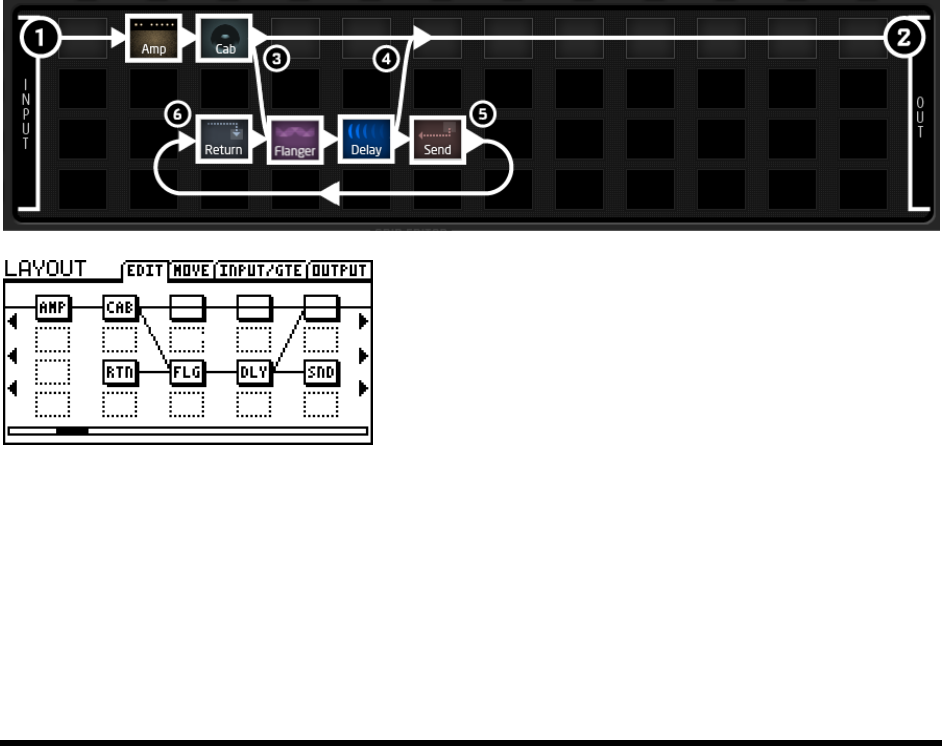
APPENDIX
160 Doc v3.04
16.12 Using Send and Return
The Feedback Send and Feedback Return blocks (p.65) have two main uses: creating feedback loops and extending
the length of effects chains beyond the size of the grid.
Creating Feedback Loops 16.12.1
Feedback loops allow you to combine effects in interesting ways and then route some of the output back to the
input. The figure below demonstrates this by using an exaggerated overlay of a preset illustration rendered in Axe-
Edit.
heard at the speakers. Meanwhile, a tap of this main line at (3) carries signal to a Flanger and a Delay, set to
500 ms, no feedback, 100% wet. Nothing comes out of the Delay for 500 ms. Then, the first flanged echo emerges
in the mix with the main line at (4), where it is heard at (2). This echo simultaneously enters the Send block (5) and
is routed to the Return (6). From here it again passes through the Flanger
pass throughand hits the delay again. This loop of Return Flanger Delay Send Return would continue
forever if the FB Re so that it gradually fades away. Each time the
loop exits the Delay, we get to listen in on the current state of things as it is routed through (4) to the output (2).
LEVEL controls the amount of feedback.
At left, the significant columns of this preset are shown as they
would appear on the display of the Axe-Fx II. Notice that on the
Axe-Fx II the connector from SEND to RETURN is not visible!
Countless variations of Send/Return loop presets are possible
when you use different effects, vary their order, or enter and tap
the loop in different places.
Extending the Length of Effect Chains 16.12.2
-aholi
way to break this virtual sound barrier and exceed the number of columns available in the grid. The Feedback Send
and Return can be used for just this purpose. Place a Send block at the end of your first long chain and place the
Return block at the beginning of another, setting the return MIX
other effects to the output as illustrated below.
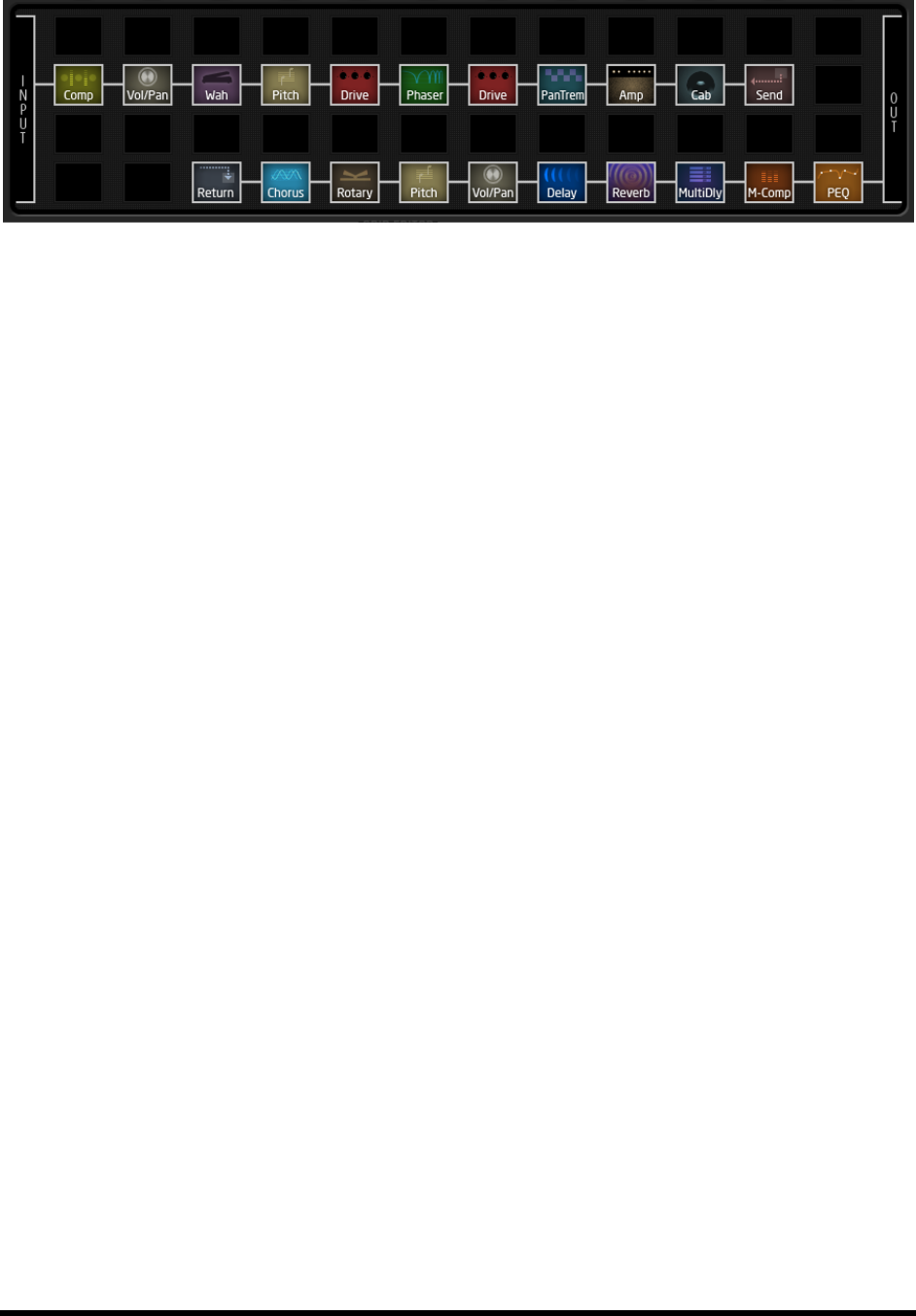
APPENDIX
Doc v3.04 161
Figure 16-3 A Giant Preset with SEND/RETURN
Oh, and his real preset with 19 effects hits just under 91% on the CPU load meter.
Sve gone for 20!
16.13 Loading User Cab IRs
The Axe-ning the
information required to reproduce the sound of a particular speaker cabinet. Commercial IR files are readily
available, and the Factory Cabs include several instances of cabs created using selections from the RedWirez and
Ownhammer collections. It is also possible, though not a trivial endeavor, to create your own IR files.
Axe-Fx II Impulse Responses are transferred into the unit as MIDI System Exclusive data. You can use Axe-Edit, our
free editor/librarian, or any 3rd-party MIDI utility to do this. Axe-Edit includes its own documentation. This section
focuses on using a 3rd-party MIDI utility such as MIIDI OX or Snoize Sysex Librarian. The process for sending User
Cab IR Files to the Axe-Fx II is as follows:
1. Ready the Axe-Fx II to receive the file:
a. Open any preset with the CABINET 1 block in it.
b. Select this block and press EDIT to open its EDIT menu.
c. Ensure that the MODE is set to MONO HI-RES or MONO LO-RES.
d. Change the CAB parameter to the numbered USER slot you wish to load into.
2. Connect the Axe-Fx II and the computer. This will typically be done using USB, but legacy MIDI also works.
3. Launch your MIDI Utility, ensure it is configured correctly to send SysEx to the Axe-Fx II, and ready it to send
the User IR SysEx file.
a. Remember to select the
For a USB connection to the Axe-Fx II, this will be AXE-FX II MIDI IN and AXE-FX II MIDI OUT.
4. Transmit the file from the computer to the Axe-Fx II. The Axe-Fx II will not show a progress bar, but its MIDI
IN LED will flash. If the IR File you transmitted has an embedded name, this will be displayed on the Axe-Fx
II in the bottom line of the CAB PG2 menu once the file has been received successfully. There is no need
to STORE or otherwise commit the change; it is permanent once complete.
Any User Cab IRs you have loaded into the Axe-Fx II are included when you backup or restore its System area. See
p. 143 for details.

APPENDIX
162 Doc v3.04
16.14 Glossary & Resources
4CM
A/D, D/A Converter: Analog-to-Digital or Digital-to-Analog Converter
ADSR: Technically, this stands for Attack, Decay, Sustain, Release but used as a noun it refers to an Envelope
ed to change parameter values in a
-
when set to loop, they can behave more like LFOs (below).
AES/EBU: Audio Engineering Society/European Broadcasting Union. The name applied to a professional audio
interface used for transferring digital audio between devices. AES for short. AES and S/PDIF both supply the same
audio data with slight differences in the frame bits.
Aliasing: Aliasing in digital audio refers to the phenomenon that happens when we try to reproduce frequencies
higher than one-half the sampling rate. See http://www.earlevel.com/main/1996/10/20/what-is-aliasing for an
excellent description.
Axe-Edit: The companion editor/librarian software for the Axe-Fx line. Download it from our web site at
http://www.fractalaudio.com
Balanced/Unbalanced: Balanced refers to audio signals designed to be carried over a three-conductor cable, which
minimizes unwanted noise and interference. Cables designed to carry balanced signals are called Balanced Cables
and usually use the XLR or Tip-Ring-Sleeve (TRS) connector end-types.
BPM: Beats per minute. A measure of musical tempo. The typical human heartbeat is about 6080 BPM.
CPU: Central Processing Unit.
dB
There are abundant resources about the science behind loudness, but simply making a few adjustments can get
your dB sense going.
Deg: Degrees (360ths of a circle) are used on the Axe-Fx II to specify differences in stereo LFO phase.
DSP: Digital Signal Processor/Processing.
Feedback: When an output is connected to an input, feedback occurs. The connection might change mediums, as it
input. It can also be direct, such as w
Four Cable Method (4CM): A rig design where the Axe-Fx II is used both
a tube amp. See p. 21 for a diagram and details.
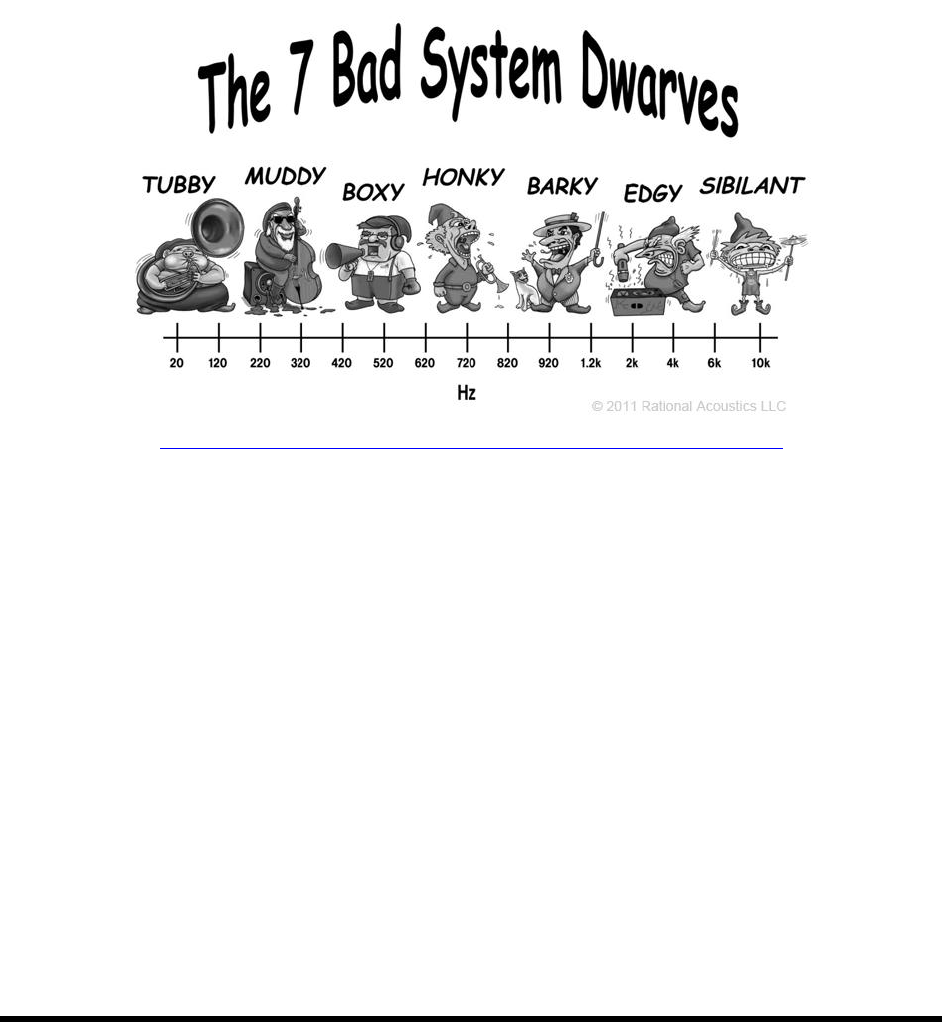
APPENDIX
Doc v3.04 163
FRFR
designed to reproduce the entire audible spectrum of 20 Hz 20kHz without emphasis or de-emphasis. It is
invariably an approximation.
Hz: Hertz. The number of times something happens in one second. 4 Hz = 4x/second. Low values for Hz are useful
to describe RATES
seconds). Hz are also the units used to plot low and high-frequency sounds. At the top of the frequency scale, units
thousands of cycles per secondare more useful. You will see both Hz and kHz on
learn to match the numbers with their effects on a sound. Check the web for more info, such as The Guitar Player
Book (2007, free on Google Books), or get yourself this cool t-shirt from Rational Acoustics:
http://www.rationalacoustics.com/store/goodies/7-bad-system-dwarves-t-shirt.html
I/O
IR: Impulse Response. An Impulse Response file is a collection of data representing sound measurements taken
from a speaker cabinet or system and used by the Axe-Fx II to enable the Cabinet block to emulate a particular
speaker cabinet. A test signal is played through the actual speaker, recorded, and used to generate a profile
utilized by the Axe-Fx II to reproduce the measured response.
Latency: In terms of effect processors, latency is an unwanted delay between what you play and what you hear.
The Axe-Fx II latency is so low that it is equivalent to standing just a few feet away from a tube amp.
LFO: Low Frequency Oscillator. An LFO creates control signals used to periodically change sounds in real time. The
back-and-forth sweep of a flanger or phaser, the sharp-flat wobble of a chorus, and the loud-soft pulse of tremolo
are each the result of an LFO at work.
MIDI: Musical Instrument Digital Interface.
ms: Milliseconds. Thousandths of a second. 500 ms is one half-second. 100 ms is 1/10th of a second.

APPENDIX
164 Doc v3.04
pF
Phantom Power: By leveraging an unused pair of copper wires inside of a MIDI or other cable, the Phantom Power
system allows a single cable to carry both MIDI data and power between the Axe-Fx II and a connected floor unit.
Phase: This term is used to describe the position of one waveform relative to another. When two similar waves are
in phase, their peaks and valleys will line up exactly, reinforcing one another. Waves that are out of phase have
their peaks and valleys in opposition, so while one is headed up, the other is headed down. An LFO Phase control
settings allows left and right sweeps to be either synchronized or offset from one another. An Audio Phase control,
(such as the one in the Enhancer block or the PHASE REVERSE parameters of the Delay, Chorus, Flanger, and other
effects) flips the polarity of an audio signal. (Some might say this turns the waveform upside down.) Combining
two identical audio signals of opposite phase results in complete silence, explaining why you need to be careful
when summing to mono any preset with blocks that invert phase or shift time alignment.
Resonance: Resonance is an increase in amplitude around certain frequencies. It results in the intensification or
prolongation of certain components of a sound. In the Axe-Fx II, it is most commonly used in descriptions of the
filter or parametric equalizer. At lower values, Q determines the slope of the effect, and at
higher settings, Q impacts the width and height of a peak that forms around the cutoff or center frequency.
S/PDIF: Sony/Philips Digital InterFace
Semitones/Cents (“ct” or “cts”): Used to measure musical pitch. A semitone is one half-step, a.k.a. 1/12th of an
octavethe difference heard from one guitar fret to the next. A cent is 1/100th of a semitoneextremely small in
terms of your ability to hear a difference. -Fx II Pitch Shifter and Synthesizer.
SysEx: Short for System Exclusive. A type of MIDI data that can be understood only by the particular make and
model of MIDI device that created it. On the Axe-Fx II, it is used for presets, banks, system backups, and User Cab
IR files, and to allow real-time control of the unit via a connected MFC-101 or computer running Axe-Edit (q.v.).

APPENDIX
Doc v3.04 165
16.15 Axe-Fx II Bank & Preset Numbers Table
The following table shows the BANK and PROGRAM CHANGE commands needed to recall an Axe-Fx II preset via
MIDI. Bank select commands persist until another valid bank select is received or the unit is rebooted. Remember
that DISPLAY OFFSET (p. 132) can add one (1) to all of the preset numbers (non-bold).
PC #
BANK A (CC#0 = 0)
BANK B (CC#0 = 1)
BANK C (CC#0 = 2)
PC#
BANK A (CC#0 = 1)
BANK B (CC#0 = 1)
BANK C (CC#0 = 2)
000
000
128
256
064
064
192
320
001
001
129
257
065
065
193
321
002
002
130
258
066
066
194
322
003
003
131
259
067
067
195
323
004
004
132
260
068
068
196
324
005
005
133
261
069
069
197
325
006
006
134
262
070
070
198
326
007
007
135
263
071
071
199
327
008
008
136
264
072
072
200
328
009
009
137
265
073
073
201
329
010
010
138
266
074
074
202
330
011
011
139
267
075
075
203
331
012
012
140
268
076
076
204
332
013
013
141
269
077
077
205
333
014
014
142
270
078
078
206
334
015
015
143
271
079
079
207
335
016
016
144
272
080
080
208
336
017
017
145
273
081
081
209
337
018
018
146
274
082
082
210
338
019
019
147
275
083
083
211
339
020
020
148
276
084
084
212
340
021
021
149
277
085
085
213
341
022
022
150
278
086
086
214
342
023
023
151
279
087
087
215
343
024
024
152
280
088
088
216
344
025
025
153
281
089
089
217
345
026
026
154
282
090
090
218
346
027
027
155
283
091
091
219
347
028
028
156
284
092
092
220
348
029
029
157
285
093
093
221
349
030
030
158
286
094
094
222
350
031
031
159
287
095
095
223
351
032
032
160
288
096
096
224
352
033
033
161
289
097
097
225
353
034
034
162
290
098
098
226
354
035
035
163
291
099
099
227
355
036
036
164
292
100
100
228
356
037
037
165
293
101
101
229
357
038
038
166
294
102
102
230
358
039
039
167
295
103
103
231
359
040
040
168
296
104
104
232
360
041
041
169
297
105
105
233
361
042
042
170
298
106
106
234
362
043
043
171
299
107
107
235
363
044
044
172
300
108
108
236
364
045
045
173
301
109
109
237
365
046
046
174
302
110
110
238
366
047
047
175
303
111
111
239
367
048
048
176
304
112
112
240
368
049
049
177
305
113
113
241
369
050
050
178
306
114
114
242
370
051
051
179
307
115
115
243
371
052
052
180
308
116
116
244
372
053
053
181
309
117
117
245
373
054
054
182
310
118
118
246
374
055
055
183
311
119
119
247
375
056
056
184
312
120
120
248
376
057
057
185
313
121
121
249
377
058
058
186
314
122
122
250
378
059
059
187
315
123
123
251
379
060
060
188
316
124
124
252
380
061
061
189
317
125
125
253
381
062
062
190
318
126
126
254
382
063
063
191
319
127
127
255
383

APPENDIX
166 Doc v3.04
16.16 Factory Default Settings
GLOBAL CONFIG
Power Amp Simulation: ON
Cabinet Simulation: ON
Spillover: BOTH
Global Amp Gain: +0%
Global Reverb Mix (offset): +0%
Global Effects Mix (offset): +0%
GLOBAL OUT 1
EQ: All bands flat (0.00)
GAIN: Flat (0.00)
GLOBAL OUT 2
EQ: All bands flat (0.00)
GAIN: Flat (0.00)
GLOBAL SCALES
All scales (1-32), all degrees (AG#): -24 semitones
TUNER
Calibration: A4=440.0 Hz
Mute: OFF
Use Offsets: OFF
Offsets (E,A,D,G,B,E): 0.0 cts
I/O INPUT
Instrument Input Level: 49.8%
Input 1 Level: 49.8%
Input 2 Level: 49.8%
I/O AUDIO
Main Input Source: ANALOG (IN 1)
Input 1 Left Select: FRONT
Input 1 Mode: LEFT ONLY
Input 2 Mode: LEFT ONLY
Output 1 Mode: STEREO
Output 1 Boost/Pad: 0 dB
Output 1 Phase: NORMAL
Output 2 Mode: STEREO
Output 2 Boost/Pad: 0 dB
Output 2 Phase: NORMAL
Copy Out 1 to Out 2: OFF
S/PDIF / AES/EBU Select: S/PDIF
USB / S/PDIF Out Source: OUTPUT 1
I/O MIDI
MIDI Channel: 1
MIDI Thru: OFF
Receive Program Change: ON
Mapping Mode: NONE

APPENDIX
Doc v3.04 167
(All 127 custom map entries) 1:1 (ex: 1=1, 2=2, 127=127)
SysEx ID: 00 01 74 (cannot be changed)
Display Offset: 0
Ignore Redundant Program Change: OFF
Send Realtime SysEx Messages: ALL ( = Tempo and Tuner)
MIDI Program Change Offset: 0
External Controllers 1-12 initial value: 0%
USB Adapter Mode: OFF
I/O CONTROL
Default CC assignments appear in the table below:
Function
CC
Function
CC
Function
CC
Input Volume
10
Delay 1 Bypass
47
Reverb 1 Bypass
83
Out 1 Volume
11
Delay 2 Bypass
48
Reverb 2 Bypass
84
Out 2 Volume
12
Drive 1 Bypass
49
Ring Modulator Bypass
85
Bypass
13
Drive 2 Bypass
50
Rotary 1 Bypass
86
Tempo
14
Enhancer Bypass
51
Rotary 2 Bypass
87
Tuner
15
Filter 1 Bypass
52
Synth 1 Bypass
88
External Control 1
16
Filter 2 Bypass
53
Synth 2 Bypass
89
External Control 2
17
Filter 3 Bypass
54
Tremolo 1 Bypass
90
External Control 3
18
Filter 4 Bypass
55
Tremolo 2 Bypass
91
External Control 4
19
Flanger 1 Bypass
56
Vocoder Bypass
92
External Control 5
20
Flanger 2 Bypass
57
Volume/Pan 1 Bypass
93
External Control 6
21
Formant 1 Bypass
58
Volume/Pan 2 Bypass
94
External Control 7
22
FX Loop Bypass
59
Volume/Pan 3 Bypass
95
External Control 8
23
Gate/Expander 1 Bypass
60
Volume/Pan 4 Bypass
96
External Control 9
24
Gate/Expander 2 Bypass
61
Wahwah 1 Bypass
97
External Control 10
25
Graphic EQ 1 Bypass
62
Wahwah 2 Bypass
98
External Control 11
26
Graphic EQ 2 Bypass
63
Amp 1 X/Y
100
External Control 12
27
Graphic EQ 3 Bypass
64
Amp 2 X/Y
101
Looper Record
28
Graphic EQ 4 Bypass
65
Cab 1 X/Y
102
Looper Play
29
Megatap Delay Bypass
66
Cab 2 X/Y
103
Looper Once
30
Multi Delay 1 Bypass
67
Chorus 1 X/Y
104
Looper Dub
31
Multi Delay 2 Bypass
68
Chorus 2 X/Y
105
Looper Rev
32
Multiband Comp 1 Bypass
69
Delay 1 X/Y
106
Looper Bypass
33
Multiband Comp 2 Bypass
70
Delay 2 X/Y
107
Global Bypass
34
Parametric EQ 1 Bypass
71
Drive 1 X/Y
108
Volume Increment
35
Parametric EQ 2 Bypass
72
Drive 2 X/Y
109
Volume Decrement
36
Parametric EQ 3 Bypass
73
Flanger 1 X/Y
110
Amp 1 Bypass
37
Parametric EQ 4 Bypass
74
Flanger 2 X/Y
111
Amp 2 Bypass
38
Phaser 1 Bypass
75
Phaser 1 X/Y
112
Cab 1 Bypass
39
Phaser 2 Bypass
76
Phaser 2 X/Y
113
Cab 2 Bypass
40
Pitch Shifter 1 Bypass
77
Pitch 1 X/Y
114
Chorus 1 Bypass
41
Pitch Shifter 2 Bypass
78
Pitch 2 X/Y
115
Chorus 2 Bypass
42
Quad Chorus 1 Bypass
79
Reverb 1 X/Y
116
Compressor 1 Bypass
43
Quad Chorus 2 Bypass
80
Reverb 2 X/Y
117
Compressor 2 Bypass
44
Resonator 1 Bypass
81
Wahwah 1 X/Y
118
Crossover 1 Bypass
45
Resonator 2 Bypass
82
Wahwah 2 X/Y
119
Crossover 2 Bypass
46
I/O PEDAL
Pedal Type: CONTINUOUS
Preset Increment: OFF
Preset Start: 0
Preset End: 0
Pedal Cal: (No Setting)
I/O XY
X Quick Jump: AMP 1
Y Quick-Jump: AMP 1
SPECIFICATIONS
168 Doc v3.04
17 Specifications
FRONT PANEL INPUT
Connector:
Impedance: 1 MegaOhm (less if Input Impedance is active)
Max. Input Level: +16 dBu (conditioned for guitar use)
REAR INPUTS
Connector:
Impedance: 1 MegaOhm
Max. Input Level: +20 dBu
A/D CONVERSION
Bit Depth: 24 bits
Sample Rate: 48 kHz
Dynamic Range: > 110 dB
Frequency Response: 20 20kHz, +0 / -1 dB
Crosstalk: < -60 dB over full bandwidth
ANALOG OUTPUTS
Connectors: -canceling), XLR balanced (for main output)
Impedance: 600 ohm
Max Output Level: +20 dBu
Dynamic Range: > 110 dB
Frequency Response: 20 20kHz, +0 / -1 dB
Crosstalk: < -60 dB over full bandwidth
DIGITAL I/O
Connectors: RCA Coaxial Type for S/PDIF I/O, XLR for AES I/O
Format: S/PDIF 24 bit
Sample Rate: 48 kHz
MIDI INTERFACE
Input Connector: 7-pin DIN (pins 6 & 7 connected to phantom power in jack)
Out/Thru Connector: 5-pin DIN
PEDAL INTERFACE
Connector:
Format: Switch: Momentary or Latching; Pedal: 10
MFC INTERFACE:
Connector: RJ-
IMPORTANT: Do NOT connect this to a computer or router/switch/hub!
This jack is only intended for connection to an MFC MIDI Foot Controller.
GENERAL
Finish: Powder coated steel chassis with anodized aluminum faceplate
Display: 160x80 dot matrix graphic LCD
Dimensions: × 88 × 362 mm)
Weight: 10 lbs. (4.5 kg)
Input Voltage: 100240 VAC, 47 63 Hz (universal input)
Power Consumption: <40 W
Backup Battery Life: >10 years
Backup Battery Type: CR2450 Lithium
ENVIRONMENTAL
Operating Temperature: 32 to 122 °F (0 to 50 °C)
Storage Temperature: -22 to 167 °F (-30 to 70 °C)
Humidity: Max. 90% non-condensing
Specifications subject to change without notice.

SPECIFICATIONS
Doc v3.04 169
17.1 Midi Implementation Chart
NOTE: MFC-101 Presets and Instant Access Switches have the capability to send custom MIDI data, entered
Function
Transmitted
Received
Remarks
Basic Channel
Default
Changed
1
1-16
1
1-16
Note Number
True Voice
X
X
Velocity
Note ON
Note OFF
X
X
X
X
After Touch
Keys
Channels
X
X
X
X
Pitch Bend
X
X
Control Change
X
O
CCs are GLOBALLY soft-assigned to functions via the I/O:CTRL menu.
These include INPUT volume, OUTPUT 1 and OUTPUT2 master volume,
Global Bypass, Tap Temp
(assignable as modifiers to one or more parameters on a per-preset
basis), all LOOPER functions, the BYPASS switch of every block instance
AMP1, AMP2, CAB1, CAB2, etc.), and the X/Y switches of the 20 block
types that support this function (AMP1, AMP2, etc.).
Program Change
True Number
Bank Select
X
X
O
O
Bank Select and Program Change messages may be used to recall the
384 presets of the Axe-Fx II. The unit also supports custom program
change mapping utilizing a FROMTO table with 127 entries.
BANK select messages are persisted until a subsequent valid Bank Select
is received.
System Exclusive
Fractal Audio
Real-Time
Non-Real-Time
O
O
X
O
X
X
The list of parameters that can be controlled/edited via SysEx is too
large to list here. Real-time SysEx is used to transmit Tempo and Tuner.
System Common
Song Position
Song Select
Tune Request
X
X
X
X
X
X
System Real-Time
Clock
Commands
X
X
O
X
Axe-Fx II Global Tempo syncs automatically to MIDI Beat Clock.
Auxiliary Messages
Local ON/OFF
All Notes OFF
Active Sense
Reset
X
X
X
X
X
X
X
X
0 = YES, X=NO

170 Doc v3.04
Warranty
Fractal Audio Systems warrants that your new Fractal Audio Systems product shall be free of defects in materials and
workmanship for a period of one (1) year from the original date of purchase.
During the warranty period, Fractal Audio Systems shall, at its sole option, either repair or replace any product that proves to
be defective upon inspection by Fractal Audio Systems.
Fractal Audio Systems reserves the right to update any unit returned for repair and to change or improve the design of the
product at any time without notice. Fractal Audio Systems reserves the right to use reconditioned parts and assemblies as
warranty replacements for authorized repairs. This warranty is extended to the original retail purchaser.
This is your sole warranty. Fractal Audio Systems does not authorize any third party, including any dealer or sales
representative, to assume any liability on behalf of Fractal Audio Systems or to make any warranty for Fractal Audio Systems.
Fractal Audio Systems may, at its option, require proof of original purchase date in the form of a dated copy of original
Service and repairs of Fractal Audio Systems products are to be performed only at
the Fractal Audio Systems factory or a Fractal Audio Systems authorized service center. Fractal Audio Systems may require
advanced authorization of repairs to authorized service centers. Unauthorized service, repair or modification will void this
warranty.
DISCLAIMER AND LIMITATION OF WARRANTY
THE FOREGOING WARRANTY IS THE ONLY WARRANTY GIVEN BY FRACTAL AUDIO SYSTEMS AND IS IN LIEU OF ALL OTHER
WARRANTIES. ALL IMPLIED WARRANTIES, INCLUDING WARRANTIES OF MERCHANTABILITY AND FITNESS FOR ANY PARTICULAR
PURPOSE, EXCEEDING THE SPECIFIC PROVISIONS OF THIS WARRANTY ARE HEREBY DISCLAIMED AND EXCLUDED FROM THIS
WARRANTY. UPON EXPIRATION OF THE APPLICABLE EXPRESS WARRANTY PERIOD (1 YEAR), FRACTAL AUDIO SYSTEMS SHALL
HAVE NO FURTHER WARRANTY OBLIGATION OF ANY KIND, EXPRESS OR IMPLIED. FRACTAL AUDIO SYSTEMS SHALL IN NO EVENT
BE LIABLE FOR ANY SPECIAL, INCIDENTAL OR CONSEQUENTIAL DAMAGES SUFFERED BY THE PURCHASER OR ANY THIRD PARTY,
INCLUDING WITHOUT LIMITATION, DAMAGES FOR LOSS OF PROFITS OR BUSINESS, OR DAMAGES RESULTING FROM USE OR
PERFORMANCE OF THE PRODUCT, WHETHER IN CONTRACT OR IN TORT. FRACTAL AUDIO SYSTEMS SHALL NOT BE LIABLE FOR
ANY EXPENSES, CLAIMS, OR SUITS ARISING OUT OF OR RELATING TO ANY OF THE FOREGOING. Some states do not allow the
exclusion or limitation of implied warranties so some of the above limitations and exclusions may not apply to you. This
warranty gives you specific legal rights, and you may also have other rights, which vary, from state to state. This warranty only
applies to products sold and used in the USA and Canada. Fractal Audio Systems shall not be liable for damages or loss resulting
from the negligent or intentional acts of the shipper or its contracted affiliates. You should contact the shipper for proper
claims procedures in the event of damage or loss resulting from shipment.
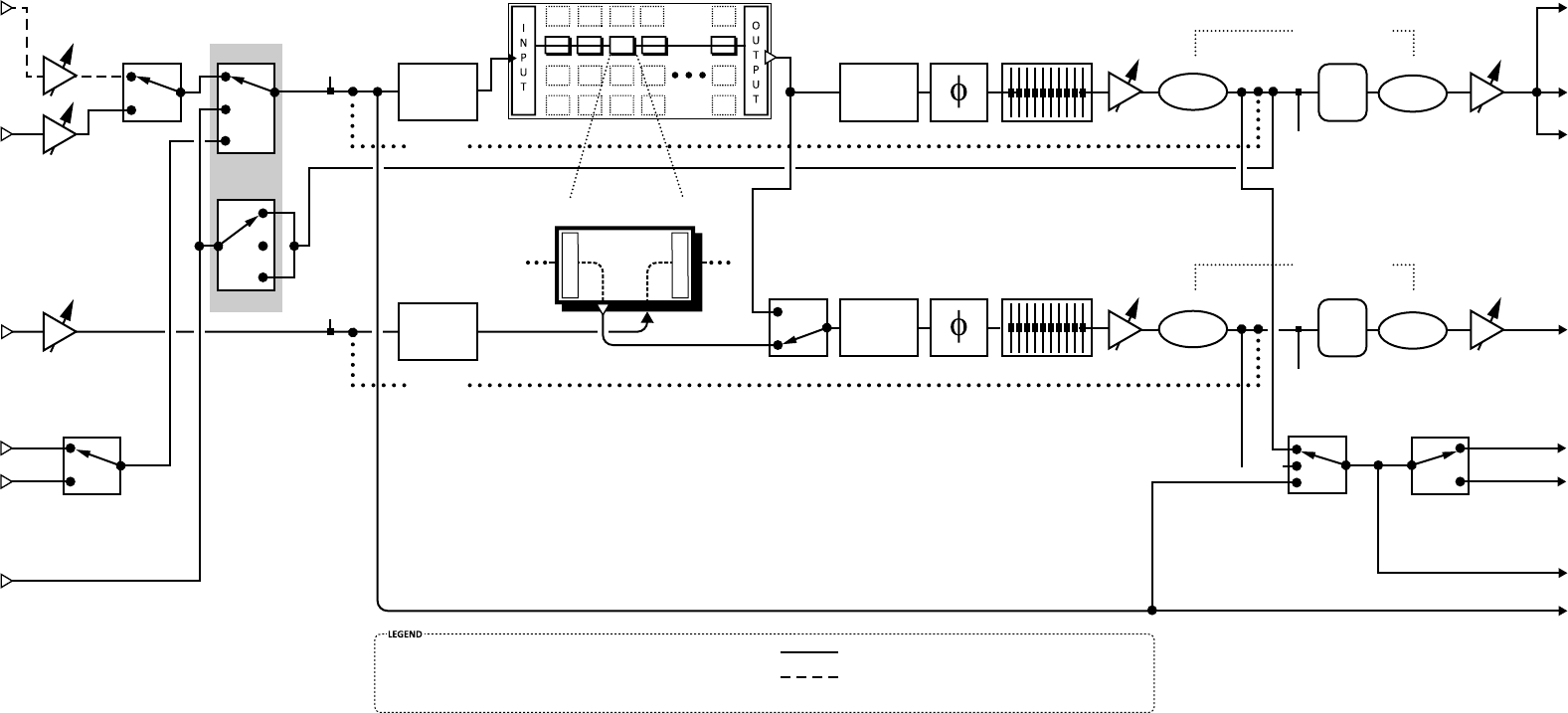
Instrument
(Front)
HARDWARE
Parameter Names
PARAMETER VALUES
Stereo
Mono
Out 1
Global
GEQ
Out 1
Phase
Out 2
Phase
Out 1
Global
Gain
OUTPUT
LEVEL1
(Knob)
OUT 1CLIP
OUT 2 CLIP
OUTPUT
LEVEL1
(Knob)
OUT2 L+R
(“FX Send”)
S/PDIF Out
USB/DIGI
Out Source
SPDIF/AES
Select*
ON
OFF
S/PDIF
AES
OUT1
INPUT
“FXL”
I
N
P
U
T
O
U
T
P
U
T
OUT1 L+R
PHONES
Out 2
Global
GEQ
Copy
Out 1 to
Out 2
Out 2
Global
Gain
Instr
In
Input 1
AES Out
USB 0/1
USB 2/3
IN2 L+R Bal
(”FX Return”)
S/PDIF In
AES In
USB In
SPDIF/AES
Select*
S/PDIF
AES
Out 1
Boost/Pad
D/A
D/A
Out 1
Mode
Input 1
Mode
Input 2
Mode
Main
Input
Source
Input 1
Le
Select
Out 2
Mode
I/O: INPUT Menu
I/O: AUDIO Menu
GLOBAL:OUT 1&2 Menus
STEREO
SUM L+R
COPY L>R
LEFT ONLY
L+R SUM
STEREO
LEFT ONLY
L+R SUM
STEREO
STEREO
SUM L+R
COPY L>R
NORMAL
NORMAL
INVERT +/- 12 dB
-18–0 dB
-18–0 dB
0–18 dB
0–18 dB
+/- 12 dBINVERT
ANALOG
FRONT
REAR
FXL
“The Grid”
“Effects Loop” Block
boost
(and METER)
(and METER)
boost
pad
Out 2
Boost/Pad
pad
OUT 2
IN1 L+R Bal.
(Rear)
OUT1 L+R Bal.
(XLR)
SPDIF/AES Select acts on
both inputs and outputs.
*
Input 2
USB
ANALOG
USB
SPDIF/AES
SPDIF/AES
IN 2 METER IN 1 METER
BYPASS
BYPASS
Axe-Fx II Input/Output Hardware & Parameters Guide
Le channel selected by INPUT 1 LEFT SELECT
Right channel taps INPUT 1 R jack
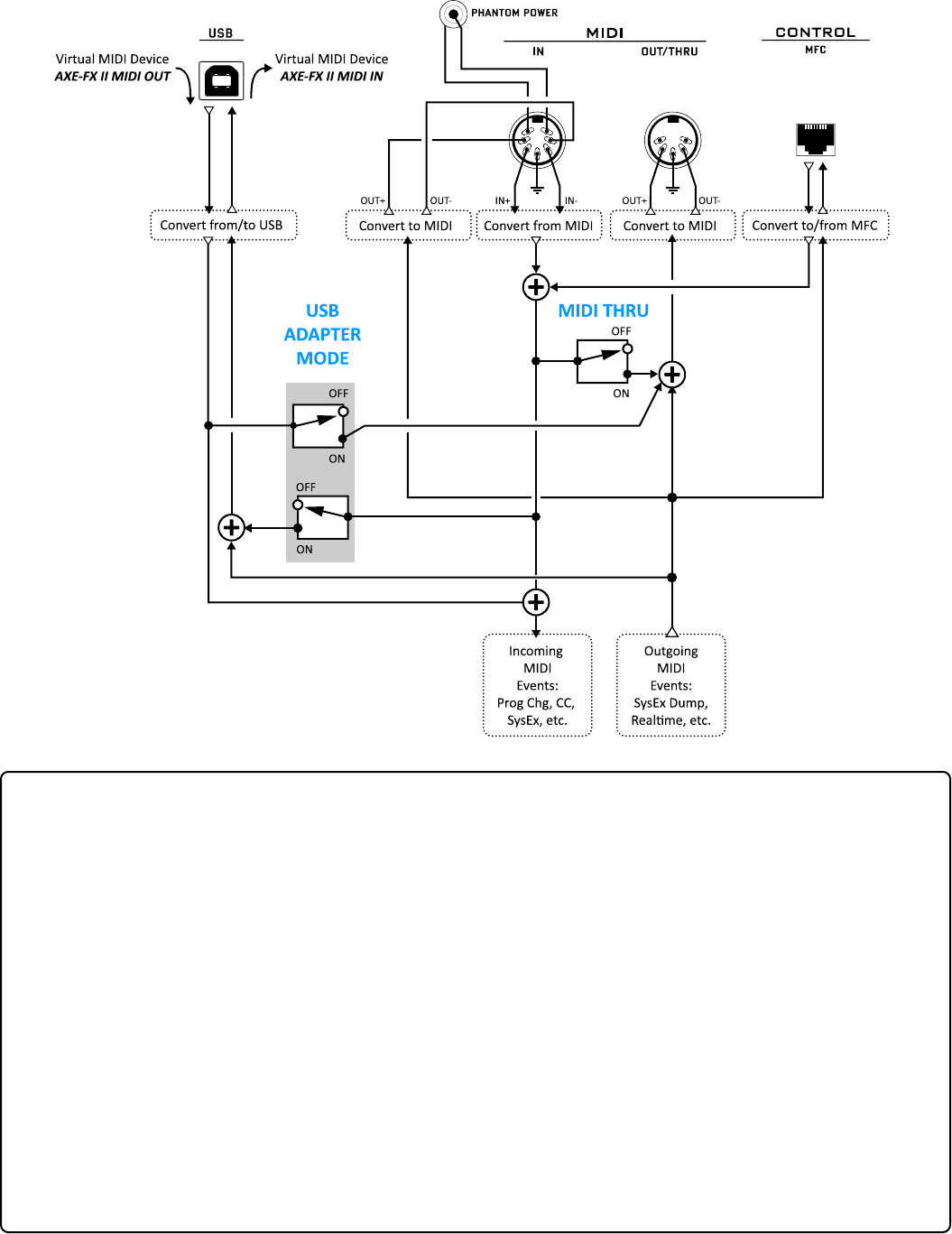
Axe-Fx II MIDI Roung and Parameters
Outgoing MIDI generated by the Axe-Fx II is sent to all outputs (“dumps” are to MIDI or USB.)
a. The MIDI OUT port.
b. The MIDI out pins of the bidireconal MIDI IN port.
c. The MFC port.
d. The AXE-FX II MIDI INPUT of a connected computer.
Incoming MIDI is always processed by the Axe-Fx II, whether received from:
a. The AXE-FX II MIDI OUTPUT of a connected computer.
b. The MIDI IN port.
c. The MFC port.
When the I/O:MIDI:MIDI Thru parameter is set to “ON”, MIDI received at the MIDI IN port or MFC
port is forwarded to the MIDI OUT port (where it is merged with regular outbound messages).
When the I/O:MIDI:USB Adapter Mode parameter is set to “ON,” two things happen:
a. MIDI from the Axe-Fx II MIDI Output of a connected computer is forwarded to the
MIDI OUT port of the Axe-Fx II (where it is merged with regular outbound messages).
b. Incoming data at the MIDI IN port or the MFC port of the Axe-Fx II is forwarded
to the AXE-FX II MIDI INPUT of a connected computer.
1.
2.
3.
4.
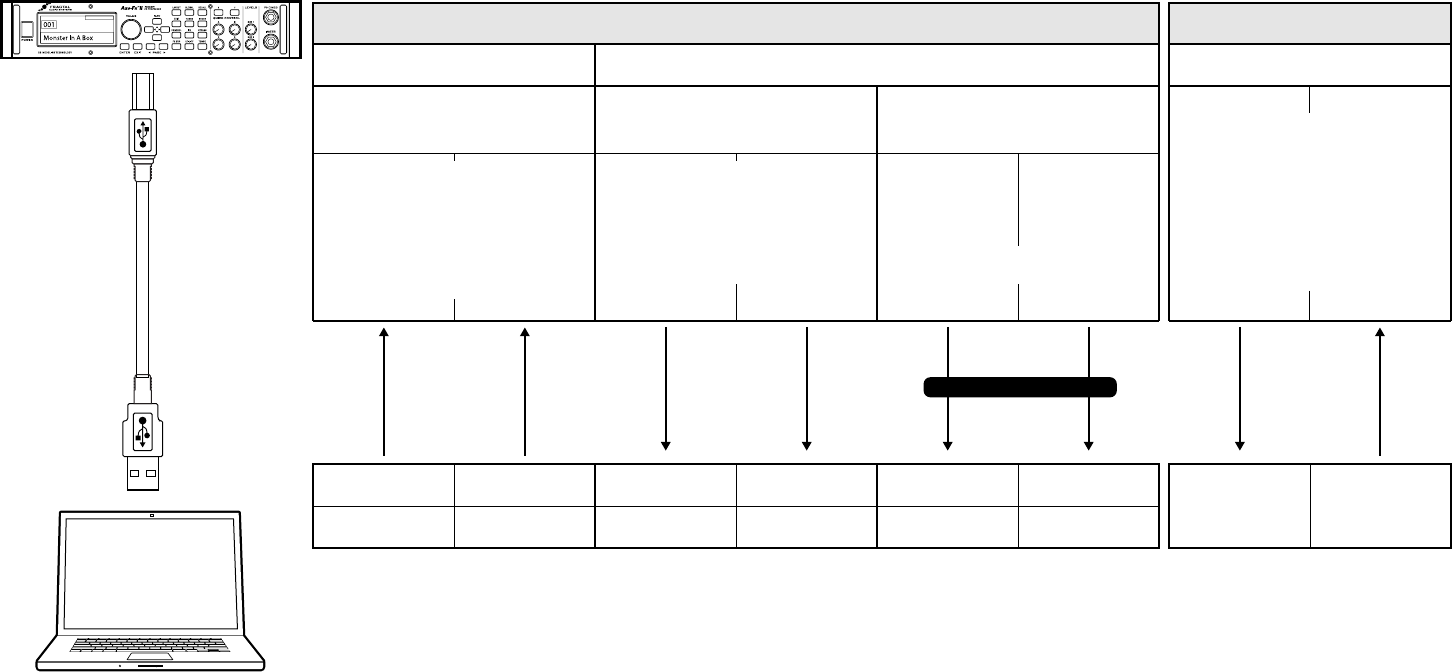
Mac or PC
meeng
minimum
requirements
Axe-Fx II
USB
USB
“2×4” AUDIO
Axe-Fx II to Computer
Select an Output Source
Win
Mac
Route the Input Dry Outs for Re-Amping
LEFT taps the front
INSTR jack or rear
INPUT1 L/MONO
jack, based on
I/O:AUDIO:
INPUT 1 LEFT SELECT
RIGHT taps the rear
INPUT 1 R jack
1 21 2 3 4
Computer to Axe-Fx II
I/O: AUDIO: USB DIGI OUT SOURCE
selects between:
“OUT1L+R” (The Grid)
“OUT2L+R” (Typically FX Loop)
or “INPUT 1” (Dry).
Same signal also feeds SPDIF/AES outs.
AXE-FX II ASIO
DRIVER IN 0
AXE-FX II ASIO
DRIVER IN 1
AXE-FX II
AUDIO IN LEFT
AXE-FX II
AUDIO IN RIGHT
AXE-FX II
AUDIO IN 2 LEFT
AXE-FX II
AUDIO IN 2 RIGHT
AXE-FX II
AUDIO OUT LEFT
AXE-FX II
AUDIO OUT RIGHT
AXE-FX II ASIO
DRIVER IN 2
AXE-FX II ASIO
DRIVER IN 3
AXE-FX II ASIO
DRIVER OUT 0
AXE-FX II ASIO
DRIVER OUT 1
L+R are routed based on
I/O:AUDIO:MAIN INPUT SOURCE
“USB” routes to the grid for processing.
Other opons mix computer audio
with processed signals at the
OUTPUT 1 L+R jacks.
“1×1” MIDI
2-Way
2-way high speed MIDI over USB enables
control, eding, and backup/restore.
The MIDI IN and OUT/ THRU
jacks can also be ulized by the
computer as a MIDI Interface,
based on the seng for
I/O:MIDI:USB ADAPTER MODE
AXE-FX II
MIDI IN
AXE-FX II
MIDI OUT
Requires USB 2.0 or beer
Record the processed output of the
Axe-Fx II to your sequencer or other
audio applicaon. Alternately, capture
the signal from the FX LOOP block, or,
on systems which don’t support USB
2.0, record the dry signal from input 1.
USB 2.0 (or beer) systems also allow
you to record the dry unprocessed
signal from input 1 (stereo) at the same
me you’re capturing the main
processed outputs. Use these raw
tracks for re-amping or reference.
Play audio tracks into the Axe-Fx II for
processing (such as re-amping) or send
them directly to the main outs so you
can jam along with backing tracks,
perform on a so synth, or monitor a
project in your DAW/sequencer.
Send MIDI from your sequencer to the
Axe-Fx II, or connect to Axe-Edit for
eding, firmware updates and more.
Receive SysEx backups on the computer,
or use the HW MIDI IN/OUT ports like a
standalone interface for 3rd party gear.
Axe-Fx II USB Features
