Medialink MWN-USB150N Wireless-N USB Adapter User Manual 54M User Guide FCC
Medialink Products, LLC Wireless-N USB Adapter 54M User Guide FCC
user manual

Copyright Statement
Medialink is the registered trademark of Shenzhen
Tenda Technology Co., Ltd. All the products and
product names mentioned herein are the trademarks
or registered trademarks of their respective holders.
Copyright of the whole product as integration,
including its accessories and software, belongs to
Shenzhen Tenda Technology Co., Ltd. Without the
permission of Shenzhen Tenda Technology Co., Ltd,
any individual or party is not allowed to copy,
plagiarize, imitate or translate it into other languages.
All the photos and product specifications mentioned in
this guide are for references only. As the upgrade of
software and hardware, there will be changes. And if
there are changes, Tenda is not responsible for
informing in advance. If you want to know more about
our product information, please visit our website at
www.tenda.cn.
Table of Content
Chapter 1 Introduction ..................................................... - 1 -
1.1 Product Feature.................................................... - 1 -
1.2 Product Deployment ........................................... - 2 -
1.3 Indicator Description.......................................... - 3 -
1.4 Package Contents................................................ - 4 -
Chapter 2 Installation Guide........................................... - 5 -
Chapter 3 Client Utility Interface.................................- 10 -
3.1 Station Mode.........................................................- 11 -
3.1.1 Station Mode Topology.............................- 11 -
3.1.2 Status .............................................................- 12 -
3.1.3 Site Survey...................................................- 13 -
3.1.4 Profile Management...................................- 14 -
3.1.5 Statistics........................................................- 15 -
3.1.6 WPS Setting..................................................- 15 -
3.2 AP Mode..................................................................- 17 -
3.2.1 AP Mode Topology......................................- 17 -
3.2.2 Basic Setting................................................- 18 -
3.2.3 Security Setting..........................................- 18 -
3.2.4 Access Control.............................................- 19 -
3.2.5 About ..............................................................- 21 -
Appendix One: Acronyms and Terms.........................- 22 -
Appendix Two: Product Specification..........................- 25 -
Appendix Three: How to connect with PSP..............- 26 -
- 1 -
Chapter 1 Introduction
MWN-USB150N Wireless USB Adapter complies with
IEEE802.11b, IEEE 802.11n standards with up to
54Mbps transmission rate.
Soft AP can help you establish wireless LAN networking
with lowest cost. Besides, PBC and PIN encryption
methods from WPS (Wi-Fi Protected Setup) can free
you from remembering long passwords. Moreover,
complete WMM support makes your voice and video
more smooth. Especially supporting PSP, NDS and WII
connections with Xlink Kai will be your best choice to
enjoy on-line games.
1.1 Product Feature
• Supports IEEE802.11n and IEEE802.11b
standards
• Provides USB2.0 port
• Provides two work modes: Infrastructure
Mode and Ad-Hoc Mode
- 2 -
• Provides up to 130Mbps maximum
transmission rate
• Auto-detects and changes the network
transmission rate
• Supports Soft AP to establish your wireless
LAN networking
• supports PSP, WII and NDS connecting with
Internet and Xlink Kai to enjoy on-line gaming
• Supports 64/128-bit WEP, WPA, WPA2
encryption methods
• Supports WPS (Wi-Fi Protected Setup)
encryption method to secure your networking
strongly
• Supports WMM to make your voice and video
more smooth
• Easy-to-install, plug and play
1.2 Product Deployment
MWN-USB150N Wireless USB Adapter offers
fast, reliable and cost- effective solution for
- 3 -
wireless access. Deployment as follows;
• For staff who requires higher mobility in the
office, they want to have access to traditional
wired or wireless network in any place of the
company;
• Enterprise or individual who requires often
changes in lay out of network cables;
• Companies or places which are not suitable for
LAN cable laying out because of budget or
objective building, including places of great
interests, rent places or places for short-term
usage;
• Company or individual who avoids using
expensive cables, renting cables or renting
rights for access.
1.3 Indicator Description
In the front panel of MWN-USB150N, there is a LED
- 4 -
indicator blinking when data communication is going
on.
1.4 Package Contents
Unpack the packets, and please find the following
items:
¾ One MWN-USB150N Wireless USB Adapter
¾ One CD-ROM
- 5 -
Chapter 2 Installation Guide
This chapter is to assist you how to use the included
CD-ROM which comprises the Setup Wizard and the
Client Utility Interface.
The following steps on Setup Wizard are taken the
Windows XP as example.
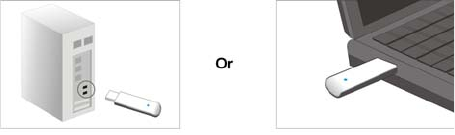
1. Please insert the Wireless USB Adapter into the
USB port of your computer.
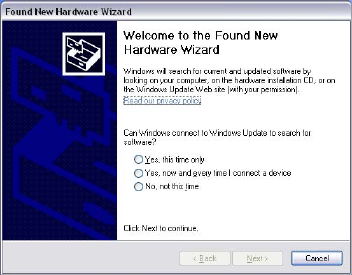
2. “Found New Hardware” system dialogue appears,
and selects “Cancel” to use the included Setup
Wizard for fast installation; of course, you also can
select “Next” to install by manual.
- 6 -
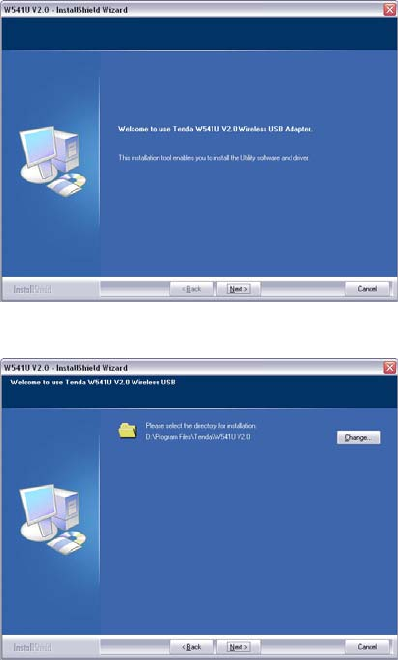
3. Inert the included CD-ROM into the CD-ROM
drive of your computer, and the Welcome screen
appears. (If not appear, double click the
“Setup.exe” icon.)
4. Click “Enter”.
- 7 -
5. Click “Next” to start installing.
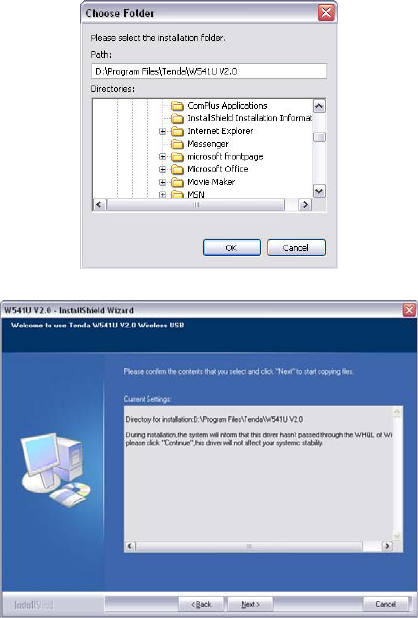
6. Click “Change…” to select the directory path, or
click “Next”.
- 8 -
7. Select “OK” and “Next” in the following window.
8. During the installation, the following dialogue
maybe appears. Click the “Continue Anyway” to
continue. There is no security threat to your
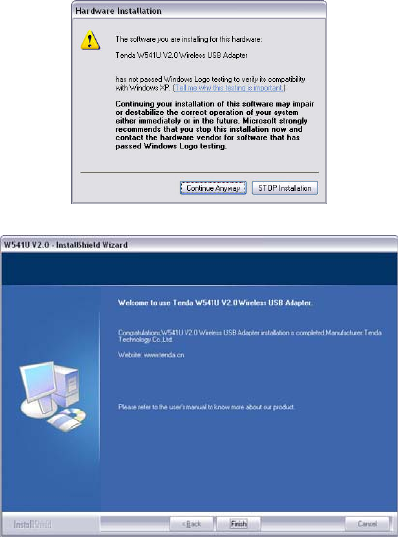
- 9 -
computer.
9. Click “Finish” to complete the installation.

- 10 -
Chapter 3 Client Utility Interface
This software is for the MWN-USB150N Wireless USB
Adapter management. If it does not appear, select
“Start”—“All Programs”
—“Medialink”—“ MWN-USB150N”, or click the shortcut
on your PC’s desktop.
Note:
In the Windows XP, you can select the included
MWN-USB150N Client Utility Interface or the
Windows XP internal wireless application to
configure the device.
There are two client utility applications in
MWN-USB150N: Station mode and AP mode.
Note:
In this utility interface, Station Mode (Client Mode)
is the default access way.
- 11 -
3.1 Station Mode
3.1.1 Station Mode Topology
In this mode, MWN-USB150N serves as a client to
receive the wireless signals to access the Internet.
- 12 -
3.1.2 Status
In the Network Status window, it displays something
on wireless adapter and wireless network status,
including SSID, Authentication type, Encryption Type,
IP address, subnet mask and gateway and so on.
- 13 -
3.1.3 Site Survey
The Site Survey is used to scan the available wireless
network around, showing the wireless network’s signal
strength and other information which provides basis
for you to access which wireless network.
Connect: select one entry in the wireless network
list and click the button to connect the device with
the selected network.
Refresh: rescan the wireless network around.
- 14 -
3.1.4 Profile Management
This window saves the general wireless parameters for
different profiles, which is used to fast connect the
wireless network you need.
UP/DOWN: To change the profile’s sequence in
the list.
Connect: To activate one profile.
New: To create a new profile and configure the
site status and security setting.
Modify: To modify one existing profile.
Delete: To delete one existing profile.
(Security Setting)
- 15 -
3.1.5 Statistics
Statistics is used to summarize Rx and Tx data packets,
including the success and error packet amount.
Clear: click this button to renew the statistics.
3.1.6 WPS Setting
WPS setting is enabled only on WPS-compliant
devices.
PIN: Enter the Pin code and click the “PIN” to
automatically connect the wireless adapter with
wireless devices around.
PBC: Click the “PBC” to complete auto-check and
connections between wireless adapter and other
wireless device.
Refresh: to update the Pin code.
Rescan: to rescan the WPS-compliant wireless
network around.
Disconnect: to disconnect the connected wireless
- 16 -
network.
- 17 -
3.2 AP Mode
3.2.1 AP Mode Topology
The device also can serve as an access point to
transmit wireless signals and create wireless network,
allowing other wireless clients to access the network.
Click the AP Mode icon to enter the AP Mode interface.
- 18 -
3.2.2 Basic Setting
This window is used to configure the AP’s basic para-
meters, including SSID, Wireless Mode and Channel.
SSID: Wireless network’s ID name scanned by
wireless adapter.
Wireless Mode: 802.11b/802.11g/802.11b/g
mixed.
Channel: 1~11 channels provided.
Restore Default: to restore the set parameters to
default factory default settings.
Apply: to make the changes made take effect.
3.2.3 Security Setting
This window is used to configure the wireless
network’s security authentication, providing WEP,
WPA-PSK, WPA2-PSK, and WPA-PSK/WPA2-PSK
encryption methods.
WEP:10/26 bits Hex or 5/13 ASCII support.
WPA-PSK:8~32 bits ASCII support.
WPA2-PSK:8~32 bits ASCII support.

- 19 -
WPA-PSK/WPA2-PSK:8~32 bits ASCII support.
Note:
1. The Hex characters include 0~9 numbers and
a~f letters.
2. ASCII characters include any numbers/letters
and characters.
3.2.4 Access Control
Access Control is based on the MAC address to decide
that the specified client connects to the wireless
network, or disables it to access the wireless network.
Filter Policy:
Disabled: to disable the filter function.
All Permitted: to permit all clients in the list to
access the wireless network.
All Blocked: to refuse all clients in the list to
access the wireless network.
- 20 -
MAC Address:to input the client’s MAC address to
implement the corresponding filter policy. For
example: b0000a8cd702.
Add: to add the entered MAC address into the list.
Delete: to delete one existing MAC address in the
list.
Remove All: to delete all clients’ MAC address in
the list.
Apply: to make the changes made take effect.
- 21 -
3.2.5 About
This window displays something about software
version and wireless adapter.
- 22 -
Appendix One: Acronyms and Terms
WLAN Wireless Local Area Network
802.11 A family of specifications developed by
the IEEE for WLAN technology.
802.11a An extension to 802.11 WLAN standard
that provides up to 54 Mbps transmis-
sion in the 5 GHz UNI radio band.
802.11b An extension to 802.11 WLAN standard
that provides up to 11 Mbps
transmission in the 2.4 GHz ISM radio
band. 802.11b uses DSSS modulation.
802.11g An extension to 802.11 WLAN standard
that provides up to 54 Mbps
transmission in the 2.4 GHz ISM radio
band. 802.11b uses OFDM modulation
and is backwards compatible with
802.11b.
Ad-Hoc A group of computers each with wireless
adapters, connected as an independent
WLAN.
AES Advanced Encryption Standard
- 23 -
BSSID Basic Service Set ID
DHCP Dynamic Host Configuration Protocol
DSSS Direct Sequence Spread Spectrum.
DSSS is one of two types of spread
spectrum radio. The other is
frequency-hopping spread spectrum
(FHSS).
QoS Quality of Service
OFDM Orthogonal Frequency Division
Multiplexing
RADIUS Remote Authentication Dial In User
Service
RTS Request to Send
SSID Service Set Identifier. A 32-character
unique identifier attached to the header
of packets sent over a WLAN that acts as
a password when a mobile device tries
to connect to the BSS.
TCP/IP Transmission Control Protocol/Internet
Protocol
TKIP Temporal Key Integrity Protocol
WDS Wireless Distribution System
- 24 -
WEP Wired Equivalent Privacy. A security
protocol for
WLANs defined in the IEEE 802.11
standard.
WPA Wi-Fi Protected Access
WPA2 Wi-Fi Protected Access 2. The next
generation of
Wi-Fi security, based on the 802.11i
standard.
WPA2-PSK Wi-Fi Protected Access 2-Pre-shared
Keys
WPA-PSK Wi-Fi Protected Access-Pre-shared Keys
- 25 -
Appendix Two: Product Specification
Standard IEEE802.11g, IEEE802.11b,
IEEE802.11e (QoS)
Port USB2.0
Frequency Range 2.4~2.4835GHz
Transmission Rate
130Mbps, 117Mbps, 104Mbps,
78Mbps, 52Mbps, 39Mbps, 26Mbps,
13Mbps, 65Mbps, 58.5Mbps, 52Mbps,
39Mbps, 26Mbps, 19.5Mbps, 13Mbps,
6.5Mbps, 54 Mbps, 48 Mbps, 36 Mbps,
24 Mbps, 18 Mbps, 12 Mbps, 9 Mbps, 6
Mbps, 11 Mbps, 5.5 Mbps, 2 Mbps, 1
Mbps
Transmission
Power Max. 10.5dbm
Modulation Method
OFDM, CCK
Working Temper. 0℃~40℃
Storage Temper. -40℃~70℃
Working Humidity 10%~90%RH non-condensing
- 26 -
Appendix Three: How to connect with PSP
1. Topology of PSP connecting with MWN-USB150N
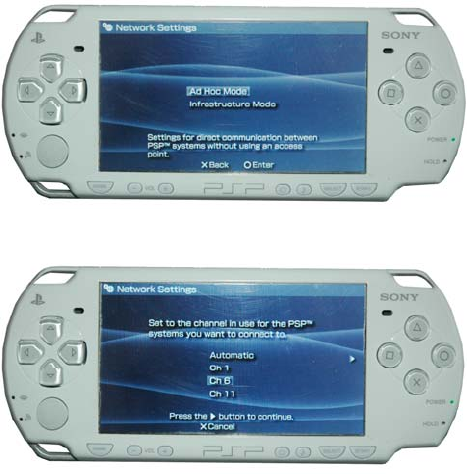
2. To configure PSP with Ad-Hoc mode
Select Network Settings
- 27 -
Select Ad-Hoc mode
2.3 Select Channel
- 28 -
3. In MWN-USB150N Utility Interface scan PSP and
double-click to connect the wireless network.
4. In Site Survey check “enable PSP connection mode”
box.
5. To configure Xlink Kai
Select “Start”→ “All programmers” → “Xlink Kai
Evolution VII” → “Start Kai Config” to configure the
user name, password and other parameters as
follows.
- 29 -
6. Login Xlink Kai
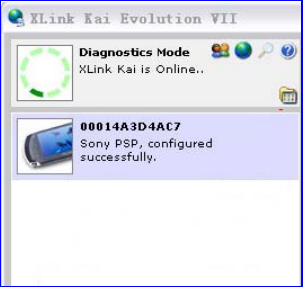
Select “Start”→ “All programmers” → “Xlink Kai
Evolution VII” → “Start Kai”. PSP will connect with
Xlink Kai automatically. The following window will
indicate the connection is established well now.
0
FCC Statement
This equipment has been tested and found to comply with
the limits for a Class B digital device, pursuant to part 15
of the FCC rules. These limits are designed to provide
reasonable protection against harmful interference in a
residential installation. This equipment generates, uses
and can radiate radio frequency energy and, if not
installed and used in accordance with the instructions,
- 30 -
may cause harmful interference to radio communications.
However, there is no guarantee that interference will not
occur in a particular installation. If this equipment does
cause harmful interference
to radio or television reception, which can be determined
by turning the equipment off and on, the user is
encouraged to try to correct the interference by one or
more of the following measures:
-Reorient or relocate the receiving antenna.
-Increase the separation between the equipment and
receiver.
-Connect the equipment into an outlet on a circuit
different from that to which the receiver is connected.
-Consult the dealer or an experienced radio/TV
technician for help.
To assure continued compliance, any changes or
modifications not expressly approved by the party
responsible for compliance could void the user’s
authority to operate this equipment. (Example- use only
shielded interface cables when connecting to computer or
peripheral devices).
The antenna(s) used for this transmitter must not be
co-located or operating in conjunction with any other
antenna or transmitter.
FCC Radiation Exposure Statement
This equipment complies with FCC radiation exposure
limits set forth for an uncontrolled environment and it
also complies with Part 15 of FCC RF Rules. Operation
is subject to the following two conditions:
- 31 -
1) This device may not cause interference and
2) This device must accept any interference, including
interference that may cause undesired operation of the
device.
Caution!
The manufacturer is not responsible for any radio or TV
interference caused by unauthorized modifications to this
equipment. Such modifications could void the user
authority to operate the equipment.