Medicalgorithmics PECGT-III Pocket ECG Monitor User Manual Part 2 092414

Medicalgorithmics S.A. Pocket ECG Monitor Users Manual Part 2 092414

Contents

Users Manual Part 2 092414

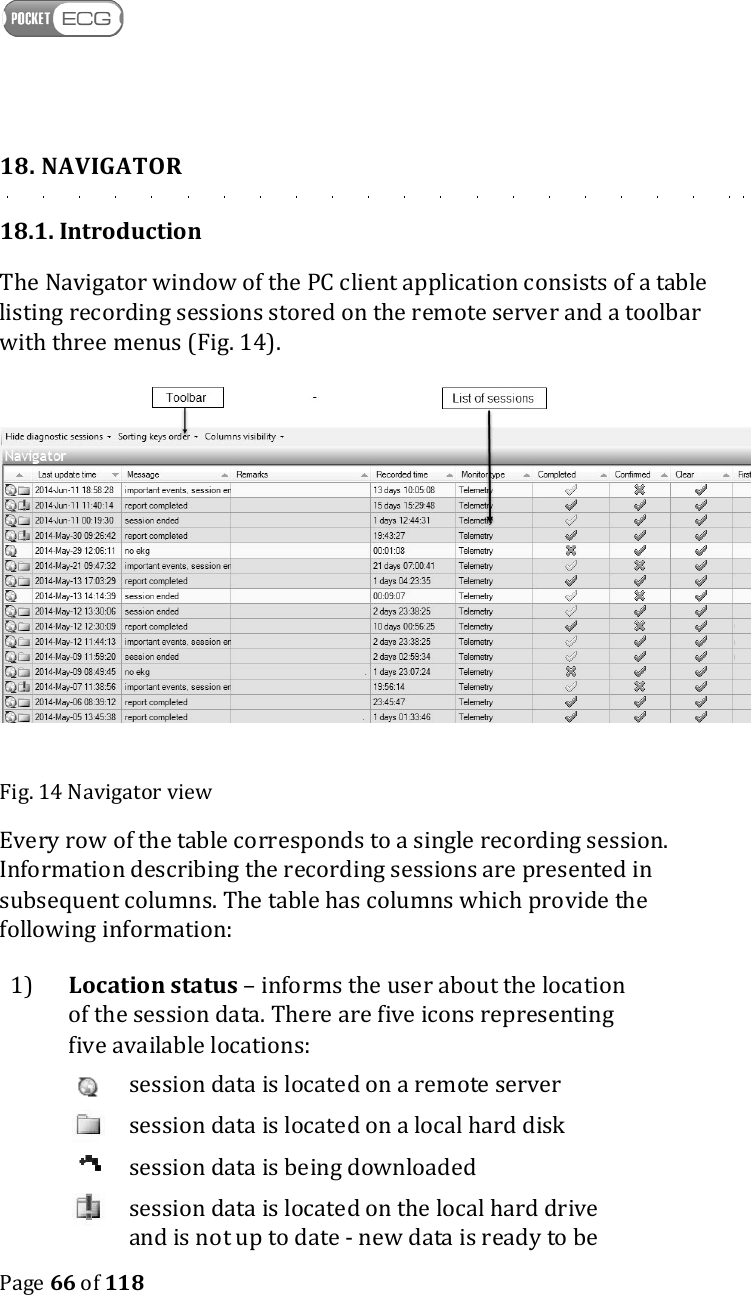
   Page 66 of 118  18. NAVIGATOR 18.1. Introduction The Navigator window of the PC client application consists of a table listing recording sessions stored on the remote server and a toolbar with three menus (Fig. 14).   Fig. 14 Navigator view Every row of the table corresponds to a single recording session. Information describing the recording sessions are presented in subsequent columns. The table has columns which provide the following information: 1)  Location status – informs the user about the location of the session data. There are five icons representing five available locations:   session data is located on a remote server   session data is located on a local hard disk   session data is being downloaded   session data is located on the local hard drive and is not up to date - new data is ready to be
   Page 67 of 118  downloaded from the server. 2)  Last update time indicates the time of the most recent transmission from the PDA to the remote server. 3)  Company – company name of the provider. 4)  Message – displays information related to the ECG data or status of the recording session.  •  important events – events defined as important are contained in files delivered to the server from the PDA monitor  •  no-ekg – the ecg signal has not been delivered to the server for more than 2 hours  •  session ended – session is finished  •  report completed – session is finished and report has been completed and finalized 5)  Remarks – place where users can write their own remarks e.g. expected recording duration. 6)  Recorded time – session duration. 7)  Monitor type – type of session.   Columns with icons   ( “YES”) and   (“NO”): 8)  Completed – informs whether the session has been already completed. 9)  Confirmed – informs whether all events in a session have been confirmed. 10) Clear – informs whether a session is free of questionable events. 11) First name – patient’s first name, 12) Last name – patient’s last name. 13) Medical supervisor – supervisor’s name. 14) Technician 1 – primary technician’s name.
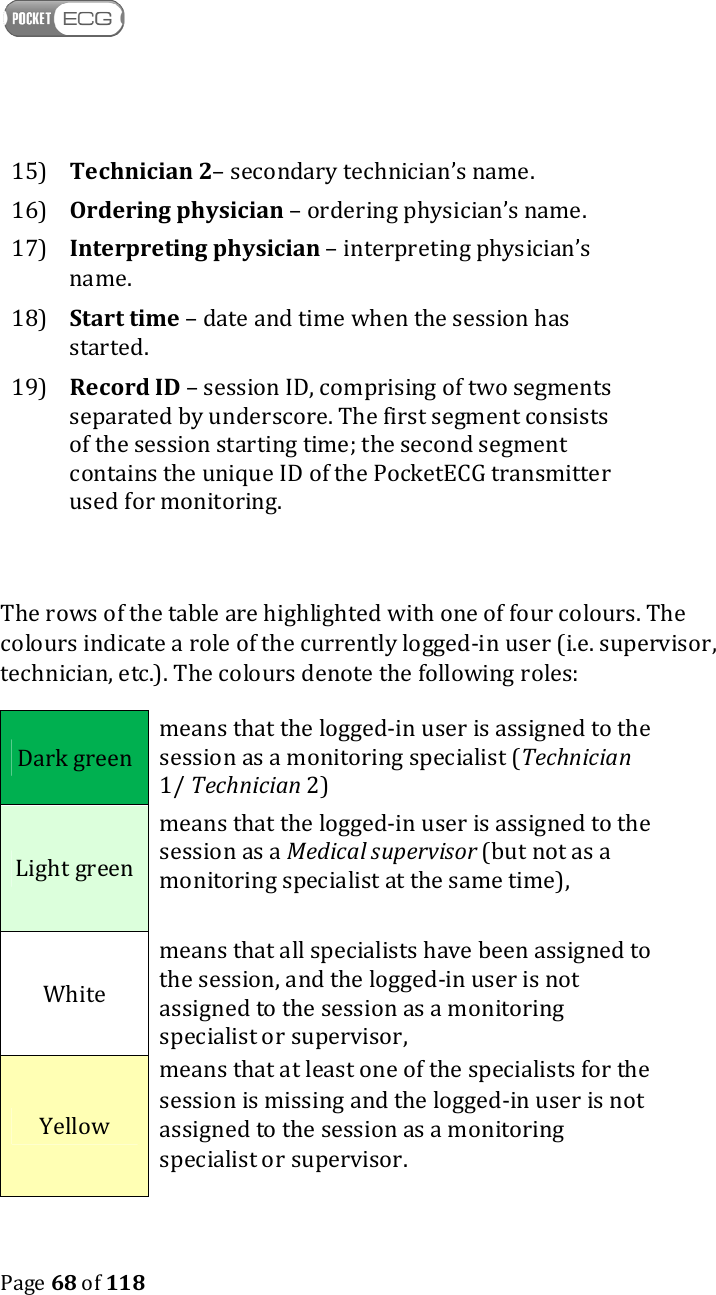
   Page 68 of 118  15) Technician 2– secondary technician’s name. 16) Ordering physician – ordering physician’s name. 17) Interpreting physician – interpreting physician’s name.  18) Start time – date and time when the session has started. 19) Record ID – session ID, comprising of two segments separated by underscore. The first segment consists of the session starting time; the second segment contains the unique ID of the PocketECG transmitter used for monitoring.  The rows of the table are highlighted with one of four colours. The colours indicate a role of the currently logged-in user (i.e. supervisor, technician, etc.). The colours denote the following roles: Dark green means that the logged-in user is assigned to the session as a monitoring specialist (Technician 1/ Technician 2) Light green means that the logged-in user is assigned to the session as a Medical supervisor (but not as a monitoring specialist at the same time),  White means that all specialists have been assigned to the session, and the logged-in user is not assigned to the session as a monitoring specialist or supervisor, Yellow means that at least one of the specialists for the session is missing and the logged-in user is not assigned to the session as a monitoring specialist or supervisor.
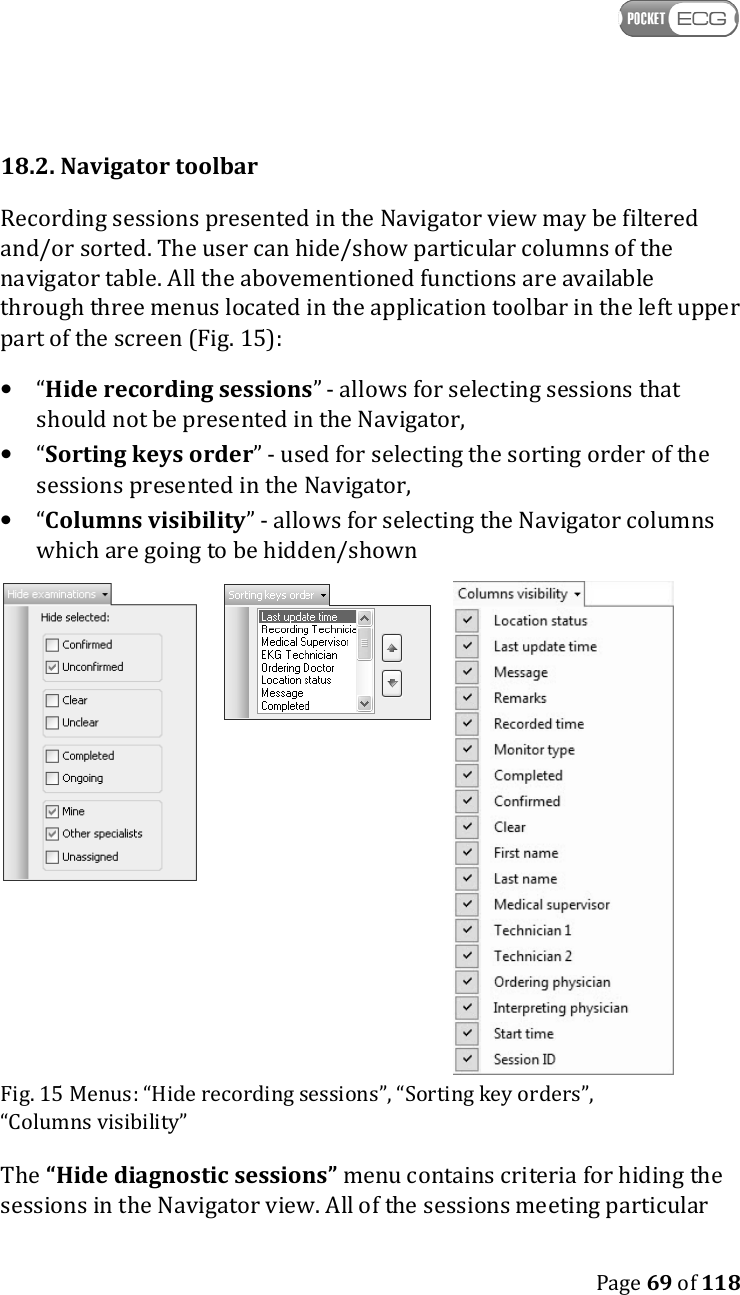
   Page 69 of 118  18.2. Navigator toolbar Recording sessions presented in the Navigator view may be filtered and/or sorted. The user can hide/show particular columns of the navigator table. All the abovementioned functions are available through three menus located in the application toolbar in the left upper part of the screen (Fig. 15): • “Hide recording sessions” - allows for selecting sessions that should not be presented in the Navigator, • “Sorting keys order” - used for selecting the sorting order of the sessions presented in the Navigator, • “Columns visibility” - allows for selecting the Navigator columns which are going to be hidden/shown    Fig. 15 Menus: “Hide recording sessions”, “Sorting key orders”, “Columns visibility” The “Hide diagnostic sessions” menu contains criteria for hiding the sessions in the Navigator view. All of the sessions meeting particular
   Page 70 of 118  criterion are not displayed on the list. User may select one or more of the following criteria: □ Confirmed, □ Unconfirmed,  □ Clear, □ Unclear, □ Completed, □ Ongoing, □ Mine, □ Other specialists, □ Unassigned.  "Sorting keys order" menu allows for changing the order of the recording sessions that are sorted in the Navigator. The sessions are initially sorted based on the criterion placed on the top in the “sorting keys order” menu list. Then, all sessions meeting the first criterion are sorted based on the second criterion, etc. For example: if the first sorting criterion is “Last name” and the second is “Start time”, then all sessions for patients with the same last name, e.g. Smith, will be sorted by their start time. Instead of using "Sorting keys order" menu, the first sorting criterion may be selected by clicking on the column heading. The result is equivalent to moving the key to the top of the list in the “Sorting keys order” menu. “Columns visibility” menu allows for selecting the information that is going to be presented in the columns of the Navigator table.    18.3. Adding and editing patient and specialist data 18.3.1. Patients
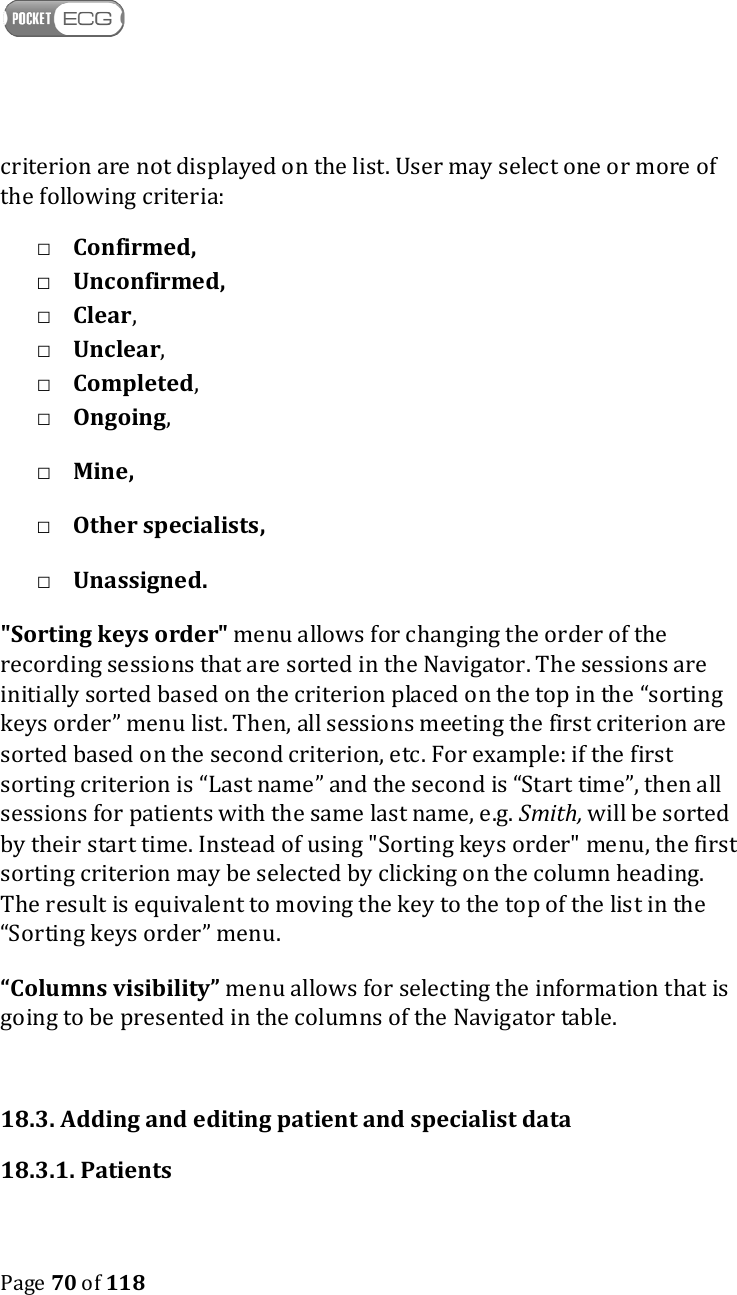
   Page 71 of 118  The window “Patients” (Fig. 16) allows for adding and editing patients’ personal information. It can be opened by selecting “Add/Edit patients” option from the Tools Menu. Selecting option “Assign/Edit patients” from the context menu in the Navigator view, accessible when right-clicking on the recordings list, opens a window which allows for assigning a patient to the highlighted recording session.  Fig. 16 “Patients” window in “Active patients” mode Initially, the "Patients” window shows a list of active patients. List of deleted patients can be accessed through “Removed patients” option. Options available in the “Patients” window include: • Add – shows a form used for adding a new patient to the database and filling patient personal data, i.e. Last name, First name, Sex (male/female), Date of birth ID/SSN/PESEL No., phone, e-mail and address. Additional (descriptive) information
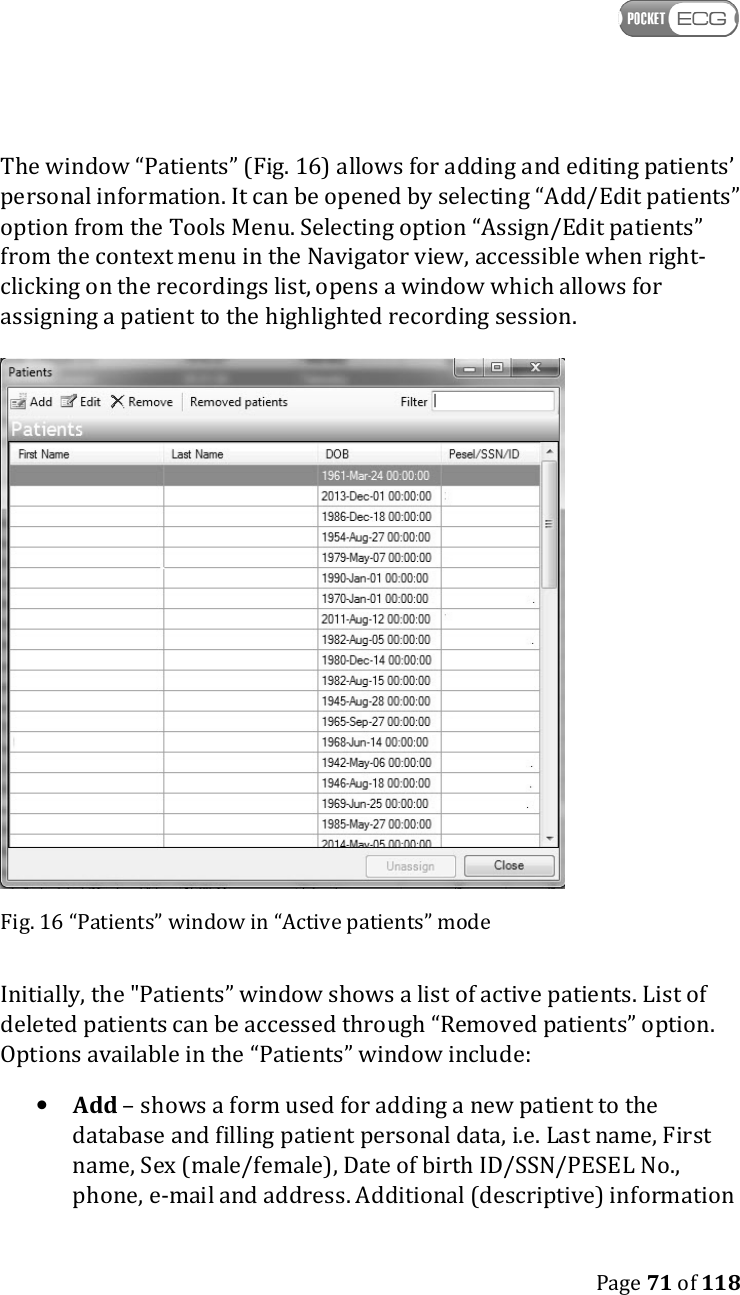
   Page 72 of 118  regarding the patient may be added/edited in the “Auxiliary patient info” section.  • Edit – activates a form for editing personal data of a selected patient, • Remove – removes the selected patient from the list of active patients. The patient's data can be viewed after switching to the “Removed patients” mode (Fig. 17) • Removed patients – switches to the list of removed patients ("Remove patients" mode).   Fig. 17 “Patients” window in “Removed patients” mode The “Removed patients” window (Fig. 17) contains the list of removed patients and two options:  • Undelete – restores the selected patient to the “Active patients” list,
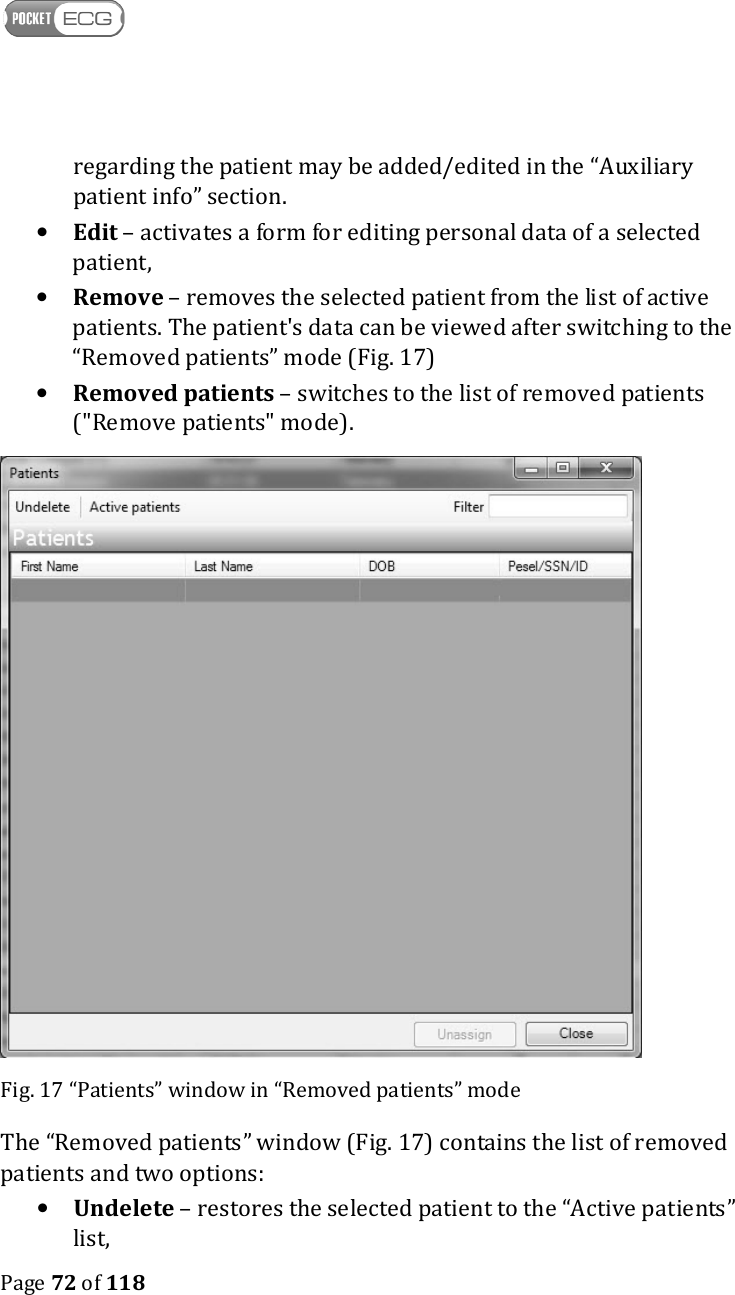
   Page 73 of 118  • Active patients – switches the view to the “Active patients” mode.  If a patient is already assigned to a session, right-clicking on the session and selecting “Edit / View patient information” opens a window where patient information can be viewed or edited (Fig. 18). The same form is opened when selecting the “Edit” in the “Active patients” view.  Fig. 18“Add/Edit Patient data” window contains patient’s personal information.
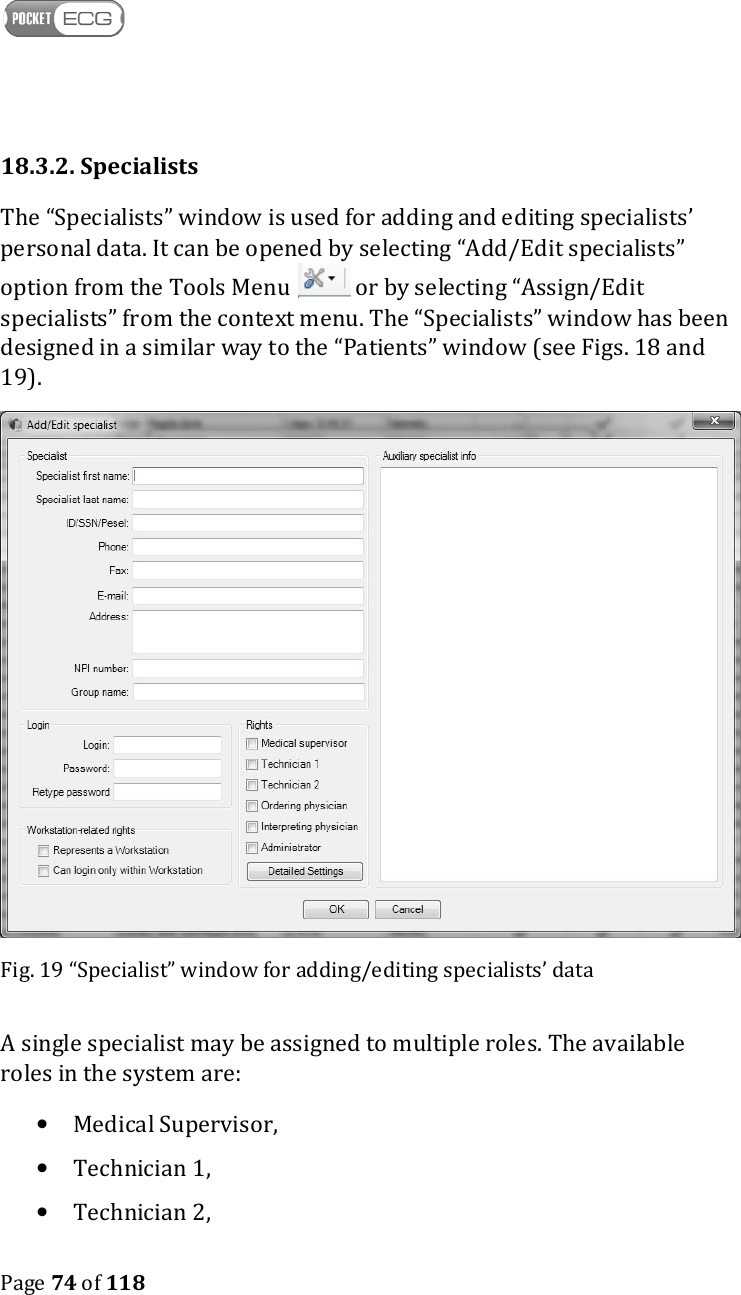
   Page 74 of 118  18.3.2. Specialists The “Specialists” window is used for adding and editing specialists’ personal data. It can be opened by selecting “Add/Edit specialists” option from the Tools Menu   or by selecting “Assign/Edit specialists” from the context menu. The “Specialists” window has been designed in a similar way to the “Patients” window (see Figs. 18 and 19).   Fig. 19 “Specialist” window for adding/editing specialists’ data A single specialist may be assigned to multiple roles. The available roles in the system are:  • Medical Supervisor, • Technician 1,  • Technician 2,
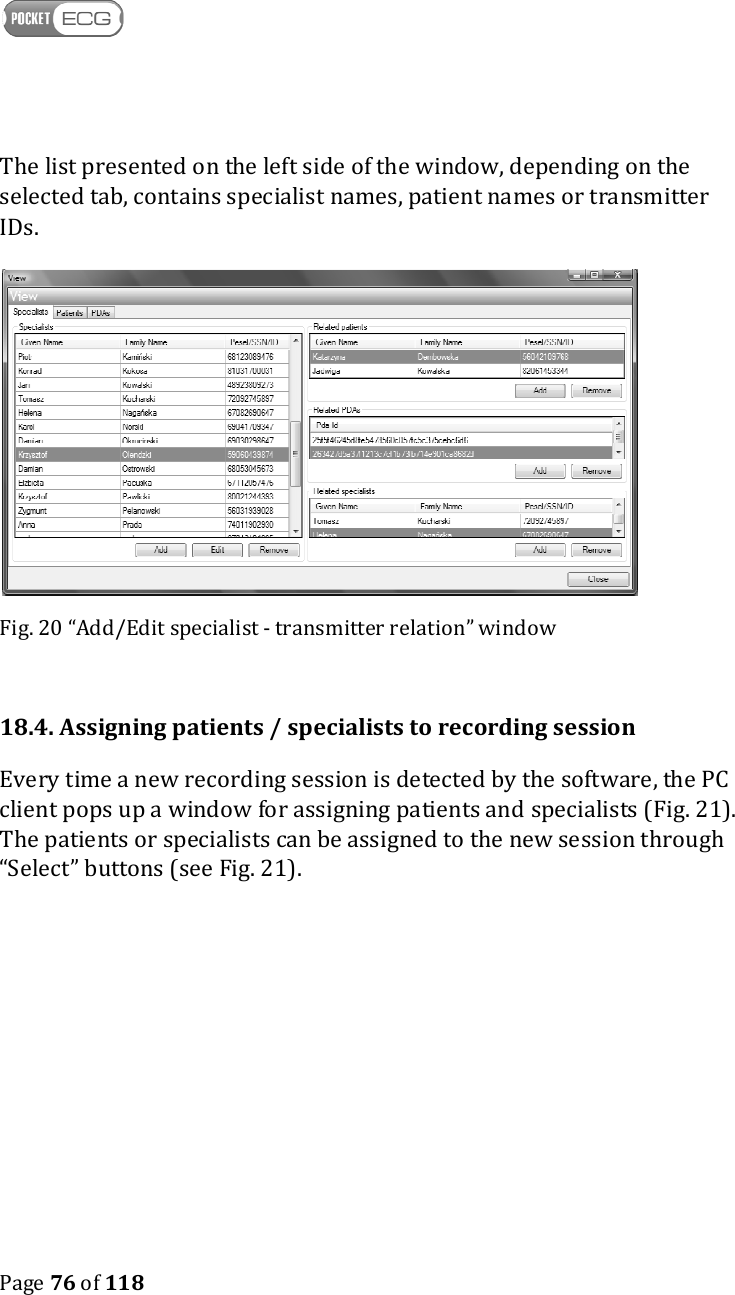
   Page 75 of 118  • Ordering physician, • Interpreting physician, • Administrator. The “Detailed Settings” button allows for setting up specific rights of the edited specialist. Specialists may have the following rights: • Ability to assign sessions, • Full administration access, • Specialist’s data modification, • Patient’s data modification. • Sign groups reports. • Enroll for other group members • Technician’s interpretation modification • Physician’s interpretation modification The “User settings” tab allows for selecting how notifications about new reports are going to be delivered to the specialist. In addition, the user may decide whether the PC client should automatically download the ECG data for the assigned sessions.  18.3.3. Relations between specialists, patients and PocketECG transmitters The PC client application provides information about relations between specialists, patients and PocketECG transmitter. Every time a specialist and a PocketECG transmitter are assigned to the same recording session a relation between them is created. These relations may be edited using “Add/Edit Specialists - transmitter relations” window (Fig. 20). The list of all available specialists is located on the left side of the window. After selecting a specialist, the related patients, transmitters and other specialists appear on the right. These relations may be added or removed using “Add” and “Remove” buttons, respectively.
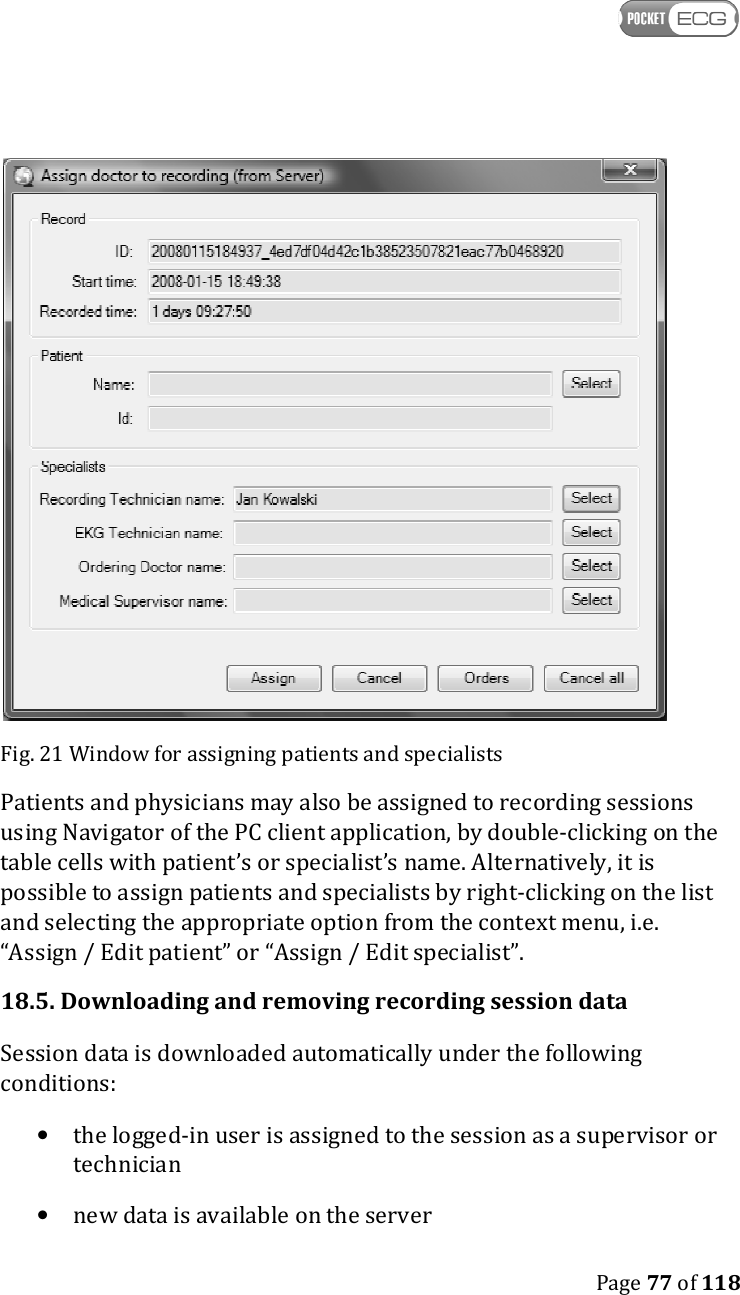
   Page 76 of 118  The list presented on the left side of the window, depending on the selected tab, contains specialist names, patient names or transmitter IDs.   Fig. 20 “Add/Edit specialist - transmitter relation” window  18.4. Assigning patients / specialists to recording session Every time a new recording session is detected by the software, the PC client pops up a window for assigning patients and specialists (Fig. 21). The patients or specialists can be assigned to the new session through “Select” buttons (see Fig. 21).
   Page 77 of 118   Fig. 21 Window for assigning patients and specialists Patients and physicians may also be assigned to recording sessions using Navigator of the PC client application, by double-clicking on the table cells with patient’s or specialist’s name. Alternatively, it is possible to assign patients and specialists by right-clicking on the list and selecting the appropriate option from the context menu, i.e.  “Assign / Edit patient” or “Assign / Edit specialist”.  18.5. Downloading and removing recording session data Session data is downloaded automatically under the following conditions: • the logged-in user is assigned to the session as a supervisor or technician  • new data is available on the server
   Page 78 of 118  • the session has not yet been completed.  It is possible at any time to download the selected recording manually by right-clicking on the session and selecting the “Download” option from the context menu.  The icon   appears in the "Location status" column of the Navigator when the session data is successfully downloaded to the local hard drive.  The recording session data may be removed either from the local hard disk drive (HDD) or marked as removed – i.e. moved to the Garbage folder on the server and removed from all users’ HDDs. In order to remove the session data, right-click on the chosen session and select one of the following options: • Remove → from local HDD – removes recording session data from the local disk (available only for already downloaded sessions), • Remove → from server and all users’ HDDs –marks the session as removed on the server and removes it from local disks of all users that have downloaded the session.  Normally, in order to finish a recording session, an appropriate option should be selected through the transmitter. It is possible, however, to set the session status to “finished” through the PC client software – by right-clicking on the selected session and selecting the “Finish” option from the context menu.  18.6. Remote communication with the transmitter After right-clicking on a session shown on the Navigator list, two main options related to the transmitters are available: “Transmitter Settings” and “View transmitter log”. After selecting the “Transmitter Settings” option, all arrhythmia settings of the PocketECG transmitter are displayed and are available for modification.
   Page 79 of 118  In order to display a window containing information related to the state of patient's equipment (Fig. 22), the "View Transmitter log" option should be selected.  Fig. 22 “Transmitter Log Viewer” window displaying session logs. The transmitter log provides the following information: • Log creation time, • device battery level, • SD memory left, • Storage memory for programs, • Available RAM, • Spotted communication errors, The logs are generated by the transmitter's software every hour and transmitted to the PocketECG PC Client. In order to navigate through all generated logs the arrows displayed on the top of the window should be used. The single arrows (< and >) allow for switching
   Page 80 of 118  between subsequent logs. The double arrows (<< and >>) jump to logs generated every 24 h.   18.7. Communication with the SD card through USB The PC client application communicates with a SD card connected with the PC using the USB card reader. All recording sessions stored in the SD card are added to the list of displayed sessions presented by the Navigator which is indicated by the  icon. From the context menu, the user may select the following options for managing the data on the SD card:  • Download → from SD card through USB - downloads session data from the SD card to the local hard drive, • Remove → from SD card through USB - removes a session from the SD card, • Archive →  from SD card through USB - compresses session files and moves them to C:\LocalDataRoot \Archive folder.
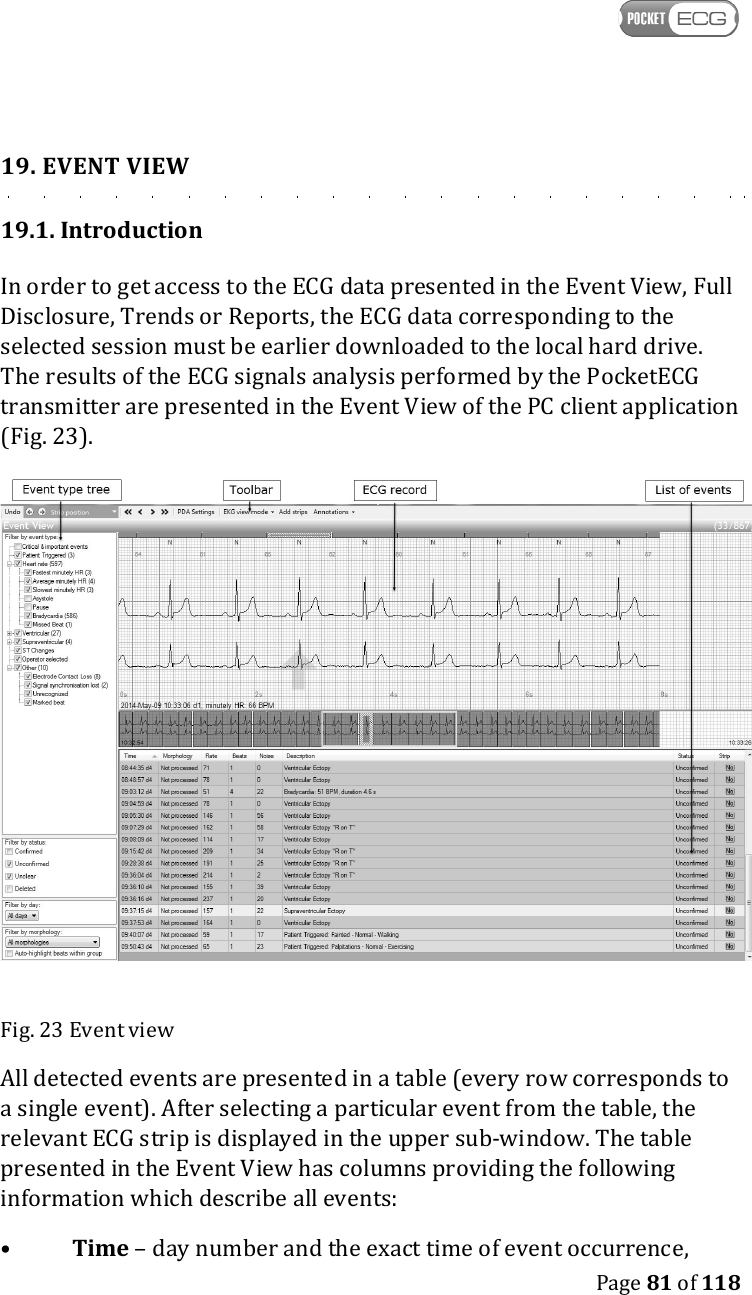
   Page 81 of 118  19. EVENT VIEW 19.1. Introduction In order to get access to the ECG data presented in the Event View, Full Disclosure, Trends or Reports, the ECG data corresponding to the selected session must be earlier downloaded to the local hard drive. The results of the ECG signals analysis performed by the PocketECG transmitter are presented in the Event View of the PC client application (Fig. 23).  Fig. 23 Event view All detected events are presented in a table (every row corresponds to a single event). After selecting a particular event from the table, the relevant ECG strip is displayed in the upper sub-window. The table presented in the Event View has columns providing the following information which describe all events: •  Time – day number and the exact time of event occurrence,
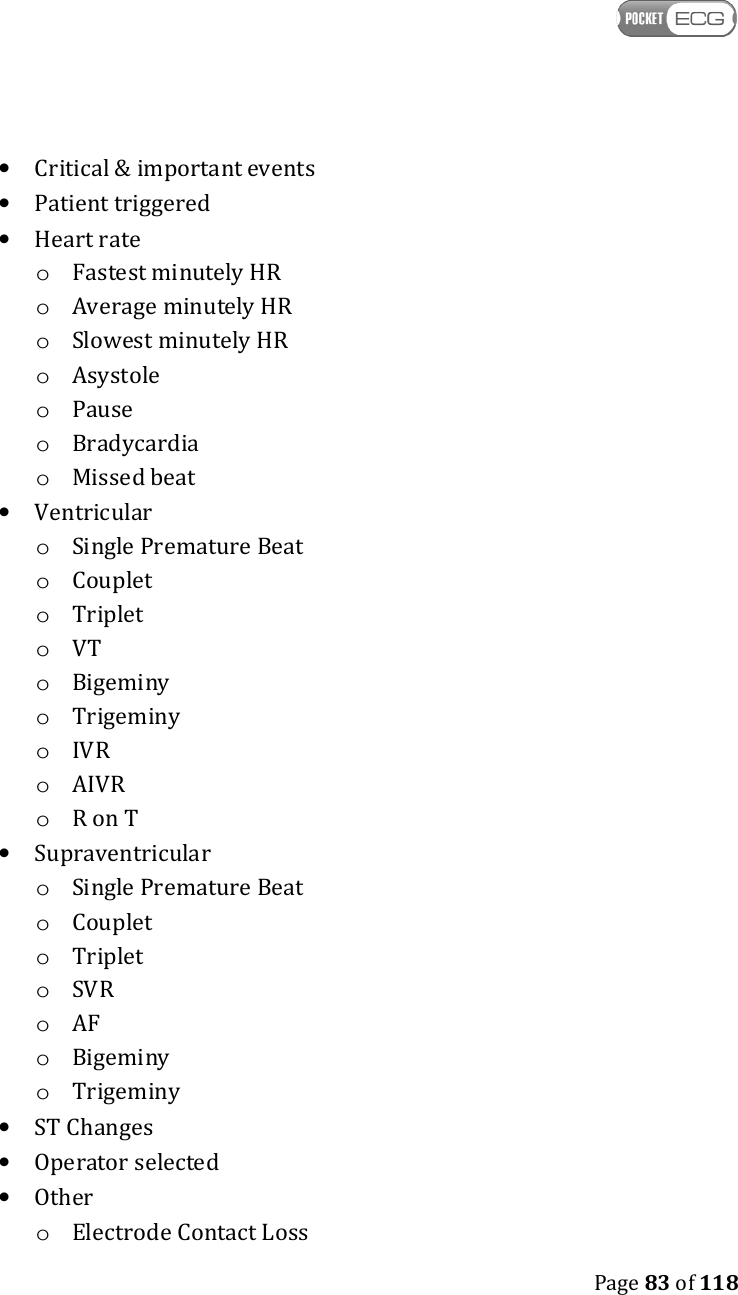
   Page 82 of 118  •  Morphology – index of recognized morphology class – recognition is performed after clicking on the head of the column for sorting  •  Rate – heart rate during the event,  •  Beats - number of successive heartbeats in a given event,  •  Noise – noise level in microvolts,  •  Description – event’s description,  •  Status – event status. There are four different options:  o Confirmed, o Unconfirmed,  o Deleted, o Unclear. •         Strip - this field is selected when an ECG strip corresponding to the event will be shown in the report.  Every line of the table presenting detected events is highlighted with one of the six colors corresponding to certain types of events: Pink  Heart rate Red  Ventricular Green  Supraventricular Yellow  ST changes Grey  Other White  Marked beat A detailed description of the ECG annotations displayed in the upper part of the screen is given in section 20. Full disclosure.  19.2. Filtering and sorting the events list The list of events may be filtered by type - using the tree-organized filter located in the left part of the screen. Additionally, the list may be filtered by events status, day or morphology.  The tree-organized list contains the following elements:
   Page 83 of 118  • Critical & important events • Patient triggered • Heart rate o Fastest minutely HR o Average minutely HR o Slowest minutely HR o Asystole o Pause o Bradycardia o Missed beat • Ventricular o Single Premature Beat o Couplet o Triplet o VT o Bigeminy o Trigeminy o IVR o AIVR o R on T • Supraventricular o Single Premature Beat o Couplet o Triplet o SVR o AF o Bigeminy o Trigeminy • ST Changes • Operator selected • Other  o Electrode Contact Loss
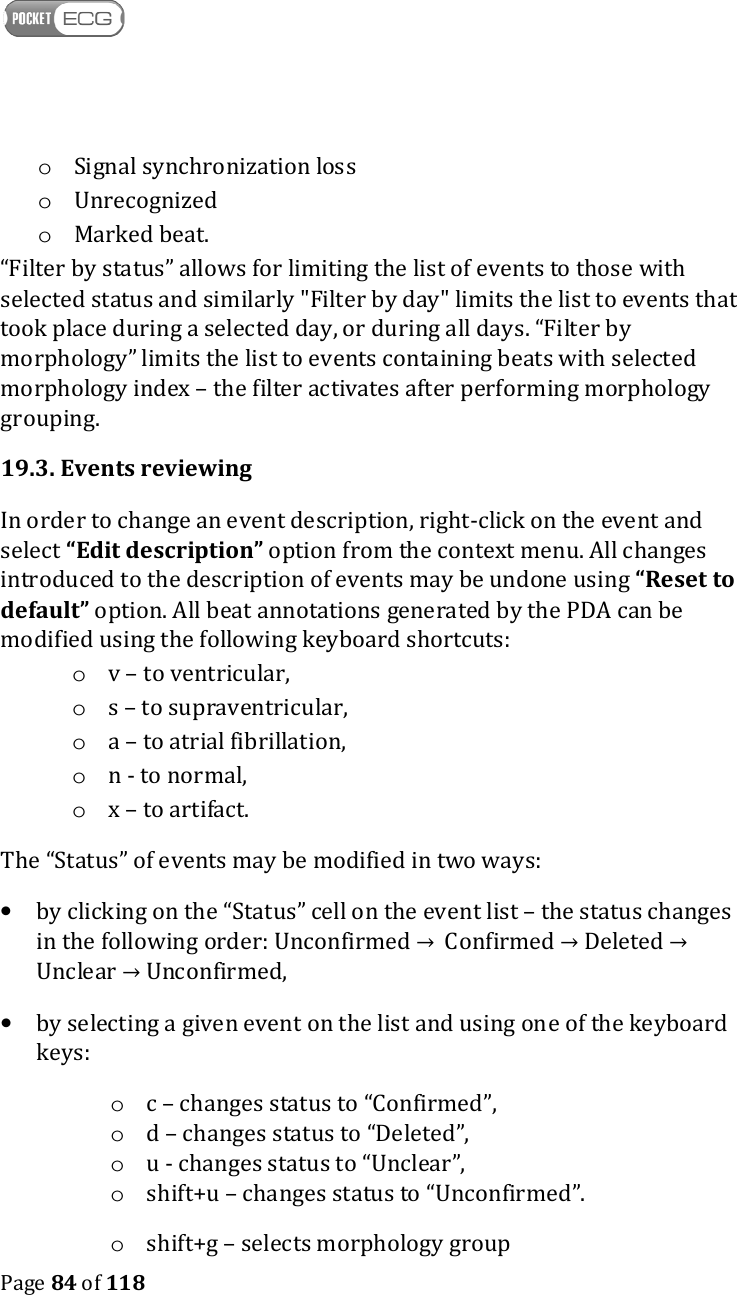
   Page 84 of 118  o Signal synchronization loss o Unrecognized o Marked beat. “Filter by status” allows for limiting the list of events to those with selected status and similarly "Filter by day" limits the list to events that took place during a selected day, or during all days. “Filter by morphology” limits the list to events containing beats with selected morphology index – the filter activates after performing morphology grouping. 19.3. Events reviewing In order to change an event description, right-click on the event and select “Edit description” option from the context menu. All changes introduced to the description of events may be undone using “Reset to default” option. All beat annotations generated by the PDA can be modified using the following keyboard shortcuts: o v – to ventricular, o s – to supraventricular, o a – to atrial fibrillation, o n - to normal, o x – to artifact. The “Status” of events may be modified in two ways:  • by clicking on the “Status” cell on the event list – the status changes in the following order: Unconfirmed →  Confirmed → Deleted → Unclear → Unconfirmed,  • by selecting a given event on the list and using one of the keyboard keys:  o c – changes status to “Confirmed”,  o d – changes status to “Deleted”,  o u - changes status to “Unclear”,  o shift+u – changes status to “Unconfirmed”. o shift+g – selects morphology group
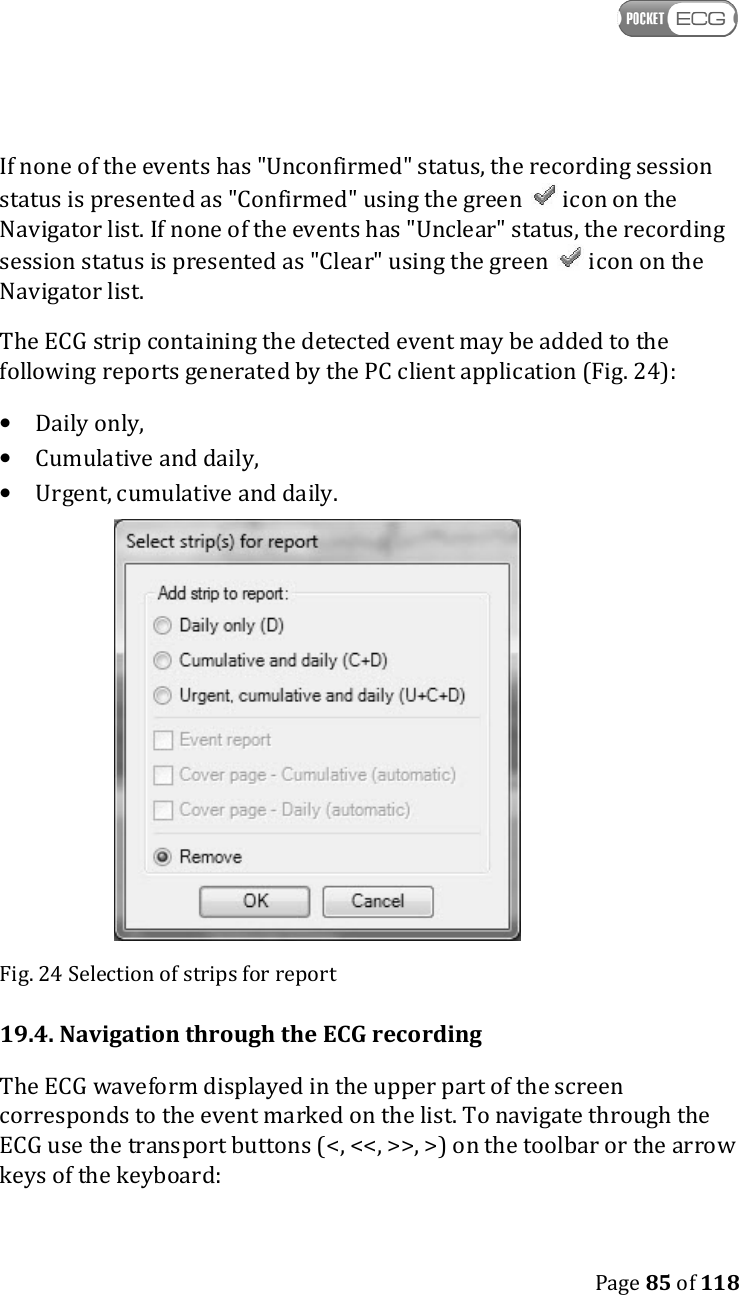
   Page 85 of 118  If none of the events has "Unconfirmed" status, the recording session status is presented as "Confirmed" using the green   icon on the Navigator list. If none of the events has "Unclear" status, the recording session status is presented as "Clear" using the green   icon on the Navigator list. The ECG strip containing the detected event may be added to the following reports generated by the PC client application (Fig. 24): • Daily only, • Cumulative and daily, • Urgent, cumulative and daily.  Fig. 24 Selection of strips for report 19.4. Navigation through the ECG recording The ECG waveform displayed in the upper part of the screen corresponds to the event marked on the list. To navigate through the ECG use the transport buttons (<, <<, >>, >) on the toolbar or the arrow keys of the keyboard:
   Page 86 of 118  • pressing the double arrow buttons on the toolbar moves the ECG record backward or forward by the length of the displayed strip (8 seconds), • pressing the single arrow buttons moves the record backward or forward by 200 milliseconds, • horizontal arrows on the PC keyboard move the record backward or forward by 200 milliseconds, 19.5. ECG display settings and transmitter settings Tools for changing the ECG waveform vertical scale and other parameters related to ECG display are described in section 20.3. Transmitter settings are described in sections 18.6.
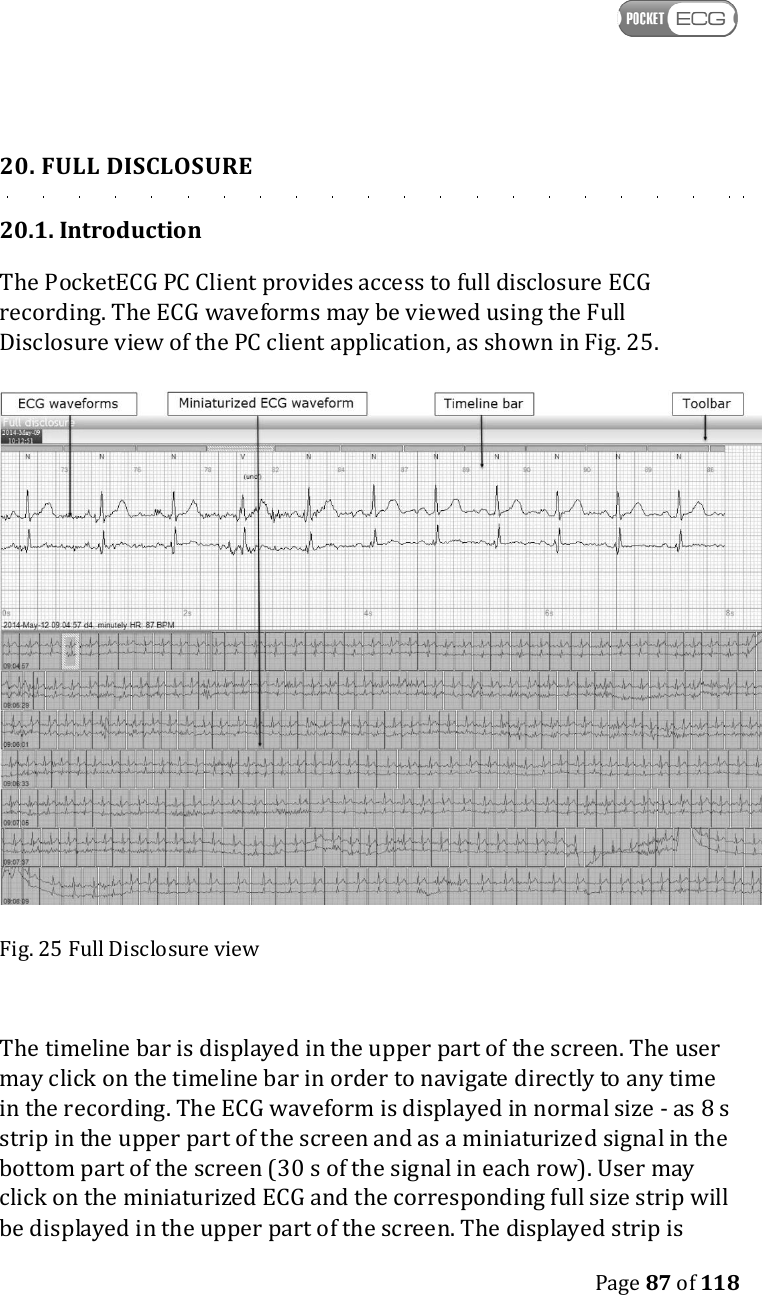
   Page 87 of 118  20. FULL DISCLOSURE 20.1. Introduction The PocketECG PC Client provides access to full disclosure ECG recording. The ECG waveforms may be viewed using the Full Disclosure view of the PC client application, as shown in Fig. 25.  Fig. 25 Full Disclosure view  The timeline bar is displayed in the upper part of the screen. The user may click on the timeline bar in order to navigate directly to any time in the recording. The ECG waveform is displayed in normal size - as 8 s strip in the upper part of the screen and as a miniaturized signal in the bottom part of the screen (30 s of the signal in each row). User may click on the miniaturized ECG and the corresponding full size strip will be displayed in the upper part of the screen. The displayed strip is
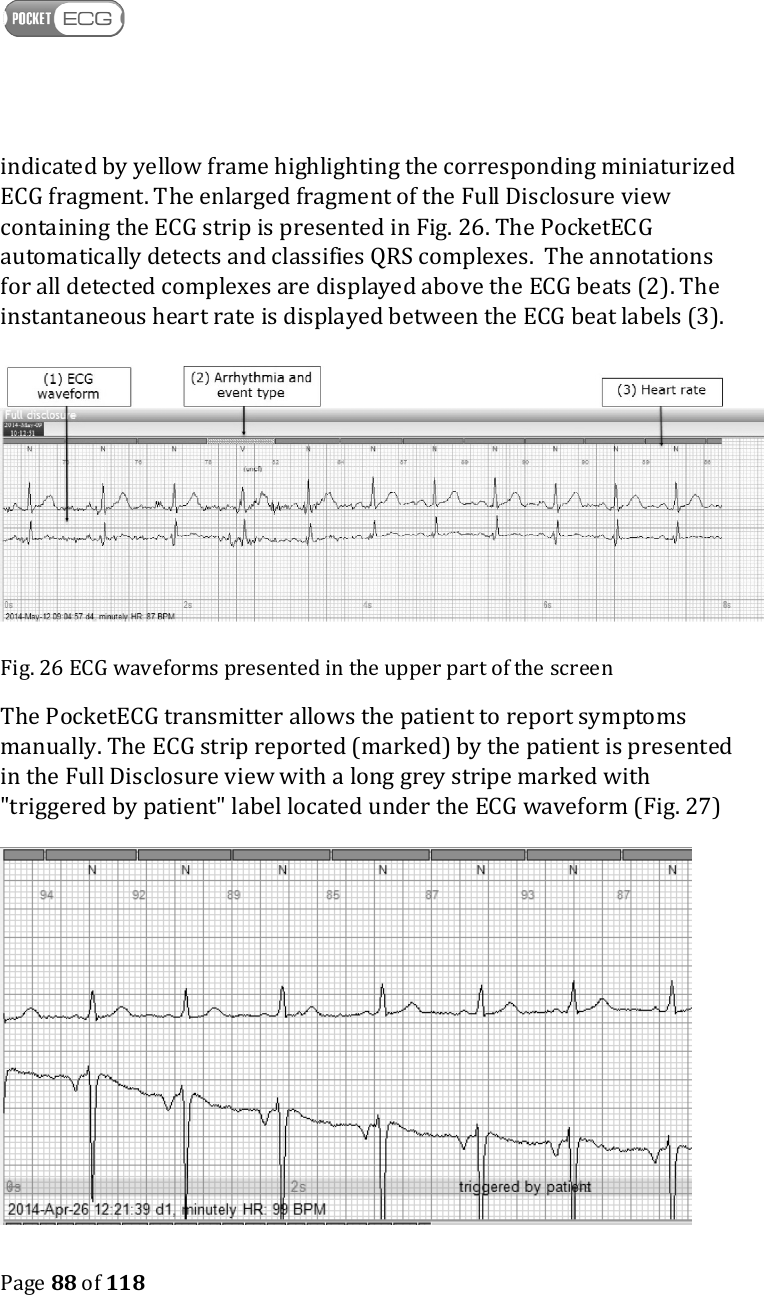
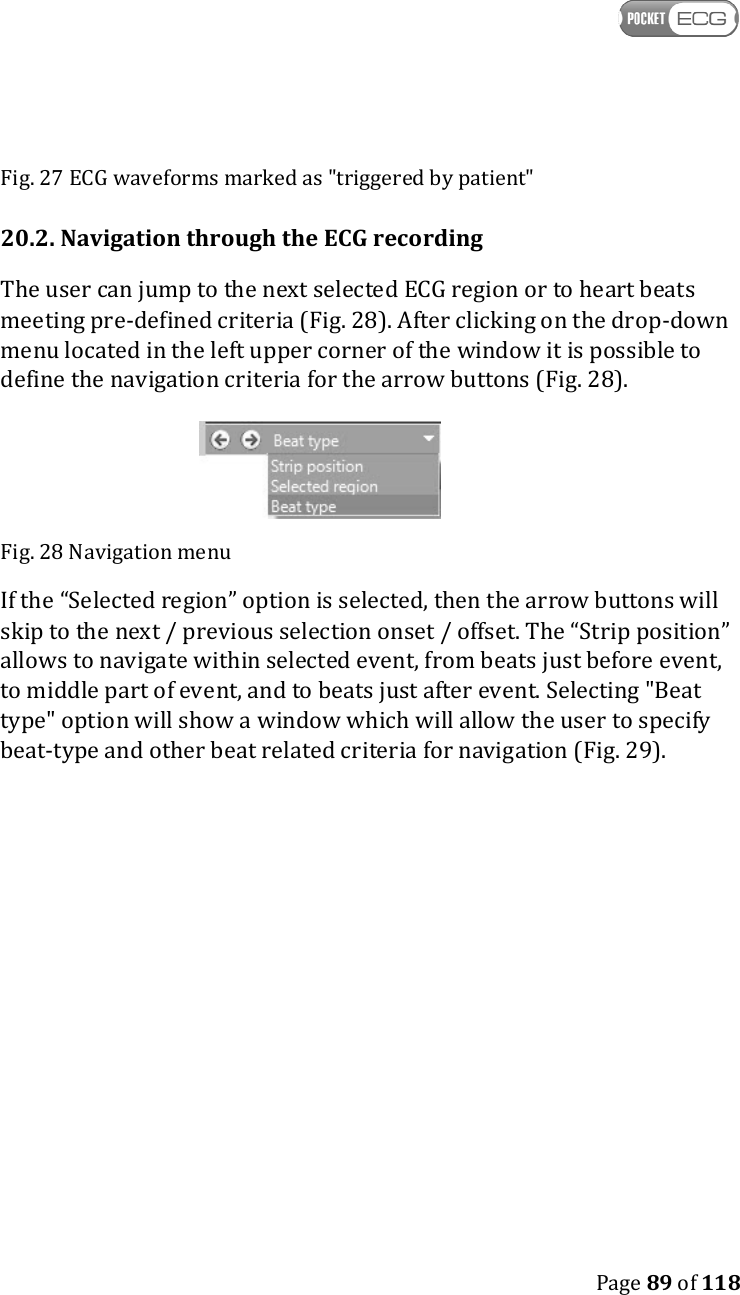
   Page 88 of 118  indicated by yellow frame highlighting the corresponding miniaturized ECG fragment. The enlarged fragment of the Full Disclosure view containing the ECG strip is presented in Fig. 26. The PocketECG automatically detects and classifies QRS complexes.  The annotations for all detected complexes are displayed above the ECG beats (2). The instantaneous heart rate is displayed between the ECG beat labels (3). Fig. 26 ECG waveforms presented in the upper part of the screen The PocketECG transmitter allows the patient to report symptoms manually. The ECG strip reported (marked) by the patient is presented in the Full Disclosure view with a long grey stripe marked with "triggered by patient" label located under the ECG waveform (Fig. 27)
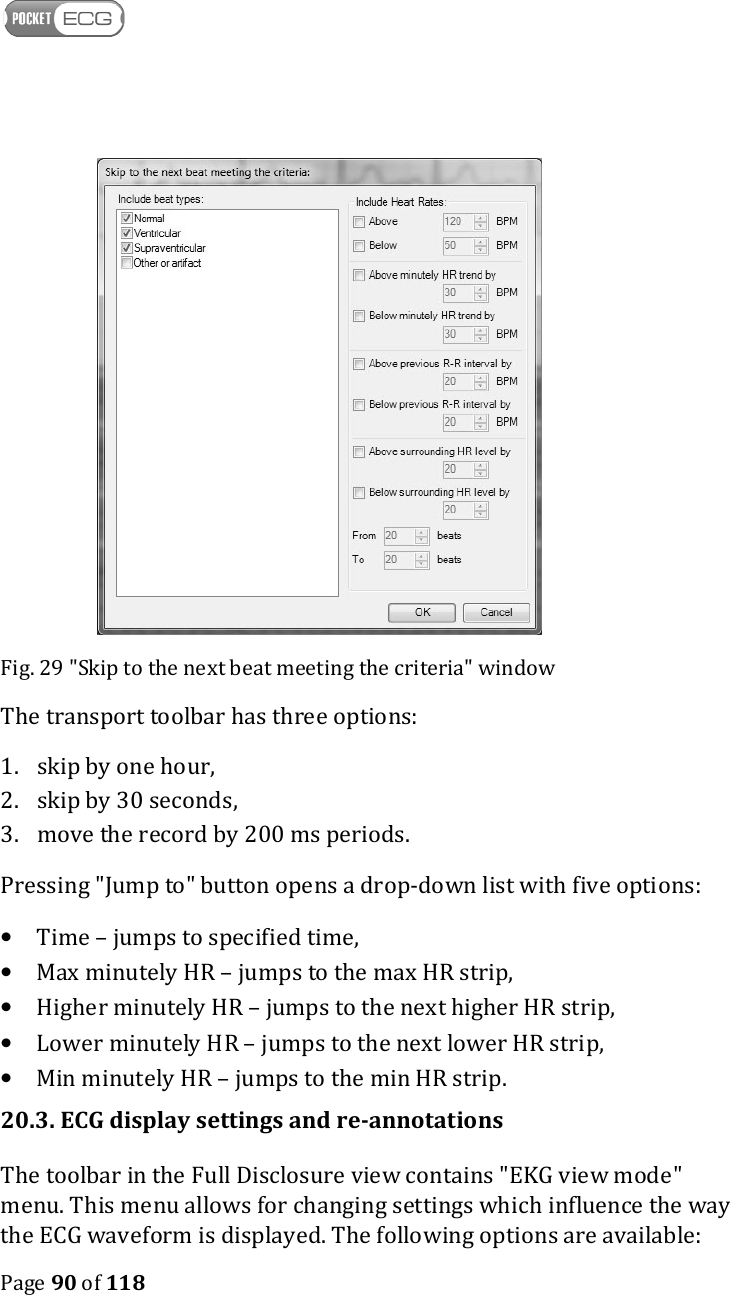
   Page 89 of 118  Fig. 27 ECG waveforms marked as "triggered by patient" 20.2. Navigation through the ECG recording The user can jump to the next selected ECG region or to heart beats meeting pre-defined criteria (Fig. 28). After clicking on the drop-down menu located in the left upper corner of the window it is possible to define the navigation criteria for the arrow buttons (Fig. 28).   Fig. 28 Navigation menu If the “Selected region” option is selected, then the arrow buttons will skip to the next / previous selection onset / offset. The “Strip position” allows to navigate within selected event, from beats just before event, to middle part of event, and to beats just after event. Selecting "Beat type" option will show a window which will allow the user to specify beat-type and other beat related criteria for navigation (Fig. 29).
   Page 90 of 118   Fig. 29 "Skip to the next beat meeting the criteria" window The transport toolbar has three options: 1. skip by one hour,  2. skip by 30 seconds, 3. move the record by 200 ms periods. Pressing "Jump to" button opens a drop-down list with five options:  • Time – jumps to specified time, • Max minutely HR – jumps to the max HR strip, • Higher minutely HR – jumps to the next higher HR strip, • Lower minutely HR – jumps to the next lower HR strip, • Min minutely HR – jumps to the min HR strip. 20.3. ECG display settings and re-annotations The toolbar in the Full Disclosure view contains "EKG view mode" menu. This menu allows for changing settings which influence the way the ECG waveform is displayed. The following options are available:
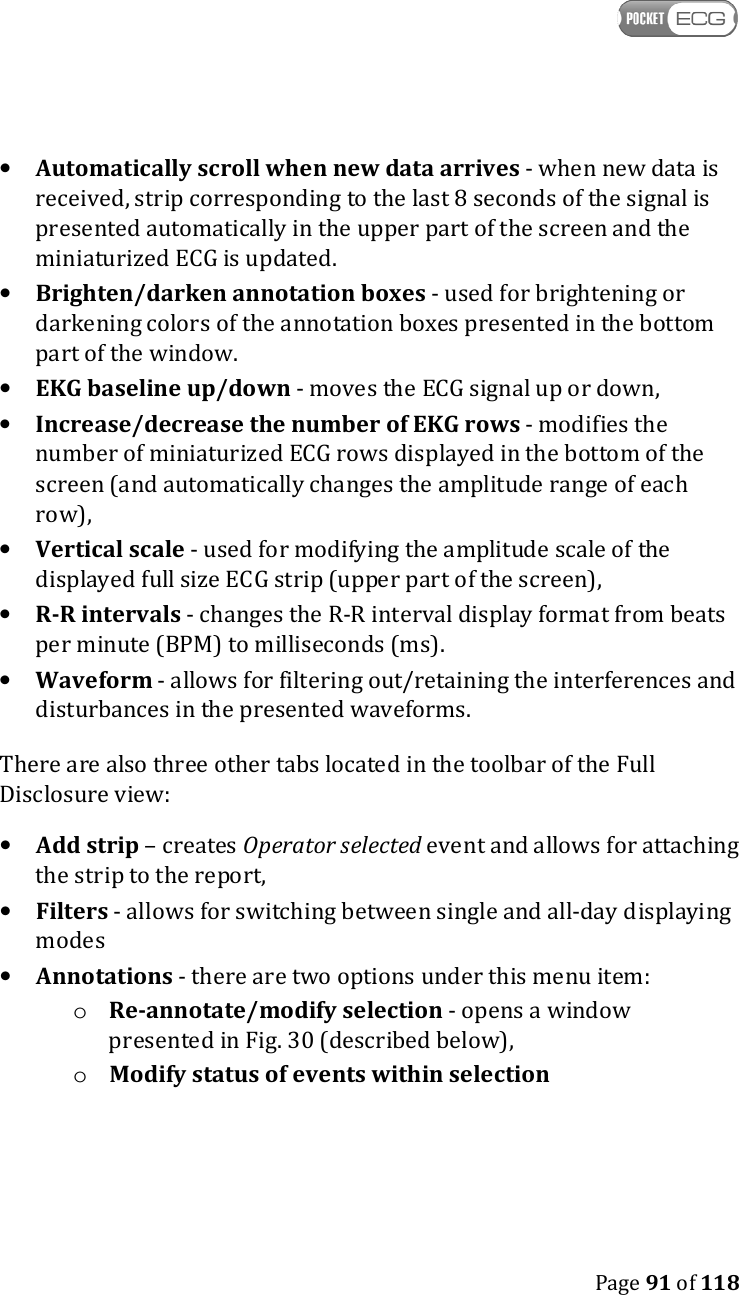
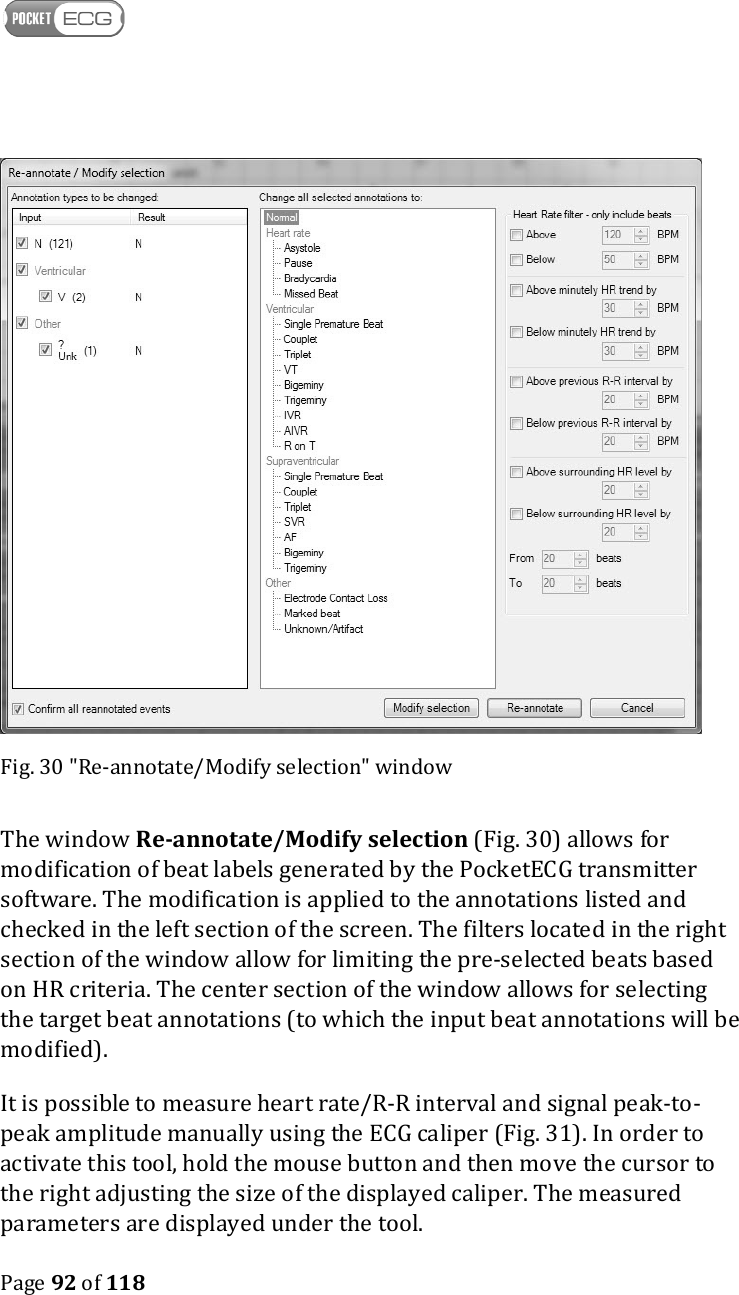
   Page 91 of 118  • Automatically scroll when new data arrives - when new data is received, strip corresponding to the last 8 seconds of the signal is presented automatically in the upper part of the screen and the miniaturized ECG is updated. • Brighten/darken annotation boxes - used for brightening or darkening colors of the annotation boxes presented in the bottom part of the window.  • EKG baseline up/down - moves the ECG signal up or down, • Increase/decrease the number of EKG rows - modifies the number of miniaturized ECG rows displayed in the bottom of the screen (and automatically changes the amplitude range of each row), • Vertical scale - used for modifying the amplitude scale of the displayed full size ECG strip (upper part of the screen), • R-R intervals - changes the R-R interval display format from beats per minute (BPM) to milliseconds (ms). • Waveform - allows for filtering out/retaining the interferences and disturbances in the presented waveforms. There are also three other tabs located in the toolbar of the Full Disclosure view: • Add strip – creates Operator selected event and allows for attaching the strip to the report,  • Filters - allows for switching between single and all-day displaying modes • Annotations - there are two options under this menu item: o Re-annotate/modify selection - opens a window presented in Fig. 30 (described below), o Modify status of events within selection
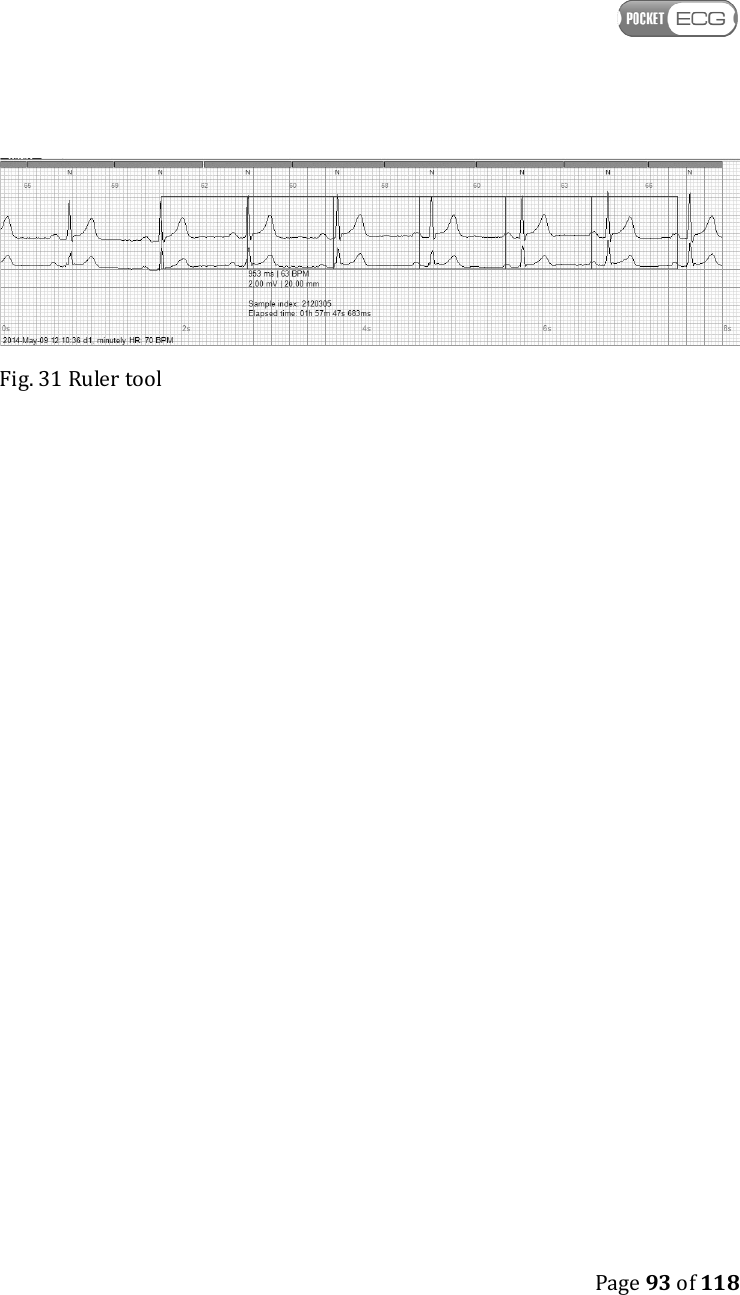
   Page 92 of 118   Fig. 30 "Re-annotate/Modify selection" window The window Re-annotate/Modify selection (Fig. 30) allows for modification of beat labels generated by the PocketECG transmitter software. The modification is applied to the annotations listed and checked in the left section of the screen. The filters located in the right section of the window allow for limiting the pre-selected beats based on HR criteria. The center section of the window allows for selecting the target beat annotations (to which the input beat annotations will be modified). It is possible to measure heart rate/R-R interval and signal peak-to-peak amplitude manually using the ECG caliper (Fig. 31). In order to activate this tool, hold the mouse button and then move the cursor to the right adjusting the size of the displayed caliper. The measured parameters are displayed under the tool.
   Page 93 of 118   Fig. 31 Ruler tool
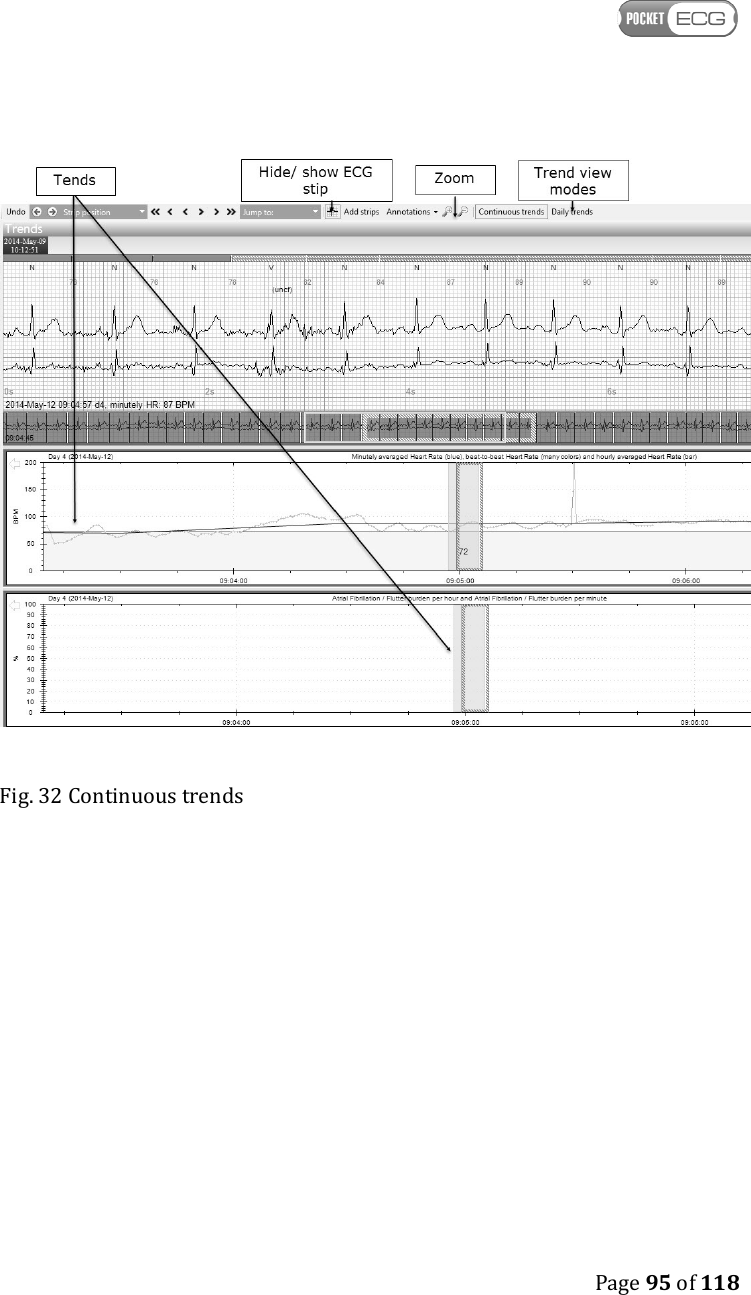
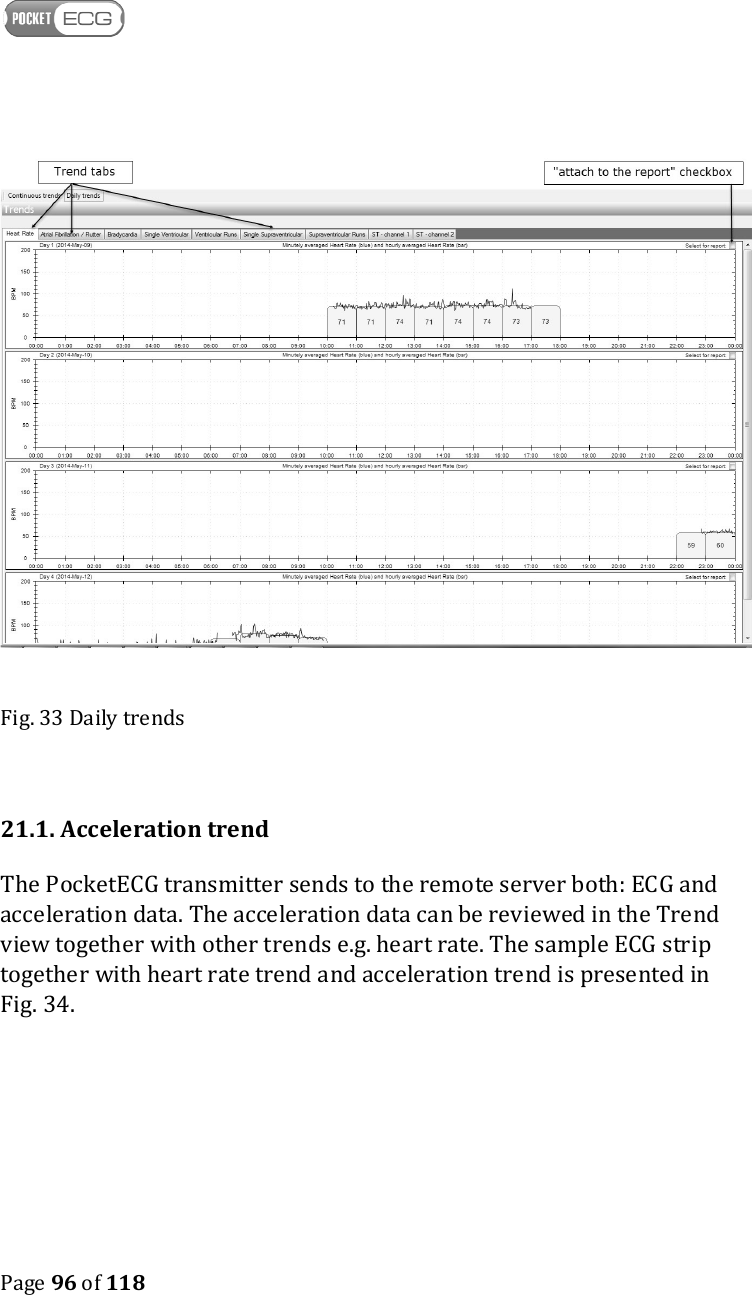
   Page 94 of 118  21. TRENDS Interactive trends illustrating variations of the averaged HR, AF burden, bradycardia burden, ventricular or supraventricular beats and runs count, as well as ST levels are available in the Trends view of the PC client software. The trends may be displayed in two modes: • Continuous trends - the upper part of the screen shows the full size ECG strip and the bottom part of the screen shows the trends (Fig. 32). • Daily trends - each daily trend for each parameter is presented in a separate tab. Each day is presented in a separate row (Fig. 33) The control buttons and options located in the toolbar are similar to those already described in section 22. However, the buttons with double arrows (<< and >>) rewind the recordings by 24 hours. The buttons with single arrows rewind the waveforms by 1 hour. There are also additional buttons located in the upper toolbar, which are not available in the Full Disclosure view (Hide/show ECG strip and Zoom in/out). The daily trend of a particular parameter may be attached to the final report. If this is desired, mark the checkbox located in the right corner of every window containing trend diagrams.
   Page 95 of 118   Fig. 32 Continuous trends
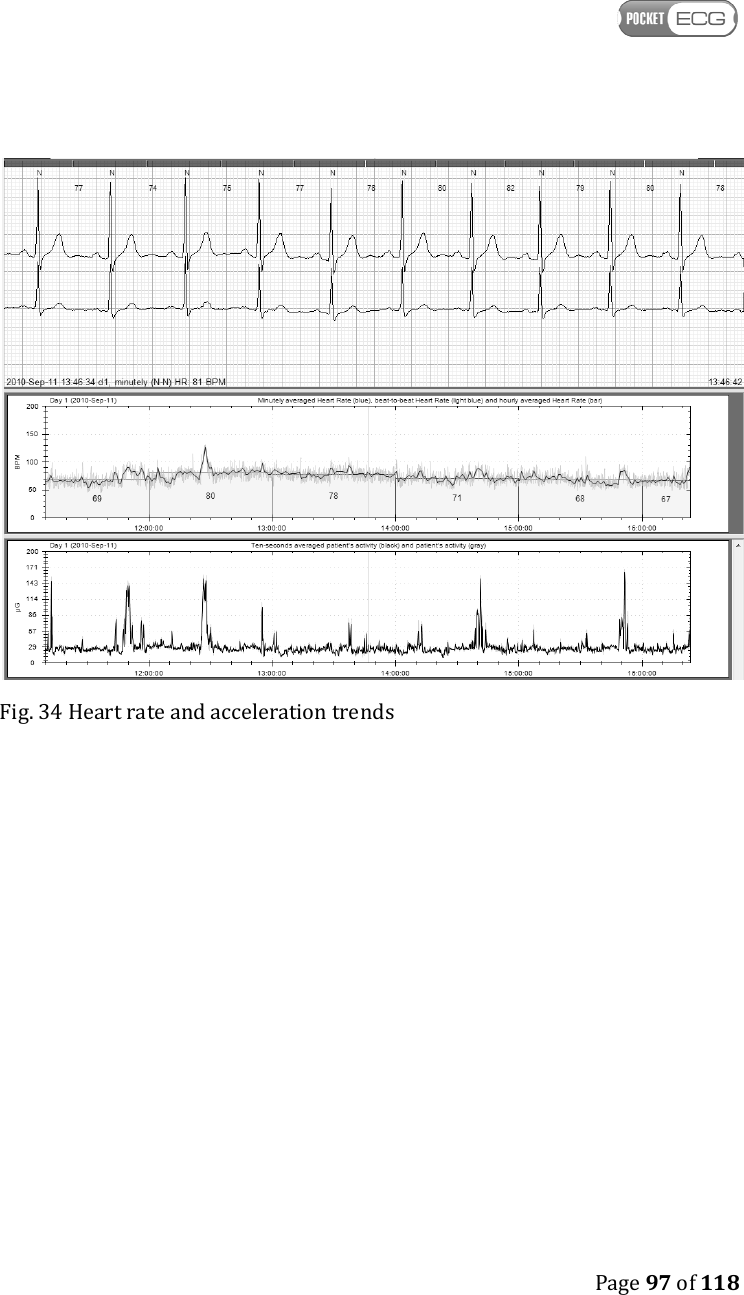
   Page 96 of 118   Fig. 33 Daily trends  21.1. Acceleration trend The PocketECG transmitter sends to the remote server both: ECG and acceleration data. The acceleration data can be reviewed in the Trend view together with other trends e.g. heart rate. The sample ECG strip together with heart rate trend and acceleration trend is presented in Fig. 34.
   Page 97 of 118   Fig. 34 Heart rate and acceleration trends
   Page 98 of 118  22. IMPRESSIONS AND FINDINGS Impressions and Findings is a notepad for user's remarks. The user is able to add comments related either to a single day of the recording or make general notes regarding the entire recording session. The arrows in the upper part of the screen allow for navigation through the notes. If "Day:x" is displayed between the navigation arrows, the added comment relates to day number x. The “Day:All” notice displayed between navigation arrows indicates that the comments refer to the entire recording session. The notes are attached to the reports generated by the PC client application – the main note is attached to the summary report, while the daily notes are attached to the corresponding daily reports.
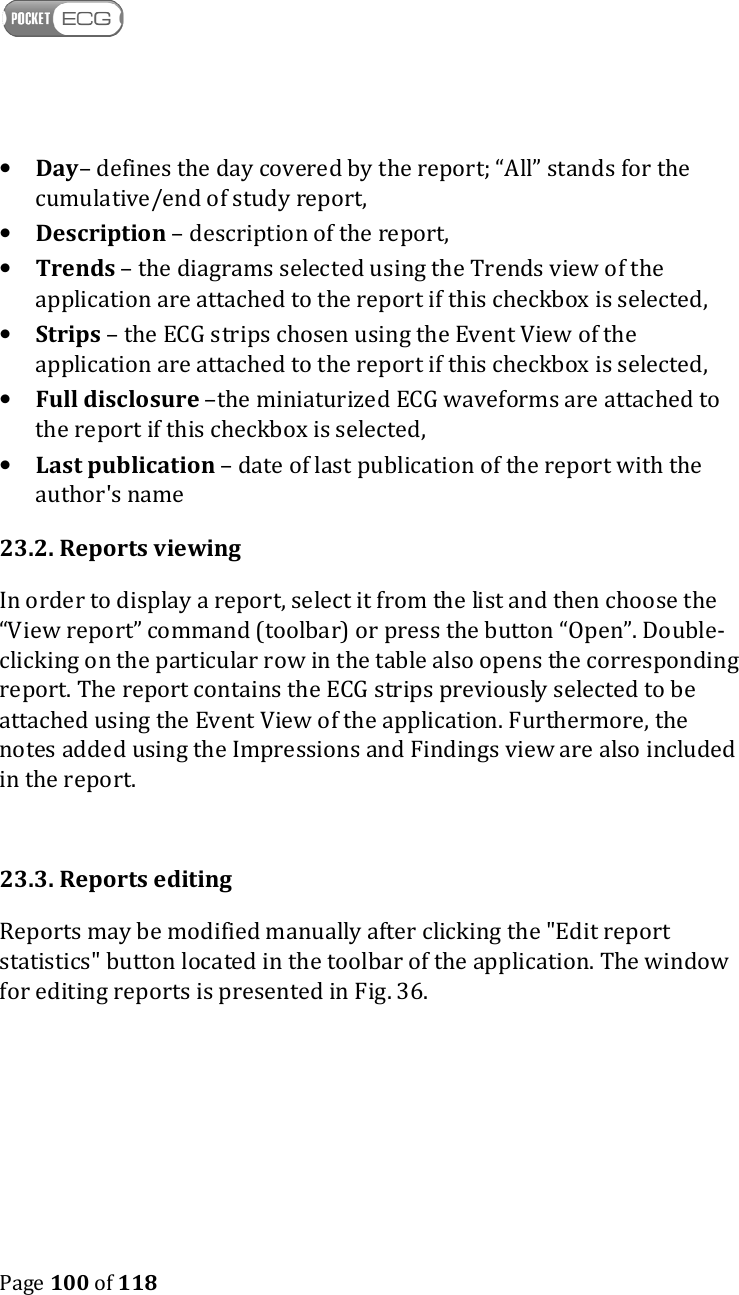
   Page 99 of 118  23. REPORTS 23.1. Introduction The Reports view consists of a table containing a list of all reports generated during the recording session (Fig. 35). There are five types of reports presented in the Reports view of application: • cumulative reports, • end of study reports, • daily reports, • urgent reports, • event reports.    Fig. 35 Reports view The table containing generated reports has columns with the following headers: • Action – contains “Open” button which allows to open the report, • From – defines the start time of the period covered by the report, • To – defines the end time of the period covered by the report,
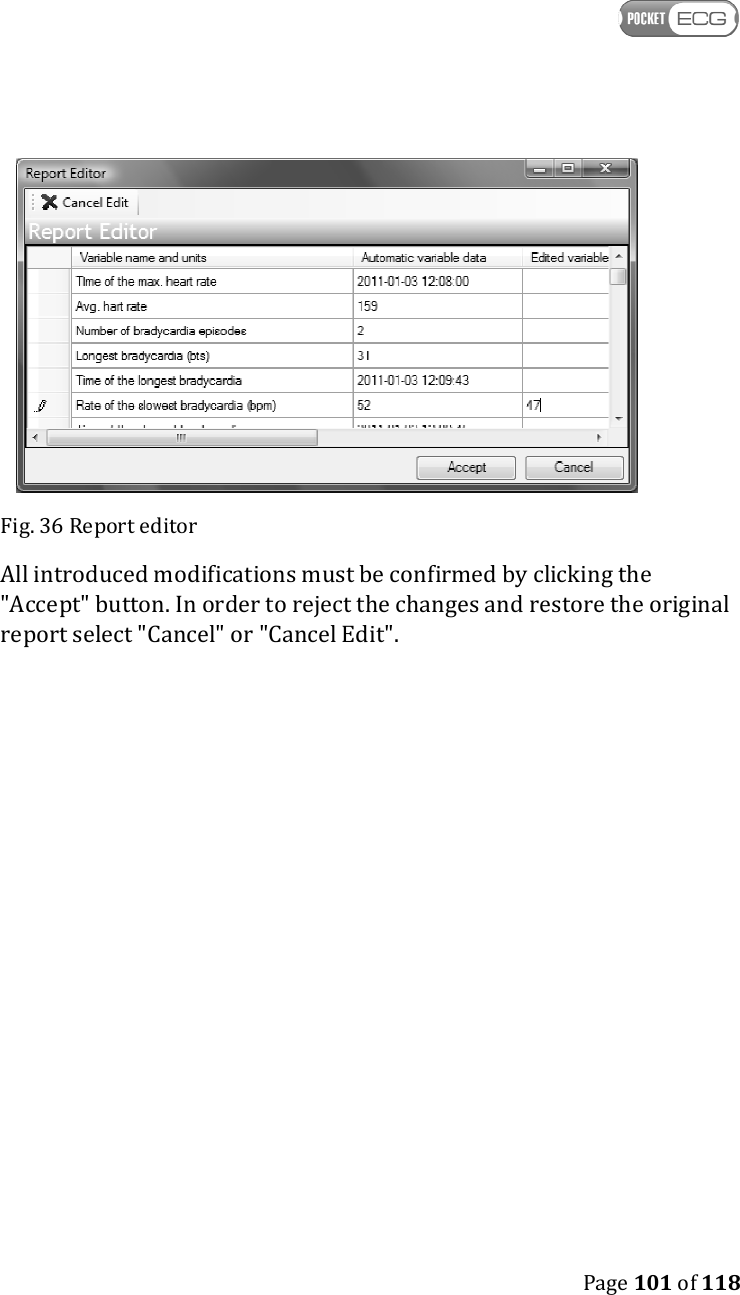
   Page 100 of 118  • Day– defines the day covered by the report; “All” stands for the cumulative/end of study report,  • Description – description of the report, • Trends – the diagrams selected using the Trends view of the application are attached to the report if this checkbox is selected, • Strips – the ECG strips chosen using the Event View of the application are attached to the report if this checkbox is selected, • Full disclosure –the miniaturized ECG waveforms are attached to the report if this checkbox is selected,  • Last publication – date of last publication of the report with the author's name 23.2. Reports viewing In order to display a report, select it from the list and then choose the “View report” command (toolbar) or press the button “Open”. Double-clicking on the particular row in the table also opens the corresponding report. The report contains the ECG strips previously selected to be attached using the Event View of the application. Furthermore, the notes added using the Impressions and Findings view are also included in the report.   23.3. Reports editing Reports may be modified manually after clicking the "Edit report statistics" button located in the toolbar of the application. The window for editing reports is presented in Fig. 36.
   Page 101 of 118   Fig. 36 Report editor All introduced modifications must be confirmed by clicking the "Accept" button. In order to reject the changes and restore the original report select "Cancel" or "Cancel Edit".
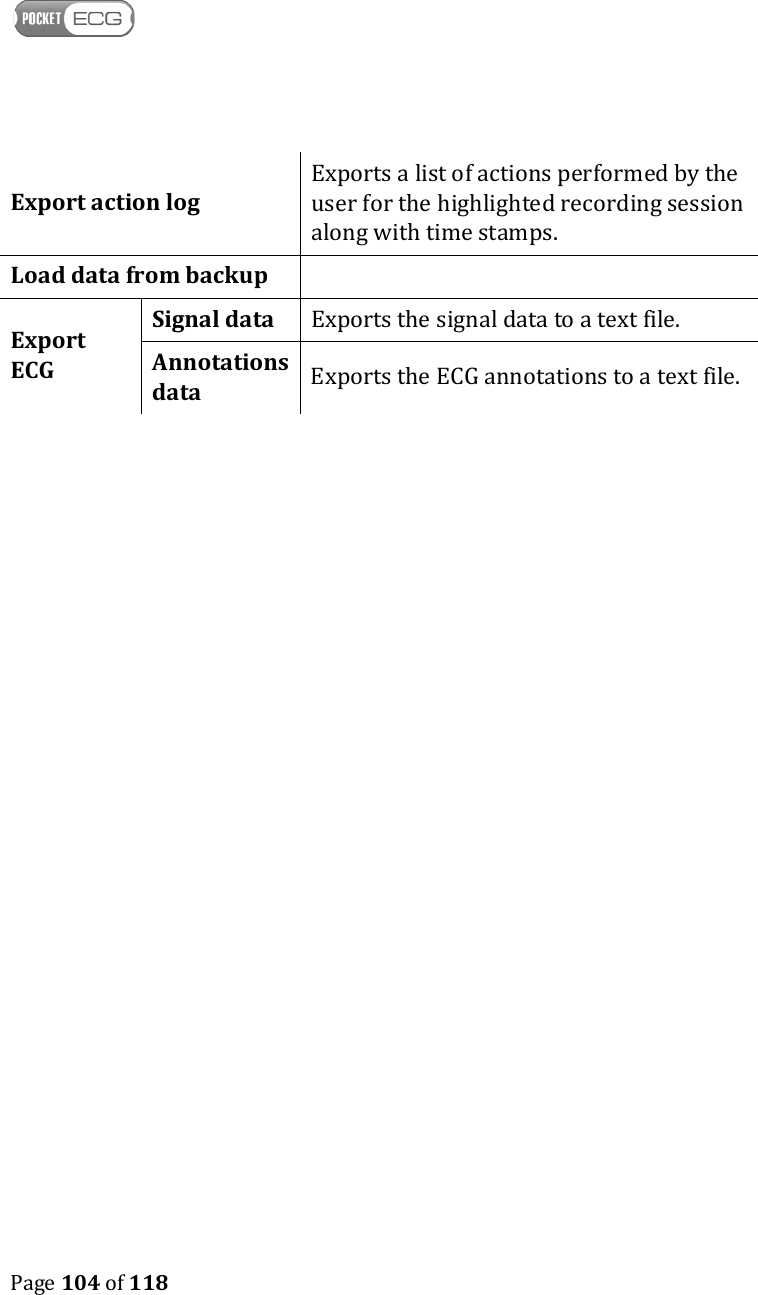
   Page 102 of 118  24. GARBAGE The list of all recording sessions removed from the remote server is presented in the Garbage view of the PC client application. The list may be sorted and filtered using the pop-out menus located in the toolbar. The following menu options: “Hide recording sessions”, “Sorting key order” and “Columns visibility” are identical to the options available in the Navigator and described in detail in section 24. The recording sessions placed in the Garbage folder may be moved back to the main folder and further accessed using the Navigator. In order to restore a recording session press the right button on the PC mouse and then select the "Undelete" command. If the restored session has no specialists assigned, the window for assigning patients and specialist is displayed (see section 24.4).   25. ARCHIVE It is a list of all recording sessions which were located on the remote server and then archived in the Archive view of the PC client application. The list may be sorted and filtered using menu options located in the toolbar. The following menu options: “Hide recording sessions”, “Sorting key order” and “Columns visibility” are identical to the options available in the Navigator and described in detail in section 24. The recording sessions placed in the Archive folder may be moved back to the main folder and further accessed using the Navigator. In order to restore a recording session press the right button on the PC mouse and then select the "De-archive" command. If the de-archived session has no specialists assigned, the window for assigning patients and specialist is displayed (see section 24.4).  26. TOOLS MENU The main menu of the application called the “Tools Menu” is located in the upper left corner of the main window and is represented by the  icon. The pop-out menu has the following options/commands:
   Page 103 of 118  Change user Logs out the current user and displays a window for entering a new login and password. Add / Edit specialists Activates a window for adding and editing specialists’ personal data, as described in section 18.3.2.  Add / Edit patients Activates a window for adding and editing patients’ personal data, as described in section 18.3.1. Clean local database Removes both: ECG data and recording session files already downloaded to the hard drive and initiates a restart of the application. Import session from hard disc  Activates a window for choosing the session data that are going to be imported from the local hard drive.  Export billing data  Saves the ECG data of selected session to a csv file. Open session directory   Opens the folder which stores all the session files. Settings  Opens a window which contains the global setting related to the remote server and the user interface. Clear all re-annotations Clears all re-annotations introduced by the user during reviewing.  Archive all from SD card Moves data from recording sessions stored on the SD card (connected through the USB card reader with PC/tablet) to the Archive folder of the PC client. Add/Edit Specialist/transmitters    relations Opens a window for editing specialists/user/transmitter relations, as described in section 18.3.3.
   Page 104 of 118  Export action log Exports a list of actions performed by the user for the highlighted recording session along with time stamps.  Load data from backup    Export ECG  Signal data   Exports the signal data to a text file.  Annotations data  Exports the ECG annotations to a text file.
   Page 105 of 118  C. ADDITIONAL INFORMATION 27. MEDICAL INCIDENT  Caution. Should a medical incident take place, as defined by the medical devices act of February 2, 2011, notify the manufacturer immediately. MEDICALGORITHMICS SA  Jerozolimskie 81 02-001 Warsaw, Poland tel./fax.: + 48 22 825 1249 e-mail: technical@medicalgorithmics.com
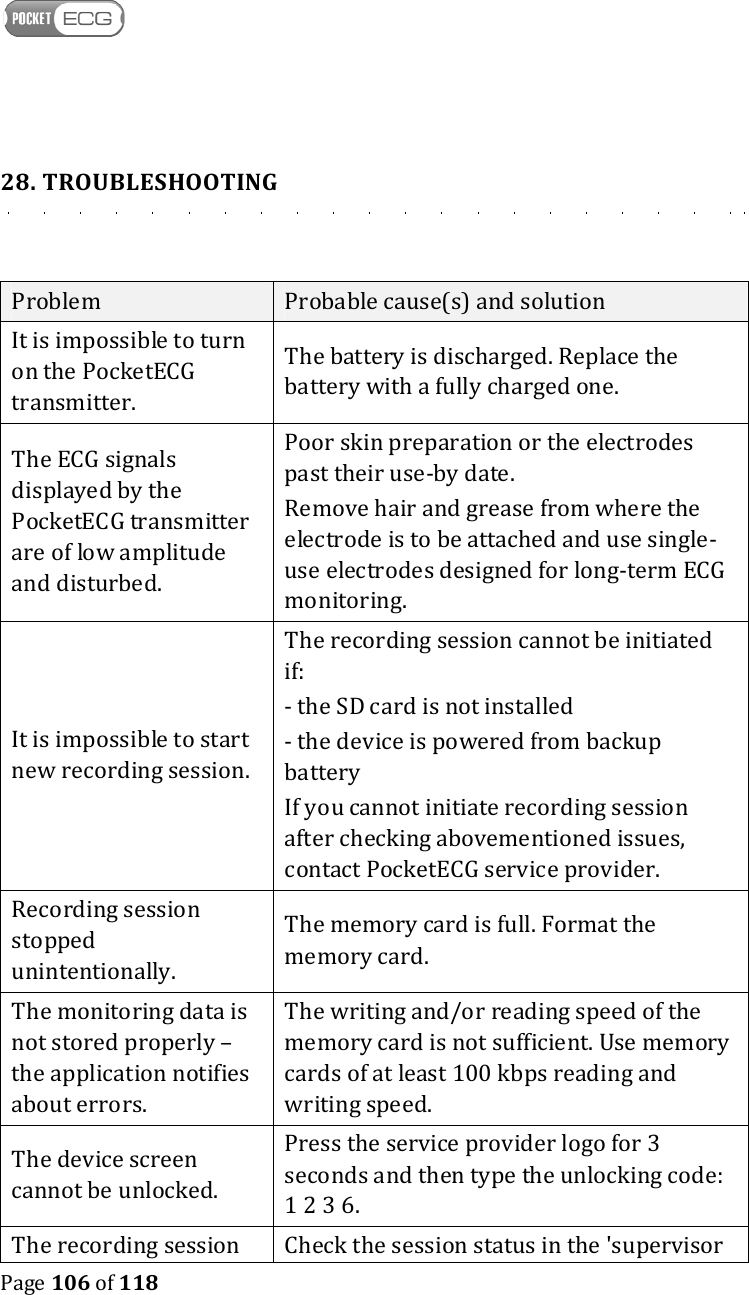
   Page 106 of 118  28. TROUBLESHOOTING  Problem  Probable cause(s) and solution It is impossible to turn on the PocketECG transmitter.  The battery is discharged. Replace the battery with a fully charged one. The ECG signals displayed by the PocketECG transmitter are of low amplitude and disturbed. Poor skin preparation or the electrodes past their use-by date. Remove hair and grease from where the electrode is to be attached and use single-use electrodes designed for long-term ECG monitoring.  It is impossible to start new recording session. The recording session cannot be initiated if: - the SD card is not installed - the device is powered from backup battery If you cannot initiate recording session after checking abovementioned issues, contact PocketECG service provider. Recording session stopped unintentionally.  The memory card is full. Format the memory card. The monitoring data is not stored properly – the application notifies about errors. The writing and/or reading speed of the memory card is not sufficient. Use memory cards of at least 100 kbps reading and writing speed.  The device screen cannot be unlocked. Press the service provider logo for 3 seconds and then type the unlocking code: 1 2 3 6. The recording session  Check the session status in the 'supervisor
   Page 107 of 118  has been successfully started on the PocketECG transmitter, but it is not listed in the PocketECG client application. view' → About → Session info- the '[OK]' text string indicates that the wireless connection between PocketECG transmitter and remote server has been successfully established. If instead of '[OK]' an error code is displayed in the brackets, the transmitter cannot connect to the remote server. Ensure that the Internet connection is properly configured on the phone and that it is within the mobile network range. If the '[OK]' status is displayed and the newly started recording session still cannot be found in the PocketECG Client application, the PC operating PocketECG Client does not have an active Internet connection. Consult your PocketECG distributor or service provider for support. The recording session has been finished, but the mobile phone network is not working (ECG data cannot be transmitted) or internet is inaccessible due to its infrastructure failure.  Finish the recording session and remove SD card from the PocketECG transmitter. Use micro SD card reader equipped with USB interface and connect it to the PC operating the PocketECG Client application and download the ECG data from the SD card to the local hard drive (refer to subsection 18.7).  The PocketECG Client application cannot communicate with the remote server - the ECG data cannot be downloaded. Refer to subsection 17.1
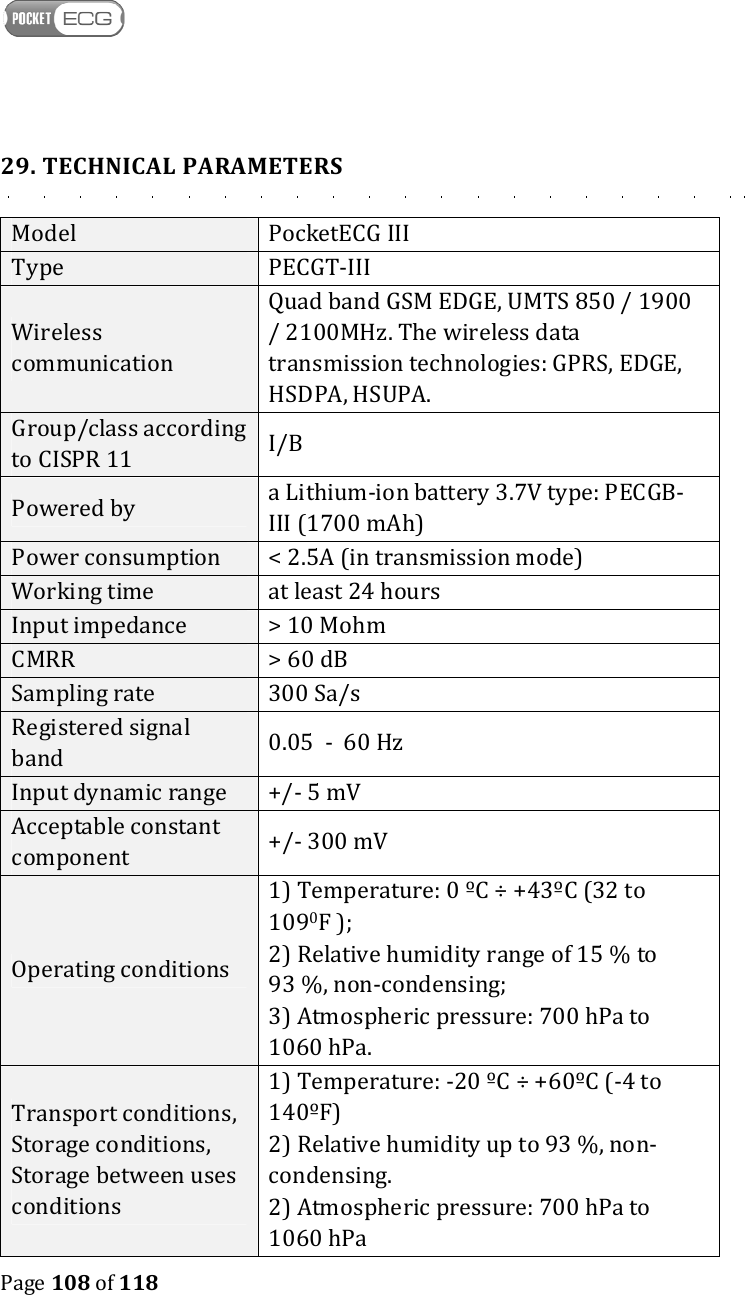
   Page 108 of 118  29. TECHNICAL PARAMETERS Model  PocketECG III Type  PECGT-III Wireless communication Quad band GSM EDGE, UMTS 850 / 1900 / 2100MHz. The wireless data transmission technologies: GPRS, EDGE, HSDPA, HSUPA. Group/class according to CISPR 11  I/B Powered by  a Lithium-ion battery 3.7V type: PECGB-III (1700 mAh) Power consumption  < 2.5A (in transmission mode) Working time  at least 24 hours Input impedance  > 10 Mohm CMRR  > 60 dB Sampling rate  300 Sa/s Registered signal band  0.05  -  60 Hz Input dynamic range  +/- 5 mV Acceptable constant component  +/- 300 mV Operating conditions 1) Temperature: 0 ºC ÷ +43ºC (32 to 1090F ); 2) Relative humidity range of 15 % to 93 %, non-condensing; 3) Atmospheric pressure: 700 hPa to 1060 hPa. Transport conditions, Storage conditions, Storage between uses conditions  1) Temperature: -20 ºC ÷ +60ºC (-4 to 140ºF) 2) Relative humidity up to 93 %, non-condensing. 2) Atmospheric pressure: 700 hPa to 1060 hPa
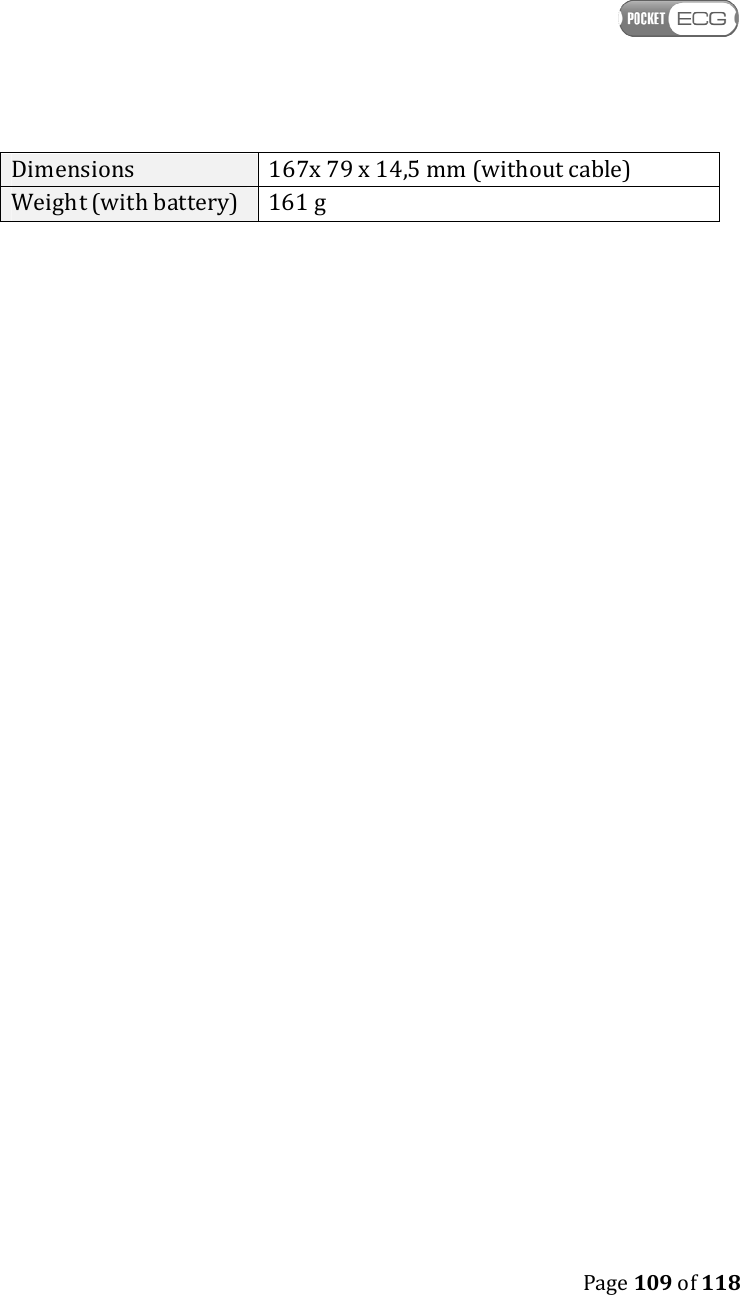
   Page 109 of 118  Dimensions  167x 79 x 14,5 mm (without cable) Weight (with battery)  161 g
   Page 110 of 118  30. SERVICE Service is provided only by Medicalgorithmics S.A. In case of any product malfunction a device shall be returned directly to manufacturer to the following address:  MEDICALGORITHMICS S.A. Jerozolimskie 81 02-001 Warsaw, Poland tel./fax.: + 48 22 825 1249 e-mail: technical@medicalgorithmics.com  31. DECLARATION OF CONFORMITY If you would like to receive the declaration of conformity, contact with the manufacturer on the following address:  MEDICALGORITHMICS S.A. Jerozolimskie 81 02-001 Warsaw, Poland e-mail: technical@medicalgorithmics.com  32. LIMITED WARRANTY STATEMENT This limited warranty shall apply to a product (“Product”) supplied by MEDICALGORITHMICS. MEDICALGORITHMICS warrants that at the time of its original purchase the product is free of defects in materials and workmanship (“Limited Warranty”). THIS LIMITED WARRANTY DOES NOT AFFECT YOUR STATUTORY RIGHTS. This Limited warranty is subject to the following terms and conditions: 1. This Limited Warranty is given only to the original purchaser of the Product (“Customer”). This Limited Warranty may, however, be transferred to any individual to whom the Product is sold, where MEDICALGORITHMICS has consented in writing to the transfer (and
   Page 111 of 118  MEDICALGORITHMICS will not unreasonably refuse consent). It shall neither exclude nor limit a) any statutory rights of the Customer or b) any of the Customer’s rights against the seller/dealer of the Product. 2. This Limited Warranty shall last for twelve (12) months from the date of original purchase for the ECG transmitter, and twelve (12) months for accessories (whether included in the ECG transmitter sales package or sold separately) other than the media, on which software is provided, CD-ROM, memory card (“Warranty Period”). Customer shall present the PROOF OF PURCHASE and the SERIAL NUMBER OF POCKETECG TRANSMITTER upon claiming this Limited Warranty. This Limited Warranty is only valid and enforceable in the countries where the Product is sold. However, if you have purchased the Product in a member state of the European Union, Iceland, Norway, Switzerland or Turkey and MEDICALGORITHMICS originally intended the Product for sale in one of these countries, this Limited Warranty is valid and enforceable in all of the above listed countries. Moreover, if Product is purchased in places other than those stated above, MEDICALGORITHMICS will attempt to repair such Product but cannot guarantee the outcome. Warranty service availability and response times may vary from country to country and may also be subject to a registration requirement in the country of purchase. 3. Throughout the Warranty Period MEDICALGORITHMICS or its authorized agent will, at their discretion repair or replace a defective Product free of charge, subject to Clause 6. Repair or replacement may involve the use of functionally equivalent reconditioned unit. MEDICALGORITHMICS will return the repaired Product or will replace it with another functionally equivalent Product in good working condition. All replaced faulty parts or components will become the property of MEDICALGORITHMICS.
   Page 112 of 118  4. This Limited Warranty applies only to the hardware components of the Product as originally supplied and does not apply to any software or other equipment. 5. If MEDICALGORITHMICS repairs or replaces the product, the repaired or replaced Product shall continue to be warranted for the remaining time of the original Warranty Period or for three (3) months from the date of repair or replacement, whichever is longer. 6. THIS LIMITED WARRANTY SHALL NOT APPLY IF: a) the Product serial number, the accessory date has been removed, erased, defected, altered or is illegible; or b) deterioration of the Product is due to normal wear and tear; or c) the Product was used other than as described in the user manual, subjected to rough handling, exposed to moisture, dampness or extreme thermal or environmental conditions or a rapid change in such conditions, corrosion, oxidation, subjected to unauthorized modifications or connections, unauthorized opening or repair, repair by use of unauthorized spare parts, accidents, forces of nature, or other actions beyond the reasonable control of MEDICALGORITHMICS (including but not limited to deficiencies in consumable parts) unless the defect was caused directly by defects in materials or workmanship. This Limited Warranty does not cover physical damage to the surface of the Product; or d) the defects result from the fact that the battery has been short-circuited or from the fact that the seals of the battery enclosure or the cells are broken or show evidence of tampering or from the fact that the battery has been used in equipment other than those for which it has been specified; or e) the Product software needs to be upgraded due to changes in cellular network parameters; or
   Page 113 of 118  f) the defect was caused by the fact that the Product was used with or connected to an accessory not approved or provided by MEDICALGORITHMICS or used not as intended and where it can be shown by MEDICALGORITHMICS that such defect is not the fault of the Product itself. 7. Your Product may contain country specify elements, if the Product has been re-exported from its original destination country to another country, the Product may contain country specific elements that are not considered to be a defect under this Limited Warranty. CUSTOMER MUST NOTIFY MEDICALGORITHMICS OR A MEDICALGORITHMICS AUTHORIZED SERVICE AGENT OF A CLAIM UNDER THIS LIMITED WARRANTY AND OF THE ALLEGED DEFECT WITHIN A REASONABLE TIME AFTER NOTICING THE DEFECT AND IN ANY EVENT NO LATER THAN BEFORE THE EXPIRY OF THE WARRANTY PERIOD. 8. In the event of Product failure, the Customer should take the following actions: a) refer to the user manual in order to identify and possibly correct the problem, b) if the problem cannot be resolved by referring to the user manual the Customer should contact the dealer where the Product was purchased, c) before the Customer contacts the MEDICALGORITHMICS service agent, please ensure the following information is at hand: - The model and serial number of the Product, - The customer’s full address and contact information. - A copy of the Customer’s original invoice, receipt or bill of sale for the purchase of the Product.  MEDICALGORITHMICS will provide the Customer with instructions regarding how and when the defective Product should be returned. MEDICALGORITHMICS will pay both for the return of the defective product
   Page 114 of 118  to MEDICALGORITHMICS and for sending the repaired Product back to the Customer if the Defective Product is within the Warranty Period. 9. THIS LIMITED WARRANTY STATES THE ENTIRE WARRANTY GIVEN BY MEDICALGORITHMICS TO THE CUSTOMER. IN NO EVENT SHALL MEDICALGORITHMICS BE LIABLE UNDER THIS LIMITED WARRANTY FOR LOSS OF PROFIT, LOSS OF ANTICIPATED SAVINGS, LOSS OF DATA OR INDIRECT LOSS OF USE OF THE PRODUCT OR ANY ASSOCIATED EQUIPMENT, INCIDENTAL OR CONSEQUENTIAL LOSSES OR DAMAGES OF ANY NATURE WHATSOEVER TO THE FULLEST EXTENT THAT THOSE LOSSES OR DAMAGES CAN BE DISCLAIMED BY LAW.  In any case MEDICALGORITHMICS and its suppliers’ entire liability under any provision of this Limited Warranty shall be limited to the amount actually paid by the Customer for the hardware. MEDICALGORITHMICS does not exclude or limit liability for personal injury or death resulting from its own negligence, for defects in the Product arising out of its or its manufacturers’ negligence, under Part I of the Consumer Protection Act 1987 or for fraudulent misrepresentation. The laws of some countries prohibit Medicalgorithmics from excluding or limiting its liability. In such cases, the exclusions and limitations of liability in this Limited Warranty will not apply. This Limited Warranty gives the Customer specific legal rights; the Customer may also have other rights, which may vary from country to country. This limited warranty does not affect the Customers’ statutory rights in law specific to the country of purchase, such rights remain protected.  33. SOFTWARE LICENSE AGREEMENT Terms and definitions: • AGREEMENT – this License Agreement.
   Page 115 of 118  • PRODUCER – Medicalgorithmics S.A. • LICENSEE – party that is entering into this Agreement with Producer • PRODUCT  –  software,  data  and  related  material  contained  in  the PocketECG package  PRODUCER  IS WILLING TO LICENSE PRODUCT TO LICENSEE ONLY ON  THE  CONDITION  THAT  LICENSEE  ACCEPTS  ALL  THE  TERMS AND CODITIONS STATED IN THIS AGREEMENT. BY INSTALLING OR USING  THE  PRODUCT  THE  LICENSEE  INDICATES ACCEPTANCE  OF THIS AGREEMENT. RESERVATION OF OWNERSHIP AND GRANT OF LICENSE All  rights  not  specifically  granted  in  this  Agreement  are  reserved  to Producer. Product is owned by Producer and its third party licensor(s) and  is  protected  by  copyrights  laws.  Producer  and  its  third  party licensor(s)  retain  exclusive  rights, title  and  ownership  of  the copy  of the  Product.  Hereby  Producer  grants  to  Licensee  a  personal, nonexclusive nontransferable license to use Product on the terms and conditions of this Agreement. Licensee agrees to use every reasonable effort  to  protect  Product  from  unauthorized  use,  reproduction, distribution or publication. PERMITTED USES a) Licensee may install and use Product on only one computer system and  only  if  that  computer  is  for  Licensee’s  own  internal  use  and constitutes Licensee’s own property. b) Licensee may make two backup copies of the Product. USES NOT PERMITTED
   Page 116 of 118  a) Licensee shall not reverse, engineer, decompile, or disassemble the software contained in Product. b)  Licensee  shall  not  remove  or  obscure  Producer  copyright  or trademark notices. TERMINATION Licensee  may  terminate  this  Agreement  at  any  time  by  returning Product  in  its  entirety  to  Producer.  Producer  may  terminate  this Agreement in case of the Licensee’s material breach of this Agreement. If Agreement is terminated after the warranty period, Producer will not reimburse the purchase price. LIMITED WARRANTY Producer warrants that the media upon which Product is provided will be free from defects in  material  and  workmanship  under  normal  use and service for a period of ninety (90) days from the date of receipt. If a defect  is  found  that  was  not  caused by  improper  use,  Producer  at  its own  discretion  will  exchange  Product  for  a  defect-free  or  reimburse the  price  paid  by  Licensee.  Producer  made  every  effort  to  provide flawless  operation  of  Product’s  functions.  Nonetheless  Licensee understands that Product may contain some errors, defects, omissions or nonconformities. Therefore Producer and the respective third party licensor(s)  discourage  Licensee  from  relying  exclusively  on  data generated by the Product. EXCLUSIVE REMEDY AND LIMIATATION OF LIABILITY Producer’s entire liability  and Licensee’s exclusive remedy during the warranty  period  shall  be  the  return  of  the  license  fee  paid  for  the Product or exchange of Product as described in the Limited Warranty above.  Producer  shall  not  be  liable  for  indirect,  incidental  or consequential  damages  related  to  Licensee’s  use  of  Product,  even  if Producer is advised of the possibility of such damage.
   Page 117 of 118  WAIVERS No failure or delay by Producer in enforcing any right or remedy under this Agreement  shall be  construed  as  a  waiver  of any  future  or  other exercise of such right or remedy by Producer.  ORDER OF PRECEDENCE Terms  expressed  in  this  Agreement  have  precedence  over  those expressed  in  purchase  order  or  other  purchase  arrangements  unless agreed otherwise. GOVERNING LAW All  rights  and  duties  under  this  Agreement  shall  be  governed  by  the commercial  law  of  the  country  where  the  license  is  purchased  with exception  of  copyright,  patent,  and  trademark  issues.  Those  shall  be governed  by  the  laws  of  Poland  and  the  applicable  international treaties and conventions. ENTIRE AGREEMENT The parties  agree that  this Agreement constitutes  the  sole  and entire agreement  of  the  parties  as  to  the  matter  set  forth  herein  and supersedes  any  previous  agreements,  understandings  and arrangements  between  Producer  and  Licensee  and  is  effective,  valid and binding upon parties.
   Page 118 of 118    0197

Navigation menu