Microtek Technology FILESCAN716W Business Card Scanner User Manual

Shanghai Microtek Technology Co.,ltd. Business Card Scanner

User manual

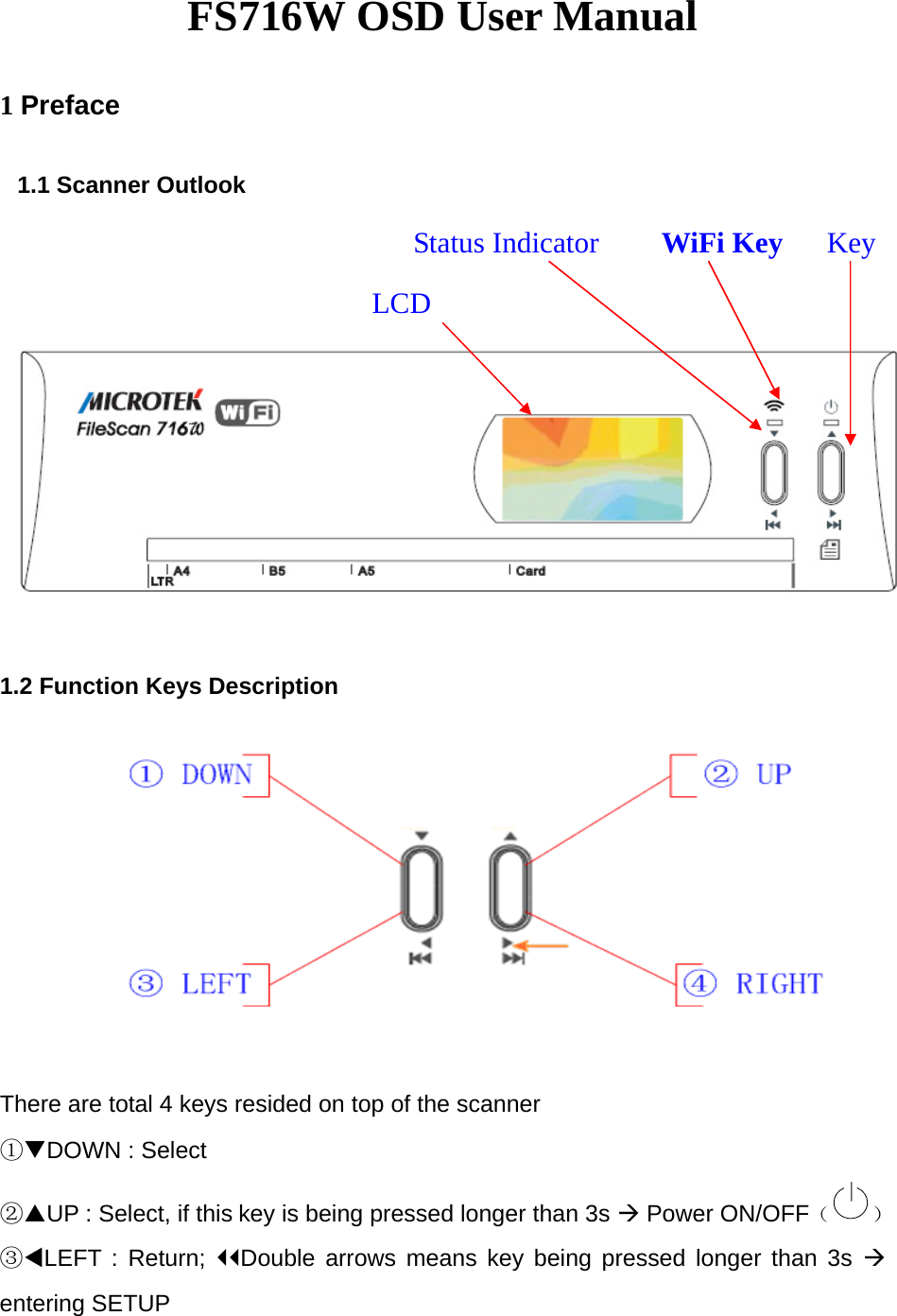
FS716W OSD User Manual 1 Preface 1.1 Scanner Outlook           Status Indicator    WiFi Key   Key          LCD   1.2 Function Keys Description  There are total 4 keys resided on top of the scanner ①DOWN : Select ②UP : Select, if this key is being pressed longer than 3s Æ Power ON/OFF( ) ③LEFT : Return; Double arrows means key being pressed longer than 3s Æ entering SETUP
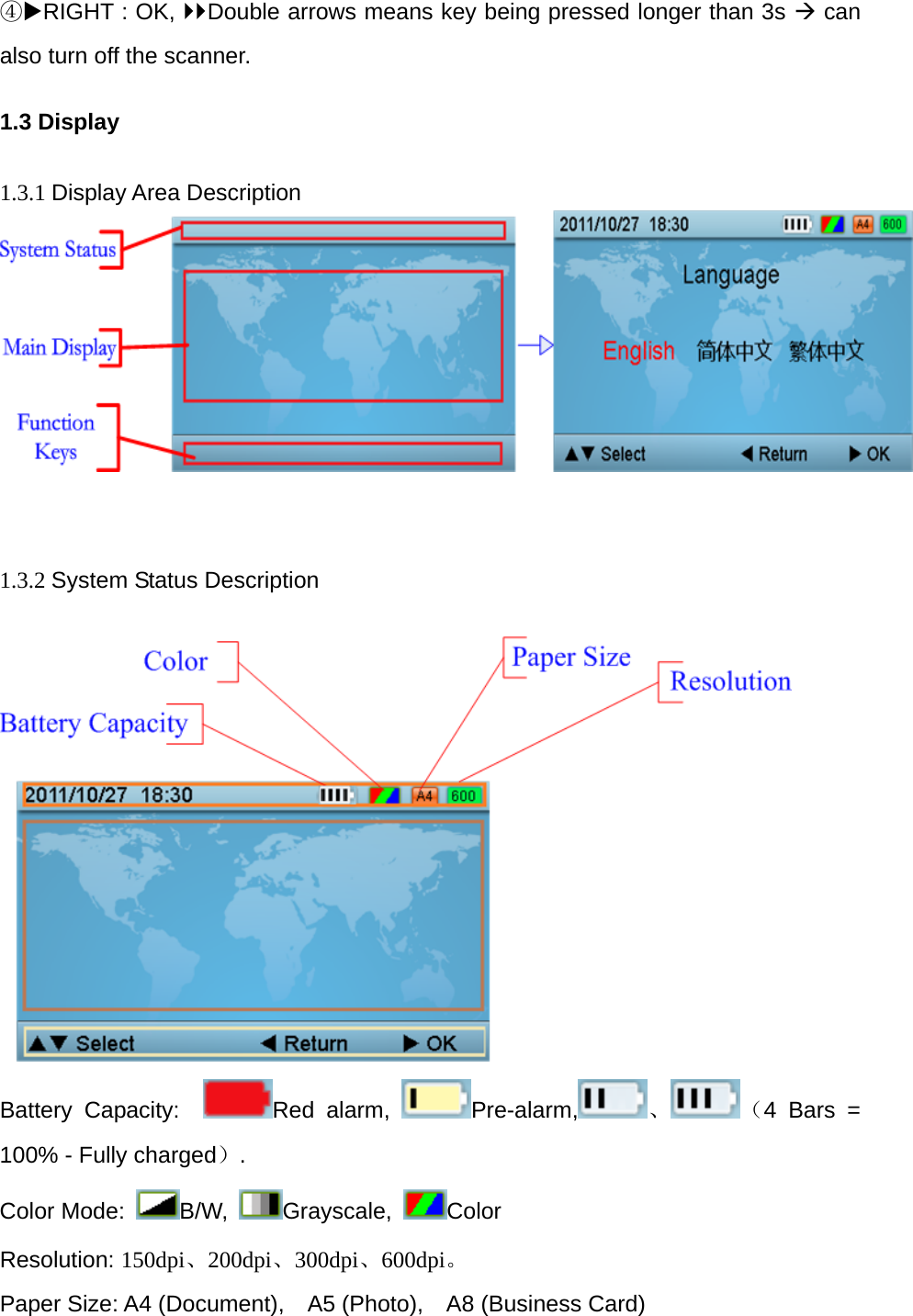
④RIGHT : OK, Double arrows means key being pressed longer than 3s Æ can also turn off the scanner. 1.3 Display  1.3.1 Display Area Description     1.3.2 System Status Description   Battery Capacity:   Red alarm,  Pre-alarm, 、 (4 Bars = 100% - Fully charged). Color Mode:  B/W,  Grayscale,  Color Resolution: 150dpi、200dpi、300dpi、600dpi。 Paper Size: A4 (Document),    A5 (Photo),    A8 (Business Card)
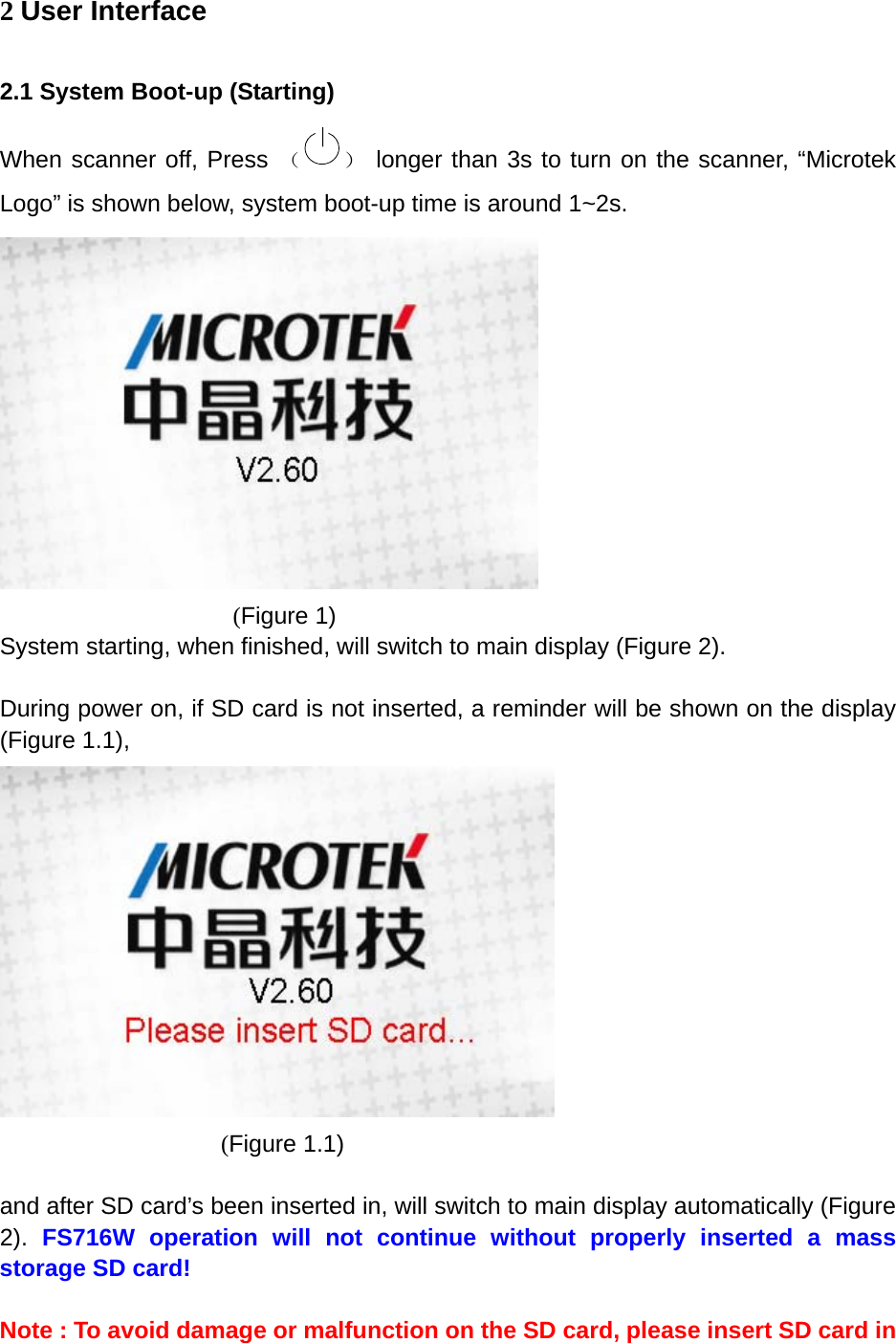
2 User Interface 2.1 System Boot-up (Starting) When scanner off, Press ( ) longer than 3s to turn on the scanner, “Microtek Logo” is shown below, system boot-up time is around 1~2s.             (Figure 1) System starting, when finished, will switch to main display (Figure 2).  During power on, if SD card is not inserted, a reminder will be shown on the display (Figure 1.1),          (Figure 1.1)  and after SD card’s been inserted in, will switch to main display automatically (Figure 2).  FS716W operation will not continue without properly inserted a mass storage SD card!  Note : To avoid damage or malfunction on the SD card, please insert SD card in
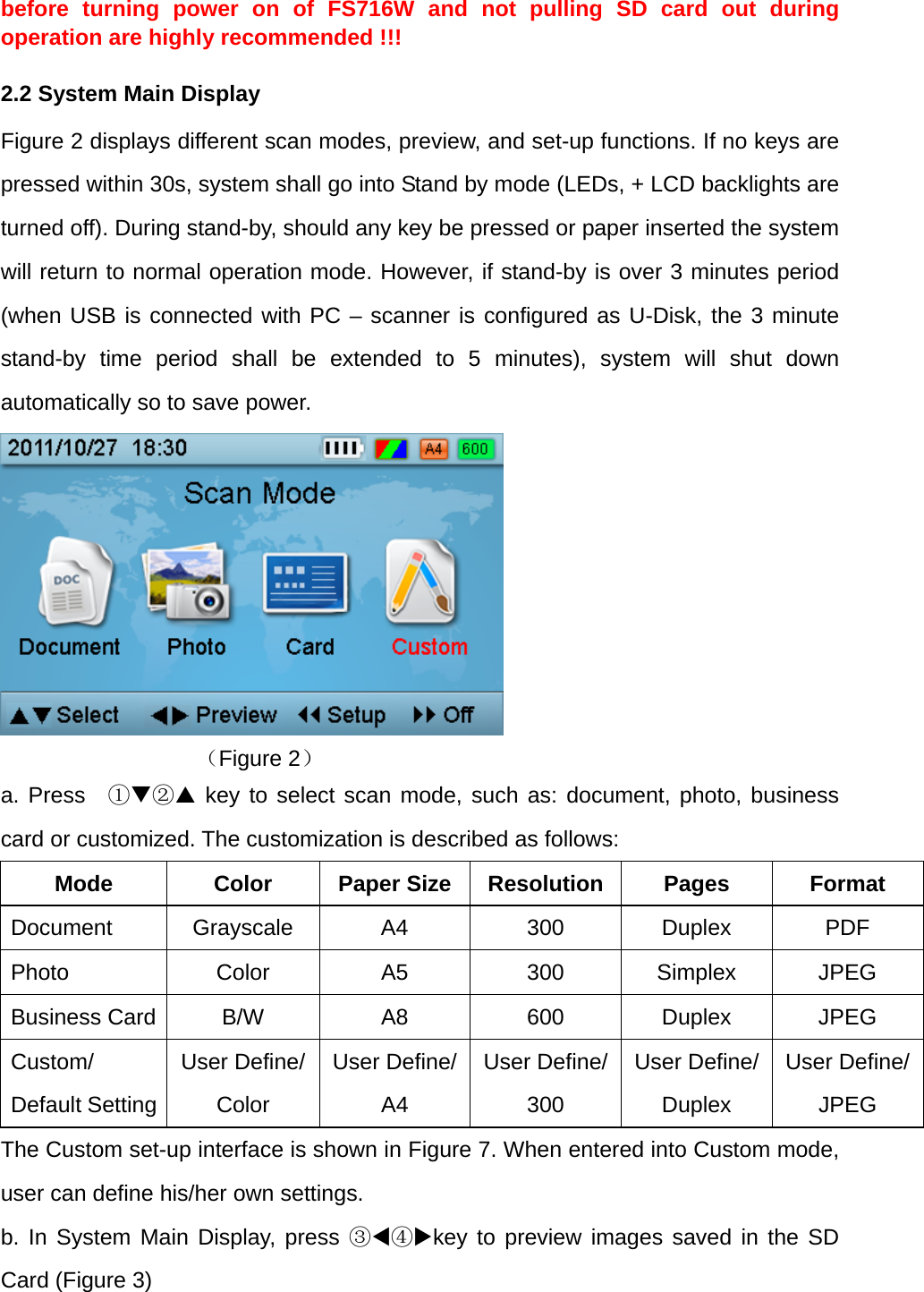
before turning power on of FS716W and not pulling SD card out during operation are highly recommended !!! 2.2 System Main Display Figure 2 displays different scan modes, preview, and set-up functions. If no keys are pressed within 30s, system shall go into Stand by mode (LEDs, + LCD backlights are turned off). During stand-by, should any key be pressed or paper inserted the system will return to normal operation mode. However, if stand-by is over 3 minutes period (when USB is connected with PC – scanner is configured as U-Disk, the 3 minute stand-by time period shall be extended to 5 minutes), system will shut down automatically so to save power.          (Figure 2) a. Press  ①② key to select scan mode, such as: document, photo, business card or customized. The customization is described as follows: Mode Color Paper Size Resolution Pages Format Document Grayscale  A4  300  Duplex  PDF Photo Color A5 300 Simplex JPEG Business Card  B/W  A8  600  Duplex  JPEG Custom/ Default Setting User Define/ Color User Define/A4 User Define/300 User Define/ Duplex User Define/JPEG The Custom set-up interface is shown in Figure 7. When entered into Custom mode, user can define his/her own settings.   b. In System Main Display, press ③④key to preview images saved in the SD Card (Figure 3)
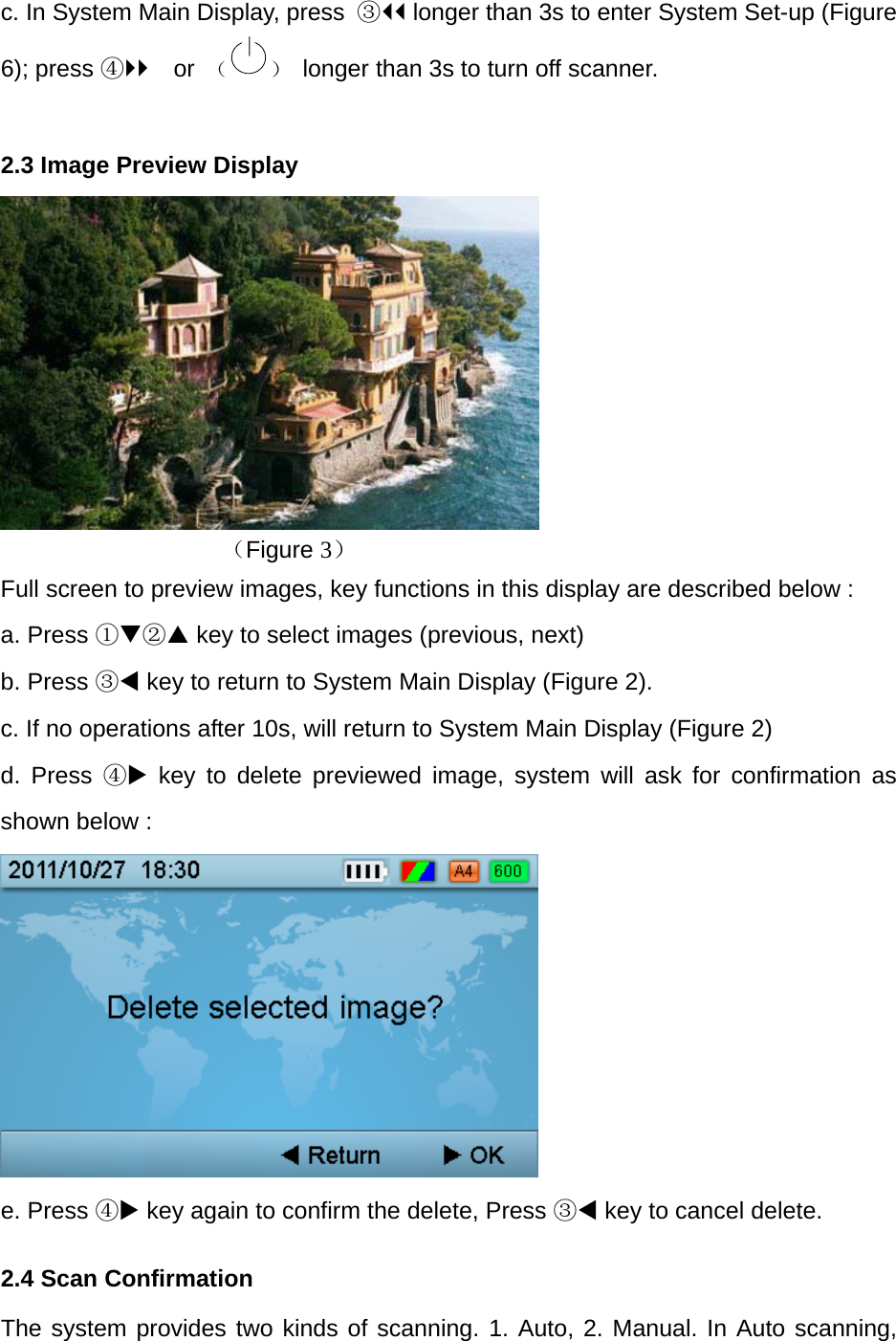
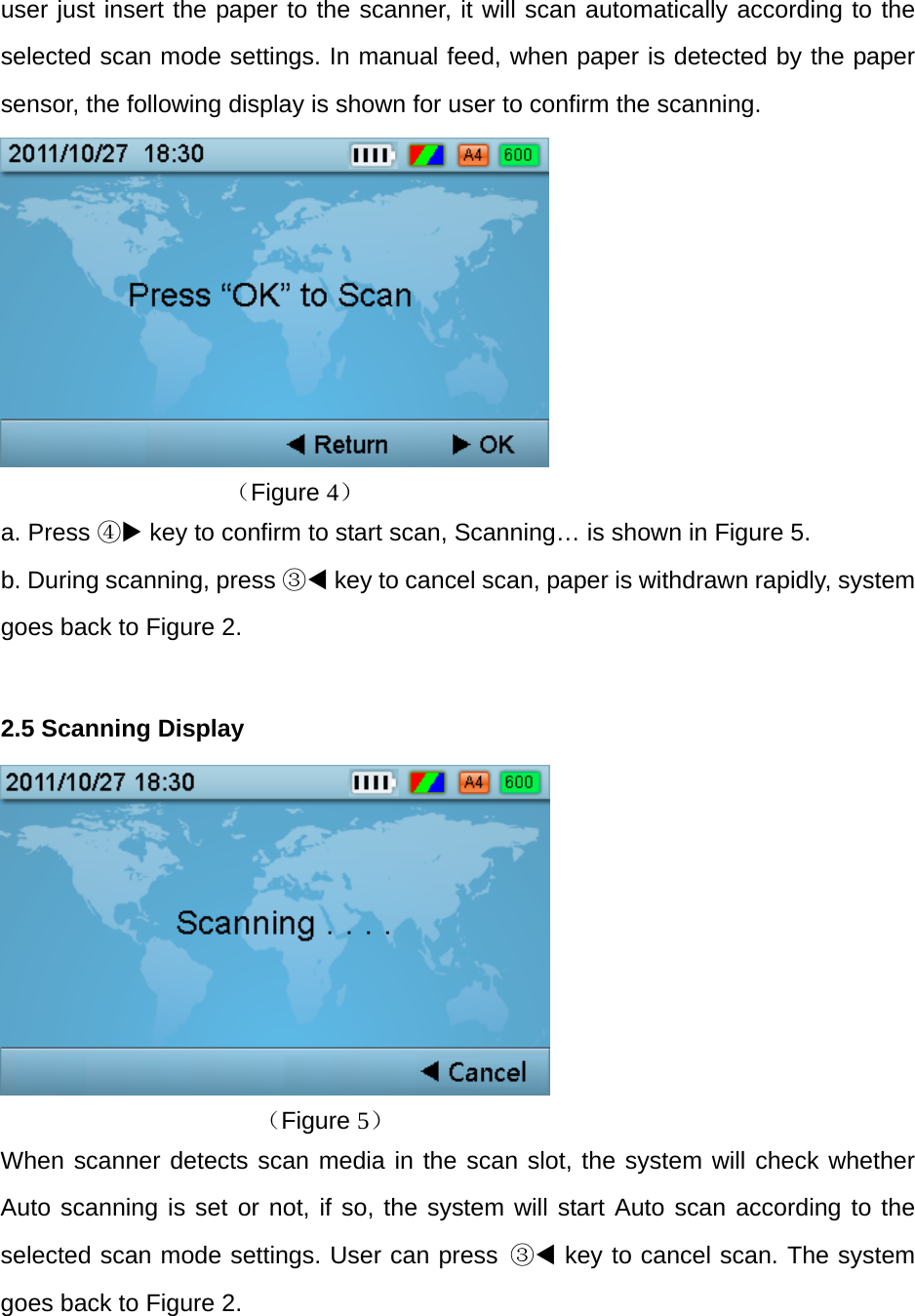
c. In System Main Display, press  ③ longer than 3s to enter System Set-up (Figure 6); press ④ or  ( )  longer than 3s to turn off scanner.  2.3 Image Preview Display        (Figure 3) Full screen to preview images, key functions in this display are described below : a. Press ①② key to select images (previous, next) b. Press ③ key to return to System Main Display (Figure 2). c. If no operations after 10s, will return to System Main Display (Figure 2) d. Press ④ key to delete previewed image, system will ask for confirmation as shown below :    e. Press ④ key again to confirm the delete, Press ③ key to cancel delete. 2.4 Scan Confirmation The system provides two kinds of scanning. 1. Auto, 2. Manual. In Auto scanning,
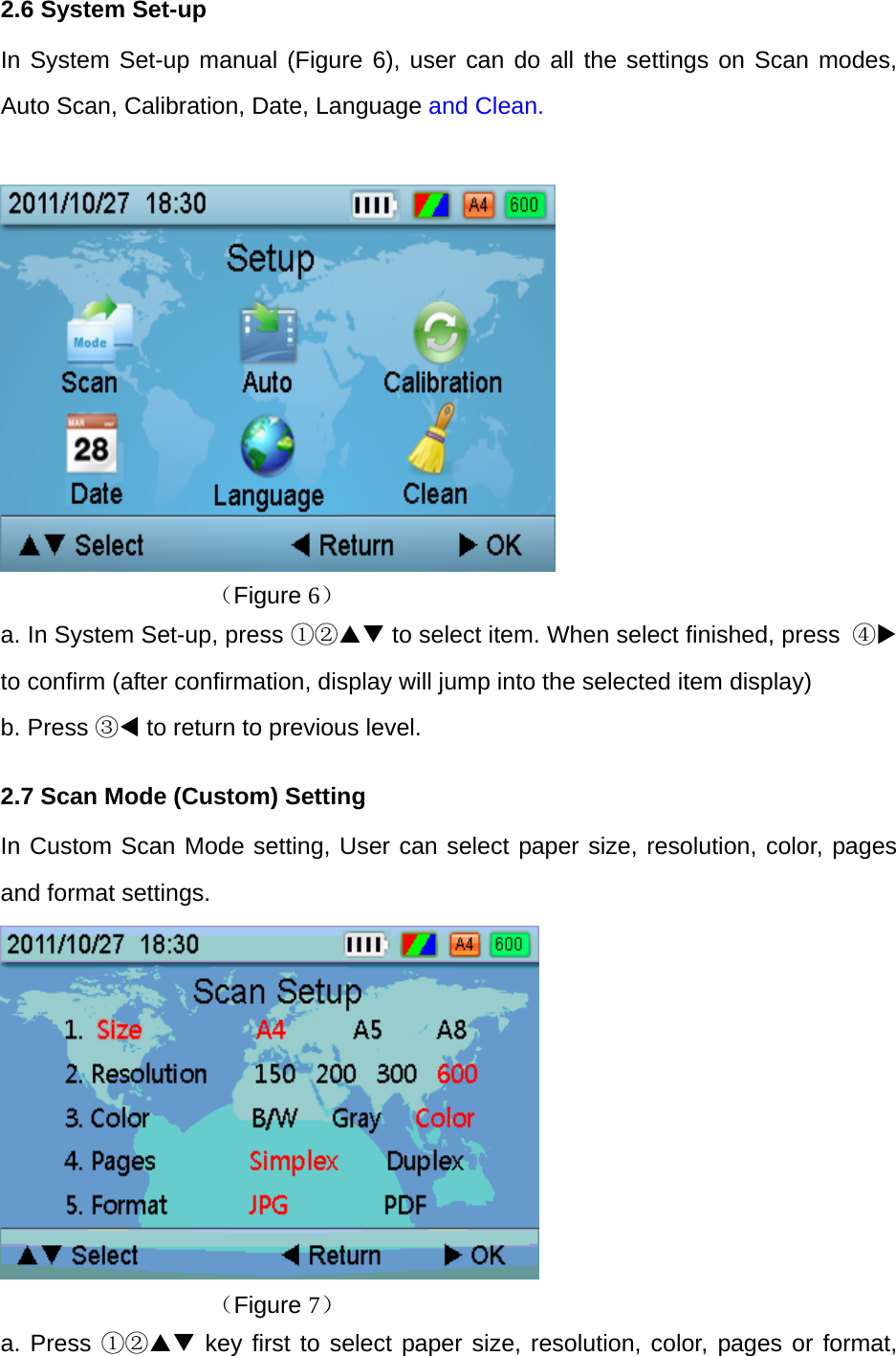
user just insert the paper to the scanner, it will scan automatically according to the selected scan mode settings. In manual feed, when paper is detected by the paper sensor, the following display is shown for user to confirm the scanning.                (Figure 4) a. Press ④ key to confirm to start scan, Scanning… is shown in Figure 5. b. During scanning, press ③ key to cancel scan, paper is withdrawn rapidly, system goes back to Figure 2.  2.5 Scanning Display        (Figure 5) When scanner detects scan media in the scan slot, the system will check whether Auto scanning is set or not, if so, the system will start Auto scan according to the selected scan mode settings. User can press ③ key to cancel scan. The system goes back to Figure 2.
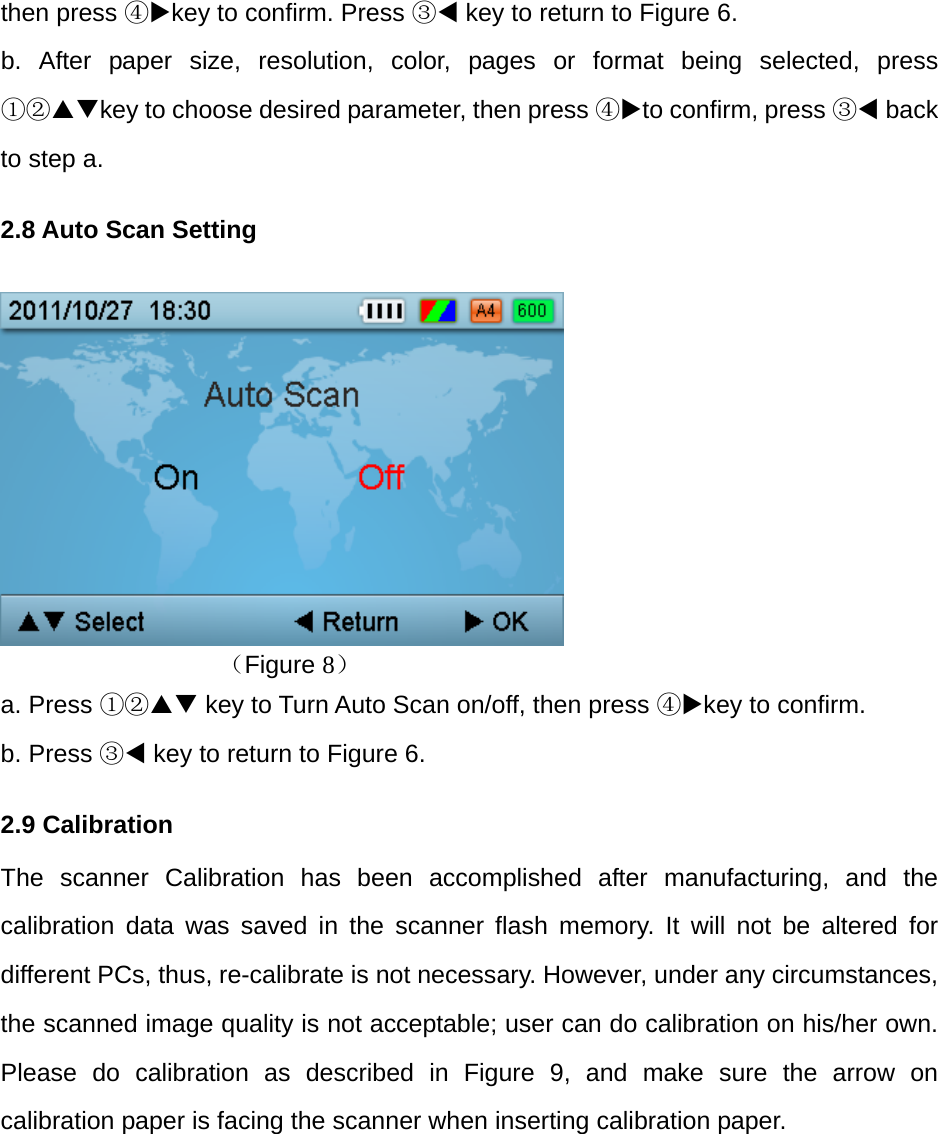
2.6 System Set-up In System Set-up manual (Figure 6), user can do all the settings on Scan modes, Auto Scan, Calibration, Date, Language and Clean.   (Figure 6) a. In System Set-up, press ①② to select item. When select finished, press  ④ to confirm (after confirmation, display will jump into the selected item display)     b. Press ③ to return to previous level. 2.7 Scan Mode (Custom) Setting In Custom Scan Mode setting, User can select paper size, resolution, color, pages and format settings.       (Figure 7) a. Press ①② key first to select paper size, resolution, color, pages or format,
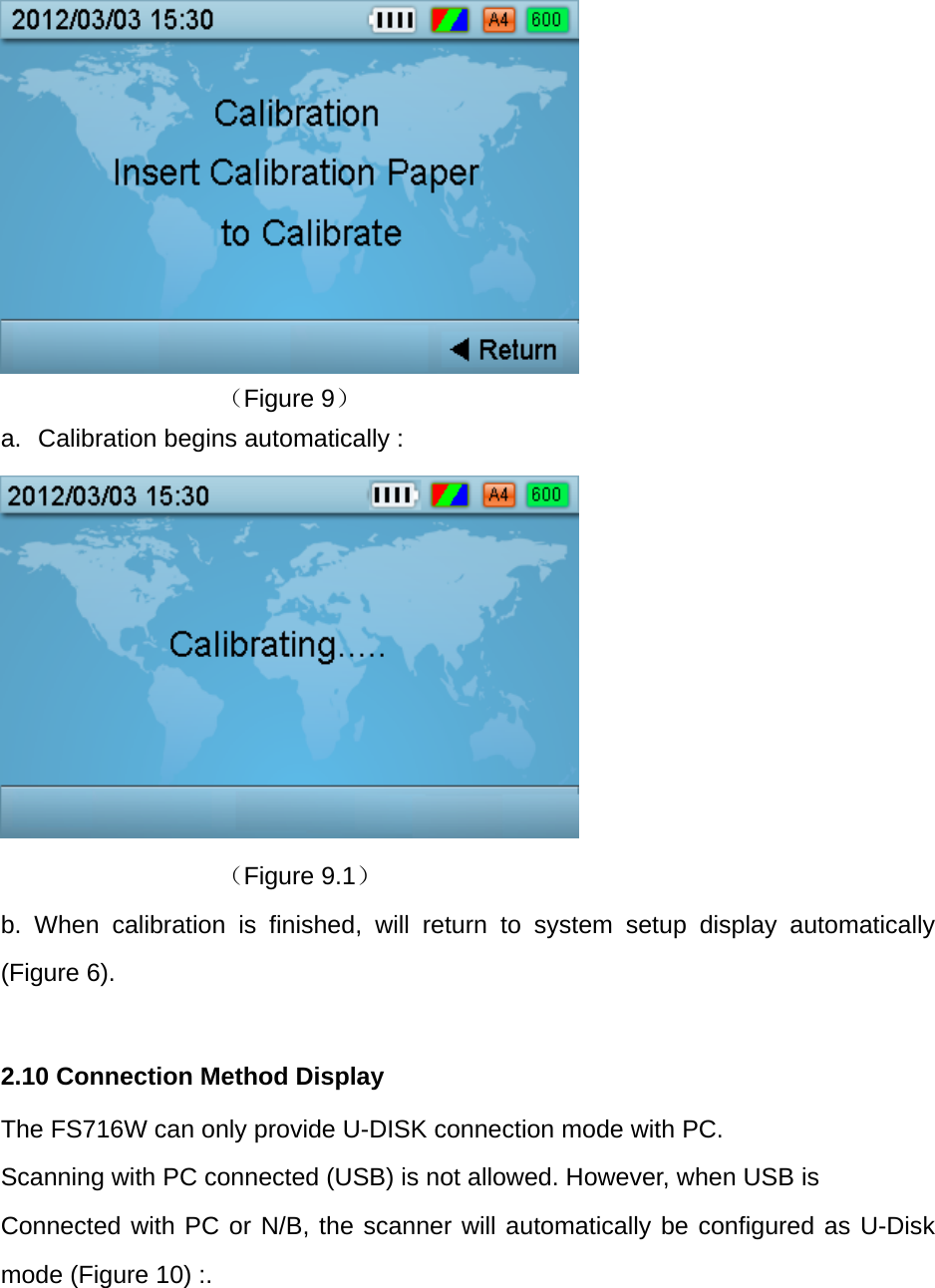
then press ④key to confirm. Press ③ key to return to Figure 6. b. After paper size, resolution, color, pages or format being selected, press ①②key to choose desired parameter, then press ④to confirm, press ③ back to step a.       2.8 Auto Scan Setting        (Figure 8) a. Press ①② key to Turn Auto Scan on/off, then press ④key to confirm. b. Press ③ key to return to Figure 6. 2.9 Calibration   The scanner Calibration has been accomplished after manufacturing, and the calibration data was saved in the scanner flash memory. It will not be altered for different PCs, thus, re-calibrate is not necessary. However, under any circumstances, the scanned image quality is not acceptable; user can do calibration on his/her own. Please do calibration as described in Figure 9, and make sure the arrow on calibration paper is facing the scanner when inserting calibration paper.
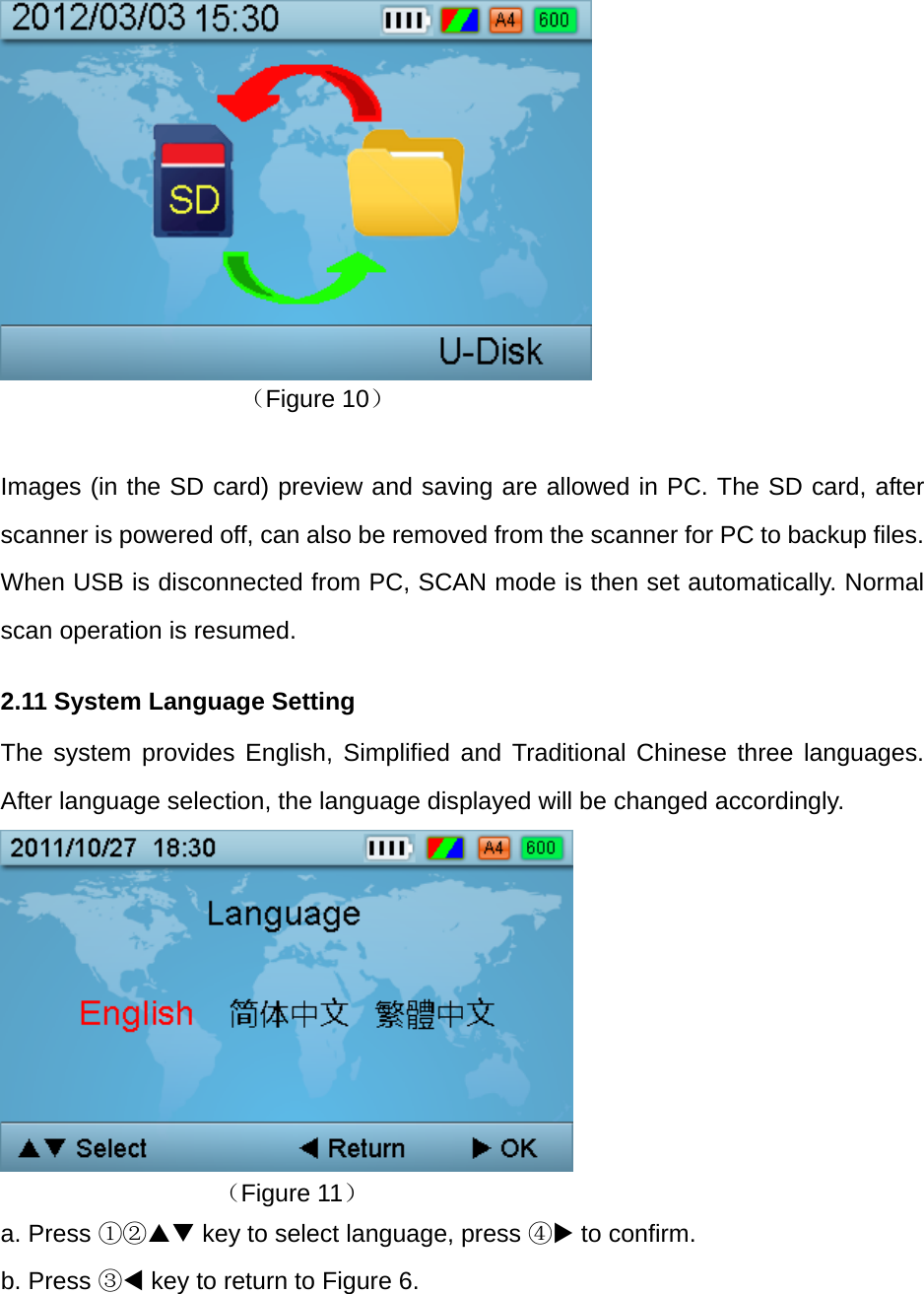
      (Figure 9) a.  Calibration begins automatically :       (Figure 9.1) b. When calibration is finished, will return to system setup display automatically (Figure 6).  2.10 Connection Method Display The FS716W can only provide U-DISK connection mode with PC. Scanning with PC connected (USB) is not allowed. However, when USB is Connected with PC or N/B, the scanner will automatically be configured as U-Disk mode (Figure 10) :.
        (Figure 10)  Images (in the SD card) preview and saving are allowed in PC. The SD card, after scanner is powered off, can also be removed from the scanner for PC to backup files. When USB is disconnected from PC, SCAN mode is then set automatically. Normal scan operation is resumed. 2.11 System Language Setting The system provides English, Simplified and Traditional Chinese three languages. After language selection, the language displayed will be changed accordingly.         (Figure 11) a. Press ①② key to select language, press ④ to confirm. b. Press ③ key to return to Figure 6.
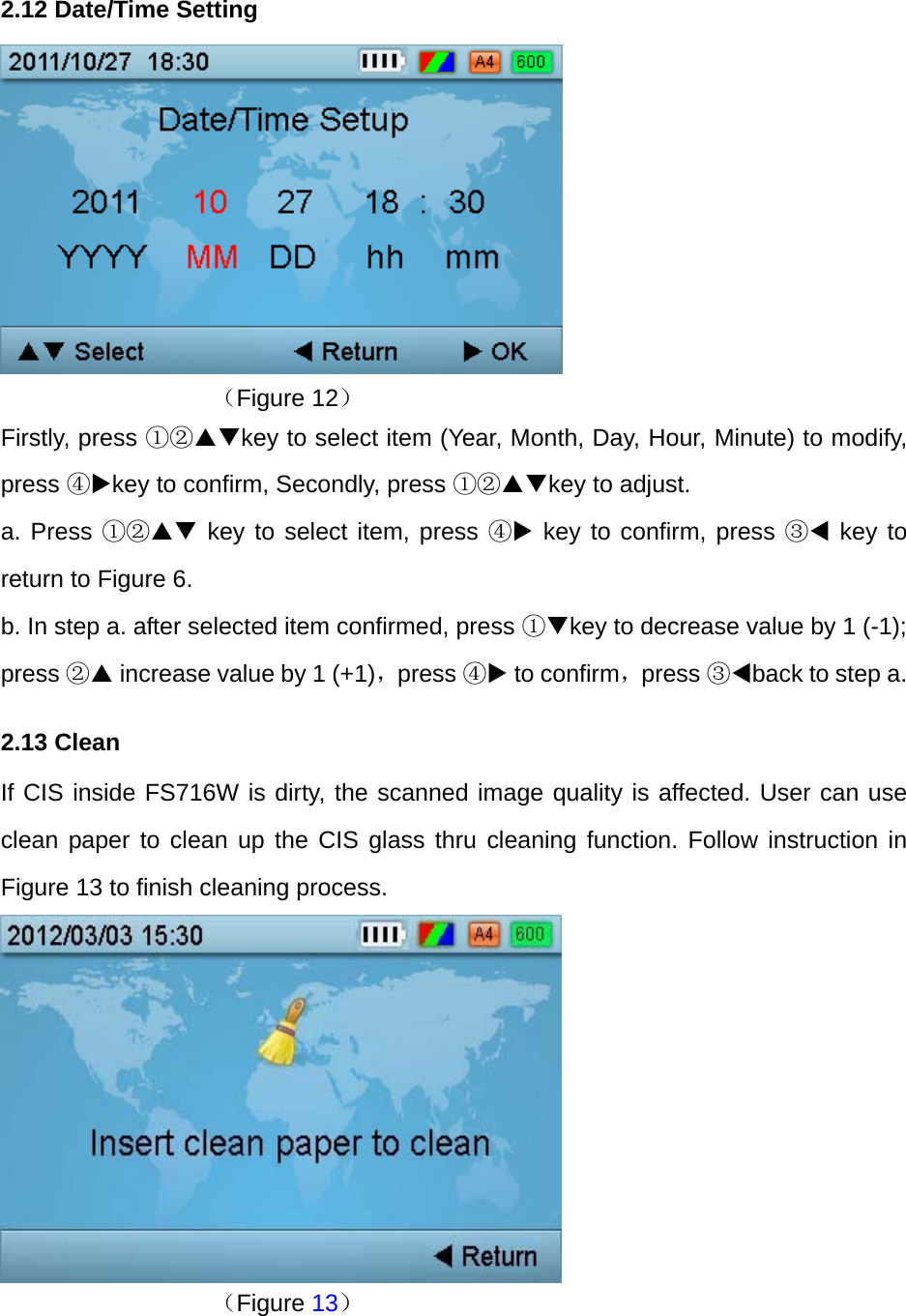
2.12 Date/Time Setting       (Figure 12) Firstly, press ①②key to select item (Year, Month, Day, Hour, Minute) to modify, press ④key to confirm, Secondly, press ①②key to adjust.   a. Press ①② key to select item, press ④ key to confirm, press ③ key to return to Figure 6. b. In step a. after selected item confirmed, press ①key to decrease value by 1 (-1); press ② increase value by 1 (+1),press ④ to confirm,press ③back to step a. 2.13 Clean   If CIS inside FS716W is dirty, the scanned image quality is affected. User can use clean paper to clean up the CIS glass thru cleaning function. Follow instruction in Figure 13 to finish cleaning process.         (Figure 13)
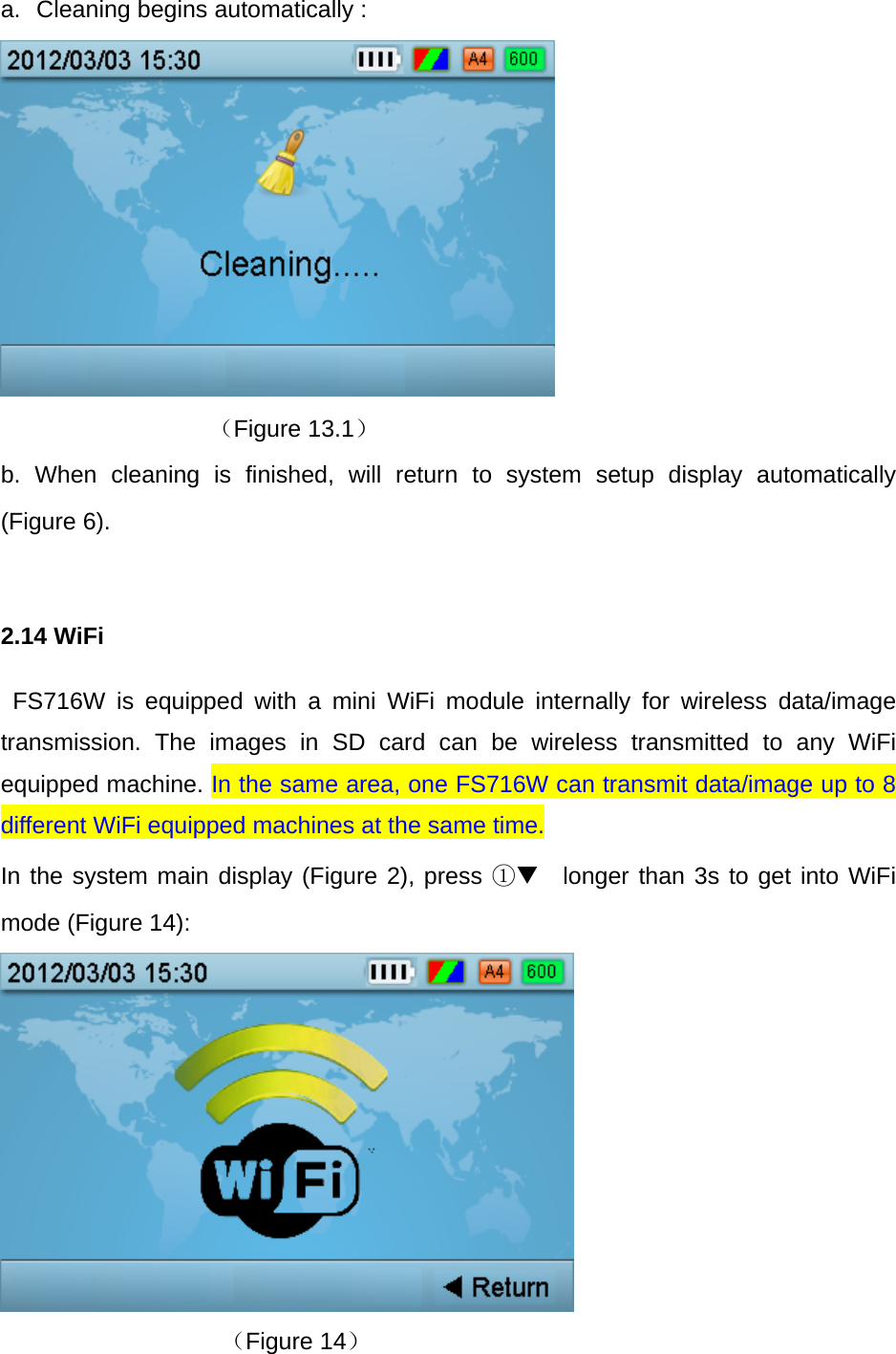
a.  Cleaning begins automatically :       (Figure 13.1) b. When cleaning is finished, will return to system setup display automatically  (Figure 6).  2.14 WiFi  FS716W is equipped with a mini WiFi module internally for wireless data/image transmission. The images in SD card can be wireless transmitted to any WiFi equipped machine. In the same area, one FS716W can transmit data/image up to 8 different WiFi equipped machines at the same time. In the system main display (Figure 2), press ① longer than 3s to get into WiFi mode (Figure 14):  (Figure 14)
Normally, it will take about 30s to get WiFi module connected with iPAD, N/B or any WiFi equipped machine. The SSID is set as “MyFly2012-xxxxxxxx”, the original PW is “88888888”. Once connected, open Internet explorer, hit any “Character” key on the keyboard + 《Return 》, will jump into Wireless AP automatically, user can view/transmit contents in the SD card without any efforts at all. In the AP, user can change SSID and PW as his/her own wishes. Should no data transmission (Internet explorer closed) for 5 minutes under WiFi mode, FS716W will turn off the scanner automatically so to save power. This is to prevent user from forgetting to turn off WiFi by selecting “Return” at the right corner. During WiFi mode (Figure 14), should anyone wants to reset the WiFi module to factory default settings, can press the    ① longer than 3s to achieve such task. Note : Scanning is not allowed under WiFi mode.  3. Battery Charging  There are three battery charging conditions for FS716W  :  a. When scanner is powered off, use USB cable to connect with any PC or N/B to charge battery. b. When scanner is powered off, use USB cable to connect with USB +5V adapter to charge battery. c. During scanner power on, use USB cable to connect with USB +5V adapter to charge battery, in the mean time, scan function is allowed.  4. LED Status Indication  Left LED Status Indication Item  System Status  LED Indication Remark 1  Scan Confirmation  GREEN  Manual Scan Mode 2 Scanning  ORANGE  3 System SETUP  RED  4 Calibrating  RED
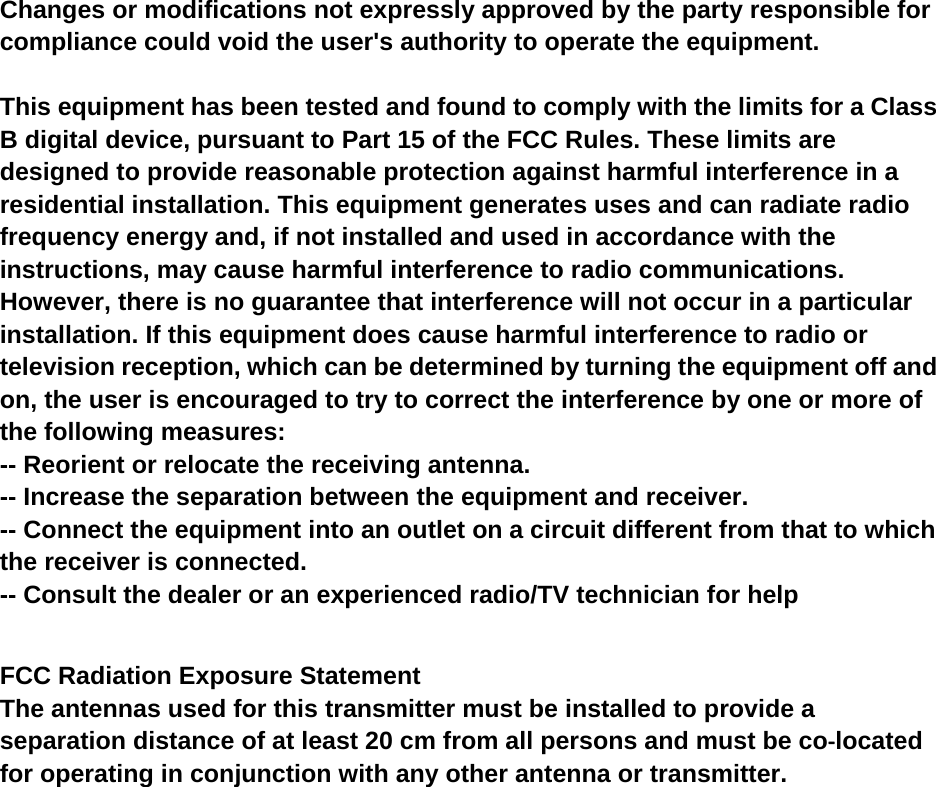
Right LED Status Indication      5. SD Card 5.1 Format FS716W only supports SD card in FAT and FAT32 format.   Should a new SD card is not formatted as one of the above; the card needs to be formatted as either FAT or FAT32.   5.2 Status If a SD card is not working properly, or, if being pulled out of the system during normal operation of FS716W, the LCD shall display as shown in Figure 15. Should the SD card is inserted back into the system at this time; the display will jump to the System Main Display as shown in Figure 2.   (Figure 15)  Note: Please avoid inserting or removing SD card with power on of FS716W so to protect SD card from damaging or malfunctioning.   Item  System Status  LED Indication Remark 1 Charge Complete  GREEN  2 Charging  RED  3 Stand By  ORANGE Not in Charging
Changes or modifications not expressly approved by the party responsible for compliance could void the user's authority to operate the equipment.  This equipment has been tested and found to comply with the limits for a Class B digital device, pursuant to Part 15 of the FCC Rules. These limits are designed to provide reasonable protection against harmful interference in a residential installation. This equipment generates uses and can radiate radio frequency energy and, if not installed and used in accordance with the instructions, may cause harmful interference to radio communications. However, there is no guarantee that interference will not occur in a particular installation. If this equipment does cause harmful interference to radio or television reception, which can be determined by turning the equipment off and on, the user is encouraged to try to correct the interference by one or more of the following measures: -- Reorient or relocate the receiving antenna. -- Increase the separation between the equipment and receiver. -- Connect the equipment into an outlet on a circuit different from that to which the receiver is connected. -- Consult the dealer or an experienced radio/TV technician for help  FCC Radiation Exposure Statement The antennas used for this transmitter must be installed to provide a separation distance of at least 20 cm from all persons and must be co‐located for operating in conjunction with any other antenna or transmitter.

Navigation menu