Mine Site Technologies MP70 MP70 MINE PHONE HANDSET USES 802.11B/G WI-FI, VOIP User Manual USERS MANUAL 1
Mine Site Technologies Pty Ltd MP70 MINE PHONE HANDSET USES 802.11B/G WI-FI, VOIP USERS MANUAL 1
Contents
- 1. USERS MANUAL 1
- 2. USERS MANUAL 2
USERS MANUAL 1
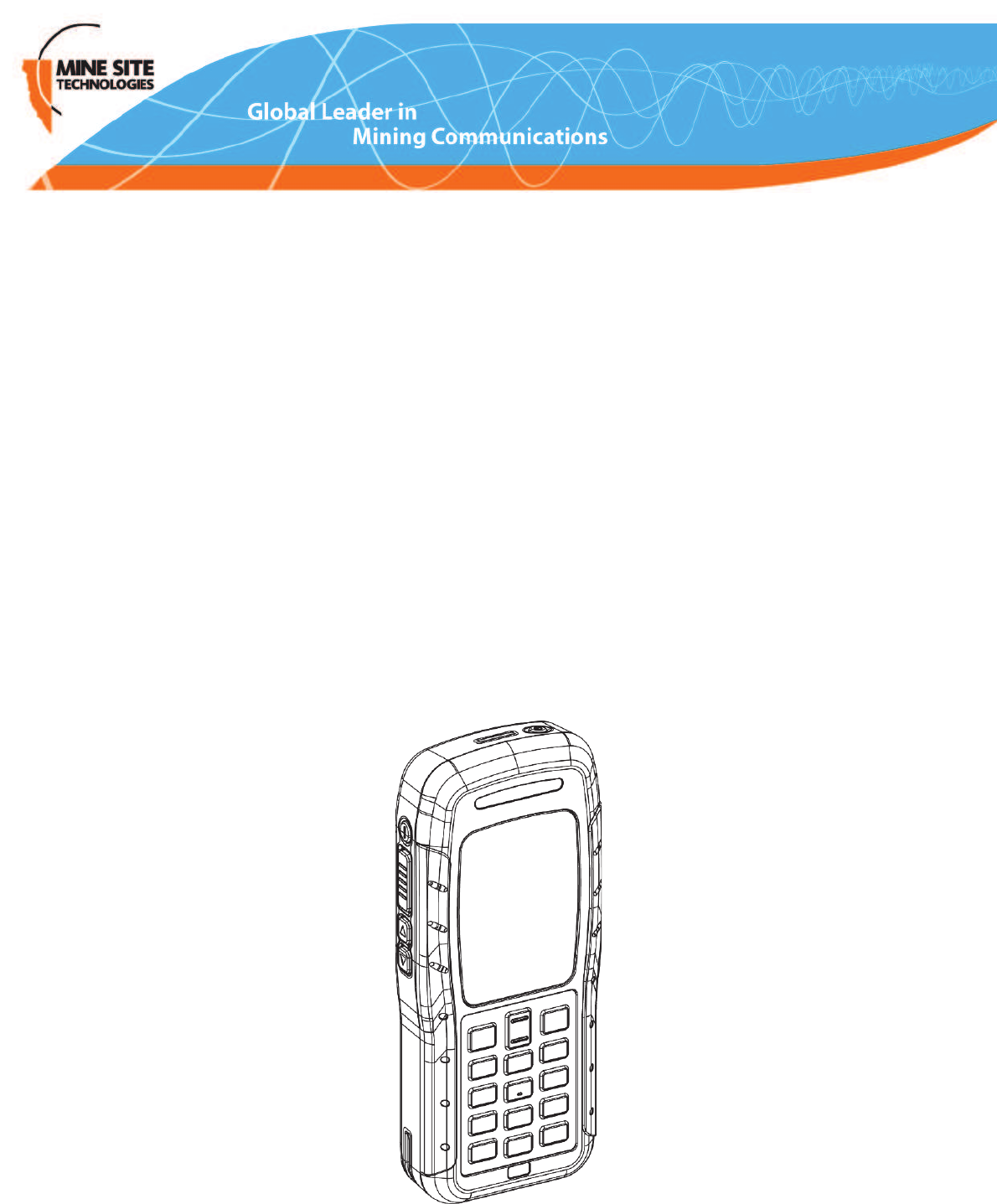
MP70 MinePhone
User Guide
Revision D

Contents
Revision History............................................................................................................................................5
Contact Information.......................................................................................................................................7
About this Guide............................................................................................................................................9
Chapter 1: Product Overview..................................................................11
1.1 Inside the Box............................................................................................................................12
1.2 Hardware Features ....................................................................................................................13
1.3 Display.......................................................................................................................................14
1.4 Charging the Phone....................................................................................................................15
Chapter 2: User Basics..............................................................................17
2.1 Switching the MinePhone On and Off.......................................................................................18
2.2 Accessing Menu Features..........................................................................................................18
2.3 Changing the Speaker Volume...................................................................................................19
2.4 Changing the Backlight Time and Brightness...........................................................................20
2.5 Writing a Text Message.............................................................................................................22
2.6 Sending a Text Message............................................................................................................22
Chapter 3: Voice Communications..........................................................25
3.1 Using Push To Talk ...................................................................................................................26
3.1.1 Push To Talk...............................................................................................................26
3.1.2 Broadcast Push To Talk..............................................................................................27
3.1.3 Emergency "Man Down" Call....................................................................................27
3.2 Phone Calls................................................................................................................................28
3.2.1 Make a Call.................................................................................................................28
3.2.2 Receive a Call.............................................................................................................29
3.2.3 Hold a Call..................................................................................................................30
3.2.4 Mute a Call.................................................................................................................31
3.2.5 Transfer a Call............................................................................................................32
3.2.6 Call Waiting................................................................................................................33
3.2.7 Handsfree....................................................................................................................34
Chapter 4: Remote Speaker Microphone...............................................37
4.1 Attaching a Remote Speaker Microphone ................................................................................38
4.2 Using the RSM on PTT Calls....................................................................................................39
Chapter 5: Other Phone Functions.........................................................41
5.1 Keypad Lock..............................................................................................................................42
5.2 Managing Messages..................................................................................................................43
MP70 MinePhone User Guide3Revision D

5.3 Viewing Network Details..........................................................................................................44
5.4 Locator App...............................................................................................................................45
Chapter 6: Call Logs.................................................................................47
6.1 Viewing Call Logs.....................................................................................................................48
Appendix A: Troubleshooting Guide.......................................................51
Appendix B: MP70 MinePhone Specification........................................53
Appendix C: Acronyms............................................................................55
Appendix D: Hardware Warranty..........................................................57
Appendix E: Firmware End User License Agreement..........................59
Revision D4MP70 MinePhone User Guide

Revision History
DateChangeRevision
May 2011User guide for MinePhone hardware Rev D (main PCB)
and firmware 1.4.0
A
September 2011Updated to reflect the functionality of firmware 1.4.4.2.B
November 2011Updated version and formatting to MST standardC
June 2012Firmware 1.4.7.14, updated screenshotsD
Copyright ©2012 Mine Site Technologies Pty Ltd. All rights reserved. Mine Site Technologies Pty Ltd
reserves the right to make changes to specifications and information in this manual without prior notice.
Mine Site Technologies Pty Ltd accepts no responsibility for any errors or omissions contained in this
guide.
MP70 MinePhone User Guide5Revision D

Contact Information
AUSTRALIA - Sydney
113 Wicks Road
North Ryde NSW 2113 AUSTRALIA
Tel: +61 2 9491 6500
CANADA - Sudbury
1085 Kelly Lake Road
Sudbury Ontario P3E 5P5 CANADA
Tel: +1 705-675 7468
CHINA - Hangzhou
Building 5
1413 Moganshan Road
Hangzhou CHINA 310011
Tel: +86 571 85803320x206
UNITED STATES - Denver
13301 W 43rd Drive
Golden Colorado 80403 USA
Tel: +1 303-951 0570
MP70 MinePhone User Guide7Revision D
About this Guide
This manual describes the features and operation of the MP70 Minephone. The Table of Contents and
Index will help find the information you need. You will get the most out of the MinePhone if you read
each section.
Conventions used in this manual
This publication uses specific formatting for certain data types. These may differ or appear similar in
certain languages. In this document, they appear as follows:
• User interface elements such as menu options, text fields and buttons (including physical buttons) look
like this.
• Non-interactive elements such as message folders and hardware components look like this.
• Text entered and specific settings or options chosen by the user look like this.
• System messages and output in response to commands look like this.
•References to external documents look like this.
Icons
The following icons may appear in this document to highlight specific information:
Table 1: Icons
DescriptionIcon
The Note icon indicates important or useful
information and references.
Note:
The Important icon contains information to prevent
damage to the product and injury to the user.
Important:
The Caution icon indicates to stop and pay attention
or an action not to be performed.
Caution:
Related Documentation
The following documents, available from MST, include information relevant to the configuration and
operation of the MP70 MinePhone:
•MP70 MinePhone Administrator Guide
•ICA Administration Console User Manual
•MineDash User Manual
Additional Support
For additional support please visit our website: http://www.minesite.com.au/
Note: The information provided in this document ("Information") is presented in good faith and
believed to be correct as at the date of this document. MST makes no representations as to the
accuracy or completeness of the Information. The Information is supplied on the condition that the
recipient will make their own determination as to the suitability of the Information for their purposes
MP70 MinePhone User Guide9Revision D

prior to use. Under no circumstances will MST be responsible for any damages whatsoever resulting
from the use of, or reliance upon, the Information.
Revision D10MP70 MinePhone User Guide
About this Guide

Chapter
1
Product Overview
This chapter describes the features of the MP70 MinePhone and the
charging dock.
Topics:
•Inside the Box
The Mine Site Technologies’ MP70 MinePhone is a Voice over WLAN
(VoWLAN) phone designed for use in hazardous mining environments.
•Hardware Features
•Display It provides two way voice and text communication over the
underground wireless network. It has the following features:
•Charging the Phone
• Intrinsically Safe design built to an IP54 rating
• Colour 320x240 pixel TFT LCD screen
• Push To Talk function
• Text messaging
• Noise and echo cancellation
• Emergency "Man Down" mode
• Battery life of 48 hours standby, 4 hours talk time.
MP70 MinePhone User Guide11Revision D
1.1 Inside the Box
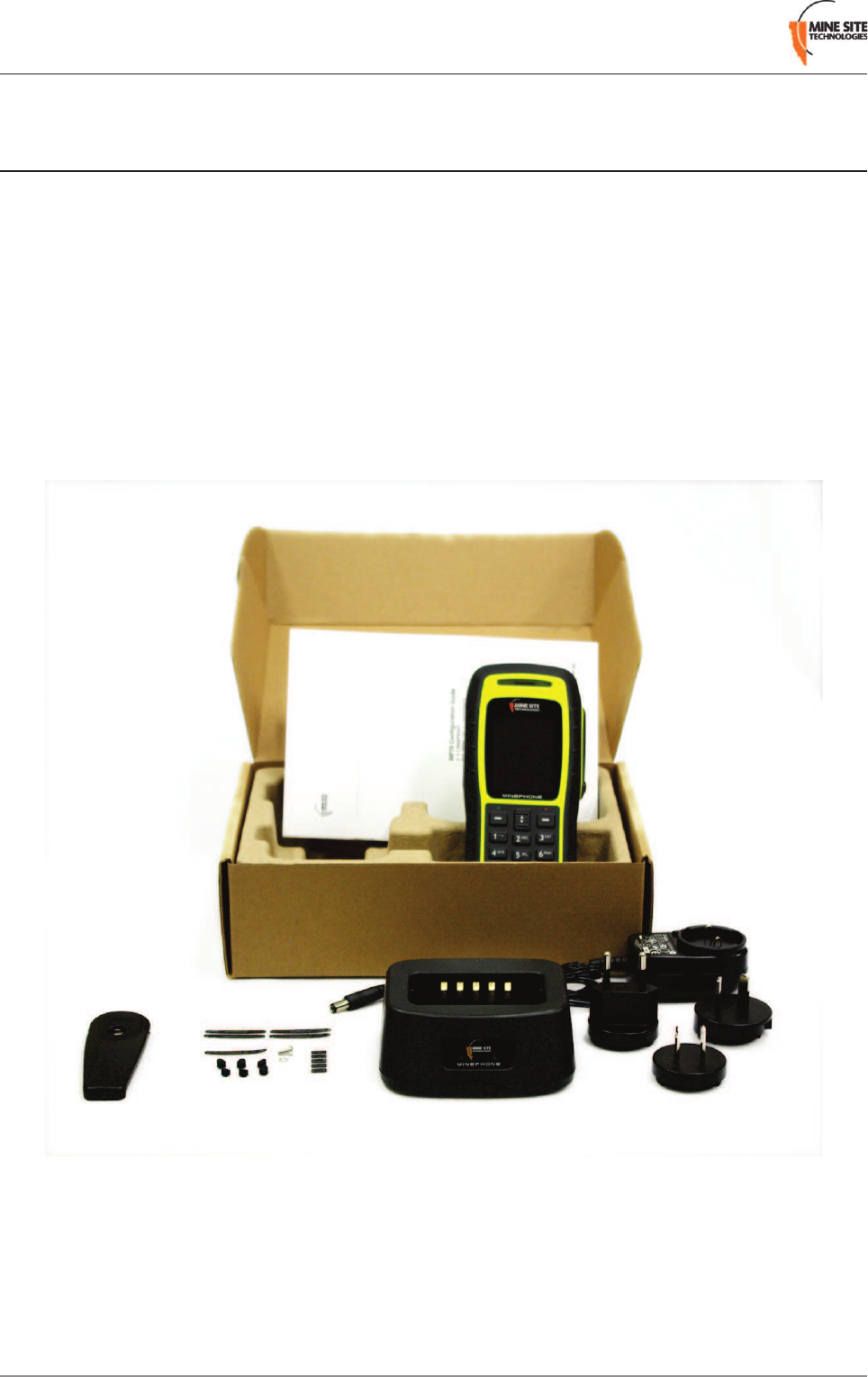
When you open the MinePhone packaging it will contain the following:
• MinePhone handset
• MinePhone User Guide
• Charging dock
• Power adaptor and three wall plug connectors
• Belt clip
• Screw and washer for attaching the belt clip
• Spare adhesive speaker grill pads
• Spare adhesive microphone grill pads
• Spare rubber stoppers to cover mounting screws
Revision D12MP70 MinePhone User Guide
Product Overview
1.2 Hardware Features
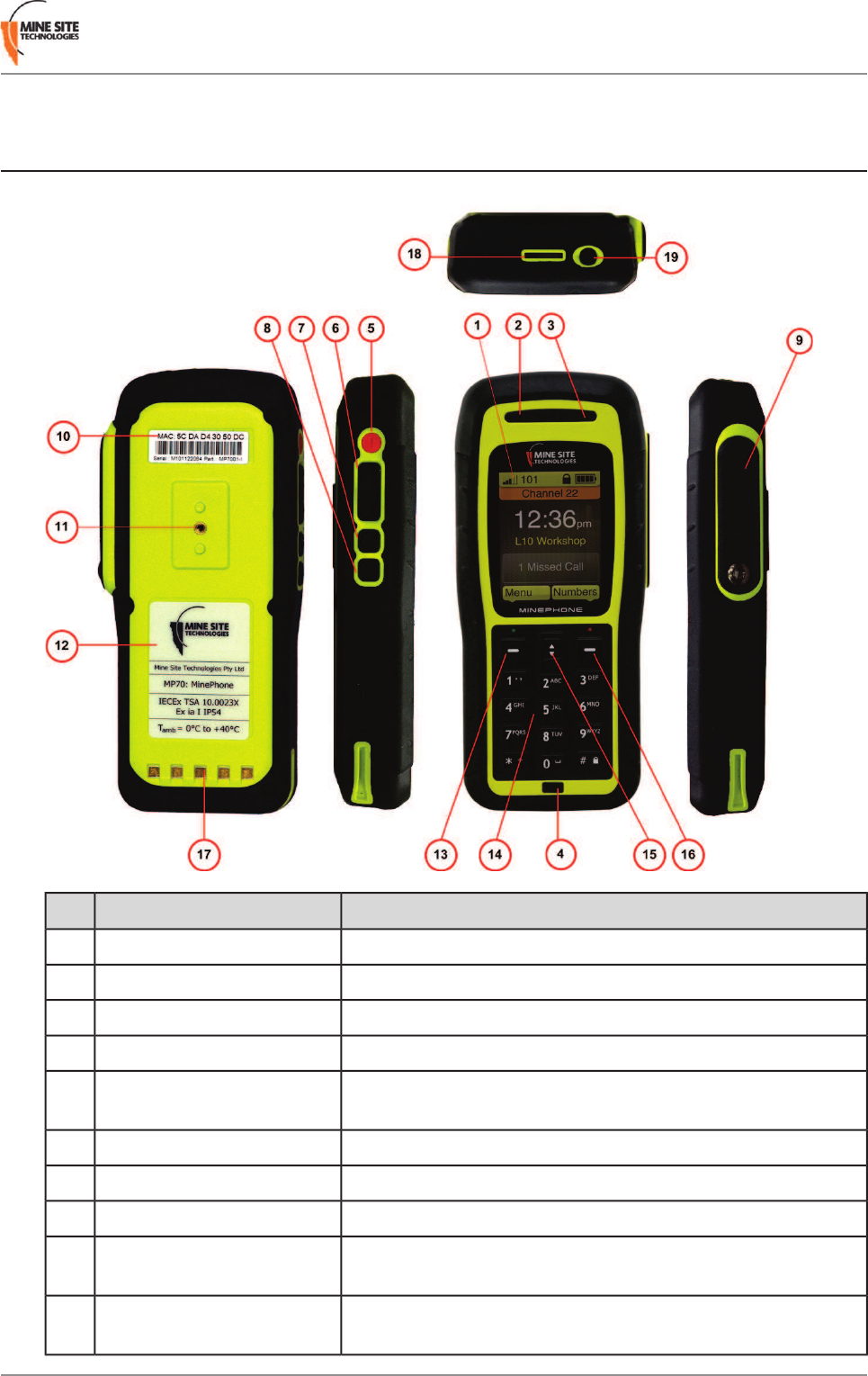
FunctionDescriptionKey
TFT display.Display1
Phone speaker.Speaker2
Microphone for Push To Talk (PTT) calls.Top microphone3
Microphone for phone calls.Lower microphone4
Emergency override button broadcasting to all MinePhone users.Emergency / Man Down
button
5
Button for Push To Talk (PTT) communication.Push to talk (PTT) button6
Changes the PTT group channel.PTT Channel Up7
Changes the PTT group channel.PTT Channel Down8
Removable cover for attaching an external Remote speaker
microphone. (only applicable in Hard Rock mining environments)
External headset jack cover9
Handset identification label.Serial number / MAC address
label
10
MP70 MinePhone User Guide13Revision D
Product Overview
FunctionDescriptionKey
Mounting hole for a attaching the included beltclip or optional
metal beltclip.
Beltclip mounting hole11
IEC / MSHA approvals label.Approvals label12
Button to answer a call or left selection on the display.Left selection key / Call key13
Keypad for entering contact numbers and text messaging.Keypad14
Navigation key when accessing the phone menu.Navigation key15
Button to end a call or right selection on the display.Right selection key / End key16
Contacts for charging the handset in the charging dock.Charging contacts17
LED on top of the phone will flash when receiving a call.Receive call LED18
Button to switch the phone on or off.Power button19
1.3 Display
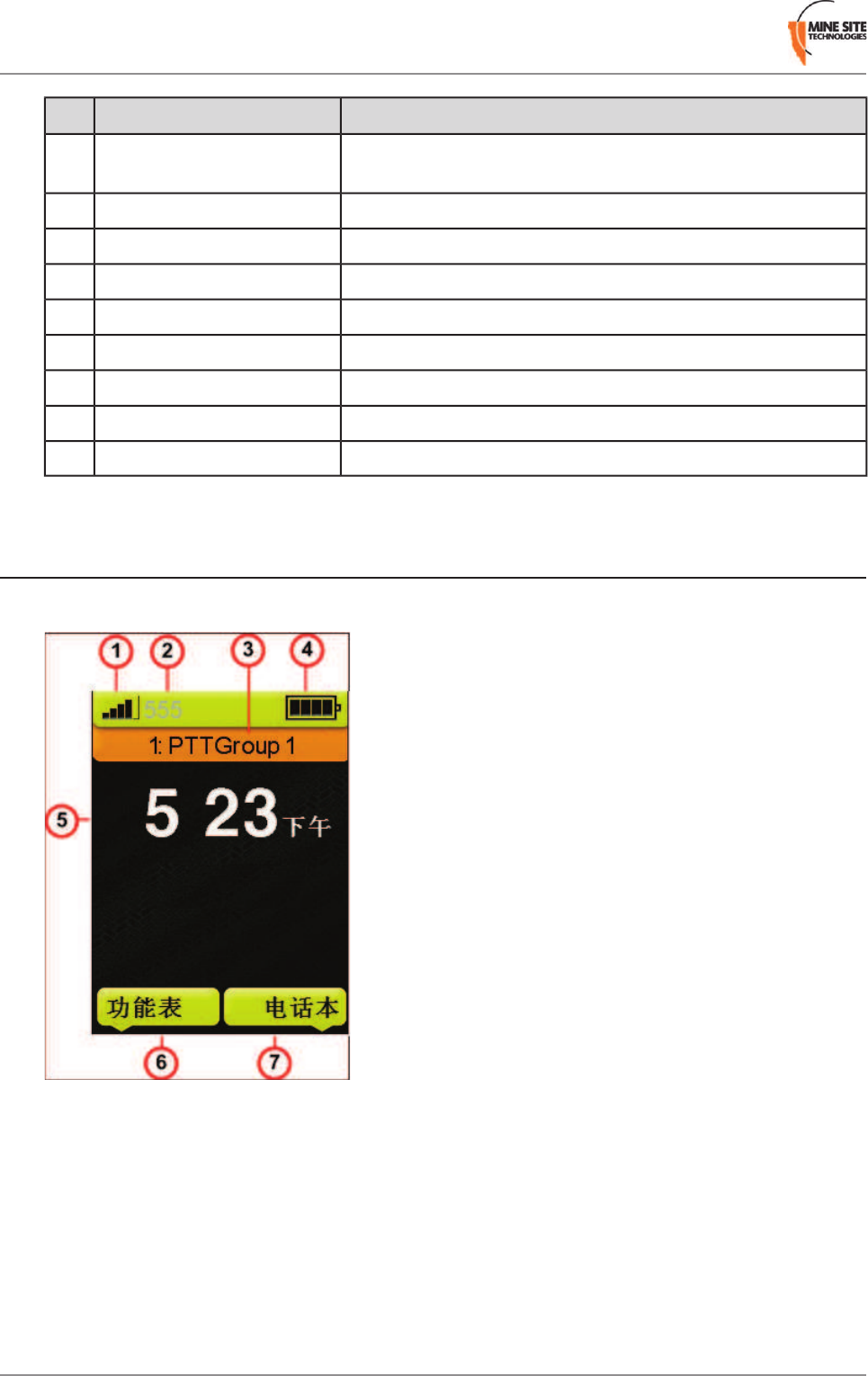
When the phone is switched on, the Home screen is displayed.
1. Network signal strength
2. Handset Extension number
3. PTT channel indicator
4. Battery level
5. Time display
6. Function of the left softkey
7. Function of the right softkey
Revision D14MP70 MinePhone User Guide
Product Overview
1.4 Charging the Phone
The MinePhone has an internal battery providing up to 48 hours standby and 4 hours talk time. It can be
charged using the supplied charging dock and power adaptor, which can operate at 110-240v AC. The
charger should be placed in a well ventilated, non-hazardous area with access to power.
Caution: Use only charging docks and power adaptors approved by Mine Site Technologies. Use
of any other type may be dangerous, breach Intrinsic Safety requirements and will void the warranty.
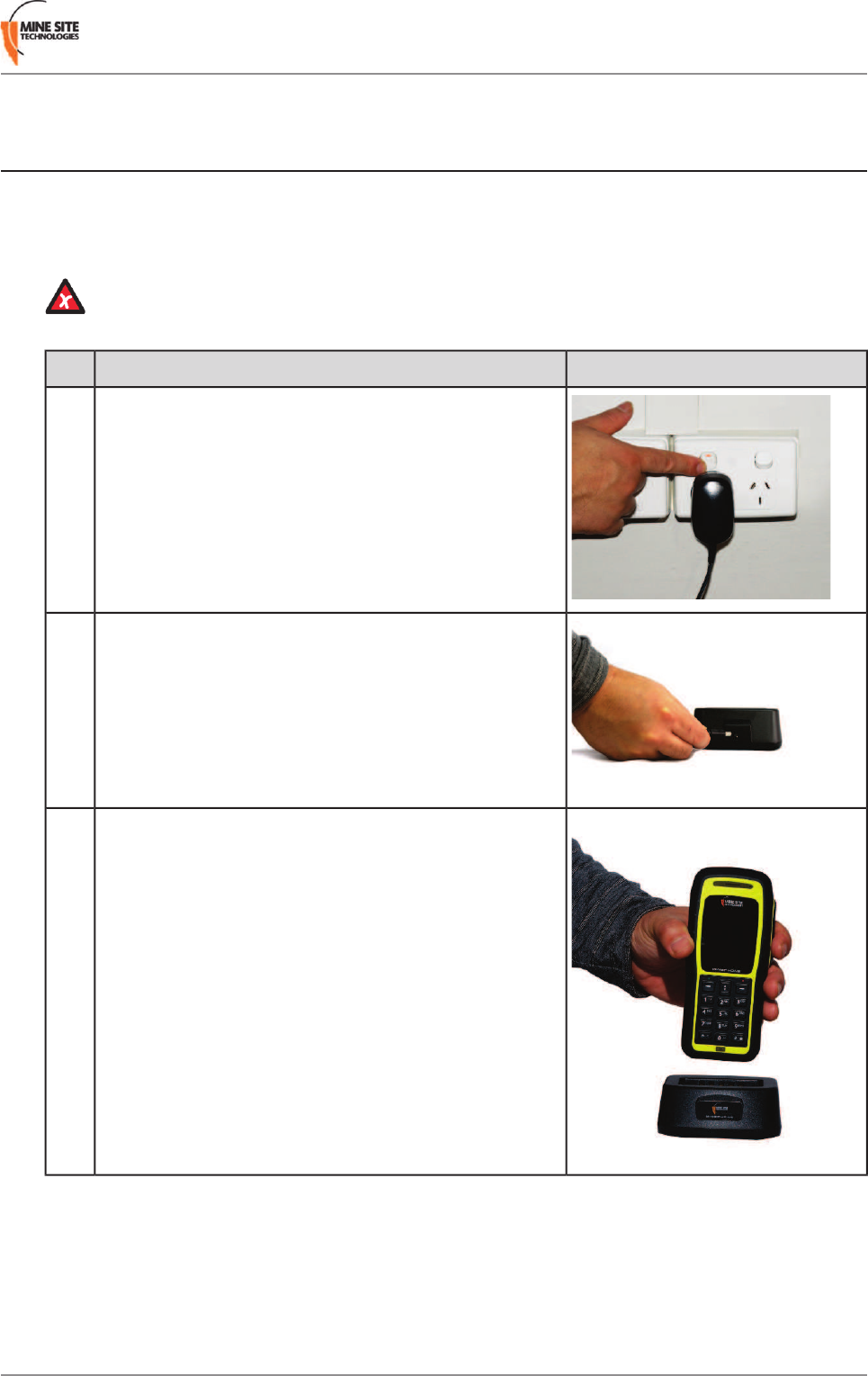
PictureProcedureStep
Connect the power adaptor to a wall socket.1
Connect the lead from the power adaptor to the charging
dock.
2
Place phone into the charger.3
MP70 MinePhone User Guide15Revision D
Product Overview
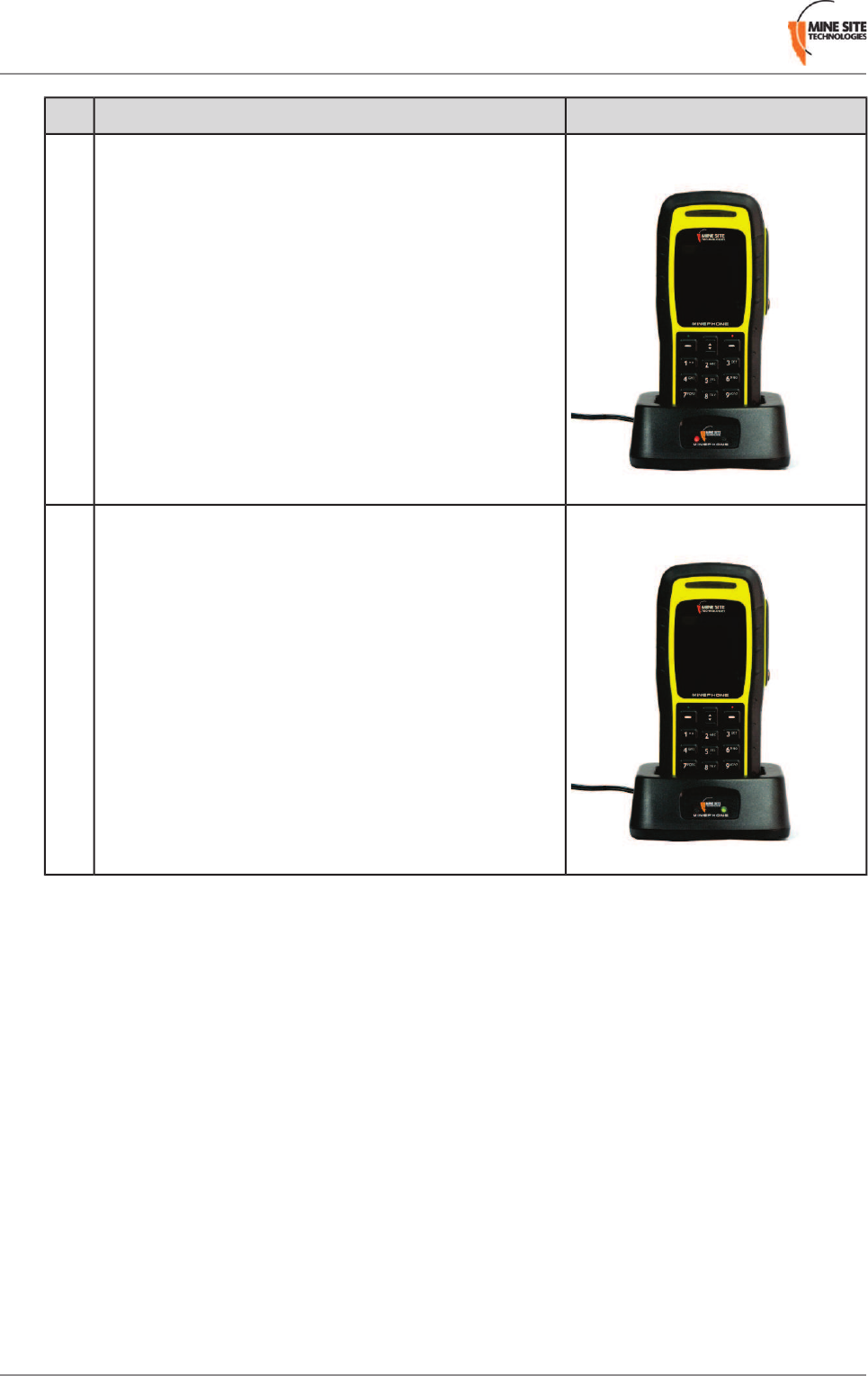
PictureProcedureStep
The charging indicator will be red if the battery is flat or
less than fully charged. If the handset is flat, charging time
will take about 3 hours.
4
The fully charged indicator will be green when the handset
is fully charged.
5
Revision D16MP70 MinePhone User Guide
Product Overview

Chapter
2
User Basics
This chapter describes the most commonly used functions of the phone.
Topics:
•Switching the MinePhone On
and Off
•Accessing Menu Features
•Changing the Speaker Volume
•Changing the Backlight Time
and Brightness
•Writing a Text Message
•Sending a Text Message
MP70 MinePhone User Guide17Revision D
2.1 Switching the MinePhone On and Off
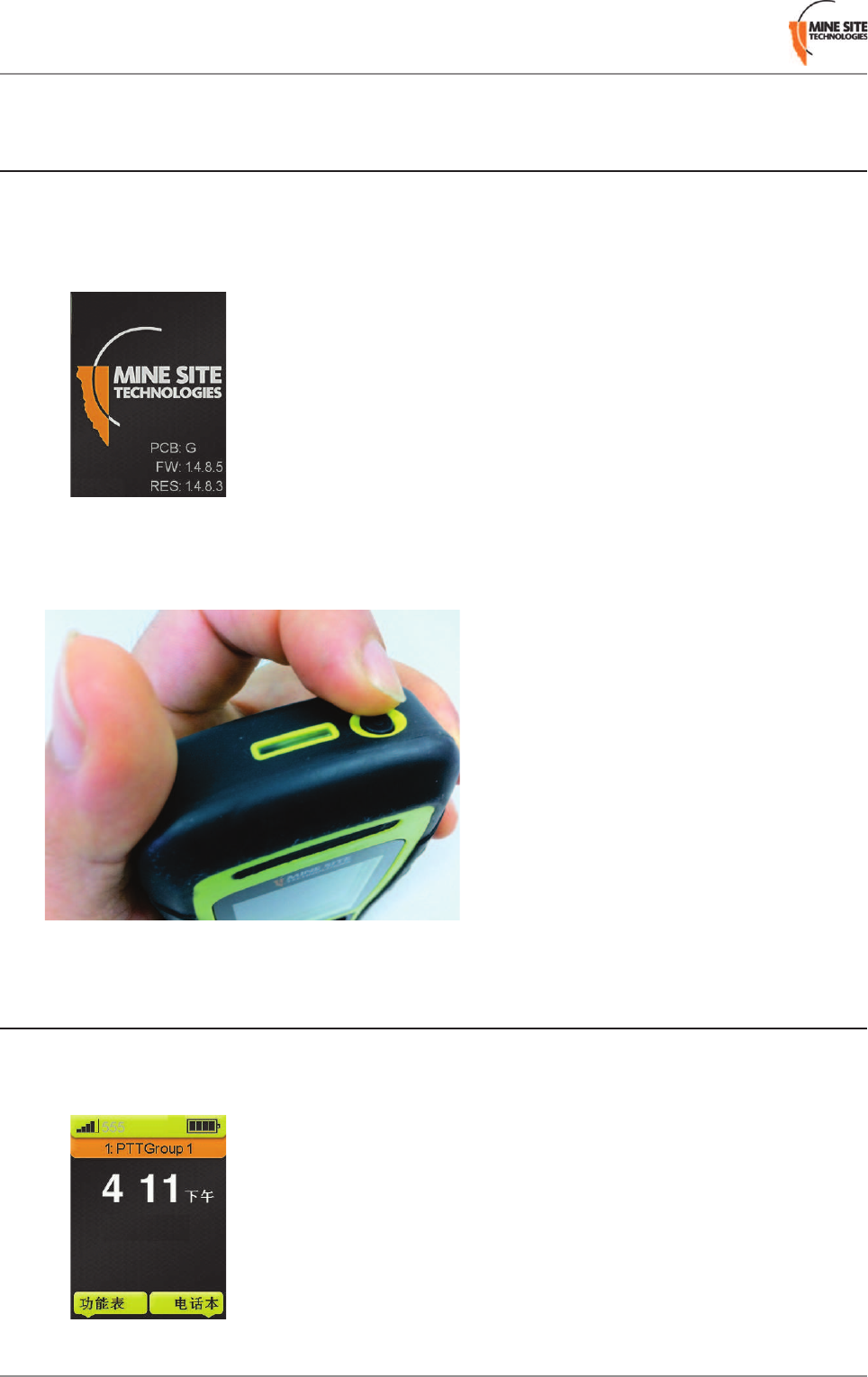
To turn on the phone:
1. Press and hold down the Power button for 3 seconds. A splash screen briefly displays the hardware
(HW), firmware (FW) and resource file (RES) version.
2. The Home screen will then be displayed and the phone will connect to the network.
To turn off the phone, press and hold down the Power button for 3 seconds. The phone will beep and
turn off.
2.2 Accessing Menu Features
To access the menu:
1. Press the left softkey below the Menu option on the Home screen.
2. Use the vertical Navigation keys to scroll up and down the phone menu.
Revision D18MP70 MinePhone User Guide
User Basics
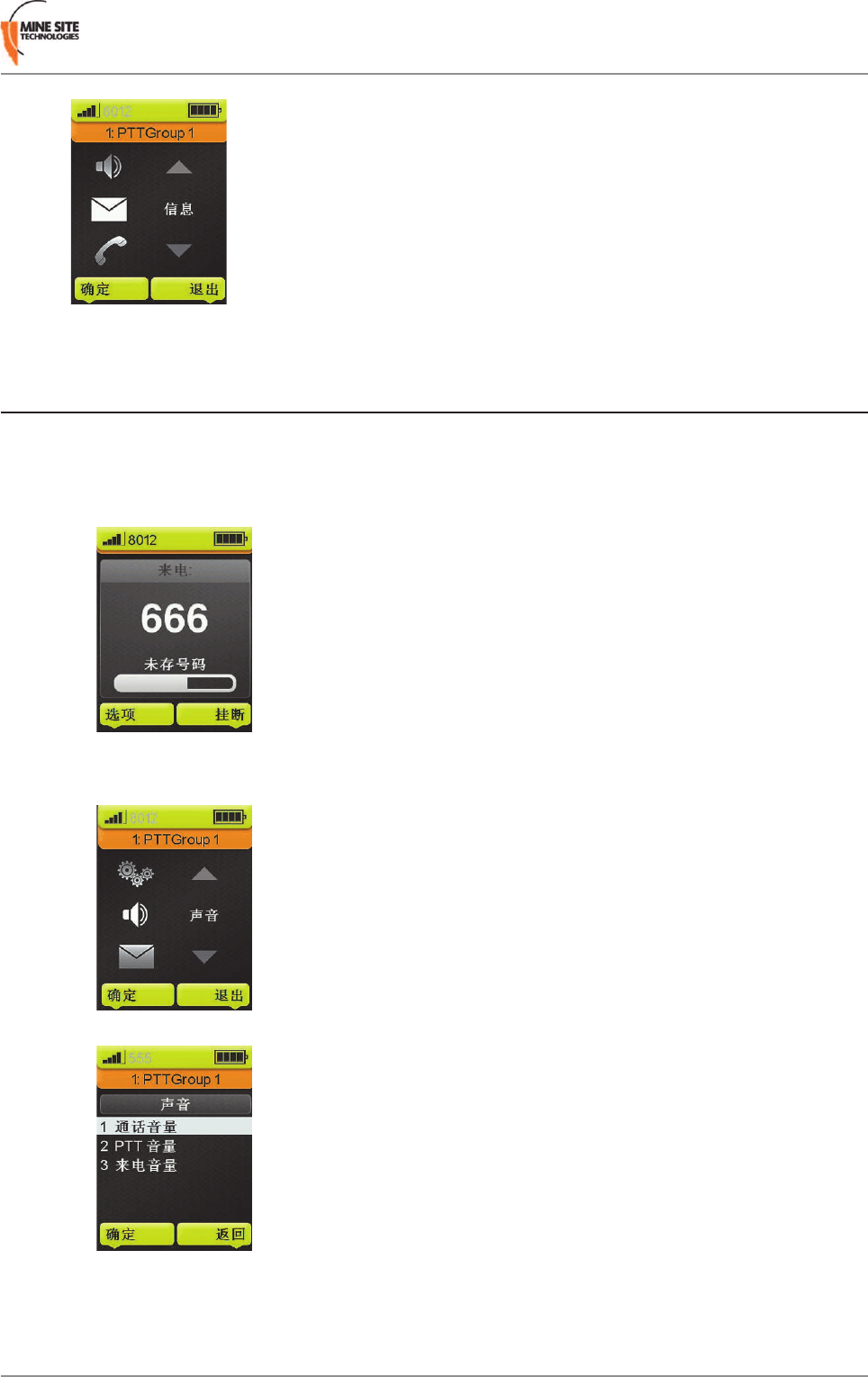
2.3 Changing the Speaker Volume
There are three options for changing the speaker volume as described below.
1. Adjusting speaker volume during a call:
a) Use the vertical Navigation keys to adjust the volume.
2. Changing the speaker volume for phone calls:
a) Select Menu on the Home screen, scroll to the Sound option and press Select.
b) Select Phone Call Volume.
c) Adjust the volume level using the vertical Navigation keys, and select OK.
MP70 MinePhone User Guide19Revision D
User Basics
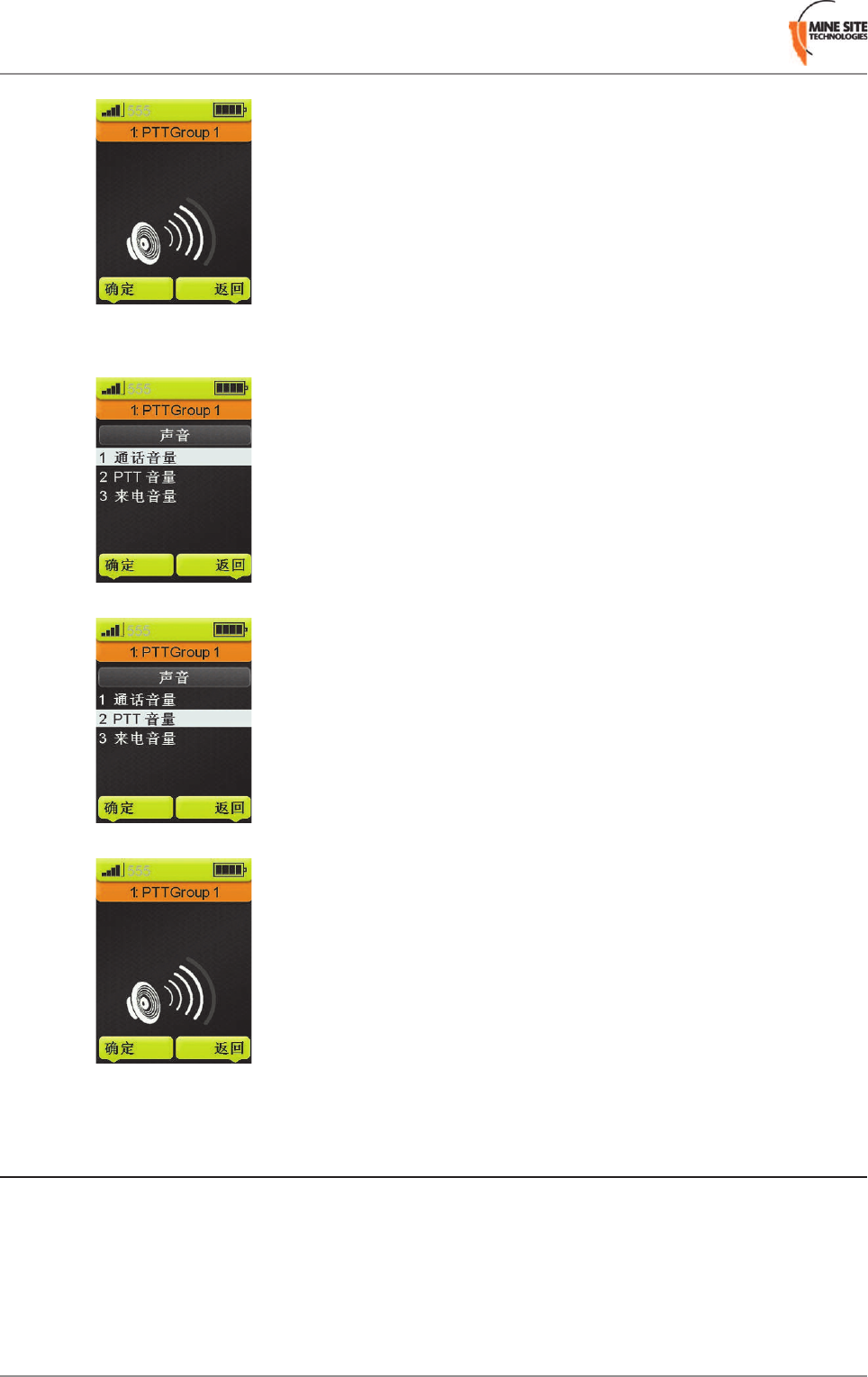
3. Changing speaker volume for Push To Talk (PTT) calls:
a) Select Menu on the Home screen, scroll to the Sound option and press Select.
b) Select PTT Speaker Volume.
c) Adjust the volume level with the vertical Navigation keys, and select OK.
2.4 Changing the Backlight Time and Brightness
Context for the current task
1. To change the Backlight Time:
a) Select Menu on the Home screen, scroll to the Settings option and press Select.
Revision D20MP70 MinePhone User Guide
User Basics
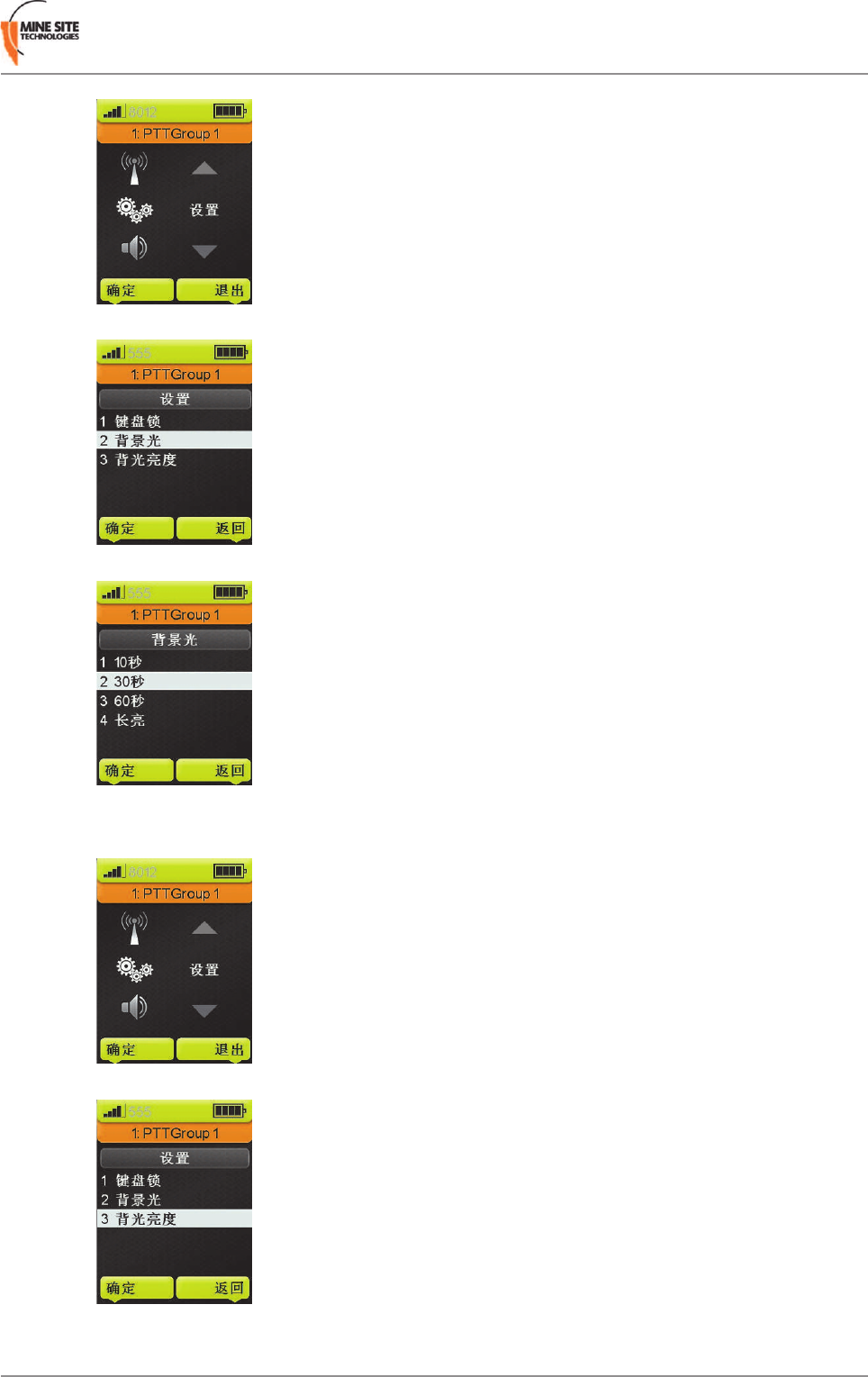
b) Scroll to Backlight Time with the Navigation keys and press Select.
c) Use the Navigation keys to select the desired backlight time and press Select.
2. To change the Backlight Brightness:
a) Select Menu on the Home screen, scroll to the Settings option and click Select.
b) Scroll to Backlight Brightness and press Select.
c) Adjust the brightness using the Navigation keys, and press OK.
MP70 MinePhone User Guide21Revision D
User Basics
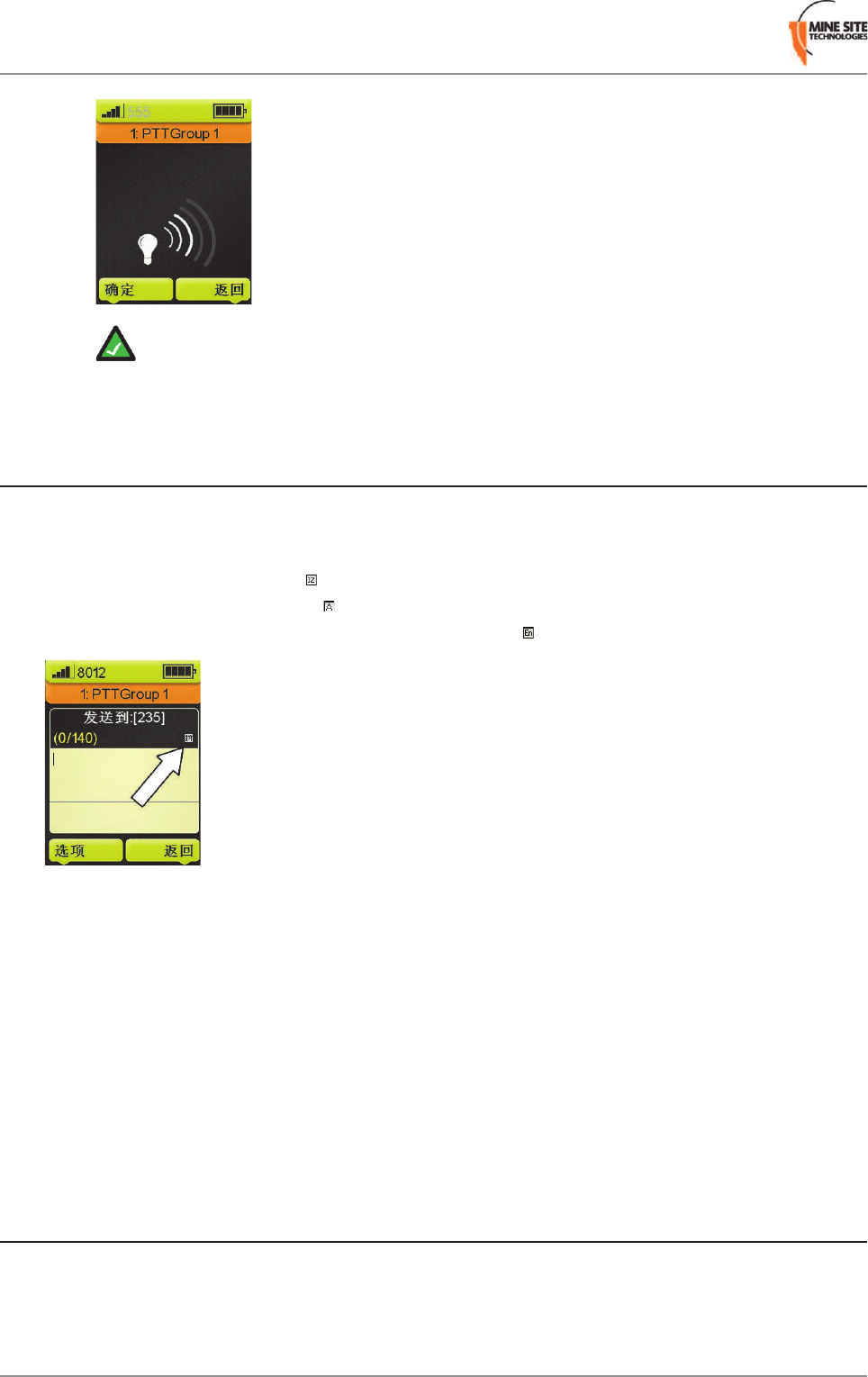
Note: Lower screen brightness will reduce battery power consumption.
2.5 Writing a Text Message
The MinePhone can use traditional or predictive text modes when writing text messages. When writing
messages, press the *key to cycle between:
• Numeric input displayed as a icon
• Character input displayed as an icon
• Predictive text messaging (English only) displayed as an icon.
Traditional text input
Press a number key between 2 and 9 repeatedly until the required character appears. If the next character
is located on the same key as the present one, wait until the cursor appears and enter the letter / number.
Predictive text input
The MinePhone has a built in dictionary for predictive text input.
1. Press keys 2to 9to start typing a word, pressing only once for each letter.
2. Press 0key to confirm the word and create a space.
3. Type the next word.
2.6 Sending a Text Message
Text messages can be sent to and from MinePhones on the network. To send a text message::
1. There are two ways to access the Messaging menu:
a) Select Menu >Messages >Compose .
Revision D22MP70 MinePhone User Guide
User Basics
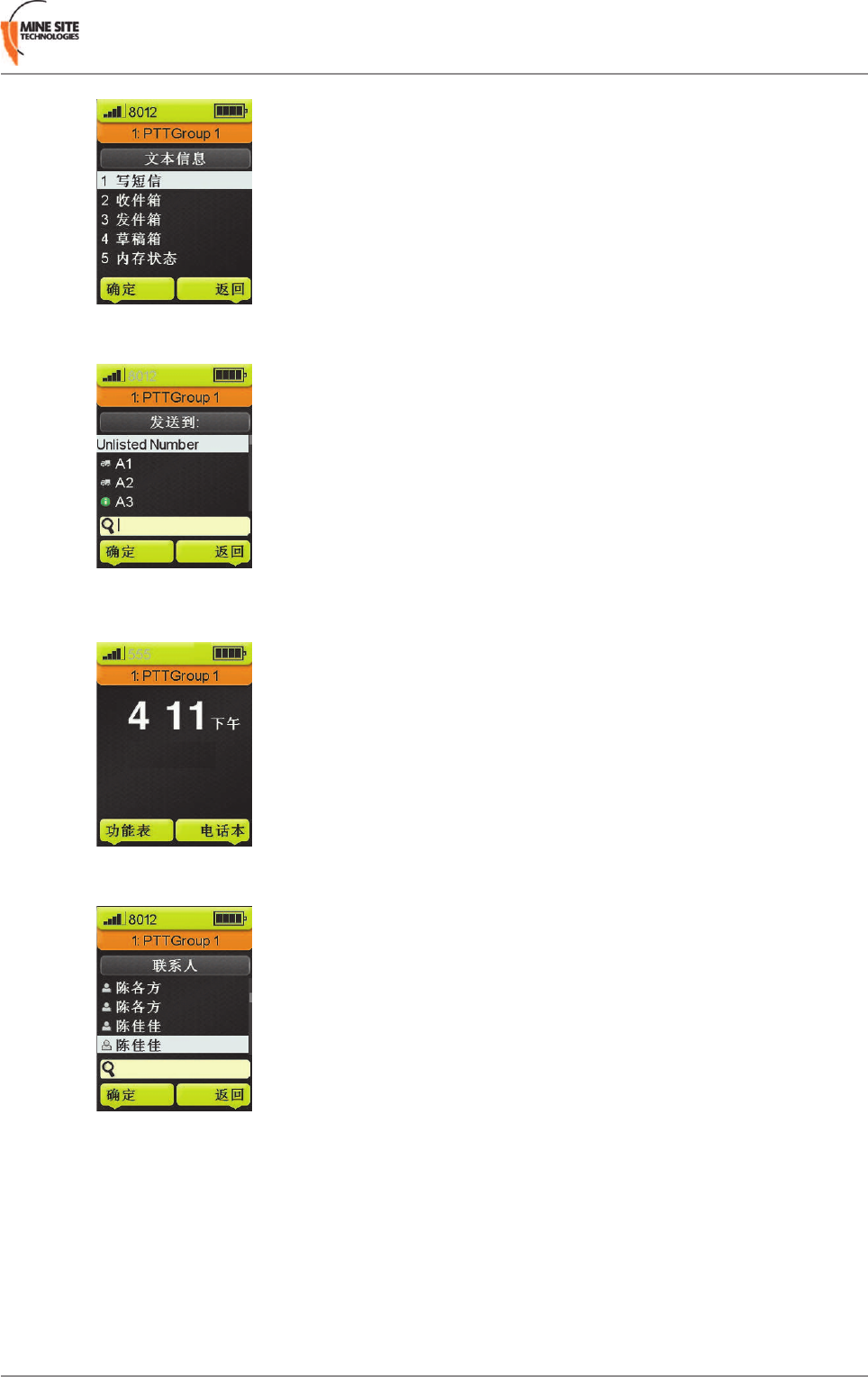
b) Use the Navigation keys to scroll to the contact, or use keypad to type the contact number and
press Select.
2. Alternatively, messaging can be accessed via the Contact List:
a) Select Contacts on the Home screen.
b) Use the Navigation keys to scroll to the contact, or use keypad to type the contact number and
press Select.
c) If there are multiple numbers for the contact, select the correct one. Press Option.
MP70 MinePhone User Guide23Revision D
User Basics
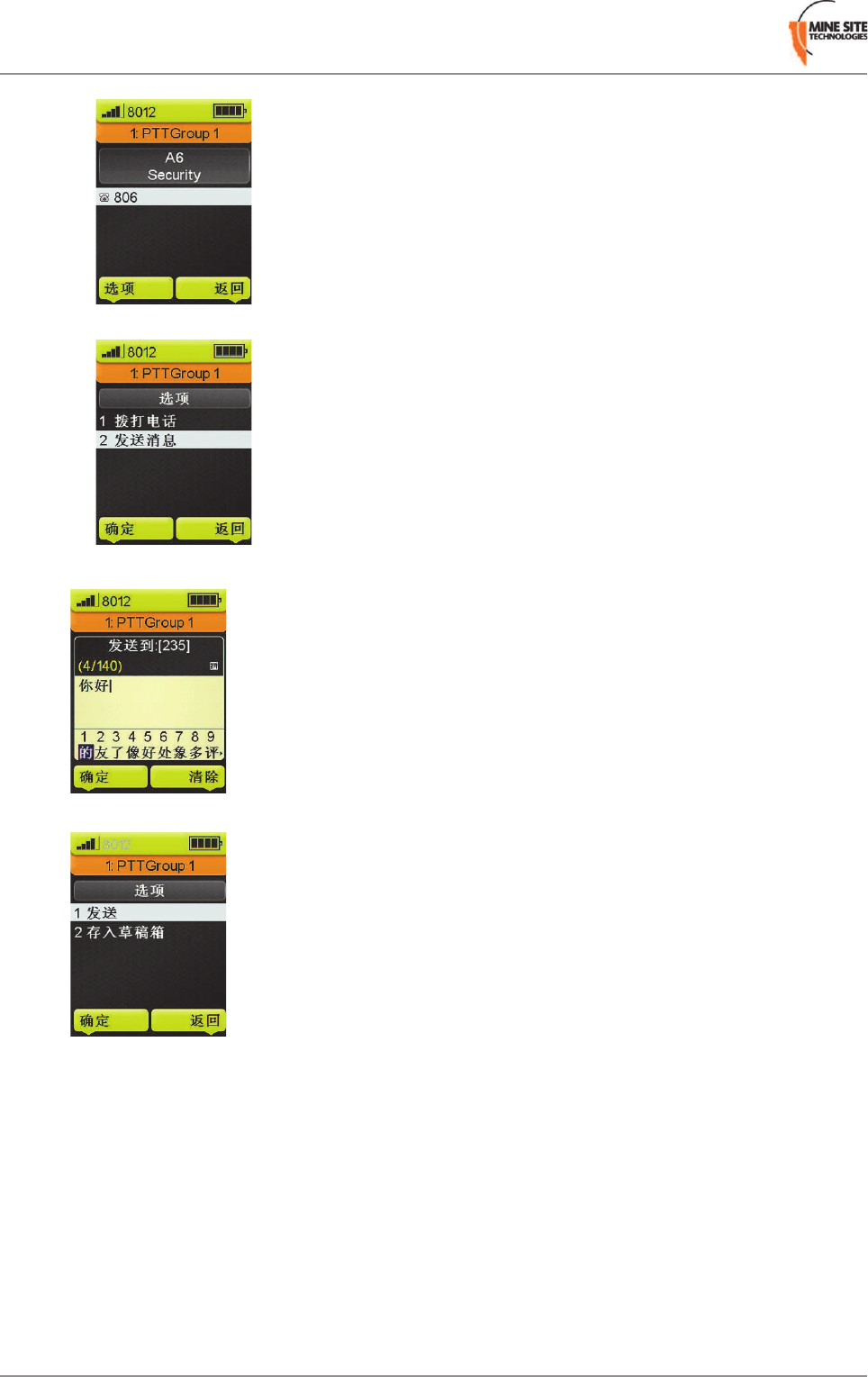
d) Select Send Message and press Select.
3. Type the message using the keypad.
4. Select Option and press Send.
Revision D24MP70 MinePhone User Guide
User Basics

Chapter
3
Voice Communications
This chapter describes how to use the Push To Talk and phone calling
features of the MinePhone.
Topics:
•Using Push To Talk
•Phone Calls
MP70 MinePhone User Guide25Revision D
3.1 Using Push To Talk
The MinePhone's Push To Talk (PTT) feature is a "walkie talkie" style of communication using selectable
PTT group channels. It can operate in three ways:
Regular PTT
Communication where one person talks and the other MinePhones in the same PTT group receive. Note
that if a recipient MinePhone is already on a phone call, it will not receive the PTT call.
Broadcast PTT
Communication where one person talks and the other MinePhones on the network receive regardless of
their current PTT group. Note that if a recipient MinePhone is on a phone call or is receiving on its
designated PTT group, it will not receive the broadcast.
Emergency PTT
If a MinePhone in the network transmits in emergency PTT mode, all MinePhones will play the audio
through their speakers. This will override all phone calls and all other PTT communications.
3.1.1 Push To Talk
To use Push to Talk (PTT):
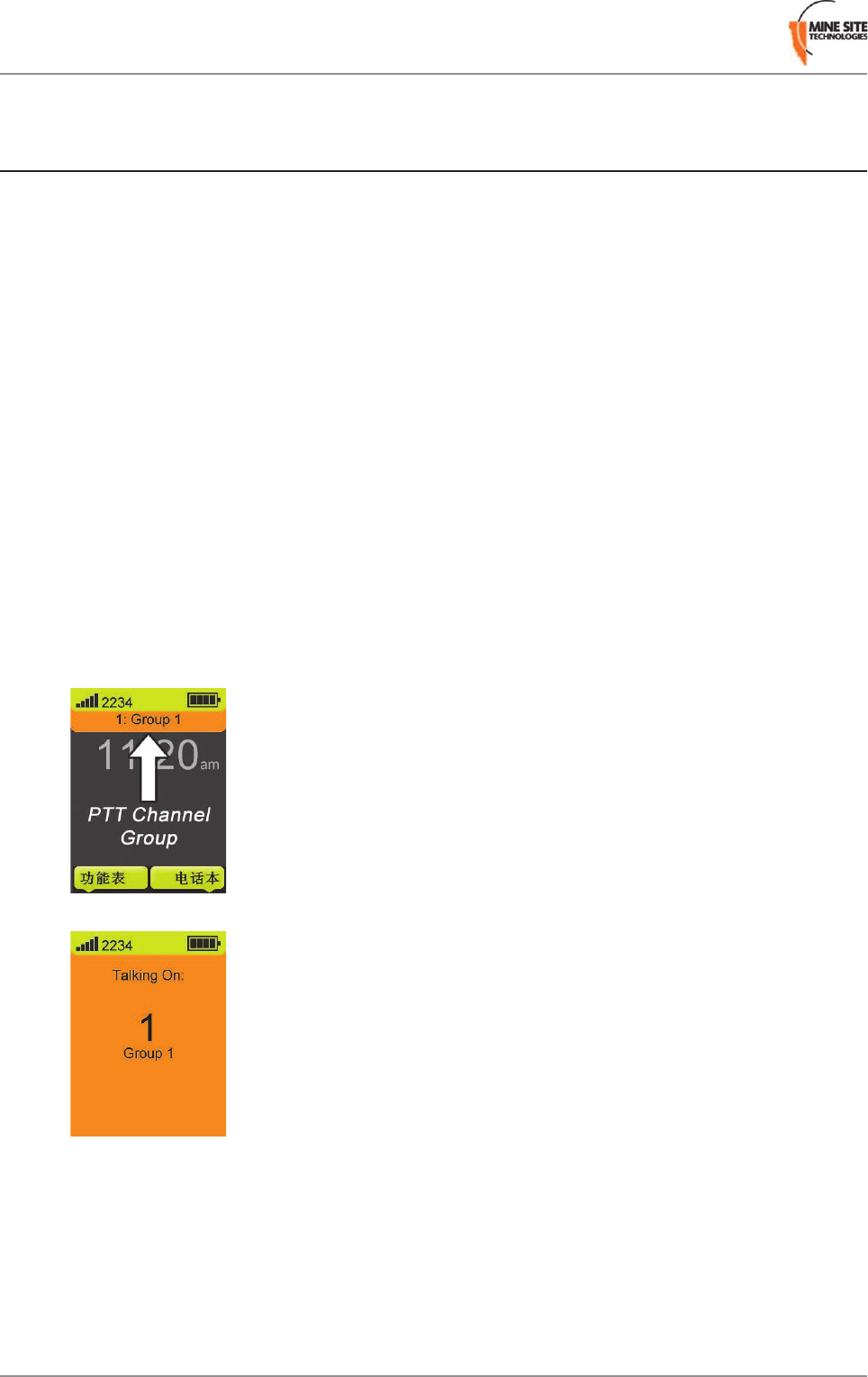
1. Select the PTT group channel using the PTT Channel buttons on the side of the phone. Make sure
you and the recipient are on the same channel.
2. Press and hold the PTT button. Wait for the short beep before speaking.
3. When you have finished speaking, release the PTT button. This allows one of the recipients to talk
back on the PTT group.
Revision D26MP70 MinePhone User Guide
Voice Communications
3.1.2 Broadcast Push To Talk
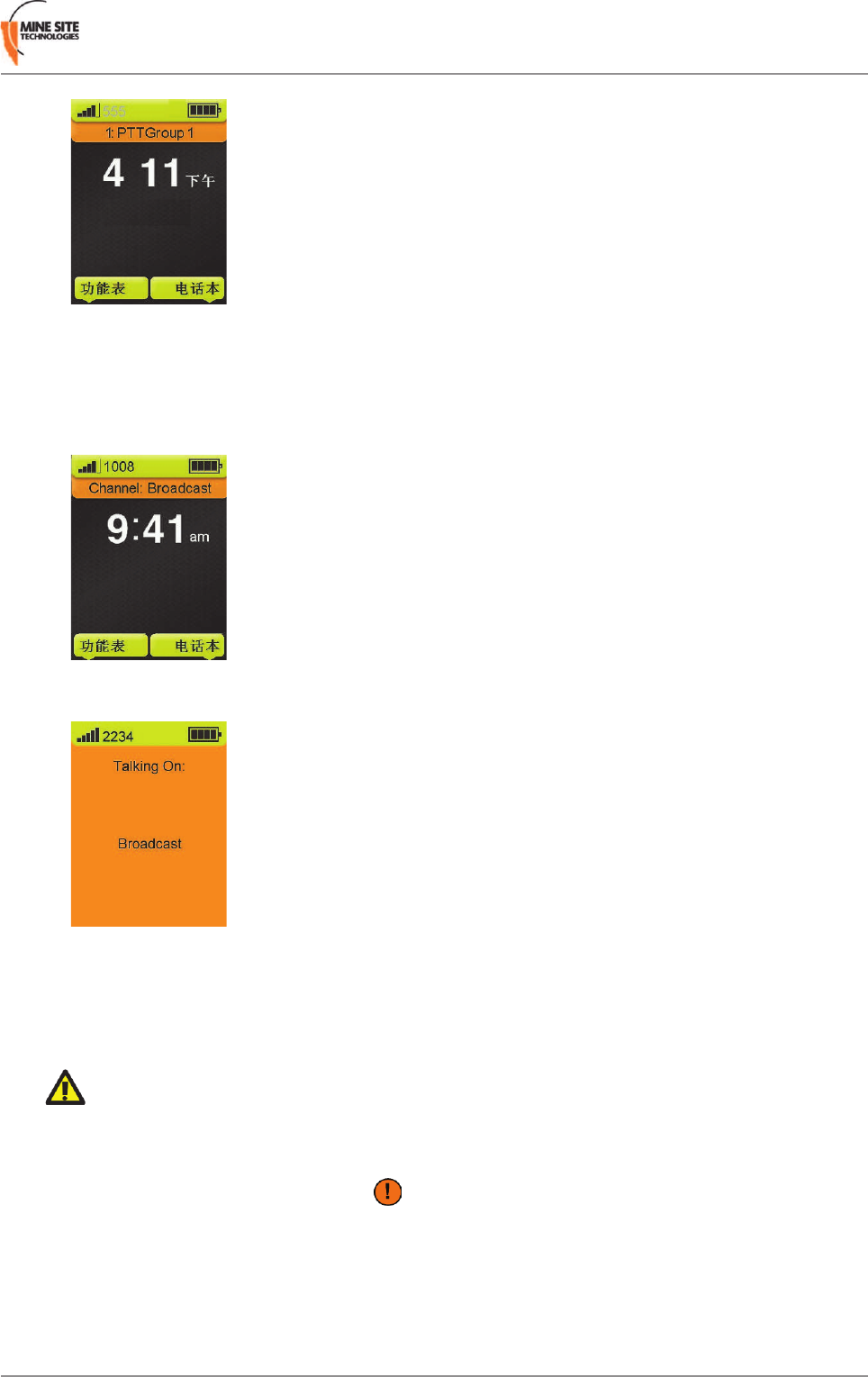
To make a Broadcast Push To Talk: call to all MinePhones on the network:
1. Change the PTT group channel to Channel: Broadcast using the left or right Navigation keys.
2. Press and hold the PTT button. Wait for the 2 short beeps before speaking. Your transmission will be
broadcast to all MinePhones. Release the PTT button to stop broadcasting.
3.1.3 Emergency "Man Down" Call
The MinePhone has an Emergency / Man Down button on the side of the phone. When pressed, the call
will be broadcast to all users and will override all phone calls on the network.
Important: The Emergency button should only be pressed in an emergency situation. Please check
your site safety policies for appropriate use of this feature.
To make an emergency call:
1. Press and hold the Emergency button for 3 seconds. An emergency broadcast screen is displayed
with a countdown to broadcast.
MP70 MinePhone User Guide27Revision D
Voice Communications
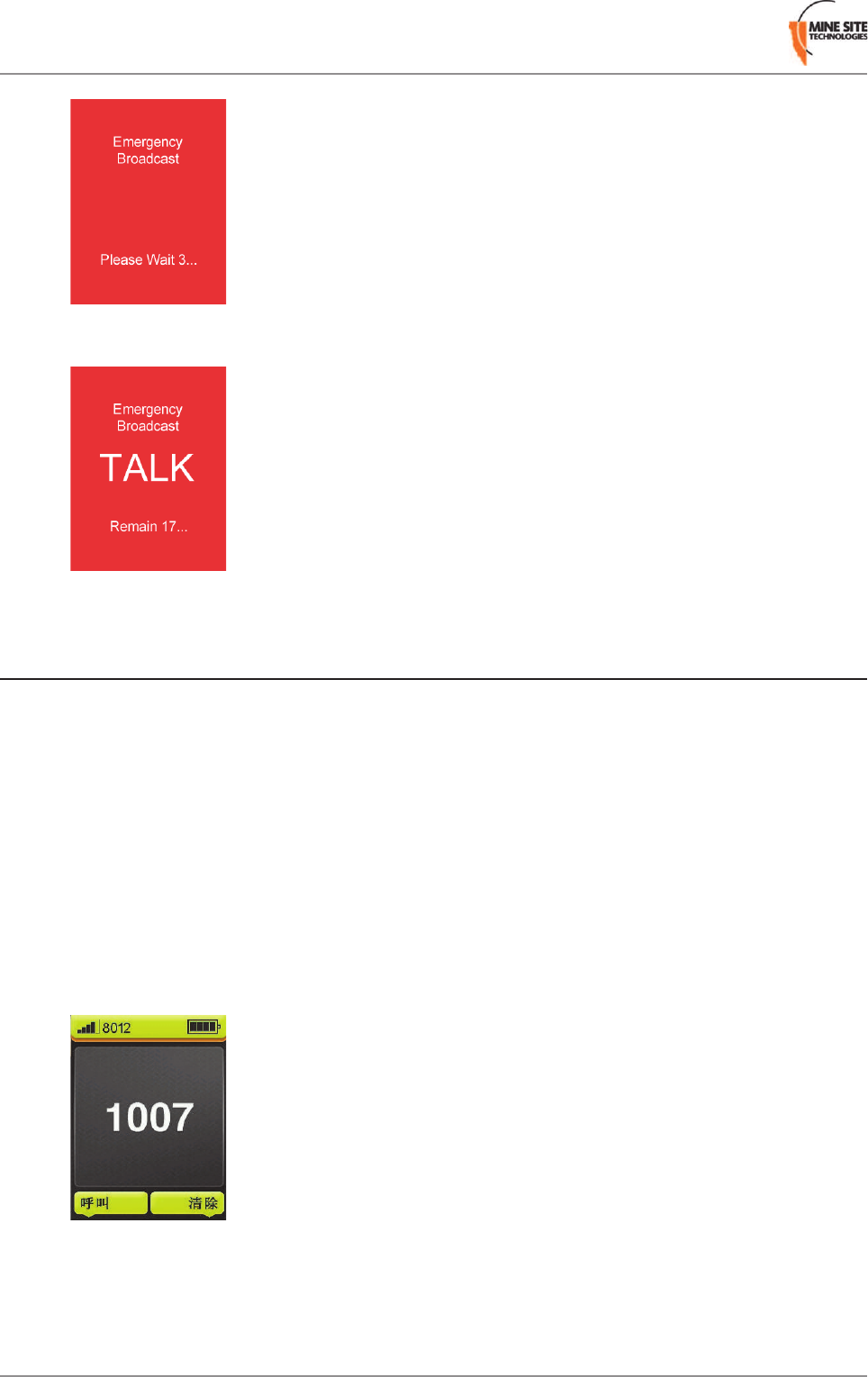
2. The emergency call is broadcast to all users for 30 seconds. To end the call, press and hold any key
for 3 seconds.
3.2 Phone Calls
Phone calls can be made to other MinePhones on the network and phones outside of the network (dependent
upon the site network configuration).
3.2.1 Make a Call
Calls can be made to other MinePhones on the same network. Calls made to phones outside of the network
may require a prefix number to be entered before dialling the number, for example '0'. The prefix may
also be preconfigured in the contacts list.
Contact your System Administrator for details.
To make a call:
1. If you know the number of the person you are calling, use the keypad to type the number and press
the Call button or left softkey.
2. To look up a number, select Contacts from the Home screen.
Revision D28MP70 MinePhone User Guide
Voice Communications
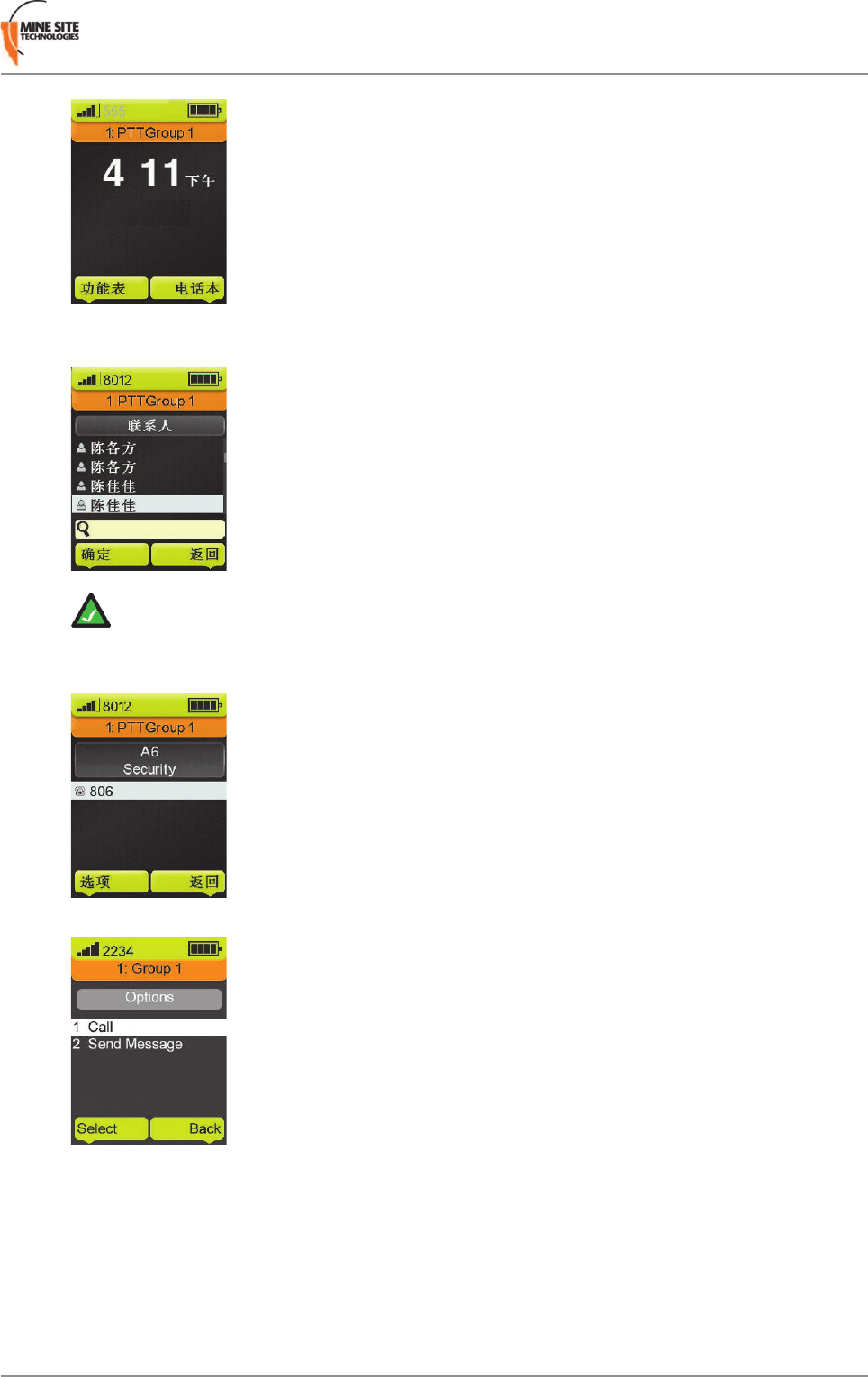
3. Select the contact using the Navigation keys and/or use the keypad to enter the first few letters of the
contact name.
Note: The Contacts list cannot be edited in the MinePhone. They are managed by the System
Administrator on the server side.
4. Select Option.
5. Select Call to make the call. To end the call press the End key.
3.2.2 Receive a Call
To answer a call press the Call button. To end the call, press the End button.
MP70 MinePhone User Guide29Revision D
Voice Communications
3.2.3 Hold a Call
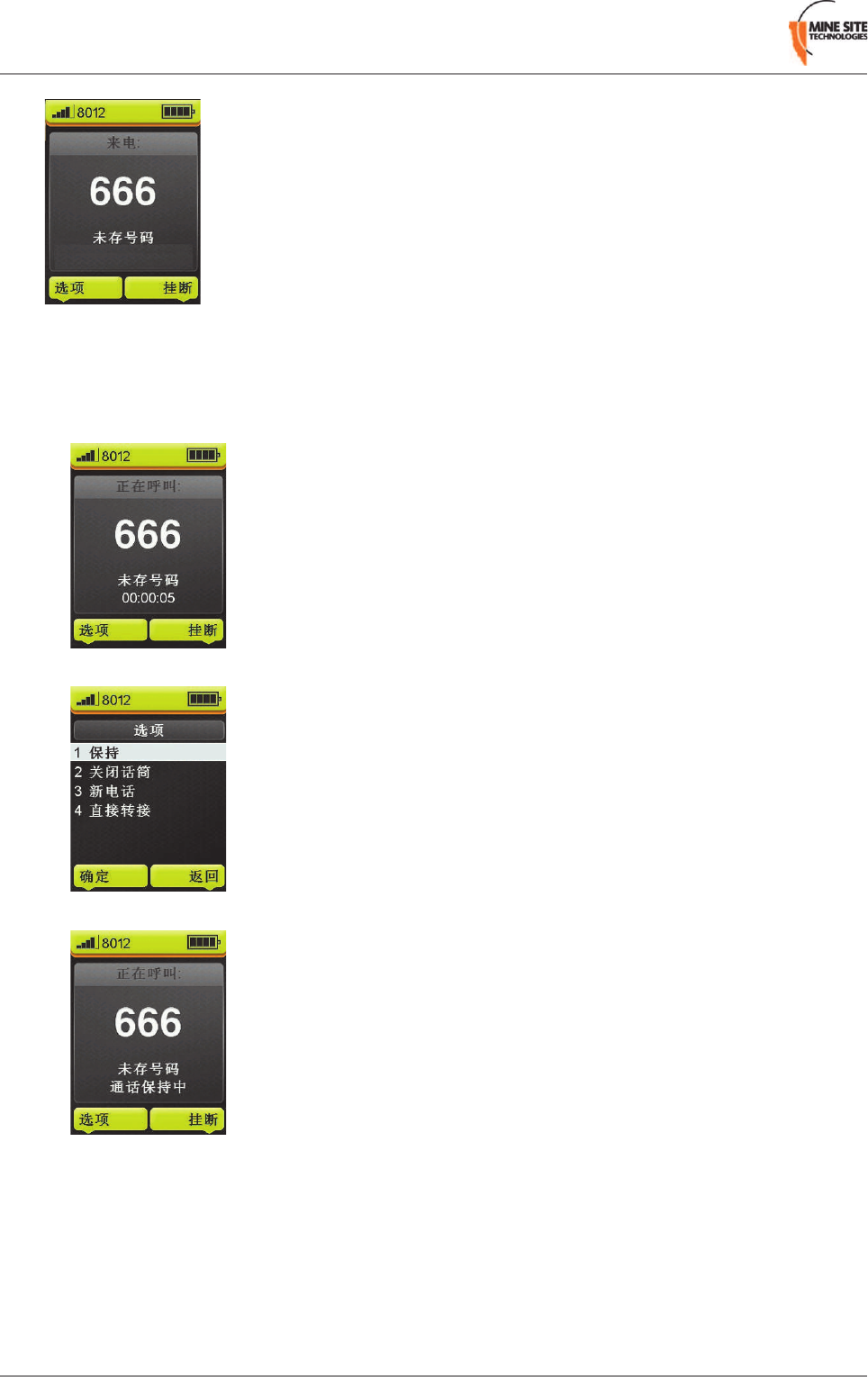
To put a call on hold:
1. During a call, select Option.
2. Use the Navigation keys to select Hold and press Select.
3. Call will be put on hold.
4. To remove the call from hold, select Option and select Unhold.
Revision D30MP70 MinePhone User Guide
Voice Communications